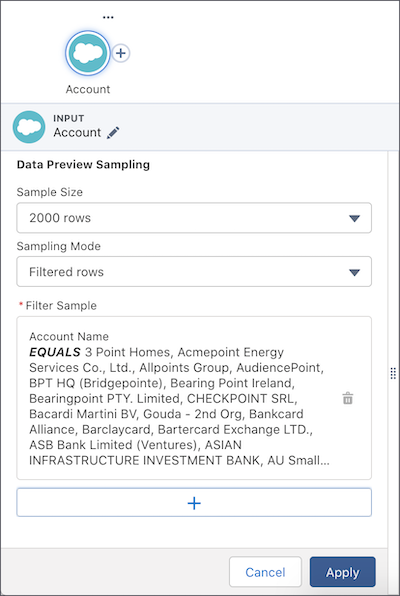
In CRM Analytics, use data preview sampling to see a more accurate picture of your data at each node in Preview. By widening the sample size and selecting the mode to arrange your data, data sampling helps prevent working without preview data. Select Filtered Rows to isolate specific values. Select All Column Values to populate a sample when you need to see all column values, such as when creating a bucket.

Note This feature is available for datasets, direct data, and SFDC_LOCAL
connections.
| User Permissions Needed | |
|---|---|
| To manage and create a recipe: | Edit CRM Analytics Dataflows OR Edit Dataset Recipes |
Note Nodes such as joins, filters, and transforms apply their logic to the sample data.
This means that the sample set can become empty. For example, if the input sample rows for
a join node don’t have IDs in common, no sample data is shown in the node. Similarly, if a
filter’s criteria removes all the sample rows, all subsequent nodes display no sample
data.
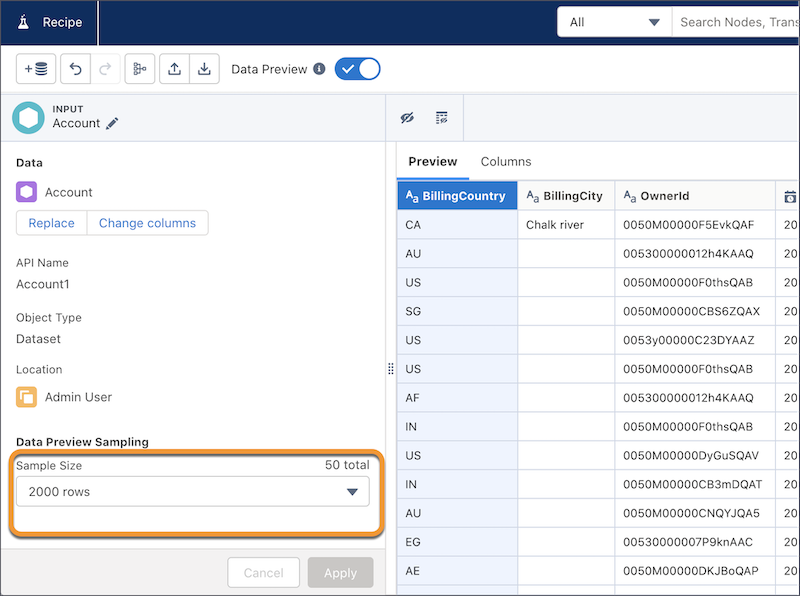
- In a recipe input node, under Data Preview Sampling, select a Sample
Size, the number of rows to include in Preview.
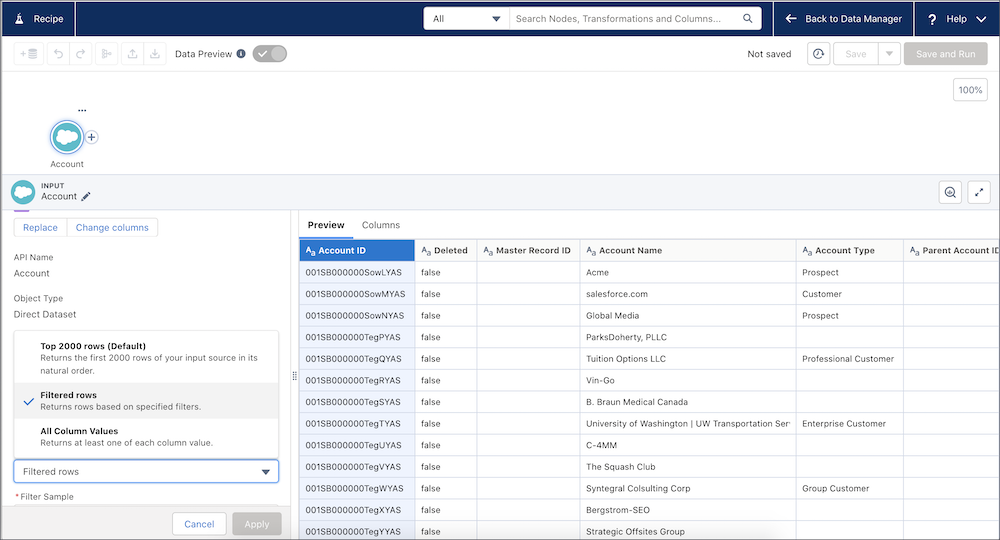
- Under Sampling Mode, select the mode that best fits the needs of your data. Select
All Column Values to populate a sample when you must see all
column values, such as when creating a bucket. Select Filtered
Rows to isolate specific values. For datasets, you can also select
Random Sampling to get a random selection of rows.
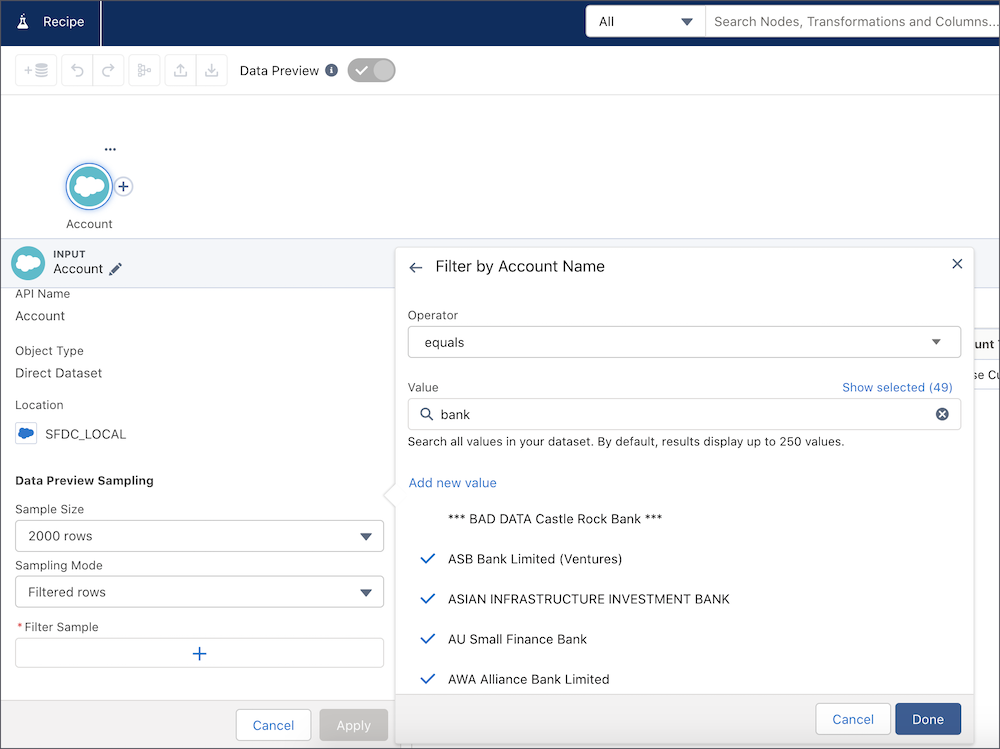
- If you choose the Filtered Rows sampling mode, click the +
under Filter and choose the column value to filter on. Select the values to include in
your filtered results.
- Click Apply.