Connect to data in your local Salesforce org, external orgs, and other sources, such as apps, data warehouses, and database services. Use an input connector to extract data from a data source. Use an output connector to load the recipe results into a target.
To use an output connector, the org admin must first enable it in Setup.
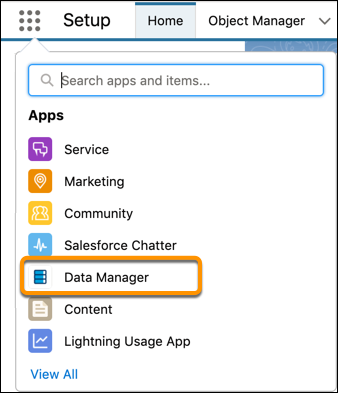
- From the App Launcher, open Data Manager.
- In the left panel, select Connections.
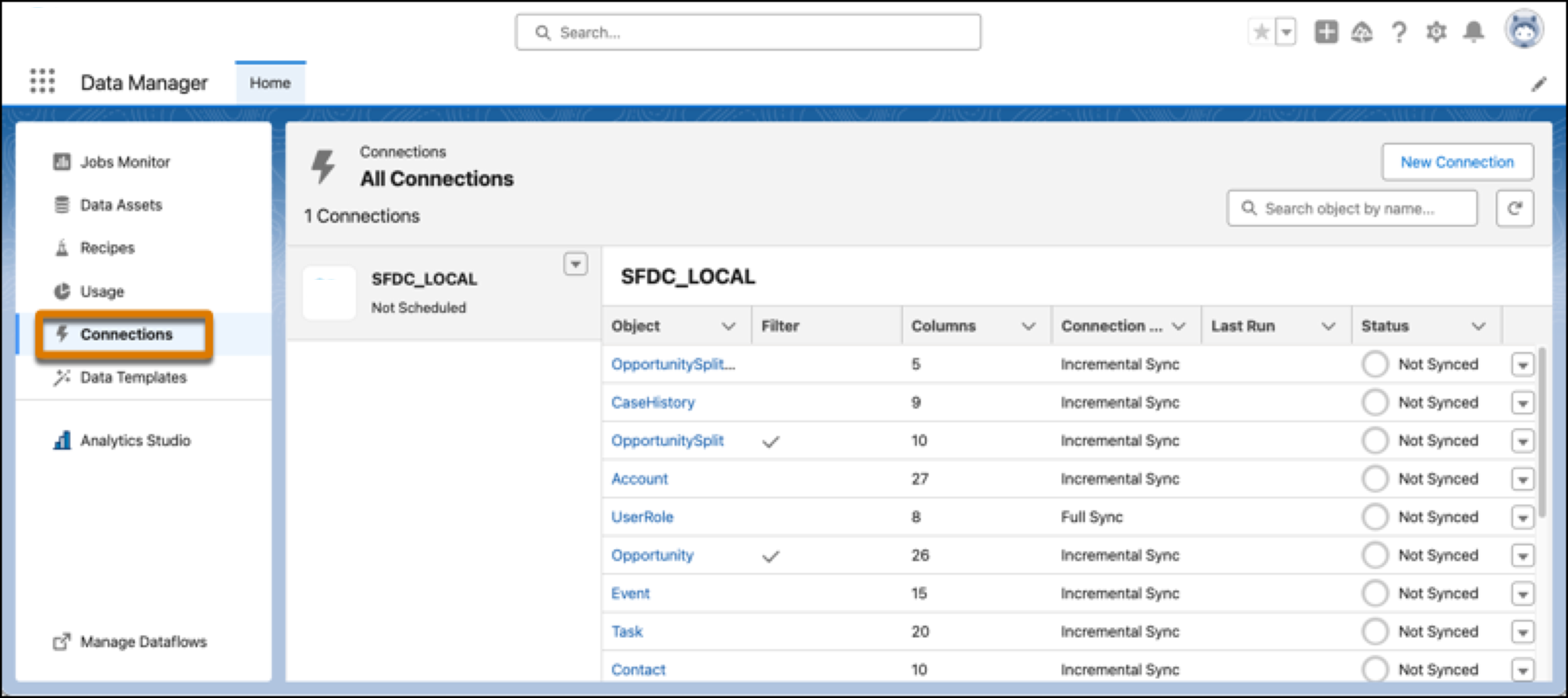 By default, you have a connection to your local Salesforce org.
 - To connect to a different data source or create another connection to the same data source, click New Connection.
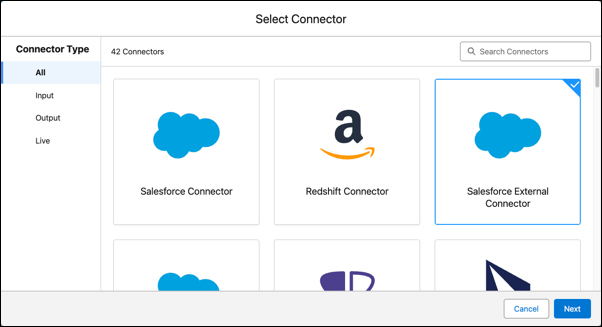
- Select the connection type.
For example, select Salesforce External Connector to connect to another Salesforce org.
- Enter and save the connection details.
The connector help pages in this section provide information on the details needed for each connector.
- In the Edit objects dialog box, for each object you want to extract data from.
- Select the object.
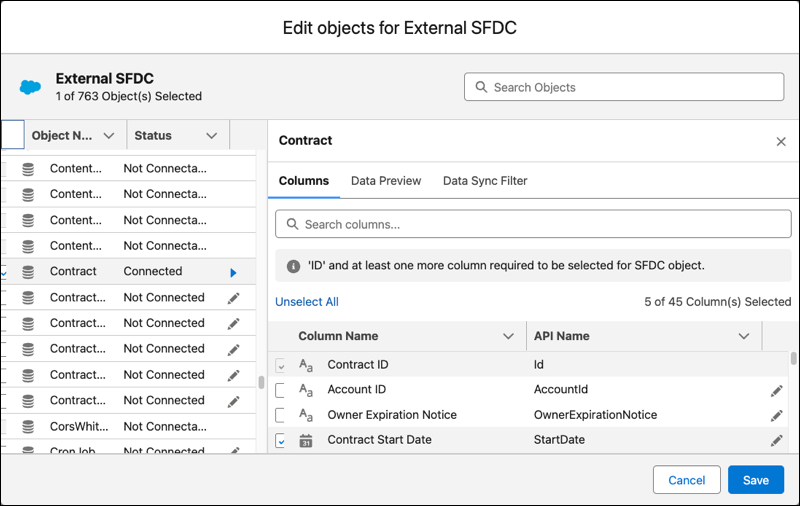
- On the Columns tab, select the object’s fields that you want to extract data
from.
A field name can only include letters, numbers, periods, underscores, or dashes. The data sync fails if the field name contains other characters, such as brackets.
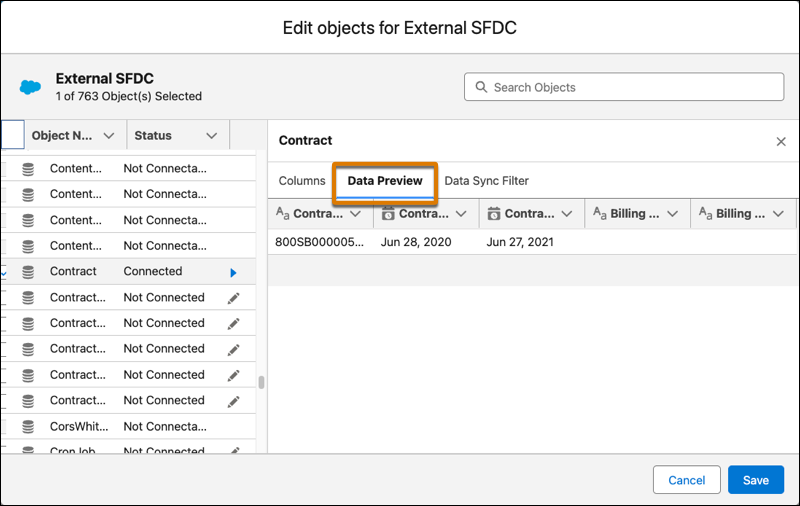
- On the Data Preview tab, review the sample records to ensure that you’re pulling
the correct fields and that the fields have the expected data.
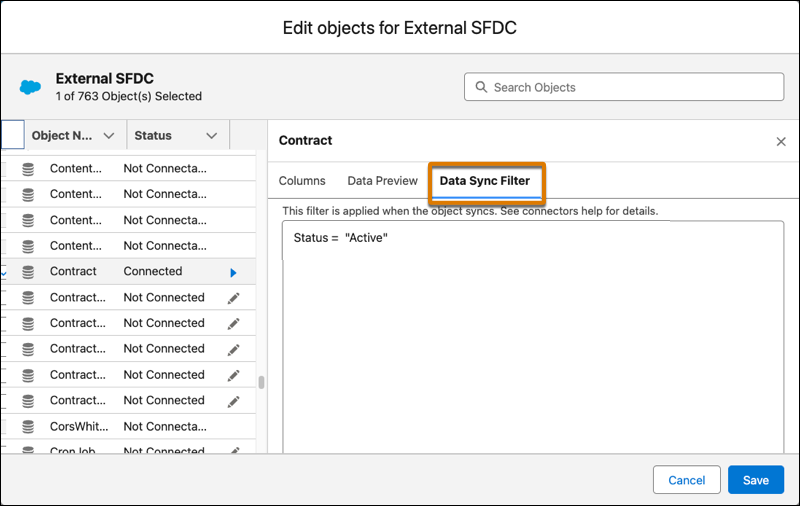
- On the Data Sync Filter tab, add filters if you want to extract a subset of records
from the object.
- Select the object.
- When you’ve added all the objects you want to sync, click Save.
The connection and its objects appear in the connections list.
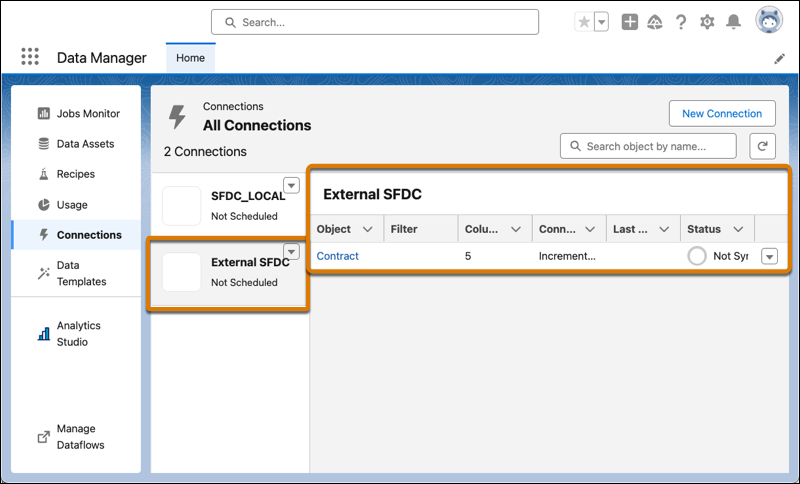
- To change the field selections, attributes, or filter for an object, click the object name.
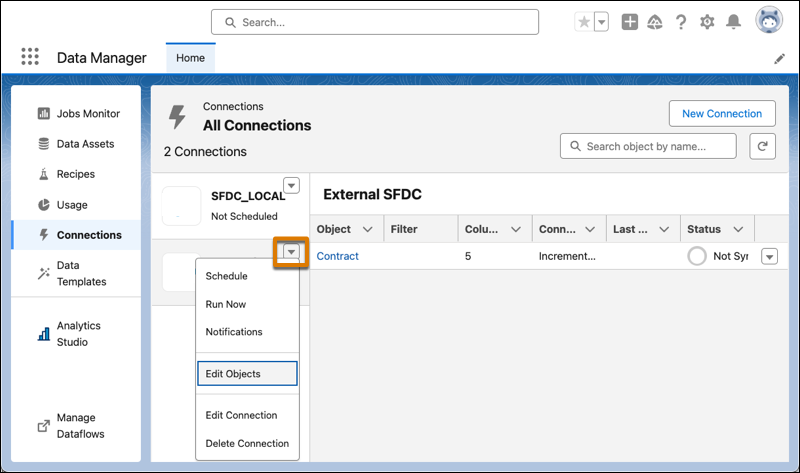
- To add objects to a connection, click the dropdown next to the connection name and
click Edit Objects.