
Edit a dataset to update its data, change its extended metadata, apply row-level security, or restore the dataset to a previous version.
You can manage your datasets on the Datasets tab of Data Manager.
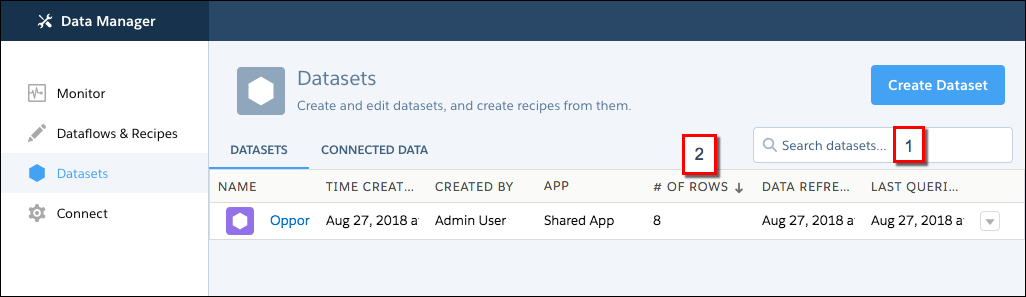
Use the search box (1) to find datasets. Click a column header (2) to sort by that column. If you have the Manage Analytics permission, datasets in users’ private apps are visible here.
- Set Up Dataset Security to Control Access to Rows
If a CRM Analytics user has access to a dataset, the user has access to all records in the dataset by default. To restrict access to records, you can implement row-level security on a dataset when you use sharing inheritance and security predicates. Sharing inheritance automatically applies a Salesforce object’s sharing logic to the dataset’s rows. A security predicate is a manually assigned filter condition that defines dataset row access. - Edit a Dataset
Edit a dataset to change its name, app, security, or extended metadata (XMD). You can also replace data in a dataset, restore it to a previous version, or delete it. The dataset edit page also provides key information about when the dataset was created and last updated, and where it is used. - Delete a Dataset
Delete unnecessary datasets to reduce app clutter and avoid reaching your org's total row limit for all registered datasets. You can delete datasets from shared apps on which you have at least Editor access, your My Private App, and, with a special user permission, another user’s My Private App.