As you prepare your data, each change you make appears as a recipe step on the left. Think of these steps as your recipe history. You can move back and forward through this history to see how the data looks at different stages of the recipe. If you don’t like what you see, you can edit or remove any step.
To access recipe step actions, hover over the step and click  .
.
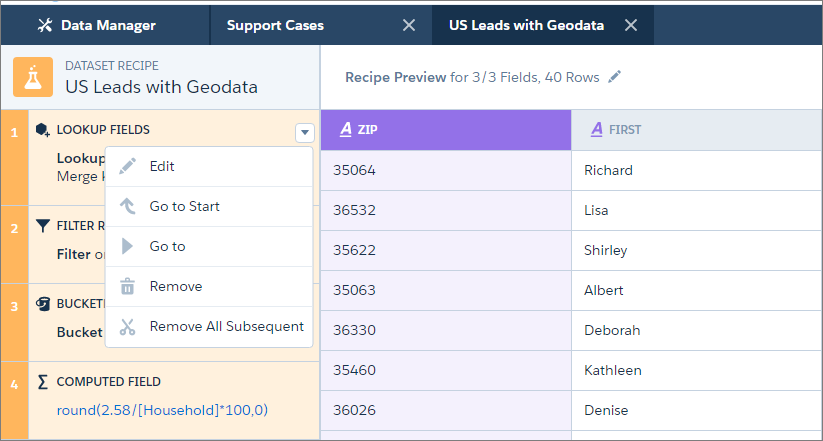

Note The actions available for each step depend on the step’s position.
Here’s what the actions do.
| Action | Description |
|---|---|
| Edit |
Edit the current step. You can also edit a step by clicking any of the blue values. |
| Go to Start | Display the preview data as it was at the start of the recipe, before you added any steps. This action is only available for the first step. |
| Go to | Display the preview data as it was at the current step, before you added any subsequent steps. |
| Remove | Remove the current step. |
| Remove all Subsequent | Remove all steps after the current step. |
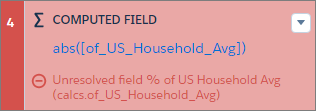
Note Removing a step can cause subsequent steps to stop working. For example, if you remove a
formula field step that is used in a later formula field, CRM Analytics can’t calculate the
second formula. When this action happens, the affected step appears in red, with an
explanation of the error, alerting you to the need to edit the step.