
Add a field to a recipe to bucket values in a specified dimension field.
Required Editions
| Available in Salesforce Classic and Lightning Experience. |
| Available with CRM Analytics, which is available for an extra cost in Enterprise, Performance, and Unlimited Editions. Also available in Developer Edition. |
| User Permissions Needed | |
|---|---|
| To create a recipe: | Edit CRM Analytics Dataflows OR Edit Dataset Recipes |

Note To bucket dimension values in a Data Prep recipe, see Categorize Dimension Column Values into Buckets.
A bucket field lets you create new values based on existing values in another field. For example, use a bucket field to categorize products in support cases according to their type.
| Product | Product Category |
|---|---|
| HVAC Ctrl, HeatWave, Home A/C | HVAC |
| Humidity Ctrl, Humidity Unit, Home Humidity | Humidity |
| Compressor, Condenser, Thermostat | Parts |
- On the column header of the dimension field you want to bucket, click
 , and then select Bucket.
Bucket settings appear in the Add Transformation panel below the preview data.
, and then select Bucket.
Bucket settings appear in the Add Transformation panel below the preview data.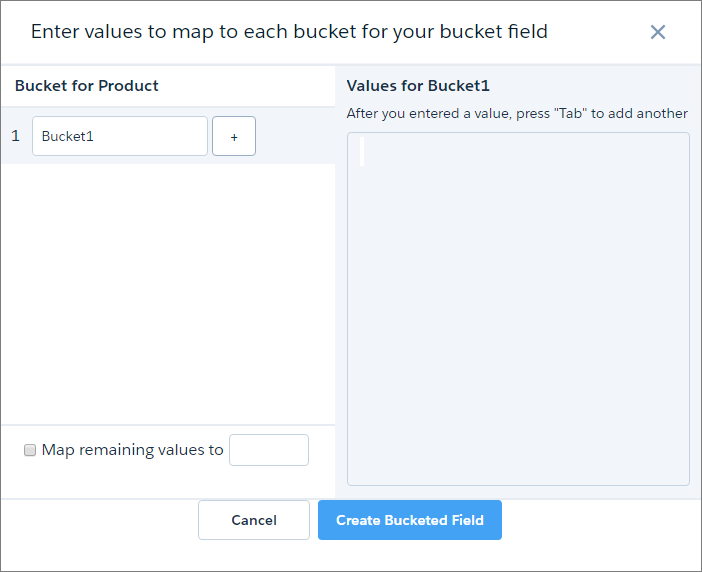
- In the Bucket1 field, enter a name for the first bucket.
- In the Values for...box, enter the values to be assigned to this
bucket. Press Tab after each value to enter the next.
In this example, rows containing HVAC Ctrl, HeatWave, or Home A/C product values are assigned a value of HVAC in the new bucket field.

- To add more buckets, click
 and repeat steps 2–3.
 - To bucket remaining values that you have not bucketed, select Bucket
remaining values and enter a bucket for these values.
If you don’t select this option, rows with unbucketed values keep the same value in the new bucket field.
- When you have completed all the buckets, click Add.
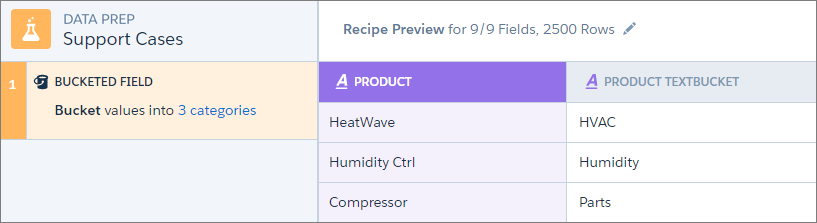
The new bucket field appears next to the source field in the recipe preview.

Tip You can use a bucket field to filter rows in a recipe.