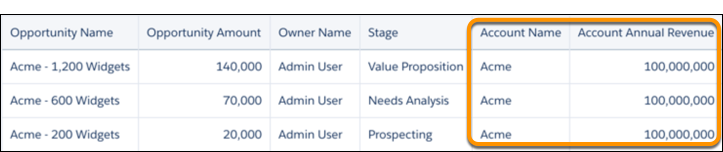
Large datasets can be hard to digest due to the amount of information and low-grain
details. Aggregation allows these datasets to be rolled up to a higher granularity, thus
allowing users to create recurring summary statistics and join datasets with different
granularities. You can also aggregate data to perform calculations on grouped records without
aggregating the measures. For instance, group by website session IDs and then calculate the
average time on each page and total number of clicks.
Required Editions
| Available in Salesforce Classic and Lightning Experience. |
| Available with CRM Analytics, which is available for an extra cost in
Enterprise, Performance, and Unlimited Editions. Also available in
Developer Edition.
|
You can add groups, aggregates, or both. Group by dimensions or date windows to roll up the
records to a higher grain. For example, group daily logs by month so you can join that data
with your monthly datasets. Aggregate measures to the new grouping granularity. You can use
the following aggregate functions on measure columns: sum, unique, avg, count, max, and
min.
- On the recipe page, click the Aggregation button (
 ).
).
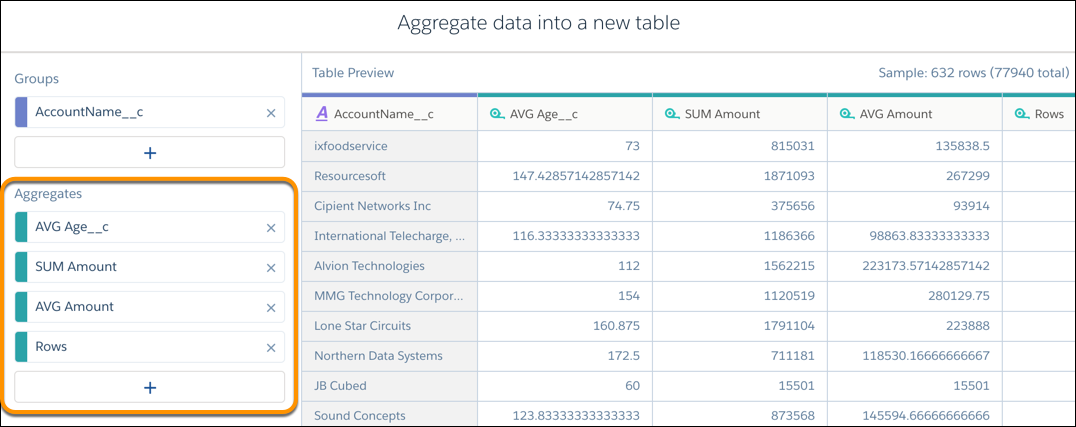
- To change the granularity of the data, add groups. For example, group by account name
to aggregate metrics by this dimension.
- To view aggregated metrics for each grouping, add aggregates. For example, calculate
the average age for opportunities to close, total amounts, average amounts, and total
number of deals. Because these opportunities are grouped by account name, these aggregates
provide key metrics about each account.
- Click Done.
Notice that the aggregates and group-by fields are the only fields included in
the output. All other fields from the source dataset are excluded—you can’t perform
transforms on them in this recipe anymore.
- Click .
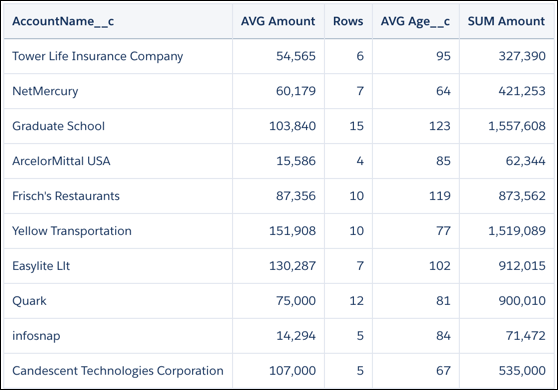
When you run the recipe, CRM Analytics generates a new dataset that contains the
aggregates specified in the recipe and a grain determined by the groups. In the example, we
see the aggregates for each account.