
Pull your data securely from S3 running on AWS into Data Manager using the Virtual Private Connection (VPC) for S3 input connector for CRM Analytics. To use the S3 Private connector, you configure an outbound network connection, external credential, and named credential.

Prerequisites
- Requires Salesforce Private Connect.
- You must configure your private link for Amazon S3, to learn how to do this see the AWS guide AWS PrivateLink for Amazon S3.
For help with configuring this connection so that it’s consistent with your organization’s security requirements, contact your network security or IT department.
Allowlist the Salesforce AWS Account for S3 Private Connect
To verify your AWS account is on the allowlist for Salesforce private connect, see Verify Salesforce AWS Account for Private Connect.
Create an Outbound Network Connection
To create an outbound network connection, see Create the Outbound Network Connection.
Create an External Credential and Principal Access
- From Setup, in the Quick Find box, enter Named, and then select Named Credentials.
- On the External Credentials tab, click New.
- Enter a label and name.
- For Authentication Protocol, select No Authentication.
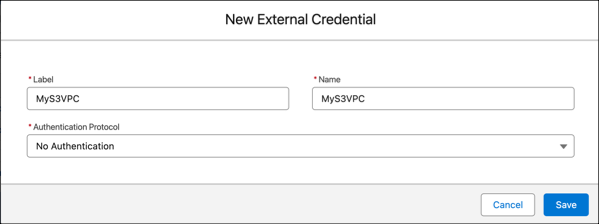
- Save your external credential.
Add a principal to the external credential.
- Open the new external credential
- In the Principals section, click New.
- Enter S3VPCPrincipalAccess for the parameter name and 1 for the sequence.
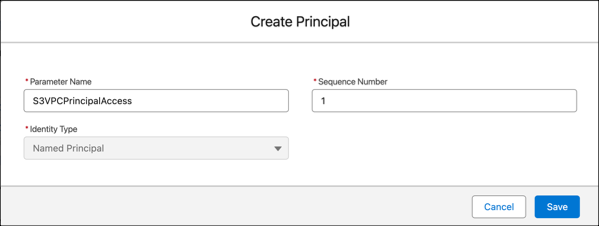
Now update your user profile with external credential principal access.
- From Setup, in the Quick Find box, enter Profiles, and then select Profiles.
- Select the profile for the Analytics Cloud Integration User.
- Click Enabled External Credential Principal Access at the top of the profile page.
- Click Edit and add S3PrivateEC - S3PrivatePrincipal.
- Click Save.
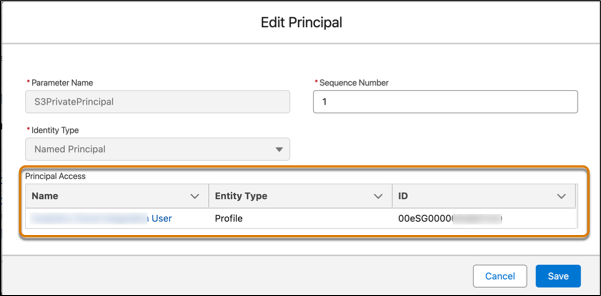
Ensure your user has principal access.
- From Setup, in the Quick Find box, enter Named, and then select Named Credentials.
- On the External Credentials tab, select your credential, and click Edit for S3VPCPrincipalAccess. Verify you see your user in the Principal Access section.
Create a Named Credential
- From AWS, find the endpoint URL for your S3 bucket.
- From Setup, in the Quick Find box, enter Named, and then select Named Credential.
- On the Named Credentials tab, click New.
- Enter a label and name.
- For URL, enter https://<your S3 bucket name>.<your AWS region>.amazonaws.com.
- Select the external credential and outbound network connection that you created.
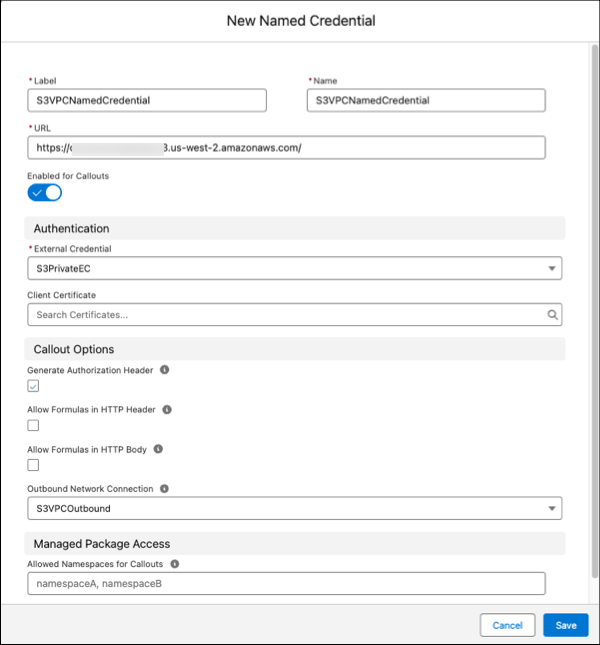
- Save your named credential.
Create a S3 VPC Connection
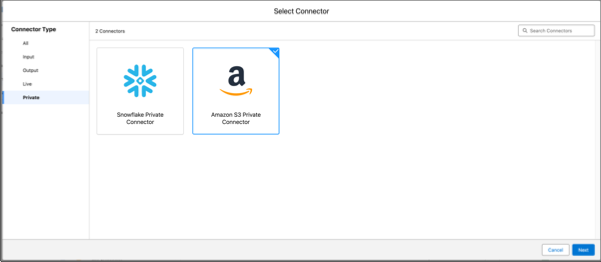
- On the Data Manager Connections tab, click New Connection.
- Select Private, then the Amazon S3 Private Connector, and click
Next.
- Enter the connector settings.
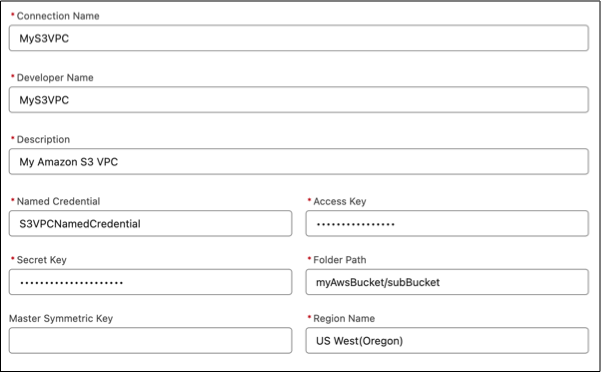
- To validate your settings and test the connection, click Save & Test. If the connection fails, CRM Analytics shows possible reasons.
All settings require a value, unless otherwise indicated.
| Setting | Description |
|---|---|
| Connection Name | Required. Use a name that lets you easily distinguish between different connections. |
| Developer Name | Required. The API name is used in your recipes to reference data extracted through this connection. This name can’t include spaces. You can’t change the API name after you create the connection. |
| Description | Required. The description for the connection. |
| Authentication Type | Required. The authentication type. Valid values include Root For standard authentication, and IAM, for AWS Identity Access Management (IAM) authentication.
Use IAM authentication for granular access to AWS data, setting up IAM users and roles in AWS. For more information on AWS IAM, see
Getting Started with IAM on AWS
|
| Named Credential | Required. The Name field from the named credential stored in your Salesforce org. |
| Access Key | Required. Your Amazon S3 bucket access key ID. |
| Secret Key | Required. Your Amazon secret access key. |
| Master Symmetric Key | Required. Use this to manage client-side encryption. You can connect to objects encrypted with customer master keys stored in the AWS Key Management Service or a customer-generated key in the 256-bit AES format. See Amazon’s documentation for details. |
| Region Name | Required. The region of your S3 service, for example EU (Ireland). For the list of region names, see the S3 Region Names below. |
| Region Name | Amazon Code |
|---|---|
| US East (Ohio) | us-east-2 |
| US East (N. Virginia) | us-east-1 |
| US West (N. California) | us-west-1 |
| US West (Oregon) | us-west-2 |
| Africa (Cape Town) | af-south-1 |
| Asia Pacific (Hong Kong) | ap-east-1 |
| Asia Pacific (Mumbai) | ap-south-1 |
| Asia Pacific (Osaka) | ap-northeast-3 |
| Asia Pacific (Seoul) | ap-northeast-2 |
| Asia Pacific (Singapore) | ap-southeast-1 |
| Asia Pacific (Sydney) | ap-southeast-2 |
| Asia Pacific (Tokyo) | ap-northeast-1 |
| Canada (Central) | ca-central-1 |
| China (Beijing) | cn-north-1 |
| China (Ningxia) | cn-northwest-1 |
| EU (Frankfurt) | eu-central-1 |
| EU (Ireland) | eu-west-1 |
| EU (London) | eu-west-2 |
| Europe (Milan) | eu-south-1 |
| EU (Paris) | eu-west-3 |
| EU (Stockholm) | eu-north-1 |
| Middle East (Bahrain) | me-south-1 |
| South America (Sao Paulo) | sa-east-1 |
| AWS GovCloud (US-East) | us-gov-east-1 |
| AWS GovCloud (US-West) | us-gov-west-1 |
For more information on S3 connector considerations and the S3 bucket hierarchy, see Amazon S3