
append Transformation
The append transformation combines rows from multiple datasets into a single dataset.

Consider the following rules when using this transformation.
- This transformation does not remove duplicate records.
- All input dataset must have the same structure—the corresponding columns must be in the same order and have the same name and field type.

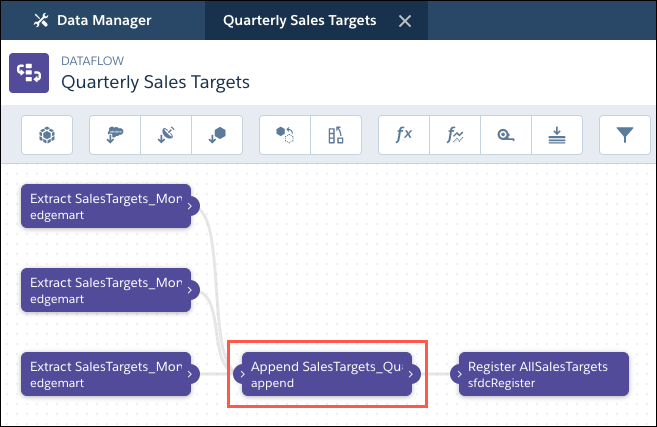
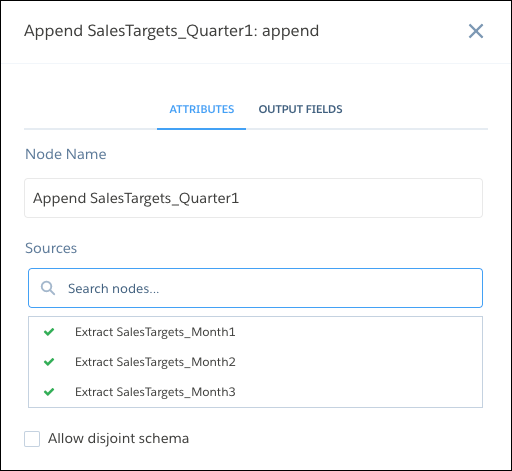
Let’s look at an example. Each month, you create a dataset that contains the month’s sales targets. Now, you want a holistic view of sales targets for all months. To do that, you create the following dataflow to merge the existing dataset into a single dataset.
| Dataflow | Append Node in Dataflow |
|---|---|
|
|
Here’s the JSON dataflow.
{
  "Extract SalesTargets_Month3": {
    "action": "edgemart",
    "parameters": {
      "alias": "SalesTargets_Month3"
    }
  },
  "Extract SalesTargets_Month2": {
    "action": "edgemart",
    "parameters": {
      "alias": "SalesTargets_Month2"
    }
  },
  "Extract SalesTargets_Month1": {
    "action": "edgemart",
    "parameters": {
      "alias": "SalesTargets_Month1"
    }
  },
  "Append SalesTargets_Quarter1": {
    "action": "append",
    "parameters": {
      "enableDisjointedSchemaMerge": false,
      "sources": [
        "Extract SalesTargets_Month1",
        "Extract SalesTargets_Month2",
        "Extract SalesTargets_Month3"
      ]
    }
  },
  "Register AllSalesTargets": {
    "action": "sfdcRegister",
    "parameters": {
      "name": "All Sales Targets",
      "alias": "AllSalesTargets",
      "source": "Append SalesTargets_Quarter1"
    }
  }
}
After you create the single dataset, you can use date filters to analyze the sales targets by month, quarter, or year.
Append Datasets with Different Schema
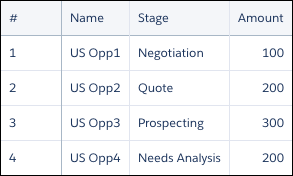
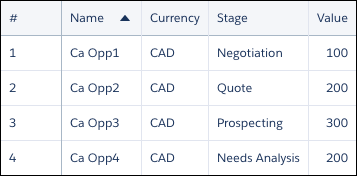
By default, the input dataset must have the same structure—the corresponding columns must have the same name and field type. For example, let's say you want to append your Canada opportunities to your U.S. opportunities.
| US Sales | Canada Sales |
|---|---|
|
|
Here, the column names are different, and the Canada data has a Currency
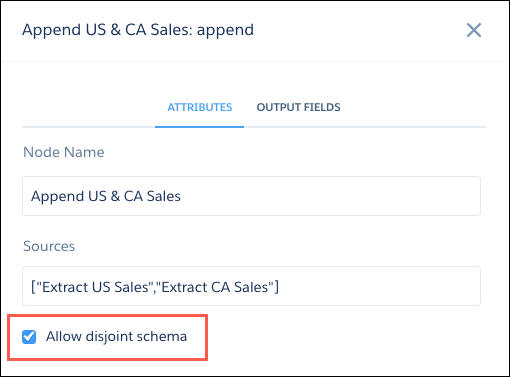
column. For the dataflow not to fail, select Allow disjoint
schema in the append node in the dataflow editor. If you're working
in the dataflow JSON, add the enableDisjointedSchemaMerge parameter and set its value to true.
| Append Node in Dataflow Editor | Append Node in Dataflow JSON |
|---|---|
|
|
When you run the dataflow, the data is merged without the dataflow failing.
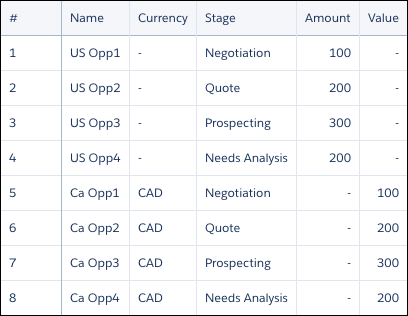
The append transformation adds all columns to the dataset and merges values in columns with the same name, such as Name. It also adds null values in a column for rows that didn’t previously have that column, such as in the Currency column.
- append Parameters
When you define an append transformation in the dataflow JSON, you set the action attribute toappendand specify the parameters.