
Create dashboard views with selected filters and options then add them to your collections to share a specific view of the dashboard with others.
Required Editions
| Available in Salesforce Classic and Lightning Experience. |
| Available with CRM Analytics, which is available for an extra cost in Enterprise, Performance, and Unlimited Editions. Also available in Developer Edition. |
| User Permissions Needed | |
|---|---|
| To manage a collection: | Use CRM Analytics |
- Open a dashboard.
- Make selections or change dashboard filters to get the view of the data you want.
- Click the Add to Collection button.
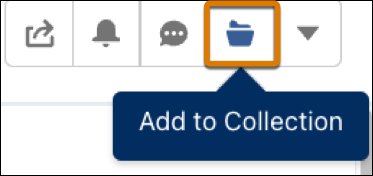
- Select the view you want to add to the collection: Default adds the dashboard in its original form—without filters or menu selections, Current View adds the dashboard view with applied filters and options.
- Select one or more collections or click Create Collection to start a new one.
- Click Save.

Note Updates to the dashboard definition, such as changes to the layout, widget, or query, are
reflected in the dashboard view with exception of the following.
- If initial filter selections are changed the selections aren’t reflected if a user navigates to the dashboard through a dashboard view from a collection.
- A similar behavior can be expected when a dashboard component’s default landing page is updated.