
You can view, hide, and rename dataset columns. Users with view-only access to the dataset can view the names and API names of columns. You can also change the display format of measure columns. You can also configure column properties for fields from Snowflake live data.
Required Editions
| Available in Salesforce Classic and Lightning Experience. |
| Available with CRM Analytics, which is available for an extra cost in Enterprise, Performance, and Unlimited Editions. Also available in Developer Edition. |
| User Permissions Needed | |
|---|---|
| To view visualizations: | Use CRM Analytics |
-
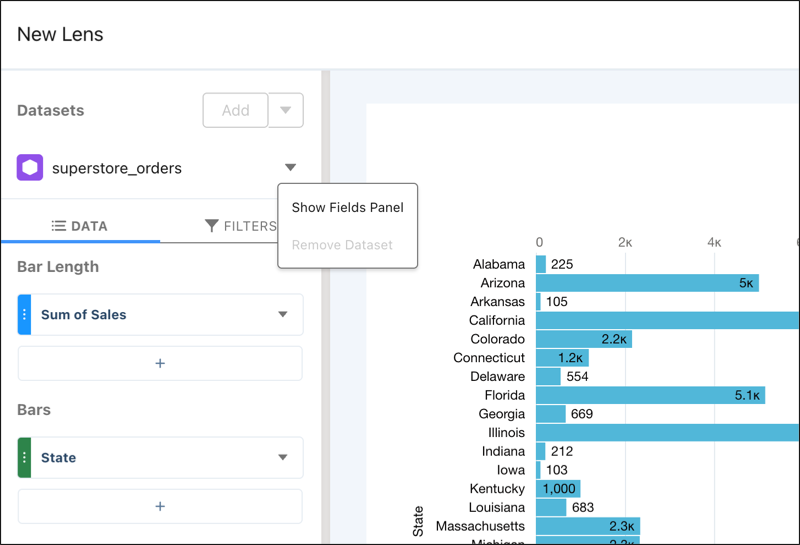
To configure the dataset columns, click the down arrow across from the dataset, and
select Show Fields Panel.
-
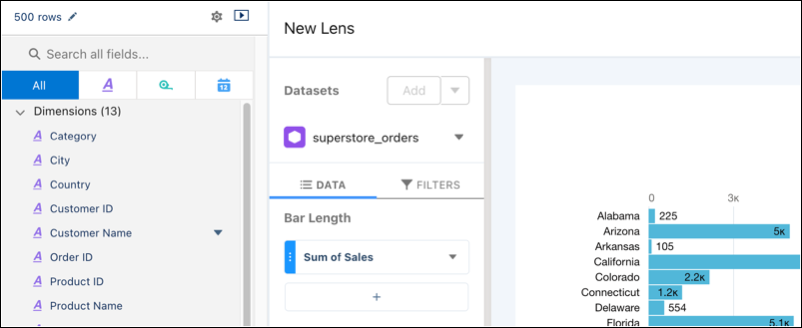
To reveal a column's context menu, hover over the right edge of the column.
-
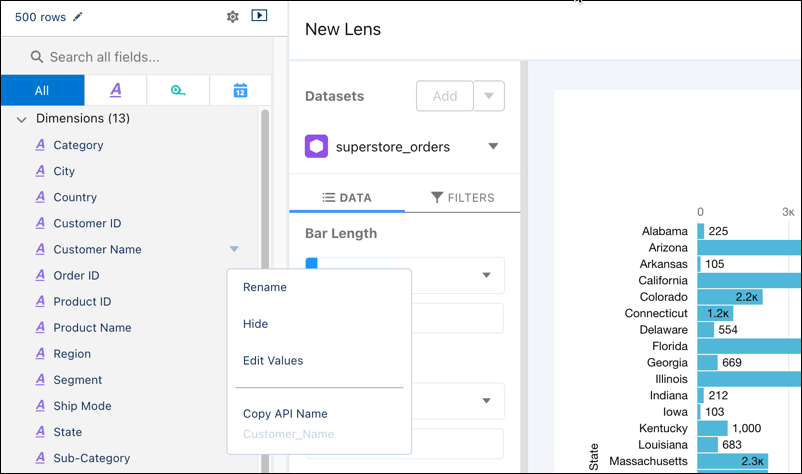
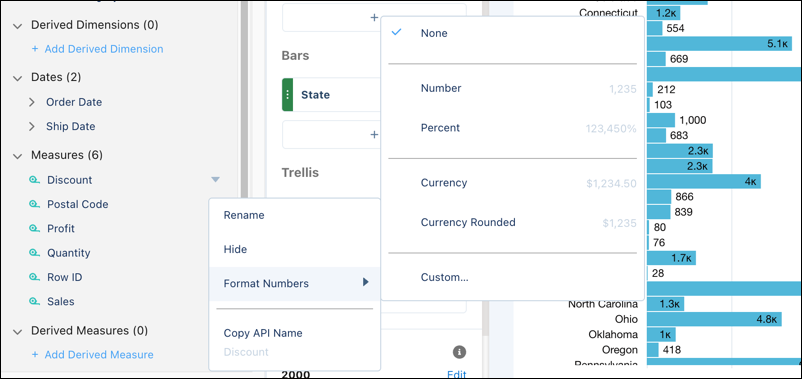
Click the arrow to reveal the context menu.
-
Select Rename to rename the column's visible name.
Instead of using the menu, you can click any column's name to edit it.
-
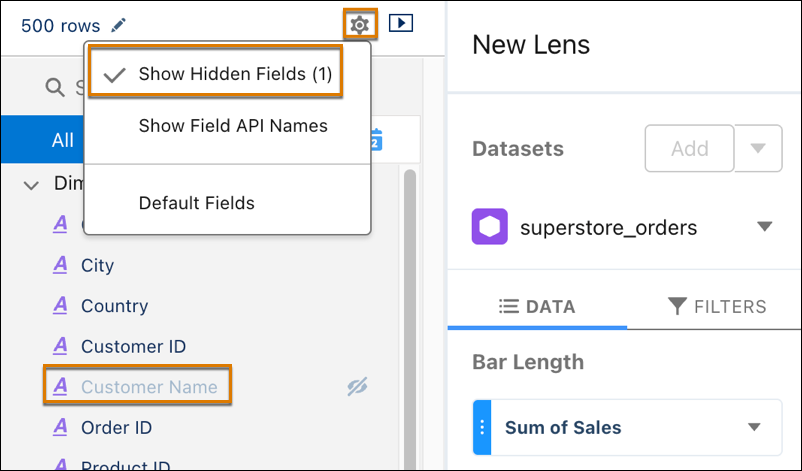
To hide a column, select Hide from its context menu.
The column is hidden from the Dataset Fields list of columns, and hidden from users who explore the dataset, and hidden from all lenses or dashboards that currently use the dataset. However, the column is still accessible via lens and dashboard JSON, Analytics REST API, and SAQL queries. To view hidden columns in the Dataset Fields list, click Show Hidden Fields.You can copy the column's API name, but you cannot change it. To display every column's API name in the Dataset Fields list of columns, select Show Field API Names.
- To locate a column, go to Search all fields... and type in a column name or API name.
-
For measures, you can choose to apply a number format.
- Click Save to save the changes.

Note The previous steps also apply to lenses and dashboards based on Data 360 objects. You
can't hide columns or change number formats.