
Add the action to the page layout for the object. Users whose profiles are assigned to that layout can see the action in Salesforce. Page layouts control the layout and organization of content, including custom actions, on record detail pages. Each record detail page can have multiple page layouts to give different users a unique experience.
Required Editions
| Available in Salesforce Classic and Lightning Experience. |
| Available with CRM Analytics, which is available for an extra cost in Enterprise, Performance, and Unlimited Editions. Also available in Developer Edition. |
| User Permissions Needed | |
|---|---|
| To view visualizations: | Use CRM Analytics |
| To create actions: | Customize Application |
In this example, you add the Update Opportunity action to the opportunity page layout that’s assigned to the Standard User profile. You can use these same techniques to add actions to any Salesforce page layout and user profile.
- Go to Setup in Salesforce, and enter the name of the object in the Quick Find box. For the example, enter Opportunities. Then select Page Layouts to see what’s available.
- If multiple page layouts are defined for the object, click Page Layout
Assignment to see which page layout is assigned to each user profile.
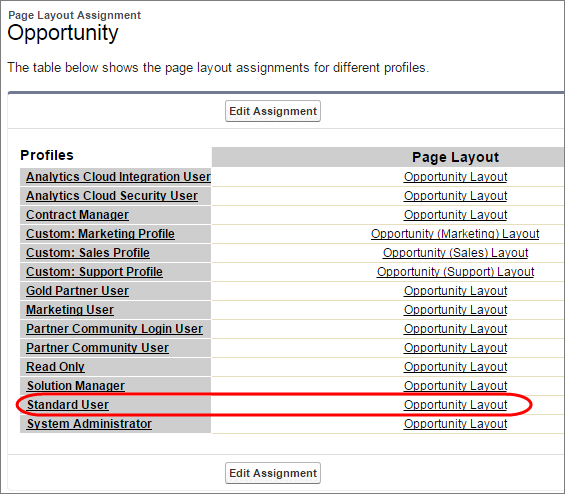
- Edit the page layout assigned to the profile for the users for whom you want to access the
action.
For this example, edit the Opportunity Layout, which is assigned to the Standard User profile. Users who are assigned the other opportunity page layouts can’t see this custom action, unless you apply the action to those page layouts.
- To open the layout, click the Opportunity Layout link next to a profile. It doesn’t matter which profile.
- In the palette, click Quick Actions to select the actions to add to
the layout.
The available actions appear to the right.
- Drag the Update Opportunity custom action to the existing actions in
the Quick Actions in the Salesforce Classic Publisher section.
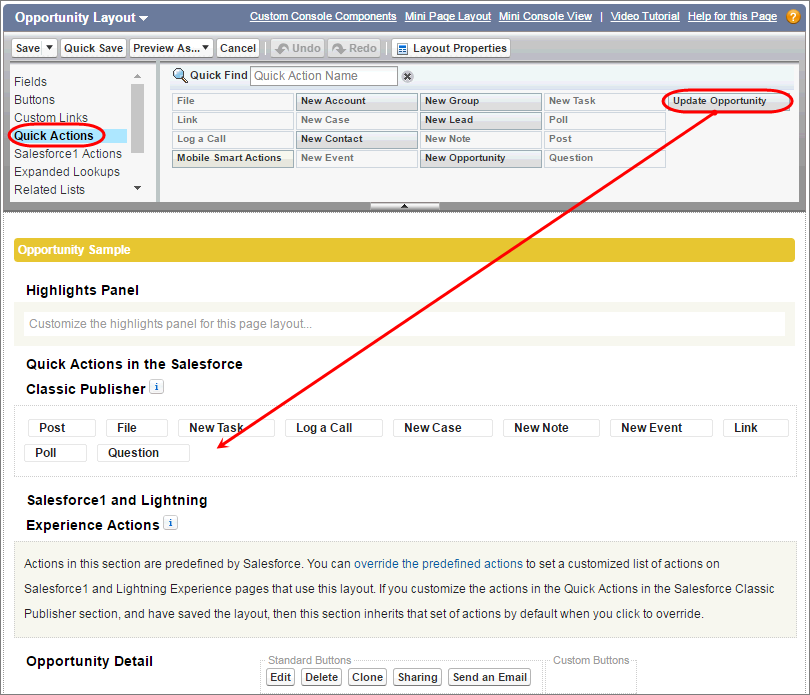
- If the predefined actions are overridden in the Salesforce app and Lightning Experience
Actions section, you must also drag the action to that section.
If the predefined actions are overridden, Analytics shows only the actions that appear in both the Quick Actions in the Salesforce Classic Publisher and Mobile & Lightning Actions sections.
- Click Save.
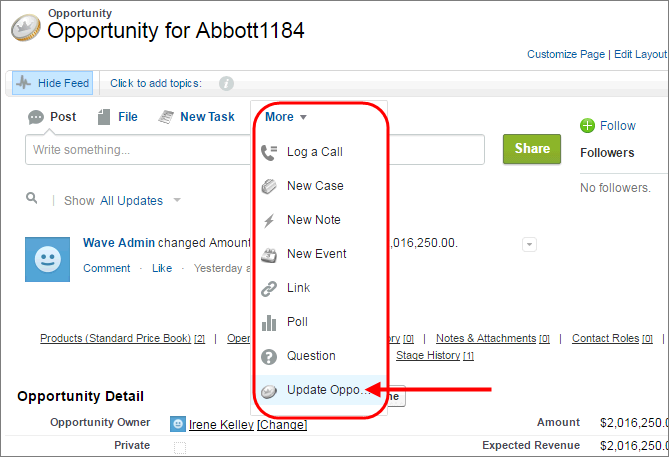
This action is now available on the Opportunity details page for all users assigned the Opportunity Layout.

Note If a page layout is based on a record type that certain users can’t access, actions for
that type aren’t available to them.