
Collaborate on CRM Analytics Dashboards in Experience Cloud Sites with Annotations
Foster an environment of open communication sparked by CRM Analytics dashboards embedded in Experience Cloud sites. With annotations, partners and customers can converse in Chatter feeds on individual dashboard widgets. Annotations are available whether dashboards are embedded via Visualforce or the Experience Builder.
Required Editions
| Available in: Salesforce Classic and Lightning Experience. |
| Available for an extra cost in: Enterprise, Performance, and Unlimited Editions. Also available in: Developer Edition. |
| User Permissions Needed | |
|---|---|
| To create, customize, or activate a site: |
Create and Set Up Experiences AND is a member of the community they’re trying to update |
| To modify CRM Analytics settings: | Analytics Growth permission set license with Manage Analytics permission |
| To view, explore, and share embedded CRM Analytics dashboards for users with an Experience Cloud license: | Analytics for Communities permission set license with View Analytics on Communities pages permission |

If you haven’t already set up CRM Analytics for Experience Cloud, see Share CRM Analytics in Experience Cloud Sites. To set up annotations, verify that Chatter is enabled for your community users. Also, enable feed tracking on CRM Analytics Assets. (For more information, see Enable Annotations on Dashboard Widgets.)
To create annotations, click  to open your embedded dashboard in CRM Analytics. Then select
Annotate from the dropdown menu on a widget.
to open your embedded dashboard in CRM Analytics. Then select
Annotate from the dropdown menu on a widget.
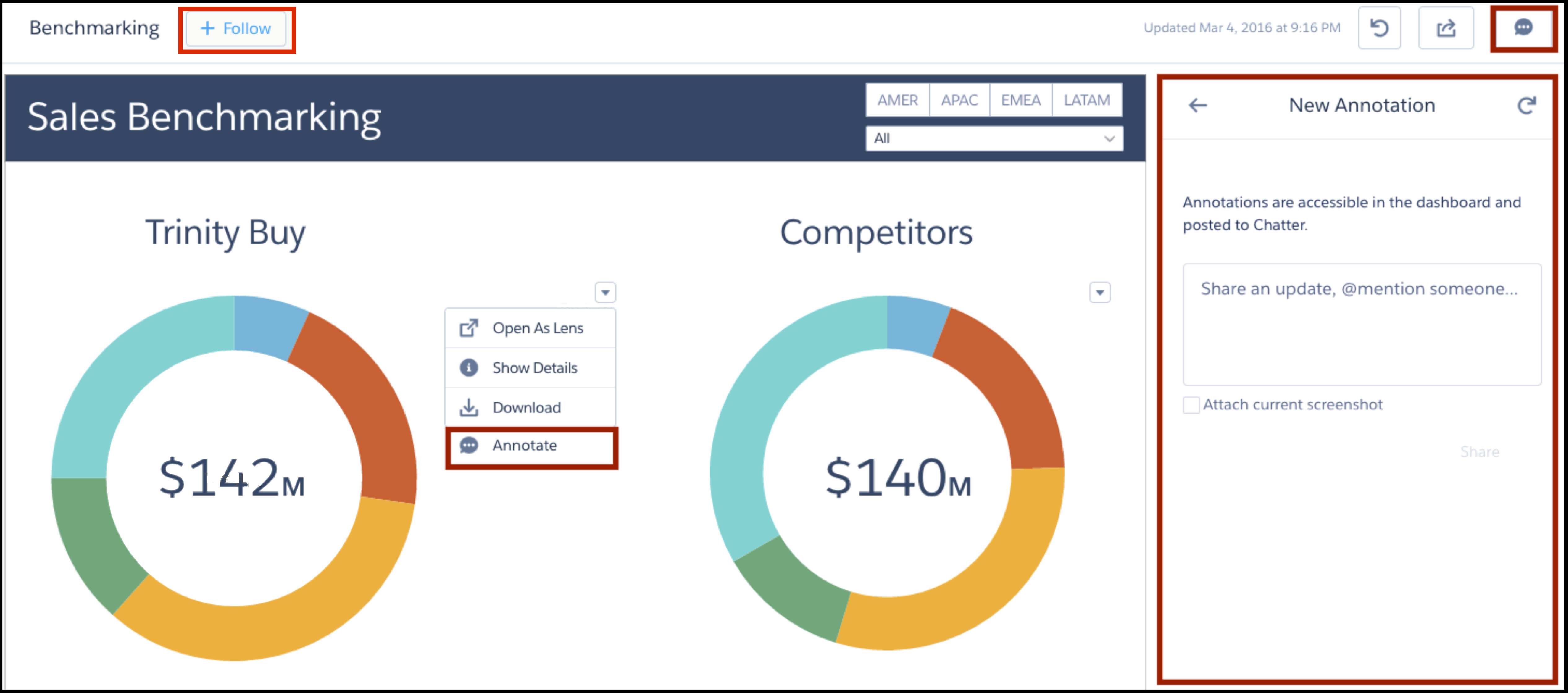
In the annotations panel, you can type messages and @mention people in your org who have access to the dashboard. You can also share screenshots of the current state of the dashboard. CRM Analytics dashboard annotations are natively integrated with Chatter, and comments on dashboards also appear as Chatter posts. If users click the Follow button, they see all comments on the dashboard. From Chatter, they can click the dashboard image to navigate directly to the annotation on the dashboard in CRM Analytics, where they can add to the conversation. For more information, see Collaborate with Dashboard Annotations.
The visibility of posts depends on the type of user that makes the original post. For
security, external site users can’t see annotations originated by your org’s
internal users (unless the external user is @mentioned). But if an internal user
replies on an annotation started by an external user, then all users can see all
posts. For more information, see the visibility property in the Connect REST API
Developer Guide.