
It’s easy to get Einstein Discovery predictions in calculated fields. In Model Manager, simply select a prediction definition, generate a Tableau script, and then copy and paste the script into a Tableau calculated field.
To embed Einstein Discovery predictions in Tableau calculated fields:
- Log into Salesforce with a user account that has the Manage Einstein Discovery permission assigned to it.
- Open CRM Analytics Studio.
- Open Model Manager.
- View a Prediction Definition.
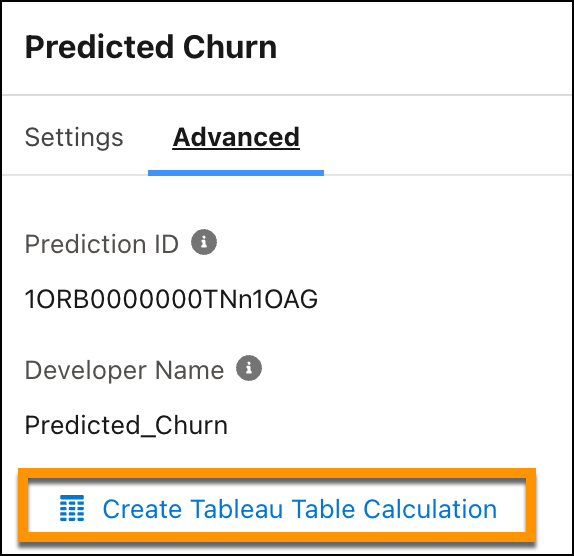
- Click the Advanced tab.
-
Choose Create Tableau Table Calculation.
Model Manager generates a script containing the ID of the prediction definition you want to use, the columns (variables) used in the model, and the corresponding source columns in Tableau (which you can edit later in Tableau).
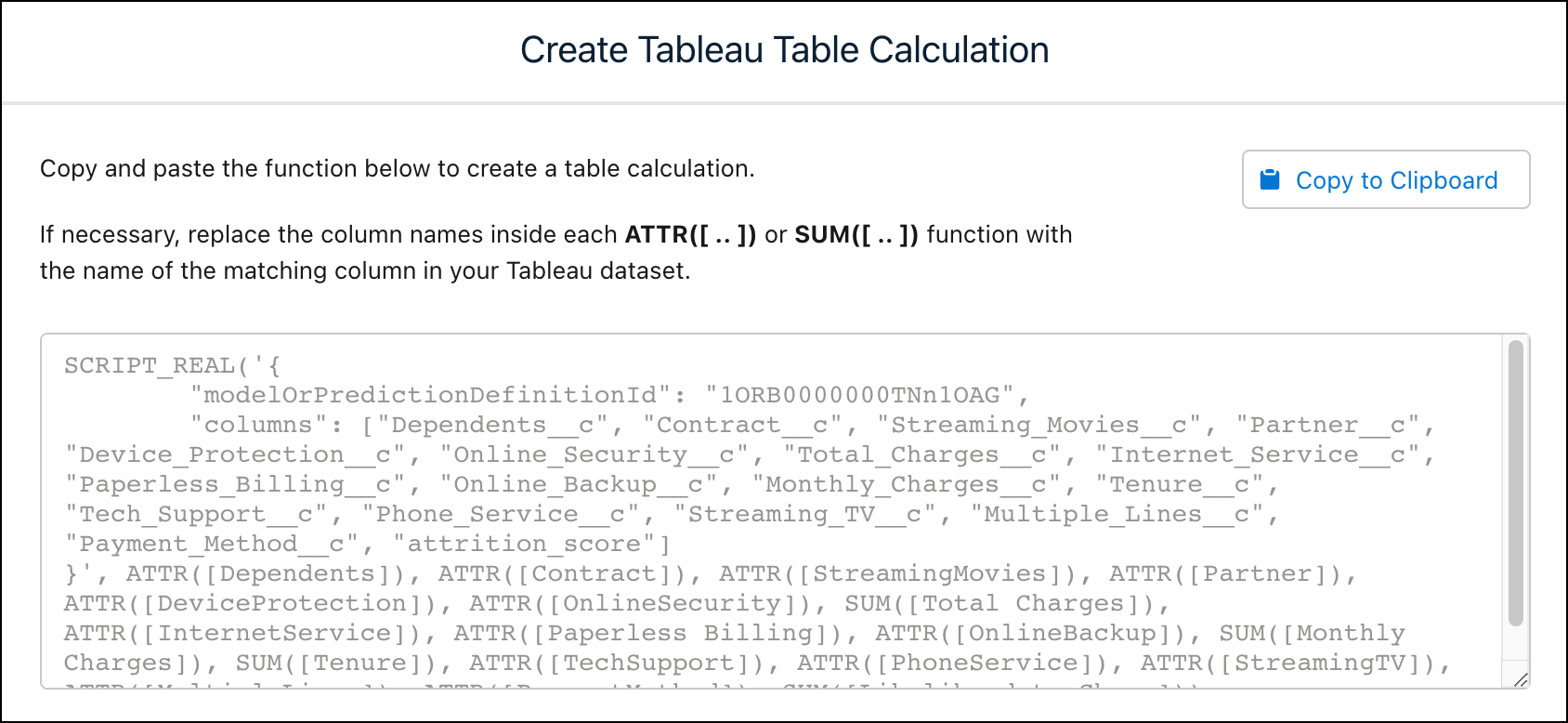
- Click Copy to Clipboard.
-
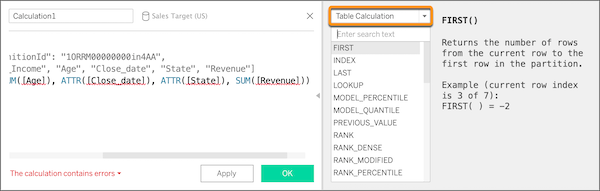
In your Tableau worksheet, paste the script generated from Model Manager into the
Calculation Editor for the target calculated field.
-
Optionally, modify the script to include additional parameters.
Optional Parameter Description Regression Binary Classification Multiclass Classification maxMiddleValues The number of top predictors to return in the response. 
maxPrescriptions The maximum number of improvements to return in the response.
showMultiClassProbabilities Determines if probabilities are displayed.
Here is an example script that includes optional parameters to create a Table Extension in Tableau:{ “modelOrPredictionDefinitionId”: “1ORB0000000HC3KOAW”, “columns”: [“Postal_Code”, “City”, “Ship_Mode”, “Row_ID”, “Profit”, “Category”, “Sub_Category”, “Order_Date”, “Quantity”, “Ship_Date”, “Region”, “Sales”, “State”, “Segment”], “maxMiddleValues”: 3, “maxPrescriptions”: 5, “showMultiClassProbabilities”: false }Here is an example script that includes optional parameters to create a Table Calculation in Tableau:SCRIPT_REAL( '{ "modelOrPredictionDefinitionId": "1ORB0000000HC3KOAW", "columns": ["Postal_Code", "City", "Ship_Mode", "Row_ID", "Profit", "Category", "Sub_Category", "Order_Date", "Quantity", "Ship_Date", "Region", "Sales", "State", "Segment"], "maxMiddleValues": 3, "maxPrescriptions": 5, "showMultiClassProbabilities": false }', SUM([Postal Code]), ATTR([City]), ATTR([Ship Mode]), SUM([Row ID]), SUM([Profit]), ATTR([Category]), ATTR([Sub-Category]), ATTR([Order Date]), SUM([Quantity]), ATTR([Ship Date]), ATTR([Region]), SUM([Sales]), ATTR([State]), ATTR([Segment]) ) -
If needed, replace the column names inside each ATTR or SUM function with the name of
the matching column in your Tableau data, then click OK.
When the script runs, it sends a prediction request (with the input data) to the prediction definition in Salesforce. Einstein Discovery returns the results to Tableau, where it appears in your worksheet or dashboard.

Note For detailed Tableau instructions, refer to Einstein Discovery in Pass Expressions with Analytics Extensions in
Tableau Desktop help.