
Updated data or changed model settings can motivate the creation of a new model version. Compare model versions to better understand what's changed between them.
Required Editions

| Available in Salesforce Classic and Lightning Experience. |
| Available with CRM Analytics, which is available for an extra cost in Enterprise, Performance, and Unlimited Editions. Also available in Developer Edition. |
| User Permissions Needed | |
|---|---|
| To view model versions: | Create and Update Einstein Discovery Models |
Compare model versions to examine the effects of changes on your analysis. For example, suppose Einstein notifies you that the data in your dataset has changed, and you created a new model version. You can compare the latest version with a previous version to learn more about how changes in your data affected the outcome. Similarly, suppose you changed model settings—such as adding or removing a column, setting a filter, or making a recommended update. If you created a new model version, then you can compare it with a previous version to determine which settings produce better results.
-
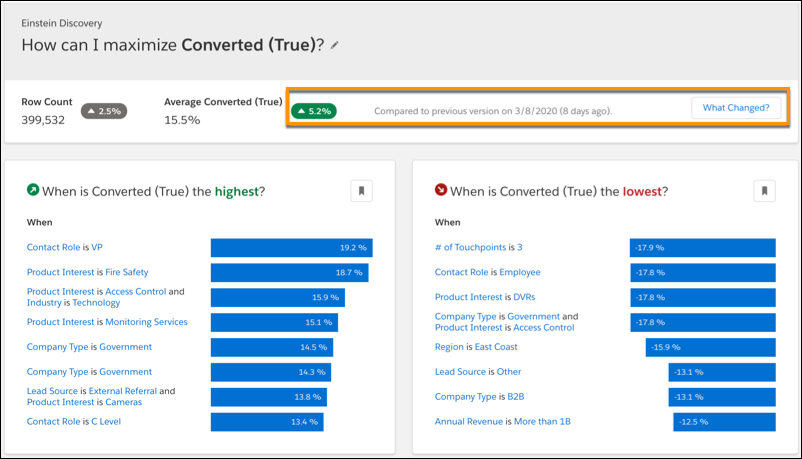
Open a model with multiple versions then click Data Insights.
The overview prompts the user with a What Changed? button,
including a change summary with the net difference between versions.
-
Click What Changed? to compare the current version to a previous one. Einstein
automatically selects the immediately previous version and compares them side by
side.
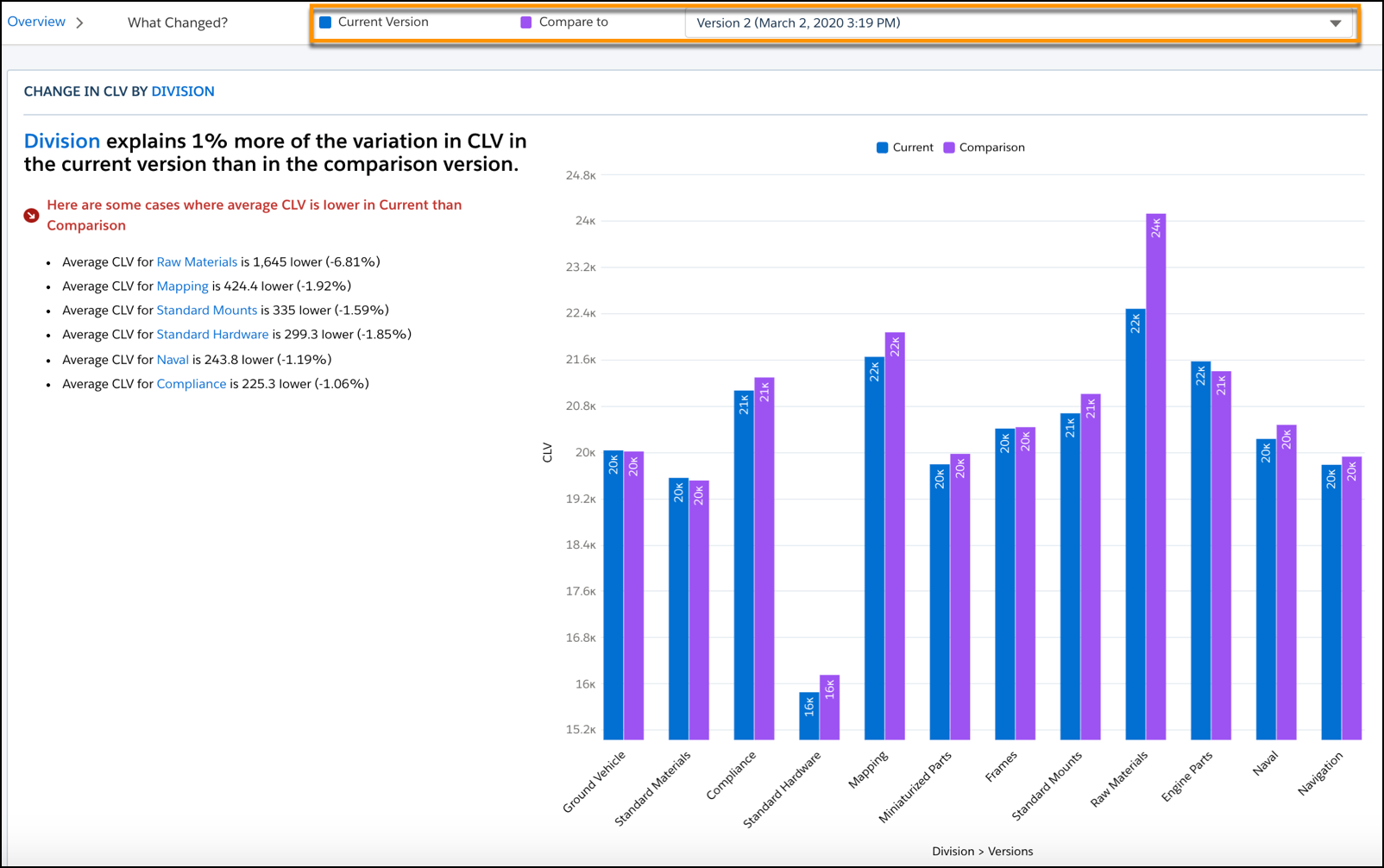
- To compare with a different version, select it from the dropdown list.