
Models drift when characteristics in the real world data diverge significantly from the training data used to build them. Einstein can send out alert notifications if your model performance falls below configured thresholds. Significant increases in prediction error rates, missing values, or out-of-bounds values can trigger notifications, as well as detected disparate impact among variables being analyzed for bias. You can set alert thresholds, schedule weekly or monthly performance evaluation cycles, and specify who will receive notifications.

To configure performance alerts:
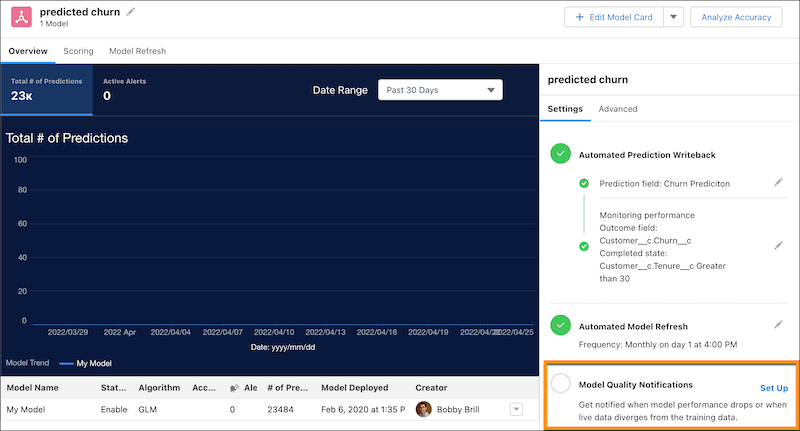
- In Model Manager, View a Prediction Definition that uses automated writeback fields.
-
In the settings panel, click Set Up next to Model
Quality Notifications.
-
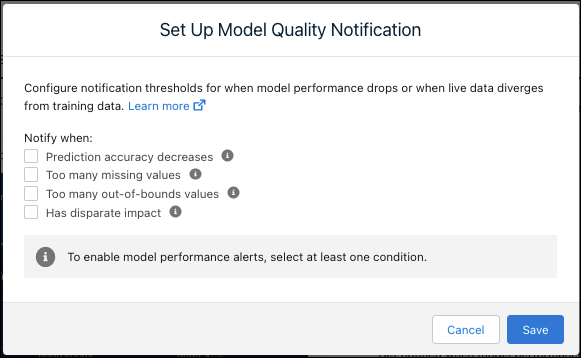
Enable any of the alert conditions.
-
Configure the settings for enabled alert conditions.
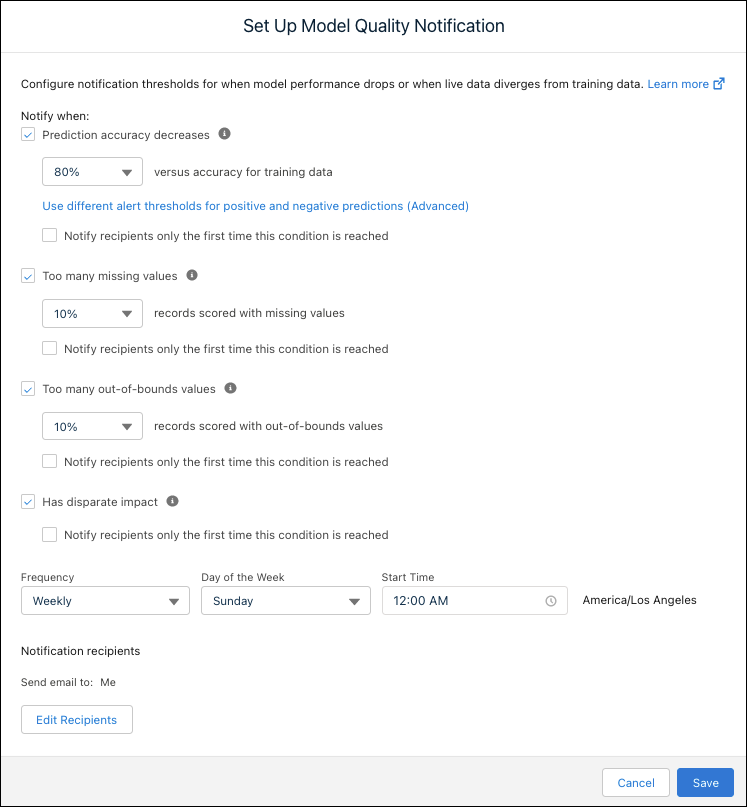
Condition Alert Threshold Prediction accuracy decreases Note This option requires that your model's completed state is configured to enable accuracy monitoring.Trigger a notification when the true positive or true negative rate for live data falls below the training data by the specified percentage.
Too many missing values Trigger a notification when the number of records with missing values exceeds the specified percentage. Too many out-of-bounds values Trigger a notification when the number of records with out-of-bounds values exceeds the specified percentage. An out-of-bounds value is a value not found in the training data used to train the model. Has disparate impact Triggers a notification when an adverse ratio (below 80%) is detected in live data among variables being analyzed for bias.
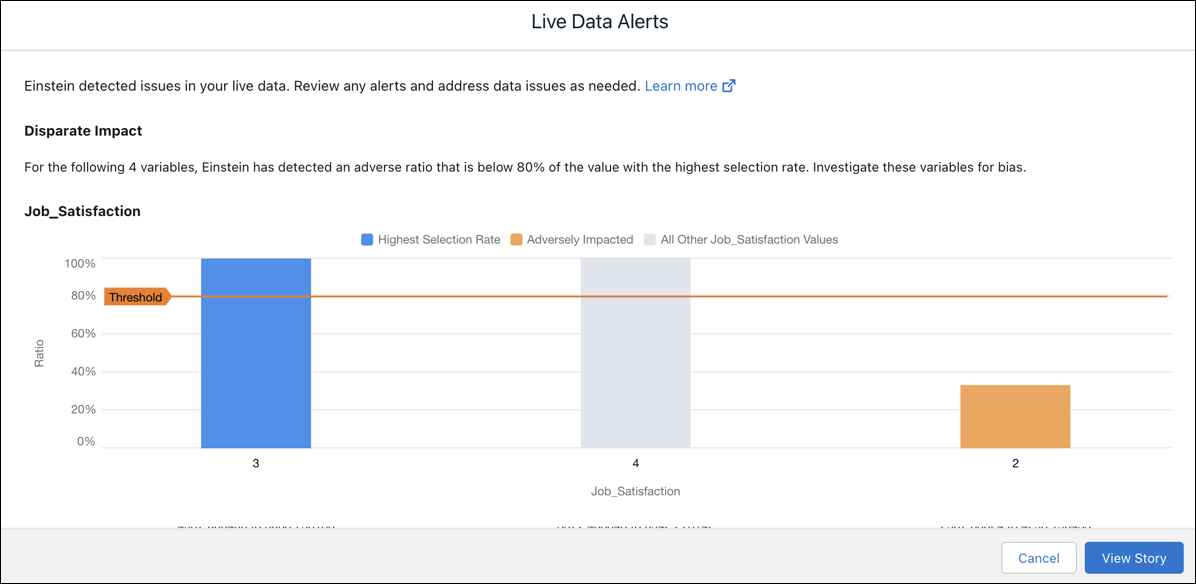
Open the alert to see a chart that displays the unequal distribution of values or groups within the variable. The blue column shows the highest selection rate, while the orange column shows the adversely impacted value group.
Notify recipients only the first time this condition is reached Enable if you don’t want subsequent notifications. - For Frequency, configure how frequently to evaluate the model: Weekly or Monthly, and day of the week or month, and the start time.
-
For Notification recipients, click Edit
Recipients and specify the email addresses of notification recipients.
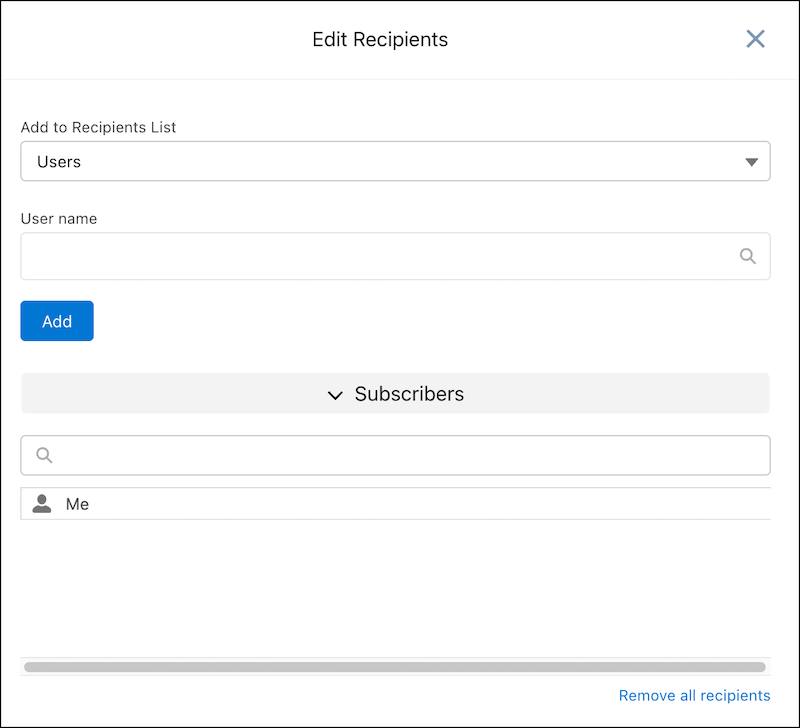
- To add a user, select Users in the Add to Recipients List, click in the User name box, select a user, and click Add.
- To add a group, select Groups in the Add to Recipients List, click in the Group name box, select a group, and click Add.
To close this window, click the X in the upper right corner.
- Click Save.