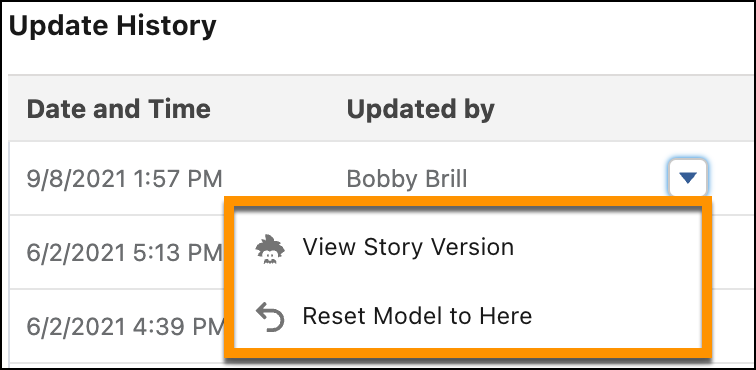
A model can undergo many updates over the course of its lifecycle. Factors such as altered business circumstances, new and better data, and improved model settings can motivate the creation and deployment of a new model version. To help you keep track of all these versions, examine a model’s version history so that you know exactly when it was updated and by whom, and whether it is scheduled for an upcoming refresh job. For models that aren’t performing as expected, you can revert to a previous version that performs better. You can retrieve and investigate the underlying settings associated with a particular model version.

Note Einstein Discovery stories are now models. We wish we could snap our fingers to update
the name everywhere, but you can expect to see the previous name in a few places until we
replace it.
- View a Prediction Definition in Model Manager.
- View a Model.
-
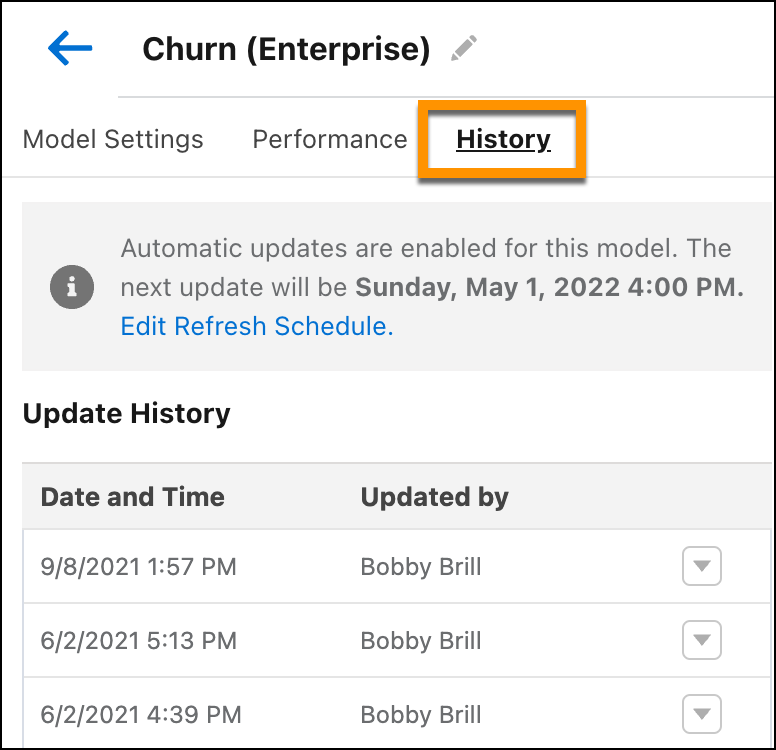
In the side panel,
click the History tab.
-
To view the
model
version, or to reset the model to a different version, in the
Update History list, click the menu and choose the action you
want.