
Delete unnecessary datasets to reduce app clutter and avoid reaching your org's total row limit for all registered datasets. You can delete datasets from shared apps on which you have at least Editor access, your My Private App, and, with a special user permission, another user’s My Private App.
Required Editions
| Available in Salesforce Classic and Lightning Experience. |
| Available with CRM Analytics, which is available for an extra cost in Enterprise, Performance, and Unlimited Editions. Also available in Developer Edition. |
| User Permissions Needed | |
|---|---|
| To delete a dataset: | Use CRM Analytics AND Editor access to the dataset’s app |
| To delete a dataset in another user’s My Private App: | Manage CRM Analytics Private Assets |
Before you delete a dataset, consider the following guidelines.
- You can’t recover a deleted dataset.
- Use the data manager to delete datasets from another user’s My Private App. You can’t see or delete other users’ private datasets from the CRM Analytics home or app tabs. For security reasons, you also can’t view the data in other users’ private datasets.
- You also can’t delete a dataset that’s used in a dashboard, lens, or dataflow. Before
you delete a dataset, first remove references to it from dashboards or dataflow
transformations, and delete associated lenses.
 Tip To see where a dataset is used, review the usage information on the dataset’s edit page.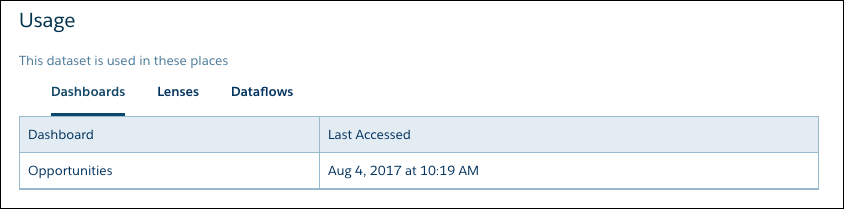
- Analytics doesn’t check or show if a dataset is used in recipes. Be sure to remove dataset references from recipes as well. If you delete a dataset that's used in a recipe, the recipe fails the next time it runs.
-
To locate the Delete Dataset button on the CRM Analytics home or an app page, follow
these steps.
-
Under the Datasets section, click
 next to the dataset that you want to delete.
- Click Edit.
-
Under the Datasets section, click
-
To locate the Delete Dataset button in the data manager, follow these steps.
- In the data manager, click the Data tab.
-
On the Datasets subtab, click next to the dataset that you want to delete.
- Click Edit Dataset.
-
On the dataset edit page, click the Delete Dataset button (
 ).
If the dataset is in use, CRM Analytics stops the deletion and shows a list of assets that reference the dataset. Click Got It and resolve these references before trying again.
).
If the dataset is in use, CRM Analytics stops the deletion and shows a list of assets that reference the dataset. Click Got It and resolve these references before trying again. - Click Delete Permanently.