Use Dataset Builder to create a single dataset based on data from one or more related
Salesforce objects. Dataset Builder adds the instructions for building the dataset to the
specified dataflow. The dataset is created the next time the dataflow runs, and refreshes each
time the dataflow runs thereafter. To edit the dataflow, use the Dataflow Editor.
Required Editions
| Available in: Salesforce Classic and Lightning Experience |
| Available for an additional cost in: Enterprise, Performance, and
Unlimited Editions
|
| User Permissions Needed |
| To access the dataset builder: |
Edit CRM Analytics Dataflows |
- On the home page or on an app page, click .
- Click Salesforce Data.
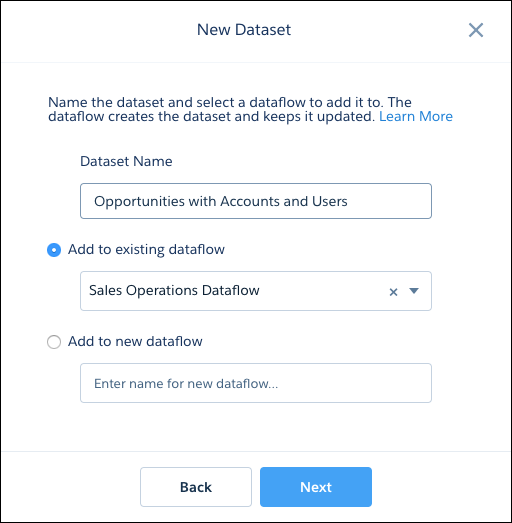
The New Dataset dialog opens.
- Enter a name for the dataset.
- Select a dataflow to add the transformations to. You can select an existing dataflow,
or a new dataflow.
- To add the transformations to an existing dataflow, select Add to
existing dataflow, and then select the dataflow from the list.
- To add the transformations to a new dataflow, select Add to new
dataflow, and then enter a name for the new dataflow.
- Click Next.
Dataset Builder opens inside the Dataflow Editor.
- Select the root object.
The root object is the lowest level child object that you can add to the canvas. After you
select the root object, you can add only parent objects of the root object—you
can’t add its child objects. To change the root object, refresh the page and start
over.
- Hover over the root object, and then click
 .
.
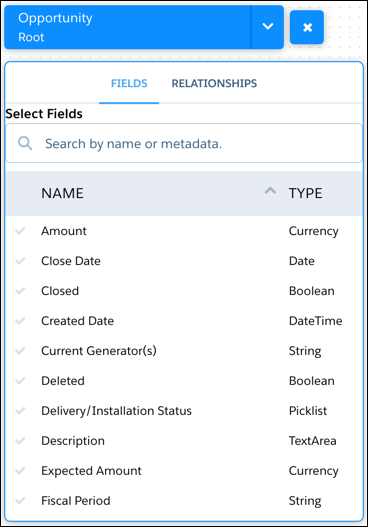
The Select Fields dialog box appears. By default, the Fields tab appears.
- In the Fields tab, select the fields from which you want to extract data.
To locate fields more quickly, you can search for them or sort them by name or type.
- In the Relationships tab, click Join to add the related objects to
the canvas.
When you add a related object, the related object appears on the canvas.
- To remove a related object, click Delete.
- For each related object, select the fields from which you want to extract data.
- To move the entire diagram, select a white space in the canvas and drag it.
If needed, move the diagram to view a different section.
- When you finish adding objects and fields, click Next.
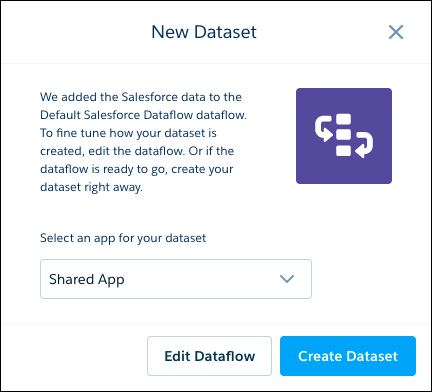
The transformations for the new dataset are added to the dataflow you
selected.
- Select the app that will contain the dataset, if it’s not already selected.
- To view or edit the dataflow, click Edit Dataflow.
- To run the dataflow and create the dataset, click Create
Dataset.

 Note If you enter a dataset name that is already used, when you create the dataset, Dataset Builder appends a number to the dataset name. For example, if you entered MyOpportunities, Dataset Builder creates MyOpportunities1. The dataset name can’t exceed 80 characters.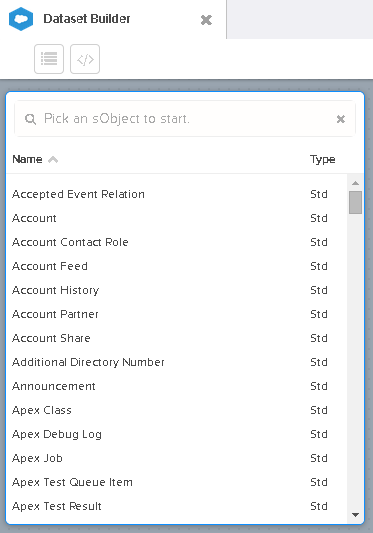
 Important Select at least one field for each object that you add to the canvas. If you add an object and don’t add any of its fields, the dataflow fails at run time.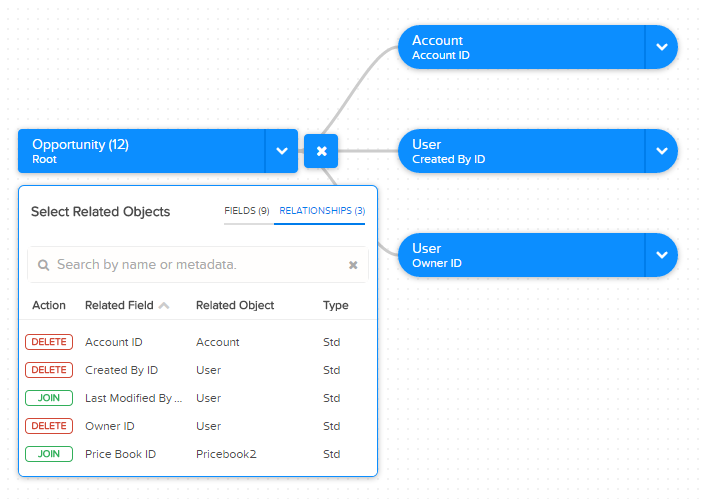
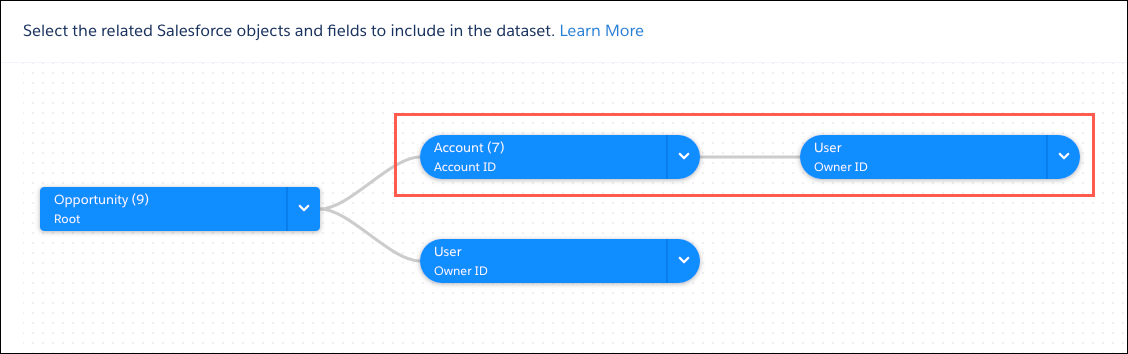
 Warning When you delete a related object, you also delete all objects that descend from the related object. For example, if you delete Account shown below, you delete the branch that contains Account and User.