
Add single-click interactions to your dashboard widgets to curate data journeys for your users. You can change a static dashboard into a dynamic navigation experience that progressively reveals details. A single-click in an overview widget takes you directly to a detailed page, opens a lens for cohesive exploration, or starts a flow.
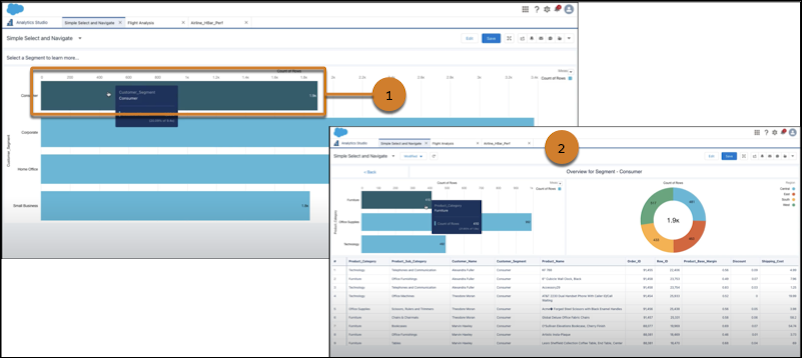
When you click a selection in an overview chart (1), it opens the details page with your selection applied (2).
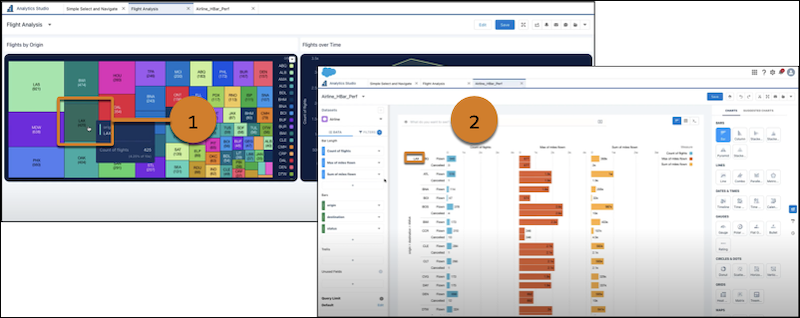
Or your selection (1) opens a lens with filters applied for immediate navigation (2).
- Add a Dynamic Interaction to a Widget
You can connect a user action to a dashboard action. For example, when you select a bar in an overview chart, a dashboard page with the details of the selection opens. You can create an interaction for a chart, container, image, number, repeater, table, and text widget. - Build and Use Interactions to Navigate Through Product Data
You can add interactions to widgets to guide users through multiple levels of data. For example, start at a large scale, such as a country, and navigate a user through more granular areas, such as a business segment or account owner. You can also use this pattern to create longer, deeper flows, such as configuring a dimension to navigate by, or set a new product’s dashboard to open when you select a product. This example explains how to create a flow that shows the revenue for account owners who work in a specific part of a business, in the United States. - Configure a Start a Flow Action
You can configure Start a Flow interactions for custom autolaunched or screen flows.