
Use a container in a CRM Analytics dashboard to group related widgets. For example, you can use a container widget to create a filter panel on the left side of the dashboard to store all selection-based filter widgets. To distinguish the filter panel from the rest of the dashboard, you can apply a background color and border to the container. When you move this widget, the contained widgets also move while maintaining their spacing and alignment.
You can place any widget inside a container widget, except another container widget.
-
Drag the container widget to the dashboard canvas.
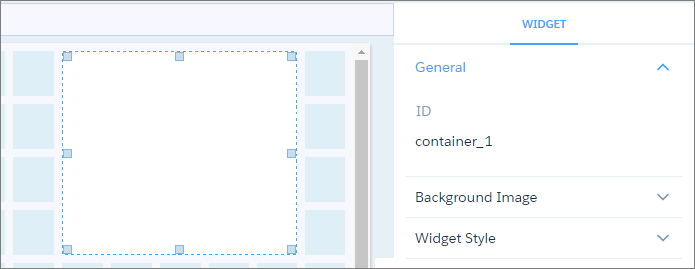
An empty container appears.
-
To change the widget properties, select the
widget.
The Widget panel groups the widget properties into sections. So that you don’t accidentally overlook any properties, expand any collapsed sections.
-
To customize the appearance of the widget, set the widget
properties.
For example, apply a background color or image.
-
Drag other widgets inside the container.
You can increase the size of the container to fit more widgets.
- To preview your changes to the dashboard, click the Preview button.
- Save the dashboard.