
Clone a query to quickly create a query based on an existing one. Cloning is useful when you can reuse an existing query with just a few tweaks.

Note You can’t clone a SAQL query for a single compare table column or a custom query with
user-defined values.
-
To open the queries panel, click an empty space in the
dashboard canvas in the dashboard designer.
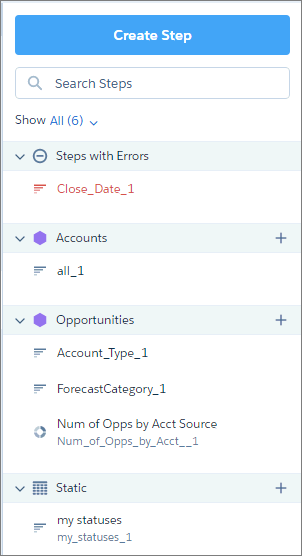 Note You can’t apply grayed-out queries to widgets. But you can clone them and view their properties.
 - To show all queries, select All in the Show field.
-
Hover over the query that you want to clone, and then click the down arrow.
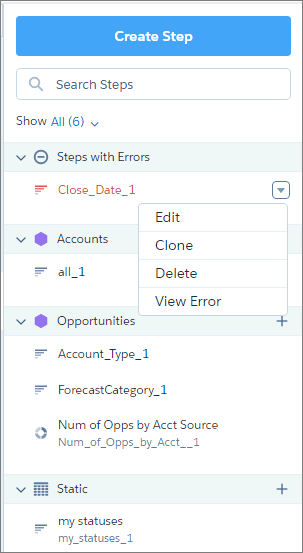
-
Select Clone.
The query opens in the lens, where you can easily modify it. If the query was created using SAQL, the clone opens in the SAQL editor instead.
-
Edit the query label.
The default label has “Clone of “ prepended to the original query label
- Make your changes to the clone.
-
Click Done.
CRM Analytics adds the query to the query panel, making it available for use by other widgets in the dashboard.
- Save the dashboard.
Note When you clone a query and edit its SAQL, the resulting JSON doesn’t always reflect the
functions applied to measures. After you run and save the SAQL, the function is changed to
count. For example, if the original query contained
this measures array:
"query": {
        "measures": [
        ["max","DailyActiveUsers"]
        ]
      }
measures array instead:
"query": {
        "measures": [
        ["count","*","max_DailyActiveUsers"]
        ]
      }