
CRM Analytics uses version history to back up dashboard versions when you edit them so you can restore a previous version.
Here’s how to restore a previous version of a dashboard.
- Click the
 button at upper right.
- Select the Version tab to see a list of previous versions of the
dashboard.
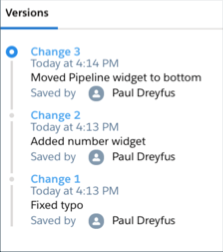
- Click the links (Change 1, Change 2, and so on) to view previous versions. The text under the links provides a brief description of the version if one was added to the Version History field the last time someone saved the dashboard.
- When you see the one you want to restore, click the disk icon and then click Save. It’s a good idea to enter a brief description of what’s unique about this version in the Version History field for future reference.

Warning When you restore a previous version, the dashboard doesn’t run as
expected if it depends on a dashboard, dataset, or lens that’s been deleted. If you get an
error when you load a restored version of a dashboard, try restoring older versions until
you get one that works. You can use that one as a starting point to rebuild the dashboard
with errors.
For details, see Backup and Restore Previous Versions of Analytics Assets with History API.