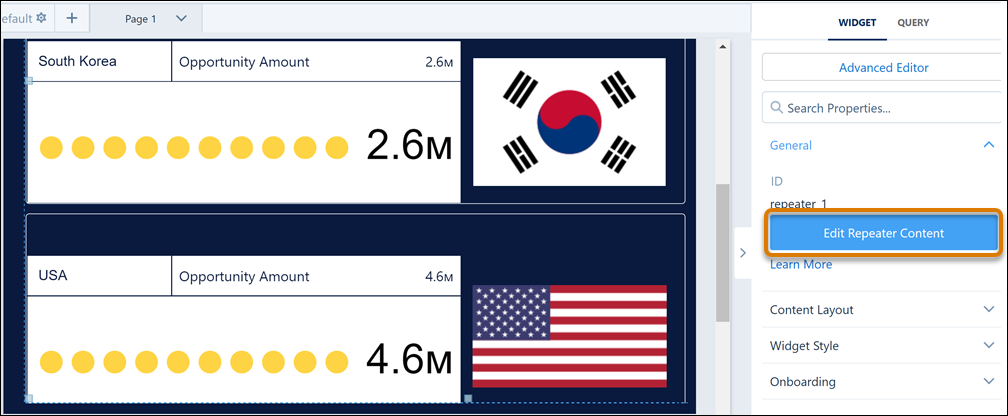
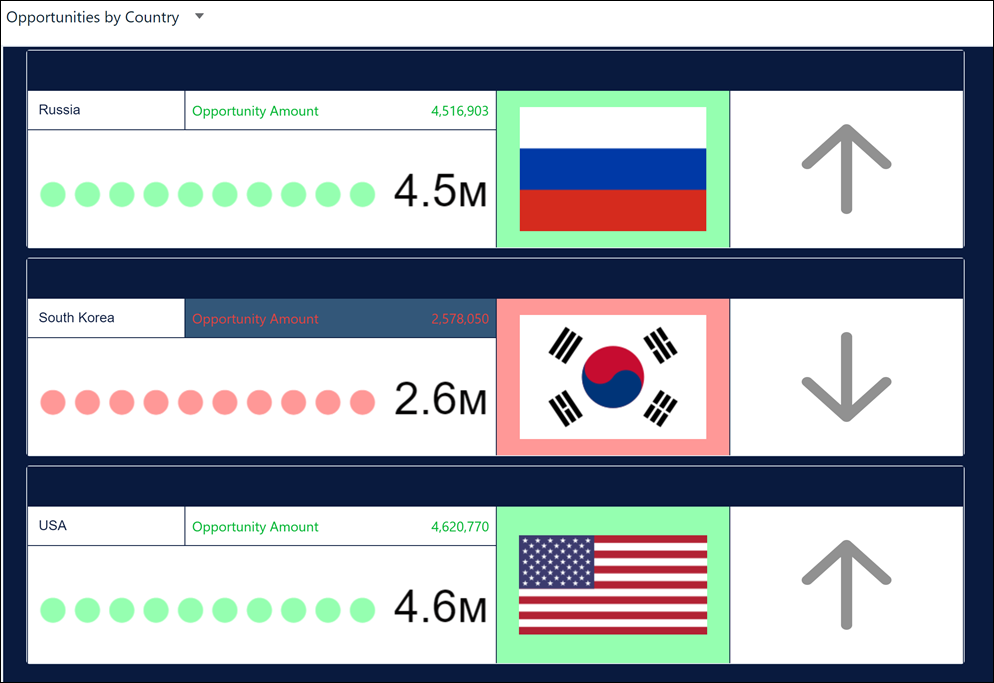
Make key data in repeater widgets stand out by adding conditional formatting rules to
text, numbers, charts, or images. For example, highlight countries with opportunity amounts less
than 3 million dollars in the Opportunities dashboard that’s set up with a repeater. You can
apply the same rule or a separate one for each widget in the repeater based on a value or
range.
Required Editions
| User Permissions
Needed |
| To customize dashboard widgets: |
Create and Edit Analytics Dashboards |
-
In the dashboard designer, with the repeater widget selected, click Edit
Repeater Content.
-
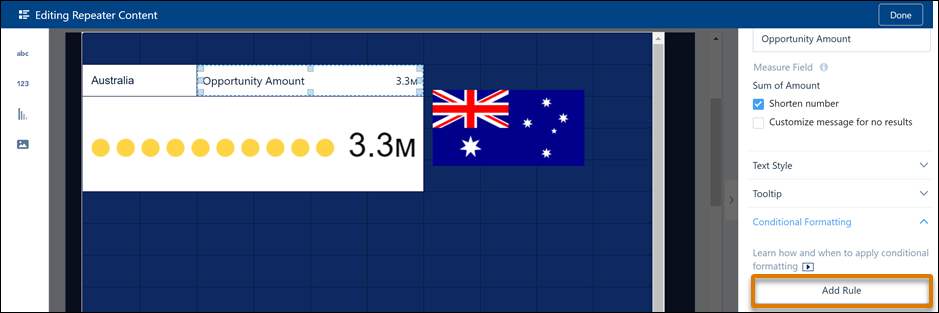
In the repeater widget, select the widget that you want to add the conditional
formatting rule to and, and then under Conditional Formatting, click Add
Rule.
To add a rule to an existing text widget in the repeater, modify the dashboard
JSON.
-
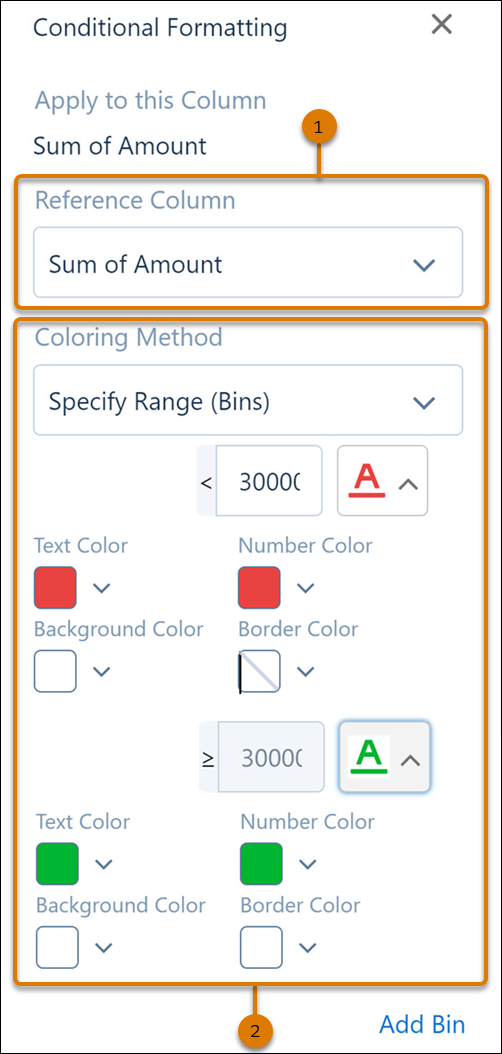
Select the reference column (1) to base the conditional formatting rule on and the
coloring method (2) to use. The reference column’s data type determines the available
coloring method options. For example, when the reference column is a measure or a derived
measure, you can base the coloring method on a range (bins). When the reference column is
a dimension, you can base the coloring method on the dimension value or the reference
column’s color style.
-
Use a similar process to apply conditional formatting rules to other widgets in the
repeater widget.
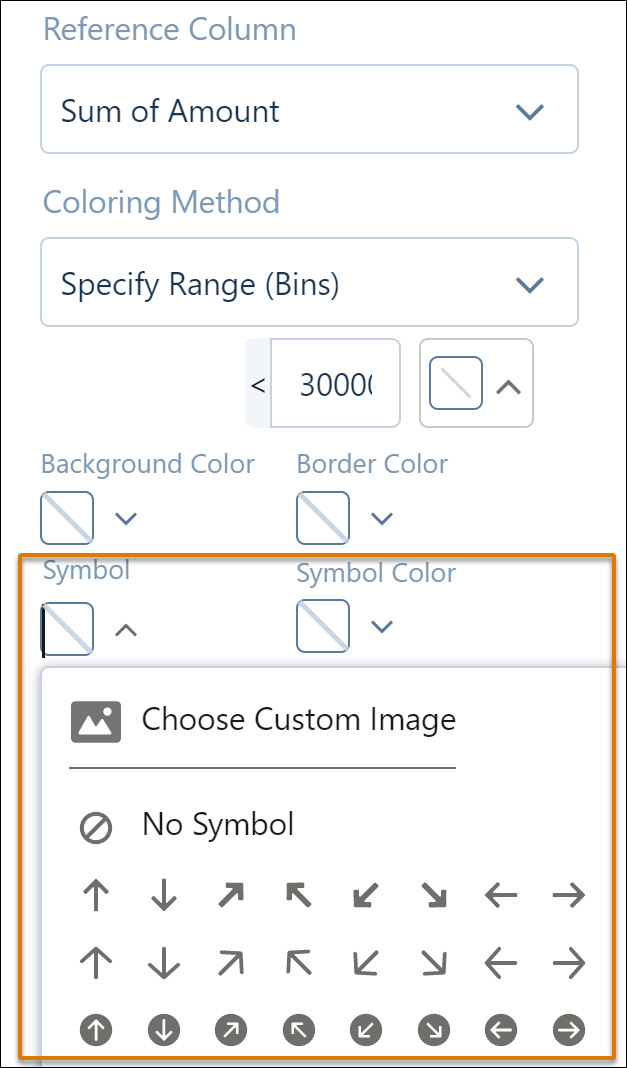
To include symbols or custom images with conditional formatting rules, add an image
widget to the repeater. For example, use

to
indicate opportunity amounts less than 3 million dollars in the repeater widget.
-
Preview your changes and save your dashboard.