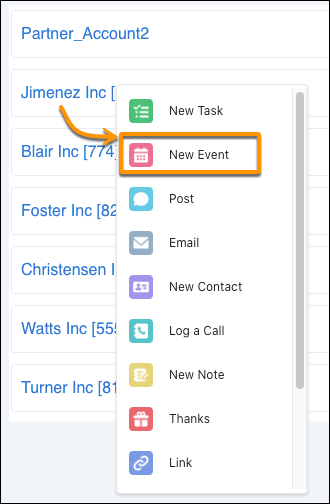
When you add an actionable dataset field to a text widget in a repeater widget, the text in the widget becomes a one-click action.
Required Editions
| User Permissions Needed | |
|---|---|
| To create a dashboard: | Create and Edit Analytics Dashboards |
- To enable one-click actions in repeater widgets, open Analytics Studio.
- Use the dataset editor to create a values table. Include the dataset row identifier, such as Record ID, in the list of fields.
- Assign an action to your chosen dataset field, such as opening a Salesforce record or invoking a Visualforce page.
-
In the dashboard builder, open a lens and configure actions for the field (1) and
column (2).
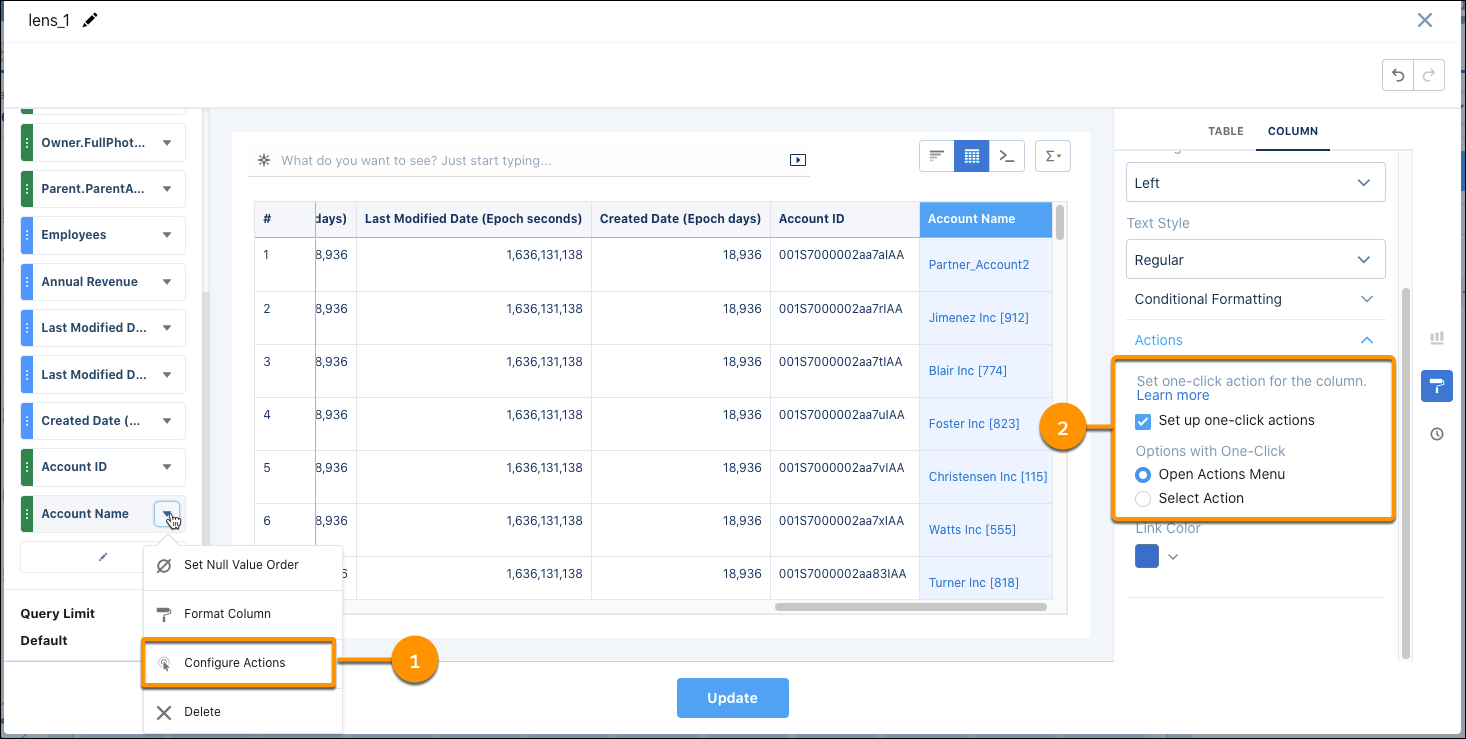
 Note Actions enabled on the dataset don’t carry over to the repeater widget. For actions to work in the repeater widget you must enable it on the column.
 -
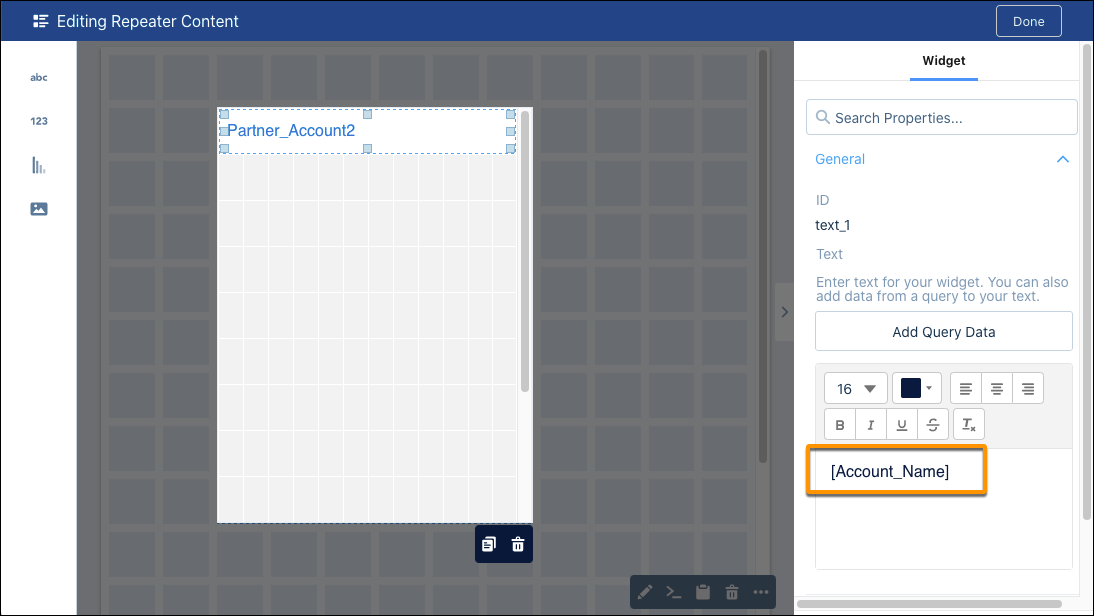
Then, in the dashboard builder, add the dataset field, such as Account_Name, to a text
widget inside a repeater widget.
 Now you can act directly from your dashboard. For example, create an event directly from an account.