Speculative analysis starts by adding an input widget to the dashboard that captures numeric values to interact with other dashboard widgets.
Required Editions
| User Permissions Needed | |
|---|---|
| To create a dashboard: | Create and Edit Analytics Dashboards |

Note The input widget isn’t supported on mobile devices. An error message is displayed on the
input widget when a dashboard containing the widget is viewed.
-
Add an input widget to your dashboard.
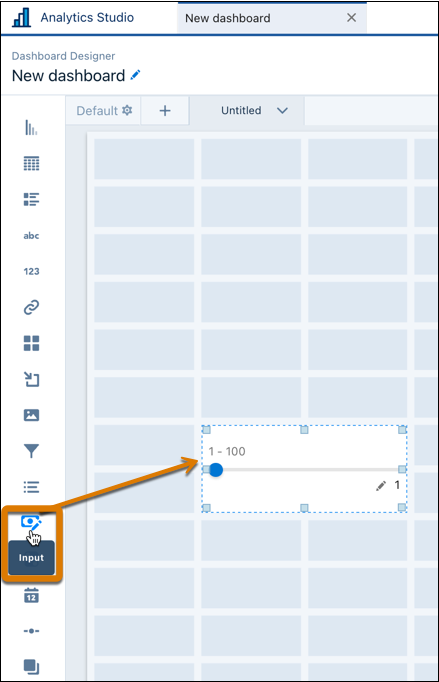
- In widget properties, use the Title field to add a label to the widget.
-
In Input Values, specify how to capture numeric values.
Input Type Definition Slider Submit values using a slider handle and track. Freeform Input Type in values manually. - Choose whether to display a percent or currency.
-
Add these settings.
Input Widget Setting Definition Minimum Starting value of the input range. The default is 1. Maximum Ending value of the input range. The default is 1. Start Value Initial value when the input widget opens on a dashboard. The default is 1. Increments The value by which the input widget changes. This setting appears only for Slider input types. The default is 1. 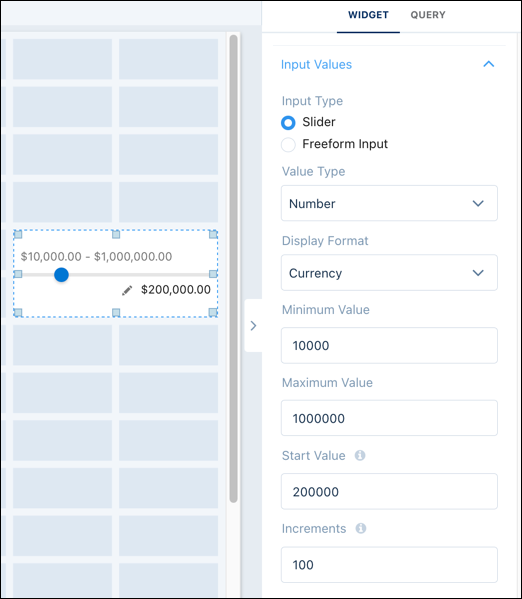
For slider input types, use the slider or click the pencil to add a value that’s within the input range.
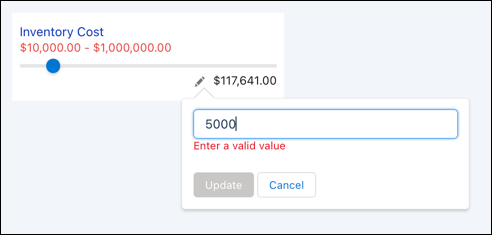
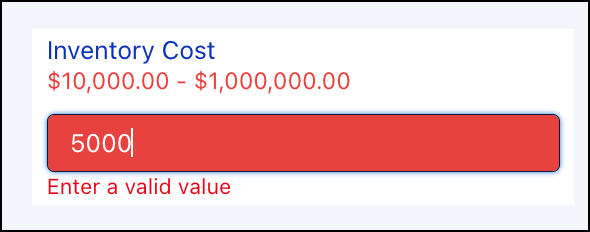
For freeform input types, type in a value that’s within the input range.