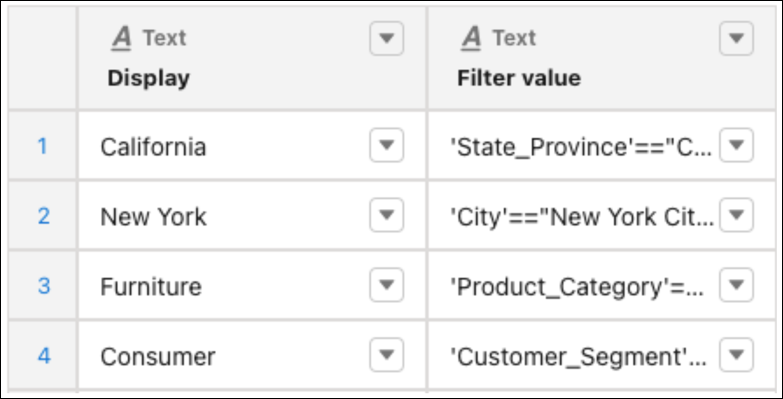
In this example dashboard stakeholders want the flexibility to add filter values and
fields to a single column in a table. This type of request can be complicated because it
requires passing data to a portion of a query. However, you can insert a parameter into the
column filter to be updated with desired values and fields. The parameter can be set up to work
as a static or a dynamic value type.
Required Editions
| Available in Salesforce Classic and Lightning Experience. |
| Available with CRM Analytics, which is available for an extra cost in
Enterprise, Performance, and Unlimited Editions. Also available in
Developer Edition.
|
| User Permissions
Needed |
| To create a parameter: |
Create and Edit Analytics Dashboards |
-
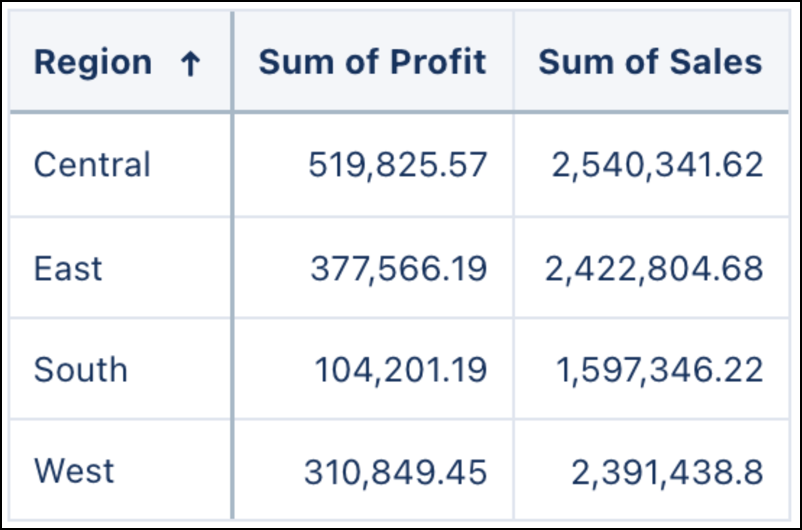
Create a query with at least two measures (columns) and one grouping in the
component.
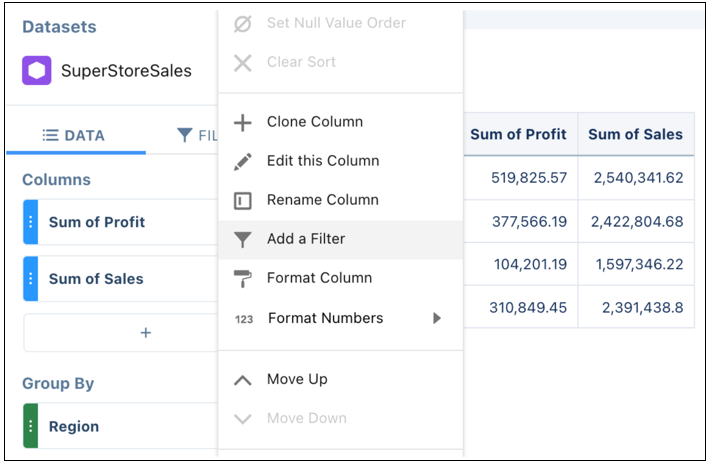
-
Add a filter to the column to be filtered.
-
Switch the query to Query Mode and click Done.
-
Add the query to a Table widget in the component.
-
Select the query in the component and click Advanced Editor.
-
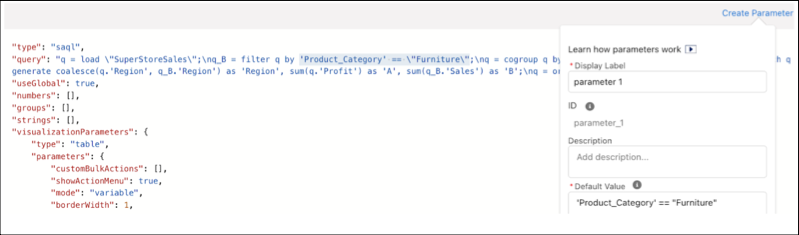
Create a parameter and add a default filter field and value the component query can
process, such as ‘Product_Category’==”Furniture”.
-
Click the Query tab and replace the existing filter in the SAQL
statement with the parameter.
-
Save your changes and the component.
-
Edit the dashboard the component is embedded in.
-
Click the updated component widget and click the Parameters
tab.
-
Click the parameter you created and select Static from the Value
Type dropdown menu.
-
Add your desired filter condition by typing in a filter field and filter value in the
text box.
-
Click Update.
Data from the parameter now powers the filter portion of the query. Notice the
parameter is filtering only the Sum of Sales column.
The parameter can also
be set up as a dynamic value type to accept commonly used filter conditions to update the
column.
-
Add a filter widget to the dashboard.
-
Create a custom query. Add display values along with its corresponding filter fields
and values.
-
Repeat steps 1 through 10 to set up the table and parameter.
-
Click the parameter and select Dynamic from the Value Type
dropdown menu.
-
Click Choose Query and select the custom filter query.
-
Select the column that lists the filter fields and values from the New Value
menu.
-
Select an interaction type then click Update.
The filter selections now update the Sum of Sales column.

 Note Make sure there are no escape (‘\’) symbols in the parameter default value.