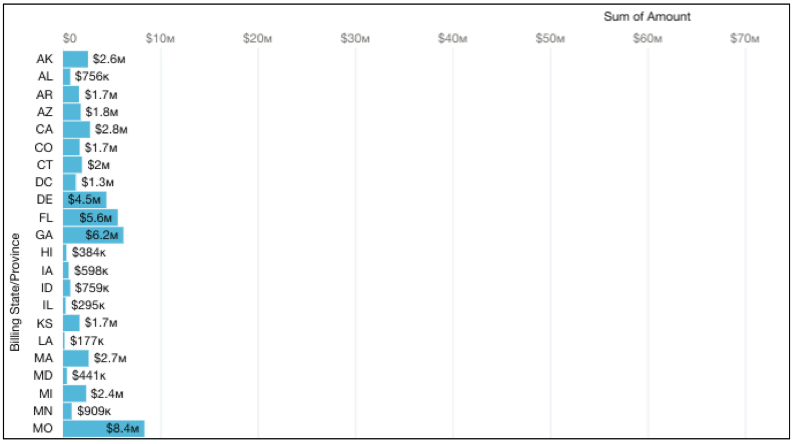
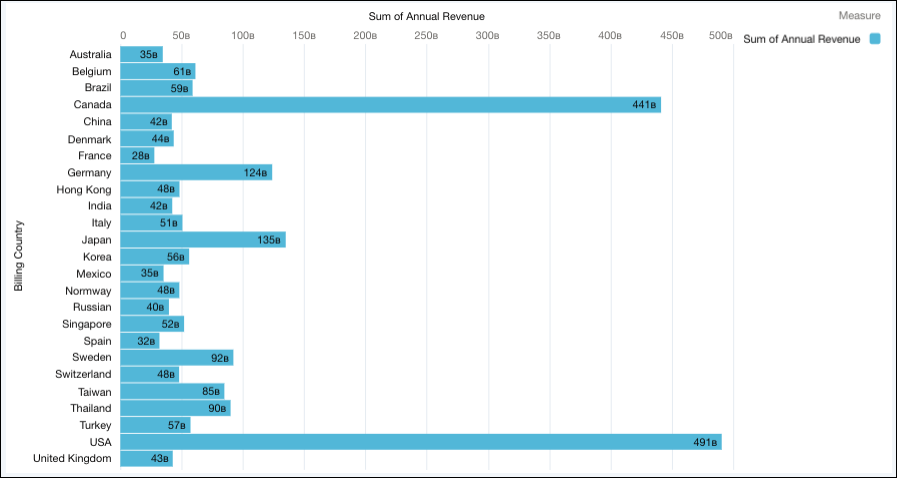
In this example a parameter is added to the appropriate widget and query values to update a component chart by different groupings.
Required Editions
| Available in Salesforce Classic and Lightning Experience. |
| Available with CRM Analytics, which is available for an extra cost in Enterprise, Performance, and Unlimited Editions. Also available in Developer Edition. |
| User Permissions Needed | |
|---|---|
| To create a parameter: | Create and Edit Analytics Dashboards |
- Create a parameter in the component and copy its parameter ID.
-
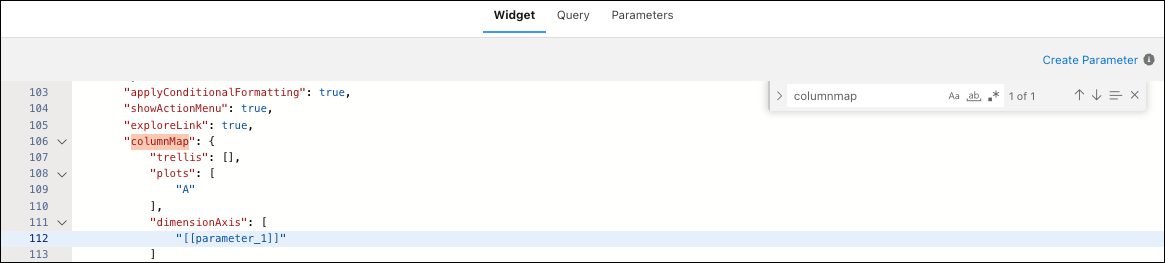
To update the grouping, click the Widget tab and paste the copied parameter to the
dimensionAxis value in columnMap.
-
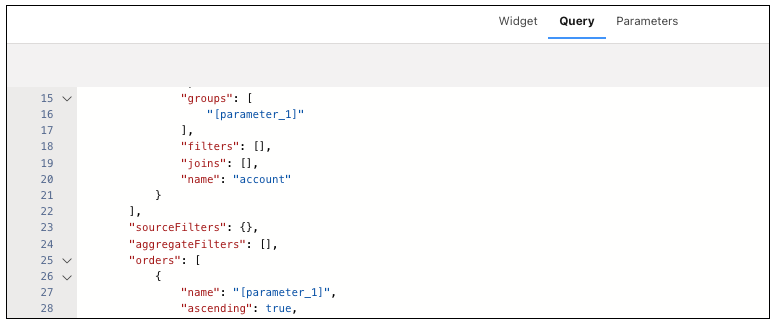
Click the Query tab and paste the copied parameter to the orders,
groups, and dimensionAxis values.
- Save the component.
- Edit the dashboard where the component is embedded.
-
Click the updated component widget and click the Parameters
tab.
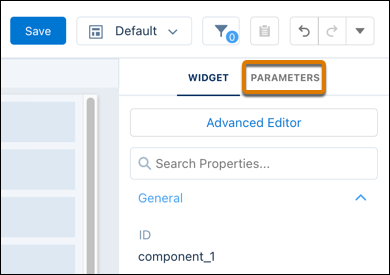
- Click the parameter you created and select Static from the Value Type dropdown menu.
-
Add a field value in the text box and click Update.
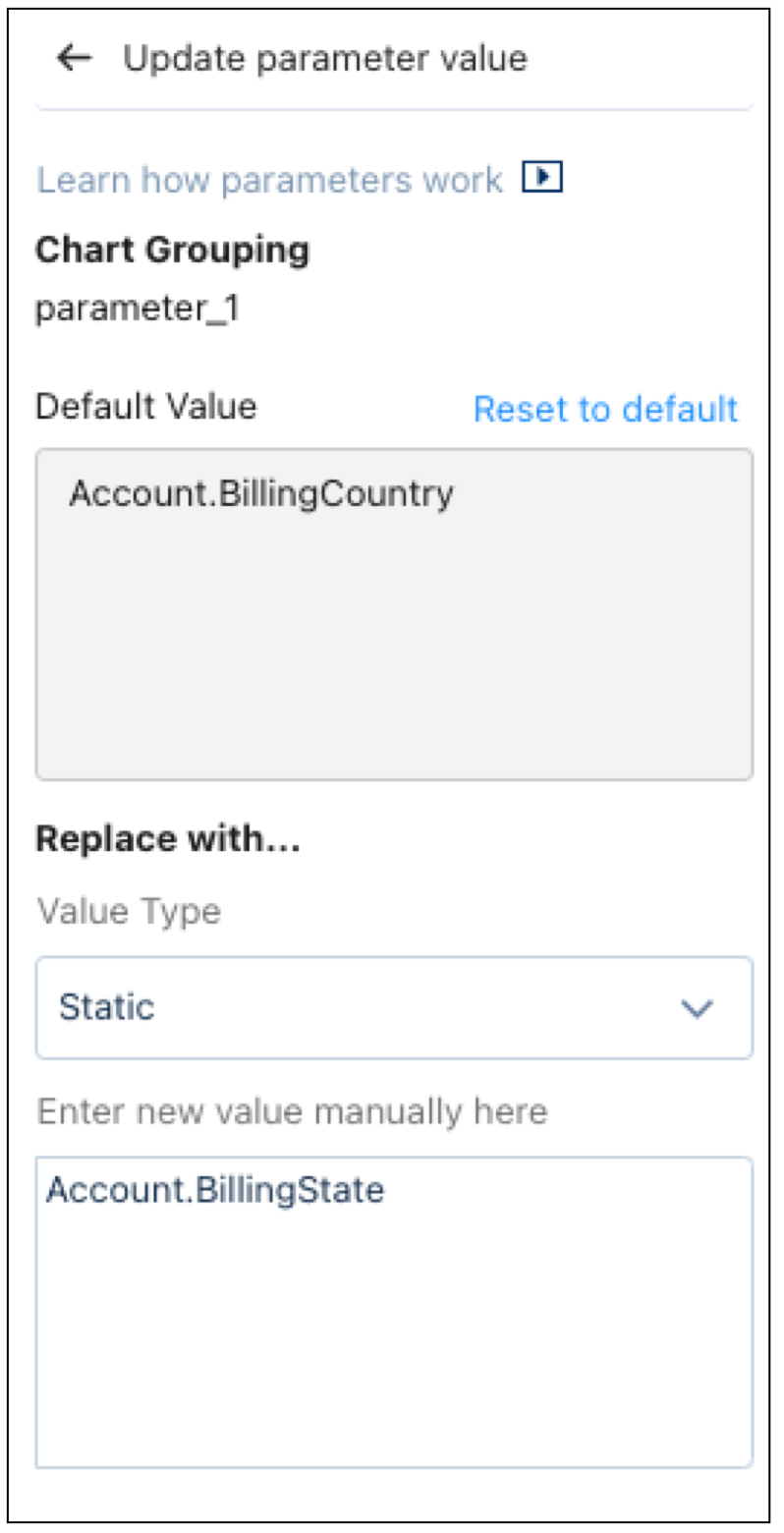
 Note The field value must exist in the component query otherwise you could get an error.
 -
The parameter groups the component with the new field value.