
Annotate dashboard widgets with comments posted in the dashboard and in Chatter. With annotations, you can hold conversations about your data and how it’s visualized, with the dashboard right there for reference.
Required Editions
| Available in Salesforce Classic and Lightning Experience. |
| Available with CRM Analytics, which is available for an extra cost in Enterprise, Performance, and Unlimited Editions. Also available in Developer Edition. |
| User Permissions Needed | |
|---|---|
| To annotate CRM Analytics dashboard widgets: | Use CRM Analytics |
To create an annotation, select Annotate from the dropdown menu on any dashboard widget.

To open the Annotations panel, click the speech bubble icon ( ) in the
dashboard control bar. When the panel is open, widgets with annotations show a blue square
(
) in the
dashboard control bar. When the panel is open, widgets with annotations show a blue square
( ) with the number of open annotations. CRM
Analytics saves both open and resolved annotations. And if you delete a widget, its open
annotations are saved as detached annotations. You can access detached annotations from the
blue circle at the bottom of the dashboard.
) with the number of open annotations. CRM
Analytics saves both open and resolved annotations. And if you delete a widget, its open
annotations are saved as detached annotations. You can access detached annotations from the
blue circle at the bottom of the dashboard.
Click a blue square or circle to open an annotation for comments.
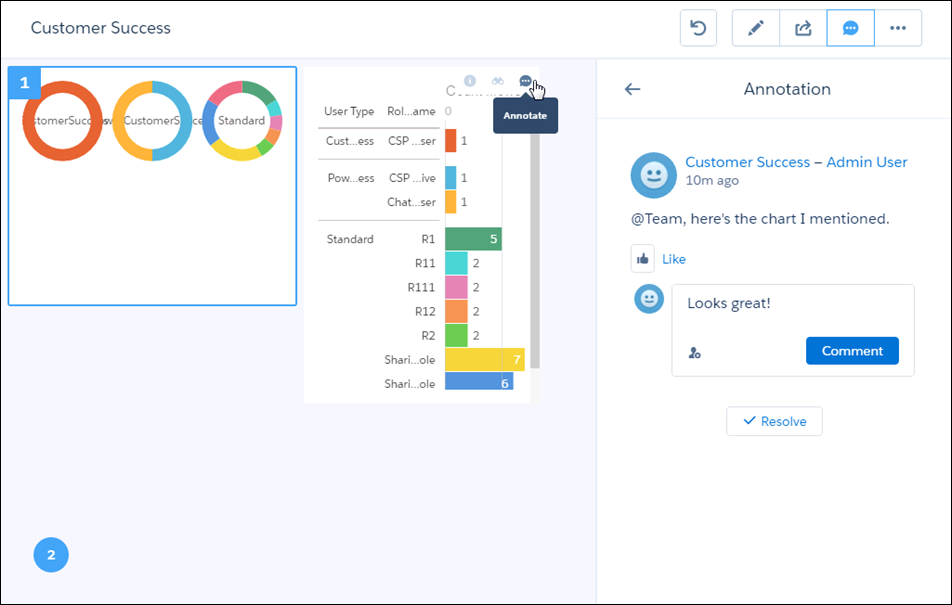


CRM Analytics dashboard annotations are natively integrated with Chatter, and comments on dashboards also appear as Chatter posts. Clicking the link included in a Chatter post opens the dashboard view just as it was set up at the time you posted. In addition, the Annotations panel opens with the relevant Chatter feed. When colleagues click your annotation, they see the dashboard page with all of your filters and selections applied, and they can easily respond in the Annotations panel.
On an open annotation, you can refresh the feed or close the annotation and go back to the list of all annotations in the dashboard.

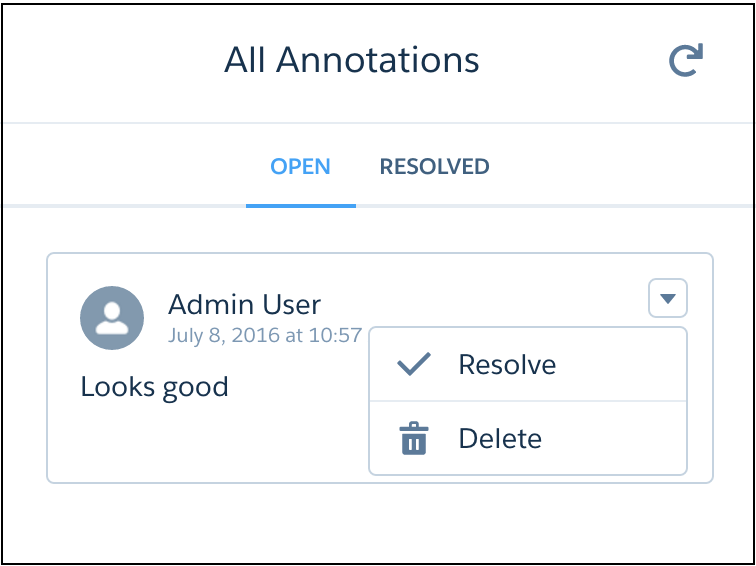
In the dashboard panel, each annotation has a dropdown menu for resolving or deleting the annotation.
To receive all posts on a dashboard, click its  button.