Gantt charts are a powerful way to quickly track activity schedules, task durations,
and overlaps.
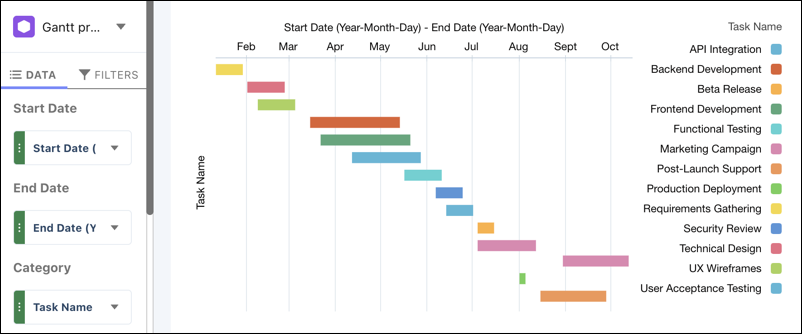
Unlike standard measure-based charts, each bar in a Gantt chart represents the time between a
start and end date, making it easy to spot overlapping tasks, track durations, and manage
sequencing.
Create a Gantt Chart
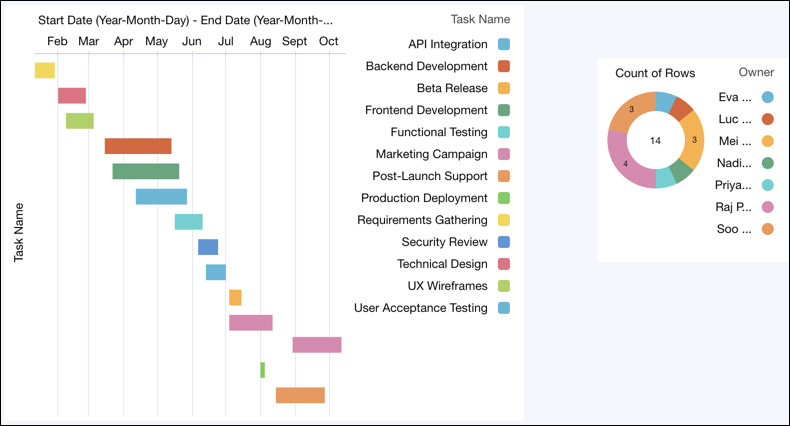
Use a Gantt chart to compare the timing and duration of items across a single category.
For example, create a Gantt chart that shows each project task as a bar running from its start
date to its end date.
Required Editions
| Available in Salesforce Lightning Experience. |
| Available with CRM Analytics, which is available for an extra cost in
Enterprise, Performance, and Unlimited Editions. Also
available in Developer Edition.
|
-
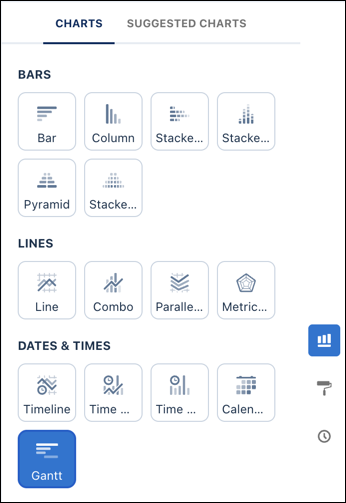
In the lens, click
 and then select Gantt.
-
In the column-map panel, select a Start Date to indicate where
the bar begins.
-
Select an End Date to indicate where the bar ends.
-
Add a dimension to Category, such as Task Name or Project
Phase, to plot along the vertical axis.
-
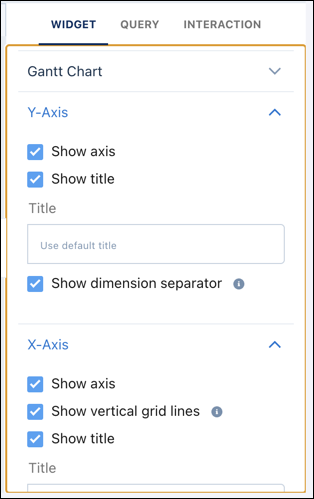
To change the chart display, click
 and set the chart properties in the Formatting
panel.
and set the chart properties in the Formatting
panel.
- Auto Fit: Select how the chart scales. The default,
Fit, makes sure that all bars are visible without scrolling.
If you lose labels while resizing your dashboard, switch to Preserve
labels.
- Time Axis (X-Axis): Select
Show vertical grid lines to add markers for specific days or
dates.
- Category Axis (Y-Axis): Select
Show dimension separator to draw clean lines between
consecutive dimension groups.