
Use segment gaps and borders to increase visual separation between adjacent chart segments.
Required Editions
| Available in Salesforce Lightning Experience. |
| Available with CRM Analytics, which is available for an extra cost in Enterprise, Performance, and Unlimited Editions. Also available in Developer Edition. |
- In the dashboard or lens, click the chart whose segments you want to format.
-
Select Show Segment Gap to add spacing between adjacent
segments, and then select a gap size of 1, 2, 4, or 8.
 Note Gap sizes above 8 can distort the chart layout and obscure smaller segments, so select a value up to 8. The default gap size is 2.
 -
Select Show Segment Border to add a colored border around each
segment, and then use the color picker to choose the border color.
Note For charts with thin segments, avoid dark border colors, because they can visually obscure smaller segments. The color picker defaults to white.
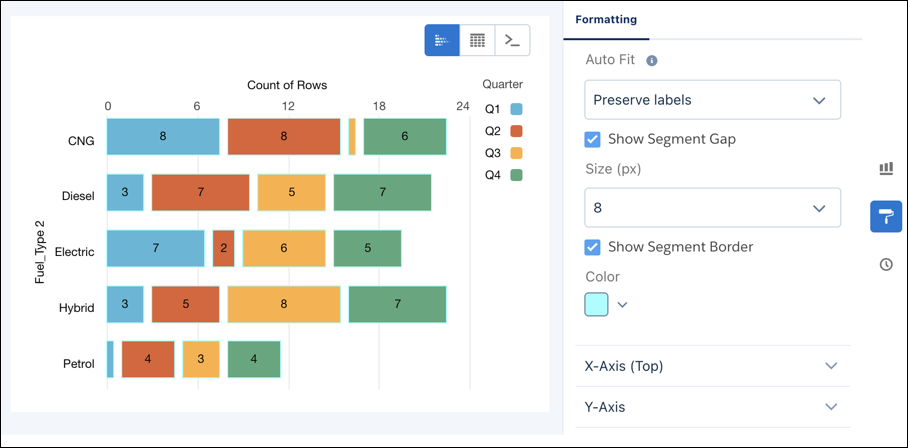
Use Show Segment Gap and Show Segment Border independently or together, depending on the visual separation your chart needs.