Templated CRM Analytics apps are automatically installed in Salesforce orgs via managed
packages. Use the Auto-Installed App setup page to monitor the status of auto-install requests,
view logs to troubleshoot auto-install issues, track app usage statistics, and update and delete
auto-installed apps.
Required Editions
| Available in: Lightning Experience |
| Available in: Enterprise, Performance, Unlimited, and
Developer Editions
|
From Setup, in the Quick Find box, enter Auto-Installed Apps and then
select Auto-Installed Apps.
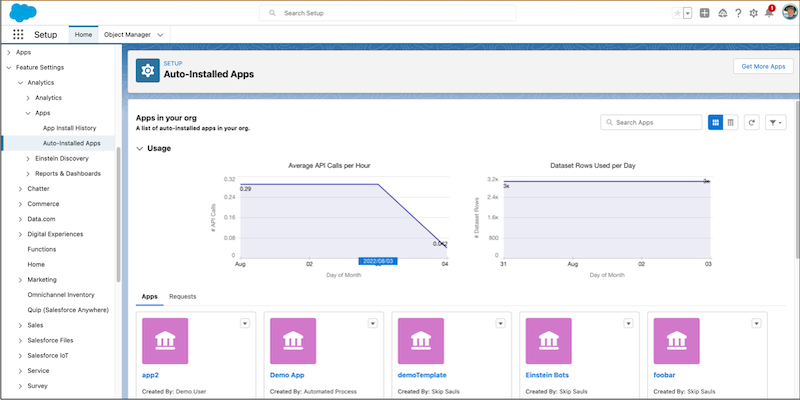
The home page shows usage statistics for all auto-installed apps and a list of each app with
basic details. To view app details and manage individual auto-installed apps, click the
Apps tab. To view and manage auto-install requests, click the
Requests tab. Clicking Usage hides and reveals
the usage charts.
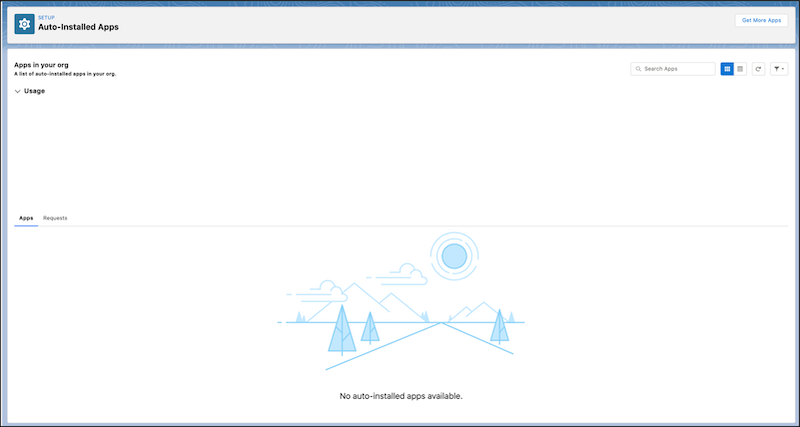
If there are no installed apps or auto-install requests in your org, the page shows that no
apps, statistics, or requests are available.
Use the Get More Apps button to open App Exchange and find other CRM
Analytics apps that are available for installation.
- Auto-Install Usage
Track the average API calls per hour and the number of dataset rows used per day for all auto-installed apps and for each individual app.
- Auto-Installed Apps
Monitor and interact with installed apps on the Apps tab.
- Auto-Install Requests
Monitor and interact with auto-install requests on the Requests tab.
