Customize app navigation so that users can easily find the dashboards and lenses that
are targeted for them.
Required Editions
| Available in Salesforce Classic and Lightning Experience. |
| Available with CRM Analytics in Enterprise, Performance, and
Unlimited Editions for an extra cost. Also available in Developer Edition.
|
| User Permissions Needed |
| To edit and save navigation lists in CRM Analytics apps: |
View DeveloperName, View Setup and Configuration |
-
In CRM Analytics Studio, select the app. Then click Run App.
-
Open the navigation list by clicking the disclosure triangle
 next to the app name.
-
If you’re the manager of an app, you see the Edit List button. Click
it to set up the app.
-
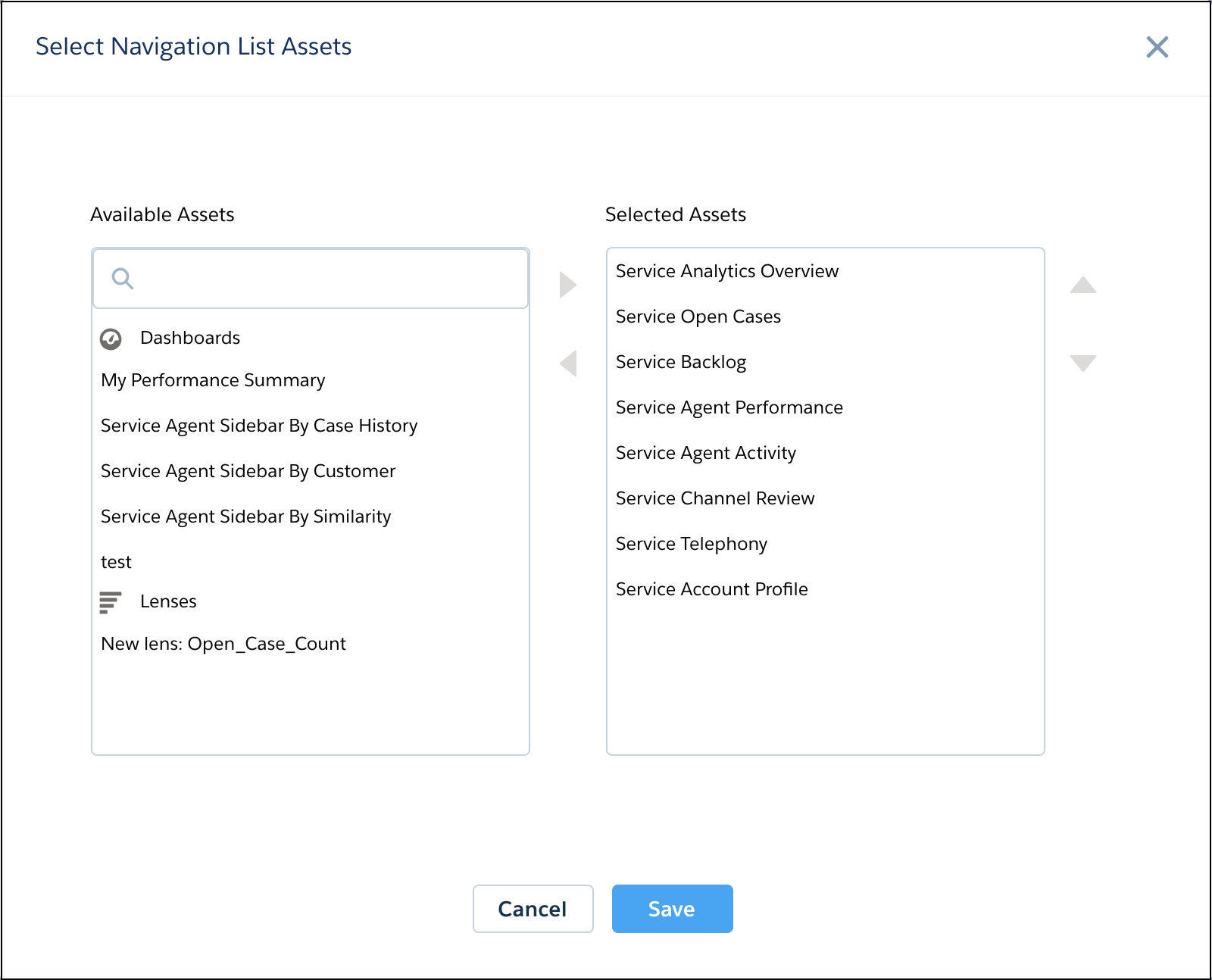
Change the presentation order by sliding the Selected Assets up or down. To add an
available dashboard or lens to the navigation list, select it and click the right arrow. To
hide an asset from the navigation list, select it and click the left arrow.
-
To retain the navigation for your app, click Save.
Share the app with colleagues or customers. When they run the app, it starts with
the first asset in your navigation list.