
CRM Analytics templated apps have multistep processes for installation and upgrades. Use the App Install History page to monitor installations in progress, track the assets created for the app, and view logs to troubleshoot any installation issues. After an app is installed, run or schedule one-click data refreshes.
Required Editions
| Available in: Lightning Experience |
| Available in: Enterprise, Performance, Unlimited, and Developer Editions |
From Setup, in the Quick Find box, enter App Install History, and then select App Install History.
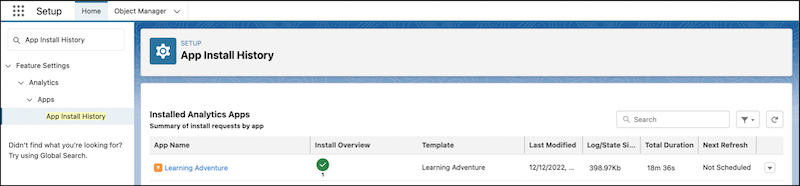
Only Templated apps shared with manage access are visible to the user.
The home page shows the installed CRM Analytics templated apps that are shared with manage access to your user. Embedded apps that are auto-installed and templated apps installed from Analytics Studio are listed here. The summary information includes the app name, the install overview for each app, the last modified date, the log size, the install duration time, and the next app refresh.
App Refresh
When an app is installed, the data assets used by the app must be refreshed to provide to most up-to-date insights for you and your users. To refresh all of the data assets for an installed app, in the correct order, you can refresh the app on-demand or create a schedule.


To run a data refresh for your app immediately, from the app’s actions, select Refresh Now. To schedule regular data refreshes, select Schedule.
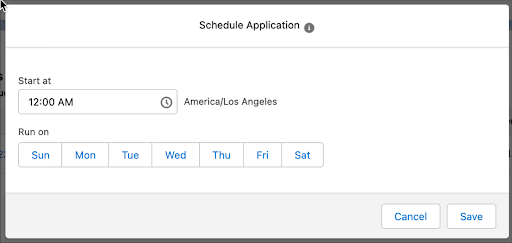
You can schedule daily or weekly refreshes. The refresh runs according to the time zone of the user who set the schedule.
- Monitor and Troubleshoot Templated App Installations
Click an app name to see the entire install history for the app, cancel running installations, and view app logs and state. The app logs and state provide details for each installation and each task. Use this information for troubleshooting why an installation or task wasn’t successful or when an installation was canceled.