
What’s the Difference Between Analytics Tab and Analytics Studio?
With CRM Analytics, you can take either a business user path or a builder path, depending on what you want to do, and you can switch paths at any time.
|
Analytics Tab Stay in Salesforce
Run and explore apps
|
Two Paths
|
Analytics Studio Go to Analytics >
Browse and build assets
|
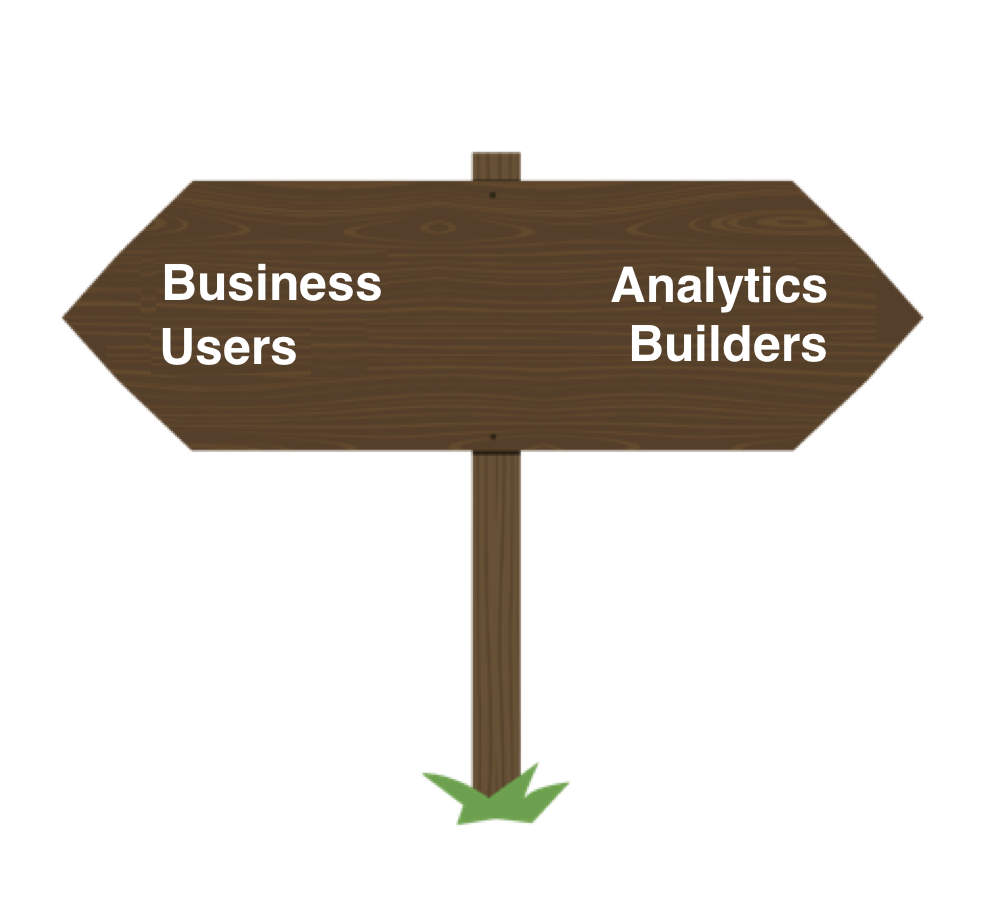


The business user path, generally for those with Use CRM Analytics permission, leads to ready-to-explore dashboards and lenses in curated apps. For this path, work in the CRM Analytics tab to run apps and collaborate with coworkers over dashboards.
The builder path, generally for those with permission to create CRM Analytics assets, leads to ready-to-explore datasets and ready-to-edit apps, dashboards, and lenses. For this path, work in the CRM Analytics Studio to browse your assets and build new ones.
This table summarizes the differences between the Analytics tab in Salesforce and the Analytics Studio.
| Action |
Analytics Tab (Run and Collaborate) |
Analytics Studio (Browse and Build) |
|---|---|---|
| Create |

|
|
| Annotate |
|
|
| Set Notification |
|
|
| Watchlist |
|
|
| Collections |
|
|
| Favorite |
|
|
| Edit |
|
|
| Full Screen |
|
|
| Clip to Designer |
|
|
| Clone in New Tab |
|
|
| Save |
|
|
| Share |
|
|
| Delete |
|
This table details the differences in behavior and functionality between the Analytics tab in Salesforce and the Analytics Studio.
| CRM Analytics Asset | Analytics Tab | Analytics Studio |
|---|---|---|
| Apps | ||
| What happens when you click an app name or icon on the home page |
Runs app 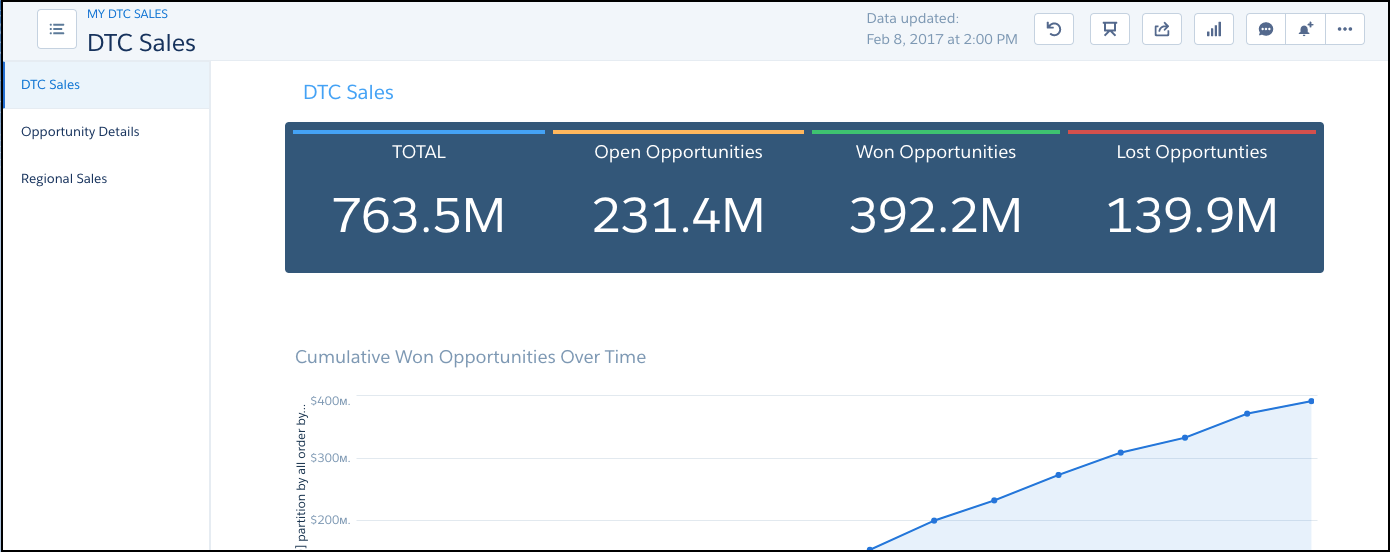 |
Browses app 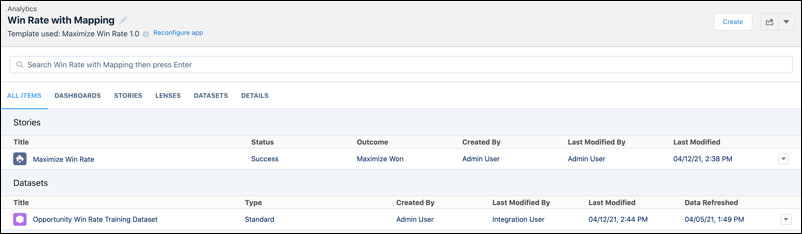 |
| App actions on home page tile or list entry |
Browse; Share; Open in Analytics Studio; Add to Collection; Favorite 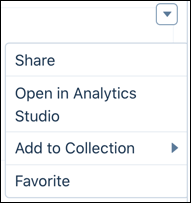 |
Run App; Share; Favorite 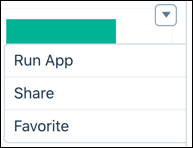 |
| Actions on the Browse App page |
Run App; Tile/List View; Share 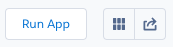 |
Create; Run App; Tile/List View; Share; Delete 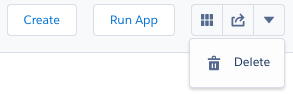 |
| Dashboards | ||
| Dashboard actions on home page tile or list entry |
Share; Open in Analytics Studio; Add to Collection; Favorite 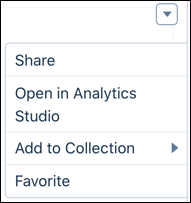 |
Edit; Share; Delete; Add to Collection; Favorite 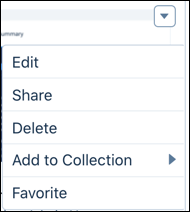 |
| Lenses | ||
| Lens actions on home page tile or list entry |
Share; Open in Analytics Studio; Add to Collection; Favorite |
Share; Delete; Add to Collection; Favorite 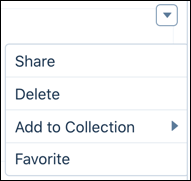 |
| Datasets | ||
| Dataset actions on home page tile or list entry | N/A |
Edit; Create Story; Favorite 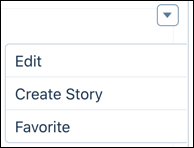 |
