
Share skills and choose which published skills appear in My Skills.
Required Editions
| Available in: Lightning Experience |
| Available in: Enterprise, Performance, and Unlimited Editions with the Einstein for Sales add-on. |
| User Permissions Needed | |
|---|---|
| To create, edit, run, and share your own skills in Skill Builder: |
AI Skill User permission set
|
| To create, edit, run, and share all skills in Skill Builder: |
AI Skill Manager permission set
|
Add to My Skills
My Skills is a list of published skills a user can run. A skill is added to My Skills when the user creates and publishes the skill or the skill is added from Browse.
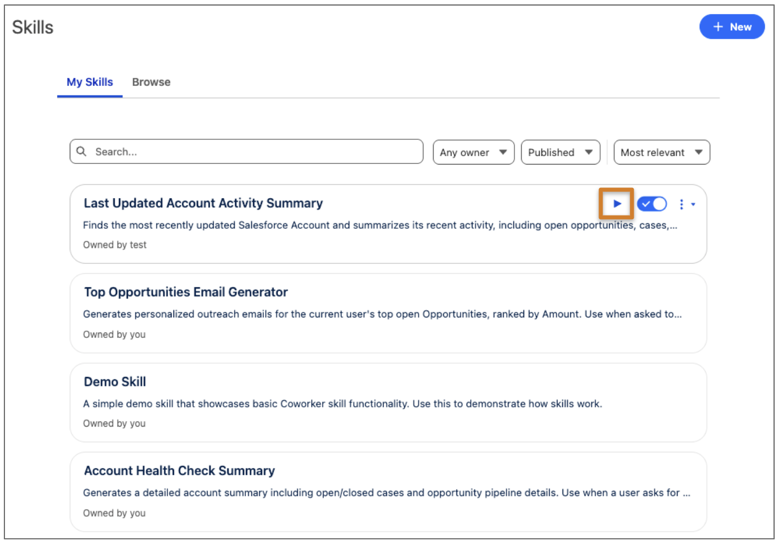
Browse Available Skills
Browse shows skills you can access that aren’t in My Skills.
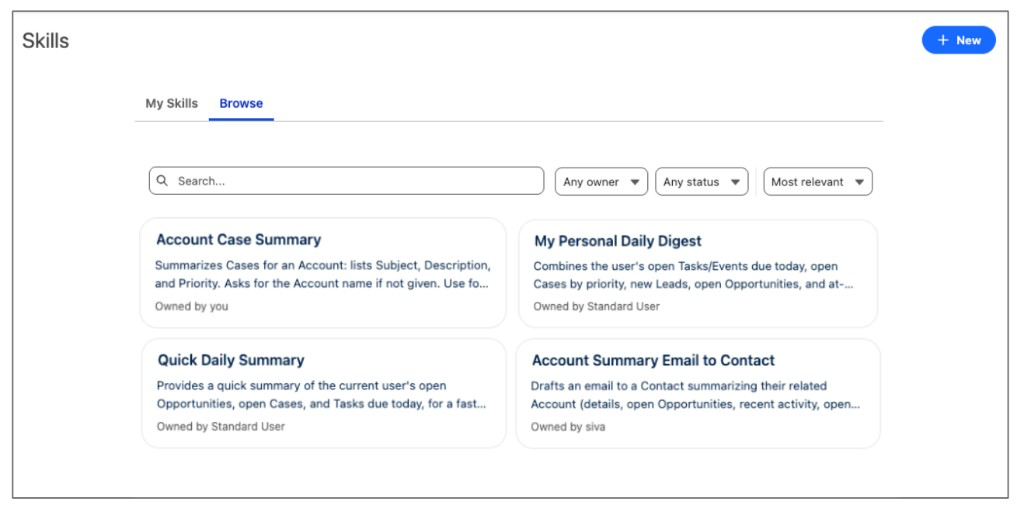
- In Agentforce Coworker, click Skills.
- Select Browse.
- Hover over the skill.
- Turn on Add to My Skills.
Clicking a skill card opens Skill Builder.
Remove a Skill from My Skills
- In Agentforce Coworker, click Skills.
- Find the skill.
- Hover over the skill.
- Turn off Remove from My Skills.
Removing a skill from My Skills doesn’t delete the skill or revoke access. To add it again, go to Browse.
Share a Skill
- In Agentforce Studio, click Skills.
- Select the skill.
- Click the additional options menu.
- Click Share.
- Select users, groups, or roles.
- Select the access level shown in the Share dialog.
- Click Save.
Skills are private by default until they are shared. Recipients see the skill in Browse and have the option to add it to My Skills.

Note Users with the AI Skill User permission set share skills they own. Users with the AI
Skill Manager permission set share any skill.