
The email configuration connects your email template to an Agentforce Service agent. Create it in Setup, and then link it to one or more routing addresses.
Required Editions
| Available in: Lightning Experience |
| Available in: Enterprise, Performance, Unlimited, and Developer Editions. Required add-on licenses vary by agent type. |
|
To learn about channel support for other agent types, see the documentation for that type. |


| User Permissions Needed | |
|---|---|
| To create email templates: | Lightning Experience User |
| To edit public email templates: | Modify All Data, Manage Public Lightning Email Templates, or template ownership |
| To create Agentforce Service Agent email configurations: | Manage Agentforce Service Agents AND Manage AI Agents OR Customize Application |
| To edit routing addresses: | Customize Application |
| To create Omni-Channel flows: | Customize Application |
- To deploy your Agentforce for Service on Email agent to channels, set up the Service Email Connection. See Set Up Connections in the Legacy Builder.
- From Setup, enter Agentforce in the Quick Find box and select Agentforce for Service on Email.
-
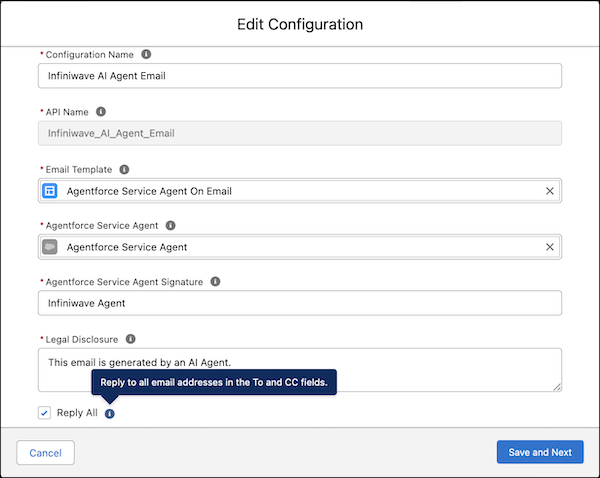
Click New Configuration.
- Enter a name for your configuration.
- Select the email template you created.
- Select an active Agentforce Service agent.
- Enter a legal disclosure that lets the end user know that the email was written and sent by AI. The disclosure replaces [[[LEGAL_DISCLOSURE]]] in the sent email.
- Select Reply All if you want Agents to reply to all email recipients, including those in the To and CC fields.
-
Click Save and Next.
- Click Go to Email-to-Case Setup.
- In the Routing Addresses section, click Edit next to the routing address that will receive inbound emails for the Service agent.
-
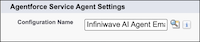
Under Agentforce Service Agent Settings, select the email configuration you created.
- Save your changes. If you want to, follow the previous steps to link the configuration to additional routing addresses.