
To analyze Knowledge/RAG Quality Data and Metrics data, you can use pre-built dashboards and reports, or you can build your own. You can also run queries on the DMOs.
Required Editions
| Available in: Lightning Experience |
| Available in: Enterprise, Performance, Unlimited, and Developer Editions. Required add-on licenses vary by agent type. |
| User Permissions Needed | |
|---|---|
| To view and access reports and dashboards | Data Cloud User |
To access pre-built reports and dashboards, make sure that you have Data Cloud User permissions. See Create Data Cloud Users and Assign Permissions.
Use Agent Analytics
Monitor quality scores in Agent Analytics.
Use Agent Analytics to view data for Average Answer Faithfulness Score, Average Answer Relevance Score, and Average Context Relevance Score. To learn more, see Agent Analytics.
Use the Built-in Dashboard
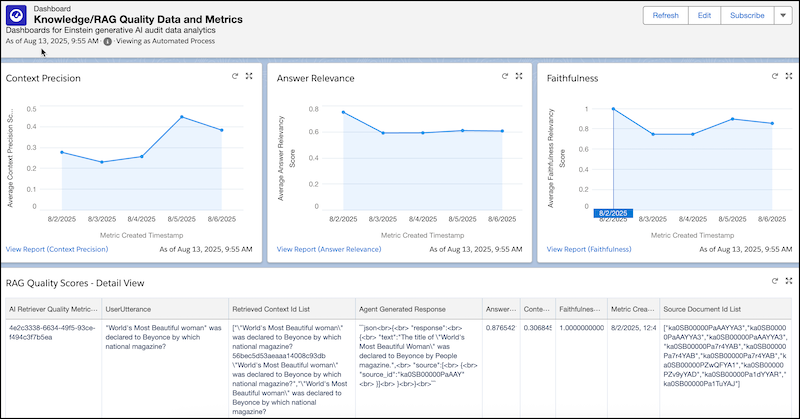
Monitor quality scores in the built-in dashboard for Knowledge/RAG Quality Data and Metrics.
- Click App Launcher, and in the search field, enter Data Cloud.
- To see the dashboard, from Data Cloud, click Dashboards.
- Click All Folders under FOLDERS.
- In the Folders column, click a link to the Knowledge/RAG Quality folder.
-
Select the Knowledge/RAG Quality Data and Metrics dashboard.
Dashboard for Knowledge/RAG Quality Data and Metrics
Use the Built-In Reports
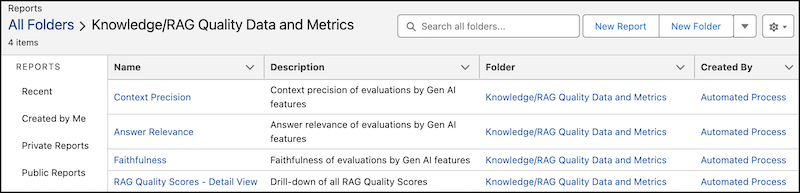
Monitor quality scores by using the built-in reports for Knowledge/RAG Quality Data and Metrics. You can create a report from the dashboard, or you can follow these instructions.
- Click App Launcher, and in the search field, enter Data Cloud.
- To see reports, from Data Cloud, click Reports.
- Click All Folders under FOLDERS.
- In the Folders column, click a link to the Knowledge/RAG Quality folder.
-
Select a report.
Report for Knowledge/RAG Quality Data and Metrics
To analyze Knowledge/RAG Quality Data and Metrics, you can also build custom reports in Data 360 that pull relevant information from the DMOs in the Data Model for Knowledge/RAG Quality Data and Metrics. To learn more, see Data 360 Reports and Dashboards.
Query the Data Model
You can run ad hoc queries on the DMOs in the Knowledge/RAG Quality Data and Metrics data model.
Write ad hoc queries that pull relevant information from the DMOs in the Data Model for Knowledge/RAG Quality Data and Metrics. To learn more, see Query Data in Data 360.
Here's an example query:
SELECT "AgentGeneratedResponseText__c",
       "AiGatewayRequestId__c",
       "AiResponseGenerationId__c",
       "AiRetrieverRequestId__c",
       "AnswerRelevancyScoreNumber__c",
       "ContextPrecisionScoreNumber__c",
       "CreatedById__c",
       "CreatedDate__c",
       "DataSourceObject__c",
       "DataSource__c",
       "ExternalRecordId__c",
       "ExternalSourceId__c",
       "FaithfulnessRelevancyScoreNumber__c",
       "InternalOrganization__c",
       "KQ_id__c",
       "LastModifiedById__c",
       "LastModifiedDate__c",
       "LastProcessedReqTimestamp__c",
       "RetrievedContextIdListText__c",
       "RetrieverApiName__c",
       "RetrieverTraceId__c",
       "RetrieverTraceSpanId__c",
       "SourceDocumentIdListText__c",
       "SystemModstamp__c",
       "UserUtteranceText__c",
       "cdp_sys_PartitionDate__c",
       "cdp_sys_SourceVersion__c",
       "id__c",
       "metricCreatedTimestamp__c",
       "orgId__c"
       FROM "AiRetrieverQualityMetric__dll"
       LIMIT 10
Join Knowledge/RAG Quality Data with Agentforce Session Tracing Data
These examples show how to join Knowledge/RAG Quality data with data in the Session Tracing Data Model (STDM).
Example with Query Editor
SELECT * FROM "ssot__AiAgentInteraction__dlm"
     INNER JOIN "ssot__AiRetrieverQualityMetric__dlm" ON "ssot__AiAgentInteraction__dlm"."ssot__attributetext__c" LIKE CONCAT('%',"ssot__AiRetrieverQualityMetric__dlm"."ssot__RetrieverTraceId__c",'%') AND "ssot__AiAgentInteractionType__c"='TURN'
     INNER JOIN "ssot__AiAgentInteractionMessage__dlm" ON "ssot__AiAgentInteractionMessage__dlm"."ssot__AiAgentInteractionId__c" = "ssot__AiAgentInteraction__dlm"."ssot__Id__c" AND "ssot__AiAgentInteractionMessageType__c"='Input'
     INNER JOIN "ssot__AiAgentSessionParticipant__dlm" ON "ssot__AiAgentSessionParticipant__dlm"."ssot__Id__c" = "ssot__AiAgentInteractionMessage__dlm"."ssot__AiAgentSessionParticipantId__c" AND "ssot__AiAgentSessionParticipantRole__c"='USER'
     INNER JOIN "ssot__AiAgentInteractionStep__dlm" ON
     "ssot__AiAgentInteractionStep__dlm"."ssot__AiAgentInteractionId__c"="ssot__AiAgentInteraction__dlm"."ssot__Id__c" AND "ssot__AiAgentInteractionStepType__c"='ACTION_STEP'
Example Using the Data 360 Semantic Data Model (SDM)
SELECT * FROM "ssot__AiAgentInteraction__dlm"
      JOIN "ssot__AiRetrieverQualityMetric__dlm" ON "ssot__TelemetryTraceId__c"="ssot__RetrieverTraceId__c"
Build Data 360 Reports
To analyze Knowledge/RAG Quality Data and Metrics, build reports in Data 360 that pull
relevant information from the AiRetrieverQualityMetric DMO. You can use
calculated insights to create metrics that can trigger alerts. To learn more, see Data 360 Reports and Dashboards.