---
schema_version: "1"
id: 4aa5aaa7878e15a209b801829bf3d42f70d13b39c7503b2e6ab0d1ee9b5cf35b
title: Gain Insights from Knowledge/RAG Quality Data and Metrics
collection: admin
version: current
locale: en-us
portal_url: https://docs.salesforce.com/admin/current/en-us/ai/264-0-0/generative_ai_monitor_retrieval_use.md
canonical_url: https://help.salesforce.com/s/articleView?id=ai.generative_ai_monitor_retrieval_use.htm&release=264.0.0&type=5
source_site: help.salesforce.com
content_type: documentation
content_hash: 4a75900e9e5ff48e291e8b5443a9aa46ff5f221f9e5fc12ee2dc820b244ab347
description: To analyze Knowledge/RAG Quality Data and Metrics data, you can use pre-built dashboards and reports, or you can build your own. You can also run queries on the DMOs.
products:
- Agentforce
- Cross Cloud
release: "264"
---
# Gain Insights from Knowledge/RAG Quality Data and Metrics
To analyze Knowledge/RAG Quality Data and Metrics data, you can use pre-built dashboards and reports, or you can build your own. You can also run queries on the DMOs.
### Required Editions
To access pre-built reports and dashboards, make sure that you have Data Cloud User permissions. See [Create Data Cloud Users and Assign Permissions](https://help.salesforce.com/s/articleView?id=data.c360_a_setup_walkthrough.htm&type=5&language=en_US).
## Use Agent Analytics
Monitor quality scores in Agent Analytics.
Use Agent Analytics to view data for Average Answer Faithfulness Score, Average Answer Relevance Score, and Average Context Relevance Score. To learn more, see [Agent Analytics](https://help.salesforce.com/s/articleView?id=ai.generative_ai_agent_analytics.htm&release=264.0.0&type=5 "Analyze your AI agents’ performance within user and agent sessions. Agent Analytics is built on the unified Session Tracing Data Model (STDM), which captures every event and interaction within a session and logs it as individual events. You can query the logged events to gain insights and optimize the Agent.").
## Use the Built-in Dashboard
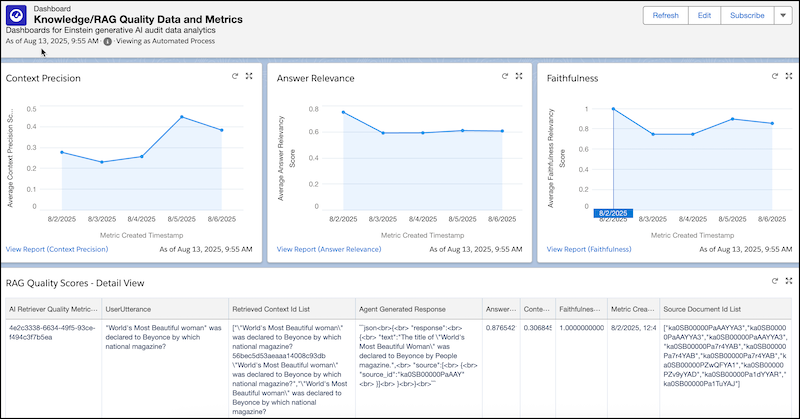
Monitor quality scores in the built-in dashboard for Knowledge/RAG Quality Data and Metrics.
1. Click **App Launcher**, and in the search field, enter Data Cloud.
2. To see the dashboard, from Data Cloud, click **Dashboards**.
3. Click **All Folders** under FOLDERS.
4. In the Folders column, click a link to the Knowledge/RAG Quality folder.
5. Select the **Knowledge/RAG Quality Data and Metrics** dashboard.
**Dashboard for Knowledge/RAG Quality Data and Metrics**
## Use the Built-In Reports
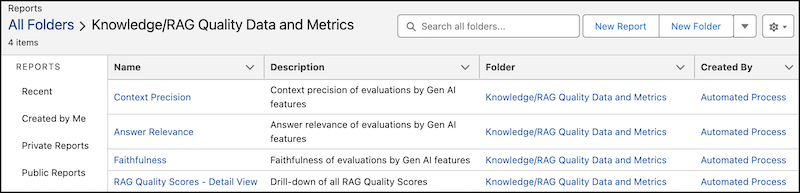
Monitor quality scores by using the built-in reports for Knowledge/RAG Quality Data and Metrics. You can create a report from the dashboard, or you can follow these instructions.
1. Click **App Launcher**, and in the search field, enter Data Cloud.
2. To see reports, from Data Cloud, click **Reports**.
3. Click **All Folders** under FOLDERS.
4. In the Folders column, click a link to the Knowledge/RAG Quality folder.
5. Select a report.
**Report for Knowledge/RAG Quality Data and Metrics**
To analyze Knowledge/RAG Quality Data and Metrics, you can also build custom reports in Data 360 that pull relevant information from the DMOs in the [Data Model for Knowledge/RAG Quality Data and Metrics](https://help.salesforce.com/s/articleView?id=ai.generative_ai_monitor_retrieval_data_model.htm&release=264.0.0&type=5 "Use the data in these DLOs/DMOs to build reports, dashboards, and queries that provide insights into knowledge retrieval events."). To learn more, see [Data 360 Reports and Dashboards](https://help.salesforce.com/s/articleView?id=data.datacloud_reports_dashboards_overview.htm&type=5&language=en_US).
## Query the Data Model
You can run ad hoc queries on the DMOs in the Knowledge/RAG Quality Data and Metrics data model.
Write ad hoc queries that pull relevant information from the DMOs in the [Data Model for Knowledge/RAG Quality Data and Metrics](https://help.salesforce.com/s/articleView?id=ai.generative_ai_monitor_retrieval_data_model.htm&release=264.0.0&type=5 "Use the data in these DLOs/DMOs to build reports, dashboards, and queries that provide insights into knowledge retrieval events."). To learn more, see [Query Data in Data 360](https://help.salesforce.com/s/articleView?id=data.c360_a_query_data_in_dc.htm&type=5&language=en_US).
Here's an example query:
```
SELECT "AgentGeneratedResponseText__c",
"AiGatewayRequestId__c",
"AiResponseGenerationId__c",
"AiRetrieverRequestId__c",
"AnswerRelevancyScoreNumber__c",
"ContextPrecisionScoreNumber__c",
"CreatedById__c",
"CreatedDate__c",
"DataSourceObject__c",
"DataSource__c",
"ExternalRecordId__c",
"ExternalSourceId__c",
"FaithfulnessRelevancyScoreNumber__c",
"InternalOrganization__c",
"KQ_id__c",
"LastModifiedById__c",
"LastModifiedDate__c",
"LastProcessedReqTimestamp__c",
"RetrievedContextIdListText__c",
"RetrieverApiName__c",
"RetrieverTraceId__c",
"RetrieverTraceSpanId__c",
"SourceDocumentIdListText__c",
"SystemModstamp__c",
"UserUtteranceText__c",
"cdp_sys_PartitionDate__c",
"cdp_sys_SourceVersion__c",
"id__c",
"metricCreatedTimestamp__c",
"orgId__c"
FROM "AiRetrieverQualityMetric__dll"
LIMIT 10
```
## Join Knowledge/RAG Quality Data with Agentforce Session Tracing Data
These examples show how to join Knowledge/RAG Quality data with data in the Session Tracing Data Model (STDM).
Example with Query Editor
```
SELECT * FROM "ssot__AiAgentInteraction__dlm"
INNER JOIN "ssot__AiRetrieverQualityMetric__dlm" ON "ssot__AiAgentInteraction__dlm"."ssot__attributetext__c" LIKE CONCAT('%',"ssot__AiRetrieverQualityMetric__dlm"."ssot__RetrieverTraceId__c",'%') AND "ssot__AiAgentInteractionType__c"='TURN'
INNER JOIN "ssot__AiAgentInteractionMessage__dlm" ON "ssot__AiAgentInteractionMessage__dlm"."ssot__AiAgentInteractionId__c" = "ssot__AiAgentInteraction__dlm"."ssot__Id__c" AND "ssot__AiAgentInteractionMessageType__c"='Input'
INNER JOIN "ssot__AiAgentSessionParticipant__dlm" ON "ssot__AiAgentSessionParticipant__dlm"."ssot__Id__c" = "ssot__AiAgentInteractionMessage__dlm"."ssot__AiAgentSessionParticipantId__c" AND "ssot__AiAgentSessionParticipantRole__c"='USER'
INNER JOIN "ssot__AiAgentInteractionStep__dlm" ON
"ssot__AiAgentInteractionStep__dlm"."ssot__AiAgentInteractionId__c"="ssot__AiAgentInteraction__dlm"."ssot__Id__c" AND "ssot__AiAgentInteractionStepType__c"='ACTION_STEP'
```
Example Using the Data 360 Semantic Data Model (SDM)
```
SELECT * FROM "ssot__AiAgentInteraction__dlm"
JOIN "ssot__AiRetrieverQualityMetric__dlm" ON "ssot__TelemetryTraceId__c"="ssot__RetrieverTraceId__c"
```
## Build Data 360 Reports
To analyze Knowledge/RAG Quality Data and Metrics, build reports in Data 360 that pull relevant information from the `AiRetrieverQualityMetric` DMO. You can use calculated insights to create metrics that can trigger alerts. To learn more, see [Data 360 Reports and Dashboards.](https://help.salesforce.com/s/articleView?id=data.datacloud_reports_dashboards_overview.htm&type=5&language=en_US)