
To control which model transcribes your audio, set the transcription model for the Speech to Text agent action.
Required Editions
| Available in: Lightning Experience |
| Available in: Enterprise, Performance, Unlimited, and Developer Editions. Required add-on licenses vary by agent type. |
| User Permissions Needed | |
|---|---|
| To build and manage Employee agents: |
Manage AI Agents OR Customize Application |

Note The Transcription Model parameter isn't available in the legacy Agentforce Builder. To set a
transcription model, use Agentforce Builder in Agentforce Studio, Flow, or the REST API.
- From the App Launcher, enter Agent, and select Agentforce Studio, and then click Agents.
- Select the agent that you use to convert speech to text. If you don't have one, click New Agent and create one.
- On the Explorer panel, expand Subagents and select any subagent.
- Under Actions Available For Reasoning, expand Convert Speech to Text to show its input parameters.
- Next to Transcription Model, click Agent Populated. The Create Custom Variable dialog opens.
- Enter a Name for the variable. The API Name is populated automatically.
- For Data Type, select String.
- Optionally, enter a description to help the agent understand the variable's purpose.
-
In the Default Value field, enter the transcription model value.
Enter the exact value, such as
whisper-v3-turboorelevenlabs-scribe-v2. Any other value returns an invalid input error.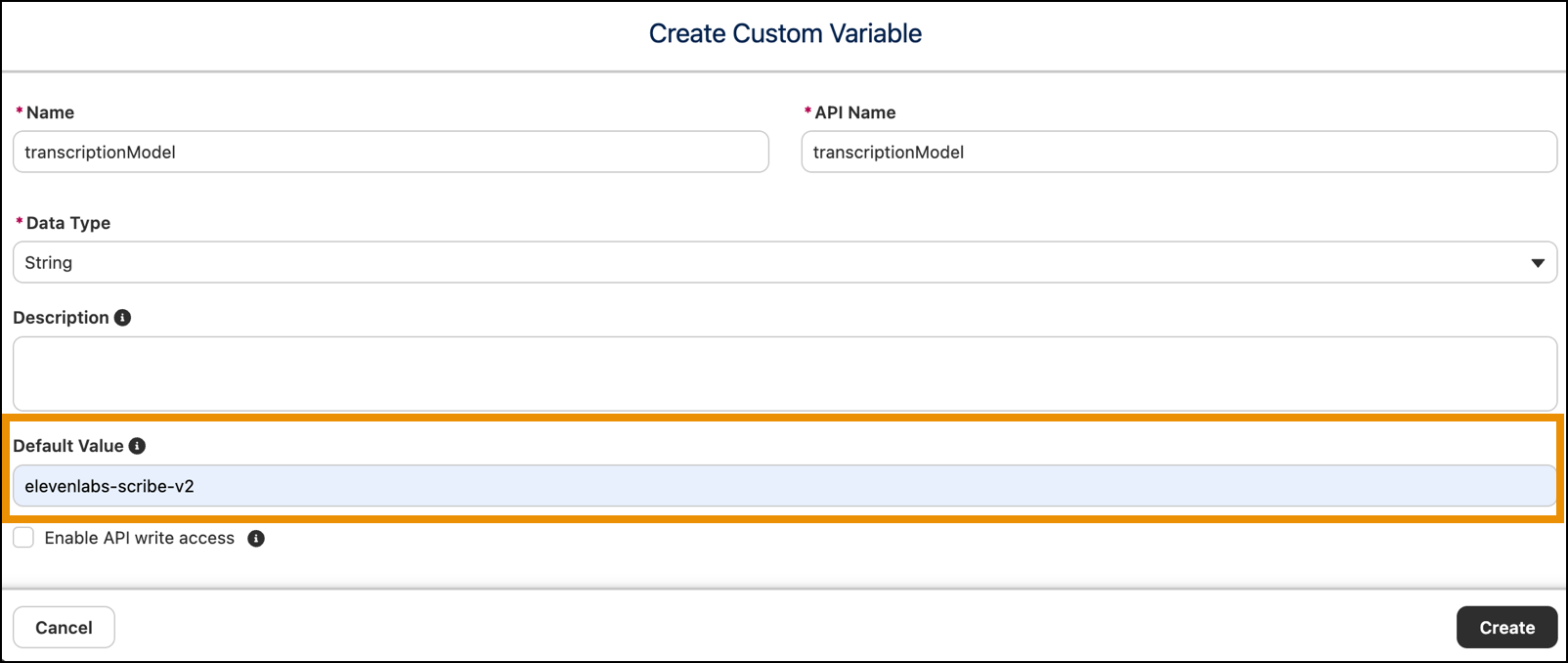
- Save your changes.