
This article shows how to create a view that shows Key Progress Indicators (KPIs). A Key Performance Indicator is a measurable value that shows how effectively a company is achieving key business objectives. At a high level, the procedure requires you to do the following:
-
Create a view that includes the field or fields (measures) you want to assess.
-
Create a calculated field that establishes the threshold that demarcates success from failure.
-
Update the view to use KPI-specific shape marks to show which values are above the threshold and which are below.
The scenario uses the Sample - Superstore data source provided with Tableau Desktop to show how to build a KPI view that displays a green check mark for any sales figure over $25,000, and a red X for any sales figure under $25,000.
Create a view that includes the field you want to assess
In this case, that field is Sales.
-
Connect to the Sample - Superstore data source.
-
From the Data pane, drag Sub-Category to Rows and Region to Columns.
-
From the Data pane, drag Sales to Text on the Marks card.
Create a calculated field that establishes the threshold that demarcates success from failure
-
In the Analysis menu, select Create Calculated Field to open the calculation editor. Name the calculation KPI and type or paste the following in the formula area
IF SUM ([Sales]) > 25000 THEN "Above Benchmark" ELSE "Below Benchmark" END -
Click OK.
Update the view to use KPI-specific shape marks
-
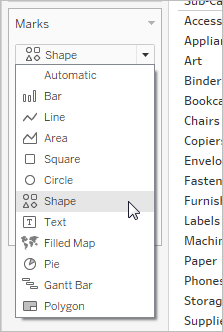
On the Marks card, select Shape from the drop-down list of views:
-
Drag the KPI field from the Measures area of the Data pane to Shape on the Marks card.
-
Click Shape on the Marks card to open the Edit Shape dialog box.
For more about shapes, see Shape in Change the Type of Mark in the View.
-
From the Select Shape Palette drop down list, choose KPI.
Now you are ready to associate specific values for the KPI field with specific shapes.
-
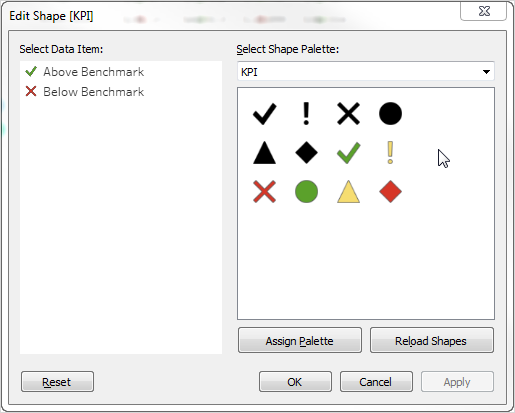
Click Above Benchmark under Select Data Item and then click the green check mark in the palette.
-
Click Below Benchmark under Select Data Item and then click the red X in the palette.
The Edit Shape dialog box should now look like this:
-
Click OK to close the Edit Shape dialog box.
The shapes in the view show the correct indicators. Now you just need to hide the sales numbers.
-
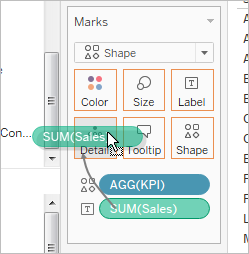
Drag SUM(Sales) on the Marks card to Detail.
You now have a completed view that show how individual products (sub-categories) are performing across all four regions:
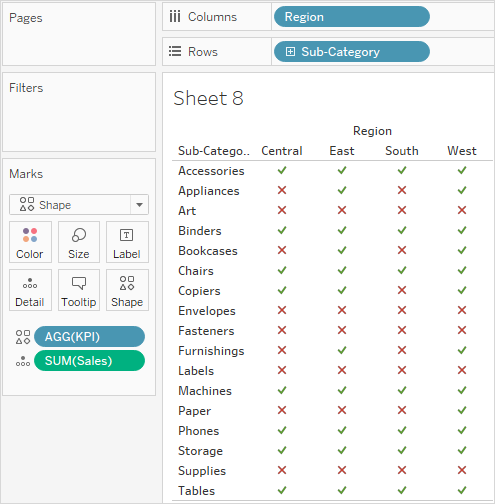
The view may not be terribly exciting on its own, but it would make a nice addition to a dashboard that showed other performance metrics.