
🕐 5 min read
The Tableau Migration Software Development Kit (SDK) requires that you have a licensed Tableau Cloud environment that is properly licensed and configured. To migrate smoothly, complete the tasks in this topic before you use the Migration SDK.
Step 1: Upgrade your Tableau Server
Upgrade your existing installation of Tableau Server to the latest version. For more information, see the upgrade instructions for Windows or the upgrade instructions for Linux.
Step 2: Create a Tableau Cloud site
The Migration SDK is compatible with both a licensed and trial Tableau Cloud Site. However, work with your account team to create a site that meets your user, content, and license type requirements.
Step 3: Configure all required Tableau Cloud site settings
For more information, see Customize the Site and Content Settings
Step 4: Configure Tableau Cloud user authentication
By default, Tableau Cloud sends a Site Invite Notification email to all users when they’re added to a site. If you want to disable that automated notification, disable the Site Invite Notification in Settings under the General tab.
For more information, see Authentication.
Step: 5: Set the correct time zone
The Migration SDK doesn’t consider the time zone setting. You must set the correct time zone on the destination site.
Step 6: Configure Tableau Server to allow embedded credential migration
Use the following steps to allow embedded credential migration from Tableau Server to Tableau Cloud.
In Tableau Cloud:
- Sign in to Tableau Cloud as a site administrator.
- Select Settings > General, and scroll down to Manage Content Migration.
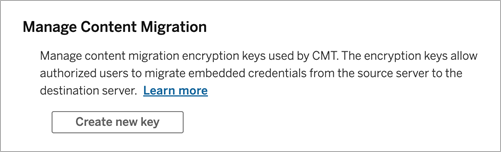
- Click Create new key to generate an encryption key pair.
Note: The public key is only displayed once. If you lose the key before completing the configuration, you must generate a new key.
- In the resulting window, click Copy to clipboard and then close the window.
- Paste the public key to a file and store it in a safe location. The TSM administrator will use the public key to allow migration. You can view the public key expiration date on the Settings page.
In the TSM CLI:
- Open a Windows Command Prompt with an account that is a member of the Administrators group on a node in the cluster.
-
Use
tsm security authorize-credential-migrationto allow embedded credential migration to the Tableau Cloud site. For more information, see tsm security.tsm security authorize-credential-migration --source-site-url-namespace <Tableau Server site ID> --destination-site-url-namespace <Tableau Cloud site ID> --destination-server-url <Tableau Cloud site url> --authorized-migration-runner <username> --destination-public-encryption-key <public key>Note: When running TSM commands from a remote node, usetsm loginto authenticate a session with the Tableau Server Administration Controller service before runningtsm security authorize-credential-migration.
Step 7: Configure database connectivity
Some Cloud-accessible databases require you to authorize access to cloud data published to Tableau Cloud.
If Tableau Bridge is required:
-
Configure Tableau Bridge client pools
Important: Configure your own Bridge Pool. The Default Bridge Pool doesn’t support some aspects of the Migration SDK.For more information about Tableau Bridge, see Plan Your Bridge Deployment
Step 8: Configure OAuth clients
For OAuth credentials to function, you must configure the destination site with any OAuth clients used on the source site. For more information, see OAuth Connections.
Step 9: (Optional) Automate user provisioning and group synchronization
By default the Migration SDK migrates your groups exactly as they exist on Tableau Server. However it will not continue to sync your groups. If you want to create new groups during the migration, we recommend taking this step now, and opting to not migrate Groups using the Migration SDK.
For more information, see Automate User Provisioning and Group Synchronization.