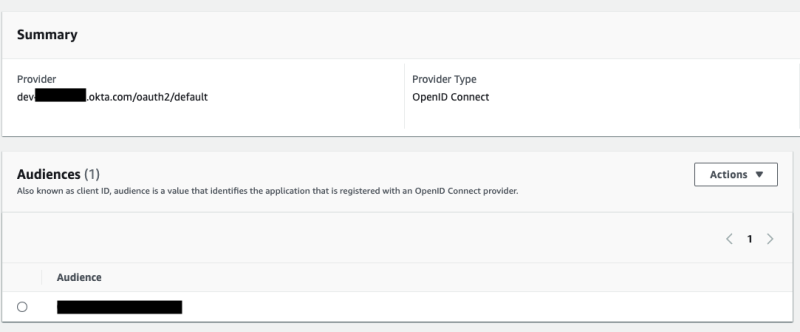
Starting in Tableau 2024.3 for Tableau Cloud, you can use OAuth 2.0/OIDC to federate identity from an external identity provider to HANA.
Depending on the identity provider, there are different steps needed to configure the integration. This is a high-level overview.
Configure IDP on HANA
For information on configuring your IdP on HANA, see Single Sign-On Using JSON Web Tokens in the SAP help system.
Here are some examples of different ways to set up IdP:
- Okta IdP using HANA Cockpit: Connect to SAP HANA Cloud With Okta Account
- Azure IdP using HANA Studio: Setting Up an SAP HANA Instance with OAuth or SSO
Configure the IDP
Create OAuth clients on the IDP for Tableau Desktop, and Tableau Server or Tableau Cloud. The Desktop client should enable
PKCEand usehttp://localhostredirects.Create the Tableau OAuth config files. For details on how to do this, see OAuth Configuration and Usage on GitHub, as well as examples here. We welcome examples for other IDPs.
Be sure to prefix the Tableau OAuth config IDs with “
custom_”.Note: OAuth config IDs have a maximum limit of 36 characters. IDs longer than this may not generate an error, but they will not work.
If your IDP supports dynamic localhost port then disable
OAUTH_CAP_FIXED_PORT_IN_CALLBACK_URL. If your IDP does not support this, make sure to add several localhost callback URLs to the allowlist in the config file and on the IDP.
Install the new Tableau OAuth configuration files in the
OAuthConfigsfolder associated with each application on desktop hosts (Tableau Desktop, Tableau Prep Builder, Tableau Bridge), and on each Tableau Server and Tableau Cloud site that will be using OAuth, via the site settings page. For more details, see Custom OAuth Configs on Desktop and Site-Level OAuth Clients.
Connect to HANA
The user must select Sign in using OAuth, and select the OAuth Provider installed earlier.
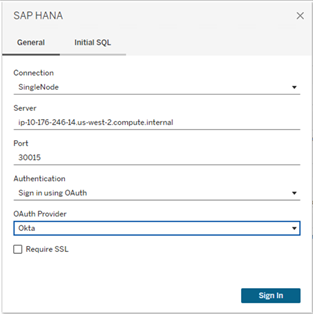
Okta
If using Okta it’s better to use a “custom authorisation server” rather than the “org authorisation server”. The custom authorisation servers are more flexible. There is a custom authorisation server created by default, which is called “default”. The authorisation URL should look like this:
https://${yourOktaDomain}/oauth2/{authServerName}/v1/authorize