# tableau Tableau Desktop and Web Authoring (pro) - Full Documentation [Skip to main content](#main-content) # Extract Upgrade to .hyper Format In Tableau version 2018, we introduced the `.hyper` format for Tableau extracts to replace the old `.tde` format. The `.hyper` format has been the standard format used by Tableau to create extracts since 2018, and the large majority of extracts are now `.hyper` files. Beginning in early 2023, Tableau discontinued support for the `.tde` format on Tableau Cloud and Tableau Public. For more details about this deprecation, see this [Tableau Community post](https://community.tableau.com/s/feed/0D54T00001BHiGwSAL). ## Discontinuation of support for .tde files Beginning in 2023, the `.tde` format for Tableau extracts was deprecated. This format was replaced by the `.hyper` format in 2018 but continued to be valid for uploaded files until March 2023. - This change took place for Tableau Cloud and Tableau Public as of March 2023. - Beginning with version 2023.1.0 of Tableau Server, the uploading of `.tde` format files is disabled. - 2024.2 is the last version of Tableau Desktop that supports any .tde-based workbooks, data sources, or bookmarks. Versions 2024.3 and beyond only support .hyper format. ## Manually upgrade your .tde extract using Tableau Desktop If you manage extracts locally, you can manually upgrade your `.tde` extract to a `.hyper` extract using Tableau Desktop. **Note**: This functionality is only available in Tableau Desktop versions 2024.2 and older. 1. In Tableau Desktop, open a workbook that uses a `.tde` extract. 2. Select the extract data source from the Data menu and then select Extract \> Upgrade. 3. Select File \> Save, which saves the workbook and also completes the extract upgrade. [Skip to main content](#main-content) # About Multi-fact Relationship Data Models Multi-fact relationships let you build data sources with more than one _base table_. Using multiple base tables in your data model allows you to perform multi-fact analysis in Tableau. By establishing _trees_ of tables, rooted in a base table, you can model data structures with different conceptual domains and use their shared characteristics to connect them. This type of analysis is often referred to as multi-fact analysis, conformed dimensions, or shared dimensions. In Tableau, we call this a multi-fact relationship data model because you use relationships to build it. A multi-fact relationship data model always contains multiple base tables. Base tables are the left-most tables in the data model. For guidance on how to determine which tables to use as base tables, see [When to Use a Multi-fact Relationship Model](https://help.tableau.com/current/pro/desktop/en-us/datasource_mfr_when_to_use.htm). ![a multiple base table model with one tree highlighted](/tableau/current/en-us/pro/desktop/en-us/Img/mfr_build_highlightedtree.png) A multiple base table data model with one base table's tree highlighted. ## Levels of relatedness Data models with multiple base tables have a lot of flexibility to how pieces of data can relate—or not relate—to each other. **Note**: Relatedness at any level is only relevant in data models with multiple base tables. Prior to multi-fact relationship data models, either everything was related (within a single data source) or nothing was (blending across multiple data sources). **Relatedness in the data model** Tables are related, unrelated, or shared based on the structure of the data model. In a data source, the relatedness of tables is a constant. As a brief overview:  - _Related tables_ are in the same tree. - Prior to 2024.2, all data sources were single base table data sources consisting of a single tree, and in a single base table data source all tables are related. - _Unrelated tables_ are in different trees. Base tables are always unrelated to each other. Tables that are downstream of exactly one base table are also unrelated to tables in other trees. - _Shared tables_ have multiple incoming relationships and belong to more than one tree. - Tables downstream from a table with multiple incoming relationships are also considered shared. **Relatedness during analysis** Fields can be related, unrelated, not yet related, ambiguously related, or they can act as stitching fields. The relatedness among a group of fields is determined on a sheet-by-sheet basis based on the structure of the data model, what fields are actively in use (that is, on the shelves as pills), and if those fields are dimensions or measures. ![a simple viz with two unrelated fields, one on rows and one on columns, and an unrelated tooltip showing](/tableau/current/en-us/pro/desktop/en-us/Img/mfr_unrelatedtooltip_example.png) To make a visualization with fields from multiple tables, Tableau has to perform joins behind the scenes to compute the values. The type of join used depends on the [relatedness of the fields](#fieldlevel). As a brief overview:  - When _related fields_ are used in a viz, dimensions are inner joined and measure values are broken down by the dimensions. - It's a little more complicated than that—additional joins might be needed behind the scenes to ensure that [no measure values are dropped](https://www.tableau.com/blog/relationships-tableau-data-model). But in a dimension-only viz, related dimensions are inner joined and that's the main concept here. - This is the same behavior as single-base table models. - When _unrelated fields_ ![](/tableau/current/en-us/pro/desktop/en-us/Img/mfr_icon_unrelated.png "unrelated icon") are used in a viz, dimensions are cross joined. Measure values are table scoped (that is, aggregated locally to a single value for their entire table) and repeated. - It's also possible for fields to be _not yet related_ or _ambiguously_ related, which means that for the combination of active fields, there is more than one way for the relationships between their tables to be resolved. If Tableau encounters uncertainty, it treats the fields as unrelated. - When fields are _stitched_ ![](/tableau/current/en-us/pro/desktop/en-us/Img/MFR_icon_related.png "stitching icon") based on a shared field, dimensions are outer joined. Measure values are aggregated at the level of whatever dimension they can be broken down by and might be repeated. - _Stitching dimensions_ are similar to [linking fields in data blending](https://help.tableau.com/current/pro/desktop/en-us/multiple_connections.htm#define-blend-relationships-for-blending). Results are calculated for each pair of related fields, then the unrelated values are stitched together across the shared values of the dimension shared between them. All of these concepts and definitions are discussed in more detail later in this topic. An aside on dimensions and measures In Tableau, _measures_ are _aggregations_—they're aggregated up to the _granularity_ set by the _dimensions_ in the view. The value of a measure therefore depends on the context of the dimensions. For example, "number of cereal boxes" depends on if we mean the total inventory or the number of boxes per brand. _Dimensions_ are usually categorical fields, such as country or brand. In Tableau, dimensions set the granularity, or the _level of detail_, of the view. We typically want to group our data into marks by some combination of categories. What dimensions we use to build the view determines how many marks we have. When a measure is used without dimensions, it's said to be _table scoped_. This means its value is the fully aggregated value for the entire table. As soon as we use a dimension such as brand in the viz, the measure is broken down more granularly. The total number of cereal boxes is now per brand. _Aggregation_ refers to how the data is combined. Tableau's default aggregation is SUM. You can change the aggregation to other options, including: average, median, count distinct, minimum, and so on. _Granularity_ refers to how detailed or broken down the measure is—which is controlled by the dimensions. Unless the granularity of the measure is row level (aka disaggregated), its value must be aggregated. #### Example ![a table of values for number of boxes of cereal, across five brands and three sizes of boxes](/tableau/current/en-us/pro/desktop/en-us/Img/mfr_ex_cereal_rawdata.png) What's the value of "number of boxes of cereal?" Well, it depends on the aggregation type and the granularity as set by the dimensions. - Aggregations: - Sum (or total) - Average - Granularity: - Table scoped / fully aggregated (the blue bars in the example) - Broken down by the **Brand** dimension (the colored bars in the example) ![A dashboard with four vizzes, one for the summed table scoped number of boxes (54), one with the average table scoped number of boxes (6), and then versions of those two broken down by the five brands](/tableau/current/en-us/pro/desktop/en-us/Img/mfr_ex_cereal.png) ## Field-level relatedness indicators There are several visual clues that can help you understand the degree of relatedness for fields you're using in an analysis. ### Relatedness indicators on a worksheet - **Unrelated icon**: Tableau uses an unrelated icon ![unrelated icon](/tableau/current/en-us/pro/desktop/en-us/Img/mfr_icon_unrelated.png) to indicate not everything in the view is related. If you see an unrelated icon on a pill in the view or in the Data pane, you can hover over the icon [to get more information](https://help.tableau.com/current/pro/desktop/en-us/mfr_relatedness_messages.htm). - The related icon ![](/tableau/current/en-us/pro/desktop/en-us/Img/MFR_icon_related.png "stitching icon") indicates that field is stitching together unrelated fields. - **Light gray field names**: Field names are displayed in light gray text in the Data pane when they're not related to _any_ fields in use on shelves. You can still use these fields for analysis in that viz, but unrelated fields are [evaluated differently](https://help.tableau.com/current/pro/desktop/en-us/datasource_mfr_multiple_base_tables.htm#joinsbyrelatedness) in analysis than fields that are related. On hover, these fields also display an unrelated icon. ![the data pane, with one entire table grayed out, and two fields with the slashed eye icon for hidden fields](/tableau/current/en-us/pro/desktop/en-us/Img/mfr_gray_datapane.png) **Note**: In previous versions of Tableau, light gray field names indicated that the fields were hidden and Show hidden fields was selected. Hidden fields, when shown, are now indicated with a clickable eye icon ![hidden field icon](/tableau/current/en-us/pro/desktop/en-us/Img/mfr_icon_hidden.png). ### Relatedness warning dialog When unrelated fields are used together in a viz, Tableau shows a warning dialog to let you know that the fields aren't related. This warning appears each time you add an unrelated field to prevent accidental cross joins that might impact performance. - If you want to use unrelated fields without stitching, click Add to continue adding the field to the viz. - If you want to stitch unrelated fields, a best practice is to bring out the stitching field before an otherwise unrelated field. The dialog won't show if the stitching field is already in use. See [How joins are used for each level of relatedness](#joinsbyrelatedness) for more information about how stitching prevents cross joins. ![the relatedness warning dialog showing a warning for unrelated dimensions](/tableau/current/en-us/pro/desktop/en-us/Img/mfr_unrelated_dialog_simple_v2.png) When multiple fields are being added or are already present in the view, the Details area appears in the dialog. Expand it to see more information about the relatedness of all the fields in use and identify where the unrelatedness issue is coming from. ![the relatedness warning dialog with a message for both unrelated dimensions and measures, and with the Details area expanded](/tableau/current/en-us/pro/desktop/en-us/Img/mfr_unrelated_dialog_details_v2.png) To stop the warning message from appearing at all, select the option Don't show this again. You can always re-enable these warning messages again by turning them back on: - In Tableau Desktop, open the Help menu > Settings and Performance > Reset Ignored Messages. - In a browser, clear your cached data. For example in Chrome, open the **3 dots menu** > **Delete Browsing Data...** > Choose "**Cached images and files**" > **Delete data**. ## Table-level relatedness in the data model In a data model with multiple base tables, each base table defines a set of tables that are related and form a conceptual _tree_. These trees must be connected by at least one shared table to ensure the overall data source is a single entity. What might previously have been two data sources that could be blended using linking fields can now be a single data source with two trees, connected by the shared tables that contain those common fields. ![two data models, one made of two distinct data sources, one of the two data sources superimposed on the tables they have in common to form a single data source](/tableau/current/en-us/pro/desktop/en-us/Img/mfr_blending_comparison.png) > [!TIP] > > How tables are related in the data model impacts how their fields can be related in the analysis. It can be helpful to use the [View Data Model](https://help.tableau.com/current/pro/desktop/en-us/viewdatamodel.htm) dialog during analysis to see how a table fits into the overall data model. Let's walk through what tables are related, unrelated, or shared using this example data source. There are two trees, one established by base Table A and one by base Table B. ### Unrelated tables Base tables are fundamentally unrelated. Similarly, any tables that exist solely in a single tree are unrelated to tables in other trees.

Table A and Table X are unrelated

Table B and Table X are unrelated

A data model where base tables A and X have their own outlines.Relationships are shown in light gray. A data model where base tables A and its downstream table B share an outline. Base table X has its own outline. Relationships are shown in light gray.
### Related tables Tables in the same tree are considered related.

Table A and Table S are related

Table B and Table S are related (through Table A)

A data model where base Table A's relationship to a downstream table is emphasized A data model where Table B's relationship to a another table is emphasized by their relationships to the same base table, A
### Shared tables Shared tables have multiple incoming relationships. These tables belong to multiple trees and are shared across them. Table S and Table T are shared. ![A data model where tables S and T both have multiple incoming relationships. They both belong to base table A's tree and base table X's tree. ](/tableau/current/en-us/pro/desktop/en-us/Img/mfr_relatedness_tables_shared.png) ## Field-level relatedness in the analysis Relatedness between fields is determined on a sheet-by-sheet basis based on the [structure of the data model](https://help.tableau.com/current/pro/desktop/en-us/viewdatamodel.htm), what fields are actively in use (that is, what fields are in the viz as pills on shelves), and if those fields are dimensions or measures. How field relatedness impact the results of a viz is covered in [the next section](https://help.tableau.com/current/pro/desktop/en-us/datasource_mfr_multiple_base_tables.htm#joinsbyrelatedness). Let's walk through some scenarios using the same example data source. Each field's name indicates which table it is from, such as FieldB from Table B. Fields can be dimensions or measures unless otherwise noted. ### Related fields At a high level, fields are related when Tableau can clearly determine how to evaluate them together based on a relationship path within a single tree. For example, FieldB (from Table B) and FieldS (from Table S) are related. ![FieldB and FieldS are related](/tableau/current/en-us/pro/desktop/en-us/Img/mfr_relatedness_tables_related2.png) ### Unrelated fields At a high level, fields are unrelated in any case when they're not related. This could be because the fields are from unrelated tables, such as using fields from two base tables. In this case, fields from different base tables are fundamentally unrelated. For example, FieldA and FieldX are unrelated. ![FieldA and FieldX are unrelated](/tableau/current/en-us/pro/desktop/en-us/Img/mfr_relatedness_tables_unrelatedbase.png) Or fields can be treated as unrelated for a point in time—such as in ambiguous or not yet related cases. For the most part, you can rely on [relatedness indicators](https://help.tableau.com/current/pro/desktop/en-us/datasource_mfr_relatedness_messages.htm) to alert you when fields are unrelated in the context of a viz. ### Stitching dimension Stitching is how Tableau evaluates fields from unrelated tables in a multi-fact data model during analysis. In a viz, using a dimension from a shared table stitches together otherwise unrelated fields and allows them to be evaluated simultaneously in the same viz. Think of this as juxtaposing results from two trees together based on a dimension they share. For example, if a viz is built with FieldA and FieldX, these two fields are unrelated. Adding DimensionS introduces a stitching field. - FieldA and DimensionS are evaluated together. - FieldX and DimensionS are evaluated together. - Those intermediate results are brought together based on the values of DimensionS. - FieldA and FieldX are now stitched. ![unrelated base tables A and X stitched together by their shared table S](/tableau/current/en-us/pro/desktop/en-us/Img/mfr_relatedness_fields_stitching.png) **Tip**: A best practice is to use a stitching field in the viz before bringing out an unrelated field. For example, drag out DimensionS first, or FieldA then DimensionS then FieldX, instead of FieldA then FieldX then DimensionS. Adding the stitching field first ensures that Tableau is always aware of how to evaluate the relationships and avoids potential performance issues from evaluating unrelated dimensions together with cross joins. Stitching requires a dimension from a shared table to be active in the viz. Fields placed on the Filters shelf or on the Tooltip property of the Marks card aren't considered active for the purposes of stitching. ### Not yet related fields Fields can also have multiple ways they could be related but aren't yet. This happens when there's more than one possible relationship between two shared tables (or downstream shared tables). Consider FieldS and FieldT. Their tables are related to each other both through the tree defined by base Table A and through the tree defined by base Table X. In a viz with just FieldS and FieldT, there's no information about which tree should be used to relate them. Without additional information Tableau can't evaluate whether to relate these fields through Base Table A's tree or Base Table B's tree. FieldS and FieldT are treated as unrelated although there are multiple _potential_ relationships. ![Under-related ambiguous fields S and T](/tableau/current/en-us/pro/desktop/en-us/Img/mfr_relatedness_fields_not-yet_hyporelated.png) These could-be-but-aren't-yet-related fields are evaluated as unrelated because Tableau can't clearly determine their relationship path. Unlike truly unrelated fields which can only be stitched, not yet related fields can be resolved and the fields can be directly related. ### Ambiguously related fields Fields can also be ambiguously related. This happens when there is more than one active possible relationship between shared tables (or downstream shared tables). Unlike not yet related fields, which can be thought of as hypo-related or under related, ambiguously related fields are hyper-related or over related. Consider FieldS and FieldT. Their tables are related to each other both through the tree defined by base Table A and through the tree defined by base Table X. In a viz with FieldA, FieldX, FieldS, and FieldT, there's too much information to decide which tree should be used to relate them. Without trimming the information, Tableau can't evaluate whether to relate these fields through Base Table A's tree or Base Table B's tree. FieldS and FieldT are treated as unrelated although there are multiple _active_ relationships. ![](/tableau/current/en-us/pro/desktop/en-us/Img/mfr_relatedness_fields_ambiguous_hyperrelated.png "over related") These ambiguously related fields are evaluated as unrelated because Tableau can't clearly determine their relationship path. Unlike truly unrelated fields which can only be stitched, ambiguously related fields can be resolved and the fields can be directly related. ### Ambiguous measure from a shared table When a dimension is used from a shared table, it stitches together fields from its unrelated upstream tables. Measure can't stitch, however, and the value of a measure depends on its related dimensions. In a viz with DimensionA and DimensionX, these two dimensions are unrelated. If MeasureS is brought out from Table S, it is unrelated to the combination DimensionA and DimensionX together. Although it could be related to either one independently, it can't be simultaneously related to both of them in the same viz. ![unrelated base tables A and X stitched together by their shared table S](/tableau/current/en-us/pro/desktop/en-us/Img/mfr_relatedness_fields_stitching.png) A shared measure can be considered a type of ambiguity or over relatedness and is resolved the same way. ### Resolve unclear relationships between fields Whenever there is uncertainty about how to relate fields, Tableau won't make an arbitrary decision and instead treats them as unrelated. It's often better to relate these fields by clarifying the uncertainty around which tree to use. Resolving not yet related fields is done by adding a field to establish which tree to use. Resolving ambiguously related fields is done by removing fields to establish which tree to use. _Example:_ **Resolving not yet related**: add a field - In a viz of FieldS and FieldT, adding a field from Table A, B, or C to the viz makes Base Table A's tree active and resolves the desired path between FieldS and FieldT. - Alternatively, using a field from Table X resolves the desired path between FieldS and FieldT to Base Table X's tree. **Resolving ambiguously related**: remove a field or fields - In a viz of FieldA, FieldX, FieldS, and FieldT, removing FieldX makes only Base Table A's tree active and resolves the desired path between FieldS and FieldT. - Alternatively, removing FieldA resolves the desired path between FieldS and FieldT through Base Table X's tree. **Resolving a shared measure**: remove a field or fields - In a viz of DimensionA, DimensionX, and MeasureS, removing DimensionX makes only Base Table A's tree active and resolves the desired path between DimensionA and MeasureS. - Alternatively, removing DimensionA resolves the desired path between DimensionX and MeasureS through Base Table X's tree.
Not yet related Ambiguously related Relatedness resolved to a single tree
Related through base Table A Related through base Table X
under-related related through A related through X
Resolving uncertainty is similar to using a FIXED Level of Detail (LOD) expression. In a FIXED LOD expression, you tell Tableau what level of detail to aggregate to by defining the dimension declaration. Uncertainty is resolved by changing the structure of the viz to make only one tree active, thus telling Tableau what relationship paths it can consider to perform the analysis. ### Stitching vs resolving uncertainty Both stitching and resolving uncertainty are ways of dealing with unrelatedness, but they have different outcomes:

Stitching

Resolving uncertainty

stitching A and X with S

Unrelated FieldA and FieldX stitched by DimensionS

Resolving S and T with A

FieldS and FieldT evaluated through the tree defined by base Table A

Juxtaposes unrelated fields based on shared attributes Narrows down which relationship path to use when there are multiple options (ambiguity or a shared measure), or establishes a relationship path when there wasn't one (not yet related).

Uses multiple base table logic to calculate results

Uses single base table logic to calculate results

Analysis involves unrelated tables Analysis involves shared tables
## How joins are used for each level of relatedness After the field-level relatedness has been determined, Tableau has to evaluate the results to create the actual visualization. The queries used to calculate the values shown in a viz rely on joins. Whether fields are related, unrelated, or stitched has a different impact on what joins are performed. Remember, ambiguously related and not yet related fields are treated as unrelated in this context. To explain relatedness and joins, this section covers tables and their fields, plus the values in those fields. Consider the following data model with two base tables, Classes and Clubs, and a shared table, Students. ![A data model with two base tables, classes and clubs, and a shared table, students](/tableau/current/en-us/pro/desktop/en-us/Img/mfr_ex_birds_model.png)

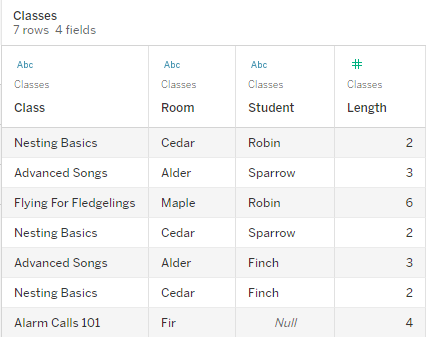
Classes

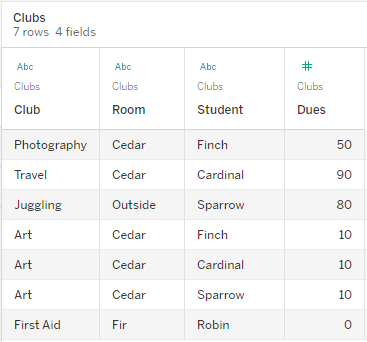
Clubs

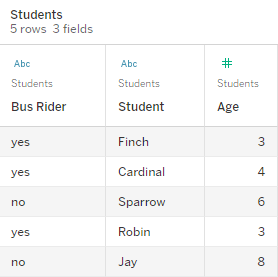
Students

view data for the classes table, showing the values for three fields view data for the clubs table, showing the values for three fields view data for the students table, showing the values for three fields

Fields:

  • Class, a dimension with values of Nesting Basics, Advanced Songs, Flying for Fledglings, and Alarm Calls 101
  • Length, a measure
  • Student, a dimension used to relate to the Student table

Fields:

  • Club, a dimension with values of Photography, Travel, Juggling, Art, and First Aid
  • Dues, a measure
  • Student, a dimension used to relate to the Student table

Fields:

  • Bus Rider, a dimension with values of yes or no
  • Student, a dimension with values of Finch, Cardinal, Sparrow, Robin, and Jay. Used to relate to the other two tables
  • Age, a measure
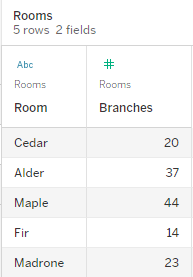
This very simple model illustrates how the high-level join logic is calculated for multi-fact relationship data models. For more information about the basics of joins used in single base table data models built on relationships, see [How Analysis Works for Multi-table Data Sources that Use Relationships](https://help.tableau.com/current/pro/desktop/en-us/datasource_multitable_analysis_overview.htm). Should this example be a data model with multiple base tables? For this three table data model, it might be tempting to set it up as a single base table model, as Classes-Students-Clubs or Clubs-Students-Classes, or with Students as a base table. As a rule, multi-fact relationship data models are intended for specific kinds of data schemas or analysis scenarios. If your data model [has characteristics that are best suited to a multi-fact relationship data model](https://help.tableau.com/current/pro/desktop/en-us/datasource_mfr_when_to_use.htm), set it up that way to keep your base tables conceptually unrelated. However, if your data doesn't require this type of structure, a single base table model can be simpler to use. ![alternative data model structures for the classes-clubs-students example model](/tableau/current/en-us/pro/desktop/en-us/Img/mfr_ex_birds_model_versions.png) Models that could be built for these three tables: (1) Classes and Clubs as base tables with Students as a shared table, (2) linearly, starting with either Classes or Clubs, and (3) Students as a single base table with Classes and Clubs as downstream tables. In this particular instance, there's nothing about these tables, the data, or the model that truly requires multiple base tables. We're using this model as an example to keep it simple so the focus can be on the join logic. Or you could imagine that there's another related table, Rooms, that we're simply ignoring to avoid over complicating the discussion. ![a version of the classes-clubs-students model with an additional shared table, rooms](/tableau/current/en-us/pro/desktop/en-us/Img/mfr_ex_birds_model_withroom.png) As a best practice, however, only use a multi-fact relationship model when your data requires it. ### Related dimensions use inner joins Related dimensions are inner joined. Inner joins drop any dimension values that aren't shared across both tables. - Tableau uses additional logic to ensure measure values aren't lost. This section uses only dimensions to demonstrate the basics of how Tableau applies inner joins to related dimensions. The following example shows how related dimensions only return rows that are present in the data. No students are in the Alarm Calls 101 class, so it's not present in the results. Cardinal and Jay aren't in any classes, so they're not present in the results. ![A viz showing an inner join of Class and Student, with two rows for Finch (Advanced Songs, Nesting Basics), two rows for Robin (Flying for Fledgelings, Nesting Basics), and two rows for Sparrow (Advanced Songs, Nesting Basics)](/tableau/current/en-us/pro/desktop/en-us/Img/mfr_ex_birds_relateddims_innerjoin.png) ### Unrelated dimensions use cross joins Unrelated dimensions—on their own, without a stitching dimension—are cross joined. In a cross join, every value from one dimension is combined with every value from the other dimension, even if a resulting combination doesn't actually exist in the data. In this example, the cross join adds a row for each possible combination of Class and Club. ![A viz showing a cross join of Class and Club with rows for every combination of Advanced Songs/Alarm Calls 101/Flying for Fledglings/Nesting Basics with Art/First Aid/Juggling/Photography. There is an unrelated icon shown on both dimension pills on the Rows shelf](/tableau/current/en-us/pro/desktop/en-us/Img/mfr_ex_birds_unrelateddims_crossjoin.png) It's important to recognize when a cross join is occurring in your analysis. Although there's a row for Advanced Songs + First Aid in the results table for the cross join, no students are actually in this combination of activities (we'll see proof of this in the stitching example in the next section). Why is it important to recognize that not all cross join results are based in the data? Imagine you were trying to build a schedule for classes and clubs so there were no conflicts for any students. There aren't any students in Advanced Songs and First Aid, so you could ignore this result and schedule that class and club simultaneously. The cross join doesn't represent combinations of values that actually exist in the data. Additionally, cross joins when there is high cardinality (a large number of unique values) can impact performance. Imagine cross joining every phone number with every email address in your contacts. That would be a huge explosion of combinations and a potentially costly operation. ### Stitched dimensions use outer joins Unrelated dimensions—in the presence of a stitching dimension—are outer joined. In this example, both the Classes table and Clubs table are related to the shared Students table but not to each other, so the fields Class and Club are unrelated. Adding the Student dimension lets Tableau know which values from Class and which values from Club should be juxtaposed in the analysis. We call this outer join behavior _stitching_. ![A viz showing the results of an outer join of the Student-Class inner join and the Student-Club inner join. There is an unrelated icon on the Class and Club pills on the Rows shelf. A pill for Student is on the Color property of the Marks card and does not have an unrelated icon. Not all combinations of classes and clubs are represented, and there are rows for students and clubs without a class](/tableau/current/en-us/pro/desktop/en-us/Img/mfr_ex_birds_stitched_outerjoin.png) Stitching is similar to data blending in that there are intermediate results that are brought back together for the overall results. Unlike blending, however, stitching is an outer join, not a left join, and doesn't drop values from either side. There's no concept of primary or secondary data sources when it's all one data source, so both of the unrelated fields are given equal precedence. #### Intermediate results are outer joined What goes into the outer join for stitched fields? An intermediate inner join is computed for the stitching field and each of the unrelated fields in turn, then those intermediate results are outer joined based on the values of the stitching dimension. **Example** An inner join for Student and Class... ![A results table for three values of students and three values of classes](/tableau/current/en-us/pro/desktop/en-us/Img/mfr_ex_birds_stitched_inner1.png) ...and an inner join for Student and Club... ![A results table for four values of students and five values of clubs](/tableau/current/en-us/pro/desktop/en-us/Img/mfr_ex_birds_stitched_inner2.png) ...are then outer joined on Student. ![A results table for four values of students, three values of classes, and five values of clubs](/tableau/current/en-us/pro/desktop/en-us/Img/mfr_ex_birds_stitched_outerjoin.png) ### Additional joins to retain measures In addition to the join logic for dimensions, measures can introduce additional joins. When relationships were first introduced in Tableau, one of the [core principles was that measure values aren't lost](https://www.tableau.com/blog/relationships-tableau-data-model). This is also maintained in multi-fact relationship data models. The essential details are: - Measure values are broken down only by related dimensions. - Measure values repeat for unrelated dimensions. - Dimension values that would be dropped in dimension-only vizzes may be returned if there are relevant measure values associated with them. **Note**: Remember that measures are aggregations—they're computed at the level of detail (the granularity) set by the combination of dimensions in the viz. This is referred to as a measure being _broken down_ by a dimension. When a measure is used without any dimensions, it is said to be _table scoped_. This means the measure's value is the fully aggregated value. As soon as we use a dimension in the viz, the measure is broken down more granularly based on the dimension values. The value of a measure in an analysis therefore depends on the context of the dimensions. #### Related measures Consider the subset of dimension values that are returned for an inner join on the related dimensions **Student** and **Class.** There are _three_ student values, Finch, Robin, and Sparrow; and _three_ class values, Advanced Songs, Nesting Basics, and Flying for Fledgelings. ![a results table for an inner join between student and class](/tableau/current/en-us/pro/desktop/en-us/Img/mfr_ex_birds_inner_student_class.png) If we add the **Length** measure from the Class table, we see that all _four_ classes are shown and there's a null for Student. Every class **Length** is displayed, at the level of **Class**. ![A null value appears for student even though dimensions are inner joined](/tableau/current/en-us/pro/desktop/en-us/Img/mfr_ex_birds_related_measurefrombase.png) If we instead add the **Age** measure from the Student table, we see that all _five_ students are shown and there are two nulls for Class. The results preserve every student, even if they're not in a class. Every student **Age** is displayed, at the level of **Student**. ![A null value appears for classes even though the dimensions are inner joined](/tableau/current/en-us/pro/desktop/en-us/Img/mfr_ex_birds_related_measurefromshared.png) #### Unrelated measures Measure values are repeated for unrelated dimension values. If we look at the **Length** measure from the Classes table and the unrelated **Club** dimension, the measure is table scoped and repeated across all the dimension values of **Club**. ![a table scoped measure repeated across unrelated dimension values](/tableau/current/en-us/pro/desktop/en-us/Img/mfr_ex_birds_unrelateddim-measure.png) In the presence of a stitching dimension, measures can be both broken down and repeated. Here, the measure **Age** is from the Students table and is broken down to the level of student. Each time a student is repeated based on the dimensions for **Class** and **Club**, the **Age** value is repeated. ![](/tableau/current/en-us/pro/desktop/en-us/Img/mfr_ex_birds_unrelateddims_sharedmeasure.png) ## Troubleshooting ### Considerations when working with multi-fact relationship data models **Per table extract filters** All extract filters for a multi-fact relationship data model extract are per-table (not pervasive). Because of this, filtering results may be different between live and extract connection. **Row level calculations** Row level calculations can only refer to fields which share the same upstream base table. That is, row level calculations can't be performed across trees. **Combined Fields** All fields in a combined field must share an upstream table. That is, you can't create a combined field using fields that are in different trees. **Sets** Sets can only be created with a definition that involves fields that share the same upstream base table. However, in a viz, the option to Add to Set may be available from a mark when that mark is defined by fields unrelated to the fields used to define the set. If you choose Add to Set, Tableau will add only the related fields to the set definition. This is different from the behavior for Add to Set in single base table data sources, when Add to Set adds everything that defines the mark. **Validate INCLUDE level of detail expressions** INCLUDE LOD expressions can't be evaluated across unrelated fields. Because relatedness between fields is evaluated on a sheet-by-sheet basis, it's possible to have a valid LOD expression in the Data pane or calculation editor that becomes invalid in the context of a specific viz (in the presence of an unrelated dimension). When this happens, the LOD pill will turn red. You can update the LOD expression to remove unrelated field conflicts, change the structure of the viz, or remove the LOD expression from the viz. **Updating Published Data Sources** As a best practice, create a copy of an existing published data source if you plan to modify it to become a multi-fact relationship data model when not all of its connected workbooks need the new data model. Don't update the existing version of the data source unless all its workbooks need the new tables. Publish the modified data source as a new data source and create new workbooks from it. This will prevent the existing workbooks from being converted to use VDS instead of data server when they don't need the functionality, preventing the potential for a performance hit. ### Resolved issues
Resolved Issue Fixed as of

Extracts

Local data source (in a workbook): Attempting to extract a multi-fact relationship data source will give a "No such table" error.

Published data source: Extracting a published multi-fact relationship data source appears to succeed, but field values can be swapped.

If you still see these issues in Tableau Desktop or Tableau Server, upgrade to a version from July 24th, 2024 or later.

EXCLUDE Level of Detail expressions

Only INCLUDE LODs should be validated in the presence of unrelated fields. However, EXCLUDE LODs may also be incorrectly marked as not valid in the same conditions.

Nested user calculations

Nested user calculations are not available in published data sources with a multi-fact relationship data model.

### Known issues **Relatedness indicators with multiple Marks cards** When a viz is built with multiple measures on the Rows shelf or on the Columns shelf, each measure gets its own Marks card. The logic used to determine relatedness indicators (the unrelated icon, the text in tooltips, and the relatedness warning dialog) may not give expected results depending on which Marks card is open. The viz itself, however, is correctly computed based on the relatedness of each pair of fields. There is a planned fix for this behavior. **BatchQueryProcessor** BatchQueryProcessor must be enabled to support multi-fact relationship data models. This is expected behavior with no currently planned fix. **Tableau Pulse** Tableau Pulse may not work with multi-fact relationship data models. You may be prevented from creating a metric definition, or any metrics that are created may be blank. This is not expected behavior but there is no currently planned fix yet. **Changing dimensions with a parameter** Tableau lets you [swap fields using a parameter](https://help.tableau.com/current/pro/desktop/en-us/parameters_swap.htm). However, with multi-fact relationships, swapping dimensions with a parameter will fail silently. The parameter and its calculation can be created, and the parameter control can be shown, but the field won't change when the parameter does. This is due to when dimensions are evaluated for relatedness and when parameters are evaluated in the order of operations. ## Other articles in this section [Skip to main content](#main-content) # Actions Add context and interactivity to your data by using actions. Users interact with your visualizations by selecting or hovering over marks or selecting a link in a tooltip menu. The actions you set up can respond with navigation and changes in the view. For example, in a dashboard showing home sales by neighborhood, actions can show relevant information for a selected neighborhood. Selecting a neighborhood in one view can highlight a map, filter a list of houses, and open a webpage of relevant census data. For related information and examples, see [A Rough Guide to Dashboard Actions](https://public.tableau.com/en-us/s/blog/2015/06/rough-guide-dashboard-actions) on the Tableau Public blog. ## Types of actions There are several types of actions, each with a different purpose: - **Filter**. Use the data from one view to filter data in another. - **Highlight**. Call attention to marks of interest by dimming all others. - **Go to URL**. Create hyperlinks to external resources, such as a web page or file. - **Go to Sheet**. Simplify navigation to other worksheets, dashboards, or stories in the same workbook. - **Change Parameter**. Let users change parameter values by directly interacting with marks on a viz. - **Change Set Values**. Let users change the values in a set by directly interacting with marks on a viz. ## Order of operations Actions are carried out by Tableau in a specific order: 1. Parameter 2. Set 3. Filter 4. Go to sheet 5. Highlight 6. Go to URL Within each type, actions are performed in alphabetical order. That is, if there are two filter actions, _"A Filter Action"_ is performed before _"This is a Filter"_. ## Other articles in this section [Skip to main content](#main-content) # Actions and Dashboards Because a dashboard can contain multiple views, a single filter or highlight action can have broad impact. Dashboards can also contain web page objects, which you can target with interactive URL actions. ## Use a single view to filter other views in a dashboard Imagine you have a dashboard that contains three views about profitability: a map, a bar chart, and a table of customer names. You can use a filter action to make one of the views in your dashboard, such as the map, control the filter action. When your users select a region in the map, the data in the other views is filtered so that it relates to just that region. 1. On the dashboard, select the view you want to use as a filter. 2. On the view's shortcut menu, select Use as Filter. You can perform the same action by clicking the Use as Filter icon ![A filter icon.](/tableau/current/en-us/pro/desktop/en-us/Img/action_dashboards3.png). ![A map of the northeastern United States in Tableau with states color-coded in blue and orange shown with the option to use as filter.](/tableau/current/en-us/pro/desktop/en-us/Img/action_dashboards4.png) You can also use filter actions to filter the data on a dashboard when the data comes from multiple data sources. For more information, see [Filtering Across Multiple Data Sources Using a Parameter](http://kb.tableau.com/articles/howto/filter-multiple-data-sources-using-parameter) in the Tableau Knowledge Base. For more information about filter actions, see [Filter Actions](https://help.tableau.com/current/pro/desktop/en-us/actions_filter.htm). ## Use multiple views to filter other views in a dashboard Similar to how you can use a single view to filter other views in a dashboard, you can also use multiple views as a filter. The trick isn't only to use these views as filters, but prevent them from being filtered themselves. 1. Create or open a dashboard that has at least three views. ![A map of the United States displays the total profit by state, while a table enumerates the top 25 customers by profit.](/tableau/current/en-us/pro/desktop/en-us/Img/actions_dashboard_multifilter1.png) 2. Select the first view that you want to use as a filter (such as a map), and from its shortcut menu, select Use as Filter. ![A list of options for a map layer in a dashboard, including the options to use as filter, show page control, and view toolbar.](/tableau/current/en-us/pro/desktop/en-us/Img/actions_dashboard_multifilter2.png) 3. Open the same view's shortcut menu again and select Ignore Actions. This makes sure that other filter actions, including the one you'll create next, won't affect this view. ![A list of options for a map in a dashboard, including the options to use as filter, show page control, and view toolbar, with Ignore Actions highlighted.](/tableau/current/en-us/pro/desktop/en-us/Img/actions_dashboard_multifilter3.png) 4. Repeat the steps 2 and 3 for any other views you want to use as a filter. Now, selecting marks in these controlling views filters data in one or more detail views—all without affecting any other controlling views. ![A dashboard with a map of the United States is displayed with Illinois highlighted,and a callout box providing customer information filtered by that state.](/tableau/current/en-us/pro/desktop/en-us/Img/actions_dashboard_multifilter4.png) ## Navigate from one view to another view, dashboard, or story The Go to Sheet action enables users to switch to a related sheet by selecting a mark or a tooltip menu item. **Note:** To navigate directly from one dashboard to another, without requiring users to interact with data, consider [the Navigation object](https://help.tableau.com/current/pro/desktop/en-us/dashboards_create.htm#Add_objects). 1. From your dashboard, select Dashboard > Actions. 2. In the Actions dialog box, click Add Action and then select Go to Sheet. ![Actions dialog box with option to Go to Sheet.](/tableau/current/en-us/pro/desktop/en-us/Img/go-to-sheet-action-1.png) 3. Specify a name for the action. (If you choose to run the action by using a tooltip menu, the name you specify here's what the tooltip shows.) ![Add Sheet Navigation Option dialog box.](/tableau/current/en-us/pro/desktop/en-us/Img/go-to-sheet-action.png) 4. Select a source sheet that will initiate the action. 5. Specify how people viewing your dashboard will run the action. Select or Menu are the best choices for a navigation action. If you choose Select, consider selecting Single-select only so users won't navigate away from the view when multiple marks are selected. 6. For the target sheet, select the navigation destination that appears when users click marks or tooltip menu items in the source sheet. Then click OK. ## Interactively show a web page in a dashboard (Create in Tableau Desktop) To show interactive information from the web inside a dashboard, you can use a URL action with a web page object. For example, you have a dashboard that shows profits by country. In addition to showing the profit data in your dashboard, you also want to show supplemental information about the countries from a website. **Tip:** To organize and target multiple web page objects in a dashboard, [rename them](https://help.tableau.com/current/pro/desktop/en-us/dashboards_organize_floatingandtiled.htm#Rename). 1. Drag a Web Page object onto your dashboard, and enter a URL. ![Dashboard objects menu with Web page highlighted.](/tableau/current/en-us/pro/desktop/en-us/Img/actions_dashboard_urlaction4.png) 2. From your dashboard, select Dashboard > Actions. 3. In the Actions dialog box, click Add Action and then select Go to URL. 4. Specify a name for the link. If you choose to run the action by using a menu, such as a menu option on a tooltip, the name you specify here's what appears. ![Dashboard add URL action with text entry box for naming the action.](/tableau/current/en-us/pro/desktop/en-us/Img/actions_dashboard_urlaction1.png) 5. Under Source Sheets, select the view or data source that will initiate the action. For example, if you want the action to be initiated when a user clicks a link on a map's tooltip, select the map view. 6. Specify whether people viewing your dashboard will run the action on hover, select, or menu. For details, see [Running Actions](https://help.tableau.com/current/pro/desktop/en-us/actions_running.htm). 7. Enter the URL, starting with the http:// or https:// prefix, such as `http://www.example.com`. You can use field values as parameters in your URL. For example, if Country is a field used by a view in your dashboard, you can use `` as a parameter in your URL. For details, see [URL Actions](https://help.tableau.com/current/pro/desktop/en-us/actions_url.htm). ![Dashboard add URL action with text entry box for inserting the URL.](/tableau/current/en-us/pro/desktop/en-us/Img/actions_dashboard_urlaction3.png) 8. For URL Target, select Web Page Object, and select the object you created in step 1. When you trigger the action, a web page automatically loads within the dashboard rather than opening a separate browser window. ![Dashboard with a link to a web page that directs to the Wikipedia entry on Brazil.](/tableau/current/en-us/pro/desktop/en-us/Img/dashboard2.png) [Skip to main content](#main-content) # Ad-Hoc Calculations Ad-hoc calculations are calculations that you can create and update as you work with a field on a shelf in the view. Ad-hoc calculations are also known as type-in or in-line calculations. ## Create an Ad-Hoc Calculation

Double-click on an existing field to start editing.

Columns shelf with Year (Order Date) and Rows shelf with Sum (Profit).
You can also double-click on an empty shelf or on an empty part of a shelf to create a new calculation. Columns shelf with Year (Order Date) and an empty Rows shelf.
Type to update the expression, or drag new fields into the expression from the Data pane or elsewhere in the view. Columns shelf with Month (Order Date) and Rows shelf with a calculation that equals the sum of profits divided by the sum of sales.

Press Enter, Tab, or click outside the expression to commit the expression, close the calculation, and update the view.

Press Ctrl+Enter (or Command+Enter on a Mac) to commit the expression and update the view without closing the calculation.

Columns shelf with Year (Order Date) and Rows shelf with Aggregation of Sum of profits divided by sales.
Ad-hoc calculations are supported on the Rows, Columns, Marks, and Measure Values shelves; they are not supported on the Filters or Pages shelves. If you are working in Tableau Desktop, errors in ad-hoc calculations are underlined in red. Hover over the error to see a suggestion for resolving it. **Note**: Ad-hoc calculations are not named and stored in the Data pane, but they are saved when you close the workbook. If you want to save an ad-hoc calculation for use in other workbook sheets, copy it to the Data pane. In Tableau Desktop (but not in the browser) you will be prompted to name the calculation. Once you name an ad-hoc calculation, it is the same as any calculation you created with the calculation editor, and is available on other sheets in the workbook. See [Get Started with Calculations in Tableau](https://help.tableau.com/current/pro/desktop/en-us/calculations_calculatedfields_create.htm) ## Multi-Line Ad-Hoc Calculations As you're typing an ad-hoc calculation, you can press Shift+Enter to start a new line. However, only the current line is ever visible in an ad-hoc calculation, so this can be confusing for anyone viewing or editing the calculation who has no way of knowing that it contains multiple lines. The first line of a multi-line ad-hoc calculation can be a comment that serves as a title for the calculation. This is the only line that is visible on the shelf after the calculation is committed: //City and State \[City\] + ', ' + \[State\] ## Ad-Hoc Calculations and Aggregation If Tableau determines that the expression you enter is a measure (that is, returns a number), it automatically adds an aggregation to the expression when you commit the expression. For example, if you type `DATEDIFF('day',[Ship Date],[Order Date])` in an ad-hoc calculation and then press Enter, what you will see is the following: SUM(DATEDIFF('day',\[Ship Date\],\[Order Date\])) If you use a field that is already an aggregated field (for example, SUM(\[Profit\])) in an ad-hoc calculation, the result is an aggregate calculation. For example, when you commit an ad-hoc calculation `SUM([Profit])/SUM([Sales])`, the result is: AGG(SUM(\[Profit\])/SUM(\[Sales\])) For more information on aggregate calculations, see [Aggregate Functions in Tableau](https://help.tableau.com/current/pro/desktop/en-us/calculations_calculatedfields_aggregate_create.htm). ## Ad-Hoc Calculations for Insight and Experimentation Typically you create ad-hoc calculations on-the-fly to do things like - Test a hunch - Try a what-if scenario - Debug a complex calculation ## Managing Ad-Hoc Calculations Use the following keystrokes to manage ad-hoc calculations. - Double-click in an existing field on the Rows, Columns, Marks, or Measure Values shelf to open it as an ad-hoc calculation. - Double-click elsewhere on any of these shelves to create a new ad-hoc calculation from scratch. - Press Esc to cancel an ad-hoc calculation. - Press Enter to commit an ad-hoc calculation, which updates the view and closes the ad-hoc calculation. Press Ctrl+Enter to commit the change and update the view without closing the ad-hoc calculation. - If you are working in Tableau Desktop, and there is a field to the right of the current ad-hoc calculation on the same shelf, pressing Tab opens that field as an ad-hoc calculation. If there is no field to the right of the current ad-hoc calculation on the shelf, pressing Tab opens a new ad-hoc calculation. Shift+Tab has the same functionality, except it moves to the left. - When you double-click a named field on a shelf to edit it, you are not changing the original named field. In addition, the following rules govern the use of ad-hoc calculations. - Only one ad-hoc calculation can be open at a time. - If a field that has a geographic role or a fiscal year setting associated with it is added to an ad-hoc calculation, the ad-hoc calculation inherits that role or setting. - The right-click context menu for an ad-hoc calculation supports the same options that would be available for any other field in the view of the same type, including the ability to change aggregation or format. - Ad-hoc calculations are not available when you create groups, sets, hierarchies, or parameters. - Ad-hoc calculations are valid for creating trend lines, forecasts, and reference lines, bands, and distributions. [Skip to main content](#main-content) # Add a Calculated Column to a View Sometimes your data may not have all the pieces you need for your analysis. A common way to handle this is to create a calculated column (also referred to as a calculated field or just a calculation) that modifies the existing data. Calculations can be created by opening the **Analysis** menu and selecting Create Calculated Field... It's important to note that there are often several different ways to achieve the same results for a calculated field. Additionally, the correct value of a calculation may depend on how the data is shaped and how the visualization is set up. Make sure you understand your data structure and how the viz will be built when determining how to write a calculation. ## Examples of when a calculation might be useful ### Combine first and last name You may have First name and Last name in two different columns and want a single field for name. ![table with three columns titled first name, last name, and real person](/tableau/current/en-us/pro/desktop/en-us/Img/createcalcex1data.png) The calculation: \[First name\] + " " + \[Last name\] A finished viz might look like this ![A viz with the fields First name and Last name on rows, and Full name on Text](/tableau/current/en-us/pro/desktop/en-us/Img/createcalcex1viz.png) ### Find a sequence inside a string You may want to flag every record that has a certain manufacturing code XYZ in the Product ID field. ![A data table with three columns, the first is Product ID](/tableau/current/en-us/pro/desktop/en-us/Img/createcalcex2data.png) The calculation will return "true" if the code is present and "false" if not. CONTAINS(\[Product ID}, "XYZ") A finished viz might look like this, with the calculation on Color. ![A viz with Product ID on rows and the calculated field XYZ Manufacturing on Color](/tableau/current/en-us/pro/desktop/en-us/Img/createcalcex2viz.png) ### Assign categories for value ranges You want to assign categories based on several thresholds. ![A data table with two columns, Student and GPA](/tableau/current/en-us/pro/desktop/en-us/Img/createcalcex3data.png) The calculation will evaluate each student's GPA against the cutoff value and assign a label. IF \[GPA\] <3 THEN "Needs Improvement" ELSEIF \[GPA\] <3.5 THEN "Sufficient" ELSE "Excellent" END A finished viz might look like this, with the calculation on Color. ![A viz with Student on Rows, GPA on Columns, and the calculated field on Color](/tableau/current/en-us/pro/desktop/en-us/Img/createcalcex3viz.png) ### Calculate percent change You want to display the year-over-year (YOY) percentage change in the weight of children from age 1 to age 2. ![A data table with three columns, one for Baby (ID), one for Age, one for Weight](/tableau/current/en-us/pro/desktop/en-us/Img/createcalcex4data.png) This calculation is for the _difference/original_ for each child. (SUM((IF \[Age\] = 2 THEN \[Weight\] ELSE 0 END)) - SUM((IF \[Age\] = 1 THEN \[Weight\] ELSE 0 END)))/SUM(IF \[Age\] = 1 THEN \[Weight\] ELSE 0 END) A finished viz might look like this. ![A viz with Baby on Rows and the calculated field on Text](/tableau/current/en-us/pro/desktop/en-us/Img/createcalcex4viz.png) This example is one where the calculation could change quite a lot based on the structure of the data. If there was a field for weight at age 1 and weight at age 2, for example, the calculation would only need to be (\[Weight at age 2\] - \[Weight at age 1\]) / \[Weight at age 1\]. However, the data structure detailed above is more standard and more likely to be encountered. ## Follow along: create a YOY calculation ### Objective To create a view like the following, that shows sales results for two years in the first two columns, and then the year-over-year change, as a percentage, in the third column. The scenario uses the Sample - Superstore data source provided with Tableau Desktop to show how to build the viz. ![A table illustrating the year-over-year shift in sales by product sub-category from 2013 to 2014.](/tableau/current/en-us/pro/desktop/en-us/Img/yoy1.png) ### Create the necessary calculated fields 1. Connect to the Sample - Superstore data source. 2. Choose Analysis > Create Calculated Field to open the calculation editor. Name the calculation 2013 and type or paste the following in the formula area: `IF YEAR([Order Date]) = 2013 THEN [Sales] ELSE 0 END` 3. Create a second calculated field and name it 2014; the formula is the same except with 2014 instead of 2013: `IF YEAR([Order Date]) = 2014 THEN [Sales] ELSE 0 END` 4. Create a third calculated field, YOY Pct. Change, to calculate the change from 2013 to 2014: `(SUM([2014]) - SUM([2013])) / SUM([2013])` ### Format the calculated fields 1. Click 2013 in the Measures area of the Data pane and choose Default Properties > Number Format. 2. In the Default Number Format dialog box, set the format to Currency (Custom) and the Decimal places to 0. ![A dialog box with options for formatting the numbers as currency.](/tableau/current/en-us/pro/desktop/en-us/Img/yoy2.png) 3. Format the 2014 measure the exact same way. 4. Format the YOY Pct. Change field as Percentage, with 2 decimal places. ### Build the view 1. Drag 2013 to Text on the Marks card. 2. Double-click 2014 and then YOY Pct. Change. 3. Drag Measure Names from Rows to Columns. 4. Drag Sub-Category to Rows. Your view should now look like the one at the beginning of this section. [Skip to main content](#main-content) # Add a Pop-Up Tableau Data Story to Your Dashboard **Important changes for Tableau Data Stories** Tableau Data Stories were retired in Tableau Desktop, Tableau Cloud, and Tableau Server in January of 2025 (2025.1). With advances in natural language technologies, we're developing an improved interface that will make it easier to ask questions of your data and stay on top of changes. For more information, see [How Tableau Pulse powered by Tableau AI is Reimagining the Data Experience](https://www.tableau.com/blog/tableau-pulse-and-tableau-ai). You can place a Tableau Data Story in a pop-up window that allows your users to open a story, read it, and then close it when they're done. This is a great way to save space being used by already-established dashboards or to reduce the amount of clutter and information on a dashboard. 1. [Add a Tableau Data Story to a Dashboard](https://help.tableau.com/current/pro/desktop/en-us/data_stories_create.htm). 2. Set the container to Floating by clicking the menu and selecting Floating. > [!TIP] > > Another way to set the container to Floating is by holding the shift key while dragging the container onto your dashboard. 1. Navigate to the Layout tab in the left-hand column and set the background color to white. ![The Layout pane with the background set to 100% and white.](/tableau/current/en-us/pro/desktop/en-us/Img/data_stories_white_background.png) 1. Click the menu that is associated with your floating container to show its settings, and select Add Show/Hide Button. This creates an "X" icon that allows you to show or hide your story. ![A Data Story with a large X icon that allows users to hide the story.](/tableau/current/en-us/pro/desktop/en-us/Img/data_stories_x.png) **Note:** If your story is selected, then your button is partially obscured by the sidebar options that are part of the Data Story object. Click anywhere outside of the story to reveal the button. 1. Hover over the "X" icon to show instructions for opening or closing the story. In this example, you're being prompted to press the Alt key at the same time you click the "X" icon. ![A Data Story object with a large X icon that allows users to hide the story and a tooltip that reads “Hide ‘Data Story’ (Alt+click to hide)](/tableau/current/en-us/pro/desktop/en-us/Img/data_stories_hide_story.png) 1. Collapse the story by clicking the "X" icon at the same time as pressing the key indicated in your prompt. The story collapses, but the menu remains on the dashboard so that the user can expand the story when needed. You can move your collapsible, floating story around your dashboard as desired. [Skip to main content](#main-content) # Add a Tableau Data Story to a Dashboard **Important changes for Tableau Data Stories** Tableau Data Stories were retired in Tableau Desktop, Tableau Cloud, and Tableau Server in January of 2025 (2025.1). With advances in natural language technologies, we're developing an improved interface that will make it easier to ask questions of your data and stay on top of changes. For more information, see [How Tableau Pulse powered by Tableau AI is Reimagining the Data Experience](https://www.tableau.com/blog/tableau-pulse-and-tableau-ai). After you [Create a Dashboard](https://help.tableau.com/current/pro/desktop/en-us/dashboards_create.htm), you can add the Data Story object to your dashboard to display insights about your viz that are written in natural language. Today, Tableau Data Stories are written in English only and are available in Tableau Cloud, Tableau Server (version 2023.1 and later), and Tableau Desktop. There is no data size limit when creating Data Stories. However, story generation times out after 45 seconds if it's trying to analyze a lot of data. We recommend using Data Stories with visualizations that have 1,000 or fewer data points. **Note:** Tableau Data Stories opens in a pop-up window, so be sure to allow pop-ups. If you're using full screen mode, then Data Stories can open in a new tab. 1. Drag the Data Story object into your Tableau dashboard. If you haven't already, add a sheet to your dashboard to use Tableau Data Stories. ![Data Story object with open book icon found in the dashboard editing pane](/tableau/current/en-us/pro/desktop/en-us/Img/data_story_object.png) 2. In the Data Story dialog box, configure your story by first choosing the worksheet to write about. When you click **Next**, Tableau sends all associated workbook data to the Tableau Cloud or Tableau Server instance that you are logged in to. ![Configure pane with options to choose which sheet you want to write about](/tableau/current/en-us/pro/desktop/en-us/Img/data_story_configure_view.png) 3. Choose the dimensions and measures to include in your story. ![Configure pane with the option to drag and drop dimensions and measures that you want included in your story](/tableau/current/en-us/pro/desktop/en-us/Img/data_story_configure_field.png) 4. Choose the type of story that best describes your data: ![Configure pane with options to choose the type of story that best fits your data: Discrete, Continuous, Percent of Whole, or Scatter Plot](/tableau/current/en-us/pro/desktop/en-us/Img/data_story_configure_story.png) Discrete is best for qualitative values such as names or dates, such as in bar or column charts. Continuous is best for quantitative values over time, such as a plotted in a line chart. Percent of Whole is best for proportions of a whole, such as a pie chart. Scatter Plot is best for relationships between numerical values, such as a scatter plot chart. 5. Click Done. To filter your Data Story by clicking different sections on your visualization, open the menu on your visualization and click Use as filter. After your story is generated, click Settings at the top of your Data Story object for a guided experience that helps you personalize and contextualize your story. For more information, see [Configure Settings for a Tableau Data Story](https://help.tableau.com/current/pro/desktop/en-us/data_stories_configure_edit.htm). **Note:** If you experience a discrepancy in your Tableau Data Story (for example, if the numbers in your story are different than in your visualization), it may be caused by way your visualization is set up. Try creating a new visualization on a different sheet, and then add a new Data Story with the [Use a hidden sheet](https://help.tableau.com/current/pro/desktop/en-us/data_stories_more_data.htm#Use) technique to uncover the underlying issue. [Skip to main content](#main-content) # Add Annotations You can add annotations to a visualization to call out a specific mark, a specific point, such as a location on a map, or an area, such as a cluster of scatter marks. **Note**: In web authoring, you can create and delete annotations by right-clicking the view (in a worksheet or dashboard), and then selecting point or mark annotation. Right-click the annotation again to edit or remove the annotation. Formatting and moving annotations are not currently supported on the web. To add and format other text elements on a visualization, see [Format Individual Parts of the View](https://help.tableau.com/current/pro/desktop/en-us/formatting_specific_titlecaption.htm). ## Add an annotation To add an annotation to your viz: 1. In a worksheet, right-click (control-click on Mac) a data point or a spot on the viz where you want to add an annotation and select Annotate, and then select the type of annotation you want to add. There are three types of annotations in Tableau: - Mark - select this option to add an annotation that is associated with the selected mark. This option is only available if a data point (mark) is selected. - Point - select this option to annotate a specific point in the view. - Area - select this option to annotate an area in the viz, such as a cluster of outliers or a targeted region. 2. In the Edit Annotation dialog box that opens, type the text you want to show in the annotation. Use the Insert menu to insert dynamic variables into the annotation text. For example, the annotation can display data values that update as the underlying data changes. The dynamic variables that are available are dependent on whether you are annotating a mark, point, or area. 3. When finished, click OK. The viz updates with your annotation. ![The process to annotate a mark.](/tableau/current/en-us/pro/desktop/en-us/Img/annotate1.gif) ## Edit an annotation To edit an annotation: 1. Right-click (control-click on a Mac) the annotation in the viz and select Edit. 2. In the Edit Annotation dialog box that opens, edit the annotation text and then click **OK**. ![The process to edit a mark annotation.](/tableau/current/en-us/pro/desktop/en-us/Img/annotate2.gif) ## Rearrange an annotation After you add an annotation, you can move it around, resize it, adjust the line, and move the text. Each type of annotation can be rearranged and modified in different ways. This section discusses how to rearrange, resize, and modify each type of annotation. Mark annotations When you select a mark annotation the body and line are selected and several resize handles display. Use these handles to resize the body and line. ![Resize mark on selected box.](/tableau/current/en-us/pro/desktop/en-us/Img/resize_mark1.png) #### To reposition the body - Click and drag the body of the selected annotation to a new position. ![Resize mark on selected box.](/tableau/current/en-us/pro/desktop/en-us/Img/resize_mark2.png) #### To resize the body - Click and drag the body resize handle left and right. The text and height are automatically adjusted to fit the width of the body. ![Box resize handle icon on selected box, with option to resize box to the left or right.](/tableau/current/en-us/pro/desktop/en-us/Img/resize_mark4.png) #### To resize the line - Click and drag the line resize handle ![Text handle icon.](/tableau/current/en-us/pro/desktop/en-us/Img/resize_mark5.png) ![A selected box being resized.](/tableau/current/en-us/pro/desktop/en-us/Img/resize_mark6.png) Point Annotations A point annotation marks a specific point in the view, such as a reference line or a value on an axis. Point annotations display as text with a line. When you select a point annotation, several resize handles display. Use these handles to reposition and resize the body and line. ![A viz with a point annotation box.](/tableau/current/en-us/pro/desktop/en-us/Img/resize_point1.png) #### To reposition the body: - Click and drag the body of the selected annotation to a new position. As you move the body, the line is automatically resized so that it continues to point at the specific point you selected. ![Icons repositioning the body of a box.](/tableau/current/en-us/pro/desktop/en-us/Img/resize_point2.png) #### To resize the body: - Click and drag the side resize handles ![Box resize handle icon.](/tableau/current/en-us/pro/desktop/en-us/Img/resize_mark3.png) left and right. The text and height are automatically adjusted to fit the width of the body. ![A text box with the body being resized.](/tableau/current/en-us/pro/desktop/en-us/Img/resize_point3.png) #### To move the line end point: - Click and drag the end point of the line ![Box resize handle icon.](/tableau/current/en-us/pro/desktop/en-us/Img/resize_mark3.png) so that it points at a new location. ![A text box being resized with the line end point. ](/tableau/current/en-us/pro/desktop/en-us/Img/resize_point4.png) Area Annotations An area annotation is a way to highlight or call out an area in the view. Area annotations are not associated with any particular mark, in fact, these annotations are commonly used to call out several marks. When you select an area annotation, several resize handles and two text handles display. Use these handles to reposition and resize the box and text. ![A scatterplot with a red box that highlights a cluster of data points.](/tableau/current/en-us/pro/desktop/en-us/Img/resize_area1.png) #### To reposition the box - Click and drag the box of the selected annotation to a new position. ![A diagram of an area annotation highlighting a cluster of data points.](/tableau/current/en-us/pro/desktop/en-us/Img/resize_area2.png) #### To resize the box - Click and drag one of the box resize handles ![Box resize handle icon.](/tableau/current/en-us/pro/desktop/en-us/Img/resize_mark3.png) ![A scatterplot with a red box that highlights a cluster of data points, with the box being resized in the bottom right corner.](/tableau/current/en-us/pro/desktop/en-us/Img/resize_area3.png) #### To reposition the text - Click and drag the center text handle ![Text handle icon.](/tableau/current/en-us/pro/desktop/en-us/Img/resize_mark5.png) to a new position. ![A scatterplot with a red box that highlights a cluster of data points, with points on the box showing where you can drag to resize.](/tableau/current/en-us/pro/desktop/en-us/Img/resize_area4.png) #### To resize the text width - Click and drag the right text handle ![Text handle icon.](/tableau/current/en-us/pro/desktop/en-us/Img/resize_mark5.png) left and right. The text height is automatically adjusted to fit the width. ![A scatterplot with a red box that highlights a cluster of data points, and a title box that is being dragged to the right to resize.](/tableau/current/en-us/pro/desktop/en-us/Img/resize_area5.png) ## Format annotations You can modify the text, body, and line of an annotation. For example, you can specify whether the body should be a box, a single edge, or not shown at all. Additionally, you can specify whether the lines on mark and point annotations end with an arrow, dot, or a simple line. **To format annotations:** 1. Select one or more annotations, right-click (control-click on Mac) one of the selected annotations, and then select Format. The Format pane opens on the left-side of the workspace, over the **Data** pane. 2. In the Format pane, use the drop-downs to specify font properties, text alignment, line style, and shading. ![The process to edit a mark annotation.](/tableau/current/en-us/pro/desktop/en-us/Img/annotate3.gif) ## Remove an annotation To remove annotations from the viz: 1. Select one or more annotations in the viz. 2. Right-click (control-click on Mac) one of the selected annotations and select Remove. ## See Also [Show, Hide, and Format Mark Labels](https://help.tableau.com/current/pro/desktop/en-us/annotations_marklabels_showhideworksheet.htm) [Skip to main content](#main-content) # Add Axes for Multiple Measures in Views There are several different ways to compare multiple measures in a single view. You can: - Create individual axes for each measure. - Blend two measures to share an axis. - Add dual axes where there are two independent axes layered in the same pane. In any of these cases you can customize the marks for each axis to use multiple mark types and add different levels of detail. Views that have customized marks are called combination or combo charts. **Note**: For details on how to edit axes, see [Edit Axes](https://help.tableau.com/current/pro/desktop/en-us/formatting_editaxes.htm). ## Add individual axes for measures To add individual axes for each measure, drag measures to the Rows and Columns shelves. - Adding a continuous field on the Rows shelf adds an additional axis to the rows of the table. - Adding a continuous field on the Columns shelf adds an additional axis to the columns of the table. The example below shows quarterly sales and profit. The Sales and Profit axes are individual rows in the table and have independent scales. The Order Date field on the Columns shelf is a discrete date dimension. Because it is discrete, it creates headers rather than an axis. For details on how to edit axes, see [Edit Axes](https://help.tableau.com/current/pro/desktop/en-us/formatting_editaxes.htm). ![A viz with two fields on the Rows shelf.](/tableau/current/en-us/pro/desktop/en-us/Img/multiple_measures1.png) ## Blend axes for multiple measures into a single axis Measures can share a single axis so that all the marks are shown in a single pane. To blend multiple measures, drag one measure or axis and drop it onto an existing axis. ![Dragging a field onto a viz.](/tableau/current/en-us/pro/desktop/en-us/Img/addfield2.gif) Instead of adding rows and columns to the view, when you blend measures there is a single row or column and all of the values for each measure is shown along one continuous axis. For example, the view below shows quarterly sales and profit on a shared axis. ![Two measures on the Measure Values card.](/tableau/current/en-us/pro/desktop/en-us/Img/multiple_measures2.png) **Note:** If you drag a measure on to the canvas and only see a single ruler indicator instead of the double ruler indicator shown below, Tableau creates dual axes instead of a blended axis. For more information about how to create dual axes, see [Compare two measures using dual axes](#Dual). Blending measures uses the Measure Names and Measure Values fields, which are generated fields that contain all of the measure names in your data source and all of the measure values. The shared axis is created using the Measure Values field. The Measure Names field is added to Color on the Marks card so that a line is drawn for each measure. Finally, the Measure Names field is filtered to only include the measures you want to blend. **Note:** Blending axes is most appropriate when comparing measures that have a similar scale and units. If the scales of the two measures are drastically different, the trends may be distorted. ## Compare two measures using dual axes You can compare multiple measures using dual axes, which are two independent axes that are layered on top of each other. Dual axes are useful for analyzing two measures with different scales. To add a measure as a dual axis, drag the field to the right side of the view and drop it when you see a black dashed line appear. You can also right-click (control-click on Mac) the measure on the Columns or Rows shelf and select Dual Axis. ![Dragging a field onto a viz.](/tableau/current/en-us/pro/desktop/en-us/Img/addfield7.gif) The result is a dual axis view where the Profit axis corresponds to the blue line and the Sales axis corresponds to the orange line. You can add up to four layered axes: two on the Columns shelf and two on the Rows shelf. ## Synchronize axes to use the same scale To align the two axes in a dual axes chart to use the same scale, right-click (control-click on Mac) the secondary axis, and select Synchronize Axis. This aligns the scale of the secondary axis to the scale of the primary axis. In this example, the Sales axis is the secondary axis and the Profit axis is the primary axis. **Note:** To synchronize axes, the data types for both measures must be the same. If the data types for your measures are different, see the section below. You can synchronize dual axes for numeric data types that don't match. For example, you can synchronize an axis that uses an integer data type and an axis that uses decimal data type. If you would like to change which axis is the primary, and which axis is the secondary, select the field on the Columns or Rows shelf that is the secondary, and drag it in front of the primary field on the shelf until you see an orange triangle appear. In this example, you can select the SUM(Sales) field on the Rows shelf, and drag it in front of the SUM(Profit) field. The Sales axis is now the primary and the Profit axis is the secondary. ![A field being added to the Rows shelf.](/tableau/current/en-us/pro/desktop/en-us/Img/addfield11.png) ## Synchronize axes with measures of different data types The **Synchronize Axis** option ensures that you make a scaled and correct comparison in a dual axes chart. However, sometimes this option may not be available (grayed out). This is because the data type of one of the axes is different from the other. **Note**: In a chart with dual axes, starting with version 2018.1, you can synchronize dual axes for numeric data types that don't match. For example, you can synchronize an axis that uses an integer data type and an axis that uses decimal data type. To resolve this issue, you must change the data type of one of the axes. Follow the example below to change the data type for an axis. 1. Click the new Worksheet ![New worksheet icon.](/tableau/current/en-us/pro/desktop/en-us/Img/newworksheet_syncaxis.png) icon to open a new worksheet. 2. Drag Order Date to Columns, then click the drop-down arrow on the field on the shelf and select Monthfrom the context menu. 3. Drag Sales to Rows, then drag Quantity to the right side of the view and drop it when you see a black dashed line appear to create a dual axis. If you right-click on the Quantity Axis, you can see that the **Synchronize Axis** option is grayed out 4. In the Data pane, click on the drop-down arrow on the Quantity field, and select Change Data Type > Number (decimal) in the context menu. This changes the data type for this field. ![A dropdown menu with options to change the data type of a measure, with number (decimal) selected.](/tableau/current/en-us/pro/desktop/en-us/Img/changedatatype_syncaxis.png) 6. Replace the Quantity measure on the view. 7. Right-click the secondary axis, and then select **Synchronize Axis**. ## Customize the marks for a measure 1. Select the Marks card for the measure that you want to customize. There is a Marks card for each measure on the Rows and Columns shelves. ![The Marks card with two measures for two axes.](/tableau/current/en-us/pro/desktop/en-us/Img/multiple_measures5.png) 2. Select a new mark type for the measure. ![Change a marks type on multiple marks cards.](/tableau/current/en-us/pro/desktop/en-us/Img/multiple_measures5a.gif) Any changes to the mark type, shape, size, color, detail and other mark properties will be applied to the selected measure. For example, in the view below the Sales Marks card is active. The Mark Type has been changed to Bar and when Product Type is placed on Color on theSales Marks card, the encoding and level of detail is only applied to the Sales marks. The Budget Sales mark is not broken down by Product Type. ![A bar chart and line chart displaying sales and budget sales for various coffee and tea products.](/tableau/current/en-us/pro/desktop/en-us/Img/multiple_measures7.png) ### Tips - Select a field in the Marks card to modify only its properties. - Select the All Marks card to modify properties for all measures at once. - To change the order of a field's marks in the view, right-click its axis, and then select **Move marks to front**. ## Create a combo chart (assign different mark types to measures) When working with multiple measures in a view, you can customize the mark type for each distinct measure. Because each measure can have customized marks, you can customize the level of detail, size, shape, and color encoding for each measure too. ![Two measures on the Rows shelf. One is Sum of Sales, and the other is Sum of Profit.](/tableau/current/en-us/pro/desktop/en-us/Img/multiple_measures4.png) For example, you could create a view that uses two measures in dual axes. One measure shows Profit with a line mark, and the other measure shows Sales with bar marks. You could also choose to display the measures as individual axes or blended axes. To create a combo chart like this example 1. Connect to the Sample - Superstore data source. 2. Drag the Order Date measure to the Columns shelf, and then click Order Date change Year to Month. ![Select the Order Date pill and expand menu to change Year to Month.](/tableau/current/en-us/pro/desktop/en-us/Img/combochart_1.gif) 3. Drag the Sales measure to the Rows shelf. ![Drag sum of sales and drop on the Rows shelf.](/tableau/current/en-us/pro/desktop/en-us/Img/combochart_2.gif) 4. Drag the Profit measure to the right side of the view and drop it when you see a black dashed line appear. ![Drag the Profit measure to the right side of the view and drop it when you see a black dashed line appear.](/tableau/current/en-us/pro/desktop/en-us/Img/combochart_3.gif) 5. Click the Sales card. Change the Sales mark type to Bar. ![Change the Sales mark type to Bar.](/tableau/current/en-us/pro/desktop/en-us/Img/combochart_4.gif) **Optional**: To adjust the colors used for the Sales and Profit marks: 1. Click the **All** card, click Color, and then click Edit Colors. 2. Click the Profit data item, and then click a different color in the palette. Click the Sales data item, and then click a different color in the palette. 3. Click Apply, and then click OK. [Skip to main content](#main-content) # Add Data to Extracts There are two ways you can add new data to an extract: from a file or from a data source. However, to add new data, you must connect first connect to data and create a new data source, and the columns in the file or data source must match the columns in the extract. ## Add data from a file You can add new data to an extract from a file-based data source. Use this option when the file type of the extract is the same as the file type of the data that you want to add. Alternatively, you can add data from an extract (.hyper) file. For example, you may have text files that are generated for a task that is performed every day. To add each day's worth of information to your extract whose original data source is also a text file, use the Append Data from File command. 1. On the Data menu, select a data source, and then select **Extract** > Append Data from File. 2. Browse to and select the file that has the new data. **Note:** By default, the file format of the extract's original data source is used. To add data from a Tableau data extract, click the file format drop-down list, and then select **Hyper Extracts (\*.hyper)**. 3. When finished, click OK. ## Add data from a data source You can also add new data to an extract from another data source that's already open in the workbook. Use this option when the data from the data source that you want to add matches the extract data source before it was extracted. For example, you created an extract from a SQL Server database that has the past ten years worth of data. However, the maintained version of that data is stored on a different SQL Server database. You can add new data to the extract by using the Append Data from Data Source command. **Note:** Joins or custom SQL should be specified in the data source before adding data to the extract. 1. On the Data menu, select a data source, and then select Extract > Append Data from Data Source. 2. In the dialog box, select the data source that you want to append. 3. When finished, click OK. Using either option will add new rows to the extract. To see a summary of the number of rows that were added, select a data source on the Data menu and then select Extract > History. **Note:** When you refresh this extract, the data will be replaced with the data from the original data. [Skip to main content](#main-content) # Add Detail The Marks card is a key element for doing visual analysis in Tableau. When you drag measures and dimensions to the Marks card, you encode your data with color, size, shape, text, and other properties that add context, detail, and meaning to the marks in the view. ## Other articles in this section [Skip to main content](#main-content) # Add Filters to Embed Code for Views > [!TIP] > > The embed code for Tableau Server 2022.3 and later and Tableau Cloud has changed to use the Embedding API v3. For current information about filtering, see [Filter the View](https://help.tableau.com/current/api/embedding_api/en-us/docs/embedding_api_filter.html) in the [Embedding API help](https://help.tableau.com/current/api/embedding_api/en-us/index.html). The information in this topic is for prior versions of embedding (using the Tableau JavaScript API v1 and v2). Filter using prior versions of embedding You can include filter values in embedded views so they highlight just the data you want. For example, you may want to include a hyperlink from another part of your web application to an embedded sales performance view that shows only a specific region. **Note:** Stories don't support embedded filters. ## Filter on one field Passing a filter on one field is a quick way to focus an embedded view on specific data. ![An embedded view showing a filter applied to a field.](/tableau/current/en-us/pro/desktop/en-us/Img/embed_filter3.png) **Script tag example:** To pass through multiple filter values, just separate each with a comma. For example: ``` ``` **Iframe tag examples:** ## Filter on multiple fields You can pass filters on as many fields as you want, including fields that are not in visible the original view. **Script tag example:** **Iframe tag example:** The first image below shows an example of the URL you get when you click Share on a view and then click Copy Link. The second image shows how you might modify the URL and add it to an iframe by deleting the `showShareOptions` and `display_count` parameters, adding filter parameters for Region and Segment, and adding width and height parameters, to create an embed link that displays only Consumer and Home Office products from the Central and South regions. ![Link and iframe code](/tableau/current/en-us/pro/desktop/en-us/Img/embed_filter_iframe.png) **Note**: If a filter value contains a special character, such as a comma, replace the character with the URL encoding sequence for `\` (backslash, `%5c`) followed by the URL encoding sequence for the special character. The backslash is needed to escape the special character. For example, the URL encoding sequence for `\,` (backslash, comma) is `%5c%2c`. ## Filter dates and times If you want to filter on a Date/Time field, include the value using the default Tableau format shown below: `yyyy-mm-dd hh:mm:ss` The time part uses a 24-hour clock. Many databases store all date values as Datetime fields, so you may need to pass a time value along with your date. **Script tag example:** This example filters on both a date field and a datetime field: **Iframe tag example:** To filter multiple dates, separate each date with a comma. ## Filter measures You can filter measures by including one or more values. There is no support for greater than, less than, or ranges. The example below filters to show only $100 and $200 sales. **Script tag example:** **Iframe tag example:** [Skip to main content](#main-content) # Add Images of Google Maps and OpenStreetMap as Background Images in Tableau You can add images of Google Maps or OpenStreetMap as static background images in Tableau, and then plot data points onto them. To plot data points onto a background image of GoogleMaps or OpenStreetMap, you need both latitude and longitude coordinates of your data. This topic describes how to obtain latitude and longitude coordinates for Google Maps and OpenStreetMap, as well as how to plot them on a background image in Tableau. ## Step 1: Find your map coordinates Follow the steps below to find map coordinates for Google Maps or OpenStreetMaps. ### Option 1: Map data points onto Google Maps 1. Go to [http://www.gorissen.info/Pierre/maps/googleMapLocation.php](http://www.gorissen.info/Pierre/maps/googleMapLocation.php) and locate the geographic area that you want to plot data points. 2. Once you have located the area you want, hover over the easternmost side of the area and write down the longitude coordinate (displayed in the bottom-right corner of the map). Do the same for the westernmost side of the area. 3. Hover over the northernmost part of the area and write down latitude coordinate. Do the same for the southernmost part of the area. You should now have two latitude coordinates (one top and one bottom) and two longitude coordinates (one east and one west). ![Four boxes display map coordinates.](/tableau/current/en-us/pro/desktop/en-us/Img/bkimages_maps1.png) You will use these coordinates to define the scale of your background image in Tableau, and to ensure that you can plot data points onto the image using latitude and longitude coordinates. 4. Take a screenshot of your map and save it to your computer. 5. Follow the steps in "[Step 2: Add your map image as a background image](#Step2) " to add the image as a background image in Tableau. ### Option 2: Map data points onto a map in OpenStreetMap 1. Go to [http://www.openstreetmap.org](http://www.openstreetmap.org/#map=11/47.6076/-122.5484) and zoom in on the geographic area you want to plot data points. 2. On the top menu bar, click **Export**. The Export pane provides the latitude and longitude coordinates of the area in the view. You can edit these coordinates to select a different area. 3. Write down the coordinates displayed in the box. 4. On the right side of the page, click the share icon, and then click the **Download** button. 5. Follow the steps listed in "[Step 2: Add your map image as a background image](#Step2) " to add the image as a background image in Tableau. ## Step 2: Add your map image as a background image 1. Open Tableau Desktop and connect to the data you want to plot on the map image. 2. Select Maps\> Background Images, and select the data source you want to use to plot data on your background image. 3. In the Background Images dialog box, click Add Image. 4. In the Add Background Image dialog box, click Browse, and then navigate to the location of the map image you created earlier in Step 1: Find your map coordinates. 5. In the Add Background Image dialog box, do the following: - For the **X Field** drop-down list, select Longitude (generated). - In the **Left** box, type the easternmost longitude in your map image. - In the **Right** box, type the westernmost longitude in your map image. - For the Y Field drop-down list, select Latitude (generated). - In the Bottom box, type the southernmost latitude in your map image. - In the Top box, type the northernmost latitude in your map image. 6. When finished, click OK in both the Add Background Image and Background Images dialog boxes. 7. Select Maps\>Background Maps\>None. The background image shows up only if there is no background map. 8. From the Measures pane, drag **Latitude (generated)** to the Rowsshelf and **Longitude (generated)** to the Columnsshelf. Your background image should appear in the view. If it does not, or if it appears at the wrong scale, complete the following steps to fix your axes. 9. In the view, double-click the Y axis. 10. In the Edit Axis dialog box, under Range, select **Fixed**. 11. In the **Fixed start** text box, enter the bottom most longitude in your map image. 12. In the **Fixed end** text box, enter the top most longitude in your map image. 13. Click **OK**. 14. Repeat steps 9 - 13 for the other axis. To learn how to plot your data on the background image, see steps 1, 2, and 4 in [Find Background Image Coordinates](https://help.tableau.com/current/pro/desktop/en-us/bkimages_coordinates.htm). ## See also: [Use Background Images in Your Views](https://help.tableau.com/current/pro/desktop/en-us/bkimages.htm) [Find Background Image Coordinates](https://help.tableau.com/current/pro/desktop/en-us/bkimages_coordinates.htm) [Use Mapbox Maps](https://help.tableau.com/current/pro/desktop/en-us/maps_mapsources_mapbox.htm) [Use Web Map Service (WMS) Servers](https://help.tableau.com/current/pro/desktop/en-us/maps_mapsources_wms.htm) [Select Background Maps](https://help.tableau.com/current/pro/desktop/en-us/maps_mapsources.htm) [Skip to main content](#main-content) # Add More Data to Your Tableau Data Story **Important changes for Tableau Data Stories** Tableau Data Stories were retired in Tableau Desktop, Tableau Cloud, and Tableau Server in January of 2025 (2025.1). With advances in natural language technologies, we're developing an improved interface that will make it easier to ask questions of your data and stay on top of changes. For more information, see [How Tableau Pulse powered by Tableau AI is Reimagining the Data Experience](https://www.tableau.com/blog/tableau-pulse-and-tableau-ai). Data Stories currently supports stories with two dimensions and one measure, or one dimension and up to 10 measures. If you'd like to write about data that you don't need to show on your dashboard, then use a hidden sheet to simplify your dashboard. If you'd like to add more than two dimensions to your story, then concatenate dimensions or create multiple data stories and stack them. ## Use a hidden sheet If you have data that you want to include in a Tableau Data Story and don't need to show all the data that drove the insight, you can use a hidden sheet to bring additional measures and dimensions into your story without cluttering the dashboard. 1. Drag the Data Story object to your dashboard to see which worksheets you can write about in the Data Story dialog box. In this example, there are two worksheets available to write about. ![Data Story dialog box showing two available sheets: Tourism by Country/Region and Tourism Over Time.](/tableau/current/en-us/pro/desktop/en-us/Img/data_story_configure_view.png) 1. Bring in another data source, such as "Population," by navigating to the left-hand menu, selecting Floating, and dragging that sheet onto your dashboard. ![Data Story dialog box showing three available sheets: Population, Tourism by Country/Region, and Tourism Over Time.](/tableau/current/en-us/pro/desktop/en-us/Img/data_stories_hidden_3.png) The Data Story dialog box updates with the new available data source. 1. Click into Layout and adjust the size to 1 x 1 to hide the sheet but keep the underlying data in your story. ![The Dashboard pane with Floating selected.](/tableau/current/en-us/pro/desktop/en-us/Img/data_stories_hidden_1.1.png) You can now configure your stories using this hidden sheet. **Note:** You may need to deselect additional legend elements to keep the sheet hidden. ## Concatenate dimensions If your data contains three dimensions and one measure and is a Discrete Story, you can concatenate (link together) two of those dimensions by creating a calculated field. 1. From the worksheet you want to use in your story, click Analysis and select Create Calculated Field. 2. Name the calculated field and use the following formula to create your calculation, using the + sign to join the dimensions. \[Dimension 1\] + \[Dimension 2\] ![A calculation box that says "\[Population 0-14\]+\[Population 15-64\]"](Img/data_stories_concatenate.png) > [!TIP] > > Drag your dimensions into the Calculated Field box and place them in the formula. 1. Click OK. 2. Drag your new calculated field into the Detail pane to make it accessible in your data story. ## Stack multiple data stories Write about more measures and dimensions by creating multiple Data Stories and stacking them vertically or horizontally on your dashboard. For example, if you wanted to create a story about actual revenue vs benchmark revenue, you could create two different stories—one with the actual revenue and the first benchmark, and another with the actual revenue and the second benchmark—and compare them. [Skip to main content](#main-content) # Add Synonyms for Ask Data **Important changes for Ask Data and Metrics** Tableau's Ask Data and Metrics features were retired in Tableau Cloud in February 2024 and in Tableau Server version 2024.2. With advances in natural language technologies, we're developing an improved interface that will make it easier to ask questions of your data and stay on top of changes. For more information, see [How Tableau AI and Tableau Pulse are reimagining the data experience.](https://www.tableau.com/blog/tableau-pulse-and-tableau-gpt) People may not use the same terminology found in your data source, so data source owners and Tableau administrators can add synonyms for specific data field names and values. Synonyms you enter are available throughout your organization, making data analysis quicker and easier for everyone. **Note:** You can't use synonyms that reflect standard analytical terms like "by" or "max". Likewise, you can't create synonyms for these special types of data: sets, bins, clusters, hierarchies, combined fields, table calculations, or latitude and longitude. ## Add field and value synonyms for a specific data source or lens 1. Go to [the Ask Data tab for a data source or individual lens](https://help.tableau.com/current/pro/desktop/en-us/ask_data_optimize.htm#Changing). 2. Hover over a data source field at left, and click the Edit Field Details icon (the pencil). ![A list of fields with the edit icon next to one value.](/tableau/current/en-us/pro/desktop/en-us/Img/ask_data_synonyms.png) 3. To enter synonyms for the field name, use the Synonyms text box. 4. To enter synonyms for field values, click the arrow in the lower left corner. ![Industry field details window with 85 unique values collapsed and highlighted.](/tableau/current/en-us/pro/desktop/en-us/Img/ask_data_value_synonyms_collapsed.png) Then use the search box to find specific values, and enter synonyms for them at right. ![Industry field details window with 85 unique values expanded to show examples of industry values and their synonyms. For example, lenders and credit unions are shown as synonyms for the banking industry.](/tableau/current/en-us/pro/desktop/en-us/Img/ask_data_value_synonyms_expanded.png) **Tip:** To help Ask Data better interpret users' questions, make synonyms for field values unique and short. ## Add synonyms for multiple data sources When a field or value has similar usage throughout your organization, use data roles to apply the same synonyms across multiple data sources. For example, data roles are a great choice if every subsidiary uses the same names for business departments, or if product lines have a consistent set of sub-products. Using data roles for synonyms saves you a lot of time, because you can manage them centrally in Tableau Cloud or Tableau Server. From Ask Data, you can publish new data roles and apply existing ones created in Ask Data or [Tableau Prep](https://help.tableau.com/current/prep/en-us/prep_validate_data.htm). ### Publish synonyms to a new data role 1. Follow the steps for [adding field name and value synonyms](#Add) for a specific data source. 2. From the Data Role menu, choose Publish Data Role. 3. Enter a name for the role, and then click Publish. ### Apply synonyms from an existing data role **Note:** When applying existing data roles, you can select only roles you have permission to access. 1. Go to [the Ask Data tab for a data source or individual lens](https://help.tableau.com/current/pro/desktop/en-us/ask_data_optimize.htm#Changing). 2. Hover over a data field at left, and click the Edit Field Details icon (the pencil). ![A list of fields with the edit icon next to one value.](/tableau/current/en-us/pro/desktop/en-us/Img/ask_data_synonyms.png) 3. From the Data Role menu, choose Apply Data Role. 4. Enter search terms to narrow the list of roles. Then select a role from the list, and click Apply. Synonyms from the role appear grayed out, but you can [edit them on the central page for the data role](#Edit). ![A field details window displaying synonyms for "industry."](/tableau/current/en-us/pro/desktop/en-us/Img/ask_data_role_synonyms.png) Grayed-out synonyms must be edited on the data role page. In this example, "Area" comes from a data role, while "Vertical" is specific to the current data source. ### Change or remove an applied data role **Note:** You cannot change built-in data roles for geographic fields like country, state, province, or city. 1. Go to [the Ask Data tab for a data source or individual lens](https://help.tableau.com/current/pro/desktop/en-us/ask_data_optimize.htm#Changing). 2. Hover over a data source field at left, and click the Edit Field Details icon ![Pencil icon.](/tableau/current/en-us/pro/desktop/en-us/Img/ask_data_edit_pencil.png). 3. Click the name of the currently applied data role, and choose either Apply a Different Data Role or Remove Data Role. ![A window displaying data role details for the Industry field.](/tableau/current/en-us/pro/desktop/en-us/Img/ask_data_role_menu.png) ### Edit field name or value synonyms for a data role 1. Go to [the Ask Data tab for a data source or individual lens](https://help.tableau.com/current/pro/desktop/en-us/ask_data_optimize.htm#Changing). 2. Hover over a data source field at left, and click the Edit Field Details icon ![Pencil icon.](/tableau/current/en-us/pro/desktop/en-us/Img/ask_data_edit_pencil.png). 3. Click the name of the currently applied data role, and choose View Data Role. 4. On the central page for the data role, do the following: - To edit synonyms for the field name, click the Synonyms section at top. Then add or remove synonyms in the text box, and click Save. ![The synonyms UI with an edit icon.](/tableau/current/en-us/pro/desktop/en-us/Img/ask_data_role_browser.png) - To edit synonyms for field values, click the pencil icon next to Values. ![The edit icon for data role values.](/tableau/current/en-us/pro/desktop/en-us/Img/ask_data_role_value_pencil.png) Then edit values in the Synonyms column, and click Save. For fields with long lists of values, use the search box at right to narrow things down. ![A table that lists values with their synonyms.](/tableau/current/en-us/pro/desktop/en-us/Img/ask_data_role_value_edit.png) [Skip to main content](#main-content) # Add Trend Lines to a Visualization You can show trend lines in a visualization to highlight trends in your data. You can publish a view that contains trend lines, and you add trend lines to a view as you edit it on the web. When you add trend lines to a view, you can specify how you want them to look and behave. ## Add trend lines to a view To add a trend line to a visualization: 1. Select the Analytics pane. 2. From the Analytics pane, drag Trend Line into the view, and then drop it on the Linear, Logarithmic, Exponential, Polynomial, or Power model types. For more information on each of these model types, see [Trend Line Model Types](#modeltype) . ![A scatter plot illustrating the relationship between the ease of doing business index and GDP per capita, with logarithmic trend line.](/tableau/current/en-us/pro/desktop/en-us/Img/trendlines_drag.png) ### About adding trend lines (and when you can't add them) To add trend lines to a view, both axes must contain a field that can be interpreted as a number. For example, you cannot add a trend line to a view that has the Product Category dimension, which contains strings, on the Columns shelf and the Profit measure on the Rows shelf. However, you can add a trend line to a view of sales over time because both sales and time can be interpreted as numeric values. For multidimensional data sources, the date hierarchies actually contain strings rather than numbers. Therefore, trend lines are not allowed. Additionally, the ‘m/d/yy’ and ‘mmmm yyyy’ date formats on all data sources do not allow trend lines. If you have trend lines turned on and you modify the view in a way where trend lines are not allowed, the trend lines do not show. When you change the view back to a state that allows trend lines, they reappear. Tableau automatically stacks bar marks in many cases. However, trend lines cannot be turned on for stacked bars. You can turn off stacked marks by clearing the Analysis > Stack Marks option. ## Edit a trend line Once you add a trend line to the visualization, you can edit it to fit your analysis. To edit a trend line: **In Tableau Desktop**: Right-click a trend line in the visualization, and select Edit Trend Lines. ![Edit a Trend Line.](/tableau/current/en-us/pro/desktop/en-us/Img/trendlines_edit.gif) **In web editing mode**: 1. In the visualization, click the trend line, and then hover your cursor over it. 2. In the tooltip that appears, select Edit to open the Trend Line Options dialog box. **Note**: To edit a trend line in Tableau Cloud or Tableau Server, you must have web editing permissions. ![Trend line options dialog box.](/tableau/current/en-us/pro/desktop/en-us/Img/trendlines_edit_web.png) You can configure the following options in the Trend Line Options dialog box: - Select a model type. For more information, see [Trend Line Model Types](#modeltype) . - Select which fields to use a factors in the trend line model. For more information, see [Choose which fields to use as factors in the trend line model](#factors). - Decide whether to exclude color, using the Allow a trend line per color option. When you have color encodings in your view, you can use this option to add a single trend line that models all of the data, ignoring the color encoding. - Decide whether to Show Confidence Bands. Tableau confidence bands show upper and lower 95% confidence lines by default when you add trend lines. Confidence lines are not supported for Exponential models. - Select whether to Force the y-intercept to zero. This option is useful when you know that you want your trend line to begin at zero. This option is available only when both the Rows shelf and the Columns shelf contain a continuous field, as with a scatterplot. - Decide whether to **show recalculated lines** when you select or highlight data in the visualization. ### Choose which fields to use as factors in the trend line model For trend models that are considering multiple fields, you can eliminate specific fields as factors in the trend line model. Often you will want to remove factors because you want the trend line model to be based on the entire row in the table rather than broken up by the members or values of a field. Consider the following example. The view below shows the monthly sales for various products categories, broken out by region. ![A line chart displays sales trends across regions, categories, and months.](/tableau/current/en-us/pro/desktop/en-us/Img/factors_1.png) You can see that a separate model is created for each region. Now remove Region as a factor in the model by deselecting it in the Trend Lines Options dialog box. ![A dialog box with options to customize trend lines.](/tableau/current/en-us/pro/desktop/en-us/Img/factors_4.png) You can see that the trend line model within a category is now the same across all regions. This allows you to compare actual sales against a trend line that is the same for all regions. ![A line chart displays sales trends across regions, categories, and months.](/tableau/current/en-us/pro/desktop/en-us/Img/factors_3.png) ## Remove Trend Lines To remove a trend line from a visualization, drag it off of the visualization area. You can also click a trend line and select Remove. To remove all trend lines from the view, select Analysis >Trend Lines >Show Trend Lines. **Note**: In Tableau Desktop, trend line options are retained so that if you choose Show Trend Lines again from the Analysis menu, the options are as you last set them. However, if you close the workbook with trend lines turned off, trend line options revert to defaults. ## See a description of a trend line or trend line model After you add trend lines, you can display statistics on the trend line. For example, you can see the formula as well as r-squared and p values. For more information on the model types and terms used in the descriptions, see the [Trend Line Model Terms](#Terms) and [Trend Line Model Types](#modeltype) sections. To see a description of a trend line: - Hover over any part of a trend line to see its description. ![A line graph depicting the upward trend in sales over time.](/tableau/current/en-us/pro/desktop/en-us/Img/trendlines_modeltooltip.png) **Tableau Desktop only** - Right-click the trend line in the visualization , and then select Describe Trend Line. ![A table that shows the coefficients of the trend line equation.](/tableau/current/en-us/pro/desktop/en-us/Img/trendlines5.png) **To view a full description of the model being used in the current view:** - Right-click a trend line in the visualization, and then select Describe Trend Model. ![Linear trend model for the natural log of planet periods given the natural log of semi-major axes.](/tableau/current/en-us/pro/desktop/en-us/Img/trendlines_model_description.png) ## Trend Line Model Types These model types are available for trend lines: [Linear](#Linear), [Logarithmic](#Logarithmic), [Exponential](#Exponential), [Power](#Power), and [Polynomial](#Polynomial). In the following formulas, X represents the explanatory variable, and Y the response variable. ### Linear With the linear model type the formula is: `Y = b0 + b1 * X` where `b1` is the slope and `b0` is the intercept of the line. ### Logarithmic With the logarithmic model type, the formula is: `Y = b0 + b1 * ln(X)` Because a logarithm is not defined for number less than zero, any marks for which the explanatory variable is negative are filtered before estimation of the model. Avoid using a model that discards some data unless you know that the data being filtered out is invalid. The trend line description reports how many marks were filtered before model estimation. ### Exponential With the exponential model type, the formula is: `Y = exp(b0)* exp(b1 * X)` With an exponential model, the response variable is transformed by the natural log before estimation of the model so the marks plotted in your view are found by plugging in various explanatory values to find values of `ln(Y)`. `ln(Y) = b0 + b1 * X` These values are then exponentiated to plot the trend line. What you see is the exponential model in the following form: `Y = b2*exp(b1 * X)` Where `b2` is the value of `exp(b0)`. Because a logarithm is not defined for numbers less than zero, any marks for which the response variable is negative are filtered before model estimation. ### Power With the power model type, the formula is: `Y = b0 * X^b1` With a power model, both variables are transformed by the natural log before estimation of the model resulting in this formula: `ln(Y) = ln(b0) + b1 * ln(X)` These values are then exponentiated to plot the trend line. Because a logarithm is not defined for numbers less than zero, any marks for which the response variable or explanatory variable is negative are filtered before model estimation. ### Polynomial With the polynomial model type, the response variable is transformed into a polynomial series of the specified degree. The formula is: `Y = b0 + b1 * X + b2 * X^2 + …` With a polynomial model type, you must also select a Degree between 2 and 8. The higher polynomial degrees exaggerate the differences between the values of your data. If your data increases very rapidly, the lower order terms may have almost no variation compared to the higher order terms, rendering the model impossible to estimate accurately. Also, more complicated higher order polynomial models require more data to estimate. Check the model description of the individual trends line for a red warning message indicating that an accurate model of this type is not possible. ## Trend Line Model Terms When you view the description for a trend line model, there are several values listed. This section discusses what each of these values means. #### Model formula This is the formula for the full trend line model. The formula reflects whether you have specified to exclude factors from the model. #### Number of modeled observations The number of rows used in the view. #### Number of filtered observations The number of observations excluded from the model. #### Model degrees of freedom The number of parameters needed to completely specify the model. Linear, logarithmic, and exponential trends have model degrees of freedom of 2. Polynomial trends have model degrees of freedom of 1 plus the degree of the polynomial. For example a cubic trend has model degrees of freedom of 4, since we need parameters for the cubed, squared, linear and constant terms. #### Residual degrees of freedom (DF) For a fixed model, this value is defined as the number of observations minus the number of parameters estimated in the model. #### SSE (sum squared error) The errors are the difference between the observed value and the value predicted by the model. In the Analysis of Variance table, this column is actually the difference between the SSE of the simpler model in that particular row and the full model, which uses all the factors. This SSE also corresponds to the sum of the differences squared of the predicted values from the smaller model and the full model. #### MSE (mean squared error) The term MSE refers to "mean squared error" which is the SSE quantity divided by its corresponding degrees of freedom. #### R-Squared R-squared is a measure of how well the data fits the linear model. It is the ratio of the variance of the model's error, or unexplained variance, to the total variance of the data. When the y-intercept is determined by the model, R-squared is derived using the following equation: ![The formula for calculating the coefficient of determination.](/tableau/current/en-us/pro/desktop/en-us/Img/rsquared1.png) When the y-intercept is forced to 0, R-squared is derived using this equation instead: ![An equation that represents the coefficient of determination.](/tableau/current/en-us/pro/desktop/en-us/Img/rsquared2.png) In the latter case, the equation will not necessarily match Excel. This is because R-squared is not well defined in this case, and Tableau's behavior matches that of R instead of that of Excel. **Note**: The R-Squared value for a linear trend line model is equivalent to the square of the result from the CORR function. See [Tableau Functions (Alphabetical)](https://help.tableau.com/current/pro/desktop/en-us/functions_all_alphabetical.htm) for syntax and examples for CORR. #### Standard error The square root of the MSE of the full model. An estimate of the standard deviation (variability) of the "random errors" in the model formula. #### p-value (significance) The probability that an F random variable with the above degrees of freedom exceeds the observed F in this row of the Analysis of Variance table. #### Analysis of Variance This table, also known as the ANOVA table, lists information for each factor in the trend line model. The values are a comparison of the model without the factor in question to the entire model, which includes all factors. #### Individual trend lines This table provides information about each trend line in the view. Looking at the list you can see which, if any, are the most statistically significant. This table also lists coefficient statistics for each trend line. A row describes each coefficient in each trend line model. For example, a linear model with an intercept requires two rows for each trend line. In the Line column, the p-value and the DF for each line span all the coefficient rows. The DF column under the shows the residual degrees of freedom available during the estimation of each line. #### Terms The name of the independent term. #### Value The estimated value of the coefficient for the independent term. #### StdErr A measure of the spread of the sampling distribution of the coefficient estimate. This error shrinks as the quality and quantity of the information used in the estimate grows. #### t-value The statistic used to test the null hypothesis that the true value of the coefficient is zero. #### p-value The probability of observing a t-value that large or larger in magnitude if the true value of the coefficient is zero. So, a p-value of .05 gives us 95% confidence that the true value is not zero. ## Assess Trend Line Significance To see relevant information for any trend line in the view, hover the cursor over it: ![A line graph illustrating the profit calculation formula.](/tableau/current/en-us/pro/desktop/en-us/Img/trend_line_tooltip.png) The first line in the tooltip shows the equation used to compute a value of Profit from a value of Year of Order Date. The second line, the R-Squared value, shows the ratio of variance in the data, as explained by the model, to the total variance in the data. For more details, see [Trend Line Model Terms](#Terms). The third line, the P-value, reports the probability that the equation in the first line was a result of random chance. The smaller the p-value, the more significant the model is. A p-value of 0.05 or less is often considered sufficient. ### Entire Model Significance Once you’ve added a trend line to a view, you typically want to know the goodness of fit of the model, which is a measure of the quality of the model's predictions. In addition, you may be interested in the significance of each factor contributing to the model. To view these numbers, open the Describe Trend Model dialog box, right-click (Control-click on a Mac) in the view and select Trend Lines >Describe Trend Model. When you are testing significance, you are concerned with the p-values. The smaller the p-value, the more significant the model or factor is. It is possible to have a model that has statistical significance but which contains an individual trend line or a term of an individual trend line that does not contribute to the overall significance. Under Trend Lines Model, look for the line that shows the p-value (significance) of the model: The smaller the p-value, the less likely it is that the difference in the unexplained variance between models with and without the relevant measure or measures was a result of random chance. ![A trend line with statistical significance of the linear trend model of sales over time.](/tableau/current/en-us/pro/desktop/en-us/Img/significance_1_858x437.png) This p-value for a model compares the fit of the entire model to the fit of a model composed solely of the grand mean (the average of data in the data view). That is, it assesses the explanatory power of the quantitative term f(x) in the model formula, which can be linear, polynomial, exponential, or logarithmic with the factors fixed. It is common to assess significance using the "95% confidence" rule. Thus, as noted above, a p-value of 0.05 or less is considered good. ### Significance of Categorical Factors In the Analysis of Variance table, sometimes referred to as the ANOVA table, each field that is used as a factor in the model is listed. For each field, among other values, you can see the p-value. In this case, the p-value indicates how much that field adds to the significance of the entire model. The smaller the p-value the less likely it is that the difference in the unexplained variance between models with and without the field was a result of random chance. The values displayed for each field are derived by comparing the entire model to a model that does not include the field in question. The following image shows the Analysis of Variance table for a view of quarterly sales for the past two years of three different product categories. ![Analysis of Variance for Category and Region.](/tableau/current/en-us/pro/desktop/en-us/Img/significance_2.png) As you can see, the p-values for Category and Region are both quite small. Both of these factors are statistically significant in this model. For information on specific trend line terms, see [Trend Line Model Terms](#Terms). For ANOVA models, trend lines are defined by the mathematical formula: `Y = factor 1 * factor 2 * ...factorN * f(x) + e` The term `Y` is called the _response variable_ and corresponds to the value you are trying to predict. The term `X` is the _explanatory variable_, and e (epsilon) is random error. The factors in the expression correspond to the categorical fields in the view. In addition, each factor is represented as a matrix. The `*` is a particular kind of matrix multiplication operator that takes two matrices with the same number of rows and returns a new matrix with the same number of rows. That means that in the expression `factor 1 * factor 2`, all combinations of the members of factor 1 and factor 2 are introduced. For example, if factor 1 and factor 2 both have three members, then a total of nine variables are introduced into the model formula by this operator. ## Trend Line Assumptions The p-values reported in Tableau trend lines depend on some assumptions about the data. The first assumption is that, whenever a test is performed, the model for the mean is (at least approximately) correct. The second assumption is that the "random errors" referred to in the model formula (see [Trend Line Model Types](#modeltype) ) are independent across different observations, and that they all have the same distribution. This constraint would be violated if the response variable had much more variability around the true trend line in one category than in another. ### Assumptions Required to Compute Trend Lines The Assumptions required to compute (using Ordinary Least Squares) each individual trend line are: - Your model is an accurate functional simplification of the true data generating process (for example, no linear model for a log linear relationship). - Your errors average to zero and are uncorrelated with your independent variable (for example, no error measuring the independent variable). - Your errors have constant variance and are not correlated with each other (for example, no increase in error spread as your independent variable increases). - Explanatory variables are not exact linear functions of each other (perfect multicollinearity). ## Commonly Asked Questions About Trend Lines This section describes some commonly asked questions regarding trend lines in Tableau. ### How do I change the confidence level used in the model? Tableau does not enforce a confidence level. It simply reports the significance of the whole model, or of a specific field, by showing the p-value. The p-value will measure the probability of obtaining the same trend result without taking the dimensions into account. For example, a trend of sales per time p-value of 0.05 means that there is 5% chance that the same value could be obtained without taking the time into consideration. ### What does it mean if the p-value for the model is significant but the p-value for the specific field in the Analysis of Variance table is not significant? The p-value in the Analysis of Variance table indicates whether the field adds or detracts from the significance of the entire model. The smaller the p-value the less likely it is that the difference in the unexplained variance between models with and without the field was a result of random chance. The values displayed for each field are derived by comparing the entire model to a model that does not include the field in question. So, for the situation where the p-value for the model is significant but the p-value for the specific field is not, you know that the model is statistically significant, but you cannot be confident that the specific field in question adds anything to it. Consider whether you might not be better off removing the factor from the model. ### What does it mean if the p-value for the specific field in the Analysis of Variance table is significant but the p-value for the model is not significant? This could happen in a case when there is no "trend" within each pane. For example, the lines are flat, but the mean varies across a given factor. [Skip to main content](#main-content) # Add Viz Extensions to Your Worksheet Viz Extensions are web applications that can extend the native visual capabilities of Tableau. Viz Extensions give users the ability to interact with custom viz types on their worksheets. Tableau Extensions expand worksheet functionality with the help of web applications created by Tableau, Tableau Partners, and third-party developers in our community. If you're a developer and want to create your own extensions, see the [Tableau Extensions API](https://tableau.github.io/extensions-api/) documentation on GitHub. A Viz Extension is similar to a [dashboard extension](https://help.tableau.com/current/pro/desktop/en-us/dashboard_extensions.htm?_gl=1*uu9rzu*_ga*MTY0NjQ4Mjc3NS4xNzA3NzcyMzUx*_ga_8YLN0SNXVS*MTcxMjE2NjcxNC41NC4xLjE3MTIxNzA1MzUuMC4wLjA.) in that it's a web application that is hosted on the [Tableau Exchange.](https://exchange.tableau.com/en-us/) It's different from a dashboard extension in that you add it to a worksheet while building the viz, rather than adding it to a dashboard as an object. ## Add a Viz Extension to a worksheet There are two ways to add a Viz Extension to your worksheet via the Marks card. If you've already downloaded it through the Tableau Exchange, you can add it as a local file. Or you can download it from the Tableau Exchange in the flow of authoring your Viz. ### Add a Viz Extension as a local file If you've already selected and downloaded a Viz Extension from the Tableau Exchange, it will be saved on your computer as a .trex file. 1. Open a Tableau workbook and connect to your data source. 2. In a worksheet, on the Marks card, expand the Mark type dropdown menu. 3. Under Viz Extensions, select Add Extension. ![Marks card dropdown menu with Viz Extensions option.](/tableau/current/en-us/pro/desktop/en-us/Img/viz_ext_marks_AddExt.png) 4. In the Add an Extension dialog box that appears, select Access Local Viz Extensions. ![Add an Extension dialog box with the option to Access Local Viz Extensions.](/tableau/current/en-us/pro/desktop/en-us/Img/viz_ext_addlocal.png) 5. Navigate to and open the saved .trex file. 6. If prompted, allow or deny the Viz Extension access to data in the workbook. The Viz Extension loads in the view, and the mark type changes to the name of the Viz Extension. ### Add a Viz Extension while authoring your viz If you haven't already selected and downloaded a Viz Extension, you can do so in the flow of authoring a viz. 1. Open a Tableau workbook and connect to your data source. 2. In a worksheet, on the Marks card, expand the Mark type dropdown menu. 3. Under Viz Extensions, select Add Extension. ![Marks card dropdown menu with Viz Extensions option.](/tableau/current/en-us/pro/desktop/en-us/Img/viz_ext_marks_AddExt.png) 4. In the Add an Extension dialog box that appears, select the Viz Extension that you'd like to load onto your worksheet. In this example, we're loading a Sankey diagram built by Tableau. ![Add an Extension dialog box to search for and add an extension from the Tableau Exchange.](/tableau/current/en-us/pro/desktop/en-us/Img/viz_ext_addext.png) 5. If prompted, allow or deny the Viz Extension access to data in the workbook. For more information, see Data security, Network-enabled, and Sandboxed extensions. 6. Select Open. ![Tableau Exchange description page for the Sankey diagram, developed by Tableau.\]](Img/viz_ext_exchange.png) The Viz Extension loads in the view, and the mark type changes to the name of the Viz Extension. ![Marks card dropdown menu with the Sankey extension magnified in the Viz Extensions section.](/tableau/current/en-us/pro/desktop/en-us/Img/viz_ext_add_sankey.png) ## Use the Marks card to encode your marks Drag fields onto the encoding boxes on the Marks card to build the viz. The Mark encoding boxes and formatting options are determined by the developer. Check the extension description on the Tableau Exchange for information on the Viz Extension you're loading. To follow along with the Sankey extension, follow these encoding instructions: The Sankey extension is built to use extension-specific encoding for **Levels** and **Links**. These can be used with the built-in Marks encoding boxes Tooltip and Details to build the Sankey on the worksheet. - **Level** - Sankey levels represent the categorical dimensions that are related by the Sankey. In this extension, you can include up to 5 discrete dimensions as levels. - **Link** - Sankey links connect the categories across the Sankey. This encoding will size the width of each link based on a numeric measure. ## Manage workbook extensions Starting in Tableau 2026.2, you can view, delete, or replace all the extensions used across your workbook from one location. To manage your extensions: 1. From the toolbar, select Analysis, and then Manage Workbook Extensions. ![An Analysis dropdown menu displaying various settings and a highlighted Manage Workbook Extensions option.](/tableau/current/en-us/pro/desktop/en-us/Img/vizext_manageextensions.png) 2. In the Manage Workbook Extensions dialog, select the extension you want to manage. ![A Manage Workbook Extensions dialog window displaying selected Sankey extension details.](/tableau/current/en-us/pro/desktop/en-us/Img/vizext_manageextension_dialog.png) 3. Choose one of the following actions: **Delete the extension**: Select Delete to remove the extension from your workbook. You can see where the extension is currently in use on the Workbook Extensions dialog. Deleting an extension removes it from all worksheets, dashboards, and stories. Visualizations using the extension change to the Automatic mark type on the Marks card. **Replace the extension:** Select Replace to switch to a different extension. Choose the extension you want to switch to and select Confirm. Replacing an extension replaces every instance of the extension across the entire workbook. Tableau tries to preserve your settings where possible, but settings can be different between extensions or versions. 4. When you finish making updates, select OK. Note: If your workbook doesn't contain any extensions, the dialog box shows a "No extensions in this workbook" message. ## Ensure that extensions are allowed on Tableau Cloud If you're not able to add a Viz Extension, check to see if extensions have been allowed on your site. A Tableau administrator must allow extensions to run on a site and add Network-enabled extensions to an allow list. Administrators should only allow extensions that you have tested and trust. To learn more about adding Network-enabled extensions to an allow list, see [Tableau Help: Change the default settings for a site.](https://help.tableau.com/current/server/en-us/dashboard_extensions_server.htm#change-the-default-settings-for-a-site) ### Data security, Tableau Trusted extensions, and network-enabled extensions Extensions are web applications that come in two standards: - _Tableau Trusted extensions_ have been specifically reviewed by and deployed on Tableau-managed hosts. These include extensions developed and managed by Tableau, extensions built by Tableau Exchange Partners and deployed with Tableau's extension review and host service, and extensions within our legacy sandboxed extension host. - _Network-enabled extensions_ are hosted by a third-party host. These extensions allow developers to manage the delivery of their extensions without the mediation of Tableau. These include extensions that partners manage directly to provide better production support, extensions that are hosted and deployed within your local network, and extensions that require communication with third-party services outside of Tableau. Before you allow a network-enabled extension, be certain that you trust the developer and website that hosts it. You can find information on the URL where the extension is hosted and which type of data access the developer is requesting on the Manage Workbook Extensions dialog. ![A Manage Workbook Extensions dialog window displaying a highlighted extension details section.](/tableau/current/en-us/pro/desktop/en-us/Img/vizext_manageextension_dialog_magnified.png) By default, extensions use the HTTPS protocol, which guarantees an encrypted channel for sending and receiving data and ensures some privacy and security. For more information about data security when using extensions, see [Extension Security - Best Practices for Deployment](https://help.tableau.com/current/server/en-us/security_extensions.htm). ### Allow or deny a network-enabled extension By default, network-enabled extensions must request permission to run. This permission dialog will provide information about the third-party server it is hosted from and data access level that the extension requires. We recommend you review this information before allowing an extension to run. Extensions typically access visible data in a view. An extension may request deeper data access in the workbook when it requests “Full Data Access.” This can include access to full underlying data, table and field names from data sources, and information about data source connections. Before allowing the extension to run in the workbook, you should review the declared information in the extension permission dialog and decide if you want to allow or deny the extension to run and access this data. ### Reset data access for your network-enabled extension If you choose deny instead of allow on the extension permission dialog, the extension will not load onto your worksheet. If you trust the extension and want to allow access, you can reset permissions by adding the same viz extension into the workbook again, which will reload the permission prompt dialog. ### Make sure that the extension has permissions to access the workbook or view If you publish a workbook that contains an extension, make sure that the extension has access to the visible data in the view. The visible data is also known as the summary data. To grant this access on Tableau Server or Tableau Cloud, be sure the workbook or view allows permission to Download Summary Data. The extension doesn't download your data. The extension just requires permission so it can interact with the data in the view. Depending upon whether you selected to show sheets as tabs when you published the workbook, you set the permission to Download Summary Data at either the workbook or view level. If the sheets weren't shown as tabs, you set the permission at the view level. If you publish the workbook or view to Tableau Public, the extension also requires access to the visible data. To grant permission, open Settings and select Allow Access. ## Ensure that JavaScript is enabled in Tableau Desktop Viz extensions interact with data using the Tableau Extensions API library, a JavaScript library. If you want to use extensions, be sure that JavaScript is enabled in the security settings: Choose Help > Settings and Performance > Set Dashboard Web View Security > Enable JavaScript. ## Get support for third-party and Tableau partner-built Viz Extensions Third-party and Tableau partner-built extensions aren't supported directly by Tableau. However, if you need help, some extension developers provide a link to the Developer Website where you can go for support. To get help: 1. Look for the Developer Website link on the Manage Workbook Extension dialog or on the extension description page in Tableau Exchange. 2. Locate the ID and version of the extension within the Manage Workbook Extension dialog. Providing these details to the developer is essential for troubleshooting, as it confirms whether an outdated version is being used and helps pinpoint the source of the problem. 3. Contact the extension's developer directly through the Developer Website. For questions regarding the Extensions API, we encourage developers to share questions and seek help through the [DataDev Slack Channel](https://tableau-datadev.slack.com/archives/CHJ9BHKG9), or the [submit an issue on GitHub](https://github.com/tableau/extensions-api/issues) for the Extension API. [Skip to main content](#main-content) # Add Web Images Dynamically to Worksheets At Tableau, we know that images are a powerful tool when analyzing data. Imagine that you're looking at a viz of monthly shoe sales. The data is telling you that you sold more high heels than wedges, but you can't picture the difference in the two types of shoe. That's where Image Role comes in. You can dynamically add web images to your worksheets and use them in your headers to add visual detail. ![Viz with images of shoes along with the shoe type and sales](/tableau/current/en-us/pro/desktop/en-us/Img/imagerole_1.png) ## Prepare your data source Image Role can be assigned to discrete dimension fields that contain URLs that point to web images. To prepare your data, be sure that your image fields meet the requirements set by Tableau to be assigned an image role: - Make sure your URLs navigate to .png, .jpeg, .jpg, .svg, .webp, .jfif, .ico, or .gif image files. - Verify that each URL begins with http or https. If a transport protocol isn’t included, Tableau assumes https. - Optimize the number of images used in your data set. Usually, you can load up to 500 images per field. - Ensure that each image file is smaller than 200 kb. **Note:** If you're using Tableau 23.1 or earlier, your URLs must navigate to image files with .jpg, .jpeg, or .png file extensions. In Tableau 23.2 and later, .gif files are supported, but .gif **animations** will only show on Tableau Cloud and Tableau Server with a client-side render. In Tableau Desktop and Tableau Server with a server-side render, the .gif file will show as a static image. Depending on the complexity of your viz, Tableau may default to a server-side render, which limits the number of images to 100 per field. To learn more about complexity settings and server-side rendering, see [Configure Client-Side Rendering.](https://help.tableau.com/current/server/en-us/browser_rendering.htm) ### Example data set:
Product NameProduct Image URLProduct Sales
Flatshttps://img.example.com/flats.png12,118
High Heelshttps://img.example.com/highheels.png15,865
Running Shoeshttps://img.example.com/runningshoes.png14,200
Wedgeshttps://img.example.com/wedges.png8,665
## Assign an image role to your URLs After you’ve connected to your data source, you can assign an Image Role to your URLs from either the Data Source page or on the Data pane in a worksheet. ### From the Data Source page: 1. Locate the column that has image URLs. 2. Right-click (control click on Mac) the icon on the top left of the column and select Image Role > URL. The icon changes to an image icon, and your images are ready to use. ![Data source option to assign an image role to URLs](/tableau/current/en-us/pro/desktop/en-us/Img/imagerole_3.png) ### From a worksheet: 1. Open a new worksheet. 2. Locate a discrete dimension field that has image URLs. 3. Right-click (control click on Mac) the dimension field and select Image Role > URL. The icon changes to an image icon, and your images are ready to use. ![Data pane option to assign an image role to data](/tableau/current/en-us/pro/desktop/en-us/Img/imagerole_2.png) ## Add images to your visualizations From your worksheet, drag the Image Role field onto the Rows or Columns shelf. You can now see images along with their associated data on your viz. ![Create an image role in the data pane.](/tableau/current/en-us/pro/desktop/en-us/Img/imagerole_addtoviz2.gif) ## Share your visualizations You can export your workbooks with images and share them. Be sure that the images used in your vizzes are available to be viewed by everyone you share your vizzes with. For example, if you’re using images that are hosted on an internal server behind a firewall, be sure that everyone you share the viz with has sufficient permissions to access the images. In this example, users who view the viz while connected to the same server shouldn’t have any issues seeing the images. But users who export the viz to a pdf on a Tableau Cloud server may not be able to see the images. If you export your workbook and your viewer attempts to open it in Tableau 2022.3 or earlier, your viewer won’t be able to see the images. **Note:** It’s a best practice to always align an Image Role field with a text description to make the content accessible for screen readers and other accessibility software. ## Troubleshoot image connections Sometimes images won't display if you exceed the number of images allowed per field, have large image files on a complex viz, or are viewing the viz on a mobile device. This section helps you troubleshoot those errors. ### None of the images are displaying in my viz There are too many images in the viz Depending on the complexity of your viz, you can typically load 500 images per field. If you have a complex viz, it may default to server-side rendering. With server-side rendering, you can load 100 images per field. If you get an error message that there are too many images in the viz, filter out images and try again. Tableau couldn't access the images If you receive broken image icons instead of your images, first confirm that you have sufficient permissions to view the images (or if, for example, they're behind a firewall). Tableau must be able to access the images, and the images can't require a separate authentication to view them. If you're sure that you have permission to view the images and they're within the size requirements, check that web images are enabled on your settings page. In Tableau Desktop: 1. From your workbook, click Help in the toolbar. 2. Select Settings and Performance > Set Dashboard Web View Security. 3. Make sure that Enable Web Page Objects and Web Images is checked. In Tableau Cloud: 1. From the home page, click Settings. 2. Under general, scroll down and locate Web Page Objects and Web Images. 3. Make sure that Enable Web Page Objects and Web Images is checked. ### Some of the images aren't displaying in my viz The image file is too large Each image file must be smaller than 200 kb to render. Check your image file size and try again. You're using an earlier version of Tableau If you’re using Tableau 23.1 or earlier, only .png, .jpeg, and .jpg image files are supported. Upgrade your version of Tableau or use a supported file type for the version of Tableau you're using. The image URL must begin with http or https Each image URL must begin with either http or https. Tableau doesn't currently support FTP/SMTP calls. Verify your URL format and try again. The image file must be a URL An Image Role can be assigned to only URLs that navigate to .png, .jpeg, or .jpg, .svg, .webp, .jfif, .ico, .bmp, or .gif image files. Verify your URL format and try again. The image file type isn’t supported An Image Role can be assigned to only URLs that navigate to .png, .jpeg, or .jpg, .svg, .webp, .jfif, .ico, .bmp, or .gif image files. Verify your URL format and try again. If you’re using Tableau 23.1 or earlier, only .png, .jpeg, and .jpg image files are supported. Upgrade your version of Tableau or use a supported file type for the version of Tableau you're using. In Tableau 23.2 and later, .gif files are supported, but .gif **animations** will only show on Tableau Cloud and Tableau Server with a client-side render. In Tableau Desktop and Tableau Server with a server-side render, the .gif file will show as a static image. The image file contains bad characters An Image Role can't be assigned to URLs that have the following characters: < > & \\ ^ ' or the following character sequences: .. \\\\. \\r \\n \\t Verify that your URL doesn't contain any of these characters or character sequences and try again. ### The images aren't displaying outside of my worksheet The images aren't displaying in Viz in Tooltip Viz in Tooltip is processed with server-side rendering, which allows you to load up to 100 images per field. Verify that you have fewer than 100 images per field and try again. For more about server and client-side rendering, see [Configure Client-Side Rendering.](https://help.tableau.com/current/server/en-us/browser_rendering.htm) For more about using Viz in Tooltip, see [Create Views in Tooltips (Viz in Tooltip).](https://help.tableau.com/current/pro/desktop/en-us/viz_in_tooltip.htm) The images aren't displaying in View in Thumbnail View Thumbnail is processed with server-side rendering, which allows you to load up to 100 images per field. Verify that you have fewer than 100 images per field and try again. For more about server and client-side rendering, see [Configure Client-Side Rendering.](https://help.tableau.com/current/server/en-us/browser_rendering.htm) The images aren't displaying when I export my workbook All exports and export-related features are processed with server-side rendering, which allows you to load up to 100 images per field. Verify that you have fewer than 100 images per field and try again. The images aren't displaying on a mobile device Mobile devices have a lower complexity threshold than computers, so the processing is completed through server-side rendering, which allows you to load up to 100 images per field. Verify that you have fewer than 100 images per field and try again. You can change the complexity settings on your mobile device. For more info on complexity thresholds, see [Configure the complexity threshold for computers and mobile devices.](https://help.tableau.com/current/server/en-us/browser_rendering.htm#configure-the-complexity-threshold-for-computers-and-mobile-devices) [Skip to main content](#main-content) # Additional Functions (Regex, Hadoop Hive, Google Big Query)See also: [Pass-Through Functions (RAWSQL)](https://help.tableau.com/current/pro/desktop/en-us/functions_functions_passthrough.htm). ## Regular Expressions  For information on regular expression syntax, see your data source's documentation. For Tableau extracts, regular expression syntax conforms to the standards of the ICU (International Components for Unicode), an open source project of mature C/C++ and Java libraries for Unicode support, software internationalization, and software globalization. See the [Regular Expressions](http://userguide.icu-project.org/strings/regexp) page in the online ICU User Guide. ### REGEXP\_REPLACE
SyntaxREGEXP_REPLACE(string, pattern, replacement)
OutputString
DefinitionReturns a copy of the given string where the regular expression pattern is replaced by the replacement string.
Example
REGEXP_REPLACE('abc 123', '\s', '-') = 'abc-123'
Notes

This function is available for Text File, Hadoop Hive, Google BigQuery, PostgreSQL, Tableau Data Extract, Microsoft Excel, Salesforce, Vertica, Pivotal Greenplum, Teradata (version 14.1 and above), Snowflake, and Oracle data sources.

For Tableau data extracts, the pattern and the replacement must be constants.

### REGEXP\_MATCH
SyntaxREGEXP_MATCH(string, pattern)
OutputBoolean
DefinitionReturns true if a substring of the specified string matches the regular expression pattern.
Example
REGEXP_MATCH('-([1234].[The.Market])-','\[\s*(\w*\.)(\w*\s*\])')=true
Notes

This function is available for Text File, Google BigQuery, PostgreSQL, Tableau Data Extract, Microsoft Excel, Salesforce, Vertica, Pivotal Greenplum, Teradata (version 14.1 and above), Impala 2.3.0 (through Cloudera Hadoop data sources), Snowflake, and Oracle data sources.

For Tableau data extracts, the pattern must be a constant.

### REGEXP\_EXTRACT
SyntaxREGEXP_EXTRACT(string, pattern)
OutputString
DefinitionReturns the portion of the string that matches the regular expression pattern.
Example
REGEXP_EXTRACT('abc 123', '[a-z]+\s+(\d+)') = '123'
Notes

This function is available for Text File, Hadoop Hive, Google BigQuery, PostgreSQL, Tableau Data Extract, Microsoft Excel, Salesforce, Vertica, Pivotal Greenplum, Teradata (version 14.1 and above), Snowflake, and Oracle data sources.

For Tableau data extracts, the pattern must be a constant.

### REGEXP\_EXTRACT\_NTH
SyntaxREGEXP_EXTRACT_NTH(string, pattern, index)
OutputString
DefinitionReturns the portion of the string that matches the regular expression pattern. The substring is matched to the nth capturing group, where n is the given index. If index is 0, the entire string is returned.
Example
REGEXP_EXTRACT_NTH('abc 123', '([a-z]+)\s+(\d+)', 2) = '123'
Notes

This function is available for Text File, PostgreSQL, Tableau Data Extract, Microsoft Excel, Salesforce, Vertica, Pivotal Greenplum, Teradata (version 14.1 and above), and Oracle data sources.

For Tableau data extracts, the pattern must be a constant.

## Hadoop Hive Specific Functions **Note**: Only the PARSE\_URL and PARSE\_URL\_QUERY functions are available for Cloudera Impala data sources. ### GET\_JSON\_OBJECT(JSON string, JSON path) Returns the JSON object within the JSON string based on the JSON path. ### PARSE\_URL(string, url\_part) Returns a component of the given URL string where the component is defined by url\_part. Valid url\_part values include: 'HOST', 'PATH', 'QUERY', 'REF', 'PROTOCOL', 'AUTHORITY', 'FILE' and 'USERINFO'. Example `PARSE_URL('http://www.tableau.com', 'HOST') = 'www.tableau.com'` ### PARSE\_URL\_QUERY(string, key) Returns the value of the specified query parameter in the given URL string. The query parameter is defined by the key. Example `PARSE_URL_QUERY('http://www.tableau.com?page=1&cat=4', 'page') = '1'` ### XPATH\_BOOLEAN(XML string, XPath expression string) Returns true if the XPath expression matches a node or evaluates to true. Example `XPATH_BOOLEAN(' 15', 'values/value[@id="1"] = 5') = true` ### XPATH\_DOUBLE(XML string, XPath expression string) Returns the floating-point value of the XPath expression. Example `XPATH_DOUBLE('1.05.5 ', 'sum(value/*)') = 6.5` ### XPATH\_FLOAT(XML string, XPath expression string) Returns the floating-point value of the XPath expression. Example `XPATH_FLOAT('1.05.5 ','sum(value/*)') = 6.5` ### XPATH\_INT(XML string, XPath expression string) Returns the numerical value of the XPath expression, or zero if the XPath expression cannot evaluate to a number. Example `XPATH_INT('15 ','sum(value/*)') = 6` ### XPATH\_LONG(XML string, XPath expression string) Returns the numerical value of the XPath expression, or zero if the XPath expression cannot evaluate to a number. Example `XPATH_LONG('15 ','sum(value/*)') = 6` ### XPATH\_SHORT(XML string, XPath expression string) Returns the numerical value of the XPath expression, or zero if the XPath expression cannot evaluate to a number. Example `XPATH_SHORT('15 ','sum(value/*)') = 6` ### XPATH\_STRING(XML string, XPath expression string) Returns the text of the first matching node. Example `XPATH_STRING('http://www.w3.org http://www.tableau.com', 'sites/url[@domain="com"]') = 'http://www.tableau.com'` ## Google BigQuery Specific Functions ### DOMAIN(string\_url) Given a URL string, returns the domain as a string. Example `DOMAIN('http://www.google.com:80/index.html') = 'google.com'` ### GROUP\_CONCAT(expression) Concatenates values from each record into a single comma-delimited string. This function acts like a SUM() for strings. Example `GROUP_CONCAT(Region) = "Central,East,West"` ### HOST(string\_url) Given a URL string, returns the host name as a string. Example `HOST('http://www.google.com:80/index.html') = 'www.google.com:80'` ### LOG2(number) Returns the logarithm base 2 of a number. Example `LOG2(16) = '4.00'` ### LTRIM\_THIS(string, string) Returns the first string with any leading occurrence of the second string removed. Example `LTRIM_THIS('[-Sales-]','[-') = 'Sales-]'` ### RTRIM\_THIS(string, string) Returns the first string with any trailing occurrence of the second string removed. Example `RTRIM_THIS('[-Market-]','-]') = '[-Market'` ### TIMESTAMP\_TO\_USEC(expression) Converts a TIMESTAMP data type to a UNIX timestamp in microseconds. Example `TIMESTAMP_TO_USEC(#2012-10-01 01:02:03#)=1349053323000000` ### USEC\_TO\_TIMESTAMP(expression) Converts a UNIX timestamp in microsseconds to a TIMESTAMP data type. Example `USEC_TO_TIMESTAMP(1349053323000000) = #2012-10-01 01:02:03#` ### TLD(string\_url) Given a URL string, returns the top level domain plus any country domain in the URL. Example `TLD('http://www.google.com:80/index.html') = '.com'` `TLD('http://www.google.co.uk:80/index.html') = '.co.uk'` [Skip to main content](#main-content) # Aggregate Functions in Tableau This article introduces aggregate functions and their uses in Tableau. It also demonstrates how to create an aggregate calculation using an example. ## Why use aggregate functions Aggregate functions allow you to summarize or change the granularity of your data. For example, you might want to know exactly how many orders your store had for a particular year. You can use the COUNTD function to tally the exact number of unique orders your company had, and then break the visualization down by year. The calculation might look something like this: `COUNTD(Order ID)` The visualization might look something like this: ![](/tableau/current/en-us/pro/desktop/en-us/Img/aggregate_function1.png) ## Aggregate functions available in Tableau **Aggregations and floating-point arithmetic**: The results of some aggregations may not always be exactly as expected. For example, you may find that the SUM function returns a value such as -1.42e-14 for a column of numbers that you know should sum to exactly 0. This happens because the Institute of Electrical and Electronics Engineers (IEEE) 754 floating-point standard requires that numbers be stored in binary format, which means that numbers are sometimes rounded at extremely fine levels of precision. You can eliminate this potential distraction by using the ROUND function (see [Number Functions](https://help.tableau.com/current/pro/desktop/en-us/functions_functions_number.htm)) or by formatting the number to show fewer decimal places. ### ATTR
SyntaxATTR(expression)
DefinitionReturns the value of the expression if it has a single value for all rows. Otherwise returns an asterisk. Null values are ignored.
### AVG
SyntaxAVG(expression)
DefinitionReturns the average of all the values in the expression. Null values are ignored.
NotesAVG can only be used with numeric fields.
### COLLECT
SyntaxCOLLECT(spatial)
DefinitionAn aggregate calculation that combines the values in the argument field. Null values are ignored.
NotesCOLLECT can only be used with spatial fields.
### CORR
Syntax CORR(expression1, expression2)
Output Number from -1 to 1
Definition Returns the Pearson correlation coefficient of two expressions.
Example
example
Notes

The Pearson correlation measures the linear relationship between two variables. Results range from -1 to +1 inclusive, where 1 denotes an exact positive linear relationship, 0 denotes no linear relationship between the variance, and −1 is an exact negative relationship.

The square of a CORR result is equivalent to the R-Squared value for a linear trend line model. See Trend Line Model Terms.

Use with table scoped LOD expressions:

You can use CORR to visualize correlation in a disaggregated scatter using a table-scoped level of detail expression. For example:

{CORR(Sales, Profit)}

With a level of detail expression, the correlation is run over all rows. If you used a formula like CORR(Sales, Profit) (without the surrounding brackets to make it a level of detail expression), the view would show the correlation of each individual point in the scatter plot with each other point, which is undefined.

Database limitations

CORR is available with the following data sources: Tableau data extracts, Cloudera Hive, EXASolution, Firebird (version 3.0 and later), Google BigQuery, Hortonworks Hadoop Hive, IBM PDA (Netezza), Oracle, PostgreSQL, Presto, SybaseIQ, Teradata, Vertica.

For other data sources, consider either extracting the data or using WINDOW_CORR. See Table Calculation Functions.

### COUNT
SyntaxCOUNT(expression)
DefinitionReturns the number of items. Null values are not counted.
### COUNTD
SyntaxCOUNTD(expression)
DefinitionReturns the number of distinct items in a group. Null values are not counted.
### COVAR
Syntax COVAR(expression1, expression2)
Definition Returns the sample covariance of two expressions.
Notes

Covariance quantifies how two variables change together. A positive covariance indicates that the variables tend to move in the same direction, as when larger values of one variable tend to correspond to larger values of the other variable, on average. Sample covariance uses the number of non-null data points n - 1 to normalize the covariance calculation, rather than n, which is used by the population covariance (available with the COVARP function). Sample covariance is the appropriate choice when the data is a random sample that is being used to estimate the covariance for a larger population.

If <expression1> and <expression2> are the same, for example COVAR([profit], [profit]), COVAR returns a value that indicates how widely values are distributed.

The value of COVAR(X, X) is equivalent to the value of VAR(X) and also to the value of STDEV(X)^2.

Database limitations

COVAR is available with the following data sources: Tableau data extracts, Cloudera Hive, EXASolution, Firebird (version 3.0 and later), Google BigQuery, Hortonworks Hadoop Hive, IBM PDA (Netezza), Oracle, PostgreSQL, Presto, SybaseIQ, Teradata, Vertica.

For other data sources, consider either extracting the data or using WINDOW_COVAR. See Table Calculation Functions.

### COVARP
Syntax COVARP(expression 1, expression2)
Definition Returns the population covariance of two expressions.
Notes

Covariance quantifies how two variables change together. A positive covariance indicates that the variables tend to move in the same direction, as when larger values of one variable tend to correspond to larger values of the other variable, on average. Population covariance is sample covariance multiplied by (n-1)/n, where n is the total number of non-null data points. Population covariance is the appropriate choice when there is data available for all items of interest as opposed to when there is only a random subset of items, in which case sample covariance (with the COVAR function) is appropriate.

If <expression1> and <expression2> are the same, for example COVARP([profit], [profit]), COVARP returns a value that indicates how widely values are distributed. Note: The value of COVARP(X, X) is equivalent to the value of VARP(X) and also to the value of STDEVP(X)^2.

Database limitations

COVARP is available with the following data sources: Tableau data extracts, Cloudera Hive, EXASolution, Firebird (version 3.0 and later), Google BigQuery, Hortonworks Hadoop Hive, IBM PDA (Netezza), Oracle, PostgreSQL, Presto, SybaseIQ, Teradata, Vertica

For other data sources, consider either extracting the data or using WINDOW_COVAR. See Table Calculation Functions.

### MAX
Syntax MAX(expression) or MAX(expr1, expr2)
Output Same data type as the argument, or NULL if any part of the argument is null.
Definition

Returns the maximum of the two arguments, which must be of the same data type.

MAX can also be applied to a single field as an aggregation.

Example
MAX(4,7) = 7
MAX(#3/25/1986#, #2/20/2021#) = #2/20/2021#
MAX([Name]) = "Zander"
Notes

For strings

MAX is usually the value that comes last in alphabetical order.

For database data sources, the MAX string value is highest in the sort sequence defined by the database for that column.

For dates

For dates, the MAX is the most recent date. If MAX is an aggregation, the result will not have a date hierarchy. If MAX is a comparison, the result will retain the date hierarchy.

As an aggregation

MAX(expression) is an aggregate function and returns a single aggregated result. This displays as AGG(expression) in the viz.

As a comparison

MAX(expr1, expr2) compares the two values and returns a row-level value.

See also MIN.

### MEDIAN
Syntax MEDIAN(expression)
Definition Returns the median of an expression across all records. Null values are ignored.
Notes MEDIAN can only be used with numeric fields.
Database limitations

MEDIAN is not available for the following data sources: Access, Amazon Redshift, Cloudera Hadoop, HP Vertica, IBM DB2, IBM PDA (Netezza), Microsoft SQL Server, MySQL, SAP HANA, Teradata.

For other data source types, you can extract your data into an extract file to use this function. See Extract Your Data.

### MIN
Syntax MIN(expression) or MIN(expr1, expr2)
Output Same data type as the argument, or NULL if any part of the argument is null.
Definition

Returns the minimum of the two arguments, which must be of the same data type.

MIN can also be applied to a single field as an aggregation.

Example
MIN(4,7) = 4
MIN(#3/25/1986#, #2/20/2021#) = #3/25/1986#
MIN([Name]) = "Abebi"
Notes

For strings

MIN is usually the value that comes first in alphabetical order.

For database data sources, the MIN string value is lowest in the sort sequence defined by the database for that column.

For dates

For dates, the MIN is the earliest date. If MIN is an aggregation, the result will not have a date hierarchy. If MIN is a comparison, the result will retain the date hierarchy.

As an aggregation

MIN(expression) is an aggregate function and returns a single aggregated result. This displays as AGG(expression) in the viz.

As a comparison

MIN(expr1, expr2) compares the two values and returns a row-level value.

See also MAX.

### PERCENTILE
Syntax PERCENTILE(expression, number)
Definition Returns the percentile value from the given expression corresponding to the specified <number>. The <number> must be between 0 and 1 (inclusive) and must be a numeric constant.
Example
PERCENTILE([Score], 0.9)
Database limitations

This function is available for the following data sources: Non-legacy Microsoft Excel and Text File connections, Extracts and extract-only data source types (for example, Google Analytics, OData, or Salesforce), Sybase IQ 15.1 and later data sources, Oracle 10 and later data sources, Cloudera Hive and Hortonworks Hadoop Hive data sources, EXASolution 4.2 and later data sources.

For other data source types, you can extract your data into an extract file to use this function. See Extract Your Data.

### STDEV
SyntaxSTDEV(expression)
DefinitionReturns the statistical standard deviation of all values in the given expression based on a sample of the population.
### STDEVP
SyntaxSTDEVP(expression)
DefinitionReturns the statistical standard deviation of all values in the given expression based on a biased population.
### SUM
SyntaxSUM(expression)
DefinitionReturns the sum of all values in the expression. Null values are ignored.
NotesSUM can only be used with numeric fields.
### VAR
SyntaxVAR(expression)
DefinitionReturns the statistical variance of all values in the given expression based on a sample of the population.
### VARP
SyntaxVARP(expression)
DefinitionReturns the statistical variance of all values in the given expression on the entire population.
## Create an aggregate calculation Follow along with the steps below to learn how to create an aggregate calculation. 1. In Tableau Desktop, connect to the **Sample - Superstore** saved data source, which comes with Tableau. 2. Navigate to a worksheet and select Analysis \> Create Calculated Field. 3. In the calculation editor that opens, do the following: - Name the calculated field Margin. - Enter the following formula: `IIF(SUM([Sales]) !=0, SUM([Profit])/SUM([Sales]), 0)` **Note**: You can use the function reference to find and add aggregate functions and other functions (like the logical IIF function in this example) to the calculation formula. For more information, see [Use the functions reference in the calculation editor](https://help.tableau.com/current/pro/desktop/en-us/calculations_calculatedfields_tips.htm#functions). - When finished, click OK. The new aggregate calculation appears under **Measures** in the **Data** pane. Just like your other fields, you can use it in one or more visualizations. **Note**: Aggregation calculations are always measures. When Margin is placed on a shelf or card in the worksheet, its name is changed to AGG(Margin), which indicates that it is an aggregate calculation and cannot be aggregated any further. ![A graphic depicting what happens when you place an aggregate calculation on a shelf. The field displays the AGG prefix.](/tableau/current/en-us/pro/desktop/en-us/Img/calc_agg8.png) ## Rules for aggregate calculations The rules that apply to aggregate calculations are as follows: - For any aggregate calculation, you cannot combine an aggregated value and a disaggregated value. For example, `SUM(Price)*[Items]` is not a valid expression because SUM(Price) is aggregated and Items is not. However, `SUM(Price*Items)` and `SUM(Price)*SUM(Items)` are both valid. - Constant terms in an expression act as aggregated or disaggregated values as appropriate. For example: `SUM(Price*7)` and `SUM(Price)*7` are both valid expressions. - All of the functions can be evaluated on aggregated values. However, the arguments to any given function must either all be aggregated or all disaggregated. For example: `MAX(SUM(Sales),Profit)` is not a valid expression because Sales is aggregated and Profit is not. However, `MAX(SUM(Sales),SUM(Profit))` is a valid expression. - The result of an aggregate calculation is always a measure. This includes expressions like ATTR(Dimension) or MIN(Dimension). - Like predefined aggregations, aggregate calculations are computed correctly for grand totals. Refer to Grand Totals for more information. ## See also [Understanding Calculations: Aggregate Calculations](https://help.tableau.com/current/pro/desktop/en-us/calculations_calculatedfields_understand_types.htm#Aggregate) [Data Aggregation in Tableau](https://help.tableau.com/current/pro/desktop/en-us/calculations_aggregation.htm) [Functions in Tableau](https://help.tableau.com/current/pro/desktop/en-us/functions.htm) [Tableau Functions (by Category)](https://help.tableau.com/current/pro/desktop/en-us/functions_all_categories.htm) [Tableau Functions (Alphabetical)](https://help.tableau.com/current/pro/desktop/en-us/functions_all_alphabetical.htm) [Skip to main content](#main-content) # Alibaba AnalyticDB for MySQL This topic describes how to connect Tableau to an Alibaba AnalyticDB for MySQL database and set up the data source. ## Before you begin Before you begin, gather this connection information: - Name or IP address of the server that hosts the database you want to connect to - Database name - User name and password - (Optional) Initial SQL statement to run every time Tableau connects ### Driver required This connector requires a driver to talk to the database. If the driver is not installed on your computer, Tableau displays a message in the connection dialog box with a link to the [Driver Download](https://www.tableau.com/support/drivers) page where you can find driver links and installation instructions. ## Make the connection and set up the data source 1. Start Tableau and under Connect, select Alibaba AnalyticDB for MySQL. For a complete list of data connections, select More under To a Server. Then do the following: 1. Enter the Server name or IP address. 2. Enter the Database name. 3. Enter the Username and Password. 4. (Optional) Select Initial SQL to specify a SQL command to run at the beginning of every connection, such as when you open the workbook, refresh an extract, sign in to Tableau Server, or publish to Tableau Server. For more information, see [Run Initial SQL](https://help.tableau.com/current/pro/desktop/en-us/connect_basic_initialsql.htm). 5. Select Sign In. If Tableau can't make the connection, verify that your credentials are correct. If you still can't connect, your computer is having trouble locating the server. Contact your network administrator or database administrator for more assistance. 2. On the data source page, do the following: 1. (Optional) Select the default data source name at the top of the page, and then enter a unique data source name for use in Tableau. For example, use a data source naming convention that helps other users of the data source figure out which data source to connect to. 2. Under Table, select a table or use the text box to search for a table by name. 3. Drag the table to the canvas, and then select the sheet tab to start your analysis. Use custom SQL to connect to a specific query rather than the entire data source. For more information, see [Connect to a Custom SQL Query](https://help.tableau.com/current/pro/desktop/en-us/customsql.htm). ## Sign in on a Mac If you use Tableau Desktop on a Mac, when you enter the server name to connect, use a fully qualified domain name, such as mydb.test.ourdomain.lan, instead of a relative domain name, such as mydb or mydb.test. Alternatively, you can add the domain to the list of Search Domains for the Mac computer so that when you connect, you need to provide only the server name. To update the list of Search Domains, go to System Preferences > Network > Advanced, and then open the DNS tab. ## See also - [Set Up Data Sources](https://help.tableau.com/current/pro/desktop/en-us/datasource_prepare.htm) – Add more data to this data source or prepare your data before you analyze it. - [Build Charts and Analyze Data](https://help.tableau.com/current/pro/desktop/en-us/design_and_analyze.htm) – Begin your data analysis. [Skip to main content](#main-content) # Alibaba Data Lake Analytics This topic describes how to connect Tableau to Alibaba Data Lake Analytics and set up the data source. ## Before you begin Before you begin, gather this connection information: - Name or IP address for the server that hosts the database you want to connect to - Port number - Database name - Username and password - (Optional) Initial SQL statement to run every time Tableau connects ### Driver required This connector requires a driver to talk to the database. If the driver is not installed on your computer, Tableau displays a message in the connection dialog box with a link to the [Driver Download](https://www.tableau.com/support/drivers) page where you can find driver links and installation instructions. ## Make the connection and set up the data source 1. Start Tableau and under Connect, select Alibaba Data Lake Analytics. For a complete list of data connections, select More under To a Server. Then do the following: 1. Enter the name or IP address for the Server. 2. Enter the Port number. 3. Enter the Database name. 4. Enter the Username and Password. 5. (Optional) Select Initial SQL to specify a SQL command to run at the beginning of every connection, such as when you open the workbook, refresh an extract, sign in to Tableau Server, or publish to Tableau Server. For more information, see [Run Initial SQL](https://help.tableau.com/current/pro/desktop/en-us/connect_basic_initialsql.htm). 6. Select Sign In. If Tableau can't make the connection, verify that your credentials are correct. If you still can't connect, your computer is having trouble locating the server. Contact your network administrator or database administrator for more assistance. 2. On the data source page, do the following: 1. (Optional) Select the default data source name at the top of the page, and then enter a unique data source name for use in Tableau. For example, use a data source naming convention that helps other users of the data source figure out which data source to connect to. 2. Under Table, select a table or search for a table by name. 3. Drag the table to the canvas, and then select the sheet tab to start your analysis. Use custom SQL to connect to a specific query rather than the entire data source. For more information, see [Connect to a Custom SQL Query](https://help.tableau.com/current/pro/desktop/en-us/customsql.htm). ## Sign in on a Mac If you use Tableau Desktop on a Mac, when you enter the server name to connect, use a fully qualified domain name, such as mydb.test.ourdomain.lan, instead of a relative domain name, such as mydb or mydb.test. Alternatively, you can add the domain to the list of Search Domains for the Mac computer so that when you connect, you need to provide only the server name. To update the list of Search Domains, go to System Preferences > Network > Advanced, and then open the DNS tab. ## See also - [Set Up Data Sources](https://help.tableau.com/current/pro/desktop/en-us/datasource_prepare.htm) – Add more data to this data source or prepare your data before you analyze it. - [Build Charts and Analyze Data](https://help.tableau.com/current/pro/desktop/en-us/design_and_analyze.htm) – Begin your data analysis. [Skip to main content](#main-content) # Alibaba MaxCompute This topic describes how to connect Tableau to Alibaba MaxCompute and set up the data source. ## Before you begin Before you begin, gather this connection information: - URL of the MaxCompute service - User name and password - (Optional) Initial SQL statement to run every time Tableau connects ### Driver required This connector requires a driver to talk to the database. If the driver is not installed on your computer, Tableau displays a message in the connection dialog box with a link to the [Driver Download](https://www.tableau.com/support/drivers) page where you can find driver links and installation instructions. ## Make the connection and set up the data source 1. Start Tableau and under Connect, select Alibaba MaxCompute. For a complete list of data connections, select More under To a Server. Then do the following: 1. Enter the URL for the Server. 2. Enter the Username and Password. 3. (Optional) Select Initial SQL to specify a SQL command to run at the beginning of every connection, such as when you open the workbook, refresh an extract, sign in to Tableau Server, or publish to Tableau Server. For more information, see [Run Initial SQL](https://help.tableau.com/current/pro/desktop/en-us/connect_basic_initialsql.htm). 4. Select Sign In. If Tableau can't make the connection, verify that your credentials are correct. If you still can't connect, your computer is having trouble locating the server. Contact your network administrator or database administrator for more assistance. 2. On the data source page, do the following: 1. (Optional) Select the default data source name at the top of the page, and then enter a unique data source name for use in Tableau. For example, use a data source naming convention that helps other users of the data source figure out which data source to connect to. 2. Under Database, select a database from the drop-down list or enter a database name. 3. Under Table, select a table or search for a table by name. 4. Drag the table to the canvas, and then select the sheet tab to start your analysis. Use custom SQL to connect to a specific query rather than the entire data source. For more information, see [Connect to a Custom SQL Query](https://help.tableau.com/current/pro/desktop/en-us/customsql.htm). ## Sign in on a Mac If you use Tableau Desktop on a Mac, when you enter the server name to connect, use a fully qualified domain name, such as mydb.test.ourdomain.lan, instead of a relative domain name, such as mydb or mydb.test. Alternatively, you can add the domain to the list of Search Domains for the Mac computer so that when you connect, you need to provide only the server name. To update the list of Search Domains, go to System Preferences > Network > Advanced, and then open the DNS tab. ## See also - [Set Up Data Sources](https://help.tableau.com/current/pro/desktop/en-us/datasource_prepare.htm) – Add more data to this data source or prepare your data before you analyze it. - [Build Charts and Analyze Data](https://help.tableau.com/current/pro/desktop/en-us/design_and_analyze.htm) – Begin your data analysis. [Skip to main content](#main-content) # Tableau Functions (Alphabetical) The Tableau functions in this reference are organized alphabetically. Click a letter to jump to that location in the list. You can also use Ctrl+F (Command-F on a Mac) to open a search box to look for a specific function. [A](#A)  [B](#B)  [C](#C)  [D](#D)  [E](#E)  [F](#F)  [G](#G)  [H](#H)  [I](#I)  [J](#J)  [K](#K)  [L](#L)  [M](#M)  [N](#N)  [O](#O)  [P](#P)  [Q](#Q)  [R](#R)  [S](#S)  [T](#T)  [U](#U)  [V](#V)  [W](#W)  [X](#X)  [Y](#Y)  [Z](#Z) ## A ### ABS
Syntax ABS(number)
Output Number (positive)
Definition Returns the absolute value of the given <number>.
Example
ABS(-7) = 7
ABS([Budget Variance])

The second example returns the absolute value for all the numbers contained in the Budget Variance field.

Notes See also SIGN.
### ACOS
Syntax ACOS(number)
Output Number (angle in radians)
Definition Returns the arccosine (angle) of the given <number>.
Example
ACOS(-1) = 3.14159265358979
Notes The inverse function, COS, takes the angle in radians as the argument and returns the cosine.
### AND
Syntax <expr1> AND <expr2>
Definition Performs a logical conjunction on two expressions. (If both sides are true, the logical test returns true.)
Output Boolean
Example
IF [Season] = "Spring" AND "[Season] = "Fall" 
THEN "It's the apocalypse and footwear doesn't matter"
END

"If both (Season = Spring) and (Season = Fall) are true simultaneously, then return It's the apocalypse and footwear doesn't matter."

Notes

Often used with IF and IIF. See also NOT and OR.

If both expressions are TRUE (that is, not FALSE or NULL), then the result is TRUE. If either expression is NULL, then the result is NULL. In all other cases, the result is FALSE.

If you create a calculation in which the result of an AND comparison is displayed on a worksheet, Tableau displays TRUE and FALSE. If you would like to change this, use the Format area in the format dialog.

Note: The AND operator employs short circuit evaluation. This means that if the first expression is evaluated to be FALSE, then the second expression is not evaluated at all. This can be helpful if the second expression results in an error when the first expression is FALSE, because the second expression in this case is never evaluated.

### AREA
Syntax AREA(Spatial Polygon, 'units')
Output Number
Definition Returns the total surface area of a <spatial polygon>.
Example
AREA([Geometry], 'feet')
Notes

Supported unit names (must be in quotation marks in the calculation, such as 'miles'):

  • meters: meters, metres, m
  • kilometers: kilometers, kilometres, km
  • miles: miles, mi
  • feet: feet, ft

### ASCII
Syntax ASCII(string)
Output Number
Definition Returns the ASCII code for the first character of a <string>.
Example
ASCII('A') = 65
Notes This is the inverse of the CHAR function.
### ASIN
Syntax ASIN(number)
Output Number (angle in radians)
Definition Returns the arcsine (angle) of a given <number>.
Example
ASIN(1) = 1.5707963267949
Notes The inverse function, SIN, takes the angle in radians as the argument and returns the sine.
### ATAN
Syntax ATAN(number)
Output Number (angle in radians)
Definition Returns the arctangent (angle) of a given <number>.
Example
ATAN(180) = 1.5652408283942
Notes

The inverse function, TAN, takes the angle in radians as the argument and returns the tangent.

See also ATAN2 and COT.

### ATAN2
Syntax ATAN2(y number, x number)
Output Number (angle in radians)
Definition Returns the arctangent (angle) between two numbers (<y number> and <x number>). The result is in radians.
Example
ATAN2(2, 1) = 1.10714871779409
Notes See also ATAN, TAN, and COT.
### ATTR
SyntaxATTR(expression)
DefinitionReturns the value of the <expression> if it has a single value for all rows. Otherwise returns an asterisk. Null values are ignored.
### AVG
SyntaxAVG(expression)
DefinitionReturns the average of all the values in the <expression>. Null values are ignored.
NotesAVG can only be used with numeric fields.
[back to top](#top) ## B ### BUFFER
Syntax BUFFER(Spatial Point, distance, 'units')
Output Geometry
Definition Returns a polygon shape centered over a <spatial point>, with a radius determined by the <distance> and <unit> values.
Example
BUFFER([Spatial Point Geometry], 25, 'mi')
BUFFER(MAKEPOINT(47.59, -122.32), 3, 'km')
Notes

Supported unit names (must be in quotation marks in the calculation, such as 'miles'):

  • meters: meters, metres, m
  • kilometers: kilometers, kilometres, km
  • miles: miles, mi
  • feet: feet, ft
[back to top](#top) ## C ### CASE
Syntax CASE <expression>
WHEN <value1> THEN <then1>
WHEN <value2> THEN <then2>
...
[ELSE <default>]
END
Output Depends on data type of the <then> values.
Definition

Evaluates the expression and compares it to the specified options (<value1>, <value2>, etc.). When a value that matches expression is encountered, CASE returns the corresponding return. If no match is found, the (optional) default is returned. If there is no default and no values match, then Null is returned.

Example
CASE [Season] 
WHEN 'Summer' THEN 'Sandals'
WHEN 'Winter' THEN 'Boots'
ELSE 'Sneakers'
END

"Look at the Season field. If the value is Summer, then return Sandals. If the value is Winter, then return Boots. If none of the options in the calculation match what is in the Season field, return a Sneakers."

Notes

See also IF and IIF.

Used with WHEN, THEN, ELSE, and END.

[!TIP]

Many times you can use a group to get the same results as a complicated CASE function, or use CASE to replace native grouping functionality, such as in the previous example. You may want to test which is more performant for your scenario.

### CEILING
Syntax CEILING(number)
Output Integer
Definition Rounds a <number> to the nearest integer of equal or greater value.
Example
CEILING(2.1) = 3
Notes See also FLOOR and ROUND.
Database limitations

CEILING is available through the following connectors: Microsoft Excel, Text File, Statistical File, Published Data Source, Amazon EMR Hadoop Hive, Amazon Redshift, Cloudera Hadoop, DataStax Enterprise, Google Analytics, Google BigQuery, Hortonworks Hadoop Hive, MapR Hadoop Hive, Microsoft SQL Server, Salesforce, Spark SQL.

### CHAR
Syntax CHAR(number)
Output String
Definition Returns the character encoded by the ASCII code <number>.
Example
CHAR(65) = 'A'
Notes This is the inverse of the ASCII function.
### COLLECT
SyntaxCOLLECT(spatial)
DefinitionAn aggregate calculation that combines the values in the argument field. Null values are ignored.
NotesCOLLECT can only be used with spatial fields.
### CONTAINS
Syntax CONTAINS(string, substring)
Output Boolean
Definition Returns true if the given <string> contains the specified <substring>.
Example
CONTAINS("Calculation", "alcu") = true
Notes See also the logical function IN as well as supported RegEx in the additional functions documentation.
### CORR
Syntax CORR(expression1, expression2)
Output Number from -1 to 1
Definition Returns the Pearson correlation coefficient of two expressions.
Example
example
Notes

The Pearson correlation measures the linear relationship between two variables. Results range from -1 to +1 inclusive, where 1 denotes an exact positive linear relationship, 0 denotes no linear relationship between the variance, and −1 is an exact negative relationship.

The square of a CORR result is equivalent to the R-Squared value for a linear trend line model. See Trend Line Model Terms.

Use with table scoped LOD expressions:

You can use CORR to visualize correlation in a disaggregated scatter using a table-scoped level of detail expression. For example:

{CORR(Sales, Profit)}

With a level of detail expression, the correlation is run over all rows. If you used a formula like CORR(Sales, Profit) (without the surrounding brackets to make it a level of detail expression), the view would show the correlation of each individual point in the scatter plot with each other point, which is undefined.

Database limitations

CORR is available with the following data sources: Tableau data extracts, Cloudera Hive, EXASolution, Firebird (version 3.0 and later), Google BigQuery, Hortonworks Hadoop Hive, IBM PDA (Netezza), Oracle, PostgreSQL, Presto, SybaseIQ, Teradata, Vertica.

For other data sources, consider either extracting the data or using WINDOW_CORR. See Table Calculation Functions.

### COS
Syntax COS(number)

The number argument is the angle in radians.

Output Number
Definition Returns the cosine of an angle.
Example
COS(PI( ) /4) = 0.707106781186548
Notes

The inverse function, ACOS, takes the cosine as the argument and returns the angle in radians.

See also PI.

### COT
Syntax COT(number)

The number argument is the angle in radians.

Output Number
Definition Returns the cotangent of an angle.
Example
COT(PI( ) /4) = 1
Notes See also ATAN, TAN, and PI.
### COUNT
SyntaxCOUNT(expression)
DefinitionReturns the number of items. Null values are not counted.
### COUNTD
SyntaxCOUNTD(expression)
DefinitionReturns the number of distinct items in a group. Null values are not counted.
### COVAR
Syntax COVAR(expression1, expression2)
Definition Returns the sample covariance of two expressions.
Notes

Covariance quantifies how two variables change together. A positive covariance indicates that the variables tend to move in the same direction, as when larger values of one variable tend to correspond to larger values of the other variable, on average. Sample covariance uses the number of non-null data points n - 1 to normalize the covariance calculation, rather than n, which is used by the population covariance (available with the COVARP function). Sample covariance is the appropriate choice when the data is a random sample that is being used to estimate the covariance for a larger population.

If <expression1> and <expression2> are the same, for example COVAR([profit], [profit]), COVAR returns a value that indicates how widely values are distributed.

The value of COVAR(X, X) is equivalent to the value of VAR(X) and also to the value of STDEV(X)^2.

Database limitations

COVAR is available with the following data sources: Tableau data extracts, Cloudera Hive, EXASolution, Firebird (version 3.0 and later), Google BigQuery, Hortonworks Hadoop Hive, IBM PDA (Netezza), Oracle, PostgreSQL, Presto, SybaseIQ, Teradata, Vertica.

For other data sources, consider either extracting the data or using WINDOW_COVAR. See Table Calculation Functions.

### COVARP
Syntax COVARP(expression 1, expression2)
Definition Returns the population covariance of two expressions.
Notes

Covariance quantifies how two variables change together. A positive covariance indicates that the variables tend to move in the same direction, as when larger values of one variable tend to correspond to larger values of the other variable, on average. Population covariance is sample covariance multiplied by (n-1)/n, where n is the total number of non-null data points. Population covariance is the appropriate choice when there is data available for all items of interest as opposed to when there is only a random subset of items, in which case sample covariance (with the COVAR function) is appropriate.

If <expression1> and <expression2> are the same, for example COVARP([profit], [profit]), COVARP returns a value that indicates how widely values are distributed. Note: The value of COVARP(X, X) is equivalent to the value of VARP(X) and also to the value of STDEVP(X)^2.

Database limitations

COVARP is available with the following data sources: Tableau data extracts, Cloudera Hive, EXASolution, Firebird (version 3.0 and later), Google BigQuery, Hortonworks Hadoop Hive, IBM PDA (Netezza), Oracle, PostgreSQL, Presto, SybaseIQ, Teradata, Vertica

For other data sources, consider either extracting the data or using WINDOW_COVAR. See Table Calculation Functions.

[back to top](#top) ## D ### DATE Type conversion function that changes string and number expressions into dates, as long as they are in a recognizable format.
Syntax DATE(expression)
Output Date
Definition Returns a date given a number, string, or date <expression>.
Example
DATE([Employee Start Date])
DATE("September 22, 2018") 
DATE("9/22/2018")
DATE(#2018-09-22 14:52#)
Notes

Unlike DATEPARSE, there is no need to provide a pattern as DATE automatically recognizes many standard date formats. If DATE does not recognize the input, however, try using DATEPARSE and specifying the format.

MAKEDATE is another similar function, but MAKEDATE requires the input of numeric values for year, month, and day.

### DATEADD Adds a specified number of date parts (months, days, etc) to the starting date.
Syntax DATEADD(date_part, interval, date)
Output Date
Definition Returns the specified date with the specified number <interval> added to the specified ><date_part of that date. For example, adding three months or 12 days to a starting date.
Example

Push out all due dates by one week

DATEADD('week', 1, [due date])

Add 280 days to the date February 20, 2021

DATEADD('day', 280, #2/20/21#) = #November 27, 2021#
Notes Supports ISO 8601 dates.
### DATEDIFF Returns the number of date parts (weeks, years, etc) between two dates.
Syntax DATEDIFF(date_part, date1, date2, [start_of_week])
Output Integer
Definition Returns the difference between date1 and date2 expressed in units of date_part. For example, subtracting the dates someone entered and left a band to see how long they were in the band.
Example

Number of days between March 25, 1986 and February 20, 2021

DATEDIFF('day', #3/25/1986#, #2/20/2021#) = 12,751

How many months someone was in a band

DATEDIFF('month', [date joined band], [date left band])
Notes Supports ISO 8601 dates.
### DATENAME Returns the name of the specified date part as a discrete string.
Syntax DATENAME(date_part, date, [start_of_week])
Output String
Definition Returns <date_part> of date as a string.
Example
DATENAME('year', #3/25/1986#) = "1986"
DATENAME('month', #1986-03-25#) = "March"
Notes

Supports ISO 8601 dates.

A very similar calculation is DATEPART, which returns the value of the specified date part as a continuous integer. DATEPART can be faster because it is a numerical operation.

By changing the attributes of the calculation’s result (dimension or measure, continuous or discrete) and the date formatting, the results of DATEPART and DATENAME can be formatted to be identical.

An inverse function is DATEPARSE, which takes a string value and formats it as a date.

### DATEPARSE Returns specifically formatted strings as dates.
Syntax DATEPARSE(date_format, date_string)
Output Date
Definition The <date_format> argument describes how the <date_string> field is arranged. Because of the variety of ways the string field can be ordered, the <date_format> must match exactly. For a full explanation, see Convert a Field to a Date Field.
Example
DATEPARSE('yyyy-MM-dd', "1986-03-25") = #March 25, 1986#
Notes

DATE is a similar function that automatically recognizes many standard date formats. DATEPARSE may be a better option if DATE does not recognize the input pattern.

MAKEDATE is another similar function, but MAKEDATE requires the input of numeric values for year, month, and day.

Inverse functions, which take dates apart and return the value of their parts, are DATEPART (integer output) and DATENAME (string output).

Database limitations

DATEPARSE is available through the following connectors: non-legacy Excel and text file connections, Amazon EMR Hadoop Hive, Cloudera Hadoop, Google Sheets, Hortonworks Hadoop Hive, MapR Hadoop Hive, MySQL, Oracle, PostgreSQL, and Tableau extracts. Some formats may not be available for all connections.

DATEPARSE is not supported on Hive variants. Only Denodo, Drill, and Snowflake are supported.

### DATEPART Returns the name of the specified date part as an integer.
Syntax DATEPART(date_part, date, [start_of_week])
Output Integer
Definition Returns <date_part> of date as an integer.
Example
DATEPART('year', #1986-03-25#) = 1986
DATEPART('month', #1986-03-25#) = 3
Notes

Supports ISO 8601 dates.

A very similar calculation is DATENAME, which returns the name of the specified date part as a discrete string. DATEPART can be faster because it is a numerical operation. By changing the attributes of the field (dimension or measure, continuous or discrete) and the date formatting, the results of DATEPART and DATENAME can be formatted to be identical.

An inverse function is DATEPARSE, which takes a string value and formats it as a date.

### DATETIME
Syntax DATETIME(expression)
Output Datetime
Definition Returns a datetime given a number, string, or date expression.
Example
DATETIME("April 15, 2005 07:59:00") = April 15, 2005 07:59:00
### DATETRUNC This function can be thought of as date rounding. It takes a specific date and returns a version of that date at the desired specificity. Because every date must have a value for day, month, quarter, and year, `DATETRUNC` sets the values as the lowest value for each date part up to the date part specified. Refer to the example for more information.
Syntax DATETRUNC(date_part, date, [start_of_week])
Output Date
Definition Truncates the <date> to the accuracy specified by the <date_part>. This function returns a new date. For example, when you truncate a date that is in the middle of the month at the month level, this function returns the first day of the month.
Example
DATETRUNC('day', #9/22/2018#) = #9/22/2018#
DATETRUNC('iso-week', #9/22/2018#) = #9/17/2018#

(the monday of the week containing 9/22/2018)

DATETRUNC(quarter, #9/22/2018#) = #7/1/2018# 

(the first day of the quarter containing 9/22/2018)

Note: For week and iso-week, the start_of_week comes into play. ISO-weeks always start on Monday. For the locale of this example, an unspecified start_of_week means the week starts on Sunday.

Notes

Supports ISO 8601 dates.

You shouldn't use DATETRUNC to, for example, stop showing the time for a datetime field in a viz. If you want to truncate the display of a date rather than round its accuracy, adjust the formatting.

For example, DATETRUNC('day', #5/17/2022 3:12:48 PM#), if formatted in the viz to display seconds, would display as 5/17/2022 12:00:00 AM.

### DAY Returns the day of the month (1-31) as an integer.
Syntax DAY(date)
Output Integer
Definition Returns the day of the given <date> as an integer.
Example
Day(#September 22, 2018#) = 22
Notes See also WEEK, MONTH, Quarter, YEAR, and the ISO equivalents
### DEGREES
Syntax DEGREES(number)

The number argument is the angle in radians.

Output Number (degrees)
Definition Converts an angle in radians to degrees.
Example
DEGREES(PI( )/4) = 45.0
Notes

The inverse function, RADIANS, takes an angle in degrees and returns the angle in radians.

See also PI().

### DISTANCE
Syntax DISTANCE(<SpatialPoint1>, <SpatialPoint2>, 'units')
Output Number
Definition Returns the distance measurement between two points in the specified units.
Example
DISTANCE([Origin Point],[Destination Point], 'km')
Notes

Supported unit names (must be in quotation marks in the calculation):

  • meters: meters, metres, m
  • kilometers: kilometers, kilometres, km
  • miles: miles, mi
  • feet: feet, ft
Database limitations This function can only be created with a live connection but will continue to work if the data source is converted to an extract.
### DIV
Syntax DIV(integer1, integer2)
Output Integer
Definition Returns the integer part of a division operation, in which <integer1> is divided by <integer2>.
Example
DIV(11,2) = 5
### DOMAIN `DOMAIN(string_url)` Only supported when connected to Google BigQuery. For more information, see [Additional Functions](https://help.tableau.com/current/pro/desktop/en-us/functions_functions_additional.htm). [back to top](#top) ## E ### ELSE
Syntax CASE <expression>
WHEN <value1> THEN <then1>
WHEN <value2> THEN <then2>
...
[ELSE <default>]
END
Definition An optional piece of an IF or CASE expression used to specify a default value to return if none of the tested expressions are true.
Example
IF [Season] = "Summer" THEN 'Sandals' 
ELSEIF [Season] = "Winter" THEN 'Boots'
ELSE 'Sneakers' 
END
CASE [Season] 
WHEN 'Summer' THEN 'Sandals'
WHEN 'Winter' THEN 'Boots'
ELSE 'Sneakers'
END
Notes

Used with CASE, WHEN, IF, ELSEIF, THEN, and END

ELSE is optional with CASE and IF. In a calculation where ELSE is not specified, if none of the <test>are true, the overall calculation will return null.

ELSE does not require a condition (such as [Season] = "Winter") and can be thought of as a form of null handling.

### ELSEIF
Syntax [ELSEIF <test2> THEN <then2>]
Definition An optional piece of an IF expression used to specify additional conditions beyond the initial IF.
Example
IF [Season] = "Summer" THEN 'Sandals' 
ELSEIF [Season] = "Winter" THEN 'Boots'
ELSEIF [Season] = "Spring" THEN 'Sneakers'
ELSEIF [Season] = "Autumn" THEN 'Sneakers'
ELSE 'Bare feet'
END
Notes

Used with IF, THEN, ELSE, and END

ELSEIF can be thought of as additional IF clauses. ELSEIF is optional and can be repeated multiple times.

Unlike ELSE, ELSEIF requires a condition (such as [Season] = "Winter").

### END
Definition Used to close an IF or CASE expression.
Example
IF [Season] = "Summer" THEN 'Sandals' 
ELSEIF [Season] = "Winter" THEN 'Boots'
ELSE 'Sneakers' 
END

"If Season = Summer, then return Sandals. If not, look at the next expression. If Season = Winter, then return Boots. If neither of the expressions are true, return Sneakers."

CASE [Season] 
WHEN 'Summer' THEN 'Sandals'
WHEN 'Winter' THEN 'Boots'
ELSE 'Sneakers'
END

"Look at the Season field. If the value is Summer, then return Sandals. If the value is Winter, then return Boots. If none of the options in the calculation match what is in the Season field, return a Sneakers."

Notes

Used with CASE, WHEN, IF, ELSEIF, THEN, and ELSE.

### ENDSWITH ### ENDSWITH
Syntax ENDSWITH(string, substring)
Output Boolean
Definition Returns true if the given <string> ends with the specified <substring>. Trailing white spaces are ignored.
Example
ENDSWITH("Tableau", "leau") = true
Notes See also the supported RegEx in the additional functions documentation.
### EXCLUDE For more information, see [Level of Detail Expressions](https://help.tableau.com/current/pro/desktop/en-us/calculations_calculatedfields_lod.htm). ### EXP
Syntax EXP(number)
Output Number
Definition Returns e raised to the power of the given <number>.
Example
EXP(2) = 7.389
EXP(-[Growth Rate]*[Time])
Notes See also LN.
[back to top](#top) ## F ### FIND
Syntax FIND(string, substring, [start])
Output Number
Definition

Returns the index position of <substring> in <string>, or 0 if the substring isn't found. The first character in the string is position 1.

If the optional numeric argument start is added, the function ignores any instances of substring that appear before the starting position.

Example
FIND("Calculation", "alcu") = 2
FIND("Calculation", "Computer") = 0
FIND("Calculation", "a", 3) = 7
FIND("Calculation", "a", 2) = 2
FIND("Calculation", "a", 8) = 0
Notes See also the supported RegEx in the additional functions documentation.
### FINDNTH
Syntax FINDNTH(string, substring, occurrence)
Output Number
Definition Returns the position of the nth occurrence of <substring> within the specified <string>, where n is defined by the <occurence> argument.
Example
FINDNTH("Calculation", "a", 2) = 7
Notes

FINDNTH is not available for all data sources.

See also the supported RegEx in the additional functions documentation.

### FIRST `FIRST()` For more information, see [Table Calculation Functions](https://help.tableau.com/current/pro/desktop/en-us/functions_functions_tablecalculation.htm). ### FIXED For more information, see [Level of Detail Expressions](https://help.tableau.com/current/pro/desktop/en-us/calculations_calculatedfields_lod.htm). ### FLOAT
Syntax FLOAT(expression)
Output Floating point number (decimal)
Definition Casts its argument as a floating point number.
Example
FLOAT(3) = 3.000
Notes See also INT which returns an integer.
### FLOOR
Syntax FLOOR(number)
Output Integer
Definition Rounds a <number> to the nearest integer of equal or lesser value.
Example
FLOOR(7.9) = 7
Notes See also CEILING and ROUND.
Database limitations

FLOOR is available through the following connectors: Microsoft Excel, Text File, Statistical File, Published Data Source, Amazon EMR Hadoop Hive, Cloudera Hadoop, DataStax Enterprise, Google Analytics, Google BigQuery, Hortonworks Hadoop Hive, MapR Hadoop Hive, Microsoft SQL Server, Salesforce, Spark SQL.

### FULLNAME
Syntax FULLNAME( )
Output String
Definition

Returns the full name for the current user.

Example
FULLNAME( )

This returns the full name of the signed in user, such as "Hamlin Myrer".

[Manager] = FULLNAME( )

If manager "Hamlin Myrer" is signed in, this example returns TRUE only if the Manager field in the view contains "Hamlin Myrer".

Notes

This function checks:

  • Tableau Cloud and Tableau Server: the full name of the signed-in user
  • Tableau Desktop: the local or network full name for the user

User filters

When used as a filter, a calculated field such as [Username field] = FULLNAME( ) can be used to create a user filter that only shows data that is relevant to the person signed in to the server.

[back to top](#top) ## G ### GET\_JSON\_OBJECT `GET_JSON_OBJECT(JSON string, JSON path)` Only supported when connected to Hadoop Hive. For more information, see [Additional Functions](https://help.tableau.com/current/pro/desktop/en-us/functions_functions_additional.htm). ### GROUP\_CONCAT `GROUP_CONCAT(expression)` Only supported when connected to Google BigQuery. For more information, see [Additional Functions](https://help.tableau.com/current/pro/desktop/en-us/functions_functions_additional.htm). [back to top](#top) ## H ### HEXBINX
Syntax HEXBINX(number, number)
Output Number
Definition Maps an x, y coordinate to the x-coordinate of the nearest hexagonal bin. The bins have side length 1, so the inputs may need to be scaled appropriately.
Example
HEXBINX([Longitude]*2.5, [Latitude]*2.5)
Notes HEXBINX and HEXBINY are binning and plotting functions for hexagonal bins. Hexagonal bins are an efficient and elegant option for visualizing data in an x/y plane such as a map. Because the bins are hexagonal, each bin closely approximates a circle and minimizes variation in the distance from the data point to the center of the bin. This makes the clustering both more accurate and informative.
### HEXBINY
Syntax HEXBINY(number, number)
Output Number
Definition Maps an x, y coordinate to the y-coordinate of the nearest hexagonal bin. The bins have side length 1, so the inputs may need to be scaled appropriately.
Example
HEXBINY([Longitude]*2.5, [Latitude]*2.5)
Notes See also HEXBINX.
### HOST `HOST(string_url)` Only supported when connected to Google BigQuery. For more information, see [Additional Functions](https://help.tableau.com/current/pro/desktop/en-us/functions_functions_additional.htm). [back to top](#top) ## I ### IF
Syntax IF <test1> THEN <then1>
[ELSEIF <test2> THEN <then2>...]
[ELSE <default>]
END
Output Depends on data type of the <then> values.
Definition

Tests a series of expressions and returns the <then> value for the first true <test>.

Example
IF [Season] = "Summer" THEN 'Sandals' 
ELSEIF [Season] = "Winter" THEN 'Boots'
ELSE 'Sneakers' 
END

"If Season = Summer, then return Sandals. If not, look at the next expression. If Season = Winter, then return Boots. If neither of the expressions are true, return Sneakers."

Notes

See also IF and IIF.

Used with ELSEIF, THEN, ELSE, and END

### IFNULL
Syntax IFNULL(expr1, expr2)
Output Depends on the data type of the <expr> values.
Definition

Returns <expr1> if it's non-null, otherwise returns <expr2>.

Example
IFNULL([Assigned Room], "TBD")

"If the Assigned Room field isn't null, return its value. If the Assigned room field is null, return TBD instead."

Notes

Compare with ISNULL. IFNULL always returns a value. ISNULL returns a boolean (true or false).

See also ZN.

### IIF
Syntax IIF(<test>, <then>, <else>, [<unknown>])
Output Depends on the data type of the values in the expression.
Definition Checks whether a condition is met (<test>), and returns <then>if the test is true, <else> if the test is false, and an optional value for <unknown> if the test is null. If the optional unknown isn't specified, IIF returns null.
Example
IIF([Season] = 'Summer', 'Sandals', 'Other footwear')

"If Season = Summer, then return Sandals. If not, return Other footwear"

IIF([Season] = 'Summer', 'Sandals', 
IIF('Season' = 'Winter', 'Boots', 'Other footwear')
)

"If Season = Summer, then return Sandals. If not, look at the next expression. If Season = Winter, then return Boots. If neither are true, return Sneakers."

IIF('Season' = 'Summer', 'Sandals', 
IIF('Season' = 'Winter', 'Boots',
IIF('Season' = 'Spring', 'Sneakers', 'Other footwear')
)
)

"If Season = Summer, then return Sandals. If not, look at the next expression. If Season = Winter, then return Boots. If none of the expressions are true, return Sneakers."

Notes

See also IF andCASE.

IIF doesn't have an equivalent to ELSEIF (like IF) or repeated WHEN clauses (like CASE). Instead, multiple tests can be evaluated sequentially by nesting IIF statements as the <unknown> element. The first (outermost) true is returned.

That is to say, in the calculation below, the result will be Red, not Orange, because the expression stops being evaluated as soon as A=A is evaluated as true:

IIF('A' = 'A', 'Red', IIF('B' = 'B', 'Orange', IIF('C' = 'D', 'Yellow', 'Green')))

### IN
Syntax <expr1> IN <expr2>
Output Boolean (true or false)
Definition Returns TRUE if any value in <expr1> matches any value in <expr2>.
Example
SUM([Cost]) IN (1000, 15, 200)

"Is the value of the Cost field 1000, 15, or 200?"

[Field] IN [Set]

"Is the value of the field present in the set?"

Notes

The values in <expr2> can be a set, list of literal values, or combined field.

See also WHEN.

### INCLUDE For more information, see [Level of Detail Expressions](https://help.tableau.com/current/pro/desktop/en-us/calculations_calculatedfields_lod.htm). ### INDEX `INDEX( )` For more information, see [Table Calculation Functions](https://help.tableau.com/current/pro/desktop/en-us/functions_functions_tablecalculation.htm). ### INT
Syntax INT(expression)
Output Integer
Definition Casts its argument as an integer. For expressions, this function truncates results to the closest integer toward zero.
Example
INT(8/3) = 2
INT(-9.7) = -9
Notes

When a string is converted to an integer it is first converted to a float and then rounded.

See also FLOAT which returns a decimal.
See also ROUND, CEILING, and FLOOR

### INTERSECTS
SyntaxINTERSECTS (<geometry1>, <geometry2>)
OutputBoolean
DefinitionReturns true or false indicating if two geometries overlap in space.
NotesSupported combinations: point/polygon, line/polygon, and polygon/polygon.
### ISDATE Checks if the string is a valid date format.
Syntax ISDATE(string)
Output Boolean
Definition Returns true if a given <string> is a valid date.
Example
ISDATE(09/22/2018) = true
ISDATE(22SEP18) = false
Notes The required argument must be a string. ISDATE cannot be used for a field with a date data type—the calculation will return an error.
### ISFULLNAME
Syntax ISFULLNAME("User Full Name")
Output Boolean
Definition

Returns TRUE if the current user's full name matches the specified full name or FALSE if it does not match.

Example
ISFULLNAME("Hamlin Myrer")
Notes

The <"User Full Name"> argument must be a literal string, not a field.

This function checks:

  • Tableau Cloud and Tableau Server: the full name of the signed-in user
  • Tableau Desktop: the local or network full name for the user
### ISMEMBEROF
Syntax ISMEMBEROF("Group Name")
Output Boolean or null
Definition

Returns TRUE if the person currently using Tableau is a member of a group that matches the given string, FALSE if they're not a member, and NULL if they're not signed in.

Example
ISMEMBEROF('Superstars')
ISMEMBEROF('domain.lan\Sales')
Notes

The <"Group Full Name"> argument must be a literal string, not a field.

If the user is signed in to Tableau Cloud or Tableau Server, group membership is determined by Tableau groups. The function will return TRUE if the given string is "All Users"

The ISMEMBEROF( ) function will also accept Active Directory domains. The Active Directory domain must be declared in the calculation with the group name.

### ISNULL
Syntax ISNULL(expression)
Output Boolean (true or false)
Definition

Returns true if the <expression> is NULL (does not contain valid data).

Example
ISNULL([Assigned Room])

"Is the Assigned Room field null?"

Notes

Compare with IFNULL. IFNULL always returns a value. ISNULL returns a boolean.

See also ZN.

### ISOQUARTER
Syntax ISOQUARTER(date)
Output Integer
Definition Returns the ISO8601 week-based quarter of a given <date> as an integer.
Example
ISOQUARTER(#1986-03-25#) = 1
Notes See also ISOWEEK, ISOWEEKDAY, ISOYEAR, and the non-ISO equivalents.
### ISOWEEK
Syntax ISOWEEK(date)
Output Integer
Definition Returns the ISO8601 week-based week of a given <date> as an integer.
Example
ISOWEEK(#1986-03-25#) = 13
Notes See also ISOWEEKDAY, ISOQUARTER, ISOYEAR, and the non-ISO equivalents.
### ISOWEEKDAY
Syntax ISOWEEKDAY(date)
Output Integer
Definition Returns the ISO8601 week-based weekday of a given <date> as an integer.
Example
ISOWEEKDAY(#1986-03-25#) = 2
Notes See also ISOWEEK, ISOQUARTER, ISOYEAR, and the non-ISO equivalents
### ISOYEAR
Syntax ISOYEAR(date)
Output Integer
Definition Returns the ISO8601 week-based year of a given date as an integer.
Example
ISOYEAR(#1986-03-25#) = 1,986
Notes See also ISOWEEK, ISOWEEKDAY, ISOQUARTER, and the non-ISO equivalents.
### ISUSERNAME
Syntax ISUSERNAME("username")
Output Boolean
Definition Returns TRUE if the current user's username matches the specified <username> or FALSE if it does not match.
Example
ISUSERNAME("hmyrer")
Notes

The <"username"> argument must be a literal string, not a field.

This function checks:

  • Tableau Cloud and Tableau Server: the username of the signed-in user
  • Tableau Desktop: the local or network username for the user
[back to top](#top) ## J [back to top](#top) ## K [back to top](#top) ## L ### LAST `LAST()` For more information, see [Table Calculation Functions](https://help.tableau.com/current/pro/desktop/en-us/functions_functions_tablecalculation.htm). ### LEFT
Syntax LEFT(string, number)
Output String
Definition Returns the left-most <number> of characters in the string.
Example
LEFT("Matador", 4) = "Mata"
Notes See also MID and RIGHT.
### LEN
Syntax LEN(string)
Output Number
Definition Returns the length of the <string>.
Example
LEN("Matador") = 7
Notes Not to be confused with the spatial function LENGTH.
### LENGTH
Syntax LENGTH(geometry, 'units')
Output Number
Definition Returns the geodetic path length of the line string or strings in the <geometry> using the given <units>.
Example
LENGTH([Spatial], 'metres')
Notes

The result is <NaN> if the geometry argument has no linestrings, though other elements are permitted.

Not to be confused with the string function LEN.

### LN
Syntax LN(number)
Output

Number

The output is Null if the argument is less than or equal to zero.

Definition Returns the natural logarithm of a <number>.
Example
LN(50) = 3.912023005
Notes See also EXP and LOG.
### LOG
Syntax LOG(number, [base])

If the optional base argument isn't present, base 10 is used.

Output Number
Definition Returns the logarithm of a <number> for the given <base>.
Example
LOG(16,4) = 2
Notes See also POWER LN.
### LOG2 `LOG2(number)` Only supported when connected to Google BigQuery. For more information, see [Additional Functions](https://help.tableau.com/current/pro/desktop/en-us/functions_functions_additional.htm). ### LOOKUP `LOOKUP(expression, [offest])` For more information, see [Table Calculation Functions](https://help.tableau.com/current/pro/desktop/en-us/functions_functions_tablecalculation.htm). ### LOWER
Syntax LOWER(string)
Output String
Definition Returns the provided <string> in all lowercase characters.
Example
LOWER("ProductVersion") = "productversion"
Notes See also UPPER and PROPER.
### LTRIM
Syntax LTRIM(string)
Output String
Definition Returns the provided <string> with any leading spaces removed.
Example
LTRIM(" Matador ") = "Matador "
Notes See also RTRIM.
### LTRIM\_THIS `LTRIM_THIS(string, string)` Only supported when connected to Google BigQuery. For more information, see [Additional Functions](https://help.tableau.com/current/pro/desktop/en-us/functions_functions_additional.htm). [back to top](#top) ## M ### MAKEDATE
Syntax MAKEDATE(year, month, day)
Output Date
Definition Returns a date value constructed from the specified <year>, <month>, and <day>.
Example
MAKEDATE(1986,3,25) = #1986-03-25#
Notes

Note: Incorrectly entered values will be adjusted into a date, such as MAKEDATE(2020,4,31) = May 1, 2020 rather than returning an error that there is no 31st day of April.

Available for Tableau Data Extracts. Check for availability in other data sources.

MAKEDATE requires numerical inputs for the parts of a date. If your data is a string that should be a date, try the DATE function. DATE automatically recognizes many standard date formats. If DATE does not recognize the input try using DATEPARSE.

### MAKEDATETIME
Syntax MAKEDATETIME(date, time)
Output Datetime
Definition Returns a datetime that combines a <date> and a <time>. The date can be a date, datetime, or a string type. The time must be a datetime.
Example
MAKEDATETIME("1899-12-30", #07:59:00#) = #12/30/1899 7:59:00 AM#
MAKEDATETIME([Date], [Time]) = #1/1/2001 6:00:00 AM#
Notes

This function is available only for MySQL-compatible connections (which for Tableau are MySQL and Amazon Aurora).

MAKETIME is a similar function available for Tableau Data Extracts and some other data sources.

### MAKELINE
Syntax MAKELINE(SpatialPoint1, SpatialPoint2)
Output Geometry (line)
Definition Generates a line mark between two points
Example
MAKELINE(MAKEPOINT(47.59, -122.32), MAKEPOINT(48.5, -123.1))
Notes Useful for building origin-destination maps.
### MAKEPOINT
Syntax MAKEPOINT(latitude, longitude, [SRID])
Output Geometry (point)
Definition

Converts data from <latitude> and <longitude> columns into spatial objects.

If the optional <SRID> argument is added, the inputs can be other projected geographic coordinates.

Example
MAKEPOINT(48.5, -123.1)
MAKEPOINT([AirportLatitude], [AirportLongitude])
MAKEPOINT([Xcoord],[Ycoord], 3493)
Notes

MAKEPOINT can't use the automatically generated latitude and longitude fields. The data source must contain the coordinates natively.

SRID is a spatial reference identifier that uses ESPG reference system codes to specify coordinate systems. If SRID is not specified, WGS84 is assumed and parameters are treated as latitude/longitude in degrees.

You can use MAKEPOINT to spatially-enable a data source so that it can be joined with a spatial file using a spatial join. For more information, see Join Spatial Files in Tableau.

### MAKETIME
Syntax MAKETIME(hour, minute, second)
Output Datetime
Definition Returns a date value constructed from the specified <hour>, <minute>, and <second>.
Example
MAKETIME(14, 52, 40) = #1/1/1899 14:52:40#
Notes

Because Tableau does not support a time data type, only datetime, the output is a datetime. The date portion of the field will be 1/1/1899.

Similar function to MAKEDATETIME, which is only available for MYSQL-compatible connections.

### MAX
Syntax MAX(expression) or MAX(expr1, expr2)
Output Same data type as the argument, or NULL if any part of the argument is null.
Definition

Returns the maximum of the two arguments, which must be of the same data type.

MAX can also be applied to a single field as an aggregation.

Example
MAX(4,7) = 7
MAX(#3/25/1986#, #2/20/2021#) = #2/20/2021#
MAX([Name]) = "Zander"
Notes

For strings

MAX is usually the value that comes last in alphabetical order.

For database data sources, the MAX string value is highest in the sort sequence defined by the database for that column.

For dates

For dates, the MAX is the most recent date. If MAX is an aggregation, the result will not have a date hierarchy. If MAX is a comparison, the result will retain the date hierarchy.

As an aggregation

MAX(expression) is an aggregate function and returns a single aggregated result. This displays as AGG(expression) in the viz.

As a comparison

MAX(expr1, expr2) compares the two values and returns a row-level value.

See also MIN.

### MEDIAN
Syntax MEDIAN(expression)
Definition Returns the median of an expression across all records. Null values are ignored.
Notes MEDIAN can only be used with numeric fields.
Database limitations

MEDIAN is not available for the following data sources: Access, Amazon Redshift, Cloudera Hadoop, HP Vertica, IBM DB2, IBM PDA (Netezza), Microsoft SQL Server, MySQL, SAP HANA, Teradata.

For other data source types, you can extract your data into an extract file to use this function. See Extract Your Data.

### MID
Syntax (MID(string, start, [length])
Output String
Definition

Returns a string starting at the specified <start> position. The first character in the string is position 1.

If the optional numeric argument <length> is added, the returned string includes only that number of characters.

Example
MID("Calculation", 2) = "alculation"
MID("Calculation", 2, 5) ="alcul"
Notes See also the supported RegEx in the additional functions documentation.
### MIN
Syntax MIN(expression) or MIN(expr1, expr2)
Output Same data type as the argument, or NULL if any part of the argument is null.
Definition

Returns the minimum of the two arguments, which must be of the same data type.

MIN can also be applied to a single field as an aggregation.

Example
MIN(4,7) = 4
MIN(#3/25/1986#, #2/20/2021#) = #3/25/1986#
MIN([Name]) = "Abebi"
Notes

For strings

MIN is usually the value that comes first in alphabetical order.

For database data sources, the MIN string value is lowest in the sort sequence defined by the database for that column.

For dates

For dates, the MIN is the earliest date. If MIN is an aggregation, the result will not have a date hierarchy. If MIN is a comparison, the result will retain the date hierarchy.

As an aggregation

MIN(expression) is an aggregate function and returns a single aggregated result. This displays as AGG(expression) in the viz.

As a comparison

MIN(expr1, expr2) compares the two values and returns a row-level value.

See also MAX.

### Model Extensions For more information, see [Table Calculation Functions](https://help.tableau.com/current/pro/desktop/en-us/functions_functions_tablecalculation.htm). - MODEL\_EXTENSION\_BOOL - MODEL\_EXTENSION\_INT - MODEL\_EXTENSION\_REAL - MODEL\_EXTENSION\_STR ### MODEL\_PERCENTILE
Syntax MODEL_PERCENTILE(
model_specification (optional),
target_expression,
predictor_expression(s))
Definition Returns the probability (between 0 and 1) of the expected value being less than or equal to the observed mark, defined by the target expression and other predictors. This is the Posterior Predictive Distribution Function, also known as the Cumulative Distribution Function (CDF).
Example
MODEL_PERCENTILE( SUM([Sales]),COUNT([Orders]))
### MODEL\_QUANTILE
Syntax MODEL_QUANTILE(
model_specification (optional),
quantile,
target_expression,
predictor_expression(s))
Definition Returns a target numeric value within the probable range defined by the target expression and other predictors, at a specified quantile. This is the Posterior Predictive Quantile.
Example
MODEL_QUANTILE(0.5, SUM([Sales]), COUNT([Orders]))
### MONTH
Syntax MONTH(date)
Output Integer
Definition Returns the month of the given <date> as an integer.
Example
MONTH(#1986-03-25#) = 3
Notes See also DAY, WEEK, Quarter, YEAR, and the ISO equivalents
[back to top](#top) ## N ### NOT
Syntax NOT <expression>
Output Boolean (true or false)
Definition Performs logical negation on an expression.
Example
IF NOT [Season] = "Summer" 
THEN 'Don't wear sandals'
ELSE 'Wear sandals' 
END

"If Season doesn't equal Summer, then return Don't wear sandals. If not, return Wear sandals."

Notes

Often used with IF and IIF. See also The Tableau functions in this reference are organized alphabetically. Click a letter to jump to that location in the list. You can also use Ctrl+F (Command-F on a Mac) to open a search box to look for a specific function. and OR.

### NOW
Syntax NOW()
Output Datetime
Definition Returns the current local system date and time.
Example
NOW() = 1986-03-25 1:08:21 PM
Notes

NOW does not take an argument.

See also TODAY, a similar calculation that returns a date instead of a datetime.

If the data source is a live connection, the system date and time could be in another timezone. For more information on how to address this, see the Knowledge Base.

[back to top](#top) ## O ### OR
Syntax <expr1> OR <expr2>
Output Boolean (true or false)
Definition Performs a logical disjunction on two expressions.
Example
IF [Season] = "Spring" OR [Season] = "Fall" 
THEN "Sneakers"
END

"If either (Season = Spring) or (Season = Fall) is true, then return Sneakers."

Notes

Often used with IF and IIF. See also The Tableau functions in this reference are organized alphabetically. Click a letter to jump to that location in the list. You can also use Ctrl+F (Command-F on a Mac) to open a search box to look for a specific function. and NOT.

If either expression is TRUE, then the result is TRUE. If both expressions are FALSE, then the result is FALSE. If both expressions are NULL, then the result is NULL.

If you create a calculation which displays the result of an OR comparison on a worksheet, Tableau displays TRUEand FALSE. If you would like to change this, use the Format area in the format dialog.

Note: The OR operator employs short circuit evaluation. This means that if the first expression is evaluated to be TRUE, then the second expression is not evaluated at all. This can be helpful if the second expression results in an error when the first expression is TRUE, because the second expression in this case is never evaluated.

### OUTLINE
Syntax OUTLINE(<spatial polygon>)
Output Geometry
Definition Converts a polygon geometry into linestrings.
Notes

Useful for creating a separate layer for an outline that can be styled differently than the fill.

Supports polygons within multipolygons.

[back to top](#top) ## P ### PARSE\_URL `PARSE_URL(string, url_part)` Only supported when connected to Cloudera Impala. For more information, see [Additional Functions](https://help.tableau.com/current/pro/desktop/en-us/functions_functions_additional.htm). ### PARSE\_URL\_QUERY `PARSE_URL_QUERY(string, key)` Only supported when connected to Cloudera Impala. For more information, see [Additional Functions](https://help.tableau.com/current/pro/desktop/en-us/functions_functions_additional.htm). ### PERCENTILE
Syntax PERCENTILE(expression, number)
Definition Returns the percentile value from the given <expression> corresponding to the specified <number>. The <number> must be between 0 and 1 (inclusive) and must be a numeric constant.
Example
PERCENTILE([Score], 0.9)
Database limitations

This function is available for the following data sources: Non-legacy Microsoft Excel and Text File connections, Extracts and extract-only data source types (for example, Google Analytics, OData, or Salesforce), Sybase IQ 15.1 and later data sources, Oracle 10 and later data sources, Cloudera Hive and Hortonworks Hadoop Hive data sources, EXASolution 4.2 and later data sources.

For other data source types, you can extract your data into an extract file to use this function. See Extract Your Data.

### PI
Syntax PI()
Output Number
Definition Returns the numeric constant pi: 3.14159...
Example
PI() = 3.14159
Notes Useful for trig functions that take their input in radians.
### POWER
Syntax POWER(number, power)
Output Number
Definition Raises the <number> to the specified <power>.
Example
POWER(5,3) = 125
POWER([Temperature], 2)
Notes You can also use the ^ symbol, such as 5^3 = POWER(5,3) = 125

See also EXP, LOG, and SQUARE.

### PREVIOUS\_VALUE `PREVIOUS_VALUE(expression)` For more information, see [Table Calculation Functions](https://help.tableau.com/current/pro/desktop/en-us/functions_functions_tablecalculation.htm). ### PROPER
Syntax PROPER(string)
Output String
Definition

Returns the provided <string> with the first letter of each word is capitalized and the remaining letters are in lowercase.

Example
PROPER("PRODUCT name") = "Product Name"
PROPER("darcy-mae") = "Darcy-Mae"
Notes

Spaces and non-alphanumeric characters such as punctuation are treated as separators.

See also LOWER and UPPER.

[back to top](#top) ## Q ### Quarter
Syntax QUARTER(date)
Output Integer
Definition Returns the quarter of the given <date> as an integer.
Example
QUARTER(#1986-03-25#) = 1
Notes See also DAY, WEEK, MONTH, YEAR, and the ISO equivalents
[back to top](#top) ## R ### RADIANS
Syntax RADIANS(number)
Output Number (angle in radians)
Definition Converts the given <number> from degrees to radians.
Example
RADIANS(180) = 3.14159
Notes The inverse function, DEGREES, takes an angle in radians and returns the angle in degrees.
### RANK Table Calculation functions For more information, see [Table Calculation Functions](https://help.tableau.com/current/pro/desktop/en-us/functions_functions_tablecalculation.htm). - `RANK(expression, ['asc' | 'desc'])` - `RANK_DENSE(expression, ['asc' | 'desc'])` - `RANK_MODIFIED(expression, ['asc' | 'desc'])` - `RANK_PERCENTILE(expression, ['asc' | 'desc'])` - `RANK_UNIQUE(expression, ['asc' | 'desc'])` ### RAWSQL functions For more information, see [Pass-Through Functions (RAWSQL)](https://help.tableau.com/current/pro/desktop/en-us/functions_functions_passthrough.htm). - `RAWSQL_BOOL("sql_expr", [arg1], … [argN])` - `RAWSQL_DATE("sql_expr", [arg1], … [argN])` - `RAWSQL_DATETIME("sql_expr", [arg1], … [argN])` - `RAWSQL_INT("sql_expr", [arg1], … [argN])` - `RAWSQL_REAL("sql_expr", [arg1], … [argN])` - `RAWSQL_SPATIAL` - `RAWSQL_STR("sql_expr", [arg1], … [argN])` - `RAWSQLAGG_BOOL("sql_expr", [arg1], … [argN])` - `RAWSQLAGG_DATE("sql_expr", [arg1], … [argN])` - `RAWSQLAGG_DATETIME("sql_expr", [arg1], … [argN])` - `RAWSQLAGG_INT("sql_expr", [arg1], … [argN])` - `RAWSQLAGG_REAL("sql_expr", [arg1], … [argN])` - `RAWSQLAGG_STR("sql_expr", [arg1], … [argN])` ### REGEXP functions For more information, see [Additional Functions](https://help.tableau.com/current/pro/desktop/en-us/functions_functions_additional.htm). - `REGEXP_EXTRACT(string, pattern)` - `REGEXP_EXTRACT_NTH(string, pattern, index)` - `REGEXP_EXTRACT_NTH(string, pattern, index)` - `REGEXP_MATCH(string, pattern)` - `REGEXP_REPLACE(string, pattern, replacement)` ### REPLACE
Syntax REPLACE(string, substring, replacement
Output String
Definition Searches <string> for <substring> and replaces it with <replacement>. If <substring> is not found, the string is not changed.
Example
REPLACE("Version 3.8", "3.8", "4x") = "Version 4x"
Notes See also REGEXP_REPLACE in the additional functions documentation.
### RIGHT
Syntax RIGHT(string, number)
Output String
Definition Returns the right-most <number> of characters in the string.
Example
RIGHT("Calculation", 4) = "tion"
Notes See also LEFT and MID.
### ROUND
Syntax ROUND(number, [decimals])
Output Number
Definition

Rounds the <number> to a specified number of digits.

The optional decimals argument specifies how many decimal points of precision to include in the final result. If decimals is omitted, number is rounded to the nearest integer.

Example
ROUND(1/3, 2) = 0.33
Notes

Some databases, such as SQL Server, allow specification of a negative length, where -1 rounds number to the tens place, -2 rounds to the hundreds place, and so on. This is not true of all databases. For example, it is not true of Excel or Access.

[!TIP]

Because ROUND may run into issues due to the underlying floating point representation of numbers—such as 9.405 rounding to 9.40—it may be preferable to format the number to the desired number of decimal points rather than rounding. Formatting 9.405 to two decimal places will yield the expected 9.41.

See also CEILING and FLOOR.

### RTRIM
Syntax RTRIM(string)
Output String
Definition Returns the provided <string> with any trailing spaces removed.
Example
RTRIM(" Calculation ") = " Calculation"
Notes See also LTRIM and TRIM.
### RTRIM\_THIS `RTRIM_THIS(string, string)` Only supported when connected to Google BigQuery. For more information, see [Additional Functions](https://help.tableau.com/current/pro/desktop/en-us/functions_functions_additional.htm). ### RUNNING Table Calculation functions For more information, see [Table Calculation Functions](https://help.tableau.com/current/pro/desktop/en-us/functions_functions_tablecalculation.htm). - `RUNNING_AVG(expression)` - `RUNNING_COUNT(expression)` - `RUNNING_MAX(expression)` - `RUNNING_MIN(expression)` - `RUNNING_SUM(expression)` [back to top](#top) ## S ### SCRIPT Analytics Extensions For more information, see [Table Calculation Functions](https://help.tableau.com/current/pro/desktop/en-us/functions_functions_tablecalculation.htm). - `SCRIPT_BOOL` - `SCRIPT_INT` - `SCRIPT_REAL` - `SCRIPT_STR` ### SHAPETYPE
Syntax SHAPETYPE(<geometry>)
Output String
Definition Returns a string describing the structure of the spatial geometry, such as Empty, Point, MultiPoint, LineString, MultiLinestring, Polygon, MultiPolygon, Mixed, and unsupported
Example
SHAPETYPE(MAKEPOINT(48.5, -123.1)) = "Point"
### SIGN
Syntax SIGN(number)
Output -1, 0, or 1
Definition Returns the sign of a <number>: The possible return values are -1 if the number is negative, 0 if the number is zero, or 1 if the number is positive.
Example
SIGN(AVG(Profit)) = -1
Notes See also ABS.
### SIN
Syntax SIN(number)
Output Number
Definition Returns the sine of an angle in radians.
Example
SIN(0) = 1.0
SIN(PI( )/4) = 0.707106781186548
Notes

The inverse function, ASIN, takes the sine as the argument and returns the angle in radians.

See also PI. To convert an angle from degrees to radians, use RADIANS.

### SIZE `SIZE()` For more information, see [Table Calculation Functions](https://help.tableau.com/current/pro/desktop/en-us/functions_functions_tablecalculation.htm). ### SPACE
Syntax SPACE(number)
Output String (specifically, just spaces)
Definition Returns a string that is composed of the specified number of repeated spaces.
Example
SPACE(2) = "  "
### SPLIT
Syntax SPLIT(string, delimiter, token number)
Output String
Definition Returns a substring from a <string>, using a <delimiter> character to divide the string into a sequence of <tokens>.
Example
SPLIT ("a-b-c-d", "-", 2) = "b"
SPLIT ("a|b|c|d", "|", -2) = "c"
Notes

The string is interpreted as an alternating sequence of delimiters and tokens. So for the string abc-defgh-i-jkl, where the delimiter character is '-', the tokens are (1) abc, (2) defgh, (3) i, and (4) jlk.

SPLIT returns the token corresponding to the token number. When the token number is positive, tokens are counted starting from the left end of the string; when the token number is negative, tokens are counted starting from the right.

See also supported REGEX in the additional functions documentation.

Database limitations

The split and custom split commands are available for the following data sources types: Tableau data extracts, Microsoft Excel, Text File, PDF File, Salesforce, OData, Microsoft Azure Market Place, Google Analytics, Vertica, Oracle, MySQL, PostgreSQL, Teradata, Amazon Redshift, Aster Data, Google Big Query, Cloudera Hadoop Hive, Hortonworks Hive, and Microsoft SQL Server.

Some data sources impose limits on splitting strings. See SPLIT function limitations later in this topic.

### SQRT
Syntax SQRT(number)
Output Number
Definition Returns the square root of a <number>.
Example
SQRT(25) = 5
Notes See also SQUARE.
### SQUARE
Syntax SQUARE(number)
Output Number
Definition Returns the square of a <number>.
Example
SQUARE(5) = 25
Notes See also SQRT and POWER.
### STARTSWITH
Syntax STARTSWITH(string, substring)
Output Boolean
Definition Returns true if string starts with substring. Leading white spaces are ignored.
Example
STARTSWITH("Matador, "Ma") = TRUE
Notes See also CONTAINS, as well as supported REGEX in the additional functions documentation.
### STDEV
SyntaxSTDEV(expression)
DefinitionReturns the statistical standard deviation of all values in the given <expression> based on a sample of the population.
### STDEVP
SyntaxSTDEVP(expression)
DefinitionReturns the statistical standard deviation of all values in the given <expression> based on a biased population.
### STR
Syntax STR(expression)
Output String
Definition Casts its argument as a string.
Example
STR([ID])
### SUM
SyntaxSUM(expression)
DefinitionReturns the sum of all values in the <expression>. Null values are ignored.
NotesSUM can only be used with numeric fields.
[back to top](#top) ## T ### TAN
Syntax TAN(number)

The <number> argument is the angle in radians.

Output Number
Definition Returns the tangent of an angle.
Example
TAN(PI ( )/4) = 1.0
Notes See also ATAN, ATAN2,COT, and PI. To convert an angle from degrees to radians, use RADIANS.
### THEN
Syntax IF <test1> THEN <then1>
[ELSEIF <test2> THEN <then2>...]
[ELSE <default>]
END
Definition A required part of an IF, ELSEIF, or CASE expression, used to define what result to return if a specific value or test is true.
Example
IF [Season] = "Summer" THEN 'Sandals' 
ELSEIF [Season] = "Winter" THEN 'Boots'
ELSE 'Sneakers' 
END

"If Season = Summer, then return Sandals. If not, look at the next expression. If Season = Winter, then return Boots. If neither of the expressions are true, return Sneakers."

CASE [Season] 
WHEN 'Summer' THEN 'Sandals'
WHEN 'Winter' THEN 'Boots'
ELSE 'Sneakers'
END

"Look at the Season field. If the value is Summer, then return Sandals. If the value is Winter, then return Boots. If none of the options in the calculation match what is in the Season field, return a Sneakers."

Notes

Used with CASE, WHEN, IF, ELSEIF, THEN, ELSE, and END

### TIMESTAMP\_TO\_USEC `TIMESTAMP_TO_USEC(expression)` Only supported when connected to Google BigQuery. For more information, see [Additional Functions](https://help.tableau.com/current/pro/desktop/en-us/functions_functions_additional.htm). ### TLD `TLD(string_url)` Only supported when connected to Google BigQuery. For more information, see [Additional Functions](https://help.tableau.com/current/pro/desktop/en-us/functions_functions_additional.htm). ### TODAY
Syntax TODAY()
Output Date
Definition Returns the current local system date.
Example
TODAY() = 1986-03-25
Notes

TODAY does not take an argument.

See also NOW, a similar calculation that returns a datetime instead of a date.

If the data source is a live connection, the system date could be in another timezone. For more information on how to address this, see the Knowledge Base.

### TOTAL `TOTAL(expression)` For more information, see [Table Calculation Functions](https://help.tableau.com/current/pro/desktop/en-us/functions_functions_tablecalculation.htm). ### TRIM
Syntax TRIM(string)
Output String
Definition Returns the provided <string> with leading and trailing spaces removed.
Example
TRIM(" Calculation ") = "Calculation"
Notes See also LTRIM and RTRIM.
[back to top](#top) ## U ### UPPER
Syntax UPPER(string)
Output String
Definition Returns the provided <string> in all uppercase characters.
Example
UPPER("Calculation") = "CALCULATION"
Notes See also PROPER and LOWER.
### USEC\_TO\_TIMESTAMP `USEC_TO_TIMESTAMP(expression)` Only supported when connected to Google BigQuery. For more information, see [Additional Functions](https://help.tableau.com/current/pro/desktop/en-us/functions_functions_additional.htm). ### USERDOMAIN
Syntax USERDOMAIN( )
Output String
Definition Returns the domain for the current user.
Notes

This function checks:

  • Tableau Cloud and Tableau Server: the user domain of the signed-in user
  • Tableau Desktop: the local domain if the user is on a domain
### USERNAME
Syntax USERNAME( )
Output String
Definition Returns the username for the current user.
Example
USERNAME( )

This returns the username of the signed in user, such as "hmyrer".

[Manager] = USERNAME( )

If manager "hmyrer" is signed in, this example returns TRUE only if the Manager field in the view contains "hmyrer".

Notes

This function checks:

  • Tableau Cloud and Tableau Server: the username of the signed-in user
  • Tableau Desktop: the local or network username for the user

User filters

When used as a filter, a calculated field such as [Username field] = USERNAME( ) can be used to create a user filter that only shows data that is relevant to the person signed in to the server.

### USER ATTRIBUTE JSON web token functions - `USERATTRIBUTE('attribute_name')` - `USERATTRIBUTEINCLUDES('attribute_name', 'expected_value')` For more information, see [User Functions](https://help.tableau.com/current/pro/desktop/en-us/functions_functions_user.htm). [back to top](#top) ## V ### VAR
SyntaxVAR(expression)
DefinitionReturns the statistical variance of all values in the given expression based on a sample of the population.
### VARP
SyntaxVARP(expression)
DefinitionReturns the statistical variance of all values in the given expression on the entire population.
[back to top](#top) ## W ### WEEK
Syntax WEEK(date)
Output Integer
Definition Returns the week of the given <date> as an integer.
Example
WEEK(#1986-03-25#) = 13
Notes See also DAY, MONTH, Quarter, YEAR, and the ISO equivalents
### WHEN
Syntax CASE <expression>
WHEN <value1> THEN <then1>
WHEN <value2> THEN <then2>
...
[ELSE <default>]
END
Definition A required part of a CASE expression. Finds the first <value> that matches <expression> and returns the corresponding <then>.
Example
CASE [Season] 
WHEN 'Summer' THEN 'Sandals'
WHEN 'Winter' THEN 'Boots'
ELSE 'Sneakers'
END

"Look at the Season field. If the value is Summer, then return Sandals. If the value is Winter, then return Boots. If none of the options in the calculation match what is in the Season field, return a Sneakers."

Notes

Used with CASE, THEN, ELSE, and END.

CASE also supports WHEN IN construction, such as:

CASE <expression> 
WHEN IN <set1> THEN <then1>
WHEN IN <combinedfield> THEN <then2>
...
ELSE <default>
END

The values that WHEN IN compare to must be a set, list of literal values, or combined field. See also IN.

### Window Table Calcs For more information, see [Table Calculation Functions](https://help.tableau.com/current/pro/desktop/en-us/functions_functions_tablecalculation.htm). - `WINDOW_AVG(expression, [start, end])` - `WINDOW_CORR(expression1, expression2, [start, end])` - `WINDOW_COUNT(expression, [start, end])` - `WINDOW_COVAR(expression1, expression2, [start, end])` - `WINDOW_COVARP(expression1, expression2, [start, end])` - `WINDOW_MAX(expression, [start, end])` - `WINDOW_MEDIAN(expression, [start, end])` - `WINDOW_MIN(expression, [start, end])` - `WINDOW_PERCENTILE(expression, number, [start, end])` - `WINDOW_STDEV(expression, [start, end])` - `WINDOW_STDEVP(expression, [start, end])` - `WINDOW_SUM(expression, [start, end])` - `WINDOW_VAR(expression, [start, end])` - `WINDOW_VARP(expression, [start, end])` [back to top](#top) ## X ### XPATH functions. Only supported when connected to Hadoop Hive. For more information, see [Pass-Through Functions (RAWSQL)](https://help.tableau.com/current/pro/desktop/en-us/functions_functions_passthrough.htm). - `XPATH_BOOLEAN(XML string, XPath expression string)` - `XPATH_DOUBLE(XML string, XPath expression string)` - `XPATH_FLOAT(XML string, XPath expression string)` - `XPATH_INT(XML string, XPath expression string)` - `XPATH_LONG(XML string, XPath expression string)` - `XPATH_SHORT(XML string, XPath expression string)` - `XPATH_STRING(XML string, XPath expression string)` [back to top](#top) ## Y ### YEAR
Syntax YEAR(date)
Output Integer
Definition Returns the year of the given <date> as an integer.
Example
YEAR(#1986-03-25#) = 1,986
Notes See also DAY, WEEK, MONTH, Quarter, and the ISO equivalents
[back to top](#top) ## Z ### ZN
Syntax ZN(expression)
Output Depends on the data type of the <expression>, or 0.
Definition Returns <expression> if it isn't null, otherwise returns zero.
Example
ZN([Test Grade])

"If the test grade isn't null, return its value. If the test grade is null, return 0."

Notes

ZN is a specialized case of IFNULL where alternative if the expression is null is always 0 rather than being specified in the calculation.

ZN is especially useful when performing additional calculations and a null would render the entire calculation null. However, use caution interpreting these results as null is not always synonymous with 0 and could represent missing data.

See also ISNULL.

[back to top](#top) ## See also [Tableau Functions (by Category)](https://help.tableau.com/current/pro/desktop/en-us/functions_all_categories.htm) [Functions in Tableau](https://help.tableau.com/current/pro/desktop/en-us/functions.htm) [Skip to main content](#main-content) # Tableau Functions (by Category) The Tableau functions in this reference are organized by category. Click a category to browse its functions. Or press Ctrl+F (Command-F on a Mac) to open a search box that you can use to search the page for a specific function. Number functions ### ABS
Syntax ABS(number)
Output Number (positive)
Definition Returns the absolute value of the given <number>.
Example
ABS(-7) = 7
ABS([Budget Variance])

The second example returns the absolute value for all the numbers contained in the Budget Variance field.

Notes See also SIGN.
### ACOS
Syntax ACOS(number)
Output Number (angle in radians)
Definition Returns the arccosine (angle) of the given <number>.
Example
ACOS(-1) = 3.14159265358979
Notes The inverse function, COS, takes the angle in radians as the argument and returns the cosine.
### ASIN
Syntax ASIN(number)
Output Number (angle in radians)
Definition Returns the arcsine (angle) of a given <number>.
Example
ASIN(1) = 1.5707963267949
Notes The inverse function, SIN, takes the angle in radians as the argument and returns the sine.
### ATAN
Syntax ATAN(number)
Output Number (angle in radians)
Definition Returns the arctangent (angle) of a given <number>.
Example
ATAN(180) = 1.5652408283942
Notes

The inverse function, TAN, takes the angle in radians as the argument and returns the tangent.

See also ATAN2 and COT.

### ATAN2
Syntax ATAN2(y number, x number)
Output Number (angle in radians)
Definition Returns the arctangent (angle) between two numbers (x and y). The result is in radians.
Example
ATAN2(2, 1) = 1.10714871779409
Notes See also ATAN, TAN, and COT.
### CEILING
Syntax CEILING(number)
Output Integer
Definition Rounds a <number> to the nearest integer of equal or greater value.
Example
CEILING(2.1) = 3
Notes See also FLOOR and ROUND.
Database limitations

CEILING is available through the following connectors: Microsoft Excel, Text File, Statistical File, Published Data Source, Amazon EMR Hadoop Hive, Amazon Redshift, Cloudera Hadoop, DataStax Enterprise, Google Analytics, Google BigQuery, Hortonworks Hadoop Hive, MapR Hadoop Hive, Microsoft SQL Server, Salesforce, Spark SQL.

### COS
Syntax COS(number)

The number argument is the angle in radians.

Output Number
Definition Returns the cosine of an angle.
Example
COS(PI( ) /4) = 0.707106781186548
Notes

The inverse function, ACOS, takes the cosine as the argument and returns the angle in radians.

See also PI. To convert an angle from degrees to radians, use RADIANS.

### COT
Syntax COT(number)

The number argument is the angle in radians.

Output Number
Definition Returns the cotangent of an angle.
Example
COT(PI( ) /4) = 1
Notes See also ATAN, TAN, and PI. To convert an angle from degrees to radians, use RADIANS.
### DEGREES
Syntax DEGREES(number)

The number argument is the angle in radians.

Output Number (degrees)
Definition Converts an angle in radians to degrees.
Example
DEGREES(PI( )/4) = 45.0
Notes

The inverse function, RADIANS, takes an angle in degrees and returns the angle in radians.

See also PI().

### DIV
Syntax DIV(integer1, integer2)
Output Integer
Definition Returns the integer part of a division operation, in which <integer1> is divided by <integer2>.
Example
DIV(11,2) = 5
### EXP
Syntax EXP(number)
Output Number
Definition Returns e raised to the power of the given <number>.
Example
EXP(2) = 7.389
EXP(-[Growth Rate]*[Time])
Notes See also LN.
### FLOOR
Syntax FLOOR(number)
Output Integer
Definition Rounds a number to the nearest <number> of equal or lesser value.
Example
FLOOR(7.9) = 7
Notes See also CEILING and ROUND.
Database limitations

FLOOR is available through the following connectors: Microsoft Excel, Text File, Statistical File, Published Data Source, Amazon EMR Hadoop Hive, Cloudera Hadoop, DataStax Enterprise, Google Analytics, Google BigQuery, Hortonworks Hadoop Hive, MapR Hadoop Hive, Microsoft SQL Server, Salesforce, Spark SQL.

### HEXBINX
Syntax HEXBINX(number, number)
Output Number
Definition Maps an x, y coordinate to the x-coordinate of the nearest hexagonal bin. The bins have side length 1, so the inputs may need to be scaled appropriately.
Example
HEXBINX([Longitude]*2.5, [Latitude]*2.5)
Notes HEXBINX and HEXBINY are binning and plotting functions for hexagonal bins. Hexagonal bins are an efficient and elegant option for visualizing data in an x/y plane such as a map. Because the bins are hexagonal, each bin closely approximates a circle and minimizes variation in the distance from the data point to the center of the bin. This makes the clustering both more accurate and informative.
### HEXBINY
Syntax HEXBINY(number, number)
Output Number
Definition Maps an x, y coordinate to the y-coordinate of the nearest hexagonal bin. The bins have side length 1, so the inputs may need to be scaled appropriately.
Example
HEXBINY([Longitude]*2.5, [Latitude]*2.5)
Notes See also HEXBINX.
### LN
Syntax LN(number)
Output

Number

The output is Null if the argument is less than or equal to zero.

Definition Returns the natural logarithm of a <number>.
Example
LN(50) = 3.912023005
Notes See also EXP and LOG.
### LOG
Syntax LOG(number, [base])

If the optional base argument isn't present, base 10 is used.

Output Number
Definition Returns the logarithm of a number for the given base.
Example
LOG(16,4) = 2
Notes See also POWER LN.
### MAX
Syntax MAX(expression) or MAX(expr1, expr2)
Output Same data type as the argument, or NULL if any part of the argument is null.
Definition

Returns the maximum of the two arguments, which must be of the same data type.

MAX can also be applied to a single field as an aggregation.

Example
MAX(4,7) = 7
MAX(#3/25/1986#, #2/20/2021#) = #2/20/2021#
MAX([Name]) = "Zander"
Notes

For strings

MAX is usually the value that comes last in alphabetical order.

For database data sources, the MAX string value is highest in the sort sequence defined by the database for that column.

For dates

For dates, the MAX is the most recent date. If MAX is an aggregation, the result will not have a date hierarchy. If MAX is a comparison, the result will retain the date hierarchy.

As an aggregation

MAX(expression) is an aggregate function and returns a single aggregated result. This displays as AGG(expression) in the viz.

As a comparison

MAX(expr1, expr2) compares the two values and returns a row-level value.

See also MIN.

### MIN
Syntax MIN(expression) or MIN(expr1, expr2)
Output Same data type as the argument, or NULL if any part of the argument is null.
Definition

Returns the minimum of the two arguments, which must be of the same data type.

MIN can also be applied to a single field as an aggregation.

Example
MIN(4,7) = 4
MIN(#3/25/1986#, #2/20/2021#) = #3/25/1986#
MIN([Name]) = "Abebi"
Notes

For strings

MIN is usually the value that comes first in alphabetical order.

For database data sources, the MIN string value is lowest in the sort sequence defined by the database for that column.

For dates

For dates, the MIN is the earliest date. If MIN is an aggregation, the result will not have a date hierarchy. If MIN is a comparison, the result will retain the date hierarchy.

As an aggregation

MIN(expression) is an aggregate function and returns a single aggregated result. This displays as AGG(expression) in the viz.

As a comparison

MIN(expr1, expr2) compares the two values and returns a row-level value.

See also MAX.

### PI
Syntax PI()
Output Number
Definition Returns the numeric constant pi: 3.14159...
Example
PI() = 3.14159
Notes Useful for trig functions that take their input in radians. See also RADIANS.
### POWER
Syntax POWER(number, power)
Output Number
Definition Raises the <number> to the specified <power>.
Example
POWER(5,3) = 125
POWER([Temperature], 2)
Notes You can also use the ^ symbol, such as 5^3 = POWER(5,3) = 125

See also EXP, LOG, and SQUARE.

### RADIANS
Syntax RADIANS(number)
Output Number (angle in radians)
Definition Converts the given <number> from degrees to radians.
Example
RADIANS(180) = 3.14159
Notes The inverse function, DEGREES, takes an angle in radians and returns the angle in degrees.
### ROUND
Syntax ROUND(number, [decimals])
Output Number
Definition

Rounds <number> to a specified number of digits.

The optional decimals argument specifies how many decimal points of precision to include in the final result. If decimals is omitted, number is rounded to the nearest integer.

Example
ROUND(1/3, 2) = 0.33
Notes

Some databases, such as SQL Server, allow specification of a negative length, where -1 rounds number to 10's, -2 rounds to 100's, and so on. This is not true of all databases. For example, it is not true of Excel or Access.

[!TIP]

Because ROUND may run into issues due to the underlying floating point representation of numbers—such as 9.405 rounding to 9.40—it may be preferable to format the number to the desired number of decimal points rather than rounding. Formatting 9.405 to two decimal places will yield the expected 9.41.

See also CEILING and FLOOR.

### SIGN
Syntax SIGN(number)
Output -1, 0, or 1
Definition Returns the sign of a <number>: The possible return values are -1 if the number is negative, 0 if the number is zero, or 1 if the number is positive.
Example
SIGN(AVG(Profit)) = -1
Notes See also ABS.
### SIN
Syntax SIN(number)

The number argument is the angle in radians.

Output Number
Definition Returns the sine of an angle.
Example
SIN(0) = 1.0
SIN(PI( )/4) = 0.707106781186548
Notes

The inverse function, ASIN, takes the sine as the argument and returns the angle in radians.

See also PI. To convert an angle from degrees to radians, use RADIANS.

### SQRT
Syntax SQRT(number)
Output Number
Definition Returns the square root of a <number>.
Example
SQRT(25) = 5
Notes See also SQUARE.
### SQUARE
Syntax SQUARE(number)
Output Number
Definition Returns the square of a <number>.
Example
SQUARE(5) = 25
Notes See also SQRT and POWER.
### TAN
Syntax TAN(number)

The number argument is the angle in radians.

Output Number
Definition Returns the tangent of an angle.
Example
TAN(PI ( )/4) = 1.0
Notes See also ATAN, ATAN2,COT, and PI. To convert an angle from degrees to radians, use RADIANS.
### ZN
Syntax ZN(expression)
Output Any, or o
Definition

Returns the <expression> if it is not null, otherwise returns zero.

Use this function to replace null values with zeros.

Example
ZN(Grade) = 0
Notes This is a very useful function when using fields that may contain nulls in a calculation. Wrapping the field with ZN can prevent errors caused by calculating with nulls.
String functions ### ASCII
Syntax ASCII(string)
Output Number
Definition Returns the ASCII code for the first character of a <string>.
Example
ASCII('A') = 65
Notes This is the inverse of the CHAR function.
### CHAR
Syntax CHAR(number)
Output String
Definition Returns the character encoded by the ASCII code <number>.
Example
CHAR(65) = 'A'
Notes This is the inverse of the ASCII function.
### CONTAINS
Syntax CONTAINS(string, substring)
Output Boolean
Definition Returns true if the given string contains the specified substring.
Example
CONTAINS("Calculation", "alcu") = true
Notes

See also the logical function IN as well as supported RegEx in the additional functions documentation.

Depending on the data source, CONTAINS may be case sensitive. That is, for some data sources, CONTAINS("Calculation", "ALCU") = false but CONTAINS("Calculation", "alcu") = true. See also UPPER, LOWER, and PROPER.

### ENDSWITH
Syntax ENDSWITH(string, substring)
Output Boolean
Definition Returns true if the given string ends with the specified substring. Trailing white spaces are ignored.
Example
ENDSWITH("Tableau", "leau") = true
Notes See also the supported RegEx in the additional functions documentation.
### FIND
Syntax FIND(string, substring, [start])
Output Number
Definition

Returns the index position of substring in string, or 0 if the substring isn't found. The first character in the string is position 1.

If the optional numeric argument start is added, the function ignores any instances of substring that appear before the starting position.

Example
FIND("Calculation", "alcu") = 2
FIND("Calculation", "Computer") = 0
FIND("Calculation", "a", 3) = 7
FIND("Calculation", "a", 2) = 2
FIND("Calculation", "a", 8) = 0
Notes See also the supported RegEx in the additional functions documentation.
### FINDNTH
Syntax FINDNTH(string, substring, occurrence)
Output Number
Definition Returns the position of the nth occurrence of substring within the specified string, where n is defined by the occurrence argument.
Example
FINDNTH("Calculation", "a", 2) = 7
Notes

FINDNTH is not available for all data sources.

See also the supported RegEx in the additional functions documentation.

### LEFT
Syntax LEFT(string, number)
Output String
Definition Returns the left-most <number> of characters in the string.
Example
LEFT("Matador", 4) = "Mata"
Notes See also MID and RIGHT.
### LEN
Syntax LEN(string)
Output Number
Definition Returns the length of the string.
Example
LEN("Matador") = 7
Notes Not to be confused with the spatial function LENGTH.
### LOWER
Syntax LOWER(string)
Output String
Definition Returns the provided <string> in all lowercase characters.
Example
LOWER("ProductVersion") = "productversion"
Notes See also UPPER and PROPER.
### LTRIM
Syntax LTRIM(string)
Output String
Definition Returns the provided <string> with any leading spaces removed.
Example
LTRIM(" Matador ") = "Matador "
Notes See also RTRIM.
### MAX
Syntax MAX(expression) or MAX(expr1, expr2)
Output Same data type as the argument, or NULL if any part of the argument is null.
Definition

Returns the maximum of the two arguments, which must be of the same data type.

MAX can also be applied to a single field as an aggregation.

Example
MAX(4,7) = 7
MAX(#3/25/1986#, #2/20/2021#) = #2/20/2021#
MAX([Name]) = "Zander"
Notes

For strings

MAX is usually the value that comes last in alphabetical order.

For database data sources, the MAX string value is highest in the sort sequence defined by the database for that column.

For dates

For dates, the MAX is the most recent date. If MAX is an aggregation, the result will not have a date hierarchy. If MAX is a comparison, the result will retain the date hierarchy.

As an aggregation

MAX(expression) is an aggregate function and returns a single aggregated result. This displays as AGG(expression) in the viz.

As a comparison

MAX(expr1, expr2) compares the two values and returns a row-level value.

See also MIN.

### MID
Syntax (MID(string, start, [length])
Output String
Definition

Returns a string starting at the specified start position. The first character in the string is position 1.

If the optional numeric argument length is added, the returned string includes only that number of characters.

Example
MID("Calculation", 2) = "alculation"
MID("Calculation", 2, 5) ="alcul"
Notes See also the supported RegEx in the additional functions documentation.
### MIN
Syntax MIN(expression) or MIN(expr1, expr2)
Output Same data type as the argument, or NULL if any part of the argument is null.
Definition

Returns the minimum of the two arguments, which must be of the same data type.

MIN can also be applied to a single field as an aggregation.

Example
MIN(4,7) = 4
MIN(#3/25/1986#, #2/20/2021#) = #3/25/1986#
MIN([Name]) = "Abebi"
Notes

For strings

MIN is usually the value that comes first in alphabetical order.

For database data sources, the MIN string value is lowest in the sort sequence defined by the database for that column.

For dates

For dates, the MIN is the earliest date. If MIN is an aggregation, the result will not have a date hierarchy. If MIN is a comparison, the result will retain the date hierarchy.

As an aggregation

MIN(expression) is an aggregate function and returns a single aggregated result. This displays as AGG(expression) in the viz.

As a comparison

MIN(expr1, expr2) compares the two values and returns a row-level value.

See also MAX.

### PROPER
Syntax PROPER(string)
Output String
Definition

Returns the provided <string> with the first letter of each word is capitalized and the remaining letters are in lowercase.

Example
PROPER("PRODUCT name") = "Product Name"
PROPER("darcy-mae") = "Darcy-Mae"
Notes

Spaces and non-alphanumeric characters such as punctuation are treated as separators.

See also LOWER and UPPER.

Database limitationsPROPER is only available for some flat files and in extracts. If you need to use PROPER in a data source that doesn't otherwise support it, consider using an extract.
### REPLACE
Syntax REPLACE(string, substring, replacement
Output String
Definition Searches <string> for <substring> and replaces it with <replacement>. If <substring> is not found, the string is not changed.
Example
REPLACE("Version 3.8", "3.8", "4x") = "Version 4x"
Notes See also REGEXP_REPLACE in the additional functions documentation.
### RIGHT
Syntax RIGHT(string, number)
Output String
Definition Returns the right-most <number> of characters in the string.
Example
RIGHT("Calculation", 4) = "tion"
Notes See also LEFT and MID.
### RTRIM
Syntax RTRIM(string)
Output String
Definition Returns the provided <string> with any trailing spaces removed.
Example
RTRIM(" Calculation ") = " Calculation"
Notes See also LTRIM and TRIM.
### SPACE
Syntax SPACE(number)
Output String (specifically, just spaces)
Definition Returns a string that is composed of the specified number of repeated spaces.
Example
SPACE(2) = "  "
### SPLIT
Syntax SPLIT(string, delimiter, token number)
Output String
Definition Returns a substring from a string, using a delimiter character to divide the string into a sequence of tokens.
Example
SPLIT ("a-b-c-d", "-", 2) = "b"
SPLIT ("a|b|c|d", "|", -2) = "c"
Notes

The string is interpreted as an alternating sequence of delimiters and tokens. So for the string abc-defgh-i-jkl, where the delimiter character is '-', the tokens are (1) abc, (2) defgh, (3) i, and (4) jlk.

SPLIT returns the token corresponding to the token number. When the token number is positive, tokens are counted starting from the left end of the string; when the token number is negative, tokens are counted starting from the right.

See also supported REGEX in the additional functions documentation.

Database limitations

The split and custom split commands are available for the following data sources types: Tableau data extracts, Microsoft Excel, Text File, PDF File, Salesforce, OData, Microsoft Azure Market Place, Google Analytics, Vertica, Oracle, MySQL, PostgreSQL, Teradata, Amazon Redshift, Aster Data, Google Big Query, Cloudera Hadoop Hive, Hortonworks Hive, and Microsoft SQL Server.

Some data sources impose limits on splitting strings. See SPLIT function limitations later in this topic.

### STARTSWITH
Syntax STARTSWITH(string, substring)
Output Boolean
Definition Returns true if string starts with substring. Leading white spaces are ignored.
Example
STARTSWITH("Matador, "Ma") = TRUE
Notes See also CONTAINS, as well as supported REGEX in the additional functions documentation.
### TRIM
Syntax TRIM(string)
Output String
Definition Returns the provided <string> with leading and trailing spaces removed.
Example
TRIM(" Calculation ") = "Calculation"
Notes See also LTRIM and RTRIM.
### UPPER
Syntax UPPER(string)
Output String
Definition Returns the provided <string> in all uppercase characters.
Example
UPPER("Calculation") = "CALCULATION"
Notes See also PROPER and LOWER.
Date functions **Note**: Date functions do not take account of the configured fiscal year start. See [Fiscal Dates](https://help.tableau.com/current/pro/desktop/en-us/dates_fiscal.htm). ### DATE Type conversion function that changes string and number expressions into dates, as long as they are in a recognizable format.
Syntax DATE(expression)
Output Date
Definition Returns a date given a number, string, or date <expression>.
Example
DATE([Employee Start Date])
DATE("September 22, 2018") 
DATE("9/22/2018")
DATE(#2018-09-22 14:52#)
Notes

Unlike DATEPARSE, there is no need to provide a pattern as DATE automatically recognizes many standard date formats. If DATE does not recognize the input, however, try using DATEPARSE and specifying the format.

MAKEDATE is another similar function, but MAKEDATE requires the input of numeric values for year, month, and day.

### DATEADD Adds a specified number of date parts (months, days, etc) to the starting date.
Syntax DATEADD(date_part, interval, date)
Output Date
Definition Returns the <date> with the specified number <interval> added to the specified <date_part> of that date. For example, adding three months or 12 days to a starting date.
Example

Push out all due dates by one week

DATEADD('week', 1, [due date])

Add 280 days to the date February 20, 2021

DATEADD('day', 280, #2/20/21#) = #November 27, 2021#
Notes Supports ISO 8601 dates.
### DATEDIFF Returns the number of date parts (weeks, years, etc) between two dates.
Syntax DATEDIFF(date_part, date1, date2, [start_of_week])
Output Integer
Definition Returns the difference between <date1> and <date2> expressed in units of <date_part>. For example, subtracting the dates someone entered and left a band to see how long they were in the band.
Example

Number of days between March 25, 1986 and February 20, 2021

DATEDIFF('day', #3/25/1986#, #2/20/2021#) = 12,751

How many months someone was in a band

DATEDIFF('month', [date joined band], [date left band])
Notes Supports ISO 8601 dates.
### DATENAME Returns the name of the specified date part as a discrete string.
Syntax DATENAME(date_part, date, [start_of_week])
Output String
Definition Returns <date_part> of <date> as a string.
Example
DATENAME('year', #3/25/1986#) = "1986"
DATENAME('month', #1986-03-25#) = "March"
Notes

Supports ISO 8601 dates.

A very similar calculation is DATEPART, which returns the value of the specified date part as a continuous integer. DATEPART can be faster because it is a numerical operation.

By changing the attributes of the calculation’s result (dimension or measure, continuous or discrete) and the date formatting, the results of DATEPART and DATENAME can be formatted to be identical.

An inverse function is DATEPARSE, which takes a string value and formats it as a date.

### DATEPARSE Returns specifically formatted strings as dates.
Syntax DATEPARSE(date_format, date_string)
Output Date
Definition The <date_format> argument describes how the <date_string> field is arranged. Because of the variety of ways the string field can be ordered, the <date_format> must match exactly. For a full explanation and formatting details, see Convert a Field to a Date Field.
Example
DATEPARSE('yyyy-MM-dd', "1986-03-25") = #March 25, 1986#
Notes

DATE is a similar function that automatically recognizes many standard date formats. DATEPARSE may be a better option if DATE does not recognize the input pattern.

MAKEDATE is another similar function, but MAKEDATE requires the input of numeric values for year, month, and day.

Inverse functions, which take dates apart and return the value of their parts, are DATEPART (integer output) and DATENAME (string output).

Database limitations

DATEPARSE is available through the following connectors: non-legacy Excel and text file connections, Amazon EMR Hadoop Hive, Cloudera Hadoop, Google Sheets, Hortonworks Hadoop Hive, MapR Hadoop Hive, MySQL, Oracle, PostgreSQL, and Tableau extracts. Some formats may not be available for all connections.

DATEPARSE is not supported on Hive variants. Only Denodo, Drill, and Snowflake are supported.

### DATEPART Returns the name of the specified date part as an integer.
Syntax DATEPART(date_part, date, [start_of_week])
Output Integer
Definition Returns <date_part> of <date> as an integer.
Example
DATEPART('year', #1986-03-25#) = 1986
DATEPART('month', #1986-03-25#) = 3
Notes

Supports ISO 8601 dates.

A very similar calculation is DATENAME, which returns the name of the specified date part as a discrete string. DATEPART can be faster because it is a numerical operation. By changing the attributes of the field (dimension or measure, continuous or discrete) and the date formatting, the results of DATEPART and DATENAME can be formatted to be identical.

An inverse function is DATEPARSE, which takes a string value and formats it as a date.

### DATETRUNC This function can be thought of as date rounding. It takes a specific date and returns a version of that date at the desired specificity. Because every date must have a value for day, month, quarter, and year, `DATETRUNC` sets the values as the lowest value for each date part up to the date part specified. Refer to the example for more information.
Syntax DATETRUNC(date_part, date, [start_of_week])
Output Date
Definition Truncates the <date> to the accuracy specified by the <date_part>. This function returns a new date. For example, when you truncate a date that is in the middle of the month at the month level, this function returns the first day of the month.
Example
DATETRUNC('day', #9/22/2018#) = #9/22/2018#
DATETRUNC('iso-week', #9/22/2018#) = #9/17/2018#

(the monday of the week containing 9/22/2018)

DATETRUNC(quarter, #9/22/2018#) = #7/1/2018# 

(the first day of the quarter containing 9/22/2018)

Note: For week and iso-week, the start_of_week comes into play. ISO-weeks always start on Monday. For the locale of this example, an unspecified start_of_week means the week starts on Sunday.

Notes

Supports ISO 8601 dates.

You shouldn't use DATETRUNC to, for example, stop showing the time for a datetime field in a viz. If you want to truncate the way a date displays rather than round its accuracy, adjust the formatting.

For example, DATETRUNC('day', #5/17/2022 3:12:48 PM#), if formatted in the viz to display seconds, would display as 5/17/2022 12:00:00 AM. The value is truncated to day, but the display goes to seconds.

### DAY Returns the day of the month (1-31) as an integer.
Syntax DAY(date)
Output Integer
Definition Returns the day of the given <date> as an integer.
Example
Day(#September 22, 2018#) = 22
Notes See also WEEK, MONTH, QUARTER, YEAR, and the ISO equivalents.
### ISDATE Checks if the string is a valid date format.
Syntax ISDATE(string)
Output Boolean
Definition Returns true if a given <string> is a valid date.
Example
ISDATE(09/22/2018) = true
ISDATE(22SEP18) = false
Notes The required argument must be a string. ISDATE cannot be used for a field with a date data type—the calculation will return an error.
### ISOQUARTER
Syntax ISOQUARTER(date)
Output Integer
Definition Returns the ISO8601 week-based quarter of a given <date> as an integer.
Example
ISOQUARTER(#1986-03-25#) = 1
Notes See also ISOWEEK, ISOWEEKDAY, ISOYEAR, and the non-ISO equivalents.
### ISOWEEK
Syntax ISOWEEK(date)
Output Integer
Definition Returns the ISO8601 week-based week of a given <date> as an integer.
Example
ISOWEEK(#1986-03-25#) = 13
Notes See also ISOWEEKDAY, ISOQUARTER, ISOYEAR, and the non-ISO equivalents.
### ISOWEEKDAY
Syntax ISOWEEKDAY(date)
Output Integer
Definition Returns the ISO8601 week-based weekday of a given <date> as an integer.
Example
ISOWEEKDAY(#1986-03-25#) = 2
Notes See also ISOWEEK, ISOQUARTER, ISOYEAR, and the non-ISO equivalents.
### ISOYEAR
Syntax ISOYEAR(date)
Output Integer
Definition Returns the ISO8601 week-based year of a given <date> as an integer.
Example
ISOYEAR(#1986-03-25#) = 1,986
Notes See also ISOWEEK, ISOWEEKDAY, ISOQUARTER, and the non-ISO equivalents.
### MAKEDATE
Syntax MAKEDATE(year, month, day)
Output Date
Definition Returns a date value constructed from the specified <year>, <month>, and <day>.
Example
MAKEDATE(1986,3,25) = #1986-03-25#
Notes

Note: Incorrectly entered values will be adjusted into a date, such as MAKEDATE(2020,4,31) = May 1, 2020 rather than returning an error that there is no 31st day of April.

Available for Tableau Data Extracts. Check for availability in other data sources.

MAKEDATE requires numerical inputs for the parts of a date. If your data is a string that should be a date, try the DATE function. DATE automatically recognizes many standard date formats. If DATE does not recognize the input try using DATEPARSE.

### MAKEDATETIME
Syntax MAKEDATETIME(date, time)
Output Datetime
Definition Returns a datetime that combines a <date> and a <time>. The date can be a date, datetime, or a string type. The time must be a datetime.
Example
MAKEDATETIME("1899-12-30", #07:59:00#) = #12/30/1899 7:59:00 AM#
MAKEDATETIME([Date], [Time]) = #1/1/2001 6:00:00 AM#
Notes

This function is available only for MySQL-compatible connections (which for Tableau are MySQL and Amazon Aurora).

MAKETIME is a similar function available for Tableau Data Extracts and some other data sources.

### MAKETIME
Syntax MAKETIME(hour, minute, second)
Output Datetime
Definition Returns a date value constructed from the specified <hour>, <minute>, and <second>.
Example
MAKETIME(14, 52, 40) = #1/1/1899 14:52:40#
Notes

Because Tableau does not support a time data type, only datetime, the output is a datetime. The date portion of the field will be 1/1/1899.

Similar function to MAKEDATETIME, which is only available for MYSQL-compatible connections.

### MAX
Syntax MAX(expression) or MAX(expr1, expr2)
Output Same data type as the argument, or NULL if any part of the argument is null.
Definition

Returns the maximum of the two arguments, which must be of the same data type.

MAX can also be applied to a single field as an aggregation.

Example
MAX(4,7) = 7
MAX(#3/25/1986#, #2/20/2021#) = #2/20/2021#
MAX([Name]) = "Zander"
Notes

For strings

MAX is usually the value that comes last in alphabetical order.

For database data sources, the MAX string value is highest in the sort sequence defined by the database for that column.

For dates

For dates, the MAX is the most recent date. If MAX is an aggregation, the result will not have a date hierarchy. If MAX is a comparison, the result will retain the date hierarchy.

As an aggregation

MAX(expression) is an aggregate function and returns a single aggregated result. This displays as AGG(expression) in the viz.

As a comparison

MAX(expr1, expr2) compares the two values and returns a row-level value.

See also MIN.

### MIN
Syntax MIN(expression) or MIN(expr1, expr2)
Output Same data type as the argument, or NULL if any part of the argument is null.
Definition

Returns the minimum of the two arguments, which must be of the same data type.

MIN can also be applied to a single field as an aggregation.

Example
MIN(4,7) = 4
MIN(#3/25/1986#, #2/20/2021#) = #3/25/1986#
MIN([Name]) = "Abebi"
Notes

For strings

MIN is usually the value that comes first in alphabetical order.

For database data sources, the MIN string value is lowest in the sort sequence defined by the database for that column.

For dates

For dates, the MIN is the earliest date. If MIN is an aggregation, the result will not have a date hierarchy. If MIN is a comparison, the result will retain the date hierarchy.

As an aggregation

MIN(expression) is an aggregate function and returns a single aggregated result. This displays as AGG(expression) in the viz.

As a comparison

MIN(expr1, expr2) compares the two values and returns a row-level value.

See also MAX.

### MONTH
Syntax MONTH(date)
Output Integer
Definition Returns the month of the given <date> as an integer.
Example
MONTH(#1986-03-25#) = 3
Notes See also DAY, WEEK, QUARTER, YEAR, and the ISO equivalents
### NOW
Syntax NOW()
Output Datetime
Definition Returns the current local system date and time.
Example
NOW() = 1986-03-25 1:08:21 PM
Notes

NOW does not take an argument.

See also TODAY, a similar calculation that returns a date instead of a datetime.

If the data source is a live connection, the system date and time could be in another timezone. For more information on how to address this, see the Knowledge Base.

### QUARTER
Syntax QUARTER(date)
Output Integer
Definition Returns the quarter of the given <date> as an integer.
Example
QUARTER(#1986-03-25#) = 1
Notes See also DAY, WEEK, MONTH, YEAR, and the ISO equivalents
### TODAY
Syntax TODAY()
Output Date
Definition Returns the current local system date.
Example
TODAY() = 1986-03-25
Notes

TODAY does not take an argument.

See also NOW, a similar calculation that returns a datetime instead of a date.

If the data source is a live connection, the system date could be in another timezone. For more information on how to address this, see the Knowledge Base.

### WEEK
Syntax WEEK(date)
Output Integer
Definition Returns the week of the given <date> as an integer.
Example
WEEK(#1986-03-25#) = 13
Notes See also DAY, MONTH, QUARTER, YEAR, and the ISO equivalents
### YEAR
Syntax YEAR(date)
Output Integer
Definition Returns the year of the given <date> as an integer.
Example
YEAR(#1986-03-25#) = 1,986
Notes See also DAY, WEEK, MONTH, QUARTER, and the ISO equivalents
## date\_part Many date functions in Tableau take the argument `date_part`, which is a string constant that tells the function what part of a date to consider, such as day, week, quarter, etc. The valid `date_part` values that you can use are: | date\_part | Values | | --- | --- | | `'year'` | Four-digit year | | `'quarter'` | 1-4 | | `'month'` | 1-12 or "January", "February", and so on | | `'dayofyear'` | Day of the year; Jan 1 is 1, Feb 1 is 32, and so on | | `'day'` | 1-31 | | `'weekday'` | 1-7 or "Sunday", "Monday", and so on | | `'week'` | 1-52 | | `'hour'` | 0-23 | | `'minute'` | 0-59 | | `'second'` | 0-60 | | `'iso-year'` | Four-digit ISO 8601 year | | `'iso-quarter'` | 1-4 | | `'iso-week'` | 1-52, start of week is always Monday | | `'iso-weekday'` | 1-7, start of week is always Monday | Logical functions ### AND
Syntax <expr1> AND <expr2>
Definition Performs a logical conjunction on two expressions. (If both sides are true, the logical test returns true.)
Output Boolean (true or false)
Example
IF [Season] = "Spring" AND "[Season] = "Fall" 
THEN "It's the apocalypse and footwear doesn't matter"
END

"If both (Season = Spring) and (Season = Fall) are true simultaneously, then return It's the apocalypse and footwear doesn't matter".

Notes

Often used with IF and IIF. See also NOT and OR.

If both expressions are TRUE (that is, not FALSE or NULL), then the result is TRUE. If either expression is NULL, then the result is NULL. In all other cases, the result is FALSE.

If you create a calculation in which the result of an AND comparison is displayed on a worksheet, Tableau displays TRUE and FALSE. If you would like to change this, use the Format area in the format dialog.

Note: The AND operator employs short circuit evaluation. This means that if the first expression is evaluated to be FALSE, then the second expression is not evaluated at all. This can be helpful if the second expression results in an error when the first expression is FALSE, because the second expression in this case is never evaluated.

### CASE
Syntax CASE <expression>
WHEN <value1> THEN <then1>
WHEN <value2> THEN <then2>
...
[ELSE <default>]
END
Output Depends on data type of the <then> values.
Definition

Evaluates the expression and compares it to the specified options (<value1>, <value2>, etc.). When a value that matches expression is encountered, CASE returns the corresponding return. If no match is found, the (optional) default is returned. If there is no default and no values match, then Null is returned.

Example
CASE [Season] 
WHEN 'Summer' THEN 'Sandals'
WHEN 'Winter' THEN 'Boots'
ELSE 'Sneakers'
END

"Look at the Season field. If the value is Summer, then return Sandals. If the value is Winter, then return Boots. If none of the options in the calculation match what is in the Season field, return a Sneakers."

Notes

See also IF and IIF.

Used with WHEN, THEN, ELSE, and END.

[!TIP]

Many times you can use a group to get the same results as a complicated CASE function, or use CASE to replace native grouping functionality, such as in the previous example. You may want to test which is more performant for your scenario.

### ELSE
Syntax CASE <expression>
WHEN <value1> THEN <then1>
WHEN <value2> THEN <then2>
...
[ELSE <default>]
END
Definition An optional piece of an IF or CASE expression used to specify a default value to return if none of the tested expressions are true.
Example
IF [Season] = "Summer" THEN 'Sandals' 
ELSEIF [Season] = "Winter" THEN 'Boots'
ELSE 'Sneakers' 
END
CASE [Season] 
WHEN 'Summer' THEN 'Sandals'
WHEN 'Winter' THEN 'Boots'
ELSE 'Sneakers'
END
Notes

Used with CASE, WHEN, IF, ELSEIF, THEN, and END

ELSE is optional with CASE and IF. In a calculation where ELSE is not specified, if none of the <test>are true, the overall calculation will return null.

ELSE does not require a condition (such as [Season] = "Winter") and can be thought of as a form of null handling.

### ELSEIF
Syntax [ELSEIF <test2> THEN <then2>]
Definition An optional piece of an IF expression used to specify additional conditions beyond the initial IF.
Example
IF [Season] = "Summer" THEN 'Sandals' 
ELSEIF [Season] = "Winter" THEN 'Boots'
ELSEIF [Season] = "Spring" THEN 'Sneakers'
ELSEIF [Season] = "Autumn" THEN 'Sneakers'
ELSE 'Bare feet'
END
Notes

Used with IF, THEN, ELSE, and END

ELSEIF can be thought of as additional IF clauses. ELSEIF is optional and can be repeated multiple times.

Unlike ELSE, ELSEIF requires a condition (such as [Season] = "Winter").

### END
Definition Used to close an IF or CASE expression.
Example
IF [Season] = "Summer" THEN 'Sandals' 
ELSEIF [Season] = "Winter" THEN 'Boots'
ELSE 'Sneakers' 
END

"If Season = Summer, then return Sandals. If not, look at the next expression. If Season = Winter, then return Boots. If neither of the expressions are true, return Sneakers."

CASE [Season] 
WHEN 'Summer' THEN 'Sandals'
WHEN 'Winter' THEN 'Boots'
ELSE 'Sneakers'
END

"Look at the Season field. If the value is Summer, then return Sandals. If the value is Winter, then return Boots. If none of the options in the calculation match what is in the Season field, return a Sneakers."

Notes

Used with CASE, WHEN, IF, ELSEIF, THEN, and ELSE.

### IF
Syntax IF <test1> THEN <then1>
[ELSEIF <test2> THEN <then2>...]
[ELSE <default>]
END
Output Depends on data type of the <then> values.
Definition

Tests a series of expressions and returns the <then> value for the first true <test>.

Example
IF [Season] = "Summer" THEN 'Sandals' 
ELSEIF [Season] = "Winter" THEN 'Boots'
ELSE 'Sneakers' 
END

"If Season = Summer, then return Sandals. If not, look at the next expression. If Season = Winter, then return Boots. If neither of the expressions are true, return Sneakers."

Notes

See also IF and IIF.

Used with ELSEIF, THEN, ELSE, and END

### IFNULL
Syntax IFNULL(expr1, expr2)
Output Depends on the data type of the <expr> values.
Definition

Returns <expr1> if it's non-null, otherwise returns <expr2>.

Example
IFNULL([Assigned Room], "TBD")

"If the Assigned Room field isn't null, return its value. If the Assigned room field is null, return TBD instead."

Notes

Compare with ISNULL. IFNULL always returns a value. ISNULL returns a boolean (true or false).

See also ZN.

### IIF
Syntax IIF(<test>, <then>, <else>, [<unknown>])
Output Depends on the data type of the values in the expression.
Definition Checks whether a condition is met (<test>), and returns <then>if the test is true, <else> if the test is false, and an optional value for <unknown> if the test is null. If the optional unknown isn't specified, IIF returns null.
Example
IIF([Season] = 'Summer', 'Sandals', 'Other footwear')

"If Season = Summer, then return Sandals. If not, return Other footwear"

IIF([Season] = 'Summer', 'Sandals', 
IIF('Season' = 'Winter', 'Boots', 'Other footwear')
)

"If Season = Summer, then return Sandals. If not, look at the next expression. If Season = Winter, then return Boots. If neither are true, return Sneakers."

IIF('Season' = 'Summer', 'Sandals', 
IIF('Season' = 'Winter', 'Boots',
IIF('Season' = 'Spring', 'Sneakers', 'Other footwear')
)
)

"If Season = Summer, then return Sandals. If not, look at the next expression. If Season = Winter, then return Boots. If none of the expressions are true, return Sneakers."

Notes

See also IF andCASE.

IIF doesn't have an equivalent to ELSEIF (like IF) or repeated WHEN clauses (like CASE). Instead, multiple tests can be evaluated sequentially by nesting IIF statements as the <unknown> element. The first (outermost) true is returned.

That is to say, in the calculation below, the result will be Red, not Orange, because the expression stops being evaluated as soon as A=A is evaluated as true:

IIF('A' = 'A', 'Red', IIF('B' = 'B', 'Orange', IIF('C' = 'D', 'Yellow', 'Green')))

### IN
Syntax <expr1> IN <expr2>
Output Boolean (true or false)
Definition Returns TRUE if any value in <expr1> matches any value in <expr2>.
Example
SUM([Cost]) IN (1000, 15, 200)

"Is the value of the Cost field 1000, 15, or 200?"

[Field] IN [Set]

"Is the value of the field present in the set?"

Notes

The values in <expr2> can be a set, list of literal values, or combined field.

See also WHEN.

### ISDATE
Syntax ISDATE(string)
Output Boolean (true or false)
Definition Returns true if a <string> is a valid date. The input expression must be a string (text) field.
Example
ISDATE("2018-09-22")

"Is the string 2018-09-22 a properly formatted date?"

Notes

What is considered a valid date depends on the locale of the system evaluating the calculation. For example:

In the USA:

  • ISDATE("2018-09-22") = TRUE
  • ISDATE("2018-22-09") = FALSE

In the UK:

  • ISDATE("2018-09-22") = FALSE
  • ISDATE("2018-22-09") = TRUE

### ISNULL
Syntax ISNULL(expression)
Output Boolean (true or false)
Definition

Returns true if the <expression> is NULL (does not contain valid data).

Example
ISNULL([Assigned Room])

"Is the Assigned Room field null?"

Notes

Compare with IFNULL. IFNULL always returns a value. ISNULL returns a boolean.

See also ZN.

### MAX
Syntax MAX(expression) or MAX(expr1, expr2)
Output Same data type as the argument, or NULL if any part of the argument is null.
Definition

Returns the maximum of the two arguments, which must be of the same data type.

MAX can also be applied to a single field as an aggregation.

Example
MAX(4,7) = 7
MAX(#3/25/1986#, #2/20/2021#) = #2/20/2021#
MAX([Name]) = "Zander"
Notes

For strings

MAX is usually the value that comes last in alphabetical order.

For database data sources, the MAX string value is highest in the sort sequence defined by the database for that column.

For dates

For dates, the MAX is the most recent date. If MAX is an aggregation, the result will not have a date hierarchy. If MAX is a comparison, the result will retain the date hierarchy.

As an aggregation

MAX(expression) is an aggregate function and returns a single aggregated result. This displays as AGG(expression) in the viz.

As a comparison

MAX(expr1, expr2) compares the two values and returns a row-level value.

See also MIN.

### MIN
Syntax MIN(expression) or MIN(expr1, expr2)
Output Same data type as the argument, or NULL if any part of the argument is null.
Definition

Returns the minimum of the two arguments, which must be of the same data type.

MIN can also be applied to a single field as an aggregation.

Example
MIN(4,7) = 4
MIN(#3/25/1986#, #2/20/2021#) = #3/25/1986#
MIN([Name]) = "Abebi"
Notes

For strings

MIN is usually the value that comes first in alphabetical order.

For database data sources, the MIN string value is lowest in the sort sequence defined by the database for that column.

For dates

For dates, the MIN is the earliest date. If MIN is an aggregation, the result will not have a date hierarchy. If MIN is a comparison, the result will retain the date hierarchy.

As an aggregation

MIN(expression) is an aggregate function and returns a single aggregated result. This displays as AGG(expression) in the viz.

As a comparison

MIN(expr1, expr2) compares the two values and returns a row-level value.

See also MAX.

### NOT
Syntax NOT <expression>
Output Boolean (true or false)
Definition Performs logical negation on an expression.
Example
IF NOT [Season] = "Summer" 
THEN 'Don't wear sandals'
ELSE 'Wear sandals' 
END

"If Season doesn't equal Summer, then return Don't wear sandals. If not, return Wear sandals."

Notes

Often used with IF and IIF. See also DATE and OR.

### OR
Syntax <expr1> OR <expr2>
Output Boolean (true or false)
Definition Performs a logical disjunction on two expressions.
Example
IF [Season] = "Spring" OR [Season] = "Fall" 
THEN "Sneakers"
END

"If either (Season = Spring) or (Season = Fall) is true, then return Sneakers."

Notes

Often used with IF and IIF. See also DATE and NOT.

If either expression is TRUE, then the result is TRUE. If both expressions are FALSE, then the result is FALSE. If both expressions are NULL, then the result is NULL.

If you create a calculation which displays the result of an OR comparison on a worksheet, Tableau displays TRUE and FALSE. If you would like to change this, use the Format area in the format dialog.

Note: The OR operator employs short circuit evaluation. This means that if the first expression is evaluated to be TRUE, then the second expression is not evaluated at all. This can be helpful if the second expression results in an error when the first expression is TRUE, because the second expression in this case is never evaluated.

### THEN
Syntax IF <test1> THEN <then1>
[ELSEIF <test2> THEN <then2>...]
[ELSE <default>]
END
Definition A required part of an IF, ELSEIF, or CASE expression, used to define what result to return if a specific value or test is true.
Example
IF [Season] = "Summer" THEN 'Sandals' 
ELSEIF [Season] = "Winter" THEN 'Boots'
ELSE 'Sneakers' 
END

"If Season = Summer, then return Sandals. If not, look at the next expression. If Season = Winter, then return Boots. If neither of the expressions are true, return Sneakers."

CASE [Season] 
WHEN 'Summer' THEN 'Sandals'
WHEN 'Winter' THEN 'Boots'
ELSE 'Sneakers'
END

"Look at the Season field. If the value is Summer, then return Sandals. If the value is Winter, then return Boots. If none of the options in the calculation match what is in the Season field, return a Sneakers."

Notes

Used with CASE, WHEN, IF, ELSEIF, THEN, ELSE, and END

### WHEN
Syntax CASE <expression>
WHEN <value1> THEN <then1>
WHEN <value2> THEN <then2>
...
[ELSE <default>]
END
Definition A required part of a CASE expression. Finds the first <value> that matches <expression> and returns the corresponding <then>.
Example
CASE [Season] 
WHEN 'Summer' THEN 'Sandals'
WHEN 'Winter' THEN 'Boots'
ELSE 'Sneakers'
END

"Look at the Season field. If the value is Summer, then return Sandals. If the value is Winter, then return Boots. If none of the options in the calculation match what is in the Season field, return a Sneakers."

Notes

Used with CASE, THEN, ELSE, and END.

CASE also supports WHEN IN construction, such as:

CASE <expression> 
WHEN IN <set1> THEN <then1>
WHEN IN <combinedfield> THEN <then2>
...
ELSE <default>
END

The values that WHEN IN compare to must be a set, list of literal values, or combined field. See also IN.

### ZN
Syntax ZN(expression)
Output Depends on the data type of the <expression>, or 0.
Definition Returns <expression> if it isn't null, otherwise returns zero.
Example
ZN([Test Grade])

"If the test grade isn't null, return its value. If the test grade is null, return 0."

Notes

ZN is a specialized case of IFNULL where alternative if the expression is null is always 0 rather than being specified in the calculation.

ZN is especially useful when performing additional calculations and a null would render the entire calculation null. However, use caution interpreting these results as null is not always synonymous with 0 and could represent missing data.

See also ISNULL.

Aggregate functions ### ATTR
SyntaxATTR(expression)
DefinitionReturns the value of the expression if it has a single value for all rows. Otherwise returns an asterisk. Null values are ignored.
### AVG
SyntaxAVG(expression)
DefinitionReturns the average of all the values in the expression. Null values are ignored.
NotesAVG can only be used with numeric fields.
### COLLECT
SyntaxCOLLECT(spatial)
DefinitionAn aggregate calculation that combines the values in the argument field. Null values are ignored.
NotesCOLLECT can only be used with spatial fields.
### CORR
Syntax CORR(expression1, expression2)
Output Number from -1 to 1
Definition Returns the Pearson correlation coefficient of two expressions.
Example
example
Notes

The Pearson correlation measures the linear relationship between two variables. Results range from -1 to +1 inclusive, where 1 denotes an exact positive linear relationship, 0 denotes no linear relationship between the variance, and −1 is an exact negative relationship.

The square of a CORR result is equivalent to the R-Squared value for a linear trend line model. See Trend Line Model Terms.

Use with table scoped LOD expressions:

You can use CORR to visualize correlation in a disaggregated scatter using a table-scoped level of detail expression. For example:

{CORR(Sales, Profit)}

With a level of detail expression, the correlation is run over all rows. If you used a formula like CORR(Sales, Profit) (without the surrounding brackets to make it a level of detail expression), the view would show the correlation of each individual point in the scatter plot with each other point, which is undefined.

Database limitations

CORR is available with the following data sources: Tableau data extracts, Cloudera Hive, EXASolution, Firebird (version 3.0 and later), Google BigQuery, Hortonworks Hadoop Hive, IBM PDA (Netezza), Oracle, PostgreSQL, Presto, SybaseIQ, Teradata, Vertica.

For other data sources, consider either extracting the data or using WINDOW_CORR. See Table Calculation Functions.

### COUNT
SyntaxCOUNT(expression)
DefinitionReturns the number of items. Null values are not counted.
### COUNTD
SyntaxCOUNTD(expression)
DefinitionReturns the number of distinct items in a group. Null values are not counted.
### COVAR
Syntax COVAR(expression1, expression2)
Definition Returns the sample covariance of two expressions.
Notes

Covariance quantifies how two variables change together. A positive covariance indicates that the variables tend to move in the same direction, as when larger values of one variable tend to correspond to larger values of the other variable, on average. Sample covariance uses the number of non-null data points n - 1 to normalize the covariance calculation, rather than n, which is used by the population covariance (available with the COVARP function). Sample covariance is the appropriate choice when the data is a random sample that is being used to estimate the covariance for a larger population.

If <expression1> and <expression2> are the same, for example COVAR([profit], [profit]), COVAR returns a value that indicates how widely values are distributed.

The value of COVAR(X, X) is equivalent to the value of VAR(X) and also to the value of STDEV(X)^2.

Database limitations

COVAR is available with the following data sources: Tableau data extracts, Cloudera Hive, EXASolution, Firebird (version 3.0 and later), Google BigQuery, Hortonworks Hadoop Hive, IBM PDA (Netezza), Oracle, PostgreSQL, Presto, SybaseIQ, Teradata, Vertica.

For other data sources, consider either extracting the data or using WINDOW_COVAR. See Table Calculation Functions.

### COVARP
Syntax COVARP(expression 1, expression2)
Definition Returns the population covariance of two expressions.
Notes

Covariance quantifies how two variables change together. A positive covariance indicates that the variables tend to move in the same direction, as when larger values of one variable tend to correspond to larger values of the other variable, on average. Population covariance is sample covariance multiplied by (n-1)/n, where n is the total number of non-null data points. Population covariance is the appropriate choice when there is data available for all items of interest as opposed to when there is only a random subset of items, in which case sample covariance (with the COVAR function) is appropriate.

If <expression1> and <expression2> are the same, for example COVARP([profit], [profit]), COVARP returns a value that indicates how widely values are distributed. Note: The value of COVARP(X, X) is equivalent to the value of VARP(X) and also to the value of STDEVP(X)^2.

Database limitations

COVARP is available with the following data sources: Tableau data extracts, Cloudera Hive, EXASolution, Firebird (version 3.0 and later), Google BigQuery, Hortonworks Hadoop Hive, IBM PDA (Netezza), Oracle, PostgreSQL, Presto, SybaseIQ, Teradata, Vertica

For other data sources, consider either extracting the data or using WINDOW_COVAR. See Table Calculation Functions.

### MAX
Syntax MAX(expression) or MAX(expr1, expr2)
Output Same data type as the argument, or NULL if any part of the argument is null.
Definition

Returns the maximum of the two arguments, which must be of the same data type.

MAX can also be applied to a single field as an aggregation.

Example
MAX(4,7) = 7
MAX(#3/25/1986#, #2/20/2021#) = #2/20/2021#
MAX([Name]) = "Zander"
Notes

For strings

MAX is usually the value that comes last in alphabetical order.

For database data sources, the MAX string value is highest in the sort sequence defined by the database for that column.

For dates

For dates, the MAX is the most recent date. If MAX is an aggregation, the result will not have a date hierarchy. If MAX is a comparison, the result will retain the date hierarchy.

As an aggregation

MAX(expression) is an aggregate function and returns a single aggregated result. This displays as AGG(expression) in the viz.

As a comparison

MAX(expr1, expr2) compares the two values and returns a row-level value.

See also MIN.

### MEDIAN
Syntax MEDIAN(expression)
Definition Returns the median of an expression across all records. Null values are ignored.
Notes MEDIAN can only be used with numeric fields.
Database limitations

MEDIAN is not available for the following data sources: Access, Amazon Redshift, Cloudera Hadoop, HP Vertica, IBM DB2, IBM PDA (Netezza), Microsoft SQL Server, MySQL, SAP HANA, Teradata.

For other data source types, you can extract your data into an extract file to use this function. See Extract Your Data.

### MIN
Syntax MIN(expression) or MIN(expr1, expr2)
Output Same data type as the argument, or NULL if any part of the argument is null.
Definition

Returns the minimum of the two arguments, which must be of the same data type.

MIN can also be applied to a single field as an aggregation.

Example
MIN(4,7) = 4
MIN(#3/25/1986#, #2/20/2021#) = #3/25/1986#
MIN([Name]) = "Abebi"
Notes

For strings

MIN is usually the value that comes first in alphabetical order.

For database data sources, the MIN string value is lowest in the sort sequence defined by the database for that column.

For dates

For dates, the MIN is the earliest date. If MIN is an aggregation, the result will not have a date hierarchy. If MIN is a comparison, the result will retain the date hierarchy.

As an aggregation

MIN(expression) is an aggregate function and returns a single aggregated result. This displays as AGG(expression) in the viz.

As a comparison

MIN(expr1, expr2) compares the two values and returns a row-level value.

See also MAX.

### PERCENTILE
Syntax PERCENTILE(expression, number)
Definition Returns the percentile value from the given expression corresponding to the specified <number>. The <number> must be between 0 and 1 (inclusive) and must be a numeric constant.
Example
PERCENTILE([Score], 0.9)
Database limitations

This function is available for the following data sources: Non-legacy Microsoft Excel and Text File connections, Extracts and extract-only data source types (for example, Google Analytics, OData, or Salesforce), Sybase IQ 15.1 and later data sources, Oracle 10 and later data sources, Cloudera Hive and Hortonworks Hadoop Hive data sources, EXASolution 4.2 and later data sources.

For other data source types, you can extract your data into an extract file to use this function. See Extract Your Data.

### STDEV
SyntaxSTDEV(expression)
DefinitionReturns the statistical standard deviation of all values in the given expression based on a sample of the population.
### STDEVP
SyntaxSTDEVP(expression)
DefinitionReturns the statistical standard deviation of all values in the given expression based on a biased population.
### SUM
SyntaxSUM(expression)
DefinitionReturns the sum of all values in the expression. Null values are ignored.
NotesSUM can only be used with numeric fields.
### VAR
SyntaxVAR(expression)
DefinitionReturns the statistical variance of all values in the given expression based on a sample of the population.
### VARP
SyntaxVARP(expression)
DefinitionReturns the statistical variance of all values in the given expression on the entire population.
User functions ### FULLNAME( )
Syntax FULLNAME( )
Output String
Definition

Returns the full name for the current user.

Example
FULLNAME( )

This returns the full name of the signed in user, such as "Hamlin Myrer".

[Manager] = FULLNAME( )

If manager "Hamlin Myrer" is signed in, this example returns TRUE only if the Manager field in the view contains "Hamlin Myrer".

Notes

This function checks:

  • Tableau Cloud and Tableau Server: the full name of the signed-in user
  • Tableau Desktop: the local or network full name for the user

User filters

When used as a filter, a calculated field such as [Username field] = FULLNAME( ) can be used to create a user filter that only shows data that is relevant to the person signed in to the server.

### ISFULLNAME
Syntax ISFULLNAME("User Full Name")
Output Boolean
Definition

Returns TRUE if the current user's full name matches the specified full name or FALSE if it does not match.

Example
ISFULLNAME("Hamlin Myrer")
Notes

The <"User Full Name"> argument must be a literal string, not a field.

This function checks:

  • Tableau Cloud and Tableau Server: the full name of the signed-in user
  • Tableau Desktop: the local or network full name for the user
### ISMEMBEROF
Syntax ISMEMBEROF("Group Name")
Output Boolean or null
Definition

Returns TRUE if the person currently using Tableau is a member of a group that matches the given string, FALSE if they're not a member, and NULL if they're not signed in.

Example
ISMEMBEROF('Superstars')
ISMEMBEROF('domain.lan\Sales')
Notes

The <"Group Full Name"> argument must be a literal string, not a field.

If the user is signed in to Tableau Cloud or Tableau Server, group membership is determined by Tableau groups. The function will return TRUE if the given string is "All Users"

The ISMEMBEROF( ) function will also accept Active Directory domains. The Active Directory domain must be declared in the calculation with the group name.

If a change is made to a user's group membership, the change in the data that is based on the group membership is reflected in a workbook or view with a new session. The existing session will reflect stale data.

### ISUSERNAME
Syntax ISUSERNAME("username")
Output Boolean
Definition Returns TRUE if the current user's username matches the specified username or FALSE if it does not match.
Example
ISUSERNAME("hmyrer")
Notes

The <"username"> argument must be a literal string, not a field.

This function checks:

  • Tableau Cloud and Tableau Server: the username of the signed-in user
  • Tableau Desktop: the local or network username for the user
### USERDOMAIN( )
Syntax USERDOMAIN( )
Output String
Definition Returns the domain for the current user .
Notes

This function checks:

  • Tableau Cloud and Tableau Server: the user domain of the signed-in user
  • Tableau Desktop: the local domain if the user is on a domain
### USERNAME( )
Syntax USERNAME( )
Output String
Definition Returns the username for the current user.
Example
USERNAME( )

This returns the username of the signed in user, such as "hmyrer".

[Manager] = USERNAME( )

If manager "hmyrer" is signed in, this example returns TRUE only if the Manager field in the view contains "hmyrer".

Notes

This function checks:

  • Tableau Cloud and Tableau Server: the username of the signed-in user
  • Tableau Desktop: the local or network username for the user

User filters

When used as a filter, a calculated field such as [Username field] = USERNAME( ) can be used to create a user filter that only shows data that is relevant to the person signed in to the server.

### USERATTRIBUTE **Note**: Before using this function, see [User attribute functions to control and customize data access](https://help.tableau.com/current/pro/desktop/en-us/functions_functions_user.htm#user_attributes). For more information, depending on your workflow, see [Authentication and Embedded Views](https://help.tableau.com/current/api/embedding_api/en-us/docs/embedding_api_auth.html) in the Embedding API v3 Help, Tableau Cloud [OIDC](https://help.tableau.com/current/online/en-us/openid_auth_server_config.htm#user_attributes) or [SAML](https://help.tableau.com/current/online/en-us/saml_config_site.htm#user_attributes) topics, or Tableau Server [OIDC](https://help.tableau.com/current/server/en-us/openid_auth_requirements.htm#user_attributes) or [SAML](https://help.tableau.com/current/server/en-us/config_saml.htm#user_attributes) topics.
Syntax USERATTRIBUTE('attribute_name')
Output String or null
Definition

If <'attribute_name'> is part of the JWT (via connected apps, UAT, OIDC claim) or SAML XML response passed to Tableau, the calculation returns the first value of <'attribute_name'>.

Returns null if <'attribute_name'> does not exist.

Example

Suppose "Region" is the user attribute included in the JWT or SAML response and passed to Tableau.

As the workbook author, you can set up your visualization to filter data based on a specified region. In that filter, you can reference the following calculation.

[Region] = USERATTRIBUTE("Region")

When User2 from the West region views the embedded visualization, Tableau shows the appropriate data for the West region only.

Notes You can use the USERATTRIBUTEINCLUDES function if you expect <'attribute_name'> to return multiple values.
### USERATTRIBUTEINCLUDES **Note**: Before using this function, see [User attribute functions to control and customize data access](https://help.tableau.com/current/pro/desktop/en-us/functions_functions_user.htm#user_attributes). For more information, depending on your workflow, see [Authentication and Embedded Views](https://help.tableau.com/current/api/embedding_api/en-us/docs/embedding_api_auth.html) in the Embedding API v3 Help, Tableau Cloud [OIDC](https://help.tableau.com/current/online/en-us/openid_auth_server_config.htm#user_attributes) or [SAML](https://help.tableau.com/current/online/en-us/saml_config_site.htm#user_attributes) topics, or Tableau Server [OIDC](https://help.tableau.com/current/server/en-us/openid_auth_requirements.htm#user_attributes) or [SAML](https://help.tableau.com/current/server/en-us/config_saml.htm#user_attributes) topics.
Syntax USERATTRIBUTEINCLUDES('attribute_name', 'expected_value')
Output Boolean
Definition

Returns TRUE if both of the following are true:

  • <'attribute_name'> is part of the JWT (via connected app, UAT, OIDC claim) or SAML XML response passed to Tableau
  • one of <'attribute_name'> values equals <'expected_value'> .

Returns FALSE otherwise.

Example

Suppose "Region" is the user attribute included in the JWT or SAML response and passed to Tableau.

As the workbook author, you can set up your visualization to filter data based on a specified region. In that filter, you can reference the following calculation.

USERATTRIBUTEINCLUDES('Region', [Region])

If User2 from the West region accesses the embedded visualization, Tableau checks if the Region user attribute matches one of [Region] field values. When true, the visualization shows the appropriate data.

When User3 from the North region accesses the same visualization, she’s unable to see any data because there’s no match with [Region] field values.

Table calculations ### FIRST( ) * * * Returns the number of rows from the current row to the first row in the partition. For example, the view below shows quarterly sales. When FIRST() is computed within the Date partition, the offset of the first row from the second row is -1. ![Table calculation first.](/tableau/current/en-us/pro/desktop/en-us/Img/tablecalc_first.png) #### Example When the current row index is 3, `FIRST() = -2`. ### INDEX( ) * * * Returns the index of the current row in the partition, without any sorting with regard to value. The first row index starts at 1. For example, the table below shows quarterly sales. When INDEX() is computed within the Date partition, the index of each row is 1, 2, 3, 4..., etc. ![Table calculation index.](/tableau/current/en-us/pro/desktop/en-us/Img/tablecalc_index.png) #### Example For the third row in the partition, `INDEX() = 3`. ### LAST( ) * * * Returns the number of rows from the current row to the last row in the partition. For example, the table below shows quarterly sales. When LAST() is computed within the Date partition, the offset of the last row from the second row is 5. ![Table calculation last.](/tableau/current/en-us/pro/desktop/en-us/Img/tablecalc_last.png) #### Example When the current row index is 3 of 7, `LAST() = 4`. ### LOOKUP(expression, \[offset\]) * * * Returns the value of the expression in a target row, specified as a relative offset from the current row. Use FIRST() + n and LAST() - n as part of your offset definition for a target relative to the first/last rows in the partition. If `offset` is omitted, the row to compare to can be set on the field menu. This function returns NULL if the target row cannot be determined. The view below shows quarterly sales. When `LOOKUP (SUM(Sales), 2)` is computed within the Date partition, each row shows the sales value from 2 quarters into the future. ![Table calculation lookup.](/tableau/current/en-us/pro/desktop/en-us/Img/tablecalc_lookup.png) #### Example `LOOKUP(SUM([Profit]), FIRST()+2)` computes the SUM(Profit) in the third row of the partition. ### MODEL\_EXTENSION functions The model extension functions: - MODEL\_EXTENSION\_BOOL - MODEL\_EXTENSION\_INT - MODEL\_EXTENSION\_REAL - MODEL\_EXTENSION\_STRING are used to pass data to a deployed model on an external service such as R, TabPy, or Matlab. See [Analytics Extensions](https://help.tableau.com/current/pro/desktop/en-us/r_connection_manage.htm). ### MODEL\_PERCENTILE(target\_expression, predictor\_expression(s)) * * * Returns the probability (between 0 and 1) of the expected value being less than or equal to the observed mark, defined by the target expression and other predictors. This is the Posterior Predictive Distribution Function, also known as the Cumulative Distribution Function (CDF). This function is the inverse of MODEL\_QUANTILE. For information on predictive modeling functions, see [How Predictive Modeling Functions Work in Tableau](https://help.tableau.com/current/pro/desktop/en-us/predictions_overview.htm). #### Example The following formula returns the quantile of the mark for sum of sales, adjusted for count of orders. `MODEL_PERCENTILE(SUM([Sales]), COUNT([Orders]))` ### MODEL\_QUANTILE(quantile, target\_expression, predictor\_expression(s)) * * * Returns a target numeric value within the probable range defined by the target expression and other predictors, at a specified quantile. This is the Posterior Predictive Quantile. This function is the inverse of MODEL\_PERCENTILE. For information on predictive modeling functions, see [How Predictive Modeling Functions Work in Tableau](https://help.tableau.com/current/pro/desktop/en-us/predictions_overview.htm). #### Example The following formula returns the median (0.5) predicted sum of sales, adjusted for count of orders. `MODEL_QUANTILE(0.5, SUM([Sales]), COUNT([Orders]))` ### PREVIOUS\_VALUE(expression) * * * Returns the value of this calculation in the previous row. Returns the given expression if the current row is the first row of the partition. #### Example `SUM([Profit]) * PREVIOUS_VALUE(1)` computes the running product of SUM(Profit). ### RANK(expression, \['asc' | 'desc'\]) * * * Returns the standard competition rank for the current row in the partition. Identical values are assigned an identical rank. Use the optional `'asc' | 'desc'` argument to specify ascending or descending order. The default is descending. With this function, the set of values (6, 9, 9, 14) would be ranked (4, 2, 2, 1). Nulls are ignored in ranking functions. They are not numbered and they do not count against the total number of records in percentile rank calculations. For information on different ranking options, see [Rank calculation](https://help.tableau.com/current/pro/desktop/en-us/calculations_tablecalculations_definebasic_runningtotal.htm#Rank). #### Example The following image shows the effect of the various ranking functions (RANK, RANK\_DENSE, RANK\_MODIFIED, RANK\_PERCENTILE, and RANK\_UNIQUE) on a set of values. The data set contains information on 14 students (Student A through Student N); the Age column shows the current age of each student (all students are between 17 and 20 years of age). The remaining columns show the effect of each rank function on the set of age values, always assuming the default order (ascending or descending) for the function. ![A table comparing the rank of student ages using different ranking methods.](/tableau/current/en-us/pro/desktop/en-us/Img/rank_compare.png) ### RANK\_DENSE(expression, \['asc' | 'desc'\]) * * * Returns the dense rank for the current row in the partition. Identical values are assigned an identical rank, but no gaps are inserted into the number sequence. Use the optional `'asc' | 'desc'` argument to specify ascending or descending order. The default is descending. With this function, the set of values (6, 9, 9, 14) would be ranked (3, 2, 2, 1). Nulls are ignored in ranking functions. They are not numbered and they do not count against the total number of records in percentile rank calculations. For information on different ranking options, see [Rank calculation](https://help.tableau.com/current/pro/desktop/en-us/calculations_tablecalculations_definebasic_runningtotal.htm#Rank). ### RANK\_MODIFIED(expression, \['asc' | 'desc'\]) * * * Returns the modified competition rank for the current row in the partition. Identical values are assigned an identical rank. Use the optional `'asc' | 'desc'` argument to specify ascending or descending order. The default is descending. With this function, the set of values (6, 9, 9, 14) would be ranked (4, 3, 3, 1). Nulls are ignored in ranking functions. They are not numbered and they do not count against the total number of records in percentile rank calculations. For information on different ranking options, see [Rank calculation](https://help.tableau.com/current/pro/desktop/en-us/calculations_tablecalculations_definebasic_runningtotal.htm#Rank). ### RANK\_PERCENTILE(expression, \['asc' | 'desc'\]) * * * Returns the percentile rank for the current row in the partition. Use the optional `'asc' | 'desc'` argument to specify ascending or descending order. The default is ascending. With this function, the set of values (6, 9, 9, 14) would be ranked (0.00, 0.67, 0.67, 1.00). Nulls are ignored in ranking functions. They are not numbered and they do not count against the total number of records in percentile rank calculations. For information on different ranking options, see [Rank calculation](https://help.tableau.com/current/pro/desktop/en-us/calculations_tablecalculations_definebasic_runningtotal.htm#Rank). ### RANK\_UNIQUE(expression, \['asc' | 'desc'\]) * * * Returns the unique rank for the current row in the partition. Identical values are assigned different ranks. Use the optional `'asc' | 'desc'` argument to specify ascending or descending order. The default is descending. With this function, the set of values (6, 9, 9, 14) would be ranked (4, 2, 3, 1). Nulls are ignored in ranking functions. They are not numbered and they do not count against the total number of records in percentile rank calculations. For information on different ranking options, see [Rank calculation](https://help.tableau.com/current/pro/desktop/en-us/calculations_tablecalculations_definebasic_runningtotal.htm#Rank). ### RUNNING\_AVG(expression) * * * Returns the running average of the given expression, from the first row in the partition to the current row. The view below shows quarterly sales. When `RUNNING_AVG(SUM([Sales])` is computed within the Date partition, the result is a running average of the sales values for each quarter. ![Table calculation with a running average.](/tableau/current/en-us/pro/desktop/en-us/Img/tablecalc_runningavg.png) #### Example `RUNNING_AVG(SUM([Profit]))` computes the running average of SUM(Profit). ### RUNNING\_COUNT(expression) * * * Returns the running count of the given expression, from the first row in the partition to the current row. #### Example `RUNNING_COUNT(SUM([Profit]))` computes the running count of SUM(Profit). ### RUNNING\_MAX(expression) * * * Returns the running maximum of the given expression, from the first row in the partition to the current row. ![Table calculation with a running max.](/tableau/current/en-us/pro/desktop/en-us/Img/tablecalc_runningmax.png) #### Example `RUNNING_MAX(SUM([Profit]))` computes the running maximum of SUM(Profit). ### RUNNING\_MIN(expression) * * * Returns the running minimum of the given expression, from the first row in the partition to the current row. ![Table calculation with a running min.](/tableau/current/en-us/pro/desktop/en-us/Img/tablecalc_runningmin.png) #### Example `RUNNING_MIN(SUM([Profit]))` computes the running minimum of SUM(Profit). ### RUNNING\_SUM(expression) * * * Returns the running sum of the given expression, from the first row in the partition to the current row. ![Table calculation with a running sum.](/tableau/current/en-us/pro/desktop/en-us/Img/tablecalc_runningsum.png) #### Example `RUNNING_SUM(SUM([Profit]))` computes the running sum of SUM(Profit) ### SIZE() * * * Returns the number of rows in the partition. For example, the view below shows quarterly sales. Within the Date partition, there are seven rows so the Size() of the Date partition is 7. ![Table calculation size.](/tableau/current/en-us/pro/desktop/en-us/Img/tablecalc_size.png) #### Example `SIZE() = 5` when the current partition contains five rows. ### SCRIPT\_ functions The script functions: - SCRIPT\_BOOL - SCRIPT\_INT - SCRIPT\_REAL - SCRIPT\_STRING are used to pass data to an external service such as R, TabPy, or Matlab. See [Analytics Extensions](https://help.tableau.com/current/pro/desktop/en-us/r_connection_manage.htm). ### TOTAL(expression) * * * Returns the total for the given expression in a table calculation partition. #### Example Assume you are starting with this view: ![Table calculation total.](/tableau/current/en-us/pro/desktop/en-us/Img/tablecalc_total.png) You open the calculation editor and create a new field which you name Totality: ![Table calculation of total sum of sales.](/tableau/current/en-us/pro/desktop/en-us/Img/tablecalc_total2.png) You then drop Totality on Text, to replace SUM(Sales). Your view changes such that it sums values based on the default Compute Using value: ![Table calculation added to a viz.](/tableau/current/en-us/pro/desktop/en-us/Img/tablecalc_total3.png) This raises the question, What is the default Compute Using value? If you right-click (Control-click on a Mac) Totality in the Data pane and choose Edit, there is now an additional bit of information available: ![Table calculation of total sum of sales.](/tableau/current/en-us/pro/desktop/en-us/Img/tablecalc_total4.png) The default Compute Using value is Table (Across). The result is that Totality is summing the values across each row of your table. Thus, the value that you see across each row is the sum of the values from the original version of the table. The values in the 2011/Q1 row in the original table were $8601, $6579, $44262, and $15006. The values in the table after Totality replaces SUM(Sales) are all $74,448, which is the sum of the four original values. Notice the triangle next to Totality after you drop it on Text: ![Table calculation added to a viz and shown on the Marks card.](/tableau/current/en-us/pro/desktop/en-us/Img/tablecalc_total5.png) This indicates that this field is using a table calculation. You can right-click the field and choose Edit Table Calculation to redirect your function to a different Compute Using value. For example, you could set it to Table (Down). In that case, your table would look like this: ![Table calculation added to a viz and shown on the Marks card.](/tableau/current/en-us/pro/desktop/en-us/Img/tablecalc_total6.png) ### TOTAL(expression) * * * Returns the total for the given expression in a table calculation partition. #### Example Assume you are starting with this view: ![Table calculation total.](/tableau/current/en-us/pro/desktop/en-us/Img/tablecalc_total.png) You open the calculation editor and create a new field which you name Totality: ![Table calculation of total sum of sales.](/tableau/current/en-us/pro/desktop/en-us/Img/tablecalc_total2.png) You then drop Totality on Text, to replace SUM(Sales). Your view changes such that it sums values based on the default Compute Using value: ![Table calculation added to a viz.](/tableau/current/en-us/pro/desktop/en-us/Img/tablecalc_total3.png) This raises the question, What is the default Compute Using value? If you right-click (Control-click on a Mac) Totality in the Data pane and choose Edit, there is now an additional bit of information available: ![Table calculation of total sum of sales.](/tableau/current/en-us/pro/desktop/en-us/Img/tablecalc_total4.png) The default Compute Using value is Table (Across). The result is that Totality is summing the values across each row of your table. Thus, the value that you see across each row is the sum of the values from the original version of the table. The values in the 2011/Q1 row in the original table were $8601, $6579, $44262, and $15006. The values in the table after Totality replaces SUM(Sales) are all $74,448, which is the sum of the four original values. Notice the triangle next to Totality after you drop it on Text: ![Table calculation added to a viz and shown on the Marks card.](/tableau/current/en-us/pro/desktop/en-us/Img/tablecalc_total5.png) This indicates that this field is using a table calculation. You can right-click the field and choose Edit Table Calculation to redirect your function to a different Compute Using value. For example, you could set it to Table (Down). In that case, your table would look like this: ![Table calculation added to a viz and shown on the Marks card.](/tableau/current/en-us/pro/desktop/en-us/Img/tablecalc_total6.png) ### WINDOW\_AVG(expression, \[start, end\]) * * * Returns the average of the expression within the window. The window is defined as offsets from the current row. Use FIRST()+n and LAST()-n for offsets from the first or last row in the partition. If start and end are omitted, the entire partition is used. There is an equivalent aggregation function: AVG. See [Tableau Functions (Alphabetical)](https://help.tableau.com/current/pro/desktop/en-us/functions_all_alphabetical.htm). #### Example The following formula returns the window average of **SUM(Profit)** from the two previous rows to the current row. `WINDOW_AVG(SUM[Profit]), -2, 0)` ### WINDOW\_CORR(expression1, expression2, \[start, end\]) * * * Returns the Pearson correlation coefficient of two expressions within the window. The window is defined as offsets from the current row. Use FIRST()+n and LAST()-n for offsets from the first or last row in the partition. If start and end are omitted, the entire partition is used. The Pearson correlation measures the linear relationship between two variables. Results range from -1 to +1 inclusive, where 1 denotes an exact positive linear relationship, as when a positive change in one variable implies a positive change of corresponding magnitude in the other, 0 denotes no linear relationship between the variance, and −1 is an exact negative relationship. There is an equivalent aggregation fuction: CORR. See [Tableau Functions (Alphabetical)](https://help.tableau.com/current/pro/desktop/en-us/functions_all_alphabetical.htm). #### Example The following formula returns the Pearson correlation of SUM(Profit) and SUM(Sales) from the five previous rows to the current row. `WINDOW_CORR(SUM[Profit]), SUM([Sales]), -5, 0)` ### WINDOW\_COUNT(expression, \[start, end\]) * * * Returns the count of the expression within the window. The window is defined by means of offsets from the current row. Use FIRST()+n and LAST()-n for offsets from the first or last row in the partition. If the start and end are omitted, the entire partition is used. #### Example `WINDOW_COUNT(SUM([Profit]), FIRST()+1, 0)` computes the count of SUM(Profit) from the second row to the current row ### WINDOW\_COVAR(expression1, expression2, \[start, end\]) * * * Returns the _sample covariance_ of two expressions within the window. The window is defined as offsets from the current row. Use FIRST()+n and LAST()-n for offsets from the first or last row in the partition. If the start and end arguments are omitted, the window is the entire partition. Sample covariance uses the number of non-null data points n - 1 to normalize the covariance calculation, rather than n, which is used by the population covariance (with the WINDOW\_COVARP function). Sample covariance is the appropriate choice when the data is a random sample that is being used to estimate the covariance for a larger population. There is an equivalent aggregation fuction: COVAR. See [Tableau Functions (Alphabetical)](https://help.tableau.com/current/pro/desktop/en-us/functions_all_alphabetical.htm). #### Example The following formula returns the sample covariance of SUM(Profit) and SUM(Sales) from the two previous rows to the current row. `WINDOW_COVAR(SUM([Profit]), SUM([Sales]), -2, 0)` ### WINDOW\_COVARP(expression1, expression2, \[start, end\]) * * * Returns the _population covariance_ of two expressions within the window. The window is defined as offsets from the current row. Use FIRST()+n and LAST()-n for offsets from the first or last row in the partition. If start and end are omitted, the entire partition is used. Population covariance is sample covariance multiplied by (n-1)/n, where n is the total number of non-null data points. Population covariance is the appropriate choice when there is data available for all items of interest as opposed to when there is only a random subset of items, in which case sample covariance (with the WINDOW\_COVAR function) is appropriate. There is an equivalent aggregation fuction: COVARP. [Tableau Functions (Alphabetical)](https://help.tableau.com/current/pro/desktop/en-us/functions_all_alphabetical.htm). #### Example The following formula returns the population covariance of SUM(Profit) and SUM(Sales) from the two previous rows to the current row. `WINDOW_COVARP(SUM([Profit]), SUM([Sales]), -2, 0)` ### WINDOW\_MEDIAN(expression, \[start, end\]) * * * Returns the median of the expression within the window. The window is defined by means of offsets from the current row. Use FIRST()+n and LAST()-n for offsets from the first or last row in the partition. If the start and end are omitted, the entire partition is used. For example, the view below shows quarterly profit. A window median within the Date partition returns the median profit across all dates. ![Table calculation with a window median operator.](/tableau/current/en-us/pro/desktop/en-us/Img/tablecalc_windowmedian.png) #### Example `WINDOW_MEDIAN(SUM([Profit]), FIRST()+1, 0)` computes the median of SUM(Profit) from the second row to the current row. ### WINDOW\_MAX(expression, \[start, end\]) * * * Returns the maximum of the expression within the window. The window is defined by means of offsets from the current row. Use FIRST()+n and LAST()-n for offsets from the first or last row in the partition. If the start and end are omitted, the entire partition is used. For example, the view below shows quarterly sales. A window maximum within the Date partition returns the maximum sales across all dates. ![Table calculation with a window max operator.](/tableau/current/en-us/pro/desktop/en-us/Img/tablecalc_windowmax.png) #### Example `WINDOW_MAX(SUM([Profit]), FIRST()+1, 0)` computes the maximum of SUM(Profit) from the second row to the current row. ### WINDOW\_MIN(expression, \[start, end\]) * * * Returns the minimum of the expression within the window. The window is defined by means of offsets from the current row. Use FIRST()+n and LAST()-n for offsets from the first or last row in the partition. If the start and end are omitted, the entire partition is used. For example, the view below shows quarterly sales. A window minimum within the Date partition returns the minimum sales across all dates. ![Table calculation with a window min operator.](/tableau/current/en-us/pro/desktop/en-us/Img/tablecalc_windowmin.png) #### Example `WINDOW_MIN(SUM([Profit]), FIRST()+1, 0)` computes the minimum of SUM(Profit) from the second row to the current row. ### WINDOW\_PERCENTILE(expression, number, \[start, end\]) * * * Returns the value corresponding to the specified percentile within the window. The window is defined by means of offsets from the current row. Use FIRST()+n and LAST()-n for offsets from the first or last row in the partition. If the start and end are omitted, the entire partition is used. #### Example `WINDOW_PERCENTILE(SUM([Profit]), 0.75, -2, 0)` returns the 75th percentile for SUM(Profit) from the two previous rows to the current row. ### WINDOW\_STDEV(expression, \[start, end\]) * * * Returns the sample standard deviation of the expression within the window. The window is defined by means of offsets from the current row. Use FIRST()+n and LAST()-n for offsets from the first or last row in the partition. If the start and end are omitted, the entire partition is used. #### Example `WINDOW_STDEV(SUM([Profit]), FIRST()+1, 0)` computes the standard deviation of SUM(Profit) from the second row to the current row. ### WINDOW\_STDEVP(expression, \[start, end\]) * * * Returns the biased standard deviation of the expression within the window. The window is defined by means of offsets from the current row. Use FIRST()+n and LAST()-n for offsets from the first or last row in the partition. If the start and end are omitted, the entire partition is used. #### Example `WINDOW_STDEVP(SUM([Profit]), FIRST()+1, 0)` computes the standard deviation of SUM(Profit) from the second row to the current row. ### WINDOW\_SUM(expression, \[start, end\]) * * * Returns the sum of the expression within the window. The window is defined by means of offsets from the current row. Use FIRST()+n and LAST()-n for offsets from the first or last row in the partition. If the start and end are omitted, the entire partition is used. For example, the view below shows quarterly sales. A window sum computed within the Date partition returns the summation of sales across all quarters. ![Table calculation with a window sum operator.](/tableau/current/en-us/pro/desktop/en-us/Img/tablecalc_windowsum.png) #### Example `WINDOW_SUM(SUM([Profit]), FIRST()+1, 0)` computes the sum of SUM(Profit) from the second row to the current row. ### WINDOW\_VAR(expression, \[start, end\]) * * * Returns the sample variance of the expression within the window. The window is defined by means of offsets from the current row. Use FIRST()+n and LAST()-n for offsets from the first or last row in the partition. If the start and end are omitted, the entire partition is used. #### Example `WINDOW_VAR((SUM([Profit])), FIRST()+1, 0)` computes the variance of SUM(Profit) from the second row to the current row. ### WINDOW\_VARP(expression, \[start, end\]) * * * Returns the biased variance of the expression within the window. The window is defined by means of offsets from the current row. Use FIRST()+n and LAST()-n for offsets from the first or last row in the partition. If the start and end are omitted, the entire partition is used. #### Example `WINDOW_VARP(SUM([Profit]), FIRST()+1, 0)` computes the variance of SUM(Profit) from the second row to the current row. Pass-Through functions (RAWSQL) These RAWSQL pass-through functions send SQL expressions directly to the database, without first being interpreted by Tableau. If you have custom database functions that Tableau doesn't know about, you can use pass-through functions to call these custom functions. Because Tableau doesn't interpret the expression, you must define the aggregation when necessary. You can use the `RAWSQLAGG` version of a function when you need to pass an aggregated expression. RAWSQL pass-through functions may not work with federated (combined across different databases) or published data sources. ## RAWSQL Syntax RAWSQL functions have two types, disaggregated and aggregated. This is specified in the first part of the function name, _RAWSQL_ or _RAWSQLAGG_. The final portion of the function name is the output type, such as _BOOL_, _STR_, or _INT_. In all RAWSQL functions, the argument is `"sql_expr", [arg1], ...[arg2]`. When writing the function, you can use a substitution syntax `%n` to insert the correct field name or expression. ### %n substitution syntax Your database won't usually understand the field names that are shown in Tableau. Because Tableau doesn't interpret the SQL expressions in the pass-through functions, using the Tableau field names in your expression may cause errors. Use `%n` to insert the correct field name or expression for a Tableau calculation into pass-through SQL. For example, if you had a function that computed the median of a set of values, you could call that function on the Tableau column \[Sales\] like this: RAWSQLAGG\_REAL("MEDIAN(%1)", \[Sales\]) - `REALSQLAGG` because you want to specify the aggregation. - `REAL` because the output is numeric and not necessarily an integer. - `MEDIAN` is the aggregation. - `%1` is the placeholder for `[Sales]`. ## RAWSQL Functions The SQL expression is passed directly to the underlying database. Use %n in the SQL expression as a substitution syntax for database values. The following RAWSQL functions are available in Tableau: ### RAWSQL\_BOOL
Syntax RAWSQL_BOOL("sql_expr", [arg1], …[argN])
Output Boolean
Definition Returns a Boolean result from a given SQL expression.
Example
RAWSQL_BOOL("%1 > %2", [Sales], [Profit])

In the example, %1 is equal to [Sales] and %2 is equal to [Profit].

### RAWSQLAGG\_BOOL
Syntax RAWSQLAGG_BOOL("sql_expr", [arg1], …[argN])
Output Boolean
Definition Returns a Boolean result from a given aggregate SQL expression.
Example
RAWSQLAGG_BOOL("SUM( %1) >SUM( %2)", [Sales], [Profit]) 

In the example, %1 is equal to [Sales] and %2 is equal to [Profit].

### RAWSQL\_DATE
Syntax RAWSQL_DATE("sql_expr", [arg1], …[argN])
Output Date
Definition Returns a date result from a given SQL expression.
Example
RAWSQL_DATE("%1", [Order Date])

In this example, %1 is equal to [Order Date].

### RAWSQLAGG\_DATE
Syntax RAWSQLAGG_DATE("sql_expr", [arg1], …[argN])
Output Date
Definition Returns a date result from a given aggregate SQL expression
Example
RAWSQLAGG_DATE("MAX(%1)", [Order Date])

In this example, %1 is equal to [Order Date].

### RAWSQL\_DATETIME
Syntax RAWSQL_DATETIME("sql_expr", [arg1], …[argN])
Output Datetime
Definition Returns a datetime result from a given SQL expression.
Example
RAWSQL_DATETIME("%1", [Order Date])

In this example, %1 is equal to [Order Date].

### RAWSQLAGG\_DATETIME
Syntax RAWSQLAGG_DATETIME("sql_expr", [arg1], …[argN])
Output Datetime
Definition Returns a datetime result from a given aggregate SQL expression.
Example
RAWSQLAGG_DATETIME("MIN(%1)", [Order Date])

In this example, %1 is equal to [Order Date].

### RAWSQL\_INT
Syntax RAWSQL_INT("sql_expr", [arg1], …[argN])
Output Integer
Definition Returns an integer result from a given SQL expression.
Example
RAWSQL_INT("500 + %1", [Sales])

In this example, %1 is equal to [Sales].

### RAWSQLAGG\_INT
Syntax RAWSQLAGG_INT("sql_expr", [arg1,] …[argN])
Output Integer
Definition Returns an integer result from a given aggregate SQL expression.
Example
RAWSQLAGG_INT("500 + SUM(%1)", [Sales])

In this example, %1 is equal to [Sales].

### RAWSQL\_REAL
Syntax RAWSQL_REAL("sql_expr", [arg1], …[argN])
Output Numeric
Definition Returns a numeric result from a given SQL expression.
Example
RAWSQL_REAL("-123.98 * %1", [Sales])

In this example, %1 is equal to [Sales]

### RAWSQLAGG\_REAL
Syntax RAWSQLAGG_REAL("sql_expr", [arg1,] …[argN])
Output Numeric
Definition Returns a numeric result from a given aggregate SQL expression.
Example
RAWSQLAGG_REAL("SUM( %1)", [Sales])

In this example, %1 is equal to [Sales].

### RAWSQL\_SPATIAL
Syntax RAWSQL_SPATIAL("sql_expr", [arg1], …[argN])
Output Spatial
Definition Returns a spatial result from a given SQL expression.
Example
RAWSQL_SPATIAL("%1", [Geometry])

In this example, %1 is equal to [Geometry].

Note There is no RAWSQLAGG version of this function.
### RAWSQL\_STR
Syntax RAWSQL_STR("sql_expr", [arg1], …[argN])
Output String
Definition Returns a string from a given SQL expression.
Example
RAWSQL_STR("%1", [Customer Name])

In this example, %1 is equal to [Customer Name].

### RAWSQLAGG\_STR
Syntax RAWSQLAGG_STR("sql_expr", [arg1,] …[argN])
Output String
Definition Returns a string from a given aggregate SQL expression.
Example
RAWSQLAGG_STR("AVG(%1)", [Discount])

In this example, %1 is equal to [Discount].

Spatial functions Spatial functions allow you to perform advanced spatial analysis and combine spatial files with data in other formats like text files or spreadsheets. ### AREA
Syntax AREA(Spatial Polygon, 'units')
Output Number
Definition Returns the total surface area of a <spatial polygon>.
Example
AREA([Geometry], 'feet')
Notes

Supported unit names (must be in quotation marks in the calculation, such as 'miles'):

  • meters: meters, metres, m
  • kilometers: kilometers, kilometres, km
  • miles: miles, mi
  • feet: feet, ft

### BUFFER
Syntax BUFFER(Spatial point, distance, 'units')

BUFFER(Spatial linestring, distance, 'units')

BUFFER(Spatial polygon, distance, 'units')

  • meters: meters, metres, m
  • kilometers: kilometers, kilometres, km
  • miles: miles, mi
  • feet: feet, ft
Output Geometry
Definition

For spatial points, returns a polygon shape centered over a <spatial point>, with a radius determined by the <distance> and <unit> values.

For linestrings, computes the polygons formed by including all points within the radius distance from the linestring.

For polygons, calculates a polygon that is either an inset (negative distance) or outset (positive distance) of each given polygon.

Example
BUFFER([Spatial Point Geometry], 25, 'mi')
BUFFER(MAKEPOINT(47.59, -122.32), 3, 'km')
BUFFER(MAKELINE(MAKEPOINT(0, 20),MAKEPOINT (30, 30)),20,'km'))
Notes

Supported unit names (must be in quotation marks in the calculation, such as 'miles'):

  • meters: meters, metres, m
  • kilometers: kilometers, kilometres, km
  • miles: miles, mi
  • feet: feet, ft
### DIFFERENCE
Syntax DIFFERENCE(Spatial, Spatial)
Output Spatial Polygon
Definition Computes the portions of regions remaining when all regions in the second argument are carved out of the first argument in areas that overlap. Discards regions from the second argument in areas that don't overlap.
Example
DIFFERENCE(Spatial Polygon1, Spatial Polygon2)
Notes

Supports spatial polygons and multipolygons, not spatial points or lines.

### DISTANCE
Syntax DISTANCE(SpatialPoint1, SpatialPoint2, 'units')
Output Number
Definition Returns the distance measurement between two points in the specified <unit>.
Example
DISTANCE([Origin Point],[Destination Point], 'km')
Notes

Supported unit names (must be in quotation marks in the calculation, such as 'miles'):

  • meters: meters, metres, m
  • kilometers: kilometers, kilometres, km
  • miles: miles, mi
  • feet: feet, ft
Database limitations This function can only be created with a live connection but will continue to work if the data source is converted to an extract.
### INTERSECTION
SyntaxINTERSECTION (spatial, spatial)
OutputPolygon
DefinitionComputes and returns the portions of regions in the second argument that overlap regions in the first argument.
ExampleINTERSECTION (Spatial Polygon1, Spatial Polygon2)
NotesSupports spatial polygons and multipolygons, not spatial points or lines.
### INTERSECTS
SyntaxINTERSECTS (geometry1, geometry2)
OutputBoolean
DefinitionReturns true or false indicating if two geometries overlap in space.
NotesSupported combinations: point/polygon, line/polygon, and polygon/polygon.
### LENGTH
Syntax LENGTH(geometry, 'units')
Output Number
Definition Returns the geodetic path length of the line string or strings in the <geometry> using the given <units>.
Example
LENGTH([Spatial], 'metres')
Notes The result is <NaN> if the geometry argument has no linestrings, though other elements are permitted.
### MAKELINE
Syntax MAKELINE(SpatialPoint1, SpatialPoint2)
Output Geometry (line)
Definition Generates a line mark between two points
Example
MAKELINE(MAKEPOINT(47.59, -122.32), MAKEPOINT(48.5, -123.1))
Notes Useful for building origin-destination maps.
### MAKEPOINT
Syntax MAKEPOINT(latitude, longitude, [SRID])
Output Geometry (point)
Definition

Converts data from <latitude> and <longitude> columns into spatial objects.

If the optional <SRID> argument is added, the inputs can be other projected geographic coordinates.

Example
MAKEPOINT(48.5, -123.1)
MAKEPOINT([AirportLatitude], [AirportLongitude])
MAKEPOINT([Xcoord],[Ycoord], 3493)
Notes

MAKEPOINT can't use the automatically generated latitude and longitude fields. The data source must contain the coordinates natively.

SRID is a spatial reference identifier that uses ESPG reference system codes to specify coordinate systems. If SRID is not specified, WGS84 is assumed and parameters are treated as latitude/longitude in degrees.

You can use MAKEPOINT to spatially-enable a data source so that it can be joined with a spatial file using a spatial join. For more information, see Join Spatial Files in Tableau .

### NO\_CUTOUTS
Syntax NO_CUTOUTS (spatial)
Output Corrected spatial polygon
Definition Returns a corrected spatial polygon if a flat-earth interpretation requires polygon inversions; otherwise, returns the original.
Notes

Spatial file formats like Keyhole Markup Language (.kml) require polygon boundaries to follow a specific coordinate direction. If a data set draws boundaries in reverse, Tableau interprets the exterior space as the shape. NO_CUTOUTS reorders these coordinates to restore the correct layout.

### OUTLINE
Syntax OUTLINE(spatial polygon)
Output Geometry
Definition Converts a polygon geometry into linestrings.
Notes

Useful for creating a separate layer for an outline that can be styled differently than the fill.

Supports polygons within multipolygons.

### PARSE\_WKT
Syntax PARSE_WKT (String)
Output Spatial (Geography)
Definition Converts a text string field containing well-known text (WKT) representations of geographic entities (such as points, linestrings, or polygons) into a spatial value.
Notes

Coordinates are assumed to use WGS-84 latitude and longitude. For more information about WKT, see Well-Known Text Representation of Geometry.

### SHAPETYPE
Syntax SHAPETYPE(geometry)
Output String
Definition Returns a string describing the structure of the spatial <geometry>, such as Empty, Point, MultiPoint, LineString, MultiLinestring, Polygon, MultiPolygon, Mixed, and unsupported.
Example
SHAPETYPE(MAKEPOINT(48.5, -123.1)) = "Point"
### SYMDIFFERENCE
Syntax SYMDIFFERENCE(spatial, spatial)
Output Geometry
Definition Computes any portions of regions from the second argument that overlap regions in the first argument and discards from both. Returns the remaining portions of regions from both arguments.
Example

SYMDIFFERENCE(Spatial Polygon1, Spatial Polygon2)

### UNION
Syntax UNION(spatial 1, [spatial 2])
Output Geometry
Definition Combines spatial geometries by dissolving adjacent or overlapping boundaries into a single spatial geometry.
Notes

When used with one argument (UNION(spatial)), UNION acts as an aggregate function that merges all spatial objects in a field across rows.

When used with two arguments (UNION(spatial1, spatial2)), UNION merges two distinct spatial fields or geometries.

For points and linestrings, UNION combines all elements into a single collection. For polygons, overlapping or touching shapes dissolve into a single polygon or multipolygon.

### VALIDATE
Syntax VALIDATE(spatial geometry)
Output Geometry
Definition Confirms topological correctness of the geometry in your spatial value. If the value cannot be used for analysis due to problems such as a polygon’s perimeter intersecting itself, then the result will be a null. If the geometry is correct, the result will be the original geometry.
Example

UNION(VALIDATE([Geometry]))

Additional functions See also: [Pass-Through Functions (RAWSQL)](https://help.tableau.com/current/pro/desktop/en-us/functions_functions_passthrough.htm). ## Regular Expressions  For information on regular expression syntax, see your data source's documentation. For Tableau extracts, regular expression syntax conforms to the standards of the ICU (International Components for Unicode), an open source project of mature C/C++ and Java libraries for Unicode support, software internationalization, and software globalization. See the [Regular Expressions](http://userguide.icu-project.org/strings/regexp) page in the online ICU User Guide. ### REGEXP\_REPLACE
SyntaxREGEXP_REPLACE(string, pattern, replacement)
OutputString
DefinitionReturns a copy of the given string where the regular expression pattern is replaced by the replacement string.
Example
REGEXP_REPLACE('abc 123', '\s', '-') = 'abc-123'
Notes

This function is available for Text File, Hadoop Hive, Google BigQuery, PostgreSQL, Tableau Data Extract, Microsoft Excel, Salesforce, Vertica, Pivotal Greenplum, Teradata (version 14.1 and above), Snowflake, and Oracle data sources.

For Tableau data extracts, the pattern and the replacement must be constants.

### REGEXP\_MATCH
SyntaxREGEXP_MATCH(string, pattern)
OutputBoolean
DefinitionReturns true if a substring of the specified string matches the regular expression pattern.
Example
REGEXP_MATCH('-([1234].[The.Market])-','\[\s*(\w*\.)(\w*\s*\])')=true
Notes

This function is available for Text File, Google BigQuery, PostgreSQL, Tableau Data Extract, Microsoft Excel, Salesforce, Vertica, Pivotal Greenplum, Teradata (version 14.1 and above), Impala 2.3.0 (through Cloudera Hadoop data sources), Snowflake, and Oracle data sources.

For Tableau data extracts, the pattern must be a constant.

### REGEXP\_EXTRACT
SyntaxREGEXP_EXTRACT(string, pattern)
OutputString
DefinitionReturns the portion of the string that matches the regular expression pattern.
Example
REGEXP_EXTRACT('abc 123', '[a-z]+\s+(\d+)') = '123'
Notes

This function is available for Text File, Hadoop Hive, Google BigQuery, PostgreSQL, Tableau Data Extract, Microsoft Excel, Salesforce, Vertica, Pivotal Greenplum, Teradata (version 14.1 and above), Snowflake, and Oracle data sources.

For Tableau data extracts, the pattern must be a constant.

### REGEXP\_EXTRACT\_NTH
SyntaxREGEXP_EXTRACT_NTH(string, pattern, index)
OutputString
DefinitionReturns the portion of the string that matches the regular expression pattern. The substring is matched to the nth capturing group, where n is the given index. If index is 0, the entire string is returned.
Example
REGEXP_EXTRACT_NTH('abc 123', '([a-z]+)\s+(\d+)', 2) = '123'
Notes

This function is available for Text File, PostgreSQL, Tableau Data Extract, Microsoft Excel, Salesforce, Vertica, Pivotal Greenplum, Teradata (version 14.1 and above), and Oracle data sources.

For Tableau data extracts, the pattern must be a constant.

## Hadoop Hive Specific Functions **Note**: Only the PARSE\_URL and PARSE\_URL\_QUERY functions are available for Cloudera Impala data sources. ### GET\_JSON\_OBJECT(JSON string, JSON path) Returns the JSON object within the JSON string based on the JSON path. ### PARSE\_URL(string, url\_part) Returns a component of the given URL string where the component is defined by url\_part. Valid url\_part values include: 'HOST', 'PATH', 'QUERY', 'REF', 'PROTOCOL', 'AUTHORITY', 'FILE' and 'USERINFO'. Example `PARSE_URL('http://www.tableau.com', 'HOST') = 'www.tableau.com'` ### PARSE\_URL\_QUERY(string, key) Returns the value of the specified query parameter in the given URL string. The query parameter is defined by the key. Example `PARSE_URL_QUERY('http://www.tableau.com?page=1&cat=4', 'page') = '1'` ### XPATH\_BOOLEAN(XML string, XPath expression string) Returns true if the XPath expression matches a node or evaluates to true. Example `XPATH_BOOLEAN(' 15', 'values/value[@id="1"] = 5') = true` ### XPATH\_DOUBLE(XML string, XPath expression string) Returns the floating-point value of the XPath expression. Example `XPATH_DOUBLE('1.05.5 ', 'sum(value/*)') = 6.5` ### XPATH\_FLOAT(XML string, XPath expression string) Returns the floating-point value of the XPath expression. Example `XPATH_FLOAT('1.05.5 ','sum(value/*)') = 6.5` ### XPATH\_INT(XML string, XPath expression string) Returns the numerical value of the XPath expression, or zero if the XPath expression cannot evaluate to a number. Example `XPATH_INT('15 ','sum(value/*)') = 6` ### XPATH\_LONG(XML string, XPath expression string) Returns the numerical value of the XPath expression, or zero if the XPath expression cannot evaluate to a number. Example `XPATH_LONG('15 ','sum(value/*)') = 6` ### XPATH\_SHORT(XML string, XPath expression string) Returns the numerical value of the XPath expression, or zero if the XPath expression cannot evaluate to a number. Example `XPATH_SHORT('15 ','sum(value/*)') = 6` ### XPATH\_STRING(XML string, XPath expression string) Returns the text of the first matching node. Example `XPATH_STRING('http://www.w3.org http://www.tableau.com', 'sites/url[@domain="com"]') = 'http://www.tableau.com'` ## Google BigQuery Specific Functions ### DOMAIN(string\_url) Given a URL string, returns the domain as a string. Example `DOMAIN('http://www.google.com:80/index.html') = 'google.com'` ### GROUP\_CONCAT(expression) Concatenates values from each record into a single comma-delimited string. This function acts like a SUM() for strings. Example `GROUP_CONCAT(Region) = "Central,East,West"` ### HOST(string\_url) Given a URL string, returns the host name as a string. Example `HOST('http://www.google.com:80/index.html') = 'www.google.com:80'` ### LOG2(number) Returns the logarithm base 2 of a number. Example `LOG2(16) = '4.00'` ### LTRIM\_THIS(string, string) Returns the first string with any leading occurrence of the second string removed. Example `LTRIM_THIS('[-Sales-]','[-') = 'Sales-]'` ### RTRIM\_THIS(string, string) Returns the first string with any trailing occurrence of the second string removed. Example `RTRIM_THIS('[-Market-]','-]') = '[-Market'` ### TIMESTAMP\_TO\_USEC(expression) Converts a TIMESTAMP data type to a UNIX timestamp in microseconds. Example `TIMESTAMP_TO_USEC(#2012-10-01 01:02:03#)=1349053323000000` ### USEC\_TO\_TIMESTAMP(expression) Converts a UNIX timestamp in microsseconds to a TIMESTAMP data type. Example `USEC_TO_TIMESTAMP(1349053323000000) = #2012-10-01 01:02:03#` ### TLD(string\_url) Given a URL string, returns the top level domain plus any country domain in the URL. Example `TLD('http://www.google.com:80/index.html') = '.com'` `TLD('http://www.google.co.uk:80/index.html') = '.co.uk'` ## Want to learn more about functions? Read the [functions topics](https://help.tableau.com/current/pro/desktop/en-us/functions.htm). ## See also [Tableau Functions (Alphabetical)](https://help.tableau.com/current/pro/desktop/en-us/functions_all_alphabetical.htm) [Skip to main content](#main-content) # Amazon Athena This article describes how to connect Tableau to Amazon Athena data and set up the data source. For information about using OAuth/OIDC with Amazon Athena, see [Set Up Amazon Athena IAM OAuth](https://help.tableau.com/current/pro/desktop/en-us/amazon_athena_idp.htm). **Note:** To connect to Amazon Athena you need ports 443 (ssl) and 444 to be open. ## Before you begin Before you begin, gather this connection information: - Name of the server that hosts the database you want to connect to. The format should be as follows: athena.\[region\].amazonaws.com. For example: `athena.us-east-1.amazonaws.com` - Name of the S3 staging directory. For example, `s3://aws-athena-query-results-123456785678-us-eastexample-2/` - Amazon Web Services (AWS) access keys (access key ID and secret access key). For more information, see [Access keys](http://docs.aws.amazon.com/general/latest/gr/aws-sec-cred-types.html#access-keys-and-secret-access-keys) on the AWS website. - (Optional) Initial SQL statement to run every time Tableau connects > [!TIP] > > To support multiple users and work groups, you can add a work group in the server field. For example: `athena.us-east-1.amazonaws.com:443;Workgroup=Name` ### Driver required This connector requires a driver to talk to the database. If the driver is not installed on your computer, Tableau displays a message in the connection dialog box with a link to the [Driver Download](https://www.tableau.com/support/drivers) page where you can find driver links and installation instructions. ## Make the connection and set up the data source 1. Start Tableau and under Connect, select Amazon Athena. For a complete list of data connections, select More under To a Server. Then do the following: 1. Enter the name of the server. 2. Enter the name of the S3 staging directory. 3. Enter your AWS access key ID in the Username field. 4. Enter your AWS secret access key in the Password field. 5. (Optional) Select Initial SQL to specify a SQL command to run at the beginning of every connection, such as when you open the workbook, refresh an extract, sign in to Tableau Server, or publish to Tableau Server. For more information, see [Run Initial SQL](https://help.tableau.com/current/pro/desktop/en-us/connect_basic_initialsql.htm). 6. Select Sign In. If Tableau can't make the connection, verify that your credentials are correct. If you still can't connect, your computer is having trouble locating the server. Contact your network administrator or database administrator for more assistance. 2. On the data source page, do the following: 1. (Optional) Under **Connections**, select the default data source. 2. Select the catalog and database you want to work with. 3. Drag one or more tables to your workspace. 4. Select the sheet tab to start your analysis. Use custom SQL to connect to a specific query rather than the entire data source. For more information, see [Connect to a Custom SQL Query](https://help.tableau.com/current/pro/desktop/en-us/customsql.htm). > [!TIP] > > : If you only see the default **AwsDataCatalog** in the Catalog drop-down menu, you can add the `MetadataRetrievalMethod=ProxyAPI` line to an athena.properties file to work around the problem. For more information, see [Customize JDBC Connections Using a Properties File](https://community.tableau.com/s/question/0D54T00000F339uSAB/customize-jdbc-connections-using-a-properties-file). ## Customize JDBC connections Amazon Athena uses a JDBC connection, which you can customize using a properties file. For more information, see [Customize JDBC Connections Using a Properties File](https://community.tableau.com/s/question/0D54T00000F339uSAB/customize-jdbc-connections-using-a-properties-file) in Tableau Community. ## See also - [Set Up Data Sources](https://help.tableau.com/current/pro/desktop/en-us/datasource_prepare.htm) – Add more data to this data source or prepare your data before you analyze it. - [Build Charts and Analyze Data](https://help.tableau.com/current/pro/desktop/en-us/design_and_analyze.htm) – Begin your data analysis. - [Connect to your S3 data with the Amazon Athena connector in Tableau 10.3](https://www.tableau.com/about/blog/2017/5/connect-your-s3-data-amazon-athena-connector-tableau-103-71105) (and later) - Tableau blog post with links to Amazon Athena resources. - [Tableau Desktop Fails To Connect to Amazon Athena through Proxy With Error Code 37CE01A3](https://kb.tableau.com/articles/Issue/Tableau-Desktop-Fails-To-Connect-to-Amazon-Athena-through-Proxy-With-Error-Code-37CE01A3) - Tableau Knowledge Base article with steps for resolving the issue. ## Other articles in this section [Skip to main content](#main-content) # Amazon Aurora for MySQL This article describes how to connect Tableau to Amazon Aurora MySQL and set up the data source. ## Before you begin Before you begin, gather this connection information: - Name of the server that hosts the database you want to connect to - User name and password - Are you connecting to an SSL server? - (Optional) Initial SQL statement to run every time Tableau connects **Note**: For information about requirements and considerations when connecting to data using Prep Builder, see [Connect to Data](https://help.tableau.com/current/prep/en-us/prep_connect.htm) in the Tableau Prep Help. ### Driver required This connector requires a driver to talk to the database. If the driver is not installed on your computer, Tableau displays a message in the connection dialog box with a link to the [Driver Download](https://www.tableau.com/support/drivers) page where you can find driver links and installation instructions. You can connect to your data using any of the following: ## Make the connection and set up the data source 1. Start Tableau and under Connect, select Amazon Aurora for MySQL. For a complete list of data connections, select More under To a Server. Then do the following: 1. Enter the name of the server that hosts the database. 2. Enter the user name and password. 3. (Optional) Select Initial SQL to specify a SQL command to run at the beginning of every connection, such as when you open the workbook, refresh an extract, sign in to Tableau Server, or publish to Tableau Server. For more information, see [Run Initial SQL](https://help.tableau.com/current/pro/desktop/en-us/connect_basic_initialsql.htm). 4. Select Sign In. Select the Require SSL check box when connecting to an SSL server. If Tableau can't make the connection, verify that your credentials are correct. If you still can't connect, your computer is having trouble locating the server. Contact your network administrator or database administrator for more assistance. 2. On the data source page, do the following: 1. (Optional) Select the default data source name at the top of the page, and then enter a unique data source name for use in Tableau. For example, use a data source naming convention that helps other users of the data source figure out which data source to connect to. 2. From the Database drop-down list, select a database or use the text box to search for a database by name. 3. Under Table, select a table or use the text box to search for a table by name. 4. Drag the table to the canvas, and then select the sheet tab to start your analysis. Use custom SQL to connect to a specific query rather than the entire data source. For more information, see [Connect to a Custom SQL Query](https://help.tableau.com/current/pro/desktop/en-us/customsql.htm). ## Sign in on a Mac If you use Tableau Desktop on a Mac, when you enter the server name to connect, use a fully qualified domain name, such as mydb.test.ourdomain.lan, instead of a relative domain name, such as mydb or mydb.test. Alternatively, you can add the domain to the list of Search Domains for the Mac computer so that when you connect, you need to provide only the server name. To update the list of Search Domains, go to System Preferences > Network > Advanced, and then open the DNS tab. ## See also - [Set Up Data Sources](https://help.tableau.com/current/pro/desktop/en-us/datasource_prepare.htm) – Add more data to this data source or prepare your data before you analyze it. - [Build Charts and Analyze Data](https://help.tableau.com/current/pro/desktop/en-us/design_and_analyze.htm) – Begin your data analysis. [Skip to main content](#main-content) # Amazon EMR Hadoop Hive This article describes how to connect Tableau to an Amazon EMR (Elastic MapReduce) Hadoop Hive database and set up the data source. > [!WARNING] > > **Important:** As of release 2026.1, this connector will no longer be available in Tableau Cloud for live connections or web authoring. We suggest you use Tableau Bridge if you need to use Amazon EMR Hadoop Hive data in Tableau Cloud. ## Before you begin Before you begin, gather this connection information: - Name of the server that hosts the database you want to connect to and port number - Authentication method: - No Authentication - Kerberos - Username - Username and password - Microsoft Azure HDInsight Service (starting in version 10.2.1) - Transport options depend on the authentication method you choose and can include the following: - Binary - SASL - HTTP - Sign-in credentials depend on the authentication method you choose and can include the following: - User name - Password - Realm - Host FQDN - Service Name - HTTP Path - Are you connecting to an SSL server? - (Optional) Initial SQL statement to run every time Tableau connects ### Driver required This connector requires a driver to talk to the database. If the driver is not installed on your computer, Tableau displays a message in the connection dialog box with a link to the [Driver Download](https://www.tableau.com/support/drivers) page where you can find driver links and installation instructions. Note: Make sure you use the latest available drivers. To get the latest drivers, see [Amazon EMR Hadoop Hive](http://www.tableau.com/support/drivers#awshadoophive) on the Tableau Driver Download page. ## Make the connection and set up the data source 1. Start Tableau and under Connect, select Amazon EMR Hadoop Hive. For a complete list of data connections, select More under To a Server. Then do the following: 1. Enter the name of the server that hosts the database and the port number to use. 2. In the Authentication drop-down list, select the authentication method to use. The information you are prompted to provide depends on the authentication method you choose. 3. If the Transport drop-down list is available, select the type of transport to use. 4. (Optional) Select Initial SQL to specify a SQL command to run at the beginning of every connection, such as when you open the workbook, refresh an extract, sign in to Tableau Server, or publish to Tableau Server. For more information, see [Run Initial SQL](https://help.tableau.com/current/pro/desktop/en-us/connect_basic_initialsql.htm). 5. Select Sign In. Select the Require SSL option when connecting to an SSL server. If Tableau can't make the connection, verify that your credentials are correct. If you still can't connect, your computer is having trouble locating the server. Contact your network administrator or database administrator for more assistance. 2. On the data source page, do the following:  1. (Optional) Select the default data source name at the top of the page, and then enter a unique data source name for use in Tableau. For example, use a data source naming convention that helps other users of the data source figure out which data source to connect to. 2. From the Schema drop-down list, select the search icon or enter the schema name in the text box and select the search icon, and then select the schema. 3. In the Table text box, select the search icon or enter the table name and select the search icon, and then select the table. 4. Drag the table to the canvas, and then select the sheet tab to start your analysis. Use custom SQL to connect to a specific query rather than the entire data source. For more information, see [Connect to a Custom SQL Query](https://help.tableau.com/current/pro/desktop/en-us/customsql.htm). ## Sign in on a Mac If you use Tableau Desktop on a Mac, when you enter the server name to connect, use a fully qualified domain name, such as mydb.test.ourdomain.lan, instead of a relative domain name, such as mydb or mydb.test. Alternatively, you can add the domain to the list of Search Domains for the Mac computer so that when you connect, you need to provide only the server name. To update the list of Search Domains, go to System Preferences > Network > Advanced, and then open the DNS tab. ## Work with Hadoop Hive data ### Work with date/time data Tableau supports TIMESTAMP and DATE types natively. However, if you store date/time data as a string in Hive, be sure to store it in ISO format (YYYY-MM-DD). You can create a calculated field that uses the DATEPARSE or DATE function to convert a string to a date/time format. Use DATEPARSE() when working with an extract, otherwise use DATE(). For more information, see [Date Functions](https://help.tableau.com/current/pro/desktop/en-us/functions_functions_date.htm). For more information about Hive data types, see [Dates](https://cwiki.apache.org/confluence/display/Hive/Languagemanual+Types#LanguageManualTypes-date) on the Apache Hive website. ### NULL value returned A NULL value is returned when you open a workbook in Tableau 9.0.1 and later and 8.3.5 and later 8.3.x releases that was created in an earlier version and has date/time data stored as a string in a format that Hive doesn't support. To resolve this issue, change the field type back to String and create a calculated field using DATEPARSE() or DATE() to convert the date. Use DATEPARSE() when working with an extract, otherwise use the DATE() function. ### High latency limitation Hive is a batch-oriented system and is not yet capable of answering simple queries with very quick turnaround. This limitation can make it difficult to explore a new data set or experiment with calculated fields. Some of the newer SQL-on-Hadoop technologies (for example, Cloudera's Impala and Hortonworks' Stringer project) are designed to address this limitation. ## See also - [Set Up Data Sources](https://help.tableau.com/current/pro/desktop/en-us/datasource_prepare.htm) – Add more data to this data source or prepare your data before you analyze it. - [Build Charts and Analyze Data](https://help.tableau.com/current/pro/desktop/en-us/design_and_analyze.htm) – Begin your data analysis. [Skip to main content](#main-content) # Amazon Redshift This article describes how to connect Tableau to an Amazon Redshift database and set up the data source. For instructions on setting up OAuth with Amazon Redshift, see Set Up Amazon Redshift IAM OAuth in the [Tableau Server documentation](https://help.tableau.com/current/server/en-us/config_oauth_redshift_iam.htm) or the [Tableau Cloud documentation](https://help.tableau.com/current/online/en-us/config_oauth_redshift_iam.htm). For more information on using Identity Center for authorization, see [Set Up Amazon Redshift IAM Identity Center OAuth](https://help.tableau.com/current/server/en-us/config_oauth_redshift_iam_idc.htm). ## Before you begin Before you begin, gather this connection information: - Name of the server and the port number that hosts the database you want to connect to - Database name - Authentication: - Username and Password - OAuth using [IAM](https://help.tableau.com/current/server/en-us/config_oauth_redshift_iam.htm) Federation Type - OAuth Provider must be installed first - IAM Role - OAuth using [IAM IDC](https://help.tableau.com/current/server/en-us/config_oauth_redshift_iam_idc.htm) Federation Type - OAuth Provider must be installed first - IDC Namespace (optional) - Are you connecting to an SSL server? - (Optional) Initial SQL statement to run every time Tableau connects ### Driver required This connector requires a driver to talk to the database. If the driver is not installed on your computer, Tableau displays a message in the connection dialog box with a link to the [Driver Download](https://www.tableau.com/support/drivers) page where you can find driver links and installation instructions. ## Make the connection to Redshift 1. On the Connect page, under To a Server, select Amazon Redshift. 2. Enter the name of the server that hosts the database, the port number, and the name of the database you want to connect to. 3. For Authentication, select either Username and Password or OAuth as your authentication type, and then complete the authentication fields necessary for your selection. - Username and Password: Enter the username and optional password. - OAuth: - In the Federation Type field, select either IAM Role or Identity Center. - For IAM Role, enter the optional AWS Role ARN and select if you will be using Group Federation. **Note:** The AWS Role ARN is required if you are using the default authentication plugins. - For Identity Center, enter the Identity Center Namespace. - Select the preconfigured OAuth Provider you will be using. 4. (Optional) Select the Show Other Databases check box to enable the ability to browse other databases while remaining connected to your initial database. It can be used to connect to external databases, including datashares. **Note:** This feature is available beginning with version 2025.2 and requires the Redshift ODBC 2.x driver. If publishing to Tableau Cloud you must use Bridge due to an issue with the driver. 5. Select the Require SSL check box when connecting to an SSL server. 6. (Optional) Select Initial SQL to specify a SQL command to run at the beginning of every connection, such as when you open the workbook, refresh an extract, sign in to Tableau Server, or publish to Tableau Server. For more information, see [Run Initial SQL](https://help.tableau.com/current/pro/desktop/en-us/connect_basic_initialsql.htm). 7. (Optional) Select the Advanced tab to enter custom driver parameters as needed to modify the connection. 8. Click Sign In to begin connecting. If Tableau can't make the connection, verify that your credentials are correct. If you still can't connect, your computer is having trouble locating the server. Contact your network administrator or database administrator for more assistance. ## Set up the data source On the Data Source page, do the following: 1. (Optional) Select the default data source name at the top of the page, and then enter a unique data source name for use in Tableau. For example, use a data source naming convention that helps other users of the data source figure out which data source to connect to. 2. From the Schema dropdown list, select a schema or use the text box to search for a schema by name. 3. Under Table, select a table or use the text box to search for a table by name. 4. Drag the table to the canvas, and then select the sheet tab to start your analysis. Use custom SQL to connect to a specific query rather than the entire data source. For more information, see [Connect to a Custom SQL Query](https://help.tableau.com/current/pro/desktop/en-us/customsql.htm). ### Customize the connection using driver parameters There are times when you might want to modify the connection made with the Amazon Redshift connector. Starting in Tableau 2019.2.1, you can do this by appending driver parameters to the connection string in the Custom driver parameters text box: **Note:** You can’t change the driver parameters that Tableau generates; you can only append parameters. In this example, agarcia enters parameters that enable federated authentication using IDP: DbUser=agarcia;AutoCreate=1;AuthType=Plugin;plugin\_name=Ping;IAM=1;idp\_host=idp.business-example.com;idp\_port=443;preferred\_role=arn:aws:iam::12345:role/dev;partner\_spid=urn:amazon:webservices; In this example, you limit the number of rows fetched to 1000: Fetch=1000; For details about driver parameters, see [ODBC Driver Configuration Options](https://docs.aws.amazon.com/redshift/latest/mgmt/configure-odbc-options.html) on the Amazon AWS website. ## Sign in on a Mac If you use Tableau Desktop on a Mac, when you enter the server name to connect, use a fully qualified domain name, such as mydb.test.ourdomain.lan, instead of a relative domain name, such as mydb or mydb.test. Alternatively, you can add the domain to the list of Search Domains for the Mac computer so that when you connect, you need to provide only the server name. To update the list of Search Domains, go to System Preferences > Network > Advanced, and then open the DNS tab. ## See also - [Set Up Data Sources](https://help.tableau.com/current/pro/desktop/en-us/datasource_prepare.htm) – Add more data to this data source or prepare your data before you analyze it. - [Build Charts and Analyze Data](https://help.tableau.com/current/pro/desktop/en-us/design_and_analyze.htm) – Begin your data analysis. - [Optimizing Your Amazon Redshift and Tableau Software Deployment for Better Performance](https://www.tableau.com/asset/optimize-tableau-amazon-redshift-deployment-whitepaper) - Tableau whitepaper (registration or sign-in required) - [Explore Big Data Analytics with Amazon Redshift](https://www.tableau.com/learn/webinars/webinar-explore-big-data-analytics-amazon-redshift) - Tableau on-demand webinar (registration or sign-in required) [Skip to main content](#main-content) # Amazon S3 This article describes how to connect Tableau to the driverless Amazon S3 connector and set up the data source. ## Before you begin Before you begin, gather the following connection information: - The AWS region of your S3 bucket. - The S3 bucket name. - Your AWS IAM access key for your S3 bucket (key ID and secret access key). ### Permissions Make sure that your AWS IAM user has read permissions for your S3 bucket. ### Recommendations These recommendations can help increase performance: - The client is running in an AWS environment (for example, Tableau Server installed in an EC2 instance or using Tableau Cloud). - Same region access has better performance than cross region bucket support. Cross region buckets may have additional costs due to data egress fees. ### Make the connection and set up the data source 1. Start Tableau and under **Connect**, select **Amazon S3** from the list of **Additional** **Connectors**. 2. Select **Install and Restart Tableau** to install the connector. 3. After Tableau restarts go to **Connect**, and then select **Amazon S3** from the list of installed connectors. 4. Enter your Bucket Region, Bucket Name, Access Key ID, and Secret Access Key. 5. Select **Sign In**. 6. In the contents of your bucket, select a file you want to connect to. 7. Select **Connect.** ### Set up the data source Complete the following steps to set up the data source. 1. (Optional) Select the default data source name at the top of the page. 2. Enter a unique data source name for use in Tableau. 3. Drag one or more files you want to connect to from the left pane into the canvas. 4. To start your analysis, select the Sheet 1 tab. ### Union your data You can union files from your S3 bucket. For more information about union, see [Union Your Data](https://help.tableau.com/current/pro/desktop/en-us/union.htm). **Wildcard unions** To perform a wildcard union with files in subfolders, the root folder or bucket must have at least one file included in the union that matches the structure of the files in subfolders. This file is the first file that you connect to when creating the union. Wildcard union works for CSV files but isn't supported for Excel files. ### Known issues and limitations The following sections have known issues and limitations that can affect how successful you’re when using the Amazon S3 connector. **Note:** This connector isn’t currently supported in Tableau Prep Web Authoring or virtual connections. **Authentication known issues and limitations** - Only Amazon IAM user secret key/access key authentication without session token is supported. **Publishing known issues and limitations** - Workbooks and data sources must be published using the ‘Embedded password’ authentication option. ‘Prompt user’ isn’t currently supported. **Union known issues and limitations** - Only Tableau Desktop supports a wildcard union. - Web Authoring only supports user-defined manual union (dragging files). - Wildcard union doesn't support Excel files. **File type known issues and limitations** - Parquet, .csv, compressed .gz, and Excel files are supported at this time. - All data is, by design, imported in string format. - Only UTF-8 encoding is supported. - You can’t union or join across multiple file types in a single connection (for example, Parquet & .csv together). - Only comma-delimited .csv files are currently supported. - The file size limit is 15gb. - The cumulative result set of a join or union can’t exceed 15gb. - Excel files currently can’t exceed ~100 mb due to performance issues with the Excel file parser in the connector. **Additional Parquet file known issues and imitations** - Parquet files must be in the format described in our [Hyper API documentation](https://tableau.github.io/hyper-db/docs/sql/external/formats/#external-format-parquet). - Nested columns and therefore the nested types MAP and LIST aren’t supported. - The types BSON, UUID, and ENUM aren’t supported. - The physical type FIXED\_LEN\_BYTE\_ARRAY without any logical or converted type isn’t supported. - The type DECIMAL is only supported up to 8 bytes (18 decimal digits). Consider using double if you need more than 18 decimal digits. - The types TIME\_MILLIS and TIME\_NANOS aren’t supported. Consider using TIME\_MICROS instead. - The deprecated BIT\_PACKED encoding isn’t supported. No recent Parquet files should use this encoding, as it’s deprecated for over half a decade. - The DELTA\_LENGTH\_BYTE\_ARRAY encoding and the recent BYTE\_STREAM\_SPLIT encoding aren’t supported, as they aren’t written by any library. - Supported compressions are SNAPPY, GZIP, ZSTD, and LZ4\_RAW. **Connecting to Data in China Regions** Starting in version 2.1.4 of the Amazon S3 connector, connecting to data in AWS China regions is possible, with these limitations: - Tableau Desktop, Tableau Server, and Tableau Cloud can connect to Excel files with no restrictions. - CSV and parquet files aren’t accessible in Tableau Desktop and Tableau Cloud. - Tableau Server can be configured to access CSV and parquet files using this TSM command: tsm configuration set -k hyper.external\_allow\_custom\_endpoints -v 1 --force-keys ## See also - [Set Up Data Sources](https://help.tableau.com/current/pro/desktop/en-us/datasource_prepare.htm) – Add more data to this data source or prepare your data before you analyze it. - [Build Charts and Analyze Data](https://help.tableau.com/current/pro/desktop/en-us/design_and_analyze.htm) – Begin your data analysis. - [Optimizing Your Amazon Redshift and Tableau Software Deployment for Better Performance](https://www.tableau.com/asset/optimize-tableau-amazon-redshift-deployment-whitepaper) - Tableau whitepaper (registration or log in required) - [Explore Big Data Analytics with Amazon Redshift](https://www.tableau.com/learn/webinars/webinar-explore-big-data-analytics-amazon-redshift) - Tableau on-demand webinar (registration or log in required) [Skip to main content](#main-content) # Build Advanced Chart Types The topics in this section illustrate how to create views that include industry-standard analytical benchmarks and visualization types. **Note**: Most of these examples can only be built in Tableau Desktop—not as you edit views on the web. Before attempting to follow the steps in one of these topics, check the Applies To line at the top of the topic to determine whether the procedure is valid for editing on the web. If Tableau Server and Tableau Cloud are not listed, then the procedure will not work on the web. ## Other articles in this section [Skip to main content](#main-content) # Apply Advanced Analysis to a View (Analytics Pane) Drag reference lines, box plots, trend lines, forecasts, and other items into your view from the Analytics pane. Toggle between theData pane and the Analytics pane by clicking the tabs at the top of the left side bar. ![Analytics pane showing options for adding Analytics objects to the view.](/tableau/current/en-us/pro/desktop/en-us/Img/environ_analytics_pane.png) Tableau Desktop Analytics pane In Tableau Desktop, options for adding Analytics objects to the view are available the Analytics pane or menu, or in context in the view. For example, reference lines and bands are available when you edit an axis, and trend lines and forecasts are available from the Analysis menu. The Analytics pane provides drag-and-drop access for the various options. On the web, most analytics objects are available from the Analytics pane. ## Add an analytics object to the view To add an item from the Analytics pane, drag it into the view. When you drag an item from the Analytics pane, Tableau shows the possible destinations for that item. The range of choices varies depending on the type of item and the current view. In a simple case, the drop target area would offer these three options: ![Viz with a Median with Quartiles pill dragged onto the sheet.](/tableau/current/en-us/pro/desktop/en-us/Img/analytics_drop_options_simple.png) The terms Table, Pane, and Cell define the scope for the item: ![Three bar charts comparing sales for three regions in 2009 and 2010, showing the average sales for the entire table, per pane, and per cell.](/tableau/current/en-us/pro/desktop/en-us/Img/reflines_scope1.png) For a more complicated view—for example, a view with dual axes—Tableau would show you a drop target area that looked like this: ![Add a Median with Quartiles options shown for table, pane, and cell.](/tableau/current/en-us/pro/desktop/en-us/Img/analytics_drop_options.png) If you dropped the item in one of the three larger boxes in the header at the top of the drop target area—for example, the Table box—a separate median with quartiles would be added for each axis: ![A line chart visually depicts the correlation between profit and sales across time.](/tableau/current/en-us/pro/desktop/en-us/Img/analytics_drop_table_result_497x310.png) But if you drop the item in any of the six lower boxes aligned with a specific measure, the median with quartiles would only be added on the corresponding axis, with the specified scope. ## Delete an analytics object from the view You can delete an analytics object from the view by clicking Undo, or drag the object off the view to delete it. You can also click an item and select Remove from the tooltip. **Note**: Some Analytics pane items (Median with Quartiles and Average with 95% CI) add both a reference line and a reference distribution. Unless you’re using Undo, you would need to delete these items separately. ## Edit an analytics object in the view To edit an item you’ve added from the Analytics pane, click the item and select Edit from the tooltip. For additional editing options, see the section for a particular item type under Analytics object definitions, below. ## Analytics object definitions The following items can be dragged from the Analytics pane and dropped in the view. If an analytics object can’t be applied to the current configuration of fields in the view, it isn't available. ### Constant Line Adds one or more constant lines to the view. You can add a constant line for a specific measure, for all measures, or for date dimensions. When you add a constant line, Tableau shows a Value prompt where you specify the value for the constant: ![Value field with a date manually entered into the field.](/tableau/current/en-us/pro/desktop/en-us/Img/analytics_drop_constant.png) In Tableau Desktop, the Value prompt for a date value is a calendar control: ![Value field with a calendar for selecting a constant date value.](/tableau/current/en-us/pro/desktop/en-us/Img/analytics_drop_constant_date.png) You can click a resulting constant line and select Edit or Remove. In Tableau Desktop there’s a third option: Format. Selecting Edit opens the Edit Reference Line dialog box. For details, see [Edit Existing Reference Lines, Bands, and Distributions](https://help.tableau.com/current/pro/desktop/en-us/reference_lines.htm#Edit_Existing_Reference_Lines_and_Bands) in the **Reference Lines, Bands, Distributions, and Boxes** article. Another way to edit a line in Tableau Desktop is to right-click (control-click on Mac) the relevant axis and select Edit Reference Line. ### Average Line Adds one or more average lines to the view. You can add an average line for a specific measure or for all measures. You can click a resulting average line and select a different aggregation, such as Total or Sum. You can also select Edit or Remove. In Tableau Desktop there’s a third option: Format. Selecting Edit opens the Edit Reference Line dialog box. For details, see [Edit Existing Reference Lines, Bands, and Distributions](https://help.tableau.com/current/pro/desktop/en-us/reference_lines.htm#Edit_Existing_Reference_Lines_and_Bands) in the **Reference Lines, Bands, Distributions, and Boxes** article. Another way to edit a line in Tableau Desktop is to right-click (control-click on Mac) the relevant axis and select Edit Reference Line. ### Median with Quartiles Adds one or more sets of median lines and distribution bands to the view. You can add a median with quartiles for a specific measure or for all measures. The distribution bands are computed as quartiles; the middle two quartiles are shaded. You can click a resulting median line or distribution and select Edit or Remove. In Tableau Desktop there’s a third option: Format. Median lines and distributions must be edited, formatted, or removed separately. Selecting Edit opens the Edit Reference Line dialog box. You must click the outer edge of a distribution band to see the options—clicking in the middle of the band has no effect. For details, see [Edit Existing Reference Lines, Bands, and Distributions](https://help.tableau.com/current/pro/desktop/en-us/reference_lines.htm#Edit_Existing_Reference_Lines_and_Bands) in the **Reference Lines, Bands, Distributions, and Boxes** article. Another way to edit a line or distribution in Tableau Desktop is to right-click (control-click on Mac) the relevant axis and select Edit Reference Line. A submenu will offer you two choices: Quartiles and Median. For information on distribution types, including quartiles, see [Add Reference Distributions](https://help.tableau.com/current/pro/desktop/en-us/reference_lines.htm#Add_Reference_Distributions) in the **Reference Lines, Bands, Distributions, and Boxes** article. ### Box Plot Adds one or more box plots to the view. You can add box plots for a specific measure or for all measures. The scope for a box plot is always Cell (and never Table or Pane). Click or hover over any of the horizontal lines in the box plot to see statistical information about the whiskers, quartiles, and median. You can also select Edit or Remove when you click a line. In Tableau Desktop there’s a third option: Format. Selecting Edit opens the Edit Reference Line dialog box. Another way to edit a box plot in Tableau Desktop is to right-click (control-click on Mac) the relevant axis and select Edit Reference Line. **Note**: In Tableau Desktop, there are two items named Box Plot in the Analytics pane. For the Box Plot option in the Summarize section, Tableau will automatically add a box plot for the specified target. For the Box Plot option in the Custom section, Tableau will open the dialog after you specify a target. ### Totals Adds totals to the view. When you add totals, the drop options are Subtotals, Column Grand Totals, and Row Grand Totals. For details, see [Show Totals in a Visualization](https://help.tableau.com/current/pro/desktop/en-us/calculations_totals_grandtotal_turnon.htm). To remove totals, click the relevant column or row header and select Remove. In Tableau Desktop, you can also click a totals column or row header after adding totals and set the aggregation from the tooltip: ![dropdown menu expanded to show options for Automatic, Sum, Average, Minimum, and Maximum.](/tableau/current/en-us/pro/desktop/en-us/Img/analytics_pane_configure_totals.png) ### Average with 95% CI Adds one or more sets of average lines with distribution bands; the distribution bands are configured at a 95% confidence interval. You can add these items for a specific measure or for all measures. The confidence interval distribution bands shade the region in which the population average will fall 95% of the time. You can click a resulting average line or distribution and select Edit or Remove. In Tableau Desktop there’s a third option: Format. Selecting Edit opens the Edit Reference Line dialog box. The average lines and distributions must be edited, formatted, or removed separately. You must click the outer edge of a distribution band to see the options—clicking in the middle of the band has no effect. Another way to edit a line or distribution in Tableau Desktop is to right-click (control-click on Mac) the relevant axis and select Edit Reference Line. A submenu will offer you two choices: Average and 95% Confidence Interval. You can also remove lines and bands by dragging them off the view. ### Median with 95% CI Adds one or more sets of median lines with distribution bands; the distribution bands are configured at a 95% confidence interval. You can add these items for a specific measure or for all measures. The confidence interval distribution bands shade the region in which the population median will fall 95% of the time. You can click a resulting median line or distribution and select Edit, Format, or Remove. In Tableau Desktop there’s a third option: Format. Selecting Edit opens the Edit Reference Line dialog box. The median lines and distributions must be edited, formatted, or removed separately. You must click the outer edge of a distribution band to see the options—clicking in the middle of the band has no effect. Another way to edit a line or distribution in Tableau Desktop is to right-click (control-click on Mac) the relevant axis and select Edit Reference Line. A submenu will offer you two choices: Median and 95% Confidence Interval. You can also remove lines and bands by dragging them off the view. ### Trend Line Adds one or more trend lines to the view. When you add trend lines, the drop options identify the trend line model types available in Tableau: Linear, Logarithmic, Exponential, and Polynomial. For some views, only a subset of these options is available. For details, see [Trend Line Model Types](https://help.tableau.com/current/pro/desktop/en-us/trendlines_add.htm#modeltype) . Click a trend line to remove or edit it, or to see a statistical definition. You can also remove a trend line by dragging it off the view. ### Forecast Adds a forecast to the view. This option is only available in Tableau Desktop—not when you edit a view on the web. Forecasting is only possible when there is at least one measure in the view. Forecasting is not supported for views based on multidimensional data sources. In addition, the view can’t contain any of the following: - Table calculations - Disaggregated measures - Percent calculations - Grand Totals or Subtotals - Date values with aggregation set to Exact Date A time series containing null values also imposes constraints. For details, see [Forecasting](https://help.tableau.com/current/pro/desktop/en-us/forecasting.htm). To remove, edit, or read a description of the current forecast, go to the Analysis menu and select Forecast. ### Custom Reference Line You can add reference lines for a specific measure or for all measures in the view. After you drag a reference line from the Analytics pane and drop it on a target, Tableau automatically opens an edit dialog box. See [Add a Reference Line](https://help.tableau.com/current/pro/desktop/en-us/reference_lines.htm#Add_a_Reference_Line) in the **Reference Lines, Bands, Distributions, and Boxes** article for information on the available options. To return to this dialog box later, click the line and select Edit. ### Custom Reference Band You can add reference bands for a specific measure or for all measures in the view. After you drag a reference band from the Analytics pane and drop it on a target, Tableau automatically opens the dialog box. See [Add Reference Bands](https://help.tableau.com/current/pro/desktop/en-us/reference_lines.htm#Add_Reference_Bands) in the **Reference Lines, Bands, Distributions, and Boxes** article for information on the available options. To return to this dialog box later, click the band and select Edit. Cclick the outer edge of a reference band to see the options—clicking in the middle of the band has no effect. ### Custom Distribution Band You can add reference distributions for a specific measure or for all measures in the view. After you drag a reference distribution from the Analytics pane and drop it on a target, Tableau automatically opens the dialog box. See [Add Reference Distributions](https://help.tableau.com/current/pro/desktop/en-us/reference_lines.htm#Add_Reference_Distributions) in the **Reference Lines, Bands, Distributions, and Boxes** article for information on the available options. To return to this dialog box later, click the band and select Edit. Click the outer edge of a distribution band to see the options—clicking in the middle of the band has no effect. ### Custom Box Plot In Tableau Desktop—but not when you edit a view on the web—you can drag a box plot fromthe Analytics pane and drop it on a target. (But keep in mind that on the web, you can add a box plot from the Summarize section on the Analytics pane.) When you drag Box Plot from the Custom section, Tableau automatically opens Edit Reference Line, Band, or Box dialog box. See [Add a Box Plot](https://help.tableau.com/current/pro/desktop/en-us/reference_lines.htm#Add_a_Box_Plot) in the **Reference Lines, Bands, Distributions, and Boxes** article for information on the available options. The scope for a box plot is always Cell (and never Table or Pane). Click any of the horizontal lines in the box plot to see statistical information about the whiskers, quartiles, and median. To return to this dialog box later, click the band and select Edit. [Skip to main content](#main-content) # Analyze Data This section describes the various ways you can perform more advanced analysis in Tableau. Read the following articles for information on how to create calculated fields, find clusters in data, calculate percentages, and use various tools to explore and inspect data. ## Other articles in this section [Skip to main content](#main-content) # Analyze Marks on a Map with Drive Time Starting in Tableau version 2026.2, you can use the Drive Time selection tool to select marks on a map based on travel time from a point. When you click and drag on the map, Tableau creates a drive-time boundary that selects all marks within the driving time you specify. ## When to use Drive Time selection The drive time selection tool works with map visualizations that contain: - Geographic coordinates like latitude and longitude. - Location-based marks. - Standard map layers. This tool is useful when you want to: - Analyze locations within a specific commute time. - Understand your service area coverage. - Plan sales territories based on how long it takes to drive there. - Analyze retail sites based on local driving distances. Keep the following points in mind when using the tool: - **Time limit:** The maximum travel time is 60 minutes. Because of this, use the tool at a zoom level that shows a city rather than an entire state or country. - **Road networks**: The tool works best with a built environment with roads. To verify that roads exist in your data area, turn on streets in your background map layers. - **Internet required**: You must have an active internet connection to calculate driving boundaries. ### How the Drive Time selection tool compares to other selection tools The unique benefit of Drive Time Selection is that it accounts for actual road networks, one-way streets, and highway restrictions. This provides a more realistic view of travel accessibility than a standard circle tool.
Selection toolRectangleRadialLassoDrive Time
ShapeRectangleCircleFreeform pathDrive-time polygon
BasisVisual boundaryStraight-line distanceVisual boundaryTravel time and routing
Network requiredNoNoNoYes
Extends past viewNoYesNoYes
Like the Radial tool, the Drive Time selection tool can select marks that extend beyond your current map view. You don't need to zoom out to capture distant marks. If the road network carries the boundary past your screen view, those hidden marks stay selected. ## How to use Drive Time selection ### Step one: Activate the selection tool You can activate Drive Time Selection in two ways: - **From the toolbar:** On the map toolbar, select the Drive Time selection icon. ![drive time icon](/tableau/current/en-us/pro/desktop/en-us/Img/Maps_iso_icon.png) This tool appears next to the Rectangular, Radial, and Lasso selection tools. - Keyboard shortcut: Press T. ### Step two: Select an area on the map - **Single selection:** Click and hold your starting point on the map, then drag outward to expand the drive-time boundary. The further you drag, the larger the driving time area becomes. Release the mouse button to finish. Tableau selects all marks inside the boundary. - **Multi-selection**: To add to an existing selection, press and hold Ctrl (Windows) or Cmd (Mac) while you drag. - **Clear a selection**: Select a blank area on the map, or switch to a different selection tool to select a new set of marks. As you work with the tool, you will notice the following behavioral cues: - The cursor changes shape to show you are in Drive Time Selection mode. - A colored boundary line displays the drive-time area as you drag. - The boundary updates dynamically in real time to show intermediate calculations while you adjust the drag distance. ![drive time mark selection in action.](/tableau/current/en-us/pro/desktop/en-us/Img/maps_iso_demo.gif) Calculating how many EV level 3 charging stations there are within a 10-minute drive time of downtown Seattle. ### Troubleshoot Drive Time selection I got a message saying I needed network access for Drive Time selection Drive Time Selection relies on live map routing services to calculate precise boundaries. If you lose network access, the tool icon becomes gray and inactive. Tableau displays the message: "Network access required for Drive Time selection." If you encounter this issue, check your internet connection or verify with your administrator that your network firewall allows access to Mapbox and required map APIs. The icon is gray or inactive Check your active internet connection. Make sure your network firewalls allow traffic to map routing services. The selection boundary looks uneven or asymmetrical Drive-time calculations depend on real-world road systems. One-way streets, highways, turning restrictions, and local road layouts shape the final boundary. No marks are selected Verify that your map contains active marks inside the boundary area and that your underlying data includes valid geographic coordinates. You can also try to drag your cursor further outward to expand the Drive Time radius. The keyboard shortcut isn't launching the Drive Time tool Sometimes, the keyboard shortcut may not work as expected. If the shortcut fails, select the icon directly from the map toolbar. [Skip to main content](#main-content) # Analyzed Fields in Explain Data Explain Data runs a statistical analysis on a dashboard or sheet to find marks that are outliers, or specifically on a mark you select. The analysis also considers possibly related data points from the data source that aren't represented in the current view. Explain Data might not include every column from the data source in the analysis. In many cases, certain types of fields will be automatically excluded from the analysis. For more information, see [Fields excluded by default](#DefaultExcFields). ![Explain Data view analyzed fields.](/tableau/current/en-us/pro/desktop/en-us/Img/explaindata_viewfields.gif) **Note**: Dimensions with more than 500 unique values won't be considered for analysis (unless allowed by the author in Explain Data Settings). All users can view information on which fields are included or excluded in the current analysis. Creators and Explorers who have editing permissions can edit the fields used by Explain Data for statistical analysis. ## View fields analyzed by Explain Data When you expand an explanation for a measure that is contributing to the value of the mark, a link that indicates the number of fields considered in the analysis is displayed at the bottom of the Data Guide pane. ![Explain Data details with a link to view the 14 of 23 fields that are relevant to the higher sum value.](/tableau/current/en-us/pro/desktop/en-us/Img/explaindata_fieldslink.png) Click the link to see the list of fields included in or excluded from the current statistical analysis. When a data source contains more than 1000 unvisualized dimensions or measures, you might see an alert asking if you want Explain Data to consider more fields. Click Explain All to run an analysis that includes more fields. The analysis may take longer to complete. #### To view fields used by Explain Data for statistical analysis 1. [Run Explain Data on dashboard, sheet, or mark](https://help.tableau.com/current/pro/desktop/en-us/explain_data_basics.htm#RunExD). 2. In the Data Guide pane, under **Contributing to the value of**, click a measure name. ![Explain Data details about an analyzed mark, with text highlighted that describes a higher than expected trip distance sum value of 8,800.](/tableau/current/en-us/pro/desktop/en-us/Img/explaindata_viewfields1.png) 3. Click the _number-of-fields_ link at the bottom of the pane. ![Explain Data details about an analyzed mark, with text highlighted that reads "12 of 23 fields".](/tableau/current/en-us/pro/desktop/en-us/Img/explaindata_viewfields2.png) ## Change fields used for statistical analysis Creators and Explorers who have editing permissions can select fields to be included or excluded from the statistical analysis in the Fields tab of the Explain Data Settings dialog box. ![Explain Data Settings window that provides information about the data settings, including fields and data types.](/tableau/current/en-us/pro/desktop/en-us/Img/explaindata_settings.png) When a data source contains dimensions with a large number of unique values (up to 500), those fields won't be considered for analysis. #### To edit the fields used by Explain Data for statistical analysis Settings for analyzed fields are applied at the data source level. 1. Run Explain Data on a mark when editing a view. 2. In the Data Guide pane, click the settings icon at the bottom of the pane. Or, click the Edit button in the Analyzed Fields view ([how to open analyzed fields](#ViewAnalyzed)). ![Edit button on the Analyzed Fields pane.](/tableau/current/en-us/pro/desktop/en-us/Img/explaindata_editfields.png) 3. In the Explain Data Settings dialog box, click the Fields tab. 4. Click a drop-down arrow next to a field name, select Automatic or Never Include, and then click OK. Note that fields must have less than 500 unique values to be included in the analysis. ![Explain Data Settings window with a measure selected and the dropdown menu expanded to reveal options for including or excluding the field.](/tableau/current/en-us/pro/desktop/en-us/Img/explaindata_excludefield.png) ## Fields excluded by default
Fields excluded by default Reasons for exclusion

All unvisualized measures when there are more than 1,000 measures in the data source.

All unvisualized dimensions when there are more than 1,000 dimensions in the data source.

Computing explanations for more than 1000 unvisualized measures or dimensions can take longer to compute, sometimes several minutes. These fields are excluded by default for initial analysis, but you can choose to include them for further analysis.

In this situation, you might see an alert asking if you want Explain Data to consider more fields. Click the alert link to get more information. Click Explain All to run an analysis that includes more fields.

Fields that use geometry, latitude, or longitude Geometry, latitude, or longitude by themselves can never be explanations. It is highly likely that an explanation that calls out the latitude or the longitude as an explanation is due to a spurious correlation and not a probable explanation.
Dimensions with high cardinality (dimensions with > 500 members)

High cardinality dimensions take longer to compute. Dimensions with more than 500 unique values will not be considered for analysis.

Groups, bins, or sets Not currently supported.
Table calculations Table calculations cannot be analyzed when table calculations are at a different level of detail than the view.
Unvisualized measures that can't be averaged Unvisualized measures that can't be averaged include measures that are calculated fields where the calculation expression includes aggregations (display as AGG() fields when added to the sheet).
Discrete measures and continuous dimensions Not currently supported.
Hidden fields Not available.
Calculated fields with errors No values present to analyze.
[Skip to main content](#main-content) # Apache Drill This article describes how to connect Tableau to Apache Drill data and set up the data source. ## Before you begin Before you begin, gather this connection information: - Type of connection: - Direct: server name - Zookeeper: quorum and cluster ID - Authentication: - No authentication - User name and password ### Driver required This connector requires a driver to talk to the database. If the driver is not installed on your computer, Tableau displays a message in the connection dialog box with a link to the [Driver Download](https://www.tableau.com/support/drivers) page where you can find driver links and installation instructions. ## Make the connection and set up the data source 1. Start Tableau and under Connect, select Apache Drill. For a complete list of data connections, select More under To a Server. Then do the following: 1. Select the Connection method: - Direct \- Enter the Server name. - Zookeeper - Enter the Quorum and Cluster ID. 2. Select the Authentication method: - No Authentication - Username and password - Enter the user name and password. 3. Select Sign In. 2. On the data source page, do the following: 1. (Optional) Select the default data source name at the top of the page, and then enter a unique data source name for use in Tableau. For example, use a data source naming convention that helps other users of the data source figure out which data source to connect to. 2. Under Schema, select a schema from the drop-down list. 3. Under Table, select a table and drag it to the canvas. For information about connecting to more than one table, see [Join Your Data](https://help.tableau.com/current/pro/desktop/en-us/joining_tables.htm). 4. Select the sheet tab to start your analysis. Use custom SQL to connect to a specific query rather than the entire data source. For more information, see [Connect to a Custom SQL Query](https://help.tableau.com/current/pro/desktop/en-us/customsql.htm). ## Sign in on a Mac If you use Tableau Desktop on a Mac, when you enter the server name to connect, use a fully qualified domain name, such as mydb.test.ourdomain.lan, instead of a relative domain name, such as mydb or mydb.test. Alternatively, you can add the domain to the list of Search Domains for the Mac computer so that when you connect, you need to provide only the server name. To update the list of Search Domains, go to System Preferences > Network > Advanced, and then open the DNS tab. ## See also - [Set Up Data Sources](https://help.tableau.com/current/pro/desktop/en-us/datasource_prepare.htm) – Add more data to this data source or prepare your data before you analyze it. - [Build Charts and Analyze Data](https://help.tableau.com/current/pro/desktop/en-us/design_and_analyze.htm) – Begin your data analysis. [Skip to main content](#main-content) # Apache Hive This article describes how to connect Tableau to open source Apache Hive and set up the data source. ## Before you begin Before you begin, gather this connection information: - Name of the server that hosts the database you want to connect to, and the port number - Authentication method: - None - Anonymous - Plain - LDAP - Integrated (Kerberos) - Username and password, depending on the authentication method you choose - Transport Mode - Database - Are you connecting to an SSL server? ### Driver required This connector requires a driver to talk to the database. If the driver is not installed on your computer, Tableau displays a message in the connection dialog box with a link to the [Driver Download](https://www.tableau.com/support/drivers) page where you can find driver links and installation instructions. ## Make the connection and set up the data source 1. Start Tableau and under Connect, select Apache Hive. For a complete list of data connections, select More under To a Server. Then do the following: 1. Enter the **Server** name and **Port**. 2. Select an **Authentication** method and enter a username and password if prompted. 3. Select a **Transport Mode**. 4. (Optional) Enter a **database** to connect to. 5. Set Use SSL to True if SSL is required. 6. (Optional) Specify the SSL Server Cert in full PEM format or provide a local file path to the certificate. If not specified, any certificate trusted by the machine is accepted. 7. Select Sign In. If Tableau can't make the connection, verify that your credentials are correct. If you still can't connect, your computer is having trouble locating the server. Contact your network administrator or database administrator for more assistance. 2. On the data source page, do the following: 1. (Optional) Select the default data source name at the top of the page, and then enter a unique data source name for use in Tableau. For example, use a data source naming convention that helps other users of the data source figure out which data source to connect to. 2. From the Database drop-down list, select a database. 3. Under Table, select a table or use the search field to search for a table by name. 4. Drag the table to the canvas, and then select the sheet tab to start your analysis. ## See also - [Set Up Data Sources](https://help.tableau.com/current/pro/desktop/en-us/datasource_prepare.htm) – Add more data to this data source or prepare your data before you analyze it. - [Build Charts and Analyze Data](https://help.tableau.com/current/pro/desktop/en-us/design_and_analyze.htm) – Begin your data analysis. [Skip to main content](#main-content) # Apache Impala This article describes how to connect Tableau to open source Apache Impala and set up the data source. ## Before you begin Before you begin, gather this connection information: - Name of the server that hosts the database you want to connect to and the port number - Authentication: - None - LDAP - Integrated (Kerberos) - Username and password depending on the authentication method you choose - Transport Mode - Database - Thrift protocol version - Are you connecting to an SSL server? ### Driver required This connector requires a driver to talk to the database. If the driver is not installed on your computer, Tableau displays a message in the connection dialog box with a link to the [Driver Download](https://www.tableau.com/support/drivers) page where you can find driver links and installation instructions. ## Make the connection and set up the data source 1. Start Tableau and under Connect, select Apache Impala. For a complete list of data connections, select More under To a Server. Then do the following: 1. Enter the **Server** name and **Port**. 2. Select an **Authentication** method and enter a username and password if prompted. 3. Select a **Transport Mode** 4. (Optional) Enter a **database** to connect to. 5. Set **Use SSL** to **True** if SSL is required. 6. (Optional) Specify the SSL Server Cert in full PEM format or provide a local file path to the certificate. If not specified, any certificate trusted by the machine is accepted. 7. Select a Thrift **Protocol Version**. 8. Select **Sign In**. **Note:** If Tableau can't make the connection, verify that your credentials are correct. If you still can't connect, contact your database or network administrator. 2. On the data source page, do the following: 1. (Optional) Select the data source name at the top of the page, and then enter a unique data source name. 2. From the Database drop-down list, select a database. 3. Under Table, select a table or use the search field to search for a table by name. 4. Drag a table to the canvas, and then select the sheet tab to start your analysis. ## See also - [Set Up Data Sources](https://help.tableau.com/current/pro/desktop/en-us/datasource_prepare.htm) – Add more data to this data source or prepare your data before you analyze it. - [Build Charts and Analyze Data](https://help.tableau.com/current/pro/desktop/en-us/design_and_analyze.htm) – Begin your data analysis. [Skip to main content](#main-content) # Apply Filters to Multiple Worksheets When you add a filter to a worksheet, by default it applies to the current worksheet. Sometimes, however, you might want to apply the filter to other worksheets in the workbook. You can select specific worksheets to apply the filter to or apply it globally to all worksheets that use the same data source or related data sources. For example, you might have a filter that only includes a specific region or product of interest. Rather than adding this filter every time you create a new worksheet, you can simply create the filter once and then apply it to multiple worksheets. For examples of global filters, see [The Global Filters Tab](https://www.ryansleeper.com/dashboard-element-4-the-global-filters-tab/) on [Ryan Sleeper's](https://www.ryansleeper.com/tableau-tips/) website, and [Dashboard Design: Adding Interactivity](https://interworks.com/blog/rcurtis/2017/05/22/tableau-deep-dive-dashboard-design-adding-interactivity/) on the [Interworks blog](https://interworks.com/blog/). ## Apply filters to all worksheets that use a related primary data source This option applies the filter to all worksheets that use related data sources as their primary data source. **Note:** To apply a filter to worksheets that use a related primary data source in web authoring, relationships between the data sources must be set up in Tableau Desktop, and then published to the web. For more information, see [Filter Data Across Multiple Data Sources](https://help.tableau.com/current/pro/desktop/en-us/filter_across_datasources.htm). To apply a filter to all worksheets using a related primary data source: - On the Filters shelf, right-click the field and select Apply to Worksheets > All Using Related Data Sources. Filters that use this option are global across the workbook. Filters that apply to all related data sources are marked with an icon. The filter is automatically created on any existing worksheets, and on any new worksheets you create that use a related data source. Any changes you make to the filter affects all of those worksheets. ## Apply filters to all worksheets that use the current primary data source This option applies the filter to all worksheets that use the current worksheet's primary data source as their primary data source. To apply a filter to all worksheets using the current primary data source: - On the Filters shelf, right-click the field and select Apply to Worksheets > All Using This Data Source. Filters that use this option are global across the workbook. Filters that apply to all worksheets are marked with a data source icon ![Data source icon.](/tableau/current/en-us/pro/desktop/en-us/Img/shared_filters2.png). The filter is automatically created on any new worksheets you create after you drag a field to the view. Any changes you make to the filter affects all of those worksheets. **Note:** If you are blending multiple data sources in a view, All Using This Data Source adds the filter to all sheets that use the same primary data source in the current sheet. The sheets that the filter gets applied to is not based on the filter field’s data source. ## Apply filters to select worksheets This option opens a dialog box where you can select from a list of worksheets that use the same data source or related data sources. To apply a filter to select worksheets: - On the Filters shelf, right-click the field and select Apply to Worksheets > Selected Worksheets. - In the Apply Filter to Worksheets dialog box, select the worksheets that you want to apply the filter. If any of the sheets already contain a filter on the same field, the dialog box will provide details about the filter. If you select the sheet, the current filter will override any existing filter selections. ![Process to apply filter to worksheets.](/tableau/current/en-us/pro/desktop/en-us/Img/shared_filters4.png) Filters that apply to a selection of worksheets are marked with the worksheet icon ![Shared filter icon.](/tableau/current/en-us/pro/desktop/en-us/Img/shared_filters3.png). Any changes you make to the filter affect all of the selected worksheets. ## Apply filters to the current worksheet only This option only applies to the current worksheet. This option is selected by default when you create new filters. Filters that are local to the current worksheet are shown without any additional icons. To apply a filter to the current worksheet only: - On the Filters shelf, right-click the field and select Apply to Worksheets > Only This Worksheet. If you apply a filter to all worksheets or selected worksheets and then change the setting to apply the filter to just the current worksheet, the filters are not removed from all other worksheets. Rather, the filters are disconnected and they are all made local to their respective worksheets. You can go to each worksheet and remove the filter or modify selections. ## Filter all worksheets on a dashboard This option applies the filter to all worksheets in the dashboard that use the same data source or related data sources as their primary data source. To filter all worksheets on a dashboard: - In a dashboard, click the drop-down menu on a filter card and select Apply to Worksheets > Selected worksheets. - In the Apply Filter to Worksheets dialog box, click All on dashboard, and then click OK. **Note:** In previous versions of Tableau Desktop, the All Using This Data Source option was called Make Global and the Only This Worksheet option was Make Local. [Skip to main content](#main-content) # Assuming Referential Integrity for Joins In some cases, you can improve query performance for joins by selecting the option to Assume Referential Integrity from the Data menu. When you use this option, Tableau will include the joined table in the query only if it is specifically referenced by fields in the view. ![Data menu with the option to assume referential integerity highlighted.](/tableau/current/en-us/pro/desktop/en-us/Img/joins_assumerefinteg.png) Using this setting is appropriate when you know that your data has referential integrity (see definition below) but your database is not enforcing or cannot enforce referential integrity. If you have the option of configuring referential integrity in your database that is a better option than using this setting because it can improve performance both in the database and in Tableau. The Assume Referential Integrity option in Tableau can only affect performance on Tableau's end. If your data does not have referential integrity and you turn on this setting, query results may not be reliable. To understand what referential integrity is, imagine connecting to sales data that has two tables: Sales and Product Catalog. These two tables are shown below:

Sales

Product ID (Foreign Key) Sale Amount Transaction Date
1 100 10/1/2012
1 2000 10/2/2012
2 50 9/30/2012
3 10 8/21/2012

Product Catalog

Product ID (Primary Key) Product Name
1 10 Inch Tablet
2 Smart Phone
3 Desk Lamp
4 Memory Stick
Because all products that are sold must have a listing in the Product Catalog, every row in the Sales table has a matching row in the Product Catalog table. When these two tables are joined on Product ID, you end up with a table that looks like this:
Product IDProduct NameProduct IDSale AmountTransaction Date
110 Inch Tablet110010/1/2012
110 Inch Tablet1200010/2/2012
2Smart Phone2509/30/2012
3Desk Lamp3108/21/2012
Now let's say you build a view to look at Sale Amount by Region. By default, dragging the Sale Amount field to the view may create a query like this: SELECT SUM(\[Sales Amount\]) FROM \[Sales\] S INNER JOIN \[Product Catalog\] P ON S.ProductID = P.ProductID By selecting Assume Referential Integrity, you tell Tableau that the joined tables have referential integrity. In other words, you are confirming that the Sales table will always have a matching row in the Product Catalog table. Because that is true, Tableau doesn't need any information from the Product Catalog table in order to return these results. When you drag the Sales Amount field into the view, Tableau can simplify the query to: SELECT SUM(\[Sales Amount\]) FROM \[Sales\] This simplified query can often return quicker results because it removes the join operation. This option impacts only inner joins and does not affect data sources with a single table. [Skip to main content](#main-content) # Author Views for Accessibility This article provides more detail on the design guidelines discussed in [Best Practices for Designing Accessible Views](https://help.tableau.com/current/pro/desktop/en-us/accessibility_best_practice.htm), and steps on how to create these views in Tableau Desktop. ## General steps As a content author, you can create views that help you align with Web Content Accessibility Guidelines (WCAG) following these general steps: **Step 1:** Author views following accessibility best practices. **Step 2:** Publish the views to Tableau Server or Tableau Cloud (version 10.2 and later). **Step 3:** Share the link for users to access the content in Tableau Cloud or Tableau Server, or embed the views in a web page. Creating views by using best practices guidelines can make them more accessible; they're treated by screen readers as images with a title and a description. Users will be able to use keyboard navigation to open the View Data pane and access the underlying data for the view. ## Building the views Many of the principles that apply to creating effective views in Tableau also apply to creating accessible views. The main difference in creating accessible views is that you should always provide other types of mark encoding when you use color in the view. You also want to use text more liberally in the view to provide context for the view and its marks. ### Keep it simple When creating accessible views, keep it simple. Simplicity helps people more easily see the relationships and intersections in your data. How can you make a view more simple? Emphasize only the most relevant and important data. Reduce the number of marks in the view to show only what is needed. Limit the level of detail and granularity in the view to prevent cognitive overload. When you design your views, keep in mind that your users will access the underlying data in the view. The data you include in the view is what screen readers read in the Summary tab of the View Data pane. Guidelines that support simplicity: - [Limit the number of marks in the view](#LimitMarks) - [Orient your views for legibility](#OrientForLegibility) - [Limit the number of colors and shapes in a single view](#LimitColorsShapes) - [Use filters to reduce the number of marks in the view at a given time](#UseFiltersInViews) #### Limit the number of marks in the view Keep the number of marks under 1,000 to ensure the view will be rendered in the browser and not on the server. **Note**: Client-rendered views can be more accessible than server-rendered views. To ensure an embedded view is rendered in the browser, make sure the view has fewer than 1,000 marks, including items in legends and filters. You can see the number of marks a view has when you're authoring the view in Tableau Desktop (bottom-left corner of the window). Example of a view with too many marks This example shows a view with over 20,000 marks. The view shows a more granular level of detail in the data (versus aggregated). Multiple dimensions (Region, Category, Sub-Category) and measures (Sales, Profit, Profit per Order, and Profit Ratio) have been added to the view. Product Name is on Detail, which adds a mark for every product included in the data set. ![visualization with more than 2000 marks](/tableau/current/en-us/pro/desktop/en-us/Img/access_toomanymarks.png) **Example of a view with fewer marks** The next example shows a more accessible view (fewer than 100 marks). The data is aggregated and shows a less granular level of detail in the data. Two dimensions (Region and Product Category) and one measure (Sales) are used in the view. For more details about these concepts, see [Data Aggregation in Tableau](https://help.tableau.com/current/pro/desktop/en-us/calculations_aggregation.htm) and [How dimensions affect the level of detail in the view](https://help.tableau.com/current/pro/desktop/en-us/datafields_typesandroles.htm#DimLOD). ![visualization with fewer than 100 marks](/tableau/current/en-us/pro/desktop/en-us/Img/access_fewermarks.png) There are several ways you can limit the number of marks: - Create views of aggregated data rather than showing more granular levels of detail in the view. Don't place dimensions that contain thousands of values on the **Detail** shelf in the Marks card. - If you want to use a dimension that is in a hierarchy without making the hierarchy available in the view, use a copy of that particular dimension. Copy the field you want to use and build the view with the copied version of the dimension. This prevents users from expanding the hierarchy in the embedded view, which might increase the number of marks in the view and result in the view being rendered on the server instead of in the browser. ![Menu process to duplicate a dimension](/tableau/current/en-us/pro/desktop/en-us/Img/access_nonhierarch_dimension.png) 1. Right-click a dimension in the hierarchy, and then select Duplicate. A copy of the dimension appears. 2. Right-click the copied dimension, and then select Rename. Give the copied dimension a unique, meaningful name. Now use that dimension to build the view. - Limit the number of measures and dimensions used to create the view. **Less accessible**: Three measures on Rows and four dimensions on Columns. More fields create a more complex view. ![A complex view with four measures on Rows and three dimensions on Columns](/tableau/current/en-us/pro/desktop/en-us/Img/access_toomanyfields.png) **More accessible**: Two dimensions on Columns and one measure on Rows. Fewer fields in the view structure reduces cognitive overload. ![A simplifed view with two dimensions on Columns and one measure on Rows](/tableau/current/en-us/pro/desktop/en-us/Img/access_fewerfields_cbpalette.png) #### Orient your views for legibility Horizontally oriented labels and headers are easier to read than vertically oriented labels. **Less accessible**: In this example, the text appears vertically. ![A column chart with vertical labels](/tableau/current/en-us/pro/desktop/en-us/Img/access_verticalmarklabels.png) **More accessible**: In this example, space has been added to the view to allow the text to appear horizontally. ![A column chart with horizontal labels](/tableau/current/en-us/pro/desktop/en-us/Img/access_horizontalmarklabels.png) To change the orientation of the view and its headers and labels, you can click the **Swap** button on the toolbar, or you can resize the view to allow more room for horizontal labels. In this example, the table was resized. For details, see [Resize Tables and Cells](https://help.tableau.com/current/pro/desktop/en-us/formatting_resizetable.htm). ![A column chart with the resize icon shown and magnified.](/tableau/current/en-us/pro/desktop/en-us/Img/access_resizeview.png) #### Limit the number of colors and shapes in a view If you're showing a dimension on Color or Shape, don't use more than 10 colors and shapes in one view so that users can distinguish each color and shape and see important patterns. **Don't do this**: In the following example, the line colors have started repeating after the 10th mark applied to Product type. ![A complex line chart with more than 10 marks where the colors begin to repeat after 10 marks](/tableau/current/en-us/pro/desktop/en-us/Img/access_toomanyshapesandcolors.png) **Do this**: In the next example, filters have been used to limit the number of marks that can be shown at a time. As a result, the number of colors and shapes in the view is never more than ten. ![A view with filtered marks so that no more than 10 marks show at a time](/tableau/current/en-us/pro/desktop/en-us/Img/access_lessthan10marks.png) #### Use filters to reduce the number of marks in a view Filters helps to focus the number of marks in the view to only what you want users to see. For more details about creating filters, see [Filter Data from Your Views](https://help.tableau.com/current/pro/desktop/en-us/filtering.htm). You can also show the following filter modes to allow users to control what data is in the view. The filter modes that support more accessible views in Tableau are: - **Single Value (list)**: a filter with radio buttons. Only one item can be selected at a time. Giving your users single-value filters is a great way to reduce the number of marks in the view. - **Multiple Values (list)**: a filter with a list of items (with checkboxes) that can be selected at the same time. Multiple-value filters will allow more marks to be shown at the same time. ![a single value list with radio buttons followed by a multiple values list with checkboxes](/tableau/current/en-us/pro/desktop/en-us/Img/access_filters_list.png) - **Single Value (dropdown)**: a filter with a dropdown list of items. Only one item can be selected at a time. Giving your users single-value filters is a great way to reduce the number of marks in the view. - **Multiple Values (dropdown)**: a filter with a dropdown list of items that can be selected at the same time. Multiple-value filters allow more marks to be shown at the same time. ![A single value dropdown list followed by a multiple value dropdown list with checkboxes](/tableau/current/en-us/pro/desktop/en-us/Img/access_filters_dropdown.png) To show a filter, right-click the field you want to use as a filter, and then select Show Filter. ![A sub-menu for Order Date with the option to show filter](/tableau/current/en-us/pro/desktop/en-us/Img/access_showfilter_date.png) To select the filter mode, in the drop-down menu for a filter, select a Single Value (list), Single Value (dropdown), Multiple Values (list), or Multiple Values (dropdown) filter. ![dropdown menu with single value list, single value dropdown, multiple values list, and multiple values dropdown options highlighted.](/tableau/current/en-us/pro/desktop/en-us/Img/access_selectfiltertype.png) For a Single Value (list) or Single Value (dropdown filter), you can remove the All option from the filter. In the drop-down menu for the filter, select Customize and then clear the Show "All" Value option. The following image shows the **Customize** option in a filter. ![A filter dropdown menu with a submenu for customize shown with the option to show all values.](/tableau/current/en-us/pro/desktop/en-us/Img/access_hideshowall.png) When you're using multiple filters in a worksheet, keep the following guidance in mind: - When you're creating a view, test the browser zoom up to 200% to make sure all of the components in the view display as intended. - Avoid positioning filters horizontally in a worksheet. In instances where the browser window isn't wide enough, components in the view (such as filters) will overlap with the visualization. - Don't reposition the filters after you add them to the view. If you reposition the filters or change their order, the tab order may change. This example shows a view with a Single Value (list) filter for the Product category and a Multiple Values (list) filter for Product order date. The Single Value (list) filter only allows one product type to be shown at a time (All is hidden). ![ A view with a Single Value list filter for the Product category and a Multiple Values list filter for Product order date.](/tableau/current/en-us/pro/desktop/en-us/Img/access_filtertolimitmarks.png) ### Show more text and make it helpful In your views, make sure you show titles, captions, and mark labels. You can edit titles and captions to provide more context and details that help users understand the view. - Be precise and consistent in how you name every object in the view. - Provide text that explains how components of a visualization relate. - Simplify text to remove redundancies. You can also rename measures and dimensions in the Data pane to make sure field names in the view are meaningful. Here are the different elements in a view that you can show and edit: - **Titles (worksheet, filters, and legends)**. Show titles for the worksheet, filters, and legends. The default title text is the sheet name or field name referenced by the filter or legend. You can edit any title to provide more context. - **Captions (in worksheets)**. Show the caption in the worksheet. The default caption text gives a summary of what is shown the view. You can add to this text to provide more context. - **Labels (Marks card, Label button)**. By default, labels aren't shown in a view, so you must select the option to show them. **Less accessible**: This example shows a view with limited text. Many text elements aren't shown: the worksheet caption, mark labels, a descriptive title, and additional text about the view in the Title area. Also, the filter and legend titles haven't been edited to provide more context. ![A bubble chart with limited text.](/tableau/current/en-us/pro/desktop/en-us/Img/access_lackoftext.png) **More accessible**: This example shows the same view with multiple text elements shown to provide more detail and context. Titles and captions are shown in the worksheet. The worksheet title was edited to include text that describes how data is indicated in the view. The worksheet caption includes the default summary text that is automatically generated by Tableau. The legend titles have been edited to make more sense in this view. Mark labels show Profit values so that users don't rely only on the color. ![A bubble chart with titles and captions added to provide detail.](/tableau/current/en-us/pro/desktop/en-us/Img/access_helptextbulbblechart.png) You also can build views that show only text, such as this example of a Text Table view that shows similar data. ![A text table with 6 columns and a filter.](/tableau/current/en-us/pro/desktop/en-us/Img/access_table.png) To show and edit titles and captions for the worksheet 1. Select Worksheet > Show Title, and then select Worksheet > Show Caption. ![The worksheet dropdown menu with checkmarks next to show title and show caption](/tableau/current/en-us/pro/desktop/en-us/Img/access_showtitlescaptions.png) 2. In the Title box at the top of the view, click the drop-down menu, and then click **Edit title**. ![The title dropdown box with Edit tltle highlighted](/tableau/current/en-us/pro/desktop/en-us/Img/access_editworksheettitle.png) Type text in the text area and format it, and then click **OK**. You can add text in addition to markup text, or replace the markup text. 3. In the Caption box, click the drop-down menu, and then click **Edit caption**. ![The caption dropdown box with Edit caption highlighted](/tableau/current/en-us/pro/desktop/en-us/Img/access_editcaption.png) Type text in the text area and format the text, click the drop-down menu, and then click **OK**. You can add text in addition to the default text, or replace the default text. To show mark labels in the view - Click **Label** in the Marks card, and then click **Show mark labels**. ![The marks card with the label menu menu expanded and the show mark labels box checked](/tableau/current/en-us/pro/desktop/en-us/Img/access_showmarklabels.png) To edit field names in the Data pane 1. Right-click the dimension or measure, and then click **Rename**. ![A field option menu showing the option to rename the field.](/tableau/current/en-us/pro/desktop/en-us/Img/access_renamefield.png) 2. Edit the name, and the press Enter. For more details, see [Rename fields](https://help.tableau.com/current/pro/desktop/en-us/datafields_dwfeatures.htm#Rename). To edit filter or legend titles The text associated with legends and filters should clearly describe their purpose. Edit titles for filters and legends to indicate function. Refer to filters by name in any instructions that you provide in the worksheet title or caption. 1. Click the drop-down menu for the filter, and then click Edit Title. ![The dropdown menu for a filter showing option to edit title of filter.](/tableau/current/en-us/pro/desktop/en-us/Img/access_editfiltertitle.png) 2. Edit the text, and then select **OK**. ![The edit title formatting box with options to change title, font, size, and font style.](/tableau/current/en-us/pro/desktop/en-us/Img/access_editfiltertitle2.png) #### Font Size Increasing the font size of your text can make it more accessible. Select Format > Workbook to change the default text sizes for the entire workbook. For more details, see [Format Your Work](https://help.tableau.com/current/pro/desktop/en-us/formatting.htm). ![The workbook formatting menu found in Tableau](/tableau/current/en-us/pro/desktop/en-us/Img/access_wkbkformat1.png) ![The format font menu found at the workbook level in Tableau Desktop](/tableau/current/en-us/pro/desktop/en-us/Img/access_wkbkformat2_defaults.png) You can also change the font size at the worksheet level. ### Edit alt text to make it more descriptive (Tableau Cloud and Tableau Desktop) Starting in Tableau Cloud 23.2 and Tableau Desktop 23.3, you can customize the alt text auto-generated by Tableau, which can help make it more descriptive and meaningful to your audience. Alt text describes the appearance or function of images on web pages, and is read aloud by screen readers. It's implemented within a web page's code, and isn't shown on the viz. In a dashboard, you can access the alt text editor through the context menu. 1. Tap the viz to select it, expand the More Options menu, and select Accessibility. 2. Update the alt text in the alt text description box, and then select OK. ![Process in dashboard to add alt text to viz](/tableau/current/en-us/pro/desktop/en-us/Img/accessibility_dashboard_alttext.gif) In a worksheet, you can access the alt text editor through the toolbar or the Data Guide pane. From the toolbar: 1. Select Worksheet and select Accessibility. 2. Update the alt text in the alt text description box, and then select OK. From the Data Guide pane: 1. In authoring mode, open the Data Guide pane by clicking the Data Guide ![Data guide icon, depicted by a sign on a signpost.](/tableau/current/en-us/pro/desktop/en-us/Img/dataguideicon.png) icon. 2. Under Accessibility, select Edit alt text. ![accessibility box in the data guide pane to edit alt text](/tableau/current/en-us/pro/desktop/en-us/Img/accessibility_alttext.png) 3. Update the alt text in the alt text description box, and then select OK. **Note:** You must be in authoring mode to edit alt text. If you don't have access to the Data Guide, check with your administrator. They may have hidden the Data Guide for your organization. ## Control mark announcements You can choose what information is read by screen readers when a user navigates the marks in a view. This allows you to customize the level of detail and provide a more tailored experience for your audience. ### Announce Mark metadata (default) By default, screen readers announce the mark metadata, which includes the field names and their corresponding values for the selected mark. This setting ensures that data is accessible even if you haven't configured tooltips for the view. ### Announce tooltip content You can change this setting so that the screen reader announces the content of the tooltip instead of the raw metadata. This is often the best choice if you have customized your tooltips to provide a narrative or specific context that is easier to understand than a list of fields. For example, tooltip announcements are easier to understand for map views. Map metadata often includes latitude and longitude coordinates, which can be difficult to follow when read aloud by assistive technology. Even if you haven't customized the tooltip, selecting this option usually provides a more readable and meaningful experience for map users. In a worksheet, you can change what is read aloud by the screen reader through the toolbar or the Data Guide pane. From the toolbar: 1. Select Worksheet and select Accessibility. 2. Check the box next to Use mark tooltip for alt text on marks, and then select OK. ![An accessibility dialog box showing options to customize visualization alt text and a checkbox to use mark tooltips for alt text on marks.](/tableau/current/en-us/pro/desktop/en-us/Img/access_mark_tooltips.png) From the Data Guide pane: 1. In authoring mode, open the Data Guide pane by clicking the Data Guide ![Data guide icon, depicted by a sign on a signpost.](/tableau/current/en-us/pro/desktop/en-us/Img/dataguideicon.png) icon. 2. Under Accessibility, select Edit alt text. 3. Check the box next to Use mark tooltip for alt text on marks, and then select OK. **Note**: If the option to use tooltips is unavailable (greyed out) in the accessibility settings, it means tooltips are disabled for that worksheet. To allow assistive technology to announce tooltip content, you must first enable tooltips for the visualization. ## Use color thoughtfully and provide contrast Different color palettes are available depending on the type of field being placed on Color in the Marks card. For any color palette that you use, make sure that you're providing enough contrast and assign colors that differ from each other on the light-dark spectrum. - For dimensions (discrete), a suggested practice is to use the Color Blind palette. You may need to adjust the colors assigned to different dimension values. Try to provide enough contrast and assign colors that differ from each other on the light-dark spectrum. For monochromy, try the **Seattle Grays** palette with **Stepped Color** set to 5. - For measures (continuous), try the Blue or Orange-Blue Diverging palette with the Stepped Color option set to 5. You may need to adjust the number of steps used. For monochromy, consider the **Gray** palette with **Stepped Color** set to 5. For text color, general guidelines are that the visual presentation of text and images of text has a contrast ratio of at least 4.5:1 (large text 3:1). Tableau's default color formatting follows these prescribed contrast ratios. You can use a [contrast analyzer](https://www.paciellogroup.com/resources/contrastanalyser/) tool to test the contrast ratios of text colors and backgrounds. **Important**: When you use color in the view, you must also provide other types of encoding for marks, such as labels, size, shape, and position. Don't rely on color alone to communicate differences in marks. #### Dimension on Color **Less accessible**: This view shows an example of a discrete dimension being placed on Color, which is set to the Tableau 20 palette. The line path provides helpful position information, but the colors don't provide a clear distinction between the line marks. ![A view with a discrete dimension placed on Color on the marks card, which is set to the Tableau 20 palette](/tableau/current/en-us/pro/desktop/en-us/Img/access_confusingcolor.png) **More accessible**: In the next example, the Color Blind palette is being used. Shape is also being used to reinforce what is being shown in color. ![A view with a discrete dimension placed on Color on the marks card, which is set to the Color Blind palette. The dimension is also placed on shape to reinforce what is being shown in color.](/tableau/current/en-us/pro/desktop/en-us/Img/access_lessthan10marks.png) #### Measure on Color **Less accessible**: This view shows an example of a continuous measure placed on Color, which is set to the Blue-Teal palette with gradient colors. The view doesn't provide enough contrast between colors and there's insufficient contrast on the light-dark spectrum. The use of size helps this view, but this color palette can make it hard for people with color vision deficiencies to see contrast differences between marks. ![A bubble chart using the Blue-teal palette.](/tableau/current/en-us/pro/desktop/en-us/Img/access_bubble_notgoodcolor.png) **More accessible**: This view uses the Orange-Blue Diverging palette with stepped colors. This palette provides improved contrast between marks. ![A bubble chart using the orange-blue diverging palette with stepped colors.](/tableau/current/en-us/pro/desktop/en-us/Img/access_bubble_goodcolor.png) To select a palette You must already have a measure or dimension on Color in the view for this option to be available. 1. Click **Color** in the Marks card, and then click Edit Colors. 2. For Select Color Palette, click the drop-down arrow and select the palette. This example shows selecting the Color Blind palette. ![The Color blind palette shown in the edit colors menu on the marks card.](/tableau/current/en-us/pro/desktop/en-us/Img/access_colorblindpalette.png) For the Color Blind palette, click **Assign Palette**, and then click OK. Otherwise, click **OK**. To change the color of a value: 1. Click a value on the left, under Select Data Item. 2. Click a new color in the palette on the right. Hover over a swatch to identify the color. Repeat for many values that you want to change. 3. Click OK to exit the Edit Colors dialog box. The following example shows the Orange-Blue Diverging palette with Stepped Color set to 5 steps. ![the Orange-Blue Diverging palette with Stepped Color set to 5 steps.](/tableau/current/en-us/pro/desktop/en-us/Img/access_orangebluepalette.png) 3. For the Color Blind palette, click **Assign Palette**, and then click OK. Otherwise, click **OK**. For details about colors and palettes, see [Color Properties](https://help.tableau.com/current/pro/desktop/en-us/viewparts_marks_markproperties.htm#ColorProp). ### Provide visual cues beyond color: position, size, and shape When you use color for field values, you must also provide other types of encoding for marks, [such as labels](#UseText), and position, size, and shape. Use position, size, or shape for the same field values to reinforce the differences between marks. These mechanisms all communicate information about the data to your users. If you're using color to show measure or dimension values, make sure that you provide enough light-dark spectrum contrast for the colors that you assign to different marks. **Less accessible**: This example shows the same scatter plot with no use of color, shape, or size to create contrast. The position of the marks provides meaningful information, but the view could make use of more visual cues. ![A scatter plot with no use of color, shape, or size to create contrast](/tableau/current/en-us/pro/desktop/en-us/Img/access_suboptimal_scatterplot.png) **More accessible**: This example shows a calculated field named Quadrant being used on color and shape. Position, color, and shape are used to distinguish each mark. The axes also clarify the mark position and meaning. ![A scatter plot with f color, shape, and size used to create contrast and an axes used to clarify position.](/tableau/current/en-us/pro/desktop/en-us/Img/access_scatterplotstructure.png) ### Putting it all together This next example shows how text, shape, color, and size can all work together to create an accessible view. Sales are represented by the size of each circle (mark). Profit represented by color and text. The title and caption for the view are shown and have been edited to provide more context. The filter and legend titles have also been edited to provide more context. ![A bubble chart with text, shape, color, and size working together to create an accessible view.](/tableau/current/en-us/pro/desktop/en-us/Img/access_allinone.png) ## Walkthrough: The journey from less accessible to more accessible Let's convert a viz that isn't very accessible into one that is. The data in this starting view has a more granular level of detail and a structure that could contribute to cognitive overload with a screen reader. ![A horizontal bar chart with numerous marks, minimal text, and very little contrast in color.](/tableau/current/en-us/pro/desktop/en-us/Img/access_walkthru_originalview.png) This view is designed to show total sales for each sales region, along with the profit ratio, to determine which types of products seem to be selling well but aren't actually profitable. Profit and Profit per Order are also shown. We'll make changes to it [based on the concepts and best practices](#BuildAccViews) mentioned previously in this article. ### Step 1: Reduce the level of detail in the view. Because the Product Name dimension is on Detail, every product in the data set is being represented with a mark in the view. - Remove Product Name from Detail. This change reduces the number of marks in the view from over 20,000 to 272. Reducing the number of marks in the view helps to ensure the embedded view will be rendered on the browser instead of the server. ![A horizontal bar chart with 272 marks](/tableau/current/en-us/pro/desktop/en-us/Img/access_walkthru_limitdetail.png) ### Step 2: Create a more aggregated view of the data. 1. Reduce the number of measures on Columns and the number of dimensions on Rows. 2. Remove Region (we can use a filter for Region). The number of marks changes to 68. 3. Replace Category and Sub-Category (both dimensions that are part of the Product hierarchy) with copies (not part of a hierarchy) that have been renamed Product category and Product type. Remove the Sub-Category filter. Doing this prevents users from expanding the hierarchy in the embedded view, which might increase the number of marks in the view and result in the view being rendered on the browser instead of the server. ![A horizontal bar chart with 68 marks.](/tableau/current/en-us/pro/desktop/en-us/Img/access_walkthru_limitdimensions.png) The view is already more aggregated and simplified, but we'll keep going. - Move the Profit, Profit per Order, and Profit Ratio from the Columns shelf to **Tooltip**. The number of marks is now 17. The underlying details in the data will still be available in the View Data window, but the reduced number of marks ensures the view will be more accessible because it will be rendered in the browser. ![A horizontal bar chart with 17 marks.](/tableau/current/en-us/pro/desktop/en-us/Img/access_walkthru_limitmeasures.png) ### Step 3: Check the color palette settings. The palette is set to Orange-Blue Diverging. - Set **Stepped Color** to 5. ![A horizontal bar chart with 17 marks using an orange-blue diverging palette with stepped color set to 5.](/tableau/current/en-us/pro/desktop/en-us/Img/access_walkthru_steppedcolor.png) ### Step 4: Update and show text in the view. 1. Change the Title to make sense with the new view. 2. Show the worksheet Caption. 3. Show Mark labels. 4. Drag Profit Ratio to Label in the Marks card. 5. Edit the filter and legend titles. ![A horizontal bar chart with 17 marks using an orange-blue diverging palette with stepped color set to 5, and a title, marks label, and worksheet captions.](/tableau/current/en-us/pro/desktop/en-us/Img/access_walkthru_text.png) ### Step 5: Open the View Data window to the Summary tab. This is the text that screen readers will read for this view. The four measures are included in the underlying data for each product type. ![Summary tab of the View Data window showing a table of underlying data for a viz](/tableau/current/en-us/pro/desktop/en-us/Img/access_walkthru_viewdata_summary.png) ## Publish and share the view After you create your views, to make them more accessible, you can: - Publish views to Tableau Server or Tableau Cloud and share the link, or embed the view in an accessible web page. For information about how to publish a view, see [Comprehensive Steps to Publish a Workbook](https://help.tableau.com/current/pro/desktop/en-us/publish_workbooks_howto.htm). - Make sure users have permissions to access to the views and are able to view the underlying data in the View Data window. ### Publishing to Tableau Public After creating your workbook and saving to Tableau Public, the "Allow workbook and its data to be downloaded by others" option must be enabled in order for the end user to be able to open the View Data window. ![Checkbox for toolbar setting "Allow workbook and its data to be downloaded by others."](/tableau/current/en-us/pro/desktop/en-us/Img/accessibility_public.png) ### Turn off Web Edit permissions To prevent your users from seeing the Edit option in the view toolbar, set the Web Edit permission to Deny when you publish your workbook. You should also let your Tableau Cloud administrator know when you publish workbooks that should not allow users to access web editing mode. 1. In Tableau Desktop, select Server > Publish Workbook. 2. Under Permissions, select Edit, select All Users, and then select Edit again. ![The web edit permissions box with all users checked.](/tableau/current/en-us/pro/desktop/en-us/Img/accessibility_web_edit_allusers.png) 3. For the Web Edit permissions, select Deny. Click Apply, then click Ok. ![The web edit radio button set to dent for all users.](/tableau/current/en-us/pro/desktop/en-us/Img/accessible_web_edit_permissions.png) ### Share or embed the view When you're ready to share, go to the view in Tableau Server or Tableau Cloud and click the Share button in the view toolbar to copy the link or share with a user on the site. The view toolbar and navigation panel are supported for conformance, and include a "Skip to Content" option for keyboard navigation as well as a focus indicator. Alternately, views can be embedded in the HTML code of a WCAG-conformant web page. For more information about how to embed views, see [Embed Views into Webpages](https://help.tableau.com/current/pro/desktop/en-us/embed.htm). #### Sample embed code
In a view URL: `https://myserver/t/Sales/views/MyCoSales/SalesScoreCard?embed=y` Embedded views must be rendered on the browser (not the server) Server-rendered views are less accessible than client-rendered views. To ensure an embedded view is rendered in the browser, make sure the view has fewer than 1,000 marks, or set _render_ to _true_ in the URL for the embedded view. For example: `http://localhost/views/Supplies/MyView?:render=true` Client-side rendering is enabled (_true_) by default. ### About permissions Users who need access to the underlying data will need the proper site role and permissions to view and interact with your embedded views. This includes having access to the projects and workbooks that contain the views. At the minimum, your users need View and Download Summary Data permissions. The ability to view the underlying data is necessary for users who use screen readers. Users viewing the embedded view should have: - Site role of Explorer, Viewer, or Guest. **Note**: The Viewer site role is more limited and won't be able to use filters or view the Full Data tab. - **View** permission for the project that the workbook is in. - **View** permissions for the workbook and its views. - **Download Summary Data** permission to read the underlying data in the view on the Summary tab of the View Data window. - **Download Full Data** permission if the user needs to be able to read all of the available data in the data source on the Full Data tab of the View Data window. For information about how to set permissions for workbooks and views, see [Set Content Permissions](https://help.tableau.com/current/online/en-us/permissions.htm#set-permissions) in the Tableau Cloud help. ### Test the view Test your embedded view using [keyboard shortcuts for embedded views](https://help.tableau.com/current/pro/desktop/en-us/access_keyboard_navigation.htm). Provide your users with this information in your user documentation. [Skip to main content](#main-content) # Authorize Access to Data Published to Tableau Cloud The information in this topic applies to you if you publish workbooks or data sources to Tableau Cloud that contain live connections to cloud data—for example, Amazon, Google, Salesforce.com. As a security measure, cloud-based data providers might require you to supply authorized IP addresses from which external applications request access to your data. A request from an IP address that is not explicitly approved could be rejected. To ensure live connections you publish to Tableau Cloud remain uninterrupted, add Tableau Cloud to your data provider’s allowlist. The table below lists [Hyperforce](https://help.salesforce.com/s/articleView?id=000388902&type=1) IP addresses Tableau Cloud uses based on the pod your site resides on. You can see the pod in the URL that appears after you sign in to Tableau Cloud. The table below lists IP addresses for each pod. It also lists Hyperforce VPCE IDs to use when your Tableau Cloud data resides in the same region as your Tableau Cloud instance. You can see the pod in the URL that appears after you sign in to Tableau Cloud. **Notes:** - In addition to enabling communication over the Tableau Cloud IP range, you might need to enable access over the appropriate database port (for example, 80 or 443) depending on the communication type (HTTP or HTTPS). - IP addresses are dedicated to and controlled by Salesforce. - The IP address ranges are listed in Classless Inter-Domain Routing (CIDR) notation. ### IP addresses for Tableau Cloud Hyperforce IP addresses are added periodically and will require your data provider's allowlist to be updated. Site admins will receive an email notification alerting them when new IP addresses become available. You can also stay informed of new IP addresses using _one_ or _both_ options: - **Option 1—periodically review the IP address table below:** At least 30 days before the IP addresses are enabled, the IP address table below is updated. - **Option 2—automate IP address updates using the JSON text file:** Salesforce recommends that your data provider’s allowlist mirror the [https://ip-ranges.salesforce.com/ip-ranges.json](https://ip-ranges.salesforce.com/ip-ranges.json) text file at all times by automating the IP address updates. New IP addresses are added to the text file at least 30 days before they’re enabled. In the text file, the IP address for your pod are listed by the Hyperforce region that your pod resides in. To determine the Hyperforce region, refer to the "Pod" and the associated "Hyperforce Region" columns in the table below. For example, if your pod name is "prod-ca-a", your Hyperforce region is "ca-central-1". In [https://ip-ranges.salesforce.com/ip-ranges.json](https://ip-ranges.salesforce.com/ip-ranges.json) text file, search for "ca-central-1" for the appropriate IP address to include in your data provider's allowlist. **Notes:** - When new IP addresses become available, a new version of the text file that contains both new and existing IP addresses replaces the previous text file. - The text file version is indicated by the “createDate” (in UTC). - Salesforce recommends that you make a copy of the previous version of the text file for your records. - Not all regions will receive new IP addresses at the same time. #### IP addresses
Location Hyperforce Region Pod (Pod Name) Pod Time Zone IP Address and Range after Hyperforce Migration

(Alternatively, search for the Hyperforce region in https://ip-ranges.salesforce.com/ip-ranges.json)

Asia Pacific

Australia

ap-southeast-2

prod-apsoutheast-a

AEDT/AEST

141.163.192.0/23

India ap-south-2 prod-in-a UTC 141.163.216.0/24

Indonesia

ap-southeast-3

prod-apsoutheast-c

UTC

141.163.212.0/24

Japan

ap-northeast-1

prod-apnortheast-a

JST 

141.163.208.0/23

Singapore

ap-southeast-1

prod-apsoutheast-b

UTC

141.163.196.0/23

South Korea ap-northeast-2 prod-kr-a UTC 141.163.200.0/23
Canada

Quebec

ca-central-1

prod-ca-a

CST/CDT 

155.226.152.0/23

Europe Germany eu-central-1

dub01 (DUB01)

UTC 145.224.208.0/23

eu-west-1a (EW1A)

UTC
Switzerland eu-central-2 prod-ch-a UTC 145.224.198.0/24
UK

eu-west-2

prod-uk-a

GMT/BST

145.224.200.0/23

United States - West Oregon us-west-2

10ax (10AX)

PST/PDT 155.226.128.0/21

10ay (10AY)

PST/PDT 

10az (10AZ)

PST/PDT 

uw2b (UW2B)

UTC

prod-uswest-c

PST/PDT
United States - East Virginia us-east-1

prod-useast-a

UTC 155.226.144.0/22

prod-useast-b

EST/EDT

us-east-1 (useast-1)

UTC

prod-useast-c

UTC
#### About the Hyperforce migration Between August 2024 and March 2025, Tableau Cloud sites were migrated to Salesforce's [Hyperforce](https://help.salesforce.com/s/articleView?id=000388902&type=1). This move enhances broader compliance, improves security and privacy, increases regional availability, and ensures future scalability, delivering these benefits more quickly and reliably worldwide. **Previous IP addresses** The migration to Hyperforce resulted in a change to Tableau Cloud IP addresses. The old IP addresses are provided below for reference and to assist you in identifying and removing any inactive IP addresses from your data provider's allowlist. For active IP addresses, see the table [above](#new_ip_addresses). IP addresses before Hyperforce migration
Location Hyperforce Region Pod (Pod Name) IP Address before Hyperforce Migration
Asia Pacific

Australia

ap-southeast-2

prod-apsoutheast-a

3.25.37.32/28

Japan

ap-northeast-1

prod-apnortheast-a

18.176.203.96/28

Canada

Quebec

ca-central-1

prod-ca-a

3.98.24.208/28

Europe

Germany

Note: Formerly Ireland region prior to the Hyperforce migration.

eu-central-1

dub01 (DUB01)

34.246.74.86

52.215.158.213

eu-west-1a (EW1A)

34.246.62.141

34.246.62.203

UK

eu-west-2

prod-uk-a

18.134.84.240/28

United States - West Oregon us-west-2

10ax (10AX)

34.208.207.197

52.39.159.250

10ay (10AY)

34.218.129.202

52.40.235.24

10az (10AZ)

34.218.83.207

52.37.252.60

us-west-2b (UW2B)

34.214.85.34

34.214.85.244

United States - East Virginia us-east-1

prod-useast-a

3.219.176.16/28

prod-useast-b

3.219.176.16/28

us-east-1 (useast-1)

50.17.26.34

52.206.162.101

### VPCE IDs for Tableau Cloud After the migration to Hyperforce, some new requirements apply when accessing Tableau Cloud data stored in an Amazon S3 bucket. When the data is _in the same region_ as your Tableau Cloud instance: - You _must_ use a VPC endpoint (VPCE) instead of IP source addresses to control access to your S3 data. VPC endpoints are private connections between a virtual private cloud (VPC) and a resource (your data in S3). Using an endpoint is a better solution because an IP address can change over time. When the S3 bucket is _in a different region_ than the Tableau Cloud site: - You need to use the IP addresses to control access to the S3 bucket. This applies to both the S3 connector and the Snowflake connector when the Snowflake instance is on AWS in the same region as the Pod and [Internal stage protection is enabled](https://docs.snowflake.com/en/user-guide/network-policies#protecting-internal-stages-on-aws "link to Snowflake documentation about protecting internal stages on AWS") in the Snowflake instance. #### IP addresses and VPCE IDs
Location Hyperforce Region Pod (Pod Name) IP Address and Range / VPCE ID
Asia Pacific

Australia

ap-southeast-2

prod-apsoutheast-a

141.163.192.0/23

vpce-071ca855ea8cc1154

India ap-south-2 prod-in-a

141.163.216.0/24

vpce-02e14aeeeccOa2eef

Indonesia

ap-southeast-3

prod-apsoutheast-c

141.163.212.0/24

vpce-05825e2ebed977018

Japan

ap-northeast-1

prod-apnortheast-a

141.163.208.0/23

vpce-045516807606e4738

Singapore

ap-southeast-1

prod-apsoutheast-b

141.163.196.0/23

vpce-0c47ba2622417575b

South Korea ap-northeast-2 prod-kr-a

141.163.200.0/23

vpce-053ebbbe86f5411ca

Canada

Quebec

ca-central-1

prod-ca-a

155.226.152.0/23

vpce-0fd4bd6f2f928fcf7

Europe Germany eu-central-1

dub01 (DUB01)

145.224.208.0/23

vpce-091ff41bc3686e6e8

eu-west-1a (EW1A)

Switzerland eu-central-2 prod-ch-a

145.224.198.0/24

vpce-0fbf9d552ffbb6be2

UK

eu-west-2

prod-uk-a

145.224.200.0/23

vpce-0101caa470966f49d

United States - West Oregon us-west-2

10ax (10AX)

155.226.128.0/21

vpce-090a7c76e361d5013

10ay (10AY)

10az (10AZ)

uw2b (UW2B)

prod-uswest-c

United States - East Virginia us-east-1

prod-useast-a

155.226.144.0/22

vpce-0ea40e596e16259d1

prod-useast-b

us-east-1 (useast-1)

prod-useast-c

## Tableau Bridge connections to Tableau Cloud To facilitate connections between on-premises data and Tableau Cloud, Tableau Bridge uses common port 443 to make outbound requests to Tableau Cloud. For more information, see [Network access](https://help.tableau.com/current/online/en-us/to_bridge_install.htm#network-access) section in the Install Tableau Bridge topic. ## See also [Keep Data Fresh](https://help.tableau.com/current/online/en-us/to_keep_data_fresh.htm) (Tableau Cloud Help) [Skip to main content](#main-content) # Automatically Build Views with Ask Data **Important changes for Ask Data and Metrics** Tableau's Ask Data and Metrics features were retired in Tableau Cloud in February 2024 and in Tableau Server version 2024.2. With advances in natural language technologies, we're developing an improved interface that will make it easier to ask questions of your data and stay on top of changes. For more information, see [How Tableau AI and Tableau Pulse are reimagining the data experience.](https://www.tableau.com/blog/tableau-pulse-and-tableau-gpt) Ask Data lets you type a question in common language and instantly get a response right in Tableau. Answers come in the form of automatic data visualizations, with no need to manually drag-and-drop fields or understand the nuances of your data's structure. Ask Data lets you ask sophisticated questions naturally, with support for key analytical concepts such as time series and spatial analysis, and an understanding of conversational phrases such as "last year" and "most popular." ![Create a viz using Ask Data](/tableau/current/en-us/pro/desktop/en-us/Img/askdata_1.gif) ## Navigating to Ask Data lenses Before you can query a data source with Ask Data, [a Tableau author must first create a lens](https://help.tableau.com/current/pro/desktop/en-us/ask_data_lenses.htm) that specifies the subset of data fields the lens uses. In Tableau, here are all the places where you can access an Ask Data lens: - On the All Lenses page at the top level of your Tableau Cloud or Tableau Server site. ![The Ad Campaigns and Shipping Analysis lenses for Ask Data.](/tableau/current/en-us/pro/desktop/en-us/Img/ask_data_all_lenses.png) - On the Ask Data tab for a data source for which lenses have been created. ![The Super Store data source page displays with three connected lense options highlighted.](/tableau/current/en-us/pro/desktop/en-us/Img/ask_data_connected_lenses.png) - In an Ask Data object on a dashboard. ![A dashboard with a map, a scatterplot, and a customer ranking list.](/tableau/current/en-us/pro/desktop/en-us/Img/ask_data_in_dashboard.png) ## Ask Data from a lens page or dashboard object ### Navigate to a lens and learn more about its data 1. Navigate to a lens via the All Lenses page for your Tableau site, the Ask Data tab for a data source, or an Ask Data object on a dashboard. 2. (Optional) Under Recommended Visualizations, click an entry to quickly see visualizations the lens author has created for your organization. If the recommendations don't address your current data analysis needs, [build a query](#Build) to create your own question. 3. In the Data pane at left, briefly hover over each field to learn more about the data it contains. ![Viz with Country string highlighted in the side pane and Country details shown, including the number of unique country values and a list of country names.](/tableau/current/en-us/pro/desktop/en-us/Img/ask_data_tooltip.png) In a narrower dashboard object, the Data pane may be hidden, but you can see the same information by clicking the Fields drop-down menu. ![A dashboard with the Fields menu highlighted.](/tableau/current/en-us/pro/desktop/en-us/Img/ask_data_dashboard_fields.png) ### Build queries by entering text 1. Type in the box reading Search fields or values to create a visualization. ![Search field for adding fields or values to a visualization.](/tableau/current/en-us/pro/desktop/en-us/Img/ask_data_ask_textbox.png) 2. As you type, Ask Data searches data fields, functions, and string values and displays results in a drop-down list. Click items in the list to add them to your current entry, shown above the search box. To automatically create a viz using the current entry, press Enter at any time. ![The Ask Data UI for search, with the autofill dropdown showing](/tableau/current/en-us/pro/desktop/en-us/Img/ask_data_entity_search.png) Modifying a query by searching for fields and analytical functions A. Current entry B. Current filters C. Search box D. Returned fields E. Returned analytical functions F. Returned field values ### Build queries by adding suggested phrases Tableau will suggest phrases based on the most common queries asked in your lens and by others in your organization. When you open your lens, you'll notice suggestions that will help you get quick answers to common questions. You can add these suggestions to your query by clicking them. As you add phrases to your query, the suggestions dynamically update with more relevant phrases. The view automatically builds with each selection. ![Create a viz using Ask Data](/tableau/current/en-us/pro/desktop/en-us/Img/askdata_2.gif) ### Build queries by adding fields and filters 1. Click Add Field or Add Filter. ![The Ask Data Phrase Builder with the Add Field and Add Filter options highlighted.](/tableau/current/en-us/pro/desktop/en-us/Img/ask_data_click_phrasebuilder.png) 2. Click the desired field. (To narrow down a long list, first type in the Search Fields box.) ![The Ask Data Phrase Builder with the Sales measure selected for visualization.](/tableau/current/en-us/pro/desktop/en-us/Img/ask_data_click_phrasebuilder_2.png) 3. Set any sub-options, such as aggregation type for a numeric field, or grouping for string and date fields. 4. To add more fields or filters, click the plus sign. ![The Ask Data Phrase Builder with the plus icon highlighted.](/tableau/current/en-us/pro/desktop/en-us/Img/ask_data_click_phrasebuilder_3.png) ### See how elements of your query are applied To see how elements of your query are applied, hover over them in the text box or the interpretation above it. Words that aren't used are grayed out, helping you rephrase your query in a way that's clearer to Ask Data. ![Ask Data mapping.](/tableau/current/en-us/pro/desktop/en-us/Img/ask_data_mapping.gif) ## Rephrase your question You can rephrase questions by clicking options, data fields, and filters in the user interface. ### Change the viz type If the default viz doesn't fully reveal your data, click the menu at upper right, and choose from these supported viz types: - Bar Chart - Gantt Bar - Heat Map - Histogram - Line Chart - Map - Pie Chart - Scatter - Stacked Bar Chart - Text Table - Treemap ![A viz of a map of the United States displays average profit per city, and a dropdown menu is highlighted to show the following options for changing the viz type: map, bar chart, text table, stacked bar, heat map, and treemap.](/tableau/current/en-us/pro/desktop/en-us/Img/ask_data_viz_change.png) **Note:** To automatically create certain viz types, Ask Data sometimes adds fields such as "Number of Records" to your entries. ### Change fields, filters, and displayed data Ask Data gives you several ways to fine-tune how field values are displayed. - To switch the fields used for the vertical and horizontal axes, click the Swap Axes button ![Swap Axes button.](/tableau/current/en-us/pro/desktop/en-us/Img/environ_swap.png) to the left of the viz selection menu: ![The swap axes icon.](/tableau/current/en-us/pro/desktop/en-us/Img/ask_data_swap_axes_context.png) - To change a field, first click it in your query entry, and then click the field name below. (To change fields used in difference calculations, see [Compare differences over time](#Compare).) ![The CO2 emissions measure is highlighted.](/tableau/current/en-us/pro/desktop/en-us/Img/ask_data_change_field.png) - To change a field's aggregation or grouping type (for example, from average to sum), click the field name in the text box, and then choose a different aggregation or grouping. ![Aggregation method selection options shown for sum, average, or median with average selected.](/tableau/current/en-us/pro/desktop/en-us/Img/ask_data_aggtype_short.png) - For categorical filters, click values (for example, "exclude United States" in the example below) to change specific values or enter wildcard parameters. ![Ask Data filter adjustment shown with a country value excluded.](/tableau/current/en-us/pro/desktop/en-us/Img/ask_data_adjust_filter.png) - To adjust a numeric range, click words such as "high" or "cheap." ![Ask Data filter adjustment shown with the profit range adjustment options.](/tableau/current/en-us/pro/desktop/en-us/Img/ask_data_adjust_range.png) - To delete a field or filter, hover over it and click the X. ### Adjust date filters To adjust a date filter, click words such as "last" or "previous." Then click one of the following: - Specific Dates to enter a specific time period or date value - Relative Dates to show a date range relative to the present day - Range of Dates to enter specific start and end points Specific Dates offers some unique options in the Date Detail menu: - Time Period options show a single continuous date range - Date Value options show ranges that can repeat in multiple time periods. For example, to see combined sales performance for Q1 across multiple years, under Date Value, you would choose Quarters. ![A date filter dialog for specific dates. ](/tableau/current/en-us/pro/desktop/en-us/Img/ask_data_specific_date.png) ## Compare differences over time Ask Data lets you compare time periods with phrases such as "year over year" or "quarter over quarter." The results appear as difference or percent difference table calculations in workbooks you save from Ask Data. ![Line chart showing year-over-year difference in the sum of sales over order date, with year over yeard difference highlighted.](/tableau/current/en-us/pro/desktop/en-us/Img/ask_data_yoy.png) In the text box, click a difference calculation to choose other fields, aggregation methods, and time periods. ![A dialog box shows options for calculating the difference in average sales over order date or ship date.](/tableau/current/en-us/pro/desktop/en-us/Img/ask_data_yoy_revise.png) ## Apply simple calculations Ask Data supports simple calculations between two measures, which you can apply using these symbols: + sums the measures \- produces the difference between them \* multiplies / divides In workbooks you save from Ask Data, these calculations don't become calculated fields but instead ad hoc calculations on the Columns, Rows, or Marks shelves. For more information, see [Ad-Hoc Calculations](https://help.tableau.com/current/pro/desktop/en-us/calculations_calculatedfields_adhoc.htm). ![A viz with the Ask Data calculations option highlighted showing an equation where the sum of profit is divided by the sum of sales.](/tableau/current/en-us/pro/desktop/en-us/Img/ask_data_calculations.png) ## Add sheets with other vizzes To quickly create multiple different vizzes from a lens, add sheets in Ask Data. At the bottom of the web page, do any of the following: - Click the Add Sheet icon to the right of named sheets. ![Sheet tabs labeled Sheet 1 and Sheet 2, with a button to add a new sheet.](/tableau/current/en-us/pro/desktop/en-us/Img/ask_data_sheets.png) - Right-click a sheet name, and choose either Duplicate or Delete. (To rename sheets from Ask Data, you need to save them in a new workbook.) ## Share Ask Data vizzes via email, Slack, or a link You can quickly share Ask Data vizzes with anyone who has access to a lens. 1. In the upper right corner of the browser, click the Share icon. ![Share icon](/tableau/current/en-us/pro/desktop/en-us/Img/ask_data_link.png) 2. Do either of the following: - To share the viz via email or Slack, enter specific user names in the text box. (Email and Slack integration must previously be configured by your Tableau administrator.) - To copy a URL you can paste into custom emails and other messages, click Copy Link. **Tip:** To find your Slack notifications, read [Receive Notifications, Search, and Share Using the Tableau App for Slack](https://help.tableau.com/current/pro/desktop/en-us/slack_tableau.htm). ## Send feedback to the lens owner If you have questions about the structure of a lens or how best to use it with Ask Data, you can send feedback directly to the author. (This option is enabled by default, but lens authors may disable it.) 1. To the left of the query box for Ask Data, click the Ask Data tips icon. ![Hovered over information icon showing the Ask Data tips tooltip.](/tableau/current/en-us/pro/desktop/en-us/Img/ask_data_tips_button.png) 2. At the bottom of the tips dialog, click Contact the Lens Author. ## Tips for successful queries As you structure questions for Ask Data, apply these tips to get better results. - **Use keywords** — For example, instead of "I want to see all the countries that these airports are in, try "by airport and country." - **Use exact wording for field names and values** — For example, if your lens includes Airport Code, Airport Name, and Airport Region fields, specify those by name. - **See a ranked list** — Ask Data maps terms such as "best" and "worst" to Top 1 and Bottom 1, respectively. If you want to see broader rankings, use "high" and "low" instead. For example, enter "houses with low sale prices." - **Query table calculations** — In query expressions for table calculation fields, note that you can't filter, limit, or include "year over year difference." - **Surround unusually long values with quotation marks** — To analyze long field values that contain line returns, tabs, or more than ten words, surround them with quotation marks. To improve performance, Ask Data doesn't index fields of that length, or anything beyond the first 200,000 unique field values. ## Other articles in this section [Skip to main content](#main-content) # Autosave Workbooks In Tableau Cloud, Autosave saves the edits that you make to a new or existing workbook while you work. ## How does Autosave work? As soon as you start making changes to a new or existing workbook, we'll start to autosave the changes to a private draft version of your workbook. When you're ready to share your changes with others, use Publish to replace the last published revision with your draft. **Note:** Autosave doesn't automatically save every type of change, such as specific types of assets. In these cases, you'll see a notification that you must Publish your workbook to save your edits. ### Workbook file size Autosave is available for workbooks that are smaller than 5MB. You must Publish to manually save changes for larger workbook files. ### What if multiple users edit the same workbook? When more than one user works on the same workbook, each user's edits are associated with and saved to their own private draft. When you begin to edit a workbook, you'll receive a notification if the version you're working from has a published revision from another user. You're then offered a choice to either discard your draft and edit the current revision or to resume editing your private draft. > [!WARNING] > > You won't receive a notification if another user publishes a revision after you've begun your edits to your private draft. If another user publishes their draft before you publish your version, your changes will overwrite theirs. You can check the workbook Revision History to see when the workbook was last published. From the revision history, you can choose to Preview a revision, or Restore a previous revision. For more information, see [Work with Content Revisions](https://help.tableau.com/current/pro/desktop/en-us/qs_revision_history.htm). If you choose to discard your draft to edit the current revision, the draft and associated asset files that were uploaded are deleted. To retain assets and edits that you made in your private draft, you can manually incorporate the edits of other users into your private draft. Then, publish the workbook with both sets of changes. ### Permissions requirement Autosave is available to Creators and Explorers (can publish) with web editing capabilities at the workbook level. If a user has web editing capabilities at the view level only, Autosave won't be turned on. [Skip to main content](#main-content) # Azure Data Lake Storage Gen2 This article describes how to connect Azure Data Lake Storage Gen2 and set up the data source. ## Before you begin Before you begin, review the items in the following list. - Get your account credentials for Azure Active Directory via OAuth - Get the URL for your Azure storage endpoint - Tableau only supports OAuth for authentication. To allow authentication, you must safelist "connectors.tableau.com". **Note:** This connector uses only the default tenant for your Azure account. To use Azure Data Lake Storage Gen2 resources with Tableau, they must be associated with the default tenant. ## Recommendation ### Setup a custom OAuth Client to use your company's IT policies You can fully control your OAuth configuration according to your own IT policies with a custom OAuth client. The option to use your own OAuth client frees you from being tied to Tableau release cycles and Tableau’s OAuth client rotation schedule. For information on how to configure your own OAuth client see, [Configure Custom OAuth for a site.](https://help.tableau.com/current/server/en-us/config_oauth_azure_ad.htm#custom) ## Make the connection and set up the data source 1. Start Tableau and under Connect, select Azure Data Lake Storage Gen2. For a complete list of data connections, select More under To a Server. 2. In the tab Tableau opens in your default browser, do the following: 1. Sign in to Azure Data Lake Storage Gen2 using your Azure account. Choose one from the list, or choose Use another accountto enter your email address or phone number. 2. Select Accept so that Tableau can access your Azure Data Lake Storage Gen2 data. 3. Close the browser window when notified to do so. 3. On the data source page, do the following: 1. On the Browse tab, enter the Azure storage endpoint for your Azure account. **Note:** The storage account must have “Data Lake Storage Gen2” enabled. 2. Navigate to the file you want to use and select it. Or - On the File URL tab, enter URL for the file. ### About Azure storage accounts When you use Tableau with Azure Data Lake Storage Gen2, the storage account you use must be set up with at least one of the following: - Read permission explicitly granted for the files you want to access (Read / Execute for folders) - Storage Blob Data Reader or Storage Blob Data Owner role assigned to the account For more information about setting up a storage account, see [Create a storage account to use with Azure Data Lake Storage Gen2](https://docs.microsoft.com/en-us/azure/storage/blobs/create-data-lake-storage-account) on the Microsoft site. An Azure storage account can have multiple endpoints associated with various services. In Tableau, you'll connect to the storage endpoint that is enabled for "Data Lake Storage Gen2". When the storage account is configured, it must enable these CORS options for the Blob service to allow proper access from Tableau: Allowed origins set to "\*" Allowed methods set to "GET, OPTIONS" Allowed headers set to "\*" An Azure storage account can have multiple endpoints associated with various services. In Tableau, you'll connect to the storage endpoint that is enabled for "Data Lake Storage Gen2". ## See also - [Set Up Data Sources](https://help.tableau.com/current/pro/desktop/en-us/datasource_prepare.htm) – Add more data to this data source or prepare your data before you analyze it. - [Build Charts and Analyze Data](https://help.tableau.com/current/pro/desktop/en-us/design_and_analyze.htm) – Begin your data analysis. [Skip to main content](#main-content) # Azure SQL Database This article describes how to connect Tableau to Azure SQL Database and set up the data source. **Note:** If you’re using Azure Active Directory via OAuth authentication, make sure you have already set up the server before you continue. For more information on server configuration, see [Configure Azure AD for OAuth and Modern Authentication](https://help.tableau.com/current/server/en-us/config_oauth_azure_ad.htm). ## Before you begin Before you begin, gather this connection information: - Fully qualified server name that hosts the database you want to connect to; for example, myserver-20171113.database.windows.net - (Optional) Name of the database - Authentication method - Username and password - Active Directory password - Azure Active Directory via OAuth (integrated) **Note:** To use this option, your system administrator must enable “user consent” in your organization's Azure Active Directory tenant. For more information, see Microsoft documentation on [configuring user consent](https://docs.microsoft.com/en-us/azure/active-directory/manage-apps/configure-user-consent?tabs=azure-portal). - Active Directory Service Principal. For more information on this authentication method, see [Azure Service Principals](#Azure). - Sign in credentials depend on the authentication method you choose and can include the following: - Username and password - Active Directory username and password - Azure Active Directory instance URL - Service Principal ClientID and Client Secret - Are you connecting to an SSL server? - Do you want to set the database isolation level to read uncommitted data? - (Optional) Initial SQL statement to run every time Tableau connects ## Make the connection and set up the data source 1. Start Tableau and under **Connect**, select **Azure SQL Database**. For a complete list of data connections, select **More** under **To a Server**. Then do the following: 1. Enter the URL for the server that you want to connect to. 2. (Optional) Enter a database name if you want to connect to a contained database. 3. Specify how you want to sign in to the server — with a username and password, with an Active Directory username and password, using an Active Directory Principal, or using an integrated Azure Active Directory sign in via OAuth. 4. Type your user name and password. If using a Service Principal, use the ClientID for user name, and the Client Secret for password. Or, if you use Azure Active Directory via OAuth, type an Azure Active Directory instance URL. See documentation from Microsoft on [endpoints](https://docs.microsoft.com/en-us/azure/active-directory/develop/active-directory-v2-protocols#endpoints) for more details. **Note:** If your organization uses more than one Azure Active Directory tenant, the Azure Active Directory instance URL must match the tenant where the database is configured. You can find the tenant ID in your Azure portal, or from your Azure administrator. 5. Select the Require SSL check box when connecting to an SSL server. 6. Specify whether to Read uncommitted data. This option lets Tableau run at the read-uncommitted isolation level. Long queries from Tableau, including extract refreshes, can lock the database and delay transactions. Select this option to allow queries to read rows that have been modified by other transactions even when they haven’t been committed yet. When this option is cleared, Tableau uses the default isolation level specified by the database. 7. (Optional) Select Initial SQL to specify a SQL command to run at the beginning of every connection, such as when you open the workbook, refresh an extract, sign in to Tableau Server, or publish to Tableau Server. For more information, see [Run Initial SQL](https://help.tableau.com/current/pro/desktop/en-us/connect_basic_initialsql.htm). 8. Select Sign In. If Tableau can't make the connection, verify that your credentials are correct. If you still can't connect, your computer is having trouble locating the server. Contact your network administrator or database administrator for more assistance. 2. On the data source page, do the following: 1. (Optional) Select the default data source name at the top of the page, and then enter a unique data source name for use in Tableau. For example, use a data source naming convention that helps other users of the data source figure out which data source to connect to. 2. From the Database drop-down list, select a database. 3. Under Table, select a table or use the search field to search for a table by name. You can also specify a stored procedure in the database. For more information about stored procedures, including a list of constraints specific to SQL Server databases, see [Use a Stored Procedure](https://help.tableau.com/current/pro/desktop/en-us/connect_basic_stored_procedures.htm). 4. Drag a table to the canvas, and then select the sheet tab to start your analysis. Use custom SQL to connect to a specific query rather than the entire data source. For more information, see [Connect to a Custom SQL Query](https://help.tableau.com/current/pro/desktop/en-us/customsql.htm). **Note:** Tableau Desktop doesn’t support the Microsoft SQL Server TIME data type. Fields of this data type aren’t imported and don’t appear in Tableau Desktop. If included in stored procedures, TIME data type fields won’t appear in Tableau Desktop. For more information, see [Use a Stored Procedure](https://help.tableau.com/current/pro/desktop/en-us/connect_basic_stored_procedures.htm). ## Sign in on a Mac If you use Tableau Desktop on a Mac, when you enter the server name to connect, use a fully qualified domain name, such as mydb.test.ourdomain.lan, instead of a relative domain name, such as mydb or mydb.test. Alternatively, you can add the domain to the list of Search Domains for the Mac computer so that when you connect, you need to provide only the server name. To update the list of Search Domains, go to System Preferences > Network > Advanced, and then open the DNS tab. **Note:** Azure Active Directory via OAuth (integrated) isn’t supported on a Mac ## Azure Service Principals Tableau supports using a Service Principal with Azure Synapse and Azure SQL Database connectors. An Azure Service Principal is a security identity facilitating user access to Azure resources through hosted services, applications such as Tableau, and automated tools. It employs role-based restrictions to manage access to resources, allowing users to regulate the level of access and which resources can be reached. Originating from Azure Active Directory, service principals utilize role-based access controls. They can be used to authenticate Tableau applications when connecting to Azure Synapse or Azure SQL Databases. To create a Service Principal for use with authentication in Microsoft Entra (formerly known as Azure Active Directory), [follow these instructions](https://learn.microsoft.com/en-us/entra/identity-platform/howto-create-service-principal-portal) from Microsoft. ## See also - [Set Up Data Sources](https://help.tableau.com/current/pro/desktop/en-us/datasource_prepare.htm) – Add more data to this data source or prepare your data before you analyze it. - [Build Charts and Analyze Data](https://help.tableau.com/current/pro/desktop/en-us/design_and_analyze.htm) – Begin your data analysis. [Skip to main content](#main-content) # Azure SQL Synapse Analytics This article describes how to connect Tableau to Azure Synapse Analytics (formerly Azure SQL Data Warehouse) and set up the data source. **Note:** Make sure you have already set up the server before you continue. For more information on server configuration, see [Configure Azure AD for OAuth and Modern Authentication](https://help.tableau.com/current/server/en-us/config_oauth_azure_ad.htm). ## Before you begin Before you begin, gather this connection information: - Fully qualified server name that hosts the database you want to connect to; for example, myserver-20171113.database.windows.net - (Optional) Name of the database - Authentication method: - Username and password - Active Directory password - Azure Active Directory via OAuth (integrated) **Note:** To use this option, your system administrator must enable “user consent” in your organization's Azure Active Directory tenant. For more information, see Microsoft documentation on [configuring user consent](https://docs.microsoft.com/en-us/azure/active-directory/manage-apps/configure-user-consent?tabs=azure-portal). - Active Directory Service Principal. For more information on this authentication method, see [Azure Service Principals](#Azure). - Sign in credentials depend on the authentication method you choose and can include the following: - Username and password - Active Directory username and password - Azure Active Directory instance URL - Service Principal ClientID and Client Secret - Are you connecting to an SSL server? - Do you want to set the database isolation level to read uncommitted data? - (Optional) Initial SQL statement to run every time Tableau connects ### Driver required This connector requires a driver to talk to the database. If the driver is not installed on your computer, Tableau displays a message in the connection dialog box with a link to the [Driver Download](https://www.tableau.com/support/drivers) page where you can find driver links and installation instructions. ## Make the connection and set up the data source 1. Start Tableau and under **Connect**, select **Azure Synapse Analytics**. For a complete list of data connections, select **More** under **To a Server**. Then do the following: 1. Enter the URL for the server that you want to connect to. 2. (Optional) Enter a database name if you want to connect to a contained database. 3. Specify how you want to sign in to the server — with a username and password, with an Active Directory username and password, using an Active Directory Principal, or using an integrated Azure Active Directory sign-in via OAuth. 4. Type your user name and password. If using a Service Principal, use the ClientID for user name, and the Client Secret for password. Or, if you use Azure Active Directory via OAuth, type an Azure Active Directory instance URL. See documentation from Microsoft on [endpoints](https://docs.microsoft.com/en-us/azure/active-directory/develop/active-directory-v2-protocols#endpoints) for more details. **Note:** If your organization uses more than one Azure Active Directory tenant, the Azure Active Directory instance URL must match the tenant where the database is configured. You can find the tenant ID in your Azure portal, or from your Azure administrator. 5. Select the Require SSL check box when connecting to an SSL server. 6. Specify whether to Read uncommitted data. This option lets Tableau run at the read-uncommitted isolation level. Long queries from Tableau, including extract refreshes, can lock the database and delay transactions. Select this option to allow queries to read rows that have been modified by other transactions even when they have not been committed yet. When this option is cleared, Tableau uses the default isolation level specified by the database. 7. (Optional) Select Initial SQL to specify a SQL command to run at the beginning of every connection, such as when you open the workbook, refresh an extract, sign in to Tableau Server, or publish to Tableau Server. For more information, see [Run Initial SQL](https://help.tableau.com/current/pro/desktop/en-us/connect_basic_initialsql.htm). 8. Select Sign In. If Tableau can't make the connection, verify that your credentials are correct. If you still can't connect, your computer is having trouble locating the server. Contact your network administrator or database administrator for more assistance. 2. On the data source page, do the following: 1. (Optional) Select the default data source name at the top of the page, and then enter a unique data source name for use in Tableau. For example, use a data source naming convention that helps other users of the data source figure out which data source to connect to. 2. From the Database drop-down list, select a database. 3. Under Table, select a table or use the search field to search for a table by name. You can also specify a stored procedure in the database. For more information about stored procedures, including a list of constraints specific to SQL Server databases, see [Use a Stored Procedure](https://help.tableau.com/current/pro/desktop/en-us/connect_basic_stored_procedures.htm). 4. Drag a table to the canvas, and then select the sheet tab to start your analysis. Use custom SQL to connect to a specific query rather than the entire data source. For more information, see [Connect to a Custom SQL Query](https://help.tableau.com/current/pro/desktop/en-us/customsql.htm). **Note:** Tableau Desktop does not support the Microsoft SQL Server TIME data type. Fields of this data type are not imported and do not appear in Tableau Desktop. If included in stored procedures, TIME data type fields will not appear in Tableau Desktop. For more information, see [Use a Stored Procedure](https://help.tableau.com/current/pro/desktop/en-us/connect_basic_stored_procedures.htm). ## Sign in on a Mac If you use Tableau Desktop on a Mac, when you enter the server name to connect, use a fully qualified domain name, such as mydb.test.ourdomain.lan, instead of a relative domain name, such as mydb or mydb.test. Alternatively, you can add the domain to the list of Search Domains for the Mac computer so that when you connect, you need to provide only the server name. To update the list of Search Domains, go to System Preferences > Network > Advanced, and then open the DNS tab. > [!WARNING] > > **Note:** Even though the **Azure Active Directory via OAuth** option shows up on the Azure SQL Synapse Analytics connector window, it isn't supported for MAC. ## Azure Service Principals Tableau supports using a Service Principal with Azure Synapse and Azure SQL Database connectors. An Azure Service Principal is a security identity facilitating user access to Azure resources through hosted services, applications such as Tableau, and automated tools. It employs role-based restrictions to manage access to resources, allowing users to regulate the level of access and which resources can be reached. Originating from Azure Active Directory, service principals utilize role-based access controls. They can be used to authenticate Tableau applications when connecting to Azure Synapse or Azure SQL Databases. To create a Service Principal for use with authentication in Microsoft Entra (formerly known as Azure Active Directory), [follow these instructions](https://learn.microsoft.com/en-us/entra/identity-platform/howto-create-service-principal-portal) from Microsoft. ## See also - [Set Up Data Sources](https://help.tableau.com/current/pro/desktop/en-us/datasource_prepare.htm) – Add more data to this data source or prepare your data before you analyze it. - [Build Charts and Analyze Data](https://help.tableau.com/current/pro/desktop/en-us/design_and_analyze.htm) – Begin your data analysis. [Skip to main content](#main-content) # Best Practices for Creating Calculations in Tableau This article describes several tips and guidelines for creating efficient calculations in Tableau. These guidelines are meant to help you optimize your workbook performance. For more information about all the ways you can improve workbook performance, see the [Optimize Workbook Performance](https://help.tableau.com/current/pro/desktop/en-us/performance_tips.htm) series. ## General Rule: Avoid using a calculated field multiple times in another calculation Referencing the same calculated field multiple times within another calculation will result in performance issues. If you use a calculated field within a calculation (also known as creating a Nested Calculation), try to reference it only once in the calculation. Note that referencing a field (terminal field) multiple times in a calculation shouldn't degrade performance. ### Example Let's say you create a calculated field that uses a complicated multiple line calculation to find mentions, or Twitter handles, in tweets. The calculated field is titled, Twitter Handle. Each handle that is returned starts with the '@' sign (for example: @user). For your analysis, you want to remove the '@' symbol. To do so, you can use the following calculation to remove the first character from the string: `RIGHT([Twitter Handle], LEN([Twitter Handle]) -1)` This calculation is quite simple. However, since it references the Twitter Handle calculation twice, it performs that calculation twice for each record in your data source: once for the RIGHT function and again for the LEN function. In order to avoid calculating the same calculation more than once, you can rewrite the calculation to one that uses the Twitter Handle calculation only once. In this example, you can use MID to accomplish the same goal: `MID([Twitter Handle], 2)` ## Tip 1: Convert multiple equality comparisons to a CASE expression or a group Let's say you have the following calculation, which uses the calculated field, Person (calc), multiple times and employs a series of OR functions. This calculation, though a simple logical expression, will cause query performance issues because it performs the Person (calc) calculation at least ten times. `IF [Person (calc)] = 'Henry Wilson' OR [Person (calc)] = 'Jane Johnson' OR [Person (calc)] = 'Michelle Kim' OR [Person (calc)] = 'Fred Suzuki' OR [Person (calc)] = 'Alan Wang' THEN 'Lead' ELSEIF [Person (calc)] = 'Susan Nguyen' OR [Person (calc)] = 'Laura Rodriguez' OR [Person (calc)] = 'Ashley Garcia' OR [Person (calc)] = 'Andrew Smith' OR [Person (calc)] = 'Adam Davis' THEN 'IC' END` Instead of using an equality comparison, try the following solutions. ### Solution 1 Use a CASE expression. For example: `CASE [Person (calc)] WHEN 'Henry Wilson' THEN 'Lead' WHEN 'Jane Johnson' THEN 'Lead' WHEN 'Michelle Kim' THEN 'Lead' WHEN 'Fred Suzuki' THEN 'Lead' WHEN 'Alan Wang' THEN 'Lead' WHEN 'Susan Nguyen' THEN 'IC' WHEN 'Laura Rodriguez' THEN 'IC' WHEN 'Ashley Garcia' THEN 'IC' WHEN 'Andrew Smith' THEN 'IC' WHEN 'Adam Davis' THEN 'IC' END` In this example, the calculated field, Person (calc), is only referenced once. Therefore, it is only performed once. CASE expressions are also further optimized in the query pipeline, so you gain an additional performance benefit. ### Solution 2 Create a group instead of a calculated field. For more information, see [Group Your Data](https://help.tableau.com/current/pro/desktop/en-us/sortgroup_groups_creating.htm). ## Tip 2: Convert multiple string calculations into a single REGEXP expression **Note**: REGEXP calculations are available only when using Tableau data extracts or when connected to Text File, Hadoop Hive, Google BigQuery, PostgreSQL, Tableau Data Extract, Microsoft Excel, Salesforce, Vertica, Pivotal Greenplum, Teradata (version 14.1 and above), and Oracle data sources. For more information, see [Additional Functions (Regex, Hadoop Hive, Google Big Query)](https://help.tableau.com/current/pro/desktop/en-us/functions_functions_additional.htm). ### Example 1: CONTAINS Let's say you have the following calculation, which uses the calculated field, Category (calc), multiple times. This calculation, though also a simple logical expression, will cause query performance issues because it performs the Category (calc) calculation multiple times. `IF CONTAINS([Segment (calc)],'UNKNOWN') OR CONTAINS([Segment (calc)],'LEADER') OR CONTAINS([Segment (calc)],'ADVERTISING') OR CONTAINS([Segment (calc)],'CLOSED') OR CONTAINS([Segment (calc)],'COMPETITOR') OR CONTAINS([Segment (calc)],'REPEAT') THEN 'UNKNOWN' ELSE [Segment (calc)] END` You can use a REGEXP expression to get the same results without as much repetition. #### Solution `IF REGEXP_MATCH([Segment (calc)], 'UNKNOWN|LEADER|ADVERTISING|CLOSED|COMPETITOR|REPEAT') THEN 'UNKNOWN' ELSE [Segment (calc)] END` With string calculations that use a similar pattern, you can use the same REGEXP expression. ### Example 2: STARTSWITH `IF STARTSWITH([Segment (calc)],'UNKNOWN') OR STARTSWITH([Segment (calc)],'LEADER') OR STARTSWITH([Segment (calc)],'ADVERTISING') OR STARTSWITH([Segment (calc)],'CLOSED') OR STARTSWITH([Segment (calc)],'COMPETITOR') OR STARTSWITH([Segment (calc)],'REPEAT') THEN 'UNKNOWN'` #### Solution `IF REGEXP_MATCH([Segment (calc)], '^(UNKNOWN|LEADER|ADVERTISING|CLOSED|COMPETITOR|REPEAT)') THEN 'UNKNOWN' ELSE [Segment (calc)] END` Note that the '^' symbol is used in this solution. ### Example 3: ENDSWITH `IF ENDSWITH([Segment (calc)],'UNKNOWN') OR ENDSWITH([Segment (calc)],'LEADER') OR ENDSWITH([Segment (calc)],'ADVERTISING') OR ENDSWITH([Segment (calc)],'CLOSED') OR ENDSWITH([Segment (calc)],'COMPETITOR') OR ENDSWITH([Segment (calc)],'REPEAT') THEN 'UNKNOWN' ELSE [Segment (calc)] END` #### Solution `IF REGEXP_MATCH([Segment (calc)], '(UNKNOWN|LEADER|ADVERTISING|CLOSED|COMPETITOR|REPEAT)$') THEN 'UNKNOWN' ELSE [Segment (calc)] END` Note that the '$' symbol is used in this solution. ## Tip 3: Manipulate strings with REGEXP instead of LEFT, MID, RIGHT, FIND, LEN Regular expressions can be a very powerful tool. When doing complex string manipulation, consider using regular expressions. In a lot of cases, using a regular expression will result in a shorter and more efficient calculation. For more information about regular expressions, see the [Become a regex regular and wrangle imperfect data](https://www.tableau.com/about/blog/2015/6/become-regular-regular-expressions-39802) post on the Tableau blog. ### Example 1 Let's say you have the following calculation, which removes protocols from URLs. For example: "https://www.tableau.com" becomes "www.tableau.com". `IF (STARTSWITH([Server], "http://")) THEN MID([Server], Len("http://") + 1) ELSEIF(STARTSWITH([Server], "https://")) THEN MID([Server], Len("https://") + 1) ELSEIF(STARTSWITH([Server], "tcp:")) THEN MID([Server], Len("tcp:") + 1) ELSEIF(STARTSWITH([Server], "\\")) THEN MID([Server], Len("\\") + 1) ELSE [Server] END` #### Solution You can simplify the calculation and improve performance by using a REGEXP\_REPLACE function. `REGEXP_REPLACE([Server], "^(http://|https://|tcp:|\\\\)", " )` ### Example 2 Let's say you have the following calculation, which returns the second part of an IPv4 address. For example: "172.16.0.1" becomes "16". `IF (FINDNTH([Server], ".", 2) > 0) THEN MID([Server], FIND([Server], ".") + 1, FINDNTH([Server], ".", 2) - FINDNTH([Server], ".", 1) - 1 ) END` #### Solution You can simplify the calculation and improve performance by using a REGEXP\_EXTRACT function. `REGEXP_EXTRACT([Server], "\.([^\.]*)\.")` ## Tip 4: Do not use sets in calculations If you are using sets in a calculation, consider replacing them with an alternative, but equivalent calculation. ### Example Let's say you have the following calculation, which uses the set, Top Customers (set). `IF ISNULL([Customer Name]) OR [Top customers (set)] THEN [Segment] ELSE [Customer Name] END` ### Solution 1 If the set is simple, you can create a calculated field that returns the same result as the set. For example: `CASE [Customer Name] WHEN 'Henry Wilson' THEN True WHEN 'Jane Johnson' THEN True WHEN 'Michelle Kim' THEN True WHEN 'Fred Suzuki' THEN True WHEN 'Alan Wang' THEN True ELSE False END` **Note**: Using the pattern WHEN TRUE … ELSE is recommended in this situation to avoid performance issues due to the use of sets. It is not a recommended pattern in most scenarios. ### Solution 2 If the set is more complex, consider creating a group that maps all the elements in the set to a given value or attribute, such as 'IN', and then modify the calculation to check for that value/attribute. For example: `IF ISNULL([Customer Name]) OR [Top Customers(group)]='IN' THEN [Segment] ELSE [Customer Name] END` For more information, see [Group Your Data](https://help.tableau.com/current/pro/desktop/en-us/sortgroup_groups_creating.htm) and [Create Sets](https://help.tableau.com/current/pro/desktop/en-us/sortgroup_sets_create.htm). ## Tip 5: Do not use sets to group your data Sets are meant to make comparisons on subsets of data. Groups are meant to combine related members in a field. Converting sets to groups, such as with the following example, is not recommended: `IF [Americas Set] THEN "Americas" ELSEIF [Africa Set] THEN "Africa" ELSEIF [Asia Set] THEN "Asia" ELSEIF [Europe Set] THEN "Europe" ELSEIF [Oceania Set] THEN "Oceania" ELSE "Unknown" END` This is not recommended for the following reasons: - **Sets are not always exclusive**. Some members can appear in multiple sets. For example, Russia could be placed both in the Europe set and the Asia set. - **Sets cannot always be translated to groups**. If the sets are defined by exclusion, conditions, or limits, it might be difficult or even impossible to create an equivalent group. ### Solution Group your data using the Group feature. For more information, see [Group Your Data](https://help.tableau.com/current/pro/desktop/en-us/sortgroup_groups_creating.htm). ## See Also [Create Efficient Calculations](https://help.tableau.com/current/pro/desktop/en-us/perf_efficient_calcs.htm) [Optimize Workbook Performance](https://help.tableau.com/current/pro/desktop/en-us/performance_tips.htm) [Types of Calculations in Tableau](https://help.tableau.com/current/pro/desktop/en-us/calculations_calculatedfields_understand_types.htm) [Functions in Tableau](https://help.tableau.com/current/pro/desktop/en-us/functions.htm) [Skip to main content](#main-content) # Best Practices for Designing Accessible Views You created a great view, and you want to make it more accessible so all your users can see and understand the data. Tableau supports several controls for building accessible views. These controls align with US Section 508 requirements and the Web Content Accessibility guidelines (WCAG 2.2 AA). Make sure that content shared from Tableau Cloud or Tableau Server follows the steps in [Author Views for Accessibility](https://help.tableau.com/current/pro/desktop/en-us/accessibility_create_view.htm) and aligns with these WCAG 2.2 AA principles: - **Perceivable** - Information and user interface components must be presented to users in a way that they can perceive. Consider including text alternatives and alternate ways to present the content. - **Operable** - The user interface components and navigation must be accessible to users from the different devices or methods that they use to interact with the view. - **Understandable** - The information presented in the view must be understandable to your users. For example, by using clearly distinguishable names and labels for different elements shown in your view. Follow the best practices described in this article and in [Author Views for Accessibility](https://help.tableau.com/current/pro/desktop/en-us/accessibility_create_view.htm) to build views that are accessible to all of your users when published on Tableau Server or Tableau Cloud. ## Keep it simple **WCAG 2.1 AA principle:** Understandable You might have a lot of information that you want to communicate with your view. However, dense views can be difficult to understand or navigate by using a screen reader or keyboard. Use the following guidelines to help you communicate everything that you want to without overwhelming your users with an over-packed view. - Aggregate your data whenever possible to help reduce the number of marks you're showing. Also, showing more than 1000 marks in the view can cause the view to be rendered by the server instead of the browser and server-rendered views aren't yet supported for WCAG alignment. Users can also access the View Data page (enabled by default) to review the underlying data for the marks or can download the data from that page to an accessible application to view it that way. **Example**: This example shows two different bar chart views to illustrate the difference between a detailed and aggregated view.
Not easily accessible - Too many marks More accessible - Aggregated view
Column chart with 5000 marks Column chart with text labels and fewer marks
  • This much detail makes the view harder to understand.

  • The view is showing over 5000 marks and doesn't include enough text to indicate what the different marks represent.

  • It's too difficult to use for users who need screen readers.

  • This example shows the same view with the data aggregated at a higher level.

  • Key data points are still included, but they're now easier for users to read and understand.

  • The number of marks is reduced from over 5000 to about 20.

  • Users can still read the underlying details for the marks by placing focus on the view and then pressing Enter to open the View Data page.

- Consider simple graphic elements like bar charts or line charts that allow you to use text, color, and shapes to add more context to the view. - Limit the number of marks to only those that emphasize the most important data points. For information and examples about how to build this type of view, see [Keep it simple](https://help.tableau.com/current/pro/desktop/en-us/accessibility_create_view.htm#SimpleAggregated) in [Author Views for Accessibility](https://help.tableau.com/current/pro/desktop/en-us/accessibility_create_view.htm). ## Titles and captions **WCAG 2.1 AA principle:** Perceivable, Understandable Providing good descriptive text in titles and captions provides context to users who use assistive technology, and can help them understand the data in your view. Use the following guidelines to adapt the visual nature of Tableau to meet the needs of all of your users. - Think about your views as a supplement to the text you use to describe it. - Use text in titles and captions to describe your visualizations and what you are showing. - Use simple, easy-to-understand language. Avoid jargon, acronyms, or abbreviations. - Don't include words like "image of" or "picture of" in your text descriptions, because screen readers sometimes include this information. - Avoid all capital letters (for example in headings or titles), because they can be difficult to read. **Example:** This example shows two different bar charts. One with very little text and the other with titles and captions to add context
Not easily accessible - Too little text More accessible - Adding descriptive text to provide context
Column chart with minimal text Column chart with titles and captions added
  • A one-word title isn't descriptive enough.

  • The marks are differentiated by color and size. But without additional text, the context for these marks can be difficult to understand.

  • There's no caption or other explanatory text to help explain this view.

  • This example shows the same view, but includes additional explanatory text in both the title and the caption.

  • The same contrast color scale and size differentiators are used, but labels are added to the bar marks to give additional context.

For information and examples about how to build a view that includes text for context, see [Show more text and make it helpful](https://help.tableau.com/current/pro/desktop/en-us/accessibility_create_view.htm#UseText) in [Author Views for Accessibility](https://help.tableau.com/current/pro/desktop/en-us/accessibility_create_view.htm). ## Additional text **WCAG 2.1 AA principle:** Perceivable, Understandable By using text beyond just titles and captions can help users understand the context of what you're showing, as well as help describe the relationship between the different controls (such as legends and filters) and your data. Use these guidelines when adding additional text: - Use text in headings on legends or filters to describe the control and what it does. You can also use text zones on a dashboard to add context for your visualizations to further describe what you are showing. - Add alternative text (alt text) to visualizations. Tableau started automatically generating alt text for vizzes in Tableau 23.1. In Tableau 23.2 and later, you can edit the auto-generated alt text to add context that you know is important to your audience. - Refer to controls by label whenever possible. For example, changing the label for a legend from **Subcategory** to **Color key for product type** can help users understand the relationship between the controls and the data. - If you include link text in your view, use text that describes where the link takes the user. For example, use link text like "Global Warming statistics for 1990-2020." Avoid wording like "Click here," "More," or "More information." These link text examples are too generic and can be confusing to users. - **Example:** The following example shows two bubble charts. One view uses only the text that shows by default when creating a view and one view has additional text that adds context throughout the view to help convey meaning.
Not easily accessible - Too little text More accessible - More descriptive text
bubble chart with very little text bubble chart with title, captions, and more text
  • This view uses only default text for the sheet title and default labels for the filters and legend.

  • The marks are differentiated by size and color only.

  • There's no caption or other explanatory text included in the view to help provide context.

  • This example shows the same view, but includes additional explanatory text.

  • Additional text was added to the title and caption to explain the relationship of the marks and provide additional context about what the view is showing.

  • Mark labels are added to show profit numbers so that users don't have to rely on the color only to understand this information.

For information and examples about how to build a view that includes additional text for context, see [Show more text and make it helpful](https://help.tableau.com/current/pro/desktop/en-us/accessibility_create_view.htm#UseText) and [Author Views for Accessibility](https://help.tableau.com/current/pro/desktop/en-us/accessibility_create_view.htm#Edit) in [Author Views for Accessibility](https://help.tableau.com/current/pro/desktop/en-us/accessibility_create_view.htm). ## Color and contrast **WCAG 2.1 AA principle:** Perceivable, Understandable You can use color to help distinguish marks in your view. However, for users with visual impairments, color alone doesn't always provide enough of a distinction. Too many colors is especially hard when there are many marks in a view. Use these guidelines when adding color in your views: - Tableau provides a color-blind palette that you can use to help you select appropriate colors for your view. For any color palette that you use, try to provide enough contrast and assign colors that differ from each other on the light-dark spectrum. - For line marks, use additional options like shapes, size, and labels to help distinguish them. - Use [contrast analyzer](https://www.paciellogroup.com/resources/contrastanalyser/) tools to help select the best text colors and backgrounds with sufficient contrast ratios. Make sure that color contrast for text is strong and meets the contrast ratio standards of 4.5:1 (3:1 for large text). **Example:** This example shows two line charts. One that uses color only to differentiate the lines and the other that uses more appropriate colors plus shapes to differentiate marks
Not easily accessible - Using only color to differentiate marks More accessible - Using color and shape to differentiate marks
line chart that shows only color to differentiate marks line chart that uses both color and shapes to differentiate marks
  • This view uses only color to distinguish the lines from one another.

  • The marks in the view aren't using a color palette that is fully accessible to users with visual impairments.

  • This example shows the same view, but uses both color and shape to identify the marks.

  • A color legend and a shape legend with clear titles identify what the colors and shapes represent in the view.

For information and examples about how to build a view that uses color to help distinguish marks, see [Author Views for Accessibility](https://help.tableau.com/current/pro/desktop/en-us/accessibility_create_view.htm#ColorContrast) in [Author Views for Accessibility](https://help.tableau.com/current/pro/desktop/en-us/accessibility_create_view.htm). ## Publishing your view **WCAG 2.1 AA principle:** Perceivable, Operable, Understandable To make your views available to your users, publish your view to Tableau Server or Tableau Cloud. Then in the toolbar menu, click Share. Users can interact with the view and toolbar buttons by using a screen reader or a keyboard. For more information, see [Keyboard Accessibility for Tableau on the Web](https://help.tableau.com/current/pro/desktop/en-us/access_keyboard_navigation.htm). For information about how to publish and embed workbooks, find the embed code, and turn off the toolbar, see [Publish and share the view](https://help.tableau.com/current/pro/desktop/en-us/accessibility_create_view.htm#Publish) in [Author Views for Accessibility](https://help.tableau.com/current/pro/desktop/en-us/accessibility_create_view.htm). [Skip to main content](#main-content) # Best Practices for Effective Dashboards A well-designed dashboard can align your organization's efforts, help uncover key insights, and speed up decision-making. Use this topic for tips on best practices for creating effective dashboards in Tableau. ## What's your goal? ### Know your purpose and audience The best visualizations have a clear purpose and work for their intended audience. What will you be trying to say with this dashboard? Are you presenting a conclusion or a key question? In addition to knowing what you're trying to say, it's important to know who you're saying it to. Does your audience know this subject matter extremely well or will it be new to them? What kind of cues will they need? Thinking about these questions before you head into the design phase can help you create a successful dashboard. ### Leverage the most-viewed spot Most viewers scan web content starting at the top left of a web page. Once you know your dashboard's main purpose, be sure to place your most important view so that it occupies or spans the upper-left corner of your dashboard. In the dashboard below, the author decided that the map view holds the key message. ![A map of the United States, bar charts depicting profit by state, and tables detailing profit by segment and sales with average profit by sub-category.](/tableau/current/en-us/pro/desktop/en-us/Img/dashboard_best_practices3.png) ## Design for the real world ### Author at your final display size By default, Tableau dashboards are set to use a fixed size and if you keep this setting, be sure to construct your visualization at the size it will be viewed at. You can also set Size to Automatic, which makes Tableau automatically adapt the overall dimensions of a visualization based on screen size. This means that if you design a dashboard at 1300 x 700 pixels, Tableau will resize it for smaller displays—and sometimes this results in scrunched views or scrollbars. The Range sizing feature is helpful for avoiding this. ![A menu for choosing a fixed or relative size on a Dashboard, with option for a device preview.](/tableau/current/en-us/pro/desktop/en-us/Img/sizing3.png) If you're using Tableau Desktop to create dashboards, you can also design for specific device layouts, so that on tablets, for example, your dashboard contains one set of views and objects, and on phones it displays another. See [Create Dashboard Layouts for Different Device Types](https://help.tableau.com/current/pro/desktop/en-us/dashboards_dsd_create.htm) for steps. ### Limit the number of views In general, it's a good idea to limit the number of views you include in your dashboard to two or three. If you add too many views, visual clarity and the big picture can get lost in the details. If you find that the scope of your story needs to grow beyond two or three views, you can always create more dashboards. Too many views can also interfere with the performance of your dashboard after it's published. See [Make Visualizations Faster](https://help.tableau.com/current/pro/desktop/en-us/perf_visualization.htm) for more details on performance. ![Limit the number of views on your dashboard.](/tableau/current/en-us/pro/desktop/en-us/Img/dashboard_best_practice1.gif) Click the image to replay it. ## Add interactivity to encourage exploration ### Show filters Filters help users specify which data is shown in the view. To turn on filters for a field: - In Tableau Desktop—Right-click the field in the Data window and select **Show Filter**. - In Tableau Server or Tableau Cloud—In the toolbar click Show/Hide Cards > Filters. You can customize each filter for different types of data. For example, you can show filters as multi-select check boxes, single select radio buttons, or drop-down lists, etc. You can include a search button, the option to show all fields, null controls, and more. You can also edit the title of a filter to give your viewers clear instructions for interacting with the data. ![A table displays profit by segment for different categories and subcategories for furniture, office supplies, and technology.](/tableau/current/en-us/pro/desktop/en-us/Img/best-practice-viz-design7.png) ### Enable highlighting You can use the **Highlight** button on the toolbar to set up highlighting between views. When highlighting is turned on, a selection in one view will highlight related data in the other views. You can turn on highlighting for all fields or select specific fields. For more information about the different methods you can use to highlight data, see [Highlight Actions](https://help.tableau.com/current/pro/desktop/en-us/actions_highlight.htm). You can also display a highlighter that allows your customers to highlight parts of a view based on what they enter or select. To display a highlighter: 1. Go to the worksheet where the view is (or select Go to Sheet from the dashboard). 2. Right-click the field you want to highlight—it must be a discrete field—and choose Show Highlighter: ![A table showing profit by segment, with the context menu expanded and the Show Highlighter option selected and highlighted.](/tableau/current/en-us/pro/desktop/en-us/Img/dashboard_best_practices4.png) In the highlighter, your users will be able to select or enter terms to highlight data in the view: ![A table showing profit by segment, with search text entered in the highlight sub-category configuration options.](/tableau/current/en-us/pro/desktop/en-us/Img/dashboard_best_practices5.png) [Skip to main content](#main-content) # Best Practices for Published Data Sources Publishing data sources to Tableau Cloud or Tableau Server is integral to maintaining a single source for your data. Publishing also enables sharing data among colleagues; including those who don’t use Tableau Desktop, but have permission to edit workbooks in the web editing environment. Updates to a published data source flow to all connected workbooks, whether the workbooks themselves are published or not. This article is about published data sources on Tableau Cloud and Tableau Server. For information about published data sources on Tableau Public, see [Work with Published Data Sources on Tableau Public](https://help.tableau.com/current/public/desktop/en-us/public_pds.htm). ## What makes up a published data source A Tableau data source consists of the following: **The data connection information** that describes what data you want to bring in to Tableau for analysis. When you connect to the data in Tableau Desktop, you can create joins, including joins between tables from different data types. You can rename fields on the Data Source page to be more descriptive for the people who work with your published data source. **An extract**, if you decide to create one. Guidelines for when to create an extract are included below, as well as in the additional resources. **Information about how to access or refresh the data**. The connection also includes access information. Examples of this type of information include: - The path to an original Excel file. - Embedded credentials or OAuth access tokens for accessing the data directly. - Alternatively, no credentials, so that users are prompted to enter them when they want to access the data (whether it’s to view a workbook that connects to it, or to connect a new workbook to it). For more information, see [Set Credentials for Accessing Your Published Data](https://help.tableau.com/current/pro/desktop/en-us/publishing_sharing_authentication.htm). **Customization and cleanup** that helps you and others use the data source efficiently. When you’re working with your view, you can add calculations, sets, groups, bins, and parameters; define any custom field formatting; hide unused fields; and so on. All of these refinements become part of the metadata contained in the data source that you publish and maintain. ## Preparing a data source for publishing When you publish a data source, consider these best practices: - Create the connection for the information you want to bring into Tableau and do any customization and cleanup that will help you and others use the data source efficiently. - If appropriate, create an extract of the data you want to publish. For more information, see the following section, [When to use an extract](#when-extract). - Develop a data source naming convention. - After publishing a data source, you can rename it in Tableau Cloud or Tableau Server. To rename a published data source, choose the More actions menu next to the name of your data source. Then, choose Rename and enter the new name. You can also use the [Update Data Source REST API](https://help.tableau.com/current/api/rest_api/en-us/REST/rest_api_ref.htm#update_data_source) to rename a published data source. Be sure to use a well-considered naming convention to help other users of the data deduce which data source to connect to. - When a published data source is renamed, all workbooks that use that data source will use the new name after the next data source refresh is complete. Like renaming workbooks, renaming a published data source isn’t saved in the revision history of a data source. - You can add and edit captions for your data source, but changing the caption doesn’t change the name of the underlying published data source. If you edit the underlying published data source name, the caption isn’t updated. But don’t worry—the correct data source is still referenced. You’ll see the updated underlying published data source name in the Data Source tab. - Consider designating the following roles among your Tableau users:  - A data steward (or team) who creates and publishes the data sources for the Tableau community, which meet your organization’s data requirements. - A site administrator who manages published content, extract refreshes, and permissions on the server you publish to (Tableau Server or Tableau Cloud). Central management helps to avoid data source proliferation. Authors who connect to managed data can be confident that the answers they find in it reflect the current state of the business. ## When to use an extract Under the following conditions you might be required or choose to publish an extract instead of connecting live. ### Publishing data to Tableau Cloud that it cannot reach directly Tableau Cloud in the cloud cannot reach data sources that you maintain on your local network. Depending on the connection, you might be required to publish an extract and set up a refresh schedule using Tableau Bridge. Some cloud-hosted data sources always require extracts. These include Google Analytics, Salesforce.com, Oracle, OData, and some ODBC data sources. You can set up refresh schedules for some of these data sources directly on Tableau Cloud; for others you use Tableau Bridge. Web data connector data sources always require extracts. If you connect to the data source using standard user name and password authentication, you can refresh it using Tableau Bridge. If you connect to the WDC data source using OAuth authentication, you will need to use an alternative method to refresh it. For more about how Tableau Bridge supports both extract and live connections to data Tableau Cloud cannot reach directly, see [Use Tableau Bridge to Expand Data Freshness Options](https://help.tableau.com/current/online/en-us/help.htm#to_sync_local_data.htm) in the Tableau Cloud Help. ### Improving performance Even if the server supports live connections to your data, an extract might make more sense. For example, if the database is large or the connection slow, you can extract a subset that includes only the pertinent information. The extract can be easier and faster to work with than connecting live. In cases where you can use a live connection or an extract that you refresh on a schedule, you might want to experiment with both options to see which works best for you. ### Enabling functionality the data source does not inherently support For example, suppose you want to use the Median function with SQL Server data. To learn more about creating data extracts, see [Extract Your Data](https://help.tableau.com/current/pro/desktop/en-us/extracting_data.htm). ## Publishing data separately or embedded in workbooks You can publish data sources as standalone resources that workbooks connect to, or you can publish workbooks with the data sources included within them. When you publish a workbook, if any connection specifies anything other than a Tableau data source published to the same project, the data is published as part of the workbook (sometimes referred to as _embedded_ in the workbook). When data is embedded in a workbook: - Access to the data source is limited to the workbook in which you published it. Neither you nor other users can connect to that data from another workbook. - You can set up extract refresh schedules as you do for data sources that you publish separately. Each way of publishing has its advantages. The table below shows a few common points of comparison. It is not a comprehensive list, and these are generalizations. How these and other factors apply to you are specific to your environment.
Published separately Embedded in workbook

Publishing data sources is a step toward centralizing data management. You can create policies geared toward minimizing data source proliferation and helping people find the right data for the work they do.

Each embedded data source has a separate connection to the data.

Each has the potential to show something different than the other at any given time (and data source proliferation is common).

Meant to be shared; becomes available for other Tableau users to connect to.

Data is available only inside the workbook; it is not available for other Tableau Desktop users to connect to.

Without content management and self-service guidelines, seeing a long list of data sources to connect to can be confusing to users who rely on the data to do their work, and is more difficult to manage on the server.

Users create their own connections, and they know exactly what data they’re getting.

Someone who changes a shared data source might be uncertain or unaware of the effects that those changes have on connected workbooks.

Changing the data requires opening the workbook, where you can see the result of the change.

Even if effects of data source changes on connected workbooks are planned, updating those connected workbooks is cumbersome.

Same as above; however, if multiple workbooks use similar data and need to be updated, it might be worth connecting to a published data source instead.

Extracts can be refreshed on a schedule. You set up one refresh schedule for the extract, and all workbooks that connect to it always show the most current data.

Embedded extracts that aren’t refreshed can be useful for showing snapshots in time.

If you want to keep the data fresh, each workbook must have its own refresh schedule.

Generally helps you to optimize performance on the server or site.

Performance might be affected when the server contains multiple workbooks that connect to the same original data, and each workbook has its own refresh schedule.

## Keeping extracts up-to-date When you publish a data source with an extract, you can refresh it on a schedule. The way you schedule refreshes depends on the data source type and whether you're publishing to Tableau Server or Tableau Cloud. For more information, see the following topics:  - [Keep Data Fresh](https://help.tableau.com/current/online/en-us/help.htm#to_keep_data_fresh.htm) on Tableau Cloud - [Keep Data Fresh](https://help.tableau.com/current/server/en-us/data_fresh_section.htm) on Tableau Server [Skip to main content](#main-content) # Best Practices for Telling Great Stories A good data story brings data and facts to life. Use this article for tips on best practices to use with Tableau's story points feature. ## What's your story's purpose? Before you start to build your story, take some time to think about the purpose of your story and what you want your viewers' journey to be. Is it a call to action, is it a simple narrative, or are you presenting a case? If you're presenting a case, decide whether you want to present data points that lead up to a conclusion at the end, or start with a conclusion then show the supporting data points. The latter approach works well for a busy audience. Finally, sketching out your story first on paper or a whiteboard can help you quickly identify problems with your sequence. ## The seven types of data stories When you use the story feature, you are building a sequence of points. Each point can contain a view, dashboard, or even just text. Some stories show the same view throughout the story, with text annotations and different filters applied to different points to support the narrative arc. The following table describes seven different data story approaches you can take and provides an example for each. Each data story type is also illustrated in the [Data Story Examples Workbook](http://public.tableau.com/profile/ben.jones#!/vizhome/WorldPopulationDay/1_ChangeOverTime?:embed=y&:display_count=yes) on Tableau Public. A single story can also use more than one approach—see [Example - A Story That Examines a Trend](https://help.tableau.com/current/pro/desktop/en-us/story_example.htm).
Data Story Type Description

A data story type that changes over time.

Change Over Time

What it does: Uses a chronology to illustrate a trend.

Discussions it starts: Why did this happen, or why does it keep happening? What can we do prevent or make this happen?

A drill down data story type.

Drill Down

What it does: Sets context so that your audience better understands what's going on in a particular category.

Discussions it starts: Why is this person, place or thing different? How does the performance of this person, place, or thing compare?

A zoom out data story type.

Zoom Out

What it does: Describes how something your audience cares about relates to the bigger picture.

Discussion it starts: How does something you care about compare to the bigger picture? What effect does one area have on the bigger picture?

A data story that shows contrast between two subjects.

Contrast

What it does: Shows how two or more subjects differ.

Discussions it starts: Why are these items different? How can we make A perform like B? Which area should we focus on and which area is doing fine?

An intersections data story type.

Intersections

What it does: Highlights important shifts when one category overtakes another.

Discussions it starts: What causes these shifts? Are these shifts good or bad? How do these shifts affect other aspects of our plan?

A factors data story type.

Factors

What it does: Explains a subject by dividing it into types or categories.

Discussions it starts: Is there a particular category we should focus on more? How much do these items affect the metric we care about?

An outliers data story type.

Outliers

What it does: Shows anomalies or where things are exceptionally different.

Discussions it starts: Why is this item different?

## Keep it simple A common error is trying to cram too many views and dashboards into a single story. The result is too many points for your viewers to take in. The clarity of each story point is also important. Take a step back and consider your story from the perspective of someone who's never seen it. Every element should serve a purpose. If captions, titles, legends, or grid lines aren't necessary, get rid of them!
Before After
A cluttered data story. A decluttered data story.
## Use 'Fit to' in your dashboards Dashboards are a common ingredient in Tableau stories. For dashboards that you plan to include in your story, you can use the Fit to option under Size on the Dashboard pane. It will resize your dashboard so that it's the right size for the story you're creating. ![A dropdown menu that lists fixed sizes for displaying your dashboard.](/tableau/current/en-us/pro/desktop/en-us/Img/story_fit_to_story.png) ## Plan for fast load times The most wonderful story in the world won’t have much impact if it takes too long to load once it's published. People find long waits frustrating. Filtering is a common culprit for slow load times. Although filters are effective in restricting the amount of data being analyzed, they also impact query performance. For example, Exclude filters tend to be slower than Keep Only filters. This is because Exclude filters load all of the data for a dimension instead of just what you want to keep. Knowing [Tableau's Order of Operations](https://help.tableau.com/current/pro/desktop/en-us/order_of_operations.htm) can also shave time off your load times. Some of the most critical performance decisions you make as an author begin before you even create your first view or story, in the data preparation stage. Take a moment to familiarize yourself with the data you’re working with. See [Know Your Data at the Database Level](https://help.tableau.com/current/pro/desktop/en-us/perf_data.htm) and [Test Your Data and Use Extracts](https://help.tableau.com/current/pro/desktop/en-us/perf_extracts.htm) in the Tableau Desktop online help for tips on what to look for and smart ways to work with your data. [Skip to main content](#main-content) # Blend Geographic Data This example demonstrates how to blend geographic data in Tableau using two small sample data sources. Follow the steps in this topic to learn how to create a file that defines your geographic data, blend two data sources, and build the map view below using the two data sources. The embedded view below shows famous theaters around the world, and was created by blending geographic data with another data source. Hover over the marks in the view to see information about each theater. If you would like to follow along with the steps in this topic, click Download in the view below, and then select Tableau Workbook. This will open the view in Tableau Desktop. ## Step 1: Create a file that defines your geographic data When you have a data source that contains geographic information that is not automatically geocoded in Tableau, the first step is to create a second data source that defines the latitudinal and longitudinal values for that information. You will later connect to this file in Tableau Desktop and blend it with your original data source. Create a second data source with the following information: - **Geographic name column**: This column includes any geographic information you want to plot on a map view and typically matches a geographic column name in your original data. For example, if your original data source has a column called Street Address, your second data source should also have a column called Street Address. The data in this column would then be all of the street addresses you want to plot on a map view. If the column does not match a geographic column name in your original data source, you may need to edit the relationships between your two data sources in Tableau Desktop. For more information, see [Step 3](#Step3). Finally, this column should not match the names of any geographic roles already in Tableau, such as **County**, **Area Code**, or **CBSA/MSA**. **Note:** The data in these columns can be strings or numbers. However, if your locations are numbers, especially numbers with leading zeros (for example, 00501), make sure the data type of the field is set to String in Tableau. For more information, see [Data Types](https://help.tableau.com/current/pro/desktop/en-us/datafields_typesandroles_datatypes.htm). - **Latitude and Longitude columns**: The values in these columns need to be in decimal degrees (for example, 47.651808, -122.356881). Below is an example of an original data source with geographic locations, and a second data source that defines those geographic locations.
Original data source Second data source
A portion of a table about theaters with the following column headers: name, estimated seats, and street address. A portion of a table with the following column headers: street address, latitude, and longitude.
## Step 2: Connect to the data sources 1. Connect to the original data source. 2. Connect to the data source that defines your geographic data. ![Data pane showing the name, street address, and measure names dimensions.](/tableau/current/en-us/pro/desktop/en-us/Img/blend_geodata3.png) ## Step 3: Edit Relationships (Optional) If the two data sources share the same column names, your data should blend automatically when you add fields to the view. However, if the file you created to define your geographic data does not share the same column name as the geographic data in your original data source, you will need to create a relationship between those two fields using the Edit Relationships option. For information about how to edit relationships, see [Blend Your Data](https://help.tableau.com/current/pro/desktop/en-us/multiple_connections.htm#step4relationships). ### Step 4: Plot the data on a map view 1. In the Data pane, select the second data source that defines your geographic data. Under Measures, assign the Latitude geographic role to the Latitude field and the Longitude geographic role to the Longitude field. For more information, see [Assign Geographic Roles](https://help.tableau.com/current/pro/desktop/en-us/maps_geographicroles.htm) . ![Assign geographic roles to fields.](/tableau/current/en-us/pro/desktop/en-us/Img/blend_geodata4.gif) 2. In the Data pane, select the original data source, and then drag the field you want to plot on a map to **Detail** on the **Marks** card. ![Drag a diimension field onto detail.](/tableau/current/en-us/pro/desktop/en-us/Img/blend_geodata5.gif) **Note:** This field should have a data type of String, and should be a dimension. For more information on how to change the data type of a field, see [Data Types](https://help.tableau.com/current/pro/desktop/en-us/datafields_typesandroles_datatypes.htm). 3. In the Data pane, select the second data source , and then double-click Latitude and Longitude to add them to the Columns and Rows shelves. The link icon ![A reddish orange chain link icon.](/tableau/current/en-us/pro/desktop/en-us/Img/blend_geodata8.png) indicates that the Street Address field is blended with the Street Address field in the original data source. A broken link icon ![A broken blue chain link icon.](/tableau/current/en-us/pro/desktop/en-us/Img/blend_geodata9.png) indicates that the Street Address field is not blended with the Street Address field in the original data source. ![A data pane displays two datasets, dimensions, and options for filtering and sorting.](/tableau/current/en-us/pro/desktop/en-us/Img/blend_geodata6.png) The view is now complete. Each mark represents an address from the original data source. ![A world map with blue markers indicating average latitude and longitude.](/tableau/current/en-us/pro/desktop/en-us/Img/blend_geodata7.png) ## See also [Data Blending vs. Custom Geocoding](https://help.tableau.com/current/pro/desktop/en-us/maps_customgeocode_datablend.htm) [Skip to main content](#main-content) # Blend on Summary Data Data blending is a method for combining data. Data blending works by supplementing the data in the primary data source with the data in the secondary data source. When one of the data sources that you're working with is large, you can reduce query time by using data blending to combine data in the primary data source with summary data from the secondary (large data source). For example, suppose you have two data sources: Store - North and Store - South. Store - North is the primary data source and Store - South is the large secondary data source. To reduce query times when working with a large data source like Store - South, you can use data blending to blend only on the summary data of the large secondary data source (Store - South) with the data in the smaller and presumably faster primary data source (Store - North). To blend on summary data, you can do the following: 1. Create a relationship between data sources. 2. Bring summary data from the secondary data source into the primary data source. 3. Compare primary data source data to summary data in the secondary data source. ## Step 1: Create a relationship between the primary and secondary data sources 1. Download and open the following from Tableau Public. 1. Go to [https://public.tableau.com/profile/tableau.docs.team#!/vizhome/BlendonSummaryData/Sheet1](https://public.tableau.com/profile/tableau.docs.team#!/vizhome/BlendonSummaryData/Sheet1). 2. Click Download Workbook in the upper-right corner. In the workbook, the Order Date dimension is already on the Columns shelf, making it the first field in the view and establishing _Store - North_ as the primary data source for the sheet. The _Store - South_ data source is also included in the workbook and functions as the large secondary data source. 2. Select Data > Edit Relationships. 3. In the Relationships dialog box, select Custom, and then click Add. 4. In the Add/Edit Field Mapping dialog box, in both lists, click the arrow next to Order Date, select **Year(Order Data)**, and then click OK. 5. In the Relationships dialog box, click Add again. 6. In the Add/Edit Field Mapping dialog box, in both lists, click **Prod Type 1**, and then click OK. ![Relationships dialog with custom selected.](/tableau/current/en-us/pro/desktop/en-us/Img/blending_summary_relationship.png) ## Step 2: Bring summary data from the secondary data source into the primary data source 1. In the Data pane, select the Store - North data source. 2. Select Analysis > Create Calculated Field. 3. In the calculation dialog box, do the following: 1. In the name text box, enter **Sales for Store - South**. 2. In the formula text box, type the ZN function, the SUM function, and the Sales Totals field from the Store - South data source. Your formula should look like the following: `ZN(SUM([Store - South].[Sales Total]))` This formula pulls in just the sales data from the large secondary data source. ![A formula for calculating total sales for a store.](/tableau/current/en-us/pro/desktop/en-us/Img/blending_summary_secondarycalc.png) 4. Select Analysis > Create Calculated Field. 5. In the calculation dialog box, do the following: 1. In the name text box, enter **Total Sales (North and South)**. 2. In the formula text box, type the following: `IF ISNULL([Sales for Store - South]) THEN 0 ELSE [Sales for Store - South]END` `+` `IF ISNULL (SUM([Sales Total])) THEN 0 ELSE SUM([Sales Total]) END` This formula adds the sales data from the large secondary data source to the sales data in the primary data source to get combined sales for Store - South and Store - North. ![A window displaying the code for a formula to calculate total sales.](/tableau/current/en-us/pro/desktop/en-us/Img/blending_summary_combinedcalc.png) ## Step 3: Compare primary data source data to summary data of secondary data source 1. From the Data pane, drag **Order Date** to the Columns shelf and **Prod 1** to Rows shelf. 2. Drag **Measure Names** to the Rows shelf, and then to the Filters shelf. 3. In the Filter dialog box, click None, and then select **Sales Total**, **Sales for Store - South**, **Total Sales (North and South)** check boxes. ![Filter dialog with the following values selected and highlighted: Sales Total, Sales for Store - South, and Total Sales (North and South).](/tableau/current/en-us/pro/desktop/en-us/Img/blending_summary_filter.png) 4. From the Data pane, drag **Measure Values** to Text. The final result is a view that summarizes primary data source and secondary data source data on the Order Year and product category. ![A dashboard that displays sales by product type and year.](/tableau/current/en-us/pro/desktop/en-us/Img/blending_summary_final.png) **Note:** The example sales data in both Store - North and Store - South are identical and therefore yield same results for both **Sales Total** and **Sales for Store - South** fields. [Skip to main content](#main-content) # Blend Your Data Data blending is a method for combining data from multiple sources. Data blending brings in additional information from a secondary data source and displays it with data from the primary data source directly in the view. Data blending is particularly useful when the blend relationship—the linking fields—need to vary on a sheet-by-sheet basis, or when combining published data sources. ## Options to combine data There are several ways to combine data, each with their own strengths and weaknesses. **Relationships** are the default method and can be used in most instances, including across tables with different levels of detail. Relationships are flexible and adapt to the structure of the analysis on a sheet by sheet basis. Relationships are the best option to combine published data sources. **Joins** combine tables by adding more columns of data across similar row structures. This can cause data loss or duplication if tables are at different levels of detail, and joins must be established before analysis can begin. You can't use a published data source in a join. **Blends**, unlike relationships or joins, never combine the data directly. Instead, blends query each data source independently, aggregate the results to the appropriate level, then present the results together visually in the view. Blends don't create a new, blended data source (and therefore can't be published as a "blended data source"). Instead, they are simply blended results visualized per sheet. ## Steps for blending data Data blending is performed on a sheet-by-sheet basis and is established when a field from a second data source is used in the view. To create a blend in a workbook, you need to connect to at least two data sources. Then bring a field from one data source to the sheet—it becomes the primary data source. Switch to the other data source and use a field on the same sheet—it becomes a secondary data source. A linking icon will appear in the data pane, indicating which field(s) are being used to blend the data sources. 1. Ensure that the workbook has multiple data sources. The second data source should be added by going to Data > New data source. > [!TIP] > > Blending requires two or more distinct data sources, listed independently in the Data pane. Adding another _connection_ to the first data source enables relationships and joins on the Data Source page. 2. Drag a field to the view. This data source will be the primary data source. 3. Switch to another data source and verify there is a blend relationship to the primary data source. - If there is a linking field icon (![Blending link icon.](/tableau/current/en-us/pro/desktop/en-us/Img/icon_blendinglink.png)), the data sources are automatically linked. As long as there is at least one active link, the data can be blended. - If there are broken link icons (![Blending link broken icon.](/tableau/current/en-us/pro/desktop/en-us/Img/icon_blendinglinkbroken.png)), click the icon next to the field that should link the two data sources. The slash will go away, representing an active link. - If a link icon does not appear next to the desired field, see [Define blend relationships for blending](#linkrelationships). 4. Drag a field into the view from the secondary data source. As soon as this second data source is used in the same view, a blend is established. In the example below, our primary data source is **Movie Adaptations** and the secondary data source is **Bookshop**. - The primary data source is indicated with a blue check mark on the data source. Fields from the primary data source used in the view have no indication. - The secondary data source is indicated with an orange check mark on the data source and an orange bar down the side of the Data pane. Fields from the secondary data source used in the view have an orange check mark. ![A dashboard showing a scatterplot graph comparing movie length to number of pages with the title "Are longer books longer movies?"](/tableau/current/en-us/pro/desktop/en-us/Img/blend_bookshop-movies.png) ## Understand primary and secondary data sources Data blending requires a primary data source and at least one secondary data source. The first data source used in the view becomes the primary data source and defines the view. This can restrict values from the secondary data source—only values that have corresponding matches in the primary data source appear in the view. This is comparable to a left join. For example, if the primary data source has a Month field that only contains April, May, and June, any view built around months will only display April, May, and June, even if the secondary data source has values for twelve months. If the desired analysis involves all twelve months, try switching which data source is primary by rebuilding the sheet and using the other data source first. Learn more: the effects of data source order The following examples below use the same data sources linked on the same field, and the viz is built the same way both times. The difference between the results is due to which data source is designated as the primary. 1. Here, the Month field from the **Rainfall** data source is brought into the view first. Because **Rainfall** only contains three months, when the **Pollen** data set is added as a secondary, only three months are brought into the view. ![product screenshot of a viz showing three months](/tableau/current/en-us/pro/desktop/en-us/Img/datablending_rainfallprimary.png)3. On another sheet, the Month field from the **Pollen** data set is brought into the view first. All twelve months are displayed. When the **Rainfall** data set is added as a secondary, **Rainfall** is only available for the three months in that data set. ![product screenshot of a viz showing twelve months](/tableau/current/en-us/pro/desktop/en-us/Img/datablending_pollenprimary.png) ### Work across blended data sources Due to the nature of a data blend, there are some things to keep in mind when working across blended data sources. Performing calculations with fields from more than one data source can be slightly different than an ordinary calculation. A calculation must be created in a single data source; the top of the calculation editor indicates which data source the calculation is in. - **Aggregation**. Any fields used from another data source will come in with an aggregation—by default, SUM, but this can be changed. Because calculations cannot mix aggregate and non-aggregate arguments, fields from the calculation's host data source must also be aggregated. (In the images below, the **SUM** aggregation was added automatically and the **sum** aggregation was added manually.) - **Dot notation**. Any field referenced in the calculation that belong to another data source refers to its data source using dot notation. (In the images below, for the calculation built in **Sample - Superstore**, the Sales Target field becomes **\[Sales.Targets\].\[Sales Target\]**. When the calculation is built in **Sales Targets**, the Sales field becomes **\[Sample - Superstore\].\[Sales\]**.) - These are equivalent versions of the same calculation built in each data source. In both cases, this is SUM(Sales) / SUM(Sales Target). ![Calculation window for a formula that calculates the percent of sales targets.](/tableau/current/en-us/pro/desktop/en-us/Img/datablending_calculation.png) ![Calculation window for a formula that calculates the percent of sales targets.](/tableau/current/en-us/pro/desktop/en-us/Img/datablending_calculation2.png) In addition to handling calculations slightly differently, there are some limitations on secondary data sources. You may not be able to sort by a field from a secondary data source, and action filters may not work as expected with blended data. For more information, see [Other data blending issues](https://help.tableau.com/current/pro/desktop/en-us/multipleconnections_troubleshooting.htm#other). ## Define blend relationships for blending In order for Tableau to know how to combine the data from multiple sources, there must be a common dimension or dimensions between the data sources. This common dimension is called the linking field. Active linking fields are identified in the Data pane for the secondary data source with an active link icon (![Blending link icon.](/tableau/current/en-us/pro/desktop/en-us/Img/icon_blendinglink.png)) and potential linking fields are identified with a broken link icon (![Blending link broken icon.](/tableau/current/en-us/pro/desktop/en-us/Img/icon_blendinglinkbroken.png)). Linking fields are not indicated on the primary data source. For example, in a blend of transactional and quota data, a geographic field might be the desired the linking field so you can analyze both quota and performance towards that quota for the same region. **Note**: In order for the blend to function, the linking fields must also share values or members. Tableau builds the view of blended data based on the shared values. For example, if Color is the linking field in both data sources, Tableau will match data on "Purple" from the primary and "Purple" from the secondary. But "Lt. Blue" will not map correctly to "Light Blue", so one of them would need to be realiased. Like renaming fields to help Tableau identify linking fields, you can edit aliases for members in those fields. For more information, see [Create Aliases to Rename Members in the View](https://help.tableau.com/current/pro/desktop/en-us/datafields_fieldproperties_aliases_ex1editing.htm). ### Establish a link If the linking field in the primary and secondary data sources have the same name, Tableau automatically creates the relationship. When a primary data source is established (that is, a field is in use in the view) and the secondary data source is selected in the Data pane, any fields with the same name between the two data sources will display a link icon (![Blending link icon.](/tableau/current/en-us/pro/desktop/en-us/Img/icon_blendinglink.png) or ![Blending link broken icon.](/tableau/current/en-us/pro/desktop/en-us/Img/icon_blendinglinkbroken.png)) in the _secondary_ data source. If the related field from the primary data source is used in the view, the link becomes active automatically. If there are no link icons on the secondary data source, you may need to help Tableau establish the link in one of two ways:  1. If common dimensions don’t have the same name (such as "Title" and "Book Title"), renaming one will let Tableau identify them as common dimensions and establish the link. 2. Alternatively, you can manually define a relationship between the fields in the primary and secondary data sources. See below for more information on creating manual link relationship There can be as many active or potential linking fields as necessary. Click the broken link icon (![Blending link broken icon.](/tableau/current/en-us/pro/desktop/en-us/Img/icon_blendinglinkbroken.png)) in the data pane to make the relationship active. Manually define a link relationship If your common dimensions do not share the same name, you can map the relationship between them manually. 1. Select Data > Edit Blend Relationships.... 2. In the Blend Relationships dialog box, verify that the primary data source is selected from the Primary data source drop-down list. 3. Select the secondary data source in the Secondary data source pane. Any existing, automatic blend relationships are visible (and can be deleted by hovering over the row and clicking the x). Select Custom in the relationships list, and then click Add. ![A dialog box for setting up data blend relationships.](/tableau/current/en-us/pro/desktop/en-us/Img/multiple_connections_blend_relationship.png) 4. In the Add/Edit Field Mapping dialog box, do the following: 1. Select a field from the primary data source. 2. Select the comparable field from the secondary data source. 3. Click OK. In this example, Segment is mapped to Cust Segment. ![Product UI for the add/edit relationships dialog box](/tableau/current/en-us/pro/desktop/en-us/Img/datablending_addedit.png) **Tip**: For dates, the relationship can be specified precisely. Expand the date field and select the desired aspect of the date, such as exact date, month, year, etc. 5. Create as many field mappings as desired, then click OK. ### Multiple links As with relationships or joins, there are times when the links between the data sources are defined by more than one field. For example, if regional sales quotas are monthly, a blend between transactional sales data and quota data needs to be established on both region and month for the correct data to be brought together in the view. Multiple links can be active at the same time. Learn more: the impact of multiple linking fields When data is blended based on multiple fields, values are included in the view only where the combination of data from those fields matches across both data sets. Let's look at an example to understand this. We have two tables, one for birds that were actually seen by birdwatchers, and one for birds that were reported as seen. ![A table of bird sightings recorded by three birdwatchers.](/tableau/current/en-us/pro/desktop/en-us/Img/datablending_multlinks_birdsseen.png) and ![A table of bird species seen by bird watchers, the type of evidence used, and the number of reports.](/tableau/current/en-us/pro/desktop/en-us/Img/datablending_multlinks_birdsreported.png) If we set up a blended view with the fields **Birdwatchers** and **Number of birds** from the primary data source (**Birds seen**) and bring in the field **Number of reports** from the secondary data source (**Birds reported**), Tableau automatically blends on **Birdwatcher**. ![A bar chart illustrates the bird and report count for three birdwatchers.](/tableau/current/en-us/pro/desktop/en-us/Img/datablending_multlinks_blend1.png) We see that birdwatcher A saw three birds and made two reports, B saw four birds and made one report, and C saw 8 birds and made two reports. But there's another possible linking field, **Species seen**. Why not blend on this, too? Will it make a difference?  ![A bar chart illustrates the bird and report count for three birdwatchers.](/tableau/current/en-us/pro/desktop/en-us/Img/datablending_multlinks_blend2.png) It makes quite a dramatic difference. Now we see that there is only one report each for birdwatchers A and C, and B has a null. What's going on?  ![A table that displays the discrepancy between the species reported and those observed.](/tableau/current/en-us/pro/desktop/en-us/Img/datablending_multlinks_blend3.png) It turns out that these birdwatchers aren't very honest. When they only reported their sightings based on a journal entry (blue bars in the image above), the species they reported seeing didn't match what they actually saw (note the nulls in the second column, from the **Birds seen** secondary data source). When they backed up the report with a photograph (orange bars), they were honest (both columns of **Species seen** match). Because three reports didn't match on species, those rows of data were dropped when **Species seen** was used as a linking field. The view only shows data where values for both linking fields match. ### Takeaway Be careful when linking on multiple fields. Although it can be very easy to click the icon and establish an active link, over-linking or linking on undesired fields can have a serious impact on the analysis. ## Differences between joins and data blending Data blending simulates a traditional left join. The main difference between the two is when the aggregation is performed. A join combines the data and then aggregates. A blend aggregates and then combines the data. ### Left join When you use a left join to combine data, a query is sent to the database where the join is performed. A left join returns all rows from the left table and any corresponding rows from the right table. The results of the join are then sent back to Tableau and aggregated for display in the visualization. A left join takes all rows from the left table. The common columns are **User ID** and **Patron ID**; where there is corresponding information from the right table, that data is returned. Otherwise, there is a null. ![A table displaying user IDs, districts, levels, and types.](/tableau/current/en-us/pro/desktop/en-us/Img/blending_venn_left.png) ![A venn diagram with two circles, one blue and one white.](/tableau/current/en-us/pro/desktop/en-us/Img/blending_venn.png) ![A table displaying branch, patron ID, district, and level.](/tableau/current/en-us/pro/desktop/en-us/Img/blending_venn_right.png) ![Equal sign icon.](/tableau/current/en-us/pro/desktop/en-us/Img/blending_equal.png) ![A table displaying user IDs, districts, levels, branches, and types.](/tableau/current/en-us/pro/desktop/en-us/Img/blending_venn_joinleftright.png) Suppose you have the same tables, but flip the order. This new left join produces different results. Again, a left join takes all the data from the new left table, but essentially ignores a row from the right table. The row of data for User ID = 4 is not included because there is no row for Patron ID = 4 in the left table. ![A table displaying branch, patron ID, district, and level.](/tableau/current/en-us/pro/desktop/en-us/Img/blending_venn_right.png) ![A venn diagram with two circles, one blue and one white.](/tableau/current/en-us/pro/desktop/en-us/Img/blending_venn.png) ![A table displaying user IDs, districts, levels, and types.](/tableau/current/en-us/pro/desktop/en-us/Img/blending_venn_left.png) ![Equal sign icon.](/tableau/current/en-us/pro/desktop/en-us/Img/blending_equal.png) ![A table displaying user IDs, districts, levels, branches, and types.](/tableau/current/en-us/pro/desktop/en-us/Img/blending_venn_joinrightleft.png) ### Data blending When you use data blending to combine data, a query is sent to the database for each data source that is used on the sheet. The results of the queries are sent back to Tableau as aggregated data and presented together in the visualization. **Note**: Aggregating measures is straightforward—we can take the sum, average, maximum, or other aggregation of a number with ease. Measure values are aggregated based on how the field is aggregated in the view. However, all fields from a secondary data source must be aggregated. How does that work for dimensions? Dimension values are aggregated using the ATTR aggregate function, which returns a single value for all rows in the secondary data source. If there are multiple values contained in those rows, an asterisk (\*) is shown. This can be interpreted as "there are multiple values in the secondary data source for this mark in the view". The view uses all values from the primary data source (functioning as the left table) and the corresponding rows from the secondary data source (the right table) based on the linking field(s). Suppose you have the following tables. If the linking fields are **User ID** and **Patron ID**, not all values can be a part of the resulting table because of the following: - A row in the left table does not have a corresponding row match in the right table, as indicated by the null value in the results. - There are multiple corresponding values in the rows in the right table, as indicated by the asterisk (\*) in the results. ![A table displaying user IDs, districts, levels, and types.](/tableau/current/en-us/pro/desktop/en-us/Img/blending_venn_left.png) ![Chain link icon.](/tableau/current/en-us/pro/desktop/en-us/Img/blending_link.png) ![A table displaying branch, patron ID, district, and level.](/tableau/current/en-us/pro/desktop/en-us/Img/blending_venn_right.png) ![Equal sign icon.](/tableau/current/en-us/pro/desktop/en-us/Img/blending_equal.png) ![A table displaying user ID, district, level, branch, and type information.](/tableau/current/en-us/pro/desktop/en-us/Img/blending_venn_blendleftright.png) When measures are involved, they are also aggregated, as seen below: ![A table displaying user IDs, districts, levels, and types.](/tableau/current/en-us/pro/desktop/en-us/Img/blending_venn_left.png) ![Chain link icon.](/tableau/current/en-us/pro/desktop/en-us/Img/blending_link.png) ![Two tables with an arrow indicating that the table values will be blended.](/tableau/current/en-us/pro/desktop/en-us/Img/blending_venn_blendingagg.png) ![Equal sign icon.](/tableau/current/en-us/pro/desktop/en-us/Img/blending_equal.png) ![A table displays user IDs, districts, levels, types, branches, and fines.](/tableau/current/en-us/pro/desktop/en-us/Img/blending_venn_blendingfinal.png) > [!IMPORTANT] > > Important: an asterisk (\*) in a view with blended data indicates multiple values. This can be resolved by ensuring there is only one matching value in the secondary data source for each mark in the primary data source, potentially by swapping the primary and secondary data sources. For more information, see [Troubleshoot Data Blending](https://help.tableau.com/current/pro/desktop/en-us/multipleconnections_troubleshooting.htm). ## Data blending at a glance - Data blending occurs on a sheet-by sheet basis. - The order in which fields are used determines which data source is the primary versus the secondary data source. - The primary data source is indicated with a blue check mark, any secondary data sources and fields from secondary data sources have an orange check mark. - Linking fields can be automatically determined based on shared field names or the blend relationship can be manually created. - Data blending behaves similarly to a left join, which may result in missing data from the secondary data source. - Asterisks (\*) may appear. This indicates multiple dimension values in a single mark, because data blending takes aggregated results and combines them in the view. - A secondary data source can be used to re-alias the field values in a primary data source. For more information, see [Alias Field Values Using Data Blending](https://help.tableau.com/current/pro/desktop/en-us/multipleconnections_edit_primary_aliases.htm). ### Data blending limitations - There are some data blending limitations around non-additive aggregates, such as COUNTD, MEDIAN, and RAWSQLAGG. For more information, see [Troubleshoot Data Blending](https://help.tableau.com/current/pro/desktop/en-us/multipleconnections_troubleshooting.htm) - Blended data sources cannot be published as a unit. Instead, publish each data source separately (to the same server) and then blend the published data sources. - Data from secondary data sources must always be aggregated in calculations. - If you are blending a cube data source, it must be the primary data source. ## Other articles in this section [Skip to main content](#main-content) # Box This article describes how to connect Tableau to Box data and set up the data source. ## Before you begin Before you begin, get the email address and password for your Box account. ## Make the connection and set up the data source 1. On the start page, under Connect, click Box. For a complete list of connections, select More under To a Server. In the tab Tableau opens in your default browser, do the following: 1. Enter your email and password and then click Authorize. 2. Click Grant access to Box. 3. Close the browser window when notified to do so. 4. Search for or select the file to connect to, and then click Connect. **Note:** This connector might not support all file types. Unsupported file types are grayed out. 2. On the data source page, do the following: 1. (Optional) Select the default data source name at the top of the page, and then enter a unique data source name for use in Tableau. For example, use a data source naming convention that helps other users of the data source figure out which data source to connect to. 2. Click the sheet tab to start your analysis. ## Use Data Interpreter to clean your data If Tableau detects that it can help optimize your data source for analysis, it prompts you to use Data Interpreter. Data Interpreter can detect sub-tables that you can use and remove unique formatting that might cause problems later on in your analysis. For more information, see [Clean Data from Excel, CSV, PDF, and Google Sheets with Data Interpreter](https://help.tableau.com/current/pro/desktop/en-us/data_interpreter.htm). ## Adding Tableau to your Box account You can officially enable Tableau as an approved app for your Box account. For information on enabling this feature, please see [Introducing Box App Center](https://support.box.com/hc/en-us/articles/360043692634-Introducing-Box-App-Center "External Link") on the Box website. ## Limitations and known issues The Box connector limits connecting to a single Excel, JSON, or text-based file. ### Known issues - If you click Grant Access to Box repeatedly during the authentication phase an error results. - Long file names cause the column to be pushed out of alignment. - The file window does not resize. - When using web authoring or publishing to the web, you cannot use multiple Box accounts in the same workbook. You can have multiple Box account connections in Desktop. - In Internet Explorer 11 and Edge, you cannot access a server using an unsecured connection (http). Use a secure connection (https) or switch to another browser. ## See also - [Set Up Data Sources](https://help.tableau.com/current/pro/desktop/en-us/datasource_prepare.htm) – Add more data to this data source or prepare your data before you analyze it. - [Build Charts and Analyze Data](https://help.tableau.com/current/pro/desktop/en-us/design_and_analyze.htm) – Begin your data analysis. [Skip to main content](#main-content) # Bring a Field into the Primary Data Source Data blending is a method for combining data. Data blending works by supplementing the data in the primary data source with the data in the secondary data source. In cases where you might only need just _some_ of the data in the secondary data source, you can create a primary group to bring only the fields that you need into the primary data source. This eliminates the need for the secondary data source, which reduces the size of the workbook and can improve workbook performance. For example, suppose you have two data sources: Superstore and Population. The Superstore data source contains lots of data, but most importantly, it contains data about states and the region each of the states is associated with. The Population data source contains state and population data, but doesn't contain any data about regions. In this case, you can blend the Population and Superstore data sources to create a primary group. Then so that you can pull in the Region field from the Superstore data source into the Population data source, thereby eliminating the need for the Superstore data source all together. ### To blend two data sources and create a primary group 1. Download and open the following workbook from Tableau Public. 1. Go to [https://public.tableau.com/profile/tableau.docs.team#!/vizhome/BringaFieldintothePrimaryDataSource/Sheet1](https://public.tableau.com/profile/tableau.docs.team#!/vizhome/BringaFieldintothePrimaryDataSource/Sheet1). 2. Click Download Workbook in the upper-right corner and then open the workbook. In the workbook, the State dimension is already on the Rows shelf, making it the first field in the view and establishing the Population data source as the primary data source for the sheet. The Superstore data source is also included in the workbook and functions as the secondary data source. 2. In the Data pane, select Superstore, and then drag the Region dimension to the Rows shelf and place it in front of State. The view shows the regions from the Superstore data source (secondary) and the states in the Population data source (primary) that are associated with those regions. There are two states, Alaska and Hawaii, from Population data source (primary) that are not associated with a specific region. These two states are assigned to a "null" region. ![A table displays Alaska and Hawaii assigned to the region Null.](/tableau/current/en-us/pro/desktop/en-us/Img/create-primary-group-null.png) 3. Right-click the Region field in the Rows shelf from the Superstore data source (secondary), and select Create Primary Group. 4. In the Edit Group dialog box, drag Alaska and Hawaii (from the "null" region) to the **West** region. This task assigns the states in the Population data source (primary) in the "null" region into a region. ![The Edit Group dialog box to move Alaska from the South group to the West group.](/tableau/current/en-us/pro/desktop/en-us/Img/create-primary-group-edit-group.png) 5. Click OK to close the Edit Group dialog box. 6. In the Data pane, select the State data source (secondary). Now you see a new group field listed in the Population data source (primary) called State (group). 7. Drag the **State (group)** dimension over the Region dimension on the Rows shelf to replace it. 8. Drag the 2016 Population measure to the Columns shelf to see Population based on the regions from the Superstore (secondary) data source. 9. (Optional) You can close the Superstore data source (secondary), and then continue with your analysis. You can also publish the data source or workbook without the secondary data source. This is because the field you were using from the secondary data source, **Region**, is replaced by the primary group field that you created in the primary data source. [Skip to main content](#main-content) # Build a Bar Chart Use bar charts to compare data across categories. You create a bar chart by placing a dimension on the Rows shelf and a measure on the Columns shelf, or vice versa. A bar chart uses the Bar mark type. Tableau selects this mark type when the data view matches one of the two field arrangements shown later. You can add additional fields to these shelves. For more information about the Bar mark type, see [Bar mark](https://help.tableau.com/current/pro/desktop/en-us/viewparts_marks_marktypes.htm#BarMark).
Creates Vertical Bars Creates Horizontal Bars
Category measure on the Columns shelf and sum of profits measure on the Rows shelf. Sum of profits measure on the Columns shelf and Category measure on the Rows shelf.
To create a bar chart that shows total sales over a four-year period, follow these steps: **Note**: At the end of the procedure is an extra step you can take to show totals at the tops of the bars. 1. Connect to the Sample - Superstore data source (if necessary, you can download it from the [Tableau Public sample data page](https://public.tableau.com/app/learn/sample-data)). 2. Drag the Order Date dimension to Columns and drag the Sales measure to Rows. Notice that the data is aggregated by year and column headers appear. The Sales measure is aggregated as a sum and an axis is created, while the column headers move to the bottom of the view. Tableau uses Line as the mark type because you added the date dimension. ![A line chart displays the upward trend in sales.](/tableau/current/en-us/pro/desktop/en-us/Img/bar_1.png) 5. On the **Marks** card, select Bar from the drop-down list. ![The bar chart dropdown option on the marks card.](/tableau/current/en-us/pro/desktop/en-us/Img/bar_2.png) The view changes to a bar chart. ![A bar chart displaying annual sales figures from 2011 to 2014.](/tableau/current/en-us/pro/desktop/en-us/Img/bar_3.png) The marks (which are bars in this case) are vertical because the axis is vertical. The length of each mark represents the sum of the sales for that year. The actual numbers you see here might not match the numbers you see—the sample data changes from time to time. ![A tooltip displays the year and total sales for the selected bar.](/tableau/current/en-us/pro/desktop/en-us/Img/bar_4.png) 11. Drag the Ship Mode dimension to Color on the **Marks** card. The view shows how different shipping modes have contributed to total sales over time. The ratios look consistent from year to year. ![A stacked bar chart that displays sales by ship mode and year.](/tableau/current/en-us/pro/desktop/en-us/Img/bar_21.png) 14. Drag the Region dimension to Rows, and drop it to the left of Sales to produce multiple axes for sales by region. ![A stacked bar chart that displays sales by region and year.](/tableau/current/en-us/pro/desktop/en-us/Img/bar_22.png) 16. To view data in the West region only, you can filter out the other regions. To do this, drag the Region dimension again, this time from the Data pane to the Filters shelf. ![The Data pane, the Pages shelf, the Filters shelf, and the Marks card.](/tableau/current/en-us/pro/desktop/en-us/Img/bar_23.png) 18. In the Filter \[Region\] dialog box, clear the Central, East, and South checkboxes, and then click OK. ![A stacked bar chart that displays sales by ship mode and year for the West region.](/tableau/current/en-us/pro/desktop/en-us/Img/bar_25.png) This view gives you insight into your data—for example, how the ship mode changed in the West over the four-year period. ## One Step Further: Add Totals To Stacked Bars Adding totals to the tops of bars in a chart is sometimes as simple as clicking the Show Mark Labels icon in the toolbar. But when the bars are broken down by color or size, each individual segment would labeled, rather than the total for the bar. With a few steps, you can add a total label at the top of every bar even when the bars are subdivided. In the next procedure you'll technically be adding a reference line. But by configuring that "line" in a certain way, you end up with the labels you want. 1. From the Analytics pane, drag a Reference Line into the view and drop it on Cell. ![The Analytics pane showing the option to add a custom reference line.](/tableau/current/en-us/pro/desktop/en-us/Img/bar_26.png) 2. In the dialog, set the aggregation for SUM(Sales) to Sum, set Label to Value, and set Line under Formatting to None: ![Dialog box for editing the reference line, band, or box of a chart.](/tableau/current/en-us/pro/desktop/en-us/Img/bar_27.png) Then click OK to close the Edit Reference Line, Band, or Box dialog box. Your view now has currency totals at the top of each bar. ![A stacked bar chart displays sales in the West region by year.](/tableau/current/en-us/pro/desktop/en-us/Img/bar_28.png) You may need to adjust the view to make it look just right. If the bars are too narrow, the numbers are truncated; to fix this, press Ctrl + Right on the keyboard to make the bars wider. Or if you want to center the totals over the bars—by default, they're left-aligned. Do the following: 6. Right-click any of the totals on the bar chart and select Format. 7. In the Format window, in the Reference Line Label area, open the Alignment control and select the Center option for Horizontal alignment: ![Dialog box to format a reference line and set custom alignment for reference line labels.](/tableau/current/en-us/pro/desktop/en-us/Img/bar_29.png) ## Other resources [Creation of a Grouped Bar Chart](http://kb.tableau.com/articles/howto/creation-of-a-grouped-bar-chart): A knowledge base article with embedded videos that describes how to create grouped bar charts, also known as side-by-side bar charts. [Skip to main content](#main-content) # Build a Basic View to Explore Your Data This topic uses the Sample - Superstore data source to walk through how to create basic views and explore your data. It shows how your view of data in Tableau evolves through your process of exploration. If you're using Tableau Cloud and Tableau Server to explore data and edit views, see [Use Tableau on the Web](https://help.tableau.com/current/pro/desktop/en-us/web_author_home.htm). ## Connect to your data The first step is to connect to the data you want to explore. This example shows how to connect to Sample - Superstore data in Tableau Desktop. 1. Open Tableau. On the start page, under Connect, click Microsoft Excel. In the Open dialog box, navigate to the _Sample - Superstore_ Excel file on your computer. Go to `/Documents/My Tableau Repository/Datasources/_version number_/[_language_]`. Select Sample - Superstore, and then select Open. 2. After you connect to the Excel data, the Data Source page shows the sheets or tables in your data. Drag the "Orders" table to the _canvas_ to start exploring that data. ![Data Source page with Orders table on the canvas.](/tableau/current/en-us/pro/desktop/en-us/Img/gs_connect8.png) Depending on how your data is structured, you might need to do more data preparation and integration before you start exploring it in Tableau. For more details on connecting to your data, see [Connect to and Prepare Data](https://help.tableau.com/current/pro/desktop/en-us/data.htm) and [Tips for Working with Your Data](https://help.tableau.com/current/pro/desktop/en-us/data_tips.htm). 3. Select the sheet tab to go to the new worksheet and begin your analysis. ### About the Data pane In the worksheet, the columns from your data source are shown as fields on the left side in the Data pane. The Data pane contains a variety of fields organized by table. For each table or folder in a data source, dimension fields appear above the gray line and measure fields appear below the gray line. Dimension fields typically hold categorical data such as product types and dates, while measure fields hold numeric data such as sales and profit. Sometimes a table or folder will contain only dimensions, or only measures to start with. For more information, see [Dimensions and Measures, Blue and Green](https://help.tableau.com/current/pro/desktop/en-us/datafields_typesandroles.htm). For details on finding fields in the Data pane, see [Find fields](https://help.tableau.com/current/pro/desktop/en-us/datafields_dwfeatures.htm#Find). For more information about parts of the workspace, see [The Tableau Workspace](https://help.tableau.com/current/pro/desktop/en-us/environment_workspace.htm). If you have more than one data source in a workbook, click the data source connection name in the Data pane to select it for use. For more details, see [Navigate Data Sources in the Data Pane](https://help.tableau.com/current/pro/desktop/en-us/multipleconnections_navigateconnections.htm). Tip: For details on the many ways you can customize the fields in the data pane, see [Organize and Customize Fields in the Data Pane](https://help.tableau.com/current/pro/desktop/en-us/datafields_dwfeatures.htm), [Edit Default Settings for Fields](https://help.tableau.com/current/pro/desktop/en-us/datafields_fieldproperties.htm), and [Work with Data Fields in the Data Pane](https://help.tableau.com/current/pro/desktop/en-us/datafields_understanddatawindow.htm). If you have related dimension fields, sometimes you might want to group them in a folder, or as a hierarchy. For example, in this data source, Country, State, City, and Postal Code are grouped into a hierarchy named Location. You can drill down into a hierarchy by selecting the \[+\] sign in a field, or drill back up by selecting the \[-\] sign in a field. ## Build the view A **view** is a visualization or viz that you create in Tableau. A viz could be a chart, a graph, a map, a plot, or even a text table. Before you start building a view, consider the question or questions you're hoping to answer with data. Every view that you build in Tableau should start with a question. What do you want to know? Every time you drag a field into the view or onto a shelf, you're asking a question about the data. The question varies depending on the field you choose, where you place it, and the order in which you add it to the view. For every question you ask, the view changes to represent the answer visually with marks represented by shapes, text, hierarchies, table structures, axes, color. ### Different ways to start building a view When you build a view, you add fields from the Data pane. You can do this in different ways. For example: - Drag fields from the Data pane and drop them onto the cards and shelves that are part of every Tableau worksheet. - Double-click one or more fields in the Data pane. - Select one or more fields in the Data pane and then choose a chart type from Show Me, which identifies the chart types that are appropriate for the fields you selected. For details, see [Use Show Me to Start a View](https://help.tableau.com/current/pro/desktop/en-us/buildauto_showme.htm) . - To start creating a tabular view, drop a field on the Drop field here grid. ![A table with three locations labeled "drop field here".](/tableau/current/en-us/pro/desktop/en-us/Img/dropFieldHere.png) For more details on building visualizations with fields, see [Start Building a Visualization by Dragging Fields to the View](https://help.tableau.com/current/pro/desktop/en-us/buildmanual_dragging.htm). As you start exploring data in Tableau, you'll find there are many ways to build a view. Tableau is extremely flexible, and also very forgiving. As you build a view, if you ever take a path that isn't answering your question, you can always undo to a previous point in your exploration. - To undo or redo, select undo ![An arrow pointing left.](/tableau/current/en-us/pro/desktop/en-us/Img/undo.png) or redo ![Redo icon.](/tableau/current/en-us/pro/desktop/en-us/Img/redo.png) on the toolbar. You can undo all the way back to the last time you opened the workbook. You can undo or redo an unlimited number of times. ### Build a view from scratch These steps show how to build a basic view that shows year-by-year profit. 1. From the Dimensions area in the **Data** pane, drag the Order Date field to the **Columns** shelf. You might need to expand the Order hierarchy to see Order Date. When you drag a field over a shelf, a plus sign indicates that the shelf can accept the field. ![A Tableau viz with an arrow indicating the dragging of the order date dimension from the Data pane to the Columns shelf.](/tableau/current/en-us/pro/desktop/en-us/Img/example1a.png) The resulting table has four columns and one row. Each column header represents a member of the Order Date field (the default date level is YEAR). Each cell contains a placeholder "Abc" label, which indicates that the current mark type for this view is text. ![A table displaying order dates by year.](/tableau/current/en-us/pro/desktop/en-us/Img/Example_1b.png) Notice that the field is colored blue, which indicates that it's _discrete_. For more information, see [Dimensions and Measures, Blue and Green](https://help.tableau.com/current/pro/desktop/en-us/datafields_typesandroles.htm). The default date level is determined by the highest level that contains more than one distinct value (for example, multiple years and multiple months). That means that if \[Order Date\] contained data for only one year but had multiple months, the default level would be month. You can change the date level using the field menu. ![A menu displays different date formats including year, quarter, month, and day.](/tableau/current/en-us/pro/desktop/en-us/Img/Example_1c.png) If you're wondering why there are two sets of date levels (from Year down to Day), the first set of options uses date parts (discrete labels, so "May" is the same value whether its of 2024 or 2034) and the second set of options uses date truncations (continuous values, so May of 2024 is a different value than May of 2034). For more information, see [Change Date Levels](https://help.tableau.com/current/pro/desktop/en-us/dates_levels.htm). **Tip:** To hide the title on the sheet, select the drop-down to the right of the title (Sheet 1), and select Hide Title. 2. From the **Data** pane, drag the Profit field to the Rows shelf. ![The "Profit" and "Order Date" fields create a table that calculates profit per year.](/tableau/current/en-us/pro/desktop/en-us/Img/Example_1d.png) The Profit field is colored green on the Rows shelf, indicating that it's continuous. Also, the field name changes to SUM(Profit). That’s because measures are automatically aggregated when you add them to the view, and the default aggregation for this measure is SUM. For more information on what happens when you add a measure to a view—and why—see [Dimensions and Measures, Blue and Green](https://help.tableau.com/current/pro/desktop/en-us/datafields_typesandroles.htm). Tableau transforms the table into a line chart and creates a vertical axis (along the left side) for the measure. A line chart is a great way to compare data over time and identify trends effectively. This line chart shows profit over time. Each point along the line shows the sum of profit for the corresponding year. ![A line graph depicting the steady increase in profit from 2021 to 2024.](/tableau/current/en-us/pro/desktop/en-us/Img/Example_1e.png) The next step is to drill a little deeper into the time dimension. ## Drill into the data This step shows how you can modify the view to show quarters in addition to years. As you drill down into the hierarchy, the view changes to become a nested table. You can show \[Order Date\] by quarters using either of the following methods: - Select the plus button ![A plus symbol.](/tableau/current/en-us/pro/desktop/en-us/Img/symbol_plusminus.png) on the left side of the field YEAR(Order Date) field on Columns. ![Cursor hovering over a dimension in the Columns shelf that reveals a tooltip that reads "year of order date".](/tableau/current/en-us/pro/desktop/en-us/Img/example2a.png) - Drag the **Order Date** field (again) from the Data pane and drop it on the **Columns** shelf to the right of Year(Order Date). The new dimension divides the view into separate panes for each year. Each pane, in turn, has columns for quarters. This view is called a nested table because it displays multiple headers, with quarters nested within years. The word "headers" is a little misleading in this example because the year headers are displayed at the top of the chart, while the quarter headers are displayed at the bottom. ![A line chart depicting quarterly profits from 2016 to 2019.](/tableau/current/en-us/pro/desktop/en-us/Img/example2c.png) ## Increase the level of detail with small multiples This step shows how you can modify the nested table view to add customer segment. It creates what we call a _small multiples_ view. Drag the Segment dimension from the **Data** pane, and then drop it just to the left of **SUM(Profit)** on Rows. ![A viz with an arrow indicating the dragging of the Segment dimension from the Data pane to the Rows shelf.](/tableau/current/en-us/pro/desktop/en-us/Img/example3c.png) The field is added to the Rows shelf and row headers are created. Each header represents a member of the Segment field. Optionally, you can achieve the same result by dropping Segment just to the left of the Profit axis in the view (shown in the image below). Tableau often supports multiple ways to add fields to the view. ![A line chart of profit over time.](/tableau/current/en-us/pro/desktop/en-us/Img/example3a.png) **Note:** Tableau doesn't allow you to place a dimension to the right of a measure on either the Rows or Columns shelves because that visual structure doesn't make sense in the view. The new dimension divides the view into 12 panes, one for each combination of year and segment. This view is a more complex example of a nested table. Any view that contains this sort of grid of individual charts is referred to as a small multiples view. ![A line chart that presents profit by segment and quarter for the years 2016 through 2019.](/tableau/current/en-us/pro/desktop/en-us/Img/example3b.png) This could be the right amount of granularity for the view. Another option at this point would be to filter some of the data out of the view to simplify it. ## Filter the view to focus your exploration This section shows how you can focus your exploration by only showing a subset of the data, such as modifying the view to show only data for orders in 2018 and 2019. 1. Drag the **Order Date** measure from the **Data** pane and drop it on the Filters shelf. ![Filter Field dialog box with options for filtering by order date, and the Years measure highlighted.](/tableau/current/en-us/pro/desktop/en-us/Img/example4a.png) 2. In the Filter Field dialog box, choose the date level you want to filter on—Years. Then click Next. 3. In the next pane, clear any two years that you don't want to include in the view, here 2021 and 2022. 4. When you are finished, select OK. The view updates to only show data rows where Order Date is 2023 or 2024. Tableau can now allocate more space to the data that interests you. ![A line chart depicting profit by segment and quarter for 2018 and 2019.](/tableau/current/en-us/pro/desktop/en-us/Img/example4f.png) Next, you'll increase the detail in your data exploration by dragging a field to the Color property on the Marks card. ## Use the Marks card to add depth to your analysis This step shows how you can modify the view to color the marks based on the region. 1. Drag the Region dimension from the **Data** pane and drop it on Color. Placing a dimension on Color separates the marks according to the members in the dimension, and assigns a unique color to each member. The color legend displays each member name and its associated color. ![A viz with an arrow indicating the dragging of the Region dimension from the Data pane to the Color section of the Marks card.](/tableau/current/en-us/pro/desktop/en-us/Img/example5a.png) Each pane now has four lines, one for each region. The viz is now showing profit data summarized the Region level of detail. The view now shows profit for each customer segment and region for 2018 and 2019. ![A line chart that displays profit trends by region and quarter for the years 2018 and 2019.](/tableau/current/en-us/pro/desktop/en-us/Img/example5b.png) For more information on the Marks card and level of detail, see [Shelves and Cards Reference](https://help.tableau.com/current/pro/desktop/en-us/buildmanual_shelves.htm#Mark), [Marks](https://help.tableau.com/current/pro/desktop/en-us/view_parts.htm#Marks), and [How dimensions affect the level of detail in the view](https://help.tableau.com/current/pro/desktop/en-us/datafields_typesandroles.htm#DimLOD). Also see [Understanding the grain in your data](https://www.tableautim.com/playlist-video/understanding-the-grain-of-your-data-in-tableau) from Tableau Tim. ## More resources For related topics and sites, also see: - In-depth Tableau Desktop tutorial: [Get Started with Tableau Desktop](https://help.tableau.com/current/guides/get-started-tutorial/en-us/get-started-tutorial-home.htm) - On-demand webinars: [Secrets of Visual Analytics](https://www.tableau.com/learn/series/secrets-of-visual-analytics) - Build basic chart types: [Build Common Chart Types in Data Views](https://help.tableau.com/current/pro/desktop/en-us/dataview_examples.htm) and [Choose the Right Chart Type for Your Data](https://help.tableau.com/current/pro/desktop/en-us/what_chart_example.htm) - Build maps: [Maps and Geographic Data Analysis in Tableau](https://help.tableau.com/current/pro/desktop/en-us/maps.htm) - Use Tableau Cloud and Tableau Server to explore data and edit views: [Use Tableau on the Web](https://help.tableau.com/current/pro/desktop/en-us/web_author_home.htm) **Watch a video**: You can see many Tableau concepts and product features discussed and demonstrated on the [Tableau Tim website](https://www.tableautim.com/playlist-video/pie-chart-in-tableau-tableau-charts) and [YouTube channel](https://www.youtube.com/@TableauTim/videos). [Skip to main content](#main-content) # Build a Box Plot Use box plots, also known as box-and-whisker plots, to show the distribution of values along an axis. Boxes indicate the middle 50 percent of the data (that is, the middle two quartiles of the data's distribution). You can configure lines, called _whiskers_, to display all points within 1.5 times the interquartile range (in other words, all points within 1.5 times the width of the adjoining box), or all points at the maximum extent of the data, as shown in the following image: ![A box plot that displays average weight by gender.](/tableau/current/en-us/pro/desktop/en-us/Img/boxplot1.png) The basic building blocks for a box and whisker plot are as follows: - **Mark type**: Circle - **Columns shelf**: Dimension - **Rows shelf**: Measure - **Detail**: Dimension - **Reference Line**: Box Plot. For information on how to add a reference line, see [Reference Lines, Bands, Distributions, and Boxes](https://help.tableau.com/current/pro/desktop/en-us/reference_lines.htm). To create a box plot that shows discounts by region and customer segment, follow these steps: 1. Connect to the Sample - Superstore data source (if necessary, you can download it from the [Tableau Public sample data page](https://public.tableau.com/app/learn/sample-data)). 2. Drag the Segment dimension to Columns. 3. Drag the Discount measure to Rows. Tableau creates a vertical axis and builds a bar chart—the default chart type when there's a dimension on the Columns shelf and a measure on the Rows shelf. 4. Click the Discount field on the Rows shelf and hover over Measure (Sum) then change the aggregation to **Average**. 5. Drag the Region dimension to Columns, and drop it to the right of Segment. Now you have a two-level hierarchy of dimensions from left to right in the view, with regions (listed along the bottom) nested within segments (listed across the top). 6. Click Show Me in the toolbar, then select the box-and-whisker plot chart type. ![Show Me grid of chart options with option for creating a box plot selected.](/tableau/current/en-us/pro/desktop/en-us/Img/boxplot_1.png) Tableau shows the box plot: ![A box plot that illustrates the average discount by segment.](/tableau/current/en-us/pro/desktop/en-us/Img/boxplot_2_10.0.png) Notice that there are only a few marks in each box plot. Also, Tableau reassigned Region from the Columns shelf to the **Marks** card. When you changed the chart type to a box plot, Tableau determined what the individual marks in the plot should represent. It determined that the marks should represent regions. We'll change that. 1. Drag Region from the **Marks** card back to Columns, to the right of Segment. ![A box plot that displays the average discount by segment and region.](/tableau/current/en-us/pro/desktop/en-us/Img/boxplot_3_10.0.png) The horizontal lines are flattened box plots, which is what happens when box plots are based on a single mark. Box plots are intended to show a distribution of data, and that can be difficult when data is aggregated, as in the current view. 2. To disaggregate data, select Analysis > Aggregate Measures. This turns aggregation on or off. Because data is aggregated by default in Tableau, the first time you select this command it disaggregates the data. For more information, see [How to Disaggregate Data](https://help.tableau.com/current/pro/desktop/en-us/calculations_aggregation.htm#DisAggData). Now, instead of a single mark for each column in the view, you see a range of marks, one for each row in your data source. ![A box plot showing discount by segment and region.](/tableau/current/en-us/pro/desktop/en-us/Img/boxplot_4_10.0.png) The view now shows the information we want to see. The remaining steps make the view more readable and appealing. 3. Click the Swap ![Swap Axes button.](/tableau/current/en-us/pro/desktop/en-us/Img/environ_swap.png) button to swap the axes. The box plots now flow from left-to-right: ![A box plot showing discount by segment and region.](/tableau/current/en-us/pro/desktop/en-us/Img/boxplot_5_10.0.png) 4. Right-click (control-click on Mac) the bottom axis and select Edit Reference Line. 5. In Edit Reference Line, Band, or Box dialog box, in the Fill drop-down list, select an interesting color scheme. ![The Edit Box Plot dialog box.](/tableau/current/en-us/pro/desktop/en-us/Img/boxplot_6_10.0.png) For more on these options, see [Add a Box Plot](https://help.tableau.com/current/pro/desktop/en-us/reference_lines.htm#Add_a_Box_Plot) in the **Reference Lines, Bands, Distributions, and Boxes** article. Now your view is complete: ![A horizontal box plot displays discounts by segment and region.](/tableau/current/en-us/pro/desktop/en-us/Img/boxplot_7_10.0.png) For more information about box plots, see [Reference Lines, Bands, Distributions, and Boxes](https://help.tableau.com/current/pro/desktop/en-us/reference_lines.htm). [Skip to main content](#main-content) # Build a Gantt Chart Use Gantt charts to show the duration of events or activities. In a Gantt chart, each separate mark (usually a bar) shows a duration. For example, you might use a Gantt chart to display average delivery time for a range of products. The basic building blocks for a gantt chart are as follows: - **Mark type**: Automatic or Gantt Bar. For more information about the Gantt bar mark type, see [Gantt Bar mark](https://help.tableau.com/current/pro/desktop/en-us/viewparts_marks_marktypes.htm#GanttBarMark). - **Columns shelf**: Date or Time field (continuous measure) - **Rows shelf**: Dimension(s) - **Size**: Continuous measure To create a Gantt chart that shows how many days elapse on average between order date and ship date, follow these steps: 1. Connect to the **Sample - Superstore** data source (if necessary, you can download it from the [Tableau Public sample data page](https://public.tableau.com/app/learn/sample-data)). 2. Drag the Order Date dimension to Columns. Tableau aggregates the dates by year and creates column headers with labels for the years. 3. On the Columns shelf, click the Year (Order Date) drop-down arrow, and then select Week Number. ![Dimension context menu.](/tableau/current/en-us/pro/desktop/en-us/Img/gantt_5.png) The column headers change. Individual weeks are indicated by tick marks because there are 208 weeks in a four-year span—too many to show as labels in the view. ![A Gantt chart that shows the week of the order date.](/tableau/current/en-us/pro/desktop/en-us/Img/gantt_6.png) 4. Drag the Sub-Category and Ship Mode dimensions to the Rows shelf. Drop Ship Mode to the right of Sub-Category. This builds a two-level nested hierarchy of dimensions along the left axis. ![A Gantt chart that displays the distribution of ship mode by sub-category over time.](/tableau/current/en-us/pro/desktop/en-us/Img/gantt_7_762x466.png) Next, we'll size the marks according to the length of the interval between the order date and the ship date. To do this, create a calculated field to capture that interval. 1. In the toolbar menu, click Analysis > Create Calculated Field. You can also right-click (Control-click on Mac) any field in the Data pane and select Create \> Calculated Field. 2. In the calculation dialog box, name your calculated field OrderUntilShip. 3. In the Formula box, enter the following formula and then click OK: `DATEDIFF('day',[Order Date],[Ship Date])` The formula creates a custom measure that captures the difference between the Order Date and Ship Date values, in days. 4. Drag the OrderUntilShip measure to Size on the Marks card. The default aggregation for OrderUntilShip is Sum, but in this case it makes more sense to average the values. 1. Right-click (Control-click on Mac) the SUM(OrderUntilShip) field on the Marks card, and then select Measure (Sum) \> Average. ![A field context menu changing the measure from Sum to Average.](/tableau/current/en-us/pro/desktop/en-us/Img/gantt_9.png) The view is coming along. But there are too many marks squeezed into the view. ![A Gantt chart that displays order dates by subcategory and ship mode.](/tableau/current/en-us/pro/desktop/en-us/Img/gantt_10.png) We can make our data more readable by filtering down to a smaller time window. 1. Hold down the Ctrl key (Option key on the Mac) and drag the Week(Order Date) field from the Columns shelf to the Filter shelf. By holding down the Ctrl key (or the Option key), you tell Tableau that you want to copy the field to the new location, with whatever customizations you have added, without removing it from the old location. 2. In the Filter Field dialog box, select Range of Dates and then click Next. 3. Set the range to a three-month time interval, such as 1/1/2021 to 3/31/2021, and then click OK. It can be difficult to get the exact date using the sliders—it's easier just to enter the numbers you want directly into the date boxes or use the calendar to select the dates. ![A date filter dialog that allows you to filter by date range, start date, end date, or special date filters.](/tableau/current/en-us/pro/desktop/en-us/Img/gantt_1.png) 4. Drag the Ship Mode dimension to Color on the Marks card. Now your view shows you all sorts of information about the lag between order times and ship times. ![A Gantt chart illustrating the volume of shipments by ship mode and sub-category.](/tableau/current/en-us/pro/desktop/en-us/Img/gantt_13.png) For example, you can see which ship modes are more prone to longer lag times, whether lag times vary by category, and whether lag times are consistent over time. **Note:** If you publish this view to Tableau Server, you can include filters that let users interact with the view by varying the time window, or filtering out various sub-categories or ship modes. For more information, see [Publish Data Sources and Workbooks](https://help.tableau.com/current/pro/desktop/en-us/publish_overview.htm). [Skip to main content](#main-content) # Build a Highlight Table or Heat Map Use highlight tables to compare categorical data using color. In Tableau, you create a highlight table by placing one or more dimensions on the Columns shelf and one or more dimensions on the Rows shelf. You then select Square as the mark type and place a measure of interest on the Color shelf. You can enhance this basic highlight table by setting the size and shape of the table cells to create a heat map. To create a highlight table to explore how profit varies across regions, product sub-categories, and customer segments, follow these steps: 1. Connect to the Sample - Superstore data source (if necessary, you can download it from the [Tableau Public sample data page](https://public.tableau.com/app/learn/sample-data)). 2. Drag the Segment dimension to Columns. Tableau creates headers with labels derived from the dimension member names. 3. Drag the Region and Sub-Category dimensions to Rows, dropping Sub-Category to the right of Region. Now you have a nested table of categorical data (that is, the Sub-Category dimension is nested within the Region dimension). 4. Drag the Profit measure to Color on the Marks card. Tableau aggregates the measure as a sum. The color legend reflects the continuous data range. ![A heatmap that displays profit across segments, regions, and sub-categories.](/tableau/current/en-us/pro/desktop/en-us/Img/heat_6.png) In this view, you can see data for only the Central region. Scroll down to see data for other regions. In the Central region, copiers are shown to be the most profitable sub-category (dark blue), and binders and appliances the least profitable (dark orange). 5. Click Color on the Marks card to display configuration options. In the Border drop-down list, select a medium gray color for cell borders. Now it's easier to see the individual cells in the view: ![Updated heatmap with medium gray color for its cell borders.](/tableau/current/en-us/pro/desktop/en-us/Img/heat_8.png) 6. The default color palette is Orange-Blue Diverging. A Red-Black Diverging palette might be more appropriate for profit. To change the color palette and to make the colors more distinct, do the following: - Hover over the SUM(Profit) color legend, then click the drop-down arrow that appears and select Edit Colors. - In the Edit Colors dialog box, in the Palette field, select Red-Black Diverging from the drop-down list. - Select the Use Full Color Range check box and click Apply and then click OK. ![A color palette window with a red-black diverging color scale. The color scale ranges from negative $5,300 to $12,790. The option for Use Full Color Range is selected.](/tableau/current/en-us/pro/desktop/en-us/Img/heat_10.png) When you select this option, Tableau assigns the starting number a full intensity and the ending number a full intensity. If the range is from -10 to 100, the color representing negative numbers changes in shade much more quickly than the color representing positive numbers. When you do not select Use Full Color Range, Tableau assigns the color intensity as if the range was from -100 to 100, so that the change in shade is the same on both sides of zero. The effect is to make the color contrasts in your view much more distinct. For more information about color options, see [Color Palettes and Effects](https://help.tableau.com/current/pro/desktop/en-us/viewparts_marks_markproperties_color.htm). ![Updated view with Red-Black Diverging color palette.](/tableau/current/en-us/pro/desktop/en-us/Img/heat_11.png) ## Modify the size to create a heat map 1. Drag the Sales measure to Size on the Marks card to control the size of the boxes by the Sales measure. You can compare absolute sales numbers (by size of the boxes) and profit (by color). Initially, the marks look like this: ![A view that displays initial box sizes.](/tableau/current/en-us/pro/desktop/en-us/Img/heat_12.png) 2. To enlarge the marks, click **Size** on the Marks card to display a size slider: ![A menu with options for color, size, label, detail, and a slider. There are two buttons labeled "SUM(Profit)" and "SUM(Sales)".](/tableau/current/en-us/pro/desktop/en-us/Img/heat_13.png) 3. Drag the slider to the right until the boxes in the view are the optimal size. Now your view is complete: ![A view with resized boxes.](/tableau/current/en-us/pro/desktop/en-us/Img/heat_14.png) [Skip to main content](#main-content) # Build a Histogram A histogram is a chart that displays the shape of a distribution. A histogram looks like a bar chart but groups values for a continuous measure into ranges, or bins. The basic building blocks for a histogram are as follows: - **Mark type**: Automatic - **Rows shelf**: Continuous measure (aggregated by Count or Count Distinct) - **Columns shelf**: Bin (continuous or discrete)._**Note**: This bin should be created from the continuous measure on the Rows shelf. For more information on how to create a bin from a continuous measure, see [Create Bins from a Continuous Measure](https://help.tableau.com/current/pro/desktop/en-us/calculations_bins.htm)._ In Tableau you can create a histogram using Show Me. 1. Connect to the **Sample - Superstore** data source (if necessary, you can download it from the [Tableau Public sample data page](https://public.tableau.com/app/learn/sample-data)). 2. Drag Quantity to Columns. 3. Click Show Me on the toolbar, then select the histogram chart type. The histogram chart type is available in Show Me when the view contains a single measure and no dimensions. ![Show Me menu with a histogram selected.](/tableau/current/en-us/pro/desktop/en-us/Img/histogram1.png) Three things happen after you click the histogram icon in Show Me: - The view changes to show vertical bars, with a continuous x-axis (1 – 14) and a continuous y-axis (0 – 5,000). - The Quantity measure you placed on the Columns shelf, which had been aggregated as SUM, is replaced by a continuous Quantity (bin) dimension. (The green color of the field on the Columns shelf indicates that the field is continuous.) - The Quantity measure moves to the Rows shelf and the aggregation changes from SUM to CNT (Count). ![A histogram displaying the distribution of quantity.](/tableau/current/en-us/pro/desktop/en-us/Img/histogram3_10.0.png) The Quantity measure captures the number of items in a particular order. The histogram shows that about 4,800 orders contained two items (the second bar), about 2,400 orders contained 4 items (the third bar), and so on. The bin size is 1.77, so the bars don't align with the axis tick marks. (To see or change the bin size, in the Data pane, right-click the bin and select Edit....) ![The Edit Bins dialog showing the bin size](/tableau/current/en-us/pro/desktop/en-us/Img/histogram_binsize.png) Let's take this view one step further and add Segment to Color to see if we can detect a relationship between the customer segment (consumer, corporate, or home office) and the quantity of items per order. 1. Drag Segment to Color. ![A stacked histogram displaying the quantity distribution by segment.](/tableau/current/en-us/pro/desktop/en-us/Img/histogram4_10.0.png) The colors don't show a clear trend. Let's show the percentage of each bar that belongs to each segment. 2. Hold down the Ctrl key and drag the CNT(Quantity) field from the Rows shelf to Label. Holding down the Ctrl key copies the field to the new location without removing it from the original location. 3. Right-click (Control-click on a Mac) the CNT(Quantity) field on the Marks card and select Quick Table Calculation > Percent of Total. Now each colored section of each bar shows its respective percentage of the total quantity: ![A stacked histogram displaying the count of quantity by segment and bin.](/tableau/current/en-us/pro/desktop/en-us/Img/histogram6_10.0.png) But we want the percentages to be on a per-bar basis. 4. Right-click the CNT(Quantity) field on the Marks card again and select Edit Table Calculation. 5. In the Table Calculation dialog box, change the value of the Compute Using field to Cell. ![A table calculation window that demonstrates the process of calculating the percentage of the total quantity count.](/tableau/current/en-us/pro/desktop/en-us/Img/histogram7_10.0.png) Now we have the view that we want: ![A stacked histogram showing quantity count by segment.](/tableau/current/en-us/pro/desktop/en-us/Img/histogram8_10.0.png) There's still no evidence that the percentages by customer segment show any trend as the number of items in an order increases. [Skip to main content](#main-content) # Build a Multi-Fact Relationship Data Model Analysis often involves bringing together tables of data that don't have a direct relationship to each other yet both relate to the same, common information such as date or location. This type of analysis is sometimes referred to as multi-fact analysis with shared dimensions. To perform this kind of analysis in Tableau, create a data source that uses multiple base tables connected by shared tables. - _Base tables_ are the left-most tables in the data model on the Data Source tab. For guidance on how to determine which tables to use as base tables, see [When to Use a Multi-fact Relationship Model](https://help.tableau.com/current/pro/desktop/en-us/datasource_mfr_when_to_use.htm). - _Shared tables_ are downstream tables with multiple incoming relationships. These tables contain fields that can stitch together unrelated fields during analysis in a viz. Date and Location are examples of commonly shared tables. ## Build the model Building a multi-fact relationship data model is essentially the same as creating any other data source that uses relationships, but with two additional pieces: additional base tables and multiple incoming relationships to shared tables. 1. [Connect to your data](https://help.tableau.com/current/pro/desktop/en-us/basicconnectoverview.htm). You can use [multiple data connections](https://help.tableau.com/current/pro/desktop/en-us/datasource_plan.htm#tableau-data-sources) if your tables aren't all in the same database. 2. Drag a table to the canvas to create the first base table. 3. Drag another table from the left pane to the New Base Table drop area. ![the data modeling canvas with an existing base table and a drop area for New Base Table](/tableau/current/en-us/pro/desktop/en-us/Img/mfr_new_base_table.png) Tableau shows a warning that you're building a data model with multiple base tables. We recommend that you only set up a multiple base table model if your data needs it. Otherwise, use a single base table model to avoid the complexities that come with a multiple base table model. ![a data model with two base tables, one with a warning for Multiple base tables](/tableau/current/en-us/pro/desktop/en-us/Img/mfr_multi_base_table_warning.png) 4. Drag another field to the canvas and relate it to one of the base tables. [Configure each relationship if necessary](https://help.tableau.com/current/pro/desktop/en-us/relate_tables.htm#create-and-define-relationships). ![a downstream table being added to the data model](/tableau/current/en-us/pro/desktop/en-us/Img/mfr_build_downstream.png) 5. Hover over the not-yet-related base table to bring up a plus sign (affectionately known as a "meatball"). ![the Clubs base table with a cursor over it and the plus sign "meatball" showing](/tableau/current/en-us/pro/desktop/en-us/Img/mfr_build_meatball_base.png) 6. Drag the plus sign icon to the shared table to create a new incoming relationship (also known as a "noodle"). ![a meatball dragging a new noodle to an existing downstream table](/tableau/current/en-us/pro/desktop/en-us/Img/mfr_build_meatball.png) 7. _Optional:_ Continue adding downstream tables and base tables. Click and drag the plus sign icon to build shared tables as needed. **Note**: Rather than starting with the base tables, you can also build a single base table model first and add more base tables later. ## Explore the model A data model with multiple base tables is built with relationships, but not all tables are related to each other to the same degree. Each base table defines a _tree_, which contains every table related to that base table, either directly related or downstream from a related table. Shared tables exist in multiple trees. For more information about degrees of relatedness, see [About Multi-fact Relationship Data Models](https://help.tableau.com/current/pro/desktop/en-us/datasource_mfr_multiple_base_tables.htm). When you view a model with multiple base tables, there are various options for exploring and managing the data model. These options are especially useful when a data model is complex. ![a data model with four base tables and multiple shared tables as well as unshared downstream tables](/tableau/current/en-us/pro/desktop/en-us/Img/mfr_build_complex_model.png) An example of a complex data model with four base tables, multiple shared tables, and downstream tables. The downstream tables are both shared and unshared between the base tables. 2024.2 introduced some new layout details for the data model. In a multi-fact relationship data model, relationships bundle together to help track how many incoming relationships a table has. Shared tables (and downstream shared tables) have a bolder outline than tables that aren't shared. ### Terminology Tables in a multiple base table data model have specific roles. Base tables and shared tables are the only tables that must exist in a multi-fact relationship data model. (Without more than one base table, it's not a multi-fact relationship data model. Without a shared table connecting the base tables, it's not a valid data model.) Because of the often complex nature of these models, it's useful to have a shared terminology: - _Base tables_ are on the far left and have no incoming relationships. - In the example, Inventory, Marketing, Sales, and Support are base tables. - _Sub-base tables_ are between a base table and a shared table. - In the example, Parts is a sub-base table. - _Shared tables_ have more than one incoming relationship. - In the example, Products, Dates, Customer, and Supplier are shared tables. - _Downstream shared tables_ have exactly one incoming relationship and have a shared table somewhere upstream of them. - In the example, Subcategory and Category are downstream shared tables. - _Downstream unshared tables_ have exactly one incoming relationship and have no shared tables upstream of them. - In the example, there are no downstream unshared tables. ![A data model laying out the terms base table, sub-base table, downstream unshared table, shared table, and downstream shared table.](/tableau/current/en-us/pro/desktop/en-us/Img/mfr_terminology.png) Test your understanding: identify the types of tables in the example data source ![a data model with four base tables and multiple shared tables as well as unshared downstream tables](/tableau/current/en-us/pro/desktop/en-us/Img/mfr_build_complex_model.png) - **Base tables**: Inventory, Marketing, Sales, and Support - **Sub-base table:** Parts - **Shared tables:** Products, Dates, Customer, and Supplier - **Downstream shared tables:** Subcategory and Category - **Downstream unshared tables:** none ### Identify a relationship tree Hover over a table to highlight the tables it's related to. Tableau emphasizes the tree for that table and deemphasizes unrelated tables. ![the complex model, with one base table's tree highlighted and the other tables dimmed](/tableau/current/en-us/pro/desktop/en-us/Img/mfr_build_highlightedtree.png) The Marketing base table tree consists of two shared tables, Dates and Products, and downstream shared tables Subcategory and category. ### View relationship details Hover over a relationship or bundle of relationships to see the details in a tooltip. ![A triple noodle bundle, with a tooltip that has a row for each relationship's details](/tableau/current/en-us/pro/desktop/en-us/Img/mfr_build_noodle_bundle.png) The incoming relationships to the Products table include three individual relationships to the Inventory, Marketing, and Sales base tables. ### Select a relationship When a relationship is selected, it's's highlighted in blue in the canvas and its details appear in the Table Details pane. The Table Details pane is where you can [inspect or modify the relationship clause](https://help.tableau.com/current/pro/desktop/en-us/relate_tables.htm#create-a-relationship). There are multiple ways to select a relationship: - Click a relationship line (noodle) in the canvas. Every relationship has a clickable zone that selects just that noodle. - Right-click or control-click a table in the canvas to open its menu. Select the Select Relationship option and choose which table's relationship you want. - Click a bundle of relationships in the canvas to bring up a persistent tooltip (hovering over a bundle brings up the tooltip, click to make it persist). Then select a row in the tooltip details to highlight that relationship in the model. - Open the menu in the toolbar of the Table Details pane and select the desired relationship. You can also use this menu to select a specific table to see its preview in the pane. ![the menu in the Table Details pane](/tableau/current/en-us/pro/desktop/en-us/Img/mfr_build_table_details_menu.png) ### Swap with base table Intermediate tables in a relationship between a base table and shared tables give you the option to swap the downstream table with the base table. This is purely a visual change to aid with conceptual understanding and doesn't change the structure of the data model. Right-click or control-click a downstream table and select Swap with base table (table name). The swap option is also only present on the downstream table and not the base table. The swap option isn't available for tables which would alter the data model if swapped, such as shared tables or downstream shared tables. Only downstream unshared tables or sub-base tables can be swapped with base tables. #### _Example_ In this example, the **Parlor Info** and the **Ice Cream Sales** tables can be swapped without changing the data model's fundamental structure. No other tables can be swapped. - Ice Cream Sales is related to both Parlor Info and the shared Date table. - Parlor Info is related to both Ice Cream Sales and the shared Location table. - Weather is related to both the shared tables of Date and Location. These two models are conceptually equivalent: ![two versions of equivalent data models where a base table and its unshared downstream table are switched](/tableau/current/en-us/pro/desktop/en-us/Img/mfr_swapbase_icecream.png) ### Collapse a base table You can also collapse a relationship path, or tree, to just its base table to simplify the view of the data model temporarily. Click the Collapse ![](/tableau/current/en-us/pro/desktop/en-us/Img/mfr_icon_collapse.png) or Expand ![](/tableau/current/en-us/pro/desktop/en-us/Img/mfr_icon_expand.png) buttons on a base table to collapse or expand its entire tree. Alternatively, right-click or ctrl-click on a downstream table and select Collapse this path or Collapse other paths. This option isn't available on shared tables or tables downstream of shared tables. Collapsing a tree to its base table is purely visual and won't trigger the Unrelated Tables alert. A collapsed path is indicated by a base table with a stacked table and an Expand button. Collapsing affects all tables and relationships that are relevant only to that tree, so tables that are shared with an uncollapsed path aren't hidden. Use the Expand ![](/tableau/current/en-us/pro/desktop/en-us/Img/mfr_icon_expand.png) button to re-open the base table and everything in the tree. ![the support base table's tree being collapsed and expanded](/tableau/current/en-us/pro/desktop/en-us/Img/mfr_build_collapsetree_gif.gif) ## Troubleshooting ### Create a single data source All tables must be related to the entire data source in some way. If there are any tables that aren't related to the overall data model, an alert appears. The alert remains until no tables or trees are fully separate from the rest of the data model. When the alert is active, the data source can't be published and you can't use the data source in an analysis. You can open the alert and set Visually Separate Unrelated Tables to identify which tables triggered the alert. This option is useful when you have a complex model and need to identify which table or tables aren't yet related to the rest of the data model. #### _Example_ In the steps under [Build a model](https://help.tableau.com/current/pro/desktop/en-us/datasource_mfr_build.htm#Build), an alert appears in Step 4 before a relationship is added to connect the second base table. ![An unrelated table alert message](/tableau/current/en-us/pro/desktop/en-us/Img/mfr_build_unrelated_alert.png) Setting Visually Separate Unrelated Tables to On moves the table **Clubs** underneath the Unrelated Tables line. Relating **Clubs** to **Students** resolves the alert. ![A data model with an unrelated table below a dotted red line labled Unrelated Tables](/tableau/current/en-us/pro/desktop/en-us/Img/mfr_build_visuallyseparate.png) #### Resolve a cycle Even if some tables aren't directly related to each other, the entire data model must be a cohesive whole. In this example, each base table defines a tree but there's no shared table connecting them. This isn't a valid model for analysis. ![A data model with two base tables whose distinct trees don't overlap](/tableau/current/en-us/pro/desktop/en-us/Img/mfr_build_unrelated1.png) The two groups of related tables need to be combined via a shared table... ![The same data model, now connectted with a shared table](/tableau/current/en-us/pro/desktop/en-us/Img/mfr_build_unrelated2.png) ...or the data model needs to be created as two separate data sources. ![The same data model, broken into two data sources](/tableau/current/en-us/pro/desktop/en-us/Img/mfr_build_unrelated3.png) ### Data model restrictions Some relationship paths between tables are not supported in a multi-base table model. If you're unable to drop the meatball when you attempt to create a second incoming relationship on a table, make sure the structure you're trying to create is supported in Tableau. Examples of unsupported models include: #### Cycles Cycles—where there's more than one relationship path from an upstream table to the same downstream table—are not supported. This unsupported structure is sometimes called a bowtie. To model this kind of relationship between tables in Tableau, use multiple base tables instead of a bowtie by converting the downstream table to another base table. ![a diagram of a bowtie and another diagram with the downstream table changed to an additional base table](/tableau/current/en-us/pro/desktop/en-us/Img/mfr_build_bowtie_tableauified.png) The data model must be a _directed acyclical graph_. This means every incoming relationship to a table must be traceable upstream to a different base table.
Not supported. Table X has two incoming relationships that are both from tables downstream from Base Table A Supported. Tables S and T both have multiple incoming relationships, but each one is from a different base table. Supported. Although it may visually look like there's a cycle, the incoming relationships for both Table S and Table T can be traced back to different base tables.
unsupported data model due to a cycle supported data model with a bowtie converted to a second base table a supported data model with incoming relationships to shared tables tracable to different base tables
#### Nested shared tables Nested shared tables are not supported. Any tables downstream from a shared table (a table with multiple incoming relationships) can only have one incoming relationship. ![unsupported model with a nested shared table](/tableau/current/en-us/pro/desktop/en-us/Img/mfr_build_nestedshared.png) Not supported. Table T is downstream from a shared table and can't receive an additional incoming relationship. [Skip to main content](#main-content) # Build a Packed Bubble Chart Use packed bubble charts to display data in a cluster of circles. Dimensions define the individual bubbles, and measures define the size and color of the individual circles. The basic building blocks for a packed bubble chart are as follows: - **Mark type**: Circle - **Detail**: Dimension - **Size**: Measure - **Color**: Dimension or Measure - **Label (optional)**: Dimension or Measure To create a basic packed bubble chart that shows sales and profit information for different product categories, follow these steps: 1. Connect to the Sample - Superstore data source (if necessary, you can download it from the [Tableau Public Sample Data page](https://public.tableau.com/app/learn/sample-data)). 2. Drag the Category dimension to Columns. A horizontal axis shows product categories. 3. Drag the Sales measure to Rows. The measure is aggregated as a sum and a vertical axis appears. Tableau builds a bar chart—the default chart type when there's a dimension on the Columns shelf and a measure on the Rows shelf. 4. Click Show Me on the toolbar, then select the packed bubbles chart type. ![Show Me pane with several viz type options. Packed bubbles is selected and text reads "For packed bubbles try 1 or more dimensions, 1 or 2 measures."](/tableau/current/en-us/pro/desktop/en-us/Img/bubbles_1.png) Tableau builds this packed bubble chart: ![Bubble chart with three separate circles labeled with the following categories: Furniture, Office Supplies, and Technology.](/tableau/current/en-us/pro/desktop/en-us/Img/bubbles_2_10.0.png) 5. Drag Region to Detail on the Marks card to include more bubbles in the view. ![Bubble chart with four separate circles for each of the following categories: Furniture, Office Supplies, and Technology.](/tableau/current/en-us/pro/desktop/en-us/Img/bubbles_3_10.0.png) Next we'll add another layer of information to the view. 1. Drag Profit to Color on the Marks card: ![Bubble chart with separate circles sorted into East, Central, South, and West regions for each of the following categories: Furniture, Office Supplies, and Technology. Bubble colors vary to reflect the Sum (Profit) measure.](/tableau/current/en-us/pro/desktop/en-us/Img/bubbles_4_10.0.png) 2. Drag Region to **Label** on the Marks card to clarify what each bubble represents. ![Bubble chart with four separate circles for each of the following categories: Furniture, Office Supplies, and Technology. Bubble colors vart to reflect the Sum (Profit) measure.](/tableau/current/en-us/pro/desktop/en-us/Img/bubbles_5_10.0.png) The size of the bubbles shows the sales for different combinations of region and category. The color of the bubbles shows the profit (the darker the blue, the greater the profit). For information about formatting mark labels, see [Show, Hide, and Format Mark Labels](https://help.tableau.com/current/pro/desktop/en-us/annotations_marklabels_showhideworksheet.htm). To develop this view further, you might edit the colors for Profit to show negative profit in a different color. Alternatively, create a calculated field to shows profit divided by sales (that is, profit margin) and then drop that on Color instead of absolute profit. For more information, see [Color Palettes and Effects](https://help.tableau.com/current/pro/desktop/en-us/viewparts_marks_markproperties_color.htm). [Skip to main content](#main-content) # Build a Pie Chart Use pie charts to show proportions of a whole. It's a best practice to only use pie charts with a small number of slices. The basic building blocks for a pie chart are as follows: - **Mark type**: Pie - **Color**: Dimension. - Each member of the dimension is represented as a slice or wedge in the pie. Try to use a dimension with no more than 5 unique values. - **Angle**: Measure. The **Angle** property appears on the Marks card when the mark type is set to Pie. To create a pie chart view that shows how different product categories contribute to total profit, follow these steps: 1. Connect to the Sample - Superstore data source (if necessary, you can download it from the [Tableau Public sample data page](https://public.tableau.com/app/learn/sample-data)). 2. Drag the Profit measure to Columns and drag the Category dimension to Rows. Tableau aggregates the Sales measure as a sum. By default, Tableau displays a bar chart. ![Bar chart of profit by category](/tableau/current/en-us/pro/desktop/en-us/Img/pie_1_10.0.png)5. Click Show Me on the toolbar, then select the pie chart type. Pie charts require at least one dimension and one or two measures. Aggregate fields, such as Profit Ratio, don't contribute to those requirements. ![Show Me menu displaying multiple chart types](/tableau/current/en-us/pro/desktop/en-us/Img/pie_2.png) Three things happen after you click the pie icon in Show Me: - The mark type changes to **Pie**. - The **Profit** measure you placed on the **Columns** shelf, which had been aggregated as SUM, moves to both the **Size** and **Angle** properties on the Marks card. - The **Category** dimension you placed on the **Rows** shelf moves to the **Color** property on the Marks card. ![A pie chart](/tableau/current/en-us/pro/desktop/en-us/Img/pie_3_10.0.png) The result is a rather small pie. To make the chart bigger: 1. Navigate to the Fit menu in the toolbar and select Entire View. 2. Click the **Size** property on the Marks card and drag the slider until the pie chart is the size you want. 12. Add labels by dragging the Category dimension from the Data pane to Label on the Marks card. ![A pie chart with sub-category labels](/tableau/current/en-us/pro/desktop/en-us/Img/pie_4.png) **Note:** Pie charts can also be used as a mark type in a visualization. For more information, see [Pie mark](https://help.tableau.com/current/pro/desktop/en-us/viewparts_marks_marktypes.htm#PieMark). [Skip to main content](#main-content) # Build a Scatter Plot Use scatter plots to visualize relationships between numerical variables. In Tableau, you create a scatter plot by placing at least one measure on the Columns shelf and at least one measure on the Rows shelf. If these shelves contain both dimensions and measures, Tableau places the measures as the innermost fields, which means that measures are always to the right of any dimensions that you have also placed on these shelves. The word "innermost" in this case refers to the table structure.
Creates Simple Scatter Plot Creates Matrix of Scatter Plots
Sum of sales measure on the Columns shelf and sum of profits measure on the Rows shelf. Region and sum of sales measures on the Columns shelf and category and sum of profits measures on the Rows shelf.
A scatter plot can use several mark types. By default, Tableau uses the shape mark type. Depending on your data, you might want to use another mark type, such as a circle or a square. For more information, see [Change the Type of Mark in the View](https://help.tableau.com/current/pro/desktop/en-us/viewparts_marks_marktypes.htm). To use scatter plots and trend lines to compare sales to profit, follow these steps: 1. Open the Sample - Superstore data source (if necessary, you can download it from the [Tableau Public sample data page](https://public.tableau.com/app/learn/sample-data)). 2. Drag the Sales measure to Columns. Tableau aggregates the measure as a sum and creates a horizontal axis. 3. Drag the Profitmeasure to Rows. Tableau aggregates the measure as a sum and creates a vertical axis. Measures can consist of continuous numerical data. When you plot one number against another, you are comparing two numbers; the resulting chart is analogous to a Cartesian chart, with x and y coordinates. Now you have a one-mark scatter plot: ![A scatter plot displaying the sum of sales and profit with one mark.](/tableau/current/en-us/pro/desktop/en-us/Img/scatter_16.png) 4. Drag the Category dimension to Color on the Marks card. This separates the data into three marks—one for each dimension member—and encodes the marks using color. ![A scatter plot displaying the sum of sales and profit with three marks.](/tableau/current/en-us/pro/desktop/en-us/Img/scatter_18.png) 5. Drag the Region dimension to Detail on the Marks card. Now there are many more marks in the view. The number of marks is equal to the number of distinct regions in the data source multiplied by the number of categories. (If you're curious, use the Undo button on the toolbar to see what happens if you drop the Region dimension on **Shape** instead of Detail.) ![A scatter plot of sales and profit by product category.](/tableau/current/en-us/pro/desktop/en-us/Img/scatter_19.png) 6. To add trend lines, from the Analytics pane, drag the Trend Line model to the view, and then drop it on the model type. ![Process of adding a linear trend line on a scatter plot.](/tableau/current/en-us/pro/desktop/en-us/Img/scatter_22.png) A trend line can provide a statistical definition of the relationship between two numerical values. To add trend lines to a view, both axes must contain a field that can be interpreted as a number—by definition, that is always the case with a scatter plot. Tableau adds three linear trend lines—one for each color that you are using to distinguish the three categories. ![A scatter plot of sales and profit by product category with trend lines.](/tableau/current/en-us/pro/desktop/en-us/Img/scatter_20.png) 7. Hover the cursor over the trend lines to see statistical information about the model that was used to create the line: ![A tooltip on a scatterplot with trend lines.](/tableau/current/en-us/pro/desktop/en-us/Img/scatter_21.png) For more information, see [Assess Trend Line Significance](https://help.tableau.com/current/pro/desktop/en-us/trendlines_add.htm#significance). You can also customize the trend line to use a different model type or to include confidence bands. For more information, see [Add Trend Lines to a Visualization](https://help.tableau.com/current/pro/desktop/en-us/trendlines_add.htm). ### See Also [Example: Scatter Plots, Aggregation, and Granularity](https://help.tableau.com/current/pro/desktop/en-us/calculations_aggregation.htm#ExampleScatter) [Skip to main content](#main-content) # Build a Simple Map You can build several different types of maps for your geographic analysis in Tableau. If you're new to maps, or simply want to take advantage of the built in mapping capabilities that Tableau provides, you can create a simple point or filled (polygon) map similar to the examples below. **Prerequisites**: To build a simple map, your data source must contain location data (for example, location names or latitude and longitude coordinates). If your data source doesn't contain location data, see the [Map Data](https://help.tableau.com/current/pro/desktop/en-us/maps_data.htm) section for ways you can connect to location data.
A point map of the United States with sales data by state encoded in the Mark size. A simple filled map of the United States.
   
This topic illustrates how to create a simple map using an example. To follow along with the example below, open Tableau Desktop and connect to the **Sample-Superstore** data source, which comes with Tableau. ## Build a simple point map 1. Navigate to a worksheet. 2. In the **Data** pane, open the Location folder and double-click State. A map view is automatically created because the State field is a geographic field. To learn more about geographic fields and how to create them, see [Assign a geographic role to a field](https://help.tableau.com/current/pro/desktop/en-us/maps_geographicroles.htm#AssignRole). ![A simple point map.](/tableau/current/en-us/pro/desktop/en-us/Img/maps_simple1.png) 3. From the Orders table in the Data pane, drag **Sales** to **Size** on the Marks card. The data points on the map update to show the amount of sales proportionally. ![A point map of the United States with sales data by state encoded in the Mark size.](/tableau/current/en-us/pro/desktop/en-us/Img/maps_simple2.png) 4. Select **Maps** > **Background Layers**. 5. In the Background pane, click the Style drop-down and select Normal. 6. Under Background Map Layers, clear Country/Region Names. The background map updates with the new settings. ![A point map of the United States with sales data by state encoded in the Mark size and the Background Layer pane showing.](/tableau/current/en-us/pro/desktop/en-us/Img/maps_simple7.png) ## Build a simple filled (polygon) map 1. Navigate to a new worksheet. 2. In the **Data** pane, open the Location folder and double-click **State**. A map view is automatically created. ![A simple point map.](/tableau/current/en-us/pro/desktop/en-us/Img/maps_simple1.png) 3. On the Marks card, click the Mark Type drop-down and select **Map**. ![The Marks type dropdown menu.](/tableau/current/en-us/pro/desktop/en-us/Img/maps_simple3.png) The map view updates to a filled (polygon) map. ![A map of the United States, delineating state boundaries.](/tableau/current/en-us/pro/desktop/en-us/Img/maps_simple4.png) 4. From the Orders table in the Data pane, drag **Sales** to **Color** on the Marks card. The polygons on the map update to show the amount of sales using color. ![A simple filled map of the United States.](/tableau/current/en-us/pro/desktop/en-us/Img/maps_simple5.png) ## Build a heatmap (density map) Heatmaps, also known as Density Maps, help you identify locations with greater or fewer numbers of data points. Heatmaps are most effective when working with a data set containing many data points where there is substantial overlap between the marks on the map. To learn more about Heatmaps and find out how to create and customize them, see [Create Heatmaps that Show Trends or Density in Tableau](https://help.tableau.com/current/pro/desktop/en-us/maps_howto_heatmap.htm). To follow along with this example, download the [heatmap\_taxi\_howto example workbook.](https://www.google.com/url?q=https://help.tableau.com/current/pro/desktop/en-us/maps_howto_heatmap.htm&sa=D&source=docs&ust=1657929968647155&usg=AOvVaw0qszl8KpilOoxnzWI1M3Ag) (Click Download in the upper right hand corner) and open it in Tableau Desktop. 1. Navigate to a new worksheet. 2. From the Data pane, drag both Pickup Latitude and Pickup Longitude onto the canvas. A map view is automatically created. ![A map of New York City with a single blue dot representing a taxi pickup location.](/tableau/current/en-us/pro/desktop/en-us/Img/maps_simple10.png) Note: Because Tableau is averaging the latitude and longitude of the data, there is only one mark on the canvas. This will update when you add a measure. 1. Drag a measure field, such as ID, to Detail on the Marks card. 2. On the Marks card, click the Mark Type drop-down and select Density. ![The Marks type dropdown menu.](/tableau/current/en-us/pro/desktop/en-us/Img/maps_simple3.png) The marks update on the map to show the concentration of taxi pickups per location. The darker colors indicate locations with more pickups, and the lighter colors indicate locations with fewer pickups. ![A density map of taxi pickups in New York City.](/tableau/current/en-us/pro/desktop/en-us/Img/maps_simple9.png) ## See also: [Mapping Concepts in Tableau](https://help.tableau.com/current/pro/desktop/en-us/maps_build.htm) [Build Maps in Tableau](https://help.tableau.com/current/pro/desktop/en-us/maps_build2.htm) [Customize How Your Map Looks](https://help.tableau.com/current/pro/desktop/en-us/maps_options.htm) [Skip to main content](#main-content) # Build a Text Table In Tableau, you typically create text tables (also called cross-tabs or pivot tables) by placing one dimension on the Rows shelf and another dimension on the Columns shelf. You then complete the view by dragging one or more measures to Text on the Marks card. A text table uses the text mark type. Tableau uses this mark type automatically if the view is constructed using only dimensions (assuming the mark type is set to Automatic). For more information about the text mark type, see [Text mark](https://help.tableau.com/current/pro/desktop/en-us/viewparts_marks_marktypes.htm#TextMark). ## Build a text table with raw values To create a text table that shows sales totals by year and category, follow these steps: 1. Connect to the **Sample - Superstore** data source (if necessary, you can download it from the [Tableau Public sample data page](https://public.tableau.com/app/learn/sample-data)). 2. Drag the Order Date dimension to Columns. Tableau aggregates the date by year and creates column headers. 3. Drag the Sub-Category dimension to Rows. Tableau creates row headers. Columns with headers plus rows with headers means that a valid table structure now exists. For more information about changing the layout for row and column headers, see [Define Table Structure](https://help.tableau.com/current/pro/desktop/en-us/formatting_tableoptions.htm). Now you can add a measure to the view to see actual data. 4. Drag the Sales measure to Text on the Marks card. Tableau aggregates the measure as a sum. ![A table of sales for each sub-category from 2011 to 2014.](/tableau/current/en-us/pro/desktop/en-us/Img/text_3.png) Tableau uses text as the mark type. Each cell in the table displays the sum of sales for a particular year and sub-category. We can see that the chairs and phones sub-categories had the highest sales in every year. 5. Drag the Region dimension to Rows and drop it to the left of Sub-Category. A small triangle will appear to indicate that the new field will be inserted to the left of the existing field. ![Table details sales by sub-category for 2011 and 2012.](/tableau/current/en-us/pro/desktop/en-us/Img/text_8.png) The view now breaks out sales by region, in addition to year and sub-category. Regions are listed alphabetically. ![A table depicting sales data by region and sub-category from 2011 to 2014.](/tableau/current/en-us/pro/desktop/en-us/Img/text_9.png) You can drag Region to the right of Sub-Category to organize the view first by sub-category, and then by region. ![Table of the sales of office supplies by sub-category and region from 2011 to 2014.](/tableau/current/en-us/pro/desktop/en-us/Img/text_12.png) ## Change the values to percentages 1. To create a table calculation to show percentages, right-click (control-click on Mac) the SUM(Sales) field on the Marks card, and then select Add Table Calculation. ![A dropdown menu with options to format, filter, or edit a table calculation.](/tableau/current/en-us/pro/desktop/en-us/Img/text_11.png) 2. In the Table Calculation dialog box, set Calculation Type to Percent of Total. The options in the dialog box change depending on the type of calculation you choose. For more information about using table calculations, see [Transform Values with Table Calculations](https://help.tableau.com/current/pro/desktop/en-us/calculations_tablecalculations.htm). ![A table calculation menu for calculating the percentage of total sales.](/tableau/current/en-us/pro/desktop/en-us/Img/text_13.png) 3. For the Calculation definition, select Pane (Down), and then close the Table Calculation dialog box. Now we see percentages calculated within each region, per year within each sub-category. The numbers within each pane (the highlighted area) add up to 100%. ![A table that displays the sum of sales by sub-category for each year from 2020 to 2022.](/tableau/current/en-us/pro/desktop/en-us/Img/text_14.png) Pane (Down) is the appropriate choice because it specifies that the calculation should be performed vertically within each pane of the table, or per year. The table has two vertical dimensions, so Table (Down) would have calculated the percent of total from top to bottom for the entire table, ignoring the Sub-Category dimension: ![](/tableau/current/en-us/pro/desktop/en-us/Img/text_14_tabledown.png "A table calc showing Table (Down)") Pane would compute across the pane, computing across the years: ![](/tableau/current/en-us/pro/desktop/en-us/Img/text_14_pane.png "A table calc showing Pane") [Skip to main content](#main-content) # Build a Treemap Use treemaps to display data in nested rectangles. You use dimensions to define the structure of the treemap, and measures to define the size or color of the individual rectangles. Treemaps are a relatively simple data visualization that can provide insight in a visually attractive format. The basic building blocks for a treemap are as follows: - **Mark type**: Automatic or Square - **Color**: Dimension or Measure - **Size**: Measure - **Label** or Detail: Dimension(s) To create a treemap that shows aggregated sales totals across a range of product categories, follow the steps below. 1. Connect to the Sample - Superstore data source (if necessary, you can download it from the [Tableau Public sample data page](https://public.tableau.com/app/learn/sample-data)). 2. Drag the Sub-Category dimension to Columns. A horizontal axis appears, which shows product categories. 3. Drag the Sales measure to Rows. Tableau aggregates the measure as a sum and creates a vertical axis, making a bar chart—the default chart type when there is a dimension on the Columns shelf and a measure on the Rows shelf. 4. Click Show Me on the toolbar, then select the treemap chart type. ![A chart selection tool that highlights the tree map chart type.](/tableau/current/en-us/pro/desktop/en-us/Img/tree_1.png) Tableau displays the following treemap: ![A treemap illustrates sales across various office supplies subcategories, highlighting phones and chairs as top sellers.](/tableau/current/en-us/pro/desktop/en-us/Img/tree_2_10.0.png) In this treemap, both the size of the rectangles and their color are determined by the value of Sales—the greater the sum of sales for each category, the darker and larger its box. 5. Drag the Ship Mode dimension to Color on the Marks card. In the resulting view, Ship Mode determines the color of the rectangles—and sorts them into four separate areas accordingly. Sales determines the size of the rectangles: ![A treemap chart that displays sales across various product sub-categories.](/tableau/current/en-us/pro/desktop/en-us/Img/tree_3_10.0.png) 6. Try another option to modify the treemap: click the **Undo** button to remove Ship Mode from view. 7. Drag the Profit measure to Color on the Marks card. Now Profit determines the color of the rectangles, and Sales determines their size: ![A treemap chart that reveals product sub-categories by their total profit.](/tableau/current/en-us/pro/desktop/en-us/Img/tree_4_10.0.png) With treemaps, Size and Color are the crucial elements. You can place measures on Size and Color, but placing a measure anywhere else has no effect. Treemaps can accommodate any number of dimensions, including one or even two on Color. But beyond that, adding dimensions only breaks the map into an ever greater number of smaller rectangles. For information on how to place two dimensions on Color in a treemap, see [Example – Multiple Fields on Color](https://help.tableau.com/current/pro/desktop/en-us/viewparts_marks_markproperties_color_ex1.htm). [Skip to main content](#main-content) # Build an Accelerator for the Tableau Exchange Tableau Accelerators are pre-built dashboards that help users jumpstart their analysis in Tableau. With an Accelerator, users can connect their own data to a robust dashboard that is designed specifically for their industry or application and use it to investigate their data. A good Accelerator tells a story that provides insight into business problems and helps users answer questions about their data. Accelerators are available for download on the [Tableau Exchange](https://exchange.tableau.com/) and, in a limited subset, on the [Salesforce AppExchange](https://appexchange.salesforce.com/appxSearchKeywordResults?keywords=Tableau%20Accelerator). Accelerators are available at no additional cost, and users don't need to share their information in order to download an Accelerator. For information about using an Accelerator, see [Use Accelerators to Quickly Visualize Data](https://help.tableau.com/current/pro/desktop/en-us/accelerators.htm). ## Who can build an Accelerator Only managed [Salesforce partners](http://salesforce.com/partners) can contribute Accelerators to the Tableau Exchange. For information about becoming a Salesforce partner, explore the [Salesforce Partner Program](https://www.salesforce.com/partners/become-a-partner/). If you aren't a partner, you can still create a workbook that functions like an Accelerator and publish it on [Tableau Public](https://public.tableau.com/), but you aren't eligible to have it included on the Tableau Exchange. Building an Accelerator doesn't guarantee that it will be listed on the Tableau Exchange. Accelerators built by partners must be approved, and the content of the Accelerator must be relevant to Tableau users. You'll work with a partner account manager to understand the specific requirements for Accelerators and to get yours ready for the Tableau Exchange. [Skip to main content](#main-content) # Build Common Chart Types in Data Views This section includes detailed exercises that guide you through the steps involved in building some common chart types in data views. All exercises use the **Sample - Superstore** data source, which is included with Tableau Desktop. This collection of topics is just a sample of the many types of data views that you can create in Tableau. For details on options for building views from scratch, see [Build Data Views from Scratch](https://help.tableau.com/current/pro/desktop/en-us/building_overview.htm) and [Build a Basic View to Explore Your Data](https://help.tableau.com/current/pro/desktop/en-us/getstarted_buildmanual_ex1basic.htm). ## Other articles in this section [Skip to main content](#main-content) # Build Accessible Dashboards You can use Tableau to create dashboards that conform to the Web Content Accessibility guidelines (WCAG 2.2 AA). This is useful if you want to make your dashboards accessible to as many people as possible, or if your work is subject to [US Section 508](https://www.section508.gov/) requirements or other accessibility-related laws and regulations. To make an accessible dashboard: 1. Create a dashboard in either Tableau Desktop or in web authoring on Tableau Server or Tableau Cloud 2. Publish and embed that dashboard into a web page that conforms to Web Content Accessibility guidelines (WCAG 2.2 AA) This topic explains how screen readers help users to navigate dashboards, the order that objects or views in a dashboard are read, what items are accessible, and how to make an existing dashboard more accessible. ## Dashboard keyboard navigation and focus order Tableau contains keyboard shortcuts that help users navigate by using only a keyboard. For more information, see [Keyboard Accessibility for Tableau on the Web](https://help.tableau.com/current/pro/desktop/en-us/access_keyboard_navigation.htm). When creating a dashboard, note that screen readers read views or objects in a dashboard in the order in which they were added. For example, if your dashboard contains a text object containing information that helps explain the dashboard, add this object to your dashboard first. You can also edit the dashboard hierarchy directly by editing the XML directly. For more information, see the Tableau community post [How can I set the focus order of the views and objects in a dashboard?](https://community.tableau.com/s/question/0D54T00000C6USYSA3/how-can-i-set-the-focus-order-of-the-views-and-objects-in-a-dashboard) ## Create accessible dashboards Many items and objects in the Tableau workspace support keyboard navigation and are compatible with assistive technologies like screen reading software. You can use the following items on a dashboard you want to be accessible: - [Add dashboard objects and set their options](https://help.tableau.com/current/pro/desktop/en-us/dashboards_create.htm#Add_objects) - Text objects - Web page objects - Button objects - Image objects - Toolbar - Dashboard titles - Views, specifically: - Title - Workbook tabs - View Data window - Captions (when visible) - Categorical legends - Single and multi-value filters ![Different elements of Tableau where accessibililty principles can be applied, with call out number 1-8.](/tableau/current/en-us/pro/desktop/en-us/Img/accessibility_callout1.png) For more information about views, see [Build Data Views for Accessibility](https://help.tableau.com/current/pro/desktop/en-us/accessibility_overview.htm) **Note**: Interactivity within a view (mark selection, tooltips, etc.) isn't accessible. ## Walkthrough: make existing dashboards more accessible Here we start with a finished workbook and work backward to make it more accessible. ![A time-series bar chart displays superstore sales by product category and region, with interactive checkboxes for filtering by category and year.](/tableau/current/en-us/pro/desktop/en-us/Img/access_dashboard1.png) For this workbook to be more accessible, we will: 1. [Format for accessibility at the dashboard and workbook level](#Format) 2. [Aggregate and reduce marks](#Aggregat) 3. [Eliminate redundant information](#Eliminat) 4. [Use color and shape to differentiate marks](#Use) 5. [Use filters to reduce the number of marks in a view](#Use2) 6. [Add captions and legends](#Add) This dashboard is designed to show total sales for each sales region and product type. The line chart at the bottom shows monthly sales by product type. The author of this dashboard wanted to use color to brand the dashboard in the Superstore company's colors of green and gray. Unfortunately, this dashboard has several features that pose accessibility problems for users, including the company color scheme. The steps that follow show a few ways to make this dashboard more accessible. ### Format for accessibility at the dashboard and workbook level The green text on a gray background doesn't have a high enough contrast ratio to work for users with visual contrast sensitivity loss. To make the contrast ratio as high as possible, we're going to make the background white and change the text colors on our chart to black. To update the dashboard shading color, change Dashboard Shading in the **Format>Dashboard** menu to **None**. ![The Format Dashboard dialog box offering a range of options to customize the dashboard's appearance, including shading, font, alignment, and more.](/tableau/current/en-us/pro/desktop/en-us/Img/access_dashboard2.png) For text formatting changes, we could manually change the formatting on each worksheet. But that will take a long time. This dashboard only has two views, but dashboards often contain more. To update the text on our dashboard to black, select **Format>Workbook** and change **Fonts>All** to **Black**. ![A dialog box displaying a range of font colors in the Tableau Light palette.](/tableau/current/en-us/pro/desktop/en-us/Img/access_dashboard3.png) This changes the font color in every sheet of our workbook to black, which is then applied to the views included in the dashboard. For external information on color contrast, see [Color Contrast and Why You Should Rethink It](https://www.smashingmagazine.com/2014/10/color-contrast-tips-and-tools-for-accessibility/).
Less accessible - low contrast More accessible - higher contrast
A time-series bar chart displays superstore sales across product categories and regions, with color coding for each product. A time-series line chart displays the monthly sales of ten products over a four-year period, while a bar chart provides a comprehensive view of sales by product category and region.
For more information about adding background colors around items, see [Add padding, borders, and background colors around items](https://help.tableau.com/current/pro/desktop/en-us/dashboards_organize_floatingandtiled.htm#Add). ### Aggregate and reduce marks You might have a lot of information that you want to communicate with your dashboard or view. However, a dense view with many marks, like the bar chart at the top of our view, can be difficult to understand by using a screen reader or keyboard. The top view in our dashboard shows over 5000 marks because each bar in the chart contains the name of each product in that category. If a view uses more than 1000 marks, the view is rendered on the server instead of the browser. Server-rendered views are not supported for WCAG conformance. Limit the number of marks to only those that emphasize the most important data points. To make this view more accessible, make the stacked bar chart into a bar chart by removing **Product Name** from **Details**. This reduced the number of marks in the view from over 5000 to 68.
Less accessible - too many marks More accessible - aggregated view
A horizontal stacked bar chart displaying sales data by region and product category, with color coding for each product's sales.


A horizontal stacked bar chart displaying sales data by region and product category, with color coding for each product's sales.
Users can also access the View Data window (enabled by default) to review the underlying data for the marks. Users can also download the data from that page to an accessible application to view it that way. To reduce cognitive overload and reduce the numbers of marks in our field even further, we can create groups of related members in a field. To create a group of similar products: 1. Right-click the field and select **Create** \> **Group**. ![A field in the data pane with a context menu showing where to group fields or create a calculated field.](/tableau/current/en-us/pro/desktop/en-us/Img/ad-hoc4.png) 2. In the Create Group dialog box, select several members that you want to group, and then click **Group**. For more information on grouping, see [Group Your Data](https://help.tableau.com/current/pro/desktop/en-us/sortgroup_groups_creating.htm). Here's what the view looked like before grouping and aggregating, compared to after:
Less accessible - too many marks More accessible - aggregated and grouped view
A horizontal stacked bar chart displaying sales data by region and product category, with color coding for each product's sales. A horizontal stacked bar chart displays sales data by region and product category, with color-coded segments for each product.
For information and examples about how to build this type of view, see [Keep it simple](https://help.tableau.com/current/pro/desktop/en-us/accessibility_create_view.htm#SimpleAggregated) in [Author Views for Accessibility](https://help.tableau.com/current/pro/desktop/en-us/accessibility_create_view.htm). ### Eliminate redundant information The aggregated and grouped bar chart reduces cognitive overload for users, but still uses color to convey meaning when color isn't necessary. Since the size of each bar represents sales, the sales field doesn't also need to be on Color in the Marks card. Removing color also removes the color legend that the screen reader reads.
Less accessible - unnecessary marks More accessible - unnecessary marks removed
A horizontal stacked bar chart displays sales data by region and product category, with color-coded segments for each product. A horizontal bar chart illustrates sales by product category across four regions.
### Use color and shape to differentiate marks The line chart in this dashboard contains marks that are only distinguished by color, which makes it hard for people with color blindness to distinguish. The line path provides helpful position information, but the colors don't provide clear distinction between the line marks. ![A line chart is used to display the monthly sales of various product types.](/tableau/current/en-us/pro/desktop/en-us/Img/access_dashboard7.png) Make this line chart more accessible by applying the **Color Blind** palette and adding shapes to reinforce what is being shown in color. To apply the Color Blind palette: 1. Select **Color** on the **Marks** card. 2. Select **Color Blind** from the **Color Palette** menu. ![An edit colors dialog box with the color blind palette selected, allowing you to choose a data item and a color to be applied to the selected data item.](/tableau/current/en-us/pro/desktop/en-us/Img/access_dashboard8.png) 3. Select **Assign Palette** and **Apply** to apply it to the view. To add shapes in addition to color to your line chart, create a combination chart, or dual axis chart: 1. Control-drag (command-drag on a Mac) the field in the **Rows** shelf to copy it and place it to the right of the first field. This creates two tabs in your Marks card, one for each field in the Rows shelf. 2. On the marks card, select the bottom tab, titled **\[Field Name (2)\]**. Select **Shape** from the drop down menu in the Marks card. ![Marks card dropdown with mark type options, including shape, bar, line, area, square, circle, text, map, pie, Gantt bar, polygon, and density.](/tableau/current/en-us/pro/desktop/en-us/Img/access_dashboard10.png) 3. Select the Color mark to the right of the field name and select Shape. 4. ![Marks card encoding options, including shape, color, size, label, detail, and tooltip.](/tableau/current/en-us/pro/desktop/en-us/Img/access_dashboard11.png) This creates separate shapes for each of the marks in the field. At this point, there are two different charts; one a line chart of colors, another a scatter plot with shapes. To merge these two charts together into a dual axis chart, in the Rows shelf, select the field on the right and select **Dual Axis**. For more information on combination charts, see [Build a Combination Chart](https://help.tableau.com/current/pro/desktop/en-us/qs_combo_charts.htm).
Not easily accessible More accessible - Color Blind palette and shapes
Line chart displaying monthly sales by product category. Line chart displaying monthly sales by product type, with distinct lines for each product category.
The chart is improved, but the line colors and shapes have started repeating after the 10th mark applied. This makes the view look busy and hard to make sense of, leading to cognitive overload. Let's fix it by adding filters and legends. ### Use filters to reduce the number of marks in a view Using filters helps to focus the number of marks in the view to only what you want users to see. You can show the following filter modes to allow users to control what data is in the view. The filter modes that Tableau currently supports for WCAG conformance are: - **Single Value (list)**: a filter with radio buttons. Only one item can be selected at a time. Giving your users single-value filters is a great way to reduce the number of marks in the view. - **Multiple Values (list)**: a filter with a list of items (with checkboxes) that can be selected at the same time. Multiple-value filters will allow more marks to be shown at the same time. ![Two dropdown menus; the first a single value list for product category, and the the second a multi-values list for product order date.](/tableau/current/en-us/pro/desktop/en-us/Img/access_filters_list.png) - **Single Value (drop-down)**: a filter with a drop-down list of items. Only one item can be selected at a time. Giving your users single-value filters is a great way to reduce the number of marks in the view. - **Multiple Values (drop-down)**: a filter with a drop-down list of items that can be selected at the same time. Multiple-value filters will allow more marks to be shown at the same time. ![Two dropdowns, one a single value dropdown for product category and the other a multiple values dropdown for the order date year.](/tableau/current/en-us/pro/desktop/en-us/Img/access_filters_dropdown.png) To show a filter, right-click the field you want to use as a filter, and then select Show Filter. ![Context menu for a field in the Data Pane with "Add to sheet" selected.](/tableau/current/en-us/pro/desktop/en-us/Img/access_showfilter_date.png) To select the filter mode, in the filter drop-down menu, select Single Value (list), Single Value (drop-down), Multiple Values (list), or Multiple Values (drop-down). ![Filter context menu with a list of filter options, including single value, multiple values, only relevant values, all values in database, include values, and exclude values.](/tableau/current/en-us/pro/desktop/en-us/Img/access_selectfiltertype.png) Because the line chart is a Single Value list, we can remove the All option from the filter. In the drop-down menu for the filter, select Customize and then clear the Show "All" Value option. ![A filter context menu with the option "Show 'All' Value" selected.](/tableau/current/en-us/pro/desktop/en-us/Img/access_hideshowall.png) This reduces the level of marks in the view to prevent cognitive overload for dashboard consumers.
Less accessible - too many marks More accessible - less marks in the view
Line chart displaying monthly sales by product type, with distinct lines for each product category. Line chart displaying monthly sales trends by product category, featuring distinct lines for Accessories, Copiers, Machines, Phones, and Technology.
To learn more, see [Use filters to reduce the number of marks in a view.](https://help.tableau.com/current/pro/desktop/en-us/accessibility_create_view.htm#UseFiltersInViews) Another way to make the viz easier to consume is to ### Add captions and legends To add clarity for our users, we can add a **Text object** with a description of the dashboard and instructions about how to interact, including how to use the filters and legends. To add a text object: 1. Grab Text from the Objects menu and drag it onto the dashboard. ![A variety of dashboard objects, including text, images, web pages, buttons, and extensions.](/tableau/current/en-us/pro/desktop/en-us/Img/access_dashboard16.png) 2. Use **Edit Text** window to add text that explains the dashboard's purpose and how to use it. You can also add chart captions to the dashboard. The default caption text gives a summary of the view, but you can modify this text to provide better context. To do this, click on a chart in the dashboard and select **Caption** from the **More Option** drop-down menu. ![A comprehensive list of actions that can be performed on a sheet within a dashboard, such as navigating to the sheet, duplicating it, adjusting its display, adding titles, legends, filters, or highlighters, displaying the page control or view toolbar, using the sheet as a filter, disregarding actions, configuring it as floating, selecting the layout container, or removing it from the dashboard.](/tableau/current/en-us/pro/desktop/en-us/Img/access_dashboard18.png) Last, we can update the titles of our legends to reference their associated charts and reduce the amount of redundant text that screen readers consume. To do this, double-click on the legend title, or right-click and select **Edit Title** to add or edit text in the **Edit Filter Title** window. The result is a dashboard that includes an explanation of the dashboard and chart captions and eliminates redundant text for users. ![A bar chart and line graph display Superstore sales by product category and region, and monthly sales by product type, respectively.](/tableau/current/en-us/pro/desktop/en-us/Img/access_dashboardafter.png) ## Publish and embed the dashboard After you create your views, to make them WCAG-conformant, you must: - Publish views to Tableau Server or Tableau Cloud, and then embed the view in a WCAG-compliant web page. For information about how to publish a view, see [Comprehensive Steps to Publish a Workbook](https://help.tableau.com/current/pro/desktop/en-us/publish_workbooks_howto.htm). - Web editing is not supported in WCAG-conformant views, so Web Edit permissions must be turned off in the published workbook. - In the embedded views, hide the Custom Views, Subscriptions, and Alerts buttons in the toolbar. - Make sure users have permissions to access to the embedded views and are able to view the underlying data in the View Data window. For information about each of these steps, see [Publish and embed the view](https://help.tableau.com/current/pro/desktop/en-us/accessibility_create_view.htm#Publish) in Author Views for Accessibility. [Skip to main content](#main-content) # Build Data Views for Accessibility You can use Tableau to create dashboards that conform to the Web Content Accessibility guidelines (WCAG 2.2 AA). This is useful if you want to make your dashboards accessible to as many people as possible, or if your work is subject to [US Section 508](https://www.section508.gov/) requirements or other accessibility-related laws and regulations. This includes building views that are accessible to users who use screen readers, braille keyboards, keyboard-only navigation, and so on. ## View controls that support accessibility You can use Tableau Desktop to create an accessible view that includes elements that align with Web Content Accessibility guidelines (WCAG 2.2 AA), and then publish and embed that view in a web page that similarly aligns with WCAG 2.2 AA. The example below shows a view with a scatter plot chart and includes various elements that improve accessibility. For more details, see [Best Practices for Designing Accessible Views](https://help.tableau.com/current/pro/desktop/en-us/accessibility_best_practice.htm) and [Author Views for Accessibility](https://help.tableau.com/current/pro/desktop/en-us/accessibility_create_view.htm). ![Scatter plot chart with callouts of accessibile elements numbered 1-8](/tableau/current/en-us/pro/desktop/en-us/Img/accessibility_callout1.png) Title (1), single and multi-value filters (2), categorical legends (3), captions (4), tabs (5), alt text for vizzes (6), Color Blind palette (7), View Data window (8). **Note:** The color blind palette can help you select colors that can be recognized by users with visual impairments. When you assign colors to different dimension values make sure that they provide enough contrast and aren't too close to each other on the light-dark spectrum. ## Additional support for accessible views In addition to the controls shown in the illustration, Tableau also supports the following features to help you create accessible views: - Keyboard navigation - Programmatic context for assistive technologies (using ARIA roles) - A text equivalent for charts and visualizations - Compliance with contrast standards - Authentication when signing in to Tableau Server for embedded views - Alt text for visualizations (Tableau Cloud version 23.2 and later) **Note:** If you use a data source that requires authentication, you can embed the credentials for the data source when you publish to prevent the authentication page from showing and make it more accessible. For information about how to embed credentials for the data source, see [Set Credentials for Accessing Your Published Data](https://help.tableau.com/current/pro/desktop/en-us/publishing_sharing_authentication.htm), "Set the authentication type," Embedded password section. ## Additional resources The following external resources can help you when designing your views for accessibility. - [Web Content Accessibility Guidelines](https://www.w3.org/WAI/standards-guidelines/wcag/glance/) (WCAG 2.2 AA) - [Color Contrast Tips and Tools](https://www.smashingmagazine.com/2014/10/color-contrast-tips-and-tools-for-accessibility/) - [Color Contrast Analyzer](https://www.paciellogroup.com/resources/contrastanalyser/) **Disclaimer:** Although we make every effort to ensure these links to external websites are accurate, up to date, and relevant, Tableau cannot take responsibility for the accuracy or freshness of pages maintained by external providers. Contact the external site for answers to questions regarding its content. For information, guidelines and examples about how to create accessible views, refer to the following topics in this section. ## Other articles in this section [Skip to main content](#main-content) # Build Data Views from Scratch This section describes the various features at your disposal and tasks related to building visualizations in Tableau. Every view that you build in Tableau should start with a question. What do you want to know? Every time you drag a field into the view or onto a shelf, you are asking a question about the data. The question will vary depending on where you drag various fields, the types of fields, and the order in which you drag fields into the view. For every question you ask about your data, the marks in your viz update to represent the answer visually—with shapes, text, size, color, headers, axes, hierarchies, or table structures. For information on building and viewing visualizations on the web, see [Use Tableau on the Web](https://help.tableau.com/current/pro/desktop/en-us/web_author_home.htm). Looking for a data set to work with? Download one from the [Tableau Public sample data page](https://public.tableau.com/app/learn/sample-data), or check out our tips to [find good data sets](https://help.tableau.com/current/pro/desktop/en-us/find_good_datasets.htm). ## Other articles in this section [Skip to main content](#main-content) # Build Maps in Tableau ## What type of map do you want to create?

Simple Map

Simple map of the United States.

Map from Spatial Files

A map of Africa with three countries highlighted.


Proportional Symbol Map

A map that displays earthquake epicenters and plate boundaries.

Point Distribution Map

A map with data points clustered in the eastern United States.


Heatmap (Density Map)

A density map of New York City.

Filled (Choropleth) Map

A choropleth map of the United States.


Flow (Path) Map

A map with color-coded lines over eastern Asia and the Pacific Ocean, indicating flight routes.

Origin-Destination Map

An origin-destination map with blue lines extending from a point on a coastline.


Dual Axis (Layered) Map

Dual axis (layered) map of the United States.

Filled Map with Pie Charts

Filled map with pie charts of the United States.

## Other articles in this section [Skip to main content](#main-content) # Build Views and Explore Data with Tableau Agent > [!WARNING] > > As of October 14, 2025, Data Cloud has been rebranded to Data 360. During this transition, you may see references to Data Cloud in our application and documentation. While the name is new, the functionality and content remains unchanged. _Supported in Tableau Desktop version 2025.1 and later._ Tableau Agent is a generative AI feature available in Tableau Desktop, Tableau Cloud, and Tableau Server (version 2025.3 and later) that can help you uncover insights with the help of a conversational assistant. With Tableau Agent, you can: - Explore your data - Create visualizations - Create and explain calculations - Configure Tableau Agent in Dashboards settings. Connect to a workbook or data source and use natural language to perform visual analysis. Use Tableau Agent and the Tableau UI together to get to insights faster. With Tableau Agent, staring at a blank canvas becomes a thing of the past. ![Tableau Desktop worksheet showing Tableau Agent welcome screen.](/tableau/current/en-us/pro/desktop/en-us/Img/tab_gai_desktop_welcome.png "tab") Tableau Agent can help with tasks like: - **Jumpstart your analysis**: Tableau Agent can suggest analytical questions based on your data - **Build a viz**: "How many action movies did each director make?" - **Choose the best chart type for an analysis**: "Show me the distribution of student's grades" - **Perform time series analysis**: "What month had the largest growth in number of donors compared to the previous month?" - **Create calculated fields**: "Create a field that calculates the difference between case open and closed dates and round up to weeks" - **Explain calculations**: "Explain the "Days to Ship Actual" calculation" - **Filter and sort data**: "Only look at Saltwater and show me the fish with the smallest tank options" ## Tableau Agent in Dashboards (beta) Tableau Agent in Dashboards is a beta feature that enables dashboard users to get a summary about the dashboard or quickly find insights. They can also ask deep dive questions about their data using natural language. **Note**: Starting in version 2026.3, in Tableau Desktop, you can only configure Tableau Agent in Dashboard settings. To access this capability, you’ll need to be connected to a Tableau Cloud site with Tableau Cloud+, or Tableau+ (or a Tableau Cloud trial site) with Tableau Agent in Dashboards turned on. Tableau Agent in Dashboards isn’t available when connected to a Tableau Server site. To use the full Tableau Agent in Dashboard capabilities, open your dashboard on the web. For more information see [Tableau Agent in Dashboards (Beta)](https://help.tableau.com/current/pro/desktop/en-us/dashboard_narratives_overview.htm). ### Configure Tableau Agent in Dashboards To allow your dashboard users to access the Dashboard Overview, Dashboard Insights, and Dashboard Q&A capabilities, you can toggle each capability on or off. **Note**: You must also grant them AI Access and Full Data Query permissions. By granting these permissions to your users, all capabilities are turned on by default and available on the dashboard. For more information, see [Permissions](https://help.tableau.com/current/online/en-us/permissions.htm#DashboardAgent). Tableau Agent in Dashboards supports the following capabilities: - **Dashboard Q&A**: Lets users ask “What" and "Why" questions using natural language. For example "What California facilities classified as urgent care have an average wait time of > 90 minutes?". "Why does "Customer A" have a large negative profit? This capability enables users to dive deeper into the data in the dashboard as well as the underlying data source if granted the Full Data Query permissions. - **Dashboard Overview**: Scans the visualizations in a dashboard and returns a summary to tell the viewer what the dashboard is about. This helps them quickly get context about the dashboard and know it's for them. - **Dashboard Insights**: Creates a set of summary insights based on the vizzes in the dashboard. With Dashboard Insights, dashboard consumers can quickly focus on the insights that matter most, viz by viz ![Tableau Agent Configure Setttings pane.](/tableau/current/en-us/pro/desktop/en-us/Img/tab_gai_dashboard_config_desktop_264.png) As a dashboard author you can also modify the insight settings to only include vizzes that you want the Dashboard Insights capability to consider. ![Tableau Agent Configuration Settings pane showing the options to include or exclude visualizations.](/tableau/current/en-us/pro/desktop/en-us/Img/tab_gai_dashboard_config_desktop_included_viz_264.png) For more information, see Explore our Dashboards with Tableau Agent (Beta) ## Tableau Agent and Trust Tableau Agent (in Tableau Cloud) is built on top of the [Einstein Trust Layer](https://help.tableau.com/current/tableau/en-us/tableau_gai_einstein_trust_layer.htm) and inherits all of its security, governance, and Trust capabilities. As you interact with Tableau Agent, data and conversations sent to the Large Language Model (LLM) aren't saved to the LLM. No customer data is ever used to train the model. For more information about AI in Tableau, the Einstein Trust Layer, see [AI in Tableau](https://help.tableau.com/current/tableau/en-us/about_tableau_gai.htm). Tableau Agent in Tableau Server (version 2025.3 and later) doesn't use the Einstein Trust Layer. Instead you connect directly to your Large Language Model provider. For more information, see [AI in Tableau and Trust](https://help.tableau.com/current/tableau/en-us/tableau_gai_einstein_trust.htm) and [Turn on AI in Your Tableau Server Site](https://help.tableau.com/current/server/en-us/sites_gai_server.htm). ## Tableau Agent billing considerations **Note**: Starting October 2025, AI in Tableau no longer consumes Einstein Request credits for AI usage. Other services, such as Data 360 services, can still consume other types of credits. Data 360 credits include Data Service credits and Flex credits. The type and number of credits consumed varies based on the credit model you have chosen for your Salesforce org. For more information, see [Einstein Request & Flex Credit Rate Card Updates FAQ](https://help.salesforce.com/s/articleView?id=005197697&type=1) and [Billing Considerations for Audit and Feedback](https://help.salesforce.com/s/articleView?id=ai.generative_ai_audit_feedback_usage_types.htm&type=5) in the Salesforce Help Center. When you use generative AI features when connected to Tableau Cloud, it may consume Data 360 credits if you're using the Einstein data collection and Storage (also known as Audit Trail) feature as part of your AI in Tableau setup. For more information, see [AI in Tableau Usage](https://help.tableau.com/current/tableau/en-us/tableau_gai_usage.htm). If you’re using generative AI features when connected to Tableau Server, you’ll be connecting to your organizations’s own LLM provider. Requests don't go through the Einstein Trust Layer or incur any associated billing. Your usage will be billed directly, according to your specific LLM provider agreement. For more information, see [Turn on AI in Your Tableau Server Site](https://help.tableau.com/current/server/en-us/sites_gai_server.htm). ## Get started with Tableau Agent You can open Tableau Agent by selecting the Agent icon ![Tableau Agent icon](/tableau/current/en-us/pro/desktop/en-us/Img/tab_gai_desktop_agent_icon.png) in the toolbar next to Show Me or from the top bar in the Calculation editor. The icon will only show or be active if the following conditions are met: - **Tableau Cloud**: You have an active internet connection, and are [signed in](https://help.tableau.com/current/pro/desktop/en-us/sign_in_server.htm#tableau-cloud) to a Tableau Cloud site with Tableau Cloud+ or Tableau+ and AI in Tableau turned on for web authoring. You must also have permissions to access Tableau Agent. For more information, see [Turn on AI in Tableau for Your Site](https://help.tableau.com/current/online/en-us/setup_tabAI_site_setting.htm). - If you don't have a Tableau Cloud site with Tableau Cloud+ or Tableau+, but want to try Tableau Agent features, you can sign up for a Tableau Cloud free trial, which includes Tableau Agent features. To start your trial, fill out this [form](https://www.tableau.com/products/trial), or contact your Account Executive. - **Tableau Server** (version 2025.3 and later) You're signed into a Tableau Server site with AI in Tableau configured and turned on for web authoring. For more information, see [Turn On AI in Your Tableau Server Site](https://help.tableau.com/current/server/en-us/sites_gai_server.htm). - You are on a worksheet tab and connected to a data source. - Tableau Agent isn't available for stories or for Dashboards when connecting to Tableau Server. Starting in version 2026.3, if you connect to Tableau Cloud, you can configure Tableau Agent in Dashboards settings, but no other capabilities are available. For more information, see [Tableau Agent in Dashboards (Beta)](https://help.tableau.com/current/pro/desktop/en-us/dashboard_narratives_overview.htm). Tableau Agent is recommended for use on data extract or file-based data for improved performance. Tableau Agent for viz authoring also works with live connections, or uploaded files with .hyper, .csv, .txt, and .xlsx file types. Cubes aren't currently supported. To learn more about what Tableau Agent can do and how to get the best results, see [Explore Your Data with Tableau Agent](https://help.tableau.com/current/online/en-us/web_author_einstein.htm) and [Tableau Agent FAQ](https://help.tableau.com/current/online/en-us/web_author_einstein_faq.htm). [Skip to main content](#main-content) # Build with Density Marks (Heatmap) Use density chart to visualize patterns or trends in dense data with many overlapping marks. Tableau does this by grouping overlaying marks, and color-coding them based on the number of marks in the group. Density maps help you identify locations with greater or fewer numbers of data points. In Tableau, you can create a chart using the density mark by placing at least one continuous measure on the Columns shelf, and at least one dimension or measure on the Rows shelf (or vice versa), and then adding a field to the Marks card. **Note**: Density charts work best when used with data sources containing many data points. The basic building blocks for a density chart are as follows: - **Mark type**: Density - **Rows and Columns shelves**: At least one continuous measure, and at least one measure or dimension - **Marks card**: At least one continuous measure Density charts use the Density mark type. By default, Tableau will use the automatic mark type. To show how density charts can help make sense of overlapping marks in Tableau, we're going to start with a scatter plot with a large number of marks and re-create it as a density chart. To use a density chart to see orders by date, follow these steps: 1. Open the **World Indicators** data source from the **Saved Data Sources** section of the Start screen. ![A list of saved data sources with "World Indicators" selected.](/tableau/current/en-us/pro/desktop/en-us/Img/density_world.png) 2. From the Health folder, drag **Infant Mortality Rate** to the Columns shelf. Tableau aggregates the measure as a sum and creates a horizontal axis. 3. Drag the **Life Expectancy Female** to the **Rows** shelf. Now you have a one-mark scatter plot. ![a scatter plot with one mark](/tableau/current/en-us/pro/desktop/en-us/Img/density_onepoint.png) 4. Both Infant Mortality and Life Expectancy are aggregated as a **Sum**, rather than average. Right click on both of these measures and to change Measure (Sum) to **Average**. ![the Measure (Sum) menu](/tableau/current/en-us/pro/desktop/en-us/Img/density_average.png) 5. Drag the **Country/Region** dimension to **Details** on the Marks card. Now there are many more marks in your view. The number of marks in your view is now equal to the number of distinct countries in this data set. If you hover over a mark, you can see the country name, female life expectancy, and infant mortality rate. ![a scatterplot with a tooltip](/tableau/current/en-us/pro/desktop/en-us/Img/density_circlemarks.png) We've created a basic scatter plot, but there are lots of overlapping marks in the view and it's hard to see where the marks are most dense. 6. On the **Marks** card, select **Density** from the menu to change this scatter plot into a density chart. Tableau created a density chart by overlaying marks, called kernels, and color-coding where those kernels overlap. The more overlapping data points, the more intense the color is. ![A scatter plot showing the correlation between average infant mortality rate and average female life expectancy.](/tableau/current/en-us/pro/desktop/en-us/Img/density_bluedensity.png) Tableau selected a blue color palette by default, but you can choose from ten density color palettes or any of the existing color palettes. 7. Select **Color** from the **Marks** card and select **Density Multi-color Light** from the menu. ![the color options for density mark type](/tableau/current/en-us/pro/desktop/en-us/Img/density_colorpalette.png) The names of the color palettes indicate whether they're designed for use on charts with dark or light backgrounds. Since our chart has a light background, we picked a "Light" palette. This changes the color palette on your chart. More concentrated areas will appear red, while areas without overlapping marks will appear green. **Note:** Color legends are not available for density marks. 8. In the Color menu, use the Intensity slider to increase or decrease the vividness of the density marks. For example, increasing intensity, or vividness, lowers the "max heat" spots in your data, so that more appear. ![A density color palette applied to a viz.](/tableau/current/en-us/pro/desktop/en-us/Img/density_colors.gif) 9. Select **Size** from the Marks card to adjust the size of the density's kernel. ![Increase mark size.](/tableau/current/en-us/pro/desktop/en-us/Img/kernel.gif) For more information, see [Change the Type of Mark in the View](https://help.tableau.com/current/pro/desktop/en-us/viewparts_marks_marktypes.htm) and [Create Heatmaps that Show Trends or Density in Tableau](https://help.tableau.com/current/pro/desktop/en-us/maps_howto_heatmap.htm). [Skip to main content](#main-content) # Building Line Charts Line charts connect individual data points in a view. They provide a simple way to visualize a sequence of values and are useful when you want to see trends over time, or to forecast future values. For more information about the line mark type, see [Line mark](https://help.tableau.com/current/pro/desktop/en-us/viewparts_marks_marktypes.htm#LineMark). **Note**: In views that use the line mark type, you can use the Path property in the Marks card to change the type of line mark (linear, step, or jump), or to encode data by connecting marks using a particular drawing order. For details, see [Path properties](https://help.tableau.com/current/pro/desktop/en-us/viewparts_marks_markproperties.htm#PathProp) in the [Control the Appearance of Marks in the View](https://help.tableau.com/current/pro/desktop/en-us/viewparts_marks_markproperties.htm) To create a view that displays the sum of sales and the sum of profit for all years, and then uses forecasting to determine a trend, follow these steps: 1. Connect to the Sample - Superstore data source (if necessary, you can download it from the [Tableau Public sample data page](https://public.tableau.com/app/learn/sample-data)). 2. Drag the Ship Date dimension to Columns. Tableau aggregates the date by year, and creates column headers. 3. Drag the Sales measure to Rows. Tableau aggregates Sales as SUM and displays a simple line chart. 4. Drag the Profit measure to Rows and drop it to the right of the Sales measure. Tableau creates separate axes along the left margin for Sales and Profit. ![Line chart with separate axes on the left margin for Sales and Profit.](/tableau/current/en-us/pro/desktop/en-us/Img/line_1.png) Notice that the scale of the two axes is different—the Sales axis scales from $0 to $700,000, whereas the Profit axis scales from $0 to $100,000. This can make it hard to see that sales values are much greater than profit values. You can create a line chart with discrete or continuous dimensions. - _Continuous_ dimensions visualize data with a linear, continuous axis. These charts are useful for displaying trends and proportional changes, especially when data points aren't evenly spaced. - _Discrete_ dimensions visualize data with discrete, categorical headers. These charts are helpful for showing incremental data, such as fiscal periods. To learn more about discrete and continuous data types, see [Dimensions and Measures, Blue and Green.](https://help.tableau.com/current/pro/desktop/en-us/datafields_typesandroles.htm) When you are displaying multiple measures in a line chart, you can align or merge axes to make it easier for users to compare values. - For more information about aligning the axes, see [Compare two measures using dual axes](https://help.tableau.com/current/pro/desktop/en-us/multiple_measures.htm#Dual). - For more information about enforcing a single axis across multiple measures, see [Blend axes for multiple measures into a single axis](https://help.tableau.com/current/pro/desktop/en-us/multiple_measures.htm#Blended). With either of these options, you can create a combination chart to change the mark type for one of your measures. For more information, see [Create a combo chart (assign different mark types to measures)](https://help.tableau.com/current/pro/desktop/en-us/multiple_measures.htm#Combo). 1. Drag the SUM(Profit) field from Rows to the Sales axis to create a blended axis. The two pale green parallel bars indicate that Profit and Sales will use a blended axis when you release the mouse button. ![Two pale green parallel bars indicating that Profit and Sales will use a blended axis in the viz.](/tableau/current/en-us/pro/desktop/en-us/Img/line_8.png) The view updates to look like this: ![Line chart with Profit and Sales using a blended axis.](/tableau/current/en-us/pro/desktop/en-us/Img/line_9.png) The view is rather sparse because we are looking at a summation of values on a per-year basis. Additionally, the trend seems to dip at the end because there is limited data for 2025. 2. Click the drop-down arrow in the YEAR(\[Ship Date\]) field on the Columns shelf and select Month in the lower part of the context menu to see a continuous range of values over the four-year period. ![Context menu for the YEAR(\[Ship Date) measure with the month option highlighted.](/tableau/current/en-us/pro/desktop/en-us/Img/line_10.png) The resulting view is a lot more detailed than the original view: ![Line chart showing a continuous range of values over a four-year period for order profits and sales.](/tableau/current/en-us/pro/desktop/en-us/Img/line_11.png) Notice that the values seem to go much higher just before the end of each year. A pattern like that is known as _seasonality_. If we turn on the forecasting feature in the view, we can see whether we should expect that the apparent seasonal trend will continue in the future. 3. To add a forecast, in the Analytics pane, drag the Forecast model to the view, and then drop it on Forecast. ![Forecast model dragged from the Analytics pane to a view.](/tableau/current/en-us/pro/desktop/en-us/Img/line_13.png) We then see that, according to Tableau forecasting, the seasonal trend does continue into the future: ![Line chart showing a continuous range of values over a four-year period for order profits and sales with forecasting applied to show a seasonal trend in the future.](/tableau/current/en-us/pro/desktop/en-us/Img/line_12.png) [Skip to main content](#main-content) # Calculate Percentages in Tableau Any analysis in Tableau can be expressed in terms of percentages. For example, rather than viewing sales for every product, you might want to view each product's sales as a percentage of the total sales for all products. ## About percentages There are two factors that contribute to the percentage calculation: ### 1\. The data to which you compare all percentage calculations Percentages are a ratio of numbers. The numerator is the value of a given mark. The denominator depends on the type of percentage you want, and is the number to which you compare all your calculations. The comparison can be based on the entire table, a row, a pane, and so on. By default, Tableau uses the entire table. Other percentage calculations are available via the Percentage of menu item. See [Percentage options](#Options). The figure below is an example of a text table with percentages. The percentages are calculated with the Sales measure aggregated as a summation, and are based on the entire table. ![A graphic depicting a text table with percentages turned on.](/tableau/current/en-us/pro/desktop/en-us/Img/calc_percent4.png) ### 2\. The aggregation Percentages are computed on the basis of the aggregation for each measure. Standard aggregations include summation, average, and several others. See [Data Aggregation in Tableau](https://help.tableau.com/current/pro/desktop/en-us/calculations_aggregation.htm) for more information. For example, if the aggregation applied to the Sales measure is a summation, then the default percentage calculation (percent of table) means that each number displayed is the SUM(Sales) for that mark divided by the SUM(Sales) for the entire table. In addition to using predefined aggregations, you can use custom aggregations when calculating percentages. You define your own aggregations by creating a calculated field. Once the new field is created, you can use percentages on the field as you would any other field. See [Aggregate Functions in Tableau](https://help.tableau.com/current/pro/desktop/en-us/calculations_calculatedfields_aggregate_create.htm) for more information. Percent calculations can also be applied to disaggregated data. In this case, all values are expressed as the percentage of a summation. You cannot choose any other aggregation. #### Example The view below shows a nested bar chart created using two dimensions and a measure that is aggregated as a maximum. Additionally, the data are color-encoded by a dimension and the default percentage calculation has been applied. Notice that the axis labels are modified to reflect the percent calculation. The tooltip reveals that the maximum sales for furniture in the east in 2011 is 17.70% of the maximum for the entire table. What is the maximum for the table? If you recreate the view you'll see that the maximum occurs in the South, in the Technology category, in the year 2011. The tooltip for this bar segment would reveal a maximum sales of 100%. ![A graphic depicting a bar chart with percentages turned on. The tooltips display percentage information too.](/tableau/current/en-us/pro/desktop/en-us/Img/calc_percent3.png) The next view displays two disaggregated measures as a scatter plot. Again, the default percentage calculation has been applied as reflected by the modified axis labels. The tooltip shows that the selected data point constitutes -0.475 percent of total profit and a 0.3552 percent of total sales. Percentage calculations are based on the entire data source. ![A graphic depicting a scatter plot using percentages. The percentages are displayed in the tooltips as well as along the axes.](/tableau/current/en-us/pro/desktop/en-us/Img/calc_percent11.png) ## How to calculate percentages To calculate percentages in your visualization: - Select Analysis \> Percentages Of, and then select a percentage option. ## Percentage options Computing a percentage involves specifying a total on which the percentage is based. The default percentage calculation is based on the entire table. You can also choose a different option. The option you choose is applied uniformly to all measures that appear on a worksheet. You cannot choose Percent of Column for one measure and Percent of Row for another. The percentage options on the Analysis menu correspond to the percentage table calculations. When you select a percentage option, you are actually adding a Percent of Total table calculation. See [Transform Values with Table Calculations](https://help.tableau.com/current/pro/desktop/en-us/calculations_tablecalculations.htm) for more information. If you are unsure what the current percentage calculation means, display the grand totals. This provides more information about each row and column. For example, if you select Percent of Row while displaying grand totals, you will see that the total for each row is exactly 100%. See [Show Totals in a Visualization](https://help.tableau.com/current/pro/desktop/en-us/calculations_totals_grandtotal_turnon.htm) for more information on grand totals. The percent calculation options are described in the following sections. In each case, the grand totals are displayed as well. ### Percent of Table When you select Percentage Of > Table from the Analysis menu, each measure on the worksheet is expressed as a percentage of the total for the entire worksheet (table). For example, Technology in the East region accounts for 3.79% of total sales in 2014. The grand totals for rows show that 2014 accounts for 31.95% of the total sales. Summing the grand totals for rows or for columns yields 100% of the total. ![A graphic depicting a text table with the percentage of the table turned on.](/tableau/current/en-us/pro/desktop/en-us/Img/calc_percent5.png) ### Percent of Column When you select Percentage of > Column from the Analysis menu, each measure on the worksheet is expressed as a percentage of the total for the column. The values within the red box add up to 100%. ![A graphic depicting a text table with percentages of columns turned on.](/tableau/current/en-us/pro/desktop/en-us/Img/calc_percent6.png) ### Percent of Row When you select Percentage of Row, each measure on the worksheet is expressed as a percentage of the total for the row. The values within the red box add up to 100%. ![A graphic depicting a text table with the percentages of rows turned on.](/tableau/current/en-us/pro/desktop/en-us/Img/calc_percent7.png) ### Percent of Pane When you select Percentage of > Pane from the Analysis menu, each measure on the worksheet is expressed as a percentage of the total for the panes in the view. This option is equivalent to Percent of Table when the table consists of only a single pane. In the following view, the red box constitutes a single pane; the values within the red box add up to 100%. ![A graphic depicting a text table with the grand totals turned on and the technology pane highlighted.](/tableau/current/en-us/pro/desktop/en-us/Img/calc_percent8.png) ### Percent of Row in Pane When you select Percentage of > Row in Pane from the Analysis menu, each measure on the worksheet is expressed as a percentage of the total for a row within a pane. This option is equivalent to as Percent of Row when the table is only a single pane wide. In the following view, the red box constitutes a row within a pane; the values within the red box add up to 100%. ![A graphic depicting a text table with the East row highlighted in the Technology pane. Grand totals are turned on to show the percentages of a single row within a pane.](/tableau/current/en-us/pro/desktop/en-us/Img/calc_percent9.png) **Note**: If you place Measure Names as the inner dimension on the Columns shelf (that is, the dimension farthest to the right), Tableau will return 100% for each mark because you cannot total up the values for multiple measure names. For example, you can't total up the values for SUM(Sales) and SUM(Profit). ### Percent of Column in Pane When you select Percentage of > Column in Pane from the Analysis menu, each measure in the worksheet is expressed as a percentage of the total for a column within a pane. This option is equivalent to as Percent of Column when the table is only a single pane high. In the following view, the red box constitutes a column within a pane; the values within the red box add up to 100%. ![A graphic depicting a text table with the 2001 column highlighted in the Technology pane. Grand totals are turned on to show the percentages of a single column within a pane.](/tableau/current/en-us/pro/desktop/en-us/Img/calc_percent10.png) If you place Measure Names as the inner dimension on the Rows shelf (that is, the dimension farthest to the right on the shelf), Tableau will return 100% for each mark because you cannot total up the values for multiple measure names. For example, you can't total up the values for SUM(Sales) and SUM(Profit). ### Percent of Cell When you select Percentage Of > Cell from the Analysis menu, each measure on the worksheet is expressed as a percentage of the total for each individual cell in the view. Most views show only one value per cell, in which case all cells show a percentage of 100%. But in some cases, as, for example, when you disaggregate data, a single cell can contain multiple values: ![A table in a viz showing profits by month and quarter for the United States, with January 2013 profit percentages highlighted.](/tableau/current/en-us/pro/desktop/en-us/Img/calc_percent12.png) ## See Also [Transform Values with Table Calculations](https://help.tableau.com/current/pro/desktop/en-us/calculations_tablecalculations.htm) [Skip to main content](#main-content) # Calculate Z-scores In statistics, the z-score (or standard score) of an observation is the number of standard deviations that it is above or below the population mean. To calculate a z-score you must know the population mean and the population standard deviation. In cases where it is impossible to measure every observation of a population, you can estimate the standard deviation using a random sample. Create a z-score visualization to answer questions like the following: - What percentage of values fall below a specific value? - What values can be considered exceptional? For example, in an IQ test, what scores represent the top five percent? - What is the relative score of one distribution versus another? For example, Michael is taller than the average male and Emily is taller than the average female, but who is relatively taller within their gender? As a general rule, z-scores lower than -1.96 or higher than 1.96 are considered unusual and interesting. That is, they are statistically significant outliers. This article demonstrates how to calculate a z-score in Tableau. 1. Connect to the Sample - Superstore data source provided with Tableau Desktop. 2. Create a calculated field to calculate average sales. Choose Analysis > Create Calculated Field to open the calculation editor. Name the calculation Average Sales and type or paste the following in the formula area: `WINDOW_AVG(SUM([Sales]))` 3. Create another calculated field to calculate the standard deviation. Name the calculation STDEVP Sales and type or paste the following in the formula area: `WINDOW_STDEVP(SUM([Sales]))` 4. Create one more calculated field, this one to calculate the z-score. Name the calculation Z-score and type or paste the following in the formula area: `(SUM([Sales]) - [Average Sales]) / [STDEVP Sales]` 5. Drag Z-Score from the Data pane to Columns and State to Rows. Notice that the Z-score field on Columns has a table calculation icon on the right side (that is, a small triangle): ![A green pill labeled "Z-score"](/tableau/current/en-us/pro/desktop/en-us/Img/z-score1.png) The STDEVP Sales function is based on the WINDOW\_STDEVP function, which is a table calculation function. The Z-Score function, in turn, is a table calculation function because it includes STDEVP Sales in its definition. When you use a calculated field that includes a table calculation function in a view, it's the same as adding a table calculation to a field manually. You can edit the field as a table calculation. In fact, that's what you do next. 6. Click the Z-score field on Columns and choose Compute Using > State. This causes the z-scores to be computed on a per-state basis. 7. Click the Sort Descending icon on the toolbar: ![Sort descending icon.](/tableau/current/en-us/pro/desktop/en-us/Img/sort_descend.png) 8. Hold down the Ctrl key and drag the Z-score field from Columns to Color. Ctrl + Drag copies a field as currently configured to an additional location. 9. Ctrl + Drag Z-score from Columns once again. This time drop it on Label. You now have a distribution of z-scores broken out by state. California and New York both have z-scores greater than 1.96. You could conclude from this that California and New York have significantly higher average sales than other states. ![A horizontal bar chart of Z-scores by state.](/tableau/current/en-us/pro/desktop/en-us/Img/z-score2.png) [Skip to main content](#main-content) # Cardinality and Referential Integrity Setting up a data source, no matter how you combine the data, requires understanding the data structure of each table and how they can be combined. There are several key elements that should be considered:  - **Level of detail**: how detailed the data is—its granularity. This can be thought of as answering the question “what defines a row?”. For more information on granularity, see [Structure Data for Analysis](https://help.tableau.com/current/pro/desktop/en-us/data_structure_for_analysis.htm#what-is-a-row) - **Shared field**: there must be at least one field that can be used to form the link between tables. For a join, these fields define the _join clause_. In related tables, they establish the _relationship_. - **Cardinality**: how many or how few unique values there are for the shared field (uniqueness). For more information, see the next section. - **Referential Integrity**: a value in one table is guaranteed to have a match in the other table. In other words, there can’t be a record in one table that does not have a corresponding record in the other table. For more information, see below. ## Cardinality _Cardinality_ in a single column or field refers to how unique its values are. Low cardinality means there are only a few unique values (such as in a field for eye color). High cardinality means there are a lot of unique values (such as in a field for phone numbers). Cardinality between tables is similar, but refers to whether a row from one table _could be_ linked with more than one row in another table. (It’s important to remember that cardinality does not address whether there is missing data in either table. The presence of absence of missing data is referential integrity. Although these concepts work together, they are two different attributes of the relationship.) The options are one-to-one, one-to-many, many-to-one, or many-to-many.

One-to-one

  • Definition: Each value of the shared field in one table is related to at most one value in the shared field in the other table. 
  • Abbreviation: 1:1

Example: Every car has its own license plate and a license plate is specific to an individual car. Car-to-license is one-to-one.

Note that even if a car is unregistered or a license plate number hasn’t yet been assigned to a car, that discrepancy is described by the referential integrity. A car can only have one license plate and a license plate can only be assigned to one car, so the cardinality remains one-to-one.


A horizontal bar chart with three colored bars.

One-to-many or Many-to-one

  • Definition: Each value of the shared field in one table can be related to multiple rows the other table (that value is repeated in the other table).
  • Abbreviation: m:1 or 1:m
  • The order of the tables determines whether it is many-to-one or one-to-many (similar to left and right joins).

Examples: Many employees have the same manager. Employees-to-manager is many-to-one. Manager-to-employee is one-to-many.


A flowchart featuring six pastel-colored boxes interconnected.

Example of a one-to-many relationship.

Many-to-many

  • Multiple values of the shared field in one table can be related to multiple rows in the other table (values of the shared field can be repeated in multiple rows in either table).
  • Abbreviated as m:m.
  • This is the default setting if no other settings are detected in the data source.

Examples: An actor is in many movies and a movie has many actors. Actor-to-movie is many-to-many. Multiple books can be purchased in the same transaction and a book can be purchased multiple times. ISBN-to-OrderID is many-to-many.


Example of a many-to-many relationship.
Cardinality can be specified in the Performance Options settings. For more information, see [Optimize Relationship Queries Using Performance Options](https://help.tableau.com/current/pro/desktop/en-us/datasource_relationships_perfoptions.htm). ## Referential Integrity There’s a related concept called referential integrity, which means a row in one table will always have a matching row in the other table, as determined by the value of their shared fields. If the database contains no records for cars without license plates or license plates without cars, that relationship has referential integrity. In Tableau, referential integrity is configured on each side of the relationship. In the Performance Options settings, Some records match means there isn’t (or you don’t know if there is) referential integrity. All records match means there is referential integrity. The default setting is to not assume referential integrity (Some records match). For more information, see [Optimize Relationship Queries Using Performance Options](https://help.tableau.com/current/pro/desktop/en-us/datasource_relationships_perfoptions.htm). ## Test yourself Can you define the cardinality and referential integrity of each diagram? What does this mean in words?  Example:  ![](/tableau/current/en-us/pro/desktop/en-us/Img/cardinality_RI_example.png) If we set the left table as books and the right table as authors linked on AuthorID, translate the diagram into words:  - **One book can have multiple authors** (the purple records show one row in the book table on the left corresponding to multiple records in the author table on the right). - **No authors have more than one book** (each author record on the right leads only one book record on the left). - **There are no books without authors** (no records on the left fail to correspond to a record on the right). - **Some authors may not have books** (the gray author record on the right has no corresponding book record on the left.) _Click each section below to expand it._ Check your knowledge ![](/tableau/current/en-us/pro/desktop/en-us/Img/cardinality_RI_tryit.png) Solution ![](/tableau/current/en-us/pro/desktop/en-us/Img/cardinality_RI_solution.png) ## Why does it matter? Correctly configuring the cardinality or referential integrity settings can boost performance through query optimization. Incorrect configurations, however, can lead to issues of aggregation due to loss or duplication of data. The default Performance Option settings are Many for cardinality and Some records match for referential integrity. These should only be adjusted if you are sure of the correct characteristics of your data. For more information about how Tableau handles each setting, see [What the Cardinality and Referential Integrity settings mean](https://help.tableau.com/current/pro/desktop/en-us/datasource_relationships_perfoptions.htm#OptionalSettings). ### An example in Tableau Let’s explore what happens when cardinality is configured improperly. **Note**: The following example uses a subset of tables from [The Bookshop Dataset](https://help.tableau.com/current/pro/desktop/en-us/bookshop_data.htm). You can [download the workbook](https://help.tableau.com/samples/en-us/bookshop/cardinality_RI.twbx) to follow along, or download the raw data to create the data sources yourself. The tables used are **Books**, **Info** and **Edition** from _Bookshop.xlsx_ (keeping only some fields) and **LibraryProfile** and **Catalog** from _BookshopLibraries.xlsx_. The Book and Info tables have a one-to-one relationship—Info is essentially additional columns for the Book table. Because of this, while they could be related, it makes sense to join them to create a new logical table that has all the columns. Edition has a many-to-one relationship with this combined table as there can be multiple editions for a single book, usually with different formats. (Note that the diagram below shows the relationship from the Book+Info table to Edition, so it is one-to-many.) Edition is related to Catalog as a one-to-many relationship on ISBN. The Catalog and LibraryProfile tables are related many-to-many on Library ID. The key point is that the LibraryProfiles table has multiple rows per library, one for each staff type (Librarian, Library Assistant, Library Technician). For more information about the structure of these tables, see [The Bookshop Dataset](https://help.tableau.com/current/pro/desktop/en-us/bookshop_data.htm). ![](/tableau/current/en-us/pro/desktop/en-us/Img/bookshop_schema_manytomany.jpeg) #### The right settings When the Catalog-LibraryProfile relationship is set up correctly, we can make a simple viz that shows the number of staff for each library for several books. This is a silly viz to make, but it’s useful to illustrate the point. Idle Hour Library has 130 staff regardless of which book we’re talking about. There are three values for staff type, so each total is made up of three records—the number in parentheses. ![](/tableau/current/en-us/pro/desktop/en-us/Img/mm_right.png) **Staff count by library and title. (Numbers in parentheses indicate the number of records in each mark.)** #### The wrong settings: one-to-one When the relationship is erroneously set as one-to-one, in the viz each title from Catalog is effectively paired with only one record from the LibraryProfile table (as indicated by the record count in parentheses). ![](/tableau/current/en-us/pro/desktop/en-us/Img/mm_wrong11.png) **Staff count by library and title. (Numbers in parentheses indicate the number of records in each mark.)** Above, we can see that each library only displays their minimum number of staff. (Refer to the bolded numbers in the viz below. The lowest number of staff is the number reflected in the Staff Count viz.) ![](/tableau/current/en-us/pro/desktop/en-us/Img/staffcounts.png) **Staff breakdown by type and library.** For more information about how relationships become contextual joins for a viz, see [Introducing the new data modeling in Tableau](https://www.tableau.com/about/blog/2020/5/relationships-part-1-meet-new-tableau-data-model) on the Tableau blog. #### The wrong setting: joining While there are ways to work around this sort of issue—Level of Detail expressions being a common one—joining tables that have different granularity or “many” in their cardinality can cause duplication. Here, the staff counts are accurate for titles that only have one format, but for the books that have two formats in the Editions table, that doubling is passed along to the staff counts as well (note the record counts in parentheses that are 6 instead of the correct 3). ![](/tableau/current/en-us/pro/desktop/en-us/Img/mm_wrong_join.png) **Staff count by library and title. (Numbers in parentheses indicate the number of records in each mark.)** #### The wrong setting: incorrectly assuming referential integrity Telling Tableau there is referential integrity (all records match) when this isn’t the case can cause dropped values. Here, these two vizzes are similar but the one on the right is from a data source configured to assume referential integrity. That viz has lost the nulls. While this can be fine in some circumstances, it’s important to understand what those nulls represent. Here, where the viz shows the number of editions in each library, the nulls indicate two editions that are present in the edition table but aren’t held by any library. This could be an important oversight, and it’s one that incorrectly assuming referential integrity would overlook. ![](/tableau/current/en-us/pro/desktop/en-us/Img/ri_comparison.png) [Explore the workbook](https://help.tableau.com/samples/en-us/bookshop/cardinality_RI.twbx) and its data sources to see what other issues may arise from improperly combined tables. ## Performance impacts If mis-configuring these settings can cause missing or duplicated data, why does Tableau allow them to be changed at all? In many cases, you can and should leave the default settings: relate tables instead of joining, leave the cardinality as many-to-many, and don’t assume referential integrity. Especially if you’re not sure what the settings should be. However, cardinality and referential integrity are Performance Options because there can be performance implications to the defaults. If you’re sure about the structure of your data, configuring the correct settings can reduce the query execution to improve the speed. ### Under the hood **Note**: This section uses analogies to other data combination techniques to provide a conceptual framework only. It is not a technical description of how Tableau uses the performance settings for relationships. **Cardinality** The cardinality of the relationship impacts when aggregation happens. This can be thought of in terms of blending. Data blending queries two data sources independently. Each data source is aggregated as necessary to the desired level of detail for the view regardless of the other data source. For relationships, the cardinality setting impacts whether the aggregation happens before or after the join. In the example above, the Many setting means the number of staff for each library is aggregated before combining that data with the book information, thus ensuring every book has the correct numbers. When the cardinality was incorrectly set to One, the number of staff was not aggregated before it was combined with the book data, leading to incorrect values. Note that not only are the incorrect values shown, all the values are assigned to the staff type Librarians, despite the fact they are taken from all three staff types. Misconfiguration of this setting can cause unpredictable and incorrect values. This filtering of results only happens when a field from another table on the other side of the incorrectly set relationship is used in the view. ![](/tableau/current/en-us/pro/desktop/en-us/Img/1-1aggregation.png) If the values are unique, however, Tableau is free to remove the pre-join aggregation if it optimizes the query. **Referential Integrity** Although referential integrity refers to a setting for relationships, it can be thought of in terms of join types. A full outer join will retain all records, regardless of whether or not there is a match in the other table, but at a performance cost. If you’re not sure if records would be lost, an outer join is safer. This is how tables are treated when there may not be referential integrity (Some records match). An inner join will retain only those records where there is a match from both tables, dropping records that do not appear in each table. If you know an inner join won’t eliminate necessary data, it is more efficient. If the Performance Options are set to All records match, referential integrity is assumed and joins are performed without considering unmatched values. An incorrect referential integrity setting can have a filter-like effect on the combined data, removing unmatched values. For more information on the power of retaining unmatched records, see [Asking questions across multiple related tables](https://www.tableau.com/about/blog/2020/6/relationships-part-3-asking-questions-across-multiple-related-tables) on the Tableau blog. For more information on join types, see [Join Your Data](https://help.tableau.com/current/pro/desktop/en-us/joining_tables.htm). ## Keep the defaults If your analysis has acceptable performance, we strongly encourage leaving the default Performance Option settings of many-to-many and not assuming referential integrity. The power of relationships comes from their ability to provide accurate, contextually appropriate results based on the tables that are used in the analysis. Changing these settings removes the [semantic flexibility of relationships](https://www.tableau.com/about/blog/2020/5/relationships-part-1-meet-new-tableau-data-model). [Skip to main content](#main-content) # Change Date Levels To change the date level of a field, drag it to Rows or Columns (or another shelf), click its context menu, and then select a level. Each level has a preview to indicate the effect of the setting. ![Select data level.](/tableau/current/en-us/pro/desktop/en-us/Img/date_level_selection.gif) **Learn more**: For related concepts about dates, see [Dates in Tableau make me want to tear my hair out!](https://vizpainter.com/dates-in-tableau-make-me-want-to-tear-my-hair-out/) in the [VizPainter](https://vizpainter.com/) blog by Tableau Visionary, Josh Milligan. For an in-depth demonstration of how date parts and date values work, see the free video presentation [Greatest of All Time Analytics: Conquering Date Calculations](https://tc19.tableau.com/learn/sessions/greatest-all-time-analytics-conquering-date-calculations) (58 minutes). In Tableau Desktop, cube (multidimensional) data sources are supported only in Windows. For cube (multidimensional) dates, the levels available in the context menu are given by the levels defined in the date hierarchy. ## Date level settings The date level settings are organized by sections for date parts and date values. Date parts give you data aggregated to the level of a specific part of a date. For example, the month of May for any year or the eighth day of any month. ![dropdown menu with the following date options highlighted: year, quarter, month, day, and more.](/tableau/current/en-us/pro/desktop/en-us/Img/date_level_date_part.png) _Date Parts_ Date values give you the actual date, truncated to a specific level, such as May 2015 or May 8, 2015. ![dropdown menu with the following date values highlighted: year, quarter, month, week number, day, and more.](/tableau/current/en-us/pro/desktop/en-us/Img/date_level_date_value.png) Date Values (also known as truncated dates or Date Truncs) To get the most granular level of detail, which is also known as row-level or record-level data, you can select Exact Date. ![dropdown menu with the exact date option highlighted.](/tableau/current/en-us/pro/desktop/en-us/Img/date_level_exact.png) Exact Date When you select a particular level, Tableau performs a computation on the date field. Suppose a particular row in your data source has a date entry of 01/23/16. The year is 2016, the quarter is 1 because January falls in the first quarter, and the week number is 4 because January 23rd falls in the fourth week. How the date level is computed depends on how Date Properties are configured for the data source. For more information, see [Date Properties for a Data Source](https://help.tableau.com/current/pro/desktop/en-us/date_properties.htm). **Note:** Not all date levels are always relevant. For example, if the date format doesn't include time information such as hour, minute, or second, then these options don't add any data to your view. ## Use multiple date levels in the same viz You can work with dates at varying levels of detail simultaneously. To do so, click the ![A plus symbol.](/tableau/current/en-us/pro/desktop/en-us/Img/symbol_plusminus.png) control on a date field in the view. This is known as drilling into a date. For example, if you drill into a discrete date YEAR(Order Date), Tableau adds a second field to the right of the initial date, QUARTER(Order Date). You can continue drilling down until you reach the finest available granularity for the date field. You can also drag date fields to the Rows or Columns shelf multiple times to nest them and to drill down into them at varying levels of detail. For example, this view drills down from the year level to display the quarter level as well. ![A line chart displaying profit and sales by quarter from 2012 to 2015.](/tableau/current/en-us/pro/desktop/en-us/Img/dates_3.png) By removing one of the date fields, and then selecting Month from the remaining date field's context menu, you can look at each month across all years. ![A line chart that displays profit and sales by month.](/tableau/current/en-us/pro/desktop/en-us/Img/dates_4.png) To display even finer granularity, select Month from the lower, continuous section of the field's context menu. ![A field context menu with options to filter data by month, quarter, year, and more.](/tableau/current/en-us/pro/desktop/en-us/Img/dates_4point5.png) Tableau then displays the dates across the range of available years, at a month-by-month level of granularity. ![A line chart that displays profit and sales trends.](/tableau/current/en-us/pro/desktop/en-us/Img/dates_5.png) [Skip to main content](#main-content) # Change the Type of Mark in the View You can change the type of marks displayed in the view to fit your analysis. For example, you can change the marks from bars to lines. This article describes how to change the type of marks used in the view, and explains the different types of marks available. For related information on marks, see [Control the Appearance of Marks in the View](https://help.tableau.com/current/pro/desktop/en-us/viewparts_marks_markproperties.htm) and [Marks card](https://help.tableau.com/current/pro/desktop/en-us/buildmanual_shelves.htm#Marks). ## Change the mark type To change the mark type: - On the [Marks card](https://help.tableau.com/current/pro/desktop/en-us/buildmanual_shelves.htm#Marks), click the Mark Type drop-down and select an option from the list. ![Mark type dropdown showing an array of mark types, from automatic to specialized options like bar, line, area, and more,](/tableau/current/en-us/pro/desktop/en-us/Img/marktypes_3.png) For descriptions of each mark type, see the following sections: - [Automatic mark](#AutoMark) - [Bar mark](#BarMark) - [Line mark](#LineMark) - [Area mark](#AreaMark) - [Square mark](#SquareMark) - [Circle mark](#CircleMark) - [Shape mark](#ShapeMark) - [Text mark](#TextMark) - [Map mark](#MapMark) - [Pie mark](#PieMark) - [Gantt Bar mark](#GanttBarMark) - [Polygon mark](#PolyMark) - [Density mark](#Density) ## Automatic mark When the Marks card drop-down menu is set to Automatic, Tableau automatically selects the best mark type for your data view. The mark type that is automatically selected is determined by the inner fields on the Rows and Columns shelves. The icon in the Marks card drop-down menu indicates which type of mark was automatically selected. The mark types below are automatically selected for the following scenarios. ### Text The Text mark type is automatically selected when there are dimensions as inner fields on both the Rows and Columns shelves. ![Marks type dropdown with automatic (table) type selected.](/tableau/current/en-us/pro/desktop/en-us/Img/marktypes_6.png) ### Shape The Shape mark type is selected when there are measures as inner fields on both the Rows and Columns shelves. ![Marks type dropdown with automatic (shapes) type selected.](/tableau/current/en-us/pro/desktop/en-us/Img/marktypes_5.png) ### Bar The Bar mark type is selected when there is a dimension and a measure as inner fields on Rows and Columns shelves. ![Marks type dropdown with automatic (bar) type selected.](/tableau/current/en-us/pro/desktop/en-us/Img/marktypes_4.png) ### Line The Line mark type is selected when there is a date field and a measure as the inner fields on the Rows and Columns shelves. ![Marks type dropdown with automatic (line) type selected.](/tableau/current/en-us/pro/desktop/en-us/Img/marktypes_7.png) **Note:** You can override the default selection and use any mark type that provides insight into your data. However, you should exercise some caution when manually selecting a mark type because the resulting view might hide important information about your data. ## Bar mark The Bar mark type is useful when you want to compare measures across categories, or when you want to break data down into stacked bars. Tableau displays your data using bars when: - The Marks card drop-down menu is set to Automatic, and you place a dimension and a measure as the inner fields on the Rows and Columns shelves. If the dimension is a date dimension, the Line mark is used instead. - You select Bar from the Marks card drop-down menu. Marks are automatically stacked. **Note**: For views where the mark type is Bar and there are continuous (green) fields on both Rows and Columns, Tableau supports additional options and defaults for sizing the bar marks on the axis where the bars are anchored. See the Continuous axis mark sizing section in [Change the size of marks](https://help.tableau.com/current/pro/desktop/en-us/viewparts_marks_markproperties.htm#SizeProp) for details. The data view shown below displays a dimension as the columns of the table, and a measure as the rows of the table. It is also color-encoded by a dimension (Category). Because the Marks card drop-down menu is set to Automatic, data is displayed using bars. ![A stacked bar chart displays sales by category across three segments.](/tableau/current/en-us/pro/desktop/en-us/Img/barmark_1.png) To try some hands-on exercises for building bar charts, see [Build a Bar Chart](https://help.tableau.com/current/pro/desktop/en-us/buildexamples_bar.htm). ## Line mark The line mark type is useful when you want to see trends in data over time, your data are ordered, or interpolation makes sense. Tableau displays data using lines when: - The Marks card drop-down menu is set to Automatic, and you place one or more measures on either the Columns shelf or the Rows shelf, and then plot the measures against a date dimension or a continuous dimension. - You select Line from the Marks card drop-down menu. **Note**: In views that use the line mark type, you can use the Path property in the Marks card to change the type of line mark (linear, step, or jump), or to encode data by connecting marks using a particular drawing order. For details, see [Path properties](https://help.tableau.com/current/pro/desktop/en-us/viewparts_marks_markproperties.htm#PathProp) in the [Control the Appearance of Marks in the View](https://help.tableau.com/current/pro/desktop/en-us/viewparts_marks_markproperties.htm) The data view shown below displays a date dimension as the columns of the table and a measure as the rows of the table. ![A viz that displays a date dimension as the columns of the table and a measure as the rows of the table.](/tableau/current/en-us/pro/desktop/en-us/Img/linemark_1.png) As the density of data increases, trends are often easier to see when using lines. This view shows 93 data points. ![Trends in dense data are easier to visualize in line charts, such as this line chart that includes 93 data points. ](/tableau/current/en-us/pro/desktop/en-us/Img/linemark_2.png) To try some hands-on exercises for building line charts, see [Building Line Charts](https://help.tableau.com/current/pro/desktop/en-us/buildexamples_line.htm). ## Area mark The Area mark type is useful when you have a view where the marks are stacked and do not overlap. For more information about stacked marks, see [Stack Marks](https://help.tableau.com/current/pro/desktop/en-us/viewparts_marks_stacking.htm). In an area chart, the space between each line and the next line is filled with a color. This type of chart is not the best way to show specific values along the line but it can clearly show the total values so you can get an idea of how a dimension is contributing to an overall trend. Tableau displays your data using areas when: - The Marks card drop-down menu is set to Automatic and one or more measures is plotted against a date dimension or continuous dimension. The Analysis \> Stack Marks option must also be selected. The view below shows a date dimension on the Columns shelf and a measure on the Rows shelf. Each line represents the sales for a product category. The lines have been stacked so that they do not overlap. ![An area chart that shows sales by month for furniture, office supplies, and technology.](/tableau/current/en-us/pro/desktop/en-us/Img/viewparts_marks_marktypes_area1.png) **Note:** You can add labels, edit the color legend, and highlight areas. In addition, you can turn on color effects, such as mark borders. For more information, see [Control the Appearance of Marks in the View](https://help.tableau.com/current/pro/desktop/en-us/viewparts_marks_markproperties.htm). ## Square mark The square mark type is useful when you want to clearly see individual data points. When you select Square from the Marks card drop-down menu, Tableau displays your data using squares. The view shown below displays several dimensions on both the rows and columns shelves. By default, the data is displayed using text. However, when you place a measure on Color, Tableau converts the marks to squares and creates a heat map. To try some hands-on exercises for building highlight tables, see [Build a Highlight Table or Heat Map](https://help.tableau.com/current/pro/desktop/en-us/buildexamples_highlight.htm). ![A treemap visualization of profit by product category.](/tableau/current/en-us/pro/desktop/en-us/Img/squaremark_1.png) When you add additional levels of detail by placing a dimension on Detail, Color, Shape, Size, or Label on the Marks card, the squares are displayed side-by-side and wrap to fill the cell. If the window is too small to show all of the squares, an ellipses indicates that there are more values than you can see. You can also use the square mark to create treemaps. A treemap displays hierarchical data as a set of nested rectangles. To try a hands-on exercise for building a treemap, see [Build a Treemap](https://help.tableau.com/current/pro/desktop/en-us/buildexamples_treemap.htm). ![A treemap visualization of profit by product category.](/tableau/current/en-us/pro/desktop/en-us/Img/squaremark_5.png) ## Circle mark When you select Circle from the Marks card drop-down menu, Tableau displays your data using filled circles. If the mark type was set to Automatic, Tableau would display the data using a shape (that is, an open circle). ![A scatterplot depicting the correlation between profit and sales, with data points shown as circles.](/tableau/current/en-us/pro/desktop/en-us/Img/circlemark_1.png) ## Shape mark The shape mark type is useful when you want to clearly see individual data points while also viewing categories associated with those points. Tableau displays your data using a shape when: - The Marks card drop-down menu is set to Automatic, and you place one or more measures on both the Rows and the Columns shelves. - You select Shape from the Marks card drop-down menu. The view shown below displays the data from two measures. Because the Marks card drop-down menu is set to Automatic, the data are displayed using a shape. ![A scatter plot that illustrates the correlation between profit and sales with the shape mark.](/tableau/current/en-us/pro/desktop/en-us/Img/shapemark_1.png) By default, the shape used is an open circle. To select a different shape, click Shape on the Marks card. Twenty unique shapes are available: ![The marks card shape options.](/tableau/current/en-us/pro/desktop/en-us/Img/shapemark_2.png) To add more data to the view, you can place a field on Shape on the Marks card. Tableau separates the marks according to the values in the field. If the field is a dimension, each member is assigned a unique shape. If the field is a measure, the measure is automatically binned into distinct buckets and each bucket is assigned a unique shape. The shape legend displays how shapes are distributed. As shown below, the Ship Mode dimension is placed on Shape on the Marks card to encode each mark with information about how the order was shipped. ![A scatterplot displaying the relationship between sales and profit with various shape marks.](/tableau/current/en-us/pro/desktop/en-us/Img/shapemark_3.png) For details on how to build a scatterplot, see [Build a Scatter Plot](https://help.tableau.com/current/pro/desktop/en-us/buildexamples_scatter.htm). ## Text mark The Text mark type is useful when you want to display the numbers associated with one or more dimension members. This type of view is often called a text table, a cross-tab, or a pivot table. Tableau displays your data using text when: - The Marks card drop-down menu is set to Automatic, and you place one or more dimensions as the inner fields on both the Rows and the Columns shelves. - You select Text from the Marks card drop-down menu. Initially, the data is displayed as **Abc**. ![A table of order data from 2012 to 2015.](/tableau/current/en-us/pro/desktop/en-us/Img/textmark_1.png) To complete the view, you must place a field (typically a measure) on Text on the Marks card. In the view below, the Sales measure, which is aggregated as a sum, is used to complete the table. ![A table displaying sales by sub-category for the years 2011 to 2014.](/tableau/current/en-us/pro/desktop/en-us/Img/textmark_2.png) **Note:** To create a cross-tab of any data view, select Worksheet > Duplicate as Crosstab. When you add additional levels of detail by placing a dimension on Detail, Color, Shape, Size, or Text on the Marks card, the values are shown side-by-side and wrap to fill the cell. Allowing the text to stack up makes it possible to create word cloud visualizations like the one shown below. ![A word cloud representation of US states, scaled by profit.](/tableau/current/en-us/pro/desktop/en-us/Img/textmark_4.png) If the application window is too small for all of the text values, some of the displayed text values will be truncated. ![A table that displays sales data by sub-category and order date.](/tableau/current/en-us/pro/desktop/en-us/Img/textmark_3.png) If the application window is too small for all of the text values, the cell displays an ellipses to indicate that there are more values than can be displayed. Number values that can't be displayed are indicated with pound signs (#). For details on how to build a text table, see [Build a Text Table](https://help.tableau.com/current/pro/desktop/en-us/buildexamples_text.htm). ## Map mark The Map mark type uses geocoding to fill a polygon or line with a color based on data. The primary use of the map mark type is for creating polygon or line maps. The area to be filled is defined by the geographic fields used in the view. Tableau displays data using a filled map when: - A geographic dimension is on Detail on the Marks card, along with Latitude and Longitude on the Rows and Columns shelves. A measure or continuous dimension is added to Color on the Marks card. - You select Map from the Marks card drop-down menu. The data view below shows a map with the State geographic dimension on Detail on the Marks card. The Profit measure is on Color on the Marks card. The polygon for each state is filled with a color based on the profit for that state. The profit in Texas is low (in fact, negative) while the profit in California is high. ![A map of North America, color-coded to display the total profit by state.](/tableau/current/en-us/pro/desktop/en-us/Img/viewparts_marks_marktypes_filledmap1.png) You can also use the Map mark type when you are plotting two measures against each other. By default, placing measures on both the Rows and Columns shelves creates a scatter plot. However, adding a geographic dimension allows you to change the mark type to Map. Each mark becomes the area defined by the geographic field. For example, the view below shows Sales versus Profit for a selection of states. Rather than showing a round mark with a label for each state, the view uses the Map mark type to draw the outline of each state. While this works well for recognizable areas, it is not the best choice for areas that are similar in shape or difficult to recognize. ![A scatter plot of sales by profit for six US states.](/tableau/current/en-us/pro/desktop/en-us/Img/viewparts_marks_marktypes_filledmap2.png) For more details on building maps, see [Get Started Mapping with Tableau](https://help.tableau.com/current/pro/desktop/en-us/buildexamples_maps.htm)and [Maps and Geographic Data Analysis in Tableau](https://help.tableau.com/current/pro/desktop/en-us/maps.htm). ## Pie mark You can use the Pie mark to show proportions. Although generally this type of information can be better shown using stacked bar charts, there are cases where pie marks can be very effective—for example, when trying to convey the percentage allocation of marketing expenses by state where the spending of geographically close states are very relevant. Tableau will never use the Pie mark as an automatic mark type, but you can select Pie from the Marks card drop-down menu. When you select the Pie mark type, an additional target named Angle is displayed on the Marks card. The Angle target determines the angular measure of the pie wedges. For example, if you place a measure such as Sales on Angle on the Marks card, the 360 degrees of the pie corresponds to the total sum of sales, and each wedge is divided by the values of the field on Color on the Marks card. The view below shows the time it took to ship products by various ship modes. The data overlays a map and shows data by state. We can see that standard class shipping takes the longest in most areas. ![Michigan map with pie charts showing the proportion of different ship modes in various locations.](/tableau/current/en-us/pro/desktop/en-us/Img/piemark1.png) For details on how to build and use pie charts, see [Build a Pie Chart](https://help.tableau.com/current/pro/desktop/en-us/buildexamples_pie.htm) and [Get Started Mapping with Tableau](https://help.tableau.com/current/pro/desktop/en-us/buildexamples_maps.htm). ## Gantt Bar mark - The Marks card drop-down menu is set to Automatic and you place one or more dimensions on either the Columns shelf or the Rows shelf, and then plot the dimensions against a continuous quantity. - You select Gantt Bar from the Marks card drop-down menu. The distinguishing characteristic of Gantt Bars is that the length of every mark is proportional to the measure placed on Size on the Marks card. The view below displays a dimension as a function of a continuous date. If the Marks card drop-down menu is set to Automatic, the data would be displayed using bars. Selecting Gantt Bar and adding additional fields will display a view like the following. ![The Gantt Bar chart mark type seleted in the Marks type dropdown with associated Gantt chart.](/tableau/current/en-us/pro/desktop/en-us/Img/ganttmark_1.png) In particular, placing the Days to Ship measure on Size on the Marks card causes every bar in the view to be drawn with a length that indicates the delivery time of an order. Additionally, placing the Ship Mode dimension on Color on the Marks card causes each bar to be colored according to the ship mode. For details on how to build Gantt Bar chart, see [Build a Gantt Chart](https://help.tableau.com/current/pro/desktop/en-us/buildexamples_gantt.htm). ## Polygon mark Polygons are points connected by lines enclosing an area. The polygon mark type is useful when you want to connect points to create data areas. Tableau displays data using polygons when you select Polygon from the Marks menu. The polygon mark is not commonly used and often requires a specially constructed data source. The view shown below comes from a specially constructed data source that holds geographic and election data. It displays the 48 contiguous US states as a function of latitude and longitude and color-encodes each state by the 2000 presidential election results. If Marks is set to Automatic, the data will be displayed using a shape. Manually selecting Polygon and adding additional fields to the view causes a different view to be created. ![A filled map of the United States, with states that voted for Al Gore in blue and those for George W. Bush in orange.](/tableau/current/en-us/pro/desktop/en-us/Img/polygonmark_2.png) ' Every state is considered to be a polygon in the data source. The PolygonID field on the Detail target is distinct for each US state. You can remove states from the view by filtering this field. Additionally, you can specify the drawing order of the lines that constitute each polygon by placing a field on the Path target. In this example, the PointOrder measure is used to draw each state. ## Density mark (Heatmap) You can use the density mark to visualize patterns or trends in dense data with many overlapping marks. Although generally this type of information can be shown using a circle mark, there are cases where density marks can be very effective—for example, when there are many data points in an area, and you need to understand where those marks are most concentrated. The density mark can be used effectively with maps or charts that use point-based marks (scatterplots, unit histograms, box plots over individual marks, or point maps). Tableau does this by grouping overlaying marks, and color-coding them based on the number of marks in the group. Density marks work by using color to show the relative intensity of data in a given area of the chart. You can adjust the colors of the density mark by selecting Color from the Marks card. Choose from ten density color palettes, or any of the existing color palettes. ![The edit color dropdown menu with options for color palettes.](/tableau/current/en-us/pro/desktop/en-us/Img/density_color.png) In the Color menu, use the Intensity slider to increase or decrease the vividness of the density marks. For example, increasing intensity, or vividness, lowers the "max heat" spots in your data, so that more appear.
Low Intensity (50%) High Intensity (80%)
Heatmap with low intensity density marks. Heatmap with high intensity density marks.
The view shown below comes from a data source that contains many geographic points for one month of taxi pickups in Manhattan. It displays the location and frequency of taxi pickups, with lighter colors being most frequent. ![A heat map displaying taxi pickup locations in New York City.](/tableau/current/en-us/pro/desktop/en-us/Img/density_mark.png) You can select Density from the Marks card drop-down menu. For details on how to build a density map or a density chart, see [Create Heatmaps that Show Trends or Density in Tableau](https://help.tableau.com/current/pro/desktop/en-us/maps_howto_heatmap.htm) and [Build with Density Marks (Heatmap)](https://help.tableau.com/current/pro/desktop/en-us/buildexamples_density.htm). [Skip to main content](#main-content) # Choose the Right Chart Type for Your Data What chart or graph works best for your data? In Tableau, form follows function. The visualization (or viz) you create depends on: - The questions you are trying to ask - The properties of your data - How you want to present and communicate your insights to others For example, showing the growth in sales each year requires a different visualization than showing the connection between discounted items and their profitability. Knowing what you need to show will help determine how you want to show it. This topic presents nine different types of information that you can display with a visualization. This isn't a comprehensive list, and there are bound to be exceptions to these categories. With experience you will be able to more quickly assess what chart type you want to create. Because Tableau is flexible, we encourage you to think outside the box. However, before you think outside the box, it's helpful to start with some common chart types.

Change over time

A line chart shows change over time.

Related topics


Showing a change over time for a measure is one of the fundamental categories of visualizations. There are many options for exploring change over time, including line charts, slope charts, and highlight tables.

To show change over time, you need to know the value you expect to change, and how to work with Date fields in Tableau.

What kind of question does this chart answer?

  • How has this measure changed in the past year?
  • When did this measure change?
  • How quickly has this measure changed?

Correlation

A scatterplot shows how variables correlate.

Related topics


Sometimes you have two variables and are looking for the relationship between them. For example, you may be looking for the relationship between classroom size and school graduation rate, or how much lung capacity relates to endurance. (But remember, correlation does not always equal causation.)

Correlation can be shown with scatter plots or highlight tables, and you can use Tableau's analytics objects to show the strength of the correlation.

What types of question can this chart answer?

  • Are these two measures related? How strongly?
  • Are some measures more related than others?
  • How strongly related are these measures?

Magnitude

A bar chart shows the relative value of discrete items.

Related topics


Magnitude shows the relative size or value of two or more discrete items. If you are comparing sales for different regions, you are looking at magnitude.

Magnitude charts include bar charts, packed bubble charts, and line charts.

What types of question can this chart answer?

  • Which of these dimension members has the highest measure?
  • Are there any exceptional dimensions?
  • How large of a gap is there between the lowest and highest measure between these dimensions?

Deviation

A bar chart shows how far a value varies from a baseline.

Related topics


Deviation charts show how far a value varies from some baseline, such as the average or median. If you wanted to know which items had unusually high or low profit margins, you would use a deviation chart.

You can use bullet charts, bar charts, and combination charts to show deviation. You can also find the statistical significance of the deviation using a Z-score.

What types of question can this chart answer?

  • How far from the norm does this measure stray?
  • How important are the deviations in this measure?
  • Is there a pattern to the deviations?

Distribution

A bar chart shows the distribution of data points.

Related topics


When you are trying to find the frequency of events within a population, you are looking at the distribution. If you are showing the number of respondents to a survey by age, or the frequency of incoming calls by day, a distribution chart might be the best choice.

Distribution charts include histograms, population pyramids, Pareto charts, and box plots.

What types of question can this chart answer?

  • Are events clustered around a certain probability?
  • Which population group buys the most items?
  • When are the busiest times in our work day?

Ranking

A bar chart shows the relative ranking of all members of a dimension.

Related topics


Sometimes you not only want to depict the magnitude of some value, but also the relative ranking of all the members of your dimension. Showing the top ten sales people or demonstrating the under-performing states use a ranking chart.

Ranking charts are usually bar charts that integrate rank calculations, top n sets, or key progress indicators.

What types of question can this chart answer?

  • How many people are under-performing in the company?
  • How much revenue is generated by our top ten customers?
  • What is the value of our ten lowest revenue properties?

Part-to-Whole

A treemap shows how much of a whole an individual part takes up.

Related topics


Part-to-Whole charts show how much of a whole an individual part takes up. For example, if you are showing how much each region contributes to overall sales, or how expensive each different shipping mode is for an individual product, you would use a part to whole chart.

Part-to-Whole charts can be pie charts, area charts, stacked bar charts, or treemaps.

What types of question can this chart answer?

  • How much does this value contribute to the total?
  • How does the distribution of costs change each year?
  • Do different items contribute different amounts to sales by region?

Spatial

A map chart shows geographical patterns.

Related topics


Spatial charts can precise locations and geographical patterns in your data. Showing the airport terminals with the most foot traffic or a map of all sales across the country are examples of spatial maps.

Spatial maps include filled maps, point distribution maps, symbol maps, and density maps.

What types of question can this chart answer?

  • Which city has the highest sales?
  • How far from distribution centers are our customers?
  • How many people arrive at which gate?

Flow

Line group in a spider map.

Related topics


Flow charts can be maps that convey movement over time, such as Sankey diagrams. Flow maps include path over time and path between origin and destination charts.

What types of question can this chart answer?

  • What is the longest shipping route?
  • How long are people lingering around gates?
  • What are the bottlenecks to traffic in the city?
## Related resources For related content and examples of different types of visualizations you can create with Tableau, see: - [Build Common Chart Types in Data Views](https://help.tableau.com/current/pro/desktop/en-us/dataview_examples.htm) and [Build Advanced Chart Types](https://help.tableau.com/current/pro/desktop/en-us/analytics_howtos.htm) in Tableau help. - [Which Chart or Graph is Right for You?](https://www.tableau.com/learn/whitepapers/which-chart-or-graph-is-right-for-you) whitepaper on the Tableau website. Use your tableau.com account to sign in. - [Visual Vocabulary](https://public.tableau.com/views/VisualVocabulary/VisualVocabulary) on Tableau Public by Tableau Visionary [Andy Kriebel](https://www.theinformationlab.co.uk/2018/08/31/visual-vocabulary/) (also see [Andy's blog](http://www.vizwiz.com/2018/07/visual-vocabulary.html)). Also see these free videos and presentations: - Andy Cotgreave's [Best of the Tableau Web](https://www.tableau.com/about/blog/contributors/andy-cotgreave-2) and other blog posts on tableau.com. - [Secrets of Visual Analytics](https://www.tableau.com/learn/series/secrets-of-visual-analytics) This four-part, on-demand webinar series introduces how to use Tableau for visual analytics. Use your tableau.com account to sign in. - [Travel Tips for Your Visual Analysis Journey](https://youtu.be/qF5_OKiXplc) (50 minutes) video presentation from Tableau Conference. [Skip to main content](#main-content) # Choose the Right Story Type for Your Tableau Desktop Data Story **Important changes for Tableau Data Stories** Tableau Data Stories were retired in Tableau Desktop, Tableau Cloud, and Tableau Server in January of 2025 (2025.1). With advances in natural language technologies, we're developing an improved interface that will make it easier to ask questions of your data and stay on top of changes. For more information, see [How Tableau Pulse powered by Tableau AI is Reimagining the Data Experience](https://www.tableau.com/blog/tableau-pulse-and-tableau-ai). When you [Add a Tableau Data Story to a Dashboard](https://help.tableau.com/current/pro/desktop/en-us/data_stories_create.htm), it's important to choose the right type of story for your data. Do you want your story about trends over time? Or do you want your story about two values that you're comparing? To help you tell the right story, this topic describes the different types of stories, including an example of each story type. ## Continuous Continuous stories are best for analyzing trends or progress over time. When you create a continuous story, it includes content for performance, segments, volatility, and trend lines. The story also includes contribution analysis and correlation for stories that use more than one dimension. To use a continuous story, your worksheet must have: - 1 dimension that has between 1-10 measures - 2 dimensions and up to 3 measures The following example is a continuous story for a line chart that has a single dimension and multiple measures: ![Three line charts with a continuous story example](/tableau/current/en-us/pro/desktop/en-us/Img/data_stories_continuous.png) ## Discrete Discrete stories are best for comparing values and understanding the distribution of data in each value. When you create a discrete story, the story includes content about the distribution and groupings or clusters across the data. And the story includes contribution analysis for worksheets that use multiple dimensions. Consider using a discrete story when you want to: - Understand drivers of your key performance indicators (KPIs) in sales reports. - Identify and understand outliers quickly during data discovery. - Identify trends that aren't easily observable in the visual when performing an audit. - Uncover complex utilization insights instantly for geographic analysis. - Identify and call out key relationships, for example, between sales and profit. To use a discrete story, your worksheet must have: - 1 dimension that has between 1-10 measures - 2 dimensions and up to 3 measures The following example is a discrete story for a bar chart that has a single dimension and two measures: ![A bar chart with a discerete story example](/tableau/current/en-us/pro/desktop/en-us/Img/data_stories_discrete.png) ## Percent of whole Percent of whole stories are best for pie charts. To use a percent of whole story, your worksheet must have: - 1 dimension - 1 measure The following example is a percent of whole story that uses a pie chart with a single dimension and a single measure: ![A pie chart with a percent of whole story example](/tableau/current/en-us/pro/desktop/en-us/Img/data_stories_percent.png) ## Scatter plot Scatter plot stories are best for understanding the relationship between two measures. When you create a scatter plot story, the story includes content about the relationship (regression) between two measures. And the story includes content about groups (clusters) within the data, when they exist. Consider using a scatter plot story when you want to: - Call out relationships between two measures to identify impact (regression analysis). - Identify and understand outliers that are above or below defined thresholds. - Analyze how your data is distributed. To use a scatter plot story, your worksheet must have: - 1 dimension - 2 or 3 measures **Note:** When you create your scatter plot story, the first measure you select is treated as the independent variable and the second measure is the dependent variable. The following example is a scatter plot story that uses a scatter plot that has a single dimension and two measures: ![A scatter plot chart with a scatter plot story example](/tableau/current/en-us/pro/desktop/en-us/Img/data_stories_scatter.png) [Skip to main content](#main-content) # Choosing a Predictive Model Predictive modeling functions support linear regression, regularized linear regression, and Gaussian process regression. These models support different use cases and prediction types, as well as have different limitations. ## Supported models ### Linear regression [Linear regression](https://en.wikipedia.org/wiki/Linear_regression) (also known as ordinary least squares regression, or OLS) is best used when there are one or more predictors that have a linear relationship between the prediction and the prediction target, they aren't affected by the same underlying conditions, and they don't represent two instances of the same data (for example, sales expressed in both dollars and euros). Linear regression is the default model for predictive modeling functions in Tableau; if you don't specify a model, linear regression will be used. You can explicitly specify this model by including **"model=linear"** as the first argument in your table calculation. #### Example: `MODEL_QUANTILE( "model=linear", 0.5, SUM([Sales]), ATTR(DATETRUNC('month',([Order Date])) )` ### Regularized linear regression [Regularized linear regression](https://en.wikipedia.org/wiki/Regularized_least_squares) is best used when there's an approximate linear relationship between two or more independent variables—also known as [multicollinearity](https://en.wikipedia.org/wiki/Multicollinearity). This is frequently observed in real-world data sets. To use this model instead of the default linear regression, include **"model=rl"** as the first argument in your table calculation. #### Example: `MODEL_QUANTILE( "model=rl", 0.5, SUM([Sales]), ATTR(DATETRUNC('month',([Order Date])) )` ### Gaussian process regression [Gaussian process regression](https://en.wikipedia.org/wiki/Gaussian_process) is best used when generating predictions across a continuous domain, such as time or space, or when there is a nonlinear relationship between the variable and the prediction target. Gaussian process regression in Tableau must have a single **ordered** dimension as a predictor but may include multiple **unordered** dimensions as predictors. Note that measures can't be used as predictors in Gaussian process regression in Tableau. To use this model instead of the default linear regression, include **"model=gp"** as the first argument in your table calculation. **Note:** An _ordered_ dimension is any whose values can be sequenced, such as MONTH. An _unordered_ dimension is any whose values don't have an inherent sequence, such as gender or color. #### Example: `MODEL_PERCENTILE( "model=gp", AVG([Days to Ship Actual]), ATTR(DATETRUNC('month',([Order Date]))) )` As a simple heuristic, you can use the below criteria for selecting your model: - **Linear regression (default):** Use when you have only one predictor, and that predictor has a linear relationship with your target metric. - **Regularized linear regression:** Use when you have multiple predictors, especially when those predictors have a linear relationship to the target metric and those predictors are likely affected by similar underlying relationships or trends. - **Gaussian process regression:** Use when you have time or space predictors, or when you're using predictors that might not have a linear relationship with the target metric. [Skip to main content](#main-content) # Choosing Predictors When creating prediction calculations using the [predictive modeling functions](https://help.tableau.com/current/pro/desktop/en-us/predictions_overview.htm) in Tableau, you’ll need to choose predictors. As a reminder, a predictor is an input variable whose value is used to predict an outcome variable, also known as the target or response. Often, you’ll be working with data you have extensive domain knowledge of and will already have a good sense of which fields are strongly correlated with your prediction target, and would make good predictors. However, it's still a good idea to take the time to evaluate your predictors and ensure that you're choosing them wisely. You will _always_ want to include at least one predictor, and usually more than one. First, select your target. This sounds obvious, but making sure that you're selecting your predictors _based on what you want to predict_ is a critical first step. For example, the fields that are most correlated with female life expectancy might be very different from the fields most correlated with male life expectancy. Similarly, the fields most correlated with sales could be very different from the fields most correlated with profit. Another thing to keep in mind is that by default, the predictive modeling functions use [linear regression](https://en.wikipedia.org/wiki/Linear_regression) as the underlying statistical model. With this model, the most correlated predictors are those that have a linear relationship with the target. For information on using another supported model, see [Choosing a Predictive Model](https://help.tableau.com/current/pro/desktop/en-us/predictions_choosing_model.htm). To better understand how to choose the best predictors for the questions you’re aiming to answer, let’s look at female life expectancy data. To follow along, download the following workbook from Tableau Public: [Choosing Predictors for Your Predictions](https://public.tableau.com/profile/tableau.docs.team#!/vizhome/ChoosingPredictorsforYourPredictions/PredictorsbyRegion). ## Measures as predictors When using a measure as a predictor, you can evaluate its correlation with your target using Tableau. One way is to build a [scatter plot](https://help.tableau.com/current/pro/desktop/en-us/buildexamples_scatter.htm). Below, we compare a country’s median female life expectancy with a variety of other measures. ![scatter plot comparison to show predictor vs target correlation](/tableau/current/en-us/pro/desktop/en-us/Img/predictors1.png) For some measures, like **Infant Mortality** and **Birth Rate**, there's a clear negative correlation with Female Life Expectancy, as seen in the negative slope of the scatter plot. For others, it's less clear. However, one thing that we can clearly see is an L-shaped distribution for **Median GDP**, **Median Mobile Phone Usage**, and **Median Health Exp/Capita**. This L-shaped distribution often indicates that using a [log transformation](https://statmodeling.stat.columbia.edu/2019/08/21/you-should-usually-log-transform-your-positive-data/) can help you analyze your data more accurately. Another clue is if all a column’s values are positive. In Tableau, you can use a log transformation by editing the pill and wrapping the expression in a [LOG function](https://help.tableau.com/current/pro/desktop/en-us/functions_functions_number.htm): ![log function](/tableau/current/en-us/pro/desktop/en-us/Img/predictors2.png) This takes us from the L-shaped distribution—where it's hard to differentiate between the extremes of the scale—to a more even distribution less compressed by the extremes of the scale. ![L-shaped scatter plot](/tableau/current/en-us/pro/desktop/en-us/Img/predictors3.png) Repeating this with the other L-shaped distributions gives us the following: ![More L-shaped distributions](/tableau/current/en-us/pro/desktop/en-us/Img/predictors4.png) ### Coefficient of determination, or R-squared value The closer the marks are to lying on a straight line, the higher the correlation between the two measures. To help evaluate the correlation, you can add [trend lines](https://help.tableau.com/current/pro/desktop/en-us/trendlines_add.htm). From the Analytics pane, drag Trend Line into the view and drop it on Linear. Hovering your cursor over the trend line will tell you the [R-squared](https://en.wikipedia.org/wiki/Coefficient_of_determination) value, or coefficient of determination, which indicates how much of the dependent variable (the target) is explained by the independent variable (the predictor). Predictors with R-squared values closer to 1 are better than predictors with R-squared values closer to 0. ![scatter plots with R-squared close to 1](/tableau/current/en-us/pro/desktop/en-us/Img/predictors5.png) Looking at our scatter plots, we can see that the best predictor for median female life expectancy is median infant mortality, which has an R-squared value of 0.87: ![choosing best plot from R-squared](/tableau/current/en-us/pro/desktop/en-us/Img/predictors7.png) Other good predictors are Median Birth Rate (R-squared=0.76) and the log transformation of Median Health Expenditure/Capita (R-squared=0.56). **Note:** The slope of the line does _not_ clearly show you which predictors have the highest R-squared value. Since the scale of the x-axis is determined by the range of the specific variable selected, the slope of the line is greatly affected by the specific variables used. In the below image, we've visualized Median Female Life Expectancy against Median Female Life Expectancy, with the resulting viz being a perfectly straight line on a 45° angle: as expected, there is a perfect correlation between the value on the x-axis and the value on the y-axis, with an R-squared value of 1: ![plot with R-squared of exactly 1](/tableau/current/en-us/pro/desktop/en-us/Img/predictors6.png) However, as shown below, even though LOG(MEDIAN(\[GDP\])) has a steeper sloped trend line than the others, it has a low R-squared score of only 0.169. This is due to the scale of the x-axis for that pane: ![showing low R-squared](/tableau/current/en-us/pro/desktop/en-us/Img/predictors13.png) Furthermore, let's take a look at how a few marks can significantly affect the slope of a trend line. Zooming in on the scatter plot for Median Business Tax Rate we can see that the majority of the marks have a tax rate between 0 and about 1, with six countries having much higher rates, between 2 and 3. The R-squared value for all marks is 0.0879: ![zoom in on Median Business Tax Rate chart](/tableau/current/en-us/pro/desktop/en-us/Img/predictors14.png) However, let's see what happens if we remove that cluster of six marks: ![shows what happens when cluster of marks is removed](/tableau/current/en-us/pro/desktop/en-us/Img/predictors15.png) The trend line goes nearly flat, and the R-squared value drops to 0.0006—indicating that there's essentially no correlation between Median Business Tax Rate and Median Female Life Expectancy. As you visualize your data and use good statistical methods to select your predictors, it's important to carefully consider whether there are any outliers or other data characteristics that could affect your conclusions. **Note:** For more examples of how summary statistics might not give you the full picture, read up on [Anscombe's quartet](https://en.wikipedia.org/wiki/Anscombe's_quartet). ## Dimensions as predictors When using dimensions as predictors, you can use a similar procedure to determine correlation. However, you may find that there’s a significant discrepancy between different dimensions in their level of relationship to the target. For example, when subdividing by Region, one region may be a very good predictor for the target, but another region may have significantly less correlation. This doesn’t mean that you shouldn't use that dimension as a predictor, but you may want to consider whether using additional measures or dimensions will help improve your model, and in turn, your predictions. Since we've determined the best predictors for our data set are Median Infant Mortality, Median Birth Rate, and the log transformation of Median Health Expenditure/Capita, let’s limit the viz to these three variables: ![comparing different variables](/tableau/current/en-us/pro/desktop/en-us/Img/predictors8.png) Next, let’s partition the data by adding Region to Color on the Marks card and see what happens to the viz: ![partiioned by color](/tableau/current/en-us/pro/desktop/en-us/Img/predictors9.png) ### Comparing R-squared values across predictors Let's see how the R-squared values compare for each of the Region trend lines for each predictor: ![table comparing R-squared values by Region](/tableau/current/en-us/pro/desktop/en-us/Img/predictors-R-table.png) In the table above, the lowest R-squared value for each predictor is highlighted in red, and the second-lowest in yellow. Europe has the lowest R-squared values for Median Infant Mortality and Median Birth Rate and Africa has the lowest R-squared value for the log transformation of Median Health Expenditure/Capita (highlighted in red). Africa also has lower R-squared values for both Median Infant Mortality Rate and Median Birth Rate. Adding a dimension can provide your model with more information, and adding more information can improve the quality of your prediction. However, within a given subdivision (a Region, in this case), the prediction quality could either improve or decline. In some cases, you may want to build an individual model for each subdivision based on the measures that are the best predictors for that specific group. In this case, Infant Mortality has a reasonably strong correlation with Female Life Expectancy for all regions, although it's somewhat weaker in Africa and Europe; Median Birth Rate is a good predictor for Oceania and Asia, but has almost no correlation with Female Life Expectancy in Europe, and the log transformation of Median Health Expenditure is a reasonable predictor for all regions except Africa. We can expect that the model built with all four predictors (Infant Mortality, Birth Rate, Log(Health Expenditure), and Region) will have the least accurate predictions for countries in Europe and Africa; we may want to do some deeper dives into the data to see if there are additional or alternative predictors we could use to build models that are better fits for Europe and Africa. ## Building your predictive modeling function Now that we've found good predictors, we can build and apply a predictive modeling function to see it in action. 1. Open the Analysis menu at the top, and then select Create Calculated Field. 2. In the Calculation Editor, name the calculation, do the following: - Name the calculation: **Quantile\_LifeExpFemale\_HealthExpend,BirthRate,Mortality,Region** - Enter the following formula: `MODEL_QUANTILE(0.5,MEDIAN([Life Expectancy Female]), LOG(MEDIAN([Health Exp/Capita])), MEDIAN([Birth Rate]), MEDIAN([Infant Mortality Rate]), ATTR([Region]))` This calculation will return the median value (0.5) of the range of modeled median female life expectancies, based on the predictors we selected: Health Expenditure, Birth Rate, Infant Mortality, and Region. Next, let’s build a scatter plot that shows both the _actual_ median female life expectancy and the _predicted_ median female life expectancy: ![comparing actual vs predicted](/tableau/current/en-us/pro/desktop/en-us/Img/predictors10.png) Nice! The predictions are pretty much in line with the actual values for each region. But let's do another pass to figure out where the predictions are furthest off the mark. Create another calculation **called Residual\_LifeExpFemale\_HealthExpend,BirthRate,Mortality,Region**, as follows: `MEDIAN([Life Expectancy Female]) - [Quantile_LifeExpFemale_HealthExpend,BirthRate,Mortality,Region]` This residual calculation will return the difference between the _predicted_ median and the _actual_ median, helping us see the countries where there's the biggest discrepancy between the actual and predicted median female life expectancy. Next, let’s apply this residual calculation to Color: ![added residual calculation](/tableau/current/en-us/pro/desktop/en-us/Img/predictors11.png) You can see in the above viz that most countries, across most regions, have low discrepancies between predictions and actual values. Africa is the region with the largest number of countries with significant discrepancies, but let's do one more round to see what kind of differences we're looking at. You can see that the differences range between -17 and +9, so let's divide the viz into groups where there's less than ±3 years difference, less than ±5 years difference, less than ±10 years difference, and more than ±10 years difference. Create one more calculation, called **Grouped\_Residual\_LifeExpFemale\_HealthExpend,BirthRate,Mortality,Region**, as follows: `IF [Residual_LifeExpFemale_HealthExpend,BirthRate,Mortality,Region] <= 3 AND [Residual_LifeExpFemale_HealthExpend,BirthRate,Mortality,Region] >= -3 THEN "±3" ELSEIF [Residual_LifeExpFemale_HealthExpend,BirthRate,Mortality,Region] <= 5 AND [Residual_LifeExpFemale_HealthExpend,BirthRate,Mortality,Region] >= -5 THEN "±5" ELSEIF [Residual_LifeExpFemale_HealthExpend,BirthRate,Mortality,Region] <= 10 AND [Residual_LifeExpFemale_HealthExpend,BirthRate,Mortality,Region] >= -10 THEN "±10" ELSE "> ±10" END` Again, let's add the calculation to Color: ![final view](/tableau/current/en-us/pro/desktop/en-us/Img/predictors12.png) Notice that the vast majority of predictions are incorrect by less than 3 years, and that only a small handful are off by more than 10 years. Overall, pretty good! This means that using this model would allow us to accurately identify those countries with median female life expectancies that are outliers, or to provide the modeled female life expectancy for a country where this data was missing. [Skip to main content](#main-content) # Choosing the Right Calculation Type The type of calculation you choose depends on the needs of your analysis, the question you want to answer, and the layout of your visualization. ## Which calculation is right for your analysis? Choosing the type of calculation to use for your analysis is not always easy. When trying to decide, consider the following questions and examples. **Note**: This content was originally published on the Tableau Blog. See [A Handy Guide to Choosing the Right Calculation for Your Question](https://www.tableau.com/about/blog/2016/4/guide-choosing-right-calculation-your-question-53667) to read it. ### Basic expression or table calculation? **Question 1**: Do you already have all the data values you need on the visualization? - If the answer is **yes**: You can use a table calculation. - If the answer is **no**: Use a basic calculation. ![A flowchart to help you decide whether to use a table calculation or a basic expression based on whether all the data values are present in the visualization. If you already have all the data values you need on the visualization, use a basic expression. If you don't, use a table calculation.](/tableau/current/en-us/pro/desktop/en-us/Img/CalcsBasics_flowchart1.png) ##### **Example**: Consider the following two visualizations. The visualization on the left is a bar chart that shows the total sales per country/region. The visualization on the right also shows sales per country/region, but sales has been disaggregated. How could you calculate the 90th percentile of sales for each of these visualizations? ![Two charts display sales by country/region. One chart is a bar chart and the other is a scatterplot.](/tableau/current/en-us/pro/desktop/en-us/Img/CalcsBasic_chart1.png) The bar chart on the left is aggregated by SUM. Therefore, there is not enough detail in this view to use a table calculation. You can use a basic aggregate expression to calculate the 90th percentile of sales for each country in this example using the following formula: PERCENTILE(\[Sales\], .90) This results in a value for 90th percentile per country as a label for each bar. ![A horizontal bar chart displays sales by country.](/tableau/current/en-us/pro/desktop/en-us/Img/CalcsBasic_chart2.png) However, the chart on the right includes a data value for every sales order. A larger distribution and outliers are shown. There is enough detail in the view to use a table calculation. You can calculate the 90th percentile of sales for each country by using a distribution band (equivalent to a table calculation). There is more context in this visualization. ![A scatterplot displays sales by country.](/tableau/current/en-us/pro/desktop/en-us/Img/CalcsBasic_chart3.png) Both calculations achieve the same values, but the insights you gather from each differ based on the level of detail (the amount of data) in the visualization. ### Basic expression or Level of Detail (LOD) expression? If you don't have all the data you need on the visualization, you need your calculation to be passed through to the data source. This means you must use a basic calculation or an LOD Expression. If you answered **no** to [question 1](#q1) ask yourself this: **Question 2**: Does the granularity of your question match either the granularity of the visualization or the granularity of the data source? - If the answer is **yes**: Use a basic expression. - If the answer is **no**: Use a Level of Detail (LOD) expression. ![A flowchart that shows the process for determining how to calculate data for a visualization. If you have all the data values you need on the visualization, use a table calculation. If you don't, ask yourself if the granularity of the question matches either the granularity of the visualization or the granularity of the source. If it does, use a level of detail expression. If it doesn't, use a basic expression.](/tableau/current/en-us/pro/desktop/en-us/Img/CalcsBasics_flowchart3.png) ##### **Example** Consider the following visualization. It shows the 90th percentile of sales for all orders in each country. ![A bar chart displaying the 90th percentile of sales by country.](/tableau/current/en-us/pro/desktop/en-us/Img/CalcsBasic_chart10.png) This example uses the Sample-Superstore data source that comes with Tableau. If you are familiar with the Sample-Superstore data source, you might know that there is one row of data per Order ID. Therefore, the granularity of the data source is Order ID. The granularity of the visualization, however, is Country. If you want to know what the 90th percentile value of sales is for orders in each country at the order ID level of granularity, you can use the following LOD expression: {INCLUDE \[Order ID\] : SUM(\[Sales\])} You can then change the field to aggregate at the 90th percentile in the view. To do so, click the field drop-down and select **Measure** > **Percentile** > **90**. The following diagram demonstrates how the LOD Expression works in this case: ![A diagram that illustrates the relationship between aggregation and granularity.](/tableau/current/en-us/pro/desktop/en-us/Img/CalcsBasics_diagram1.png) 1. The data starts completely aggregated at SUM(Sales) and then moves down to the Country level of detail: SUM(Sales) at Country. 2. The LOD calculation is applied and the data gains more granularity: SUM(Sales) at Country + Order ID. 3. The LOD calculation is aggregated to the 90th percentile: PCT90(SUM(Sales) at Country + Order ID) The result is as follows: ![A horizontal bar chart displaying the 90th percentile of sales per order ID across various countries.](/tableau/current/en-us/pro/desktop/en-us/Img/CalcsBasic_chart11.png) ### Table calculation or Level of Detail (LOD) expression? When choosing between a table calculation or an LOD calculation, the process is very similar to choosing between a table calculation and a basic expression. Ask yourself the following questions: _Do you already have all the data values you need on the visualization?_ - If the answer is **Yes**, then use a table calculation. - If the answer is **No**, then ask yourself: _Does the granularity of the question match either the granularity of the visualization or the granularity of the data source?_ If the answer is **No**, then use an LOD calculation. ![A flowchart that shows the process for determining how to calculate data for a visualization.](/tableau/current/en-us/pro/desktop/en-us/Img/CalcsBasics_flowchart3.png) ### Table calculations only There are some scenarios where only a table calculation will do. These include: - Ranking - Recursion (e.g. cumulative totals) - Moving calculations (e.g. rolling averages) - Inter-row calculations (e.g. period vs. period calculations) If your analysis requires any of these scenarios, use a table calculation. ![A flowchart with steps for deciding what type of calculation to use.](/tableau/current/en-us/pro/desktop/en-us/Img/CalcsBasics_flowchart4.png) ##### **Example** Consider the following visualization. It shows the average closing price for several stocks between September 2014 and September 2015. ![A line chart displays the closing prices of select companies over a year.](/tableau/current/en-us/pro/desktop/en-us/Img/CalcsBasic_chart8.png) If you want to see the number of times the closing price exceeded its record close value to date, you must use a table calculation, specifically a recursive calculation. Why? Because table calculations can output multiple values for each partition of data (cell, pane, table), while basic and LOD expressions can only output a single value for each partition or grouping of data. To calculate the number of times the closing price exceeded its record closing price for each stock, there are a few steps you need to take. 1. You need to consider all the previous values before to tell if you have reached a new maximum close value. You can do this with a RUNNING\_MAX function. For example, consider the following calculation computed using Day (across the table), titled **Record to Date**: RUNNING\_MAX(AVG(\[Close\])) 2. Next, you can flag the days when the record was broken using the following calculation computed using Day (across the table), titled **Count Days Record Broken**: IF AVG(\[Close\]) = \[Record to Date\] THEN 1 ELSE 0 END 3. Finally, you can count these days using the following calculation computed using Day (across the table): RUNNING\_SUM(\[Count Days Record Broken\]) When you add the final calculated field to the view in place of Avg(Close), you get something like this: ![A line chart that displays the frequency of a ticker symbol's appearance over time.](/tableau/current/en-us/pro/desktop/en-us/Img/CalcsBasic_chart9.png) ### Continue to [Tips for Learning How to Create Calculations](https://help.tableau.com/current/pro/desktop/en-us/calculations_calculatedfields_understand_formulas.htm) ### Also in this series: [Understanding Calculations in Tableau](https://help.tableau.com/current/pro/desktop/en-us/calculations_calculatedfields_understand.htm) [Types of Calculations in Tableau](https://help.tableau.com/current/pro/desktop/en-us/calculations_calculatedfields_understand_types.htm) [Skip to main content](#main-content) # Clean Data from Excel, CSV, PDF, and Google Sheets with Data Interpreter When you track data in Excel spreadsheets, you create them with the human interface in mind. To make your spreadsheets easy to read, you might include things like titles, stacked headers, notes, maybe empty rows and columns to add white space, and you probably have multiple tabs of data too. When you want to analyze this data in Tableau, these aesthetically pleasing attributes make it very difficult for Tableau to interpret your data. That's where Data Interpreter can help. **Tip:** Though Tableau's Excel add-in is no longer supported, Data Interpreter can help you reshape your data for analysis in Tableau. ## What does Data Interpreter do? Data Interpreter can give you a head start when cleaning your data. It can detect things like titles, notes, footers, empty cells, and so on and bypass them to identify the actual fields and values in your data set. It can even detect additional tables and sub-tables so that you can work with a subset of your data independently of the other data. After Data Interpreter has done its magic, you can check its work to make sure it captured the data that you wanted and identified it correctly. Then, you can make any necessary adjustments. After you select the data that you want to work with, you might also need to do some additional cleaning steps like pivoting your data, splitting fields, or adding filters to get the data in the shape you want before starting your analysis. **Note**: If your data needs more cleaning than what Data Interpreter can help you with, try [Tableau Prep](https://www.tableau.com/products/prep). ## Turn on Data Interpreter and review results 1. From the Connect pane, connect to an Excel spreadsheet or other connector that supports Data Interpreter such as Text (.csv) files, PDF files or Google sheets. 2. Drag a table to the canvas (if needed), then on the Data Source page, in the left pane, select the Use Data Interpreter check box to see if Data Interpreter can help clean up your data. ![The Use Data Interpreter check box on the left pane of the Data Source page.](/tableau/current/en-us/pro/desktop/en-us/Img/data_interpreter3.png) Note: When you clean your data with Data Interpreter, Data Interpreter cleans all the data associated with a connection in the data source. Data Interpreter does not change the underlying data. 3. In the Data pane, click the Review the results link to review the results of the Data Interpreter. ![The Review the results link in the Data pane.](/tableau/current/en-us/pro/desktop/en-us/Img/data_interpreter5.png) A copy of your data source opens in Excel on the Key for the Data Interpreter tab. Review the key to find out how to read the results. ![The Key for the Data Interpreter tab with information on how to read the results.](/tableau/current/en-us/pro/desktop/en-us/Img/data_interpreter11.png) 4. Click each tab to review how Data Interpreter interpreted the data source. If Data Interpreter found additional tables, also called found tables or sub-tables, they are identified in the \_subtables tab by outlining their cell ranges. A separate tab is also included for each sub-table, color coded to identify the header and data rows. If Data Interpreter does not provide the expected results, clear the Cleaned with Data Interpreter check box to use the original data source. ![The Cleaned with Data Interpreter check box.](/tableau/current/en-us/pro/desktop/en-us/Img/data_interpreter12.png) 5. To replace the current table with any of the found tables, drag the current table off the canvas and then drag the found table that you want to use to the canvas. If Data interpreter has misidentified the range of the found table, after you drag the found table to the canvas, click the drop-down arrow on that table, and then select Edit Found Table to adjust the corners of the found table (the top-left cell and bottom-right cell of the table). ![Edit Found Table menu with options to adjust the range of the found table.](/tableau/current/en-us/pro/desktop/en-us/Img/data_interpreter9.png) 6. After you have the data that you want to work with, you can apply any additional cleaning operations to your data so that you can analyze it. ### Data Interpreter Example In this example we are connecting to an Excel spreadsheet with violent crime data by city and state for the year 2016. This spreadsheet includes multiple tables on one sheet and some extra formatting. ![An Excel spreadsheet highlighting extra formatting, including a title, merged header cells, extra white space, and sub-tables.](/tableau/current/en-us/pro/desktop/en-us/Img/data_interpreter1.png) 1. Title 2. Merged header cells 3. Extra white space 4. Sub-tables The extra formatting in this spreadsheet makes it difficult for Tableau to determine what the field headers and values are. Instead, it reads the data vertically and assigns each column the default value F1, F2, F3 (Field 1, Field 2, Field 3) and so on. Blank cells are read as null values. ![The results from a spreadsheet with extra formatting shows data that reads vertically, assigns each column the default value, and blank cells are read as null values.](/tableau/current/en-us/pro/desktop/en-us/Img/data_interpreter2.png) To see if Data Interpreter can help clean this data set, we select Use Data Interpreter. Data Interpreter detected the proper headings for the fields, removed the extra formatting and found several sub-tables. The sub-tables are listed in the Sheets section in the Data pane and are named using the original sheet name and the cell ranges for each sub-table. In this example there are three sub-tables: Crimes 2016 A4:H84, Crimes 2016 K5:L40, and Crimes 2016 O5:P56. ![The results after using Data Interpreter, which identified proper field headings and removed extra formatting and sub-tables.](/tableau/current/en-us/pro/desktop/en-us/Img/data_interpreter4.png) To examine the results of the Data Interpreter more closely, we click the Review the results link in the Data pane to view an annotated copy of the spreadsheet. Here we see a copy of the original data, color coded to identify which data was identified as header data and which data was identified as field values. ![A copy of the original data color coded to identify header data in red and field values in green.](/tableau/current/en-us/pro/desktop/en-us/Img/data_interpreter6.png) The next tab shows us the sub-tables that Data Interpreter found, outlined by the cell ranges. ![Sub-tables that Data Interpreter found, outined by cell ranges.](/tableau/current/en-us/pro/desktop/en-us/Img/data_interpreter7.png) In this example the first sub-table, Crimes 2016 A4:H84, has the main data that we want to work with. To use this table as our data table, we can simply drag the original table off the canvas and then drag the new table to the canvas. ![The new table added to the canvas.](/tableau/current/en-us/pro/desktop/en-us/Img/data_interpreter8.png) Once we have the data that we want to work with in the canvas, we can do some additional clean up on the data. For example we can: - Change the field names so that they represent city, state, and month names. - Pivot the months fields. - Drag in the third sub-table Crimes 2016 o5:P56 and join it to our first sub-table on the State field to include state populations for our analysis. - Hide any duplicate fields that were added as a result of the join. The results might look something like this: ![An example of results after cleaning the data.](/tableau/current/en-us/pro/desktop/en-us/Img/data_interpreter10.png) Now we are ready to start analyzing our data in Tableau. ## When Data Interpreter is not available The Data Interpreter option might not be available for the following reasons: - **The data source is already in a format that Tableau can interpret:** If Tableau Desktop doesn't need extra help from Data Interpreter to handle unique formatting or extraneous information, the Data Interpreter option is not available. - **Many rows or many columns:** The Data Interpreter option is not be available when your data has the following attributes: - Data contains more than 2000 columns. - Data contains more than 3000 rows and more than 150 columns. - **The data source is not supported:** Data Interpreter is only available for Microsoft Excel, Text (.csv) files, PDF files and Google Sheets. For Excel, your data must be in the .xls or .xlsx format. [Skip to main content](#main-content) # Close Data Sources You can close a data source at any time. Doing so does not modify the data source. Instead, it disconnects Tableau from the data so that you can no longer query it. Additionally, the data source is cleared from the Data pane and all open worksheets associated with the data source are cleared. If you accidentally close a data source, use the Undo button to reopen it. Close a data source by doing one of the following: - Right-click (control-click on a Mac) the data source at the top of the Data pane and select Close. ![The Close menu option on the Edit Data Source dropdown menu.](/tableau/current/en-us/pro/desktop/en-us/Img/close_connection1.png) - Select a data source on the Data menu and then select Close. ![The Close menu option for a data source on the Data dropdown menu.](/tableau/current/en-us/pro/desktop/en-us/Img/close_connection2.png) **Note:** When authoring on the web, the data source cannot be used by any worksheets for you to be able to close the data source. [Skip to main content](#main-content) # Cloudera Hadoop This article describes how to connect Tableau to a Cloudera Hadoop database and set up the data source. **Note:** For new connections to Impala databases, use the [Impala connector](https://help.tableau.com/current/pro/desktop/en-us/examples_impala.htm) rather than this one. (You can continue using this connector for existing connections.) ## Before you begin Before you begin, gather this connection information: - Name of the server that hosts the database you want to connect to and port number - Type of database: Hive Server 2 or Impala - Authentication method: - No Authentication - Kerberos Note: Due to Kerberos Domain Controller (KDC) restrictions, connection with MIT Kerberos is not supported. - User Name - User Name and Password - Microsoft Azure HDInsight Service (starting in version 10.2.1) - Transport options depend on the authentication method you choose and can include the following: - Binary - SASL - HTTP - Sign-in credentials depend on the authentication method you choose and can include the following: - User name - Password - Realm - Host FQDN - Service name - HTTP path - Are you connecting to an SSL server? - (Optional) Initial SQL statement to run every time Tableau connects ### Driver required This connector requires a driver to talk to the database. If the driver is not installed on your computer, Tableau displays a message in the connection dialog box with a link to the [Driver Download](https://www.tableau.com/support/drivers) page where you can find driver links and installation instructions. Note: Make sure you use the latest available drivers. To get the latest drivers, see [Cloudera Hadoop](http://www.tableau.com/support/drivers#hadoophive) on the Tableau Driver Download page. ## Make the connection and set up the data source 1. Start Tableau and under Connect, select Cloudera Hadoop. For a complete list of data connections, select More under To a Server. Then do the following: 1. Enter the name of the server that hosts the database and the port number to use. If you are connecting using Cloudera Impala, you must use port 21050; this is the default port if you are using the 2.5.x driver (recommended). 2. In the Type drop-down list, select the type of database to connect to. Depending on the version of Hadoop and the drivers you have installed, you can connect to one of the following: - Hive Server 2 - Impala 3. In the **Authentication** drop-down list, select the authentication method to use. 4. Enter the information that you are prompted to provide. The information you are prompted for depends on the authentication method you choose. 5. (Optional) Select Initial SQL to specify a SQL command to run at the beginning of every connection, such as when you open the workbook, refresh an extract, sign in to Tableau Server, or publish to Tableau Server. For more information, see [Run Initial SQL](https://help.tableau.com/current/pro/desktop/en-us/connect_basic_initialsql.htm). 6. Select Sign In. Select the Require SSL option when connecting to an SSL server. If Tableau can't make the connection, verify that your credentials are correct. If you still can't connect, your computer is having trouble locating the server. Contact your network administrator or database administrator for more assistance. 2. On the data source page, do the following:  1. (Optional) Select the default data source name at the top of the page, and then enter a unique data source name for use in Tableau. For example, use a data source naming convention that helps other users of the data source figure out which data source to connect to. 2. From the Schema drop-down list, select the search icon or enter the schema name in the text box and select the search icon, and then select the schema. 3. In the Table text box, select the search icon or enter the table name and select the search icon, and then select the table. 4. Drag the table to the canvas, and then select the sheet tab to start your analysis. Use custom SQL to connect to a specific query rather than the entire data source. For more information, see [Connect to a Custom SQL Query](https://help.tableau.com/current/pro/desktop/en-us/customsql.htm). **Note:** This database type supports only equal (=) join operations. ## Sign in on a Mac If you use Tableau Desktop on a Mac, when you enter the server name to connect, use a fully qualified domain name, such as mydb.test.ourdomain.lan, instead of a relative domain name, such as mydb or mydb.test. Alternatively, you can add the domain to the list of Search Domains for the Mac computer so that when you connect, you need to provide only the server name. To update the list of Search Domains, go to System Preferences > Network > Advanced, and then open the DNS tab. ## Work with Hadoop Hive data ### Work with date/time data Tableau supports TIMESTAMP and DATE types natively. However, if you store date/time data as a string in Hive, be sure to store it in ISO format (YYYY-MM-DD). You can create a calculated field that uses the DATEPARSE or DATE function to convert a string to a date/time format. Use DATEPARSE() when working with an extract, otherwise use DATE(). For more information, see [Date Functions](https://help.tableau.com/current/pro/desktop/en-us/functions_functions_date.htm). For more information about Hive data types, see [Dates](https://cwiki.apache.org/confluence/display/Hive/Languagemanual+Types#LanguageManualTypes-date) on the Apache Hive website. ### NULL value returned A NULL value is returned when you open a workbook in Tableau 9.0.1 and later and 8.3.5 and later 8.3.x releases that was created in an earlier version and has date/time data stored as a string in a format that Hive doesn't support. To resolve this issue, change the field type back to String and create a calculated field using DATEPARSE() or DATE() to convert the date. Use DATEPARSE() when working with an extract, otherwise use the DATE() function. ### High latency limitation Hive is a batch-oriented system and is not yet capable of answering simple queries with very quick turnaround. This limitation can make it difficult to explore a new data set or experiment with calculated fields. Some of the newer SQL-on-Hadoop technologies (for example, Cloudera's Impala and Hortonworks' Stringer project) are designed to address this limitation. ## See also - [Set Up Data Sources](https://help.tableau.com/current/pro/desktop/en-us/datasource_prepare.htm) – Add more data to this data source or prepare your data before you analyze it. - [Build Charts and Analyze Data](https://help.tableau.com/current/pro/desktop/en-us/design_and_analyze.htm) – Begin your data analysis. [Skip to main content](#main-content) # Color a View Using Groups In addition to correcting data errors and combining dimensions, you can visually identify groups of related marks by selecting marks directly. This technique is especially useful when working with a scatter plot or a view that doesn't have headers that you can select when defining the group. 1. Press and hold the CTRL or Shift key on the keyboard to select one or more marks in the view. On a Mac, use the Shift key. 2. To create a group do one of the following: - For Tableau Desktop, click the Group button ![A paperclip attachment icon and a context menu icon.](/tableau/current/en-us/pro/desktop/en-us/Img/ad-hoc1.png) on the toolbar or right-click and select Group. - For Tableau Server or Tableau Cloud, click the Group icon on the tooltip. ![A scatter plot with two clusters of data points, one in the lower left and one in the upper right, with a highlighted attachment icon.](/tableau/current/en-us/pro/desktop/en-us/Img/ad-hoc14.png) The selected marks are grouped and all other members are combined into an "Other" category. The new group field is automatically added to Color. For more information about grouping fields using Other, see [Include an Other Group](https://help.tableau.com/current/pro/desktop/en-us/sortgroup_groups_creating.htm#Include). ![A scatter plot that displays the relationship between profit and sales, segmented by subcategory.](/tableau/current/en-us/pro/desktop/en-us/Img/ad-hoc15.png) **Note:** If there were already fields on Color, they are moved to Detail and replaced with the group field. When you create groups by selecting marks, it's possible that the marks will represent multiple dimensions. For example, you may have a scatter plot that shows the Sales vs. Profit by Region and Sub-Category. In this case, a selection of marks will represent members of both the Region and Sub-Category dimensions. When the selection represents multiple dimensions, the Group menu lets you choose to group on All Dimensions or on a particular dimension. ![A scatter plot with a tooltip showing attachment options.](/tableau/current/en-us/pro/desktop/en-us/Img/ad-hoc16.png) In the example above, the 5 selected marks represent a region and the following sub-category combinations . - West, Copiers - West, Binders - West, Accessories - East, Copiers - Central, Copiers - South, Art - South, Envelopes - South, Labels - West, Envelopes - West, Labels The views below show the results of grouping these measures on All Dimensions, Sub-Category, and Region.
All Dimensions Sub-Category Region
A scatter plot that displays the relationship between profit and sales, segmented by subcategory. A scatter plot graph with two clusters of data points. A scatter plot visually represents the correlation between profit and sales, with color-coded regional distinctions.
The 5 marks are combined and the rest of the marks are added to an "Other" category. All marks associated with any of the three sub-categories are combined and everything else is added to an "Other" category. All marks associated with the four regions are combined and everything else is added to an "Other" category.
[Skip to main content](#main-content) # Color Palettes and Effects All marks have a default color, even when there are no fields on Color on the Marks card. For most marks, blue is the default color; for text, black is the default color. Also see [Assign colors to marks](https://help.tableau.com/current/pro/desktop/en-us/viewparts_marks_markproperties.htm#ColorProp) and [Example – Multiple Fields on Color](https://help.tableau.com/current/pro/desktop/en-us/viewparts_marks_markproperties_color_ex1.htm). ## Categorical Palettes When you drop a field with discrete values (typically a dimension) on Color on the Marks card, Tableau uses a categorical palette and assigns a color to each value of the field. Categorical palettes contain distinct colors that are appropriate for fields with values that have no inherent order, such as departments or shipping methods. To change colors for values of a field, click in the upper-right corner of the color legend. In Tableau Desktop, select Edit Colors from the context menu. In Tableau Server or Tableau Cloud, the Edit Colors dialog opens automatically.
Tableau Desktop version Web version

The Edit Colors window enables you to select data items and apply a color palette. The color purple is selected.

The Edit Colors window enables you to select data items and apply a color palette.

### Change the color for a value 1. Click on an item on the left, under Select Data Item. 2. Click a new color in the palette on the right. In Tableau Desktop you can hover over a swatch to identify the color. 3. Repeat for as many values that you want to change. 4. In Tableau Desktop, click OK to exit the Edit Colors dialog box. In Tableau Server or Tableau Cloud, simply close the dialog box. ### Select a different palette The Select Color Palette drop-down list in the Edit Colors dialog box provides color palettes that you can use for discrete fields. The list contains both categorical and ordinal palettes. At the top of the list are categorical palettes, such as _Tableau 10_. As noted above, categorical palettes are appropriate for discrete fields with no inherent order. At the bottom of the list are ordinal palettes such as _Orange_. Ordinal palettes contain a range of related colors and are appropriate for fields that have an associated order, such as dates or numbers. After you select a palette, click Assign Palette to automatically assign the new palette colors to the members in the field. To return to the Automatic palette and the default color assignments, click Reset in the Edit Colors dialog box. ## Quantitative Palettes When you drop a field with continuous values on the Marks card (typically a measure), Tableau displays a quantitative legend with a continuous range of colors. ![Sum of sales legend item shows blue color range that progresses from light blue on the low end starting at $545 to dark blue on the high end ending at $105,643.](/tableau/current/en-us/pro/desktop/en-us/Img/color5.png) You can change the colors used in the range, the distribution of color, and other properties. To edit colors, click in the upper right of the color legend. In Tableau Desktop, select Edit Colors from the context menu. In Tableau Server or Tableau Cloud, the Edit Colors dialog opens automatically. When there are both negative and positive values for the field, the default range of values will use two color ranges and the Edit Colors dialog box for the field has a square color box on either end of the range. This is known as a diverging palette.
Tableau Desktop version Web version

Edit Colors for the Profit measure window with an Automatic color palette selected.

Edit Colors for the Profit measure window with an Automatic color palette selected.

_Edit Colors dialog box for a diverging palette_ When all values are either positive or negative, the default range of values will use a single color range and the Edit Colors dialog box for the field has a square color box only at the right end of the range. This is known as a sequential palette.
Tableau Desktop version Web version

Edit Colors for the Sales measure window with an Automatic color palette selected.

Edit Colors for the Sales measure window with an Automatic color palette selected.

_Edit Colors dialog box for a sequential palette_ You can specify whether Tableau uses a diverging or a sequential palette for a continuous field on Color, and also configure the range of colors for the field’s values. The Palette drop-down list provides a range of color palettes from which you can choose. There are two types of quantitative palettes available for continuous fields: - All palettes with _Diverging_ in the name are diverging quantitative palettes—for example, _Orange-Blue Diverging_. You can choose a diverging palette for any continuous field—it isn’t necessary for the range of values to contain both positive and negative numbers. To change the colors for a diverging palette, click one of the square color boxes at either end of the palette spectrum. Depending on whether you are authoring in Tableau Desktop or on the web, do one of the following: - In Tableau Desktop, in the color configuration dialog box (which is part of your computer’s operating system), select a color from the color picker or enter custom values. - In Tableau Server or Tableau Cloud, enter a custom Hex value in the Custom Color field. If the value isn't valid, no changes are made. - All other palettes are sequential quantitative palettes. To change the colors for a sequential palette, click the square color box at the right end of the palette spectrum to either open the color configuration dialog box (Tableau Desktop), or enter a custom Hex value in the Custom Color field (Tableau Server or Tableau Cloud). ### Options for quantitative palettes The following options are available in the Edit Colors dialog box for a continuous field. **Note**: Options differ where noted for Tableau Server and Tableau Cloud. #### Stepped Color Select Stepped Color to group values into uniform bins, where each bin is associated with a color. Use the spin control to specify how many steps (bins) to create. For example, for a range of values from 0 to 100 you could specify five steps to sort values into five bins (0-20, 20-40, etc.).
Tableau Desktop version Web version

Edit Colors for the Profit measure window with an Automatic color palette and a 5 stepped color scheme selected.

Edit Colors for the Profit measure window with an Automatic color palette and a 5 stepped color scheme selected.

If a diverging color palette is selected, the point where the palette transitions between colors is shown on the color ramp with a small black tick mark. When the number of steps is odd, the mark is placed in the middle of the transitional step. When the number of steps is even, the mark is placed at the boundary between the steps where the color changes. #### Reversed Select Reversed to invert the order of colors in the range. For example, if you want lower values to have a darker intensity in a sequential palette, reverse the palette. For a diverging palette, reversing the color palette means swapping the two colors in the palette, in addition to inverting the shades within each color range. #### Use Full Color Range With a diverging (two-color) palette, you can select to Use Full Color Range. Tableau assigns both the starting number and the ending number a full intensity for both color ranges. So if the range is from -10 to 100, the color representing negative numbers will be adjusted to change in shade much more quickly than the color representing positive numbers. If you don't select Use Full Color Range, Tableau assigns the color intensity as if the range of values was from -100 to 100, so that the change in shade is the same on both sides of zero. This means there will be much less change on the negative side, where actual values only range from -10 to 0, than on the positive side, where values range from 0 to 100. The image on the left below shows a red-green diverging color palette for values from -858 to 72,986. Without using the full color range, -858 (associated with the small box at the lower right of the chart) shows as gray, because -858 is only about 1% as far to the negative side as 72,986 is to the positive side. When the full color range is used, as in the image on the right, -858 shows as a dark red, equal in intensity to the maximum positive value. ![Two treemaps showing the impact of the Use Full Color Range option, where negative values appear in bright red compared to green positive values.](/tableau/current/en-us/pro/desktop/en-us/Img/viewparts_marks_markproperties_color_fullrange.png) #### Include totals Select Include Totals to include totals, sub-totals and grand totals in the color encoding. This option only applies when total values are included in the view. #### Limit the color range In Tableau Desktop, when you click Advanced in the Edit Colors dialog box, you can choose to specify the start, end, and center values for the range by selecting the check box and typing a new value into the field and the color ramp is adjusted accordingly. The Start value is the lower limit in the range, the End value is the upper limit, and the Center value is where the neutral color is located on a diverging color palette. **Note**: This option is not currently available in Tableau Server or Tableau Cloud. #### Reset the color range To return to the Automatic palette and the default color assignments, click Reset in the Edit Colors dialog box. **Note**: If you are in web authoring mode and click Reset, the color palette will return to the default settings. Any options that were set in the Advanced option will also be reset. To undo this action, you can click Undo in the top menu. If your changes have already been saved, you must change the Advanced options in Tableau Desktop and republish the view. ## Configure Color Effects Click the Color drop down on the Marks card to configure additional Color settings not related to the actual colors shown.
Tableau Desktop version Web version

Marks card with the Color options highlighted.

Marks card with the Color options highlighted.

### Opacity Modify the opacity of marks by moving the slider. Adjusting opacity is especially useful in dense scatter plots or when you are looking at data overlaying a map or background image. As you slide the slider toward the left, marks become more transparent. ### Mark borders By default, Tableau displays all marks without a border. You can turn on mark borders for all mark types except text, line, and shape. On the Color drop-down control, select a mark border color.
Tableau Desktop version Web version

Menu option to turn on mark borders and select a mark border color.

Menu option to turn on mark borders and select a mark border color.

Borders can be useful for visually separating closely spaced marks. For example, the views below show a scatterplot with mark borders turned on (left) and turned off (right). When borders are turned on, marks are easier to distinguish in areas where they are tightly clustered. ![Two scatterplots showing how marks appear differently with mark borders turned on and turned off.](/tableau/current/en-us/pro/desktop/en-us/Img/viewparts_marks_markproperties_borders2.png) **Note:** You can also use the opacity setting to show the density of marks. When you are viewing a large number of color-encoded small marks, it is usually better to leave mark borders off. Otherwise borders can dominate the view, making it difficult to see the color encoding. For example, the views below show bars that are segmented by a large number of color-encoded dimension members. With mark borders turned on (right), some of the narrower marks are difficult to identify by color. With borders turned off (left), the marks are easy to distinguish. ![Two stacked bar charts showing the impact of mark borders with black lines separating each mark.](/tableau/current/en-us/pro/desktop/en-us/Img/wwd_markborder9.png) ### Mark halos To make marks more visible against a background image or map, surround each mark with a solid contrasting color called a halo. Mark halos are available when you have a background image or a background map. On the Color drop-down control, select a mark halo color. ![A map chart with purple marks that are formatted with a red halo effect.](/tableau/current/en-us/pro/desktop/en-us/Img/wwd_markhalo1.png) ### Markers In Tableau Desktop, when you are using the Line mark type, you can add a marker effect to show or hide points along the line. You can show selected points, all points, or no points. On the Color drop-down control, select a marker in the Effects section. **Note**: This option is not currently available in Tableau Server or Tableau Cloud. ![Menu option to select market effects for line charts.](/tableau/current/en-us/pro/desktop/en-us/Img/viewparts_marks_markproperties_markers1.png) ## Other articles in this section [Skip to main content](#main-content) # Comment on Views Comments let you share a conversation about data discoveries with other Tableau Server or Tableau Cloud users. **Tip:** To keep comments when you republish a workbook, be sure to use the same workbook and view names. ## Add comments 1. In the toolbar above a view, click the comments button. ![Toolbar with cursor hovering over the add or view comments icon.](/tableau/current/en-us/pro/desktop/en-us/Img/comment_toolbar_highlight.png) 2. In the Comments pane at right, enter your remarks. 3. If you'd like to notify others about the comment, include an @mention. The @mention search shows a maximum of ten users, in alphabetical order. If you have trouble locating someone, try searching for a username instead of a display name, such as, jjohnson instead of Jane Johnson. ![Field for adding the name of an individual to mention in a comment.](/tableau/current/en-us/pro/desktop/en-us/Img/comment_mention.png) 4. If you've filtered the view, click the snapshot icon ![Comment snapshot icon depicted by a bar chart with a paperclip in the corner.](/tableau/current/en-us/pro/desktop/en-us/Img/comment_snapshot_icon.png) to share an interactive image that highlights the data you're describing. **Note:** The snapshot icon doesn't appear if a view is [user-filtered](https://help.tableau.com/current/pro/desktop/en-us/publish_userfilters.htm), protecting secure data. 5. Click Post. ![Pane view of a comment thread between two users about data points in a bar chart.](/tableau/current/en-us/pro/desktop/en-us/Img/comments_pane.png) 6. To filter a view and see a data snapshot in detail, hover over the thumbnail image, and click View. ![Pane view of a comment snapshot about a bar chart.](/tableau/current/en-us/pro/desktop/en-us/Img/comments_pane_view_snapshot.png) The person you've mentioned will receive a notification about your comment. Notifications can come by email, in Tableau's in-app notifications center, or in the Tableau for Slack app if the site is connected to a Slack workspace. For more information, see [Manage Your Account Settings](https://help.tableau.com/current/pro/desktop/en-us/useracct.htm "#change-notification-settings") and [Receive Notifications, Search, and Share Using the Tableau App for Slack](https://help.tableau.com/current/pro/desktop/en-us/slack_tableau.htm). ## Delete comments If a comment is unnecessary or inaccurate, you can quickly delete it. Just click the X in the upper-right corner. ![Comment with the X icon to delete the comment highlighted.](/tableau/current/en-us/pro/desktop/en-us/Img/comment_delete.png) You can delete a comment if you created it, are the content owner, are a project leader with an appropriate site role, or are an administrator. To learn which site roles are required for full project leader access, see [Project-level administration](https://help.tableau.com/current/online/en-us/projects.htm#project-admin "Link opens article in a new browser tab.") in the Tableau Cloud Help. [Skip to main content](#main-content) # Composable Data Sources As of Tableau 2026.2, you can compose published data sources (PDS) and extend and publish a published data source. - **Compose published data sources**: Relate multiple published data sources in your data model and use the combined result as a new, publishable data source, leaving the original data sources intact. - **Publish an extended published data source**: Connect to a published data source, override semantic definitions (such as renaming fields or creating new calculations), then publish the modified version as a new data source. ## Bookshop example Consider two existing PDSes, (1) _Bookshop Sales_ and (2) _Book, Edition, and Publisher_. Imagine each bookseller has their own sales data source _Bookshop Sales_ and the _Book, Edition, and Publisher_ data source is centrally maintained by the warehouse. If you're a local bookseller, you can connect to both your store's _Bookshop Sales_ and the warehouse's _Book, Edition, and Publisher_. On the Data Source tab, the UI puts containers around each individual data source for clarity. You can build a relationship across the data sources to create the new, composed data source _Detailed Sales_. ![a data model named Detailed Sales with two PDSes connected by a relationship noodle](/tableau/current/en-us/pro/desktop/en-us/Img/pds_detailedsales.png) If you open a worksheet and change the semantics in the Data pane, you're **extending** the _Detailed Sales_ data source. For example, you could create a calculated field for **Sale Price** with the formula `[Price]*(1-[Discount])`. **Price** lives in the Edition table of _Book, Edition, and Publisher_ and **Discount** lives in the Sales union of _Bookshop Sales_. To share your new data source with others at your store, you can publish your work as an extended, composed data source of its own. ## Publish an extended published data source In Tableau 2026.2 and later, you can publish your semantic overrides on a PDS rather than keeping those modifications in a workbook as a local data source. 1. Connect to a published data source. 2. Make your modifications, such as adding calculations, making sets, or changing field names and properties. In the context of extending data sources, these are called **overrides**. 3. Publish your version of the data source, using a unique and descriptive name. ## Compose published data sources In Tableau 2026.2 and later, multiple published data sources can be related to each other in a workbook or the scratchpad of a new published data source. Better still, the data model containing multiple PDSes can be published as a new published data source. 1. Connect to a published data source. 2. From the canvas on the Data Source tab, use the **Add Published Data Source** button to connect to additional published data sources. **Note**: Composability is only supported between published data sources. You can't compose a local flat file directly to a published data source. Publish the flat file first then use it as a published data source. 3. Set up a relationship between tables across the data sources. 4. (Optional) Extend the data sources as desired, such as changing field names or creating calculations. 5. (Optional) Publish with a unique and descriptive name. ## Inheritance and data freshness **Connection type** When using a published data source in an extended or composed data source, think carefully about whether you want to connect live or take an extract. In the previous example, if the warehouse added new titles to the _Book, Edition, and Publisher_ data source, when those titles appear in your _Detailed Sales_ data source depends on the connection type. - If you connected live, as the warehouse updates its data source, _Detailed Sales_ reflects the new data each time it's reloaded or refreshed. - If you took an extract, _Detailed Sales_ contains an extract of _Book, Edition, and Publisher_, not a new extract of its underlying data source. When looking for the new titles in _Detailed Sales_, consider when _Book, Edition, and Publisher_ gets refreshed. **Overrides** When you extend a data source, you're layering changes onto the underlying PDS, not changing the source directly. If you override attributes of the underlying data source—such as renaming a field—an update to the underlying data source doesn't undo your changes. At any time, you can open the menu for your local data source and review the overrides you made. ![the data source menu showing the review overrides option](/tableau/current/en-us/pro/desktop/en-us/Img/pds_reviewoverridesmenu.png) The **Review Overrides** dialog gives a summary of what's been added, changed, or otherwise modified. You can select multiple overrides to reset with a single click. ![a sample review overrides dialog, showing added, changed, and hidden overrides](/tableau/current/en-us/pro/desktop/en-us/Img/pds_reviewoverridesdialog.png) In Tableau 2026.2, the Review Overrides dialog tracks: - Renaming fields - Creating calculations - Creating groups - Creating bins - Combining fields - Hiding fields **Note**: The roadmap includes plans for additional overrides such as modifying field descriptions; changes between discrete/continuous and measure/dimension; data type; fiscal year start; and defaults for sort, color, and shape. These aren't tracked in the overrides as of Tableau 2026.2, however. ## Terminology details A **published data source (PDS)** is a data source published to Tableau Cloud or Tableau Server as a standalone asset. PDSes can be built on the web or published from Tableau Desktop. Published data sources can be both extended and composed. Extending refers to overriding (that is, adding or changing) semantic definitions. Composing involves combining multiple published data sources. A local data source is the data source as it exists in a workbook. A local data source can be a flat file, a direct or virtual connection to a database, or a connection to a published data source. **Extending** happens inside the local data source. The new behavior in Tableau 2026.2 is the ability to publish the extended data source rather than keeping the extensions locally in the workbook as a local data source. A **composed data source** is a data source whose data model contains two or more published data sources. Prior to Tableau 2026.2, combining published data sources was only possible on a sheet by sheet basis with data blending—which could only be published as a workbook and not a PDS. In Tableau 2026.2 and later, you can relate published data sources to each other and publish the result as a new data source. ## Access to data sources When working with extended or composed data sources, you must have access to all the data sources involved. There's no partial access to a composed data source. That is, if a user doesn't have permission to connect to the _Bookshop Sales_ data source from the previous example, that user is completely unable to access the _Detailed Sales_ composed data source. ## Dependency limits Composed or extended data sources build on other published data sources, forming a chain of dependencies. To protect performance and reliability, Tableau limits how many published data sources a composed or extended data source can depend on and how deeply they can nest. - **Total dependencies**: The number of published data sources in a data source's upstream lineage (itself plus every PDS it builds on). - If the same published data source appears multiple times in the dependency chain of PDSes, Tableau counts it once for each use. A data source that reuses the same upstream PDS in several places can reach the total dependencies limit even when the number of distinct PDSes is smaller. - **Nesting depth**: The length of the longest chain of nested sources. A data source that builds directly on one published data source has a depth of 1.
LimitDefaultError messageChecked when
Data sources per composed data source500Too many data sources in this composed data source.You open or use a composed data source, including loading a workbook using the data source.
Total dependencies100Publishing a data source with more than 100 PDS dependencies isn't supported.You publish a composed data source.
Nesting depth20Publishing a data source with more than 20 nested layers isn't supported.You publish a composed data source.
It's important to note that these dependency limits are engineering safeguards and most data sources will never reach them. ### Why publish limits are lower than overall limits Keeping publish limits (100 / 20) lower than the overall limit (500) prevents errors if an upstream source adds its own dependencies later. This buffer helps keep your downstream sources keep working even when upstream complexities occur. ### Limitations on composed published data sources **Extracts** In Tableau 2026.2, only live composed data sources can be published as a standalone data source asset. However, you can publish a workbook containing an extracted, composed data source. The extract must be taken in Tableau Desktop as extracting composed data sources on the web is unavailable in this release. These extract limitations are on the roadmap to be lifted in future releases. **Data connections** Not all data connectors support composed data sources. Composed data sources are not available in cubes or connections using stored procedures. Additionally, a prerequisite for supporting composable data sources, a connector must support cross-database joins, left joins, and Level of Detail expressions (LODs). Specific incompatible data connectors include: - Firebird 3 - Google Analytics - JSON (because JSON is only supported as a single table) - Microsoft SQL Server Analysis Services - Odata - Oracle Essbase - Salesforce - SAP NetWeaver Business Warehouse (BW) - Splunk - Teradata OLAP Connector **Cross-database joins in composed data sources** In Tableau 2026.2, cross-database joins are used in composed data sources in all cases, even if the PDSes use the same connections and database credentials. Performance optimizations to avoid this behavior in identical connections are on the roadmap for future releases. **Embedded credentials** In the first release of composable data sources (June and July 2026), embedded credentials aren't retained for published data sources in composed data sources. Instead, users are prompted for the database username and password despite the underlying data source's embedded credentials. This issue is resolved in Tableau Cloud 2026.2.5 and later, and in the Tableau Server and Tableau Desktop 2026.2.1 maintenance release and later. [Skip to main content](#main-content) # Compute Using and Data Partitioning in Predictive Modeling You make predictions from your data by including the [predictive modeling functions](https://help.tableau.com/current/pro/desktop/en-us/predictions_overview.htm), MODEL\_QUANTILE or MODEL\_PERCENTILE, in a table calculation. Remember that all table calculations must have a Compute Using direction specified. For an overview of how different addressing and partitioning dimensions can affect your results, see [Transform Values with Table Calculations](https://help.tableau.com/current/pro/desktop/en-us/calculations_tablecalculations.htm). ![context menu showing Compute Using](/tableau/current/en-us/pro/desktop/en-us/Img/predict-compute1.png) **Note:** When you add a table calculation, you must use all dimensions in the level of detail either for partitioning (scoping) or for addressing (direction). The dimensions that define how to group the calculation (the scope of data it is performed on) are called partitioning fields. The table calculation is performed separately within each partition. The remaining dimensions, upon which the table calculation is performed, are called addressing fields, and determine the direction of the calculation. For more details, see [The basics: addressing and partitioning](https://help.tableau.com/current/pro/desktop/en-us/calculations_tablecalculations.htm#the-basics-addressing-and-partitioning). In predictive modeling functions, the Compute Using option is used to partition (scope) the data set that will be used to build the predictive model. Predictive modeling functions _do not_ have a concept of addressing (direction), since the model returns a distinct result for each mark based on the predictors selected. That is, unlike Running Total, where the addressing dimension determines the order in which fields are added and results are returned, predictive modeling functions are inherently non-sequential. They calculate results using a model from the data defined by the function's target and predictors, at the level of detail specified by the visualization. Within that data, there's no concept of sequencing unless an ordered predictor, such as a date dimension, is used. Additionally, the level of detail of the visualization is always used when defining the data used to build the model. All table calculations operate at the same level of detail as the viz itself, and predictive modeling functions are no exception. ## Recommendations for predictive modeling functions It’s recommended you select a specific dimension to partition on when using predictive modeling functions. Since you may have multiple prediction calculations in a single viz or dashboard, selecting a specific partitioning dimension ensures that you’re building models using the same underlying data set for each individual function, and so comparing results from like models. When working with predictive modeling functions in Tableau, it’s critical to ensure that you maintain consistency across the different instantiations, both in different iterations of your model (e.g., as you select different predictors), and in different vizzes. Using the directional Compute Using options opens up the possibility that a small change in your visualized data will significantly affect the data being used to build the model, thus affecting its validity and its consistency across different vizzes. ### Choosing dimensions The following examples use the **Sample - Superstore** data source, which is included with Tableau Desktop. When choosing a dimension, remember that Tableau will build a predictive model _across_ that dimension. That is, if you select Order Date as your partitioning dimension, Tableau will use data _within_ any other established partition, but _along_ values of Order Date. The image below shows the data that is used to build the model highlighted in yellow, and the model output highlighted in orange. In this case, since there aren’t any predictors, all responses are identical within a given Sub-Category; selecting optimal predictors will help you generate more meaningful results. For more information on optimal predictors, see [Choosing Predictors](https://help.tableau.com/current/pro/desktop/en-us/predictions_choosing_predictors.htm). ![table showing identical results](/tableau/current/en-us/pro/desktop/en-us/Img/pmf_compute1.png) Similarly, if Sub-Category had been selected as a partitioning dimension, Tableau would use the data _within_ a given month but _along_ multiple subcategories, as below. If the data is further subdivided into panes, the pane boundaries would be respected when building a model. ![table showing identical results for each subcategory](/tableau/current/en-us/pro/desktop/en-us/Img/pmf_compute2.png) ## A note on partitioning Note that partitioning your data visually has significant effects on the data that's used to build a model and generate your predictions. Adding a higher level of detail (for example, including both State and City on a single shelf) will partition your data by the higher LOD. This is true regardless of the order in which the pills are placed on the shelf. For instance, these will return identical predictions:
City pill and State pill on Rows shelf State pill and City pill on Rows shelf
Adding a pill that modifies the level of detail will partition your data if it's added to either the Rows or Columns shelf, or to Color, Size, Label, Detail, or Shape on the Marks card. Adding a pill at a different level of detail to Tooltip will _not_ partition your data. In the below example, the model is automatically partitioning by Category since the Category and Sub-Category pills are both on Rows. The prediction calculation is being computed across Sub-Category within the boundaries of the higher-level pill, Category. ![table showing identical results for each subcategory](/tableau/current/en-us/pro/desktop/en-us/Img/pmf_compute2.png) This has implications for how your predictors are applied. Let's look at the example below. In this case, we have three MODEL\_QUANTILE table calculations being applied:
Predict_Sales_CityPredict_Sales_StatePredict_Sales_Region
MODEL_QUANTILE(0.5,sum([Sales]),
ATTR([City]))
MODEL_QUANTILE(0.5,sum([Sales]),
ATTR([State]))
MODEL_QUANTILE(0.5,sum([Sales]),
ATTR([Region]))
For all three, we've selected Compute Using > City. Let's take a look at some cities in North Carolina: ![table showing results by City](/tableau/current/en-us/pro/desktop/en-us/Img/pmf_compute5.png) Notice that the results from all three calculations are identical within a given state, despite using different predictors. If we remove Region from the Rows shelf, nothing happens to our results—they're still all identical within a given state: ![table showing same results if Region is removed](/tableau/current/en-us/pro/desktop/en-us/Img/pmf_compute6.png) But when we remove State from the Rows shelf, we see different results for each calculation: ![table showing different results when State is removed](/tableau/current/en-us/pro/desktop/en-us/Img/pmf_compute7.png) ### What's going on? In the first example, Region and State on the Rows shelf are partitioning the cities. Therefore, the models for **Predict\_Sales\_City**, **Predict\_Sales\_State**, and **Predict\_Sales\_Region** are receiving the same data and generating the same predictions. Since we've already visually partitioned the data within State and Region, none of our predictors add any value to the model and have no impact on the results: ![table showing predictors don't add value to model](/tableau/current/en-us/pro/desktop/en-us/Img/pmf_compute8.png) When we remove Region from the Rows shelf, we're still partitioning by State—so there's no change to the data used to build the model. Again, since we've already visually partitioned the data within State, none of our predictors add any value to the model or have any impact on results: ![table showing predictors don't add value to model](/tableau/current/en-us/pro/desktop/en-us/Img/pmf_compute9.png) However, when we remove State, the data is de-partitioned and we see different predictions for each calculation. Let's take a closer look at what's happening there: ![table showing different predictions when State is removed](/tableau/current/en-us/pro/desktop/en-us/Img/pmf_compute7.png) For **Predict\_Sales\_City**, we're using [ATTR(\[City\])](https://kb.tableau.com/articles/howto/when-to-use-the-attribute-attr-function) as a predictor. Since this is at the same level of detail as the viz, it adds no value and is disregarded. We are aggregating Sales for all cities, passing them to the statistical engine, and computing the predicted sales. Since no other predictors are included, we see the same result for each city; if we had included one or more measures, we'd see variation in the results. ![table showing same results for each city](/tableau/current/en-us/pro/desktop/en-us/Img/pmf_compute10.png) For **Predict\_Sales\_State**, we're using ATTR(\[State\]) as a predictor. The _predictor_ is partitioning all the City data by State. We expect to see identical results _within_ a state, but different results for _each_ state. But notice that isn't quite what we get. The cities of Cary, Chapel Hill, and Charlotte all have identical predictions of $2,084, as we expect. Burlington, however, shows us a different prediction of $9,366: ![table showing Burlington has different result](/tableau/current/en-us/pro/desktop/en-us/Img/pmf_compute12.png) That's because a city named "Burlington" exists within multiple states (Iowa, North Carolina, and Vermont). Therefore, State resolves to \*, meaning "more than one value." All marks where State resolves to \* are evaluated together, so any other city that also exists in multiple states would also have a prediction of $9,366. For **Predict\_Sales\_Region**, we're using ATTR(\[Region\]) as a predictor. The _predictor_ is partitioning all the City data by Region. You expect to see identical results _within_ a region, but different results for _each_ region: ![table showing that Region resolves to Burlington's results](/tableau/current/en-us/pro/desktop/en-us/Img/pmf_compute13.png) Again, since Burlington exists within multiple regions (Central, East, and South), Region resolves to \*. Burlington's predictions will match only those cities that also exist within multiple regions. As you can see, it's very important to ensure that any dimensional predictors are correctly aligned with both your visualization's level of detail and your partitioning. Subdividing your visualization by any dimension could have unintended effects on your predictions. [Skip to main content](#main-content) # Configure a forward proxy for OAuth authentication You can configure a forward proxy in Tableau Server and Tableau Desktop to enable OAuth authentication. Forward proxies can help you manage traffic out to the internet for tasks such as load balancing. ### Use Windows to connect to Tableau Desktop through a forward proxy Complete the following steps to configure the proxy server in Windows LAN Settings. 1\. Open the **Local Area Network (LAN) Settings** dialog box. > [!TIP] > > A quick way to get to this dialog box is to search for Internet Options in the Windows Start menu. 2\. In the **Internet Properties** dialog box, select the **Connections** tab. 3\. Select **LAN settings**. 4\. Under **Proxy server**, select **Use a proxy server for your LAN**. 5\. Enter the proxy server address. 6\. Enter the server port. 7\. Select **Bypass proxy server for local addresses**. **Note:** If you've already followed the steps in [Configuring Proxies for Tableau Server](https://help.tableau.com/current/server/en-us/proxy.htm) and OAuth requests through your proxy aren't working then follow option 2. #### Windows configuration option 1: Use system environment variables You can edit the system-wide environment variables and set `http_proxy` and `https_proxy` to your proxy to enable OAuth authentication. 1\. In your Windows computer search box, enter **Advanced system settings.** 2\. Tap **Enter** to open the **System Properties** box. 3\. On the **Advanced** tab, select **Environment Variables**. 4\. Scroll through the **System variables** field. - If the field has `http_proxy` or `https_proxy`, verify that the values don't conflict with the proxy server address that you configured in the previous step. - If they aren't set, then set them to the values that match the proxy server address configured in the previous step. 5\. Restart Tableau Desktop. 6\. Attempt to connect to an OAuth connector, and validate it works as expected. **Note:** If you see a OAuth-Client can't be empty or **SSLHandshake Exception** or **Connection Refused** exception continue to option 2. #### Windows configuration option 2: Configure Java net.properties proxy settings 1\. In your file directory, locate the version of Java you're using to run Tableau Desktop. `C:/Program Files/Tableau/Tableau /bin/jre` 2\. In the Java locations directory, select the `conf` folder. If this directory doesn't exist, then create one. 3\. In the `conf` folder, locate the `net.properties` file, and open it in an editor. If this file doesn't exist, then create one by the same name. **Note:** If you don't have write permissions on this file, use the system file settings to enable them. 4\. Modify or create the following values: - `http.proxyPort=` - `http.proxyHost=` - `https.proxyPort=` - `https.proxyHost=` > [!WARNING] > > Make sure to only include the host. If your proxy address is http://myproxy:8888, then set it to: http.proxyHost=myproxy 5\. Restart Tableau Desktop, and try to connect through OAuth. ### Use Mac to connect to Tableau Desktop through a forward proxy To use Mac to connect Tableau Desktop through a forward proxy you must configure Java net.properties proxy settings. 1\. In your file directory, locate the version of Java you're using to run Tableau Desktop. `/Applications/Tableau /Plugins/jre` 2\. In the Java locations directory, select the `conf` folder. If this directory doesn't exist, then create one. 3\. In the `conf` folder, locate the `net.properties` file, and open it in an editor. If this file doesn't exist, then create one by the same name. **Note:** If you don't have write permissions on this file, use the system file settings to enable them. 4\. Modify or create the following values: - `http.proxyPort=` - `http.proxyHost=` - `https.proxyPort=` - `https.proxyHost=` > [!WARNING] > > Make sure to only include the host. If your proxy address is http://myproxy:8888, then set it to: http.proxyHost=myproxy 5\. Restart Tableau Desktop, and try to connect through OAuth. ### Use Windows to connect through a proxy that requires OAuth authorization If your proxy requires you to sign in with a username and password, then complete the following steps so OAuth requests connect through the proxy. 1\. In your file directory, locate the version of Java that you're using to run Tableau Desktop. `C:/Program Files/Tableau/Tableau /bin/jre` 2\. In the Java locations directory, select the `conf` folder. If this directory doesn't exist, then create one. 3\. In the `conf` folder, locate the `net.properties` file, and open it in an editor. If this file doesn't exist, then create one by the same name. **Note:** If you don't have write permissions on this file, use the system file settings to enable them. 4\. Modify or create the following values: - `http.proxyUser=` - `http.proxyPassword=` 5\. Restart Tableau Desktop, and try to connect through OAuth. ### Use Mac to connect through a proxy that requires OAuth authorization If your proxy requires you to sign in with a username and password, then complete the following steps so OAuth requests connect through the proxy. 1\. In your file directory, locate the version of Java that you're using to run Tableau Desktop. `/Applications/Tableau /Plugins/jre` 2\. In the Java locations directory, select the `conf` folder. If this directory doesn't exist, then create one. 3\. In the `conf` folder, locate the `net.properties` file, and open it in an editor. If this file doesn't exist, then create one by the same name. **Note:** If you don't have write permissions on this file, use the system file settings to enable them. 4\. Modify or create the following values: - `http.proxyUser=` - `http.proxyPassword=` 5\. Restart Tableau Desktop, and try to connect through OAuth. ### Use Windows to connect to Tableau Server through a forward proxy You can launch Tableau Server from behind a forward proxy to allow internet access. You can configure the proxy server in Windows LAN Settings to connect to Tableau Server through a forward proxy. #### Configure the proxy Complete the following steps to configure the proxy server. 1\. Open the **Local Area Network (LAN) Settings** dialog box. > [!TIP] > > A quick way to get to this dialog box is to search for Internet Options in the Windows Start menu. 2\. In the **Internet Properties** dialog box, select the **Connections** tab. 3\. Select **LAN settings.** 4\. Under **Proxy server**, select **Use a proxy server for your LAN**. 5\. Enter the proxy server address. 6\. Enter the proxy server port. 7\. Select **Bypass proxy server for local addresses**. #### Add exceptions You can add exceptions to guarantee that all communications within a local Tableau Server cluster don't route to the proxy server. Complete the following steps to add exceptions. 1\. In the **LAN settings** dialog box, select **Advanced**. **Note:** This button is available only if you've selected the option to use a proxy server for your LAN. 2\. In the **Proxy Settings** dialog box, in the **Exceptions** field, enter the following values. - localhost - Server host names - IP addresses of other Tableau Server computers in the same cluster. **Note:** Use semicolons to separate items. 3\. Close the **Proxy settings** dialog box. 4\. Close the **Local Area Network (LAN) Settings** dialog box. 5\. In the **Internet Properties** dialog box, select **OK** to apply the settings. **Note:** If you've completed the steps in [Configuring Proxies for Tableau Server](https://help.tableau.com/current/server/en-us/proxy.htm) and OAuth requests through your proxy aren't working then follow option 2. #### Windows configuration option 1: Use system environment variables You can edit system-wide environment variables and set http\_proxy and https\_proxy to your proxy. 1\. In the Windows computer search box, enter.`Advanced system settings` 2\. Tap **Enter** to open the **System Properties** box. 3\. On the **Advanced** tab, select **Environment Variables**. 4\. Scroll through the **System** **variables** field. - If the field has `http_proxy` or `https_proxy`, verify that the values don't conflict with the proxy server address that you configured in the previous step. - If they aren't set, then set them to the values that match the proxy server address configured in the previous step. 5\. Restart Tableau Server. 6\. Attempt to connect to an OAuth connector, and validate it works as expected. **Note:** If you see a **OAuth-Client can't be empty**, **SSLHandshake**, or **Connection Refused** exception continue on to option 2. #### Windows configuration option 2: Configure Java net.properties proxy settings 1\. In your file directory, locate the version of Java you're using to run Tableau Server. `C:\Program Files\Tableau\Tableau Server\packages\repository*\jre` 2\. In the Java locations directory, select the `conf` folder. If this directory doesn't exist, then create one. 3\. In the `conf` folder, locate the `net.properties` file, and open it in an editor. If this file doesn't exist, then create one by the same name. **Note:** If you don't have write permissions on this file, use the system file settings to enable them. 4\. Modify or create the following values: - `http.proxyPort=` - `http.proxyHost=` - `https.proxyPort=` - `https.proxyHost=` > [!WARNING] > > Make sure to only include the host. If your proxy address is http://myproxy:8888, then set it to: http.proxyHost=myproxy 5\. The proxy host default value is `http.nonProxyHosts =localhost|127.*|[::1]`. If the default value matches the list of exceptions, bypass the proxy server, and then continue to step 6. If they don't match make sure that it has the following values. - localhost - Server host names and IP addresses of other Tableau Server computers in the same cluster. - Each item is separated by "|" 6\. Restart Tableau Server and try to connect through OAuth. ### Use Linux to connect to Tableau Server through a forward proxy You can configure Java net.properties proxy settings to use Linux to connect Tableau Server through a forward proxy. 1\. In your file directory, locate the version of Java you're using to run Tableau Server. `opt/tableau/tableau_server/packages/repository*/jre` 2\. In the Java locations directory, select the `conf` folder. If this directory doesn't exist, then create one. 3\. In the `conf` folder, locate the `net.properties` file, and open it in an editor. If this file doesn't exist, then create one by the same name. **Note:** If you don't have write permissions on this file, use the system file settings to enable them. 4\. Modify or create the following values: - `http.proxyPort=` - `http.proxyHost=` - `https.proxyPort=` - `https.proxyHost=` > [!WARNING] > > Make sure to only include the host. If your proxy address is http://myproxy:8888, then set it to: http.proxyHost=myproxy 5\. The proxy host default value is `http.nonProxyHosts =localhost|127.*|[::1]`. If the default value matches the list of exceptions, bypass the proxy server, and then continue to step 6. If they don't match make sure that it has the following values. - localhost - Server host names and IP addresses of other Tableau Server computers in the same cluster. - Each item is separated by "|" 6\. Restart Tableau Server and try to connect through OAuth. ### Use Windows to connect to Tableau Server through a proxy that requires OAuth authorization. If your proxy requires that you sign in with a username and password, then complete the following steps to allow OAuth requests to connect through the proxy. 1\. In your file directory, locate the version of Java you're using to run Tableau Server. `C:\Program Files\Tableau\Tableau Server\packages\repository*\jre` 2\. In the Java locations directory, select the `conf` folder. If this directory doesn't exist, then create one. 3\. In the `conf` folder, locate the `net.properties` file, and open it in an editor. If this file doesn't exist, then create one by the same name. **Note:** If you don't have write permissions on this file, use the system file settings to enable them. 4\. Modify or create the following values: - `http.proxyUser=` - `http.proxyPassword=` 5\. Restart Tableau Server, and try to connect through OAuth. ### Use Linux to connect to Tableau Server through a proxy that requires OAuth authorization. If your proxy requires that you sign in with a username and password, then complete the following steps to allow OAuth requests to connect through the proxy. 1\. In your file directory, locate the version of Java you're using to run Tableau Server. `opt/tableau/tableau_server/packages/repository*/jre` 2\. In the Java locations directory, select the `conf` folder. If this directory doesn't exist, then create one. 3\. In the `conf` folder, locate the `net.properties` file, and open it in an editor. If this file doesn't exist, then create one by the same name. **Note:** If you don't have write permissions on this file, use the system file settings to enable them. 4\. Modify or create the following values: - `http.proxyUser=` - `http.proxyPassword=` 5\. Restart Tableau Server, and try to connect through OAuth. ## SSL handshake errors If you're getting errors, then check to ensure you have put your SSL cert into the correct keystore. On Windows, the keystore is under the system Trusted Certs store. If the keystore is correct, and you're still getting errors, then import your cert directly into the Java keystore. Complete the following steps to import your certificate into the Java keystore. Export the SSL certificate for your proxy to a file. > [!TIP] > > You can find your certificate under Applications, Utilities, Keychain Access, System, Category, Certificates. 1\. Locate the version of Java you're using to run Tableau. 2\. Open the terminal command prompt. 3\. Run the following command from the directory that contains the version of Java you're using to run Tableau. `Keytool –import –trustcacerts –file /Users/tableau_user/Desktop/SSL.cer -keystore Tableau /Plugins/jre/lib/security/cacerts -storepass changeit` 4\. Restart Tableau Server or Tableau Desktop. **Note:** If you get a **FileNotFoundException** (Access denied) when running the keytool command, try running the command with elevated permissions. `sudo keytool –import –trustcacerts –file /Users/tableau_user/Desktop/SSL.cer -keystore Tableau 2021.3.1/Plugins/jre/lib/security/cacerts -storepass changeit` [Skip to main content](#main-content) # Configure External OAuth for Impala Starting in Tableau 2025.3 for Tableau Desktop and Tableau Server, and 2026.1 for Tableau Cloud, you can use OAuth 2.0/OIDC to federate identity from an external identity provider to Impala. Depending on the identity provider, there are different steps needed to configure the integration. This is a high-level overview. ## Configure IDP on Impala For information on configuring your IdP on Impala, see [Configuring OAuth Authentication](https://docs.cloudera.com/cdp-private-cloud-base/7.1.9/impala-secure/topics/impala-oauth.html "Link to Cloudera docs for configuring OAuth on Impala") in the Cloudera documentation. ## Configure the IDP 1. Create OAuth clients on the IDP for Tableau Desktop, and Tableau Server or Tableau Cloud. The Tableau Desktopclient should enable `[PKCE](https://auth0.com/docs/get-started/authentication-and-authorization-flow/authorization-code-flow-with-pkce)` and use `http://localhost` redirects. 2. Create the Tableau OAuth config files. For details on how to do this, see [OAuth Configuration and Usage](https://tableau.github.io/connector-plugin-sdk/docs/oauth) on [GitHub](https://tableau.github.io/connector-plugin-sdk/docs/oauth "OAuth documentation on GitHub"), and examples [here](https://github.com/tableau/connector-plugin-sdk/tree/master/samples/components/oauth "OAuth examples on GitHub."). We welcome examples for other IDPs. 1. Be sure to prefix the Tableau OAuth config IDs with "`custom_`". **Note:** OAuth config IDs have a maximum limit of 36 characters. IDs longer than this may not generate an error, but will not work. 2. If your IDP supports dynamic localhost port then disable `OAUTH_CAP_FIXED_PORT_IN_CALLBACK_URL`. If your IDP does not support this, make sure to add several localhost callback URLs to the allowlist in the config file and on the IDP. 3. Install the new Tableau OAuth configuration files in the `OAuthConfigs` folder associated with each application on desktop hosts (Tableau Desktop, Tableau Prep Builder, Tableau Bridge), and on each Tableau Server and Tableau Cloud site that will be using OAuth, via the site settings page. For more details, see [Custom OAuth Configs on Tableau Desktop](https://tableau.github.io/connector-plugin-sdk/docs/oauth#custom-oauth-configs-on-desktop) and [Site Level OAuth Clients](https://tableau.github.io/connector-plugin-sdk/docs/oauth#site-level-oauth-clients). ## Connect to Impala The user must select Sign in using OAuth, and select the OAuth Provider installed earlier. ![](/tableau/current/en-us/pro/desktop/en-us/Img/impala_oauth_connect.png) [Skip to main content](#main-content) # Configure External OAuth for SAP HANA Starting in Tableau 2024.3 for Tableau Cloud, you can use OAuth 2.0/OIDC to federate identity from an external identity provider to HANA. Depending on the identity provider, there are different steps needed to configure the integration. This is a high-level overview. **Note**: Single use refresh tokens (sometimes called rolling refresh tokens or refresh token rotation) are not supported for OAuth connections using Tableau Bridge to Tableau Cloud. Support for these tokens are planned for a future release. ## Configure IDP on HANA For information on configuring your IdP on HANA, see [Single Sign-On Using JSON Web Tokens](https://help.sap.com/docs/hana-cloud-database/sap-hana-cloud-sap-hana-database-security-guide/single-sign-on-using-json-web-tokens) in the SAP help system. Here are some examples of different ways to set up IdP: - Okta IdP using HANA Cockpit: [Connect to SAP HANA Cloud With Okta Account](https://help.alteryx.com/current/en/designer/data-sources/sap-hana/connect-to-sap-hana-cloud-with-okta-account.html#connect-to-sap-hana-cloud-with-okta-account) - Azure IdP using HANA Studio: [Setting Up an SAP HANA Instance with OAuth or SSO](https://www2.microstrategy.com/producthelp/Current/Gateway_Connections/WebHelp/Lang_1033/Content/sap_hana_instance_oauth_sso.htm) ## Configure the IDP 1. Create OAuth clients on the IDP for Tableau Desktop, and Tableau Server or Tableau Cloud. The Desktop client should enable `[PKCE](https://auth0.com/docs/get-started/authentication-and-authorization-flow/authorization-code-flow-with-pkce)` and use `http://localhost` redirects. 2. Create the Tableau OAuth config files. For details on how to do this, see [OAuth Configuration and Usage](https://tableau.github.io/connector-plugin-sdk/docs/oauth) on [GitHub](https://tableau.github.io/connector-plugin-sdk/docs/oauth "OAuth documentation on GitHub"), and examples [here](https://github.com/tableau/connector-plugin-sdk/tree/master/samples/components/oauth "OAuth examples on GitHub."). We welcome examples for other IDPs. 1. Be sure to prefix the Tableau OAuth config IDs with "`custom_`". **Note:** OAuth config IDs have a maximum limit of 36 characters. IDs longer than this may not generate an error, but will not work. 2. If your IDP supports dynamic localhost port then disable `OAUTH_CAP_FIXED_PORT_IN_CALLBACK_URL`. If your IDP does not support this, make sure to add several localhost callback URLs to the allowlist in the config file and on the IDP. 3. Install the new Tableau OAuth configuration files in the `OAuthConfigs` folder associated with each application on desktop hosts (Tableau Desktop, Tableau Prep Builder, Tableau Bridge), and on each Tableau Server and Tableau Cloud site that will be using OAuth, via the site settings page. For more details, see [Custom OAuth Configs on Desktop](https://tableau.github.io/connector-plugin-sdk/docs/oauth#custom-oauth-configs-on-desktop) and [Site Level OAuth Clients](https://tableau.github.io/connector-plugin-sdk/docs/oauth#site-level-oauth-clients). ## Connect to HANA The user must select Sign in using OAuth, and select the OAuth Provider installed earlier. ![](/tableau/current/en-us/pro/desktop/en-us/Img/hana_connect.png) ## Okta If using Okta it's better to use a "custom authorization server" rather than the "org authorization server." The custom authorization servers are more flexible. There is a custom authorization server created by default, which is called "default". The authorization URL should look like this: https://${yourOktaDomain}/oauth2/{authServerName}/v1/authorize ![](/tableau/current/en-us/pro/desktop/en-us/Img/redshift_oauth_iam_okta_800x332.png) [Skip to main content](#main-content) # Configure External OAuth for Snowflake Connections When you connect to your Snowflake data, you have three authentication options to choose from. **OAuth:** You can use [OAuth](https://docs.snowflake.net/manuals/user-guide/oauth.html) to enable federation from an IDP. **Okta Username and Password:** You can embed the IDP credentials in the connection (only for Okta). **Username and Password:**User credentials are stored in Snowflake. Usually, we recommend using OAuth. This option offers the best combination of functionality and security. ![A Snowflake login screen that prompts for server details.](/tableau/current/en-us/pro/desktop/en-us/Img/SnowflakeConnect1.png) With OAuth, you can: - Use an identity provider (IdP) to facilitate access. - Configure it to provide a single sign-on (SSO) experience. - Enforce multi-factor authentication (MFA). OAuth 2.0 is an industry-standard protocol for authorization. **Note:** Be careful not to confuse this with Tableau’s **SAML IdP** authentication option in the connection dialog. You should connect using the **Sign-in using OAuth** option. When you use OAuth, a key consideration is keeping access for content published to Tableau Server or Tableau Cloud. When Tableau content connects live to Snowflake via OAuth, owners must reauthenticate the workbook connection each time the access token expires (every 90 days by default). See the Snowflake help topic, [Configure Snowflake OAuth for Partner Applications](https://docs.snowflake.net/manuals/user-guide/oauth-partner.html#controlling-the-login-frequency), for details on setting the access token expiration limit. If you have a business need to extend this period to prevent errors on your Tableau content, contact [Snowflake Support](https://community.snowflake.com/s/article/How-To-Submit-a-Support-Case-in-Snowflake-Lodge) for assistance. If you don’t manually refresh your content before this time period, it can cause an error when the Tableau workbook tries to load. ## Configure OAuth between Snowflake and Tableau When creating a connection between Tableau and Snowflake, both must have OAuth configured. - **Tableau:** Tableau includes credentials for Snowflake to allow access. This happens automatically when you use the Snowflake connector in Tableau Cloud and Tableau Desktop, as well as Tableau Server versions 2023.3 and older, so no additional OAuth configuration is required. For more information on configuring Tableau Server in version 2024.2 and beyond, see [Configure Oauth for Snowflake Connections](https://help.tableau.com/current/server/en-us/config_oauth_snowflake.htm) in Tableau Help. - **Snowflake:** - For Tableau Desktop and Tableau Cloud, as well as Tableau Server versions 2023.3 and older, you'll [configure partner integrations for Snowflake](https://docs.snowflake.net/manuals/user-guide/oauth-partner.html#configure-snowflake-oauth-for-partner-applications). - For Tableau Server versions 2024.2 and beyond, you'll need to [configure a custom client integration for Snowflake OAuth](https://docs.snowflake.com/en/user-guide/oauth-custom). - For Tableau versions 2024.3 and beyond, you can configure a 3rd party IdP (external OAuth) for Snowflake. For more information, see [External OAuth for Snowflake](https://help.tableau.com/current/pro/desktop/en-us/snowflake_oauth_idp.htm). **Note:** Beginning with Tableau Serverversion 2020.4, your OAuth connection can use AWS PrivateLink or Azure Private Link. For more information, see [Configure OAuth for Snowflake Connections](https://help.tableau.com/current/server/en-us/config_oauth_snowflake.htm). ## About using SSO with OAuth Single Sign-On (SSO) adds another layer of security on top of OAuth authentication. A separate IdP configured for SSO manages authentication for all access activity across applications for your organization. All sign-in requests are routed to the SSO server, which displays a common sign-in dialog and checks the user’s credentials against a centralized database. > [!TIP] > > You can use saved credentials to avoid getting reprompted for your password. For more information, see [Manage Saved Credentials for Data Connections](https://help.tableau.com/current/online/en-us/manage_stored_credentials.htm). ## Configure OAuth between Okta and Snowflake

Snowflake uses Okta as the default identity provider (IdP) that provides access tokens and authenticates identities. You’ll need to configure settings in Snowflake and Okta for OAuth and single sign-on (SSO) capabilities.

In Okta, you’ll define Okta as an OAuth authentication server and identify Snowflake as an OAuth resource. Follow the steps in this Snowflake help topic: Configuring an Identity Provider for Snowflake.

Login to snowflake via SSO.
## About using MFA with OAuth Multi-factor authentication (MFA) introduces yet another layer of security. It needs two or more different methods of identification before the user can access a resource. Methods might include: - A password - A token from a second device - Biometrics (fingerprint or eye scan, for example) - Answer to a security question You can optionally set up multi-factor authentication (MFA) with Okta or an other IdP for your connections between Tableau and Snowflake. For more on configuring MFA with Okta, see [Okta Help](https://help.okta.com/). ## Other connection options When you connect to Snowflake from Tableau Desktop, you have two other options:
  • Okta Username and Password
  • Username and Password
A Snowflake login screen that prompts for server details.
The Okta Username and Password option works only if Okta is your identity provider and if MFA is disabled for users in Okta. The Okta Username and Password option supports SSO but doesn’t support MFA. In this case, publishing with embedded credentials will use a specific user, but you can't employ per-user "viewer credentials" when you use Okta SAML. If you select the Okta Username and Password authentication option, you will need to provide the URL for your Okta instance in the SAML Idp text field. This is passed to the driver as the authenticator. There are other options for this field, but when using Okta username and password authentication, we only support passing the IDP URL value. For more information, see the Snowflake documentation on [federated authentication and SSO](https://docs.snowflake.com/en/user-guide/admin-security-fed-auth-overview "link to Snowflake docs on federated authentication and SSO"). In the past, some customers have used the “[external browser](https://docs.snowflake.net/manuals/user-guide/admin-security-fed-auth-use.html#browser-based-sso)” option with SAML IdP as a workaround to achieve SSO between Tableau Desktop and Snowflake. It won’t work for Tableau Server, Tableau Cloud, or Tableau Bridge. We recommend that you use the OAuth connection instead. The **Username and Password** option uses the password stored by Snowflake. This option requires users to reauthenticate with their credentials whenever they connect to Snowflake or to embed these credentials. ### Frequently asked questions Why do my published Snowflake data extracts fail after a period of time? It may be that your OAuth access token has expired. You’ll need to manually reauthenticate to the data source to refresh the token. If you need to extend the lifetime of these tokens in the future, you can contact [Snowflake Support](https://community.snowflake.com/s/article/How-To-Submit-a-Support-Case-in-Snowflake-Lodge). How do I choose between "Prompt User" and "Embed Credentials" options when publishing a Snowflake data source? If you would like any user accessing the data source to use their own credentials when connecting to the data source and associated content, use the **Prompt User** option. You can choose to embed credentials so everyone who accesses that data source uses those specific credentials. This method is functionally similar to using a "service account". **How do I use the row-level security that I've set up on Snowflake?** When users are prompted to enter their own credentials to access Snowflake from Tableau, those credentials map to the privileges they have in the Snowflake account. ### See also - [OAuth Connections](https://help.tableau.com/current/server/en-us/protected_auth.htm) — Learn more about OAuth support with Tableau. - [OAuth (Snowflake Help)](https://docs.Snowflake.net/manuals/user-guide/oauth.html) — Learn about Snowflake with OAuth. - [Summary of Security Features (Snowflake Help)](https://docs.Snowflake.net/manuals/user-guide/admin-security.html) — Find information about how Snowflake supports OAuth, SSO, and other security features. - [Manage Your Account Settings](https://help.tableau.com/current/pro/desktop/en-us/useracct.htm) — Read about how to create and revoke personal access tokens. [Skip to main content](#main-content) # Configure External OAuth for Snowflake: Client Credentials Flow OAuth client credentials authentication enables machine-to-machine connections to Snowflake without user interaction. This method is ideal for: - Service accounts for automated data refreshes - Scheduled extract jobs - CI/CD pipelines - Published data sources that require embedded credentials Unlike standard OAuth (which uses the authorization code flow), client credentials flow does not prompt users to sign in. Instead, Tableau authenticates directly with your identity provider using a client ID and secret. **Note:** Client credentials flow requires Snowflake's External OAuth feature with a supported identity provider. This is different from Snowflake's native OAuth. ## Before you begin To use OAuth client credentials with Snowflake you need: | Requirement | Description | | --- | --- | | Identity provider | Okta, Azure AD, or Ping Federate configured for client credentials grant | | Snowflake account | Enterprise edition or higher with ACCOUNTADMIN access | | OAuth application | API Services (Okta), App Registration (Azure AD), or equivalent | | Custom scopes | Scopes for Snowflake role assignment (e.g., \`session:role:SYSADMIN\` ) | ## Configure your identity provider The following steps use Okta as an example. For other providers, consult their documentation for client credentials configuration. ### Step 1: Create an API Services Application 1. Sign in to your Okta Admin Console. 2. Go to \*\***Applications** > **Applications**. 3. Select \*\***Create App Integration**. 4. Choose \*\***API Services**\*\* and select \*\***Next**. 5. Enter an application name (for example, `snowflake-tableau-service`). 6. Select **Save**. 7. Copy the **Client ID** and **Client Secret**. You will need these values later. ### Step 2: Disable DPoP (if enabled) Demonstrating Proof of Possession (DPoP) must be disabled for client credentials flow. 1. In your application settings, go to **General** \> **Client Credentials**. 2. Clear the **Require Demonstrating Proof of Possession (DPoP) header in token requests** checkbox. 3. Select **Save**. ### Step 3: Add Custom Scopes Snowflake requires custom scopes to assign roles to the authenticated session. 1. Go to **Security** > **API** \> **Authorization Servers**. 2. Select the **default** authorization server (or your custom server). 3. Select the **Scopes** tab, then **Add Scope**. 4. Add these scopes: | Scope Name | Description | | --- | --- | | snowflake | General access scope for Snowflake | | session:role:SYSADMIN | Assigns the SYSADMIN role (adjust for your role) | **Note:** Create additional scopes for any other roles your service account needs. ### Step 4: Configure an Access Policy 1. Select the **Access Policies** tab. 2. Select an existing policy or create a new one. 3. Add a rule with these settings: - **Grant type:** Client Credentials - **Scopes:** Any scopes (or select specific scopes) 4. Select **Create Rule** or **Save**. ## Configure Snowflake Run the following SQL statements in Snowflake as ACCOUNTADMIN. Replace the placeholder values with your configuration. ### Step 1: Create the External OAuth Integration USE ROLE ACCOUNTADMIN; CREATE OR REPLACE SECURITY INTEGRATION okta\_oauth\_integration TYPE = EXTERNAL\_OAUTH ENABLED = TRUE EXTERNAL\_OAUTH\_TYPE = OKTA EXTERNAL\_OAUTH\_ISSUER = 'https://.okta.com/oauth2/default' EXTERNAL\_OAUTH\_JWS\_KEYS\_URL = 'https://.okta.com/oauth2/ default/v1/keys' EXTERNAL\_OAUTH\_TOKEN\_USER\_MAPPING\_CLAIM = 'sub' EXTERNAL\_OAUTH\_SNOWFLAKE\_USER\_MAPPING\_ATTRIBUTE = 'login\_name' EXTERNAL\_OAUTH\_AUDIENCE\_LIST = ('api://default', 'snowflake') EXTERNAL\_OAUTH\_ANY\_ROLE\_MODE = 'ENABLE'; | Parameter | Description | | --- | --- | | `EXTERNAL_OAUTH_TYPE` | Your identity provider: `OKTA` , `AZURE` , or `PING_FEDERATE` | | `EXTERNAL_OAUTH_ISSUER` | The issuer URL from your authorization server | | `EXTERNAL_OAUTH_JWS_KEYS_URL` | The JWKS endpoint for token validation | | `EXTERNAL_OAUTH_TOKEN_USER_MAPPING_CLA IM` | The JWT claim that identifies the user. Use `sub` for Okta. | | `EXTERNAL_OAUTH_ANY_ROLE_MODE` | Set to `ENABLE` to allow role assignment via scopes | ### Step 2: Create a Service User Create a Snowflake user with a `LOGIN_NAME` that matches the OAuth client ID. CREATE USER IF NOT EXISTS service\_account\_user LOGIN\_NAME = '' DISPLAY\_NAME = 'OAuth Service Account' MUST\_CHANGE\_PASSWORD = FALSE DISABLED = FALSE; \-- Grant role to the service user GRANT ROLE SYSADMIN TO USER service\_account\_user; \-- Set the default role ALTER USER service\_account\_user SET DEFAULT\_ROLE = 'SYSADMIN'; \-- Grant warehouse access GRANT USAGE ON WAREHOUSE TO USER service\_account\_user; \-- Grant database and schema access GRANT USAGE ON DATABASE TO USER service\_account\_user; GRANT USAGE ON SCHEMA . TO USER service\_account\_user; GRANT SELECT ON ALL TABLES IN SCHEMA . TO USER service\_account\_user; **Important:** The `LOGIN_NAME` must exactly match the `sub` claim in the OAuth token. For Okta API Services applications, this is the Client ID. ## Connect from Tableau Desktop 1. In Tableau Desktop, select **Connect** \> **Snowflake**. 2. Enter your connection details: | Field | Value | | --- | --- | | Server | Your Snowflake account URL (e.g., `account.snowflakecomputing.com`) | | Role | The role to use (e.g., `SYSADMIN`) | | Warehouse | Your Snowflake warehouse | | Authentication | OAuth Client Credentials | 3. Enter the OAuth configuration: | Field | Value | | --- | --- | | OAuth Token Request URL | `https://.okta.com/oauth2/default/ v1/token` | | Username | Your OAuth Client ID | | Password | Your OAuth Client Secret | | OAuth Scope | `snowflake session:role:SYSADMIN` | **Note:** The OAuth Scope must include any custom scopes you configured for role assignment. 4. Select **Sign In**. ## Publish to Tableau Cloud or Tableau Server When publishing a workbook or data source that uses OAuth client credentials: 1. In the **Publish** dialog, select **Edit** next to **Data Sources**. 2. For **Authentication**, select **Embedded password**. 3. The client credentials are embedded in the published content. **Important:** Unlike standard OAuth, client credentials are treated as embedded passwords. Users accessing the published content use the service account credentials, not their own identity. ### Credential Rotation When your OAuth client secret rotates, update the embedded credentials on Tableau Cloud: 1. Sign in to Tableau Cloud. 2. Navigate to the published data source. 3. Select **Connections**. 4. Update the connection with the new client secret. For automated rotation, use the Tableau REST API to update connection credentials programmatically. ## Frequently Asked Questions ### When should I use OAuth client credentials instead of standard OAuth? Use client credentials when you need unattended, machine-to-machine authentication. Standard OAuth requires user interaction for the initial sign-in and periodic reauthentication. Client credentials use a service account identity and do not require user interaction. ### Can I use client credentials with Snowflake's native OAuth? No. Snowflake's native OAuth only supports the authorization code flow. Client credentials require External OAuth with a supported identity provider (Okta, Azure AD, or Ping Federate). ### How do I handle secret rotation for published content? When your OAuth client secret rotates, you must update the embedded credentials in Tableau Cloud. You can do this manually through the Tableau Cloud UI or programmatically using the Tableau REST API. Consider automating this process as part of your secret rotation workflow. ### Why does my connection fail with a role error even though EXTERNAL\_OAUTH\_ANY\_ROLE\_MODE is enabled? Snowflake requires role information in the OAuth token. Add a custom scope (e.g., `session:role:SYSADMIN`) to your authorization server and include it in the OAuth Scope field when connecting from Tableau. ## Troubleshooting | Error message | Cause | Solution | | --- | --- | --- | | "User does not exist or not authorized" | Snowflake user `LOGIN_NAME` does not match OAuth client ID | Set the user's `LOGIN_NAME` to match the `sub` claim (client ID for Okta) | | "The role requested is not listed in the Access Token" | Missing role scope in token | Add `session:role:` scope to your authorization server and include it in OAuth Scope | | "Invalid DPoP proof" | DPoP is enabled in Okta | Disable "Require Demonstrating Proof of Possession (DPoP)" in your Okta app | | "Invalid scope" | Custom scopes not configured | Add required scopes to your authorization server; do not include `openid` | | Token validation failure | Incorrect JWKS URL or issuer | Verify `EXTERNAL_OAUTH_JWS_KEYS _URL` and `EXTERNAL_OAUTH_ISSUER` match your authorization server | ## See Also - [Configure OAuth for Snowflake Connections on Tableau Server](https://help.tableau.com/current/server/en-us/config_oauth_snowflake.htm) - Learn about standard OAuth authentication with Snowflake. - [External OAuth Security Integrations](https://docs.snowflake.com/en/user-guide/oauth-external-overview) - Snowflake documentation for configuring external OAuth providers. - [Okta Client Credentials Flow](https://developer.okta.com/docs/guides/implement-grant-type/clientcreds/main/) - Okta documentation for implementing client credentials. - [Update Data Source Connection](https://help.tableau.com/current/api/rest_api/en-us/REST/rest_api_ref_data_sources.htm#update_data_source_connection) - Tableau REST API reference for credential updates. [Skip to main content](#main-content) # Configure Settings for a Tableau Data Story **Important changes for Tableau Data Stories** Tableau Data Stories were retired in Tableau Desktop, Tableau Cloud, and Tableau Server in January of 2025 (2025.1). With advances in natural language technologies, we're developing an improved interface that will make it easier to ask questions of your data and stay on top of changes. For more information, see [How Tableau Pulse powered by Tableau AI is Reimagining the Data Experience](https://www.tableau.com/blog/tableau-pulse-and-tableau-ai). After you [Add a Tableau Data Story to a Dashboard](https://help.tableau.com/current/pro/desktop/en-us/data_stories_create.htm), you can configure and edit your Tableau Data Story so it's tailored to your needs–use language specific to your data, specify which analytics are written about, and customize how your Tableau Data Story is displayed. ## Other articles in this section [Skip to main content](#main-content) # Configure Tableau for Snowflake Key-pair Authentication To publish workbooks or flows using Snowflake data sources protected with Key-pair authentication from Tableau Desktop or Tableau Prep to a Tableau Cloud or Tableau Server site, you must also configure that site to support those credentials. This involves adding your new or updated authentication details for Snowflake Key-pair authentication to the Saved Credentials section of your Account Settings. **Notes** - To support using Key-pair authentication to connect to Snowflake, you must install an ODBC driver from Snowflake that is version 3.4.0 or newer. - You need to use OpenSSL version 3.x or newer to create the keys for this authentication. - Each instance of Tableau Desktop that uses Snowflake data protected by Key-pair authentication will require the user to provide the key file as part of connecting to data. For more information, see [Snowflake](https://help.tableau.com/current/pro/desktop/en-us/examples_snowflake.htm). - Workbooks, data sources, and Prep flows that contain key-pair authentication must be published to Tableau Cloud or Tableau Server from Tableau Desktop or Tableau Prep Builder. - Key-pair authentication is currently unsupported for the following: - Workbook or data source web authoring, including editing existing published workbooks or data sources on the web - Prep web authoring, including editing existing Prep flows on the web - Virtual Connections (VConns) ## Add Key-pair Authentication Details 1. Sign in to Tableau Cloud or Tableau Server and navigate to your My Account Settings page. 2. Locate Saved Credentials for Data Sources in the Security section. 3. Next to Snowflake, click Add. 4. In the Add a New Saved Credential window, select Key-pair Authentication, and then click Add. 5. In the Add Key-pair Authentication Credential window, enter your Snowflake server, Role (optional), and Username associated with these credentials. Note: Role and Username are case sensitive and must match what is saved on Tableau Cloud or Tableau Server under My Account Settings > Snowflake key pair information. 6. For Private Key File, click Choose a file and select the .p8 file that contains your private key. 7. (Optional) If the key has a password or passphrase associated with it, enter it in the Password field, and then click Add. You are now ready to share workbooks and flows protected by Key-pair authentication from Tableau Desktop or Tableau Prep Builder to your site. ## See also - [Snowflake](https://help.tableau.com/current/pro/desktop/en-us/examples_snowflake.htm) - Learn how to set up a connection to Snowflake to retrieve and analyze data. [Skip to main content](#main-content) # Configure SSL for JDBC Connections Many JDBC connectors support one-way (standard) SSL, and some support two-way SSL. For those that don’t have explicit support using Tableau, you may be able to enable it with customization. There are different ways that SSL can be configured for both types, and you can use the method that makes the most sense for your environment. **Note**: For Tableau Cloud, if your server certificate is not signed by a common public root CA, and you don't have the option to embed the certificate, you can use Tableau Bridge. This will allow you to configure certificates and private keys as needed. ## One-Way SSL for JDBC Connections If you are using regular (one-way) SSL with a JDBC based connector, and you have self-signed certificates, or certificates that are signed by a non-public certificate authority (CA), then you will need to configure trust for your certificate. With Tableau, you can configure one-way SSL trust for JDBC connections using one of these methods: - [Embed a certificate](#Embed) - [Install a certificate in the system trust store](#Install) - [Use custom driver properties](#Custom) ### Embed a certificate Some connectors support embedding the certificate in the workbook or data source. If that is available, then you can use Tableau Desktop to embed the CA certificate. ![Configure SSL Certificate dialog box with a prompt to select a public SSL certificate. ](/tableau/current/en-us/pro/desktop/en-us/Img/examples_oracle_req_ssl.png) ### Install a certificate in the system trust store If embedding is not available, you will need another way to configure trust. Also, it may be easier to do this than to embed the certificate in every workbook. Instructions are included for Windows, Mac, and Linux platforms below. #### For Windows: You can install your CA or self-signed certificate in the Windows root CA trust store. The Java Runtime looks for trusted CAs in the system root trust store. It does not look in the intermediate certificate storage. **Note:** If you have installed your root CA, but are still having trouble making connections, it may be caused by missing intermediate certificates. While the TLS standard requires that servers send all certificates in their chain except the root certificate, not all servers are compliant. If your server doesn’t send the intermediate certificates, you can either fix the server to properly forward intermediate certificates or install the intermediate certificates in the root trust store. Alternatively, you could choose to embed certificates in the data source or configure a trust store with driver properties. 1. In Windows, search for "certificates". 2. Select **Manage computer certificates**. 3. From the **Action** menu, select **All Tasks**, and then, depending on Windows version, do one of the following: - Select **Import** and then select **Local Machine**. - Select **Find Certificates**. 4. Browser to find your certificate file. 5. Import into "Trusted Root Certificate Authorities". #### For Mac: To install a custom certificate on a Mac, follow these steps to import the certificate into the "System" keychain. **Note:** Loading certificates from keychain on Mac works for most, but not all, drivers. For other drivers, you may need to use a .properties file to configure the trust store. For more information, see [Customize and Tune Connections](https://help.tableau.com/current/pro/desktop/en-us/connect_customize.htm). 1. Go to [https://support.apple.com/guide/keychain-access/add-certificates-to-a-keychain-kyca2431/mac](https://support.apple.com/guide/keychain-access/add-certificates-to-a-keychain-kyca2431/mac). 2. Import the certificate into the "System" keychain (not "System Roots"). 3. Enable trust as follows: 1. In the Keychain App, right-click the new certificate. 2. Select **Get Info**. 3. In the dialog, open the **Trust** section, and then select **When using this certificate always trust**. #### For Linux: Many Linux distributions will generate a trust store in Java format from the system certificates. You may need to install Java from the package manager for this file to be created. This allows the JRE to use the same certificates as the operating system. Note: Tableau Server looks for this file in the standard locations: `/etc/ssl/certs/java/cacerts /etc/pki/java/cacerts` This file should: - Contain all trusted CAs and self-signed certificates. - Contain only public keys. - Be in JKS format. - Be readable by the Tableau unprivileged user ("run as user"). - Use default JKS password "changeit" To install a custom CA or self-signed certificate, see the documentation for your distribution. Run the appropriate commands to generate the key store. For example: update-ca-certificates ### Use custom driver properties You can customize JDBC connection options, including the location of the trust store, with a .properties file. This is a plain-text file containing key-value pairs for each connection parameter. For example, lines in this properties file are being used to configure trust settings: javax.net.ssl.trustStore=C:\\\\My\_Folder\\\\truststore.jks javax.net.ssl.trustStoreType=JKS javax.net.ssl.trustStorePassword=_password_ **Note**: For details on specific property settings, see the documentation for your driver. When you create the file and save it to the correct location, the properties in the file are applied to all JDBC connections to the same data source type. If you use the generic "[Other Database (JDBC)](https://help.tableau.com/current/pro/desktop/en-us/examples_otherdatabases_jdbc.htm)" connector, you can specify a .properties file directly in the connection dialog. For more information, see [](https://community.tableau.com/s/question/0D54T00000F339uSAB/customize-jdbc-connections-using-a-properties-file)[Customize and Tune Connections](https://help.tableau.com/current/pro/desktop/en-us/connect_customize.htm). ## Two-Way SSL for JDBC Connections Some JDBC connections, such as Postgres, can also be configured to use two-way SSL authentication. This can be configured by using a .properties file to specify the locations and details of the trust store and keys. ### Use a .properties file to configure the client certificate and private key **Note**: For Tableau Cloud, if you require two-way SSL and your connector doesn't have an option to embed the keys, you will need to use Tableau Bridge and set up the SSL configuration there. 1. Modify the .properties file to reflect the key store and trust store settings. Use the following as an example. Be sure to replace “My\_Folder” for the location of your files and “” with your own password. Paths on OSX and Linux need only a single "/" to separate. javax.net.ssl.trustStore=C:\\\\My\_Folder\\\\truststore.jks javax.net.ssl.trustStoreType=JKS javax.net.ssl.trustStorePassword= javax.net.ssl.keyStore=C:\\\\My\_Folder\\\\keystore.jks javax.net.ssl.keyStoreType=JKS javax.net.ssl.keyStorePassword=_password_ 2. Save the .properties file to the appropriate datasources folder, depending on the Tableau product. If you are unsure, see the complete list of possible directories in [Customize and Tune a Connection](https://help.tableau.com/current/pro/desktop/en-us/connect_customize.htm). 3. If you publish to Tableau Server, ensure that you install the .properties file, truststore.jks, and keystore.jks in the right locations for each Tableau Server node. If you use this method, you don't need to upload certificates and key via the SSL dialog. Instead, simply click Require SSL. This causes the JDBC connector to read the locations of the key store and trust store from the .properties file. ## Troubleshooting Issues with using SSL often are related to incorrect certificate configuration. One way to begin narrowing down the source of the issue is to verify what certificates are in use and where they are installed. With OpenSSL CLI tools installed, you can use the `s_client` command: openssl s\_client -connect hostname:port -showcerts Replace `hostname` and `port` with the proper values for the system you are testing. When executed, this command will attempt to create an SSL connection, and then display the certificates sent from the server. Some databases have a custom TLS handshake, and openssl supports a couple of those directly. As of the latest version those are postgres and mysql. If you are connecting to a postgres or mysql compatible database, and you have problems with the command above, you can try using the -starttls option to enable the protocol used by your database. For example: openssl s\_client -connect hostname:port -showcerts -starttls postgres For more information about troubleshooting with OpenSSL, see [Using OpenSSL s\_client commands to test SSL connectivity](https://docs.pingidentity.com/solution-guides/standards_and_protocols_use_cases/htg_use_openssl_to_test_ssl_connectivity.html). You can find the full documentation for OpenSSL s\_client in [OpenSSL Documentation](https://docs.openssl.org/master/man1/openssl-s_client/). ### See also - [Require SSL for Oracle JDBC Connections](https://help.tableau.com/current/pro/desktop/en-us/jdbc_oracle_ssl_config.htm#Require%20SSL%20for%20Oracle%20JDBC%20Connections) - Installation instructions for adding trusted SSL certificates to Oracle JDBC connections. - [Oracle JDBC Connections with SSL](https://help.tableau.com/current/pro/desktop/en-us/jdbc_oracle_ssl_config.htm) [Skip to main content](#main-content) # Configure Tableau Data Story Settings: Analytics **Important changes for Tableau Data Stories** Tableau Data Stories were retired in Tableau Desktop, Tableau Cloud, and Tableau Server in January of 2025 (2025.1). With advances in natural language technologies, we're developing an improved interface that will make it easier to ask questions of your data and stay on top of changes. For more information, see [How Tableau Pulse powered by Tableau AI is Reimagining the Data Experience](https://www.tableau.com/blog/tableau-pulse-and-tableau-ai). Within your Tableau Data Story, you can choose which analytics to write about and when those analytics are written about. Different types of analytics are available depending on your story type and how many dimensions and measures your story has. However, analytics aren't currently supported for scatter plot story types. For more information, see [Choose the Right Story Type for Your Tableau Desktop Data Story](https://help.tableau.com/current/pro/desktop/en-us/data_stories_story_types.htm). ## Configure analytics for your story 1. [Add a Tableau Data Story to a Dashboard](https://help.tableau.com/current/pro/desktop/en-us/data_stories_create.htm). 2. From your dashboard, click the Settings icon at the top-left corner of your Data Story object. 3. In the Data Story dialog box, click the Analytics tab. 4. Click the switches to turn on different types of analytics. 5. For Segments and Trend line, expand Settings to set thresholds for performing those analytics. 6. Click Save. ## Understand different types of analytics ### Correlation Use Correlation to identify true statistical correlations between two series. If you have more than two series, then all combinations are analyzed for correlations. For example, you might turn on Correlation to identify when two products are often purchased together. ### Clustering Use Clustering to identify distinct groups of data points (clusters) using a single statistical analysis. For example, you might turn on Clustering to identify when a product is very popular in a specific geographic region. ### Distribution Use Distribution to rank data points relative to each other using nonstatistical observations, such as mean, median, skew, etc. For example, you might turn on Distribution to identify which product has the highest profit ratio. ### Segments Use Segments to highlight noteworthy changes to data points within a series. First, set the minimum percentage of change that you want to be written about in a segment. Changes that fall below your defined threshold aren't written about. For example, if you set your segment threshold for changes that are greater than 60%, then your story doesn't write about a trough in a time series that features a 30% decrease. After you've set your threshold, choose whether to Apply formatting, and set the minimum percentage of change that you want formatted. ### Trend line Use Trend line to calculate a linear best fit line and identify data that falls within a defined percentage of confidence. Data that has high variability has a lower confidence level than data that's more consistent, and that confidence level affects whether trend lines are written about. You can use trend lines for stories that have one dimension and one measure, or you can use trend lines in a drilldown. For more information about drilldowns, see [Configure Tableau Data Story Settings: Narrative](https://help.tableau.com/current/pro/desktop/en-us/data_stories_narrative.htm). Set the minimum percentage of confidence for your trend line. If you set your threshold at 95%, but a trend line could be drawn at 90% confidence, then your story doesn't write about trend lines. After you've set your threshold, choose whether to Apply formatting. Then set the minimum percentage of change that you want formatted. Tableau Data Stories about trend lines communicate the absolute change over a period. The story written about your trend line varies depending on the level of verbosity you set for your story. If your story uses high verbosity, then your story writes about the R-squared value, which is a statistical concept that quantifies how well your data fits the trend line. For more information about verbosity settings, see [Configure Tableau Data Story Settings: Narrative](https://help.tableau.com/current/pro/desktop/en-us/data_stories_narrative.htm). Within the Trend line settings, you can also choose how many periods into the future for which you want your story to write predictions. When you use predictions, your story uses the slope and intercept of the trend line to calculate predicted values for future periods. The confidence of the prediction adds upper and lower bounds to the confidence threshold you set for trend lines. You can use predictions when your story has at least 30 data points that are linear. ### Volatility Use Volatility to analyze standard deviations over time. For example, use Volatility when you want your story to write about values that fall outside the average range for your data. ## Break down how analytics are used to generate stories At this point, you might be wondering how the analytics for different story types work. Let's take a look at an example for each story type and break down each sentence in the story. ### Understand analytics for discrete stories Because continuous stories measure trends over time, Data Stories writes about performance, progression, averages, totals, streaks, volatility, segments, and predictions. The following example of a continuous story is about sales per month: ![An example story with text insights about sales per month. The text in this image is transcribed in the following table.](/tableau/current/en-us/pro/desktop/en-us/Img/data_stories_continuous_analytics.png)
Example story Story breakdown
  • Average Sales was $47,858 across all 48 months.
  • The minimum value was $4,520 (February 2014) and the maximum was $118,448 (November 2017).
The first two sentences use average and range functions to write about the average, maximum, and minimum values across the period you're analyzing.
  • Sales increased by 489% over the course of the series but ended with a downward trend, decreasing in the final month.
The third sentence is about overall performance of the measure over the period. For example, a sentence can be about whether sales increased, decreased, or trended differently during a specific period.
  • The largest single increase on a percentage basis occurred in March 2014 (+1,132%). However, the largest single increase on an absolute basis occurred in September 2014 (+$53,868).
The fourth sentence uses progression analysis. This sentence writes about the largest increase and decrease based on the measure during the period using both a percentage basis and absolute basis.
  • Of the three series, the strongest relationship was between Corporate and Home Office, which had a moderate positive correlation, suggesting that as one (Corporate) increases, the other (Home Office) generally does too, or vice versa.
This sentence is a Correlation insight. This type of analytic insight writes about notable correlations between different series in your data.
  • Sales experienced cyclicality, repeating each cycle about every 12 months. There was also a pattern of smaller cycles that repeated about every three months.
  • Sales had a significant positive peak between October 2014 ($31,453) and February 2015 ($11,951), rising to $78,629 in November 2014.
This sentence is a Segment insight. This type of analytic insight writes about noteworthy increases and decreases over time.
  • The overall linear trend of the series rose at $902 per month for an absolute change of $42,394 over the course of the series. If this trend continued for the next one month, Sales is predicted to be about $69,958.
This sentence is a Trend line insight. This type of insight writes about how well trends fit your data with a certain percentage of confidence, and trend lines allow you to make predictions based on historic trends.
### Understand analytics for discrete stories Because discrete stories allow you to compare values and understand the distribution of the data, the story writes about distribution, averages, totals, and groupings or clusters across the data. The following example of a discrete story is about sales by product: ![An example story with text insights about sales by product. The text in this image is transcribed in the following table.](/tableau/current/en-us/pro/desktop/en-us/Img/data_stories_discrete_analytics.png)
Example story Story breakdown
  • Total Sales is $2.3 million across all 17 products.
The first sentence calculates the total value of your measure.
  • The Sales of $2.3 million was driven by Phones with $330,007, Chairs with $328,449, and Storage with $223,844.
The second sentence writes about the dimension drivers. In this example, the dimension drivers are the products that contributed the most to total sales.
  • The distribution is positively skewed as the average of $135,129 is greater than the median of $114,880.
  • Sales is relatively concentrated with 78% of the total represented by eight of the 17 products (47%).
The third and fourth sentences analyze the distribution of the data. This analyzes the averages, medians, concentration of data (if any exist), and how the data is skewed. This helps identify how balanced these grouped variables are compared to one another.
  • The top two products combine for over a quarter (29%) of overall Sales.
This sentence uses Clustering to write about measures that can be grouped. This helps identify whether there are distinct groups that stand out in the data.
  • Phones ($330,007) is more than two times bigger than the average across the 17 products.
The final sentence writes about notable outliers.
### Understand analytics for scatter plot stories Scatter plot story types are best used to understand the relationship between two measures, and for that reason, scatter plot stories require 2–3 measures. The scatter plot analysis writes about the relationship (regression) between two measures, and it writes about groups (clusters) within the data, if they exist. The following example of a scatter plot story is about profit and sales across a dimension: ![An example story with text insights about profit and sales. The text in this image is transcribed in the following table.](/tableau/current/en-us/pro/desktop/en-us/Img/data_stories_scatter_analytics.png)
Example story Story breakdown
  • As quantity increased and profit increased, sales increased based on the data provided. Specifically, when quantity increased by 1, sales increased $49.55, and when profit increased by $1.00, sales increased $1.20.
  • Few customers deviated from this general relationship, indicating a good fit.
The first two sentences are powered by regression analytics. Regression shows how one measure affects another. Notice that in the first sentence, the story has identified a relationship between profit and sales.
  • When organized into groups of similar profit, quantity and sales values, one distinct group stands out. There were 651 customers that had values of profit between -$6,626 and $1,488, quantity between 2 and 122 and sales between $4.83 and $5,690.
The third sentence is derived from clustering. Clustering analytics tries to identify key groups or clusters across all the variables in the data.
  • Tamara Chand, Raymond Buch, and Sanjit Chand, among others were outliers with high profit and sales values. Sean Miller stood out with a low profit and high sales value.
The fourth sentence is written about outliers–values that fall significantly above or below the average.
  • The minimum value for profit is -$6,626 (Cindy Stewart) and the maximum value is $8,981 (Tamara Chand), a difference of $15,608. The average profit per customer is $361 and the median is $228.
  • The minimum value for quantity is 2 (Anthony O'Donnell) and the maximum value is 150 (Jonathan Doherty), a difference of 148. The average quantity per customer is 47.76 and the median is 44.
  • The distribution of sales ranges from $4.83 (Thais Sissman) to $25,043 (Sean Miller), a difference of $25,038. The average sales per customer is $2,897 and the median is $2,256.
The remaining sentences for scatter plot stories use range and average analysis to write insights.
### Understand analytics for percent of whole stories Percent of whole story types are best for understanding what part of a whole a dimension or measure represents. The following example of a percent of whole story is about sales by segment: ![An example story with text insights about sales by segment. The text in this image is transcribed in the following table.](/tableau/current/en-us/pro/desktop/en-us/Img/data_stories_pie_analytics.png)
Example story Story breakdown
  • Total SUM(Sales) is 2.3 million across all three entities.

The first sentence calculates the total value of your measure.
  • The SUM(Sales) of 2.3 million was driven by Consumer with 1.2 million, Corporate with 706,146 and Home Office with 429,653.

The second sentence writes about drivers. In this example, the drivers are segments that contributed the most to total sales.
  • The minimum value is 429,653 (Home Office) and the maximum is 1.2 million (Consumer), a difference of 731,748, averaging 765,734.
The final sentence analyzes the distribution of the data.
[Skip to main content](#main-content) # Configure Tableau Data Story Settings: Characteristics **Important changes for Tableau Data Stories** Tableau Data Stories were retired in Tableau Desktop, Tableau Cloud, and Tableau Server in January of 2025 (2025.1). With advances in natural language technologies, we're developing an improved interface that will make it easier to ask questions of your data and stay on top of changes. For more information, see [How Tableau Pulse powered by Tableau AI is Reimagining the Data Experience](https://www.tableau.com/blog/tableau-pulse-and-tableau-ai). Within your Tableau Data Story, you can configure the characteristics settings to give context to your data, so you get more insightful stories. For example, in your story you can specify that in the context of sales, a higher number is good. But in the context of customer complaints, a higher number is bad. ## Use dimension and measure characteristics Your story and number formatting adjusts based on what the measure is. By default, your story writers all measure values as numbers, and your story won't perform any additional calculations or apply any special rendering rules. 1. [Add a Tableau Data Story to a Dashboard](https://help.tableau.com/current/pro/desktop/en-us/data_stories_create.htm). 2. From your dashboard, click the Settings icon at the top-left corner of your Data Story object. 3. In the Data Story dialog box, click the Characteristics tab. 4. Configure your formatting, such as number type, decimal places, and negative values. 5. Click Save. ## Learn more about measure characteristics ### Formatting If values are formatted as Percentages, then the story writes about percentage point differences, rather than percent changes as a story would for number values. When you format a number as a Percentage in the Characteristics tab, the Data Story multiplies the value of the number by 100 to create the percentage that shows in your story. If values are formatted as Currency, then you can specify your preferred currency. You can also specify how you want large values (numbers greater than one million) formatted, for example $1.3 million instead of $1,300,000.00. For both Numbers and Currency, you can specify how you want large values and negative values to be written about. If you choose to have negative values written about in parentheses, you might see nested parentheses in your story when the negative value is written about in a parenthetical phrase. When you choose Number formatting, you can also specify whether you want numbers less than or equal to 10 to be spelled out (rather than using a numeral) in your story. For decimal places, Dynamic is the default option. This means that the story rounds to different decimal places depending on how large or small the number is. If the percent value is less than 10, then the number has two decimal places. If the percent value is greater than 10, then the number rounds to the nearest whole number. You can also specify how many decimal places you want used, which is used consistently throughout your story. ### Content You can assign meaning to larger values. For example, larger values for sales are good, but larger values for losses are bad. In addition, you can choose how to aggregate values by sum or average. It's a best practice to choose the same aggregation method that you're using in the viz. For ratio measures, choose Average and then define the ratio by selecting the component measures of that ratio measure. Measures that are components of a ratio must be summable. ![Settings menu open to Characteristics tab with aggregate set to average, ratio turned on, and a ratio created for profit and sales.](/tableau/current/en-us/pro/desktop/en-us/Img/data_stories_ratio.png) For cumulative measures (available for continuous stories only), choose **Sum** and then specify that the measure is already cumulative. Continuous stories write about the total of the measure across the series. ### Sorting To sort dimension values, click the arrow up/down icon to sort based on the oldest or newest time values in your dimension. **Note:** Sorting dimension values is available for only continuous stories. [Skip to main content](#main-content) # Configure Tableau Data Story Settings: Display **Important changes for Tableau Data Stories** Tableau Data Stories were retired in Tableau Desktop, Tableau Cloud, and Tableau Server in January of 2025 (2025.1). With advances in natural language technologies, we're developing an improved interface that will make it easier to ask questions of your data and stay on top of changes. For more information, see [How Tableau Pulse powered by Tableau AI is Reimagining the Data Experience](https://www.tableau.com/blog/tableau-pulse-and-tableau-ai). You can configure how the text in your Tableau Data Story is displayed, such as font color and size. You can also choose whether your story uses bulleted lists or paragraphs. ## Configure the display for your story 1. [Add a Tableau Data Story to a Dashboard](https://help.tableau.com/current/pro/desktop/en-us/data_stories_create.htm). 2. From your dashboard, click the Settings icon at the top-left corner of your Data Story object. 3. In the Data Story dialog box, click the Display tab. 4. Choose whether you want your story structure to be Bullets or Paragraphs. 5. Choose your Font Size. 6. Pick colors to represent good and bad changes (available for continuous stories). 7. Choose whether to use Dynamic Ordering. 8. Choose whether to use a Condensed View. 9. Click Save. ## Understand when to use story display settings To use color, your story must be continuous. When using color, you can choose colors from the palette to represent good changes and bad changes. For your story to know whether a change is good or bad, you must assign meaning to larger values in the Characteristics tab. For more information, see [Configure Tableau Data Story Settings: Characteristics](https://help.tableau.com/current/pro/desktop/en-us/data_stories_characteristics.htm). After you configure your display, the styles and colors are applied in your story based on thresholds for trend line or segment analytics. If you turn on Dynamic Ordering, then the insights for measures in a story are dynamically ordered from the best to the worst average value. If you already have an order you want to maintain, turn off Dynamic Ordering. If you turn on Condensed View, then additional space is removed from your story. This is helpful if you don't have much extra space in your dashboard or when you have multiple Data Story objects in a dashboard. [Skip to main content](#main-content) # Configure Tableau Data Story Settings: Drivers **Important changes for Tableau Data Stories** Tableau Data Stories were retired in Tableau Desktop, Tableau Cloud, and Tableau Server in January of 2025 (2025.1). With advances in natural language technologies, we're developing an improved interface that will make it easier to ask questions of your data and stay on top of changes. For more information, see [How Tableau Pulse powered by Tableau AI is Reimagining the Data Experience](https://www.tableau.com/blog/tableau-pulse-and-tableau-ai). Hypothetically, let's say your month-over-month sales increased significantly. What drove that increase in sales? And what might have detracted from (offset) those increased sales? Setting up drivers in your Data Story can answer those questions. In Data Stories, drivers contribute toward a total value. Offseters detract from a total value. You'll find insights about drivers and offsetters in discrete and continuous stories. And these insights make it easy to understand exactly what's going on in the data and why. ## Set dimension drivers 1. [Add a Tableau Data Story to a Dashboard](https://help.tableau.com/current/pro/desktop/en-us/data_stories_create.htm). 2. From your dashboard, click the Settings icon at the top-left corner of your Data Story object. 3. In the Data Story dialog box, click the Drivers tab. 4. From the Dimension Drivers section, select the type of driver that has the greatest impact on your analysis: For Count, set the maximum number of contributors and offsetters. For Individual %, set thresholds for writing about individual contributors and offsetters. For Cumulative %, set thresholds for writing about contributors and offsetters based on their collective value. 5. Click Save. ## Understand dimension driver types - Count specifies the number of entities (contributors and offsetters) called out in your story. For example, use Count to see the top three contributors and offsetters in your data. - Individual % sets a threshold, and values higher than that threshold are included in your story. For example, use Individual % to specify that you want to write about only entities that represent more than 5% of the total value. - Cumulative % sets a percentage threshold of the total value that included entities collectively account for. For example, use Cumulative % to specify that you want to write about the entities that contributed to at least 90% of that total value. In this example, entities are written about in order of magnitude until the cumulative value of those entities account for 90% of the total value. ## Use secondary contributors To use secondary contributors, you must have a second dimension that isn't time. When you use secondary contributors, each driver that is written about also has details about and drivers for its secondary contributor. For example, if you are analyzing store sales, a secondary contributor would be a class within a department. Secondary contributors allow for deeper analysis. But secondary contributors can also contain a lot of information to fit into a single sentence in your story. ## Set metric drivers For measures that are composed of other subcategory measures, driver analysis can explain the impact that each measure had on the top-level value. For example, material costs and operating costs contribute to total cost. To use metric drivers, you must have multiple measures for metric analysis. Then, you can specify the relationships between each measure. 1. [Add a Tableau Data Story to a Dashboard](https://help.tableau.com/current/pro/desktop/en-us/data_stories_create.htm). 2. From your dashboard, click the Settings icon at the top-left corner of your Data Story object. 3. In the Data Story dialog box, click the Drivers tab. 4. From the Metric Drivers section, first choose the measure that is a subcategory of another measure. 5. Then, choose the measure that is the primary category. 6. Click Save. > [!TIP] > > The verbosity setting also applies to drivers. By changing your story's verbosity setting, you can adjust the way insights are written. If you use high verbosity, then you'll see more information in parentheses. If you use low verbosity, then you'll get a more concisely written insight about your drivers. For more information, see [Configure Tableau Data Story Settings: Narrative](https://help.tableau.com/current/pro/desktop/en-us/data_stories_narrative.htm). ![Animation of clicking the Settings icon in a Data Story Object, setting dimension drivers, setting metric drivers, and saving.](/tableau/current/en-us/pro/desktop/en-us/Img/data_stories_drivers.gif) [Skip to main content](#main-content) # Configure Tableau Data Story Settings: Narrative **Important changes for Tableau Data Stories** Tableau Data Stories were retired in Tableau Desktop, Tableau Cloud, and Tableau Server in January of 2025 (2025.1). With advances in natural language technologies, we're developing an improved interface that will make it easier to ask questions of your data and stay on top of changes. For more information, see [How Tableau Pulse powered by Tableau AI is Reimagining the Data Experience](https://www.tableau.com/blog/tableau-pulse-and-tableau-ai). You can customize the narrative settings of your Tableau Data Story. Specifically, you can specify the verbosity and level of analytical detail in your story, and you can add terms that are unique to your data. These settings help you write a story that uses the right language and speaks to the right level of detail for your dashboard. ## Set verbosity Verbosity specifies the length and analytical detail written in your story. If you choose high, then your story has longer insights with more analytic analysis. If you choose low, then your story is more concise with fewer details. If you allow viewers to change verbosity, then viewers of published dashboards can change the level of verbosity in the Data Story object. This is helpful when your dashboard is used by a broader audience with viewers who want varying levels of detail from your story. ## Set drilldowns A drilldown includes two dimensions, and drilldowns describe figures associated with each dimension of your dashboard. Let's say you have a dashboard that has monthly sales by product category. Your story is configured to write about both the **Time** and **Category** dimensions. In this case, this story includes an insight for each Category that describes its performance in and across the **Time** dimension. By setting the maximum number of drilldowns, you can control how many insights are included in your story. Drilldown insights are also ranked based on the meaning assigned to the measure characteristics. As the number of drilldowns is reduced, the lowest performing measures (measures that are assigned a Bad meaning) are eliminated. ## Add dimension terms By adding terms, you can define the way each of your measures and dimensions are labeled and referenced in your story. 1. [Add a Tableau Data Story to a Dashboard](https://help.tableau.com/current/pro/desktop/en-us/data_stories_create.htm). 2. From your dashboard, click the Settings icon at the top-left corner of your Data Story object. 3. In the Data Story dialog box, click the Narrative tab. 4. Expand the dimension to see how it will be written about in both singular and plural form. 5. Click Add Term to add another variation for your story to use to describe your dimension. 6. Click Save. Your story uses (at random) the terms you've added when writing about a dimension. ## Manage measure labels Similarly to dimensions, you can manage labels used for measures in your story. 1. From the Narrative tab, expand the measure to see its label. 2. Enter the new label that you want used for your measure. 3. Click Save. [Skip to main content](#main-content) # Configure Tableau Data Story Settings: Relationships **Important changes for Tableau Data Stories** Tableau Data Stories were retired in Tableau Desktop, Tableau Cloud, and Tableau Server in January of 2025 (2025.1). With advances in natural language technologies, we're developing an improved interface that will make it easier to ask questions of your data and stay on top of changes. For more information, see [How Tableau Pulse powered by Tableau AI is Reimagining the Data Experience](https://www.tableau.com/blog/tableau-pulse-and-tableau-ai). The Relationships setting allows you to assign relationships between measures in a Tableau Data Story that has multiple measures. To configure Relationships, your story must have one dimension and multiple measures. For more information, see [Create Custom Measure Relationships in Your Tableau Data Story](https://help.tableau.com/current/pro/desktop/en-us/data_stories_relationship_story.htm). There are two types of relationships: - Actual vs. Benchmark - Current/Most Recent vs Previous Period Use Actual vs. Benchmark when you want to know if you're performing above or below your performance benchmarks, for example, when performing quota reporting. This type of relationship is also helpful for identifying data points that require additional analysis because they're significantly above or below your benchmark. To use Actual vs. Benchmark, the measures you're comparing must have the same value type. Use Current/Most Recent vs. Previous Period when you want to see if your key performance indicators (KPIs) are increasing, decreasing, or remaining consistent over time. To use Current/Most Recent vs. Previous Period, you must use a discrete story type. For more information, see [Choose the Right Story Type for Your Tableau Desktop Data Story](https://help.tableau.com/current/pro/desktop/en-us/data_stories_story_types.htm). Additionally, you can use Actual vs. Benchmark and Current/Most Recent vs. Previous Period relationships simultaneously. Measures in your viz that aren't part of the configured relationships are written about in separate paragraphs. ## Create Actual vs. Benchmark relationship for continuous or discrete stories Use the Actual vs. Benchmark relationship when one measure is a benchmark for other measures. For example, you could compare actual sales to a sales target, so your story writes insights about whether you outperformed or underperformed your goal. When you use this type of relationship, the story removes unnecessary content and focuses on what's most important–comparing a metric to its associated benchmark. 1. [Add a Tableau Data Story to a Dashboard](https://help.tableau.com/current/pro/desktop/en-us/data_stories_create.htm). 2. From your dashboard, click the Settings icon at the top-left corner of your Data Story object. 3. In the Data Story dialog box, click the Relationships tab. 4. Check the box for Actual vs. Benchmark. 5. First, select the measure that is the benchmark. 6. Then, select the measure that you want to compare against the benchmark. 7. Click Save. ## Create Current/Most Recent vs. Previous Period relationship Use the Current/Most Recent vs. Previous Period relationship to compare the performance of two measures over a period. For example, you could compare two products to see which product generated the most revenue over the last year. 1. [Add a Tableau Data Story to a Dashboard](https://help.tableau.com/current/pro/desktop/en-us/data_stories_create.htm). 2. From your dashboard, click the Settings icon at the top-left corner of your Data Story object. 3. In the Data Story dialog box, click the Relationships tab. 4. Check the box for Current/Most Recent vs. Previous Period. 5. First select the measure for the previous period. 6. Then, select the measure for the current period. 7. Enter the label for the period that you're measuring, for example, year. 8. Choose the number of periods to measure. 9. Click Save. [Skip to main content](#main-content) # Connect to a Custom SQL Query **Note:** Using custom SQL can affect performance of a workbook. Working with your DBA will ensure the best possible custom SQL query. In order to perform the operations necessary for building views in Tableau Desktop, Tableau must be able to control WHERE, GROUP BY and other SQL clauses. Because a custom SQL query may contain those elements, and Tableau cannot inject them into the existing SQL, Tableau must wrap the custom SQL statement within a select statement. When a custom SQL connection is performing slowly, or produces an error, it is often the result of the custom SQL wrapping that Tableau Desktop performs. For most databases, you can connect to a specific query rather than the entire data set. Because databases have slightly different SQL syntax from each other, the custom SQL you use to connect to one database might be different from the custom SQL you might use to connect to another. However, using custom SQL can be useful when you know exactly the information you need and understand how to write SQL queries. Though there are several common reasons why you might use custom SQL, you can use custom SQL to union your data across tables, recast fields to perform cross-database joins, restructure or reduce the size of your data for analysis, etc. For Excel and text file data sources, this option is available only in workbooks that were created before Tableau Desktop 8.2 or when using Tableau Desktop on Windows with the legacy connection. To connect to Excel or text files using the legacy connection, connect to the file, and in the Open dialog box, click the Open drop-down menu, and then select Open with Legacy Connection. **NOTE:** Beginning with Tableau 2020.2, legacy Excel and Text connections are no longer supported. See the [Legacy Connection Alternatives](https://community.tableau.com/s/question/0D54T00000CWdGaSAL/legacy-connection-alternatives) document in Tableau Community for alternatives to using the legacy connection. ## Connect to a custom SQL query 1. After connecting to your data, double-click the New Custom SQL option on the Data Source page. ![A table listing vendors and their names.](/tableau/current/en-us/pro/desktop/en-us/Img/customsql_newcustomsql.png) 2. Type or paste the query into the text box. The query must be a single SELECT\* statement. ![A window displaying an SQL query to retrieve data from the Orders table.](/tableau/current/en-us/pro/desktop/en-us/Img/customsql1.png) 3. When finished, click OK. When you click OK, the query runs and the custom SQL query table appears in the logical layer of the canvas. Only relevant fields from the custom SQL query display in the data grid on the Data Source page. ![A detailed view of a custom SQL query interface showing filters and data source order.](/tableau/current/en-us/pro/desktop/en-us/Img/customsql_ds_logical.png) For more information about the logical and physical layers of the canvas, see [The Tableau Data Model](https://help.tableau.com/current/pro/desktop/en-us/datasource_datamodel.htm). ### Examples of custom SQL queries **Combine your tables vertically (union)** If you need to append data to each other, you can use the union option in the physical layer of the canvas in Tableau. In some cases your database does not support this option, so you can use custom SQL instead. For example, suppose you have the following two tables: November and December.
November December
A table listing guest IDs and their corresponding party sizes. A table listing guest IDs and their corresponding party sizes.
You can use the following custom SQL query to append the second table, December, to the first table, November: `SELECT * FROM November UNION ALL SELECT * FROM December` The result of the query looks like this in the data grid: ![A table displaying guest IDs and normalized party sizes.](/tableau/current/en-us/pro/desktop/en-us/Img/customsql_union_after.png) For more information about the union option, see [Union Your Data](https://help.tableau.com/current/pro/desktop/en-us/union.htm). **Change the data type of a field to do a cross-database join** When you want to perform a join between two tables in the physical layer of the canvas, the data type of the fields you join on must be the same. In cases when the data type of the fields are not the same, you can use custom SQL to change the data type (cast) the field before performing the join. For example, suppose you want to join two tables, Main and Sub, using the Root and ID fields, respectively. The Root field is a number type and the ID field is a string type. You can use the following custom SQL query to change the data type of Root from a number to a string so that you can join the Main and Sub tables using the Root and ID fields. `SELECT [Main].[Root] AS [Root_Number] CAST([Main].[Root] AS INT] AS [Root_String] FROM [Main]` The result of this query shows the original Root field and the Root field cast as a string. ![A table displaying numerical data and corresponding string values after a SQL cast operation.](/tableau/current/en-us/pro/desktop/en-us/Img/customsql_cast_after.png) For more information about joins and cross-database joins, see [Join Your Data](https://help.tableau.com/current/pro/desktop/en-us/joining_tables.htm). **Reduce the size of your data** When working with very large data sets, sometimes you can save time while working with your data if you reduce its size first. For example, suppose you have a large table called FischerIris. You can use the following custom SQL query to retrieve the specified columns and records thereby reducing the size of the data set that you connect to from Tableau. `SELECT [FischerIris].[Species] AS [Species], [FischerIris].[Width] AS [Petal Width], COUNT([FischerIris].[ID]) AS [Num of Species] FROM [FischerIris] WHERE [FischerIris].[Organ] = 'Petal' AND [FischerIris].[Width] > 15.0000 GROUP BY [FischerIris].[Species], [FischerIris].[Width]` **Restructure your data (pivot)** In some cases, you might be working with a table that needs to be restructured before analysis. Though this type of task can be done in the physical layer of the canvas in Tableau by using options like pivot, your database might not support it. In this case, you can use custom SQL instead. For example, suppose you have the following table: ![A table showing seasonal IDs and counts of items categorized by reasons like defective or size issues.](/tableau/current/en-us/pro/desktop/en-us/Img/customsql_pivot_before.png) To change its structure and optimize your data for analysis in Tableau, you can use the following custom SQL query: `SELECT Table1.Season ID AS [Season ID], Table1.Items - Don't like AS [Quantity], "Don't Like" AS [Reason] FROM Table1 UNION ALL SELECT Table1.Season ID AS [Season ID], Table.Items - Defective AS [Quantity], "Defective" AS [Reason] FROM Table1 UNION ALL SELECT Table1.Season ID AS [Season ID], Table1.Items - Too big AS [Quantity], "Too Big" AS [Reason] FROM Table1 UNION ALL SELECT Table1.Season ID AS Season ID, Table1.Items - Too small AS [Quantity] "Too Small" AS [Reason] FROM Table1` The result of the query looks like this in the data grid: ![A table showing seasonal IDs and reasons for customer dissatisfaction.](/tableau/current/en-us/pro/desktop/en-us/Img/customsql_pivot_after.png) For more information about the pivot option, see [Pivot Data from Columns to Rows](https://help.tableau.com/current/pro/desktop/en-us/pivot.htm). **Combine (join) and aggregate your data** If you need to combine tables and aggregate your data, you can use both a join and default aggregation type options in the physical layer of the canvas in Tableau. In some cases you might need to use custom SQL instead. For example, suppose you have the following two tables: Orders and Vendors.
Orders Vendors
A table listing vendor names and the number of orders for each. A table showing order details including customer and vendor IDs.
You can use the following custom SQL query to find a count on the number of orders and do a left join on the Orders and Vendors tables: `SELECT Vendors.Name,COUNT(Orders.Order) AS Number Of Orders FROM Orders LEFT JOIN Vendors ON Orders.VendorID=Vendors.VendorID GROUP BY Name;` The result of the query looks like this: ![Interface for editing a custom SQL query composed of a single table.](/tableau/current/en-us/pro/desktop/en-us/Img/customsql_groupby_after.png) For more information about joins, see [Join Your Data](https://help.tableau.com/current/pro/desktop/en-us/joining_tables.htm). ### Errors when duplicate columns are referenced If your custom SQL query references duplicate columns, you may get errors when trying to use one of the columns in your analysis in Tableau. This will happen even if the query is valid. For example, consider the following query: `SELECT * FROM authors, titleauthor WHERE authors.au_id = titleauthor.au_id` The query is valid, but the au\_id field is ambiguous because in this case it exists in both the "authors" table and the "titleauthor" table. Tableau will connect to the query but you will get an error anytime you try to use the au\_id field. This is because Tableau doesn't know which table you are referring to. **Note:** It is a best practice to define column aliases with an AS clause whenever possible in a Custom SQL Query. This is because each database has its own rules when it comes to automatically generating a column name whenever an alias is not used. ## Edit a custom SQL query **To edit a custom SQL query** 1. On the data source page, in the canvas, double-click the custom SQL query in the logical layer. 2. Hover over the custom SQL table in the physical layer until the arrow displays. ![A detailed view of a custom SQL query interface showing filters and data source order.](/tableau/current/en-us/pro/desktop/en-us/Img/customsql_edit_logical.png) 3. Click the arrow and then select Edit Custom SQL Query. 4. In the dialog box, edit the custom SQL query. **To change a custom SQL query name** When you drag a custom SQL query to the logical layer of the canvas, Tableau gives it a default name: Custom SQL Query, Custom SQL Query1, and so on. You can change the default name to something more meaningful. 1. On the data source page, in the logical layer of the canvas, select the drop-down arrow in the custom SQL query table and select Rename. ![Options for opening, renaming, removing, or editing a custom SQL query.](/tableau/current/en-us/pro/desktop/en-us/Img/customsql_rename.png) 2. Enter the name you want to use for your custom SQL query. ## Use parameters in a custom SQL query You can use parameters in a custom SQL query statement to replace a constant value with a dynamic value. You can then update the parameter in the workbook to modify the connection. For example, you may connect to a custom SQL query that provides web traffic data for a particular page that is specified by a pageID. Instead of using a constant value for the pageID value in the SQL query, you can insert a parameter. Then after finishing the connection, you can show a parameter control in the workbook. Use the parameter control to switch out the pageID and pull in data for each page of interest without having to edit or duplicate the connection. In **Tableau Desktop**, you can create a parameter directly from the Custom SQL dialog box or use any parameters that are part of the workbook. If you create a new parameter, it becomes available for use in the workbook just like any other parameter. See [Create Parameters](https://help.tableau.com/current/pro/desktop/en-us/parameters_create.htm) to learn more. For **web authoring (in Tableau Cloud or Tableau Server)**, you can use an existing parameter published from Tableau Desktop. You cannot create a new parameter in web authoring. **To add a parameter to a custom SQL query** 1. On the data source page, in the canvas, hover over the table until the edit icon displays, and then click the edit button. 2. At the bottom of the dialog box, click Insert Parameter. 3. Select a constant value in the SQL statement and then, from the Insert Parameter drop-down menu select the parameter you want to use instead. If you have not created a parameter yet, select Create a new parameter. Follow the instructions in [Create Parameters](https://help.tableau.com/current/pro/desktop/en-us/parameters_create.htm) to create a parameter. **Note:** Parameters can only replace literal values. They cannot replace expressions or identifiers such as table names. In the example below, the custom SQL query returns all orders that are marked as Urgent priority. In the custom SQL statement, the order priority is the constant value. If you want to change the connection to see the High priority orders, you would have to edit the data source. ![A window that displays an SQL query to select data from a Sales table, with the "1-Urgent" portion of the parameter circled.](/tableau/current/en-us/pro/desktop/en-us/Img/customsql3.png) Instead of creating and maintaining many variations of the same query, you can replace the constant order priority value with a parameter. The parameter should contain all of the possible values for Order Priority. ![Insert Parameter dropdown expanded and the Create Parameter dialog box open for creating a parameter with a list of values.](/tableau/current/en-us/pro/desktop/en-us/Img/customsql4.png) After you create a parameter, you can insert it into the SQL statement to replace the constant value. ![Edit Custom SQL window that displays SQL code.](/tableau/current/en-us/pro/desktop/en-us/Img/customsql5.png) After you finish editing the connection, the new parameter is listed in the Parameters area at the bottom of the Data pane and the parameter control displays on the right side of the view. As you select different values, the connection updates. ![A bar chart that displays the distinct count of order IDs for each call center region, with the Priority dropdown expanded and Medium selected.](/tableau/current/en-us/pro/desktop/en-us/Img/customsql6.png) **Note:** If you are using an extract, you must refresh the extract in order to reflect changes to the parameter. Publishing a data source that uses Custom SQL parameters includes the parameters. The parameters are transferred to any workbooks that connect to the data source. ## Tableau Catalog support for custom SQL Support for custom SQL in Tableau Catalog depends on the custom SQL query. Tableau Catalog is available as part of the Data Management offering for Tableau Server and Tableau Cloud. For more information about Tableau Catalog, see "About Tableau Catalog" in the [Tableau Server](https://help.tableau.com/current/server/en-us/dm_catalog_overview.htm) or [Tableau Cloud](https://help.tableau.com/current/online/en-us/dm_catalog_overview.htm) Help. ### Supported queries Catalog supports custom SQL queries that meet the ANSI SQL-2003 standard, with three known exceptions: - Time zone expressions - Multiset expressions - Tableau parameters Starting in 2021.4, Tableau Catalog also supports use of the Transact-SQL (T-SQL) dialect in Custom SQL, with the following exceptions: - Hints - FOR clauses - OPENROWSET, OPENXML, and OPENJSON functions - ODBC scalar functions - FOR SYSTEM\_TIME - TABLESAMPLE - MATCH expression - CONTAINS expression - FREETEXT expression Starting in Tableau Cloud October 2023 and Tableau Server 2023.3, Tableau Catalog also offers support for custom SQL queries that use PostgreSQL, with the following exceptions: - XML function - JSON functions and operators ### Supported features and functions Catalog supports the following additional functionality for data sources, workbooks, and flows with connections that use the MySQL or PostgreSQL drivers, for example, Amazon Aurora for MySQL, Amazon RedShift, Pivotal Greenplum Database, MemSQL, Denodo, and others. - MySQL GROUP\_CONCAT function - PostgreSQL arrays - PostgreSQL EXTRACT() function Other custom SQL scenarios and functionality might work, but Tableau doesn't specifically test for or support them. ### Supported lineage When an asset uses custom SQL, a message with a Show Custom SQL Query button appears on the Lineage tab of the asset page. Click the button to see the custom SQL used in the connection. Then, if you would like to copy the custom SQL to your clipboard, click Copy. ![Button to show custom SQL query](/tableau/current/en-us/pro/desktop/en-us/Img/catalog_lineage_custom_sql_button.png) A message with a blue background means that the custom SQL is supported. A message with a yellow background means that the custom SQL contains something unsupported that can cause the upstream lineage to be incomplete. Field details cards might not contain links to connected columns, or might not show any connected columns at all. Column details cards might not contain links to fields that use the column, or might not show any fields at all. If you are examining a table's lineage, note that Catalog doesn't support showing column information in the lineage for table metadata gathered using custom SQL. However, if other assets use the same table and don't use custom SQL, Tableau Catalog might be able to display information about the columns that it has discovered through these other assets. In the following screenshot, the factAccountOpportunityByQuarter table was indexed because it's used by a data source. However, because it's referenced by a custom SQL query, the column information isn't available. ![Table lineage details shown for a table, highlighting the detail that shows this table has no columns.](/tableau/current/en-us/pro/desktop/en-us/Img/catalog_lineage_custom_sql.png) In a case where more than one data source, workbook, or flow uses a table, any of the assets downstream from that table that uses a custom SQL query are excluded when column-level filters are applied. As a result, fewer downstream assets show in the lineage than are actually used. For more information about using the lineage, see "Use Lineage for Impact Analysis" in the [Tableau Server](https://help.tableau.com/current/server/en-us/dm_lineage.htm) or [Tableau Cloud](https://help.tableau.com/current/online/en-us/dm_lineage.htm) Help. ## See Also [Use Custom SQL and RAWSQL to perform advanced spatial analysis](https://help.tableau.com/current/pro/desktop/en-us/maps_spatial_sql.htm#Use) [Skip to main content](#main-content) # Connect to and Prepare Data Before you begin your analysis, you must connect to your data and then set up the data source. There are many optional configurations that you can make on the Data Source page that Tableau uses to interpret and interact with your data. The topics in this section describe how to connect to your data and use these configurations in order to optimize your data source for analysis. ## Other articles in this section [Skip to main content](#main-content) # Connect to Data by Using Tableau Server or Tableau Cloud When Tableau Catalog is enabled in your environment, there are additional connection options. For more information, see "About Tableau Catalog" in the [Tableau Server](https://help.tableau.com/current/server/en-us/dm_catalog_overview.htm) or [Tableau Cloud](https://help.tableau.com/current/online/en-us/dm_catalog_overview.htm) Help, "About Virtual Connections and Data Policies" in the [Tableau Server](https://help.tableau.com/current/server/en-us/dm_vconn_overview.htm) or [Tableau Cloud](https://help.tableau.com/current/online/en-us/dm_vconn_overview.htm) help, and [Connecting to published data sources](https://help.tableau.com/current/prep/en-us/prep_connect.htm#published_datasource) in the Tableau Prep Builder help. ## Connect from Tableau Desktop 1. Start Tableau Desktop and on the Connect pane, under Search for Data, select Tableau Server. 2. To connect to Tableau Server, enter the name of the server and then select Connect. To connect to Tableau Cloud, select Tableau Cloud under Quick Connect. ![Tableau Server Sign In dialog box](/tableau/current/en-us/pro/desktop/en-us/Img/examples_tableau_server_sign_in.png) **Tip:** If you don't sign out, Tableau Desktop saves your server connection, so you can skip step 3. You can also skip it if Kerberos is enabled on Tableau Server and your computer has valid credentials. For more information, see [Automatically keep Tableau Desktop connected to Tableau Cloud or Tableau Server](https://help.tableau.com/current/pro/desktop/en-us/sign_in_server.htm#Automati). 3. To sign in: - For Tableau Server, enter your user name and password. - For Tableau Cloud, enter your email address and password. 4. Select data to connect to. The Search for Data dialog displays a scrollable list of mixed content that's popular. If you have a Data Management license, you can connect to data with a virtual connection, and if you have Data Management with Tableau Catalog enabled, you can also connect to external assets, like databases, files, and tables. The responsive search field shows a list of suggestions that updates as you enter text. Filter search results by type of data, certification status, or other filters that depend on the type of data selected. For example, some types of data may allow you to filter based on tags, connection type, data quality warnings, or other criteria. Older versions of the dialog look and function slightly differently, but the overall function is similar. ![Search for Data page](/tableau/current/en-us/pro/desktop/en-us/Img/search_for_data_desktop.png) Note: - Data that you don't have Connect permissions for is unavailable (gray). - External assets (databases, files, and tables) are unavailable (gray) until Catalog finishes ingesting them. - If you select a cube (multidimensional) data source, the Create Local Copy dialog box appears, and you must create a local copy of the data before you can start your analysis. - In Web Authoring, you can make a connection with a subset of the data connectors that Tableau Desktop supports. If a data source, database, file, or table is grayed out, you can't connect from Tableau Server or Tableau Cloud. You can, however, connect from the Tableau Desktop Connect pane, if you have the correct permissions. 5. After you select the data you want to connect to, click Connect. 6. Select the sheet tab to start your analysis. Data sources published to Tableau Server or Tableau Cloud are shown in the Data pane with a Tableau icon. ![Example of Tableau icon](/tableau/current/en-us/pro/desktop/en-us/Img/examples_tableau_server_icon.png) You might want to download a local copy of the data source so that you can, for example, work offline or make changes to a data source without modifying the original. To download a local copy, on the Data menu, select the data source, and then select Create Local Copy. A duplicate of the data source is added to the Data pane. ## Sign in on a Mac If you use Tableau Desktop on a Mac, when you enter the server name to connect, use a fully qualified domain name, such as mydb.test.ourdomain.lan, instead of a relative domain name, such as mydb or mydb.test. Alternatively, you can add the domain to the list of Search Domains for the Mac computer so that when you connect, you need to provide only the server name. To update the list of Search Domains, go to System Preferences > Network > Advanced, and then open the DNS tab. ## Connect to published data sources while web authoring Tableau Desktop users who create and customize data connections for Tableau use can publish their data sources to Tableau Server or Tableau Cloud. Publishing enables sharing data among colleagues, including those who don't use Tableau Desktop, but have permission to edit workbooks in the web editing environment. If you have permission to edit workbooks in a browser, follow these steps to connect to published data sources when you’re signed in to Tableau Server or Tableau Cloud. For more information see [Edit Tableau Views on the Web](https://help.tableau.com/current/pro/desktop/en-us/web_author_build_view.htm) and [Using Tableau on the Web](https://help.tableau.com/current/pro/desktop/en-us/web_author_home.htm). **Note:** To connect to data, you need permission to create and edit views. ### Add more data to an existing view 1. On a Tableau Server or Tableau Cloud site, select a view to edit. 2. In editing mode, click the New Data Source icon ![New Data Source icon.](/tableau/current/en-us/pro/desktop/en-us/Img/datasource_using1.png). 3. In the Connect to Data page, the options you can see and select from depend on your permissions: - On this site. Select a published data source from the list, and then select Add data source. When Tableau Catalog is enabled in your environment, you can select Data Sources, Databases and Files, or Tables and Objects from the Content Type drop-down list. Then select the data you want to connect to and click Connect. - Files. Drag and drop a file or upload one from your computer. - Connectors. Connect to your data using one of the connectors listed. ### Create a workbook with a published data source You can also connect to a published data source when creating a new workbook: 1. On a Tableau Server or Tableau Cloud site, navigate to the Explore page, and select All Data Sources from the drop-down list. 2. In the list, select the check box next to the data you want to use. 3. At the top of the page, from the Actions drop-down menu, select New Workbook. For information about connecting to data when you're authoring on the web, see [Creators: Connect to Data on the Web](https://help.tableau.com/current/pro/desktop/en-us/creator_connect.htm). [Skip to main content](#main-content) # Connect to Spatial Data in a Database You can use spatial columns stored in your database to build map visualizations in Tableau. You can connect to supported spatial data sources and build visualizations with them to analyze spatial data, or you can connect to custom SQL or RAWSQL queries to perform advanced spatial analysis. Tableau supports direct connections to spatial data using these connectors: - Amazon Redshift - Microsoft SQL Server - Google BigQuery (as of Tableau 2026.2) - Oracle - PostgreSQL + PostGIS - Pivotal Greenplum + PostGIS - Snowflake For information on using these connectors, see the [Microsoft SQL Server](https://help.tableau.com/current/pro/desktop/en-us/examples_sqlserver.htm), [PostgreSQL](https://help.tableau.com/current/pro/desktop/en-us/examples_postgresql.htm), [Pivotal Greenplum Database](https://help.tableau.com/current/pro/desktop/en-us/examples_greenplum.htm), [Oracle](https://help.tableau.com/current/pro/desktop/en-us/examples_oracle.htm), or[Snowflake](https://help.tableau.com/current/pro/desktop/en-us/examples_snowflake.htm) connector examples. ## Supported spatial data and SRIDs For **Microsoft SQL Server**, only Geography-type spatial data is supported. **PostgreSQL + PostGIS**, Oracle, and **Pivotal Greenplum + PostGIS** support Geography- and Geometry-type fields. Geometry fields must specify the geo-type (for example, POINT, LINESTRING) and SRID to be recognized as a spatial field. Geography fields must specify the geo-type to be recognized. **Note**: In PostgreSQL + PostGIS, you can connect to tables with both mixed geometry types (points, lines, and polygons), but Tableau won’t render these simultaneously. The following **SRIDs** are supported by these connectors: - NAD83 (EPSG:4269) - ETRS89 (EPSG:4258) - WGS84 (EPSG:4326) In PostgreSQL + PostGIS, SRID always defaults to WGS84 (EPSG: 4326). Tableau supports both live and extract connections using these connectors. ## Connect to spatial columns **Note**: Starting with Tableau 2026.2, you can connect to spatial columns in [Google BigQuery](https://help.tableau.com/current/pro/desktop/en-us/examples_googlebigquery.htm). 1. Open Tableau and connect to your data. For more information on how to connect to data using supported connectors, see the [Microsoft SQL Server](https://help.tableau.com/current/pro/desktop/en-us/examples_sqlserver.htm), [PostgreSQL](https://help.tableau.com/current/pro/desktop/en-us/examples_postgresql.htm), [Oracle](https://help.tableau.com/current/pro/desktop/en-us/examples_oracle.htm), [Pivotal Greenplum Database](https://help.tableau.com/current/pro/desktop/en-us/examples_greenplum.htm) or [Snowflake](https://help.tableau.com/current/pro/desktop/en-us/examples_snowflake.htm) connector examples. 2. On the Data Source page, in the left pane under Table, drag a table that contains spatial data onto the canvas. ![The Seattle Public Schools data source being dragged onto the Data Source canvas.](/tableau/current/en-us/pro/desktop/en-us/Img/maps_sql2.png) Spatial columns display the same name they have in your database. You're now ready to build a map in Tableau using spatial data. For more information on how to create maps from spatial files, see [Build a map view from spatial data](https://help.tableau.com/current/pro/desktop/en-us/maps_shapefiles.htm#Build). ## Use Custom SQL and RAWSQL to perform advanced spatial analysis ### Connect to a Custom SQL query 1. Open Tableau and connect to your database. 2. On the Data Source page, in the left pane, drag New Custom SQL onto the canvas. 3. Type or paste your query into the Edit Custom SQL dialog box that appears. For examples of Custom SQL you can use with spatial data, see [Custom SQL query examples](#CustomSQL). 4. When finished, click OK. For more information, see [Connect to a Custom SQL Query](https://help.tableau.com/current/pro/desktop/en-us/customsql.htm) ### Custom SQL query examples The following queries are examples. Note that Custom SQL queries will vary from data source to data source. #### If your data has two sets of points, such as schools and parks, and you want to show where they intersect: SELECT S.\[name\] as SchoolName, P.\[name\] as PubSpaceName, S.geog\_schools.STBuffer() as Geog\_School, P.geog\_pub\_space as Geog\_Pub\_Space FROM TestSpatial.dbo.seattle\_public\_schools S LEFT JOIN TestSpatial.dbo.seattle\_pub\_space P ON S.geog\_schools.STBuffer(). STIntersects(P.geog\_pub\_space) = 1 This example query produces a row for each case where a public space polygon is within Radius distance (meters) from a school. The result of the query looks like this in the data grid: ![The Data Source pane with 2 fields that have the Geographic Role applied.](/tableau/current/en-us/pro/desktop/en-us/Img/maps_sql3.png) **Note**: This example references a parameter named "Radius." It measures distance (meters) and has the following settings: - Data type: Float - Current Value: 600 - Allowable values: Range - Minimum: 100 - Maximum 2,000 - Step size: 50 Using the parameter, you can adjust the relationship between schools and public spaces dynamically. For more information, see [Use parameters in a custom SQL query](https://help.tableau.com/current/pro/desktop/en-us/customsql.htm#parameters). #### If you only want data around a certain point `SELECT * FROM [Test_spatial_].[dbo].[SDOT_Collisions] C WHERE C.geom.STIntersects(geography::STGeomFromText('POINT(-122.344706 47.650388)', 4326).STBuffer(1000))=1` This example query limits data to 1000 meters around the POINT. The radius can be a parameter, like [the parameter used in the first example](#Radius). Or, rather than a point and radius, a rectangle can be used. For example: `SELECT * FROM [Test_spatial_].[dbo].[SDOT_Collisions] C WHERE C.geom.STIntersects(geography::STGeomFromText('POLYGON ((-122.3625 47.6642,-122.3625 47.6493,-122.3427 47.6493,-122.3422 47.6642,-122.3625 47.6642))', 4326))=1` The winding order of the polygon points (clockwise vs. counter-clockwise) determines which set of points you get. You can reverse the winding order with the SQL Server function ReorientObject(). #### If you get an error about mixed data types `SELECT *, F.geom.STGeometryType() as geomtype FROM [Test_spatial_].[dbo].[us_historic_fire_perimeters_dd83] F WHERE F.geom.STGeometryType() = 'MultiPolygon' OR F.geom.STGeometryType() = 'Polygon'` This example query filters out the geometry-type spatial data, since Tableau can’t render geometry-type spatial data for Microsoft SQL Server connections. You can select other spatial types as well. #### If your data renders too slowly in Tableau `SELECT [Id], [OBJECTID], [fire_num], [year_], [acres], [fire_name], [unit_id], [Shape_Leng], [Shape_Area], [geom].Reduce(500) as SimpleGeom FROM [Test_spatial_].[dbo].[us_historic_fire_perimeters_dd83] WHERE [geom].Reduce(500).STGeometryType() = 'MultiPolygon' OR [geom].Reduce(500).STGeometryType() = 'Polygon'` This example query may greatly reduce data size. (Some objects are reduced to Points, and these are discarded.) ### Use RAWSQL To use RAWSQL with spatial data, you can create a calculated field using either the RAWSQL\_SPATIAL or RAWSQLAGG\_SPATIAL functions. For example:  `RAWSQL_SPATIAL("Select %1.STIntersection(%2.STBuffer(200))",[school_geom], [park_geom])` This formula returns unique spatial data based on the intersection of two values. `RAWSQLAGG_SPATIAL("ST_ConvexHull(ST_Collect(%1))", [Geog])` `RAWSQLAGG_SPATIAL("ST_ConcaveHull(ST_Collect(%1), %2, false)", [Geog], [ParameterValue])` Each of these return a bounding area around the supplied data points. ConcaveHull is a minimum bounding area based on the precision, which in this function is the parameter value. For more information about using RAWSQL with spatial data, see [Pass-Through Functions (RAWSQL)](https://help.tableau.com/current/pro/desktop/en-us/functions_functions_passthrough.htm). For more information about how to create calculated fields, see [Create a calculated field](https://help.tableau.com/current/pro/desktop/en-us/calculations_calculatedfields_create.htm#Create). > [!WARNING] > > Note: RAWSQL spatial functions aren’t available when connected to Oracle. **Note**: It's possible to cause errors when using RAWSQL specific to PostGIS functions when using PostgreSQL + PostGIS. ## Troubleshooting spatial connections ### Performance issues When working with joined spatial columns with a large number of records, duplicate marks can occur. This can result in slow performance. To improve performance, extract the joined data source. For more information, see [Extract Your Data](https://help.tableau.com/current/pro/desktop/en-us/extracting_data.htm). ### Microsoft SQL Server error messages and solutions When the spatial table is using an unsupported spatial reference **Error message:** An error occurred while communicating with the Microsoft SQL Server data source ''.​ Bad Connection: Tableau couldn’t connect to the data source.​ \[Microsoft\]\[ODBC Driver 13 for SQL Server\]\[SQL Server\]Operand type clash: geometry is incompatible with geography​ \[Microsoft\]\[ODBC Driver 13 for SQL Server\]\[SQL Server\]Statement(s) could not be prepared.​ **Solution:** - Export the spatial data from Microsoft SQL Server to a Shapefile and connect to it in Tableau. Spatial file connections go through a data transformation process that supports thousands of projections.​ - Export the data from Microsoft SQL Server and transform the data using a GIS tool like QGIS or ArcGIS. Then reload the table back into Microsoft SQL Server. ​​ When the spatial table includes multiple types of spatial objects Error message:​ Unable to complete action​ The spatial operation resulted in a MixedGeometry or MixedGeography, which Tableau doesn’t support yet.​ The spatial operation resulted in a MixedGeometry or MixedGeography, which Tableau doesn’t support yet.​ **Solution:**​ Use Custom SQL to filter the data. For more information, see [If you get an error about mixed data types](#mix) Custom SQL example. When measures are being aggregated in the visualization Error message: An error occurred while communicating with the Microsoft SQL Server data source '' Bad Connection: Tableau could not connect to the data source. Cannot perform an aggregate function on an expression containing an aggregate or a subquery. **Solution**: Disaggregate measures in the visualization: Select Analysis, and then clear Aggregate Measures. ### PostgreSQL + PostGIS, Oracle, and Pivotal Greenplum + PostGIS error messages and solutions When using mixed SRIDs and one of the SRIDs is unsupported **Error message:** An error occurred while communicating with the PostgreSQL data source ''. Bad Connection: Tableau could not connect to the data source. Error: Operation on mixed SRID geometries; Error while executing the query from ERROR: Operation on mixed SRID geometries; Error while executing the query SELECT ST\_ForceCollection(ST\_Collect("mixed\_SRID\_geography"."location"::geometry)) AS "clct:location:nk" FROM "public"."mixed\_SRID\_geography" "mixed\_SRID\_geography" HAVING (COUNT(1) > 0) Solution: Disaggregate measures in the visualization: Select Analysis, and then clear Aggregate Measures. This eliminates the error message and the data where the SRID is unsupported. When the spatial table is using an unsupported spatial reference In PostgreSQL + PostGIS, you can connect to a table with unsupported SRIDs, but the Geometry column will display as "Unknown." **Solution:** - Export the spatial data from PostgreSQL + PostGIS to a Shapefile and connect to it in Tableau. Spatial file connections go through a data transformation process that supports thousands of projections.​ - Export the data from PostgreSQL + PostGIS and transform the data using a GIS tool like QGIS or ArcGIS. Then reload the table back into PostgreSQL + PostGIS. ​​ When a query result exceeds the limit of 1GB **Error message**: ERROR: array size exceeds the maximum allowed (1073741823); Error while executing the query" SELECT ST\_Collect(geom) FROM **Solution**: Rewrite the calculation to be more efficient. See [Best Practices for Creating Calculations in Tableau](https://help.tableau.com/current/pro/desktop/en-us/calculations_calculatedfields_bestpractices.htm) or [Create Efficient Calculations](https://help.tableau.com/current/pro/desktop/en-us/perf_efficient_calcs.htm). ## Example - Build a map from Microsoft SQL Server spatial data The following example demonstrates how to create the map below, which shows schools within 600 meters of parks in Seattle, Washington. ![A map of public spaces within 400 meters of a school in Seattle.](/tableau/current/en-us/pro/desktop/en-us/Img/maps_sql10.png) This example uses a Microsoft SQL Server connection to a database called, TestSpatial. The following tables from this database are used: - seattle\_schools - seattle\_public\_space ### Step 1: Connect 1. Open Tableau Desktop and connect to Microsoft SQL Server. 2. On the Data Source page, in the left pane, drag New Custom SQL onto the canvas. 3. Type or paste a query into the Edit Custom SQL dialog box that appears. For this example, the following query is used: SELECT S.\[name\] as SchoolName, P.\[name\] as PubSpaceName, S.geog\_schools.STBuffer() as Geog\_School, P.geog\_pub\_space as Geog\_Pub\_Space FROM TestSpatial.dbo.seattle\_public\_schools S FULL JOIN TestSpatial.dbo.seattle\_public\_space P ON S.geog\_schools.STBuffer(). STIntersects(P.geog\_pub\_space) = 1 **Note**: This example references a parameter named "Radius." For more information, see [Use parameters in a custom SQL query](https://help.tableau.com/current/pro/desktop/en-us/customsql.htm#parameters). The result of this query looks like the following: ![The Data Source pane with 2 fields that have the Geographic Role applied.](/tableau/current/en-us/pro/desktop/en-us/Img/maps_sql3.png) ### Step 2: Build the map 1. Go to a new worksheet. 2. In the **Data** pane, double-click a spatial field. In this example, **Geog\_School** is used. When double-clicked, it’s automatically added to Detail on the Marks card and a map view is created. ![A map of Seattle with data points represented by points.](/tableau/current/en-us/pro/desktop/en-us/Img/maps_sql4.png) 3. From the **Data** pane, drag a dimension field to Labelon the Marks card. In this example, **School Name** is used. 4. Select Analysis \> Create Calculated field. 5. In the Calculation editor that opens, do the following: - Name the calculated field. In this example, the calculated field is named Intersection. - Enter a RAWSQL formula. This example uses the following formula: RAWSQL\_SPATIAL ("Select %1.STIntersection(%2)", \[Geog\_School\], \[Geog\_Pub\_Space\]) This formula returns unique spatial data based on the intersection of two geometries. - When finished, click OK. 6. Select Analysis, and then clear Aggregate Measures. 7. From the **Data** pane, drag the new calculated field (in this case, **Intersection**) to a new layer on the worksheet. ![The Add a Marks Layer box that appears when dragging a geographic field onto a canvas that already contains a map.](/tableau/current/en-us/pro/desktop/en-us/Img/maps_sql6.png) The map updates with a new layer of polygons from the Intersection field. The marks are unique spatial shapes because of the RAWSQL formula. ![A map of the Montlake neighborhood in Seattle, displaying various parks, streets, and buildings.](/tableau/current/en-us/pro/desktop/en-us/Img/maps_sql11.png) 8. From the **Data** pane, drag a dimension field to Detail on the Marks card. This disaggregates the marks. In this example, the dimension PubSpaceName is used. 9. From the **Data** pane, drag the same dimension field to Color on the Marks card. In this example, each public space is now assigned a color. ![A map of Seattle pinpointing the location of Volunteer Park and surrounding streets and structures.](/tableau/current/en-us/pro/desktop/en-us/Img/maps_sql7.png) 1. Format the map. For more information, see [Customize How Your Map Looks](https://help.tableau.com/current/pro/desktop/en-us/maps_options.htm) In this example, the following formatting is applied: - The School buffer marks (Geog\_School) are colored gray. - The School Name mark labels are colored white. - The map background style is set to Dark. - The Streets and Highways layer is shown on the background map. The map is now finished. ![A map of schools in Seattle, Washington with an interactive panel.](/tableau/current/en-us/pro/desktop/en-us/Img/maps_sql9.png) ## See Also [Create Tableau Maps from Spatial Files](https://help.tableau.com/current/pro/desktop/en-us/maps_shapefiles.htm) [Connect to a Custom SQL Query](https://help.tableau.com/current/pro/desktop/en-us/customsql.htm) [Pass-Through Functions (RAWSQL)](https://help.tableau.com/current/pro/desktop/en-us/functions_functions_passthrough.htm) [Get Started with Calculations in Tableau](https://help.tableau.com/current/pro/desktop/en-us/calculations_calculatedfields_create.htm) [Spatial Join Slow and Returns Inverted Results Using KML or SQL Spatial Data Imported from Shapefile or GeoJSON](https://kb.tableau.com/articles/issue/spatial-join-slow-and-returns-inverted-results-using-kml-or-sql-spatial-data-imported-from-shapefile-or-geojson?lang=it-it) [Skip to main content](#main-content) # Connect to Your Data Before you can build a view and analyze your data, you must first connect Tableau Desktop to your data. :Tableau Desktop supports connecting to a wide variety of data, stored in a variety of places. For example, your data might be stored on your computer in a spreadsheet or a text file, or in a big data, relational, or cube (multidimensional) database on a server in your enterprise. Or, you might connect to public domain data available on the web such as U.S. Census Bureau information, or to a cloud database source, such as Google Analytics, Amazon Redshift, or Salesforce. For a visual walkthrough of this process, watch the [Connecting to Data with Tableau Desktop](https://www.tableau.com/learn/tutorials/on-demand/connecting-data-tableau-desktop?playlist=509089) training video (3 mins). Starting in 2019.3, Tableau Catalog is available as part of the Data Management offering for Tableau Server and Tableau Cloud. When Tableau Catalog is enabled in your environment, in addition to connecting to published data sources, you can connect to databases and tables from Tableau Server on the Connect pane in Tableau Desktop. For more information about Tableau Catalog, see "About Tableau Catalog" in the [Tableau Server](https://help.tableau.com/current/server/en-us/dm_catalog_overview.htm) or [Tableau Cloud](https://help.tableau.com/current/online/en-us/dm_catalog_overview.htm) Help. Starting in 2021.4, Data Management includes virtual connections, a central access point to data. For more information, see "About Virtual Connections and Data Policies" in the [Tableau Server](https://help.tableau.com/current/server/en-us/dm_vconn_overview.htm) or [Tableau Cloud](https://help.tableau.com/current/online/en-us/dm_vconn_overview.htm) help. For related resources and videos, see [Connecting to Data with Tableau Desktop](https://www.tableau.com/learn/tutorials/on-demand/connecting-data-tableau-desktop?playlist=509089). When you launch Tableau Desktop, the data connectors that are available to you are listed on the **Connect** pane, which is the left pane on the **Start** page. Under Search for Data, select Tableau Server to find data using Tableau Server or Tableau Cloud. File types are listed next, then common server types, or servers that you've recently connected to. Click **More** to see the complete list of data connectors you can use. For supported files and databases, Tableau provides native connectors that are built for and optimized for those types of data. If your file or database type is listed under Connect, use this native connector to connect to your data. If your file or database type isn't listed, you might have the option of creating your own connection using Other Databases (JDBC), Other Databases (ODBC), a Web Data Connector, or a Connector Plugin built using the Tableau Connector SDK. Tableau provides limited support for connections that you create using these options. The data connectors supported by your copy of Tableau Desktop are determined by the version you purchased. For more information, see the list of [data connectors](https://help.tableau.com/current/pro/desktop/en-us/exampleconnections_overview.htm) on the Tableau website. After you've connected to data, you can save the connections to have them show up under the **Saved data sources** section on the **Connect** pane. You supply different information for each data connection that you want to make. For example, for most data connections, you'll need to supply a server name and your sign-in information. With some data connections, you can [Run Initial SQL](https://help.tableau.com/current/pro/desktop/en-us/connect_basic_initialsql.htm) statements, and SSL-enabled servers require that you select the Require SSL check box when you connect. The following sections discuss the specific information you must provide for each type of data you want to connect to. **Tip:** You can quickly create a data source in Tableau by copying and pasting data using the clipboard. For more information, see [Create a Data Source or Add a New Connection with Clipboard Data](https://help.tableau.com/current/pro/desktop/en-us/clipboard_datasource.htm) . ## Tableau Server and Tableau Cloud web authoring Sign in to your Tableau site and select New > Create Workbook on the Home page to open the Connect to Data page. The tabs that you see on the pages depend on the product you have. On Tableau Server, select from the following tabs to connect to data: - **On this site**. Browse to or search for published data sources. If you have Data Management, you can also connect to data using a virtual connection. If you have Data Management with Tableau Catalog enabled, you can additionally connect to external assets like databases, files, and tables. - **Files**. Upload Excel or text-based data sources (.xlsx, .csv, .tsv) directly in your browser. - **Connectors**. Connect to data housed in a cloud database or on a server in your enterprise. For more information about connecting to data, see [Creators: Connect to Data on the Web](https://help.tableau.com/current/pro/desktop/en-us/creator_connect.htm). On Tableau Cloud, select from the following tabs to connect to data: - **On this site**. Browse to or search for published data sources. If you have Data Management, you can also connect to data using a virtual connection. If you have Data Management with Tableau Catalog enabled, you can additionally connect to external assets like databases, files, and tables. - **Files**. Upload Excel or text-based data sources (.xlsx, .csv, .tsv) directly in your browser. - **Connectors**. Connect to data housed in a cloud database or on a server in your enterprise. - **Dashboard Starters**. Use to author and analyze data from Oracle Eloqua, Salesforce, ServiceNow ITSM, and QuickBooks Online. For more information about connecting to data, see [Creators: Connect to Data on the Web](https://help.tableau.com/current/pro/desktop/en-us/creator_connect.htm). The data connectors supported by your Tableau site are determined by your site's server and your license level. For more information, see [What Can I Do with a Tableau Site?](https://help.tableau.com/current/pro/desktop/en-us/web_author_overview.htm) After you've connected to data, you can save the connections to have them show up in the **Data Sources** section of your site. ## Request a new connector If Tableau doesn't have a native (built-in) connector for your data, consider requesting one on Tableau Community. Use [Ideas](https://community.tableau.com/community/ideas) on Community to search for your connector to see if it's been requested, and if it has been, vote for it. If it's not listed, add it. Tableau regularly reviews Ideas on Community to help determine what features should be added to the product. ## Other articles in this section [Skip to main content](#main-content) # Connector Authentication Many connectors available in Tableau, both natively supported and generic versions, support different types of authentication. ## Other articles in this section [Skip to main content](#main-content) # Connectors Built with the Tableau Connector SDK Tableau has great connectivity that allows you to visualize data from virtually anywhere. In addition to its dozens of built-in connectors and additional partner-built connectors (available on [Tableau Exchange](https://extensiongallery.tableau.com/)), Tableau gives you the tools to build a customized connector with the Tableau Connector SDK. **Note:** Connectors built using the Tableau Connector SDK are sometimes called plugins because they “plug into” Tableau so you can connect to your data. ## About Tableau Connector SDK and connector files You can use the Tableau Connector SDK to build and custom a connector. Partner-built connectors (whether built by you or someone else) typically support most of the same features as built-in Tableau connectors. These include [defining a data source](https://help.tableau.com/current/pro/desktop/en-us/datasource_prepare.htm), [visualizing your data](https://help.tableau.com/current/pro/desktop/en-us/getstarted_buildmanual_ex1basic.htm), [publishing to a server](https://help.tableau.com/current/pro/desktop/en-us/publish_overview.htm) (if the server has the connector), and so on. Each connector is made up of a set of XML and JavaScript files, zipped into a single packaged .jar file, and give a ".taco" file extension. This TACO file is signed by the developer using a trusted public certificate authority. The XML and JavaScript files are configuration files that describe: - UI elements needed to collect user input for creating a connection to a data source - Any dialect or customizations needed for the connection - How to connect using the ODBC or JDBC driver A connector that is developed using the Tableau Connector SDK is appropriate for connecting to an ODBC or JDBC driver which interfaces using SQL. The underlying technology works well with relation databases. ## Support for Partner-built connectors Partner-built connectors are not supported directly by Tableau. However, if you need help, there are a few places you can look for more information. - Some partner pages on Tableau Exchange provide a direct Support link to assist you. - Look for a support link or README file on the Driver Download page associated with your connector. - Contact the connector's creators through the Developer Website link in Tableau Exchange. ## Build your own connector To build your own customized connector, use the tools and instructions in the [Tableau Connector SDK](https://github.com/tableau/connector-plugin-sdk) repository on GitHub. **Note:**  If you find an issue with the SDK or any of the developer samples, [submit an issue on GitHub](https://github.com/tableau/connector-plugin-sdk/issues). ## Submit a connector to the Tableau Exchange If you would like to submit your connector to the Tableau Exchange, follow [steps outlined in the Tableau Connector SDK](https://tableau.github.io/connector-plugin-sdk/docs/gallery-submission). ## Use a connector built with Tableau Connector SDK After you build a connector with the Tableau Connector SDK, follow these steps to use it with Tableau: 1. Download the connector file, \[connector name\].taco. 2. Place the .taco file in the following directory (default location):
For Tableau DesktopFor Tableau Prep BuilderFor Tableau Server, Tableau Prep Conductor, Tableau Prep Flow Authoring
  • Windows - C:\Users\[Windows User]\Documents\My Tableau Repository\Connectors
  • macOS - /Users/[user]/Documents/My Tableau Repository/Connectors
  • Windows: C:\Users\[Windows User]\Documents\My Tableau Prep Repository\Connectors
  • MacOS: /Users//Documents/My Tableau Prep Repository/Connectors
  • Windows: C:\ProgramData\Tableau\Tableau Server\data\tabsvc\vizqlserver\Connectors

  • Windows: C:\ProgramData\Tableau\Tableau Server\data\tabsvc\flowminerva\Connectors

  • C:\ProgramData\Tableau\Tableau Server\data\tabsvc\flowprocessor\Connectors

  • Linux: /opt/tableau/connectors

3. Before you connect, install the ODBC or JDBC driver. Follow the driver installation instructions provided by the source of your data. Once you've installed the connector, it will appear in the list of connectors in Tableau. ## Connect Tableau to the data 1. Start Tableau, and under Connect, select the name of the connector you just installed. For a complete list of data connectors, select More under To a Server. 2. Enter the information that you’re prompted for, and then select Sign In. 3. Wait while the connector retrieves your data into Tableau. 4. Select the sheet tab to start your analysis. ## About load order for connectors If a connector has the same class as a connector that has already been registered, the new connector will be rejected. This means that connectors loaded first have precedence when two connectors share the same class name. Tableau loads connectors by directory in the following order: 1. Built-in Tableau connectors 2. Connectors located in `C:\Program Files\Tableau\Connectors` (Windows) or`/opt/tableau/connectors` (Linux) 3. Connectors located in `My Tableau Repository/Connectors` 4. (Optional) Connectors in the dev path specified by `-DConnectPluginsPath` ## See also - [Set Up Data Sources](https://help.tableau.com/current/pro/desktop/en-us/datasource_prepare.htm) – Add more data to this data source or prepare your data before you analyze it. - [Build Charts and Analyze Data](https://help.tableau.com/current/pro/desktop/en-us/design_and_analyze.htm) – Begin your data analysis. - [Tableau Connector SDK](https://github.com/tableau/connector-plugin-sdk) - Find information and tools to build and test your own customized connector. - [Use Partner-Built Connectors from the Tableau Exchange](https://help.tableau.com/current/pro/desktop/en-us/gallery_connectors.htm) - Find and install a connector from the Tableau Exchange. [Skip to main content](#main-content) # Connectors Built with the Web Data Connector 3.0 SDK The Web Data Connector 3.0 is the latest version of the web data connector, Tableau’s solution for connecting to data in web applications and services that are exposed through APIs rather than ODBC/JDBC drivers. The Web Data Connector 3.0 SDK provides the tools that you need to build your own custom connector to web data. Additionally, partner-built connectors can be used from the Tableau Exchange. **Note:** The Web Data Connector 3.0 was part of the 2022.3 Tableau release. ## About Web Data Connector 3.0 In a departure from previous iterations of web data connector, and analogous to the Tableau Connector SDK, Web Data Connector 3.0 allows you to build a custom connector to web data and package the connector as a .taco file. WDC 3.0 connectors can be used like any driver-based connector built using the Tableau Connector SDK and don’t require you to host the connector on your own web server. Like other .taco connectors, WDC 3.0 connectors are packaged and signed .jar files containing a set of XML and Javascript/TypeScript files. These files define the look and behavior of the connector including: - A web-based connector UI - API calls to retrieve data from your application or service endpoint - Instructions to map the retrieved data into Tableau extracts ### WDC 3.0 connector limitations - When using a WDC 3.0 data source in a connection in Tableau, adding multiple connections to other data sources is _not_ supported. - Web Data Connector 3.0 remains extract-only, but otherwise allows you to visualize your data and publish your analysis like any other data source. ## Build your own connector To get started building your own custom connector, refer to the official [Web Data Connector 3.0 documentation](https://help.tableau.com/current/api/webdataconnector/en-us/index.html). ## Use a connector built with the Web Data Connector 3.0 SDK After you build a connector with the Web Data Connector 3.0 SDK, follow these steps to use it with Tableau: 1. Download the connector file, \[connector name\].taco. 2. Place the .taco file in the following directory (default location): - For 2021.2 and newer:
For Tableau DesktopFor Tableau Prep BuilderFor Tableau Server
  • Windows - C:\Users\[Windows User]\Documents\My Tableau Repository\Connectors
  • macOS - /Users/[user]/Documents/My Tableau Repository/Connectors
  • Windows: C:\Users\[Windows User]\Documents\My Tableau Prep Repository\Connectors
  • MacOS: /Users//Documents/My Tableau Prep Repository/Connectors
  • Windows: C:\Program Files\Tableau\Connectors

  • Linux: /opt/tableau/connectors

- For 2021.1 and older:
For Tableau DesktopFor Tableau Prep BuilderFor Tableau Server, Tableau Prep Conductor, Tableau Prep Flow Authoring
  • Windows - C:\Users\[Windows User]\Documents\My Tableau Repository\Connectors
  • macOS - /Users/[user]/Documents/My Tableau Repository/Connectors
  • Windows: C:\Users\[Windows User]\Documents\My Tableau Prep Repository\Connectors
  • MacOS: /Users//Documents/My Tableau Prep Repository/Connectors
  • Tableau Server: [Tableau_Server_Installation_Directory]/data/tabsvc/vizqlserver/Connectors

To enable your connector for Prep, you also need to add your taco to the following locations:

  • Tableau Prep Conductor: [Tableau_Server_Installation_Directory]/data/tabsvc/flowprocessor/Connectors
  • Tableau Prep Flow Authoring: [Tableau_Server_Installation_Directory]/data/tabsvc/flowqueryservice/Connectors
**Note:** After you've installed the connector, it will appear in the list of connectors in Tableau. If you find an issue with the WDC library, the simulator, or any of the developer samples, [submit an issue on Github](https://github.com/tableau/wdc3/issues). ## Connect Tableau to the data 1. Start Tableau, and under Connect, select the name of the connector you just installed. For a complete list of data connectors, select More under To a Server. 2. Enter the information that you’re prompted for, and then select Sign In. 3. Wait while the connector retrieves your data into Tableau. 4. Select the sheet tab to start your analysis. ## Load order for connectors If a connector has the same class as a connector that has already been registered, the new connector will be rejected. Connectors loaded first have precedence when two connectors share class names. Tableau loads connectors by directory in the following order: 1. Built-in Tableau connectors 2. Connectors located in `C:\Program Files\Tableau\Connectors` (Windows) or`/opt/tableau/connectors` (Linux) 3. Connectors located in `My Tableau Repository/Connectors` 4. (Optional) Connectors in the dev path specified by `-DConnectPluginsPath` ## Known issues (Tableau Server only) When trying to connect to a WDC 3.0-based connector on Tableau Server, users might see a "Tableau Server (Version ) encountered an error while working with this worksheet" error message. This error occurs because the Web Data Connector 3.0-based connector that the workbook was created with is not compatible with a multi-node Tableau Server. This was resolved in a maintenance release. For more information, see the [When web authoring using WDC 3.0-based Connectors, receiving HTTP 503 along with error "encountered an error"](https://issues.salesforce.com/issue/a028c00000yDv5zAAC/unable-to-use-the-connector-created-by-customers-as-the-taco-file-with-wdc-30-sdk-and-receiving-http-status-code-503) knowledge article. ## See also - [Set Up Data Sources](https://help.tableau.com/current/pro/desktop/en-us/datasource_prepare.htm) – Add more data to this data source or prepare your data before you analyze it. - [Build Charts and Analyze Data](https://help.tableau.com/current/pro/desktop/en-us/design_and_analyze.htm) – Begin your data analysis. - [Tableau Connector SDK](https://github.com/tableau/connector-plugin-sdk) - Find information and tools to build and test your own customized connector. - [Use Partner-Built Connectors from the Tableau Exchange](https://help.tableau.com/current/pro/desktop/en-us/gallery_connectors.htm) - Find and install a connector from the Tableau Exchange. [Skip to main content](#main-content) # Continuous Dates By default, dates come into the view as a discrete field. Date parts (such as year or month) can be used like any other discrete field and create labels in the view. However, you can change dates to continuous if you choose. Select one of the Continuous date options on the field's context menu to use date truncations (such as March 2020 or 25/03/2022) instead of date parts. Continuous dates create an axis in the view.
Discrete date part Continuous date truncation
dropdown menu with the following date options highlighted: year, quarter, month, day, and more. dropdown menu with the following date values highlighted: year, quarter, month, week number, day, and more.
## Change the default To make a given date field continuous by default, right-click (control-click on Mac) the field in the Data pane and select Convert to Continuous. The field turns green and defaults to a continuous date when used in the view. To revert to discrete again, right-click (control-click on Mac) the field in the Data pane and select Convert to Discrete. ## See also For more information on the impact of using a continuous or discrete field, refer to [Dimensions and Measures, Blue and Green](https://help.tableau.com/current/pro/desktop/en-us/datafields_typesandroles.htm). [Skip to main content](#main-content) # Control Access to Explain Data Your access to Explain Data will vary depending on your site role and content permissions. Explain Data is always available to authors in Tableau Desktop. Authors with appropriate permissions can run Explain Data in editing mode in Tableau Cloud and Tableau Server. Authors can also control whether Explain Data is available in viewing mode in published workbooks and which explanation types are displayed. Be aware that Explain Data can surface values from dimensions and measures in the data source that aren't represented in the view. As an author, you should run Explain Data and test the resulting explanations to make sure that sensitive data isn't being exposed in your published workbooks. ## Who can access Explain Data Explain Data is enabled by default at the site level. Server administrators (Tableau Server) and site administrators (Tableau Cloud) can control whether Explain Data is available for a site. For more information, [Disable or Enable Explain Data for a Site](https://help.tableau.com/current/pro/desktop/en-us/explain_data_enable.htm).
Mode Who Can Access

Viewing mode

Tableau Viewers, Explorers, and Creators who have the Run Explain Data permission capability can run and explore Explain Data explanations in viewing mode.

Editing mode


Tableau Creators can run Explain Data when editing a view in Tableau Desktop, Tableau Cloud, or Tableau Server. Explorers who have the Run Explain Data permission capability and editing permissions can run Explain Data when editing a workbook in Tableau Cloud or Tableau Server.

Creators and Explorers who have editing permissions can open new worksheets for further analysis.

They also can use Explain Data Settings to control who can use Explain Data and what they can see.

## Control who can use Explain Data and what they can see A combination of settings must be enabled to make Explain Data available in editing mode and viewing mode in Tableau Cloud and Tableau Server. ### Editing mode Requirements for authors to run Explain Data or edit Explain Data settings in editing mode: - Site setting: Availability of Explain Data set to Enable. Enabled by default. - Site role: Creator, Explorer (can publish) - Permissions: Run Explain Data capability set to Allowed. Unspecified by default. If you open a workbook (Tableau version 2022.1 or earlier) that used this permission in Tableau version 2022.2 or later, you will need to reset the Run Explain Data capability to Allowed. **Note:** The Download Full Data capability for a Creator or Explorer (can publish) controls whether they see the View Full Data option in Extreme Values explanations. Viewers are always denied the Download Full Data capability. However, all users can see record-level details when the Extreme Values explanation type is enabled in Explain Data settings. Creators and Explorers with editing permissions and the Run Explain Data permission capability can access **Explain Data Settings**, which provide options for controlling: - The [explanation types that are displayed](#ControlExpTypes) in the Data Guide pane. - The [fields that are included in, or excluded from](#ControlFields) statistical analysis. These options are set for the entire workbook and can only be set in the Explain Data Settings dialog box. ### Viewing mode Requirements for all users to run Explain Data in viewing mode: - Site setting: Availability of Explain Data set to Enable. Enabled by default. - Site role: Creator, Explorer, or Viewer - Permissions: Run Explain Data capability set to Allowed. Unspecified by default. If you open a workbook (Tableau version 2022.1 or earlier) that used this permission in Tableau version 2022.2 or later, you will need to reset the Run Explain Data capability to Allowed. **Note**: To see explanations of Detected Outliers in the Data Guide, users of a viz must have the Explain Data permission allowed for the workbook or view. The owner of the workbook will need to open the permissions settings for this workbook in Tableau Server or Tableau Cloud and allow the Explain Data permission to that user. ### Open the Explain Data Settings dialog box 1. From the Analysis menu, choose Explain Data Settings. Or, in the Data Guide pane, click the settings icon (bottom right). ![Explain Data settings icon, depicted as a gear.](/tableau/current/en-us/pro/desktop/en-us/Img/explaindata_settingsbutton.png) ### Include or exclude explanation types displayed by Explain Data Creators and Explorers who have editing permissions can choose to exclude (or include) explanation types displayed for all workbook users. 1. In the **[Explain Data Settings](#OpenEXDsettings)** dialog box, click the Explanation Types tab. ![A list of Explain Data explanation types with checkboxes to select or deselect each type.](/tableau/current/en-us/pro/desktop/en-us/Img/explaindata_explanationtypes.png) 2. In the list of explanation types, select or clear an explanation type. 3. Click OK. Test the setting by saving and closing the published workbook, and then opening a view from the workbook in viewing mode. Select a mark that typically has Extreme Value explanations, and then run Explain Data to check the explanation results. ### Include or exclude fields used for statistical analysis Creators or Explorers who have editing permissions can choose to exclude (or include) fields that are eligible for analysis. 1. In the Data Guide pane (bottom right), choose the settings icon. Or, choose the Edit button in the [Analyzed Fields view](https://help.tableau.com/current/pro/desktop/en-us/explain_data_lm_status.htm#ViewAnalyzed). ![Edit button on the Analyzed Fields pane.](/tableau/current/en-us/pro/desktop/en-us/Img/explaindata_editfields.png) 2. In the **[Explain Data Settings](#OpenEXDsettings)** dialog box, click the Fields tab. 3. In the list of fields under Include, click the drop-down arrow and select Automatic to include an eligible field every time Explain Data runs for that workbook. Note that fields must have less than 500 unique values to be included in the analysis. ![Explain Data Settings window with a measure selected and the dropdown menu expanded to reveal options for including or excluding the field.](/tableau/current/en-us/pro/desktop/en-us/Img/explaindata_excludefield.png) Select Never Include to explicitly exclude the field. Select Include None to run a statistical analysis on the data without considering fields. Select Reset to return to the default settings. 4. Click OK. Test the setting by saving the published workbook. Select a mark, and then run Explain Data to check the explanation results. ## Configure Tableau to allow users to share explanations via email and Slack Tableau administrators can control whether explanations can be shared in viewing mode via email or Slack to other Tableau users. Follow these steps to allow notifications and sharing via email and Slack in Tableau Cloud or Tableau Server: 1. Click Settings. 2. On the General tab, scroll down to Manage Notifications. 3. For Collaboration, select Share for On Tableau, Email, and Slack. To share explanations via Slack, the Tableau app must be set up for your Slack workspace. Sharing explanations with Slack is enabled by default in Tableau Cloud. In Tableau Server, an administrator will need to set up the Tableau app for Slack. For more information, see [Integrate Tableau with a Slack Workspace](https://help.tableau.com/current/server/en-us/slack_admin.htm). [Skip to main content](#main-content) # Control Load Order for Multiple Embedded Views > [!TIP] > > The embed code for Tableau Server 2022.3 and later and Tableau Cloud has changed to use the Embedding API v3. For current information about embedding, see the [Embedding API help](https://help.tableau.com/current/api/embedding_api/en-us/index.html). The information in this topic is for prior versions of embedding (using the Tableau JavaScript API v1 and v2). Control load order using prior versions of embedding You can control the order in which multiple views load for the people working with your views. This feature can be accessed only using embed code that relies on the Tableau JavaScript file. In the following example, two views are embedded. The second view loads first, followed by the top view. If you embed multiple views and give them all the same load order value, or if you don't specify load order parameters, they are loaded in the order in which they appear on the page. **Script Tag Example** [Skip to main content](#main-content) # Control the Appearance of Marks in the View Control color, size, shape, detail, text, and tooltips for marks in the view using the Marks card. Drag fields to buttons on the Marks card to encode the mark data. Click the buttons on the Marks card to open Mark properties. For related information on marks, see [Change the Type of Mark in the View](https://help.tableau.com/current/pro/desktop/en-us/viewparts_marks_marktypes.htm) and [Marks card](https://help.tableau.com/current/pro/desktop/en-us/buildmanual_shelves.htm#Marks). **Note**: The order of dimension fields on the Marks card is hierarchical from top to bottom, and affects sorting in the view. Tableau first considers the topmost dimension field when ordering marks in the view, and then considers the dimensions beneath it on the Marks card. ## Assign colors to marks To assign a color to marks in the view, do one of the following: - On the Marks card, click Color, and then select a color from the menu. This updates all marks in the view to the color you choose. All marks have a default color, even when there are no fields on Color on the Marks card. For most marks, blue is the default color; for text, black is the default color. - From the **Data** pane, drag a field to Color on the Marks card. Tableau applies different colors to marks based on the field’s values and members. For example, if you drop a discrete field (a blue field), such as Category, on Color, the marks in the view are broken out by category, and each category is assigned a color. ![Drag a dimension field onto color on the Marks card.](/tableau/current/en-us/pro/desktop/en-us/Img/colors1.gif) If you drop a continuous field, such as SUM(sales), on Color, each mark in the view is colored based on its sales value. ![Drag a measure field onto color on the Marks card.](/tableau/current/en-us/pro/desktop/en-us/Img/colors2.gif) ### Edit colors To change the color palette or customize how color is applied to your marks: - On the Marks card, click Color \> Edit Colors. For more information, see [Color Palettes and Effects](https://help.tableau.com/current/pro/desktop/en-us/viewparts_marks_markproperties_color.htm). ## Change the size of marks To change the size of marks in the view, do one of the following: - On the Marks card, click Size, and then move the slider to the left or right. ![Edit Mark size slider.](/tableau/current/en-us/pro/desktop/en-us/Img/size3.png) The Size slider affects different marks in different ways, as described in the following table. | Mark Type | Description | | --- | --- | | Circle, Square, Shape, Text | Makes the mark bigger or smaller. | | Bar, Gantt Bar | Makes bars wider or narrower. | | Line | Makes lines thicker or thinner. | | Polygon | You cannot change the size of a polygon. | | Pie | Makes the overall size of the pie bigger and smaller. | The size of your data view is not modified when you change marks using the Size slider. However, if you change the view size, the mark size might change to accommodate the new formatting. For example, if you make the table bigger, the marks might become bigger as well. - From the **Data** pane, drag a field to Size on the Marks card. ![Drag a field onto size on the Marks card.](/tableau/current/en-us/pro/desktop/en-us/Img/size1.gif) When you place a discrete field on Size on the Marks card, Tableau separates the marks according to the members in the dimension, and assigns a unique size to each member. Because size has an inherent order (small to big), categorical sizes work best for ordered data like years or quarters. Size-encoding data with a discrete field separates the marks in the same way as the Detail property does, and then provides additional information (a size) for each mark. For more information, see [Separate marks in the view by dimension members](#DetailProp) . When you add categorical size encoding to a view, Tableau displays a legend showing the sizes assigned to each member in the field on the Size target. You can modify how these sizes are distributed using the Edit Sizes dialog box. When you place a continuous field on Size on the Marks card, Tableau draws each mark with a different size using a continuous range. The smallest value is assigned the smallest sized mark and the largest value is represented by the largest mark. When you add quantitative size encoding to the view, Tableau displays a legend showing the range of values over which sizes are assigned. You can modify how these sizes are distributed using the Edit Sizes dialog box. ### Edit marks sizes To edit the size of marks, or change how size is being applied to marks in the view: 1. On the Size legend card (which appears when you add a field to Size on the Marks card), click the drop-down arrow in the right-hand corner and select Edit Sizes. ![Edit size from the legend control.](/tableau/current/en-us/pro/desktop/en-us/Img/size2.gif) For more information about legends, see [Legends](https://help.tableau.com/current/pro/desktop/en-us/view_parts.htm#Legends). 2. In the Edit Sizes dialog box that appears, make your changes and then click OK. The options available depend on whether the field being applied to Size is a continuous or discrete field. For continuous fields, you can do the following: - For Sizes vary, click the drop-down box and select one of the following: - Automatically - Selects the mapping that best fits your data. If the data is numeric and does not cross zero (all positive or all negative), the From zero mapping is used. Otherwise, the By range mapping is used. - By range - Uses the minimum and maximum values in the data to determine the distribution of sizes. For example, if a field has values from 14 to 25, the sizes are distributed across this range. - From zero \- Sizes are interpolated from zero, assigning the maximum mark size to the absolute value of the data value that is farthest from zero. - Use the range slider to adjust the distribution of sizes. When the From zero mapping is selected from the Sizes vary drop-down menu, the lower slider is disabled because it is always set to zero. - Select Reversed to assign the largest mark to the smallest value and the smallest mark to the largest value. This option is not available if you are mapping sizes from zero because the smallest mark is always assigned to zero. - To modify the distribution of sizes, select the Start value in legend and End value for range check boxes and type beginning and end values for the range. ![Edit Mark size dialog.](/tableau/current/en-us/pro/desktop/en-us/Img/size_shelf3.png) **For discrete fields, you can do the following:** - Use the range slider to adjust the distribution of sizes. - Select Reversed to assign the largest mark to the smallest value and the smallest mark to the largest value. ![Edit Mark size dialog.](/tableau/current/en-us/pro/desktop/en-us/Img/size_shelf4.png) ### Continuous axis mark sizing For views where the mark type is Bar and there are continuous (green) fields on both Rows and Columns, Tableau supports additional options and defaults for sizing the bar marks on the axis where the bars are anchored. - The bar marks in histograms are continuous by default (with no spaces between the marks), and are sized to match the size of the bins. See [Build a Histogram](https://help.tableau.com/current/pro/desktop/en-us/buildexamples_histogram.htm) for an example. - When there is a field on Size, you can determine the width of the bar marks on the axis where the bars are anchored by using the field on Size. To do this, click the Size card and select **Fixed**. ![Edit Mark size fixed width dialog with a field on size.](/tableau/current/en-us/pro/desktop/en-us/Img/sizing_fieldonsize.png) - When there is no field on Size, you can specify the width of the bar marks on the axis where the bars are anchored in axis units. To do this, click the Size card, choose **Fixed**, and then type a number in the **Width in axis units** field. ![Edit Mark size fixed width dialog with no field on size.](/tableau/current/en-us/pro/desktop/en-us/Img/sizing_nofieldonsize.png) - When there is a continuous date field on the axis where the bars are anchored, the width of the marks is set to match the level of the date field. For example, if the level of the continuous date field is MONTH, the bars are exactly one month wide—that is, slightly wider for 31-day months than for 30-day months. You can configure the width of the bars by clicking the Size card, choosing **Fixed**, and then typing a number in the **Width in days** field, but the resulting bar widths don't take into account the varying lengths of time units such as months and years. ## Add labels or text for marks To add mark labels or text to the visualization: - From the **Data** pane, drag a field to Label or Text on the Marks card. When working with a text table, the Label shelf is replaced with Text, which allows you to view the numbers associated with a data view. The effect of text-encoding your data view depends on whether you use a dimension or a measure. - Dimension – When you place a dimension on Label or Text on the Marks card, Tableau separates the marks according to the members in the dimension. The text labels are driven by the dimension member names. - Measure – When you place a measure on Label or Text on the Marks card, the text labels are driven by the measure values. The measure can be either aggregated or disaggregated. However, dis-aggregating the measure is generally not useful because it often results in overlapping text. Text is the default mark type for a text table, which is also referred to as a cross-tab or a PivotTable. ![A table that displays furniture sales by sub-category, segment, and dollar amount.](/tableau/current/en-us/pro/desktop/en-us/Img/text1.png) ## Separate marks in the view by dimension members To separate marks in the view (or add more granularity): - From the **Data** pane, drag a dimension to Detail on the Marks card. ![Drop a dimension onto details.](/tableau/current/en-us/pro/desktop/en-us/Img/details1.gif) When you drop a dimension on Detail on the Marks card, the marks in a data view are separated according to the members of that dimension. Unlike dropping a dimension on the Rows or Columns shelf, dropping it on Detail on the Marks card is a way to show more data without changing the table structure. ## Add tooltips to marks Tooltips are details that appear when you hover over one or more marks in the view. Tooltips are also convenient for quickly filtering or removing a selection, or viewing underlying data. You can edit a tooltip to include both static and dynamic text. You can also modify which fields are included in a tooltip and whether you want to be able to use those fields to select marks in the view. For details on showing a visualization from a worksheet in a tooltip (Viz in Tooltip), [Create Views in Tooltips (Viz in Tooltip)](https://help.tableau.com/current/pro/desktop/en-us/viz_in_tooltip.htm). ### Add a tooltip 1. Drag a field to Tooltip on the Marks card. 2. Click Tooltip on the Marks card to open the Edit Tooltip dialog box, where you can add text, rearrange the tooltip contents, and insert more fields. ![Marks card highlighting the tooltip option.](/tableau/current/en-us/pro/desktop/en-us/Img/viewparts_marks_markproperties_tooltips1.png) **Note:** Dimensions are added to the tooltip using the ATTR aggregation, which means the tooltip may sometimes display as an asterisk. The asterisk indicates that there are multiple dimension members that apply to the mark you are pointing at. For example, a mark may represent the aggregated sales for all regions. Adding the Region field to the tooltip results in an asterisk because the mark represents more than one region. To avoid showing an asterisk, add the dimension to Detail on the Marks card or use it elsewhere in the view to ensure the marks are at the same level of detail. ### Tooltip options After you open the Edit Tooltip dialog box, there are several options that you can choose from to format the tooltips in your view and configure their behavior. You can choose from the options below. ![Edit tooltip dialog box.](/tableau/current/en-us/pro/desktop/en-us/Img/richtext2.png) - **Format tooltips:** Tooltips are specified on a per-sheet basis and can be formatted using the tools on the top of the Edit Tooltip dialog box. - **Adding dynamic text:** Use the Insert menu at the top of the dialog box to add dynamic text such as field values, sheet properties, and more. The All Fields command on the Insert menu adds all field names and values that are used in the view to the tooltip for any mark in the view. - **Show tooltips:** Tooltips are shown by default. If you prefer to hide automatic tooltips, clear the Show Tooltips check box. - **Configure tooltip behavior:** Configure how tooltips behave by selecting one of the following options in the drop-down list next to the **Show Tooltips** check box: - **Responsive - Show tooltips instantly**: Select this option to show tooltips instantly as you move the cursor over the marks in the view. This is the default for all views. With this option, tooltips appear without command buttons. You must first click a mark in the view to see the command buttons. - **On Hover - Show tooltips on hover**: Select this option to show tooltips only after you rest the cursor on a mark. However, with this option, command buttons appear on the tooltip without any further action from you (unless you specify otherwise in the Edit Tooltips dialog box). - **Show commands:** Select the Include command buttons check box to add Keep Only, Exclude, Group Members, Create Set and View Data buttons at the top of the tooltip. These buttons show both in Tableau Desktop and when the view is published to the web or viewed on a mobile device. For more information about grouping members, see [Correct Data Errors or Combine Dimension Members by Grouping Your Data](https://help.tableau.com/current/pro/desktop/en-us/sortgroup_groups.htm). For more information about creating sets, see [Create Sets](https://help.tableau.com/current/pro/desktop/en-us/sortgroup_sets_create.htm). - **Select marks in a view from the tooltip**. Select the Allow selection by category check box to be able to select marks in a view that have the same value by clicking on a discrete field in a tooltip. If this check box is selected, you can use this feature to select marks in a view in Tableau Desktop, when the view is published to the web or viewed on a mobile device. - **Add or remove fields:** To add and remove fields when using the automatic tooltip, right-click (control-click on Mac) the field on one of the shelves in the view and select Include in Tooltip. ![Measure context menu with option to include in Tooltip checked.](/tableau/current/en-us/pro/desktop/en-us/Img/format_tooltip1.png) **Note:** The Include in Tooltip option is only available if you have not customized the tooltip. If you have customized the tooltip, you can return to the automatic tooltip by clicking Tooltip on the Marks card and then clicking Reset in the Edit Tooltip dialog box. ## Change the shape of marks To change the shapes of marks: - From the **Data** pane, drag a field to Shape on the Marks card. When you place a dimension on Shape on the Marks card, Tableau separates the marks according to the members in the dimension, and assigns a unique shape to each member. Tableau also displays a shape legend, which shows each member name and its associated shape. When you place a measure on Shape on the Marks card, the measure is converted to a discrete measure. Shape-encoding data separates the marks in the same way as the Detail property does, and then provides additional information (a shape) for each mark. Shape is the default mark type when measures are the inner most fields for both the Rows shelf and the Columns shelf. In the view below, the marks are separated into different shapes according to the members of the Customer Segment dimension. Each shape reflects the customer segment’s contribution to profit and sales. ![Marks on a scatterplot are separated into circles, squares, and crosses to reflect a customer segment's contribution.](/tableau/current/en-us/pro/desktop/en-us/Img/wwd_shelf_shp1.png) ### Edit shapes By default, ten unique shapes are used to encode dimensions. If you have more than 10 members, the shapes repeat. In addition to the default palette, you can choose from a variety of shape palettes, including filled shapes, arrows, and even weather symbols. 1. Click Shape on the Marks card, or select Edit Shape on the legend’s card menu. 2. In the Edit Shape dialog box, select a member on the left and then select the new shape in the palette on the right. You can also click Assign Palette to quickly assign the shapes to the members of the field. ![The 'Edit Shape dialog box shown with two sections: Select Data Item and Select Shape Palette.](/tableau/current/en-us/pro/desktop/en-us/Img/allstate_shape4.png) Select a different shape palette using the drop-down menu in the upper right. **Note:** Shape encodings are shared across multiple worksheets that use the same data source. For example, if you define Furniture products to be represented by a square, they will automatically be squares in all other views in the workbook. To set the default shape encodings for a field, right-click (control-click on Mac) the field in the Data pane and select Default Properties > Shape. ### Use Custom shapes You can add custom shapes to a workbook by copying shape image files to the Shapes folder in your Tableau Repository, which is located in your Documents folder. When you use custom shapes, they are saved with the workbook. That way the workbook can be shared with others. 1. Create your shape image files. Each shape should be saved as its own file and can be in any of several image formats including bitmap (.bmp), portable network graphic (.png), .jpg, and graphics interchange format (.gif). 2. Copy the shape files to a new folder in the My Tableau Repository\\Shapes folder in your Documents folder. The name of the folder will be used as the name of the palette in Tableau. In the example below, two new palettes are created: Maps and My Custom Shapes. ![A file explorer interface for managing and sharing custom shapes.](/tableau/current/en-us/pro/desktop/en-us/Img/custom_shapes1.png) 3. In Tableau, click the drop-down arrow on the shape legend, and select Edit Shape. ![Edit Shape option highlighted in the Segment dropdown menu.](/tableau/current/en-us/pro/desktop/en-us/Img/allstate_shape1.png) 4. Select the new custom palette in the drop-down list. If you modified the shapes while Tableau was running, you may need to click **Reload Shapes**. ![A selection interface for assigning custom shapes to data items in a visualization tool.](/tableau/current/en-us/pro/desktop/en-us/Img/custom_shapes2.png) 5. You can either assign members shapes one at a time, or click Assign Palette to automatically assign the shapes to the members. ![Interface for selecting and assigning a map shape palette.](/tableau/current/en-us/pro/desktop/en-us/Img/custom_shapes3.png) **Note:** You can return to the default palette by clicking the Reset button. If you open a workbook that uses custom shapes that you don’t have, the workbook will show the custom shapes because the shapes are saved as part of the workbook. However, you can click Reload Shapes in the Edit Shapes dialog box to use the ones in your repository instead. Below are some examples of views that use both the default and custom shape palettes. ![A table categorizing products by region and sub-category with custom shapes assigned to each category.](/tableau/current/en-us/pro/desktop/en-us/Img/custom_shapes8.png) ### Tips for creating custom shapes When you create custom shapes there are a few things that you can do to improve how your shapes look and function in the view. If you are creating your own shapes, we recommend following general guidelines for making icons or clip art. - **Suggested size** - Unless you plan on using Size to make the shapes really large, you should try to make your original shape size close to 32 pixels by 32 pixels. However, the original size depends on the range of sizes you want available in Tableau. You can resize the shapes in Tableau by clicking Size on the Marks card, or by using the cell size options on the Format menu. - **Adding color encoding** - If you plan to also use Color to encode shapes, you should use a transparent background. Otherwise, the entire square of the image will be colored rather than just the symbol. GIF and PNG file formats both support transparency. GIF files support transparency for a single color that is 100% transparent, while PNG files support alpha channels with a range of transparency levels available on every pixel in the image. When Tableau color encodes a symbol, the amount of transparency for each pixel won't be modified, so you can maintain smooth edges **Note**: Avoid including too much transparency around an image. Make the size of the custom shape as close to the size of the image as possible. Extra transparent pixels around the edges of the image can negatively effect the hover or click behavior near the image, especially when custom shapes overlap each other. When the actual shape area is bigger than what is visible, it can make hovering and clicking the shape more difficult and less predictable for users. - **File formats** - Tableau doesn't support symbols that are in the Enhanced Meta File format (.emf). The shape image files can be in one of the following formats: .png, .gif, .jpg, .bmp, and .tiff. ## Draw paths between marks The Path property is available when the Line or Polygon mark type is selected in the Marks card drop-down menu. For more information about how to change the type of mark displayed in your viz, see [Change the Type of Mark in the View](https://help.tableau.com/current/pro/desktop/en-us/viewparts_marks_marktypes.htm). You can use the Path property in the Marks card to change the [type of line mark (linear, step, or jump)](#LineStepJump), or to encode data by connecting marks [using a particular drawing order](#PathEncode). You can path-encode your data using either a dimension or a measure. - Dimension – When you place a dimension on Path on the Marks card, Tableau connects the marks according to the members in the dimension. If the dimension is a date, the drawing order is driven by the date order. If the dimension includes words such as customer names or product types, the drawing order is driven by the order of the members in the data source. You can change the order that data points are connected by changing the sort order of the members. For more information, see [Sort Data in a Visualization](https://help.tableau.com/current/pro/desktop/en-us/sortgroup_sorting_computed_howto.htm). - Measure – When you place a measure on Path on the Marks card, Tableau connects the marks according to the values of the measure. The measure can be aggregated or disaggregated. ### Change the line type (linear, step, jump) When the mark type is set to be a line (Automatic or Line), you can click the Path property in the Marks card to change the line type. Use these line types for numeric data that remains constant for periods of time, with noticeable changes or deltas – such as account balances, inventory levels, or interest rates. Step lines work well for emphasizing the magnitude of change. Jump lines help to emphasize the duration of change between data points. 1. Click Path in the Marks card. 2. Select Linear, Step, or Jump to change the line type. ![Context menu for the Path object on the Marks card showing three options for line types: linear, step, or jump.](/tableau/current/en-us/pro/desktop/en-us/Img/linetype_example_sm.png) ### Change the line pattern (solid, dashed, dotted) Starting in Tableau 23.2, when the mark type is set to be a line (Automatic or Line), you can click the Path property in the Marks card to change the line pattern. Use different line patterns to help differentiate secondary measures. For example, when you want to highlight actual values vs baseline metrics. Line Patterns are helpful when indicating that specific lines are thresholds (such as goals and limits) and other measures are less certain (such as a forecast or modeled data). Line patterns soften the visual weight of a line and can help certain trends from being the primary focus when comparing multiple trends against one another. 1. Click Path in the Marks card. 2. Select Solid line, Dashed line, or Dotted line to change the line pattern. ![Marks card with Path property showing options to change line pattern to solid, dashed, or dotted](/tableau/current/en-us/pro/desktop/en-us/Img/LinePatterns.png) **Note:** Dashed and dotted line patterns aren't compatible with continuous size encoding. If you have a mark set to change size or thickness based on a quantitative value, you must use a solid line pattern. ### Create a path-encoded view To create a useful path-encoded view, your data table should contain at least one measure. You can't create a path that connects only categorical data (dimensions). The view below was created using storm data from the Atlantic basin in 2010. The view uses line marks with the path determined by the date of the storm. This lets you see the path of the storm. By placing the continuous date on Path on the Marks card, this tells Tableau to draw the lines in chronological order. For more information, see [Create Maps that Show a Path Over Time in Tableau](https://help.tableau.com/current/pro/desktop/en-us/maps_howto_flow.htm) and [Create Maps that Show Paths Between Origins and Destinations in Tableau](https://help.tableau.com/current/pro/desktop/en-us/maps_howto_origin_destination.htm) . ![A map of the Atlantic hurricane tracks in 2010, colored by storm name.](/tableau/current/en-us/pro/desktop/en-us/Img/path1.png) ## Other articles in this section [Skip to main content](#main-content) # Convert a Field to a Date Field Each database stores Date fields in slightly different ways. Tableau does its best in interpreting the date fields, but sometimes a field will be imported to Tableau as a text string or numerical field. If this happens, there are a few steps we can take to resolve the issue. > [!TIP] > >  The following information is about changing the data type of a field to a date. To format an existing date field and control how it appears in a viz, see [Custom Date Formats](https://help.tableau.com/current/pro/desktop/en-us/dates_custom_date_formats.htm). ## Verifying Date Fields A date field might appear as a string, with an Abc data type icon ![Text or string values.](/tableau/current/en-us/pro/desktop/en-us/Img/symbol_text_row.png). When dates are interpreted as strings, you will lose all of the features and conveniences of working with date fields, such as drilling down, using date calculations, and switching between Continuous and Discrete measures. If your dates aren't interpreted correctly, take the following steps in order: 1. [Change the data type of the field](#type) 2. [Create a calculation using the DATEPARSE function](#dateparse) 3. [Create a calculation using the DATE function](#date) ## Change the data type of the field The first step in resolving a date field interpretation issue is to make sure the data type is set to Date or Date & Time. 1. In the Data Source or Data pane, click the data type icon for the date field and change the data type to Date or Date & Time ![A dropdown menu displays the data types for a field, with the date and time option highlighted.](/tableau/current/en-us/pro/desktop/en-us/Img/dateparse_type.png) 2. Inspect the data in the view or Data Source pane. If you see many Null values, return the data type to String and proceed to [Create a calculation using the DATEPARSE function](#dateparse) to correct the issue. ![Null Values showing in the Data Source screen.](/tableau/current/en-us/pro/desktop/en-us/Img/dateparse_example_3.png "Null values are present.") ## Create a calculation using the DATEPARSE function Dates are stored in a nearly infinite array of formats. Some date fields have years before months, others separate the parts of the date with periods, and still others use a combination of formats. When Tableau cannot interpret a date field, it might be because the particular format cannot be translated. The DATEPARSE function lets you clearly define which parts of your field are which parts of a date. In essence, you are creating a map that Tableau can use to translate the string into a date field. This map is referred to as the format. **Note:** This function is available through the following connectors: non-legacy Excel and text file connections, Amazon EMR Hadoop Hive, Cloudera Hadoop, Google Sheets, Hortonworks Hadoop Hive, MapR Hadoop Hive, MySQL, Oracle, PostgreSQL, and Tableau extracts. Some formats may not be available for all connections. DATEPARSE isn't supported on Hive variants. Only Denodo, Drill, and snowflake are supported. ### Creating the DATEPARSE calculation 1. Inspect the current format of your date field. Note where months, years, hours, and days are displayed in your field. You will need this information for the DATEPARSE function.
Date parse formula with portions of the formula labeled A, B, C, and D.

A. Day of month

B. Month

C. Year

D. Hour, minute, second, millisecond, period

2. Right click your date field in the Dimensions pane and select Create \> Calculated Field. 3. In the dialog, write the DATEPARSE function. The DATEPARSE function has two parts: the format and the string. The string is field you wish to convert, which must be a string data type ![Text or string values.](/tableau/current/en-us/pro/desktop/en-us/Img/symbol_text_row.png).
Data parse formula with portions of the formula labeled A and B.

A. Format

B. String

The format is the guide Tableau will use to interpret the string as a date. Each part of a date or time string has a matching symbol, as seen in the table below. The format must exactly duplicate the way that the date is displayed. For example, if a single year code ("Y") is used when the string has a 2-digit year code ("26"), the calculation might return null values. Note: The exception to the format exactly duplicating the displayed string is that long form parts of dates ("September") can be formatted with four symbols ("September" = "MMMM"). The format must include all spaces, hyphens, and other non-alphanumeric symbols in order to interpret the string correctly. ### Date Field Symbols
Date Part Symbol Example Output
Year

yy

y, yyyy

Y

26

2026

2026 (used for Week of Year based calendars)

Quarter of year

Q

QQ

QQQ

QQQQ

2

02

Q2

2nd quarter

Month

M

MM

MMM

MMMM

9

09

Sep

September

Week of year w, ww 47
Day of week

E, EE, EEE

EEEE

EEEEE

Mon

Monday

M

Day of month

d

dd

1, 15

01, 15

Day of year (1-365) D 23, 143

Hour (1-12)

h

hh

8

08

Hour (0-23)

H

HH

8

08

Minute

m

mm

8

08

Second in a minute

s

ss

5

05

Fractional second

S

SS

SSS

SSSS

2

23

235

2350

Milliseconds in day A 34532
Period (am/pm marker) a, aa, aaa AM, am, PM
Time Zone

z, zz, zzz

zzzz

Z, ZZ, ZZZ

ZZZZ

PDT

Pacific Daylight Time

-0800

PST-08:00

For a more complete list of date symbols, please see the [Formatting Date and Times Overview on the International Components](https://unicode-org.github.io/icu/userguide/format_parse/datetime/) for Unicode page. **Note:** Some date formats are not supported by all databases and file types. 4. Check your format against the string displayed in Tableau. If the symbols and formatting is correct, select OK to create the new calculated field. The calculated field will act as a date field in your view. ![A diagram of the DATEPARSE function.](/tableau/current/en-us/pro/desktop/en-us/Img/dateparse_example_6.png "Compare format to string.") ### Hyper extracts For .hyper extract data sources, the symbols are defined by the Unicode Consortium. For more information, go to [Format syntax in DATEPARSE function for extract data sources](https://help.tableau.com/current/pro/desktop/en-us/dates_custom_date_formats.htm#dateparse) to see a the subset of field types and symbols that can be used with the DATEPARSE function in .hyper extracts. ### Locale considerations The DATEPARSE function relies on the locale specified by your computer settings to interpret and then display the strings that you want to convert. More specifically, the locale will affect whether a certain format can be recognized. This means that if a format is not supported by the locale, then you might see a null value or no value returned. For example, suppose you have the following string in your data: `12Sep2026:9:8:8.6546` The values returned from the DATEPARSE function for this string are different based on locale. In the English locale you will get a certain value, but for the Japanese locale you will get no value. In this case, no value is returned because the Japanese locale does not recognize "Sep". **Datetime value** | English locale | Japanese locale | | --- | --- | | #9/12/2026 9:08:09 AM# | \- | As with all dates, after you have used the DATEPARSE function to convert a string to a datetime type, by default Tableau will display the datetime value in the default format of your locale. If the locale changes, the result of the DATEPARSE function might display your new datetime value in a different format. ## Create a calculation using the DATE function If the DATEPARSE function is not available for the data that you're working with, or the field you are trying to convert is a number data type, you can use the DATE function instead. The DATE function converts a number, string or date expression to a date type. When you create a calculation that uses the DATE function, Tableau creates a new field in your Tableau data source that allows you to interact with your date data as a date. To successfully produce date values from a number, string, or date expression using the DATE function, Tableau needs to be able to interpret the components of the string into date parts. After the components of the date are identified, Tableau uses the computer locale to determine the default format of the date. For example, suppose the table you're working with contains a column of date data that is called "Original Date." The "Original Date" column is a string type. - **Original Date**: 03Jan2026, 05Jan2026, 07Mar2026, 19Mar2026, 30Apr2026 In this case, you can create a calculated field called "New Date" that uses an expression in a DATE function to convert the string values in the "Original Date" field into date values. `DATE (LEFT([Original Date], 2) + "/" + MID([Original Date],3,3) + "/" + RIGHT([Original Date],4))` For this example, the date expression is comprised of the LEFT function to isolate the day component, the MID function to isolate the month component, and the RIGHT function to isolate the year component. The "New Date" calculation produces the following column: - **New Date**: 1/3/2026, 1/5/2026, 3/7/2026, 3/19/2026, 4/30/2026 In this example, the new date values are based on an English locale and default formatting. ## See Also [Custom Date Formats](https://help.tableau.com/current/pro/desktop/en-us/dates_custom_date_formats.htm) [Format Dates Using ISO-8601 Weeks and Years](https://help.tableau.com/current/pro/desktop/en-us/dates_custom_date_formats_week.htm) [Date Functions](https://help.tableau.com/current/pro/desktop/en-us/functions_functions_date.htm) [All Functions (by Category): Date](https://help.tableau.com/current/pro/desktop/en-us/functions_all_categories.htm#Date) [STR() Function Ignores the Default Date and Number Formatting](http://kb.tableau.com/articles/Issue/str-function-ignores-date-and-number-formatting) (Tableau Knowledge Base) [Skip to main content](#main-content) # Convert a Measure to a Dimension You can convert a field from a measure to a dimension in the current view. Or, if you want the change to affect all future uses of the field in the workbook, you can convert a field in the Data pane from a measure to a dimension. For more information on dimensions and measures, see [Dimensions and Measures, Blue and Green](https://help.tableau.com/current/pro/desktop/en-us/datafields_typesandroles.htm). You can also [Convert Fields between Discrete and Continuous](https://help.tableau.com/current/pro/desktop/en-us/datafields_typesandroles_convertdisctocont.htm). ## Convert a measure in the view into a discrete dimension You can drag a measure field from the Data pane but then use it as a dimension in the view. For example, suppose you want to know the aggregated sales totals for each possible discount rate. The view you are aiming for looks like this: ![A bar chart that displays sales by discount.](/tableau/current/en-us/pro/desktop/en-us/Img/fieldTypes3.png) The Discount field contains numeric data, so when you connect to the data source, Tableau assigns it to the Measures area in the Data pane. In the Sample - Superstore data source, which is included with Tableau Desktop, the values for Discount range from 0% to 80%. Here are the steps to create the view shown above: 1. Drag Sales to Rows and Discount to Columns. Tableau shows you a scatter plot—this is the default chart type when you put one measure on Rows and another on Columns. ![A scatter plot illustrating a single data point with elevated sales and discount levels.](/tableau/current/en-us/pro/desktop/en-us/Img/fieldTypes1.png) Tableau aggregates Discount as AVG, and Sales as SUM. The fields are both continuous, so along the bottom and left side of the view Tableau displays axes (and not column or row headers). 2. To treat Discount as a dimension, click the drop-down arrow on the field (on the Columns shelf) and select Dimension from the context menu. Tableau no longer aggregates the values for Discount, so what you see now is a line. But the values for Discount are still continuous, so Tableau still shows continuous axes for both fields: ![A line chart illustrating the inverse relationship between discount and sales.](/tableau/current/en-us/pro/desktop/en-us/Img/fieldTypes2.png) 3. To complete the process, click the drop-down arrow on the Discount again and select Discrete from the context menu. The transformation of Discount is now complete. You now see the bar chart as in the initial image at the beginning of this topic. Across the bottom, you now see column headers (0%, 10%, 20%, etc.) instead of an axis. Let's review how we got to this point:
ActionResult
Convert Discount from a measure to a dimension...Sales values are no longer aggregated according to discount rate, resulting in a line chart instead of a scatter plot.
Convert Discount from continuous to discrete...Tableau shows headers at the bottom of the view, instead of a continuous axis.
The only thing left to do is to drag Sales to Label and then format the labels for readability. The resulting chart is somewhat useful because there are only 12 unique values for Discount in the data source. Had there been a unique value for each row, which would not have been unusual for a numeric field, the number of individual bars in the resulting view would have been equal to the number of rows in the data source, which would probably not result in a useful visualization. ## Converting a measure in the Data pane into a dimension When you first connect to a data source, Tableau assigns most fields that contain quantitative, numerical information (that is, fields where the values are numbers) as measure fields in the Data pane. The exception is for fields where the name suggests the data type, such as Year or Month (which Tableau would identify as Date dimensions) or fields containing words like "ID" and "Key," which Tableau would categorize as dimensions, even when they are numeric. However, you might decide that some of these fields that Tableau has categorized as measures should actually be dimensions. Postal codes are a classic example—they often consist entirely of numbers, but the information is categorical and not continuous—you would never want to aggregate postal codes by adding or averaging them. Similarly, a field containing individuals' ages may be categorized as a measure by default in Tableau because it contains numeric data. In some cases you may want to add or average ages, but you might also want to look at each individual age as a bin or category, in which case you want Tableau to create headers for this field rather than an axis. If this is how you want to use age in your view, you can convert the field to a dimension. To convert a measure to a dimension in the Data pane, do either of the following. - Click and drag the field from a measures area in the Data pane and drop it into a dimensions area (above the line). ![Drag a measure field onto the dimensions section to turn it into a dimension.](/tableau/current/en-us/pro/desktop/en-us/Img/data_model_datapane_intro.gif) - Right-click (control-click on a Mac) the measure in the Data pane and select Convert to Dimension. If you place a field that you converted from a measure to a dimension on a shelf, it now produces headers instead of an axis. ![A field converted from a measure to a dimension now showing as a header instead of an axis.](/tableau/current/en-us/pro/desktop/en-us/Img/schema_convert7.png) ## Use the Drop Field dialog As a shortcut in some use cases, you can right-click+drag (Option+drag on a Mac) a field from the Data pane to the view. This opens the Drop Field dialog with various forms of the field. What options are available depend on the data type of the field being dragged. The primary purpose of this dialog is to choose the aggregation, but may offer options for changing from a dimension to a measure or choosing between continuous and discrete. ![](/tableau/current/en-us/pro/desktop/en-us/Img/dropfield_string.png "The Drop Field dialog for a string dimension") Select the option you want to use and click OK to complete the dragging action. [Skip to main content](#main-content) # Convert Fields between Discrete and Continuous You can convert measures from discrete to continuous or from continuous to discrete. And you can convert date dimensions and other numeric dimensions to be either discrete or continuous. For more information on continuous and discrete fields, see [Dimensions and Measures, Blue and Green](https://help.tableau.com/current/pro/desktop/en-us/datafields_typesandroles.htm). You can also [Convert a Measure to a Dimension](https://help.tableau.com/current/pro/desktop/en-us/datafields_typesandroles_convertdimtomeas.htm). ## Convert measures You can convert measures from discrete to continuous or from continuous to discrete. Click the field and choose Discrete or Continuous. The field is green when it is continuous, and blue when it is discrete. For measures in the Data pane, right-click the field and choose Convert to Discrete or Convert to Continuous. The color of the field changes accordingly. ## Convert date fields You can convert Date fields between discrete and continuous. Discrete dates act as labels and continuous dates will have an axis similar to a measure. Click any Date field in the view and choose one of the options on the context menu to change it from discrete to continuous or from continuous to discrete. To convert a Date field in the Data pane (and thus to determine the default result when you drag it into a view), right-click the field and choose Convert to Discrete or Convert to Continuous. ## Use the Drop Field dialog As a shortcut in some use cases, you can right-click+drag (Option+drag on a Mac) a field from the Data pane to the view. This opens the Drop Field dialog with various forms of the field. What options are available depend on the data type of the field being dragged. The primary purpose of this dialog is to choose the aggregation, but may offer options for changing from a dimension to a measure or choosing between continuous and discrete. ![](/tableau/current/en-us/pro/desktop/en-us/Img/dropfield_string.png "The Drop Field dialog for a string dimension") Select the option you want to use and click OK to complete the dragging action. [Skip to main content](#main-content) # Copying Information Between Workbooks Individual sheets, dashboards, and stories can be copied and pasted between workbooks in Tableau Desktop(although not in web authoring). This feature allows you to easily copy an analysis or port a data source into another workbook. It is also possible to import an entire workbook into your current workbook. ## What gets copied or saved with selected sheets When you copy, save, or export selected sheets, the data source or sources that are used on that sheet are also copied. This includes any calculations, parameters, sets, etc. Custom shapes and colors are also included. If the sheet being copied is a dashboard or story, all of the sheets that are used on that dashboard are also copied, whether they are hidden or not. Custom colors and shapes will be available in the copied or imported sheet but will not be added to your Tableau Repository. If you would like these to persist for other workbooks, refer to [Create Custom Color Palettes](https://help.tableau.com/current/pro/desktop/en-us/formatting_create_custom_colors.htm) and [Use custom shapes](https://help.tableau.com/current/pro/desktop/en-us/viewparts_marks_markproperties.htm#use-custom-shapes). If you are trying to copy formatting between sheets, see [Copy and paste worksheet formatting](https://help.tableau.com/current/pro/desktop/en-us/formatting_worksheet.htm#copy-and-paste-worksheet-formatting). ## How Tableau handles duplicate items When you paste or import sheets from a different workbook, some items might already exist in the destination workbook, or some items might have the same name in both places. If Tableau encounters an exact duplicate item in the Data pane, such as a calculation, it does not paste or import that item into the destination workbook. However, if an item in the Data pane has the same name but is defined differently, Tableau imports and renames it. Tableau also pastes or imports sheets and data sources with duplicate names—whether only the name is identical, or their names and contents are identical—and it renames the newer copy. ## Copy and paste sheets between workbooks Copying and pasting sheets is a quick way to combine information from different workbooks or create a new workbook. It is also useful workaround to [replace a data source](https://help.tableau.com/current/pro/desktop/en-us/connect_basic_replace.htm) for a single sheet rather than all sheets that use the data source. You can copy one or more sheets from the tabbed sheet view, filmstrip view or sheet sorter view. Use Shift + click or Ctrl + click to select multiple sheets. To copy and paste a worksheet using the filmstrip view, do the following: 1. Open a workbook and click the Filmstrip button in the status bar. ![The Filmstrip icon in the status bar.](/tableau/current/en-us/pro/desktop/en-us/Img/copy_b_wkbks_paste2_10.0.png) 2. Select the thumbnails of the sheets you want to copy, then right-click (Control-click on Mac) and select Copy. ![The context menu for a sheet thumbnail displays the Copy option.](/tableau/current/en-us/pro/desktop/en-us/Img/copy_b_wkbks_paste1_10.0.png) Tableau copies the information in the file format (.twb or .twbx) of the workbook. 3. Open the destination workbook, or create a new workbook. Right-click (Control-click on Mac) on the tab for any sheet, and select Paste. Pasted sheets are placed after existing worksheets, dashboards, and stories. **Note:** The Paste option is not available when the active sheet is a story. 4. Save the changes. ## Export and import sheets between workbooks If you want to extract a subset of information from a larger workbook to maintain as a standalone file, you can export or save selected sheets to a new workbook. You can then import that workbook into an existing one to incorporate its sheets and other objects into the existing workbook. **Note:** These steps describe how to share your work among Tableau workbooks. You can also export views to use outside of Tableau. For information, see [Export Views from Tableau Desktop to Another Application](https://help.tableau.com/current/pro/desktop/en-us/save_export_image.htm). 1. Open the workbook that contains the sheets you want to export to a new file. 2. Using the tabbed worksheet, filmstrip view, or sheet sorter view, right-click (Control-click on Mac) the sheet tab or thumbnail view, and then select Export to export a single sheet. Use Shift + click or Ctrl + click to select multiple sheets. 3. In the Save As dialog box, specify the file format you want to save (.twb or .twbx), select the location for the new workbook file, give it a name, and then click Save. ![The context menu for a worksheet displays the Export option.](/tableau/current/en-us/pro/desktop/en-us/Img/copy_b_wkbks_export1_10.0.png) ## Import an entire Tableau workbook After you save or export selected sheets to a new workbook (.twb) file, you can import the information into another workbook. 1. With the existing workbook open, select File > Import Workbook. 2. Select the workbook that contains the sheets you saved from another workbook, and click Open. The following image shows the result of importing a workbook that contains a sheet with the same name as a sheet in the existing workbook. Tableau adds a number after the name of the imported sheet. ![A sheet name with a number after the name indicates that a workbook was imported that included a sheet with the same name as a sheet in the existing workbook.](/tableau/current/en-us/pro/desktop/en-us/Img/copy_b_wkbks_import1_10.0.png) [Skip to main content](#main-content) # Copyright © 2026 Salesforce, Inc. and its licensors. All rights reserved. Additional information regarding Tableau's copyrights, patents and trademarks can be found at [www.tableau.com/ip](http://tableau.com/ip). For information about Third Party Code which may be distributed with the Software, please review the Tableau Software End User License Agreement. [Skip to main content](#main-content) # Correct Data Errors or Combine Dimension Members by Grouping Your Data If you are using groups to correct data errors (for example, to combine "CA" and "California") or to combine dimensions members (for example, to combine "East" and "West" regions), the easiest option is to select headers in the view. 1. Press and hold the CTRL or Shift key on the keyboard to multi-select headers in the view. On a Mac, press and hold the Command key. 2. To create a group, do one of the following: - On Tableau Desktop, click the Group button ![A paperclip attachment icon and a context menu icon.](/tableau/current/en-us/pro/desktop/en-us/Img/ad-hoc1.png) on the toolbar, right-click and select Group or click the Group icon on the tooltip. - On Tableau Server or Tableau Cloud, click the Group icon on the tooltip. ![A bar chart with two rows and three columns. The first column is labeled Sub-Category and contains the values Accessories, Appliances, Art, Binders,](/tableau/current/en-us/pro/desktop/en-us/Img/ad-hoc2.png) The selected members are combined into a single member. In this example, the view now shows the SUM(Sales) across all binders, envelopes and fasteners as a single mark. A default is automatically constructed using the combined member names. The dimension on the Rows or Columns shelf is replaced with the new grouped field. ![A bar chart with two columns. The first column is labeled "Sub-Category" and contains the subcategories of products. The second column is labeled "Sales" and contains the sum of sales for each subcategory.](/tableau/current/en-us/pro/desktop/en-us/Img/ad-hoc3.png) [Skip to main content](#main-content) # Create Maps that Show Quantitative Values in Tableau You can create maps in Tableau Desktop that show quantitative values. These types of maps are called proportional symbol maps. Proportional symbol maps are great for showing quantitative values for individual locations. They can show one or two quantitative values per location (one value encoded with size, and, if necessary, another encoded with color). For example, you can plot earthquakes recorded between 1981 to 2014 around the world, and size them by magnitude. You can also color the data points by magnitude for additional visual detail. ![A map that displays earthquake epicenters and plate boundaries.](/tableau/current/en-us/pro/desktop/en-us/Img/maps_symbol6.png) This topic illustrates how to create a proportional symbol map using an example. Follow the example to learn how to set up your data source and build the view for a proportional symbol map. ## Your data source To create a proportional symbol map, your data source should include the following types of information: - Quantitative values - Latitude and Longitude coordinates or location names (if recognized by Tableau) It's also recommended that your data contain a large variation of values; otherwise, your symbols will appear approximately the same size in the view. The following table is a snippet of the Earthquake data source, which is included in the [Create Proportional Symbol Maps in Tableau Example Workbook](https://public.tableau.com/profile/tableau.docs.team#!/vizhome/CreateProportionalSymbolMapsinTableauExampleWorkbook/Map) on Tableau Public. It contains columns for earthquake magnitude and magnitude to the power of ten, and columns for latitude and longitude vales. It also contains a column for the date and earthquake ID for added clarity and organization.
Earthquake Date TimeIDMagnitudeMagnitude^10LatitudeLongitude
1/1/73centennial197301011142356.0000017,488,747.04-35.570-15.427
1/2/73pde19730102005320300_665.5000025,329,516.21-9.854117.427
1/3/73pde19730103022942800_334.800006,492,506.211.548126.305
1/4/73pde19730104003142000_334.500003,405,062.8941.305-29.272
1/5/73pde19730105003948200_364.700005,259,913.220.683-80.018
1/6/73pde19730106061852300_834.900007,979,226.63-22.354-69.310
## Basic map building blocks:
Columns shelf:Longitude (continuous measure, longitude geographic role assigned)
Rows shelf:Latitude (continuous measure, latitude geographic role assigned)
Detail:One or more dimension fields
Size:A measure field (aggregated)
Mark type:Automatic
## Build the map view To follow along with this example, download the [Create Proportional Symbol Maps in Tableau Example Workbook](https://public.tableau.com/profile/tableau.docs.team#!/vizhome/CreateProportionalSymbolMapsinTableauExampleWorkbook/Map) from Tableau Public, and open it in Tableau Desktop. 1. Open a new worksheet. 2. In the Data pane, double-click **Latitude** and **Longitude**. Latitude is added to the Rows shelf, and Longitude is added to the Columns shelf. A map view with one data point is created. 3. From the Data pane, drag **ID** to Detail on the Marks card. If a warning dialog appears, click Add all members. A lower level of detail is added to the view. ![A global map displaying the locations of earthquakes.](/tableau/current/en-us/pro/desktop/en-us/Img/maps_symbol1.png) 4. From the Data pane, drag **Magnitude^10** to Size on the Marks card. Note that the Magnitude^10 field is used to encode size instead of the Magnitude field. This is because Magnitude^10 contains a wider range of values, so the differences between values can be seen visually. ![A point map of the United States.](/tableau/current/en-us/pro/desktop/en-us/Img/maps_symbol4.png) You now have a proportional symbol map. The larger data points represent earthquakes with larger magnitudes, and the smaller data points represent earthquakes with smaller magnitudes. In most cases, this is as far as you need to go to show quantitative values for single locations. However, in this case, since there are so many data points in the view, more visual detail is needed to help you differentiate between the earthquake magnitudes and to help you spot any trends. 5. From the Data pane, drag **Magnitude** to Color on the Marks card. 6. On the Marks card, click Color \> Edit Colors. 7. In the Edit Colors dialog box, do the following: - Click the color drop-down and select the Orange-Blue Diverging palette from the list. - Select Stepped Color, and then enter 8. This creates eight colors: four shades of orange, and four shades of blue. - Select Reversed. This reverses the palette so that orange represents a higher magnitude than blue. - Click Advanced, select Center, and then enter **7**. This shifts the color palette and ensures that any earthquake over 7.0 magnitude will appear orange in color, and any earthquake under 7.0 magnitude will appear blue in color. - Click OK. 9. On the Marks card, click Color again, and then do the following: - For **Opacity**, enter **70%**. - Under Effects, click the **Border** drop-down menu and select a dark blue border color. The map view updates with new colors. The dark orange data points represent earthquakes with higher magnitudes, while the dark blue data points represent earthquakes with lower magnitudes. The opacity of the marks is at 70% so you can see where the data points overlap. ![A world map with marks encoded with size and color to show earthquake magnitudes.](/tableau/current/en-us/pro/desktop/en-us/Img/maps_symbol2.png) 13. On the Marks card, right-click the **ID** field and select Sort. 14. In the Sort dialog box, do the following: - For Sort By, select Field, and then click the drop-down and select **Magnitude**. - For Sort Order, select Descending. - Click OK. This sorts the data points in the view so that the larger magnitudes appear on top. Your proportional symbol map is now complete. ![A world map with marks encoded with size and color to show earthquake magnitudes.](/tableau/current/en-us/pro/desktop/en-us/Img/maps_symbol3.png) ## Point location and attribute meaning It's important to note that symbols on a map can sometimes be misinterpreted as representing actual ground area. For example, if you have a map view that plots earth impact craters across North America, and sizes each symbol by the diameter (in kilometers) of the impact area, you might get a map view that looks like this: ![A point map of the United States with Marks encoded by size.](/tableau/current/en-us/pro/desktop/en-us/Img/maps_symbol5.png) In this particular case, it could be very easy to interpret the size of these data points as representing the actual ground area of the craters. Your audience might assume that most of southwestern Montana, a state in the US, was destroyed by a crater, which is not accurate. In reality, the crater in Montana was simply one of the larger craters in the data source and has been sized accordingly. To avoid misinterpretations, it might be helpful to include annotations or explanations of what the size actually represents. Even if it seems obvious. ## See Also: [Mapping Concepts in Tableau](https://help.tableau.com/current/pro/desktop/en-us/maps_build.htm) [Assign Geographic Roles](https://help.tableau.com/current/pro/desktop/en-us/maps_geographicroles.htm) [Skip to main content](#main-content) # Create a Co-Occurrence Visualization Using a Parameter and a Set You can create co-occurrence visualizations in Tableau. With a co-occurrence visualization, users can pick one field value and then see which other fields values it co-occurs with, and how often. One practical application of such analysis is a market basket analysis, which you can use to discover and understand customer purchasing behavior. You can use a market basket analysis to answer questions like the following: - How many people bought both Product A and Product B? - What other products do people who purchased Product A generally buy? - Which other courses do students who enrolled in Course A frequently enroll in? Follow the steps in this article to create a co-occurrence visualization (in this case, a market basket analysis view) using a parameter, calculated fields, and a set. At a high level, the steps involved are: 1. Create a parameter that you will use to dynamically modify the view based on the item you select. 2. Create calculated fields that you will use to return which items are also ordered when a particular item is ordered. 3. Create a set to determine whether an order has the item that was selected in the parameter control. 4. Build the view to display which items are also contained in an order with the selected item. The scenario uses the Sample - Superstore data source provided with Tableau Desktop. The details are covered in the following sections. ## Create a Parameter Follow these steps to create a parameter and then display a parameter control that users can use to pick a Sub-Category value. 1. Connect to the Sample - Superstore data source. 2. Right-click (control-click on a Mac) in the Data pane and select Create > Parameter. 3. In the Create Parameter dialog box, do the following: 1. Name the parameter Order Contains. 2. For the Data Type, choose String. 3. For Allowable Values, choose List. 4. In the List of values section click Add from Field > Sub-Category. 5. Click OK. 4. Right-click the Order Contains parameter in the Data pane and choose Show Parameter Control. ## Create Calculated Fields Follow these steps to create the calculated fields that you will use to show which items are also ordered when the item selected by the user (via the parameter control) is ordered. 1. Create a calculated field to identify products that the order also contains (in addition to the one that the user selects). Choose Analysis > Create Calculated Field to open the calculation editor. Name the calculated field Then Order Also Contains and type or paste the following in the formula area: `IF [Sub-Category] <> [Order Contains] THEN [Sub-Category] END` You may have to replace `<>` with `<>` after you paste. 2. Create another calculated field to identify matching products. Name the field Product Matches and type or paste the following in the formula area: `IF [Sub-Category] = [Order Contains] THEN 1 END` ## Create a Set 1. Now create a set to determine whether an order has the item that was selected in the parameter control. 2. Hover the cursor over the Order ID dimension in the Data pane, click the down arrow at the right end of the field, and choose Create \> Set. ![A dropdown menu displays the option to create a set.](/tableau/current/en-us/pro/desktop/en-us/Img/cooccurrence_create_set.png) 3. In the Create Set dialog box, type Order Has Selected Product in the Name text box. 4. Go to the Condition tab, select By field, and in the drop-down lists make the following selections and entries to build the condition: 1. In the first drop-down list, select Product Matches. 2. In the second drop-down list, select Sum. 3. In the next drop-down list, select \>=. 4. In the last text box, type 1. 5. Click OK. 5. Click OK. ## Build the View Finally, build the view to display which items are also contained in an order with the selected item. 1. Drag Then Order Also Contains to Columns. 2. Drag Order ID to Rows. In the warning dialog box, click Add all members. 3. Click the Order ID field on Rows and choose Measure > Count (Distinct) to change the aggregation. 4. Right-click (control-click on a Mac) the Null bar on the x-axis and choose Exclude. 5. Drag the Order Has Selected Product set to the Filters shelf. 6. Press Ctrl+W to swap the fields on Rows and Columns. You (or your users) can now use the Order Contains parameter control to select an item in an order, and then see a bar chart showing which other items are also included in orders with the selected item. ![A bar chart displays the distinct count of Order ID for items such as binders, chairs, and tables.](/tableau/current/en-us/pro/desktop/en-us/Img/cooccurrence_result.png) [Skip to main content](#main-content) # Create a Dashboard After you've created one or more sheets, you can combine them in a dashboard, add interactivity, and much more. For a step-by-step demonstration of this process, watch the [Building Dashboards in Tableau Desktop](https://www.tableau.com/node/106947?playlist=509089) training video (4 mins). **Tip:** To quickly get up and running, see [Use Accelerators to Quickly Visualize Data](https://help.tableau.com/current/pro/desktop/en-us/accelerators.htm). For related resources and videos, see [Building Dashboards in Tableau Desktop](https://www.tableau.com/node/106947?playlist=509089). ## Create a dashboard, and add or replace sheets You create a dashboard in much the same way you create a new worksheet. 1. At the bottom of the workbook, click the New Dashboard icon: ![The New Dashboard icon.](/tableau/current/en-us/pro/desktop/en-us/Img/web_author_new_dashboard_icon.png) 2. From the Sheets list at left, drag views to your dashboard at right. ![Viz with the Forecast sheet highlighted and an arrow indicating that it can be dragged into the view.](/tableau/current/en-us/pro/desktop/en-us/Img/dashboard_create.png) 3. To replace a sheet, select it in the dashboard at right. In the Sheets list at left, hover over the replacement sheet, and click the Swap Sheets button. ![Option to swap sheets in Tableau Dashboard.](/tableau/current/en-us/pro/desktop/en-us/Img/dashboard_swap_sheets.png) **Note:** When you replace a sheet, Tableau retains any padding, border, or background color. However, you may need to adjust sheet size if content differs significantly. You may also need to delete dashboard items specific to the previous sheet, such as filters, which become blank. ## Add interactivity You can add interactivity to dashboards to enhance users' data insights. Try these techniques: - In the upper corner of sheet, enable the Use as Filter option to use selected marks in the sheet as filters for other sheets in the dashboard. ![A map of the northeastern United States in Tableau Cloud with states color-coded in blue and orange shown with the option to use as filter.](/tableau/current/en-us/pro/desktop/en-us/Img/action_dashboards4_web.png) - When authoring in Tableau Desktop, add actions to use multiple sheets as filters, navigate from one sheet to another, display web pages, and more. For details, see [Actions and Dashboards](https://help.tableau.com/current/pro/desktop/en-us/actions_dashboards.htm). ## Add dashboard objects and set their options In addition to sheets, you can add dashboard objects that add visual appeal and interactivity. Here's guidance about each type: - Horizontal and Vertical objects provide [layout containers](https://help.tableau.com/current/pro/desktop/en-us/dashboards_refine.htm#Use_a_layout_container) that let you group related objects together and fine-tune how your dashboard resizes when users interact with them. - Text objects can provide headers, explanations, and other information. **Note:** Rich text formatting supporting live hyperlinks in a text box is supported only on the web. - Image objects add to the visual flavor of a dashboard, and you can link them to specific target URLs. (While Web Page objects can also be used for images, they are better for complete web pages. The Image object provides image-specific fitting, linking, and alt-text options.) - Web Page objects display target pages in the context of your dashboard. Be sure to review [these web security options](#Be_security-savvy), and be aware that some web pages don't allow themselves to be embedded—Google is one example. **Note:** For security reasons, your Tableau administrator may prevent Web Page and Image objects from displaying target URLs. - Blank objects help you adjust spacing between dashboard items. - Navigation objects let your audience navigate from one dashboard to another, or to other sheets or stories. You can display text or an image to indicate the button's destination to your users, specify custom border and background colors, and provide informational tooltips. - Download objects let your audience quickly create a PDF file, PowerPoint slide, or PNG image of an entire dashboard, or a crosstab of selected sheets. Formatting options are similar to Navigation objects. **Note:** Crosstab download is possible only after publishing to Tableau Cloud or Tableau Server. - [Extension](https://help.tableau.com/current/pro/desktop/en-us/dashboard_extensions.htm) objects let you add unique features to dashboards or integrate them with applications outside Tableau. - [Pulse Metric](https://help.tableau.com/current/online/en-us/pulse_create_metrics.htm#dashboard-object) objects let you embed existing metric cards in your dashboard. The metrics that you can add are connected to the same published data sources that are used by the workbook. ### Add an object From the Objects section at left, and drag an item to the dashboard on the right: ![Arrow showing how to add a web page to a dashboard.](/tableau/current/en-us/pro/desktop/en-us/Img/dashboard_object_drag1.png) ### Copy objects You can copy and paste objects either within the current dashboard, or from dashboards in other sheets and files. You can even copy objects between Tableau Desktop and Tableau in your web browser. You can't, however, copy the following: - Sheets in a dashboard - Items that rely on a specific sheet, such as filters, parameters, and legends - Layout containers with something you can't copy inside them, like a sheet or filter - Objects on a device layout - Dashboard titles **Tip:** In addition to the menu commands described below, you can also use the standard keyboard shortcuts for copying and pasting on your operating system. 1. Select a dashboard object, and from the object menu, select Copy Dashboard Item. Or from the main menu, select Dashboard > Copy Selected Dashboard Item. ![Dashboard object context menu expanded with the Copy Dashboard Item option selected.](/tableau/current/en-us/pro/desktop/en-us/Img/dashboard_copy_object.png) 2. Go to the dashboard where you want to paste the object. Then either select nothing to paste in the upper-left corner of the dashboard, or select an existing item to paste next to. 3. In Tableau Desktop, choose File > Paste. In a browser, either choose Edit > Paste or use the keyboard shortcut for pasting. 4. The object is pasted 10 pixels below and to the right of the upper-left corner of the dashboard or the selected object. To move the pasted object, drag the handle at the top. ![Copy or move bar highlighted in a dashboard.](/tableau/current/en-us/pro/desktop/en-us/Img/dashboard_copy_move.png) **Note:** Copied Show/Hide buttons may target the original object or be disabled. For instructions on how to fix this, see [Show and hide objects by clicking a button](#Show). ### Set options for objects Click the object to select it. Then click the arrow in the upper corner to open the shortcut menu. (The menu options vary depending on the object.) ![Viz context menu on a dashboard.](/tableau/current/en-us/pro/desktop/en-us/Img/ds-editobject.gif) ### Detailed options for Image objects With the Image object, you can either insert image files into dashboards or link to images posted on the web. In either case, you can specify a URL the image opens when clicked, adding interactivity to your dashboard. **Notes:** URLs for web-based images require the HTTPS prefix for improved security. For image URLs with other prefixes, use the Web Page object. Tableau blocks the loading of SVG files that contain scripts for security reasons. If your image object contains a script, remove the script from the SVG file or save the image in a different format, such as .png or .jpeg. 1. From the Objects section at left, drag an Image object to your dashboard at right. Or, on an existing Image object in a dashboard, click the pop-up menu in the upper corner, and choose Edit Image. 2. Click either Insert Image File to embed an image file into the workbook or Link to Image to link to a web-based image. Consider linking to a web-based image when: - The image is very large and your dashboard audience will view it in a browser. (Unlike web-based images, inserted images must be downloaded every time a sheet opens, slowing performance.) - The image is an animated GIF file. (Inserted images don't support animated GIFs.) ![Edit image object dialog box.](/tableau/current/en-us/pro/desktop/en-us/Img/dashboard_web_image.png) 4. If you're inserting an image, click Choose to select the file. If you're linking to an image, enter its web URL. 5. Set remaining image fitting, URL linking, and alt text options. (Alt text describes the image in screen-reading applications for improved accessibility.) ### Detailed options for Navigation and Download objects Navigation and Download objects have several unique options that help you visually indicate a navigation destination or file format. ![Example of a dashboard text button that overlaps a map of the United States with the following text: open the flight delays viz.](/tableau/current/en-us/pro/desktop/en-us/Img/dashboard_button_text.png) A navigation button using text for the button style 1. In the upper corner of the object, click the object menu, and choose Edit Button. ![Button menu expanded and the Edit Button option selected.](/tableau/current/en-us/pro/desktop/en-us/Img/dashboard_button_edit.png) 2. Do one of the following: - From the Navigate to menu, choose a sheet outside the current dashboard. - From the Export to menu, choose a file format. 3. Choose image or text for Button Style, specify the image or text you want to appear, and then set related formatting options. 4. For Tooltip text, add explanatory text that appears when viewers hover over the button. This text is optional and typically best used with image buttons. (For example, you might enter "Open Sales viz" to clarify the destination for a navigation button that appears as a miniature sales chart.) **Note:** When viewing a published dashboard, simply clicking a button navigates or exports. When authoring a dashboard, however, you need to Alt-click (Windows) or Option-click (macOS). ### Show and hide objects by clicking a button Show/Hide buttons let dashboard viewers toggle the visibility of dashboard objects, revealing them only when necessary. #### How hidden objects affect layouts When a floating object is hidden, it simply reveals any objects beneath it. Show/Hide buttons can be particularly helpful when you want to temporarily hide a floating group of filters to reveal more of a visualization. ![A floating dashboard container hidden to show more of the visualization.](/tableau/current/en-us/pro/desktop/en-us/Img/dashboard_showhide.png) When a tiled object is hidden, the results depend on the object's level in the layout hierarchy. - In most cases, you'll want to place objects you plan to hide in a Horizontal or Vertical layout container, because hidden objects will have their space filled in by other objects in the container. - By contrast, in the Tiled layout container at the very top of the layout hierarchy, a hidden object leaves blank space behind. #### Add and configure a Show/Hide button 1. Select a dashboard object. 2. From the pop-up menu in the upper corner of the object, select Add Show/Hide Button. ![Dashboard container context menu with option ao Add Show/Hide Button.](/tableau/current/en-us/pro/desktop/en-us/Img/dashboard_showhide_add.png) 3. From the button menu, choose Edit Button. ![Context menu with option to Edit Button.](/tableau/current/en-us/pro/desktop/en-us/Img/dashboard_showhide_edit.png) 4. Set these options: - Dashboard Item to Show/Hide specifies the target object. (An object can be the target of only one Show/Hide button at a time. Choose None if you want to target the object with another Show/Hide button.) - Button Style specifies whether image or text displays for the button. - Button Appearance specifies how the button looks when the item is both shown and hidden. Click Item Shown and Item Hidden to choose different images or text for each state. - Tooltip text provides explanatory text that appears when viewers hover over the button. (For example, you might enter "Show or hide filters" for a container with filter menus.) 6. If necessary, drag the button to a different location or resize it to better fit your layout. **Note:** When viewing a published dashboard, simply clicking a Show/Hide button toggles object visibility. When authoring a dashboard, however, you need to Alt-click (Windows) or Option-click (macOS). ### Security for Web Page objects If you include Web Page objects in your dashboard, you can optimize security by doing the following. #### Use HTTPS protocol when possible As a best practice, use HTTPS (https://) in your URLs. This ensures that the connection from your dashboard to the web page is encrypted. Also, if Tableau Server is running HTTPS and you use HTTP in the URL, your users' browsers won't be able to display the web page that the URL points to. If you don't specify a protocol, HTTP will be assumed. #### Security options for Web Page objects (Tableau Desktop only) Choose Help \> Settings and Performance > Set Dashboard Web View Security, and set the options below. (In some organizations, these options are controlled across all machines by a Tableau administrator.) Note: Any changes you make to these security options apply to both existing and newly created web page objects. - **Enable JavaScript** Allows JavaScript support in the web view. Clearing this option may cause some web pages that require JavaScript to function improperly in the dashboard. - **Enable Plug-ins** Enables any plug-ins the web page uses, such as an Adobe Flash or QuickTime player. - **Block Pop-ups** When selected, blocks pop-ups. - **Enable URL Hover Actions** Allows URL hover actions. For more information, see [URL Actions](https://help.tableau.com/current/pro/desktop/en-us/actions_url.htm). - **Enable Web Page Objects and Web Images** Allows the display of target URLs in Web Page and Image objects. If you deselect this option, Web Page objects and Image objects that link to the web remain in the dashboard but show no content. [Skip to main content](#main-content) # Create a Data Source or Add a New Connection with Clipboard Data Sometimes you want to pull in data from an outside source for some quick analysis. Rather than create a whole data source and then connect in Tableau, you can copy and paste the data directly into your workbook. Tableau automatically creates a data source that you can begin analyzing. When you paste data on the data source page, Tableau creates a new connection in the existing data source. When you paste data on the sheet, Tableau creates a new data source that you can begin analyzing. When you paste the data as a data source, the data source is saved as a text file to your Tableau Repository when you save the workbook. You can copy and paste data from a variety of office applications including Microsoft Excel and Microsoft Word. You can also copy and paste HTML tables from web pages. Tables that are copied as comma separated values or tab delimited can be pasted into Tableau. Note: Not all applications use these formats when copying. 1. Select the data you want and copy it to the clipboard. 2. Open Tableau Desktop and do one of the following: 1. On the data source page, select Data > Paste Data as Connection or Paste Data as Data Source. ![The Data dropdown menu showing the Paste Data as Connection and Paste Data as Data Source menu options.](/tableau/current/en-us/pro/desktop/en-us/Img/clipboard_datasource_datasourcepage.png) 2. On the sheet, select Data > Paste to paste the data as a data source. ![The Data dropdown menu showing the Paste menu option.](/tableau/current/en-us/pro/desktop/en-us/Img/clipboard_datasource2.png) 3. Select File > Save to save the data source. When you save the workbook, the data source either becomes a part of the existing data source or is added to your repository, depending on which of the methods you choose. If you paste the data as a data source, the data source is saved with the workbook when you save the workbook as a packaged workbook (.twbx). ![The Clipboard Data Saved icon and dialog.](/tableau/current/en-us/pro/desktop/en-us/Img/clipboard_datasource6.png) [Skip to main content](#main-content) # Create a Pareto Chart A Pareto chart is a type of chart that contains both bars and a line graph, where individual values are represented in descending order by bars, and the ascending cumulative total is represented by the line. It is named for Vilfredo Pareto, an Italian engineer, sociologist, economist, political scientist, and philosopher, who formulated what has become know as the Pareto principal. Pareto made the observation that 80% of land was typically owned by 20% of the population. Pareto extended his principle by observing that 20% of the peapods in his garden contained 80% of the peas. Eventually, the principal was further extrapolated by others to propose that for many events, roughly 80% of the effects come from 20% of the causes. In business, for example, 80% of profits not infrequently derive from 20% of the available products. In Tableau, you can apply a table calculation to sales data to create a chart that shows the percentage of total sales that come from the top products, and thus identify the key segments of your customer base that are most important for your business's success. The procedure uses the Sample - Superstore data source provided with Tableau Desktop. ## Preparing for the analysis Before starting your analysis, decide what questions you want answered. These questions determine the category (dimension) and number (measure) on which to base the analysis. In the example to follow, the question is which products (captured by the Sub-Category dimension) account for the most total sales. At a high level, the process requires you to do the following: 1. Create a bar chart that shows Sales by Sub-Category, in descending order. 2. Add a line chart that also shows Sales by Sub-Category. 3. Add a table calculation to the line chart to show sales by Sub-Category as a Running Total, and as a Percent of Total. The scenario uses the Sample - Superstore data source provided with Tableau Desktop. ## Create a bar chart that shows Sales by Sub-Category in descending order 1. Connect to the Sample - Superstore data source. 2. From the Data pane, drag Sub-Category to Columns, and then drag Sales to Rows. 3. Click Sub-Category on Columns and choose Sort. In the Sort dialog box, do the following: 1. Under Sort order, choose Descending. 2. Under Sort by, choose Field. 3. Leave all other values unchanged, including Sales as the selected field and Sum as the selected aggregation. 4. Click OK to exit the Sort dialog box. Products are now sorted from highest sales to lowest. ## Add a line chart that also shows Sales by Sub-Category 1. From the Data pane, drag Sales to the far right of the view, until a dotted line appears. ![Dragging a measure field onto a bar chart to create a Pareto chart.](/tableau/current/en-us/pro/desktop/en-us/Img/pareto3.png) Note: In Tableau 2020.2 and later, the Data pane no longer shows Dimensions and Measures as labels. Fields are listed by table or folder. 2. Drop Sales, to create a dual-axis view. It's a bit hard to see that there are two instances of the Sales bars at this point, because they are configured identically. 3. Select SUM(Sales) (2) on the Marks card, and change the mark type to Line. This is what the view should look like at this point: ![A pareto chart.](/tableau/current/en-us/pro/desktop/en-us/Img/pareto4.png) ## Add a table calculation to the line chart to show sales by Sub-Category as a running total, and as a percent of total 1. Click the second copy of SUM(Sales) on Rows and choose Add Table Calculation. 2. Add a primary table calculation to SUM(Sales) to present sales as a running total. Choose Running Total as the Calculation Type. Do not close the Table Calculation dialog box. 3. Add a secondary table calculation to present the data as a percent of total. Click Add Secondary Calculation and choose Percent of Total as the Secondary Calculation Type. This is what the Table Calculation dialog box should look like at this point: ![A form for calculating table values, with options for primary and secondary calculations, including computation type, method, and specific dimensions.](/tableau/current/en-us/pro/desktop/en-us/Img/pareto1.png) 4. Click the X in the upper-right corner of the Table Calculations dialog box to close it. 5. Click Color in the Marks card to change the color of the line. ![A pareto chart.](/tableau/current/en-us/pro/desktop/en-us/Img/pareto5.png) The result is now a Pareto chart: ![A pareto chart.](/tableau/current/en-us/pro/desktop/en-us/Img/pareto6.png) [Skip to main content](#main-content) # Create a Population Pyramid A population pyramid, also known as an age structure diagram, shows the distribution of various age groups in a population. A common distribution often used with this type of visualization is female and male populations by age. To create a population pyramid using Tableau, first separate the population (measure) into two groups, females and males, and then create "bins" for the age cohorts you want to represent in the population pyramid. For example, suppose you are working with a table from the United States Census Bureau that contains population, gender, and age data. To create a bin and divide a measure into two groups. 1. Download and open the following workbook from Tableau Public. 1. Go to [https://public.tableau.com/profile/tableau.docs.team#!/vizhome/CreateaPopulationPyramid/Sheet1](https://public.tableau.com/profile/tableau.docs.team#!/vizhome/CreateaPopulationPyramid/Sheet1). 2. Click Download Workbook in the upper-right corner and then open the workbook. 2. Select Worksheet > Clear > Sheet. 3. In the Data pane, right-click the **Age** field and select Create > Bins. 4. In the Create Bins dialog box, enter a bin size based on the age groups you're interested in focusing on, and then click OK. In this example, the bin size is 10. This means that the age cohorts are defined by increments of 10 years. ![Edit bins dialog to add new field name and specify size of bins.](/tableau/current/en-us/pro/desktop/en-us/Img/pop_pyra_bin.png) 5. Drag the bin you just created to the Rows shelf. ![A table with age bins from 0 to 80.](/tableau/current/en-us/pro/desktop/en-us/Img/pop_pyra_initial.png) 6. Select Analysis > Create a Calculated Field, and then do the following: - Enter a name for the calculation. For this example, enter **Male Population**. - Enter a formula similar to the following to isolate the male constituent from population: `IF [Gender] = 1 THEN [ESTBASE2010] END` In this case, the census data has defined the Gender value for male as "1." The field "ESTBASE2010" contains estimated population values. 7. Similar to the step 5, select Analysis > Create a Calculated Field, and then do the following: - Enter a name for the calculation. For this example, enter **Female Population**. - Enter a formula similar to the following to isolate the female constituent from population: `IF [Gender] = 2 THEN [ESTBASE2010] END` In this case, the census data has defined the Gender value for female as "2." The field "ESTBASE2010" contains estimated population values. 8. Drag the calculated fields you created to the Columns shelf and the **Gender** field to the Color shelf. **Note:** To change the color assignments, click the Color shelf and then click Edit Colors. 9. Right-click the axis for Male Population, select Edit Axis, and then select the check box for Reversed to reverse the order the values display on the axis, and then click OK. ![A dialog for editing an axis, complete with options for range, scale, and titles.](/tableau/current/en-us/pro/desktop/en-us/Img/pop_pyra_axis.png) After changing the sort order of the bin, the population pyramid looks like the following: ![Bar chart illustrating the comparison of male and female populations by age group.](/tableau/current/en-us/pro/desktop/en-us/Img/pop_pyra_final.png) [Skip to main content](#main-content) # Create a Sheet Selection Menu for a Dashboard Using a combination of a parameter and a calculated field, you can create a drop-down menu that lets users select an individual view that automatically expands to fill a dashboard. **Tip:** To show sheets using separate buttons rather than a single menu, instead use [Show/Hide buttons](https://help.tableau.com/current/pro/desktop/en-us/dashboards_create.htm#Show). This is a much simpler approach, though each button will reveal a separate object. To leave a dashboard and open a completely different sheet, use [Navigation objects](https://help.tableau.com/current/pro/desktop/en-us/dashboards_create.htm#Add). ![Select a View dropdown displaying options for All, Map, Bar Chart, and Line Chart.](/tableau/current/en-us/pro/desktop/en-us/Img/CreatingSheetSelector_Main.png) 1. On an individual worksheet, right-click an empty area of the Data pane at left, and select **Create Parameter**. ![Create a parameter on a worksheet.](/tableau/current/en-us/pro/desktop/en-us/Img/sheet_selector_parameter.png) 2. In the Create Parameter dialog box, do the following: - Enter a name that will appear appear above the menu, like **Select a View**. - For Data type, select **String**. - For Allowable values, select List. - Under List of values, type **All** for the first value, and then add values with the name of each view in the dashboard. ![The Edit Parameter dialog displaying the Name field.](/tableau/current/en-us/pro/desktop/en-us/Img/CreatingSheetSelector_Parameter.png) 3. Click **OK**. 4. On any sheet, right-click an empty area of the Data pane at left, and select **Create Calculated Field**. 5. Give the calculation a descriptive name like Display sheet. In the formula text box, enter the name of the parameter you created above. Then click OK. ![A dialog box to confirm the validity of a calculation.](/tableau/current/en-us/pro/desktop/en-us/Img/CreatingSheetSelector_CalcParameter.png) 6. Open a sheet you plan to add to your dashboard, and drag the new calculation to the Filters shelf. Then do the following in the Filter dialog box: - Select **Custom Value List**. - Type **All** in the text box, and click the **Add Item** button. - Type the current view's name (like "Map") in the text box, and click the **Add Item** button. When you're done, click OK. ![The Filter dialog displaying the Add Item icon to create a custom value list.](/tableau/current/en-us/pro/desktop/en-us/Img/CreatingSheetSelector_FilterBarChart.png) 7. Repeat step 6 for every sheet you plan to add to your dashboard. 8. Select **Dashboard** \> **New Dashboard**. 9. From the Objects section at lower left, drag a **Vertical** or Horizontal layout container to the dashboard. ![Drag objects onto a dashboard.](/tableau/current/en-us/pro/desktop/en-us/Img/sheet_selector_layout_container.png) 10. Now drag each sheet to the layout container, identified by the dark blue outline. ![Drag a worksheet onto the dashboard.](/tableau/current/en-us/pro/desktop/en-us/Img/sheet_selector_layout_container_addto.png) 11. To display the sheet selector, from the drop-down menu at the top of a view, choose Parameters > \[new parameter name\]. ![Apply a parameter to a dashboard.](/tableau/current/en-us/pro/desktop/en-us/Img/sheet_selector_parameter_apply.png) 12. To ensure that selected views fill the dashboard, do the following: - From the drop-down menu at the top of each view, ensure that Fix Width is _not_ selected. - Right-click the title area of each view in the dashboard, and select Hide Title. Your sheet selector is ready to go! For similar examples, see [Use Parameters to Make Views More Interactive](https://help.tableau.com/current/pro/desktop/en-us/changing-views-using-parameters.htm). [Skip to main content](#main-content) # Create a Simple Calculated Field Sometimes your data source does not contain a field (or column) that you need for your analysis. For example, your data source might contain fields with values for Sales and Profit, but not for Profit Ratio. If this is the case, you can create a calculated field for Profit Ratio using data from the Sales and Profit fields. This topic demonstrates how to create a simple calculated field using an example. ## Step 1: Create the calculated field 1. In a worksheet in Tableau, select Analysis \> Create Calculated Field. 2. In the Calculation Editor that opens, give the calculated field a name. In this example, the calculated field is called **Profit Ratio**. ## Step 2: Enter a formula 1. In the Calculation Editor, enter the following formula: SUM(\[Profit\])/SUM(\[Sales\]) Formulas use a combination of functions, fields, and operators. To learn more about creating formulas in Tableau, see [Writing Calculations in Tableau](https://help.tableau.com/current/pro/desktop/en-us/functions_operators.htm) and [Functions in Tableau](https://help.tableau.com/current/pro/desktop/en-us/functions.htm). 2. When finished, click **OK**. The new calculated field is added to the Data pane with an = in front of the data type icon to indicate it's a calculated field. You are now ready to use the calculated field in the view. ## Check your work! Watch how to create a simple calculated field in action: ## See Also [Get Started with Calculations in Tableau](https://help.tableau.com/current/pro/desktop/en-us/calculations_calculatedfields_create.htm) [Writing Calculations in Tableau](https://help.tableau.com/current/pro/desktop/en-us/functions_operators.htm) [Functions in Tableau](https://help.tableau.com/current/pro/desktop/en-us/functions.htm) [Create Level of Detail Expressions in Tableau](https://help.tableau.com/current/pro/desktop/en-us/calculations_calculatedfields_lod.htm) [Transform Values with Table Calculations](https://help.tableau.com/current/pro/desktop/en-us/calculations_tablecalculations.htm) [Skip to main content](#main-content) # Create a Subscription to a View or Workbook Subscriptions email you an image or PDF snapshot of a view or workbook at regular intervals—without requiring you to sign in to . ## Set up a subscription for yourself or others When you open a view in , if you see a subscription icon (![Subscribe icon.](/tableau/current/en-us/pro/desktop/en-us/Img/subscribe_icon.png)) in the toolbar, you can subscribe to that view or to the entire workbook. You can subscribe other users who have permission to view the content if you own a workbook, if you are a project leader with an appropriate site role, or if you are an administrator. 1. From the Explore section of your site, select All Workbooks or All Views, or open the project that contains the view you want to subscribe to. ![Content type menu](/tableau/current/en-us/pro/desktop/en-us/Img/subscribe_content_1a.png) 2. Open a view either directly, or after opening the containing workbook. Any filters you apply to the view won't be reflected in the subscription. To subscribe users to a filtered view, save a custom view with those filters, then subscribe users to that view. For information about creating custom views, see [Use Custom Views](https://help.tableau.com/current/pro/desktop/en-us/customview.htm). 3. On the view toolbar, select Watch > Subscriptions. ![Subscription path on the Tableau Cloud toolbar.](/tableau/current/en-us/pro/desktop/en-us/Img/subscribe_toolbar.png) 4. If you own the workbook, select Subscribe me. Notes:  - When you subscribe a group, each user is added individually at the time the subscription is created. If more users are added to the group later, you must re-subscribe the group for those new users to receive the subscription. Likewise, users later removed from the group will not have their subscriptions removed automatically unless their permissions to the subscribed view are removed. - You can't subscribe a group set. 5. Choose whether subscription emails include the current view or the entire workbook. If the view contains data only when high-priority information exists, select Don't send if view is empty. 6. Choose the format for your snapshot: as a PNG image, a PDF attachment, or both. Note that Pulse metrics are included in PNG snapshots but not in PDFs. - If PDFs, choose the paper size and orientation you'd like to receive. ![A PDF format menu with dropdown lists for paper size and orientation.](/tableau/current/en-us/pro/desktop/en-us/Img/subscription_paper.png) 7. To clarify subscription emails, customize the subject line, and add a message. **Note:** To update the subscription message, you must unsubscribe from the existing subscription and create a new subscription with a different message. For more information, see [Update or unsubscribe from a subscription](#Unsubscribe). 8. When the workbook uses one data extract on a published connection, you can pick a frequency: - When Data Refreshes: Sends only when data in the view or workbook is refreshed by running refresh schedules. - On Selected Schedule: Pick a schedule for the subscription. 9. Click Subscribe. When you receive a subscription email, you can select the image (or the link in the message body for PDF subscriptions) to be taken to the view or workbook in . ## Update or unsubscribe from a subscription You can unsubscribe from an existing subscription, or make changes to a subscription’s format, schedule, subject, or empty view mode. 1. Access your account settings by doing one of the following: - Click Manage my subscriptions at the bottom of a subscription email. ![Link to manage your subscription.](/tableau/current/en-us/pro/desktop/en-us/Img/subscribe_remove.png) - Sign in to . At the top of the page, select your user icon, and then select My Content. ![Subscription menu with options for My Content.](/tableau/current/en-us/pro/desktop/en-us/Img/subscribe_remove2.png) 2. Click Subscriptions. 3. Select the check box next to the view you want to unsubscribe from, click Actions, and then click Unsubscribe, or select the subscription option you'd like to change. ## Resume or delete suspended subscriptions Sometimes, subscriptions fail because of an issue with the workbook or a problem loading the view. If a subscription fails more than five times, you'll receive a notification email that your subscription has been suspended. There are a few ways to resume a suspended subscription if you're a subscription owner or administrator: - From the My Content area of Tableau web pages, an icon appears in the Last update column to indicate that the subscription is suspended. Select ... > Resume Subscription to resume. - From the Subscriptions tab of the affected workbook, an icon appears in the last update column to indicate that the subscription is suspended. Select ... > Resume Subscription to resume. You'll receive an email notification when the subscription is working again. ## See also [Change subscription settings](https://help.tableau.com/current/pro/desktop/en-us/useracct.htm#change-subscription-settings) in the Tableau Desktop and Web Authoring Help. [Project-level administration](https://help.tableau.com/current/online/en-us/projects.htm#project-admin "Link opens article in a new browser tab") in the Tableau Cloud Help, to learn which site roles allow full Project Leader capabilities. [Skip to main content](#main-content) # Create a Tableau Data Story (English Only) **Important changes for Tableau Data Stories** Tableau Data Stories were retired in Tableau Desktop, Tableau Cloud, and Tableau Server in January of 2025 (2025.1). With advances in natural language technologies, we're developing an improved interface that will make it easier to ask questions of your data and stay on top of changes. For more information, see [How Tableau Pulse powered by Tableau AI is Reimagining the Data Experience](https://www.tableau.com/blog/tableau-pulse-and-tableau-ai). If you've ever written an executive summary of your Tableau dashboard, then you know it can be time-consuming. It takes time to choose which insights to share, and you have to rewrite your summaries each time the data is updated. Tableau Data Stories automatically generates narrative insights within your dashboard, saving time and surfacing relevant insights. As you explore the vizzes in your dashboard, the stories written by Data Stories adjust, allowing you to dive deeper into data and identify key insights faster. From where you're already working in Tableau, you can quickly add the Data Story object to your dashboard. And you can customize the terms and metrics used in your story, so Data Stories speaks the language used by your business. Today, you can write and view a Tableau Data Story anywhere you use Tableau. After you create your story, you can also view your Data Story in Tableau Mobile. However, Data Stories aren't included if you export your dashboard, for example to a PDF. ## Understand how Data Stories handles data To write Data Stories, Tableau uses a service hosted in your Tableau Cloud or Tableau Server environment. When you [Add a Tableau Data Story to a Dashboard](https://help.tableau.com/current/pro/desktop/en-us/data_stories_create.htm) or view a Data Story from a dashboard, Tableau sends associated worksheet data to the environment that you're logged in to (i.e., your Tableau Cloud site or your Tableau Server instance), using the security standards outlined in [Security in the Cloud](https://help.tableau.com/current/online/en-us/to_security.htm) and [Security in Tableau Server](https://help.tableau.com/current/server/en-us/security.htm). Data Stories can be written and viewed from anywhere you use Tableau. ## Learn about how Data Stories are written Tableau Data Stories is powered by rules-based templated natural language generation (NLG). Data Stories performs automated analytics to determine relevant and accurate facts about the underlying data–from basic calculations to more advanced statistics. To write a story, Data Stories uses a library of predefined language templates to synthesize these facts into natural language insights. Data Stories processes these templates at run-time, using the most up-to-date summary data from the Tableau worksheet it is connected to. You can leverage the [custom language feature](https://help.tableau.com/current/pro/desktop/en-us/data_stories_customize.htm) to generate your own language templates, add functions, and define business rules, helping you build a more relevant and contextual Data Story. **Note:** Data Stories doesn't use generative AI, large language models (LLMs), or machine learning to write insights and stories. ## Manage Data Stories for your site Tableau administrators can choose whether Tableau Data Stories are available for their site. Data Stories are turned on by default. 1. Sign in to your Tableau site. 2. From the left pane, choose **Settings**. 3. From the **General** tab, scroll to the **Availability of Data Stories** section. 4. Choose whether you want to **Turn on** or **Turn off** Data Stories. **Note:** If Data Stories are turned off, then turning the feature back on restores Data Stories that were already in dashboards. ## Other articles in this section [Skip to main content](#main-content) # Create a User Filter and Secure it for Publishing ## Prerequisites To implement row-level security (RLS) with a live data source, follow the steps below. To implement RLS with an extract, there are some extra steps and considerations. For more information see [Requirements for RLS with extract data sources](https://help.tableau.com/current/pro/desktop/en-us/publish_userfilters.htm#rls-extract-req). **Note:** For information on the alternatives you can use to implement RLS in Tableau, see an [Overview of Row-Level Security Options in Tableau](https://help.tableau.com/v2021.4/server/en-us/rls_options_overview.htm). ## Create a user filter and map users to values manually User-based filtering is one option to help secure your data source or workbook using RLS. This procedure is best for a small and fairly static set of users or groups, and only a small number of workbooks that need user filters. 1. In Tableau Desktop, open the workbook and connect to the data you want to filter. 2. Navigate to the worksheet that you want to apply a filter to. 3. Select Server > Create User Filter. Then select the field you want to use for filtering the view, such as Region. 4. If prompted, sign in to your server or site. 5. In the User Filter dialog box, name the filter. We’ll use Regional Managers. 6. Select a user or group on the left, then indicate which values on the right they should be able to see. Repeat this process for each user or group, and click OK when you’re done mapping users to values. For this example, Andrew Allen is set up to see the East region. ![A user filter dialog box with a list of users and a region selection section.](/tableau/current/en-us/pro/desktop/en-us/Img/exuserfilter4.png) 7. After you create the user filter, it appears in the Sets area of the Data pane. 8. Drag the user filter to the **Filters** shelf. The filter becomes a context filter, and the view adjusts to show data that you are allowed to see. ![A Tableau worksheet with the Regional Managers field added to the Filters card.](/tableau/current/en-us/pro/desktop/en-us/Img/exuserfilter6.png) ### To test or fine-tune the filter: - If the view appears as a blank canvas, you need to allow yourself or a group you are a member of to see a region. In the Sets area of the Data pane, open the drop-down menu on the user filter, and then select Edit Set. - To preview how the filter works in the published view, in the lower-right corner of the workbook, open the **Filter as User** menu, and select the user or group from the list. **Note:** Previewing is not available if the workbook connects to a published data source. - To return to viewing the workbook as yourself, in the top right corner of the Filter as User menu, select Reset. - To copy the mapping selections you set on one user or group to another (rather than manually mapping the same settings), see [Copy selected field values from one user to another](#copy-selection). **Known Limitations** If using Tableau Desktop and a published data source, note that calculations containing both an LOD expression and a user function can't be computed properly in Tableau Desktop. These calculations are stripped out. > [!IMPORTANT] > > Important: When you publish the workbook, you need to take additional steps to make sure users cannot edit the workbook and remove the filter. For information, see [Secure user filters on published content](#publish-user-filters). ## Create a dynamic filter using a security field in the data The steps below are based on the following view, which shows annual sales performance for a list of regional managers. ![A bar chart that displays sales figures by manager and year.](/tableau/current/en-us/pro/desktop/en-us/Img/filterfunctions1.png) As described in [Restrict Access at the Data Row Level](https://help.tableau.com/current/pro/desktop/en-us/publish_userfilters.htm#how-user-filters-work), this approach requires the database to contain the field you want to use for filtering. For this example, the data includes a _reference table_ called People, which contains two columns: Region and Manager. Names in the Manager field match Tableau Cloud or Tableau Server user names, and we’ll use this field for filtering. You can follow along using the Superstore data that comes with Tableau Desktop, although the fields and values do not match exactly. ### Connect to the data and set up the user filter 1. In Tableau Desktop, open the workbook and connect to the data you want to filter. In this example, we use a table called Orders. 2. Double click the Orders table to open the join canvas. Add the reference table (People) with a left join. For this example, join on the field Region. 3. On the worksheet, select Analysis > Create Calculated Field, and create the following field, named "User is a manager". `USERNAME() = [Manager]` ![](/tableau/current/en-us/pro/desktop/en-us/Img/userfilter-calc-field.png) This calculation returns TRUE if the user name of the person signed in to the server exists in the manager column of the People table. 4. Add the User is a manager field to the Filters shelf. 5. In the Filter dialog box, select True, and then click OK. This sets the filter so that only people who are managers can see the data in the view. If you are not listed in the Manager field, your view while authoring might appear as a blank canvas. 6. See how the view looks to a particular person: in the lower-right, open the Filter as User menu, and select someone you know is a manager. > [!IMPORTANT] > > As with a manual user filter, you need to take steps to [Secure user filters on published content](#publish-user-filters). ## Filter a data source Rather than maintain user filters and special permissions on each published workbook, you can filter a data source, and then publish the data source to make it available as a shared, one-to-many resource for anyone who uses that data. This procedure builds from the dynamic-filter approach described in this topic. 1. Complete the steps in [Create a dynamic filter using a security field in the data](#dynamic). 2. In the lower-left area of Tableau Desktop, select the Data Source tab. 3. In the upper-right area of the Data Source page, under Filter, click Add. ![](/tableau/current/en-us/pro/desktop/en-us/Img/filter_datasource1.png) 4. In the Edit Data Source Filters dialog box, click Add, add the calculated field you created for the dynamic filter (User is a manager), and set the filter to True. Click OK until you get back to the Data Source page. ### Global filters and data source filters When you create a data source filter, any global filters that use that data source are displayed automatically in the Edit Data Source Filters dialog box to make it easy for you to promote a global filter to be a data source filter. To promote the global filter to be a data source filter, click OK. ![Edit Data Source Filters dialog.](/tableau/current/en-us/pro/desktop/en-us/Img/global_filter_dsfilter_autopromote.png) If you promote a global filter to be a data source filter, that global filter will no longer be visible in worksheets of the workbook (because it becomes a data source filter). **Note**: Be aware that you do not need to select a global filter in the Edit Data Source Filters dialog box to promote it. When you click OK, all global filters in the list will be promoted. To prevent a global filter from being promoted to a data source filter, select the global filter in the Edit Data Source Filters dialog box, and then click Remove. ## Secure user filters on published content When you publish a workbook or data source with user filters, you need to set permissions to make sure that users opening your workbook or connecting to your Tableau Server data source cannot remove the filter, thereby gaining access to all of the data. **Notes** - Before publishing, we recommend that you consult with your Tableau administrator regarding any existing policies in your organization, particularly for setting permissions. See also [Set Permissions as You Publish a Data Source or Workbook](https://help.tableau.com/current/pro/desktop/en-us/publish_workbooks_permissions_add.htm). - This information applies to publishing data sources with live connections and extracts whose data is stored as multiple tables. **Permissions settings** To secure user filters, the following capabilities must be set to Deny, either during publishing, or afterward on the server.
Workbooks Data sources
  • Web Edit
  • Download/Save a copy
  • Set Permissions
  • Save
  • Download
  • Set Permissions
## Copy selected field values from one user to another When you’re creating a user filter manually, after you map a user or group to data values (members), you might want to map another user or group in the same way. You can do this by copying and pasting the settings. 1. In the Data pane, under Sets, select a user filter. Click the drop-down arrow and select Edit Set. 2. In the User Filter dialog box, select the user or group on which you want to paste settings from another user or group. 3. Click Copy From, and select the user or group whose settings you want to copy. ![A dialog box displaying a list of users with a filter applied.](/tableau/current/en-us/pro/desktop/en-us/Img/userfilter8.png) [Skip to main content](#main-content) # Create Advanced Highlight Actions You can define more advanced highlight actions using the Actions dialog box. There you can specify source and target sheets and the fields you want to use for highlighting. Follow the steps below to create a highlight action. 1. On a worksheet select Worksheet > Actions. From a dashboard, select Dashboard > Actions. 2. In the Actions dialog box click the Add Action button and then select Highlight. ![Option to add a highlighter action.](/tableau/current/en-us/pro/desktop/en-us/Img/highlightaction4.png) 3. Name the action to identify it in the Actions dialog box. Try to make the name descriptive, such as, _Highlight Products Shipped by Delivery Truck_. You can select variables from a drop-down list and use them in the name. Then they are filled in based on the values of the selected field. 4. Use the drop-down list to select the source sheet or data source. If you select a data source or a dashboard sheet, you can further select individual sheets within them. ![A dialog box displays options to add a highlight action.](/tableau/current/en-us/pro/desktop/en-us/Img/highlightaction6.png) 5. Select how you want to trigger the action. You can select from the following options: - Hover - Rest the pointer over a mark in the view to run the action. This option works well for highlight and filter actions within a dashboard. - Select - Click a mark in the view to run the action. This option works well for all types of actions. - Menu - Right-click (control-click on Mac) a selected mark in the view and then select an option on the context menu. This option works well for filter and URL actions. 6. Select a target sheet. If you select a dashboard, you can further select individual sheets within the dashboard. ![Target sheets available to highlight.](/tableau/current/en-us/pro/desktop/en-us/Img/highlightaction8.png) 7. Select the fields you want to use for highlighting. Select from the following options: - All Fields - Marks in the target sheet are highlighted when they match the marks selected in the source sheet. All fields are considered when determining a match. - Dates and Times \- Marks in the target sheet are highlighted when their date and time match those of the marks selected in the source sheet. The source and target worksheets can only have one date field each, however the date fields can have different names. - Selected Fields - Marks in the target sheet are highlighted based on select fields. For example, highlighting using the Ship Mode field will result in an action that highlights all marks in the target sheet that have the same ship mode as the selected mark in the source sheet. 8. When finished, click OK twice to close the dialog boxes and return to the view. ## See Also [Highlight Actions](https://help.tableau.com/current/pro/desktop/en-us/actions_highlight.htm) [Highlight Data Points in Context](https://help.tableau.com/current/pro/desktop/en-us/actions_highlight_highlighter.htm) [Skip to main content](#main-content) # Create Aliases to Rename Members in the View You can create aliases (alternate names) for members in a dimension so that their labels appear differently in the view. Aliases can be created for the members of discrete dimensions only. They can't be created for continuous dimensions, dates, or measures. ## Create an alias 1. In the Data pane, right-click a dimension and select Aliases. ![A dropdown menu that provides options to add to sheet, duplicate, rename, hide, create aliases, convert to measure, change data type, and assign a geographic role.](/tableau/current/en-us/pro/desktop/en-us/Img/datasource_edit_alias.png) **Tip**: If the **Aliases** option doesn't appear in the dialog, verify that you aren't connected to a published data source and the field you're trying to alias is a discrete dimension. 2. In the Edit Aliases dialog box, under **Value (Alias)**, select a member and enter a new name. ![Edit Aliases window with the Value (Alias) column highlighted and aliases entered for three values.](/tableau/current/en-us/pro/desktop/en-us/Img/datasaource_edit_alias3.png) **Tip**: To reset the member names back to their original names, click Clear Aliases. 3. To save your changes: - In Tableau Desktop, click **OK**. - On Tableau Server or Tableau Cloud, click the **X** icon in the top-right corner of the dialog box. When you add the field to the view, the alias names appear as labels in the view. For example, ![Bar chart of sales by segment.](/tableau/current/en-us/pro/desktop/en-us/Img/datasource_edit_alias2.png) ## When the Alias option isn't available ### Measures can't be re-aliased Tableau doesn't permit re-aliasing measures because it involves modifying data values themselves. If you have a field in your data that contains values such as _0_ and _1_ but actually encodes information such as _no_ and _yes_, Tableau interprets this as a continuous measure. You can convert it to a discrete dimension and then re-alias the values. For more information about discrete vs continuous and dimensions vs measures, see: - [Dimensions and Measures, Blue and Green](https://help.tableau.com/current/pro/desktop/en-us/datafields_typesandroles.htm) - [Convert a Measure to a Dimension](https://help.tableau.com/current/pro/desktop/en-us/datafields_typesandroles_convertdimtomeas.htm) - [Convert Fields between Discrete and Continuous](https://help.tableau.com/current/pro/desktop/en-us/datafields_typesandroles_convertdisctocont.htm) ### Published data sources Alternatively, the Alias option can be missing for a discrete dimension because you're connected to a published data source. When using a published data source, you can't create or edit aliases. You can only change aliases on fields that you create in your workbook. You can edit aliases for the Measure Names field on the published datasource unless they have been set before publishing. If you didn't publish the data source, you can duplicate the field (right click > **Duplicate**) and edit aliases for the duplicate field without restriction. [Skip to main content](#main-content) # Create and Edit Private Content in Personal Space Personal Space is a private location for all Explorers and Creators to save content to when working in a Tableau Site. Content saved in Personal Space can’t be shared with other users but can be moved to a project when you’re ready for others to see it. Within Personal Space, you can create a new workbook or save a workbook to Personal Space as a separate copy. You can also move existing content you own into Personal Space for editing, then move it back to a project later. Explorers can download workbooks in Personal Space, including all data included in the workbook. Data sources and flows can't be saved to your Personal Space. ## Privacy in Personal Space Content saved to your Personal Space is only visible to you and site administrators. Site administrators can’t directly access any user’s Person Space or edit content in someone else's Personal Space, but they can view and manage Personal Space workbooks. Personal Space workbooks appear in administrator search results and as a workbook location on the Explore page. In addition, the permissions menu is unavailable when a workbook is in Personal Space because the workbook is private. ### Tableau Catalog and Personal Space Starting in 2019.3, Tableau Catalog is available with Data Management in Tableau Server and Tableau Cloud. For more information, see "About Tableau Catalog" in the Tableau Server or Tableau Cloud Help. When Tableau Catalog is enabled in your work environment, the information about workbooks you save in your Personal Space is indexed by Catalog. These workbooks are included in lineage counts, however, only you can see the workbooks. Furthermore, users who browse through the lineage tool see Permissions required instead of information about workbooks in your Personal Space. ### Collaboration tools When a workbook is in Personal Space, some functionality is disabled, including share, metrics, comments, alerts, and subscriptions. Existing alerts and subscriptions to you will continue running, but alerts and subscriptions to others will fail, since the content is now private. Metrics can’t be created in Personal Space but will continue to work if a connected workbook is moved there. (The legacy Metrics feature was retired in February 2024 for Tableau Cloud and in Tableau Server version 2024.2. For more information, see [Create and Troubleshoot Metrics (Retired)](https://help.tableau.com/current/online/en-us/metrics_create.htm).) These limitations are removed when the workbook is moved or saved to another location. For example, if a workbook contains comments and moves to Personal Space, existing comments are hidden. Comments restore when the workbook is moved to another location. ### Extract refreshes in Personal Space To limit resource consumption, existing extract refreshes continue to run if they’ve been scheduled, but new extract refreshes can't be scheduled while a workbook is in Personal Space. ## Find content in Personal Space You can access Personal Space from the left navigation menu to see all your Personal Space content or create a new workbook, and you can save to Personal Space when creating or editing a workbook anywhere on the site. ![Personal Space tab in Tableau Cloud.](/tableau/current/en-us/pro/desktop/en-us/Img/ps-navigation.png) ![Path to publish a workbook to your personal space.](/tableau/current/en-us/pro/desktop/en-us/Img/ps-save.png) You can also see workbooks in Personal Space from the Explore page when All Workbooks is selected, and you can filter down to Personal Space content. ![Tableau cloud Explore tab dropdown with a list of workbooks and projects.](/tableau/current/en-us/pro/desktop/en-us/Img/ps-explore.png) ## Publish a workbook to Personal Space Personal Space works much like a private project for you to publish a new or existing workbook to from Tableau Cloud, Tableau Server, or Tableau Desktop. If Personal Space is enabled, drafts are automatically saved in Personal Space regardless of which project the new workbook is created in. If Personal Space is _not_ enabled, drafts of new workbooks are saved within the project. However, if a new workbook is created at the top-level project, the draft isn't saved anywhere. ### Publish a workbook to Personal Space on Tableau Server or Tableau Cloud 1. With the workbook open, select File > Publish As. 2. Under Location, select Personal Space. ![Path to publish a workbook to your personal space.](/tableau/current/en-us/pro/desktop/en-us/Img/ps-save.png) **Note:** Explorers can only save workbooks to Personal Space and may not see a location selection dialog. ### Publish a workbook to Personal Space from Tableau Desktop Starting in 2023.1, you can publish a workbook to Personal Space from Tableau Desktop. 1. With the workbook you want to publish open in Tableau Desktop, select Server > Publish Workbook. 2. Under Project, select Personal Space. 3. Under Data Sources, select Edit. 4. In the Manage Data Sources popup under Publish type, select Embedded in workbook for all data sources. You must embed data sources when publishing from Tableau Desktop, because you can’t publish data sources separately to Personal Space. 5. Fill out the remainder of the publishing options as usual. For more information, see [Comprehensive Steps to Publish a Workbook](https://help.tableau.com/current/pro/desktop/en-us/publish_workbooks_howto.htm). ## Move workbooks to Personal Space You can move an existing workbook to Personal Space if you are the owner of the workbook and there is room in your Personal Space. Personal Space storage limits are set by administrators. To move a workbook to Personal Space: - Select a workbook, then click the Actions drop-down menu. - Select Move. - Under Location, Select Personal Space. **Note:** Explorers can only save workbooks to Personal Space and may not see the move action or location selection dialog. For more information, see [Perform actions](https://help.tableau.com/current/pro/desktop/en-us/qs_content_page.htm#perform-actions) in the Manage Web Content help topic. When you move an existing workbook or data source to Personal Space, tools like share, alerts, and subscriptions become hidden. Existing extract refreshes continue to run if they’ve been scheduled, but users can’t schedule new extract refreshes within their Personal Space. Existing subscriptions and alerts also continue but can’t be edited from Personal Space and will fail if other users are recipients. Existing connected metrics will continue to refresh, but the connected view will not be visible to other users. ## Move workbooks from Personal Space When you move a workbook out of Personal Space, collaboration tools like share, alerts, and subscriptions become visible, and any existing comments reappear. [Skip to main content](#main-content) # Create and Troubleshoot Metrics (Retired) ## Retirement of legacy metrics This article is about Tableau's legacy metrics feature, which was retired in Tableau Cloud in February 2024 and in Tableau Server version 2024.2. In October 2023, Tableau retired the ability to embed legacy metrics in Tableau Cloud and in Tableau Server version 2023.3. Tableau Pulse introduces a new way to track metrics. With Tableau Pulse, the metrics you create are used to generate insights about your data. These data insights are sent directly to users who follow the metrics, so they can learn about changes to their data in their flow of work. For more information, see [Create Metrics with Tableau Pulse](https://help.tableau.com/current/online/en-us/pulse_create_metrics.htm). If you have legacy metrics that you want to keep, note the data source, measure, and time dimension for those metrics and recreate them in Tableau Pulse. Legacy metrics won't be automatically migrated to Tableau Pulse. Metrics provide a fast way to stay informed about your data. Because metrics update automatically and display their current value in the grid and list view of your content, you can check all the key numbers you care about in seconds. ![Grid of profit metrics with good and bad statuses](/tableau/current/en-us/pro/desktop/en-us/Img/metrics_grid.png) At their most basic level, metrics show the value of an aggregate measure, like the sum of sales. More complex metrics can include timelines, comparisons, and statuses that provide an easy to understand indicator of how you’re performing relative to a prior point in time or a value you have defined. If you have a set of dashboards that you regularly check, create metrics for the numbers that you want to monitor, then track them in one place by adding them to your favorites or a collection, or by creating them in the same project. That way, you don’t need to load and filter the dashboards unless you want to dig deeper into your data. ## Find metrics on your site There are a few ways to find metrics on your Tableau site. To browse all the metrics that you have permission to view, navigate to the Explore page, then select All Metrics from the content type menu. If you’re looking for metrics related to a particular view or workbook, check the connected metrics for that content. To see connected metrics for a view, open the view, then click Watch > Metrics in the view toolbar. The metrics displayed are ordered from the newest creation date to the oldest. ![View toolbar and metrics connected to the view](/tableau/current/en-us/pro/desktop/en-us/Img/metrics_connected_view.png) To see connected metrics for all the views in a workbook, navigate to the workbook, then click the Connected Metrics tab. You can sort these metrics using the Sort By menu. ![Workbook page and metrics connected to the workbook](/tableau/current/en-us/pro/desktop/en-us/Img/metrics_connected_workbook.png) ## Components of a metric The only data required to define a metric is an aggregate measure. Metrics are created from a mark in a view, and the measure associated with that mark defines the metric. The measure must be aggregated, because an unaggregated mark will not change over time. For information about dimensions and measures in Tableau, see [Dimensions and Measures, Blue and Green](https://help.tableau.com/current/pro/desktop/en-us/datafields_typesandroles.htm). A metric can optionally be defined by a date dimension, and you can configure a comparison and a status for your metric. Each of these components will add context to the data presented on the metric card. Metrics that have only a measure defining them will appear as a single number. This number will update when the data updates, but there will be no timeline on the card. ![A single-number metric](/tableau/current/en-us/pro/desktop/en-us/Img/metrics_single_number.png) ### Timeline When you select a mark to define a metric, if the mark has a date dimension associated with it, that dimension becomes part of the metric definition. Metrics with a date dimension show a timeline, and you can configure the historical comparison for the metric. By default, the historical comparison is to the previous mark. When you open a metric’s details page, the timeline shows the value of the measure based on the granularity of the date dimension, for example, daily sales or monthly users. Hover over the points on the timeline to see historical values. ![Timeline of monthly sales values](/tableau/current/en-us/pro/desktop/en-us/Img/metrics_timeline.gif) ### Comparison There are two types of comparisons that you can configure for metrics: historical comparisons and constant comparisons. You can configure a historical comparison only if a metric has a date dimension associated with it, but constant comparisons can be added for any type of metric. A historical comparison is a relative comparison between the current value and a specified number of hours, days, or other unit of time previous. For example, you could set a comparison between the current value for monthly sales and the value from 12 months ago. Every time data is added to a metric, the historical comparison will adjust relative to the date or time of the new data. ![Metric up 20% over comparison period](/tableau/current/en-us/pro/desktop/en-us/Img/metrics_historical_comp.png) Constant comparisons are to a single value that doesn’t change as new data is added. You might set a comparison to represent a threshold to stay above, for example, if you need to maintain a 90% on-time delivery rate. Or you might define a cumulative goal you are working toward, for example, a monthly sales target. ![Metric $4640 above comparison value](/tableau/current/en-us/pro/desktop/en-us/Img/metrics_constant_comp.png) ### Status For metrics with a constant comparison, you can define whether being above, below, or at the comparison value is good, bad, or neutral. A metric with a “good” status will display a check mark next to the comparison value, and the metric card will have a green band at the top. A metric with a “bad” status will display an X next to the comparison value, and the metric card will have a red band at the top. Metrics with a “neutral” status appear the same as metrics without a status indicator; there is no icon or color applied to the card. ![Metrics with neutral, bad, and good statuses](/tableau/current/en-us/pro/desktop/en-us/Img/metrics_status.png) ## Create a metric from a view If you have a site role of Creator or Explorer (can publish), and you have the Create/Refresh Metric capability on the relevant workbook, you can create metrics on Tableau Cloud or Tableau Server. Before you create a metric, check the connected metrics for the view to make sure that the metric you are planning to create doesn’t already exist. Instead of creating a duplicate metric, open the existing metric and add it as a favorite. ### Select the mark to define your metric 1. Navigate to the view that you want to create a metric from. 2. On the view toolbar, select Watch > Metrics. ![View toolbar with metrics button highlighted](/tableau/current/en-us/pro/desktop/en-us/Img/metrics_toolbar.png) The metrics pane opens. 3. If the pane shows connected metrics, select the Create button to enter authoring mode. 4. Select a mark. If you encounter an error, see [When you can’t create a metric](#when-you-cant). ![Selecting a mark on a multi-chart view](/tableau/current/en-us/pro/desktop/en-us/Img/metrics_mark_selection.png) The measure associated with this mark defines your metric. Any filters you apply to the mark are applied to your metric. If this mark has a date dimension associated with it, that date dimension also defines your metric, and your metric will display a timeline. The metrics pane shows a preview of your metric. The value in the preview is the most recent value for the metric, which may differ from the value of the mark you selected if it was not the most recent in the time series. The preview updates as you try different configurations. ![Preview of metric configurations](/tableau/current/en-us/pro/desktop/en-us/Img/metrics_preview.gif) ### Describe and configure your metric The options available to configure your metric depend on the mark you select and on the type of comparison you choose. 1. The Name field is pre-populated based on the mark you select. You can give the metric a different name. A metric must have a unique name within the project it belongs to. 2. Under Description, enter an optional message to help others understand your metric. For example, describe filters applied to the metric or indicate the data source used by the metric. 3. For the Date Range (only for metrics with a date dimension), select one of the default options, or set a custom range. If your metric has a large number of marks, limiting the date range can make it easier to read the timeline. 4. Select the Comparison Type for the metric: historical or constant. 5. For Historical comparisons: - Enter how far prior you want to compare against. The unit of time for the comparison is the same as the granularity of your data, such as hours or months. - Select Show Comparison Line to include a second line for the comparison period on the timeline. 6. For Constant comparisons: - Enter the value to compare against. Don’t include commas or symbols in this field. To enter a percentage, simply type the number without the percent sign, for example, enter 25 instead of 0.25 for a target of 25%. When you enter a valid target value, the preview updates to show how far above or below the target the current value is. - Set the Status for the comparison to indicate whether being above, at, or below the value is good, bad, or neutral. By default, the status is set to neutral. Check the metric preview to see how different statuses affect your metric. 7. Under Definition > Measure, select the measure to use for your definition from the drop-down. This option appears only if the mark you select has more than one measure associated with it. ![Selecting measure from dropdown](/tableau/current/en-us/pro/desktop/en-us/Img/metrics_disambiguate.png) ### Finalize your metric 1. Under Project, select Change Location to choose a different project for the metric. By default, your metric will be added to the same project that the view belongs to. Every metric in a project must have a unique name. Because a metric’s name and project are initially set based on the mark you select, you might run into a conflict when you try to save your metric, if another user has already created a metric from that mark. Either choose a different project or name for your metric or, if you want to overwrite the existing metric, see [Overwrite a metric](#overwrite). 2. Click the Create button. A message appears with a link to the metric in the project you added it to. ![Success message](/tableau/current/en-us/pro/desktop/en-us/Img/metrics_success.png) 3. Verify that the permissions for your metric are correct, following the guidance in [Set permissions](https://help.tableau.com/current/server/en-us/permissions.htm#set-permissions). By default, a metric inherits the permissions of the project it is created in. Anyone with access to your metric will be able to see the metric's data, even if they don’t have permission to access the connected view or data source. Now that you’ve created a metric, you can manage the metric the same way you manage other independent pieces of content on your Tableau site. Though metrics are created from a view, they exist independently of that view, unlike data driven alerts or subscriptions. You can move the metric to a different project without moving the connected view. For information about managing content on your Tableau site, see [Manage Web Content](https://help.tableau.com/current/pro/desktop/en-us/qs_content_page.htm). ### Overwrite a metric Once a metric is created, you can change the name, description, and configuration of the metric, but you can’t change how the metric is defined. If you want to change the data that the metric uses, you must overwrite it. In order to overwrite a metric, you need to be the metric owner or be granted the correct permission capability. 1. To overwrite a metric, create a metric with the same name in the same project as the metric you want to overwrite. The Overwrite Metric dialog appears. 2. Click the Overwrite button. When you overwrite a metric, the metric continues to appear for those who have added it to their favorites, and any changes made to permissions for the previous metric will apply to the new metric. ### When you can’t create a metric If you select a mark on a chart that doesn’t support metrics, you’ll get an error message explaining why you can’t create a metric. The table below summarizes these scenarios.
Reason Scenarios
You don’t have the correct permissions.
  • The workbook owner or an administrator has denied the Create/Refresh Metric capability. For more information, see Permissions.
You can’t access the complete data.
The password for the workbook’s data source is not embedded or is no longer valid.
The data isn’t at the correct level of granularity.
  • The data in the chart isn't aggregated. Metrics use aggregations, such as sum or average. For more information, see Data Aggregation in Tableau.
  • There are multiple values per cell of data—a result of data blending. For more information, see Troubleshoot Data Blending.
The date dimension is not supported.
  • The chart includes both date parts and date values. For more information, see Change Date Levels.
  • The date dimension uses the ISO 8601 calendar rather than the standard Gregorian calendar. For more information, see ISO-8601 Week-Based Calendar.
  • The date dimension is aggregated at the custom level of Month / Year or Month / Day / Year. For more information, see Custom Dates.
## Edit a metric's configuration Starting in 2022.2, you can change the configuration for a metric. A metric's configuration includes the comparison, date range, and status indicator. The configuration options available depend on the type of metric. Metrics with a timeline allow you to set a historical comparison or a constant comparison. Single number metric support only a constant comparison. A metric's configuration does not include the metric definition (the measure and date dimension that generate the metric value). If you want to change the definition, overwrite the metric with a new metric. To edit a metric's configuration, you must have the overwrite capability for the metric. 1. Open the metric details page for the metric you want to edit. 2. Mouse over the configuration section. Click anywhere on the section to enter editing mode. ![Metrics configuration section on mouse over](/tableau/current/en-us/pro/desktop/en-us/Img/metrics_edit_config.png) 3. For a timeline metric, set the date range to display on the metric card and details. 4. Select the comparison type. For a constant comparison, set a comparison value and status. For a historical comparison, set how far prior you want to compare against and choose whether to show a comparison line on the timeline. 5. Click Save. Your configuration changes will appear to anyone who views the metric. ## How metrics refresh When a metric refreshes, it checks the connected view (the view the metric was created from) for new data. A refresh doesn’t necessarily update the value of a metric, because there may be no changes to the data. Metrics refresh at a frequency either based on an extract’s refresh schedule or, for live data, every 60 minutes. The time of the last refresh is displayed on the metric. ## Fix failing refreshes If a metric isn’t able to access the connected view or its underlying data, the refresh will fail. If the refresh for your metric fails, you’ll receive a notification, which notes the time of the failure and the affected metric. Metric refreshes may fail for one of the following reasons. - The connected view was deleted or modified. - Permissions changed for the connected view. - The password for the data source is no longer embedded or is no longer valid. - The metric owner doesn’t have the required site role to refresh the metric. A site role of Creator or Explorer (can publish) is required. - There was a temporary connectivity issue, which will resolve itself. To identify the cause of the failure, look at the metric details. Make sure that the metric owner has the required site role to refresh the metric. Then inspect the Connected View. ![Metric connected view highlighted under Metric Details](/tableau/current/en-us/pro/desktop/en-us/Img/metric_details.png) ### If the connected view is still listed Open the view to investigate the cause of the failure. If the view loads, check that the measure and (optional) date dimension that define the metric are still present in the view. - If the view appears to be unchanged, you might no longer have permission to refresh metrics from it. The content owner or a Tableau administrator can change the Create/Refresh Metric permission capability. For more information, see [Permissions](https://help.tableau.com/current/server/en-us/permissions.htm). - If the measure is no longer present, the view has been modified so the metric can't connect to the data needed to refresh. The content owner or a Tableau administrator can check the revision history and restore previous versions. For more information, see [View Revision History](https://help.tableau.com/current/pro/desktop/en-us/qs_revision_history.htm#view-revision-history). If the view doesn’t load, but instead prompts for a password or displays an error when connecting to the data source, the password for the data source is not embedded or is no longer valid. The content owner or a Tableau administrator can edit the data source connection to embed the password. For more information, see [Edit Connections](https://help.tableau.com/current/online/en-us/to_connections_modify.htm). ### If there is no connected view listed The view was deleted or you no longer have permission to access the view. Contact your Tableau administrator for assistance. ## Resume suspended refreshes If a refresh fails enough times, the refresh is suspended. You’ll receive a notification if the refresh for your metric is suspended. When a metric refresh is suspended, Tableau no longer attempts to get new data for the metric. Metrics with suspended refreshes continue to present historical data. If the cause of the failure is fixed, you can resume the refresh. 1. Open the affected metric. 2. On the warning message, click Resume refresh. Tableau attempts to perform the refresh. If this attempt succeeds, you’ll receive a notification, and the refresh will resume on schedule. If the attempt doesn’t succeed, your refresh remains suspended. Try overwriting the metric if the connected view is still available. For more information, see [Overwrite a metric](#overwrite). Otherwise, you can keep the metric to reference past data or delete the metric. **Note:** If the metric refresh is suspended because you don’t have the required site role for it to refresh, you won’t be able to resume the refresh or delete the metric. ## Metrics appear in Tableau Catalog Starting in 2019.3, Tableau Catalog is available with Data Management in Tableau Cloud and Tableau Server. When the Tableau Catalog is enabled in your environment, you can see metrics in the Catalog lineage tool, and metrics affected by data quality warnings display those warnings. For more information about Tableau Catalog, see "About Tableau Catalog" in the [Tableau Server](https://help.tableau.com/current/server/en-us/dm_catalog_overview.htm) or [Tableau Cloud](https://help.tableau.com/current/online/en-us/dm_catalog_overview.htm) Help. When you have metrics defined for the numbers you want to monitor, it's important to know if the data that the metrics rely on are impacted in any way. You can use Catalog in a couple of ways to know this. First, data quality warnings set on the data your metric is based on show on the metric. These warnings appear when you open a metric in Tableau Mobile, and in Tableau Server and Tableau Cloud when you hover over a metric in grid view and on the metric details page, as shown below: ![Metric with data quality warning](/tableau/current/en-us/pro/desktop/en-us/Img/dm_dqw_metrics.png) For more information, see "Set a Data Quality Warning" in the [Tableau Server](https://help.tableau.com/current/server/en-us/dm_dqw.htm) or [Tableau Cloud](https://help.tableau.com/current/online/en-us/dm_dqw.htm) Help. You can also use the lineage tool in Tableau Catalog to see the upstream sources that your metric relies on. When doing an impact analysis, you can see which metrics are affected if a certain column or a table is changed or deprecated, or if certain workbooks are removed. Including metrics in the lineage means that Catalog gives a full picture of the impact changes can have on the assets in your environment. ![Impact on lineage when filtered by a field](/tableau/current/en-us/pro/desktop/en-us/Img/dm_lineage_filter.png) For more information, see "Use Lineage for Impact Analysis" in the [Tableau Server](https://help.tableau.com/current/server/en-us/dm_lineage.htm) or [Tableau Cloud](https://help.tableau.com/current/online/en-us/dm_lineage.htm) Help. [Skip to main content](#main-content) # Create Bins from a Continuous Measure Sometimes it's useful to convert a continuous measure (or a numeric dimension) into bins. Any discrete field in Tableau can be considered as a set of bins. For example, suppose you create a view with Profit on Rows and State on Columns. You could consider the State field as a set of bins—each profit value is sorted into a bin corresponding to the state from which the value was recorded. But if you want to see values for Profit assigned to bins without reference to a dimension, you can create a numeric bin, with each individual bin corresponding to a range of values. **Note:** You can bin data only for relational data sources and binned fields cannot be used in calculations. However, it is possible to create a calculated field that will replicate a bin of a specific size. For example: `(FLOOR([Sales]/1000)*1000)` will create bins with a size of 1000 that can be used with cube data sources and calculated fields. When you create bins from a measure you create a new dimension. That's because you are creating a field with a limited and discrete set of possible values out of a field with an unlimited, continuous range of values. However, once the dimension is created, you can convert it to a continuous dimension. This can be useful, for example, if you want to create a histogram. See [Create a Histogram from a Binned Dimension](#CreateHisto). **Create a Binned Dimension:** 1. In the Data pane, right-click (control-click on Mac) a measure and select Create \> Bins. ![A dropdown menu with options to create a new calculated field, group, or bin with bin selected.](/tableau/current/en-us/pro/desktop/en-us/Img/calc_bins5.png) 2. In the Create Bins dialog box, accept the proposed New field name or specify a different name for the new field. ![A graphic depicting the Create Bins dialog box.](/tableau/current/en-us/pro/desktop/en-us/Img/calc_bins3.png) On the web, the dialog box is named Edit Bins and has a slightly different appearance, but the options are the same. 3. Either enter a value in the Size of bins field or have Tableau calculate a value for you. - If Tableau can perform the optimizing calculation quickly enough, the value you see initially in Size of bins is Tableau's estimate of the optimal bin size. - If Tableau cannot perform the optimizing calculation quickly, the Size of bins field defaults to 10. In this case you can click Suggest Bin Size to have Tableau perform the optimizing calculation. The formula that Tableau uses to calculate an optimal bin size is `Number of Bins = 3 + log2(n) * log(n)`. In the formula, _n_ is the number of distinct rows in the table. The size of each bin is determined by dividing the difference between the smallest and the largest values by the number of bins. The four read-only fields in the lower part of the Create Bins dialog box show you the data that Tableau uses to suggest a bin size. You can also consider these values if you want to set a bin size manually. The values are:
MinThe field's minimum value.
MaxThe field's maximum value.
DiffThe difference between the field's minimum and maximum values.
CntDThe number of distinct values (rows) in the data.
After you click OK to dismiss the Create Bins dialog box, a new binned field appears in the Data pane. When you add a binned dimension to the view, each bin acts as an equal-sized container that summarizes data for a specific range of values. Column or row headers are created, where each bin label designates the lower limit of the range of numbers that is assigned to the bin. Note that the lower limit is inclusive. ## Create a Histogram from a Binned Dimension If you create a binned dimension, you can use it as the starting point for creating a histogram. Using the Sales (bin) dimension created according to the instructions above, use the following steps to create a histogram. **Note**: A quicker way to create a histogram is using Show Me. See [Build a Histogram](https://help.tableau.com/current/pro/desktop/en-us/buildexamples_histogram.htm) in the Build-It-Yourself Exercises section for information on creating a histogram using Show Me. 1. Click the Sales (bin) dimension in the Data pane and choose Convert to continuous. 2. Drag the Sales (bin) dimension from the Data pane and drop it on the Columns shelf. 3. Drag the original Sales field from the Data pane and drop it on the Rows shelf. 4. Click SUM(Sales) on Rows and change the aggregation from Sum to Count. The result is a histogram: ![A chart that displays the correlation between sales and count of sales.](/tableau/current/en-us/pro/desktop/en-us/Img/calc_bins7.png) [Skip to main content](#main-content) # Create Custom Color Palettes Tableau Desktop comes installed with many predesigned color palettes that are effective for visualizing data. You also have the option to create and use your own custom color palettes, which can be useful for branding purposes. In Tableau version 2025.3 or later, you can create a custom color palette directly in the flow of your work in Tableau Desktop. In earlier versions of Tableau Desktop, you can create a custom color palette by modifying the preferences.tps file that comes installed with your version of Tableau. In Tableau version 2026.1 or later, users on Tableau Agent-enabled sites can generate custom color palettes using natural language descriptions. For example, you can ask Tableau Agent to create a palette based on a specific theme, such as "sunrise." Tableau offers three types of color palettes: Categorical: For discrete fields without inherent order (for example, product names and categories), assigning a unique color to each item. Diverging: For continuous fields, uses two contrasting colors that radiate from a neutral midpoint (for example, white or light gray) to display quantitative data with positive and negative values, or deviations from a baseline. Color intensity signifies magnitude. Sequential: For continuous fields, uses a single color with varying intensity to represent a range of quantitative values, ideal for data with a natural progression (for example, low to high, all positive or all negative). ## Create a custom color palette directly in a Tableau workbook (Tableau version 2025.3 and later) In Tableau Desktop, custom color palettes can be created in a couple of ways. The most frequently used methods are through the Color encoding box on the Marks card or through the Format workbook menu, accessed through the toolbar. ### Access custom color palettes through Color on the Marks card On a Tableau worksheet, drag and drop a field onto Color on the Marks card. Select Color on the Marks card. Select Edit Colors... ![Edit Colors option from the Marks card.](/tableau/current/en-us/pro/desktop/en-us/Img/CustomColor_EditColors.png) In the Edit Colors dialog, expand the color palette dropdown, scroll to the bottom, and select Create Custom Palette. #### Generate a custom color palette with Tableau Agent (Tableau version 2026.1 and later) If your site is Tableau Agent-enabled, you can generate custom color palettes using natural language prompts. To learn more about connecting your site with Tableau Agent, see [Build Views and Explore Data with Tableau Agent.](https://help.tableau.com/current/pro/desktop/en-us/desktop_einstein.htm#get-started-with-tableau-agent) 1. Follow the steps to create a custom palette. 1. In the Create Custom Palette dialog, select Auto Generate. 2. Describe the palette you'd like to add using natural language. For example, "Sunrise over the mountain." 3. Select Generate Palette. Tableau automatically generates color swatches based on the palette's description. You can reorder swatches by dragging and dropping them, or remove a swatch from the palette by hovering over it and clicking the "X" icon that appears. Repeat the process described in steps 2 through 4 to append new swatches to the existing set. 1. When you've finished generating swatches, select Add Swatches. ![The Auto Generate Swatches dialog in the Create Custom Palette workflow.](/tableau/current/en-us/pro/desktop/en-us/Img/formatting_colorpalette_AI.png) 2. Name the custom color palette. 3. Press Save. ##### Tips for generating color palettes with Tableau Agent To get the best results when prompting the Tableau Agent for custom color palettes, follow these guidelines: - **Be specific and descriptive:** Instead of a single word, use a detailed theme or color scheme in your prompt to provide the agent with more context. - **Focus on visual language**: Ensure your request uses language directly relevant to color and avoids vague descriptions. - **Watch the character limit:** Prompts are limited to a maximum of 1,024 characters. - **Verify access**: The Tableau Agent feature is only available on agent-enabled sites when you are signed in. If you encounter an access error, contact your administrator to confirm the feature is active for your site and that you are logged in correctly. **Important review note:** Always review AI-generated palettes before adding them. These palettes may not automatically adhere to accessibility standards, color contrast requirements, or specific trademark guidelines. Ensure the swatches meet your branding and visibility needs. #### Create a categorical custom color palette A categorical color palette offers several distinct colors that can be assigned to discrete dimensions. For instance, when a discrete dimension such as Region is placed on the Color card, Tableau applies a categorical color legend. ![Create custom palette dialog for a categorical color palette.](/tableau/current/en-us/pro/desktop/en-us/Img/CustomColor_CreateCategorical.png) 1. Name the custom color palette. 2. Choose if you want to create a palette based on a preloaded palette or none. 3. Select Paste Swatches to enter multiple hex codes or RGB values or select Add Swatch to add colors individually. From the Add Swatch dialog, you can: - Select colors from the Dark or Light Palettes - Enter a hex code - Select the plus sign to add colors from the system's color picker ![Add a color dialog that opens when you select add swatch.](/tableau/current/en-us/pro/desktop/en-us/Img/CustomColor_AddColorSwatch.png) From the color picker dialog, you can: - Enter a hex code - Enter Red/Green/Blue (RBG) and Hue/Saturation/Value (HSV) values - Select a color from the color picker spectrum ![](/tableau/current/en-us/pro/desktop/en-us/Img/CustomColor_ColorPicker.png) 1. Select OK. 2. Continue adding swatches until you have built your custom color palette and save your work. When you navigate to the color encoding box on the Marks card, you can assign colors from your custom color palette to fields on your visualization. #### Create a sequential custom color palette A sequential palette shows a single color, varying in intensity. You must specify at least the two end colors in the sequential color range. Tableau extrapolates the shades in between. ![Create custom palette dialog for a sequential palette.](/tableau/current/en-us/pro/desktop/en-us/Img/CustomColor_CreateSequential.png) 1. Name the custom color palette. 2. Choose if you want to create a palette based on a preloaded palette or none. 3. Enter a hex code (without the # sign) in the hex code field, select an empty swatch to use the color picker, or select Paste Swatches to enter multiple hex codes or RGB values. #### Create a diverging custom color palette A diverging palette combines two sequential palettes, sharing a central color but varying at their extremes. This palette type employs color intensity (lightness or darkness) to indicate numerical magnitude, while the specific hue (such as orange or blue) denotes the value's range. Diverging palettes are frequently used to illustrate differences between positive and negative values. ![Create custom palette dialog for a diverging color palette.](/tableau/current/en-us/pro/desktop/en-us/Img/CustomColor_CreateDiverging.png) 1. Name the custom color palette. 2. Choose if you want to create a custom palette based on a preloaded palette or none. 3. Enter a hex code (without the # sign) in the hex code field, select an empty swatch to use the color picker, or select Paste Swatches to enter multiple hex codes or RGB values. #### Paste swatches Paste in several hex codes or RGB values, separated by commas, to add several swatches at a time. ![](/tableau/current/en-us/pro/desktop/en-us/Img/CustomColor_ImportSwatches.png) ### Access custom color palettes through the format menu 1. On the Format menu, select Workbook. 2. The Format Workbook pane replaces the Data pane on the left and provides a series of dropdown lists where you can change the fonts, line style, and color palettes in a workbook. 3. Scroll to Color Palettes and expand the menu next to the color palette type you'd like to add: Categorical, Diverging, or Sequential. ![](/tableau/current/en-us/pro/desktop/en-us/Img/CustomColor_ColorPalettes.png) 4. Scroll through all the available color palettes to the bottom and select Create Custom Palette. ### Delete or modify a custom color palette 1. On a Tableau worksheet, select Color on the Marks card. 2. Select Edit Colors... 3. In the Edit Colors dialog, expand the color palette dropdown and select the palette you'd like to delete or modify. 4. For a categorical palette, select the pencil icon to modify the palette, or select the trash can icon to delete the palette. For a diverging or sequential palette, expand the menu to the right of the selected palette and then select Edit Custom Palette or Delete Palette. ![Edit colors dialog magnified to show edit and delete functions for a categorical color palette.](/tableau/current/en-us/pro/desktop/en-us/Img/CustomColor_Categorical.png) ![Edit Colors dialog for a qualitative palette with options to modify or delete a custom palette.](/tableau/current/en-us/pro/desktop/en-us/Img/CustomColor_quantitative.png) > [!WARNING] > > **Caution**: You can't restore a deleted custom color palette. They are stored in the preferences file for Tableau. If you delete a custom color palette within Tableau Desktop, it is also deleted from the preferences file. 1. In the Edit Custom Palette dialog, you can change a color by selecting a swatch. To remove a color from the palette, select the X that appears when hovering over it. ![Ability to delete a swatch from a custom color palette.](/tableau/current/en-us/pro/desktop/en-us/Img/CustomColor_AddSwatch.png) ## Create a custom color palette by modifying the preferences file (Tableau Desktop 2025.2 and earlier) In Tableau Desktop 2025.2 and earlier versions, you can create and use your own custom color palettes by modifying the Preferences.tps file that comes with Tableau. When you modify Preferences.tps to add colors, use the standard HTML format for the new colors (hex code #RRGGBB or Red Green Blue format). When you save the workbook and restart Tableau Desktop, the color palette names you added to Preferences.tps appear in the Select Color Palette drop down list (Edit Color dialog). You can use a custom palette like you would any other. ### About the preferences file You can add as many custom palettes as you like to your Preferences.tps file, each with as many colors as you want. Although there isn’t a limit to how many colors can be added to each custom palette, the Edit colors dialog box only shows 20 colors. If you need to manually assign more than 20 colors to data items, you may want to create several custom palettes with 20 or fewer colors in each palette. When you modify Preferences.tps to add colors, use the standard HTML format for the new colors (hex code #RRGGBB or Red Green Blue format). When you save the workbook and restart Tableau Desktop, the color palette names you added to Preferences.tps appear in the Select Color Palette drop-down list (Edit Color dialog). You can use a custom palette like you would any other. **Note**: When you edit your Preferences.tps file, be sure to use straight quotation marks (`' '` or `" "`) to delimit the palette name and type, not curly quotation marks (“ ” or ‘ ’). ### Edit the preferences file The Preferences.tps file is located in the My Tableau Repository folder that is created when you install Tableau Desktop, likely located in Documents. The preferences file is a basic XML file that you can open in a text editor to modify. An unedited preferences file looks like this: ![Preferences menu in Notepad with basic navigation options.](/tableau/current/en-us/pro/desktop/en-us/Img/custom_color4.png) **To edit your preferences file:** 1. Go to the My Tableau Repository folder in your Documents directory, and open the **Preferences.tps** file with a text editor. 2. Between the opening and closing `workbook` tags, insert opening and closing `preferences` tags so that it looks like this: **Note**: If your **Preferences.tps** file already has preferences tags, you don't need to add them again. 1. Follow one of the next procedures to create a custom color palette by inserting `color-palette` tags between the `preferences` tags. For example: #1e4c56 #cba94b Color palettes can be categorical (`type="regular"`), sequential (`type="ordered-sequential"`), or diverging (`type="ordered-diverging"`). 2. To add more palettes, insert another set of `color-palette` tags. #1e4c56 #cba94b #ffe96f #799a0d 3. You must restart Tableau Desktop to see the new color palettes. ### Create a categorical palette A categorical color palette contains several distinct colors that can be assigned to discrete dimension members. For example, when you put a discrete dimension such as Region on the Color card, the categorical color legend is used. ![The legend with four color-coded regions.](/tableau/current/en-us/pro/desktop/en-us/Img/custom_color12.png) In the preferences file, a categorical palette is `type="regular"`. Build a custom categorical color palette The following is an example of what to add between the `preferences` tags to add a categorical color palette. Note that the `type` attribute is specified as regular, which identifies this palette as a categorical palette. **To create a custom categorical color palette:** 1. In the **Preferences.tps** file, between the "preferences" tags, paste the following. Be sure to use straight quotation marks, not curly quotation marks, to delimit the palette's name and type. #eb912b #7099a5 #c71f34 #1d437d #e8762b #5b6591 #59879b 2. Save the **Preferences.tps** file and then restart Tableau Desktop. 3. Open a data source, such as the Superstore - Sample data source. 4. From the Data pane, drag a discrete dimension, such as **Region**, to **Color**. 5. Click the color legend menu arrow and select **Edit Colors**. ![Context menu with options to edit colors, format legends, show and edit titles, highlight selected items, sort, and hide a card.](/tableau/current/en-us/pro/desktop/en-us/Img/custom_color9.png) 6. In the Edit Colors dialog box, from the palette drop-down list, select your new custom palette. ![Edit colors dialog with options for selecting data items and assigning color palettes.](/tableau/current/en-us/pro/desktop/en-us/Img/custom_color13.png) 7. Click the **Assign Palette** button to assign the custom colors to each respective field. 8. Click **OK**. ![The Edit Colors dialog box for regional data with options to assign and reset palettes.](/tableau/current/en-us/pro/desktop/en-us/Img/custom_color5.png) ### Create a sequential palette Another type of palette is the sequential color palette. This type of color palette is used for continuous fields, typically for measures. Typically, a sequential palette shows a single color, varying in intensity. You must specify at least the two end colors in the sequential color range. Tableau will extrapolate the shades in between. ![A dialog to choose a color palette for sales data.](/tableau/current/en-us/pro/desktop/en-us/Img/custom_color2.png) Build a custom sequential color palette The following is an example of what to add between the `preferences` tags to add a sequential color palette. Note that the `type` attribute is specified as `ordered-sequential`, which identifies this palette as a sequential palette. **To create a custom sequential color palette:** 1. In the Preferences.tps file, between the `preferences` tags, paste the following. Be sure to use straight quotation marks, not curly quotation marks, to delimit the palette's name and type. #eb912b #eb9c42 #ebad67 #eabb86 #eacba8 #ebd8c2 2. Save the Preferences.tps file and then restart Tableau Desktop. 3. Open a data source, such as the Superstore- Sample data source. 4. From the Data pane, drag a measure (such as **Sales**) to **Color**. 5. Click the color legend menu arrow, and select **Edit Colors**. 6. In the Edit Colors dialog box, from the palette drop-down list, select your custom palette. 7. If you want each color gradation to be defined within a box, select the **Stepped Color** check box, and in the Steps text box, type the number of color steps you want to display in the bar. 8. Click the **Advanced** button. 9. Select the **Start** check box, and in the text box, type the low end number you want for the continuum. 10. Click the **Apply** button to see the result, and make adjustments as needed. The color will range from high to low intensity (or the reverse) based on the order you specify in the Preferences.tps file. The default for sequential color palettes in Tableau is to make the high end of the continuum intense and the low end pale, though selecting the Reversed check box will do the opposite. ![A color-editing dialog box, complete with a color palette, slider, and range control settings and the text editor with the custom palette settings.](/tableau/current/en-us/pro/desktop/en-us/Img/custom_color6_0.png) ### Create a diverging color palette The third type of color palette is a diverging color palette. Instead of a gradient from one extreme to the other, a diverging palette is like two sequential palettes that share a color in the middle but have different extremes. This type of palette shows two ranges of values using color intensity (how dark or light) to show the magnitude of the number and the actual color (orange or blue) to show which range the number is from. Diverging palettes are most commonly used to show the difference between positive and negative numbers. ![A color gradient scale indicates a total profit of $523,589](/tableau/current/en-us/pro/desktop/en-us/Img/divergent_standard.png) Build a custom diverging color palette The following is an example of what to add between the `preferences` tags to add a diverging color palette. Note that the `type` attribute is specified as ordered-diverging, which identifies this palette as a diverging palette. **To create a custom diverging color palette:** 1. In the **Preferences.tps** file, between the `preferences` tags, paste the following. Be sure to use straight quotation marks, not curly quotation marks, to delimit the palette's name and type. #eb912b #59879b 2. Save the **Preferences.tps** file and then restart Tableau Desktop. 3. Open a data source, such as the Superstore - Sample data source. 4. Click the **Assign Palette** button. The colors in the palette are used in the order they appear in the Preferences file. ![The edit colors dialog showing a diverging color palette with specific monetary ranges and the text editor with the custom palette settings.](/tableau/current/en-us/pro/desktop/en-us/Img/custom_color7_0.png) ### Use discontinued (classic) color palettes In version 10.0, Tableau created new color palettes, updated some existing ones (such as Tableau 10 and Tableau 20), and discontinued others. If you want to keep using a color palette that was discontinued, you can edit your Preferences.tps file to add the hex values for the palette. You can add as many color palettes as you like. Hex values for discontinued color palettes The table below lists discontinued color palettes, along with the XML code and hex values you can use in your Preferences.tps file to restore them. If you use the code as-is, palette names will start with Classic to indicate that they're from before version 10.0. In many cases, there are updated versions of color palettes that have been discontinued.
Version 9.x palette name Version 9.x HEX Values

Tableau 10

Now called Tableau Classic 10.

A color palette of ten colors.

<color-palette name="Classic 10" type="regular">
<color>#17becf</color> <color>#bcbd22</color> <color>#7f7f7f</color> <color>#e377c2</color> <color>#8c564b</color> <color>#9467bd</color> <color>#d62728</color> <color>#2ca02c</color> <color>#ff7f0e</color> <color>#1f77b4</color>
</color-palette>

Tableau 10 Medium

Now calledTableau Classic Medium.

A color palette of ten colors.

<color-palette name="Classic 10 Medium" type="regular">
<color>#6dccda</color> <color>#cdcc5d</color> <color>#a2a2a2</color> <color>#ed97ca</color> <color>#a8786e</color> <color>#ad8bc9</color> <color>#ed665d</color> <color>#67bf5c</color> <color>#ff9e4a</color> <color>#729ece</color>
</color-palette>

Tableau 10 Light

A color palette of ten pastel colors.

<color-palette name="Classic 10 Light" type="regular">
<color>#9edae5</color> <color>#dbdb8d</color> <color>#c7c7c7</color> <color>#f7b6d2</color> <color>#c49c94</color> <color>#c5b0d5</color> <color>#ff9896</color> <color>#98df8a</color> <color>#ffbb78</color> <color>#aec7e8</color>
</color-palette>

Tableau 20

Now calledTableau Classic 20.

A color palette of twenty colors.

<color-palette name="Classic 20" type="regular"> <color>#9edae5</color> <color>#17becf</color> <color>#dbdb8d</color> <color>#bcbd22</color> <color>#c7c7c7</color> <color>#7f7f7f</color> <color>#f7b6d2</color> <color>#e377c2</color> <color>#c49c94</color> <color>#8c564b</color> <color>#c5b0d5</color> <color>#9467bd</color> <color>#ff9896</color> <color>#d62728</color> <color>#98df8a</color> <color>#2ca02c</color> <color>#ffbb78</color> <color>#ff7f0e</color> <color>#aec7e8</color> <color>#1f77b4</color>
</color-palette>

Gray 5

A color palette of shades of gray

Replaced with Seattle Grays.

<color-palette name="Classic Gray 5" type="regular"> <color>#cfcfcf</color> <color>#8f8782</color> <color>#414451</color> <color>#a5acaf</color> <color>#60636a</color>
</color-palette>

Color Blind 10

A color-blind accessible color palette

Updated as Color Blind.

<color-palette name="Classic Color Blind" type="regular">
<color>#cfcfcf</color> <color>#ffbc79</color> <color>#a2c8ec</color> <color>#898989</color> <color>#c85200</color> <color>#5f9ed1</color> <color>#595959</color> <color>#ababab</color> <color>#ff800e</color> <color>#006ba4</color>
</color-palette>

Traffic Light

Traffice light Tableau color palette.

Updated asTraffic Light.

<color-palette name="Classic Traffic Light" type="regular">
<color>#9fcd99</color> <color>#ffdd71</color> <color>#f26c64</color> <color>#69b764</color> <color>#ffc156</color> <color>#d82526</color> <color>#309343</color> <color>#dba13a</color> <color>#b10318</color>
</color-palette>

Purple-Gray 6

A color palette of 6 shades of purple, pink, and gray

Discontinued.

<color-palette name="Classic Purple-Gray 6" type="regular">
<color>#d7d5c5</color> <color>#d098ee</color> <color>#995688</color> <color>#94917b</color> <color>#dc5fbd</color> <color>#7b66d2</color>
</color-palette>

Purple-Gray 12

A color palette of 12 shades of purple, pink, and gray

Updated as Purple-Pink-Gray.

<color-palette name="Classic Purple-Gray 12" type="regular">
<color>#dbd4c5</color> <color>#8b7c6e</color> <color>#d098ee</color> <color>#ab6ad5</color> <color>#d898ba</color> <color>#995688</color> <color>#b4b19b</color> <color>#5f5a41</color> <color>#ffc0da</color> <color>#dc5fbd</color> <color>#a699e8</color> <color>#7b66d2</color>
</color-palette>

Green-Orange 6

A color palette of 6 shades of green, orange, and yellow

Discontinued.

<color-palette name="Classic Green-Orange 6" type="regular">
<color>#b85a0d</color> <color>#39737c</color> <color>#ffd94a</color> <color>#3cb7cc</color> <color>#ff7f0f</color> <color>#32a251</color>
</color-palette>

Green-Orange 12

A color palette of 12 shades of green, orange, and yellow

Updated as Green-Orange-Teal.

<color-palette name="Classic Green-Orange 12" type="regular">
<color>#ccc94d</color> <color>#82853b</color> <color>#86b4a9</color> <color>#39737c</color> <color>#ffd94a</color> <color>#b85a0d</color> <color>#98d9e4</color> <color>#3cb7cc</color> <color>#ffb977</color> <color>#ff7f0f</color> <color>#acd98d</color> <color>#32a251</color>
</color-palette>

Blue-Red 6

A color palette of 5 shades of blue, red, and brown

Discontinued.

<color-palette name="Classic Blue-Red 6" type="regular">
<color>#e9c39b</color> <color>#ea6b73</color> <color>#6ba3d6</color> <color>#ac613c</color> <color>#f02720</color> <color>#2c69b0</color>
</color-palette>

Blue-Red 12

A color palette of 12 shades of red, brown, and blue.

Updated as Blue-Red-Brown.

<color-palette name="Classic Blue-Red 12" type="regular">
<color>#f4737a</color> <color>#bd0a36</color> <color>#ddc9b4</color> <color>#ac8763</color> <color>#b5dffd</color> <color>#6ba3d6</color> <color>#e9c39b</color> <color>#ac613c</color> <color>#ffb6b0</color> <color>#f02720</color> <color>#b5c8e2</color> <color>#2c69b0</color>
</color-palette>

Cyclic

A gradient color palette

Updated as Hue Circle.

<color-palette name="Classic Cyclic" type="regular">
<color>#6f63bb</color> <color>#8a60b0</color> <color>#ba43b4</color> <color>#c7519c</color> <color>#d63a3a</color> <color>#ff7f0e</color> <color>#ffaa0e</color> <color>#ffbf50</color> <color>#bcbd22</color> <color>#78a641</color> <color>#2ca030</color> <color>#12a2a8</color> <color>#1f83b4</color>
</color-palette>

Green

A green gradient

Updated.

<color-palette name="Classic Green" type="ordered-sequential">
<color>#09622a</color> <color>#1a7232</color> <color>#27823b</color> <color>#339444</color> <color>#69a761</color> <color>#94bb83</color> <color>#bccfb4</color>
</color-palette>

Gray

A gray gradient

Updated.

<color-palette name="Classic Gray" type="ordered-sequential">
<color>#1e1e1e</color> <color>#282828</color> <color>#333333</color> <color>#3f3f3f</color> <color>#4b4b4b</color> <color>#585858</color> <color>#666666</color> <color>#747474</color> <color>#838383</color> <color>#929292</color> <color>#a2a2a2</color> <color>#b2b2b2</color> <color>#c3c3c3</color>
</color-palette>

Blue

A blue gradient

Updated.

<color-palette name="Classic Blue" type="ordered-sequential">
<color>#26456e</color> <color>#1c5998</color> <color>#1c73b1</color> <color>#3a87b7</color> <color>#67add4</color> <color>#7bc8e2</color> <color>#b4d4da</color>
</color-palette>

Red

A red gradient

Updated.

<color-palette name="Classic Red" type="ordered-sequential">
<color>#9c0824</color> <color>#b10c1d</color> <color>#c21417</color> <color>#cf1719</color> <color>#d8392c</color> <color>#e35745</color> <color>#f57667</color> <color>#f89a90</color> <color>#eac0bd</color>
</color-palette>

Orange

An orange gradient

Updated.

<color-palette name="Classic Orange" type="ordered-sequential">
<color>#7b3014</color> <color>#a33202</color> <color>#d74401</color> <color>#f06511</color> <color>#fd8938</color> <color>#fdab67</color> <color>#f0c294</color>
</color-palette>

Area Red

A red gradient

Discontinued.

<color-palette name="Classic Area Red" type="ordered-sequential">
<color>#bd1100</color> <color>#c92b14</color> <color>#d43e25</color> <color>#e04e35</color> <color>#ea5e45</color> <color>#f46b55</color> <color>#fd7864</color> <color>#fe8b7a</color> <color>#fd9c8f</color> <color>#fbb3ab</color> <color>#f5cac7</color>
</color-palette>

Area Green

A green gradient

Discontinued.

<color-palette name="Classic Area Green" type="ordered-sequential">
<color>#3c8200</color> <color>#4a8c1c</color> <color>#569735</color> <color>#60a24d</color> <color>#6cae59</color> <color>#7abc5f</color> <color>#8ac765</color> <color>#9ad26d</color> <color>#acdc7a</color> <color>#c3e394</color> <color>#dbe8b4</color>
</color-palette>

Area Brown

A warm brown gradient

Discontinued.

<color-palette name="Classic Area-Brown" type="ordered-sequential">
<color>#bb5137</color> <color>#bb6348</color> <color>#bb7359</color> <color>#c08262</color> <color>#cc8f63</color> <color>#d89c63</color> <color>#e4aa63</color> <color>#f0b763</color> <color>#f7c577</color> <color>#f6d29c</color> <color>#f3e0c2</color>
</color-palette>

Red-Green Diverging

A gradient from red to green.

Updated.

<color-palette name="Classic Red-Green" type="ordered-diverging">
<color>#09622a</color> <color>#1e7735</color> <color>#2f8e41</color> <color>#69a761</color> <color>#a2c18f</color> <color>#cacaca</color> <color>#fc8375</color> <color>#df513f</color> <color>#d11719</color> <color>#bd1316</color> <color>#9c0824</color>
</color-palette>

Red-Blue Diverging

A gradient from red to blue

Updated.

<color-palette name="Classic Red-Blue" type="ordered-diverging">
<color>#26456e</color> <color>#1c5998</color> <color>#1c73b1</color> <color>#3a87b7</color> <color>#67add4</color> <color>#cacaca</color> <color>#fc8375</color> <color>#df513f</color> <color>#d11719</color> <color>#bd1316</color> <color>#9c0824</color>
</color-palette>

Red-Black Diverging

A gradient from red to black

Updated.

<color-palette name="Classic Red-Black" type="ordered-diverging">
<color>#1e1e1e</color> <color>#383838</color> <color>#565656</color> <color>#777777</color> <color>#9b9b9b</color> <color>#cacaca</color> <color>#fc8375</color> <color>#df513f</color> <color>#d11719</color> <color>#bd1316</color> <color>#9c0824</color>
</color-palette>

Area Red-Green Diverging

A gradient from red to green.

Discontinued.

<color-palette name="Classic Area Red-Green" type="ordered-diverging">
<color>#4a8c1c</color> <color>#559633</color> <color>#5ea049</color> <color>#69aa56</color> <color>#75b65d</color> <color>#82c162</color> <color>#90cb68</color> <color>#a0d571</color> <color>#b1de7f</color> <color>#c7e298</color> <color>#e9dabe</color> <color>#fca294</color> <color>#fe8e7e</color> <color>#fd7e6b</color> <color>#f7705b</color> <color>#ef654d</color> <color>#e6583e</color> <color>#dc4930</color> <color>#d23a21</color> <color>#c82912</color> <color>#bd1100</color>
</color-palette>

Orange-Blue Diverging

A gradient from orange to blue

Updated.

<color-palette name="Classic Orange-Blue" type="ordered-diverging">
<color>#26456e</color> <color>#1c5998</color> <color>#1c73b1</color> <color>#3a87b7</color> <color>#67add4</color> <color>#7bc8e2</color> <color>#cacaca</color> <color>#fdab67</color> <color>#fd8938</color> <color>#f06511</color> <color>#d74401</color> <color>#a33202</color> <color>#7b3014</color>
</color-palette>

Green-Blue Diverging

A gradient from green to blue

Updated.

<color-palette name="Classic Green-Blue" type="ordered-diverging">
<color>#26456e</color> <color>#1c5998</color> <color>#1c73b1</color> <color>#3a87b7</color> <color>#67add4</color> <color>#cacaca</color> <color>#a2c18f</color> <color>#69a761</color> <color>#2f8e41</color> <color>#1e7735</color> <color>#09622a</color>
</color-palette>

Red-White-Green Diverging

A gradient from red to white to green

Updated.

<color-palette name="Classic Red-White-Green" type="ordered-diverging">
<color>#09622a</color> <color>#297839</color> <color>#428f49</color> <color>#74af72</color> <color>#b9d7b7</color> <color>#ffffff</color> <color>#fcb4a5</color> <color>#e86753</color> <color>#cc312b</color> <color>#b41f27</color> <color>#9c0824</color>
</color-palette>

Red-White-Black Diverging

A gradient from red to white to black

Updated.

<color-palette name="Classic Red-White-Black" type="ordered-diverging">
<color>#1e1e1e</color> <color>#393939</color> <color>#575757</color> <color>#838383</color> <color>#bfbfbf</color> <color>#ffffff</color> <color>#fcb4a5</color> <color>#e86753</color> <color>#cc312b</color> <color>#b41f27</color> <color>#9c0824</color>
</color-palette>

Orange-White-Blue Diverging

A gradient from orange to white to blue

Updated.

<color-palette name="Classic Orange-White-Blue" type="ordered-diverging">
<color>#26456e</color> <color>#2e5f8a</color> <color>#3679a8</color> <color>#6a9ec5</color> <color>#b7cde2</color> <color>#ffffff</color> <color>#ffc2a1</color> <color>#fb8547</color> <color>#d85a13</color> <color>#a84415</color> <color>#7b3014</color>
</color-palette>

Red-White-Black Light

A pale gradient from red to white to black

Discontinued.

<color-palette name="Classic Red-White-Black Light" type="ordered-diverging">
<color>#c6c6c6</color> <color>#d1d1d1</color> <color>#dddddd</color> <color>#e8e8e8</color> <color>#f3f3f3</color> <color>#ffffff</color> <color>#fff0f0</color> <color>#ffe0e1</color> <color>#ffd1d3</color> <color>#ffc2c5</color>
</color-palette>

Orange-White-Blue Light Diverging

A pale gradient from orange to white to blue

Discontinued.

<color-palette name="Classic Orange-White-Blue Light" type="ordered-diverging">
<color>#c4d8f3</color> <color>#d0e0f6</color> <color>#dce8f8</color> <color>#e8effa</color> <color>#f3f7fd</color> <color>#ffffff</color> <color>#fff5eb</color> <color>#ffead8</color> <color>#ffe0c5</color> <color>#ffd6b1</color> <color>#ffcc9e</color>
</color-palette>

Red-White-Green Light Diverging

A pale gradient from red to white to green

Discontinued.

<color-palette name="Classic Red-White-Green Light" type="ordered-diverging">
<color>#b7e6a7</color> <color>#c6ebb8</color> <color>#d5f0ca</color> <color>#e3f5db</color> <color>#f1faed</color> <color>#ffffff</color> <color>#fff0f0</color> <color>#ffe0e1</color> <color>#ffd1d3</color> <color>#ffc2c5</color> <color>#ffb2b6</color>
</color-palette>

Red-Green Light Diverging

A pale gradient from red to green

Discontinued.

<color-palette name="Classic Red-Green Light" type="ordered-diverging">
<color>#b7e6a7</color> <color>#c1e6b4</color> <color>#cae6c0</color> <color>#d4e6cc</color> <color>#dde6d9</color> <color>#e5e5e5</color> <color>#ecdbdc</color> <color>#f2d1d2</color> <color>#f8c7c9</color> <color>#fcbdc0</color> <color>#ffb2b6</color>
</color-palette>
[Skip to main content](#main-content) # Create Custom Fields with Calculations If your underlying data doesn't include all of the fields you need to answer your questions, you can create new fields in Tableau using calculations and then save them as part of your data source. These fields are called calculated fields. This section provides all the documentation you need to get started with calculations in Tableau. ## Other articles in this section [Skip to main content](#main-content) # Create Custom Measure Relationships in Your Tableau Data Story **Important changes for Tableau Data Stories** Tableau Data Stories were retired in Tableau Desktop, Tableau Cloud, and Tableau Server in January of 2025 (2025.1). With advances in natural language technologies, we're developing an improved interface that will make it easier to ask questions of your data and stay on top of changes. For more information, see [How Tableau Pulse powered by Tableau AI is Reimagining the Data Experience](https://www.tableau.com/blog/tableau-pulse-and-tableau-ai). You can create a relationship story in your Tableau Data Story to see how data compares to another set of data. To build a relationship story, you must have at least two measures and one dimension. Data that you'd like to compare is often grouped into one column of data named something such as "Year" or "Month," with values such as "2022" or "March." You can [Create a Simple Calculated Field](https://help.tableau.com/current/pro/desktop/en-us/calculations_calculatedfields_formulas.htm) to separate "2022" from "2021" (or March from February), so that you can compare the two time periods in a relationship story. 1. Start in the sheet that you want to use in your Data Story. 2. Click Analysis, and select Create a Calculated Field. 3. Create a calculated field such as "Current Period." ![A calculated field that reads: If DATETRUNC ('year', \[Year\])= {MAX(DATETRUNC('year', \[Year\]))} THEN \[Number of Records\] END](Img/data_stories_calcfield_current.png) > [!TIP] > > Follow the structure of the calculated field shown here, but substitute your own dimension or measure names (orange text). 1. Create a calculated field such as "Previous Period." ![A calculated field that reads: If DATETRUNC ('year', \[Year\])= DATEADD('year', -1, {MAX(DATETRUNC('year', \[Year\]))}) THEN \[Number of Records\] END](Img/data_stories_calcfield_previous.png) 1. Drag the new measures onto the Detail mark. 2. From your dashboard, click the story and add the two new measures into your Data Story. ![Data Story dialog box open to the Field tab with available dimensions and measures.](/tableau/current/en-us/pro/desktop/en-us/Img/data_stories_calcfield_addnew.png) 1. From your dashboard, click the Settings icon at the top-left corner of your Data Story object. 2. In the Data Story dialog box, click the Relationships tab. 3. Set up a relationship story with the two custom measures. ![The Data Story settings dialog box open to the Relationships tab. The Current/Most Recent vs Previous Period box is checked. The related measures are SUM(Previous Period) and SUM(Current Period).](/tableau/current/en-us/pro/desktop/en-us/Img/data_stories_set_relationship.png) 1. Click Save. Your story now writes sentences that compare the custom measures. [Skip to main content](#main-content) # Create Dashboard Layouts for Different Device Types Dashboards can include layouts for different types of devices that span a wide range of screen sizes. When you publish these layouts to Tableau Server or Tableau Cloud, people viewing your dashboard experience a design optimized for their phone, tablet, or desktop. As the author, you only have to create a single dashboard and deliver a single URL. ![Two smartphone screens displaying charts of business metrics.](/tableau/current/en-us/pro/desktop/en-us/Img/mobile_dsds.png) **Tip:** In addition to optimizing layouts for mobile, [Optimize Workbook Performance](https://help.tableau.com/current/pro/desktop/en-us/performance_tips.htm) to better meets the needs of mobile users, who often have limited bandwidth and are in a hurry. ## How the Default dashboard relates to device layouts Device layouts appear on the Dashboard tab, under Default. Initially, each device layout contains every item in the Default dashboard and derives its size and layout from Default as well. Think of the Default dashboard as the parent, and the device layouts (desktop, tablet, and phone) as its children. Any view, filter, action, legend or parameter that you want to add to a device layout must first exist in the Default dashboard. ### Phone layouts and the Default dashboard To save time with a unique Phone layout option that automatically reflects changes to the Default dashboard, either click the open lock icon ![Dashboard unlock icon, represented by an unlocked gray padlock symbol.](/tableau/current/en-us/pro/desktop/en-us/Img/dashboard_dsd_manual_phone_lock.png), or choose Auto-Generate Layout from the pop-up menu. ![Dashboard unlock icon and context menu expanded, with the Auto-Generate Layout option selected.](/tableau/current/en-us/pro/desktop/en-us/Img/dashboard_dsd_automatic_phone_new.png) If you instead click the closed lock icon ![Dashboard lock icon, represented by a locked gray padlock symbol.](/tableau/current/en-us/pro/desktop/en-us/Img/dashboard_dsd_automatic_phone_lock.png) or choose Edit Layout from the menu, the Phone layout becomes fully independent, so you'll need to manually add and arrange items to reflect changes to the Default dashboard. ![Dashboard with the lock icon selected for Phone, and the Edit Layout option selected from the dropdown.](/tableau/current/en-us/pro/desktop/en-us/Img/dashboard_dsd_manual_phone.png) ### Desktop and Tablet layouts and the Default dashboard Unlike Phone layouts, you need to manually add Desktop and Tablet layouts to a dashboard. Desktop and Tablet layouts are always fully independent from the Default dashboard, so each device layout can contain a unique arrangement of objects. ![A dashboard with settings for tablet layout and size.](/tableau/current/en-us/pro/desktop/en-us/Img/dashboard_dsd8.png) ## Automatically add phone layouts Two options let you automatically add phone layouts: - To create phone layouts whenever you open old dashboards that lack them, choose Dashboard > Add Phone Layouts to Existing Dashboards - To create phone layouts whenever you create a new dashboard, choose Dashboard > Add Phone Layouts to New Dashboards. (This option is on by default.) ## Preview and manually add device layouts 1. Open a dashboard. 2. On the Dashboard tab on the left, click Device Preview. ![Tableau Dashboard with device preview option highlighted.](/tableau/current/en-us/pro/desktop/en-us/Img/dashboard_dsd2.png) In device preview mode, these options appear above the dashboard: ![Device Preview toolbar with options for toggling device type and model.](/tableau/current/en-us/pro/desktop/en-us/Img/dashboard_dsd14.png) 3. Take a moment to click through the Device types and Models and explore the different screen sizes. Then set these options: - To see how the dashboard will look in landscape vs. portrait mode, click ![Rotate screen icon.](/tableau/current/en-us/pro/desktop/en-us/Img/dashboard_dsd6.png). Usually, landscape is optimal for tablets and portrait is best for phones. - Select Tableau Mobile app to see how the dashboard will look with the app instead of the browser. This option is available for iOS or Android devices and shrinks the dashboard slightly, leaving space for the app controls. 4. Choose a Device type, such as Tablet. ![Tableau Dashboard option for device preview with Tablet highlighted.](/tableau/current/en-us/pro/desktop/en-us/Img/dashboard_dsd5.png) 5. In the upper-right corner, click the Add Layout button for the device type you selected (for example, Add Tablet Layout). ![Tableau Dashboard option to Add Tableau Layout.](/tableau/current/en-us/pro/desktop/en-us/Img/dashboard_dsd7.png) 6. Add an additional layout by selecting a new Device type and clicking Add Layout. ![Device Preview with the Phone device type selected.](/tableau/current/en-us/pro/desktop/en-us/Img/dashboard_dsd15.png) Creating a layout for each device type gives you the most control over your users' experience as they view your dashboard from different devices. After you publish a dashboard with all three layouts, users won't see the default dashboard layout; instead, they'll always see the appropriate device-specific layout. ![Tableau Dashboard option for device preview with Desktop highlighted.](/tableau/current/en-us/pro/desktop/en-us/Img/dashboard_dsd20.png) **Note**: If you make changes to a view, double-check related devices layouts to ensure that they look as you expect. ## Customize a device layout After you've added a device layout to your dashboard, you can start rearranging objects to create the look you want. 1. For Desktop and Tablet layouts, click Custom: ![Dashboard with the Custom layout for tablet option selected.](/tableau/current/en-us/pro/desktop/en-us/Img/dashboard_dsd_manual_desktop_or_tablet.png) For Phone layouts, either click the lock icon ![Dashboard lock icon, represented by a locked gray padlock symbol.](/tableau/current/en-us/pro/desktop/en-us/Img/dashboard_dsd_automatic_phone_lock.png), or choose Edit Layout from the pop-up menu: ![Dashboard with the lock icon selected for Phone, and the Edit Layout option selected from the dropdown.](/tableau/current/en-us/pro/desktop/en-us/Img/dashboard_dsd_manual_phone.png) 2. Anything you can add to your layout is listed on the left, under Layout. If an item has a blue check mark, it means that it's part of the device layout that you're currently working on. ![Custom tablet layout pane with bar chart highlighted.](/tableau/current/en-us/pro/desktop/en-us/Img/dashboard_dsd12.png) 3. If you remove an item, it's only removed from the current device layout. It still exists on the default dashboard and can be added to the device layout again. ![A line chart on a dashboard with option to remove the view from a tablet.](/tableau/current/en-us/pro/desktop/en-us/Img/dashboard_dsd9.png) 4. Click through the Device model options to see how the layout will appear on different models. ![Device model menu with the iPad (1024X768) option selected.](/tableau/current/en-us/pro/desktop/en-us/Img/dashboard_dsd11.png) Ultimately, it's the size of the web browser that loads the dashboard that determines which layout appears on the device. For details, see [Confirm which layout a device will display](#Confirm). 5. At left, explore the options under Size. ![Tablet size configuration options with fit all selected.](/tableau/current/en-us/pro/desktop/en-us/Img/dashboard_dsd13.png) **Default**: The height and width of the device layout mimics whatever the default dashboard is using. For example, if you're creating a tablet layout and the default dashboard is set to a fixed size of Desktop Browser (1000 x 800), setting Size to Default for the tablet layout will make it use 1000 x 800 as well. **Fit all**: All items are automatically resized to fit the device frame size. The device frame size is determined by the Device type, Model, and orientation (portrait or landscape) settings. **Fit width** (recommended for phones): Items are automatically resized to fit the width of the device frame, but the height is fixed. This is a great option for phone layouts and vertical scrolling. ## Optimize for phones The small screens of mobile phones benefit from further optimization. Try these techniques. ### Optimize manual phone layouts If you've chosen to edit a phone layout yourself, you can quickly optimize the placement of filters, remove white space, and more. On the Dashboard tab, click the pop-up menu to the right of Phone, and select Optimize Layout. ![Dashboard with the unlock icon selected for Phone, and the Optimize Layout option selected from the dropdown.](/tableau/current/en-us/pro/desktop/en-us/Img/dashboard_dsd_optimize_phone.png) Be aware that this command only rearranges items currently in the phone layout. If you want to continuously update the phone layout to reflect all changes to the default dashboard, select Auto-Generate Layout. ### Add links that trigger instant messages and phone calls To let phone users quickly contact key people about dashboard content, add [URL actions](https://help.tableau.com/current/pro/desktop/en-us/actions_url.htm) to objects that automatically trigger SMS messages and telephone calls. Use the link format `sms:_phone-number_` or `tel:phone-number`. Be sure to include country and area codes if necessary. ### Create phone-specific versions of views Create duplicates of certain views in the default dashboard—one optimized for desktop viewing and a second optimized for phones. 1. Go to the worksheet for a view, click its tab, and select Duplicate Sheet. ![Context menu with the Duplicate Sheet option selected.](/tableau/current/en-us/pro/desktop/en-us/Img/dashboard_dsd16.png) 2. Customize the view for mobile viewing. For maps for example, you may want to zoom in to a specific region by default, or you may want to disable panning, zooming, and other functionality. See [Customize How People Interact with your Map](https://help.tableau.com/current/pro/desktop/en-us/maps_customize_interaction.htm). ![Map Options window with options for configuring map units, allowing pan and zoom, showing map search, and showing view toolbar.](/tableau/current/en-us/pro/desktop/en-us/Img/dashboard_dsd17.png) 3. Now add the new view to the default dashboard so that it can be available to the device layouts you're creating. ### Shorten titles Short titles work best for mobile viewing. To edit a title, double-click it. ### Optimize white space White space is another visual element to consider. While screen real estate on a phone is scarce and you want to make the most of it, you may also want to provide additional safe places for your users to tap or initiate scrolling, so they don't select filters and other items unintentionally. To add white space, use padding or Blank objects. For more information, see [Size and Lay Out Your Dashboard](https://help.tableau.com/current/pro/desktop/en-us/dashboards_organize_floatingandtiled.htm). ## Publish the dashboard 1. Click Server > Publish Workbook. If you're not already signed in, you're prompted for your credentials. 2. In the Publish Workbook to Tableau Server dialog box, make sure the Show sheets as tabs check box is cleared. ![More Options dialog with options to show sheets as tabs, show selections, and include external files.](/tableau/current/en-us/pro/desktop/en-us/Img/dashboard_dsd21.png) When this check box is selected for device-specific dashboards, the tabs' sizing requirements interfere with the server's ability to correctly detect the size of the web browser and load the correct layout. 3. Click Publish. ## Test the dashboard After you publish the dashboard to Tableau Server or Tableau Cloud, test the dashboard by viewing it from different browser sizes. 1. Open the dashboard on Tableau Server or Tableau Cloud. 2. In the upper-right corner of the page, click Share and copy the contents of the Link text box. ![Options for editing, sharing, and embedding a dashboard view.](/tableau/current/en-us/pro/desktop/en-us/Img/dashboard_dsd22.png) 3. Paste the string into a web browser URL. The string should include the following: `embed=y` 4. With the embed code string as your browser URL, test the different layouts by changing the size of your web browser window and refreshing it. ## Confirm which layout a device will display The dashboard layout a device displays is based on the smallest dimension (height or width) of the iframe in which the Tableau view appears. This height or width is the iframe's CSS pixel size not the device's screen resolution, which might be larger than the pixel size. Sometimes Desktop, Tablet, or Phone layouts may appear on other types of devices. For example, a Tablet layout may appear on a desktop computer if the display or browser window is small.
If the smallest iframe dimension is ...This device layout appears ...
500 pixels or lessPhone
Between 501 and 800 pixelsTablet
Greater than 800 pixelsDesktop
If Tableau Cloud and Tableau Server users find a Phone or Tablet layout too limiting, they can use the display settings button in the toolbar to view the Desktop layout. This button is a toggle that allows you to switch between Desktop and Mobile layouts. The button placement varies depending on the device you are viewing the dashboard on. ![Display options](/tableau/current/en-us/pro/desktop/en-us/Img/desktop_mobile_layout2.png) Display settings on a desktop device ![Display options](/tableau/current/en-us/pro/desktop/en-us/Img/desktop_mobile_layout.png) Display settings on a tablet ![Display options](/tableau/current/en-us/pro/desktop/en-us/Img/desktop_mobile_layout3.png) Display settings on a phone [Skip to main content](#main-content) # Create Dual-Axis (Layered) Maps in Tableau This article demonstrates how to create dual axis (layered) maps in Tableau using several examples. A dual-axis map is a map with two sets of geographic data overlaid on top of one another. For example, a filled map of U.S. states with data points for each city layered on top. There are three ways to create a dual-axis map in Tableau: - [By using Tableau Latitude(generated) and Longitude(generated) fields](#generated) - [By using custom latitude and longitude fields](#customonly) - [By using a combination of Tableau Latitude(generated) and Longitude (generated) fields, and custom latitude and longitude fields](#custom) Follow the steps below to learn how to create a dual-axis map using each of these methods. ## Create a dual-axis map from Tableau Latitude (generated) and Longitude (generated) fields 1. Open Tableau Desktop. 2. In the Connect pane, under Saved Data Sources, connect to the **Sample-Superstore** data source. 3. In the **Data** pane, under Dimensions, double-click State. A map view is created. ![A simple point map of the United States.](/tableau/current/en-us/pro/desktop/en-us/Img/maps_dualaxis1.png) 4. On the Marks card, click the Mark Type drop-down and select Map. ![Marks type dropdown with Map type selected.](/tableau/current/en-us/pro/desktop/en-us/Img/maps_dualaxis2.png) 5. From the **Data** pane, under Measures, drag Sales to Color on the Marks card. The map updates to show the sum of sales by state. The states with higher sales are darker blue, and the states with fewer sales are lighter blue. ![A simple filled map of the United States.](/tableau/current/en-us/pro/desktop/en-us/Img/maps_dualaxis3.png) 6. On the **Columns** shelf, control-drag (command-drag on a Mac) the Longitude (generated) field to copy it, and place it to the right of the first Longitude field. ![Create a dual axis map.](/tableau/current/en-us/pro/desktop/en-us/Img/maps_dualaxis4.gif) 7. On the Marks card, select the top **Longitude (generated)** tab. ![A dual axis map with two Marks cards.](/tableau/current/en-us/pro/desktop/en-us/Img/maps_dualaxis5.gif) 8. From the **Data** pane, under Dimensions, drag Region to Color on the Marks card. The map view on the left updates. ![Two maps of the United States side by side with different color palettes applied.](/tableau/current/en-us/pro/desktop/en-us/Img/maps_dualaxis6.png) 9. On the Columns shelf, right-click the **Longitude (generated)** field on the right and select Dual Axis. The map views are now overlapping each other. You might not be able to see the map on the bottom layer. ![A map that displays sales by region in the United States.](/tableau/current/en-us/pro/desktop/en-us/Img/maps_dualaxis7.png) 10. On the Marks card, ensure that the bottom Longitude (generated) tab is selected, and then click Color \> Edit Colors. 11. In the Edit Colors dialog box that opens, click the Palette drop-down, select Gray, and then click OK. Notice that the colors of the map update. ![A dual-axis map of the united states displaying sales by region.](/tableau/current/en-us/pro/desktop/en-us/Img/maps_dualaxis8.png) 12. On the Marks card, click Color again. 13. In the Color pop-up dialog box, under Opacity, move the slider to approximately 75%. ![Format colors on a dual axis map.](/tableau/current/en-us/pro/desktop/en-us/Img/maps_dualaxis9.gif) The dual axis (layered) map is now complete. For each region, you can now see which states has the most sales. **Tip**: To change which map is on top, rearrange the Longitude (generated) fields on the Columns shelf. ![A map with a dual axis.](/tableau/current/en-us/pro/desktop/en-us/Img/maps_dualaxis10.gif) ## Create a dual-axis map from custom latitude and longitude fields If your data source contains custom latitude and longitude fields, you can use them instead of the Tableau Latitude (generated) and Longitude (generated) fields to create a dual-axis map. Follow the steps below to learn how. 1. Open Tableau and connect to a data source with custom latitude and longitude values. 2. Navigate to a new worksheet. 3. In the **Data** pane, right-click the custom latitude field and select Geographic Role > Latitude. ![A Measure field context menu with the Latitude Geographic Role applied.](/tableau/current/en-us/pro/desktop/en-us/Img/maps_dualaxis27.png) Note that the Latitude geographic role may already be assigned to the field. 4. In the **Data** pane, right-click the custom longitude field and select Geographic Role > Longitude. Note that the Longitude geographic role may already be assigned to the field. 5. From the **Data** pane, drag the custom latitude field to the Rows shelf. 6. From the **Data** pane, drag the custom longitude field to the Columns shelf. 7. From the **Data** pane, under Dimensions, drag a geographic field to Detail on the Marks card. In this example, the geographic field, Country (Name), is used. ![A map of Japan with a blue dot in the middle.](/tableau/current/en-us/pro/desktop/en-us/Img/maps_dualaxis29.png) 8. On the Marks card, click the Mark Type drop-down and select Map. ![Marks type dropdown with Map type selected.](/tableau/current/en-us/pro/desktop/en-us/Img/maps_dualaxis2.png) The map updates to a filled map. 9. On the Rows shelf, Ctrl-click (Command-click on a Mac) and drag the custom latitude field to the right. This copies the field. A second, identical map is created and the Marks card updates to include three tabs. The middle tab is for the top map, and the bottom tab is for the bottom map. ![A dual axis map of Japan with one map on top of the other.](/tableau/current/en-us/pro/desktop/en-us/Img/maps_dualaxis30.png) 10. On the Marks card, click the bottom tab and remove the geographic field by dragging it off. 11. From the **Data** pane, drag a new geographic field to Detail on the Marks card. In this example, Airport (City) is used. ![A dual axis map of Japan with one map on top of the other. One map is a filled map and the other is a point map.](/tableau/current/en-us/pro/desktop/en-us/Img/maps_dualaxis31.png) 12. On the Marks card, click Color and select a color for the marks. In this example, the color orange is used. 13. On the Rows shelf, right-click the custom latitude field on the right and select Dual Axis. The two maps are now combined. ![A dual axis map displaying the locations of 41 data points in Japan.](/tableau/current/en-us/pro/desktop/en-us/Img/maps_dualaxis32.png) ## Create a dual-axis map from a combination of generated and custom latitude and longitude fields Follow the steps in each scenario to learn how to create a dual-axis map from generated and custom latitude and longitude fields. * * * ### Best practices for creating dual-axis maps with two sets of latitude and longitude fields: - The Latitude(generated) and Longitude(generated) fields must be placed on the Columns and Rows shelves. - The custom latitude and longitude fields must be placed on Detail on the Marks card, and then converted to dimensions. For more information, see [steps 11 and 12](#dimension) in Scenario 1. - The custom latitude and longitude fields must be assigned the Latitude and Longitude geographic roles. For more information, see [Assign Geographic Roles](https://help.tableau.com/current/pro/desktop/en-us/maps_geographicroles.htm) . - When joining data sources, use a Full Outer join. For more information, see [Join Your Data](https://help.tableau.com/current/pro/desktop/en-us/joining_tables.htm). * * * ### Scenario 1: Use generated and custom latitude and longitude fields from a single data source 1. Open Tableau Desktop and connect to a data source. In this example, an excel spreadsheet that contains country and city names, as well as custom latitude and longitude columns for airport locations around the world, is used. ![A table displaying airport data, encompassing IATA code, name, city, country, and geographic coordinates.](/tableau/current/en-us/pro/desktop/en-us/Img/maps_dualaxis12.png) 2. Navigate to a new worksheet. Notice that, in the Data pane, under Measures, there are two sets of latitude and longitude fields: the custom latitude and longitude fields from the data source, and the generated latitude and longitude fields that Tableau creates from your geographic fields. ![Measures on the data pane, showing four measures with geographic fields applied.](/tableau/current/en-us/pro/desktop/en-us/Img/maps_dualaxis13.png) 3. From the **Data** pane, under Measures, drag Longitude(generated) to the Columns shelf. 4. From the **Data** pane, under Measures, drag Latitude(generated) to the Rows shelf. 5. From the **Data** pane, under Dimensions, drag a geographic location to Detail on the Marks card. In this example, **Country (Name)** is used. A map view with a data point for every country in the data source is created. ![A simple point map of the world.](/tableau/current/en-us/pro/desktop/en-us/Img/maps_dualaxis11.png) 6. On the Marks card, click the Mark type drop-down and select Map. ![Marks type dropdown with Map type selected.](/tableau/current/en-us/pro/desktop/en-us/Img/maps_dualaxis14.png) 7. On the Rows shelf, Ctrl-click (Command-click on Mac) and drag the Latitude(generated) field to the right. This copies the field. A second, identical map is created and the Marks card updates to include two tabs labeled Latitude(generated). The top tab is for the top map, and the bottom tab is for the bottom map. ![Add a dual axis to a map.](/tableau/current/en-us/pro/desktop/en-us/Img/maps_dualaxis15.gif) 8. On the Marks card, click the bottom **Latitude(generated) tab** and remove Country(name). ![A map with a dual axis.](/tableau/current/en-us/pro/desktop/en-us/Img/maps_dualaxis16.gif) 9. From the Data pane, under Measures, drag the custom **Latitude** field to Detail on the Marks card. 10. From the Data pane, under Measures, drag the custom **Longitude** field to Detail on the Marks card. 11. On the Marks card, right-click the custom **Latitude** field and select Dimension. 12. Repeat step 11 for the custom **Longitude** field. ![Convert a measure to a dimension.](/tableau/current/en-us/pro/desktop/en-us/Img/maps_dualaxis17.gif) 13. On the Marks card, click Color, and then select a new color. In this example, the color orange is used. 14. On the Rows shelf, right-click the Latitude(generated) field on the right and select Dual Axis. ![Latitude field dropdown with option for Dual Axis.](/tableau/current/en-us/pro/desktop/en-us/Img/maps_dualaxis18.png) The two maps are now combined. You can filter the view as needed or zoom in to a particular area. ![Point map of the United States.](/tableau/current/en-us/pro/desktop/en-us/Img/maps_dualaxis19.png) #### Check your work! Watch steps 2 - 14 below: ![Create a dual axis map.](/tableau/current/en-us/pro/desktop/en-us/Img/maps_dualaxis20.gif) * * * ### Scenario 2: Join spatial data with an independent data source and plot the data from both on the same map 1. Open Tableau Desktop and connect to spatial data. For more information, see [Connect to spatial files](https://help.tableau.com/current/pro/desktop/en-us/maps_shapefiles.htm#Connect). In this example, a shape file with polygon data for U.S. states is used. 2. On the Data Source page, in the Connections pane, click Add. 3. Connect to another data source. In this example, an excel spreadsheet with custom latitude and longitude columns is used. 4. Join the new data source to the spatial data using a Full Outer join. For more information on how to join data, see [Join Your Data](https://help.tableau.com/current/pro/desktop/en-us/joining_tables.htm). In this example, the excel spreadsheet is joined to the shape file using columns that contain state names from each data source. ![A full outer join of two data sources.](/tableau/current/en-us/pro/desktop/en-us/Img/maps_dualaxis21.png) 5. Navigate to a new worksheet. Notice that, in the Data pane, there are two sets of Dimensions and two sets of Measures: one for each of your data sources. 6. From the **Data** pane, under Measures, drag Latitude(generated) to the Rows shelf. 7. From the **Data** pane, under Measures, drag Longitude(generated) to the Columns shelf. A blank map is created. 8. From the **Data** pane, drag either the Geometry field from your spatial data source, or a geographic field from your excel data source, to Detail on the Marks card. The field you choose is for your bottom layer of data. For example, if you have polygon data in your spatial file, use the Geometry field so that the bottom layer will be filled polygons. If you have linear geometries in your spatial file, use a geographic field from your excel data source and format the map to be a filled or point map. In this example, the **Geometry** field from the shape file is used. The map updates to a filled map of the United States. ![A filled map of the United States.](/tableau/current/en-us/pro/desktop/en-us/Img/maps_dualaxis22.png) 9. On the Rows shelf, Ctrl-click (Command-click on a Mac) and drag the Latitude(generated) field to the right. This copies the field. A second, identical map is created and the Marks card updates to include two tabs labeled Latitude(generated). The top tab is for the top map, and the bottom tab is for the bottom map. 10. On the Marks card, click the bottom **Latitude(generated) tab** and remove the geographic field. In this example, COLLECT(Geometry) is removed. ![A map with a dual axis.](/tableau/current/en-us/pro/desktop/en-us/Img/maps_dualaxis23.gif) 11. In the **Data** pane, under Measures, right-click the custom latitude field and select Geographic Role > Latitude. For more information, see [Assign Geographic Roles](https://help.tableau.com/current/pro/desktop/en-us/maps_geographicroles.htm) . 12. In the **Data** pane, under Measures, right-click the custom longitude field and select Geographic Role > Longitude. 13. From the **Data** pane, under Measures, drag the custom latitude field to Detail on the Marks card. In this example, the custom latitude field is named Y. 14. From the **Data** pane, under Measures, drag the custom longitude field to Detail on the Marks card. In this example, the custom longitude field is named X. ![A Marks card with options for two axes.](/tableau/current/en-us/pro/desktop/en-us/Img/maps_dualaxis25.png) 15. On the Marks card, right-click the custom latitude field and select Dimension. 16. Repeat step 13 for the custom longitude field. ![Convert a measure to a dimension.](/tableau/current/en-us/pro/desktop/en-us/Img/maps_dualaxis24.gif) 17. On the Marks card, click Color, and then select a new color. In this example, the color orange is used. 18. On the Rows shelf, right-click the Latitude(generated) field on the right and select Dual Axis. The two maps are now combined. You can filter the view as needed or zoom in to a particular area. ![A dual axis map of the United States. One with the Mark type Map, and the other with the Mark type Automatic.](/tableau/current/en-us/pro/desktop/en-us/Img/maps_dualaxis26.png) #### Check your work! Watch steps 1- 18 below: ![Create a dual axis map.](/tableau/current/en-us/pro/desktop/en-us/Img/maps_dualaxis27.gif) ## See Also [Build a dual-axis map from spatial data](https://help.tableau.com/current/pro/desktop/en-us/maps_shapefiles.htm#dual) [Join Your Data](https://help.tableau.com/current/pro/desktop/en-us/joining_tables.htm) [Spatial File](https://help.tableau.com/current/pro/desktop/en-us/examples_spatial_files.htm) [Assign Geographic Roles](https://help.tableau.com/current/pro/desktop/en-us/maps_geographicroles.htm) [Skip to main content](#main-content) # Create Efficient Calculations When your data doesn’t provide all the information you need to answer your questions, you can create calculated fields to help with your analysis. Within a calculated field you can define a hardcoded constant (such as a tax rate), do very simple mathematical operations like subtraction or multiplication (for example, revenues minus cost), use more complex mathematical formulas, perform logical tests (IF/THEN, CASE), do type conversions, send expressions to external services such as R, and much more. There are different calculation types in Tableau: Basic and aggregate calculations: These types of calculations are generated as part of the query to the underlying data source and are calculated in the database. In general, basic and aggregate calculations scale very well, and there are many database tuning techniques that can improve their performance. Table calculations: These calculations are calculated by Tableau on the query result set. While this means more work for Tableau, table calculations are generally done over a much smaller set of records than are in the original data source. If table calculation performance is a problem (possibly because the result set returned to Tableau is very large) consider pushing some aspects of the calculation back to the data source layer. One way to do this is to aggregate the data and then perform the calculation on the aggregated data. Level of detail (LOD) expressions: LOD expressions are generated as part of the query to the underlying data source and are calculated in the database. They are expressed as a _nested select_, so they are dependent on database performance. A table calculation or blending might perform better than a LOD expression, or vice versa. If you suspect performance is slow due to a LOD expression, you might try replacing it with a table calculation or a data blend to see if performance improves. For an example, see Example 2 in [Tableau's Order of Operations](https://help.tableau.com/current/pro/desktop/en-us/order_of_operations.htm). LOD expressions can be affected by join culling, so look at [Assuming Referential Integrity for Joins](https://help.tableau.com/current/pro/desktop/en-us/joins_assume_refinteg.htm) if your queries run slowly when you use LOD expressions. For more information, see the Tableau whitepaper [Understanding Level of Detail (LOD) Expressions](http://www.tableau.com/learn/whitepapers/understanding-lod-expressions). ## Use parameters for conditional calculations A common technique in Tableau is to show a parameter control so users can select a value that determines how a calculation is performed. Typically, to give the user easy-to-understand options, it makes sense to create the parameter as a string type. But numerical calculations are much faster than string calculations, so take advantage of the Display As feature of parameters: that is, show text labels but use underlying integer values for the calculation logic. For more information, see [Create Parameters](https://help.tableau.com/current/pro/desktop/en-us/parameters_create.htm). ## Convert date fields Users often have date data that is not stored in native date formats—for example, a date might be a string or a numeric timestamp. You can use the DATEPARSE function if your data supports it—this function is available for non-legacy Microsoft Excel and text file connections, MySQL, Oracle, PostgreSQL, and Tableau data extract data sources. Otherwise, parse the field into a date string such as “2012-01-01”. ISO strings are preferred because they are not locale-specific. Then pass the value to the DATE function. If the originating data is a numeric field, converting it first to a string and then to a date is very inefficient. It is much better to keep the data as numeric and use DATEADD and date literal values to perform the calculation. The performance gains can be significant with large data sets. See [Date Functions](https://help.tableau.com/current/pro/desktop/en-us/functions_functions_date.htm) for more information about these functions. ## Use CASE logic statements When working with complex logic statements, CASE statements may be faster than IF or ELSEIF statements. Remember that ELSEIF is faster than ELSE IF, because a nested IF computes a second IF statement rather than being computed as part of the first. Fore more information, see the whitepaper [Designing Efficient Workbooks](https://www.tableau.com/learn/whitepapers/designing-efficient-workbooks). ## Aggregate measures If the views you create are slow, make sure you are working with aggregated measures. With disaggregated data, you might be trying to view many rows of data at once. You can reduce the number of rows by aggregating the data. To do this, select Analysis \> Aggregate Measures. ## Calculation tips There are lots of little things you can do that can improve calculation performance. - Distinct counting values is one of the slowest aggregation types in almost all data sources. Use the COUNTD aggregation sparingly. - Using parameters with a wide scope of impact (for example, in a custom SQL statement) can affect cache performance. - Filtering on complex calculations can potentially cause indexes to be missed in the underlying data. - Script functions like RAWSQL and SCRIPT\_\* for integrating with external services can be slow, particularly if there are lots of values that need to be passed back and forth from the DBMS/R server. - Use NOW only if you need the time stamp level of detail. Use TODAY for date level calculations. - Remember that all basic calculations are passed through to the underlying data—even literal calculations like label strings. If you need to create labels (for example, for column headers) and your data is very large, create a simple text/Excel file data source with just one record to hold them so they don't add overhead on the big data source. [Skip to main content](#main-content) # Create Filled Maps with Pie Charts in Tableau The pie mark type can be useful to show simple proportions to a relative whole. For example, pie marks might be effective when you want to show the percentage of profit for a product by geographic location. In this example, the pie mark type is used with the filled maps mark type to show the percentage of profit for office supplies, furniture, and technology, relative to the total profits by state. It uses the Sample-Superstore data source that comes with Tableau Desktop. ## Build the map view using layers 1. In Tableau, open a new workbook and connect to the Sample-Superstore data source. 2. On the Data Source page, click Sheet 1 to go to a new worksheet. 3. In the Data pane, under the Orders table, open the Location folder and double-click State. Tableau creates a symbol map with a data point for each state in the Sample-Superstore data source. 4. On the Marks card, click the Mark type drop-down and select the **Map** mark type. ![dropdown menu in the Marks card expanded to show various chart type options, with map selected.](/tableau/current/en-us/pro/desktop/en-us/Img/filled_pie1.png) 5. From the Data pane, drag **Profit** to **Color** on the Marks card. 6. From the Data pane, under the Orders table, open the Location folder and drag State to the map. When the field is over the map, you’ll see an option to Add a Marks Layer. Drop State here to make a new layer. ![The Add a Marks Layer box that appears when dragging a geographic field onto a canvas that already contains a map.](/tableau/current/en-us/pro/desktop/en-us/Img/maps_marks_layer.png) You now have a map with two layers: filled state polygons showing Profit and point locations in the middle of each state. We’ll turn these points into pie charts in the next steps. 7. If you’d like to organize and name your layers, click the drop-down arrow to the right of the layer name, select Rename, and rename the layer to a name that reflects its content, for example, "Pie Chart." 8. On the Pie Chart layer, click the Mark type drop-down and select the Pie mark type. ![The Marks card dropdown with the Pie Mark type selected.](/tableau/current/en-us/pro/desktop/en-us/Img/maps_marks_pie_mark.png) 9. From the Orders table in the Data pane, drag Sales to Size on the Marks card on the Pie Chart layer. The sum of sales for each state is shown in a proportionally sized circle. 10. Under the Orders table in the Data pane, open the Product folder and drag Category to Color on the Marks card. Tip: If pie charts are too small, click Size on the Marks card and adjust the size. The map updates to show the sum of profit and the sum of sales for each category and state. ![A map displaying sales by category across the United States.](/tableau/current/en-us/pro/desktop/en-us/Img/filled_pie4.png) ## Build the map view using a dual axis 1. In Tableau, open a new workbook and connect to the Sample-Superstore data source. 2. On the Data Source page, click Sheet 1 to go to a new worksheet. 3. In the Data pane, under the Orders table, open the Location folder and double-click State. Tableau creates a symbol map with a data point for each state in the Sample-Superstore data source. 4. On the Marks card, click the Mark type drop-down and select the **Map** mark type. ![dropdown menu in the Marks card expanded to show various chart type options, with map selected.](/tableau/current/en-us/pro/desktop/en-us/Img/filled_pie1.png) 5. From the Data pane, drag **Profit** to **Color** on the Marks card. 6. From the Data pane, drag **Latitude (generated)** to the **Rows** shelf, and place it to the right of the other Latitude field. You now have two identical map views. 7. On the Rows shelf, right-click the second **Latitude** field and select **Dual Axis**. ![A dropdown menu expanded from a field on the Rows shelf with the Dual Axis option selected.](/tableau/current/en-us/pro/desktop/en-us/Img/filled_pie3.png) The second map is now layered on top of the first map. There are now three drop-downs on the Marks card: one for each map view, and one for both views (All). These are three separate marks cards that you can use to control the visual detail for each of the map views. 8. On the Marks card, click one of the Latitude (generated) tabs, and then click the Mark type drop-down and select the Pie mark type. 9. From the Orders table in the Data pane, drag **Sales** to **Size** on the Latitude (generated) Marks card you selected. The sum of sales for each state is shown in a proportionally sized circle. 10. Under the Orders table, open the Product folder and drag **Category** to **Color** on the same Marks card. Tip: If the pie charts are too small, click Size on the Marks card to adjust the size. The map view now shows the sum of profit, as well as the sum of sales for each category, for each state. ![A map displaying sales by category across the United States.](/tableau/current/en-us/pro/desktop/en-us/Img/filled_pie4.png) ## See also: [Mapping Concepts in Tableau](https://help.tableau.com/current/pro/desktop/en-us/maps_build.htm) [Get Started Mapping with Tableau](https://help.tableau.com/current/pro/desktop/en-us/buildexamples_maps.htm) [Skip to main content](#main-content) # Create Geographic Layers for Maps When you need to add multiple layers of geographic data to a map, use marks layers in the Marks card. Marks layers act like transparent overlays. Each layer functions independently and can have its own mark type, captions, and color. Note: - Marks layers can be used only with geographic data. - Fields can be shared between marks layers, but any filters that you apply to a field will apply to all marks layers ## Build a view using marks layers As you build a map, options for creating marks layers become available when you add more geographic fields to the view. ### Add a marks layer 1. Build your first map in the view. Think of this as the base layer. 2. Drag a geographic field into the view. Notice the Add a Marks Layer control becomes available in the top left corner of the view. 3. Drop the geographic field on the Add a Marks Layer control. A new marks layer is added to the Marks card and the layer is displayed in the view. ![Add a Marks layer to a map.](/tableau/current/en-us/pro/desktop/en-us/Img/maps_marks_layers_3.gif) ### Example: Working with mark layers The following walk through uses the sample workbook [Marks Layers Example](https://help.tableau.com/samples/en-us/map_layers/Marks_Layers_Example.twbx). 1. Open the Marks Layers Example workbook. It uses a connection to a geographic data source. 2. Drag the Neighborhood Geometry field to the view. This creates a map in the view. 3. Drag the Neighborhood Names field to Color on Marks card. 4. Drag the Building Geometry field to the view. The Add a Marks Layer drop target displays in the top left corner of the view. ![Add a Marks layer to a map.](/tableau/current/en-us/pro/desktop/en-us/Img/maps_marks_layers_3.gif) Notice that the Marks card now includes two layers labeled Boston\_Buildings.Building Geometry and Boston\_Neighborhoods.Neighborhood Geometry. ![A second mark layer on the Marks card.](/tableau/current/en-us/pro/desktop/en-us/Img/maps_marks_layers_5_250x361.png) 5. Add another layer of data to the view. Drag Community Centers Geometry to the view. Note: As a shortcut, you can right click a geographic field and click Add to New Layer in the drop-down menu. ![A menu that displays options to add a layer or a sheet, rename a layer, hide a layer, and create a layer.](/tableau/current/en-us/pro/desktop/en-us/Img/maps_marks_layers_4_250x291.png) 6. In the sample workbook, click the new layer to open its Marks options, and then drag the Community Centers Name field to Color. 7. To change the mark type, click the mark type drop-down arrow, and then select Shape. Click Shape field on the Marks card for this layer, and then select the heavy 'X'. ![A dual-axis map of Boston's neighborhoods.](/tableau/current/en-us/pro/desktop/en-us/Img/maps_marks_layers_6_600x422.png) Each layer’s mark type, color, and formatting can be configured independently. To change the look of any layer, click that layer to expand its Marks card, and then drag a geographic field to one of the Marks card properties such as Color. ## Control mark selection in layers After you add layers to the view, you may want to control how the user interacts with the layers. With one layer, it is easy to select a single mark to get extra information, such as a caption or text label. However, with multiple layers, it might not be the best user experience to allow your audience to select all marks on all layers. You can control how your users interact with layers in the marks layers settings. There are two ways to control how a user selects layers in the view. ### Disable mark selection In the Marks card, click the drop-down arrow for a layer, and then select Disable Selection. This prevents users from selecting marks from that layer in the view. ![Images showing the "Disable Selection" option in the drop down menu.](/tableau/current/en-us/pro/desktop/en-us/Img/maps_marks_layers_7_250x394.png) ### Hide a layer To hide all marks on a layer 1. In the Marks card, click the Control Layer Visibility icon to the left of the layer name. The icon becomes visible when you select the layer in the Marks card, and stays visible when layer visibility is disabled. 2. To show a layer, click the icon again. ![Animation depicting hiding a layer.](/tableau/current/en-us/pro/desktop/en-us/Img/maps_marks_layers_8.gif) ## Change layer settings After you create a map with multiple layers, you can change layer order, rename layers, remove layers, or hide layers. ### Change layer order Tableau renders the layers based on their order in the Marks card. Marks in layers at the top of the list will be displayed over marks in layers at that are lower in the list. To change the layer order 1\. In the Marks card, click a layer name and drag it until the orange indicator arrow appears. Orange indicates where the layer can be moved to. 2\. Drop the layer in the new order location. Note: To cancel the move while you are dragging the layer, drop the layer in a different part of the view (wherever the orange indicator arrow isn’t displayed). ![An animation depicting the reordering of layers in the marks menu.](/tableau/current/en-us/pro/desktop/en-us/Img/maps_marks_layers_9.gif) ### Rename layers When a new layer is created, Tableau assigns a name automatically based on the table name and field name. With large data sources, it can become difficult to manage many different layers. You can make this easier by renaming the layers and giving each layer a distinct name. To rename a layer 1\. In the Marks card, click a layer, and then click the drop-down arrow to the right of the layer name. 2\. Select Rename, type the new name, and then press Enter. ![An image depicting the "Rename" option from the drop down menu.](/tableau/current/en-us/pro/desktop/en-us/Img/maps_marks_layers_10_250x392.png) ### Remove layers If a layer is not useful anymore, you can remove it. To remove a layer: 1. In the Marks card, click a layer. 2. Click the drop-down arrow to the right of the layer name, and then select Remove. ![An image depicting the "Remove" option from the drop down menu.](/tableau/current/en-us/pro/desktop/en-us/Img/maps_marks_layers_11_250x392.png) ### Add to Zoom Extent By default, when you add a new layer to a map, Tableau will include all marks in the view. If there is a large difference between the scale of marks—for example, one layer showing all streetlights in a neighborhood and the other layers showing the whole country’s electrical grid—the desired detail can be lost. To resolve this, we can disable this feature on a per-layer basis by selecting the drop-down arrow on the layer name then deselect Add to Zoom Extent. ![An animation depicting the view changing focus on elements when Add to Zoom Extent is deselected.](/tableau/current/en-us/pro/desktop/en-us/Img/maps_marks_layers_12.gif) ## Let users customize views with the Layer Control With the advent of Geographic Layers for Maps, you have the ability to create dense and information rich views. However, these views may become difficult to navigate as the number of layers and marks increases. The Layer Control is a panel that expands in the view when selected, displaying all the geographic data layers, and giving you quick access to each marks layer. ![View of the Map Widget](/tableau/current/en-us/pro/desktop/en-us/Img/Marks_Layers_Widget_01.png) By using the Layer Control, you can hide or disable interactions on each layer, as well as save that selection as a custom view if you are working with a published workbook. ### Enable the Layer Control As the author, you can enable the Layer Control prior to publishing the workbook. - Select Maps \> Map Options > Check or Uncheck “Layer Control” By default, Layer Control is checked, so when a workbook is published, users will be able to access the panel and hide or show mark layers. ![The map options menu with checkboxes for showing map search, layer control, view toolbar, and pan and zoom. The checkbox for showing the map scale is unchecked.](/tableau/current/en-us/pro/desktop/en-us/Img/Marks_Layers_Widget_02.png) ### Using the Layer Control If the Layer Control is enabled, the Layer Control icon will appear in the Map Controls on the upper left hand side of the view. Clicking on the icon will expand a panel where we can see all of the mark layers in the view. ![Marks Layer control.](/tableau/current/en-us/pro/desktop/en-us/Img/Marks_Layers_Widget_03.gif) The Layer Control can be dragged around the view freely, but the position will reset each time the view is reloaded. Each layer in the panel has a pair of icons next to it: the Interaction icon and the Visibility toggle. Any changes you make using the Control will be reflected in the Marks Layers. Hiding a layer using the Control functions exactly the same as hiding a layer in the Marks Layers card. Selecting the Interaction icon will turn off the ability to select or interact with marks on that layer. This can be very useful for keeping background elements from being selected when doing a lasso selection, for example. ![Marks Layer control.](/tableau/current/en-us/pro/desktop/en-us/Img/Marks_Layers_Widget_04_500x360.gif) Toggling Visibility off will hide all the marks on a layer, while toggling it on will show all the marks in the layer. Note that marks that are hidden are also removed from any selections. ![Marks Layer control.](/tableau/current/en-us/pro/desktop/en-us/Img/Marks_Layers_Widget_05_500x357.gif) ### Custom views with the Layer Control When you publish a view with the Layer Control enabled, any changes a user makes to the layers with the Layer Control won’t be retained. However, the user can [Use Custom Views](https://help.tableau.com/current/pro/desktop/en-us/customview.htm) to keep their changes intact. [Skip to main content](#main-content) # Create Hierarchies When you connect to a data source, Tableau automatically separates date fields into hierarchies so you can easily break down the viz. You can also create your own custom hierarchies. For example, if you have a set of fields named Region, State, and County, you can create a hierarchy from these fields so that you can quickly drill down between levels in the viz. ## Create a hierarchy To create a hierarchy: 1. In the **Data** pane, drag a field and drop it directly on top of another field. **Note:** When you want to create a hierarchy from a field inside a folder, right-click (control-click on a Mac) the field and then select **Create Hierarchy**. 2. When prompted, enter a name for the hierarchy and click OK. 3. Drag additional fields into the hierarchy as needed. You can also re-order fields in the hierarchy by dragging them to a new position. ![Create hierarchies in the data pane.](/tableau/current/en-us/pro/desktop/en-us/Img/hierarchies1.gif) ## Drill up or down in a hierarchy When you add a field from a hierarchy to the visualization, you can quickly drill up or down in the hierarchy to add or subtract more levels of detail. To drill up or down in a hierarchy in Tableau Desktop or in web authoring: - In the visualization, click the **+** or **\-** icon on the hierarchy field. ![Create a hierarchy in the columns shelf.](/tableau/current/en-us/pro/desktop/en-us/Img/hierarchy1.gif) When you are editing or viewing the visualization on the web, you have the option of clicking the **+** or **\-** icon next to a field label. ![Create a hierarchy in the viz.](/tableau/current/en-us/pro/desktop/en-us/Img/hierarchy2.gif) ## Remove a hierarchy To remove a hierarchy: - In the **Data** pane, right-click (control-click on a Mac) the hierarchy and select Remove Hierarchy. The fields in the hierarchy are removed from the hierarchy and the hierarchy disappears from the Data pane. [Skip to main content](#main-content) # Create Lenses that Focus Ask Data for Specific Audiences **Important changes for Ask Data and Metrics** Tableau's Ask Data and Metrics features were retired in Tableau Cloud in February 2024 and in Tableau Server version 2024.2. With advances in natural language technologies, we're developing an improved interface that will make it easier to ask questions of your data and stay on top of changes. For more information, see [How Tableau AI and Tableau Pulse are reimagining the data experience.](https://www.tableau.com/blog/tableau-pulse-and-tableau-gpt) Most people don't need information from an entire data source but instead want data visualizations relevant to their job function, like sales, marketing, or support. To optimize Ask Data for different audiences like these, Tableau authors create separate Ask Data _lenses_, which query a selected subset of fields. For the selected fields, authors can specify synonyms for field names and values, reflecting terms the lens audience uses in common language (for example, "SF" for "San Francisco"). Lens authors then customize the recommended visualizations that appear below the Ask Data query box, which provide answers to users with a single click. **Note:** Ask Data lenses can be created only for data sources published separately to a Tableau site. Lenses can't be created for data sources embedded in workbooks or those with a virtual connection. ## Create or configure a lens page on your Tableau site On your Tableau site, each lens has a separate page where users can query Ask Data and authors can configure lens fields, synonyms, and suggested questions. ![An Ask Data lens](/tableau/current/en-us/pro/desktop/en-us/Img/ask_data_lens_page.png) A lens page on a Tableau site 1. To create a lens page on your Tableau site, go to a data source page, and choose New > Ask Data Lens. To configure an existing lens, go to the lens page on your site. (From an Ask Data object in a dashboard, you can click the pop-up menu in the upper corner and choose Go to Lens Page.) 2. If you're creating a new lens, enter a name, description, and project location, and then click Publish Lens. 3. At the top of the Fields pane at left, click the pencil icon. Then select the relevant fields for lens users, and click Save. ![An Ask Data lens with the number of fields highlighted.](/tableau/current/en-us/pro/desktop/en-us/Img/ask_data_lens_fields.png) 4. At left, hover over individual tables or fields, and click the pencil icon: ![A list of fields with the edit icon next to one value.](/tableau/current/en-us/pro/desktop/en-us/Img/ask_data_synonyms.png) Then do any of the following: - Provide a more representative name by clicking the pencil icon to the right. ![Field details with an edit icon.](/tableau/current/en-us/pro/desktop/en-us/Img/ask_data_rename.png) - Add common synonyms for field names and values that lens users may enter in their queries. For detailed instructions, see [Add Synonyms for Ask Data](https://help.tableau.com/current/pro/desktop/en-us/ask_data_synonyms.htm). - Edit descriptions that appear when users hover over fields. ## Change the list of recommended visualizations To address common queries from lens users, you can customize the recommended visualizations that appear below the query box. ### Add or replace a recommended visualization 1. Enter a query into the text box, and press Enter or Return. 2. After the visualization appears, from the pin icon in the toolbar, choose either Pin to Recommended Visualizations or Replace Recommendation. ![Dropdown menu with two options: "Pin to recommended visualizations" and "Replace recommendation".](/tableau/current/en-us/pro/desktop/en-us/Img/ask_data_pin_recommended.png) 3. For a new recommendation, enter a name, and choose the section in which you want it to appear. For a replacement recommendation, choose the existing one you want to overwrite. ### Edit section titles and recommendation names, or delete recommendations - To edit a section title, click the pencil icon ![Pencil icon.](/tableau/current/en-us/pro/desktop/en-us/Img/ask_data_edit_pencil.png) to the right of the title. - To change the name of a recommendation, hover over it and click the pencil icon ![Pencil icon.](/tableau/current/en-us/pro/desktop/en-us/Img/ask_data_edit_pencil.png). To delete a recommendation, click the X. ![Recommended visualizations](/tableau/current/en-us/pro/desktop/en-us/Img/ask_data_lens_questions.png) ## Add an Ask Data lens to a dashboard On a dashboard, you can add an Ask Data object that lets users query a published data source via a lens on your Tableau site. 1. While editing a dashboard in Tableau Cloud or Tableau Server, drag the Ask Data object to the canvas. **Note:** In Tableau Desktop, you can also drag an Ask Data object to the canvas for placement purposes. But to select a lens, you will need publish to Tableau Cloud or Tableau Server and edit the object there. 2. ![The objects area with Ask Data emphasized.](/tableau/current/en-us/pro/desktop/en-us/Img/ask_data_extension_to_canvas.png) 3. Select a published data source previously connected to the workbook. 4. To use an existing lens, select it, and click Use Lens. Or, to create a new lens, do one of the following: - If there are no lenses for the data source, click Go to Data Source Page. - If lenses already exist, click the data source name at the bottom of the dialog. 5. (New lenses only) Complete the steps in [Create or configure a lens page on your Tableau site](#Create). 6. Under Toolbar Options for Lens Users, select the buttons you want available to users. - Add Visualization to Pins lets users [add to the Recommended Visualizations list](#Change), which appears just below the query box. - Publish as Workbook lets users [save visualizations as workbook sheets](https://help.tableau.com/current/pro/desktop/en-us/ask_data_share.htm#Save) to their Tableau site. - Share Visualization lets users [share via email, Slack, or a link](https://help.tableau.com/current/pro/desktop/en-us/ask_data.htm#Share). In the lens, the publish (save icon), pin, and share options appear in the upper right corner: ![Save, Pin, and Share options highlighted in the Ask Data toolbar.](/tableau/current/en-us/pro/desktop/en-us/Img/ask_data_toolbar_options.png) 7. (New lenses only) After you finish creating the lens, return to the Lens object in your dashboard, and click Refresh. Then select the new lens, and click Use Lens. ## Apply a different lens to an Ask Data dashboard object 1. From the pop-up menu at the top of the object, choose Configure. ![Portion of a viz with the Ask Data configure option highlighted.](/tableau/current/en-us/pro/desktop/en-us/Img/ask_data_dashboard_configure.png) 2. Go to [Add an Ask Data lens to a dashboard](#Add), and repeat steps 2 onward. ## Change a lens name, description, or project location 1. Navigate to the lens page on Tableau Cloud or Tableau Server. 2. To the right of the lens name at the top of the page, click the three dots (...), and choose Edit Workbook. 3. Click Edit Lens Details. ## See how people use Ask Data with a lens For data source owners and lens authors, Ask Data provides a dashboard that reveals the most popular queries and fields, the number of visualization results that users clicked, and other helpful information. Filters let you narrow data down to specific users and time ranges. These stats help you further optimize a lens to increase the success of your users. **Note:** If you use Tableau Server, you can access this data in the Tableau Server Repository to create custom dashboards. 1. In Tableau Server or Tableau Cloud, navigate to a lens page. 2. To the left of the Ask Data text box, click the "Ask Data tips" icon. ![Hovered over information icon showing the Ask Data tips tooltip.](/tableau/current/en-us/pro/desktop/en-us/Img/ask_data_tips_button.png) 3. In the lower-left corner of the tips dialog, click Usage Analytics. ## Let users email you questions about a lens As a lens owner, you can allow users to email you with questions about data structure, expected results, and more. This option is on by default, but you can turn it off using the steps below. 1. In Tableau Server or Tableau Cloud, navigate to a lens page. 2. To the left of the Ask Data text box, click the "i" shown above in [See how people use Ask Data with a lens](#See). 3. At the bottom of the tips dialog, click the eye icon next to "Contact the Lens Author" to enable or disable feedback. ![Optimize for Ask Data dialog with the eye icon highlighted to shown the option to show or hide the option to contact the lens author.](/tableau/current/en-us/pro/desktop/en-us/Img/ask_data_disable_feedback.png) ## Permissions for publishing and viewing lenses For Ask Data objects in dashboards, no change to permissions should be required: by default, existing workbook authors can create lenses, and existing dashboard audiences can view them. But for reference, here's a detailed outline of required lens permissions for both dashboards and direct access via a data source page. To create and publish a lens, a user needs: - The Creator or Explorer user role - Lens Creation permission for the data source (inherited by default from the Connect permission) - Write permission for the parent project to which the lens is published To access and interact with a published lens, a user needs: - The Viewer role or above - Connect permission for the data source - View permission for the lens **Note:** By default, lens permissions like View reflect a project's permissions for workbooks. If Tableau administrators want to change default lens permissions, they can do so either individually for each project, or in bulk using the permissions API. [Skip to main content](#main-content) # Create Maps that Show Ratio or Aggregated Data in Tableau You can create maps in Tableau Desktop that show ratio or aggregated data, similar to the example below. These types of maps are called choropleth maps, or filled maps. Choropleth maps are best for showing ratio or aggregated data for polygons. These polygons can be counties, regions, states, or any area or region that can be geocoded in Tableau. They can even be custom territories created in Tableau. For more information, see [Create Territories on a Map](https://help.tableau.com/current/pro/desktop/en-us/maps_custom_territories.htm) . ![choropleth map](/tableau/current/en-us/pro/desktop/en-us/Img/choropleth_maps1.png) Note: When using aggregated data, be careful when using counts. Counts are often related to size or population for regions. For example, you are likely to have a higher count for sales in regions with a higher count of people. This topic illustrates how to create a choropleth map using an example. Follow the example in this topic to learn how to set up your data source and build the view for a choropleth map. ## Your data source To create a choropleth map, your data source should include the following types of information: - Quantitative or qualitative values. - Location names (if recognized by Tableau), or custom polygons. For more information, see [Create Tableau Maps from Spatial Files](https://help.tableau.com/current/pro/desktop/en-us/maps_shapefiles.htm). The following table is a snippet of the countyObesity + (Obesity\_State\_County) data source, which is included in the [Create Choropleth Maps in Tableau Example Workbook](https://public.tableau.com/profile/tableau.docs.team#!/vizhome/CreateChoroplethMapsinTableauExampleWorkbook/County_Obesity_Map) on Tableau Public. It contains columns for State, County, and Obesity Percent - 2012.
StateCountyObesity Percent - 2012
AlabamaAutauga County30.9000
AlabamaBaldwin County26.7000
AlabamaBarbour County40.8000
AlabamaBibb County40.1000
AlabamaBlount County32.4000
AlabamaBullock County44.5000
## Basic map building blocks:
Columns shelf:Longitude (continuous measure, longitude geographic role assigned)
Rows shelf:Latitude (continuous measure, latitude geographic role assigned)
Detail:One or more geographic units (dimensions with geographic roles assigned)
Color:Measure or dimension
Mark type:Automatic or Map
## Build the map view To follow along with this example, download the [Create Choropleth Maps in Tableau Example Workbook](https://public.tableau.com/profile/tableau.docs.team#!/vizhome/CreateChoroplethMapsinTableauExampleWorkbook/County_Obesity_Map) from Tableau Public, and open it in Tableau Desktop. 1. Open a new worksheet. 2. In the **Data** pane, under the State, County folder, double-click **State**. State is added to Detail on the Marks card and Longitude and Latitude are added to the Columns and Rows shelves. A map view is created with a data point for each state in your data source. 3. In the map view, select the **Alaska** and **Hawaii** data points, and then click Exclude on the tooltip that appears. ![A closeup of a data point on a choropleth map of the United States for the state of Alaska, with the options to Keep Only or Exclude shown.](/tableau/current/en-us/pro/desktop/en-us/Img/choropleth_maps2.png) 4. On the Marks card, click the plus icon on the **State** field to drill down to the County level of detail. There is now a data point for every county in your data source. 5. From the Data pane, under the countyObesity$ folder, drag **Percent-2012** to Color on the Marks card. The map view changes to a filled map mark type and the polygons are colored green. Note that the default aggregation for the Percent-2012 measure is SUM by default. ![A choropleth map of the United States with counties shaded by a percentage of sum value.](/tableau/current/en-us/pro/desktop/en-us/Img/choropleth_maps3.png) 6. On the Marks card, right-click the **Percent-2012** field and select Attribute. Since the data in this field is already a percentage, it does not make sense to aggregate it as a sum. 7. On the Marks card, click Color and select Edit Colors. ![Marks card with settings for color, size, label, and effects for marks.](/tableau/current/en-us/pro/desktop/en-us/Img/choropleth_maps4.png) 8. In the Edit Color dialog box, click the color drop-down, select Orange, and then click OK. 9. On the Marks card, click Color and then, under Effects, click the **Border** drop-down and select None. ![Marks card with the border color options shown.](/tableau/current/en-us/pro/desktop/en-us/Img/choropleth_maps5.png) Your choropleth map is now complete. There is an obesity percentage for each polygon (county) on the map view. ![A choropleth map of the United States with counties shaded by a percentage of attribute value.](/tableau/current/en-us/pro/desktop/en-us/Img/choropleth_maps6.png) ### Add additional spatial context You can add additional spatial context, such as state boundaries, by adding another layer to your map. 1. From the Data pane, drag State to the worksheet and drop it on to Add a Marks Layer. ![State dimension dropped on to Add A Marks Layer.](/tableau/current/en-us/pro/desktop/en-us/Img/maps_choropleth_layer.png) Now you can see two layers on your Marks card: State and Country. 2. From the State layer on your Marks card, set the mark type to Map. 3. Click Color, and then drag the opacity percentage from 80% to 0%. ![Choropleth map of the United States.](/tableau/current/en-us/pro/desktop/en-us/Img/maps_choropleth_layer_color.png) Your map updates to show state boundaries for additional context over the county data. ### Note about color distribution The distribution you specify for the color of the polygons highly affects how people interpret your data. For example, the map you created in the [Build the map view](#Build) section used the Tableau default color distribution. Color was distributed evenly across all values. The map view looked like this: ![A choropleth map of the United States.](/tableau/current/en-us/pro/desktop/en-us/Img/choropleth_maps8.png) However, if you decide to distribute the values across five colors (stepped color, in Tableau), the map view might look like this: ![A choropleth map of the United States.](/tableau/current/en-us/pro/desktop/en-us/Img/choropleth_maps8.png) Or maybe you want to see quartiles. If you use percentiles in your data and then use stepped colors for four steps, each step will have 25% of the data and might look like this: ![A choropleth map of the United States.](/tableau/current/en-us/pro/desktop/en-us/Img/choropleth_maps9.png) Notice how the high obesity rates in the South are more visible when you use quartiles? The color distribution you choose depends on the information you're trying to show. For example, if you wanted to show that obesity rates are higher in the South, you might choose the quartile example. However, if you want to show that obesity rates are high in the United States in general, you might choose the first example, which distributed color evenly. Neither map is right or wrong; they just tell different stories. ### Note about level of detail The level of detail you specify in a choropleth map determines the patterns you want to see in the data. If you want to see a simplified pattern, consider aggregating up to a higher level of detail. If you want to dig in to find smaller trends, consider aggregating down to a lower level of detail. For example, the map view you created in the [Build the map view](#Build) section was aggregated at the County level of detail. The county level of detail was the lowest level of detail in the data source. If It's appropriate for your dataset, you could aggregate to a higher level of detail, such as state. ## See also: [Mapping Concepts in Tableau](https://help.tableau.com/current/pro/desktop/en-us/maps_build.htm) [Assign Geographic Roles](https://help.tableau.com/current/pro/desktop/en-us/maps_geographicroles.htm) [Create Maps that Show Quantitative Values in Tableau](https://help.tableau.com/current/pro/desktop/en-us/maps_howto_symbol.htm) [Create Territories on a Map](https://help.tableau.com/current/pro/desktop/en-us/maps_custom_territories.htm) [Skip to main content](#main-content) # Create Maps that Highlight Visual Clusters of Data in Tableau You can create maps in Tableau Desktop that help you spot visual clusters, similar to the example below. These types of maps are called point distribution maps. Point distribution maps are great for showing the how locations of your data points are distributed. This topic illustrates how to create a point distribution map using an example. Follow the example in this topic to learn how to set up your data source, and build the view for a point distribution map. ![A map with point data points clustered in the eastern United States.](/tableau/current/en-us/pro/desktop/en-us/Img/pointdistribution_maps1.png) ## Your data source To create a point distribution map, your data source should include the following types of information: - Latitude and longitude coordinates for all of your locations For example, the following table is a snippet of the Hail data source, which is included in the [Create Point Distribution Maps in Tableau Example Workbook](https://public.tableau.com/profile/tableau.docs.team#!/vizhome/CreatePointDistributionMapsinTableauExampleWorkbook/Hailstormmap) on Tableau Public. It contains columns for the latitude and longitude coordinates of hail storms across the United States from 1955 to the 2013.
LatitudeLongitude
32.2000-101.5000
38.5800-92.5800
41.2000-89.6800
39.2800-87.4000
41.7800-87.7800
39.5000-90.0800
## Basic map building blocks
Columns shelf:Longitude (continuous dimension, longitude geographic role assigned)
Rows shelf:Latitude (continuous dimension, latitude geographic role assigned)
Mark type:Automatic
## Build the map view To follow along with this example, download the [Create Point Distribution Maps in Tableau Example Workbook](https://public.tableau.com/profile/tableau.docs.team#!/vizhome/CreatePointDistributionMapsinTableauExampleWorkbook/Hailstormmap) from Tableau Public, and open it in Tableau Desktop. 1. Open a new worksheet. 2. Ensure that the **Latitude** geographic role is assigned to your latitude field, and the **Longitude** geographic role is assigned to your longitude field. For more information, see [Assign a geographic role to a field](https://help.tableau.com/current/pro/desktop/en-us/maps_geographicroles.htm#AssignRole). 3. In the Data pane, double-click **Latitude** and **Longitude** to add them to the view. The Latitude and Longitude fields are added to the Columns and Rows shelves, and a map view with one data point is created. ![A map of the United States with a blue dot marking Missouri.](/tableau/current/en-us/pro/desktop/en-us/Img/pointdistribution_maps2.png) 4. On the Columns shelf, right-click **Longitude** and select Dimension. ![A dropdown menu with options to filter, format, and change the dimension of the average longitude.](/tableau/current/en-us/pro/desktop/en-us/Img/pointdistribution_maps3.png) 5. On the Rows shelf, right-click **Latitude** and select Dimension. The map view updates with every location in your data source. **Note**: You might need to filter some data points from the view. 6. On the Marks card, click Size, and then move the slider to the left. ![Marks card size slider bar.](/tableau/current/en-us/pro/desktop/en-us/Img/pointdistribution_maps4.png) Your point distribution map is now complete. A data point for every location in your data source is now plotted on the map (minus any you filtered from the view). You can now see that a majority of hailstorms occur in the eastern half of the United States. ![A map of the United States with blue markers indicating data points.](/tableau/current/en-us/pro/desktop/en-us/Img/pointdistribution_maps5.png) ## See also: [Mapping Concepts in Tableau](https://help.tableau.com/current/pro/desktop/en-us/maps_build.htm) [Create Maps that Show Quantitative Values in Tableau](https://help.tableau.com/current/pro/desktop/en-us/maps_howto_symbol.htm) [Skip to main content](#main-content) # Create Maps that Show a Path Over Time in Tableau You can create maps in Tableau Desktop that show a path over time, similar to the example below. These types of maps are called flow maps, or path maps. Flow maps are great for when you want to show where something went over time, such as the path of a storm. This topic illustrates how to create a flow map using an example. Follow the example below to learn how to set up your data source, and build the view for a flow map. ![flow map Tableau](/tableau/current/en-us/pro/desktop/en-us/Img/flow_maps1.png) ## Your data source **Note**: Starting in Tableau version 10.4, you can connect to spatial files that contain linear geometries. If you have spatial data with linear geometries, you may not need to perform the steps below. To learn how to create a map using spatial data with linear geometries, see [Create Tableau Maps from Spatial Files](https://help.tableau.com/current/pro/desktop/en-us/maps_shapefiles.htm) To create a flow map, your data source should include the following types of information: - Latitude and longitude coordinates for each data point in a path - A column to define the order to connect the points (this can be date information, or manually applied numbers, such as 1, 2, 3, 4, 5) - A unique ID for each path - Enough data points to shape each path into a line For example, the following table is a snippet of the Storm data source, which is included in the [Create Flow Maps in Tableau Example Workbook](https://public.tableau.com/profile/tableau.docs.team#!/vizhome/CreateFlowMapsinTableauExampleWorkbook/StormMapSheet) on Tableau Public. It contains data on the paths of storms, and has columns for **Latitude** and **Longitude**, **Date**, and **Storm Name**. In this example, the Date column is used as an order to connect the data points, and the Storm Name column is used as a unique ID for each path. Though only a few data points for the storm PAKHAR are shown in this example, the actual data source has enough entries to provide a detailed path for every storm recorded in 2012. Note that the table also includes two optional columns: Basin and Wind Speed. These fields can be used to quickly filter and add visual detail to the view. You'll see how in the section, [Build the map view](#Build).
Storm NameDateLatitudeLongitudeBasinWind Speed (kt)
PAKHAR3/26/12 12:00:00 AM9.5000115.700West Pacific0
PAKHAR3/26/12 6:00:00 AM9.5000115.400West Pacific0
PAKHAR3/26/12 12:00:00 PM9.5000115.100West Pacific0
PAKHAR3/26/12 6:00:00 PM9.4000114.800West Pacific0
PAKHAR3/27/12 12:00:00 AM9.4000114.500West Pacific0
PAKHAR3/27/12 6:00:00 AM9.4000114.300West Pacific35
## Basic map building blocks:
Columns shelf:Longitude (continuous measure, longitude geographic role assigned)
Rows shelf:Latitude (continuous measure, latitude geographic role assigned)
Detail:Dimension (unique ID for each path)
Path:Date field or order field to define order to connect the data points
Mark type:Line
## Build the map view To follow along with this example, download the [Create Flow Maps in Tableau Example Workbook](https://public.tableau.com/profile/tableau.docs.team#!/vizhome/CreateFlowMapsinTableauExampleWorkbook/StormMapSheet) from Tableau Public, and open it in Tableau Desktop. 1. Open a new worksheet. 2. In the **Data** pane, under Measures, double-click **Latitude** and **Longitude**. The Latitude and Longitude fields are added to the Columns and Rows shelves, and a map view with one data point is created. 3. From Dimensions, drag **Storm Name** to Detail on the Marks card. The map view updates with a data point for every storm in the data source. In the next steps, you will narrow the storms down to only those that occurred in the western Pacific Ocean in 2012. 4. From Dimensions, drag **Date** to the Filters shelf. 5. In the Filter Field \[Date\] dialog box that appears, select Years, and then click Next. 6. In the Filter \[Year of Date\] dialog box that appears, click 2012, and then click OK. The map view updates to show only the storms that occurred in 2012. 7. From Dimensions, drag Basin to the Filters shelf. 8. In the Filter Field \[Basin\] dialog box that appears, select **West Pacific**, and then click OK. The map view updates to show only storms that occurred in the western part of the Pacific Ocean. ![A map with blue circles distributed across the western Pacific Ocean representing storm locations.](/tableau/current/en-us/pro/desktop/en-us/Img/flow_maps2.png) 9. On the Marks card, click the mark-type drop-down and select Line. ![dropdown menu in the Marks card expanded to show various chart type options, with line chart selected.](/tableau/current/en-us/pro/desktop/en-us/Img/flow_maps3.png) A Path button appears on the Marks card, and the map view updates with a line connecting every data point. ![A map of storm paths across East Asia in 2012.](/tableau/current/en-us/pro/desktop/en-us/Img/flow_maps4.png) 10. From Dimensions, drag **Date** to Path on the Marks card. The line disappears. This is because the Date field is set to discrete years. Since the date field in the Storm data source includes day, month, year, and time, this is not the correct level of detail for this field. 11. On the Marks card, right-click the **YEAR(Date)** field and select Exact Date. Now the map view updates with a data point for every recorded date and time. You can now see the individual paths of each storm. ![A map of storm paths across East Asia in 2012.](/tableau/current/en-us/pro/desktop/en-us/Img/flow_maps5.png) 12. From Measures, drag **Wind Speed** to Size on the Marks card. The map view updates to show the varying wind speeds along each storm path. 13. On the Marks card, right-click the **SUM(Wind Speed)** field and select Measure \> Average. 14. From Dimensions, drag **Storm Name** to Color on the Marks card. Each storm path is assigned a color and the flow map is now complete. You can now see the paths for every recorded storm that occurred in the West Pacific basin in 2012. You can also see at what point in their path their wind speeds were strongest. ![A map of storm paths across East Asia in 2012.](/tableau/current/en-us/pro/desktop/en-us/Img/flow_maps6.png) ## See also: [Mapping Concepts in Tableau](https://help.tableau.com/current/pro/desktop/en-us/maps_build.htm) [Create Maps that Show Paths Between Origins and Destinations in Tableau](https://help.tableau.com/current/pro/desktop/en-us/maps_howto_origin_destination.htm) Tableau Community post: [Origin-Destination Maps (or Flow Maps)](https://community.tableau.com/people/sarah.battersby.0/blog/2018/01/12/origin-destination-maps-or-flow-maps) [Skip to main content](#main-content) # Create Maps that Show Paths Between Origins and Destinations in Tableau You can create maps in Tableau Desktop that show paths between origins and destinations. These types of maps are called spider maps, or origin-destination maps. Spider maps are great for when you’re working with hubs that connect to many surrounding points. They are an excellent way to show the path between an origin and one or more destination locations. There are several ways to create spider maps in Tableau. This topic illustrates how to create a spider map using two examples. Follow the examples in this topic to learn how to set up your data source and build the view for two different spider maps. For other examples that might fit closer to your data, see the following workbooks on Tableau Public: - [Puget Sound Radio Tower Bandwidth](https://public.tableau.com/shared/Z4WHPB222?:display_count=yes) - [Recruitment Strategies in the English Premier League](https://public.tableau.com/views/EPLRecruitmentStrategies_10_0/EPLTransferMovement?:embed=y&:display_count=yes) - [2014 U.S. Flight Departure Delays](https://public.tableau.com/views/OnTimeFlights2014_92/Departures?:embed=y&:display_count=yes) Note: In the following examples, the data source has points that each have a unique path ID and are each on a different row. If your origin and destination data are on the same row, you can use the MAKELINE function to generate a line mark between two spatial points. See [Create a visualization using MAKELINE](https://help.tableau.com/current/pro/desktop/en-us/functions_functions_spatial.htm#Create2). ## Example 1: Metro station traffic in Paris, France Learn how to build it ### Set up your data source To create this type of spider map in Tableau, your data source should include the following information: - A path ID for every unique path. See [The Line Group (Path ID) column](#LineGroup) below for more information. - Numbers to define the drawing order of each data point (location). See [The Order of Points column](#Order) below for more information. - Latitude and longitude coordinates for every location. See the example table below. - A column with your location names (recommended, but not required). The following table is a snippet of the Transports data source, which is included in the [Create Spider Maps in Tableau Example 1 Workbook](https://public.tableau.com/profile/tableau.docs.team#!/vizhome/CreateSpiderMapsinTableauExample/Feuille1) on Tableau Public. It contains metro traffic data for all metro lines in Paris, France. The first three metro stations for two metro lines are included in this example, and it contains the required columns **Line Group (Path ID)**, **Order of Points**, **Latitude**, and **Longitude**. It also contains the additional columns **Line**, **Station**, and **Traffic** for added clarity and organization, but they're not required to build the map view.
LineLine Group (Path ID)Order of PointsStationLatitudeLongitudeTraffic
111La Défense (Grande Arche)48.8919342.23788314,275,382
112Esplanade de la Défense48.8878432.2504429,843,051
113Pont de Neuilly48.8845092.2598926,902,931
10 BOUCLE101Boulogne-Jean-Jaurès48.8422222.2388363,847,782
10 BOUCLE102Porte d'Auteuil48.8480742.258648687,237
10 BOUCLE103Michel-Ange-Auteuil48.8477402.2642972,222,709
**The Line Group (Path ID) column** For each path, there is a unique key or string, which is added to every location in that path. In this example, the Line Group (Path ID) column is used to identify each unique path. You will use this column to create your spider map. For example, in the table above, there are two metro lines (1 and 10 Boucle), and each of those metro lines have a unique path ID listed in the **Line Group (Path ID)** column. For metro line 1, the Line Group is 1. For metro line 10 Boucle, the Line Group is 10. Every location in line one contains the line group 1, and every location in line 10 Boucle contains the line group 10. The Order of Points column This column defines the point order and the direction in which the line is drawn from the first data point to the last data point on your map, which, in this example is the start and end of the metro line. This field is very important if you have more than two locations in a path, because it draws your paths in the desired order (you can think of it like connecting the dots). In the example table above, there are three stations on line 1. They are listed in order from La Défense (Grande Arche) to Pont de Neuilly using the numbers **1** through **3** in the **Order of Points** column. The same is true for line 10 Boucle. ### Basic map building blocks:
Columns shelf:Longitude (continuous measure, longitude geographic role assigned)
Rows shelf:Latitude (continuous measure, latitude geographic role assigned)
Detail:Path ID field (discrete dimension)
Path:Order field (continuous dimension)
Mark type:Line
### Build the map view To follow along with this example, download the [Create Spider Maps in Tableau Example 1 Workbook](https://public.tableau.com/profile/tableau.docs.team#!/vizhome/CreateSpiderMapsinTableauExample/Feuille1) from Tableau Public, and open it in Tableau Desktop. 1. In the **Create Spider Maps in Tableau Example Workbook**, click the New Worksheet icon. 2. In the new worksheet, from Measures, drag Longitude to the Columns shelf, and Latitude to the Rows shelf. 3. From the Data pane, drag Line Group (Path ID) to Detail on the Marks card. 4. On the Marks card, click the Mark Type drop-down and select Line. The map view updates with a line connecting all of the points. The Path button should appear on the Marks card. ![A line chart on a map.](/tableau/current/en-us/pro/desktop/en-us/Img/spidermap7.png) 5. From the Data pane, drag Point Order to Path on the Marks card. Point Order is aggregated as a sum. 6. On the Marks card, right-click the SUM(Point Order) field and select Dimension. The map view updates with a line for every metro line. ![A map showing a network of blue lines.](/tableau/current/en-us/pro/desktop/en-us/Img/spidermap8.png) 7. From the Data pane, drag Line Group (Path ID) to Color on the Marks card. Each line now has its own color associated with it, and a color legend is added to the view. 8. From the Data pane, drag Longitude to the Columns shelf and place it to the right of the first Longitude field. There are now two Longitude fields on the columns shelf. The view updates with two identical maps. The Marks card updates with two tabs: one for the map on the left, and one for the map on the right. You can customize each of these tabs to change the visual detail of each map view. There is an All tab to control the visual detail in both maps at the same time. ![The marks card dropdown with the Line mark type chosen.](/tableau/current/en-us/pro/desktop/en-us/Img/spidermap9.png) 9. On the Marks card, click the bottom **AVG(Longitude) (2)** tab. 10. On the Marks card, under the bottom AVG (Longitude) tab, click the Mark type drop-down and select Automatic. The map view on the right updates to a point map. ![A dual axis map with as a spider map next to a point map.](/tableau/current/en-us/pro/desktop/en-us/Img/spidermap11.png) 11. On the Columns shelf, right-click the second AVG (Longitude) field (on the right), and select Dual Axis. ![A dual axis map with as a spider map next to a point map.](/tableau/current/en-us/pro/desktop/en-us/Img/spidermap10.png) Your map views are now layered on top of one another. 12. From the Data pane, drag Traffic to Size on the bottom AVG (Longitude) Marks card. The size of the data points update to show the amount of traffic per station. 13. On the Marks card, click Size and move the slider to the right. 14. On the Marks card, click Color, and then, under Effects, click the **Border** drop-down and select a color. The view is now complete. You can quickly find the stations on each metro line with the most traffic. ![A spidermap with line connecting to different hubs.](/tableau/current/en-us/pro/desktop/en-us/Img/spidermap12.png) #### Filter the amount of information in the view If you want to filter the amount of lines you see in the view: - From the Data pane, drag Line Group to the Filters shelf. You can also right-click the Line Group field and select Show Filter to show a filter card in the view. ![Line group in a spider map.](/tableau/current/en-us/pro/desktop/en-us/Img/maps_build9.png) ## Example 2: Bike share data in Seattle, Washington Learn how to build it ### Set up your data source Similar to the first example, for this type of spider map, your data source should contain the following information: - A Path ID for every unique path. See [The Path ID column](#Path) below for more information. - Latitude and longitude coordinates for every location. See the example table below. - Two rows in your data source for each path. You should have one row for your origin location data, and one row for your destination location data, repeated for every path. This is a crucial step that enables Tableau to draw your paths correctly. See [Origin-destination rows](#Origin) below for more information. - A column with your location names (recommended, but not required). This example is a snippet of the Seattle bike share data source, which is included in the [Create Spider Maps in Tableau Example 2 Workbook](https://public.tableau.com/profile/tableau.docs.team#!/vizhome/CreateSpiderMapsExampleWorkbook/SpiderMapSimpleFilterExample). It has a column for **Origin-Destination**, **Station**, **Path ID**, **Latitude**, and **Longitude**. Only the last three columns in this data source are required to create a spider map, but the Origin-Destination and Location Name columns provide further clarity and organization.
Origin-DestinationStationPath IDLatitudeLongitude
OriginBT-01BT-01_BT-0147.61841-122.35101
DestinationBT-01BT-01_BT-0147.61841-122.35101
OriginBT-01BT-01_BT-0347.61841-122.35101
DestinationBT-03BT-01_BT-0347.61576-122.34843
OriginBT-01BT-01_BT-0447.61841-122.35101
DestinationBT-04BT-01_BT-0447.61613-122.34108
OriginBT-01BT-01_BT-0547.61841-122.35101
DestinationBT-05BT-01_BT-0547.61303-122.34410
Origin-destination rows For each unique path you want to create, you need a row for your origin location, and a row for you destination location in your data source. This means your origin location will be paired with every destination location. For example, when showing the path between an origin bike share location and several destination locations in a city, you need a row for the origin location, and a row for the destination location for _every single path_. In the example above, the origin station BT-01 is paired with several different destination locations (BT-01, BT-03, BT-04, BT-05) to show that bikes were checked out of the BT-01 location and returned either to the same location or to a different location. Each origin-destination pair is color-coded to show that they make up one path. There is a column for Origin-Destination to further illustrate this concept, but this column is not required. The Path ID column The Path ID column is used to identify each unique origin-to-destination path. You will use this column to create your spider map. For each origin and destination location, there is a unique key or string that identifies them as a pair. In the example below, for the first origin-destination path, the Path ID is BT-01\_BT-01. For the second origin-destination path, the Path ID is BT-01\_BT-03. Each path ID is listed twice, once for the origin location, and once for the destination location. Again, each pair is color-coded to indicate that they make up one path.
Origin-DestinationLocation NamePath IDLatitudeLongitude
OriginBT-01BT-01_BT-0147.61841-122.35101
DestinationBT-01BT-01_BT-0147.61841-122.35101
OriginBT-01BT-01_BT-0347.61841-122.35101
DestinationBT-03BT-01_BT-0347.61576-122.34843
**Note**: Your path ID can be anything you want. However, if you want to create complex calculated fields to help filter the locations later on, it helps if your path IDs are consistent across all paths. A great way to do this is to create Path IDs that are a combination of your origin and destination location names, separated by a delimiter. For example, the Path ID for the origin location BT-01 and the destination location BT-03 is BT-01\_BT-03. For an example of why you might want to do this, see the [Option 2: Create a dynamic filter:](#Filterodmaps) section. ### Basic map building blocks:
Columns shelf:Longitude (continuous dimension, longitude geographic role assigned)
Rows shelf:Latitude (continuous dimension, latitude geographic role assigned)
Detail:Path ID field (discrete dimension)
Mark type:Line
### Build the map view After you set up your data source, you can connect to it in Tableau Desktop and build a spider map. To follow along with this example, download the [Create Spider Maps in Tableau Example 2 Workbook](https://public.tableau.com/profile/tableau.docs.team#!/vizhome/CreateSpiderMapsExampleWorkbook/SpiderMapSimpleFilterExample) from Tableau Public. 1. From the Data pane, drag Longitude to the Columns shelf, and Latitude to the Rows shelf. 2. On the Columns shelf, right-click the Longitude field and select Dimension. Do the same for the Latitude field on the Rows shelf. This will ensure Tableau does not aggregate your origin and destination locations. You should see all the locations in the data source as data points on your map. In this example, there is a data point for every bike share location in the data source. ![A simple point map of Seattle locations.](/tableau/current/en-us/pro/desktop/en-us/Img/spidermap2.png) 5. On the Marks card, click the Marks Type drop-down, and select Line. The view updates to show a line connecting each data point, and the Marks card updates with a Path button. ![A map with many lines connecting points on the coast line.](/tableau/current/en-us/pro/desktop/en-us/Img/spidermap5.png) 6. From the Data pane, drag Path ID to Detail on the Marks card. If you have only a few origin-destination pairs, your view might look something like the following: ![A spidermap with lines extending from a central node.](/tableau/current/en-us/pro/desktop/en-us/Img/spidermap3.png) However, if you have many origin-destination pairs, your view might look more like this: ![A map with many lines connecting points on the coast line.](/tableau/current/en-us/pro/desktop/en-us/Img/spidermap4.png) This is very common, and can be fixed by filtering a large portion of your paths from the view. Continue to the following section to learn a couple of ways to do so. #### Filter the amount of information in the view If your data source contains a lot of origin-destination pairs, you can filter most of them from the view. **Option 1: Create a simple filter:** 1. From the Data pane, drag Path ID to the Filters shelf. 2. In the Filter dialog box that opens, do the following: - Under the **General** tab, select None. - Click the Wildcard tab. - Under the Wildcard tab, for Match Value, enter BT-01, and then click Starts With. - Click OK. This filters the view down to only the paths that start with BT-01. **Option 2: Create a dynamic filter:** You can also create a calculated field and combine it with a parameter so you can switch between the paths you want to see right in the view. Follow the steps below to learn how. Step 1: Create the parameter 1. On the Data pane, click the Data pane drop-down and select Create Parameter. 2. In the Create Parameter dialog box, do the following: - Name the parameter **StationSelected**. - For Data type, select String - For Allowable values, click List, select Add from field, and then select the **Location Names** field. - Click **OK**. Step 2: Create the calculated field 1. Select Analysis \> Create Calculated Field. 2. In the calculation editor, name the calculated field, **Select by Origin-Destination**, and then enter the following formula: `IF LEFT([Path ID], FIND([Path ID], "_") -1) = [StationSelected] THEN "Origin" ELSEIF RIGHT([Path ID], LEN([Path ID]) - FIND([Path ID], "_")) = [StationSelected] THEN "Destination" ELSE "Unselected stations" END` In the [table above](#table), each Path ID (for example BT-01\_BT-03) contains an underscore (**\_**) as a delimiter to separate the origin location name (BT-01) from the destination location name (BT-03). This delimiter is used in the formula to tell Tableau which locations (selected in the parameter you created in step 1 of this procedure) are origin locations, and which are destination locations. The parameter you created above is also used in the formula (StationSelected). 3. Check that the calculation is valid, and then click OK. Step 3: Add the calculated field to the Filters shelf 1. From the Data pane, drag the calculated field to the Filters shelf. 2. In the Filter dialog box, select Origin, and then click **OK**. Step 4: Show the parameter control In the Data pane, right-click the parameter you created and select Show Parameter Control. You can now select an origin from the parameter control in the view, and the marks on your map view will update. ![An origin-destination map with blue lines extending from a point on a coastline.](/tableau/current/en-us/pro/desktop/en-us/Img/spidermap1.png) ## See also: Tableau Community post: [Origin-Destination Maps (or Flow Maps)](https://community.tableau.com/people/sarah.battersby.0/blog/2018/01/12/origin-destination-maps-or-flow-maps) [Create Maps that Show a Path Over Time in Tableau](https://help.tableau.com/current/pro/desktop/en-us/maps_howto_flow.htm) [Mapping Concepts in Tableau](https://help.tableau.com/current/pro/desktop/en-us/maps_build.htm) [Create Parameters](https://help.tableau.com/current/pro/desktop/en-us/parameters_create.htm) [Filter Data from Your Views](https://help.tableau.com/current/pro/desktop/en-us/filtering.htm) [Skip to main content](#main-content) # Create or Open Workbooks A workbook contains one or more sheets, each of which can be a worksheet, dashboard, or story. You can use workbooks to organize, save, share, and publish your results. - [Create or open a workbook](#open-workbook-windows) - [Open a workbook that has an unsupported data connection on the Mac](#open-workbook-mac) - [Open a published workbook from the server](#open-from-server) locally ## Create or open a workbook When you open Tableau, a new, blank workbook opens automatically. **To create a new workbook**, select File \> New **To open an existing workbook**, click the thumbnail image of the workbook on the start page. You can open multiple workbooks simultaneously. Each workbook appears in its own window. **Note:** When you open multiple workbooks in Tableau Desktop on the Mac, multiple instances of the application are created, each with its own icon in the Dock. This differs from typical Mac application behavior, where one instance of the application handles all open documents. ## Open a workbook that has an unsupported data connection on the Mac When working in Tableau Desktop on the Mac, you might need to open a Windows workbook that contains data sources that are not supported in Tableau Desktop on the Mac. To do so, follow the steps below: 1. In Tableau Desktop on Windows, save the workbook as an extract. To create and save an extract, on the Data menu, select a data source, and then select Extract Data. ![Extract data path on Mac OS.](/tableau/current/en-us/pro/desktop/en-us/Img/extract_data_macQSG.png) 3. Open the extract file (.hyper) you saved in Tableau Desktop on your Mac. ## Open a published workbook from the server If you have been granted the Download/Save A Copy permission for a published workbook, you can use Tableau Desktop to open the workbook from the server. When you open a workbook from the server and make changes, you can save it to your computer or, if you have been allowed the Edit permission, you can save the changes directly on the server. **To open a workbook from the server** 1. Select Server > Open Workbook. ![A drop-down menu with choices to sign out, open a workbook, publish a workbook, create a user filter, and access Tableau Public.](/tableau/current/en-us/pro/desktop/en-us/Img/open1.png) 2. If you are not already signed in to Tableau Server or Tableau Cloud, do so at the prompt. If you’re not sure how to sign in to the server you use, see [Sign in to Tableau Server or Tableau Cloud from Tableau Desktop](https://help.tableau.com/current/pro/desktop/en-us/sign_in_server.htm). 3. In the Open Workbook from Tableau Server dialog box, select the workbook you want to open, and then click Open. **Tip:** You can use the Find drop-down list or the Search box to browse or search for the workbook you want. Or search all workbooks on the site or find by tags, publisher, project, or workbooks that you published. [Skip to main content](#main-content) # Create Parameters A parameter is a workbook variable such as a number, date, or string that can replace a constant value in a calculation, filter, or reference line. For example, you may create a calculated field that returns True if Sales is greater than $500,000 and otherwise returns False. You can replace the constant value of “500000” in the formula with a parameter. Then, using the parameter control, you can dynamically change the threshold in your calculation. To use a parameter, you must: 1. Set up the initial parameter. 2. Use the parameter in an element such as a calculation, filter, or reference line. 3. Adjust the parameter value by: - Showing the parameter control - Using a parameter action - Setting a dynamic parameter to update automatically ## Create a parameter To create a parameter from the Data pane: 1. In the Data pane, click the dropdown arrow in the upper right corner and select Create Parameter. ![Context menu with options to group, sort, hide, and expand data. The Create Parameter option is highlighted, as well as the group by data source table option and the sort by name option.](/tableau/current/en-us/pro/desktop/en-us/Img/DPVcreate-parameter-contextmenu.png) 2. In the Create Parameter dialog box, give the field a Name. ![Create Parameter window with fields for name, data type, current value, allowable values, and display format.](/tableau/current/en-us/pro/desktop/en-us/Img/DPVname-parameter.png) 3. Specify the data type for the values it accepts: ![Properties window for customizing data types, with the Data type dropdown menu expanded and the integer option selected.](/tableau/current/en-us/pro/desktop/en-us/Img/DPVspecify-datatype.png) 4. _Optional:_ Specify a current value. This is the default value for the parameter. 5. _Optional:_ Specify a value when the workbook opens. 6. Specify the display format to use in the parameter control (Tableau Desktop only). ![Properties window for customizing the display format of numeric data.](/tableau/current/en-us/pro/desktop/en-us/Img/DPVdisplayformat.png) 7. Specify how the parameter accepts values. You can select from the following options: - All: The parameter control is a simple text field. - List: The parameter control provides a list of possible values for you to select from. - If you select List, you must specify the list of values. Click in the left column to type your list of values, or you can add members of a field or paste from the clipboard by selecting Add values from. ![Window with options for adding values.](/tableau/current/en-us/pro/desktop/en-us/Img/DPV-Addvaluesfrom-FIXED.png) - Range: The parameter control lets you select values within a specified range. - If you select Range, you must specify a minimum, maximum, and step size. The step size controls the jumps between values, such as letting you choose each number (5, 6, 7...) or going from 5 to 10 to 15. The availability of these options is determined by the data type. For example, a string parameter doesn't support Range. To refresh the parameter’s list of values (or domain) whenever the workbook opens, select List or Range, and then select When the workbook opens. Notice that some options are grayed out because the workbook is dynamically pulling values from the data source. 8. When finished, click OK. The parameter is now listed in the Parameters section at the bottom of the Data pane. ![Parameters portion of the data pane.](/tableau/current/en-us/pro/desktop/en-us/Img/DPV-parameter-in-datapane.png) ## Edit a parameter You can edit parameters from the Data pane or the parameter control. Editing is for things like changing the allowable range or the data type. To simply change the value or a parameter, use the parameter control. See [Show a parameter control in the viz](#Show). To edit a parameter: 1. Do one of the following: - Right-click the parameter in the Data pane and select Edit. - Select Edit Parameter on the parameter control menu. 2. In the Edit Parameter dialog box, make your changes. 3. Click OK. The parameter is updated along with any elements that use it. ### Delete a parameter To delete a parameter, right-click it in the Data pane and select Delete. Any calculated fields that use the deleted parameter become invalid. ## Use a parameter A parameter won't do anything until it's tied to an element in the viz. Parameters can be referenced in calculations, filters, and reference lines. Parameters are global across the workbook and can be used in any worksheet. After the element references the parameter, be sure to [Show a parameter control in the viz](#Show) (or set up a parameter action, or a dynamic parameter). If there's no way to change the value of the parameter, it doesn't do any good to have it set up in the first place. ### Use a parameter in a calculation Parameters give you a way to dynamically modify values in a calculation. Rather than manually editing the calculation (and all dependent calculations), you can use a parameter. Then when you want to change the value, you open the parameter control, change the value, and all calculations that use that parameter are updated. To use a parameter in a calculation, type the name of the parameter and it appears in the suggested options, just like typing a field name. You can also drag the parameter from the Data pane and drop it in the calculation editor. ![A calculated field box with an IF statement that incorporates a parameter in the calculation.](/tableau/current/en-us/pro/desktop/en-us/Img/parameter_in_calculation.png) ### Use a parameter in a filter Parameters give you a way to dynamically modify values in a Top N filter. Rather than manually setting the number of values you want to show in the filter, you can use a parameter. A list of parameters is available in the dropdown lists on the Top tab of the Filter dialog box. Select the parameter you want to use in the filter. ![A filter menu with options for filtering by field or parameter.](/tableau/current/en-us/pro/desktop/en-us/Img/parameters_filters1.png) ### Use a parameter in a reference line Parameters give you a way to dynamically modify a reference line, band, or box. For example, instead of showing a reference line at a fixed location on the axis, you can reference a parameter. Then you can use the parameter control to move the reference line. A list of parameters is available in the **Value** dropdown list in the Add Reference Line, Band, or Box dialog box. Select the parameter you want to use. The reference line is drawn at the Current Value specified by the parameter. ![The Edit Reference Line, Band, or Box dialog with loption to insert a parameter in value.](/tableau/current/en-us/pro/desktop/en-us/Img/parameters_referencelines1.png) ## Show a parameter control in the viz The parameter control is a worksheet card that lets you modify the parameter value. Parameter controls are similar to filter cards in that they contain controls that modify the view. You can open parameter controls on worksheets and dashboards and they’re included when you save to the web or publish to Tableau Server. To open the parameter control, right-click (Control-click) the parameter in the Data pane and select Show Parameter. ![A dropdown menu option to Show Parameter.](/tableau/current/en-us/pro/desktop/en-us/Img/example_parameters13.png) Like other cards, parameter controls have a menu that you can open using the dropdown arrow in the upper right corner of the card. Use this menu to customize the display of the control. For example, you can show a list of values as radio buttons, a compact list, a slider, or a type in field. The options available on this menu depend on the data type of the parameter and whether it accepts all, a list, or a range of values. ![An Edit Parameter dialog with options to Show Title and choose parameter type; Slider is selected.](/tableau/current/en-us/pro/desktop/en-us/Img/parameters13.png) ## Make a dynamic parameter ### Parameter actions You can make your parameters more dynamic and interactive by using them in [Parameter Actions](https://help.tableau.com/current/pro/desktop/en-us/actions_parameters.htm). Parameter actions let your audience change a parameter value through direct interaction with a viz, such as clicking or selecting a mark. ### Dynamic current value You can create a parameter that can refresh its current value to the result of a calculation, a list of values (based on a field), or a range of values. This refresh happens each time the workbook is opened or whenever you select Refresh from the data source’s context menu. **Use a calculation as the current value of a parameter** If the current value is the result of a calculation, it must be a single-value, view-independent calculation. If the calculation's result could be more than one value, the workbook can't choose a default value. The calculation must also be view-independent so that the value won’t change as the viz changes. To do this, you can use a FIXED level of detail (LOD) expression that isn’t dependent on the structure of the viz. All parts of the calculation must be inside the FIXED LOD expression. If you use a FIXED LOD expression as the default value and are using context filters, the dynamic parameter won’t reflect any context filters. For more information on LOD expressions, see [Create Level of Detail Expressions in Tableau](https://help.tableau.com/current/pro/desktop/en-us/calculations_calculatedfields_lod.htm). Note: We don't recommend using a dynamic parameter in a data extract filter because it impacts performance. If you use a dynamic parameter for a data extract filter, Tableau needs to first process all the data to determine the value of the parameter, and thus which data to filter. For example, if you use a dynamic parameter filter to return the last 30 days of data, Tableau evaluates the entire data source to find the last 30 days of data and then filters it. This results in reduced performance and a longer time to load. ## Troubleshoot parameters Here are a few scenarios when a default parameter value or a refreshable list of parameter values (domain) won’t update as expected: - The default field returns a value whose data is incompatible with the parameter’s data type. - The default field for the parameter's current value doesn’t return a single value. - The default field returns null. - The default field is in a data source that isn't connected. - The default field is in a data source that isn't blended. - The default field was deleted. - The user cancels the query to the data source while Tableau is attempting to connect. In Tableau Desktop, these queries are initially evaluated when the workbook is opened and Tableau connects to the fields’ data sources for the first time. You can also evaluate the queries by refreshing the data source. To do this, press F5, or open the data source’s context menu and select Refresh. On Tableau Server and Tableau Cloud, you can refresh the data source by clicking the Data Source Refresh button in the toolbar. In this case, however, remember that the value returned depends on the server's cache policies. If the default fields fail to return values, the parameter behaves as follows: - The current value keeps the latest valid value. - The list of values are empty because Tableau doesn’t serialize the values returned from the query in the workbook. The current value must be in the list of values for it to be assigned to the parameter. If the list of values is empty, the parameter will get assigned a fallback value according to the data type (1 for integer, 1.0 for float, "" for string, and the current date for date and datetime). ## Other articles in this section [Skip to main content](#main-content) # Create Relative Date Filters Relative date filters dynamically update to show a time period relative to when you open the view, such as the current week, the year to date, or the past 10 days. Relative date filters make it easy to create views that always show the most recent data. ### Step 1: Drag a date field to the filter shelf Drag a date field from the Data pane to the Filters shelf. In the Filter Field dialog box, select Relative Date, and then select Next. ![Filter field dialog box with options to filter by relative date or range of dates.](/tableau/current/en-us/pro/desktop/en-us/Img/qs_relative_dates1.png) ### Step 2: Select a time unit In the Filter dialog box, select Relative dates, and then select the unit of time for the filter. For example, to show only the last three weeks, select Weeks. ![A dialog box with options to filter dates. You can filter by specific dates or relative dates, such as this week, last week, or next week.](/tableau/current/en-us/pro/desktop/en-us/Img/qs_relative_dates2.png) ### Step 3: Define the date period Use the options in the lower part of the Filter dialog box to specify which date period to include in the view. For example, to show the last three weeks, select Last, and then enter the number 3. ![A dropdown menu with options to filter by relative dates, including previous, upcoming, or the current week.](/tableau/current/en-us/pro/desktop/en-us/Img/qs_relative_dates3.png) The specific range of time that you have selected is displayed in the upper right of the Filter dialog box. ![A viz filtered to relative dates from April 26, 2015 to May 2, 2015.](/tableau/current/en-us/pro/desktop/en-us/Img/qs_relative_dates4.png) **Note:** "Last" date periods include the complete current unit of time, even if some dates haven't occurred yet. For example, if you select the last month and the current date is January 7th, Tableau will display dates for January 1st through January 31st. ### Step 4: Watch the view update The view will now update to always show the relative date range you've chosen. ![A line chart displaying profit trends across the order date.](/tableau/current/en-us/pro/desktop/en-us/Img/qs_relative_dates5.png) Once created, you can show relative date filters in the view as cards. See [Display interactive filters in the view](https://help.tableau.com/current/pro/desktop/en-us/filtering.htm#ShowFilter). To confirm the specific date range, users can select the menu on the filter card: ![A viz filtered to relative dates from 1/1/2018 to 12/31/2020.](/tableau/current/en-us/pro/desktop/en-us/Img/qs_relative_dates6.png) [Skip to main content](#main-content) # Create Sets You can use sets to compare and ask questions about a subset of data. Sets are custom fields that define a subset of data based on some conditions. You can make sets more dynamic and interactive by using them in [Set Actions](https://help.tableau.com/current/pro/desktop/en-us/actions_sets.htm). Set actions let your audience interact directly with a viz or dashboard to control aspects of their analysis. When someone selects marks in the view, set actions can change the values in a set. In addition to a Set Action, you can also allow users to change the membership of a set by using a filter-like interface known as a Set Control, which makes it easy for you to designate inputs into calculations that drive interactive analysis. For details, see [Show a set control in the view](#SetControl). ## Create a dynamic set There are two types of sets: dynamic sets and fixed sets. The members of a dynamic set change when the underlying data changes. Dynamic sets can only be based on a single dimension. To create a dynamic set: 1. In the Data pane, right-click a dimension and select Create > Set. 2. In the Create Set dialog box, configure your set. You can configure your set using the following tabs: - **General**: Use the General tab to select one or more values that will be considered when computing the set. You can alternatively select the Use all option to always consider all members even when new members are added or removed. ![Create set dialog with options selected from list.](/tableau/current/en-us/pro/desktop/en-us/Img/sortgroup_sets_create3.png) - Condition: Use the Condition tab to define rules that determine which members to include in the set. For example, you might specify a condition that is based on total sales that only includes products with sales over $100,000. ![Create a set with a condition.](/tableau/current/en-us/pro/desktop/en-us/Img/sortgroup_sets_create4.png) **Note**: Set conditions work the same as filter conditions. See [Filter Data from Your Views](https://help.tableau.com/current/pro/desktop/en-us/filtering.htm#AddConditions) to learn more. - Top: Use the Top tab to define limits on what members to include in the set. For example, you might specify a limit that is based on total sales that only includes the top 5 products based on their sales. ![Create a set with Top values.](/tableau/current/en-us/pro/desktop/en-us/Img/sortgroup_sets_create5.png) **Note**: Set limits work the same as Filter limits. See [Filter Data from Your Views](https://help.tableau.com/current/pro/desktop/en-us/filtering.htm#AddLimits) to learn more. 4. When finished, click OK. The new set is added to the bottom of the Data pane, under the Sets section. A set icon ![Sets icon.](/tableau/current/en-us/pro/desktop/en-us/Img/sets_icon.png) indicates the field is a set. ![Sets section on the data pane.](/tableau/current/en-us/pro/desktop/en-us/Img/sets1.png) ## Create a fixed set The members of a fixed set do not change, even if the underlying data changes. A fixed set can be based on a single dimension or multiple dimensions. To create a fixed set: 1. In the visualization, select one or more marks (or headers) in the view. 2. Right-click the mark(s) and select Create Set. ![Create a set.](/tableau/current/en-us/pro/desktop/en-us/Img/sets1.gif) 3. In the Create Set dialog box, type a name for the set. 4. Optionally complete any of the following: - By default, the set includes the members listed in the dialog box. You can select the option to Exclude these members instead. When you exclude, the set will include all of the members you didn't select. - Remove any dimensions that you don't want to be considered by clicking the red "x" icon that appears when you hover over a column heading ![Remove dimension from the set/](/tableau/current/en-us/pro/desktop/en-us/Img/sets6.png). - Remove any specific rows that you don't want to include in the set by clicking the red "x" icon that appears when you hover over the row ![Remove icon.](/tableau/current/en-us/pro/desktop/en-us/Img/sets7.png). - If the marks you selected represent multiple dimensions, each member of the set will be a combination of those dimensions. You can specify the character that separates the dimension values. To do so, for **Separate members by**, enter a character of your choice. - Select Add to Filters shelf to automatically move the set to the Filters shelf once it is created. ![Create set dialog.](/tableau/current/en-us/pro/desktop/en-us/Img/sortgroup_sets_create2.png) 5. When finished, click OK. The new set is added to the bottom of the Data pane, under the Sets section. A set icon ![Sets icon.](/tableau/current/en-us/pro/desktop/en-us/Img/sets_icon.png) indicates the field is a set. ![Sets section on the data pane.](/tableau/current/en-us/pro/desktop/en-us/Img/sets1.png) ## Add or remove data points from sets If you created a set using specific data points, you can add more data to or subtract data from the set. **To add or remove data points from a set:** 1. In the visualization, select the data points you want to add or remove. 2. In the tooltip that appears, click the Sets drop-down menu icon, and then select Add to \[set name\] or Remove from \[set name\] to add or remove data from a particular set. ![Create set option on a selected mark.](/tableau/current/en-us/pro/desktop/en-us/Img/sets2_2.png) ## Use sets in the visualization After you create a set, it displays at the bottom of the Data pane in the Sets section. You can drag it into the viz like any other field. When you drag a set to the viz in Tableau Desktop, you can choose to show the members of the set or aggregate the members into In/Out categories. In Tableau Server or Tableau Cloud you can only aggregate the members of the set into In/Out categories. ### Show In/Out members in a set In most cases, when you drag a set to the viz, Tableau displays the set using the In/Out mode. This mode separates the set into two categories: - In - The members in the set. - Out - The members that aren't part of the set. For example, in a set defined for the top 25 customers, the top customers would be part of the In category and all other customers would be part of the Out category.  Using the In/Out mode makes it easy to compare the members in the set to everything else. To show In/Out members in the visualization: - In Tableau Desktop, right-click the set in the visualization workspace and select Show In/Out of Set. ![Field context menu with option to show in/out of set/](/tableau/current/en-us/pro/desktop/en-us/Img/sets1.2.png) When a set is in In/Out mode, the field on the shelf is prefaced by the text, "IN/OUT", followed by the set name. **Note:** In/Out mode is not available in workbooks created before version 8.2 that use Microsoft Excel or text file data sources, workbooks that use the legacy connection, or workbooks that use Microsoft Access data sources. ### Show members in a set As an alternative to showing the set using In/Out mode, you can list the members in the set. Showing the members in the set automatically adds a filter to the view that includes only the members of the set. To switch a set to list the individual members: - In the visualization workspace, right-click the set and select Show Members in Set. **Note:**To display the fully qualified member names for cubes, right-click the set in the Data pane and select Qualify Member Names. ## Let users change set values ### Add a set action You can use set actions to give your audience more control over their analysis of your visualization. Set actions take an existing set and update the values contained in that set based on a user’s action in the viz. As the author, you can use a set or sets that you have already created to define the scope of the set action. For details on how to create and use set actions, see [Set Actions](https://help.tableau.com/current/pro/desktop/en-us/actions_sets.htm). ### Show a set control in the view To give your audience the ability to quickly modify members of a set, you can also display a Set Control. A set control is a worksheet card that is very similar to a parameter control or filter card. You can add set controls to worksheets and dashboards and they are included when you publish to Tableau Server or Tableau Cloud, or save to the web on Tableau Public. To display the set control, right-click (Control-click) the set in the Data pane and select **Show Set**. ![Show Set option on the context menu for a dimension.](/tableau/current/en-us/pro/desktop/en-us/Img/contextmenu_showset.png) Like other cards, set controls have a menu that you can open using the drop-down arrow in the upper right corner of the card. Use this menu to customize the display of the control, which supports both single-value and multiple-value selection modes. For example, you can show radio buttons for individual selection, or a drop-down list that supports multiple selections. **Note:** You can only display a set control for dynamic sets—not fixed sets. This is by design, as fixed sets aren’t meant to change in membership. In addition, if the dynamic set is not in play in the view (that is, if it’s not referenced in a calculation or instantiated on the sheet), the context menu item will be disabled, reminding you to add the set to the view. ## Combine sets You can combine two sets to compare the members. When you combine sets you create a new set containing either the combination of all members, just the members that exist in both, or members that exist in one set but not the other. Combining sets allows you to answer complex questions and compare cohorts of your data. For example, to determine the percentage of customers who purchased both last year and this year, you can combine two sets containing the customers from each year and return only the customers that exist in both sets. To combine two sets, they must be based on the same dimensions. That is, you can combine a set containing the top customers with another set containing the customers that purchased last year. However, you cannot combine the top customers set with a top products set. To combine sets: 1. In the Data pane, under Sets, select the two sets you want to combine. 2. Right-click the sets and select Create Combined Set. 3. In the Create Set dialog box, do the following - Type a name for the new combined set. - Verify that the two sets you want to combine are selected in the two drop-down menus. - Select one of the following options for how to combine the sets: - All Members in Both Sets - the combined set will contain all of the members from both sets. - Shared Members in Both Sets - the combined set will only contain members that exist in both sets. - Except Shared Members - the combined set will contain all members from the specified set that don't exist in the second set. These options are equivalent to subtracting one set from another. For example, if the first set contains Apples, Oranges, and Pears and the second set contains Pears and Nuts; combining the first set except the shared members would contain just Apples and Oranges. Pears is removed because it exists in the second set. - Optionally specify a character that will separate the members if the sets represent multiple dimensions. 5. When finished, click OK. **Note:** This functionality is not available in workbooks created before version 8.2 that use Microsoft Excel or text file data sources, workbooks that use the legacy connection, or workbooks that use Microsoft Access data sources. ## Examples of sets There are many ways you can use sets to answer complex questions and compare cohorts of data. Below are some examples of ways you can use sets to define and compare subsets of data. How do members of a set contribute to the total? You may have all kinds of questions surrounding how the members in a set contribute to the overall total. For example, what percent of total sales come from repeat customers? You can answer these types of questions using the IN/OUT mode for a set. The example below uses sales data to create a set for customers who have purchased 5,000 USD or more in products. ### Create the set 1. Right-click (control-click on Mac) the Customer Name dimension in the Data pane and select Create > Set. ![Dimension field context menu with option to create a set.](/tableau/current/en-us/pro/desktop/en-us/Img/sortgroup_sets_examples1.png) 2. In the Create Set dialog box, type a name for the set. In this example, we'll call the set, "Customers" 3. Select the Use all option so the condition always applies to all values even when new customers are added. 4. On the Condition tab, click By field, and then define a condition that only includes customers when Sum of Sales is greater than or equal to 5,000. ![A form to generate a list of clients with sales totals of 5,000 or more.](/tableau/current/en-us/pro/desktop/en-us/Img/sortgroup_sets_examples3.png) 5. Click OK. ### Create the visualization 1. Drag the new set from the Sets area at the bottom of the Data pane to the Rows shelf. 2. Drag Sales to the Columns shelf. The view now shows the total sales for customers who have purchased more than 5,000 USD of product and the total sales for all other customers. ![A set used as a field on a row.](/tableau/current/en-us/pro/desktop/en-us/Img/sortgroup_sets_examples4.png) 3. Finally, click on the drop-down arrow on the Sum (Sales) field on the Column shelf and select Quick Table Calculation > Percent of Total on the context menu. The view now shows that customers with sales greater than or equal to 5,000 make up about 39% of the overall sales. ![ A viz showing customers with sales greater than or equal to 5,000 make up about 39% of the overall sales.](/tableau/current/en-us/pro/desktop/en-us/Img/sortgroup_sets_examples6.png) How many members of a set exist in another set? Another common use of sets is to compare subsets of data or cohorts. For example, you may wonder how many customers that purchased last year also purchased this year. Or if a customer purchased a specific product, what other products did they buy? You can answer these types of questions by creating multiple sets and combining them. The example below uses sales data to determine how many customers who purchased in 2012 also purchased in 2013. ### Create a combined set 1. Drag the Customer Name field to the Rows shelf. 2. Drag the Order Date field to the Filters shelf. 3. In the Filter Field dialog box, select Years and click Next. 4. In the Filter dialog box, select 2012 and click OK. ![Process of combining a combined set. First create a filter.](/tableau/current/en-us/pro/desktop/en-us/Img/sortgroup_sets_examples8.png) 5. Back in the view, press CTRL + A (Command-A on a Mac) on your keyboard to select all of the customers. 6. Right-click (control-click on Mac) the selection and select Create Set. ![Process of combining a combined set. Second, create set.](/tableau/current/en-us/pro/desktop/en-us/Img/sortgroup_sets_examples9.png) 7. In the Create Set dialog box that opens, type a name for the set. In this example, we'll call the set "Customers (2012)". 8. Click OK. 9. On the Filters shelf, right-click (control-click on Mac) Order Date and select Edit Filter. 10. In the Filter dialog box, change the filter to only include 2013 instead of 2012, and then click OK. ![Set up a filter from a list.](/tableau/current/en-us/pro/desktop/en-us/Img/sortgroup_sets_examples12.png) 11. Again, press CTRL + A (Command-A on a Mac) on your keyboard to select all of the customers. 12. In the view, right-click (control-click on Mac) the selection and select Create Set. 13. In the Create set dialog box that opens, type a name for the set. This set will be called "Customers (2013)". 14. Click OK. 15. In the Data pane, select both the Customers 2012 and Customers 2013 by holding the Ctrl key (Command key on a Mac) on your keyboard as you select. 16. Right-click (control-click on Mac) the selection and select Create Combined Set. ![Process to create a combined set.](/tableau/current/en-us/pro/desktop/en-us/Img/sortgroup_sets_examples14.png) 17. In the Create Set dialog box, type a name for the new set. In this example, we'll call the set "Customers (2012 & 2013)". 18. Make sure the correct two sets are selected in the drop-down menus. 19. Select the option to include Shared Members in Both Sets. ![A menu with the option to "Create Combined Set..." ](/tableau/current/en-us/pro/desktop/en-us/Img/sortgroup_sets_examples15.png) 20. Click OK. ### Create the visualization 1. At the bottom of the workbook, click the New Worksheet ![New worksheet icon.](/tableau/current/en-us/pro/desktop/en-us/Img/new_worksheet_sortgroup.png) icon. 2. In the new worksheet, drag the Customer Name dimension to the Rows shelf. 3. Click the drop-down arrow on the Customer Name field on the Rows shelf and select Measure > Count (Distinct) from the context menu. 4. Finally, from the Sets area of the Data pane, drag the Customers (2012 & 2013) field to the Filters shelf. You can see that 437 customers purchased products in both 2012 and 2013. ![A set used as a filter.](/tableau/current/en-us/pro/desktop/en-us/Img/sortgroup_sets_examples17.png) Hierarchical sets and descendants A hierarchical set filters data to the selected members and all of their descendants. They are unique to multidimensional (cube) data sources and are defined within the data source prior to connecting to Tableau Desktop. When you create sets in Tableau from a cube data source, descendants and any hierarchical structures are automatically included with the selected members. For example, a set named Dairy is created from the Product hierarchy. As shown below, it includes only the Dairy product department. ![A form labeled "Create Set" with the category "Dairy" chosen.](/tableau/current/en-us/pro/desktop/en-us/Img/ex_groups11.png) Consider the following view. The Product Department dimension is placed on the Rows shelf and the Store Sales measure is placed on the Columns shelf. ![A horizontal bar chart that displays store sales by product department.](/tableau/current/en-us/pro/desktop/en-us/Img/ex_groups12.png) If you place the Dairy set on the Filters shelf, you can see that the view is filtered to include only the Dairy product categories. ![A horizontal bar chart of store sales for the dairy department.](/tableau/current/en-us/pro/desktop/en-us/Img/ex_groups13.png) As shown below, you can drill down into Product Department to reveal the Product Category, Product Subcategory, and Brand Name levels. As these descendants are revealed, row headers are added to the view. This is because a set filter allows you to view the levels of detail contained within the filtered members. ![A horizontal bar chart of store sales by brand.](/tableau/current/en-us/pro/desktop/en-us/Img/ex_groups14.png) ## Other articles in this section [Skip to main content](#main-content) # Create Slicing Filters Slicing filters, also known as slicers or calculation filters, are dimension filters that behave differently for multidimensional data sources than they do for relational data sources. In Tableau, multidimensional data sources are supported only in Windows. A slicing filter exists when: - The dimension that you place on the Filters shelf is not also on any other shelf in the view. - The filter is defined to include multiple values. For example: ![Calculation filter dialog with the General tab selected and the furniture and office supplies categories selected from the list of categories.](/tableau/current/en-us/pro/desktop/en-us/Img/caclfilter_1.png) For relational data sources, there is nothing remarkable about a slicing filter. Tableau recalculates values for each measure in the view using the configured aggregations. But because multidimensional data sources contain data that is aggregated in the data source, no aggregation can be defined for the “slice” that the dimension filter cuts through the values of individual measures. Tableau therefore automatically performs a summation. And because multiple values are defined, the result is the sum of a group of sums. For example, consider the view shown below, which shows profit by region and state. ![A bar chart that displays profit by state and region.](/tableau/current/en-us/pro/desktop/en-us/Img/hve_calcfilter1.png) A slicing filter that includes the Q3 and Q4 members of the Quarter dimension is then applied to the data. ![A filter menu for a spreadsheet displaying the options "General," "Condition," "Top," "All," "0," "1," "Qtr 1," "Qtr 2," "Qtr 3," and "Qtr 4."](/tableau/current/en-us/pro/desktop/en-us/Img/hve_calcfilter2.png) In the resulting view, the profit for Oregon in the West region is 2,567. This number was calculated by summing data values for Qtr3 and Qtr4. ![A bar chart that displays profit by state, with the highest profit in West Oregon.](/tableau/current/en-us/pro/desktop/en-us/Img/hve_calcfilter3.png) The summation symbol (Σ) you see on the Filters shelf in the view above indicates that this is a slicing filter. If the original aggregation for a field is non-additive (for example, Count Distinct) the values you see after applying a slicing filter may be unexpected. [Skip to main content](#main-content) # Create Tableau Maps from Spatial Files In Tableau Desktop, you can connect to the following spatial file types: Shapefiles, MapInfo tables, KML (Keyhole Markup Language) files, GeoJSON files, TopoJSON files, and Esri File Geodatabases. You can then create point, line, or polygon maps using the data in those files. With a Creator license in Tableau Cloud or Tableau Server, you can upload spatial file formats that only require one file (KML, GeoJSON, TopoJSON, Esri shapefiles packaged in a `.zip` , and Esri File Geodatabases with the extension `.gdb.zip`) in the Files tab when you create a new workbook and connect to data. **Note:**In current versions of Tableau, you can only connect to point geometries, linear geometries, or polygons. You cannot connect to mixed geometry types. ## Where to find spatial files If you do not already have spatial files, you can find them at many open data portals. You can also find them on websites for your city or for a particular organization, if they provide them. Here are some examples: - [LONDON DATASTORE](https://data.london.gov.uk/dataset/statistical-gis-boundary-files-london) - [EGIS South Africa](http://egis.environment.gov.za/Download.aspx?m=25) - [U.S. Energy Information Administration](https://www.eia.gov/maps/maps.htm#geodata) - [USGS Water Resources](http://water.usgs.gov/maps.html) - [Geospatial Information Authority of Japan](http://www.gsi.go.jp/kankyochiri/gm_japan_e.html) - [Data.gov](https://www.data.gov/) - [Census.gov](http://www.census.gov/geo/maps-data/) ## Connect to spatial files 1. In Tableau Desktopp: click the New Data Source icon and select Spatial file. In Tableau Cloud or Tableau Server (Creator role): Select Create > Workbook. Select the Files tab. 2. Navigate to the folder that contains your spatial data, select the spatial file you want to connect to, and then click Open. **Note**: To connect to spatial files, you must include all of the following files in the same directory: - **For Esri shapefiles**: The folder must contain `.shp`, `.shx`, `.dbf`, and `.prj` files as well as `.zip` files. When connecting to Esri shapefiles in Tableau Cloud or Tableau Server, the file must be packaged in a `.zip`. **For Esri File Geodatabases**: The folder must contain the File Geodatabase's `.gdb` or the `.zip` of the File Geodatabases’s `.gdb.`. When connecting to Esri shapefiles in Tableau Cloud or Tableau Server, the Esri File Geodatabase must be packaged with the extension `.gdb.zip`. - **For MapInfo tables** (Tableau Desktop only): The folder must contain `.TAB`, `.DAT`, `.MAP`, and `.ID` or `.MID` and `.MIF` files. - **For KML files**: The folder must contain the `.kml` file. (No other files are required.) - **For GeoJSON files**: The folder must contain the `.geojson` file.(No other files are required.) - **For TopoJSON files**: The folder must contain the `.json` or `.topojson` file. (No other files are required.) ### How Tableau interprets your spatial data As soon as you connect to your spatial data, Tableau reads the spatial reference information of the data set and transforms the data into latitude and longitude coordinates. All data, regardless of the spatial reference system, is transformed to **WGS84 (EPSG:4326)**. **Note**: If your data does not display diacritics (accent marks on characters) properly, check to make sure the file is **UTF-8** encoded. #### The Geometry field When you connect to spatial data, Tableau creates a Geometry field for your point geometries or your polygons. You use the Geometry field to create a map with your spatial data. The values in this field display the geometry primitive—for example, **Point** for point geometries, **Linestring** or **Multilinestring** for linear geometries, and **Polygon** or **Multipolygon** for polygons. But this is simply an alias for the underlying spatial data. For more information on how to build a map with the Geometry field, see the [Build a map view from spatial data](#Build) section. ## Join spatial data Sometimes your spatial data includes only the geometry information, and does not include any demographic or other information. In this case, you can join a spatial data source with another data source type, or even another spatial file that includes the additional data you need for your analysis, as long as the files have a column (or field) in common. For example, you can join a KML file that contains custom geographies for school districts in Oregon, U.S. with an Excel spreadsheet that contains demographic information about those school districts. For more information on the different ways to join spatial data, see [Join Spatial Files in Tableau](https://help.tableau.com/current/pro/desktop/en-us/maps_spatial_join.htm) . ## Build a map view from spatial data 1. Open a new worksheet. 2. In the Data pane, under Measures, double-click the Geometry field. The Geometry field is added to Detail on the Marks card, and the Latitude (generated) and Longitude (generated) fields are added to the Columns and Rows shelves. A map view is created. ### Filter geometries to improve view performance When working with large spatial data sets, your view might take a long time to render. If this is the case, you can filter the number of geometries being added to the view using another dimension in your data source. For more information about filtering data, see [Filter Data from Your Views](https://help.tableau.com/current/pro/desktop/en-us/filtering.htm). For example, in the image below, the view has been filtered down to a small subset of polygons using a dimension (Family Nam). The data source, from the [IUCN List of Threatened Species](https://www.iucnredlist.org/resources/spatial-data-download), contains data on endangered mammals around the world. Therefore, the dimension Family Nam contains a list of mammal family names. This view has been narrowed down to one family name: rhinoceroses. Polygons for only rhinoceroses are shown in the view. ![geometry-field](/tableau/current/en-us/pro/desktop/en-us/Img/spatialdata1.png) Without the filter, the polygons for every mammal in the data source are shown around the world, and the view takes a long time to render every time you perform an action, such as select a mark in the view. ![A map of the world with blue areas highlighted to show the Arctic.](/tableau/current/en-us/pro/desktop/en-us/Img/spatialdata1.5.png) ### Add levels of detail to the view The Geometry field is a measure, and by default, is aggregated into a single mark using the COLLECT aggregation when it is added to the view. All of your polygons or marks will be in the view, but they will operate as a single mark. You therefore need to : - Add additional levels of detail to the view to break it up into separate marks (based on the level of detail you specify) or - Dissaggregate the data all together so every single mark (polygon or data point) is separate. **To add additional levels of detail to the view**: - From Dimensions, drag one or more fields to Detail on the Marks card. ![A map made from spatial data and color coded by average hectares.](/tableau/current/en-us/pro/desktop/en-us/Img/spatialdata8.gif) **To disaggregate the data:** - Click Analysis, and then clear Aggregate Measures. ![Aggregate measures on a map made from spatial data.](/tableau/current/en-us/pro/desktop/en-us/Img/spatialdata9.gif) ## Customize the appearance of geometries You can customize the appearance of points, polygons, and lines by adding color, hiding polygon lines, specifying which polygons or data points appear on top, and adjusting the size of your data points. ### Add color To add color to your data points or polygons, drag a dimension or measure to Color on the Marks card. For example, in the images above, the dimension (Presence), is placed on Color to represent the presence of an animal in a particular area. ### Hide polygon lines By default, polygon lines are shown when you create a polygon map from spatial data. If you want a cleaner view, you can remove them. Take the following images, for example. The first image shows polygon lines. The second image does not show polygon lines. ![A map of Africa with regions highlighted in red, orange, and blue.](/tableau/current/en-us/pro/desktop/en-us/Img/spatialdata11.png) Polygon lines shown by default. ![A map of Africa with three countries highlighted.](/tableau/current/en-us/pro/desktop/en-us/Img/spatialdata12.png) Polygon lines removed. To hide polygon lines: 1. On the Marks card, click Color. 2. Under Effects, select the Border drop-down, and then click None. ![hide-lines](/tableau/current/en-us/pro/desktop/en-us/Img/spatialdata4.png) ### Specify which polygons or data points appear on top Your polygons or data points might overlap or cover each other. You can specify which polygons or data points appear on top if you have a color or size legend in the view. For example, in the image below, notice that there is a smaller polygon hidden behind the larger teal polygon in southern Africa. ![A map of Africa with regions highlighted in red, orange, and blue.](/tableau/current/en-us/pro/desktop/en-us/Img/spatialdata5.png) You can rearrange the items in your legend to control which data points or polygons appear on top. To do so, in the legend, select the item you want to be on top, and then drag it to the top of the list. ![on-top-demo](/tableau/current/en-us/pro/desktop/en-us/Img/spatialdata6.gif) ### Adjust the size of data points If you're using point geometries, you can adjust the size of the points on the map view. This is useful if you want to proportion your data points by quantitative values, such as by average sales, or profit. **To adjust the size of your data points:** 1. From the **Data** pane, drag a measure to Size on the Marks card. 2. On the Marks card, click the Mark Type drop-down and select Circle. 3. Optional: From the **Data** pane, drag one or more dimensions to Detail on the Marks card to add more data points to your view. **Note:** The level of detail determines which data points are sized. Add additional dimensions to Detail on the Marks card to add levels of detail (more data points), otherwise you might end up with one large data point. ![on-top-demo](/tableau/current/en-us/pro/desktop/en-us/Img/spatialdata7.gif) For more information about how to add levels of detail to the view, see the [Add levels of detail to the view](#detail) section. ## Build a dual-axis map from spatial data If you join a spatial file either with another spatial file, or a different file type, you can create a dual-axis map using the geographic data from those files. This enables you to create more than one layer of your data on a map. For example, the following is a dual-axis map view that was created using two spatial files. It contains two maps; one map shows the boroughs of New York City as polygons, and the other shows data points for subway entrances around the city. The subway entrance data is layered over top of the city boroughs polygons. ![A map of New York City and its surrounding areas with clusters of colored dots.](/tableau/current/en-us/pro/desktop/en-us/Img/spatialdata8.1.png) 1. In Tableau Desktop, open a new worksheet. 2. Connect to your data sources. 3. Create the first map view. See [Build a map view from spatial data](#Build) above for how to build a map view from spatial files. 4. On the Columns shelf, control-drag (command-drag on a Mac) the Longitude field to copy it, and place it to the right of the first Longitude field. **Important**: This example uses the Latitude (generated) and Longitude (generated) fields that Tableau creates when you connect to spatial data. If your data source contains its own Latitude and Longitude fields, you can use them instead of the Tableau generated fields, or in combination with the Tableau generated fields. For more information, see [Create Dual-Axis (Layered) Maps in Tableau](https://help.tableau.com/current/pro/desktop/en-us/maps_dualaxis.htm). You now have two identical map views. There are now three tabs on the Marks card: one for each map view, and one for both views (All). You can use these to control the visual detail of the map views. The top Longitude tab corresponds to the map on the left of the view, and the bottom Longitude tab corresponds to the map on the right of the view. ![A map of two New York City boroughs.](/tableau/current/en-us/pro/desktop/en-us/Img/spatialdata8.png) 5. On the Marks card, click one of the Longitude tabs, and then remove all fields on that tab. One of your map views is now blank. 6. Create the second map view by dragging the appropriate fields from the Data pane to the blank Longitude tab on the Marks card. ![A map of New York City with points of interest marked as colored circles.](/tableau/current/en-us/pro/desktop/en-us/Img/spatialdata9.png) 7. When your two map views are finished, on the Columns shelf, right-click the Longitude field on the right and select Dual Axis. ![A dropdown menu with options to filter, format, include in tooltip, edit in shelf, use a dual axis, change mark type, and remove a geographic field.](/tableau/current/en-us/pro/desktop/en-us/Img/spatialdata10.png) Your map data is now layered on one map view. To change which data appears on top, on the Columns shelf, drag the Longitude field on the right, and place it in front of the Longitude field on the left. ## See also [Spatial File](https://help.tableau.com/current/pro/desktop/en-us/examples_spatial_files.htm) [Tackle your geospatial analysis with ease in Tableau 10.2](https://www.tableau.com/about/blog/2017/2/tackle-your-geospatial-analysis-ease-tableau-102-66018) (Tableau blog post) [Join Spatial Files in Tableau](https://help.tableau.com/current/pro/desktop/en-us/maps_spatial_join.htm) [Mapping Concepts in Tableau](https://help.tableau.com/current/pro/desktop/en-us/maps_build.htm) [Create Dual-Axis (Layered) Maps in Tableau](https://help.tableau.com/current/pro/desktop/en-us/maps_dualaxis.htm) [Skip to main content](#main-content) # Create Territories on a Map When you're analyzing data on a map view, you might want to group _existing_ locations together to create your own territories or regions, such as sales territories for your organization. In Tableau, there are several ways to create territories: - [Option 1: Select and group locations on a map](#OnMap) - [Option 2: Create a territory from a geographic field](#group) - [Option 3: Geocode a territory field using another geographic field](#table) ## Option 1: Select and group locations on a map If you have created a map view, you can select and group locations (marks) on the map to create your territories. For example, the following map view shows the total sales by postcode for a company with sales across Australia. ![Map of Australia showing total sales by postcode for a company with sales across the country.](/tableau/current/en-us/pro/desktop/en-us/Img/maps_custom_territories1.png) The first thing you might be thinking is: That's a lot of postcodes! In fact, there is a mark in this map view for every single 4-digit postcode in Australia, and each of those marks has an aggregation for SUM of Sales. If you're looking for sales information for every single postcode in Australia, than this is the view for you. However, you might not want to analyze every individual location in your map view. Instead you might have your own areas, regions, or territories that you want to analyze as a whole. For example, maybe your organization splits Australia into five different sales territories, and you want to analyze the total sales for each of them. In this case, because you've already created a map view, you can select locations directly on the map and group them to create your own territories. Follow the steps below to learn how. ### Step 1: Select locations on the map to group into a territory On the map view, select the locations (marks) that you want to group into your own territory. For more information about how to select marks, see [Select marks](https://help.tableau.com/current/pro/desktop/en-us/inspectdata_pan_zoom.htm#Select). ### Step 2: Create the first group (your first territory) When you select marks in the view, or hover over a selection, a tooltip appears. On that tooltip, click the Group icon, and then select the level of detail you want to group the locations by. ![Map of Australia with the Post Code, Country level of detail option selected from the tooltip.](/tableau/current/en-us/pro/desktop/en-us/Img/maps_custom_territories3.png) A new group field is added in the Data pane with a group icon next to it. To change the locations within the group at any time, right-click the group field in the Data pane and select Edit group. ![Dimensions section of the Data pane with a Post Code & Country group dimension.](/tableau/current/en-us/pro/desktop/en-us/Img/maps_custom_territories4.png) The new field is also added to Color on the Marks card. ![Color section of the Marks card with a Post Code & Country dimension.](/tableau/current/en-us/pro/desktop/en-us/Img/maps_custom_territories5.png) Notice that the marks you selected are now all the same color. ### Step 3: Continue grouping data to add territories Repeat steps 1 and 2 to create additional territories. Each territory is added as a group within the group field you created in step 2. You can create as many territories as you want. ### Step 4: Add the group field to the view From the Data pane, drag the newly created group field to Detail on the Marks card. Next, to make each territory appear as a single mark, you must also remove the related geographic field(s) from the view. For example, if you grouped postcodes at the **Post Code, Country** level, you must remove the **Post Code** and **Country** fields from the view. In the image below, notice that the **Post Code** and **Country** fields are no longer on **Detail** on the **Marks** card because they have been replaced by the **Post Code & Country (group)** field. In this example, there are five groups within the Post Code & Country (group) field, so five territories appear on the map. Aggregations, such as SUM (Sales), are computed at the level of the territory, rather than separately for each location within the territory. You can now see the SUM (Sales) for each territory by color. Territory 5 has the most sales. ![Group Post Code & Country fields displayed within six territories in a map of Australia.](/tableau/current/en-us/pro/desktop/en-us/Img/maps_custom_territories6.png) ## Option 2: Create a territory from a geographic field You can also create territories by creating groups in the Data pane. 1. In the Data pane, right-click a geographic field (such as City or State) and select Create \> Group. 2. In the Create Group dialog box, select the locations you want in your first territory and click Group. Each group you create represents a territory. 3. Repeat step 2 until you've created all of your territories, and then click OK. The new group field is added to the Data pane. 4. From the Data pane, drag the newly created group field to Detail on the Marks card. You can also drag the field to Color or Label on the Marks card to help differentiate between each territory. ### Change locations in your territory groups If you want to change the locations in your territory groups at any time, right-click the group field in the Data pane and select Edit group. ## Option 3: Geocode a territory field using another geographic field If your data source already contains a custom territory field , you can quickly geocode it to make a map in Tableau using an existing geographic field in your data source. For example, the following data source contains a custom territory field for geographic areas called **Zone geographique**. It contains the values, **North**, **Central** and **South**. If you were to bring this field into Tableau by itself, Tableau would not be able to recognize it as geographic data. However, this data source also contains three geographic fields that Tableau _does_ recognize: **Country**, **Region**, and **City**. Each row in this data source contains a value for country, region, city and geographic zone. Therefore, each location is assigned a value from the custom territory field. ![Table in Tableau with Country, Region, City, and a custom geocoded territory field.](/tableau/current/en-us/pro/desktop/en-us/Img/maps_custom_territories10.png) Because the Zone geographique field is included in the workbook with other geographic fields that contain locations that Tableau recognizes, you can geocode it at the level of detail of one of those fields. Follow the steps below to geocode a territory field using another geographic field: ### Step 1: Assign a geographic role to the territory field On the data source page, click the data type icon for the custom territory field and select Geographic Role > Create from, and then select a level of detail to aggregate the field. ![Data type icon highlighted above a table of data.](/tableau/current/en-us/pro/desktop/en-us/Img/maps_custom_territories9.png) The options you see are based on the available geographic fields in your data source. Choose the level of aggregation you want in the view. If you're unsure how they will affect your view, try several different levels of detail. You can always undo and try again. After you assign a geographic role to the territory field, it's added to its respective place in the location hierarchy. You can see it in the Data pane when you go to any worksheet. ![Location section of the data pane showing location hierarchy of geographic dimensions.](/tableau/current/en-us/pro/desktop/en-us/Img/maps_custom_territories8.png) **Note:** You can also click the data type icon next to the field in the Data pane to geocode a territory field using the above procedure. ### Step 2: Add the territory field to the view Create a map view and add the newly geocoded territory field to the Marks card. You can place it on Detail, Color, Label, or Tooltip. Note that fields on Detail determine the level of aggregation in the view. The custom territory field functions similar to your other geographic fields. In the example below, the custom territory field (Zone geographique) is on Detail and Color on the Marks card. The average profit is shown for each territory (since the lowest level of detail is the territory field). If you add another geographic field to Detail on the Marks card, such as the country field (Pays), the aggregation will update to show information for that level of detail. ![A view with the territory field added.](/tableau/current/en-us/pro/desktop/en-us/Img/maps_custom_territories7.png) ### Blend custom territory data If your data source does not contain a territory field, you can blend a territory field with another geographic field in your data source. For more information, see [Blend Geographic Data](https://help.tableau.com/current/pro/desktop/en-us/maps_customgeocode_ex_datablend.htm) . After you have blended your custom territory field with another field, follow the procedure in [Step 1: Assign a geographic role to the custom territory field](#step1) to geocode your territory field. [Skip to main content](#main-content) # Create Views in Tooltips (Viz in Tooltip) As you craft views and look for ways to reveal more details about data to your audience, you can embed visualizations within tooltips—also known as "Viz in Tooltip." ![A Viz in Tooltip displays a table when hovering over a mark in a bar chart.](/tableau/current/en-us/pro/desktop/en-us/Img/ViT-basic.png) When a user hovers over a mark, the tooltip displays relevant data and details from another visualization filtered to that mark. You can show related vizzes in tooltips to help your audience engage with the data at a different or deeper level, while keeping them in the current context and maximizing the space available for the current view. **Watch a video**: For advanced tips, watch [Next Level Viz in Tooltip](https://youtu.be/0V6PvROxv3s), a 55-minute free video presentation. For information on how to edit regular tooltips, see [Format tooltips](https://help.tableau.com/current/pro/desktop/en-us/formatting_specific_titlecaption.htm#Format_tooltips) . ## General steps to create a Viz in Tooltip 1. Create a visualization in the _source_ worksheet in Tableau. 2. Create a visualization in a _target_ worksheet view to serve as the Viz in Tooltip. Give the worksheet a name that helps you identify it as a Viz in Tooltip. 3. In the source worksheet, click Tooltip in the Marks card. In the Tooltip Editor, insert a reference to the Viz in Tooltip target worksheet. For details, see [Configure a Viz in Tooltip](#ConfigureViT). 4. **Optional**: Hide the target sheet for the Viz in Tooltip. For details, see [Create Views in Tooltips (Viz in Tooltip)](#hidesheet). 5. Test the resulting Viz in Tooltip by hovering over different marks in the source worksheet view. If the Viz in Tooltip is too large for the tooltip window, adjust the height and width of the target worksheet visualization. You might also consider simplifying the structure and detail in the target visualization. For details, see [Change the size of the Viz in Tooltip](#Size). **Notes**: By default, Viz in Tooltip is filtered on _All Fields_. Change the level of detail for Viz in Tooltip by defining a filter on _Selected Fields_. For details, see [Change the filter for the Viz in Tooltip](#Filters). In Tableau version 2023.3 and later, Viz in Tooltip is not available for totals and grand totals. **Notes**: By default, Viz in Tooltip is filtered on _All Fields_. Change the level of detail for Viz in Tooltip by defining a filter on _Selected Fields_. For details, see [Change the filter for the Viz in Tooltip](#Filters). In Tableau version 2023.3 and later, Viz in Tooltip is not available for totals and grand totals. ## Configure a Viz in Tooltip You will need a _source_ worksheet visualization and a _target_ worksheet visualization to create a Viz in Tooltip. These steps use the example of a source view that is a map showing sales profits by state, and a target sheet with a chart that shows profits by product sub-category. ### Create the source and target visualizations in a worksheet 1. In Tableau, figure out the worksheet that you want to use as your source visualization. Or build a new visualization on a new worksheet. This will be your source view. 2. Create a new worksheet to serve as the target visualization. Keep the number of filters used in the target view to a minimum. 3. Name the target view so that you will be able to identify it in a list of other sheets. ### Insert a reference to the target worksheet in the source worksheet tooltip 1. In the source sheet, click the Tooltip button in the Marks card to open the Tooltip Editor. ![The Tooltip Editor window.](/tableau/current/en-us/pro/desktop/en-us/Img/vit-tooltipeditor-novit.png) 2. Click the Insert menu in the Tooltip Editor. In the Insert menu, select Sheets, and then select a target sheet. For example: ![The insert menu showing the Sheets option to select a target sheet.](/tableau/current/en-us/pro/desktop/en-us/Img/vit-insert-targetsheet.png) The markup for the Viz in Tooltip is automatically added. (In this example, the original markup fields have been removed.) ![The markup for a Viz in Tooltip.](/tableau/current/en-us/pro/desktop/en-us/Img/vit-targetsheetmarkup-default.png) _Example of markup automatically generated for Viz in Tooltip_ This is the resulting markup for this example: `` By default, the Viz in Tooltip is filtered on All Fields (filtered on all fields possible, and on the most specific level of detail). Click OK. 3. Go back to the source sheet and test the Viz in Tooltip. Hover over different marks to see the resulting Viz in Tooltip. Make adjustments to the target view as necessary to improve the Viz in Tooltip. ![A Viz in Tooltip before resizing.](/tableau/current/en-us/pro/desktop/en-us/Img/vit-sourcesheet-test.png) The Viz in Tooltip in this example shows a message that indicates that some of the data in the target view is not being shown. If you see this message, you can adjust the height and width settings in the parameters for the Viz in Tooltip to make the view size larger. ## Change the size of the Viz in Tooltip You can manually change the `maxwidth` and `maxheight` values to resize the Viz in Tooltip. The default size is 300 by 300 pixels. To change the size, manually replace `"300"` with another value. If you need to set the value greater than 600 pixels, you might want to reconsider whether the target view is a good candidate for Viz in Tooltip. 1. In the source sheet, click the Tooltip button in the Marks card to open the Tooltip Editor. 2. Select the number value for `maxwidth` and `maxheight` and type a different value to replace it. For example: `` 3. Click OK ![A Viz in Tooltip after resizing.](/tableau/current/en-us/pro/desktop/en-us/Img/vit-resized.png) Example of a Viz in Tooltip set to 500 pixels width and height. The author also created more space for the header text in the in the target sheet view. ## Change the filter for the Viz in Tooltip By default, Viz in Tooltip is filtered on _All Fields_. This means the view is filtered on all dimensions in the current view (not including fields on the Filters shelf), at the most specific level of detail. You can change the level of detail for Viz in Tooltip by defining a filter on selected fields, similar to filtering on Selected Fields in Filter Actions. 1. In the source sheet, click the Tooltip button in the Marks card to open the Tooltip Editor. 2. Place your cursor within the filter value (`filter="<_place cursor here_>"`), and then click the Insert menu to select an available field. Or, manually replace the <_All Fields_\> value with the name of a field in the view. For example: `` You can also filter more than one selected field by separating the field names with a comma. For example: `` To filter on date level, you will need to include the string that specifies the date level with the field name. For example: `` **Note**: The date filter in the Viz in Tooltip script must match exactly the date level of the field in the view. ## Hide or show a Viz in Tooltip worksheet You can hide and show a worksheet used for Viz in Tooltip with options similar to those for dashboards and stories. ### Hide a Viz in Tooltip worksheet **Note**: If the source sheet is hidden for a dashboard, you will first need to first unhide that worksheet from its dashboard to access it. For details, see [Manage Sheets in Dashboards and Stories](https://help.tableau.com/current/pro/desktop/en-us/environ_workbooksandsheets_sheets_hideshow.htm). To hide a Viz in Tooltip worksheet, from the tab for the target worksheet that is the Viz in Tooltip, select Hide. ![Hide worksheet.](/tableau/current/en-us/pro/desktop/en-us/Img/hide-vit-sheet.gif) ### Show a Viz in Tooltip worksheet To show a Viz in Tooltip worksheet, from the tab for the source worksheet, select Unhide All Sheets. ![Unhide a worksheet.](/tableau/current/en-us/pro/desktop/en-us/Img/show-vit-sheet.gif) ## Examples of Viz in Tooltip When you create a Viz in Tooltip, users can hover over a mark to examine details-on-demand, within the context of the original view. A Viz in Tooltip is a static image of data from another view that is relevant to a mark in the current view. Hovering over or selecting the mark reveals data from another sheet—filtered for that mark—in its tooltip. **Watch a video**: To see more examples and related concepts, see [Next Level Viz in Tooltip](https://youtu.be/0V6PvROxv3s), a 55-minute free video presentation. Use Viz in Tooltip to show: - Data at another level of detail ![A Viz in Tooltip displays a table when hovering over a mark in a bar chart.](/tableau/current/en-us/pro/desktop/en-us/Img/ViT-basic.png) - Different, but relevant data ![A Viz in Tooltip displays a different chart when hovering over a mark in a bar chart.](/tableau/current/en-us/pro/desktop/en-us/Img/vit-contextfilter.png) - How the value of a mark changes over time ![A Viz in Tooltip displays a line chart when hovering over a mark in a bar chart to show change over time.](/tableau/current/en-us/pro/desktop/en-us/Img/vit-currentperiodtrendovertime.png) - Multiple visualizations in one tooltip ![A Viz in Tooltip displays a line chart and a bar chart when hovering over a mark on a bar chart.](/tableau/current/en-us/pro/desktop/en-us/Img/vit-multipleviewsintooltip.png) - A legend for the main view ![A Viz in Tooltip displays a legend for the main view.](/tableau/current/en-us/pro/desktop/en-us/Img/vit-legend.png) When you show related views in tooltips, you can help your audience engage with the data at a deeper level, while maximizing the space available for the current view. ## Tips and notes on using and configuring Viz in Tooltip - You can use worksheets to create a Viz in Tooltip, but you cannot use dashboards or stories to create a Viz in Tooltip. - A Viz in Tooltip is a static image of a target view, not an interactive sheet. A Viz in Tooltip cannot have its own Viz in Tooltip. - You will need a _source_ worksheet visualization and a _target_ worksheet visualization to create a Viz in Tooltip. You will need to create a target view to make it available in the Tooltip Editor. - Use a standard naming scheme for the target sheets you plan to show in tooltips, such as Tooltip: _Name of View_. Using a standard naming scheme will help you keep track of views that you are using in tooltips. - For the target view, consider the size of the view data and how the view will look in the tooltip. You will be able to specify the size for the Viz in Tooltip when you configure it, but you will need to check to see how it is displaying and possibly make adjustments to the view before you publish it. Remember that the target view is displayed in the context of the source view. Keeping the target visualization simple can help with performance and reduce cognitive load. - If you click Show Me in the source sheet and it changes the view structure, all tooltip edits including Viz in Tooltip references will be reset. You will need to reconfigure the Viz in Tooltip. - One target sheet can be referenced by one Viz in Tooltip source sheet at a time, because filters are applied directly to the referenced sheet. When a sheet is already being used as a target sheet in a tooltip, it becomes unavailable for selection in the Tooltip Editor. - By default, Viz in Tooltip is filtered on _All Fields_, which considers all fields in the view (at the most specific level of detail) when identifying matching records. You can change the level of detail for Viz in Tooltip by defining a filter on _Selected Fields_, similar to filtering on **Selected Fields** in Filter Actions. For related details, see [Create Advanced Highlight Actions](https://help.tableau.com/current/pro/desktop/en-us/actions_highlight_advanced.htm). Filtering on _Selected Fields_ does not work across different data sources. If the source and target views are using different data sources, filtering on _All Fields_ will automatically detect the fields in common (if they share the same alias), and filter on them. Filtering on _Selected Fields_, however, will not work. [Skip to main content](#main-content) # Create a Forecast To create a forecast, your view must be using at least one date dimension and one measure. To turn forecasting on, right-click (control-click on Mac) on the visualization and choose Forecast >Show Forecast, or choose Analysis >Forecast >Show Forecast. Each of the following examples indicate the structure that supports creating a forecast. - The field you want to forecast is on the Rows shelf and a continuous date field is on the Columns shelf. - The field you want to forecast is on the Columns shelf and a continuous date field is on the Rows shelf. - The field you want to forecast on either the Rows or Columns shelf, and discrete dates are on either the Rows or Columns shelf. At least one of the included date levels must be Year. - The field you want to forecast is on the Marks card, and a continuous date or discrete date set is on Rows, Columns or Marks. **Note**: You can also create a forecast when no date dimension is present if there is a dimension in the view that has integer values. See [Forecasting When No Date is in the View](https://help.tableau.com/current/pro/desktop/en-us/forecast_no_date.htm). With forecasting on, Tableau visualizes estimated future values of the measure, in additional to actual historical values. The estimated values are shown by default in a lighter shade of the color used for the historical data: ![A line chart depicting sales trends from 2011 to 2016.](/tableau/current/en-us/pro/desktop/en-us/Img/forecast.png) ## Prediction Intervals The shaded area in the image above shows the 95% prediction interval for the forecast. That is, the model has determined that there is a 95% likelihood that the value of sales will be within the shaded area for the forecast period. You can configure the confidence level percentile for the prediction bands, and whether prediction bands are included in the forecast, using the Show prediction intervals setting in the Forecast Options dialog box: ![A dropdown menu with options for prediction intervals: 90%, 95%, and 99%.](/tableau/current/en-us/pro/desktop/en-us/Img/forecast_prediction_intervals.png) Clear the check box if you do not want to display prediction bands in forecasts. To set the prediction interval, select one of the values or enter a custom value. The lower the percentile you set for the confidence level, the narrower the prediction bands will be. How your prediction intervals are displayed depends on the mark type of your forecasted marks:
Forecast mark typePrediction intervals displayed using
LineBands
Shape, square, circle, bar, or pieWhiskers
In the following example, forecast data is indicated by lighter shaded circles, and the prediction intervals are indicated by lines ending in whiskers: ![A scatterplot displaying profit by sales for fiscal years 2010 to 2015.](/tableau/current/en-us/pro/desktop/en-us/Img/forecast_scatterplot.png) ## Enhancing Forecasts For each forecast value, consider verifying the quality or precision of your forecast by dragging another instance of the forecast measure from the Data pane to the Detail shelf on the Marks card and then after right-clicking the field to open the content menu, choosing one of the available options: ![A dropdown menu that displays options for editing the forecast formula, viewing forecast results, and controlling the tooltip.](/tableau/current/en-us/pro/desktop/en-us/Img/ForecastEnhance2.png) For descriptions of these options, see [Forecast Field Results](https://help.tableau.com/current/pro/desktop/en-us/forecast_field_results.htm). You can repeat the process to add additional result types for each forecast value. See "Changing the Forecast Result" type in [Forecast Field Results](https://help.tableau.com/current/pro/desktop/en-us/forecast_field_results.htm) for information on changing the result type. By adding such result types to the Details shelf, you add information about the forecast to tooltips for all marks that are based on forecasted data. ![A forecast tooltip for April 2015 shows sales of $54,753.](/tableau/current/en-us/pro/desktop/en-us/Img/ForecastEnhance.png) [Skip to main content](#main-content) # Create a Story Use stories to make your case more compelling by showing how facts are connected, and how decisions relate to outcomes. You can then publish your story to the web, or present it to an audience. Each story point can be based on a different view or dashboard, or the entire story can be based on the same visualization seen at different stages, with different filters and annotations. ## Create a story point 1. Click the New Story tab. ![New Story Icon.](/tableau/current/en-us/pro/desktop/en-us/Img/story_new_story.png) Tableau opens a new story as your starting point: ![New story screen.](/tableau/current/en-us/pro/desktop/en-us/Img/story_new_screen.png) 2. In the lower-left corner of the screen, choose a size for your story. Choose from one of the predefined sizes, or set a custom size, in pixels: ![Set a fixed story size.](/tableau/current/en-us/pro/desktop/en-us/Img/story_size.png) **Note:** Choose the size your story will be viewed at, not the size you're authoring in. 3. By default, your story gets its title from the sheet name. To edit it, right-click the sheet tab, and choose Rename Sheet. If you're using Tableau Desktop, you can also rename a story by double-clicking the title. 4. To start building your story, double-click a sheet on the left to add it to a story point. In Tableau Desktop, you can also drag sheets into your story point. ![An area timeline is being dragged onto the story canvas.](/tableau/current/en-us/pro/desktop/en-us/Img/story_first_point.png) When you add a sheet to a story point, that sheet remains connected to the original sheet. If you modify the original sheet, your changes will automatically be reflected on the story points that use it. If you are using Tableau Cloud to author on the web and the original sheet has Pause Auto Updates enabled, the story sheet will be blank until auto-updates are resumed. 5. Click Add a caption to summarize the story point. In Tableau Desktop, you can highlight a key takeaway for your viewers by dragging a text object to the story worksheet and typing a comment. 6. To further highlight the main idea of this story point, you can change a filter or sort on a field in the view. Then save your changes by clicking Update on the story toolbar above the navigator box: ![Update story icon](/tableau/current/en-us/pro/desktop/en-us/Img/story_update_or_revert.png) 7. Add another story point by doing one of the following: - Click Blank to use a fresh sheet for the next story point. ![Process to create a new storypoint.](/tableau/current/en-us/pro/desktop/en-us/Img/story_new_blank_point.png) - Start customizing a story point and click **Save as New** on the toolbar above the navigator box. ![Save as New story icon.](/tableau/current/en-us/pro/desktop/en-us/Img/story_update_saveasnew.png) - Click Duplicate to use the current story point as the basis for a new one. ## Explore layout options You can refine the look of your story using the options on the Layout tab. 1. Click the Layout tab. 2. Choose a navigator style that best suits your story, and show or hide the next and previous arrows. ![Tableau Story layout tab.](/tableau/current/en-us/pro/desktop/en-us/Img/story_layout_navigation.png) ## Format a story ### Resize captions (Tableau Desktop only) Sometimes the text in one or more of your captions is too long to fit inside the height of the navigator. In this case, you can re-size the captions vertically and horizontally. 1. In the navigator, select a caption. 2. Drag the border left or right to resize the caption horizontally, down to resize vertically, or select a corner and drag diagonally to resize the caption both horizontally and vertically. All captions in the navigator update to the new size. ![Resize a story point caption.](/tableau/current/en-us/pro/desktop/en-us/Img/story_format4.png) When you resize a caption, you can only select the left, right, or bottom border of the caption. ### Fit a dashboard to a story You can fit a dashboard to the exact size of a story. For example, if your story is exactly 800 by 600 pixels, you can shrink or expand a dashboard to fit inside that space. Click the **Size** drop-down menu and select the story you want the dashboard to fit inside. ![Fit a dashboard to a story.](/tableau/current/en-us/pro/desktop/en-us/Img/story_format9.png) ### Format a story's shading, title, and text objects (Tableau Desktop only) To open the **Format Story** pane, select Format \> Story. ![Format Story pane.](/tableau/current/en-us/pro/desktop/en-us/Img/story_quick5.png) ### Clear all formatting (Tableau Desktop only) - To reset a story to its default format settings, click the Clear button at the bottom of the **Format Story** pane. - To clear a single format setting, right-click (Windows) or control-click (macOS) the format setting you want to undo in the **Format Story** pane. Then select Clear. For example, if you want to clear the alignment of the story title, right-click (control-click on Mac) **Alignment** in the **Title** section, and then select Clear. ![Clearing all formatting for a story.](/tableau/current/en-us/pro/desktop/en-us/Img/story_format5.png) ## Delete a story point Click the X in the toolbar above the point's caption: ![Option to delete a story point.](/tableau/current/en-us/pro/desktop/en-us/Img/story_delete_storypoint.png) ## Present your story 1. In Tableau Desktop, click the Presentation Mode button ![Present icon.](/tableau/current/en-us/pro/desktop/en-us/Img/story_present_icon.png) on the toolbar. Or, [publish the story](https://help.tableau.com/current/pro/desktop/en-us/publish_workbooks_share.htm) to Tableau Cloud or Tableau Server, and click the Full Screen button in the upper-right corner of the browser. 2. To step through your story, click the arrow to the right of the story points. Or, in Tableau Desktop, use the arrow keys on your keyboard. 3. To exit Presentation or Full Screen mode, press **Esc**. [Skip to main content](#main-content) # Creators: Connect to Data on the Web Before you can create a workbook and build a view on the web to analyze your data on the web, you must connect to your data. Tableau supports connecting to data sources on the web published through Tableau Desktop, or, connecting to data directly through Tableau Cloud, Tableau Server, or Tableau Public. Starting in 2019.3, Tableau Catalog is available as part of the Data Management offering for Tableau Server and Tableau Cloud. When Tableau Catalog is enabled in your environment, in addition to navigating and connecting to data from Explore, you can navigate and connect to more kinds of data, like databases and tables, from Tableau Catalog For more information about Tableau Catalog, see "About Tableau Catalog" in the [Tableau Server](https://help.tableau.com/current/server/en-us/dm_catalog_overview.htm) or [Tableau Cloud](https://help.tableau.com/current/online/en-us/dm_catalog_overview.htm) Help. Starting in 2021.4, Data Management includes virtual connections, a central access point to data. For more information, see "About Virtual Connections and Data Policies" in the [Tableau Server](https://help.tableau.com/current/server/en-us/dm_vconn_overview.htm) or [Tableau Cloud](https://help.tableau.com/current/online/en-us/dm_vconn_overview.htm) help. ## Open the Connect to Data page On the web, you use the Connect to Data page to access data to connect to. After you sign in to Tableau Server or Tableau Cloud, you can open this page two ways: - Home \> New > Workbook - Explore > New > Workbook If you’re on Tableau Public, you can open this page from your author profile: - My Profile \> Create a Viz The Connect to Data dialog displays a scrollable list of mixed content that’s popular. If you have a Data Management license, you can connect to data with a virtual connection, and if you have Data Management with Tableau Catalog enabled, you can also connect to external assets, like databases, files, and tables. The responsive search field shows a list of suggestions that updates as you enter text. Filter search results by type of data, certification status, or other filters that depend on the type of data selected. For example, some types of data may allow you to filter based on tags, connection type, data quality warnings, or other criteria. Older versions of the dialog look and function slightly differently, but the overall function is similar. ![Connect to data on Tableau Cloud with options to connect to data sources, virtual connections, databases and files, or tables.](/tableau/current/en-us/pro/desktop/en-us/Img/connect_to_data.png) On the Connect to Data page, the tabs you see depend on the product you have. On Tableau Server, select from the following tabs to connect to data: On this site, Files, and Connectors. ### Connect to data On this site 1. Select On this site to browse to or search for published data sources. 2. Select the data source under Name and click the Connect button. **Note:** In addition to connecting to data sources, when you have Data Management, you can use On this site to connect to data using a virtual connection. When Tableau Catalog is enabled you can also connect to databases, files, and tables. ### Connect to files Tableau supports uploading Excel, text-based data sources (.xlsx, .csv, .tsv), and spatial file formats that only require one file (.kml, .geojson, .topojson, .json, and Esri shapefiles and Esri File Geodatabases packaged in a .zip) directly in your browser. In the Files tab of the Connect to Data pane, connect to a file by dragging and dropping it into the field or clicking Upload from Computer. The maximum file size you can upload is 1 GB. ### Use connectors From the Connectors tab, you can connect to data housed in a cloud database or on a server in your enterprise. You must supply connection information for each data connection that you make. For example, for most data connections, you must supply a server name and your sign-in information. [Supported Connectors](https://help.tableau.com/current/pro/desktop/en-us/exampleconnections_overview.htm) has information on how to connect Tableau to each of these connector types to set up your data source. If the connector you need doesn't appear in the Connectors tab, you can connect to data through Tableau Desktop and publish your data source to Tableau Cloud or Tableau Server for web authoring. Learn more about how to [Publish a Data Source](https://help.tableau.com/current/pro/desktop/en-us/publish_datasources.htm) in Tableau Desktop. When Tableau successfully connects to your data, the Data Source page opens so that you can prepare the data for analysis and begin building your view. To learn more, see [Creators: Prepare Data on the Web](https://help.tableau.com/current/pro/desktop/en-us/creator_data_prep.htm). #### Tableau Server connectors

Actian Matrix*

Alibaba AnalyticDB for MySQL‡

Alibaba Data Lake Analytics‡

Alibaba MaxCompute‡

Amazon Athena‡

Amazon Aurora for MySQL‡

Amazon EMR Hadoop Hive‡

Amazon Redshift‡

Apache Drill‡

Aster Database*

Azure Data Lake Storage Gen2‡

Box‡

Cloudera Hadoop‡

Databricks‡

Datorama by Salesforce‡

Denodo‡

Dremio by Dremio‡

Dropbox‡

Esri Connector‡

Exasol‡

Google BigQuery**‡

Google BigQuery JDBC**‡

Google Cloud SQL‡

Google Drive‡

Impala‡

Kognito*

Kyvos‡

Hortonworks Hadoop Hive

IBM BigInsights

IBM DB2‡

IBM PDA (Netezza)*

Kyvos‡

MariaDB‡

MarkLogic*

Microsoft Azure SQL Database‡

Microsoft Azure Synapse Analytics‡

Microsoft SQL Server‡

MonetDB*

MongoDB BI Connector‡

MySQL‡

OData‡

OneDrive‡

Oracle‡

Pivotal Greenplum Database‡

PostgreSQL‡

Progress OpenEdge*

Presto‡

Qubole Presto‡

SAP HANA (for virtual connections only)‡

SAP Sybase ASE*

SAP Sybase IQ*

Salesforce‡

SharePoint Lists‡

SingleStore (formerly MemSQL)‡

Snowflake‡

Spark SQL‡

Teradata***‡

Vertica‡

\*Not available on Linux servers. \*\*Google BigQuery needs OAuth when creating data sources from the web. Learn more about how server administrators can [Set up OAuth for Google.](https://help.tableau.com/current/server/en-us/config_oauth_google.htm) \*\*\*Teradata web authoring currently doesn’t support query banding functionality. See [Teradata](https://help.tableau.com/current/pro/desktop/en-us/examples_teradata.htm) for details. ‡Supports virtual connections if you have Data Management. See [About Virtual Connections and Data Policies](https://help.tableau.com/current/server/en-us/dm_vconn_overview.htm) in the Tableau Server help for details. #### Tableau Catalog Supported Connectors Tableau Catalog supports making a connection with a subset of the data connectors that Tableau Server supports. If a data source, database, file, or table is grayed out, you can't connect from Tableau Server. You can, however, connect from the Tableau Desktop Connect pane, if you have the correct permissions. On Tableau Cloud, select from the following tabs to connect to data: On this site, Files, Connectors, and Dashboard Starters. ### Connect to data On this site 1. Select On this site to browse to or search for published data sources. 2. Select the data source under Name and click the Connect button **Note:** In addition to connecting to data sources, when you have Data Management, you can use On this site to connect to data using a virtual connection. When Tableau Catalog is enabled you can also connect to databases, files, and tables. ### Connect to files Tableau supports uploading Excel or text-based data sources (.xlsx, .csv, .tsv) directly in your browser. In the Files tab of the Connect to Data pane, connect to an Excel or text file by dragging and dropping it into the field or clicking Upload from Computer. The maximum file size you can upload is 1 GB. ### Use connectors From the Connectors tab, you can connect to data housed in a cloud database or on a server in your enterprise. You must supply connection information for each data connection that you make. For example, for most data connections, you must supply a server name and your sign-in information. [Supported Connectors](https://help.tableau.com/current/pro/desktop/en-us/exampleconnections_overview.htm) has information on how to connect Tableau to your data using connectors. If the connector you need doesn't appear in the Connectors tab, you can connect to data through Tableau Desktop and publish your data source to Tableau Cloud or Tableau Server for web authoring. Learn more about how to [Publish a Data Source](https://help.tableau.com/current/pro/desktop/en-us/publish_datasources.htm) in Tableau Desktop. **Note**: If you’re unable to connect to your data from Tableau Cloud, check to see if the database is publicly accessible. Tableau Cloud can only connect to data that's accessible from the public internet. If your data is behind a private network, you can connect using Tableau Bridge. To learn more, see [Publishers: Use Tableau Bridge to Keep Tableau Cloud Data Fresh](https://help.tableau.com/current/online/en-us/qs_refresh_local_data.htm). #### Tableau Cloud Connectors

Alibaba AnalyticsDB for MySQL‡

Alibaba Data Lake Analytics‡

Amazon Athena‡

Amazon Aurora for MySQL‡

Amazon EMR Hadoop Hive‡

Amazon Redshift‡

Apache Drill‡

Azure Data Lake Storage Gen2‡

Azure Synapse Analytics (SQL Server compatible)

Box‡

Cloudera Hadoop‡

Databricks‡

Datorama by Salesforce‡

Denodo‡

Dremio by Dremio‡

Dropbox*‡

Esri Connector‡

Exasol‡

Google BigQuery*‡

Google Cloud SQL (MySQL compatible)‡§

Google Drive‡

Hortonworks Hadoop Hive

Impala‡

Kyvos‡

MariaDB‡

Microsoft Azure SQL Database‡

Microsoft Azure Synapse Analytics‡

Microsoft SQL Server‡

MongoDB BI Connector‡

MySQL‡

OData‡

OneDrive*‡

Oracle‡

Pivotal Greenplum Database‡

PostgreSQL‡

Presto‡

Qubole Presto‡

Salesforce‡

SAP HANA (for virtual connections only)‡

SharePoint Lists‡

SingleStore (formerly MemSQL)‡

Snowflake‡

Spark SQL‡

Teradata**‡

Vertica‡

\*For more information about using OAuth 2.0 standard for Google BigQuery, OneDrive, and Dropbox connections in Tableau Cloud, see [OAuth Connections](https://help.tableau.com/current/online/en-us/protected_auth.htm). \*\*Teradata web authoring currently doesn’t support query banding functionality. See [Teradata](https://help.tableau.com/current/pro/desktop/en-us/examples_teradata.htm) for details. ‡Supports virtual connections if you have Data Management. See [About Virtual Connections and Data Policies](https://help.tableau.com/current/online/en-us/dm_vconn_overview.htm) in the Tableau Cloud help for details. §Tableau Cloud doesn't support SSL using Google Cloud SQL. #### Tableau Catalog Supported Connectors Tableau Catalog supports making a connection with a subset of data connectors that Tableau Cloud supports. If a data source, database, file, or table is grayed out, you can't connect from Tableau Cloud. You can, however, connect from the Tableau Desktop Connect pane, if you have the correct permissions. ### Use Dashboard Starters On Tableau Cloud, you can author and analyze data from LinkedIn Sales Navigator, Oracle Eloqua, Salesforce, ServiceNow ITSM, and QuickBooks Online using Dashboard Starters. On the Dashboard Starter tab, from the list of pre-built designs, select an option and click Use Dashboard. See [Dashboard Starters for Cloud-based Data Sources](https://help.tableau.com/current/pro/desktop/en-us/starters.htm) for details. ### Web Authoring with Tableau Bridge When authoring data views or working directly on the web within Tableau Cloud, Tableau Bridge provides full query support for a wide array of databases and cloud data environments: - **Named connectors**: You can establish brand-new data connections directly during web authoring sessions for any supported named connectors exposed in the Tableau Cloud connection pane. - **Non-named / generic connectors**: Web authoring is fully compatible with certain non-named database connectors when modifying content that already points to a functional, pre-existing Bridge-backed architecture. This includes: - The Edit Data Source option may not be available for all non-named connectors. - Editing an embedded data source inside an existing, functioning cloud workbook. Tableau does not support editing published data sources via web authoring in all scenarios. The limitations are as follows: - The **Edit Data Source** option may not be available for published data sources that use non-named (generic) connectors. The button appears greyed out. - Editing a live published data source that contains multiple connections to Bridge data sources is not currently supported and will result in an error. For more information, see [Connectivity with Bridge](https://help.tableau.com/current/online/en-us/to_sync_local_data.htm). On Tableau Public, you can connect to data by uploading a supported file. ### Connect to files Tableau supports uploading Excel or text-based data sources (.xlsx, .csv, .tsv) directly in your browser. In the Files tab of the Connect to Data pane, connect to an Excel or text file by dragging and dropping it into the field or clicking Upload from Computer. The maximum file size you can upload is 1 GB. If you don’t have a data set, check out the free [sample data sets](https://public.tableau.com/en-us/s/resources?qt-overview_resources=1#qt-overview_resources) on the Tableau Public website. ### Use connectors From the Connectors tab, you can connect to data housed in a cloud database. You must supply connection information for each data connection that you make. For example, for most data connections, you must supply your sign-in information. [Supported Connectors](https://help.tableau.com/current/pro/desktop/en-us/exampleconnections_overview.htm) has information on how to connect Tableau to your data using connectors. If the connector you need doesn't appear in the Connectors tab, you can connect to data through Tableau Desktop and create an data extract. **Note**: If you’re unable to connect to your data from Tableau Public, check to see if the database is publicly accessible. Tableau Public can only connect to data that's accessible from the public internet. #### Tableau Public Connectors

Google Drive

OData

## After you connect When Tableau connects to your data, the Data Source page opens so that you can prepare the data for analysis and begin building your view. To learn more, see [Creators: Prepare Data on the Web](https://help.tableau.com/current/pro/desktop/en-us/creator_data_prep.htm). ## Keep data fresh in web authoring **Update uploaded files in Tableau Cloud or Tableau Server**: If you manually upload a file (Excel or text) for web authoring, Tableau can’t refresh the file automatically. To update your data, select “Edit Connection” to upload a new version of the file. In Tableau Public, go to your viz and click Request Update. You can also keep your data fresh automatically by selecting “Keep this data in sync” in Tableau Desktop Public Edition. **Update file-based published data sources in Tableau Cloud**: If you have a published data source in Tableau Cloud (published through Tableau Desktop) that uses file-based data, you can keep it fresh using Tableau Bridge. For more information, see [Expand Data Freshness Options by Using Tableau Bridge](https://help.tableau.com/current/online/en-us/to_sync_local_data.htm). Editing a published data source via web authoring is not supported in all scenarios. The limitations are as follows: - The Edit Data Source option is not available for published data sources that use non-named (generic) connectors. The button may appear greyed out. - Editing a live PDS— whether created via web authoring or published from Tableau Desktop—may result in a connection error. Tableau Cloud may attempt a direct connection to the database instead of routing through Bridge, causing the request to fail. - Editing a live PDS that contains multiple connections to Bridge data sources is not currently supported and will result in an error. Understanding errors during web authoring with Bridge Error messages displayed during web authoring failures may not clearly indicate a Bridge-related issue. Common scenarios and what they mean: - A network or login timeout error (e.g., "A network-related or instance-specific error has occurred" or "Login timeout expired") can indicate that Tableau Cloud fell back to a direct connection attempt instead of routing through Bridge. Verify that your Bridge client is connected and assigned to the correct pool. - A NO\_POOLED\_AGENTS\_ASSIGNED\_NAMED\_POOL error indicates that no Bridge agents are assigned to the named pool configured for your site. Assign an active Bridge client to resolve this. - If the Edit Data Source button is greyed out, the data source uses a non-named connector for which editing via web authoring is not currently supported. [Skip to main content](#main-content) # Prepare Data on the Web After you connect to data in Tableau Cloud or Tableau Server, you can use the Data Source page to set up your data source and prepare your data for analysis. Having data that is formatted in a way Tableau likes is crucial to building a view or doing analysis in Tableau, and communicating the right information to the right people. This article describes preparing your data in the browser with Tableau Cloud or Tableau Server. Although Tableau supports many of the same functionality for preparing your data for analysis in the browser as Tableau Desktop, for specific differences between the two, see [Web Authoring and Tableau Desktop Feature Comparison](https://help.tableau.com/current/pro/desktop/en-us/server_desktop_web_edit_differences.htm). **Note on keeping your data fresh**: If you connect to a published **flat file** (Excel or text), that data will not be refreshed even if it's modified. If your data is in an **on-premises server** and is published to the web through Tableau Desktop, it will be rendered as an extract and won't be refreshed. If you need to keep data published through Tableau Desktop fresh on the web, you can use Tableau Bridge. To learn more about these requirements, see [Keep Data Fresh](https://help.tableau.com/current/online/en-us/to_keep_data_fresh.htm) and [Use Bridge to Keep Data Fresh](https://help.tableau.com/current/pro/desktop/en-us/qs_refresh_local_data.htm) ## Tour the Data Source page ![The data source pane in Tableau Cloud.](/tableau/current/en-us/pro/desktop/en-us/Img/online_datasource.png) There are four parts of the data source page:  ### A: Left pane Displays details about your data connection. For example, for Excel-based data, the left pane shows your Excel workbook name, and sheets contained in that workbook. For databases, the left pane displays the server, the database or schema, and tables in the database. ### B: Canvas When connected to most relational and file-based data, you can drag one or more tables to the canvas area to join tables for analysis. In the canvas, you can also join tables from the same or multiple data sources ### C: Data grid You can use the data grid to review or rename fields, create calculations, preview your changes, and more. ### D: Metadata grid Select the metadata grid button to see the fields in your data source as rows. This view is helpful in understanding the structure of your data source. ## Set up data sources After you connect to your data, use the Data Source page to set up the data source and prepare your data for analysis. There are many optional configurations that you can make before you begin your analysis. The configurations that you make on the Data Source page creates the data source that Tableau uses to interpret and interact with your data. [Plan the Data Source](https://help.tableau.com/current/pro/desktop/en-us/datasource_plan.htm) [Relate Your Data](https://help.tableau.com/current/pro/desktop/en-us/relate_tables.htm) [Connect to a Custom SQL Query](https://help.tableau.com/current/pro/desktop/en-us/customsql.htm) [Join Your Data](https://help.tableau.com/current/pro/desktop/en-us/joining_tables.htm) [Union Your Data](https://help.tableau.com/current/pro/desktop/en-us/union.htm) [Convert a Field to a Date Field](https://help.tableau.com/current/pro/desktop/en-us/data_dateparse.htm) [Pivot Data from Columns to Rows](https://help.tableau.com/current/pro/desktop/en-us/pivot.htm) [Clean Data from Excel, CSV, PDF, and Google Sheets with Data Interpreter](https://help.tableau.com/current/pro/desktop/en-us/data_interpreter.htm) ### Edit and sort fields in the data grid You can make changes to your fields in the data grid. You can rename your fields, group them, create aliases, create calculated fields, change data type, and convert to a measure. [Understand Field Type Detection and Naming Improvements](https://help.tableau.com/current/pro/desktop/en-us/data_clean_adm.htm) [Get Started with Calculations in Tableau](https://help.tableau.com/current/pro/desktop/en-us/calculations_calculatedfields_create.htm) [Convert a Field to a Date Field](https://help.tableau.com/current/pro/desktop/en-us/data_dateparse.htm) [Data Types](https://help.tableau.com/current/pro/desktop/en-us/datafields_typesandroles_datatypes.htm) [Field types: Dimensions and Measures, Blue and Green](https://help.tableau.com/current/pro/desktop/en-us/datafields_typesandroles.htm) ## Manage data sources [Edit Data Sources](https://help.tableau.com/current/pro/desktop/en-us/howto_connect.htm) [Refresh Data Sources](https://help.tableau.com/current/pro/desktop/en-us/refreshing_data.htm) [Replace Data Sources](https://help.tableau.com/current/pro/desktop/en-us/connect_basic_replace.htm) [Close Data Sources](https://help.tableau.com/current/pro/desktop/en-us/close_connection.htm) [Save Data Sources](https://help.tableau.com/current/pro/desktop/en-us/export_connection.htm) [Run Initial SQL](https://help.tableau.com/current/pro/desktop/en-us/connect_basic_initialsql.htm) [Skip to main content](#main-content) # Cube Data Sources Cube data sources (also known as multidimensional or OLAP data sources) have certain characteristics that differentiate them from relational data sources when you work with them in Tableau. This topic describes these differences, and also identifies some Tableau features that are not available when you connect to a cube data source. In many cases there are alternative approaches that you can use to compensate for the unavailability of these features with cube data sources, but you may also have the option to connect directly to a relational database that was used as the source for a cube data source. Talk to your database administrator to find out if this is an option. **Note**: Cube data sources are supported only for Tableau Desktop on Windows—not for the Mac. ## What are cube data sources? A cube data source is a data source in which hierarchies and aggregations have been created by the cube's designer in advance. Cubes are very powerful and can return information very quickly, often much more quickly than a relational data source. However, the reason for a cube's speed is that all its aggregations and hierarchies are pre-built. These definitions remain static until the cube is rebuilt. Thus, cube data sources are not as flexible as relational data sources if the types of questions you need to ask were not anticipated by the original designer, or if they change after the cube was built. The cube data sources supported in Tableau are - Oracle Essbase - Teradata OLAP - Microsoft Analysis Services (MSAS) - SAP NetWeaver Business Warehouse - Microsoft PowerPivot ## Create calculated members using MDX formulas When working with a cube data source, you can create calculated members using MDX formulas instead of creating Tableau formulas. MDX, which stands for Multidimensional Expressions, is a query language for OLAP databases. With MDX calculated members, you can create more complex calculations and reference both measures and dimensions. A calculated member can be either a calculated measure, which is a new field in the data source just like a calculated field, or a calculated dimension member, which is a new member within an existing hierarchy. For details, see [How to Create a Calculated Member](https://help.tableau.com/current/pro/desktop/en-us/calculations_calculatedfields_calculatedmember.htm). ## Tableau features that are affected when you use a cube data source When you use a cube data source, not all Tableau features work the same as with relational data sources, or are even available. The following table details the differences.
Feature

Status for Cube Data Sources

Actions With Microsoft Analysis Services connections, drill-down actions defined in the cube are not available in Tableau.

Cube data sources do not accept actions from relational or other cube data sources.

For example, suppose you have a workbook with a view that uses a MySQL data source, a second view that uses cube data source A, and a third view that uses cube data source B. Actions in the view using the MySQL data source won't affect the views using the cube data sources, and actions in the view for one cube data source won't affect the other. But actions in the views using the cube data sources will affect the view using the MySQL data source.

Advanced analytics features Level of detail expressions, trend lines, forecasting, and clustering are not supported for cube data sources.
Aggregate calculation functions Cube data sources are pre-aggregated and thus do not support aggregation functions, such as SUM(), AVG(), and CNT().

It may be possible to use Table Calculations to perform aggregation operations on the cell-level results from the cube in Tableau.

Aliases Aliases for cube databases are created by the cube's designer and can be activated in Tableau by selecting the data source from the Data menu and then choosing Alias File. Talk to your database administrator to find out whether your database has aliases available. Aliases are not supported by Microsoft Analysis Services databases.

By default, the alias for every member of every dimension is initially defined to be the original member name.

Bins For cube data sources, the Create Bin command is not available for measures.

You can, however, write a calculation that takes cube cell results and bins them. For example:

str((INT([Internet Sales Amount]/1000)) * 1000)

Cube KPI data type When connected to Microsoft Analysis Services, any KPI calculations defined in the cube are not available.

However, you can write your own KPI calculations in Tableau. You can also use Tableau parameters to create highly flexible what-if KPI analysis. For more information, see Visualize Key Progress Indicators.

Cube lag functions For cube data sources, you cannot use cube lag functions in the Tableau calculation editor. You can use Tableau Table Calculations to calculate certain percentages and totals instead. For more information, see Transform Values with Table Calculations.

Alternatively, you can use an MDX Lag function directly in Tableau using a calculated member. For example:

Avg ( { [Date].[Calendar].CurrentMember.Lag(4) : [Date].[Calendar].CurrentMember } , [Measures].[Internet Sales Amount] )

Custom multidimensional expression (MDX) statements When connected to a cube, you cannot make a connection to a custom MDX statement. All sub-cube definitions need to be created on the server by implementing necessary cube perspectives, partitions, dimensions, or cell security.
Data blending Cube data sources can only be used as the primary data source for blending data in Tableau. They cannot be used as secondary data sources. For details, see Troubleshoot Data Blending.
Date dimensions For cube data sources, date dimensions are typically organized into hierarchies that contain levels such as year, quarter, and month. In addition, some multidimensional data sources have time intelligence enabled, which makes it possible to look at data levels different ways, such as Months by Year, Months by Quarter, Weekends, etc. These levels are represented as attributes of the hierarchy. For details, see Dates and Times.
Data source filters Data source filters are not available for cube data sources. All field values must be defined in the cube prior to analysis in Tableau.
Extracts You cannot create extracts from most cube data sources. Cube and relational data sources have incompatible data structures, which makes extracting data from a cube and storing it in a relational data source, such as the data engine, impossible in most cases.

Starting in 10.4, you can create SAP BW extracts without the need for a special product key from Tableau. For information about support for and limitations of SAP BW extracts, see SAP NetWeaver Business Warehouse.

Filters When you display a filter for a cube dimension, all levels of the hierarchy for that dimension are included in the filter. For example:

A detailed list of product categories and subcategories in a hierarchical format.

You can use cube attributes as filters, to show just a single level instead of a hierarchy. In the Data pane, attributes appear in the Dimensions section and are indicated by this icon: An attribute of a cube (multidimensional) data source.

Slicing filters behave differently with a cube data source than with a relational data source. See Create Slicing Filters for details.

Some dimension filter card options are not available. For example, single value (drop-down), multiple values (custom list), etc. Instead, dimensional filters shown in the view retain their hierarchical look and feel, and cannot be changed into specific list types. You can create a Tableau set containing certain values from the hierarchy and then use the set as a filter in the view with the expected filter options (right-click the set in the Data pane, and then click Show Filter).

Groups You cannot create groups when working with a cube data source. Any concept of groupings should be pre-defined in the cube as dimensional attributes or cube sets.

However, you can write multidimensional expressions (MDX) directly in Tableau using a calculated member to create a group. For example:

[Customer].[Customer Geography].[France] + [Customer].[Customer Geography].[Germany]

Hierarchies For cube data sources, hierarchies must be defined in the cube prior to analysis.
Parameters For cube data sources, you cannot use parameter values to filter dimensions in an MDX calculation.
Publishing Workbooks using cube data source can be published to Tableau Server, but do not support pass-through connections. This means that you cannot make a connection from Tableau Server using such a data source. It also means you cannot create a workbook using the data source in Tableau Server. For details, see Cube Data Sources in the Tableau Server help.

Publishing a cube data source to Tableau Server gives you the ability to store the data source on the server. However, to use the data source, you must download the data source to Tableau Desktop and use it locally.

Workbooks that use cube data source cannot be published to Tableau Cloud.

Sets Cube data sources support hierarchical sets, which filter data to the selected members and all of their descendants. For details, see Examples of sets.
Tableau string functions

With cube data sources, dimensions are not available in the calculation editor.

However, you can write MDX inside Tableau using a calculated member to manipulate dimensional values. For example:

LEFT([Product].[Product Categories].DataMember.MemberValue,LEN([Product].[Product Categories].DataMember.MemberValue)-5)

Type conversions For cube data sources, some type conversion functions are not available in the calculation editor. As a rule, data type conversions should be defined in the cube prior to analysis.

In particular, changing the data type of a cube dimension to a date in Tableau sometimes gives incorrect information. This feature is supported for some cube dimensions, depending on how the dates are formatted in the cube.

You can write Multidimensional Expressions (MDX) directly in Tableau using a calculated member to change the data type of a cube dimension to a date. For example:

CDATE([Date].[Date].CurrentMember.MemberValue)

## Other articles in this section [Skip to main content](#main-content) # Custom Date Formats This article discusses using the custom date format field to format dates in a view. For an overview of how Tableau works with dates, see [Dates and Times](https://help.tableau.com/current/pro/desktop/en-us/dates.htm), or [Changing Date Levels](https://help.tableau.com/current/pro/desktop/en-us/dates_levels.htm). For setting date properties for a **data source**, see [Date Properties for a Data Source](https://help.tableau.com/current/pro/desktop/en-us/date_properties.htm). ## How to find the custom date format field ### Format a date field in a view (Tableau Desktop) To format a date field in the view in Tableau Desktop, right-click (Control-click on a Mac) the field and choose Format. ![Context menu from a view showing the format option highlighted.](/tableau/current/en-us/pro/desktop/en-us/Img/date_format_view.png) This opens the Format panel to the left of your view. Select the Dates field. ![Header pane with the date formatting dropdown menu highlighted.](/tableau/current/en-us/pro/desktop/en-us/Img/date_format_pane.png) Tableau presents a list of available formats. If you're working with a discrete date part, you'll see the options relevant to that date part (such as automatic, two digit, and four digit as the options for **YEAR(\[Order Date\])**). For continuous or Exact Date discrete dates, the last item in the list is Custom. You can specify a custom date using format symbols listed in the Supported date format symbols table, either alone or in combination. ### Format a date field in a view (Tableau Cloud and Tableau Server) To format a date field in the view in Tableau Cloud and Tableau Server, right-click (Control-click on a Mac) the field and choose Format Date. ![](/tableau/current/en-us/pro/desktop/en-us/Img/CustomDate_Cloud.png) ### Format a date field in the Data pane (Tableau Desktop only) To format a date field in the Data pane, right-click the field and choose Default Properties > Date Format. ![Default date format window with various date format options, and the custom option selected.](/tableau/current/en-us/pro/desktop/en-us/Img/date_format_custom.png) The date formats in the table are supported when your workbook is connected to a Tableau extract or has a live connection to a data source that also supports the date format. (Refer to your data source's documentation to verify that the date format you want is supported.) Tableau retrieves date formats from the data source. Tableau Server can also retrieve date formats from the Run As user account on the server that’s running Tableau Server. **Note:** The following date formats might not be the same as those used with the [Type Conversion](https://help.tableau.com/current/pro/desktop/en-us/functions_functions_typeconversion.htm) function. See [Convert Strings to Date Fields](https://help.tableau.com/current/pro/desktop/en-us/data_dateparse.htm) for more information about using the DATEPARSE function. ## Supported date format symbols Use the following symbols to construct a custom date format.
SymbolDescription
(:)Time separator. In some locales, a different character is used to represent the time separator. The time separator separates hours, minutes, and seconds when time values are formatted. The actual character used as the time separator in formatted output is determined by your system settings.
(/)Date separator. In some locales, a different character is used to represent the date separator. The date separator separates the day, month, and year when date values are formatted. The actual character used as the date separator in formatted output is determined by your system settings.
cDisplay the date as ddddd and display the time as
ttttt, in that order. Display only date information if there’s no fractional part to the date serial number; display only time information if there’s no integer portion.
dDisplay the day as a number without a leading zero (1-31).
ddDisplay the day as a number with a leading zero (01-31).
dddDisplay the day as an abbreviation (Sun, Sat).
ddddDisplay the day as a full name (Sunday, Saturday).
dddddDisplay the date as a complete date (including day, month, and year), formatted according to your system's short date format setting. The default short date format is m/d/yy.
ddddddDisplay a date serial number as a complete date (including day, month, and year) formatted according to the long date setting recognized by your system. The default long date format is mmmm dd, yyyy.
aaaaThe same as dddd, only it's the localized version of the string.
wDisplay the day of the week as a number (1 for Sunday through 7 for Saturday).
wwDisplay the week of the year as a number (1-54).
MDisplay the month as a number without a leading zero (1 12). If m immediately follows h or hh, the minute rather than the month is displayed.
MMDisplay the month as a number with a leading zero (01-12). If m immediately follows h or hh, the minute rather than the month is displayed.
MMMDisplay the month as an abbreviation (Jan-Dec).
MMMMDisplay the month as a full month name (January-December).
MMMMMDisplay the month as a single letter abbreviation (J-D)
ooooThe same as MMMM, but localized.
qDisplay the quarter of the year as a number (1- 4).
yDisplay the day of the year as a number (1-366).
yyDisplay the year as a 2-digit number (00-99).
yyyyDisplay the year as a 4-digit number (100-9999).
hDisplay the hour as a number without leading zeros (0-23).
HhDisplay the hour as a number with leading zeros (00-23).
NDisplay the minute as a number without leading zeros (0 59).
NnDisplay the minute as a number with leading zeros (00 59).
SDisplay the second as a number without leading zeros (0 59).
SsDisplay the second as a number with leading zeros (00 59).
000Display milliseconds. Use a period character as a separator before specifying milliseconds.
t t t t tDisplay a time as a complete time (including hour, minute, and second), formatted using the time separator defined by the time format recognized by your system. A leading zero is displayed if the leading zero option is selected and the time is before 10:00 A.M. or P.M. The default time format is h:mm:ss.
AM/PMUse the 12-hour clock and display an uppercase AM with any hour before noon; display an uppercase PM with any hour between noon and 11:59 P.M.
am/pmUse the 12-hour clock and display a lowercase AM with any hour before noon; display a lowercase PM with any hour between noon and 11:59 P.M.
A/PUse the 12-hour clock and display an uppercase A with any hour before noon; display an uppercase P with any hour between noon and 11:59 P.M.
a/pUse the 12-hour clock and display a lowercase A with any hour before noon; display a lowercase P with any hour between noon and 11:59 P.M.
AMPMUse the 12-hour clock and display the AM string literal as defined by your system with any hour before noon; display the PM string literal as defined by your system with any hour between noon and 11:59 P.M. AMPM can be either uppercase or lowercase, but the case of the string displayed matches the string as defined by your system settings. The default format is AM/PM.
## Custom date format examples Any of the date format symbols in the table above can be used alone or in combination. Specifying a custom format yyyy-MM-dd HH:mm:ss.000 would produce dates in the format 2015-05-10 11:22:16.543. Such a format might be appropriate for scientific data. Specifying a custom format DDDD DD would produce dates that show the Weekday and the Day, as shown below. ![](/tableau/current/en-us/pro/desktop/en-us/Img/FormattingNumbersDates_CustomDateFinal.png) Specifying a custom format `yy-mm-dd (dddd)` would produce dates in the format **18-01-04 (Thursday)**. Specifying a custom format `"Q"1 YYYY` would produce dates that show **Q1 2018**. ## Support for Japanese era-based date formats Tableau supports Japanese emperor-era-based date (Wareki) formats. Here’s how to apply an era-based date format to a field in your view: 1. Set your workbook locale to Japanese. 2. Right-click the field in the view for which you want to set a date format. 3. Choose Format. 4. In the Format pane, from the Dates drop-down list, select a format. If the format that you want isn’t listed, you can construct your own date format. To do this, choose Custom format in the Dates box, then type your format using the Tableau date placeholders. The following era-based year placeholders are available:
SymbolDescription
gShort era name (such as H for the Heisei era).
ggEra name (such as 平成).
gggLong era name (for Japanese, this is the same as the regular era name).
eEra-based year, such as 1 for the first year of an era.
eeEra-based year, such as 01 for the first year of an era. If there’s only one digit, then the era-based year will have a zero added to the front.
If your workbook locale isn’t Japanese, you can create a custom date format, then insert the language code !ja\_JP! in front of your format, so that it looks like this: `!ja_JP! gg ee"年"mm"月"dd"日"` The language code forces the date to be treated as if it’s a Japanese date. Era-based dates aren’t fully supported by the Tableau Server browser view. In particular, if you publish a workbook that contains an interactive filter, the e and g placeholders won’t be filled in: ![ ](/tableau/current/en-us/pro/desktop/en-us/Img/japaneseEra.png) To avoid this issue, don’t show era-based dates in interactive filters if your workbook will be viewed in a browser. ## Using literal text in a date format You may want your date format to include some words or phrases, such as **Fiscal Quarter q of yyyy**. However, if you type that text directly into the Tableau format box, it may treat the letters like date parts: ![ ](/tableau/current/en-us/pro/desktop/en-us/Img/dateFormatEscape.png) To prevent Tableau from doing this, put double quotes around the letters and words that shouldn’t be treated as date parts: `"Fiscal Quarter" q "of" yyyy`. If you want a literal quote inside of a quoted section, insert this code: `"\""`. For example, the format `"Fiscal "\"" Quarter"` would be formatted as **Fiscal " Quarter**. ## Format syntax in DATEPARSE function for extract data sources If you're using the DATEPARSE function in an extract, use the syntax defined by the Unicode Consortium. This table lists the formats supported by the DATEPARSE function.
Date Part Symbol Example Output
Year

yy

y, yyyy

Y

26

2026

2026 (used for Week of Year based calendars)

Quarter of year

Q

QQ

QQQ

QQQQ

2

02

Q2

2nd quarter

Month

M

MM

MMM

MMMM

9

09

Sep

September

Week of year w, ww 47
Day of week

E, EE, EEE

EEEE

EEEEE

Mon

Monday

M

Day of month

d

dd

1, 15

01, 15

Day of year (1-365) D 23, 143

Hour (1-12)

h

hh

8

08

Hour (0-23)

H

HH

8

08

Minute

m

mm

8

08

Second in a minute

s

ss

5

05

Fractional second

S

SS

SSS

SSSS

2

23

235

2350

Milliseconds in day A 34532
Period (am/pm marker) a, aa, aaa AM, am, PM
Time Zone

z, zz, zzz

zzzz

Z, ZZ, ZZZ

ZZZZ

PDT

Pacific Daylight Time

-0800

PST-08:00

For a more complete list of date symbols, please see the [Formatting Date and Times Overview on the International Components](https://unicode-org.github.io/icu/userguide/format_parse/datetime/) for Unicode page. **Note:** Some date formats are not supported by all databases and file types. ### Notes on date formats in .hyper extracts
Unit of time Notes
Era n/a
Year

All symbols are supported in .hyper extracts except for "U".

Notes:

  • Negative values denote a year before Christ (BC). For example, DATEPARSE('y','-10') returns the first January of 11BC and DATEPARSE('y','-0') returns the first January of 1BC.

  • When working with the calendar year "y", the pattern "yy" requests the two low-order digits of the year. For numbers < 70, the DATEPARSE function returns the year 2000+x. For numbers >=70, the DATEPARSE function returns the year 1900+x.

  • When working with "Y" in "ISO week date" based calendars, the year transition occurs on a week boundary and may differ from the calendar year transition. The "Y" designation is used in conjunction with pattern character "w" in ISO year-week calendar. The ISO week date system is effectively a leap week calendar system that is part of the ISO 8601 date and time standard. Similar to "y", negative values for "Y" denote a year before Christ (BC).

Month

All symbols are supported in .hyper extracts except for "I".

Notes: 

  • The month designations are used in conjunction with "d" for the day number.

  • In contrast to ICU, .hyper extracts allow values 1–12. Other values cause an error.

Week

All symbols are supported in .hyper extracts except for "W".

Notes:

  • When working with "w", in contrast to ICU, .hyper extracts allow only valid weeks. A year has 52 or 53 weeks (ISO 8601). The DATEPARSE function validates the input. For example, an error occurs for the 53rd week of 2016 because the 53rd week doesn’t exist for 2016.

  • When working with "W", ICU doesn’t support this designation, but it's useful for dates like 1st Monday of September.

Day

Notes:

  • When working with "d", in contrast to ICU, .hyper extracts only allow valid day numbers. For example, an error occurs for the 31st of February.

  • When working with "D", in contrast to ICU, .hyper extracts only allow valid day numbers. For example, an error occurs for the 366th day of 2017.

Hour

Only "h" and "H" symbols are supported in .hyper extracts.

Notes:

  • When working with "h", .hyper extract don't allow negative values for this field. Negative values cause an error.

  • When working with "H", .hyper extracts don't allow negative values for this field. Negative values cause an error.

Minute Note: In contrast to ICU, .hyper extracts don't allow negative values for this field. Negative values will cause an error.
Second

Notes: 

  • In contrast to ICU, .hyper extracts don't allow negative values for this field. Negative values will cause an error.

  • When working with "S", DATEPARSE('ss.SSSS', '12.3456') returns 1990-01-01 00:00:12:3456 AD.
Quarter Note: In contrast to ICU, .hyper extracts only allow values 1–4. All other values cause an error.
Weekday

Notes: 

  • When working with "e" and "ee", in contrast to ICU, .hyper extracts only allow values 1–7. All other values cause an error.

  • When working with "c..cc", in contrast to ICU, .hyper extracts only allow values 1–7. All other values cause an error.

Period n/a
## Other articles in this section [Skip to main content](#main-content) # Custom Dates Custom dates are useful if you always use a date at a specific level, or if you want to create calc that rely on a binned or truncated date. You can create a custom date in the Data pane or writing a calc with the `DATEPART`or `DATETRUNC` functions. 1. Right-click (control-click on Mac) a date field in the Data pane and select Create > Create Custom Date. 2. From the Detail list, select the level you want. 3. Specify whether you want the custom date to be discrete (Date Parts) or continuous (Date Value). ![Interface for creating a custom date filter with options for detailing by quarters.](/tableau/current/en-us/pro/desktop/en-us/Img/customdate1.png) 4. Optional: Enter your own name for the field. 5. When you're finished, click OK. Custom dates created this way appear as new fields in the Data pane. ## Example - format column headers as Month, Day, Year This example uses the Sample - Superstore data source. 1. Drag \[Order Date\] to Columns. 2. Drag Sales to Rows. 3. Right-click \[Order Date\] on the Columns shelf and choose More > Custom. 4. In the Custom Date dialog box, choose Month / Day /Year from the Detail drop-down list. The view now has the column headers in the correct format: ![A line chart of sales trends from January 4, 2011 to February 2, 2011.](/tableau/current/en-us/pro/desktop/en-us/Img/month_day_year.png) [Skip to main content](#main-content) # Customize and Tune a Connection You can make customizations to a connection string's parameters and to the connection's capabilities using a TDC file. This applies to both ODBC and JDBC connections. If you're customizing a JDBC-based connection, you can also modify the connection string parameters in a properties file. For details, see [Use a properties file to customize a JDBC connection](#Using). Important: TDC files can be utilized to customize the functionality of a connection or to diagnose and resolve issues related to connecting to your data. Tableau is unable to thoroughly test every potential modification you might make with these files. Creating and using TDC files requires manual editing and it is crucial to test them thoroughly before deploying them in a production environment. ## Use a TDC file to customize a connection **Note**: You can only have one TDC file per connector. If there are multiple TDC files referring to the same connector, only one will be applied. TDC (Tableau Datasource Customization) files are XML files with a ".tdc" filename extension. These files are used to customize Tableau-specific settings. For ODBC-based connection, you can also use a TDC file to define parts of the ODBC and SQL standards that the ODBC driver supports. A TDC file contains a vendor name, driver name, and `` (also includes the class) section. For a built-in connector, the vendor name and driver name must match the connector's class name. Usually, the vendor name matches the driver name. Two generic class names are used for the Other Databases connectors: - For the Other Databases (JDBC) connector, the class name is "genericjdbc". - For Other Databases (ODBC) connector, the class name is "genericodbc". If an existing workbook or data source file has an enabled customization section already, Tableau uses only the customizations it defines and not any defined in the TDC file. ### Structure of a TDC file Each TDC file follows this basic structure: ... A TDC file has three main sections: - Connection customization variables - Vendor and driver names - The customizations themselves The `connection-customization` section includes the following: - **class**: The data source you want to connect to and customize. - **enabled**: Specifies whether the TDC file connection customizations are applied. In the TDC file, always set to “true”. - **version**: Tableau ignores the version number. The next section is crucial because it identifies the vendor name and driver name of the database provider for this TDC file's data source. Each TDC file can bind to only one data source type. For our native data sources, these names must both match the data source class name; for example, “teradata” for our Teradata connections. For ODBC data sources, the vendor name and driver name of the TDC file must match what is reported to Tableau by the database and driver; for example, “SQLite” and “SQLite3 ODBC Driver”, respectively. The final section lists the actual connection customizations. Here are two example TDC files: First, a generic ODBC connection, and second, a modification to a native Salesforce connection. Note these are for example purposes only and the customizations listed are not selected to accomplish a specific goal. For more information about the customizations available, see: - [Tableau JDBC Capability Customizations](https://help.tableau.com/current/pro/desktop/en-us/jdbc_capabilities.htm) - [Tableau Capability Customizations Reference](https://help.tableau.com/current/pro/desktop/en-us/odbc_capabilities.htm) - [ODBC/SQL Customizations Reference](https://help.tableau.com/current/pro/desktop/en-us/odbc_sql.htm) ## Use a properties file to customize a JDBC connection Properties files are used by JDBC and passed directly through to the JDBC driver. These are plain-text files with a ".properties" filename extension. They contain key-value pairs for each connection parameter. Using a properties file with a JDBC connection is similar to using the `odbc-connect-string-extras` parameter in a TDC file for ODBC connections. **Note:** A properties file should be in Latin-1 format (see [https://en.wikipedia.org/wiki/.properties](https://en.wikipedia.org/wiki/.properties)). However, as long as it includes only ASCII characters, you can safely save the file in UTF-8 format without a BOM (byte order mark). In the file, place each key-value pair on its own line with no delimiter. Give the file the same name as its corresponding connector, but with a ".properties" filename extension. For example, the properties file for the SAP HANA connector would be "saphana.properties". ## Installing tdc and properties files Once a customization file (either TDC or properties) is created, it must be placed in specific "Datasources" directories for it to be discovered and used by Tableau products. For example, if users will be publishing content from Tableau Desktop to Tableau Server, the customizations should be copied to both product directories. After the file is copied to the appropriate directories, Tableau (including all nodes if using Tableau Server) must be restarted for the changes to be recognized. See below for the directory path in a default installation. #### Tableau Desktop application paths - Desktop/Windows: `C:\Users\myuser\My Tableau Repository\Datasources` - Desktop/Mac: `~/Documents/My Tableau Repository/Datasources` - Prep Builder/Windows: `C:\Users\myuser\Documents\My Tableau Prep Repository\Datasource` - Prep Builder/Mac: `~/Documents/My Tableau Prep Repository/Datasources` - Bridge/Windows: `C:\Users\myuser\Documents\My Tableau Bridge Repository\Datasources` - Bridge/Linux: `/root/Documents/My_Tableau_Bridge_Repository/Datasources/` #### Tableau Server paths **Note:** Customization files must be copied to the appropriate directory for every server node in use. - **Windows**: - Server: `C:\Program Files\Tableau\Tableau Server\data\tabsvc\vizqlserver\Datasources C:\Program Files\Tableau\Tableau Server\packages\bin.` - Virtual Connections: `C:\Program Files\Tableau\Tableau Server\data\tabsvc\minerva\Datasources` - Prep Flows: `C:\Program Files\Tableau\Tableau Server\data\tabsvc\flowprocessor\Datasources` - Prep Web Authoring: `C:\Program Files\Tableau\Tableau Server\data\tabsvc\flowminerva\Datasources` - **Linux**: - Server: `/var/opt/tableau/tableau_server/data/tabsvc/vizqlserver/Datasources/` - Virtual Connections: `/var/opt/tableau/tableau_server/data/tabsvc/minerva/Datasources/` - Prep Flows: `/var/opt/tableau/tableau_server/data/tabsvc/flowprocessor/Datasources/` - Prep Web Authoring: `/var/opt/tableau/tableau_server/data/tabsvc/flowminerva/Datasources/` After you save the custom TDC or properties files to the correct location, and restart the applications, they will be applied to all connections for that same data source type. ## Other articles in this section [Skip to main content](#main-content) # Customize Connection String for Native Connectors There are times when you might want to modify the connection made with a native connector. You can do this by creating a TDC (Tableau Datasource Customization) file that passes configuration changes to the connection using the odbc-connect-string-extras customization. This article applies to connectors that use an ODBC driver. > [!IMPORTANT] > > TDC files can be utilized to customize the functionality of a connection or to diagnose and resolve issues related to connecting to your data. Tableau is unable to thoroughly test every potential modification you might make with these files. Creating and using TDC files requires manual editing and it is crucial to test them thoroughly before deploying them in a production environment. ## Modify the connection string When Tableau connects using an ODBC driver, it creates and passes a connection string to the driver manager. The connection string identifies the driver and contains all the parameters for the driver. Here's an example connection string: DRIVER=BagelDB Driver;SERVER=bageldb.lan;UID=creamcheese;PWD=bagel; Let's say you want to override the DRIVER value of BagelDB Driver with BagelDB Driver 2.0 and add a port number. The connection string passed to the driver manager would be modified to: DRIVER=BagelDB Driver 2.0;SERVER=bageldb.lan;UID=creamcheese;PWD=bagel;PORT=54321 You can modify the connection string parameters by using a TDC and the **odbc-connect-string-extras** tag. In general, the only parameter that can be overridden is DRIVER. Other parameters are appended to the end of the connection string. See how to "Use a TDC file" below. **Note**: Because of security restrictions, there is limited support for the **odbc-connect-string-extras** customization on Tableau Online. Some parameters might not be supported. ### Use an allowlist to reduce security risk > [!IMPORTANT] > > The following procedure needs to be done by a Tableau Server administrator on Tableau Server and should be evaluated by your IT department for compliance with your organization's security guidelines. The **odbc-connect-string-extras** customization can present a security risk. Your Tableau Server administrator can manage this risk by specifying a list of approved parameters in an allowlist (also known as a security list): - Any parameters specified by odbc-connect-string-extras that are not on the list are filtered out. - If there are no parameters specified in the list, then all parameters are allowed. The allowlist is a comma-separated list with no spaces in between. For example, to add the parameters **UseDeclareFetch** and **App** to the safelist, run the following commands: tsm configuration set -k native\_api.ODBCConnectStringSecurityList -v UseDeclareFetch,App --force-keys tsm pending-changes apply For information about running tsm commands, see [tsm Command Line Reference](https://help.tableau.com/current/server/en-us/tsm.htm) in the Tableau Server Help. ### Use a TDC file A TDC file is an XML file that contains a vendor name, a driver name, and a `` section that can contain multiple types of customizations (both to the connection string and to the connection capabilities). For a native connector, the vendor name and driver name must match the connector's class name. See the "Native connector class list" below for values. Any existing workbook or data source file that already has an enabled customization section will use only the embedded customizations, not the TDC file. Once you have created a TDC file, you must save it to the `Datasources` folder so that it can be used by your connection. If you create a workbook that you want to publish to Tableau Server, or if you use Tableau Prep or Tableau Bridge, then you need to save the TDC file to the `Datasources` directories for those products as well. For more information, see [Installing tdc and properties files](https://help.tableau.com/current/pro/desktop/en-us/connect_customize.htm#Publishing). **Note**: If you create a data source or workbook with customized odbc-extras, the information is embedded in the connection attributes. Because of this, you can publish a workbook or data source to Tableau Server without having to install the TDC file on Tableau Server. In the TDC file, you can use the **odbc-connect-string-extras** customization to append attributes or override the DRIVER attribute to the connection string. ### Create a TDC file 1. Open a plain text editor, such as Notepad or Notepad++. 2. Copy the information from the sample provided below, paste it into your text file, and then specify the class, vendor name, and driver name value. For native Tableau connectors, use the same value for class, vendor name, and driver name. 3. Save the file with a .tdc extension—for example, `mybagel.tdc`—to the `Datasources` folder for each Tableau product. For more information, see [Installing tdc and properties files](https://help.tableau.com/current/pro/desktop/en-us/connect_customize.htm#Publishing). 4. Enter the customizations you want to make to the connection. ## Native connector class list Locate your connector in the list below (listed in the format :) to get the class value you need for customizing the TDC file. - Actian Matrix: paraccel - Actian Vector: vectorwise - Amazon Aurora: aurora - Amazon EMR (Hive): awshadoophive - Amazon Redshift: redshift - Spark SQL: spark - Aster Database: asterncluster - Azure SQL Data Warehouse: azure\_sql\_dw - Cloudera Hadoop: hadoophive - Denodo: denodo - Exasol : exasolution - Firebird : firebird - Google BigQuery JDBC: googlebigquery - Google Cloud SQL: googlecloudsql - Hortonworks Hadoop Hive: hortonworkshadoophive - IBM: BigInsights bigsql - IBM DB2: db2 - IBM PDA (Netezza): netezza - Kognitio: kognitio - MapR Hadoop Hive: maprhadoophive - MariaDB: mariadb - MarkLogic: marklogic - MemSQL: memsql - Microsoft SQL Server: sqlserver - MonetDB: monetdb - MongoDB BI Connector: mongodb - MySQL: mysql - Oracle Essbase: essbase - Other Databases (ODBC): genericodbc - Pivotal Greenplum Database: greenplum - PostgreSQL: postgres - Presto: presto - Progress OpenEdge: progressopenedge - SAP HANA: saphana - SAP Sybase ASE: sybasease - SAP Sybase IQ: sybaseiq - Snowflake: snowflake - Splunk: splunk - Teradata: teradata - Tibco Data Virtualization: composite - Vertica: vertica ### See also [Other Databases (ODBC)](https://help.tableau.com/current/pro/desktop/en-us/examples_otherdatabases.htm) – Describes how to connect to your data using the ODBC connector. [Example: Customize an ODBC Connection](https://help.tableau.com/current/pro/desktop/en-us/odbc_customize.htm) - Step-by-step process showing how customization can be accomplished for capabilities and ODBC connection strings. [Tableau and ODBC](https://help.tableau.com/current/pro/desktop/en-us/odbc_tableau.htm) – Provides background information about ODBC, describes how Tableau determines the functionality of an ODBC driver, and lists frequently asked questions. [Tableau Capability Customizations Reference](https://help.tableau.com/current/pro/desktop/en-us/odbc_capabilities.htm) – Lists customizations you can use to define which Tableau capabilities are supported by the data source. [ODBC/SQL Customizations Reference](https://help.tableau.com/current/pro/desktop/en-us/odbc_sql.htm) – Lists customizations that represent the parts of the ODBC and SQL standards that the ODBC driver reports supporting. [Skip to main content](#main-content) # Customize How People Interact with your Map When you create a map view, there are several default ways you can explore and interact with the view. You can zoom in and out of the view, pan, select marks, and even search for locations worldwide with map search. However, sometimes you want to limit some of the ways your audience can interact with your map. You can customize how your audience interacts with your view in the following ways using the Map Options dialog box. ## Show a map scale You can display a scale on your map so that your audience can understand distances between your data points. This scale appears in the bottom-right corner of the view, and updates as you zoom in and out of the map. **Note**: A map scale will not display on non-Web Mercator projections, such as a WMS using Plate Carrée. To show a map scale on your map: 1. Select Map \> Map Options. 2. In the Map Options dialog box that appears in the view, select Show Map Scale. 3. Under Units, click the drop-down and select the units of measurement you want. - If you want the scale to show measurements in meters and kilometers, select Metric. - If you want the scale to show measurements in feet and miles, select U.S. - If you want the units of measurement to be determined by your workbook locale, select Automatic . **Note**: This setting also determines the units that the Radial tool uses to measure distances. For more information, see [Change the units of measurement](https://help.tableau.com/current/pro/desktop/en-us/maps_measure_distance.htm#units) in the Measure Distances between Data Points and Locations on a Map View topic. ## Hide map search You can hide the map search icon so your audience cannot search for locations in your map view. To hide the map search icon: 1. Select Map \> Map Options. 2. In the Map Options dialog box that appears in the view, clear Show Map Search. **Note:** When you hide the map search icon, you also hide the locate me button for views published on the web. For more information about the locate me button, see [Explore Data in Maps](https://help.tableau.com/current/pro/desktop/en-us/maps_explore.htm) . ## Hide the view toolbar You can hide the view toolbar in a map view so your audience cannot lock the map in place or zoom the map to all of your data. To hide the view toolbar: 1. Select Map \> Map Options. 2. In the Map Options dialog box that appears in the view, clear Show View Toolbar. **Note:** When you hide the view toolbar, you can still use keyboard shortcuts to zoom in and out of the view, pan, and select marks. For more information, see [Shortcuts for selecting and navigating marks](https://help.tableau.com/current/pro/desktop/en-us/shortcut.htm#Shortcuts_marks). ## Turn off pan and zoom You can turn off pan and zoom in your map view, as well as in background images, so your audience cannot pan, or zoom in or out of the view. To turn off pan and zoom: 1. Select Map \> Map Options. 2. In the Map Options dialog box that appears in the view, clear Allow Pan and Zoom. When you turn off pan and zoom, the pan tool and all zoom controls are removed from the view toolbar, and the rectangular tool becomes the default tool. Keyboard shortcuts for zooming in and out of the view, or panning, no longer work. If the map search icon is not hidden, you can still navigate the view by searching for locations with the map search box. ## See also: [Search for Locations in Your Map](https://help.tableau.com/current/pro/desktop/en-us/maps_mapsearch.htm) [Zoom and Pan Views, and Select Marks](https://help.tableau.com/current/pro/desktop/en-us/inspectdata_pan_zoom.htm) [Skip to main content](#main-content) # Customize How Your Map Looks This article describes how you can customize the appearance of a map view in Tableau. **Note**: Many of the tasks in this article make use of the **Map Layers** pane. To open this pane, select **Map** > **Map Layers**. In older versions of Tableau, select Map \> **Map Options**. ## Select a Tableau background map style When you are connected to the Tableau background map, you can choose between six built-in background map styles: Normal, Light, Dark, Streets, Outdoors, and Satellite. You can see these styles below:
Normal Light Dark
A map using the Normal background map style in Tableau. A map using the Light background map style in Tableau. A map using the Dark background map style in Tableau.
Streets Outdoors Satellite
A map using the Streets background map style in Tableau that shows the streets of the region. A map using the Outdoors background map style in Tableau that shows the topography of the region. A map using the Satellite background map style in Tableau that shows the satellite view of the region.
**To select a Tableau background map style:** 1. Select Map \> Map Layers. 2. In the Map Layers pane on the left-hand side of the workspace, under Background, click the Style drop-down menu, and then select a background map style. ![A map layer window with options for configuring the background style and displayed layers.](/tableau/current/en-us/pro/desktop/en-us/Img/layers2.png) For more information about the built-in Tableau background maps, see [Select Background Maps](https://help.tableau.com/current/pro/desktop/en-us/maps_mapsources.htm). ## Import your own background map If the built-in Tableau background map styles don't meet your needs, you can import your own background map from a Web Map Service (WMS) server or a Mapbox map. To import your own background map: 1. Select Map \> Background Maps > Map Services. 2. In the Map Services dialog box, click Add, and then select to add WMS servers or Mapbox maps. 3. Follow the prompts to connect Tableau to the map service of your choice. For more information, see [Use Web Map Service (WMS) Servers](https://help.tableau.com/current/pro/desktop/en-us/maps_mapsources_wms.htm) or [Use Mapbox Maps](https://help.tableau.com/current/pro/desktop/en-us/maps_mapsources_mapbox.htm). 4. When finished, click **Close**. 5. Select Map \> Background Maps, and then select the background map you want to use. The map updates to include the background map you choose. ## Add a static background image In addition to importing your own background map, you can add a static background image to your workbook and plot your data on it. For example, you can take a Google Map image and plot your data on it. For more information, see the following topics: - [Use Background Images in Your Views](https://help.tableau.com/current/pro/desktop/en-us/bkimages.htm) - [Add Images of Google Maps and OpenStreetMap as Background Images in Tableau](https://help.tableau.com/current/pro/desktop/en-us/bkimages_maps.htm) - [Find Background Image Coordinates](https://help.tableau.com/current/pro/desktop/en-us/bkimages_coordinates.htm) ## Show or hide map layers If you are using the Tableau background map, or a WMS map or Mapbox map that contains custom layers, you can show or hide layers on your background map to customize the background elements that frame your geospatial data. For example, you can overlay streets and highways or county boundaries on the map to give your data context. **To add or subtract map layers:** 1. Select Map > Map Layers. 2. In the Map Layers pane, under the Map Layers section, select one or multiple map layers. **Note:** Some map layers are only visible at specific zoom levels. If a map layer is unavailable at your current level of zoom, it will appear grayed out. To use layers that are not available, zoom further in to the view. ![Map Layers pane with Base, Land Cover, Country/Region Borders, Country/Region Names, State/Province Borders, and State/Province Names selected.](/tableau/current/en-us/pro/desktop/en-us/Img/buildmap2.png) Some map layers are built to work with certain styles. What follows is a description of the different map layers available. Some of these layers are only available when using certain map styles.
Layer Name Description present in map style
Base Shows the base map including water and land areas. All
Land Cover Shades wilderness areas and parks to give the map more depth. All except Satellite
Terrain Displays a relief of vertical elevation changes. All except Satellite
Coastlines Displays coastlines. Light, Dark, Normal
Streets, Highways, Routes Marks freeways and highways as well as small city streets. This layer includes the highway and street names as well. All
Light Country/Region Borders Shows a light gray outline of country/region borders and names. Light, Dark, Normal
Light Country/Region Names Shows country and region names in a light gray. Light, Dark, Normal
Country/Region Borders Highlights country and region borders in a darker gray. All
Country/Region Names Highlights country and region names in a darker gray. All
Light State/Province Borders Shows a light gray outline of state borders and names. Light, Dark, Normal
Light State/Province Names Shows state and province names in a light gray. Light, Dark, Normal
State/Province Borders Highlights state and province borders in a darker gray. All
State/Province Names Highlights state and province names in a darker gray. All
County Borders Highlights second-level administration borders and US county borders. Light, Dark, Normal
County Names Highlights second-level administration names and US county names. Light, Dark, Normal
Zip Code Boundaries

Marks zip code and postcodes boundaries for US and select countries. You must zoom in to see this layer.

Light, Dark, Normal
Zip Code Labels Shows labels of zip code and postcodes boundaries for US and select countries. You must zoom in to see this layer. Light, Dark, Normal
Area Code Boundaries Marks US area code boundaries. You must zoom in to see this layer. Light, Dark, Normal
Area Code Labels Shows labels for the US area codes. You must zoom in to see this layer. Light, Dark, Normal
US Metro Boundaries (CBSA) Marks US Metropolitan Statistical Areas and Micropolitan area boundaries. Light, Dark, Normal
US Metro Labels (CBSA) Shows labels for the U.S. Metropolitan Statistical Areas and Micropolitan areas. Light, Dark, Normal
Water Labels Shows labels for bodies of water. All
Cities Shows labels for cities. All
Points of Interest Displays labels for points of interest such as schools, parks, cemeteries, businesses, and important buildings. This layer is dependent on the zoom level. All
Neighborhoods Shows labels for neighborhoods in cities. You must zoom in to see this layer. All
Subway and Train Stations Displays the names of subway and train stations. You must zoom in to see this layer. All except Satellite
Building Footprints Shows the outline of buildings, where available. You must zoom in to see this layer. Satellite, Streets, Outdoors
House Numbers Displays the house numbers of buildings, with and without building footprints. You must zoom in to see this layer. Streets, Outdoors
Contour Lines Displays lines indicating vertical elevation change in meters. This layer is dependent on zoom level. Outdoors
## Add layers for U.S. demographic data If you are using the Tableau background map, you can turn on a variety of predefined data layers that show U.S. census information. The data in these layers is for demographic data collected from the U.S. ACS Census. **Note:** Map data layers are only available for locations in the U.S. To add data layers for locations outside the U.S. you can connect to a WMS server that contains the desired demographic information. For more information, see [Use Web Map Service (WMS) Servers](https://help.tableau.com/current/pro/desktop/en-us/maps_mapsources_wms.htm). **To add a U.S. data layer to your map view:** 1. Select Map \> Map Layers 2. In the Map Layers pane, under **Data Layer**, do the following: - Click the **Layer** drop-down menu and select a data layer. - Click the By drop-down menu, and then select to layer the data by **State**, **County**, **Zip Code** or **Block Group**. - Click the Using drop-down menu to select a color scheme. ![A viz depicting a map of the United States with data points overlaid with the Data Layer pane highlighted to show that the data points on the map show population by state using a blue-green color spectrum.](/tableau/current/en-us/pro/desktop/en-us/Img/buildmap4.png) Once you select a data layer, it is added as shading to the map and a legend is shown to explain the colors of the layers. To hide or show this legend at any time, select Map \> Map Legend. ## Change the mark type By default, when you add a geographic field to the view, Tableau creates a point map. You can change this to a polygon (filled) map, a line map, or a density map (heatmap). **Note**: Filled maps are not available at the city or postcode level. To change a point map to a filled or line map: - On the Marks card, click the Mark Type drop-down and select Map. ![The Marks card dropdown with the Map Mark type selected.](/tableau/current/en-us/pro/desktop/en-us/Img/maps_marks.png) To change a point map to a heatmap (density map): - On the Marks card, click the Mark Type drop-down and select Density. ![The Mark type dropdown with the density mark type highlighted.](/tableau/current/en-us/pro/desktop/en-us/Img/density_densitymark.png) ## Add levels of detail With maps, for each level of detail you add, the more granular your data becomes. For example, you might look at obesity rates at the state level, or you could drill down into the county level, like the examples below. Adding or subtracting levels of detail changes the make up of your map. ![A map of the United States with states shaded in various hues of green and yellow.](/tableau/current/en-us/pro/desktop/en-us/Img/maps_customize7.png) ![A map of the United States with states shaded in various hues of green and yellow.](/tableau/current/en-us/pro/desktop/en-us/Img/maps_customize8.png) To add levels of detail to the view: - From Dimensions, drag a geographic field to Detail on the Marks card. ## Add color There are two ways you can add color to your map view: You can color locations categorically, or you can color locations quantitatively. **To color locations on your map categorically:** - From the **Data** pane, drag a dimension to Color on the Marks card. The image below shows each state in the U.S. colored by region: West, Central, South, and East. The dimension, Region, is on Color on the Marks card. ![A map of the United States, segmented by region.](/tableau/current/en-us/pro/desktop/en-us/Img/maps_customize3.png) To color each location on your map quantitatively: - From the **Data** pane, drag a measure to Color on the Marks card. The image below shows each state in the U.S. colored by the amount of sales they achieved. The measure, Sales, is on Color on the Marks card. ![A filled map of the United States.](/tableau/current/en-us/pro/desktop/en-us/Img/maps_customize2.png) For more information about color, see [Color Palettes and Effects](https://help.tableau.com/current/pro/desktop/en-us/viewparts_marks_markproperties_color.htm). ## Add labels You can add labels to your locations to provide extra context. For example, you can add labels for location name and sales. To add labels to your data, from the **Data** pane, drag a dimension or measure to Label on the Marks card. A label appears in the center of your location (if a polygon), or to the side of your location (if a data point). You can add multiple labels. ![A map with countries labeled to denote the country name and percentage of sales.](/tableau/current/en-us/pro/desktop/en-us/Img/maps_customize10.png) ## Adjust the size of your data points You can adjust the size of your data points to compare and contrast them, or make smaller data points easier to see. To uniformly adjust the size of your data points: - On the Marks card, click Size, and then adjust the slider to the left or right. ![Mark Size slider bar.](/tableau/current/en-us/pro/desktop/en-us/Img/maps_customize5.png) To size your data points quantitatively: - From Measures, drag a field to Size on the Marks card. ![A point map of the Midwest United States depicting urban areas.](/tableau/current/en-us/pro/desktop/en-us/Img/maps_customize4.png) ## Create custom tooltips You can create custom tooltips to show additional information about your locations when your audience hovers or clicks on them. You can type in your own information to appear for all marks, or add a field that will update with information specific to each mark. ![Map of the United States with a tooltip shown for Colfaax County, New Mexico.](/tableau/current/en-us/pro/desktop/en-us/Img/maps_customize6.png) **To add a field to a tooltip:** - From the Data pane, drag the field to Tooltip on the Marks card. **To edit a tooltip:** 1. On the Marks card, click Tooltip. 2. In the Edit Tooltip dialog box, format the tooltip how you would like it to appear. For more information about customizing tooltips, see [Format tooltips](https://help.tableau.com/current/pro/desktop/en-us/formatting_specific_titlecaption.htm#Format_tooltips) and [Add tooltips to marks](https://help.tableau.com/current/pro/desktop/en-us/viewparts_marks_markproperties.htm#TooltipProp). ## See also: [Mapping Concepts in Tableau](https://help.tableau.com/current/pro/desktop/en-us/maps_build.htm) [Use Web Map Service (WMS) Servers](https://help.tableau.com/current/pro/desktop/en-us/maps_mapsources_wms.htm) [Use Mapbox Maps](https://help.tableau.com/current/pro/desktop/en-us/maps_mapsources_mapbox.htm) [Select Background Maps](https://help.tableau.com/current/pro/desktop/en-us/maps_mapsources.htm) [Skip to main content](#main-content) # Customize Maps ## Other articles in this section [Skip to main content](#main-content) # Customize Table Calculations You can always customize a table calculation by editing it in the Table Calculations dialog box, but there are other, more specialized ways to customize a table calculation. ## Customizing a Table Calculation Using Its Context Menu Click any field in the view to see a context menu listing ways to customize the field. For a field in the view that has a table calculation, you can change the Compute Using option—that is, the option that determines the direction and scope of the calculation relative to the visual structure of the view. Do this by clicking the field and then choosing an option from the Compute Using list. For Difference From, Percent Difference From, and Percent From table calculations, you can also specify a different field from which the difference should be computed. Do this by clicking the field and then choosing an option from the Relative to list. The options are Previous, Next, First, and Last. ## Customizing a Table Calculation Using the Calculation Editor You can customize a table calculation by dragging it into the calculation editor: ![The calculation editor showing the underlying calc for a table calc](/tableau/current/en-us/pro/desktop/en-us/Img/table_calculations_customize1.png) When you edit a table calculation in the calculation editor, you can click Default Table Calculation in the lower-right corner of the editor to open the calculation in the Table Calculation dialog box. This will allow you to create a new named calculated field that uses the same table calculation as the one you are basing the calculation on. ## Nested Table Calculations A nested table calculation can be one of two types of calculated fields: - A calculated field that includes more than one calculated field with a table calculation (as in the example below), or - A calculated field that itself has a table calculation and includes at least one calculated field with a table calculation. With nested table calculations, you can set Compute Using configurations for individual calculations independently. Here is a scenario you can try, using the Sample - Superstore data source that is included with Tableau Desktop, which results in a nested table calculation. 1. Drag Sub-Category to Columns and Region to Rows. 2. Create a calculated field, _1-nest_, with the definition `TOTAL(SUM([Sales]))`. TOTAL is a table calculation function, so this calculated field automatically has a table calculation—when you use it in the view, the field will have the tell-tale table triangle, indicating a table calculation: ![A measure pill with the triangle icon indicating a table calc](/tableau/current/en-us/pro/desktop/en-us/Img/table_calculations_indicator.png) For information on table calculation functions, see [Table Calculation Functions](https://help.tableau.com/current/pro/desktop/en-us/functions_functions_tablecalculation.htm). 3. Create a second calculated field, _2-nest_, with the definition `TOTAL(SUM([Profit]))`. 4. Create a third calculated field, _3-nest_, with the definition `[1-nest] + [2-nest]`. 5. Drag _3-nest_ and drop it to the right of `Sub-Category` on Columns. 6. Click _3-nest_ on Columns and choose Edit Table Calculation. In the Table Calculations dialog box, you can now separately configure the underlying table calculations: ![The table calc options menu showing the nested calc dropdown](/tableau/current/en-us/pro/desktop/en-us/Img/table_calculations_nest.png) [Skip to main content](#main-content) # Customize Your Tableau Data Story **Important changes for Tableau Data Stories** Tableau Data Stories were retired in Tableau Desktop, Tableau Cloud, and Tableau Server in January of 2025 (2025.1). With advances in natural language technologies, we're developing an improved interface that will make it easier to ask questions of your data and stay on top of changes. For more information, see [How Tableau Pulse powered by Tableau AI is Reimagining the Data Experience](https://www.tableau.com/blog/tableau-pulse-and-tableau-ai). You can use custom language, tailored to your audience, to supplement your Tableau Data Stories with insights specific to your business. Identify the analytics and data from the Data Story that matters most to your audience, and use your own language to create the most impactful story. As with the overall Tableau Data Story, data and variables used in custom content are dynamic, adjusting along with the dashboard. ## Add your own insights 1. In your Data Story, click Edit to open the Edit dialog box. 2. Find the section you want to write about and click Add Custom Item. ![Edit story dialog box that allows users to choose which sentences appear in a story](/tableau/current/en-us/pro/desktop/en-us/Img/data_stories_custom_add.png) 3. Enter your custom text in the field that appears. 4. Click Save. ## Add headers and footers You can insert custom text at the top and bottom of your Data Story. With headers and footers, you can add your own qualitative analysis to stories, include additional explanations of data trends, or append legal and privacy disclaimers. 1. In your Data Story, click Edit to open the Edit dialog box. 2. Click the Show note switch. 3. Enter your custom note. ![Edit story dialog box with the Show note switch in the On position. The custom note says “This is my custom note.”](/tableau/current/en-us/pro/desktop/en-us/Img/data_stories_custom_note.png) 4. Click Save. Your note now shows at the top or bottom of your Data Story. ## Add functions Using a function in your Data Story is a great way to customize your story and find the insights that are most important to you and your business. For example, if you want to know the average sum of tourism revenue over a period, select Average as your function and then designate the measure as SUM(Tourism Inbound). This returns the average sum of inbound tourism. 1. In your Data Story, click Edit to open the Edit dialog box. 2. Click the menu in the right side of the box and select Add Function. ![Edit story dialog box where one story sentence is selected, so the menu is open. The “Add Function” option is highlighted.](/tableau/current/en-us/pro/desktop/en-us/Img/data_stories_custom_add_function.png) 3. Select a Data Story Function and fill in the required fields. ![An open field for typing the function, and drop-down menus for defining a custom function, dimension, measure, and filter dimension value.](/tableau/current/en-us/pro/desktop/en-us/Img/data_stories_custom_add_function_complete.png) 4. Click Add to Section. 5. Click Save. ![An example story that has a custom note in the footer. The custom note is highlighted, and the rest of the story is in shadow. The note says “Average Sum per Year 434.09 billion.”](/tableau/current/en-us/pro/desktop/en-us/Img/data_stories_function_story.png) The custom content now shows in your Data Story. ## Add conditions For each custom sentence you write, you can add a condition that determines whether the sentence renders in your Data Story. If the condition is met, the custom sentence appears in your story. If the condition isn't met, the custom sentence doesn't appear. You can apply multiple conditions to each custom sentence, and the conditions can be combined using the Any or All buttons within the Add a condition dialog box. Conditional statements are most often used with numerical comparisons, but the function also supports string matching using the equal (=) or not equal (!=) symbols. 1. In your Data Story, click Edit to open the Edit dialog box. 2. Enter your custom sentence. 3. Click the menu on the right side of the box and select Add Condition. 4. Define the custom function to be used to inform the conditional logic. In this example, the sentence "We have met our quota" shows if the Sum of Tourism Inbound is greater than 5 trillion. ![A text field where you can enter a condition. There is a button to “Add condition” and two formula fields to define when the condition is met.](/tableau/current/en-us/pro/desktop/en-us/Img/data_stories_custom_add_condition.png) 5. Click Add to Section. 6. Click Save. The custom sentence now appears in your Data Story only if the conditions are met. ## Duplicate custom content You can easily duplicate custom content added to your Data Story, making it easier to build different variations of a sentence. We recommend copying a fully built custom sentence when applying thresholds, building in language variation, and creating different logical variations. 1. In your Data Story, click Edit to open the Edit dialog box. 2. Create a custom sentence, complete with functions and conditions, if desired. 3. In the completed sentence box, Click the menu in the right side of the box and select Duplicate. ![Edit story dialog box where one story sentence is selected, so the menu is open. The “Duplicate” option is highlighted.](/tableau/current/en-us/pro/desktop/en-us/Img/data_stories_custom_duplicate.png) 4. Click into your duplicated sentence, update as desired, and click Add to Section. 5. Click Save. When you copy a sentence, all functions and conditional statements also copy over. The copied bullet appears directly below the original bullet in the same section. **Note**: Copied bullets can only be added to the section that the original bullet is in. ## Add custom content in drilldown sections For stories that have two dimensions, each section after the first section is called a drilldown section. Drilldown sections focus on an individual primary dimension entity (i.e. The Americas in the following example). Because the drilldown sections have the same content structure, custom content added in the first section (i.e., Europe) are applied to each additional section (i.e., The Americas). You can only create or edit content in the first drilldown section. 1. In your Data Story, click Edit to open the Edit dialog box. 2. In the first drilldown section, click Add Custom Item to each entity. 3. Enter your custom content. 4. Click Save. ![Edit story dialog box that has a button that says “Add Custom Item to each entity”](/tableau/current/en-us/pro/desktop/en-us/Img/data_stories_custom_drilldown_after.png) Custom content in drilldown sections already has a context variable called Current Category value (dynamic). This creates a dimension value option called Current Category value (dynamic) which always represents the section that the drilldown section is about. > [!TIP] > > To create content that only appears in a single specific drilldown section, you can use conditional logic to ensure it only writes where appropriate. ## Other articles in this section [Skip to main content](#main-content) # Customize Your Tableau Data Story: Context Variables **Important changes for Tableau Data Stories** Tableau Data Stories were retired in Tableau Desktop, Tableau Cloud, and Tableau Server in January of 2025 (2025.1). With advances in natural language technologies, we're developing an improved interface that will make it easier to ask questions of your data and stay on top of changes. For more information, see [How Tableau Pulse powered by Tableau AI is Reimagining the Data Experience](https://www.tableau.com/blog/tableau-pulse-and-tableau-ai). Context variables are functions that can be referenced by other functions. In other words, you can use context variables to nest functions within other functions. After you define your context variable, it appears as a function that you can use when adding new functions to your Tableau Data Story. **Note:** You can have multiple context variables set for each custom sentence, but you must define each context variable separately for each piece of custom content. ## Set a context variable 1. In your Data Story, click Edit to open the Edit dialog box. 2. Click Add Custom Item. 3. Click the menu in the right side of your custom content box and select Set context. ![Edit story dialog box where one story sentence is selected, so the menu is open. The “Set context” option is highlighted.](/tableau/current/en-us/pro/desktop/en-us/Img/data_stories_context_set.png) 4. Click Add context. 5. Name the context variable and click Set Function. 6. Define your custom function and choose a dimension. ![An open field for naming a context variable, an “Add context” button, and fields for defining the custom function.](/tableau/current/en-us/pro/desktop/en-us/Img/data_stories_context_add.png) 7. Click Add to Section. 8. Click back into the sentence where you set your context variable. 9. Follow the steps to [Add functions](https://help.tableau.com/current/pro/desktop/en-us/data_stories_customize.htm#Add). ![The function dialog box is open, and the field for defining the custom function has the custom context options listed.](/tableau/current/en-us/pro/desktop/en-us/Img/data_stories_context_shows.png) Now, your context variable is listed as an option in the Dimension Value drop-down list when adding your function. ## When to use a context variable: reference two or more measures Let’s say that you want to refer to two or more measures in one analytical sentence in your Data Story. Without a context variable, we can write a sentence for only one measure at a time. But if we use a context variable, we can reference more than one measure in one sentence. To reference two or more measures with a context variable, your Data Story must have: > - 1 dimension > - 2 or more measures 1. In your Data Story, click Edit to open the Edit dialog box. 2. Click Add Custom Item. 3. Click the menu in the right side of your custom content box and select Set context. 4. Click Add context. 5. Name the context variable and click Set Function. 6. Define your custom function and choose a dimension. 7. Click Add to Section. ![Image that shows a context variable with a defined function of sort descending label, measure of SUM(GDP), Rank 1, and Dimension of Country/Region](/tableau/current/en-us/pro/desktop/en-us/Img/data_stories_context_setfuction.png) 8. Click back into the sentence where you set your context variable. 9. Add your first function and fill in the required fields. In this example, we selected DimensionValueLabel, and then chose Country/Region from Dimension, and then country with the highest GDP (our context variable) from Dimension Value. ![The function dialog box is open, and the options listed in step 9 are selected.](/tableau/current/en-us/pro/desktop/en-us/Img/data_stories_custom_context_func1.png) 1. Click Add to Section. 2. Add your second function and fill in the required fields. In this example, we selected Value, and then chose Country/Region from Dimension, SUM(Lending Interest) from Measure, and country with the highest GDP (our context variable) from Dimension Value. ![The function dialog box is open, and the options listed in step 10 are selected.](/tableau/current/en-us/pro/desktop/en-us/Img/data_stories_custom_context_func2.png) 1. Click Add to Section. 2. Click Save. Your Data Story writes a sentence that gives us insight into a secondary measure (Lending Interest) for the country that we're interested in (the country with the highest GDP). ![Image that shows a sentence rendered in the data story stating that the United States has the highest AVG (GDP) and a lending interest of $0.7B in this data set.](/tableau/current/en-us/pro/desktop/en-us/Img/data_stories_context_sentence.png) ## When to use a context variable: period-over-period analysis A context variable is helpful when you want to analyze performance over two different periods in your Data Story. You can create a custom sentence that writes about a measure displayed in your drilldown section and compares the measure against different periods, such as year over year or month over month. To set up a period-over-period analysis, your Data Story must have: > - 2 dimensions: 1 time period dimension (primary) and 1 non-time period dimension (secondary) > - 1–3 measures 1. Create your Data Story. 2. In the Fields dialog box, make sure your time period dimension is ordered first and click Next. 3. In the Story dialog box, select Continuous and click Done. 4. Open the Edit dialog box, and select Add Custom Item in the first drilldown area. 5. Create two context variables that represent your time periods. For example, "Current Quarter" and "Previous Quarter." ![Image that shows two context variables set, one for a current quarter and one for a previous quarter](/tableau/current/en-us/pro/desktop/en-us/Img/data_stories_context_quarters.png) 6. Create an _increased_ sentence by adding custom language and functions. The content of this sentence results in "\[CurrentDimensionValueLabel\] increased \[X%\] over the quarter." 7. Type in the function followed by the word "increased" in the custom text box. 8. Add the function that returns the percent change of your measurement during your time period. ![The function dialog box is open, and the options listed in step 1 through 8 are chosen.](/tableau/current/en-us/pro/desktop/en-us/Img/data_stories_context_increased.png) 9. Click Add to Section. 10. [Duplicate custom content](https://help.tableau.com/current/pro/desktop/en-us/data_stories_customize.htm#Duplicat) and create a _decreased_ version by replacing the word "increased" with "decreased." The functions stay the same. ![Edit story dialog box where one story sentence is selected, so the menu is open. The “Duplicate” option is highlighted.](/tableau/current/en-us/pro/desktop/en-us/Img/data_stories_context_duplicate.png) 11. [Add conditions](https://help.tableau.com/current/pro/desktop/en-us/data_stories_customize.htm#Add2) for each sentence so that only one is written, depending on the data. ![The condition dialog box is open, and custom content is entered for the increase from the previous quarter.](/tableau/current/en-us/pro/desktop/en-us/Img/data_stories_context_addcondition.png) 12. For the _increased_ sentence, set conditions in line with the following example: > Left Argument = Value function > > Dimension = Quarter(OrderDate). Select your time period dimension > > Measure = SUM(Total Orders). Select the measure you used for the calculation > > Dimension Value = Current Quarter. One of the context variables > > Filter Dimension Value = Current Region value (dynamic). This is the preset context variable > > Middle Argument = > (greater than) > > Right Argument = Value function > > Dimension= Quarter(OrderDate). Select your time period dimension > > Measure = Total(Total Orders). Select the measure you used for the calculation > > Dimension Value = Previous Quarter. One of the context variables > > Filter Dimension Value = Current Region value (dynamic). This is the preset context variable > > ![The condition dialog box is open, and custom content is entered as described in step 12.](/tableau/current/en-us/pro/desktop/en-us/Img/data_stories_context_period_analysis.png) 1. For the _decreased_ sentence, set the same conditions, but replace the > (greater than) sign with the < (less than) sign. The right and left arguments remain the same. 2. Click Save, and your Data Story writes a sentence that includes the insights from analyzing the two time periods. [Skip to main content](#main-content) # Customize Your Tableau Data Story: Functions **Important changes for Tableau Data Stories** Tableau Data Stories were retired in Tableau Desktop, Tableau Cloud, and Tableau Server in January of 2025 (2025.1). With advances in natural language technologies, we're developing an improved interface that will make it easier to ask questions of your data and stay on top of changes. For more information, see [How Tableau Pulse powered by Tableau AI is Reimagining the Data Experience](https://www.tableau.com/blog/tableau-pulse-and-tableau-ai). If you'd like to customize your Tableau Data Story with a function, it helps to know what functions you can use, what each function does, and what dimensions and measures you'll need for each function. Learn how to [Add functions](https://help.tableau.com/current/pro/desktop/en-us/data_stories_customize.htm#Add) to your Data Story. Click a letter to see functions that begin with that letter. If no functions start with that letter, the functions that start with the next letter in the alphabet are shown. You can also press Ctrl+F (Command-F on a Mac) to open a search box that you can use to search the page for a specific function. [A](#A)  [B](#C)  [C](#C)  [D](#D)  [E](#E)  [F](#F)  [G](#G)  [H](#H)  [I](#I)  [J](#L)  [K](#L)  [L](#L)  [M](#M)  [N](#N)  [O](#P)  [P](#P)  [Q](#R)  [R](#R)  [S](#S)  [T](#T)  [U](#U)  [V](#V)  [W](#W)  [X](#X)  [Y](#Y)  [Z](#Z) #### Average Description: The average value of the given measure. Syntax: Average(dimension, measure, filterDimensionValue) #### Count Description: The number of dimension values within a given dimension. Syntax: Count(dimension) #### Difference Description: The difference in measure values between the two provided dimension values. Syntax: Difference(dimension, measure, firstDimensionValue, secondDimensionValue, filterDimensionValue) #### DifferenceFromMean Description: The difference between the mean and the measure value for the given dimension value. Syntax: DifferenceFromMean(dimension, measure, firstDimensionValue, filterDimensionValue) #### Direction Description: Language describing the direction (e.g., increase or decrease) between measure values for the two provided dimension values. Syntax: Direction(dimension, measure, firstDimensionValue, secondDimensionValue, filterDimensionValue, phrase) #### Ending Label Description: The name of the last period in the series. Syntax: Label(measure) #### EndingValue Description: The value at the last period in the series for the given measure. Syntax: EndingValue(measure, filterDimensionValue) #### Label Description: The label for the given measure. Syntax: Label(measure) #### LargestNegativeChangeDifference Description: The value of the largest negative period-over-period difference, on an absolute basis, in the given series. Syntax: LargestNegativeChangeDifference(measure, filterDimensionValue) #### LargestNegativeChangeEndingLabel Description: The name of the ending period for the largest negative period-over-period difference, on an absolute basis, in the given series. Syntax: LargestNegativeChangeEndingLabel(measure, filterDimensionValue) #### LargestNegativeChangeEndingValue Description: The ending value of the largest negative period-over-period difference, on an absolute basis, in the given series. Syntax: LargestNegativeChangeEndingValue(measure, filterDimensionValue) #### LargestNegativeChangePercentDifference Description: The percent change of the largest negative period-over-period difference, on an absolute basis, in the given series. Syntax: LargestNegativeChangePercentDifference(measure, filterDimensionValue) #### LargestNegativeChangeStartingLabel Description: The name of the starting period for the largest negative period-over-period difference, on an absolute basis, in the given series. Syntax: LargestNegativeChangeStartingLabel(measure, filterDimensionValue) #### LargestNegativeChangeStartingValue Description: The starting value of the largest negative period-over-period difference, on an absolute basis, in the given series. Syntax: LargestNegativeChangeStartingValue(measure, filterDimensionValue) #### LargestNegativePercentChangeDifference Description: The value of the largest negative period-over-period difference, on a percentage basis, in the given series. Syntax: LargestNegativePercentChangeDifference(measure, filterDimensionValue) #### LargestNegativePercentChangeEndingLabel Description: The name of the ending period for the largest negative period-over-period difference, on a percentage basis, in the given series. Syntax: LargestNegativePercentChangeEndingLabel(measure, filterDimensionValue) #### LargestNegativePercentChangeEndingValue Description: The ending value of the largest negative period-over-period difference, on a percentage basis, in the given series. Syntax: LargestNegativePercentChangeEndingValue(measure, filterDimensionValue) #### LargestNegativePercentChangePercentDifference Description: The percent change of the largest negative period-over-period difference, on a percentage basis, in the given series. Syntax: LargestNegativePercentChangePercentDifference(measure, filterDimensionValue) #### LargestNegativePercentChangeStartingLabel Description: The name of the starting period for the largest negative period-over-period difference, on a percentage basis, in the given series. Syntax: LargestNegativePercentChangeStartingLabel(measure, filterDimensionValue) #### LargestNegativePercentChangeStartingValue Description: The starting value of the largest negative period-over-period difference, on a percentage basis, in the given series. Syntax: LargestNegativePercentChangeStartingValue(measure, filterDimensionValue) #### LargestPositiveChangeDifference Description: The value of the largest positive period-over-period difference, on an absolute basis, in the given series. Syntax: LargestPositiveChangeDifference(measure, filterDimensionValue) #### LargestPositiveChangeEndingLabel Description: The name of the ending period for the largest positive period-over-period difference, on a absolute basis, in the given series. Syntax: LargestPositiveChangeEndingLabel(measure, filterDimensionValue) #### LargestPositiveChangeEndingValue Description: The ending value of the largest positive period-over-period difference, on an absolute basis, in the given series. Syntax: LargestPositiveChangeEndingValue(measure, filterDimensionValue) #### LargestPositiveChangePercentDifference Description: The percent change of the largest positive period-over-period difference, on an absolute basis, in the given series. Syntax: LargestPositiveChangePercentDifference(measure, filterDimensionValue) #### LargestPositiveChangeStartingLabel Description: The name of the starting period for the largest positive period-over-period difference, on an absolute basis, in the given series. Syntax: LargestPositiveChangeStartingLabel(measure, filterDimensionValue) #### LargestPositiveChangeStartingValue Description: The starting value of the largest positive period-over-period difference, on an absolute basis, in the given series. Syntax: LargestPositiveChangeStartingValue(measure, filterDimensionValue) #### LargestPositivePercentChangeDifference Description: The value of the largest positive period-over-period difference, on a percentage basis, in the given series. Syntax: LargestPositivePercentChangeDifference(measure, filterDimensionValue) #### LargestPositivePercentChangeEndingLabel Description: The name of the ending period for the largest positive period-over-period difference, on a percentage basis, in the given series. Syntax: LargestPositivePercentChangeEndingLabel(measure, filterDimensionValue) #### LargestPositivePercentChangeEndingValue Description: The ending value of the largest positive period-over-period difference, on a percentage basis, in the given series. Syntax: LargestPositivePercentChangeEndingValue(measure, filterDimensionValue) #### LargestPositivePercentChangePercentDifference Description: The percent change of the largest positive period-over-period difference, on a percentage basis, in the given series. Syntax: LargestPositivePercentChangePercentDifference(measure, filterDimensionValue) #### LargestPositivePercentChangeStartingLabel Description: The name of the starting period for the largest positive period-over-period difference, on a percentage basis, in the given series. Syntax: LargestPositivePercentChangeStartingLabel(measure, filterDimensionValue) #### LargestPositivePercentChangeStartingValue Description: The starting value of the largest positive period-over-period difference, on a percentage basis, in the given series. Syntax: LargestPositivePercentChangeStartingValue(measure, filterDimensionValue) #### LongestStreakDifference Description: The difference over the longest streak of consecutive increases or decreases for the given series. Syntax: LongestStreakDifference(measure, filterDimensionValue) #### LongestStreakDirection Description: The direction (positive or negative) of the longest streak of consecutive increases or decreases for the given series. Syntax: LongestStreakDirection(measure, filterDimensionValue) #### LongestStreakEndingLabel Description: The name of the ending period for the longest streak of consecutive increases or decreases for the given series. Syntax: LongestStreakEndingLabel(measure, filterDimensionValue) #### LongestStreakEndingValue Description: The ending value of the longest streak of consecutive increases or decreases for the given series. Syntax: LongestStreakEndingValue(measure, filterDimensionValue) #### LongestStreakLength Description: The largest number of periods of consecutive increase or decrease for the given series. Syntax: LongestStreakLength(measure, filterDimensionValue) #### LongestStreakPercentDifference Description: The percent difference over the longest streak of consecutive increases or decreases for the given series. Syntax: LongestStreakPercentDifference(measure, filterDimensionValue) #### LongestStreakStartingLabel Description: The name of the starting period for the longest streak of consecutive increases or decreases for the given series. Syntax: LongestStreakStartingLabel(measure, filterDimensionValue) #### LongestStreakStartingValue Description: The starting value of the longest streak of consecutive increases or decreases for the given series. Syntax: LongestStreakStartingValue(measure, filterDimensionValue) #### MaxLabel Description: The name of the entity with the maximum value for the given measure. Syntax: MaxLabel(dimension, measure, filterDimensionValue) #### MaxValue Description: The maximum value for the given measure. Syntax: MaxValue(measure) #### Median Description: The median value for the given measure. Syntax: Median(dimension, measure, filterDimensionValue) #### MinLabel Description: The name of the entity with the minimum value for the given measure. Syntax: MinLabel(dimension, measure, filterDimensionValue) #### MinValue Description: The minimum value for the given measure. Syntax: MinValue(dimension, measure, filterDimensionValue) #### PercentDifference Description: The percent difference in measure values between the two provided dimension values. Syntax: PercentDifference(dimension, measure, firstDimensionValue, secondDimensionValue, filterDimensionValue) #### PercentOfWhole Description: The percent in measure values for a given dimension value over the total measure values for that dimension. Syntax: PercentOfWhole(dimension, measure, dimensionvalue, filterDimensionValue) #### PeriodLabel Description: The name of the nth period in the series, starting at 1. Syntax: PeriodLabel(index) #### PeriodLabelNewest Description: The name of the nth period in the series, starting at the newest and counting back. Syntax: PeriodLabelNewest(index) #### PeriodValue Description: The value of the given measure at the nth period in the series, starting at 1. Syntax: PeriodValue(measure, index, filterDimensionValue) #### PeriodValueNewest Description: The value of the given measure at the nth period in the series, starting at the newest and counting back. Syntax: PeriodValueNewest(measure, index) #### Range Description: The difference between the maximum and minimum values for the given measure. Syntax: Range(dimension, measure, filterDimensionValue) #### SortAscendingLabel Description: The entity name of the given measure sorted in descending order at the given rank (starting at 1). Syntax: SortAscendingLabel(measure, rank, dimension, filterDimensionValue) #### SortAscendingValue Description: The value of the given measure sorted in ascending order at the given rank (starting at 1). Syntax: SortAscendingValue(measure, rank, dimension, filterDimensionValue) #### SortDescendingLabel Description: The entity name of the given measure sorted in descending order at the given rank (starting at 1). Syntax: SortDescendingLabel(measure, rank, dimension, filterDimensionValue) #### SortDescendingValue Description: The value of the given measure sorted in descending order at the given rank (starting at 1). Syntax: SortDescendingValue(measure, rank, dimension, filterDimensionValue) #### StartingLabel Description: The name of the first period in the series. Syntax: StartingLabel() #### StartingValue Description: The value at the first period in the series for the given measure. Syntax: StartingValue(measure, filterDimensionValue) #### StartToFinishDifference Description: The difference between the values for the first and last periods in the given series. Syntax: StartToFinishDifference(measure, filterDimensionValue) #### StartToFinishPercentDifference Description: The percent difference between the values for the first and last periods in the given series. Syntax: StartToFinishPercentDifference(measure, filterDimensionValue) #### StdDev Description: The standard deviation value for the given measure. Syntax: StdDev(dimension, measure, filterDimensionValue) #### Sum Description: The sum of measure values for the two provided dimension values. Syntax: Sum(dimension, measure, firstDimensionValue, secondDimensionValue, filterDimensionValue) #### Total Description: The sum total value for the given measure. Syntax: Total(dimension, measure, filterDimensionValue) #### Value Description: The metric value for a given dimension, measure, and dimension value. Syntax: Value(dimension, measure, dimension value, filterDimensionValue) #### Z-Score Description: The z-score for the given measure. Syntax: Z-Score(dimension, measure, firstDimensionValue, filterDimensionValue) [Skip to main content](#main-content) # Customize Your Tableau Data Story: Hide and Reorder Content **Important changes for Tableau Data Stories** Tableau Data Stories were retired in Tableau Desktop, Tableau Cloud, and Tableau Server in January of 2025 (2025.1). With advances in natural language technologies, we're developing an improved interface that will make it easier to ask questions of your data and stay on top of changes. For more information, see [How Tableau Pulse powered by Tableau AI is Reimagining the Data Experience](https://www.tableau.com/blog/tableau-pulse-and-tableau-ai). Customize your Tableau Data Story with the content that is most important to you and your audience by hiding or reordering content within your story. ## Hide content and sections 1. Create your Data Story and click Edit to open the Edit dialog box. 2. Set sections to show or hide by clicking the Show section switch to the on or off position. 3. Hover over the blue box to the right of each individual sentence, and click the box to show or hide from view. 4. Click Save. ![Edit story dialog box where three sentences are hidden.](/tableau/current/en-us/pro/desktop/en-us/Img/data_stories_custom_hideshow.png) Now, only the sentences and sections that are set to Show appear in your Data Story. ## Reorder content within a section 1. Create your Data Story and click Edit to open the Edit dialog box. 2. Hover over the left-side menu of the content you want to reorder. Your cursor turns into a hand icon. 3. Click the item with your cursor and drag it anywhere within the same section. 4. Click Save. ![Edit story dialog box with a cursor (hand) icon hovering over a sentence to be clicked and dragged.](/tableau/current/en-us/pro/desktop/en-us/Img/data_stories_custom_reorder.png) Now, the sentences appear in your Data Story in the order that you set them to. **Note:** Currently, content can only be moved within the same section. Moving entire sections isn't yet supported. [Skip to main content](#main-content) # Dashboards A dashboard is a collection of several views, letting you compare a variety of data simultaneously. For example, if you have a set of views that you review every day, you can create a dashboard that displays all the views at once, rather than navigate to separate worksheets. Like worksheets, you access dashboards from tabs at the bottom of a workbook. Data in sheets and dashboards is connected; when you modify a sheet, any dashboards containing it change, and vice versa. Both sheets and dashboards update with the latest available data from the data source. ## Other articles in this section [Skip to main content](#main-content) # Data Aggregation in Tableau In Tableau, you can aggregate measures or dimensions, though it's more common to aggregate measures. Whenever you add a measure to your view, an aggregation is applied to that measure by default. The type of aggregation applied varies depending on the context of the view. ## Change the Aggregation of a Measure in the View When you add a measure to the view, Tableau automatically aggregates its values. Sum, average, and median are common aggregations; for a complete list, see [List of Predefined Aggregations in Tableau](#AggFuncs). The current aggregation appears as part of the measure's name in the view. For example, Sales becomes SUM(Sales). Every measure has a default aggregation that is set by Tableau when you connect to a data source. You can view or change the default aggregation for a measure—see [Set the Default Aggregation for a Measure](#DefaultAgg). You can aggregate measures using Tableau only for relational data sources. Multidimensional data sources contain data that is already aggregated. In Tableau, multidimensional data sources are supported only in Windows. You can change the aggregation for a measure in the view from its context menu: ![A graphic depicting how to change the aggregation of a measure using the field's context menu.](/tableau/current/en-us/pro/desktop/en-us/Img/calc_agg2.png) ## Aggregating Dimensions You can aggregate a dimension in the view as Minimum, Maximum, Count, or Count (Distinct). When you aggregate a dimension, you create a new temporary measure column, so the dimension actually takes on the characteristics of a measure. ![A graphic depicting how to aggregate a dimension using the options in the field's context menu.](/tableau/current/en-us/pro/desktop/en-us/Img/calc_agg4.png) Another way to view a dimension is to treat it as an Attribute by choosing Attribute from the context menu for the dimension. The Attribute aggregation has several uses: - It can ensure a consistent level of detail when blending multiple data sources. - It can provide a way to aggregate dimensions when computing table calculations, which require an aggregate expression. - It can improve query performance because it's computed Tableau computes Attribute using the following formula: `IF MIN([dimension]) = MAX([dimension]) THEN MIN([dimension]) ELSE "*" END` The formula is computed in Tableau after the data is retrieved from the initial query. The asterisk (\*) is actually a visual indicator of a special type of Null value that occurs when there are multiple values. See [Troubleshoot Data Blending](https://help.tableau.com/current/pro/desktop/en-us/multipleconnections_troubleshooting.htm) to learn more about the asterisk. Here is an example of using Attribute in a table calculation. The table shows sales by market, market size, and state. Suppose you wanted to compute the percent of total sales each state contributed to the market. When you add a Percent of Total quick table calc (see [Quick Table Calculations](https://help.tableau.com/current/pro/desktop/en-us/calculations_tablecalculations_quick.htm)) that computes along State, the calculation computes within the red area. This is because the Market Size dimension is partitioning the data. ![A table shows sales figures in dollars for small and major markets in several US states. The Major markets of the Eastern region (Florida, Massachusetts, and New York) are highlighted along with their sales totals.](/tableau/current/en-us/pro/desktop/en-us/Img/attribute1.png) When you aggregate Market Size as an Attribute, the calculation is computed within the Market (East, in the following image), and Market Size is purely as a label. ![A table shows sales figures in dollars for small and major markets in several US states. The Major and Small markets of the Eastern region are highlighted along with their sales totals.](/tableau/current/en-us/pro/desktop/en-us/Img/attribute2.png) ## List of Predefined Aggregations in Tableau Sometimes it's useful to look at numerical data in an aggregated form such as a sum or an average. The mathematical functions that produce aggregated data are called aggregation functions. Aggregation functions perform a calculation on a set of values and return a single value. For example, a measure that contains the values 1, 2, 3, 3, 4 aggregated as a sum returns a single value: 13. Or if you have 3,000 sales transactions from 50 products, you might want to view the sum of sales per product to determine which products have the highest revenue. **Note**: Using floating-point values with aggregations can sometimes lead to unexpected results. For details, see [Understanding data types in calculations](https://help.tableau.com/current/pro/desktop/en-us/functions_operators.htm#Data). Tableau provides a set of predefined aggregations that are shown in the table. You can set the default aggregation for any measure that isn't a calculated field that itself contains an aggregation, such as `AVG([Discount])`. See [Set the Default Aggregation for a Measure](#DefaultAgg). You can also set the aggregation for a field already in the view. For details, see [Change the Aggregation of a Measure in the View](#Measures).
AggregationDescriptionResult for measure that contains 1, 2, 2, 3
Attribute

Returns the value of the given expression if it only has a single value for all rows in the group, otherwise it displays an asterisk (*) character. Null values are ignored. This aggregation is useful when aggregating a dimension. To set a measure in the view to this aggregation, right-click (control-click on Mac) the measure and choose Attribute. The field then changes to show the text ATTR:

Attribute of sales pill.

* 
DimensionReturns all unique values in a measure or dimension.3 values (1, 2, 3)
SumReturns the sum of the numbers in a measure. Null values are ignored.1 value (8)
AverageReturns the arithmetic mean of the numbers in a measure. Null values are ignored.1 value (2)
Count (Distinct)

Returns the number of unique values in a measure or dimension. When applied to a dimension, Tableau creates a new temporary column that is a measure because the result of a count is a number. You can count numbers, dates, booleans, and strings. Null values are ignored in all cases.

This aggregation isn't available for the following types of workbooks:

  • Workbooks created before Tableau Desktop 8.2 and that use Microsoft Excel or Text File data sources.
  • Workbooks that use legacy connections.
  • Workbooks that use Microsoft Access data sources.

If you're connected to a workbook that uses of one of these types, Count (Distinct) is unavailable and Tableau shows the message "Requires extract." To use this aggregation, extract your data. See Extract Your Data.

1 value (3)
MinimumReturns the smallest number in a measure or continuous dimension. Null values are ignored.1 value (1)
MaximumReturns the largest number in a measure or in the given expression based on a sample population. Null values are ignored. Returns a Null if there are fewer than 2 members in the sample that aren't Null. Use this function if your data represents a sample of the population.1 value (3)
Std. Dev (Pop.)Returns the standard deviation of all values in the given expression based on a biased population. Assumes that its arguments consist of the entire population. Use this function for large sample sizes.1 value (0.7071)
VarianceReturns the variance of all values in the given expression based on a sample. Null values are ignored. Returns a Null if there are fewer than 2 members in the sample that are not Null. Use this function if your data represents a sample of the population.1 value (0.6667)
Variance (Pop.)Returns the variance of all values in the given expression based on a biased population. Assumes that its arguments consist of the entire population. Use this function for large sample sizes.1 value (0.5000)
Disaggregate

Returns all records in the underlying data source. To disaggregate all measures in the view, select Aggregate Measures from the Analysis menu (to clear the check mark).

Tableau allows you to view data in disaggregated form (relational databases only). When data are disaggregated, you can view the individual rows of your data source. For example, after discovering that the sum of sales for rubber bands is $14,600, you might want to see the distribution of individual sales transactions. To answer this question, you must create a view that shows individual rows of data. That is, you must disaggregate the data (see How to Disaggregate Data). Another way to look at disaggregated data is to view the underlying data for all or part of a view. For more details, see View Underlying Data.

4 values (1, 2, 2, 3)
You can also define custom aggregations as described in [Aggregate Functions in Tableau](https://help.tableau.com/current/pro/desktop/en-us/calculations_calculatedfields_aggregate_create.htm). Depending on the type of data view you create, Tableau applies these aggregations at the appropriate level of detail. For example, Tableau applies the aggregation to individual dimension members (the average delivery time in the East region), all members in a given dimension (the average delivery time in the East, West, and Central regions), or groups of dimensions (the sum of sales for all regions and for all markets). ## Set the Default Aggregation for a Measure You can set the default aggregation for any measure that isn't a calculated field that itself contains an aggregation, such as `AVG([Discount])`. A default aggregation is a preferred calculation for summarizing a continuous or discrete field. The default aggregation is automatically used when you drag a measure to a view. To change the default aggregation: Right-click (control-click on Mac) a measure in the Data pane and select Default Properties > Aggregation, and then select one of the aggregation options. ![Series of context menu selections that begins from selecting the Budget Margin measure, then Default Properties, then Aggregation, and Sum.](/tableau/current/en-us/pro/desktop/en-us/Img/calc_agg_function.png) **Note**: You can use Tableau to aggregate measures only with relational data sources. Multidimensional data sources contain aggregated data only. You can't set default aggregations for published data sources. The default aggregation is set when the data source is initially published. [Create a Local Copy](http://kb.tableau.com/articles/howto/edit-a-published-data-source) of the published data source to adjust the default aggregation. ## How to Disaggregate Data Whenever you add a measure to your view, an aggregation is applied to that measure by default. This default is controlled by the Aggregate Measures setting in the Analysis menu. If you decide you want to see all the marks in the view at the most detailed level of granularity, you can disaggregate the view. Disaggregating your data means that Tableau displays a separate mark for every data value in every row of your data source. To disaggregate all measures in the view: - Clear the Analysis >Aggregate Measures option. If it's already selected, click Aggregate Measures one time to deselect it. ![Analysis menu with Aggregate Measures selected.](/tableau/current/en-us/pro/desktop/en-us/Img/calc_agg3.png) When Aggregate Measures is selected, Tableau attempts to aggregate measures in the view by default. Individual row values from your data source are aggregated into a single value (a single mark) at the level of detail in your view. The different aggregations available for a measure determine how the individual values are collected: they can be added (SUM), averaged (AVG), or set to the maximum (MAX) or minimum (MIN) value from the individual row values. For a complete list of the available aggregations, [List of Predefined Aggregations in Tableau](#AggFuncs). The level of detail is determined by the dimensions in your view—for information about the concept of level of detail, see [How dimensions affect the level of detail in the view](https://help.tableau.com/current/pro/desktop/en-us/datafields_typesandroles.htm#DimLOD). Disaggregating your data can be useful for analyzing measures that you may want to use both independently and dependently in the view. For example, you may be analyzing the results from a product satisfaction survey with the Age of participants along one axis. You can aggregate the Age field to determine the average age of participants or disaggregate the data to determine at what age participants were most satisfied with the product. Disaggregating data can be useful when you're viewing data as a scatter plot. See [Example: Scatter Plots, Aggregation, and Granularity](#ExampleScatter). **Note:** If your data source is very large, disaggregating the data can result in a significant performance degradation. ## Example: Scatter Plots, Aggregation, and Granularity If you place one measure on the Rows shelf and another measure on the Columns shelf, you're asking Tableau to compare two numerical values. Typically, Tableau chooses a scatter plot as the default visualization in such cases. The initial view will most likely be a single mark, showing the sum for all values for the two measures. This is because you must increase the level of detail in the view. [Start building the scatter plot](#InitialView) [Use dimensions to add detail](#DimOnDetail) [Try adding more fields to the rows and columns shelves](#RowColOpt2) [Try disaggregating the data](#TryDisAgg) ### Start building the scatter plot There are various ways to add detail to a basic scatter plot: **you can use dimensions to add detail**, you can add more fields to the Rows and Columns shelves, or you can **disaggregate the data**. You can also use any combination of these options. This topic looks at these alternatives using the **Sample-Superstore** data source. To create the initial view, follow these steps: 1. Place the Sales measure on the Columns shelf. 2. Place the Profit measure on the Rows shelf. The measures are automatically aggregated as sums. The default aggregation (SUM) is indicated in the field names. The values shown in the tooltip show the sum of sales and profit values across every row in the data source. ![A chart that displays the correlation between sales and profit.](/tableau/current/en-us/pro/desktop/en-us/Img/calc_agg10.png) Follow these steps to use dimensions to add detail to the view and to disaggregate data. ### Use dimensions to add detail Follow these steps to develop the scatter plot view you created by adding dimensions to show more levels of detail. 1. Drag the Category dimension to Color on the Marks card. This separates the data into three marks—one for each dimension member—and encodes the marks using color. ![A chart that displays the correlation between sales and profit, with a cursor hovering over a data point to show that this point represents the office supplies category, with a profit of $122,491 and sales of $719,047.](/tableau/current/en-us/pro/desktop/en-us/Img/calc_agg11.png) 2. Drag the State dimension to Detail on the Marks card. Now there are many more marks in the view. The number of marks is equal to the number of distinct states in the data source multiplied by the number of categories. ![A chart that displays the correlation between sales and profit, with a cursor hovering over a data point that represents the office supplies category in New York state, with a profit of $25,994 and sales of $90,020.](/tableau/current/en-us/pro/desktop/en-us/Img/calc_agg24.png) Although more marks are now displayed, the measures are still aggregated. So regardless of whether there's one row in the data source where State = North Dakota and Category= Furniture, or 100 such rows, the result is always a single mark. Maybe this process is developing the view in a direction you find useful, or maybe you prefer to go in a different direction. You decide what questions to ask. ### Try adding more fields to the rows and columns shelves Revert to the original one-mark view and follow these steps to develop the scatter plot view by adding fields to the Rows and Columns shelves. 1. Drag the State dimension to the Columns shelf. Even if you drop Continent to the right of SUM(Sales), Tableau moves it to the left of SUM(Sales). This is because you can't insert a dimension within a continuous axis. Instead, your view shows a separate axis for each member of the dimension. ![A viz with State and Sum (Sales) on the Columns shelf and Sum (Profit) on the Rows shelf, and a chart showing sales compared to profit by state.](/tableau/current/en-us/pro/desktop/en-us/Img/calc_agg26.png) 2. Drag the Segment dimension to the Rows shelf. You now have a view that provides an overview of Sales and Profit across states and customer segments. It can be interesting to hover over the marks in the view to see tooltip data for various segments: ![A chart that displays the correlation between sales and profit, with a cursor hovering over a data point that represents the corporate segment in Arizona with a profit of -$789 and sales of $11,736.](/tableau/current/en-us/pro/desktop/en-us/Img/calc_agg27.png) ### Try disaggregating the data Another way to modify your original one-mark scatter plot to display more marks is by disaggregating the data. Clear the Analysis >Aggregate Measures option. If it's already selected, click Aggregate Measures one time to deselect it. ![Analysis menu with Aggregate Measures selected.](/tableau/current/en-us/pro/desktop/en-us/Img/calc_agg3.png) What you have done is to dis-aggregate the data, because this command is a switch that was originally selected (check mark present). Tableau aggregates data in your view by default. Now you see many marks—one for each row in your original data source: ![A chart that displays the correlation between sales and profit, with a cursor hovering over a data point that represents a profit of $328 and sales of $8,188.](/tableau/current/en-us/pro/desktop/en-us/Img/calc_agg25.png) When you disaggregate measures, you no longer are looking at the average or sum for the values in the rows in the data source. Instead, the view shows a mark for every row in the data source. Disaggregating data is a way to look at the entire surface area of the data. It's a quick way to understand the shape of your data and to identify outliers. In this case, the view showsthere's a consistent relationship between sales and profit, indicated by the line of marks aligned at a forty-five degree angle. [Skip to main content](#main-content) # Data Blending vs. Custom Geocoding If you have geographic locations in your data that are not automatically geocoded in Tableau, there are two ways to plot them on a map view–data blending and custom geocoding. Both data blending and custom geocoding allow you to plot your own locations on a map. Data blending is easier to set up and you can work with data from any data source. Custom geocoding lets you add to existing roles, and create hierarchies. Custom geocoding can be easier to use once it is set up and imported. This topic explains the difference between blending geographic information with another data source and importing custom geocoding data into Tableau. The following is a quick comparison of data blending and custom geocoding.
CapabilityData BlendingCustom Geocoding
Plot your own locations on a map viewYesYes
Use any dataYesNo, text files only
Add new geographic rolesNoYes
Add to an existing geographic roleNoYes
Create new geographic hierarchiesNoYes
Can be reused for other workbooksNoYes
## Data Blending Data blending is the easiest way to plot your data on a map view. Data blending works great if you are adding a single level of geographic information with a latitude and longitude. You can use any data source, unlike Custom geocoding where you can only use text files. You can share the geographic data source with other workbooks on Tableau Server. You can also speed up your map performance by creating an extract that contains only your geocoding data. The following is a high-level procedure for blending geographic data. For a more detailed example, see [Blend Geographic Data](https://help.tableau.com/current/pro/desktop/en-us/maps_customgeocode_ex_datablend.htm) . ### To blend geographic data 1. Create a data source that defines your geographic data. 2. In Tableau Desktop, connect to the original data you want to map, and then connect to the data source that defines your geographic data. 3. Blend the two data sources together. For more information, see [Blend Your Data](https://help.tableau.com/current/pro/desktop/en-us/multiple_connections.htm). 4. Plot the data on a map view. ## Custom Geocoding Custom geocoding is a more flexible way to plot your data on a map. Custom geocoding is available for all workbooks on a computer once the custom geocoding data is imported. The custom geocoding data will be copied into any packaged workbook (.twbx) or published workbook that uses a custom geographic role. This will make the workbooks about 40 MB larger. If you upgrade Tableau Desktop, you may need to refresh your custom geocoding to take advantage of any fixes made to the geocoding data in Tableau. In custom geocoding, you can use additional columns to define larger geographic locations. For instance, if you are creating a set of US census tracts, you may need to define which US county they fall in. You can include additional columns to define larger geographic locations in the import file. You can also use multiple files for multiple geographic roles that have a matching relationship, meaning they share larger geographic data, such as country or state/province. Once the custom geocoding data is imported, you will see additional geographic roles that can be assigned to your geographic data. Finally, custom geocoding lets you add additional places to an existing geographic role, such as adding new cities to the city role. It also allows you to define a hierarchy of geographic roles that extends the built-in hierarchies (e.g. census tracts in counties) or defines a new hierarchy (e.g. sub-territories in territories). For more information about custom geocoding, see [Geocode Locations Tableau Does Not Recognize and Plot Them on a Map](https://help.tableau.com/current/pro/desktop/en-us/custom_geocoding.htm). ## See also [Assign Geographic Roles](https://help.tableau.com/current/pro/desktop/en-us/maps_geographicroles.htm) [Skip to main content](#main-content) # Data Source Constraints for Level of Detail Expressions For some data sources, only more recent versions support level of detail expressions. Some data sources do not support level of detail expressions at all. In addition, some data sources have complexity limits. Tableau will not disable calculations for these databases, but query errors are a possibility if calculations become too complex.
Data Source Support
Amazon EMR Hadoop Hive Supported for Hive 0.13 and later.
Aster Database Supported for version 4.5 and later.
Cloudera Hadoop Supported for Hive 0.13 and later.
Cloudera Impala Supported for Impala 1.2.2 and later.
Cubes (multidimensional data sources) Not supported.
DataStax Enterprise Not supported.
Firebird Supported for version 2.0 and later.
Generic ODBC Limited. Depends on the specific data source.
Google Big Query Supported for standard SQL, not supported for legacy SQL.
Hortonworks Hadoop Hive

Supported for Hive 0.13 and later.

On version 1.1 of HIVE level of detail expressions that produce cross joins are not reliable.

Cross join occur when there is no explicit field to join on. For example, for a level of detail expression {fixed [Product Type] : sum(sales)} when the view only contains one dimension [Ship Mode], Tableau creates a cross-join. A cross join produces rows which combine each row from the first table with each row from the second table.

IBM DB2 Supported for version 8.1 and later.
MarkLogic Supported for version 7.0 and later.
Microsoft Access Not supported.
Microsoft Jet-based connections (legacy connectors for Microsoft Excel, Microsoft Access, and text) Not supported.
Microsoft SQL Server SQL Server 2005 and later.
Mongo DB Not supported.
IBM PDA (Netezza) Supported version 7.0 and later.
Oracle Supported version 9i and later.
Actian Matrix (ParAccel) Supported version 3.1 and later.
Pivotal Greenplum Supported for version 3.1 and later.
PostgreSQL Supported version 7 and later.
SAP Sybase IQ Supported version 15.1 and later.
Splunk Not supported.
Vertica Supported for version 6.1 and later.
[Skip to main content](#main-content) # Data Source Page During your analysis in Tableau, you have the flexibility to modify the data source. This can be done on the data source page, which Tableau directs you to after you establish the initial connection to your data. Additionally, you can access the data source page by selecting the **Data Source** tab from any location within the workbook. The data source page generally consists of four main areas: left pane, canvas, data grid, and metadata or semantics grid. ![A data source page identifying the four main areas: left pane, canvas, data grid, and metadata grid.](/tableau/current/en-us/pro/desktop/en-us/Img/environ_workspace_datasource_page.png) **A.** [Left pane](#Left): Shows the connected data source and other details about your data. **B.** [Canvas](#Canvas): logical layer—The canvas opens with the logical layer, where you can create relationships between logical tables. **C.** [Canvas](#Canvas): physical layer—Double-click a table in the logical layer to go to the physical layer, where you add joins and unions between tables. **D.** [Data grid](#Data): Shows the first 1,000 rows of the data contained in the Tableau data source. **E.** [Metadata grid](#Metadata): Shows the fields in your data source as rows. [Back to top](#top) * * * ## Left pane The left pane of the data source page shows details about your data. The data that Tableau Desktop is connected to. You can also use the left pane to add more connections to the data source to create cross-database joins. - For file-based data, the left pane shows the file name and the worksheets in the file. - For relational-based data, the left pane shows the server, the database, or schema, and the tables in the database. - For cube (multidimensional) data, the left pane doesn't appear. ## Canvas When connecting to relational and file-based data sources in Tableau, you can drag tables onto the canvas area to begin setting up your data source. The canvas is divided into two conceptual layers: a logical layer and a physical layer. By default, the logical layer is shown, showcasing the relationships between logical tables. To switch to the physical layer, double-click on a logical table to start creating joins and unions between tables in the physical layer. Logical tables can have descriptions that appear in their tooltips. These tooltips only appear in the Data Source tab. To add a description, select a table in the canvas and click the edit icon (pencil) next to the description in the bottom pane. ![a table's tooltip with a description of the field and a highlight around the description section of the bottom pane](/tableau/current/en-us/pro/desktop/en-us/Img/environ_workspace_datasource_tabledescriptions.png) For web authoring, any links in a description are live and can be clicked to open directly. **Cubes** When working with cube data sources, the top section of the data source page will show the available catalogs, queries, and cubes that you can use. This allows you to connect to and analyze data from cube sources within Tableau. ### Refreshing your data source You can update your data when it changes, depending on what type of data you're connected to. For instance, if you're connected to a data extract, you can refresh it with the **Refresh** button next to the Connection area on the left side of the pane. For more information about refresh options see [Refresh Data Sources](https://help.tableau.com/current/pro/desktop/en-us/refreshing_data.htm). For more information about refreshing data extracts, see [Refresh Extracts](https://help.tableau.com/current/pro/desktop/en-us/extracting_refresh.htm). ## Data grid To analyze the fields and the first rows of data within the Tableau data source, use the data grid. The data grid allows for semantic modifications of the Tableau data source, such as sorting or hiding fields, renaming fields, creating calculations, and adding aliases. When working in the logical layer, you can view the data specific to the selected table. The physical layer shows merged data resulting from joins and unions. For Web Data Connector, file- and relational-based data sources in Extract mode, the grid provides access to extract data, including extract only calculations. - In the logical layer, you see the data for the selected table. - In the physical layer, you see the merged data based on the joins and unions. Select fields To select multiple fields in the grid, select a column, and then drag the mouse to select more columns. To select all fields, click the area in the upper-left corner of the grid like in this example. ![A diagram that show where to click in the upper-left corner of the grid to select all fields.](/tableau/current/en-us/pro/desktop/en-us/Img/environ_workspace_datasource_preview_click.png) **Note:** The grid doesn't appears for cube (multidimensional) data. ## Metadata grid The metadata grid shows the fields in your data source as rows, allowing you to analyze the semantics and carry out tasks like renaming fields or hiding multiple fields. When connected to cube or some extract only data, the metadata grid shows by default. [Skip to main content](#main-content) # Data Types All fields in a data source have a data type. The data type reflects the kind of information stored in that field, for example integers (410), dates (1/23/2025) and strings ("Belgium"). The data type of a field is identified in the **Data** pane by one of the icons shown below. ## Data type icons in Tableau
Icon Data type
Text or string values. Text (string) values
Date values icon. Date values
Date and time values. Date & Time values
Numeric values. Numerical values (integer or decimal)
Boolean icon true. Boolean values (relational only)
Globe icon indicating that Geographic role applied to field. Geographic values (used with maps)
Image role (used with image link URLs)
Schema Viewer group cluster icon. Cluster Group (used with Find Clusters in Data)
You can change the data type for a field either on the **Data Source** page or in the **Data** pane. ## Change the data type for a field in the Data Source page Sometimes Tableau incorrectly interprets the data type of a field. For example, Tableau might interpret a field that contains dates as an integer data type, rather than a date data type. You can change the data type for a field that was part of the original data source (as opposed to a calculated field created in Tableau) on the **Data Source** page. 1. Click the data type icon for the field (as shown in the table above). 2. Choose a new data type from the drop-down list: ![Data type dropdown with string and default options selected.](/tableau/current/en-us/pro/desktop/en-us/Img/datatype0.png) **Tip**: Be sure to change data types before you create an extract. Otherwise, your data may not be accurate. For example, if a floating-point field in the original data source is interpreted as an integer by Tableau, and you create your extract before you change the field's data type, the resulting floating-point field in Tableau will have some of its precision truncated. For information on changing data types on the Data Source page, see [Data Source Page](https://help.tableau.com/current/pro/desktop/en-us/environment_datasource_page.htm). ## Change the data type for a field in the Data pane To change the data type of a field in the Data pane, click the icon to the left of the field name, and then choose a new data type from the drop-down list. ![A dropdown menu displays the data types for a field, with string selected.](/tableau/current/en-us/pro/desktop/en-us/Img/datatype2.png) ## Change the data type for a field in the view To change a field's data type in a view, right-click (control-click on a Mac) the field in the Data pane, choose Change Data Type, and then select the appropriate data type from the drop-down list. ![dropdown menu with change data type selected, and the string and default sub-options selected.](/tableau/current/en-us/pro/desktop/en-us/Img/datatype1.png) **Note:** Sometimes the data in your database is more precise then Tableau can model. When you add these values to the view, a precision warning appears in the right corner of the status bar. See [Status Bar Information](https://help.tableau.com/current/pro/desktop/en-us/environment_workspace.htm#StatusBar). ## Mixed data types in data from files Most columns in a Microsoft Excel, Microsoft Access, or CSV (comma-separated value) file contain values that are all of the same data type (Booleans, dates, numbers, or text). When you connect to the file, Tableau creates a field in the appropriate area of the Data pane for each column. Dates and text values are dimensions, and numbers are measures. However, files that you connect to might include columns that have a mixture of data types, such as numbers and text, or numbers and dates. When you connect to the file, the mixed-value column is mapped to a field with a single data type in Tableau. Therefore, a column that contains numbers and dates might be mapped as a number data type (making it a measure) or it might be mapped as a date data type (in which case Tableau treats it as a dimension.) Tableau determines how to map mixed-value columns to data types by the data types of the first 10,000 rows in an Excel data source, and the first 1,024 rows in a CSV data source. For example, if most of the first 10,000 rows are text values, the entire column is mapped to use the text data type. **Note:** Empty cells also create mixed-value columns because their formatting is different from text, dates, or numbers. When Tableau determines a data type for each field, if the values in a field don't match that data type, Tableau handles the field in one of several different ways, depending on the data type. For example, sometimes Tableau populates those fields with Null values, as shown in the following table: | Mapped data type | Treatment of other data types in the field. | | --- | --- | | Text | Dates and numbers are treated as text. Nulls are not created. | | Dates | Text is treated as Null. A number is treated as the day in numeric order from 1/1/1900. | | Numbers | Text is treated as Null. A date is treated as the number of days since 1/1/1900. | | Boolean | Text, dates, and numbers are treated as Null. | If using fields that are based on mixed-value columns introduces difficulties when analyzing your data, you can do one of the following: - Format empty cells in your underlying data source so that they match the data type of the column. - Create a new column that does not contain the mixed values. [Skip to main content](#main-content) # Databricks This article describes how to connect Tableau to a Databricks database and set up the data source. ## Before you begin Before you begin, gather this connection information: - Name of the server that hosts the database you want to connect to - HTTP path to the data source - Authentication method: - Databricks login (recommended) - Personal Access Token - Service Principal - Sign in credentials to be used with your chosen authentication method: - Databricks login details (OAuth) - Personal Access Token password - Service Principal Client ID and Secret - Get connection details for a Databricks compute resource. - (Optional) Initial SQL statement to run every time Tableau connects ### Driver required This connector requires a driver to talk to the database. If the driver is not installed on your computer, Tableau displays a message in the connection dialog box with a link to the [Driver Download](https://www.tableau.com/support/drivers) page where you can find driver links and installation instructions. ## Make the connection and set up the data source 1. Start Tableau and under Connect, select Databricks. For a complete list of data connections, select More under To a Server. Then do the following: 1. Enter the Server Hostname. 2. Enter the HTTP Path to the data source. 3. Select the Authentication method: Databricks login(recommended), Personal Access Token or Service Principal. Note: Basic authentication using a Databricks user name and password reached end of life as of July 2024. For more information, see [End of life for Databricks-managed passwords](https://docs.databricks.com/en/security/auth/password-deprecation.html). 4. Enter the sign-in credentials for the authentication method you chose: - For a Databricks login, sign in with your configured OAuth application. For more information, see [Configure Databricks sign-on from Tableau Server](https://docs.databricks.com/en/integrations/configure-oauth-tableau.html). - For personal access token, type the corresponding **Password**. (See [Personal Access Tokens](https://docs.databricks.com/aws/en/dev-tools/auth/pat) on the Databricks website for information on access tokens.) - For Service Principal, supply a client ID and secret. (For more information on managing Databricks service principals, see [Manage service principals](https://docs.databricks.com/aws/en/admin/users-groups/manage-service-principals) on the Databricks website.) 5. (Optional) Select Initial SQL to specify a SQL command to run at the beginning of every connection, such as when you open the workbook, refresh an extract, sign in to Tableau Server, or publish to Tableau Server. For more information, see [Run Initial SQL](https://help.tableau.com/current/pro/desktop/en-us/connect_basic_initialsql.htm). 6. Select Sign In. If Tableau can't make the connection, verify that your credentials are correct. If you still can't connect, your computer is having trouble locating the server. Contact your network administrator or database administrator for more assistance. 2. On the data source page, do the following: 1. (Optional) Select the default data source name at the top of the page, and then enter a unique data source name for use in Tableau. For example, use a data source naming convention that helps other users of the data source figure out which data source to connect to. 2. Under Schema, select a schema or use the text box to search for a schema by name. 3. Under Table, select a table or use the text box to search for a table by name. 4. Drag the table to the canvas, and then select the sheet tab to start your analysis. Use custom SQL to connect to a specific query rather than the entire data source. For more information, see [Connect to a Custom SQL Query](https://help.tableau.com/current/pro/desktop/en-us/customsql.htm). ## Sign in on a Mac If you use Tableau Desktop on a Mac, when you enter the server name to connect, use a fully qualified domain name, such as mydb.test.ourdomain.lan, instead of a relative domain name, such as mydb or mydb.test. Alternatively, you can add the domain to the list of Search Domains for the Mac computer so that when you connect, you need to provide only the server name. To update the list of Search Domains, go to System Preferences > Network > Advanced, and then open the DNS tab. ## Databricks best practices and troubleshooting To learn more about optimizing your workbooks, connections, and general Tableau performance, there is a wealth of advice available in [Optimize Workbook Performance](https://help.tableau.com/current/pro/desktop/en-us/performance_tips.htm). ## See also - [Set Up Data Sources](https://help.tableau.com/current/pro/desktop/en-us/datasource_prepare.htm) – Add more data to this data source or prepare your data before you analyze it. - [Build Charts and Analyze Data](https://help.tableau.com/current/pro/desktop/en-us/design_and_analyze.htm) – Begin your data analysis. - For information about best practices and troubleshooting when using Tableau with Databricks clusters, see [Connect Tableau and Databricks](https://docs.databricks.com/user-guide/bi/tableau.html) in the Databricks documentation. [Skip to main content](#main-content) # Date Functions Dates are a common element in many data sources. If a field contains recognizable dates, it will have a **date** or **date time** data type. When date fields are used in the viz they get a special set of functionality, including an automatic date hierarchy drill down, date-specific filter options, and specialized date formatting options. Using dates in calculations often requires the use of date-specific functions. ## Gain familiarity with other date concepts Date functions sometimes reference date-specific elements, including the `date_part` argument, the optional `[start_of_week]` parameter, and date literals (#). These are covered in more detail at the end of this topic. There are several other topics that might be of interest but aren't part of date functions: - Format how a date is displayed in a viz: [Custom Date Formats](https://help.tableau.com/current/pro/desktop/en-us/dates_custom_date_formats.htm) - Set default date properties: [Date Properties for a Data Source](https://help.tableau.com/current/pro/desktop/en-us/date_properties.htm) - Work with fiscal dates: [Fiscal Dates](https://help.tableau.com/current/pro/desktop/en-us/dates_fiscal.htm) - Use the ISO-8601 calendar: [ISO-8601 Week-Based Calendar](https://help.tableau.com/current/pro/desktop/en-us/dates_calendar.htm) > [!TIP] > >  Is your field already recognized as a date (it has a date icon in the Data pane) and you're trying to control how it appears in the viz? You might need to format it rather than use a date function. For example, you want to show 22Sept2024 as 09/24. This is handled through formatting the date, not a calculation. > > See [Custom Date Formats](https://help.tableau.com/current/pro/desktop/en-us/dates_custom_date_formats.htm) and related topics for working with date fields. The date functions on this page allow you to manipulate dates calculated fields, not set their display formatting. ## Date functions available in Tableau ### DATE Type conversion function that changes string and number expressions into dates, as long as they are in a recognizable format.
Syntax DATE(expression)
Output Date
Definition Returns a date given a number, string, or date <expression>.
Example
DATE([Employee Start Date])
DATE("September 22, 2018") 
DATE("9/22/2018")
DATE(#2018-09-22 14:52#)
Notes

Unlike DATEPARSE, there is no need to provide a pattern as DATE automatically recognizes many standard date formats. If DATE does not recognize the input, however, try using DATEPARSE and specifying the format.

MAKEDATE is another similar function, but MAKEDATE requires the input of numeric values for year, month, and day.

### DATEADD Adds a specified number of date parts (months, days, etc) to the starting date.
Syntax DATEADD(date_part, interval, date)
Output Date
Definition Returns the <date> with the specified number <interval> added to the specified <date_part> of that date. For example, adding three months or 12 days to a starting date.
Example

Push out all due dates by one week

DATEADD('week', 1, [due date])

Add 280 days to the date February 20, 2021

DATEADD('day', 280, #2/20/21#) = #November 27, 2021#
Notes Supports ISO 8601 dates.
### DATEDIFF Returns the number of date parts (weeks, years, etc) between two dates.
Syntax DATEDIFF(date_part, date1, date2, [start_of_week])
Output Integer
Definition Returns the difference between <date1> and <date2> expressed in units of <date_part>. For example, subtracting the dates someone entered and left a band to see how long they were in the band.
Example

Number of days between March 25, 1986 and February 20, 2021

DATEDIFF('day', #3/25/1986#, #2/20/2021#) = 12,751

How many months someone was in a band

DATEDIFF('month', [date joined band], [date left band])
Notes Supports ISO 8601 dates.
### DATENAME Returns the name of the specified date part as a discrete string.
Syntax DATENAME(date_part, date, [start_of_week])
Output String
Definition Returns <date_part> of <date> as a string.
Example
DATENAME('year', #3/25/1986#) = "1986"
DATENAME('month', #1986-03-25#) = "March"
Notes

Supports ISO 8601 dates.

A very similar calculation is DATEPART, which returns the value of the specified date part as a continuous integer. DATEPART can be faster because it is a numerical operation.

By changing the attributes of the calculation’s result (dimension or measure, continuous or discrete) and the date formatting, the results of DATEPART and DATENAME can be formatted to be identical.

An inverse function is DATEPARSE, which takes a string value and formats it as a date.

### DATEPARSE Returns specifically formatted strings as dates.
Syntax DATEPARSE(date_format, date_string)
Output Date
Definition The <date_format> argument describes how the <date_string> field is arranged. Because of the variety of ways the string field can be ordered, the <date_format> must match exactly. For a full explanation and formatting details, see Convert a Field to a Date Field.
Example
DATEPARSE('yyyy-MM-dd', "1986-03-25") = #March 25, 1986#
Notes

DATE is a similar function that automatically recognizes many standard date formats. DATEPARSE may be a better option if DATE does not recognize the input pattern.

MAKEDATE is another similar function, but MAKEDATE requires the input of numeric values for year, month, and day.

Inverse functions, which take dates apart and return the value of their parts, are DATEPART (integer output) and DATENAME (string output).

Database limitations

DATEPARSE is available through the following connectors: non-legacy Excel and text file connections, Amazon EMR Hadoop Hive, Cloudera Hadoop, Google Sheets, Hortonworks Hadoop Hive, MapR Hadoop Hive, MySQL, Oracle, PostgreSQL, and Tableau extracts. Some formats may not be available for all connections.

DATEPARSE is not supported on Hive variants. Only Denodo, Drill, and Snowflake are supported.

### DATEPART Returns the name of the specified date part as an integer.
Syntax DATEPART(date_part, date, [start_of_week])
Output Integer
Definition Returns <date_part> of <date> as an integer.
Example
DATEPART('year', #1986-03-25#) = 1986
DATEPART('month', #1986-03-25#) = 3
Notes

Supports ISO 8601 dates.

A very similar calculation is DATENAME, which returns the name of the specified date part as a discrete string. DATEPART can be faster because it is a numerical operation. By changing the attributes of the field (dimension or measure, continuous or discrete) and the date formatting, the results of DATEPART and DATENAME can be formatted to be identical.

An inverse function is DATEPARSE, which takes a string value and formats it as a date.

### DATETRUNC This function can be thought of as date rounding. It takes a specific date and returns a version of that date at the desired specificity. Because every date must have a value for day, month, quarter, and year, `DATETRUNC` sets the values as the lowest value for each date part up to the date part specified. Refer to the example for more information.
Syntax DATETRUNC(date_part, date, [start_of_week])
Output Date
Definition Truncates the <date> to the accuracy specified by the <date_part>. This function returns a new date. For example, when you truncate a date that is in the middle of the month at the month level, this function returns the first day of the month.
Example
DATETRUNC('day', #9/22/2018#) = #9/22/2018#
DATETRUNC('iso-week', #9/22/2018#) = #9/17/2018#

(the monday of the week containing 9/22/2018)

DATETRUNC(quarter, #9/22/2018#) = #7/1/2018# 

(the first day of the quarter containing 9/22/2018)

Note: For week and iso-week, the start_of_week comes into play. ISO-weeks always start on Monday. For the locale of this example, an unspecified start_of_week means the week starts on Sunday.

Notes

Supports ISO 8601 dates.

You shouldn't use DATETRUNC to, for example, stop showing the time for a datetime field in a viz. If you want to truncate the way a date displays rather than round its accuracy, adjust the formatting.

For example, DATETRUNC('day', #5/17/2022 3:12:48 PM#), if formatted in the viz to display seconds, would display as 5/17/2022 12:00:00 AM. The value is truncated to day, but the display goes to seconds.

### DAY Returns the day of the month (1-31) as an integer.
Syntax DAY(date)
Output Integer
Definition Returns the day of the given <date> as an integer.
Example
Day(#September 22, 2018#) = 22
Notes See also WEEK, MONTH, QUARTER, YEAR, and the ISO equivalents.
### ISDATE Checks if the string is a valid date format.
Syntax ISDATE(string)
Output Boolean
Definition Returns true if a given <string> is a valid date.
Example
ISDATE(09/22/2018) = true
ISDATE(22SEP18) = false
Notes The required argument must be a string. ISDATE cannot be used for a field with a date data type—the calculation will return an error.
### ISOQUARTER
Syntax ISOQUARTER(date)
Output Integer
Definition Returns the ISO8601 week-based quarter of a given <date> as an integer.
Example
ISOQUARTER(#1986-03-25#) = 1
Notes See also ISOWEEK, ISOWEEKDAY, ISOYEAR, and the non-ISO equivalents.
### ISOWEEK
Syntax ISOWEEK(date)
Output Integer
Definition Returns the ISO8601 week-based week of a given <date> as an integer.
Example
ISOWEEK(#1986-03-25#) = 13
Notes See also ISOWEEKDAY, ISOQUARTER, ISOYEAR, and the non-ISO equivalents.
### ISOWEEKDAY
Syntax ISOWEEKDAY(date)
Output Integer
Definition Returns the ISO8601 week-based weekday of a given <date> as an integer.
Example
ISOWEEKDAY(#1986-03-25#) = 2
Notes See also ISOWEEK, ISOQUARTER, ISOYEAR, and the non-ISO equivalents.
### ISOYEAR
Syntax ISOYEAR(date)
Output Integer
Definition Returns the ISO8601 week-based year of a given <date> as an integer.
Example
ISOYEAR(#1986-03-25#) = 1,986
Notes See also ISOWEEK, ISOWEEKDAY, ISOQUARTER, and the non-ISO equivalents.
### MAKEDATE
Syntax MAKEDATE(year, month, day)
Output Date
Definition Returns a date value constructed from the specified <year>, <month>, and <day>.
Example
MAKEDATE(1986,3,25) = #1986-03-25#
Notes

Note: Incorrectly entered values will be adjusted into a date, such as MAKEDATE(2020,4,31) = May 1, 2020 rather than returning an error that there is no 31st day of April.

Available for Tableau Data Extracts. Check for availability in other data sources.

MAKEDATE requires numerical inputs for the parts of a date. If your data is a string that should be a date, try the DATE function. DATE automatically recognizes many standard date formats. If DATE does not recognize the input try using DATEPARSE.

### MAKEDATETIME
Syntax MAKEDATETIME(date, time)
Output Datetime
Definition Returns a datetime that combines a <date> and a <time>. The date can be a date, datetime, or a string type. The time must be a datetime.
Example
MAKEDATETIME("1899-12-30", #07:59:00#) = #12/30/1899 7:59:00 AM#
MAKEDATETIME([Date], [Time]) = #1/1/2001 6:00:00 AM#
Notes

This function is available only for MySQL-compatible connections (which for Tableau are MySQL and Amazon Aurora).

MAKETIME is a similar function available for Tableau Data Extracts and some other data sources.

### MAKETIME
Syntax MAKETIME(hour, minute, second)
Output Datetime
Definition Returns a date value constructed from the specified <hour>, <minute>, and <second>.
Example
MAKETIME(14, 52, 40) = #1/1/1899 14:52:40#
Notes

Because Tableau does not support a time data type, only datetime, the output is a datetime. The date portion of the field will be 1/1/1899.

Similar function to MAKEDATETIME, which is only available for MYSQL-compatible connections.

### MAX
Syntax MAX(expression) or MAX(expr1, expr2)
Output Same data type as the argument, or NULL if any part of the argument is null.
Definition

Returns the maximum of the two arguments, which must be of the same data type.

MAX can also be applied to a single field as an aggregation.

Example
MAX(4,7) = 7
MAX(#3/25/1986#, #2/20/2021#) = #2/20/2021#
MAX([Name]) = "Zander"
Notes

For strings

MAX is usually the value that comes last in alphabetical order.

For database data sources, the MAX string value is highest in the sort sequence defined by the database for that column.

For dates

For dates, the MAX is the most recent date. If MAX is an aggregation, the result will not have a date hierarchy. If MAX is a comparison, the result will retain the date hierarchy.

As an aggregation

MAX(expression) is an aggregate function and returns a single aggregated result. This displays as AGG(expression) in the viz.

As a comparison

MAX(expr1, expr2) compares the two values and returns a row-level value.

See also MIN.

### MIN
Syntax MIN(expression) or MIN(expr1, expr2)
Output Same data type as the argument, or NULL if any part of the argument is null.
Definition

Returns the minimum of the two arguments, which must be of the same data type.

MIN can also be applied to a single field as an aggregation.

Example
MIN(4,7) = 4
MIN(#3/25/1986#, #2/20/2021#) = #3/25/1986#
MIN([Name]) = "Abebi"
Notes

For strings

MIN is usually the value that comes first in alphabetical order.

For database data sources, the MIN string value is lowest in the sort sequence defined by the database for that column.

For dates

For dates, the MIN is the earliest date. If MIN is an aggregation, the result will not have a date hierarchy. If MIN is a comparison, the result will retain the date hierarchy.

As an aggregation

MIN(expression) is an aggregate function and returns a single aggregated result. This displays as AGG(expression) in the viz.

As a comparison

MIN(expr1, expr2) compares the two values and returns a row-level value.

See also MAX.

### MONTH
Syntax MONTH(date)
Output Integer
Definition Returns the month of the given <date> as an integer.
Example
MONTH(#1986-03-25#) = 3
Notes See also DAY, WEEK, QUARTER, YEAR, and the ISO equivalents
### NOW
Syntax NOW()
Output Datetime
Definition Returns the current local system date and time.
Example
NOW() = 1986-03-25 1:08:21 PM
Notes

NOW does not take an argument.

See also TODAY, a similar calculation that returns a date instead of a datetime.

If the data source is a live connection, the system date and time could be in another timezone. For more information on how to address this, see the Knowledge Base.

### QUARTER
Syntax QUARTER(date)
Output Integer
Definition Returns the quarter of the given <date> as an integer.
Example
QUARTER(#1986-03-25#) = 1
Notes See also DAY, WEEK, MONTH, YEAR, and the ISO equivalents
### TODAY
Syntax TODAY()
Output Date
Definition Returns the current local system date.
Example
TODAY() = 1986-03-25
Notes

TODAY does not take an argument.

See also NOW, a similar calculation that returns a datetime instead of a date.

If the data source is a live connection, the system date could be in another timezone. For more information on how to address this, see the Knowledge Base.

### WEEK
Syntax WEEK(date)
Output Integer
Definition Returns the week of the given <date> as an integer.
Example
WEEK(#1986-03-25#) = 13
Notes See also DAY, MONTH, QUARTER, YEAR, and the ISO equivalents
### YEAR
Syntax YEAR(date)
Output Integer
Definition Returns the year of the given <date> as an integer.
Example
YEAR(#1986-03-25#) = 1,986
Notes See also DAY, WEEK, MONTH, QUARTER, and the ISO equivalents
## date\_part Many date functions in Tableau take the argument `date_part`, which is a string constant that tells the function what part of a date to consider, such as day, week, quarter, etc. The valid `date_part` values that you can use are: | date\_part | Values | | --- | --- | | `'year'` | Four-digit year | | `'quarter'` | 1-4 | | `'month'` | 1-12 or "January", "February", and so on | | `'dayofyear'` | Day of the year; Jan 1 is 1, Feb 1 is 32, and so on | | `'day'` | 1-31 | | `'weekday'` | 1-7 or "Sunday", "Monday", and so on | | `'week'` | 1-52 | | `'hour'` | 0-23 | | `'minute'` | 0-59 | | `'second'` | 0-60 | | `'iso-year'` | Four-digit ISO 8601 year | | `'iso-quarter'` | 1-4 | | `'iso-week'` | 1-52, start of week is always Monday | | `'iso-weekday'` | 1-7, start of week is always Monday | ## The `[start_of_week]` parameter Some functions have the optional parameter `[start_of_week]`. The `start_of_week` parameter can be used to specify what day is considered the first day of the week, such as "Sunday" or "Monday". If it is omitted, the start of week is determined by the data source. See [Date Properties for a Data Source](https://help.tableau.com/current/pro/desktop/en-us/date_properties.htm). For the examples below, 22 September is a Sunday and 24 September is a Tuesday. The DATEDIFF function is being used to calculate the weeks between these dates. `DATEDIFF('week', #2013-09-22#, #2013-09-24#, 'monday') = 1` - Because start\_of\_week is 'monday', these dates are in different weeks. `DATEDIFF('week', #2013-09-22#, #2013-09-24#, 'sunday') = 0` - Because start\_of\_week is 'sunday', these dates are in the same week. ## The date literal (#) Examples often use the pound symbol (#) with date expressions. This is the date literal, similar to using quotes for text strings, and it tells Tableau that the value inside the symbols is a date. Without the date literals, dates may be interpreted as various other data types. For example:
FormatData TypeValue
'March 25, 1986'String'March 25, 1986'
#3/25/1986#Date#3/25/1986#
03/25/1986Floating decimal0.00006042
1986-03-25Integer1,958
March 25, 1986-invalid
![Data pane with various date format icons highlighted.](/tableau/current/en-us/pro/desktop/en-us/Img/datefunc_dateformats.png) For more information, see [Literal expression syntax](https://help.tableau.com/current/pro/desktop/en-us/functions_operators.htm#literals) ## Create a date calculation Practice creating a date calculation using the Superstore sample data source. 1. In Tableau Desktop, connect to the **Sample-Superstore** saved data source, which comes with Tableau. 2. Open a worksheet. 3. From the **Data** pane, under Dimensions, drag Order Date to the Rows shelf. 4. On the **Rows** shelf, click the plus icon (**+**) on the **YEAR(Order Date)** field. QUARTER(Order Date) is added to the Rows shelf and the view updates. ![A table that displays order data by year and quarter.](/tableau/current/en-us/pro/desktop/en-us/Img/datefunctions2.png) 5. On the Rows shelf, click the plus icon (**+**) on the QUARTER(Order Date) field to drill down to MONTH(Order Date). ![A table that shows the year, quarter, and month of order dates.](/tableau/current/en-us/pro/desktop/en-us/Img/datefunctions3.png) 6. Select Analysis \> Create Calculated Field. 7. In the calculation editor that opens, do the following: - Name the calculated field, Quarter Date. - Enter the following formula: `DATETRUNC('quarter', [Order Date])` - When finished, click **OK**. The new date calculated field appears under **Dimensions** in the **Data** pane. Just like your other fields, you can use it in one or more visualizations. 9. From the **Data** pane, under Dimensions, drag Quarter Date to the Rows shelf and place it to the right of MONTH(Order Date). The visualization updates with year values. This is because Tableau rolls date data up to the highest level of detail. 10. On the Rows shelf, right-click YEAR(Quarter Date) and select Exact Date. 11. On the Rows shelf, right-click YEAR(Quarter Date) again and select Discrete. The visualization updates with the exact quarter date for each row in the table. ![A table that displays order dates by year, quarter, month, and quarter date.](/tableau/current/en-us/pro/desktop/en-us/Img/datefunctions1.png) [Skip to main content](#main-content) # Date Properties for a Data Source You can set date properties for a data source. To do so, right-click (control-click on Mac) a data source in the Data pane and select Date Properties. The ## Date Property Options ### Default calendar Specifies which calendar system to use, Standard Gregorian or ISO-8601 Week-Based. Setting the default calendar determines how dates are used in the view by default. See [Date Functions](https://help.tableau.com/current/pro/desktop/en-us/functions_functions_date.htm) ![Date properties windows showing options for configuring dates, such as default calendar type, week start day, fiscal year start month, and date format.](/tableau/current/en-us/pro/desktop/en-us/Img/date_properties.png) ### Week start Specifies which day is considered the first day of the week. You can override the data source level Week start for certain date functions by including a `start_of_week` parameter. See [Date Functions](https://help.tableau.com/current/pro/desktop/en-us/functions_functions_date.htm). The initial value for this setting is sometimes determined by your data source. If the data source doesn't initialize the start-of-week day, then Tableau consults the system's locale settings. The day that is considered the first day of the week varies from region to region. For example, Sunday is the first day of the week in the US, while Monday is the first day in the EU. This setting is unavailable for multidimensional data sources because this information is defined when the cube designer creates the datetime dimension. After a data source is created, the Week start value doesn't automatically update to stay in sync with the host operating system (for example, if the published data source is used in a different country). Calendar controls reflect the workbook locale rather than the data source's Week start setting. **Note**: An exception is a week truncation that shows the week number. This function uses the data source's Week start setting to provide a consistent week number value in the calendar. ### Fiscal year start Specifies which month is considered the first month of the fiscal year. This setting is applied to the data source overall. #### Specific date fields To specify whether a particular field uses the standard calendar (Jan. 1 - Dec. 31) or the fiscal calendar:  1. Right-click the field in the Data pane 2. Select Default Properties > Fiscal Year Start For any date field in the view, you can then specify whether to use the standard calendar or the fiscal calendar. For details, see [Fiscal Dates](https://help.tableau.com/current/pro/desktop/en-us/dates_fiscal.htm). ### Date format Specifies the default format for date fields in locations such as the tooltip or labels. To override the default date format, right-click the field in the Data pane and select Default Properties > Date Format, then set a format. ## Day of the week sorting If Tableau sorts the names of days of the week alphabetically, check your workbook locale. The local setting tells Tableau how to sort the days of the week in the correct chronological order. For information on setting the locale, see [Language and Locale](https://help.tableau.com/current/pro/desktop/en-us/workbook_language.htm). If none of the supported locales is appropriate, you can sort the days of the week manually. See [Sort Data in a Visualization](https://help.tableau.com/current/pro/desktop/en-us/sortgroup_sorting_computed_howto.htm). ## Supported date formats When working with dates, Tableau retrieves date formats automatically from the data source. For a list of supported date formats, see the table of supported date format symbols in [Custom Date Formats](https://help.tableau.com/current/pro/desktop/en-us/dates_custom_date_formats.htm). [Skip to main content](#main-content) # Dates and Times How you work with dates in Tableau depends on whether you're using a relational or cube (multidimensional) data source. This section discusses the differences. ## Dates in Relational Data Sources For relational data sources, dates and times are dimensions and are identified by the date ![Date values icon.](/tableau/current/en-us/pro/desktop/en-us/Img/symbol_date.png) or date-time ![date and time values.](/tableau/current/en-us/pro/desktop/en-us/Img/symbol_datetime.png) icon. For example, the Order Date and Ship Date dimensions from an Excel data source are shown here. ![Data pane with two fields under the order table highlighted: Order Date and Ship Date.](/tableau/current/en-us/pro/desktop/en-us/Img/dates_2.png) When you place a relational date on a shelf, the field name is automatically modified to reflect the default date level. Tableau defines the default date level to be the level at which there are multiple instances. For example, if the date field includes multiple years, the default level is year. However, if the date field contains data for just one year but includes multiple months, then the default level is month. If you don't want Tableau to select a date level automatically and prefer a continuous field, you can right-click (control-click on Mac) the field in the Data pane and select Convert to Continuous. The dimension then turns green in the Data pane; now when you use that dimension in a view, it will be continuous. You can easily revert by selecting Convert to Discrete from the field's context menu in the Data pane. You can also convert a field in the view to continuous while it is on a shelf by selecting Continuous on its context menu (right-click (control-click on Mac) the field). The field on the shelf turns green but the field in the Data pane is still discrete. ## Dates in Cube (Multidimensional) Data Sources In Tableau Desktop, cube (multidimensional) data sources are supported only in Windows. For cube data sources, dates dimensions are usually organized into hierarchies that contain levels such as year, quarter, and month. In addition, some multidimensional data sources have time intelligence enabled, which makes it possible to look at data levels different ways, such as Months by Quarter, Weekends, and so on These levels are represented as attributes of the hierarchy. Hierarchies and attributes are defined when the cube is created and you can't modify them in Tableau. For example, the Year dimension from an Oracle Essbase data source is shown here. ![The dimensions menu with options for scenario, market, product, and year.](/tableau/current/en-us/pro/desktop/en-us/Img/dates_1.png) When you place a multidimensional date on a shelf, the field is treated like any other dimension. For example, you can drill down, drill up, and so on. ## Other articles in this section [Skip to main content](#main-content) # Define Table Structure In addition to the standard formatting, there are some other settings that define the table structure. You can modify these settings by selecting Analysis \> Table Layout > Advanced to open the Table Options dialog box. There you can specify the aspect ratio, the default number format, row and column attributes, and the default label orientation for labels along the bottom of the view. While these settings apply to the whole view, some can be overridden using the Format pane. ## Set the aspect ratio The aspect ratio refers to the ratio of the pane width to the pane height. You can choose to constrain the aspect ratio to a specified amount or not constrain it at all. An unconstrained axis range can be useful because it means that the axes don’t have to be the same length. Anytime you manually resize a row or column, you are unconstraining the aspect ratio. The aspect ratio setting only applies to views containing continuous axes on both the row and column shelves. Nominative axes are not affected by the aspect ratio settings. ## Set the default number format You can define the number of decimal places to appear by default for numbers in the view. If you select Automatic, Tableau automatically decides the number of decimal places based on the data in the field. If you select Manual, you can decide to show up to 16 decimal places. ## Set row attributes Select from the following row attributes: - Maximum levels of row labels: determines the number of fields that can be added to the Rows shelf before the headers are combined on the same level. ![A dialog box with options for setting table properties.](/tableau/current/en-us/pro/desktop/en-us/Img/definetables_table-dialog3.png) For example, if you set Maximum levels of row labels to 3 and place 5 discrete fields on the Rows shelf, then the first, second, and third row headers will appear in the same header, separated by commas (they will be combined at the same header level). ![A table that displays customer names, states, cities, and postal codes.](/tableau/current/en-us/pro/desktop/en-us/Img/definetables_combined-row-labels.png) In this example, Customer Name, Region, State, City, and Postal Code are the 5 discrete fields on the Rows shelf. Maximum levels of row labels is set to 3. In the resulting view, Customer Name is combined with Region and State in the first column. - Maximum levels of horizontal row labels: determines the number of fields that can be placed on the Rows shelf before headers are automatically oriented vertically rather than horizontally when the table doesn’t fit the view. ## Set column attributes Select from the following column attributes: - Maximum levels of column labels: determines the number of fields that can be placed on the Columns shelf before Tableau begins to combine the labels. For example, if you set Maximum levels of column labels to 8 and place 9 discrete fields on the Columns shelf, then the first and second column headers will appear in the same header, separated by a comma (they will be combined at the same header level). - Show innermost level at bottom of view when there is a vertical axis: displays the innermost level of column headers at the bottom of the view (as opposed to the top) when a vertical axis is added to the view. - Default orientation of labels at bottom of view: determines whether labels at the bottom of the view are oriented horizontally or vertically by default. You can toggle between the horizontal and vertical options by pressing Ctrl + L on your keyboard (Command-L on a Mac). [Skip to main content](#main-content) # Defining Unique Values **Note**: The following applies only to certain multidimensional (cube) data sources. Sometimes, when you are building views in Tableau, a field will have multiple members with the same name. For example, you may have a view showing the average profit by month over several years. The month February appears multiple times (once for each year). ![The month February appears twice on a line chart, once for each year.](/tableau/current/en-us/pro/desktop/en-us/Img/wwd_uniquevalues1.png) While the name, February, is repeated, each instance of February can either be considered similar or unique. If you consider them similar, they will appear in the same column if you decided to move the Year field to the Color. However, if you consider them unique, they will be treated as two different values. ![Two line charts, one with overlapping lines and non-unique month values, another with separate lines and unique month values.](/tableau/current/en-us/pro/desktop/en-us/Img/unique_values3.png) It is generally okay to consider repeated names within date and time fields (like in the previous example) similar but if there are repeated names in the Customer Name field, you won't want to consider the two customers as the same person. To define how you want Tableau to determine whether repeated values are unique, right-click (control-click on Mac) on the dimension in the Data pane and select one of the following on the Unique Values context menu: - By Key: each member is considered unique based on the key given to it by the system administrator when the database is set up. Members with the same name but different keys are treated as unique values. - By Name: each member is considered unique based on the member name. Members with the same name (regardless of their keys) are treated as if they are the same. By default, unique date and time values are determined by name and all other values are determined by key. [Skip to main content](#main-content) # Denodo (retired) **Note:** The Denodo connector has been retired and replaced by the [Denodo JDBC Connector on the Tableau Exchange](https://exchange.tableau.com/products/303 "Link to information about the Denodo JDBC connector in the Tableau Exchange"). Follow the instructions on the Exchange page to connect using the Denodo JDBC connector. ## See also - [Set Up Data Sources](https://help.tableau.com/current/pro/desktop/en-us/datasource_prepare.htm) – Add more data to this data source or prepare your data before you analyze it. - [Build Charts and Analyze Data](https://help.tableau.com/current/pro/desktop/en-us/design_and_analyze.htm) – Begin your data analysis. [Skip to main content](#main-content) # Forecast Descriptions The Describe Forecast dialog box describes the forecast models that Tableau computed for your visualization. When forecasting is enabled, you can open this dialog by selecting Analysis > Forecast > Describe Forecast. The information in the Describe Forecast dialog box is read-only, though you can click Copy to Clipboard and then paste the screen contents into a document. The Describe Forecast dialog box has two tabs: a Summary tab and a Models tab. ## Describe Forecast – Summary Tab The Summary tab describes the forecast models Tableau has created, as well as the general patterns Tableau discovered in the data. ### Options Used To Create Forecasts This section summarizes the options Tableau used to create forecasts. These options were either picked automatically by Tableau or specified in the Forecast Options dialog box. - Time series—The continuous date field used to define the time series. In some cases this value might not actually be a date. See [Forecasting When No Date is in the View](https://help.tableau.com/current/pro/desktop/en-us/forecast_no_date.htm). - Measures—The measures for which values are estimated. - Forecast forward—The length and date range of the forecast. - Forecast based on—The date range of the actual data used to create the forecast. - Ignore last—The number of periods at the end of the actual data that are disregarded--forecast data is displayed for these periods.This value is determined by the Ignore Last option in the Forecast Options dialog box. - Seasonal pattern—The length of the seasonal cycle that Tableau found in the data, or None if no seasonal cycle was found in any forecast. ### Forecast Summary Tables For each measure that is forecasted, a summary table is displayed describing the forecast. If the view is broken into multiple panes using dimensions, a column is inserted into each table that identifies the dimensions. The fields in summary forecast tables are: - Initial—The value and prediction interval of the first forecast period. - Change From Initial—The difference between the first and the last forecast estimate points. The interval for those two points is shown in the column header. When values are shown as percentages, this field shows the percentage change from the first forecast period. - Seasonal Effect—These fields are displayed for models identified as having seasonality--that is, a repeating pattern of variation over time. They show the high and low value of the seasonal component of the last full seasonal cycle in the combined time series of actual and forecast values. The seasonal component expresses the deviation from the trend and so varies around zero and sums to zero over the course of a season. - Contribution—The extent to which Trend and Seasonality contribute to the forecast. These values are always expressed as percentages and add up to 100%. - Quality—Indicates how well the forecast fits the actual data. Possible values are GOOD, OK, and POOR. A naïve forecast is defined as a forecast that estimates that the value of the next period will be identical to the value of the current period. Quality is expressed relative to a naïve forecast, such that OK means the forecast is likely to have less error than a naïve forecast, GOOD means that the forecast has less than half as much error, and POOR means that the forecast has more error. ## Describe Forecast – Models Tab The Models tab provides more exhaustive statistics and smoothing coefficient values for the Holt-Winters exponential smoothing models underlying the forecasts. For each measure that is forecasted, a table is displayed describing the forecast models Tableau created for the measure. If the view is broken into multiple panes using dimensions, a column is inserted into each table that identifies the dimensions. The table is organized into the following sections: ### Model Specifies whether the components Level, Trend, or Season are part of the model used to generate the forecast. The value for each component is one of the following: - None—The component is not present in the model. - Additive—The component is present and is added to the other components to create the overall forecast value. - Multiplicative—The component is present and is multiplied by the other components to create the overall forecast value. ### Quality Metrics There is a set of values that provides statistical information about the quality of the model: #### **RMSE** Root mean squared error: ![The root mean square error is calculated using a mathematical formula.](/tableau/current/en-us/pro/desktop/en-us/Img/Equation2.PNG) #### **MAE** Mean absolute error: ![A mathematical formula.](/tableau/current/en-us/pro/desktop/en-us/Img/Equation3.PNG) #### **MASE** Mean absolute scaled error: ![A mathematical formula.](/tableau/current/en-us/pro/desktop/en-us/Img/Equation4.PNG) MASE measures the magnitude of the error compared to the magnitude of the error of a naive one-step ahead forecast as a ratio. A naive forecast assumes that whatever the value is today will be same value tomorrow. So, a MASE of 0.5 means that your forecast is likely to have half as much error as a naive forecast, which is better than a MASE of 1.0, which is no better than a naive forecast. Since this is a normalized statistic that is defined for all values and weighs errors evenly, it is an excellent metric for comparing the quality of different forecast methods. The advantage of MASE over the more common MAPE metric is that MASE is defined for time series that contain zero, whereas MAPE is not. Also, MASE weights errors equally, whereas MAPE weights positive and/or extreme errors more heavily. #### **MAPE** Mean absolute percentage error: ![A mathematical formula expressed in summation notation.](/tableau/current/en-us/pro/desktop/en-us/Img/Equation5.PNG) MAPE measures the magnitude of the error compared to the magnitude of your data, as a percentage. So, a MAPE of 20% is better than a MAPE of 60%. Errors are the differences between the response values, which the model estimates, and the actual response values for each explanatory value in your data. Since this is a normalized statistic, it can be used to compare the quality of different models computed in Tableau. However, it is unreliable for some comparisons because it weights some kinds of error more heavily than others. Also, it is undefined for data with values of zero. #### **AIC** Akaike information criterion: ![The formula for calculating a statistical value.](/tableau/current/en-us/pro/desktop/en-us/Img/Equation6.PNG) AIC is a model quality measure, developed by Hirotugu Akaike, that penalizes complex models to prevent overfitting. In this definition, _k_ is the number of estimated parameters, including initial states, and _SSE_ is the sum of the squared errors. #### Variables In the preceding definitions, the variables are as follow:
VariableMeaning
tIndex of a period in a time series.
nTime series length.
mNumber of periods in a season/cycle.
A(t)Actual value of the time series at period t.
F(t)Fitted or forecast value at period t.
Residuals are: e(t) = F(t)-A(t) ### Smoothing Coefficients Depending on the rate of evolution in the level, trend, or seasonal components of the data, smoothing coefficients are optimized to weight more recent data values over older ones, such that within-sample one-step-ahead forecast errors are minimized. Alpha is the level smoothing coefficient, beta the trend smoothing coefficient, and gamma the seasonal smoothing coefficient. The closer a smoothing coefficient is to 1.00, the less smoothing is performed, allowing for rapid component changes and heavy reliance on recent data. The closer a smoothing coefficient is to 0.00, the more smoothing is performed, allowing for gradual component changes and less reliance on recent data. [Skip to main content](#main-content) # Design for Performance While You Build a View You’re connected to your data, and you’ve built your data source. The next step is to begin building a view in Tableau. There are a few things to keep in mind as you build your workbook so that it will perform faster while you’re building it, as well as after it is created. ## Use the Describe field to get to know your data Rather than dragging a dimension out onto the rows shelf so that you can eyeball the data—which requires Tableau to render the data as a crosstab, one of the slowest visualization types—use the Describe field option. Right-click the field in the Data pane to view a description of the data type as reported by the data source, as well as a sample of the dimension member values. ## Keep workbooks a reasonable size The fewer worksheets and data sources in a workbook, the faster it will perform. If you have a big topic to explore and are tempted to put everything into a single monolithic workbook, reconsider. Notice if your workbook starts to slow down with the addition of a new view and additional queries. If the performance starts to suffer as you enlarge the scope of your workbook, think about breaking your workbook into separate files. ## Turn off Automatic Updates When you place a field on a shelf, Tableau generates the view by automatically querying the data. If you are creating a dense data view, the queries might be time-consuming and significantly degrade system performance. In this case, you can turn off queries in Tableau while you build the view. You can then turn queries back on when you are ready to see the result. For more information, see [Turn off Automatic Updates to Boost Performance](https://help.tableau.com/current/pro/desktop/en-us/queries_autoupdates.htm). ## Look for warnings Tableau displays a performance warning dialog box when you attempt to place a large dimension (with many members) on any shelf. The dialog box provides four choices, as shown below. If you choose to add all members, then you might experience a significant degradation in performance. ![A warning message when the number of members added to a shelf exceeds the recommended maximum highlighting an option to filter and then add.](/tableau/current/en-us/pro/desktop/en-us/Img/wwd_warning.png) You might also see a warning when you attempt to create too many panes in a table. In this case, Tableau warns you that the requested table "contains more than the recommended maximum number of panes." It is best not to display more than the recommended number of panes, in part because you won’t get a useful view. [Skip to main content](#main-content) # Build Charts and Analyze Data Tableau Desktop is a kind of laboratory in which you can discover the meaning that lies hidden in your data. In this section you can discover the various features at your disposal as you build views, and learn the basic skills you need to create elegant, insightful views, dashboards, and stories. ## Other articles in this section [Skip to main content](#main-content) # Set Credentials for Accessing Your Published Data When you publish a workbook to Tableau Cloud or Tableau Server, you can publish the data source it connects to as part of the workbook (_embedded_ into the workbook), or as a separate, standalone data source. In addition, if the data source you’re publishing requires authentication, you can customize how credentials are obtained. The type of authentication to your data source is independent of how people sign in to your Tableau Cloud or Tableau Server site. For example, to give people direct access to the data in a workbook, you would embed a database user’s credentials into the data source’s connection. But anyone viewing the workbook would still need to be able to sign in to the site on Tableau Cloud or Tableau Server to open your workbook. This topic describes how to set authentication on data connections as part of the publishing process. **Note:** This topic doesn’t apply to connections to that don’t require authentication, such as text files or Excel files. ## Set the authentication type For many types of connection you can embed a database user’s name and password, or use single sign-on (SSO). Specific exceptions are described later in this topic. The following steps describe how to set authentication as part of publishing a data source or workbook. You can do this for each connection in the data source. 1. In the Publish Workbook dialog box, go to the Data Sources area, which lists the workbook’s connections, and select Edit. 2. In the Manage Data Sources popup, after you decide whether to publish the data source separately or as part of the workbook, select an authentication type for each connection in the data source. The available authentication types depend on the connection type, and they can include one or more of the following: - Prompt user: Users must enter their own database credentials to access the published data when the view or workbook loads. - Embedded password: The credentials you used to connect to the data will be saved with the connection and used by everyone who accesses the data source or workbook you publish. - Server run as account: A single Kerberos service account is used to authenticate the user. On Windows this is the account that Tableau Server runs as. On Linux it can be any Kerberos account. - Viewer credentials: The viewer’s credentials are passed through to the database using SSO (usually Kerberos). - Impersonate with embedded account or Impersonate with server Run As service account: Impersonation using embedded credentials connects with the embedded credentials and then switches to the viewer’s identity (only for databases that support this). Impersonation using the Run As service account is similar but first, connects with the Kerberos service account before switching to the viewer’s identity. - Refresh not enabled or Allow refresh access: These options appear when you publish an extract of cloud data such as from Salesforce, and database credentials are needed to access the underlying data. Allow refresh access embeds the credentials in the connection, so that you can set up refreshes of that extract on a regular schedule. **Important:** How you want to keep extracted data fresh is also a factor: - If you want to set up an automatic refresh schedule, you must embed the password in the connection. - If you’re publishing a cloud data connection to Tableau Cloud, the publishing steps alert you if you must add Tableau Cloud to the data provider’s authorized list. - You can’t publish an extract that’s created from a Kerberos-delegated, row-level-secure data source. ### Dropbox, OneDrive connections For Dropbox and OneDrive, when you publish a data source or workbook and select Embedded password, Tableau creates a saved credential and embeds it in the data source or workbook. ### Workbook connections to Tableau data sources When you publish a workbook that connects to a Tableau Cloud or Tableau Server data source, rather than setting the credentials to access the underlying data, you set whether the workbook can access the published data source it connects to. Regardless of the original data type, the choice for server data sources is always Embedded password or Prompt users. If you select to prompt users, a user who opens the workbook must have View and Connect permissions on the data source to see the data. If you select embed password, users can see the information in the workbook even if they don’t have View or Connect permissions. ### Virtual connections As of Tableau Cloud and Tableau Server 2022.3 and Tableau Desktop 2022.4, when you publish Tableau content like a data source or workbook that uses a virtual connection and select Embed password or Embed credentials, the viewer of the content will have your permissions to connect to and query the virtual connection. However, any data policies associated with the virtual connection are always evaluated using the viewer’s identity–not yours. For example, you publish a workbook that uses a virtual connection. To let viewers of the workbook connect to and query data by way of the virtual connection, you embed your permissions to connect to and query the virtual connection. Then, any data policies associated with the virtual connection prevent the viewers of the workbook from accessing any sensitive data. When evaluating whether the tables in a virtual connection can be viewed and accessed, the identity of the content creator is used. However, when evaluating any data policies associated with the tables in a virtual connection, the viewer’s identity is used. And the content creator can only ever embed connect permissions to the virtual connection–not edit permissions. If you choose not to embed permissions, then only users with permissions to access the workbook or data source and with connect permissions to the virtual connection can access the workbook or data source. The embed password and embed credentials options for virtual connections don’t work in Tableau Cloud 2022.2, Tableau Server 2022.1, and Tableau Desktop 2022.3 and earlier. If you select these options before you upgrade to 2022.3 (for Tableau Cloud and Tableau Server) or 2022.4 (for Tableau Desktop), the options will work as expected after you upgrade. Then, you’re able to embed your permissions for querying a virtual connection. ## See also - If you publish to Tableau Server, see [Edit Connections](https://help.tableau.com/current/server/en-us/help.htm#connections_modify.htm) in the Tableau Server Help. - If you publish to Tableau Cloud and the workbook connects to Salesforce, Google Analytics, Google Sheets, Google BigQuery, OneDrive, Dropbox, and QuickBooks Online data, see [Refresh Data Using Saved Credentials](https://help.tableau.com/current/online/en-us/to_fresh_data_saved_credentials.htm) in the Tableau Cloud Help. - If you’re a Tableau Server administrator looking for more information about authentication, see the Tableau Server help topics, "Authentication" ([Windows](https://help.tableau.com/current/server/en-us/security_auth.htm) | [Linux](https://help.tableau.com/current/server-linux/en-us/security_auth.htm)) and "Data Connection Authentication" ([Windows](https://help.tableau.com/current/server/en-us/security_data_connection_auth.htm) | [Linux](https://help.tableau.com/current/server-linux/en-us/security_data_connection_auth.htm)). [Skip to main content](#main-content) # Dimensions and Measures, Blue and Green Tableau identifies each field as a dimension or measure in the Data pane, depending on the type of data the field contains. You use these fields to build your analysis. For related resources and videos, see [Dimension and Measures vs. Continuous and Discrete Variables](https://www.tableau.com/learn/tutorials/on-demand/dimension-and-measures-vs.-continuous-and-discrete-variables?playlist=509089). ## About data field roles and types Data fields are made from the columns in your data source. Each field is automatically assigned a data type such as integer, string, or date, and a role: a discrete dimension or continuous measure (or less commonly, a continuous dimension or discrete measure). - _Dimensions_ group or segment the data. Dimensions typically contain qualitative values (such as names, dates, or geographical data). You can use dimensions to categorize your data. Dimensions affect the level of detail in the view. - _Measures_ are aggregated. Measures typically contain numeric, quantitative values that you can measure. When you drag a measure into the view, Tableau applies an aggregation on the field. - To learn more about aggregation, see [List of Predefined Aggregations in Tableau](https://help.tableau.com/current/pro/desktop/en-us/calculations_aggregation.htm#AggFuncs) and [Aggregate Functions in Tableau](https://help.tableau.com/current/pro/desktop/en-us/calculations_calculatedfields_aggregate_create.htm). ### Blue versus green fields Tableau represents data differently in the view depending on whether the field is discrete or continuous). _Continuous_ and _discrete_ are mathematical terms. - _Continuous_ means "forming an unbroken whole, without interruption." These fields are colored green. When a continuous field is put on the Rows or Columns shelf, an axis is created in the view. - _Discrete_ means "individually separate and distinct." These fields are colored blue. When a discrete field is put on the Rows or Columns shelf, a header is created in the view. ### Possible types of fields in Tableau This table shows examples of what the four different types of fields look like in the view. To learn more about the difference between these field types, watch the [Dimensions and Measures vs. Discrete and Continuous](https://www.tableau.com/learn/tutorials/on-demand/dimension-and-measures-vs.-continuous-and-discrete-variables?playlist=509089) training video (3 mins).
Discrete Dimensions A blue button labeled "Product Name"
Continuous Dimensions* A green continuous dimension pill.
Discrete Measures A blue button labeled "SUM(Profit)"
Continuous Measures A green continuous measure pill.
\*Dimensions with a data type of String or Boolean can't be continuous. Dates are the most common continuous dimension. ### Recognize a measure A visual cue when a field is a measure is that the instance of the field in the view (the "pill") is aggregated with a function. The aggregation is indicated before the field name, such as `AVG([Age])`. But there are exceptions: - Dates usually have granularity indicators, such as "week" in `WEEK([Order Date])` even when they're dimensions. - Dimensions can sometimes be aggregated with specific aggregations such as CNT or ATTR, which effectively turns them into measures. - Table calculations are measures. They show a delta icon and may or may not have an aggregation: ![](/tableau/current/en-us/pro/desktop/en-us/Img/field_tablecalc.png "A green field indicator with a triangle icon") - If the entire view is disaggregated, then by definition the fields are all dimensions. For details, see [How to Disaggregate Data](https://help.tableau.com/current/pro/desktop/en-us/calculations_aggregation.htm#DisAggData). - If you're using a multidimensional data source, fields are aggregated in the data source and the aggregation isn't shown on the pill. - With a cube (multidimensional) data source, the options for changing data roles are limited. In Tableau Desktop, cubes are supported only on Windows. You can change some measures from continuous to discrete, but in general, you can't change data roles for fields in cube data sources. For related details, see [Cube Data Sources](https://help.tableau.com/current/pro/desktop/en-us/cubes.htm). > [!TIP] > >  You can set the default aggregation and other properties and settings for fields. For details on customizing the fields in the Data pane, see: [Organize and Customize Fields in the Data Pane](https://help.tableau.com/current/pro/desktop/en-us/datafields_dwfeatures.htm), [Edit Default Settings for Fields](https://help.tableau.com/current/pro/desktop/en-us/datafields_fieldproperties.htm) and [Work with Data Fields in the Data Pane](https://help.tableau.com/current/pro/desktop/en-us/datafields_understanddatawindow.htm). ## Examples of continuous and discrete fields used in a view For details on converting fields between continuous and discrete, see [Convert Fields between Discrete and Continuous](https://help.tableau.com/current/pro/desktop/en-us/datafields_typesandroles_convertdisctocont.htm). In the example on the left, because the Quantity field is **Continuous**, it creates a horizontal axis along the bottom of the view. The green field and the axis help you to see that it's a continuous field. In the example on the right, the **Quantity** field is Discrete. It creates a horizontal headers instead of an axis. The blue field and the horizontal headers help you to see that it's discrete.
Continuous Quantity field   Discrete Quantity field
A line chart of  sales versus quantity.   A bar chart of  sales by volume.
In both examples, the **Sales** field is set to **Continuous**. It creates a vertical axis because it's continuous and on the Rows shelf. If it was on the Columns shelf the axis would be horizontal. The SUM aggregation indicates that it's a measure. The absence of an aggregation function in the **Quantity** field name indicates that it's a dimension. ## Dimension fields in the view Often, fields from the Dimension area are discrete when you add them to a view, with a blue background. Date dimensions and numeric dimensions can be discrete or continuous, and all measures can be discrete or continuous. When you drag a discrete dimension field to Rows or Columns, Tableau creates column or row headers. ![Category dimension with column headers for Furniture, Office Supplies, and Technology](/tableau/current/en-us/pro/desktop/en-us/Img/dim_meas1.png) After you drag a dimension to Rows or Columns, you can change the field to a measure. Click the field and choose Measure then select an aggregation. Now the view contains a continuous axis instead of column or row headers, and the field is green: ![A horizontal bar chart displaying the continuous axis for a count of three categories](/tableau/current/en-us/pro/desktop/en-us/Img/dim_meas2.png) Date dimensions can be discrete or continuous. Dimensions containing strings or Boolean values can't be continuous. Tableau doesn't aggregate dimensions. For a discussion of the different types of aggregation Tableau can perform, see [List of Predefined Aggregations in Tableau](https://help.tableau.com/current/pro/desktop/en-us/calculations_aggregation.htm#AggFuncs). In Tableau queries, dimensions in the view are expressed in SQL as "Group By" clauses. ## How dimensions affect the level of detail in the view The level of detail in a view refers to how granular the data is given the dimension and measure data in the view. As you add dimensions to Rows or Columns, the number of marks in the view may increase. To understand why adding dimensions increases the number of marks in the view, do the following: 1. Drag Segment to Columns. The status bar at the bottom of the Tableau window shows you that there are now three marks in the view: ![The data source tab showing 3 marks and a table of 1 row by 3 columns.](/tableau/current/en-us/pro/desktop/en-us/Img/add_dims1.png) Those marks contain placeholder text, `Abc`, because you're only building the view's structure at this point. 2. Drag Region to Columns. Now there are 12 marks. Three values in Segment multiplied by four values in Region is 12. 3. Drag \[Ship Date\] to Rows. The total is now 57 marks (three segments by four regions by five years is 60, but three possible combinations have no data). We could continue adding dimensions to Rows and Columns to see the number of total marks continues to increase. Encoding a dimension by a property on the Marks card (such as Color or Size) increases the number of marks without adding headers. This use of dimensions to determine the breakdown of marks is known as setting the _level of detail_. Adding a dimension to any of the following locations in Tableau affects the level of detail: ![Shelves and viz sections related to LOD expressions are highlighted in an empty Tableau dashboard. Highlighted areas are pages, columns, rows, sheet area, and the following marks in the marks card: color, size, label, detail, and path.](/tableau/current/en-us/pro/desktop/en-us/Img/calculations_lod_shelves.png) 4. The view now contains 57 separate instances of `Abc`—the view is all structure and no content. Drag Sales to Text to see the values. The view can now be considered complete: ![A Tableau worksheet with a text table of Sum of Sales by Segment and Region year over year.](/tableau/current/en-us/pro/desktop/en-us/Img/add_dims2.png) ### Notes - Sometimes, adding a measure to the view can increase the number of marks in the view. For example, with Sales on Rows, the number of marks is 57. But if Profitis also put on Rows, the number of marks increases to 114. But this isn't the same as changing the view's level of detail. - The number of marks in the view isn't always the same as multiplying the number of members of each dimension. There are multiple reasons why the number of marks could be lower. To force a mark to show for every possible combination you can Show Missing Values. For more information about how to show missing values, see [Show or Hide Missing Values or Empty Rows and Columns](https://help.tableau.com/current/pro/desktop/en-us/missing_values.htm). ![Context menu for an axis with options to keep only, exclude, hide, drill down, format, rotate label, show header, and show missing values.](/tableau/current/en-us/pro/desktop/en-us/Img/add_dims3.png) ## Measure fields in the view When you drag a measure to the view, it's aggregated by default. The type of aggregation varies depending on the type of view. Always check the aggregation and change it if necessary. For details, see "Change the default aggregation" in [Edit Default Settings for Fields](https://help.tableau.com/current/pro/desktop/en-us/datafields_fieldproperties.htm). For more details about aggregation, see [Data Aggregation in Tableau](https://help.tableau.com/current/pro/desktop/en-us/calculations_aggregation.htm). When you drag a continuous field from the Data pane to Rows or Columns, Tableau creates a continuous axis for that field. ![A horizontal bar chart displaying sales by the categories of Furniture, Office Supplies, and Technology](/tableau/current/en-us/pro/desktop/en-us/Img/dim_meas3.png) If you click the field and change it to Discrete, the values become column headers. ![Table of discrete sales data by category](/tableau/current/en-us/pro/desktop/en-us/Img/dim_meas4.png) Tableau continues to aggregate values for the field. Even though the field is now discrete, it's still a measure, and Tableau aggregates measures by default. In cases where Tableau has misclassified a field as a dimension or a measure, you can convert it and change its role. If a measure isn't supposed to be aggregated (such as numeric IDs), convert the field to a dimension. For related details, see [Convert a Measure to a Dimension](https://help.tableau.com/current/pro/desktop/en-us/datafields_typesandroles_convertdimtomeas.htm). For details on converting fields between continuous and discrete, see [Convert Fields between Discrete and Continuous](https://help.tableau.com/current/pro/desktop/en-us/datafields_typesandroles_convertdisctocont.htm). ## How continuous and discrete fields change the view _Continuous_ and _discrete_ are mathematical terms. Continuous means "forming an unbroken whole, without interruption"; discrete means "individually separate and distinct." Fields can be either continuous or discrete. When you drag a green field to Columns or Rows, the values are continuous and Tableau creates an axis. When you drag a blue field to Columns or Rows, the values are discrete and Tableau creates column or row headers. ### Continuous fields produce axes If a field has values that are numbers that can be added, averaged, or otherwise aggregated, it's added as a measure field in the Data pane when you first connect to a data source. Tableau is assuming that the values are continuous. Tableau shows an axis when you drag a continuous field to Rows or Columns. An axis is a measuring line that shows values between a minimum and a maximum. Rulers and analog thermometers are examples of physical objects that have an axis in this sense. While there are value labels on a continuous axis (0, 0.5, ... 3.0 in the following image), the data marks don't have to align with these tick marks. For example, in this image, the blue bar extends to 6.940 on the horizontal axis, not 7.0 exactly. ![A bar chart depicting the average IMDb ratings](/tableau/current/en-us/pro/desktop/en-us/Img/dim_meas5.png) The number of potential values for continuous fields is impossible to anticipate. For example, if you have a field named Ratings and the initial values are 1, 3, 3.5, 3.6, and 4, that's five distinct values. But if you bring Ratings to Rows, the aggregated value is a sixth value (3.02) that didn't exist until you added the field to the view. And if you then applied a filter that eliminated two of the initial values, the average changes to a different value. And then if you changed the aggregation, ... You get the idea. The number of potential values is, if not infinite, then immense. The fact that a field contains numbers doesn't automatically indicate that those values are continuous. Postal codes are the classic example: though they're often composed entirely of numbers, they're actually string values that shouldn't be added or averaged. If Tableau assigns such a field as a measure to the Data pane, drag it to a dimensions area to change it to a dimension. ### Discrete fields create headers If a field contains values that aren't numbers, it's identified as a dimension in the Data pane. Tableau treats the values as discrete. Tableau creates headers when you drag a discrete field to Columns or Rows. The individual values for a discrete field become the row or column headings. ### Discrete versus continuous fields on filters - When you drop a discrete dimension field on the Filters shelf, Tableau prompts you to choose which members of the discrete field to include in the view. ![The General tab on the Filter settings dialog.](/tableau/current/en-us/pro/desktop/en-us/Img/cont_disct4.png) - When you drop a Date field on Filters, the result can be a discrete filter or a continuous filter. For more information, see [Filter dates](https://help.tableau.com/current/pro/desktop/en-us/filtering.htm#FilterDates) . - When you drop a continuous measure on Filters, Tableau first prompts you to choose an aggregation for the filter. - When you drop a continuous dimension on Filters (other than a Date), Tableau prompts you to specify how to filter the continuous range of values. For more on filtering various types of fields, see [Drag dimensions, measures, and date fields to the Filters shelf](https://help.tableau.com/current/pro/desktop/en-us/filtering.htm#Drag) . ### Discrete versus continuous fields on color When you drop a discrete field on Color in the Marks card, Tableau uses a categorical palette with color assigned to each value of the field. When you drop a continuous field on Color, Tableau uses a quantitative legend with a continuous range of colors. For more information about color palettes, see [Color Palettes and Effects](https://help.tableau.com/current/pro/desktop/en-us/viewparts_marks_markproperties_color.htm). [Skip to main content](#main-content) # Disable or Enable Ask Data for a Site **Important changes for Ask Data and Metrics** Tableau's Ask Data and Metrics features were retired in Tableau Cloud in February 2024 and in Tableau Server version 2024.2. With advances in natural language technologies, we're developing an improved interface that will make it easier to ask questions of your data and stay on top of changes. For more information, see [How Tableau AI and Tableau Pulse are reimagining the data experience.](https://www.tableau.com/blog/tableau-pulse-and-tableau-gpt) Ask Data is enabled for sites by default, but Tableau administrators may disable it. 1. Go to the General site settings. 2. (Tableau Server only) In the Web Authoring section, select Let users edit workbooks in their browser. 3. In the Availability of Ask Data section, choose from these options: - Enabled enables creation of Ask Data lenses for all published data sources. - Disabled hides Ask Data throughout the site, while preserving information about previously created lenses so they can be restored if Ask Data is re-enabled. [Skip to main content](#main-content) # Disable or Enable Explain Data for a Site Explain Data is enabled for sites by default, but Tableau administrators may disable it. 1. Go to the General site settings. 2. (Tableau Server only) In the Web Authoring section, select Let users edit workbooks in their browser. 3. In the Availability of Explain Data section, select from these options: - Enable lets Creators and Explorers with the appropriate permissions run Explain Data in editing mode. Lets all users with appropriate permissions run Explain Data when it is enabled for viewing mode. - Disable prevents all users from running Explain Data or accessing Explain Data settings in workbooks. 4. In Tableau Cloud and Tableau Server 2023.3 or later, to use Explain Data: - In the Availability of Data Guide section, select Show. For more information about Data Guide, see [Explore Dashboards with Data Guide](https://help.tableau.com/current/pro/desktop/en-us/data_guide.htm). [Skip to main content](#main-content) # Discover Insights Faster with Explain Data Explain Data in the Data Guide helps you to inspect, uncover, and dig deeper into the marks in a viz as you explore your data. You can use Explain Data to analyze dashboards, sheets, or selected marks for possible outliers and correlations in the underlying data. Explain Data builds statistical models and proposes possible explanations for individual marks in a viz, including potentially related data from the data source that isn't used in the current view. For information on running Explain Data and exploring explanations, see [Get Started with Explain Data](https://help.tableau.com/current/pro/desktop/en-us/explain_data_basics.htm). **Note**: This topic describes how Explain Data works in Tableau 2021.2 and later versions. If you have a previous version of Tableau, read this topic in [version 2021.1 of Explain Data help](https://help.tableau.com/v2021.1/pro/desktop/en-us/explain_data.htm "Link to previous version of this help topic in Tableau version 2021.1"). As you build different views, use Explain Data as a jumping-off point to help you explore your data more deeply and ask better questions. For more information, see [How Explain Data helps to augment your analysis](#How). For information on what characteristics make a data source more interesting for use with Explain Data, see [Requirements and Considerations for Using Explain Data](https://help.tableau.com/current/pro/desktop/en-us/explain_data_requirements.htm). ## Access to Explain Data Explain Data is enabled by default at the site level. Server administrators (Tableau Server) and site administrators (Tableau Cloud) can control whether Explain Data is available for a site. For more information, [Disable or Enable Explain Data for a Site](https://help.tableau.com/current/pro/desktop/en-us/explain_data_enable.htm). Authors who can edit workbooks and have the Run Explain Data permission capability for a workbook can run Explain Data in editing mode. All users with the Run Explain Data capability can run Explain Data in viewing mode in Tableau Cloud and Tableau Server. When allowed by site administrators, explanations can be shared in viewing mode via email or Slack with other Tableau Cloud and Tableau Server users. For more information, see [Configure Tableau to allow users to share explanations via email and Slack](https://help.tableau.com/current/pro/desktop/en-us/explain_data_control_access.htm#ConfigureSlackEmail). Authors can use Explain Data Settings to control which explanation types are displayed in the Data Guide pane. For information on controlling access to Explain Data, explanation types, and fields, see [Control Access to Explain Data](https://help.tableau.com/current/pro/desktop/en-us/explain_data_control_access.htm). ## How Explain Data helps to augment your analysis Explain Data is a tool that uncovers and describes relationships in your data. It can't tell you what is causing the relationships or how to interpret the data. **You are the expert on your data.** Your domain knowledge and intuition are key in helping you decide what characteristics might be interesting to explore further using different views. For related information, see [How Explain Data Works](https://help.tableau.com/current/pro/desktop/en-us/explain_data_explained.htm) and [Requirements and Considerations for Using Explain Data](https://help.tableau.com/current/pro/desktop/en-us/explain_data_requirements.htm). For more information on how Explain Data works and how to use Explain Data to augment your analysis, see these Tableau Conference presentations: - [From Analyst to Statistician: Explain Data in Practice (1 hour)](https://www.tableau.com/events/tc/2019/analyst-statistician-explain-data-practice) - [Leveraging Explain Data (45 minutes)](https://www.tableau.com/events/tc/2019/leveraging-explain-data) ## Other articles in this section [Skip to main content](#main-content) # Discover Recommended Views on Your Tableau Site Recommendations make it easier to discover relevant content on your Tableau site. Recommendations for views appear both on the Home page and on the Recommendations page, accessed from the left navigation pane. ![Recommendations](/tableau/current/en-us/pro/desktop/en-us/Img/recommendations_page.png) ## Why are these views recommended? The model used to recommend content looks at the viewing habits of users and trends in popularity of content on your site. Recommendations that are For You are personalized based on the content you have looked at. Recommendations that are Trending have been popular across your site in the past week. > [!TIP] > > If a recommendation isn’t useful, you can hide it by selecting the actions menu (...), and then selecting Hide. ## Whose names are shown? On recommendations that are For You, you might see the names of other users who have looked at that content. These are users on your site who have viewing habits similar to yours. The names give you an additional indicator of why you might want to investigate a view, because a colleague with similar interests looked at it. The visibility of names on recommendations is controlled by a site-wide setting. If you don’t see names on a recommendation For You, the setting might have been turned off for your site. ## Which views appear as recommendations? You will see recommendations for particular views only if you have the correct permissions to see those views. You can’t exclude a view from being recommended to others on your site; however, you or your site administrator can set permissions so that only users who should have access to a workbook or view are able to see it. That way, the view will not show up in recommendations for the wrong users. [Skip to main content](#main-content) # Don't Be Scared of Calculations in Relationships Calculations can be intimidating. Calculations in a data source that uses relationships can seem more intimidating. But there's no reason to be scared of calculations in relationships. **Note**: if you aren't yet comfortable with the principles behind data sources that use relationships, it might help to read [Don't Be Scared of Relationships](https://help.tableau.com/current/pro/desktop/en-us/datasource_dont_be_scared.htm) before diving into this topic. ## Calculation types A **row-level calculation** is something that is computed for each record in the data. For example, each sale transaction has a sales amount, the price, potentially adjusted by the discount percentage: `Price * (1- ZN([Discount]))`. This is computed row-by-row for each transaction—the results can be thought of as adding a new column in the data source for Sales Amount. There are also **aggregate calculations**. Aggregate calculations are computed at the level of detail of the visualization and their value depends on the structure of the view. Counts are an example of an aggregate calculation. The value of `Count([Title])` depends on whether we're looking at the count by format, author, or sales day. See [our blog](https://www.tableau.com/about/blog/2019/9/understanding-how-tableau-calculation-types-work-together) for more information about types of calculations. ## Table level of detail Because each table in the Tableau data source can have its own level of detail, which table a calculation is associated with has a large impact. For example, historically in Tableau (pre 2020.2, before relationships), it was possible to count the number of records in the data source by creating a calculation with the constant value `1` and summing it. `1` was assigned to each row in the data source so the sum was equal to the number of rows. Now, however, that calculation would have a value of `1`. There is no global level of detail for the entire data source, and a constant calculation lives in the unassigned area at the bottom of the Data pane. It has its own level of detail. Summing `1` is simply `1`. As mentioned previously, calculations that have the same level of detail as a table—usually because they contain a field from the table—belong in that table in the Data pane. For example, the concatenation of First Name and Last Name to get the full name of each author (that is, `[First Name] + " " + [Last Name]`)is placed in the Author table. However, if we were to use fields from multiple tables in one calculation, the calculation would go to the unassigned area at the bottom of the Data pane. This is called a cross-table row-level calculation; it requires a row-level join of the tables involved, which can impact performance. (Make sure the correct cardinality is set in the Performance Options of the relationship). ## Assigning the level of detail Because the level of detail of a table controls what a calculation's results represent, it's important to have calculations in the appropriate tables. A FIXED Level of Detail expression can be used to pull a calculation into a specific table. The field the expression is fixed to (the [dimension declaration](https://help.tableau.com/current/pro/desktop/en-us/calculations_calculatedfields_lod.htm#lod-expression-syntax)) determines the level of detail of the results. ### Example: Author book tours **Q:** How many book tour events is each author participating in? **A:** This number should "belong" to each author, so it should go in the author table. - **Author Book Tour Events** = `{FIXED [Author Name] : SUM([Book Tour Events])}` - (This can be thought of in plain language as "for each author, total the number of book tour events associated with them") **Q:** How many authors are not doing any book tours? **A:** It's tempting to try a calculation like - `COUNTD(IF ISNULL([Book Tour Events]) THEN ([Author Name]) END)`. - (This can be thought of in plain language as "if Book Tour Events is null, then return the author's name. Count each unique author name") However, this is a cross-table row-level calculation because Book Tour Events is from the Series table and Author Name is from the Author table. And cross-table calculations like that use inner joins, which means when there's no corresponding value from both tables, the row is dropped from the join results. Which in turn means we're asking Tableau to count something that doesn't exist. Note that if the two fields were in the same table, however, this would be a fine way to do it. There's nothing wrong with the calculation as it stands other than the fact it doesn't play well with the structure of the data source. Instead, we need to indicate the presence or absence of book tour events for each author—and keep those results in the Author table. Once each author is flagged as "participating in a book tour" or not, we can count the number who aren't doing book tours. - **Book tour participant?** = `IF {FIXED [Author Name]: COUNT([Book Tour Events])} = 0 THEN "No" ELSE "Yes" END` - (This can be thought of in plan language as "For each author, count the number of book tour events. If that count is zero, label the author 'No', otherwise label them 'Yes'". By naming the field "Book tour participant?" the no's and yes's will line up.) Now we can count the number of Nos and answer the original question. If our calculation is **Authors without book tours** = `IF [Book tour participant?]= "No" THEN ([Author Name]) END`, we'll get a list of authors who aren't doing book tours. (This can be thought of as "for every author where Book tour participant? is no, list the author's name.") If our calculation is `COUNTD(IF [Book tour participant?]= "No" THEN ([Author Name]) END)`, we'll get a numeric answer that will live in the unassigned area at the bottom of the data pane. Why? Because this calculation is aggregated. **Bonus Question:**  It's also possible to use the structure of the Book tour participant? calculation directly to return the list of author names. `IF {FIXED [Author Name]: COUNT([Book Tour Events])} = 0 THEN ([Author Name]) END` . Where would this calculation go in the Data Pane? Why? Try it in your own copy of Tableau Desktop, or [download this workbook](https://help.tableau.com/samples/en-us/bookshop/dontbescared_calcs.twbx) to see. (Requires Tableau Desktop 2020.2 or higher. Once in the workbooks, cight click the calculation in the Data pane and select Edit to open the calculation editor and see an explanation in the calculation comments.) ## Related resources Feeling a bit overwhelmed and want to go back a step? Try [Don't Be Scared of Relationships](https://help.tableau.com/current/pro/desktop/en-us/datasource_dont_be_scared.htm). Ready to keep exploring how to do complex analysis with Relationships? Check out [Don’t Be Scared of Deeper Relationships](https://help.tableau.com/current/pro/desktop/en-us/datasource_dont_be_scared_deeper.htm). For more information on the technical underpinnings of relationships straight from the Product Management team, check out the series on relationships on the Tableau Blog. - [Relationships, part 1: Introducing new data modeling in Tableau](https://www.tableau.com/about/blog/2020/5/relationships-part-1-meet-new-tableau-data-model) - [Relationships, part 2: Tips and tricks](https://www.tableau.com/about/blog/2020/5/relationships-part-2-tips-and-tricks) - [Relationships, part 3: Asking questions across multiple related tables](https://www.tableau.com/about/blog/2020/6/relationships-part-3-asking-questions-across-multiple-related-tables) Also see video podcasts on relationships from [Action Analytics](https://action-analytics.com/library/), such as [Why did Tableau Invent Relationships?](https://action-analytics.com/ep-1-why-did-tableau-invent-relationships/) Click "Video Podcast" in the [Library](https://action-analytics.com/library/) to see more. [Skip to main content](#main-content) # Don’t Be Scared of Deeper Relationships Because of the nature of relationships, understanding where fields come from, their domain, and what nulls represent is more important than ever. Remember that anyone viewing the viz without access to the Data source page or the Data pane will be reliant on the title or other information presented by the author to interpret the viz correctly. **Note**: if you aren’t yet comfortable with the principles behind data sources that use relationships, it might help to read [Don't Be Scared of Relationships](https://help.tableau.com/current/pro/desktop/en-us/datasource_dont_be_scared.htm) before diving into this topic. ## Why aren’t all date fields equal? It’s important to remember that just because two field names contains the word “Date” doesn’t mean the contents of those fields are identical. Let’s look at an example that sticks with the level of Year. That is, we don’t care about the values for months and days, we’re only interested in what years the fields cover. There are multiple fields in [The Bookshop Dataset](https://help.tableau.com/current/pro/desktop/en-us/bookshop_data.htm) with a data type of Date. - Birthday - Publication Date - Sales Date - And Year Won and Year Established also contain date information, though they are numeric fields. - NB: If the icon in the data pane is green, this field is continuous. Right click on the field name in the Data pane and choose [Convert to Discrete](https://help.tableau.com/current/pro/desktop/en-us/datafields_typesandroles_convertdisctocont.htm). The icon should turn blue. Do this for both “Year Won” and “Year Established” if necessary. But the domain—the values in each field—vary. Bring each field in turn to the rows shelf and look at the number of marks in the bottom left corner, removing each field before bringing out the next. - YEAR(Birthday) has 27 marks, meaning the domain contains 27 different years. - YEAR(\[Publication Date\]) has 15 marks, so its domain consists of 15 years. - Year Won has 11 marks - Year Established has four marks - YEAR(\[Sales Date\]) has one mark This difference in domain is very important to keep in mind. If we related the Edition and Award table on YEAR(\[Publication Date\]) to Year Won, we could wind up with analyses that use an inner join and are therefore trimmed down to just the years when an award was won—thus dropping all books from years without awards. (Note that this is not the same thing as filtering out books without awards. Non-award winning books that were published in the same year as an award-winning book will be preserved. All books from years with no awards will be dropped entirely. The filtering action from the join is at the level of year, not book.) **Example: Publication Date and Birthday** If we bring Publication Date to Columns and Birthday to Rows, we get a table of Abcs. You can [download the workbook](https://help.tableau.com/samples/en-us/bookshop/dontbescared_award_edition.twbx) and explore this table on your own. (Requires Tableau Desktop 2020.2 or later.) ![](/tableau/current/en-us/pro/desktop/en-us/Img/dontbescared_tablewithnulls.png) Abc is simply a placeholder because there is no data other than the years. Tableau has no values to make marks with, but the Abc shows where marks could go. Notice that there is a lot of blank space in this table. There is no placeholder for the Publication year 2180 and the Birthday 2133. This means the author born in 2133 did not publish in the year 2180. Sure. But why do we care? Imagine you wanted to do some analysis over time. Are Hardcover sales increasing over time? You might imagine your graph as a timeline that filters Format to only Hardcover with Sales(Count) on Rows and date on Columns. But which date field? Publication Date? Birthday? Sales Date? These fields are well named and it’s fairly obvious that if we have a question about sales we should use Sales Date. Not all data sets have clear names, though. If the fields were something like “Date1” and “Date3” it would be much harder to tell. Especially if the analytical question isn’t clearly thought through. **What table a field comes from and what the domain of the field represents have a crucial impact on analysis.** By changing the date field, we can change the analysis entirely. Consider these two vizzes: ![](/tableau/current/en-us/pro/desktop/en-us/Img/dontbescared_vizexample0.png) The first could be interpreted as “How many books were written by authors born in each year?”. It answers questions like “Have older authors written more books?” (No) or “Author(s) born in which year are the most prolific?” (2155). The second could be interpreted as “How many books were published each year?”. It answers questions like “Which year had the most published books?” (2188) or “Is book publication steady over time?” (No). It’s awkward to phrase the question for the viz that uses birthday because it’s an awkward combination of concepts. But Tableau doesn’t judge and will let you ask whatever question you like—whether you mean to or not. That’s a vital takeaway. If you bring out Date3 when you should have used Date1, Tableau will give you a viz. But not all date fields mean the same thing and it’s up to the author to know which field to use for the correct analysis. For more information about the importance of what table a field comes from, check out [this blog post](https://www.tableau.com/about/blog/2020/6/relationships-part-3-asking-questions-across-multiple-related-tables). ## What does missing data mean? There’s a difference between zero and null. **Zero** means we measured and something isn’t there. We know the value and it is zero. If I have zero speeding tickets, I probably don’t speed much. - NB: 0 and 1 are often used interchangeably with True/False, or other binomial values like Yes/No or Pass/Fail. In this case, zero is being used as a label, not a numeric value. **Null** means we don’t know: we haven’t measured or we didn’t record the data. If my driving record is simply blank for speeding tickets, we have no idea if I speed or not. Nulls can represent either missing data or nonexistent data. - For my driving record, if the speeding tickets value is null, it’s conceivable that I could have a speeding ticket that wasn’t recorded. We should assume that data is missing. - Nonexistent data could be recorded as N/A, but is often simply not recorded because we don’t need to track impossible things. How many speeding tickets did I get while riding a bus? That data likely won’t be present in the data set. In a matrix of “Modes of transportation” and “speeding tickets”, there are combinations that simply don’t make sense. We may assume that data is nonexistent. ### When nulls carry meaning It takes knowledge of the data to be able to recognize if a null is truly unknown (lack of information for number of speeding tickets) or if it represents nonexistent data (lack of information about speeding tickets as a bus passenger). Is the data trustworthy enough that a lack of information can be taken as nonexistent data rather than missing data? When subject matter expertise is applied, nulls can be meaningful. Looking again at the table of Abcs, we can analyze the spaces without placeholders. We’ll assume this data is reliable and a null means the data is nonexistent rather than incomplete. ![](/tableau/current/en-us/pro/desktop/en-us/Img/dontbescared_tablewithnulls.png) The lack of a placeholder means an author was born that year (so the row exists), and a book was published that year (so the column exists), but the published book was not written by an author born in that year (so the cell is empty). We can meaningfully assign a label to that empty space: Nothing Published. We could even do analysis on those nulls—for example, for the dates present in the data, how many years went by for each author without publishing a book? **Note**: There are also gaps in the domain of Birthdays. No authors were born in 2131 or 2132, so Year goes from 2130 to 2133 (the rows for 2131 and 2132 do not exist). These missing years can be interpreted as “no books in this data set had authors born in those years”. However, as pointed out above when talking about the domain of the date fields, the fact there are missing values in the domain is important information to consider when building relationships or choosing which field to use for a header or axis in a viz. For more information about working with nulls in relationships, check out [this blog post](https://www.tableau.com/about/blog/2020/5/relationships-part-2-tips-and-tricks). ## Hands-on exercises Write a title for each viz. Can you describe what is happening in plain language? [Download the workbook](https://help.tableau.com/samples/en-us/bookshop/dontbescared_award_edition.twbx) to explore the live vizzes. (This workbook uses a slightly tweaked version of [The Bookshop Dataset](https://help.tableau.com/current/pro/desktop/en-us/bookshop_data.htm) and uses only two tables. The date fields have been adjusted so they can be used as the related field.) To read the matrix of vizzes:  - The bars show the number of editions (purple) and number of awards (green) per year. - Each column has a different date field for the axis. The left-hand column is Publication Year from the Edition table, the center column is Year Won from the Award table, and the right-hand column is a calculated field that used publication date but if that field is null uses Year won (this calculation is used to ensure that both domains are fully represented). - Each row is a different relationship for how the Award and Edition table are combined. The top row relates the tables on Book ID, the middle row relates them on Year, and the bottom row relates them on both Book ID and Year. - The bars for the year 2183 are thicker to make comparison easier. In the solution below, that is the year whose values are looked at in detail. - Note that the two vizzes that are shaded have identical values. ![](/tableau/current/en-us/pro/desktop/en-us/Img/dontbescared_matrix.png) ### If you get stuck Walk through each part of the viz step-by-step. Look at the data source structure, the axis and headers, and the fields used for the marks (and which tables they come from). Think about nulls and why they might be there. View the data for a specific mark or two to see which records it contains. ![](/tableau/current/en-us/pro/desktop/en-us/Img/dontbescared_vizexample1.png) - The data source is Awards related to Editions on Book ID. - The date axis is Publication Year - The values are Count of Awards and Count of Editions. Try to pick a single mark in the viz and define it. For the year 2183, the viz shows there are seven editions and three awards. Use [View Underlying Data](https://help.tableau.com/current/pro/desktop/en-us/inspectdata_viewdata.htm) to investigate which records are represented in each mark. Editions ![](/tableau/current/en-us/pro/desktop/en-us/Img/dontbescared_domaineditions.png) Awards ![](/tableau/current/en-us/pro/desktop/en-us/Img/dontbescared_domainawards.png) Together, this can be interpreted as “return the seven books published in 2183, then for those books, list any awards they won _regardless of when they won the award_”. TM925 was originally published in 2179 and the hardcover edition won two awards in that year. In 2183, a different edition of the book was published, perhaps in paperback. The value for Count of Award is tied to the book, not the year. So the viz overall could be interpreted as “the number of editions published each year, and how many awards were won by books published in that year” or “the number of editions published each year and the number of awards won by those books”. Solution to the hands-on exercise The year 2183—the thicker bars—is the year focused on for interpretation. Information about editions is in purple and information about awards is in green. The year 2187 is also called out in the descriptions because it is a year when no awards were won but books were published. As such, it is a good illustration of the power of which date field is used for the axis. This nuance is addressed in blue in the description. The importance of the field(s) used to set up the relationship is called out in pink. ![](/tableau/current/en-us/pro/desktop/en-us/Img/dontbescared_optionsmatrix.png) This visual is provided for your convenience, but a better experience may be to [download the workbook](https://help.tableau.com/samples/en-us/bookshop/dontbescared_award_edition.twbx) and open it in Tableau Desktop 2020.2 or later so you can make use of interactivity such as tooltips and View Data. If you prefer to look at the sheets more closely, you can right click on either dashboard tab at the bottom and choose Unhide all Sheets. This will make all the individual vizzes available, and from each sheet you can see the Data pane and the authoring environment, including which fields are on which shelves. Note that in order to achieve the three different relationships (the rows of the matrix above), there are three different data sources. ## Related resources Feeling a bit overwhelmed and want to go back a step? Try [Don't Be Scared of Relationships](https://help.tableau.com/current/pro/desktop/en-us/datasource_dont_be_scared.htm). Ready to tackle calculations with Relationships? Check out [Don't Be Scared of Calculations in Relationships](https://help.tableau.com/current/pro/desktop/en-us/datasource_dont_be_scared_calcs.htm). For more information on the technical underpinnings of relationships straight from the Product Management team, check out the series on relationships on the Tableau Blog. - [Relationships, part 1: Introducing new data modeling in Tableau](https://www.tableau.com/about/blog/2020/5/relationships-part-1-meet-new-tableau-data-model) - [Relationships, part 2: Tips and tricks](https://www.tableau.com/about/blog/2020/5/relationships-part-2-tips-and-tricks) - [Relationships, part 3: Asking questions across multiple related tables](https://www.tableau.com/about/blog/2020/6/relationships-part-3-asking-questions-across-multiple-related-tables) Also see video podcasts on relationships from [Action Analytics](https://action-analytics.com/library/), such as [Why did Tableau Invent Relationships?](https://action-analytics.com/ep-1-why-did-tableau-invent-relationships/) Click "Video Podcast" in the [Library](https://action-analytics.com/library/) to see more. [Skip to main content](#main-content) # Don't Be Scared of Relationships The new data modeling capabilities create flexible data sources built around relationships. Relationships combine data from different tables by looking at what columns (fields) those tables have in common to bring information from each table together in the analysis. Unlike joins or unions, relationships form a data source without flattening multiple tables into a single table. Because of this, related data sources know which table each field is from. That means each field keeps its context, or level of detail. Related data sources can therefore handle tables with different granularity without issues of duplication or data loss. In a related data source, the joins aren't fixed up front. Instead of merging all the data (and having to work with all the data regardless of what each viz requires), only the relevant data is combined—per sheet and as necessary. As you drag and drop, Tableau evaluates the relationships of the relevant fields and tables. Those relationships are used to write queries with the correct join types, aggregations, and null handling. You can think about how the data fits together and what questions you want to answer, rather than how to combine the data or compensate for artifacts from the data source. Relationships don't replace the previous ways of combining data: joins, unions, and blends. Rather, relationships are the new, flexible way to bring data together from multiple sources. The existing methods aren't going away, and are still useful in specific scenarios. **Note**: For related information on how relationship queries work, see these Tableau blog posts: - [Relationships, part 1: Introducing new data modeling in Tableau](https://www.tableau.com/about/blog/2020/5/relationships-part-1-meet-new-tableau-data-model) - [Relationships, part 2: Tips and tricks](https://www.tableau.com/about/blog/2020/5/relationships-part-2-tips-and-tricks) - [Relationships, part 3: Asking questions across multiple related tables](https://www.tableau.com/about/blog/2020/6/relationships-part-3-asking-questions-across-multiple-related-tables) Also see video podcasts on relationships from [Action Analytics](https://action-analytics.com/library/), such as [Why did Tableau Invent Relationships?](https://action-analytics.com/ep-1-why-did-tableau-invent-relationships/) Click "Video Podcast" in the [Library](https://action-analytics.com/library/) to see more. ## Use Relationships This topic walks through building a related data source and using one for analysis. If you would like to follow along, you can [download the Bookshop dataset](https://help.tableau.com/current/pro/desktop/en-us/bookshop_data.htm). Choose Bookshop.xlsx for the raw data to start from scratch, or MinimalBookshop.tdsx to start with the related data source basics configured for you. **Note:** Relationships are available in Tableau 2020.2 and later. ### Video: Migrated Data If you open an existing workbook from a previous version of Tableau (version 2020.1 or earlier) in Tableau 2020.2 or later, your data source tab might show a Migrated Data table. There are multiple videos embedded in this topic. For your convenience, a transcript is provided in the expandable section underneath each video. Migrated Data video transcript In a workbook created before relationships were available (before version 2020.2), your data source may look different. If there were joined or unioned tables, they appear as a single logical table named Migrated Data. Double click to see the underlying tables—they're still there, and your analysis will still behave as expected. Note that when you're only using the Migrated Data table, the Data pane behaves more like previous versions of Tableau Desktop. You can even relate new tables to the directly to the Migrated Data table to extend the data model. After you've added relationships to the data model, the Data pane updates to the new layout, with dimensions and measures maintained within each table, and the Migrated Data table appears as a single, merged table. ### Video: Performance Options **Note**: The interface for editing relationships shown in this video differs slightly from the current release but has the same functionality. Performance Options video transcript For any relationship, there are performance options as well as related fields. Tableau automatically chooses safe defaults for these options. However, if you're sure of the characteristics of your data, changing these options can give Tableau more information about how to best configure automatic joins during analysis. Setting the cardinality and referential integrity options gives Tableau more information about how to optimize queries. #### Cardinality Cardinality indicates whether or not the linking field records are unique. If multiple books can have the same author, but each author is listed only once in the author table, the cardinality for AuthID would be Many for Books and One for Author between those two tables. This setting impacts how Tableau handles aggregation before or after the join. #### Referential integrity Referential integrity indicates whether or not a record in one table is guaranteed to have a relationship in another table. If every book has an author, Book has referential integrity to Author. If not every author has a book, Author doesn't have referential integrity to Book. This setting impacts how Tableau chooses a join type and handles unmatched records. For more information, see [Cardinality and Referential Integrity](https://help.tableau.com/current/pro/desktop/en-us/cardinality_and_ri.htm). ## Example: Bookshop Data We'll do some analysis with this data source in a moment, so let's talk about the data. The dataset is around (fictitious) books, and it's important to consider the distinction between a book and an edition. A book is the conceptual work itself, with attributes such as the title, author, and genre. There are also editions of a book, with attributes such as a price and format (hardcover or paperback), that are identified with an ISBN. An edition of a book has a publisher and a page count, whereas a book may have won an award or be in a series. You can follow along by downloading [MinimalBookshop.tdsx](https://help.tableau.com/samples/en-us/bookshop/MinimalBookshop.tdsx), or be adventurous and build the model yourself from [Bookshop.xlsx](https://help.tableau.com/samples/en-us/bookshop/Bookshop.xlsx). Note that you can hide many of the ID fields once the tables are combined. ![A database schema for book data.](/tableau/current/en-us/pro/desktop/en-us/Img/Bookshop_schema.png) ### Video: Work with multiple tables **Note**: The interface for editing relationships shown in this video differs slightly from the current release but has the same functionality. Work with multiple tables video transcript ### The Data Source page Before we go to a sheet tab, notice that the data grid view, below, shows only the fields from one table at a time. If we click to another table, we'll see the data it contains. There's no overall view because related data is not brought together until it's used in an analysis. For now, the data remains in each table and is therefore displayed by table. If we click on a table with an underlying join or union, we do see that merged data, with any nulls that may involve. ### The Data pane When we click onto a sheet, you may notice that the Data pane looks different than in previous versions of Tableau. Instead of the primary organization of dimensions and measures, it's now focused on tables. Each table has its own breakdown for dimensions and measures, indicated by this line. It's possible to still group by folders instead, if you choose. ### Number of Records and Count There's also no **Number of Records** field. This is because the concept of Number of Records has changed. There isn't a single Number of Records for the data source. Each table has a **Count** field, which can be thought of as a local Number of Records for that table. To get a sense of the number of records for multiple tables at the same time, you can use Measure Names and Measure Values or multi-select the count fields and use Show Me to create a viz. ### Video: Basic calculations Basic calculations video transcript There are a few calculations we can do to make this data set a bit friendlier. First, we can create a calculation for the full author name that brings together first name and last name. We'll create a calculation called **Author Name** that is simply first name, a space, and last name. Note that this calculation stays in the Author table because it uses fields only from that table. \[First Name\] + " " + \[Last Name\] When we make a sale, the sales amount is a combination of the price—fixed by the publisher and specific to the edition, or the ISBN—and any discount at the time of the sale. So the calculation **Sales Amount** will be price times one minus the discount. Note that we're using the ZN—or Zero Null—function to handle sales without discounts so we don't get nulls. This calculation goes to the shared area at the bottom of the Data pane as it uses fields from multiple tables. Aggregated calculations will also go to the bottom of the Data pane. \[Price\] \* (1-ZN(\[Discount\])) ### Video: Sets and groups Sets and groups video transcript We'll create a set for books to identify if they're in a series. In the Book table, right click on Title and select Create > Set. We'll name it **In a series**. On the **Condition** tab, choose **By field** with **Series Name**, **Count**, as >= 1. In the Edition table, the Format field is quite detailed, including specifying mass market and trade paperback. Sometimes that detail is useful, but sometimes we want to generalize between hardcover and paperback. Right click on **Format** field in the Data pane and select Create > Group. We'll name it **Cover**. Control-click to select everything except Hardcover and then click **Group**. The name of the group is automatically highlighted, and we can call it **Paperback**. Like with the Author Name calculation, these items we just created are relevant within a single table and therefore stay within those tables in the Data pane. ## Analyze related data Let's do a comparison of how analysis looks between relationships and joins. We recommend that you download the [companion workbook](https://help.tableau.com/samples/en-us/bookshop/dontbescaredq2.twbx) rather than continue with your own previous data source. ### Question: For authors with books in a series, who is has the most book tour events? ### Video: Work with different levels of details Video transcript Let's look at which authors we'll be working with. Using the related data source, we'll bring **Author Name** and **Series Name** to Rows. Because related data sources pare down unmatched data in tables that only contain dimensions, we're focusing on the data that is relevant to us. We can see that there are seven authors, two of whom have written for two series. If you don't want to see only matched values, you can restore those unmatched values (which is more like the legacy behavior) by going to the Analysis menu > Table Layout and checking Show Empty Rows.
Related Joined

Using the related data source:

  1. Bring the set In a series from the Book table to the filter shelf. The default is to filter only to members in the set.
  2. Bring Author Name to Rows.
  3. Bring Book Tour Events to Columns.

Using the joined data source:

  1. Bring the set In a series to the filter shelf.
  2. Bring Author Name to Rows.
  3. Bring Book Tour Events to Columns.

Our numbers here look a bit off.

For the joined data, we know there's duplication because of the join, and we also know some authors span series. Because of this, we can't just change the aggregation to, say, MIN or MAX, because we lose information for authors with works in multiple series. What we really want is the number of events per series, visualized by author. This is a classic case for Level of Detail (LOD) expressions. We'll create a calculation **Series Events**: {FIXED \[Series Name\] : MIN (\[Book Tour Events\])} Note that the MIN is to handle duplication of events for a single series. Now if we bring this new field to Columns instead of the original events field, we'll get the correct values. For the related data, we didn't need to do any of that. Relationships are smart enough to understand the native level of detail and the way the Author table relates through the Book and Info tables through to the Series table, and to correctly join and aggregate the Events measure back to Author Name—all without having to write LOD calculations. So don't be scared of relating your data. See for yourself! You can [download the Bookshop data](https://help.tableau.com/current/pro/desktop/en-us/bookshop_data.htm) or use some of your own. Try filtering, using table calculations, building a variety of chart types, configuring performance options, and pushing relationships as far as you can. ### Tips when working with related data - [View Underlying Data](https://help.tableau.com/current/pro/desktop/en-us/inspectdata_viewdata.htm) often to verify what data a mark represents. - If you aren't required to join—and there are [reasons](https://help.tableau.com/current/pro/desktop/en-us/relate_tables.htm#features-of-different-options-for-combining-data-relationships-joins-and-blends) you may need to—using a relationship provides more flexibility. - If you don't want to see only matched values, you can restore those unmatched values by going to the Analysis menu > Table Layout > Show Empty Rows. ## Related resources Ready to tackle calculations with Relationships? Check out [Don't Be Scared of Calculations in Relationships](https://help.tableau.com/current/pro/desktop/en-us/datasource_dont_be_scared_calcs.htm). Ready to keep exploring how to do complex analysis with Relationships? Check out [Don’t Be Scared of Deeper Relationships](https://help.tableau.com/current/pro/desktop/en-us/datasource_dont_be_scared_deeper.htm). For more information on the technical underpinnings of relationships straight from the Product Management team, check out the series on relationships on the Tableau Blog. - [Relationships, part 1: Introducing new data modeling in Tableau](https://www.tableau.com/about/blog/2020/5/relationships-part-1-meet-new-tableau-data-model) - [Relationships, part 2: Tips and tricks](https://www.tableau.com/about/blog/2020/5/relationships-part-2-tips-and-tricks) - [Relationships, part 3: Asking questions across multiple related tables](https://www.tableau.com/about/blog/2020/6/relationships-part-3-asking-questions-across-multiple-related-tables) Also see video podcasts on relationships from [Action Analytics](https://action-analytics.com/library/), such as [Why did Tableau Invent Relationships?](https://action-analytics.com/ep-1-why-did-tableau-invent-relationships/) Click "Video Podcast" in the [Library](https://action-analytics.com/library/) to see more. ## Other articles in this section [Skip to main content](#main-content) # Download Views and Workbooks **Note:** To link to views in other formats rather than download them, instead see [Link to a PNG, PDF, or CSV of a View](https://help.tableau.com/current/pro/desktop/en-us/link_view.htm). Or, if you're using Tableau Desktop, see [Export Views](https://help.tableau.com/current/pro/desktop/en-us/save_export_image.htm) and [Export Data](https://help.tableau.com/current/pro/desktop/en-us/save_export_data.htm). 1. At the top of a view in Tableau Cloud or Tableau Server, click Download. Or, click the download button ![Download icon, depicted by a rectangle with a downward facing arrow.](/tableau/current/en-us/pro/desktop/en-us/Img/download_icon.png) wherever it appears on the page. ![Download icon with option to choose a format to download.](/tableau/current/en-us/pro/desktop/en-us/Img/export1_92.png) 2. Select a download format: **Note:** The download formats available to you depend on permissions granted by Tableau content owners and site administrators. ![Download context menu with option to download PowerPoint highlighted.](/tableau/current/en-us/pro/desktop/en-us/Img/export_pp_online2.png) - **Image**: Downloads an image of the view in .png format. Any filters, parameters, or selections currently applied in Tableau are reflected in the downloaded image. For views that include extensions or Pulse objects, please see [Exporting views with extensions and Pulse objects](#Exportin). - **Data**: Opens a new tab in the browser window and displays the view's data in summary and detail. You can then download the data as a comma-separated value (.csv) file. When downloading from a dashboard, first click the specific sheet with data you want. - **Crosstab**: Opens a dialog window to select download options. If viewing a dashboard, select a sheet from the dashboard to download. Under Select Format, select .csv or Microsoft Excel .xlsx. For dashboards, all sheets will be listed, including hidden sheets. Any filters, parameters, or selections currently applied in Tableau are reflected in the downloaded crosstab. - **PDF**: Opens a dialog window to select download options. Under **Include**, select the the part of the workbook you want to download. Select this view, specific sheets from a workbook or dashboard, or select all. Select Scaling to control the image's appearance on the PDF. Select Paper Size and Orientation. If you're downloading a dashboard to PDF format, web page objects aren't included. - **PowerPoint**: Downloads selected sheets as images on individual slides in a PowerPoint presentation. For untabbed views, you can select only currently visible content. However, hidden sheets visible in a dashboard can be selected if you choose Specific sheets from this workbook. If you select a story sheet, all story points export as separate slides. Any filters, parameters, or selections currently applied in Tableau are reflected in the exported presentation. The generated PowerPoint file includes a title slide with the name of your workbook and the date the file was generated. The title is a hyperlink that opens the workbook in Tableau Cloud or Tableau Server. - **Tableau Workbook**: Downloads a workbook you can open with Tableau Desktop. (As an alternative, you can select Server > Open Workbook in Tableau Desktop.) You have the option of downloading the workbook to different versions of Tableau or keeping the workbook in its current version. For example, if the workbook needs to be opened in Tableau Desktop 2022.2, select Tableau 2022.2. For information about version compatibility, see [Make Workbooks Compatible with Older Versions](https://help.tableau.com/current/pro/desktop/en-us/publish_version_compatibility.htm). When downloading workbooks and views, the content of the .twb or .twbx file is stored in plain text. All data, including filter values that may give semantic clues to the data, will be readable by anyone who opens the file. ## Exporting views with extensions and Pulse objects Starting in Tableau version 2026.1, image exports in Tableau Cloud support Viz Extensions, Dashboard Extensions, and Pulse dashboard objects. This applies to image downloads, subscriptions, and image exports via the REST API. PDF and PowerPoint exports don't support these objects and will appear blank. - **Tableau Trusted vs. Network-enabled extensions:** Only Tableau Trusted Extensions and Pulse objects (governed by Tableau/Salesforce) are included in exports. Network-Enabled extensions won’t be rendered in the export. - **Tableau Desktop**: In Tableau Desktop, dashboard extensions are supported in image exports, but Viz Extensions aren’t. - **Render state:** Exports reflect the published state or a saved Custom view. Manual selections or temporary highlights made during the session aren’t retained in the export. If you’re using Web Authoring, you must save the workbook before these objects will appear in a download. Image export handling is only updated when the view uses an extension or Pulse object. **Note:** Downloading extremely large amounts of data can affect server performance and might not complete successfully. If you encounter these issues, try exporting the data directly from the underlying data source. [Skip to main content](#main-content) # Dremio Connector by Dremio (retired) **Note:** The Dremio connector has been retired. In place of this connector, we recommend you use the [Dremio JDBC Connector on the Tableau Exchange](https://exchange.tableau.com/products/175 "Link to information about the Dremio JDBC connector in the Tableau Exchange"). Follow the instructions on the Exchange page to connect using the Dremio JDBC connector. ## See also - [Set Up Data Sources](https://help.tableau.com/current/pro/desktop/en-us/datasource_prepare.htm) – Add more data to this data source or prepare your data before you analyze it. - [Build Charts and Analyze Data](https://help.tableau.com/current/pro/desktop/en-us/design_and_analyze.htm) – Begin your data analysis. [Skip to main content](#main-content) # Drilling Down and Up in a Cube Data Source Hierarchy **Note**: The following applies only to certain multidimensional data sources. Multidimensional (cube) data sources contain hierarchies. One of the most useful ways to navigate hierarchies is to drill down or drill up. For example, if you are examining the sales totals for various years, you can then drill down and view sales for all of the months within each year. Alternatively, if you are examining sales totals for all months, you can then drill up and view the sales for each year. ## Hierarchies in cube data sources **When connected to cube data sources, you cannot create or customize hierarchies in Tableau**. Hierarchies must be created in the cube **before** you connect to it in Tableau. Hierarchies appear with the following icon in the Data pane: ![cube\_hierarchy1.png](/tableau/current/en-us/pro/desktop/en-us/Img/cube_hierarchy1.png) You can see an example of a hierarchy below: ![Expanded Product Category hierarchy with product categories, subcategories, and product names.](/tableau/current/en-us/pro/desktop/en-us/Img/cube_hierarchy2.1.png) **Note**: You can only drill up or down in fields that are part of a hierarchy. ## Drill up and down for **all** dimension members in a hierarchy To drill up or down for all dimension members in a hierarchy: - On the Columns or Rows shelf, or the Marks card, click the plus sign (+) on a field to drill down, or the minus sign (-) to drill up. ![ Drill up or down for all dimension members in a hierarchy.](/tableau/current/en-us/pro/desktop/en-us/Img/cube_hierarchy5.gif) ## Drill up and down for **individual** dimension members in a hierarchy To drill down and drill up for individual dimension members in a hierarchy: - Right-click a table header and select Drill Down or Drill Up . ![Drill down and drill up for individual dimension members in a hierarchy.](/tableau/current/en-us/pro/desktop/en-us/Img/cube_hierarchy6.gif) This is often referred to as non-uniform drill down because you expose only the members of interest instead of exposing all the members of a given level. For example, you can see the difference between drilling down for all dimension members and drilling down for individual dimension members below. **Individual dimension member: Bikes** ![A table displaying sales amounts categorized by product categories and subcategories.](/tableau/current/en-us/pro/desktop/en-us/Img/cube_hierarchy3.png) **All dimension members** ![A table showing sales amounts categorized by product subcategories.](/tableau/current/en-us/pro/desktop/en-us/Img/cube_hierarchy4.png) One reason to use a non-uniform drill down is if your data source has a ragged hierarchy (asymmetric layout). You also might want to view the children for just the member of interest. **Note**: Drilling down and drilling up results in filtering the data. [Skip to main content](#main-content) # Drop Lines Use drop lines to distinguish marks and call out their position in the view. For example, in a view that is dense with scatter marks, you can turn on drop lines to show the position of a particular data point. When you add drop lines, a line is extended from the marks to one of the axes. You can show drop lines all the time or only when a mark is selected. ![A chart with drop lines shows the position of a data point. Lines connect the point to the Sales and Profit axes.](/tableau/current/en-us/pro/desktop/en-us/Img/viewmarks_6.png) **Note:** Drop lines do not display when you publish a view to Tableau Server or Tableau Cloud. To add drop lines to the view, right-click (control-click on Mac) the pane and select Drop Lines > Show Drop Lines. By default, drop lines are set to only show when the mark is selected. You can change this setting and specify other options in the Drop Lines dialog box. Right-click (Control-click on Mac) the pane and select Drop Lines > Edit Drop Lines to open the Drop Lines dialog box. In the Drop Lines dialog box select an axis to draw the line to, whether to always show the drop lines, and whether to show labels. ![The Drop Lines dialog box with options to configure drop lines.](/tableau/current/en-us/pro/desktop/en-us/Img/viewmarks_7.png) [Skip to main content](#main-content) # Dropbox This article describes how to connect Tableau to Dropbox data and set up the data source. **Note:** "Team" folders are currently unavailable through the Dropbox connector. ## Before you begin Before you begin, get the email address and password for your Dropbox account. ## Make the connection and set up the data source 1. Start Tableau and under Connect, select Dropbox. For a complete list of data connections, select More under To a Server. In the tab Tableau opens in your default browser, do the following: 1. Enter your email and password and then select Sign in. 2. Select Allow to let Tableau Desktop access your Dropbox files and folders. 3. Close the browser window when notified to do so. 4. Search for or select the file to connect to, and then select Connect. **Note:** This connector might not support all file types. Unsupported file types are grayed out. 2. On the data source page, do the following: 1. (Optional) Select the default data source name at the top of the page, and then enter a unique data source name for use in Tableau. For example, use a data source naming convention that helps other users of the data source figure out which data source to connect to. 2. Select the sheet tab to start your analysis. Note: Tableau doesn't support pivot tables in Dropbox. ## Use Data Interpreter to clean your data If Tableau detects that it can help optimize your data source for analysis, it prompts you to use Data Interpreter. Data Interpreter can detect sub-tables that you can use and remove unique formatting that might cause problems later on in your analysis. For more information, see [Clean Data from Excel, CSV, PDF, and Google Sheets with Data Interpreter](https://help.tableau.com/current/pro/desktop/en-us/data_interpreter.htm). ## Troubleshoot Dropbox issues ### Connections to multiple accounts When using web authoring or publishing to the web, you cannot use multiple Dropbox accounts in the same workbook. You can have multiple Dropbox account connections in Desktop. ### Web authoring with Internet Explorer 11 and Edge In Internet Explorer 11 and Edge, you cannot access a server using an unsecured connection (http). Use a secure connection (https) or switch to another browser. ## See also - [Set Up Data Sources](https://help.tableau.com/current/pro/desktop/en-us/datasource_prepare.htm) – Add more data to this data source or prepare your data before you analyze it. - [Build Charts and Analyze Data](https://help.tableau.com/current/pro/desktop/en-us/design_and_analyze.htm) – Begin your data analysis. [Skip to main content](#main-content) # Dynamic Color Ranges With dynamic color ranges, you can link color ranges to a parameter's value, enabling you to visualize data trends more effectively. By using parameter actions, you can dynamically update color ranges based on selections or mark hovers, and you can link the start, center, and end points of the color range to a parameter. This not only allows for customization but also helps to ignore outlier data that might skew the color palette. You can also synchronize range values across visualizations on a dashboard, leading to faster insights. ## Use supported field and color palette types You can use a dynamic color range with continuous fields, typically measures. They can be applied to quantitative color palettes in Tableau, including sequential and diverging color palettes. ### Sequential color palettes Typically, a sequential palette shows a single color, varying in intensity. You must specify at least the two end colors in the sequential color range. ![An orange sequential color palette option.](/tableau/current/en-us/pro/desktop/en-us/Img/dcr_sequential.png) ### Diverging color palettes A diverging color palette is like two sequential palettes that share a color in the middle but have different extremes. This type of palette shows two ranges of values using color intensity (how dark or light) to show the magnitude of the number and the actual color (orange or blue) to show which range the number is from. Diverging palettes are most commonly used to show the difference between positive and negative numbers. ![A red and blue diverging color palette option in Tableau.](/tableau/current/en-us/pro/desktop/en-us/Img/dcr_divergeng.png) ## Configure a dynamic color range based on mark selection Starting in Tableau 25.3, you can automatically update the color range based on selected marks, eliminating the need for separate parameter and parameter action workflows. To configure the Start, Center, or End points of your color range: 1. On the Marks card, select Color, then choose Edit Colors… 2. From the dropdown menu for the desired range point (Start, Center, or End), select Update on interaction. 3. Return to your visualization and click on a mark to set the corresponding value for the chosen range point. Repeat this process for any other range points you wish to dynamically update. ![Edit colors dialog box with option to set start, center, and end to update on interaction.](/tableau/current/en-us/pro/desktop/en-us/Img/dynamic_color_selection.png) ## Configure a dynamic color range with an existing parameter You can also configure a dynamic color range on any quantitative, continuous field used in an existing parameter. 1. After your parameter has been set up, select Colors on the Marks card. 2. Select Edit Colors… 3. In the Edit Colors dialog box, expand the dropdown next to the start and end point. You can choose Automatic or Custom, or you can use a parameter to set the color range to update dynamically with parameter actions. ![Configure a dynamic color range with the edit color dialog box.](/tableau/current/en-us/pro/desktop/en-us/Img/dcr_edit_colors.png) ## Connect a dynamic color range to a parameter action You can type in any value you want in a parameter control to ensure a more efficient color contrast. For a more interactive solution, you can configure the parameter so that the color range point is tied to a parameter action. 1. To do this, [create a parameter action](https://help.tableau.com/current/pro/desktop/en-us/actions_parameters.htm#Create) with these properties: 2. Set the Source Sheet to the worksheet or a sheet on a dashboard. 3. Set the Target Parameter to the parameter that you want to be tied to the dynamic color range. 4. Set the Source Field to a continuous measure used to encode color. 5. Set the Aggregation: - Use Minimum or First Quartile for the start of the color range. - Use Maximum or Third Quartile for the end of the color range. 6. Make sure that Clearing the selection will is set to Keep current value. This ensures that your color palette changes persist between interactions. ![Add a parameter action dialog with a dynamic color range set to a continuous field.](/tableau/current/en-us/pro/desktop/en-us/Img/dcr_parameteraction.png) With this parameter action, your color range dynamically updates as you interact with marks on the viz. ## Understand limitations and edge cases Dynamic color ranges aren’t updated within [Stories](https://help.tableau.com/current/pro/desktop/en-us/stories.htm). If you delete the parameter used for the dynamic color range, then the range value will be set to the most recent parameter value. The next time you edit the color, you'll receive a message to choose a new parameter for the dynamic color range. [Skip to main content](#main-content) # Edit a Published Data Source Imagine that you’ve published a data source, and your team is using the data source across a number of workbooks. This is a good start, but you have some changes in mind that will make your data source great. Before you implement these changes, you want to see how your proposed changes look in Tableau. And most importantly, you need to test your changes to ensure they won’t negatively impact any existing workbooks that use the data source. Editing a published data source allows you to test changes and make improvements to your data source while maintaining it as a single source of data. **Note**: Only users with a site role of Creator can edit publish data sources in the browser. Alternatively, you can _extend_ a published data source by making your changes in a new data source. An extended published data source layers your overrides in a new data source without changing the original and maintains a connection to that original data source. For more information, see [Expand Published Data Sources](https://help.tableau.com/current/pro/desktop/en-us/datasource_extend_compose.htm). ## Edit and test changes Whether you’re creating a new published data source or editing an existing published data source, you can create relationships and modify the data model from the Data Source page without leaving your browser. Then use the Scratchpad to test your changes, create folders, organize hierarchies, and rename fields and aliases before publishing your data source. While editing your data source, you’ll have all the same features and functionality that you have when authoring in Tableau Cloud. For more information, see [Web Authoring and Tableau Desktop Feature Comparison](https://help.tableau.com/current/pro/desktop/en-us/server_desktop_web_edit_differences.htm). To edit a published data source: 1. From the Start or Explore page, navigate to the data source you want to edit. 2. Click Edit Data Source. ![Edit Data Source button](/tableau/current/en-us/pro/desktop/en-us/Img/edit_published_data_source.png) 3. Click the Data Source page to make joins or edit the schema. 4. Click the Scratchpad sheet. 5. From the Data pane, create folders, organize hierarchies, rename fields and their aliases, or update metadata that are saved with the published data source. 6. Drag and drop fields onto the scratchpad to make sure your changes are working as expected. 7. Click Publish. Just like you can with workbooks, you can also Publish As if you want to make a copy of the data source. **Note:** Personal Spaces don’t support published data sources. ## Roll back changes To revert to the last version of the published data source: 1. Navigate to the data source that you want to revert. 2. Click File. 3. Choose Revert to Published. ![File dropdown menu, Revert to Published option](/tableau/current/en-us/pro/desktop/en-us/Img/revert_to_published.png) This reverts to the latest published version of that data source. ## Understand supported connections Editing published data sources doesn’t support data sources that use embedded passwords in Tableau Cloud and Tableau Server. Also, the Data Source page isn’t available for published data source connection types that aren’t supported, including but not limited to .hyper file types. To see which connection types are supported, see [Creators: Connect to Data on the Web](https://help.tableau.com/current/pro/desktop/en-us/creator_connect.htm). ## Learn about permissions To edit a published data source, you’ll need a Creator license that has Save or Save As permissions for data sources in the respective folder. For more information, see [Permissions](https://help.tableau.com/current/online/en-us/permissions.htm). ## Edit data sources published by a flow If you make edits to a data source that was published by a flow, the changes will be overwritten during the next scheduled flow. Instead, edit the data source in the flow. For more information, see [Publish a Flow to Tableau Server or Tableau Cloud](https://help.tableau.com/current/prep/en-us/prep_conductor_publish_flow.htm). [Skip to main content](#main-content) # Edit Axes When you add a continuous field (a field with a green background) to the Columns or Rows shelf, it adds an axis to the view. An axis shows data points that lie within a range of values. For each axis, you can specify the range, scale, and tick mark properties. Double-click an axis to open the **Edit Axis** dialog box and change the axis configuration and formatting. If you can't edit the axis, see [Why can't I edit my axis?](#Why) ![Formatting Axes.](/tableau/current/en-us/pro/desktop/en-us/Img/formatting_editaxes_img_102.png) _In this example, the Profit field (a continuous measure) on the Rows shelf creates a vertical axis, and the Order Date field (a continuous date dimension) on the Columns shelf creates a horizontal axis._ **Note**: For more information on formatting headers and field labels, see [Format at the Worksheet Level](https://help.tableau.com/current/pro/desktop/en-us/formatting_worksheet.htm) and [Format Fields and Field Labels](https://help.tableau.com/current/pro/desktop/en-us/formatting_specific_fields.htm). For details on continuous and discrete fields, see [Dimensions and Measures, Blue and Green](https://help.tableau.com/current/pro/desktop/en-us/datafields_typesandroles.htm). ## Edit an axis range To edit an axis range, double-click the axis that you want to edit. ![A line chart illustrates profit over time, with a context menu highlighted the Edit Axis option.](/tableau/current/en-us/pro/desktop/en-us/Img/axes5.png) **Note**: In Tableau Desktop, you can right-click (control-click on Mac) the axis, and then select Edit Axis. In web authoring, you can click the arrow button on an axis, and then select Edit Axis. When you select an axis, the marks associated with the axis are not selected so that you can edit and format the axis without modifying the marks. **To select the marks associated with the axis**, right-click the axis and select **Select Marks**. You can also select each mark individually. For more information, see [Select marks](https://help.tableau.com/current/pro/desktop/en-us/inspectdata_pan_zoom.htm#Select). ## Why can't I edit my axis? If you can't edit an axis, it's most likely a header rather than axis. - Continuous fields (green background) on the Rows and Columns shelves create axes in the view. When you right-click an axis, you will see this menu: ![A line chart displays sales trends across time for three key segments: consumer, corporate, and home office. A context menu shows options to show or hide the header.](/tableau/current/en-us/pro/desktop/en-us/Img/axes_headers_continuous.png) - Discrete fields (blue background) on the Rows and Columns shelves create headers, not axes. When you right-click a header, you will see this menu: ![A line chart displays sales trends across time for three key segments: consumer, corporate, and home office. A context menu shows options to show or hide the header.](/tableau/current/en-us/pro/desktop/en-us/Img/axes_headers_discrete.png) You can edit the formatting of headers by right-clicking a header, and then selecting Format. For more details on formatting headers and field labels, see [Format at the Worksheet Level](https://help.tableau.com/current/pro/desktop/en-us/formatting_worksheet.htm) and [Format Fields and Field Labels](https://help.tableau.com/current/pro/desktop/en-us/formatting_specific_fields.htm). For details on continuous and discrete fields, see [Dimensions and Measures, Blue and Green](https://help.tableau.com/current/pro/desktop/en-us/datafields_typesandroles.htm). ## Hide and reshow axes and headers If you have hidden an axis or a header in the view, you can show it again from its related field in the view. To hide an axis Right-click (control-click on Mac) the axis in the view, and then clear the check mark next to the Show Header option. **To show a previously hidden axis** Right-click (control-click on Mac) the continuous field in the view that is associated with axis you want to show, click its drop down menu, and then click Show Header. ![Hide and show Header.](/tableau/current/en-us/pro/desktop/en-us/Img/hide_reshow_axis.gif) For related details, see [Axes](https://help.tableau.com/current/pro/desktop/en-us/view_parts.htm#Axes) in [Parts of the View](https://help.tableau.com/current/pro/desktop/en-us/view_parts.htm). **To hide a header** Right-click (control-click on Mac) a header in the view, and then clear the check mark next to the Show Header option. **To show previously hidden header** Right-click (control-click on Mac) the discrete field in the view that is associated with headers that you want to show, click its drop down menu, and then click Show Header. ![Hide and show Header.](/tableau/current/en-us/pro/desktop/en-us/Img/hide_reshow_header.gif) For related details, see [Headers](https://help.tableau.com/current/pro/desktop/en-us/view_parts.htm#Headers) in [Parts of the View](https://help.tableau.com/current/pro/desktop/en-us/view_parts.htm). For details on continuous and discrete fields, see [Dimensions and Measures, Blue and Green](https://help.tableau.com/current/pro/desktop/en-us/datafields_typesandroles.htm). ## Change an axis range You can limit the axis range to focus the view on certain data points. For example, assume your view shows sales over four years. The automatic axis might show a range from 0 to $750,000. If sales never go below $470,000, you can adjust the axis range to start at $470,000 to keep the focus on where the data points actually lie. **To change an axis range:** 1. Double-click the axis that you want to edit. You can also right-click (control-click on Mac) the axis, and then select Edit Axis. 2. In the Edit Axis dialog box, select one of the following options: - Automatic.Automatically bases the axis range on the data used in the view. - Uniform axis range for all rows or columns.Sets the axis range uniformly to the maximum data range for all panes in the view. - Independent axis ranges for each row or column. Makes the axis range independent. The axis range varies for each pane in the view, depending on the range of data in each pane. - Fixed. Specifies to start and/or end the axis at a specific value. You can fix both ends of the axis or only one end. When you fix both ends of the axis, the axis range is determined by the values you specify. When you fix only one end of the axis, you must set the other end of the axis as automatic, uniform, or independent. 3. You can also specify whether to include zero. When you clear the Include zero check box, the axis range adjusts to show only the range of values in the data. 4. Click OK. ![Edit Axis dialog box with fange options.](/tableau/current/en-us/pro/desktop/en-us/Img/formatting_editaxes_img_201.png) ## Change the axis scale to reversed or logarithmic Axis scale options include Reversed and Logarithmic. When you select Logarithmic, you can then specify Positive or Symmetric. Symmetric displays data that contains positive, 0, or negative values on a log scale axis, and is best used to visualize large negative values on a logarithmic scale, as well as large positive values, or both. For related details, see [About the symmetric log axis transform](#Transform). **To change the scale of an axis:** 1. Double-click the axis that you want to edit. You can also right-click (control-click on Mac) the axis, and then select Edit Axis. 2. In the Edit Axis dialog box, on the General tab, select Reversed or Logarithmic for the axis scale. The option to choose Symmetric or Positive is only available when the axis range extends outside of the closed interval \[-10, 10\]. **Logarithmic**: Select Positive or Symmetric for the log scale. The Symmetric option displays data that contains positive, 0, and negative values on a log scale axis. By default, the tick marks are drawn at powers of ten, but you can specify any base that is greater than 1. ![A scatter plot illustrating the correlation between sales and profit, accompanied by the Edit Axis dialog in which the Scale options are highlighted.](/tableau/current/en-us/pro/desktop/en-us/Img/editaxis_symlog.png) 3. Click the Tick Marks tab and select one of the following options: - Automatic - the major tick marks are drawn at powers of 10. - Fixed - the major tick marks are drawn at a specified exponent. Type a number into the Powers of text box. - None - major tick marks are not shown. 4. When finished, click OK. You can also reverse the axis by selecting Reverse in the Scale area on the General tab of the Edit Axis dialog box. ### About the symmetric log axis transform The symmetric log axis applies an area hyperbolic sine transform to the axis: `asinh(x) = ln(x + √(x^2 +1))` For large values (|x| >> 1), `asinh(x)~ln(x), x > 0` `asinh(x)~-ln(x), x < 0` Because _asinh_ is defined for all real values (negative numbers in particular) this transform allows you to visualize large negative values on a logarithmic scale, as well as large positive values, or both. However, while a log axis can be used to visualize the scale of very small values, a symmetric log axis cannot be used to visualize the scale of very small values. For small values (|x| < 1), `asinh(x) ≈ x` Using a symmetric log axis scale for small values has a similar effect to using a linear scale (i.e., a normal quantitative axis). ## Change the appearance of an axis Every axis has a title that is automatically generated based on the fields in the view. You can specify a custom axis title and add a subtitle using the Edit Axis dialog box. You can also specify the scale of the axis, such as whether to use a logarithmic scale or whether to reverse the axis. **To change the appearance of an axis:** 1. Right-click (control-click on Mac) on the axis that you want to edit and select Edit Axis. 2. In the Edit Axis dialog box, type a new title in the Title text box. ![Edit Axis dialog box with settings for editing axis titles highlighted.](/tableau/current/en-us/pro/desktop/en-us/Img/axis_appearance1.png) 3. To add a custom subtitle, clear the Automatic check box. 4. To change the scale of the axis, select one of the following options: - Reversed\- select this option to reverse the order of values on the axis. - Logarithmic \- select this option to use a logarithmic scale on the axis. ![Edit Axis dialog box with settings for editing axis scalre (both reversed and logarithmic) highlighted.](/tableau/current/en-us/pro/desktop/en-us/Img/axis_appearance3.png) 5. Click OK. ## Format tick marks You can specify how often the tick marks are displayed along the axis. Tableau allows you to modify both the Major and Minor tick marks. Major tick marks are accompanied by unit labels while Minor tick marks simply represent smaller increments between the major marks. You can choose to use automatic or fixed tick marks or have none at all. **To format tick marks:** 1. Right-click (control-click on Mac) the axis you want to edit and select Edit Axis. 2. In the Edit Axis dialog box, select the Tick Marks tab. 3. For both Major and Minor tick marks, select from one of the following options: - Automatic \- select this option to automatically show tick marks based on the data in the view. - Fixed \- select this option to specify how often the tick mark should display and the starting value. - None \- select this option to hide the tick marks completely. 4. Click OK. ![Edit Axis dialog box with range options.](/tableau/current/en-us/pro/desktop/en-us/Img/formatting_editaxes_img_301.png) ## Examples: Use Different Axis Ranges (Uniform, Independent, Fixed) In this example you will build three views using the same data. However, each view will use a different axis range format. These views use the **Sample-Superstore** data source to display the aggregated total sales for three product categories over the course of four years. [Build a view with a uniform axis range](#UniformAxis) [Build a view using independent axis ranges](#IndiependentAxis) [Build a view using a fixed axis range](#FixedAxis) ### Build a view with a uniform axis range A uniform axis range means that the same range is applied to each row or column in your view. The range is automatically generated based on the underlying data values. 1. Place the Order Date dimension on the Columns shelf and the **Category** dimension on the Rows shelf. 2. Place the Sales measure on the Rows shelf. The measure is automatically aggregated as a summation and an axis is added to the view. By default the view uses a uniform axis range. Notice that the axis range is the same, from zero to 250,000 for each product category. ![A graphic depicting a view whose axis is along a uniform range.](/tableau/current/en-us/pro/desktop/en-us/Img/format_range1.png) ### Build a view using independent axis ranges When you use an independent axis range, each row or column will have its own axis range based on the underlying data values. 1. Right-click (control-click on Mac) the SUM(Sales) axis in the view and select Edit Axis. ![Header context menu with option to Show Header checked.](/tableau/current/en-us/pro/desktop/en-us/Img/format_range5.png) 2. In the Edit Axis dialog box, select Independent axis ranges for each row or column. ![Edit Axis range options.](/tableau/current/en-us/pro/desktop/en-us/Img/format_range6.png) 3. Click the X to close the dialog box with the current settings. The axis range for each product category are now independent from each other. The Technology and Office Supplies categories still range from zero to 250,000, but the Furniture category ranges from zero to a little over 200,000. ![A graphic depicting a view whose axis is along an independent range.](/tableau/current/en-us/pro/desktop/en-us/Img/format_range2.png) ### Build a view using a fixed axis range You can fix one or both ends of an axis in order to customize how much of the data you can see in the view. The first example shows how to fix both ends of the axis. The second shows how to fix only one end of the axis, and then define the axis range for all panes in the view. **To fix both ends of the axis:** 1. Right-click (control-click on Mac) the SUM(Sales) axis in the view and select Edit Axis. 2. In the Edit Axis dialog box, select Fixed, and then define Start and End values either by typing into the text boxes or by dragging the sliders toward each other. For this example, type **0** for Start and **200,000** for End. ![A graphic depicting the Format Field dialog box for a measure. The Axis Range tab is selected so you can define a fixed (custom) axis range.](/tableau/current/en-us/pro/desktop/en-us/Img/format_range3.png) 3. Click the X to close the dialog box with the current settings. The categories now display only up to $200,000 in sales. The axes are marked with a pin symbol ![Axes lock icon.](/tableau/current/en-us/pro/desktop/en-us/Img/axes_lock.png) , which indicates that you have limited the axis range and that some data might not be displayed. ![A graphic depicting a view whose axis is along a fixed (custom) axis range.](/tableau/current/en-us/pro/desktop/en-us/Img/format_range4.png) **To fix one end of the axis**: 1. Right-click (control-click on Mac) the SUM(Sales) axis in the view and select Edit Axis. 2. In the Edit Axis dialog box , select Fixed, click the Fixed End drop-down menu, and then select Independent. ![Edit Axis range options.](/tableau/current/en-us/pro/desktop/en-us/Img/format_range7.png) 4. Click the X to close the dialog box with the current settings. Notice that the categories now have slightly different axis ranges. For example, Office Supplies has an axis range from 0 to 250,000 dollars, while Furniture only has a range from 0 to 200,000 dollars. ![A line chart that displays sales by category over time.](/tableau/current/en-us/pro/desktop/en-us/Img/format_range8.png) For more information about the difference between automatic, uniform, and independent axis ranges, see [Edit Axes](#AxisRange). [Skip to main content](#main-content) # Edit Data Sources To enhance the functionality of your workbook, modify the data source it relies on. By editing your data source, you can accomplish various tasks, such as adding tables through a join operation. For a detailed understanding of common editing tasks, see these resources: - **Add tables to your data**: Learn how to [combine multiple tables](https://help.tableau.com/current/pro/desktop/en-us/relate_tables.htm) in your data source to gain comprehensive insights and make more informed analyses. - **Connect to a Custom SQL Query (Tableau Desktop)**: Discover how to [Connect to a Custom SQL Query](https://help.tableau.com/current/pro/desktop/en-us/customsql.htm) to use the power of SQL to extract and manipulate data according to your specific requirements. - **Use a Stored Procedure (Tableau Desktop)**: Gain insights when you [Use a Stored Procedure](https://help.tableau.com/current/pro/desktop/en-us/connect_basic_stored_procedures.htm), allowing you to execute predefined sets of actions or calculations on your data. ## How to edit the data source 1. From any worksheet, on the Data menu, select a data source. 2. Select Edit Data Source. 3. On the data source page, make the changes to the data source. The data table updates with the data from the new data source. ![Connecting to a data source on Tableau.](/tableau/current/en-us/pro/desktop/en-us/Img/howto_connect_img_1.01.png) ## Navigate the Data Grid Within the Data Source page, you’re provided with options to analyze and visualize your data. One of these options is sorting, which enables you to arrange your data in a structured manner. By sorting columns and rows, you can easily organize and make sense of the information at hand. ### Sort columns Sorting columns is a simple and efficient way to bring order to your data. Whether you prefer to sort them based on table or data source, the process is straightforward. In the grid, you can sort columns by accessing the Sort fields dropdown list and selecting the desired sorting option. ![A dropdown menu showing the data source order options.](/tableau/current/en-us/pro/desktop/en-us/Img/grid_sort_columns.png) **Note:** A modified sort state can occur when some tasks cause new columns to be added to the grid. ### Sort rows To arrange rows in a specific order, simply use the sort button. Give it a single click to sort rows in ascending order. For descending order, click the sort button once more. To remove the selection, click the sort button again. ![A dropdown list of customer names, sorted alphabetically in ascending order.](/tableau/current/en-us/pro/desktop/en-us/Img/grid_sort_rows.png) ## Change and reset field names In Tableau, it’s crucial to have clear and meaningful column (field) names for effective data analysis and visualization. ### Rename a field To rename a field in Tableau: 1. Find the field whose name you want to change. 2. Double-click on the current name. 3. Enter the new name for the field. 4. Press Enter or click outside the field to save the changes. ![Customer Name sorted by ascending order.](/tableau/current/en-us/pro/desktop/en-us/Img/grid_rename_column.png) ### Reset names If you have made changes to a field name and want to revert to the original name, Tableau provides a reset option: 1. Click the field dropdown menu. 2. Select **Reset Name**. The name will be reset to its original name as specified in the underlying data. ![A dropdown menu with Reset Name selected.](/tableau/current/en-us/pro/desktop/en-us/Img/grid_reset_name.png) ### Revert automatic name changes The Revert command will reset any field names that have been automatically modified by naming improvements in Tableau. For more information, see [Understand Field Type Detection and Naming Improvements](https://help.tableau.com/current/pro/desktop/en-us/data_clean_adm.htm). ### Create calculations. Calculations allow you to perform complex data manipulations and get new insights from your existing dataset. Tableau offers three primary types of calculations: - Basic expressions - Level of Detail (LOD) expressions - Table calculations For help on choosing which calculation to use, see [Choosing the Right Calculation Type](https://help.tableau.com/current/pro/desktop/en-us/calculations_calculatedfields_understand_which.htm). You can create calculations, groups, or bins based on existing fields in the data source. To start, click the column dropdown arrow and select one of the options. **Note:** If you create an aggregate calculation, the values shown in the grid aren’t meaningful until the calculation is used in the context of the view’s level of detail. ![A drop-down menu shows selected choice to create a calculated field.](/tableau/current/en-us/pro/desktop/en-us/Img/grid_calcs_groups_bins.png) ### View extract data When using the Web Data Connector, you can view the extracted data in the grid. This includes extract-only calculations such as MEDIAN. It’s important to note that when in Extract mode, the order of rows in the data source may differ from the order of rows in Live mode. ![View showing extract calculations for MEDIAN sales.](/tableau/current/en-us/pro/desktop/en-us/Img/grid_extract.png) ### Copy values To copy values in the grid, follow these steps. 1. Select the desired values. 2. Right-click on the selected values. 3. Select **Copy** from the menu. ## Examine your semantics Use the metadata grid within Tableau to analyze and modify the semantics of your data source. The grid offers a way to assess the columns in your data and their respective data types. You can carry out routine management tasks such as column renaming, hiding, altering data types, and modifying the geographical role of a column. **Note:** When dealing with cube data sources, the specific semantics management tasks may differ. ### Default semantics view After you have successfully configured your data source, the information will appear in the grid. When connecting to a cube (multidimensional) data source, the data will be automatically presented. The default view can be different for alternative data source types like Salesforce or Tableau data extracts. ### Review semantics The metadata grid shows the columns from your data source as rows, providing essential information about each column. This includes the data type of the column, the field name in Tableau, and the remote field name. ### Manage semantics Depending on the type of data you're connected to, you can perform tasks like hiding multiple columns at once or quickly renaming columns. ## Change the location of your data source in a workbook As you work with data in your workbook, there may come a time when you need to change the location of your data source. Whether the name or location of the data source has changed, or you want to apply your analysis to a similar data source, this section will walk you through the process of redirecting your workbook to the correct location without losing any of your work. ### Change the location of a data source 1. Right-click the data source you want to edit in the data pane. 2. From the menu, select **Edit Connection.** 3. In the Edit Connection dialog box, you have two options: - Go to the new location of the data source by browsing your computer's file system. - Select a new data source altogether by clicking on the **Browse** button and choosing a different file. 4. After you’ve selected the new location or data source, select **OK** to save the changes. ![A Tableau window showing a connection to a Microsoft Excel file.](/tableau/current/en-us/pro/desktop/en-us/Img/howto_connect_img_201.png) ## Replace field references When you replace a data source, all worksheets in the workbook that were using the original update to the new data source. However, if the new data source doesn't have the same field names as the original, the invalid fields are marked with an exclamation point. To resolve this issue, replace the references of these fields. Let's say you have a workbook connected to a data source that includes a field called "Customer Name." You replace the data source and one of its field names is "Name." In this case, the "Customer Name" field will still appear in the Data pane, but it's marked as invalid. To make the field valid again, replace its references. This means you can map the invalid field to a valid field in the new data source. Here, map "Customer Name" to "Name." ![Data source fields.](/tableau/current/en-us/pro/desktop/en-us/Img/howto_connect_img_501.png) ### Replace field references 1. Right-click (or control-click on a Mac) the invalid field in the data pane. 2. Select **Replace References.** 3. In the Replace References dialog box, choose a field from the new data source that corresponds to the invalid field. ![Field context menu with option to replace references.](/tableau/current/en-us/pro/desktop/en-us/Img/howto_connect_img_502.png) ## Rename the data source When you establish a connection to a data source in Tableau Desktop, you’ll be prompted to give it a name. This name is used to identify the data source within Tableau and can be helpful when you have multiple data sources in a single workbook. It allows you to keep track of the specific details of each connection. ### Rename a data source 1. Go to the Data menu. 2. Select **Rename.** By naming your connections appropriately, you can easily distinguish between different data sources and manage them efficiently. You can also review the properties of a connection by selecting the data source on the Data menu and selecting **Properties**. ![Edit connection options on the data source pane.](/tableau/current/en-us/pro/desktop/en-us/Img/howto_connect_img_401.png) ## Duplicate the data source (Tableau Desktop) Sometimes you’ll want to make changes to a data source such as add more tables, hide and show fields, or set field defaults. When you make these changes it affects all sheets that use the data source. You can duplicate the data source so you can make the changes without affecting the existing sheets. To duplicate a data source in Tableau Desktop, follow these steps: 1. Open your workbook in Tableau Desktop. 2. Go to the Data menu at the top of the screen. 3. Select the data source that you want to duplicate. 4. From the dropdown menu, choose **Duplicate.** **Note:** After you duplicate a data source, the name of the duplicate will have "copy" appended to it. This ensures that you can differentiate between the original and the duplicate source. ![Duplicating a data source and dragging it onto a canvas.](/tableau/current/en-us/pro/desktop/en-us/Img/howto_connect_img_301.png) [Skip to main content](#main-content) # Edit Default Settings for Fields When you drag fields to shelves, the data is represented as marks in the view. The fields and their marks are displayed initially based on their default settings. You can control these default settings by clicking the drop-down arrow on a field. The Default Properties menu includes default settings for aggregation, comments, number formatting, color, shape, and totals (based on the type of field). ## Set the default aggregation for a measure You can specify a default aggregation for any measure. The default aggregation will be used automatically when the measure is first totaled in the view. 1. Right-click (control-click on a Mac) any measure in the Data pane and select Default Properties > Aggregation. 2. In the Aggregation list, select an aggregation. ![A dropdown menu displays data aggregation options, such as average, sum, and count.](/tableau/current/en-us/pro/desktop/en-us/Img/default_aggregation1.png) Whether you are specifying the aggregation for a field on a shelf or the default aggregation in the Data pane, you can select from several aggregations. See [Data Aggregation in Tableau](https://help.tableau.com/current/pro/desktop/en-us/calculations_aggregation.htm) to learn about each type of aggregation. ## Add default comments for specific fields Fields can have comments that describe them. The comments display in a tooltip in the Data pane and in the Calculated fields dialog box. Field comments are a good way to give more context to the data in your data source. Comments are especially useful when you are building a workbook for others to use. ### To add a default comment for a field 1. Right-click (control-click on a Mac) a field in the Data pane and select Default Properties > Comment. 2. Write a comment in the subsequent dialog box. Comments support rich text formatting that will be represented in the tooltip. ![Edit Comment window for customer name, with an editable text field.](/tableau/current/en-us/pro/desktop/en-us/Img/comment2.png) 3. When finished, click OK. Now when you hover the cursor over the field in the Data pane, you see the comment. ![Cursor hovering over the customer name pill, displaying the following comment: the name of the customer.](/tableau/current/en-us/pro/desktop/en-us/Img/comment3.png) There are various features that might add to field's comment, such as relatedness information and table calcs. All of these pieces of information are displayed in one unified tooltip. ![](/tableau/current/en-us/pro/desktop/en-us/Img/unified_tooltip.png "Tooltip for a field with information about relatedness, table calcs, and a user comment") ## Set the default number format You can set the default number format for date and number fields. For example, you may want to always show the Sales values as currency using the U.S. dollar sign and two decimal places. Or you may want to always show Discount as a percentage. To set the default formats, right-click (control-click on Mac) a date or number field and select either Date Format or Number Format on the Default Properties menu. A dialog box opens where you can specify a default format. ![Change a field's default properties.](/tableau/current/en-us/pro/desktop/en-us/Img/field_defaultnumberformat.gif) ## Set the default color When you use a dimension to color encode the view, default colors are assigned to the field's values. Color encodings are shared across multiple worksheets that use the same data source to help you create consistent displays of your data. For example, if you define the Western region to be green, it will automatically be green in all other views in the workbook. To set the default color encodings for a field, right-click (control-click on Mac) the field in the Data pane and select Default Properties > Color. For information about color properties, and how to configure and customize colors in Tableau, see [Color Palettes and Effects](https://help.tableau.com/current/pro/desktop/en-us/viewparts_marks_markproperties_color.htm), ## Set the default shape When you use a dimension to shape encode the view, default shapes are assigned to the field's values. Shape encodings are shared across multiple worksheets that use the same data source to help you create consistent displays of your data. For example, if you define that Furniture products are represented with a square mark, it will automatically be changed to a square mark in all other views in the workbook. To set the default shape encodings for a field, right-click (control-click on Mac) the field in the Data pane and select Default Properties > Shape. ## Set the default sort order for the values within a categorical field You can set a default sort order for the values within a categorical field so that every time you use the field in the view, the values will be sorted correctly. For example, let's say you have an Order Priority field that contains the values High, Medium, and Low. When you place these in the view, by default they will be listed as High, Low, Medium because they are shown in alphabetical order. You can set a default sort so that these values are always listed correctly. To set the default sort order, right-click (control-click on a Mac) a dimension and select Default Properties > Sort. Then use the sort dialog box to specify a sort order. **Note:** The default sort order also controls how the field values are listed in a filter in the view. ## Other articles in this section [Skip to main content](#main-content) # Alias Field Values Using Data Blending Data blending is a method for combining data. Data blending works by supplementing the data in the primary data source with the data in the secondary data source. Aliasing is the alternative name that you can assign to a value in a dimension field. You can use aliases to rename specific values within a dimension. This can be useful when you want to show more relevant or descriptive dimension values in your view than what the original data provides. You can use data blending as a method for re-aliasing values in a data source by using field values from another data source. To do this, there must be a field in the secondary data source that contains aliases for a field in the primary data source. For example, suppose you have a primary data source that contains information on fruit, including fruit names and code values that the fruit are associated with. A secondary data source contains a field with more descriptive code values.
Primary data source
Fruit Fruit ID
Apple A
Banana B
Secondary data source
Alternate ID
APP
BAN
When you re-alias a field in your primary data source, you can create a view that replaces the original code values with the more descriptive code values. **Note:** After you have used the secondary data source to provide aliases for the primary data source, you no longer need the secondary data source and can close it. ### To alias field values 1. Set up the primary and secondary data sources and establish a relationship between the data sources. For more information, see [Blend Your Data](https://help.tableau.com/current/pro/desktop/en-us/multiple_connections.htm#step4relationships). The data sources used in this example are Fruit Stand and Alternate ID. ![A data pane with Fruit Stand value selected.](/tableau/current/en-us/pro/desktop/en-us/Img/blending_editprimaryalias_ex_main.png) 2. Select the primary data source in the Data pane, and then drag the field that you want to alias to the view. For this example, Fruit Stand is the primary data source. 3. Select the secondary data source in the Data pane, and drag the field that contains the alias information to the view. For this example, Alternate ID is the secondary data source. **Note:** The field you are using to alias the field values in the primary data source cannot be the linking field you are using to link the primary and secondary data sources. In this example, Alternate ID field in the secondary data source contains the aliasing information needed by the Fruit Stand field in the primary data source. ![A table displaying fruit IDs and their alternative IDs.](/tableau/current/en-us/pro/desktop/en-us/Img/blending_editprimaryalias_ex_primarysecondary.png) 4. Right-click (control-click on a Mac) the field from the secondary data source and select Edit Primary Aliases. Values in the primary data source must have corresponding alias values in the secondary data source. An asterisk under Has Alias confirms that the data sources have corresponding alias values . ![A dialog box for editing aliases of a Fruit ID.](/tableau/current/en-us/pro/desktop/en-us/Img/blending_editprimaryalias_ex_dialog.png) **Note:** If asterisks don't appear under Has Alias, then either the secondary data source doesn't have the corresponding aliases to match the field values in the primary data source, or there is more than one field value in the primary data source that has the same alias in the secondary data source. In cases like this, aliasing field values in the primary data source with data from the secondary data source is not possible. 6. Click OK. The alias values in the secondary data source replace the field values in the primary data source. In this example, the more descriptive code values from Alternate ID field replaces the values in the Fruit ID field. ![A dashboard with Fruit ID and Alternative ID rows.](/tableau/current/en-us/pro/desktop/en-us/Img/blending_editprimaryalias_ex_aliased.png) 7. (Optional) Select the secondary data source from the Data menu, and select Close. [Skip to main content](#main-content) # Edit Tableau Views on the Web If you can see the Edit button when you are looking at a view in Tableau Cloud or Tableau Server, that means you can make changes to it. Depending on your access level and permissions, you can: - Edit an existing published workbook and add worksheets for views, dashboards, and stories. - Create and edit a new workbook based on a published data source. - Edit an existing workbook and add worksheets in the browser, or by opening the workbook in Tableau Desktop. - Connect to different published data sources while editing. For details, see [Connect to Published Data Sources while Web Editing](https://help.tableau.com/current/pro/desktop/en-us/examples_tableauserver.htm#Connect). For more information about how to build different types of charts and views in Tableau, see [Build Charts and Analyze Data](https://help.tableau.com/current/pro/desktop/en-us/design_and_analyze.htm). **Note:** Editing a view on a mobile device, either with a mobile web browser or the Tableau Mobile app, is not supported. You must use a desktop web browser. ## Edit a published view 1. Sign in to a site, then either open the workbook that contains the view you want to edit, or show All Views from the Explore page. 2. Open the view. 3. Click Edit in the view toolbar. ![The view toolbar.](/tableau/current/en-us/pro/desktop/en-us/Img/web_author_who1.png) When you click Edit, the view opens in web authoring mode. ![The view opened in web authoring mode after selecting Edit from the view toolbar.](/tableau/current/en-us/pro/desktop/en-us/Img/web_author_who1b.png) Now you can edit the view. **Note:** If you have Tableau Desktop version 2021.2 or later, you can also open the workbook in Tableau Desktop and edit there. Select the Edit in Desktop icon ![A desktop icon.](/tableau/current/en-us/pro/desktop/en-us/Img/open_desktop_icon.png) in the authoring toolbar to open, then publish the workbook to the site when you're finished. To learn how to build a chart or dashboard, see **Step 4** in [Creators: Get Started with Web Authoring](https://help.tableau.com/current/pro/desktop/en-us/getstarted_web_authoring.htm) and [Explore and Analyze Data in a View](https://help.tableau.com/current/pro/desktop/en-us/data_explore_analyze_interact.htm). 4. The Save options available to you will vary depending on your permissions set by your Tableau site administrator. - To close the view without saving your changes, select File > Close. - To save your work in the current workbook, select File > Publish. - To save your work as a new workbook, select File > Publish As. Creators can select a location to save the workbook, either in a project or to their private Personal Space. Explorers can only save to Personal Space. For more information about Personal Space, see [Create and Edit Private Content in Personal Space](https://help.tableau.com/current/pro/desktop/en-us/personal_space.htm). **Note:** If you edited a workbook in Tableau Desktop and want to publish your changes, select Server > Publish Workbook and select Publish. The workbook’s location and name will be populated in the Publish dialog. ## Create a new workbook on the web from a published data source 1. Sign in to a site on Tableau Cloud or Tableau Server. 2. Either open the project that contains the data source you want to use, or show All Data Sources. 3. Click the … next to the data source name to open the actions menu, then click New Workbook. ![New Workbook button](/tableau/current/en-us/pro/desktop/en-us/Img/web_author_workbook.png) A new, blank workbook opens in the Tableau Server web editing environment. [Skip to main content](#main-content) # Edit Unknown or Ambiguous Locations Sometimes Tableau will not recognize one or more of the location names in your data. When this happens those values are marked as **unknown** in the lower right corner of the map view. This may happen if there is a location or abbreviation that Tableau does not recognize, or if the location is ambiguous and could exist in multiple places. When this happens, you can add additional information to the view to define locations, or can edit the unknown location names to map to known locations. ## Add more fields to view If your data set includes ambiguous locations (for example, "Aberdeen," which could appear in multiple states or countries), adding another geographic field, like State or Country, to the view defines the correct location for that data. If there is a hierarchy in the data pane, Tableau will automatically use the appropriate levels of the hierarchy to solve location ambiguities. ## Edit locations in the Special Values menu Sometimes, unknown locations can be prompted because there's a misspelling or another issue. When this happens, you can correct the unknown or ambiguous locations in your data using the Special Values menu. To do this:  1. In the bottom right corner of the view, click the special values indicator that lists the number of unknown locations in your map. This opens the Special Values menu. 2. In the Special Values dialog box, select Edit Locations. ![A map of the United States with blue circles indicating data points, displaying a message about three unidentified locations.](/tableau/current/en-us/pro/desktop/en-us/Img/editlocation1.png) **Note:** If the special values indicator is not visible, you can also select Map \> Edit Locations The Edit Locations dialog lets you clarify unrecognized and ambiguous values to locations in Tableau. ### Edit ambiguous locations Both unrecognized and ambiguous locations can be listed in the Edit Locations dialog box. You can fix some ambiguous locations by specifying the Country/Region and/or State/Province for each city from a specific field in your data, either by hard-coding a value if your data only spans one state or country, or by telling Tableau which fields to refer to for that information. This option is in the Geographic Roles section of the Edit Locations dialog box. For example, if you have several cities that are ambiguous, you can specify a State/Province to fix them. ![Edit Locations window with the State/Province dropdown list expanded, showing a change from None to From field (state or province).](/tableau/current/en-us/pro/desktop/en-us/Img/editlocation4.png) If there are ambiguous or unknown locations in the Country/Region or State/Province tabs in the Edit Locations menu, fixing those first may resolve some ambiguous locations in smaller geographic roles, such as cities. ### Edit unknown locations In the Edit Locations dialog box, click on one of the Unrecognized cells to match a known location to your unknown data. When you click on an unrecognized cell, a search box appears. As you begin typing in the search box, Tableau generates a list of possible locations. Select a location from the list. ![Edit Locations window with options for setting geographic roles and a dropdown list with city options expanded in the Match Values to Locations section.](/tableau/current/en-us/pro/desktop/en-us/Img/editlocation2_482x412.png) Alternatively, you can enter latitude and longitude to manually map a value to a point location on the map. To do this, begin typing into the unrecognized cell and select Enter Latitude and Longitude from the drop-down menu. ![Enter Latitude and Longitude dialog for unrecognized geographic data.](/tableau/current/en-us/pro/desktop/en-us/Img/maps_editlocation.png) **Note:** When you type a latitude and longitude, enter the values in decimal format. For example, Addis Ababa is Latitude: 9.033140, Longitude: 38.750080. ### Restrict Locations in the List By default, all possible locations are listed in the drop-down menu. To restrict the list to locations that have not yet been matched to your data, select the Show only unmatched locations in drop-down list option in the bottom left corner of the Edit Locations dialog box. ## See also: [Assign Geographic Roles](https://help.tableau.com/current/pro/desktop/en-us/maps_geographicroles.htm) [Location Data that Tableau Supports for Building Map Views](https://help.tableau.com/current/pro/desktop/en-us/maps_data.htm) [Skip to main content](#main-content) # Embed and Save Vizzes from Ask Data **Important changes for Ask Data and Metrics** Tableau's Ask Data and Metrics features were retired in Tableau Cloud in February 2024 and in Tableau Server version 2024.2. With advances in natural language technologies, we're developing an improved interface that will make it easier to ask questions of your data and stay on top of changes. For more information, see [How Tableau AI and Tableau Pulse are reimagining the data experience.](https://www.tableau.com/blog/tableau-pulse-and-tableau-gpt) If you're a Tableau Creator, after you [create vizzes with Ask Data](https://help.tableau.com/current/pro/desktop/en-us/ask_data.htm), you can embed and save them. ## Embed an Ask Data lens in a web page After you ask a question with an Ask Data lens, an Embed Code icon appears in the toolbar. Click it to copy code you can incorporate into any web page. ![Embed icon highlighted in a portion of a dashboard.](/tableau/current/en-us/pro/desktop/en-us/Img/ask_data_embed.png) When web pages with a lens embedded in them load, the lens opens without a viz, waiting for users to ask a question. To see a lens embedded in a web page, users must have a Tableau license and permission to connect to the lens. They can interact with Ask Data just as they would in the Tableau Cloud or Tableau Server interface, but they can't save resulting vizzes. ## Save vizzes in a new workbook Save vizzes from Ask Data to combine them with other Tableau views and dashboards in a workbook, where you can access Tableau's full range of data analysis and visualization tools. **Tip:** To incorporate an interactive Ask Data experience into workbooks instead of a finished viz, see [Add an Ask Data lens to a dashboard](https://help.tableau.com/current/pro/desktop/en-us/ask_data_lenses.htm#Add). 1. Above the viz, click the save icon ![The save icon.](/tableau/current/en-us/pro/desktop/en-us/Img/ask_data_save_icon.png), and choose Save as if you're saving the viz for the first time, or Save to overwrite a previously saved version. 2. If you chose Save as, select Embed password for data source if people who lack access will be viewing the viz. To quickly navigate to the saved workbook, click the save icon again, and choose Edit workbook. [Skip to main content](#main-content) # Embed Code for Custom Views > [!TIP] > > The embed code for Tableau Server 2022.3 and later and Tableau Cloud has changed to use the Embedding API v3. For current information on embedding custom views, see [Embed Custom Views](https://help.tableau.com/current/api/embedding_api/en-us/docs/embedding_api_custom_views.html) in the [Embedding API help](https://help.tableau.com/current/api/embedding_api/en-us/index.html). The information in this topic is for prior versions of embedding (using the Tableau JavaScript API v1 and v2). Embed custom views using prior versions of embedding When you embed a custom view of a workbook or sheet, the default view is determined by these factors: - If the embed code URL specifically refers to a custom view, that view is displayed by default. - If the embed code URL does not refer to a custom view, the Default custom view is displayed by default. - If no Default custom view has been defined, the original view is displayed by default. **Note:** To ensure the original view will be displayed by default in an embedded view, make sure the embed code URL for the name parameter does not explicitly refer to a custom view, and include the following `filter` parameter in the embed code: ``. In the following example, the embed code will always display the original view of the Profit Analysis sheet in the Profit Analysis workbook, because the `filter` parameter is set to `:original_yes`, and the `name` parameter does not refer to a specific custom view in the URL for the sheet.
In this example, the setting for the `name`parameter in this example specifically refers to the URL for a custom view named Furniture (in the Profit Analysis sheet in the Profit Analysis workbook).
In this example, the `name` parameter does not refer to a specific custom view in the URL for the sheet, and the `original_view` parameter has not been specified. The embed code here will display the custom view that has been set to Default in the Profit Analysis sheet in the Profit Analysis workbook. However, if the original view is still the Default (no other custom view has been set to Default), then the original view will be displayed as the default view.
[Skip to main content](#main-content) # Embed Code Parameters for Views > [!TIP] > > The embed code for Tableau Server 2022.3 and later and Tableau Cloud has changed to use the Embedding API v3. For a current list of classes and methods in the Embedding API v3, see the [Embedding API Reference](https://help.tableau.com/current/api/embedding_api/en-us/reference/index.html) in the [Embedding API help](https://help.tableau.com/current/api/embedding_api/en-us/index.html). The information in this topic is for prior versions of embedding (using the Tableau JavaScript API v1 and v2). Parameters for prior versions of embedding You can configure an embedded view using either of these methods: - [Object parameters for JavaScript tags](#Object_params) - [URL parameters for iframe tags](#URL_params) ## Object parameters for JavaScript tags
Object Parameter Values Description Examples
dataDetails no Hides the Data Details button in the toolbar, which lets users see details about the data used in that view. <param name='dataDetails' value='no' />
showDataDetails yes If Tableau Catalog is enabled, shows the view with the Data Details pane open. <param name='showDataDetails' value='yes' />
alerts no Hides the Alerts button in the toolbar, which lets users create data-driven alerts. <param name='alerts' value='no'/>
customViews no Hides the View button in the toolbar, which lets users save custom views. <param name='customViews' value='no'/>
device desktop; tablet; phone If a dashboard has layouts for mobile devices, displays a specific layout, regardless of screen size. If this parameter isn't set, Tableau Server or Tableau Cloud detects screen size and loads a corresponding layout. See Embed Dashboards for examples. <param name='device' value='phone'/>
filter string Filters the data displayed when the view opens. You can also filter using URL parameters. <param name='filter' value='Team=Blue'/>
host_url string Required. The server name as it appears in the URL. <param name='host_url' value='http://myserver.exampleco.com/'>

<param name="host_url" value="http://localhost/">

linktarget string The target window name for external hyperlinks. <param name="linktarget" value="_blank"/>
load-order number When multiple views are embedded, determines the order in which they load on the page. Negative numbers are allowed. <param name="load-order" value="2"/>
mobile yes Displays touch-optimized quick filters for mobile devices. <param name='mobile' value='yes'/>
name string Required object parameter, with this structure: [workbook name]/[sheet name]/[optional custom view name]

Format optional custom view names like this: username@domain/[custom view name]

If you refer to the Tableau Server or Tableau Cloud URL to confirm the value of name, exclude the session ID (:iid=<n>) at the end of the URL.

<param name='name' value='ExampleCoSales/Sales'/>

<param name='name' value='ExampleCoSales/Sales/jsmith@example.com/EastRegionSales'/>

:original_view yes If the name parameter refers to a workbook or sheet URL (and does not explicitly refer to a custom view) including this parameter displays the view as the original view. <param name='filter' value=':original_view=yes'/>
path

(Tableau Server only. Not applicable to Tableau Cloud.)

string For trusted authentication only, cannot be used with the ticket parameter. Overrides value of the name parameter and is used as the URL. For more information, see Display the View with the Ticket in the Tableau Server Administrator help. <param name='path' value='trusted/Etdpsm_Ew6rJY-9kRrALjauU/views/workbookQ4/SalesQ4'/>

http://tableauserver/trusted/Etdpsm_Ew6rJY-9kRrALjauU/views/workbookQ4/SalesQ4?:embed=yes&:tabs=yes

showShareOptions true; false Controls whether the Share options are displayed in an embedded view. <param name='showShareOptions' value='true' />
site_root string Required. The site name. The Default site value is null (value=''). If your server is multi-site and you want to use trusted authentication, see Display the View with the Ticket in the Tableau Server help. <param name='site_root' value='/#/Sales'/>

<param name='site_root' value=''/>

subscriptions no Hides the Subscriptions button in the toolbar, which lets users set up email subscriptions to receive snapshots of views at regular intervals.

<param name='subscriptions' value='no'/>

tabs yes; no Displays or hides tabs. <param name='tabs' value='yes'/>
ticket

(Tableau Server only. Not applicable to Tableau Cloud.)

string For trusted authentication only, cannot be used with the path object parameter. Must be used with name object to construct the trusted ticket redemption URL. For more information, see Display the View with the Ticket in the Tableau Server help. <param name='ticket' value='9D1ObyqDQmSIOyQpKdy4Sw==:dg62gCsSE0QRArXNTOp6mlJ5'/>

http://tableauserver/trusted/9D1ObyqDQmSIOyQpKdy4Sw==:dg62gCsSE0QRArXNTOp6mlJ5/views/workbookQ4/SalesQ4?:embed=yes&:tabs=yes

toolbar yes; no; top The toolbar is displayed on the bottom by default. The toolbar is placed above the view when you set this parameter to topand excluded from the embedded view when you set it to no. <param name='toolbar' value='top'/>
tooltip yes; no Tooltips are displayed by default If you set this parameter to no, however, tooltips are excluded from the embedded view. <param name='tooltip' value='no'/>
## URL parameters for iframe tags Note: Before you add URL parameters, remove `:iid=[#]` at the end of the URL. This is a temporary view counter for your current browser session.
URL Parameter Values Description Examples
:dataDetails no Hides the Data Details button in the toolbar, which lets users see details about the data used in that view. http://tabserver/views/Date-Time/DateCalcs?:embed=yes&:dataDetails=no
:showDataDetails yes If Tableau Catalog is enabled, shows the view with the Data Details pane open. http://tabserver/views/Date-Time/DateCalcs?:embed=yes&:showDataDetails=yes
:alerts no Hides the Alerts button in an embedded view. http://tabserver/views/Date-Time/DateCalcs?:embed=yes&:alerts=no
:customViews no Remember my changes option. http://tabserver/views/Date-Time/DateCalcs?:embed=yes&:customViews=no
:device desktop; tablet; phone If a dashboard has layouts for mobile devices, displays a specific layout, regardless of screen size. If this parameter isn't set, Tableau Server or Tableau Cloud detects screen size and loads a corresponding layout. See Embed Dashboards for examples. http://tabserver/views/sales/sales_dashboard?:device=tablet
:display_count

(Tableau Public only)

yes Shows the total number of pageviews when you click the Tableau logo at lower left. https://public.tableau.com/en-us/s/gallery/what-emoji-say-about-music?:display_count=yes
:embed yes Required URL parameter. Hides the top navigation area, better blending the view into your web page. http://tabserver/views/Date-Time/DateCalcs?:embed=yes
:format pdf; png Displays a view as a PDF or .png file. http://tabserver/views/Sales/Q2?:format=pdf
:highdpi false Renders a view using standard DPI (dots per inch) for high-resolution displays and devices. http://tableauserver/views/Sales/Q2?:highdpi=false
:linktarget string The target window name for external hyperlinks. http://tabserver/views/Date-Time/DateCalcs?:embed=yes&:linktarget=_blank
:openid_hd string Used when authenticating with OpenID Connect. Specifies the hosted domain to which a user belongs. For example, you might use this option if you do not want to render the domain selection pane. Used in conjunction with :openid_login_hint to specify the full user identifier. http://tabserver/views/Sales/Q2?:openid_hd=example.com
:openid_login_hint string Used when authenticating with OpenID Connect. Specifies the full user identifier (email address). Used in conjunction with :openid_hd to specify the hosted domain to which the user belongs. http://tabserver/views/Sales/Q2?:openid_login_hint=tara@example.com
:record_performance

(Tableau Server only. Not applicable to Tableau Cloud.)

yes Starts a performance recording for a view. Add this at the end of the URL, immediately before the session ID (:iid=<n>). For more information, see Create a Performance Recording in Tableau Server help. http://tabserver/views/Sales2013/Regions?:recordperformance=yes
:refresh yes Renders the view using the latest data from Tableau Server or Tableau Cloud. See Refresh Data or Pause Automatic Updates for details.

Tip: To continually refresh a view, in the <head> section of the web page, add <meta http-equiv="refresh" content="#">, where # is the number of seconds between refreshes.

http://tabserver/views/Date-Time/DateCalcs?:embed=yes&:refresh=yes
:render true; false; number If client-side rendering is enabled (the default), setting this to false forces server-side rendering for the session. Setting this to true forces client-side rendering for the session.

A number from 1 to 100 can be entered to set the complexity threshold above which views are rendered by the server. For more information, see About Client-Side Rendering in Tableau Server help.

http://tabserver/views/Date-Time/DateCalcs?:render=false
:revert all; filters; sorts; axes; shelves Returns the item to its original state. http://tabserver/views/Date-Time/DateCalcs?:embed=yes&:revert=all
:showAppBanner false Hides the “Open in Tableau Mobile” banner in mobile web browsers. http://tabserver/views/Date-Time/DateCalcs?:embed=yes&:showAppBanner=false
:showAskData false Hides the Ask Data button in the toolbar in an embedded view. By default the Ask Data button displays. http://tabserver/views/Date-Time/DateCalcs?:embed=yes&:showAskData=false
:showShareOptions true; false Controls whether the Share options are displayed in an embedded view. http://tabserver/views/Date-Time/DateCalcs?:embed=yes&:showShareOptions=true
:showVizHome

(Tableau Public only)

yes; no Shows or hides the content navigation interface of Tableau Public. Set to no when embedding vizzes in other web pages. https://public.tableau.com/en-us/s/gallery/what-emoji-say-about-music?:showVizHome=no
:subscriptions no Hides the Subscribe button in an embedded view. http://tabserver/views/Date-Time/DateCalcs?:embed=yes&:subscriptions=no
:tabs yes; no Displays or hides tabs. http://tabserver/views/Date-Time/DateCalcs?:embed=yes&:tabs=no
:toolbar yes; no; top The toolbar is displayed by default on the bottom when this parameter is not set. When no the toolbar is excluded from the embedded view. When top, the toolbar is placed above the view. http://tabserver/views/Date-Time/DateCalcs?:embed=yes&:toolbar=no
:tooltip yes; no Tooltips are displayed by default in a view when this parameter is not set. If set to no, tooltips are excluded from the embedded view. http://tabserver/views/workbookQ4/SalesQ4?:embed=yes&:tooltip=no
[Skip to main content](#main-content) # Embed Dashboards > [!TIP] > > The embed code for Tableau Server 2022.3 and later and Tableau Cloud has changed to use the Embedding API v3. For current information about device specific layouts and dashboard sizing, see [Configure Embedding Objects and Components](https://help.tableau.com/current/api/embedding_api/en-us/docs/embedding_api_configure.html#table-of-properties-and-values-for-embedded-objects-and-components) in the [Embedding API help](https://help.tableau.com/current/api/embedding_api/en-us/index.html). The information in this topic is for prior versions of embedding (using the Tableau JavaScript API v1 and v2). Embed dashboards using prior versions of embedding You can embed a Tableau dashboard in your own web site or wiki page and you can have it display in different layouts based on the size of the iframe. - To automatically make the right layout appear for your users, regardless of which device they are using, create device-specific layouts for your dashboard in Tableau Desktop. When you do, Tableau Server and Tableau Cloud automatically display the correct layout based on iframe size, provided you use 100% for the iframe's width and height instead of exact pixel values (see below). - To always make a certain layout appear, regardless of iframe size, use the `device` parameter in your embed code. In the following example, the embed code displays a dashboard that's 800 pixels wide by 600 pixels high. Exact width and height values are part of the default embed code you get when you click the Share button at the top of a view or dashboard:
In this example, where the dashboard uses device-specific layouts, the style attributes for the div class have been removed and the object class values for width and height have been replaced with 100%. In most cases, the correct layout displays; that is, if width and height aren't also being controlled elsewhere in your CSS.
If the correct layout doesn't display, it may be because the HTML page you're using for embedding has a `` tag, and that tag is preventing items in the body of the page from resizing to 100% (see [details on Stack Overflow](https://stackoverflow.com/questions/1966300/height-100-is-not-working-in-html-when-using-doctype-how-i-can-fix-this)). A workaround is to add the following lines to the body of your HTML page: The following example assumes that the embedded dashboard has device-specific layouts. The `device` parameter is set to `phone`. This means that, no matter which device displays the dashboard, the layout created for phones will be the one that's displayed.
## Iframe dimensions and device layouts The dashboard layout a device displays is based on the smallest dimension (height or width) of the iframe in which the Tableau view appears. Sometimes Desktop, Tablet, or Phone layouts may appear on other types of devices. For example, a Tablet layout may appear on a desktop computer if the display or browser window is small.
If the smallest iframe dimension is ...This device layout appears ...
500 pixels or lessPhone
Between 501 and 800 pixelsTablet
Greater than 800 pixelsDesktop
For details on how to create a dashboard that uses device-specific layouts, see [Create Dashboard Layouts for Different Device Types](https://help.tableau.com/current/pro/desktop/en-us/dashboards_dsd_create.htm). [Skip to main content](#main-content) # Embed Images of Tableau Server Views In addition to embedding a view into a ` ``` ### JavaScript example ```
``` ## Parameters for embed code The parameters for the embed code can be used to customize both the HTML and JavaScript embedding options.
Parameter Values Description Example
src
(required)
string The URL of the metric on Tableau Server or Tableau Cloud. https://mycompany/#/metrics/1

link-target (HTML)

linkTarget (JavaScript)

(optional)

string The URL that viewers will be directed to if they click on the metric. If no target is specified, the embedded metric will link to the source URL. http://example.com
## Authentication for embedded metrics Embedded metrics follow the same licensing and permission restrictions used on Tableau Server and Tableau Cloud. To see an embedded metric, the viewer must sign in to an account on the Tableau site that the metric is embedded from. Unlike embedded views, embedded metrics don't allow for the use of a Guest account to display metrics to viewers who are not signed in. Viewers who haven’t signed in to Tableau Server or Tableau Cloud in another tab will be prompted to sign in from the embedded metric itself. To successfully sign in from an embedded metric, the viewer’s browser must be must be configured to allow third-party cookies. Embedded metrics support all authentication methods for Tableau Server and Tableau Cloud, with the exception of trusted authentication. For metrics embedded from Tableau Server, the server must use HTTPS to secure communication. To enable a single sign-on experience for embedded metrics, your Tableau administrator must configure a trust relationship between Tableau Server and an external authorization server (Tableau Server only) or a Tableau connected app and a webpage. For more information, see [Register EAS to Enable SSO for Embedded Content](https://help.tableau.com/current/server-linux/en-us/connected_apps_eas.htm) in the Tableau Server help or [Configure Tableau Connected Apps to Enable SSO for Embedded Content](https://help.tableau.com/current/online/en-us/connected_apps.htm) in the Tableau Cloud help. ## How metric URLs are structured To embed a metric, you specify the metric URL and the URL of the JavaScript used to render the metric. Metric URLs follow slightly different patterns on Tableau Cloud, Tableau Server environments with a single site, and multi-site Tableau Server environments. If you aren’t sure how to format the URL, copy the embed code, as it includes both the metric URL and the JavaScript URL. Metrics must be hosted on Tableau Server or Tableau Cloud. You can’t embed a metric from a local file. ### Metric URL structure - Tableau Cloud site: `https://.online.tableau.com/#/site//metrics/` - Tableau Server single site (or the Default site): `https:///#/metrics/` - Tableau Server multi-site: `https:///#/site//metrics/` ### JavaScript URL structure The metric URL changes based on the site you are embedding from, but the URL for the JavaScript that renders the metric doesn’t change, because it doesn’t include the site. - Tableau Cloud site: `https://.online.tableau.com/javascripts/api/tableau.metric.1.latest.min.js` - Tableau Server: `https:///javascripts/api/tableau.metric.1.latest.min.js` [Skip to main content](#main-content) # Embed Tableau Views into Salesforce > [!TIP] > > The Tableau Viz Lightning web component was retired from Salesforce AppExchange in May 2024 and replaced by the Tableau View native component. For more information, see [Configure Tableau Lightning Web Components and Single Sign-On (SSO) with Token Authentication](https://help.tableau.com/current/online/en-us/lwc_seamless_auth.htm). You can easily embed Tableau views into Salesforce Lightning pages using the native Tableau View Lightning web component. When you edit a Lightning page, you simply drag and drop the Tableau View Lightning web component onto the page and then provide the URL for the Tableau view. You can embed Tableau views from Tableau Server, Tableau Cloud, or Tableau Public. The Tableau View Lightning web component supports all versions of Tableau. Using the Tableau View Lightning web component, Salesforce administrators and developers can quickly integrate Tableau dashboard into Salesforce pages. You can [set up Tableau Server and Tableau Cloud for single sign-on (SSO)](https://help.tableau.com/current/online/en-us/lwc_seamless_auth.htm), so that users of the Tableau Lightning web component won't have to sign in to Tableau every time they visit the Salesforce page. The Tableau Lightning web component includes built-in support for filtering the view based upon the Lightning record page you are embedding the view in. The component lets you configure how the view is displayed in Salesforce, and provides additional filtering capabilities based upon Tableau and Salesforce fields you select. ## Requirements and Permissions - The Tableau View Lightning web component is designed to run on the Salesforce Lightning Experience. Lightning web components are supported in many Salesforce experiences and tools such as Lightning Communities and Salesforce App. Salesforce Classic and Marketing Cloud do not support the Tableau View Lightning web component. - To configure the Tableau View Lightning component, you need to have administrator privileges for the Salesforce org. - Context and advanced filtering of the Tableau view is only available on Lightning Experience record pages. The Tableau View Lightning web component only supports the Salesforce Lightning Experience. If you want to embed a Tableau view into Salesforce Classic, you have other options. You could use the Salesforce Canvas Adapter for Tableau, or create a custom solution using Apex code and Visualforce pages. ### Configure single sign-on (SSO) If you are embedding a Tableau view from Tableau Server or Tableau Cloud, you might want to configure SSO with Salesforce. That way when users sign into Salesforce and open a page that contains an embedded Tableau view they won't need to re-authenticate with Tableau. The Tableau View Lightning web component only supports SAML as the SSO method. The SAML IdP used for Tableau authentication must be either the Salesforce IdP or the same IdP that is used for your Salesforce instance. Configuring Tableau Server or Tableau Cloud requires Tableau administrator permissions. **Note**: Users in Tableau Cloud who are configured with [Salesforce Authentication](https://help.tableau.com/current/online/en-us/security_auth_sfdc.htm) will need to reauthenticate to view embedded visualizations in Tableau Cloud. - For information about setting up SSO with Tableau Cloud, see [Configure SAML with Salesforce](https://help.tableau.com/current/online/en-us/saml_config_salesforce.htm) and [Configure SAML for Tableau Viz Lightning Web Component](https://help.tableau.com/current/online/en-us/saml_config_TOL_LWC.htm). - For information about setting up SSO with Tableau Server, see [Configure SAML for Tableau Viz Lightning Web Component](https://help.tableau.com/current/server/en-us/saml_config_LWC.htm). ## Add the Tableau view to the Lightning page Use the native component to add a Tableau view to Lightning Experience pages. 1. From the App Launcher (![App Launcher](/tableau/current/en-us/pro/desktop/en-us/Img/salesforce_icon-applauncher-large.jpg "App Launcher")), find and select a page to embed the Tableau visualization. (For example, select Sales or any other App that provides a home or record page where you can embed the Tableau Lightning web component). 2. Click the Setup gear (![Setup gear](/tableau/current/en-us/pro/desktop/en-us/Img/salesforce_icon-setup-large.jpg "Setup gear")) and then select Edit Page. 3. Drag the Tableau View component from the Lightning Components list to the top of the Page Canvas. 4. Select a Tableau view to display by providing the URL for the view in the Enter the Viz URL text box. 5. To find the URL for a view on Tableau Server or Tableau Cloud, click Share on the toolbar and select Copy Link from the Share View dialog box. For Tableau Public, copy the URL for the view from the address bar in your browser. 6. In Salesforce, use the options for the Tableau View component to control the height of the view and whether you want to show the Tableau toolbar or any tabs for the view. You can also control when the Tableau View Lightning web component appears by selecting component visibility filters. For more information about the Set Component Visibility options, see [Dynamic Lightning Pages](https://help.salesforce.com/articleView?id=lightning_page_components_visibility.htm&type=5) in the Salesforce Help. For the best experience, you might want to configure Tableau and Salesforce to use SSO. See [Configure single sign-on (SSO)](#Configur). ![Tableau Visualization LWC](/tableau/current/en-us/pro/desktop/en-us/Img/lwc_tableau_viz_url.png "Tableau Visualization LWC") ## Filter the view based upon the page context The Tableau Lightning component supports two ways of filtering the Tableau visualization. These methods of filtering only work on Lightning record pages. Filtering is not available for Home pages or App pages. For record pages, you can automatically filter the Tableau visualization based upon the page it is embedded in (_context filtering_), or you can specify the fields to use for filtering in Tableau and in Salesforce to create more sophisticated views. To have the view filtered based upon the page it is embedded in, the Tableau view needs to have a field that corresponds to the record page ID. For example, if you want to embed a view for sales on a user's page that shows just the sales for that user, the Tableau view should include a field or parameter that holds the record IDs for users. 1. In your Salesforce org, select a record page where you want to embed the viz (for example, Users or Opportunities). 2. Edit the record page and configure the component by entering the URL of the Tableau view that contains the data you want to display. The Tableau visualization must include a field that holds the record IDs (for example, user or account IDs). 3. Select Filter visualization based on the page and save your changes to the page. When the record ID of the page matches the corresponding value in a field in the Tableau view, the Tableau Lightning component applies that filter. For example, if you want to embed a Tableau view on the Account page and filter for the specific account, the Tableau view needs to have a field named Account ID. The Tableau Viz Lightning web component uses the default field name when a user connects to Salesforce using Tableau. ## Apply filters based upon on Tableau and Salesforce fields If you want more control over filtering the Tableau visualization on a records page, you can map a field or parameter in Tableau to a specific field in Salesforce. The Tableau field or parameter needs to be on the view that you are embedding. The Salesforce field must be a qualified field on the page where you are embedding the view. When the values of these two fields match, the Tableau Visualization component will automatically filter the Tableau view. To apply the advanced filtering, add the Tableau View component to a record page. For example, if you have a Tableau view that contains Salesforce data that is related to sales information, you can add that view to your opportunity record pages. 1. In your Salesforce org, click the App Launcher (![App Launcher](/tableau/current/en-us/pro/desktop/en-us/Img/salesforce_icon-applauncher-large.jpg "App Launcher")), find and select Sales (or any other App that provides a record page where you can embed the Tableau Lightning component). For example, the click Accounts tab. Select an account, for example, Burlington Textiles from the All Accounts list. 2. Click the Setup gear (![Setup gear](/tableau/current/en-us/pro/desktop/en-us/Img/salesforce_icon-setup-large.jpg "Setup gear")) and then select Edit Page. 3. Drag the Tableau View component from the Custom area of the Lightning Components list to the top of the Page Canvas. 4. Configure the component. - Enter the URL of the Tableau view that contains the sales data you want to display. - Provide the name of the Tableau field to use for filtering. The Tableau field needs to be the name of a field in the view that you are embedding. For example, the view might contain a field for the User ID. - Provide the name of the Salesforce field to use in filtering. You can select the qualified field names for the page from the drop-down list. For example, on the account record page, you could select Owner ID. When the values from these two fields match, the Tableau View component automatically filters the view. **Important**: You must enter field names as they are defined in the data source. For example, if the data source is in English, but the data source fields are translated to Japanese for a user, the user must enter the original English field name. 5. Save your changes to the page. [Skip to main content](#main-content) # Embed Views and Metrics **Retirement of the legacy metrics feature** Tableau's legacy metrics feature was retired in Tableau Cloud in February 2024 and in Tableau Server version 2024.2. In October 2023, Tableau retired the ability to embed legacy metrics in Tableau Cloud and in Tableau Server version 2023.3. With Tableau Pulse, we've developed an improved experience to track metrics and ask questions of your data. For more information, see [Create Metrics with Tableau Pulse](https://help.tableau.com/current/online/en-us/pulse_create_metrics.htm) to learn about the new experience and [Create and Troubleshoot Metrics (Retired)](https://help.tableau.com/current/online/en-us/metrics_create.htm) for the retired feature. ## Other articles in this section [Skip to main content](#main-content) # Embed Views into Webpages > [!TIP] > > The embed code for Tableau Server 2022.3 and later and Tableau Cloud has changed to use the Embedding API v3. This topic contains basic information about getting started with embedding. For comprehensive guidance on embedding Tableau views, see the [Tableau Embedding API help](https://help.tableau.com/current/api/embedding_api/en-us/index.html). For information about switching from an older version of the Embedding API, see [Migrating from Embedding JSAPI v1 or v2 to Embedding API v3](https://github.com/tableau/embedding-api-v3-guide/blob/main/README.md). You can embed interactive Tableau views into web pages, blogs, wiki pages, web applications, and intranet portals. Embedded views update as the underlying data changes, or as their workbooks are updated on Tableau Server or Tableau Cloud. Embedded views follow the same licensing and permission restrictions used on Tableau Server and Tableau Cloud. To see a Tableau view that's embedded in a web page, the person accessing the view must also have an account on the Tableau site it is embedded from. For more information, see [Authentication and Embedded Views](https://help.tableau.com/current/api/embedding_api/en-us/docs/embedding_api_auth.html). An exception to the account restriction is if your organization uses a core-based license on Tableau Server with a Guest account. This allows people to view and interact with Tableau views embedded in web pages without having to sign in to the server. Contact your Tableau administrator to find out if the Guest user is enabled for your Tableau site. **Note:** Your Tableau administrator can limit the sites where embedding is allowed or disable embedding entirely. If your embedded view doesn't load, check with your administrator to make sure that the site where you have embedded it is on the embedding allow list. For more information, see [Tableau Site Settings for Embedding](https://help.tableau.com/current/api/embedding_api/en-us/docs/embedding_api_site.html). ## Copy the embed code The easiest way to embed a view is to copy the embed code provided by Tableau Server or Tableau Cloud. You can access this code from the share dialog on a view. 1. With a view open, click the Share button in the toolbar. ![View toolbar](/tableau/current/en-us/pro/desktop/en-us/Img/shareview_menu.png) 2. Click Copy Embed Code, then paste the code into your webpage. To customize your embedded view, use the options documented in the [Tableau Embedding API](https://help.tableau.com/current/api/embedding_api/en-us/index.html). ![Cope r](/tableau/current/en-us/pro/desktop/en-us/Img/share_embed_code.png) ## Use the Embedding API To modify the basic embed code that you copied from the share dialog, or to create custom embedded applications, use the [Tableau Embedding API](https://help.tableau.com/current/api/embedding_api/en-us/index.html). You can use the API to enable single sign-on (SSO) for embedded content and customize and control user access to data with Tableau connected apps, control toolbar options, apply filters, trigger actions for events, enable embedded web authoring, and more. [Skip to main content](#main-content) # Embed Views into Wikis You can easily embed a view into a wiki or other web page simply by putting the view inside an ` 3. Save your changes. If you use Tableau Server and both it and the wiki are configured to use Active Directory to automatically authenticate users, they will immediately see the view. Otherwise, users will be asked to sign in before they can see the view. ![A Tableau sign-in page with fields for username and password.](/tableau/current/en-us/pro/desktop/en-us/Img/embedded14.png) [Skip to main content](#main-content) # Esri Connector In Tableau, you can connect to an Esri (ArGIS) Server and ArcGIS Online. The connector calls the Esri Services Directory REST API to find all MapServer and FeatureServer services. You can choose individual layers from those discovered services that are downloaded and stored in an extract. **Note:** In Tableau 2022.1, the Esri connector replaced the Esri ArcGIS Server connector. The workbooks you created with the Esri ArcGIS Server (including published ones) will continue to function normally. All of those workbooks are built on extracts that are valid indefinitely. You can create new workbooks with the Esri connector. ## Download the required driver The Esri connector requires a driver to be installed. If the driver isn’t installed on the host computer, the connection dialog box displays a link to the [Driver Download](https://www.tableau.com/support/drivers). All Tableau Cloud sites already have the driver installed. ## Connect to Esri Services There are two ways to connect to Esri services with the Esri connector: To an unauthenticated (public-facing) ArcGIS server, or to ArcGIS Online using OAuth authentication. ### Unauthenticated ArcGIS server You can use this method if your Esri server is publicly accessible. There are thousands of such endpoints, many of which are [listed here](https://mappingsupport.com/p/surf_gis/list-federal-state-county-city-GIS-servers.pdf). You can set up layers on your Esri server to be publicly accessible. Follow along with this example: 1. From Tableau Desktop or Tableau Server, install the driver. 2. Start Tableau and under Connect, select Esri. If authoring in Tableau Cloud or Tableau Server, Select New Workbook > Connectors > Esri. 3. Change the value under `Connect to` to `A public-facing ArcGIS server.` 4. For the ArcGIS Server URL in this example, you can use `https://services.arcgis.com/P3ePLMYs2RVChkJx/ArcGIS/rest/services/AGOL_Base_2018_Final/FeatureServer` 5. Select Sign In (Don’t worry, you aren’t actually signing in.) 6. You’ll see layers representing geographic levels of detail. Double-click County. 7. Navigate to Sheet 1. (Tableau creates an extract from the layer.) 8. Drag (or double-click) the Shape field onto the canvas. A map of counties in the US appears. 9. Drag the Median Age Cy field onto color on the Marks card. A choropleth of Median Age from the 2018 census renders. ### OAuth (Tableau Desktop and Tableau Cloud) Use the OAuth method if you have an account and data saved on ArcGIS Online. You can retrieve layers from your account by entering your credentials in the Esri connector dialog. 1. From Tableau Desktop, install the driver (see above). 2. Start Tableau and under Connect, select Esri. If authoring in Tableau Cloud or Tableau Server, select New Workbook > Connectors > Esri. 3. Select Sign In. 4. Provide your Esri credentials in the browser and select Sign In again. 5. A list of services available in your account appears. ### OAuth (Tableau Server) To use the OAuth mode to connect from Tableau Server to ArcGIS Online, you must first configure both the ArcGIS Online account and Tableau Server. #### Configure ArcGIS Online 1. Obtain an ArcGIS Developer account. 2. Register a new OAuth application following the instructions found on the [arcGIS website](https://developers.arcgis.com/documentation/mapping-apis-and-services/security/tutorials/register-your-application/). 3. Specify the Redirect URL as `https:///auth/add_oauth_token` 4. Make note of the Redirect URL, Client ID, and Client Secret, as you need them to configure Tableau Server. ![OAuth 2.0 Credentials box with client ID, Client Secret, Temporary Token, and redirect URLs fields](/tableau/current/en-us/pro/desktop/en-us/Img/esri_oauth_credentials.png) #### Configure Tableau Server 1. From Settings, scroll to OAuth Clients Registry. 2. Select Add OAuth Client. 3. In Connection Type, select Esri. 4. Fill in the Redirect URL, Client ID, and Client Secret from the ArcGIS Online configuration step mentioned previously. 5. Save your Settings changes. ![create OAuth client box with connection type, provider, instance URL, client ID, Client Secret, and Redirect URL fields](/tableau/current/en-us/pro/desktop/en-us/Img/esri_oauth_create_client.png) ## Troubleshoot Esri connections **Note:** It’s important to have the current driver (version 0.73.0 or later). ArcGIS Server layers with large geometries may not successfully download, or the download may take a long time. ### Known limitations - When you use an OAuth connection, only items in the Owner’s user account display. - The Esri connector doesn’t support definition queries. Thus, the selected layer downloads in its entirety. - The Esri connector doesn’t support live connections, and always creates an extract. A packaged workbook with an ArcGIS connection can be opened in versions of Tableau older than 2022.1, but you can't refresh the extract. - The connector searches only for MapServer and FeatureServer service types. - The connector ignores the esriFieldTypeBlob and esriFieldTypeRaster types. - Esri geometry types are limited to the following: - esriGeometryPoint - esriGeometryMultipoint - esriGeometryLine - esriGeometryPath - esriGeometryPolyline - esriGeometryPolygon - esriGeometryEnvelope - If the ArcGIS Server contains multiple layers or tables with identical names within a service, only one displays. ## See also - [Set Up Data Sources](https://help.tableau.com/current/pro/desktop/en-us/datasource_prepare.htm) – Add more data to this data source or prepare your data before you analyze it. - [Build Charts and Analyze Data](https://help.tableau.com/current/pro/desktop/en-us/design_and_analyze.htm) – Begin your data analysis. [Skip to main content](#main-content) # Example - Explore Female Life Expectancy with Predictive Modeling Functions This example uses the World Indicators saved data source, which comes with Tableau. We’ll use the MODEL\_QUANTILE and MODEL\_PERCENTILE [predictive modeling functions](https://help.tableau.com/current/pro/desktop/en-us/predictions_overview.htm) to explore the relationships between health spending per capita, female life expectancy, birth rate. Let’s start with a visualization that compares each country’s health spending with its female life expectancy. To follow along and access the pre-built views and dashboards, or to view the solution, download the following workbook from Tableau Public: [Predictive Modeling of Female Life Expectancy](https://public.tableau.com/profile/tableau.docs.team#!/vizhome/PredictiveModelingofFemaleLifeExpectancy/PercentileStarter). ![female life expetancy scatter plot](/tableau/current/en-us/pro/desktop/en-us/Img/life-expect1.png) ## Using MODEL\_PERCENTILE First we’ll evaluate the life expectancy and health expenditures for all visible marks. This will allow Tableau to build a model from those marks and return the percentile for each within the model. ### Step 1: Create the prediction calculation If you also have Tableau Server or Tableau Cloud and you want to do your authoring on the web instead of in Tableau Desktop, publish the workbook to your Tableau server, click Workbooks, select the workbook, then under Actions, choose Edit Workbook. Once you open the workbook, you'll see that it has several sheets. You'll be using those sheets to build your views. 1. In the starter workbook, click the **Percentile Starter** sheet. 2. Open the Analysis menu at the top, and then select Create Calculated Field. 3. In the Calculation Editor, do the following: - Name the calculation: **Percentile Expectancy vs Spending** **Note:** If you’re following along in the starter workbook, you’ll see different names for the calculations used throughout this example. This is so you’ll be able to name the fields as described here, without creating duplicates. Your solution may have different names, but the visualizations should look the same. - Enter the following formula: `MODEL_PERCENTILE(AVG([Life Expectancy Female]), LOG(MEDIAN([Health Exp/Capita])))` This calculation uses average life expectancy as the target expression, and median health expenditure as the predictor. In this case, we used a logarithmic transformation on the health spending axis, as well as for the predictor. **Note:** Because this data set skews toward very large values, we transformed our data using a [logarithmic scale](https://www.dataclaritycorp.com/the-power-of-logarithmic-scale/), which is useful when analyzing data with a few values that are much higher than the rest, and will make it easier to identify trends and relationships in our data set. 5. Click OK. The prediction calculation is now added as a calculated field in the Data pane. ### Step 2: Add the prediction calculation to the view In the viz above, you can see each country's health spending against its female life expectancy, filtered to 2012. Now, let’s add the MODEL\_PERCENTILE calculation to the view and see what insights we can gain. 1. Drag **Percentile Expectancy vs Spending** to Color on the Marks card. 2. Click the drop-down arrow on the pill and select Compute Using > Country/Region. 3. Click Color on the Marks card, and then click Edit Colors. - Under Palette, select Orange-Blue Diverging. - Select the Stepped Color checkbox. - Select the Reversed checkbox. 5. Click OK. ![plot showing female life expectancy relative to spending](/tableau/current/en-us/pro/desktop/en-us/Img/life-expect2.png) You can see the distribution of countries where health expectancy is both higher and lower than expected based on the level of spending. Notice that generally, the dark red marks indicate that life expectancy is high relative to healthcare spending, dark blue means that life expectancy is low relative to healthcare spending, and grey means that life expectancy is close to what the model expects, based on the level of healthcare spending. ### Step 3: Group the results by color To simplify analysis, let’s use the prediction calculation within a new calculation to group the results. We’ll build groups so that marks above the 90th percentile and below the 10th percentile are grouped together, marks in the 80th-90th percentile range and 10th-20th percentile range are grouped together, and so on. We’ll also highlight marks with a null value and address those later using the other predictive modeling function, MODEL\_QUANTILE. 1. In the Calculation Editor, do the following: - Name the calculation: **Percentile by Color.** - Enter the following formula: `IF ISNULL([Percentile Expectancy vs Spending]) THEN "Null" ELSEIF [Percentile Expectancy vs Spending] >=0.9 OR [Percentile Expectancy vs Spending] <=0.1 THEN "<10th & >90th percentile" ELSEIF [Percentile Expectancy vs Spending] >=0.8 OR [Percentile Expectancy vs Spending] <=0.2 THEN "<20th & >80th percentile" ELSEIF [Percentile Expectancy vs Spending] >=0.7 OR [Percentile Expectancy vs Spending] <=0.3 THEN "<30th & >70th percentile" ELSEIF [Percentile Expectancy vs Spending] >=0.6 OR [Percentile Expectancy vs Spending] <=0.4 THEN "<40th & >60th percentile" ELSE "50th percentile +-10" END` 3. Add the new calculation to Color on the Marks card. 4. Click the drop-down arrow on the pill and select Compute Using > Country/Region. 5. Click Color on the Marks card, and then click Edit Colors. - Adjust the colors to better see the trend. In this case, let’s use the Traffic Light color palette, and use gray for Nulls. 7. Click OK. ![plot showing results grouped by color](/tableau/current/en-us/pro/desktop/en-us/Img/life-expect-fix1.png) Looking at the orange mark in the corner, notice that the U.S. spends $8,895 per female for a life expectancy of 81 years. Moving along the X-axis to the left, you can see that other countries spend less and have the same life expectancy. The model evaluates the strength of the relationship at each point, where the U.S. is close to the upper end of the model’s expected range. ### Step 4: Compare life expectancy with birth rate Next, let’s look at a viz that compares female life expectancy with birth rate. Notice that there is a negative correlation between birth rates and female life expectancy; however, this does not mean that higher birth rates cause lower female life expectancy. There are likely additional factors that affect both birth rates and female life expectancy that are not visible in this view of the data. But let’s add the model and see where the model expects female life expectancy to be higher or lower given health expenditures. ![life expectancy by birth rate](/tableau/current/en-us/pro/desktop/en-us/Img/birth-rate1.png) 1. On **the Birth Rate** sheet, add the **Percentile by Color** prediction calculation to Color on the Marks card to bring it into the view. 2. Click the drop-down arrow on the pill and select Compute Using > Country/Region. 3. Click Color on the Marks card, and click Edit Colors. Edit the colors as before, using the Traffic Light palette and gray for Null. 4. Click OK. ![plot focusing on results in Albania and Armenia](/tableau/current/en-us/pro/desktop/en-us/Img/birth-rate2.png) Now the data is much more distributed. The red band in the lower right corner is where life expectancy is lowest but the birth rate is highest, and healthcare spending relative to life expectancy is low. Singling out the two red marks in the top left quadrant, which pertain to Albania and Armenia, you’ll notice that both countries have high female life expectancy, lower birth rates, and low health expenditures. As you can see, we were able to use MODEL\_PERCENTILE to identify that these two countries are outliers: Even though they both had relatively low healthcare spending, they still have relatively high life expectancies, placed in the context of birth rate. ![tooltip showing Albania has high life expentancy even with low health spending](/tableau/current/en-us/pro/desktop/en-us/Img/birth-rate3.png) Now, let’s see how you can use the other predictive modeling function, MODEL\_QUANTILE, to continue your analysis. ## Using MODEL\_QUANTILE MODEL\_QUANTILE is used to generate numeric predictions, given a target percentile, target expression, and predictors. It’s the inverse of MODEL\_PERCENTILE. Recall that we have several null values in our results, meaning that some countries don’t have health expenditure data. We’ll use MODEL\_QUANTILE to estimate those missing values. ### Step 1: Create the prediction calculations We’ve been working with this calculation: `MODEL_PERCENTILE(AVG([Life Expectancy Female]), LOG(MEDIAN([Health Exp/Capita])))` First, we want to invert this function in order to get a prediction for healthcare expenditure based on female life expectancy. 1. In the starter workbook, click the **Quantile Starter** sheet. 2. Open the Analysis menu at the top, and then select Create Calculated Field. 3. In the Calculation Editor, do the following: - Name the calculation: **Quantile of Life Expectancy vs Spending** - Enter the following formula: `POWER(10, MODEL_QUANTILE(0.5, LOG(MEDIAN([Health Exp/Capita])), AVG([Life Expectancy Female])))` Let’s break this calculation down to better understand it: - We start with MODEL\_QUANTILE, where the first argument is 0.5, specifying what percentile to predict. - The target expression is median health expenditure per capita. - The predictor is average female life expectancy. - In addition, we wrapped the function inside a POWER function to convert the log-transformed target expression back into dollars. 4. Click OK. The prediction calculation is now added as a calculated field in the Data pane. ### Step 2: Add the prediction calculation to the view 1. Drag Quantile of Life Expectancy vs Spending to Tooltip on the Marks card. 2. Click the drop-down arrow on the pill and select Compute Using > Country/Region. 3. Click Tooltip on the Marks card and add a row for the MODEL\_QUANTILE prediction: - Name the tooltip row: **Predicted Health Spend from Female Life Expectancy:** - Click Insert and select the calculation to ensure the tooltip will dynamically show the mark’s unique prediction as you interact with the viz. 4. Click OK. ![tooltip for Indonesia](/tableau/current/en-us/pro/desktop/en-us/Img/quantile1.png) Right now our MODEL\_QUANTILE calculation only has one predictor: female life expectancy. Notice as you move from left to right, viewing the tooltip for marks with the same life expectancy, that each one has the same predicted health spend. Indonesia’s predicted health spend from life expectancy is $336, but so is Fiji’s, Egypt’s, and other countries that have the same female life expectancy. This is because the model provides the same estimated expenditure for each mark. Since we're only using one predictor (female life expectancy), the model returns the same results for all marks where the predictor has the same value. You can add more nuance to the model by adding predictors. ### Step 3: Add a prediction with a second predictor As you build your predictions, you should consider which fields will be good predictors for your target values and include them in your calculations. You can combine any number of dimensions and measures. For example, we could add GDP, population, and other fields as predictors to improve our predictions. In this case, let’s add Region. 1. In the Calculation Editor, do the following: - Name the calculation: **Quantile Spend vs Expectancy & Region** - Enter the following formula, which is the same as the previous calculation, but adds Region as a predictor: `POWER(10, MODEL_QUANTILE(0.5, LOG(MEDIAN([Health Exp/Capita])), AVG([Life Expectancy Female]), ATTR([Region])))` 2. Click OK. 3. Next, add the new calculation to Tooltip on the Marks card. 4. Click Tooltip, and add another line to describe the new prediction, such as **Predicted Health Spend from Female Life Expectancy & Region:**. ![tooltip for Indonesia](/tableau/current/en-us/pro/desktop/en-us/Img/quantile2.png) Now the tooltip shows both predictions. ### Step 4: Compare actual values to predicted values As a final step in your analysis, you can also build prediction calculations that combine actual and predicted values. In our example, let’s show the actual health expenditures where available and the estimated expenditures where unavailable. 1. In the Calculation Editor, do the following: - Name the calculation: **Health Spend Actual vs Prediction Value** - Enter the following formula, which will return the numeric value of the prediction:: `ROUND(IFNULL(AVG([Health Exp/Capita]),[Quantile_HE/Cap_LEF,Region]),0)` 2. Click OK. 3. Create another calculation as follows: - Name the calculation: **Health Spend Actual vs Prediction Tag** - Enter the following formula, which will act as a label for the above calculation: `STR(IF ISNULL(AVG([Health Exp/Capita])) THEN "(Estimate)" ELSE "(Actual)" END)` 4. Click OK. 5. Next, add both calculations to Tooltip on the Marks card. 6. Click Tooltip, and add another line to describe the new calculations: - **Per Capita Health Expenditure (Actual or Estimated):** - Insert the new calculations, one after the other. 7. Click OK. ![tooltip for Bermuda](/tableau/current/en-us/pro/desktop/en-us/Img/quantile-estimated.png) Now, as you interact with the viz, you can see each country’s per capita health spending, or view an estimate if the actual value was missing (null) from the data. Just like that, you can use predictive modeling functions in Tableau to gain insights into your data. [Skip to main content](#main-content) # Example - Spotlighting Using Calculations Spotlighting is a technique for showing discrete thresholds based on the values of a measure. For instance, you might want to color-code sales so that those over 10,000 appear green and those below 10,000 appear red. A spotlighting calculation is just a special case of a calculation that results in a discrete measure. A discrete measure is a calculation that is a dependent variable (and therefore a measure), but which results in a discrete result (as opposed to a continuous result). Thus the name discrete measure. Here is an example: ![Calculation dialog showing a formula that uses the IIF function to check whether a condition is met, and returns one value if true, another value if false, and an optional third value or NULL if unknown.](/tableau/current/en-us/pro/desktop/en-us/Img/calc_spotlight1.png) The formula in this example defines a discrete measure named Sales Spotlight. Discrete measures always appear with a blue abc icon in the Data pane. Sales Spotlight is classified as a measure in Tableau because it is a function of another measure; it is discrete because it produces discrete values ("Good" and "Bad"). Here is an example of this categorical measure in use: ![A table in a viz showing sales for various categories and sub-categories across three segments: consumer, corporate, and home office.](/tableau/current/en-us/pro/desktop/en-us/Img/calc_spotlight2.png) Here, Sales Spotlight is on Color in the Marks card. It appears with the AGG prefix because it is an aggregate calculation. Values above 10,000 and below 10,000 are assigned different colors. [Skip to main content](#main-content) # Example - A Story That Examines a Trend The example in this article walks you through building a story about earthquake trends over time. The story feature in Tableau is a great way to showcase this type of analysis because it has a step-by-step format which lets you move your audience through time. Rather than showing you how to create all the views and dashboards from scratch, this example starts from an existing workbook. What you'll do is pull the story together. To follow along and access the pre-built views and dashboards, download the following workbook from Tableau Public: [An Earthquake Trend Story](https://public.tableau.com/profile/tableau.docs.team#!/vizhome/EarthquakeTrendStory2/Finished-Earthquakestory). ## Frame the story A successful story is well-framed, meaning its purpose is clear. In this example, the story's purpose is to answer the following question: Are big earthquakes becoming more common? There are several approaches you could take—see [Best Practices for Telling Great Stories](https://help.tableau.com/current/pro/desktop/en-us/story_best_practices.htm) for a list—but the one used here as an overall approach is Change over Time, because it works especially well for answering questions about trends. As you build the story you'll notice that other data story types, such as Drill Down and Outliers, are blended in to support the overall approach. ## Build the story ### Create a story worksheet 1. Use Tableau Desktop to open the Earthquake Trend Story workbook that you downloaded. If you also have Tableau Server or Tableau Cloud and you want to do your authoring on the web instead of in Tableau Desktop, publish the workbook to your Tableau server, click Workbooks, select the workbook, then under Actions choose Edit Workbook. Once you open the workbook, you'll see that it has three dashboards. You'll be using those dashboards to build your story. The workbook also has a finished version of the story. **Tip**: To see the individual views that are in a dashboard, right-click the dashboard's tab and select Unhide all Sheets. 2. Click the New Story tab. ![New Story Icon.](/tableau/current/en-us/pro/desktop/en-us/Img/story_new_story.png) Tableau opens a new worksheet as your starting point. ![A blank canvas for a story point in Tableau.](/tableau/current/en-us/pro/desktop/en-us/Img/story_example_new_sheet.png) 3. Right-click the Story 2 tab, choose Rename Sheet, and type Earthquake story as the worksheet name. ### State the question Story titles are in view at all times and they're a handy way to keep your story's purpose front and center. By default, Tableau uses the worksheet name as the story title. In Tableau Desktop you can override that by doing the following: 1. Double-click the title. 2. In the Edit Title dialog box, replace with the following: **Are big earthquakes on the rise?** 3. Click OK. If you're authoring in Tableau Server or Tableau Cloud, the story tab is the only place where you can change the title. ### Start big To help orient your audience, the first story point you create will show the broadest possible viewpoint—all earthquakes, across the entire planet. 1. On the Story pane, double-click Map dashboard to place it on the story sheet. If you're using Tableau Desktop, you can also use drag-and-drop to add views and dashboards to a story sheet. ![A map with filters set to display earthquakes from November 27, 1981 with a 4.000 magnitude.](/tableau/current/en-us/pro/desktop/en-us/Img/story_example_point1.png) Notice how there's a horizontal scroll bar and the legend isn't fully displayed. ![A horizontal scroll bar where the legend isn't fully displayed.](/tableau/current/en-us/pro/desktop/en-us/Img/story_example_not_fitting.png) There's a special setting you can use on your dashboards to prevent this from happening. 2. Select Map dashboard and under Size on the Dashboard pane, select Fit to Earthquake story. This setting is designed to make dashboards the perfect size for a story. ![A dropdown menu that offers both preset and custom size options.](/tableau/current/en-us/pro/desktop/en-us/Img/story_example_fittostory.png) Look at the Earthquake story again. You see that its size has been adjusted and the scroll bars are gone. 3. If you're using Tableau Desktop, add a description for this story point, such as _Exactly 131,834 earthquakes of magnitude 4.0 or greater have been recorded since 1973_. 4. Add caption text by clicking the area that reads Write the story point description text here. 5. Click Update on the caption to save your changes to the story point. ![A global map pinpointing the locations of seismic events registering a magnitude of 4.0 or higher.](/tableau/current/en-us/pro/desktop/en-us/Img/story_example_story_update.png) ### Drill down Just like the plot of a good novel needs to move the action along, so does a data story. Starting with your next story point, you'll use the drill-down technique in order to narrow down the scope of the story and keep the narrative moving. 1. To use your first story point as a baseline for your next, click Duplicate under New Storypoint on the left. ![A "Story" menu empowers you to craft a new Storypoint or select from existing dashboards.](/tableau/current/en-us/pro/desktop/en-us/Img/story_example_duplicate.png) 2. Change the Magnitude filter to 7.000 – 9.100 so that the map filters out smaller earthquakes. The map pans to show the Pacific "[Ring of Fire](https://earthquake.usgs.gov/learn/gloss)," where the majority of the large earthquakes occurred. 3. Add a caption, such as _About two quakes each year qualify as "major"_ 4. If you're using Tableau Desktop, edit the description to describe what you've done in this story point. For example: _Out of over 130,000 earthquakes since 2004, only 174 were of magnitude 7.0 or greater—about two major earthquakes each year. But many people wonder, "Are earthquakes happening more often?"_ 5. Click Update in the story toolbar above the caption to save your changes. ![Process to add a story point to the story sheet.](/tableau/current/en-us/pro/desktop/en-us/Img/story_earthquake2.png) In the next story point, you're going to drill down further, narrowing the story's focus so that a specific type of earthquake—the "megaquake"—comes into view. 1. Click Duplicate in your second story point to use it as the baseline for your third story point. 2. Change the Magnitude filter to 8.000 – 9.100 so that the map filters out everything except the megaquakes. 3. Add the caption and description text. - Caption: _These megaquakes have drawn a lot of attention_ - Description (Tableau Desktop only): _Recent megaquakes of magnitude 8.0 and higher have often caused significant damage and loss of life. The undersea megaquakes near Indonesia and Japan also caused tsunamis that have killed many thousands of people._ 4. Click Update to save your changes. ![A world map displaying sixteen earthquakes of magnitude 8.0 or greater.](/tableau/current/en-us/pro/desktop/en-us/Img/story_earthquake3.png) ### Highlight outliers In the next two story points, you're going to further engage your audience by examining data points at the far end of the scale: the two most deadly earthquakes in recent history. 1. As you've done before, use Duplicate to create a new story point as your starting point. 2. Adjust Magnitude to 9.000–9.100 and you'll see just two data points. 3. Select one of the marks, such as the Indian Ocean earthquake and tsunami of 2004 that had a magnitude of 9.1. 4. Use the pan tool on the maps menu to center it in your story point. ![A world map with the pan function highlighted.](/tableau/current/en-us/pro/desktop/en-us/Img/story_earthquake4.png) 5. Add caption and description text. For example: - Caption: _The Indian Ocean earthquake and tsunami of 2004_ - Description (Tableau Desktop only): _The 2004 Indian Ocean earthquake was an undersea megathrust earthquake that occurred on December 26, 2004. It is the third largest earthquake ever recorded and had the longest duration of faulting ever observed, between 8.3 and 10 minutes._ 6. Click Update to save your changes. 7. Repeat the preceding steps for the Japanese earthquake and tsunami of 2011, using the following as caption and description text. - Caption: _The Japanese earthquake and tsunami of 2011_ - Description (Tableau Desktop only): _The 2011 quake off the coast of Tõhoku was a magnitude 9.0 undersea megathrust earthquake. It was the most powerful known earthquake ever to have hit Japan, and the 5th most powerful earthquake ever recorded._ Notice that you've already created a compelling visual story using just a single dashboard—all by filtering the data and zooming and panning the map. ![A visual representation of the 2011 Tōhoku earthquake, which struck off the eastern coast of Honshu, Japan, with a magnitude of 9.0.](/tableau/current/en-us/pro/desktop/en-us/Img/story_earthquake5.png) We still haven't answered the key question, however: Are big earthquakes on the rise? The next story points will dig in to that angle. ### Show a trend In the next story point, you'll switch to a line chart (the Timeline dashboard) to show your audience a trend you spotted when you were initially creating views and dashboards. 1. Switch from the story you're building to Timeline dashboard. ![story with Timeline dashboard highlighted.](/tableau/current/en-us/pro/desktop/en-us/Img/story_example_switch.png) 2. On the Timeline dashboard, set size to Fit to Earthquake story. 3. Go back to your story and click Blank to create a fresh story point. 4. Double-click the Timeline dashboard to add it to your story sheet. More earthquakes are being reported over time since 1973. In fact, it's increased significantly! 5. Add a caption, such as: _More and more earthquakes are being detected_ 6. Use Drag to add text to add a description of the trend (Tableau Desktop only): _Since 1973, there's been a steady increase in the number of earthquakes recorded. Since 2003, the trend has accelerated._ ![A line graph depicting the consistent rise in the count of earthquakes documented since 1973.](/tableau/current/en-us/pro/desktop/en-us/Img/story_earthquake6.png) ### Offer your analysis From your earlier work in this story with the **Map dashboard** you know that there are regional differences in earthquake frequency. In your next story point, you'll pull in the Timeline by region dashboard, which breaks out earthquakes by region, and adds trend lines, which help reduce the variability in the data. 1. Click Blank to create a new story sheet. 2. Double-click the Timeline by region dashboard to the story sheet. The APAC region clearly stands out. 3. Add a caption then use Drag to add text to add a comment that points out the large number of earthquakes in the APAC region. - Caption: _Especially on the eastern side of the Pacific Rim_ - Description (Tableau Desktop only): _A rough categorization of earthquakes into geographic regions (by longitude) shows that the most significant increase in recorded earthquakes has occurred around the Pacific Rim._ ![A line chart depicting the frequency of earthquakes across various global regions from 1974 to 2012.](/tableau/current/en-us/pro/desktop/en-us/Img/story_earthquake7.png) ### Answer the question Thus far, your data story has concluded that earthquake frequency in the Pacific Rim has increased since 1973, but your original question was about whether big earthquakes are becoming more frequent. To answer this question, in your final story point, you'll filter out weaker earthquakes and see what the resulting trend line is. 1. Click Duplicate to create a new story sheet. 2. Set the Magnitude filter to 5.000–9.100. Notice how the trend lines have flattened out but there's still a slight increase. 3. Add a caption then use Drag to add text to add your answer to the story point. Caption: _But the trend in big quakes is not as clear_ Description (Tableau Desktop only): _It appears that big earthquakes are increasing slightly. There should be more investigation, however, on whether this trend is real or the result of a small number of exceptionally strong recent earthquakes._ ![A line chart of earthquake occurrences from 1974 to 2012.](/tableau/current/en-us/pro/desktop/en-us/Img/story_earthquake8.png) As is often the case with a data story, the story ends with additional questions. Yes, there's a trend, but it's slight. More big earthquakes (magnitude 5.000 - 9.100) have been reported in recent years, especially in the Asia-Pacific region, but could that be natural variation? That might be a good topic for another story. [Skip to main content](#main-content) # Example – Multiple Fields on Color If you drop one field on Color and then drop a different field on Color, the second field replaces the first field. However, depending on the chart type, for example treemaps and bullet graphs, you can put multiple fields on color. You can use one field to set the hue, and the other to show gradations within that hue. Follow these steps, using the Sample - Superstore data source, to build a treemap with two fields on Color. 1. Drag Category and Sub-Category to Columns. 2. Drag Sales to Size on the Marks card. 3. Click Show Me in the toolbar, then select the Treemap chart type. ![Show me preview with a treemap highlighted.](/tableau/current/en-us/pro/desktop/en-us/Img/showme_treemap.png) Tableau moves all fields to the Marks card, putting SUM(Sales) on both Size and Color, and Category and Sub-Category on Label: ![A treemap depicts the total sales across category and sub-category.](/tableau/current/en-us/pro/desktop/en-us/Img/twocolor_treemap_10.0.png) 4. Click the label icon to the left of Category on the Marks card and select Color: ![Marks card with the Category dropdown expanded and the color option selected.](/tableau/current/en-us/pro/desktop/en-us/Img/twocolor_treemap2_10.0.png) Category replaces SUM(Sales) on Color. The marks are still sized by the sum of Sales, but now they are colored by Category: ![A treemap with three colors depicting sales across three categories and their sub-categories.](/tableau/current/en-us/pro/desktop/en-us/Img/twocolor_treemap3_10.0.png) 5. Click the label icon to the left of Sub-Category on the Marks card and select Color. Tableau uses distinct, categorical colors for the first field, Category, and a range of sequential shades to distinguish values for the second field, Sub-Category: ![A treemap with different colors selected to depict sales across three categories and their sub-categories.](/tableau/current/en-us/pro/desktop/en-us/Img/twocolor_treemap4_10.0.png) The size of the individual rectangles is still determined by Sales, per Category and Sub-Category. The two fields on Color (Category and Sub-Category) are related within a hierarchy, so if you swap their positions on the Marks card, moving Sub-Category to be above Category, the effect is the same as if you had removed Category from the view altogether. The treemap changes to show a uniquely colored rectangle for each Sub-Category: ![A treemap with uniquely colored rectangles for each sub-category.](/tableau/current/en-us/pro/desktop/en-us/Img/twocolor_treemap5_10.0.png) When the two fields on Color are not related within a hierarchy, you can switch the order of the fields on the Marks card so that the field that was used for categorical colors was used for sequential shades, and vice versa. If you aren’t satisfied with the colors that Tableau used, you can change them. To open the Edit Colors dialog, do one of the following: - In Tableau Desktop, double-click the color legend. - In Tableau Server or Tableau Cloud, click the drop-down arrow in the top right-hand corner of the legend. 6. Make the view more readable by adding Category, Sub-Category, and Sales to Label. Users can hover to see tooltips for any rectangle that is too small to show text by default. ![A treemap with uniquely colored rectangles for each sub-category and tooltips for each rectangle.](/tableau/current/en-us/pro/desktop/en-us/Img/twocolor_treemap6_10.0.png) [Skip to main content](#main-content) # Example: Swap Measures Using Parameters You may want to create a view that shows how the values of two measures compare against each other. But what if you also wanted to be able to choose which measures were being compared—or better yet, add a control to the view that would let any user select the measures to be compared. You can create such a view using parameters and calculated fields. The calculated fields replace the measures in the view and can be set interactively by the user with parameter controls or parameter actions. Using swap measures also allows you to use [Dynamic Axis Titles](https://help.tableau.com/current/online/en-us/dynamic_axis_titles.htm). ## General steps 1. Create the parameters. 2. Create calculated fields to change the measures in the view. 3. Set up the view. This article includes an additional section that you can use as an alternative to step 2: - Create calculated fields to change measures and specify aggregations The following sections break these procedures down into specific instructions. The scenario uses the Sample - Superstore data source provided with Tableau Desktop. ## Create the parameters Follow these steps. 1. In the Data pane, click the drop-down arrow in the upper right corner and select Create Parameter. 2. In the Create Parameter dialog box, do the following: 1. Name the parameter Placeholder 1 Selector. 2. Set the Data type to String. 3. Skip down to the Allowable values field, and choose List. 4. Type individual measure names in the List of values area: Discount, Profit, Quantity, and Sales. The Create Parameter dialog box should now look like this: ![The Create Parameter dialog](/tableau/current/en-us/pro/desktop/en-us/Img/DPVparameters_swap.png) 5. Click OK to close the Edit Parameter dialog box. 3. Create a second parameter, Placeholder 2 Selector, with the exact same configuration. There are different ways you can do this. The easiest way is to click Placeholder 1 Selector in the Data pane, choose Duplicate, and then change the name of the duplicated parameter to Placeholder 2 Selector. ## Create calculated fields to change the measures in the view Follow these steps. 1. Choose Analysis > Create Calculated Field to open the calculation editor. Name the calculation Placeholder 1 and type or paste the following in the formula area: ``` CASE [Placeholder 1 Selector]WHEN "Discount" THEN [Discount]WHEN "Profit" THEN [Profit]WHEN "Quantity" THEN [Quantity]WHEN "Sales" THEN [Sales]END ``` **Note**: The calculated field must reference the Value entry for a given row, and not the Display As value. 2. Click OK to exit the calculation editor. 3. Create a second calculated field, Placeholder 2, with the same definition. Again, the easiest way to do this is to click Placeholder 1 in the Data pane, choose Duplicate, and then change the name of the duplicated field to Placeholder 2 . Then replace **Placeholder 1** selector with **Placeholder 2**. ## Set up the view Follow these steps. 1. Drag Placeholder 2 to Columns and Placeholder 1 to Rows. Because you dragged measures to both shelves, the default view is a scatter plot. For more on why Tableau does this, see [Example: Scatter Plots, Aggregation, and Granularity](https://help.tableau.com/current/pro/desktop/en-us/calculations_aggregation.htm#ExampleScatter). 2. Drag Customer Name to Detail and Region to Color. 3. In the Parameters area of the Data pane, click each Placeholder 1 Selector and choose Show Parameter Control. Then do the same for Placeholder 2 Selector. 4. Tableau displays the parameter controls beyond the right side of the view by default. Drag them over to the left side to make them easier for your users to see. Your view is now complete. The parameter controls let users select the measures to be used on the X and Y axes. For example, the view below on the left shows Quantity vs. Discount, while in the view the right the parameter controls have been used to show Profit vs. Sales. ![A scatterplot chart with two parameters applied for Quantity and Discount.](/tableau/current/en-us/pro/desktop/en-us/Img/parameters_swap2.png) ## Create calculated fields to change measures and specify aggregations As an alternative to the Create calculated fields to change the measures in the view section, above, consider creating calculated fields that specify aggregations for individual measures. As written above, the calculated fields do not specify aggregations. Notice in the image above that Tableau automatically assigns an aggregation (SUM) to the Placeholder 1 and Placeholder 2 fields. But you know your data, and you may want to dictate which aggregation Tableau uses for your measures. So instead of the calculated field definition above, consider a definition like the following: ``` CASE [Placeholder 1 Selector]WHEN "Discount" THEN SUM([Discount])WHEN "Profit" THEN AVG([Profit])WHEN "Quantity" THEN SUM([Quantity])WHEN "Sales" THEN AVG([Sales])END ``` It's up to you to decide whether to explicitly aggregate measures in your field definitions. The only thing you cannot do is mix-and-match: that is, you cannot define aggregations for some measures, but not for others. Here's how the Profit vs. Sales scatter plot changes when you specify AVG as the aggregation for these fields, as opposed to not specifying an aggregation and letting Tableau default to SUM:
Profit vs. Sales with default aggregation Profit vs. Sales with explicit aggregation
A scatterplot chart with two parameters applied for Profit and Sales. A scatterplot chart with two parameters applied for Profit and Sales.
Similar, but different. [Skip to main content](#main-content) # Example: Add a Parameter to a Map View This example uses the World Indicators sample data source to demonstrate the following: - How to build a map view that shows the birth rate for each country in the world. - How to create a calculated field that distinguishes countries/regions with a low birth rate from those with a high birth rate. - How to create and display a parameter so that users can set the threshold for low vs. high birth rate. ## Build a map view 1. In the Data pane, double-click Latitude and then Longitude. Tableau puts Longitude on Columns, Latitude on Rows, and displays a map of the world. 2. Drag the Year dimension to Filters. 3. In the Filter Field \[Year\] dialog box, choose Years and then click Next: ![A filter field dialog with a list of options for filtering data by year.](/tableau/current/en-us/pro/desktop/en-us/Img/parameter_example1.png) 4. In the Filter \[Year of Year\] dialog box, select 2012 and then click OK: ![A filter dialog with checkboxes for selecting years from 2002 to 2012.](/tableau/current/en-us/pro/desktop/en-us/Img/parameter_example2.png) 5. Drag the Country dimension to Detail. 6. Set the Marks type to Map: ![dropdown menu in the Marks card expanded to show various chart type options, with map selected.](/tableau/current/en-us/pro/desktop/en-us/Img/filled_pie1.png) 7. Drag the Birth Rate measure to Label. You now have a map that shows birth rates for countries/regions around the world: ![A world map with percentage labels.](/tableau/current/en-us/pro/desktop/en-us/Img/parameter_example4.png) You can zoom the map or hover to see a tooltip for any country. ## Create a calculated field to set a threshold Next, you'll distinguish a low birth rate from a high birth rate. 1. From the top menu, select Analysis > Create Calculated Field . 2. Name the field `High Birth Rate` and type or paste this calculation in the formula field: `IF ([Birth Rate]) >= 0.014 THEN "High" ELSE "Low" END` The value 0.014 is equivalent to 1.4%. The range of actual values that we can see on the map range from below 1% up to nearly 5%. When you click OK to apply and save this calculation, Tableau categorizes it as a dimension. 3. Drag High Birth Rate to Color. The map now shows low birth rate countries/regions in one color and high birth rate countries/regions in another: ![A map illustrating global variances in birth rates.](/tableau/current/en-us/pro/desktop/en-us/Img/parameter_example6.png) But the definition of high birth rate as anything equal to or greater than 1.4% is arbitrary—that value was chosen because it divided the world's countries/regions about evenly. Instead, you can let users define that threshold, or give them a control that they can use to see how changing the threshold changes the map. To do this, you create a parameter. ## Create a parameter 1. Right-click (control-click on a Mac) in the Data pane and select Create > Parameter. **Note**: If you clicked on a field on the Data pane, some fields might be filled. You can just change the fields as needed. 2. In the Create Parameter dialog box, name the new parameter `Set Birth Rate` and configure it as shown: ![An edit parameter pane with options to name the parameter and set properties and range of values.](/tableau/current/en-us/pro/desktop/en-us/Img/parameter_example7.png) For information on the fields in the Create Parameter dialog box, see [Create Parameters](https://help.tableau.com/current/pro/desktop/en-us/parameters_create.htm). Because the Data Type is Float, the parameter control, when you display it in the next procedure, will be in the form of a slider. This is because floating point values are continuous—there are an infinite number of possible values. The Current value sets the default for the parameter: 0.019 is 1.9%. The Range of values section sets the minimum and the maximum values and the step size—that is, the least amount by which the value can change. 3. Click OK . ## Create and display the parameter control Now you must connect the parameter to the High Birth Rate field. 1. Right-click High Birth Rate in the Data pane and select Edit. 2. Replace the hard-coded 0.014 value in the field definition with the parameter name: `IF ([Birth Rate]) >= [Set Birth Rate] THEN "High" ELSE "Low" END` Then click OK. 3. Right-click the Set Birth Rate parameter in the Data pane and select Show Parameter Control. By default, the parameter control is shown on the right. Now you and users of your view can raise or lower this value incrementally to see how changing the definition of "high birth rate" affects the map. ![A map illustrating global variances in birth rates with a parameter box allowing the user to view marks at a certain level.](/tableau/current/en-us/pro/desktop/en-us/Img/parameter_example8.png) [Skip to main content](#main-content) # Example: Customize an ODBC Connection When you use a connector for a database that supports SQL, Tableau generates SQL statements that are tuned for that database. Because Tableau has no representation of the SQL dialect used by an ODBC data source, it must infer the supported syntax through a variety of tests. If a driver reports incorrect or incomplete information about the SQL dialect it supports, you can use Tableau customizations to fine tune this connection information in order to improve functionality and performance. In this article, you will make an ODBC connection, examine the resulting Tableau Data Source (TDS) file and use part of it to create a Tableau Data source Customization (TDC) file that you can then use to customize your ODBC connection. Before you begin, you should be familiar with the content in [Tableau and ODBC](https://help.tableau.com/current/pro/desktop/en-us/odbc_tableau.htm). Note: Tableau will provide reasonable levels of customer support to assist in troubleshooting connections with ODBC drivers, but can't create or customize a connector to work with a specific ODBC driver. ## Make an ODBC connection This section shows you how to create an ODBC connection using an example. In the example, you connect to a SQLite database using the SQLite ODBC driver. ### Prerequisites The ODBC connection in this article is based on SQLite ([http://www.sqlite.org/](http://www.sqlite.org/)), an open-source database. You need to download the following two items: Disclaimer: This information refers to a third-party product. This example is not an endorsement of this product over any other competing products. - The SQLite 32-bit ODBC driver (required for 32-bit or 64-bit Windows). Download and install the following (select the SQLite 2 drivers): [http://www.ch-werner.de/sqliteodbc/sqliteodbc.exe](http://www.ch-werner.de/sqliteodbc/sqliteodbc.exe) - A sample SQLite database created from the Microsoft example Northwind database. Download and expand the following: [http://download.vive.net/Northwind.zip](http://download.vive.net/Northwind.zip) ### Create a connection To create an ODBC connection, you connect to the Northwind database using the SQLite3 ODBC driver, and then save the connection as a Tableau Data Source (TDS) file. 1. Open Tableau Desktop. 2. On the start page under Connect, click Other Databases (ODBC). **Note:** For a database that already has a [Tableau-supported connector](https://help.tableau.com/current/pro/desktop/en-us/exampleconnections_overview.htm), you can click the name of that connector to create a connection. 3. Under Connect Using, select Driver, and then from the drop-down list, select SQLite3 ODBC Driver. 4. Click Connect. 5. Next to the Database Name text box, click Browse, navigate to the location of your Northwind.sl3 file, and then click Open. 6. Click OK to close the dialog box, and then click Sign In. 7. On the data source page, in the Table text box, enter `Orders`. 8. Drag the Orders table to the canvas, and then click the sheet tab. A "Tableau identified limitations for the ODBC data source" dialog box opens. You can review the details or dismiss the dialog box and continue. For more information, see [How Tableau determines the capabilities of the ODBC driver](https://help.tableau.com/current/pro/desktop/en-us/odbc_tableau.htm#capabilities). 9. Select Data \> Orders \[path to Northwind.sl3\] > Add to Saved Data Sources. 10. Click Save. 11. Close the workbook. When asked to save changes, click No. Now you can open the TDS file to examine the SQLite connection. ## Review the XML structure of a TDS file Open the saved Tableau Data Source (TDS) file in a text editor to view its XML structure. By default, the file you created above is named `Northwind.sl3.tds` and is in the following path: Users\\\[your name\]\\Documents\\My Tableau Repository\\Datasources or Users\\\[your name\]\\Documents\\My Tableau Repository (Beta)\\Datasources This is an XML document describing the SQLite connection to the Northwind Orders table. Within the `` section, find the `` element, which contains `` elements that you can edit. ### Vendor and driver name The connection customization section begins with the names Tableau detected for the ODBC driver and the database vendor. Tableau uses this information to associate a specific connection customization with a single type of ODBC data source. The section looks like this: ### Types of customizations Tableau permits two types of customizations: Tableau-specific capabilities, and ODBC API calls to `SQLGetInfo`. These customizations are made of name/value pairs, with the names following a convention of `CAP_` for Tableau capabilities and `SQL_` for the SQLGetInfo API calls. The saved data source file contains examples of both types of customizations. These customizations represent the values that Tableau was able to detect by querying the driver when you connected. The list of customizations might be incomplete or incorrect. You can use customization to modify and shape Tableau's behavior when connecting to an ODBC data source. The following articles contain a complete reference for the customizations. You should have an idea of how you need to adjust your ODBC connection to perform as you expect in your environment. Review the lists to get an idea of the customizations you can use to tune your ODBC connection. - [Tableau Capability Customizations Reference](https://help.tableau.com/current/pro/desktop/en-us/odbc_capabilities.htm) - [ODBC/SQL Customizations Reference](https://help.tableau.com/current/pro/desktop/en-us/odbc_sql.htm) ### Format of customization values - The customization values are all represented as strings for each name/value pair. - Tableau capabilities are all Boolean values represented by yes or no. - The SQLGetInfo values can be long-integer, short-integer, or string data, depending on the expected return value of SQLGetInfo for the given identifier. - Many of the integer fields are bitmasks that represent a collection of capabilities. ## Make customizations global with a TDC file To make your customization changes apply to all connections for a given ODBC data source, you need to create a Tableau Data source Customization (TDC) file. This file contains only the `` section and is applied to any new Tableau connection that matches the database vendor name and driver name described in the TDC file (as noted in [Vendor and driver name](#Vendor)). Any existing workbook or data source file that already has an enabled customization section will use only the customizations that it supplies, not the TDC file. Important: TDC files can be utilized to customize the functionality of a connection or to diagnose and resolve issues related to connecting to your data. Tableau is unable to thoroughly test every potential modification you might make with these files. Creating and using TDC files requires manual editing and it is crucial to test them thoroughly before deploying them in a production environment. ### Create a TDC file When you create a TDC file, you need to save it to the right location so that it can be used by your connection. If you create a workbook that you want to publish to Tableau Server, then you need to savethe TDC file to the server as well. For more information, see [Using a TDC File with Tableau Server](http://kb.tableau.com/articles/howto/using-a-tdc-file-with-tableau-server) in Tableau Knowledge Base. ### Structure of a TDC file Each TDC file follows this basic structure: ... A TDC file has three main sections: - Connection customization variables - Vendor and driver names - The customizations themselves The `connection-customization` section includes the following: - **class**: The data source you want to connect to and customize. - **enabled**: Specifies whether the TDC file connection customizations are applied. In the TDC file, always set to “true”. - **version**: Tableau ignores the version number. The next section is crucial because it identifies the vendor name and driver name of the database provider for this TDC file's data source. Each TDC file can bind to only one data source type. For our native data sources, these names must both match the data source class name; for example, “teradata” for our Teradata connections. For ODBC data sources, the vendor name and driver name of the TDC file must match what is reported to Tableau by the database and driver; for example, “SQLite” and “SQLite3 ODBC Driver”, respectively. The final section lists the actual connection customizations. Here are two example TDC files: First, a generic ODBC connection, and second, a modification to a native Salesforce connection. Note these are for example purposes only and the customizations listed are not selected to accomplish a specific goal. ### Use the TDC file with Tableau Desktop 1. Using a text editor, copy and paste the entire `` section of your saved data source file. For reference, see the [Sample SQLite TDC file](#sample_tdc). 2. Name the file `odbc-sqlite.tdc` and save it to `Documents\My Tableau Repository\Datasources`. Note: The file must be saved with a `.tdc` extension, but the name does not matter. 3. Restart Tableau Desktop to apply the change. 4. Create a new connection to SQLite as described in [Create a connection](#create_cx). 5. Go to and open the Tableau Desktop log file, and look for a record similar to the example below to verify that this customization file was applied to your new connection. | Log File Location | Example of Record | | --- | --- | | By default, C:\\Users\\\\Documents\\My Tableau Repository\\Logs | `Found matching TDC 'C:\\Users\\\\Documents\\My Tableau Repository\\Datasources\\odbc-sqlite.tdc' for class='genericodbc', vendor='SQLite', and driver='SQLite3 ODBC Driver'` | ### Use the TDC file with Tableau Prep Builder 1. Using a text editor, copy and paste the entire `` section of your saved data source file. For reference, see the [Sample SQLite TDC file](#sample_tdc). 2. Name the file `odbc-sqlite.tdc` and save it to the following location: - For Windows: `Documents\My Tableau Prep Repository\Datasource` - For Mac: `Documents/My Tableau Prep Repository/Datasources` Note: The file must be saved with a `.tdc` extension, but the name does not matter. 3. Restart Prep to apply the change. 4. Go to and open the log file, and look for a record similar to the example below to verify that this customization file was applied to your new connection. | Log File Location | Example of Record | | --- | --- | | By default, C:\\Users\\\\Documents\\My Tableau Prep Repository\\Logs | `Found matching TDC 'C:\\Users\\\\Documents\\My Tableau Prep Repository\\Datasources\\odbc-sqlite.tdc' for class='genericodbc', vendor='SQLite', and driver='SQLite3 ODBC Driver'` | ### Use the TDC file with Tableau Server 1. Using a text editor, copy and paste the entire `` section of your saved data source file. For reference, see the [Sample SQLite TDC file](#sample_tdc). 2. Name the file `odbc-sqlite.tdc` and save it to the following location: - For Windows: In Tableau Server versions prior to 2018.2: `Program Files\Tableau\Tableau Server\\bin` Starting in Tableau Server version 2018.2: `Program Files\Tableau\Tableau Server\packages\bin.` Or for all Tableau Server versions: `ProgramData\Tableau\Tableau Server\data\tabsvc\vizqlserver\Datasources` To save the file, you must be a Windows Administrator on the server computer. - For Linux: `/var/opt/tableau/tableau_server/data/tabsvc/vizqlserver/Datasources/` Note: The file must be saved with a `.tdc` extension, but the name does not matter. The TDC file must be saved on all server nodes for consistent behavior. 3. For Tableau Prep Conductor (running flows) or Prep Web Authoring (editing flows on the web), the TDC file must be placed in additional directories. Prep Conductor - For Windows: `\tabsvc\flowprocessor\Datasources` - For Linux: `/tabsvc/flowprocessor/Datasources` Prep Web Authoring - For Windows: `\tabsvc\flowminerva\Datasources` - For Linux: `/tabsvc/flowmineva/Datasources` 4. Restart Tableau Server to apply the change. 5. Go to and open the Tableau Server log file, and look for a record similar to the example below to verify that this customization file was applied to your new connection.
Log File Location Example of Record

<install path>\Tableau Server\data\tabsvc\log\vizqlserver

<install path>\Tableau Server\data\tabsvc\log\backgrounder

<install path>\Tableau Server\data\tabsvc\log\dataserver

<install path>\Tableau Server\data\tabsvc\log\vizportal

Found matching TDC 'C:\\ProgramData\\Tableau\\Tableau Server\\data\\tabsvc\\vizqlserver\\Datasources\\odbc-sqlite.tdc for class='genericodbc', vendor='SQLite', and driver='SQLite3 ODBC Driver'
### Sample SQLite TDC file ## Customize your ODBC connection Let's assume that you've made an ODBC connection to your data source and verified that you can get the metadata and data you need. Now you need to determine if creating an extract or if using the live connection as is gives you the functionality you need. If it does, the TDC file you created is sufficient, and there is no need to customize your connection. If the TDC file is not performing the way you want it to, you can customize the connection. You should have an idea of how you need to adjust your ODBC connection to perform as you expect in your environment. Review the lists to see the customizations you can use to tune your ODBC connection. - [Tableau Capability Customizations Reference](https://help.tableau.com/current/pro/desktop/en-us/odbc_capabilities.htm) - [ODBC/SQL Customizations Reference](https://help.tableau.com/current/pro/desktop/en-us/odbc_sql.htm) ### Common customizations for improving functionality The following customizations can help improve functionality for data sources with default capabilities that are not optimal. - `CAP_SUPPRESS_DISCOVERY_QUERIES` – Setting this value to `true` prevents Tableau from performing any SQL queries at the beginning of the connection to determine the driver's capabilities. You will need to consider which other capabilities should be explicitly enabled, since Tableau will not be able to determine those automatically. - `SQL_SQL_CONFORMANCE` – This setting indicates which level of the SQL standard is fully supported by the data source. Tableau works best with at least entry-level conformance, so this value should be at least `1` if the data source supports it. - `SQL_AGGREGATE_FUNCTIONS` – This setting indicates which aggregate functions are supported, such as `MIN`, `MAX`, `SUM`. A value of `'127'` indicates support for all standard SQL aggregate functions. ### Handle severely limited data sources Some data sources are so severely limited that Tableau is unable to complete the steps of creating a connection. Occasionally this is due to crashes within the driver, which cause Tableau to cease working. You can use a global TDC file to prevent Tableau from issuing queries or checking for capabilities that might be associated with the instability. To create this file, you need to know the database vendor name and ODBC driver name. 1. Create a new connection in Tableau, open your log file, and then look for a line like the following: GenericODBCProtocol::Connect: Detected vendor: 'SQLite' and driver: 'SQLite3 ODBC Driver' 2. Create a TDC file with the listed `vendor` name and `driver` name. See [Vendor and driver name](#Vendor) for an example. 3. Use customizations, such as `CAP_SUPPRESS_DISCOVERY_QUERIES`, to constrain Tableau's interaction with a limited data source. ### Configure ODBC driver settings ODBC drivers provide dialog boxes for supplying connection details such as the server, user name, and password. Many offer advanced options for controlling the connection behavior. You should consider these options when exploring ways to improve the functionality or performance of your ODBC connection. In particular, look for settings that control the items listed below, as these have been the cause of past issues with ODBC connections in Tableau: - Transaction Isolation - Prefer `READ`, `COMMITTED`, or `SERIALIZABLE` to ensure that queries do not include data from pending transactions in their results. - Cursors - Prefer Holdable or Scrollable over Streaming cursors. Since Tableau closes a transaction after every read-only analytical query, streaming cursors may become truncated and lead to incomplete results displayed in Tableau. - Row/Resultset Buffers - Prefer larger buffer sizes to improve the performance of fetching numerous rows, which can greatly improve the speed of creating extracts. This is sometimes called the cache size or response size. - Character Set - In decreasing order of preference: UTF-16, UTF-8, ASCII. ### Advanced SQLite customizations Tableau has special customizations for SQLite that are built in to the product. These customizations take precedence over any connection customizations for SQLite in the workbook file, data source file, or global TDS file. To make advanced changes to SQLite connection customizations, you need to trick Tableau into ignoring its own SQLite dialect. You can do so by changing the reported name of the database vendor (``) to a different value such as `SQLite-Tableau`. ## ODBC documentation reference Microsoft's MSDN has documentation for the ODBC standard. The [ODBC Appendixes](http://msdn.microsoft.com/en-us/library/ms710927\(v=VS.85\).aspx) are the most applicable as resources for the article information, specifically: - Appendix C: [SQL Grammar](http://msdn.microsoft.com/en-us/library/ms709391\(v=VS.85\).aspx) - especially the [SQL Minimum Grammar](http://msdn.microsoft.com/en-us/library/ms709391\(v=VS.85\).aspx) and [ODBC Escape Sequences](http://msdn.microsoft.com/en-us/library/ms711838\(v=VS.85\).aspx) - Appendix D: [Data Types](http://msdn.microsoft.com/en-us/library/ms713607\(v=VS.85\).aspx) - Appendix E: [Scalar Functions](http://msdn.microsoft.com/en-us/library/ms711813\(v=VS.85\).aspx) ### See also [Other Databases (ODBC)](https://help.tableau.com/current/pro/desktop/en-us/examples_otherdatabases.htm) – Describes how to connect to your data using the ODBC connector. [Tableau and ODBC](https://help.tableau.com/current/pro/desktop/en-us/odbc_tableau.htm) – Provides background information about ODBC, describes how Tableau determines the functionality of an ODBC driver, and lists frequently asked questions. [Tableau Capability Customizations Reference](https://help.tableau.com/current/pro/desktop/en-us/odbc_capabilities.htm) – Lists customizations you can use to define which Tableau capabilities are supported by the data source. [ODBC/SQL Customizations Reference](https://help.tableau.com/current/pro/desktop/en-us/odbc_sql.htm) – Lists customizations that represent the parts of the ODBC and SQL standards that the ODBC driver reports supporting. [Customize the Connection String for a Native Connector](https://community.tableau.com/s/question/0D54T00000CWdGZSA1/customize-the-connection-string-for-a-native-connector) – This article in Tableau Community describes how to modify the connection made with a native connector using the `odbc-connect-string-extras` customization. [Skip to main content](#main-content) # Exasol This article describes how to connect Tableau to data stored in the Exasol platform and set up the data source. Tableau can connect to Exasol version 4.2 and later. ## Before you begin Before you begin, gather this connection information: - Name of the server you want to connect to - User name and password - (Optional) Initial SQL statement to run every time Tableau connects ### Driver required This connector requires a driver to talk to the database. If the driver is not installed on your computer, Tableau displays a message in the connection dialog box with a link to the [Driver Download](https://www.tableau.com/support/drivers) page where you can find driver links and installation instructions. ## Make the connection and set up the data source 1. Start Tableau and under Connect, select Exasol. For a complete list of data connections, select More under To a Server. Then do the following: 1. Enter the name of the server that you want to connect to. 2. Enter the user name and password. 3. (Optional) Select Initial SQL to specify a SQL command to run at the beginning of every connection, such as when you open the workbook, refresh an extract, sign in to Tableau Server, or publish to Tableau Server. For more information, see [Run Initial SQL](https://help.tableau.com/current/pro/desktop/en-us/connect_basic_initialsql.htm). 4. Select Sign In. 2. On the data source page, do the following: 1. (Optional) Select the default data source name at the top of the page, and then enter a unique data source name for use in Tableau. For example, use a data source naming convention that helps other users of the data source figure out which data source to connect to. 2. From the Schema drop-down list, select a schema or use the text box to search for a schema by name. 3. Under Table, select a table or use the text box to search for a table by name. 4. Drag the table to the canvas, and then select the sheet tab to start your analysis. Use custom SQL to connect to a specific query rather than the entire data source. For more information, see [Connect to a Custom SQL Query](https://help.tableau.com/current/pro/desktop/en-us/customsql.htm). ## Sign in on a Mac If you use Tableau Desktop on a Mac, when you enter the server name to connect, use a fully qualified domain name, such as mydb.test.ourdomain.lan, instead of a relative domain name, such as mydb or mydb.test. Alternatively, you can add the domain to the list of Search Domains for the Mac computer so that when you connect, you need to provide only the server name. To update the list of Search Domains, go to System Preferences > Network > Advanced, and then open the DNS tab. ## See also - [Set Up Data Sources](https://help.tableau.com/current/pro/desktop/en-us/datasource_prepare.htm) – Add more data to this data source or prepare your data before you analyze it. - [Build Charts and Analyze Data](https://help.tableau.com/current/pro/desktop/en-us/design_and_analyze.htm) – Begin your data analysis. [Skip to main content](#main-content) # Excel This article describes how to connect Tableau to Microsoft Excel file data and set up the data source. The Excel connector is for .xls and .xlsx files. To connect to a .csv file, use the Text file connector. ## Make the connection and set up the data source 1. After you open Tableau, under Connect, click Microsoft Excel. 2. Select the Excel workbook you want to connect to, and then click Open. 3. On the Data Source page, do the following: 1. (Optional) Select the default data source name at the top of the page, and then enter a unique data source name for use in Tableau. For example, use a data source naming convention that helps other users of the data source figure out which data source to connect to. 2. If your Excel file has one table, click the sheet tab to start your analysis. Use custom SQL to connect to a specific query rather than the entire data source. For more information, see [Connect to a Custom SQL Query](https://help.tableau.com/current/pro/desktop/en-us/customsql.htm). You can also connect to a named range or an Excel table (also known as an Excel list) in the same way you connect to a worksheet. Both the named range and Excel table function as a table in Tableau. When you connect to a named range or Excel table in Tableau, an icon appears next to the sheet in the Data Source page. ![A list of spreadsheets: Orders, Returns, Users, and Highlights.](/tableau/current/en-us/pro/desktop/en-us/Img/named_range.png) You can connect to multiple Excel workbooks at the same time as long as each connection in the data source has a unique name. **Note:** Tableau does not support pivot tables in Excel. ### Microsoft Excel data source example The following is an example of a Microsoft Excel data source. ![Example of a Microsoft Excel data source.](/tableau/current/en-us/pro/desktop/en-us/Img/example_excel1.png) ## Get more data Get more data into your data source by adding more tables or connecting to data in a different database. - **Add more data from the current file:** From the left pane, drag additional tables to the canvas. - **Add more data from different databases:** In the left pane, click Add next to Connections. This lets you set up a connection to another database or file. The default method for combining multiple tables in Tableau is to use relationships. For more information, see [Use Relationships for Multi-table Data Analysis](https://help.tableau.com/current/pro/desktop/en-us/datasource_multitable_normalized.htm). You can also join or union tables. For more information, see [Plan the Data Source](https://help.tableau.com/current/pro/desktop/en-us/datasource_plan.htm#Methods). ## Set Excel table options Excel table options are scoped to the connection. To change the table options, on the canvas, click the table drop-down arrow and then specify whether the data includes field names in the first row. If so, these names will become the field names in Tableau. If field names are not included, Tableau generates them automatically. You can rename the fields later. ## Use Data Interpreter to clean your data If Tableau detects that it can help optimize your data source for analysis, it prompts you to use Data Interpreter. Data Interpreter can detect sub-tables that you can use and remove unique formatting that might cause problems later on in your analysis. For more information, see [Clean Data from Excel, CSV, PDF, and Google Sheets with Data Interpreter](https://help.tableau.com/current/pro/desktop/en-us/data_interpreter.htm). ## About .ttde and .hhyper files You might notice .ttde or .hhyper files when navigating your computer's directory. When you create a Tableau data source that connects to your data, Tableau creates a .ttde or .hhyper file. This file, also known as a shadow extract, is used to help improve the speed your data source loads in Tableau Desktop. Although a shadow extract contains underlying data and other information similar to the standard Tableau extract, a shadow extract is saved in a different format and can't be used to recover your data. **Note**: .tde files are no longer supported for Tableau versions beyond 2024.2. All extracts are now in .hyper format. ## Changes to the way values are computed You might see differences between the data and the marks in your view, such as with case sensitivity. For sorting and comparing purposes, values are case insensitive. However, values are case sensitive for storing purposes. This becomes evident when values are displayed on the data source page. For example, suppose you have a column in your data that contains the values "House", "HOUSE", and "houSe". If you need to maintain case sensitivity for your data when performing a join, you can enable the Maintain Character Case (Excel) option from the Data menu on the Data Source tab. ## See also - [Set Up Data Sources](https://help.tableau.com/current/pro/desktop/en-us/datasource_prepare.htm) – Add more data to this data source or prepare your data before you analyze it. - [Build Charts and Analyze Data](https://help.tableau.com/current/pro/desktop/en-us/design_and_analyze.htm) – Begin your data analysis. ## Other articles in this section [Skip to main content](#main-content) # EXCLUDE Level of Detail Expressions For foundational concepts about level of detail (LOD) expressions, see [Create Level of Detail Expressions in Tableau](https://help.tableau.com/current/pro/desktop/en-us/calculations_calculatedfields_lod.htm) and [How Level of Detail Expressions Work in Tableau](https://help.tableau.com/current/pro/desktop/en-us/calculations_calculatedfields_lod_overview.htm). Level of detail expressions are used to modify or control the level of detail (granularity) of a calculation. Most fields and calculations are tied to the granularity of the view or of the data source. LOD expressions allow you to set the granularity of a calculation explicitly. - FIXED LOD expressions establish a specific dimension or dimensions for the rest of the calculation, such as returning the maximum blood pressure for each patient instead of the overall maximum in the data set by fixing the maximum to Patient ID. - INCLUDE LOD expressions ensure that a dimension that isn't necessarily present in the view is considered in the calculation, such as looking at the average blood pressure for each patient including their sex, displayed in a view that doesn't contain sex information. - EXCLUDE LOD expressions remove some of the detail from the view for the purposes of the calculation, such as looking at the average blood pressure for patients on a certain medication without considering individual patients, even if the view is by patient. **Note**: Whenever a FIXED LOD is used, it will give the same result regardless of the visualization. When an INCLUDE or EXCLUDE LOD is used, the value might change depending on the structure of the view. The INCLUDE keyword takes the context of the view and adds a dimension for the calculation to consider (and the EXCLUDE removes a dimension present in the view from the context of the calculation), so using the calculation in another context can offer different results. Consider a view (A) built with patient ID, age, and sex, and another view (B) with patient ID, age, and _weight_. - A FIXED LOD expression will have the same value in both cases because the calculation ignores what is in the view and cares only about the dimension in the LOD expression. - An INCLUDE LOD that includes _weight_ will have a different value in each view, because it adds a dimension to view A but not to view B, which already had weight. - An EXCLUDE LOD that excludes _weight_ will have a different value in each view, because it removes a dimension from view B but doesn't change the context of view A, which already didn't have weight. ## EXCLUDE EXCLUDE level of detail expressions prevent the calculation from using one or more of the dimensions present in the view. EXCLUDE level of detail expressions are useful for 'percent of total' or 'difference from overall average' scenarios. They are comparable to such features as Totals and Reference Lines. EXCLUDE level of detail expression cannot be used in row-level expressions (where there are no dimensions to omit), but can be used to modify either a view level calculation or anything in between (that is, you can use an EXCLUDE calculation to remove dimension from some other level of detail expression). ## Example 1 The image below shows the change in average blood pressure over time for four countries, broken out by sex. To see the average blood pressure for each country over time but without being split by male and female, use an EXCLUDE level of detail expression `{EXCLUDE [Sex] : AVG[Average blood pressure]}`. This is plotted as the grey line in the viz. Bringing an average line out from the Analytics pane wouldn't work, because it would simply be a horizontal line for the average blood pressure per country, ignoring sex and year. **Note**: This example takes the average of averages which is an incorrect analytical practice. It is done here purely for illustration purposes. No analysis should be made from this visualization. ## Example 2 The following level of detail expression excludes \[Region\] from a calculation of the sum of \[Sales\]: `{EXCLUDE [Region]: SUM([Sales])}` The expression is saved as \[ExcludeRegion\]. To illustrate how this expression might be useful, first consider the following view, which breaks out the sum of sales by region and by month: ![A bar chart that displays sales across months and regions.](/tableau/current/en-us/pro/desktop/en-us/Img/calculations_lod_exclude_ex2.png) Dropping \[ExcludeRegion\] on Color shades the view to show total sales by month but without the regional component: ![A bar chart displaying sales figures by month and region.](/tableau/current/en-us/pro/desktop/en-us/Img/calculations_lod_exclude_ex2a.png) ## Example 3 The following EXCLUDE level of detail expression computes the average sales total per month and then excludes the month component: `{EXCLUDE [Order Date (Month / Year)] : AVG({FIXED [Order Date (Month / Year)] : SUM([Sales])})}` Notice that this is a nested level of detail expression—that is, a level of detail expression within another level of detail expression. Saved as \[average of sales by month\], the calculation can then be subtracted from the sum of sales per month by means of an ad-hoc calculation on the Rows shelf: ![An LOD formula to calculate the difference between total sales and the average monthly sales.](/tableau/current/en-us/pro/desktop/en-us/Img/calculations_lod_exclude_ex1.png) With **Month(\[Order Date\])** on the Columns shelf, this creates a view that shows the difference between actual sales per month over a four-year period and the average monthly sales for the entire four-year period: ![A bar chart that visually represents the deviation from the monthly average.](/tableau/current/en-us/pro/desktop/en-us/Img/calculations_lod_exclude_ex1a_806x446.png) [Skip to main content](#main-content) # Explanation Types in Explain Data Each time you select a new mark in a viz or dashboard and run Explain Data, Tableau runs a new statistical analysis considering that mark and the underlying data in the workbook. Possible explanations are displayed in expandable sections for the Data Guide pane. For information about how Explain Data analyzes and evaluates explanations, see [How Explain Data Works](https://help.tableau.com/current/pro/desktop/en-us/explain_data_explained.htm). ## Explore underlying values This section lists explanations for each measure that can be explained (referred to as _target measures_). Each explanation listed here describes a relationship with the values of the target measure that are tested on the analyzed mark. Use your real-world, practical understanding of the data to determine if the relationships found by Explain Data are meaningful and worth exploring. ![Explain Data details about an analyzed mark, with text highlighted that describes a higher than expected trip distance sum value of 8,800.](/tableau/current/en-us/pro/desktop/en-us/Img/explaindata_targetmeasure.png) In this example, Trip Distance is the target measure ### Underlying Characteristics These explanations describe how underlying records of the marks in the view may be contributing to the aggregated value of the measure being explained. Mark attributes can include [Extreme Values](#MA-Extreme), [Null Values](#MA-Null), [Number of Records](#MA-NR), or the [Average Value](#MA-AVG) of the mark. **Note**: For definitions of common terms used in explanations, see [Terms and concepts in explanations](https://help.tableau.com/current/pro/desktop/en-us/explain_data_basics.htm#TermsToKnow "Link to definitions of Tableau terms and concepts used in explanations."). #### Extreme Values This explanation type indicates if one or more records have values that are significantly higher or lower than most records. If the explanation is supported by a model, it indicates the extreme value is affecting the target measure of the analyzed mark. When a mark has extreme values, it doesn't automatically mean it has outliers or that you should exclude those records from the view. That choice is up to you depending on your analysis. The explanation is simply pointing out an extreme value in the mark. For example, it could reveal a mistyped value in a record where a banana cost 10 dollars instead of 10 cents. Or, it could reveal that a particular sales person had a great quarter. **Note**: This explanation must be enabled by the author to be visible in viewing mode for a published workbook. For more information, see [Control Access to Explain Data](https://help.tableau.com/current/pro/desktop/en-us/explain_data_control_access.htm).

This explanation shows:

  • The number of underlying records in the analyzed mark.
  • The extreme value or values contributing to the value of the target measure.
  • The distribution of values in the mark.
  • The record details that correspond to each distribution value.

Exploration options:

  • Hover over a circle in the chart to see its corresponding value.
  • Select the left or right arrow below the details list to scroll through record details.
  • If available, select View Full Data, and then select the Full Data tab to see all records in a table.
  • Select the Open Open View icon. icon to see a larger version of the visualization.

Next steps for analysis:

  • If the number of records is low, examine these values compared to the extreme value.
  • If the extreme value is significantly higher or lower than the other record values, exclude it and consider how it changes the value of the analyzed mark.
  • When considering the data with and without the extreme value, use this as an opportunity to apply your practical knowledge about the data.


In this example, a single extreme value of 463 hours rented is contributing to the higher than expected sum of Total Time Rented of 613 hours.

In this example, a single extreme value of 463 hours rented is contributing to the higher than expected sum of Total Time Rented of 613 hours.

A likely reason for this high value could be that someone forgot to dock the bike when they returned it. In this case, the author might want to exclude this value for future analysis.


Visualize the Difference

This section shows:

  • How the analyzed mark value changes when the extreme value is excluded.


Exploration options:

  • Select the Open Open View icon. icon to see a larger version of the visualization.
  • Explore the difference with and without the extreme value (or values).
  • Authors can open the view as a new sheet and apply a filter to exclude the extreme value.

Next steps for analysis:

  • If the extreme value is significantly higher or lower than the other record values, exclude it and see how it changes the value of the analyzed mark.
  • When considering the data with and without the extreme value, use this as an opportunity to apply your practical knowledge about the data.
  Visualize the Difference header displays with a snapshot of a map, and explanatory text indicating that when the extreme value is excluded, the value changes from 619.3 to 155.5.

In this example, when the extreme value of 483 is excluded, the analyzed mark is no longer high compared to other marks in the view.

In this example, when the extreme value of 483 is excluded, the analyzed mark is no longer high compared to other marks in the view. Other marks now stand out. The author might want to explore the other marks to consider why these other locations have higher hours for bike rentals.

#### Null Values The Null Values explanation type calls out situations where there is a higher than expected amount of missing data in a mark. It indicates the fraction of target measure values that are null and how the null values might be contributing to the aggregate value of that measure.

This explanation shows:

  • The percent of values that are null in the target measure for the analyzed mark (blue circle).

Exploration options:

  • Hover over each circle in the scatter plot to see its details.
  • Scroll to see more of the chart.
  • Select the Open Open View icon. icon to see a larger version of the visualization.

Next steps for analysis:

  • Optionally exclude null values in the mark for further analysis.
 

A scatter plot with Explain Data text explaining that the percentage of null values may be contributing to the average value.

In this example, the percent of null values in the target measure is shown as a blue circle.

#### Number of Records This explanation type describes when the count of the underlying records is correlated to the sum. The analysis found a relationship between the number of records that are being aggregated in a mark and the mark's actual value. While this might seem obvious, this explanation type helps you explore whether the mark's value is being affected by the magnitude of the values in its records or simply because of the number of records in the analyzed mark.

This explanation shows:

  • The number of records in the target measure for the analyzed mark (dark blue bar).
  • The number of records in the target measure for other marks in the source visualization (light blue bar).

Exploration options:

  • Hover over each bar to see its details.
  • Scroll to see more of the chart.
  • Select the Open Open View icon. icon to see a larger version of the visualization.

Next steps for analysis:

  • Compare whether the individual values of records are low or high, or the number of records in the analyzed mark is low or high.
  • Authors, if you are surprised by a high number of records, you might need to normalize the data.
 

A scatter plot showing the relationship between the count and sum of trip distances, with Explain Data text explaining that the sum of trip distance may be high because of the high number of records in August.

In this example, the number of records for Trip Distance is listed for each value of Ride Month, which is a dimension in the original visualization. August has the highest total trip distance value.

You might explore whether August has the highest value for trip distance because more rides occurred in August, or if it has the highest trip distance because some rides were longer.

#### Average Value of Mark This explanation type describes when the average of a measure is correlated to the sum. Compare whether the average value is low or high, or the number of records is low or high.

This explanation shows:

  • The average of the target measure for each value of a dimension used in the source visualization.

Exploration options:

  • Hover over each bar to see its details.
  • Scroll to see more of the chart.
  • Select the Open Open View icon. icon to see a larger version of the visualization.

Next steps for analysis:

  • Compare whether the average value is low or high, or the number of records is low or high. For example, are profits high because you sold a lot of items or because you sold expensive items?
  • Try to figure out why the analyzed mark has a significantly higher or lower average value.


  Average Trip Distance dimension selected with an explanation that the average trip distance is increasing the expected sum of trip distance for the explained mark.

In this example, the average trip distance for August is not significantly higher or lower than most months. This suggests that trip distance is higher for August because there were more rides in August, rather than from people taking longer rides.

### Contributing Single Value Use this explanation to understand the composition of the record values that make up the analyzed mark. This explanation type identifies when a single value in an unvisualized dimension may be contributing to the aggregate value of the analyzed mark. An unvisualized dimension is a dimension that exists in the data source, but isn't currently being used in the view. This explanation indicates when every underlying record of a dimension has the same value, or when a dimension value stands out because either many or few of the records have the same single value for the analyzed mark. **Note**: For definitions of common terms used in explanations, see [Terms and concepts in explanations](https://help.tableau.com/current/pro/desktop/en-us/explain_data_basics.htm#TermsToKnow "Link to definitions of Tableau terms and concepts used in explanations.").
This explanation shows:
  • The percent of the number of records for a single value of a dimension for the analyzed mark (blue bar) versus all marks (gray bar) in the source visualization.
  • The percent of the number of records for all other values of a dimension for the analyzed mark (blue bar) versus all marks (gray bar) in the source visualization.
  • The average of the target measure for the single value of a dimension in the analyzed mark (blue bar) versus all marks (gray bar).
  • The average of the target measure for all other values of a dimension for the analyzed mark (blue bar) versus all marks (gray bar) in the source visualization.

Exploration options:

  • Hover over each bar to see its details.
  • Select the Open Open View icon. icon to see a larger version of the visualization.

Next steps for analysis:

  • Use this explanation to understand the composition of the record values that make up the analyzed mark.
  • Authors might want to create a new visualization to explore any unvisualized dimension surfaced in this explanation.
  Explain Data details for a selected mark with bar charts showing records that impact the value.

In this example, the statistical analysis has exposed that many of the rides come from the station neighborhood of Back Bay. Note that Station Neighborhood is an unvisualized dimension that has some relationship to Trip Distance in the underlying data for the source visualization.

### Top Contributors Use this explanation to see the values that make up the largest fraction of the analyzed mark. For a COUNT aggregation, the top contributors show dimension values with the most records. For SUM, this explanation shows dimension values with the largest partial sum. ### Contributing Dimensions Use this explanation to understand the composition of the record values that make up the analyzed mark. This explanation type shows that the distribution of an unvisualized dimension may be contributing to the aggregate value of the analyzed mark. This type of explanation is used for target measure sums, counts, and averages. An unvisualized dimension is a dimension that exists in the data source, but isn't currently being used in the view. **Note**: For definitions of common terms used in explanations, see [Terms and concepts in explanations](https://help.tableau.com/current/pro/desktop/en-us/explain_data_basics.htm#TermsToKnow "Link to definitions of Tableau terms and concepts used in explanations.").
This explanation shows:
  • The percent of the number of records for all values of a dimension for the analyzed mark (blue bar) versus all values of a dimension for all marks (gray bar) in the source visualization.
  • The average of the target measure for all values of a dimension for the analyzed mark (blue bar) all values of a dimension for all marks (gray bar).

Exploration options:

  • Hover over each bar to see its details.
  • Scroll to see more of the chart.
  • Select the Open Open View icon. icon to see a larger version of the visualization.

Next steps for analysis:

  • Use this explanation to understand the composition of the record values that make up the analyzed mark.
  • Authors might want to create a new visualization to explore any unvisualized dimensions surfaced in this explanation.
  Explain Data details for a selected mark and its distribution.

In this example, the statistical analysis has exposed that more rides were taken from South Station and MIT and fewer rides were taken from Charles Circle and Kendall, compared to rides taken for marks overall.

Note that Station Name is an unvisualized dimension that has some relationship to Trip Distance in the underlying data for the source visualization.

### Contributing Measures This explanation type shows that the average of an unvisualized measure may be contributing to the aggregate value of the analyzed mark. An unvisualized measure is a measure that exists in the data source, but isn't currently being used in the view. This explanation can reveal a linear or quadratic relationship between the unvisualized measure and the target measure. **Note**: For definitions of common terms used in explanations, see [Terms and concepts in explanations](https://help.tableau.com/current/pro/desktop/en-us/explain_data_basics.htm#TermsToKnow "Link to definitions of Tableau terms and concepts used in explanations.").
This explanation shows:
  • The relationship between the sum of the target measure and the average of an unvisualized measure for the analyzed mark (blue circle) and all marks (gray circles) in the view.
  • If the sum of the target measure is high or low because the average value of the unvisualized measure is high or low.

Exploration options:

  • Hover over each circle to see its details.
  • Select the Open Open View icon. icon to see a larger version of the visualization.

Next steps for analysis:

  • Authors might want to create a new visualization to explore any unvisualized measures surfaced in this explanation.
  Explain Data details for a selected measure.

In this example, one possible reason why trip distance is high is because the average total time rented is also high.

## Other things to explore This section provides possible reasons why the analyzed mark is unique or unusual. These explanations: - Do not explain why the value of this mark is what it is. - Are not related in any way to the value of the measures in the source visualization. - Do not take any target measures into account. ### Other Dimensions of Interest Use this explanation to understand the composition of the record values that make up the analyzed mark. The distribution of an unvisualized dimension in the analyzed mark is unusual compared to the distribution of values for all other marks in the view. An unvisualized dimension is a dimension that exists in the data source, but isn't currently being used in the view. **Note**: For definitions of common terms used in explanations, see [Terms and concepts in explanations](https://help.tableau.com/current/pro/desktop/en-us/explain_data_basics.htm#TermsToKnow "Link to definitions of Tableau terms and concepts used in explanations.").
This explanation shows:
  • The percent of the number of records for all values of a dimension for the analyzed mark (blue bar) versus all values of a dimension for all marks (gray bar) in the source visualization.

Exploration options:

  • Hover over each bar to see its details.
  • Scroll to see more of the chart.
  • Select the Open Open View icon. icon to see a larger version of the visualization.

Next steps for analysis:

  • Use this explanation to understand the composition of the record values that make up the analyzed mark.
  • Authors might want to create a new visualization to explore any unvisualized dimensions surfaced in this explanation.
  Explain Data details for other dimensions of interest.

In this example, a high percentage of records are associated with overcast weather. Because the data is about bike rentals in Boston, and the analyzed mark is Trip Distance for August, we can assume that the weather is typically warm and humid. People might have rented bikes more often on overcast days to avoid the heat. It's also possible there were more overcast days in August.

[Skip to main content](#main-content) # Explore and Inspect Data in a View When you are ready to explore and analyze your view, Tableau offers a selection of dynamic data inspection tools that help you isolate the data of interest. For example, if you have a dense data view, you can focus on a particular region, select a group of outliers, and view the underlying data source rows for each mark. ## Select marks to highlight data points in the view The simplest way to add highlighting to a view is to select the marks you want to highlight. When you manually select a mark in the view, all other marks are dimmed to draw attention to the selection. Your selection is saved with the workbook. For more information on how to use selection tools, see [Select marks](https://help.tableau.com/current/pro/desktop/en-us/inspectdata_pan_zoom.htm#Select). Also see [Legend Highlighting](https://help.tableau.com/current/pro/desktop/en-us/actions_highlight_colorlegend.htm), [Highlight Data Points in Context](https://help.tableau.com/current/pro/desktop/en-us/actions_highlight_highlighter.htm), [Highlight Toolbar Button](https://help.tableau.com/current/pro/desktop/en-us/actions_highlight_toolbar.htm), and [Highlight Actions](https://help.tableau.com/current/pro/desktop/en-us/actions_highlight.htm). You can select multiple marks by holding down the Ctrl key on your keyboard (Command key on Mac) while you select each mark. You can also use one of the advanced selection tools to select marks within a specific shape. ![Eaxmple of selecting multiple marks in a view](/tableau/current/en-us/pro/desktop/en-us/Img/select_marks_highlight.gif) You can also select marks and headers to filter what is being displayed in the view. For more details, see [Select to keep or exclude data points in your view](https://help.tableau.com/current/pro/desktop/en-us/filtering.htm#SelectData) and [Select headers to filter data](https://help.tableau.com/current/pro/desktop/en-us/filtering.htm#SelectHeaders). ## Analyze selected marks using tooltips When you select one or multiple marks in a view, and then continue to hover in the same spot, several options for inspecting your data are available in the tooltip.
Tableau Desktop version Web version

Tooltip example for Tableau Desktop

Tooltip example for web authoring

Tooltips provide additional information about the marks in your view, and provide the following data analysis options: - Keep only the selected marks in the view. ![Keep only](/tableau/current/en-us/pro/desktop/en-us/Img/inspectdata_select_marks5.png) For more information, see [Select to keep or exclude data points in your view](https://help.tableau.com/current/pro/desktop/en-us/filtering.htm#SelectData). - Exclude the selected marks from the view. ![Exclude](/tableau/current/en-us/pro/desktop/en-us/Img/inspectdata_select_marks6.png) For more information, see [Select to keep or exclude data points in your view](https://help.tableau.com/current/pro/desktop/en-us/filtering.htm#SelectData). - Create a group based on the selected marks. ![Paperclip icon](/tableau/current/en-us/pro/desktop/en-us/Img/inspectdata_select_marks7.png) For more information, see [Correct Data Errors or Combine Dimension Members by Grouping Your Data](https://help.tableau.com/current/pro/desktop/en-us/sortgroup_groups.htm). - Create a set that contains the selected marks (Tableau Desktop only). ![Sets icon](/tableau/current/en-us/pro/desktop/en-us/Img/inspectdata_select_marks8.png) For more information, see [Create Sets](https://help.tableau.com/current/pro/desktop/en-us/sortgroup_sets_create.htm). - View the underlying data of the marks selected.![View underlying data icon](/tableau/current/en-us/pro/desktop/en-us/Img/inspectdata_select_marks9.png) For more information, see [View Underlying Data](https://help.tableau.com/current/pro/desktop/en-us/inspectdata_viewdata.htm). For related information on Tooltips, see [Tooltips](https://help.tableau.com/current/pro/desktop/en-us/view_parts.htm#Tooltips). For details on related analysis tools, see [Zoom and Pan Views, and Select Marks](https://help.tableau.com/current/pro/desktop/en-us/inspectdata_pan_zoom.htm), [Undo and Redo](https://help.tableau.com/current/pro/desktop/en-us/inspectdata_undo.htm), and [Drop Lines](https://help.tableau.com/current/pro/desktop/en-us/inspectdata_droplines.htm). ## Highlight data by category in tooltips If you include discrete (categorical) dimensions or measures in your tooltip, you can use them to select marks in the view that have the same values. If Tooltip selection is turned on for your worksheet, then these fields show as underlined text when you mouse over them. Clicking on the tooltip selects all the marks in the view that have the same value. In the example below, when you click on Bill Shonely (the value for Customer Name) in the tooltip, any mark in the view that also includes Bill Shonely as a customer is selected and all other marks are dimmed. ![Tooltip filter example](/tableau/current/en-us/pro/desktop/en-us/Img/tooltipselection2.png) To turn this functionality off or on, select the Allow selection by category check box in the Edit Tooltips dialog box. For more information about setting tooltip properties, see [Add tooltips to marks](https://help.tableau.com/current/pro/desktop/en-us/viewparts_marks_markproperties.htm#TooltipProp). ## Explore data in maps Tableau maps can help you quickly find locations and analyze data worldwide. There are many ways you can explore and interact with map views. You can zoom in and out, pan, and select marks with the view toolbar, and even search for locations worldwide with map search. ![Tableau maps example](/tableau/current/en-us/pro/desktop/en-us/Img/zoom_pan_maps_srvr.png) For more details, see [Explore Data in Maps](https://help.tableau.com/current/pro/desktop/en-us/maps_explore.htm) , [Search for Locations in Your Map](https://help.tableau.com/current/pro/desktop/en-us/maps_mapsearch.htm), and [Measure Distances Between Data Points and Locations in a Map](https://help.tableau.com/current/pro/desktop/en-us/maps_measure_distance.htm). ## Add analytics objects to the view (trend lines, forecasts, reference lines and bands) Drag reference lines, box plots, trend lines forecasts, and other items into your view from the Analytics pane, which appears on the left side of the workspace. Toggle between the Data pane and the Analytics pane by clicking the tabs at the top of the side bar. For more details, see [Apply Advanced Analysis to a View (Analytics Pane)](https://help.tableau.com/current/pro/desktop/en-us/environ_workspace_analytics_pane.htm). ![Analytics pane](/tableau/current/en-us/pro/desktop/en-us/Img/environ_analytics_pane.png) Tableau Desktop Analytics pane In Tableau Desktop, options for adding Analytics objects to the view are available the Analytics pane or menu, or in context in the view. For example, reference lines and bands are available when you edit an axis, and trend lines and forecasts are available from the Analysis menu. The Analytics pane provides drag-and-drop access for the various options. On the web, most Analytics objects are available from the Analytics pane. ## Compare marks data with recalculated lines If there is an analytics object in your view, such as an average line, constant line, trend line, reference line or distribution line or band, selecting one or multiple marks in the view lets you instantly compare the analytical data for the selected marks to all data in the view. For example, selecting marks in a view that contains a trend line creates a second, recalculated trend line, the value of which is determined by the selected marks only, so you can compare that trend to the overall trend. ![Comparing two views with a recalculated trend line](/tableau/current/en-us/pro/desktop/en-us/Img/inspectdata_select_marks2.png) Recalculated lines are displayed by default when you select marks in a view that already contains analytics objects. In Tableau Desktop, if you don't want recalculated lines to be created you can turn them off. **Turn off recalculated lines (Tableau Desktop only):** 1. Select an analytics object in the view, such as a trend line, and click Edit. 2. In the **Edit** dialog box, clear Show recalculated line for highlighted or selected data points. ![Edit dialog box selection](/tableau/current/en-us/pro/desktop/en-us/Img/inspectdata_select_marks3.png) Alternatively, you can right-click (control-click on Mac) an analytics object in the view and clear Show Recalculated Line. When you return to the view and select or highlight marks, recalculated lines will not appear. For more information, see [Highlight Actions](https://help.tableau.com/current/pro/desktop/en-us/actions_highlight.htm). ### Recalculated lines and highlight actions Recalculated lines also work with highlighting actions, both in worksheets and dashboards. For example, if you create a highlight action in a dashboard, selecting marks in one sheet will highlight marks in the other sheets in the dashboard. If those other sheets have trend lines, reference lines, or other analytics objects, recalculated lines will appear as the views update. ![Recalculated lines and higlight actions example](/tableau/current/en-us/pro/desktop/en-us/Img/inspectdata_select_marks4.png) ## Use Data Details to see visualization information Starting in 2019.3, Tableau Catalog is available as part of the Data Management offering for Tableau Server and Tableau Cloud. When the Tableau Catalog is enabled in your environment, you can use the Data Details pane to see visualization information. For more information about Tableau Catalog, see "About Tableau Catalog" in the [Tableau Server](https://help.tableau.com/current/server/en-us/dm_catalog_overview.htm) or [Tableau Cloud](https://help.tableau.com/current/online/en-us/dm_catalog_overview.htm) Help. When you're looking at a published view and Tableau Catalog is enabled in your environment, you can see information about the data used in the view by selecting Data Details in the toolbar above the view in workbooks and dashboards. Details include: - A sparkline that shows the number of times a sheet or dashboard was viewed over the last 12 weeks. - Information about the workbook (name, project, author, date modified, data quality warnings). - The data sources used in the sheet or dashboard. - A list of the fields in use. Select a field to see the field metadata, such as a description or calculation. ![Data Details example pane](/tableau/current/en-us/pro/desktop/en-us/Img/dm_data_details_sparkline.png) The links in the Data Details pane take you to that item, which opens in a separate window. If there's a data quality warning in the lineage of any of the data used in a view, workbook, or dashboard, the Data Details tab shows a blue circle with a white exclamation mark in it. Click the Data Details tab, then click the data quality warning to see the details of the warning. ![See data quality warning details](/tableau/current/en-us/pro/desktop/en-us/Img/dm_data_details_dqw.png) ### High visibility data quality warnings When a data quality warning is tagged as important by, for example, the data item owner or an admin: - A notification appears when anyone opens a published view that uses the affected data, with a link to the Data Details pane: ![Data quality warning info message appears on view](/tableau/current/en-us/pro/desktop/en-us/Img/dm_dqw_hv_alert.png) - On the Data Details pane (and elsewhere in Tableau), the warning's visibility is raised by using a yellow warning symbol: ![High visibility data quality warning on the Data Details pane](/tableau/current/en-us/pro/desktop/en-us/Img/dm_dqw_hv_datadet.png) ### Fields can show upstream descriptions If a field used in a view doesn't have a description in the workbook, Catalog can look up and display the description from the field or column upstream from it, if one exists. If a published data source is upstream and has a description for this field, the Data Details pane displays that field description. If not, this field shows the description from the column that the field references in the upstream table. When a field get its description from an upstream source, an information icon appears next to Description, telling where the description came from. ![Information icon text describes where description came from](/tableau/current/en-us/pro/desktop/en-us/Img/dm_data_details_description.png) Some fields, such as a calculated field, group field, or set field, don't support showing a description from an upstream source. Also, workbooks and data sources don't support displaying upstream field or column descriptions. For information about adding descriptions, see "Add or edit descriptions" in [Manage Web Content](https://help.tableau.com/current/pro/desktop/en-us/qs_content_page.htm#add-or-edit-descriptions). ## Other articles in this section [Skip to main content](#main-content) # Explore and Manage Web Content ## Other articles in this section [Skip to main content](#main-content) # Explore Dashboards with Data Guide Have you ever discovered a new Tableau dashboard and wondered what data means or how to use it? Or, have you ever published a new dashboard and wished that you could include instructions about how to use your dashboard? Data Guide provides helpful information about a dashboard and insights about the data behind it. Data Guide allows dashboard creators to provide more explanatory context for end users–like descriptions and links to resources–directly in the dashboard. And Data Guide automatically surfaces insights powered by [Explain Data](https://help.tableau.com/current/pro/desktop/en-us/explain_data.htm) to help users find outliers and learn about explanations for a mark. Explain the Viz (powered by Explain Data) identifies outlier measures and potential key drivers behind them. These contextually relevant details can help dashboard users navigate and use new dashboards more easily, allowing users to find insights faster, trust that they're looking at the right data, provide context for data, and establish confidence in their understanding of the viz. Alternatively, if you have a Tableau Cloud site with Tableau+, you can use Tableau Agent's Dashboard Narratives feature to explore your dashboard using AI. For more information, see [Create Dashboard Narratives with Tableau Agent (Beta)](https://help.tableau.com/current/pro/desktop/en-us/dashboard-narratives.htm). ## Customize Data Guide as an author 1. From your dashboard, choose the Edit button. 2. Choose Data Guide in the toolbar. 3. In the Data Guide pane, type a description to help your end users understand the purpose of your dashboard. 4. Select Add link, and enter a descriptive label for your link text and the URL. 5. Choose OK. 6. Select a viz (a sheet in the dashboard). Data Guide updates automatically so you can add a description and resources that are relevant to each viz in your dashboard. 7. Type a description, and add links relevant to the viz. 8. Choose OK. > [!TIP] > > To use Data Guide to write custom alt text to improve the accessibility of your vizzes, see [Show more text and make it helpful](https://help.tableau.com/v0.0/pro/desktop/en-us/accessibility_create_view.htm#show-more-text-and-make-it-helpful). ## Explore Data Guide as a dashboard user 1. From the dashboard, choose Data Guide in the toolbar. 2. Read the description of the dashboard and explore resources provided by the dashboard author. 3. Expand Data in This Dashboard and Detected Outliers to learn more about the underlying data used in the dashboard. 4. Select a viz (an object in the dashboard). 5. Read the description of the viz and explore resources provided by the dashboard author. 6. Expand Data Summary and Detected Outliers to learn more about data in that viz. 7. Select a mark or multiple marks, such as a bar on a chart or a region on a map, to see information about Data in This Mark and Applied Filters. Select a single mark to see possible Explanations for its value. ![Short animation showing how the Data Guide displays different information when you click on a dashboard, viz, or mark](/tableau/current/en-us/pro/desktop/en-us/Img/data_guide_ovw.gif) ## Explore Data Guide at different levels By default, Data Guide is closed when you open a workbook. And you can open Data Guide in the toolbar. At the top of the Data Guide pane, you see the name of the dashboard or viz that you selected. As a dashboard author, you can write descriptions for both the dashboard and for individual vizzes that make up your dashboard. ### Understand dashboard-level details At the dashboard level, Data Guide: - Displays the dashboard's name, author, and last published date. - Can include a description written by the dashboard author and links to related resources, such as videos or wiki pages. - Lists the data sources used by the dashboard and details about the data, such as which dimensions and measures are used. - Reveals detected outliers in the dashboard that are identified by Explain Data. For more information, see [Get Started with Explain Data](https://help.tableau.com/current/pro/desktop/en-us/explain_data_basics.htm). ![The Data Guide pane at the dashboard level](/tableau/current/en-us/pro/desktop/en-us/Img/data_guide_dashboard_level.png) ### Understand viz-level details When a user selects a specific viz (dashboard object), Data Guide: - Displays the viz's name. - Can include a description written by the dashboard author and links to related resources, such as videos or wiki pages. - Lists the data sources used by the dashboard, including the dimensions and measures used. - Lists applied filters and data used in the viz, so you can identify how the data is being influenced by filters that users interact with. Only filters that a user can change are shown. - Has a summary of the data used in the viz, including the number of data points and sorting details. - Reveals detected outliers in the viz that are identified by Explain Data. For more information, see [Get Started with Explain Data](https://help.tableau.com/current/pro/desktop/en-us/explain_data_basics.htm). ![The Data Guide pane at the viz level](/tableau/current/en-us/pro/desktop/en-us/Img/data_guide_viz_level.png) ### Understand mark-level details When a user selects a mark (or marks) such as region on a map, Data Guide: - Displays the name of the mark. - Lists applied filters and data used in the viz, so you know what's included and what's excluded. - Reveals detected outliers in the viz that are identified by Explain Data. For more information, see [Get Started with Explain Data](https://help.tableau.com/current/pro/desktop/en-us/explain_data_basics.htm). ![The Data Guide pane at the mark level](/tableau/current/en-us/pro/desktop/en-us/Img/data_guide_mark_level.png) ## Control Data Guide visibility By default, Data Guide is closed when you open a workbook. When you open or close Data Guide, it remains in this state for all workbooks on the site. In 2023.1 or later, a can hide Data Guide for all users. This removes the Data Guide button from the Tableau toolbar on all workbooks on the site. To hide Data Guide: 1. From the left pane, choose Settings. 2. From the General tab, scroll to Availability of Data Guide. 3. Choose Hide. 4. Choose Save. [Skip to main content](#main-content) # Explore Data in Maps Tableau maps can help you quickly find locations and analyze data worldwide. There are many ways you can explore and interact with map views. You can zoom in and out, pan, and select marks with the view toolbar, and even search for locations worldwide with map search. ![The zoom toolbar on a map chart.](/tableau/current/en-us/pro/desktop/en-us/Img/zoom_pan_maps_srvr.png) If you don't see the view toolbar or the map search icon, or if you can't pan or zoom, it's probably because the workbook author has chosen to customize how others can interact with the view. The workbook author can choose to hide the view toolbar and the map search icon so they do not appear in the view. Similarly, the workbook author can choose to turn off pan and zoom to control how you interact with the view. For more information, see [Customize How People Interact with your Map](https://help.tableau.com/current/pro/desktop/en-us/maps_customize_interaction.htm). ## Select marks, pan, and zoom You can use the view toolbar in the upper left corner of the view to select marks, pan, and zoom in and out of a map view. For more information, see [Zoom and Pan Views, and Select Marks](https://help.tableau.com/current/pro/desktop/en-us/inspectdata_pan_zoom.htm). ## Search for locations You can use the map search icon ![Search icon.](/tableau/current/en-us/pro/desktop/en-us/Img/explore_maps5.png) to search for locations in your map view. For more information, see [Set Map Search Options](https://help.tableau.com/current/pro/desktop/en-us/maps_mapsearch.htm). ## Find your current location If you're exploring a map view on Tableau Server or Tableau Cloud, you can use the locate me button to quickly pan and zoom to your current location. To do so, click the map search icon in the top-left corner of the view, and then, next to the search box that appears, click the locate me button. **Note**: Finding your current location is not supported on Tableau Desktop. ![The locate me button.](/tableau/current/en-us/pro/desktop/en-us/Img/zoom_pan_maps_srvr2.png) **Note:** When you click the locate me button, you might be prompted by your web browser to allow Tableau access to find your current location. If you block access, Tableau will be unable to zoom to your current location. ## Return to the initial view After zooming in and out of the view, or panning to a new location, you can return to the initial view of your map. To do so: On Tableau Desktop, click the reset axes button ![Pin icon.](/tableau/current/en-us/pro/desktop/en-us/Img/explore_maps4.png) on the view toolbar. On Tableau Server or Tableau Cloud, click the zoom home button ![Home icon.](/tableau/current/en-us/pro/desktop/en-us/Img/explore_maps4_srv.png) on the view toolbar. ## Other articles in this section [Skip to main content](#main-content) # Explore Predictions in Tableau with the Einstein Discovery Dashboard Extension Use the Einstein Discovery dashboard extension to surface real-time predictions in Tableau. The dashboard extension generates predictions interactively, on-demand, using an Einstein Discovery predictive model on source data in your Tableau workbook. ![An example of a dashboard with predictions from Einstein Discovery](/tableau/current/en-us/pro/desktop/en-us/Img/EDpredictions_dashext_intro.gif) Click marks in the dashboard to see dynamic predictions, key drivers, and possible ways to improve predictions based on an Einstein Discovery predictive model Dashboard authors can configure the dashboard extension to run predictions on aggregated data in a worksheet, as demonstrated in the image above, or use parameters to let dashboard users explore "what-if" scenarios based on a single set of input values. For information on how to add the Einstein Discovery dashboard extension, see [Add and configure the Einstein Discovery dashboard extension](#Add) in this topic. Also see [Requirements for access](https://help.tableau.com/current/pro/desktop/en-us/einstein_discovery_predictions.htm#Requirem). ![Add and configure the Einstein Discovery dashboard extension.](/tableau/current/en-us/pro/desktop/en-us/Img/EDpredictions_dashext_intro_parameters.gif) Select inputs in parameters to see how those values might affect predictions For more information about Einstein Discovery, see [Introduction to Einstein Discovery](https://help.salesforce.com/s/articleView?id=sf.bi_edd_about.htm&type=5), and [Enhanced Analytics with Einstein Discovery](https://help.salesforce.com/s/articleView?id=sf.bi_edd_about_analytics.htm&type=5) in Salesforce help. You can also expand your knowledge with the [Gain Insight with Einstein Discovery](https://trailhead.salesforce.com/en/content/learn/trails/wave_analytics_einstein_discovery) trail in [Trailhead](https://trailhead.salesforce.com/en/home). **Note**: Einstein Discovery in Tableau is powered by [salesforce.com](https://www.salesforce.com/). Consult your agreement with [salesforce.com](https://www.salesforce.com/) for applicable terms. ## Use the Einstein Discovery dashboard extension To explore predictions in a dashboard that uses the Einstein Discovery dashboard extension, select different marks or parameter values in the view. Predictions update based on the data in your selection. You might need to sign into the Salesforce org account that has access to the prediction definition used by the dashboard extension. In Tableau Desktop, you will need to sign in to your Salesforce account every time you use the Einstein Discovery dashboard extension. If Salesforce signs you out of your session automatically, you may need to reload the dashboard extension (click the drop-down arrow on the Extension object and then select **Reload**). In Tableau Cloud and Tableau Server, you should need to sign in only once if your credentials are being saved with your Tableau account settings. For related information, see [Use Dashboard Extensions](https://help.tableau.com/current/online/en-us/dashboard_extensions.htm) in Tableau help. ### How to read Einstein Discovery predictions The dashboard extension has three sections: - **Prediction**—The predicted outcome - **Top Predictors**: Conditions that affect the predicted outcome - **How To Improve This**: Suggested actions to take to improve the predicted outcome ![A bar chart that displays the number of orders by transporter service level, with Einstein Discovery predictions for the data highlighted.](/tableau/current/en-us/pro/desktop/en-us/Img/EDpredictions_explained_lg.png)
Section Description Example

Prediction

The prediction reflects the goal of the use case.

The goal is to either maximize or minimize the outcome. For example, your goal can be to minimize shipping time or to maximize the average sales revenue per shipment.

Einstein DIscovery prediction showing a 74% likelihood of on-time delivery for 165 selected rows in a viz.

Top Predictors

Conditions that most significantly affect the predicted outcome, in decreasing order of magnitude.

A condition is a data value associated with a field.

A predictor consists of one or two conditions. If two conditions are shown, they are joined by and to represent the intersection of those conditions.

Green (arrow up) indicates that the predictor improves the predicted outcome.

Red (arrow down) indicates that the predictor worsens the predicted outcome.

Top Predictors list provided by Einstein Discovery.

How To Improve This

Suggested actions the user can take to improve the predicted outcome.

Improvements are associated with factors over which users can possibly control, such as the shipping method or a subscriber’s membership level.

List of suggested actions under the heading "How To Improve This".

## Add and configure the Einstein Discovery dashboard extension To configure and use the Einstein Discovery dashboard extension in Tableau, you will need: - Access to a Salesforce org and Tableau Desktop, Tableau Server, or Tableau Cloud. - An Einstein Discovery prediction definition that is deployed in Salesforce. - Source data in Tableau with fields that match the model fields required by the Einstein Discovery prediction definition. - A worksheet in Tableau that contains the source data for the prediction. - Additional worksheets that can be used as filters in the dashboard. - The Einstein Discovery dashboard extension in a dashboard. To configure and use Einstein Discovery predictions in Tableau, you and anyone who will be viewing predictions in a Tableau workbook will need certain licenses, access, and permissions in Salesforce and Tableau. For more information, see [Requirements for access](https://help.tableau.com/current/pro/desktop/en-us/einstein_discovery_predictions.htm#Requirem). ### Prepare the model and the workbook 1. Build and deploy the Einstein Discovery prediction definition that you want to use. You can also use a prediction definition that someone else has built and deployed. For more information, see [Build, Deploy, and Manage Models](https://help.salesforce.com/articleView?id=sf.bi_edd_model_about.htm&type=5) in Salesforce help. 2. Create a Tableau workbook that uses a data source with fields that can be mapped to all model fields required by the Einstein Discovery prediction definition. 3. Create a worksheet that contains the source data for the dashboard extension. This source data must include all of the fields required by the Einstein Discovery prediction definition to predict an outcome. Also, the source data must match the granularity that the Einstein Discovery prediction definition expects. For example, if the prediction definition expects sales per individual order, then your Tableau data must include fields at the level of detail of individual orders. - **Worksheets** support predictions for multiple rows of data (bulk predictions). The worksheet can contain the necessary fields in the Rows or Columns shelves, or on Marks card properties. The worksheet will not be visible in the dashboard; a simple view will suffice. For example, you could create a text table. ![Table showing source data for product delivery.](/tableau/current/en-us/pro/desktop/en-us/Img/EDpredictions_sourcedata_texttable.png) Or a basic bar chart. ![A blank chart with a horizontal axis labeled “Annual contract quantity”](/tableau/current/en-us/pro/desktop/en-us/Img/EDpredictions_sourcedata_barchart.png) The worksheet used as source data for the model cannot exceed 50,000 rows of data. Fields in the view can't be Measure Names or Measure Values. - **Parameters** support single-row predictions. To set up the worksheet, show the parameters in the view. You don't need to add fields to the view for this worksheet. For example: ![Example showing parameters set up for source data in a worksheet.](/tableau/current/en-us/pro/desktop/en-us/Img/EDpredictions_paramters.png) 4. Create one or more worksheets with visualizations that you can set to **Use as Filter** in the dashboard. The visualization can use a subset of the fields used by the model. Clicking marks in these views in the dashboard will refresh the predictions in the dashboard extension. 5. Create the dashboard. In the **Objects** section, click **Floating**. From the **Sheets** section, drag the source data worksheet to the canvas. Resize and hide that sheet so users won't see it in the dashboard. Also drag one or more sheets to the canvas to serve as filters in the dashboard. ![Example of dashboard being created with multiple sheets.](/tableau/current/en-us/pro/desktop/en-us/Img/EDpredictions_dashbrd_sheets.png) In the Sheet object menu, set at least one worksheet with a visualization to **Use as Filter**. ![A bar chart shows the on-time performance of various suppliers, with the Use as Filter option highlighted.](/tableau/current/en-us/pro/desktop/en-us/Img/EDpredictions_useasfilter.png) ### Configure the extension 1. From the **Objects** section, select **Floating**, and then drag the **Extension** object to the dashboard canvas. In the Tableau Exchange, select **Einstein Discovery**. Sign in to your Salesforce account. After you sign in, a web page opens asking if you want to allow your Salesforce account to access Tableau. Click **Allow** to continue, and then close the resulting tab in your browser. On Tableau Desktop, you will need to sign in to your Salesforce account every time you use the Einstein Discovery dashboard extension. If Salesforce signs you out of your session automatically, you may need to reload the dashboard extension (click the drop-down arrow on the Extension object and then select **Reload**). This time-out setting is configurable. For more information, see [Edit Session Settings in Profiles](https://help.salesforce.com/articleView?id=sf.users_profiles_session.htm&type=5) in Salesforce help. In Tableau Cloud and Tableau Server, you should need to sign in only once if your credentials are being saved with your Tableau account settings. 2. Configure the dashboard extension. For **Prediction Definition**, click _Search Predictions_ and then select the name of a prediction model deployed in Salesforce. Select **Worksheet** or **Parameters** to be the source data for the predictions. Worksheet provides predictions based on a selected mark with aggregated values. Parameters supports interactive, “what if” predictive analysis on a single set of input values. For **Worksheet**, click **Select an Option**, and then select the name of the worksheet with the source data. For **Parameters**, no other setting is needed. ![Form for choosing prediction definitions and data sources.](/tableau/current/en-us/pro/desktop/en-us/Img/EDpredictions_settings1.png) Click **Proceed**. 3. Map the fields from the model to the fields in the worksheet. The extension will automatically map fields based on names when possible. To add or change mappings, click in the search box next to a prediction field and select a name from the list of available worksheet fields or parameters. ![Add or change mappings by clicking in the search box next to a prediction field and selecting a name from the list of available worksheet fields or parameters.](/tableau/current/en-us/pro/desktop/en-us/Img/EDpredictions_dashext_settings2.gif) You must map all of the fields to continue to the next set of configuration settings. If you don't see a matching field listed, [try these troubleshooting steps](#Troubleshooting). Click **Next** to continue. 4. Select options for how predictions are displayed. ![A form to configure prediction settings.](/tableau/current/en-us/pro/desktop/en-us/Img/EDpredictions_settings3.png) **Prediction Label**: Click the field and type a label that represents the outcome that you are predicting, for example, _Likelihood of On Time Delivery_. The deployed model name is displayed by default. **Prediction Score Unit**: Type a symbol or text that indicates the unit for the prediction score. For example, %. If the unit should be displayed before the score, select **Unit precedes score**. For example, a currency symbol (such as $) would precede a currency amount. **Aggregation**: Specify how you want to aggregate the selected records (**Average**, **Median**, or **Sum**) in the source data worksheet. Tableau aggregates your selected data into a single set of values, which it submits to the Einstein Discovery prediction definition as input. The granularity must match the granularity expected for the model. **Top predictors**: Specify whether to display top predictors that impact the prediction. You can also specify the number of top predictors displayed, and whether the impact values are displayed next to each predictor. **Top improvements**: Specify whether to display information on ways to improve the probability of the predicted outcome. You can also specify the number of improvements displayed, and whether the impact values are displayed next to each improvement. For **Improvement threshold percentage**, specify a percentage number (0-99) to display improvements only if they improve the prediction by that percentage. **Show prediction warnings**: Specify whether to show warnings about the predictive model, such as missing values in required fields or out-of-bounds values. Consider showing everything to start with and then fine tuning what you end up sharing with your dashboard audience. 5. Click **Done**. Tableau submits the data immediately to the target Einstein Discovery prediction definition, and then displays the result. 6. In the dashboard, make sure at least one worksheet is set to **Use as Filter**. Every worksheet in the dashboard that is set to **Use as Filter** will drive the extension to update the predictions based on the current selection. Test your dashboard by clicking and selecting different marks and areas in the dashboard (or by selecting different parameter values) to see what outcome Einstein Discovery predicts for that subset of the data. ![The Dashboard displays dynamic predictions, key drivers, and possible ways to improve predictions based on an Einstein Discovery predictive model.](/tableau/current/en-us/pro/desktop/en-us/Img/EDpredictions_dashext_intro.gif) Save the workbook in Tableau Cloud or Tableau Server. Or, publish the dashboard from Tableau Desktop to your Tableau Cloud or Tableau Server site to share it with more people. Explorers and Viewers with access to the same Salesforce org and an Einstein Discovery in Tableau license, a Tableau CRM Plus license, or an Einstein Predictions license will be able to use the extension. ## Troubleshoot field mapping If a field you are expecting to use is not in the list of available fields, you might need to check the data type for the field in Tableau. Einstein Discovery and Tableau do not always recognize dimensions, measures, and data types in the same way, so you might have to change the data type and role (dimension or measure) in the Data pane of the worksheet to match how Einstein Discovery interprets the field. 1. Close the **Extension: Einstein Discovery** window. 2. Go to the source data worksheet. In the Data pane, change the data type and role of a problematic field in Tableau to match the Einstein Discovery field data type and role in the mapping settings. After you change the data type or role, you will need to replace incorrect fields in the view with the updated fields from the Data pane. 3. In the dashboard, click the drop-down menu for the extension, and then select **Configure**. Proceed to the field mapping settings and select the fields from the list. 4. If you still don't see the fields you expect in the list, go back to the source data worksheet. Remove the fields that are missing for mapping from the Marks card, or the Rows, or Columns shelves. Next, drag the missing fields from the Data pane to Tooltip on the Marks card. 5. Repeat Step 3 to select the fields for mapping. [Skip to main content](#main-content) # Explore your Dashboards with Tableau Agent (Beta) _Tableau Agent in Dashboards is a pilot or beta service that is subject to the Beta Services Terms at_ [Agreements - Salesforce.com](https://www.salesforce.com/company/legal/agreements/) _or a written Unified Pilot Agreement if executed by Customer, and the Non-GA Gen AI, Non-GA Open AI LLM Provider, and Non-GA Multiple Infrastructure terms in the_ [Product Terms Directory](https://ptd.salesforce.com/?_ga=2.247987783.1372150065.1709219475-629000709.1639001992)_. Use of this pilot or beta service consumes Customer Data Cloud Credits as applicable and use is at the Customer's sole discretion._ Tableau Agent in Dashboards is an AI assistant that can help business users: - Get a summary of what the dashboard is about - Get insights about the vizzes in the dashboard - Ask deep-dive questions using natural language As a dashboard author you can turn each capability on or off at the dashboard level. You can also configure the dashboard insights to include or exclude certain worksheets, or focus on only certain types of insights. At this time, Tableau Agent in Dashboards can't help you build a dashboard ## Getting started Before you can start using Tableau Agent in Dashboards, there are a few things to set up. ### General requirements - Make sure your published data sources and workbooks are optimized for AI consumption. For more information see [Tableau Agent Best Practices](https://help.tableau.com/current/online/en-us/web_author_einstein_best_practice.htm). - Turn on Tableau Agent in Dashboards for your site and opt into the Beta. - **Tableau Cloud**: Requires Tableau Cloud+, Tableau+, or a Tableau Cloud trial site. For more information, see [Turn on AI for Tableau in Your Cloud Site](https://help.tableau.com/current/online/en-us/setup_tabAI_site_setting.htm). - **Tableau Server** (version 2026.3 and later): Requires Tableau Server+. If using a custom gateway with OAuth authentication, Tableau Agent in Dashboards is not available. For more information, see [Turn on AI in Your Tableau Server Site](https://help.tableau.com/current/server/en-us/sites_gai_server.htm). - Grant the AI Access and Full Data Query workbook permissions for your dashboard users. For more information, see [Prerequisites](https://help.tableau.com/current/pro/desktop/en-us/dashboard_narratives_overview.htm#prerequisites). **Note**: Starting in version 2026.2.4, existing beta users need to be granted AI Access to avoid losing access to Dashboard Overview and Dashboard Insights capabilities. If you previously turned these options off, adding the AI access and Full data query permissions to users will turn these capabilities on by default. ### Dashboard consumer requirements To access Tableau Agent in Dashboards as a user consuming a dashboard, the following must be true: - You must be on a dashboard. Tableau Agent in Dashboards capabilities aren't available on worksheets or stories. - You must be signed into a Tableau Cloud site with Tableau Cloud+, Tableau+, a Tableau Cloud Trial site, or a Tableau Server site (version 2026.3 or later) with Tableau Server+. Tableau Agent in Dashboards must be turned on. - You must have the AI Access and Full Data Query permissions on each workbook where you want to use Tableau Agent in Dashboards. - For Dashboard Insights, the dashboard must ‌use a published data source, not a data source that is local to the dashboard (embedded). Dashboard Q&A supports both published data sources and embedded data sources. - The dashboard must include at least one visualization and that viz can't be empty. **Note**: Each capability (Dashboard Overview, Dashboard Insights, and Dashboard Q&A) can be turned on or off by the dashboard author. Which capabilities are turned on determines what you have access to on your dashboard. ## Dashboard consumers As a dashboard consumer use these capabilities to get a summary about your dashboards, get insights, and dive deeper into the data by asking your own questions. ### Dashboard Overview The Dashboard Overview capability helps you understand what the dashboard is about. At its core, this feature answers the question "is this dashboard what I need for my analytical question?". In general, this feature is more useful for new users to a dashboard, or those looking for a high-level summary about what it contains. The summary may change whenever the underlying data refreshes. ![A Tableau dashboard with Tableau Agent open and showing a dashboard summary](/tableau/current/en-us/pro/desktop/en-us/Img/tab_gai_dashboard_overview.png) #### Get Dashboard Overview 1. In a dashboard, click the Tableau Agent ![Tableau Agent icon.](/tableau/current/en-us/pro/desktop/en-us/Img/tab_gai_desktop_agent_icon.png) icon to open the Tableau Agent pane, then click Got It. 2. In that Tableau Agent pane, select Get Dashboard Overview. Starting in version 2026.3, you can also ask for an overview by typing in the text box. ![Tableau Agent Welcome screen for dashboard consumers.](/tableau/current/en-us/pro/desktop/en-us/Img/tab_gai_dashboards_consumer_welcome_screen.png) 3. To refresh your dashboard overview, in the text box, click the + button, then select Get Dashboard Overview from the Actions menu or ask for a new overview by typing in the text box. ![Tableau Agent pane showing the Actions menu.](/tableau/current/en-us/pro/desktop/en-us/Img/tab_gai_dashboard_actions_menu.png) ### Dashboard Insights The Dashboard Insights capability of Tableau Agent helps you understand the analysis on a dashboard. This feature looks at the specific vizzes in the dashboard and provides natural language insights from the data, viz-by viz. Dashboard Insights is useful for those looking for a deeper understanding of the analytical story in the dashboard. Insights may change whenever the underlying data refreshes. **Note**: Dashboard Insights only has access to the data that's used in the dashboard (what's available when you download the dashboard). Any unused fields in your data source aren't accessible by Tableau Agent and aren't included in the insights it creates ![A Dashboard With Tableau Agent open showing a list of insights.](/tableau/current/en-us/pro/desktop/en-us/Img/tab_gai_dashboard_insights.png) #### Get Dashboard Insights 1. If opening the Tableau Agent pane for the first time, in a dashboard, click the Tableau Agent ![Tableau Agent icon.](/tableau/current/en-us/pro/desktop/en-us/Img/tab_gai_desktop_agent_icon.png) icon. Then click Got It. 2. Select Get Dashboard Insights. Starting in version 2026.3, you can also ask for insights by typing in the text box. ![Tableau Agent Welcome screen for dashboard consumers.](/tableau/current/en-us/pro/desktop/en-us/Img/tab_gai_dashboards_consumer_welcome_screen.png) 3. If you are on an existing dashboard, and already selected Get Dashboard Overview or types a request for an overview, do one of the following: - Click the + button, then select Get Dashboard Insights from the Actions menu. - Ask for dashboard insights by typing in the text box. ![Tableau Agent pane showing the Actions menu.](/tableau/current/en-us/pro/desktop/en-us/Img/tab_gai_dashboard_actions_menu.png) ### Dashboard Q&A Dashboard Q&A lets you dive deeper into the data on your dashboard as well as the underlying datasource. Using the text box you can ask questions about your data using natural language. #### Supported question types There are several main actions available to Tableau Agent to support user requests and questions, including: - **Slice and dice with dimensions**: "Show me the breakdown of admissions to the emergency department by speciality and triage severity." - **Filter on dimensions or measures**: "How many of those visits were for patients under 18 who ended up admitted?" - **Work with dates**: "What was the average wait time during the first week of June 2025?" - **Compare multiple measures and dimensions**: "By location, how did our CSAT scores compare with our wait times for May, June, and July this year vs last year?" - **Get data-backed hypotheses of why something happened**: "What impacted the improved CSAT scores at Meadowbrook in May?" - **Drill down into details**: "How many of the high CSAT scores were from shifts when a therapy dog was present?" Avoid asking about general knowledge or factors outside the dashboard. For example, Tableau Agent wouldn't be able to accurately answer "Are my profits impacted by the stock market?" unless you have stock data in your data source. ![A Tableau dashboard with tableau Agent open and showing text and table results in response to a question about the data.](/tableau/current/en-us/pro/desktop/en-us/Img/tab_gai_dashboard_Q_A.png) #### Filters Starting in version 2026.3, Tableau Agent may suggest relevant dashboard filters, in the form of a Filter chip, as additional context when you ask a question in the text box. **What's included in a Filter chip**: - **Included**: Filters with a visible control on the dashboard (including parameter controls that impact or drive a viz filter) or filters shared across dashboard sheets. - **Excluded**: Viz-local filters without a visible UI control or cross-sheet sharing. However viz-local filters are still passed in the background as context to the AI engine. **Note**: Tableau Agent uses all filters included in the dashboard when creating dashboard overviews or insights. ![Tableau Agent pane showing the filter chip in the text box.](/tableau/current/en-us/pro/desktop/en-us/Img/tab_gai_dashboard_qa_filter_chip.png) - In the text box, click on the Filter chip to see the list of filters that are included. - You can override dashboard context filters if your question is referencing a field for that specific viz. - Filter context is captured from a snapshot of the workbook state when your question is submitted, not updated live. If you change a filter after asking a question, but before getting an answer, the answer reflects the filter state at submission time, and the chip should indicate that. - Click the X on the Filter chip if you don’t want to include these filters as context for your request. #### Ask questions about your data 1. If opening the Tableau Agent pane for the first time, in a dashboard, click the Tableau Agent ![Tableau Agent icon.](/tableau/current/en-us/pro/desktop/en-us/Img/tab_gai_desktop_agent_icon.png) icon. Then click Got It. 2. In the text box, type your question using natural language. **Note**: Dashboard Q&A requires you to have both the AI Access and Full Data Query permissions to use this capability. Contact your administrator or the workbook owner to request this access. For more information, see [Permissions](https://help.tableau.com/current/online/en-us/permissions.htm#DashboardAgent). Tableau Agent will return a response in a table format or even a viz (version 2026.3 and later) that you can hover over to view tooltips for the marks. ![Tableau Agent pane showing a visualization in the response window.](/tableau/current/en-us/pro/desktop/en-us/Img/tab_gai_dashboard_qa_viz_response.png) - Use the pop out ![Tableau Agent pane popout icon.](/tableau/current/en-us/pro/desktop/en-us/Img/tab_gai_dashboard_qa_popout_icon.png) option (version 2026.3 and later) at the top of the Tableau Agent pane to pop out the pane into a floating window. ![Tableau Agent pane shown as popped out of the pane into a floating window.](/tableau/current/en-us/pro/desktop/en-us/Img/tab_gai_dashboard_qa_popout.png) - If the response is taking too long, you can click the Stop request option (version 2026.3 and later) in the text box and try your question again. ![Tableau Agent pane showing the Stop request option in the text box.](/tableau/current/en-us/pro/desktop/en-us/Img/tab_gai_dashboard_qa_stop_request.png) ## Dashboard authors **Tip**: To get the best results from Tableau Agent, make sure your data is optimized for LLM consumption. See [Improve response quality for Dashboard Q&A](#improve_response) and [Tableau Agent Best Practices](https://help.tableau.com/current/online/en-us/web_author_einstein_best_practice.htm). As a dashboard author, Tableau Agent must be used on an existing dashboard, it can't help you build a dashboard. To access Tableau Agent in Dashboards, navigate to a dashboard tab in the authoring environment of a workbook and click the Tableau Agent ![Tableau Agent icon.](/tableau/current/en-us/pro/desktop/en-us/Img/tab_gai_desktop_agent_icon.png) icon in the toolbar. This opens the pane. Accept the disclaimer to continue. With the Tableau Agent pane open on a dashboard, you have multiple options. You can: - Click a button to see the dashboard overview or insights - Ask for an overview or insights (version 2026.3 and later) or ask questions about your data using the text box - Configure the Tableau Agent settings ### Turn on Tableau Agent in Dashboards for consumers To allow your dashboard users to access the Dashboard Overview, Dashboard Insights, and Dashboard Q&A capabilities, you must grant them AI Access and Full Data Query permissions. By granting these permissions to your users, all capabilities are turned on by default and available on the dashboard. You can customize Tableau Agent capabilities per dashboard, turning each on on and off as needed. 1. In a dashboard, in authoring mode, click the Tableau Agent ![Tableau Agent icon.](/tableau/current/en-us/pro/desktop/en-us/Img/tab_gai_desktop_agent_icon.png) icon to open Tableau Agent. If this is the first time opening the pane, click Got it. 2. At the bottom of the Tableau Agent pane, click Configure Settings. ![Tableau Agent pane showing the welcome message and two buttons to Get Dashboard Overivew and Get Dashboard Insights.](/tableau/current/en-us/pro/desktop/en-us/Img/tab_gai_dashboard_welcome_screen.png) 3. For each capability, select the toggle button next to Show on this dashboard. ![Tableau Agent Configure Settings pane when opened from a dashboard.](/tableau/current/en-us/pro/desktop/en-us/Img/tab_gai_dashboard_configure_settings_264.png) ### Improve response quality for Dashboard Q&A _Supported in Tableau Cloud (Tableau Cloud+ or Tableau+) version 2026.2.6 and later_ To help Tableau Agent provide more accurate, organization-specific answers during Dashboard Q&A, you can configure business preferences to curate data source metadata available to the agent. Business preferences allow you to provide rules, instructions, or default behaviors to help Tableau Agent answer business-specific questions about your data sources (such as "products are in stock when quantity\_on\_hand is positive" or "default year to fiscal year"). Business preferences explain how a business uses data. Business preferences apply at the workbook level. When you upload business preferences to a workbook, Tableau Agent will refer to the business preferences document for any dashboard associated with that workbook. #### Business Preference levels Starting in version 20206.3, Tableau Agent in Dashboards can integrate with Tableau Knowledge to ingest global business preferences. Tableau Knowledge is an enterprise knowledge management solution that helps AI agents understand your organization's data and business context by connecting Tableau Cloud content and business knowledge into live knowledge graphs. For more information see [About Tableau Knowledge](https://help.tableau.com/current/online/en-us/tableau_knowledge_about.htm). **Note**: To enable Tableau Agent in Dashboards to ingest global business preferences defined in Tableau Knowledge, Tableau Knowledge must be turned on in the Site settings. Tableau Knowledge is available in Tableau Cloud only. For more information see [Turn on AI in Your Tableau Cloud Site](https://help.tableau.com/current/online/en-us/setup_tabAI_site_setting.htm). Business preferences can be applied at either the Global level (via Tableau Knowledge) or the workbook level: **Global business preferences** (Tableau Knowledge): - Created and managed directly within Tableau Knowledge to apply across an entire knowledge graph. - Tableau Agent uses global business preferences when processing and answering user requests. Global preferences defined in Tableau Knowledge are used by Tableau Agent during query routing and execution, but they are not displayed when retrieving or viewing the list of workbook-level business preferences in Tableau. **Workbook-level business preferences**: - Uploaded directly to a specific workbook from Tableau Agent in the Dashboards Configuration Settings. - Tableau Agent uses these preferences when responding to queries within that workbook's dashboards. - Workbook business preferences are visible and accessible when requesting or managing the list of preferences in the workbook settings. - When you upload business preferences to a workbook, Tableau Agent will refer to the business preferences document for any dashboard associated with that workbook. - If your site uses Tableau Knowledge, Tableau Knowledge automatically ingests workbook-level business preferences when the workbook is published and includes them in the workbook node if it is included in the knowledge graph. #### Business Preferences file requirements **Note**: To upload a business preferences file, you must be granted AI Access permissions on the workbook and have write/edit permissions for the underlying workbook or Published Data Source (PDS). When creating a business preferences file, make sure it meets the following requirements: - **File formats**: Supported file types are text files (.txt) and Markdown files (.md). **Note**: Tableau Knowledge global document uploads also support .pdf, .docx, and .csv files. - **Structure**: Start each preference item on a new line starting with #. Tableau Agent reads this line item as the header. All text following the header until the next # is treated as part of that preference and counts as one preference. - **Item limit**: Supports up to 50 preferences (or up to 8,000 characters). **Note**: The 8,000-character limit starts from the first valid preference header and includes whitespace (front matter excluded). If a file exceeds 8,000 characters, preferences are loaded in order up to that limit. Also, total file size (including front matter) cannot exceed 500K. - **Metadata header** (optional): You can include a YAML front-matter block between triple hyphens (---) at the top of the file to describe usage. This block is saved as part of the file, but ignored by Tableau Agent. To help you create a Business Preferences file you can download an example file in the Tableau Agent Configure Settings pane and use it like a template, replacing the suggested content with your own content. ![Markdown file example showing sample business preferences used by Tableau Agent in Dashboard Q&A.](/tableau/current/en-us/pro/desktop/en-us/Img/tab_gai_dashboard_business_preferences_sample.png) #### Tips for creating business preferences Follow these guidelines when creating your business preferences document: - **Keep it short**: Write concise, simple instructions to avoid confusing the agent. - **Include business specific knowledge**: Define domain-specific rules, unique terminology, or custom metrics (e.g., "default year to fiscal year"). - **Be explicit and specific**: Describe unique domain logic clearly. Reference exact field names and specify how calculations apply so Tableau Agent doesn’t have to guess your schema or semantic model. - **Avoid conflicts**: Creating workbook-level business preferences that conflict with global business preferences defined in Tableau Knowledge can be confusing to the agent. - **Avoid ambiguity**: Eliminate duplicate or overlapping rules. Make each line item distinct so Tableau Agent can apply them consistently. - **Break down complex instructions**: Split multi-step or intricate logic into individual, bulleted preferences to improve response accuracy For more tips and best practices, see “Create Business Preferences” in [Tableau Agent Best Practices](https://help.tableau.com/current/online/en-us/web_author_einstein_best_practice.htm#create-business-preferences). #### Considerations and limitations - Publish the workbook to save the uploaded business preference document as part of your configuration settings. If the workbook node also exists in Tableau Knowledge, then the workbook-level business preferences are updated there as well. Uploaded files aren’t saved when you close a draft. - If you publish a new update to Tableau Cloud from Tableau Desktop, the Business Preference file will be removed. Download the Business Preferences file first before publishing any updates, then upload it again. - Undo and Redo are not currently supported. If you upload the wrong file, you can’t use Undo to revert to the previous state. You’ll need to cancel your editing session, and reopen it to upload a different file. - Business preferences documents currently only apply to the Dashboard Q&A capability. #### Upload or manage business preferences 1. In a dashboard, in authoring mode, click the Tableau Agent ![Tableau Agent icon.](/tableau/current/en-us/pro/desktop/en-us/Img/tab_gai_desktop_agent_icon.png) icon to open Tableau Agent. If this is the first time opening the pane, click Got it. 2. At the bottom of the Tableau Agent pane, click Configure Settings. 3. Under Dashboard Q&A, verify that Show on this dashboard setting is toggled on. ![Tableau Agent Configure Settings pane showing the Dasboard Q&A configuration options for Business Preferences.](/tableau/current/en-us/pro/desktop/en-us/Img/tab_gai_dashboard_business_preferences_config.png) 4. Under the Configure Business Preferences section, do one of the following: - **Download an example**: Click Download an example to get a template showing how to structure your preferences file. - **Upload a file**: Click Upload file, select your .txt or .md file, and click open. - **Download or replace an existing file**: Use the download icon to retrieve the currently uploaded preferences, or click Upload file to replace it. - **Remove business preferences**: Click the delete icon to delete the uploaded preferences file. 5. Publish your dashboard to save your uploaded file to the workbook. ### Configure Insight Settings To modify the default settings for Dashboard Insights, click Configure Settings at the bottom of the pane to open the Configure pane. **Worksheets** The Included Visualizations area lists all the worksheets in the dashboard. Clear the check box for any vizzes you don't want the Dashboard Insights capability to consider. ![Tableau Agent Dashboard Agent confgurations pane showing the included visulations section.](/tableau/current/en-us/pro/desktop/en-us/Img/tab_gai_dashboard_narratives_config_included_visualizations.png) **Insight Types** Tableau Agent supports a number of insight types. If Tableau Pulse is enabled in the Tableau Cloud site, additional insight types will be available. Not all insight types will be evaluated for all vizzes. For example time comparisons won't be available unless there's a continuous date dimension present. The Insight Types area lists what descriptive analysis Tableau Agent looks for in each viz. If you don't want a specific insight to be included in the output, clear the check box for that insight type. Clearing a check box prevents that insight type from being assessed for the entire dashboard. You can't configure insight types for a specific viz. ![Tableau Agent Dashboard Narratives configuration pane showing included insight types.](/tableau/current/en-us/pro/desktop/en-us/Img/tab_gai_dashboard_narratives_config_included_insights.png) For more details on what each insight type does, click the information icon in the UI or see "Dashboard Insights" in [Tableau Agent for Dashboards (Beta)](https://help.tableau.com/current/pro/desktop/en-us/dashboard_narratives_overview.htm). ### Test your output As a dashboard author, you can use Tableau Agent in Dashboards while in the authoring environment. This can be useful to verify that a dashboard presents the analysis you expect and has a clear data story. It's also important to test the output if you plan to turn this feature on for your consumers to ensure everything looks as it should.. ## Tips for getting the best results - Use the [Tableau Agent Best Practices](https://help.tableau.com/current/online/en-us/web_author_einstein_best_practice.htm) checklist to make sure your data source, workbooks, and dashboard are optimized for Tableau Agent. - Upload business preferences to improve answer quality for Dashboard Q&A. - Avoid duplicate field names. Duplicate field names or ones that are too similar can confuse Tableau Agent and it won't know which field to query. Make sure field names are unique, distinct and descriptive. - Avoid overly complex dashboards. A simple grid design is best. For example, if there are a lot of overlapping floating objects, Tableau Agent may not be able to effectively understand your dashboard layout. - Give all vizzes a title. Tableau Agent will do its best to interpret what it sees, but it's better to be explicit. - Relative dates: Tableau Agent handles specific date ranges more reliably than relative date terms (like “last quarter” or “this year”). For example, when asking a question use “Show sales from April 1, 2026 to Jun 30, 2026” or “Filter to Q2 2026". - Charts built with manipulations of the underlying data may send misleading information to the LLM. To reduce the impact on dashboard consumers, consider not including charts that are built with chart-specific modifications to the data. - For example, waterfall charts are constructed using a Gantt mark type with a negative measure to make the bar the correct length. The LLM receives the negative measure and will therefore misconstrue the direction of the mark. ## Be the human in the loop As with all AI, it's important to review the results you get when using Tableau Agent. Tableau Agent does its best to understand your data, but it might not always get it right. When reviewing insights, always check the output for accuracy. Remember, you know your data best. If Tableau Agent gets something wrong, you can try getting insights again. You can also provide feedback at any time on the results with the thumbs up or thumbs down buttons that show up with every Tableau Agent response. ![Tableau Agent showing a clickable thumbs up and a thumbs down icon to enale you to give feedback on the agent's response.](/tableau/current/en-us/pro/desktop/en-us/Img/tab_gai_dashboard_feedback.png) ## Tableau Agent in Dashboards limitations Tableau Agent in Dashboards is currently in Beta, and has the following limitations: - **Cross-Level measures**: Cannot compare measures across different levels of detail (e.g., comparing local loan amounts directly against a global average). - **Parameter usage**: Passing parameter values into queries is not currently supported. - **Fiscal Year formats**: Does not auto-detect fiscal dates set via standard Date Properties. - _Workaround_: Create a calculated field using a date offset, then hide the original field or add a detailed description (e.g."_Fiscal calendar date field for revenue recognition_"). - **Name filtering**: Specific queries like "customers with the last name of \[X\]" will fail. - _Workaround_: Query using "starting with..." or separate full names into distinct Customer First Name and Customer Last Name fields. - **Virtual connections**: Currently Tableau Agent doesn’t understand field names when a data source uses a virtual connection. Instead the fieldNames is returned as a LUID resulting in Tableau Agent selecting the wrong fields. - **User filters**: While Tableau Agent respects user filters applied at the data source, if user filters are applied at the workbook or view level, to maintain row level security and governance, Tableau Agent in Dashboards will not answer any questions. - **Personalization ("My Data")**: Tableau Agent has no concept of current user identity. Asking "What are my sales?" fails. - _Workaround_: Explicitly state the user (e.g., "What are sales for salesperson = John Doe?"). - **Business preferences**: Business Preferences is not supported in the Configuration Settings pane in Tableau Desktop. If you publish a workbook using Desktop, and the existing published workbook on Tableau Cloud has business preferences, the newly published version from Desktop will overwrite and remove the existing business preferences. - _Workaround_: Use web editing, or before publishing to Tableau Cloud, download the business preferences and then upload them again. - **Tableau Desktop**: Tableau Agent in Dashboards isn’t available when connected to Tableau Server. You can configure Tableau Agent in Dashboard settings when connected to a Tableau Cloud site with Tableau Cloud+, Tableau+, or a Tableau Cloud Trial site with Tableau Agent in Dashboards turned on. Tableau Agent in Dashboards capabilities for getting an overview, insights or asking questions using Dashboard Q&A is not supported. - **Mobile support**: Tableau Agent in Dashboards is not currently supported. [Skip to main content](#main-content) # Export Data from Tableau Desktop You can export the data in a Tableau data source, including all or part of the records from your original data. Alternatively, you can export only the portion of data used to generate the view. **Note:** If you're using Tableau Cloud or Tableau Server, instead see [Download Views and Workbooks](https://help.tableau.com/current/pro/desktop/en-us/export.htm) and [Link to a PNG, PDF, or CSV of a View](https://help.tableau.com/current/pro/desktop/en-us/link_view.htm). ## Export data in the data source After you join tables from one or more connections and make general customizations (for example, create a calculated field, pivot fields, create groups, apply data source or extract filters, etc.) to your Tableau data source, you might want to share or reuse the data in its new form. You can do this by using one of the methods listed below. - [Export your data to .csv file](#data_csv) - [Extract your data](#data_extract) - [Export the data source](#data_datasource) **Note:** The export may exclude some table calculations and level of detail expressions. ### Export your data to .csv file Because the .csv format is one of the most simple structured formats for data, it's supported by a wide range of tools, databases, and programming languages. Exporting your data in the Tableau data source using this format creates an independent data set and can be a convenient and flexible way to share your data with others. There are two primary ways you can export your data in the data source to a .csv file in Tableau: from the Data Source page and from the view. - **From the Data Source page:** On the Data Source page, select Data > Export Data to CSV to export all the data in your data source to .csv file. - **From the view:** On the sheet tab, drag a field to the Columns or Rows shelf, click the View Data icon in the Data pane, and click the Export All button. ![Export data function in Tableau.](/tableau/current/en-us/pro/desktop/en-us/Img/save_export_viewdata_exportall.png) ### Extract your data Another way to export all of your data or a subset of your data in the data source is to create an extract (.hyper) file. An extract functions as an independent data set, which you can use to connect directly from Tableau. For more information, see [Extract Your Data](https://help.tableau.com/current/pro/desktop/en-us/extracting_data.htm). ### Export the data source After you connect to your data, you can export and save your data source as a Tableau data source (.tds) file. Saving the data source creates a shortcut to your remote data and allows you to avoid having to create a new connection to a specific data set each time. For more information, see [Save Data Sources](https://help.tableau.com/current/pro/desktop/en-us/export_connection.htm). ## Export data used in the view After you create a view, you can also export just the data used to generate that view. The fields that are exported come from the fields on the shelves of the sheet. However, fields that function as external filters, in other words, the fields that appear only on the Filters shelf, are not included in the export. If you want to include other fields with the exported data without changing the baseline view, you can place those fields on the Detail shelf. The various methods for exporting the data used to generate the view is listed below. - [Export data in the view to Microsoft Access or .csv](#view_access_csv) - [Export crosstab of data in the view to Excel](#view_crosstab) - [Copy data in the view to clipboard](#view_copy_clipboard) - [Copy crosstab of data in the view to clipboard](#view_copy_crosstab) ### Export data in the view to Microsoft Access or .csv Export the data that is used to generate the view as an Access database (Windows only) or .csv file (Mac only). 1. In Tableau Desktop, select Worksheet \> Export > Data. 2. Select a location and type a name for your Access database or .csv file. 3. Click Save. If you're on Windows, the Export Data to Access dialog box displays to give you the option to immediately use the new Access database and continue working in Access without interrupting your work flow. ![A dialog box with fields for exporting data to Access.](/tableau/current/en-us/pro/desktop/en-us/Img/save_export7.png) ### Export crosstab of data in the view to Excel You can export directly to Excel the data used to generate the view formatted as a crosstab. When you export your view as a crosstab, Tableau automatically opens the Excel application and pastes a crosstab version of the current view into a new Excel workbook. Although this option provides a direct method for exporting your data to another application, performance of the export can be affected because it is simultaneously copying and formatting the data. If the view you are exporting contains a lot of data, a dialog box opens asking whether you want to export the formatting. In this case, if you choose to exclude the formatting from the export, performance of the export might improve. - In Tableau Desktop: select Worksheet > Export > Crosstab to Excel. If you're using a Mac, this option opens a dialog box where you can save the file. You must then manually open the file in Excel. - In Tableau Server or Tableau Cloud, open a view or dashboard and select Download > Crosstab. Select which sheets from the workbook to export data from. ### Copy data in the view to clipboard Copy the data used to generate the view so that you can paste it into another application. 1. Create a view. ![A horizontal bar chart of customer names and sales volumes.](/tableau/current/en-us/pro/desktop/en-us/Img/save_export2.png) 2. Select Worksheet > Copy > Data. 3. Open another application, such as Word, and paste the data into the document. In this example, the fields placed on the Columns, Rows, and Color shelves are copied into the document. However, the Customer Segment field is not copied because it is an external filter because it appears only on the Filters shelf. ![A table that displays sales by customer name and category.](/tableau/current/en-us/pro/desktop/en-us/Img/save_export_copyclipboard.png) ### Copy crosstab of data in the view to clipboard You can copy a crosstab version of a view so that you can paste or transfer the data into another application. The pasted data always appears as a crosstab, even if the initial view of the data in Tableau did not use a crosstab format. Copying a crosstab is restricted by some general conditions: - You must copy all records in the view. You cannot copy a subset of records. - This option is valid for aggregated views only. It cannot be used on disaggregated views of data because a crosstab is by definition an aggregated view of data. This means the Aggregate Measures option on the Analysis menu must be selected in order for copying a crosstab to work properly. - You cannot copy a crosstab if the view contains continuous dimensions such as continuous dates and times. - Other restrictions may apply depending on the data in your view. After the general conditions are met, copy the crosstab. 1. Create a view. ![A horizontal bar chart of customer names and sales volumes.](/tableau/current/en-us/pro/desktop/en-us/Img/save_export2.png) 2. Select Worksheet > Copy > Crosstab. 3. Open another application, such as Excel, and paste the crosstab. ![A spreadsheet that displays customer names and their purchase amounts by category.](/tableau/current/en-us/pro/desktop/en-us/Img/save_copy_cross2.png) [Skip to main content](#main-content) # Export Views from Tableau Desktop to Another Application There are several ways to get views and workbooks out of Tableau Desktop and into a presentation, report, or web page. **Note:** If you're using Tableau Cloud or Tableau Server, instead see [Download Views and Workbooks](https://help.tableau.com/current/pro/desktop/en-us/export.htm) and [Link to a PNG, PDF, or CSV of a View](https://help.tableau.com/current/pro/desktop/en-us/link_view.htm). ## Copy a view as an image You can quickly copy an individual view as an image and paste it into another application, such as Microsoft Word or Excel. If you're using Tableau Desktop on macOS, a TIFF (Tagged Image File Format) image is copied to the clipboard. On Windows, a BMP (Bitmap) image is copied. 1. Select Worksheet > Copy > Image. 2. In the Copy Image dialog box, select the elements you want to include in the image. If the view contains a legend, under Image Options, select the legend layout. 3. Click Copy. 4. Open the target application and paste the image from the clipboard. ## Export a view as an image file To create an image file that you can reuse, export the view rather than copy it. You can choose BMP, JPEG, PNG, or SVG image file formats on macOS or Windows. Note, however, that SVG substitutes Tableau fonts (Tableau Regular, Tableau Semibold, etc.) with a similar font. 1. Select Worksheet \> Export\> Image. 2. In the Export Image dialog box, select the elements you want to include in the image. If the view contains a legend, under Image Options, select the legend layout. 3. Click Save. 4. In the Save Image dialog box, specify a file location, name, and format. Then click Save. ## Export as a PowerPoint presentation When you export a workbook to Microsoft PowerPoint format, selected sheets become static PNG images on separate slides. If you export a story sheet, all story points export as separate slides. Any filters currently applied in Tableau are reflected in the exported presentation. **Tip:** To optimize a dashboard for PowerPoint, on the Dashboard tab, choose **Size** > Fixed Size > **PowerPoint (1600 x 900)**. To export a workbook to PowerPoint: 1. Select **File** > **Export as PowerPoint**. 2. Select the sheets you want to include in the presentation. (Hidden sheets can also be included.) The exported PowerPoint file reflects the file name of your workbook, and the title slide states the workbook name and the date the file was generated. **Tip**: Choose **File** > **Page Setup** to show or hide titles, views, legends, and captions for an individual sheet. (These options in the Show section aren't available for dashboards.) ## Export to PDF To create a vector-based file that embeds the Tableau fonts, print to PDF. After customizing the layout of page elements using the File > Page Setup dialog, choose File > Print to PDF. For detailed instructions, see [Print Views from Tableau Desktop](https://help.tableau.com/current/pro/desktop/en-us/printing.htm) [Skip to main content](#main-content) # External OAuth for Snowflake Starting in Tableau 2024.3, you can use OAuth 2.0/OIDC to federate identity from an external identity provider to Snowflake. Depending on the identity provider, there are different steps needed to configure the integration. This is a high-level overview intended to guide your configuration without providing the necessary details you'll find in your identity provider documentation. It is assumed you are familiar with configuring OAuth and understand the technical details required in setting up authentication with an external identity provider. ## Configure IDP on Snowflake For information on configuring your IDP, see [External OAuth overview](https://docs.snowflake.com/en/user-guide/oauth-ext-overview) in Snowflake's help system. ## Configure the IDP on Tableau 1. Create OAuth clients on the IDP for Tableau Desktop, and for Tableau Cloud or Tableau Server. The Desktop client enables [PKCE](https://auth0.com/docs/get-started/authentication-and-authorization-flow/authorization-code-flow-with-pkce) and uses `http://localhost` redirects. 2. Create the Tableau OAuth configuration file. For details on how to do this, see [OAuth Configuration and Usage](https://tableau.github.io/connector-plugin-sdk/docs/oauth) on [github](https://tableau.github.io/connector-plugin-sdk/docs/oauth), and examples [here](https://github.com/tableau/connector-plugin-sdk/tree/master/samples/components/oauth). We welcome additional examples for other IDPs. - Be sure to prefix the Tableau OAuth configuration IDs with “custom\_”. **Note:** OAuth config IDs have a maximum limit of 36 characters. IDs longer than this may not generate an error, but will not work. - If your IDP supports dynamic localhost port, disable `OAUTH_CAP_FIXED_PORT_IN_CALLBACK_URL`. If your IDP does not support this, make sure to add several localhost callback URLs to the allowlist in the configuration file and on the IDP. 3. Install the new Tableau OAuth configuration file in the OAuthConfigs folder associated with each application on desktop hosts (Tableau Desktop, Tableau Prep Builder, Tableau Bridge), and on each Tableau Server and Tableau Cloud site that will be using OAuth via site settings page. For more details, see [Custom OAuth Configs on Tableau Desktop](https://tableau.github.io/connector-plugin-sdk/docs/oauth#custom-oauth-configs-on-desktop) and [Site Level OAuth Clients](https://tableau.github.io/connector-plugin-sdk/docs/oauth#site-level-oauth-clients). ## Connect to Snowflake When connecting, you must select OAuth and choose the OAuth configuration installed earlier. ![](/tableau/current/en-us/pro/desktop/en-us/Img/snowflake_connect_oauth.png) ## Okta If using Okta, it’s better to use a “custom authorization server” rather than the “org authorization server.” The custom authorization servers are more flexible. There’s a custom authorization server created by default, which is called “default”. The authorization URL should look like this: `https://${yourOktaDomain}/oauth2/{authServerName}/v1/authorize` ![okta dashboard](/tableau/current/en-us/pro/desktop/en-us/Img/athena_okta.png) [Skip to main content](#main-content) # Extract Your Data A data extract is a subset of information that is saved separately from the original dataset. It serves two purposes: to enhance performance and to utilize Tableau features that may not be available or supported in the original data. By creating a data extract, you can effectively reduce the overall data volume by applying filters and setting other limitations. After a data extract is created, it can be refreshed with the latest data from the original source. During the refresh process, you have the flexibility to choose between a full refresh, which replaces all existing content in the extract, or an incremental refresh, which only includes new rows since the previous refresh. ### Benefits of Extracts - Handling large datasets: Extracts can handle massive amounts of data, even reaching billions of rows. This allows users to work with extensive datasets efficiently. - Improved performance: Interacting with views that utilize extract data sources results in better performance compared to views connected directly to the original data. Extracts optimize query performance, resulting in faster data analysis and visualization. - Enhanced functionality: Extracts provide access to additional Tableau functionality that may not be available or supported by the original data source, such as specific functions. - Offline data access (Tableau Desktop): Extracts allow for offline access to data. This means that even when the original data source isn't available, users can still save, manipulate, and work with the data locally. ## Create an extract There are multiple ways to create an extract, but the main approach is explained below. 1. After you connect to your data and set up the data source on the Data Source page, in the upper-right corner, select **Extract**, and then select the **Edit** link to open the Extract Data dialog box. ![The Extract option selected to show the Edit link](/tableau/current/en-us/pro/desktop/en-us/Img/extract_radio_button.png) 3. Expand each section to see its options, or select Expand All. More information on each section is presented further on in this topic. - **Data Storage**: change between **Logical Tables** or **Physical Tables**. - **Filters**: set up filters to limit how much data gets extracted based on fields and their values. - **Aggregation**: select **Aggregate data for visible dimensions** to aggregate the measures using their default aggregation. You can also select **Roll up dates** to a specified date level such as Year, Month, etc. - **Number of Rows**: set the number of rows you want to extract. You can extract **All rows, Sample,** or the **Top** N rows. - **Incremental refresh**: set up an incremental refresh based on a specific column and date range. You can also choose whether or not last rows are replaced or appended. 5. When finished, choose **Save Settings**. 6. Select the sheet tab. This initiates the creation of the extract. 7. Next, select a location to save the extract. 8. Enter an extract file name. 9. Select **Save**. If the Save dialog box doesn't display, see the [Troubleshoot extracts section](https://help.tableau.com/current/pro/desktop/en-us/extracting_data.htm#troubleshoot). ## Extract settings descriptions You can configure numerous settings when creating an extract. ### Data Storage Under Data Storage you can select either logical or physical tables. Logical tables store data in one extract table for each logical table in the data source. On the other hand, physical tables store data in one extract table for each physical table in the data source. Both the logical tables and physical tables options only affect how the data in your extract is stored. The options don't affect how the tables in your extract are displayed on the Data Source page. For example, suppose your extract consists of one logical table that contains three physical tables. If you directly open the extract (.hyper) file that has been configured to use the default option, logical tables, you see one table listed on the Data Source page. However, if you open the extract using the packaged data source (.tdsx) file or the data source (.tdsx) file with its corresponding extract (.hyper) file, you see all three tables on the Data Source page. #### Logical tables Tableau uses logical tables as the default structure for storing extract data. Tableau generally recommends that you use the default data storage option, logical tables, when setting up and working with extracts. Many of the features you may want, like extract filters, aggregation, Top N, or pass-through functions (RAWSQL), are only available to you if you use the logical tables option. However, you can't append data to extracts that have more than one logical table. If you choose the logical table option and your extract includes joins, the joins are applied when the extract is created. #### Physical tables This option performs joins at query time and can potentially improve performance and reduce the size of the extract file, if your data meets all of the following conditions: - All joins between physical tables are equality (=) joins. - The data types of the columns used for relationships or joins are identical. - No pass-through functions (RAWSQL) used. - No incremental refresh configured. - No extract filters are configured. - No Top N or sampling configured. - No data needs to be appended to the extract. #### Tips for working with physical tables **Extracts that are larger than expected**: To determine if the extract is larger than it should be, the sum of rows in the extract using the Logical Tables option must be higher than the sum of rows of all the combined tables before the extract has been created. If you encounter this scenario, try using the physical tables option. **Filtering options**: When using the Physical Tables option, other options to help reduce the data in your extract, like extract filters, aggregation, Top N and Sampling are disabled. If you need to reduce the data in an extract that uses the Physical Tables option, consider filtering the data before it’s brought into Tableau Desktop using one of the following suggestions: - All joins between physical tables are equality (=) joins. - Connect to your data and define filters using custom SQL. Instead of connecting to a database table, connect to your data using custom SQL instead. When creating your custom SQL query, make sure that it contains the appropriate level of filtering that you need to reduce the data in your extract. For more information about custom SQL in Tableau Desktop, see [Connect to a Custom SQL Query](https://help.tableau.com/current/pro/desktop/en-us/customsql.htm). - Define a view in the database. If you have write access to your database, consider defining a database view that contains just the data you need for your extract and then connect to the database view from Tableau Desktop. **Row-level security with extracts**: If you want to secure extract data at the row level, using the Physical Tables option is the recommended way to achieve this scenario. For more information about row-level security in Tableau, see [Restrict Access at the Data Row Level](https://help.tableau.com/current/pro/desktop/en-us/publish_userfilters.htm). ### Filters Use filters to limit how much data gets extracted based on fields and their values. **Note**: Extract filters on logical tables are pervasive (apply to the entire data source) for data sources with a single base table. For data sources with [multiple base tables using multi-fact relationships](https://help.tableau.com/current/pro/desktop/en-us/datasource_mfr_multiple_base_tables.htm), extract filters are per-table and apply only to the logical table itself. For more information on pervasive and per table filters, see [Filter Data from Data Sources](https://help.tableau.com/current/pro/desktop/en-us/filtering_datasource.htm). ### Aggregation Aggregation allows you to aggregate measures. You can also select **Roll up dates** to a specified date level such as Year, Month, etc. The examples show how the data will be extracted for each aggregation option you can choose: - **Original data:** Each record is shown as a separate row. There are seven rows in the original data. - **Aggregate data for visible dimensions** _(no roll up)_**:** Records with the same date and letter have been aggregated into a single row. There are five rows in the extract. - **Aggregate data for visible dimensions** _(roll up dates to Month)_**:** Dates have been rolled up to the Month level and records with the same region have been aggregated into a single row. There are three rows in the extract.
Original data Aggregation without roll up Aggregation with roll up
### Number of rows You can extract all rows or the top N rows. Tableau first applies any filters and aggregation and then extracts the number of rows from the filtered and aggregated results. The number of rows options depend on the type of data source you’re extracting from. You might not see the sampling option in the Extract Data dialog box because some data sources don't support sampling. **Note(s):**Any fields that you hide first in the Data Source page or on the sheet tab will be excluded from the extract. Click the **Hide All Unused Fields** button to remove the hidden fields from the extract. ### Incremental Refresh Most data sources support an incremental refresh. Rather than refreshing the entire extract, you can configure a refresh to add only the rows that are new since the previous time you extracted the data. For example, you may have a data source that is updated daily with new sales transactions. Rather than rebuild the entire extract each day, you can add the new transactions that occurred that day. #### Incremental Refresh tips Incremental Refresh: - In Number of Rows, you need to select **All Rows**. - Incremental Refresh isn't available if you enable Aggregation. Advanced Settings: - Advanced Settings aren't compatible with Filters. ## Extract tips Save your workbook to preserve the connection to the extract After you create an extract, the workbook begins to use the extract version of your data. However, the connection to the extract version of your data isn’t saved until you save the workbook. This means if you close the workbook without saving the workbook first, the workbook will connect to the original data source the next time you open it. Toggle between sampled data and entire extract When you're working with a large extract, it can be helpful to create a smaller sample of the data. This allows you to set up your view without having to run lengthy queries every time you add a field to your analysis. You can easily switch between using the sample data and the complete data source by selecting the appropriate option in the Data menu. Don't connect directly to the extract When you save extracts to your computer, you can directly connect to them using a new Tableau Desktop. However, it isn't recommended for a few of the following reasons: - **The names of the tables may be different.** Extracts use special naming to ensure that each table has a unique name, which might be hard to understand. - **You can’t update or refresh the extract.** When you connect directly to an extract, Tableau considers it as the original source of data, rather than a copy. This means you can’t link it back to your original data source. - **The structure and relationships between tables will be lost.** The arrangement and connections between tables are stored in the .tds file, not in the .hyper file. Therefore, when you connect directly to the .hyper file, you lose this information. If you use logical tables storage for the extract, you won't see any references to the original physical tables. Don't use an extract if you connect to a virtual connection with user functions in the data policy If a virtual connection has a data policy that contains [User Functions](https://help.tableau.com/current/pro/desktop/en-us/functions_functions_user.htm) (for example, `USERNAME()`) and you connect to it from a workbook or data source and create an extract there, the extract will contain only the rows that match the virtual connection data policy at the time the extract is created. To take advantage of a virtual connection with user functions in the data policy, use a live connection from the workbook or data source to the virtual connection instead of an extract. ### Remove the extract from the workbook You can remove an extract at any time from the Data menu by selecting the extracted data source > Extract > Remove. ![](/tableau/current/en-us/pro/desktop/en-us/Img/extract_remove_in_menu.jpg "The Data menu showing the data source name selected, the submenu for the data source with Extract selected, and the submenu with Remove selected. ") When you remove an extract, you can choose to Remove the extract from the workbook only or Remove and delete the extract file. The latter option deletes the extract from your hard drive. ![Remove extract dialog box.](/tableau/current/en-us/pro/desktop/en-us/Img/extract_remove.png) ### See extract history (Tableau Desktop) You can see when the extract was last updated and other details by selecting a data source on the Data menu and then selecting Extract > History. ![](/tableau/current/en-us/pro/desktop/en-us/Img/extract_properties.png) If you open a workbook that is saved with an extract and Tableau can't locate the extract, select one of the following options in the Extract Not Found dialog box when prompted: - Locate the extract: Select this option if the extract exists but not in the location where Tableau originally saved it. Click OK to open an Open File dialog box where you can specify the new location for the extract file. - Remove the extract: Select this option if you have no further need for the extract. This is equivalent to closing the data source. All open worksheets that reference the data source are deleted. - Deactivate the extract: Use the original data source from which the extract was created, instead of the extract. - Regenerate the extract: Recreates the extract. All filters and other customizations you specified when you originally created the extract are automatically applied. ![](/tableau/current/en-us/pro/desktop/en-us/Img/extract_missing.png) ## Troubleshoot extracts - **Creating an extract takes a long time:** Depending on the size of your data set, creating an extract can take a long time. However, after you’ve extracted the data and saved it to your computer, performance can improve. - **Extract isn’t created:** If your data set contains a large number of columns (for example, in the thousands), in some cases Tableau might not be able to create the extract. If you encounter problems, consider extracting fewer columns or restructuring the underlying data. - **Save dialog doesn’t display _or_ extract isn’t created from a .twbx:** If you follow the procedure before this to extract data from a packaged workbook, the Save dialog doesn't display. When an extract is created from a packaged workbook (.twbx), the extract file is automatically stored in the package of files associated with the packaged workbook. To access the extract file that you created from the packaged workbook, you must unpackage the workbook. For more information, see [Packaged Workbooks](https://help.tableau.com/current/pro/desktop/en-us/save_savework_packagedworkbooks.htm). ## Extract feature updates ### Subrange refresh for incremental extracts In Tableau versions 2024.2 and newer, you can specify an additional time period to re-extract previously extracted data and capture any changes that may have occurred. For more information, see [Refresh Extracts](https://help.tableau.com/current/pro/desktop/en-us/extracting_refresh.htm). ### Incremental Refresh Starting from version 2024.1, Tableau introduces a feature that enables users to perform incremental refreshes on extracts using a non-unique key column. There’s a new UI that supports these advanced settings. This update also introduces an additional step in the extraction process. During an incremental refresh, Tableau first removes rows from the extract that match the previously recorded highest value. Subsequently, Tableau queries for all rows that have a value higher than or equal to the previous highest value. This approach ensures that any deleted rows are accounted for, along with any newly added ones. ### Extracts in the web Beginning with version 2020.4, extracts are available in web authoring and content server. Now, you no longer have to use Tableau Desktop to extract your data sources. For more information, see [Create Extracts on the Web](https://help.tableau.com/current/server/en-us/datasource_extract.htm). ### Logical and physical table extracts With the introduction of logical tables and physical tables in the Tableau data model in version 2020.2, extract storage options have changed from Single Table and Multiple Tables, to Logical Tables and Physical Tables. These options better describe how extracts will be stored. For more information, see [Extract Your Data](#storage). ### Deprecation of .tde format When you create an extract it uses the .hyper format. Extracts in the .hyper format take advantage of the improved data engine, which supports faster analytical and query performance for larger data sets. Beginning in March 2023, extracts using the .tde format are deprecated in Tableau Cloud, Tableau Public, and Tableau Server (version 2023.1.0). Version 2024.2 is the last version that can open .tde format files. For more information, see [Extract Upgrade to .hyper Format](https://help.tableau.com/current/pro/desktop/en-us/extracting_upgrade.htm). ### Changes to values and marks in the view To improve extract efficiency and scalability, values in extracts can be computed differently from some data sources. Changes to how the values are computed can affect the way marks in your view are populated. In some rare cases, the changes can cause your view to change shape or become blank. These changes can also apply to multi-connection data sources, data sources that use live connections to filed-based data, data sources that connect to Google Sheets data, cloud-based data sources, extract-only data sources, and WDC data sources. **Format of date and date time values** Extracts are subject to consistent and strict rules around how date strings are interpreted through the DATE, DATETIME, and DATEPARSE functions. This affects how dates are parsed, or the date formats and patterns that are allowed for these functions. More specifically, the rules can be generalized as the following: 1. Dates are evaluated and then parsed by column, not by row. 2. Dates are evaluated and then parsed based on the locale of where the workbook was created, not on the locale of the computer where the workbook is opened. These rules allow extracts to be more efficient and to produce results that are consistent with commercial databases. **Common causes of changes to date/datetime values** - Where the date is ambiguous and can be interpreted in several different ways, the date will be interpreted based on the format Tableau has determined for that column. For some examples, see [Scenario 1](#scenario1) below. - When a function has to parse a YYYY-MM-DD (ISO) format. For an example, see [Scenario 2](#scenario3). - When a function parses years, it’s interpreted as the following: - Year "07" is interpreted as "2007" - Year "17" is interpreted as "2017." - Year "30" is interpreted as "2030." - Year "69" interpreted as "2069." - Year "70" is interpreted as "1970." **Common causes of null values** - When a function has to parse multiple date formats in a single column. After Tableau determines the date format, all other dates in the column that deviate from the format become null values. For some examples, see [Scenario 1](#scenario1) below. - When a function has to parse a YYYY-MM-DD (ISO) format. Values that exceed what is allowed for "YYYY," or "MM," or "DD" cause null values. For an example, see [Scenario 2](#scenario3). - When a function has to parse date values that contain trailing characters. For example, time zone and daylight savings suffixes and keywords, such as "midnight" cause null values. - When a function has to parse an invalid date or time. For example, 32/3/2024 causes a null value. In another example, 25:01:61 causes a null value. - When a function has to parse contradicting inputs. For example, suppose the pattern is 'dd.MM (MMMM) y' and the input string is '1.09 (August) 2024', where both "9" and "August" are months. The result is a null value because the month values aren't the same. - When a function has to parse contradicting patterns. For example, a pattern that specifies a mix of Gregorian year (y) and ISO week (ww) causes null values. **Change to the number of rows** In a live connection, Tableau respects and uses the source database's collation settings. In an extract, Tableau's own settings are used and these may be slightly different than the rules applied in the source database. The raw data remains the same, but the way that data is aggregated and shown in the UI may not agree. Regardless of the connection type and collation settings, the total number of rows can be verified to be the same between a live connection and an extract by looking at View Data > Full Data analysis. ###### Scenario 1 Suppose you have a workbook created in an English locale that uses .hyper extract data source. The table after this shows a column of string data contained in the extract data source.
10/31/2024
31/10/2024

12/10/2024

Based on the particular English locale, the format of the date column was determined to follow the MDY (month, day, and year) format. The following tables show what Tableau displays based on this locale when the DATE function is used to convert string values into date values.
October 31, 2024
October 31, 2024
December 10, 2024
If the extract is opened in a German locale, you see the following:
31 Oktober 2024
31 Oktober 2024
12 Oktober 2024
However, after the extract is opened in a German locale, the DMY (day, month, and year) format of the German locale is strictly enforced and causes a _Null_ value because one of the values doesn't follow the DMY format.
Null
October 31, 2024
October 12, 2024
###### Scenario 2 Suppose you have a column of string data contained in the data source.
2024-10-31
2024-31-10

2024-12-10

2024-10-12
Because the date uses the ISO format, the date column always follows the YYYY-MM-DD format. The following tables show what Tableau displays when the DATE function is used to convert string values into date values.
October 31, 2024
Null
December 10, 2024
October 12, 2024
**Change to the number of rows** In a live connection, Tableau respects and uses the source database's collation settings. In an extract, Tableau's own settings are used and these may be slightly different than the rules applied in the source database. The raw data remains the same, but the way that data is aggregated and shown in the UI may not agree. Regardless of the connection type and collation settings, the total number of rows can be verified to be the same between a live connection and an extract by looking at View Data > Full Data analysis. **Sort order and case sensitivity** Extracts have collation support and therefore can more appropriately sort string values that have accents or are cased differently. For example, suppose you have a table of string values. In terms of sort order, this means that a string value like Égypte is now appropriately listed after Estonie and before Fidji. With regard to casing, the same string values are considered unique and therefore stored as individual values. **Breaking ties in Top N queries** A Top N query in your extract can produce duplicate values for a specific position in a rank. For example, suppose you create a top 3 filter. Positions 3, 4, and 5 have the same values. The top filter returns 1, 2, and 5 positions. **Precision of floating-point values** Extracts are better at taking advantage of the available hardware resources on a computer and therefore able to perform mathematical operations in a highly parallel way. Because of this, real numbers can be aggregated by .hyper extracts in different order. When numbers are aggregated in different order, you might see different values in your view after the decimal point each time the aggregation is computed. This is because floating-point addition and multiplication are not necessarily associative. That is, (a + b) + c isn't necessarily the same as a + (b + c). Also, real numbers can be aggregated in different order because floating-point multiplication isn't necessarily distributive. That is, (a x b) x c isn't necessarily the same as a x b x c. This type of floating-point rounding behavior in .hyper extracts resemble that of floating-point rounding behavior in commercial databases. For example, suppose your workbook contains a slider filter on an aggregated field comprised of floating point values. Because the precision of floating-point values have changed, the filter might now exclude a mark that defines the upper or lower bound of the filter range. The absence of these numbers could cause a blank view. To resolve this issue, move the slider on the filter or remove and add the filter again. **Accuracy of aggregations** Extracts optimize for large data sets by taking better advantage of the available hardware resources on a computer and therefore able to compute aggregations in a highly parallel way. Because of this, aggregations performed by .hyper extracts can resemble the results from commercial databases more than the results from software that specializes in statistical computations. If you’re working with a small data set or need a higher level of accuracy, consider performing aggregations through reference lines, summary card statistics, or table calculation functions like variance, standard deviation, correlation, or covariance. ### APIs You can use the Extract API to create .hyper extracts. For tasks such as publishing extracts, you can use the Tableau Server REST API or the Tableau Server Client (Python) library. For refresh tasks, you can use the Tableau Server REST API as well. For more information, see [Tableau Hyper API](https://help.tableau.com/current/pro/desktop/en-us/extracting_TDE_API.htm). ## ## Other articles in this section [Skip to main content](#main-content) # Filter Actions Filter actions send information between worksheets. Typically, a filter action sends information from a selected mark to another sheet showing related information. Behind the scenes, filter actions send data values from the relevant source fields as filters to the target sheet. For example, consider a view showing the sales price of houses. When you select a particular house, a filter action can show all comparable houses in a different view based on sales price and square footage. **Watch a video to see real-world examples of actions. Filter actions are covered at the 2:20 mark.** The video has outdated UI and no downloadable workbook, but the content is still relevant. ## Create or edit a filter action 1. Do either of these: - On a worksheet, select Worksheet \> Actions. - On a dashboard, select Dashboard > Actions. From the dropdown menu of a dashboard sheet, you can also select Use as Filter. In the Actions dialog box, "generated" appears in the default names of actions created this way. ![A menu with options for using a chart as a filter.](/tableau/current/en-us/pro/desktop/en-us/Img/filter_actions1.png) 2. In the Actions dialog box, click Add Action, and then select Filter. Or select an existing action, and select Edit. ![Actions window with options to add, edit, or remove actions in a sheet. The Add Actions menu is expanded, and the Filter option is selected.](/tableau/current/en-us/pro/desktop/en-us/Img/filteraction1.png) 3. Specify a name for the action. ![Portion of the Add Filter Action dialog box with the filter name.](/tableau/current/en-us/pro/desktop/en-us/Img/filteraction2.png) **Tip:** If you plan to open an action from a tooltip menu, use a descriptive name so users will understand the action's purpose. From the menu to the right of the Name box, you can [insert variables that are drawn from the values of selected fields](https://help.tableau.com/current/pro/desktop/en-us/actions_fieldvalues_names.htm). 4. Select a source sheet or data source. If you select a data source or dashboard, you can select related sheets you want to open the action from. ![Portion of the Add Filter Action dialog box with the Source Sheets options highlighted.](/tableau/current/en-us/pro/desktop/en-us/Img/filteraction3.png) 5. Specify how the action runs: - Hover—Runs when you hover marks in the view. - Select—Runs when you click marks in the view. If you want to avoid running the action when multiple marks are selected, also choose Single-select only. - Menu—Runs when you right-click (Windows) or Control-click (macOS) a mark in the view, and then click an option in the tooltip menu. 6. Select a target sheet. When you select a dashboard, you can select one or more sheets within it. ![Target Sheets section of the Add Filter Action dialog box.](/tableau/current/en-us/pro/desktop/en-us/Img/filteraction5.png) 7. Specify what happens when the selection is cleared in the view: - **Leave the filter**—Continues to show filtered results on the target sheets. (In web-authoring mode, this is labeled Keep filtered values.) - **Show all values**—Changes the filter to include all values. - **Exclude all values**—Changes the filter to exclude all values. This option is useful when you're building dashboards that only show some sheets if a value in another sheet is selected. 8. Specify the data that you want to show on the target sheets. You can filter on All Fields or Selected Fields. 9. If you picked Selected Fields, click a drop-down menu in the Source Field column, and select a field. Then select a target data source and field. ![A table with columns for a source field, a target data source, and a target field. An empty cell in the table is highlighted with text that reads "Click to add".](/tableau/current/en-us/pro/desktop/en-us/Img/filteraction_web.png) **Note**: Filter actions that depend on a [user function](https://help.tableau.com/current/pro/desktop/en-us/functions_functions_user.htm), such as USERNAME(), won't work because [row-level security](https://help.tableau.com/current/pro/desktop/en-us/publish_userfilters.htm) restricts access to the data. ## Understanding available target fields In the Add Filter dialog box, the fields available in the Target Field drop-down list are limited to the data type of the Source Field. For example, if you select a text field for the source, only text fields are available as targets. If you're connected to a relational data source, you can add sheet links across data sources even if the field names don't match. For example, if one data source has a Latitude field and one has a Lat field, you can associate the fields by using the drop down lists in the Add Filter dialog box. When using a multidimensional data source, the destination sheet must use the same data source as the source sheet, and the source and target field names must match. (In Tableau, multidimensional data sources are supported only in Windows.) [Skip to main content](#main-content) # Filter and Sort Data in the View This section describes the various ways you can filter and sort data in Tableau visualizations. Read the following articles for information on how to filter data from your visualizations and across multiple worksheets and data sources, sort data in the visualization, create nested sorts, and more. ## Other articles in this section [Skip to main content](#main-content) # Filter Data Across Multiple Data Sources While working with multiple data sources in a workbook, you might want to compare the data between them using a field they have in common. To do so, you can apply a filter across multiple primary data sources. For example, the following dashboard shows the order quantity, average sales, and average profit for customers. It has three views. Each of the views uses a different data source as its primary data source, and those data sources all have a field in common: Customer Name. There is also a filter card in the view for Customer Name. ![A bar chart, a column chart, and a list of customer names with checkboxes.](/tableau/current/en-us/pro/desktop/en-us/Img/cross_datasource1.png) This is an interesting dashboard with a lot of great information, but you might want to update all of the views in the dashboard at the same time by the customer you’re analyzing. For example, maybe you want to see the average sales, profit, and number of orders you’ve received from one of your customers, Aaron Riggs. To do so, you can filter all three data sources on the Customer Name field. Follow the steps below to learn how to filter data across multiple data sources. ### Before you start, you might want to know the following: Starting with version 10.0, you can filter data across multiple primary data sources. You cannot filter data across secondary data sources. Filtering data across a worksheet's secondary data source is not currently supported in Tableau Desktop. If you want to filter data across secondary data sources, consider the following alternatives: - Join tables that are in the same data source, instead of blending them. For more information, see [Join Your Data](https://help.tableau.com/current/pro/desktop/en-us/joining_tables.htm). - Create a cross-database join if your tables are in different data sources. For more information, see [Join Your Data](https://help.tableau.com/current/pro/desktop/en-us/joining_tables.htm). - Make the primary data source the secondary data source, and the secondary data source the primary. **Note:** This might not always be feasible given the level of detail you want in the final view. **Note**: To ensure the data strings with mixed capitalization are treated as case-insensitive in the filter, create a calculated field using the UPPER() string function, and then create the filter relationship using that calculated field. For more FAQs about cross data-source filters, see the [Cross data-source filtering FAQs](https://community.tableau.com/docs/DOC-9111) forum post in the Tableau Community. ### Define relationships between your data sources Before you can create relationships between data sources, you must ensure that there is a common field between the data sources you're mapping. The fields do not need to be named the same in each data source, but they should have some data in common. After you've identified the common fields, you must create relationships between them, or _map the fields_ to one another. If the fields happen to have the same name, Tableau might recognize them as related automatically. You can modify an existing relationship that was created automatically by Tableau, or create a new relationship between two fields in different data sources, by following the procedure below. To define a relationship between your two data sources: 1. Select Data \> Edit Relationships. 2. In the Edit Relationships dialog box, do the following: - Select a data source for Primary data source, and select a data source for Secondary data source. - Select Custom. - To define a relationship between fields that have different names, click Add. To edit an existing relationship, select the fields on the right, and then click Edit. 4. In the Add/Edit Field Mapping dialog box, do the following, and then click OK: - Under Primary data source field, select a field. - Under Secondary data source field, select a field with similar data to the field you selected for the primary data source. For more information about editing relationships, see [Blend Your Data](https://help.tableau.com/current/pro/desktop/en-us/multiple_connections.htm#step4relationships). **Note:** After you define your relationships, you do not need to enable blends (that is, you do not have to click the link icon in the Data pane) to filter across your data sources. For more information about the difference between primary and secondary data sources, see [Blend Your Data](https://help.tableau.com/current/pro/desktop/en-us/multiple_connections.htm#primarysecondary). ### Add a filter to the view After you have defined relationships between your data sources, go to one of your worksheets and drag a dimension to the Filters shelf. Then select to include or exclude data from the view. For more information about filtering your data, see [Filter Data from Your Views](https://help.tableau.com/current/pro/desktop/en-us/filtering.htm). **Optional Step**: Display a filter card in the view. Right-click the field on the Filters shelf and select Show filter. A filter card for that field appears in the view. For more information about filter cards (previously known as quick filters), see [Display interactive filters in the view](https://help.tableau.com/current/pro/desktop/en-us/filtering.htm#ShowFilter). ### Apply the filter to your worksheets After you set up your filter, you can apply that filter to all the worksheets in your workbook that use related data sources, or you can apply it to selected worksheets. - To apply the filter to all worksheets that use related data sources, right-click the field on the Filters shelf and select Apply to worksheets > All using related data sources. The Customer Name field is added to the Filters shelf on every worksheet that uses a related data source. An icon is added next to the field on the Filters shelf, indicating that the filter is being applied to multiple data sources. ![Icon next to a field on the Filters shelf to indicate that the filter is applied to multiple data sources.](/tableau/current/en-us/pro/desktop/en-us/Img/cross_datasource2.png) If you hover over the field on the Filters shelf in any worksheet, you can find details about the type of filter, the source field for the filter, and the other sheets the filter applies to. ![Hover text over a field on the Filtes shelf displays details about the type of filter, the source field for the filter, and the other sheets the filter applies to.](/tableau/current/en-us/pro/desktop/en-us/Img/cross_datasource3.png) - To apply the filter to selected worksheets, right-click the field on the Filters shelf and select Apply to worksheets > Selected worksheets. The Customer Name field is added to the Filters shelf on the worksheets you selected. An icon is added next to the field on the Filters shelf to indicate that the filter is being applied to select worksheets. ![Icon next to a field on the Filters shelf to indicate that the filter applies to select worksheets.](/tableau/current/en-us/pro/desktop/en-us/Img/cross_datasource12.png) Now, on the dashboard, when you filter the view down to Aaron Riggs, all three views update and you can see that Aaron made orders in 2010, 2011, and 2013, and spent an average of 3,700 USD. The average profit for these orders was approximately 1,000 USD. ![Three bar charts illustrate order quantity, sales, and profit.](/tableau/current/en-us/pro/desktop/en-us/Img/cross_datasource5.png) ## Source fields and target fields When you apply a filter to multiple data sources, you create a source field and one or more target fields. Both source fields and target fields appear on the Filter shelf in their respective worksheets. The source field is the field you're filtering with. The target field on any given worksheet is a field from another data source that is related to the source field. This is the field that is actually being filtered on that worksheet. The source field determines the data that is included or excluded from the target fields. For example, let's say you have three worksheets that use three separate data sources (A, B, and C) as their primary data source. Each of the data sources has a field in common (Fruit), and the data is as follows:
Fruit from data source AFruit from data source BFruit from data source C
ApplesApplesApples
OrangesGrapefruitGrapefruit
BananasOrangesOranges
 PearsTomatoes
  Bananas
If the Fruit field from data source A is the source field for the cross data source filter, then the data that appears for the target fields is as follows:
Fruit from data source A - Source fieldFruit from data source B - Target fieldFruit from data source C - Target field
ApplesApplesApples
OrangesOrangesOranges
Bananas Bananas
Any data that does not match the data in the source field is excluded from the target fields, and will not appear in your worksheets or in your filter cards. On the Filters shelf, source fields are indicated with either a ![Icon indicating filter is being applied to multiple data sources.](/tableau/current/en-us/pro/desktop/en-us/Img/cross_datasource7.png) icon when the source field applies to all worksheets with a related data source, or a ![Icon indicating that the source field applies to select worksheets.](/tableau/current/en-us/pro/desktop/en-us/Img/cross_datasource10.png) icon when it applies to select worksheets. Target fields are indicated with a ![Target fields icon that appears on the filter card.](/tableau/current/en-us/pro/desktop/en-us/Img/cross_datasource8.png) icon on the field on the Filters shelf. They are also indicated with a ![Icon indicating filter is being applied to multiple data sources.](/tableau/current/en-us/pro/desktop/en-us/Img/cross_datasource9.png) or![Icon indicating that the target field is applied to select worksheets.](/tableau/current/en-us/pro/desktop/en-us/Img/cross_datasource11.png) icon next to the field on the Filters shelf. [Skip to main content](#main-content) # Filter Data from Data Sources You can create filters on a data source, thereby reducing the amount of data in the data source. Data source filters can be useful for restricting the data users can see when you publish a workbook or data source. When you publish a data source to Tableau Cloud or Tableau Server, the data source and any relevant files and extracts are moved to the Server or Cloud site. Publishing a data source lets you set permissions on the data, such as who can see it, connect to it, download it, or use it to create analyses. Users who create analyses from the published data source can't see or modify any data source filters used to build that published data source, but all of the data they query will have those filters applied. This is a great way to offer a restricted subset of your data, for example by filtering dimensions for specific users and groups, or by defining data source filters based on a fixed or relative date range. This is often useful for data security, and it also allows you to manage data performance. For systems that rely heavily on partitions or indexing, data source filters may yield tremendous control over the performance of queries issued by Tableau. ## Types of data source filters ### Data source filters There are two kinds of data source filters, pervasive and per table. Using the **Scope** setting, you can control how broadly the filter is applied: - ** and all related tables** creates a pervasive filter. The filter is applied to the table where it's created and that filtering carries through to all related tables. - Prior to 2025.1, this was the default. It retains the behavior of filtering all related data. - In effect, the filter is applied to the [entire tree of related tables](https://help.tableau.com/current/pro/desktop/en-us/datasource_mfr_multiple_base_tables.htm). - **
** created a per table filter. The filter is applied only to the table where it's created, similar to filtering the table before connecting it to the rest of the tables in the data source. - This is also known as a logical table filter. - Scoping the data source filter to a logical table replaces the need to use custom SQL to restrict a filter to one table. ### Extract filters An additional filter can be set on data sources that are [extracted rather than live](https://help.tableau.com/current/pro/desktop/en-us/extracting_data.htm). Extract filters limit the data that is pulled into the extract. Whether an extract filter is per-table or pervasive depends on the structure of the data model. - If the data source contains a single base table, extract filters are pervasive. This is the historical behavior of extract filters. - If the data model contains [multiple base tables and uses multi-fact relationships](https://help.tableau.com/current/pro/desktop/en-us/datasource_mfr_multiple_base_tables.htm), extract filters are necessarily applied only to a single table as logical table filters. This is the default for multi-fact relationships. If you create an extract from a data source that already has data source filters in place, those existing filters are automatically recommended as extract filters and appear in the Extract dialog. Those recommended filters aren't required in the Extract filter list and can safely be removed without altering the existing set of data source filters. ## Create a data source filter 1. Add the filter: 1. On the data source page: select Add in the Filters section in the upper-right corner of the page. ![the context of the Add filter link in the data source page](/tableau/current/en-us/pro/desktop/en-us/Img/filter_datasource1.png) 2. From the authoring environment: right-click (control-click on a Mac) the data source at the top of the Data Pane to open its context menu, then choose Edit Data Source Filters…. Whether you start from the Data Source page or from a worksheet, the Edit Data Source Filter dialog appears, listing any existing data source filters. 2. Select Add to open an Add Filter dialog box listing all fields in the data source, nested in their logical tables. 3. Select a field to filter; then specify how the field should be filtered, just as you would for a field on the Filters shelf, and select OK. 4. Set the scope: 1. _TableName_ to filter only the active table. This scope makes the filter a logical table filter that doesn't impact the entire data source 2. _TableName and related tables_ to filter the active table and all tables it is related to. This is the same pervasive filter behavior as found in previous versions. ![the edit data source filter dialog showing the scope dropdown options](/tableau/current/en-us/pro/desktop/en-us/Img/data_source_filter_logicaltable_scope.png) To add an additional data source filter, repeat the process. In some situations, a filter may be present that can't be scoped to a single logical table filter. This can happen when the filter is created on a calculated field that references fields from multiple tables, or if the filter refers to a field from another table. Filtering in those conditions must be for the table and related tables, not scoped to a single logical table. ### Global filters and data source filters When you create a data source filter, any global filters that use that data source are displayed automatically in the Edit Data Source Filters dialog box. In Tableau Desktop, you can promote a global filter to be a data source filter. To promote the global filter to be a data source filter, click OK. ![Edit Data Source Filters dialog.](/tableau/current/en-us/pro/desktop/en-us/Img/global_filter_dsfilter_autopromote.png) If you promote a global filter to be a data source filter in Tableau Desktop, that global filter will no longer be visible in worksheets of the workbook (because it becomes a data source filter). **Important**: Be aware that you do not need to select a global filter in the Edit Data Source Filters dialog box to promote it. When you click OK, all global filters in the list will be promoted. To prevent a global filter from being promoted to a data source filter, select the global filter in the Edit Data Source Filters dialog box, and then click Remove. ![A dialog that offers the ability to add, edit, or remove filters.](/tableau/current/en-us/pro/desktop/en-us/Img/global_filter_dspromotion.png) [Skip to main content](#main-content) # Filter Data from Your Views Filtering is an essential part of analyzing data. This article describes the many ways you can filter data from your view. It also describes how you can display interactive filters in the view, and format filters in the view. ## Filtering Order of Operations Before you begin filtering data in Tableau, it's important to understand the order in which Tableau executes filters in your workbook. Tableau performs actions on your view in a very specific order; this is called the Order of Operations. Filters are executed in the following order: 1. Extract filters 2. Data source filters 3. Context filters 4. Filters on dimensions (whether on the Filters shelf or in filter cards in the view) 5. Filters on measures (whether on the Filters shelf or in filter cards in the view) To learn more, see [Tableau's Order of Operations](https://help.tableau.com/current/pro/desktop/en-us/order_of_operations.htm). **Note**: When you drag a discrete dimension to the Filters shelf, the Filter dialog box offers four tabs for filtering: General, Wildcard, Condition, and Top. The settings on each of these tabs are additive starting with the General tab; what you set on each tab will affect the filter results on each tab to the right. For details on the Filter dialog box, see [Drag dimensions, measures, and date fields to the Filters shelf](#Drag) and [Filter categorical data (dimensions)](#Categorical). ## Select to keep or exclude data points in your view You can filter individual data points (marks), or a selection of data points from your view. For example, if you have a scatter plot with outliers, you can exclude them from the view so you can better focus on the rest of the data. To filter marks from the view, select a single mark (data point) or click and drag in the view to select several marks. On the tooltip that appears, you can: - Select Keep Only to keep only the selected marks in the view. ![Select marks to keep only.](/tableau/current/en-us/pro/desktop/en-us/Img/include1.gif) - Select Exclude to remove the selected marks from the view. ![Select marks to exclude them.](/tableau/current/en-us/pro/desktop/en-us/Img/exclude1.gif) **Note:** These filtering options are not available if a Wildcard Match filter is already specified for the same field. See [Drag dimensions, measures, and date fields to the Filters shelf](#Drag) to learn more about Wildcard Match filters. ## Select headers to filter data You can also select headers to filter them from your view. To filter entire rows or columns of data from your view, select the header in the view. On the tooltip that appears, select to Exclude or Keep Only the selected data. When you select a table header that is part of a hierarchy, all of the next level headers are also selected. For example, the view shown below consists of two unrelated dimensions placed on the Columns shelf, and two levels of the same hierarchy placed on the Rows shelf. The selected row headers include the Furniture member of the Category dimension, and the Binders and Labels members of the Sub-category dimension. When Furniture is selected, all members from the next (inner) level in the hierarchy are automatically selected. In this case, that means the Bookcases, Chairs, Furnishings, and Tables members. ![A table of sales figures across product categories and states with specific marks highlighted.](/tableau/current/en-us/pro/desktop/en-us/Img/selection1.png) ## Drag dimensions, measures, and date fields to the Filters shelf Another way to create a filter is to drag a field directly from the Data pane to the Filters shelf. ![Drag a table onto Filters card.](/tableau/current/en-us/pro/desktop/en-us/Img/filtering-drag.gif) When you add a field to the Filters shelf, the Filter dialog box opens so you can define the filter. The Filter dialog box differs depending on whether you are filtering categorical data (dimensions), quantitative data (measures), or date fields. ### Filter categorical data (dimensions) Dimensions contain discrete categorical data, so filtering this type of field generally involves selecting the values to include or exclude. When you drag a dimension from the Data pane to the Filters shelf in Tableau Desktop, the following Filter dialog box appears: ![A filter window with the options to select from a list, enter a custom value list, or use all values, along with summary information and an OK button.](/tableau/current/en-us/pro/desktop/en-us/Img/filtering-drag1.png) - **General**: Use the General tab to select the values you want to include or exclude. - **Wildcard**: Use the Wildcard tab to define a pattern to filter on. For example, when filtering on email addresses you might want to only include emails from a specific domain. You can define a wildcard filter that ends with "@gmail.com" to only include Google email addresses. - **Condition**: Use the Condition tab in the Filter dialog box to define rules to filter by. For example, in a view showing the average Unit Price for a collection of products, you may want to only show the Products that have an average unit price that is greater than or equal to $25. You can use the built-in controls to write a condition or you can write a custom formula. - **Top**: Use the Top tab in the Filter dialog box to define a formula that computes the data that will be included in the view. For example, in a view that shows the average Time to Ship for a collection of products, you can decide to only show the top 15 (or bottom) products by Sales. Rather than having to define a specific range for Sales (e.g., greater than $100,000), you can define a limit (top 15) that is relative to the other members in the field (products). **Important Note**: Each tab adds additional definitions to your filter. For example, you can select to exclude values under the General tab, and also add limits under the Top tab. Selections and configurations from both tabs are applied to your filter. At any time, you can see the definitions of your filter under Summary on the General tab. ### Filter quantitative data (measures) Measures contain quantitative data, so filtering this type of field generally involves selecting a range of values that you want to include. When you drag a measure from the Data pane to the Filters shelf in Tableau Desktop, the following dialog box appears: ![A Filter Field dialog box with options for filtering on sales data.](/tableau/current/en-us/pro/desktop/en-us/Img/filtering-drag2.png) Select how you want to aggregate the field, and then click Next. In the subsequent dialog box, you're given the option to create four types of quantitative filters: **Range of Values**: Select the Range of Values option to specify the minimum and maximum values of the range to include in the view. The values you specify are included in the range. **At Least**: Select the At Least option to include all values that are greater than or equal to a specified minimum value. This type of filter is useful when the data changes often so specifying an upper limit may not be possible. **At Most**: Select the At Most option to include all values that are less than or equal to a specified maximum value. This type of filter is useful when the data changes often so specifying a lower limit may not be possible. **Special**: Select the Special option to filter on Null values. Include only Null values, Non-null values, or All Values. **Note:** If you have a large data source, filtering measures can lead to a significant degradation in performance. It is sometimes much more efficient to filter by creating a set containing the measure and then apply a filter to the set. For more information about creating sets, see [Create Sets](https://help.tableau.com/current/pro/desktop/en-us/sortgroup_sets_create.htm). ### Filter dates When you drag a date field from the Data pane to the Filters shelf in Tableau Desktop, the following Filter Field dialog box appears: ![A Filter Field dialog box with options for filtering on order date.](/tableau/current/en-us/pro/desktop/en-us/Img/filtering-drag3.png) You can select whether you want to filter on a relative date; filter between a range of dates; or select discrete dates or individual dates to filter from the view. - **Filter relative dates**: Click Relative dates to define a range of dates that updates based on the date and time you open the view. For example, you may want to see Year to Date sales, all records from the past 30 days, or bugs closed last week. Relative date filters can also be relative to a specific anchor date rather than today. - **Filter a range of dates**: Select Range of dates to define a fixed range of dates to filter. For example, you may want to see all orders placed between March 1, 2009 and June 12, 2009. - **Filter discrete dates**: Select a discrete date value in the dialog box if you want to include entire date levels. For example, if you select Quarters, you can choose to filter specific quarters (e.g. Q1, Q2, Q3, Q4) from your view, regardless of the year. **Latest date preset**: If you want to ensure that only the most recent date in a data source is selected in the filter when the workbook is shared or opened, select a discrete date such as Month/Day/Year or Individual Dates and then, on the General tab, select Filter to latest date value when workbook is opened. ![A Filter Field dialog box with options for filtering on order date with the discrete date option selected.](/tableau/current/en-us/pro/desktop/en-us/Img/filterpreset-discretedate-1.png)     ![A filter window with the date December 30, 2017 selected from a date list, and the option to filter to the latest date value when the workbook is opened selected.](/tableau/current/en-us/pro/desktop/en-us/Img/filterpreset-discretedate-2.png) **Notes**: When you filter to the latest date value, this setting applies only to data source filters in a workbook. In the order of operations, the latest date filter is global to the workbook, while context filters apply per worksheet. The latest date is determined just after the workbook opens for first use, after data source filters, but before context filters. At that point the date is set, and the latest date preset is used as a dimension filter. If you are using additional filters in views (including relative date filters and context filters), the latest date value setting may result in an empty view with no data when those additional filters do not select data from the latest date in the database. On Tableau Server and Tableau Cloud, presets are applied when the view first loads in the browser, but not when the browser or data is refreshed. - **Filter individual dates**: Select Individual dates to filter specific dates from your view. - **Additional date filter options**: When you select Relative dates or Range of dates, the Filter dialog box opens. In that dialog box, you can define a Starting date or Ending date. You can also select Special to include null dates, non-null dates, or all dates. ### Filter table calculations To create a table calculation filter, create a calculated field, and then place that field on the Filters shelf. Filters based on table calculations do not filter out underlying data in the data set, because table calculation filters are applied last in the order of operations. This means Tableau evaluates any table calculations in the view first, and then applies table calculation filters on the results in the current view. #### Apply table calculation filter to totals When you show totals in a view and you want a table calculation filter to apply to the totals, you can select Apply to totals in the drop-down menu for that filter (on the Filters shelf). This option lets you decide when a table calculation filter should be applied to totals. ![A filter pill dropdown menu showing the Apply to Totals option](/tableau/current/en-us/pro/desktop/en-us/Img/table_calc_filter_applytototals2.png)   ![A filter pill dropdown menu with Apply to Totals option selected](/tableau/current/en-us/pro/desktop/en-us/Img/table_calc_filter_applytototals3.png) This options is available when you show totals in the view, and you add a table calculation filter to the view. Select Apply to totals to apply the table calculation filter to all of the results in the table, including the totals. ## Display interactive filters in the view When an interactive filter is shown, you can quickly include or exclude data in the view. **Note**: In web authoring, interactive filters are automatically added to the view when you drag a field to the Filters shelf. **To show a filter in the view:** 1. In the view, click the field drop-down menu and select Show Filter. ![Show filter on a worksheet.](/tableau/current/en-us/pro/desktop/en-us/Img/show_filter1.gif) The field is automatically added to the Filters shelf (if it is not already being filtered), and a filter card appears in the view. Interact with the card to filter your data. **Note:** In Tableau Desktop, you can add an interactive filter to the view for a field that is not currently used in the view. To do so, In the Data pane, click the field drop-down menu, and then select Show Filter. ## Set options for filter card interaction and appearance After you show a filter, there are many different options that let you control how the filter works and appears. You can access these options by clicking the drop-down menu in the upper right corner of the filter card in the view. ![Quick filter context menu.](/tableau/current/en-us/pro/desktop/en-us/Img/quickfilter_2.png) Some options are available for all types of filters, and others depend on whether you’re filtering a categorical field (dimension) or a quantitative field (measure). You can customize how filters appear in the view, in dashboards, or when published to Tableau Server or Tableau Cloud. #### Here are some of the general filter card options: - Edit Filter - This option opens the main Filter dialog box so you can further refine the filter by adding conditions and limits. - Remove Filter - Removes the filter from the Filters shelf and removes the filter card from the view. - Apply to worksheets - Allows you to specify whether the filter should apply to only the current worksheet or be shared across multiple worksheets. For more information, see [Apply Filters to Multiple Worksheets](https://help.tableau.com/current/pro/desktop/en-us/filtering_global.htm). - Format Filters (Tableau Desktop only) - Customize the font and colors of all your filter cards in the view. - Only relevant values - Specifies which values to show in the filter. When you select this option other filters are considered and only values that pass these filters are shown. For example, a filter on State will only show the Eastern states when a filter on Region is set. You can use the toggle at the top of the filter card to switch between this option and the All Values in Database option. - All values in hierarchy - Specifies which values to show in the filter. When you create a filter from a hierarchical field, this option is selected by default. Filter values are displayed based on relevance of the parent/child relationships in the hierarchy. - All values in database - Specifies which values to show in the filter. When you select this option all values in the database are shown regardless of the other filters on the view. - All values in context (Tableau Desktop only) - When one of the filters in the view is a context filter, select this option on a different filter to only display values that pass through the context filter. For more information, see [Use Context Filters](https://help.tableau.com/current/pro/desktop/en-us/filtering_context.htm#f). - Include values - When this option is selected, the selections in the filter card are included in the view. - Exclude values - When this option is selected, the selections in the filter card are excluded from the view. - Hide Card (Tableau Desktop only) - Hides the filter card but does not remove the filter from the Filters shelf. ### Filter card modes You can control the appearance and interaction of your filter card in the view by selecting a filter card mode. To select a filter card mode, in the view, click the drop-down menu on the filter card and then select a mode from the list. ![Show a filter as a single value list and a slider.](/tableau/current/en-us/pro/desktop/en-us/Img/show_filter2.gif) The types of filter card modes you see in the list of options depend on whether your filter is on a dimension or a measure. Below you can find brief descriptions of the types of filter card modes available for dimensions and measures. #### For dimensions, you can choose from the following filter modes: - **Single Value (List)**: Displays the values of the filter as a list of radio buttons where only a single value can be selected at a time. - **Single Value (Dropdown)**: Displays the values of the filter in a drop-down list where only a single value can be selected at a time. - **Single Value (Slider)**: Displays the values of the filter along the range of a slider. Only a single value can be selected at a time. This option is useful for dimensions that have an implicit order such as dates. - **Multiple Values (List)**:Displays the values in the filter as a list of check boxes where multiple values can be selected. - **Multiple Values(Dropdown)**: Displays the values of the filter in a drop-down list where multiple values can be selected. - **Multiple Values (Custom List)**: Displays a text box where you can type a few characters and search for the value. Alternatively, you can type or paste a list of values into the text box to create a custom list of values to include. - **Wildcard Match**: Displays a text box where you can type a few characters. All values that match those characters are automatically selected. You can use the asterisk character as a wildcard character. For example, you can type “tab\*” to select all values that begin with the letters “tab”. Pattern Match is not case sensitive. If you are using a multidimensional data source, this option is only available when filtering single level hierarchies and attributes. **Note:** When using a browser to connect to Tableau Cloud or Tableau Server, the search dropdown in interactive filters for dimensions will only return 100 results. The same dropdown used in Tableau Desktop does not have this limitation To prevent artificially dropping values, try to use additional filtering criteria to limit the values being searched in the filter dropdown. For example, use sequential filters where the high cardinality filter is set to Only Relevant Values (see [Set options for filter card interaction and appearance](#SetOptions) above). If you're searching for a student whose name contains "Jo", rather than try to filter the entire student field by searching for "Jo", first filter to the relevant grade level, then have the student name field return only relevant values. #### For measures, you can choose from the following filter modes: - **Range of Values/Dates**: shows the filtered values as a pair of sliders that you can adjust to include or exclude more values. Click on the upper and lower limit readouts to enter the values manually. The darker area inside the slider range is called the data bar. It indicates the range in which data points actually lie in the view. Use this indicator to determine a filter that makes sense for the data in your data source. For example, you may filter the Sales field to only include values between $200,000 and $500,000 but your view only contains values between $250,000 and $320,000. The range of data you can see in the view is indicated by the data bar while the sliders show you the range of the filter. - **Note:** Data bars only appear in a filter when you use the exact same field and aggregation level in the view (such as on the Columns shelf, Rows shelf, or Marks card). For example, a filter on SUM(Sales) displays data bars only if SUM(Sales) is in the view. If the view uses AVG(Sales), data bars won't show because the aggregations don't match. - **At Least/Starting Date**: shows a single slider with a fixed minimum value. Use this option to create a filter using an open ended range. - **At Most/Ending Date**: shows a slider with a fixed maximum value. Use this option to create a filter using an open ended range. - **Relative to Now**: this option shows a control where you can define a dynamic date range that updates based on when you open the view. The option is only available for filters on continuous date fields. - **Browse periods**: shows common date ranges such as past day, week, month, three months, one year, and five years. This option is only available for filters on continuous date fields. **Note**: When you expose a filter for Measure Values or Measure Names as a single value list, selecting All will automatically convert the filter to a multiple values list. For information on Measure Values and Measure Names, see [Measure Values and Measure Names](https://help.tableau.com/current/pro/desktop/en-us/datafields_understanddatawindow_meavalues.htm). ### Customize filter cards In addition to the general filter options and the filter modes, you control how your filter appears in the worksheet, on dashboards, or when published to the web even further in Tableau Desktop. To customize filters, click the filter card drop-down menu and select Customize. ![Edit Filter menu and options under Customize](/tableau/current/en-us/pro/desktop/en-us/Img/filter_settings.png) You can select from the following options: - **Show “All” Value** - toggles whether to show the “All” option that displays by default in multiple values and single value lists. - **Show Search Button** - toggles whether to show the search button at the top of the filter. - **Show Include/Exclude** - toggles whether to show the Include Values and Exclude Values commands on the filter card menu. When shown, users can switch the filter between include and exclude modes. - **Show Control Types** - toggles whether to let users change the type of quick filter shown. For example, when shown, a user can change a multiple values list to a compact list. - **Show More/Fewer button** - toggles whether to show the More/Fewer button ![A menu icon.](/tableau/current/en-us/pro/desktop/en-us/Img/customize_qfilter3.png) at the top of the filter. - Show All Values button - toggles whether to display the Show All Values button ![A filter icon with a red X.](/tableau/current/en-us/pro/desktop/en-us/Img/customize_qfilter2.png) on the filter card. Whenever data is excluded in the filter, the small red "x" appears on the Show All Values button. When all values are showing, the red "x" disappears. ![Remove filter to show all values.](/tableau/current/en-us/pro/desktop/en-us/Img/filter_showallvalues.gif) - **Show Apply Button** - toggles whether to show the Apply button at the bottom of the filter. When shown, changes to the filter are only applied after you click the button. Pending changes are indicated with a green color. This option is only available in multiple values lists and dropdowns. This options is available in web authoring. - Show Readouts - controls whether the minimum and maximum values are displayed as text above a range of values. The readouts can be used to manually type a new value instead of using the sliders. - Show Slider - controls whether the slider displays. When this option is cleared, the filter only displays the readouts. - Show Null Controls - shows a drop-down list that lets you control how the filter handles null values. You can select from values in a range; values in a range and null values; null values only, non-null values, or all values. - **Note:** Not all of the above options are available for views published to Tableau Server or Tableau Cloud. ## See Also - [Filter Data from Data Sources](https://help.tableau.com/current/pro/desktop/en-us/filtering_datasource.htm) - [Restrict Access at the Data Row Level](https://help.tableau.com/current/pro/desktop/en-us/publish_userfilters.htm) ## Other articles in this section [Skip to main content](#main-content) # Filters and Level of Detail Expressions There are several different kinds of filters in Tableau and they get executed in the following order from top to bottom. ![A list of filter types includes extract, data source, context, dimension, measure, and table calculation filters. ](/tableau/current/en-us/pro/desktop/en-us/Img/calculations_lod_filters.png) The text on the right shows where level of detail expressions are evaluated in this sequence. Extract Filters (in orange) are only relevant if you're creating a Tableau Extract from a data source. Table calculations filters (dark blue) are applied after calculations are executed and therefore hide marks without filtering out the underlying data used in the calculations. If you're familiar with SQL, you can think of measure filters as equivalent to the HAVING clause in a query, and dimension filters as equivalent to the WHERE clause. FIXED calculations are applied before dimension filters, so unless you promote the fields on your Filter shelf to [Use Context Filters](https://help.tableau.com/current/pro/desktop/en-us/filtering_context.htm), they will be ignored. For example, consider if you have the following calculation on one shelf in a view, along with \[State\] on a different shelf: `SUM([Sales]) / ATTR({FIXED : SUM([Sales])})` This calculation will give you the ratio of a state's sales to total sales. If you then put \[State\] on the Filters shelf to hide some of the states, the filter will affect only the numerator in the calculation. Since the denominator is a FIXED level of detail expression, it will still divide the sales for the states still in the view against the total sales for all states—including the ones that have been filtered out of the view. INCLUDE and EXCLUDE level of detail expressions are considered after Dimension filters. So if you want filters to apply to your FIXED level of detail expression but don't want to use Context Filters, consider rewriting them as INCLUDE or EXCLUDE expressions. [Skip to main content](#main-content) # Find Background Image Coordinates In many scenarios, you might want to map your data onto a background image instead of on a Tableau map. This article explains how to plot data points on a background image. There are several steps to this process: 1. Create a table in your data source for X and Y coordinates. 2. Connect to your data source in Tableau Desktop and join the coordinate table with the rest of your data. 3. Import your background image and build the view. 4. Annotate points on the background image. 5. Add coordinates to the coordinates table in your data source. 6. Refresh your data source in Tableau. ## Step 1: Create the coordinate table Create a table in your data source that contains columns to identify a unique mark. In this example, there are three columns: - The first column holds the unique identifier for each mark. - The other two columns are for the X and Y coordinates. After you create your columns, you join the new coordinate table to the original data source. The join is based on the unique identifier used in both the original data source and the coordinate table (the identifier that represents a single mark). 1. Select a scale that is appropriate for your background image. If the image is wider than it is tall, use X: 0-100 and Y: 0-50. 2. For this example, open the Sample Superstore Excel file from your Tableau repository in Excel and select a new sheet tab. 3. On the new tab, put a single row in a table that contains one of the unique identifiers and the X and Y end points you selected for your two scales. In this case, **Product Sub-category** is a column in Sample Superstore, and one of its members is **Tables**. The **X** endpoint is **100**, and the **Y** endpoint is **50** because that is the scale for the background image. ![A table displays information for product subcategories.](/tableau/current/en-us/pro/desktop/en-us/Img/BackgroundImage1_1.png) 4. Change the tab name to **Coords** and save the file. ## Step 2: Connect to the coordinate table 1. In a new Tableau workbook, select **Connect to Data**. 2. In the **Connect to Data** dialog box, select **Microsoft Excel** and then click **Next**. 3. On the data source page, do the following: - Drag the Orders sheet to the Join area. - Drag the Coords sheet to the Join area. - Click the join icon to modify the existing join. - In the Join dialog box that opens, select **Left**, and then select **Product Sub-Category** for the **Data Source**column, and **Product Name (Coords)** for the **Coords** column. ![A join table with a left join on Product Sub-Category and Product Name (Coords).](/tableau/current/en-us/pro/desktop/en-us/Img/BackgroundImage13_1.png) 5. Close the Join dialog box, and then select the sheet tab to go to a worksheet. ## Step 3: Import the background image 1. In the new worksheet, select **Maps** > **Background Images**, **Sample - Superstore**. This opens the Background Images dialog box. 2. In the **Background Images** dialog box, click **Add Image**. 3. In the **Add Background Image** dialog box, browse to and select the file. 4. For **X Field**, select **X** in the list. **Note:** If you do not see the X field in the list, it means that you need to change the X field to be a continuous number. To change the field to be a number, right-click the **X** field in the Data pane, and select **Change Data Type** > **Number (Whole)**. To convert the field to be continuous, right-click the **X** field in the Data pane, and select **Convert to Continuous**. Repeat these steps for the **Y** field. 5. In the **Right** text box, type **100** (100 is the number you used in the coordinate table). 6. For **Y Field**, select **Y** in the list. 7. In the **Top** text box, type **50** (50 is the number you used in the coordinate table). Be sure to type in the correct text box. ![The Add Background Image dialog.](/tableau/current/en-us/pro/desktop/en-us/Img/BackgroundImage3_1.png) 8. Click **OK**, and then click **OK** in the **Background Images** dialog box. (Disregard the **Valid** setting of **No** in the **Background Images** dialog box.) ## Step 4: Find the coordinates 1. From the Data pane, drag **X** to the **Columns** shelf and **Y** to the **Rows** shelf. 2. On the **Columns** shelf, right-click **X** and select **Dimension**. 3. On the **Rows** shelf, right-click **Y** and select **Dimension**. **Note:** This step is only necessary if the X and Y fields were brought in to Tableau as Measures. The background image appears in the view. ![A dashboard with a background image.](/tableau/current/en-us/pro/desktop/en-us/Img/BackgroundImage4_1.png) 4. Right-click the X axis and select **Edit Axis**. ![The Edit Axis option on a dropdown menu.](/tableau/current/en-us/pro/desktop/en-us/Img/BackgroundImage5_0_0.png) 5. In the **Edit Axis** dialog box, select **Fixed**, and then in the **Start** text box, type **0**, and in the **End** text box, type **100**. 6. Click **OK**. 7. Right-click the Y axis and select **Edit Axis**. 8. In the **Edit Axis** dialog box, select **Fixed**, and then in the **Start** text box, type **0**, and in the **End** text box, type **50**. 9. Click **OK**. Now the axes start at zero. ![A background image of a floorplan.](/tableau/current/en-us/pro/desktop/en-us/Img/BackgroundImage7_1.png) 10. Right-click anywhere on the image where you want to find the coordinates, and select **Annotate** > **Point**. For more information about annotating marks or points in the view, see the [Add Annotations](https://help.tableau.com/current/pro/desktop/en-us/annotations_annotations_add.htm) topic in the Tableau Help. ![A dropdown menu with options to annotate a point or area.](/tableau/current/en-us/pro/desktop/en-us/Img/BackgroundImage8_1.png) 11. In the **Edit Annotation** dialog box, click **OK**. 12. Repeat steps 10 and 11 for each point you want to annotate. The coordinates appear on the background image as a callout. You can move a callout to a location where it shows up better; just click and drag it. You can also resize the callout by dragging one of the size handles. You can move a coordinate point to a new location by clicking and dragging the arrowhead; the coordinates in the callout change to reflect the new location. ![A red rectangle highlights coordinates on a floor plan.](/tableau/current/en-us/pro/desktop/en-us/Img/BackgroundImage10_1.png) 13. Add these coordinates to the Coords sheet in the Sample - Superstore Excel file and save the changes. ![The table displays product sub-categories and their respective X and Y values.](/tableau/current/en-us/pro/desktop/en-us/Img/BackgroundImage11_1.png) 14. In Tableau, select **Data** > **Sample - Superstore** > **Refresh**. The refreshed view displays marks at the coordinate locations. If you don't want to continue to display the callouts, you can select and remove them on the background image. ![A floor plan with four blue dots marked with coordinates.](/tableau/current/en-us/pro/desktop/en-us/Img/BackgroundImage12_1.png) ## Other Ideas Try placing another Measure on the Size shelf and put either a Dimension or Measure on Color on the Marks card. Add your own custom shapes. Develop powerful and unique analyses by creating Actions between this view and your other analyses. If you want to hide the X and Y scales, right-click the respective field on the Columns or Rows shelf and clear **Show Header**. ## See also - [Use Background Images in Your Views](https://help.tableau.com/current/pro/desktop/en-us/bkimages.htm) - [Maps and Geographic Data Analysis in Tableau](https://help.tableau.com/current/pro/desktop/en-us/maps.htm) [Skip to main content](#main-content) # Find Clusters in Data Cluster analysis partitions marks in the view into clusters, where the marks within each cluster are more similar to one another than they are to marks in other clusters. ![A scatter plot matrix with Clusters on the Color shelf.](/tableau/current/en-us/pro/desktop/en-us/Img/clustering6.png) For an example that demonstrates the process of creating clusters with sample data, see [Example: Create clusters using World Economic Indicators data](#Example). ## Create clusters To find clusters in a view in Tableau, follow these steps. 1. Create a view. 2. Drag Cluster from the Analytics pane into the view, and drop it on in the target area in the view: ![A diagram illustrating how to drag the Cluster model from the Analytics pane onto a filled map to create clusters.](/tableau/current/en-us/pro/desktop/en-us/Img/clustering2.png) You can also double-click Cluster to find clusters in the view. When you drop or double-click Cluster: - Tableau creates a Clusters group on Color, and colors the marks in your view by cluster. If there is already a field on Color, Tableau moves that field to Detail and replaces it on Color with the clustering results. Tableau assigns each mark in the view to one of the clusters. In some cases, marks that do not fit well into a cluster are assigned to a "Not Clustered" cluster. - Tableau displays the Clusters dialog box, where you can customize the cluster. ![The Clusters dialog lists variables and a setting for the number of clusters.](/tableau/current/en-us/pro/desktop/en-us/Img/clustering3.png) 3. Customize the cluster results by doing either of the following in the Clusters dialog box. - Drag new fields from the Data pane into the Variables area of the Clusters dialog box. You can also drag fields out of the Variables area to remove them. When you add variables, measures are aggregated using the default aggregation for the field; dimensions are aggregated using ATTR, which is the standard way that Tableau aggregates dimensions. To change the aggregation for a variable, right-click it. - Specify the number of clusters (between 2 and 50). If you do not specify a value, Tableau will automatically create up to 25 clusters. 4. When you finish customizing the cluster results, click the X in the upper-right corner of the Clusters dialog box to close it:  ![A Close icon.](/tableau/current/en-us/pro/desktop/en-us/Img/clustering4.png) **Note:** You can move the cluster field from Color to another shelf in the view. However, you cannot move the cluster field from the Filters shelf to the Data pane. To rename the resulting clusters, you must first save the cluster as a group. For details, see [Create a group from cluster results](#Group) and [Edit clusters](#Edit). ## Clustering constraints Clustering is available in Tableau Desktop, but is not available for authoring on the web (Tableau Server, Tableau Cloud). Clustering is also not available when any of the following conditions apply: - When you are using a cube (multidimensional) data source. - When there is a blended dimension in the view. - When there are no fields that can be used as variables (inputs) for clustering in the view. - When there are no dimensions present in an aggregated view. When any of those conditions apply, you will not be able to drag Clusters from the Analytics pane to the view. In addition, the following field types cannot be used as variables (inputs) for clustering: - Table calculations - Blended calculations - Ad-hoc calculations - Generated latitude/longitude values - Groups - Sets - Bins - Parameters - Dates - Measure Names/Measure Values ## Edit clusters To edit an existing cluster, right-click (Control-click on a Mac) a Clusters field on Color and select Edit clusters. ![The Filter dropdown menu with the option to edit clusters.](/tableau/current/en-us/pro/desktop/en-us/Img/clusters_edit.png) To change the names used for each cluster, you will first need to drag the Clusters field to the Data pane and save it as a group. For details, see [Create a group from cluster results](#Group). Right-click the cluster group and select Edit Group to make changes to each cluster. ![A dropdown menu with the option to edit a group.](/tableau/current/en-us/pro/desktop/en-us/Img/clusters_editgroup1a.png) Select a cluster group in the list of Groups and click Rename to change the name. ![The Edit Group dialog showing the option to rename a cluster.](/tableau/current/en-us/pro/desktop/en-us/Img/clusters_editgroup1b.png) ## Create a group from cluster results If you drag a cluster to the Data pane, it becomes a group dimension in which the individual members (Cluster 1, Cluster 2, etc.) contain the marks that the cluster algorithm has determined are more similar to each other than they are to other marks. After you drag a cluster group to the Data pane, you can use it in other worksheets. Drag Clusters from the Marks card to the Data pane to create a Tableau group: ![A diagram illustrating how to drag the Clusters pill from the Marks card to a Dimension on the Data pane.](/tableau/current/en-us/pro/desktop/en-us/Img/clustering5.png) After you create a group from clusters, the group and the original clusters are separate and distinct. Editing the clusters does not affect the group, and editing the group does not affect the cluster results. The group has the same characteristics as any other Tableau group. It is part of the data source. Unlike the original clusters, you can use the group in other worksheets in the workbook. So if you rename the saved cluster group, that renaming is not applied to the original clustering in the view. See [Correct Data Errors or Combine Dimension Members by Grouping Your Data](https://help.tableau.com/current/pro/desktop/en-us/sortgroup_groups.htm). ### Constraints on saving clusters as groups You will not be able to save Clusters to the Data pane under any of the following circumstances: - When the measures in the view are disaggregated and the measures you are using as clustering variables are not the same as the measures in the view. For detials, see [How to Disaggregate Data](https://help.tableau.com/current/pro/desktop/en-us/calculations_aggregation.htm#DisAggData). - When the Clusters you want to save are on the Filters shelf. - When Measure Names or Measure Values is in the view. - When there is a blended dimension in the view. ## Refit saved clusters When you save a Clusters field as a group, it is saved with its analytic model. You can use your cluster groups in other worksheets and workbooks, however, they don't automatically refresh. In this example, a saved cluster group and its analytic model has been applied to a different worksheet. As a result, some of the marks are not included in the clustering yet (indicated by gray marks). ![A scatter plot illustrates the correlation between hits and at bat for three player clusters.](/tableau/current/en-us/pro/desktop/en-us/Img/clusters_newdata.png) If the underlying data changes, you can use the Refit option to refresh and recompute the data for a saved clusters group. **To refit a saved cluster** - Right-click a clusters group in the Data pane, and then click Refit. ![A dropdown menu with the option to refit.](/tableau/current/en-us/pro/desktop/en-us/Img/clusters_refit.png) Here's an example of updated clustering after refitting the saved cluster: ![A scatter plot displays the relationship between average hits and average at-bat, organized by player, team, and year.](/tableau/current/en-us/pro/desktop/en-us/Img/clusters_refit_result.png) When you refit saved clusters, new clusters will be created and existing aliases for each cluster group category will be replaced with new, generic cluster aliases. Be aware that refitting saved clusters may alter your visualizations that use existing clusters and aliases. ## How clustering works Cluster analysis partitions the marks in the view into clusters, where the marks within each cluster are more similar to one another than they are to marks in other clusters. Tableau distinguishes clusters using color. **Note**: For additional insight into how clustering works in Tableau, see the blog post [Understanding Clustering in Tableau 10](https://boraberan.wordpress.com/2016/07/19/understanding-clustering-in-tableau-10/). ### The clustering algorithm Tableau uses the k-means algorithm for clustering. For a given number of clusters k, the algorithm partitions the data into k clusters. Each cluster has a center (centroid) that is the mean value of all the points in that cluster. K-means locates centers through an iterative procedure that minimizes distances between individual points in a cluster and the cluster center. In Tableau, you can specify a desired number of clusters, or have Tableau test different values of k and suggest an optimal number of clusters (see [Criteria used to determine the optimal number of clusters](#Optimal)). K-means requires an initial specification of cluster centers. Starting with one cluster, the method chooses a variable whose mean is used as a threshold for splitting the data in two. The centroids of these two parts are then used to initialize k-means to optimize the membership of the two clusters. Next, one of the two clusters is chosen for splitting and a variable within that cluster is chosen whose mean is used as a threshold for splitting that cluster in two. K-means is then used to partition the data into three clusters, initialized with the centroids of the two parts of the split cluster and the centroid of the remaining cluster. This process is repeated until a set number of clusters is reached. Tableau uses Lloyd's algorithm with squared Euclidean distances to compute the k-means clustering for each k. Combined with the splitting procedure to determine the initial centers for each k > 1, the resulting clustering is deterministic, with the result dependent only on the number of clusters. The algorithm starts by picking initial cluster centers: ![A scatter plot with red, green, orange, and black markers.](/tableau/current/en-us/pro/desktop/en-us/Img/clustering_story2.png) It then partitions the marks by assigning each to its nearest center: ![A diagram illustrates data points grouped into three clusters.](/tableau/current/en-us/pro/desktop/en-us/Img/clustering_story3.png) Then it refines the results by computing new centers for each partition by averaging all the points assigned to the same cluster: ![A diagram illustrates data points grouped into three clusters.](/tableau/current/en-us/pro/desktop/en-us/Img/clustering_story4.png) It then reviews the assignment of marks to clusters and reassigns any marks that are now closer to a different center than before. The clusters are redefined and marks are reassigned iteratively until no more changes are occurring. **Note**: Due to underlying differences in the technologies, there may be slight differences between clusters created on x64 or arm64 CPUs for the same data. ### Criteria used to determine the optimal number of clusters Tableau uses the Calinski-Harabasz criterion to assess cluster quality. The Calinski-Harabasz criterion is defined as ![The Calinski-Harabasz criterion.](/tableau/current/en-us/pro/desktop/en-us/Img/clustering7.png) where SSB is the overall between-cluster variance, SSW the overall within-cluster variance, k the number of clusters, and N the number of observations. The greater the value of this ratio, the more cohesive the clusters (low within-cluster variance) and the more distinct/separate the individual clusters (high between-cluster variance). Since the Calinski-Harabasz index is not defined for k=1, it cannot be used to detect one-cluster cases. If a user does not specify the number of clusters, Tableau picks the number of clusters corresponding to the first local maximum of the Calinski-Harabasz index. By default, k-means will be run for up to 25 clusters if the first local maximum of the index is not reached for a smaller value of k. You can set a maximum value of 50 clusters. **Note**: If a categorical variable (that is, a dimension) has more than 25 unique values, then Tableau will disregard that variable when computing clusters. ### What values get assigned to the "Not Clustered" category? When there are null values for a measure, Tableau assigns values for rows with null to a Not Clustered category. Categorical variables (that is, dimensions) that return \* for ATTR (meaning that all values are not identical) are also not clustered. ### Scaling Tableau scales values automatically so that columns having a larger range of magnitudes don't dominate the results. For example, an analyst could be using inflation and GDP as input variables for clustering, but because GDP values are in trillions of dollars, this could cause the inflation values to be almost completely disregarded in the computation. Tableau uses a scaling method called _min-max normalization_, in which the values of each variable is mapped to a value between 0 and 1 by subtracting its minimum and dividing by its range. ## Information on statistics models used for clusters The Describe Clusters dialog box provides information about the models that Tableau computed for clustering. You can use these statistics to assess the quality of the clustering. When the view includes clustering, you can open the Describe Clusters dialog box by right-clicking Clusters on the Marks card (Control-clicking on a Mac) and choosing Describe Clusters. The information in the Describe Clusters dialog box is read-only, though you can click Copy to Clipboard and then paste the screen contents into a writeable document. ### Describe Clusters – Summary Tab The Summary tab identifies the inputs that were used to generate the clusters and provides some statistics that characterize the clusters. #### Inputs for Clustering **Variables** Identifies the fields Tableau uses to compute clusters. These are the fields listed in the Variables box in the Clusters dialog box. **Level of Detail** Identifies the fields that are contributing to the view's level of detail—that is, the fields that determine the level of aggregation. For details, see [How dimensions affect the level of detail in the view](https://help.tableau.com/current/pro/desktop/en-us/datafields_typesandroles.htm#DimLOD). **Scaling** Identifies the scaling method used for pre-processing. Normalized is currently the only scaling method Tableau uses. The formula for this method, also known as min-max normalization, is `(x – min(x))/(max(x) - min(x))`. #### Summary Diagnostics **Number of Clusters** The number of individual clusters in the clustering. **Number of Points** The number of marks in the view. **Between-group sum of squares** A metric quantifying the separation between clusters as a sum of squared distances between each cluster's center (average value), weighted by the number of data points assigned to the cluster, and the center of the data set. The larger the value, the better the separation between clusters. **Within-group sum of squares** A metric quantifying the cohesion of clusters as a sum of squared distances between the center of each cluster and the individual marks in the cluster. The smaller the value, the more cohesive the clusters. **Total sum of squares** Totals the between-group sum of squares and the within-group sum of squares. The ratio (between-group sum of squares)/(total sum of squares) gives the proportion of variance explained by the model. Values are between 0 and 1; larger values typically indicate a better model. However, you can increase this ratio just by increasing the number of clusters, so it could be misleading if you compare a five-cluster model with a three-cluster model using just this value. #### Cluster Statistics For each cluster in the clustering, the following information is provided. **\# Items** The number of marks within the cluster. **Centers** The average value within each cluster (shown for numeric items). **Most Common** The most common value within each cluster (only shown for categorical items). ### Describe Clusters – Models Tab Analysis of variance (ANOVA) is a collection of statistical models and associated procedures useful for analyzing variation within and between observations that have been partitioned into groups or clusters. In this case, analysis of variance is computed per variable, and the resulting analysis of variance table can be used to determine which variables are most effective for distinguishing clusters. Relevant analysis of variance statistics for clustering include: #### F-statistic The F-statistic for one-way, or single-factor, ANOVA is the fraction of variance explained by a variable. It is the ratio of the between-group variance to the total variance. The larger the F-statistic, the better the corresponding variable is distinguishing between clusters. #### p-value The p-value is the probability that the F-distribution of all possible values of the F-statistic takes on a value greater than the actual F-statistic for a variable. If the p-value falls below a specified significance level, then the null hypothesis (that the individual elements of the variable are random samples from a single population) can be rejected. The degrees of freedom for this F- distribution are (k - 1, N - k), where k is the number of clusters and N is the number of items (rows) clustered. The lower the p-value, the more the expected values of the elements of the corresponding variable differ among clusters. #### Model Sum of Squares and Degrees of Freedom The Model Sum of Squares is the ratio of the between-group sum of squares to the model degrees of freedom. The between group sum of squares is a measure of the variation between cluster means. If the cluster means are close to each other (and therefore close to the overall mean), this value will be small. The model has k-1 degrees of freedom, where k is the number of clusters. #### Error Sum of Squares and Degrees of Freedom The Error Sum of Squares is the ratio of within-group sum of squares to the error degrees of freedom. The within-group sum-of-squares measures the variation between observations within each cluster. The error has N-k degrees of freedom, where N is the total number of observations (rows) clustered and k is the number of clusters. The Error Sum of Squares can be thought of as the overall Mean Square Error, assuming that each cluster center represents the "truth" for each cluster. ## Example: Create clusters using World Economic Indicators data The Tableau clustering feature partitions marks in the view into clusters, where the marks within each cluster are more similar to one another than they are to marks in other clusters. This example shows how a researcher might use clustering to find an optimal set of marks (in this case, countries/regions) in a data source. ### The objective As life expectancy increases around the world, and as older people remain more active, senior tourism can be a lucrative market for companies that know how to find and appeal to potential customers. The World Indicators sample data set that comes with Tableau contains the kind of data that might help companies identify the countries or regions where there are enough of the right kind of customers. ### Finding the right countries/regions Here is an example of how Tableau clustering could help such a company identify the countries/regions where a senior tourism business could succeed. Imagine you are the analyst. Here is how you might proceed. 1. Open the World Indicators sample data source in Tableau Desktop. 2. Double-click Country/Region in the Data pane. Tableau automatically creates a map view, with a mark in each country/region. 3. On the Marks card, change the mark type to Map: ![dropdown menu in the Marks card expanded to show various chart type options, with map selected.](/tableau/current/en-us/pro/desktop/en-us/Img/filled_pie1.png) You should now see a map projection where all countries/regions are filled with a solid color: ![A map of the world with country borders.](/tableau/current/en-us/pro/desktop/en-us/Img/clustering10.png) 4. The next step is to identify the fields that you will use as variables for clustering. Here are the fields you choose:
FieldReason for inclusion
Life Expectancy Female and Life Expectancy MaleWhere people are living longer, there are more likely to be people who are interested in traveling later in life.
Population UrbanIt is easier to market services in areas with greater population density.
Population 65+The target population is older residents with the time and funds to travel.
TourismPerCapita

This is a measure that you must create as a named calculated field. The formula is:

SUM([Tourism Outbound])/SUM([Population Total])

Tourism Outbound aggregates the money (in US dollars) that residents of a country/region spend annually on international travel. But this total must be divided by the population of each country/region to determine the average amount each resident spends on international travel.

There is no guarantee that these are the ideal fields to choose, or that these fields will produce cluster results that are clear and unambiguous. Clustering is an iterative process—experimentation leads to discovery which leads, in turn, to more experimentation. 5. Drag these five fields from the Data pane to Detail on the Marks card. 6. Click to open the Analytics pane: ![The Analytics pane.](/tableau/current/en-us/pro/desktop/en-us/Img/clustering12.png) 7. Drag Cluster from the Analytics pane and drop it in the view: ![A diagram illustrating how to drag the Cluster model from the Analytics pane onto a filled map to create clusters.](/tableau/current/en-us/pro/desktop/en-us/Img/clustering13.png) Tableau displays the Clusters dialog box and adds the measures in the view to the list of variables: ![The Clusters dialog lists variables and a setting for the number of clusters.](/tableau/current/en-us/pro/desktop/en-us/Img/clustering14.png) It also updates the view by adding clusters to Color. In this case, Tableau finds two distinct clusters, and is unable to assign certain countries/regions (colored reddish-pink) to either cluster: ![A world map with Clusters added to the Color shelf.](/tableau/current/en-us/pro/desktop/en-us/Img/clustering15.png) Note: See [How clustering works](#HowItWorks) for details on data that Tableau assigns to "Not clustered." 8. You decide that two clusters isn't enough—you don't have the resources to set up shop in half the countries/regions in the world. So you type `4` in the Number of Clusters field in the Clusters dialog box. The map becomes more interesting: ![A world map shows countries grouped into four clusters.](/tableau/current/en-us/pro/desktop/en-us/Img/clustering16.png) But how do these clusters relate to the variables you have chosen? Which one correlates best with the factors that support senior tourism? It's time to look at the statistics behind the clusters. 9. Close the Clusters dialog box by clicking the X in its upper-right corner: ![A Close icon.](/tableau/current/en-us/pro/desktop/en-us/Img/clustering4.png) 10. Click the Clusters field on the Marks card and choose Describe Clusters. The table at the bottom of the Models tab in the Describe Clusters dialog box shows the average value for each variable in each cluster: ![A table displays the mean life expectancy, population, and tourism for each cluster.](/tableau/current/en-us/pro/desktop/en-us/Img/clustering17.png) Cluster 4 has the highest life expectancy (both male and female), the highest concentration of urban population, and the highest expenditure for international tourism: $1360.40 per capita. The only variable for which Cluster 4 does not have the highest value is Population 65+, where Cluster 3 has the advantage: 0.15493 (just under 16%) to 0.11606 (just over 11%) in Cluster 4. The clustering algorithm does not know whether you are looking for the maximum value for these variables, the minimum value, or something in the middle—it just looks for correlation. But you know that higher values for these variables is the signal you're looking for, and Cluster 4 is the best choice. 11. You could attempt to pick out the Cluster 4 countries/regions from the map, but there is an easier way. Close the Describe Clusters dialog box and then click Cluster 4 on the Color legend and choose Keep Only. ![A dropdown menu with the option to include or exclude Cluster 4.](/tableau/current/en-us/pro/desktop/en-us/Img/clustering19.png) 12. Choose Text Table from ShowMe. You now see a list of the countries/regions in Cluster 4: ![A table displays the countries within Cluster 4.](/tableau/current/en-us/pro/desktop/en-us/Img/clustering18.png) This list is not the end of the process. You might try clustering again with a somewhat different set of variables and maybe a different number of clusters, or you might add some countries/regions to the list and remove others, based on other factors. For example, if your tours are mostly to tropical locales, you might remove countries/regions like Curacao and the Bahamas from the list, because tropical tours might not appeal to residents of those countries/regions. Another option is to filter your data before you re-cluster, to only show countries/regions with populations above a certain threshold, or to target countries/regionss in a particular geographical area. [Skip to main content](#main-content) # Find Good Data Sets A good way to learn how to use Tableau to analyze data (or to build sample or proof-of-concept content) is to find a data set you find interesting. When you have real questions you want to answer with data, the steps of the analysis become easier and more meaningful. ## The reality of data sets There are two unavoidable facts about trying to find a data set that's not official, business-sanctioned data. **You won’t find what you're looking for.** - Try to avoid strict expectations of what you need. - Stay flexible and open minded about what you can use for a given project. - Sometimes the data you want is behind a paywall—decide if it's worth it or not. **You’ll have to clean up the data.** - Be prepared for basic [cleaning and shaping](https://help.tableau.com/current/prep/en-us/prep_clean.htm) to make sure the data is [well structured for analysis](https://help.tableau.com/current/pro/desktop/en-us/data_structure_for_analysis.htm). - You may need to [bring in other data sets](https://help.tableau.com/current/prep/en-us/prep_combine.htm). - Having a data dictionary or metadata can be vital. - [Calculations](https://help.tableau.com/current/pro/desktop/en-us/calculations_calculatedfields.htm) may be necessary. ## What makes a good data set A good data set is one that suits your purpose. As long as that need is met, it's a good data set. However, there are some considerations that can help you weed out data sets that are unlikely to suit your purpose. On the whole, look for data sets that meet the following conditions: 1. Contain the elements you need 2. Are disaggregated data 3. Have at least a couple dimensions and a couple measures 4. Have good metadata or a data dictionary 5. Are useable (not in a proprietary format, too messy, or too cumbersome) What makes Superstore super? Superstore is one of the sample data sources that come with Tableau Desktop. (You can also download it from the [Tableau Public sample data page](https://public.tableau.com/app/learn/sample-data).) Why is it such a good data set? - **Necessary elements**: Superstore has dates, geographic data, fields with a hierarchy relationship (Category, Sub-Category, Product), measures that are positive and negative (Profit), etc. There are very few chart types you can't make with Superstore alone, and few features it can't be used to demonstrate. - **Disaggregated**: The row-level data is each item in a transaction. Those items can be rolled up to the order level (via Order ID) or by any of the dimensions (such as date, customer, region, etc.) - **Dimensions and measures**: Superstore has several dimensions allowing us to "slice and dice" by things like category or city. There are also multiple measures and dates, which open the possibilities for chart types and calculations. - **Metadata**: Superstore has well-named fields and values. You don’t need to look up what any values mean. - **Small and clean**: Superstore is only a few megabytes so it takes up little room in the Tableau installer. It's also clean data, with only the correct values in each field and a good data structure. ### 1\. A good data set has the elements you need for your purposes If you're looking for a data set to build a specific visualization or to showcase specific functionalities, make sure the data set has the types of fields you need. For example, maps are a great visual but require geographic data. Basic demos often involve drilling down into dates, so the data would need at least one date field (and it would need to be more granular than just year to show drill down). Not all data sets need all these elements—know what you need for your purpose and don't waste time with data sets that are missing key elements. Common elements for analysis: - Dates - Geographic data - Hierarchical data - "Interesting" measures—either substantial variation in magnitude or positive and negative values Some features or viz types may require specific characteristics of the data such as:  - [Clusters](https://help.tableau.com/current/pro/desktop/en-us/clustering.htm) - [Forecasting](https://help.tableau.com/current/pro/desktop/en-us/forecasting.htm) - [Trend lines](https://help.tableau.com/current/pro/desktop/en-us/trendlines_add.htm) - [User filters](https://help.tableau.com/current/pro/desktop/en-us/publish_userfilters_create.htm) - [Spatial calculations](https://help.tableau.com/current/pro/desktop/en-us/maps_shapefiles.htm) - Certain [calculations](https://help.tableau.com/current/pro/desktop/en-us/functions_all_categories.htm) - [Bullet charts](https://help.tableau.com/current/pro/desktop/en-us/qs_bullet_graphs.htm) ### 2\. A good data set is disaggregated (raw) data If the data is too [aggregated](https://help.tableau.com/current/pro/desktop/en-us/calculations_aggregation.htm), there isn't much you can do for analysis. For example, if you want to look at trends in people Googling "Pumpkin Spice" but have yearly data, you can only look at a very high level overview. Ideally you want to get your hands on daily data, so you could see the huge spike when Starbucks starts offering #PSL. What counts as disaggregated can vary by analysis. Note that due to privacy or practicality, some data sets will never be fully granular. For example, you would be unlikely to find a data set with case-by-case reporting of malaria by address, so monthly totals by region might be granular enough. Aggregation and granularity Understanding aggregation and granularity is a critical concept for many reasons; it impacts things like finding useful data sets, building the visualization you want, combining data correctly, and using LOD expressions. Aggregation and granularity are opposite ends of a spectrum. **Aggregation** refers to how the data is combined together, such as summing all the searches for Pumpkin Spice or taking the average of all the temperature readings around Seattle on a given day. - By default, measures in Tableau are aggregated. The default aggregation is SUM. You can change the aggregation to things like average, median, count distinct, minimum, etc. **Granularity** refers to how detailed the data is. What does a row (aka record) in the data set represent? A person with malaria? A provinces' total cases of malaria for the month? That's the granularity. Knowing the granularity of the data is crucial. For more information, see [Data Aggregation in Tableau](https://help.tableau.com/current/pro/desktop/en-us/calculations_aggregation.htm). ### 3\. A good data set has dimensions and measures Many visualization types require **dimensions** and **measures** - If you only have dimensions, you're mostly limited to counting, calculating percentages, or using the [Count of Table](https://help.tableau.com/current/pro/desktop/en-us/datafields_understanddatawindow.htm#count-of-table) field. - If you only have measures, you can't break out the values by anything. You can disaggregate the data entirely or work with the overall SUM or AVG, etc. Which isn't to say a data set with only dimensions can't be useful. Demographic data is an example of dimension-heavy data, and much analysis around demographics is counting or percentage-based. But for a more analytically rich data set, you want at least a few dimensions and measures. Dimensions and Measures, Discrete and Continuous ![The Data pane and marks card showing various pill types](/tableau/current/en-us/pro/desktop/en-us/Img/pilltypes.jpg) In the image above, note that the **Numeric dimension** doesn't have an aggregation on the Marks card, unlike both the **Continuous measure** and **Discrete measure**. ### Dimensions and Measures Fields are broken out into dimensions and measures with a horizontal line in the data pane. In Tableau, dimensions come out into the view as themselves, whereas measures are automatically aggregated; the default aggregation for a measure is SUM. - **Dimensions** are qualitative, meaning they are described, not measured. - Dimensions are often things like city or country, eye color, category, team name, etc. - Dimensions are usually discrete. - **Measures** are quantitative, meaning they can be measured and recorded (numeric). - Measures are often things like sales, height, number of clicks, etc. - Measures are usually continuous. If you could do math with a field, it should be a measure. If you're ever not sure if a field should be a measure or a dimension, think about if you can do meaningful math with the values. Is there any meaning to AVG(RowID), the sum of two Social Security numbers, or dividing a postal code by 10? No. Those are dimensions that happen to be written as numbers. Think about how many countries have alphanumeric postal codes–they're just labels, even though in the US they're only numeric. Tableau can recognize many field names that indicate a numeric field is actually an ID or a postal code and tries to make those dimensions, but it's not perfect. Use the "could I do math with this?" test to decide if a numeric field should be a measure or dimension and rearrange the data pane as necessary. **Note**: Although you can do math with dates (such as the DATEDIFF calculation), the standard convention is to categorize dates as dimensions. ### Discrete and Continuous Discrete or Continuous fields are somewhat aligned with the concepts of dimension and measure, but they’re not identical. - **Discrete** fields contain distinct values. They make headers or labels in the view and the pills are blue - **Continuous** fields "form an unbroken whole". They make an axis in the view and the pills are green A good way of understanding discrete and continuous is to look at a date field. Dates can be either discrete OR continuous. - Looking at average temperatures in August across a decade or century means "August" is being used as a discrete, qualitative date part. - Looking at the overall trend in reported malaria cases since 1960 would take a single, unbroken axis, meaning the date is being used as a continuous, quantitative value. For more information, see [Dimensions and Measures, Blue and Green](https://help.tableau.com/current/pro/desktop/en-us/datafields_typesandroles.htm). Fields Created by Tableau Tableau creates at least three fields, no matter what the data set is: - _Measure Names_ (a dimension) - _Measure Values_ (a measure) - _TableName(Count)_ (a measure) And if there are geographic fields in the data set, Tableau also creates _Latitude (generated)_ and _Longitude (generated)_ fields. **Measure Names** and **Measure Values** are two useful fields. For more information, see [Measure Values and Measure Names](https://help.tableau.com/current/pro/desktop/en-us/datafields_understanddatawindow_meavalues.htm). **Count of Table** provides the number of records for the table by counting the rows. This enables you to have at least one measure in your data set and can help with some analysis. You must understand the granularity of your data (what a row represents) to be able to define what the number of rows means. Here, each row is a day, so the Count of Table would be the number of days: ![A table of daily maximum, mean, and minimum temperatures in Fahrenheit.](/tableau/current/en-us/pro/desktop/en-us/Img/find_data_daily.png) Here, each row is a month, so the Count of Table would be the number of months: ![A table of monthly maximum, mean, and minimum temperatures in Fahrenheit.](/tableau/current/en-us/pro/desktop/en-us/Img/find_data_monthly.png) ### 4\. A good data set has metadata or a data dictionary A data set can only be useful if you know what the data _is_. There are few things more frustrating in the hunt for good data than opening a file that looks like this: ![spreadsheet view of entirely numeric data](/tableau/current/en-us/pro/desktop/en-us/Img/find_data_nometa.png) What does a Source of 4 or 12 mean? And what information is in the fields OTU0-OTU4? A good data set is one that has either well-labeled fields and members or a data dictionary so you can relabel the data yourself. Think of Superstore—it's immediately obvious what the fields and their values are, such as Category and its members Technology, Furniture, and Office Supplies. Or, for the microbiome data set in the image above, there is a [data dictionary](http://www.exploredata.net/Downloads/Microbiome-Data-Set) which explains each Source (4 is feces and 12 is stomach) and the taxonomy of each OTU (OTU3 is a bacterium of the genus _Parabacteroides_). Data dictionaries can also be called metadata, indicators, variable definitions, glossaries, or any number of other things. At the end of the day, a data dictionary provides information about column names and members in a column. That information can be brought into the data source or viz in several ways, including: - Rename the columns so they are easier to understand (this can be done in the data set itself or in Tableau). - Re-alias the members of the field (this can be done in the data set itself or in Tableau). - Create calculations to add the data dictionary information. - Comment on the field in Tableau (comments do not appear on published vizzes, only in the authoring environment). - Use the data dictionary as another data source and combine the two data sources. Losing a data dictionary can render a data set useless. If you're bookmarking a data set, bookmark the data dictionary, too. If you're downloading, download both and keep them in the same place. ### 5\. A good data set is one you can use As long as you can understand the data set and it has the information you need, even a small data set can pack a punch for analysis. Smaller data sets are also easy to store, share, and publish, and are likely to perform well. Similarly, even if you find the "perfect" data set for your needs, if it requires an unrealistic amount of effort to clean up, it’s not perfect after all. Knowing when to walk away from a data set that is too messy is important. For example, this data set is from a Wikipedia article on relative letter frequencies. It started as 84 rows and 16 columns (pivoted to be 1,245 rows and 3 columns). The Excel file is 16KB. But with some groups, sets, calculations, and other manipulations, it enables robust analysis and interesting visuals. [![A viz that displays the relative frequency of unique letters across different languages.](/tableau/current/en-us/pro/desktop/en-us/Img/find_data_smdataviz.png)](https://mkt.tableau.com/Help/LetterFrequencyAnalysis.twbx) Click the image to download the workbook. ## Relabel your data Once you find a good data set, you’ll often need to relabel it. Relabeling data can be useful to either create fake data for samples or proof-of-concepts, or to make the data more readable. **Renaming** a field changes how that field appears in Tableau, such as renaming "Sales" to "Pipeline Sales" or "State" to "Province". **Re-aliasing** changes how the members of a field are displayed, such as re-aliasing values in a Country field so that CHN becomes China and RUS becomes Russia. - The values in a discrete dimension field are called **members**. Only members can be re-aliased. Consider a measure field for temperature. A value of 54°F can't be changed without changing data itself. But re-aliasing the member "CHN" as "China" in a Country field is the same information, just labeled in another way. Renaming and re-aliasing mean almost the same thing. It’s the convention in Tableau that fields are named and members are aliased. For more information, see [Organize and Customize Fields in the Data Pane](https://help.tableau.com/current/pro/desktop/en-us/datafields_dwfeatures.htm) and [Create Aliases to Rename Members in the View](https://help.tableau.com/current/pro/desktop/en-us/datafields_fieldproperties_aliases_ex1editing.htm). **Note**: Renaming or re-aliasing only changes the appearance in Tableau Desktop; no changes are written back to the underlying data. ### Relabel to make fake data Relabeling existing data sets is a great way to make samples or proof-of-concept content more compelling. 1. Use an easy data set (like Superstore) to build what you want (a specific chart type, showing off certain functionality, etc.) 2. Rename the relevant fields, change tooltips, and otherwise change the textual aspects to mask what the data actually represents. > [!WARNING] > > **Important**: Only do this when it's clear the information is fake. Be careful that people don't think it's real data and try to use it for analysis. For example, use silly names or meaningless field names like colors or animals. ### Re-alias to make the data easier to use It's more efficient to store the data as numeric values rather than string values, though numeric encoding can make the data harder to understand. For small data sets it probably won't make a performance impact, so prioritize being able to understand the data easily. A downside to re-aliasing is that you no longer have access to those numeric values (making it harder to do things like sort, assign color gradients, etc.). Consider duplicating the field and re-aliasing the copy. Alternatively, a calculation in Tableau can be a good way to preserve the original information while also making it more easily understandable. #### Re-alias with the CASE function Calculations can be very powerful for re-aliasing. For example, [CASE](https://help.tableau.com/current/pro/desktop/en-us/functions_functions_logical.htm#case) functions allow you to say, essentially, "when this field has a value of A, give me X. When the value is B, give me Y". Here, the CASE function looks at the F-scale in a tornado data set and provides the written description associated with each numeric value: CASE \[F-scale\] WHEN "0" THEN "Some damage to chimneys; branches broken off trees; shallow-rooted trees pushed over; sign boards damaged." WHEN "1" THEN "The lower limit is the beginning of hurricane wind speed; peels surface off roofs; mobile homes pushed off foundations or overturned; moving autos pushed off the roads..." WHEN "2" THEN "Roofs torn off frame houses; mobile homes demolished; boxcars overturned; large trees snapped or uprooted; highrise windows broken and blown in; light-object missiles generated." WHEN "3" THEN "Roofs and some walls torn off well-constructed houses; trains overturned; most trees in forest uprooted; heavy cars lifted off the ground and thrown." WHEN "4" THEN "Well-constructed houses leveled; structures with weak foundations blown away some distance; cars thrown and large missiles generated." WHEN "5" THEN "Strong frame houses lifted off foundations and carried considerable distances to disintegrate; ... trees debarked; steel reinforced concrete structures badly damaged." END Now we can chose to use either the original "F-scale" field (0-5) or the "F-scale damage description" field in the viz. ## Tips when looking for data sets **Note**: Try to make sure you can answer the question "What does a row (aka record) in the data set represent?" If you can't articulate that, you might not understand the data well enough to be able to use it or it might be structured poorly for analysis. - Keep track of where the data came from. - Keep the data dictionary information with the data itself. - Avoid stale data if you need the content to stay evergreen. Look for: - updatable data (stocks, weather, regularly published reports, etc.) - timeless data (the average mass of various animals isn’t going to change from year to year) - data you can future-proof by artificially changing to historical or future dates - Try simply Googling what you’re looking for, you might be surprised. - Don’t be afraid to give up on a data set if it’s too much work to prep. ## Places to look for data Where can you look for data? There are a potentially overwhelming number of places to find data sets. Here are some options to get you started. Note that the reality of data sets does apply to these sites—you probably won't find what you're thinking of right now, and you will most likely need to do some cleaning to get the data ready for analysis. **Disclaimer**: Although we make every effort to ensure these links to external websites are accurate, up to date, and relevant, Tableau cannot take responsibility for the accuracy or freshness of pages maintained by external providers. Listing a site here is not an endorsement of any content or organization. Contact the external site for answers to questions regarding its content. **[Tableau Public](https://public.tableau.com/app/discover)**: Tableau Public is an amazing resource for Tableau-friendly data sets. Search for workbooks that are on a topic you're interested in, browse for inspiration, then download the workbook to access the data. Or check out the curated [Sample Data](https://public.tableau.com/app/resources/sample-data). [**Wikipedia tables**](https://www.wikipedia.org/): Get data out of Wikipedia tables by: copying and pasting into a spreadsheet, [copying and pasting directly into Tableau](http://onlinehelp.tableau.com/current/pro/desktop/en-us/clipboard_datasource.htm), or using [Google sheets and the IMPORTHTML function](https://support.google.com/docs/answer/3093339?hl=en) to create a Google spreadsheet of the data. **[Google Dataset Search](https://toolbox.google.com/datasetsearch)**: "A search engine to unite the fragmented world of online datasets." **[Data is Plural](https://www.data-is-plural.com/)**: Subscribe for a weekly newsletter with data sets, or browse the [archive](https://docs.google.com/spreadsheets/d/1wZhPLMCHKJvwOkP4juclhjFgqIY8fQFMemwKL2c64vk/edit). **[Makeover Monday](http://www.makeovermonday.co.uk/data/)**: "Join us every Monday to work with a given data set and create better, more effective visualizations and help us make information more accessible." You can see what other people have done with the same data set, kickstarting your analysis or giving inspiration. Use [#makeovermonday](https://www.makeovermonday.co.uk/) on Twitter to participate. **Other sites** - [Tableau Web Data Connectors](https://tableau.github.io/webdataconnector/community/) - [Data.world](https://data.world/) and its [WDC for Tableau](https://help.data.world/hc/en-us/articles/115010298907-Tableau-Web-Data-Connector) - [Github Open Data](https://github.com/collections/open-data) - [Kaggle](https://www.kaggle.com/datasets) - [datahub.io](https://datahub.io/) - [r/datasets](https://www.reddit.com/r/datasets/) - [WHO](http://www.who.int/gho/en/) - [Data.UN.org](http://data.un.org/) - [WorldBank](https://data.worldbank.org/) - [data.gov](https://www.data.gov/), [data.gov.au](https://data.gov.au/dataset), [data.gov.uk](https://data.gov.uk/), etc. - [Airbnb](http://insideairbnb.com/get-the-data.html) - [Yelp](https://www.yelp.com/dataset) - [Zillow](https://www.zillow.com/research/data/) [Skip to main content](#main-content) # Firebird 3 This article describes how to connect Tableau to a Firebird database and set up the data source. **Note:** In version 2020.1, the Firebird 3 connector replaced the Firebird connector. If you're using an earlier version of Tableau, go to the [Tableau Help](https://www.tableau.com/support/help) page and select the version you need from the drop-down list on the left. Then search for "Firebird" to find information on that connector. ## Before you begin Before you begin, gather this connection information: - Name of the server that hosts the database you want to connect to - Location of the database - User name and password ### Driver required This connector requires a driver to talk to the database. If the driver is not installed on your computer, Tableau displays a message in the connection dialog box with a link to the [Driver Download](https://www.tableau.com/support/drivers) page where you can find driver links and installation instructions. ## Make the connection and set up the data source 1. Start Tableau and under Connect, select Firebird 3. For a complete list of data connections, select More under To a Server. Then do the following: 1. Enter the name of the server that hosts the database. 2. Enter the database, or browse to the location of the database. 3. Enter the user name and password, and then select Sign In. If Tableau can't make the connection, verify that your credentials are correct. If you still can't connect, your computer is having trouble locating the server. Contact your network administrator or database administrator for more assistance. 2. On the data source page, do the following: 1. (Optional) Select the default data source name at the top of the page, and then enter a unique data source name for use in Tableau. For example, use a data source naming convention that helps other users of the data source figure out which data source to connect to. 2. Select a table, drag it to the canvas, and then select the sheet tab to start your analysis. Starting in 2019.2, the Firebird connector no longer supports custom SQL connections. ## Sign in on a Mac If you use Tableau Desktop on a Mac, when you enter the server name to connect, use a fully qualified domain name, such as mydb.test.ourdomain.lan, instead of a relative domain name, such as mydb or mydb.test. Alternatively, you can add the domain to the list of Search Domains for the Mac computer so that when you connect, you need to provide only the server name. To update the list of Search Domains, go to System Preferences > Network > Advanced, and then open the DNS tab. ## Upgrade a Firebird extract Beginning with version 10.5, Tableau has changed the format of extracts to the .hyper format. This format change requires Firebird extracts be opened and saved using an earlier version of Tableau before it can either be used with the current version of Tableau or be upgraded to the .hyper format. When you open and save the Firebird extract in an earlier version of Tableau, the Firebird extract is upgraded to a .tde format. To upgrade a Firebird extract, follow the steps listed below. 1. Get an earlier version of Tableau Desktop. To get an earlier version of Tableau Desktop, see the Tableau [Alternate Downloads Site](https://www.tableau.com/support/esdalt) page. 2. Install the earlier version of Tableau Desktop, and then use it to open the Firebird extract. 3. Save the extract. 4. Open the upgraded Firebird extract using the current version of Tableau Desktop. The extract should work as expected. **Note:** Starting with version 10.5, Tableau uses the .hyper format. You can upgrade your extract from a .tde to a .hyper format by selecting Data > Extract > Upgrade. For more information, see [Extract Upgrade to .hyper Format](https://help.tableau.com/current/pro/desktop/en-us/extracting_upgrade.htm). For Tableau versions 2024.3 and beyond, you can no longer use or upgrade .tde files. ## See also - [Set Up Data Sources](https://help.tableau.com/current/pro/desktop/en-us/datasource_prepare.htm) – Add more data to this data source or prepare your data before you analyze it. - [Build Charts and Analyze Data](https://help.tableau.com/current/pro/desktop/en-us/design_and_analyze.htm) – Begin your data analysis. [Skip to main content](#main-content) # Fiscal Dates In some situations, a date field needs to be expressed in terms of an organization's fiscal year. Calendar years run from January 1st until December 31st, but an organization's fiscal year might start in a different month. For example, a company's fiscal year might run from June 1st through May 31st. In such cases, it's appropriate to display some date values in a view using fiscal equivalents (Fiscal Year, Fiscal Quarter, and Fiscal Week Number) rather than their calendar equivalents. To set the fiscal year start month for a data source, follow these steps: 1. Right-click (Control-click on Mac) the data source in the Data pane to open the Date Properties dialog box. 2. Set the Fiscal year start field to the appropriate month. For each date dimension, you set the fiscal year start-month separately. In the Data pane, right-click a date dimension (Ctrl-click on Mac), and select Default Properties > Fiscal Year Start. Whether a given level of a date dimension is affected by the use of the Fiscal Calendar depends on the specific case.
Date Level When Converted to Fiscal
Year Reflects the fiscal year. For example, if Fiscal year start is set to April, the year for the date June 1, 2004 would be shown as FY 2005.
Quarter

The Quarter reflects the fiscal quarter. For example, if Fiscal year start is set to April, the quarter for the date June 1, 2004 would be Q1.

Month No change in behavior. The calendar month is the same as the fiscal month.
Day No change in behavior. The calendar day is the same as the fiscal day.
Hour No change in behavior. The calendar hour is the same as the fiscal hour.
Minute No change in behavior. The calendar minute is the same as the fiscal minute.
Second No change in behavior. The calendar second is the same as the fiscal second.
Week Number

The Week Number reflects the fiscal week number. For example, if Fiscal year start is set to April, the week number for the date April 1, 2004 would be 1.

Weekday No change in behavior. The calendar weekday is the same as the fiscal weekday.
MM/YYYY No change in behavior. This date format always displays calendar dates, even when a fiscal year has been assigned.
M/D/Y This date format always displays Calendar dates, even when a fiscal year has been assigned.
The only date levels that explicitly indicate that the fiscal calendar is in use are the Year and Quarter level. Specifically, fiscal years and quarters are shown with the FY prefix. This is not true for fiscal months or week numbers, however, which are not shown with any special fiscal markings. Fiscal year designations for any given date dimension are applied to all instances of the field in the Tableau workbook. Fiscal dates can only be applied to dimensions in a relational data source. Fiscal year formatting is applied to all date formats that include a year, or a year and a quarter. In particular, if you apply a custom date format, and only use the "y" and "q" placeholders, then `FY` will be prepended to each year. ## Date Levels When a date dimension is using a fiscal calendar, only the following date parts and truncations present in the view will reflect the fiscal calendar:
Date part or truncationWhen using a fiscal calendar
Year date partFiscal year start is set to April, the year for the date June 1, 2004 would be shown as FY 2005.
Quarter date partFiscal year start is set to April, the quarter for the date June 1, 2004 would be Q1.
Week Number date partFiscal year start is set to April, the week number for the date April 1, 2004 would be 1.
Year date truncationFiscal year start is set to May, the date June 1, 2004 would become May 1, 2004.
Quarter date truncationFiscal year start is set to July, the date June 1, 2004 would become April 1, 2004.
[Skip to main content](#main-content) # FIXED Level of Detail Expressions FIXED level of detail expressions compute a value using the specified dimensions, without reference to the dimensions in the view. The following examples can be recreated using the Sample - Superstore data source. ## Example 1 The following view shows the interval between a customer's first purchase date and any subsequent purchase: ![A line chart that displays average sales over time, with a text box pointing to a distinct point in the line chart that reads: "earliest customers tend to make bigger initial purchases and continue to buy more."](/tableau/current/en-us/pro/desktop/en-us/Img/calculations_lod_fixed_ex1_758x524.png) ### Step-by-Step Here's how to build the view above, using the Sample - Superstore data source provided with Tableau Desktop. 1. Create two calculated fields: a FIXED level of detail expression, and a date subtraction.
NameFormula
First Purchase Date{FIXED [Customer Name] : MIN([Order Date])}
Days Since First PurchaseDATETRUNC('day', [Order Date])-DATETRUNC('day', [First Purchase Date])
2. Drag Days Since First Purchase from the Measures area of the Data pane to the Dimensions area. Because this calculated field contains a subtraction operation, the result is a number, and so Tableau assigns it to the measure category. But you will be using it as a dimension. 3. Drag Days Since First Purchase to Columns. 4. Click Days Since First Purchase on Columns and choose Continuous. 5. Drag Sales to Rows. 6. Change the aggregation for Sales on Rows from SUM to AVG. 7. Add a quick table calculation to Sales on Rows: Running Total. 8. Drag First Purchase Date to Color. 9. Click the + in the YEAR(First Purchase Date) field on Color to add the next level down in the date hierarchy: QUARTER(First Purchase Date). ![A pill in the Marks card is hovered over, revealing a tooltip that reads: "year of first purchase date".](/tableau/current/en-us/pro/desktop/en-us/Img/calculations_lod_fixed_ex1b.png) 10. Tableau won't automatically put two fields on Color, but you can make it happen by clicking the icon to the left of the QUARTER(First Purchase Date) field and choosing Color: ![A dropdown men next to a pill in the Marks card is expanded, revealing several options, from which Color is selected.](/tableau/current/en-us/pro/desktop/en-us/Img/calculations_lod_fixed_ex1c.png) 11. Drag the Color legend over to the left side of the view, below the Marks card. Your view should now look like this: ![A line chart that displays the cumulative average sales per quarter from 2013 to 2016.](/tableau/current/en-us/pro/desktop/en-us/Img/calculations_lod_fixed_ex1d.png) The visualization yields insights as you interact with it. Select individual quarters in the color legend on the left to see how customers acquired in specific individual quarters continued to spend in subsequent quarters. Notice that customers acquired in the early going (2013) tend to spend at a higher rate, even allowing for the fact that they had more time to do so—thus, the blue lines (for 2013) are higher up on the x-axis than other lines. If you had used a standard date value on the y-axis, the view would have been easier to create, but the lines would not all start at the same coordinates and so it would be more difficult to compare acquisition rates. You can also drag either YEAR(First Purchase Date) or QUARTER(First Purchase Date) off color to see seasonal or annual trends more clearly. ## Example 2 The following FIXED level of detail expression computes the sum of sales per region: `{FIXED [Region] : SUM([Sales])}` This level of detail expression, named \[Sales by Region\], is then placed on Text to show total sales per region: ![A table showing sum of sales by US state, organized by region.](/tableau/current/en-us/pro/desktop/en-us/Img/calculations_lod_fixed_states.png) The view level of detail is \[**Region**\] plus \[**State**\], but because FIXED level of detail expressions do not consider the view level of detail, the calculation only uses the \[**Region**\] dimension, and so the values for the individual states in each region are identical. See [Level of Detail Expressions and Aggregation](https://help.tableau.com/current/pro/desktop/en-us/calculations_calculatedfields_lod_replication.htm) for an explanation of why this is so. If the INCLUDE keyword had been used in the level of detail expression instead of FIXED, the values would be different for each state, because Tableau would add the dimension in the expression (\[Region\]) with any additional dimensions in the view (\[State\]) in determining values for the expression. The result would be: ![A table showing state populations by region.](/tableau/current/en-us/pro/desktop/en-us/Img/calculations_fixed_states_include.png) [Skip to main content](#main-content) # Forecast Field Results Tableau provides several types of forecast results. To view these result types in the view, right-click (control-click on Mac) on the measure field, choose **Forecast Result**, and then choose one of the options. The options are: - Actual & Forecast—Show the actual data extended by forecasted data. - Trend—Show the forecast value with the seasonal component removed. - Precision—Show the prediction interval distance from the forecast value for the configured confidence level. - Precision %—Show precision as a percentage of the forecast value. - Quality—Show the quality of the forecast, on a scale of 0 (worst) to 100 (best). This metric is scaled MASE, based on the MASE (Mean Absolute Scaled Error) of the forecast, which is the ratio of forecast error to the errors of a naïve forecast which assumes that the value of the current period will be the same as the value of the next period. The actual equation used for quality is: 100 \* MAX(1 - MASE, 0) The quality for a naïve forecast would be 0. The advantage of the MASE metric over the more common MAPE is that MASE is defined for time series which contain zero, whereas MAPE is not. In addition, MASE weights errors equally while MAPE weights positive and/or extreme errors more heavily. - Upper Prediction Interval—Shows 90, 95, or 99 confidence level above the forcast value (that is, if the confidence level is 90, the true future value will be above the upper prediction interval 10% of the time) assuming a high quality model. The confidence level percentage is controlled by the Prediction Interval setting in the Forecast Options dialog box. See [Configure Forecast Options](https://help.tableau.com/current/pro/desktop/en-us/forecast_options.htm). - Lower Prediction Interval—Shows 90, 95, or 99 confidence level below the forecast value. The actual interval is controlled by the Prediction Interval setting in the Forecast Options dialog box. - Indicator—Show the string **Actual** for rows that were already on the worksheet when forecasting was inactive and **Estimate** for rows that were added when forecasting was activated. - None—Do not show forecast data for this measure. Forecast description information is also included in the worksheet description. See [Get Details About Fields and Sheets in a Workbook](https://help.tableau.com/current/pro/desktop/en-us/inspectdata_describe.htm). ## Forecasting a New Measure When you add a new measure to a visualization that already has forecasting enabled, Tableau attempts to forecast future values. ## Changing the Forecast Result Type To change the forecast result type for a measure, right-click (control-click on Mac) on the measure field, select Forecast Result, and then choose a result type. ![A dropdown menu with options to edit the type of forecast result.](/tableau/current/en-us/pro/desktop/en-us/Img/forecast_results_type.png) [Skip to main content](#main-content) # Configure Forecast Options Use the Forecast Options dialog box to configure forecast options, including: - The length of the forecast - The range and temporal aggregation of source data from which to generate the forecast - The forecast model - Prediction intervals When forecasting is enabled, you can open the Forecast Options dialog box by choosing Analysis > Forecast > Forecast Options. ## Forecast Length The Forecast Length section determines how far into the future the forecast extends. Select one of the following: - Automatic: Tableau determines the forecast length based on the data. - Exactly: Extends the forecast for the specified number of units. - Until: Extends the forecast to the specified point in the future. ## Source Data Use the Source Data section to specify. - Aggregate by: Specifies the temporal granularity of the time series. With the default value (Automatic), Tableau chooses the best granularity for estimation. This will typically match the temporal granularity of the visualization (that is, the date dimension that the forecast is based on). However, it is sometimes possible and desirable to estimate the forecast model at a finer granularity than the visualization when the time series in the visualization is too short to allow estimation. **Note**: When you are using an integer dimension instead of a date dimension for forecasting, the Aggregate by value is always Periods. See [Forecasting When No Date is in the View](https://help.tableau.com/current/pro/desktop/en-us/forecast_no_date.htm). - Ignore last: Specifies the number of periods at the end of the actual data that should be ignored in estimating the forecast model. Forecast data is used instead of actual data for these time periods. Use this feature to trim off unreliable or partial trailing periods which could mislead the forecast. When the estimation granularity specified in the **Source Data** section is finer than in the visualization, the trimmed periods are estimation periods. As a result, the trailing actual visualization period may become a forecast period, which is an aggregate of both actual and forecast periods of estimation granularity. In contrast, null values are not filled with zeros and must be filtered to allow forecast. - Fill in missing values with zeros: If there are missing values in the measure you are attempting to forecast, you can specify that Tableau fill in these missing values with zero. ## Forecast Model The Forecast Model section specifies how the forecast model is to be produced. Use the drop down to specify whether Tableau selects what it determines to be the best of all models (Automatic), the best of those with no seasonal component (Automatic without seasonality), or the model you specify (Custom). When you choose the Custom option, two new fields appear in the Forecast Options dialog box, which you use to specify the trend and season characteristics for your model: ![A Forecast Model dropdown menu with options for trend and season.](/tableau/current/en-us/pro/desktop/en-us/Img/forecast_custom.png) The choices are the same for both fields: - None: When you select None for Trend, the model does not assess the data for trend. When you select None for Season, the model does not assess the data for seasonality. - Additive: An additive model is one in which the combined effect of several independent factors is the sum of the isolated effects of each factor. You can assess the data in your view for additive trend, additive seasonality, or both. - Multiplicative : A multiplicative model is one in which the combined effect of several independent factors is the product of the isolated effects of each factor. You can assess the data in your view for multiplicative trend, multiplicative seasonality, or both. If there is more than one time series in your visualization, the Custom option forces them all to be forecast using the same custom model. Constraining the models in this way usually results in lower quality models than would be produced by automatic model selection. ### Constraints on Multiplicative Models - You cannot use a multiplicative model when the measure to be forecast has one or more values that are less than or equal to zero, or even when some of the data points are too close to zero, relative to other data points. - You cannot specify a model with multiplicative trend and additive season because the result may be numerically unstable. ## Prediction Interval You can set the prediction interval to 90, 95, or 99 percent, or enter a custom value. This value is used in two locations: - In the prediction bands displayed with a forecast. - For the prediction interval options (Upper Prediction Interval and Lower Prediction Interval) that are available as forecast result types for a measure in the view: ![A dropdown menu with options to edit the type of forecast result.](/tableau/current/en-us/pro/desktop/en-us/Img/forecast_results_type.png) ## Forecast Summary The text box at the bottom of the Forecast Options dialog box provides a description of the current forecast. The forecast summary updates whenever you change any of the forecast options above. If there is a problem with the forecast, the text box provides an error message that may help you resolve the issue. See [Resolving Forecasting Errors](https://help.tableau.com/current/pro/desktop/en-us/forecast_resolve_errors.htm). [Skip to main content](#main-content) # Forecasting You can add a forecast to a view when there is at least one date dimension and one measure in the view. If you’re interested in predictive modeling, also available in Tableau, see [How Predictive Modeling Functions Work in Tableau](https://help.tableau.com/current/pro/desktop/en-us/predictions_overview.htm). To turn forecasting on, right-click (control-click on Mac) on the visualization and choose Forecast >Show Forecast, or choose Analysis >Forecast >Show Forecast. When no date dimension is present, you can add a forecast if there is a dimension field in the view that has integer values. For details, see [Forecasting When No Date is in the View](https://help.tableau.com/current/pro/desktop/en-us/forecast_no_date.htm). You can forecast quantitative time-series data using exponential smoothing models in Tableau Desktop. With exponential smoothing, recent observations are given relatively more weight than older observations. These models capture the evolving trend or seasonality of your data and extrapolate them into the future. Forecasting is fully automatic, yet configurable. Many forecast results can become fields in your visualizations. When a forecast is showing, future values for the measure are shown next to the actual values. ## Forecasting Constraints Forecasting is not supported for Multidimensional data sources. In Tableau Desktop, multidimensional data sources are supported only in Windows. You can publish a view that contains a forecast, and see the forecast when you view or edit the view on the web, but you cannot modify or add a forecast when you are editing a view on the web. In addition, you cannot add a forecast to a view if it contains any of the following: - Table calculations - Disaggregated measures - Percent calculations - Grand Totals or Subtotals - Date values with aggregation set to Exact Date ## Other articles in this section [Skip to main content](#main-content) # Forecasting When No Date is in the View If a valid date is not in the view, Tableau will look for a dimension in the view that has integer values. If it finds such a dimension it will use that to forecast additional values for measures in the view. As with a date, when an integer dimension is selected to order the measures to be forecast, it is no longer used to partition the data. If there is more than one such integer dimension, Tableau will go in this order: - An integer dimension on the Columns shelf. If there is more than one such dimension, it will use the first one (farthest to the left on the shelf). - An integer dimension on the Rows shelf. - An integer dimension on the Pages shelf. - An integer dimension on the Marks card. When Tableau is using an integer dimension to forecast, the Forecast Option and Forecast Description dialog boxes will automatically specify that forecasting is aggregating by periods: ![A dialog box with options to set forecast duration, source data aggregation, and forecast model.](/tableau/current/en-us/pro/desktop/en-us/Img/forecast_integer1.png) [Skip to main content](#main-content) # Format Animations Animate visualizations to better highlight changing patterns in your data, reveal spikes and outliers, and see how data points cluster and separate. Animations visually transition between filter, sort, and zoom settings, different pages, and changes to filter, parameter, and set actions. As visualizations animate in response to these changes, viewers can more clearly see how data differs, helping them make better informed decisions. ## Understanding simultaneous and sequential animations When you author animations, you can choose between two different styles: simultaneous or sequential. Here are examples of each type. ### Simultaneous animations The default simultaneous animations are faster and work well when showing value changes in simpler charts and dashboards. ![A Tableau animation.](/tableau/current/en-us/pro/desktop/en-us/Img/animations.gif) Click the image above to replay the animation. ### Sequential animations Sequential animations take more time but make complex changes clearer by presenting them step-by-step. ![A sequential animation.](/tableau/current/en-us/pro/desktop/en-us/Img/animations_sequential.gif) Click the image above to replay the animation. ## Animate visualizations in a workbook When you create a new workbook, Tableau enables animations for your viz by default. You can turn animations on or off at the user and workbook level. 1. Choose Format > Animations. 2. If you want to animate every sheet, under Workbook Default, click On. Then do the following: - For Duration, choose a preset, or specify a custom duration of up to 10 seconds. - For Style, choose Simultaneous to play all animations at once or Sequential to fade out marks, move and sort them, and then fade them in. 3. To override workbook defaults for a particular sheet, change the settings under Selected Sheet. **Note:** In the Selected Sheet section, “(Default)” indicates a setting that automatically reflects the related Workbook Default setting. ![Animations pane with options to configure animations at the workbook or sheet level.](/tableau/current/en-us/pro/desktop/en-us/Img/animations_pane.png) To replay an animation, click the Replay button in the toolbar. From the Replay button, you can also choose the speed at which the animation replays: actual speed, 2x speed, or 1/2 speed. ![Replay button dropdown menu for choosing replay speed](/tableau/current/en-us/pro/desktop/en-us/Img/replay_speed.png) ## Reset animation settings for a workbook You can reset animations to return an entire workbook to the default animation settings. Be aware that this turns animations off by default. 1. Choose Format > Animations. 2. In the middle of the Animations pane, click Reset All Sheets. ## Completely disable all animations When you create a new workbook, animations are enabled by default. If you find animations distracting while viewing vizzes, you can completely disable them so they never play. (This isn't a system-wide setting; each user needs to apply it separately.) - In Tableau Desktop, choose Help > Settings and Performance, and deselect Enable Animations. - In Tableau Cloud or Tableau Server, click your profile image or initials in the top right corner of the browser, and choose My Account Settings. Then scroll down to the bottom of the page, deselect Enable animations, and click Save Changes. **Note:** When animations are disabled, you can still choose Format > Animations in authoring mode and adjust settings—but they will have no effect. ## Format decimals for axes animations If the number of decimal places for a measure is set to the default, then the number of decimals shown during the axis animation might fluctuate during the axes animation. To avoid this, format the number of decimal places displayed for a measure. For more information, see [Format Numbers and Null Values](https://help.tableau.com/current/pro/desktop/en-us/formatting_specific_numbers.htm). ## Why animations won't play ### Server rendering Animations won't play if a viz is server-rendered. To ensure that vizzes render on a client computer or mobile device, use these techniques: - If you're a viz author, [reduce viz complexity](https://help.tableau.com/current/pro/desktop/en-us/perf_visualization.htm). - If you're a Tableau Server administrator, [increase the complexity threshold for client-side rendering](https://help.tableau.com/current/server/en-us/browser_rendering.htm). **Note:** On computers with lower processing power, animations may appear choppy, but users can continue to interact with vizzes without any delays in responsiveness. ### Unsupported browsers and features Animations are supported by all web browsers except Internet Explorer. The following Tableau features don't animate: - Maps, polygons, and density marks in web browsers - Pie and text marks - Headers - Forecasts, trends, and reference lines - Page history trails (If a viz includes these, turn off animations to avoid unexpected behavior.) [Skip to main content](#main-content) # Format at the Workbook Level You can quickly change how fonts, titles, and lines look in every view in a workbook by specifying format settings at the workbook level, instead of the worksheet level. For example, you might want to use a specific font, size, and color so that all views adhere to your company's brand. You might also want to remove grid lines from your views—or make them more noticeable by increasing their pixel size or color. You can also change the theme used by your workbook. Themes control items like the default font, colors, and line thickness. When you create a new workbook, it automatically uses the Default theme, which uses visual best practices. ## Change lines in your workbook You can change every type of line for all views in your workbook, or you can change just certain types of lines, such as trend lines. You can also turn off certain types of lines, including grid lines. When you make changes to your workbook's line settings, a gray dot appears next to the setting in the Format Workbook pane. You can quickly switch back to default settings using the Reset to Defaults button. In Tableau, line opacity is linked to line color. If you set a line's opacity at the workbook level, all worksheets in the workbook will receive the workbook's color setting for that line as well. If you need to change line opacity and maintain different color settings for a line type, change opacity at the worksheet level instead of at the workbook level. 1. On the Format menu, select Workbook. 2. The Format Workbook pane replaces the Data pane on the left and provides a series of drop-down lists where you can change all line settings in a workbook. ![The Lines formatting options on the Format Workbook dialog.](/tableau/current/en-us/pro/desktop/en-us/Img/workbook_lines.png) To confirm that your change has been applied to every view in your workbook, you can use thumbnails. Right-click a thumbnail, and select Refresh All Thumbnails. ## Change fonts in your workbook You can change all fonts in your workbook or you can change fonts for only certain areas, such as just worksheet titles. 1. On the Format menu, select Workbook. 2. The Format Workbook pane replaces the Data pane on the left and provides a series of drop-down lists where you can change all font settings in a workbook, as well as the font settings for titles of worksheets, stories, and dashboards. Note: If you are editing your workbook online, the Format Workbook pane will appear on the right. ![The Format Workbook dialog.](/tableau/current/en-us/pro/desktop/en-us/Img/wksht_7.png) If you have made font changes at the worksheet level, such as on a filter card or a worksheet title, changing the font at the workbook level will overwrite those changes. ## Upgrade or change your workbook theme (Tableau Desktop only) If your workbook is set to a theme other than Default, it will retain that theme when you upgrade from one version of Tableau to another, but you can easily change the theme to Default. Conversely, you can change your workbook's theme from Default to a different, earlier theme. If you upgraded from version 9.3 to version 10.x and your theme was set to Default in version 9.3, it will be set to Previous in version 10.x. After you switch to the Default theme, check your workbook to confirm that items are sized appropriately. You might need to make some manual adjustments. 1. On the Format menu, select Workbook Theme. 2. Choose a theme. ![Option to apply the default workbook theme.](/tableau/current/en-us/pro/desktop/en-us/Img/format_workbook3.png) Each theme is associated with a different version of Tableau Desktop.
This workbook theme...Is associated with these Tableau versions...
SmoothVersion 10.x and newer
CleanVersions 8.0.x – 9.3.x
ModernVersions 3.5 – 7.0.x
ClassicVersions 1.0 – 3.2
## Reset a workbook to its default settings When you make changes to your workbook's font settings, a gray dot appears next to the setting in the Format Workbook pane. You can quickly switch back to default settings using the Reset to Defaults button. 1. On the Format menu, select Workbook. 2. In the Format Workbook pane, click Reset to Defaults. ![Format Workbook dialog with Worksheet Titles set to Verdana 15 point.](/tableau/current/en-us/pro/desktop/en-us/Img/formatting_reset_defaults.png) ## Other articles in this section [Skip to main content](#main-content) # Format at the Worksheet Level You can format settings for fonts, alignment, shading, borders, lines and tooltips at the worksheet level. For example, you might want to remove all the borders in a text table, or add shading to every other column in a view. When you make formatting changes at this level, they apply only to the view you're working on. See [Format at the Workbook Level](https://help.tableau.com/current/pro/desktop/en-us/formatting_workbook.htm) for how to make changes that apply to every view in your workbook. ## Access worksheet formatting settings from Tableau Desktop Are you formatting your worksheets on the web? See [Access worksheet formatting settings from Tableau Cloud](#Access2) 1. Display a worksheet or dashboard. 2. From the Format menu, choose the part of the view that you want to format, such as Font, Borders, or Filters. ### Format fonts For a view, you can specify the font, style, size, and color for either the pane text or header text, or both. For example, in the view below, the header text is set to use the Tableau Bold font. ![The Format Font dialog.](/tableau/current/en-us/pro/desktop/en-us/Img/wksht_5.png) If you have totals or grand totals in the view, you can specify special font settings to make these values stand out from the rest of the data. This is particularly useful when you are working with a text table. The view below shows a text table in which the grand totals are formatted to be dark red. ![Font formatting options for grand totals.](/tableau/current/en-us/pro/desktop/en-us/Img/wksht_6.png) ### Format text alignment Tableau uses visual best practices to determine how text is aligned in a view, but you can also customize text. For example, you can change the direction of header text so that it is horizontal (normal) instead of vertical (up). Note: Tableau adheres to regional standards when determining when to begin or end line breaks. ![Format font alignment.](/tableau/current/en-us/pro/desktop/en-us/Img/formatting_alignment2.gif) Click the image to replay it. For each text area you can specify the following alignment options: **Horizontal** \- Controls whether text aligns to the left, right, or center. **Vertical Alignment** - Controls whether text aligns at the top, middle, or bottom. **Direction** - Rotates text so that it runs horizontally (normal), top-to-bottom (up), or bottom-to-top (down). **Wrap** \- Controls whether long headers wrap to the next line or are abbreviated, but does not control text marks. Note: If cells are not large enough to show more than one row of text, turning on wrapping will have no visible effect. If this happens, you can hover the cursor over a cell until a double-sided arrow appears, and then click and drag down to expand the cell size. ### Format shading Shading settings control the background color of the pane and headers for totals, grand totals, as well as for the worksheet areas outside those areas. You can also use shading to add _banding_, alternating color from row to row or column to column. Banding is useful for text tables because the alternating shading helps your eye distinguish between consecutive rows or columns. ![A table with shading formatting.](/tableau/current/en-us/pro/desktop/en-us/Img/formatting_shading.gif) Click the image to replay it. For row and column banding, you can use the following options: **Pane and Header**\- The color the bands use. **Band Size** - The thickness of the bands. **Level** - If you have nested tables with multiple fields on the rows and columns shelves, this option allows you to add banding at a particular level. ### Format borders Borders are the lines that surround the table, pane, cells, and headers in a view. You can specify the border style, width, and color for the cell, pane, and header areas. Additionally, you can format the row and column dividers. For example, in this view the Row Divider borders are formatted to use an orange color: ![Formatting options for Row Dividers.](/tableau/current/en-us/pro/desktop/en-us/Img/formatting_borders.png) Row and column dividers serve to visually break up a view and are most commonly used in nested text tables. You can modify the style, width, color, and level of the borders that divide each row or each column using the row and column divider drop-downs. The level refers to the header level you want to divide by. ### Format lines You can control the appearance of the lines that are part of the view, such as grid lines and zero lines, as well as lines that help you inspect data, such as trend lines, reference lines, and drop lines. For example, you can set trend lines to use a red color and an increased thickness: ![Trend lines are formatted in red with an increased thickness.](/tableau/current/en-us/pro/desktop/en-us/Img/wksht_21.png) ### Format highlighters The highlighter on your worksheet can be formatted to use a different font, style, color, background color, font size, and border. Formatting highlighters allows you to better integrate them into your dashboard or worksheet style. You can also edit the title that displays on each highlighter that shows in the view. For more information about using highlighters, see [Highlight Data Points in Context](https://help.tableau.com/current/pro/desktop/en-us/actions_highlight_highlighter.htm). ### Format a filter card Filter cards contain controls that let users interact with your view. You can change filter cards to use custom formatting. For example, the body text in the filters below is formatted to use the Tableau Bold font, in aqua. ![A formatted filter card.](/tableau/current/en-us/pro/desktop/en-us/Img/format_quickfilters1.png) **Note:** For filters and parameters, title formatting appears only on dashboards or in views published to the web. ### Format a parameter control card Parameter controls are similar to filter cards in that they contain controls that let users modify the view. If you create a parameter control, you can customize how it looks. For example, in the view below, the Sales Range parameter is formatted so that the sales amount appears in orange. ![A formatted parameter card.](/tableau/current/en-us/pro/desktop/en-us/Img/format_parameters1.png) ### Copy and paste worksheet formatting (Tableau Desktop only) After you format a worksheet, you can copy its formatting settings and paste them into other worksheets. The settings that you can copy are anything you can set in the Format pane, with the exception of reference lines and annotations. Adjustments like manual sizing and level of zoom are not copied. 1. Select the worksheet from which you want to copy formatting. 2. Right-click (control-click on Mac) the worksheet tab and select Copy Formatting. 3. Select the worksheet you want to paste the formatting into. 4. Right-click (control-click on Mac) the worksheet tab and select Paste Formatting. ## Access worksheet formatting settings from Tableau Cloud Are you formatting your worksheets on Tableau Desktop? See [Access worksheet formatting settings from Tableau Desktop](#Access). 1. Display a worksheet. 2. From the toolbar, click Format > Worksheet, and then choose the part of the view that you want to format, such as Font, Lines, or Borders and Dividers. ### Format fonts For a view, you can specify the font, style, size, and color for your worksheet, pane, header (columns and rows together or separate), and title. In this example, the pane is set to use Tableau Bold, the row header is set to Tableau Medium, the column header is set to Tableau Regular, and the title is set to the Tableau Light font. ![Formatting font options for Worksheet Title.](/tableau/current/en-us/pro/desktop/en-us/Img/formatting_web_worksheet_font.png) ### Rotate labels Tableau uses visual best practices to determine how label text is aligned in a view, but you can also customize your alignment. For example, you can change the direction of label text so that it’s horizontal (left to right) or vertical (up and down). To rotate your labels, right-click (control-click on Mac) on a label and select Rotate Labels. ![Rotate label on a worksheet.](/tableau/current/en-us/pro/desktop/en-us/Img/formatting_web_worksheet.gif) Note: Tableau adheres to regional standards when determining when to begin or end line breaks. ### Format shading Shading settings control the background color of the worksheet, pane, and headers. ![Formatting options for Worksheet background color.](/tableau/current/en-us/pro/desktop/en-us/Img/formatting_web_worksheet_shading.png) To access these settings, to go Format \> Worksheet \> Shading. You can also add banding, alternating color from row to row or column to column. Banding is useful for text tables because the alternating shading helps your eye distinguish between consecutive rows or columns. ![A table with shading formatting.](/tableau/current/en-us/pro/desktop/en-us/Img/formatting_shading.gif) Click the image to replay it. For row and column banding, you can use the following options: **Pane and Header**\- The color the bands use. **Band Size** - The thickness of the bands. **Level** - If you have nested tables with multiple fields on the rows and columns shelves, this option allows you to add banding at a particular level. ### Format lines You can control the appearance of the lines that are part of the view, such as grid lines and zero lines. You can turn the lines on or off and format the line type (for example, solid, dotted, or dashed) and the thickness of the times. You can also format the color and the opacity of the lines. For example, you can turn on grid lines to help give quantitative cues to the viewer. In this example, gray dotted grid lines have been added to the viz. ![Formatting options for line types.](/tableau/current/en-us/pro/desktop/en-us/Img/formatting_web_worksheet_lines.png) You can also format trend lines, reference lines, and reference bands on the web. You can access these formatting settings by clicking the tooltip on the line, or by clicking on the line while the format pane is open. In this example, the trend line has been formatted to be a solid green line. ![Formatting options for trendlines.](/tableau/current/en-us/pro/desktop/en-us/Img/formatting_web_worksheet_trendline.png) ### Format interactive controls You can format all of your interactive controls, including legends, filters, highlighters, and parameters at the same time using the Interactive Controls section of the worksheet format pane. To access these settings, go to Format \> Worksheet \> Interactive Controls. If you'd like these controls to have consistent formatting, formatting at this level will save you time. Alternatively, you can format each interactive control individually. #### Format legends If you have a legend on your worksheet, you can customize how it looks. For example, in this example, the _Sales above Budget_ legend is formatted so that the title is bolded and the background is light gray. ![Formatting options for Legends.](/tableau/current/en-us/pro/desktop/en-us/Img/formatting_web_worksheet_legends.png) You can access legends formatting by either going into Format \> Legends, or by clicking into the menu on the legend and selecting Format Legends. You can also edit the colors for each of the items in the legend, edit the title, or choose to hide the title or legend through this menu. ![Legend context menu with option to Format Legends.](/tableau/current/en-us/pro/desktop/en-us/Img/formatting_web_worksheet_legendmenu.png) #### Format filters Filter cards contain controls that let users interact with your view. You can change filter cards to use custom formatting. For example, the body text in the filter shown is set to Tableau Medium, the title text is set to Tableau Semibold, the background is set to green with 50% opacity, and a black border has been added. ![Formatting options for Filters and Sets.](/tableau/current/en-us/pro/desktop/en-us/Img/formatting_web_worksheet_filters.png) You can access Filters and Sets formatting by either going into Format > Filters and Sets, or by clicking into the menu on the Filter card and selecting Format Filters and Sets. #### Format highlighters The highlighter on your worksheet can be formatted to customize your font, background color, and border. Formatting highlighters allows you to better integrate them into your dashboard or worksheet style. You can also edit the title that displays on each highlighter that shows in the view. ![Formatting options for Highlighters.](/tableau/current/en-us/pro/desktop/en-us/Img/formatting_web_worksheet_highlighters.png) You can access highlighter formatting by either going into Format \> Highlighters, or by clicking into the menu on the Highlighter card and selecting Format Highlighters. For more information about using highlighters, see [Highlight Data Points in Context](https://help.tableau.com/current/pro/desktop/en-us/actions_highlight_highlighter.htm) #### Format parameters Parameter controls are similar to filter cards in that they contain controls that let users modify the view. If you create a parameter control, you can customize how it looks. For example, in the view below, the New Business Growth parameter is formatted so that the growth percentage text appears in green. ![Formatting options for Parameters.](/tableau/current/en-us/pro/desktop/en-us/Img/formatting_web_worksheet_parameters.png) You can access Parameters formatting by either going into Format > Parameters, or by clicking into the menu on the parameter card and selecting Format Parameters. ### Format borders and dividers Borders are the lines that surround the table, pane, and headers in a view. You can specify the border style, width, and color for the pane and header areas. Additionally, you can format the row and column dividers. For example, in this view the Row Divider borders are formatted to use a blue color. ![Formatting options for row dividers.](/tableau/current/en-us/pro/desktop/en-us/Img/formatting_web_worksheet_borders.png) Row and column dividers serve to visually break up a view and are most commonly used in nested text tables. You can modify the style, width, color, and level of the borders that divide each row or each column using the row and column divider drop-downs. By default, the Pane and Header dividers are formatted simultaneously to save you time. If you'd like the pane and the headers to have different formatting, click the link icon to unlink the formatting and format each member separately. You can also switch the formatting settings for Row and Column Dividers on or off to hide styling options you don't want to use. In this example, Row Dividers formatting is turned off, and the Column Dividers pane and header formatting is unlinked. ![Formatting options for row dividers.](/tableau/current/en-us/pro/desktop/en-us/Img/formatting_web_worksheet_dividersunlinked.png) #### Row and column divider level settings The level refers to the header level you want to divide by. For example, if you have two fields on your measures column, such as category and sub-category, you can choose to have row dividers just by category (level 1) or by category and sub-category (level 2). In this example, the row divider is set at level 1. ![Formatting options for row dividers.](/tableau/current/en-us/pro/desktop/en-us/Img/formatting_web_worksheet_dividerlevel1.png) In this example, the row divider is set at level 2. ![Formatting options for row dividers.](/tableau/current/en-us/pro/desktop/en-us/Img/formatting_web_worksheet_dividerlevel2.png) ## Other articles in this section [Skip to main content](#main-content) # Format Dashboard Objects You can format your dashboard objects to create a modern, polished look for your dashboards. Use padding to add white space in and around your dashboard objects. Use borders and background shading to help distinguish and group related items, making your dashboard easier to navigate. Starting in Tableau 2026.1, you can use the corner radius setting to apply rounded corners to individual items like worksheets, text boxes, and images. ![A dashboard object with rounded corners applied. A: Top left and top right corner radius set to 12 and bottom left and bottom right corner radius set to 0. B: All corners equal and set to 12. C: All corners equal and set to 300.](/tableau/current/en-us/pro/desktop/en-us/Img/formatting_roundedcorners.png) A dashboard object with rounded corners applied. **A:** Top left and top right corner radius set to 12 and bottom left and bottom right corner radius set to 0. **B**: All corners equal and set to 12. **C**: All corners equal and set to 300. ![Padding, borders, and background colors around dashboard containers.](/tableau/current/en-us/pro/desktop/en-us/Img/dashboard_spacing_concepts.png) A dashboard object with border and padding styling. **A**: Outer padding, **B**: blue border, and **C**: inner padding with a light blue background (shading) applied. ## Round the corners of a dashboard item 1. Open a dashboard in Tableau. If you're using Tableau Desktop, make sure you're using Tableau version 2026.1 or later. 2. Select the dashboard object that you want to format. 3. In the Layout pane, locate the Corner Radius settings. Expand the dropdown menu and enter a value for the corner radius or use the arrows to increase or decrease the values. - To give all corners the same rounding, select All corners equal. - To specify different values for each corner, deselect All corners equal and enter individual values for the top-left, top-right, bottom-left, and bottom-right corners. ![The Corner Radius dropdown menu with options to edit values for top left, top right, bottom left, bottom right, or keep all corners equal.](/tableau/current/en-us/pro/desktop/en-us/Img/formatting_cornerradiusmenu.png) Tableau clips the content of the object so it stays within the rounded corners, ensuring a clean appearance. ### Design tips for rounded corners - **Keep it simple:** For most dashboards, a consistent moderate corner radius across all objects looks best. - **Check your containers:** Items within vertical or horizontal containers won't get clipped by the container's rounded corners. Apply rounding directly to the individual items inside the container. - **Add inner padding to clipped content:** If the rounded corners cause too much content to be clipped, you can add inner padding to restore some space. - **Prioritize dashboard-level styling:** Use the Dashboard formatting menu rather than the object-level styling. This ensures a cleaner, more unified look across your entire layout. - **Verify your exports**: When you export your dashboard to a PDF or image, check to make sure the rounded corners match what you see in the browser or on your desktop. ## Add padding to a dashboard item Outer Padding creates space between dashboard objects to help visually separate your visualizations and reduce dashboard clutter. Inner Padding creates space between the container's border and the visualization. This helps ensure that marks are not cut off or obscured by the border. 1. Open a dashboard in Tableau. 2. Select the dashboard object that you want to modify. 3. In the Layout pane, locate the Outer Padding and Inner Padding settings. 4. Enter a value for the padding or use the arrows to increase or decrease the values. - To give all sides the same padding, expand the dropdown menu and select All sides equal. - To specify different values for each side, deselect All sides equal and enter individual values for the top, bottom, left, and right sides. ![An Outer Padding menu with an All sides equal checkbox and numeric input fields for top, bottom, left, and right padding.](/tableau/current/en-us/pro/desktop/en-us/Img/formatting_paddingsettings.png) ### Design tips for spacing your dashboard items - **Customize side padding for precision:** Deselect All sides equal to adjust padding for a single side, allowing you to align objects with pixel-perfect accuracy. - **Eliminate gaps for seamless designs**: Set outer padding to zero for adjoining items to create a unified, continuous look between layout elements. ![](/tableau/current/en-us/pro/desktop/en-us/Img/formatting_innerpadding0.png) Inner padding set to 0. ![Dashboard object with inner padding set to 50.](/tableau/current/en-us/pro/desktop/en-us/Img/formatting_innerpadding20_299x390.png) Inner padding set to 50. ![Dashboard objects side by side with both outer padding set to 0.](/tableau/current/en-us/pro/desktop/en-us/Img/formatting_outerpadding0.png) Outer padding with all sides for both dashboard objects set to 0. ![Outer padding with all sides for both dashboard objects set to 20.](/tableau/current/en-us/pro/desktop/en-us/Img/formatting_outerpadding20_-_Copy.png) Outer padding with all sides for both dashboard objects set to 20. ## Add borders and background shading to a dashboard item While padding helps to precisely space items on the dashboard, borders and background colors help to visually highlight them. **Note**: If you can't change the border or background color for a particular dashboard item, change its [formatting at the worksheet level](https://help.tableau.com/v0.0/pro/desktop/en-us/formatting_worksheet.htm). 1. Open a dashboard in Tableau. 2. Select the dashboard object that you want to modify. 3. In the Layout pane, locate the Border and Background settings. - Select the desired border style, weight, and color. - Select the desired background color and opacity. ![Dashboard layout formatting option for Border and Background.](/tableau/current/en-us/pro/desktop/en-us/Img/formatting_dashboard_border_background.png) To learn more about sizing your dashboard objects and creating a polished, professional dashboard, see [Size and Lay Out Your Dashboard.](https://help.tableau.com/v0.0/pro/desktop/en-us/dashboards_organize_floatingandtiled.htm) [Skip to main content](#main-content) # Format Fields and Field Labels You can format a specific field in a view, as well as individual field labels. When formatting is done this way, your formatting changes are scoped to only where the field appears in the view, or only an individual label. ## Format a field In the view below, the Month(Order Date) field has been formatted so that the headers use the Tableau Semibold font, in blue. Notice that the header values along the Profit axis are not affected. ![Color picker menu with a blue color option selected for a field.](/tableau/current/en-us/pro/desktop/en-us/Img/field1.png) **To format a specific field:** 1. Right-click (control-click on Mac) the field and select Format. ![A dropdown menu with options to format a field on the Rows shelf.](/tableau/current/en-us/pro/desktop/en-us/Img/field2.png) The Format pane opens to settings for the selected field. 2. Make your changes in the Format pane. For discrete fields, such as Region or Customer Name, you can specify font and alignment properties for both header and pane areas. For continuous fields, such as Profit or Sales, you can format font properties for the pane and axis as well as number and tick mark colors. For more information about other axis options, see [Edit Axes](https://help.tableau.com/current/pro/desktop/en-us/formatting_editaxes.htm). The view is updated as you make changes so you can quickly see the colors and formats that work with your view. ## Format a field label Field labels are row and column headings that indicate the data fields used to create a view. By default, Tableau shows field labels, but you can choose to hide them. When field labels are showing they appear in three different parts of the view: rows, columns, and the corner. The view below shows an example of each of these types of field labels. ![Category and Region/Order Date field labels highlighted in a viz.](/tableau/current/en-us/pro/desktop/en-us/Img/field_label1.png) You can format the font, shading, alignment, and separators for each of these types of field labels. **To format a specific field label:** 1. Right-click (control-click on Mac) the field label in the view and select Format. 2. In the Format pane, specify the settings of the font, shading, and alignment field labels. **Note:** When you have multiple dimensions on the rows or columns shelves, the field labels appear adjacent to each other in the table. Each field label is separated from the others with a forward slash symbol. Specify a different separator in the Format pane. [Skip to main content](#main-content) # Assign Geographic Roles This article describes how to assign a geographic role to a field in Tableau so you can use it to create a map view. A _geographic role_ associates each value in a field with a latitude and longitude value. When you assign a geographic role to a field, Tableau assigns latitude and longitude values to each location in your data based on data that is already built in to the Tableau map server. ## Assign a geographic role to a field Assigning a geographic role based on the type of location (such as state versus postcode) helps ensure that your data is plotted correctly on your map view. For example, you can assign the City geographic role to a field that contains a list of city names. When a field is assigned a geographic role, Tableau creates a map view when you add the field to **Detail** on the **Marks** card. In other words, Tableau _geocodes_ the information in that field. **To assign a geographic role to a field:** - In the Data pane, click the data type icon next to the field, select Geographic Role, and then select the geographic role you want to assign to the field. ![Geographic Roles menu to select geographic role type.](/tableau/current/en-us/pro/desktop/en-us/Img/georoles1.png) When you assign a geographic role to a field, Tableau adds two fields to the measures area of the Data pane: Latitude (generated) and Longitude (generated). These fields contain latitude and longitude values and are assigned the Latitude and Longitude geographic roles. If you double-click each of these fields, Tableau adds them to the Columns and Rows shelves and creates a map view using the Tableau background map. ![Latitude and Longitude measures generated by Tableau.](/tableau/current/en-us/pro/desktop/en-us/Img/georoles2.png) ## Types of geographic roles in Tableau The following table describes the geographic roles available in Tableau. Many of the roles are international, but some are limited to the US only. You can assign geographic roles to your fields based on the type of geographic data they contain. For example, you can assign the Airport geographic role to a field that contains International Air Transport Association (IATA) codes. If your location data does not fit into one of these roles, you may have to import custom geocoding to plot the data on a map. For more information, see [Geocode Locations Tableau Does Not Recognize and Plot Them on a Map](https://help.tableau.com/current/pro/desktop/en-us/custom_geocoding.htm).
Geographic RoleAssign this role to a field if it contains:
AirportInternational Air Transport Association (IATA) or International Civil Aviation Organization (ICAO) airport codes.
Area Code (US)US telephone area codes; numbers only.
CBSA/MSA (US)US Core Based Statistical Areas (CBSA), which includes Metropolitan Statistical Areas (MSA), as defined by the US Office of Management and Budget. CBSA/MSA Codes and Names are recognized.
CityWorldwide cities with population of 15,000 or more. Names are in English (UK or US), French, German, Spanish, Brazilian-Portuguese, Japanese, Korean, and Chinese (Simplified and Traditional).
Congressional District (US)US congressional districts.
Country/RegionWorldwide countries, regions, and territories. Names are in English (UK or US), French (Canada and France), German, Spanish, Brazilian-Portuguese, Japanese, Korean, Chinese (Simplified and Traditional), Swedish, Thai, and Dutch. Tableau also recognizes, FIPS 10, ISO 3166-1 alpha 2, and ISO 3166-1 alpha 3. Names are included in various forms, including long, short, and various abbreviations.
CountySecond-level administrative divisions for select countries. For example, US counties, French départements, German kriese, etc.

Note: Second-level administrative division definitions vary by country. In Tableau, all second-level administrative divisions are geocoded with the County geographic role. For more information, see the Location Data that Tableau Supports for Building Map Views section.
NUTS EuropeNUTS (Nomenclature of Territorial Units for Statistics) levels 1–3 codes. Codes and names, including synonyms, are supported.
LatitudeLatitude in decimal degrees. Only available for numeric fields.
LongitudeLongitude in decimal degrees. Only available for numeric fields.
State/ProvinceWorldwide state, province, and other first-level administrative divisions. Names are in English (UK or US), French, German, Spanish, Brazilian-Portuguese, Japanese, Korean, and Chinese (Simplified and Traditional). Note: Some names are available only in their local form.
ZIP Code/PostcodeZIP codes and postcodes for select countries. For example, US five-digit zip codes, Australian four-digit postcodes, German five-digit postcodes, etc. For more information, see the Location Data that Tableau Supports for Building Map Views section.
## See also: [Location Data that Tableau Supports for Building Map Views](https://help.tableau.com/current/pro/desktop/en-us/maps_data.htm) [Geocode Locations Tableau Does Not Recognize and Plot Them on a Map](https://help.tableau.com/current/pro/desktop/en-us/custom_geocoding.htm) [Blend Geographic Data](https://help.tableau.com/current/pro/desktop/en-us/maps_customgeocode_ex_datablend.htm) [Create Tableau Maps from Spatial Files](https://help.tableau.com/current/pro/desktop/en-us/maps_shapefiles.htm) [Edit Unknown or Ambiguous Locations](https://help.tableau.com/current/pro/desktop/en-us/maps_editlocation.htm) [Skip to main content](#main-content) # Format Individual Parts of the View You can format individual parts of the view, including text elements such as titles, captions, and tooltips. You can also format individual controls, including legends, filters, highlighters, and parameter controls. ## Text elements There are several ways that text elements, such as titles, captions, and tooltips, can appear on your view. You can choose to hide or show titles and captions on your worksheet. You can also add tooltips to Marks. ### **Show titles and captions** If a title or caption isn't showing, open the Worksheet menu and select Show Title or Show Caption. For dashboards and stories, there are equivalent options in their respective menus (such as Dashboard> Show Title). There’s also a check box to turn the dashboard or story title on or off, available in the left-hand pane. ![](/tableau/current/en-us/pro/desktop/en-us/Img/dashboard_objects_left_pane.png) ### Edit titles and captions 1. On a worksheet, hover on the title to access the context menu, select the dropdown arrow on the right-hand side, and select Edit Title or Edit Caption. Alternatively:  1. Right-click (control-click on Mac) the item you want to change and select Edit. 2. In Tableau Cloud, double-click the worksheet title. 2. In the Edit Title dialog box, modify the text and format the font, size, style, color, and alignment. If desired, use the Insert menu to add dynamic text such as sheet properties and field values. To reset a title or caption back to the default, click Reset. ![A dialog box labeled "Edit Title" with an editable text field for the sheet name.](/tableau/current/en-us/pro/desktop/en-us/Img/title3.png) ### Format titles and captions For information on showing or hiding a title, see [Titles](https://help.tableau.com/current/pro/desktop/en-us/view_parts.htm#Titles). 1. On a worksheet, right-click (control-click on Mac) the title, caption, or legend and select Format —for example, Format Title. 2. In the **Format** pane, use the drop-down lists to change the default shading or border. ![A map chart with pie charts plotted on countries across a world map.](/tableau/current/en-us/pro/desktop/en-us/Img/title4.png) ### Edit dashboard titles For information on showing or hiding a title, see [Titles](https://help.tableau.com/current/pro/desktop/en-us/view_parts.htm#Titles). 1. On a dashboard, double-click the title. 2. In the Edit Title dialog box that appears, format the title as you like. You can enter a new title for the dashboard or a description, and change the font type, size, emphasis, color, and alignment. You can also type in a website URL and Tableau will automatically create a hyperlink. **Note**: If you edit the hyperlink, make sure to delete the entire hyperlink and then reenter the new one. If you don’t do this, the text of the hyperlink updates, but the URL path won’t. 3. When finished, click OK. The dashboard title updates with the changes. ### Format tooltips Tooltips are details that appear when you rest the pointer over one or more marks in the view. Tooltips also offer convenient tools to quickly filter or remove a selection, select marks that have the same value or view underlying data. - For more information on tooltips, see [Tooltips](https://help.tableau.com/current/pro/desktop/en-us/view_parts.htm#Tooltips). - To show a visualization in a tooltip, see [Create Views in Tooltips (Viz in Tooltip)](https://help.tableau.com/current/pro/desktop/en-us/viz_in_tooltip.htm). You can edit the tooltip to include both static and dynamic text. You can also modify which fields are included in the automatic tooltip. 1. On the Marks card select Tooltip. Tooltips are specified for each sheet and can be formatted using the formatting tools along the top of the Edit Tooltip dialog box. 2. Use the Insert menu at the top of the dialog box to add dynamic text such as field values, sheet properties, and more. 3. Use the formatting tools along the top of the Edit Tooltip dialog box. There are several optional customizations as well. #### Change tooltip background color and opacity You can customize the background shading and transparency of tooltips on your worksheet to fit your design or make text easier to read. To adjust background opacity and color settings, use either the Edit Tooltip dialog or the formatting pane. ##### Tableau Desktop version 26.3 and later: 1. Select Format > Shading. 2. In the Format Shading pane, locate Tooltip. 3. Select the Tooltip dropdown menu to open the color palette. 4. Select a color from the palette, or select More colors… for more choices. 5. Drag the Opacity slider or enter a percentage to adjust transparency. ![Tooltip formatting dialog box.](/tableau/current/en-us/pro/desktop/en-us/Img/tooltips.png) ##### Tableau Cloud and Server: 1. Select Format \> Worksheet. 2. Expand the Shading pane and locate Tooltip. 3. Select the Tooltip (or Fill) dropdown menu to open the color palette. 4. Select a color from the palette, or enter a custom hex code. 5. Drag the Opacity slider or enter a percentage to adjust transparency. ##### Edit Tooltip dialog: 1. On the Marks card, select Tooltip, or select Worksheet \> Tooltip. 2. In the Edit Tooltip dialog box, select the background shading dropdown menu (paint bucket icon) on the formatting toolbar. 3. Select a color swatch from the palette, or select More colors... for more choices. 4. Drag the Opacity slider or enter a percentage to adjust transparency. ![Tooltip formatting options found in the edit tooltip dialog.](/tableau/current/en-us/pro/desktop/en-us/Img/tooltipformat.png) #### Dynamic text values Use the Insert drop-down list at the top of the dialog box to add dynamic text such as field values, sheet properties, and more. The All Fields option on the Insert menu adds all field names and values that are used in the view. Inserting the All Fields parameter updates the tooltip as you change the view. You can also use the All Fields option to exclude fields. #### Command buttons Select the Include command buttons option to show filtering and view data options in the tooltip. For example, including command buttons adds Keep Only, Exclude, and View Data buttons to the tooltip. These command buttons are available both in Tableau Desktop and when the view is published to the web or viewed on a mobile device. Unchecking Include command buttons will also hide the aggregation summary if multiple marks are selected. #### Selection by category Select the Allow selection by category check box to select marks in a view that have the same value by selecting a discrete field in a tooltip. For more information see [Tooltips](https://help.tableau.com/current/pro/desktop/en-us/view_parts.htm#Tooltips). ## Controls As of Tableau version 2024.2, you can format controls, including legends, quick filters, highlighters, and parameter controls individually or all together. In Tableau versions 2024.1. and earlier, these controls take on whatever formatting is applied at the worksheet level. ### Show Controls #### Legends A legend automatically shows on the worksheet when you encode marks by dropping them on the Color, Shape, or Size cards. #### Filters If you aren't seeing a filter control, hover over the field in the filters box, expand the context menu, and select Show Filter. #### Highlighters A highlighter automatically shows on the worksheet when it has been turned on. To learn more about highlighters, see [Highlight Data Points in Context.](https://help.tableau.com/current/pro/desktop/en-us/actions_highlight_highlighter.htm) #### Parameters If you aren't seeing a parameter control, hover over the parameter in the data pane, expand the context menu, and select Show Parameter. To learn more about parameters, see [Create Parameters](https://help.tableau.com/current/pro/desktop/en-us/parameters_create.htm). ### Format Controls on Tableau Desktop 1. From the control, expand the context menu by clicking the dropdown arrow on the top right of the box. ![Highlighted control context menu path.](/tableau/current/en-us/pro/desktop/en-us/Img/format_individualcontrol_context.png) 2. Select Format… 3. Select This \[Control\]... or All \[Controls\]... ![Parameter control context menu](/tableau/current/en-us/pro/desktop/en-us/Img/format_individualcontrol_desktop.png) If you select This \[Control\]..., any formatting updates you make will apply to the selected control only. If you select All \[Controls\]..., any formatting you update will apply to all of that type of control, such as all parameters. 4. Make your formatting changes in the formatting pane on the left side of the viz. You can format the Title and Body text, including font, font style, text, and color. You can also format the background shading and border. Note: On Tableau Desktop, formatting an individual control overrides formatting applied at the worksheet level. If you'd like to make subsequent formatting changes apply to all elements, you must first clear the formatting applied at the individual control level. Some formatting elements, such as borders, may not render on a worksheet, but will show on the viz when added to a dashboard. ### Format Controls on Tableau Cloud and Tableau Server 1. From the control, expand the context menu by clicking the down arrow on the top right of the box. 2. Select Format. A formatting pane appears to the right of the viz. ![Format individual control pane in Tableau Cloud. Selected control is highlighted.](/tableau/current/en-us/pro/desktop/en-us/Img/format_individualcontrol_cloud.png) 3. By default, changes are set to apply to the Selected control only. If you'd like to format all of the types of control for this view, such as all filters, select All. 4. Make your formatting changes. You can format the text, including font, font style, text, and color, and you can format the background shading and border. You can also choose to show or hide the title of the control from this pane. Note: On Tableau Cloud, you can access individual formatting controls on the worksheet; formatting individual controls isn’t accessible on a dashboard. For more information about adding controls, including legends, filters, and parameter controls to a worksheet, see [Additional Shelves, Legends, Cards, and Controls](https://help.tableau.com/current/pro/desktop/en-us/buildmanual_shelves.htm#additional-shelves-legends-cards-and-controls). [Skip to main content](#main-content) # Format Numbers and Null Values You can specify the format for numeric values that display in your viz, including measures, dimensions, parameters, calculated fields, and axis labels. When specifying a number format, you can select from a set of standard formats, such as number, currency, scientific, and percentage. You can also define a custom number format with the option to include special characters. When a measure contains null values, you can use formatting to handle the null values in a different way, such as replacing nulls with zeros or hiding them. ## For Tableau Desktop ### Specify a number format 1. Right-click (control-click on Mac) a number in the view and select Format. 2. In the Format pane, click the Numbers drop-down menu. 3. Select a number format. Some formats require additional settings. For example, if you select Scientific, you must also specify the number of decimal places. ![Formatting pane with options to select how many decimal points for scientific numbers.](/tableau/current/en-us/pro/desktop/en-us/Img/numbers1.png) Here are the number formats and associated options available in Tableau.
NUMBER FORMATFORMAT OPTIONS
Automatic: format is automatically selected based on either the format specified by the data source or the data contained in the field.None.
Number (Standard): format is based on locale selected.Locale: number format changes based on the geographical location selected.
Number (Custom): format is customized to your choice.

Decimal Places: the number of decimal places to display.

Negative Values: how negative values are displayed.

Units: the number is displayed using the specified units. For example, if the number is 20,000 and the units are thousands, the number will be displayed as 20K.

Prefix/Suffix: characters that precede and follow each displayed number.

Include thousands separators: whether the number shows separators every thousand (example: 100,000 vs. 100000).

Currency (Standard): format and currency symbol is based on locale selected.Locale: currency format based on the geographical location selected.
Currency (Custom): format and currency symbol is customized to your choice.

Decimal Places: the number of decimal places to display.

Negative Values: how negative values are displayed.

Units: the number is displayed using the specified units. For example, if the number is 20,000 and the units are thousands, the number is displayed as 20K.

Prefix/Suffix: characters that precede and follow each displayed number.

Include thousands separators: whether the number shows separators every thousand (example: 100,000 vs. 100000).

Scientific: numbers are displayed in scientific notation.Decimal: the number of decimal places to display.
Percentage: numbers are displayed as a percentage with the percent symbol. The value of 1 is interpreted as 100% and 0 as 0%Decimal: the number of decimal places to display.
Custom: format is based entirely on what is specified in the format options.Custom: type in the format you want to use, including special characters (optional). See "Define a custom number format" in this topic for details.
### Scale values automatically With the `[scale]` token, you can format custom number strings to dynamically scale values and append the appropriate International System of Unit (SI) suffixes based on their magnitude. This token is ideal when a single field spans multiple magnitudes (such as thousands and millions), which ensures that each value is displayed clearly in a readable format, avoiding the need for a uniform unit across the column. While Display Units (such as Thousands, Millions, or Billions) enforce a single fixed unit across all values in a field, the `[scale]` token applies dynamic scaling per individual value. - **Display Units**: Best for enforcing uniform units across all numbers. - **`[scale]` token**: Best for adaptive, value-level formatting within a single field. #### How the `[scale]` token works Applying `[scale]` to a custom format triggers the following process: - Tableau evaluates every data point individually. - Values are divided by powers of 1,000 as appropriate. - The output is appended with a matching SI suffix. #### Scaled value formatting examples Using 0.0`[scale]`: - 12 renders as 12.0 - 1,000 renders as 1.0k - 1,500,000 renders as 1.5M - 2,300,000,000 renders as 2.3G - 0.004 renders as 4.0m #### Use `[scale]` in a custom value string 1. Right-click (or Control-click on macOS) the target number in your view and choose Format. 2. Navigate to the Format pane, open the Numbers dropdown menu, and select Custom. 3. Insert the `[scale]` token into the Format input box (for example, `0.0[scale]`). #### Important notes on suffixes and units - `[scale]` utilizes standard SI prefixes, including `k`, `M`, `G`, and `T` for larger numbers, and `m`, `µ`, and `n` for smaller numbers. - SI unit prefixes differ from standard Display Units labels. For instance, 1,000,000,000 displays using `G` (giga) rather than `B` (billions). - The `[scale]` tag is typed directly into the custom number formatting text string. ### Define a custom number format To apply a custom number format in your viz: 1. Right-click (control-click on Mac) a number in the view and select Format. 2. In the Format pane, click the Numbers drop-down menu and select Custom. 3. In the Format field, define your formatting preferences using the following syntax: `Positive number format;Negative number format;Zero values`. When defining your number format code, keep in mind that: - You can specify the formatting for up to three types of numbers in the following order: positive numbers, negative numbers, and zeros. - Each number type must be separated by a semicolon (;). - If you specify only one number type, the format for that type is used for all numbers. - If you specify two number types, the format for the first type is applied to positive numbers and zeros, while the format for the second type is applied to negative numbers. - If you skip types in your number format code, you must include a semicolon (;) for each of the missing types. #### Custom number format examples Refer to the following table for examples of commonly used custom number format codes that you can use in your viz. The syntax has three portions: `;;` separated by semicolons.
USE CASE

NUMBER CODE SYNTAX

EXAMPLE OUTPUT
Show only positive values

#,##; ;

(note a blank space after the 2nd and 3rd semicolon)

Positive values: 1,234
Negative values: (only the blank space displays)
Zero values: (only the blank space displays)
Show only negative values ;-#,##; Positive values: (nothing displays)
Negative values: -1,234
Zero values: (nothing displays)
Show only zero values ;;0; Positive values: (nothing displays)
Negative values: (nothing displays)
Zero values: 0
Hide zero values #,###;-#,###;; Positive values: 1,234
Negative values: -1,234
Zero values: (nothing displays)
Show negative values in parentheses #,###;(#,###);; Positive values: 1,234
Negative values: (1,234)
Zero values: (nothing displays)
Add a character prefix to a value $#,###.##;-$#,###.##;$0; Positive values: $1,234.56
Negative values: -$1,234.56
Zero values: $0
Add a character suffix to a value #%;-#%;0%; Positive values: 12%
Negative values: -34%
Zero values: 0%
Add text descriptors "$"#,#" Surplus";"$"-##" Shortage"; "$"0; Positive values: $1,234 Surplus
Negative values: $-1,234 Shortage
Zero values: $0
There are several ways to customize your number format to meet your needs. For more code guidance and examples, see [Review guidelines for customizing a number format](https://support.microsoft.com/en-us/office/review-guidelines-for-customizing-a-number-format-c0a1d1fa-d3f4-4018-96b7-9c9354dd99f5) in the Microsoft Knowledge Base. **Note:** There are slight deviations between the options described by Microsoft and those available in Tableau. For example, custom number formats that align text within columns aren't relevant in Tableau. Additionally, custom number formats to color code text aren't applicable because you can apply color to text using the Marks card. (For more information on applying color, see [Control the Appearance of Marks in the View](https://help.tableau.com/current/pro/desktop/en-us/viewparts_marks_markproperties.htm).) Be sure to only use custom number formats that apply in Tableau. #### Include special characters in a custom number format One of the benefits of custom number formatting is the ability to include special characters or symbols. Symbols can make it easier to quickly understand comparisons between measures and calculations in your viz. For example, let’s say you want to show a month-over-month comparison of profits for three of your company’s top-selling products. Rather than using the standard label to show that the profit for these products changed +5%, -2%, and 0% label from last month, you can set the custom number format as follows to show these changes as ▲5%,▼2%, and ►0. ![Custom number format defined using special characters ](/tableau/current/en-us/pro/desktop/en-us/Img/CustomNumberFormatCode.png) ### Set the default number format for a field Right-click (control-click on Mac) the field in the Data pane and select Default Properties \> Number Format. In the subsequent dialog box, specify a number format to be used whenever the field is added to the view. The default number format is saved with the workbook. It’s also exported when you export the connection information. **Note:** Formatting numbers using the Format pane overrides any number formatting applied elsewhere. ### Format a measure as currency The view in the following image shows profit over time. Notice that the profit figures on the vertical axis aren’t formatted as currency. ![ ](/tableau/current/en-us/pro/desktop/en-us/Img/FormattingNumbersDates_InitialView.png) **To format the numbers as currency:** 1. Right-click the Profit axis and choose **Format**. ![ ](/tableau/current/en-us/pro/desktop/en-us/Img/FormattingNumbersDates_FormatAxis.png) 2. On the Axis tab in the Format pane, under Scale, select the **Numbers** drop-down list, and then select one of the following: **Currency (Standard)** to add a dollar sign and two decimal places to the figures. ![ ](/tableau/current/en-us/pro/desktop/en-us/Img/FormattingNumbersDates_FormatCurrency.png) **Currency (Custom)** to specify the number of decimal places, how to show negative values, the units, whether to include a prefix or suffix, and whether to include a separator character. ### Use locale to specify number formats By default, Tableau uses your computer's locale and language settings to format numbers. But you can explicitly set a different locale in the **Format** pane. The following steps show how to set Swiss German currency, using the same view as in the previous section. 1. Right-click the Profit axis and select **Format**. 2. On the Axis tab, under Scale, select the **Numbers** drop-down list and then select **Currency (Standard)**. 3. In the **Locale** drop-down list, items appear in a **Language (Country)** format. For this example, select **German (Switzerland)**. The view updates to show the sales figures as Swiss Francs, formatted for the German language. **Tip:** You can change the default currency setting so that every time you drag the Profit measure to a view it uses the settings you want. In the Data pane, right-click **Profit** (or other monetary measure), and select **Default Properties** > **Number Format**. Then format the field as shown above. ### Format null values When a measure contains null values, they’re usually plotted in a view as zero. However, sometimes that changes the view and you’d rather just suppress null values altogether. You can format each measure to handle null values in a unique way. **To format null values for a specific field:** 1. Right-click the field in the view that has the null value (Control-click on a Mac) and choose Format. 2. Go to the **Pane** tab. 3. In the Special Values area, specify whether to show the null value using an indicator in the lower right corner of the view, plot it at a default value (such as zero for number fields), hide the value but connect the line, or hide and break the line to indicate that a null value exists. ![Formatting pane with options on how to show null values.](/tableau/current/en-us/pro/desktop/en-us/Img/nullvalues3.png) 4. If you specify text in the **Text** field, it appears in the view for a null value when mark labels are turned on. See [Show and Hide Mark Labels](https://help.tableau.com/current/pro/desktop/en-us/annotations_marklabels_showhideworksheet.htm#show-and-hide-individual-mark-labels). **Note**: The Special Values area isn’t available for dimensions or discrete measures. ## For Tableau Server or Tableau Cloud ### Specify a number format When authoring a view on the web, you can specify the number format for a field used in the view. 1. In web editing mode, right-click a measure in the view and select **Format Number**. ![Measure context menu with option to format numbers.](/tableau/current/en-us/pro/desktop/en-us/Img/format_numbers_web1.png) 2. In the dialog box that appears, select a number format. Some formats provide additional settings. For example, if you select Currency, you can also specify the number of decimal places, as well as the units, and whether or not to include separators, such as commas. In this example, Sales is formatted as a Currency with zero decimal places and thousand (k) units. Sales numbers in the view update with these settings. Labels and tooltips update as well. ![A dropdown menu with options for formatting numbers as automatic, standard number, custom number, standard currency, custom currency, percentage, scientific, or custom.](/tableau/current/en-us/pro/desktop/en-us/Img/format_numbers_web2.png) Here are the number formats and associated options available in Tableau.
NUMBER FORMATFORMAT OPTIONS
Automatic: format is automatically selected based on either the format specified by the data source or the data contained in the field.None.
Number (Custom): format is customized to your choice.

Decimal Places: the number of decimal places to display.

Units: the number is displayed using the specified units. For example, if the number is 20,000 and the units are thousands, the number is displayed as 20K.

Include separators: whether the number shows separators every thousand (example: 100,000 vs. 100000).

Currency (Custom): format and currency symbol is customized to your choice.

Decimal Places: the number of decimal places to display.

Units: the number is displayed using the specified units. For example, if the number is 20,000 and the units are thousands, the number is displayed as 20K.

Include separators: whether the number shows separators every thousand (example: 100,000 vs. 100000).

Percentage (Custom): numbers are displayed as a percentage with the percent symbol. The value of 1 is interpreted as 100% and 0 as 0%Decimal Places: the number of decimal places to display.
Scientific (Custom): numbers are displayed in scientific notation. Decimal Places: the number of decimal places to display.
[Skip to main content](#main-content) # Format Text The proper font selection can take your visualization from good to great. Whether you're changing the font size, position, color, or direction, Tableau provides a wide range of customization options for your text. When you make formatting changes at this level, they apply only to the view you're working on. See [Format at the Workbook Level](https://help.tableau.com/current/pro/desktop/en-us/formatting_workbook.htm) to learn how to make changes that apply to every view in your workbook. To access worksheet-level format settings, select the Format menu, then choose the part of the view, such as Font or Border, that you want to format. > [!TIP] > >  This content applies only to formatting text. If you need to manipulate the text content, see [String Functions](https://help.tableau.com//current/pro/desktop/en-us/functions_functions_string.htm "a link to String Functions in the Tableau Help"). ## Format fonts If you're working in Tableau Server or Tableau Cloud, select Format and then choose the element you want to format from the menu. You can choose to format the Individual Title, Caption, Legends, Filters and Sets, Highlighters, and Parameters. You can also Clear Worksheet Formatting in the Format menu. If you're working in Tableau Desktop, select Format \> Font. A Format Font control pane will open. This control pane will let you customize the text in the view. Worksheet Editing the font at the worksheet level applies the changes you make to all text fields in view except the Header and Tooltip fields. Note:Tableau treats Worksheet formatting as a new default, and any changes to any other fields (such as Title, Pane, or Header) will overwrite the Worksheet format. ![Format fonts for worksheet.](/tableau/current/en-us/pro/desktop/en-us/Img/format_fonts_worksheet.gif) Pane Adjusting the font here will affect the pane view, which is where Tableau displays the results of your visualizations. ![Format fonts for pane.](/tableau/current/en-us/pro/desktop/en-us/Img/format_fonts_pane-.gif) Header Select this option to adjust font for the headers in your view. Headers display the dimensions used in your viz. ![Format fonts for header.](/tableau/current/en-us/pro/desktop/en-us/Img/format_fonts_header.gif) Tooltip Adjusting the font here will apply changes to all the text in the tooltip, the field that pops up when someone hovers over a mark in your view. If you want more control over the fields in the tooltip, see [Format Text](#Format_tooltips) ![Format fonts for tooltip.](/tableau/current/en-us/pro/desktop/en-us/Img/format_fonts_tooltip.gif) Title Select this formatting option to quickly adjust the appearance of the Title. For more information, see [Format Text](#Format_titles,_captions,_and_legend_titles) ![Format fonts for title.](/tableau/current/en-us/pro/desktop/en-us/Img/format_fonts_title.gif) Total Pane Adjusting the font for totals at the pane level will change both the subtotals and grand totals. For information on setting up totals, see [Show Totals in a Visualization](https://help.tableau.com/current/pro/desktop/en-us/calculations_totals_grandtotal_turnon.htm). ![Format fonts for Total pane.](/tableau/current/en-us/pro/desktop/en-us/Img/format_fonts_Total_pane.gif) Total Header Adjusting the font for totals at the header changes the appearance of the Total and Grand Total label in the view. ![Format fonts for Total header.](/tableau/current/en-us/pro/desktop/en-us/Img/format_fonts_total_header.gif) Grand Total Pane Select this option to adjust the font for the grand total result in your view. ![Format fonts for grand total pane.](/tableau/current/en-us/pro/desktop/en-us/Img/format_fonts_grandtotal_pane.gif) Grand Total Header Select this option to adjust the font for the grand total label in your view. ![Format fonts for grand total header.](/tableau/current/en-us/pro/desktop/en-us/Img/format_fonts_grandtotal_header.gif) Row and Column Text Formatting If you have dimensions on both the row and column shelves, you can independently format the fonts through the Rows and Columns tabs on the Formatting pane. ![Font formatting dialog with options to format row and column fonts.](/tableau/current/en-us/pro/desktop/en-us/Img/format_fonts_rows_columns.png) The format font options are limited to the Header, Total, and Grand Total selections. ## Format text alignment Tableau uses visual best practices to determine how text is aligned in a view, but you can also customize your text alignment. For example, you can change the direction of header text so that it is horizontal (default) instead of vertical (up). To format the text alignment, select Format \> Alignment to open the text alignment pane. ![Format font alignment.](/tableau/current/en-us/pro/desktop/en-us/Img/formatting_alignment2.gif) For each text area you can specify the following alignment options: **Horizontal** \- Controls whether text aligns to the left, right, or center. **Vertical Alignment** - Controls whether text aligns at the top, middle, or bottom. **Direction** - Rotates text so that it runs horizontally (default), top-to-bottom (up), or bottom-to-top (down). **Wrap** \- Controls whether long headers wrap to the next line or are abbreviated. It does not control text marks in the visualization. Note: If cells are not large enough to show more than one row of text, turning on wrapping will have no visible effect. If this happens, you can hover the cursor over a cell until a double-sided arrow appears, and then click and drag down to expand the cell size. Tableau adheres to regional standards when determining when to begin or end line breaks. ## Format tooltips Tooltips are details that appear when you rest the pointer over one or more marks in the view. Tooltips also offer convenient tools to quickly filter or remove a selection, select marks that have the same value or view underlying data. You can edit the tooltip to include both static and dynamic text. You can also modify which fields are included in the automatic tooltip. **To edit a tooltip:** 1. Select Worksheet \> Tooltip. Tooltips are specified for each sheet and can be formatted using the formatting tools along the top of the Edit Tooltip dialog box. Use the Insert menu at the top of the dialog box to add dynamic text such as field values, sheet properties, and more. ![Edit tooltip dialog box.](/tableau/current/en-us/pro/desktop/en-us/Img/richtext2.png) 2. Use the formatting tools along the top of the Edit Tooltip dialog box. 3. (Optional) Use the Insert drop-down list at the top of the dialog box to add dynamic text such as field values, sheet properties, and more. The All Fields option on the Insert menu adds all field names and values that are used in the view. Inserting the All Fields parameter updates the tooltip as you change the view. You can also use the All Fields option to exclude fields. 4. (Optional) Select the Include command buttons option to show filtering and view data options in the tooltip. For example, including command buttons will add Keep Only, Exclude, and View Data buttons to the bottom of the tooltip. These command buttons are available both in Tableau Desktop and when the view is published to the web or viewed on a mobile device. 5. (Optional) Select the Allow selection by category check box to select marks in a view that have the same value by clicking on a discrete field in a tooltip. For more information see [Tooltips](https://help.tableau.com/current/pro/desktop/en-us/view_parts.htm#Tooltips). ## Edit worksheet titles, captions, and legend titles 1. Do one of the following: - On Tableau Server or Tableau Cloud, double click the item you want to change. - On Tableau Desktop, Right-click (control-click on Mac) the item you want to change and select Edit , for example, Edit Title. - On a worksheet, hover on the title, click the drop-down arrow on the right-hand side and select Edit Title or Edit Caption from the context menu. 2. In the Edit dialog box, modify the text and format the font, size, style, color, and alignment. Use the Insert menu to add dynamic text such as sheet properties and field values. Click **OK**. ![A dialog box labeled "Edit Title" with an editable text field for the sheet name.](/tableau/current/en-us/pro/desktop/en-us/Img/title3.png) To reset the title back to the default, click Reset. [Skip to main content](#main-content) # Format Text and Numbers To learn how to format specific items, click the links below. ## Other articles in this section [Skip to main content](#main-content) # Format Your Work Choosing the right formatting is important to both your analysis and your presentation. You can change the formatting for almost everything you see on a worksheet, including fonts, shading, alignment, borders, and graph lines. For example, in a text table, you can add banded shading to help you visually separate consecutive groups of rows or fields. In a scatter view with reference lines, you can change the line thickness and color. All of these settings can be changed using the Format pane. You can specify format settings for the entire worksheet, all rows, or all fields. You can also format individual parts of the view. For example, you can format a single field, resize cells and tables, and edit individual axes. ## Other articles in this section [Skip to main content](#main-content) # FORMAT() Function Workarounds in Tableau Tableau has no FORMAT() function for formatting fields, but it does provide a variety of means to change the structure and appearance of fields in a workbook: - Geographic fields, see [Assign Geographic Roles](https://help.tableau.com/current/pro/desktop/en-us/maps_geographicroles.htm) . - Date or number fields, see [Set the default number format](https://help.tableau.com/current/pro/desktop/en-us/datafields_fieldproperties.htm#DefFormat). - Custom date formats, see [Custom Date Formats](https://help.tableau.com/current/pro/desktop/en-us/dates_custom_date_formats.htm). - Symbols and conventions that you can use to specify field formats, see [Literal expression syntax](https://help.tableau.com/current/pro/desktop/en-us/functions_operators.htm#literals). - Numbers and null values, see [Format Numbers and Null Values](https://help.tableau.com/current/pro/desktop/en-us/formatting_specific_numbers.htm). Tableau also provides a range of string functions that you can use to customize the appearance of string fields in a view. See [String Functions](https://help.tableau.com/current/pro/desktop/en-us/functions_functions_string.htm). [Skip to main content](#main-content) # Functions in Tableau Tableau supports many functions for use in Tableau calculations. To learn more about the functions in Tableau, see the following articles and reference topics: ## Other articles in this section [Skip to main content](#main-content) # Get Details About Fields and Sheets in a Workbook When you want to see details about the elements in use in a viz, select the **Worksheet** menu, and then click **Describe Sheet**. For details about a field (such as data role, data type, domain, aggregation, calculation formula), click **Describe** in a field's context menu in the **Data** pane. You can then share those details with someone else by copying that summary text. **Note**: For related information, see these blog posts from Tableau Visionaries Ryan Sleeper (PlayfairData) and Bridget Cogley (TableauFit): [3 Ways the Describe Feature Can Help You Use Tableau](https://playfairdata.com/3-ways-describe-feature-can-help-use-tableau/) and [10 Intro Tips to Tableau When You’re Handed Someone Else’s Workbooks](https://www.tableaufit.com/10-intro-tips-tableau-youre-handed-someone-elses-workbooks/). ## Display sheet details Click Worksheet \> Describe Sheet when editing a viz to view a description of the workbook, data source, fields and layout of the current worksheet. This summary includes the Caption in the first line, but provides other important summary information. You can then copy and paste this information into other applications. ![Describe a worksheet via the worksheet tab.](/tableau/current/en-us/pro/desktop/en-us/Img/describesheet.gif) **Note:** If you have Trend Lines turned on, the Describe Sheet dialog box includes information about the trend line model. For more information, see [Assess Trend Line Significance](https://help.tableau.com/current/pro/desktop/en-us/trendlines_add.htm#significance). If you have Forecasting turned on, the Describe Sheet dialog box includes information about estimated data. For more information, see [Forecast Descriptions](https://help.tableau.com/current/pro/desktop/en-us/forecast_describe.htm). ## Display field details When you click Describe in the context menu of a field in the Data pane, you can view a description of the workbook, data source, fields and layout of the current worksheet. This summary includes the Caption in the first line, but provides other important summary information. You can then copy and paste this information into other applications. ![Describe a field on the data pane.](/tableau/current/en-us/pro/desktop/en-us/Img/describefield.gif) ## Find a field in the Data pane From a field in the view you can easily locate that same field in the Data pane. This can be useful when you need to work a specific field in a long list of fields or when fields have similar names. To find a field in the data pane: 1. Right-click on the pill in the view to open the drop-down menu 2. Select **Find in Data pane** The field in the Data pane is highlighted, just as it is when you click on it. ![the drop down menu for the field Genre and the same field higlighted in the Data pane](/tableau/current/en-us/pro/desktop/en-us/Img/inspectdata_find-in-data-pane.png) [Skip to main content](#main-content) # Get Started This section gives you the basics on getting started with building views in Tableau, the Tableau workspace, and Tableau concepts. For related topics and sites, also see: - Short walkthrough of Tableau Desktop: [Build a Basic View to Explore Your Data](https://help.tableau.com/current/pro/desktop/en-us/getstarted_buildmanual_ex1basic.htm) - In-depth Tableau Desktop tutorial: [Get Started with Tableau Desktop](https://help.tableau.com/current/guides/get-started-tutorial/en-us/get-started-tutorial-home.htm) - On-demand webinars: [Secrets of Visual Analytics](https://www.tableau.com/learn/series/secrets-of-visual-analytics) - Build basic chart types: [Build Common Chart Types in Data Views](https://help.tableau.com/current/pro/desktop/en-us/dataview_examples.htm) and [Choose the Right Chart Type for Your Data](https://help.tableau.com/current/pro/desktop/en-us/what_chart_example.htm) - Build maps: [Maps and Geographic Data Analysis in Tableau](https://help.tableau.com/current/pro/desktop/en-us/maps.htm) - Get started with using Tableau Cloud and Tableau Server: [Use Tableau on the Web](https://help.tableau.com/current/pro/desktop/en-us/web_author_home.htm). - Brief tutorial video: [Getting Started with Tableau Desktop](https://www.tableau.com/learn/tutorials/on-demand/getting-started-tableau-desktop?playlist=509089) (3 mins) For related resources and videos, see [Getting Started with Tableau Desktop](https://www.tableau.com/learn/tutorials/on-demand/getting-started-tableau-desktop?playlist=509089). ## Other articles in this section [Skip to main content](#main-content) # Get Started Mapping with Tableau This tutorial walks you through some of the most common tasks you might perform when creating maps in Tableau. You'll learn how to connect to and join geographic data; format that data in Tableau; create location hierarchies; build and present a basic map view; and apply key mapping features along the way. If you're new to building maps in Tableau, this a great place to start. ## Step 1: Connect to your geographic data Geographic data comes in many shapes and formats. When you open Tableau Desktop, the start page shows you the connectors available in the left **Connect** pane. These are how you will connect to your data. You can work with geographic data by connecting to spatial files, or you can connect to location data stored in spreadsheets, text files, or on a server. Spatial files, such as a shapefile or geoJSON file, contain actual geometries (points, lines, or polygons), whereas text files or spreadsheets contain point locations in latitude and longitude coordinates, or named locations that, when brought into Tableau, connect to the Tableau geocoding (stored geometries that your data references). For a complete list of connections Tableau supports, see the list of [Data Connections](https://www.tableau.com/products/desktop#data-sources-personal) on the Tableau website. ![Tableau Cloud connection pane.](/tableau/current/en-us/pro/desktop/en-us/Img/maps_getstarted1.png) For this tutorial, you are going to connect to an Excel file that comes with Tableau Desktop. It contains location names that Tableau can geocode. When you build a map view, the location names reference the geometries stored in the Tableau Map Service based on the geographic role you assign to the field. You'll learn more about geographic roles later in this tutorial. 1. Open Tableau Desktop. 2. In the Connect pane, click Excel. 3. Navigate to **Documents** > **My Tableau Repository** > **Data Sources**, and then open the **Sample - Superstore.xls** file. Once you connect to the data source, your screen will look like this: ![Tableau Data Source canvas.](/tableau/current/en-us/pro/desktop/en-us/Img/maps_getstarted2.png) This is called the Data Source page, and it is where you can prepare your location data for use in Tableau. Some of the tasks you can perform on the Data Source page include the following, but you don't have to do all these things to create a map view: - Adding additional connections and joining your data - Adding multiple sheets to your data source - Assigning or changing geographic roles to your fields - Changing the data type of your columns (from numbers to strings, for example) - Renaming columns - Splitting columns, such as splitting a full address into multiple columns for street, city, state, and postal code For more information about the Data Source page and some of the tasks you can perform while on it, see the topics in the [Set Up Data Sources](https://help.tableau.com/current/pro/desktop/en-us/datasource_prepare.htm) section. ## Step 2: Join your data Your data is often held in multiple data sources or sheets. As long as those data sources or sheets have a column in common, you can join them in Tableau. Joining is a method for combining the related data on those common fields. The result of combining data using a join is a virtual table that is typically extended horizontally by adding columns of data. Joining is often necessary with geographic data, particularly spatial data. For example, you can join a KML file that contains custom geographies for school districts in Oregon, U.S. with an Excel spreadsheet that contains demographic information about those school districts. For this example, you will join two sheets in the Sample-Superstore data source. 1. On the left side of the Data Source page, under Sheets, double-click Orders. 2. Under Sheets, double-click People. Tableau creates an inner-join between the two spreadsheets, using the Region column from both spreadsheets as the joining field. Now there is a sales person assigned to every location in your data source, as well as to regions. ![Create a data join on the data source pane.](/tableau/current/en-us/pro/desktop/en-us/Img/maps_getstarted3.gif) To edit this join, click the join icon (the two circles). You can edit the join in the Join dialog box that opens. For more information about joining data in Tableau, see [Join Your Data](https://help.tableau.com/current/pro/desktop/en-us/joining_tables.htm). ![The join dialog box with join options and allows users to define how tables are joined.](/tableau/current/en-us/pro/desktop/en-us/Img/maps_getstarted4.png) ## Step 3: Format your geographic data in Tableau After you set up your data source, you might need to prepare your geographic data for use in Tableau. Not all of these procedures will always be necessary to create a map view, but it's important information to know when it comes to preparing geographic data for use in Tableau. Depending on the type of map you want to create, you must assign certain data types, data roles, and geographic roles to your fields (or columns). For example, in most cases, your latitude and longitude fields should have a _data type_ of **number (decimal)**, a _data role_ of **measure**, and be assigned the **Latitude** and **Longitude** _geographic roles_. All other geographic fields should have a _data type_ of **string**, a _data role_ of **dimension**, and be assigned the appropriate geographic roles. **Note**: If you are connecting to a spatial file, a Geometry field is created. It should have a data role of measure. This step demonstrates how to format your geographic data to meet this criteria. ### Change the data type of a column When you first connect to geographic data, Tableau assigns data types to all of your columns. These data types include Number (decimal), Number (whole), Date and Time, Date, String, and Boolean. Sometimes Tableau does not get these data types right, and you must edit them. For example, Tableau might assign a Postal Code column a data type of Number (whole). To create map views, your Postal Code data must have a data type of String. To change the data type of a column: 1. On the Data Source page, click the data type icon (the globe) for Postal Code and select String. ![Convert a geographic role to a string.](/tableau/current/en-us/pro/desktop/en-us/Img/maps_getstarted5.gif) For more information about data types, see [Data Types](https://help.tableau.com/current/pro/desktop/en-us/datafields_typesandroles_datatypes.htm). ### Assign geographic roles to your geographic data In Tableau, a _geographic role_ associates each value in a field with a latitude and longitude value. When you assign the correct geographic role to a field, Tableau assigns latitude and longitude values to each location in that field by finding a match that is already built in to the installed geocoding database. This is how Tableau knows where to plot your locations on the map. When you assign a geographic role to a field, such as State, Tableau creates a Latitude (generated) field and a Longitude (generated) field. Geographic roles are sometimes automatically assigned to your data, such as in this example. You can tell a geographic role has been assigned to your data because the column includes a globe icon. If a geographic role is not automatically assigned, you can manually assign one to your field. You don't need to do so for this example, but it's important to know how so you can do it for your own data. To assign or edit a geographic role: 1. On the Data Source page, click the globe icon. 2. Select Geographic Role, and then select a role that best matches your data. For example, in this case, the Country column does not have a geographic role assigned to it, so the Country/Region geographic role is assigned. ![Convert a string to a geographic role.](/tableau/current/en-us/pro/desktop/en-us/Img/maps_getstarted6.gif) **Note**: If you have difficulties assigning geographic roles to your data, or have data that is not built in to the Tableau map server, there are a few things you can do to get that data into Tableau. See [Assign Geographic Roles](https://help.tableau.com/current/pro/desktop/en-us/maps_geographicroles.htm#norecognize) . ### Change from dimensions to measures When you connect to geographic data, Tableau also assigns data roles to all of your columns. A column can be a _dimension_ or _measure_. In most cases, your latitude and longitude columns should be measures. For special cases, such as if you want to plot every location in your data source on a map without the ability to drill up or down a level of detail (such as from City to State), they can be dimensions. A great example of this is a [point distribution](https://help.tableau.com/current/pro/desktop/en-us/maps_howto_pointdistribution.htm) map. The rest of your geographic data should be dimensions. You don't need to change the data role of a column for this example, but it's important to know how so you can do it for your own data. Feel free to practice here. You can always undo any changes you make. To change the data role of a column: 1. On the Data Source page, click Sheet 1. Your workspace updates to look like this: ![A Tableau worksheet.](/tableau/current/en-us/pro/desktop/en-us/Img/maps_getstarted7.png) This is called a worksheet, and it is where you will build your map. On the left-side of the screen is the **Data** pane. All of the columns in your data source are listed as fields in this pane. For example, Country and State. These fields contain all the raw data in your columns. Note that Tableau has generated a Latitude and Longitude field (_Latitude (generated)_ and _Longitude (generated)_). This is because you assigned geographic roles to your data. The fields in the data pane are divided into measures and dimensions. The fields placed in the Dimensions section of the Data pane are often categorical data, such as Date and Customer ID, while the fields placed in the Measures section of the Data pane are often quantitative data, such as Sales and Quantity. 2. In the **Data** pane, under Dimensions, select a field, such as Row ID, and drag it down to the Measures section. ![](/tableau/current/en-us/pro/desktop/en-us/Img/maps_getstarted8.gif) The field is added to the Measures section and changes from blue to green. You just converted a Dimension to a Measure. To convert a field from a measure to a dimension, drag the field from the Measures section up to the Dimensions section. For more information, see [Dimensions and Measures, Blue and Green](https://help.tableau.com/current/pro/desktop/en-us/datafields_typesandroles.htm). ## Step 4: Create a geographic hierarchy Now that you are in the worksheet space, you can create geographic hierarchies. This is not required to create a map view, but creating a geographic hierarchy will allow you to quickly drill into the levels of geographic detail your data contains, in the order you specify. To create a geographic hierarchy: 1. In the Data pane, right-click the geographic field, Country, and then select Hierarchy \> Create Hierarchy. 2. In the Create Hierarchy dialog box that opens, give the hierarchy a name, such as Mapping Items, and then click OK. At the bottom of the Dimensions section, the Mapping Items hierarchy is created with the Country field. 3. In the Data pane, drag the State field to the hierarchy and place it below the Country field. 4. Repeat step 3 for the City and Postal Code fields. ![Create a hierachy on a field with a geographic role.](/tableau/current/en-us/pro/desktop/en-us/Img/maps_getstarted9.gif) When you are finished, your hierarchy should be in the following order: - Country - State - City - Postal Code ## Step 5: Build a basic map Now that you have connected to and joined your data, formatted your data, and built a geographic hierarchy, you are now ready to start building your map. You will start by building a basic map view. 1. In the Data pane, double-click Country. The Country field is added to Detail on the Marks card, and Latitude (generated) and Longitude (generated) are added to the Columns and Rows shelves. A map view with one data point is created. Since a geographic role is assigned to Country, Tableau creates a map view. If you double-click any other field, such as a dimension or measure, Tableau adds that field to the Rows or Columns shelf, or the Marks card, depending on what you already have in the view. Geographic fields are always placed on Detail on the Marks card, however. Since this data source only contains one country, (United States), that is the only data point shown. You will need to add more levels of detail to see additional data points. Since you created a geographic hierarchy, this is easy. 2. On the Marks card, click the **+** icon on the Country field. ![Create a Tableau point map.](/tableau/current/en-us/pro/desktop/en-us/Img/maps_getstarted10.gif) The State field is added to Detail on the Marks card and the map updates to include a data point for every state in the data source. If you did not create a hierarchy, the + icon on the Country field will not be available. In this case, to add State as another level of detail, manually drag State from the **Data** pane to Detail on the Marks card. Congratulations! You now have a basic map view that you can customize and build upon in the next steps. ## Step 6: Change from points to polygons The default map type in Tableau is often a point map. When you have geographic roles assigned to your geographic data, however, it's easy to change those data points to polygons. **Note**: Filled maps are not available for cities or airports. 1. On the Marks card, click the Mark Type drop-down and select Filled Map. ![Change the mark type to a filled map from automatic mark type.](/tableau/current/en-us/pro/desktop/en-us/Img/maps_getstarted11.gif) The map updates to a polygon map. ## Step 7: Add visual detail You can add measures and dimensions to the Marks card to add visual detail to your view. In this example, you will add color and labels to the view. ### Add color - From Measures, drag Sales to Color on the Marks card. ![Drag sales to color to color code the map.](/tableau/current/en-us/pro/desktop/en-us/Img/maps_getstarted12.gif) Each state is colored by sum of sales. Since Sales is a measure, a qualitative color palette is used. If you place a dimension on color, then a categorical color palette is used. ### Add labels 1. From Measures, drag Sales to Label on the Marks card. Each state is labeled with sum of sales. The numbers need a little bit of formatting, however. 2. In the Data pane, right-click Sales and select Default Properties > Number Format. 3. In the Default Number Format dialog box that opens, select Number (Custom), and then do the following: - For Decimal Places, enter 0. - For Units, select Thousands (K). - Click OK. The labels and the color legend update with the specified format. ![Custom number formatting dialog.](/tableau/current/en-us/pro/desktop/en-us/Img/maps_getstarted13.png) ## Step 8: Customize your background map The background map is everything behind your marks (borders, oceans, location names, etc.) You can customize the style of this background map, as well as add map layers and data layers. In addition to customizing the background maps, you can also connect to your own WMS server or Mapbox map. For more information, see [Use Web Map Service (WMS) Servers](https://help.tableau.com/current/pro/desktop/en-us/maps_mapsources_wms.htm) and [Use Mapbox Maps](https://help.tableau.com/current/pro/desktop/en-us/maps_mapsources_mapbox.htm). To customize your background map: 1. Select Map \> Map Layers. The Map Layers pane appears on the left side of the workspace. This is where all background map customization happens. 2. In the Map Layers pane, click the **Style** drop-down and select Normal. The background map updates to look like this: ![Simple filled map of the United States with labels.](/tableau/current/en-us/pro/desktop/en-us/Img/maps_getstarted14.png) 3. In the Map Layers pane, under Map Layers, select Coastlines, and then clear Country/Region Borders, Country/Region Names, State/Province Borders, and State/Province Names. ![A map of the United States with sales data for various states and the Map Layers menu open.](/tableau/current/en-us/pro/desktop/en-us/Img/maps_getstarted15.png) 4. At the top of the Map Layers pane, click the **X** to return to the **Data** pane. The background map is now simplified to draw attention to your data. ## Step 9: Create custom territories As you build your map view, you might want to group existing locations together to create your own territories or regions, such as sales territories for your organization. 1. In the Data pane, right-click **State** and select Create \> Group. 2. In the Create Group dialog box that opens, select **California**, **Oregon**, and **Washington** , and then click Group. Each group you create represents a territory. Note: To multi-select, hold down Ctrl (Command on Mac) as your select states. 3. Right-click the new group you just created and select Rename. 4. Rename the group, West Coast. 5. For the next territory, select Alabama, Florida, Georgia, Louisiana, Mississippi, South Carolina, and Texas, and then click **Group**. 6. Rename this group, South. 7. For the third territory, select Connecticut, Delaware, District of Columbia, Main, Maryland, Massachusetts, New Hampshire, New Jersey, New York, Pennsylvania, Rhode Island, Vermont, and finally, West Virginia, and then click Group. 8. Rename this group, **East Coast**. 9. Select Include Other to group the remaining states. 10. Rename the Other group, Central. ![A dialog box for editing a field group called "State (group)"](/tableau/current/en-us/pro/desktop/en-us/Img/maps_getstarted16.png) 11. Click OK. A State (group) field appears in the **Data** pane beneath your other mapping items. 12. From the Data pane, drag State (group) to Color on the Marks card. The view updates to look like this: ![A map of the United States, showcasing sales figures by state and region, including East Coast, South, West Coast, and Other.](/tableau/current/en-us/pro/desktop/en-us/Img/maps_getstarted17.png) Notice that each group has a different color. 13. On the Marks card, click the Color icon and select Edit Colors. 14. In the Edit Colors dialog box that appears, select Assign Palette, and then click OK. The marks update with new colors. ![A map of the United States with shaded regions indicating sales data for different territories.](/tableau/current/en-us/pro/desktop/en-us/Img/maps_getstarted18.png) 15. From Measures, drag Sales to Tooltip on the Marks card. When you hover over a state, a tooltip appears with the sales for that state, among other information. You'll learn how to edit this tooltip later. ![A map of the United States with Oregon highlighted and a tooltip showing sales data.](/tableau/current/en-us/pro/desktop/en-us/Img/maps_getstarted19.png) 16. On the Marks card, click the minus (-) icon on the Country field to remove State from the level of detail. If you did not create a hierarchy, you can drag **State** from the view to remove it. You can remove any field by dragging it from the view. The states no longer appear on the map. Notice how the sum of sales has updated for the labels and in the tooltip? This is because custom territories aggregate at the level of the group, rather than separately for each location within the group. So the sum of sales your are seeing in the West Coast group, for example, are the total sales for California, Oregon, and Washington combined. ![A map of the United States displaying sales by region.](/tableau/current/en-us/pro/desktop/en-us/Img/maps_getstarted20.png) ## Step 10: Create a dual axis map So far you have created two map views: one that shows the sales per state, and one that shows the sales per region. Could you layer these maps on top of one another? Yes! In Tableau, you can create a map with two layers of marks. This is called a dual axis map in Tableau, and is often used to layer points over polygons. In this example, you will layer two polygons maps. To create a dual axis map: 1. From the Data pane, drag Longitude (generated) to the Columns shelf and place it to the right of the first Longitude field. The view updates with two identical maps. ![Create a dual axis map.](/tableau/current/en-us/pro/desktop/en-us/Img/maps_getstarted21.gif) There are now three tabs on the Marks card: one for each map view, and one for both views (All). You can use these to control the visual detail of the map views. The top Longitude tab corresponds to the map on the left of the view, and the bottom Longitude tab corresponds to the map on the right of the view. ![A dual axis map with two Marks cards.](/tableau/current/en-us/pro/desktop/en-us/Img/maps_getstarted22.gif) 2. On the Marks card, select the top **Longitude (generated)** tab. 3. From Measures, drag Sales to Coloron the top Longitude (generated) Marks card. The map on the left updates. 4. On the top Longitude (generated) Marks card, click the **+** icon on the Country field to drill back down to the State level of detail. 5. On the Marks card, click Color, and then select Edit Colors. 6. In the Edit Colors dialog box that opens, click the Palette drop-down, select Gray, and then click OK. At this point, your maps look like this: ![A dual axis map of the United States, segmented by regions and labeled with sum of sales.](/tableau/current/en-us/pro/desktop/en-us/Img/maps_getstarted23.png) 7. On the Columns shelf, right-click the Longitude (generated) field on the right and select Dual Axis. ![Removing the second axis from a dual axis map.](/tableau/current/en-us/pro/desktop/en-us/Img/maps_getstarted24.gif) 8. On the Marks card, select the bottom Longitude (generated) tab. 9. On the bottom Longitude (generated) Marks card, drag both SUM(Sales) fields from the view to remove them. The labels for each map no longer overlap. 10. On the bottom Longitude (generated) Marks card, click Color, and then, for Opacity, enter 50%. This is a crucial step if you want to be able to see the map on the bottom layer. The map view updates to look like this: ![A dual axis map of the United States, segmented by regions and labeled with sum of sales.](/tableau/current/en-us/pro/desktop/en-us/Img/maps_getstarted25.png) You can now see how each state performed within each group. 11. On the bottom Longitude (generated) Marks card, click Tooltip. An Edit Tooltip dialog box opens. 12. Copy the following text and paste it into the Edit Tooltip dialog box, and then click OK: Total region sales: **** The tooltip looks similar to this: ![A map of the Southern United States with sales data.](/tableau/current/en-us/pro/desktop/en-us/Img/maps_getstarted26.png) Congrats! You've created a dual axis map! There's only one thing left to do. For more information about dual axis maps, see [Dual Axis Mapping - Many Ways](https://community.tableau.com/people/sarah.battersby.0/blog/2017/06/24/dual-axis-mapping-many-ways) on the Tableau Community. ## Step 11: Customize how others can interact with your map Now that you have created your map view, you can customize how people will interact with it. For example, you might now want anyone to be able to zoom in or out of your map, or pan. Or perhaps you want to display a map scale? You can customize these two options and more in the Map Options dialog box. To customize how others can interact with your map: 1. Select Map \> Map Options. 2. In the Map Options dialog box that appears, do the following: - Select Show Map Scale. - Clear Show Map Search. - Clear Show View Toolbar. A scale appears in the bottom-right corner of the map, and the map search icon and the toolbar in the top left corner of the map disappear. You can still pan and zoom using keyboard shortcuts. For more information, see [Zoom and Pan Views, and Select Marks](https://help.tableau.com/current/pro/desktop/en-us/inspectdata_pan_zoom.htm). And that's a wrap! Your map view is now ready to be presented or combined with another view in a dashboard. For more information about dashboards, see [Create a Dashboard](https://help.tableau.com/current/pro/desktop/en-us/dashboards_create.htm). Want to check your work? Download the [example workbook](https://public.tableau.com/profile/tableau.docs.team#!/vizhome/GetStartedMappinginTableauExampleWorkbook/Sheet1) from Tableau Public. ## What's Next? [Learn some mapping visualization basics.](https://help.tableau.com/current/pro/desktop/en-us/maps_build.htm) [Learn about the types of maps you can build in Tableau and how to create them.](https://help.tableau.com/current/pro/desktop/en-us/maps_build.htm#Types) Looking for more advanced content? See the [mapping series on the Tableau Community](https://community.tableau.com/people/sarah.battersby.0/content). Explore [other Help content](https://help.tableau.com/current/pro/desktop/en-us/maps.htm) about mapping. Got a specific question or problem? Check out the [Mapping Forum](https://community.tableau.com/community/forums/content?filterID=contentstatus%5Bpublished%5D~category%5Bmaps-geocoding%5D) on the Tableau Community or search the [Knowledge Base](https://www.tableau.com/support/knowledgebase). [Skip to main content](#main-content) # Get Started with Calculations in Tableau This article describes how to create and use calculated fields in Tableau using an example. You'll learn Tableau calculation concepts, as well as how to create and edit a calculated field. You will also learn how to work with the calculation editor, and use a calculated field in the view. If you're new to Tableau calculations or to creating calculated fields in Tableau, this is a good place to start. ## Why Use Calculated Fields Calculated fields allow you to create new data from data that already exists in your data source. When you create a calculated field, you are essentially creating a new field (or column) in your data source, the values or members of which are determined by a calculation that you control. This new calculated field is saved to your data source in Tableau, and can be used to create more robust visualizations. But don't worry: your original data remains untouched. You can use calculated fields for many, many reasons. Some examples might include: - To segment data - To convert the data type of a field, such as converting a string to a date. - To aggregate data - To filter results - To calculate ratios ## Types of calculations You create calculated fields using calculations. There are three main types of calculations you can use to create calculated fields in Tableau: - **Basic calculations** - Basic calculations allow you to transform values or members at the data source level of detail (a row-level calculation) or at the visualization level of detail (an aggregate calculation). - **Level of Detail (LOD) expressions** - Just like basic calculations, LOD calculations allow you to compute values at the data source level and the visualization level. However, LOD calculations give you even more control on the level of granularity you want to compute. They can be performed at a more granular level (INCLUDE), a less granular level (EXCLUDE), or an entirely independent level (FIXED) with respect to the granularity of the visualization. For more information, see [Create Level of Detail Expressions in Tableau](https://help.tableau.com/current/pro/desktop/en-us/calculations_calculatedfields_lod.htm). - **Table calculations** - Table calculations allow you to transform values at the level of detail of the visualization only. For more information, see [Transform Values with Table Calculations](https://help.tableau.com/current/pro/desktop/en-us/calculations_tablecalculations.htm). The type of calculation you choose depends on the needs of your analysis and the question you want to answer. ## Create a calculated field Once you have determined the type of calculation you want to use, it's time to create a calculated field. This example uses a basic calculation. **Note**: The example in this article uses the **Sample-Superstore** data source that comes with Tableau Desktop. To follow along with the steps in this article, connect to the **Sample-Superstore** saved data source and navigate to **Sheet 1**. 1. In Tableau, select **Analysis** > **Create Calculated Field**. 2. In the Calculation Editor that opens, do the following: - Enter a name for the calculated field. In this example, the field is called, **Discount Ratio**. - Enter a formula. This example uses the following formula: IIF(\[Sales\] !=0, \[Discount\]/\[Sales\],0) This formula checks if sales is not equal to zero. If true, it returns the discount ratio (Discount/Sales); if false, it returns zero. > [!TIP] > > To see a list of available functions, click the triangle icon on the right-side of the Calculation Editor. > ![Calculation dialog showing a formula that uses the IIF function to check whether a condition is met, and returns one value if true, another value if false, and an optional third value or NULL if unknown.](/tableau/current/en-us/pro/desktop/en-us/Img/calc_field3.png) > Each function includes syntax, a description, and an example for your reference. Double-click a function in the list to add it to the formula. For more tips, see [Tips for Working with Calculated Fields in Tableau](https://help.tableau.com/current/pro/desktop/en-us/calculations_calculatedfields_tips.htm). 3. When finished, click OK.The new calculated field is added to Data pane as a measure because it returns a number. An equal sign (=) appears next to the data type icon. All calculated fields have equal signs (=) next to them in the **Data** pane. ## Use a calculated field in the view ### Step 1: Build the view 1. From the Data pane, drag Region to the Columns shelf. 2. From the Data pane, drag Category to the Rows shelf. 3. On the Rows shelf, click the plus icon (+) on the Category field to drill-down to Subcategory. ### Step 2: Add the calculated field to the view 1. From the Data pane, drag Discount Ratio to Color on the Marks card.The view updates to highlight table. - Binders are heavily discounted in the Central region. Notice that Discount Ratio is automatically aggregated as a sum. 2. On the Rows shelf, right-click SUM(Discount Ratio) and select Measure (Sum) > Average. The view updates to show the average of discount ratio. ![A heatmap that displays average discount ratios across category, sub-category, and region.](/tableau/current/en-us/pro/desktop/en-us/Img/calcs_create3.png) ## Edit a Calculated Field If at any time you need to change a calculation, you can edit the calculated field and it will update across your entire workbook. To edit a calculated field: 1. In the **Data** pane, right-click the calculated field and select **Edit**. 2. In the Calculation Editor that opens, you can do the following: - Edit the name of the calculated field. - Update the formula. For this example, the formula is changed to return a discount ratio for orders over 2000 USD in sales: IIF(\[Sales\] > 2000, \[Discount\]/\[Sales\],0) 3. Click **OK**. The view updates to reflect the changes automatically. You _do not_ need to re-add the updated calculated field to the view. ![A heatmap that displays the average discount ratio across various product categories and subcategories by region.](/tableau/current/en-us/pro/desktop/en-us/Img/calcs_create4.png) ## See Also [Understanding Calculations in Tableau](https://help.tableau.com/current/pro/desktop/en-us/calculations_calculatedfields_understand.htm) [Writing Calculations in Tableau](https://help.tableau.com/current/pro/desktop/en-us/functions_operators.htm) [Functions in Tableau](https://help.tableau.com/current/pro/desktop/en-us/functions.htm) [Create Level of Detail Expressions in Tableau](https://help.tableau.com/current/pro/desktop/en-us/calculations_calculatedfields_lod.htm) [Transform Values with Table Calculations](https://help.tableau.com/current/pro/desktop/en-us/calculations_tablecalculations.htm) [Skip to main content](#main-content) # Get Started with Explain Data Use Explain Data in your flow of analysis as you are exploring the marks in a viz. Explain Data runs automatically when the Data Guide pane is open and updates based on the current selection (dashboard, sheet, or mark).

Use Explain Data

Author Workbooks and Control Access

## Run Explain Data on a dashboard, sheet, or mark These are the basic steps to run Explain Data in Tableau Desktop, Tableau Cloud, and Tableau Server: 1. Open a dashboard or sheet in a workbook. 2. In the view toolbar, select Data Guide ![Data Guide icon](/tableau/current/en-us/pro/desktop/en-us/Img/data_guide_icon.png) to open the Data Guide pane. 3. If you open a dashboard, Explain Data will analyze it for outliers. ![Detected Outliers showing in the Data Guide for a dashboard](/tableau/current/en-us/pro/desktop/en-us/Img/explaindata_dg_dashboard.png) If you select a sheet in the dashboard, Explain Data analyzes the marks in that sheet for outliers. ![Explain Data detailed explanation for a selected sheet.](/tableau/current/en-us/pro/desktop/en-us/Img/explaindata_dg_sheet.png) If you select a mark in the dashboard, Explain Data specifically analyzes that mark for explanations. ![Explain Data detailed explanation for a selected mark.](/tableau/current/en-us/pro/desktop/en-us/Img/explaindata_dg_mark.png) The marks that are being explained are highlighted in the viz as you select corresponding explanations. Optionally, you can select a mark in a viz, hover the cursor over the mark. In the tooltip menu, select **Data Guide** ![Data Guide icon](/tableau/current/en-us/pro/desktop/en-us/Img/data_guide_icon.png). ![Image of mark tooltip with Data Guide icon selected](/tableau/current/en-us/pro/desktop/en-us/Img/explaindata_tooltip_dg2.png) In Tableau Public, select the lightbulb in the tooltip menu to run Explain Data. ![Click the lightbulb icon in a mark tooltip menu to run Explain Data.](/tableau/current/en-us/pro/desktop/en-us/Img/explaindata_tooltip_button.png) Possible explanations for the value of the analyzed mark are displayed in the Data Guide pane. Select different explanation names to expand the details and start exploring. ### Explain Data permissions required for seeing explanations If you see Detected Outliers with a note to contact the owner of the viz, it is because you need permission to see these types of explanations. Select the owner name to go to their Tableau content page with their email address. Contact the owner to ask them to give you Explain Data permissions for the workbook or view. If you are the owner of the workbook, for more information on setting permissions, see [Control who can use Explain Data and what they can see](https://help.tableau.com/current/pro/desktop/en-us/explain_data_control_access.htm#Control). ### Tips for using Explain Data - Multiple marks can't be selected for comparison with each other. - The view must contain marks that are aggregated using SUM, AVG, COUNT, COUNTD, or AGG (a calculated field). - When Explain Data cannot analyze the type of mark selected, a message is displayed to indicate why. For more information, see [Situations where Explain Data is not available](https://help.tableau.com/current/pro/desktop/en-us/explain_data_requirements.htm#NotAvailable). - The data you analyze must be drawn from a single, primary data source. Explain Data does not work with blended or cube data sources. - For information on what characteristics make a data source more interesting for use with Explain Data, see [Requirements and Considerations for Using Explain Data](https://help.tableau.com/current/pro/desktop/en-us/explain_data_requirements.htm). ## Drill into explanations 1. In the Data Guide pane, select an explanation name to see more details. Select an explanation to expand or contract its details. 2. Scroll to see more explanation details. 3. Hover over charts in the explanations to see details on different data points. Select the Open ![Open View icon.](/tableau/current/en-us/pro/desktop/en-us/Img/explaindata_openviewicon.png) icon to see a larger version of the visualization. Creators or Explorers who open the view for editing can select the Open ![Open View icon.](/tableau/current/en-us/pro/desktop/en-us/Img/explaindata_openviewicon.png) icon to open the visualization as a new worksheet and explore the data further. **Note**: Creators and Explorers who have editing permissions can also control Explain Data Settings. For more information, see [Control Access to Explain Data](https://help.tableau.com/current/pro/desktop/en-us/explain_data_control_access.htm). 4. Hover over a Help icon ![Explain Data Help icon.](/tableau/current/en-us/pro/desktop/en-us/Img/explaindata_helpicon.png) to see tooltip help for an explanation. Select the Help icon ![Explain Data Help icon.](/tableau/current/en-us/pro/desktop/en-us/Img/explaindata_helpicon.png) to keep the tooltip open. Select a **Learn More** link to open the related help topic. ## View analyzed fields 1. [Run Explain Data on a dashboard, sheet, or mark](#RunExD). 2. In the Data Guide pane, under **Explore underlying values for**, select a target measure name. ![Explain Data details about an analyzed mark, with text highlighted that describes a higher than expected trip distance sum value of 8,800.](/tableau/current/en-us/pro/desktop/en-us/Img/explaindata_viewfields1.png) 3. Select the _number-of-fields_ link at the bottom of the pane. ![Explain Data details about an analyzed mark, with text highlighted that reads "14 of 23 fields".](/tableau/current/en-us/pro/desktop/en-us/Img/explaindata_viewfields2.png) Authors have the option to open Explain Data Settings to control which fields are included in the analysis. For more information, see [Change fields used for statistical analysis](https://help.tableau.com/current/pro/desktop/en-us/explain_data_lm_status.htm#IncludeExcludeFields). ## Terms and concepts in explanations The following terms and concepts appear frequently in explanations. You may find it helpful to become acquainted with their meaning in the context of using Explain Data. What is a mark? A mark is a selectable data point that summarizes some underlying record values in your data. A mark can be made of a single record or multiple records aggregated together. Marks in Tableau can be displayed in many different ways such as lines, shapes, bars, and cell text. Tableau gets the records that make up the mark based on the intersection of the fields in the view. The **analyzed mark** refers to a mark in a dashboard or sheet that was analyzed by Explain Data. For more information on marks, see [Marks](https://help.tableau.com/current/pro/desktop/en-us/view_parts.htm#Marks). What does expected mean? The expected value for a mark is the median value in the expected range of values in the underlying data in your viz. The expected range is the range of values between the 15th and 85th percentile that the statistical model predicts for the analyzed mark. Tableau determines the expected range each time it runs a statistical analysis on a selected mark. If an expected value summary says the mark is _lower than expected_ or _higher than expected_, it means the aggregated mark value is outside the range of values that a statistical model is predicting for the mark. If an expected value summary says the mark is _slightly lower_ or _slightly higher_ than expected or _within the range of natural variation_, it means the aggregated mark value is within the range of predicted mark values, but is lower or higher than the median. For more information, see [What is an expected range?](https://help.tableau.com/current/pro/desktop/en-us/explain_data_explained.htm#ExpectedRangeLM) What are dimensions and measures? Each column name in a database is a field. For example, Product Name and Sales are each fields. In Tableau, fields like Product Name that categorize data are called dimensions; fields with quantifiable data like Sales are called measures. Tableau aggregates measures by default when you drag them into a view. Some explanations describe how the underlying record values and the aggregations of those values may be contributing to the value of the analyzed mark. Other explanations may mention the distribution of values across a dimension for the analyzed mark. When you run Explain Data on mark, the analysis considers dimensions and measures in the data source that aren't represented in the view. These fields are referred to as unvisualized dimensions and unvisualized measures. For more information on dimensions and measures, see [Dimensions and Measures](https://help.tableau.com/current/pro/desktop/en-us/datafields_typesandroles.htm). What is an aggregate or aggregation? An aggregate is a value that is a summary or total. Tableau automatically applies aggregations such as SUM or AVG whenever you drag a measure onto Rows, Columns, a Marks card option, or the view. For example, measures are displayed as SUM(Sales) or AVG(Sales) to indicate how the measure is being aggregated. To use Explain Data, your visualization must use a measure that is aggregated with SUM, AVG, COUNT, COUNTD, or AGG. For more information about aggregation, see [Data Aggregation in Tableau](https://help.tableau.com/current/pro/desktop/en-us/calculations_aggregation.htm). What is a record value? A record is a row in a database table. A row contains values that correspond to each field. In this example, Category, Product Name, and Sales are fields (or columns). Furniture, Floor Lamp, and $96 are the values.
CategoryProduct NameSales
FurnitureFloor Lamp$96.00
What is a distribution? A distribution is a list of all the possible values (or intervals) of the data. It also indicates how often each value occurs (frequency of occurrence). [Skip to main content](#main-content) # Creators: Get Started with Web Authoring There's a lot you can do with Tableau on the web. As a Creator, you can connect to data directly to power your analytics, create stunning data visualizations, and share those insights with others. In this guide, we’ll cover the Tableau Cloud environment, connecting to and preparing your data for analysis, creating a workbook and sharing those insights with others. **Not sure what your user level is?** To check, select the icon in the top right corner of the site with your initials or profile picture and select **My Account Settings**. **Site Role** tells you if you are a Creator, Explorer, or Viewer. [Step 1: Sign in and explore projects](#Step6) [Step 2: Create a new workbook and connect to data](#Step7) [Step 3: Prepare your data](#Step) [Step 4: Author a view](#Step2) [Step 5: Present your work](#Step3) [Step 6: Save your work](#Step4) [Step 7: Collaborate and share your findings](#Step5) ## Step 1: Sign in and explore projects To get started, enter your user name and password to sign in to your Tableau site. Then, from the navigation pane, click Explore to see all the content you have access to across the site. Initially, you will see Top-Level Projects. You can browse these projects or select other content types. ![Content type selection](/tableau/current/en-us/pro/desktop/en-us/Img/explore_content_type.png) Workbooks, data sources, data roles, and flows can be saved to locations called projects. Projects can also contain nested projects. Much like folders on your desktop, projects are a way to sort and manage content in your site. If you've been invited to an existing site, you may see projects created by your teammates. In addition to projects, you can privately save workbooks to a location called Personal Space. You can use Personal Space to create or explore workbooks, and move them to a project when you’re ready to share with others. For more information, see [Create and Edit Private Content in Personal Space](https://help.tableau.com/current/pro/desktop/en-us/personal_space.htm). Both Personal Space and a default project are places for you to use for explorations if other projects are not available to you. Starting in 2019.3, Tableau Catalog is available with Data Management in Tableau Server and Tableau Cloud. When Tableau Catalog is enabled in your environment, in addition to navigating and connecting to data from Explore, you can navigate and connect to more kinds of data, like databases and tables, from External Assets. For more information about Tableau Catalog, see "About Tableau Catalog" in the [Tableau Server](https://help.tableau.com/current/server/en-us/dm_catalog_overview.htm) or [Tableau Cloud](https://help.tableau.com/current/online/en-us/dm_catalog_overview.htm) Help. ## Step 2: Create a new workbook and connect to data In some way, you'll need to connect to data in order to analyze it and build a workbook. As a Creator, Tableau lets you connect to data sources directly on the web, or you can connect to data sources [published to Tableau Cloud through Tableau Desktop](https://help.tableau.com/current/online/en-us/to_publish.htm). To begin, click the New button and select Workbook. ![Create Workbook button](/tableau/current/en-us/pro/desktop/en-us/Img/online_new_workbook.png) The Connect to Data dialog displays a scrollable list of mixed content that's popular. If you have a Data Management license, you can connect to data with a virtual connection, and if you have Data Management with Tableau Catalog enabled, you can also connect to external assets, like databases, files, and tables. The responsive search field shows a list of suggestions that updates as you enter text. Filter search results by type of data, certification status, or other filters that depend on the type of data selected. For example, some types of data may allow you to filter based on tags, connection type, data quality warnings, or other criteria. Older versions of the dialog look and function slightly differently, but the overall function is similar. ![Connect to Data window](/tableau/current/en-us/pro/desktop/en-us/Img/connect_to_data.png) You can connect to the data that will power your workbook in several ways: - Connect to published data sources from the On This Site tab. If you have a Data Management license, you can connect to data with a virtual connection, and if you have Data Management with Tableau Catalog enabled, you can also connect to external assets, like databases, files, and tables. - Upload Excel or text-based data sources from the Files tab. - Connect to server or cloud data sources from the Connectors tab. - On Tableau Cloud, quickly author and analyze data from LinkedIn Sales Navigator, Oracle Eloqua, Salesforce, ServiceNow ITSM, and Marketo from the **Dashboard Starters** tab. To learn more about connecting to data on the web, see [Creators: Connect to Data on the Web](https://help.tableau.com/current/pro/desktop/en-us/creator_connect.htm). ### Tableau Catalog users create workbooks from external assets When you have Data Management with Tableau Catalog enabled, you can create a new workbook when you're making a Catalog-supported connection from the External Assets page: ![New Workbook button on database and table pages](/tableau/current/en-us/pro/desktop/en-us/Img/db_table_new_wkbk.png) And from database and table pages: ![New Workbook button on External Assets tab](/tableau/current/en-us/pro/desktop/en-us/Img/external_assets_new_wkbk.png) If Catalog doesn't support the connection, **New Workbook** doesn't appear. ## Step 3: Prepare your data After you have connected to data, use the data source page to prepare your data for analysis. ### Parts of the data source page ![Data source page](/tableau/current/en-us/pro/desktop/en-us/Img/online_datasource.png) There are four areas of the data source page:  1. **Left pane**: Displays details about your data. For file-based data, the left pane might display the file name and the worksheets in the file. For relational-based data, the left pane might display the server, the database or schema, and the tables in the database. 2. **Canvas**: When connected to most relational and file-based data, you can drag one or more tables to the canvas area to set up your Tableau data source for analysis. 3. **Data grid**: You can use the data grid to review the fields and the first 1,000 rows of the data contained in the Tableau data source. 4. **Metadata grid**: The button takes you to the metadata grid, which displays the fields in your data source as rows so you can look at its structure. You can prepare your data for analysis in the data source page by:  - Renaming your data source - Cleaning your data using the Data Interpreter - Setting text file options - Relating your data - Editing data columns To learn more about preparing your data for analysis on the web, see [Creators: Prepare your Data on the Web](https://help.tableau.com/current/pro/desktop/en-us/creator_data_prep.htm). Once your data is ready for analysis, click on **Sheet 1** at the bottom of the screen to be taken to the Tableau workspace to build a view. ## Step 4: Author a view You've connected to data, you've set it up for analysis, and now you're ready to create a visual analysis of your data. Tableau calls this a **view**. If you've used Tableau Desktop before, the workspace area is very similar. ### Workspace area This is the layout of the Tableau workspace: ![Tableau Cloud Worksheet with various callouts for different parts of the view.](/tableau/current/en-us/pro/desktop/en-us/Img/online_workspace.png) 1. **Workbook name**. A workbook contains sheets. A sheet can be a worksheet, a dashboard, or a story. For more information, see [Workbooks and Sheets](https://help.tableau.com/current/pro/desktop/en-us/environ_workbooksandsheets.htm). 2. **Pages shelf, Filters shelf, Marks card** - Drag fields to the cards and shelves in the workspace to add data to your view. For more information, see [Shelves and Cards](https://help.tableau.com/current/pro/desktop/en-us/buildmanual_shelves.htm). 3. **Columns and Rows shelf** - Drag fields to the cards and shelves in the workspace to add data to your view. For more information, see [Shelves and Cards](https://help.tableau.com/current/pro/desktop/en-us/buildmanual_shelves.htm). 4. **Toolbar** - Use the toolbar to access commands and analysis and navigation tools. See the [Tableau Toolbar Button reference](https://help.tableau.com/current/pro/desktop/en-us/environment_workspace.htm#ToolbarButtons). 5. **View** - This is the workspace where you create your data visualizations. 6. **Side Bar** - In a worksheet, the side bar area contains the Data pane and the Analytics pane. 7. Go to the **data source** page. For more information, see [Creators: Preparing Data on the Web](https://help.tableau.com/current/pro/desktop/en-us/creator_data_prep.htm). 8. **Sheet tabs** - Tabs represent each sheet in your workbook. This can include worksheets, dashboards, and stories. **Starting in Tableau 2020.2**: For each table or folder in the Data pane, a gray line separates dimensions (above line) and measures (below line). The **Dimensions** and **Measures** labels are no longer used in the Data pane. ### Different ways to start building a view Every time you drag a field into the view or onto a shelf, you are asking a question about that data. The question will vary depending on where you drag various fields, the types of fields, and the order in which you drag fields into the view. For every question you ask, the view changes to represent the answer visually - with marks (shapes, text, hierarchies, table structures, axes, color). In the worksheet, the columns from your data source are shown as fields on the left side in the Data pane. The Data pane contains a variety of different kinds of fields, organized by table. ![A Data pane with a list of dimensions and measures.](/tableau/current/en-us/pro/desktop/en-us/Img/schema3.png) When you build a view, you add fields from the Data pane. You can do this in different ways. For example: - Drag fields from the Data pane and drop them onto the cards and shelves that are part of every Tableau worksheet. ![Drag a pill from the data pane to the columns shelf.](/tableau/current/en-us/pro/desktop/en-us/Img/online_drag_pill.gif) - Double-click one or more fields in the Data pane. ![Double click region to place it on the columns shelf.](/tableau/current/en-us/pro/desktop/en-us/Img/online_double_click.gif) - Select one or more fields in the Data pane and then choose a chart type from Show Me, which identifies the chart types that are appropriate for the fields you selected. For more information, see [Show Me](https://help.tableau.com/current/pro/desktop/en-us/buildauto_showme.htm). ![Show Me fundtion on Tableau Cloud.](/tableau/current/en-us/pro/desktop/en-us/Img/online_show_me.gif) ### Filtering data You might want to filter your data to only display a certain amount in your view. You can filter your data in a number of ways, including: When you add fields to the filter Shelf, an interactive filter appears in the view. You can then select the items you want to include or exclude in the view. - To create a filter in Tableau on the web, drag a dimension, measure, or date field to the filter shelf. When you add a field to the filters shelf, an interactive filter appears in the view. You can select items you want to include or exclude from the view, or select a range of values. ![Category checkbox list with options for All, Furniture, Office Supplies, and Technology selected.](/tableau/current/en-us/pro/desktop/en-us/Img/filter_web_dimension.png) - You can also interact with a published view by selecting a single mark (data point) or click and drag in the view to select several marks. On the tooltip that appears, you can select Keep Only to keep only the selected marks in the view, or select Exclude to remove the selected marks from the view. ![Select marks to exclude them.](/tableau/current/en-us/pro/desktop/en-us/Img/exclude1.gif) For more information about filtering in Tableau, including Tableau's order of operations, see [Filter Data from Your Views](https://help.tableau.com/current/pro/desktop/en-us/filtering.htm). ### Using the Marks card You can use the Marks card to add context and details to the marks in your view. You use the Marks card to set the mark type, and to encode your data with color, size, shape, detail, and text. ![Marks card with shelves for Segment, Region, and Sum (Quantity).](/tableau/current/en-us/pro/desktop/en-us/Img/build_manual_shelves_marks1.png) After you add a field to the Marks card, you can click the icon next to the field to change the property it is using. You can also click the property buttons in the Marks card to change those settings. ![Marks card with shelves for Segment, Region, and Sum (Quantity). For the Sum (Quantity) measure, a context menu shows options for Color, Label, Shape, Detail, and Tooltip.](/tableau/current/en-us/pro/desktop/en-us/Img/build_manual_shelves_marks2.png) Many properties can have multiple fields. For example, you can add multiple fields to Label, Detail, Tooltip, and Color. Size and Shape can only have one field at a time. For more information, see [Mark Properties Reference](https://help.tableau.com/current/pro/desktop/en-us/viewparts_marks_markproperties.htm). ### Undo your work Tableau is extremely flexible and very forgiving. As you build a view, if you ever take a path that isn't answering your question, you can always undo to a previous point in your exploration. - To undo or redo, click undo ![An arrow pointing left.](/tableau/current/en-us/pro/desktop/en-us/Img/undo.png) or redo ![Redo icon.](/tableau/current/en-us/pro/desktop/en-us/Img/redo.png) on the toolbar. You can undo all the way back to the last time you opened the workbook. You can undo or redo an unlimited number of times. ### Build and edit views on the web There are many ways to explore data in Tableau. For instructions on building specific chart types on the web, see [Edit Tableau Views on the Web](https://help.tableau.com/current/pro/desktop/en-us/web_author_build_view.htm), or for more features available to help you build a visualization in Tableau, see [Build and Explore Data Views](https://help.tableau.com/current/pro/desktop/en-us/building_overview.htm). ## Step 5: Present your work There are several ways to tell a story or persuade others with the data insights you've found in your views. ### Format your work You can format almost everything you see on a workbook, including parts of a view, your workbook's fonts, and graph lines. - [Learn about visual best practices](https://help.tableau.com/current/pro/desktop/en-us/visual_best_practices.htm) - [Format parts of a view](https://help.tableau.com/current/pro/desktop/en-us/formatting_specific.htm) - [Create Custom Color Palettes](https://help.tableau.com/current/pro/desktop/en-us/formatting_create_custom_colors.htm) - [Format Text and Numbers](https://help.tableau.com/current/pro/desktop/en-us/formatting_specific.htm) - [Format at the workbook level](https://help.tableau.com/current/pro/desktop/en-us/formatting_workbook.htm) ### Dashboards A **dashboard** is a collection of several worksheets and supporting information shown in a single space so you can compare and monitor different data simultaneously. To open a new dashboard sheet and start creating a dashboard, click the New Dashboard icon at the bottom of the workbook: ![The New Dashboard icon.](/tableau/current/en-us/pro/desktop/en-us/Img/web_author_new_dashboard_icon.png) The Dashboard area appears on the left and lists the sheets in your workbook. You can add one or more views to a dashboard, add objects like web pages, blank space, and layout containers, or interactivity to associate different views on your sheet. ![A tableau cloud Dashboard with three visualizations.](/tableau/current/en-us/pro/desktop/en-us/Img/online_dashboard.png) - [Learn more about dashboards](https://help.tableau.com/current/pro/desktop/en-us/dashboards.htm) - [Learn about tips and tricks from dashboard experts](https://www.tableau.com/about/blog/2017/10/7-tips-and-tricks-dashboard-experts-76821) ### Stories A **story** is a sheet than contains a sequence of worksheets and dashboards that work together to convey information. You can use stories to make a compelling case by showing how facts are connected, and how decisions create stories to tell a data narrative, provide context, demonstrate how decisions relate to outcomes, or make a compelling case with your data. [Create a story](https://help.tableau.com/current/pro/desktop/en-us/story_create.htm) or [learn more about stories](https://help.tableau.com/current/pro/desktop/en-us/stories.htm). ![A Tableau Story.](/tableau/current/en-us/pro/desktop/en-us/Img/story_intro.png) ## Step 6: Save your work You can save your workbook at any time by selecting **File > Save As**. Your workbook will save into the folder it was created in. You can also save your data source to create another workbook later, or enable members of your team to use that data for their own analysis. To save a data source, hover over the data source name in the Data tab in the workspace until an arrow appears. Select the arrow and select **Save**. ![A menu with choices to edit, refresh, rename, close, and save your data source.](/tableau/current/en-us/pro/desktop/en-us/Img/online_datasource_save.png) **Note**: When you save a data source on the web, it will appear as a published data source in the **Connect to Data** window as well as in the **Data Sources** section. When you're finished, select **File > Close** to exit the workspace. ## Step 7: Collaborate and share your findings There are a number of ways to share your work and stay up-to-date. ### Collaborate Other Creators or Explorers in your organization can edit or update your workbooks and views if they have been given access to the project where the workbook is located. Access is controlled by your site's administrator, who can set project permissions, move content between projects, and change a user's role. If you've saved your data source, those users can connect to your data and use it to create new workbooks. ### Share Views and Insights Every view or workbook saved to your site can be shared via links in email and other applications, or can be embedded directly into web pages, wikis, and web applications. To see a view, users must have permission to access it in Tableau Server or Tableau Cloud. Learn how to: - [Share web views](https://help.tableau.com/current/pro/desktop/en-us/shareworkbooks.htm) (link to a view or embed a view). - [Subscribe to Views](https://help.tableau.com/current/pro/desktop/en-us/subscribe_user.htm) to receive a snapshot of it by email at regular intervals. - Create [](https://help.tableau.com/current/pro/desktop/en-us/data_alerts.htm)[Data-Driven Alerts](https://help.tableau.com/current/pro/desktop/en-us/data_alerts.htm) to receive email notifications when data reaches important thresholds. - [](https://help.tableau.com/current/pro/desktop/en-us/comment.htm)[Comment on views](https://help.tableau.com/current/pro/desktop/en-us/comment.htm) to share a conversation with other users. - [Embed views and dashboards](https://help.tableau.com/current/pro/desktop/en-us/embed_landing.htm) into webpages. - [Download views or workbooks](https://help.tableau.com/current/pro/desktop/en-us/export.htm). [Skip to main content](#main-content) # Google Analytics **Note:**Tableau adheres to [Google’s API Services User Data Policy](https://developers.google.com/terms/api-services-user-data-policy) and Limited Use Requirements when using or transferring information from Google APIs to other apps. This article describes how to connect Tableau to Google Analytics (GA) and set up the data source. **Note:**Google Analytics 4 property isn't supported. ## Before you begin Before you begin, gather this connection information: - GA email address and password ## Recommendation ### Setup a custom OAuth Client to use your company's IT policies You can fully control your OAuth configuration according to your own IT policies with a custom OAuth client. The option to use your own OAuth client frees you from being tied to Tableau release cycles and Tableau’s OAuth client rotation schedule. For information on how to configure your own OAuth client see, [Configure custom OAuth for a site.](https://help.tableau.com/current/server/en-us/config_oauth_google.htm#custom) ## Make the connection and set up the data source 1. Start Tableau and under Connect, select Google Analytics. For a complete list of data connections, select More under To a Server. In the tab Tableau opens in your default browser, do the following: 1. Sign in to GA using your email or phone, and then select Next to enter your password. ![Google Analytics sign in screen with a field to enter your email or phone number.](/tableau/current/en-us/pro/desktop/en-us/Img/example_googleanalytics2.png) 3. Select Allow so that Tableau Desktop can access your GA data. 4. Close the browser window when notified to do so. 3. On the data source page, do the following: 1. (Optional) Select the default data source name at the top of the page, and then enter a unique data source name for use in Tableau. For example, use a data source naming convention that helps other users of the data source figure out which data source to connect to. 2. Follow the steps at the top of the data source page to complete the connection. 1. Step 1 – Select an Account, Property, and Profile using the dropdown menus. 2. Step 2 – Select filters for a date range and a segment. - For Date Range, you can select one of the predefined date ranges or select specific dates. When selecting a date range, GA can provide complete data only up to the previous full day. For example, if you choose Last 30 days, data will be retrieved for the last 30-day period ending yesterday. - For Segment, select a segment to filter your data. Segments are preset filters that you can set for a GA connection. Default Segments are defined by Google, and Custom Segments are defined by the user on the GA website. Segments also help prevent sampling to occur by filtering the data as defined by the segment. For example, with a segment, you can get results for a specific platform, such as tablets, or for a particular search engine, such as Google. 3. **Note:** GA restricts the amount of data that it returns in a query. When you try to retrieve more data than GA allows in a single query, GA returns sampled data instead. If Tableau detects that your GA query might return sampled data, Tableau attempts to bypass the query restriction to return all data instead. For more information, see [All data vs. sampled data returned from a query](#Return) below. Step 3 – Add dimensions and measures by using the Add Dimension and Add Measure dropdown menus, or select a predefined set of measures from the Choose a Measure Group dropdown menu. Some dimensions and measures can’t be used together. For more information, see [Dimensions & Metrics Reference Guide](https://developers.google.com/analytics/devguides/reporting/core/dimsmets) on the Google developer website. 3. Select the sheet tab to start your analysis. After you select the sheet tab, Tableau imports the data by creating an extract. Tableau Desktop supports only extracts for Google Analytics. You can update the data by refreshing the extract. For more information, see [Extract Your Data](https://help.tableau.com/current/pro/desktop/en-us/extracting_data.htm). ## All data vs. sampled data returned from a query GA restricts the amount of data that it returns from a query and provides sampled data instead. Sampled data is a random subset of your data. When performing analysis on sampled data, you can miss interesting outliers, and aggregations can be inaccurate. If Tableau detects that your query might return sampled data, by default, Tableau creates multiple queries from your query, and then combines the results from the queries to return all data. You see the following message when Tableau returns all data. ![Query return with Sampled Data.](/tableau/current/en-us/pro/desktop/en-us/Img/ga_alldata_queryreturns.png) If the query stays within the boundaries of the query restrictions, GA doesn't return sampled data and you don’t see the above message. #### Troubleshoot issues with returning all data If your query continues to return sampled data, consider the following: - **Missing required context variable** - Google Analytics 4 property isn't supported. - **Missing date dimension** – You must use the date dimension in your query to return all data. - **Too much data** – Your query might contain too much data. Reduce the date range. The minimum date range is one day. - **Non-aggregatable dimensions and measures** – Some dimensions and measures can’t be separated into multiple queries. If you suspect a problematic dimension or measure in your query, hover over the All data button to see the tooltip that shows which dimensions or measures to remove from your query. - **Legacy workbooks** – Workbooks created in Tableau Desktop 9.1 and earlier can’t return all data. Open the legacy workbook in Tableau Desktop 9.2 and later and save the workbook. #### Return sampled data In cases when workbook performance is critical or there are specific dimensions and measures you want to use in your query that aren’t supported by Tableau’s default query process, use sampled data instead. To return sampled data, select the Sample data button. ![Query return with Sampled Data.](/tableau/current/en-us/pro/desktop/en-us/Img/ga_all_to_sampled.png) ## See also - [Set Up Data Sources](https://help.tableau.com/current/pro/desktop/en-us/datasource_prepare.htm) – Add more data to this data source or prepare your data before you analyze it. - [Build Charts and Analyze Data](https://help.tableau.com/current/pro/desktop/en-us/design_and_analyze.htm) – Begin your data analysis. [5 Tips to Get More from Google Analytics](https://www.tableau.com/learn/whitepapers/5-tips-get-more-google-analytics) - Read the Tableau whitepaper (registration or sign in required). [Skip to main content](#main-content) # Google Analytics 4 **Note:** Tableau adheres to [Google’s API Services User Data Policy](https://developers.google.com/terms/api-services-user-data-policy) and Limited Use Requirements when using or transferring information from Google APIs to other apps. This article describes how to connect Tableau to Google Analytics 4 and set up the data source. ## Before you begin Before you begin, gather this connection information: - Google Analytics email address and password ## Recommendation ### Set up a custom OAuth Client to use your company's IT policies You can fully control your OAuth configuration according to your own IT policies with a custom OAuth client. The option to use your own OAuth client frees you from being tied to Tableau release cycles and Tableau’s OAuth client rotation schedule. For information on how to configure your own OAuth client see, [Configure custom OAuth for a site.](https://help.tableau.com/current/server/en-us/config_oauth_google.htm#custom) ## Make the connection and set up the data source 1. Start Tableau and under **Connect**, select **Google Analytics 4** from the list of **Additional Connectors.** 2. Select **Install and Restart Tableau** to install the connector. 3. After Tableau restarts, under **Connect**, select **Google Analytics 4** from the list of Installed Connectors. 4. Sign in with your Google email address and password. 5. Check the permission box to allow Tableau to See and download your Google Analytics data. 6. Follow the steps in the Google Analytics 4 dialog window to complete the connection. 1. Select an **Account** and **Property**. 2. In**Date Range,** select a default date range or specific dates. The date range can be Fixed Start and End Dates, relative to a Fixed Start Date, or Relative to Refresh Date (that is, the current date on which the connection is created or refreshed). 4. Add dimensions and metrics (measures). **Note:** Some dimensions and measures can’t be used together. For more information, see [Dimensions & Metrics Reference Guide](https://ga-dev-tools.google/ga4/dimensions-metrics-explorer/) on the Google developer website. 5. Review your connection attributes and select **Connect**. 1. (Optional) On the **Data Source** page, select the default data source name at the top of the page, and then enter a unique data source name for use in Tableau. For example, use a data source naming convention that helps other users of the data source figure out which data source to connect to. 2. Select the Sheet tab to start your analysis. After you select the sheet tab, Tableau imports the data by creating an extract. **Note:** Tableau only supports extracts for Google Analytics 4. You can update the data by refreshing the extract. For more information, see [Extract Your Data](https://help.tableau.com/current/pro/desktop/en-us/extracting_data.htm). ## Troubleshoot Google Analytics 4 ### Report Types The Google Analytics 4 connector relies on the basic Core Reporting capabilities of the Google Analytics Data API. Cohort, Pivot, Realtime, and Funnel reports aren’t currently supported. ## Quotas Usage of the Google Analytics 4 connector is subject to Google Analytics Data API quotas in the Core quota category. Additional details can be found in the [Google Analytics Data API guide](https://developers.google.com/analytics/devguides/reporting/data/v1/quotas). ## See also - [Set Up Data Sources](https://help.tableau.com/current/pro/desktop/en-us/datasource_prepare.htm) – Add more data to this data source or prepare your data before you analyze it. - [Build Charts and Analyze Data](https://help.tableau.com/current/pro/desktop/en-us/design_and_analyze.htm) – Begin your data analysis. [5 Tips to Get More from Google Analytics](https://www.tableau.com/learn/whitepapers/5-tips-get-more-google-analytics) - Read the Tableau whitepaper (registration or sign in required). [Skip to main content](#main-content) # Google BigQuery This article describes how to connect Tableau to Google BigQuery and set up the data source. Note: Some of the features and customizations listed in this article aren't supported in Tableau Prep Builder. For more information about connecting your data in Prep Builder, see [Connect to Data](https://help.tableau.com/current/prep/en-us/prep_connect.htm#connect-via-builtin-connectors-for-popular-data-types). ## Before you begin Before you begin, gather this connection information: - Google BigQuery email or phone, and password ## Recommendation ### Set up a custom OAuth Client to use your company's IT policies You can fully control your OAuth configuration according to your own IT policies with a custom OAuth client. The option to use your own OAuth client frees you from being tied to Tableau release cycles and Tableau’s OAuth client rotation schedule. For information on how to configure your own OAuth client , see [Configure Custom OAuth for a site](https://help.tableau.com/current/server/en-us/config_oauth_google.htm#custom). ## Make the connection and set up the data source **Note:**Note: To use service account credentials for a new Google BigQuery data source, the connection must be created in Tableau Desktop. 1. Start Tableau and under Connect, select Google BigQuery. Complete one of the following 2 options to continue. Option 1: 1. In Authentication, select **Sign In using OAuth**. 2. Click **Sign In**. 3. Enter your password to continue. 4. Select **Accept** to allow Tableau to access your Google BigQuery data. You’ll be prompted to close the browser. ![Google BigQuery authentication window with Sign in using OAuth selected for the Authentication dropdown.](/tableau/current/en-us/pro/desktop/en-us/Img/example_googlebigqueryoauth.png) Option 2: > [!TIP] > > If you’re using Tableau Server or Tableau Cloud for publishing, you have to start with logging into the product you’re using, and then add your saved Google BigQuery credentials under account settings. This prevents an “Invalid credentials error”. 1. In Authentication, select **Sign In using the Service Account (JSON) file**. 2. Enter the file path or use the **Browse** button to search for it. 3. Click **Sign In**. 4. Enter your password to continue. 5. Select **Accept** to allow Tableau to access your Google BigQuery data. You’ll be prompted to close the browser. ![Google BigQuery authentication window with Sign in using Service Account selected for the Authentication dropdown.](/tableau/current/en-us/pro/desktop/en-us/Img/example_googlebigquery2.1.png) 4. On the data source page, do the following: 1. (Optional) Select the default data source name at the top of the page, and then enter a unique data source name for use in Tableau. For example, use a data source naming convention that helps other users of the data source figure out which data source to connect to. 2. (Optional) From the Billing Project dropdown list, select a billing project. If you don't select a billing project, `EmptyProject` appears in the field after you’ve selected the remaining fields. 3. From the Project dropdown list, select a project. Alternatively, select publicdata to connect to sample data in BigQuery. 4. From the Dataset dropdown list, select a data set. 5. Under Table, select a table. Use custom SQL to connect to a specific query rather than the entire data source. For more information, see [Connect to a Custom SQL Query](https://help.tableau.com/current/pro/desktop/en-us/customsql.htm). **Note:** Starting with Tableau version 2026.2, you can connect to spatial columns. For more information, see [Connect to Spatial Data in a Database](https://help.tableau.com/current/pro/desktop/en-us/maps_spatial_sql.htm). Notes: \- Google BigQuery has changed support from BigQuery legacy SQL (BQL) to standard SQL. Your workbooks upgrade to support standard SQL when you open them in Tableau. \- Because of the large volume of data in BigQuery, Tableau recommends that you connect live. \- The Radians() function isn’t supported in Google BigQuery. ## Use customization attributes to improve query performance **Note**: Customization attributes aren't currently supported in Tableau Prep Builder. You can use customization attributes to improve the performance of large result sets returned from BigQuery to Tableau Cloud, Tableau Server, and on Tableau Desktop. You can have the customization attributes included in your published workbook or data source, as long as you specify the attributes before you publish the workbook or data source to Tableau Cloud or Tableau Server. ### Use Google BigQuery customization attributes Customization attributes accept integer values and affect both live queries and extract refreshes for the specified connection. The following attributes help the most to increase the performance of large result sets:
bq-fetch-tasks Number of parallel background tasks to use when fetching data using HTTP. The default is 10.
bq-large-fetch-rows

Number of rows to fetch in each batch for spool queries. The default is 50000.

The following attributes are also available and are used for small queries:
bq-fetch-rowsNumber of rows to fetch in each batch for non-spool queries. The default is 10000.
bq-response-rowsNumber of rows returned in non-spool non-batched queries. The default is 10000.
This capability setting accepts yes or no values and can be useful when testing:
CAP_BIGQUERY_FORCE_SPOOL_JOBForce all queries to use the temp table approach. The default value is “no.” Change the value to “yes” to turn on this attribute.
#### How Tableau returns rows from Google BigQuery Tableau uses two approaches to return rows from BigQuery: the default non-spool approach, or the temp table (spool) approach: - On the first attempt, queries are executed using the default, non-spool query, which uses the bq-fetch-rows setting. - If the result set is too large, the BigQuery API returns an error and the Tableau BigQuery connector retries the query by saving the results into a BigQuery temp table. The BigQuery connector then reads from that temp table, which is a spool job that uses the bq-large-fetch-rows setting. ### How to specify the attributes You can specify attributes in one of two ways: in a Tableau Datasource Customization `.tdc` file, or in the workbook or data source XML. #### Specify attributes in a `.tdc` file To specify customization attributes during a publish workbook or publish data source operation from Tableau Desktop, follow these steps: 1. Create an XML file that contains the customization attributes. 2. Save the file with a `.tdc` extension, for example, `BigQueryCustomization.tdc`. 3. Save the file to the `My Tableau Repository\Datasources` folder. The customization attributes in the `.tdc` files are read and included by Tableau Desktop when the data source or workbook is published to Tableau Cloud or Tableau Server. Important: TDC files can be utilized to customize the functionality of a connection or to diagnose and resolve issues related to connecting to your data. Tableau is unable to thoroughly test every potential modification you might make with these files. Creating and using TDC files requires manual editing and it is crucial to test them thoroughly before deploying them in a production environment. ##### Example of a .tdc file with recommended settings for large extracts #### Manually embed attributes in the XML of the workbook or data source file You can manually embed customization attributes inside the 'connection' tag in the workbook.twb file or the data source .tds file. The BigQuery customization attributes are bold in the following example to make them easier for you to see. ##### Example of manually embedded attributes `` ## Check if your workbook uses standard SQL or legacy SQL In 2016, Google updated the BigQuery APIs to support standard SQL, in addition to still supporting BigQuery SQL (now called legacy SQL). Starting in Tableau 10.1, the Google BigQuery connector has been upgraded to support standard SQL, and also still supports legacy SQL. Standard SQL enables users of the BigQuery connector to use level of detail expressions, get faster metadata validation, and select a billing project with the connection. Now, when you create a workbook, Tableau supports standard SQL by default. Tableau also supports legacy SQL using the Use Legacy SQL option on the Data pane. For example, when you open a workbook that was created using a previous version of Tableau Desktop, and if your workbook uses legacy SQL, the Use Legacy SQL option is selected. You might want to configure the Use Legacy SQL option for the following reasons: - You have an existing workbook that you want to update to use standard SQL to write level of detail expressions or to take advantage of other improvements. In this case, make sure that the Use Legacy SQL option isn’t selected. - You’re creating a workbook that must connect to a legacy SQL view. You can’t mix legacy SQL with standard SQL, so you must select the Use Legacy SQL option for the workbook to function. In Google BigQuery, views are written in standard SQL or legacy SQL. You can join views written in standard SQL to views written in standard SQL, or views written in legacy SQL to views written in legacy SQL, and you can join views written in either version of SQL to a table. But you can’t join views written in standard SQL and views written in legacy SQL in one workbook. When you join views, you must set the Use Legacy SQL check box to correspond to the SQL type used in the view you’re connecting to. Note: Tableau Desktop provides limited support for nested data when you use legacy SQL or standard SQL. For example, if a table contains nested data and you're using legacy SQL or standard SQL, on the data source page, Update Now won't work. For more information about migrating from legacy SQL to standard SQL, see [Migrating from legacy SQL](https://cloud.google.com/bigquery/sql-reference/migrating-from-legacy-sql) on the Google Cloud Platform website. ## Use BigQuery BI Engine to Analyze Data You can use BigQuery BI Engine to perform fast, low-latency analysis services and interactive analytics with reports and dashboards backed by BigQuery. For more information, including instructions on how to integrate BigQuery BI Engine with Tableau, see [Analyze BigQuery data with BI Engine and Tableau Desktop](https://docs.cloud.google.com/bigquery/docs/analyze-data-tableau?hl=en) in Google's documentation. ## Troubleshoot Google BigQuery issues ### Connections to multiple accounts When using web authoring or publishing to the web, you can’t use multiple Google BigQuery accounts in the same workbook. You can have multiple Google BigQuery account connections in Tableau Desktop. When publishing flows, the credentials that you use to connect to Google BigQuery in your Input step must match the credentials that are set up in the Settings tab in the My Account Settings page for Google BigQuery in Tableau Server or Tableau Cloud. If you select different credentials or no credentials in your authentication setting when publishing the flow, the flow fails with an authentication error until you edit the connection for the flow in Tableau Server or Tableau Cloud to match those credentials. ### Web authoring with Internet Explorer 11 and Edge In Internet Explorer 11 and Edge, you can’t access a server using an unsecured connection (http). Use a secure connection (https) or switch to another browser. ## See also - [Set Up Data Sources](https://help.tableau.com/current/pro/desktop/en-us/datasource_prepare.htm) – Add more data to this data source or prepare your data before you analyze it. - [Build Charts and Analyze Data](https://help.tableau.com/current/pro/desktop/en-us/design_and_analyze.htm) – Begin your data analysis. - [Set up Oauth for Google](https://help.tableau.com/current/server/en-us/config_oauth_google.htm) -Configure Oauth connections for Tableau Server. - [Oauth Connections](https://help.tableau.com/current/online/en-us/protected_auth.htm) - Configure Oauth connections for Tableau Cloud. - [Google BigQuery & Tableau: Best Practices](https://www.tableau.com/learn/whitepapers/google-bigquery-tableau-best-practices) - Read the Tableau white paper (registration or sign in required) [Skip to main content](#main-content) # Google BigQuery JDBC This article describes how to connect Tableau Desktop and Tableau Cloud to Google BigQuery (JDBC). ## Before you begin Before you begin, gather this connection information. - Google BigQuery billing project ID (Case Sensitive). - Google BigQuery Permissions: - If you are using storage API to improve performance, the user account must have `bigquery.readsessions.getData` permission. - If you are querying large tables (10GB for example), the user account must have `bigquery.readsessions.create` permission. ## Driver required This connector requires a driver to talk to the database. If the driver isn’t installed on your computer, Tableau displays a message in the connection dialog box with a link to the [Driver Download](https://www.tableau.com/support/drivers?_ga=2.201087918.1238604288.1679430176-92598674.1667837264) (Link opens in a new window) page where you can find driver links and installation instructions. ## Make the connection in Tableau Desktop In Tableau Desktop, you can use 2 authentication methods with the Google BigQuery connector. You can sign in using a Service Account or using OAuth. #### Complete the following steps to sign in using a service account. 1. Start Tableau and under **Connect**, select **Google BigQuery JDBC**. 2. Enter the **Billing Project ID**. Ensure that you’re using the Google Cloud billing project id, not the billing project name. 3. In **Authentication**, select **Sign In using Service Account (JSON) file**. 4. Enter the file path or use the **Browse** button to search for it. 5. (Optional) Go to the **Advanced** tab. 6. On the **Advanced** tab, select **Use Storage API**, to get faster extracts. 7. Unselect the **Enumerate All Projects** option to help increase processing times. 8. After you make changes, choose **Sign In.** 9. Enter your password to continue. 10. Select **Accept** to allow Tableau to access your Google BigQuery data. You’re then prompted to close the browser. After authentication, Tableau creates a workbook using the Billing Project ID you provided. #### Complete the following steps to sign in using OAuth. 1. Start **Tableau** and under **Connect**, select **Google BigQuery JDBC**. 2. Enter the Billing Project ID. Ensure that you’re using the Google Cloud billing project id, not the billing project name. 3. In **Authentication**, select **Sign In using OAuth**. 4. (Optional) Go to the **Advanced** tab. 5. On the **Advanced** tab, select **Use Storage API**, to get faster extracts. 6. Unselect the **Enumerate All Projects** option to help increase processing times. 7. Choose **Sign In**. 8. Select the account with your data in it. 9. Select **Continue** to allow Tableau to access your Google BigQuery data. After authentication, Tableau creates a workbook using the Billing Project ID you provided. ## Make the connection in Tableau Cloud In Tableau Cloud, you can use OAuth authentication methods with the Google BigQuery connector. 1. Start Tableau and under **Connect**, select **Google BigQuery JDBC**. 2. Enter the Billing Project ID. Ensure that you’re using the Google Cloud billing project id, not the billing project name. 3. In **Authentication**, select Sign In using OAuth. 4. (Optional) Go to the **Advanced** tab. 5. On the **Advanced** tab, select **Use Storage API**, to get faster extracts. 6. Unselect the **Enumerate All Projects** option to help increase processing times. 7. Choose **Sign In**. 8. Select the account with your data in it. 9. Select **Continue** to allow Tableau to access your Google BigQuery data. After authentication, Tableau creates a workbook using the Billing Project ID you provided. ## Migrating existing workbooks To migrate workbooks from the Google BigQuery API connector to the JDBC connector you must manually change the data source to Google BigQuery (JDBC) and republish it. [Skip to main content](#main-content) # Google Cloud SQL This article describes how to connect Tableau to a Google Cloud SQL database instance and set up the data source. ## Before you begin Before you begin, gather this connection information: - Name of the server that hosts the database you want to connect to - User name and password ### Driver required This connector requires a driver to talk to the database. If the driver is not installed on your computer, Tableau displays a message in the connection dialog box with a link to the [Driver Download](https://www.tableau.com/support/drivers) page where you can find driver links and installation instructions. ## Make the connection and set up the data source 1. Start Tableau and under Connect, select Google Cloud SQL. For a complete list of data connections, select More under To a Server. Then do the following: 1. Enter the name of the server that hosts the database. 2. Enter the user name and password, and then select Sign In. If Tableau can't make the connection, verify that your credentials are correct. If you still can't connect, your computer is having trouble locating the server. Contact your network administrator or database administrator for more assistance. 2. On the data source page, do the following: 1. (Optional) Select the default data source name at the top of the page, and then enter a unique data source name for use in Tableau. For example, use a data source naming convention that helps other users of the data source figure out which data source to connect to. 2. From the Database drop-down list, select a database or use the text box to search for a database by name. 3. Under Table, select a table or use the text box to search for a table by name. 4. Drag the table to the canvas, and then select the sheet tab to start your analysis. Use custom SQL to connect to a specific query rather than the entire data source. For more information, see [Connect to a Custom SQL Query](https://help.tableau.com/current/pro/desktop/en-us/customsql.htm). ## Sign in on a Mac If you use Tableau Desktop on a Mac, when you enter the server name to connect, use a fully qualified domain name, such as mydb.test.ourdomain.lan, instead of a relative domain name, such as mydb or mydb.test. Alternatively, you can add the domain to the list of Search Domains for the Mac computer so that when you connect, you need to provide only the server name. To update the list of Search Domains, go to System Preferences > Network > Advanced, and then open the DNS tab. ## See also - [Set Up Data Sources](https://help.tableau.com/current/pro/desktop/en-us/datasource_prepare.htm) – Add more data to this data source or prepare your data before you analyze it. - [Build Charts and Analyze Data](https://help.tableau.com/current/pro/desktop/en-us/design_and_analyze.htm) – Begin your data analysis. [Skip to main content](#main-content) # Google Drive This article describes how to connect Tableau to Google Drive and set up the data source. **Note:**Google drive supports shared files as of 2023.1. ## Before you begin Before you begin, gather this connection information: - Google email address and password ## Make the connection and set up the data source 1. Start Tableau and under Connect, select Google Drive. For a complete list of data connections, select More under To a Server. In the tab Tableau opens in your default browser, do the following: 1. Sign in to Google Drive using your email or phone, and then select Next to enter your password. If multiple accounts are listed, select the account that has the Google Drive data you want to access and enter the password, if you're not already signed in. ![Google Drive sign in screen.](/tableau/current/en-us/pro/desktop/en-us/Img/example_googlesheets_signin.png) 3. Select Allow so that Tableau Desktop can access your Google Drive data. 4. Close the browser window when notified to do so. 5. Select a file from the list or use the text box to search for a file by name or URL, and then select **Connect**. You can also select a file under the Shared with me or Shared drives tab." ![Connect data on Google Drive to Tableau.](/tableau/current/en-us/pro/desktop/en-us/Img/connect_to_google_drive.png) **Note:** This connector might not support all file types. Unsupported file types are grayed out. 2. On the data source page, do the following: 1. (Optional) Select the default data source name at the top of the page, and then enter a unique data source name for use in Tableau. For example, use a data source naming convention that helps other users of the data figure out which data source to connect to. 2. If your Google Drive file has one table, select the sheet tab to start your analysis. ## About .ttde and .hhyper files You might notice .ttde or .hhyper files when navigating your computer's directory. When you create a Tableau data source that connects to your data, Tableau creates a .ttde or .hhyper file. This file, also known as a shadow extract, is used to help improve the speed your data source loads in Tableau Desktop. Although a shadow extract contains underlying data and other information similar to the standard Tableau extract, a shadow extract is saved in a different format and can't be used to recover your data. **Note**: .tde files are no longer supported for Tableau versions beyond 2024.2. All extracts are now in .hyper format. ## Troubleshoot Google Drive issues **Note:** The embedded password feature is disabled for Google Drive. You can use embedded instead. ### Data limit in Google Drive Google Drive supports a limited number of cells (in the millions) for spreadsheets that are created in or converted to Google Sheets. For more information, see [Files you can store in Google Drive](https://support.google.com/drive/answer/37603) in the Google Drive Help. ### Connections to multiple accounts When using web authoring or publishing to the web, you cannot use multiple Google Drive accounts, even when using different connections. You can have multiple Google Drive account connections in Desktop. ### Web authoring with Internet Explorer 11 and Edge In Internet Explorer 11 and Edge, you cannot access a server using an unsecured connection (http). Use a secure connection (https) or switch to another browser. ## See also - [Set Up Data Sources](https://help.tableau.com/current/pro/desktop/en-us/datasource_prepare.htm) – Add more data to this data source or prepare your data before you analyze it. - [Build Charts and Analyze Data](https://help.tableau.com/current/pro/desktop/en-us/design_and_analyze.htm) – Begin your data analysis. [Skip to main content](#main-content) # Google Sheets (deprecated) > [!IMPORTANT] > > the Google Sheets connector was fully deprecated in mid 2023. To continue using your workbooks, you must access your data through Google Drive. For information about connecting to data in Google drive, including Google Sheets, see [Google Drive](https://help.tableau.com/current/pro/desktop/en-us/examples_googledrive.htm) and [Set up the Tableau Add-On for Google Workspace](https://help.tableau.com/current/online/en-us/gworkspace_set_up.htm "set up Tableau Google Workspace add-on"). For information about swapping data sources, see [Replace Data Sources](https://help.tableau.com/current/pro/desktop/en-us/connect_basic_replace.htm). [Skip to main content](#main-content) # Group Your Data You can create a group to combine related members in a field. For example, if you are working with a view that shows average test scores by major, you might want to group certain majors together to create major categories. English and History might be combined into a group called Liberal Arts Majors, while Biology and Physics might be grouped as Science Majors. Groups are useful for both correcting data errors (e.g., combining CA, Calif., and California into one data point) as well as answering "what if" type questions (e.g., "What if we combined the East and West regions?). ## Create a group There are multiple ways to create a group. You can create a group from a field in the **Data** pane, or by selecting data in the view and then clicking the group icon. ### Create a group by selecting data in the view 1. In the view, select one or more data points and then, on the tooltip that appears, click the group icon ![A paperclip attachment icon and a context menu icon.](/tableau/current/en-us/pro/desktop/en-us/Img/ad-hoc1.png). **Note**: You can also select the group icon on the toolbar at the top of the workspace. If there are multiple levels of detail in the view, you must select a level to group the members. You can select to group all dimensions, or just one. ### Create a group from a field in the Data pane 1. In the **Data** pane, right-click a field and select **Create** > **Group**. ![A field in the data pane with a context menu showing where to group fields or create a calculated field.](/tableau/current/en-us/pro/desktop/en-us/Img/ad-hoc4.png) 2. In the Create Group dialog box, select several members that you want to group, and then click Group. ![An edit group dialog box with three groups: storage, supplies, and tables.](/tableau/current/en-us/pro/desktop/en-us/Img/ad-hoc6.png) The selected members are combined into a single group. A default name is created using the combined member names. To rename the group, select it in the list and click Rename. **Tip**: You can search for members using the **Find** option near the bottom-right of the dialog box. (Tableau Desktop only) ![An edit group dialog box.](/tableau/current/en-us/pro/desktop/en-us/Img/ad-hoc7.png) ## Include an Other Group When you create groups in Tableau, you have the option to group all remaining, or non-grouped members in an Other group. The Include Other option is useful for highlighting certain groups or comparing specific groups against everything else. For example, if have a view that shows sales versus profit product category, you might want to highlight the high and low performing categories in the view, and group all the other categories into an "Other" group.
Includes Other Does not include Other
A scatter plot graph is used to illustrate the correlation between profit and sales among three categories of performers: high, low, and others. A scatter plot illustrates the correlation between profit and sales across eight product categories.
**To include an Other group:** 1. In the **Data** pane, right-click the group field and select Edit Group. 2. In the Edit Group dialog box, select Include 'Other'. ![An edit group dialog box with a list of three groups: Other, High Performers, and Low Performers.](/tableau/current/en-us/pro/desktop/en-us/Img/ad-hoc23.png) ## Edit a Group After you have created a grouped field, you can add and remove members from the groups, create new groups, change the default group names, and change the name of the grouped field. You can make some changes directly in the view, and others through the Edit Group dialog box. **To add members to an existing group:** - In the **Data** pane, right-click the group field, and then click Edit Group. ![A field in the data pane with a context menu showing where to select Edit Group.](/tableau/current/en-us/pro/desktop/en-us/Img/ad-hoc8.png) - In the Edit Group dialog box, select one or more members and drag them into the group you want. - Click OK. **To remove members from an existing group:** - In the **Data** pane, right-click the group field, and then click Edit Group. - In the Edit Group dialog box, select one or more members, and then click Ungroup. The members are removed from the current group. If you have an Other group, the members are added to it. - Click **OK**. To create a new group in a group field: - In the **Data** pane, right-click the group field, and then click Edit Group. - In the Edit Group dialog box, select one or more members, and then click Group. - Click OK. **Note:** To rename a group, select the group in the Edit Group dialog box, and then click **Rename**. ## See also [Color a View Using Groups](https://help.tableau.com/current/pro/desktop/en-us/sortgroup_groups_editing.htm) [Correct Data Errors or Combine Dimension Members by Grouping Your Data](https://help.tableau.com/current/pro/desktop/en-us/sortgroup_groups.htm) ## Other articles in this section [Skip to main content](#main-content) # Handling Null and Other Special Values Some data requires special handling in Tableau. Specifically: - null values - unrecognized or ambiguous geographic locations - negative or zero values when working with a logarithmic scale - negative or zero values when working with treemaps ## Special values indicator When your data contains any of these special values, Tableau cannot plot them in the view. Instead, it displays an indicator in the lower right corner of the view. Click the indicator to see options for how to handle these values. ![Special Values dialog box with options to edit locations, filter data, or display data at a default position.](/tableau/current/en-us/pro/desktop/en-us/Img/datafields_specialvalues1.png) If you don't know how to handle the values, you can choose to leave the special values indicator. Generally, you should continue to show the indicator so that you know there is data that is not being shown in the view. However, you can choose to hide it as well. Hiding doesn't alter the data, it simply hides the indicator. ### Show and hide the indicator To hide the indicator, right-click (control-click on a Mac) it and select Hide Indicator. Alternatively, open the Analysis menu and select Special Values > Hide. If you've hidden the special values indicator and want to bring it back, open the Analysis menu and select Special Values > Show. ## Null numbers and dates, and negative values on log axes A null value is a field that is blank, and signifies missing or unknown values. When you drag a measure or continuous date to the view, the values are shown along a continuous axis. If the field contains null values, or if there are zeroes or negative values on a logarithmic axis, Tableau cannot plot them. When these values exist, Tableau displays an indicator in the lower right corner of the view that says unknown values exist. Click the indicator and choose from the following options: - Filter Data - exclude the null values from the view using a filter. When you filter data, the null values are also excluded from any calculations used in the view. - Show Data at Default Position - show the data at a default location on the axis. The null values will still be included in calculations. The default position depends on the data type. The table below defines the defaults. | Type of Data | Default Position | | --- | --- | | Numbers | 0 | | Dates | 12/31/1899 | | Negative Values on a Log Axis | 1 | | Unknown Geographic Location | (0,0) | ### Remove null values - To filter null dimensions or discrete measures, drag the pill to the Filter shelf and deselect **Null**. The null value will appear in the list with discrete values, where you can then remove it. - When a measure contains null values, they are usually plotted in a view as zero. To see other options, including how to suppress these null values altogether, see [Format null values](https://help.tableau.com/current/pro/desktop/en-us/formatting_specific_numbers.htm#Format_null_values). **Note**: See [Logical Functions](https://help.tableau.com/current/pro/desktop/en-us/functions_functions_logical.htm) for functions, such as ISNULL() and IFNULL(), which you can use to handle null values with a calculated field. ## Unknown geographic locations When working with maps and geographic fields, unknown or ambiguous locations are identified by the indicator in the lower right corner of the view. Click the indicator and choose from the following options: - Edit Locations - correct the locations by mapping your data to known locations. - Filter Data - exclude the unknown locations from the view using a filter. The locations will not be included in calculations. - Show Data at Default Position - show the values at the default position of (0, 0) on the map. ## Zero and negative values in treemaps When working with treemaps, any null or zero values display in the indicator in the lower right corner of the view. Click the indicator and choose from the following options: - Filter Data - exclude the unknown locations from the view using a filter. The locations will not be included in calculations. - Use Absolute Values - use the absolute value to determine the size of the corresponding area in the view. For example, both values of 5 and -5 are shown as the same size. [Skip to main content](#main-content) # Highlight Actions Highlight actions allow you to call attention to marks of interest by coloring specific marks and dimming all others. You can highlight marks in the view using a variety of tools. For example, you can manually select the marks you want to highlight, use the legend to select related marks, use the highlighter to search for marks in context or create an advanced highlight action. The following table describes the different methods you can use to highlight marks in a view, dashboard, or story.
Highlight method Benefits When you might use this
Select marks
  • Manually select a group of marks to highlight in a view.
  • Your selection is saved with the workbook.

  • When you want to manually highlight a selection of marks and dim all others.
  • Works well with small domains or views with a small amount of data.

Legends
  • Supports one-way and two-way highlighting.
  • Highlight on color, size, or shape.

  • You can disable or enable the highlighting action for the workbook or sheets from the toolbar.

  • Your selection is saved with the workbook and can be included in dashboards and stories and when publishing.

  • When you want to focus on select members in a view and dim all others.
  • When you want to highlight using onlythe legend or the legend and the view.

  • Works well with small domains or views with a small amount of data.

Highlighter
  • Search for data points in a view using keywords or select from a drop-down list.
  • Highlight marks while maintaining the context of the other data points.

  • Values automatically update when the underlying data is updated.

  • Highlighters added to worksheets also appear on dashboards and stories.

  • When you want to highlight a mark or group of marks for a discrete field that is included in the view.
  • When you want to do ad hoc comparisons with instant highlighting.

  • Works well with large domains and large amounts of data.

Actions (Tableau Desktop only)
  • Highlight data based on criteria that you define.
  • Specify the source and target sheets to apply the highlight action to.

  • Specify the fields to use for highlighting.

  • You can specify different types of actions to run on the same click (for example, filter and highlight).

  • When you want to build interactive exploration into a dashboard.
  • When you want to highlight data points in a dashboard using specific fields.

## Other articles in this section [Skip to main content](#main-content) # Highlight Data Points in Context When you have a view with a large amount of data you might want to explore your data interactively and highlight a specific mark or group of marks while still maintaining the context of where those marks show in your view. To do this you can turn on the Highlighter for one or more discrete fields that are included in your view and that affect the level of detail (see [How dimensions affect the level of detail in the view](https://help.tableau.com/current/pro/desktop/en-us/datafields_typesandroles.htm#DimLOD) for more information). You can use keywords to search for matching data points. The highlighter immediately highlights the marks that match or partially match your keyword search. If you update the underlying data source for your view the data shown in the highlighter is automatically updated too. In the example below, the Highlighter is turned on for the College field. Entering a partial keyword search for Public returns two possible matches. In the view, Tableau highlights the group of marks that match the partial search: Public Affairs and Public Health. ![Data Highlighter on a Tableau worksheet.](/tableau/current/en-us/pro/desktop/en-us/Img/highlight_datahighlighter.png) You can turn on highlighters for as many discrete fields in our view as you need. However, you can only highlight using one value set at a time. If you want to include the highlight option on dashboards and stories, turn them on in the worksheet before you add them to the dashboard, or select the worksheet on the dashboard, and then select Analysis > Highlighters from the top menu and select from the fields in the list. **Tableau Desktop only**: If you want to change the format for the highlighter card after you turn it on, select Format > Highlighter. Highlighters work across worksheets on a dashboard if the same field is included across those worksheets. If the same field is not found, then no match is found for the highlighted value, and the values in those worksheets are dimmed. If you have multiple highlighters showing on a dashboard, only one highlighter can be active at a time. In this situation, the highlight shows for the highlighter that was used last. ## Turn on highlighting 1. Right-click on a discrete field that is included in the view and impacts the level of detail in the view. Then select Show Highlighter from the context menu. ![Field context menu with option to show highlighter.](/tableau/current/en-us/pro/desktop/en-us/Img/show_highlighter1.png) 2. Click in the highlighter dialog box and do one of the following: - Enter a keyword to search for matching marks to highlight. - Enter a partial key word to search for all relevant matches that contain your search text. - Select an item in the drop-down list. You can select one item at a time. - Hover over items in the drop-down list to highlight marks in the view for an ad hoc analysis experience. ![Data highlighter demo.](/tableau/current/en-us/pro/desktop/en-us/Img/data_highlighter_demo.gif) Click the image above to replay the animation. 4. Repeat steps 1 and 2 to add additional highlighters. You can also show mark labels on highlighted marks. To turn on mark labels, on the Marks card, click Label, select the Show mark labels check box and select Highlighted in the Marks to Label section. [Skip to main content](#main-content) # Highlight Toolbar Button Another way to add a highlight action is to use the highlight button in the toolbar. Similar to legend highlighting, the toolbar button lets you highlight a collection of related marks in the view and functions the same way that two-way highlighting does. To turn on highlighting, select the fields you want to use for highlighting on the toolbar menu. The drop-down list shows the active fields in the view. Then select a mark in the view to see the related data. ![Highlight menu accessed from the toolbar.](/tableau/current/en-us/pro/desktop/en-us/Img/highlightaction10.png) For example, the view below shows Sales vs. Profit by Region. If you turn on highlighting for Ship Mode, when a mark is selected, all other marks that were shipped via that mark's ship mode are highlighted. In this example you can quickly see all products from across the United States that were shipped via Second Class. ![Hightlighter used to see all products on a viz shipped via second class.](/tableau/current/en-us/pro/desktop/en-us/Img/highlightaction11.png) The toolbar menu also lets you highlight on All Fields or Dates and Times. All Fields considers all fields in the view when identifying matching records; Dates and Times considers all date and time fields in the view. When you use the Highlight toolbar button in Tableau Desktop, an action is created in the Actions dialog box. You can modify the action to create more advanced highlighting behavior. For more information about editing actions, see [Create Advanced Highlight Actions](https://help.tableau.com/current/pro/desktop/en-us/actions_highlight_advanced.htm). Finally, you can use the toolbar button to disable highlighting across the entire workbook or for just the active sheet. These options disable highlighting for legends only. They do not turn off the ability to manually highlight marks or use the Highlighter control. When you turn off highlighting from the toolbar button, the highlight icon is hidden on the legend, and the Highlight Selected items menu option is grayed out on the context menu for the legend. ![Option to disable highlighting from the toolbar.](/tableau/current/en-us/pro/desktop/en-us/Img/highlightaction12.png) [Skip to main content](#main-content) # How Analysis Works for Data Sources that Use Relationships Using a data source that has multiple, related tables affects how analysis works in Tableau. Because multiple, related tables have independent domains and retain their native level of detail, when you drag fields into the view: - Data is queried at its natural level of detail. - Only data that is relevant to a viz is queried. - The relationships between the tables affect the results of the query. The flow of building a viz can vary depending on how tables are related in the data model, or if they aren't related directly. For an overview of data source enhancements and an introduction to using relationships, see this 5-minute video. **Note**: The interface for editing relationships shown in this video and in this topic differs slightly from the current release but has the same functionality. Learn more about how relationships work in [Don't Be Scared of Relationships](https://help.tableau.com/current/pro/desktop/en-us/datasource_dont_be_scared.htm) and these Tableau blog posts: - [Relationships, Part 1: Introducing New Data Modeling in Tableau](https://www.tableau.com/about/blog/2020/5/relationships-part-1-meet-new-tableau-data-model) - [Relationships, Part 2: Tips and Tricks](https://www.tableau.com/about/blog/2020/5/relationships-part-2-tips-and-tricks) - [Relationships, Part 3: Asking Questions Across Multiple Related Tables](https://www.tableau.com/about/blog/2020/6/relationships-part-3-asking-questions-across-multiple-related-tables) Also see video podcasts on relationships from [Action Analytics](https://action-analytics.com/library/), such as [Why Did Tableau Invent Relationships?](https://action-analytics.com/ep-1-why-did-tableau-invent-relationships/) Click "Video Podcast" in the [Library](https://action-analytics.com/library/) to see more. In Tableau version 2024.2 and later, the Tableau data model supports multi-fact analysis and shared dimensions through multi-fact relationships. For more information, see [About Multi-fact Relationship Data Models](https://help.tableau.com/current/pro/desktop/en-us/datasource_mfr_multiple_base_tables.htm), [When to Use a Multi-fact Relationship Model](https://help.tableau.com/current/pro/desktop/en-us/datasource_mfr_when_to_use.htm), and [Build a Multi-fact Relationship Data Model](https://help.tableau.com/current/pro/desktop/en-us/datasource_mfr_build.htm). **Note**: You can still create single-table data sources in Tableau. You can build a logical table using a combination of joins, unions, custom SQL, and so on. The behavior of single-table analysis in Tableau hasn't changed. Analysis over a single logical table that contains a mixture of dimensions and measures works just as in Tableau pre-2020.2. ## Considerations for analysis ### Validating relationships You have several options for validating your data model for analysis. As you create the model for your data source, we recommend going to a sheet and building a viz to explore record counts, expected data, unmatched values, nulls, or repeated measure values. Ensure everything looks how you expect it to by working with fields across different tables. What to look for: - Are your relationships in the data model using the correct matching fields for their tables? - Would adding multiple matching field pairs make the relationship more accurate? - What are the results of dragging different dimensions and measures into the view? - Are you seeing the expected number of rows? - If you modified any of the [Performance Options Settings](https://help.tableau.com/current/pro/desktop/en-us/datasource_relationships_perfoptions.htm), are the values that you're seeing in the viz what you would expect? If they aren't, you might want to check the settings, or reset to the default. Options for validating relationships and the data model: - Every table includes a count of its records, as a field named _TableName(Count)_, at the level of detail for that table. To see the count for a table, drag its Count field into the view. To see the count for all tables, select the Count field for each table in the Data pane, and then click the Text Table in Show Me. - Click **View Data** in the Data pane to see the number of rows and data per table. Also, before you start creating relationships, viewing the data from the data source before or during analysis can be useful to give you a sense of the scope of each table. For more information, see [View Underlying Data](https://help.tableau.com/current/pro/desktop/en-us/inspectdata_viewdata.htm). - Drag dimensions to rows to see the Number of Rows in the status bar. To see unmatched values, click the **Analysis** menu, and then select Table Layout > Show Empty Rows or Show Empty Columns. You can also drag different measures to the view, such as _(Count)_ from one of the tables represented in your viz. This makes sure that you'll see all values of the dimensions from that table. **Tip**: To see the queries that are being generated for relationships, use the Performance Recorder in Tableau Desktop. 1. Click the Help menu, and then select **Settings and Performance** > **Start Performance Recording**. 2. Drag fields into the view to build your viz. 3. Click the Help menu, and then select **Settings and Performance** > **Stop Performance Recording**. The Performance Recording workbook will automatically open. 4. In the Performance Summary dashboard, under Events Sorted By Time, click an "Executing Query" bar and view the query below. Another more advanced option is to use the [Tableau Log Viewer](https://github.com/tableau/tableau-log-viewer) on GitHub. You can filter on a specific keyword by using `end-protocol.query`. For more information, start with the [Tableau Log Viewer Wiki Page](https://github.com/tableau/tableau-log-viewer/wiki) in GitHub. ### Dimension-only visualizations When using a multi-table data source with related tables: If you build a dimension-only viz, Tableau uses inner joins and you won't see the full unmatched domain. To see partial combinations of dimension values, you can: - Use Show Empty Rows/Columns to see all of the possible rows. Click the **Analysis** menu, and then select Table Layout > Show Empty Rows or Show Empty Columns. Be aware that this setting will also trigger densification for Date and Numeric Bin fields, which may be unwanted. - Add a measure to the view, such as _(Count)_ from one of the tables represented in your viz. This makes sure that you'll see all values of the dimensions from that table. For more information, also see [Unmatched values behavior for dimensions that might surprise you](https://help.tableau.com/current/pro/desktop/en-us/datasource_datamodel_whatschanged.htm#Unmatche) and [Troubleshooting multi-table analysis](#Troubles). ### When to use LOD calculations and expressions Because Tableau understands the level of detail (LOD) of your tables, you shouldn't need LOD calcs to remove unwanted duplication from joins. You may still want to use LOD calcs to: - Handle unwanted duplication in your source tables. - Compute multi-level aggregations (e.g. an average over a sum) - Perform cohort analysis (e.g. to compute the first order date for each customer) If the LOD calculation includes dimensions from a single table, that LOD calculation will appear in its owning table in the Data pane. ## Examples of multi-table analysis The following set of examples show how data might be queried across multiple, related tables. This multi-table data source contains a short list of actors' appearances in different movie roles. A row in the Appearances table means that an Actor played a particular Character in a specific Movie. In this dataset, an Actor can have zero or more Appearances. Learn more about how relationships work in these Tableau blog posts: - [Relationships, Part 1: Introducing New Data Modeling in Tableau](https://www.tableau.com/about/blog/2020/5/relationships-part-1-meet-new-tableau-data-model) - [Relationships, Part 2: Tips and Tricks](https://www.tableau.com/about/blog/2020/5/relationships-part-2-tips-and-tricks) ### Example 1: Analysis of a single question in joined data versus related data In Tableau before 2020.2, a data source could be a single table or multiple tables joined or unioned together into a single, denormalized table. Starting with Tableau 2020.2, Tableau recognizes and preserves individual normalized data for multi-table data sources. This means the table data remains separate, and each table maintains its native level of detail. The following examples show how analysis differs between single table and multi-table data sources. This example shows three tables of movie data: Appearances, Actors, and Movies. ![Three tables of movie data, including Appearances, Actors, and Movies.](/tableau/current/en-us/pro/desktop/en-us/Img/data_model_multitable_ex1.png) These tables can be joined: join the Appearances table with the Actors table on Actor = Actor and the Appearances table with the Movies table on Movie = Movie. If the joins are full outer joins so no rows are lost, the final output looks like this. Note that fields that are used in the join clauses appear twice. ![The output of a full outer join of the Appearances table with the Actors table on Actor and the Appearances table with the Movies table on Movie.](/tableau/current/en-us/pro/desktop/en-us/Img/data_model_multitable_ex2.png) Data that is brought together into a single table in this way is called denormalized or flattened. This joined data is flattened data. Each row consists of an actor's appearance as a character in a movie (so John Rhys-Davies has two rows for The Return of the King because he played two characters); therefore the granularity of the data is at the level of a character in a movie. Information that is relevant in multiple rows is duplicated. The Return of the King's premiere date is present twice because there are two characters from that movie in the dataset. John Rhys-Davies' height is listed five times because there are 5 unique combinations of character/movie for him as an actor. This flattened data therefore has some characteristics to be aware of. For example, if you wanted to plot actor height by the average gross of their movies, you might want to bring out Height to columns and Gross to Rows, then take the average of the Gross. But if you do that the default view doesn't seem right. Here John Rhys-Davies is supposed to be 925cm tall, which is over 30 feet! ![A scatterplot of the average gross earnings and height of three actors.](/tableau/current/en-us/pro/desktop/en-us/Img/data_model_multitable_ex3.png) This is because the default aggregation is SUM. There are 5 rows in the data for him, so we get his true height of 185cm five times. You could fix this by changing the aggregation on Height, say to average or minimum. This effectively returns the value for only one row (because they're all the same). ![A scatterplot of the height and average gross earnings for three actors.](/tableau/current/en-us/pro/desktop/en-us/Img/data_model_multitable_ex4.png) When you change the aggregation the heights are much more realistic. But now you need to pay attention to average gross. Remember that Tableau considers all five rows for John Rhys-Davies' height. When you think about the average gross for his movies, it shouldn't be the average of five _rows_, but rather the average of three _movies_. You don't want to count the gross for Return of the King twice because he played two characters. But is that what is happening? Doing some quick math, the Lord of the Rings movies should have an average of (869 + 923 + 1119)/3, or $970.3. However, the value in the scatterplot is $990.6. The current average is from the five rows (869 + 923 + 923 + 1119 + 1119)/5. This isn't as easy to fix as the height issue with changing the aggregation. A [Level of Detail (LOD) Expression](https://help.tableau.com/current/pro/desktop/en-us/calculations_calculatedfields_lod.htm) alters which level of detail Tableau looks at, going from the default—Appearance—up to the level of Movie. You could create a calculation for LOD Gross as {FIXED \[Movie\] : MIN(\[Gross (USD millions)\])} and then take the average of that new LOD Gross field for our view. The LOD expression can be read as "for each movie, return its minimum Gross." This removes the duplication problem because the gross is always returned per movie, even though the view is constructed with movie and actor. ![A scatterplot of the average LOD gross and height of three actors.](/tableau/current/en-us/pro/desktop/en-us/Img/data_model_multitable_ex5.png) Now the numbers are correct. John Rhys-Davies is 185cm tall, and the average gross for his movies in this dataset is 970.3. You need to understand how data was replicated and how Tableau aggregated the data before you could ensure the correct values were returned. #### Normalized data in multiple tables Creating relationships looks similar to creating joins, but instead of flattening the data into a single table Tableau stays aware of the relationships between the tables. Information is brought out of each table at the appropriate level of detail and related to other data. On the **Data Source** page, you won't see the "full" grid view of the flattened table. It doesn't exist. Tableau keeps all three tables as they're and merely establishes the relationships, pulling together the required data as needed by the view. ![Three data source tables with actor names, movies, gross earnings, and heights.](/tableau/current/en-us/pro/desktop/en-us/Img/data_model_multitable_ex6.png) To create the same scatterplot, drag Height and Gross into the view, and set Gross to average. That's it. Tableau looks at the way each table's data is related and infers how the height should appear (by actor) and how the average gross should be computed (by movie). ![A scatterplot of the height and average gross earnings for three actors.](/tableau/current/en-us/pro/desktop/en-us/Img/data_model_multitable_ex7.png) ### Example 2: Dimension from a single table If the dimensions in your visualization come from a single table, Tableau queries just the one table and shows results for the entire domain. You can add measures and still see the entire domain. For example, using the Movie Appearances data source introduced previously, adding the Actor field to a visualization results in the following visualization: ![The actor field added to the Rows shelf displays a table with actor names.](/tableau/current/en-us/pro/desktop/en-us/Img/data_model_multi_ex2a.png) Because the only dimension in the viz came from the Actors table, Tableau will run a query against just the Actors table. All actors in the Actors table appear in the viz, regardless of whether they have any Appearances. ![A blue box highlights the Actor table.](/tableau/current/en-us/pro/desktop/en-us/Img/data_model_multi_ex2b.png) Bringing the Appearance Actor field into the view with a COUNT aggregation turns it into a measure and creates a view that shows the number of appearances by actors. Notice that Sigourney Weaver doesn't have any appearances, but her name is still in the view. ![The Appearance Actor field as a measure on the Columns shelf results in a bar chart with an actor listed without a count of appearances.](/tableau/current/en-us/pro/desktop/en-us/Img/data_model_multi_ex2c.png) ### Example 3: Dimensions from multiple tables If the dimensions in the view are from multiple tables, Tableau shows the domain from the table that relates all the dimensions. As a result, some dimension values that you saw in Example 1 change. For example, dragging a field from the Movies table into the viz changes the query. Because the Movies and Actors tables are related by the Appearances table, the query returns only the Actor/Movie pairs that exist in the Appearances table. ![The relationship between the Appearance table and the Actor and Movie tables.](/tableau/current/en-us/pro/desktop/en-us/Img/data_model_multi_ex2d.png) Because Sigourney Weaver doesn't have any Appearances in this dataset (and thus, isn't related to any of the Movies in the dataset), the viz of Actor/Movie pairs doesn't show her: ![The Rows shelf including the Actor and Movie fields results in a table that includes only actors who have at least one appearance.](/tableau/current/en-us/pro/desktop/en-us/Img/data_model_multi_ex2e.png) ### Example 4: Measures that can't be split by a dimension If a measure can't be split by a dimension, Tableau replicates the measure across that dimension. The next visualization shows the total amount grossed by Movie. Because both fields come from the Movies table, Tableau will query only the Movies table. ![A blue box highlights the Movie table.](/tableau/current/en-us/pro/desktop/en-us/Img/data_model_multi_ex2f.png) The Movies table includes the already aggregated Gross receipts for each movie (the gross for Infinity War wasn't available at the time this dataset was created and is shown as zero). ![A bar chart using the Movie table includes aggregated Gross receipts for each movie.](/tableau/current/en-us/pro/desktop/en-us/Img/data_model_multi_ex2g.png) If you add Actor to this visualization, Tableau knows that it can't break down the Movie Gross by Actor because this more granular information isn't in the data. Instead, Tableau shows the Movie Gross for each movie, replicated across actors. ![A bar chart using the Movie and Actor tables shows the Movie Gross receipts for each movie, replicated across actors.](/tableau/current/en-us/pro/desktop/en-us/Img/data_model_multi_ex2h.png) ### Example 5: Dimension that isn't hierarchically related to a measure Removing the Movie dimension from the previous visualization queries the sum of the Movie Gross measure for each Actor. The result is the aggregated Movie Gross for every movie the actor appeared in. In this case there isn't a hierarchical relationship between Actor and Movie Gross—multiple actors may have appeared in the same movie. For example, Benedict Cumberbatch and Chris Hemsworth both appeared in Dr. Strange. In this case, Tableau includes the Movie Gross for Dr. Strange in both actors' totals. Because the same Movie Gross value is included in multiple actors' totals, Tableau won't directly sum over these values. ![A bar chart displays the movie gross total for each actor.](/tableau/current/en-us/pro/desktop/en-us/Img/data_model_multi_ex2i.png) However, when totals are shown for this visualization, note that Tableau correctly computes the total Movie Gross without including duplicate movies. ![A table computes the total movie gross without including duplicate movies.](/tableau/current/en-us/pro/desktop/en-us/Img/data_model_multi_ex2j.png) ## Troubleshooting multi-table analysis The following situations are possible with multi-table, related tables. This table describes known scenarios and high-level descriptions for how to troubleshoot your analysis. | Analysis Situation |   | Description | | --- | --- | --- | | Inner join for dimension-only vizzes |   | You may not immediately see all of the values you were expecting when you add multiple dimensions to the same view. Or, you might notice that adding a new dimension to the viz from a different table causes some values to disappear from the viz. Tableau will use queries that preserve the combination of values that actually exist in the data. This means that you'll see rows that would be produced by an inner join of the tables providing dimensions to the viz. If you want to see partial combinations of the dimension values, you can either turn on Show Empty Rows/Columns to see all of the possible rows, or you can add a measure, such as <_MyTable_\>(Count), from one of the tables represented in the view to ensure you see all values of the dimensions from that table. | | Constants in calculations |   | In a multi-table datasource, constant values behave as though they come from their own table with a single row. If you aggregate a constant value, it will behave as though the aggregate was on a single row. Sum(10) will always equal 10. Avg(10) will also always equal 10. Count(10) will always equal 1. To ensure backwards compatibility, constant values on a single-logical table data source will behave as though the constant value is replicated for each value in the table. Constants in row level calculations don't change the row level of detail of the calculation. The calculation \[Sales\] + 10 will behave as though it came from the same table as the \[Sales\] field. | | Forcing outer join |   | Tableau makes sure that all measure values are represented in the viz (along with all combinations of dimension values that actually occur in the data) so if you want to ensure you're seeing all of the possible values in your data including "unmatched nulls" you can do so by bringing measures into the view from each table in the worksheet. | | I'm not seeing the measure values I would expect from a cross-table calculation |   | The domain of a calculation is the inner join of its inputs. If there aren't matching values from all of the inputs of the measure calculation they won't be included in the measure calculation. Consider using an LOD calculation to move the measure values to the same object before creating the row-level calculation. | | Calculation to switch between fields from different logical tables gives unexpected results |   | If you have a calculation that switches between row level fields, either using a case statement, if statement, or a function like "IFNULL," you may see unexpected results, because this calculation is being computed for every row, where row is the inner join between the inputs of the calculation. A better approach is to switch between Aggregated values, rather than trying to switch within the row level calculation. This will also produce better performance in single table scenarios. Alternately, this is only an issue for calculations that span between tables, so using LOD calculations to bring all of the fields to the same table will work as well. Don't do this: `SUM( IF [Parameter] == "Foo" THEN [Field 1] ELSE [Field 2] END )` Do this: `IF [Parameter] == "Foo" THEN SUM([Field 1]) ELSE SUM([Field 2]) END` | | Unexpected unmatched nulls |   | You may see measure values associated with a null dimension value that you didn't expect. This can possibly be a sign that the relationships in the data source were incorrectly configured. It may also indicate that there are actually unmatched values from the table that contains the measure, that have no corresponding row in the dimension table. In the past, this data might have been lost if the wrong join type was selected. When you use relationships, these unmatched values are preserved. If you don't want to see the unmatched values, you can exclude them using a filter. | | Incorrect aggregate values |   | Are you using relationships or joins? With relationships, aggregates are computed correctly by default. When using joins, you may need to write LOD calcs to deduplicate values. Have you incorrectly set Performance Options on relationships? Try resetting the Performance Options to the default and see if that produces the correct aggregations. | | Dimensions replicate measure values rather than partitioning them. Dimension filters don't subset measures. |   | Check that the fields used to define relationships are correct. | | Tableau is generating too many queries or queries with many left joins |   | Check the logs or performance recording to see how many queries are generated and how many left joins are used. With the new data modeling capabilities, Tableau generates queries with left joins and/or additional queries to make sure that unmatched measure values are always included in the visualization. If you don't need to see the unmatched values, use filters to remove the unmatched (NULL) values from your visualization. This should result in fewer queries. If you know that your data doesn't have any unmatched values, you can set the Referential Integrity setting for each relationship to "All Values Match" in Performance Options. This will also result in fewer queries. You can also reduce the complexity of your visualization to reduce the number of queries generated. Removing measures and hiding Filter controls are key ways to simplify queries multi-table, related data. | | Queries have many subqueries |   | Check the logs or performance recording to see the complexity of the queries Tableau generates. Tableau automatically generates subqueries to deduplicate data, when necessary, to generate correct aggregates. This is similar to queries generated by LOD calculations. If you know the relationships between the logical tables in your data have many-to-one or one-to-one cardinality, then you can set this cardinality information in the relationship Performance Options. This will allow Tableau to eliminate unnecessary subqueries because it will know that no duplication can happen. | | I was using joins to filter data |   | In 2020.2, Tableau will work hard to recover unmatched values. Sometimes that means it will use a left join where you might have specified an inner join to filter out data intentionally. If you filter out the unmatched values that are brought in by this join, Tableau will be able to optimize the query back to an inner join. Depending on your specific scenario, it might make sense to model this inner join as a physical join within a logical table. This is especially powerful if a table containing measures is being used to filter a dimension table, as it will not introduce additional measure replication. | [Skip to main content](#main-content) # How Explain Data Works Use Explain Data as an incremental, jumping-off point for further exploration of your data. The possible explanations that it generates help you to see the different values that make up or relate to an analyzed mark in a view. It can tell you about the characteristics of the data points in the data source, and how the data might be related (correlations) using statistical modeling. These explanations give you another tool for inspecting your data and finding interesting clues about what to explore next. **Note**: Explain Data is a tool that uncovers and describes relationships in your data. It can't tell you what is causing the relationships or how to interpret the data. **You are the expert on your data.** Your domain knowledge and intuition is key in helping you decide what characteristics might be interesting to explore further using different views. For related information on how Explain Data works, and how to use Explain Data to augment your analysis, see these Tableau Conference presentations: - [From Analyst to Statistician: Explain Data in Practice (1 hour)](https://www.tableau.com/events/tc/2019/analyst-statistician-explain-data-practice) - [Leveraging Explain Data (45 minutes)](https://www.tableau.com/events/tc/2019/leveraging-explain-data) ## What Explain Data is (and isn’t) Explain Data is: - A tool and a workflow that leverages your domain expertise. - A tool that surfaces relationships in your data and recommends where to look next. - A tool and a workflow that helps expedite data analysis and make data analysis more accessible to a broader range of users. Explain Data is not: - A statistical testing tool. - A tool to prove or disprove hypotheses. - A tool that is giving you an answer or telling you anything about causality in your data. When running Explain Data on marks, keep the following points in mind: - **Use granular data that can be aggregated**. This feature is designed explicitly for the analysis of aggregated data. This means that your data must be granular, but the marks that you select for Explain Data must be aggregated or summarized at a higher level of detail. Explain Data can't be run on disaggregated marks (row-level data) at the most granular level of detail. For more information about aggregation, see [Data Aggregation in Tableau](https://help.tableau.com/current/pro/desktop/en-us/calculations_aggregation.htm). - **Consider the shape, size, and cardinality of your data**. While Explain Data can be used with smaller data sets, it requires data that is sufficiently wide and contains enough marks (granularity) to be able to create a model. - **Don't assume causality**. Correlation is not causation. Explanations are based on models of the data, but are not causal explanations. A correlation means that a relationship exists between some data variables, say A and B. You can't tell just from seeing that relationship in the data that A is causing B, or B is causing A, or if something more complicated is actually going on. The data patterns are exactly the same in each of those cases and an algorithm can't tell the difference between each case. Just because two variables seem to change together doesn't necessarily mean that one causes the other to change. A third factor could be causing them both to change, or it may be a coincidence and there might not be any causal relationship at all. However, you might have outside knowledge that is not in the data that helps you to identify what's going on. A common type of outside knowledge would be a situation where the data was gathered in an experiment. If you know that B was chosen by flipping a coin, any consistent pattern of difference in A (that isn't just random noise) must be caused by B. For a longer, more in-depth description of these concepts, see the article [Causal inference in economics and marketing](https://www.pnas.org/content/pnas/113/27/7310.full.pdf) by Hal Varian. ## How explanations are analyzed and evaluated Explain Data runs a statistical analysis on a dashboard or sheet to find marks that are outliers, or specifically on a mark you select. The analysis also considers possibly related data points from the data source that aren't represented in the current view. Explain Data first predicts the value of a mark using only the data that is present in the visualization. Next, data that is in the data source (but not in the current view) is considered and added to the model. The model determines the range of predicted mark values, which is within one standard deviation of the predicted value. ### What is an expected range? The expected value for a mark is the median value in the expected range of values in the underlying data in your viz. The expected range is the range of values between the 15th and 85th percentile that the statistical model predicts for the analyzed mark. Tableau determines the expected range each time it runs a statistical analysis on a selected mark. Possible explanations are evaluated on their explanatory power using statistical modeling. For each explanation, Tableau compares the expected value with the actual value. | value | Description | | --- | --- | | Higher than expected / Lower than expected | If an expected value summary says the mark is _lower than expected_ or _higher than expected_, it means the aggregated mark value is outside the range of values that a statistical model is predicting for the mark. If an expected value summary says the mark is _slightly lower_ or _slightly higher_ than expected, or _within the range of natural variation_, it means the aggregated mark value is within the range of predicted mark values, but is lower or higher than the median. | | Expected Value | If a mark has an expected value, it means its value falls within the expected range of values that a statistical model is predicting for the mark. | | Random Variation | When the analyzed mark has a low number of records, there may not be enough data available for Explain Data to form a statistically significant explanation. If the mark’s value is outside the expected range, Explain Data can’t determine whether this unexpected value is being caused by random variation or by a meaningful difference in the underlying records. | | No Explanation | When the analyzed mark value is outside of the expected range and it does not fit a statistical model used for Explain Data, no explanations are generated. | ### Models used for analysis Explain Data builds models of the data in a view to predict the value of a mark and then determines whether a mark is higher or lower than expected given the model. Next, it considers additional information, like adding additional columns from the data source to the view, or flagging record-level outliers, as potential explanations. For each potential explanation, Explain Data fits a new model, and evaluates how unexpected the mark is given the new information. Explanations are scored by trading off complexity (how much information is added from the data source) against the amount of variability that needs to be explained. Better explanations are simpler than the variation they explain.
Explanation type Evaluation

Extreme values

Extreme values are aggregated marks that are outliers, based on a model of the visualized marks. The selected mark is considered to contain an extreme value if a record value is in the tails of the distribution of the expected values for the data.

An extreme value is determined by comparing the aggregate mark with and without the extreme value. If the mark becomes less surprising by removing a value, then it receives a higher score.

When a mark has extreme values, it doesn't automatically mean it has outliers, or that you should exclude those records from the view. That choice is up to you depending on your analysis. The explanation is simply pointing out an interesting extreme value in the mark. For example, it could reveal a mistyped value in a record where a banana cost 10 dollars instead of 10 cents. Or, it could reveal that a particular sales person had a great quarter.

Number of records

The number of records explanation models the aggregate sum in terms of the aggregate count; average value of records models it in terms of the aggregate average. The better the model explains the sum, the higher the score.

This explanation describes whether the sum is interesting because the count is high or low, or because the average is high or low.

Average value of the mark

This type of explanation is used for aggregate marks that are sums. It explains whether the mark is consistent with the other marks because in terms of its aggregate count or average, noting the relation SUM(X) = COUNT(X) * AVG(X).

This explanation describes whether the sum is interesting because the count is high or low, or because the average is high or low.

Contributing Dimensions

This explanation models the target measure of the analyzed mark in terms of the breakdown among categories of the unvisualized dimension. The analysis balances the complexity of the model with how well the mark is explained.

An unvisualized dimension is a dimension that exists in the data source, but isn't currently being used in the view. This type of explanation is used for sums, counts and averages.

The model for unvisualized dimensions is created by splitting out marks according to the categorical values of the explaining column, and then building a model with the value that includes all of the data points in the source visualization. For each row, the model attempts to recover each of the individual components that made each mark. The analysis indicates whether the model predicts the mark better when components corresponding to the unvisualized dimension are modeled and then added up, versus using a model where the values of the unvisualized dimension are not known.

Aggregate dimension explanations explore how well mark values can be explained without any conditioning. Then, the model conditions on values for each column that is a potential explanation. Conditioning on the distribution of an explanatory column should result in a better prediction.

Contributing Measures

This explanation models the mark in terms of this unvisualized measure, aggregated to its mean across the visualized dimensions. An unvisualized measure is a measure that exists in the data source, but isn't currently being used in the view.

A Contributing Measures explanation can reveal a linear or quadratic relationship between the unvisualized measure and the target measure.

[Skip to main content](#main-content) # How Forecasting Works in Tableau Forecasting in Tableau uses a technique known as exponential smoothing. Forecast algorithms try to find a regular pattern in measures that can be continued into the future. If you’re interested in predictive modeling, also available in Tableau, see [How Predictive Modeling Functions Work in Tableau](https://help.tableau.com/current/pro/desktop/en-us/predictions_overview.htm). You typically add a forecast to a view that contains a date field and at least one measure. However, in the absence of a date, Tableau can create a forecast for a view that contains a dimension with integer values in addition to at least one measure. For details on creating a forecast, see [Create a Forecast](https://help.tableau.com/current/pro/desktop/en-us/forecast_create.htm). For details on forecasting using an integer dimension, see [Forecasting When No Date is in the View](https://help.tableau.com/current/pro/desktop/en-us/forecast_no_date.htm). ## Overview All forecast algorithms are simple models of a real-world data generating process (DGP). For a high quality forecast, a simple pattern in the DGP must match the pattern described by the model reasonably well. Quality metrics measure how well the model matches the DGP. If the quality is low, the precision measured by the confidence bands is not important because it measures the precision of an inaccurate estimate. Tableau automatically selects the best of up to eight models, the best being the one that generates the highest quality forecast. The smoothing parameters of each model are optimized before Tableau assesses forecast quality. The optimization method is global. Therefore, choosing locally optimal smoothing parameters that are not also globally optimal is not impossible. However, initial value parameters are selected according to best practices but are not further optimized. So it is possible for initial value parameters to be less than optimal. The eight models available in Tableau are among those described at the following location on the OTexts web site: [A taxonomy of exponential smoothing methods.](https://www.otexts.org/fpp/7/6) When there is not enough data in the visualization, Tableau automatically tries to forecast at a finer temporal granularity, and then aggregates the forecast back to the granularity of the visualization. Tableau provides prediction bands which may be simulated or calculated from a closed form equation. All models with a multiplicative component or with aggregated forecasts have simulated bands, while all other models use the closed form equations. ## Exponential Smoothing and Trend _Exponential smoothing_ models iteratively forecast future values of a regular time series of values from weighted averages of past values of the series. The simplest model, _Simple Exponential Smoothing_, computes the next level or smoothed value from a weighted average of the last actual value and the last level value. The method is exponential because the value of each level is influenced by every preceding actual value to an exponentially decreasing degree—more recent values are given greater weight. Exponential smoothing models with trend or seasonal components are effective when the measure to be forecast exhibits trend or seasonality over the period of time on which the forecast is based. _Trend_ is a tendency in the data to increase or decrease over time. _Seasonality_ is a repeating, predictable variation in value, such as an annual fluctuation in temperature relative to the season. In general, the more data points you have in your time series, the better the resulting forecast will be. Having enough data is particularly important if you want to model seasonality, because the model is more complicated and requires more proof in the form of data to achieve a reasonable level of precision. On the other hand, if you forecast using data generated by two or more different DGPs, you will get a lower quality forecast because a model can only match one. ## Seasonality Tableau tests for a seasonal cycle with the length most typical for the time aggregation of the time series for which the forecast is estimated. So if you aggregate by months, Tableau will look for a 12-month cycle; if you aggregate by quarters, Tableau will search for a four-quarter cycle; and if you aggregate by days, Tableau will search for weekly seasonality. Therefore, if there is a six-month cycle in your monthly time series, Tableau will probably find a 12-month pattern that contains two similar sub-patterns. However, if there is a seven-month cycle in your monthly time series, Tableau will probably find no cycle at all. Luckily, seven-month cycles are uncommon. Tableau can use either of two methods for deriving season length. The original temporal method uses the natural season length of the temporal granularity (TG) of the view. Temporal granularity means the finest unit of time expressed by the view. For example, if the view contains either a continuous green date truncated to month or discrete blue year and month date parts, the temporal granularity of the view is month. The new non-temporal method, introduced with Tableau 9.3, uses periodic regression to check season lengths from 2 to 60 for candidate lengths. Tableau automatically selects the most appropriate method for a given view. When Tableau is using a date to order the measures in a view, if the temporal granularity is quarterly, monthly, weekly, daily or hourly, the season lengths are almost certainly 4, 12, 13, 7 or 24, respectively. So only the length natural to the TG is used to construct the five seasonal exponential smoothing models supported by Tableau. The AIC of the five seasonal models and the three non-seasonal models are compared and the lowest returned. (For an explanation of the AIC metric, see Forecast Descriptions.) When Tableau is using an integer dimension for forecasting, the second method is used. In this case there is no temporal granularity (TG), so potential season lengths must be derived from the data. The second method is also used if the temporal granularity is yearly. Yearly series rarely have seasonality, but, if they do, it must also be derived from the data. The second method is also used for views with temporal granularity of minute or second. If such series have seasonality, the season lengths are likely 60. However, when measuring a regular real world process, the process may have a regular repetition which does not correspond to the clock. So, for minutes and seconds, Tableau also checks for a length different from 60 in the data. This does not mean that Tableau can model two different season lengths at the same time. Rather, ten seasonal models are estimated, five with a season length of 60 and another five with the season length derived from the data. Whichever of the ten seasonal models or three non-seasonal models has the lowest AIC, that model is used to compute the forecast. For series ordered by year, minute, or second, a single season length from the data is tested if the pattern is fairly clear. For integer ordered series, up to nine somewhat less clear potential season lengths are estimated for all five seasonal models, and the model with the lowest AIC is returned. If there are no likely season length candidates, only the non-seasonal models are estimated. Since all selection is automatic when Tableau is deriving potential season lengths from the data, the default Model Type of “Automatic” in the Forecast Options Dialog Model Type menu does not change. Selecting “Automatic without seasonality” improves performance by eliminating all season length searching and estimation of seasonal models. The heuristic that Tableau uses to decide when to use season lengths derived from the data depends on the distribution of errors for the periodic regression of each candidate season length. Since the assembly of season length candidates by periodic regression usually produces one or two clear winning lengths if seasonality actually exists in the data, the return of a single candidate indicates likely seasonality. In this case, Tableau estimates seasonal models with this candidate for year, minute and second granularity. The return of less than the maximum of ten candidates indicates possible seasonality. In this case, Tableau estimates seasonal models with all returned candidates for integer ordered views. The return of the maximum number of candidates indicates that errors for most length are similar. Therefore, the existence of any seasonality is unlikely. In this case, Tableau estimates only non-seasonal models for an integer-ordered or yearly ordered series, and only the seasonal models with a natural season length for other temporally ordered views. For Model Type “Automatic” in integer-, year-, minute- and second-ordered views, candidate season lengths are always derived from the data whether or not they are used. Since model estimation is much more time consuming than periodic regression, the performance impact should be moderate. ## Model Types In the Forecast Options dialog box, you can choose the model type Tableau users for forecasting. The Automatic setting is typically optimal for most views. If you choose Custom , then you can specify the trend and season characteristics independently, choosing either None, Additive, or Multiplicative: ![A Forecast Model dropdown menu with options for trend and season.](/tableau/current/en-us/pro/desktop/en-us/Img/forecast_custom.png) An additive model is one in which the contributions of the model components are summed, whereas a multiplicative model is one in which at least some component contributions are multiplied. Multiplicative models can significantly improve forecast quality for data where the trend or seasonality is affected by the level (magnitude) of the data: ![Two line charts comparing additive and multiplicative forecast models.](/tableau/current/en-us/pro/desktop/en-us/Img/forecast_multiplicative_comparison.png) Keep in mind that you do not need to create a custom model to generate a forecast that is multiplicative: the Automatic setting can determine if a multiplicative forecast is appropriate for your data. However, a multiplicative model cannot be computed when the measure to be forecast has one or more values that are less than or equal to zero. ## Forecasting with Time When you are forecasting with a date, there can be only one base date in the view. Part dates are supported, but all parts must refer to the same underlying field. Dates can be on Rows, Columns, or Marks (with the exception of the Tooltip target). Tableau supports three types of dates, two of which can be used for forecasting: - Truncated dates reference a particular point in history with specific temporal granularity, such as February 2017. They are usually continuous, with a green background in the view. Truncated dates are valid for forecasting. - Date parts refer to a particular member of a temporal measure such as February. Each date part is represented by a different, usually discrete field (with a blue background). Forecasting requires at least a Year date part. Specifically, it can use any of the following sets of date parts for forecasting: - _Year_ - _Year + quarter_ - _Year + month_ - _Year + quarter + month_ - _Year + week_ - _Custom: Month/Year, Month/Day/Year_ Other date parts, such as _Quarter_ or _Quarter + month_, are not valid for forecasting. See [Convert Fields between Discrete and Continuous](https://help.tableau.com/current/pro/desktop/en-us/datafields_typesandroles_convertdisctocont.htm) for more details about different date types. - Exact dates refer to a particular point in history with maximum temporal granularity such as February 1, 2012 at 14:23:45.0. Exact dates are invalid for forecasting. It is also possible to forecast without a date. See [Forecasting When No Date is in the View](https://help.tableau.com/current/pro/desktop/en-us/forecast_no_date.htm). ## Granularity and Trimming When you create a forecast, you select a date dimension that specifies a unit of time at which date values are to be measured. Tableau dates support a range of such time units, including Year, Quarter, Month, and Day. The unit you choose for the date value is known as the _granularity_ of the date. The data in your measure typically does not align precisely with your unit of granularity. You might set your date value to quarters, but your actual data may terminate in the middle of a quarter—for example, at the end of November. This can cause a problem because the value for this fractional quarter is treated by the forecasting model as a full quarter, which will typically have a lower value than a full quarter would. If the forecasting model is allowed to consider this data, the resulting forecast will be inaccurate. The solution is to trim the data, such that the trailing periods that could mislead the forecast are ignored. Use the Ignore Last option in the Forecast Options dialog box to remove—or _trim_—such partial periods. The default is to trim one period. ## Getting More Data Tableau requires at least five data points in the time series to estimate a trend, and enough data points for at least two seasons or one season plus five periods to estimate seasonality. For example, at least nine data points are required to estimate a model with a four quarter seasonal cycle (4 + 5), and at least 24 to estimate a model with a twelve month seasonal cycle (2 \* 12). If you turn on forecasting for a view that does not have enough data points to support a good forecast, Tableau can sometimes retrieve enough data points to produce a valid forecast by querying the datasource for a finer level of granularity: - If your view contains fewer than nine years of data, by default, Tableau will query the data source for quarterly data, estimate a quarterly forecast, and aggregate to a yearly forecast to display in your view. If there are still not enough data points, Tableau will estimate a monthly forecast and return the aggregated yearly forecast to your view. - If your view contains fewer than nine quarters of data, by default Tableau will estimate a monthly forecast and return the aggregated quarterly forecast results to your view. - If your view contains fewer than nine weeks of data, by default, Tableau will estimate a daily forecast and return the aggregated weekly forecast results to your view. - If your view contains fewer than nine days of data, by default, Tableau will estimate an hourly forecast and return the aggregated daily forecast results to your view. - If your view contains fewer than nine hours of data, by default, Tableau will estimate an minutely forecast and return the aggregated hourly forecast results to your view. - If your view contains fewer than nine minutes of data, by default, Tableau will estimate an secondly forecast and return the aggregated minutely forecast results to your view. These adjustments happen behind the scene and require no configuration. Tableau does not change the appearance of your visualization, and does not actually change your date value. However, the summary of the forecast time period in the Describe Forecast and Forecast Options dialog will reflect the actual granularity used. Tableau can only get more data when the aggregation for the measure you are forecasting is SUM or COUNT. See [Data Aggregation in Tableau](https://help.tableau.com/current/pro/desktop/en-us/calculations_aggregation.htm) for information on available aggregation types and information on how to change the aggregation type. [Skip to main content](#main-content) # How Predictive Modeling Functions Work in Tableau You can already add [trend lines](https://help.tableau.com/current/pro/desktop/en-us/trendlines_add.htm) and [forecasts](https://help.tableau.com/current/pro/desktop/en-us/forecast_create.htm) to a visualization, but now you can go beyond this, using the power of a statistical engine to build a model that understands how your data is distributed around such a trend line, or line of best fit. Previously, users had to integrate Tableau with R and Python in order to perform advanced statistical calculations and visualize them in Tableau. Now, you can use the predictive modeling functions to make predictions from your data by including them in a table calculation. For more information about table calculations, see [Transform Values with Table Calculations](https://help.tableau.com/current/pro/desktop/en-us/calculations_tablecalculations.htm). With these predictive modeling functions, you can select targets and predictors by updating the variables and visualizing multiple models with different combinations of predictors. The data can be filtered, aggregated, and transformed at any level of detail, and the model—and thus the prediction—will automatically recalculate to match your data. For a detailed example that shows how to create prediction calculations using these functions, see [Example - Explore Female Life Expectancy with Predictive Modeling Functions](https://help.tableau.com/current/pro/desktop/en-us/predictions_example.htm). ## Predictive modeling functions available in Tableau ### MODEL\_PERCENTILE
Syntax MODEL_PERCENTILE(
model_specification (optional),
target_expression,
predictor_expression(s))
Definition Returns the probability (between 0 and 1) of the expected value being less than or equal to the observed mark, defined by the target expression and other predictors. This is the Posterior Predictive Distribution Function, also known as the Cumulative Distribution Function (CDF).
Example
MODEL_PERCENTILE( SUM([Sales]),COUNT([Orders]))
### MODEL\_QUANTILE
Syntax MODEL_QUANTILE(
model_specification (optional),
quantile,
target_expression,
predictor_expression(s))
Definition Returns a target numeric value within the probable range defined by the target expression and other predictors, at a specified quantile. This is the Posterior Predictive Quantile.
Example
MODEL_QUANTILE(0.5, SUM([Sales]), COUNT([Orders]))
## The power of predictive modeling functions Let’s look at an example using salary data, starting with MODEL\_QUANTILE. In the example below, MODEL\_QUANTILE has been used to display the 10th percentile and the 90th percentile of the expected distribution for the same data set. Based on the existing data and using a linear regression model, the statistical engine has determined that there is a 90% probability that the maximum salary for each tenure will be below the green line, and a 10% probability that the minimum salary for each tenure will be below the blue line. In other words, with the quantile set at 0.9, the model predicts all salaries will fall at or below the green line 90% of the time. The blue line is set at .1 or 10%, so only 10% of salaries will fall at or below the blue line, with the inverse of that (90%) above the blue line. Effectively, this gives us a band that we can predict 80% of potentially generated future points or unobserved data will fall inside. ![salary distribution chart](/tableau/current/en-us/pro/desktop/en-us/Img/predict-salary-distribution1.png) Next, let’s see how MODEL\_PERCENTILE, the inverse of MODEL\_QUANTILE, can help us understand the data further. You can identify the outliers of the data set by using the MODEL\_PERCENTILE function. MODEL\_PERCENTILE tells you, as a percentile, where the observed mark falls within a range of probable values for each mark. If the percentile is very close to 0.5, the value observed is very close to the median value predicted. If the percentile is close to 0 or 1, the value observed is at the lower or upper boundaries of the model range and is relatively unexpected. Below, we have applied MODEL\_PERCENTILE as color to the salary visualization in the top half of the image, to help us understand which values are most expected. ![salary distribution as color](/tableau/current/en-us/pro/desktop/en-us/Img/predict-salary-distribution.png) ## Syntax of predictive modeling functions in detail ### What is MODEL\_QUANTILE? MODEL\_QUANTILE calculates the posterior predictive quantile, or the expected value at a specified quantile. - **Quantile:** The first argument is a number between 0 and 1, indicating what quantile should be predicted. For example, 0.5 specifies that the median will be predicted. - **Target expression:** The second argument is the measure to predict or “target.” - **Predictor expression(s):** The third argument is the predictor used to make the prediction. Predictors can be dimensions, measures, or both. The result is a number within the probable range. You can use MODEL\_QUANTILE to generate a confidence interval, missing values such as future dates, or to generate categories that don't exist in your underlying data set. ### What is MODEL\_PERCENTILE? MODEL\_PERCENTILE calculates the posterior predictive distribution function, also known as the Cumulative Distribution Function (CDF). This calculates the quantile of a particular value between 0 and 1, the inverse of MODEL\_QUANTILE. - **Target expression:** The first argument is the measure to target, identifying which values to assess. - **Predictor expression(s):** The second argument is the predictor used to make the prediction. - Additional arguments are optional and are included to control the prediction. Notice that the calculation syntax is similar, with MODEL\_QUANTILE having the extra argument of a defined quantile. The result is the probability of the expected value being less than or equal to the observed value expressed in the mark. You can use MODEL\_PERCENTILE to surface correlations and relationships within your database. If MODEL\_PERCENTILE returns a value close to 0.5, the observed mark is near the median of the range of predicted values, given the other predictors that you've selected. If MODEL\_PERCENTILE returns a value close to 0 or to 1, the observed mark is near the lower or upper range of what the model expects, given the other predictors that you've selected. **Note:** Dimensions used as predictors can be _ordered_ or _unordered._ An ordered dimension is any whose values can be sequenced, such as MONTH. An unordered dimension is any whose values don't have an inherent sequence, such as gender or color. This distinction matters when using Gaussian process regression. For more information on this model and others, see [Choosing a Predictive Model](https://help.tableau.com/current/pro/desktop/en-us/predictions_choosing_model.htm). For advanced users, there are two other optional arguments you can include to control the prediction. For more information, see [Regularization and Augmentation in Predictive Modeling](https://help.tableau.com/current/pro/desktop/en-us/predictions_regularization_and_augmentation.htm). ## What’s being computed? The input used to build the model is a matrix where each mark is a row, and the columns are the target expression and predictor expressions evaluated for each mark. Whatever row is specified on the viz is what defines the row for the data set being computed by the statistical engine. Let’s look at the example below, where rows (and thus marks) are defined by job titles, and columns are the target expression MEDIAN(\[Annual Rt\]). These are followed by the optional additional predictors MEDIAN(\[Tenure in Months (Measure)\] and ATTR(\[Department Generic (group)\]. ![table of salary data](/tableau/current/en-us/pro/desktop/en-us/Img/predict-jobtitle-table.png) **Note:** Several job titles have an asterisk listed under Department. This is because those job titles exist in several departments but Tableau treats all of them as though they are in the same department. In addition, the statistical engine doesn’t consider the number of records, and treats each mark as equally likely. This is because Tableau can’t perform table calculations on unaggregated data, and can’t aggregate the results of table calculations. For more information on aggregation, see [Data Aggregation in Tableau](https://help.tableau.com/current/pro/desktop/en-us/calculations_aggregation.htm). For more information on the data used to build a model and generate predictions, see [Compute Using and Data Partitioning in Predictive Modeling](https://help.tableau.com/current/pro/desktop/en-us/predictions_compute_using.htm). ## What models are supported? Predictive modeling functions support linear regression, regularized linear regression, and Gaussian process regression. These models support different use cases and prediction types, as well as have different limitations. For more information, see [Choosing a Predictive Model](https://help.tableau.com/current/pro/desktop/en-us/predictions_choosing_model.htm). ## Choosing your predictors A predictor can be any field in your data source—measure or dimension—including calculated fields. **Note:** If using a dimension as a predictor, you must use a ATTR wrapper (e.g. ATTR(\[State\]rather than just \[State\]). This is because dimensions will generally only work if they are in the level of detail in the visualization either directly, or above it in a hierarchy. For example, suppose you have a data set that includes the fields \[City\], \[State\], and \[Region\], where multiple\[City\] records exist within a \[State\], and multiple \[State\] records within a \[Region\]. In a visualization that uses \[State\] as a mark, the predictor ATTR(\[State\]) or ATTR(\[Region\]) will both work as predictors. However, the predictor ATTR(\[City\]) will revert to \*, since multiple cities exist within a visualized state and so cannot be used as predictors. In other words, including a predictor that's at a lower level of detail than the viz adds no value to the predictions. In most cases, a predictor at a lower level of detail than the viz will evaluate to \* and so will all be treated identically. However, if the same data set is used to generate a viz that uses \[City\] as a mark, ATTR(\[City\]), ATTR(\[State\]), and ATTR(\[Region\]) can all be used successfully as predictors. For more information about the use of ATTR functions, see [When to Use the Attribute (ATTR) Function](https://kb.tableau.com/articles/howto/when-to-use-the-attribute-attr-function). Dimensions and measures do not need to be visualized (in the view or viz) in order to be included as predictors. For more detailed guidance, see [Choosing Predictors](https://help.tableau.com/current/pro/desktop/en-us/predictions_choosing_predictors.htm). ## Recommendations Prediction calculations are best used as follows: - To predict values for individual records, where each mark in your viz represents a discrete entity such as a product, sale, person, etc., rather than aggregated data. This is because Tableau regards each mark as equally likely, even if one mark is made up of 100 records and the other marks are made up of one record each. The statistical engine does not weigh marks based on the number of records that make it up. - To predict values for aggregated target expressions using SUM and COUNT. **Note:** MODEL\_QUANTILE and MODEL\_PERCENTILE aren’t recommended to predict values for aggregated target\_expressions using AVG, MEDIAN, MIN, and MAX. ## Limitations - You must use a calculated field to extend a time series into the future. For more information, see [Predicting the Future](https://help.tableau.com/current/pro/desktop/en-us/predictions_future.htm). - Predictors should be at the same or higher level of detail than the view. That is, if your view aggregates by state, you should use state or region as a predictor, but not city. For more information, see [Choosing Predictors](https://help.tableau.com/current/pro/desktop/en-us/predictions_choosing_predictors.htm). ## When will prediction calculations break? Regardless of the model you're using, you must have at least three data points within each partition for the model to return a response. If you have specified Gaussian process regression as your model, it can be used in predictive calculations with one **ordered** dimensional predictor and any number of **unordered** dimensional predictors. Measures aren't supported as predictors in Gaussian process regression calculations, but can be used in linear and regularized linear regression calculations. For more information on model selection, see [Choosing a Predictive Model](https://help.tableau.com/current/pro/desktop/en-us/predictions_choosing_model.htm). If your calculation used ATTR\[State\] as a predictor and your viz also included State as a mark but no other field at a lower level of detail, such as City, then you would return an error. To prevent this, simply ensure there is not a one-to-one relationship between marks and predictor categories. For more information on these and other prediction problems, see [Resolve Errors in Predictive Modeling Functions](https://help.tableau.com/current/pro/desktop/en-us/predictions_resolve_errors.htm). ## FAQ ### What about marks in multiple predictor-groups? If a row is aggregated from data that exists within multiple predictor-groups, the value of the ATTR function is a special value of multiple values. For instance, all cities that exist in multiple states will have the same predicted value (unless there are other predictors that are distinct). When selecting your predictors, it's best to use predictors that are at the same level of detail as the viz or or higher. Again, for more information on ATTR functions, see [When to Use the Attribute (ATTR) Function](https://kb.tableau.com/articles/howto/when-to-use-the-attribute-attr-function). ### What if ATTR Aggregation returns a \* value? \* is treated as a distinct value. If ATTR returns \* for all marks, then you, in essence, have a predictor with a constant value, which will be ignored. This is the same as not including that predictor at all. If ATTR returns \* for some but not all marks, then it will be treated as a category where all the \* values are considered to be the same. This scenario is identical to the above scenario, in which marks exist in multiple predictor-groups. ### What about the "Compute Using" table calculation menu options? This functions identically to Compute Using in other table calculations. For more information, see [Compute Using and Data Partitioning in Predictive Modeling](https://help.tableau.com/current/pro/desktop/en-us/predictions_compute_using.htm). ### Why am I getting an error? There are several reasons why you might be encountering an error when using predictive modeling functions. For detailed troubleshooting steps, see [Resolve Errors in Predictive Modeling Functions](https://help.tableau.com/current/pro/desktop/en-us/predictions_resolve_errors.htm). [Skip to main content](#main-content) # How Relationships Differ from Joins Relationships are a dynamic, flexible way to combine data from multiple tables for analysis. You don't define join types for relationships, so you won't see a Venn diagram when you create them. Think of a relationship as a contract between two tables. When you are building a viz with fields from these tables, Tableau brings in data from these tables using that contract to build a query with the appropriate joins. - **No up-front join type**. You only need to select matching fields to define a relationship ([no join types](#WhereAreJoins)). Tableau first attempts to create the relationship based on existing key constraints and matching field names. You can then check to ensure they are the fields you want to use, or add more field pairs to better define how the tables should be related. - **Automatic and context-aware**. Relationships defer joins to the time and context of analysis. Tableau automatically selects join types based on the fields being used in the visualization. During analysis, Tableau adjusts join types intelligently and preserves the native level of detail in your data. You can see aggregations at the level of detail of the fields in your viz rather than having to think about the underlying joins. You don't need to use LOD expressions such as FIXED to deduplicate data in related tables. - **Flexible**. Relationships can be many-to-many and support full outer joins. When you combine tables using relationships, it's like creating a custom, flexible data source for every viz, all in a single data source for the workbook. Because Tableau queries only tables that are needed based on fields and filters in a viz, you can build a data source that can be used for a variety of analytic flows. For more information, see [Relate Your Data](https://help.tableau.com/current/pro/desktop/en-us/relate_tables.htm) and [Don't Be Scared of Relationships.](https://help.tableau.com/current/pro/desktop/en-us/datasource_dont_be_scared.htm) > [!TIP] > > **Joins are still available as an option for combining your data**. Double-click a logical table to go to the join canvas. For more information, see [Where did joins go?](#WhereAreJoins) **Watch a video**: For an introduction to using relationships in Tableau, see this 5-minute video. **Note**: The interface for editing relationships shown in this video might differ slightly from the current release but has the same functionality. Also see video podcasts on relationships from [Action Analytics](https://action-analytics.com/library/), such as [Why did Tableau Invent Relationships?](https://action-analytics.com/ep-1-why-did-tableau-invent-relationships/) Click "Video Podcast" in the [Library](https://action-analytics.com/library/) to see more. For related information about how relationship queries work, see these Tableau blog posts: - [Relationships, part 1: Introducing new data modeling in Tableau](https://www.tableau.com/about/blog/2020/5/relationships-part-1-meet-new-tableau-data-model) - [Relationships, part 2: Tips and tricks](https://www.tableau.com/about/blog/2020/5/relationships-part-2-tips-and-tricks) - [Relationships, part 3: Asking questions across multiple related tables](https://www.tableau.com/about/blog/2020/6/relationships-part-3-asking-questions-across-multiple-related-tables) ## Characteristics of relationships and joins Relationships are a dynamic, flexible way to combine data from multiple tables for analysis. We recommend using relationships as your first approach to combining your data because it makes data preparation and analysis easier and more intuitive. [Use joins only when you absolutely need to](https://help.tableau.com/current/pro/desktop/en-us/datasource_datamodel_faq.htm#can-i-use-joins-between-logical-tables). Here are some advantages to using relationships to combine tables: - Make your data source easier to define, change, and reuse. - Make it easier to analyze data across multiple tables at the correct level of detail (LOD). - Do not require the use of LOD expressions or LOD calculations for analysis at different levels of detail. - Only query data from tables with fields used in the current viz. ### Relationships - Are displayed as flexible noodles between logical tables - Require you to select matching fields between two logical tables - Do not require you to select join types - Make all row and column data from related tables potentially available in the data source - Maintain each table's level of detail in the data source and during analysis - Create independent domains at multiple levels of detail. Tables aren't merged together in the data source. - During analysis, create the appropriate joins automatically, based on the fields in use. - Do not duplicate aggregate values (when Performance Options are set to Many-to-Many) - Keep unmatched measure values (when Performance Options are set to Some Records Match) ### Joins Joins are a more static way to combine data. Joins must be defined between physical tables up front, before analysis, and can't be changed without impacting all sheets using that data source. Joined tables are always merged into a single table. As a result, sometimes joined data is missing unmatched values, or duplicates aggregated values. - Are displayed with Venn diagram icons between physical tables - Require you to select join types and join clauses - Joined physical tables are merged into a single logical table with a fixed combination of data - May drop unmatched measure values - May duplicate aggregate values when fields are at different levels of detail - Support scenarios that require a single table of data, such as extract filters and aggregation ## Requirements for using relationships - When relating tables, the fields that define the relationships must have the same data type. Changing the data type in the Data Source page does not change this requirement. Tableau will still use the data type in the underlying database for queries. - You can't define relationships based on geographic fields. - Circular relationships aren't supported in the data model. - You can't define relationships between published data sources. ### Factors that limit the benefits of using related tables - Dirty data in tables (i.e. tables that weren't created with a well-structured model in mind and contain a mix of measures and dimensions in multiple tables) can make multi-table analysis more complex. - Using data source filters will limit Tableau's ability to do join culling in the data. Join culling is a term for how Tableau simplifies queries by removing unnecessary joins. - Tables with a lot of unmatched values across relationships. - In versions 2020.2 through 2024.1: Interrelating multiple fact tables with multiple dimension tables (attempting to model shared or conformed dimensions). In version 2024.2 and later, you can use multi-fact relationships to address these cases. For more information, see [Multi-fact analysis with relationships](https://help.tableau.com/current/pro/desktop/en-us/datasource_datamodel.htm#multifact-analysis) and [About Multi-fact Relationship Data Models](https://help.tableau.com/current/pro/desktop/en-us/datasource_mfr_multiple_base_tables.htm). ## Where did joins go? You can still specify joins between tables in the physical layer of a data source. Double-click a logical table to go to the Join/Union canvas in the physical layer and add joins or unions. Every top-level, logical table contains at least one physical table. Open a logical table to view, edit, or create joins between its physical tables. Right-click a logical table, and then click Open. Or, just double-click the table to open it. ![Data model with two joins.](/tableau/current/en-us/pro/desktop/en-us/Img/data_model_singletable_joins.gif) When you create a data source, it has two layers. The top-level layer is the logical layer of the data source. You combine data between tables in the logical layer using relationships. The next layer is the physical layer of the data source. You combine data between tables at the physical layer using joins. For more information, see [Logical and physical tables in the data model](https://help.tableau.com/current/pro/desktop/en-us/datasource_datamodel.htm). ![A data model diagram displays a logical layer with two tables linked by a relationship, and a physical layer that illustrates how the logical tables are constructed from physical tables.](/tableau/current/en-us/pro/desktop/en-us/Img/data_model_layers_sm.png) [Skip to main content](#main-content) # How to Create a Calculated Member If you are using a multidimensional data source, you can create calculated members using MDX formulas instead of Tableau formulas. A calculated member can be either a calculated measure, which is a new field in the data source just like a calculated field, or a calculated dimension member, which is a new member within an existing hierarchy. For example, if a dimension Product has three members (Soda, Coffee, and Crackers) you can define a new calculated member Beverages that sums the Soda and Coffee members. When you then place the Products dimension on the Rows shelf it displays four rows: Soda, Coffee, Crackers, and Beverages. **Note**: In Tableau, multidimensional data sources are supported only in Windows. ## Defining Calculated Members You can define a calculated dimension member by selecting Calculated Members from the Data pane menu. In the Calculated Members dialog box that opens, you can create, delete, and edit calculated members. ![Dimensions dropdown menu with Calculated Members selected.](/tableau/current/en-us/pro/desktop/en-us/Img/calc_field10.png) To create a new calculated member do the following: 1. Click New to add a new row to the list of calculated members at the top of the dialog box. ![Calculated Members dialog with the New button highlighted.](/tableau/current/en-us/pro/desktop/en-us/Img/calc_member2.png) 2. Type a Name for the new calculated member in the Member Definition area of the dialog box. ![Calculation Member Definition dialog with name set to South and hierarchy set to Market Segment.](/tableau/current/en-us/pro/desktop/en-us/Img/calc_member3.png) 3. Specify the Parent member for the new calculated member. All Member is selected by default. However, you can choose Selected Member to browse the hierarchy and select a specific parent member. **Note**: Specifying a parent member is not available if you are connected to Oracle Essbase. 4. Give the new member a solve order. Sometimes a single cell in your data source can be defined by two different formulas. The solve order defines the precedence given to each formula. Formulas with a lower solve order are solved first. The default solve order is zero. 5. If you are connected to a Microsoft Analysis Services data source, the calculation editor contains a Run before SSAS check box. Choose this option to execute the Tableau calculation before any Microsoft Analysis Services calculations. For information on connecting to Microsoft Analysis Services data sources, see [Microsoft Analysis Services](https://help.tableau.com/current/pro/desktop/en-us/examples_msas.htm) 6. Type or paste an MDX expression into the large white text box. 7. Click Check Formula to verify that the formula is valid. 8. When finished, click OK. The new member displays in the Data pane either in the Measures area, if you chose \[Measures\] as the parent member, or in the Dimensions area under the specified parent member. You can use the new member just like any other field in the view. [Skip to main content](#main-content) # How View URLs Are Structured > [!TIP] > > The embed code for Tableau Server 2022.3 and later and Tableau Cloud has changed to use the Embedding API v3. With the Embedding API v3, you no longer add parameters to view URLs to filter when embedding. Instead you filter by adding attributes to a filter web component. For more information, see [Filter the View](https://help.tableau.com/current/api/embedding_api/en-us/docs/embedding_api_filter.html) in the [Embedding API help](https://help.tableau.com/current/api/embedding_api/en-us/index.html). The information in this topic is for prior versions of embedding (using the Tableau JavaScript API v1 and v2). To understand how Tableau structures view URLs, let's take a close look at an example in the browser address bar. ## The structure of the base URL - In Tableau Server or Tableau Cloud, the basic URL pattern for a Tableau view is: `http:///#/views//` - In a multi-site environment, for views saved to sites other than Default, the site ID is also included in the URL: `http:///#**/site/**/views//` Filter with URL parameters using prior versions of embedding ## Adding parameters to the base URL ### Appending a query string To create a filtering URL, you append a _query string_ to the base URL. In a query string, the view filters are the parameters. To construct a query string: - Begin the query string with a question mark (`?`). - Separate the parameters using ampersands (`&`). - Separate multiple values per parameter using commas (`,`). For example: `http:///#/views//sheet**?param1=value1,value2¶m2=value**` In addition, any characters in your field or sheet names that cannot appear in URLs are URL-encoded. For example, a space is converted to `%20`. **Note:** Before you add URL parameters, remove `:iid=[#]` at the end of the URL. This is a temporary view counter for your current browser session. ### Reflecting the capitalization of field names URL parameters are case-sensitive. When you append query strings, be sure to precisely reflect the capitalization of field names in your source data. ### How query strings affect dashboards Unlike visible filters in a dashboard, which sometimes affect only one sheet, URL parameters apply to all sheets. Before appending URL parameters, become familiar with the fields shown in each sheet to avoid accidentally filtering out data you'd like to retain. ## Select an example view to work with The examples in this article use the Performance view, in the Superstore sample data that comes with Tableau Server. ![ ](/tableau/current/en-us/pro/desktop/en-us/Img/url_structure_view.png) The example URL reflects the following attributes: - The sheet name is **Performance** - The workbook name is **Superstore** - The server name is indicated using a placeholder IP address, where your on-premise server name or `online.tableau.com` would appear. To follow along with the examples, you can look at a similar view from Superstore, or you can adjust the example URLs to use the field, sheet, and other names from your own environment. If you are using your own view, make sure you first publish it to the server. ## Filter the view For the example view used in this article, the base URL is: `http:/#/views/Superstore/Performance` ### Furniture only To display only sales of furniture, at the end of the URL, add the following query string: `?Category=Furniture` For example: `http:/#/views/Superstore/Performance**?Category=Furniture**` ![ ](/tableau/current/en-us/pro/desktop/en-us/Img/url_structure_filter_furn.png) ### Consumer only To limit the view to Consumer sales, change the URL to: `http:/#/views/Superstore/Performance**?Segment=Consumer**` ![ ](/tableau/current/en-us/pro/desktop/en-us/Img/url_structure_filter_cons.png) ### Home Office and Consumer To show both home office and consumer sales, change the URL to: `http:/#/views/Superstore/Performance**?Segment=Home%20Office,Consumer**` Notice that in the field name "Home Office," %20 represents the URL-encoded space character, as described in [Adding parameters to the base URL](#Adding). Here multiple values per parameter are separated with a comma, but not a space. ![ ](/tableau/current/en-us/pro/desktop/en-us/Img/url_structure_filter_hocons.png) ### Furniture in the Central To show multiple field/value pairs, separate them with an ampersand: `http:/#/views/Superstore/Performance**?Region=Central&Category=Furniture**` ![ ](/tableau/current/en-us/pro/desktop/en-us/Img/url_structure_filter_furncentral.png) ## Exclusive filtering So far, the examples shown in this article display all values for the fields in the resulting views. For more flexibility, you can specify multiple values for a specific filter, and include an additional parameter that displays only particular intersections of those values. The following URL describes the base, unfiltered view used in this example, showing department sales by region: `http:///#/views/Superstore/Performance` Next, to show sales for only the Furniture and Technology departments in the Central and West regions, you would add the following query string to the base URL: `?Region=Central,West&Category=Furniture,Technology` To show only Furniture sales in the Central region and Technology sales in the West region, add the `~s0` parameter to the query string: `?Region**~s0**=Central,West&Category**~s0**=Furniture,Technology` The final URL looks like this: `http:///#/views/Superstore/Performance?Region~s0=Central,West&Category~s0=Furniture,Technology` ## Special considerations for date filtering When you want to filter date fields, take into account how dates are formatted and behave in a database environment. - Date (and time) values passed via URL parameter need to match the following Tableau default format: `yyyy-mm-dd hh:mm:ss` - Many databases store dates as datetime values, so you may need to include a time part in the value you provide in the parameter. The time part is based on a 24 hour clock, so 10:18 pm is specified as 22:18:00. ### Example date parameters The following example query strings use a date field called **Order Date**. As in the previous examples in this article, you would add these to the base URL of your view. - If the Order Date field type includes only the date (with no time of day), and you want to show data only for July 8, 2018, the query string would look something like this: `?Order%20Date=2018-07-08` - If Order Date includes the time part, to filter on July 8, 2018 at 10:18 pm, the query string might look like this: `?Order%20Date=2018-07-08%2022:18:00` - If Order Date is only the date, and you want to filter on multiple dates, you would use commas, as described earlier in this article. For example: `?Order%20Date=2018-07-08,2018-07-09,2018-07-10,2018-07-11` ### Parameters as DATEPART filters To filter by date part, use the same nomenclature as in the default Tableau Desktop date hierarchy. For more information, see [Date Functions](https://help.tableau.com/current/pro/desktop/en-us/functions_functions_date.htm#functions_functions_date.html) in the Tableau Help.
year(Order%20Date)Integer
quarter(Order%20Date)Integer between 1 and 4
month(Order%20Date)Integer between 1 and 12
day(Order%20Date)Integer between 1 and 31
hour(Order%20Date)Integer 0–23
minute(Order%20Date)Integer 0–59
second(Order%20Date)Integer 0–59
week(Order%20Date)Integer 1–53
my(Order%20Date)Six-digit integer: YYYYMM
mdy(Order%20Date)Eight-digit integer: YYYYMMDD
[Skip to main content](#main-content) # IBM DB2 This article describes how to connect Tableau to an IBM DB2 database and set up the data source. You can also use this connector to connect to an IBM DB2 for z/OS database. See the [Technical Specifications](http://www.tableau.com/products/techspecs) to confirm which DB2 databases are supported. **Note:** Tableau supports all versions of IBM operating system platforms except for the "i" series. ## Before you begin Before you begin, gather this connection information: - Name of the server that hosts the database you want to connect to (Host name) and port number - Database name - User name (User ID) and password - Are you connecting to an SSL server? - (Optional) Initial SQL statement to run every time Tableau connects Use this connector with Tableau Desktop on a Windows computer. ### Port settings The port number is dependent on the type of server you are connecting to and whether you are connecting to an encrypted port. Generally, use 50000 for a non-encrypted port and 60000 for an encrypted port. It is possible that your server is configured to use a non-standard port. Contact your administrator if you don't know which port to connect to. ### SSL requirements This connector enables you to connect to your server using SSL authentication. If you work in an SSL environment, your computer is probably already configured to support SSL. If you have trouble making an SSL connection with Tableau, make sure that the following IBM software is installed on your computer: - IBM Data Server Runtime Client v10.5fp3 or above ### Driver required This connector requires a driver to talk to the database. If the driver is not installed on your computer, Tableau displays a message in the connection dialog box with a link to the [Driver Download](https://www.tableau.com/support/drivers) page where you can find driver links and installation instructions. ## Make the connection and set up the data source 1. Start Tableau and under Connect, select IBM DB2. For a complete list of data connections, select More under To a Server. Then do the following: 1. Enter the name of the server that hosts the database (the Host name), the port number, and the name of the database that you want to connect to. 2. Enter your user name (User ID) and password. If Tableau can't make the connection, verify that your credentials are correct. If you still can't connect, your computer is having trouble locating the server. Contact your network administrator or database administrator for more assistance. 3. (Optional) Select Initial SQL to specify a SQL command to run at the beginning of every connection, such as when you open the workbook, refresh an extract, sign in to Tableau Server, or publish to Tableau Server. For more information, see [Run Initial SQL](https://help.tableau.com/current/pro/desktop/en-us/connect_basic_initialsql.htm). 4. Select Sign In. 2. On the data source page, do the following: 1. (Optional) Select the default data source name at the top of the page, and then enter a unique data source name for use in Tableau. For example, use a data source naming convention that helps other users of the data source figure out which data source to connect to. 2. From the Schema drop-down list, select a schema or use the text box to search for a schema by name. 3. Under Table, select a table or use the text box to search for a table by name. 4. Drag a table to the canvas, and then select the sheet tab to start your analysis. Use custom SQL to connect to a specific query rather than the entire data source. For more information, see [Connect to a Custom SQL Query](https://help.tableau.com/current/pro/desktop/en-us/customsql.htm). **Note:** Tableau doesn't support the DECFLOAT data type. ## See also - [Set Up Data Sources](https://help.tableau.com/current/pro/desktop/en-us/datasource_prepare.htm) – Add more data to this data source or prepare your data before you analyze it. - [Build Charts and Analyze Data](https://help.tableau.com/current/pro/desktop/en-us/design_and_analyze.htm) – Begin your data analysis. [Connecting Tableau to a Db2 database](https://www.ibm.com/support/knowledgecenter/SS6NHC/com.ibm.swg.im.dashdb.doc/connecting/connect_connecting_tableau.html) - Review connection instructions on the IBM website. [Skip to main content](#main-content) # IBM Informix This article describes how to connect Tableau to an IBM Informix database and set up the data source. ## Before you begin Before you begin, gather this connection information: - Name of the server that hosts the database you want to connect to (Host name) and port number - Database name - User name (User ID) and password - Are you connecting to an SSL server? ### Port settings The port number is dependent on the type of server you are connecting to and whether you are connecting to an encrypted port. Generally, use 50000 for a non-encrypted port and 60000 for an encrypted port. It is possible that your server is configured to use a non-standard port. Contact your administrator if you don't know which port to connect to. ### SSL requirements This connector enables you to connect to your server using SSL authentication. If you work in an SSL environment, your computer is probably already configured to support SSL. If you have trouble making an SSL connection with Tableau, make sure that the following IBM software is installed on your computer: - IBM Data Server Runtime Client v10.5fp3 or above - GSK8 SSL Library **Note:** The IBM Data Server Runtime Client and GSK8 Library must have the same bitness. For example, both must be either 32-bit or 64-bit. For more information, see [Installation of the GSK8 SSL Library](https://www.ibm.com/support/knowledgecenter/SSEPGG_11.1.0/com.ibm.db2.luw.admin.sec.doc/doc/t0053518.html) on the IBM website. ### Driver required This connector requires a driver to talk to the database. If the driver is not installed on your computer, go to the [Driver Download](https://www.tableau.com/support/drivers) page for instructions. ## Make the connection and set up the data source 1. Start Tableau and under Connect, select Informix. For a complete list of data connections, select More under To a Server. Then do the following: 1. Enter the name of the server that hosts the database (the Host name), the port number, and the name of the database that you want to connect to. 2. Enter your user name (User ID) and password. If Tableau can't make the connection, verify that your credentials are correct. If you still can't connect, your computer is having trouble locating the server. Contact your network administrator or database administrator for more assistance. 3. Select Sign In. 2. On the data source page, do the following: 1. (Optional) Select the default data source name at the top of the page, and then enter a unique data source name for use in Tableau. For example, use a data source naming convention that helps other users of the data source figure out which data source to connect to. 2. From the Schema drop-down list, select a schema or use the text box to search for a schema by name. 3. Under Table, select a table or use the text box to search for a table by name. 4. Drag a table to the canvas, and then select the sheet tab to start your analysis. Use custom SQL to connect to a specific query rather than the entire data source. For more information, see [Connect to a Custom SQL Query](https://help.tableau.com/current/pro/desktop/en-us/customsql.htm). ## See also - [Set Up Data Sources](https://help.tableau.com/current/pro/desktop/en-us/datasource_prepare.htm) – Add more data to this data source or prepare your data before you analyze it. - [Build Charts and Analyze Data](https://help.tableau.com/current/pro/desktop/en-us/design_and_analyze.htm) – Begin your data analysis. [Skip to main content](#main-content) # IBM Netezza Performance Server This article describes how to connect Tableau to an IBM Netezza Performance Server database and set up the data source. ## Before you begin Before you begin, gather this connection information: - Name of the server that hosts the database you want to connect to - Database name - User name and password - Are you connecting to an SSL server? - (Optional) Initial SQL statement to run every time Tableau connects Use this connector with Tableau Desktop on a Windows computer. ### Driver required This connector requires a driver to talk to the database. If the driver is not installed on your computer, Tableau displays a message in the connection dialog box with a link to the [Driver Download](https://www.tableau.com/support/drivers) page where you can find driver links and installation instructions. ## Make the connection and set up the data source 1. Start Tableau and under Connect, select IBM Netezza Performance Server. For a complete list of data connections, select More under To a Server. Then do the following: 1. Enter the name of the server that hosts the database. 2. Enter the name of the database that you want to connect to. 3. Enter the user name and password. Select the Require SSL option when connecting to an SSL server. 4. (Optional) Select Initial SQL to specify a SQL command to run at the beginning of every connection, such as when you open the workbook, refresh an extract, sign in to Tableau Server, or publish to Tableau Server. For more information, see [Run Initial SQL](https://help.tableau.com/current/pro/desktop/en-us/connect_basic_initialsql.htm). 5. Select Sign In. 2. On the data source page, do the following: 1. (Optional) Select the default data source name at the top of the page, and then enter a unique data source name for use in Tableau. For example, use a data source naming convention that helps other users of the data source figure out which data source to connect to. 2. Under Table, select a table or use the text box to search for a table by name. 3. Drag a table to the canvas, and then select the sheet tab to start your analysis. Use custom SQL to connect to a specific query rather than the entire data source. For more information, see [Connect to a Custom SQL Query](https://help.tableau.com/current/pro/desktop/en-us/customsql.htm). ## See also - [Set Up Data Sources](https://help.tableau.com/current/pro/desktop/en-us/datasource_prepare.htm) – Add more data to this data source or prepare your data before you analyze it. - [Build Charts and Analyze Data](https://help.tableau.com/current/pro/desktop/en-us/design_and_analyze.htm) – Begin your data analysis. [Skip to main content](#main-content) # Impala This article describes how to connect Tableau to an Impala database and set up the data source. ## Before you begin Before you begin, gather this connection information: - Name and port of the server that hosts the database you want to connect to - Authentication method: - No Authentication - Kerberos - User Name - User Name and Password - OAuth 2.0/OIDC - Transport type (Username and Password authentication only):  - Binary - SASL - Sign-in credentials depend on the authentication method you choose and can include the following: - User name - Password - Realm - Host FQDN - Service name - Are you connecting to an SSL server? - (Optional) Initial SQL statement to run every time Tableau connects ### Driver required This connector requires a driver to talk to the database. If the driver is not installed on your computer, Tableau displays a message in the connection dialog box with a link to the [Driver Download](https://www.tableau.com/support/drivers) page where you can find driver links and installation instructions. Note: Make sure you use the latest available drivers. To get the latest drivers, see [Impala](http://www.tableau.com/support/drivers) on the Tableau Driver Download page. ## Make the connection and set up the data source 1. Start Tableau and under Connect, select Impala. For a complete list of data connections, select More under To a Server. Then do the following: 1. Enter the name of the server that hosts the database and the port number to use. Port 21050 is the default . 2. In the **Authentication** drop-down list, select the authentication method to use: - Select **No authentication** if the server does not require credentials to access - Select **Kerberos** if your environment requires Kerberos - Select **Username** if the server only requires a username - Select **Username and Password** if the server is password protected - Select **Sign in using OAuth** to use OAuth 2.0/OIDC to federate identity from an external IdP to Impala, and select the **OAuth Provider** that you configured. For more information on how to configure this, see [Configure External OAuth for Impala](https://help.tableau.com/current/pro/desktop/en-us/config_oauth_impala.htm). 3. Enter the information that you are prompted to provide. The information you are prompted for depends on the authentication method you choose. 4. (Optional) Select Initial SQL to specify a SQL command to run at the beginning of every connection, such as when you open the workbook, refresh an extract, sign in to Tableau Server, or publish to Tableau Server. For more information, see [Run Initial SQL](https://help.tableau.com/current/pro/desktop/en-us/connect_basic_initialsql.htm). 5. Select Sign In. Select the Require SSL option when connecting to an SSL server. If Tableau can't make the connection, verify that your credentials are correct. If you still can't connect, your computer is having trouble locating the server. Contact your network administrator or database administrator for more assistance. 2. On the data source page, do the following:  1. (Optional) Select the default data source name at the top of the page, and then enter a unique data source name for use in Tableau. For example, use a data source naming convention that helps other users of the data source figure out which data source to connect to. 2. From the Schema drop-down list, select the search icon or enter the schema name in the text box and select the search icon, and then select the schema. 3. In the Table text box, select the search icon or enter the table name and select the search icon, and then select the table. 4. Drag the table to the canvas, and then select the sheet tab to start your analysis. Use custom SQL to connect to a specific query rather than the entire data source. For more information, see [Connect to a Custom SQL Query](https://help.tableau.com/current/pro/desktop/en-us/customsql.htm). **Note:** This database type supports only equal (=) join operations. ## Sign in on a Mac If you use Tableau Desktop on a Mac, when you enter the server name to connect, use a fully qualified domain name, such as mydb.test.ourdomain.lan, instead of a relative domain name, such as mydb or mydb.test. Alternatively, you can add the domain to the list of Search Domains for the Mac computer so that when you connect, you need to provide only the server name. To update the list of Search Domains, go to System Preferences > Network > Advanced, and then open the DNS tab. ## See also - [Set Up Data Sources](https://help.tableau.com/current/pro/desktop/en-us/datasource_prepare.htm) – Add more data to this data source or prepare your data before you analyze it. - [Build Charts and Analyze Data](https://help.tableau.com/current/pro/desktop/en-us/design_and_analyze.htm) – Begin your data analysis. ## Other articles in this section [Skip to main content](#main-content) # Import a Map Source You can import a Tableau Map Source (.tms) that someone has shared with you into a workbook, and then use it to create custom map views. 1. Select Map > Background Maps > Manage Maps... The Manage Maps dialog box appears. 2. Click Import. The Import Connection dialog box opens. 3. Navigate to the saved Tableau map source file (.tms) that you want to import, select it, and then click Open. This closes the Import Connection dialog box and adds the Tableau map source to the list of maps in the Map Services dialog box. If you want to edit the newly added Tableau map source, select it from the list, and then click Edit. Otherwise, click Close to return to the view. You can import as many Tableau map sources as you want into a workbook. Each Tableau map source you add appears as a background map in the **Background Maps** menu and is automatically selected as the default background map until another Tableau map source is imported, until you connect to a WMS server or Mapbox map, or until you select to use a different background map. **Note:** When you create a new map view, the background map that is selected in the **Background Maps** menu is used to create the map for that view. ## See also: [Save a Map Source](https://help.tableau.com/current/pro/desktop/en-us/maps_mapsources_export.htm) [Select Background Maps](https://help.tableau.com/current/pro/desktop/en-us/maps_mapsources.htm) [Skip to main content](#main-content) # Improve Performance for Cross-Database Joins > [!IMPORTANT] > > This feature temporarily moves data outside of Tableau. Be sure that the database you’re connected to is from a trusted source. When joining data between a single database and a single file, Tableau can improve performance by choosing to perform the join using the database instead of Hyper. This default setting allows Tableau to choose the fastest approach (Hyper or the connected database). If Tableau uses the connected database, the data from the file connection is moved into temporary tables in the database and the join is performed there. ### Feature conditions The option to use the connected database for the join is only available if the following conditions are met: - The data source consists of one or more file-based connections and a single SQL-based connection. - The files to be joined must be one of the following file types: Microsoft Excel, PDF, or Text (.csv, .txt, .tsv or .tab). - The connected database is one of the following: - Microsoft SQL Server - Oracle - PostgreSQL - Vertica - Teradata - In **web authoring**: The Allow users to use web authoring option is enabled. ## Changing the preferred option for cross-database joins 1. Connect to the first data source. - In **Tableau Desktop**: On the Start page, under Connect, connect to a supported file type or supported database type. This step creates the first connection in the Tableau data source. - In **web authoring**: From the Home or Explore page, click Create > Workbook to start a new workbook and then connect to your data. This step creates the first connection in the Tableau data source. 2. Select the file or database that you want to connect to, then double-click or drag a table to the canvas. ![Add a table to a join.](/tableau/current/en-us/pro/desktop/en-us/Img/joins_addtable.gif) 3. In the left pane, under Connections, click the Add button (![The add data source icon.](/tableau/current/en-us/pro/desktop/en-us/Img/add_web_datasource.png) in web authoring) to add your second connection to the Tableau data source. ![Add a Connection menu.](/tableau/current/en-us/pro/desktop/en-us/Img/cross_database_join4.png) The Cross-database join option is displayed. ![Edit button to access the Cross-Database Join setting.](/tableau/current/en-us/pro/desktop/en-us/Img/cross_database_join.png) **Note**: If you don't see this option, check that you're using only supported data source types and that you have at least two data sources (one database and one or more files of supported types). 4. To change how Tableau performs the join, next to the Cross-database join option, click Edit. 5. In the Cross-Database Join dialog, select one of the following options, then click OK: - Always perform joins in the database. This option forces Tableau to use the live database to perform the join. - Let Tableau decide where to join. This option is the default and allows Tableau to choose the fastest option to perform the join - either Hyper or the database you’re connected to. ![Cross-Database Joins setting with options to use Tableau or existing databases or to use Tableau only.](/tableau/current/en-us/pro/desktop/en-us/Img/cross_database_join2.png) The Cross-database join option on the Multiple Connections panel will update to reflect your choice. ![Edit button to access the Cross-Database Join setting.](/tableau/current/en-us/pro/desktop/en-us/Img/cross_database_join3.png) > [!IMPORTANT] > > If you select Let Tableau decide where to join, Tableau chooses the fastest option when performing the join. This behavior is predetermined by a set of criteria including join types. For instance, Tableau always chooses Hyper for non-inner joins. If Tableau uses Hyper to perform the join, this process happens in the background and no indicator is shown to identify where the join was performed. 6. Add one or more join clauses by selecting a field from one data source, a join operator, and a field from the added table. Inspect the join clause to make sure it reflects how you want to connect the tables. ## About working with multi-connection data sources Working with multi-connection data sources is just like working with any other data source, with a few caveats, discussed in this section. ### Union data from within a connection To union data, you must use text tables or Excel tables from the same connection. That is, you can't union tables from different databases. In Tableau Desktop, you can union tables across different Excel workbooks and files in different directories. For more information, see the [Union tables using wildcard search (Tableau Desktop)](https://help.tableau.com/current/pro/desktop/en-us/union.htm#union_wildcard). If you need to union data from different databases, use [Tableau Prep](https://www.tableau.com/support/releases/prep). ### Collation Collation refers to the rules of a database that determine how string values should be compared and sorted. Usually, the collation is handled by the database. However, when you work with cross-database joins, you might join columns that have different collations. For example, suppose your cross-database join used a join key comprised of a case-sensitive column from SQL Server and a case-insensitive column from Oracle. In cases like this, Tableau maps certain collations to others to minimize interpreting values incorrectly. The following rules are used in cross-database joins: - If a column uses collation standards of the International Components for Unicode (ICU), Tableau uses the collation of the other column. - If all columns use collation standards of the ICU, Tableau uses the collation of the column of the left table. - If no columns use collation standards of the ICU, Tableau uses a binary collation. A binary collation means the locale of the database and data type of the columns determine how string values should be compared and sorted. #### Maintain case sensitivity for Excel data If you need to maintain case sensitivity for your Excel data when performing joins, enable the Maintain Character Case (Excel) option from the Data menu. ![A Tableau workbook is open and the Data menu is expanded. From the Data menu, the Main Character Case (Excel) option is highlighted.](/tableau/current/en-us/pro/desktop/en-us/Img/Excel_character_case.png) When this option is selected, Tableau maintains the casing and uniquely identifies values with different casing instead of combining them, resulting in a different number of rows. For example, consider one worksheet with "House" and another with "house" and "HOUSE". By default, Tableau ignores the casing and considers all three variations of "house" as the same. With the Maintain Character Case (Excel) option enabled, when you join your tables, Tableau preserves the character casing differences. "House", "house", and "HOUSE" are treated as different values. **Note:** This option is available for all Tableau supported languages and isn't dependent on the locale of your operating system. This option is only available for Microsoft Excel data sources. ### Calculations and multi-connection data sources Only a subset of calculations can be used in a multi-connection data source. - **In Tableau Desktop:** You can use a specific calculation if it's both: - Supported by all the connections in the multi-connection data source - Supported by Tableau extracts. - **In web authoring (Tableau Cloud and Tableau Server):** You can use a specific calculation if it's supported by all the connections in the multi-connection data source. ### Stored procedures Stored procedures aren't available for multi-connection data sources. ### Pivot data from within a connection To pivot data, you must use text columns or Excel columns from the same connection. That is, you can't include columns from different databases in a pivot. ### Make extract files the first connection (Tableau Desktop only) When connecting to extract files in a multi-connection data source, make sure that the connection to the extract (.hyper) file is the first connection. This preserves any customizations that might be a part of the extract, including changes to default properties, calculated fields, groups, aliases, and so on. **Note:** If you must connect to multiple extract files in your multi-connection data source, only the customizations in the extract in the first connection are preserved. ### Extracts of multi-connection data sources that contain connections to file-based data (Tableau Desktop only) If you're publishing an extract of a multi-connection data source with file-based data such as Excel, selecting the Include external files option copies the file-based data as part of the data source. In this case, a copy of your file-based data can be downloaded and its contents accessed by other users. If there's sensitive information in the file-based data that you’ve intentionally excluded from your extract, _don't_ select **Include external files** when you publish the data source. ![Publish Data Source to Tableau Server dialog with the option to include external files highlighted.](/tableau/current/en-us/pro/desktop/en-us/Img/join_multiconnection_include_external_files.png) For more information about publishing data sources, see [Publish a Data Source](https://help.tableau.com/current/pro/desktop/en-us/publish_datasources.htm). ## About queries and cross-database joins For each connection, Tableau sends independent queries to the databases in the join. The results are stored in a temporary table, in the format of an extract file. > [!IMPORTANT] > > Cross-database joins may move data between databases. Be sure the databases you're joining are trusted sources. For example, suppose you create connections to two tables, dbo.listings and reviews$. These tables are stored in two different databases, SQL Server and Excel. Tableau queries the database in each connection independently. The database performs the query and applies customizations such as filters and calculations, and Tableau stores the results for each connection in a temporary table. In this example, FQ\_Temp\_1 is the temporary table for the connection to SQL Server and FQ\_Temp\_2 is the temporary table for the connection to Excel.

SQL Server table

A SELECT statement that queries the listings table from the dbo database.

Excel table

A data flow diagram that demonstrates the execution of a select operation on the reviews table.
When you perform a cross-database join, the temporary tables are joined by Tableau Desktop. These temporary tables are necessary for Tableau to perform cross-database joins. After the tables have been joined, a Top N filter is applied to limit the number of values shown in the data grid to the first 1,000 rows. This filter is applied to help maintain responsiveness of the data grid and the overall performance of the Data Source page. **Joined tables** ![A data flow diagram illustrating the sequence of a join, followed by a topn, and then a select operation.](/tableau/current/en-us/pro/desktop/en-us/Img/join_query_join.png) [Skip to main content](#main-content) # INCLUDE Level of Detail Expressions INCLUDE level of detail expressions compute values using the specified dimensions in addition to whatever dimensions are in the view. INCLUDE level of detail expressions can be useful when you want to calculate at a fine level of detail in the database and then re-aggregate and show at a coarser level of detail in your view. Fields based on INCLUDE level of detail expressions will change as you add or remove dimensions from the view. ## Example 1 The following INCLUDE level of detail expression computes total sales per customer: `{ INCLUDE [Customer Name] : SUM([Sales]) }` When that calculation is placed on the Rows shelf, aggregated as AVG, and the \[Region\] dimension is placed on the Columns shelf, the view shows the average customer sales amount per region: ![A bar chart showing the average sales per customer by region.](/tableau/current/en-us/pro/desktop/en-us/Img/calculations_lod_include_ex1.png) If the \[Sales\] measure is then dragged to the Rows shelf, the result illustrates the difference between the sum of sales (somewhere between $390K and $700K per region) and the average sales per customer (between $750 and $1100 per region): ![Bar chart of average sales per customer and total sales by region.](/tableau/current/en-us/pro/desktop/en-us/Img/calculations_lod_include_ex1part2.png) ## Example 2 The following INCLUDE level of detail expression calculates sum of sales on a per-state basis: `{ INCLUDE [State] : SUM(Sales)}` Type the calculation directly on the Rows shelf, and then change the aggregation to AVG using the field's context menu. The resulting view averages the sum of sales by state across categories. ![A bar chart that displays average sales by category.](/tableau/current/en-us/pro/desktop/en-us/Img/calculations_lod_include_ex2a.png) The view can be further enhanced by adding \[Segment\] to Columns and then copying the ad-hoc calculation from Rows to Label (using Ctrl+drag). In the image below we also dragged Segment to Color and then edited the colors for aesthetic effect. Now we can see how the average sum of sales per state varies across categories and segments. ![A bar chart that shows average sales by segment and category.](/tableau/current/en-us/pro/desktop/en-us/Img/calculations_lod_include_ex2.png) [Skip to main content](#main-content) # Install or Upgrade Tableau Desktop For comprehensive installation information, see the [Tableau Desktop and Tableau Prep Deployment Guide.](https://help.tableau.com/current/desktopdeploy/en-us/desktop_deploy_welcome.htm) When you install or upgrade you have the option to share usage data with us to help us continually improve our product to better meet your needs. For more information about the data we collect, see [Tableau Product Usage Data](https://www.tableau.com/product-usage-data). For information about how to opt out of sharing usage data see [Turn off usage reporting](https://help.tableau.com/current/desktopdeploy/en-us/desktop_deploy_setting_changes.htm#turn-off-usage-reporting) in the Tableau Desktop and Tableau Prep Deployment Guide. ## Accessing the repository from a previous version When you upgrade to Tableau 2022.4 from previous versions, your repository is upgraded. Any bookmarks, workbooks, and data sources that you had in your old repository will still be accessible by the application. In addition, the new sample data sources and workbooks will replace the old samples unless you have modified them and saved them as your own. **Note**: Your recent workbooks are automatically imported and restored to your Start page along with your recent connections list and any organization-specific settings on the Discover pane. ## Accessing the repository from a beta version If you have participated in the Tableau Software Beta program, you also have a beta repository. While this folder will still exist after you install Tableau 2022.4, the application will no longer access it. To make your beta workbooks accessible in Tableau 2022.4, copy the workbooks from the beta repository to your new 2022.4 repository. ## Other articles in this section [Skip to main content](#main-content) # Integrate Einstein Discovery Predictions in Tableau Reveal dynamic predictions from Einstein Discovery in your Tableau views and dashboards. In Tableau 2021.1 and later, you can access the power of Einstein Discovery predictions in these ways: - Connect to the [Einstein Discovery analytics extension](#Analytic) to interact with Einstein Discovery-powered predictive models from Tableau. - Embed predictions in a Tableau workbook by pasting generated [table calculation scripts from Einstein Discovery](#Access) into calculated fields in Tableau. - Give users dynamic, on-demand predictions based on their Tableau data using the [Einstein Discovery dashboard extension](#Einstein). - In Tableau Prep, [add Einstein Discovery prediction steps to flows](https://help.tableau.com/current/prep/en-us/prep_predictions.htm) to enrich your flow output with predictions and, optionally, improvements and top factors. **Note**: For an introduction to Einstein Discovery in Tableau, see the [Einstein Discovery in Tableau](https://www.tableau.com/products/add-ons/einstein-discovery) page and [demo](https://www.tableau.com/learn/webinars/einstein-discovery-tableau-demo) on [tableau.com](https://www.tableau.com/). ## What is Einstein Discovery? Einstein Discovery is an analytics tool that augments your data analysis with the power of artificial intelligence using machine learning models and comprehensive statistical analysis. Einstein Discovery quickly sifts through millions of rows of data to find important correlations, predict outcomes, and suggest ways to improve those predicted outcomes. For more information about Einstein Discovery, see [Gain Insight with Einstein Discovery](https://trailhead.salesforce.com/en/content/learn/trails/wave_analytics_einstein_discovery) trail in [Trailhead](https://trailhead.salesforce.com/en/home). **Note**: Einstein Discovery in Tableau is powered by [salesforce.com](https://www.salesforce.com/). Consult your agreement with [salesforce.com](https://www.salesforce.com/) for applicable terms. ## Requirements for access To configure and use Einstein Discovery predictions in Tableau, you and anyone who will be viewing predictions in a Tableau workbook will need certain licenses, access, and permissions in Salesforce and Tableau. #### Salesforce Requirements Tableau integration with Einstein Discovery is supported in Tableau version 21.1 or later. Integration requires:
requirement description

Salesforce license

One of the following licenses:

  • Einstein Discovery in Tableau license
  • Tableau CRM Plus license
  • Einstein Predictions license

These licenses are available for an extra cost.

Salesforce user account

Account that is configured to access Einstein Discovery.

If you use the Einstein Discovery in Tableau license, your user account must have the View Einstein Discovery Recommendations Via Connect API system permission assigned to it.

If you use either the Tableau CRM Plus license or Einstein Predictions license:

  • To get predictions using already deployed Einstein Discovery predictions, the account must have the View Einstein Discovery Recommendations system permission assigned to it.
  • To build, deploy, and manage predictions in Einstein Discovery, the account must have the Manage Einstein Discovery permission assigned to it.

To configure user accounts, see Set Up Einstein Discovery in Salesforce help.

Administrator settings

Salesforce administrators will need to:

  • Analytics Extension: Configure Salesforce to create a connected app for Tableau Server (basic). Required for Tableau Server only.
  • Dashboard Extension: Add the Tableau Server or Tableau Cloud website domain to the Salesforce Cross-Origin Resource Sharing (CORS) allowlist.
#### Tableau Requirements
requirement description

Tableau license and permissions

Authors who need to configure the Einstein Discovery dashboard extension will need a Creator or Explorer license and permissions that allow them to edit and save workbooks.

Creators, Explorers, and Viewers will need to be signed in to the Salesforce org account to access predictions in the Einstein Discovery dashboard extension in Tableau.

Tableau user account

In Tableau Cloud and Tableau Server, users can save Salesforce user account credentials along with their Tableau user account.

Administrator settings

Tableau Server administrators will need to configure Tableau Server for OAuth (enables access to predictions from Tableau). For more information, see Configure Einstein Discovery Integration in Tableau Server help.

To let users see predictions in published table calculations, Tableau Server administrators need to enable analytics extensions for the site. For more information, see Configure Connection with Analytics Extensions in Tableau Server help.

For more information on Tableau Server configuration, see Configure Einstein Discovery Integration (Tableau Server).

For more information on Tableau Cloud configuration, see Configure Einstein Discovery Integration (Tableau Cloud).

## Analytics extension support for Einstein Discovery predictions Einstein Discovery in Tableau brings trusted, intuitive predictions and improvements from Einstein Discovery to every Tableau user across your organization. Workbook authors can build and share visualizations and dashboards that dynamically integrate predictions from predictive models deployed in Salesforce [Einstein Discovery](https://help.salesforce.com/articleView?id=sf.bi_edd_about.htm&type=5). Authors set up the Einstein Discovery analytics extension for use in a workbook, and then can embed Einstein Discovery-powered predictions directly in Tableau using calculated fields. ![A dialog box with a message to connect to Einstein Discovery.](/tableau/current/en-us/pro/desktop/en-us/Img/external_analytics_05.png) ### Access Einstein Discovery predictions in Tableau calculated fields With Tableau connected to the Einstein Discovery analytics extension, you can embed predictions directly in calculated fields. In Salesforce, use Model Manager to auto-generate a Tableau table calculation script, and then paste that script into a calculated field for use in a Tableau workbook. The table calculation script accesses predictive models deployed in Salesforce by calling the prediction ID and passing the data required for the model. ![A code snippet that displays a script that defines a prediction model for on-time delivery.](/tableau/current/en-us/pro/desktop/en-us/Img/EDpredictions_calcfieldscript.png) You can create prediction-enhanced visualizations in Tableau Desktop, Tableau Cloud, or Tableau Server, or publish them to the web. For more details, see [Einstein Discovery](https://help.tableau.com/current/pro/desktop/en-us/r_connection_manage.htm#Einstein2) in [Pass Expressions with Analytics Extensions](https://help.tableau.com/current/pro/desktop/en-us/r_connection_manage.htm). ## Einstein Discovery dashboard extension in Tableau Integrate on-demand, interpretable predictions from Einstein Discovery in Tableau dashboards. Authors create worksheets and the dashboard, and then configure the Einstein Discovery dashboard extension to use a selected Einstein Discovery prediction definition, which uses source data available in the dashboard to derive predictions. Dashboard viewers and users can click different marks in the Tableau visualization to explore predictions. ![An example of a dashboard with predictions from Einstein Discovery](/tableau/current/en-us/pro/desktop/en-us/Img/EDpredictions_dashext_intro.gif) For more information, see [Explore Predictions in Tableau with the Einstein Discovery Dashboard Extension](https://help.tableau.com/current/pro/desktop/en-us/einstein_discovery_dashboard_extension.htm). ## Other articles in this section [Skip to main content](#main-content) # Integrate External Actions **Note:** External Actions in Tableau rely on functionality provided by Salesforce Flow. The feature sends your selected data to Salesforce Flow, which runs on separate Salesforce infrastructure. Use of Salesforce Flow and other Salesforce products and services is subject to your agreement with Salesforce. After seeing and understanding your data in Tableau, what’s next? Typically, taking action from data insights involves pivoting from one application to another, often copying and pasting data and losing context along the way. With the Tableau External Actions feature, you can create and interact with data-driven workflows directly from Tableau dashboards and automate your next steps using Salesforce Flow. ## About Salesforce Flow If you’re not familiar with [Salesforce Flow](https://help.salesforce.com/s/articleView?language=en_US&id=sf.flow_concepts.htm&type=5), it’s a no-code tool that provides time-saving process automations. A flow is a component of Salesforce Flow that collects data and performs actions in your Salesforce org. There are several [flow types available in Salesforce Flow](https://help.salesforce.com/s/articleView?id=sf.flow_concepts_type.htm&type=5), but External Actions workflows in Tableau are only compatible with autolaunched flows. **Note:** To learn more about flows, check out [Build Flows with Flow Builder](https://trailhead.salesforce.com/en/content/learn/trails/build-flows-with-flow-builder) on Trailhead. ## How External Actions work ![Dashboard with mark selected and workflow button in available state with arrow indicating transmission of data to Salesforce Flow](/tableau/current/en-us/pro/desktop/en-us/Img/workflow_overview_callouts.png) When an External Actions workflow is configured for a viz on a Tableau dashboard, a customized button appears on the corresponding viz in an unavailable (grayed out) state. When you select a relevant mark on the viz (1), the button becomes available. Then, when you click the button (2), data from the selected mark is sent directly to a flow that was built and configured in [Salesforce Flow](https://help.salesforce.com/s/articleView?language=en_US&id=sf.flow_concepts.htm&type=5) (3). As the author of an External Actions workflow, you determine: - Which flow the data is sent to - Which dashboard the data comes from - The text and appearance of the dashboard button that triggers the workflow **Note:** You can add multiple External Actions workflows to a dashboard, but each of the corresponding flows must be deployed in the same Salesforce org. ## Ways to use External Actions workflows There are endless ways to use External Actions workflows to automate existing processes in your organization. For example, think of the effort saved by a workflow that lets accounting team members send customer invoices directly from the same dashboard they use to track unpaid orders. Or maybe you’re looking for ways to streamline your support team’s case management. A workflow that lets support team members escalate cases directly from the dashboard they use to track cases could be a significant time-saver. External Actions workflows help keep users in the flow of work, and enables your organization to benefit from increased efficiencies. When you create an External Actions workflow, you’re essentially building a bridge that connects any type of data source in Tableau with a flow at Salesforce. Your data source doesn’t need to be connected to a Salesforce database because the workflow itself creates that connection. This is particularly useful when there are multiple groups using separate data sources to complete different steps of the same process. For example, think about the different teams and tools involved when a customer places an order at an ecommerce site. Ecommerce sales reps might use Salesforce to track the sale while supply chain managers use a supply chain management tool to deduct the purchased item from overall product inventory. Support teams that help the customer troubleshoot any issues that arise when they receive their product might be logged in Salesforce or analyzed in a Tableau dashboard. With an External Actions workflow, you can connect all of this data from each of these teams to streamline processes and even automate some of the existing steps. ## Best practices for External Actions workflow authors **Important:** Dashboard authors using the External Actions feature to connect dashboard data with flows built in Salesforce Flow should closely collaborate with the Salesforce admins and architects who created the flows. Flows built in Salesforce Flow are sophisticated business automation programs. Although your organization can greatly benefit from these automations, it’s important to understand how flows work before deploying External Actions workflows that use them. Be sure to complete the [Salesforce Flow training on Trailhead](#https://trailhead.salesforce.com/content/learn/modules/business_process_automation) and review the [Flows documentation](https://help.salesforce.com/s/articleView?id=sf.flow.htm). Consider [Flow Best Practices](https://help.salesforce.com/s/articleView?id=sf.flow_prep_bestpractices.htm&type=5&language=en_US) in your design, and keep [Flow Limits and Considerations](https://help.salesforce.com/s/articleView?id=sf.flow_considerations.htm&type=5) in mind. **Note:** There are several [flow types](https://help.salesforce.com/s/articleView?id=sf.flow_concepts_type.htm&type=5) available in Salesforce Flow, but External Actions workflows are only compatible with autolaunched flows. External Actions workflows must be carefully implemented to align with the architectural constraints of flows built in Salesforce Flow. Flows are powerful, but they can also be resource-intensive and complex. There are potential licensing, execution throttling, and concurrency issues to consider, and database read/write limits that must be evaluated and tested. There are also important security considerations related to flows. Users with the Manage Flows permission can view and change all data and resources in the corresponding Salesforce org. Users with the Run Flows permission can run nearly any active flow in the Salesforce org. To restrict access to only those users who require it (such as dashboard authors and workflow users), your Salesforce admin can enable the override default behavior setting for a flow. For more information, see [How Does Flow Security Work?](https://help.salesforce.com/s/articleView?id=sf.flow_distribute_security.htm&type=5) Dashboard authors who are creating External Actions workflows should communicate with their Salesforce admins before implementing workflows to prevent undesired results. ## Create a workflow Before creating an External Actions workflow, dashboard authors should collaborate with their Salesforce admins to find or create a flow that meets their needs. For example, perhaps your goal is to help your accounting team send invoices directly from an unpaid orders dashboard. To accomplish this goal, you need a flow that can retrieve the customer contact information and order details from the dashboard and populate the invoices. After you decide which flow to use, the next step is identifying a dashboard to connect it to. It’s likely that your users are already interacting with an existing dashboard that would work well. However, if necessary, you can [create a new dashboard](https://help.tableau.com/current/pro/desktop/en-us/dashboards_create.htm). With the right flow and the right dashboard in mind, it’s time to think about the compatibility of the data types in the dashboard with the flow’s required input fields (known as variables). For example, your unpaid orders dashboard must contain a viz with all of the relevant order details needed to send customer invoices. These details might include information such as order date, customer name and contact information, item descriptions and amounts, and payment amount due. When your dashboard contains all of the required components, add the Workflow object: 1. In a Tableau workbook, open an existing dashboard or [create a new one](https://help.tableau.com/current/pro/desktop/en-us/dashboards_create.htm). 2. From the Objects section of the Dashboard pane, drag Workflow to a viz in the dashboard. ![Objects section of Dashboard pane with a spotlight on the Workflow object and a right-facing arrow indicating dragging the object to the dashboard ](/tableau/current/en-us/pro/desktop/en-us/Img/workflow_object_arrow_spotlight_sm.png) 3. When prompted, enter your log-in credentials for the Salesforce org associated with your flow. **Note:** When users access the dashboard where you set up your workflow, they must enter their Salesforce credentials. If their Salesforce credentials expire while viewing the dashboard, they're prompted to reauthenticate. 4. Click Configure Workflow. 5. In the Add Workflow dialog, search for a flow by flow name or flow author. 6. Select a flow to view its details, including the required inputs (Salesforce variables) it needs from the viz. Click Back to select a different flow, or click Next to continue. 7. From the Select Sheet drop-down, select a sheet (worksheet, dashboard, or story) that contains the marks your users will select and send to the flow. **Note:** Be sure to select a sheet that has marks with the encoded fields you want to map to the flow’s required inputs. For example, if you want to map the `forecast_revenue` variable in the flow to the `SUM(Sales)` field in Tableau, you must select a sheet with marks that are encoded with the `Sum(Sales)` field. 8. Click Next. 9. For each of the flow's required inputs (Salesforce variables), select an appropriate field from the Tableau sheet you chose in the Select Sheet step. **Note:** For each input, the data type of the Salesforce variable and Tableau field must match. 10. Click Next. 11. Configure the appearance of the button that users click to trigger the External Actions workflow. Specify a button title, background color, and border color. Check the preview to confirm the button's appearance. **Note:** Remember that users must select a mark from the viz that you chose in the Select Sheet step. Until a mark is selected, the button isn't available. Consider adding guiding text to the dashboard so users know exactly what viz to interact with and what will happen when they click the button. 13. Click Done to create the workflow and add the corresponding button to the viz in the dashboard. ## Use a workflow To get started as a workflow user, open the dashboard where your dashboard author has added a workflow. You can confirm that a workflow is available if a workflow button displays. The dashboard author customizes the name and format of the button, and it should clearly indicate the action triggered when you click it (such as "Send Data" or "Update Record"). Select a relevant mark from a viz in the dashboard, and then click the button to start the workflow. ![GIF showing selection of a mark in a Tableau dashboard, followed by clicking of workflow button, and concluding with Success message](/tableau/current/en-us/pro/desktop/en-us/Img/workflow_dash_button_success.gif) Clicking the workflow button triggers the transmission of data, and the mark you select determines what data is sent. For that reason, the button is unavailable (grayed out) until you select a mark. If you’ve selected a mark but the button is still unavailable, verify that you’ve selected a mark on a valid viz for the workflow. If you aren’t sure which vizzes are valid, check with the dashboard author. Depending on their configuration, some workflows might be long-running operations that don't complete immediately. If you’re unable to determine whether the workflow you selected is working as expected, check with the dashboard author or your Salesforce admin. ## Troubleshoot a workflow For help resolving issues with an External Actions workflow, see the following troubleshooting guidance. ### Access issues - **For dashboard authors using Tableau Desktop:** If the Workflow object doesn’t appear in the Objects section of the Dashboard pane, confirm that you’re signed in to a Tableau Server or Tableau Cloud site. If you aren’t signed in, you won’t be able to access the Workflow extension. - **For dashboard authors:** If the Workflow object doesn’t appear in the Objects section of the Dashboard pane, check with your Tableau admin to ensure that the extension is turned on. - **For all users:** - If your Salesforce admin hasn’t created a connected app, the External Actions feature won’t work. Ask your Salesforce admin to [create a connected app](https://help.salesforce.com/s/articleView?id=sf.connected_app_create.htm&type=5) in Salesforce for Tableau Server. - If you’re unable to click a workflow button that displays on a dashboard, confirm that you’ve selected a mark on a valid viz for the workflow. If you aren’t sure which vizzes are valid, check with the dashboard author. ### Authentication issues - **For Tableau Cloud or Tableau Server users:** Refresh the dashboard in your browser. - **For all users:** Confirm that you’ve signed in to the Salesforce org where the External Actions workflow was added. If necessary, check with your dashboard author to confirm the correct Salesforce org. ### Error messages | Error Message | Explanation and Resolution | | --- | --- | | Workflow is turned off on this site. For more information, contact your Tableau administrator. | Your Tableau admin has turned off the Workflow dashboard extension for your site, so it isn't available for your use. Contact your Tableau admin to discuss turning on access to the extension. | | Workflow isn’t supported by Tableau Reader | The Workflow dashboard extension and External Actions feature can only be used to send data to a flow using [Tableau Cloud](https://www.tableau.com/products/cloud-bi), [Tableau Desktop](https://www.tableau.com/products/desktop), or [Tableau Server](https://www.tableau.com/products/server) versions 2022.3 and later. | | Flow contains one or more unsupported data types. Go back to select a different flow, or contact your Salesforce Flow administrator to remove unsupported data types from this flow. | The selected flow requires a data type input that isn't available in Tableau dashboards, or is otherwise incompatible with External Actions workflows. Select a different flow if a suitable alternative exists, or check with your Salesforce admin for next steps. | | One or more data type mismatches exist in the mapping of input fields. | The data type for one or more of the dashboard values mapped to the input variable fields aren’t identical. For example, the flow might require a numeric variable for Revenue, but the mapped value from the dashboard was a text string. Depending on your scenario, you have two options to fix this. You can [change the data type](https://help.tableau.com/current/pro/desktop/en-us/datafields_typesandroles_datatypes.htm) of the Revenue field in Tableau from a text string to a numerical value. Or, you edit the workflow configuration to map a different field from the dashboard that has a numerical data type. | | Unable to submit data to Salesforce Flow. | An unknown error occurred while the External Actions workflow attempted to send data from the dashboard to the flow. Contact your dashboard author to troubleshoot. | | Error occurred: . Contact your Salesforce Flow administrator. | The [flow interview](https://help.salesforce.com/s/articleView?id=sf.flow_interviews.htm&type=5) (running instance of the flow) failed. Share the exception code with your Salesforce admin so they can find the corresponding [error email](https://help.salesforce.com/s/articleView?id=sf.flow_troubleshoot_email.htm&type=5) and troubleshoot accordingly. | | Workflow failed. Contact your Salesforce Flow administrator. | The data from the selected mark in the dashboard was sent to the flow, but there was an issue in translating that data to the flow. Contact your Salesforce admin to troubleshoot. | | Unable to submit data to flow. Contact your workflow author. | The data from the selected mark in the dashboard wasn't sent to the flow. Contact your dashboard author to troubleshoot. | ### Flow issues - Some flows run asynchronously, so you may not immediately know whether a flow that’s part of an External Actions workflow ran successfully. At times, a flow might fail and rollback changes without immediately providing detailed feedback. However, when a flow fails, a detailed error email is sent to the workflow user, dashboard author, and Salesforce admin. Workflow users should contact their dashboard authors when they receive a flow [error email](https://help.salesforce.com/s/articleView?id=sf.flow_troubleshoot_email.htm&type=5). Dashboard authors and Salesforce admins can then work together to troubleshoot and resolve the error. For more information on troubleshooting flow issues, see [Troubleshoot Flows](https://help.salesforce.com/s/articleView?id=sf.flow_troubleshoot.htm&type=5). ### Licensing issues - **For dashboard authors:** On the Tableau side, no special permissions are required to add a workflow to a dashboard (as long as External Actions are enabled for the site). On the Salesforce side, you’ll need the [Manage Flows permission](https://help.salesforce.com/s/articleView?id=sf.retail_task_admin_permission_flow.htm&type=5) added to your Salesforce profile. - **For workflow users:** On the Tableau side, any user who can access a dashboard with a workflow can run it. From the Salesforce side, you’ll need the [Run Flows permission](https://help.salesforce.com/s/articleView?id=sf.retail_task_admin_permission_flow.htm&type=5) added to your Salesforce profile. ## Turn External Actions On or Off In Tableau 2022.3 and later, the External Actions feature is turned on by default. For more information on how Tableau admins can configure org-wide access to Tableau External Actions, see [Configure External Actions Workflow Integration](https://help.tableau.com/current/server/en-us/external_actions_admin.htm). [Skip to main content](#main-content) # Intuit QuickBooks Online (retired) This article describes how to connect Tableau to Intuit QuickBooks Online data and set up the data source. > [!WARNING] > > **Important:** As of version 2025.3, the Intuit QuickBooks connector has been retired and is no longer available in Tableau. ## Before you begin Before you begin, gather this connection information: - Your email address or user ID and password for your Quickbooks Online account. Note: To connect Tableau to QuickBooks Online data, you must be a Company Administrator on the QuickBooks Online company. Only one administrator at your company can connect Tableau to QuickBooks Online. QuickBooks Online doesn't support retrieving the Inventory Adjustment transactions. For information about when Inventory Adjustment transactions will be available in the QuickBooks Online API, see the responses to this [question](https://help.developer.intuit.com/s/question/0D5G000004O5LQOKA3/when-will-inventory-adjustment-transactions-be-available-in-api) on the Intuit Developer website. ## Make the connection and set up a data source 1. Start Tableau and under Connect, select Intuit QuickBooks Online. For a complete list of data connections, select More under To a Server. In the tab Tableau opens in your default browser, do the following: 1. Enter your email address or user ID and password for your QuickBooks Online account. 2. Select Sign In. QuickBooks Online periodically prompts for two-step verification. If this happens, follow the prompts to get a code to confirm your Intuit account. 3. If more than one company is associated with your account, select the company you want to connect to. 4. Select Authorize to authorize Intuit to securely share your data with Tableau Desktop. If Tableau can't make the connection, verify that your credentials are correct. If you still can't connect, your computer is having trouble locating the server. Contact your network administrator or database administrator for more assistance. 2. On the data source page, do the following: 1. (Optional) Select the default data source name at the top of the page, and then enter a unique data source name for use in Tableau. For example, use a data source naming convention that helps other users of the data source figure out which data source to connect to. 2. Under Table, select a table and drag it to the top of the canvas. 3. Select the Sheet 1 tab to start your analysis. After you select the sheet tab, Tableau imports the data by creating an extract. Note that Tableau Desktop supports only extracts for QuickBooks Online. You can update the data by refreshing the extract. For more information, see [Extract Your Data](https://help.tableau.com/current/pro/desktop/en-us/extracting_data.htm). Creating extracts may take some time depending on the amount of data that is included. ## Use the Sales and Expenses Line Items table to create accounting reports QuickBooks Online aggregates the information needed to create a variety of reports, such as profit and loss (P&L) statements and balance sheets. Because the data is aggregated by QuickBooks Online, you can’t create these kinds of reports in Tableau. To remedy this, we’ve added a table in Tableau, Sales and Expenses Line Items, that includes line item details with all the fields you need to create these reports. ### Sales and Expenses Line Items table structure The Sales and Expenses Line Items table contains information for the following QuickBooks Online transactions (or documents):

Bill

Bill Payment

Credit Memo

Deposit

Estimate

Invoice

Journal Entry

Payment

Purchase

Purchase Order

Refund Receipt

Sales Receipt

Vendor Credit

Most of the transactions have children (or sub-items), for example, an invoice has detail items. Like this example: ![A table invoice, number 118, delineates the service date, products and services, a description, quantity, rate, amount, tax, and class.](/tableau/current/en-us/pro/desktop/en-us/Img/ex_qbo_inv1.png) Some transactions have group items, which consist of a group of other line items. Like this example: ![A table of invoices displaying the line items that compose a custom rock fountain.](/tableau/current/en-us/pro/desktop/en-us/Img/ex_qbo_inv2.png) The Sales and Expenses Line Items table denormalizes the "transaction to items" relationship by including one row per item and duplicating the transaction fields on each row. In the case of a group line item with children, the table includes the group child items instead of the group. The following image shows how these two invoices appear in Tableau with the denormalized data: ![A spreadsheet displaying the details of invoices 118 and 130, including line items and amounts.](/tableau/current/en-us/pro/desktop/en-us/Img/ex_qbo_denorm.png) In addition to the transactions tables, the **Sales and Expenses Line Items** table contains information for the **Account** table. ### Join tables with the Sales and Expenses Line Items table Using the **Sales and Expenses Line Items** table, you can join the **Account** and transactions tables with it to get the detailed information you need for the report you want to create. To join the **Account** table with each line in a transaction, join \[Line Detail Account Ref Value\] in the **Sales and Expenses Line Items** table to \[ID Account\] in the **Account** table. For the QuickBooks Online transactions tables (for example, **Bill**, **Estimate**, **Purchase Order** and so on), join \[Transaction Type\] + \[ID\] + \[Line ID\] in the **Sales and Expenses Line Items** table to the equivalent fields in the transactions table. For example, if you create a join with the **Bill** transactions table, the \[ID\] field to join on for Bill is \[(ID) Bill\]; the \[Line ID\] field to join on for Bill is \[Line ID (Bill)\], and so on. The following image shows multiple joins with the **Sales and Expenses Line Items** table on the left, as well as examples of the join clauses for the **Account** table and the **Bill** table on the right. ![A diagram that illustrates the connection between sales and expense items and their respective accounts and bills.](/tableau/current/en-us/pro/desktop/en-us/Img/ex_qbo_join.png) ### Create the QuickBooks Online data source These are the general steps to get you started with making a data source that you can use to create various reports, such as P&L reports: 1. Connect to QuickBooks Online. 2. On the Data Source page, under Table, select the **Sales And Expenses Line Items** table. 3. Join one or more of the tables listed in [Sales and Expenses Line Items table structure](#Sales) to the **Sales And Expenses Line Items** table to include the data you need for the report you want to create. 4. After you create your data source, you can build your statements and analyze your data. ## Troubleshoot QuickBooks Online errors You might see one of the following errors when you try to connect Tableau to your QuickBooks Online data. ### Workbooks saved in previous versions of Tableau Workbooks and data sources created prior to version 2018.2 of Tableau will not be able to access tables or fields added in later versions of the connector. To resolve this, open a new workbook and create a new connection to your QuickBooks Online data source. Copy and paste the worksheets you want to keep from the previous connection, or recreate them in Tableau. ### Sorry, only administrators can buy apps… QuickBooks Online requires that each user who connects an app to QuickBooks Online be a Company Administrator. The following Intuit error appears if you are not an administrator on the company account: Sorry, only administrators of ’s Company can buy apps in the company. Please contact administrator in the company or else choose another company. To resolve this issue, ask your company account owner to make you a Company Administrator on the account. ### Error Code: app\_already\_purchased Only one Company Administrator is allowed to connect per application, for example to Tableau Desktop. If someone in your company has already connected Tableau to your QuickBooks Online account, the following Intuit error appears: Oops! An error has occurred. Please close this window and try again. Error Code: app\_already\_purchased Message: The application has already been subscribed to by another user for this company. Please contact to make changes to this subscription. To resolve this issue, you need to ask that Company Administrator to give up the application privileges for Tableau Desktop and provide them to you. If that’s not possible, for example, because the administrator actively uses Tableau, another option is for the administrator to publish the data source to Tableau Server or Tableau Cloud, so that anyone with permission can access the data. ### Changing a Connection Opens the My Apps Page If you need to access another QuickBooks Online company, after you sign in (and possibly go through the two-step authentication process), Intuit might show the My Apps page, rather than the “select the company to connect to” page. To resolve this issue, follow these steps: 1. Close the My Apps page. 2. On the Tableau Connect pane, select Intuit QuickBooks Online. 3. If more than one company is associated with your account, select the company you would like to connect to. 4. Select Authorize to open the Tableau data source page. ## See also - [Set Up Data Sources](https://help.tableau.com/current/pro/desktop/en-us/datasource_prepare.htm) – Add more data to this data source or prepare your data before you analyze it. - [Build Charts and Analyze Data](https://help.tableau.com/current/pro/desktop/en-us/design_and_analyze.htm) – Begin your data analysis. [Skip to main content](#main-content) # ISO-8601 Week-Based Calendar The ISO-8601 Week-Based Calendar is an international standard for date-related data. The purpose of the ISO-8601 calendar is to provide a consistent and clear method to represent and calculate dates. ISO-8601 calendars divide dates into years, quarters, weeks, and weekdays. Unlike the Gregorian calendar, ISO-8601 calendars have a consistent number of weeks in each quarter and a consistent number of days each week. This makes the ISO-8601 calendar popular when calculating retail and financial dates. ## Set ISO-8601 as the default calendar To set the ISO 8601 calendar for a data source, follow these steps: 1. Right-click (control-click on Mac) the data source in the Data pane to open the Date Properties dialog box. 2. Set the Default calendar field to ISO-8601 Week-based. ![Date properties windows showing options for configuring dates, such as default calendar type, week start day, fiscal year start month, and date format.](/tableau/current/en-us/pro/desktop/en-us/Img/date_properties.png) For each date field on the shelf, you can set the calendar type separately. In the shelf, right-click a date dimension (Ctrl-click on Mac), and select ISO-8601 Week-Based. ### Differences between ISO-8601 and Standard Gregorian calendars Not all date levels are relevant in a fiscal calendar.
Gregorian ISO-8601 Differences between calendars
Year ISOYEAR ISO-8601 years always start on the first Monday closest to January 1. This means the year may start anywhere between December 29 and January 4. Gregorian calendars always start the year on January 1. This can cause some discrepancy in years between the two calendar systems around those dates. Each ISO-8601 year is either a long or a short year, with 52 or 53 weeks, depending on when the ISO-8601 year begins.
Quarter ISOQUARTER

The first three quarters in the ISO-8601 always have 13 weeks. The last quarter has either 13 weeks (in a short year) or 14 weeks (in a long year).

Month   The ISO-8601 week-based calendar doesn't use months. Many retail and financial systems divide ISO-8601 quarters into three segments of 4-4-5 weeks, though other "month" patterns also exist. These can be defined using calculations. See Create a 4-4-5 calendar.
Week Number ISOWEEK

All weeks in the ISO-8601 week-based calendar have exactly 7 days and start on a Monday. Each week belongs to single year, unlike the Gregorian calendar which permits weeks to extend across years. Long years have 53 weeks, short years have 52 weeks.

Day   The ISO-8601 week-based calendar doesn't use numerical days (such as the 14th or 23rd).
Weekday ISOWEEKDAY ISO-8601 weekdays always start on Monday and are represented as single digits. Monday is 1, Tuesday is 2, through to 7 for Sunday.
## Date Functions that support ISO-8601 The following date functions are compatible with the ISO-8601 week-based calendar. #### DATEADD and DATEDIFF The result truncates an ISO-8601 date to the nearest ISO level if non-ISO-8601 date parts (`day` or `month`) are used. For example, adding one month to an ISO-8601 date results in the `iso-week` changing. #### DATENAME The result is a Gregorian date unless you use the `iso-year`, `iso-quarter`, `iso-week`, or `iso-weekday` date parts. #### DATEPART The result is a Gregorian date unless you use the `iso-year`,`iso-quarter`, `iso-week`, or `iso-weekday` date parts. #### DATETRUNC Truncates an ISO-8601 date to the nearest ISO level. For example, even though the ISO-8601 doesn't use months, truncating the ISO date at 'month' displays the first `iso-week` of the Gregorian month. ![A table displaying the ISO year, quarter, and week of a month.](/tableau/current/en-us/pro/desktop/en-us/Img/dates_calendar_4.png) ## Create a 4-4-5 calendar The ISO-8601 week-based calendar doesn't use months. Many retail and financial systems divide ISO-8601 quarters into three segments of 4-4-5 weeks, though other segment systems also exist. Follow along with these steps to learn how to implement a 4-4-5 calendar in Tableau Desktop. ### Step 1: Set up the visualization 1. Open Tableau Desktop and connect to the Sample-Superstore saved data source. 2. Right-click the data source in the Data pane to open the Date Properties dialog box. Change the default calendar to ISO-8601 Week-based. 3. From the Data pane, drag Order Date to the Rows shelf. 4. On the Rows shelf, click the '+' icon on ISOYEAR(Order Date) to expand out ISOQUARTER(Order Date). 5. From the Data pane, drag Sales to the Columns shelf. ![A date field context menu that offers options to display the date various ways.](/tableau/current/en-us/pro/desktop/en-us/Img/dates_calendar_2.png) ### Step 2: Find the number of weeks in each quarter In a 4-4-5 segment calendar, each quarter is divided into 3 segments (analogous to months) with 4 or 5 weeks in them. We must find how many weeks are in each quarter to divide them into segments. 1. Select Analysis > Create Calculated Field. 2. Name the calculated field **Week of Quarter** 3. Enter the following calculation in the calculation dialog DATEPART('iso-week', \[Order Date\]) - (DATEPART('iso-quarter', \[Order Date\])-1)\*13 ### Step 3: Create the 4-4-5 calendar calculation 1. Select Analysis > Create Calculated Field. 2. Name the calculated field **4-4-5 Segment**. 3. Enter the following calculation in the calculation dialog IF(\[Week of Quarter\] <= 4) THEN "1" ELSEIF (\[Week of Quarter\] <= 8) THEN "2" ELSE "3" END _The values 1, 2, 3 are labels for the three segments and can be replaced with any value you choose._ 4. From the data pane, drag the **4-4-5 Segment** calculated field to the Rows shelf. The resulting viz now has each quarter broken down into three segments. ![Bar chart representation of sales by year and quarter.](/tableau/current/en-us/pro/desktop/en-us/Img/dates_calendar_3.png) #### Modify the pattern In the **4-4-5 Segment** calculation, the cutoffs `<=4` and `<=8` come from the 4-4-5 pattern. The first segment's cutoff is `<=4` for the first four weeks (1-4). The second segment's cutoff is `<=8` (encompassing weeks 5–8), and the remaining weeks (9-13) are captured in the ELSE portion. (IF statements are calculated until a condition is true, so the second segment only needs to specify the upper limit.) These cutoffs can be modified for other patterns. Specifically: - 4-5-4 cutoffs: `4` (for the first four weeks, 1–4) and `9` (for the next five weeks, 5–9) - 5-4-4 cutoffs: `5` and `9` ## See Also [Dates and Times](https://help.tableau.com/current/pro/desktop/en-us/dates.htm) [Date Functions](https://help.tableau.com/current/pro/desktop/en-us/functions_functions_date.htm) [Skip to main content](#main-content) # Jira This article describes how to connect Tableau to Jira and set up the data source. ## Before you begin Before you begin, gather this connection information: - Jira endpoint URL - User name - API token or password ### Driver required This connector requires a driver to talk to the database. If the driver is not installed on your computer, Tableau displays a message in the connection dialog box with a link to the [Driver Download](https://www.tableau.com/support/drivers) page where you can find driver links and installation instructions. ## Make the connection and set up the data source 1. Start Tableau and under Connect, select Jira. For a complete list of data connections, select More under To a Server. Then do the following: 1. Enter the Jira endpoint **URL** and **User**. 2. Select an **Auth Scheme** and enter the required API token or password. 3. Select Sign In. If Tableau can't make the connection, verify that your credentials are correct. If you still can't connect, your computer is having trouble locating the server. Contact your network administrator or database administrator for more assistance. 2. On the data source page, do the following:  1. (Optional) Select the default data source name at the top of the page, and then enter a unique data source name for use in Tableau. For example, use a data source naming convention that helps other users of the data source figure out which data source to connect to. 2. From the Database drop-down list, select the search icon or enter the schema name in the text box and select the search icon, and then select the schema. 3. In the Table text box, select a table or use the search field to search for a table. 4. Drag the table to the canvas, and then select the sheet tab to start your analysis. ## See also - [Set Up Data Sources](https://help.tableau.com/current/pro/desktop/en-us/datasource_prepare.htm) – Add more data to this data source or prepare your data before you analyze it. - [Build Charts and Analyze Data](https://help.tableau.com/current/pro/desktop/en-us/design_and_analyze.htm) – Begin your data analysis. [Skip to main content](#main-content) # Join Spatial Files in Tableau You can use spatial data to create maps or other chart types in Tableau. If you have two spatial data sources, you can join them using their spatial features (geography or geometry). You can either join two spatial files together or use a spatial calculation to join a spatial file with non-spatial data that includes latitude and longitude fields. Tableau supports connection to the following spatial data sources: - Shapefiles - MapInfo tables - Keyhole Markup Language (KML) files - GeoJSON files - TopoJSON files - Esri File Geodatabases If you have WKT (well known text) in a CSV or Excel file, you can import the data and then translate it to spatial data on the Data Source page. You can also use MAKEPOINT to convert data that has latitude and longitude coordinates into spatial data. See [Create a spatial data source using MAKEPOINT](https://help.tableau.com/current/pro/desktop/en-us/functions_functions_spatial.htm#Create). For more information on the types of spatial files you can connect to in Tableau, and how to connect to them, see the [Spatial File](https://help.tableau.com/current/pro/desktop/en-us/examples_spatial_files.htm) connector example. **Important note:** In Tableau 2021.3 or later, you can create spatial joins between point/polygon, polygon/line, polygon/polygon, and line/polygon features. In Tableau 2021.2 and earlier versions, you can only create spatial joins between points and polygons. ## Join spatial files > [!TIP] > > Tip: To create, edit, or view spatial joins, you must first open a logical table in the relationship canvas—the area you see when you first open or create a data source—and access the join canvas. 1. Open Tableau and connect to the first spatial data source. 2. Open the join canvas for your data source by double-clicking the table on the canvas to open the join canvas (physical layer). 3. On the upper-left side of the Data Source page, under Connections, click Add. 4. In the Add a Connection menu that appears, connect to your second data source. Drag the second data source onto the join canvas. ![A diagram of a spatial join between spatial data sets.](/tableau/current/en-us/pro/desktop/en-us/Img/spatial_join1.png) 1. Click the Join icon. 2. In the Join dialog box that appears, do the following: - Select a join type. For more information about each of these types, see [Join Your Data](https://help.tableau.com/current/pro/desktop/en-us/joining_tables.htm#jointypes). - Under Data Source, select a spatial field to join by. Note: Geometry is the default field name for spatial file sources except in SQL Server, where users create field names. Spatial fields have a globe icon ![Globe icon indicating that Geographic role applied to field.](/tableau/current/en-us/pro/desktop/en-us/Img/globe.png) next to them. - For the second data source, select another spatial field. If your second data source isn't a spatial file and contains latitude and longitude fields, select Create Join Calculation as the join clause so that your data can be used in a spatial join. For more information, see [Spatial Functions](https://help.tableau.com/current/pro/desktop/en-us/functions_functions_spatial.htm). - Click the \= sign and then select Intersects from the drop-down menu. You can only intersect two spatial fields. ![Tableau join dialog with options for inner, left, right, and full outer joins.](/tableau/current/en-us/pro/desktop/en-us/Img/spatial_join2.png) 4. When finished, close the Join dialog box. The map updates to show the count of waterfowl sightings in each basin, and you’re ready to start analyzing your spatial data. ![A map of Japan, with varying shades of green indicating slope mean.](/tableau/current/en-us/pro/desktop/en-us/Img/maps_spatial_analysis.png) For more information on building different chart types, see [Build Charts and Analyze Data](https://help.tableau.com/current/pro/desktop/en-us/design_and_analyze.htm). ## Troubleshoot spatial joins ### SQL Server error: Geometry is incompatible with geography Although SQL Server supports both a geography and a geometry data type, Tableau only supports geography data type from SQL Server from the following geographies: EPSG:WGS84 = 4326, EPSG:NAD83 = 4269, EPSG:ETRS89=4258. If you try to add a different geography, or a geometry field from SQL Server to your analysis, you’ll receive an error. ### Vertex ordering Different spatial systems may order their vertices differently. If two spatial files contain two different vertex orders, it may cause problems with your analysis. Tableau interprets ordering specification according to the order of the spatial data source. For more information, see [Spatial Join Slow and Returns Inverted Results Using KML or SQL Spatial Data Imported from Shapefile or GeoJSON](https://kb.tableau.com/articles/issue/spatial-join-slow-and-returns-inverted-results-using-kml-or-sql-spatial-data-imported-from-shapefile-or-geojson?lang=en-gb) and [Supporting advanced spatial analytics with changes to lines and polygon edges in Tableau](https://www.tableau.com/about/blog/2018/8/supporting-advanced-spatial-analytics-changes-lines-and-polygon-edges-tableau?_ga=2.102831876.545437502.1654528953-1215196164.1596129853) in the Tableau Knowledge Base. ## See Also: [Spatial File](https://help.tableau.com/current/pro/desktop/en-us/examples_spatial_files.htm) [Join Your Data](https://help.tableau.com/current/pro/desktop/en-us/joining_tables.htm) [Create Tableau Maps from Spatial Files](https://help.tableau.com/current/pro/desktop/en-us/maps_shapefiles.htm) [Create Dual-Axis (Layered) Maps in Tableau](https://help.tableau.com/current/pro/desktop/en-us/maps_dualaxis.htm) [Skip to main content](#main-content) # Join Your Data It is often necessary to combine data from multiple places—different tables or even data sources—to perform a desired analysis. Depending on the structure of the data and the needs of the analysis, there are several ways to combine the tables. To learn more about the different ways to bring your data sets together, watch the [Combining Data in Tableau Desktop](https://www.tableau.com/learn/tutorials/on-demand/combining-data-tableau-desktop?playlist=509089) training video (4 mins). ## Relationships vs Joins The default method in Tableau Desktop is to use relationships. Relationships preserve the original tables’ level of detail when combining information. Relationships also allow for context-based joins to be performed on a sheet-by-sheet basis, making each data source more flexible. Relationships are the recommended method of combining data in most instances. For more information, see [How Relationships Differ from Joins](https://help.tableau.com/current/pro/desktop/en-us/datasource_relationships_learnmorepage.htm). However, there may be times when you want to directly establish a join, either for control or for desired aspects of a join compared to a relationship, such as deliberate filtering or duplication. **Note**: Relationships eventually leverage joins (just behind the scenes). For example, a relationship across data sources will produce a cross-database join when the viz uses fields from tables in different data sources. As such, [Improve Performance for Cross-Database Joins](https://help.tableau.com/current/pro/desktop/en-us/joins_xbd_perf.htm) may be relevant. ## Common issues - To view, edit, or create joins, you must open a logical table in the relationship canvas—the area you see when you first open or create a data source—and access the join canvas. - **Published Tableau data sources can't be joined.** To combine published data sources, use relationships. - When joining tables, the fields that you join on must be the same data type. If you change the data type after you join the tables, the join will break. - Fields used in the join clause cannot be removed without breaking the join. To join data and be able to clean up duplicate fields, use Tableau Prep Builder instead of Tableau Desktop. > [!TIP] > > While Tableau Desktop has the capability to create joins and do some basic data shaping, Tableau Prep Builder is designed for data preparation. If you need to do multiple joins, clean up field names, change data types, perform multiple pivots, or other sorts of involved data prep, consider using [Tableau Prep Builder](https://help.tableau.com/current/prep/en-us/prep_combine.htm#join-your-data). ## Create a join 1. To create a join, connect to the relevant data source or sources. See [Connect to Your Data](https://help.tableau.com/current/pro/desktop/en-us/basicconnectoverview.htm). These can be in the same data source (such as tables in a database or sheets in an Excel spreadsheet) or different data sources (this is known as a cross-database join). If you combined tables using a cross-database join, Tableau colors the tables in the canvas and the columns in the data grid to show you which connection the data comes from. **Note**: Not all data sources support cross-database joins, including published Tableau data sources. To combine published data sources, edit the original data sources to natively contain the join or use a data blend. 2. Drag the first table to the canvas. ![Data model with a single table.](/tableau/current/en-us/pro/desktop/en-us/Img/data_model_single_tablewjoin1.gif) Note that if you drag out a second table at this point a relationship will form. 3. Select Open from the menu or double-click the first table to open the join canvas (physical layer). ![Expand table to view options.](/tableau/current/en-us/pro/desktop/en-us/Img/data_model_single_tablewjoin2.gif) Double-clicking a table on the relationship canvas opens the join canvas 4. Double-click or drag another table to the join canvas. ![Data model with two joins.](/tableau/current/en-us/pro/desktop/en-us/Img/data_model_single_tablewjoin3.gif) If your next table is from another data source entirely, in the left pane, under Connections, click the Add button (![The add data source icon.](/tableau/current/en-us/pro/desktop/en-us/Img/add_web_datasource.png) in web authoring) to add a new connection to the Tableau data source. With that connection selected, drag the desired table to the join canvas. 5. Click the join icon to configure the join. Add one or more join clauses by selecting a field from one of the available tables used in the data source, choosing a join operator, and a field from the added table. ![Edit a data join.](/tableau/current/en-us/pro/desktop/en-us/Img/data_model_single_tablewjoin4.gif) **Note:** You can delete an unwanted join clauses by clicking the "x" that displays when you hover over the right side of the join clause. 6. When finished, close the join dialog and join canvas. After you've created a join, [Join Your Data](#results). To troubleshoot your join, see [Join Your Data](#troubleshoot). ## Anatomy of a join Joins are defined by their type as well as the join clause. ### Join types In general, there are four types of joins that you can use in Tableau: inner, left, right, and full outer. If you aren't sure what join type you want to use to combine data from multiple tables, you should use relationships.
Join Type Result

Inner

Icon for an inner join.

When you use an inner join to combine tables, the result is a table that contains values that have matches in both tables.

When a value doesn't match across both tables, it is dropped entirely.

Left

Icon for a left join.

When you use a left join to combine tables, the result is a table that contains all values from the left table and corresponding matches from the right table.

When a value in the left table doesn't have a corresponding match in the right table, you see a null value in the data grid.

Right

Icon for a right join.

When you use a right join to combine tables, the result is a table that contains all values from the right table and corresponding matches from the left table.

When a value in the right table doesn't have a corresponding match in the left table, you see a null value in the data grid.

Full outer

Icon for a full outer join.

When you use a full outer join to combine tables, the result is a table that contains all values from both tables.

When a value from either table doesn't have a match with the other table, you see a null value in the data grid.

Union

Icon for a union.

Though union is not a type of join, union is another method for combining two or more tables by appending rows of data from one table to another. Ideally, the tables that you union have the same number of fields, and those fields have matching names and data types. For more information about union, see Union Your Data.

Not all databases support all join types. If an option is unavailable in the join dialog, it is likely due to a constraint from your data source. ### Join Clauses A join is performed by setting up one or more join clauses. The join clause tells Tableau which fields are shared between the tables and how to match the corresponding rows. For example, rows with the same ID are aligned in the results table. Join clauses most often use the equality operator (=) which matches rows with the same values. It is also possible to perform non-equi joins, such as less than (<) and not equal (<>). A join can also have multiple join clauses. For example, if First name and Last name are stored in separate columns, it may be beneficial to join only if “First name = First name” and “Last name = Last name”. Both conditions will have to be true for rows to be joined. Alternatively, if the goal was to return results when the last name is shared but the first name is not, the join clauses could be “First name <> First name” and “Last name = Last name”. Join clauses can also contain calculations. For example, the join clause could be the concatenation of the name fields “\[First name\] + \[Last name\] = \[First name\] + \[Last name\]”. Note that not all data source connections support calculations in join clauses. ### About null values in join keys In general, joins are performed at the database level. If the fields used to join tables contain null values, most databases return data without the rows that contain the null values. However, for certain single-connection data sources, Tableau provides an additional option to allow you to join fields that contain null values with other fields that contain null values. After you've set up your data source, on the data source page, select Data > Join null values to null values. If the option is greyed out, it is not available for your data source. Note that if you add a second connection to a data source that uses this option, the join reverts back to the default behavior of excluding rows with null values. ## Cross-database joins Tableau allows joins from tables in different data sources, albeit with some limitations from the database side on which platforms are compatible. Cross-database joins require a multi-connection data source—that is, you create a new _connection_ to each database before you join the tables. 1. Once you've connected to the first source of data, use the Add option in the data pane to add another connection. ![The add a connection button on the data source page.](/tableau/current/en-us/pro/desktop/en-us/Img/add_connection.png) **Note:** If the connector you want is not available from the Connect list when you're trying to add another connection, cross-database joins are not supported for the combination of sources that you want to join. This includes connections to cube data (e.g., Microsoft Analysis Services), most extract-only data (e.g., Google Analytics and OData), and published Tableau Server data sources. 2. This creates a second connection rather than an entirely different data source. You can switch between the two (or more) connections while on the data source tab. ![Multiple connections in the data pane.](/tableau/current/en-us/pro/desktop/en-us/Img/multiple_connections.png) 3. Once you move to a worksheet and begin analysis, the data source functions as a single, combined data source. This is in contrast to two independent data sources that can be toggled between on a worksheet. ![The data pane with two data sources.](/tableau/current/en-us/pro/desktop/en-us/Img/multiple_datasources.png) The **Book+** data source contains two connections with a cross-database join. It functions as a single data source. The **Movie adaptations** data source is an independent data source. **Note**: Typically, joining tables from the same database yields better performance. This is because querying data that is stored on the same database takes less time and leverages the native capabilities of the database to perform the join. For more information on cross-database join performance, see [Improve Performance for Cross-Database Joins](https://help.tableau.com/current/pro/desktop/en-us/joins_xbd_perf.htm). ## Other articles in this section [Skip to main content](#main-content) # JSON File This article describes how to connect Tableau to a local JSON file and set up the data source. ## Make the connection and set up the data source 1. Start Tableau and under Connect, select JSON File. Then do the following: 1. Select the file you want to connect to, and then select Open. 2. In the Select Schema Levels dialog box, select the schema levels you want to view and analyze in Tableau, and then select OK. For more information, see [Select schema levels](#select-schema-level). 2. On the data source page, do the following: 1. (Optional) Select the default data source name at the top of the page, and then enter a unique data source name for use in Tableau. For example, use a data source naming convention that helps other users of the data source figure out which data source to connect to. 2. Select the sheet tab to start your analysis. ### JSON file data source example Here is an example of a JSON file as a data source using Tableau Desktop on a Windows computer: ![Example of a JSON file as a data source.](/tableau/current/en-us/pro/desktop/en-us/Img/example_json.png) ## Select schema levels When you connect Tableau to a JSON file, Tableau scans the data in the first 10,000 rows of the JSON file and infers the schema from that process. Tableau flattens the data using this inferred schema. The JSON file schema levels are listed in the Select Schema Levels dialog box. In Tableau Desktop, if your JSON file has more than 10,000 rows, you can use the "Scan Entire Document" option to create a schema. **Note:** The "Scan Entire Document" option displays only for JSON files with more than 10,000 rows. It is not available on the web. The schema levels that you select in the dialog box determine which dimensions and measures are available for you to view and analyze in Tableau. They also determine which data is published. **Note:** When you publish a workbook to the web, any schema updates will not be available to the web version of the viz and may cause errors if the viz is subsequently refreshed If you select a child schema level, the parent level is also selected.
For example, here's a snippet of a JSON file: The JSON file generates these schema levels:
JSON code snippet displaying a quiz with questions on sports and math. Select Schema Levels dialog with ten schema levels selected.
### Detect new fields Sometimes, more fields exist in rows that were not scanned to create the inferred schema. If you notice that a field you need is missing under Schema, you can choose to do one of the following: - Scan the entire JSON document. It may take a long time for the scan to complete. - Select schema levels from the schema listed and then select OK. Tableau reads your entire document and if more fields are found, they are listed in the Select Schema Levels dialog box. Whenever Tableau detects that new fields are available, for example, during an extract refresh or when Tableau creates an extract after you’ve selected the schema levels, either an information icon near the file name or a notification on the Select Schema Levels dialog box will indicate that additional fields have been found. ## Change schema levels You can change the schema levels you selected by going to the data source page and selecting Data > \[JSON file name\] > Select Schema Level. Or, hover over the file name on the canvas and select the drop-down menu > Select Schema Level. ## Union JSON files You can union JSON data. To union a JSON file, it must have a .json, .txt, or .log extension. For more information about union, see [Union Your Data](https://help.tableau.com/current/pro/desktop/en-us/union.htm). When you union JSON files, the schema is inferred from the first 10,000 rows of every file in the union. You can change the schema levels after you union files. For more information, see [Change schema levels](#Change). ## How dimension folders are organized for hierarchical JSON files After you select the sheet tab, the selected schema levels of your JSON file show under Dimensions on the Data pane. Each folder corresponds with the schema level you selected, and the attributes associated with that schema level are listed as children of the folder. For example, in the following image, Address is a dimension under the schema level Businesses folder. Categories is also a schema level, but because it is a list of values and not a hierarchy of data, it doesn't require its own folder, but is instead grouped under a parent folder. Note that schema levels in the Select Schema Levels dialog box do not map directly to the folder structure in the Data pane. Folders in the Data pane are grouped by object so that you can easily navigate to fields and still have context for where the fields come from. ![Data pane with a list of folders, and the Businesses folder expanded to show dimensions in that folder.](/tableau/current/en-us/pro/desktop/en-us/Img/json_folder_ex_155x330.png) For each document, a unique index is generated and stored in the flattened representation of data. An index is also generated for each level in the schema. For example, in the image above, in addition to the Document Index (generated) entry, the Attribute and Hours schema levels all have generated indexes. ## Why measures are calculated in hierarchical JSON files When a hierarchical JSON file is flattened, data might be duplicated. To keep measures consistent with their schema levels, Tableau creates level of detail (LOD) calculations to accurately represent the data at the schema level. The original measures are located in the Source Measures folder and you can use them, but we recommend that you use the calculated measures. On the Data pane, calculated measures are labeled as Number of per . ![A list of measures in the source measures folder.](/tableau/current/en-us/pro/desktop/en-us/Img/json_measures_ex_211x192.png) To view the LOD calculation for a measure, follow these steps: 1. Select the measure. 2. Select the drop-down arrow, and then select Edit. The following example shows the LOD calculation for Revenue per Document. The formula selects the maximum revenue for each document index value. ![Level of detail calculation dialog with a formula for revenue per document.](/tableau/current/en-us/pro/desktop/en-us/Img/json-lod-calc.png) The use of LOD calculations means that you can select multiple schema levels and be confident that the measures are not over-counted. ## Tips for working with JSON data These tips can help you work with your JSON data in Tableau. - Do not exceed the 10x10 limit for nested arrays. A high number of nested arrays creates a lot of rows. For example, 10x10 nested arrays result in 10 billion rows. When the number of rows Tableau can load into memory is exceeded, an error displays. In this case, use the Select Schema Levels dialog box to reduce the number of selected schema levels. - A data source that contains more than 100 levels of JSON objects can take a long time to load. A high number of levels creates a lot of columns, which can take a long time to process. As an example, 100 levels can take more than two minutes to load the data. As a best practice, reduce the number of schema levels to just the levels that you need for your analysis. - A single JSON object cannot exceed 128 MB. When a single object top-level array exceeds 128 MB, you must convert it to a file where the JSON objects are defined one per line. - The pivot option is not supported. ## About .ttde and .hhyper files You might notice .ttde or .hhyper files when navigating your computer's directory. When you create a Tableau data source that connects to your data, Tableau creates a .ttde or .hhyper file. This file, also known as a shadow extract, is used to help improve the speed your data source loads in Tableau Desktop. Although a shadow extract contains underlying data and other information similar to the standard Tableau extract, a shadow extract is saved in a different format and can't be used to recover your data. **Note**: .tde files are no longer supported for Tableau versions beyond 2024.2. All extracts are now in .hyper format. ## See also - [Set Up Data Sources](https://help.tableau.com/current/pro/desktop/en-us/datasource_prepare.htm) – Add more data to this data source or prepare your data before you analyze it. - [Build Charts and Analyze Data](https://help.tableau.com/current/pro/desktop/en-us/design_and_analyze.htm) – Begin your data analysis. [Skip to main content](#main-content) # Keyboard Accessibility for Tableau on the Web ## Interact with views Users sent a link to a WCAG-conformant viz in Tableau Cloud or Tableau Server can interact by using commonly supported WAI-ARIA standards for keyboard navigation. The following keyboard navigation also applies to embedded views. ### All components | What to do | Keystrokes | | --- | --- | | Move focus to next navigation component | Tab | | Move focus to previous navigation component | Shift+Tab | | Button activation | Spacebar or Enter | ### Navigation panel and toolbar To skip the navigation panel and toolbar, select Skip to Content. | What to do | Keystrokes | | --- | --- | | Move focus to next component in navigation panel | Tab | | Move focus to next item in toolbar | Right | | Move focus to previous item in toolbar | Left | | Activate the selected toolbar button | Enter | | Escape toolbar button window | Esc | | In a toolbar button window, move focus between components | Tab | | In a toolbar button window, move focus for dropdown menus | Arrow keys | | Select a new menu item from dropdown menus | Enter | | Move focus between people or groups in a user selection box | Up/Down | | Delete or remove additions in a selected toolbar window | Delete | ### Custom views toolbar window | What to do | Keystrokes | | --- | --- | | Rename custom view | Ctrl+R | | Set default custom view | Ctrl+D | | Make visible to others toggle on/off | Ctrl+P | | Delete selected custom view | Windows: Delete Mac OS: Fn+Delete | ### Comments pane | What to do | Keystrokes | | --- | --- | | Apply comment snapshot to the view | Enter or Spacebar | | Delete comment | Delete or Backspace | ### Sheet tabs | What to do | Keystrokes | | --- | --- | | Move focus to previous | Left/Up | | Move focus to next | Right/Down | | Go to the focused tab | Enter | ### Legends
What to do Keystrokes
Move focus to previous Up
Move focus to next Down
(Single column) move focus to previous, (Multi-column) move focus to left Left
(Single column) move focus to next, (Multi-column) move focus to right Right
Move focus to first item Home
Move focus to last item End
Toggle item selection Spacebar

Toggle highlighting on and off

Note: This is the keyboard equivalent of Highlight Selected Items.

Enter

Clear all item selections

Note: To view legend item text with more contrast, select individual legend items, and then switch highlighting on and off.

Esc
### Filters | What to do | Keystrokes | | --- | --- | | Move focus to previous item | Left/Up | | Move focus to next item | Right/Down | | Move focus to first item | Home | | Move focus to last item | End | | Toggle selection (check/clear checkboxes, select/clear radio buttons) | Spacebar | | Apply changes, if Cancel or Apply buttons are available | Enter | | Revert changes to default settings | Esc | ### Filter controls and search | What to do | Keystrokes | | --- | --- | | Move focus from filter item to filter control buttons (search, Single Value (List)/Multiple Values (List), Single Value (Dropdown)/Multiple Values (Dropdown), Include/Exclude Values). Press Spacebar to select a button. | Shift+Tab | | Move focus in the dropdown menu | Arrow keys | | Choose a menu item | Enter | | Press on search button and enter search term | Spacebar | | Press to clear search input. Press Esc again to dismiss Search. | Esc | ### Parameter controls #### Single value (list) | What to do | Keystrokes | | --- | --- | | Move focus to previous item | Left/Up | | Move focus to next item | Right/Down | | Commit selection and update parameter value | Spacebar | #### Single value (dropdown)
What to do Keystrokes

Dropdown list collapsed: Move focus to previous item and commit to value,

Dropdown list open: Move focus to previous item and commit to value; doesn't commit to value

Up

Dropdown list collapsed: Move focus to next item and commit to value,

Dropdown list open: Move focus to next item and commit to value; doesn't commit to value

Down

Dropdown list collapsed: Open or close domain list,

Dropdown list open: Commit selection of focused item

Spacebar
Dropdown list open: Collapse domain list without making a selection Esc
#### Slider | What to do | Keystrokes | | --- | --- | | See previous item in domain and commit | Left/Up | | See next item in domain and commit | Right/Down | ### View Data window **Note:** The View Data keyboard shortcuts are available in Tableau Cloud, Tableau Server, and Tableau Desktop.
What to do Keystrokes
Move focus to a visualization (viz) Within a dashboard or workbook, press Enter

With a viz in focus, open the View Data window

Note: The screen reader you're using might require some combination of modifier keys (Shift, Ctrl, Alt, Cmd) in conjunction with Enter. See the documentation for your screen reader.

Shift+Enter
Move focus to any cell within the data grid Arrow keys
Interact with cells in a grid Use the arrow keys to navigate to the cell. Press Enter to focus on an element within a cell. Then interact with the element using keyboard navigation, such as Enter or Space. To return to navigation mode, press Esc.
Move a column Within the data grid, use the arrow keys to move focus to a cell in the desired column. Press Enter, use the down arrow key to select Move Left or Move Right, and then press Enter.
Sort by column Within the data grid, use the arrow keys to move focus to a cell in the desired column. Press Enter, use the down arrow key to select Sort Ascending or Sort Descending, and then press Enter.
Remove a column Within the data grid, use the arrow keys to move focus to a cell in the desired column. Press Enter, use the down arrow key to select Remove, and then press Enter.
Move focus to another data table Press Tab to move the focus to the Summary tab. Use the down arrow key to move the focus to the desired data table within the Tabs pane.
Edit number of rows Press Tab to move the focus to the row count field. Type the desired row number, and then press Enter.
Show or hide aliases Press Tab to move the focus to the Settings button. Press Enter to show aliases, and press Enter again to hide aliases.
Add or remove fields Press Tab to move the focus to the Show Fields button. Press Enter to display a list of fields in the data source. Use the arrow keys to move the focus to each field name. Press Enter to remove any undesired fields from the data grid. To add fields back to the data grid, press Enter on the desired field to reselect it.
Download the data as it displays in the View Data window Press Tab to move the focus to the Download button, and then press Enter. A CSV file containing your customized view of the data downloads in your browser.
Close the View Data window Windows: ALT+F4
Mac OS: Cmd+W
In the View Data window, there are several tab stops that enable you to customize the data that displays. ![Example table shown in the View Data window with callouts showing the sequence of tab stops](/tableau/current/en-us/pro/desktop/en-us/Img/access_viewdata_tabstops.png) - **A** - Selected cell within the data grid - **B** - Tabs pane, expand/collapse - **C** - Tabs pane, current selection - **D** - Row count field - **E** - Settings button - **F** - Show Fields button - **G** - Download button ### Visualization headers
What to do Keystrokes
Move focus to a visualization (viz) Within a dashboard or workbook, press Enter
With a viz in focus, move to the left, top, right, or bottom headers Arrow keys
Navigate into a header Enter

Navigate within a header or nested header

Arrow keys
Toggle header highlighting on/off Spacebar
Back out of a header Esc
### Example: Navigate a View in Tableau Cloud or Tableau Server This example shows how you can navigate and interact with a view using keyboard navigation. 1. Press Tab to move the focus to the visualization. **Note:** The Skip to Content button lets you skip over the navigation panel and toolbar. To go directly to the view page, press Enter to select Skip to Content. ![Skip to content button](/tableau/current/en-us/pro/desktop/en-us/Img/Skip_to_content.png) **Note:** In a workbook that has multiple sheet tabs, press Tab to move the focus to the Tabs pane, and use the arrow keys to move focus between tabs. Then press Enter or Spacebar to open a specific sheet. ![Blue border around a viz indicating the focus is on the viz](/tableau/current/en-us/pro/desktop/en-us/Img/access_vizfocus.png) This image shows the visualization area in a sheet. A blue border indicates the focus. 2. Navigate to filters and legends in the view by pressing Tab. To change a filter setting, press Tab to move focus to the filter, and then press the arrow keys to move between items. - Press Spacebar to switch item selections. - For dropdown filters - Press Enter to apply filter changes. Press Esc to revert changes to the default settings. To highlight legend items, press Tab to move focus to the legend, and then press the arrow keys to move between items. - Press Spacebar to switch item selections. **Note**: To view legend item text with more contrast, select individual legend items, and then switch highlighting on and off. - Press Enter to highlight the selected legend items in the view. Press Enter again to turn off highlighting. - Press Esc to clear all item selections. See the table of keystrokes at the beginning of this article for the list of keystroke options for legends and filters. 3. To access underlying data that can be read by your screen reader, tab the focus to the visualization area and then press Enter. **Note**: Your screen reader may require some combination of modifier keys (Shift, Ctrl, Alt, Cmd) in conjunction with Enter. See the documentation for your screen reader for details. ![Blue border around a viz indicating the focus is on the viz](/tableau/current/en-us/pro/desktop/en-us/Img/access_viewfocus.png) The **View Data** window opens in a new browser window. ![Example table shown in the Summary tab of the View Data window](/tableau/current/en-us/pro/desktop/en-us/Img/access_viewdata_summary.png) In the View Data window, the first cell of the data grid is in focus. Use the arrow keys to move the focus to any cell within the data grid. With a cell in focus, press Enter to open the context menu to move, sort, or remove a column. ![Example table shown in the Summary tab of the View Data window with the context menu displayed](/tableau/current/en-us/pro/desktop/en-us/Img/access_viewdata_columncontext.png) To move the focus to the Tabs pane, press Tab. Press Enter to expand or collapse the pane. To change the data shown within the table, press Tab to move the focus within the Tabs pane. Use the arrow keys to move the focus to a specific data table, and press Enter. Press Tab to move the focus to the row count field. To edit the row count, type the desired row number and press Enter. Press Tab to move the focus to the Settings button. Press Enter to Show Aliases, and press Enter again to hide aliases. Press Tab to move the focus to the Show Fields button. Press Enter to display a list of fields in the data source. Use the arrow keys to move the focus to each field name. Press Enter to switch the selection of fields in the data grid. ![Example table shown in the Summary tab of the View Data window with the Show Fields menu displayed](/tableau/current/en-us/pro/desktop/en-us/Img/access_viewdata_showfields.png) Press Tab to move the focus to the Download button. Press Enter. A CSV file containing your customized data is downloaded in your browser. **Note:** The web browser you're using might require a different key combination to open downloaded files. See the documentation for your web browser. Press ALT+F4 (Windows) or Cmd+W (Mac OS) to close the View Data window. 4. To access buttons in the toolbar, tab the focus to the toolbar area and then use the right arrow to move to the next toolbar button. Press Enter to activate the Comments button on the toolbar. Type your comment in the Add a comment field. To add a snapshot to your comment, press Tab to move the focus to the snapshot button. Press Enter to add a snapshot. Press Tab to move the focus to the Post button. Press Enter to add the comment. Press Tab to move through options in the button's window, including exiting the window. ## Manage Content Use the following keyboard interactions to manage content on Tableau Server or Tableau Cloud. ### Organize Your Favorites or Collections On your Favorites page or collections that you own, you can move items when content is displayed in grid view. The order you arrange items in appears as the custom order under the Sort By menu. For more information, see [Mark Favorites](https://help.tableau.com/current/pro/desktop/en-us/favorites.htm). | What to do | Keystrokes | | --- | --- | | Pick up item | Windows: Alt+Up Mac OS: Option+UP | | Move item left | Left | | Move item right | Right | | Undo move | Esc or Tab | | Drop item | Windows: Alt+Down Mac OS: Option+Down | ## Interact with Tableau Pulse ### Edit Tableau Pulse definitions When you create or edit a metric definition in Tableau Pulse, you can use the keyboard to navigate within steps and to skip steps. ![Tableau Pulse definition steps](/tableau/current/en-us/pro/desktop/en-us/Img/pulse_edit_definition_stepper.png) | What to do | Keystrokes | | --- | --- | | Move to next step in list of steps | Right/Down | | Move to previous step in list of steps | Left/Up | | Open selected step | Enter | | Back to list of steps | Esc | | Skip to save or next button | Windows: Ctrl+Shift+Enter Mac OS: Cmd+Shift+Enter | | Skip to cancel button | Windows: Ctrl+Shift+Backspace Mac OS: Cmd+Shift+Delete | [Skip to main content](#main-content) # Keyboard Shortcuts This is a list of keyboard shortcuts for working in Tableau. For information on navigating a view using a keyboard, see [Keyboard Accessibility for Tableau on the Web](https://help.tableau.com/current/pro/desktop/en-us/access_keyboard_navigation.htm). For information about keyboard shortcuts supported in Tableau Prep, see [Tableau Prep Keyboard Shortcuts](https://help.tableau.com/current/prep/en-us/prep_keyboard_shortcuts.htm) in the Tableau Prep help. ## Shortcuts for managing workbooks, sheets, and files (Tableau Desktop)
Description Windows shortcut Mac shortcut
New workbook Ctrl+N Command+N
New worksheet Ctrl+M Command+T
Describe sheet Ctrl+E Command+E
Cycle forward through open worksheets Ctrl+Tab, Ctrl+F6 Shift+Command+Right bracket
Cycle backward through open worksheets Ctrl+Shift+Tab, Ctrl+Shift+F6 Shift+Command+Left bracket
Switch in and out of Presentation Mode F7 , Ctrl+H Option+Return
Switch in and out of Full Screen mode   Control+Command+F

Open file


Ctrl+O Command+O
Save file Ctrl+S Command+S
Save to Tableau Public Ctrl+Shift+S Shift+Command+S
Revert workbook to last saved state F12 Option+Command+E
Close the current workbook Alt+F4 Command+W
Print Ctrl+P Command+P
Open Help F1 Control+Command+?
## Shortcuts for managing workbooks, sheets, and files (Tableau Server, Tableau Cloud)
Description Windows shortcut Mac shortcut
New worksheet Ctrl+Alt+T

Option+Command+T

Switch in and out of Full Screen mode F11 Control+Command+F
Save file Ctrl+S Command+S
Save workbook as Ctrl+Shift+S Shift+Command+S
Close the current workbook Alt+F4

Option+Q

Print (or export as PDF) Ctrl+P Command+P
Open Help F1 Control+Command+/
## Shortcuts for data (Tableau Desktop)
DescriptionWindows shortcutMac shortcut
Connect to data sourceCtrl+DCommand+D
Activate the find command in the Data paneCtrl+FCommand+F
Refresh data sourceF5Command+R
Run data updates on a viewF9Shift+Command+0
Toggle automatic data updates on and offF10Option+Command+0
## Shortcuts for data (Tableau Server, Tableau Cloud)
DescriptionWindows shortcutMac shortcut
Connect to data sourceCtrl+DCommand+D
Refresh data sourceAlt+F5Option+F5
Rename data sourceAlt+F2Option+F2
New data sourceCtrl+Alt+DControl+D
Edit data sourceCtrl+Alt+Shift+DControl+Shift+D
## Shortcuts for authoring views (Tableau Desktop)
Description Windows shortcut Mac shortcut
Show Me! Ctrl+1 , Ctrl+Shift+1 Command+1
Add the selected field to the sheet. (Only works with a single field.) Enter or double-click Return or double-click
Place selected field on Columns shelf Alt+Shift+C Option+Shift+C
Place selected field on Filters shelf Alt+Shift+F Option+Shift+F
Place selected field on Size Alt+Shift+I Option+Shift+I
Place selected field on Detail Alt+Shift+L Option+Shift+L
Place selected field on Color Alt+Shift+O Option+Shift+O
Place selected field on Pages shelf Alt+Shift+P Option+Shift+P
Place selected field on Rows shelf Alt+Shift+R Option+Shift+R
Place selected field on Shape Alt+Shift+S Option+Shift+S
Place selected field on Text/Label Alt+Shift+T Option+Shift+T
Place selected field on Rows shelf Alt+Shift+X Option+Shift+X
Place selected field on Columns shelf Alt+Shift+Y Option+Shift+Y
Open the Drop Field menu Right-click+drag to shelf Option+drag to shelf
Open the View Data Model window Ctrl+Shift+I Command+Shift+I
Copy a field in the view and place it on another shelf or card Ctrl+drag Command+drag
Swap rows and columns Ctrl+W Control+Command+W
Flip orientation of column labels at bottom of view Ctrl+L  
Toggle dashboard grid on and off G G
Toggle between Dashboard and Layout tabs T T
Cut text selection (in captions, titles, formulas, etc.) Ctrl+X Command+X
Paste clipboard Ctrl+V Command+V
Undo Ctrl+Z Command+Z
Redo Ctrl+Y Command+Shift+Z
Clear the current worksheet Alt+Shift+Backspace Option+Shift+Delete
Move floating dashboard object Arrow key moves 1 pixel, Shift+Arrow moves 10 pixels Arrow key moves 1 pixel, Shift+Arrow moves 10 pixels

Resize floating dashboard object

Alt+Arrow key resizes in 1-pixel increments, Shift+Alt+Arrow resizes in 10-pixel increments Option+Arrow key resizes in 1-pixel increments, Shift+Option+Arrow resizes in 10-pixel increments
## Shortcuts for authoring views (Tableau Server, Tableau Cloud)
Description Windows shortcut Mac shortcut
Add the selected field to the sheet. (Only works with a single field.) Double-click Double-click
Copy a field in the view and place it on another shelf or card Ctrl+drag Command+drag
Toggle dashboard grid on and off G G
Toggle between Dashboard and Layout tabs T T
Open the View Data Model window Ctrl+Shift+I Command+Shift+I
Cut text selection (in captions, titles, formulas, etc.) Ctrl+X Command+X
Paste clipboard Ctrl+V Command+V
Undo Ctrl+Z Command+Z
Redo Ctrl+Y Command+Shift+Z
Open current workbook in Tableau Desktop Ctrl+O

Option+Command+O

Clear the current worksheet Alt+Shift+Backspace Option+Shift+Delete
Move floating dashboard object Arrow key moves 1 pixel, Shift+arrow moves 10 pixels Arrow key moves 1 pixel, Shift+arrow moves 10 pixels

Resize floating dashboard object

Alt+Arrow key resizes in 1-pixel increments, Shift+Alt+Arrow resizes in 10-pixel increments Option+Arrow key resizes in 1-pixel increments, Shift+Option+Arrow resizes in 10-pixel increments
Rename column field (when field is selected in the data schema pane)

F2

F2

Rename calculated field (when calculated field editor is open) F2 F2
## Shortcuts for resizing rows and columns (Tableau Desktop)
Smaller cell sizeCtrl+BCommand+B
Bigger cell sizeCtrl+Shift+BCommand+Shift+B
Make rows narrowerCtrl+Left arrowControl+Command+Left arrow
Make rows widerCtrl+Right arrowControl+Command+Right arrow
Make columns shorterCtrl+Down arrowControl+Command+Down arrow
Make columns tallerCtrl+Up arrowControl+Command+Up arrow
## Shortcuts for pages (Tableau Desktop)
DescriptionWindows shortcutMac shortcut
Start or stop forward playback on the Pages shelfF4F4
Start or stop backward playback on the Pages shelfShift+F4Shift+F4
Skip forward one pageCtrl+PeriodCommand+Period
Skip backward one pageCtrl+CommaCommand+Comma
## Shortcuts for selecting and navigating marks
DescriptionWindows shortcutMac shortcut
Select a markClickClick
Select a group of marksDragDrag
Add individual marks to the selectionCtrl+clickCommand+click
Add a group of marks to the selectionCtrl+dragCommand+drag
Use Rectangular Selection toolAA
Use Lasso Selection ToolDD
Use Radial Selection ToolSS
Select all dataCtrl+ACommand+A
Copy selected dataCtrl+CCommand+C
Clear the mark selectionEscEsc
Pan around the viewShift+dragShift+drag
Zoom in to a point in the view (if not map, requires zoom mode)Double-click , Ctrl+Shift+clickDouble-click, Shift+Command+click
Zoom out from a point on a map (if not map, requires zoom mode)Ctrl+Shift+Alt+clickShift+Option+Command+click
Zoom outShift+Double-clickShift+Double+click
Zoom in to an area in the view (requires zoom mode if not map)Ctrl+Shift+dragShift+Command+drag
Zoom in and out on a mapScrollScroll
Drag a row and scroll through a long list simultaneouslyClick+drag to bottom of pane+holdClick+scroll, Command+hold
[Skip to main content](#main-content) # Know Your Data at the Database Level Understanding the impact that certain factors in the design of your database have on Tableau performance might give you information you can use to work with your database team to optimize data at the database level. ## Enable support for referential integrity Databases that support referential integrity support the Tableau Assume Referential Integrity feature, which improves the performance of inner joins. Joins cost time and resources to process on the database server. When you join multiple tables in a data source, Tableau uses functionality that is generally invisible to the user, called _join culling_. Join culling queries only the relevant tables instead of all tables defined in your join. Join culling only occurs where referential integrity is defined between tables. For more information, see [Assuming Referential Integrity for Joins](https://help.tableau.com/current/pro/desktop/en-us/joins_assume_refinteg.htm). ## Make sure database permissions support creating temp tables Does your database grant users permission to create and drop temporary tables, also known as temp tables, and does the environment have sufficient spool space for the queries being run? Tableau creates temp tables to help improve performance and add functionality. The temp tables temporarily hold information specific to a connection. If the creation of temp tables in the database is restricted, the overall performance of workbooks and views isn’t as fast as it could be. ## Create indexes for tables Index the tables in your relational database. To successfully index your data set, identify the fields that you frequently filter on and add them to the index. If you have a field that you use as a context filter often, consider setting it as your primary index. If you are working with Access tables that have more than 200,000 rows of data, consider setting indexes on the tables. You can learn how to do this by searching for “index” in the Access online help. You can officially store 2 GB of data (approximately 1-2 million rows) in an Access database, but it performs poorly well below this limit. Many database management system (DBMS) environments have management tools that will look at a query and recommend indexes that would help. ## Break up your data You can often improve performance if you partition a large database table into multiple smaller tables. For example, you can create a cluster of Access tables that addresses specific subsets of your data. ## Use a database server If you have a lot of data, you might consider storing it in a database server, such as Oracle, MySQL, or Microsoft SQL Server. The Professional Edition of Tableau can connect to these larger database servers. [Skip to main content](#main-content) # Kognitio (deprecated) This article describes how to connect Tableau to a Kognitio database and set up the data source. > [!WARNING] > > The Kognitio connector is deprecated as of the 2023.1 release. You can use the connector until it’s been retired. Once the connector is retired, it’s removed from the Tableau user interface and any data sources using the connector will no longer work as expected. Typically, a deprecated connector will be retired 1–2 releases after it is deprecated. ## Before you begin Before you begin, gather this connection information: - Name of the server that hosts the database you want to connect to - User name and password - Are you connecting to an SSL server? - (Optional) Initial SQL statement to run every time Tableau connects ### Driver required This connector requires a driver to talk to the database. If the driver is not installed on your computer, Tableau displays a message in the connection dialog box with a link to the [Driver Download](https://www.tableau.com/support/drivers) page where you can find driver links and installation instructions. ## Make the connection and set up the data source 1. Start Tableau and under Connect, select Kognitio. For a complete list of data connections, select More under To a Server. Then do the following: 1. Enter the name of the server that hosts the database you want to connect to. 2. Enter the user name and password. 3. (Optional) Select Initial SQL to specify a SQL command to run at the beginning of every connection, such as when you open the workbook, refresh an extract, sign in to Tableau Server, or publish to Tableau Server. For more information, see [Run Initial SQL](https://help.tableau.com/current/pro/desktop/en-us/connect_basic_initialsql.htm). 4. Select Sign In. Select the Require SSL check box when connecting to an SSL server. If Tableau can't make the connection, verify that your credentials are correct. If you still can't connect, your computer is having trouble locating the server. Contact your network administrator or database administrator for more assistance. 2. On the data source page, do the following: 1. (Optional) Select the default data source name at the top of the page, and then enter a unique data source name for use in Tableau. For example, use a data source naming convention that helps other users of the data source figure out which data source to connect to. 2. From the Schema drop-down list, select a schema or use the text box to search for a schema by name. 3. Under Table, select a table or use the text box to search for a table by name. 4. Drag the table to the canvas, and then select the sheet tab to start your analysis. Use custom SQL to connect to a specific query rather than the entire data source. For more information, see [Connect to a Custom SQL Query](https://help.tableau.com/current/pro/desktop/en-us/customsql.htm). ## Sign in on a Mac If you use Tableau Desktop on a Mac, when you enter the server name to connect, use a fully qualified domain name, such as mydb.test.ourdomain.lan, instead of a relative domain name, such as mydb or mydb.test. Alternatively, you can add the domain to the list of Search Domains for the Mac computer so that when you connect, you need to provide only the server name. To update the list of Search Domains, go to System Preferences > Network > Advanced, and then open the DNS tab. ## See also - [Set Up Data Sources](https://help.tableau.com/current/pro/desktop/en-us/datasource_prepare.htm) – Add more data to this data source or prepare your data before you analyze it. - [Build Charts and Analyze Data](https://help.tableau.com/current/pro/desktop/en-us/design_and_analyze.htm) – Begin your data analysis. [Skip to main content](#main-content) # Kyvos This topic describes how to connect Tableau to a Kyvos database and set up the data source. ## Before you begin Before you begin, gather this connection information: - Name of the server that hosts the database you want to connect to - Port number - HTTP path to the server - User name and password - Are you connecting to an SSL server? - (Optional) Initial SQL statement to run every time Tableau connects ### Driver required This connector requires a driver to talk to the database. If the driver is not installed on your computer, Tableau displays a message in the connection dialog box with a link to the [Driver Download](https://www.tableau.com/support/drivers) page where you can find driver links and installation instructions. ## Make the connection and set up the data source 1. Start Tableau and under Connect, select Kyvos. For a complete list of data connections, select More under To a Server. Then do the following: 1. Enter the Server name. 2. Enter the Port number. 3. Enter the HTTP Path to the data. 4. Enter the Username and Password 5. Select the Require SSL check box when connecting to an SSL server. 6. (Optional) Select Initial SQL to specify a SQL command to run at the beginning of every connection, such as when you open the workbook, refresh an extract, sign in to Tableau Server, or publish to Tableau Server. For more information, see [Run Initial SQL](https://help.tableau.com/current/pro/desktop/en-us/connect_basic_initialsql.htm). 7. Select Sign In. If Tableau can't make the connection, verify that your credentials are correct. If you still can't connect, your computer is having trouble locating the server. Contact your network administrator or database administrator for more assistance. 2. On the data source page, do the following: 1. (Optional) Select the default data source name at the top of the page, and then enter a unique data source name for use in Tableau. For example, use a data source naming convention that helps other users of the data source figure out which data source to connect to. 2. Under Schema, select a schema or use the text box to search for a schema by name. 3. Under Table, select a table or use the text box to search for a table by name. 4. Drag the table to the canvas, and then select the sheet tab to start your analysis. Use custom SQL to connect to a specific query rather than the entire data source. For more information, see [Connect to a Custom SQL Query](https://help.tableau.com/current/pro/desktop/en-us/customsql.htm). ## Sign in on a Mac If you use Tableau Desktop on a Mac, when you enter the server name to connect, use a fully qualified domain name, such as mydb.test.ourdomain.lan, instead of a relative domain name, such as mydb or mydb.test. Alternatively, you can add the domain to the list of Search Domains for the Mac computer so that when you connect, you need to provide only the server name. To update the list of Search Domains, go to System Preferences > Network > Advanced, and then open the DNS tab. ## See also - [Set Up Data Sources](https://help.tableau.com/current/pro/desktop/en-us/datasource_prepare.htm) – Add more data to this data source or prepare your data before you analyze it. - [Build Charts and Analyze Data](https://help.tableau.com/current/pro/desktop/en-us/design_and_analyze.htm) – Begin your data analysis. [Skip to main content](#main-content) # Language and Locale Tableau Desktop is localized into several languages. When you first run Tableau, it recognizes your computer locale and uses the appropriate language if it's supported. If you're using an unsupported language, the application defaults to English. ## Set a language You can configure Tableau to display the user interface (menus, messages, etc.) by choosing Help > Choose Language from the top menu. After you change this setting, you must restart the application for the changes to take effect. You don't need to change this setting for every workbook. ![Help menu to choose language setting.](/tableau/current/en-us/pro/desktop/en-us/Img/desktop_help_language_menu.png) ## Set a locale To configure date and number formatting, choose File > Workbook Locale. By default, the locale is set to Automatic, which means the locale matches the locale when the workbook is opened. This can be useful if you're authoring a workbook that will be viewed in many different languages and you want the dates and numbers to update accordingly. When you select a specific locale, the workbook doesn't change regardless of who opens it. Tableau checks the following, in order, to determine the workbook locale: 1. Workbook Locale (explicit setting) 2. Windows Locale or Mac language 3. Tableau Language If none of the above are set, then the workbook locale defaults to English. ## Day of the Week Sorting You should set your workbook locale so Tableau can sort the days of the week in the correct chronological order. Otherwise, Tableau sorts the names of the days alphabetically. If locales are appropriate, you can sort the days of the week manually. See [Sort Data in a Visualization](https://help.tableau.com/current/pro/desktop/en-us/sortgroup_sorting_computed_howto.htm). [Skip to main content](#main-content) # Legend Highlighting You can use legend highlighting to focus your users' attention on specific marks in a view. When legend highlighting is on, marks associated with the legend item are highlighted and the other marks are dimmed. You can enable either one-way ![A highlighter icon.](/tableau/current/en-us/pro/desktop/en-us/Img/oneway_highlight_icon.png) or two-way ![Two-way highlight icon, a pen with a line drawn under it.](/tableau/current/en-us/pro/desktop/en-us/Img/twoway_highlight_icon.png) highlighting to highlight marks in the view. The icon at the top of the legend indicates which mode you're using. - One-way highlighting enables you to highlight marks using the values in the legend. - Two-way highlighting enables you to highlight marks using either the legend or the view. This is the default. When you highlight marks in the view, the matching member in the legend is also highlighted. You can also turn off highlighting for the workbook or the sheet from the toolbar. This action hides the highlight icon on the legend. For more information about using the toolbar highlighting option, see [Highlight Toolbar Button](https://help.tableau.com/current/pro/desktop/en-us/actions_highlight_toolbar.htm). In this example, the views below show the relationship between order quantity and profit for several products. The view on the left uses the standard functionality for the color legend, where all marks are colored based on their shipping mode. The view on the right uses legend highlighting to call out the products that were delivered via Second Class shipping.
Normal Color Legend   Color Legend Highlighting Enabled
Standard color legend in a viz with all marks colored based on their shipping mode.   Color legend highlighting enabled on a legend in a viz that draws attention to products delivered via second class shipping.
You can easily switch between legend highlighting and normal modes using the legend card menu. For color legends, if you like how a view is highlighted, you can assign the highlight colors to the color palette. The old colors are replaced with the highlight colors. ## Turn on legend highlighting 1. Click the Highlight button ![A highlighter icon.](/tableau/current/en-us/pro/desktop/en-us/Img/symbol_highlight.png) at the top of the legend. If you're using Tableau Desktop you can also turn on legend highlighting by selecting Highlight Selected Items on the legend card menu. This example shows highlighting using the color legend. Color legend highlighting is turned on by default. ![Highlighter icon on a color legend.](/tableau/current/en-us/pro/desktop/en-us/Img/highlight8.png) 2. Select an item in the color legend. After legend highlighting is turned on, you can quickly focus on specific data in the view by selecting different items in the color legend. When you turn on legend highlighting, a highlight action is created that you can modify in the Actions dialog box. ## Turn off legend highlighting Click the Highlight button ![A highlighter icon.](/tableau/current/en-us/pro/desktop/en-us/Img/symbol_highlight.png) at the top of the legend. This changes highlighting to one-way and you can use the legend to highlight matching marks in the view. ### Legend highlighting in Tableau Desktop If you're using Tableau Desktop you can also turn off legend highlighting by selecting Highlight Selected Items on the legend card menu. When you turn legend highlighting off the action is removed from the Actions dialog box. If you like how the view is highlighted and want to keep a specific member highlighted even when you turn off legend highlight mode, you can assign the highlight colors to the existing color palette. The original color legend is discarded and the highlight colors become the new color palette for the legend. To assign the highlight colors to the color palette, select Assign Highlight Colors to Palette on the color legend card menu. ![Context menu with option to assign highlight colors to palette.](/tableau/current/en-us/pro/desktop/en-us/Img/highlight6.png) [Skip to main content](#main-content) # Create Level of Detail Expressions in Tableau Level of Detail expressions (also known as LOD expressions) allow you to compute values at the data source level and the visualization level. However, LOD expressions let you control the granularity you want to compute. They can be performed at a more granular level (INCLUDE), a less granular level (EXCLUDE), or an entirely independent level (FIXED). This article explains the types of LOD expressions you can use in Tableau, when to use them, and how to format them. ## How to create LOD expressions Follow along with the steps to learn how to create and use an LOD expression in Tableau. ### Step 1: Set up the Visualization 1. Open Tableau Desktop and connect to the **Sample-Superstore** saved data source. 2. Navigate to a new worksheet. 3. From the **Data** pane, drag Region to the Columns Shelf. 4. From the **Data** pane, drag Sales to the Rows Shelf. A bar chart showing the sum of sales for each region appears. ![A bar chart showing the sum of sales in four regions.](/tableau/current/en-us/pro/desktop/en-us/Img/lod_calcs1.png) ### Step 2: Create the LOD expression Instead of the sum of all sales per region, perhaps you want to also see the average sales per customer for each region. You can use an LOD expression to do this. 1. Select Analysis \> Create Calculated Field. 2. In the Calculation editor that opens, do the following: - Name the calculation, Sales Per Customer. - Enter the following LOD expression: `{ INCLUDE [Customer Name] : SUM([Sales]) }` 3. When finished, click OK. The newly created LOD expression is added to the Data pane. To learn more about the types of LOD expressions you can use, see the [Types of LOD expressions](#Types) section. ### Step 3: Use the LOD expression in the visualization 1. From the **Data** pane, drag Sales Per Customer to the Rows shelf and place it to the left of SUM(Sales). 2. On the Rows shelf, right-click Sales Per Customer and select Measure (Sum) > Average. You can now see both the sum of all sales and the average sales per customer for each region. For example, you can see that in the Central region, the sales totaled approximately $500,000 with an average sale for each customer being approximately 800 USD. ![A viz showing the sume of all sales and the average sales per customer in four regions.](/tableau/current/en-us/pro/desktop/en-us/Img/lod_calcs2.png) ## Use a Quick LOD expression You can create a FIXED LOD expression without needing to enter the full calculation into the calculation dialog. There are two ways to create a quick LOD calculation. 1. In the **Data pane**, control-click drag the measure you want to aggregate onto the desired dimension. A new field appears as a FIXED LOD calculation. The aggregation in the aggregate expression will come from the default aggregation on the measure. This is usually SUM. To change the aggregation or otherwise edit the LOD, right click on the new field and edit the calculation. 2. Or, in the **Data pane**, select the measure you want to aggregate and then control-click the dimension you want to aggregate on. - Right-click on the selected fields and select Create > LOD Calculation... - (Optional) Modify the LOD in the calculation editor. - Select OK . ![A gif showing the process of creating a quick LOD calculation.](/tableau/current/en-us/pro/desktop/en-us/Img/calculations_lod_quick2.gif) ## LOD expression syntax A level of detail expression has the following structure: {\[FIXED | INCLUDE | EXCLUDE\] <_dimension declaration_ > **:** <_aggregate expression_\>} ### { } The entire level of detail expression is enclosed in curly braces. ### \[FIXED | INCLUDE | EXCLUDE\] The first element after the opening curly brace is one of the following scoping keywords: #### FIXED - FIXED level of detail expressions compute values using the specified dimensions without reference to the view level of detail—that is, regardless of other dimensions in the view. - FIXED level of detail expressions ignore all the filters in the view other than context filters, data source filters, and extract filters. Example: `{ FIXED [Region] : SUM([Sales]) }` For more information about FIXED level of detail expressions, and for some example FIXED level of detail scenarios, see the [FIXED](#FIXED) section. #### INCLUDE - INCLUDE level of detail expressions compute values using the specified dimensions in addition to whatever dimensions are in the view. - INCLUDE level of detail expressions are most useful when including a dimension that isn’t in the view. Example: `{ INCLUDE [Customer Name] : SUM([Sales]) }` For more information about INCLUDE level of detail expressions, and for some example INCLUDE level of detail scenarios, see the [INCLUDE](#INCLUDE) section. #### EXCLUDE - EXCLUDE level of detail expressions explicitly remove dimensions from the expression—that is, they subtract dimensions from the view level of detail. - EXCLUDE level of detail expressions are most useful for eliminating a dimension in the view. Example: `{EXCLUDE [Region]: SUM([Sales])}` For more information about EXCLUDE level of detail expressions, and for some example EXCLUDE level of detail scenarios, see the [EXCLUDE](#EXCLUDE) section. #### Table-scoped - For a table-scoped level of detail expression, no scoping keyword is required. For more information, see the [Table-Scoped](#Table) section. ### <_dimension declaration_\> Specifies one or more dimensions that set the scope of the aggregate expression, according to the keyword. - FIXED \[Name\] Use commas to separate multiple dimensions. - `[Segment], [Category], [Region]` You can use any expression that evaluates as dimension, including Date expressions. - `{FIXED YEAR([Order Date]) : SUM(Sales)}` aggregates the sum of Sales at the Year level. - `{INCLUDE DATETRUNC('day', [Order Date]) : AVG(Profit)}` aggregates the sum of Sales for \[Order Date\] truncated to the day date part. Because it’s an INCLUDE expression, it also uses the dimensions in the view to aggregate the value. **Note**: It's recommended that you drag fields into the calculation editor when creating dimension declarations, instead of typing them. For example, if you see YEAR(\[Order Date\]) on a shelf and then type that as the dimension declaration, it won’t match the field on the shelf. But if you drag the field from the shelf into the expression, it becomes DATEPART('year', \[Order Date\]), and that matches the field on the shelf. With calculations saved to the Data pane Tableau can't match the name of a calculation to its contents. For example:  - Create a calculation: `**MyCalculation** = YEAR([Order Date])` - Create an EXCLUDE level of detail expression `{EXCLUDE YEAR([Order Date]) : SUM(Sales)}` If you use both calculations in the view, **MyCalculation** isn't excluded. The LOD doesn't understand that YEAR(\[Order Date\]) is the same thing as **MyCalculation**. Similarly, if the EXCLUDE expression specified MyCalculation ( `{EXCLUDE MyCalculation : SUM(Sales)}`), then YEAR(\[Order Date\]) isn't excluded. ### : (a colon) A colon separates the dimension declaration from the aggregate expression. ### <_aggregate expression_\> The aggregate expression is the calculation that is performed. For example, `SUM(Sales)` or `AVG(Discount)`. The results of the calculation in the aggregate expression depend on the dimension declaration and keyword. The aggregate expression must be aggregated. The ATTR aggregation isn’t supported, however. It doesn't have to be a simple aggregation, it can contain calculations, including other LOD expressions: `{FIXED [Question] : AVG(IF [Answer] = "Red" THEN 1 ELSE 0 END )}` Table calculations aren’t permitted in the aggregate expression. Table-scoped LODs contain only the aggregate expression inside the braces, such as `{MIN(Grade)}`. ## Types of LOD expressions There are three types of LOD expressions you can create in Tableau: - [FIXED](#FIXED) - [INCLUDE](#INCLUDE) - [EXCLUDE](#EXCLUDE) You can also scope an LOD expression to the table. This is called a [Table-Scoped](#Table) LOD expression. ### FIXED FIXED level of detail expressions compute a value using the specified dimensions, without reference to the dimensions in the view. #### Example The following FIXED level of detail expression computes the sum of sales per region: `{FIXED [Region] : SUM([Sales])}` This level of detail expression, named \[Sales by Region\], is then placed on Text to show total sales per region. The view level of detail is \[**Region**\] and \[**State**\]. But FIXED level of detail expressions don't look at the dimensions in the view, only the dimensions specified in the calculation (here, **Region**). Therefore, the values for the individual states in each region are identical. For more information, see [Aggregation and Level of Detail Expressions](https://help.tableau.com/current/pro/desktop/en-us/calculations_calculatedfields_lod_overview.htm#reconsile). ![A table showing sum of sales by US state, organized by region.](/tableau/current/en-us/pro/desktop/en-us/Img/calculations_lod_fixed_states.png) If the keyword had been INCLUDE instead of FIXED, the values would be different for each state. INCLUDE uses the dimension in the expression (\[Region\]) and any additional dimensions in the view (\[State\]) when evaluating the expression. ![A table showing state populations by region.](/tableau/current/en-us/pro/desktop/en-us/Img/calculations_fixed_states_include.png) ### INCLUDE INCLUDE level of detail expressions compute values using the specified dimensions in addition to whatever dimensions are in the view. INCLUDE can be useful when you want to calculate at a fine level of detail in the database, but reaggregate at a coarser level of detail in your view. Fields based on INCLUDE level of detail expressions change as you add or remove dimensions from the view. #### Example 1 This INCLUDE level of detail expression computes total sales per customer: `{ INCLUDE [Customer Name] : SUM([Sales]) }` With the LOD on the Rows shelf, aggregated as AVG, and \[Region\] on the Columns shelf, the view shows the average customer sales amount per region: ![A bar chart showing the average sales per customer by region.](/tableau/current/en-us/pro/desktop/en-us/Img/calculations_lod_include_ex1.png) #### Example 2 This INCLUDE level of detail expression calculates sum of sales on a per-state basis: `{ INCLUDE [State] : SUM(Sales)}` The calculation is placed on the Rows shelf and is aggregated as an average. The resulting visualization averages the sum of sales by state across categories. ![A bar chart that displays average sales by category.](/tableau/current/en-us/pro/desktop/en-us/Img/calculations_lod_include_ex2a.png) When Segment is added to the Columns shelf and the calculation is moved to Label, the LOD expression results update. Now you can see how the average sum of sales per state varies across categories and segments. ![A bar chart that shows average sales by segment and category.](/tableau/current/en-us/pro/desktop/en-us/Img/calculations_lod_include_ex2.png) ### EXCLUDE EXCLUDE level of detail expressions declare dimensions to omit from the view level of detail. EXCLUDE is useful for 'percent of total' or 'difference from overall average' scenarios. They're comparable to Totals and Reference Lines. EXCLUDE can't be used in row-level expressions (where there are no dimensions to omit). They can modify a view-level calculation or other LODs. #### Example 1 The following EXCLUDE level of detail expression computes the average sales total per month then excludes the month. 1. First, create a field for Month / Year of Order Date. - Right-click "Order Date" in the **Data** pane and select Create > Create Custom Date. - From the Detail list, select "Month / Year". Leave the selection as discrete. 2. Then, create an LOD expression named "average of sales by month": `{EXCLUDE [Order Date (Month / Year)] : AVG({FIXED [Order Date (Month / Year)] : SUM([Sales])})}` Notice that this is a nested level of detail expression—that is, a level of detail expression within another level of detail expression. 3. The calculation can then be subtracted from the sum of sales per month with an ad-hoc calculation on the Rows shelf: ![An LOD formula to calculate the difference between total sales and the average monthly sales.](/tableau/current/en-us/pro/desktop/en-us/Img/calculations_lod_exclude_ex1.png) 4. Put **Month(\[Order Date\])** on the Columns shelf The resulting view that shows the difference between actual sales per month and the average monthly sales for the entire four-year period: ![A bar chart that visually represents the deviation from the monthly average.](/tableau/current/en-us/pro/desktop/en-us/Img/calculations_lod_exclude_ex1a_806x446.png) #### Example 2 Create a level of detail expression, named "ExcludeRegion", that excludes \[Region\] from the sum of \[Sales\]: `{EXCLUDE [Region]: SUM([Sales])}` Consider the following view, which breaks out the sum of sales by region and by month: ![A bar chart that displays sales across months and regions.](/tableau/current/en-us/pro/desktop/en-us/Img/calculations_lod_exclude_ex2.png) Putting\[ExcludeRegion\] on Color shades the view to show total sales by month without the regional component: ![A bar chart displaying sales figures by month and region.](/tableau/current/en-us/pro/desktop/en-us/Img/calculations_lod_exclude_ex2a.png) ### Table-Scoped It’s possible to define a level of detail expression at the table level without using any of the scoping keywords. For example, the following expression returns the minimum (earliest) order date for the entire table: `{MIN([Order Date])}` This is equivalent to a FIXED level of detail expression with no dimension declaration: `{FIXED : MIN([Order Date])}` ## See Also [Introduction to Level of Detail Expressions](https://www.tableau.com/about/blog/2015/2/introduction-level-detail-expressions-36655) [A Deeper Look at LOD Expressions](https://www.tableau.com/about/blog/2015/2/deeper-look-lod-expressions-week-2-36885) [Diving into LOD Expressions](https://www.tableau.com/about/blog/2015/3/diving-lod-expressions-week-3-37071) [Top 15 LOD Expressions](https://www.tableau.com/about/blog/LOD-expressions) [Understanding LOD Expressions](https://www.tableau.com/learn/whitepapers/understanding-lod-expressions) [How Level of Detail Expressions Work in Tableau](https://help.tableau.com/current/pro/desktop/en-us/calculations_calculatedfields_lod_overview.htm) ## Other articles in this section [Skip to main content](#main-content) # Licensing and activation You can activate Tableau using any of the following methods. Depending on your configuration, you might see one or more of these activation options. If you are not sure which option to choose, contact your administrator. ## Start a trial (Tableau Prep only) Use Tableau for 14 days without restrictions. After 14 days, you can get a trial extension product key or a regular product key and use it to activate Tableau. For more information, see [Activating a Free Trial](https://help.salesforce.com/s/articleView?id=001458158&type=1). ## Use Tableau Desktop for free You can use Tableau Desktop Free Edition whenever you want. To access full functionality including sharing and publishing, you must activate Tableau Desktop with a product key or by signing in to a server ## Activate with a product key Enter a product key to activate your Tableau license. For more information, see [Activate and register your product](https://help.tableau.com/current/desktopdeploy/en-us/desktop_deploy_activate_license.htm). ## Activate by signing in to a server Sign-in to Tableau Server or Tableau Cloud to activate your Tableau license using login-based license management. Login-based license management, helps to manage licensing for users with Creator roles on Tableau Server and Tableau Cloud by eliminating the need for separate Tableau Desktop and Tableau Prep Builder product keys. For more information, see [Login-based License Management](https://help.tableau.com/current/server/en-us/license_lblm.htm). [Skip to main content](#main-content) # Link to a PNG, PDF, or CSV of a View **Note:** To download to these formats rather than link to them, instead see [Download Views and Workbooks](https://help.tableau.com/current/pro/desktop/en-us/export.htm) Or, if you're using Tableau Desktop, see [Export Views](https://help.tableau.com/current/pro/desktop/en-us/save_export_image.htm) and [Export Data](https://help.tableau.com/current/pro/desktop/en-us/save_export_data.htm). If you work with a website or application that doesn't support [embedded, interactive Tableau views](https://help.tableau.com/current/pro/desktop/en-us/embed.htm), you can link to PNG or PDF versions of them. If you're familiar with scripting, you can also use links to automatically convert multiple views into PNGs, PDFs, or even CSVs. The resulting files can be shared with people who lack Tableau Cloud or Tableau Server accounts, incorporated into presentations, or archived for future reference. When you link to any of these formats, they always load the latest data available on the server. But be aware that CSVs of dashboards link to only one sheet—the one whose title is first in alphabetical order. 1. With the help of a Tableau content owner or site administrator, ensure that your audience has [permission to access the content](https://help.tableau.com/current/online/en-us/permissions.htm). (If you're using a script to process multiple files, only you need access.) - For links to PNG and PDF files, users need the Download Image/PDF permission. - For links to CSVs, users need the Download Summary Data permission. 2. Replace the end of a view's browser URL with the appropriate file extension. For example, change `http:///#/views//sheet**?:iid=7**` to `http:///#/views//sheet**.png**` 3. If you want to filter a view, add a question mark after the file extension, followed by [URL parameters](https://help.tableau.com/current/pro/desktop/en-us/embed_structure.htm#Adding) that reflect the view's data structure. For example, change `http:///#/views//sheet.png` to `http:///#/views//sheet.png**?Region=South&Department=Sales**` [Skip to main content](#main-content) # LinkedIn Sales Navigator (deprecated) This topic describes how to connect Tableau to a LinkedIn Sales Navigator database and set up the data source. > [!WARNING] > > The LinkedIn Sales Navigator connector will be retired with the 2026.3 release (Fall 2026). The connector was deprecated as of the 2023.1 release. You can use the connector until it’s been retired. Once the connector is retired, it’s removed from the Tableau user interface and any data sources using the connector will no longer work as expected. **Note:** Microsoft has limited the LinkedIn Sales API, which restricts our ability to create a replacement connector. For more information, see this Microsoft documentation. ## Before you begin Before you begin, get the email address or phone number, and password for the LinkedIn Sales Navigator account. You need a Sales Navigator Enterprise plan and Sales Navigator administrator or reporting permissions. Note that a reporting user doesn't take up a Sales Navigator seat on the contract. ## Make the connection and set up the data source 1. Start Tableau and under Connect, select LinkedIn Sales Navigator. For a complete list of data connections, select More under To a Server. Then do the following: 1. Select Sign In to authenticate to LinkedIn in your default browser. 2. Enter your email or phone number and your password for the LinkedIn Sales Navigator account. 3. Select Sign in. 4. Close the browser window when notified to do so. 5. In the LinkedIn Sales Navigator Connection dialog box, select the following: - Contracts : Custom or all - Date Range: Relative or fixed 7. Select Connect. If Tableau can't make the connection, verify that your credentials are correct. If you still can't connect, your computer is having trouble accessing LinkedIn. Contact your network or database administrator. 2. On the data source page, do the following: 1. (Optional) Select the default data source name at the top of the page, and then enter a unique data source name for use in Tableau. For example, use a data source naming convention that helps other users of the data source figure out which data source to connect to. 2. Select a standard connection or create your own custom connection. Under Standard Connection, you can select from a list of predefined selections of tables and joins that represent common scenarios and use cases. Or under Table, you can select a table or search for a table by name. 3. Drag the standard connection or table to the canvas, and then select the sheet tab to start your analysis. ## Use Accelerators You can use an Accelerator to quickly build informative dashboard designs made specifically for key business metrics on Tableau Desktop and Tableau Cloud. For more information, see [Use Accelerators to Quickly Visualize Data](https://help.tableau.com/current/pro/desktop/en-us/accelerators.htm). ## Date range selections can impact performance It’s tempting to gather as much data as possible when you run an analysis. Tableau doesn’t know how much data there is in a particular date range until it retrieves the data. For this reason, you should restrict your date range at first, and then expand after you evaluate performance. ## Refresh LinkedIn Sales Navigator data After you click the sheet tab, Tableau imports the data by creating an extract. Tableau Desktop supports only extracts for LinkedIn Sales Navigator. Note that the initial extract may take some time. To refresh, select Data> \[data source name\] > Extract> Refresh. [Skip to main content](#main-content) # Location Data that Tableau Supports for Building Map Views Tableau supports worldwide airport codes, cities, countries, regions, territories, states, provinces, and some postcodes and second-level administrative districts (county-equivalents). U.S. area codes, Core Based Statistical Areas (CBSA), Metropolitan Statistical Areas (MSA), Congressional districts, and Zip codes are also supported by Tableau. Additionally, any latitude and longitude coordinates are supported, as long as they are in decimal degrees. **Note:** See [About Tableau Maps](https://www.tableau.com/mapdata#data) on the Tableau website for a complete list of location data by country that Tableau supports. ## What to do if Tableau doesn't recognize your location data - **If Tableau recognizes your location data and automatically assigns geographic roles to your fields** (you'll know this has happened because there will be a globe icon ![Globe icon indicating that Geographic role applied to field.](/tableau/current/en-us/pro/desktop/en-us/Img/geoicon.png) next to them in the **Data** pane), then you're ready to build a map view. Just double-click one of those geographic fields and you've got a map. - **If Tableau does not immediately recognize your location data**, and you can't build a map view, you'll need to assign geographic roles to your fields. See the [Assign a geographic role to a field](https://help.tableau.com/current/pro/desktop/en-us/maps_geographicroles.htm#AssignRole) section to learn how. **Note**: This procedure only works if your location data is supported by Tableau. If your data isn't supported by Tableau, there are a couple of things you can try in the meantime to map that data in Tableau: - [Edit location names in your data source to match Tableau location names](https://help.tableau.com/current/pro/desktop/en-us/maps_editlocation.htm) - [Custom geocode your data](https://help.tableau.com/current/pro/desktop/en-us/custom_geocoding.htm) - [Blend your geographic data](https://help.tableau.com/current/pro/desktop/en-us/maps_customgeocode_ex_datablend.htm) - [Use spatial data to build a map view](https://help.tableau.com/current/pro/desktop/en-us/maps_shapefiles.htm) **Note**:Connecting to spatial data is only supported on Tableau Desktop version 10.2 and later. ## See Also [About Tableau Maps Data](https://www.tableau.com/mapdata#data) [About Tableau Maps Partners](https://www.tableau.com/mapdata#vendors) ## Other articles in this section [Skip to main content](#main-content) # Logical Functions This article introduces logical functions and their uses in Tableau. It also demonstrates how to create a logical calculation using an example. ## Why use logical calculations Logical calculations allow you to determine if a certain condition is true or false (Boolean logic). For example, you might want to categorize values based on certain cutoffs. A logical calculation might look something like this: IF \[Profit\] > 0 THEN 'Profitable' ELSEIF \[Profit\] = 0 THEN 'Break even' ELSE 'Loss' END ## Logical functions and operators available in Tableau ### AND
Syntax <expr1> AND <expr2>
Definition Performs a logical conjunction on two expressions. (If both sides are true, the logical test returns true.)
Output Boolean (true or false)
Example
IF [Season] = "Spring" AND "[Season] = "Fall" 
THEN "It's the apocalypse and footwear doesn't matter"
END

"If both (Season = Spring) and (Season = Fall) are true simultaneously, then return It's the apocalypse and footwear doesn't matter".

Notes

Often used with IF and IIF. See also NOT and OR.

If both expressions are TRUE (that is, not FALSE or NULL), then the result is TRUE. If either expression is NULL, then the result is NULL. In all other cases, the result is FALSE.

If you create a calculation in which the result of an AND comparison is displayed on a worksheet, Tableau displays TRUE and FALSE. If you would like to change this, use the Format area in the format dialog.

Note: The AND operator employs short circuit evaluation. This means that if the first expression is evaluated to be FALSE, then the second expression is not evaluated at all. This can be helpful if the second expression results in an error when the first expression is FALSE, because the second expression in this case is never evaluated.

### CASE
Syntax CASE <expression>
WHEN <value1> THEN <then1>
WHEN <value2> THEN <then2>
...
[ELSE <default>]
END
Output Depends on data type of the <then> values.
Definition

Evaluates the expression and compares it to the specified options (<value1>, <value2>, etc.). When a value that matches expression is encountered, CASE returns the corresponding return. If no match is found, the (optional) default is returned. If there is no default and no values match, then Null is returned.

Example
CASE [Season] 
WHEN 'Summer' THEN 'Sandals'
WHEN 'Winter' THEN 'Boots'
ELSE 'Sneakers'
END

"Look at the Season field. If the value is Summer, then return Sandals. If the value is Winter, then return Boots. If none of the options in the calculation match what is in the Season field, return a Sneakers."

Notes

See also IF and IIF.

Used with WHEN, THEN, ELSE, and END.

[!TIP]

Many times you can use a group to get the same results as a complicated CASE function, or use CASE to replace native grouping functionality, such as in the previous example. You may want to test which is more performant for your scenario.

### ELSE
Syntax CASE <expression>
WHEN <value1> THEN <then1>
WHEN <value2> THEN <then2>
...
[ELSE <default>]
END
Definition An optional piece of an IF or CASE expression used to specify a default value to return if none of the tested expressions are true.
Example
IF [Season] = "Summer" THEN 'Sandals' 
ELSEIF [Season] = "Winter" THEN 'Boots'
ELSE 'Sneakers' 
END
CASE [Season] 
WHEN 'Summer' THEN 'Sandals'
WHEN 'Winter' THEN 'Boots'
ELSE 'Sneakers'
END
Notes

Used with CASE, WHEN, IF, ELSEIF, THEN, and END

ELSE is optional with CASE and IF. In a calculation where ELSE is not specified, if none of the <test>are true, the overall calculation will return null.

ELSE does not require a condition (such as [Season] = "Winter") and can be thought of as a form of null handling.

### ELSEIF
Syntax [ELSEIF <test2> THEN <then2>]
Definition An optional piece of an IF expression used to specify additional conditions beyond the initial IF.
Example
IF [Season] = "Summer" THEN 'Sandals' 
ELSEIF [Season] = "Winter" THEN 'Boots'
ELSEIF [Season] = "Spring" THEN 'Sneakers'
ELSEIF [Season] = "Autumn" THEN 'Sneakers'
ELSE 'Bare feet'
END
Notes

Used with IF, THEN, ELSE, and END

ELSEIF can be thought of as additional IF clauses. ELSEIF is optional and can be repeated multiple times.

Unlike ELSE, ELSEIF requires a condition (such as [Season] = "Winter").

### END
Definition Used to close an IF or CASE expression.
Example
IF [Season] = "Summer" THEN 'Sandals' 
ELSEIF [Season] = "Winter" THEN 'Boots'
ELSE 'Sneakers' 
END

"If Season = Summer, then return Sandals. If not, look at the next expression. If Season = Winter, then return Boots. If neither of the expressions are true, return Sneakers."

CASE [Season] 
WHEN 'Summer' THEN 'Sandals'
WHEN 'Winter' THEN 'Boots'
ELSE 'Sneakers'
END

"Look at the Season field. If the value is Summer, then return Sandals. If the value is Winter, then return Boots. If none of the options in the calculation match what is in the Season field, return a Sneakers."

Notes

Used with CASE, WHEN, IF, ELSEIF, THEN, and ELSE.

### IF
Syntax IF <test1> THEN <then1>
[ELSEIF <test2> THEN <then2>...]
[ELSE <default>]
END
Output Depends on data type of the <then> values.
Definition

Tests a series of expressions and returns the <then> value for the first true <test>.

Example
IF [Season] = "Summer" THEN 'Sandals' 
ELSEIF [Season] = "Winter" THEN 'Boots'
ELSE 'Sneakers' 
END

"If Season = Summer, then return Sandals. If not, look at the next expression. If Season = Winter, then return Boots. If neither of the expressions are true, return Sneakers."

Notes

See also IF and IIF.

Used with ELSEIF, THEN, ELSE, and END

### IFNULL
Syntax IFNULL(expr1, expr2)
Output Depends on the data type of the <expr> values.
Definition

Returns <expr1> if it's non-null, otherwise returns <expr2>.

Example
IFNULL([Assigned Room], "TBD")

"If the Assigned Room field isn't null, return its value. If the Assigned room field is null, return TBD instead."

Notes

Compare with ISNULL. IFNULL always returns a value. ISNULL returns a boolean (true or false).

See also ZN.

### IIF
Syntax IIF(<test>, <then>, <else>, [<unknown>])
Output Depends on the data type of the values in the expression.
Definition Checks whether a condition is met (<test>), and returns <then>if the test is true, <else> if the test is false, and an optional value for <unknown> if the test is null. If the optional unknown isn't specified, IIF returns null.
Example
IIF([Season] = 'Summer', 'Sandals', 'Other footwear')

"If Season = Summer, then return Sandals. If not, return Other footwear"

IIF([Season] = 'Summer', 'Sandals', 
IIF('Season' = 'Winter', 'Boots', 'Other footwear')
)

"If Season = Summer, then return Sandals. If not, look at the next expression. If Season = Winter, then return Boots. If neither are true, return Sneakers."

IIF('Season' = 'Summer', 'Sandals', 
IIF('Season' = 'Winter', 'Boots',
IIF('Season' = 'Spring', 'Sneakers', 'Other footwear')
)
)

"If Season = Summer, then return Sandals. If not, look at the next expression. If Season = Winter, then return Boots. If none of the expressions are true, return Sneakers."

Notes

See also IF andCASE.

IIF doesn't have an equivalent to ELSEIF (like IF) or repeated WHEN clauses (like CASE). Instead, multiple tests can be evaluated sequentially by nesting IIF statements as the <unknown> element. The first (outermost) true is returned.

That is to say, in the calculation below, the result will be Red, not Orange, because the expression stops being evaluated as soon as A=A is evaluated as true:

IIF('A' = 'A', 'Red', IIF('B' = 'B', 'Orange', IIF('C' = 'D', 'Yellow', 'Green')))

### IN
Syntax <expr1> IN <expr2>
Output Boolean (true or false)
Definition Returns TRUE if any value in <expr1> matches any value in <expr2>.
Example
SUM([Cost]) IN (1000, 15, 200)

"Is the value of the Cost field 1000, 15, or 200?"

[Field] IN [Set]

"Is the value of the field present in the set?"

Notes

The values in <expr2> can be a set, list of literal values, or combined field.

See also WHEN.

### ISDATE
Syntax ISDATE(string)
Output Boolean (true or false)
Definition Returns true if a <string> is a valid date. The input expression must be a string (text) field.
Example
ISDATE("2018-09-22")

"Is the string 2018-09-22 a properly formatted date?"

Notes

What is considered a valid date depends on the locale of the system evaluating the calculation. For example:

In the USA:

  • ISDATE("2018-09-22") = TRUE
  • ISDATE("2018-22-09") = FALSE

In the UK:

  • ISDATE("2018-09-22") = FALSE
  • ISDATE("2018-22-09") = TRUE

### ISNULL
Syntax ISNULL(expression)
Output Boolean (true or false)
Definition

Returns true if the <expression> is NULL (does not contain valid data).

Example
ISNULL([Assigned Room])

"Is the Assigned Room field null?"

Notes

Compare with IFNULL. IFNULL always returns a value. ISNULL returns a boolean.

See also ZN.

### MAX
Syntax MAX(expression) or MAX(expr1, expr2)
Output Same data type as the argument, or NULL if any part of the argument is null.
Definition

Returns the maximum of the two arguments, which must be of the same data type.

MAX can also be applied to a single field as an aggregation.

Example
MAX(4,7) = 7
MAX(#3/25/1986#, #2/20/2021#) = #2/20/2021#
MAX([Name]) = "Zander"
Notes

For strings

MAX is usually the value that comes last in alphabetical order.

For database data sources, the MAX string value is highest in the sort sequence defined by the database for that column.

For dates

For dates, the MAX is the most recent date. If MAX is an aggregation, the result will not have a date hierarchy. If MAX is a comparison, the result will retain the date hierarchy.

As an aggregation

MAX(expression) is an aggregate function and returns a single aggregated result. This displays as AGG(expression) in the viz.

As a comparison

MAX(expr1, expr2) compares the two values and returns a row-level value.

See also MIN.

### MIN
Syntax MIN(expression) or MIN(expr1, expr2)
Output Same data type as the argument, or NULL if any part of the argument is null.
Definition

Returns the minimum of the two arguments, which must be of the same data type.

MIN can also be applied to a single field as an aggregation.

Example
MIN(4,7) = 4
MIN(#3/25/1986#, #2/20/2021#) = #3/25/1986#
MIN([Name]) = "Abebi"
Notes

For strings

MIN is usually the value that comes first in alphabetical order.

For database data sources, the MIN string value is lowest in the sort sequence defined by the database for that column.

For dates

For dates, the MIN is the earliest date. If MIN is an aggregation, the result will not have a date hierarchy. If MIN is a comparison, the result will retain the date hierarchy.

As an aggregation

MIN(expression) is an aggregate function and returns a single aggregated result. This displays as AGG(expression) in the viz.

As a comparison

MIN(expr1, expr2) compares the two values and returns a row-level value.

See also MAX.

### NOT
Syntax NOT <expression>
Output Boolean (true or false)
Definition Performs logical negation on an expression.
Example
IF NOT [Season] = "Summer" 
THEN 'Don't wear sandals'
ELSE 'Wear sandals' 
END

"If Season doesn't equal Summer, then return Don't wear sandals. If not, return Wear sandals."

Notes

Often used with IF and IIF. See also AND and OR.

### OR
Syntax <expr1> OR <expr2>
Output Boolean (true or false)
Definition Performs a logical disjunction on two expressions.
Example
IF [Season] = "Spring" OR [Season] = "Fall" 
THEN "Sneakers"
END

"If either (Season = Spring) or (Season = Fall) is true, then return Sneakers."

Notes

Often used with IF and IIF. See also AND and NOT.

If either expression is TRUE, then the result is TRUE. If both expressions are FALSE, then the result is FALSE. If both expressions are NULL, then the result is NULL.

If you create a calculation which displays the result of an OR comparison on a worksheet, Tableau displays TRUE and FALSE. If you would like to change this, use the Format area in the format dialog.

Note: The OR operator employs short circuit evaluation. This means that if the first expression is evaluated to be TRUE, then the second expression is not evaluated at all. This can be helpful if the second expression results in an error when the first expression is TRUE, because the second expression in this case is never evaluated.

### THEN
Syntax IF <test1> THEN <then1>
[ELSEIF <test2> THEN <then2>...]
[ELSE <default>]
END
Definition A required part of an IF, ELSEIF, or CASE expression, used to define what result to return if a specific value or test is true.
Example
IF [Season] = "Summer" THEN 'Sandals' 
ELSEIF [Season] = "Winter" THEN 'Boots'
ELSE 'Sneakers' 
END

"If Season = Summer, then return Sandals. If not, look at the next expression. If Season = Winter, then return Boots. If neither of the expressions are true, return Sneakers."

CASE [Season] 
WHEN 'Summer' THEN 'Sandals'
WHEN 'Winter' THEN 'Boots'
ELSE 'Sneakers'
END

"Look at the Season field. If the value is Summer, then return Sandals. If the value is Winter, then return Boots. If none of the options in the calculation match what is in the Season field, return a Sneakers."

Notes

Used with CASE, WHEN, IF, ELSEIF, THEN, ELSE, and END

### WHEN
Syntax CASE <expression>
WHEN <value1> THEN <then1>
WHEN <value2> THEN <then2>
...
[ELSE <default>]
END
Definition A required part of a CASE expression. Finds the first <value> that matches <expression> and returns the corresponding <then>.
Example
CASE [Season] 
WHEN 'Summer' THEN 'Sandals'
WHEN 'Winter' THEN 'Boots'
ELSE 'Sneakers'
END

"Look at the Season field. If the value is Summer, then return Sandals. If the value is Winter, then return Boots. If none of the options in the calculation match what is in the Season field, return a Sneakers."

Notes

Used with CASE, THEN, ELSE, and END.

CASE also supports WHEN IN construction, such as:

CASE <expression> 
WHEN IN <set1> THEN <then1>
WHEN IN <combinedfield> THEN <then2>
...
ELSE <default>
END

The values that WHEN IN compare to must be a set, list of literal values, or combined field. See also IN.

### ZN
Syntax ZN(expression)
Output Depends on the data type of the <expression>, or 0.
Definition Returns <expression> if it isn't null, otherwise returns zero.
Example
ZN([Test Grade])

"If the test grade isn't null, return its value. If the test grade is null, return 0."

Notes

ZN is a specialized case of IFNULL where alternative if the expression is null is always 0 rather than being specified in the calculation.

ZN is especially useful when performing additional calculations and a null would render the entire calculation null. However, use caution interpreting these results as null is not always synonymous with 0 and could represent missing data.

See also ISNULL.

**Note**: some of these are actually logical operators and appear in black, not blue. For more information, see [Operator syntax](https://help.tableau.com/current/pro/desktop/en-us/functions_operators.htm#Operators). Note on CASE, IF, and IIF CASE is often easier to use than IF or IIF. In many instances, IF, IIF, and CASE can be used interchangeably. A CASE statement can always be rewritten as an IF statement, although the CASE function will generally be more concise and may be easier to understand. However, not all IF statements can be written as CASE statements, because each ELSEIF could refer to a different field. **Tip**: Let's compare an example using the same logic across these three functions:
CASEIFIIF
CASE [Region]
WHEN 'West' THEN 1
WHEN 'East' THEN 2
WHEN 'South' THEN 3
WHEN 'North' Then 4
ELSE 5
END
IF [Region] = 'West' THEN 1
ELSEIF [Region] = 'East' THEN 2
ELSEIF [Region] = 'South' THEN 3
ELSEIF [Region] = 'North' THEN 4
ELSE 5
END
IIF([Region] = 'West', 1,
IIF([Region] = 'East', 2,
IIF([Region] = 'South', 3,
IIF([Region] = 'North', 4,
5, 0)
)
)
)

The CASE structure is very simple and easy to write and understand. However, the expression (here, [Region]) cannot be a logical operation, unlike with IF or IIF.

Nulls are handled the same for CASE as they are for IF.

The IF THEN structure permits multiple ELSEIF clauses, which makes multiple evaluations much easier than with IIF.

Null handling: any unknown (null) results are handled by the same ELSE clause as false results. Here, any region other than the four specified (including null) will be assigned a value of 5.

The IIF structure handles unknown results differently than false results and has a different syntax than IF. The tradeoff for specific null handling is nesting, as above, which can be clumsy to write and understand.

Null handling: any non-null region other than the four specified will be assigned a value of 5, but a null value will be assigned a 0.

**Note**: Many times you can use a group to get the same results as a complicated case function. Test to see if one option is more performant than the other. ### Examples CASE functions can be useful for scenarios such as realiasing:  CASE LEFT(DATENAME('weekday',\[Order Date\]),3) WHEN 'Sun' THEN 0 WHEN 'Mon' THEN 1 WHEN 'Tue' THEN 2 WHEN 'Wed' THEN 3 WHEN 'Thu' THEN 4 WHEN 'Fri' THEN 5 WHEN 'Sat' THEN 6 END or giving the end user the ability to select which measure to view in a chart when used with a [parameter](https://www.tableau.com/about/blog/2015/11/using-parameter-change-fields-45866): CASE \[Choose a Measure\] WHEN "Sales" THEN SUM(\[Sales\]) WHEN "Profit" THEN AVG(\[Profit\]) WHEN "Quantity" THEN COUNT(\[Quantity\]) WHEN "Shipping Cost" THEN MEDIAN(\[Shipping Cost\]) END ## Create a logical calculation Follow along with the steps below to learn how to create a logical calculation. 1. In Tableau Desktop, connect to the **Sample - Superstore** saved data source, which comes with Tableau. 2. Navigate to a worksheet. 3. From the **Data** pane, drag State to the Rows shelf. 4. From the **Data** pane, drag Category to the Rows shelf and place it to the right of State. 5. From the **Data** pane, drag Sales to the Columns shelf. 6. Select Analysis \> Create Calculated Field. 7. In the calculation editor that opens, do the following: - Name the calculated field KPI. - Enter the following formula: SUM(\[Profit\]) > 0 This calculation quickly checks if a member is great than zero. If so, it returns true; if not, it returns false. - When finished, click **OK**. The new calculated field appears under Measures in the Data pane. Just like your other fields, you can use it in onr or more visualizations. 9. From the **Data** pane, drag **KPI** to **Color** on the Marks card. You can now see which categories are losing money in each state. ![Logical function applied to a bar chart to highlight the product categories that are losing money in each state.](/tableau/current/en-us/pro/desktop/en-us/Img/logicalfunctions1.png) ## See Also [Visualize Key Progress Indicators](https://help.tableau.com/current/pro/desktop/en-us/kpi.htm) [Functions in Tableau](https://help.tableau.com/current/pro/desktop/en-us/functions.htm) [Tableau Functions (by Category)](https://help.tableau.com/current/pro/desktop/en-us/functions_all_categories.htm) [Tableau Functions (Alphabetical)](https://help.tableau.com/current/pro/desktop/en-us/functions_all_alphabetical.htm) [Skip to main content](#main-content) # Maintain Content with Custom Views As a content creator, it's important to understand how updates you make to workbooks and data sources can impact the end user. Custom views are a popular way to personalize how vizzes are consumed, but custom views can break if their source content changes. Avoid making changes known to impact custom views, if possible. When changes need to be made, follow the steps outlined later in this topic. In general, there are some best practices when working with content known to use custom views. - Advise end users to only create custom views on stable content. - Use projects or naming systems to identify workbooks that are being modified and recommend users don't create custom views on them. - Test changes in a staging or development environment. Test custom views that are representative of the expected filters, user actions, parameter settings, and other customizations. - Proactively notify users before publishing changes that may break custom views. (Retrieve a list of all custom views applied to a workbook [using the custom views methods in Tableau's REST API](https://help.tableau.com/current/api/rest_api/en-us/REST/rest_api_ref_workbooks_and_views.htm#list_custom_views).) ## Changes known to impact custom views While it's best to test any changes to verify their impact on custom views, there are some updates that are known to impact custom views. This list isn't comprehensive and is intended for guidance only. ### Workbook changes - **Name changes**. Changing the name of the workbook (or the sheet the custom view is associated with) breaks the custom views. - **Parameters**. Adding or removing a parameter may cause a custom view to break or fail to update as expected. - If a parameter is added to the original content, the custom view may break. - If a parameter control is removed, calculated fields that used its input retain their last value and are no longer adjustable. - **Filters**. Removing a filter removes the filter control but leaves the data in a filtered state. - In general, if a filter is deleted in the original content, a custom view that used that filter continues to work. However, the data remains filtered with no filter control present. This means users can't change the filter selection from the custom view. - Changing the filter control from slider to relative date doesn't adjust the filter to accurately reflect the relative date as expected. - If custom views are used to control filter selections, consider using embedding filter parameters in a shared URL instead. - **Hiding sheets**. Setting a sheet to hidden, even if it's later unhidden, breaks custom views on that sheet. - **Republishing**. Deleting and republishing a workbook breaks its custom views. - **Default values**. If a custom view is defined by a default value (such as for a parameter, set, or filter) and the default value changes, the custom view updates to reflect the new value. If the custom view needs to be tied to a specific value, use it rather than relying on . ### Data source changes - **Data source changes**. Replacing a data source using the Replace data source functionality or replacing an embedded data source with a published copy of the same data source breaks the custom views. - **Data type**. Changing the data type of a field relevant to the custom view breaks the custom view. - **Removing fields**. Removing fields, calculations, groups, or sets that custom views are based on breaks the custom view. ## Update content safely The following is a set of best practices to minimize the risk of breaking existing custom views. - Edit the workbooks and changes to the data sources separately. - Don't republish a workbook that has a replaced data source. - Edit a local version of the workbook or data source and republish it with the same name. ### Modify a workbook These steps assume the workbook uses a live connection to a separately published data source and has existing custom views. #### Modify a workbook with web editing Web editing is the preferred method for modifying a workbook. Only use Tableau Desktop if necessary. 1. Edit a workbook in the browser, avoiding the items addressed earlier that are known to break custom views. - If changes need to be made to the data, don't make them now. See the section on modifying a data source. 2. Publish the workbook to the same location with the same name, saving over the existing version. #### Modify a workbook with Tableau Desktop When possible, modify workbooks in the browser. Only use Tableau Desktop if necessary. 1. Open a local version of the workbook (download the workbook first if necessary). 2. Edit the workbook, avoiding the items addressed earlier that are known to break custom views. - If changes need to be made to the data, don't make them now. See the section on modifying a data source. 3. Publish the workbook to the same location with the same name, replacing the existing version. - _Don't_ check the option to "Update the workbook to use the published data source". ### Modify a data source 1. Open a local version of the data source in Tableau Desktop by downloading the workbook and creating a local copy of the data source: 1. Download the workbook and open it in Tableau Desktop. 2. Right-click the data source and select "Create Local Copy". 3. Right-click the new data source and select "Replace Data Source…" 4. Swap the existing connection to the published data source with the newly created local copy. **Note**: Using a local version in a workbook is the preferred method because it allows you to verify data source changes directly in the workbook. Alternatively, you can download the data source or use a locally stored copy. 2. Edit to the data source, avoiding the items addressed earlier that are known to break custom views. 3. Publish the data source. 1. Use the same name and save over the existing data source. 2. Don't check the option to "Update the workbook to use the published data source". 3. Don't publish the workbook with the modified data source. If changes need to be made to the workbook contents, see the section on modifying workbooks. ## Investigate broken custom views **Note**: This section assumes familiarity with XML and basic command-line interactions. In a .twb workbook file, the XML of a workbook contains identifying tags for elements of the workbook. When a custom view is created, a snapshot is taken of the interactive elements (such as filter or set values, parameters, or selected marks) and their values. When a custom view is accessed, Tableau applies the attribute values stored with the custom view to the relevant element IDs. If the element IDs are changed or the attribute values can't be loaded, the custom view breaks. It may be possible to identify what changed to break a custom view by comparing a .twb from before and after the change. 1. You need a .twb of the workbook when the custom view is functioning (save a copy of content before making any changes). 2. In another copy of the workbook, make the change thought to cause the custom view to break and save it as a different .twb. 3. In the command line, run the following command (substituting the files from step one as file1.twb and from step two as file2.twb). vimdiff file1.twb file2.twb 4. The results highlight changes between the files. Some IDs or attribute values (in **\[brackets\]**) that are known to break custom views if changed: ``` ``` [Skip to main content](#main-content) # Maintain Licenses for Tableau Desktop and Tableau Prep Tableau Desktop and Tableau Prep Builder can be licensed under a term license model. When you purchase a new Tableau Server or a new Tableau Cloud subscription however, product keys are no longer issued for Tableau Desktop or Tableau Prep Builder. Instead, you use login-based license management to activate and sign in to Tableau Server or Tableau Cloud. For more information, see [Activate Tableau using Login-based License Management](https://help.tableau.com/current/online/en-us/license_lblm.htm). Term licenses must be renewed and the product key refreshed to continue providing uninterrupted service. You can continuously renew the term license as each specified period expires. If you don't renew your term license and the term expires, Tableau will stop working and you will no longer have access to the software. For more information about renewing your license, see [How to Renew your Tableau Licenses](https://www.tableau.com/support/renew). **Note**: Trial licenses for Tableau Prep expire after a set period of time, usually 14 days. After the trial period expires, you'll need to [purchase a license](https://www.tableau.com/pricing/individual) to continue using the product. ## View data about your license After you install Tableau Desktop or Tableau Prep open the application and then navigate to Help > Manage Product Keys from the top menu to see information about the type of license you have and when it expires. You can also activate or deactivate a product key or refresh a maintenance product key from this dialog if you are not using the Virtual Desktop (ATR) option. **Note**: Tableau offers term licenses that provide a range of capabilities. The type of license that you have is displayed in the Product field. For more information about the different type of user-based licenses that are available, see [User-based licenses](https://help.tableau.com/current/server/en-us/license_server_overview.htm#user-based) in the Tableau Server help. Existing Tableau Desktop users may have a perpetual (permanent) license. Perpetual licenses don't expire and their License Expires field in the Manage Product Keys dialog box displays "Permanent". However, to get access to product updates and technical support you must purchase Support and Maintenance services. These services must be renewed to continue receiving the service. Perpetual (permanent) licenses are no longer available for Tableau Desktop. ![Manage Product keys dialog with the Refresh button highlighted.](/tableau/current/en-us/pro/desktop/en-us/Img/licensekey_refresh.png) Use the following buttons to take action on your product key: - Refresh (Non-login-based license management and non-Virtual Desktop only): Click the Refresh button to refresh a maintenance license that is expiring, then close and restart Tableau Desktop. If the Maintenance Expires date doesn't update, check with your license administrator as the key or maintenance agreement may have changed. A product key whose License Expires value is listed as "Permanent," as shown in the Manage Product Keys dialog box above, is a legacy product key. You can refresh a Permanent product key at any time as long as the maintenance end date listed in the Tableau Customer Portal is higher than the date reflected in the Desktop Manage Product Keys dialog box. If the product key has reached its expiration date (non-permanent product keys), you cannot refresh the product key. Visit the Tableau Customer Portal to obtain an updated subscription product key and perform a new activation. If the product key has not reached its expiration date, you can refresh the product key. When you refresh a product key that has not yet expired, only the "License Expires" value will change and not the product key. The product key will change when it reaches its expiration date. To refresh a maintenance key from the command line see [Refresh the product key](https://help.tableau.com/current/desktopdeploy/en-us/desktop_deploy_automate.htm#refresh-the-product-key-tableau-desktop-only) in the Tableau Desktop and Tableau Prep Deployment guide. **Note:** You cannot refresh the product key if Tableau Desktop is offline. If you are activating Tableau Desktop in offline mode, you must obtain and activate a new key from the Tableau Customer Portal. - Deactivate (Non-login-based license management and non-Virtual Desktop only): Select a product key in the list then click Deactivate to deactivate the product key. Deactivate a product key if you need to move the product key to another computer or when you no longer need the product key on this computer. For more information about deactivating a product key, see [Move or Deactivate Product Keys](https://help.tableau.com/current/desktopdeploy/en-us/desktop_deploy_move_or_deactivate.htm) in the Tableau Desktop and Tableau Prep Deployment guide. - **Activate**: After Tableau Desktop or Tableau Prep is installed, click Activate to open the activation dialog and enter your product key. If you get an error and can't activate Tableau Desktop or Tableau Prep using your product key, contact [Tableau Support](https://www.tableau.com/support/case#create_case). For more information about [activating](https://help.tableau.com/current/pro/desktop/en-us/license_activation.htm) a product key, see [Activate and Register your Product](https://help.tableau.com/current/desktopdeploy/en-us/desktop_deploy_download_and_install.htm#activate-and-register-your-product) in the Tableau Desktop and Tableau Prep Deployment guide. ## Automatically refresh product keys using zero downtime licensing Beginning in Tableau version 2021.1, internet-connected Tableau Desktop and Tableau Prep Builder users may not have to manually refresh product keys. Term licenses are automatically refreshed without requiring any action starting 14 days before subscription expiration if the user is signed onto Tableau Desktop or Tableau Prep Builder. Permanent product keys are not automatically refreshed and must be refreshed manually using the Manage Product Keys menu option. Tableau Desktop and Tableau Prep Builder will attempt to silently refresh an active product key and will warn users 14 days before their license is set to expire if the silent refresh was unsuccessful. Tableau will attempt to refresh a product key three times (at 14 days, 2 days, and 1 day before license expiration) to reflect license end date extensions as a result of your subscription renewal. The product key is not refreshed unless a Tableau Desktop user signs onto Tableau Desktop during those times. For users who do not sign onto Tableau Desktop every day, you must refresh their product keys using the Manage Product Keys menu option. ## Track Tableau Desktop license usage and expiration data If you want to track and view license usage and expiration data for Tableau Desktop in Tableau Server you must configure Tableau Desktop to send license data to Tableau Server on a set interval, and then enable reporting on Tableau Server. This enables server administrators to access two reports: - Desktop License Usage: This report lets server administrators see usage data for Tableau Desktop licenses in your organization. - Desktop License Expiration: This report gives server administrators information about which Tableau Desktop licenses in your organization have expired or need maintenance renewal. If Tableau Desktop and Tableau Server are configured for license reporting, when signed in to Tableau Server as an Administrator, you will see these two reports listed on the Server Status page in the Analysis section. ![Various Server Status dashboards.](/tableau/current/en-us/pro/desktop/en-us/Img/server_status_licensing.png) If you don't see these reports listed, then Tableau Desktop and Tableau Server may not be configured for Tableau Desktop usage reporting. For information about how to configure Tableau Desktop and Tableau Server for usage reporting, see [Manage Tableau Desktop License Usage](https://help.tableau.com/current/desktopdeploy/en-us/desktop_deploy_reporting_admin.htm) in the Tableau Desktop and Tableau Prep Deployment guide. ## Additional resources For more information about managing your license refer to the following topics: - To find your product key and activate Tableau Desktop or Tableau Prep Builder, see [Where's my product key](https://help.tableau.com/current/desktopdeploy/en-us/desktop_deploy_download_and_install.htm#wheres-my-product-key). - To deactivate a product key or move it to another computer, see [Move or Deactivate Tableau Desktop](https://help.tableau.com/current/desktopdeploy/en-us/desktop_deploy_move_or_deactivate.htm). - To learn more about product keys for non-persistent virtual desktops or for computers that are regularly re-imaged, see [Configure Virtual Desktop Support](https://help.tableau.com/current/desktopdeploy/en-us/desktop_deploy_license_deactivate.htm). - To learn more about product key management for Tableau Server or Tableau Cloud, see Licensing Overview ([Linux](https://help.tableau.com/current/server-linux/en-us/license_server_overview.htm) | [Windows](https://help.tableau.com/current/server/en-us/license_server_overview.htm)) - To learn more about the license renewal process or to renew a license, see [How to Renew your Tableau Licenses](https://www.tableau.com/support/renew). [Skip to main content](#main-content) # Make Visualizations Faster You’ve put in a lot of work to make your visualization—view, dashboard, or story—make a point or tell a story. You don’t want to lose your audience while you wait for the visualization to load. By following the guidelines in this topic, you can improve the speed of your visualizations. ## Reduce the scope Whether you’re creating a view, dashboard, or story, it’s tempting to pack a lot of information into your visualization because it’s so easy to add more fields and calculations to the view and more sheets to the workbook. But the result can be that the visualization becomes slower and slower to render. Remember that each worksheet runs one or more queries against the data, so the more sheets, the longer it takes to render the visualization. Take advantage of the fact that Tableau is designed to deliver interactive visualizations to your users, and spread the data out across multiple visualizations, if you can. Be strategic when designing your visualization—the fewer sheets and data sources, the faster your visualization will perform. ## Limit the number of filters you show in the view Filters that you show in your view (formerly called quick filters) are a very powerful feature of Tableau that you can use to create rich, interactive visualizations for your users. See the filters highlighted on the right in the following screenshot: ![Selected values filter.](/tableau/current/en-us/pro/desktop/en-us/Img/perf_interactive_filters.png) When you add an interactive filter to a view, each filter in the view requires a query in order to populate the options. If you add a lot of interactive filters to your dashboard, it can cause the dashboard to take a long time to render. Also, when you use “show relevant values” on a filter, it requires a query to update the shown values each time other filters are changed. Use this feature sparingly. ## Reduce the number of marks on the view While there is no hard and fast rule on what defines “too many marks,” be aware that more marks means that more processing power and memory is required to render them. You can find the number of marks by looking at the lower left of the Tableau Desktop window in the status bar. Watch out for large crosstabs and for maps with complex custom polygons. Keep in mind that too many data points on a view can also reduce the visual analytics value by causing information overload. To avoid this problem, compile related views and connect them with action filters so that you can go from an overview to a more granular view as you explore the data. Make sure that you remove any unneeded dimensions from the Detail shelf. You can also try displaying your data in different types of views to see what’s most effective. ## Zoom without filtering When users zoom in on a visualization with a large number of marks, Tableau doesn’t filter out the marks you can’t see. What changes is the view of the data, not the total number of marks. If you only need a subset of the data, filter out the data you don’t need. [Skip to main content](#main-content) # Make Workbooks Compatible with Older Versions You can downgrade workbooks to share them with people using older versions of Tableau products. **Important:** When you downgrade to an older version, any features or functionality that aren't available in that version are removed for compatibility. Additionally, any calculated fields created in the newer version that use functions unavailable in the older version will have to be manually corrected or removed upon downgrade. ## Export to an earlier version from Tableau Desktop 1. In Tableau Desktop select File > Export As Version and select the version that you want to downgrade to. (The earliest version you can export is Tableau Desktop 10.5.) ![Export As Version drop-down menu with available export versions shown](/tableau/current/en-us/pro/desktop/en-us/Img/export_as.png) 3. Save the workbook to your My Tableau Repository or a selected folder. ## Downgrade a workbook when publishing to Tableau Server If you're using a newer version of Tableau Desktop with an older version of Tableau Server, you can downgrade to the older Tableau Server version when you choose Server > Publish Workbook. A warning message appears indicating that workbook will be downgraded when published: ![Publish Workbook to Tableau Server dialog with warning: "Server is running an older version than your copy of Tableau Desktop. The workbook will be downgraded and may lose some functionality. All datasources must be embedded in the workbook."](/tableau/current/en-us/pro/desktop/en-us/Img/downgrade_workbook.png) If you later open the downgraded workbook in the newer version of Tableau Desktop, you'll see a message like the one shown below. You may then need to add back the features that were removed when the workbook was downgraded. ![Warning message: The workbook will be upgraded from version 10.3 to version 10.4 when it is saved. The upgraded file cannot be read by earlier versions of the application.](/tableau/current/en-us/pro/desktop/en-us/Img/downgrade_workbook_upgrade.png) **Note:** Data sources are not downgraded during publishing. ## Download an older version from Tableau Cloud or Tableau Server If you're using Tableau Cloud or Tableau Server, you can download a workbook to be opened in an older version of Tableau Desktop. 1. To identify which version of Tableau Desktop you're using, select Help > About Tableau from the top menu. ![Tableau Desktop Help menu with About Tableau selected](/tableau/current/en-us/pro/desktop/en-us/Img/Desktop_AboutTableau.png) 2. In Tableau Server or Tableau Cloud, open the view you'd like to download. 3. Click the **Download** button, and then click **Tableau Workbook**. 4. Select the version that you want to export to. (The earliest version you can download is Tableau Desktop 10.5.) For more information, see [Download Views and Workbooks](https://help.tableau.com/current/pro/desktop/en-us/export.htm). ## Additional compatibility resources In the Tableau Deployment Guide, check out [Make Workbooks Compatible Between Versions](https://help.tableau.com/current/desktopdeploy/en-us/desktop_deploy_compatibility.htm) to learn more about how different versions of Tableau products interact. [Skip to main content](#main-content) # Manage Saved Credentials for Data Connections Saved credentials enable you to connect to a data source without being prompted for your credentials. The credentials saved for your connection can be OAuth access tokens, or other credentials, such as user name and password. You can manage saved credentials on your account settings page. **Note:** When editing Tableau Prep flows on the web, you may still be prompted to re-authenticate. ## Test connections using saved credentials If the connector supports test functionality, you can test the connection using saved credentials. 1. While you’re signed in to Tableau Server or Tableau Cloud, display your Account Settings page. 2. In the Saved Credentials section, select the Test link next to the stored connection that you want to test. This test confirms that Tableau Cloud or Tableau Server can access your account using this corresponding saved credential. If the test succeeds, but you can’t access your data through this managed connection, confirm that the credentials you provided for this connection can access your data. For example, if you accidentally created the connection using your personal Gmail account, but you use a different account to access a Google Analytics database, you’ll need to delete the saved credentials and sign in to the data using the appropriate Gmail account. ## Update saved credentials To help ensure uninterrupted data access from existing Tableau content after a custom OAuth client has been configured for your site, we encourage you to update your saved credentials. To update saved credentials, you can delete the previous saved credentials for a particular connector and then add it again. When you add saved credentials again, both new and existing Tableau content will access the data using the custom OAuth client configured by your . 1. Sign in to Tableau Server and navigate to your My Account Settings page. 2. Under Saved Credentials for Data Sources, do the following: 1. Click Delete next to the saved credentials for a connector. 2. Next to the same connector, click Add and follow the prompts to 1) connect to the custom OAuth client that your site admin notified you about and 2) save the latest credentials. ## Clear all saved credentials When you select Clear All Saved Credentials, the following items are removed from your user account: - All saved credentials for connections that are stored in your account. **Caution:** If any of these saved credentials are stored with published workbooks or data sources, deleting them also removes access to the data source from those locations. Effectively, this is like "changing the locks" anywhere the affected saved credentials are used. - Passwords you’ve used to access published data extracts or workbooks that connect to them. ## Remove saved credentials To remove Tableau access to data, delete the associated saved credentials for that data from your account. After you delete the credentials, you’ll need to sign in to the data the next time you access it. This creates new saved credentials. Your administrator might choose for all users to use the same shared credentials for connecting to a data source. If this is the case, the saved credential is associated with the data connection for all users, and it doesn’t appear under Saved Credentials on your Account Settings page. **Note:** If you're a Tableau Server user and can't delete saved credentials, ask your administrator if they've cleared the Allow users to save data source access tokens option in the server settings. [Skip to main content](#main-content) # Manage Data Sources The topics in this section describe the tasks you can perform after you have set up data sources. ## Other articles in this section [Skip to main content](#main-content) # Manage Sheets in Dashboards and Stories Hiding, showing, and navigating to sheets helps you more easily manage workbooks and design dashboards. ## Hide and show sheets To streamline the editing process for large workbooks, hide and show sheets as you work. For Viz in Tooltip, see [Hide or show a Viz in Tooltip worksheet](https://help.tableau.com/current/pro/desktop/en-us/viz_in_tooltip.htm#Hide). ### What sheets can I hide? While editing a workbook, you can hide any sheet contained in a dashboard or story. (That includes dashboard sheets in stories.) Sheets that aren't in a dashboard or story are always visible while editing workbooks. However, you can hide any sheet in workbooks you publish to Tableau Cloud or Tableau Desktop. See [Comprehensive Steps to Publish a Workbook](https://help.tableau.com/current/pro/desktop/en-us/publish_workbooks_howto.htm). ### Hide or unhide all sheets To hide all of a dashboard or story's sheets, right-click (Windows) or Control-click (macOS) the dashboard's tab at the bottom of the screen, and select Hide All Sheets. You can later select Unhide All Sheets if needed. ![A menu with Hide All Sheets highlighted.](/tableau/current/en-us/pro/desktop/en-us/Img/understanding4_web.png) ### Hide an individual sheet 1. Look for the sheet in the tabs at the bottom of the screen. Or, if you're viewing a dashboard or story, look in the Sheets list at left: ![List of worksheets available to use on a dashboard.](/tableau/current/en-us/pro/desktop/en-us/Img/sheet_viewer.png) 2. Right-click (Windows) or Control-click (macOS) the sheet name, and select Hide Sheet. ![Option to hide a sheet onto a dashboard.](/tableau/current/en-us/pro/desktop/en-us/Img/sheet_viewer_show.png) **Note:** From the sheets list to the left of a dashboard or story, you can hide only sheets used in that particular dashboard or story. You can identify these sheets by the blue checkmark on the sheet icon. ### Unhide an individual sheet 1. At the bottom of the screen, click the tab for the dashboard or story that contains the sheet. You can identify dashboards and stories by grid and book icons, respectively. ![Dashboard story icons.](/tableau/current/en-us/pro/desktop/en-us/Img/tabs_dashboard_story.png) **Note:** If a story has a hidden dashboard that in turn has a hidden sheet, first go to the hidden dashboard from the story, and then to the hidden sheet from the dashboard. 2. In the list at left, right-click (Windows) or Control-click (macOS) the sheet, and clear the Hide Sheet checkbox. ![Option to hide a sheet onto a dashboard.](/tableau/current/en-us/pro/desktop/en-us/Img/sheet_viewer_hide.png) ## Navigate between sheets, dashboards, and stories Tableau lets you quickly navigate back and forth between sheets and related dashboards and stories, helping you better optimize the design of each. ### Go from a dashboard or story to a sheet it contains **Tip:** If a sheet is hidden, this technique temporarily shows it so you can get a closer look at it. The sheet is hidden again when you switch to another sheet. Do either of the following: - On the dashboard itself, select the item that references the hidden sheet. Then click the drop-down arrow in the top left or right corner, and select Go to Sheet. ![A dashboard showing an option to Go to Sheet.](/tableau/current/en-us/pro/desktop/en-us/Img/sheet_goto.png) - In the Sheets list to the left of the dashboard, click the icon to the right of the sheet name. ![A dashboard showing an option to Go to Sheet.](/tableau/current/en-us/pro/desktop/en-us/Img/sheet_goto_list.png) ### Go from a sheet to related dashboards and stories To quickly go to dashboards and stories a sheet appears in, right-click the sheet tab and open the Used in menu. ![A menu that shows formatting options with Used In selected.](/tableau/current/en-us/pro/desktop/en-us/Img/used_in.png) [Skip to main content](#main-content) # Manage Web Content Use the options detailed in this topic to edit item descriptions or perform actions like moving or renaming items on your Tableau site. The options available to you are based on your site role and permissions. **Note:** If Tableau Catalog is enabled on your site, you can add descriptions to fields on a published data source page. You can also access external assets (databases and tables). Some of the options for external assets differ from the options for Tableau content (project, workbooks, views, data sources, data roles, and flows). Tableau Catalog is available in the Data Management for Tableau Server and Tableau Cloud. For more information, see "About Tableau Catalog" in the [Tableau Server](https://help.tableau.com/current/server/en-us/dm_catalog_overview.htm) or [Tableau Cloud](https://help.tableau.com/current/online/en-us/dm_catalog_overview.htm) Help. ## Access options The top of the page for each item displays the name of the item and the owner or contact. Some pages might show additional information, such as a description of the item or the date the item was last modified. ![Content options](/tableau/current/en-us/pro/desktop/en-us/Img/mycontent_menus.png) You can use the icons next to the item name to: - **A** - Add the item to your [favorites](https://help.tableau.com/current/pro/desktop/en-us/favorites.htm). - **B** - View the item’s details. - **C** - [Perform actions](#ContentActions) on the item. ## Add or edit descriptions Descriptions make it easier for everyone in your organization to find the right items. If you own an item or have the appropriate permissions, you can edit the item’s description. ### Describe projects, workbooks, and data sources 1. From the navigation pane, select Explore. 2. Navigate to the project, workbook, or data source you want to describe. 3. Click the details icon ![i icon](/tableau/current/en-us/pro/desktop/en-us/Img/i_icon.png). 4. To the right of About, click Edit. 5. Enter a description in the About field. You can format the text in a message with bold, underline, and italics, and include a link or an image. To see text formatting tips, click Show formatting hints under the text box. 6. Click Save. ![Project Description](/tableau/current/en-us/pro/desktop/en-us/Img/description_project.png) Starting in Tableau Cloud June 2024, if both Tableau Catalog and AI in Tableau are turned on, you can have generative AI draft workbook and data source descriptions for you. For more information, see [Use AI to draft workbook, data source, and table descriptions](#gen-ai-description). ### Describe metrics, data roles, Ask Data lenses, and collections 1. From the navigation pane, select Explore. 2. Navigate to the content you want to describe. 3. For metrics and data roles, mouse over the Description header and click anywhere on the gray background that appears. (The legacy Metrics feature was retired in February 2024 for Tableau Cloud and in Tableau Server version 2024.2. For more information, see [Create and Troubleshoot Metrics (Retired)](https://help.tableau.com/current/online/en-us/metrics_create.htm).) ![Metric description](/tableau/current/en-us/pro/desktop/en-us/Img/description_metric.png) For lenses and collections, mouse over the description text and click anywhere on the gray background appears. ![Collection description](/tableau/current/en-us/pro/desktop/en-us/Img/collections_description.png) 4. Enter a description, then click Save. ### Describe flows 1. From the navigation pane, select Explore. 2. Select All Flows from the drop-down menu. 3. In the Name column, select the flow you want to describe. 4. On the Overview tab, click the edit icon next to Description. 5. Enter a description. You can format the text in a message with bold, underline, and italics, and include a link or an image. To see text formatting tips, click Show formatting hints under the text box. 6. Click Save. ![Flow Description](/tableau/current/en-us/pro/desktop/en-us/Img/description_flow.png) ### Describe databases and tables (available if Tableau Catalog is enabled) 1. From the navigation pane, select External Assets. 2. Select Databases and Files or Tables and Objects. 3. In the Name column, select the asset you want to describe. 4. From the Actions (…) drop-down menu to the right of the asset name, select Edit Description. ![How you can open the Edit Description dialog box](/tableau/current/en-us/pro/desktop/en-us/Img/description_database.png) 5. In the Edit Description dialog box, enter a description. Format the text with bold, underline, and italics, and include a link or an image. To see text formatting tips, click Formatting Guide under the text box. 6. Click Save. There might be a delay before you can see your change. Starting in Tableau Cloud June 2024, if both Tableau Catalog and AI in Tableau are turned on, you can have generative AI draft table descriptions for you. For more information, see [Use AI to draft workbook, data source, and table descriptions](#gen-ai-description). ### Describe table columns (available if Tableau Catalog is enabled) 1. From the navigation pane, select External Assets. 2. Select Databases and Files or Tables and Objects. 3. From the list, select the name of the asset with the column you want to describe. 4. On the table page, under Columns, select the name of the column. 5. In the Column Details dialog box, select the edit icon to the right of Description. ![How you can open the column description dialog box](/tableau/current/en-us/pro/desktop/en-us/Img/cat_col_description.png) 6. Enter a description in the Description field. You can format the text in a message with bold, underline, and italics, and include a link or an image. To see text formatting tips, click Formatting Guide under the text box. 7. Click Save. When you add the description, there might be a delay before you can see your change. After the description has been applied, you can see it in the Description column on the table page Lineage tab. ### Describe fields in a published data source (available if Tableau Catalog is enabled) 1. From the navigation pane, select Explore. 2. Select All Data Sources from the drop-down menu. 3. Click the data source name to open the data source page. 4. On the Lineage tab, select the field you want to describe. 5. In the Field Details dialog box, select the edit icon to the right of Description. 6. Enter a description in the Description field. You can format the text in a message with bold, underline, and italics, and include a link or an image. To see text formatting tips, click Formatting Guide under the text box. 7. Click Save. ![An example of entering a Field Description](/tableau/current/en-us/pro/desktop/en-us/Img/dm_writable_descrip_col.png) When you add the description, there might be a delay before you can see your change. After the description has been applied, you can see it in the Description column on the data source page Lineage tab. When you build a visualization, you can see the description on the Data tab by hovering your mouse over the field name. ### How field descriptions are inherited (if Tableau Catalog is enabled) When a description exists upstream from a field that has no local description, that field inherits the nearest upstream description. Information about where the description is inherited from also appears. In web authoring on Tableau Server or Tableau Cloud, inherited descriptions always appear. In Tableau Desktop, inherited descriptions appear only when you’re connected to Tableau Server or Tableau Cloud. Note: Inherited descriptions do not appear when using virtual connections in Tableau Desktop or web authoring. ![An example of description inheritance in Tableau Desktop and Web Authoring](/tableau/current/en-us/pro/desktop/en-us/Img/dm_descrip_inherit_webauthoring.png) On Tableau Server and Tableau Cloud, inherited descriptions also appear in lineage pages and data details panes. ![An example of description inheritance in Lineage pages](/tableau/current/en-us/pro/desktop/en-us/Img/dm_descrip_inherit_lineage.png) ![An example of description inheritance in the Data Details pane](/tableau/current/en-us/pro/desktop/en-us/Img/dm_descrip_inherit.png) Inherited descriptions have the following caveats. They: - Don't appear for calculated fields. - Aren't supported if your data source or workbook has more than 500 fields. - Aren't supported if your data source or workbook is so large that the inheritance query times out. ### Use AI to draft workbook, data source, and table descriptions Starting in Tableau Cloud June 2024, if both Tableau Catalog and AI in Tableau are turned on, you can have generative AI draft workbook, data source, and table descriptions for you. This feature is only available in Tableau Cloud. For information on enabling AI in Tableau, see [Turn On AI in Tableau for Your Site](https://help.tableau.com/current/online/en-us/setup_tabAI_site_setting.htm) in the Tableau Cloud Product Help. **Note:** This feature uses generative AI, which is built on the Einstein Trust Layer. Your data stays safe and secure through data and privacy controls that are seamlessly integrated into the user experience. For more information, see [Einstein Trust Layer](https://help.tableau.com/current/tableau/en-us/tableau_gai_einstein_trust_layer.htm). **Draft a workbook or data source description using AI** 1. Select the Actions (…) menu for the asset, then Edit Description.... 2. In the Edit description dialog, use the Draft with AI button to generate a suggestion based on metadata, like field names. Click the Draft with AI button more than once to see alternative suggestions. 3. Adjust the draft if needed. You can change the text, or format it with bold, underline, and italics. You can also include a link or an image. To see text formatting tips, select Formatting Guide under the text box. 4. Select Save. ![Edit description dialog with Draft with Einstein button](/tableau/current/en-us/pro/desktop/en-us/Img/catalog-description-draft-with-genai.png) **Draft a table description using AI** 1. From the navigation pane, select External Assets. 2. Select Databases and Files or Tables and Objects. 3. In the Name column, select the table you want to describe. 4. From the Actions (…) drop-down menu to the right of the table name, select Edit Description. 5. Select the Draft with AI button to generate a suggestion based on metadata, like table and column names. Click the Draft with AI button more than once to see alternative suggestions. 6. Adjust the draft if needed. Format the text with bold, underline, and italics, and include a link or an image. To see text formatting tips, click Formatting Guide under the text box. 7. Click Save. ## Access your content To see the content you own, click your profile image or initials at the top of the page, and then click My Content. ![Your options](/tableau/current/en-us/pro/desktop/en-us/Img/useracct_menus_content.png) Your content page displays your user information and the content that you own. From this page, you can also access your alerts, subscriptions, and account settings. To learn more, see [Manage Your Account Settings](https://help.tableau.com/current/pro/desktop/en-us/useracct.htm). ![Your content page](/tableau/current/en-us/pro/desktop/en-us/Img/mycontent_mypage.png) For the views you own, you can see which users have looked at a particular view by selecting **Who Has Seen This View?**. ![Picture of Who Has Seen This View? selected in actions menu](/tableau/current/en-us/pro/desktop/en-us/Img/mycontent_actions_who.png) ## Perform actions Click check boxes to select items, then click the Actions drop-down menu to access commands available for those items. If you don't have permission to perform an action on the item selected, the action will be disabled. If you select multiple items, and you don't have permission to perform an action on one of the items selected, you will get an error when you try to perform the action on that item. ![Actions menu](/tableau/current/en-us/pro/desktop/en-us/Img/navigate_select_content.png) **Note:** Different types of items have different actions available. If you select more than one type, for example, selecting a workbook and a data source, the actions you see will be limited to those in common between the types. Access the actions menu for the item you currently have open by clicking the … at the top of the page. This actions menu is disabled if you have check boxes selected for other items on the page; instead, use the actions menu shown above to modify checked items. ![Accessing action for content currently open](/tableau/current/en-us/pro/desktop/en-us/Img/mycontent_wkbk_actions.png) In grid view, access the actions menu from the lower-right corner of a thumbnail. ![Accessing actions from thumbnail](/tableau/current/en-us/pro/desktop/en-us/Img/actions_content_ellipse_thumb.png) In list view, access the actions menu to the right of the item’s name. ![Accessing actions from list](/tableau/current/en-us/pro/desktop/en-us/Img/actions_content_ellipse_list.png) ### Delete content In order to delete content, you must meet one of the following criteria: - Have a site role of Explorer (can publish) or Creator AND have the Delete capability for the content - Be the content owner - If the item is in a project and not in Personal Space: Be the project owner or project leader where the content is located. For more information about how permissions and site roles interact, see [Effective Permissions](https://help.tableau.com/current/server/en-us/permission_effective.htm). > [!TIP] > > Be careful when deleting content from your site. Deleting is a permanent action for all types of content except for views. To delete content: 1. From the navigation pane, select Explore. 2. Navigate to the content you want to delete. 3. From the Actions (…) drop-down menu, select Delete. Some areas of your site, like collections, recommendations, and external assets, provide links or references to items. These links or references do not affect the items themselves. You can remove an item from a collection or hide a recommendation without worrying about deleting the original item. #### Consequences of deleting content
Type of content Consequence
Workbooks, metrics, flows, and data roles The content is permanently deleted. You can't undo this action.
Views The view is removed from the site; however, it is still accessible if you edit or download the workbook. The effect is the same as if the view had been hidden upon publishing. For more information, see Show or hide sheets .
Projects

The project, and any Tableau content inside the project, is permanently deleted.

External assets are moved to the External Assets Default Project. (In Tableau Server 2022.3 and earlier, external assets are irrelevant since they can't be in a folder to begin with.)

Collections The collection is permanently deleted, but the items added to the collection are not deleted.
[Skip to main content](#main-content) # Manage Your Account Settings In Tableau Server and Tableau Cloud, your Account Settings page lets you manage your credentials, email settings, and user interface options in one central place. ## Go to your Account Settings page At the top of a page, click your profile image or initials, and then select **My Account Settings**. ![A dropdown menu with the My Account Settings option.](/tableau/current/en-us/pro/desktop/en-us/Img/useracct_menus_acct.png) ### Profile image To change your profile image, click the current image or initials on your account settings page. ![A dropdown menu with the My Account Settings option](/tableau/current/en-us/pro/desktop/en-us/Img/useracct_profile_image.png) ### Account Under Account, you can review the username you use to sign in to Tableau Server or Tableau Cloud. On Tableau Server, next to Email, you can enter an email address that you want to receive notifications. On Tableau Cloud, next to Email Address, you can enter an email address that is different from your username. You can perform this action only if you're a site administrator changing your own email address. The email address is used for notifications purposes only and not used for sign-in. ## Manage multi-factor authentication verification methods After [Tableau with MFA](https://help.tableau.com/current/online/en-us/to_signin.htm#mfa_register_user) has been enabled and you've register your verification method, you use your Tableau credentials and verification method each time you sign in to Tableau Cloud. To add or remove verification methods, you can click the Manage My Verification Methods link to do the following: - Add additional verification methods for backup purposes - Delete existing verification methods if you no longer need them For more information, see [Manage verification methods](https://help.tableau.com/current/online/en-us/to_signin.htm#mfa_manage_methods) in Tableau Cloud Help. ## Manage your credentials and passwords When you access a workbook or data source that has a live connection to data and requires you to sign in, Tableau offers to save your password for you. If you accept, it stores your credentials in a cookie or an access token, depending on the data type. You can remove these credentials if you no longer use the data, or you have exceeded the maximum number of saved credentials and want to make room for a new one. Under Saved Credentials, do either of the following: - Select the Delete link next to an individual access token. - Select **Clear All Saved Credentials**. When you clear all credentials, the following items are removed from your user account: - Passwords you used to access published data sources or workbooks that connect to them. - Access tokens for OAuth data connections, such as to Google or Salesforce.com data. **Caution:**  Removing an access token is effectively like “changing the locks.” If the token is stored with workbooks or data sources you published, deleting the token also removes access to the data from those workbooks and data sources. If the token is embedded in an extract connection, and the extract is refreshed on a schedule, the refreshes will not be able to complete until you embed the new credentials or access token into the connection. ## Create and manage personal access tokens Create personal access tokens (PATs) to authenticate automated tasks with the Tableau REST API. We recommend creating a PAT for each automation task that requires authentication. By creating PATs for this purpose, managing many automated tasks is simplified if you need to remove a task. To remove a task immediately, you can just revoke the PAT associated with the task. **Note:** If multi-factor authentication (MFA) is enabled with Tableau authentication, PATs are required. You must use a PAT, instead of user name and password, to make a Tableau REST API sign in request to Tableau Cloud. For more information, see [Tableau with MFA](https://help.tableau.com/current/online/en-us/to_signin.htm#mfa_register_user) in the Tableau Cloud Help. ### Create a personal access token This procedure requires you to copy a secret to a file. The secret is the string that you will include in your automation scripts and will be used to authenticate to Tableau Cloud or Tableau Server. Handle the secret as you would a password: protect the secret and do not share it with others. 1. Under Personal Access Tokens, enter a descriptive name for your token in the Token Name field, and then click Create Token. 2. In the Personal Access Token dialog box, click the Copy Secret button. ![A dialog box showing your secret personal access token.](/tableau/current/en-us/pro/desktop/en-us/Img/pats_secret.png) 3. Paste the secret to a file and store the file in a safe location. 4. When finished, click the Close button. **Note:** If using Tableau Server, you can have up to 10 PATs by default. If using Tableau Cloud, you can have up to 104 PATs. ### Check when a personal access token expires Expiration of PATs in Tableau Cloud depends on the PAT's site setting. Default expiration of PATs created on Tableau Server is one year. 1. Under Personal Access Tokens, identify the PAT name. 2. Next to the PAT name, review its expiration date. **Note:** When PATs expire, they are removed from your My Account Settings page. ### Revoke a personal access token 1. Under Personal Access Tokens, identify the token name that you want to revoke. 2. Click the Revoke Token (in Tableau Cloud) or Revoke (in Tableau Server) button next to the token name. 3. In the Delete dialog box, click the Delete button to revoke the PAT. ## Remove connected clients The first time you sign in to Tableau Server or Tableau Cloud from a Tableau _connected client_ like Tableau Desktop, Tableau Prep Builder, or Tableau Mobile, a secure refresh token is created and stored in your account. This refresh token allows you to access the site from the connected client, without having to sign in each time. You can delete a connected client (refresh token) if you no longer use it, or if you want to add a new client but get an error that says you're already using the maximum number of connected clients. After you remove a connected client from your account, you will need to provide your credentials the next time you access Tableau Server or Tableau Cloud from that client. - In the Connected clients section, next to the client you want to remove, click Delete. ## Change notification settings Notifications are messages that let you know when something happens to content you own, that is shared with you, or you are @mentioned on. In the Notifications section, you can select the notification types that you want to receive. You can receive notifications as an email, on the Tableau site, or in your Slack workspace if your administrator has connected your site to Slack. The types of notifications you receive, such as data alerts, comment mentions, and share, depend on your site and server settings. When you enable On Tableau, you can see notifications by clicking the bell icon in the upper right corner of your browse and can update your settings by clicking the gear icon. ![User My Account notifications](/tableau/current/en-us/pro/desktop/en-us/Img/useracct_menu_notifications_23_1.png) **Note:** Recreate your notifications settings when upgrading from 2020.4 or earlier to 2021.1 and later. Older notifications settings are not automatically moved to the Notifications setting. ## Change subscription settings 1. Under **Subscription time zone**, select the time zone for schedules you create. 2. To modify subscriptions, click **Subscriptions** at the top of the page, and then select a workbook or view. 3. From the Actions drop-down menu, select **Change Schedule**, **Change Subject**, **Change Empty View Mode**, or **Unsubscribe**. (The empty-view option sends subscription emails only when data exists in a view. It’s a good choice for high-priority alerts.) ## Enable or disable data alerts Choose to enable or disable emails for alerts on your site due to repeated failures. ## Enable or disable the Data Management features message (Tableau Cloud only) Choose to hide or show the Data Management features message. If you haven’t purchased the Data Management license, information about the available features will be displayed when you are signed into Tableau Cloud. ![Data Management message](/tableau/current/en-us/pro/desktop/en-us/Img/useracct_DM.png) ## Change your start page To change the start page that appears when you sign in, navigate to the page you want, click your name in the upper right area of the page, and then click **Make This My Start Page**. Updates to your start page take effect the next time the page loads completely, or after you sign out, and then sign in again. ![User account menu](/tableau/current/en-us/pro/desktop/en-us/Img/useracct_menus_startpage.png) To return to the default start page, click your user name, and then click My Account Settings. In the start page section, click **Reset to Default.** (The URL for your current start page is displayed here too; click the link to go to the page.) ![Instructions on how to change the start page. A button that says, "Reset to Default..." .](/tableau/current/en-us/pro/desktop/en-us/Img/mycontent_startpage.png) ## Change language and locale The Language setting determines the language you see for user interface options. Locale affects views, such as how numbers are formatted, or which currency is used. Change the Language and Locale, and then click Save Changes. The language and locale update immediately. ![A form with fields for language and locale, and a button to save the changes.](/tableau/current/en-us/pro/desktop/en-us/Img/mycontent_langlocale.png) **Note:** If you use Tableau Server and want to select a language that isn't currently supported, contact your administrator. ## Change time zone for scheduled tasks This setting determines the time zone used for scheduled tasks you create. It applies to custom schedules for subscriptions, extract refreshes, and flow tasks. To change the time zone, select your preferred time zone from the drop-down menu, and then click Save Changes. If you don't see your time zone listed, select Show all time zones. ![](/tableau/current/en-us/pro/desktop/en-us/Img/time_zone_scheduled_tasks.png) ## Change your display name, password, or email address in Tableau Server ### Change your display name If Tableau Server is configured to use the internal user management system (Local Authentication) instead of Active Directory, you can change your display name. Select the display name text and enter the new display name, and then click Save Changes. ![A form with fields for your username, display name, email, and a button to save changes.](/tableau/current/en-us/pro/desktop/en-us/Img/mycontent_displayname1.png) ### Change your password If Tableau Server is configured to use the internal user management system (Local Authentication) instead of Active Directory, you can change your password by clicking Change Password. Click Save Password to save your changes. ![A form with fields for your username, display name, email, and a button to change your password.](/tableau/current/en-us/pro/desktop/en-us/Img/mycontent_password1.png) ### Change your email address If you subscribe to views or receive data-driven alerts on Tableau Server, the related email account appears on the My Account Settings page. Enter the new email address in the **Email** text box, and then click **Save Changes**. ![A form with fields for a username, display name, email address, and a button to save changes. It also includes a link to change your password.](/tableau/current/en-us/pro/desktop/en-us/Img/mycontent_email.png) **Note:**: Starting with Tableau Server 2022.3.7, you can update your email address if site-specific SAML is configured for your site. In Tableau Server 2022.3.6 and earlier, only admins have the ability to change a user's email address. If you are unable to change your email address, contact your admin to request a change. ## Change your display name or password in Tableau Cloud If your site is not set up for single sign-on (SSO), your Tableau Cloud display name and password are based on your Tableau credentials. Your Tableau credentials are manged through your Tableau account and allow access to Tableau Cloud, the Tableau website, the Customer Portal, and other resources. #### If you're not signed in to Tableau Cloud and forgot your password To reset your password, go to **https://online.tableau.com**, enter your site URI (if prompted), enter the email address you use to sign in to Tableau Cloud, and then click the Forgot password link. Then follow the instructions in the email you receive. #### If you’re signed in to Tableau Cloud and want to update your password or display name 1. Open your My Account Settings page, and click Change Password. This redirects you to the Tableau website. 2. If prompted, sign in using your Tableau Cloud credentials, and then select the Change Password link at the top of the page. - In the fields provided, type your current and new passwords, confirm the new password, and click Change Password. ![](/tableau/current/en-us/pro/desktop/en-us/Img/user_online_change_password.png) - To change your display name, click Manage Account. ![](/tableau/current/en-us/pro/desktop/en-us/Img/user_online_dislpayname.png) On the User Profile page, change your first or last name, update any other information that might be out of date, and click Update. **Note:** When you change your display name or password, you're directed outside of Tableau Cloud to your Tableau ID account profile. You can also access your Tableau ID profile by navigating to the [Tableau](http://www.tableau.com/) website and clicking Sign In. [Skip to main content](#main-content) # Geocode Locations Tableau Does Not Recognize and Plot Them on a Map If you have locations that Tableau can't map, such as street addresses, you can custom geocode those locations. Custom geocoding means that you assign latitude and longitude coordinates to your locations so Tableau can plot them accurately. It also allows you to create custom geographic roles that you can use as you create map views in Tableau. For example, if your data contains country, state/province, and street address data, Tableau Desktop geocodes your data to the country and state/province level, but won't recognize the street address data. In this case, you can create a custom geographic role for the street address data so that you can plot it on a map view in Tableau. Follow these steps to learn how to custom geocode your data. **Before you start**: Custom geocoding your data can be tricky. We recommend that you check out the [Assign Geographic Roles](https://help.tableau.com/current/pro/desktop/en-us/maps_geographicroles.htm) topic to learn more about geographic roles and the types of data Tableau recognizes before you get started. ## Step 1: Create a CSV file with your location data The first step to custom geocoding your data is creating a CSV file to import into Tableau. The contents of this file differ depending on whether you're [extending an existing geographic hierarchy](#ExtendRole), [adding a new geographic role](#AddRole), or [adding a new hierarchy](#AddHierarchy) to Tableau. However, the following applies to all custom geocoding files: - The .csv file must contain Latitude and Longitude columns. - The latitude and longitude values you add must be real numbers. Make sure to include at least one decimal place when specifying these values. #### Extend an Existing Role The built-in geographic roles in Tableau contain hierarchies that can be extended to include locations relevant to your data. For example, the existing hierarchy of Country > State/Province may not contain all of the states or provinces in your data. You can extend this level to include missing states or provinces. The import file for this type of geocoding should contain every level of the hierarchy above the level you are extending. For example, if you're extending (adding data to) the State/Province geographic role, the existing State/Province hierarchy has a column for Country and State/Province, along with Latitude and Longitude. ![A table providing the latitude and longitude coordinates for England, Scotland, Wales, and Northern Ireland.](/tableau/current/en-us/pro/desktop/en-us/Img/extending_1.0.png) In the import file, the names of the columns define the geographic roles. When extending an existing role, the column names must match the existing geographic roles in the hierarchy that you're extending. This ensures that the new locations are added to the proper roles and hierarchies. See the following table for information on how to organize hierarchies in your import file.
Built-In Hierarchy Columns to include in the .csv file (in order; left to right)
Country (Name)

Country (Name)

Latitude

Longitude

Country (Name), State/Province

Country (Name)

State/Province

Latitude

Longitude

Country (Name), State/Province, City

Country (Name)

State/Province

City

Latitude

Longitude

Country (Name), State/Province, County

Country (Name)

State/Province

County

Latitude

Longitude

Country (Name), ZIP Code/Postcode

Country (Name)

ZIP Code/Postcode

Latitude

Longitude

Country (Name), Area Code

Country (Name)

Area Code

Latitude

Longitude

Country (Name), CBSA

Country (Name)

CBSA

Latitude

Longitude

In addition to the Country (Name) column, you can optionally include the following columns: Country 2 char (ISO 3166-1), Country 3 char (ISO 3166-1), and Country (FIPS 10). If you include these columns, they should be just to the right of the Country (Name) column in any order. **Note:** The highest level in the hierarchy is Country and can't be extended to include higher levels such as Continent, etc. #### Add New Roles To add new geographic roles to the existing geographic hierarchy in Tableau, format your import file to include the new roles along with their parent roles. When adding new roles to an existing hierarchy, the import file for those roles needs to contain the columns for each level in the existing hierarchy. For more information on the columns to include in each geographic hierarchy, see the [built-in hierarchy table](#BuiltIn) in the Extend An Existing Role section. The following table is an example of an import file containing the locations of crater impacts in North America. Importing the following file would add the geographic role Crater Name to the existing Country (Name), State hierarchy. Notice that the column name for country matches the existing Country (Name) geographic role. ![A table listing the names of 10 craters, the U.S. state or Canadian province in which they are located, latitude and longitude coordinates, and country.](/tableau/current/en-us/pro/desktop/en-us/Img/add_new_roles.png) After you've created your import file, save the file as a Comma Delimited (.csv) file (Windows Comma Separated if on a Mac) in a folder on your computer. ## Step 2: Import custom geocoding files into Tableau Desktop After you've created a .csv file with custom geocoding you can import that file into Tableau. 1. Open Tableau Desktop and navigate to a new or existing worksheet. 2. Select Map \> Geocoding \> Import Custom Geocoding. 3. In the Import Custom Geocoding dialog box, click the button to the right of the text field to browse to the folder your import file is saved in. All files in the folder will be imported into Tableau. ![Import Custom Geocoding dialog with option to import files from computer.](/tableau/current/en-us/pro/desktop/en-us/Img/maps_geocoding6.png) 5. Click Import. The custom geocoding data is imported into the workbook and the new geographic roles become available. #### Where does Tableau store my custom geocoding data? When you import custom geocoding, the data is stored in the Local Data folder in your Tableau Repository. To import custom geocoding, your Tableau Repository must be on a local hard drive. The custom geocoding is then available for all workbooks. Save custom geocoding files in a separate folder on your local computer. If you have several different sets of custom geocoding files, save each of them under their own folder names. You can remove the custom geocoding stored in your Tableau Repository by clicking Map \> Geocoding \> Remove Custom Geocoding. This won't remove the geocoding from a packaged workbook, but it will remove it from the Local Data folder in your My Tableau Repository. #### What happens to my custom geocoding data when I save my workbook? When you save your workbook as a packaged workbook, the custom geocoding data is packaged with the workbook. When you open a packaged workbook you can import the custom geocoding from that workbook into your own Tableau Repository. **Note:** Importing a new custom geocoding file will replace any custom geographic roles previously imported into Tableau. ## Step 3: Assign geographic roles to your fields After you import custom geocoding into your workbook, the custom geographic roles become available. The next step is to assign those geographic roles to fields in your data source. For example, if you decided to add a new geographic role that lists the latitude and longitude coordinates of crater impacts in North America, you can assign that geographic role to a field in your data source that lists the names of craters so when you create a map view with that field, the crater impacts are plotted in the correct locations on the map view. To assign a custom geographic role to a field, in the Data pane, click the data type icon next to the field and select **Geographic Role**. Next, select a custom geographic role from the list. ![A table with two context menus; the first is labeled "Geographic Role" with the option "None" selected, and the second is labeled "Crater Name" with options including "None," "Airport," and "Area Code (U.S.)."](/tableau/current/en-us/pro/desktop/en-us/Img/add_new_roles2.png) You're now ready to start building a map view with your custom geographic roles. For more information on how to build a map view, see [Mapping Concepts in Tableau](https://help.tableau.com/current/pro/desktop/en-us/maps_build.htm). ## See also [Data Blending vs. Custom Geocoding](https://help.tableau.com/current/pro/desktop/en-us/maps_customgeocode_datablend.htm) [Blend Geographic Data](https://help.tableau.com/current/pro/desktop/en-us/maps_customgeocode_ex_datablend.htm) [Skip to main content](#main-content) # Map Storing When you create map views using the online map provider, Tableau stores the images that make up the map in a cache. That way, as you continue your analysis you don’t have to wait for the maps to be retrieved. In addition, by storing the maps, you can do a certain amount of work when you are offline. For more information, see [Select Background Maps](https://help.tableau.com/current/pro/desktop/en-us/maps_mapsources.htm). The cache for the maps are stored with your temporary internet files and can be cleared at any time by deleting the temporary files from your browser. Stored map images and legends remain valid for about thirty days. After that time, Tableau will not use the stored image; instead, it will require you to reconnect and fetch an updated map. This is to prevent the map images from becoming outdated. [Skip to main content](#main-content) # Map Viewport Parameters ## What is a map viewport? A map viewport in Tableau is the area of the map that is currently visible. Each instance of a map, whether on a worksheet or a dashboard, has its own viewport. Think of a viewport as a window that can vary in size and shape, allowing you to see different portions of the map. For example, you can view a map zoomed in on a specific region, or you can view it zoomed out to show a larger amount of geography. It's the same map, but the area that you can see is different. Map viewport zoomed in on a specific region. ![Map Viewport zoomed in on Washington State.](/tableau/current/en-us/pro/desktop/en-us/Img/Map_Viewport_zoomed_in.png) Map viewport zoomed out to show a larger amount of geographic information. ![Map viewport zoomed out to show the United States, Canada, and part of South America.](/tableau/current/en-us/pro/desktop/en-us/Img/map_viewport_zoomed_out.png) By understanding and using dynamic map viewport parameters, you can create more engaging and interactive map visualizations in Tableau. ## Why use dynamic map viewport parameters? You can use ‌dynamic map viewport parameters in Tableau to set a spatial data value parameter to the rectangle that is your map viewport. This parameter updates automatically with every zoom and pan action on the map, not just when the workbook is opened. The viewport will also work when you use the map search functionality. This feature enables you to create more interactive and responsive map visualizations. Here are some ways you can use dynamic map viewport parameters: **Filter point**s: Use the [Intersects calculation](https://help.tableau.com/current/pro/desktop/en-us/functions_functions_spatial.htm#intersects) to filter points that intersect with the current map viewport. **Adjust mark sizes**: Use the [Area calculation](https://help.tableau.com/current/pro/desktop/en-us/functions_functions_spatial.htm#area) to adjust mark sizes based on the size of your viewport. **Create new map polygons**: Use [spatial operators](https://help.tableau.com/current/pro/desktop/en-us/spatial_parameters.htm#spatial-operators) to compare different map polygons, generating new polygons based on the current viewport. **Visualize the parameter directly**: You can visualize the parameter by using it in a calculation to see the current viewport. **Sync multiple maps**: Select one map as your viewport and use the viewport to filter the data of the other map. This makes sure that the second map updates based on the area shown in the first map. In this image, one map is used as the viewport parameter. If you zoom and pan on the NY Subway map, the changes happen to the NY Schools map at the same time. ![Two maps on a dashboard. One showing NY Schools and the other showing NY Subway. They are zoomed into the same level, and as the map viewport has synced the maps, when you use the map viewport parameter on one, the other pans and zooms too.](/tableau/current/en-us/pro/desktop/en-us/Img/Map_Viewport_Parameter_sync_maps.png) ## How do you create a dynamic map viewport parameter? 1. In the Data pane, select the dropdown arrow in the upper right corner and select Create Parameter. 2. In the Create Parameter dialog box, name your parameter. 3. Set the data type to Spatial. 4. Set the Allowable values to All. Note: List is not compatible with dynamic map viewport parameters 5. Under Dynamic value, expand the Map Viewport menu and select the map that you'd like to use as a viewport. ![Create a parameter dialog with options for data type set to spatial and allowable values set to all. The Dynamic value menu is expanded to show map viewports.](/tableau/current/en-us/pro/desktop/en-us/Img/Map_Viewport_Parameter.png) > [!TIP] > > Tip: If you don't see the map that you'd like to use, go to the worksheet to initialize the viewport. Then, you can reopen the parameter dialog and you will see your map viewport listed. Avoid setting the parameter value through a control or action. Parameter values change with every zoom and pan on the map. Any value set through controls or actions will be overwritten with the map viewport value. To learn more about creating parameters and showing a parameter control on a viz, see [Create Parameters](https://help.tableau.com/current/pro/desktop/en-us/parameters_create.htm). To learn more about spatial parameters and operators, see [Spatial Parameters and Operators.](https://help.tableau.com/current/pro/desktop/en-us/spatial_parameters.htm) [Skip to main content](#main-content) # Mapping Concepts in Tableau If you want to analyze your data geographically, you can plot your data on a map in Tableau. This topic explains why and when you should put your data on a map visualization. It also describes some of the types of maps you can create in Tableau, with links to topics that demonstrate how to create each one. If you're new to maps in Tableau, this is a great place to start learning. ## Why put your data on a map? There are many reasons to put your data on a map. Perhaps you have some location data in your data source? Or maybe you think a map could really make your data pop? Both of those are good enough reasons to create a map visualization, but it’s important to keep in mind that maps, like any other type of visualization, serve a particular purpose: they answer spatial questions. You make a map in Tableau because you have a spatial question, and you need to use a map to understand the trends or patterns in your data. But what is a spatial question? Some examples might be: - Which state has the most farmers markets? - Where are the regions in the U.S. with the high obesity rates? - Which metro station is the busiest for each metro line in my city? - Where did the storms move over time? - Where are people checking out and returning bikes from their local bike share program? All of these are spatial questions. However, is a map the best way to answer them? ## When should you use a map to represent your data? If you have a spatial question, a map view might be a great way to answer it. However, that might not always be the case. Take for example, the first question from the previous list: Which state has the most farmers markets? If you had a data source with a list of farmers markets per state, you might create a map view like the one below. Can you easily tell the difference between New York and California? Which one has more farmers markets? ![Map of the United States with circles representing farmers markets in each state.](/tableau/current/en-us/pro/desktop/en-us/Img/maps_build3.1.png) What if you create a bar chart instead? Now is it easy to spot the state with the most farmers markets? ![Bar chart representing farmers markets in each state of the US.](/tableau/current/en-us/pro/desktop/en-us/Img/maps_build4.1.png) The above example is one of many where a different type of visualization would be better to answer a spatial question than a map. So when do you know if you should use a map view? One general rule is to ask yourself whether you could answer your question faster, or easier with another visualization. If the answer is yes, then perhaps a map view isn’t the best visualization for the data you’re using. If the answer is no, then take the following into account: Maps that answer questions well have both appropriate data representation, and attractive data representation. In other words: the data isn’t misleading, and the map is appealing. If your map is beautiful, but the data is misleading, or not insightful, you run the risk of people misinterpreting your data. That’s why it’s important to create maps that represent your data accurately, as well as attractively. ## What types of maps can you build in Tableau? With Tableau, you can create the following common map types: - [Proportional symbol maps](#Proportional) - [Choropleth maps (filled maps)](#Choropleth) - [Point distribution maps](#Point) - [Density maps (heatmaps)](#Density) - [Flow maps (path maps)](#Flow) - [Spider maps (origin-destination maps)](#Spider) ### Proportional symbol maps Proportional symbol maps are great for showing quantitative data for individual locations. For example, you can plot earthquakes around the world and size them by magnitude. For more information about proportional symbol maps, and to learn how to create them in Tableau, see [Create Maps that Show Quantitative Values in Tableau](https://help.tableau.com/current/pro/desktop/en-us/maps_howto_symbol.htm). ![A map that displays earthquake epicenters and plate boundaries.](/tableau/current/en-us/pro/desktop/en-us/Img/maps_symbol6.png) ### Choropleth maps (filled maps) Also known as filled maps in Tableau, Choropleth maps are great for showing ratio data. For example, if you want to see obesity rates for every county across the United States, you might consider creating a choropleth map to see if you can spot any spatial trends. For more information about Choropleth maps, and to learn how to create them in Tableau, see [Create Maps that Show Ratio or Aggregated Data in Tableau](https://help.tableau.com/current/pro/desktop/en-us/maps_howto_choropleth.htm). ![A choropleth map of the United States.](/tableau/current/en-us/pro/desktop/en-us/Img/choropleth_maps1.png) ### Point distribution maps Point distribution maps can be used when you want to show approximate locations and are looking for visual clusters of data. For example, if you want to see where all the hailstorms were in the U.S. last year, you can create a point distribution map to see if you can spot any clusters. For more information about point distribution maps, and to learn how to create them in Tableau, see [Create Maps that Highlight Visual Clusters of Data in Tableau](https://help.tableau.com/current/pro/desktop/en-us/maps_howto_pointdistribution.htm). ![Point distribution map of the United States.](/tableau/current/en-us/pro/desktop/en-us/Img/maps_build7.png) ### Density maps (heatmaps) Density maps, also called heatmaps, can be used when you want to show a trend for visual clusters of data. For example, if you want to find out which areas of Manhattan have the most taxi pickups, you can create a density map to see which areas are most popular. For more information about density maps, and to learn how to create them in Tableau, see [Create Heatmaps that Show Trends or Density in Tableau](https://help.tableau.com/current/pro/desktop/en-us/maps_howto_heatmap.htm). ![A heatmap showing taxi pick up and drop off locations in Manhattan.](/tableau/current/en-us/pro/desktop/en-us/Img/maps_symbol7.png) [Back to top](#top2) ### Flow maps (path maps) You can use flow maps to connect paths across a map and to see where something went over time. For example, you can track the paths of major storms across the world over a period of time. For more information about flow maps, and to learn how to create them in Tableau, see [Create Maps that Show a Path Over Time in Tableau](https://help.tableau.com/current/pro/desktop/en-us/maps_howto_flow.htm). ![Flow map (or path map) of the United States.](/tableau/current/en-us/pro/desktop/en-us/Img/maps_build8.png) ### Spider maps (origin-destination maps) You can use a spider map to show how an origin location and one or more destination locations interact. For example, you can connect paths between metro stations to plot them on a map, or you can track bike share rides from an origin to one or more destinations. For more information about spider maps, and to learn how to create them in Tableau, see [Create Maps that Show Paths Between Origins and Destinations in Tableau](https://help.tableau.com/current/pro/desktop/en-us/maps_howto_origin_destination.htm) . ![Line group in a spider map.](/tableau/current/en-us/pro/desktop/en-us/Img/maps_build9.png) ![An origin-destination map with blue lines extending from a point on a coastline.](/tableau/current/en-us/pro/desktop/en-us/Img/spidermap1.png) ## Resources to help you get started Before you get started with building map views in Tableau, review some of the following resources. ### Get your geographic data into Tableau - [Create Tableau Maps from Spatial Files](https://help.tableau.com/current/pro/desktop/en-us/maps_shapefiles.htm): If you have Esri Shapefiles, Mapinfo tables, or KML files, start here. - [Geocode Locations Tableau Does Not Recognize and Plot Them on a Map](https://help.tableau.com/current/pro/desktop/en-us/custom_geocoding.htm): If you have data that Tableau doesn’t recognize, start here. - [Blend Geographic Data](https://help.tableau.com/current/pro/desktop/en-us/maps_customgeocode_ex_datablend.htm) : If you have geographic data you want to blend with another data source, start here. ### Format your geographic fields - [Assign Geographic Roles](https://help.tableau.com/current/pro/desktop/en-us/maps_geographicroles.htm) : After you bring your geographic data into Tableau, you'll need to format that data for use in Tableau. ## See also [Build-It-Yourself: Build a map view](https://help.tableau.com/current/pro/desktop/en-us/buildexamples_maps.htm) [Customize How Your Map Looks](https://help.tableau.com/current/pro/desktop/en-us/maps_options.htm) [Use Mapbox Maps](https://help.tableau.com/current/pro/desktop/en-us/maps_mapsources_mapbox.htm) [Use Web Map Service (WMS) Servers](https://help.tableau.com/current/pro/desktop/en-us/maps_mapsources_wms.htm) [Skip to main content](#main-content) # Maps and Geographic Data Analysis in Tableau When it comes to plotting your data on a map, Tableau has got you covered. This section provides all the documentation you need to get started with creating maps in Tableau. ## Start with these topics

Get Started Mapping with Tableau

Mapping Concepts

The Mapping Workspace in Tableau

Map Data

Build Maps

Customize Maps

## Other articles in this section [Skip to main content](#main-content) # Create Heatmaps that Show Trends or Density in Tableau You can create maps in Tableau that reveal patterns or relative concentrations that might otherwise be hidden due to overlapping marks on a map. One common map type for this is a density map, also called a heatmap. Tableau creates density maps by grouping overlaying marks and color-coding them based on the number of marks in the group. Density maps help you identify locations with greater or fewer numbers of data points. They are most effective when working with a data set containing many data points where there’s substantial overlap between the marks on the map. ## Your data source To create a density map, your data source should contain point geometry, latitude and longitude coordinates, or location names (if recognized as location names by Tableau). Tableau can recognize location names and create a density map using the point locations assigned to Tableau geocoding locations, but density maps are most effective when the location data is very precise, such as location coordinates in a limited space. Density marks work best where the specific locations change continuously and smoothly across space, rather than values constrained to discrete locations like borough or neighborhood. ## Basic map building blocks:
Columns shelf:Longitude (continuous dimension, longitude geographic role assigned)
Rows shelf:Latitude (continuous dimension, latitude geographic role assigned)
Detail:One or more fields with many underlying data points
Mark type:Density
## Build the map view You can choose Density from the mark type drop-down and Tableau will compute a density surface on your view. The density surface recomputes as you zoom or filter data on the remaining marks. When using Pages or a small multiples view, the Density is computed across the full domain of the data for comparative analysis. To follow along with this example, download the [Create Heatmaps in Tableau Example Workbook](https://public.tableau.com/profile/tableau.docs.team#!/vizhome/heatmap_taxi_howto/TaxiPickups) (click Download in the upper right hand corner), and open it in Tableau Desktop. 1. Open a new worksheet and connect to your data source. In the data source used in this example, the fields are named Pickup Latitude and Pickup Longitude. Ensure that the Pickup Latitude geographic role is assigned to your latitude field, an the Pickup Longitude geographic role is assigned to your longitude field. For more information, see [Assign a geographic role to a field](https://help.tableau.com/current/pro/desktop/en-us/maps_geographicroles.htm#AssignRole). 2. In the Data pane, select both Pickup Latitude and Pickup Longitude and drag them onto the canvas. The Latitude and Longitude fields are added to the Columns and Rows shelves, and a map view with one data point is created. ![One small blue data point on New York City. Map is zoomed out to show several East Coast states.](/tableau/current/en-us/pro/desktop/en-us/Img/maps_density_avg.png) 3. Next, add distinct marks to the view. Right-click (Control-click on Mac) ID and drag it onto Detail on the Marks card. Because each pickup has its own ID, this action breaks up the marks and distinguishes one pickup from another on our map. There will be a warning letting you know that the field added may contain more than the recommended maximum of 1000. Select Add all members. ![A density map.](/tableau/current/en-us/pro/desktop/en-us/Img/density_ID.png) The map view updates to show marks for every pickup location in your data source. Since every location is within Manhattan, the map will zoom to focus on Manhattan in New York City. **Note**: You might need to filter some data points from your view to create the level of zoom desired. 4. On the Marks card, change the mark type to density by selecting the drop-down menu to the right of Automatic and select Density. ![Mark type dropdown showing an array of mark types, from automatic to specialized options like bar, line, area, and more,](/tableau/current/en-us/pro/desktop/en-us/Img/marktypes_3.png) 5. Your basic density map is created. ![Blue density map of taxi pickups in Manhattan.](/tableau/current/en-us/pro/desktop/en-us/Img/maps_density_density.png) You can see that midtown is the most popular area for taxi pickups, and you can adjust the focus further by using the zoom tool. Density will recompute as you zoom in or out. You can select an individual data point from anywhere in your density map. These marks have size (10 pixels) and color (blue) applied by default. Size and color are not adjustable for underlying marks. ![A map of Manhattan displaying a heatmap of taxi pickups.](/tableau/current/en-us/pro/desktop/en-us/Img/maps_density_identifyPoint.png) Zoom around the map to analyze your data. Selection, tooltips, labels, and hovering all work based on the marks in the zoom of the view. Density maps have no fixed or constant display and will always recompute as you zoom. ## Adjust the appearance You can adjust the color, intensity, and size of your marks to help you analyze the data on your density map. **Color**: Adjust the colors of your density map by selecting Color from the Marks card. Choose from ten density color palettes or any of the existing color palettes. The density color palettes are tailored for working on either light or dark base maps. ![Color palette dropdown showing Density color palettes.](/tableau/current/en-us/pro/desktop/en-us/Img/maps_density_color.png) **Note:** If your data source contains negative values, those values will also appear when a measure field is added to Color. Use a diverging color palette to make a clear distinction between positive and negative values. Intensity: In the Color menu, use the Intensity slider to increase or decrease the vividness of your map. For example, increasing density lowers the "max heat" spots in your data, so that more appear. In the following image, the low intensity map is set at 50%, and the high intensity map is set at 75%. ![Two density maps side by side: one with low intensity and one with high intensity.](/tableau/current/en-us/pro/desktop/en-us/Img/maps_density_intensity.png) **Size**: You can use the Size shelf to adjust the size of the density marks. Click the Size to show the size slider. Adjust the slider to increase or decrease the size of the marks group that makes your density map. [Skip to main content](#main-content) # MariaDB This article describes how to connect Tableau to a MariaDB database and set up the data source. ## Before you begin Before you begin, gather this connection information: - Name of the server that hosts the database you want to connect to - User name and password - (Optional) Initial SQL statement to run every time Tableau connects ### Driver required This connector requires a driver to talk to the database. If the driver is not installed on your computer, Tableau displays a message in the connection dialog box with a link to the [Driver Download](https://www.tableau.com/support/drivers) page where you can find driver links and installation instructions. ## Make the connection and set up the data source 1. Start Tableau and under Connect, select MariaDB. For a complete list of data connections, select More under To a Server. Then do the following: 1. Enter the name of the server that hosts the database that you want to connect to. 2. Enter the user name and password, and then select Sign In. If Tableau can't make the connection, verify that your credentials are correct. If you still can't connect, your computer is having trouble locating the server. Contact your network administrator or database administrator for more assistance. 3. On the data source page, do the following: 1. (Optional) Select the default data source name at the top of the page, and then enter a unique data source name for use in Tableau. For example, use a data source naming convention that helps other users of the data source figure out which data source to connect to. 2. From the Database drop-down list, select a database. 3. Under Table, select a table or use the search field to search for a table by name. 4. Drag a table to the canvas, and then select the sheet tab to start your analysis. Use custom SQL to connect to a specific query rather than the entire data source. For more information, see [Connect to a Custom SQL Query](https://help.tableau.com/current/pro/desktop/en-us/customsql.htm). ## Sign in on a Mac If you use Tableau Desktop on a Mac, when you enter the server name to connect, use a fully qualified domain name, such as mydb.test.ourdomain.lan, instead of a relative domain name, such as mydb or mydb.test. Alternatively, you can add the domain to the list of Search Domains for the Mac computer so that when you connect, you need to provide only the server name. To update the list of Search Domains, go to System Preferences > Network > Advanced, and then open the DNS tab. ## See also - [Set Up Data Sources](https://help.tableau.com/current/pro/desktop/en-us/datasource_prepare.htm) – Add more data to this data source or prepare your data before you analyze it. - [Build Charts and Analyze Data](https://help.tableau.com/current/pro/desktop/en-us/design_and_analyze.htm) – Begin your data analysis. [Skip to main content](#main-content) # Mark Favorites To make it easy to find your most-used content, you can mark it as a favorite. You can add any type of content to your favorites, except for embedded data sources. ## Mark content as a favorite Click the favorites star near the content name. In grid view: ![Grid view favorites icon](/tableau/current/en-us/pro/desktop/en-us/Img/favorites_grid.png) Or in list view: ![List view favorites icon](/tableau/current/en-us/pro/desktop/en-us/Img/favorites_list.png) Alternatively, when you have a view open, click the star in the header. ![Favorite icon in view header](/tableau/current/en-us/pro/desktop/en-us/Img/fav_view.png) ## Remove an item from favorites Click the star that you used to mark the favorite. ## Find favorites To access your Favorites page, from the navigation panel, click Favorites. ![Favorites page](/tableau/current/en-us/pro/desktop/en-us/Img/favorites_page.png) You can filter the content on your Favorites page to find specific items. Filters are helpful if you accumulate a large number of favorites. For more information, see [Filtered search](https://help.tableau.com/current/pro/desktop/en-us/search.htm#filtered-search). **Note:** Your recently added favorites also appear on the Home page. ### Organize your favorites In grid view, drag and drop cards to reorder your favorites. ![Favorites reorder drag and drop](/tableau/current/en-us/pro/desktop/en-us/Img/favorites_reorder.gif) Switch between the custom sorting order you create and other orders like date or name using the Sort By menu. ![Sort By menu](/tableau/current/en-us/pro/desktop/en-us/Img/favorites_custom.png) **Note:** For information about how to organize favorites using a keyboard, see [Keyboard Accessibility for Tableau on the Web](https://help.tableau.com/current/pro/desktop/en-us/access_keyboard_navigation.htm). ### Access favorites from a view To access your favorites while looking at a view, click the list icon on the right side of the header. Enter keywords into the search box to find specific items. ![Favorites icon](/tableau/current/en-us/pro/desktop/en-us/Img/fav_menu.png) [Skip to main content](#main-content) # Marketing Cloud Intelligence **Note:** The Marketing Cloud Intelligence connector replaced the Datorama connector. This article describes how to connect Tableau to Marketing Cloud Intelligence. ## Before you begin Before you begin, gather this connection information: - Name of the environment and workplace ID that you want to connect to - User name and password - (Optional) Initial SQL statement to run every time Tableau connects ### Driver required This connector requires a driver to talk to the database. If the driver is not installed on your computer, Tableau displays a message in the connection dialog box with a link to the [Driver Download](https://www.tableau.com/support/drivers) page where you can find driver links and installation instructions. ## Make the connection and set up the data source 1. Start Tableau and under Connect, select Marketing Cloud Intelligence. For a complete list of data connections, select More under To a Server. Then do the following: 1. Choose the environment you want to work in. 2. Enter the workplace ID. 3. Enter the access token from [Marketing Cloud Intelligence](https://help.salesforce.com/s/articleView?id=sf.datorama.htm&language=en_US&type=5). 4. Select Sign In. If Tableau can't make the connection, verify that your credentials are correct. If you still can't connect, your computer is having trouble locating the server. Contact your network administrator or database administrator for more assistance. 3. On the data source page, do the following: 1. (Optional) Select the default data source name at the top of the page, and then enter a unique data source name for use in Tableau. For example, use a data source naming convention that helps other users of the data source figure out which data source to connect to. 2. From the Database drop-down list, select a database. 3. Under Table, select a table or use the search field to search for a table by name. 4. Drag a table to the canvas, and then select the sheet tab to start your analysis. Use custom SQL to connect to a specific query rather than the entire data source. For more information, see [Connect to a Custom SQL Query](https://help.tableau.com/current/pro/desktop/en-us/customsql.htm). ## Sign in on a Mac If you use Tableau Desktop on a Mac, when you enter the server name to connect, use a fully qualified domain name, such as mydb.test.ourdomain.lan, instead of a relative domain name, such as mydb or mydb.test. Alternatively, you can add the domain to the list of Search Domains for the Mac computer so that when you connect, you need to provide only the server name. To update the list of Search Domains, go to System Preferences > Network > Advanced, and then open the DNS tab. ## See also - [Set Up Data Sources](https://help.tableau.com/current/pro/desktop/en-us/datasource_prepare.htm) – Add more data to this data source or prepare your data before you analyze it. - [Build Charts and Analyze Data](https://help.tableau.com/current/pro/desktop/en-us/design_and_analyze.htm) – Begin your data analysis. [Skip to main content](#main-content) # Marketo This article describes how to connect Tableau to Marketo and set up the data source. **Note:** This connector replaces the deprecated Marketo connector documented below in [Marketo (deprecated)](#Marketo_deprecated). ## Before you begin Before you begin, gather this connection information: - REST Endpoint URL - Client ID - Client Secret ### Driver required This connector requires a driver to talk to the database. If the driver is not installed on your computer, Tableau displays a message in the connection dialog box with a link to the [Driver Download](https://www.tableau.com/support/drivers) page where you can find driver links and installation instructions. ## Make the connection and set up the data source 1. Start Tableau and under Connect, select Marketo. For a complete list of data connections, select More under To a Server. Then do the following: 1. Enter REST endpoint URL. 2. Enter the OAuth client ID, and secret. 3. Choose whether to use the Bulk Extract API. 4. Select Sign In. **Note:** If Tableau can't make the connection, verify that your credentials are correct. If you still can't connect, contact your database or network administrator. 2. On the data source page, complete the following steps: 1. (Optional) Select the default data source name at the top of the page, and then enter a unique data source name for use in Tableau. For example, use a data source naming convention that helps other users of the data source figure out which data source to connect to. 2. From the Database drop-down list, select a database. 3. Under Table, select a table or use the search field to search for a table by name. 4. Drag the table to the canvas, and then select the sheet tab to start your analysis. Marketo (deprecated) > [!WARNING] > > The Marketo connector will be retired on July 1, 2026. The connector was deprecated with the 2023.1 release. You can use the connector until it’s been retired. Once the connector is retired, it’s removed from the Tableau user interface and any data sources using the connector will no longer work as expected. **Important:** This topic describes a deprecated connector that will be retired in an upcoming release. Once this deprecated connector is retired this documentation will be removed. ## Before you begin Before you begin, gather this connection information: - Custom Service Endpoint - Client ID - Client Secret For details about how to create the custom service information you need from Marketo to connect, see the [Custom Service](http://developers.marketo.com/documentation/rest/custom-service/) topic on the Marketo website. ## Make the connection and set up the data source 1. Start Tableau and under Connect, select Marketo. For a complete list of data connections, select More under To a Server. Then do the following: 1. Enter your Custom Service Endpoint, Client ID, and Client Secret. 2. Select Sign In. 3. Select Filter Type: Relative date range or Fixed date range, and then select or specify the range. 4. Select Connect to authorize Marketo to securely share your data with Tableau Desktop. If Tableau can't make the connection, verify that your credentials are correct. If you still can't connect, your computer is having trouble locating the server. Contact your network or Marketo administrator. 2. On the data source page, do the following: 1. (Optional) Select the default data source name at the top of the page, and then enter a unique data source name for use in Tableau. For example, use a data source naming convention that helps other users of the data source figure out which data source to connect to. 2. Under Table, select a table and drag it to the top of the canvas. 3. Select the sheet tab to start your analysis. After you select the sheet tab, Tableau imports the data by creating an extract. Note that Tableau Desktop supports only extracts for Marketo. You can update the data by refreshing the extract. For more information, see [Extract Your Data](https://help.tableau.com/current/pro/desktop/en-us/extracting_data.htm). Creating extracts may take some time depending on the amount of data that is included. ### Bulk API retrieves data for some tables Tableau uses the bulk API to retrieve data for the **All Activities**, **Leads**, and **Leads by List - ** tables, thereby reducing the number of API calls. For more information, see the [Bulk Extract](https://developers.marketo.com/rest-api/bulk-extract/) documentation on the Marketo website. You can use the Daily API Usage and Weekly API Usage tables to monitor your API usage. ## Use Accelerators You can use an Accelerator to quickly build informative dashboard designs made specifically for key business metrics on Tableau Desktop and Tableau Cloud. For more information, see [Use Accelerators to Quickly Visualize Data](https://help.tableau.com/current/pro/desktop/en-us/accelerators.htm). ## Date range selections can impact performance It’s tempting to gather as much data as possible when you do an analysis, however, retrieving records from Marketo can be time-consuming. Tableau doesn’t know how much data there is in a particular date range until it retrieves the data. For this reason, you should restrict your date range at first, and then expand after you evaluate performance. To give you a rough idea of how much time it might take to retrieve data from Marketo, tests were conducted using a high-speed connection. This table shows how long it took in the test environment to retrieve a given number of records.
Number of records

Time to retrieve

1,000

4.5 seconds

10,000

45 seconds

100,000

8 minutes

1,000,000

75 minutes

## See also - [Set Up Data Sources](https://help.tableau.com/current/pro/desktop/en-us/datasource_prepare.htm) – Add more data to this data source or prepare your data before you analyze it. - [Build Charts and Analyze Data](https://help.tableau.com/current/pro/desktop/en-us/design_and_analyze.htm) – Begin your data analysis. [Skip to main content](#main-content) # MarkLogic This article describes how to connect Tableau to a MarkLogic database and set up the data source. ## Before you begin Before you begin, gather this connection information: - Name of the server that hosts the database you want to connect to - Port number for the ODBC server process - User name and password - (Optional) Initial SQL statement to run every time Tableau connects Use this connector with Tableau Desktop on a Windows computer. ### Driver required This connector requires a driver to talk to the database. If the driver is not installed on your computer, Tableau displays a message in the connection dialog box with a link to the [Driver Download](https://www.tableau.com/support/drivers) page where you can find driver links and installation instructions. ## Make the connection and set up the data source 1. Start Tableau and under Connect, select MarkLogic. For a complete list of data connections, select More under To a Server. Then do the following: 1. Enter the name of the server that hosts the database you want to connect to. 2. Enter the port number for the ODBC server process of the database you want to connect to. 3. Enter your user name and password. 4. (Optional) Select Initial SQL to specify a SQL command to run at the beginning of every connection, such as when you open the workbook, refresh an extract, sign in to Tableau Server, or publish to Tableau Server. For more information, see [Run Initial SQL](https://help.tableau.com/current/pro/desktop/en-us/connect_basic_initialsql.htm). 5. Select Sign In. If the connection is unsuccessful, verify that your user name and password are correct and that the port number correctly identifies the MarkLogic database configured by your database administrator. If the connection continues to fail, your computer is having trouble locating the server. Contact your network administrator or database administrator. 2. On the data source page, do the following: 1. (Optional) Select the default data source name at the top of the page, and then enter a unique data source name for use in Tableau. For example, use a data source naming convention that helps other users of the data source figure out which data source to connect to. 2. From the Schema drop-down list, select a schema or use the text box to search for a schema by name. 3. Under Table, select a table or use the text box to search for a table by name. 4. Drag the table to the canvas, and then select the sheet tab to start your analysis. Use custom SQL to connect to a specific query rather than the entire data source. For more information, see [Connect to a Custom SQL Query](https://help.tableau.com/current/pro/desktop/en-us/customsql.htm). ## See also - [Set Up Data Sources](https://help.tableau.com/current/pro/desktop/en-us/datasource_prepare.htm) – Add more data to this data source or prepare your data before you analyze it. - [Build Charts and Analyze Data](https://help.tableau.com/current/pro/desktop/en-us/design_and_analyze.htm) – Begin your data analysis. [Tableau and MarkLogic Visualize Unstructured Data](https://www.tableau.com/about/blog/tableau-and-marklogic) - Read the Tableau blog post. [Skip to main content](#main-content) # Materialize Calculations in Your Extracts You can use the Compute Calculations Now option to materialize calculations in your extract. When calculations are materialized, certain calculations are computed in advance and its values stored in the extract. Depending on the complexity of the calculations used in your extract, this can potentially speed up future queries by allowing Tableau to compute certain calculations in advance. Tableau can then use the precomputed value rather than computing the value each time a query against a calculation is made. If the formula for a calculation that Tableau has already materialized changes or the calculation is deleted from the data source, the materialized calculation is removed from the extract until you use the Compute Calculations Now option again. ## When to materialize calculations You should not use the Compute Calculations Now option for all your extracts. Instead, try this option only when the query performance of your extract is slow as a result of complex calculations, such as string manipulations and regular expressions. ## Materialize calculations To materialize calculations in your extract, do the following: 1. In Tableau Desktop, select the extract data source from the Data menu. 2. Select Extract > Compute Calculations Now. ### Materialize calculations in extracts already published to Tableau Cloud or Tableau Server If you need to retroactively materialize calculations in extracts that are already published to Tableau Cloud or Tableau Server, you have the following options: - You can download the extract, open the extract in Tableau Desktop, use the Compute Calculations Now option (as described above), and then republish the extract. - As a site administrator or data source owner, you can use tabcmd to refresh the published extract with the `--addcalculations` option to materialize the calculations. For more information about the tabcmd command option, see [refreshextracts](https://help.tableau.com/current/online/en-us/tabcmd_cmd.htm#id4cdb3410-1c41-4dad-b1d2-306542ac9b32) in the Tableau Cloud Help or [refreshextracts](https://help.tableau.com/current/server/en-us/tabcmd_cmd.htm#refreshextracts_workbook-name_or_datasource-name) in the Tableau Server Help. **Note:** Materializing calculations can increase the size of the extract. ## Calculations that cannot be materialized The following calculations cannot be materialized: - Calculations that use unstable functions such as NOW() and TODAY() - Calculations that use external functions such as RAWSQL and R - Table calculations - Level of detail (LOD) calculations - Calculations that use column groups, until the dependent column group is materialized with an extract refresh [Skip to main content](#main-content) # Measure Distances Between Data Points and Locations in a Map While exploring data in a map view, you might have questions about how that data relates to its surrounding geography, locations, or landmarks. To answer these types of questions, you can use the Radial tool to measure approximate distances in your map view. The following view shows the number of earthquakes of magnitude 6.0 and higher that have occurred around the world between January, 1994 and February, 2014. ![Point Map of the United States.](/tableau/current/en-us/pro/desktop/en-us/Img/maps_measure_distance1.png) At a global scale, this view is very powerful, but you or your audience might want to zoom in and explore certain areas more closely. For example, maybe you want to see how many earthquakes have occurred in Indonesia in the past 10 years, specifically within 100 miles of its capital, Jakarta. To do so, you can use the Radial tool to find all the earthquakes within approximately 100 miles of the capital city. Follow the steps below to learn how to measure distance with the Radial tool. ## Step 1: Zoom in to an area or location The first step to measuring distance in maps with the Radial tool is to zoom in to an area or location in the map view. For more information about how to zoom in and out of the view, see [Zoom and Pan Views, and Select Marks](https://help.tableau.com/current/pro/desktop/en-us/inspectdata_pan_zoom.htm). You can also use map search to quickly navigate to a location in your map. For more information about how to use map search, see [Search for Locations in Your Map](https://help.tableau.com/current/pro/desktop/en-us/maps_mapsearch.htm). **Note**: You must zoom in to the map several times before you can measure distance with the Radial tool. The measured distance will not appear if you are zoomed too far out of the map. For more information, see the [Measurement accuracy](#MeasurementAccuracy) section. ![Point Map of the United States zoomed in on Tokyo after map search.](/tableau/current/en-us/pro/desktop/en-us/Img/maps_measure_distance2.png) ## Step 2: Select the Radial tool After you have zoomed in to a particular area or location in your view, select the Radial tool on the view toolbar, and then click and drag across the view. The measured distance appears to the right of the circle that appears when you drag across the view. For more information about how to use the Radial tool, see [Select marks](https://help.tableau.com/current/pro/desktop/en-us/inspectdata_pan_zoom.htm#Select). **Note:** If you do not see a measured distance, you must zoom in further to a location or area in the view. ![A map of Tokyo with a 20-mile radius circle around the center.](/tableau/current/en-us/pro/desktop/en-us/Img/maps_measure_distance3.png) **Note:** If the view toolbar is hidden, press **S** on your keyboard to use the Radial tool. As you drag, the Radial tool selects marks that are located within the radius of the circle. In this example, the radius is 100 miles, and it is centered over Jakarta. This means that, according to this data, all of the selected earthquakes (25) have occurred within approximately 100 miles of Jakarta in the past 10 years. ![A map of Tokyo, Japan with three points of interest.](/tableau/current/en-us/pro/desktop/en-us/Img/maps_measure_distance4.png) ## Measurement accuracy By default, Radial tool measurements have a small margin of error because, in the map projection, distances become exaggerated and stretch as you move away from the equator. This means that the Radial tool can only measure approximate distances. The Radial tool can measure distance more accurately the closer you are to the equator, and the further you zoom in to the view. **Note:** By design, the Radial tool does not display a measured distance when you are zoomed too far out of the view, because the measurement might be inaccurate. ## Change the units of measurement By default, your workbook locale determines which units the Radial tool uses to measure distance. If your workbook locale is set to a country that uses the Imperial system, the Radial tool measures distance in feet and miles. If your workbook locale is set to a country that uses the Metric system, the Radial tool measures distance in meters and kilometers. You can change the units the Radial tool uses to measure distance for any map view in your workbook. To do so, select Map \> Map Options. Next, under Units, click the drop-down menu and choose from the following: - If you want to measure distances in meters and kilometers, select Metric. - If you want to measure distances in feet and miles, select U.S. - If you want the units of measurement to be determined by your workbook locale, select Automatic . The units you choose will be saved with the workbook and will remain if you publish the map view to Tableau Server, Tableau Cloud, or Tableau Public. ## See also: [Show a map scale](https://help.tableau.com/current/pro/desktop/en-us/maps_customize_interaction.htm#scale) [Skip to main content](#main-content) # Measure Values and Measure Names The Data pane always contains a number of fields that do not come from your original data, two of which are Measure Values and Measure Names. Tableau automatically creates these fields so that you can build certain types of views that involve multiple measures. - The Measure Values field contains all the measures in your data, collected into a single field with continuous values. Drag individual measure fields out of the Measure Values card to remove them from the view. - The Measure Names field contains the names of all measures in your data, collected into a single field with discrete values. ## How you can use Measure Names and Measure Values Tableau automatically creates these fields so that you can build certain types of views that involve multiple measures. Measure Values and Measure Names are in most respects like other fields in Tableau: - You can display a filter for Measure Names. - You can format Measure Values—the formatting is then inherited as the default formatting for all measures. - You can drop Measure Values and Measure Names on shelves. - You can assign aliases to the values for Measure Names. - You can change the manual sort order for the values for Measure Names. ## The Measure Values card When Measure Values is in the view, Tableau creates a Measure Values card, outlined in red, below, that lists the measures in the data source with their default aggregations. ![The Measure Values card on a Tableau worksheet.](/tableau/current/en-us/pro/desktop/en-us/Img/mnmv1.png) You can remove individual measures from the view by dragging them out of the Measure Values card. ## About Measure Names When you want to show multiple measures in a view, you can use the Measure Values and the Measure Names fields. When you add Measure Names to a view, all of the measure names appear as row or column headers in the view. The headers include each measure name. This feature becomes useful when you are working with a text table that shows multiple measures. For example, suppose you have a text table containing the aggregated profit of each product category by region. ![A table displaying profit by region and category.](/tableau/current/en-us/pro/desktop/en-us/Img/datasource_omeasure1.png) Now suppose you want to show both the Profit and the Sales for each category and region. When you add Sales to the text table (by dragging it and dropping it in the view), the measures are combined and the Measure Values field is added to Text. The Measure Names field is automatically added to the Rows shelf. ![A table that displays profit and sales by region and category.](/tableau/current/en-us/pro/desktop/en-us/Img/datasource_omeasure2.png) Notice how the header names removed the aggregation label by default. You may want to include the aggregations or call it "Total Profit" and "Total Sales." To change the measure names, right-click (control-click on Mac) the Measure Names field on the Rows shelf and select Edit Aliases. Make the changes and click OK. ![A table displaying the total profit and sales figures for furniture, office supplies, and technology by region.](/tableau/current/en-us/pro/desktop/en-us/Img/datasource_omeasure3.png) ## Create a visualization using Measures Names and Measure Values You can use Measure Values and Measure Names to display the values for all measures in you data source, using their default aggregations, simultaneously. The view below was created with the Sample - Superstore data source. It shows the values of all measures in the Data pane, using their default aggregations. **To create this view** Create a new worksheet using the Superstore example workbook. Drag Measure Values to Rows Click Text Table in Show Me. Text Table from Show Me. ![The Measure Values card on a Tableau worksheet.](/tableau/current/en-us/pro/desktop/en-us/Img/mnmv2.png) Of course, this view is not well suited for any more than a quick survey of your data because you can't generate a great deal of insight by comparing numbers that aren't measuring the same thing—Profit and Sales are both in dollars, but Discount and Profit Ratio are percentages. ## When Measure Names and Measure Values automatically get added to the view Tableau will automatically add Measure Names and Measure Values fields to the view in response to certain actions on your part. ### Blending Axes You can show multiple measures on the same continuous axis by blending axes. For details, see [Blend axes for multiple measures into a single axis](https://help.tableau.com/current/pro/desktop/en-us/multiple_measures.htm#Blended). When you use this technique, Tableau automatically adds Measure Names and Measure Values to the view, allowing you add additional measures to the blended axis. ### Using Show Me When Multiple Measures Are in the View When there are multiple measures in the view, Tableau will automatically add Measure Names and Measure Values—or just Measure Names—when you choose certain visualization types from Show Me. - When you choose side-by-side bars when there are multiple measures in the view, Tableau adds both Measure Values and Measure Names. For example, your original view might use lines to show Sales and Profit over time: ![Two measure fields on the Rows shelf.](/tableau/current/en-us/pro/desktop/en-us/Img/mnmv3.png) - If you choose side-by-side lines from Show Me, the view updates to include Measure Names and Measure Values: ![The Measure Values field on the Rows shelf.](/tableau/current/en-us/pro/desktop/en-us/Img/mnmv4.png) - When you choose side-by-side circles from Show Me when there are multiple measures in the view, Tableau adds Measure Values and Measure Names: ![The Measure Values field on the Rows shelf.](/tableau/current/en-us/pro/desktop/en-us/Img/mnmv5.png) - When you choose dual lines from Show Me when there are multiple measures in the view, Tableau adds Measure Names but not Measure Values: ![Two measure fields on the Rows shelf.](/tableau/current/en-us/pro/desktop/en-us/Img/mnmv6.png) This is similar to blending axes, except that Tableau uses separate value ranges (one on the left of the view and one on the right) to make the lines align as closely as possible. With blended axes, Tableau uses a single value range and the lines may or may not align well. ## How Measure Names and Measure Values work with Legends Per Measure When Measure Values and Measure Names are in the view, you can color code data for each individual measure. For details, see [Measure values and color legends](https://help.tableau.com/current/pro/desktop/en-us/view_parts.htm#LegendsPerMeasure). [Skip to main content](#main-content) # Microsoft Access This article describes how to connect Tableau to a Microsoft Access file (\*.mdb, \*.accdb) and set up the data source. Tableau supports all Access data types except OLE Object and Hyperlink. ## Before you begin Before you begin, gather this connection information: - Access file name. - If the file is password protected, you need the database password. - If the file has workgroup security, you need workgroup security credentials: - Workgroup file name - User - Password Use this connector with Tableau Desktop on a Windows computer. ### Driver required This connector requires a driver to talk to the database. If the driver is not installed on your computer, Tableau displays a message in the connection dialog box with a link to the [Driver Download](https://www.tableau.com/support/drivers) page where you can find driver links and installation instructions. ## Make the connection and set up the data source 1. Start Tableau and under Connect, select Microsoft Access, select the Access file that you want to connect to, and then select Sign In. - Password protected - If the Access file is password protected, select Database Password, and then enter the password. - Workgroup security - If the Access file is protected by workgroup security, select Workgroup Security, and then enter the Workgroup File name, User, and Password into the corresponding text fields. 2. On the data source page, do the following: 1. (Optional) Select the default data source name at the top of the page, and then enter a unique data source name for use in Tableau. For example, use a data source naming convention that helps other users of the data source figure out which data source to connect to. The default name is automatically generated based on the file name. 2. Drag a table to the canvas. You can drag a table or query. 3. Select the sheet tab to start your analysis. Use custom SQL to connect to a specific query rather than the entire data source. For more information, see [Connect to a Custom SQL Query](https://help.tableau.com/current/pro/desktop/en-us/customsql.htm). **Note:** If the Access file contains columns that are more than 254 characters wide, Tableau can't use these fields. Either remove the columns from the table or modify them to fit within 254 characters prior to connecting with Tableau. ## See also - [Set Up Data Sources](https://help.tableau.com/current/pro/desktop/en-us/datasource_prepare.htm) – Add more data to this data source or prepare your data before you analyze it. - [Build Charts and Analyze Data](https://help.tableau.com/current/pro/desktop/en-us/design_and_analyze.htm) – Begin your data analysis. [Skip to main content](#main-content) # Microsoft Analysis Services This topic describes how to connect Tableau to a Microsoft Analysis Services database and set up a data source. ## Before you begin Before you begin, gather this connection information: - For a remote cube file: Server name, or URL if connecting to the server using HTTP - For a local cube file: File name - Authentication method: Windows Authentication or user name and password Use this connector with Tableau Desktop on a Windows computer. ### Driver required This connector requires a driver to talk to the database. If the driver is not installed on your computer, Tableau displays a message in the connection dialog box with a link to the [Driver Download](https://www.tableau.com/support/drivers) page where you can find driver links and installation instructions. ## Make the connection and set up the data source 1. Start Tableau and under Connect, select Microsoft SQL Server Analysis Services. For a complete list of data connections, select More under To a Server. Then do the following: 1. Select whether to connect to a remote cube file on a server or to a local cube file. To connect to a remote cube file, select Server and enter the name of the server in the text box. If you are connecting to the server using HTTP, you can enter the URL as the server name. To connect to a local cube file, select Local cube file and select Browse to navigate to the cube file on your computer. 2. Select how you want to sign in to the server. Specify whether to use Windows Authentication or a specific user name and password. If the cube is password protected, and you are not in a Kerberos environment, you must enter your user name and password. Specify whether to use Windows Authentication or a specific user name and password. 3. Select Sign In. If Tableau can't make the connection, verify that your credentials are correct. If you still can't connect, your computer is having trouble locating the server. Contact your network administrator or database administrator for more assistance. 2. On the data source page, do the following: 1. (Optional) Select the default data source name at the top of the page, and then enter a unique data source name for use in Tableau. For example, use a data source naming convention that helps other users of the data source figure out which data source to connect to. 2. Select a database. 3. Select a cube from the database. 4. Select the sheet tab to start your analysis. ## Incompatible Measures and Dimensions When you build views in Tableau using a Microsoft Analysis Services Cube you might see some fields highlighted in gray, or you might see a caution symbol on a field in the view with the message, "This measure is incompatible with one or more dimensions in this view." This occurs because it is possible to have measures and dimensions that don’t make a lot of sense when placed in the view together. For example, you may have a measure for Sales Quota. It won’t make sense to place that measure against a dimension containing products if products don’t have sales quotas. ![A warning icon appears next to the field in the Rows pane.](/tableau/current/en-us/pro/desktop/en-us/Img/msas1.png) Tableau helps you figure out the dimensions and measure that can be used together in meaningful ways by highlighting unrelated dimensions and measures in gray. So in the last example, when we place Sales Quota onto a shelf, the products dimensions are highlighted in gray. Highlighted dimensions are not disabled and can still be added to the view. When you add an incompatible measure to the view, the measure is marked with a caution symbol. For more information on working with cubes, see [Cube Data Sources](https://help.tableau.com/current/pro/desktop/en-us/cubes.htm). ## See also - [Set Up Data Sources](https://help.tableau.com/current/pro/desktop/en-us/datasource_prepare.htm) – Add more data to this data source or prepare your data before you analyze it. - [Build Charts and Analyze Data](https://help.tableau.com/current/pro/desktop/en-us/design_and_analyze.htm) – Begin your data analysis. [Skip to main content](#main-content) # Microsoft Fabric This article describes how to connect Tableau to Microsoft Fabric. ## Connect using a MSFT Fabric Warehouse or Lakehouse SQL endpoint (recommended) Tableau can natively connect to Microsoft Fabric Warehouse or Lakehouse SQL endpoint using the Tableau [Azure SQL Database](https://help.tableau.com/current/pro/desktop/en-us/examples_azure_sql_database.htm) connector. This is the recommended configuration as it provides the most reliable and performant user experience. **Note:** For information on connecting to Power BI semantic models, see [Make the Power BI connection](#make_cx_powerBI) below. ### Before you begin Before connecting to Microsoft Fabric, make sure you have the following: - A valid Entra ID account with permissions to configure user authentication. For more information, see [Configure Azure AD for OAuth and Modern Authentication](https://help.tableau.com/current/server/en-us/config_oauth_azure_ad.htm) in the Tableau Server Help. - **Note:** SQL Authentication is [not supported](https://learn.microsoft.com/en-us/fabric/data-warehouse/connectivity#considerations-and-limitations) for Microsoft Fabric SQL endpoints. - A Microsoft Fabric capacity with [requisite permissions](https://learn.microsoft.com/en-us/fabric/data-warehouse/share-warehouse-manage-permissions#manage-permissions) to access the Fabric workspace and share the relevant datasets. - A Microsoft Fabric workspace with a Lakehouse or Warehouse SQL endpoint. - Ensure you have [granted access](https://learn.microsoft.com/en-us/fabric/data-warehouse/share-warehouse-manage-permissions) to the SQL endpoint. - Installed the Tableau [Azure SQL Database driver](https://www.tableau.com/support/drivers "link to the Driver Download page") and have read through the [Azure SQL Database](https://help.tableau.com/current/pro/desktop/en-us/examples_azure_sql_database.htm) documentation. ### Make the Microsoft Fabric connection 1. Start Tableau and under **Connect**, select **Azure SQL Database**. 2. On the General Tab of the connection dialog, enter the following: 1. Server: Copy the [SQL connection string](https://learn.microsoft.com/en-us/fabric/data-warehouse/connectivity#retrieve-the-sql-connection-string) from the Fabric SQL endpoint. 2. **Database (optional)**: Name of your Fabric warehouse. 3. Choose your authentication method: For more information, see [Authentication method](https://help.tableau.com/current/pro/desktop/en-us/examples_azure_sql_database.htm#azure-auth-method). 4. Click Sign in Tableau will display the available tables. You can begin your analysis just as you would with any SQL-based connection. ## Make the Power BI connection You can also connect Tableau to a Power BI semantic model using Tableau’s existing [Microsoft Analysis Services](https://help.tableau.com/current/pro/desktop/en-us/examples_msas.htm) connector. However, this connector is not recommended for production situations and not supported by Tableau. **Note:** Power BI semantic models, formerly known as Power BI datasets, are built on SQL Server Analysis Services (SSAS) Tabular models and expose connectivity via an XMLA endpoint. Due to the proprietary nature of SSAS Tabular and the incompatibility of XMLA protocol with SQL, there are limitations and we do not recommend this approach. ### Before you begin Before connecting to Fabric Semantic Models, make sure you have: - A valid Entra ID account with permissions to configure user authentication. For more information, see [Configure Azure AD for OAuth and Modern Authentication](https://help.tableau.com/current/server/en-us/config_oauth_azure_ad.htm) in the Tableau Server Help. - A valid Entra ID account with permissions to configure user authentication. For more information, see [Configure Azure AD for OAuth](https://learn.microsoft.com/en-us/fabric/data-warehouse/connectivity#retrieve-the-sql-connection-string) in the Tableau Server Help. - A Microsoft Power BI Pro license with content published to a Microsoft Fabric capacity. - Configured the [XMLA endpoint](https://learn.microsoft.com/en-us/power-bi/enterprise/service-premium-connect-tools#enable-xmla-read-write) on the Fabric workspace. - Downloaded the requisite driver. See [here](https://learn.microsoft.com/en-us/analysis-services/client-libraries?view=asallproducts-allversions) for Microsoft's client library and for details regarding connector configuration see [Microsoft Analysis Services](https://help.tableau.com/current/pro/desktop/en-us/examples_msas.htm). ### To connect to Power BI: 1. Copy the URL from the Fabric workspace XMLA endpoint connection string. 2. Open Tableau Desktop. 3. In the Connect pane, select the **Microsoft Analysis Services** connector. 4. Enter the following: 1. Server: Copy the [SQL connection string](https://learn.microsoft.com/en-us/fabric/data-warehouse/connectivity#retrieve-the-sql-connection-string) from the Fabric SQL endpoint. 2. Authentication: Select your authentication method. **Note:** Tableau only supports Windows Auth and username/password. 5. Select your database (dataset) and cubes. **Note:** You may encounter schema resolution issues and various functionality limitations. These are due to compatibility gaps between Tableau and the Power BI semantic model engine. See [Cube Data Sources](https://help.tableau.com/current/pro/desktop/en-us/cubes.htm) for more information. ## Related information - [Azure SQL Database](https://help.tableau.com/current/pro/desktop/en-us/examples_azure_sql_database.htm) - [Microsoft Analysis Services](https://help.tableau.com/current/pro/desktop/en-us/examples_msas.htm) - [Warehouse Connectivity in MSFT Fabric](https://learn.microsoft.com/en-us/fabric/data-warehouse/connectivity) (Microsoft) - [XMLA endpoint in Power BI](https://learn.microsoft.com/en-us/power-bi/connect-data/service-xmla-endpoint-connect-ssms) (Microsoft) ## See also - [Set Up Data Sources](https://help.tableau.com/current/pro/desktop/en-us/datasource_prepare.htm) – Add more data to this data source or prepare your data before you analyze it. - [Build Charts and Analyze Data](https://help.tableau.com/current/pro/desktop/en-us/design_and_analyze.htm) – Begin your data analysis. [Skip to main content](#main-content) # Microsoft SQL Server This article describes how to connect Tableau to a Microsoft SQL Server database and set up the data source. Note: Use the Microsoft SQL Server connector to connect to Microsoft SQL Server Parallel Data Warehouse (PDW), Microsoft Azure Synapse Analytics (formerly Azure SQL Data Warehouse), or Microsoft Azure SQL Database. ## Before you begin Before you begin, gather this connection information: - Name of the server you want to connect to - (Optional) Port number if you want to connect to a non-default port - (Optional) Database name if you want to connect to a contained database - Authentication method: Windows Authentication or user name and password - Are you connecting to an SSL server? - Do you want to set the database isolation level to read uncommitted data? - (Optional) Initial SQL statement to run every time Tableau connects ### Driver required This connector requires a driver to talk to the database. If the driver is not installed on your computer, Tableau displays a message in the connection dialog box with a link to the [Driver Download](https://www.tableau.com/support/drivers) page where you can find driver links and installation instructions. ## Make the connection and set up the data source 1. Start Tableau and under Connect, select Microsoft SQL Server. For a complete list of data connections, select More under To a Server. Then do the following: 1. Enter the name of the server you want to connect to. To connect to a non-default port, use the `, ` format when entering the server name. For example, `ExampleServer, 8055`. 2. (Optional) Enter a database name if you want to connect to a contained database. 3. Select how you want to sign in to the server. Specify whether to use Windows Authentication or a specific user name and password. If the server is password protected, and you are not in a Kerberos environment, you must enter the user name and password. Select the Require SSL check box when connecting to an SSL server. 4. Specify whether to Read uncommitted data. This option lets Tableau run at the read-uncommitted isolation level. Long queries from other transactions, including extract refreshes, can lock the database and delay Tableau's transactions. Select this option to allow queries to read rows that have been modified by other transactions even when they have not been committed yet. When this option is cleared, Tableau uses the default isolation level specified by the database. 5. (Optional) Select Initial SQL to specify a SQL command to run at the beginning of every connection, such as when you open the workbook, refresh an extract, sign in to Tableau Server, or publish to Tableau Server. For more information, see [Run Initial SQL](https://help.tableau.com/current/pro/desktop/en-us/connect_basic_initialsql.htm). 6. Select Sign In. If Tableau can't make the connection, verify that your credentials are correct. If you still can't connect, your computer is having trouble locating the server. Contact your network administrator or database administrator for more assistance. **Note for Ubuntu users**: If you have problems making SSL connections on an Ubuntu distribution, you may need to configure the CA certification paths. For more information, see [Configure SSL for JDBC Connections](https://help.tableau.com/current/pro/desktop/en-us/jdbc_ssl_config.htm). 2. On the data source page, do the following: 1. (Optional) Select the default data source name at the top of the page, and then enter a unique data source name for use in Tableau. For example, use a data source naming convention that helps other users of the data source figure out which data source to connect to. 2. From the Database drop-down list, select a database or use the text box to search for a database by name. 3. Under Table, select a table or use the text box to search for a table by name. You can also specify a stored procedure in the database. For more information about stored procedures, including a list of constraints specific to SQL Server databases, see [Use a Stored Procedure](https://help.tableau.com/current/pro/desktop/en-us/connect_basic_stored_procedures.htm). 4. Drag the table or stored procedure to the canvas, and then select the sheet tab to start your analysis. Use custom SQL to connect to a specific query rather than the entire data source. For more information, see [Connect to a Custom SQL Query](https://help.tableau.com/current/pro/desktop/en-us/customsql.htm). You can also use Custom SQL to perform advanced spatial analysis on spatial columns in Microsoft SQL Server. For more information, see [Use Custom SQL and RAWSQL to perform advanced spatial analysis](https://help.tableau.com/current/pro/desktop/en-us/maps_spatial_sql.htm#Use). **Note:** Tableau Desktop does not support the Microsoft SQL Server TIME data type. Fields of this data type are not imported and do not appear in Tableau Desktop. If included in stored procedures, TIME data type fields will not appear in Tableau Desktop. For more information, see [Use a Stored Procedure](https://help.tableau.com/current/pro/desktop/en-us/connect_basic_stored_procedures.htm). ## Sign in on a Mac If you use Tableau Desktop on a Mac, when you enter the server name to connect, use a fully qualified domain name, such as mydb.test.ourdomain.lan, instead of a relative domain name, such as mydb or mydb.test. Alternatively, you can add the domain to the list of Search Domains for the Mac computer so that when you connect, you need to provide only the server name. To update the list of Search Domains, go to System Preferences > Network > Advanced, and then open the DNS tab. ## Connecting to high availability clusters When making a connection to a SQL server that’s part of a high availability cluster, it may be useful to customize your connection to use the `MultiSubnetFailover` parameter. If a connection is lost, this parameter can allow your connection to be re-established quicker by attempting to connect to all specified IP addresses for the server in parallel until a connection is made. To do this, create a TDC file (or update your existing TDC file) to customize the connection string and ODBC extras customizations used. You’ll need to include the following customization: For more information on configuring this option for your SQL Server connection, see [Customize Connection String for Native Connectors](https://help.tableau.com/current/pro/desktop/en-us/connect_string_custom.htm) and [Customize and Tune a Connection](https://help.tableau.com/current/pro/desktop/en-us/connect_customize.htm). To learn more about optimizing your connection to high-availability clusters, see [SQL Server Support for High Availability, Disaster Recovery](https://learn.microsoft.com/en-us/sql/relational-databases/native-client/features/sql-server-native-client-support-for-high-availability-disaster-recovery?view=sql-server-ver15). **Note**: When using ODBC extras customizations on Tableau Server, the parameters (in this case, `MultiSubnetFailover`) must be added to the ODBC extras allowlist. For instructions, see [Customize Connection String for Native Connectors](https://help.tableau.com/current/pro/desktop/en-us/connect_string_custom.htm). Tableau Cloud already supports this driver property when publishing a workbook that includes a TDC from Tableau Desktop. ## Resolve "Worksheet Unavailable" error message When you open a workbook, you may see a “Worksheet Unavailable” error message and then, when you select Edit Connection, you are prompted to provide your sign-in credentials. This error typically displays under one of two circumstances: - You don't have access to a data connection used in the workbook. - Your credentials are invalid, for example, your password has expired. To resolve, verify that your sign-in credentials are correct. If they are, contact the Tableau administrator to ask about access to the data connection. ## See also - [Set Up Data Sources](https://help.tableau.com/current/pro/desktop/en-us/datasource_prepare.htm) – Add more data to this data source or prepare your data before you analyze it. - [Build Charts and Analyze Data](https://help.tableau.com/current/pro/desktop/en-us/design_and_analyze.htm) – Begin your data analysis. [Connect to Spatial Data in a Database](https://help.tableau.com/current/pro/desktop/en-us/maps_spatial_sql.htm) [Skip to main content](#main-content) # MonetDB This article describes how to connect Tableau to a MonetDB database and set up the data source. ## Before you begin Before you begin, gather this connection information: - Name of the server that hosts the database you want to connect to - Database name - User name and password - (Optional) Initial SQL statement to run every time Tableau connects Use this connector with Tableau Desktop on a Windows computer. ### Driver required This connector requires a driver to talk to the database. If the driver is not installed on your computer, Tableau displays a message in the connection dialog box with a link to the [Driver Download](https://www.tableau.com/support/drivers) page where you can find driver links and installation instructions. ## Make the connection and set up the data source 1. Start Tableau and under Connect, select MonetDB. For a complete list of data connections, select More under To a Server. Then do the following: 1. Enter the name of the server that hosts the database and the name of the database that you want to connect to. 2. Enter the user name and password. 3. (Optional) Select Initial SQL to specify a SQL command to run at the beginning of every connection, such as when you open the workbook, refresh an extract, sign in to Tableau Server, or publish to Tableau Server. For more information, see [Run Initial SQL](https://help.tableau.com/current/pro/desktop/en-us/connect_basic_initialsql.htm). 4. Select Sign In. If Tableau can't make the connection, verify that your credentials are correct. If you still can't connect, your computer is having trouble locating the server. Contact your network administrator or database administrator for more assistance. 3. On the data source page, do the following: 1. (Optional) Select the default data source name at the top of the page, and then enter a unique data source name for use in Tableau. For example, use a data source naming convention that helps other users of the data source figure out which data source to connect to. 2. From the Schema drop-down list, select a schema. 3. Under Table, select a table or use the text box to search for a table by name. 4. Drag a table to the canvas, and then select the sheet tab to start your analysis. Use custom SQL to connect to a specific query rather than the entire data source. For more information, see [Connect to a Custom SQL Query](https://help.tableau.com/current/pro/desktop/en-us/customsql.htm). ## See also - [Set Up Data Sources](https://help.tableau.com/current/pro/desktop/en-us/datasource_prepare.htm) – Add more data to this data source or prepare your data before you analyze it. - [Build Charts and Analyze Data](https://help.tableau.com/current/pro/desktop/en-us/design_and_analyze.htm) – Begin your data analysis. [Skip to main content](#main-content) # MongoDB BI Connector (deprecated) This article describes how to connect Tableau to MongoDB Business Intelligence (BI) data and set up the data source. > [!WARNING] > > The MongoDB BI connector is deprecated as of the 2025.3 release. You can use the connector until it’s been retired. Once the connector is retired, it’s removed from the Tableau user interface and any data sources using the connector will no longer work as expected. The deprecated connector will be retired 1-2 releases after being deprecated. **Note:** In place of this connector, use the new [MongoDB SQL Connector on the Tableau Exchange](https://exchange.tableau.com/products/1080 "Link to information about the MongoDB connector in the Tableau Exchange"). ## Before you begin Before you begin, gather this connection information: - Name of the server that hosts the database you want to connect to - User name and password, if MongoDB authentication is enabled - Database name associated with the user's credentials, if MongoDB authentication is enabled - Are you connecting to an SSL server? - (Optional) Initial SQL statement to run every time Tableau connects You must install and run the MongoDB Connector for BI, version 2.1 or later, before you can connect Tableau to your MongoDB BI data. To get the MongoDB Connector for BI, sign in to the MongoDB website and [download the connector](https://www.mongodb.com/try/download/bi-connector). Follow the [Installation](https://www.mongodb.com/docs/bi-connector/current/installation) instructions on the MongoDB website. ### Driver required This connector requires a driver to talk to the database. If the driver is not installed on your computer, Tableau displays a message in the connection dialog box with a link to the [Driver Download](https://www.tableau.com/support/drivers) page where you can find driver links and installation instructions. ## Make the connection and set up the data source 1. Start Tableau and under Connect, select MongoDB BI Connector. For a complete list of data connections, select More under To a Server. Then do the following: 1. Enter the name of the server. 2. If MongoDB authentication is enabled, enter your user name with associated database name, and password. For information about the correct format to use, see [Sign in options](#Sign-in). If MongoDB authentication isn't enabled, proceed to step c. Select the Require SSL check box when connecting to an SSL server. For more information about connecting with SSL to MongoDB, see [Connecting Tableau to MongoDB](https://www.mongodb.com/tableau?jmp=tbl) on the MongoDB website. 3. (Optional) Select Initial SQL to specify a SQL command to run at the beginning of every connection, such as when you open the workbook, refresh an extract, sign in to Tableau Server, or publish to Tableau Server. For more information, see [Run Initial SQL](https://help.tableau.com/current/pro/desktop/en-us/connect_basic_initialsql.htm). 4. Select Sign In. If Tableau can't make the connection, verify that your credentials are correct. If you still can't connect, your computer is having trouble locating the server. Contact your network administrator or database administrator for more assistance. 2. On the data source page, do the following: 1. (Optional) Select the default data source name at the top of the page, and then enter a unique data source name for use in Tableau. For example, use a data source naming convention that helps other users of the data source figure out which data source to connect to. 2. Select the sheet tab to start your analysis. ## Sign in options User accounts in MongoDB are associated with specific logical databases in MongoDB. So when users log into MongoDB, they need to specify the database name associated with the user's credentials. This is done by passing special options in the username string. For example, if user `henrywilson` is associated with the `example` database, he enters the following in the Username field. `henrywilson?source=example` You can use the `mechanism` option to define the authentication mechanism if you want to use a mechanism other than the default, SCRAM-SHA-1. For example, if user `henrywilson` wants to connect to the `example` database using challenge/response as the authentication mechanism, he enters the following in the Username field: `henrywilson?source=example,mechanism=MONGODB-CR` For more information about authentication options, see the [MongoDB](https://docs.mongodb.com/manual/reference/connection-string#authentication-options) website. ## See also - [Set Up Data Sources](https://help.tableau.com/current/pro/desktop/en-us/datasource_prepare.htm) – Add more data to this data source or prepare your data before you analyze it. - [Build Charts and Analyze Data](https://help.tableau.com/current/pro/desktop/en-us/design_and_analyze.htm) – Begin your data analysis. [Skip to main content](#main-content) # Move Marks In a dual-axis view that contains many marks, some marks can become hidden behind others, making it difficult to see details in your view. Tableau provides a **Move Marks** option to move selected marks forward or backward, depending on the axis that you select. To move marks forward or backward, right-click on one of your axes and select one of the following options: - Move Marks to Front - Move marks to Back ### Example - Move marks forward In this example, suppose you have a view that uses the Circle mark type on a dual axis and shows department Sales and Profit for each Category. The shape of each mark represents Sales and Profit, while Category is encoded as Color. The right axis represents the Sales mark, while the left represents the Profit mark. Because the profit marks are in front, it is difficult to see the Sales marks in the Office Supplies category. To move the Sales marks in front of the Profit marks, do the following: 1. Right-click on the Sales axis. 2. Select Move marks to front from the context menu. ![Axis context menu with option to move marks to front selected.](/tableau/current/en-us/pro/desktop/en-us/Img/movemarks_front.png) By moving the Sales mark to the front, you can now see that rubber bands are below $100,000 in sales, whereas they were nearly invisible before. ![A scatter plot and a bubble chart displaying profit and sales data, categorized by product and sub-product lines. A callout box draws attention to the specific figures for Office Supplies.](/tableau/current/en-us/pro/desktop/en-us/Img/movemarks_front2.png) [Skip to main content](#main-content) # Multidimensional Hierarchies Multidimensional data sources contain hierarchies. For example, your database might contain a Product dimension that includes members such as product family, product department, and so on organized into a hierarchy, or you might have a Time dimension that includes years, quarters, and months. ![A multidimensional data source shows a product dimension and a time dimension.](/tableau/current/en-us/pro/desktop/en-us/Img/wwd_shelf_drill3.png) **Note**: In Tableau, multidimensional data sources are supported only in Windows. ## Other articles in this section [Skip to main content](#main-content) # MySQL This article describes how to connect Tableau to a MySQL database and set up the data source. ## Before you begin Before you begin, gather this connection information: - Name of the server that hosts the database you want to connect to - User name and password - Are you connecting to an SSL server? - (Optional) Initial SQL statement to run every time Tableau connects **Note**: For information about requirements and considerations when connecting to data using Prep Builder, see [Connect to Data](https://help.tableau.com/current/prep/en-us/prep_connect.htm) in the Tableau Prep Help. ### Driver required This connector requires a driver to talk to the database. If the driver is not installed on your computer, Tableau displays a message in the connection dialog box with a link to the [Driver Download](https://www.tableau.com/support/drivers) page where you can find driver links and installation instructions. ## Make the connection and set up the data source 1. Start Tableau and under Connect, select MySQL. For a complete list of data connections, select More under To a Server. Then do the following: 1. Enter the name of the server that hosts the database. 2. Enter the user name and password. Select the Require SSL option when connecting to an SSL server. 3. (Optional) Select Initial SQL to specify a SQL command to run at the beginning of every connection, such as when you open the workbook, refresh an extract, sign in to Tableau Server, or publish to Tableau Server. For more information, see [Run Initial SQL](https://help.tableau.com/current/pro/desktop/en-us/connect_basic_initialsql.htm). 4. Select Sign In. If Tableau can't make the connection, verify that your credentials are correct. If you still can't connect, your computer is having trouble locating the server. Contact your network administrator or database administrator for more assistance. 2. On the data source page, do the following: 1. (Optional) Select the default data source name at the top of the page, and then enter a unique data source name for use in Tableau. For example, use a data source naming convention that helps other users of the data source figure out which data source to connect to. 2. From the Database drop-down list, select a database or use the text box to search for a database by name. 3. Under Table, select a table or use the text box to search for a table by name. 4. Drag the table to the canvas, and then select the sheet tab to start your analysis. Use custom SQL to connect to a specific query rather than the entire data source. For more information, see [Connect to a Custom SQL Query](https://help.tableau.com/current/pro/desktop/en-us/customsql.htm). ## Sign in on a Mac If you use Tableau Desktop on a Mac, when you enter the server name to connect, use a fully qualified domain name, such as mydb.test.ourdomain.lan, instead of a relative domain name, such as mydb or mydb.test. Alternatively, you can add the domain to the list of Search Domains for the Mac computer so that when you connect, you need to provide only the server name. To update the list of Search Domains, go to System Preferences > Network > Advanced, and then open the DNS tab. ## See also - [Set Up Data Sources](https://help.tableau.com/current/pro/desktop/en-us/datasource_prepare.htm) – Add more data to this data source or prepare your data before you analyze it. - [Build Charts and Analyze Data](https://help.tableau.com/current/pro/desktop/en-us/design_and_analyze.htm) – Begin your data analysis. [Skip to main content](#main-content) # Navigate and Organize Sheets You can navigate and organize sheets in a workbook using the sheet tabs, the filmstrips, or the sheet sorter. ## Options for navigating, viewing, and organizing sheets There are three ways to navigate and view the sheets in a workbook: - Tabs at the bottom of the workbook - In the filmstrip view - In the sheet sorter view The tabs are useful when you want to quickly navigate between a small number of sheets. If your workbook has a large number of sheets, you can use the sheet sorter to easily navigate them all. You can also drag and drop to do the following: - Reorder the sheets - Create new sheets - Duplicate or delete existing sheets from any of the views ## Navigate with sheet tabs Each sheet is represented as a tab along the bottom of the workbook. Select any tab to open the corresponding worksheet. ![Worksheet navigation tabs.](/tableau/current/en-us/pro/desktop/en-us/Img/sheet_navigation_10.0.png) In the bottom right corner of the application window, there are several controls that you can use to advance through each sheet or quickly jump to the first or last sheet in the workbook. These controls are only available when there are too many sheet tabs to show across the bottom of the application window. ![Navigation control to quickly switch tabs in a workbook. ](/tableau/current/en-us/pro/desktop/en-us/Img/environ_workbookandsheets_sheets_organize2_10.0.png) You can also navigate between sheets using the window menu or move through the multiple worksheets by pressing the left or right arrow keys on your keyboard. To navigate through multiple worksheets, select a worksheet tab at the bottom of the workbook first. **Note:** Navigating within a story is a different matter—there, you use the Navigator to move between story points. See [Create a Story](https://help.tableau.com/current/pro/desktop/en-us/story_create.htm#story_update). ## Show thumbnails with the filmstrip Similar to the sheet tabs, the filmstrip displays along the bottom of the workbook. However, instead of just sheet names, the filmstrip also shows a thumbnail image of each sheet. The filmstrip is useful when you are using Tableau to present your analysis and works well when you are working in Presentation mode. Open the filmstrip by clicking the Filmstrip ![Filmstrip icon.](/tableau/current/en-us/pro/desktop/en-us/Img/filmstripicon.png) button on the status bar( bottom right corner) of the workbook. Just like with the tabs, select the thumbnail image for the sheet you want to open. You can right-click the images to specify commands that apply to each sheet. **Note:** When viewed from a Retina display, workbooks that are created on a standard resolution device will show only the first thumbnail in the filmstrip in high resolution. To display all thumbnails in the filmstrip in high resolution, resave the workbook on a computer with Retina display. ![Filmstrip showing thumbnail images of several sheets in a workbook.](/tableau/current/en-us/pro/desktop/en-us/Img/filmstrip2_10.0.png) ## Manage many sheets with sheet sorter The sheet sorter shows all sheets in a workbook as thumbnail images on a single page. The sheet sorter is useful when you have a large number of sheets in a workbook. Open the sheet sorter by clicking the sheet sorter ![Sheet sorter icon.](/tableau/current/en-us/pro/desktop/en-us/Img/sheetsortericon.png) button on the status bar (bottom right corner of the workbook). ![A sheet sorter to use on a dashboard.](/tableau/current/en-us/pro/desktop/en-us/Img/sheetsorter1_10.0.png) Right-click a sheet (Control-click on the Mac) to see these commands. You can also right-click (Control-click on the Mac) to refresh the thumbnail image of a particular sheet or Refresh All Thumbnails at once. If you have a large number of sheets, refreshing your view can take some time. ## Sheet commands Use sheet commands to manage and organize your worksheets. For example you can create new sheets, duplicate sheets, copy formatting, apply color, or delete the sheet entirely. You can access sheet commands on the right-click menu (Control-click on a Mac) in the worksheet, sheet sorter, or the filmstrip view. To apply commands to multiple sheets at once, press the Ctrl key (Shift key on a Mac), and then select the sheets. To make it easier to identify and group sheets, you can assign a color to sheets. You can select from seven different colors. Selecting None clears the color. To assign a color to sheets, select one or more sheets, right-click the sheets (Control-click on the Mac), select Color, and then pick a color. ![Sheet commands menu showing color dropdown menu for assigning color to identify tabs.](/tableau/current/en-us/pro/desktop/en-us/Img/environ_workbookandsheets_sheets_organize3_10.0.png) The color strip appears on the bottom of the tab or sheet. ![Worksheet color shown on Tabs.](/tableau/current/en-us/pro/desktop/en-us/Img/sheet_color_10.0.png) [Skip to main content](#main-content) # Navigate Between the Start Page and Workspace When Tableau Desktop is already open, you can navigate to the start page by clicking the Tableau icon in the upper-left corner of the Tableau Desktop workspace. ![Tableau icon on the Tableau Desktop workspace.](/tableau/current/en-us/pro/desktop/en-us/Img/environment_startpage_button.png) To go back to the Tableau workspace, click the Tableau icon in the start page. ![Tableau icon on the Tableau Desktop workspace.](/tableau/current/en-us/pro/desktop/en-us/Img/environment_workspacenavfromstartpage.png) [Skip to main content](#main-content) # Navigate Data Sources in the Data Pane The top of the Data pane lists all of the data sources in a given workbook. Click the data source you want to use to select it. The Data pane updates to show the corresponding fields in that data source. ![The Data pane displaying the list of all data sources in the workbook.](/tableau/current/en-us/pro/desktop/en-us/Img/data_integration1.png) For details on finding fields in the Data pane, see [Find fields](https://help.tableau.com/current/pro/desktop/en-us/datafields_dwfeatures.htm#Find). You can resize the data source list area in the Data pane to save space. When you resize to a limited vertical height, you can scroll down to a data source. ![The Data pane displaying a data source with an extract icon.](/tableau/current/en-us/pro/desktop/en-us/Img/data_integration2.png) Each data source has an icon to indicate its type. For example, the icon can indicate whether the data source is relational, cube (multidimensional), or an extract. In Tableau, cube data sources are supported only in Windows. ![The Data pane highlighting icons to indicate whether a data source is relational, cube (multidimensional), or an extract.](/tableau/current/en-us/pro/desktop/en-us/Img/data_integration3.png) You can right-click (control-click on a Mac) the data source to access the commands that are on the Data menu. For example, you can right-click (control-click on a Mac) a data source and rename, export, or close it. ![The context menu for a data source opens a dropdown with options including rename, extract, and close.](/tableau/current/en-us/pro/desktop/en-us/Img/data_integration4.png) For details on the many ways you can customize and work with the fields in the Data pane, see [Organize and Customize Fields in the Data Pane](https://help.tableau.com/current/pro/desktop/en-us/datafields_dwfeatures.htm), [Edit Default Settings for Fields](https://help.tableau.com/current/pro/desktop/en-us/datafields_fieldproperties.htm), and [Work with Data Fields in the Data Pane](https://help.tableau.com/current/pro/desktop/en-us/datafields_understanddatawindow.htm). [Skip to main content](#main-content) # Navigate Visualizations with Assistive Technology Starting in Tableau version 24.3, you can navigate Marks on all online visualization types on Tableau Cloud using a keyboard and other assistive technologies. Note: Viz navigation isn't currently supported for server-rendered visualizations. To learn more about server and client-side rendering, see [Configure Client-Side Rendering.](https://help.tableau.com/current/server/en-us/browser_rendering.htm) ## Navigate marks in a visualization 1. To activate the experience, navigate to a visualization and press Enter. 2. Select Enter again to navigate the Marks. 3. Use the Arrow keys to navigate between headers, columns, and rows. If your visualization has a dual axis, or if it's a scatter plot or map, an additional navigation affordance appears. Use the Arrow keys to move the focus to a group of marks and select Enter to navigate the marks in the group. 4. To navigate out of the text table, press Esc. Note: Prior to entering mark-level navigation, you can use the Arrow keys to navigate different areas of the view, such as the header and axis. ## Navigate marks in the View Data pane 1. To open the View Data pane, move your focus to the viz and press Shift + Enter. 2. Use the Arrow keys to navigate between headers, columns, and rows. 3. To close the View Data pane, press ALT + F4 (Windows) or Cmd + W (Mac OS). To learn more about keyboard navigation on Tableau, see [Keyboard Accessibility for Tableau Views.](https://help.tableau.com/current/pro/desktop/en-us/access_keyboard_navigation.htm) [Skip to main content](#main-content) # Number Functions This article introduces number functions and their uses in Tableau. It also demonstrates how to create a number calculation using an example. ## Why use number functions Number functions allow you to perform computations on the data values in your fields. Number functions can only be used with fields that contain numerical values. For more information, see [Data Types](https://help.tableau.com/current/pro/desktop/en-us/datafields_typesandroles_datatypes.htm). For example, you might have a field that contains values for the variance in your budget, titled Budget Variance. One of those values might be -7. You can use the ABS function to return the absolute value of that number, and all the other numbers in that field. The calculation might look something like this: `ABS[Budget Variance]` And for that -7 value, the output would be 7. ## Number functions available in Tableau ### ABS
Syntax ABS(number)
Output Number (positive)
Definition Returns the absolute value of the given <number>.
Example
ABS(-7) = 7
ABS([Budget Variance])

The second example returns the absolute value for all the numbers contained in the Budget Variance field.

Notes See also SIGN.
### ACOS
Syntax ACOS(number)
Output Number (angle in radians)
Definition Returns the arccosine (angle) of the given <number>.
Example
ACOS(-1) = 3.14159265358979
Notes The inverse function, COS, takes the angle in radians as the argument and returns the cosine.
### ASIN
Syntax ASIN(number)
Output Number (angle in radians)
Definition Returns the arcsine (angle) of a given <number>.
Example
ASIN(1) = 1.5707963267949
Notes The inverse function, SIN, takes the angle in radians as the argument and returns the sine.
### ATAN
Syntax ATAN(number)
Output Number (angle in radians)
Definition Returns the arctangent (angle) of a given <number>.
Example
ATAN(180) = 1.5652408283942
Notes

The inverse function, TAN, takes the angle in radians as the argument and returns the tangent.

See also ATAN2 and COT.

### ATAN2
Syntax ATAN2(y number, x number)
Output Number (angle in radians)
Definition Returns the arctangent (angle) between two numbers (x and y). The result is in radians.
Example
ATAN2(2, 1) = 1.10714871779409
Notes See also ATAN, TAN, and COT.
### CEILING
Syntax CEILING(number)
Output Integer
Definition Rounds a <number> to the nearest integer of equal or greater value.
Example
CEILING(2.1) = 3
Notes See also FLOOR and ROUND.
Database limitations

CEILING is available through the following connectors: Microsoft Excel, Text File, Statistical File, Published Data Source, Amazon EMR Hadoop Hive, Amazon Redshift, Cloudera Hadoop, DataStax Enterprise, Google Analytics, Google BigQuery, Hortonworks Hadoop Hive, MapR Hadoop Hive, Microsoft SQL Server, Salesforce, Spark SQL.

### COS
Syntax COS(number)

The number argument is the angle in radians.

Output Number
Definition Returns the cosine of an angle.
Example
COS(PI( ) /4) = 0.707106781186548
Notes

The inverse function, ACOS, takes the cosine as the argument and returns the angle in radians.

See also PI. To convert an angle from degrees to radians, use RADIANS.

### COT
Syntax COT(number)

The number argument is the angle in radians.

Output Number
Definition Returns the cotangent of an angle.
Example
COT(PI( ) /4) = 1
Notes See also ATAN, TAN, and PI. To convert an angle from degrees to radians, use RADIANS.
### DEGREES
Syntax DEGREES(number)

The number argument is the angle in radians.

Output Number (degrees)
Definition Converts an angle in radians to degrees.
Example
DEGREES(PI( )/4) = 45.0
Notes

The inverse function, RADIANS, takes an angle in degrees and returns the angle in radians.

See also PI().

### DIV
Syntax DIV(integer1, integer2)
Output Integer
Definition Returns the integer part of a division operation, in which <integer1> is divided by <integer2>.
Example
DIV(11,2) = 5
### EXP
Syntax EXP(number)
Output Number
Definition Returns e raised to the power of the given <number>.
Example
EXP(2) = 7.389
EXP(-[Growth Rate]*[Time])
Notes See also LN.
### FLOOR
Syntax FLOOR(number)
Output Integer
Definition Rounds a number to the nearest <number> of equal or lesser value.
Example
FLOOR(7.9) = 7
Notes See also CEILING and ROUND.
Database limitations

FLOOR is available through the following connectors: Microsoft Excel, Text File, Statistical File, Published Data Source, Amazon EMR Hadoop Hive, Cloudera Hadoop, DataStax Enterprise, Google Analytics, Google BigQuery, Hortonworks Hadoop Hive, MapR Hadoop Hive, Microsoft SQL Server, Salesforce, Spark SQL.

### HEXBINX
Syntax HEXBINX(number, number)
Output Number
Definition Maps an x, y coordinate to the x-coordinate of the nearest hexagonal bin. The bins have side length 1, so the inputs may need to be scaled appropriately.
Example
HEXBINX([Longitude]*2.5, [Latitude]*2.5)
Notes HEXBINX and HEXBINY are binning and plotting functions for hexagonal bins. Hexagonal bins are an efficient and elegant option for visualizing data in an x/y plane such as a map. Because the bins are hexagonal, each bin closely approximates a circle and minimizes variation in the distance from the data point to the center of the bin. This makes the clustering both more accurate and informative.
### HEXBINY
Syntax HEXBINY(number, number)
Output Number
Definition Maps an x, y coordinate to the y-coordinate of the nearest hexagonal bin. The bins have side length 1, so the inputs may need to be scaled appropriately.
Example
HEXBINY([Longitude]*2.5, [Latitude]*2.5)
Notes See also HEXBINX.
### LN
Syntax LN(number)
Output

Number

The output is Null if the argument is less than or equal to zero.

Definition Returns the natural logarithm of a <number>.
Example
LN(50) = 3.912023005
Notes See also EXP and LOG.
### LOG
Syntax LOG(number, [base])

If the optional base argument isn't present, base 10 is used.

Output Number
Definition Returns the logarithm of a number for the given base.
Example
LOG(16,4) = 2
Notes See also POWER LN.
### MAX
Syntax MAX(expression) or MAX(expr1, expr2)
Output Same data type as the argument, or NULL if any part of the argument is null.
Definition

Returns the maximum of the two arguments, which must be of the same data type.

MAX can also be applied to a single field as an aggregation.

Example
MAX(4,7) = 7
MAX(#3/25/1986#, #2/20/2021#) = #2/20/2021#
MAX([Name]) = "Zander"
Notes

For strings

MAX is usually the value that comes last in alphabetical order.

For database data sources, the MAX string value is highest in the sort sequence defined by the database for that column.

For dates

For dates, the MAX is the most recent date. If MAX is an aggregation, the result will not have a date hierarchy. If MAX is a comparison, the result will retain the date hierarchy.

As an aggregation

MAX(expression) is an aggregate function and returns a single aggregated result. This displays as AGG(expression) in the viz.

As a comparison

MAX(expr1, expr2) compares the two values and returns a row-level value.

See also MIN.

### MIN
Syntax MIN(expression) or MIN(expr1, expr2)
Output Same data type as the argument, or NULL if any part of the argument is null.
Definition

Returns the minimum of the two arguments, which must be of the same data type.

MIN can also be applied to a single field as an aggregation.

Example
MIN(4,7) = 4
MIN(#3/25/1986#, #2/20/2021#) = #3/25/1986#
MIN([Name]) = "Abebi"
Notes

For strings

MIN is usually the value that comes first in alphabetical order.

For database data sources, the MIN string value is lowest in the sort sequence defined by the database for that column.

For dates

For dates, the MIN is the earliest date. If MIN is an aggregation, the result will not have a date hierarchy. If MIN is a comparison, the result will retain the date hierarchy.

As an aggregation

MIN(expression) is an aggregate function and returns a single aggregated result. This displays as AGG(expression) in the viz.

As a comparison

MIN(expr1, expr2) compares the two values and returns a row-level value.

See also MAX.

### PI
Syntax PI()
Output Number
Definition Returns the numeric constant pi: 3.14159...
Example
PI() = 3.14159
Notes Useful for trig functions that take their input in radians. See also RADIANS.
### POWER
Syntax POWER(number, power)
Output Number
Definition Raises the <number> to the specified <power>.
Example
POWER(5,3) = 125
POWER([Temperature], 2)
Notes You can also use the ^ symbol, such as 5^3 = POWER(5,3) = 125

See also EXP, LOG, and SQUARE.

### RADIANS
Syntax RADIANS(number)
Output Number (angle in radians)
Definition Converts the given <number> from degrees to radians.
Example
RADIANS(180) = 3.14159
Notes The inverse function, DEGREES, takes an angle in radians and returns the angle in degrees.
### ROUND
Syntax ROUND(number, [decimals])
Output Number
Definition

Rounds <number> to a specified number of digits.

The optional decimals argument specifies how many decimal points of precision to include in the final result. If decimals is omitted, number is rounded to the nearest integer.

Example
ROUND(1/3, 2) = 0.33
Notes

Some databases, such as SQL Server, allow specification of a negative length, where -1 rounds number to 10's, -2 rounds to 100's, and so on. This is not true of all databases. For example, it is not true of Excel or Access.

[!TIP]

Because ROUND may run into issues due to the underlying floating point representation of numbers—such as 9.405 rounding to 9.40—it may be preferable to format the number to the desired number of decimal points rather than rounding. Formatting 9.405 to two decimal places will yield the expected 9.41.

See also CEILING and FLOOR.

### SIGN
Syntax SIGN(number)
Output -1, 0, or 1
Definition Returns the sign of a <number>: The possible return values are -1 if the number is negative, 0 if the number is zero, or 1 if the number is positive.
Example
SIGN(AVG(Profit)) = -1
Notes See also ABS.
### SIN
Syntax SIN(number)

The number argument is the angle in radians.

Output Number
Definition Returns the sine of an angle.
Example
SIN(0) = 1.0
SIN(PI( )/4) = 0.707106781186548
Notes

The inverse function, ASIN, takes the sine as the argument and returns the angle in radians.

See also PI. To convert an angle from degrees to radians, use RADIANS.

### SQRT
Syntax SQRT(number)
Output Number
Definition Returns the square root of a <number>.
Example
SQRT(25) = 5
Notes See also SQUARE.
### SQUARE
Syntax SQUARE(number)
Output Number
Definition Returns the square of a <number>.
Example
SQUARE(5) = 25
Notes See also SQRT and POWER.
### TAN
Syntax TAN(number)

The number argument is the angle in radians.

Output Number
Definition Returns the tangent of an angle.
Example
TAN(PI ( )/4) = 1.0
Notes See also ATAN, ATAN2,COT, and PI. To convert an angle from degrees to radians, use RADIANS.
### ZN
Syntax ZN(expression)
Output Any, or o
Definition

Returns the <expression> if it is not null, otherwise returns zero.

Use this function to replace null values with zeros.

Example
ZN(Grade) = 0
Notes This is a very useful function when using fields that may contain nulls in a calculation. Wrapping the field with ZN can prevent errors caused by calculating with nulls.
## Create a number calculation Follow along with the steps below to learn how to create a number calculation. 1. In Tableau Desktop, connect to the **Sample - Superstore** saved data source, which comes with Tableau. 2. Navigate to a worksheet and select Analysis \> Create Calculated Field. 3. In the calculation editor that opens, do the following: - Name the calculated field Minimum Sales transaction - Enter the following formula: `MIN(Sales)` - When finished, click OK. The new number calculation appears under **Measures** in the **Data** pane. Just like your other fields, you can use it in one or more visualizations. When Minimum Sales is placed on Text on the Marks card in the worksheet, its name is changed **to AGG(Minimum Sales),** which indicates that it cannot be aggregated any further, since it is already aggregated down to the lowest level of detail (the smallest sales value for all records). This example shows the minimum sales per category. ![A table displaying categories and their associated values.](/tableau/current/en-us/pro/desktop/en-us/Img/number_function1.png) When subcategory is brought into the view, the minimum sales for each subcategory are shown. ![A table displaying the quantity of items within different categories and subcategories.](/tableau/current/en-us/pro/desktop/en-us/Img/number_function2.png) ## See Also [Functions in Tableau](https://help.tableau.com/current/pro/desktop/en-us/functions.htm) [Tableau Functions (Alphabetical)](https://help.tableau.com/current/pro/desktop/en-us/functions_all_alphabetical.htm) [Tableau Functions (by Category)](https://help.tableau.com/current/pro/desktop/en-us/functions_all_categories.htm) [Writing Calculations in Tableau](https://help.tableau.com/current/pro/desktop/en-us/functions_operators.htm) [Skip to main content](#main-content) # OAuth Overview OAuth (Open Authorization) is an authentication protocol that allows users to grant limited access to their resources on one website or application to another website or application, without sharing their actual login credentials. OAuth acts like a trusted middleman that enables you to give permission for one service to access your data from another service without revealing your username and password. This document includes a technical explanation of the OAuth workflow and a practical OAuth analogy. ### **OAuth workflow** OAuth provides a secure and standardized way for users to grant access to their data across different websites and applications without sharing their login credentials. It ensures that you have control over which services can access your data and allows you to revoke access at any time. The following list is a step-by-step explanation of how OAuth works. You (the user) want to use a website or application (called the "client") that requires access to your data on another website or application (called the "resource server"). The client requests permission to access your data from the resource server. It typically does this by redirecting you to the resource server's login page. You enter your login credentials on the resource server's login page directly. This step is crucial because your username and password are never shared with the client. The resource server verifies your credentials and authenticates you. Once authenticated, it generates a unique access token for the client. The resource server redirects you back to the client application, providing the access token along with the redirection. The client receives the access token and sends it to the resource server whenever it needs to access your data. The resource server checks the validity of the access token. If the token is valid, it grants the client access to the requested resources for a limited period. The client can use the granted access to retrieve or modify your data on the resource server, but only within the scope defined by the access token. The scope determines what actions and data the client can access. If the access token expires or if the client needs additional permissions, the client can request a new access token by going through the authentication process again. ### Practical OAuth analogy The following is an analogy of how OAuth works using a practical scenario. Imagine you are throwing a party, and you want to hire a caterer (the client) to handle the food. However, you don't want to give the caterer the keys to your house (your login credentials) because that would give them access to all your personal belongings. So, you use a trusted party organizer (OAuth) to manage the access. You tell the party organizer that you want to hire a caterer. The party organizer knows how to handle access to your house and the caterer's services. The party organizer contacts the caterer and sends them to your house for a meeting. You're not home at this point. The caterer arrives at your house but realizes they can't enter without your permission (access token). They call you to ask for access. You, as the homeowner, want to verify the caterer's credibility before granting access. So, you ask the caterer some questions to confirm their identity (authentication). Once you're satisfied with the caterer's credentials, you give them a temporary access code (access token) through the phone. This code allows them to enter your house and prepare the food but only within the scope of their catering duties. The caterer enters your house using the access code and starts setting up the food. They can access the kitchen and dining area but are restricted from entering other rooms. After a specified period or when the party ends, the access code expires, ensuring that the caterer can’t re-enter your house without your permission. In this scenario, you (the homeowner) are the user, the caterer is the client application, your house represents your personal data on the resource server, and the party organizer is OAuth. The access code serves as the access token, allowing the client (caterer) limited access to your resources (house) without compromising your login credentials (house keys). OAuth acts as a trusted intermediary, facilitating the secure sharing of your data between services while maintaining control over access permissions. [Skip to main content](#main-content) # OData This article describes how to connect Tableau to an OData data source. Tableau connects to OData V1, V2, and V4. ## Before you begin Before you begin, gather this connection information: - Server URL for the data you want to connect to - Sign-in credentials (user name and password), if necessary ## Make the connection and set up the data source 1. Start Tableau and under Connect, select OData. For a complete list of data connections, select More under To a Server. Then do the following: 1. In **Server**, type one of the following: - A service URL to access all feeds inside the service. - A feed URL to access a specific data feed. 2. From the **Authentication** dropdown, select the authentication mode for this connection. - If you select Username and Password, also type a username and password. - Otherwise, select **No Authentication**. 3. Select Sign In. If Tableau can't make the connection, verify that your credentials are correct. If you still can't connect, your computer is having trouble locating the server. Contact your network administrator or database administrator for more assistance. 2. On the data source page, do the following: 1. (Optional) Select the default data source name at the top of the page, and then enter a unique data source name for use in Tableau. For example, use a data source naming convention that helps other users of the data source figure out which data source to connect to. Note: If you publish the data source to Tableau Server or Tableau Cloud, the data source name is limited to 255 characters. Longer names cause a `RepositoryException` error. 2. Select the sheet tab to start your analysis. After you select the sheet tab, Tableau imports the data by creating an extract. For more information about extracts, see [Extract Your Data](https://help.tableau.com/current/pro/desktop/en-us/extracting_data.htm). **Note:** Tableau Desktop only supports extracts for OData. ## OData connector support - The OData connector supports only extracts, which means that some OData V4 functionality isn’t supported. For example, interactive query arguments such as `$expand` or `$select`. - Tableau supports these OData versions and formats: - OData V1 and V2 – We support OData XML/Atom format for feed responses. - OData V4 and V4.01 – We support OData-JSON format for feed responses. - Tableau assumes metadata documents for all supported OData services are in XML format. - Collection-valued properties aren’t supported, Tableau interprets them as nulls. **Note:** Tableau can't guarantee that using a third-party OData service, such as Intelex, or using a feed will result in successfully connecting and extracting data. Tableau customer support gives a basic level of troubleshooting for third-party OData connections. Tableau customer support doesn't have access to Apache Olingo library. Contact your system administrator for in-depth OData troubleshooting. ## See also - [Set Up Data Sources](https://help.tableau.com/current/pro/desktop/en-us/datasource_prepare.htm) – Add more data to this data source or prepare your data before you analyze it. - [Build Charts and Analyze Data](https://help.tableau.com/current/pro/desktop/en-us/design_and_analyze.htm) – Begin your data analysis. [Skip to main content](#main-content) # ODBC/SQL Customizations Reference You can set the following customizations in the Tableau Datasource Customization (TDC) file to define parts of the ODBC and SQL standards that the ODBC driver supports. ## Documentation resources for SQLGetInfo The names of these customizations come from the identifiers used as parameters to SQLGetInfo. For more information, see the MSDN documentation and the source code header file `sqlext.h` for the numeric and bit-mask values associated with each customization. - The Microsoft documentation for the ODBC API function SQLGetInfo: [http://msdn.microsoft.com/en-us/library/ms711681%28VS.85%29.aspx](http://msdn.microsoft.com/en-us/library/ms711681\(VS.85\).aspx) - A sample header file, `sqlext.h`, for the ODBC API identifier values used with SQLGetInfo: [http://cpansearch.perl.org/src/MIMER/DBD-Mimer-1.00/sqlext.h](http://cpansearch.perl.org/src/MIMER/DBD-Mimer-1.00/sqlext.h) ## SQLGetInfo long-integer values
SQL_ODBC_INTERFACE_CONFORMANCE Currently unused.
SQL_SQL_CONFORMANCE Integer bitmask. Defines the level which the data source conforms to the SQL standard: '1' for entry-level SQL-92 conformance, '2' for FIPS 127-2 transitional, '4' for Intermediate and '8' for Full conformance.
SQL_CATALOG_USAGE Integer bitmask. Defines the SQL statements in which a catalog identifier can be used.
SQL_SCHEMA_USAGE Integer bitmask. Defines the SQL statements in which a schema identifier can be used.
SQL_AGGREGATE_FUNCTIONS Integer bitmask. Defines which standard SQL aggregation forms are supported.
SQL_NUMERIC_FUNCTIONS Integer bitmask. Defines which SQL scalar numeric functions are supported.
SQL_STRING_FUNCTIONS Integer bitmask. Defines which SQL scalar string functions are supported.
SQL_TIMEDATE_FUNCTIONS Integer bitmask. Defines which SQL scalar date / time functions are supported.
SQL_TIMEDATE_ADD_INTERVALS Integer bitmask. Defines which date / time intervals are supported with the TIMESTAMPADD scalar function.
SQL_TIMEDATE_DIFF_INTERVALS Integer bitmask. Defines which date / time intervals are supported with the TIMESTAMPDIFF scalar function.
SQL_DATETIME_LITERALS Integer bitmask. Defines which SQL-92 literals are supported for representing DATE / TIME constants and INTERVALs.
SQL_SYSTEM_FUNCTIONS Integer bitmask. Defines support for special SQL system scalar functions: IFNULL, DBNAME and USERNAME.
SQL_SQL92_VALUE_EXPRESSIONS Integer bitmask. Defines which logical functions are supported for testing and manipulating values: CASE, CAST and NULLIF.
SQL_SQL92_NUMERIC_VALUE_FUNCTIONS Integer bitmask. Defines which functions can produce a numeric value from non-numeric data, including: EXTRACT (for date / time part extraction), CHAR_LENGTH, CHARACTER_LENGTH and POSITION(.. IN ..).
SQL_SQL92_STRING_FUNCTIONS Integer bitmask. Defines which string manipulation functions are supported.
SQL_SQL92_DATETIME_FUNCTIONS Integer bitmask. Defines which date / time manipulation functions are supported for determining the current date, time or timestamp.
SQL_OJ_CAPABILITIES Integer bitmask. Defines which type of outer joins are supported.
SQL_SQL92_RELATIONAL_JOIN_OPERATORS Integer bitmask. Defines which types of JOIN operators are supported, e.g. INNER, OUTER.
SQL_SQL92_PREDICATES Integer bitmask. Defines which predicates are supported for logical tests of values, e.g. IS NULL, LIKE, IN.
SQL_CONVERT_FUNCTIONS Integer bitmask. Defines which ODBC scalar functions are supported for CASTing or CONVERTing one data type to another.
SQL_CONVERT_TINYINT Integer bitmask. Determines which other data types that this named type can be converted to using the ODBC scalar function CONVERT.
SQL_CONVERT_SMALLINT Integer bitmask. Same as above.
SQL_CONVERT_INTEGER Integer bitmask. Same as above.
SQL_CONVERT_BIGINT Integer bitmask. Same as above.
SQL_CONVERT_REAL Integer bitmask. Same as above.
SQL_CONVERT_FLOAT Integer bitmask. Same as above.
SQL_CONVERT_DOUBLE Integer bitmask. Same as above.
SQL_CONVERT_CHAR Integer bitmask. Same as above.
SQL_CONVERT_VARCHAR Integer bitmask. Same as above.
SQL_CONVERT_LONGVARCHAR Integer bitmask. Same as above.
SQL_CONVERT_DECIMAL Integer bitmask. Same as above.
SQL_CONVERT_NUMERIC Integer bitmask. Same as above.
SQL_CONVERT_BIT Integer bitmask. Same as above.
SQL_CONVERT_GUID Integer bitmask. Same as above.
SQL_CONVERT_BINARY Integer bitmask. Same as above.
SQL_CONVERT_VARBINARY Integer bitmask. Same as above.
SQL_CONVERT_LONGVARBINARY Integer bitmask. Same as above.
SQL_CONVERT_DATE Integer bitmask. Same as above.
SQL_CONVERT_TIME Integer bitmask. Same as above.
SQL_CONVERT_TIMESTAMP Integer bitmask. Same as above.
SQL_CONVERT_INTERVAL_DAY_TIME Integer bitmask. Same as above.
## SQLGetInfo short-integer values
SQL_CURSOR_COMMIT_BEHAVIOR Short integer value. “0” if the prepared statements are closed upon commit for the data source.
SQL_MAX_IDENTIFIER_LEN Integer value. Defines the maximum number of characters that can be used in an identifier. Tableau leaves room for one extra character as the string terminator.
SQL_TXN_CAPABLE Short integer value. “0” if the data source does not support the transaction.
SQL_QUOTED_IDENTIFIER_CASE Integer bitmask.
## SQLGetInfo string values
SQL_COLUMN_ALIAS Boolean value. "Y" if the data source supports using aliases for columns listed in the SELECT clause.
SQL_IDENTIFIER_QUOTE_CHAR String value. Indicates the character which can be used for quoting identifiers. Because the connection customization is an XML document, any entities must properly be encoded. For example, double-quotes will be '&quot;'. Additionally this character is assumed to work as the opening and closing character around identifiers, so some data sources which require '[]' to enclose identifiers will not be supported.
SQL_CATALOG_NAME_SEPARATOR Character value. Indicates the separator character to use between identifiers when qualifying them with a catalog, schema or table name. This is typically the period character.
SQL_SPECIAL_CHARACTERS String value. Indicates the special characters which are allowed in identifier strings.
SQL_CATALOG_TERM String value. This is the descriptive term for a database catalog, which appears in the Tableau connection dialog for this ODBC data source.
SQL_SCHEMA_TERM String value. This is the descriptive term for a database schema, which appears in the Tableau connection dialog for this ODBC data source.
SQL_TABLE_TERM String value. This is the descriptive term for a database table, which appears in the Tableau connection dialog for this ODBC data source.
SQL_DRIVER_NAME String value. This is the name of the database ODBC driver.
SQL_DRIVER_VER String value. This is the version number of the ODBC driver.
SQL_DRIVER_ODBC_VER String value. This is the version of the ODBC API which the driver supports.
SQL_ODBC_VER String value. This is the version of ODBC which the Windows ODBC Driver Manager supports. This should not need to be customized.
SQL_DBMS_NAME String value. This is the name of the database vendor.
SQL_DBMS_VER String value. This is the version of the database system.
SQL_SERVER_NAME String value. This is the named network address of the database server.
SQL_USER_NAME String value. This is the name of the currently authenticated user.
### See also [Other Databases (ODBC)](https://help.tableau.com/current/pro/desktop/en-us/examples_otherdatabases.htm) – Describes how to connect to your data using the ODBC connector. [Tableau and ODBC](https://help.tableau.com/current/pro/desktop/en-us/odbc_tableau.htm) – Provides background information about ODBC, describes how Tableau determines the functionality of an ODBC driver, and lists frequently asked questions. [Customize and Tune a Connection](https://help.tableau.com/current/pro/desktop/en-us/connect_customize.htm) – Describes customize connection information for improved functionality and performance. [Tableau Capability Customizations Reference](https://help.tableau.com/current/pro/desktop/en-us/odbc_capabilities.htm) – Lists customizations you can use to define which Tableau capabilities are supported by the data source. [Skip to main content](#main-content) # OneDrive and SharePoint Online This article describes how to connect Tableau to OneDrive and SharePoint Online document library data, and how to set up the data source. Beginning with Tableau version 2024.2, the OneDrive and SharePoint Online connector supports tenant-specific and custom connections. For previous versions (2024.1 and older), the application connection on the Microsoft side needs to be configured as multi-tenant for connections to Tableau to work properly. ## Before you begin Before you begin, complete the following tasks: 1. Get the email address and password for your Microsoft account. 2. Add Delegated Permission for Microsoft Graph API to Azure AD. 3. Grant Tableau consent to use the following Application Programming Interface (API) permissions to access files in OneDrive and your SharePoint Online document libraries: - `Files.Read.All` - `Sites.Read.All` - `User.Read` - `offline_access` 4. Locate and record your OAuth instance URL (endpoint) and your tenant ID. - If you do not already have your Tenant ID, contact your Microsoft Entra administrator. For more technical information, see [Find your app's OpenID configuration document URI](https://learn.microsoft.com/en-us/entra/identity-platform/v2-protocols-oidc#find-your-apps-openid-configuration-document-uri) in Microsoft Help. - For information on determining your domain (endpoint), see [Microsoft Entra authentication endpoints](https://learn.microsoft.com/en-us/entra/identity-platform/authentication-national-cloud#azure-ad-authentication-endpoints). - The format used by Tableau is `https://[endpoint]/[tenantID]`. For example: `https://login.microsoftonline.com/common` `https://login.microsoftonline.com/690b6114-8fc7-4554-b27b-acc18e6fc5cd` ## Recommendation Set up a custom OAuth Client to use your company's IT policies You can fully control your OAuth configuration according to your own IT policies with a custom OAuth client. The option to use your own OAuth client frees you from being tied to Tableau release cycles and Tableau’s OAuth client rotation schedule. For information on how to configure your own OAuth client, see [Configure Azure AD for OAuth](https://help.tableau.com/current/server/en-us/config_oauth_azure_ad.htm#custom) in the Tableau Server documentation and [OAuth Connections](https://help.tableau.com/current/online/en-us/protected_auth.htm) in the Tableau Cloud documentation. ## Make the connection and set up the data source **Note**: Supported file types for use in Tableau are Excel, .csv/text, and JSON. 1. Start Tableau and under Connect, select OneDrive and **SharePoint** **Online**. The OAuth Instance URL dialog will open, and you can do one of the following: 1. To use the common OAuth authentication, leave the URL as the default (https://login.microsoftonline.com/common). 2. To use a custom URL for authentication, enter the URL you have configured for Microsoft OAuth. ![Oauth Instance URL dialog](/tableau/current/en-us/pro/desktop/en-us/Img/onedrive_oauth_url.png) 2. In the tab Tableau opens in your default browser, do the following: 1. Enter your email address and then select Next. 2. Enter your password and then select Sign In. 3. Select Yes to grant Tableau access to your OneDrive files and SharePoint Online document library files. 4. Close the browser pane when notified to do so. 5. Search for or select the file to connect to, and then select **Connect**. The file can be from one of three categories: - OneDrive (personal files): files owned by you - OneDrive (shared with you): files shared with you by another owner **Note:** OneDrive (shared with you) is not available for OneDrive Personal accounts. - SharePoint Sites: files in SharePoint Online document libraries that you have access to 3. On the data source page, do the following: 1. (Optional) Select the default data source name at the top of the page, and then enter a unique data source name for use in Tableau. For example, use a data source naming convention that helps other users of the data source figure out which data source to connect to. 2. To start your analysis, select the sheet tab. Note: Tableau doesn't support pivot tables in OneDrive or SharePoint Online document libraries. ## Use Data Interpreter to clean your data If Tableau detects that it can help optimize your data source for analysis, it prompts you to use Data Interpreter. Data Interpreter can detect subtables you can use and remove unique formatting that can cause problems later on in your analysis. For information on data cleaning, see [Clean Data from Excel, CSV, PDF, and Google Sheets with Data Interpreter.](https://help.tableau.com/current/pro/desktop/en-us/data_interpreter.htm) Data Interpreter in Tableau Prep supports direct Microsoft Excel connections only. Data Interpreter isn't currently available for Excel files stored in cloud drives. For more information, see "Connect to Microsoft Excel data and clean with Data Interpreter" in the [Connect to Data](https://help.tableau.com/current/prep/en-us/prep_connect.htm?#considerations-when-using-builtin-connectors) topic in the Tableau Prep help. ## Troubleshoot OneDrive and SharePoint Online ### Connections to multiple accounts When using web authoring or publishing to the web, you can’t use multiple OneDrive accounts in the same workbook. You can have multiple account connections in Desktop. ### Web authoring with Internet Explorer 11 and Edge In Internet Explorer 11 and Edge, you can't access a server using an unsecured connection (http). Use a secure connection (https) or switch to another browser. ## See also - [Set Up Data Sources](https://help.tableau.com/current/pro/desktop/en-us/datasource_prepare.htm) – Add more data to this data source or prepare your data before you analyze it. - [Build Charts and Analyze Data](https://help.tableau.com/current/pro/desktop/en-us/design_and_analyze.htm) – Begin your data analysis. [Skip to main content](#main-content) # Optimize Data for Ask Data **Important changes for Ask Data and Metrics** Tableau's Ask Data and Metrics features were retired in Tableau Cloud in February 2024 and in Tableau Server version 2024.2. With advances in natural language technologies, we're developing an improved interface that will make it easier to ask questions of your data and stay on top of changes. For more information, see [How Tableau AI and Tableau Pulse are reimagining the data experience.](https://www.tableau.com/blog/tableau-pulse-and-tableau-gpt) If you manage and publish data sources, here are some tips to help make users of Ask Data more successful. By spending a little extra time on this process, you'll open up data analysis to a wider range of people at your organization, helping them independently answer questions and gain deeper insights. ## Optimize data in Ask Data In the Data pane on the left of the Ask Data interface, data source owners can add synonyms for fields and exclude irrelevant values. ### Changing settings at the data source or lens level When changing settings in the Data pane for Ask Data, pay close attention to whether you're at the data source or lens level. (For more information, see [Create Lenses that Focus Ask Data for Specific Audiences](https://help.tableau.com/current/pro/desktop/en-us/ask_data_lenses.htm).) - At the data source level, you'll see the cylindrical data source icon in the upper left corner. Here, changes you make in the Data pane will apply by default to all subsequently created lenses. **Note:** For extracts, two cylinders will appear. ![Super Store dashboard with the data source icon highlighted.](/tableau/current/en-us/pro/desktop/en-us/Img/ask_data_edit_data_source.png) - For an individual lens, you'll see the quotation icon in the upper left corner. Here, changes you make in the Data pane will apply to this lens alone. ![Super Store dashboard with the data lens icon highlighted.](/tableau/current/en-us/pro/desktop/en-us/Img/ask_data_edit_data_lens.png) ### Add synonyms for field names and values People may not use the same terminology found in your data source, so data source owners and Tableau administrators can [add synonyms for specific data field names and values](https://help.tableau.com/current/pro/desktop/en-us/ask_data_synonyms.htm). Synonyms you enter are available throughout your organization, making data analysis quicker and easier for everyone. ### Exclude values of specific fields from search results To improve the usability of search results in Ask Data, you can exclude the values of specific fields from indexing. Though Ask Data doesn't add non-indexed values to search results, the values still appear in visualization results when relevant. For example, if you don't index values from a "Product" field because they add unnecessary detail to search results, Ask Data can still display values such as "iPhone 12" in resulting data visualizations. And users can manually add non-indexed values to queries by surrounding them with quotation marks (for example, "Sales for Product containing "iPhone 12" ). **Note:** This field-level setting is ignored if [the value indexing setting for the data source](https://help.tableau.com/current/pro/desktop/en-us/ask_data_enable.htm#Indexing) is set to Disabled. Field names and related synonyms are always indexed. 1. Go to the Ask Data tab for a data source or individual lens. 2. Hover over a data source field at left, and click the Edit Field Details icon (the pencil). ![A list of fields with the edit icon next to one value.](/tableau/current/en-us/pro/desktop/en-us/Img/ask_data_synonyms.png) 3. Deselect Index field values. Either click the text box that appears to reindex the data source now, or let it reindex based on its regular indexing schedule. ## Optimize data sources To create the best experience for Ask Data users, optimize the original data source. **Note:** Ask Data doesn't support multidimensional cube data sources, or non-relational data sources like Google Analytics, or data sources with a virtual connection. ### Optimize indexing for Ask Data Data source owners can change how often field values are indexed for Ask Data, optimizing system performance. 1. At the top of a data source page, click the Details icon: ![World Indicators data source name displays with the information icon highlighted.](/tableau/current/en-us/pro/desktop/en-us/Img/ask_data_datasource_details.png) 2. In the Ask Data section, click Edit. 3. Choose an indexing option for field values: - Automatic checks for changes every 24 hours and analyzes the data source if it is live, has had an extract refreshed, or has been republished. Choose this option for a data source frequently used with Ask Data, so it will be ready before users query it. - Manual analyzes the data source only when Tableau creators manually trigger indexing on the data source page. Choose this option if the data source changes frequently but users query it with Ask Data only occasionally. To trigger manual indexing, go to the data source page, click the circled "i" in the Data pane at left, and then click Reindex Data Source. ![The Data Indexed section shows the date and time the data was last indexed and provides a button to reindex the data source.](/tableau/current/en-us/pro/desktop/en-us/Img/ask_data_reindex.png) - Disabled analyzes only field names, not values. 4. Click Save ### Use data extracts for faster performance For improved performance and support for large data sets, use Ask Data with published extracts rather than live data sources. For more information, see [Create an extract](https://help.tableau.com/current/pro/desktop/en-us/extracting_data.htm). ### Ensure that users can access the data source To use Ask Data, users must have permission to connect to the individual data source. If a data source has row-level permissions, those permissions also apply to Ask Data, which won't recognize secure values or make related statistical recommendations. ### Be aware of unsupported data source features Ask Data supports all Tableau data source features except the following. If your data source contains these, Ask Data users won't be able to query related fields. - Sets - Combined fields - Parameters ### Anticipate user questions Anticipate the kinds of questions your users will ask, and then optimize your data source for those questions using these techniques: - Clean and shape data [in Tableau Prep](https://help.tableau.com/current/prep/en-us/prep_clean.htm) or a similar tool. - [Join data](https://help.tableau.com/current/pro/desktop/en-us/joining_tables.htm) to include all fields users may have questions about in one table, improving performance. - Add [calculated fields](https://help.tableau.com/current/pro/desktop/en-us/calculations_calculatedfields.htm) that answer common user questions. - Create [bins with appropriate sizes](https://help.tableau.com/current/pro/desktop/en-us/calculations_bins.htm) for quantitative variables that users are likely to want to see as a histogram or another binned form. ### Simplify the data To make data easier to understand by both users and Ask Data, simplify the data source as much as possible during the data prep process. 1. Remove any unnecessary fields to improve performance. 2. Give each field a unique and meaningful name. - For example, if there are five field names that start with "Sales …", better distinguish them so Ask Data can properly interpret the term "sales". - Rename "Number of records" to something more meaningful. For example, use "Number of earthquakes" in a data source where each record is an earthquake. - Avoid field names that are numbers, dates, or boolean ("true" or "false") values. - Avoid names which resemble analytical expressions such as "Sales in 2015" or "Average Products Sold". 3. Create meaningful [aliases for field values](https://help.tableau.com/current/pro/desktop/en-us/datafields_fieldproperties_aliases_ex1editing.htm), reflecting terms people would use in conversation. ### Set appropriate field defaults To help Ask Data analyze data correctly, ensure that default field settings reflect the content of each field. - [Set data types](https://help.tableau.com/current/pro/desktop/en-us/datafields_typesandroles_datatypes.htm) for text, time, date, geographic, and other values. - [Assign the proper data role](https://help.tableau.com/current/pro/desktop/en-us/datafields_typesandroles.htm): dimension or measure, continuous or discrete. - For each measure, [assign appropriate default settings](https://help.tableau.com/current/pro/desktop/en-us/datafields_fieldproperties.htm) in Tableau Desktop, such as color, sort order, number format (percentage, currency, etc.), and aggregation function. For example, SUM may be appropriate for "Sales", but AVERAGE might be a better default for "Test Score". **Tip:** It's particularly helpful to set a default comment for each field, because these comments appear as informative descriptions when users hover over fields in Ask Data. ### Create hierarchies for geographic and categorical fields For time data, Tableau automatically creates hierarchies, which let users quickly drill up and down in vizzes (for example, from day to week to month). For geographic and categorical data, however, we recommend that you [create custom hierarchies](https://help.tableau.com/current/pro/desktop/en-us/qs_hierarchies.htm) to help Ask Data produce visualizations that reflect the relationships between fields. Be aware that Ask Data won't show the hierarchies in the data pane. Ask Data doesn't index hierarchy names, only names of fields within hierarchies. For example, if a geographic hierarchy named "Location" contains "Country" and "City" fields, users should enter "Country" and "City" in their questions for Ask Data. [Skip to main content](#main-content) # Optimize Relationship Queries Using Performance Options Performance Options are optional settings that define the cardinality (uniqueness) and referential integrity (matching records) between the two tables in a relationship. These settings help Tableau optimize queries during analysis. - **If you aren't sure what to choose**, use the recommended default settings indicated by Tableau. Using the defaults is safe and will automatically generate correct aggregations and joins during analysis. If you don't know the cardinality or referential integrity, you don't need to change these settings. - **If you know the shape of your data**, you can optionally change these settings to represent uniqueness and matching between the records in the two tables. In many analytical scenarios, using the default settings for a relationship will give you all of the data you need for analysis. In some scenarios, you might want to adjust the Performance Options settings to describe your data more accurately. For more details about using relationships to combine and analyze data, see [Relate Your Data](https://help.tableau.com/current/pro/desktop/en-us/relate_tables.htm) and this Tableau blog post: [Relationships, part 1: Introducing new data modeling in Tableau](https://www.tableau.com/about/blog/2020/5/relationships-part-1-meet-new-tableau-data-model). ## What the Cardinality and Referential Integrity settings mean ![Performance option settings for editing a relationship, including cardinality and referential integrity.](/tableau/current/en-us/pro/desktop/en-us/Img/data_model_perfoptions.png) ### Cardinality options Cardinality settings determine if Tableau aggregates table data before or after automatically joining the data during analysis. - Select **Many** if the field values aren't unique, or you don't know. Tableau will aggregate the relevant data before forming joins during analysis. - Select **One** if field values are unique. During analysis, the relevant data will be joined before aggregation. Setting this option correctly optimizes queries in the workbook when the field values in the relationship are unique. However, selecting **One** when field values aren't unique can result in duplicate aggregate values being shown in the view. > [!TIP] > > **Note**: Selecting **One** treats records as if each key value is unique and there is at most only one row with a null value. ### Referential Integrity options Referential Integrity settings determine the type of join used to get the dimension values for a measure during analysis. - Select **Some Records Match** if some values in the field don't have a match in the other table, or you don't know. During analysis, Tableau uses outer joins to get dimensions values for a measure. All measure values will be shown in the view, even unmatched measures. - Select **All Records Match** if values in the field are guaranteed to have a match in the other table. This setting generates fewer and simpler joins during analysis, and optimizes queries. You might see inconsistent results during analysis (unmatched values removed or missing in view) if there are unmatched values in this table. **Notes**: Selecting **All Records Match** treats records as if no null values exist in the fields used for the relationship. During analysis, Tableau will use inner joins to get dimension values for a measure. By default, Tableau will never join null keys. For more information about Cardinality and Referential integrity as concepts, see [Cardinality and Referential Integrity](https://help.tableau.com/current/pro/desktop/en-us/cardinality_and_ri.htm). ## Where did joins go? You can still specify joins between tables in the physical layer of a data source. Double-click a logical table to go to the join canvas. Every top-level, logical table contains at least one physical table. Open a logical table to view, edit, or create joins between its physical tables. Right-click a logical table, and then click Open. Or, just double-click the table to open it. ![Data model with two joins.](/tableau/current/en-us/pro/desktop/en-us/Img/data_model_singletable_joins.gif) When you create a data source, it has two layers. The top-level layer is the logical layer of the data source. You combine data between tables in the logical layer using relationships. The next layer is the physical layer of the data source. You combine data between tables at the physical layer using joins. For more information, see [Logical and physical tables in the data model](https://help.tableau.com/current/pro/desktop/en-us/datasource_datamodel.htm#dm_log_phys). ![A data model diagram displays a logical layer with two tables linked by a relationship, and a physical layer that illustrates how the logical tables are constructed from physical tables.](/tableau/current/en-us/pro/desktop/en-us/Img/data_model_layers_sm.png) ## Tips on using Performance Options If you know the shape of your data, you can use the optional settings in Performance Options to establish the cardinality of the tables to each other (one-to-one, one-to-many, many-to-many) and indicate referential integrity (values from one table will always have match in the other table). Instead of thinking of the settings in Performance Options as "yes" and "no", think of them as "yes" and "I don't know". If you are sure that a table's values are unique, select **One**. If you are sure that each record in one table matches one or more records in the other table, select **All Records Match**. Otherwise, leave the default settings as they are. If you aren't sure about the shape of your data, use the default settings. When Tableau can't detect these settings in your data, the default settings are: - Cardinality: Many-to-Many - Referential integrity: Some Records Match If Tableau detects key relationships or referential integrity in your data, those settings will be used and indicated as "detected". To reapply the default settings, click Revert to Default. ### Terms defined _Cardinality_ refers to the uniqueness of data contained in a field (column) or combination of fields. When the tables you want to analyze contain many rows of data, queries can be slow (and performance of the overall data source is affected) so we recommend choosing a method for combining data based on the cardinality of the related columns between tables. - Low cardinality: When related columns have a lot of repeated data. For example, a table called Products might contain a Category column that contains three values: Furniture, Office Supplies, and Technology. - High cardinality: When related columns have highly unique data. For example, a table called Orders might contain an Order ID column that contains a unique value for every order of product. _Referential integrity_ means that one table will always have a matching row in the other table. For example, a Sales table will always have a matching row in the Product Catalog table. ## Other articles in this section [Skip to main content](#main-content) # Optimize Workbook Performance When we mention _performance_, we mean the speed with which you can work in Tableau. It might mean the speed of data analysis, such as working in Tableau Desktop on a large corporate database that you are accessing remotely. Or, it could refer to the speed of loading views or dashboards that you access on your desktop from Tableau Server. If you are working with small data volumes, many of the recommendations in this section are optional for you. Your workbook performance is probably as speedy as you expect. But if you work with hundreds of millions of records, designing an efficient workbook is critically important to the speed at which you can work. We recommend that you review the topics and tips in this section before you start building your first view. Making performance improvements almost always means making trade-offs. For example: Do you sacrifice speed to make sure you have the most current data? Is it important to include _all_ the data for analysis, or will a speedier subset do? The bigger and more complicated the data, the longer it takes to interpret and render. But there are things you can do to accelerate the process. Think of fine-tuning your workbook performance as working on a puzzle with multiple pieces. Pick and choose from the topics in this section to find the pieces that solve your particular puzzle. The topics in this section on performance discuss the big picture and then drill down to specific functionality. It starts with databases, data, and extracts, and then focuses on things that affect your data source, your workbooks, your calculations, and visualizations. The next set of topics discuss how to record and analyze workbook performance. Finally we look at how to reduce upload times to a Tableau server. **Learn more**: For more in-depth and related information beyond this topic, see: [Designing Efficient Workbooks](https://www.tableau.com/learn/whitepapers/designing-efficient-workbooks) whitepaper on tableau.com [Designing Efficient Workbooks](https://youtu.be/Si_ieb51DSs) (1 hour) and [Best Practices for Dashboard Performance](https://youtu.be/D2dzCp9CBy0) (50 minutes) free, video presentations [The Tableau Performance Optimization Flowchart](https://interworks.com/blog/rrouse/2018/05/16/the-tableau-performance-optimization-flowchart/), [The Tableau Performance Checklist](https://interworks.com/blog/bfair/2015/02/23/tableau-performance-checklist/), and the [Tableau Performance Checklist blog series](https://interworks.com/blog/series/the-tableau-performance-checklist) on the [InterWorks blog](https://interworks.com/blog/). ## General tips This general list of considerations is a start in learning how to approach optimizing workbooks. It comes from the TL;DR page in the [Designing Efficient Workbooks](https://www.tableau.com/learn/whitepapers/designing-efficient-workbooks) whitepaper. - The cleaner your data is and the better it matches the structure of your questions, the faster your workbooks will run and the happier your life will be. Only connect to the data that you need for analysis. - Extracts are a quick and easy way to make most workbooks run faster. If you don’t need real-time data and aren’t working over billions of rows of data, you should try them. - The majority of slow dashboards are caused by poor design – in particular, too many charts on a single dashboard, or trying to show too much data at once. Keep it simple. Allow your users to incrementally drill down to details, rather than trying to show everything then filter (guided analysis). - Don’t work with data you don’t need—both in terms of the fields you reference as well as the granularity of the records you return. Use filters, hide unused fields and aggregate. - While reducing the data, make sure you use filters efficiently. - Strings and dates are slow, numbers and Booleans are fast. - There is no silver bullet for inefficient workbooks. Start by looking at the performance recorder to understand where the time is going. Long-running queries? Lots of queries? Slow calculations? Complex rendering? Use this insight to focus your efforts in the right direction. - Upgrading to the newest version may boost performance without needing anything else. - If it is slow in the data source, it will be slow in Tableau Desktop. If it is slow in Tableau Desktop, it will (almost always) be slow in Tableau Server. - Performance tuning is highly individualized to the context of your environment, data, analysis, and workbook. What works in one situation may not work in another--test and iterate to see what works in your specific case. ## Other articles in this section [Skip to main content](#main-content) # Oracle This article describes how to connect Tableau to an Oracle database and set up the data source. **Note:** Beginning with Tableau 2020.2, if you want to publish a data source or workbook using net\_service\_names to Tableau Server, be sure to review the changes described in the Knowledge Base article, [Setting an Oracle Connection to Use TNSNames.ora or LDAP.ora](https://kb.tableau.com/articles/howto/setting-an-oracle-connection-to-use-tnsnames-ora-or-ldap-ora). ## Before you begin Before you begin, gather this connection information: - Name of the server that hosts the database you want to connect to and the Oracle service name and port, or the TNS name - Authentication method: Integrated Authentication or user name and password - Are you connecting to an SSL server? You must configure the Oracle client before you can use SSL with Tableau. If you are using version 2020.2 or later, see [Require SSL for Oracle JDBC Connections](https://help.tableau.com/current/pro/desktop/en-us/jdbc_oracle_ssl_config.htm). - (Optional) Initial SQL statement to run every time Tableau connects ### Driver required This connector requires a driver to talk to the database. If the driver is not installed on your computer, Tableau displays a message in the connection dialog box with a link to the [Driver Download](https://www.tableau.com/support/drivers) page where you can find driver links and installation instructions. ### JDBC driver versus OCI driver Beginning with version 2020.2, Tableau recommends that you use the JDBC driver (available from the [Driver Download](https://www.tableau.com/support/drivers) page) with this connector. The newer JDBC driver resolves some limitations found with the OCI driver, such as no spatial support or Kerberos delegation on Linux. ## Make the connection and set up the data source 1. Start Tableau and under Connect, select Oracle. For a complete list of data connections, select More under To a Server. Then do the following: 1. Enter the server name or the TNS name. - If you enter the server name, you must enter the Oracle service name and port number. **Note:** To find the correct service name, open the tnsnames.ora file (in the ORACLE\_HOME/network/admin directory by default) and search for the **net\_service\_name** section. Use the value listed for **service\_name**. - If you enter the TNS name, do **not** enter the Oracle service name and port number. 2. Select how you want to sign in to the server. Specify whether to use Integrated Authentication or a specific user name and password. Select the Require SSL check box when connecting to an SSL server. 3. (Optional) Select Initial SQL to specify a SQL command to run at the beginning of every connection, such as when you open the workbook, refresh an extract, sign in to Tableau Server, or publish to Tableau Server. For more information, see [Run Initial SQL](https://help.tableau.com/current/pro/desktop/en-us/connect_basic_initialsql.htm). 4. Select Sign In. If Tableau can't make the connection, verify that your credentials are correct. If you still can't connect, your computer is having trouble locating the server. Contact your network administrator or database administrator for more assistance. 3. On the data source page, do the following: 1. (Optional) Select the default data source name at the top of the page, and then enter a unique data source name for use in Tableau. For example, use a data source naming convention that helps other users of the data source figure out which data source to connect to. 2. From the Schema drop-down list, select the search icon or enter the schema name in the text box and select the search icon, and then select the schema. Note: Search is case-sensitive. 3. Under Table, select the search icon or enter the table name and select the search icon, and then select the table. Note: Search is case-sensitive. Tableau Desktop also supports connecting to Oracle table functions, which appear under Stored Procedures in the left pane of the Data Source page. Starting with Tableau version 2020.2, you can connect to spatial columns. For more information, see [Connect to Spatial Data in a Database](https://help.tableau.com/current/pro/desktop/en-us/maps_spatial_sql.htm). 4. Drag a table to the canvas, and then select the sheet tab to start your analysis. Use custom SQL to connect to a specific query rather than the entire data source. For more information, see [Connect to a Custom SQL Query](https://help.tableau.com/current/pro/desktop/en-us/customsql.htm). ## Sign in on a Mac If you use Tableau Desktop on a Mac, when you enter the server name to connect, use a fully qualified domain name, such as mydb.test.ourdomain.lan, instead of a relative domain name, such as mydb or mydb.test. Alternatively, you can add the domain to the list of Search Domains for the Mac computer so that when you connect, you need to provide only the server name. To update the list of Search Domains, go to System Preferences > Network > Advanced, and then open the DNS tab. ## Use net services definitions in Tableau To use your net services definitions in Tableau, you must set either `TNS_ADMIN` or `ORACLE_HOME` as an environment variable. To set `TNS_ADMIN` as the environment variable use the full path of the directory that contains the `tnsnames.ora` file. To set `ORACLE_HOME` as an environment variable use the path to the main Oracle directory. ## Migrate workbook from Oracle OCI connector to Oracle JDBC connector If you create a workbook using the Oracle OCI connector with SSL and later try to open it using the JDBC-based Oracle connector, Tableau won’t be able to find the corresponding SSL certificate. #### To migrate a workbook 1. Convert the certificate from PKCS12 format (used by Oracle Wallet) to JKS format. Use this command: keytool -importkeystore -srckeystore PFX\_P12\_FILE\_NAME -srcstoretype pkcs12 -srcstorepass PFX\_P12\_FILE -srcalias SOURCE\_ALIAS -destkeystore KEYSTORE\_FILE -deststoretype jks -deststorepass PASSWORD -destalias ALIAS\_NAME 2. Modify oracle.properties to customize this connection as follows: javax.net.ssl.trustStore = javax.net.ssl.trustStoreType = JKS javax.net.ssl.trustStorePassword = ## See also - [Set Up Data Sources](https://help.tableau.com/current/pro/desktop/en-us/datasource_prepare.htm) – Add more data to this data source or prepare your data before you analyze it. - [Build Charts and Analyze Data](https://help.tableau.com/current/pro/desktop/en-us/design_and_analyze.htm) – Begin your data analysis. - [Tableau and JDBC](https://help.tableau.com/current/pro/desktop/en-us/jdbc_tableau.htm) - Find tips for using and troubleshooting JDBC drivers with Tableau. - [Require SSL for Oracle JDBC Connections](https://help.tableau.com/current/pro/desktop/en-us/jdbc_oracle_ssl_config.htm) - Add trusted SSL certificates to your Oracle JDBC connection. - [Troubleshooting Oracle Connection Errors](https://kb.tableau.com/articles/Issue/troubleshooting-oracle-connection-errors) - Review the Tableau Knowledge Base article about how to troubleshoot errors. [Skip to main content](#main-content) # Oracle Eloqua This topic describes how to connect Tableau to Oracle Eloqua and set up the data source. **Note:** This connector replaces the deprecated Eloqua connector documented below in [Eloqua (deprecated)](#Eloqua_\(deprecated\)). ## Before you begin Before you begin, gather this connection information: - You must be a member of the following Eloqua security groups: - Advanced Users - Marketing - API Users - Company Name - Username - Password ### Driver required This connector requires a driver to talk to the database. If the driver is not installed on your computer, Tableau displays a message in the connection dialog box with a link to the [Driver Download](https://www.tableau.com/support/drivers) page where you can find driver links and installation instructions. ## Make the connection and set up the data source 1. Start Tableau and under Connect, select Oracle Eloqua. For a complete list of data connections, select More under To a Server. Then do the following: 1. Enter User, Password, and Company . 2. Select the **Schema**. 3. Select Sign In. **Note:** If Tableau can't make the connection, verify that your credentials are correct. If you still can't connect, your computer is having trouble locating the server. Contact your network or Eloqua administrator. 2. On the data source page, do the following: 1. (Optional) Select the default data source name at the top of the page, and then enter a unique data source name for use in Tableau. For example, use a data source naming convention that helps other users of the data source figure out which data source to connect to. 2. From the **Database** drop-down list, select a database. 3. Under Table, select a table or use the search field to search for a table by name. 4. Drag the table to the canvas and then select the sheet tab to start your analysis. Eloqua (deprecated) > [!WARNING] > > The Oracle Eloqua connector is deprecated as of the 2023.1 release. You can use the connector until it’s been retired. Once the Connector is retired, it will be removed from the Tableau user interface and any data sources using the connector will no longer work as expected. The deprecated connector will be retired 1-2 releases after the replacement connector is made available. **Important:** This topic describes a deprecated connector that will be retired in an upcoming release. Once this deprecated connector is retired this documentation will be removed. ## Before you begin Before you begin, gather and confirm this information for connecting: - You must be a member of the following Eloqua security groups: - Advanced Users - Marketing - API Users - Company Name - Username - Password ## Make the connection and set up the data source 1. Start Tableau and under Connect, select Oracle Eloqua. For a complete list of data connections, select More under To a Server. Then do the following: 1. Enter Company Name, Username, and Password, and then select Sign In. 2. Select Filter Type: Relative date range or Fixed date range, and then select or specify the range. 3. Select Connect. If Tableau can't make the connection, verify that your credentials are correct. If you still can't connect, your computer is having trouble locating the server. Contact your network or Eloqua administrator. After your credentials are verified, the Eloqua connector will only prompt you to authenticate when necessary. The Sign Out option will start the authentication process again. ![A window with options for connecting to Oracle Eloqua.](/tableau/current/en-us/pro/desktop/en-us/Img/example_eloqua_2.png) 2. On the data source page, do the following: 1. (Optional) Select the default data source name at the top of the page, and then enter a unique data source name for use in Tableau. For example, use a data source naming convention that helps other users of the data source figure out which data source to connect to. 2. Under Table, select a table and drag it to the top of the canvas. 3. Select the sheet tab to start your analysis. After you select the sheet tab, Tableau imports the data by creating an extract. Note that Tableau Desktop supports only extracts for Eloqua. You can update the data by refreshing the extract. For more information, see [Extract Your Data](https://help.tableau.com/current/pro/desktop/en-us/extracting_data.htm). Creating extracts may take some time depending on the amount of data that is included. ## Use Accelerators You can use an Accelerator to quickly build informative dashboard designs made specifically for key business metrics on Tableau Desktop and Tableau Cloud. For more information, see [Use Accelerators to Quickly Visualize Data](https://help.tableau.com/current/pro/desktop/en-us/accelerators.htm). Date range selections can impact performance It’s tempting to gather as much data as possible when you do an analysis, however, retrieving records from Eloqua can be time-consuming. Tableau doesn’t know how much data there is in a particular date range until it retrieves the data. For this reason, you should restrict your date range at first, and then expand after you evaluate performance. You can modify the date range on the Data Source page. Under Connections, select the drop-down arrow for the connection and select Edit connection. To give you a rough idea of how much time it might take to retrieve data from Eloqua, tests were conducted using a high-speed connection. This table shows how long it took in the test environment to retrieve a given number of records. The connector retrieves 1000 records per request.
Number of records

Time to retrieve

50,662 records

3 minutes 17 seconds

95,214 rows

6 minutes 14 seconds

194,679 rows

12 minutes 55 seconds

Eloqua limits ### Field limits Some Eloqua tables can be customized to have more than 250 fields. Tableau currently retrieves the first 250 fields and ignores the rest. When you select an Events, Custom Objects, Contracts, or Accounts table, Tableau will display a warning if there are more fields than Tableau can retrieve. ### Daily table request limits Each table requested by Tableau counts against a daily Eloqua request limit of 2000. When the limit is exceeded, Eloqua operations might choose to disable Tableau, in which case, they will contact the account owners. You can monitor your daily usage in Eloqua using the Eloqua Marketing Operations Center. ### Incremental Refresh For all the activity labels (with the exception of "Activities- all"), you can now implement incremental refreshes. For more information, please see [Refresh Extracts](https://help.tableau.com/current/pro/desktop/en-us/extracting_refresh.htm). ## See also - [Set Up Data Sources](https://help.tableau.com/current/pro/desktop/en-us/datasource_prepare.htm) – Add more data to this data source or prepare your data before you analyze it. - [Build Charts and Analyze Data](https://help.tableau.com/current/pro/desktop/en-us/design_and_analyze.htm) – Begin your data analysis. [Skip to main content](#main-content) # Oracle Essbase This article describes how to connect Tableau to an Oracle Essbase database. ## Before you begin Before you begin, gather this connection information: - Name of the server that hosts the database you want to connect to - User name and password Use this connector with Tableau Desktop on a Windows computer. ### Driver required This connector requires a driver to talk to the database. If the driver is not installed on your computer, Tableau displays a message in the connection dialog box with a link to the [Driver Download](https://www.tableau.com/support/drivers) page where you can find driver links and installation instructions. ## Make the connection and set up the data source 1. Start Tableau and under Connect, select Oracle Essbase. For a complete list of data connections, select More under To a Server. Then do the following: 1. Enter the name of the server that hosts the database. 2. Enter your user name and password to sign in to the server, and then select Sign In. If Tableau can't make the connection, verify that your credentials are correct. If you still can't connect, your computer is having trouble locating the server. Contact your network administrator or database administrator for more assistance. 2. On the data source page, do the following: 1. (Optional) Select the default data source name at the top of the page, and then enter a unique data source name for use in Tableau. For example, use a data source naming convention that helps other users of the data source figure out which data source to connect to. 2. Search for or select an application. 3. Search for or select a database from your application. 4. Select the sheet tab to start your analysis. ## Set an accounts dimension In some case, the accounts dimension for your data source can appear in the Dimensions area of the Data pane. This might occur if there is an error in the cube and another field is identified as the accounts dimension or there is no accounts dimension set at all. The accounts dimension defines the fields that are included as measures. To correct this error, right-click the field and then select Set as Accounts Dimension from the context menu. ![A dropdown menu with the option "Set as accounts dimension" chosen.](/tableau/current/en-us/pro/desktop/en-us/Img/example_essbase2.png) ## Build views with Oracle Essbase When Tableau is connected to an Oracle Essbase data source, there are three important features that you should know about: ### Generations and Levels In Tableau, you can work with either the generations or the levels of a dimension. The generations of a dimension are all members that are an equal distance from the root of the dimension. The levels are all members that are an equal distance from the leaves of the dimension. For balanced dimensions, you'll typically want to work with generations. However, if your dimension is ragged, then it may make more sense to navigate using levels. By default, the generations of each dimension are listed in the Data pane. When you drag a dimension to a shelf, all generations that are ancestors of the selected generation (all generations that are above it in the hierarchy) are automatically included in the placement. If you would rather navigate using the levels of a dimension, right-click the name of the dimension and then select Hierarchy > Levels. If you are using the same dimension in multiple worksheets, you can use levels in one worksheet and generations in another worksheet simultaneously. Furthermore, you can mix generations and levels from different dimensions in the same worksheet. ### Shared Members Shared members are dimension members that appear in more than one place in a hierarchy. For example, Diet Coke might be part of the product generation. But it might be shared by both the diet colas branch and the colas branch of the product hierarchy above it. In the database, however, the data about Diet Coke is stored just once. By default, Tableau includes shared members in all generations (or levels) of a dimension. This means that a shared member might appear multiple times in a table. If you choose to exclude shared members, they will appear only once in a table. By default, shared members are included for all dimensions. To exclude shared members for a given dimension hierarchy, right-click the dimension name in the Data pane and select Include Shared Members from the menu. ![A context menu with the option "Include Shared Members" checked.](/tableau/current/en-us/pro/desktop/en-us/Img/sharedmembers1.png) The figure below shows part of a data view where shared members are included (left) and excluded (right). Notice that diet drinks are shared members.

Includes Shared Members

The diet drinks are listed in both the Diet Drinks hierarchy and their respective drink hierarchies.

Does Not Include Shared Members

The diet drinks are only listed once, in their respective drink hierarchies.

Two bar charts illustrating the sales of various soda products. Products in both tables are identical except for the addition of three Diet Drinks in one of the tables.
### Setting the Default Member All multidimensional data sources have default members that are set when the data source is first built. If you find that you are creating filters all the time to look at the same specific data, you may find it useful to change the default member. For example, if you are the regional manager for the Western region in a company and you only want to look at your region’s numbers, you can set the default member to the Western region. To change the default member in Tableau, right-click a dimension hierarchy and select Set Default Member. ![A dropdown menu with options to set a default member, describe, create a set, and rename members.](/tableau/current/en-us/pro/desktop/en-us/Img/default_member1.png) In the subsequent dialog box, select from the following options: - Default member defined on cube – uses the default member that was defined when the cube was built. This is the default setting in Tableau. - (All) member for the hierarchy – uses the ALL member for the selected hierarchy as the default member. - Selected member – uses the member that you select in the bottom half of the dialog box as the default member. The default member determines how you view the cube and so is much more powerful than applying filters. All fields will be calculated based on the default member you select. In addition, these default member settings are saved with the connection. ## See also - [Set Up Data Sources](https://help.tableau.com/current/pro/desktop/en-us/datasource_prepare.htm) – Add more data to this data source or prepare your data before you analyze it. - [Build Charts and Analyze Data](https://help.tableau.com/current/pro/desktop/en-us/design_and_analyze.htm) – Begin your data analysis. [Skip to main content](#main-content) # Oracle JDBC Connections with SSL If you are connecting to an SSL (security socket layer) server, check the **Require SSL** check box. Beginning in 2020.2, Oracle uses a JDBC connector. If your Oracle data source is configured to use SSL one-way or two-way authentication, you can include the appropriate certificates and/or key to connect. ## Require SSL If your connection requires SSL, do the following: 1. From the connector dialog, click **Require SSL**. ![Configure SSL Certificate dialog box with a prompt to select a public SSL certificate. ](/tableau/current/en-us/pro/desktop/en-us/Img/examples_oracle_req_ssl.png) 2. Configure SSL as appropriate for your connection: - If you are using self-signed certificates or a certificate from signed by a private CA, you may need to configure trust for one-way SSL connections. [See Configure one-way SSL for Oracle](#Configur). - If you are using two way SSL, you will need to configure your client keys. See [Configure two-way SSL](#Configur2). ## Configure one-way SSL for Oracle To configure trust for your server certificate, see general instructions for JDBC connectors here: [Configure One-Way SSL for JDBC Connections](https://help.tableau.com/current/pro/desktop/en-us/jdbc_ssl_config.htm). If you decide to use properties files to configure trust, then use the following properties for the Oracle JDBC driver. javax.net.ssl.trustStore=C:\\\\My\_Folder\\\\truststore.jks javax.net.ssl.trustStoreType=JKS javax.net.ssl.trustStorePassword=_password_ **Note:** To publish a workbook to Tableau Server, both the Tableau Desktop and Tableau Server computers must have copies of the same Oracle properties file and truststore.jks file. ## Configure two-way SSL There are two options for configuring two-way SSL support with an Oracle connection: - [Embed client certificates and private key in the data source](#Embed) - [Use a properties file to configure the client certificate and private key](#Properties) ### Option 1: Embed client certificates and private key in the data source To embed an SSL certificate, client certificate, and client key: 1. Follow the steps in [Configure one-way SSL for Oracle](#Configur) to configure server trust, if necessary. 2. Click **Client Certificate >>**. ![Configure SSL Certificate dialog box with a prompt to select a public SSL certificate. ](/tableau/current/en-us/pro/desktop/en-us/Img/examples_oracle_req_ssl.png) 3. Specify the locations for the client certificate and client key. The certificate and private key should be in unencrypted PEM format. See instructions later in this document for suggestions on converting to the correct format. ![Configure SSL Certificate dialog box with a prompt to select a public SSL certificate. The Custom SSL certificate option is selected and the cursor is in the Client Cert field.](/tableau/current/en-us/pro/desktop/en-us/Img/examples_oracle_ssl_cert_294x244.png) ### Option 2: Use a properties file to configure the client certificate and private key To use a properties file for certificate and key configuration: 1. Modify the oracle.properties file to reflect the key store and trust store settings. Use the following as an example. Be sure to replace “My\_Folder” for the location of your files and “” with your own password. Paths on OSX and Linux need only a single "/" to separate. javax.net.ssl.trustStore=C:\\\\My\_Folder\\\\truststore.jks javax.net.ssl.trustStoreType=JKS javax.net.ssl.trustStorePassword= javax.net.ssl.keyStore=C:\\\\My\_Folder\\\\keystore.jks javax.net.ssl.keyStoreType=JKS javax.net.ssl.keyStorePassword=_password_ 2. Save oracle.properties to the \\MyTableau Respository\\Datasources folder. 3. Copy oracle.properties, truststore.jks, and keystore.jks to the Tableau Server computer. This allows the workbook to be published to the Tableau Server. If you use this method, you don't need to upload certificates and key via the SSL dialog. Instead, simply click **Require SSL**. This causes the Oracle JDBC connector to read the locations of the key store and trust store from oracle.properties file. ### Publish a workbook To publish a workbook to Tableau Server, be sure the following are true: - If you use a properties file, both the Tableau Desktop and Tableau Server computers have copies of the same Oracle properties file, truststore.jks, and keystore.jks. - The server uses the same Oracle JDBC connector as the Tableau Desktop computer. - If you used the [embedding](#Embed) option, select “embed password” option when you publish. ## Convert key formats There are several formats for storing SSL keys, including: - Oracle Wallet - JKS - Use this format if you want to configure SSL trust using properties files. - PEM - Use this format if you want to embed the keys in the data source using Tableau interface. The following are some suggested commands you can type at the command-line prompt to convert keys to the correct format. See the Oracle documentation for the more details. To export server certificate from an Oracle wallet to PEM file: orapki wallet export -wallet wallet\_location -dn certificate\_dn  -cert output\_certificate\_filename.pem To export server certificate and client keys from Oracle wallet to JKS: orapki wallet pkcs12\_to\_jks -wallet ./ -pwd mypasswd -jksKeyStoreLoc ./ewalletK.jks -jksKeyStorepwd _password_ -jksTrustStoreLoc ./ewalletT.jks -jksTrustStorepwd _password_ To export server certificate from JKS trust store to PEM file using keytool and OpenSSL: 1. Export JKS format to PKCS12 format: keytool -importkeystore -srckeystore truststore.jks -destkeystore truststore.p12  -srcstoretype JKS -deststoretype PKCS12 -srcstorepass "_password_" -deststorepass "_password_" 2. Get the PEM file from PKCS12: openssl pkcs12 -in truststore.p12 -out serverca.pem To export server certificate and client keys from JKS trust store to PEM file using keytool and OpenSSL: 1. Export the certificate from the trust store as follows. 1. Export JKS format to PKCS12 format: keytool -importkeystore -srckeystore truststore.jks -destkeystore truststore.p12  -srcstoretype JKS -deststoretype PKCS12 -srcstorepass "_password_" -deststorepass "_password_" 2. Get the PEM file from PKCS12: openssl pkcs12 -in truststore.p12 -out serverca.pem 2. Export the client key and client certificate from the key store as follows. 1. Use keytool to transform JKS format to PCKS12 format: keytool.exe  -importkeystore -srckeystore keystore.jks  -destkeystore keystore.p12 -srcstoretype JKS -deststoretype PKCS12 -srcstorepass "_password_" -deststorepass "_password_" 2. Use OpenSSL to export the client certificate: openssl pkcs12 -in keystore.p12 -nokeys -out clientcert.pem 3. Use OpenSSL to export the client key: openssl  pkcs12  -in keystore.p12 -nocerts -out clientkeyEncrypted.pem 4. Use OpenSSL to transform the encrypted version to PKCS8 format: openssl pkcs8 -topk8 -nocrypt -in clientkeyEncrypted.pem -out clientkey.pem ### See also - [Configure SSL for JDBC Connections](https://help.tableau.com/current/pro/desktop/en-us/jdbc_ssl_config.htm) - More general information about installing trusted SSL certificates for JDBC connections. [Skip to main content](#main-content) # Oracle NetSuite This article describes how to connect Tableau to Oracle NetSuite and set up the data source. ## Before you begin Before you begin, gather this connection information: - Environment Account ID. - Authentication information ### Driver required This connector requires a driver to talk to the database. If the driver is not installed on your computer, Tableau displays a message in the connection dialog box with a link to the [Driver Download](https://www.tableau.com/support/drivers) page where you can find driver links and installation instructions. ## Make the connection and set up the data source 1. Start Tableau and under Connect, select Oracle NetSuite. For a complete list of data connections, select More under To a Server. Then do the following: 1. Enter the Application ID. 2. Enter the Authentication information. 3. Select Sign In. **Note**: If Tableau can't make the connection, verify that your credentials are correct. If you still can't connect, contact your database or network administrator. 3. On the data source page, complete the following steps: a. (Optional) Select the data source name at the top of the page, and then enter a unique data source name. b. From the Database drop-down list, select a database. c. Under Table, select a table or use the search field to search for a table by name. d. Drag a table to the canvas, and then select the sheet tab to start your analysis. ## See also - [Set Up Data Sources](https://help.tableau.com/current/pro/desktop/en-us/datasource_prepare.htm) – Add more data to this data source or prepare your data before you analyze it. - [Build Charts and Analyze Data](https://help.tableau.com/current/pro/desktop/en-us/design_and_analyze.htm) – Begin your data analysis. [Skip to main content](#main-content) # Organize and Customize Fields in the Data Pane The Data pane has many features to help you organize and customize your data source semantics. Group and sort options are only available for relational data sources—not for cubes (multidimensional data sources). ## Organize the Data Pane Single table data sources default to grouping by folder. Multi-table data sources default to grouping fields by the table they came from. Grouping by folder lets you manually decide how to organize fields. Grouping by table puts dimensions and measures together under their table. This structure is useful when fields with similar names appear in multiple tables. Regardless of the default, you can switch between grouping by data source table and grouping by folder. > [!TIP] > > You can change between grouping by folder or grouping by table at any time. All folder information is preserved. ### Group by folder Items in the Data pane like fields, parameters, and sets can be manually grouped into folders. - Open the Data pane menu (under the data sources) and select **Group by Folder**. ![open data pane menu showing the group by and sort by options](/tableau/current/en-us/pro/desktop/en-us/Img/dw_data_pane_menu.png) - Or right-click on a field in the Data pane and select **Group by** > **Folder**. ![open field menu showing the group by option](/tableau/current/en-us/pro/desktop/en-us/Img/dw_group_by_folder.png) **Note**: Many of the context menus in the Data pane change depending on how you access them. If the menu doesn't have what you're looking for, try opening the menu from another place. It's accessible from right-clicking on a field, right-clicking on white space in the Data pane, or using the drop-down menu by the search bar. Some options only appear or are unavailable based on other settings (such as Create folder). Before folders are set up, all fields are listed together with dimensions at the top and measures at the bottom. ### Create folders After you set the Group by option to Folder, create your folders. 1. In the Data pane, select the fields you want to group together and right-click (or right-click an empty area in the Data pane). 2. Select Folders > **Create Folder**. 3. When prompted, name the new folder. Folders are sorted alphabetically in the Data pane. You can start the folder name with a number to force them to appear in a specific order. ### Add fields to folders After you create the folder structure, it's time to put fields in the folders. - Drag a field on top of the folder name. If the folder is expanded, you can drag the field into the general area of the folder. ![a highlighted folder and its fields, in the Data pane](/tableau/current/en-us/pro/desktop/en-us/Img/dw_drag_to_folder.png) - Or, right click on a field and select **Folder** > **Add to Folder** > then choose the desired folder. ![Context menu expanded from a field, with the option to add to folder highlighted.](/tableau/current/en-us/pro/desktop/en-us/Img/dw_add_to_folder.png) Fields can only appear in one folder, but you can duplicate (right-click > Duplicate) a field you want to have available in more than one folder. ## Sort fields in the Data pane Whether they're grouped by table or by folder, you can configure how fields are sorted. These **Sort by** options are also in the Data pane menu. ![open data pane menu showing the group by and sort by options](/tableau/current/en-us/pro/desktop/en-us/Img/dw_data_pane_menu.png) You can sort by one of the following options: - Sort by Name. Lists the dimensions and measures in alphabetical order according to their field aliases. - Sort by Data Source Order. Lists the dimensions and measures in the order they're listed in the underlying data source. ## Find fields You can filter the Data pane to show only certain types of fields. Select the Filter by icon next to the search box to show the clickable list of options: dimensions, measures, calculations, or fields with comments. Clear the filter using the X in the search box. ![the Filter by menu showing the four options](/tableau/current/en-us/pro/desktop/en-us/Img/dw_filter_by.png) ### Search for a field You can search the Data pane for items like fields, folders, or hierarchies. 1. Click in the search bar at the top of the Data pane under the data sources. 2. As you type in the search box, the contents of the Data pane are filtered to show items that contain the typed string. ![Data pane with text entered in the filter search field.](/tableau/current/en-us/pro/desktop/en-us/Img/dw_field_type_search.png) 4. Use the **Filter by** prefixes to limit your search to specific types of fields, such as typing "D:" before searching "name" to return only dimensions that contain the string "name". - **C:** for calculations - **D:** for dimensions - **M:** for measures - **F:** for fields with comments ## Find a field in the Data pane From a field in the view you can easily locate that same field in the Data pane. This can be useful when you need to work a specific field in a long list of fields or when fields have similar names. To find a field in the data pane: 1. Right-click on the pill in the view to open the drop-down menu 2. Select **Find in Data pane** The field in the Data pane is highlighted, just as it is when you click on it. ![the drop down menu for the field Genre and the same field highlighted in the Data pane](/tableau/current/en-us/pro/desktop/en-us/Img/inspectdata_find-in-data-pane.png) ## Rename Fields You can rename fields in the Data pane. For example, rename a field named Customer Segment in the data source to be Business Segment in Tableau. Renaming a field doesn't change the name of the field in the underlying data source, only what appears in Tableau. The changed field name is saved with the workbook and when you export the data source. You can rename any type of field: dimensions, measures, sets, or parameters. ### Rename a field 1. Click field name in the Data pane and hold the mouse button down until the field name is shown in an edit box: ![Rename a field.](/tableau/current/en-us/pro/desktop/en-us/Img/field_rename.gif) You can also press F2 or Ctrl + Enter to make the field name editable. 2. Type the new name for the field and press Enter. The field shows the new name in the Data pane. ### Revert to the Default Field Name To revert a field's name, click the field name in the Data pane and hold the mouse button down until the name is shown in the box. At the right of the edit field is a small circular arrow that you can click to restore the original data source field name: ![Rename a field.](/tableau/current/en-us/pro/desktop/en-us/Img/field_rename2.gif) To revert the names of multiple fields that were in the original data source, select them all, right-click, and then select Reset Names. ## Combine Fields Combine fields to create a cross product of members from different dimensions. You can combine dimensions if you want to encode a data view using multiple dimensions. To combine the fields, select multiple dimensions in the Data pane and then right-click (control-click on a Mac) the fields and select Create > Combined Field. **Note:** For cube (multidimensional) data sources, you must select levels from different hierarchies. In Tableau, cube data sources are supported only in Windows. For example, the selections in the example produce a new field that consists of the Category and Sub-Category dimensions. ![A dropdown menu with the option to create a combined field selected.](/tableau/current/en-us/pro/desktop/en-us/Img/Combine_fields_menu.png) The two dimensions are combined into a new dimension. The name of the field is automatically created from the names of the original fields. Right-click (control-click on a Mac) the new field and select Rename to change the name. When you use the new field in a view, a header is created for each combination of the two original dimensions. For example, the following view shows the members of the combined Category and Sub-Category fields. ![Sheet showing sales data by Region and Product Category.](/tableau/current/en-us/pro/desktop/en-us/Img/groups16.png) **Note:** For cube data sources, to show the fully qualified name, right-click the combined field in the Data pane and select Qualify Member Names. ## Hide or Unhide Fields You can selectively hide or show fields in the Data pane. - **To hide a field**: right-click (control-click on a Mac) the field and select Hide. - **To show hidden fields**: select Show Hidden Fields on the Data pane menu. The hidden fields are then shown in the Data pane with a hidden icon ![](/tableau/current/en-us/pro/desktop/en-us/Img/mfr_icon_hidden.png "hidden icon"). - **To unhide a field**: show hidden fields, then click the icon to unhide the field. - **To hide all unused fields**: select Hide All Unused Fields on the Data pane menu to quickly hide all the fields that aren't being used in the workbook. ![dropdown arrow highlighted next to the search field in the Data pane, with the menu expanded and the Show Hidden Fields option highlighted.](/tableau/current/en-us/pro/desktop/en-us/Img/dw_unhide.png) **Note:** Hiding fields can be a good way to decrease the size of a data extract file because hidden fields are automatically excluded from the extract. ## Add Calculated Fields to the Data Pane You can create calculated fields that appear in the Data pane. These new computed fields can be used like any other field. Select Create Calculated Field on the Data pane menu. Alternatively, select Analysis > Create Calculated Field. ![Create a calculated field.](/tableau/current/en-us/pro/desktop/en-us/Img/field_createcalcfield.gif) ## Other articles in this section [Skip to main content](#main-content) # Organize Items in a Collection Collections let you gather related items into an easy to access list. With a collection, you can organize items in a way that is meaningful to you, without worrying about who owns an item or which project it lives in on your Tableau site. You can keep a collection private or share it with others. When you give others access to a collection, there's no risk of exposing data, because collections don't affect the permissions for the items they contain. In a collection, users see only the items that they have permission to access. You might want to build a collection to: - Onboard new employees with data appropriate for their roles - Organize the data you frequently use for a project in one place - Promote certified data and approved dashboards in your organization ## Find collections From the navigation pane, click Collections to see all the collections you have permission to view. The collections that you are the owner of appear under the My Collections tab. Collections aren't included in the Explore section of your site or when you search, but they do appear in Favorites and Shared with Me, if applicable. When you open a collection, you'll see the items you have permission to view. If there are many items in the collection, filter and sort to find specific items (some filter and sort options are limited in collections). The number of items displayed in a collection may differ from the total number of items listed in the collection details, depending on the permissions for the individual items. ## Create a collection To add items to a collection, you first need to create one. Anyone can create a collection. You don't need a specific role or permission. 1. From the navigation pane, click Collections. 2. Click the New Collection button. The collection is created with a default name. 3. To change the name from the default, mouse over the name and click the highlighted text. Enter a new name, and then click Save. 4. To add a description, mouse over the description area and click the highlighted text. Enter a description, and then click Save. ![Description editor](/tableau/current/en-us/pro/desktop/en-us/Img/collections_description.png) You can also create a collection from the Add to Collections dialog, shown below. ## Add items to a collection If you can view an item on your site, you can add it to your collection, with the exception of external assets (databases, files, and tables), lenses, and other collections. You must own a collection to be able to add items to it. Though the items you collect might belong to different projects, you can add them to a collection without needing to move or copy them. 1. Navigate to the item you want to add to a collection. 2. Click the Actions (...) menu, and then click Add to Collections. ![Add to Collection option in Actions menu](/tableau/current/en-us/pro/desktop/en-us/Img/collections_add.png) To add multiple items to a collection, select checkboxes for the items, and then click Actions > Add to Collections. ![Multi-select add in Actions menu](/tableau/current/en-us/pro/desktop/en-us/Img/collections_add_multi.png) 3. On the Add to Collections dialog, select the collection you want to add the item or items to. You can select multiple collections. If a collection name isn't selectable, that means that the collection doesn't have enough space to accommodate the items. A collection can contain a maximum of 1000 items. (Optional) If you want to make a new collection for these items, create one by clicking the New Collection button. Once you create it, the new collection will be pre-selected in the dialog. ![New collection button](/tableau/current/en-us/pro/desktop/en-us/Img/collections_add_new.png) 4. Click Add. ## Remove items from a collection You can remove items from collections that you own. 1. From the navigation pane, click Collections. 2. Click the My Collections tab. 3. Open the collection you want to remove items from. 4. To remove a single item, click the Actions (...) menu for that item, and then click Remove from This Collection. ![Remove from This Collection option in Actions menu](/tableau/current/en-us/pro/desktop/en-us/Img/collections_remove.png) To remove multiple items, select checkboxes for the items, and then click Actions > Remove from This Collection. ![Multi-select remove in Actions menu](/tableau/current/en-us/pro/desktop/en-us/Img/collections_remove_multi.png) If you accidentally remove an item, don't worry. You can simply navigate back to where it lives and re-add it. Deleting a collection or removing items from a collection won't delete the actual items, because the link between the collection and the items it contains is like a shortcut. This is different from deleting a project or an item in a project, where you are managing the actual items. The Delete action is disabled from within a collection, so there is no risk of accidentally deleting an item while managing items in a collection. ## Organize your collection You can reorder items in collections that you own. In grid view, drag and drop an item to move it. ![Drag and drop to move an item](/tableau/current/en-us/pro/desktop/en-us/Img/favorites_reorder.gif) Switch between the custom sorting order you create and other orders like date or name using the Sort By menu. The custom order that you create will appear as the default sort order for others who can view your collection as well. ![Sort By menu](/tableau/current/en-us/pro/desktop/en-us/Img/favorites_custom.png) ## Manage collection permissions Collections are private by default. You can give other users access to a collection either by configuring the permissions for the collection directly or by granting access after sharing the collection. Be aware that permissions for a collection do not affect the items in the collection. This means that some users might see fewer items in your collection than you do, because they don't have permission to access all of the items. Contact the content owner or you site administrator for help with permissions for restricted items. ### Configure permissions If you are the owner of a collection, you can configure permissions for the collection. There is only one capability available for collections: View. Giving users the View capability will allow them to see the collection, but they won't be able to add or remove items from the collection. The View capability for a collection doesn't give users access to items in the collection that they don't have permission to. For more information about how permissions work in Tableau, see [Permissions](https://help.tableau.com/current/server/en-us/permissions.htm). 1. Click the Actions menu (...) for the collection, then click Permissions. 2. Under Permission Rules, click Add Group/User Rule. 3. Enter a user or group name. 4. Under Template, click View. 5. Click Save. The collection will now appear on the Collections page for the users you added. These users won't be notified about the change in permissions, so if you want to make them aware of the collection, share it with them. ### Grant access by sharing The option to grant access appears after you share a collection if you are the collection owner. 1. Click the Share (![Share button](/tableau/current/en-us/pro/desktop/en-us/Img/collections_share.png)) button for the collection. 2. Enter the name of the user or users you want to share with. 3. Click Share. 4. On the Grant Access dialog that appears, click Grant Access. If the people you shared with already have access to the collection, either because you previously configured permissions or because their site role gives them access, you won't see the grant access dialog. [Skip to main content](#main-content) # Other Databases (JDBC) When you start Tableau, under Connect, you can see the file and database types that are supported by Tableau Desktop. Select More to see the complete list. For supported files and databases, Tableau provides built-in connectors that are built for and optimized for those data sources. **Important:** If your file or database type is listed under Connect, use that named connector to connect to your data. If your file or database type is not listed on under Connect, you might be able to connect to it using the Other Databases (JDBC) connector. JDBC (Java Database Connectivity) is a standard way to connect to a database. If the database driver you want to connect with implements the JDBC standard, you can connect Tableau to your data using the JDBC driver for your database and the Tableau Other Databases (JDBC) connector. When you use the Other Databases (JDBC) connector, you might notice significant performance differences between this "generic" connector and a named Tableau connector because the generic JDBC connection doesn't take advantage of the many connection-specific features used in a named connector to optimize performance. ## Before you begin ### Specify the right JDBC driver JDBC drivers are self-contained .jar files. Place the .jar files in the folder for your operating system. (You need to create the folder if it doesn't already exist.) - Windows: C:\\Program Files\\Tableau\\Drivers - Mac: ~/Library/Tableau/Drivers - Linux: /opt/tableau/tableau\_driver/jdbc **Note:** If the driver includes only a single .jar file, simply copy it to C:\\Program Files\\Tableau/Drivers. If the driver includes multiple files, create a subfolder "A" under C:\\Program Files\\Tableau/Drivers, then copy all files to folder "A". Also note these requirements: - You must have read permissions on the .jar file. - Tableau requires a JDBC 4.0 or later driver. - Tableau requires a Type 4 JDBC driver. **Note:** To prevent secrets from logging you need to enter the secrets for JDBC connectors in either the password field on the dialog or in the driver properties. ### Dialect support The Other Databases (JDBC) connector supports the following dialects, which are used to establish how Tableau translates the SQL queries that are sent to the database: - MySQL - PostgreSQL - Generic SQL-92 ### Gather connection information Gather the following connection information: - JDBC connection string to enter in the URL field when you connect. Refer to the driver's documentation to make sure you use the correct format for your JDBC driver. Here is one example: `jdbc:postgresql://www.exampledatabase.com:5432/databasename` - `jdbc` \- always use the jdbc prefix, or else you'll disable the sign in button. - `postgresql` \- defines the class of the JDBC driver you're using. Tableau checks for a matching driver in the Tableau driver folder. The JDBC driver has a subprotocol associated with it, such as postgresql for PostgreSQL or mysql for MySQL. - `www.exampledatabase.com` \- the network address to your database server. You can use a host name or an IP address. - `5432` – the port that the database is responding to at the network address specified. - `databasename` \- the name of the database or schema on your database server. - The dialect you're using: MySQL, PostgreSQL, or SQL-92. - Credentials for signing in to the server: user name and password. - (Optional) JDBC properties file to customize the driver behavior. For more information, see [Customize JDBC Connections Using a Properties File](https://community.tableau.com/s/question/0D54T00000F339uSAB/customize-jdbc-connections-using-a-properties-file) in Tableau Community. ## Make the connection To connect to your data using the JDBC driver, do the following: 1. Start Tableau and under Connect, select Other Databases (JDBC). For a complete list of data connections, select More under To a Server. 2. Enter the JDBC connection string in URL field. 3. Select the Dialect from the drop-down list. 4. Enter the user name and password for signing in to the server. 5. (Optional) Browse to the JDBC properties file. When you use a properties file, it overrides class-level properties. 6. Select Sign in. **Important:** When you use Other Databases (JDBC) to connect to a database, the outcome may vary and compatibility with Tableau Desktop features is not guaranteed. If your connection works as you need it to, you can begin your analysis. If, however, you need to customize your JDBC connection to improve functionality and performance, refer to the articles under [See also](#see_also). ## Configure for publishing and cross-platform portability When you work with a generic JDBC connection, additional configuration is required to make sure that the workbooks and data sources you create can be used on different computers and platforms. For publishing and for cross-platform portability, the driver must be installed to match the workbook or data source connection. As an example, Ashley Garcia creates an Other Databases (JDBC) data source that connects using the associated JDBC driver installed on her Windows computer. Ashley can do a couple of things with this data source to make it available for others to use. - She can publish it to Tableau Server. When she does this, Ashley needs to ask the Tableau Server administrator to install the associated JDBC driver on the Tableau Server computer so that the data source can be accessed by Ashley and by others. - She can email the data source to coworkers. Ashley needs to tell the coworkers to install the associated JDBC driver on their computers so that they can open the data source in Tableau Desktop. When you try to open a workbook or data source created using the Other Databases (JDBC) connector and you don't have the JDBC driver installed, you'll see an error that includes the message `No suitable driver`. To resolve this error, contact the workbook or data source publisher or the Tableau Server administrator to get the JDBC driver that matches the workbook or data source. Then install the driver on your computer. ## Review your data Tableau probably hasn't tested the database your connecting to using the Other Databases (JDBC) connector, so it's important that you take some time to review your data to ensure that it reflects what you expect. To check the metadata, review the data tab and the data grid on the data source page to ensure that you see the right tables and columns, and that the data types are correct. ## Change your database When you connect to data using Other Databases (JDBC), you specify the database that you are connecting to in the JDBC connection string in the URL field. After you connect, if you want to change to another database, you need to edit the connection string or add a new connection with the new string. Otherwise you will receive an error and see results like the following examples:
Tableau Desktop Tableau Prep Builder
Unable to complete action error message indicating that a table doesn't exist. System error notification indicating that a table doesn't exist.
## Tableau support for Other Databases (JDBC) connections Tableau provides limited customer support for connections using Other Databases (JDBC). For example, Support will help you if your connection works in Tableau Desktop, but doesn't work in Tableau Server. However, Tableau does not support creating or debugging JDBC properties files. For help, you can review the documentation listed under [See also](#see_also), and you can submit questions and ask for help on the [Tableau Developer Community forums](https://community.tableau.com/s/topic/0TO4T000000QF9AWAW/data-connections). ### See also [Tableau and JDBC](https://help.tableau.com/current/pro/desktop/en-us/jdbc_tableau.htm) – Provides tips for improving performance and solving common problems. [Customize JDBC Connections Using a Properties File](https://community.tableau.com/s/question/0D54T00000F339uSAB/customize-jdbc-connections-using-a-properties-file) in Tableau Community [Customizing JDBC Connections](https://kb.tableau.com/articles/howto/customizing-jdbc-connections) in Tableau Knowledge Base ## Other articles in this section [Skip to main content](#main-content) # Other Databases (ODBC) When you start Tableau, under Connect, you can see the file and database types that are supported by Tableau Desktop. Select More to see the complete list. For supported files and databases, Tableau provides built-in connectors that are built for and optimized for those data sources. **Important:** If your file or database type is listed under Connect, use that named connector to connect to your data. If your file or database type is not listed on under Connect, you might be able to connect to it using the Other Databases (ODBC) connector. ODBC (Open Database Connectivity) is a standard way to connect to a database. If the database driver you want to connect with implements the ODBC standard, you can connect Tableau to your data using the ODBC driver for your database and the Tableau Other Databases (ODBC) connector. **Note**: For Tableau Desktop versions 2023.3 and later, 32-bit ODBC drivers are no longer supported. Only 64-bit drivers will appear in the DSN (Data Source Name) and Drivers drop-down menus. **Note**: Tableau Prep Builder version 2019.2.2 supports connecting to data using the Other Databases ODBC connector. However, it doesn't support the same functionality as Tableau Desktop. For Tableau Prep Builder, follow the instructions in [Connecting using ODBC](https://help.tableau.com/current/prep/en-us/prep_connect.htm#odbc) in the Tableau Prep Builder online help. ## Make the connection To connect to your data using the ODBC driver, do the following: 1. Start Tableau and under Connect, select Other Databases (ODBC). For a complete list of data connections, select More under To a Server. 2. Enter the information required to make the connection. If table or schema names are not listed, click the search icon or enter the name in the text box and click the search icon, and then select the name. **Note:** When you use Other Databases (ODBC) to connect to a database, the outcome may vary and compatibility with Tableau Desktop features is not guaranteed. If your connection works as you need it to, you can begin your analysis. If, however, you need to customize your ODBC connection to improve functionality and performance, refer to the articles under [Other Databases (ODBC)](#see_also). ## Configure for publishing and cross-platform portability When you work with a generic ODBC connection, additional configuration is required to make sure that the workbooks and data sources you create can be used on different computers and platforms. For publishing and for cross-platform portability: - We recommend that you use data source names (DSNs) to accommodate different drivers and configurations between systems. - The driver and DSN must be installed and configured to match the workbook or data source connection. > [!IMPORTANT] > > When you set up a DSN, be aware that sensitive data (for example, user name and password) is plaintext in the logs and readable by anyone with access to the logs. As an example, Ashley Garcia creates an Other Databases (ODBC) data source that connects using a DSN for which she has the associated ODBC driver installed on her Windows computer. Here is an example of the data source configuration, including the data source name, that Ashley created: ![A configuration window for an ODBC data source with fields for the data source name, description, server, port, user, password, and database. The window also features buttons for details, OK, cancel, and help.](/tableau/current/en-us/pro/desktop/en-us/Img/odbc_dsn.png) Ashley can do a couple of things with this data source to make it available for others to use. - She can publish it to Tableau Server. When she does this, Ashley needs to ask the Tableau Server administrator to create the same DSN and install the associated ODBC driver on the Tableau Server computer so that the data source can be accessed by Ashley and by others. - She can email the data source to coworkers. Ashley needs to tell the coworkers to install the associated ODBC driver and create the same DSN on their computers so that they can open the data source in Tableau Desktop. When you try to open a workbook or data source created using the Other Databases (ODBC) connector and your workstation isn't configured correctly (you don't have the workbook or data source's DSN configured, or you don't have the ODBC driver installed), you'll see an error message that begins `Generic ODBC requires additional configuration`. To resolve this error, contact the workbook or data source publisher or the Tableau Server administrator to get the DSN and ODBC driver information that matches the workbook or data source. Then install the driver and configure the DSN on your computer. ### Create a DSN The method you use to create a DSN depends on your operating system. - Windows. Create a DSN using the ODBC Driver Manager. - OS X. Create a DSN using an ODBC Manager utility. If you don't have the utility installed your Mac, you can download one from, for example, [http://www.odbcmanager.net/](http://www.odbcmanager.net/). Or you can manually edit the odbc.ini file. - Linux. Manually create a DSN by editing the odbc.ini file. **Note**: Review the documentation for your operating system for specific instructions on how to create a DSN. Review the documentation for your operating system for specific instructions on how to create a DSN. ## Tableau support for Other Databases (ODBC) connections Tableau provides limited customer support for connections using Other Databases (ODBC). For example, Support will help you with the sample code provided in Tableau documentation, or if your connection works in Tableau Desktop, but doesn't work in Tableau Server. However, Tableau does not support creating or debugging custom TDC files. For help, you can review the other topics in this section, and you can submit questions and ask for help on the [Tableau Developer Community forums](https://community.tableau.com/s/topic/0TO4T000000QFApWAO/odbc-connection). ## Other articles in this section [Skip to main content](#main-content) # Other Files This topic describes how to connect Tableau to supported file types, including Tableau Data Extract files and Tableau Workbooks. 1. Start Tableau and under Connect, select Other Files. 2. In the Open dialog box, navigate to and select a file. 3. Select Open. 4. (Optional) Select the default data source name at the top of the page, and then enter a unique data source name for use in Tableau. For example, use a data source naming convention that helps other users of the data source figure out which data source to connect to. 5. Select the sheet tab to start your analysis. ## Tableau Data Extract data source example Here is an example of a Tableau Data Extract file data source using Tableau Desktop on a Windows computer: ![Example of a Tableau Data Extract file data source using Tableau Desktop on a Windows computer.](/tableau/current/en-us/pro/desktop/en-us/Img/example_extract1.png) ## See also - [Set Up Data Sources](https://help.tableau.com/current/pro/desktop/en-us/datasource_prepare.htm) – Add more data to this data source or prepare your data before you analyze it. - [Build Charts and Analyze Data](https://help.tableau.com/current/pro/desktop/en-us/design_and_analyze.htm) – Begin your data analysis. [Skip to main content](#main-content) # How Level of Detail Expressions Work in Tableau This article explains how level of detail expressions are computed and how they function in Tableau. For more information about LOD expressions and how they work, see the [Understanding Level of Detail (LOD) Expressions](https://www.tableau.com/learn/whitepapers/understanding-lod-expressions) whitepaper on the Tableau website. ## Row Level Expressions and View Level Expressions In Tableau, expressions referencing **unaggregated** datasource columns are computed for each row in the underlying table. In this case, the dimensionality of the expression is _row level_. An example of a row-level expression is: `[Sales] / [Profit]` This calculation will be evaluated in each row of the database. For each row, the Sales value in that row will be divided by the Profit value in that row, producing a new column with the result of the multiplication (a profit ratio). If you create a calculation with this definition, save it with the name \[ProfitRatio\], and then drag it from the Data pane to a shelf, Tableau typically aggregates the calculated field for the view: `SUM([ProfitRatio])` By contrast, expressions referencing **aggregated** data source columns are computed at the dimensionality defined by the dimensions in the view. In this case, the dimensionality of the expression is view level. An example of a view-level expression is: `SUM(Sales) / SUM(Profit)` If you drag this calculation to a shelf (or type it directly on a shelf as an ad-hoc calculation), Tableau encloses it in an AGG function: AGG(SUM(Sales) / SUM(Profit)) This is what is known as an aggregate calculation. For details, see [Aggregate Functions in Tableau](https://help.tableau.com/current/pro/desktop/en-us/calculations_calculatedfields_aggregate_create.htm). Dimension and set fields placed on any of the locations highlighted in the following image contribute to the view level of detail: ![Shelves and viz sections related to LOD expressions are highlighted in an empty Tableau dashboard. Highlighted areas are pages, columns, rows, sheet area, and the following marks in the marks card: color, size, label, detail, and path.](/tableau/current/en-us/pro/desktop/en-us/Img/calculations_lod_shelves.png) Before level of detail expressions were supported in Tableau, it was not possible to create calculations at a level of detail other than the view level. For example, if you attempt to save the following expression, Tableau displays the error message: "Cannot mix aggregate and non-aggregate arguments with this function": `[Sales] – AVG([Sales])` The user's intent in this case was to compare store sales for each individual store to the average of sales for all stores. This can now be accomplished with a level of detail expression: `[Sales] - {AVG([Sales])}` This is what is known as a table-scoped level of detail expression. See [Table-Scoped](https://help.tableau.com/current/pro/desktop/en-us/calculations_calculatedfields_lod.htm#Table) ## Limitations for Level of Detail Expressions The following limitations and constraints apply for level of detail expressions. Also see [Data Source Constraints for Level of Detail Expressions](#Data). - Level of detail expressions that reference floating-point measures can behave unreliably when used in a view that requires comparison of the values in the expression. For details, see [Understanding data types in calculations](https://help.tableau.com/current/pro/desktop/en-us/functions_operators.htm#Data). - Level of detail expressions are not shown on the Data Source page. See [Data Source Page](https://help.tableau.com/current/pro/desktop/en-us/environment_datasource_page.htm#e). - When referencing a parameter in a dimensionality declaration, always use the parameter name, and not the parameter value. - With data blending, the linking field from the primary data source must be in the view before you can use a level of detail expression from the secondary data source. See [Troubleshoot Data Blending](https://help.tableau.com/current/pro/desktop/en-us/multipleconnections_troubleshooting.htm). In addition, some data sources have complexity limits. Tableau will not disable calculations for these databases, but query errors are a possibility if calculations become too complex. ## Level of Detail Expressions Can Be Dimensions or Measures When you save a level of detail expression, Tableau adds it to either the Dimensions or the Measures area in the Data pane. FIXED level of detail expressions can result in measures or dimensions, depending on the underlying field in the aggregate expression. So MIN(\[Date\])} will be a dimension because \[Date\] is a dimension, and {fixed Store : SUM(\[Sales\])} will be a measure because \[Sales\] is a measure. When a FIXED level of detail expression is saved as a measure you have the option of moving it to dimensions. INCLUDE and EXCLUDE level of detail expressions are always measures. ## Filters and Level of Detail Expressions There are several different kinds of filters in Tableau and they get executed in the following order from top to bottom. ![A list of filter types includes extract, data source, context, dimension, measure, and table calculation filters.](/tableau/current/en-us/pro/desktop/en-us/Img/calculations_lod_filters.png) The text on the right shows where level of detail expressions are evaluated in this sequence. Extract Filters (in orange) are only relevant if you're creating a Tableau Extract from a data source. Table calculations filters (dark blue) are applied after calculations are executed and therefore hide marks without filtering out the underlying data used in the calculations. If you're familiar with SQL, you can think of measure filters as equivalent to the HAVING clause in a query, and dimension filters as equivalent to the WHERE clause. FIXED calculations are applied before dimension filters, so unless you promote the fields on your Filter shelf to [Use Context Filters](https://help.tableau.com/current/pro/desktop/en-us/filtering_context.htm), they will be ignored. For example, consider if you have the following calculation on one shelf in a view, along with \[State\] on a different shelf: `SUM([Sales]) / ATTR({FIXED : SUM([Sales])})` This calculation will give you the ratio of a state's sales to total sales. If you then put \[State\] on the Filters shelf to hide some of the states, the filter will affect only the numerator in the calculation. Since the denominator is a FIXED level of detail expression, it will still divide the sales for the states still in the view against the total sales for all states—including the ones that have been filtered out of the view. INCLUDE and EXCLUDE level of detail expressions are considered after Dimension filters. So if you want filters to apply to your FIXED level of detail expression but don't want to use Context Filters, consider rewriting them as INCLUDE or EXCLUDE expressions. ## Aggregation and Level of Detail Expressions The level of detail of the view determines the number of marks in your view. When you add a level of detail expression to the view, Tableau must reconcile two levels of detail—the one in the view, and the one in your expression. The behavior of a level of detail expression in the view varies depending on whether the expression's level of detail is coarser, finer, or the same as the level of detail in the view. What do we mean by "coarser" or "finer" in this case? ### Level of Detail Expression is Coarser Than View Level of Detail An expression has a coarser level of detail than the view when it references a subset of the dimensions in the view. For example, for a view that contained the dimensions \[Category\] and \[Segment\], you could create a level of detail expression that uses only one of these dimensions: `{FIXED [Segment] : SUM([Sales])}` In this case, the expression has a coarser level of detail than the view. It bases its values on one dimension (\[Segment\]), whereas the view is basing its view on two dimensions (\[Segment\] and \[Category\]). The result is that using the level of detail expression in the view causes certain values to be replicated—that is, to appear multiple times. ![A table that displays sales by customer segment and product category, with arrows showing the relationship between LOD expression returns, dimensions in the viz sheet, and their replication as results per segment sales.](/tableau/current/en-us/pro/desktop/en-us/Img/calculations_lod_replication.png) Replicated values are useful for comparing specific values against average values within a category. For example the following calculation subtracts average sales for a customer from the average sales overall: `[Sales] - {FIXED [Customer Name] : AVG([Sales])}` When values are being replicated, changing the aggregation for the relevant field in the view (for example, from AVG to SUM) will not change the result of the aggregation. ### Level of Detail Expression is Finer Than View Level of Detail An expression has a finer level of detail than the view when it references a superset of the dimensions in the view. When you use such an expression in the view, Tableau will aggregate results up to the view level. For example, the following level of detail expression references two dimensions: `{FIXED [Segment], [Category] : SUM([Sales])}` When this expression is used in a view that has only \[Segment\] as its level of detail, the values _must be aggregated_. Here's what you would see if you dragged that expression to a shelf: `AVG([{FIXED [Segment]], [Category]] : SUM([Sales]])}])` An aggregation—in this case, average—is automatically assigned by Tableau. You can change the aggregation as needed. ### Adding a Level of Detail Expression to the View Whether a level of detail expression is aggregated or replicated in the view is determined by the expression type (FIXED, INCLUDE, or EXCLUDE) and whether the expression's granularity is coarser or finer than the view's. - INCLUDE level of detail expressions will have either the same level of detail as the view or a finer level of detail than the view. Therefore, values will never be replicated. - FIXED level of detail expressions can have a finer level of detail than the view, a coarser level of detail, or the same level of detail. The need to aggregate the results of a FIXED level of detail depends on what dimensions are in the view. - EXCLUDE level of detail expressions always cause replicated values to appear in the view. When calculations including EXCLUDE level of detail expressions are placed on a shelf, Tableau defaults to the ATTR aggregation (as opposed to SUM or AVG) to indicate that the expression is not actually being aggregated and that changing the aggregation will have no effect on the view. Level of detail expressions are always automatically wrapped in an aggregate when they are added to a shelf in the view unless they're used as dimensions. So if you double-click on a shelf and type `{FIXED[Segment], [Category] : SUM([Sales])}` and then press Enter to commit the expression, what you now see on the shelf is `SUM({FIXED[Segment], [Category] : SUM([Sales])})` But if you double-click into the shelf to edit the expression, what you see in edit mode is the original expression. If you wrap a level of detail expression in an aggregation when you create it, Tableau will use the aggregation you specified rather than assigning one when any calculation including that expression is placed on a shelf. When no aggregation is needed (because the expression's level of detail is coarser than the view's), the aggregation you specified is still shown when the expression is on a shelf, but it is ignored. ## Data Source Constraints for Level of Detail Expressions For some data sources, only more recent versions support level of detail expressions. Some data sources do not support level of detail expressions at all. In addition, some data sources have complexity limits. Tableau will not disable calculations for these databases, but query errors are a possibility if calculations become too complex.
Data Source Support
Actian Vectorwise Not supported.
Amazon EMR Hadoop Hive Supported for Hive 0.13 and later.
Amazon Redshift Supported.
Aster Database Supported for version 4.5 and later.
Cloudera Hadoop Supported for Hive 0.13 and later.
Cloudera Impala Supported for Impala 1.2.2 and later.
Cubes (multidimensional data sources) Not supported.
DataStax Enterprise Not supported.
EXASOL Supported.
Firebird Supported for version 2.0 and later.
Generic ODBC Limited. Depends on the specific data source.
Google Big Query Supported for standard SQL, not supported for legacy SQL.
Hortonworks Hadoop Hive

Supported for Hive 0.13 and later.

On version 1.1 of HIVE level of detail expressions that produce cross joins are not reliable.

Cross join occur when there is no explicit field to join on. For example, for a level of detail expression {fixed [Product Type] : sum(sales)} when the view only contains one dimension [Ship Mode], Tableau creates a cross-join. A cross join produces rows which combine each row from the first table with each row from the second table.

IBM BigInsights Supported.
IBM DB2 Supported for version 8.1 and later.
MarkLogic Supported for version 7.0 and later.
Microsoft Access Not supported.
Microsoft Jet-based connections (legacy connectors for Microsoft Excel, Microsoft Access, and text) Not supported.
Microsoft SQL Server SQL Server 2005 and later.
MySQL Supported.
IBM PDA (Netezza) Supported version 7.0 and later.
Oracle Supported version 9i and later.
Actian Matrix (ParAccel) Supported version 3.1 and later.
Pivotal Greenplum Supported for version 3.1 and later.
PostgreSQL Supported version 7 and later.
Progress OpenEdge Supported.
SAP HANA Supported.
SAP Sybase ASE Supported.
SAP Sybase IQ Supported version 15.1 and later.
Spark SQL Supported.
Splunk Not supported.
Tableau Data Extract Supported.
Teradata Supported.
Vertica Supported for version 6.1 and later.
## See Also [Create Level of Detail Expressions in Tableau](https://help.tableau.com/current/pro/desktop/en-us/calculations_calculatedfields_lod.htm) [Understanding Level of Detail (LOD) Expressions](https://www.tableau.com/learn/whitepapers/understanding-lod-expressions) [Skip to main content](#main-content) # Packaged Workbooks Workbooks often reference external resources. For example, workbooks might reference background images or local file data sources such as Excel files, Access files, and Tableau extract files (.hyper). When you save a workbook, links to these resources are also saved. The next time you open the workbook, the views are automatically updated with any changes that may have occurred to the data and images. In most cases, you will want to save the workbook in this way. But if you plan to share the workbook with someone who does not have access to the referenced resources or to Tableau Server, you might want to save a packaged workbook instead. Packaged workbooks contain the workbook along with a copy of any local file data sources and background images. The workbook is no longer linked to the original data sources and images. These workbooks are saved with a .twbx file extension. Other users can open the packaged workbook using Tableau Desktop or Tableau Reader. **Note:** The content of the .twbx file is stored in plain text. All data, including filter values that may give semantic clues to the data, will be readable by anyone who opens the file. ## Create a .twbx with file-based data sources 1. Select File > Save As. 2. Specify a file name for the packaged workbook in the Save As dialog box. 3. Select Tableau Packaged Workbooks on the Save as type drop-down list. ![Save file as a Tableau Packaged Workbook.](/tableau/current/en-us/pro/desktop/en-us/Img/save_packaged3.png) 4. Click Save. The default location is the Workbooks folder of the Tableau repository. However, you can save packaged workbooks to any directory you choose. The following files are included in packaged workbooks: - Background images - Custom geocoding - Custom shapes - Local cube files - Microsoft Access files - Microsoft Excel files - Tableau extract files (.hyper) - Text files (.csv, .txt, etc.) If you are sharing packaged workbooks that contain Microsoft Excel or Access 2007 data sources, the people opening the workbook must either have Microsoft Excel and Access 2007 or the Office 2007 Data Connectivity Components installed on their computers. The data connectivity components are available on the Tableau [Tableau Drivers](http://www.tableau.com/drivers) page. ## Create a .twbx with non-file-based data sources If the workbook contains connections to enterprise data sources or other non-file-based data sources, such as Microsoft SQL, Oracle, or MySQL, the data must be extracted from the data sources for it to be included in a packaged workbook (.twbx). 1. In the workbook, right-click the data source in the Data pane and choose Extract Data. ![Menu with option to extract data.](/tableau/current/en-us/pro/desktop/en-us/Img/SendingPackagedWorkbook_ExtractData.png) 2. In the Extract Data dialog box, click the Extract button to extract all data from the data source. ![Extract Data dialog with options to specify data storage and extraction settings.](/tableau/current/en-us/pro/desktop/en-us/Img/extract1.png) After the extract completes, the data source icon changes to indicate that an extract is active for that data source. Instead of a single cylinder, there are two cylinders connected by an arrow. ![Extract refresh icon on a data pane.](/tableau/current/en-us/pro/desktop/en-us/Img/SendingPackagedWorkbook_ExtractIcon.png) 3. **Optional:** Repeat the above steps for each data source in the workbook. 4. Select File > Save As. 5. From the Save as type drop-down menu, select Tableau Packaged Workbook (\*.twbx). ![Save file as a Tableau Packaged Workbook.](/tableau/current/en-us/pro/desktop/en-us/Img/save_packaged3.png) After the extracts have been created for all non-file-based data sources and the packaged workbook has been saved, you can send your workbook. ## Create a .twbx with Tableau Server data sources If the workbook contains connections to a published Tableau Server data source, you must download a local copy of the Tableau Server data source, take an extract of it, and then replace the connection to the local copy for it to be included in a packaged workbook (.twbx). 1. In the workbook, right-click the published data source in the Data pane, and then select Create Local Copy. ![A menu with the option "Create Local Copy" selected.](/tableau/current/en-us/pro/desktop/en-us/Img/SendingPackagedWorkbook_localcopy.png) A copy of the published data source is added to the Data pane. 2. Right-click the local copy, and select Extract Data. **Note:** If the local copy is a published extract you can skip this step. ![Menu with option to extract data.](/tableau/current/en-us/pro/desktop/en-us/Img/SendingPackagedWorkbook_ExtractData.png) 3. In the Extract Data dialog box, click the Extract button to extract all data from the data source. Creating an extract of the data source allows the person you are sharing the workbook with to have access to a copy of the data source. ![Extract Data dialog with options to specify data storage and extraction settings.](/tableau/current/en-us/pro/desktop/en-us/Img/extract1.png) 4. In the Data pane, right-click the published data source, and then select Replace Data Source. ![A dropdown menu with the cursor poised over "Replace Data Source...".](/tableau/current/en-us/pro/desktop/en-us/Img/SendingPackagedWorkbook_replacedatasource.png) 5. Verify that the published data source will be replaced by the local data source, and then click OK. ![A system dialog box for replacing a data source.](/tableau/current/en-us/pro/desktop/en-us/Img/SendingPackagedWorkbook_replacedialogbox.png) 6. Right-click the published data source, and then click Close. 7. Select File > Save As. 8. From the Save as type drop-down menu, select Tableau Packaged Workbook (\*.twbx). ![Option to save workbook as a Tableau Packaged Workbook.](/tableau/current/en-us/pro/desktop/en-us/Img/SendingPackagedWorkbook_Twbx1.png) After the local copy and extract of the local copy is created and the packaged workbook saved, you can send your workbook. ## Unpackage a .twbx Packaged workbooks can be unpackaged. On a Windows or macOS computer, rename the file with a .zip extension (for example, from myfile.twbx to myfile.zip) and then double-click it. When you unpackage a workbook, you get a regular workbook file (.twb), along with a folder that contains the data sources and images that were packaged with the workbook. [Skip to main content](#main-content) # Parameter Actions Use parameter actions to let your audience change a parameter value through direct interaction with a viz, such as clicking or selecting a mark. You can use parameter actions with reference lines, calculations, filters, and SQL queries, and to customize how you display data in your visualizations. Parameter actions open up new possibilities for creating summary values and statistics without using calculations. You can configure parameter actions to let users select multiple marks that are automatically aggregated into a single parameter value. For example, a parameter action could show the AVG(Sales) or COUNTD(Orders) for currently selected marks. For examples of how parameter actions can be used, see [Examples of parameter actions](#Examples). ![A a parameter action shows the AVG(Sales) or COUNTD(Orders) for currently selected marks.](/tableau/current/en-us/pro/desktop/en-us/Img/parameter_actions_overview.gif) You can create parameter actions in Tableau Desktop, Tableau Cloud, and Tableau Server. When you define a parameter action, it must include: - the source sheet or sheets it applies to. - the user behavior that runs the action (hover, select, or menu). - the target parameter, the source field, and the respective aggregation (if applicable). The parameter referenced in the action must also be referenced in some part of the visualization. You can do this in different ways, such as referencing the parameter in a calculated field or reference line that is used in the viz. You can also build a view that uses a source field that is referred to in the parameter action. ## General steps for creating parameter actions 1. Create one or more parameters. For more information, see [Create Parameters](https://help.tableau.com/current/pro/desktop/en-us/parameters_create.htm). 2. **Optional**: Depending on the behavior you want to make available to users for their analysis, you might want to create a calculated field that uses the parameter. For details on creating calculated fields, see [Create a calculated field](https://help.tableau.com/current/pro/desktop/en-us/calculations_calculatedfields_create.htm#Create). 3. Build a visualization that will make use of parameter actions. For example, if you created a calculated field that uses the parameter, build the view using that calculated field. Or, drag a field that you plan to tie to the parameter into the view. 4. Create a [parameter action](#Create) that uses a parameter. You can create multiple parameter actions for different purposes. The parameter action must refer to the sheet name of the visualization, the parameter name, and the source field that the parameter will be associated with. 5. Test the parameter action and adjust its settings or other related elements in your visualization as needed to get the behavior you want your audience to experience. **Note**: It is helpful to understand how you can use parameters in Tableau before you start using them in parameter actions. For more information: - Read the [Create Parameters](https://help.tableau.com/current/pro/desktop/en-us/parameters_create.htm) help topic and related parameter topics. - See [Use Parameters to Add Multiple Views to Your Viz](http://www.tableau.com/about/blog/2015/7/lrtt-parameters-alter-your-viz-40767) on the Tableau [blog](https://www.tableau.com/about/blog) and multiple practical topics on how to use parameters on the [Data School](https://www.thedataschool.co.uk/) website, such as [Four Steps to Creating a Parameter](https://www.thedataschool.co.uk/tom-prowse/4-steps-to-creating-a-parameter/). - For an in-depth presentation, watch [Parameters | Oh, the places you'll go!](https://youtu.be/Xk9HnpmWtsU) (45 minutes). ## Create a parameter action 1. In a worksheet, select Worksheet >Actions. In a dashboard, select Dashboard >Actions. 2. In the Actions dialog box, click Add Action and then select Change Parameter. ![Parameter action example.](/tableau/current/en-us/pro/desktop/en-us/Img/actions_parameter_add.png) 3. In the Actions dialog box, specify a meaningful name for the action. 4. Select a source sheet or data source. The current sheet is selected by default. If you select a data source or dashboard you can select individual sheets within it. ![Parameter action example.](/tableau/current/en-us/pro/desktop/en-us/Img/parameter-action-update3.png) 5. Select how users will run the action. - Hover - Runs when a user hovers the mouse cursor over a mark in the view. Also exposes an option for the action in the mark's tooltip. - Select - Runs when a user clicks a mark or selects multiple marks in the view. - Menu - Runs when a user right-clicks (macOS: control-clicks) a selected mark in the view, then selects an option on the context menu. Also exposes an option for the action in the mark's tooltip. 6. Under Target, specify the target parameter and a source field. All parameters in the workbook are available in the Parameter list. To let your users select multiple marks that get aggregated into a single parameter value, select an aggregation type. **Note**: If you want your users to be able to select multiple marks, you will need to select an aggregation. If Aggregation is set to None, and multiple marks that contain different values for the source field are selected, the parameter action will not run. ![Parameter action example.](/tableau/current/en-us/pro/desktop/en-us/Img/parameter-action-update1.png) The aggregation that you choose for the parameter action can be different than the aggregation used for that field in the view. For example, you could create a view that uses SUM(Sales), but set the Sales source field referenced in the parameter action to use Average for the aggregation. Note that if you then change the aggregation of the Sales field in the view to AVG(Sales), you will need to update the parameter action to reference the Sales field again. 7. Specify what will happen when the selection is cleared. - Keep current value - Current parameter value will remain in the view. - Set value to - Parameter value will revert to the indicated value. ![Parameter action example.](/tableau/current/en-us/pro/desktop/en-us/Img/parameter-action-update2.png) 8. Click OK to save your changes and return to the view. 9. Test the parameter action by interacting with the visualization. Tweak some of the settings for the action to adjust the behavior as needed. ## Examples of parameter actions The following examples demonstrate how you can use parameter actions, but these are just the beginning of what is possible. To follow along, it helps to be familiar with creating and using parameters and calculated fields. For more information, see [Create Parameters](https://help.tableau.com/current/pro/desktop/en-us/parameters_create.htm) and [Create a calculated field](https://help.tableau.com/current/pro/desktop/en-us/calculations_calculatedfields_create.htm#Create). For additional examples of how you can use parameter actions, see: - [How and when to use parameter actions](https://www.tableau.com/about/blog/2019/5/parameter-actions-extend-interactivity) - [Parameter Actions: KPI Navigator](https://medium.com/@flymperopoulos/parameter-actions-kpi-navigator-8457b397be25) - [Parameter Actions: Year over Year Comparison](https://medium.com/@flymperopoulos/parameter-actions-year-over-year-comparison-320a9a896553) - [Parameter Actions: Layered Analysis](https://medium.com/@flymperopoulos/parameter-actions-layered-analysis-5f274728523e) - [Parameter Actions: Concatenation](https://medium.com/@flymperopoulos/parameter-actions-concatenation-e0c9ec82a34e) - [3 Creative Ways To Use Tableau Parameter Actions](https://playfairdata.com/3-creative-ways-to-use-tableau-parameter-actions/) from Tableau Visionary Ryan Sleeper on the [PlayfairData](https://playfairdata.com/) website. - [Tableau Parameter Actions Sneak Peek](https://vizpainter.com/parameter-actions-in-tableau-2019-2-sneak-peek/) from Tableau Visionary Joshua Milligan on the [VizPainter](https://vizpainter.com/) website. ### Make reference lines dynamic This example demonstrates how you could use a parameter action to interactively update a reference line, without using a calculation. Reference lines provide a convenient way to compare values in a visualization. You can then use parameter actions to make reference lines dynamic. You can associate the reference line with a parameter, and then use a parameter action to make the parameter interactive. As your users interact with the view, the reference lines automatically update to provide more context to the data. ![Updating a parameter action on a viz.](/tableau/current/en-us/pro/desktop/en-us/Img/actions_parameters_reflineupdate.gif) The following fields are used in this view. ![A time-series line chart displays the sales value over six months for apples, citrus fruit, and pears in four different markets.](/tableau/current/en-us/pro/desktop/en-us/Img/actions_parameters_fields.png) Dynamic reference lines example details 1. Create the parameter. The parameter is named _Threshold_. The data type is set to Float. ![Parameter action example.](/tableau/current/en-us/pro/desktop/en-us/Img/actions_parameters_reflineparam.png) 2. Create a reference line that uses the Threshold parameter. The label is set to Value. The Fill Below option is set to a light gray color. ![Parameter action example.](/tableau/current/en-us/pro/desktop/en-us/Img/actions_parameters_referenceline.png) 4. Create a parameter action. This action references the Threshold parameter and the Values field. The action runs on Hover. ![Parameter action example.](/tableau/current/en-us/pro/desktop/en-us/Img/actions_parameters_reflineaction.png) 5. Test the parameter action in the sheet. Hovering over a mark in the view updates the reference line to see how that value appears in context with the other categories of data. ![Parameter action example.](/tableau/current/en-us/pro/desktop/en-us/Img/parameter_actions_reflinetest.gif) ### Display a selective hierarchy This example demonstrates how you could use a parameter action that is referenced by a calculated field to let your audience control what information is being displayed in a view. ![A a parameter action shows the AVG(Sales) or COUNTD(Orders) for currently selected marks.](/tableau/current/en-us/pro/desktop/en-us/Img/parameter_actions_overview.gif) One common use for parameters is using a parameter to change the input value in a calculation. This example uses a parameter _ChooseAType_ for the type of fruit and a calculated field _Varieties_ that returns the varieties for the type of fruit. The calculated field has been added to the view instead of the original field _Fruit variety_. Users can select a fruit type using a parameter control to change the fruit type and varieties being displayed. ![Parameter action example.](/tableau/current/en-us/pro/desktop/en-us/Img/actions_parameter_example_display1.png) Using a parameter with a calculation and a parameter control to interactively change a parameter value This is one way to let your users explore the data in the view. Parameter actions make this same scenario possible, but with added functionality and benefits. When you create a parameter action that updates the value of the parameter based on a user interacting with the marks in the view: - User interaction with the viz is more natural. Your users can stay in the flow of exploring the data. Rather than needing to interact with a parameter control, your users can hover or click in the viz to update the parameter value. - If the data source is updated at some time in the future, and more fruit type and fruit variety values are added, those values will automatically be displayed in the viz and are automatically available to the parameter. To incorporate parameter actions, this example makes use of a second sheet (_Fruit Type_) that consists of the names of the fruit types. The two sheets (_Fruit Type_ and _Varieties_) are combined into a dashboard (_Fruits_). Selective hierarchy example details 1. The workbook shown in the image above uses the _ChooseAType_ parameter and the _Varieties_ calculated field. The _ChooseAType_ parameter is set to allow _All Values_. ![Edit Parameter dialog box with fields for name, data type, current value, display format, and allowable values.](/tableau/current/en-us/pro/desktop/en-us/Img/actions_parameter_display5.png) The _Varieties_ calculated field references the _ChooseAType_ parameter to show the values from the _Fruit variety_ field based on the current value selected for _Fruit type_. ![The dialog box for creating a calculated field.](/tableau/current/en-us/pro/desktop/en-us/Img/actions_parameter_display6.png) 2. The workbook uses a parameter action named _Select Fruit_. To create the parameter action, the author clicked a sheet, and then selected Worksheet > Actions > Add Action > Change Parameter. The action uses the Fruit data source. Because the parameter and calculation both need to be aware of the _Fruit type_ field to function, both the _Fruit Type_ and _Varieties_ sheets need to be selected. ![Edit Parameter Action dialog box with options to name, choose source sheet, and run actions.](/tableau/current/en-us/pro/desktop/en-us/Img/actions_parameter_display3.png) The parameter _ChooseAType_ is associated with the _Fruit type_ field. The parameter action will run whenever a user hovers over the fruit type text in the _Fruits_ dashboard, or in the _Fruit Type_ sheet. In the _Varieties_ sheet, the _Fruit type_ field is on the Rows shelf, but the Show Header option is unchecked for that field to remove the fruit type label from this view. ![A line chart displays the weekly sales volume for each fruit variety.](/tableau/current/en-us/pro/desktop/en-us/Img/actions_parameter_display4.png) 3. Test the parameter action in the Fruits dashboard. Hovering over the fruit type updates the view to show the varieties of that fruit. ![Parameter action example.](/tableau/current/en-us/pro/desktop/en-us/Img/parameter_actions_display7.gif) ### Display summary data for selected marks Getting summary statistics for a subset of data is a valuable analytical tool. This example shows how you can use aggregated parameter actions for selected marks to automatically generate summary data. This view of a sheet named Options shows fruit varietals and their intended markets. ![A shape chart ilustrates the average price of various fruits across different selling points.](/tableau/current/en-us/pro/desktop/en-us/Img/actions_parameters_summarydata1.png) The SUM(Values) field needs to be present on both sheets for the parameter to work. SUM(Values) is placed on Detail in the Marks card in this view. The previous Options view will function as a selector for this second view, a scatter plot that plots the same marks against their total value and quantity. SUM(Values) is placed on Rows in this view. ![A scatter plot showing the relationship between the value and quantity of fruit sold, with color coding for fruit variety and market.](/tableau/current/en-us/pro/desktop/en-us/Img/actions_parameters_summarydata2.png) A parameter action will be used to make the two views work together in a dashboard. ![A parameter action used to make two views work together in a dashboard.](/tableau/current/en-us/pro/desktop/en-us/Img/actions_parameters_summarydata_dashboard.gif) Summary data example details 1. Create the parameter. This parameter is named _Average Value_. The data type is set to Float. ![Parameter action example.](/tableau/current/en-us/pro/desktop/en-us/Img/actions_parameters_summary_parameter.png) 2. Create a reference line that uses the Average Value parameter. The label is set to Custom with the text "Average value: ". The Line option is set to a brown color. ![Parameter action example.](/tableau/current/en-us/pro/desktop/en-us/Img/actions_parameters_summary_refline.png) 4. The two sheets are combined in a dashboard. To create the parameter action, click the dashboard tab, and then select Dashboard > Actions > Add Action > Change Parameter. The action is named _Average Value_. The target parameter references the Average Value parameter. The source field is set to SUM(Values) (Fruit). The setting for aggregation is where the summary statistic information comes into play. By choosing Average, Median, Count, etc., you set the parameter to update with the statistic of your choosing. The aggregation is set to Average. Also note that the aggregation for the source field in the view can be different from the aggregation that you use for the parameter action. ![](/tableau/current/en-us/pro/desktop/en-us/Img/actions_parameters_summarydata_createaction.png) Optionally, you could also create a highlight action for marks selected in the Options view. ![](/tableau/current/en-us/pro/desktop/en-us/Img/actions_parameters_summarydata_highlightaction.png) 11. Test the parameter action in the dashboard. As you select headers and marks, the reference line updates dynamically and displays the average of the values. ![Parameter action example.](/tableau/current/en-us/pro/desktop/en-us/Img/actions_parameters_summarydata_test.gif) [Skip to main content](#main-content) # Parts of the View This section describes the basic elements of views that you can create in Tableau. You can show or hide parts of the view as needed (described below). Every view has a table in some form, which may include rows, columns, headers, axes, panes, cells, and marks. Views can optionally include tooltips, titles, captions, field labels, and legends. ## The View area Data views are displayed in a table on every worksheet. A table is a collection of rows and columns, and consists of the following components: Headers, Axes, Panes, Cells, and Marks. In addition to these, you can choose to show or hide Titles, Captions, Field Labels, and Legends. ![The components of a viz with labels that correspond to the following text descriptions.](/tableau/current/en-us/pro/desktop/en-us/Img/view_parts3.png) **A.** [Field Labels](#FieldLabels) - The label of a discrete field added to the row or column shelf that describes the members of that field. For example, Category is a discrete field that contains three members; Furniture, Office Supplies and Technology. **B.** [Titles](#Titles) - The name that you give your worksheet, dashboard, or story. Titles display automatically for worksheets and stories and you can turn them on to display them in your dashboards. **C.** [Marks](#Marks) - The data that represents the intersection of the fields (dimensions and measures) included in your view. Marks can be represented using lines, bars, shapes, maps and so on. **D.** [Legends](#Legends) - A key that describes how the data is encoded in your view. For example if you use shapes or colors in your view, the legend describes what each shape or color represents. **E.** [Axes](#Axes) - Created when you add a measure (fields that contain quantitative, numerical information) to the view. By default, Tableau generates a continuous axis for this data. **F.** [Headers](#Headers) - The member name of a field. **G.** [Captions](#Captions) - Text that describes the data in the view. Captions can be automatically generated and can be toggled on and off. Also see information on [Cells](#Cells) and [Panes](#Panes). ## Headers Headers are created when you place a dimension or discrete field on the Rows shelf or the Columns shelves. The headers show the member names of each field on the shelves. For example, in the view below the column headers show the members of the Order Date field and the row headers show the members of the Sub-Category field. ![View showing column headers that display the members of the Order Date field and row headers that display the members of the Sub-Category field.](/tableau/current/en-us/pro/desktop/en-us/Img/headers1.png) You can show and hide row and column headers at anytime. **To hide headers:** - Right-click (control-click on Mac) the headers in the view and select Show Header. ![A context menu with the Show Header option selected.](/tableau/current/en-us/pro/desktop/en-us/Img/headers4.png) **To show headers:** - Select the field in the view whose headers you want to show and select Show Header on the field menu. ![A dropdown menu with the Show Header option selected.](/tableau/current/en-us/pro/desktop/en-us/Img/headers5.png) Hiding headers can be useful when you are working with multiple measures. For example, the view below shows both the sales and profit for each region along a single axis. You can see the view looks cluttered with the Measure Names headers showing. Because Measure Names is also indicated by the mark color, you can hide the excess headers to clean up the view. ![Show a header.](/tableau/current/en-us/pro/desktop/en-us/Img/headers6.gif) ## Axes Axes are created when you place a measure or continuous field on the Rows or Columns shelves. By default, the values of the measure field are displayed along a continuous axis. ![Stacked column chart displaying sales by region and segment.](/tableau/current/en-us/pro/desktop/en-us/Img/axes1.png) You can show and hide axes at any time. **To hide axes:** - Right-click (control-click on Mac) the axis in the view and select Show Header to clear the check mark next to this option. ![Stacked column chart displaying sales figures by region. A context menu shows option to Show Header selected.](/tableau/current/en-us/pro/desktop/en-us/Img/axes2.png) **To show axes:** - Right-click (control-click on Mac) the measure in the view whose axis you want to show and select Show Header on the field menu. ![Stacked column chart displaying sales figures by region. A context menu shows option to Show Header selected, as well as Include in Tooltip and Measure.](/tableau/current/en-us/pro/desktop/en-us/Img/axes3.png) ## Panes A pane is defined by the intersection of fields on the rows and columns shelves. In a table calculation, this is seen as one or more cells that belong to the same field, which are computed down or across according to the calculation, as in the example below: ![](/tableau/current/en-us/pro/desktop/en-us/Img/table_calculations5.png) For more information, see [Transform Values with Table Calculations](https://help.tableau.com/current/pro/desktop/en-us/calculations_tablecalculations.htm). ## Cells Cells are the basic components of any table you can create in Tableau, defined by the intersection of a row and a column. For example, in a text table, a cell is where the text is displayed, as shown in the view below: ![A table depicting Sales by Sub-Category and Quarter, with the cell for sales of accessories in Q1 highlighted.](/tableau/current/en-us/pro/desktop/en-us/Img/cells1.png) ## Marks When you drag fields to the view, the data are displayed using marks. Each mark represents the intersection of all of the dimensions in the view. For example, in a view with Region and Year dimensions, there is a mark for every combination of those two dimensions (East 2011, East 2012, West 2011, West 2012, etc.). In this case, the mark type is set to Text, so the **Abc** represents the location where the value for the text mark will appear—once a measure such as **Sales** is added to the view. ![A table with columns for order date by year and rows for regions.](/tableau/current/en-us/pro/desktop/en-us/Img/viewparts_marks1_9.2.png) For details on creating and customizing marks, see [Marks card](https://help.tableau.com/current/pro/desktop/en-us/buildmanual_shelves.htm#Marks), [Control the Appearance of Marks in the View](https://help.tableau.com/current/pro/desktop/en-us/viewparts_marks_markproperties.htm), [Change the Type of Mark in the View](https://help.tableau.com/current/pro/desktop/en-us/viewparts_marks_marktypes.htm), [Stack Marks](https://help.tableau.com/current/pro/desktop/en-us/viewparts_marks_stacking.htm) Marks can be displayed in many different ways including lines, shapes, bars, maps, and so on. You can show additional information about the data using mark properties such as color, size, shape, labels, etc. The type of mark you use and the mark properties are controlled by the Marks card. Drag fields to the Marks card to show more data. For example, the same view above is shown again below but this time with Profit on Color. With this additional information, it is clear that the West region had the highest profit in 2014. ![A table displaying profit by region for the years 2011 through 2014.](/tableau/current/en-us/pro/desktop/en-us/Img/viewparts_marks2_9.2.png) Control the marks in the view using the Marks card. Use the drop-down menu to specify the type of mark to show. Drag fields to the Marks card and use the drop-down controls to add more information to the view and control the color, shape, size, labels, and number of marks in the view. ## Tooltips Tooltips are additional data details that display when you hover over one or more marks in the view. When you select one or more marks and hover, tooltips also include options to filter marks (exclude or keep only), display marks that have the same values, create groups, create sets, or display the underlying data. If you don't want users to be able to access tooltip commands, you can disable them. ![A tooltip showing additional information about the marks selected in the view.](/tableau/current/en-us/pro/desktop/en-us/Img/environ_workspace_tooltips1.png) For details on formatting tooltips and other tooltip settings, also see [Format Individual Parts of the View](https://help.tableau.com/current/pro/desktop/en-us/formatting_specific_titlecaption.htm), [Add tooltips to marks](https://help.tableau.com/current/pro/desktop/en-us/viewparts_marks_markproperties.htm#TooltipProp), and [Create Views in Tooltips (Viz in Tooltip)](https://help.tableau.com/current/pro/desktop/en-us/viz_in_tooltip.htm). For details on analysis options in tooltips, see [Explore and Inspect Data in a View](https://help.tableau.com/current/pro/desktop/en-us/data_explore_analyze_interact.htm) ### Tooltip command buttons for exploring data in a viz The top of the tooltip lists commands for filtering data, creating a group, sorting the selection, and view the underlying data. For example, you can use the tooltip to quickly remove an outlier in a scatter plot. Each of the commands are described below. To see tooltip commands, hover over a mark and then keep the cursor still. The - Keep Only - creates a filter that removes all other data. See [Select to keep or exclude data points in your view](https://help.tableau.com/current/pro/desktop/en-us/filtering.htm#SelectData) to learn more. - Exclude - creates a filter that removes the selected data. See [Select to keep or exclude data points in your view](https://help.tableau.com/current/pro/desktop/en-us/filtering.htm#SelectData) to learn more. - Group Members - creates a group based on the selection. If the selection contains multiple dimensions, you can group on one dimension or all dimensions. See [Correct Data Errors or Combine Dimension Members by Grouping Your Data](https://help.tableau.com/current/pro/desktop/en-us/sortgroup_groups.htm) to learn more. - Create Set (Tableau Desktop only) - creates a new set containing the selected members. You can create a new set or add members to an existing set. See [Create Sets](https://help.tableau.com/current/pro/desktop/en-us/sortgroup_sets_create.htm) to learn more. - View Data - opens a window displaying the data. You can view the summarized data or the underlying data. See [View Underlying Data](https://help.tableau.com/current/pro/desktop/en-us/inspectdata_viewdata.htm) to learn more. These commands are visible by default. You can disable the commands in the Edit Tooltip dialog box by deselecting **Include command buttons**. Doing so will also hide the aggregation summary if multiple marks are selected. ### Disable tooltip commands If you don't want users to be able to access tooltip commands, you can disable them. 1. Click Tooltip on the Marks card or select Worksheet \>Tooltip. 2. In the Edit Tooltip dialog box, clear the Include command buttons check box. Tooltip settings apply to the active worksheet and can be different for each sheet in the workbook. ### Body text and markup in tooltips The body of a tooltip contains details about a specific mark or a selection of multiple marks. For example, in a bar chart showing sales by region, the tooltip body may include the actual sales amount and the region name. The default tooltip is based on the fields used in the view. You can customize what is shown in the tooltip by dragging fields to Tooltip on the Marks card. To customize a tooltip and its formatting, click Tooltip on the Marks card. Alternatively, you can select Worksheet > Tooltip. ### Action links If the sheet has any actions, the action links are listed below the body of the tooltip. An action adds context and interactivity to your data through filters, highlighting, and links to external resources. See [Actions](https://help.tableau.com/current/pro/desktop/en-us/actions.htm) to learn more about adding actions to your workbook. ## Titles You can show titles on any worksheet, dashboard, or story. For worksheets and stories, a title is displayed by default, but you can remove it. For dashboards, you can add a title. By default, the title is the name of the sheet, but you can edit the title to change the text and include dynamic values such as page number and sheet name. For more information about how to format titles, see [Format Individual Parts of the View](https://help.tableau.com/current/pro/desktop/en-us/formatting_specific_titlecaption.htm). ### Show and hide titles in worksheets Titles are shown by default for worksheets and are included as part of the worksheet, shown at the top of the view. You can move the title to the sides or the bottom of the view. However, when you move the title from the top of the view, it becomes a Title card and displays like any other card in the view. **Note:** If you move a title from the top position and then hide it; when you show the title again, it appears back at the top of the worksheet in its default position. ![Example of seamless titles.](/tableau/current/en-us/pro/desktop/en-us/Img/SeamlessTitles.png) **To show or hide titles in a worksheet** - From the toolbar menu, click Worksheet > Show Title. - On the toolbar, click the drop-down arrow on the Show/Hide Cards button and select Title from the context menu. Toggle the check mark on or off to show or hide the title. ### Show and hide titles in dashboards You can turn on titles for dashboards. The title appears as part of the dashboard. To show or hide titles on a dashboard, from the toolbar menu, select Dashboard > Show Title. ![A bar chart presents 2013 sales figures by region, alongside a choropleth map of the United States, which depicts sales performance by state.](/tableau/current/en-us/pro/desktop/en-us/Img/title2.png) When you add worksheets to the dashboard, the title of the worksheet automatically shows, even if you turned off the title on the worksheet itself. To turn off the title for the worksheet on the dashboard, do the following steps: 1. In the dashboard, select the worksheet to highlight it. 2. In the top right corner of the highlighted worksheet, click the drop-down arrow and select Title in the context menu to clear the check mark. ### Show and hide titles in stories Story titles are displayed by default. To toggle story titles on or off, in the top menu, select Story > Show Title to add or remove the check mark. ## Captions All views can have a caption that is either automatically generated or manually created. The caption is displayed on the Caption card. To show a caption in a worksheet, select it on the Show/Hide Cards toolbar menu ![The Show/Hide Cards icon.](/tableau/current/en-us/pro/desktop/en-us/Img/worksheet_windows.png) or select Worksheet > Show Caption. ![A caption box reads "Sum of Sales for each Category. Colors shows details about Region. The view is filtered on Region, which keeps Central, East and South."](/tableau/current/en-us/pro/desktop/en-us/Img/caption_1.png) The caption is automatically generated by default. To edit the caption, double-click the Caption area in the view. In the Edit Caption dialog box, you can use change the font, size, color, and alignment and style. ![The Edit Caption dialog shows a text field for caption editing.](/tableau/current/en-us/pro/desktop/en-us/Img/caption_2.png) Click the Insert menu to add automatic text such as page number, sheet name, and field and parameter values. The caption can optionally be included when printing, printing to PDF, and publishing to Tableau Server. When you export the view as an image to another application like Microsoft PowerPoint, you can optionally include the caption. ## Field Labels Placing discrete fields on the rows and column shelves creates headers in the view that display the members of the field. For example, if you place a field containing products on the rows shelf, each product name is shown as row headers. In addition to showing these headers, you can show field labels, which are labels for the headers. In this example, the rows are labeled Category, to indicate that the discrete category names are members of the Category field. ![Category and Region/Order Date field labels highlighted in a viz.](/tableau/current/en-us/pro/desktop/en-us/Img/field_label1.png) Field labels apply only to discrete fields. When you add continuous fields to the view, Tableau creates an axis. The axis is labeled with a header. By default, field labels are shown. To hide or show field labels, select Analysis > Table Layout > Show Field Labels for Rows or Show Field Labels for Columns. ![Analysis menu expanded with Table Layout and Show Field Labels for Rows selected.](/tableau/current/en-us/pro/desktop/en-us/Img/field_labels2.png) You can format the fonts, alignment, shading, and separators for field labels. ## Legends When you add fields to Color, Size, and Shape on the Marks card, a legend displays to indicate how the view is encoded with relation to your data. **Color Legend** ![Color legend showing different colors for each of four separate regions.](/tableau/current/en-us/pro/desktop/en-us/Img/legend4.png) **Size Legend** ![Size legend showing different sized circles for sum of sales values, where the size of each circle increases in correlation with the sales values.](/tableau/current/en-us/pro/desktop/en-us/Img/legend6.png) **Shape Legend** ![Shape legend showing different shapes for three product categories.](/tableau/current/en-us/pro/desktop/en-us/Img/legend5.png) Not only do legends help you understand encodings, you can also use legends to sort, filter, and highlight specific sets of data. For more information, see [Legend Highlighting](https://help.tableau.com/current/pro/desktop/en-us/actions_highlight_colorlegend.htm). ## Measure values and color legends If you include the Measure Values and Measure names fields in your views, you can create either a single combined color legend or separate color legends for your measures. If you drag the Measure Values field to Color on the Marks card, by default Tableau creates a single color legend that applies one color palette to all marks in the view. If you want to differentiate certain measures in the view you can create separate color legends for the measures and assign a unique color palette to each legend. For more information about Measure Values and Measure Names, see [Measure Values and Measure Names](https://help.tableau.com/current/pro/desktop/en-us/datafields_understanddatawindow_meavalues.htm). The following example shows how to create separate color legends. This example uses the Sample Superstore data set. 1. Connect to the Sample-Superstore data set. 2. From the Data pane: - Drag Order Date to the Columns shelf and Category and Sub-Category to the Rows shelf. - Drag Measure Names to the columns shelf and drop it to the right of Order Date. - Drag Measure Values to Color on the Marks card. 3. In the Measure Values card, drag measures off the card so that you keep SUM(Sales), and SUM(Profit) only. 4. Click Label on the Marks card and select Show mark labels to show the measure values in the view. When you drag Measure Values to Color on the Marks card, Tableau creates a single color legend and adds it to the view. Your view should look something like this. ![Viz where measure values was dragged to Color on the Marks card, resulting in a single color legend.](/tableau/current/en-us/pro/desktop/en-us/Img/legends_permeasure_combined1.png) 5. To create separate legends for each measure on the view, click the drop-down arrow on the Measure Values field in the Marks card and select Use Separate Legends from the context menu.
Tableau Desktop version Web version

Tableau Desktop view of selecting the Use Separate Legends options from the Measure Values field on the Marks card.

Web version view of selecting the Use Separate Legends options from the Measure Values field on the Marks card.

Tableau creates an individual color legend for each measure in the view using the default color palette. ![Viz with separate color legends for each of the two measured values using the default color palette.](/tableau/current/en-us/pro/desktop/en-us/Img/legends_permeasure_separate2.png) To assign a different color palette to the color legend, do one of the following: - In Tableau Desktop, click the drop-down arrow in the top right corner for each color legend and select Edit Colors. Then select a color from the Palette drop-down list. - In Tableau Server or Tableau Cloud, click the drop-down arrow in the top right corner for each color legend. Then select a color from the Palette drop-down list. Your view might look something like the following example: ![Viz with separate color legends for each of the two measured values using a custom color palette.](/tableau/current/en-us/pro/desktop/en-us/Img/legends_permeasure_separate1.png) 6. To combine the separate legends back to a single legend, click the drop-down arrow on the Measure Values field on the Marks card and select Combine Legends from the context menu.
Tableau Desktop version Web version

Tableau Desktop view of selecting the Combine Legends option from the Measure Values field context menu.

Web version view of selecting the Combine Legends option from the Measure Values field context menu.

[Skip to main content](#main-content) # Pass Expressions with Analytics Extensions Beginning with version 2021.2, you can create multiple analytics extensions connections for any site. Versions prior to 2021.2 are limited to a single analytics extension for any site. After you create a connection to an analytic extension, you can communicate with your external service through calculated fields. Each calculated field uses the [SCRIPT functions for expressions](#SCRIPT), operating as a table calculation. **Important:** Beginning with version 2026.3.0 new Rserve connections default to HTTP instead of TCP. You can still configure Rserve connections over TCP and while there is currently no depreciation date for TCP connections, these _will_ eventually be deprecated. Once deprecated, all connections to Rserve will require HTTP. We recommend that you migrate your existing Rserve TCP connections to HTTP before deprecation. If you do this now you will not need make any additional changes once Rserve TCP is fully deprecated. For details on how to switch an existing Rserve connection from TCP to HTTP, see Migrate Rserve Connections from TCP to HTTP in the [Tableau Cloud](https://help.tableau.com/current/online/en-us/rserve_tcp_to_http.htm) or Tableau Server documentation ([Windows](https://help.tableau.com/current/server/en-us/rserve_tcp_to_http.htm) | [Linux](https://help.tableau.com/current/server-linux/en-us/rserve_tcp_to_http.htm)). ## Configure an analytics extension Tableau supports connections to analytics extensions via a set of SCRIPT functions. Before you can pass any SCRIPT functions to your analytics extension, you need to configure your connection to the service. 1. In Tableau Desktop, click the Help menu, and then select Settings and Performance > Manage Analytics Extension Connection. Select the analytics extension you want to connect to. MATLAB connections are managed by the Analytics Extension API. ![A dialog of possible connection types, including tabpy, Einstein Discovery, Rserve, and Analytics Extension API](/tableau/current/en-us/pro/desktop/en-us/Img/external_analytics_01.png) 2. Select and configure your analytics service.
If you are using Einstein Discovery, select Enable. Your default browser will open, allowing you to authorize the connection to Salesforce. After connecting, go to the Einstein Discovery section of this help topic to continue. For all other services (Tabpy, Matlab, and Rserve), one of the following dialogs will appear. Note that Rserve connections as of version 2026.3.0 default to HTTP but give you the option to use the older TCP.
A dialog box with a message to connect to Einstein Discovery. Manage Analytics Extensions Connection form.
3. Enter or select a server name using a domain or an IP address. If your server is using SSL encryption, select the Require SSL option. Tableau will read certificates installed in the operating system key store to establish the secured connection. Note: Tableau only supports PEM encoded certificates when connecting to TabPy or Rserve. 4. Specify a port. - Port 6311 is the default port for plaintext Rserve servers. - Port 4912 is the default port for SSL-encrypted Rserve servers. - Port 9004 is the default port for TabPy. 5. Click Test Connection. 6. Click Save. If no connection can be established, an error message is displayed. Click Show Details in the message to see any diagnostic information returned by the server. ### Configure Analytics Extensions in Web Authoring When using Tableau Cloud web authoring, select Analysis \> Analytics Extension > Manage Connection.... Select which type of connection you want to make, then fill out the required connection information. ![the edit connection dialog for tabpy](/tableau/current/en-us/pro/desktop/en-us/Img/analytics-extensions-edit-connection.png) - For Tableau Server, see "Configure Connection with Analytics Extension" ([Windows](https://help.tableau.com/current/server/en-us/config_r_tabpy.htm) | [Linux](https://help.tableau.com/current/server-linux/en-us/config_r_tabpy.htm)). ### Use Analytics Extensions in Web Authoring To use an analytics extension, select Analysis \> Analytics Extension > Custom Functions Explorer... then choose the analytics extension you want to use for the workbook. Only one analytics extension can be used per workbook. ![The Analytics Extensions Connections dialog showing a tabpy connection being chosen](/tableau/current/en-us/pro/desktop/en-us/Img/analytics-extensions-choose-connection.png) ## SCRIPT functions for expressions A series of four SCRIPT functions are available for passing expressions to analytics extensions and obtaining a result. The functions are: - `SCRIPT_BOOL` - `SCRIPT_INT` - `SCRIPT_REAL` - `SCRIPT_STR` See [SCRIPT\_ functions](https://help.tableau.com/current/pro/desktop/en-us/functions_functions_tablecalculation.htm#SCRIPTfunc) for details and examples. Because connecting to an analytics extension involves some network overhead, it is often most efficient to pass data all at once rather than as individual row values whenever possible. For example if you set addressing to Cell (for example, by clicking the field in the view and choosing Compute Along > Cell), Tableau will make a separate call per row (created by each mark in the visualization) to the analytics extension. Depending on the size of the data, this can result in a very large number of individual calls. **Note**: Calls expect a single column to be returned with the same number of rows as were sent to the function. The easiest way to ensure efficient calls are made to the analytics extension is to navigate to Edit Table Calculation and select Specific Dimensions then check the box next to each dimension to put that dimension on addressing. This will generate a single analytics extension call for the entire visualization. Any dimension left un-checked will be partitioned on, generating a separate call for each member in the visualization. If there are many marks in the visualization, it may be advantageous to select Pause Auto Updates while selecting dimensions to prevent frequent runs of the calculation before it is properly computed. ![](/tableau/current/en-us/pro/desktop/en-us/Img/r_extentions_IMG.png) ## Directly query external analytics models A series of four functions can directly query a deployed model in your analytics extension. This can keep you from having to write lengthy calculations into a script function. Collectively, these are known as the `MODEL_EXTENSION` functions, and just like the above mentioned Script functions, there are four iterations: - `MODEL_EXTENSION_BOOL` - `MODEL_EXTENSION_INT` - `MODEL_EXTENSION_REAL` - `MODEL_EXTENSION_STR` The four functions differ only by what values they return. A `MODEL_EXTENSION_BOOL` function returns a Boolean value, for example. In order to use the MODEL\_EXTENSION functions, you need to have a deployed model in your external analytics service, and the external analytics service must allow for direct queries of that model. Note: Currently, only TabPy models support MODEL\_EXTENSION functions. ### Parts of the MODEL\_EXTENSION function ![](/tableau/current/en-us/pro/desktop/en-us/Img/r_extentions_IMG_4.png) **A.** The model you are invoking. The model name must match the deployed model. **B.** The model's inputs. Talk to your administrator to learn what inputs are expected by the model you are using. **C.** The values passed from Tableau to the model. See [Table Calculation Functions](https://help.tableau.com/current/pro/desktop/en-us/functions_functions_tablecalculation.htm) for details and examples. Because these SCRIPT functions are table calculations, addressing and partitioning concepts apply. (For an explanation of these concepts, see [The basics: addressing and partitioning](https://help.tableau.com/current/pro/desktop/en-us/calculations_tablecalculations.htm#Basics).) Tableau makes one call to an the analytics extension per partition. This means that for each dimension the calculation is partitioning on, one call will be made for every member of that dimension present in the visualization. For this reason, it is recommended to put dimensions on addressing unless partitioning is necessary. ## TabPy Python is a widely used high-level programming language for general-purpose programming. By sending Python commands to an analytics extension, you can do things like predicting customer churn or running sentiment analysis. Tableau Python Server (TabPy) is part of Tableau's expanding range of extensibility options. To install TabPy, visit this [GitHub page](https://github.com/tableau/TabPy). To read more about the possibilities of Python in Tableau, see [Building advanced-analytics applications with TabPy](https://www.tableau.com/about/blog/2017/1/building-advanced-analytics-applications-tabpy-64916). ### Custom Functions Explorer for deployed models Deployed models can contain schema information that includes a description, the type of arguments they take, what their output is, and similar documentation. The Custom Function Explorer can read that schema and provide point-in-time documentation for those using the model. For example, a deployed model `translateToEnglish` may look like this: "translateToEnglish": { "description": "Translates a given input to English", "type": "model", "version": 2, "dependencies": \[\], "target": null, "creation\_time": 1726765000, "last\_modified\_time": 1726777904, "schema": "{'input': {'type': 'object', 'properties': {'phrase': {'type': 'string', 'description': 'phrase which we would like to translate'}}, 'required': \['phrase'\]}, 'sample': {'phrase': 'Danke'}, 'output': {'type': 'string', 'description': 'translated phrase'}}", "is\_public": true The Custom Functions Explorer displays that information and show the user exactly what the model is for and what needs to be updated to bring in their data. ![The Custom Functions Explorer showing the description, inputs, outputs, and syntax of a deployed model](/tableau/current/en-us/pro/desktop/en-us/Img/custom_function_explorer.png) #### Use the Custom Functions Explorer You may need to perform some or all of these steps, depending on your current configuration: 1. Deploy a TabPy server. See the [TabPy documentation on GitHub](https://github.com/tableau/TabPy/blob/master/docs/tabpy-tools.md#deploying-a-function) for details. - **Note**: Custom functions explorer requires TabPy version 2.12.2 or later. To update your TabPy version, refer to the [GitHub documentation](https://github.com/tableau/TabPy/blob/master/docs/server-install.md). 2. Start a Tabpy server with a deployed model. 3. In Tableau, turn on the Analytics Extension Connection. - In Tableau Desktop: Help menu > Settings and Performance > Manage Analytics Extension Connection… - On the web: Analysis menu > Analytics Extensions > Custom Functions Explorer 4. Enter the **Hostname** and **Port**. Once you're in a workbook with a data connection and Analytics Extensions connected to a running TabPy instance, you can use the Custom Functions Explorer: 1. On a worksheet with the data source already connected, go to the Analysis menu > Analytics Extension Custom Functions Explorer (on the web, Analysis > Analytics Extensions > Custom Functions Explorer...). 2. Select the one you want and click the Copy to Clipboard button. - Only models with the parameter `is_public=True` appear in the list. This parameter is False by default. Models where `is_public=False` are still available to use as model extension calculations, they just don't appear in the Custom Functions Explorer. - If the Custom Functions Explorer appears empty or is missing a deployed model you want to use, verify `is_public` is set to True for the deployed model. See the [TabPy documentation on GitHub](https://github.com/tableau/TabPy/blob/master/docs/tabpy-tools.md#deploying-a-function) for details. - If a deployed model doesn't have a schema, the Custom Functions Explorer is less useful but still has the **Copy to Clipboard** option. 4. Create a new calculation and, for the function, paste in the syntax copied to clipboard. 5. Replace any **InputField** placeholder with the field in your data source you'd like to use in the model. - Note that as for all table calcs, you'll need to aggregate the input. For strings, MIN, MAX, and ATTR are possible aggregations. Einstein Discovery Einstein Discovery is a powerful analytics tool in Salesforce that makes use of machine learning to provide insights and predictions. Einstein Discovery requires the Einstein Analytics Plus license, Tableau CRM Plus license, or the Einstein Predictions license, which are available for an extra cost. For related information, see [Requirements for access](https://help.tableau.com/current/pro/desktop/en-us/einstein_discovery_predictions.htm#Requirem). For more information about Einstein Discovery, see [Getting Started with Discovery](http://pages.mail.salesforce.com/gettingstarted/analytics-cloud/einstein-data-discovery/), and [Explain, Predict, and Take Action with Einstein Discovery](https://help.tableau.com/current/pro/desktop/en-us/%3Chttp://Explain, Predict, and Take Action with Einstein Discovery in Salesforce>) in Salesforce help. You can also expand your knowledge with the [Gain Insight with Einstein Discovery](https://trailhead.salesforce.com/en/content/learn/trails/wave_analytics_einstein_discovery) trail in [Trailhead](https://trailhead.salesforce.com/en/home). **Note**: Einstein Discovery in Tableau is powered by [salesforce.com](https://www.salesforce.com/). Consult your agreement with [salesforce.com](https://www.salesforce.com/) for applicable terms. ### Integrate Einstein Discovery models into Tableau With Tableau connected to the Einstein Discovery analytics extension, you can embed predictions directly in calculated fields and Tableau Table Extensions. In Salesforce, use Model Manager to auto-generate a Tableau table calculation script, and then paste that script into a calculated field for use in a Tableau workbook. The table calculation script accesses predictive models deployed in Salesforce by calling the prediction ID and passing the data required for the model. **Note**: You can optionally include additional parameters in the script that has been generated by Model Manager for use with table calculations or Tableau Table Extensions. For more information, see [Add optional parameters to the script generated by Model Manager](#OptionalParams). #### Embed a prediction in a calculation 1. Open your Einstein Discovery Salesforce account and navigate to the Model Manager. Select a model to integrate into Tableau. On the model tab, select Edit Settings \> Create Tableau Table Calculation. ![Prediction settings for a model named “Maximize On Time Delivery” with a context menu expanded to reveal the Create Tableau Table Calculation option.](/tableau/current/en-us/pro/desktop/en-us/Img/EDpredictions_calcscript_modelmgr.png) Model Manager generates a script containing the ID of the prediction definition you want to use, the fields (variables) used in the model, and the corresponding source fields in Tableau. ![A Tableau table calculation window with a code snippet.](/tableau/current/en-us/pro/desktop/en-us/Img/EDpredictions_calcscript.png) 2. Click Copy to Clipboard. 3. In a Tableau workbook, select Analysis \> Create Calculated Field, and then paste the generated script in the Calculation Editor. Replace the fields names inside each ATTR or SUM function with the name of the matching field in your Tableau data, then save the calculated field. ![A code snippet that displays a script that defines a prediction model for on-time delivery.](/tableau/current/en-us/pro/desktop/en-us/Img/EDpredictions_calcfieldscript.png) The calculation can be used just like any other Tableau calculation. For more information, see [SCRIPT functions for expressions](#SCRIPT) below. When the script runs, it sends a prediction request (with the input data) to the prediction definition in Salesforce. Einstein Discovery returns the results to Tableau, where it appears in your worksheet or dashboard. #### Embed a prediction in a Tableau Table Extension The script generated by Model Manager can also be used to create a Tableau Table Extension. To use a script generated by Model Manager for a table extension, remove the SCRIPT\_REAL portion of the script and include only the request body that is contained in the curly braces. #### Add optional parameters to the script generated by Model Manager You can optionally include additional parameters in the script that has been generated by Model Manager. These parameters are completely optional; the script will work with or without them. These optional parameters can be used with either a calculated field or with a table extension.
Optional Parameters

Syntax

Description
maxMiddleValues "maxMiddleValues": integer

Specifies the number of top predictors to return in the response.

Set to an integer number.

Can only be used with Regression and Binary Classification Models.

maxPrescriptions "maxPrescriptions": integer

Specifies the maximum number of improvements to return in the response.

Set to an integer number.

Can only be used with Regression and Binary Classification Models.

showMultiClassProbabilities "showMultiClassProbabilities": boolean

Choose whether to show the probabilities for a Multi-class Classification Model.

Set to true or false.

Can be only be used with Multi-class Classification Models.

The following example script shows how you might use these optional parameters in a script for a calculated field. SCRIPT\_REAL( '{ "modelOrPredictionDefinitionId": "1ORB0000000HC3KOAW", "columns": \["Postal\_Code", "City", "Ship\_Mode", "Row\_ID", "Profit", "Category", "Sub\_Category", "Order\_Date", "Quantity", "Ship\_Date", "Region", "Sales", "State", "Segment"\], "maxMiddleValues": 3, "maxPrescriptions": 5, "showMultiClassProbabilities": false }', SUM(\[Postal Code\]), ATTR(\[City\]), ATTR(\[Ship Mode\]), SUM(\[Row ID\]), SUM(\[Profit\]), ATTR(\[Category\]), ATTR(\[Sub-Category\]), ATTR(\[Order Date\]), SUM(\[Quantity\]), ATTR(\[Ship Date\]), ATTR(\[Region\]), SUM(\[Sales\]), ATTR(\[State\]), ATTR(\[Segment\]) ) ![Example of SCRIPT\_REAL function with script for Einstein Discovery prediction model added to a Tableau calculation as an analytics extension, showing use of optional parameters](/tableau/current/en-us/pro/desktop/en-us/Img/EDpredictions_optionalparams.png) The next example shows use of this script with a table extension. For a table extension, include only the script in the curly braces. Don't include the SCRIPT\_REAL function and attributes outside of the curly braces. { "modelOrPredictionDefinitionId": "1ORB0000000HC3KOAW", "columns": \["Postal\_Code", "City", "Ship\_Mode", "Row\_ID", "Profit", "Category", "Sub\_Category", "Order\_Date", "Quantity", "Ship\_Date", "Region", "Sales", "State", "Segment"\], "maxMiddleValues": 3, "maxPrescriptions": 5, "showMultiClassProbabilities": false } ![Example of script for Einstein Discovery prediction model added to a Tableau Table Extension showing use of optional parameters](/tableau/current/en-us/pro/desktop/en-us/Img/EDpredictions_optionalparams_tte_sm.png) ## Rserve R is an open source software programming language and a software environment for statistical computing and graphics. **Important:** Beginning with version 2026.3.0 new Rserve connections default to HTTP instead of TCP. You can still configure Rserve connections over TCP and while there is currently no depreciation date for TCP connections, these _will_ eventually be deprecated. Once deprecated, all connections to Rserve will require HTTP. We recommend that you migrate your existing Rserve TCP connections to HTTP before deprecation. If you do this now you will not need make any additional changes once Rserve TCP is fully deprecated. For details on how to switch an existing Rserve connection from TCP to HTTP, see Migrate Rserve Connections from TCP to HTTP in the [Tableau Cloud](https://help.tableau.com/current/online/en-us/rserve_tcp_to_http.htm) or Tableau Server documentation ([Windows](https://help.tableau.com/current/server/en-us/rserve_tcp_to_http.htm) | [Linux](https://help.tableau.com/current/server-linux/en-us/rserve_tcp_to_http.htm)). ### Implementing Rserve connections Tableau Desktop can connect to R via either plaintext or SSL-encrypted traffic. For direction on which type to use, consult your system administrator. ### Intermediate certificate chain for Rserve analytics extension **Note:** Users don't have to use Tableau Server to connect Tableau Desktop to Rserve. You must install a full certificate chain on Tableau Desktop computers (Windows and Mac) that are connecting to a Rserve external connection through Tableau Server. This requirement is due to how Rserve manages the handshake on secure connections. Importing a root certificate on the Tableau Desktop is not sufficient, the entire certificate chain must be imported onto the client computer. ## MATLAB MATLAB is a high-level language that connects through the Analytics Extension API that enables you to perform computationally intensive tasks faster than with traditional programming languages such as C, C++, and Fortran. You can use MATLAB in a wide range of applications, including signal and image processing, communications, control design, test and measurement, financial modeling and analysis, and computational biology. For information on how to configure your MATLAB server to work with Tableau please contact [MATLAB support](mailto:EISupport_Tableau@mathworks.com). To read more about the possibilities of MATLAB in Tableau, see [Put your MATLAB models and algorithms to work in Tableau](https://www.tableau.com/about/blog/2017/8/put-your-matlab-models-and-algorithms-work-tableau-74016). ## Share a workbook that requires an analytics extension connection You might need to send a workbook that contains analytics extension functionality to other users, who may be using different copies of Tableau Desktop on other computers. Or, users may download a workbook from Tableau Server that contains analytics extension functionality. If you share your workbook with someone, they must configure analytics extension connections on their computers. ## Publish a workbook that requires an analytics extension connection - For Tableau Server, see "Configure Connection with Analytics Extension" ([Windows](https://help.tableau.com/current/server/en-us/config_r_tabpy.htm) | [Linux](https://help.tableau.com/current/server-linux/en-us/config_r_tabpy.htm)). Upon successfully publishing, you must select which of the configured analytics extensions to associate with the workbook. ![A warning message that pops up when no connector has been chosen for the workbook.](/tableau/current/en-us/pro/desktop/en-us/Img/R_extentions_IMG_2_500x430.png) ## Other articles in this section [Skip to main content](#main-content) # Pass-Through Functions (RAWSQL) These RAWSQL pass-through functions send SQL expressions directly to the database, without first being interpreted by Tableau. If you have custom database functions that Tableau doesn't know about, you can use pass-through functions to call these custom functions. Because Tableau doesn't interpret the expression, you must define the aggregation when necessary. You can use the `RAWSQLAGG` version of a function when you need to pass an aggregated expression. RAWSQL pass-through functions may not work with federated (combined across different databases) or published data sources. ## RAWSQL Syntax RAWSQL functions have two types, disaggregated and aggregated. This is specified in the first part of the function name, _RAWSQL_ or _RAWSQLAGG_. The final portion of the function name is the output type, such as _BOOL_, _STR_, or _INT_. In all RAWSQL functions, the argument is `"sql_expr", [arg1], ...[arg2]`. When writing the function, you can use a substitution syntax `%n` to insert the correct field name or expression. ### %n substitution syntax Your database won't usually understand the field names that are shown in Tableau. Because Tableau doesn't interpret the SQL expressions in the pass-through functions, using the Tableau field names in your expression may cause errors. Use `%n` to insert the correct field name or expression for a Tableau calculation into pass-through SQL. For example, if you had a function that computed the median of a set of values, you could call that function on the Tableau column \[Sales\] like this: RAWSQLAGG\_REAL("MEDIAN(%1)", \[Sales\]) - `REALSQLAGG` because you want to specify the aggregation. - `REAL` because the output is numeric and not necessarily an integer. - `MEDIAN` is the aggregation. - `%1` is the placeholder for `[Sales]`. ## RAWSQL Functions The SQL expression is passed directly to the underlying database. Use %n in the SQL expression as a substitution syntax for database values. The following RAWSQL functions are available in Tableau: ### RAWSQL\_BOOL
Syntax RAWSQL_BOOL("sql_expr", [arg1], …[argN])
Output Boolean
Definition Returns a Boolean result from a given SQL expression.
Example
RAWSQL_BOOL("%1 > %2", [Sales], [Profit])

In the example, %1 is equal to [Sales] and %2 is equal to [Profit].

### RAWSQLAGG\_BOOL
Syntax RAWSQLAGG_BOOL("sql_expr", [arg1], …[argN])
Output Boolean
Definition Returns a Boolean result from a given aggregate SQL expression.
Example
RAWSQLAGG_BOOL("SUM( %1) >SUM( %2)", [Sales], [Profit]) 

In the example, %1 is equal to [Sales] and %2 is equal to [Profit].

### RAWSQL\_DATE
Syntax RAWSQL_DATE("sql_expr", [arg1], …[argN])
Output Date
Definition Returns a date result from a given SQL expression.
Example
RAWSQL_DATE("%1", [Order Date])

In this example, %1 is equal to [Order Date].

### RAWSQLAGG\_DATE
Syntax RAWSQLAGG_DATE("sql_expr", [arg1], …[argN])
Output Date
Definition Returns a date result from a given aggregate SQL expression
Example
RAWSQLAGG_DATE("MAX(%1)", [Order Date])

In this example, %1 is equal to [Order Date].

### RAWSQL\_DATETIME
Syntax RAWSQL_DATETIME("sql_expr", [arg1], …[argN])
Output Datetime
Definition Returns a datetime result from a given SQL expression.
Example
RAWSQL_DATETIME("%1", [Order Date])

In this example, %1 is equal to [Order Date].

### RAWSQLAGG\_DATETIME
Syntax RAWSQLAGG_DATETIME("sql_expr", [arg1], …[argN])
Output Datetime
Definition Returns a datetime result from a given aggregate SQL expression.
Example
RAWSQLAGG_DATETIME("MIN(%1)", [Order Date])

In this example, %1 is equal to [Order Date].

### RAWSQL\_INT
Syntax RAWSQL_INT("sql_expr", [arg1], …[argN])
Output Integer
Definition Returns an integer result from a given SQL expression.
Example
RAWSQL_INT("500 + %1", [Sales])

In this example, %1 is equal to [Sales].

### RAWSQLAGG\_INT
Syntax RAWSQLAGG_INT("sql_expr", [arg1,] …[argN])
Output Integer
Definition Returns an integer result from a given aggregate SQL expression.
Example
RAWSQLAGG_INT("500 + SUM(%1)", [Sales])

In this example, %1 is equal to [Sales].

### RAWSQL\_REAL
Syntax RAWSQL_REAL("sql_expr", [arg1], …[argN])
Output Numeric
Definition Returns a numeric result from a given SQL expression.
Example
RAWSQL_REAL("-123.98 * %1", [Sales])

In this example, %1 is equal to [Sales]

### RAWSQLAGG\_REAL
Syntax RAWSQLAGG_REAL("sql_expr", [arg1,] …[argN])
Output Numeric
Definition Returns a numeric result from a given aggregate SQL expression.
Example
RAWSQLAGG_REAL("SUM( %1)", [Sales])

In this example, %1 is equal to [Sales].

### RAWSQL\_SPATIAL
Syntax RAWSQL_SPATIAL("sql_expr", [arg1], …[argN])
Output Spatial
Definition Returns a spatial result from a given SQL expression.
Example
RAWSQL_SPATIAL("%1", [Geometry])

In this example, %1 is equal to [Geometry].

Note There is no RAWSQLAGG version of this function.
### RAWSQL\_STR
Syntax RAWSQL_STR("sql_expr", [arg1], …[argN])
Output String
Definition Returns a string from a given SQL expression.
Example
RAWSQL_STR("%1", [Customer Name])

In this example, %1 is equal to [Customer Name].

### RAWSQLAGG\_STR
Syntax RAWSQLAGG_STR("sql_expr", [arg1,] …[argN])
Output String
Definition Returns a string from a given aggregate SQL expression.
Example
RAWSQLAGG_STR("AVG(%1)", [Discount])

In this example, %1 is equal to [Discount].

[Skip to main content](#main-content) # PDF File This article describes how to connect Tableau to .pdf file data and set up the data source. **Note:**  Tableau doesn’t support right-to-left (RTL) languages. If your PDF includes RTL text, characters might display in reverse order in Tableau. ## Make the connection and scan your document for tables 1. After you open Tableau, under Connect, click PDF File. 2. Select the file you want to connect to, and then click Open. 3. In the Scan PDF File dialog box, specify the pages in the file that you want Tableau to scan for tables. You can choose to scan for tables in all pages, just a single page, or a range of pages. **Note:** The scan counts the first page of the file as page 1, similar to most PDF readers. When you scan for tables, specify the page number that the PDF reader displays and not the page number that might be used in the document itself, which may or may not start from page 1. For example, suppose you want to use "Table 1" from the image below. The PDF reader displays a number, and the .pdf file displays a different number. To correctly scan for this table, specify the page number that the PDF reader displays. In this example, you specify page 15. ![The page number that the PDF reader displays.](/tableau/current/en-us/pro/desktop/en-us/Img/example_pdf_reader.png) 4. On the data source page, do the following: 1. (Optional) Select the default data source name at the top of the page, and then enter a unique data source name for use in Tableau. For example, use a data source naming convention that helps other users of the data source figure out which data source to connect to. The default name is automatically generated based on the file name. 2. If your file contains one table, click the sheet tab to start your analysis. Otherwise, from the left pane drag a table onto the canvas and then click the sheet tab to start your analysis. **About the tables in the left pane** Tables that are identified in the .pdf file are given unique names and are displayed in the left pane after a scan. For example, you might see a table name like "Page 1, Table 1." The first part of the table name indicates the page in the .pdf file the table came from. The second part of the table name indicates the order the table was identified. If Tableau has identified more than one table on a page, the second part of the table name can indicate one of two things:  - Tableau has identified another unique table or sub-table on the page. - Tableau has interpreted the table on the page in another way. Tableau might provide multiple interpretations of a table depending on how the table is presented in your .pdf file. ![A table indicates the page in the .pdf file the table came from and the order the table was identified.](/tableau/current/en-us/pro/desktop/en-us/Img/example_pdf_leftpane.png) ### PDF file data source example Here is an example of a PDF file data source:  ![Window showing details about a Population data connection that was selected for exporting to PDF.](/tableau/current/en-us/pro/desktop/en-us/Img/example_pdf.png) ## Get more data Get more data into your data source by adding more tables or connecting to data in a different database. - **Add more data from the current file:**  - From the left pane, drag additional tables to the canvas to combine data using a join or union. For more information, see [Join Your Data](https://help.tableau.com/current/pro/desktop/en-us/joining_tables.htm) or [Union Your Data](https://help.tableau.com/current/pro/desktop/en-us/union.htm). - If the pages that were scanned in step 3 of the procedure listed above do not produce the tables that you need in the left pane, click the drop-down arrow next to the PDF File connection, and click Rescan PDF file. This option allows you to create a new scan so that you can specify different pages in the .pdf file to scan for tables. ![A dropdown menu option to rescan PDF file.](/tableau/current/en-us/pro/desktop/en-us/Img/example_pdf_rescan.png) - **Add more data from a different database:** In the left pane, click Add next to Connections. For more information, see [Join Your Data](https://help.tableau.com/current/pro/desktop/en-us/joining_tables.htm). If a connector you want is not listed in the left pane, select Data > New Data Source to add a new data source. For more information, see [Blend Your Data](https://help.tableau.com/current/pro/desktop/en-us/multiple_connections.htm). ## Set table options You can set table options. On the canvas, click the table drop-down arrow and then specify whether the data includes field names in the first row. If so, these names will become the field names in Tableau. If field names are not included, Tableau generates them automatically. You can rename the fields later. ## Use Data Interpreter to clean your data If Tableau detects that it can help optimize your data source for analysis, it prompts you to use Data Interpreter. Data Interpreter can detect sub-tables that you can use and remove unique formatting that might cause problems later on in your analysis. For more information, see [Clean Data from Excel, CSV, PDF, and Google Sheets with Data Interpreter](https://help.tableau.com/current/pro/desktop/en-us/data_interpreter.htm). ## Union tables in your .pdf files You can union tables in your file. For more information about union, see [Union Your Data](https://help.tableau.com/current/pro/desktop/en-us/union.htm). When you use wildcard search to union tables, the result is scoped to the pages that were scanned in the initial file you connected to. For example, suppose you have three files: A.pdf, B.pdf, and C.pdf. The first file you connect to is A and you limit the scan for tables to page 1. When you use wildcard search to union tables from files B and C, the additional tables included in the union can only come from page 1 of B and page 1 of C. ## Tips for working with .pdf files The following tips can help you work with your .pdf files in Tableau. - **Use PDF File connector to identify just the tables in your .pdf file.** The primary goal of the PDF File connector is to find and identify _tables_ in your .pdf file. Therefore, it ignores any other information in the file that does not appear to be part of a table, including titles, captions, and footnotes. If related data is stored in one of these areas, such as in the table title, you can use Tableau to first export the .pdf file data into a .csv file, manually add the data that was stored in the table title, and then connect to the .csv file instead. For more information, see [Export your data to .csv file](https://help.tableau.com/current/pro/desktop/en-us/save_export_data.htm#data_csv) . - **Use standard tables.** In general, Tableau works best with standard tables that use a tabular format. Ideally, the tables in your .pdf file have column headers on a single line and have rows values on a single line as demonstrated in the example below. ![Example of a standard table showing biking commute details for cities in the United States.](/tableau/current/en-us/pro/desktop/en-us/Img/example_pdf_table_standard.png) Colors and shading used in or around the tables can affect how the tables are identified. Tables that have unique formatting might require some cleanup or manual editing outside of Tableau. Unique formatting can include hierarchical headers, header names that span multiple lines, row values that span multiple lines, angle headers, and stacked tables as demonstrated in the examples shown below.
Example table with multiple lines showing details for license violations in New York City. Example table with angled headers showing nutritional value of cake doughnut varieties. Example stacked table showing information for driver licenses and car service bases in New York City.
Note: Tableau does not support connections to .pdf files generated by scanning (optical character recognition) software. - **Validate the data.** Make sure that you validate the data in the tables that Tableau identifies in your .pdf file. You can validate the data by using either the data grid or if you used the Data Interpreter, the results workbook. - **Avoid tables that span across pages.** If your .pdf file contains a table that spans across pages, Tableau interprets that table as multiple tables. To resolve this issue, use a union to combine the tables. For more information, see [Union Your Data](https://help.tableau.com/current/pro/desktop/en-us/union.htm). - **Rename .pdf files whose file names contain unicode characters.** After connecting to a .pdf file that contains unicode characters in its file name, you might see the following error. ![Unicode error indicating that an error occurred while communicating with the data source and the specified page or range doesn't exist or contain tables.](/tableau/current/en-us/pro/desktop/en-us/Img/example_pdf_unicode_error.png) To resolve this issue, rename the file using non-unicode characters, and connect to your .pdf file again. - **Do not use password protected .pdf files.** After connecting to and scanning a .pdf file for tables, you might see the following error. ![Unicode error indicating that an error occurred while communicating with the data source and the specified page or range doesn't exist or contain tables.](/tableau/current/en-us/pro/desktop/en-us/Img/example_pdf_unicode_error.png) Tableau shows this error when your .pdf file is password protected and unable to access its contents. Tableau is unable to support connections to password protected .pdf files. - **Alias values that are interpreted differently or incorrectly.** In the data grid you might notice that some values are interpreted differently from the .pdf file. You can correct this interpretation by using aliases to rename specific values within a field. For example, suppose you see the following table after connecting to your .pdf file. Some state abbreviations are being interpreted in lowercase form, which are highlighted in blue. ![A table listing cities with some state abbreviations displayed in lowercase form, which are highlighted in blue.](/tableau/current/en-us/pro/desktop/en-us/Img/example_pdf_alias.png) You can resolve this issue by using aliases to change the lowercase abbreviations to uppercase abbreviations. To do this, click the drop-down arrow next to the column name and select Aliases. - **Resolve column headers that are interpreted as table values.** In the data grid you might also notice that some column headers in your .pdf file are interpreted as table values instead. This can occur if your .pdf file contains tables with unique formatting or hierarchical headers. In this scenario, try the Data Interpreter first. If Data Interpreter doesn't resolve the issue, consider manually renaming the columns to their appropriate names and filtering header names that are being treated as values by using data source filters. For example, suppose you see the following table after connecting to your .pdf file. The table headers from the .pdf file are being interpreted as table values, which are highlighted in blue. ![An example table with table headers that are misinterpreted as table values, highlighted in blue.](/tableau/current/en-us/pro/desktop/en-us/Img/example_pdf_dirtyheader.png) One way you can resolve a header issue like this is to follow steps similar to the following: 1. Double-click the column name, and then rename F1 to Year. Repeat this step for F2 through F4 for Coal, Gas, and Oil. 2. Click the data type icon for the Year column and change it to a number data type. This causes the non-numerical values in this column to convert to null values. 3. In the upper-right corner of the data source page, click Add, click the Add button, and then select the Year field. 4. In the Filter dialog box, select both the Null and Exclude check boxes. ![Filter dialog box diplayed checked boxes for Null and Exclude.](/tableau/current/en-us/pro/desktop/en-us/Img/example_pdf_null_exclude.png) The rows in the Year column that contain null values are removed from the data grid, which affect the rows from the other columns in the table. ![An example table after header issues are resolved.](/tableau/current/en-us/pro/desktop/en-us/Img/example_pdf_cleanheader.png) ## About .ttde and .hhyper files You might notice .ttde or .hhyper files when navigating your computer's directory. When you create a Tableau data source that connects to your data, Tableau creates a .ttde or .hhyper file. This file, also known as a shadow extract, is used to help improve the speed your data source loads in Tableau Desktop. Although a shadow extract contains underlying data and other information similar to the standard Tableau extract, a shadow extract is saved in a different format and can't be used to recover your data. **Note**: .tde files are no longer supported for Tableau versions beyond 2024.2. All extracts are now in .hyper format. ## See also - [Set Up Data Sources](https://help.tableau.com/current/pro/desktop/en-us/datasource_prepare.htm) – Add more data to this data source or prepare your data before you analyze it. - [Build Charts and Analyze Data](https://help.tableau.com/current/pro/desktop/en-us/design_and_analyze.htm) – Begin your data analysis. [Skip to main content](#main-content) # Perfect Pivoting **Note**: The following applies only to certain multidimensional data sources. In Tableau, perfect pivoting refers to working with hierarchies in these ways: - Using varying levels of detail including skipping levels (for example, Country and City, but not State). - Using varying levels of detail on different worksheet shelves simultaneously (for example, Product Family on the Columns shelf and Product Department on Color). - Using varying levels of detail out of order (for example, Quarter before Year). For example, in the following view the Market hierarchy is broken up to show the State level as Rows and the Region level as Color. ![A chart that displays profit by state and product, segmented by market.](/tableau/current/en-us/pro/desktop/en-us/Img/pivot1.png) [Skip to main content](#main-content) # Perfect Pivoting with Dates You can perfect pivot dates by placing different date levels on different worksheet shelves simultaneously. Place the date field on a variety of shelves and then select the desired date level from the fields' context menus. For example, the following line chart displays years as column headers and then color-encodes the marks by quarter. ![A line chart that displays sales by quarter from 2012 to 2015.](/tableau/current/en-us/pro/desktop/en-us/Img/dates_7.png) You can separate the marks by month and by quarter as shown below. ![A line chart that shows sales by month and quarter from 2012 to 2015.](/tableau/current/en-us/pro/desktop/en-us/Img/dates_8.png) [Skip to main content](#main-content) # Pivot Data from Columns to Rows Sometimes, analyzing data that is stored in a crosstab format can be difficult in Tableau. When working with Microsoft Excel, text file, Google Sheets, and .pdf data sources, you can pivot your data from crosstab format into columnar format. If you are working with other data sources, you can [Pivot using custom SQL (Tableau Desktop)](#Pivot). For example, suppose you have the number of devices sold by quarter for three vendors in three separate fields. You can pivot your data so that the vendor is in one field and the number of devices sold is in another field. ![Content pivoted from columns to rows.](/tableau/current/en-us/pro/desktop/en-us/Img/qs_pivot_example.png) ## Pivot the data After you have set up the data source, in the grid, select two or more columns. Click the drop-down arrow next to the column name, and then select Pivot. New columns called "Pivot field names" and "Pivot field values" are created and added to the data source. The new columns replace the original columns that you selected to create the pivot. ![Context menu on a field with option to a Pivot field.](/tableau/current/en-us/pro/desktop/en-us/Img/qs_pivot_command.png) ## Add to the pivot To add more data to the pivot, select another column, click the drop-down arrow next to the column name, and then select Add Data to Pivot. Make sure that the pivot columns and values look as expected before you begin your analysis. ![Context menu on a field with option to add data to pivot.](/tableau/current/en-us/pro/desktop/en-us/Img/qs_pivot_add.png) To remove a pivot, click the drop-down arrow next to the name of a pivot column, and then select Remove Pivot. ## Troubleshooting pivots - **Red fields in the view and fields with exclamation points in the Data pane**: Because the original fields are replaced with new pivot fields, any references to the original fields in the view will no longer work. They cause fields to become red in the view or show a red exclamation point next to the field in the Data pane. - **Null values in the grid:** If all of the original fields used in the pivot are removed, for example in an extract refresh, null values display in the pivot fields. - **No pivot option**: Pivot appears when you select two or more columns in a single Microsoft Excel, text file, Google Sheets, and .pdf data source. If using a different data source in Tableau Desktop, you can use custom SQL to pivot. ## Pivot using custom SQL (Tableau Desktop) You can also use custom SQL to pivot your data, even if you aren't working Excel, text file, Google Sheets, and .pdf data sources. When you use the UNION ALL operator in a custom SQL query, you can take values from distinct columns and put them into a new column. For example, suppose you have a table called **Contest**. **Contest** | Runner | Start Time | End Time | | --- | --- | --- | | Amanda | 9/3/2016 3:04 PM | 9/3/2016 3:25 PM | | Oscar | 9/3/2016 3:04 PM | 9/3/2016 3:21 PM | | William | 9/3/2016 3:04 PM | 9/3/2016 3:16 PM | To optimize your analysis of this data in Tableau, you can use the following custom SQL query to pivot the "Start Time" and "End Time" columns so that their values are in a single column. Select \[Runner\] , 'Start' as \[Action\] , \[Start Time\] as \[Time\] From \[Contest\] Union ALL Select \[Runner\] , 'End' as \[Action\] , \[End Time\] as \[Time\] From \[Contest\] The above custom SQL query does the following: - Pivots the **Start Time** column header into a string value called **Start** and adds that value to a new column called **Action**. - Pivots the **End Time** column header into a string value called **End** and adds that value to a new column called **Action**. - Pivots the **Start Time** and **End Time** columns so that their values are in a new column called **Time**. The following table shows the results of this custom SQL query.
Runner Action Time
Amanda

Start

9/3/2016 3:04 PM
Oscar Start 9/3/2016 3:04 PM
William Start 9/3/2016 3:04 PM
Amanda End 9/3/2016 3:25 PM
Oscar End 9/3/2016 3:21 PM
William End 9/3/2016 3:16 PM
### To pivot data using custom SQL 1. Connect to your data. 2. Double-click the New Custom SQL option in the left pane. For more information, see [Connect to a Custom SQL Query](https://help.tableau.com/current/pro/desktop/en-us/customsql.htm). 3. In the Edit Custom SQL dialog box, copy and paste the following custom SQL query and replace the contents with information about your table: Select \[_Static Column_\] , '_New Value (from Column Header 1)_' as \[_New Column Header_\] , \[_Pivot Column Values 1_\] as \[_New Values_\] From \[_Table_\] Union ALL Select \[_Static Column_\] , '_New Value (from Column Header 2_' as \[_New Column Header_\] , \[_Pivot Column Values 2_\] as \[_New Values_\] From \[_Table_\] Union ALL Select \[_Static Column_\] , '_New Value (from Column Header 3_' as \[_New Column Header_\] , \[_Pivot Column Values 3_\] as \[_New Values_\] From \[_Table_\] Where the following is true: - _Static Column_: A comma-delimited list of the columns from _Table_, both dimensions and measures, which should not be included in the pivot. - _New Value (from Column Header 1-3)_: New names that you give to the original column headers, which are used as row values in the pivot. - _Pivot Column Values 1-3_: The columns whose values need to be pivoted into a single column. - _New Column Header_: The name you give the new column that contains the new row values from _New Value (from Column Header 1-3)_. - _New Values_: The name give the new column that contains the original values from _Pivot Column Values 1-3_. - _Table_: The table that you connected to. 4. Click OK. [Skip to main content](#main-content) # Pivotal Greenplum Database This article describes how to connect Tableau to a Pivotal Greenplum Database and set up the data source. ## Before you begin Before you begin, gather this connection information: - Name of the server that hosts the database you want to connect to - Database name - User name and password - (Optional) Initial SQL statement to run every time Tableau connects ### Driver required This connector requires a driver to talk to the database. If the driver is not installed on your computer, Tableau displays a message in the connection dialog box with a link to the [Driver Download](https://www.tableau.com/support/drivers) page where you can find driver links and installation instructions. ## Make the connection and set up the data source 1. Start Tableau and under Connect, select Pivotal Greenplum Database. For a complete list of data connections, select More under To a Server. Then do the following: 1. Enter the name of the server that hosts the database and the name of the database you want to connect to. 2. Enter the user name and password. 3. (Optional) Select Initial SQL to specify a SQL command to run at the beginning of every connection, such as when you open the workbook, refresh an extract, sign in to Tableau Server, or publish to Tableau Server. For more information, see [Run Initial SQL](https://help.tableau.com/current/pro/desktop/en-us/connect_basic_initialsql.htm). 4. Select Sign In. If Tableau can't make the connection, verify that your credentials are correct. If you still can't connect, your computer is having trouble locating the server. Contact your network administrator or database administrator for more assistance. 2. On the data source page, do the following: 1. (Optional) Select the default data source name at the top of the page, and then enter a unique data source name for use in Tableau. For example, use a data source naming convention that helps other users of the data source figure out which data source to connect to. 2. Select and drag a table to the canvas, and then select the sheet tab to start your analysis. Use custom SQL to connect to a specific query rather than the entire data source. For more information, see [Connect to a Custom SQL Query](https://help.tableau.com/current/pro/desktop/en-us/customsql.htm). ### Support for spatial columns Starting with Tableau version 2019.2, you can connect to spatial columns. For more information, see [Connect to Spatial Data in a Database](https://help.tableau.com/current/pro/desktop/en-us/maps_spatial_sql.htm). For Pivotal Greenplum Databases with spatial columns, we recommend that you use the PostgreSQL driver that is installed on Windows by default with Tableau Desktop. (Tableau already uses the PostgreSQL driver on macOS.) To use the PostgreSQL driver, you must uninstall the Pivotal Greenplum Database driver on your Windows computer, if it's installed. ## Sign in on a Mac If you use Tableau Desktop on a Mac, when you enter the server name to connect, use a fully qualified domain name, such as mydb.test.ourdomain.lan, instead of a relative domain name, such as mydb or mydb.test. Alternatively, you can add the domain to the list of Search Domains for the Mac computer so that when you connect, you need to provide only the server name. To update the list of Search Domains, go to System Preferences > Network > Advanced, and then open the DNS tab. ## See also - [Set Up Data Sources](https://help.tableau.com/current/pro/desktop/en-us/datasource_prepare.htm) – Add more data to this data source or prepare your data before you analyze it. - [Build Charts and Analyze Data](https://help.tableau.com/current/pro/desktop/en-us/design_and_analyze.htm) – Begin your data analysis. [Skip to main content](#main-content) # Plan the Data Source At the center of Tableau is your data. How successful you are with exploring data, answering questions, and building visualizations for yourself or others to consume all depend on the underlying data. If your goal is quick exploration or ad-hoc analysis, you might be able to hop in, connect to data, drag and drop a bit to build some vizzes, and hop out with the information you need. But if your goal is to create an analysis or data source for regular use, it's best to think through and plan your data source. ## Tableau data sources A Tableau data source is the link between your source data and Tableau. It's essentially the sum of your data (either as a live connection or an extract), the connection information, the names of tables or sheets containing data, and the semantics on top of data. Those semantics include things like how the data is combined, calculations, renamed fields, and default formatting. A Tableau _data source_ may contain multiple _data connections_ to different databases or files. Connection information includes where the data is located (such as a file path or a network location) and details on how to connect to your data (such as database log in information). **Note**: The terms _data source_ and _data connection_ have been used indiscriminately in the past and may lack clear distinction in many materials. It's also important to bear in mind the difference between the Tableau data source (Tableau's access to your data and all the customizations that may be involved) and the source data itself (such as a database or Excel spreadsheet). Planning a data source in the sense of designing a database isn't the scope of this topic. Tableau data sources can remain embedded in the workbook where they were originally created, or they can be published separately. Published Data Sources allow for centralization and scaling of curated data sources. See [Best Practices for Published Data Sources](https://help.tableau.com/current/pro/desktop/en-us/publish_datasources_about.htm) for more information. ## Combine Data If you have a single table data source, you can [connect to your data](https://help.tableau.com/current/pro/desktop/en-us/basicconnectoverview.htm), drag the table to the canvas, and start building your view. But if your data is spread across multiple tables—or across multiple databases—you'll need to combine it. Combining data happens on the Data Source Page.
Single database Multiple databases
  1. Connect to your data. This creates a data source.
  2. Drag a table or sheet of data to the canvas.
  3. Drag a second table or sheet to the canvas. Either a noodle will form, indicating an automatic relationship has formed, or the Edit Relationship dialog will open, prompting you to tell Tableau which field those tables relate the two tables.
  4. Continue adding tables.
  1. Connect to your data. This creates a data source.
  2. Drag a table or sheet of data to the canvas.
  3. After bringing out the first table of data, click the Add link to the right of the Connections heading in the Left pane.
  4. Switch between data connections in the Left pane, then drag out the desired table to the canvas. Either a noodle will form, indicating an automatic relationship has formed, or the Edit Relationship dialog will open, prompting you to tell Tableau which field those tables relate the two tables.
  5. Continue adding tables, switching between data connections as relevant.
**Note**: In order to relate tables across different databases, they must be added as **data connections** within the same data source, not a new **data source**. Data connections are added from the Add link in the Left pane. New data sources can be created from the Data menu, or the drop down menu from the icon next to the Data Source's name, as seen in this image: ![A dropdown menu offering the option to add a new data source.](/tableau/current/en-us/pro/desktop/en-us/Img/datasource_plan_connection_vs_source.png) ### Methods of combining data Relationships are the default way to combine data in Tableau. Relationships are a dynamic, flexible way to combine data from multiple tables for analysis. If necessary, tables can also be joined or unioned. Data sources can also be blended. Let's take a look the options for how data can be combined in Tableau and some of the situations when each method is useful.
Relationships Establish the potential for joins between two tables based on related fields. Doesn't merge data together to create a new, fixed table. During analysis, queries the relevant tables automatically using the contextually-appropriate joins to generate a custom table of data for that analysis.

Maintains the appropriate level of detail, doesn't lose data, keeps appropriate aggregations, and handles nulls.

Can be used across multiple published data sources.

Joins Merge two tables of data based on a join clause and join type to form a new, fixed table of data. Often used to add new columns of data across the same basic row structure.

May cause data loss with some join types if fields aren't present in all tables. May cause data duplication if tables are at different levels of detail.

Unions Merge two or more tables of data to form a new, fixed table of data. Used to append (add new rows of) data across the same basic column structure.
Blends Data remains separate. Tableau queries the data sources independently and visualizes the results together in the view, based on the linking fields established for that sheet. Mimics the behavior of a left join and may filter data from secondary data sources.
**Note**: It's also possible to combine data with [Custom SQL](https://help.tableau.com/current/pro/desktop/en-us/customsql.htm). Most of the time, it's best to combine data directly in the canvas or with data blending. This allows Tableau the greatest flexibility for optimization. However, in certain scenarios, there may be reasons to use Custom SQL. Keep in mind doing so can have performance implications because Tableau is forced to execute the Custom SQL statement as written. ### Relationships Relating is a method for working with data from multiple tables based on shared fields—columns—between those tables. A relationship informs Tableau how rows can be connected across tables. Tableau holds that information but doesn't immediately bring the rows together as happens with a hard-coded join. Instead, when a visualization is created, the fields involved in the analysis are traced back through the relationship and the appropriate joins are created to return the correct data. Because the data is never forced into a single table outside the context of a visualization, relationships are useful when the data is at different levels of detail, or granularity. For example, if you need to work with data about daily rainfall in one table but hourly temperatures in another. For more information about how to combine tables using relationships, see [Relate Your Data](https://help.tableau.com/current/pro/desktop/en-us/relate_tables.htm) For more information about how to combine tables using relationships, see [Relate Your Data](https://help.tableau.com/current/pro/desktop/en-us/relate_tables.htm) and these Tableau blog posts: - [Relationships, Part 1: Introducing New Data Modeling in Tableau](https://www.tableau.com/about/blog/2020/5/relationships-part-1-meet-new-tableau-data-model) - [Relationships, Part 2: Tips and Tricks](https://www.tableau.com/about/blog/2020/5/relationships-part-2-tips-and-tricks) - [Relationships, Part 3: Asking Questions Across Multiple Related Tables](https://www.tableau.com/about/blog/2020/6/relationships-part-3-asking-questions-across-multiple-related-tables) **Note**: In Tableau version 2024.2 and later, the Tableau data model supports multi-fact analysis and shared dimensions through multi-fact relationships. For more information, see [About Multi-fact Relationship Data Models](https://help.tableau.com/current/pro/desktop/en-us/datasource_mfr_multiple_base_tables.htm), [When to Use a Multi-fact Relationship Model](https://help.tableau.com/current/pro/desktop/en-us/datasource_mfr_when_to_use.htm), and [Build a Multi-fact Relationship Data Model](https://help.tableau.com/current/pro/desktop/en-us/datasource_mfr_build.htm). ### Join Joining is a method for combining tables related by common fields. The result of combining data using a join is a table that extends horizontally by adding columns of data. ![Light an dark purple bars illustrate combining data using a join.](/tableau/current/en-us/pro/desktop/en-us/Img/visual_join.png) For more information about how to join data in Tableau, see [Join Your Data](https://help.tableau.com/current/pro/desktop/en-us/joining_tables.htm). ### Data blending When you use data blending, you combine data in what is called a primary data source with common fields from one or more secondary data sources. Data blending is useful when: - you need to change how the data source is configured on a sheet-by-sheet basis - you want to combine databases that don't allow relationships or joins such as cube data sources. The result of combining data using data blending is a virtual table that extends horizontally by adding columns of data. The data from each data source will be aggregated to a common level before appearing together in the visualization. ![Purple and blue bars illustrate combining data using data blending.](/tableau/current/en-us/pro/desktop/en-us/Img/visual_blend.png) For more information about how data blending works and how to blend your data in Tableau, see [Blend Your Data](https://help.tableau.com/current/pro/desktop/en-us/multiple_connections.htm). ### Union Unioning is a method for appending values (rows) to tables. You can union tables if they have the same columns. The result of combining data using a union is a virtual table that has the same columns but extends vertically by adding rows of data. ![Light an dark purple bars illustrate combining data using a union.](/tableau/current/en-us/pro/desktop/en-us/Img/visual_union.png) You can union tables in one of two ways: manually or using wildcard search. For more information about how to union data using one of these methods in Tableau, see [Union Your Data](https://help.tableau.com/current/pro/desktop/en-us/union.htm). ## Considerations for a Tableau data source Before anything else, make sure you're clear on the purpose of the data source. A catch-all data source for a wide variety of users with broad questions is made differently than a niche data source optimized for performance. It's important to know your goal from the outset. With that goal in mind, there are several items to consider and plan before you build a data source in Tableau: - Location and access - Shape and cleanliness - The data model and combining data - Semantics and customization - Scalability, security, and discoverability - Performance and freshness #### Location and access The location of your data can be as simple as an Excel file or a Google sheet, or as complex as multiple databases using various technologies. Access can also involve specific drivers or connectors for a database or login information for a database server. **Questions to consider:** - Do the correct Tableau users have access and permissions to the data and to Tableau? - What user account should be used to log into the database? - Will user filtering or [row level security](https://help.tableau.com/current/server/en-us/rls_bestpractices.htm) be needed? - Is the source data on premises or in the cloud? - This may have [implications if the data is published to Tableau Cloud](https://help.tableau.com/current/online/en-us/to_publish.htm#tableau-online-data-connection-support). - Are there [Use Tableau-Supplied Connectors](https://help.tableau.com/current/pro/desktop/en-us/exampleconnections_overview.htm)? - Are there any limitations for that database (does it support all the functionality you hope to use)? #### Shape and cleanliness Your organization may already have well-structured data that you can connect to or ETL processes you can use. Alternatively, you may need to use Tableau Prep Builder to perform cleaning and shaping operations to get your data into a useful format. **Questions to consider:** - Is the data well-structured for use with Tableau? - Should [Tableau Prep Builder](https://help.tableau.com/current/prep/en-us/prep_clean.htm) and Tableau Prep Conductor be used to clean and [automate](https://help.tableau.com/current/prep/en-us/prep_conductor_publish_flow.htm) data prep flows? - What calculations or manipulations are best done natively in Tableau? - Is any of this data unnecessary? Is any data missing? #### The data model and combining data Tableau needs to know how to query the data, which is conveyed by [The Tableau Data Model](https://help.tableau.com/current/pro/desktop/en-us/datasource_datamodel.htm). If the data comes from multiple tables, the data needs to be combined. Methods for combining data include relationships, joins, unions, and blends. **Questions to consider:** - Is the data spread across multiple systems? - What is the best way to combine each table of data? #### Metadata and customization Data is often stored in a way that isn't easy for a person to use comfortably. For example, default field names can be unwieldy, definitions of abbreviations or codes may be missing, or common calculations may not be present in the underlying data. Creating a semantic layer with those pieces of information can make the data much easier to understand and use. **Questions to consider:** - What calculations should be added? - Are the table and field names understandable? - Are the default settings for the fields useful or should they be customized? - Are there any adjustments that should be made to support [Tableau Catalog](https://help.tableau.com/current/pro/desktop/en-us/qs_content_page.htm#add-or-edit-descriptions)? _Note that Explain Data doesn't support multi-table data sources at this time._ #### Scalability, security, and discoverability A data source may remain in the workbook where it was created—[an embedded data source](https://help.tableau.com/current/server/en-us/permissions.htm#data-access-for-published-tableau-data-sources)—or it can published to Tableau Server or Tableau Cloud as a content asset of its own. This centralization of published data sources has the added benefit of security and scaling, allowing multiple users to access a consistent data source. Published data sources can also take advantage of [Tableau Catalog](https://help.tableau.com/current/server/en-us/dm_catalog_overview.htm) and recommendations and provide a single source of truth for an organization. **Questions to consider:** - Should the data source stay embedded in the workbook? _(The following questions assume the data source is published)_ - Where will the data source be published? - Who will own the data source? - What [authentication](https://help.tableau.com/current/pro/desktop/en-us/publishing_sharing_authentication.htm) and [permissions](https://help.tableau.com/current/pro/desktop/en-us/publish_workbooks_permissions_add.htm) should it have? - Will it be [certified](https://help.tableau.com/current/server/en-us/datasource_certified.htm)? #### Performance and freshness In addition, Tableau data sources can be live connections to the source data or the data can be copied out as a refreshable extract. Extracts can boost the analysis performance or prevent resource drains against database systems. **Questions to consider:** - Should the data connection be live or an [extract](https://help.tableau.com/current/pro/desktop/en-us/extracting_data.htm)? - If extracted, will there be a refresh schedule? ([Tableau Server](https://help.tableau.com/current/server/en-us/data_fresh_section.htm) | [Tableau Cloud](https://help.tableau.com/current/online/en-us/to_keep_data_fresh.htm)) - If published to Tableau Cloud, will [Tableau Bridge](https://help.tableau.com/current/online/en-us/qs_refresh_local_data.htm) need to be used? ### Build quality data sources There's a lot that goes into a well-designed and performant data source. You don't have to publish your first attempt, though. Like creating a good visualization, building a data source can be an ongoing process. Try your hand at combining the data you think you need and then see if you can build the viz you want. You can always go back and write a new calculation or bring in another table of data. Do some user testing and ask a colleague if they can figure out your field names. Of course, it's best to publish only data sources you're confident in and only certify ones that have passed quality assurance. By the time your data source is in front of users, they should be able to trust it. ## Other articles in this section [Skip to main content](#main-content) # PostgreSQL This article describes how to connect Tableau to a PostgreSQL database and set up the data source. ## Before you begin Before you begin, gather this connection information: - The name of the server that hosts the database you want to connect to - Database name - Authentication method: Integrated Authentication or username and password - Are you connecting to an SSL server? - (Optional) Initial SQL statement to run every time Tableau connects ### Driver required This connector requires a driver to talk to the database. If the driver is not installed on your computer, Tableau displays a message in the connection dialog box with a link to the [Driver Download](https://www.tableau.com/support/drivers) page where you can find driver links and installation instructions. ## Make the connection and set up the data source 1. Start Tableau and under Connect, select PostgreSQL. For a complete list of data connections, select More under To a Server. Then do the following: 1. Enter the name of the server that hosts the database that you want to connect to. 2. Enter the name of the database. 3. Select how you want to sign in to the server. Specify whether to use Integrated Authentication or User Name and Password. If the server is password protected, and you aren’t in a Kerberos environment, you must enter the username and password. **Note:** If you're using a Mac that isn’t attached to the domain correctly, the Mac won't know that Kerberos is being used in the domain, and the Authentication dropdown list isn't available. Select the Required SSL check box when connecting to an SSL server. 4. (Optional) Select Initial SQL to specify a SQL command to run at the beginning of every connection, such as when you open the workbook, refresh an extract, sign in to Tableau Server, or publish to Tableau Server. For more information, see [Run Initial SQL](https://help.tableau.com/current/pro/desktop/en-us/connect_basic_initialsql.htm). 5. Select Sign In. If Tableau can't make the connection, verify that your credentials are correct. If you still can't connect, your computer is having trouble locating the server. Contact your network administrator or database administrator for more assistance. 2. On the data source page, do the following: 1. (Optional) Select the default data source name at the top of the page, and then enter a unique data source name for use in Tableau. For example, use a data source naming convention that helps other users of the data source figure out which data source to connect to. 2. Under Table, select a table or use the text box to search for a table by name. Starting with Tableau version 2019.2, you can connect to spatial columns. For more information, see [Connect to Spatial Data in a Database](https://help.tableau.com/current/pro/desktop/en-us/maps_spatial_sql.htm). 3. Drag the table to the canvas, and then select the sheet tab to start your analysis. Use custom SQL to connect to a specific query rather than the entire data source. For more information, see [Connect to a Custom SQL Query](https://help.tableau.com/current/pro/desktop/en-us/customsql.htm). ## Sign in on a Mac If you use Tableau Desktop on a Mac, when you enter the server name to connect, use a fully qualified domain name, such as mydb.test.ourdomain.lan, instead of a relative domain name, such as mydb or mydb.test. Alternatively, you can add the domain to the list of Search Domains for the Mac computer so that when you connect, you need to provide only the server name. To update the list of Search Domains, go to System Preferences > Network > Advanced, and then open the DNS tab. **Note:** We don't recommend using [pgBouncer](https://www.pgbouncer.org/config.html) since Tableau relies on stateful connections. If you must use pgBouncer with Tableau, then you must configure it in the following way. server\_reset\_query=DISCARD ALL (the default) ## See also - [Set Up Data Sources](https://help.tableau.com/current/pro/desktop/en-us/datasource_prepare.htm) – Add more data to this data source or prepare your data before you analyze it. - [Build Charts and Analyze Data](https://help.tableau.com/current/pro/desktop/en-us/design_and_analyze.htm) – Begin your data analysis. [Skip to main content](#main-content) # Predictive Modeling Predictive modeling functions in Tableau use linear regression to build predictive models and generate predictions about your data. Two [table calculations](https://help.tableau.com/current/pro/desktop/en-us/calculations_tablecalculations.htm), MODEL\_PERCENTILE and MODEL\_QUANTILE, can generate predictions and surface relationships within your data. These can be used to identify outliers, estimate values for sparse or missing data, and predict values for future time periods. This section provides all the documentation you need to get started with predictive modeling functions in Tableau. ## Other articles in this section [Skip to main content](#main-content) # Predictive Modeling Functions This article introduces predictive modeling functions and their uses in Tableau. It also demonstrates with an example how to create table calculations using the predictive modeling functions. ## Why use predictive modeling functions Predictive modeling functions can help you quickly generate predictions that can be manipulated, visualized, and exported like data using [table calculations](https://help.tableau.com/current/pro/desktop/en-us/calculations_tablecalculations.htm). Before, you may have had to integrate Tableau with R and Python in order to perform advanced statistical calculations and visualize them in Tableau. Now, you can select targets and predictors by updating the variables and visualizing multiple models with different combinations of predictors. The data can be filtered, aggregated, and transformed at all levels of detail, with inputs and predictions automatically recalculated to match the data in the view. For more information about predictive modeling functions in Tableau, see [How Predictive Modeling Functions Work in Tableau](https://help.tableau.com/current/pro/desktop/en-us/predictions_overview.htm) ## Predictive modeling functions available in Tableau ### MODEL\_PERCENTILE
Syntax MODEL_PERCENTILE(
model_specification (optional),
target_expression,
predictor_expression(s))
Definition Returns the probability (between 0 and 1) of the expected value being less than or equal to the observed mark, defined by the target expression and other predictors. This is the Posterior Predictive Distribution Function, also known as the Cumulative Distribution Function (CDF).
Example
MODEL_PERCENTILE( SUM([Sales]),COUNT([Orders]))
### MODEL\_QUANTILE
Syntax MODEL_QUANTILE(
model_specification (optional),
quantile,
target_expression,
predictor_expression(s))
Definition Returns a target numeric value within the probable range defined by the target expression and other predictors, at a specified quantile. This is the Posterior Predictive Quantile.
Example
MODEL_QUANTILE(0.5, SUM([Sales]), COUNT([Orders]))
## Create a prediction calculation Follow along with the steps below to learn how to create a simple prediction calculation using the MODEL\_QUANTILE function. For a more detailed example, see [Example - Explore Female Life Expectancy with Predictive Modeling Functions](https://help.tableau.com/current/pro/desktop/en-us/predictions_example.htm) ### Step 1: Create a Visualization 1. In Tableau Desktop, connect to the **Sample - Superstore** saved data source, which comes with Tableau. 2. Navigate to a worksheet. 3. From the **Data** pane, drag the Order Date dimension to the Columns shelf. 4. Open the measure’s context menu to change its list level to Month and Year: ![A dropdown menu displaying various date format options.](/tableau/current/en-us/pro/desktop/en-us/Img/predict-pill-list-level.png) 5. Drag Sales to the Rows shelf. ### Step 2: Create the Calculated Field 1. Click to open the Analysis menu at the top, and then select Create Calculated Field. 2. In the Calculation Editor, do the following: - Name the calculation: **Predict Median Sales.** - Enter the following formula: MODEL\_QUANTILE(0.5, SUM(\[Sales\]),ATTR(DATETRUNC('month', \[Order Date\]))) Remember: The MODEL\_QUANTILE function takes a given quantile and predicts values based on the predictors you input. Let's break this down: - In this case, the quantile = 0.5, which predicts the median. - We want to predict sales, so the target expression is SUM(\[Sales\]). - We want to base the prediction on past performance, so we include date as a predictor, which is the last argument in the calculation. 4. When finished, click OK. The prediction calculation is now added as a calculated field in the Data pane. ### Step 3: Add the Prediction Calculation to the View 1. Drag the prediction calculation to the Rows shelf, to the right of SUM(Sales). 2. Right-click (Control-click on Mac) the measure and select Dual Axis. 3. To align the two axes in a dual axes chart to use the same scale, right-click (Control-click on Mac) the secondary axis, in this case Predict Median Sales, and select Synchronize Axis. This aligns the scale of the two axes. ![A line chart comparing projected median sales to actual sales from 2017 to 2021.](/tableau/current/en-us/pro/desktop/en-us/Img/viz-with-prediction.png) That's all there is to it. To find out how you can extend a date axis and predict the future, see [Predictive Modeling Functions in Time Series Visualizations](https://help.tableau.com/current/pro/desktop/en-us/predictions_future.htm). ## Rules for Prediction Calculations - You can’t mix aggregate and non-aggregate arguments. If the target expression is an aggregate, so must the predictor. - The functions are best used to predict values for individual records, on vizzes where each mark represents a discrete entity, such as a person, a product, a sale, etc. - The functions are best used to predict values for aggregated target expressions using SUM and COUNT. - The functions aren’t recommended to predict values for aggregated target expressions using AVG, MEDIAN, MIN, or MAX. - The functions should use predictors that are at the same level of detail or higher than the viz. [Skip to main content](#main-content) # Predictive Modeling Functions in Time Series Visualizations This document describes the steps required to extend a time axis into the future, so that you can make predictions for future dates using predictive modeling functions. To see how, follow along with the below example. ## Step 1: Create a visualization 1. In Tableau Desktop, connect to the Sample - Superstore saved data source, which comes with Tableau. 2. Navigate to the Sheet 1 worksheet. 3. From the Data pane, drag the Order Date dimension to the Columns shelf. 4. Open the measure’s context menu to change its list level to Month and Year: ![measure context menu](/tableau/current/en-us/pro/desktop/en-us/Img/predict-pill-list-level.png) 5. Drag Profit to the Rows shelf. ## Step 2: Create a prediction calculation 1. Click to open the Analysis menu at the top, and then select Create Calculated Field. 2. In the Calculation Editor, do the following: - Name the calculation: **Quantile Predict Median Profit**. - Enter the following formula: `MODEL_QUANTILE(0.5, SUM([Profit]),ATTR(DATETRUNC('month', [Order Date])))` The MODEL\_QUANTILE function takes a given quantile and predicts values based on the predictors you input. In this case, the quantile = 0.5, which predicts the median. We want to predict profit, so the target expression is SUM(\[Profit\]). And since we want to base the prediction on past performance, we need to include date as a predictor. **Note**: With Predictive Modeling functions, you cannot mix aggregate and non-aggregate arguments. Since the target expression must be an aggregate, so must the predictor. In this case, we used ATTR(DATETRUNC('month', \[Order Date\])). For more information about the use of ATTR functions, see [When to Use the Attribute (ATTR) Function](https://kb.tableau.com/articles/howto/when-to-use-the-attribute-attr-function). 3. When finished, click OK. The prediction calculation is now added as a calculated field in the Data pane. ## Step 3: Add the prediction calculation to the view 1. Drag the prediction calculation to the Rows shelf, to the right of SUM(Profit). 2. Right-click (Control-click on Mac) the measure and select Dual Axis. 3. To align the two axes in a dual axes chart to use the same scale, right-click (Control-click on Mac) the secondary axis, in this case **Quantile Predict Median Profit**, and select Synchronize Axis. This aligns the scale of the two axes. ![line chart with profit ine and prediction curve](/tableau/current/en-us/pro/desktop/en-us/Img/predict-future-rev1.png) ## Step 4: Extend the date range and densify the data The final step is to extend the horizontal axis into the future so that you can add marks beyond the current date range. 1. To do this, open the context menu of the MONTH(Order Date) pill, and select Extend Date Range. 2. In the Extend Date Range dialog, let’s extend the axis by 16 months: ![Extend Date Range dialog](/tableau/current/en-us/pro/desktop/en-us/Img/predict-future-rev2.png) Tableau has automatically updated the view by extending the horizontal axis and includes predictions on these future dates: ![line chart with date axis extended into the future](/tableau/current/en-us/pro/desktop/en-us/Img/predict-future-rev3.png) Notice that the blue Profit line doesn’t extend to the end of the graph. However, the orange line representing the prediction calculation, Quantile Predict Median Profit, _does_ extend to the end of the graph. Computing the predicted profit on future dates is an example of data densification, which occurs when Tableau creates additional marks in the view to compensate for [missing values](https://help.tableau.com/current/pro/desktop/en-us/missing_values.htm). Data is not added to the underlying data source; marks are simply generated and added to the view. **Note:** When you extend a date range into the future, Tableau automatically enables the Infer Properties from Missing Values option in the Analysis menu. This ensures that your prediction calculation will work on the missing values. For more detail on this menu option, see [Predictive Modeling with Generated Marks](https://help.tableau.com/current/pro/desktop/en-us/predictions_generated_marks.htm). For more information on data densification, see this [data densification post](https://www.dataplusscience.com/DataDensification.html) from [Data Plus Science](https://www.dataplusscience.com/index.html). [Skip to main content](#main-content) # Predictive Modeling with Generated Marks If you’ve been using Tableau for a while, you may have heard of the phrase “data densification.” This refers to a process in which marks are generated by Tableau and added to the view, even though those marks aren’t supported by records in the underlying data source. This might be done to extend a date axis, or if you’re working with [predictive modeling functions](https://help.tableau.com/current/pro/desktop/en-us/predictions_overview.htm), to show predictions. **Watch a video**: For an in-depth discussion on densifying data, check out this presentation from TC19: [You Did What to Your Data? A Deep Dive into Imputing and Densifying Data](https://tc19.tableau.com/learn/sessions/zen-master-you-did-what-your-data-deep-dive-imputing-and-densifying-data). Learn more: See this blog post on [data densification](https://www.dataplusscience.com/DataDensification.html) from [Data Plus Science](https://www.dataplusscience.com/). ## Calculate predictions on missing values For example, you might want to add predictions for future dates. By default, [missing values](https://help.tableau.com/current/pro/desktop/en-us/missing_values.htm) in Tableau aren’t shown, but you can generate these marks as follows: 1. Right-click (control-click on Mac) the date or bin header. 2. Select Show Missing Values. ![pill context menu with Show Missing Values selected](/tableau/current/en-us/pro/desktop/en-us/Img/predict_densify1.png) But this isn’t enough to let you make predictions on those generated marks. If you tried to perform a calculation on them (whether that’s a prediction calculation or not), Tableau would return [null values](https://help.tableau.com/current/pro/desktop/en-us/datafields_specialvalues.htm#null-numbers-and-dates-and-negative-values-on-log-axes). This is expected, since those marks are based on missing values that don’t exist. To make predictions on those missing values, open the Analysis menu at the top, and then select Infer Properties from Missing Values. ![Analysis menu with Infer Properties from Missing Values selected](/tableau/current/en-us/pro/desktop/en-us/Img/predict_densify2.png) **Note**: The default setting is that Infer Properties from Missing Values is turned off, even when Show Missing Values is turned on. Any field or axis that can be expanded using Show Missing Values can have this setting applied. ## Example of predictions on generated marks Now let’s explore this behavior further. We’ll compare three different illustrations showing how the Show Missing Values and Infer Properties from Missing Values settings can affect your visualization, depending on whether one or both are turned on or off. To follow along, download the following workbook from Tableau Public: [Predictions on Missing Values](https://public.tableau.com/profile/tableau.docs.team#!/vizhome/PredictionsonMissingValues/ShowMissingValuesONInferProperitesfromMissingValuesON). We’ve included predictions using ATTR(DAY(\[Order Date\])) as a predictor. This isn’t the best predictor for the data (and yields inadequate predictions), but for the purposes of this article, it’s a good illustration of Infer Properties from Missing Values. Each viz includes the same four measures on the Rows shelf, as outlined below: - Row 1: `SUM([Profit])` - Row 2: `RUNNING_SUM(SUM([Profit]))` - Row 3: `ATTR(DAY([Order Date]))` - Row 4: `MODEL_QUANTILE(0.5, SUM([Profit]),ATTR(DAY([Order Date])))` ### Illustration 1 ![Illustration 1](/tableau/current/en-us/pro/desktop/en-us/Img/predict-infer1.png) In the above image, both Show Missing Values and Infer Properties from Missing Values are turned off, which are the default settings in Tableau. You would see the same viz if Infer Properties from Missing Values was turned on and Show Missing Values was turned off. This is because Infer Properties from Missing Values depends on Show Missing Values being turned on. ### Illustration 2 ![Illustration 2](/tableau/current/en-us/pro/desktop/en-us/Img/predict-infer2.png) In the above image, Show Missing Values is turned on and Infer Properties from Missing Values is turned off. The default setting is that Infer Properties from Missing Values is turned off, even when Show Missing Values is turned on. Note that in this situation, we do not compute a value for ATTR on DAY(\[Order Date\]) for the missing values (Row 3). We do generate a prediction for the densified dates, but they are identical for all missing dates, since we’re not able to infer the actual ATTR(DAY(\[Order Date\])) as shown in Row 3. Effectively, those marks are being computed as if DAY(\[Order Date\]) is null. ### Illustration 3 ![Illustration 3](/tableau/current/en-us/pro/desktop/en-us/Img/predict-infer3.png) In this image, both Show Missing Values and Infer Properties from Missing Values are turned on, illustrating the Infer Properties from Missing Values setting in action. As you can see, since we’re able to infer the ATTR(DAY(\[Order Date\])) (Row 3), we’re able to use it in predictions in Row 4, returning a nice smooth curve of predictions. [Skip to main content](#main-content) # Prepare for Publishing a Workbook When you publish a workbook, you need to make a decisions that determine how others will access the views and the data behind them. You also need to take into account the experience you and others will have of interacting with the views on the server. Before you publish your workbook, use the information in this topic to help you make these decisions and improve the workbook’s performance. **Note:** If you have a Tableau site administrator, check with them on whether your organization already has publishing guidelines that have already answered these questions. ## What makes up a typical published workbook During the publishing process, you select settings that determine how the pieces that make up the workbook interact with each other. The following image shows a simplified overview of a workbook’s structure. ![](/tableau/current/en-us/pro/desktop/en-us/Img/publish-workbook-bits.png) 1. The underlying (original) data that you connected to when you created the workbook. When you publish, you specify whether to include credentials for accessing this data, or whether to require users to enter credentials to access it. 2. The Tableau data source. This is where the action is. It contains the XML metadata that describes how to access the underlying data (A), field customizations or calculations you made in Tableau, when to refresh the extract if there is one. In this image, the data is embedded in the workbook, and it contains an extract connection and refresh schedule, some calculations, and so on. 3. A view showing data from B, which you want to make available for your colleagues to edit or interact with on the server. When you publish, you can select the sheets—which include views, dashboards, and stories—you want to share. ## Decide how to access the data and keep it up-to-date During the publishing steps, you need to answer the following questions about the data connection. For help with the answers, see [Best Practices for Published Data Sources](https://help.tableau.com/current/pro/desktop/en-us/publish_datasources_about.htm). - Will you publish with a live connection to the data, or will you create an extract? If you publish live connections to Tableau Cloud, see [Authorize Access to Data Published to Tableau Cloud](https://help.tableau.com/current/pro/desktop/en-us/publish_tableau_online_ip_authorization.htm). - Do you want to publish the workbook’s connections as separate, standalone Tableau data sources (and then connect the workbook to the published data); or embed the data into the workbook? **Tip:** If the workbook already connects to a Tableau data source, you keep the existing connection. That means you’ve just answered this question. - Do you want the workbook to show the data when other users open the workbook, or do you want to require them to provide database credentials? (Either way, they must also have access to the site and project you publish to.) This can be complicated depending on the data the workbook connects to. In many cases, [the simple path to data](#publish-happy-path) described below works great. If it doesn’t work for you (or you’re not sure), see [Set Credentials for Accessing Your Published Data](https://help.tableau.com/current/pro/desktop/en-us/publishing_sharing_authentication.htm). ### The simple path to data authorization When you go through the publishing steps, you specify how your workbook users will access the data the workbook connects to. You do this in the Data Sources section of the Publish Workbook dialog box. ![](/tableau/current/en-us/pro/desktop/en-us/Img/publish-workbook-manage-datasources.png) Depending on the connection type, the simple path might work for your environment. You would do one of the following: **For a connection to a Tableau data source:** Keep the existing connection and embed the password. **For other data connections:** 1. Before you open the Publish Workbook dialog box, create an extract and include only the data you need for the workbook. 2. In the Publish Workbook dialog box, embed the extract in the workbook and select Allow refresh access. The latter embeds the credentials in the connection. 3. After you specify remaining settings and click Publish, set up a refresh schedule. For the complete steps, see [Comprehensive Steps to Publish a Workbook](https://help.tableau.com/current/pro/desktop/en-us/publish_workbooks_howto.htm). ### Scenarios where data authorization requires some extra effort The simple path doesn’t work best for every situation. Some reasons you might need to divert from it include: - Instead of embedding data into workbooks, your existing policies mandate publishing data sources separately and connecting workbooks to the Tableau published data sources. This requires a few more steps than embedding the data; however, where there is a choice between the two, publishing data separately and managing it on the server is considered a better practice. - You added a user filter to enforce row-level security. In this scenario, publishing live connections is more common, and other steps are required to secure the filter. - You’re publishing to Tableau Server, and you use SAP HANA or Impala single sign-on, or your workbook connects to data that can use impersonation-based authorization (SQL Server or Kerberos-enabled data). - Other reasons that have to do with your organization’s data security or authorization policies, which your IT staff can help you with. Even if whatever you decide turns out to be not the best path, you can easily correct it by republishing. In some cases, your site administrator can change the settings on the server directly. ## Assess the workbook performance and ease of use Keep performance and interaction best practices in mind as you build workbooks you want to publish. If changes take a long time to display while you’re working in Tableau Desktop, they will take as long or longer to display on the server. Simple steps you can take that can have a big impact include limiting the number of marks you add to a view, limiting the number of views you add to a dashboard, and removing unused fields from your data source. For additional tips, see the following topics: - [Make Visualizations Faster](https://help.tableau.com/current/pro/desktop/en-us/perf_visualization.htm) - [Design for Performance While You Build a View](https://help.tableau.com/current/pro/desktop/en-us/perf_build_view.htm) - [Designing Efficient Workbooks](http://www.tableau.com/sites/default/files/whitepapers/designing-efficient-workbooks.pdf), starting with “Writing Efficient Workbooks” on page 6. This Tableau white paper requires that you sign in to the Tableau website using a free Tableau ID. This is the same ID you use for the Tableau community forums. [Skip to main content](#main-content) # Presto This article describes how to connect Tableau to a Presto database and set up the data source. Tableau connects to Presto 141t from Teradata and to Presto on-premises and Amazon EMR Presto instances for Presto version 0.148. ## Before you begin Before you begin, gather this connection information: - Name of the server that hosts the database you want to connect to - Catalog - Authentication method: - Username - LDAP Note: LDAP authentication is available from Tableau Desktop version 10.3.2 forward. - Sign-in credentials. Your choices depend on the authentication method you choose, and can include the following: - User name - Password - Are you connecting to an SSL server? - (Optional) Initial SQL statement to run every time Tableau connects ### Driver required This connector requires a driver to talk to the database. If the driver is not installed on your computer, Tableau displays a message in the connection dialog box with a link to the [Driver Download](https://www.tableau.com/support/drivers) page where you can find driver links and installation instructions. **Note:** If you are connecting to PrestoDB, download the appropriate driver from the PrestoDB page.  If you are connecting to Trino, (previously PrestoSQL), download the appropriate driver from the Trino page.  The Trino driver only works in Tableau versions 2021.3, 2021.2.2, 2021.1.5, 2020.4.8, 2020.3.12, and above.    ## Make the connection and set up the data source 1. Start Tableau and under Connect, select Presto. For a complete list of data connections, select More under To a Server. Then do the following: 1. Enter the name of the server you want to connect to. 2. Enter the catalog name. 3. Select the Authentication method: Username or LDAP, and enter the credentials you're prompted for. Select the Require SSL check box when connecting to an SSL server. 4. (Optional) Select Initial SQL to specify a SQL command to run at the beginning of every connection, such as when you open the workbook, refresh an extract, sign in to Tableau Server, or publish to Tableau Server. For more information, see [Run Initial SQL](https://help.tableau.com/current/pro/desktop/en-us/connect_basic_initialsql.htm). 5. Select Sign In. If Tableau can't make the connection, verify that your credentials are correct. If you still can't connect, your computer is having trouble locating the server. Contact your network administrator or database administrator for more assistance. 2. On the data source page, do the following: 1. (Optional) Select the default data source name at the top of the page, and then enter a unique data source name for use in Tableau. For example, use a data source naming convention that helps other users of the data source figure out which data source to connect to. 2. From the Schema drop-down list, select the search icon or enter the schema name in the text box and select the search icon, and then select the schema. 3. In the Table text box, select the search icon or enter the table name and select the search icon, and then select the table. 4. Drag the table to the canvas, and then select the sheet tab to start your analysis. Use custom SQL to connect to a specific query rather than the entire data source. For more information, see [Connect to a Custom SQL Query](https://help.tableau.com/current/pro/desktop/en-us/customsql.htm). ## Sign in on a Mac If you use Tableau Desktop on a Mac, when you enter the server name to connect, use a fully qualified domain name, such as mydb.test.ourdomain.lan, instead of a relative domain name, such as mydb or mydb.test. Alternatively, you can add the domain to the list of Search Domains for the Mac computer so that when you connect, you need to provide only the server name. To update the list of Search Domains, go to System Preferences > Network > Advanced, and then open the DNS tab. ## See also - [Set Up Data Sources](https://help.tableau.com/current/pro/desktop/en-us/datasource_prepare.htm) – Add more data to this data source or prepare your data before you analyze it. - [Build Charts and Analyze Data](https://help.tableau.com/current/pro/desktop/en-us/design_and_analyze.htm) – Begin your data analysis. - [One-Way SSL for JDBC Connections](https://help.tableau.com/current/pro/desktop/en-us/jdbc_ssl_config.htm) - Configure trust for a self-signed or CA certificate when you use one-way SSL with a JDBC connector. [Skip to main content](#main-content) # Print Views from Tableau Desktop Before printing, specify how you want the printed page to look using the Page Setup dialog box. Then print to a printer or PDF. ## Set up the page You can apply different page setup options for each worksheet in a workbook, For example, worksheets can print with titles showing or hidden, with unique page orientation, and more. To begin, select File > Page Setup. ### General settings (available for individual sheets, not dashboards) - Show - Show or hide the title, view, caption, color legend, shape legend, size legend, and map legend. - Headers and Breaks - Control the appearance of these table elements. - Repeat headers and legends on each page - adds table row and column headers at the top of each printed page when a view breaks across several pages. - Break pages on pane boundaries - prevents page breaks in the middle of a table cell. - Pages Shelf - If the view uses the Pages Shelf, specify whether to print the current page or all pages. ### Layout settings - **Legend Layout** - If you include one or more legends, select how you want the legends to appear on the printed page. - **Margins** - Specify top, bottom, left, and right margins by typing values into the text boxes. - **Centering** - Optionally, select whether to center the view horizontally or vertically—or both—on the page. ### Print Scaling settings These settings affect only printed documents, not exported images or PDFs. However, the page orientation settings are used as the default when you publish the workbook to Tableau Cloud or Tableau Server. - **Print Scaling** - Scale a view to fit within a single page or print across multiple pages. Select from the following options: - Automatic – Scales the view automatically based on the paper size. - Scale to – Scales the view to the specified percentage of its original size. - Fit to – Scales the view to fit within the specified area. Select the number of printed pages across and down. For example, if you have a really wide view that is not very tall, you can specify three pages across by one page down. - **Page Orientation** - Specify how you want the view oriented on the printed page. Select from the following options: - Use Printer Setting – Use the page orientation that is already specified by the printer. - Portrait – Presents the view so that it is oriented vertically on the printed page. - Landscape – Presents the view so that it is oriented horizontally on the printed page. The following diagram shows the difference between portrait and landscape page orientations. ![A graphic depicting the difference between portrait and landscape page orientation.](/tableau/current/en-us/pro/desktop/en-us/Img/portrait_vs_landscape.gif) ## Print a view After you have configured the [Page Setup](#pagesetup) settings, select **File** > Print. The following options in the Print dialog box are unique to Tableau. ### Show Selections When this option is selected any selections you’ve made in the views will be maintained while printing. ### Change the Print Range When you print from a workbook with multiple worksheets, each worksheet represents one or more printed pages, depending on the page setup. Select from the following print ranges: - Entire Workbook - Prints all the worksheets in the workbook. - Active Sheet - Prints only the sheet currently displayed in the workbook. - Selected Sheets - Prints the selected sheets. You can select multiple worksheets in a workbook by holding down the CTRL or Shift keys (or the z key on a Mac) while clicking the worksheet tabs that you want to select. ## Print to PDF **Note:** If you're using Tableau Cloud or Tableau Server, instead see [Download Views and Workbooks](https://help.tableau.com/current/pro/desktop/en-us/export.htm) and [Link to a PNG, PDF, or CSV of a View](https://help.tableau.com/current/pro/desktop/en-us/link_view.htm). In Tableau Desktop, you can save views as PDF files rather than printing them as hard copies. You do not need to have Adobe Acrobat installed on your computer. When you print an individual sheet to PDF, filters in the view are not included. To show filters, create a dashboard containing the sheet and export the dashboard to PDF. ### Print to PDF using a Windows computer 1. Specify [page setup](#pagesetup) options for each sheet in your workbook. 2. Select File > Print to PDF. ![Print to PDF dialog box.](/tableau/current/en-us/pro/desktop/en-us/Img/pdf3.png) 3. In the Print to PDF dialog box, select the print Range: - Entire Workbook - Publishes all the sheets in the workbook. - Active Sheet - Publishes only the sheet currently displayed in the workbook. - Selected Sheets - Publishes the selected sheets. To select multiple sheets in a Tableau workbook, hold down the Ctrl key as you select sheet tabs along the bottom of the Tableau workbook. 4. Select a Paper Size. If you select Unspecified, the paper size will expand to the necessary size to fit the entire view on a single page. ![Option to Print to PDF.](/tableau/current/en-us/pro/desktop/en-us/Img/printing_pdf1.png) 5. Select View PDF File After Printing if you want to automatically open the PDF after creating it. This option is only available if you have Adobe Acrobat Reader or Adobe Acrobat installed on your computer. 6. Select whether to Show Selections. When this option is selected the selections in the views are maintained in the PDF. 7. Click OK and specify where you want to save the PDF. Then click Save. ### Print to PDF using a Mac computer 1. Specify [page setup](#pagesetup) options for each sheet in your workbook. 2. Select File > Print. 3. In the Print dialog box, click **Show Details** to select a print range: - Entire Workbook - Publishes all the sheets in the workbook. - Active Sheet - Publishes only the sheet currently displayed in the workbook. - Selected Sheets - Publishes the selected sheets. To select multiple sheets in a Tableau workbook, hold down the Command key as you select sheet tabs along the bottom of the Tableau workbook. 4. Click **PDF** > **Save as PDF**. ![PDF dropdown menu with the Save as PDF option circled.](/tableau/current/en-us/pro/desktop/en-us/Img/mac_print_pdf1.png) 5. Specify where you want to save the PDF, then click Save. [Skip to main content](#main-content) # Progress OpenEdge This article describes how to connect Tableau to a Progress OpenEdge database and set up the data source. ## Before you begin Before you begin, gather this connection information: - Name of the server that hosts the database you want to connect to - Database name - User name and password - (Optional) Initial SQL statement to run every time Tableau connects Use this connector with Tableau Desktop on a Windows computer. ### Driver required This connector requires a driver to talk to the database. If the driver is not installed on your computer, Tableau displays a message in the connection dialog box with a link to the [Driver Download](https://www.tableau.com/support/drivers) page where you can find driver links and installation instructions. ## Make the connection and set up the data source 1. Start Tableau and under Connect, select Progress OpenEdge. For a complete list of data connections, select More under To a Server. Then do the following: 1. Enter the name of the server that hosts the database you want to connect to. 2. Enter the name of the database. 3. Enter the user name and password. 4. (Optional) Select Initial SQL to specify a SQL command to run at the beginning of every connection, such as when you open the workbook, refresh an extract, sign in to Tableau Server, or publish to Tableau Server. For more information, see [Run Initial SQL](https://help.tableau.com/current/pro/desktop/en-us/connect_basic_initialsql.htm). 5. Select Sign In. If Tableau can't make the connection, verify that your credentials are correct. If you still can't connect, your computer is having trouble locating the server. Contact your network administrator or database administrator for more assistance. 2. On the data source page, do the following: 1. (Optional) Select the default data source name at the top of the page, and then enter a unique data source name for use in Tableau. For example, use a data source naming convention that helps other users of the data source figure out which data source to connect to. 2. Under Table, select a table or use the text box to search for a table by name. 3. Drag the table to the canvas, and then select the sheet tab to start your analysis. Use custom SQL to connect to a specific query rather than the entire data source. For more information, see [Connect to a Custom SQL Query](https://help.tableau.com/current/pro/desktop/en-us/customsql.htm). ## See also - [Set Up Data Sources](https://help.tableau.com/current/pro/desktop/en-us/datasource_prepare.htm) – Add more data to this data source or prepare your data before you analyze it. - [Build Charts and Analyze Data](https://help.tableau.com/current/pro/desktop/en-us/design_and_analyze.htm) – Begin your data analysis. [Skip to main content](#main-content) # Publish a Data Source When you are ready to make a data source available to other users, you can publish it to Tableau Server or Tableau Cloud. If the data source is in a workbook that you published to Tableau Server or Tableau Cloud, you can make it available by saving it, provided it’s an embedded Excel or text file. For details, see [Publish a Data Source on the Web](https://help.tableau.com/current/pro/desktop/en-us/publish_datasource_on_web.htm). **Note:** If you haven't yet read about best practices for creating data sources and when to create an extract, see [Best Practices for Published Data Sources](https://help.tableau.com/current/pro/desktop/en-us/publish_datasources_about.htm). ## General publishing steps The following steps give an overview of the publishing workflow you will use regardless of the type of data or the server you publish to. Below these steps you can find supplemental information for authentication types and [using Tableau Bridge](#bridge). 1. Select Server > Publish Data Source. If your workbook is connected to multiple data sources, select the one you want from the Publish Data Sources submenu. ![](/tableau/current/en-us/pro/desktop/en-us/Img/publish_datasource_publish.png) 2. If you’re not already signed in to Tableau Server or Tableau Cloud, sign in now. How you sign in depends on how your administrator has set up your environment. For information, see [Sign in to Tableau Server or Tableau Cloud from Tableau Desktop](https://help.tableau.com/current/pro/desktop/en-us/sign_in_server.htm). 3. In the Publish Data Source dialog box, do the following: - For Project, select the project you want to publish to and enter the data source name. - For Description and Tags, add a description and tags that will help you and other users find it. Separate tags using either a comma or a space. To add a tag that contains a space, put it in quotation marks (e.g., “Sales Quotes”). - For Refresh Schedule, if publishing an extract, you have the option to select a refresh schedule to ensure that your extract data stays fresh. If you choose not to select a schedule here, you can select a schedule from Tableau Server after publishing. **Note:** This option is not available when publishing from the Data Source page or to Tableau Cloud. - For Permissions, accept the default project settings. Generally a site administrator manages permissions on the server. If you think your data source is an exception, work with your administrator to determine the best course of action, and see [Set Permissions as You Publish a Data Source or Workbook](https://help.tableau.com/current/pro/desktop/en-us/publish_workbooks_permissions_add.htm#permissions). - For Authentication, if you need to provide credentials to access your data, you can specify how authentication should be handled when the data is published to the server. ![](/tableau/current/en-us/pro/desktop/en-us/Img/publish_datasource_select_auth.png) The options available for accessing the data source depend on the type of data you publish and whether you are publishing to Tableau Server or Tableau Cloud. Information appears at the bottom of the dialog box to let you know whether you need to take further action, such as adding Tableau Cloud to your data provider's authorized list. For information about the authentication types, see [Set Credentials for Accessing Your Published Data](https://help.tableau.com/current/pro/desktop/en-us/publishing_sharing_authentication.htm#auth-types). 4. If you are publishing file-based data that is on a Windows mapped drive, or using images that will not be available from the server, select Include external files. When you include external files, copies of the files are put on the server as part of your data source. Copies of files are also put on the server and included as part of the data source when you publish extracts of multi-connection data sources that contain a connection to file-based data such as Excel. For more information about the implications of publishing extracts of multi-connection data sources, see [Join Your Data](https://help.tableau.com/current/pro/desktop/en-us/joining_tables.htm#include) If you do not want to publish the external files to the server, change the connection information so that the data source references a full UNC path. For example, rather than connecting to D:\\datasource.xls, you would connect to \\\\filesrv\\datasource.xls. 5. By default, during the publishing process, Tableau updates the workbook connection to use the new published data source. It also closes the local data source. To continue using the local data source instead, clear the Update workbook to use the published data source check box. ![](/tableau/current/en-us/pro/desktop/en-us/Img/publish_datasource_replace.png) **Note:** If you select Undo after publishing the data source, Tableau will revert to using the local data source, but the data source will remain published. In addition, Tableau does not replace a local data source when you publish a cube (multidimensional) data source to Tableau Server. (Tableau Cloud does not support publishing cube data sources.) 6. Click Publish. After publishing is complete, your web browser opens Ask Data for the data source, where you can ask questions to automatically create vizzes. For more information, see [Automatically Build Views with Ask Data](https://help.tableau.com/current/pro/desktop/en-us/ask_data.htm). 7. (Optional) Set up a refresh schedule on the server. For more information, see the following topics: - [Schedule Refreshes on Tableau Server](https://help.tableau.com/current/server/en-us/schedule_add.htm) - [Schedule Refreshes on Tableau Cloud](https://help.tableau.com/current/online/en-us/schedule_add.htm) - Schedule Refreshes Using Tableau Bridge - see the section below. ## Publish on-premises data (Tableau Cloud only) To keep data sources that connect to on-premises data fresh after publishing to Tableau Cloud, Tableau Bridge is required. Tableau Cloud relies on Bridge to facilitate the connection between it and data accessible only from inside a private network. As part of the publishing process, Tableau Cloud will automatically detect if Bridge is needed. If Bridge is needed, your publishing workflow might differ from the publishing process described above. Refer to one of the following topics depending on the type of data source you’re publishing: - If publishing a data source that uses an extract connection, see [Set up a Bridge Refresh Schedule](https://help.tableau.com/current/online/en-us/to_sync_schedule.htm) in the Tableau Cloud Help. If publishing a data source that connects to a private cloud database, see [Set up schedules for private cloud-based data sources](https://help.tableau.com/current/online/en-us/to_sync_schedule.htm#vpc). - If publishing a data source that uses an live connection, see [Publish a Bridge Data Source with a Live Connection](https://help.tableau.com/current/online/en-us/to_bridge_livequery.htm) in the Tableau Cloud Help. If publishing a data source that connects to a private cloud database, see [Publish private cloud-based data sources](https://help.tableau.com/current/online/en-us/to_bridge_livequery.htm#vpc) to ensure Bridge is used to facilitate the data freshness tasks. ## Publish with a Web Data Connector To publish a web data connector data source, you need to _import_ the web data connector to the server before you can set up a refresh schedule. You can do this only on Tableau Server. You can refresh some web data connector data sources on Tableau Cloud, using Tableau Bridge. For information, see [Web Data Connectors in Tableau Server](https://help.tableau.com/current/server/en-us/help.htm#datasource_wdc.htm#refreshing_extracts) in the Tableau Server Help or [Connectivity with Tableau Bridge](https://help.tableau.com/current/online/en-us/help.htm#to_sync_local_data.htm) in the Tableau Cloud Help. ## Hidden fields in workbooks Workbooks connected to a published data source respect the state of hidden fields in the published the data source. - If you create a new workbook that uses a published data source with hidden fields, those fields remain hidden in the workbook and cannot be used in calculations, sets, groups, and other object creation. - If you work with an existing workbook that uses a published data source with hidden fields, those hidden fields are displayed in red in the workbook to indicate that the fields, and therefore the views and calculations that use those fields, are invalid. You can address this issue in one of the following ways: - Show (unhide) the relevant fields in the data source, and then republish the data source. - Update the relevant workbooks to exclude the hidden fields. For information, see [Hide or Unhide Fields](https://help.tableau.com/current/pro/desktop/en-us/datafields_dwfeatures.htm#HideUnhide). ## See also - [Keep Data Fresh](https://help.tableau.com/current/online/en-us/help.htm#to_keep_data_fresh.htm) (Tableau Cloud) - [Data Sources](https://help.tableau.com/current/server/en-us/help.htm#datasource.htm) (Tableau Server) [Skip to main content](#main-content) # Publish a Data Source on the Web You can save data sources to share or reuse from your published workbooks on Tableau Server. To do this, you'll need to have the specific permissions to edit the workbook and publish on Tableau Server. For more about publishing permissions, see [Who can publish content](https://help.tableau.com/current/server/en-us/users_site_roles.htm#who) in the Tableau Server Help. If your data source uses a large extract, this publish step might take a few minutes. 1. On Tableau Server, open a workbook in web authoring. 2. Click the tab for any worksheet. 3. From the Data pane, click the drop-down menu for the data source you want to share, and click Save as Published Data Source. **Note**: After the data source is published to the web, you will not be able to edit or view the data model. [Skip to main content](#main-content) # Comprehensive Steps to Publish a Workbook 1. In Tableau Desktop, open the workbook you want to publish. 2. Select **Server** > **Publish Workbook**. If the Publish Workbook option doesn’t appear on the Server menu, make sure a worksheet or dashboard tab is active (not the Data Source tab). If necessary, sign in to a server. For Tableau Cloud, enter **https://online.tableau.com**. For more information, see [Sign in to Tableau Server or Tableau Cloud from Tableau Desktop](https://help.tableau.com/current/pro/desktop/en-us/sign_in_server.htm). 3. In the Publish Workbook dialog box, select the project, enter a name for the workbook, and add search tags. Tags help users find related workbooks when they browse the server. Separate tags using a comma or space. To add a tag that contains a space, put the tag in quotation marks. ![](/tableau/current/en-us/pro/desktop/en-us/Img/publish-add-tags.png) 4. For Permissions, accept the default project settings. Generally, a site admin manages permissions on the server. If you think your workbook is an exception, work with your administrator to determine the best course of action. See [Set Permissions as You Publish a Data Source or Workbook](https://help.tableau.com/current/pro/desktop/en-us/publish_workbooks_permissions_add.htm#permissions). 5. For Data Sources: select Edit to change whether the data is embedded in the workbook or published separately, or how people authenticate with data sources. - If you’re publishing an extract and want to set up a refresh schedule, you must select Embed password or Allow refresh access. - If your workbook connects to a Tableau data source, we recommend embedding the password. If you instead choose to prompt users, they need extra permissions on the data source. For more information, see [Set Credentials for Accessing Your Published Data](https://help.tableau.com/current/pro/desktop/en-us/publishing_sharing_authentication.htm). 6. Configure [Variable publishing options](#variable-options) that are available for this workbook. 7. Click Publish. 8. (Optional) Set up a refresh schedule for each extract you published. The publishing workflow guides you through these steps. For some data types you publish to Tableau Cloud, the publishing process starts Tableau Bridge on your computer. For more information, see [Schedule Extract Refreshes as You Publish a Workbook](https://help.tableau.com/current/pro/desktop/en-us/publish_workbooks_schedules.htm). ## Variable publishing options The following options appear when they’re appropriate for the workbook. ### Show or hide sheets By default, Tableau Desktop publishes all sheets in a multiple-sheet workbook. In the Sheets section of the Publish Workbook dialog box, you can specify which sheets to include. Hiding sheets is useful when you want to publish a dashboard or story without showing the worksheets that were used to create it. **Important:** Hiding sheets isn’t a security measure. Anyone who has the Download Workbook/Save a Copy capability can access the hidden sheets. Other editing permissions can also allow access to hidden sheets. For more information, see [Content Access and Ownership](https://help.tableau.com/current/server/en-us/permissions.htm) in Tableau Server Help. ### Show sheets as tabs If you select multiple sheets to show, you can specify how users navigate them. - Select the Show Sheets as Tabs check box to provide tab-based navigation. ![](/tableau/current/en-us/pro/desktop/en-us/Img/pubilsh_sheets_as_tabs.png) - Clear the check box to allow people to open only one view at a time. How sheet tabs are configured also impacts permissions. When a workbook shows sheets as tabs, workbook-level permission rules are applied to the sheets. When the sheets aren’t shown as tabs, any changes made to workbook permissions don’t apply to the individual sheets (aka views). View-level permissions must be set independently. See the [Set Content Permissions](https://help.tableau.com/current/server/en-us/permissions.htm#set-permissions) tab in the [Permissions](https://help.tableau.com/current/server/en-us/permissions.htm) topic for more information. ### Show selections Use Show Selections to highlight a particular portion of the view when others open the workbook. Make your selections in Tableau Desktop before you start the publishing process. ### Include external files In general, if your views contain information that isn't available on the server, you can use Include External Files during publishing. With this option, you can include a local flat file. When you check Include External Files, Tableau packages a copy of the local file (like Excel or CSV) within the workbook. This allows others to see the data, but it creates a static snapshot. The availability of the Include External Files option depends on whether you’re publishing to Tableau Server or Tableau Cloud. **For Tableau Server** If you're publishing content that references data or images on a mapped drive, you can select the Include External Files when you publish. Alternatively, you can change the connection information so that the workbook references the UNC path to the data. For example, you could change **D:\\datasource.xls** to **\\\\filesrv\\datasource.xls**. **For Tableau Cloud** You can publish a workbook connected to on-premises data, such as Excel or text private network data, such as Excel files and SQL Server data, which Tableau Cloud can't connect to directly. Check to see if the connections in the data source are supported by Tableau Bridge. For more information, see [Supported Connectors](https://help.tableau.com/current/online/en-us/to_sync_local_data.htm#supported-connectors). Do one of the following: - If all the connectors are supported by Tableau Bridge, you can ignore the **Include External Files** check box, but you must use Bridge to keep the data fresh. For more information, see, see [Use Tableau Bridge to Keep Tableau Cloud Data Fresh](https://help.tableau.com/current/online/en-us/qs_refresh_local_data.htm). - If one of the connections in the data source isn’t supported by Tableau Bridge, you can select the **Include External Files** check box. Tableau Cloud can then refresh the data that can be connected to directly. File-based data can’t refresh and its data remains static in this case - For flat files (Excel, .csv, .txt), you can skip checking Include External Files. A shadow extract is created and the view should display properly.  Furthert, if you are publishing a data source independently (not embedded in a workbook), checking the Include External Filesbox will not store the file on the server. To keep a published data source updated, you must use Tableau Bridge and ensure the file is hosted in a reachable network location (UNC path). ### Preview device layouts To see how your designs appear on mobile devices, click Preview device layouts in the browser when publishing is complete. Then choose a device type above the viz, and a specific dashboard from the menu at the right. If you don't like a device preview, open the workbook in Tableau Desktop, [adjust device layouts](https://help.tableau.com/current/pro/desktop/en-us/dashboards_dsd_create.htm), and republish. ![Device layouts preview with tabs for desktop, tablet, and phone.](/tableau/current/en-us/pro/desktop/en-us/Img/dashboard_dsd_web_preview.png) ### Choose how to generate thumbnails for workbooks with user filters On the server, users can browse Tableau content with a thumbnail view. These thumbnail images are based on workbook sheets. If your workbook contains user filters, you can specify which user’s filter to use when creating the thumbnails. For example, if you want the thumbnail to show all regions of a sales forecast, generate thumbnails based on a user who can see all regions. In the following scenarios, a generic image appears in place of the view thumbnail. - The user you select doesn’t have permission to see the data. - The data is from a Tableau Server data source that uses data source filters, user calculations, impersonation, or other user references. ![A cursor hovers over the User Specific View button to reveal a thumbnail with more details.](/tableau/current/en-us/pro/desktop/en-us/Img/thumbnails2.png) To learn more about user filters, see [Restrict Access at the Data Row Level](https://help.tableau.com/current/pro/desktop/en-us/publish_userfilters.htm). [Skip to main content](#main-content) # Publish Data Sources and Workbooks Suppose you create a view that exposes a new range of questions in the data you’re using, and you want to share this analysis with other people using this data. Or maybe you are your team’s Data Steward, in charge of building the data models approved for use by analysts, and meeting your organization’s requirements for security, compliance, performance, and so on. You can share your work with the rest of your team by publishing it to Tableau Server or Tableau Cloud. After it’s published, you and your team can access it through your web browser or the Tableau mobile app. Publishing data sources can also help you to centralize data management. ### In other resources For the steps on how to publish, see the following topics: - [Publish a Data Source](https://help.tableau.com/current/pro/desktop/en-us/publish_datasources.htm) - [Comprehensive Steps to Publish a Workbook](https://help.tableau.com/current/pro/desktop/en-us/publish_workbooks_howto.htm) - [Upload Workbooks to a Tableau Site](https://help.tableau.com/current/pro/desktop/en-us/upload.htm) **Note:** If you do not have Tableau Cloud or Server, you can share analysis on Tableau Public, a free cloud service. As the name suggests, views published to Tableau Public are publicly accessible. For more information, see [Save Workbooks with Tableau Public](https://help.tableau.com/current/public/desktop/en-us/publish_workbooks_tableaupublic.htm). ## Why publish You can publish data sources and workbooks when you want to widen the audience for your data analysis within your organization. By publishing you can begin to do the following: - Collaborate and share with others Allow people in your organization to view, interact with, download, subscribe to, share, edit, and save published views, even if they do not use Tableau Desktop. Incorporate views into blog posts or websites. - Centralize data and database driver management Create and publish data models that everyone can use. Centralized data management allows for sharing a single source for your Tableau data. All workbooks connected to the published data reflect updates to it. In addition, when you publish and connect to data on the server, people connecting to the data from Tableau Desktop do not need to install and maintain database drivers on their own computers. - Support mobility Access your data from a different computer or location, through a web browser or the Tableau Mobile iOS app. Sign in to your organization's Tableau Server from a private network offsite. ## What you can publish Content types you can publish include: - **Data sources:** You can publish data sources that others can use to build new workbooks. A data source can contain a direct (or live) connection to your database or an extract you can refresh on a schedule. For information, see [Best Practices for Published Data Sources](https://help.tableau.com/current/pro/desktop/en-us/publish_datasources_about.htm). - **Workbooks:** Workbooks contain your views, dashboards, and stories, and data connection. You can include local resources, such as background images and custom geocoding, if they reside in a location that the server or other Tableau users cannot access. ## Who can publish To publish to Tableau Server or Tableau Cloud, your server or site administrator must grant you the following capabilities: - A _site role_ of Creator (formerly Publisher) on the site you're publishing to. - View and Save capabilities set to Allowed on the project into which you publish. If you use Tableau Desktop and are not sure whether you can publish to a server, or you are having trouble publishing, see your Tableau administrator. If you’re an administrator, see [Content Access and Ownership](https://help.tableau.com/current/server/en-us/permissions.htm) in the Tableau Server help (or the [Tableau Cloud version](https://help.tableau.com/current/online/en-us/permissions.htm)) for more information about site roles and permissions. ## Other articles in this section [Skip to main content](#main-content) # Publish Views to Salesforce Bring your views from Tableau Cloud or Tableau Server right to your Salesforce ecosystem by publishing views to a CRM Analytics app or Salesforce Lightning page. For more information, see [Publish Tableau Content to CRM Analytics](https://help.salesforce.com/s/articleView?id=sf.bi_publish_tableau_online.htm&language=en_US&type=5) in Salesforce Help. ## Prerequisites See a complete list of [prerequisites](https://help.salesforce.com/s/articleView?id=sf.bi_tableauviews_setup_prereq.htm&type=5) in Salesforce Help, including required licenses, account setup, and permissions. ## Publish a view to Salesforce Select one or more views, including dashboards, sheets, and stories. Then, choose a destination from a list of CRM Analytics apps that you have access to edit or manage. 1. Select the view that you want to publish to Salesforce. **Note**: You can select a maximum of 25 views at a time to publish to Salesforce. 3. For Actions, select Publish to Salesforce. 4. Select the Salesforce credentials that you want to use for publishing. 5. Select the destination app that you want to publish to. You can only see apps that you can edit or manage with the signed-in Salesforce user. ![Publish to Salesforce dialog showing the list of apps that you can choose from.](/tableau/current/en-us/pro/desktop/en-us/Img/publish-to-salesforce-dialog.png) 9. Click Publish. ## Who can see the published view in Salesforce? When you publish a view to Salesforce, anyone with access to the selected CRM Analytics app or Lightning page can see that the content exists. However, only those signed in with existing Tableau permissions can see the view. [Skip to main content](#main-content) # Qubole Presto (deprecated) This article describes how to connect Tableau to Qubole Presto and set up the data source. **Important:** As of 2026.2, the Qubole Presto connector has been deprecated and will be retired in a future release. You can use the connector until it’s been retired. Once the connector is retired, it’s removed from the Tableau user interface and any data sources using the connector will no longer work as expected. Typically, a deprecated connector will be retired 1–2 releases after it is deprecated. ## Before you begin Before you begin, gather this connection information: - End Point- end point URL based on the region where you have the Qubole account - Catalog name ('hive' is the default) - Cluster label - Password (API token) - (Optional) Initial SQL statement to run every time Tableau connects ### Driver required This connector requires a driver to talk to the database. If the driver is not installed on your computer, Tableau displays a message in the connection dialog box with a link to the [Driver Download](https://www.tableau.com/support/drivers) page where you can find driver links and installation instructions. ## Make the connection and set up the data source 1. Start Tableau and under Connect, select Qubole Presto. For a complete list of data connections, select More under To a Server. Then do the following: 1. Enter the End Point. **Note:** Advanced user can use additional properties in the **Endpoint** field; for example: `https:/api.qubole.com; LogLevel=6;LogPath=C:\\Users\\User\\Desktop` For more information, see the "Additional Properties (Optional)" section of the [Setting the JDBC Connection String](https://docs.qubole.com/en/latest/connectivity-options/use-qubole-drivers/JDBC-driver/additional-properties.html) topic on the Qubole website. 2. Enter the Catalog name. 3. Enter the Cluster Label. 4. Enter the Password, which is an API token. 5. (Optional) Select Initial SQL to specify a SQL command to run at the beginning of every connection, such as when you open the workbook, refresh an extract, sign in to Tableau Server, or publish to Tableau Server. For more information, see [Run Initial SQL](https://help.tableau.com/current/pro/desktop/en-us/connect_basic_initialsql.htm). 6. Select Sign In. If Tableau can't make the connection, verify that your credentials are correct. If you still can't connect, your computer is having trouble locating the server. Contact your network administrator or database administrator for more assistance. 2. On the data source page, do the following: 1. (Optional) Select the default data source name at the top of the page, and then enter a unique data source name for use in Tableau. For example, use a data source naming convention that helps other users of the data source figure out which data source to connect to. 2. Under Schema, select a schema or use the text box to search for a schema by name. 3. Under Table, select a table or use the text box to search for a table by name. 4. Drag the table to the canvas, and then select the sheet tab to start your analysis. Use custom SQL to connect to a specific query rather than the entire data source. For more information, see [Connect to a Custom SQL Query](https://help.tableau.com/current/pro/desktop/en-us/customsql.htm). ## Sign in on a Mac If you use Tableau Desktop on a Mac, when you enter the server name to connect, use a fully qualified domain name, such as mydb.test.ourdomain.lan, instead of a relative domain name, such as mydb or mydb.test. Alternatively, you can add the domain to the list of Search Domains for the Mac computer so that when you connect, you need to provide only the server name. To update the list of Search Domains, go to System Preferences > Network > Advanced, and then open the DNS tab. ## See also - [Set Up Data Sources](https://help.tableau.com/current/pro/desktop/en-us/datasource_prepare.htm) – Add more data to this data source or prepare your data before you analyze it. - [Build Charts and Analyze Data](https://help.tableau.com/current/pro/desktop/en-us/design_and_analyze.htm) – Begin your data analysis. [Skip to main content](#main-content) # Questions about Relationships, the Data Model, and Data Sources These are some of the questions we've heard related to data modeling and relationships in Tableau. If you have a question that isn't in this list, please share it with us by clicking the blue **Send feedback** icon in the bottom right corner of this Help page, (click Yes or No, add your question in the Comment field, and then click Send). ## Relationships ### Is a relationship just a different name for a join? Relationships are a dynamic, flexible way to combine data from multiple tables for analysis. A relationship describes how two independent, logical tables relate to each other, but does not merge the tables together ([What is a logical table?](https://help.tableau.com/current/pro/desktop/en-us/datasource_datamodel.htm)). When a relationship is created between tables, the tables remain separate (normalized), maintaining their native level of detail and domains. You can use relationships to create multi-fact data models or combine published data sources. You can't set a join type for relationships. Relationships defer joins to the time and context of analysis. Tableau automatically selects what join types should be used based on the current fields in use in the viz. During analysis, Tableau adjusts join types intelligently and preserves the native level of detail in your data. You can see aggregations at the level of detail of the fields in your viz rather than having to think about the underlying joins. Relationships can be many-to-many and support full outer joins. You don't need to use LOD expressions such as FIXED to deduplicate data in related tables. We recommend using relationships as your first approach to combining your data because it makes your data preparation and analysis easier and more intuitive. Only use joins when they are absolutely needed. **Learn more**: For related information on combining data using relationships, also see these topics and blog posts: - [Relate Your Data](https://help.tableau.com/current/pro/desktop/en-us/relate_tables.htm) - [The Tableau Data Model](https://help.tableau.com/current/pro/desktop/en-us/datasource_datamodel.htm) - [How Relationships Differ from Joins](https://help.tableau.com/current/pro/desktop/en-us/datasource_relationships_learnmorepage.htm) - [Use Relationships for Multi-table Data Analysis](https://help.tableau.com/current/pro/desktop/en-us/datasource_multitable_normalized.htm) - [Don't Be Scared of Relationships](https://help.tableau.com/current/pro/desktop/en-us/datasource_dont_be_scared.htm) - [Relationships, part 1: Introducing new data modeling in Tableau](https://www.tableau.com/about/blog/2020/5/relationships-part-1-meet-new-tableau-data-model) - [Relationships, part 2: Tips and tricks](https://www.tableau.com/about/blog/2020/5/relationships-part-2-tips-and-tricks) - [Relationships, part 3: Asking questions across multiple related tables](https://www.tableau.com/about/blog/2020/6/relationships-part-3-asking-questions-across-multiple-related-tables) Also see video podcasts on relationships from [Action Analytics](https://action-analytics.com/library/), such as [Why did Tableau Invent Relationships?](https://action-analytics.com/ep-1-why-did-tableau-invent-relationships/) Click "Video Podcast" in the [Library](https://action-analytics.com/library/) to see more. ### Can I use joins between logical tables? You must use relationships between logical tables. You can only use joins between physical tables contained in a logical table. Double-click a logical table to open it. We recommend using relationships as your first approach to combining your data because it makes your data preparation and analysis easier and more intuitive. Use joins only when you absolutely need to, such as explicitly setting a certain join type. ### Where did joins go? Can I still combine table data using joins? Joins are still an option for combining your data. You just need to open a logical table to work with joins (double-click a logical table to open it). Tables that you join get merged into a single logical table. [Where did joins go?](https://help.tableau.com/current/pro/desktop/en-us/datasource_relationships_learnmorepage.htm#WhereAreJoins) ### Are relationships like blends? When should I use a blend? While both relationships and blends support analysis at different levels of detail, they have distinct differences. You might choose to use blends when the fields used to join two tables are dependent on the worksheet. Blends only support left joins, while relationships support full outer joins. Blends can be customized on a per-sheet basis. [Relationships versus blends](https://help.tableau.com/current/pro/desktop/en-us/relate_tables.htm#Relation) ## Data sources, data model, and connections ### How have data sources changed? In Tableau version 2020.1 and earlier, tables that you combined in the Data Source page using joins and unions made up the data model in a data source. The data was merged into a single, flat table. Starting in Tableau 2020.2, a new logical layer has been added to Tableau's data model. The logical layer and relationships expand your options for bringing the data you need into Tableau. You can now create normalized data sources with multiple tables at different levels of detail. Related tables aren't merged; they remain distinct. Using relationships makes creating and analyzing data across multiple tables more flexible and more intuitive. You can still create single-table data sources in Tableau. You can build a logical table using a combination of joins, unions, custom SQL, and so on. The behavior of single-table analysis in Tableau has not changed. Analysis over a single logical table that contains a mixture of dimensions and measures works just as in Tableau pre-2020.2. When you upgrade a workbook or data source to Tableau version 2020.2 and later, will contain a single logical table that represents your pre-2020.2 data source, and it will work the same as it did before. ### What are logical tables and physical tables? Starting in Tableau version 2020.2, data sources use a data model that has two layers: a logical layer where you can relate tables, and a physical layer where tables can be joined or unioned. Tables that you drag to the logical layer use relationships and are called logical tables. Every logical table can contain one more physical tables in the physical layer. For more information, see [The Tableau Data Model](https://help.tableau.com/current/pro/desktop/en-us/datasource_datamodel.htm). ### Can relationships exist between tables from different connections? Yes. You can create a data source with relationships between tables from different connections. For more information, see [Combine Data](https://help.tableau.com/current/pro/desktop/en-us/datasource_plan.htm#Combine) in [Plan the Data Source](https://help.tableau.com/current/pro/desktop/en-us/datasource_plan.htm). ### Do all connection types support logical tables and relationships? Most relational connection types are completely supported. Cubes, SAP HANA (with OLAP attribute), JSON, and Google Analytics are limited to a single logical table. Stored procedures can only be used within a single logical table. Unsupported - Cube databases do not support the new logical layer. Connecting to a cube offers the same experience as pre-2020.2. - Stored Procedures: Don't support federation, relationships, or joins. They are represented in a single logical table, and don't allow opening the Join/Union canvas (physical layer). - Splunk: Doesn't support left joins (and therefore relating logical tables). - JSON: Doesn't support federation, custom SQL, joins, or relationships (only unions). - Datasources that do not support LOD calcs. For more information, see [Data Source Constraints for Level of Detail Expressions](https://help.tableau.com/current/pro/desktop/en-us/calculations_calculatedfields_lod_overview.htm#Data). Limited support - Salesforce and WDC Standard Connections: These are represented as joined tables within a logical table. Adding them is currently only supported for single logical table data sources. Standard connections cannot join to an existing table. - SAP HANA: Doesn't support relating logical tables when the connection has the OLAP attribute set. - Using inequality operators to define a relationship isn't supported in/; - Google BigQuery - MapR - Salesforce ### What types of data models are supported? See [The Tableau Data Model](https://help.tableau.com/current/pro/desktop/en-us/datasource_datamodel.htm) and [Supported data model schemas](https://help.tableau.com/current/pro/desktop/en-us/datasource_datamodel.htm#ExamplesStarSnowflake) ### Is there a classic view of the Data Source page that I can use? The physical layer of the Data Source page canvas is basically the "classic view" of the Data Source page in previous versions of Tableau. The default view of Data Source canvas is the logical layer in Tableau version 2020.2 and later. You must double-click a logical table in the Data Source page canvas to go to the physical layer of the canvas. ### How do I create a single-table data source? Drag a single table into the canvas (logical layer) of the Data Source page. In the worksheet, use the fields from that table in the Data pane for analysis. You can add more data inside the single, logical table by double-clicking the table. This opens the physical layer of the Data Source page canvas. If you need to use joins or unions, you can drag the tables you want to join or union into the physical layer canvas. The physical tables are merged into their single, logical table. ![Data model with two joins.](/tableau/current/en-us/pro/desktop/en-us/Img/data_model_singletable_joins.gif) This example shows the Book table in the Relationships canvas (logical layer) of the data source. Double-clicking the Book logical table opens the Join/Union canvas (physical layer). The joins merge the Award and Info tables with the Book table. ### Has row-level security changed? Row-level security works the same. For information on row-level security, see [Best Practices for Row Level Security](https://help.tableau.com/current/server/en-us/rls_bestpractices.htm) in Tableau Server help. ### How do I use custom SQL? Double-click the New Custom SQL option in the left pane of the Data Source page. The custom SQL will be contained by a single logical table. ### How do I view or edit the data model on the web? You can view and edit the data model of a published data source on the web. For more information, see [Edit a Published Data Source](https://help.tableau.com/current/pro/desktop/en-us/edit_datasources.htm). ### Can I use a data source on Tableau Server or Tableau Cloud (version 2020.2 and later) in a previous version of Tableau Desktop (version 2020.1 and earlier)? If you attempt to open a published data source or published workbook from Tableau Server or Tableau Cloud version 2020.2 and later in a previous version of Tableau Desktop (version 2020.1 and earlier), any logical tables that were related to the root table in the data source will be removed. Only the root table (the first table added to that data source model) will remain. If you attempt to use a local data source in a previous version of Tableau: - Tableau displays a warning that the data source is from a newer version of Tableau that isn't compatible with the previous version. - On the Data Source page, only the root table will remain in the data source. - In the Data pane in a Tableau Desktop worksheet, Tableau displays errors (red exclamation points) next to affected fields that are not part of the root table. If you attempt to use a published data source in a previous version of Tableau: - Tableau displays a warning that the data source is from a newer version of Tableau that isn't compatible with the previous version. - In the Data pane in a Tableau Desktop worksheet, Tableau displays an error (red exclamation point) next to the selected data source and a message that the connection needs to be updated. Click **Show Details** for more information about the error. ### Can published data sources be related to each other? Yes, as of Tableau 2026.2. For earlier versions, use data blending instead. ### How do extracts work with related logical tables? Extract data is now stored based on logical tables (replaces the Single Table option) or physical tables (replaces the Multiple Tables option). For more information, see [Extract Your Data](https://help.tableau.com/current/pro/desktop/en-us/extracting_data.htm#extract). ### If I need to downgrade to Tableau version 2020.1 and earlier, what happens to relationships between logical tables? If you downgrade a workbook to Tableau version 2020.1 and earlier, any logical tables that were related to the root table in the model will be removed from the data source. Only the root table (the first table added to that model) will remain. All sheets in the workbook used fields from logical tables (non-root) become invalid, because their tables and fields have been removed from the data model. Downgrading works best for workbooks that contain single-table data sources. ### How does the new data model work with cubes? Cubes work the same as in previous versions of Tableau. A cube data source will appear as a single-table data source, just like it is today. You can't create relationships using cube data. ## Interaction with other Tableau features and products ### Does Explain Data work with multi-table data sources that use relationships? In Tableau version 2020.3 or later, you can use Explain Data with data sources that contain multiple, related tables. Cardinality and Referential Integrity settings for relationships must be set up correctly for Explain Data to analyze multi-table, related data. In Tableau version 2020.2 and earlier, you can use Explain Data with a single-table data sources only. Your data source can have a single, logical table that is defined by one or more physical tables. ### Does Ask Data work with multi-table data sources? Ask Data fully supports multi-table, normalized data sources. ### How do new data modeling capabilities affect using Tableau Bridge? Using the latest version of Tableau Bridge should provide full compatibility with Tableau version 2020.2 and later data modeling functionality. ### When should I use Tableau Prep vs. authoring in Tableau Desktop, Tableau Cloud, or Tableau Server to create a data source? Tableau Prep cleans data, and creates flows, extracts, and published data sources that contain physical tables. In Tableau Desktop, and in Tableau Cloud and Tableau Server web authoring, you can create data sources that use normalized data models. These data models can be made of logical tables and physical tables, and your data sources can be saved as live data sources or as extracts. Only logical tables can be related. Physical tables can be joined and unioned. ## Analysis with multi-table data sources ### Does analysis work differently with multi-table data sources that use relationships? Using a data source that has multiple, related tables affects how analysis works in Tableau. Because multiple, related tables have independent domains and retain their native level of detail, when you drag fields into the view: - Data is queried at its natural level of detail. - Only data that is relevant to a viz is queried. - The relationships between the tables affect the results of the query. The flow of building a viz can vary depending on how tables of fields are related to each other in the data model, or if they aren't related directly. For more information, see [Don't Be Scared of Relationships](https://help.tableau.com/current/pro/desktop/en-us/datasource_dont_be_scared.htm), [How Analysis Works for Data Sources that Use Relationships](https://help.tableau.com/current/pro/desktop/en-us/datasource_multitable_analysis_overview.htm), [Unmatched values behavior for dimensions that might surprise you](https://help.tableau.com/current/pro/desktop/en-us/datasource_datamodel_whatschanged.htm#Unmatche), and [Troubleshooting multi-table analysis](https://help.tableau.com/current/pro/desktop/en-us/datasource_multitable_analysis_overview.htm#Troubles). **Note**: In Tableau version 2024.2 and later, the Tableau data model supports multi-fact analysis and shared dimensions through multi-fact relationships. For more information, see [About Multi-fact Relationship Data Models](https://help.tableau.com/current/pro/desktop/en-us/datasource_mfr_multiple_base_tables.htm), [When to Use a Multi-fact Relationship Model](https://help.tableau.com/current/pro/desktop/en-us/datasource_mfr_when_to_use.htm), and [Build a Multi-fact Relationship Data Model](https://help.tableau.com/current/pro/desktop/en-us/datasource_mfr_build.htm). ### Do LODs work the same with the new data model? When should I use an LOD? LOD expressions and calculations work the same. Since Tableau now understands the level of detail (LOD) of your input tables, you shouldn't need to use LOD calculations to remove unwanted duplication due to joins. You may still want to use LOD calcs to: - Handle unwanted duplication in your source tables. - Compute multi-level aggregations (e.g. an average over a sum) - To do cohort analysis (e.g. to compute the first order date for each customer) If the dimensionality of an LOD calculation includes fields from a single table, that LOD calculation will appear in its owning table in the Data pane. ### How can I tell if I combined my data correctly with relationships? You have several options for validating your data model for analysis. As you create the model for your data source, we recommend going to a sheet, selecting that data source, and then building a viz to explore record counts, expected data, unmatched values, nulls, or repeated measure values. Try working with fields across different tables to ensure everything looks how you expect it to. What to look for: - Are your relationships in the data model using the correct matching fields for their tables? - Would adding multiple matching field pairs make the relationship more accurate? - What are the results of dragging different dimensions and measures into the view? - Are you seeing the expected number of rows? - If you changed any of the [Performance Options settings](https://help.tableau.com/current/pro/desktop/en-us/datasource_relationships_perfoptions.htm) from the default settings, are the values that you are seeing in the viz what you would expect? If they aren't, you might want to check the settings, or reset to the default. Options for validating relationships and the data model: - Every table includes a count of its records, as a field named _TableName(Count)_, at the level of detail for that table. To see the count for a table, drag its Count field into the view. To see the count for all tables, select the Count field for each table in the Data pane, and then click the Text Table in Show Me. - Click **View Data** in the Data pane to see the number of rows and data per table. Also, before you start creating relationships, viewing the data from the data source before or during analysis can be useful to give you a sense of the scope of each table. For more information, see [View Underlying Data](https://help.tableau.com/current/pro/desktop/en-us/inspectdata_viewdata.htm). - Drag dimensions onto rows to see the Number of Rows in the status bar. To see unmatched values, click the **Analysis** menu, and then select Table Layout > Show Empty Rows or Show Empty Columns. You can also drag different measures to the view, such as _(Count)_ from one of the tables represented in your viz. This ensures that you will see all values of the dimensions from that table. ### Can I see the queries that Tableau is generating for relationships? If you would like to see the queries that are being generated for relationships, you can use the Performance Recorder in Tableau Desktop. 1. Click the Help menu, and then select **Settings and Performance** > **Start Performance Recording**. 2. Drag fields into the view to build your viz. 3. Click the Help menu, and then select **Settings and Performance** > **Stop Performance Recording**. The Performance Recording workbook will automatically open. 4. In the Performance Summary dashboard, under Events Sorted By Time, click an "Executing Query" bar and view the query below. Another more advanced option is to use the [Tableau Log Viewer](https://github.com/tableau/tableau-log-viewer) on GitHub. You can filter on a specific keyword using `end-protocol.query`. For more information, start with the [Tableau Log Viewer wiki page](https://github.com/tableau/tableau-log-viewer/wiki) in GitHub. ## Changes to different parts of the interface ### How has the Data Source page changed? The data grid? View Data? The Data pane? The Data Source page (canvas, data grid), View Data, and Data pane have been updated to support a multi-table analysis experience. Your first view of the data source canvas is now the logical layer, which is where you define relationships. The data grid shows row data for each table's level of detail. In the Data pane, fields and calculated fields are automatically organized by their native level of detail. The View Data window displays row level data at the correct level of detail, without replication, to make validation easier. Get row counts for each table in the Data pane using _Table(Count)_ fields. [Data Source page changes](https://help.tableau.com/current/pro/desktop/en-us/datasource_datamodel_whatschanged.htm#Data) [Data Grid](https://help.tableau.com/current/pro/desktop/en-us/datasource_datamodel_whatschanged.htm#Data2) [View Data](https://help.tableau.com/current/pro/desktop/en-us/datasource_datamodel_whatschanged.htm#View) [Data pane in worksheets](https://help.tableau.com/current/pro/desktop/en-us/datasource_datamodel_whatschanged.htm#Data3) ### View Data column order changes in Tableau 2020.2 and later When you open a data source from a previous version of Tableau in Tableau 2020.2 and later, the column order may be different. Columns may be displayed differently in the View Data window, and the column order may be different when you export it to CSV format. This change in how column order is handled in the View Data window is required to support relationships and logical tables. If you use scripts that depend on a customized column order, we recommend using the Tableau Extensions API for View Data to download underlying data to CSV format. ### How does Count of Table work versus Number of Records? You will no longer see the Number of Records field in data sources that contain logical tables. Every table includes a count of its records, as a field named _TableName(Count)_, at the level of detail for that table. In the previous example you can see _Addresses(Count)_, _Customers(Count)_, and _LineItems(Count)_. COUNT of table = SUM of Number of Records per table. You can't build calculations on top of a table's _Count_ field. _Count_ is aggregate-only. **Note**: You might see the _Number of Records_ field in the Data pane if you open a pre-2020.2 workbook that used _Number of Records_ in a view. ### Where are sets, groups, and calculated fields shown? If the field belongs to a table, it is listed under the table. If it doesn't, it is listed in the general area at the bottom of the Data pane. Calculated fields are listed with their originating field, if all of their input fields come from the same table. Sets and groups are displayed under the table with their originating field. Fields that don't belong to a specific table are displayed in the general area below the tables. These include: aggregated calculations, calculations that use fields from multiple tables, Measure Names, and Measure Values. [Skip to main content](#main-content) # Create an Area Chart An area chart is a line chart where the area between the line and the axis are shaded with a color. These charts are typically used to represent accumulated totals over time and are the conventional way to display stacked lines. The basic building blocks for an area chart are as follows: - **Mark type**: Area - **Columns shelf**: Dimension - **Rows shelf**: Measure - **Color**: Dimension You can create an area chart with discrete or continuous dimensions. - _Continuous_ dimensions visualize data with a linear, continuous axis. These charts are useful for displaying trends and proportional changes, especially when data points aren't evenly spaced. - _Discrete_ dimensions visualize data with discrete, categorical headers. These charts are helpful for showing incremental data, such as fiscal periods. To learn more about discrete and continuous data types, see [Dimensions and Measures, Blue and Green.](https://help.tableau.com/current/pro/desktop/en-us/datafields_typesandroles.htm) To create an area chart, follow these steps: 1. Connect to the **Sample - Superstore** data source (if necessary, you can download it from the [Tableau Public sample data page](https://public.tableau.com/app/learn/sample-data)). 2. Navigate to a new worksheet. 3. From the **Data** pane, drag Order Date to the Columns shelf. 4. On the Columns shelf, right-click YEAR(Order Date) and select Month. ![Filter menu with the Month option selected and highlighted.](/tableau/current/en-us/pro/desktop/en-us/Img/area_charts1.2.png) 5. From the **Data** pane, drag Quantity to the Rows shelf. 6. From the **Date** pane, drag Ship Mode to Color on the Marks card. 7. On the Marks card, click the Mark Type drop-down and select Area. ![Area chart types shown in the Marks menu, with the Area type selected.](/tableau/current/en-us/pro/desktop/en-us/Img/area_charts2.png) The visualization updates to the following: ![A stacked area chart displays the number of orders over time, segmented by the method of shipping.](/tableau/current/en-us/pro/desktop/en-us/Img/area_charts1.png) You can add formatting to an area chart. For example, you can edit the color legend and turn on mark labels and borders. For more information, see [Format at the Worksheet Level](https://help.tableau.com/current/pro/desktop/en-us/formatting_worksheet.htm). You can also use highlight actions with area charts. For example, selecting a color in the legend or turning on the highlighter will highlight the entire area instead of just the line. For more information, see [Highlight Actions](https://help.tableau.com/current/pro/desktop/en-us/actions_highlight.htm). [Skip to main content](#main-content) # Build a Bullet Graph A bullet graph is a variation of a bar graph developed to replace dashboard gauges and meters. A bullet graph is useful for comparing the performance of a primary measure to one or more other measures. It consists of one measure forming the bars and a second measure represented as a reference line with distribution bands. For more information on how to construct or read a bullet graph, see [Bullet Graphs](https://www.tableau.com/chart/what-is-bullet-graph) on Tableau's website. Below is a single bullet graph showing how inbound tourism compares to outbound tourism. The basic building blocks for a bullet graph are as follows: - **Mark type**: Bar (or automatic) - **Columns shelf**: First measure - **Rows shelf**: Dimension - **Detail** and **reference line with distribution bands**: Second measure Follow these steps to create a bullet graph: 1. Connect to the World Indicators data source. 2. Navigate to a new worksheet. 3. In the **Data** pane, in the **Development** folder, multi-select the fields Tourism Inbound and Tourism Outbound (hold down the Shift key to select multiple fields). 4. In the top right of the toolbar, select Show Me. 5. In Show Me, choose **Bullet Graph**. 6. Click Show Me again to close it. 7. From the **Data** pane, drag Region to the Rows shelf. The graph updates to look like the following: ![A viz with a bullet graph representing inbound tourism by region.](/tableau/current/en-us/pro/desktop/en-us/Img/bullet_graph2.png) ### Check your work! Watch steps 3 - 7 below: ![Create a bullet graph in Tableau.](/tableau/current/en-us/pro/desktop/en-us/Img/bullet_graph1.gif) Note: In Tableau 2020.2 and later, the Data pane no longer shows Dimensions and Measures as labels. Fields are listed by table or folder. ### Swap reference line fields Sometimes you might want to swap the reference lines fields. For example, the inbound tourism is shown as a reference distribution instead of a bar. To swap the two measures, right-click (control-click on the Mac) the axis and select Swap Reference Line Fields. ![Bullet graph context menu with the Swap Reference Line Fields option highlighted](/tableau/current/en-us/pro/desktop/en-us/Img/bulletgraph3_qs.png) ### Edit the distribution Right-click (control-click on the Mac) the axis in the view and select Edit Reference Line, and then select one of the reference lines to modify. ![Edit Reference Line, Band, or Box dialog with the computation value option selected to show that percentages of 60 and 80% of average budget sales is set.](/tableau/current/en-us/pro/desktop/en-us/Img/bulletgraph4_qs.png) [Skip to main content](#main-content) # Build a Combination Chart Combination charts are views that use multiple mark types in the same visualization. For example, you may show sum of profit as bars with a line across the bars showing sum of sales. You can also use combination charts to show multiple levels of detail in the same view. For example, you can have a line chart with individual lines showing average sales over time for each customer segment, then you can have another line that shows the combined average across all customer segments. To create a combination chart, follow the steps below: 1. Connect to the Sample - Superstore data source (if necessary, you can download it from the Tableau Public sample data page). 2. Navigate to a new worksheet. 3. From the **Data** pane, drag Order Date to the Columns shelf. 4. On the Columns shelf, right-click YEAR(Order Date) and select Month. ![Filter menu with the Month option selected and highlighted.](/tableau/current/en-us/pro/desktop/en-us/Img/area_charts1.2.png) 5. From the **Data** pane, drag Sales to the Rows shelf. 6. From the **Data** pane, drag Profit to the Rows shelf and place it to the right of SUM(Sales). 7. On the Rows shelf, right-click SUM(Profit) and select Dual-Axis. ![A line chart with the context menu expanded and Dual Axis option selected.](/tableau/current/en-us/pro/desktop/en-us/Img/combo_chart3.png) The view updates. Measure Names is added to Color on the Marks card to differentiate the lines. ![A viz of a line chart that displays profit and sales by month, with profit shown in blue and sales shown in orange.](/tableau/current/en-us/pro/desktop/en-us/Img/combo_chart2.png) **Note**: Some marks can be hidden behind others. To move the marks forward or backward, right-click one of the axes in the visualization and select Move Marks to Back or Move Marks to Front. 8. On the SUM(Profit) Marks card, click the Mark Type drop-down and select Bar. ![Marks card with the Sum of Profits mark selected and a dropdown menu expanded with the bar chart option selected.](/tableau/current/en-us/pro/desktop/en-us/Img/combo_chart4.png) 9. In the visualization, right-click the Profit axis and select Synchronize Axis. ![Bar chart with context menu expanded and the synchronize axis option selected.](/tableau/current/en-us/pro/desktop/en-us/Img/combo_chart5.png) The view updates to look like this: ![A viz that displays profit and sales by month, with profit shown in blue bars and sales shown in an orange line.](/tableau/current/en-us/pro/desktop/en-us/Img/combo_chart6.png) [Skip to main content](#main-content) # Quick Table Calculations Quick table calculations allow you to quickly apply a common table calculation to your visualization using the most typical settings for that calculation type. This article demonstrates how to apply a quick table calculation to a visualization using an example. The following quick table calculations are available in Tableau for you to use: - Running total - Difference - Percent difference - Percent of total - Rank - Percentile - Moving average - YTD total - Compound growth rate - Year over year growth - YTD growth For more information about some of these, see [Table Calculation Types](https://help.tableau.com/current/pro/desktop/en-us/calculations_tablecalculations_definebasic_runningtotal.htm). ## How does a quick table calculation differ from a table calculation? Quick table calculations are table calculations that you can apply quickly to your visualization in Tableau. They are applied to the visualization with the most typical settings for the calculation type you choose so that you can continue on with your analysis. With traditional table calculations, you can apply the same settings, but you must apply them manually. ## Apply a quick table calculation to the visualization Follow along with the steps below to learn how to apply a quick table calculation to a visualization. ### Set up the visualization 1. Open Tableau Desktop and connect to the **Sample-Superstore** data source, which comes with Tableau and navigate to a new worksheet. 2. From the **Data** pane, drag Order Date to the Columns shelf. 3. Drag State to the Rows shelf. 4. Drag Sales to Text on the Marks Card. 5. Drag Profit to Color on the Marks Card. 6. On the Marks card, click the Mark Type drop-down and select Square. ![Marks card dropdown.](/tableau/current/en-us/pro/desktop/en-us/Img/quicktablecalc1.png) The visualization updates to look like this: ![A heatmap with sales data by state and year.](/tableau/current/en-us/pro/desktop/en-us/Img/quicktablecalc2.png) ### Apply the quick table calculation 1. On the Marks card, right-click SUM(Profit) and select Quick Table Calculation > Moving Average. **Note**: You can only perform quick table calculations on measures in the view. A delta symbol appears on the field to indicate that a quick table calculation is being applied to the field. The colors in the visualization update to show the moving average of profit across the years. ![Quick table calculation.](/tableau/current/en-us/pro/desktop/en-us/Img/quicktablecalc3.gif) ### (Optional) Customize the quick table calculation 1. On the Marks card, right-click Sum(Profit) and select Edit Table Calculation. 2. In the dialog box that opens, you can configure the following options: - The calculation type - How to aggregate the values - How to compute the calculation (how to address and partition the calculation) For more information about these options, see [Table Calculation Types](https://help.tableau.com/current/pro/desktop/en-us/calculations_tablecalculations_definebasic_runningtotal.htm) and [The basics: addressing and partitioning](https://help.tableau.com/current/pro/desktop/en-us/calculations_tablecalculations.htm#Basics) The visualization updates as you make changes to the calculation. Highlighting and numbering are used to demonstrate how the calculation is being computed. For example, in the following image, the calculation is being computed across the table, for each State. ![Table calculation dialog box.](/tableau/current/en-us/pro/desktop/en-us/Img/quicktablecalc4.png) If this setting is changed, the visualization and highlighting update to indicate the change. ![Table calculation dialog box.](/tableau/current/en-us/pro/desktop/en-us/Img/quicktablecalc5.png) ## See Also [Understanding Calculations: Table calculations](https://help.tableau.com/current/pro/desktop/en-us/calculations_calculatedfields_understand_types.htm#Table) [Transform Values with Table Calculations](https://help.tableau.com/current/pro/desktop/en-us/calculations_tablecalculations.htm) [Customize Table Calculations](https://help.tableau.com/current/pro/desktop/en-us/calculations_tablecalculations_custom.htm) [Skip to main content](#main-content) # Rebrand a Dashboard Tableau Desktop builds visual best practices into its default formatting settings so that your visualizations look great from the start. But you might want to change formatting settings for a dashboard—for example, to align them with your organization's brand. This article steps you through a dashboard rebranding process for a fictitious organization called Citywide Bike Share. Its brand includes turquoise, orange, and gray for its colors and Century Gothic for its font. The overall look is light and uncluttered and, of course, it's all about bikes!
Before After
A map, bar charts, and a line chart illustrating the behavior of Chicago bike share customers. A dialog box for editing major and minor tick marks.
## Change the fonts and font color of your titles Fonts and colors are usually an important part of an organization's brand. The quickest way to make a fast, large-scale change to all the titles in your dashboard is to change them at the workbook level. A workbook is the largest possible container for formatting settings. 1. Click Format > Workbook. 2. Make your changes under Fonts, in the Format Workbook pane. Here we've changed the font to Century Gothic and the font color to turquoise. We've chosen to change every title in the workbook, but you could also change the look of individual titles. ![A reformatted map, bar charts, and a line chart illustrating the behavior of Chicago bike share customers.](/tableau/current/en-us/pro/desktop/en-us/Img/formatting_rebrand1.png) If the font you want to use doesn't exist in Tableau by default, you can add it. See [Use Custom Fonts](https://help.tableau.com/current/pro/desktop/en-us/formatting_create_custom_fonts.htm) for details. ## Change the marks colors Marks represent data in a view. In this rebranding scenario, the marks show bike share locations. Changing marks colors is another way to communicate your organization's brand to your audience. For certain types of marks, you can also add and format halos, which is a colored ring around a mark. 1. Go a view on your dashboard and click Go to Sheet from the view's shortcut menu. 2. In the view, click Color on the Marks card. 3. Make your new color selection. Here we've changed the marks in the Chicago Ride Share map to use gray with a turquoise halo: ![A reformatted map, bar charts, and a line chart illustrating the behavior of Chicago bike share customers.](/tableau/current/en-us/pro/desktop/en-us/Img/formatting_rebrand2.png) 4. Repeat the above steps for every view in your dashboard. If a color you want to use isn't available, you can create your own custom palette. See [Create Custom Color Palettes](https://help.tableau.com/current/pro/desktop/en-us/formatting_create_custom_colors.htm) for details. For example, here we've changed the colors in the bar chart by created a custom diverging palette. ![A reformatted map, bar charts, and a line chart illustrating the behavior of Chicago bike share customers showing the diverging color dialog box.](/tableau/current/en-us/pro/desktop/en-us/Img/formatting_rebrand3.png) Now, with just a few changes to fonts and marks colors, the dashboard branding is already taking shape. ![A reformatted map, bar charts, and a line chart illustrating the behavior of Chicago bike share customers.](/tableau/current/en-us/pro/desktop/en-us/Img/formatting_rebrand4.png) ## Customize your tooltips Tooltips appear when you hover the mouse pointer over a mark. Tooltips appear by default for most views. They're a great way to reinforce your brand and tell a better story. Here's what the map tooltips looked like by default: ![A reformatted map and tooltip with a different color scheme applied.](/tableau/current/en-us/pro/desktop/en-us/Img/formatting_rebrand6.png) 1. Go to the view's worksheet and click Worksheet > Tooltip. 2. Confirm that the tooltip has the details you want to display. You can change fonts, order, wording, alignment, and color. For this rebranding scenario, we reduced the number of items displayed in the tooltip so that it's easier for users to quickly see what they're most interested in. We also reworded a few items and added the color orange as a contrasting, brand-appropriate color: ![Two Edit Tooltip dialog boxes formatted differently.](/tableau/current/en-us/pro/desktop/en-us/Img/formatting_rebrand5.png) Here's what the map tooltips look like now: ![A reformatted map and tooltip with a different color scheme applied.](/tableau/current/en-us/pro/desktop/en-us/Img/formatting_rebrand7.png) ## Add an image or logo Adding your own images can also be a way to bring your organization's brand into a workbook. For example, you can import a logo and use it at the top of your dashboard instead of displaying the default dashboard title. To remove the title and add an image: 1. In the Dashboard pane, stop displaying the dashboard title by clearing the Show dashboard title check box in the lower left corner. ![Objects pane with option to Show dashboard title unchecked.](/tableau/current/en-us/pro/desktop/en-us/Img/formatting_rebrand10.png) 2. Drag the Image object to the area where you want to display your logo. You may also need to adjust or remove other dashboard objects. ![Drag an image onto a dashboard.](/tableau/current/en-us/pro/desktop/en-us/Img/formatting_rebrand13.gif) Click the image to replay it. Here's our final, rebranded workbook: ![A reformatted map, bar charts, and a line chart illustrating the behavior of Chicago bike share customers.](/tableau/current/en-us/pro/desktop/en-us/Img/formatting_rebrand14.png) [Skip to main content](#main-content) # Level of Detail Expressions and Aggregation The level of detail of the view determines the number of marks in your view. When you add a level of detail expression to the view, Tableau must reconcile two levels of detail—the one in the view, and the one in your expression. The behavior of a level of detail expression in the view varies depending on whether the expression's level of detail is coarser, finer, or the same as the level of detail in the view. What do we mean by "coarser" or "finer" in this case? ## Level of Detail Expression is Coarser Than View Level of Detail An expression has a coarser level of detail than the view when it references a subset of the dimensions in the view. For example, for a view that contained the dimensions \[Category\] and \[Segment\], you could create a level of detail expression that uses only one of these dimensions: `{FIXED [Segment] : SUM([Sales])}` In this case, the expression has a coarser level of detail than the view. It bases its values on one dimension (\[Segment\]), whereas the view is basing its view on two dimensions (\[Segment\] and \[Category\]). The result is that using the level of detail expression in the view causes certain values to be replicated—that is, to appear multiple times. ![A table that displays sales by customer segment and product category, with arrows showing the relationship between LOD expression returns, dimensions in the viz sheet, and their replication as results per segment sales.](/tableau/current/en-us/pro/desktop/en-us/Img/calculations_lod_replication.png) Replicated values are useful for comparing specific values against average values within a category. For example the following calculation subtracts average sales for a customer from the average sales overall: `[Sales] - {FIXED [Customer Name] : AVG([Sales])}` When values are being replicated, changing the aggregation for the relevant field in the view (for example, from AVG to SUM) will not change the result of the aggregation. ## Level of Detail Expression is Finer Than View Level of Detail An expression has a finer level of detail than the view when it references a superset of the dimensions in the view. When you use such an expression in the view, Tableau will aggregate results up to the view level. For example, the following level of detail expression references two dimensions: `{FIXED [Segment], [Category] : SUM([Sales])}` When this expression is used in a view that has only \[Segment\] as its level of detail, the values _must be aggregated_. Here's what you would see if you dragged that expression to a shelf: `AVG([{FIXED [Segment]], [Category]] : SUM([Sales]])}])` An aggregation—in this case, average—is automatically assigned by Tableau. You can change the aggregation as needed. ## Adding a Level of Detail Expression to the View Whether a level of detail expression is aggregated or replicated in the view is determined by the expression type (FIXED, INCLUDE, or EXCLUDE) and whether the expression's granularity is coarser or finer than the view's. - INCLUDE level of detail expressions will have either the same level of detail as the view or a finer level of detail than the view. Therefore, values will never be replicated. - FIXED level of detail expressions can have a finer level of detail than the view, a coarser level of detail, or the same level of detail. The need to aggregate the results of a FIXED level of detail depends on what dimensions are in the view. - EXCLUDE level of detail expressions always cause replicated values to appear in the view. When calculations including EXCLUDE level of detail expressions are placed on a shelf, Tableau defaults to the ATTR aggregation (as opposed to SUM or AVG) to indicate that the expression is not actually being aggregated and that changing the aggregation will have no effect on the view. Level of detail expressions are always automatically wrapped in an aggregate when they are added to a shelf in the view unless they're used as dimensions. So if you double-click on a shelf and type `{FIXED[Segment], [Category] : SUM([Sales])}` and then press Enter to commit the expression, what you now see on the shelf is `SUM({FIXED[Segment], [Category] : SUM([Sales])})` But if you double-click into the shelf to edit the expression, what you see in edit mode is the original expression. If you wrap a level of detail expression in an aggregation when you create it, Tableau will use the aggregation you specified rather than assigning one when any calculation including that expression is placed on a shelf. When no aggregation is needed (because the expression's level of detail is coarser than the view's), the aggregation you specified is still shown when the expression is on a shelf, but it is ignored. [Skip to main content](#main-content) # Record and Analyze Workbook Performance Your workbook is done and you’re wondering if its performance is taking a little longer than it should. To find out what’s slowing it down, you can use a performance recording to evaluate your workbook. This is an especially good idea if you plan to share or publish the workbook. The Performance Recording feature in Tableau records performance information about key events as you interact with a workbook. You can then view performance metrics in a workbook that Tableau creates to analyze and troubleshoot different events that are known to affect performance: - Query execution - Compiling query - Geocoding - Connections to data sources - Layout computations - Extract generation - Blending data - Server rendering (Tableau Server only) Tableau support may ask that you create a performance workbook as they work with you to diagnose performance issues. ## Create a performance recording in Tableau Desktop To start recording performance, follow this step: Help > Settings and Performance > Start Performance Recording To stop recording and view a temporary workbook containing results from the recording session, follow this step: Help > Settings and Performance > Stop Performance Recording You can now view the performance workbook and begin your analysis. Click File \> Save to save the workbook to the location you choose. If you're sending the recording to Tableau Support, save this workbook as a packaged workbook (.twbx) file, and then send it. ## Interpret a performance recording workbook A performance recording workbook contains two main dashboards: Performance Summary and Detailed Views. The Performance Summary dashboard provides a high-level overview of the most time-consuming events. The Detailed Views dashboard provides a lot more detail and is intended to be used by advanced users when building workbooks. The **Detailed Views** dashboard is only visible when the performance recording workbook is opened using Tableau Desktop. ## Performance Summary The **Performance Summary** dashboard contains three views: **Timeline**, **Events**, and **Query**. ### Timeline The uppermost view in the performance summary recording dashboard shows the events that occurred during recording, arranged chronologically from left to right. The bottom axis shows elapsed time since Tableau started, in seconds. In the Timeline view, the **Workbook**, **Dashboard**, and **Worksheet** columns identify the context for events. The **Event** column identifies the nature of the event, and the final column shows each event’s duration and how it compares chronologically to other recorded events: ![Workbook performance timeline, showing events while recording timeline.](/tableau/current/en-us/pro/desktop/en-us/Img/PerformanceTimeline.png) ### Events The middle view in a performance summary dashboard shows the events, sorted by duration (greatest to least). Events with longer durations can help you identify where to look first if you want to speed up your workbook. ![A horizontal bar chart displaying the duration of various events, arranged by time, with the lengthiest event positioned at the top.](/tableau/current/en-us/pro/desktop/en-us/Img/PerformanceEvents.png) Different colors indicate different types of events. The range of events that can be recorded is: - Computing layouts If layouts are taking too long, consider simplifying your workbook. - Connecting to data source Slow connections could be due to network issues or issues with the database server. - Compiling query This event captures the amount of time spent by Tableau in generating the queries. Long compile query times indicate that the queries generated are complex. The complexity may be due to too many filters, complex calculations, or generally due to a complex workbook. Examples of complex calculations include, lengthy calculations, LOD calculations, or nested calculations. Try simplifying the workbook, using action filters or moving calculations to the underlying database. - Executing query - For live connections, if queries are taking too long, it could be because the underlying data structure isn’t optimized for Tableau. Consult your database server’s documentation. As an alternative, consider using an extract to speed performance. - For extracts, if queries are taking too long, review your use of filters. If you have a lot of filters, would a context filter make more sense? If you have a dashboard that uses filters, consider using action filters, which can help with performance. - Generating extract To speed up extract generation, consider only importing some data from the original data source. For example, you can filter on specific data fields, or create a sample based on a specified number of rows or percentage of the data. - Geocoding To speed up geocoding performance, try using less data or filtering out data. - Blending data To speed up data blending, try using less data or filtering out data. - Server rendering You can speed up server rendering by running additional VizQL Server processes on additional machines. ### Query **Note**: Beginning in Tableau Desktop version 2024.2.x, performance recordings from a workbook connected to a published data source in Tableau Cloud do not include the `Executing query` event. This is replaced by `executeQueries` and is by design. If you click on an **Executing Query** event in either the **Timeline** or **Events** section of a performance summary dashboard , the text for that query is displayed in the Query section. If you are connected to a published data source, the query text is displayed in XML. If you are connected to the data source directly, the query is displayed in SQL like shown below: ![SQL query for selecting state data.](/tableau/current/en-us/pro/desktop/en-us/Img/PerformanceQuery.png) If it makes sense, you can use the query text to work with your database team on optimizing at the database level. Sometimes the query is truncated and you’ll need to look in the Tableau log to find the full query. Most database servers can give you advice about how to optimize a query by adding indexes or other techniques. See your database server documentation for details. Sometimes for efficiency, Tableau combines multiple queries into a single query against the data. In this case, you may see an Executing Query event for the Null worksheet and zero queries being executed for your named worksheets. ## Detailed Timeline This view is the detailed version of the **Timeline** view that shows all events and separating individual items that were grouped in the **Timeline** view. It is intended to be used by advanced users during workbook designs. ## Detailed Views The **Detailed Views** dashboard contains **Depth**, **Exclusive CPU**, **Inclusive CPU**, and **Elapsed Time** views. ### Depth The **Depth** view is the uppermost view in the **Detailed Views** dashboard and provides insight into what happens when a request is made. This view is the most useful when filtered to a single user request. Examples of user requests are: loading a view, selecting a mark, or changing a filter. ![A chart displaying activities by depth and commencement time.](/tableau/current/en-us/pro/desktop/en-us/Img/performance-depth.png) Each bar on the depth view represents a single activity. An activity is a unit of work that is done as part of processing a user request. A single user request results in multiple activities. The length of each bar on the depth view is proportional to the elapsed time for the activity that the bar represents. High level activities appear at the top of the view. Activities lower down are child activities generated by high level activities. Hovering over each bar provides additional details about the activity and also highlights the corresponding row in the **CPU** and **Elapsed Time** view described in the next section. In order to narrow down on what parts of the request took the most time, investigate long running activities at the highest levels. ### CPU and Elapsed Time The **CPU** and **Elapsed Time** views appear lowermost in the **Detailed Views** dashboard. You can toggle between **Exclusive CPU**, **Inclusive CPU** and **Elapsed Time** views by clicking on the radio buttons. ![A menu with three options: Exclusive CPU, Inclusive CPU, and Elapsed Time. Each option is accompanied by a description of its use.](/tableau/current/en-us/pro/desktop/en-us/Img/performance-cpu-elaspsedTime.png) While the **Depth** view can help in quick visual identification of long running activities, it may not necessarily highlight activities that happen multiple times with each instance taking a small amount of time. The **Exclusive CPU**, **Inclusive CPU**, and the **Elapsed Time** views provide aggregate statistics for each activity. The number of times an activity took place is shown in the **Count** column and the total amount of time taken by a single activity is shown using the bar chart. [Skip to main content](#main-content) # Recycle Bin The Recycle Bin allows Site Administrators, Server Administrators, and authors with Explorer (can publish) or Creator site roles to restore previously deleted projects, workbooks, data sources, and flows. You can access the Recycle Bin from the Home page of your Tableau site. Expand the side pane, and then select Recycle Bin. If you don’t see Recycle Bin, the feature must be turned on by your administrator. ## What content is stored in the Recycle Bin? When the Recycle Bin is turned on, the following content types will temporarily move to the Recycle Bin after deletion: - Workbooks (including revision history, views, embedded credentials, embedded data sources, and extracts) - Data sources (including extracts and embedded credentials) - Projects (including contained workbooks and data sources) - Tableau Prep flows (Note: Tableau Prep flow drafts are still deleted permanently and will not go to the Recycle Bin) However, when you delete and restore workbooks, data sources, and projects, some elements of the original content will be lost, including: - Custom views - Subscriptions - Data-driven alerts - Permissions - Aggregated statistics about the deleted item (view and usage counters) - Tags - Favorite information (if the item was favorited) - Comments - Flow schedules - Extract refresh schedules > [!TIP] > > If you don’t see something that you expect to be in the Recycle Bin, verify that the correct Content Type is selected. ### Content: Notes and best practices - When deleted, supported content types keep their original names. The Restore action will fail if the project you restore to already has an item with the same name. To resolve this issue, restore into a different project, rename the just-restored content, and then move the content into the desired location. - Workbooks and data sources stored in the Recycle Bin still take up space on a site. If a workbook or data source uses an extract, that extract size is still counted against the site quota. - When deleted, supported content types do not change their owner. Users who originally owned content are still considered to be an owner. - On restore, restored Items will take on the default permissions set for the container that you restore to. When restoring critical content, the operating user should verify that permissions are set as necessary. The Restore operation will not restore original content permissions. - Users can see content they deleted in the Recycle Bin even if they aren't an admin or don't own the content. ### Projects: Notes and best practices Projects can contain a variety of content or nested projects. Note the following about projects when the Recycle Bin is turned on. **Note**: Recycle Bin respects hierarchy for nested projects on the original delete action and when restoring content. For example, you can delete an entire project branch from the root project to send the root and all nested projects to the Recycle Bin, and you can restore an entire project branch from the Recycle Bin if you restore the root project (and all of the nested projects are still in the Recycle Bin). However, hierarchy is not respected when you delete content from the Recycle Bin. To delete all of the projects from an original project branch from the Recycle Bin, you’ll need to delete each project individually. **Example project**: Project A includes 2 workbooks (A and B), a data source, and a flow. - When a project is initially deleted and sent to the Recycle Bin, all content from that project that is compatible with the Recycle Bin is stored individually. For Project A, you’ll see a project, Workbook A, Workbook B, and a data source in the Recycle Bin. Other types of content, like flows, are deleted immediately and can’t be recovered. - All compatible content from a project can be restored or deleted individually. For example, you can permanently delete Workbook A from Project A, leaving only a project, Workbook B, and the data source in the Recycle Bin. - If you restore a project, all compatible content that is still stored in the Recycle Bin at the time will also be restored. For Project A, if you’ve already deleted Workbook A and then restore Project A, the project will restore with only Workbook B and a data source. - If you delete a project from the Recycle Bin, only the project is deleted. For example, if you delete Project A from the Recycle Bin, Workbook B and the data source remain in the Recycle Bin until they are individually deleted, restored, or until the storage time expires. **Example project**: Project A includes Workbooks A, Workbook B, a data source, and a nested Project B that includes Workbook C. - If a deleted project contains nested projects, any nested projects that are still stored in the Recycle Bin at the time will be restored if the top-level project is restored. For example, restoring the root Project A restores the top-level Project A, Workbook B, a data source, Project B, and Workbook C to the selected restore location. - Nested projects in the Recycle Bin can be restored independently from their top-level project. If a nested project is restored independently, and then the top-level project is later restored, the top-level project restores without any content from the nested project. For example, if you restore Project B independently and then later restore Project A, Project A will restore with the top-level project, Workbook B, and the data source. The restored Project B will no longer be nested within Project A. **Example project**: Project 1 (P1) is a project branch that includes 4 nested projects (P2-P3-P4-P5). **Scenario**: You initially delete P1 and send the whole branch (the root P1 and the nested P2-P3-P4-P5 to the Recycle Bin. - From the Recycle Bin, you can delete any individual project from the original hierarchy (P1-P2-P3-P4-P5). - Deleting nested projects from the Recycle Bin will disrupt the original project hierarchy. - If you delete P3, P1, P2, P4, and P5 remain in the Recycle Bin, however P4 is no longer connected to P2. The original single project branch is now divided into two branches: P1-P2 and P4-P5. - With P3 deleted, if you then restore P1, the Restore action will also restore P2, but will leave P4 and P5 in the Recycle Bin. - With P3 deleted, if you restore P4, the Restore action will also restore P5, as P4 is now considered the root for P5. - You can restore any of the originally-nested projects individually. - You can’t remove a whole project hierarchy from the Recycle Bin. You must delete each project individually. ## Restore content from the Recycle Bin You can restore content from the Recycle Bin to a project within the storage time frame configured by the administrator. 1. From the Home page, expand the side pane, and then select Recycle Bin. 2. For Content Type, select Workbooks, Projects, Data Sources, or Flows. 3. Select the More actions menu for the content that you want to restore, and then select Restore. 4. Select a project as the restore location. 5. Select Restore. ## Delete content from the Recycle Bin You can permanently delete content from the Recycle Bin before the end of the storage time frame configured by the administrator. _This action can’t be undone._ 1. From the Home page, expand the side pane, and then select Recycle Bin. 2. For Content Type, select Workbooks, Projects, Data Sources, or Flows. 3. Select the More actions menu for the content that you want to permanently delete, and then select Delete. 4. Select Delete. ## Contact your administrator The Recycle Bin can only be turned on and configured by a Tableau Site Administrator or Server Administrator. To see contact information for your administrator, from the Home page, select the Show help menu icon, and then select Contact Tableau Administrator. [Skip to main content](#main-content) # Reduce Upload Times to Tableau Server You’ve created your workbook and analyzed its performance recording to make sure that it’s been optimized for speed. Now you’re ready to publish the workbook to Tableau Server. It isn't always possible to reduce upload times to Tableau Server, but here are some considerations to keep in mind. ### Avoid publishing packaged workbooks It is a best practice to publish workbooks (.twb files) and data sources separately, rather than publishing them together as packaged workbook (.twbx files). This may not make your initial uploads of workbooks and data sources any faster than publishing them together, but it makes republishing workbooks faster (if you don't have to also republish data sources), and it makes data sources available online for new workbooks. For data sources that are extracts, it also allows you to schedule automated refreshes. ### Make extracts smaller For Tableau extracts, you can help speed uploads by making your extract smaller. As you create extracts, consider: - Removing unused fields from extracts. - Making extracts smaller with sampling and filtering. - Aggregating data for visible dimensions. ### See also [Extract Your Data](https://help.tableau.com/current/pro/desktop/en-us/extracting_data.htm) [Publish a Data Source](https://help.tableau.com/current/pro/desktop/en-us/publish_datasources.htm) [Skip to main content](#main-content) # Reference Lines, Bands, Distributions, and Boxes You can add a reference line, band, distribution, or box plot to identify a specific value, region, or range on a continuous axis. For example, if you’re analyzing the monthly sales for several products, include a reference line for average sales for comparison. Tableau supports as many reference lines, bands, distributions, and box plots to a view as you require. ## Types of Reference Lines, Bands, Distributions, and Boxes You can add reference lines, bands, distributions, or (in Tableau Desktop but not on the web) box plots to any continuous axis in the view. - **Reference Lines** — add a reference line at a constant or computed value on the axis. Computed values can be based on a specified field. You can also include confidence intervals with a reference line. ![A bar chart that displays sales for three different segments with a reference line.](/tableau/current/en-us/pro/desktop/en-us/Img/reflines1.png) - **Reference Bands** — Reference bands shade an area behind the marks in the view between two constant or computed values on the axis. ![A bar chart that displays sales for three different segments with a reference line.](/tableau/current/en-us/pro/desktop/en-us/Img/reflines2.png) - **Reference Distributions** — Reference distributions add a gradient of shading to indicate the distribution of values along the axis. Distribution can be defined by percentages, percentiles, quantiles (as in this image), or standard deviation. ![A bar chart that displays sales for three different segments with a reference line.](/tableau/current/en-us/pro/desktop/en-us/Img/reflines3.png) Reference distributions can also be used to create bullet charts. See [Add a Bullet Graph](#Add_Bullet_Graphs) later in this article for specifics. - Box Plots — Box plots (also known as box and whisker charts) are a standardized graphic for describing the distribution of values along an axis. Box plots show quartiles (also known as hinges) and whiskers. Tableau provides different box plot styles, with configuration options for the location of the whiskers and other details. ![A box plot comparing two sets of data.](/tableau/current/en-us/pro/desktop/en-us/Img/refline_boxplot_modern.png) ## Add a Reference Line You can add a reference line to any continuous axis in the view. **To add a reference line:** 1. Drag Reference Line from the Analytics pane into the view. Tableau shows the possible destinations. The range of choices varies depending on the type of item and the current view. In a simple case, the drop target area offers three options: ![Drag and drop a reference band.](/tableau/current/en-us/pro/desktop/en-us/Img/reference_bands_simple_drop_web.png) This view is from a web editing session. In Tableau Desktop, the process is the same but the user interface looks a bit different. The terms Table, Pane, and Cell define the scope for the item: ![Three bar charts comparing sales for three regions in 2009 and 2010, showing the average sales for the entire table, per pane, and per cell.](/tableau/current/en-us/pro/desktop/en-us/Img/reflines_scope1.png) For a more complicated view—for example, a view with dual axes—Tableau shows you an expanded drop target area: ![Add a reference band option with Table, Pane, and Cell type.](/tableau/current/en-us/pro/desktop/en-us/Img/reference_lines_notsimple_drop_web.png) If you drop the item in one of the three larger boxes in the header, a separate reference line is added for each continuous field in the view: ![A line chart of profit and sales over time.](/tableau/current/en-us/pro/desktop/en-us/Img/reference_lines_we2.png) If you drop the item in a lower box aligned with a specific continuous field, the line is added to that axis, with the specified scope. When you drop the line in the target area, Tableau shows a dialog box:
Tableau Desktop version Web version

A dialog box with options to edit reference lines, bands, or boxes.

Edit Line dialog bot for a line, band, or distribution line.

2. The Line option is selected at the top of the dialog box. 3. Select a continuous field from the Value field to use as the basis for your reference line. You can also select a parameter. You can’t select a continuous field that isn't currently in the view as the basis for your reference line. If you want to use such a continuous field, do the following: 1. Drag the continuous field from the Data pane to the Details target on the Marks card. 2. Change the continuous field's aggregation if necessary. This won’t change the view, but it will allow you to use that continuous field as the basis for your reference band. 3. Click on the reference line in the view and select Edit to reopen the Edit Line dialog box. 4. Select an aggregation. The aggregations that appear depend on the continuous field you select: - **Total** — places a line at the aggregate of all the values in either the cell, pane, or the entire view. This option is particularly useful when computing a weighted average rather than an average of averages. It’s also useful when working with a calculation with a custom aggregation. The total is computed using the underlying data and behaves the same as selecting one of the totals option the Analysis menu. - **Sum** — places a line at the SUM of all the values in either the cell, pane, or entire view. - **Constant** — places a line at the specified value on the axis. - **Minimum** — places a line at the minimum value. - **Maximum** — places a line at the maximum value. - **Average** — places a line at the average value along the axis. - **Median** — places a line at the median value. 5. Select how you want to label the line: - **None** — select this option to not show a label for the reference line. - **Value** — select this option to show a label corresponding to the line's value on the axis. - **Computation** — select this option to show the name of the field the reference line is based on and any computation that is performed. - **Custom** — select this option to build a custom label in the text box. You can use the menu to the right of the text box to insert values such as the computation or the value. You can also type text directly into the box, so you could create a value such as ` = `. 6. Select how you want the tooltip to appear. - **None** — select this option to not show a tooltip for the reference line. - **Automatic** — select this option to show the default tooltip for the reference line. - **Custom** — select this option to build a custom label in the tooltip. You can use the menu to the right of the text box to insert values such as the computation or the value. You can also type text directly into the box, so you could create a value such as ` = `. 7. Specify whether to show the line with a confidence interval, just the line, or just the confidence interval. Confidence interval distribution bands shade the region where the population average will fall _n_% of the time. _n_ is the value you select in the drop-down on the right. You can choose one of the listed numeric values or select a parameter: ![A dropdown menu with various options for average, including 95.](/tableau/current/en-us/pro/desktop/en-us/Img/reference_lines_web4.png) The higher the value you select, the wider the bands will be. 8. In Tableau Desktop, you can also specify formatting options for the line. ![A dialog box with options for formatting a line, including line type, color, and weight.](/tableau/current/en-us/pro/desktop/en-us/Img/addline5.png) 9. Optionally, add a fill color above and below the line. ![The format lines dialog box showing options to fill above and below the lines with a color palette of 18 shades, from deep black to pale blue.](/tableau/current/en-us/pro/desktop/en-us/Img/addline6.png) When you’re showing a line and a confidence interval, the shading will be darker within the confidence interval, and lighter beyond it: ![Box plot illustrating the median internet usage by region and lines added in at confidence levels.](/tableau/current/en-us/pro/desktop/en-us/Img/addline8.png) When you’re showing a confidence interval without a line, the fill colors are disregarded. Your settings are applied if you decide later to show a line. 10. Specify whether to Show recalculated line for highlighted or selected data points. For more information, see [Compare marks data with recalculated lines](https://help.tableau.com/current/pro/desktop/en-us/data_explore_analyze_interact.htm#RecalcLines). ## Add Reference Bands Reference bands are shaded areas behind the marks in the view between two constant or computed values on the axis. You can add reference bands to any continuous axis in the view. **To add a reference band:** 1. Drag Reference Band from the Analytics pane into the view. Tableau shows the possible destinations. The range of choices varies depending on the type of item and the current view. In a simple case, the drop target area would offer just three options: ![Drag and drop a reference band.](/tableau/current/en-us/pro/desktop/en-us/Img/reference_bands_simple_drop_web.png) The terms Table, Pane, and Cell define the scope for the item: ![Three bar charts comparing sales for three regions in 2009 and 2010, showing the average sales for the entire table, per pane, and per cell.](/tableau/current/en-us/pro/desktop/en-us/Img/reflines_scope1.png) For a more complicated view—for example, a view with dual axes—Tableau shows you an expanded drop target area that looks like this: ![Add a reference band option with Table, Pane, and Cell type.](/tableau/current/en-us/pro/desktop/en-us/Img/reference_bands_notsimple_drop_web.png) If you drop the item in one of the three larger boxes in the header, a separate set of bands is added for each continuous field in the view: ![Sales Forecast for Consumer, Corporate, and Home Office by Month.](/tableau/current/en-us/pro/desktop/en-us/Img/reference_bands_web2.png) But if you drop the item in any of the lower boxes aligned with a specific field, the band is added its axis, with the specified scope. When you drop the band in the target area, Tableau shows a dialog box:
Tableau Desktop version Web version

A dialog box for editing reference lines, bands, or boxes in a chart.

A form for editing a band, with options for minimum and maximum values, and the ability to recalculate the band for selected data.

2. The Band area is already selected at the top of the dialog box. 3. Select two continuous fields to use as the basis for your reference band one in each Value field. You can also select a parameter from the drop-down lists. Don’t select the same continuous field and aggregation in both areas. You can’t select a continuous field that isn't currently in the view as the basis for your reference band. If you want to use such a continuous field, do the following: 1. Drag the continuous field from the Data pane to the Details target on the Marks card. 2. Change the continuous field's aggregation if necessary. This won’t change the view, but it will allow you to use that continuous field as the basis for your reference band. 3. Click on the reference band in the view and select Edit to re-open the Edit Band dialog box, and select the continuous field in in the Value (From) area and one in the Value (To) area. 4. Select a computation for each value. The aggregations that appear depend on the continuous field you select: - **Total** — extends the band to a value that is at the aggregate of all the values in either the cell, pane, or the entire view. This option is particularly useful when computing a weighted average rather than an average of averages. It’s also useful when working with a calculation with a custom aggregation. The total is computed using the underlying data and behaves the same as selecting one of the totals option the Analysis menu. - **Sum** — extends the band to a value that is at the SUM of all the values in either the cell, pane, or entire view. - **Constant** — extends the band to a value that is at the specified value on the axis. - **Minimum** — extends the band to a value that is at the minimum value. - **Maximum** — extends the band to a value that is at the maximum value. - **Average** — extends the band to a value that is at the average value along the axis. - **Median** — extends the band to a value that is at the median value. 5. Select how you want to label the bands: - **None** — select this option to not show a label for the reference band. - **Value** — select this option to show a label corresponding to the band's value on the axis. - **Computation** — select this option to show the name of the continuous field that is the basis for your reference band and any computation that is performed. - **Custom** — select this option to build a custom label in the text box. You can use the menu to the right of the text box to insert values such as the computation or the value. You can also type text directly into the box, so you could create a value such as ` = `. 6. Select how you want the tooltip to appear. - **None** — select this option to not show a tooltip for the reference band. - **Automatic** — select this option to show the default tooltip for the reference band. - **Custom** — select this option to build a custom label in the tooltip. You can use the menu to the right of the text box to insert values such as the computation or the value. You can also type text directly into the box, so you could create a value such as ` = `. 1. In Tableau Desktop, you can also specify formatting options for the bands. You can mark the two values with a line or select a shading color for the band. ![A dialog box to edit bands with line and background color options.](/tableau/current/en-us/pro/desktop/en-us/Img/addband8.png) 2. Specify whether to Show recalculated line for highlighted or selected data points. For more information, see [Compare marks data with recalculated lines](https://help.tableau.com/current/pro/desktop/en-us/data_explore_analyze_interact.htm#RecalcLines). ## Add Reference Distributions When you add a reference distribution, you specify one, two, or more values. With one value, the result is a line; with two or more values the result is a set of one, two, or more bands. **To add a reference distribution:** 1. Drag Distribution Band from the Analytics pane into the view. Tableau shows the possible destinations. The range of choices varies depending on the type of item and the current view. 2. Select a scope for the distribution. The terms Table, Pane, and Cell define the scope for the item: ![Three bar charts comparing sales for three regions in 2009 and 2010, showing the average sales for the entire table, per pane, and per cell.](/tableau/current/en-us/pro/desktop/en-us/Img/reflines_scope1.png) 3. Select the computation that will be used to create the distribution: - **Percentages** — shades the interval between the specified percentage values. Use a comma to separate two or more percentage values (for example, `60, 80`), and then specify which measure and aggregation to use for the percentages. ![A dialog box showing computation percentages of 60%, 80%](/tableau/current/en-us/pro/desktop/en-us/Img/distribution6.png) - **Percentiles** — shades intervals at the specified percentiles. Select _Enter a value_ from the Value drop-down list, and then enter two or more numerical values, delimited by commas (for example, `60,80` or `25, 50, 75`). - **Quantiles** — breaks the view into the specified number of tiles using shading and lines. When you select this computation, you must also specify the number of tiles (from 3 to 10, inclusive). For example, if you select 3, Tableau calculates the boundaries between the first, second, and third terciles by calling the general quantile function and asking for the 33.33 and the 66.66 quantiles. It then shades the three terciles differently. Tableau uses estimation type 7 in the R standard to compute quantiles and percentiles. - **Standard Deviation** — places lines and shading to indicated the specified number of standard deviations above and below the mean. When you select this option you must specify the factor, which is the number of standard deviations and whether the computation is on a sample or the population. 4. Specify how you want to label the distribution bands: - **None** — select this option to not show a label for the distribution bands. - **Value** — select this option to show a label corresponding to each distribution band's value on the axis. - **Computation** — select this option to show the name of the continuous field that is the basis for your distribution bands and any computation that is performed. - **Custom** — select this option to build a custom label in the text box. You can use the menu to the right of the text box to insert values such as the computation or the value. You can also type text directly into the box, so you could create a value such as ` = `. 5. Specify whether to Show recalculated band for highlighted or selected data points. For more information, see [Compare marks data with recalculated lines](https://help.tableau.com/current/pro/desktop/en-us/data_explore_analyze_interact.htm#RecalcLines) in the Tableau Desktop online help. ## Add a Bullet Graph Reference distributions can also be used to create bullet graphs. A bullet graph is a variation of a bar graph developed to replace dashboard gauges and meters. The bullet graph is generally used to compare a primary measure to one or more other measures in the context of qualitative ranges of performance such as poor, satisfactory, and good. You can create a bullet graph by adding a distribution to indicate the qualitative ranges of performance, and a line to indicate the target. The following procedure uses Show Me to make this process easier. 1. Select one or more dimensions, and two measures in the Data pane. The bullet graph will compare measure values. For example, budget vs. actual; actual vs. target; and so on Select multiple fields in the Data pane by holding down the Ctrl key as you click fields. If you’re using the Superstore sample workbook, you can select the fields show below: ![A list of dimensions and measures from the Superstore data set, with Product category and sub-category selected, as well as profit and sales measures.](/tableau/current/en-us/pro/desktop/en-us/Img/bulletgraph1web.png) 2. Click the **Show Me** button in the toolbar. ![Data pane with Order Date dimension and Profit measure highlighted.](/tableau/current/en-us/pro/desktop/en-us/Img/example6b_10.0.png) 3. Select **Bullet Graph** in the Show Me pane. ![Show Me pane with several viz type options available. Bullet graphs is selected and text reads "For bullet graphs try 0 or more dimensions, or 2 measures."](/tableau/current/en-us/pro/desktop/en-us/Img/bulletgraph3_10.0.png) Tableau adds a reference distribution that is defined at 60% and 80% of the Average of the measure on Detail. It also adds a reference line that marks the Average of that same measure. The other measure is placed on the Rows shelf. ![A bullet graph viz displaying profit by category and sub-category.](/tableau/current/en-us/pro/desktop/en-us/Img/bulletgraph4.png) You can edit either of these to change its definition. For example, you may want to add 100% to the set of distribution band values, or draw a line at a constant value. Click on the outer edge or a distribution band, or on the line, and select Edit. ## Add a Box Plot In Tableau Desktop, but not on the web, you can add box plots to a continuous axis. Use box plots, also known as box-and-whisker plots, to show the distribution of values along an axis. Boxes indicate the middle 50 percent of the data (that is, the middle two quartiles of the data's distribution). You can configure lines, called _whiskers_, to display all points within 1.5 times the interquartile range (in other words, all points within 1.5 times the width of the adjoining box), or all points at the maximum extent of the data, as shown in the following image: ![A box plot that displays average weight by gender.](/tableau/current/en-us/pro/desktop/en-us/Img/boxplot1.png) Box plots are also available from the Show Me pane when you have at least one measure in the view: ![Show Me grid of chart options with option for creating a box plot selected.](/tableau/current/en-us/pro/desktop/en-us/Img/boxplot2.png) For information on Show Me, see [Use Show Me to Start a View](https://help.tableau.com/current/pro/desktop/en-us/buildauto_showme.htm) **To add a box plot:** 1. Right-click (Control-click on a Mac) on a quantitative axis and select Add Reference Line. ![Context menu for a chart axis, with options to edit the axis range, select marks, synchronize the axis, format the axis, show the header, and add a reference line.](/tableau/current/en-us/pro/desktop/en-us/Img/addline1.png) 2. In the Add Reference Line, Band, or Box dialog box, select Box Plot. ![A dialog box with options to add a line, band, distribution, or box plot.](/tableau/current/en-us/pro/desktop/en-us/Img/boxplot3.png) 3. Under Plot Options, specify placement for the whiskers: - Data within 1.5 times the IQR — places whiskers at a location that is 1.5 times the interquartile range—that is, 1.5 times further out than the width of the adjoining box. This is also known as a schematic box plot. - Maximum extent of the data — places whiskers at the farthest data point (mark) in the distribution. This is also known as a skeletal box plot. 4. Specify whether to Hide underlying marks (except outliers)—that is, whether to hide all marks except those beyond the whiskers. 5. Configure the appearance of the plot by selecting a Style , Fill, Border, and Whiskers. ### Box Plot Alternatives: Show Me Vs. Add Reference Line, Band, or Box The difference between adding a box plot using Show Me and adding a box plot using Add Reference Line is that with Show Me, the box plot is your visualization, whereas with Add Reference Line, Band, or Box, you’re adding a box plot to an existing visualization. For example, create the following view by selecting a circle view in Show Me, and then adding a box plot from Add Reference Line: ![A box plot with orange circles.](/tableau/current/en-us/pro/desktop/en-us/Img/boxplot4.png) ## Edit Existing Reference Lines, Bands, and Distributions You can edit existing lines, bands, or distributions. To do this, click a line or on the outer edge of a band and select Edit to reopen the edit dialog box for that object. ![A line chart of consumer sales forecasts, with a drop-down menu for adjusting or removing the maximum value.](/tableau/current/en-us/pro/desktop/en-us/Img/reference_lines_web5.png) ## Remove Reference Lines, Bands, or Distributions To remove a reference line, band, or distribution, click on a line or on the outer edge of a band and select Remove. You can also drag a line or band off the view. [Skip to main content](#main-content) # Refine Your Dashboard After you've created and laid out your dashboard, take a moment to step back and evaluate it. This topic lists some areas to check and refine. ## Is everything in the right spot? ### Confirm placement Make sure that the view with your key finding or main question spans or occupies the upper-left corner of your dashboard. In your views, the most important data should be on the X or Y axis and your less important data should be on color, size, or shape. ![Arrow showing how to add navigation to a dashboard.](/tableau/current/en-us/pro/desktop/en-us/Img/dashboard_placement.png) ### Check label orientation and readability Important labels should be horizontal so that your viewers can easily read them. ![Two bar charts showing the same data about ridership at various transit stops, with vertical axis labels on one chart and horizontal axis labels on the other.](/tableau/current/en-us/pro/desktop/en-us/Img/label_swap.png) ## Review sizing and layout ### Test your work and adjust sizing Once you finish your dashboard, it's a best practice to test it and experience it as your users will. For example, will they be using Tableau Reader on a laptop to view your dashboard, will the dashboard be published on Tableau Server, or will it be embedded in a web application and viewed from a tablet? After you test your dashboard, you'll probably find some things to change—sizing and how and where items are positioned are usually among them. Tableau dashboards are set to a fixed default size that's intended to work well on a typical desktop. However, when you publish (to the web, in a blog, for a presentation, etc.) you may find yourself more limited. You can specify the overall size of the dashboard using the settings under Size in the Dashboard area on the left. Select a new size using the drop-down menu. ![A menu for choosing a fixed or relative size.](/tableau/current/en-us/pro/desktop/en-us/Img/sizing1.png) - Automatic - The dashboard automatically resizes to fill the window it's displayed in. - Fixed size - The dashboard always remains a specific size. If the dashboard is larger than the window the dashboard becomes scrollable. - Range - The dashboard scales between minimum and maximum sizes that you specify, after which scroll bars or white space display. ### Customize image display (Tableau Desktop only) When you add an Image object to a dashboard, you can customize how the image displays by selecting an option on the image's menu. For example, you can select whether to Fit Image, which scales the image to the size of image object on the dashboard. By default, any high-resolution images that you use in a dashboard are displayed in standard resolution and will maintain the same size whether they're viewed on standard or Retina displays. To take advantage of high-resolution images in a dashboard that are intended to be viewed on a Retina display, you can use the @2x naming convention: 1. Navigate to the high-resolution image on your computer with Retina display. 2. Rename your high-resolution image to include the @2x modifier by using @2x format. For example, logo@2x.png. 3. In your workbook, click and drag an Image object onto your dashboard. 4. When you're prompted, select the image you just renamed using the @2x naming convention and then click Open. Note: EMF image file formats are not compatible with Tableau Desktop on the Mac. ### Use a layout container A layout container can create a smoother experience for your users by helping dashboard objects reposition and resize when one view is filtering another. The image below shows how a dashboard behaves when two views are placed in a vertical layout container versus how they behave when they are not placed in a layout container. Notice how, in the dashboard that uses a layout container, the views adjust vertically as different filters are applied. ![Tableau Dashboard with and without a layout container.](/tableau/current/en-us/pro/desktop/en-us/Img/layout_container2_with.gif) Click the image to replay it. To add a layout container 1. Drag a horizontal or vertical layout container to the dashboard. ![Objects section of the Dashboard pane with the horizontal and vertical options highlighted.](/tableau/current/en-us/pro/desktop/en-us/Img/layout_container1.png) 2. Add sheets and objects to the layout container. As you hover over the layout container, a blue box indicates that the object is being added to the flow of the layout container. ![Objects dragged onto a layout container in a viz.](/tableau/current/en-us/pro/desktop/en-us/Img/layout_container2.png) 3. To position items evenly, choose Distribute Evenly from the layout container's shortcut menu: ![A dashboard container context menu with option to distribute evenly highlighted.](/tableau/current/en-us/pro/desktop/en-us/Img/dashboards_layout_container_evendistr.png) The Distribute Evenly command is only available for layout containers that you explicitly add to a dashboard. It's not available for layout containers that are automatically added when you add items. ### Buy space with a floating layout Tableau uses a tiled layout by default in dashboards, which means that each view, legend, and object is arranged in a single-layer grid, similar to a tiled floor. ![Scatterplot with a tiled legend.](/tableau/current/en-us/pro/desktop/en-us/Img/layout_container_float1.png) If you want an item to overlap another, you can use a Floating layout for one or more items instead: ![Context menu for an item in a viz with the Floating option selected.](/tableau/current/en-us/pro/desktop/en-us/Img/layout_container_float2.png) ![Context menu for a legend in a scatterplot expanded with the Floating option selected.](/tableau/current/en-us/pro/desktop/en-us/Img/layout_container_float2_web.png) Legends can sometimes be floated over other items instead of remaining tiled. ![Scatterplot with a floating legend.](/tableau/current/en-us/pro/desktop/en-us/Img/layout_container_float3.png) See [Size and Lay Out Your Dashboard](https://help.tableau.com/current/pro/desktop/en-us/dashboards_organize_floatingandtiled.htm) for more details. Tableau Desktop only: If you create device layouts for a dashboard, use a Tiled layout. It will give you the most control over where objects appear. See [Create Dashboard Layouts for Different Device Types](https://help.tableau.com/current/pro/desktop/en-us/dashboards_dsd_create.htm) for steps. ## Highlight the essentials ### Show just what your users need Legends, titles, captions, and filters can be helpful for your viewers. Make sure you give your users what they need and no more. To change what's displayed for your users: 1. Select a view in the dashboard. 2. Click the drop-down menu in the upper-right corner of the selected view and select the items you want to show. For example, you can show the title, caption, legends, and a variety of filters. ![A dropdown menu with options for showing different elements on a map, including title, caption, and legend.](/tableau/current/en-us/pro/desktop/en-us/Img/organizing1.png) Alternatively, you can right-click an item in the Layout section of the Dashboard pane to access all of these same commands. ![A dropdown menu with options for sheets, titles, captions, legends, filters, highlighters, parameters, page controls, toolbars, and using as a filter.](/tableau/current/en-us/pro/desktop/en-us/Img/organizing4.png) **Note:** Filters are only available for the fields used in the original view. ### Eliminate clutter In general, you should try to use no more than two color palettes in a single dashboard, and ideally, just one palette if your data is quantitative. Remove unnecessary text, lines, or shading that don't provide actionable information for your viewers. Make sure every legend you provide is really needed, remembering to take into account the final, published size of your dashboard. ![A cluttered vizualization.](/tableau/current/en-us/pro/desktop/en-us/Img/declutter.gif) Click the image to replay it. [Skip to main content](#main-content) # Refresh Data or Pause Automatic Updates Tableau Server and Tableau Cloud let you control how views interact with data sources so you can keep data fresh and improve performance. ## Refresh Data If a data source is changed (for example, with new fields, field names, or data values), the view reflects those changes the next time you load the page. To manually update data while you interact with a view, such as performing several actions at once without updating between each one, click the refresh icon on the toolbar. ![Refresh extract icon.](/tableau/current/en-us/pro/desktop/en-us/Img/refreshdata1_92.png) When you refresh data, Tableau Server and Tableau Cloud clear any cache and retrieve the latest information from the data source. If you're working with a complex view or a large data source, refreshing data can take a long time. ## Pause Automatic Updates As you interact with a view, the server sometimes has to query the data source to update the view. To temporarily stop updates so you can more quickly interact with a view, click the pause icon on the toolbar. ![Data source refresh icon.](/tableau/current/en-us/pro/desktop/en-us/Img/pause1_92.png) Click the resume icon to again automatically query the data source as needed. ![Data source play icon.](/tableau/current/en-us/pro/desktop/en-us/Img/pause2_92.png) ## Stop long-running actions When an interaction takes a long time to load, a dialog appears that allows you to stop the action. If you stop, the viz goes into a suspended state similar to pausing automatic updates. After stopping an action, you can choose to: - Cancel the action and return to the previous state. To do so, use the **Undo** button in the toolbar. - Allow the action to finish. To do so, use the **Resume Auto Updates** button in the toolbar. - Continue working but without the viz updating. The behavior is the same as pausing automatic updates. When you're ready for the viz to update, use the **Resume Auto Updates** button in the toolbar. When you do resume automatic updates, be aware it can take a while to complete the action. [Skip to main content](#main-content) # Refresh Data Sources If you are connected to a data source that has been modified, you can immediately update Tableau Desktop with the changes by selecting a data source on the Data menu and then selecting Refresh. Not every connection will behave in the same way. There are three primary connection types: Live Connection, Extract, and Published Data Source. The type of connection is displayed by the icon next to your data source in the Data Pane. ### Live Connection ![Data source icon.](/tableau/current/en-us/pro/desktop/en-us/Img/Menu_Ds.png) A live connection sends queries to the database and updates the view depending on the results. However, the specific fields queried are defined when the connection is initially created. Refreshing the data source will update any new or changed fields. For more information, see [Connect to Your Data](https://help.tableau.com/current/pro/desktop/en-us/basicconnectoverview.htm). ### Extract ![Data source extract icon.](/tableau/current/en-us/pro/desktop/en-us/Img/Menu_Ds_Extract.png) Refreshing an extract will query the data source the extract was created from and rebuild the extract. This process might take some time, depending upon the size of the extract. For more information, see [Extract Your Data](https://help.tableau.com/current/pro/desktop/en-us/extracting_data.htm). ### Published Data Source ![Tableau Cloud sparkle.](/tableau/current/en-us/pro/desktop/en-us/Img/Online_Tableau_Sparkle.png) When connected to a Published Data Source, the data source can be either a live connection or an extract. Selecting the Data Source tab will display whether the Published Data Source is a live connection or an extract. If the data source is an Extract, all refreshes of the extract are managed by Tableau Server and can only be refreshed by the server. For more information, see [Best Practices for Published Data Sources](https://help.tableau.com/current/pro/desktop/en-us/publish_datasources_about.htm). ## Changes to underlying data If a field that is used in a Tableau worksheet is removed from the underlying data of the data source and then the data source is refreshed, a warning message displays indicating that the field will be removed from the view and the worksheet will not display correctly because of the missing field. If the underlying data changes—for example, if new fields or rows are added, data values or field names are changed, or data is deleted, Tableau will reflect those changes the next time you connect to the data source. However, because Tableau Desktop queries the data and does not import the data, you can immediately update Tableau to reflect the data modifications without disconnecting, provided the changes have been saved in the underlying data first. **Note about web authoring (Tableau Cloud and Tableau Server):** If you connect to a published **flat file** (Excel or text) directly in Tableau Cloud or Tableau Server, that data will not be refreshed even if it’s modified. If your data is in an **on-premises server** and is published to the web through Tableau Desktop, it will be rendered as an extract and won’t be refreshed. If you need to keep data published through Tableau Desktop fresh on the web, you can use Tableau Bridge. To learn more about these requirements, see [Keep Data Fresh](https://help.tableau.com/current/online/en-us/to_keep_data_fresh.htm) and [Use Bridge to Keep Data Fresh](https://help.tableau.com/current/pro/desktop/en-us/qs_refresh_local_data.htm) [Skip to main content](#main-content) # Refresh Extracts When the original data changes, you can refresh the extract using Tableau Desktop by selecting a data source on the Data menu, and then selecting Extract and Refresh. Extracts can be set up in two ways: fully refreshed or incrementally refreshed. With a full refresh, all the data in the extract is replaced with the latest information from the original data source. An incremental refresh has two variations: only add the new rows since the last refresh, or define a time period from the refresh date to refresh. The optional second approach addresses the need to update the extract if there is a possibility that already-extracted data may have changed in the data source. If you want more details on how to extract your data, see [Extract Your Data](https://help.tableau.com/current/pro/desktop/en-us/extracting_data.htm). **Note:** You can also automate extracting refreshes using the [Tableau Data Extract Command-Line Utility](https://help.tableau.com/current/pro/desktop/en-us/extracting_TDE.htm). To avoid unnecessary scheduled refreshes, consider giving users the permission capability to refresh a published extract on demand. For more information, see [Refresh Extracts](https://help.tableau.com/current/server/en-us/permissions_capabilities.htm) for workbooks or data sources. ## Before you refresh extracts If you want to refresh an extract, make note of the file format of the extract before you perform an extract refresh. If you perform a refresh on an `.tde` extract using version 2022.4 or newer, the extract is upgraded to a `.hyper` extract automatically. While there are many benefits of upgrading to a `.hyper` extract, you’ll be unable to open the extract with previous versions of Tableau Desktop. For more information, see [Extract Upgrade to .hyper Format](https://help.tableau.com/current/pro/desktop/en-us/extracting_upgrade.htm). **Note**: .tde files are no longer supported in any form after version 2024.2 of Tableau, and they must be upgraded to .hyper format to be used. ## Configure a full extract refresh By default, extracts are configured to fully refresh. This means that every time you refresh the extract, all of the rows are replaced with the data in the original data source. While this kind of refresh ensures that you have an exact copy of what is in the original data, depending on the size of the extract, a full refresh can sometimes take a long time and be expensive on the database. If an extract isn’t configured for an incremental refresh, selecting to refresh the extract will perform a full refresh of the extract. ### Publish to Tableau Server If you plan to publish the extract as a data source to Tableau Server, you can specify a schedule for the extract refresh during publishing. ![A dialog box to schedule a data refresh.](/tableau/current/en-us/pro/desktop/en-us/Img/publish_datasource_refresh.png) Similarly, if you’re publishing the extract in a workbook to Tableau Server, you can also specify a schedule for the extract refresh during publishing. For more information, see [Schedule Extract Refreshes as You Publish a Workbook](https://help.tableau.com/current/pro/desktop/en-us/publish_workbooks_schedules.htm). ### Publish to Tableau Cloud If you plan to publish the extract as a data source to Tableau Cloud, your options for refreshing your data depend on the characteristics of your data sources. For more information on refreshing data from specific data sources, see [Extract refresh options by data source](https://help.tableau.com/current/online/en-us/to_keep_data_fresh.htm#refresh-options). ## Configure an incremental extract refresh Most data sources support an incremental refresh. Rather than refreshing the entire extract, you can configure a refresh to add only the rows that are new since the previous time you extracted the data. For example, you may have a data source that is updated daily with new sales transactions. Rather than rebuild the entire extract each day, you can add the new transactions that occurred that day. Then once a week you might want to do a full refresh just to be sure you have the most up-to-date data. You can also optionally configure the incremental settings to define a subrange of time to remove all associated data from the existing extract and refresh it completely, picking up any changes or additions since the last refresh in that time range. ### Non-Unique column Starting from version 2024.1, Tableau introduces a feature that enables users to perform incremental refreshes on extracts using a non-unique key column. This update introduces an additional step in the process. ### Subrange refresh for incremental extracts In Tableau versions 2024.2 and newer, you can specify an additional time period to re-extract previously extracted data and capture any changes that may have occurred. This is done with the **Minimum date range to refresh** fields. This is useful if (for example) the data source allows for inserts and retroactive modifications within a defined time period. Once configured, the incremental extract will pull any new data, plus previously extracted data from a set time range. After selecting a number (like 2) and time period (such as Month), the helper text below will update to reflect your choices ("The last 2 months of data from the refresh date will always be refreshed"). If no time range is entered, it will only pull content newer than what is in the existing extract. #### Understanding subrange refreshes Configuring subrange refreshes to work best for you is based on how often you plan to refresh your extracts, how often your data source is updated, and the amount of data normally updated during each time period. It’s important to understand how Tableau interprets your extract configuration choices to ensure the extract contains the data you expect. - When a number of time units are entered, Tableau will interpret it as pulling all data from the existing time unit plus an additional X units worth of data. For example: If you set it to 3 months, it will pull all data from the current month, plus the previous 3 months worth of data. If the current date is April 1st, it would pull all data from April (in this case 1 day) plus all data from January, February, and March, or approximately 91 days of data. Running the same refresh on April 28th would pull data from 28 days of April, plus the preceding 3 months, or approximately 118 days of data. - For the most granular control and consistency, best practice is to use the smallest applicable unit of time (such as Day) that makes sense for your data. To always refresh the previous 90 days of data plus the refresh day, choose 90 as the number, and Day as the time period. - Tableau recommends you base your extract off a date/time field that reflects the date/time when a record was entered. If the date field being used to determine extracts includes future dates (such as "Planned order delivery date"), results using the subrange refresh feature may not be what you expect. - If there is more new data in the data source to be refreshed than the configured time period, the extra data pulled begins at the point where new data is available. For example, if you configure the subrange for only the previous 2 days, but the last refresh occurred 10 days ago, then it will extract all 10 days of new data plus an additional 2 days of previously extracted data. **Note:** If the data structure of the source data changes (for example, a new column is added), you’ll need to do a full extract refresh before you can start doing incremental refreshes again. Follow these steps to set up an extract to be refreshed incrementally or edit an existing full extract to use incremental refresh. 1. Select a data source on the Data menu, and then select Extract Data. 2. In the Extract Data dialog box, select All rows as the number of Rows to extract. Incremental refresh can only be defined when you’re extracting all rows in the database. **Note:** You can't increment a sample extract. ![](/tableau/current/en-us/pro/desktop/en-us/Img/incremental_refresh_extract_data.png) 4. Expand the Incremental Refresh section, and check Incremental refresh. ![](/tableau/current/en-us/pro/desktop/en-us/Img/subrange_incremental_refresh.png) **Note:** Incremental Refresh isn't available if you enable Aggregation. 6. Specify a column in the database that will be used to identify new rows. For example, you can select a Date field or an ID column that monotonically increases as rows are added to the database. 7. (Optional) If you select a Date or Datetime column in Tableau, you can perform a partial refresh of the extract data by specifying a specific date range. Determine the number of days and specify the date/time scale to establish the minimum date range for the refresh (for example, 14 days from the refresh date). 8. (Optional) If no minimum refresh range is established, expand Advanced Settings to establish how new rows are retrieved. You can choose to replace the last rows added by refreshing values that are equal to or greater than the last recorded value, or you can opt to keep the last rows added by only refreshing the extract with values greater than the last recorded value. **Note:** When filters are added, the Advanced Settings for Incremental Refresh will appear grayed out and the default setting of "Don't replace the last rows added" will be enforced. The purpose of this is to avoid any conflicts that may arise between certain filter criteria and the advanced incremental refresh logic that will "Replace the last rows added". 10. To finish, select **Save Settings**. #### Considerations when refreshing extracts Editing an extract If you’re editing an existing extract, the last refresh is shown so you can be sure you’re updating the extract with the correct data. Full Refresh A Full Refresh replaces all of the rows with the data in the original data source every time you refresh the extract. A Full Refresh can take longer and be expensive on the database. Time/Date precision and extracts The data engine, which is the underlying mechanism that Tableau uses to create extracts, stores time values with a precision of up to 3 decimal places. If you specify a datetime or timestamp column for Identify new rows using column, and your database uses a higher precision than Tableau, you can end up with duplicate rows after an incremental refresh. For example, if the database has two rows, one with a datetime value of `2015-03-13 17:30:56.502352` and one with a datetime value of `2015-03-13 17:30:56.502852`, Tableau will store both rows using a datetime value of `2015-03-13 17:30:56.502` thereby creating duplicate rows. ## See extract history (Tableau Desktop) You can see a history of when the extract was refreshed by selecting a data source on the Data menu and then select Extract > History. The Extract History dialog box shows the date and time for each refresh, whether it was full or incremental, and the number of rows that were added. If the refresh was from a file, it also shows the source file name. ![Extract history table with options to clear history or close table.](/tableau/current/en-us/pro/desktop/en-us/Img/extract5.png) [Skip to main content](#main-content) # Refresh Parameters in a Tableau Data Story **Important changes for Tableau Data Stories** Tableau Data Stories were retired in Tableau Desktop, Tableau Cloud, and Tableau Server in January of 2025 (2025.1). With advances in natural language technologies, we're developing an improved interface that will make it easier to ask questions of your data and stay on top of changes. For more information, see [How Tableau Pulse powered by Tableau AI is Reimagining the Data Experience](https://www.tableau.com/blog/tableau-pulse-and-tableau-ai). If you’ve added a parameter to your dashboard and are using Data Stories, you’ll notice that clicking the parameter refreshes your visualization, but not the story. This happens because the parameter doesn’t refresh the underlying data like a filter does. To refresh your Tableau Data Story with the parameter data, add a "refresh" button to your dashboard that updates your story to align with your parameter. 1. Create a new sheet in your workbook. 2. Create a Calculated Field in the new sheet with the following info: > > Name: Refresh > > > > Contents: "refresh" ![A calculated field that is named "Refresh" and contains the word “refresh”](/tableau/current/en-us/pro/desktop/en-us/Img/data_stories_parameter_calcfield.png) 1. Click OK, and then drag the new calculated field (Refresh) onto your new sheet. 2. Right-click the field and click Show Header to hide the header. ![The open menu for Refresh with “Show Header” selected.](/tableau/current/en-us/pro/desktop/en-us/Img/data_stories_parameter_showheader.png) 1. Choose a shape for your button. ![The open menu for the Mark with Square selected.](/tableau/current/en-us/pro/desktop/en-us/Img/data_stories_parameter_shape.png) 1. Return to your dashboard and drag the sheet containing the refresh button onto your dashboard next to the parameter. 2. Hover over the button, select More Options, and click Title to hide the title. 3. Hover over the button and click Use as Filter. ![The object is selected, the filter icon is clicked, and “Use as Filter” is selected.](/tableau/current/en-us/pro/desktop/en-us/Img/data_stories_parameter_refreshfilter.png) 1. Adjust your parameter and then click on the new refresh button. The button updates your story to align with the parameter. [Skip to main content](#main-content) # Regularization and Augmentation in Predictive Modeling Many people who use Tableau may not use [predictive modeling](https://help.tableau.com/current/pro/desktop/en-us/predictions_overview.htm), let alone look for ways to improve a predictive model’s fit and prediction quality. This article is for advanced users who are interested in this area of data science. In addition to the default arguments such as target expression (the measure to predict) and predictor expression (the measure and/or dimensions used to make the prediction), you can add two more arguments to fine-tune your predictions: _lambda_, a regularization parameter, and _augmentation_. This involves adding the new arguments to the [syntax](https://help.tableau.com/current/pro/desktop/en-us/predictions_overview.htm#syntax-of-predictive-modeling-functions--in-detail) of your calculation. ## Which models work with regularization and augmentation? As a reminder, predictive modeling functions in Tableau support three models: linear regression (also known as ordinary least squares regression, or OLS), regularized linear regression (or ridge regression), and Gaussian process regression. If you’re using linear or ridge regression, then augmentation allows you to increase the ability of your models to pick up non-linear patterns. If you’re using ridge regression, then the regularization parameter is a scalar you can use to adjust the regularization effect on your model. Regularization and augmentation are not applicable to [Gaussian process regression](https://help.tableau.com/current/pro/desktop/en-us/predictions_choosing_model.htm#gaussian-process-regression). Before discussing regularization and augmentation further, let’s review these two models: **Linear regression** is best used when there are one or more predictors that have a linear relationship between the prediction and the prediction target, they aren't affected by the same underlying conditions, and they don't represent two instances of the same data (for example, sales expressed in both dollars and euros). **Regularized linear regression** is used to improve stability, reduce the impact of collinearity, and improve computational efficiency and generalization. In Tableau, L2 regularization is used. For more information on L2 regularization, see this lesson on [Ridge Regression](https://online.stat.psu.edu/stat857/node/155/). ## What is regularization? Ridge regression is a specific kind of regularized linear regression. Regularization imposes a penalty on the size of the model’s coefficients. The strength of the regularization is controlled by [lambda](https://developers.google.com/machine-learning/crash-course/regularization-for-simplicity/lambda), a scalar used to fine-tune the overall impact of regularization. The higher the value, the heavier the penalty (i.e. the greater the regularization). Ridge regression addresses some of the problems of linear regression: - It removes pathologies introduced by multicollinearity among predictors. - If the least-square problem is ill-conditioned, such as if the number of data points is less than the number of features, then lambda will select a unique solution. - It provides a way of improving the generalization of the linear model. By default, ridge regression in Tableau has **lambda=0.5** because this value works well in many cases. To change the lambda value, simply edit the table calculation (examples below). ## What is augmentation? Augmentation in MODEL\_QUANTILE and MODEL\_PERCENTILE is a simple example of [data augmentation](https://en.wikipedia.org/wiki/Feature_engineering): predictors are expanded to higher order polynomials. In Tableau, there are a couple types of polynomial augmentations built in to the predictive modeling functions. - For **ordered dimensions**, [Legendre polynomials](https://en.wikipedia.org/wiki/Legendre_polynomials) up to order 3 allow the linear model to pick up quadratic and cubic relations between the augmented predictor and response. - For **measures**, 2nd degree [Hermite polynomials](https://en.wikipedia.org/wiki/Hermite_polynomials) allow the linear model to pick up quadratic relations between the augmented predictor and response. In linear regression, only ordered dimensions are augmented by default with **augmentation=on**; in ridge regression where **model=rl**, only measures are augmented by default. To override the setting and disable augmentation for each predictor in your calculation, use **augmentation=off**; no higher order polynomials will be added. Turning off augmentations is advantageous when the data set is very small because the augmentations could overfit any noise present in the original data, and also because the resulting relationship is simpler and more intuitive. **Note:** Augmentation is turned on/off on a per-predictor basis (i.e. within the predictor argument of your calculation). Lambda (and model) are applied at the higher level (outside any predictor expressions). ## Configuring lambda and augmentation in your calculation Now that you know about the regularization parameter (or lambda) and data augmentation, let’s see them in the context of a prediction calculation: `MODEL_QUANTILE("model=rl, lambda=0.05", 0.5, SUM([Profit]), "augmentation=off", SUM([Sales]))` Below is a table that quickly summarizes if changing the augmentation and lambda from the default affects the linear models:
 AugmentationLambda
Ridge regressionYesYes
Linear regressionYesNot applicable
## Considerations for regularization and augmentation - If you have the wrong model for your data, then changing the regularization parameter or augmentation isn’t likely to produce significantly better results. Consider reviewing if the data types are correct (measures vs. dimensions). If the underlying data is a time series, for instance, consider using [Gaussian process regression](https://help.tableau.com/current/pro/desktop/en-us/predictions_choosing_model.htm#gaussian-process-regression) instead, by changing the model in your table calculation with **model=gp**. - Because OLS is not regularized, there is no lambda value that can be changed. - If your data set is extremely small and you have dimensions (especially high cardinality dimensions), then consider using ridge regression by adding model=rl to your table calculation. - All things being equal (for the same data set, given augmentation is on or off), a low lambda may improve fit, but hurt generalization (cause overfitting). - Conversely, a high lambda may push the fit to be a constant model, with no dependence on any of the predictor. This will reduce the model capacity (cause underfitting). ### Example 1 This example shows the relationship between average cholesterol and heart disease in males and females, where males are represented by square marks and females are represented by circles. In the first visualization, the blue marks indicate the prediction target and the orange marks are the modelled values. You can see that the data is very noisy, and that with augmentation turned on and a small lambda value of 0.01, we see unrealistic heart disease rates greater than 1. There is far too steep of a dependence, probably due to all the outliers in the noisy data. ![Heart disease by sex with prediction target and a poorly fit model](/tableau/current/en-us/pro/desktop/en-us/Img/predict-lambda-ex1a.png) MODEL\_QUANTILE("model=rl, lambda=0.01", 0.5, AVG(\[Target\]), ATTR(\[Sex\]), "augmentation=on", AVG(\[Chol\])) In the next visualization, we compare the prediction target with a different model, with augmentation turned off and a lambda value off 10. Notice that this model is more realistic, and no marks exceed a disease rate of 1. ![Heart disease by sex with prediction target and a better model](/tableau/current/en-us/pro/desktop/en-us/Img/predict-lambda-ex1b.png) MODEL\_QUANTILE("model=rl, lambda=10", 0.5, AVG(\[Target\]), ATTR(\[Sex\]), "augmentation=off", AVG(\[Chol\])) ### Example 2 Next, let’s look at another real-world example using ridership data for Boston’s Bluebikes (formerly Hubway) bike sharing system. In this case, linear regression works well. Compare the following visualizations, aggregated to quarters of 2017: ![Plot of Hubway ridership data with no overfitting](/tableau/current/en-us/pro/desktop/en-us/Img/predict-lambda-ex2a.png) MODEL\_QUANTILE('model=rl, lambda=0.05', 0.5, sum(\[Trip.Duration\]), AVG(\[Temp\])) ![Plot of Hubway ridership data with no overfitting](/tableau/current/en-us/pro/desktop/en-us/Img/predict-lambda-ex2b.png) MODEL\_QUANTILE('model=rl, lambda=0.05', 0.5, AVG(\[Speed\]), AVG(\[Temp\])) Neither is prone to overfitting much, so the dependence on lambda is weak for a small lambda. Now look at this last visualization: ![Plot of Hubway ridership data with no overfitting](/tableau/current/en-us/pro/desktop/en-us/Img/predict-lambda-ex2c.png) MODEL\_QUANTILE('model=rl, lambda=2', 0.5, sum(\[Trip.Duration\]), AVG(\[Temp\])) Notice that as lambda increases, the fit flattens to no slope (that is, becomes over-regularized or “underfit”). [Skip to main content](#main-content) # Relate Your Data Relationships are a dynamic, flexible way to combine data from multiple tables for analysis. A relationship describes how two tables relate to each other, based on common fields, but doesn’t merge the tables together. When a relationship is created between tables, the tables remain separate, maintaining their individual level of detail and domains. Think of a relationship as a contract between two tables. When you’re building a viz with fields from these tables, Tableau brings in data from these tables using that contract to build a query with the appropriate joins. **Learn more**: The ability to combine data using relationships is an important feature of Tableau's new data modeling capabilities. For more information, see [What's Changed with Data Sources and Analysis](https://help.tableau.com/current/pro/desktop/en-us/datasource_datamodel_whatschanged.htm). Learn more about how relationships work in these Tableau blog posts: - [Relationships, part 1: Introducing new data modeling in Tableau](https://www.tableau.com/about/blog/2020/5/relationships-part-1-meet-new-tableau-data-model) - [Relationships, part 2: Tips and tricks](https://www.tableau.com/about/blog/2020/5/relationships-part-2-tips-and-tricks) - [Relationships, part 3: Asking questions across multiple related tables](https://www.tableau.com/about/blog/2020/6/relationships-part-3-asking-questions-across-multiple-related-tables) **Watch a video**: For an introduction to using relationships in Tableau, see this 5-minute video. **Note**: The interface for editing relationships shown in this video differs slightly from the current release but has the same functionality. [Action Analytics](https://action-analytics.com/library/) also provides helpful video podcasts on using relationships in Tableau. For an introduction, see [Why did Tableau Invent Relationships?](https://action-analytics.com/ep-1-why-did-tableau-invent-relationships/) Select "Video Podcast" in the Action Analytics website [Library](https://action-analytics.com/library/) to see other podcasts. ## What are relationships? Relationships are the flexible, connecting lines created between the logical tables in your data source. Some people affectionately call relationships "noodles," but we usually refer to them as "relationships" in our help documentation. We recommend using relationships as your first approach to combining your data because it makes data preparation and analysis easier and more intuitive. [Use joins only when you absolutely need to](https://help.tableau.com/current/pro/desktop/en-us/datasource_datamodel_faq.htm#can-i-use-joins-between-logical-tables). Relationships provide several advantages over using joins for multi-table data: - You don't need to configure [join types](https://help.tableau.com/current/pro/desktop/en-us/datasource_relationships_learnmorepage.htm#where-did-joins-go) between tables. You only need to select the fields to define the relationship. - Related tables remain separate and distinct; they aren’t merged into a single table. - Relationships use joins, but they’re automatic. Tableau automatically selects join types based on the fields being used in the visualization. During analysis, Tableau adjusts join types intelligently and preserves the native level of detail in your data. - Tableau uses relationships to generate correct aggregations and appropriate joins during analysis, based on the current context of the fields in use in a worksheet. - Multiple tables at different levels of detail are supported in a single data source. You can build data models that contain more tables, and reduce the number of data sources needed to build a viz. - Unmatched measure values aren't dropped (no accidental loss of data). - Using relationships prevents data duplication and filtering issues that can sometimes result from joins. - Tableau generates queries only for the data that is relevant to the current view. - You can relate published data sources. For related information, see: - [Use Relationships for Multi-table Data Analysis](https://help.tableau.com/current/pro/desktop/en-us/datasource_multitable_normalized.htm) - [How Relationships Differ from Joins](https://help.tableau.com/current/pro/desktop/en-us/datasource_relationships_learnmorepage.htm) - [How Analysis Works in Multi-table Data Sources that Use Relationships](https://help.tableau.com/current/pro/desktop/en-us/datasource_multitable_analysis_overview.htm) - [Don’t Be Scared of Relationships](https://help.tableau.com/current/pro/desktop/en-us/datasource_dont_be_scared.htm) ## Requirements for relationships - When relating tables, the fields that define the relationships must have the same data type. - You can't define relationships based on geographic fields. - Circular relationships aren't supported in the data model. Factors that limit the benefits of using related tables are: - Dirty data in tables (for example, tables that weren't created with a well-structured model in mind and contain a mix of measures and dimensions in multiple tables) can make multi-table analysis more complex. - Using data source filters limits Tableau's ability to do join culling in the data. Join culling is a term for how Tableau simplifies queries by removing unnecessary joins. - Tables with many unmatched values across relationships. - In Tableau version 2024.2 and later, you can model shared dimensions and use multiple base tables using multi-fact relationships. For more information, see [About Multi-fact Relationship Data Models](https://help.tableau.com/current/pro/desktop/en-us/datasource_mfr_multiple_base_tables.htm), [When to Use a Multi-fact Relationship Model](https://help.tableau.com/current/pro/desktop/en-us/datasource_mfr_when_to_use.htm), and [Build a Multi-fact Relationship Data Model](https://help.tableau.com/current/pro/desktop/en-us/datasource_mfr_build.htm). ### Data that can't be related Most relational connection types are completely supported. Cubes, SAP HANA (with OLAP attribute), JSON, and Google Analytics are limited to a single logical table in Tableau 2020.2. Stored procedures can only be used within a single logical table. Unsupported - Cube databases don’t support the new logical layer. Connecting to a cube offers the same experience as pre-2020.2. - Stored Procedures: Don't support federation, relationships, or joins. They’re represented in a single logical table, and don't allow opening the Join/Union canvas (physical layer). - Splunk: Doesn't support left joins (and therefore relating logical tables). - JSON: Doesn't support federation, custom SQL, joins, or relationships (only unions). - Data sources that don’t support LOD calcs. For more information, see [Data Source Constraints for Level of Detail Expressions](https://help.tableau.com/current/pro/desktop/en-us/calculations_calculatedfields_lod_constraints.htm). Limited support - Salesforce and WDC Standard Connections: These are represented as joined tables within a logical table. Adding these connections is currently supported only for single, logical table data sources. Standard connections can’t join to an existing table. - SAP HANA: Doesn't currently support relating logical tables when the connection has the OLAP attribute set. **Minor limitations** - Virtual connections support relationships but can't always automatically suggest what fields to relate on. You may need to manually configure relationships if using virtual connections. ## Create and define relationships For a single base table model, after you drag the first table to the top-level canvas of the data source, each new table that you drag to the canvas must be related to an existing table. When you create relationships between tables in the logical layer, you’re building the data model for your data source. In version 2024.2 and later: For multiple base table models, each new table you add to the model must be related in at least one base table tree. For more information, see [Build a Multi-fact Relationship Data Model](https://help.tableau.com/current/pro/desktop/en-us/datasource_mfr_build.htm). ### Create a relationship You create relationships in the logical layer of the data source. This is the default view of the canvas that you see in the Data Source page. The steps in this topic specifically address how to set up relationships for a single base table model. in version 2024.2 and later, you can build a single base table model or a multiple base table model. For information on how to create multi-fact relationships with multiple base tables, see [Build a Multi-fact Relationship Data Model](https://help.tableau.com/current/pro/desktop/en-us/datasource_mfr_build.htm). 1. Drag a table to the canvas. - For a single base table model: The first table that you add to the canvas becomes the base table. All other tables that you add will be related to that table. - For a multiple base table model: You will need to decide which tables are base tables. To create another base table, drag a table from the left pane to the New Base Table drop area. For more information, see [Build a Multi-fact Relationship Data Model](https://help.tableau.com/current/pro/desktop/en-us/datasource_mfr_build.htm). 2. Drag another table to the canvas. When you see the "noodle" between the two tables that you want to relate, drop that table. The relationship settings open below the canvas in the Table Details pane. Tableau automatically attempts to create the relationship based on existing key constraints and matching fields to define the relationship. If it can't determine the matching fields or multiple fields match between the tables, you’ll need to define the relationship manually. **To change the fields**: Select a field pair, and then select from the list of fields below to set a new pair of matching fields. **To add multiple field pairs**: After you select the first pair, select **Close**, and then select **Add more fields**. If no constraints are detected, a **Many-to-many** relationship is created and referential integrity is set to **Some records match**. These default settings are a safe choice and provide the most flexibility for your data source. The default settings support full outer joins and optimize queries by aggregating table data before forming joins during analysis. All column and row data from each table becomes available for analysis. In many analytical scenarios, using the default settings for a relationship gives you all of the data you need for analysis. Using a many-to-many relationship will work even if your data is many-to-one or one-to-one. If you know the particular cardinality and referential integrity of your data, you can adjust the [Performance Options settings](https://help.tableau.com/current/pro/desktop/en-us/datasource_relationships_perfoptions.htm) to describe your data more accurately and optimize how Tableau queries the database. 3. Add more tables following the same steps, as needed. ![Process of dragging tables to canvas ](/tableau/current/en-us/pro/desktop/en-us/Img/data_model_createrelationship.gif) 4. (Optional) Use the **Add Published Data Source** button to bring in additional published data sources to relate. Available in Tableau 2026.2 and later. After you have built your multi-table, related data source, you can dive into exploring that data. For more information, see [How Analysis Works for Data Sources that Use Relationships](https://help.tableau.com/current/pro/desktop/en-us/datasource_multitable_analysis_overview.htm) and [Troubleshooting multi-table analysis](https://help.tableau.com/current/pro/desktop/en-us/datasource_multitable_analysis_overview.htm#troubleshooting-multitable-analysis). **Note**: The Salesforce connector doesn't support inequality operators. ### Add related tables Once you have a table on the canvas, you can right click that table to bring up its menu. If Tableau is able to detect related tables based on the foreign keys in your database, two options are available: - **Find and add directly related tables (#)** - this will only add tables that have a relationship to the current table - **Find and add all related tables** - this will add tables that have a relationship to the current table and any additional downstream they're related to as well. If you don't see these options, Tableau isn't able to automatically detect the relationships for you and you'll need to manually add your tables. The automatically created relationships can be edited and modified like any manual relationship. ### Move a table to create a different relationship To move a table, drag it next to a different table. Or, hover over a table, select the arrow, and then select **Move**. ![Process of adding a table to the canvas and moving it to create a relationship with a different table](/tableau/current/en-us/pro/desktop/en-us/Img/data_model_moverelationship.gif) **Tip**: Drag a table over the top of another table to replace it. ### Change the root or base table of a data model You can swap the root table or base table with another downstream table. Right-click another logical table in the data model, and then select Swap with root or Swap with base table (table name) to make the change. ### Remove a table from a relationship To move a table, hover over a table, select the arrow, and then select **Remove**. ![Process of removing a table from the canvas](/tableau/current/en-us/pro/desktop/en-us/Img/data_model_removerelationship.gif) Deleting a table in the canvas automatically deletes its related descendants as well. ### View a relationship Hover over the relationship line (noodle) to see the matching fields that define it. You can also hover over any logical table to see what it contains. ![process of hovering over a table to show how tables are relating to each other](/tableau/current/en-us/pro/desktop/en-us/Img/data_model_tooltips.gif) ### Edit a relationship Select a relationship line to open the relationship settings in the Table Details pane. You can add, change, or remove the fields used to define the relationship. Add more field pairs to create a compound relationship. - To add multiple field pairs: After you select the first pair, select **Close**, and then select **Add more fields**. ![Process of editing the default relationship to a different one](/tableau/current/en-us/pro/desktop/en-us/Img/data_model_editfields.gif) ### Tips on creating relationships - The first table that you drag to the canvas becomes the root or base table for the data model in your data source. After you drag out the base table, you can drag out more tables in any order. You’ll need to consider which tables should be related to each other, and the matching field pairs that you define for each relationship. - Before you start creating relationships, viewing the data from the data source before or during analysis can be useful to give you a sense of the scope of each table. For more information, see [View Underlying Data](https://help.tableau.com/current/pro/desktop/en-us/inspectdata_viewdata.htm). You can also use View Data to see a table's underlying data when a relationship is invalid. - If you're working with data in a star schema, it can be helpful to use multi-fact relationships. For more information, see [About Multi-fact Relationship Data Models](https://help.tableau.com/current/pro/desktop/en-us/datasource_mfr_multiple_base_tables.htm) - Each relationship must be made of at least one matched pair of fields. Add multiple field pairs to create a compound relationship. Matched pairs must have the same data type in the underlying database. Changing the data type in the Data Source page doesn’t change this requirement. Tableau uses the data type from the database for queries. - Relationships can be based on calculated fields. You can also specify how fields should be compared by using operators when you define the relationship. - Deleting a table in the canvas automatically deletes its related descendants as well. - You can swap the root table (version 2020.2 through 2024.1) or a base table (version 2024.2 and later) with another downstream table. Right-click another logical table in the data model, and then select Swap with root or Swap with base table (table name) to make the change. ## Validate relationships in your data source You have several options for validating your data model for analysis. As you create the model for your data source, we recommend going to the sheet, selecting that data source, and then building a viz to explore record counts, unmatched values, nulls, or repeated measure values. Try working with fields across different tables to ensure everything looks how you expect it to. What to look for: - Are your relationships in the data model using the correct matching fields for their tables? - What are the results of dragging different dimensions and measures into the view? - Are you seeing the expected number of rows? - Would compound relationships make the relationship more accurate? - If you changed any of the [Performance Options settings](https://help.tableau.com/current/pro/desktop/en-us/datasource_relationships_perfoptions.htm) from the default settings, are the values in the viz what you expect? If not, check the settings, or reset to the default. Options for validating relationships and the data model: - Every table includes a count of its records, as a field named _TableName(Count)_, at the level of detail for that table. To see the count for a table, drag its Count field into the view. To see the count for all tables, select the Count field for each table in the Data pane, and then select the Text Table in Show Me. - Select **View Data** in the Data pane to see the number of rows and data per table. Also, before you start creating relationships, viewing the data from the data source before or during analysis can be useful to give you a sense of the scope of each table. For more information, see [View Underlying Data](https://help.tableau.com/current/pro/desktop/en-us/inspectdata_viewdata.htm). - Drag dimensions onto rows to see the Number of Rows in the status bar. To see unmatched values, select the **Analysis** menu, and then select Table Layout > Show Empty Rows or Show Empty Columns. You can also drag different measures to the view, such as _(Count)_ from one of the tables represented in your viz. This ensures that you’ll see all values of the dimensions from that table. **Tip**: If you would like to see the queries that are being generated for relationships, you can use the Performance Recorder in Tableau Desktop. 1. Select the Help menu, and then select **Settings and Performance** > **Start Performance Recording**. 2. Drag fields into the view to build your viz. 3. Select the Help menu, and then select **Settings and Performance** > **Stop Performance Recording**. 4. In the Performance Summary dashboard, under Events Sorted By Time, select an "Executing Query" bar and view the query below. Another more advanced option is to use the [Tableau Log Viewer](https://github.com/tableau/tableau-log-viewer) on GitHub. You can filter on a specific keyword using `end-protocol.query`. For more information, start with the [Tableau Log Viewer wiki page](https://github.com/tableau/tableau-log-viewer/wiki) in GitHub. ### Dimension-only visualizations When using a multi-table data source with related tables: If you build a dimension-only viz, Tableau uses inner joins and you won't see the full unmatched domain. To see partial combinations of dimension values, you can: - Use Show Empty Rows/Columns to see all of the possible rows. Select the **Analysis** menu, and then select Table Layout > Show Empty Rows or Show Empty Columns. - Add a measure to the view, such as _(Count)_ from one of the tables represented in your viz. This ensures that you’ll see all values of the dimensions from that table. For more information, see [Analysis in Multi-table vs. Single-table Data Sources](https://help.tableau.com/current/pro/desktop/en-us/datasource_multitable_analysis_overview.htm) and [Troubleshooting multi-table analysis](https://help.tableau.com/current/pro/desktop/en-us/datasource_multitable_analysis_overview.htm#troubleshooting-multitable-analysis). ## Relationships (logical tables) versus joins (physical tables) While similar, joins and relationships behave differently in Tableau, and are [defined in different layers of the data model](https://help.tableau.com/current/pro/desktop/en-us/datasource_datamodel.htm). You create relationships between logical tables at the top-level, logical layer of your data source. You create joins between physical tables in the physical layer of your data source. Joins merge data from two tables into a single table before your analysis begins. Merging the tables together can cause data to be duplicated or filtered from one or both tables; it can also cause NULL rows to be added to your data if you use a left, right, or full outer join. When analyzing joined data, you need to make sure that you correctly handle the effects of the join on your data. **Note**: When duplication or the filtering effects of a join might be desirable, use joins to merge tables together instead of relationships. Double-click a logical table to open the physical layer and add joined tables. A relationship describes how two independent tables relate to each other but doesn’t merge the tables together. This avoids the data duplication and filtering issues that might occur in a join and can make working with your data easier. | relationships | joins | | --- | --- | | Defined between logical tables in the Relationship canvas (logical layer) | Defined between physical tables in the Join/Union canvas (physical layer) | | Don't require you to define a join type | Require join planning and join type | | Act like containers for tables that are joined or unioned | Are merged into their logical table | | Only data relevant to the viz is queried. Cardinality and referential integrity settings can be adjusted to optimize queries. | Run as part of every query | | Level of detail is at the aggregate for the viz | Level of detail is at the row level for the single table | | Join types are automatically formed by Tableau based on the context of analysis. Tableau determines the necessary joins based on the measures and dimensions in the viz. | Join types are static and fixed in the data source, regardless of analytical context. Joins and unions are established prior to analysis and don’t change. | | Rows aren’t duplicated | Merged table data can result in duplication | | Unmatched records are included in aggregates, unless explicitly excluded | Unmatched records are omitted from the merged data | | Create independent domains at multiple levels of detail | Support scenarios that require a single table of data, such as extract filters and aggregation | ## Relationships versus blends While both relationships and blends support analysis at different levels of detail, they have distinct differences. One reason you might use blends over relationships is to combine published data sources for your analysis. | relationships | blends | | --- | --- | | Defined in the data source | Defined in the worksheet between a primary and a secondary data source | | Can be published | Can't be published | | All tables are equal semantically | Depend on selection of primary and secondary data sources, and how those data sources are structured. | | Support full outer joins | Only support left joins | | Computed locally | Computed as part of the SQL query | | Related fields are fixed | Related fields vary by sheet (can be customized on a sheet-by-sheet basis) | ## Features of different options for combining data: Relationships, joins, and blends There are many ways to combine data tables, each with their own preferred scenarios and nuances.
Relate

Use when combining data from different levels of detail.

  • Requires matching fields between two logical tables. Multiple matching field pairs can define the relationship.
  • Automatically uses correct aggregations and contextual joins based on how fields are related and used in the viz.
  • Supports many-to-many and outer joins.
  • Relationships are consistent for the entire workbook and can be published.
  • Can be used to combine published data sources.
  • Can't define relationships based on geographic fields.
  • Using data source filters limits join culling benefits of relationships.
Join

Use when you want to add more columns of data across the same row structure.

  • Requires common fields between two physical tables.
  • Requires establishing a join clause and a join type.
  • Joined physical tables are merged into a single logical table with a fixed combination of data.
  • May cause data loss if fields or values aren’t present in all tables (dependent on join types used).
  • May cause data duplication if fields are at different levels of detail.
  • Can use data source filters.
Union

Use when you want to add more rows of data with the same column structure.

  • Based on matching columns between two tables.
  • Unioned physical tables are merged into a single logical table with a fixed combination of data.
Blend

Use when combining data from different levels of detail.

  • Can be used to combine published data sources, but can't be published.
  • Can be used between a relational data source and a cube data source.
  • Data sources can be blended on a per-sheet basis.
  • Are always effectively left joins (may lose data from secondary data sources).
## Other articles in this section [Skip to main content](#main-content) # Reorganizing the Workspace Every worksheet contains a variety of cards, shelves, legends, and so on. You can reorganize the workspace by rearranging cards, hiding and showing specific parts of the workspace, and hiding everything but the view using Presentation Mode. ## Rearranging Cards A worksheet contains several cards that contain shelves, legends, and other controls. Each card can be rearranged to create a custom workspace. To move a card, point the cursor at the title area of the card you want to move. When the cursor becomes the move symbol ![Move cursor icon.](/tableau/current/en-us/pro/desktop/en-us/Img/move_cursor.png), click and drag the card to a new position. As you drag the card around the worksheet, the possible positions for it are highlighted with a black bar. ![A stacked bar chart with color applied to segment.](/tableau/current/en-us/pro/desktop/en-us/Img/rearrange3.png) You can restore the worksheet windows to their default state by selecting Reset Cards on the Show/Hide Cards toolbar control. ## Showing and Hiding Parts of the Workspace Just about everything in the workspace can be turned on and off so you can avoid cluttering the worksheet with unnecessary cards, shelves, etc. - To show and hide the toolbar or status bar, select Window and then select what you want to hide. - To show and hide the window on the left side, which is either the Data pane (for worksheets), the Dashboard pane (for dashboards), or the Dashboards and Sheets pane (for stories); click the Minimize button ![Minimize button](/tableau/current/en-us/pro/desktop/en-us/Img/environ_workspace_reorganize_dwminimize.png) in the upper right corner of the pane. The pane is minimized to the bottom left corner of the workbook. Click the same button again to restore the pane. - To show or hide a card click Show/Hide Cards ![The Show/Hide Cards icon.](/tableau/current/en-us/pro/desktop/en-us/Img/worksheet_windows.png) on the toolbar and then select the card you want to show or hide. You can restore the worksheet windows to their default state by selecting Reset Cards on the Show/Hide Cards toolbar control. ## Presentation Mode Sometimes you may want to use Tableau to present your findings. Rather than hiding each card or shelf one at a time, you can switch to presentation mode. Presentation mode hides everything on the sheet except for the view and its associated legends, filter cards, parameter controls, and worksheet tabs. - To switch in and out of presentation mode, click the Presentation Mode ![Display presentation icon.](/tableau/current/en-us/pro/desktop/en-us/Img/pres_mode.png) button on the toolbar or select Window \> Presentation Mode. Use the presentation mode controls in the bottom right corner to move between sheets and more. Each presentation mode control is described below.
Filmstrip icon. Show Filmstrip - shows the sheets as thumbnails at the bottom of the workspace.
Show tabs icon. Show Tabs - shows the sheet tabs at the bottom of the workspace.
Left and right arrow triangles. Previous/Next Sheet - advances forward or backward through the sheets in a workbook.
Capture icon. Enter/Exit Full Screen - switches between expanding the workbook to fill the entire screen and showing it in a window.
Display presentation icon. Exit Presentation Mode - returns the workbook to showing the entire workspace including the menus, toolbar, and the Data pane.
[Skip to main content](#main-content) # Replace Data Sources **Note:** Replacing a data source isn't supported by Tableau Cloud or Tableau Server and must be done in Tableau Desktop. Users can update a workbook or sheet with a different data source. Replacing a data source doesn't merge or edit the data sources. It redirects fields used in the worksheet to map to corresponding fields in the new data source. Any fields that the user creates in the _original_ data source are copied over to the new data source. Fields that aren't included in the original data source must be manually copied and pasted to the _new_ data source before replacing the old one. When you replace a data source, the folder structures aren't copied over. The two data sources don't have to be identical, any differences between the data sources will affect the sheets in the workbook and the fields in the view. Any fields, groups, sets, and calculated fields that don't exist in the new data source (or have a different name) are removed from the Data pane. For more information about how to replace field references to fix invalid fields, see [Edit Data Sources](https://help.tableau.com/current/pro/desktop/en-us/howto_connect.htm). ### Replace a Data Source Complete the following steps to replace a data source. 1. Open a workbook that connects to the _original_ data source. 2. Select Data > New Data Source and then connect to the _new_ data source. 3. On the Data Source page, drag a table to the canvas to set up the data source (if this isn't automatically done for you). 4. Go to the sheet tab and select Data > Replace Data Source. **Note:** You must have at least one field in the view to make the Replace Data Source option available. ![A dropdown menu of options to manage data sources.](/tableau/current/en-us/pro/desktop/en-us/Img/connect_basic_replace1.png) 5. In the Replace Data Source dialog box, select the Current data source and the Replacement data source. 6. (optional) Under the **Current** field, select the checkbox to replace the current worksheet only. 7. When finished, select OK. All worksheets, dashboards, and stories that used the _original_ data source are updated to use the _new_ data source. You can click Undo on the toolbar to revert the change and return to the original data source. **Note:** You can only replace one data source with another data source when both data sources are relational data sources, or when both data sources are cube (multidimensional) data sources. In Tableau, cube data sources are supported for Windows only. ### Replace the Data Source for a Single Sheet If you wish to replace the data source for a single sheet, select the checkbox for Replace current worksheet only. ![](/tableau/current/en-us/pro/desktop/en-us/Img/replace_datasource.png "Replace Data Source dialog with checkbox selected to replace current worksheet only") ## Published Data Sources When users publish a data source from a workbook, the current workbook in Tableau Desktop will automatically connect to the published data source and close the local data source. For more information on publishing a data source see [Publish a Data Source](https://help.tableau.com/current/pro/desktop/en-us/publish_datasources.htm). [Skip to main content](#main-content) # Requirements and Considerations for Using Explain Data Explain Data is always available to authors in Tableau Desktop. For Tableau Cloud and Tableau Server: When Explain Data is enabled for a site, Creators and Explorers with the appropriate permissions can run Explain Data when editing a workbook. All users with the appropriate permissions can run Explain Data in viewing mode in published workbooks. For more information, see [Control Access to Explain Data](https://help.tableau.com/current/pro/desktop/en-us/explain_data_control_access.htm). ## What makes a viz a good candidate for Explain Data Explain Data works best on visualizations that require deeper exploration and analysis, rather than infographic-style, descriptive vizzes that communicate summarized data. - Row-level data is necessary for Explain Data to create models of your data and generate explanations. Vizzes with underlying, row-level data, where relationships might exist in unvisualized fields are good candidates for running Explain Data. - Vizzes based on pre-aggregated data without access to row-level data are not ideal for the statistical analysis performed by Explain Data. ## What data works best for Explain Data When you are using Explain Data in a worksheet, remember that Explain Data works with: - **Single marks only**—Explain Data analyzes single marks. Multiple mark analysis is not supported. - **Aggregated data**—The view must contain one or more measures that are aggregated using SUM, AVG, COUNT, or COUNTD. At least one dimension must also be present in the view. - **Single data sources only**—The data must be drawn from a single, primary data source. Explain Data does not work with blended or cube data sources. When preparing a data source for a workbook, keep the following considerations in mind if you plan to use Explain Data during analysis. - Use a data source with underlying data that is sufficiently wide. An ideal data set has at least 10-20 columns in addition to one (or more) aggregated measures to be explained. - Give columns (fields) names that are easy to understand. - Eliminate redundant columns and data prep artifacts. For more information, see [Change fields used for statistical analysis](https://help.tableau.com/current/pro/desktop/en-us/explain_data_lm_status.htm#IncludeExcludeFields). - Don't discard unvisualized columns in the data source. Explain Data considers fields in the underlying data when is analyzes a mark. - Low cardinality dimensions work better. The explanation of a categorical dimension is easier to interpret if its cardinality is not too high (< 20 categories). Dimensions with more than 500 unique values will not be considered for analysis. - Don't pre-aggregate data as a general rule. But if the data source is massive, consider pre-aggregating the data to an appropriate level of detail. - Use extracts over live data sources. Extracts run faster than live data sources. With live data sources, the process of creating explanations can create many queries (roughly one query per each candidate explanation), which can result in explanations taking longer to be generated. ## Situations where Explain Data is not available Sometimes Explain Data will not be available for a selected mark, depending on the characteristics of the data source or the view. If Explain Data cannot analyze the selected mark, the Explain Data icon and context menu command will not be available.
Explain Data can't be run in views that use:
  • Map coordinate filters
  • Blended data sources
  • Data sources with parameters
  • Data sources that don't support COUNTD or COUNT(DISTINCT ...) syntax, such as Access.
  • Filters on aggregate measures
  • Analytics objects (any of the items listed in the Analytics pane)
  • Disaggregated measures

Explain Data can't be run if you select:

  • Multiple marks
  • Axis
  • Legend
  • Grand total
  • Trend line or reference line
  • A mark in a view that contains a very low number of marks
Explain Data can't be run when the measure to be used for an explanation:
  • Isn't aggregated using SUM, AVG, COUNT, COUNTD
  • Is a table calculation
  • Is used in measure values

Explain Data can't offer explanations for a dimension when it is:

  • A calculated field
  • A parameter
  • Used in Measure Names and Measure Values
  • A field with more than 500 unique values. Dimensions with more than 500 unique values will not be considered for analysis.
[Skip to main content](#main-content) # Resize Tables and Cells You can change the size of the rows, columns, and cells that compose a table. The best way to resize your table depends on the view type and the table components you want to resize. ## Use commands to resize rows and columns 1. From a worksheet in Tableau Desktop, Select Format \> Cell Size. From a worksheet in Tableau Cloud or Tableau Server, expand the Fit menu and select Cell Size. ![Menu for web fit options.](https://help.tableau.com/current/pro/desktop/en-us/Resources/Images/Formatting_web_fit_menu.png "Expanded fit menu with option for cell size.") 2. Choose the Taller, Shorter, Wider, or Narrower command. To quickly apply these commands, see [Shortcuts for resizing rows and columns (Tableau Desktop)](https://help.tableau.com/current/pro/desktop/en-us/shortcut.htm#Shortcuts_rows_columns). For example, in the view below, we used the Wider and Taller commands to make the view more readable. ![A table displaying sales data segmented by region and quarter.](/tableau/current/en-us/pro/desktop/en-us/Img/cellsize1.png) **Note:** For a given field, all members will have the same width and the same height. You can't resize individual field members. ## Manually resize rows and columns To manually resize the widths or heights of row and column headers or axes: 1. Place your cursor over the vertical or horizontal border of a header or axis. 2. When you see the resize cursor ![Horizontal drag icon.](/tableau/current/en-us/pro/desktop/en-us/Img/symbol_horizdrag.png) , click and drag the border left and right or up and down. ![A graphic depicting how to manually resize a column by dragging the border to the right or left.](/tableau/current/en-us/pro/desktop/en-us/Img/format_manual1.png) **Note**: In web editing, tables with too much data don't show the resize cursor. To get around this and adjust the column size: filter the data (such as right clicking and keeping only a single value), resize the column as desired, then remove the filter. ## Resize an entire table You can increase or decrease the size of the entire table by selecting Bigger or Smaller on the Cell Size menu. For example, to increase the width of the columns and the height of the rows for the view shown below, you can select Cell Size > Bigger. This option increases both the width and height of the panes in a visually appropriate way. Notice that the size of the row headers increases horizontally when you resize the table. ## Resize cells Any table you can create in Tableau has the cell as its basic component. For a text table, the cell is what you would expect. It is the intersection of a row and a column, and is where the text is displayed. However, depending on the view you construct, identifying the cell is not always possible or useful, such as in the case of a scatter plot. Manipulating cells to enhance your data view is useful when dimensions are the inner fields on both the Rows and Columns shelves. In this case, there are two shortcuts you can select on the Format > Cell Size menu: - Square Cell – Adjusts the view so the cell has a 1:1 aspect ratio. This results in a square cell, which is useful for heatmaps. - Text Cell – Adjusts the view so the cell has a 3:1 aspect ratio. This is useful for text tables. For example, you can see the text table below with Square Cell and Text Cell applied. Text Cell enforces a cell aspect ratio of 3:1 and results in a compact table that is easy to read.
Square Cell Text Cell
A table displaying sales by segment and year of order. A table that displays sales data across various segments and years.
The heatmap shown below is modified by selecting Square Cell on the Format \> Cell Size menu. This enforces a cell aspect ratio of 1:1 and results in a compact table that is easy to analyze. You can also use the Size slider on the Marks card to adjust the size of each mark. ![A heatmap that displays sales across segments and quarters from 2012 to 2015.](/tableau/current/en-us/pro/desktop/en-us/Img/cellsize5.png) After changing the cell size, you can use Ctrl+B and Ctrl+Shift+B to decrease or increase the table size while maintaining the cell aspect ratio. On a Mac, the keystrokes are Command-B and Shift-Command-B. [Skip to main content](#main-content) # Resolve Errors in Predictive Modeling Functions When using [predictive modeling functions](https://help.tableau.com/current/pro/desktop/en-us/predictions_overview.htm) in Tableau, you may encounter errors when trying to add the calculations to a viz. Often, this is due to the combination of predictors and visualized elements, leading to a mathematically invalid computation. Generally, the first thing to try is to double check your [Compute Using](https://help.tableau.com/current/pro/desktop/en-us/calculations_tablecalculations.htm#the-basics-addressing-and-partitioning) dimension. Next, verify there isn't a mismatch between the level of detail specified in your predictors and the level of detail in the view. Also verify that your predictors provide relevant data to the model, given the current visualization. In this article, we describe several common issues in detail, and the ways in which you can address them. Errors with predictive modeling functions are usually caused by one or more of the following issues, depending on the model used. ### General errors - [Invalid Compute Using dimension](#Invalid_Compute_Using_dimension) - [Dimension predictors conflict with level of detail visualized](#Dimension_predictors_conflict_with_LOD) - [Multiple predictors conflict with each other](#Multiple_predictors_conflict_with_each_other) - [There's not enough data to build a model](#There's_not_enough_data_to_build_a_model) - [A successful model couldn't be constructed from the data provided](#A_successful_model_couldn't_be_constructed) ### Gaussian process regression errors - [Gaussian process regression requires exactly one ordered dimension predictor](#GP_one_ordered_dimension) - [Gaussian process regression only supports dimensions as predictors](#GP_only_dimensions) - [There's no training data for one or more prediction targets](#GP_no_training_data) - [There are more than 5,000 marks](#GP_too_many_marks) #### Invalid Compute Using dimension When visualizing a predictive modeling function, a Compute Using dimension must be specified. It’s recommended you select a specific dimension (such as **Region** or **Category**) rather than a directional dimension (such as **Table Across Then Down** or **Pane Across**). Since you may have multiple predictive modeling functions included in a viz or dashboard, selecting a specific partitioning dimension will help ensure you’re building models using the same underlying data set for each individual function—in other words, comparing results from like to like models. For more information on addressing and partitioning, see [Transform Values with Table Calculations](https://help.tableau.com/current/pro/desktop/en-us/calculations_tablecalculations.htm). When working with predictive modeling functions, you must ensure you maintain consistency across the different instantiations, both in different iterations of your model (e.g., as you select different predictors), and in different vizzes. Using the directional Compute Using dimensions opens up the possibility that a trivial change in your visualized data will significantly affect the data being used to build the model, thus affecting its validity and consistency across different vizzes. You may see [null values](https://help.tableau.com/current/pro/desktop/en-us/datafields_specialvalues.htm#null-numbers-and-dates-and-negative-values-on-log-axes) if no Compute Using dimension has been specified, or if an invalid Compute Using dimension has been selected. Invalid Compute Using dimensions include: - Cell: This dimension will always result in a single data point being used to build a model and will not be successful. - A higher-level nested dimension (e.g., if Region and State are both visualized on an axis, where marks are generated for State but grouped by Region.) If Region is selected as the partitioning dimension, it will return null values, since there are no marks formalized for Region in this view. ![viz where Compute Using dimensions are State and Category](/tableau/current/en-us/pro/desktop/en-us/Img/predict-error1.png) _In the above viz, valid Compute Using dimensions are **State** and **Category**. Partitioning the data by **State** or by **Category** yields multiple valid marks that can be used to build a model._ _**Region**, while listed as a Compute Using option, doesn’t generate any marks on this view's level of detail, and can’t be used to partition the data._ For more information, see [Compute Using and Data Partitioning in Predictive Modeling](https://help.tableau.com/current/pro/desktop/en-us/predictions_compute_using.htm). #### Dimension predictors conflict with level of detail visualized Dimension predictors must be at the same level of detail being visualized or _higher_. That is, if you’re visualizing data by **State**, you can use **State**, **Region**, or **Country** as predictors, but using City as a predictor will cause an error. Since multiple cities exist within a state, this predictor will resolve to \* for all marks and won’t return meaningful information; as such, Tableau ignores it. Each dimensional predictor must be enclosed within an [ATTR function](https://kb.tableau.com/articles/howto/when-to-use-the-attribute-attr-function), for example: `MODEL_PERCENTILE(SUM([Sales]), ATTR([State]), ATTR([Category])` #### Multiple predictors conflict with each other Each predictor used within a given predictive modeling function must provide independent information to the calculation. If two predictors are selected that are exactly equivalent, scaled versions, or inverses of each other, the predictive modeling function will return an error when it's visualized. For example, a data set that tracks weather conditions over time might have two fields: **IsRain** and **IsClear**. These two fields are inverses of each other; that is, **IsClear** = True when **IsRain** = False, and vice versa. Including both **IsClear** and **IsRain** as predictors on a single predictive modeling function will return an error. The above is true for both measures and dimensions as predictors. In both cases, the error can be resolved by modifying your predictors to remove the highly correlated predictors. For more information, see [Choosing Predictors](https://help.tableau.com/current/pro/desktop/en-us/predictions_choosing_predictors.htm). #### There's not enough data to build a model There must be at least three marks within a partition to allow predictive modeling functions to build a model and generate predictions. If there are two or fewer marks in the data set defined by the viewed data and the Compute Using dimension, then the predictive modeling function will return null results. To resolve this issue, revise your level of detail, your data filtering parameters, or your Compute Using dimension so that each partition has more than two marks. #### A successful model couldn't be constructed from the data provided This error appears if there’s a conflict between the predictor(s) selected, the visualized level of detail, and/or the selected Compute Using dimension, such that it is impossible to use the predictors to build a rational model. For example, let’s look at this MODEL\_QUANTILE calculation: `MODEL_QUANTILE(0.5, MEDIAN([Profit]), ATTR(MONTH([Order Date])))` Applying this calculation to a viz where each mark represents a **State** value will return the below error: ![error message](/tableau/current/en-us/pro/desktop/en-us/Img/predict-error5.png) Since **Order Date** is not used to visualize or segment the data, the predictive modeling function can’t use the predictor specified to build a model. To resolve this: - Update your visualization to include the predictor as a dimension. - Update your function to remove the non-viable predictor. It’s worth noting that this error reflects a mismatch between the visualization and the table calculation's specific predictors. This same calculation would work without issue if applied to a visualization that included **Order Date** as a dimension. #### Gaussian process regression requires exactly one ordered dimension predictor To use Gaussian process regression, you must include exactly one ordered dimension as a predictor. You can include additional _unordered_ dimensions as predictors. Measures can't be used as predictors with Gaussian process regression. If you encounter this error, add an ordered dimension predictor to your table calculation, remove the excess ordered dimension predictor, or specify that one of the ordered dimensions should be treated as an unordered dimension. As Gaussian process regression is best used on time-series data, this will usually take the form of a time-based predictor such as ATTR(DATETRUNC('month',\[Order Date\])). Any [date\_part](https://help.tableau.com/current/pro/desktop/en-us/functions_functions_date.htm#datepart-values) can be used in the DATETRUNC expression, but the date\_part must be at the same or higher level of detail as the viz. That is, if the viz uses WEEK(\[Order Date\]) as the level of aggregation, the date\_part must be 'week','month','quarter', etc.; it can't be 'dayofyear', 'day', 'weekday', 'hour', etc. Note that since ATTR(MONTH(\[Date\])) returns string values, it will not function as an ordered dimensional predictor unless it is manually specified. This is done by including **"ordered"** immediately before the predictor, as below: `MODEL_PERCENTILE( "model=gp", SUM([Sales]), "ordered",ATTR(MONTH([Order Date])) )` If you want to include multiple time dimensions in your predictors, you must specify which ones you wish to use as unordered dimensions. This can be done by including **"unordered"** directly before that dimension, as below: `MODEL_PERCENTILE( "model=gp", SUM([Sales]), ATTR(DATETRUNC('month',[Order Date])) "unordered",ATTR(DATETRUNC('year',[Order Date])) )` Attempting to use the above calculation without specifying **"unordered"** in front of ATTR(DATETRUNC('year',\[Order Date\]) will return an error. Additionally, the addressing direction (or "Compute Using") for Gaussian process regression must be set to the same field as the ordered dimension predictor. Only one addressing direction (or "Compute Using") can be selected for all models. #### Gaussian process regression only supports dimensions as predictors You can't use any measures as predictors in Gaussian process calculations. Remove the measure predictor. This limitation only applies to predictive modeling functions that specify Gaussian process regression. Linear regression (or OLS, the default) and regularized linear regression functions both support measures as predictors. #### There's no training data for one or more prediction targets Gaussian process regression requires that each data partition has at least _n_ data points in order to build a predictive model and return predictions. If you encounter this error, revise your predictions. #### There are more than 5,000 marks Gaussian process regressions are only supported on vizzes with fewer than 5,000 marks. To resolve this issue, update your level of detail to decrease the number of marks, or select a different statistical model. [Skip to main content](#main-content) # Resolving Forecasting Errors If Tableau is unable to provide a forecast for your view, the problem can often be resolved by changing the Date value in the view (see [Change Date Levels](https://help.tableau.com/current/pro/desktop/en-us/dates_levels.htm)). Forecasting errors can result when the aggregation level of the time series (months, weeks, etc.) is either too fine or too coarse for the data to be forecast. This can lead to the "too much data" or "too little data" errors described below. Date aggregation can trigger a "too many Nulls" scenario when forecasting attempts to extract more data from the measure than is possible. For example, if the underlying granularity of the sales data is months but you aggregate by weeks, the result may be a significant number of Null values. Other problems arise when the view’s aggregation and the aggregation specified for the forecast (using the Aggregate by field in the Forecast Options dialog box) are not compatible. Tableau can create a forecast when the forecast aggregation is a finer level of detail than the view's aggregation, but not when it is at a coarser level of detail; even when it is finer, the two values are only compatible if there is a strict hierarchy that Tableau can use (for example, quarters can be evenly divided into three months, but months can't be evenly divided into weeks). Avoid these scenarios by setting Aggregate by to Automatic. The following list shows errors that can be result from invalid forecasts in Tableau, and provides advice on how to resolve them.
Error message Suggestion for Resolution
A continuous date cannot be derived from the date fields in the view.

Forecasting requires a date field that can be interpreted continuously. If the date field is not explicitly continuous, then one of the included date levels must be Year.

This error is returned if there are no dates in the view, or if the dates in the view don’t constitute a full hierarchy (for example, the date includes Year and Day, but not Month), or if they constitute a hierarchy that is not supported (for example, Year, Week, Day).

The time series is too short to forecast.

Expand the time series in your view to include more date values.

This error is returned if there are fewer than four data points after trimming off unreliable or partial trailing periods which could mislead the forecast.

A forecast cannot be computed for a time series with Null date values. Eliminate any Null values from the date field or fields in the view, either by filtering the date field or by using a less detailed date granularity (for example, by switching from months to quarters).
A forecast cannot be computed when the view contains multiple distinct date fields. This error is returned if there are multiple date fields in the view. For example, if both Order Date and Ship Date are in the same view, forecasting is not supported.
The selected 'Aggregate by' value in Forecast Options is not compatible with the visualization.

The date in the view must be compatible with the value of Aggregate by in the Forecast Options dialog box. For example, if Aggregate by is set to Weeks and the date in the view is set to Months, this error occurs.

Change one of the dates so that the two are compatible, or set Aggregate by to Automatic.

A forecast cannot be computed because there are too many missing values.

This error is returned if more than 40% of the data in a pane is missing.

Selecting Fill in missing values with zeros in the Forecast Options dialog box will not resolve this error. Aggregate your data to a higher level of detail by removing dimensions or changing the date level, for example from 'weeks' to 'months'.

Otherwise, you must modify the source data or use data from a different source.

There is no measure to forecast. This error is returned if no measure that can be forecast is present in the view. Forecast measures must be on the Rows or Columns shelf, or on the Marks card.
The measure to forecast must be a number. Some measures cannot be interpreted numerically and therefore cannot be forecast.
A forecast cannot be computed for a dimension. The value to be forecast must be a measure, and not a dimension.
There is too much data to compute a forecast. Forecasting is not possible when the result set from the query is too large. The limit is about 10,000 rows. To fix the forecast, aggregate the time series value at a higher level (for example, Month instead of Week) or filter the data.
A forecast cannot be computed because the data is divided into too many rows, columns, or colors. Simplify the view to resolve the error by filtering or removing some of the dimensions.
A forecast cannot be computed because the view contains table calculations. Create a version of the view that does not contain table calculations.
A forecast cannot be computed because there is a measure on the Filters shelf. Remove the measure from the Filters shelf.
A forecast cannot be computed because Aggregate Measures is not selected. Aggregate Measures is an option on the Analysis menu. See Data Aggregation in Tableau and How to Disaggregate Data.
A forecast cannot be computed because the view contains percent calculations. Percentage of is an option on the Analysis menu. See Calculate Percentages in Tableau.
A forecast cannot be computed because Grand Totals or Subtotals is enabled. These options are controlled from the Totals command in the Analysis menu. See Show Totals in a Visualization.
A multiplicative model cannot be computed because the measure to be forecast has one or more values that are less than or equal to zero. You have created a custom model with Trend or Seasonality set to Multiplicative. Change this value, or set the Forecast Model to Automatic.
A model with multiplicative trend and additive season is not allowed because it is numerically unstable. You have created a custom model configured as described in the error message. Change the settings for the custom model, or set the Forecast Model to Automatic.
A seasonal model cannot be computed because the time series is too short.

Expand the time series in your view to include more date values.

The selected multiplicative model cannot be computed because some of the data is too close to zero relative to the rest of the data. You have created a custom model configured as described in the error message. Change the settings for the custom model, or set the Forecast Model to Automatic.
[Skip to main content](#main-content) # Restrict Access at the Data Row Level When you share workbooks with others by publishing them to Tableau Server or Tableau Cloud, by default, all users who have access to the workbooks can see all of the data shown in the views. You can override this behavior by applying a type of filter that allows you to specify which data "rows" any given person signed in to the server can see in the view. This approach for securing data at the row level applies to data sources with live connections and extract data sources whose tables are stored as multiple tables. For more information about storing extract data using multiple tables, see [Extract Your Data](https://help.tableau.com/current/pro/desktop/en-us/extracting_data.htm#storage). **Note:** For information on the alternatives you can use to implement row-level security in Tableau, see an [Overview of Row-Level Security Options in Tableau](https://help.tableau.com/v2021.4/server/en-us/rls_options_overview.htm) in the Tableau Server Help. For additional related information, see the whitepaper [Best Practices for Row Level Security with Entitlement Tables](https://www.tableau.com/learn/whitepapers/row-level-security-entitlements-tables). ## How user-based filtering works Suppose you created a quarterly sales report for a set of products over several years, in different geographic regions. When you publish this report, you want to allow each regional manager to see only the data relevant to his or her region. Rather than creating a separate view for each manager, you can apply a _user filter_ that restricts access to the data based on users' characteristics, such as their role. Restricting access to data in this way is referred to as _row-level security_ (RLS). Tableau offers the following approaches to row-level security: - [Create a user filter and map users to values manually](https://help.tableau.com/current/pro/desktop/en-us/publish_userfilters_create.htm#create-user-filter). This method is convenient but high maintenance, and security can be tentative. It must be done per-workbook, and you must update the filter and republish the data source as your user base changes. - [Create a dynamic filter using a security field in the data](https://help.tableau.com/current/pro/desktop/en-us/publish_userfilters_create.htm#dynamic). Using this method, you create a calculated field that automates the process of mapping users to data values. This method requires that the underlying data include the security information you want to use for filtering. The most common way to do this is to use a reference ("look-up", "entitlements", or "security") table that contains this information. For example, if you want to filter a view so that only supervisors can see it, the underlying data must be set up to include user names and specify each user's role. Because filtering is defined at the data level and automated by the calculated field, this method is more secure than mapping users to data values manually. ### Adding user filters to data sources The two methods in the previous section describe ways to add filters to data embedded in workbooks. If multiple workbooks connect to the same data, instead of wrangling filters on each workbook, you can filter the data source, and then connect the workbooks to the data source after you publish it. Workbooks that connect to your filtered data source expose only the data the user signed in to the server is allowed to see. In addition, all connected workbooks show data refreshes as they occur. ### Extracts vs. live connections with user filters Generally, when using one of the methods described above, RLS with extracts are faster to create and have better performance than RLS with data sources that use live connections. Requirements for RLS with extract data sources As mentioned earlier, the first requirement to using RLS with extracts is that the data in the extract should be stored using multiple physical tables. You can configure your extract to have its data stored using multiple physical tables by following [Extract Your Data](https://help.tableau.com/current/pro/desktop/en-us/extracting_data.htm#storage). In addition to the above requirement, there are some additional considerations to make if you plan to use RLS with your extract. Because extract data stored using multiple tables do not support extract filters and some other functionality that help reduce the amount of data in the extract, you might consider using one of the following suggestions: - Connect to data using custom SQL - Connect to a database view that already has the appropriate level of filtering For more information about these suggestions, see [Extract Your Data](https://help.tableau.com/current/pro/desktop/en-us/extracting_data.htm#normalized_altfilter). **Recommended practices for RLS with extract data sources** To effectively perform RLS with extracts, Tableau recommends keeping the number of tables (or database views or custom SQL queries) in your extracts to two. In other words, Tableau recommends that the tables in your extract be comprised of the following types of tables: - A data table—this is the table that contains all the data you want to show. - A reference table—this is the "look-up" or "entitlements" table that contains the user information and the security groups the users belong to. By minimizing the tables in your extract to these two, you ensure that the only join that Tableau has to perform is between these two tables and thus avoid any duplication of data or "join explosion." ## See also - [Data Security](https://help.tableau.com/current/server/en-us/security_data.htm) in the Tableau Server Help - [Overview of Row-Level Security Options](https://help.tableau.com/current/server/en-us/rls_options_overview.htm) in Tableau in the Tableau Server Help ## Other articles in this section [Skip to main content](#main-content) # Revert a Workbook to the Last Saved Version You can revert a workbook at anytime to undo all of the changes you’ve made to it since you last saved it. To revert to the last saved version of a workbook: - In Tableau Desktop, select File > Revert to Saved, and then select Revert in the warning dialog box that opens. - In web authoring mode, select File \> Revert. The Revert command is only available for workbooks (.twb) that do not have connections to Extract data sources. [Skip to main content](#main-content) # Review Join Results in the Data Grid After you have created a join on the canvas, review the data grid to make sure the join produces the results that you expect. If the data grid displays data that you don't expect, you might need to modify the join. ## Results in the data grid - **No data:** If no data displays in the data grid, you might need to change the join type or a join field used in the join condition. If you suspect a mismatch between fields in the join, use a calculation instead. For more information, see [Use calculations to resolve mismatches between fields in a join](#joinoncalcs). - **Duplicate data:** If you see duplicate data, there a few things you can do. Consider relating the tables instead of joining. For more information, see [Relate Your Data](https://help.tableau.com/current/pro/desktop/en-us/relate_tables.htm). - **Missing data:** If some data is missing from the data grid, you might need to change the join type or a join field used in the join condition. Again, if you suspect a mismatch between fields in the join, use a calculation instead. For more information, see [Use calculations to resolve mismatches between fields in a join](#joinoncalcs). - **Many null values:** If you see many null values that you do not expect, you might need to change the join type from the full outer type to the inner type. - **All null values for one table:** If all values for one table is null, there are no matches between the tables that you are joining. If this is not expected, consider changing the join type. ## Use calculations to resolve mismatches between fields in a join When the fields in a join condition don't match—that is a mismatch between the values in the fields used in a join condition, the data grid can show little or no data at all. A mismatch between fields can occur for several reasons but often caused by the differences in format of the string values or date values in the fields. In many cases, you can resolve mismatches between the fields in your join by using a calculation. Most functions are available for you to use in a calculation to create and replace a field in the join condition, with the exception of aggregate functions and table calculation functions. **Note:**Join calculations are not supported for QuickBooks Online, Marketo, Oracle Eloqua, Anaplan, ServiceNow ITSM, and web data connectors. **String mismatch** A common mismatch scenario when working with string data occurs when one of the fields on one side of the join condition is equivalent to two or more fields on the other side of the join condition. In this case, you can use a calculation to combine the two fields so that its format matches the other field in the join condition. For example, suppose you want to join two tables that contain the following data:
Patron Contact
First name Last name Branch Member since Units borrowed Fees Suggested limit
Alan

Wang

North 2000 1 0 15
John Smith North 2000 36 3.50 15
Ashley Garcia South 2000 243 11.30 15
Fred Suzuki North 2000 52 .90 15
Name Member number Emergency contact Relationship Emergency number
Adam Davis 555-0324 Ellen Davis Partner 555-0884
Alan Wang 555-0356 Jean Wilson Mother 555-0327
Fred Suzuki 555-0188 Jim Suzuki Brother 555-3188

Henry Wilson

555-0100 Laura Rodriquez Partner 555-0103
Michelle Kim 555-0199 Steven Kim Partner 555-0125
The common fields between the two tables appear to be name. However, in the Patron table the first and last names are in separate columns and in the Contact table the first and last names are in the same column. To join the tables on names, you can use a calculation in the left side of the join condition to merge the first name and last name columns together. ![A join calculation that merges the first and last name columns together.](/tableau/current/en-us/pro/desktop/en-us/Img/join_joincalc_optioncalc.png) The result is a calculated field on the left side of the join condition that is accessible only from the join dialog. This calculation converts the field in the Patron table into a format that now matches the format of the field in the Contact table on the right side of the join condition. ![A join table with a calculation that converts the field in one table to match the format of the field in another table in the join condition.](/tableau/current/en-us/pro/desktop/en-us/Img/join_joincalc_match.png) Using the calculation in the join produces the following combined table:  | First name | Last name | Branch | Member since | Units borrowed | Fees | Suggested limit | Name | Phone number | | --- | --- | --- | --- | --- | --- | --- | --- | --- | | Alan | Wang | North | 2000 | 1 | 0 | 15 | Alan Wang | 555-0356 | | Fred | Suzuki | North | 2000 | 52 | .90 | 15 | Fred Suzuki | 555-0188 | **Date mismatch** A common mismatch scenario when working with date data occurs when the date values in one field of the join condition are captured at a different level of detail than the other field in the join condition. In this case you can use a calculation in the join condition to change the format of the field on one side of the join condition so that its format matches the other field in the join condition. For example, suppose you have the following two tables of data:
Projector rental Patron
Date Reservation type Requester ID

1/1/2000

Individual 233445589
1/28/2002 K-12 365948999
1/29/2002 Non-profit 233448888
12/5/2002 K-12 365948999
5/5/2003 Non-profit 334015476
3/12/2004

Non-profit

334015476
3/15/2006 City 211896980
7/8/2007 K-12 334015476
1/4/2008 Individual 560495523
3/8/2009 Non-profit 233445566
2/14/2014

Non-profit

233445566
12/21/2015 Non-profit 233445566
2/10/2016 Non-profit 233445566
ID First name Last name Branch Member since Units borrowed Fees Suggested limit
454613981 Adam Davis West 2012 25 0 10
232502870 Alan

Wang

North 2000 1 0 15
298000916 Amanda Smith North 2001 54 6.4 15
233445566 Ashley Garcia South 2000 243 11.30 15
900005122 Brian Frank East 2011 12 .10 10
921491769 Elizabeth Johnson West 2010 19 .5 10
233445589 Fred Suzuki North 2000 52 .90 15
344556677 Henry Wilson South 2005 3 .2 15
939502870 Jane Johnson West 2017 0 0 10
233448978 John Smith North 2000 36 3.50 15
To find out more information about new patron behavior, joining the Patron table to the Projector Rental table might provide some insight about which library services motivate new memberships. The common fields between the two tables appear to be "Date" and "Member since." However, the date values in each field are captured at different levels of detail. To join these tables on their respective date fields, use a combination of DATE functions in a calculation on each side of the join condition to make the level of detail in each field match.

DATE(DATETRUNC('year', [Date]))

DATE('01/01/'+STR([Member since]))
Using the calculation in the join produces the following combined table:
Date Reservation type Requester ID ID First name Last name Branch Member since Units borrowed Fees Suggested limit

1/1/2000

Individual 233445589 232502870 Alan Wang

North

2000 1 0.00 15
1/1/2000 Individual 233445589 233445589 Fred Suzuki North 2000 52 0.90 15
1/1/2000 Individual 233445589 233445566 Ashley Garcia South 2000 243 11.30 15
1/1/2000 Individual 233445589 233448978 John Smith North 2000 36 3.50 15
To determine if a patron rented the projector in the same year he or she started his or her membership, add one more clause to the join based on ID. ![A join table with a truncated date.](/tableau/current/en-us/pro/desktop/en-us/Img/join_joincalc_datetrunc_ID.png) The result of the additional join condition shows that only one patron might have started his membership to rent a projector. | Date | Reservation type | Requester ID | ID | First name | Last name | Branch | Joined | Units borrowed | Fees | Suggested limit | | --- | --- | --- | --- | --- | --- | --- | --- | --- | --- | --- | | 1/1/2000 | Individual | 233445589 | 233445589 | Fred | Suzuki | North | 2000 | 52 | 0.90 | 15 | [Skip to main content](#main-content) # Run Initial SQL **Note**: Tableau Prep Builder version 2019.2.2 and later supports using Initial SQL, but doesn't yet support all of the same options supported by Tableau Desktop For information about using Initial SQL with Tableau Prep Builder, see [Use Initial SQL to query your connections](https://help.tableau.com/current/prep/en-us/prep_connect.htm#initial_SQL) in the Tableau Prep Builder Salesforce Help. When connecting to some databases, you can specify an initial SQL command that will run or use a cached value when a connection is made to the database, for example, when you open the workbook, refresh an extract, sign in to Tableau Server, or publish to Tableau Server. **Note:** Initial SQL is different than a custom SQL connection. A custom SQL connection defines a relation (or table) to issue queries against. For more information, see [Connect to a Custom SQL Query](https://help.tableau.com/current/pro/desktop/en-us/customsql.htm). You can use this command to: - Set up temporary tables to use during the session. - Set up a custom data environment. You have the option to add an initial SQL command in the Server Connection dialog box or on the Data Source page. Note: If your data source supports running an initial SQL statement, an Initial SQL link appears in the lower-left corner of the Server Connection dialog box. For information about your data source, see [Supported Connectors](https://help.tableau.com/current/pro/desktop/en-us/exampleconnections_overview.htm). ## To use initial SQL 1. In the Server Connection dialog box, click Initial SQL. Or, on the Data Source page, select Data > Initial SQL or Data > Query Banding and Initial SQL depending on the database you connect to. 2. Enter the SQL command into the Initial SQL dialog box. You can use the Insert dropdown menu to pass parameters to your data source. ![Initial SQL setup with a text field for entering SQL statements.](/tableau/current/en-us/pro/desktop/en-us/Img/connect_basic_initialsql.png) **Note:** Tableau doesn't examine the statement for errors. This SQL statement is sent to the database when you connect. Your software license may restrict you from using initial SQL with your connection. If you publish to Tableau Server, the server must be configured to allow Initial SQL statements. By default, the server software is configured to allow these statements to run when the workbook is loaded in a web browser. Administrators can configure the server to ignore initial SQL statements by using the `tsm configuration set` command: `tsm configuration set -k vizqlserver.initialsql.disabled -v true` If the server doesn't allow initial SQL statements, the workbook opens, but the initial SQL commands aren't sent. For more information about the `tsm configuration set` command, see the [Tableau Server Help](https://help.tableau.com/current/server/en-us/cli_configuration_tsm.htm#TSMSet). ## Parameters in an initial SQL statement You can pass parameters to your data source in an initial SQL statement. The following list has several benefits of using parameters in a initial SQL statement. - You can configure impersonation using the TableauServerUser or TableauServerUserFull parameters. - If your data source supports it, you can set up row-level security (for example, for Oracle VPD or SAP Sybase ASE) to make sure that users see only the data that they're authorized to see. - You can provide more details in logging, for example, the Tableau version or the workbook name. The following parameters are supported in an initial SQL statement:
Parameter Description Example of returned value
TableauServerUser The username of the current server user. Use when setting up impersonation on the server. Returns an empty string if the user isn't signed in to Tableau Server. jsmith
TableauServerUserFull The username and domain of the current server user. Use when setting up impersonation on the server. Returns an empty string if the user isn't signed in to Tableau Server. domain.lan\jsmith
TableauApp The name of the Tableau application.

Tableau Desktop Professional

Tableau Server

TableauVersion The version of the Tableau application. 9.3
WorkbookName The name of the Tableau workbook. Use only in workbooks with an embedded data source. Financial-Analysis
> [!WARNING] > > **Warning:** Tableau Desktop doesn't include domain. You can include it if you aren't using delegation and you set tsm configuration set -k DelegationUseFullDomainName=-v true--force-keys The following examples show different ways you can use parameters in an initial SQL statement. - This example sets the security context on Microsoft SQL Server: `EXECUTE AS USER = [TableauServerUser] WITH NO REVERT;` - This example shows how, on a DataStax data source, you can use parameters to add detail to logging or to set up a session variable to track the data: `SET TABLEAUVERSION [TableauVersion];` - This example can be used to help set up row-level security for Oracle VPD: `begin`  `DBMS_SESSION.SET_IDENTIFIER([TableauServerUser]);` `end;` Note:Oracle PL/SQL blocks require a trailing semicolon to terminate the block. Consult Oracle documentation for the proper syntax. ### Defer execution to the server You can defer an initial SQL statement so that it's executed only on the server. One reason to defer execution to the server is if you don't have permission to execute the commands that set up impersonation. Use tags to enclose the commands to be executed only on the server. Example: CREATE TEMP TABLE TempTable(x varchar(25)); INSERT INTO TempTable VALUES (1); INSERT INTO TempTable Values(2); ### Security and impersonation When you use the TableauServerUser or TableauServerUserFull parameter in an initial SQL statement, you'll create a dedicated connection that can't be shared with other users. This can also restrict cache sharing, which can enhance security, but may also slow performance. **Note:**Tableau Bridge does not support SQL impersonation using Initial SQL. ## Troubleshoot 'create table' for MySQL and Oracle connections #### For MySQL connections, tables aren't listed after using initial SQL to create a table After you connect to MySQL and run an initial SQL statement, the tables might not show because of the way Tableau constructs the query. CREATE TABLE TestV1.testtable77(testID int); To resolve this issue, add `IF NOT EXISTS` to the SQL statement: CREATE TABLE IF NOT EXISTS TestV1.TestTable(testID int); #### For Oracle connections, using initial SQL to create a table causes Tableau to stall After you connect to Oracle and run an initial SQL statement, Tableau is stalled with a spinning wheel because of the way Tableau constructs the query. CREATE TABLE TEST\_TABLE (TESTid int) To resolve this issue, use the following SQL statement: BEGIN EXECUTE IMMEDIATE 'create table test\_table(testID int)'; EXCEPTION WHEN OTHERS THEN NULL; END; [Skip to main content](#main-content) # Running Actions Depending on how the action is created, you can run an action using one of the following three methods: - Hover - Rest the pointer over a mark in the view to run the action. This option works well for highlight and filter actions within a dashboard. - Select - Click on a mark in the view to run the action. This option works well for all types of actions. - Menu - On Tableau Desktop, right-click (control-click on Mac) a selected mark in the view and then select an option on the context menu. On Tableau Server or Tableau Cloud, left-click (click on Mac) a selected mark in the view to see the context menu. This option works well for filter and URL actions.
Hover Select Menu
A scatter plot with two clusters of points. A scatter plot with two clusters of points and a cursor selecting one mark. Tooltip with product name, Ship Mode, Profit, and Quality.
Links are not always visible for every worksheet and mark. Because links are mapped to specific fields in the data source, links will only be available for the worksheets that use the mapped fields. For example, if you add a hyperlink that uses both Latitude and Longitude as parameters in the link, the link will only be available to worksheets that use Latitude and Longitude in the view. Additionally, the link is only available on marks and headers that contain relevant values. [Skip to main content](#main-content) # Salesforce CRM This article describes how to connect Tableau to Salesforce.com data and set up a data source. **Notes**: \- Beginning with Tableau Desktop version 2020.4, OAuth is used for all sign-ins. Signing in with username and password is not an available option. \- Tableau Prep Builder version 2020.2.1 supports connecting to Salesforce.com data. However, not all connector options described in this article are supported. For information about what is supported by Tableau Prep Builder, see [Connect to Salesforce data](https://help.tableau.com/current/prep/en-us/prep_connect.htm#salesforce_data) in the Tableau Prep Builder help. \- Tableau Desktop, Tableau Server, and Tableau Cloud are limited to extracts when using the Salesforce CRM connector. ## Before you connect Before you begin, gather this connection information: - Credentials for signing in to Salesforce domain (either Salesforce.com or a custom domain) using OAuth ## Recommendation ### Setup a custom OAuth Client to use your company's IT policies You can fully control your OAuth configuration according to your own IT policies with a custom OAuth client. The option to use your own OAuth client frees you from being tied to Tableau release cycles and Tableau’s OAuth client rotation schedule. For information on how to configure your own OAuth client see, [Configure Custom OAuth for a site.](https://help.tableau.com/current/server/en-us/config_oauth_sfdc.htm#configure-custom-oauth-for-a-site) ## Make the connection and set up the data source 1. Start Tableau and under Connect \> To a Server, click More... and select Salesforce. Then do the following: 1. Verify the instance URL is correct. The default is login.salesforce.com. 2. Click Sign In. You will be automatically redirected to the URL specified above. 3. Enter your sign-in credentials for Salesforce.com. 4. Select Log In. 5. In the Allow Access dialog box, select Allow. If the connection is unsuccessful, verify that the authentication information is correct. If the connection continues to fail, your computer is having trouble locating the server or you may not have permission to access the data. Contact your network administrator or Salesforce administrator. 2. On the data source page, do the following: 1. (Optional) Select the default data source name at the top of the page, and then enter a unique data source name for use in Tableau. For example, use a data source naming convention that helps other users of the data source figure out which data source to connect to. 2. Select a standard connection or create your own custom connection. Under Standard Connection, you can select from a list of predefined queries, which represent commonly used objects, and drag it to the canvas. Or, under Table, you can select a single table, which includes any custom objects your company has created, and drag it to the canvas. 3. Select the sheet tab to start your analysis. ### Connecting to a Sandbox or Custom Domain You can also choose to connect to a different domain, such as a sandbox to try out new features or a customized installation not hosted on the main Salesforce domain. 1. Click Sign In like instructed above to go to the login.salesforce.com page. 2. Click Use Custom Domain. 3. Enter your new sandbox or custom domain, in the format `[domain]--[sandbox name].sandbox`. For example: `mycustomdomain4--qa.sandbox`. ### Work with a subset of columns Beginning with Tableau Desktop versions 2020.1, you can work with a subset of columns. If you want to select a subset of columns to work with, double-click New Custom SQL and use this syntax: `SELECT <_column1_, _column2_, […]_columnN_> FROM <_table_>` For example, to work with three columns from the Org table — Account Rep, Department, and Cost Code — you could type: `SELECT AccountRep, Department, CostCode from Org` For more information, see [Connect to a Custom SQL Query](https://help.tableau.com/current/pro/desktop/en-us/customsql.htm). ### Refresh Salesforce data After you click the sheet tab, Tableau imports the data by creating an extract. **Note:** The initial extract may take some time depending on the amount of data that is included. After the initial extract, you can do a full or incremental refresh of the extract. Incremental refreshes for Salesforce data include any Salesforce object that has been added or changed since the last incremental refresh. Results returned are limited to the previous 30 days. To refresh, select Data\> \[data source name\] > Extract\> Refresh (Incremental) | Refresh (Full). **Note:** The incremental refresh option doesn't support Custom SQL. ## Use Accelerators You can use an Accelerator to quickly build informative dashboard designs made specifically for key business metrics on Tableau Desktop and Tableau Cloud. For more information, see [Use Accelerators to Quickly Visualize Data](https://help.tableau.com/current/pro/desktop/en-us/accelerators.htm). ## Use joins in Salesforce When you set up the data source on the data source page, when you drag a table to the canvas, the list of tables you can select from to join is filtered. You can create joins on any string fields and on fields that are constrained references between tables. (Only left and inner joins are supported.) You can also add joins later. For more information, see [Join Your Data](https://help.tableau.com/current/pro/desktop/en-us/joining_tables.htm). Note that Salesforce connections do not support non-equi joins and must use the equality operator (=). ### Cross-database join limitations with Salesforce Salesforce also supports combining tables from different databases using a cross-database join. For more information, see the "Combine tables from different databases" section in [Join Your Data](https://help.tableau.com/current/pro/desktop/en-us/joining_tables.htm). When a Salesforce connection is included in a multi-connection data source, the data source won't support the following features: - Live connections - Extract filters - Incremental updates to the extract - Viewing your data in the data grid ## Troubleshoot Salesforce connections Tableau leverages the various force.com APIs to connect to Salesforce.com, Force.com, and Database.com data. These services have some restrictions on the type of data and the amount of data that you can access at a given time. If you are having trouble connecting, the following list of common restrictions may help you find a solution. ### Company account and user profile configuration In order for Tableau to connect to Salesforce data, all of the following must be enabled on both your company's account and your user profile: - SOAP API for signing in - REST API for getting meta data - BULK API for downloading objects - REST API for downloading objects that the BULK API does not support - Replication SOAP APIs for retrieving changes in the data To optimize for performance and ensure the APIs are available for all of their customers, Salesforce.com balances the load by limiting the number of concurrent API requests as well as limiting the total number of API requests overall. An error occurs if these limits are reached while connected using Tableau. See the Salesforce.com developer documentation to learn more about these limits. Note: Some editions of Salesforce may not allow API access at all. Contact your Salesforce administrator to verify that your account has access to the above list of APIs. ### Errors during extract When you connect to Salesforce using Tableau, the data is automatically extracted into a Tableau Data Extract file. In some cases, certain fields cannot be extracted because of character limits. Specifically, text fields that are greater than 4096 characters and calculated fields will not be included in the extract. If you have calculated fields in your data, you will need to recreate them in Tableau after creating the extract. In addition, the Force.com API restricts queries to 10,000 total characters. ## See also - [Set Up Data Sources](https://help.tableau.com/current/pro/desktop/en-us/datasource_prepare.htm) – Add more data to this data source or prepare your data before you analyze it. - [Build Charts and Analyze Data](https://help.tableau.com/current/pro/desktop/en-us/design_and_analyze.htm) – Begin your data analysis. - [5 Ways to Maximize Your Salesforce Data](https://www.tableau.com/learn/whitepapers/5-ways-maximize-your-salesforce-data) - Read the Tableau whitepaper (registration or sign in required). [Skip to main content](#main-content) # Salesforce Data 360 > [!WARNING] > > As of October 14, 2025, Data Cloud has been rebranded to Data 360. During this transition, you may see references to Data Cloud in our application and documentation. While the name is new, the functionality and content remains unchanged. The Salesforce Data Cloud connector was released with Tableau Desktop 2023.2. This connector seamlessly connects Tableau to Data Cloud, and is available for Tableau Desktop, Tableau Cloud, Tableau Server, and Tableau Prep. Compared to the older CDP connector, the Salesforce Data Cloud connector is easier to connect with, shows object labels instead of API names, and is powered by accelerated queries. **Note**: Data Cloud was previously called Customer Data Platform (CDP). The Customer Data Platform connector was deprecated in October 2023, was made unavailable for new connections in Tableau Desktop 2024.2, and is removed entirely from Tableau Desktop 2024.3 and later. Existing assets that use the CDP connector must be recreated using the Salesforce Data Cloud connector. If you're using Tableau Desktop 2023.1 or earlier, see [Tableau Desktop (version 2023.1 and earlier)](#Tableau). ## Tableau Desktop (version 2023.2 and later) Complete the following steps to connect to the Salesforce Data 360. 1. Select the Data menu, then New Data Source. (If you just launched Tableau Desktop, ignore this step.) 2. In the Connect pane, under the To a Server section, select Salesforce Data Cloud. 3. Log in and allow access when prompted. 4. Select the Data space. Data spaces represent a logical segregation of the data in Data Cloud. Data spaces didn't exist before the Salesforce June' 23 release. 5. If using Tableau Desktop 2024.1 or later, use Object to filter by the type of Data Cloud object, or select All Objects. ## Tableau Desktop (version 2023.1 and earlier) > [!WARNING] > > The Customer Data Platform (CDP) was deprecated in October 2023, was made unavailable for new connections in Tableau Desktop 2024.2, and is removed entirely from Tableau Desktop 2024.3 and later. Existing assets that use the CDP connector must be recreated using the Salesforce Data Cloud connector. ### Step 1: Install the Salesforce Data Cloud JDBC driver **Note:** Version 2023.1 for Tableau Desktop is only compatible with JDBC driver version 18 and above. 1. Download the latest JDBC driver (Salesforce-CDP-jdbc-\[version\].jar file) from the Salesforce CDP GitHub site: [Salesforce-CDP-jdbc](https://github.com/forcedotcom/Salesforce-CDP-jdbc/releases). 2. Move the downloaded Salesforce-CDP-jdbc-\[version\].jar file to the following location: - Windows: `C:\Program Files\Tableau\Drivers` - macOS: `/Users/[user]/Library/Tableau/Drivers` **Note:** Unhide the folders to view them. ### Step 2: Enable access from Tableau to Salesforce Tableau leverages the 'Connected App' feature when establishing a connection to Salesforce. Access is restricted to Salesforce users assigned to specific permission sets or profiles when Salesforce is configured as described in [How to Control Access from Tableau in Salesforce](https://help.salesforce.com/s/articleView?id=004691758&type=1) in the Salesforce Knowledge Base. ### Step 3: Connect to Salesforce Data 360 in Tableau Desktop 1. Launch Tableau Desktop (2021.1 and later). 2. Go to Connect,To a Server, and select Salesforce CDP. 3. In the Salesforce CDP dialog, confirm that _OAuth_ is selected in the Authentication section and _https://login.salesforce.com_ is selected in the OAuth instance URL section. 4. Select Sign In to open a pane in a web browser. 5. Sign in to Salesforce with your username and password. 6. Select Allow. 7. Close the browser pane. Tableau Desktop is now connected to the Salesforce Data 360 and you can perform Tableau operations. ## Tableau Cloud and Tableau Server Connecting using Tableau Cloud Web Authoring is similar to Tableau Desktop. - **Tableau Cloud**: [Connect Tableau Cloud Web Authoring to Data Cloud](https://help.tableau.com/current/online/en-us/config_oauth_sfdc_cdp_online.htm) Tableau Server requires additional configuration. Use the following links to find out more. - **Tableau Server (Windows)**: [Connect Tableau Server to Data Cloud](https://help.tableau.com/current/server/en-us/config_oauth_sfdc_cdp.htm) - **Tableau Server (Linux)**: [Connect Tableau Server to Data Cloud](https://help.tableau.com/current/server-linux/en-us/config_oauth_sfdc_cdp.htm) ## Next Steps ### Use Accelerators for Quick Data Insights You can quickly visualize your data using accelerators. Tableau Accelerators are pre-built dashboards designed to help you get a jump start on data analysis. Tailored to specific industries and enterprise applications. Accelerators are built with sample data that you can swap out for your own data, allowing you to discover insights with minimal setup. Accelerators are available on the [Tableau Exchange](https://exchange.tableau.com/). For more information about accelerators, see [Use Accelerators to Quickly Visualize Data](https://help.tableau.com/current/online/en-us/accelerators.htm). You may want to try some of the following Salesforce Data Cloud accelerators. #### Salesforce Data Cloud Identity Resolution Accelerator You can use the Identity Resolution Accelerator to explore how identity resolution in Salesforce Data Cloud is working for your business. You can view your ingested sources, how they contribute to unified individuals, and their composition. For more information, see [Salesforce Data Cloud Identity Resolution](https://exchange.tableau.com/products/624). #### Salesforce Data Cloud Email Marketing Campaign Accelerator With the CDP Email Marketing Campaign Accelerator you can monitor the efficiency of your email campaigns end to end. You can explore campaigns that have the highest conversion, email trends over time, and more. For more information, see [Salesforce Data Cloud Email Marketing Campaigns](https://exchange.tableau.com/products/688). #### Salesforce Data Cloud Customer Engagement Accelerator This accelerator is an exploratory dashboard that gives marketing and sales teams a comprehensive view of the engagement levels of customers across the following channels. - Sales - Email - Messages (SMS) - Website - Push Notifications The accelerator helps these teams to select the best channels to interact with the customer, develop relevant messaging, and create positive customer experiences to increase loyalty and retention. For more information, see [Salesforce Data Cloud Customer Engagement](https://exchange.tableau.com/products/727). ### See also: - Salesforce Help: [Set Up Tableau in Customer Data Platform](https://help.salesforce.com/s/articleView?id=sf.c360_a_set_up_tableau_connected_app.htm&type=5&language=en_US) - Salesforce Help: [Using Customer Data Platform Data in Tableau](https://help.salesforce.com/s/articleView?id=sf.c360_a_using_customer_360_aud_data_in_tableau.htm&type=5&language=en_US) [Skip to main content](#main-content) # Salesforce Marketing Cloud This article describes how to connect Tableau to the Salesforce Marketing Cloud connector. To begin, you must install the connector and configure the instance to accept Application Programming Interface (API) connections. The Marketing Cloud connector needs a plugin (.taco file) and a driver. **Note:** Multi-factor authentication (MFA) isn't supported. ## Driver required Check that the driver is installed on your computer. If the driver isn't installed on your computer, Tableau displays a message in the connection dialog box with a link to the [Driver Download page](https://www.tableau.com/support/drivers?_ga=2.20630968.1085652253.1659977445-2116059056.1644518172), where you can find driver links and installation instructions. ## MFA Work Around If you are having problems using MFA with Salesforce Marketing Cloud. You first need to enable MFA on the web UI login, then follow the steps on the Tableau Exchange. To get the instructions, see: [Salesforce Marketing Cloud](https://extensiongallery.tableau.com/products/695) ### Install the Connector Complete the following steps to install the connector in Tableau. 1. In Tableau, in the **Connect** panel, locate the **To a Server** section. 2. Select More, and in the connections list, select **Salesforce Marketing Cloud.** If necessary, let Tableau install the connector and restart. 3. In the dialog that appears, enter the following information: 1. In User, enter the name of the Marketing Cloud API user. 2. In Password, enter the password associated with the API user account in Marketing Cloud. 3. In Subdomain, enter the subdomain listed as part of the SOAP Base URI in Marketing Cloud's configuration summary (for example, `https://<>.soap.marketingcloudapis.com/`). 4. Click Sign In to finish making the connection. ## Configure the Marketing Cloud Instance The Marketing Cloud Connector needs an API integration to be configured and given appropriate privileges. After it's configured, your instance has a Subdomain value that can be entered into Tableau’s connector dialog. Use the Salesforce Marketing Cloud [documentation](https://developer.salesforce.com/docs/marketing/marketing-cloud/guide/your-subdomain-tenant-specific-endpoints.html "link to Salesforce Marketing Cloud subdomain documentation") to identify your subdomain. **Note:** Only Marketing Cloud Administrators can configure a subdomain. ## Refresh your data Tableau only supports data extract connections for the Marketing Cloud connector. You can update the data by refreshing the data extract. For more information, see [Refresh Extracts](https://help.tableau.com/current/pro/desktop/en-us/extracting_refresh.htm). For information about refresh schedules, see [Schedule Extract Refreshes as You Publish a Workbook](https://help.tableau.com/current/pro/desktop/en-us/publish_workbooks_schedules.htm). #### See also - [Set Up Data Sources](https://help.tableau.com/current/pro/desktop/en-us/datasource_prepare.htm) – Add more data to this data source or prepare your data before you analyze it. - [Build Charts and Analyze Data](https://help.tableau.com/current/pro/desktop/en-us/design_and_analyze.htm) – Begin your data analysis. - Salesforce Help: [Set Up Tableau in Customer Data Platform](https://help.salesforce.com/s/articleView?id=sf.c360_a_set_up_tableau_connected_app.htm&type=5&language=en_US) - Salesforce Help: [Enable Customer Data Platform in Tableau](https://help.salesforce.com/s/articleView?id=sf.c360_a_enable_tableau_connector.htm&type=5&language=en_US) - Salesforce Help: [Using Customer Data Platform Data in Tableau](https://help.salesforce.com/s/articleView?id=sf.c360_a_using_customer_360_aud_data_in_tableau.htm&type=5&language=en_US) [Skip to main content](#main-content) # SAP HANA This article describes how to connect Tableau to an SAP HANA database and set up the data source. **Note:** This connector uses JDBC drivers for Mac, Linux, and Windows. Use the JDBC driver version 2.7.15 or later to avoid problems connecting. ## Before you begin Before you begin, gather this connection information: - Are you making a single-node or multi-node connection? - SingleNode: Database server name and port number. - MultiNode: Database server name, host name, and port numbers. - Authentication: - Windows Authentication (Windows only) - Kerberos (Mac only) - Username and password - OAuth 2.0/OIDC. For more information on how to configure this, see [Configure External OAuth for SAP HANA](https://help.tableau.com/current/pro/desktop/en-us/config_oauth_hana.htm). - Are you connecting to an SSL server? - (Optional) Initial SQL statement to run every time Tableau connects ### Driver required This connector requires a driver to talk to the database. If the driver is not installed on your computer, Tableau displays a message in the connection dialog box with a link to the [Driver Download](https://www.tableau.com/support/drivers) page where you can find driver links and installation instructions. ## Make the connection and set up the data source 1. Start Tableau and under Connect, select SAP HANA. 1. Select the type of connection: - SingleNode: Enter the name of the server that hosts the database you want to connect to, and if you're using a non-default port, the port number. - MultiNode: Enter the host name and port number of each server, separated by a comma. For example: `host1:30015,host2:30015,host3:30015` 2. Select how to sign into the server: **Windows**: - Select Use Windows Authentication, if your environment supports single sign-on (SSO). - Select Use a specific username and password if the server is password protected and you aren't in a Kerberos environment, you must enter the username and password. - Select Sign in using OAuth to use OAuth 2.0/OIDC to federate identity from an external IdP to HANA, and select the OAuth Provider that you configured. For more information on how to configure this, see [Configure External OAuth for SAP HANA](https://help.tableau.com/current/pro/desktop/en-us/config_oauth_hana.htm). **Mac:** - Select Kerberos - Select Use a specific username and password. - Select Sign in using OAuth to use OAuth 2.0/OIDC to federate identity from an external IdP to HANA, and select the OAuth Provider that you configured. For more information on how to configure this, see [Configure External OAuth for SAP HANA](https://help.tableau.com/current/pro/desktop/en-us/config_oauth_hana.htm). 3. Select the require SSL option when connecting to an SSL server. 4. (Optional) Select Initial SQL to specify a SQL command to run at the beginning of every connection, such as when you open the workbook, refresh an extract, sign in to Tableau Server, or publish to Tableau Server. For more information, see [Run Initial SQL](https://help.tableau.com/current/pro/desktop/en-us/connect_basic_initialsql.htm). 5. Select Sign In. If Tableau can't make the connection, verify that your credentials are correct. If you still can't connect, your computer is having trouble locating the server. Contact your network administrator or database administrator for more assistance. 2. On the data source page, do the following: 1. (Optional) Select the default data source name at the top of the page, and then enter a unique data source name for use in Tableau. For example, use a data source naming convention that helps other users of the data source figure out which data source to connect to. 2. From the Schema drop-down list, select the search icon or enter the schema name in the text box and select the search icon, and then select the schema. 3. In the Table text box, select the search icon or enter the table name and select the search icon, and then select the table. Tableau Desktop also supports connecting to SAP HANA table functions, which appear under Stored Procedures in the left pane of the Data Source page. 4. Drag the table to the canvas, and then select the sheet tab to start your analysis. The default display is column labels. Use custom SQL to connect to a specific query rather than the entire data source. For more information, see [Connect to a Custom SQL Query](https://help.tableau.com/current/pro/desktop/en-us/customsql.htm). Note: When you create a self-join with an analytic view, and one of the tables has variables, make sure that the table with variables is on the left. Otherwise, the join may not return the expected results. ## Sign in on a Mac If you use Tableau Desktop on a Mac, when you enter the server name to connect, use a fully qualified domain name, such as mydb.test.ourdomain.lan, instead of a relative domain name, such as mydb or mydb.test. Alternatively, you can add the domain to the list of Search Domains for the Mac computer so that when you connect, you need to provide only the server name. To update the list of Search Domains, go to System Preferences > Network > Advanced, and then open the DNS tab. ## Convert an SAP HANA level hierarchy to a user hierarchy When you create an SAP HANA data source or workbook, you can create your own hierarchy for use in Tableau. Tableau supports level hierarchies created in SAP HANA starting in version 2019.4. When you connect Tableau to an SAP HANA calculation view with a level hierarchy, the structure of the SAP HANA level hierarchy appears in the Data pane. If you want to modify the SAP HANA level hierarchy in Tableau, you must convert the SAP HANA level hierarchy to a user hierarchy. > [!WARNING] > > After you convert an SAP HANA level hierarchy to a user hierarchy, you can't reverse it. If you decide you want to use the SAP HANA level hierarchy instead of the user hierarchy, you must start over. To convert to a user hierarchy, complete the following steps: 1. In the Data pane, select the hierarchy. 2. In the drop-down menu, select Convert to User Hierarchy. ![Dimension field group with option to convert to user hierarchy.](/tableau/current/en-us/pro/desktop/en-us/Img/sap_hana_hierarchy.png) ## Customize JDBC connections On Mac and Linux, SAP HANA uses a JDBC connection. You can customize the JDBC connection using a .properties file. For more information, see [Customize JDBC Connections Using a .properties File](https://community.tableau.com/s/question/0D54T00000F339uSAB/customize-jdbc-connections-using-a-properties-file) in Tableau Community. ## Install trusted SSL certificates on a Mac If you want to use SSL/TLS to encrypt communications between Tableau Desktop and your database, you must add certificates to the Java certificate trust store. This is required if your database uses self-signed certificates. To connect Tableau Desktop to your database using SSL/TLS, complete the following steps: 1. Start the Terminal application, and navigate to your Java Home directory. This is located at /Library/Internet Plug-Ins/JavaAppletPlugin.plugin/Contents/Home, unless you've installed the JDK or set the JAVA\_HOME environment variable. 2. Run the following command: bin/keytool -importcert -keystore cacerts -alias -file **Note:** Beginning with Tableau version 2020.2, you can import a custom certificate into the "System" keychain. For details, see [One-Way SSL for JDBC Connections](https://help.tableau.com/current/pro/desktop/en-us/jdbc_ssl_config.htm). ## Select variables and input parameters If the table you use includes required or optional variables or parameters, the Variables and Input Parameters dialog box opens. In Tableau Prep, you’ll need to enter that data in the Variables and Parameters section on the Settings tab in the Input step to set these values. For more information, see “Connect to SAP HANA data” in [Connect to Data](https://help.tableau.com/current/prep/en-us/prep_connect.htm#connect-via-builtin-connectors-for-popular-data-types). ![Window for entering values for variables and parameters or adding a new variable.](/tableau/current/en-us/pro/desktop/en-us/Img/example_variables_input_parameters.png) - Required variables and parameters display their current value or **\*Required**. - Optional variables and parameters display their current value or are blank. - Prompt for the variable when the workbook is opened by selecting the check box under Prompt. Select a variable or parameter and type or select a value for it. Repeat for all required values and any optional values that you want to include, and then select **OK**. Note: You can use SQL query-based SAP HANA prompts. ## Support for SAP HANA single sign-on (SSO) You can access data, publish data sources, and publish workbooks to Tableau Server, without having to reenter your username and password by configuring SAP HANA to support single sign-on (SSO). To use SSO, you must publish data sources and workbooks to Tableau Server with Viewer credentials authentication. To enable Viewer credentials authentication, you must connect to SAP HANA using Windows Authentication on a Windows computer or Kerberos on a Mac. For more information, see [Publish to the Server](#hana_publish_sso). - Tableau Desktop requires SAP HANA driver version 1.00.85 or later. - You must setup Tableau Server to support SSO for SAP HANA. For information, see [Configure SAP HANA for Single Sign-On](https://help.tableau.com/current/server/en-us/help.htm#config_sap_hana_sso.htm "SAP HANA SSO") in the Tableau Server Help. ### Sign in to the server You can sign in to the SAP HANA server by entering the server name. Or you can select Use Windows Authentication on a Windows computer or Kerberos on a Mac. To finish, select Sign In. ### Publish to the Server You don’t have to enter credentials to access a data source or a workbook if you publish it to Tableau Server with SSO enabled. To enable SSO when you publish a data source or workbook to Tableau Server, complete the following steps: 1. Select Server, Publish Data Source or Server, Publish Workbook. 2. Under **Data Sources**, choose Edit. 3. In the Manage Data Sources dialog box, do the following: - Select the Publish Type: Embedded in workbook or Published separately. - Select Viewer credentials for Authentication. 4. Choose Publish. ## How to refresh HANA extracts when you use SSO You can use the Tableau Data Extract Utility to automate the extract refresh task. For example, the following command refreshes a published SAP HANA extract named "mydatasource." This command specifies the following: - The name of your Tableau Server - The name of the data source to refresh `C:\Program Files\Tableau\Tableau 10.2\bin>tableau refreshextract --server https://mytableauserver --datasource mydatasource` For more information about the utility, see [Tableau Data Extract Command-Line Utility](https://help.tableau.com/current/pro/desktop/en-us/extracting_TDE.htm). ## Performance tips ### Use column metadata collection Tableau supports column metadata collection, which may improve the load time for some views. When Tableau reads the column metadata for a table or view, it uses a prepared query on the table by default. **Note:** Column metadata collection is usually the most accurate option, but it can take longer to process. You can disable prepared query metadata using a TDC file. When you use column metadata collection, Tableau uses the ODBC API, SQLColumns. While this method is faster, it may not be as accurate. Use this option cautiously and only when it seems like a good approach for your data. Use the following capabilities to enable column metadata via SQLColumns: - CAP\_ODBC\_METADATA\_SUPPRESS\_EXECUTED\_QUERY - CAP\_ODBC\_METADATA\_SUPPRESS\_PREPARED\_QUERY **Note:** To apply these capabilities to temporary tables, you must install Tableau Server 2019.3.6 or later. ### TDC example for SAP HANA Your TDC file should look like the following example. For more information about using TDC files, see "Create a TDC file" in the [Customize and Tune ODBC Connections](https://help.tableau.com/current/pro/desktop/en-us/odbc_customize.htm) topic. > [!IMPORTANT] > > Be sure you include enabled=’true’ in your connection-customization line. ## See also - [Set Up Data Sources](https://help.tableau.com/current/pro/desktop/en-us/datasource_prepare.htm) – Add more data to this data source or prepare your data before you analyze it. - [Build Charts and Analyze Data](https://help.tableau.com/current/pro/desktop/en-us/design_and_analyze.htm) – Begin your data analysis. - [Configure External OAuth for SAP HANA](https://help.tableau.com/current/pro/desktop/en-us/config_oauth_hana.htm) - Configure your connection to use an external IdP. - [Configure SSL for JDBC Connections](https://help.tableau.com/current/pro/desktop/en-us/jdbc_ssl_config.htm) - General information about installing trusted SSL certificates for JDBC connections. - [Customize SAP HANA Connections to Enable SAML Encryption](https://community.tableau.com/s/question/0D54T00000G54siSAB/customize-sap-hana-connections-to-enable-saml-encryption) - Article on enabling encryption by creating a TDC file. - [Tableau and JDBC](https://help.tableau.com/current/pro/desktop/en-us/jdbc_tableau.htm) - Tips for using and troubleshooting JDBC drivers with Tableau. - [Customize and Tune a Connection](https://help.tableau.com/current/pro/desktop/en-us/connect_customize.htm) - Describes how to use TDC and .properties files to customize connections. - [Using a TDC File with Tableau Server](https://kb.tableau.com/articles/howto/using-a-tdc-file-with-tableau-server) - Tableau Knowledge Base article on using a TDC file with Tableau Server. ## Other articles in this section [Skip to main content](#main-content) # SAP NetWeaver Business Warehouse This article describes how to connect Tableau to SAP NetWeaver Business Warehouse (BW) data and set up the data source. Use this connector with Tableau Desktop on a Windows computer. ## Install SAP software Before you can connect Tableau to SAP BW data, you must install SAP software on your computer. For instructions on how to install SAP software, see [Connecting to SAP BW](https://community.tableau.com/s/question/0D54T00000C5POSSA3/connecting-to-sap-bw) on Tableau Community. ## Before you connect Before you connect, gather this connection information: - Connection name - Authentication: User name and password, or integrated authentication - (Optional) Client for BW system - (Optional) Language If you want to use single sign-on, be sure that your SAP personal security environment (PSE) is configured for single sign-on. ### Driver required This connector requires a driver to talk to the database. If the driver is not installed on your computer, Tableau displays a message in the connection dialog box with a link to the [Driver Download](https://www.tableau.com/support/drivers) page where you can find driver links and installation instructions. ## Make the connection and set up the data source 1. Start Tableau and under Connect, select SAP NetWeaver Business Warehouse. For a complete list of data connections, select More under To a Server. Then do the following: 1. Select a connection from the drop-down list. A connection appears in the drop-down list if a system entry exists for it. You can create a new system entry using the SAP Logon utility, or contact your database administrator. 2. Select Authentication method: Username and Password \- Enter the user name and password to sign in to the server. Integrated Authentication - Select this option if your environment is configured for single sign-on (SSO). This option is configured by the Tableau Server administrator. For more information, see [Enable Single Sign-On for SAP BW](https://help.tableau.com/current/server/en-us/config_sap_bw_sso.htm) in the Tableau Server Help. 3. Optionally, enter the Client ID for the BW system and the Language. 4. Select Sign In. If Tableau can't make the connection, verify that your credentials are correct. If you still can't connect, your computer is having trouble locating the server. Contact your network administrator or database administrator for more assistance. 2. On the data source page, do the following: 1. (Optional) Select the default data source name at the top of the page, and then enter a unique data source name for use in Tableau. For example, use a data source naming convention that helps other users of the data source figure out which data source to connect to. 2. Search for or select a catalog or InfoProvider. 3. Search for or select a cube or query. 4. Select the sheet tab to start your analysis. **Note:** Tableau doesn’t support link nodes. ## Support for SAPUILandscape.xml Prior to version 7.40 of the SAP GUI tools, SAP BW connections are defined on client computers in the saplogon.ini file. When you add a connection definition using SAP Logon, that definition is added to the saplogon.ini file. Tableau reads from that file to get the list of SAP BW systems to show in the Select connection drop-down list in the Tableau connection dialog box. Starting in version 7.40 of the SAP GUI tools, the format of the connection definition file has changed to XML, and this connection information is now stored in SAPUILandscape.xml and SAPUILandscapeGlobal.xml. Note that Tableau doesn't support using the SAPLOGON\_LSXML\_FILE environment variable to specify the location of these files. Tableau supports using landscape XML files located on a remote HTTP server. ### Connections in drop-down list might not work If you update to version 7.40 of the SAP GUI tools and then have issues with the Select connection drop-down list where connections don't work in Tableau, it might be because Tableau doesn't support `Messageserver` elements in the SAPUILandscape.xml and SAPUILandscapeGlobal.xml file. If a connection definition references a message server, the connection will display in the Select connection drop-down list, but it won't connect. ## Select variables and input parameters If the table you use includes required or optional variables or parameters, the Variables and Input Parameters dialog box opens. ![Window for entering values for variables and parameters or adding a new variable.](/tableau/current/en-us/pro/desktop/en-us/Img/example_variables_input_parameters.png) - Required variables and parameters display their current value or **\*Required**. - Optional variables and parameters display their current value or are blank. - Prompt for the variable when the workbook is opened by selecting the check box under Prompt. Select a variable or parameter and type or select a value for it. Repeat for all required values and any optional values that you want to include, and then select **OK**. ## Select the alias for a dimension When you connect to SAP NetWeaver Business Warehouse (SAP BW) databases, you have the option to select which alias to use for dimensions. SAP BW offers a number of different options including long name, short name, medium name, and key. Sometimes the alias used by default is not very useful. You can right-click the dimension and change it to another option such as Short name, which changes the labels to something more meaningful. ![Context menu from the Currency dimension in the Data pane, with Aliases by Short Name selected.](/tableau/current/en-us/pro/desktop/en-us/Img/example_sapbw2.png) ## Support for SAP BW extracts Starting in 10.4, you can create an extract of SAP BW data without the need for a special product key from Tableau. Prior to 10.4, SAP BW extracts were an unsupported beta feature. If you're using this beta feature, product keys will be extended through 2017, however, once the keys expire or to get support for this feature, you must upgrade to version 10.4. When you create an extract from an SAP BW data source, Tableau converts data from the cube into a relational extract. This conversion can sometimes take a while based on the size of the cube. In addition, much of the cube metadata cannot be represented in the relational data model, so there are some limitations when working with extracts created from an SAP BW data source in Tableau Desktop. (Note that beta extract functionality was not supported in Tableau Desktop 9.0.) ### SAP BW extract features The following features are included in SAP BW extract functionality: - The behavior of empty user filters has changed to be consistent with the behavior on other data sources. Using an empty user filter no longer hides the dimension. - You can use Hide to hide dimensions before you extract data or refresh an extract. This reduces the size of the extract and the amount of time to perform an extract. - Hiding a dimension takes priority over creating a user filter on the dimension. - You can rename dimensions and measures in the data grid before extracting data. - Tableau modifies the extract query slightly to fix some of the `[cube contains no data to transform]` errors. ### SAP BW extract limitations - Tableau supports only infocubes, or InfoProviders that contain only infocubes. A composite source that contains other BW object types is not supported. - For large extracts, Tableau automatically partitions the query if the query fails or times out. - BEx queries that contain more than 49 dimensions are not supported by SAP BW. - You can't switch between a live connection and the extract. When you connect to an SAP BW data source, you'll have the option to Connect Live or Import the data. If you choose to Connect Live, the Extract options that are typically available for a connection are not an option. Further, if you choose to Import that data and create an extract, you cannot switch back to the live connection using the Use Extract command. - You can't replace an extract with a live connection to SAP BW. - Incremental extracts are not supported. - When creating the extract, you can add filters to limit the data included in the extract, but these filters can be based only on hierarchies. - Tableau doesn't support extracting the following SAP BW Objects: - Calculated sets. - Custom formatting and cell properties, except aliases. - User hierarchies. Hierarchies will collapse. - Pre-aggregated data. - Exception aggregation. - Compounding attribute. ### Data displays differently for extract and live connections In addition to the above limitations, you may notice some differences between an extract connection and live connection to SAP BW data. Specifically, when you connect to SAP BW directly, the dimensions, hierarchies, and levels are represented in the Data pane. After you create an extract, all of the fields are shown in a flat list.
Live connection Extract connection
A Data pane with a list of dimensions and measures. A Data pane with a list of dimensions and measures.
When you connect to an SAP BW data source and create an extract or connect to a Tableau Data Source file (.tds) that connects to an SAP BW extract, the fields display in the Data pane as expected. However, if you connect directly to the extract file, you will see extra fields that represent the alias options. All aliases are included in the extract and are typically hidden. You can hide the alias variants that you are not using by right-clicking the field and selecting Hide.
Aliases hidden Aliases showing
A list of dimensions, including business partner, fiscal year variant, fiscal year/period, and measure names. Dimension field with an alias.
## Frequently asked questions ### Requirements #### What versions do I need? - For the client machine where Tableau Desktop or Tableau Server is installed: SAP GUI 7.30 or later for Windows. - For the server machine: SAP BW 7.40 or later. - Tableau Desktop or Tableau Server, any supported version. For information about which versions are supported, see [Supported Versions](http://www.tableau.com/support/services#supported-versions) on the Tableau website. #### Do I need any special licenses like OpenHub to use Tableau with SAP BW? Tableau uses the SAP OLE DB for OLAP provider (part of the Open Analysis Interfaces) to interact with SAP BW. This provider is a mechanism to do 'reporting' and retrieving 'reasonable' amounts of data. Unlike OpenHub, the interface is not designed for moving large amounts of data. You should verify with SAP that you have licensed SAP BW correctly for your environment and that your licensing terms permit the use of the OLE DB for OLAP provider for tools like Tableau. #### Does the SAP BW connector require HANA? No. The Tableau SAP BW connector does not require HANA. The connector will work with any of the supported SAP BW backend databases such as Oracle and SQL Server. However, you may use HANA if you prefer. #### Can I connect to SAP BW using Logon Groups? No. Tableau doesn't support connecting to SAP BW using Logon Groups. ### Connection #### Is the connection between Tableau and SAP BW a live connection or is it a Tableau extract? Tableau supports live and extract connections to SAP BW data. With a live connection you will always see the latest data in your workbooks and dashboards. #### Does Tableau support connecting directly to the underlying database tables that support the BW instance? No. Tableau does not support this method for connecting to the SAP BW system. ### Performance #### How does performance compare to existing tools we use? System performance should be comparable to existing tools. If performance is an issue in your environment, you might want to consider adopting SAP HANA in your environment. For more information, see [SAP HANA](http://www.saphana.com/welcome) on the SAP website. ### Security #### How does Tableau handle user security? Tableau leverages all the security policies already implemented in the SAP BW server. There is no need for you to duplicate this in Tableau. All user authentication and authorization is performed by SAP BW. Tableau passes your credentials to the SAP BW system to be authenticated. Once authenticated, you will see only the objects and data that your profile or role on the SAP BW system has been enabled to access. #### How does user security work with Tableau Server when I publish a dashboard? By default, worksheets and dashboards connected to SAP BW data require you to log into SAP BW with your SAP user name and password. However, Tableau Server can be configured to embed credentials so that you are taken directly to the published views and dashboards. In addition, Tableau Server offers an additional layer of security if desired. Tableau Server administrators can configure user authentication and authorization, independent and in addition to the SAP BW authentication and authorization. For more information about Tableau Server security, refer to the [Security](https://help.tableau.com/current/server/en-us/help.htm#security.htm) section of the Tableau Server Online Help. ## See also - [Set Up Data Sources](https://help.tableau.com/current/pro/desktop/en-us/datasource_prepare.htm) – Add more data to this data source or prepare your data before you analyze it. - [Build Charts and Analyze Data](https://help.tableau.com/current/pro/desktop/en-us/design_and_analyze.htm) – Begin your data analysis. [Skip to main content](#main-content) # SAP SuccessFactors This article describes how to connect Tableau to the SAP SuccessFactors application and set up the data source. ## Before you begin Before you begin, gather the followingconnection information: - Environment Account ID - Authentication information ### Driver required This connector requires a driver to talk to the database. If the driver is not installed on your computer, Tableau displays a message in the connection dialog box with a link to the [Driver Download](https://www.tableau.com/support/drivers) page where you can find driver links and installation instructions. ## Make the connection and set up the data source 1. Start Tableau and under Connect, select SuccessFactors. For a complete list of data connections, select More, under To a Server. Then do the following: 1. Enter the application ID. 2. Enter the authentication information. 3. Select **Sign In.** **Note:** If Tableau can't make the connection, verify that your credentials are correct. If you still can't connect, contact your network administrator or database administrator. 2. On the data source page, do the following: 1. (Optional) Select the default data source name at the top of the page, and then enter a unique data source name for use in Tableau. For example, use a data source naming convention that helps other users figure out which data source to connect to. 2. From the **Database** drop-down list, select a database. 3. Under **Table**, select a table or use the search field to search for a table by name. ## See also - [Set Up Data Sources](https://help.tableau.com/current/pro/desktop/en-us/datasource_prepare.htm) – Add more data to this data source or prepare your data before you analyze it. - [Build Charts and Analyze Data](https://help.tableau.com/current/pro/desktop/en-us/design_and_analyze.htm) – Begin your data analysis. [Skip to main content](#main-content) # SAP Sybase ASE This article describes how to connect Tableau to an SAP Sybase ASE database and set up the data source. Tableau connects to Sybase ASE version 15.2 and later. ## Before you begin Before you begin, gather this connection information: - Name of the server you want to connect to, port number, and if you use single sign-on, service name - Authentication method: integrated authentication (single sign-on), or user name and password - (Optional) Initial SQL statement to run every time Tableau connects Use this connector with Tableau Desktop on a Windows computer. ### Driver required This connector requires a driver to talk to the database. If the driver is not installed on your computer, Tableau displays a message in the connection dialog box with a link to the [Driver Download](https://www.tableau.com/support/drivers) page where you can find driver links and installation instructions. ## Make the connection and set up the data source 1. Start Tableau and under Connect, select SAP Sybase ASE. For a complete list of data connections, select More under To a Server. Then do the following: 1. Enter the name of the server you want to connect to, and specify the port to use. Optionally, enter the service name. If you use single sign-on, you must enter the service name. 2. Select the Authentication method: Integrated Authentication - Select this option if your environment is configured for single sign-on (SSO). Username and Password - Enter the user name and password to sign in to the server. 3. (Optional) Select Initial SQL to specify a SQL command to run at the beginning of every connection, such as when you open the workbook, refresh an extract, sign in to Tableau Server, or publish to Tableau Server. For more information, see [Run Initial SQL](https://help.tableau.com/current/pro/desktop/en-us/connect_basic_initialsql.htm). 4. Select Sign In. If Tableau can't make the connection, verify that your credentials are correct. If you still can't connect, your computer is having trouble locating the server. Contact your network administrator or database administrator for more assistance. 2. On the data source page, do the following: 1. (Optional) Select the default data source name at the top of the page, and then enter a unique data source name for use in Tableau. For example, use a data source naming convention that helps other users of the data source figure out which data source to connect to. 2. From the Database drop-down list, select a database or use the text box to search for a database by name. 3. From the Schema drop-down list, select a schema or use the text box to search for a schema by name. 4. Under Table, select a table or use the text box to search for a table by name. You can also specify a stored procedure in the database. To access stored procedures, the database must be appropriately configured with a linked server, which could be a remote server or a pointer to the database itself (known as _loopback_). For more information, see [Use a Stored Procedure](https://help.tableau.com/current/pro/desktop/en-us/connect_basic_stored_procedures.htm). 5. Drag a table or stored procedure to the canvas, and then select the sheet tab to start your analysis. Use custom SQL to connect to a specific query rather than the entire data source. For more information, see [Connect to a Custom SQL Query](https://help.tableau.com/current/pro/desktop/en-us/customsql.htm). Note: Kerberos authentication for SAP Sybase ASE doesn't support delegation. This means that if you selected Integrated Authentication, you can't use Viewer credentials as the Authentication method when you publish a workbook or data source to Tableau Server; you can only use Server Run As account, and the Tableau Server Run As User account must have an account in the SAP Sybase ASE database. ## See also - [Set Up Data Sources](https://help.tableau.com/current/pro/desktop/en-us/datasource_prepare.htm) – Add more data to this data source or prepare your data before you analyze it. - [Build Charts and Analyze Data](https://help.tableau.com/current/pro/desktop/en-us/design_and_analyze.htm) – Begin your data analysis. [Skip to main content](#main-content) # SAP Sybase IQ This article describes how to connect Tableau to an SAP Sybase IQ database and set up the data source. ## Before you begin Before you begin, gather this connection information: - Name of the host that hosts the database you want to connect to - (Optional) Server name. Tableau supports Sybase IQ multiplexes, so a server name is not required. - Authentication method: Windows Authentication or user name and password - (Optional) Initial SQL statement to run every time Tableau connects Use this connector with Tableau Desktop on a Windows computer. ### Driver required This connector requires a driver to talk to the database. If the driver is not installed on your computer, Tableau displays a message in the connection dialog box with a link to the [Driver Download](https://www.tableau.com/support/drivers) page where you can find driver links and installation instructions. ## Make the connection and set up the data source 1. Start Tableau and under Connect, select SAP Sybase IQ. For a complete list of data connections, select More under To a Server. Then do the following: 1. Enter the host name that hosts the database that you want to connect to. 2. (Optional) Enter the server name. 3. Select how you want to sign in to the server. Specify whether to use Windows Authentication or a specific user name and password. If the server is password protected, you must enter the user name and password. 4. (Optional) Select Initial SQL to specify a SQL command to run at the beginning of every connection, such as when you open the workbook, refresh an extract, sign in to Tableau Server, or publish to Tableau Server. For more information, see [Run Initial SQL](https://help.tableau.com/current/pro/desktop/en-us/connect_basic_initialsql.htm). 5. Select Sign In. If Tableau can't make the connection, verify that your credentials are correct. If you still can't connect, your computer is having trouble locating the server. Contact your network administrator or database administrator for more assistance. 2. On the data source page, do the following: 1. (Optional) Select the default data source name at the top of the page, and then enter a unique data source name for use in Tableau. For example, use a data source naming convention that helps other users of the data source figure out which data source to connect to. 2. From the Database drop-down list, select a database or use the text box to search for a database by name. 3. Under Table, select a table or use the text box to search for a table by name. 4. Drag a table to the top area of the data source page, and then select the sheet tab to start your analysis. Use custom SQL to connect to a specific query rather than the entire data source. For more information, see [Connect to a Custom SQL Query](https://help.tableau.com/current/pro/desktop/en-us/customsql.htm). ## See also - [Set Up Data Sources](https://help.tableau.com/current/pro/desktop/en-us/datasource_prepare.htm) – Add more data to this data source or prepare your data before you analyze it. - [Build Charts and Analyze Data](https://help.tableau.com/current/pro/desktop/en-us/design_and_analyze.htm) – Begin your data analysis. [Skip to main content](#main-content) # Save a Map Source After you add a Mapbox map or WMS server to your workbook, you can save it as a Tableau map source (.tms). Saving a Mapbox map or WMS server as a Tableau Map Source allows you to share your map with others so they can quickly import it into their own workbooks and use it to create new map views. For more information about importing a Tableau Map Source into a workbook, see [Import a Map Source](https://help.tableau.com/current/pro/desktop/en-us/maps_mapsources_import.htm). 1. Select Map > Background Maps > Map Services. This opens the Map Services dialog box. 2. Select the map that you want to save as a Tableau map source, and then click Export. This opens the Export Connection dialog box. 3. Type a name for the file, choose a location, and then click Save. The Tableau map source includes any default map layer settings you have specified in the workbook. For example, the map source will include any custom set of map layers you have specified to show by default. For more information, see [Customize How Your Map Looks](https://help.tableau.com/current/pro/desktop/en-us/maps_options.htm#SetDefaultMapLayers) in the Set Map Layers topic. **Note:** If you change the default settings for the map layer options, you should export the map again to include the new settings in the Tableau map source file. ## See also: [Select Background Maps](https://help.tableau.com/current/pro/desktop/en-us/maps_mapsources.htm) [Skip to main content](#main-content) # Save Data Sources If you’ve created a data connection that you might want to use with other workbooks or share with colleagues, you can export (save) the data source to a file. You might want to do this also if you’ve added joined tables, default properties, or custom fields—such as groups, sets, calculated fields, and binned fields—to the Data pane. **Note:** This topic describes how to save a data source that you reuse locally, if you do not publish to Tableau Server or Tableau Cloud. For information about sharing data sources on a server, see [Publish Data Sources and Workbooks](https://help.tableau.com/current/pro/desktop/en-us/publish_overview.htm). ## Options for saving a local data source You can save a data source to either of the following formats: ![Export connection icon.](/tableau/current/en-us/pro/desktop/en-us/Img/export_connection3.png)Data Source (.tds) - contains only the information you need to connect to the data source, including the following: - Data source type - Connection information specified on the data source page; for example, database server address, port, location of local files, tables - Groups, sets, calculated fields, bins - Default field properties; for example, number formats, aggregation, and sort order Use this format if everyone who will use the data source has access to the underlying file or database defined in the connection information. For example, the underlying data is a CSV file on your computer, and you are the only person who will use it; or the data is hosted on a cloud platform, and your colleagues all have the same access you do. ![Export connection icon.](/tableau/current/en-us/pro/desktop/en-us/Img/export_connection4.png)Packaged Data Source (.tdsx) - contains all information in the data source (.tds) file, as well as a copy of any local file-based data or extracts. A packaged data source is a single zipped file. Use this format if you want to share your data source with people who do not have access to the underlying data that is defined in the connection information. ## Save a data source 1. In Tableau Desktop, open the workbook that has the connection to the data you want to save as a file. 2. At the top of the Data pane, right-click (Control-click on Mac) the name of the data source, and then select Add to Saved Data Sources. 3. Enter a file name, select the file type (.tds or .tdsx), and then click Save. ## Connect to your data source By default, Tableau saves .tds and .tdsx files to the Datasources folder under your Tableau repository. When you use the default location, you can connect to the data source on the Connect pane. ![A connection menu with a highlighted button labeled Sales Connection.](/tableau/current/en-us/pro/desktop/en-us/Img/export_connection2.png) If you specified a different location, you can connect to the data source by selecting File > Open and navigating to it. ## Updating a data source after the underlying data location changes If you move a local data file that a .tds file contains a reference to, when you try to open the data source in Tableau, you will be prompted to locate or replace the original data source. If you replace the original data source, the replacement data must be of the same type (for example, Excel or MySQL). To avoid saving a specific file path, save the data source as a .tdsx file. [Skip to main content](#main-content) # Save Workbooks with Tableau Public If you want to share your data discoveries with the world outside of your organization, you can save your workbook to Tableau Public, a free cloud service. On Tableau Public, anyone can interact with your views, or download your workbooks or data sources. For information, go to the [Tableau Public website](http://public.tableau.com/ "Tableau Public web site"). > [!IMPORTANT] > > Workbooks and data published to your Tableau Public profile are not private and are freely accessible to anyone. To work offline or use private data, you can save workbooks locally with the free Tableau Desktop Public Edition. ### Save a workbook to Tableau Public 1. With your workbook open in Tableau Desktop Professional or Public Edition, select Server > Tableau Public > Save to Tableau Public. You can't save to Tableau Public with Tableau Desktop Free Edition. **Note:** This option is available only if you’ve created a viz that contains at least one field. 2. Sign in using your Tableau Public account. ![A Tableau Public sign-in screen.](/tableau/current/en-us/pro/desktop/en-us/Img/save_public2.png) If you don’t have an account, select the link to create a new one. 3. Type a name for the workbook and click Save. When you save a workbook to Tableau Public, the publishing process creates an extract of the data connection. **Tip:** The title becomes part of your view’s metadata. Use a unique title that will help others find it when they search. (The title shown in the image is a good example of how _not_ to name your workbook.) ![Save to Tableau Public, give your workbook a descriptive title so others can find it.](/tableau/current/en-us/pro/desktop/en-us/Img/save_public3.png) After the workbook is published, you are redirected to your account on the [Tableau Public website](https://public.tableau.com/s/). On your profile page on Tableau Public, do any of the following to customize your profile: - Hover the pointer over a viz to get access to actions such as selecting it as your featured viz, or hiding, downloading, or deleting it. - Hover the pointer over a viz and then select View to open the viz’s home page. There you can select Edit Details to customize metadata such as workbook name and description, add a permalink, and change other settings. - To get a link to share on social media or code to embed in a web page, display a view, and then click Share at the bottom of the view. (You can get links and embed code for other Tableau Public users’ views this way, too.) ### Save a workbook locally with Tableau Desktop Public Edition With the free [Tableau Desktop Public Edition](https://www.tableau.com/products/public/download), you can choose to either save workbooks to Tableau Public, or save workbooks locally. Local saving allows you to work offline until you’re ready to share your work on Tableau Public, and gives you the option to work with private data that can’t be shared on Tableau Public. [Skip to main content](#main-content) # Save Your Work You can save your work at any time while analyzing or interacting with data in Tableau. ## For Tableau Desktop In Tableau Desktop, there are several ways for you to save your work: - **Automatically save a workbook** - Automatically saves the workbook in the same location as the original file. In the event of a crash, a recovered version is available. - **Save a workbook** – Saves all open worksheets. - **Save a packaged workbook** – Saves the workbook along with all referenced local file data sources and images into a single file. - **Save a bookmark** – Saves the current worksheet. You can share workbooks and bookmarks with your co-workers, provided they can access the relevant data sources that the workbook uses. If your co-workers do not have access to the data sources, you can save a packaged workbook. Custom fields such as binned measures, calculated fields, groups, and sets are saved with workbooks and bookmarks. ### Automatically save a workbook Tableau Desktop automatically saves your work for you every few minutes - no more losing hours of work if Tableau Desktop closes unexpectedly. This feature is enabled by default, but you can turn it off from the toolbar under Help >Settings and Performance\>Enable Autosave. **Note**: If you don't see this option, your System Administrator may have disabled this feature. If Tableau crashes, a recovered version of the workbook is automatically created with a .twbr extension and saved in the same location as the original file or in your My Tableau Repository/Workbooks folder. New workbooks are saved with the name "Book1" plus a numeric ID. When you reopen Tableau, a recovery dialog box shows a list of the recovered files that you can select and open to continue in your flow. You can also delete unwanted files from this same dialog box. ![File Recovery dialog listing the recoverable versions of the files "Accessibility workbook" and "MapsandLinks," along with their last modified dates, and the option to delete or open them.](/tableau/current/en-us/pro/desktop/en-us/Img/autosave_recovery.png) For more information about how to turn this feature on or off during installation, see [Before You Install](https://help.tableau.com/current/desktopdeploy/en-us/desktop_deploy_intro.htm#autosave-management-tableau desktop-only) in the Tableau Desktop Deployment guide. ### Save a workbook When you open Tableau Desktop, it automatically creates a new workbook. Workbooks hold the work you create and consist of one or more worksheets. Each worksheet contains a particular view of your data. **To save a Tableau workbook:** 1. Select File > Save. 2. Specify the workbook file name in the Save As dialog box. By default, Tableau saves the file with the .twb extension. By default, Tableau saves your workbook in the Workbooks folder in your My Tableau Repository. You can find this repository in your Documents folder. However, you can save Tableau workbooks to any directory you choose. Tableau file names cannot include any of the following characters: forward slash (/), backslash (\\), greater-than sign (>), less-than sign (<), asterisk (\*), question mark (?), quotation mark ("), pipe symbol (|), colon (:), or semicolon (;). **To save a copy of a workbook you have open:** - Select File > Save As and save the file with a new name. ### Save a packaged workbook Packaged workbooks contain the workbook along with a copy of any local file data sources and background images. The workbook is no longer linked to the original data sources and images. These workbooks are saved with a .twbx file extension. Other users can open the packaged workbook using Tableau Desktop or Tableau Reader, and do not need access to the data sources that the workbook includes. To learn more about how to save your workbook as a packaged workbook, see [Packaged Workbooks](https://help.tableau.com/current/pro/desktop/en-us/save_savework_packagedworkbooks.htm). ### Save a bookmark You can save a single worksheet as a Tableau bookmark. When you save the bookmark, Tableau creates a snapshot of the worksheet. Bookmarks can be accessed from any workbook using the Bookmarks menu. When you open a bookmarked worksheet, it adds the worksheet to your workbook in the state that it was in when it was bookmarked. It will never update or change automatically. Bookmarks are convenient when you have worksheets that you use frequently. **To save a Tableau bookmark:** 1. Select Window > Bookmark > Create Bookmark. 2. Specify the bookmark file name and location in the Create Bookmark dialog box. Tableau saves the file with a .tbm extension. The default location is the Bookmarks folder in the Tableau Repository. However, you can save bookmarks to any location you choose. Bookmarks that are not stored in the Tableau repository do not appear on the Bookmark menu. You can organize bookmarks into folders in the same way you organize files or documents. This can be useful when you have a large number of bookmarks to manage. For example, you might organize bookmarks based on employee name, product types, or sales results. You can organize bookmarks by creating a new folder, renaming an existing folder, renaming existing bookmark files, and so on. Delete bookmarks the same way you would delete any other file on your computer. After you delete a bookmark from the Bookmarks folder in the Tableau Repository, it is removed from the Bookmarks menu the next time you start Tableau. **Note:** While bookmarks are generally a snapshot of the worksheet and include the data connection, formatting, etc., a bookmark does not include parameter values and the current page setting on the Pages shelf. ## For web authoring When creating, editing, and interacting with views on Tableau Server or Tableau Cloud, there are a couple of different ways for you to save your work: - **Save a workbook** - saves a workbook in the project you specify. - **Save a copy of a workbook** - saves a copy of the workbook in the project you specify. - **Save changes as a custom view** - saves changes as a custom view, which is related to the original view and updates when the original view is updated. ### Save a workbook When you create a new workbook, or edit an existing workbook on Tableau Server or Tableau Cloud, you can save your work at any time. **To save a workbook:** - In web editing mode, select **File** > **Save**. **Note**: If the workbook has never been saved, you must select File > Save As. ### Save a copy of an existing workbook Sometimes you don't want to overwrite an existing view with your changes. In cases like these, you can save a copy of an existing workbook. When you do this, the existing workbook remains unchanged, and a copy of it is created for you to edit as you wish. **Note**: When you save a copy of an existing workbook, it is not updated when the original workbook is updated or republished. It is also not deleted when the original view is deleted. If you would like to create a view that updates with the original, see the [Save changes as a custom view](#customview) section **To save a copy of a workbook:** 1. In web editing mode, select File > Save As. 2. In the Save Workbook dialog box that opens, do the following: 1. For Name: Enter a name for the workbook. 2. For Project: Select the project in which you would like to save the workbook. 3. (Optional) Select Show sheets as tabs to display all worksheets, dashboards, and stories in the workbook as separate tabs. 4. Click **Save**. **Note**: The person who published the data source to Tableau Server or Tableau Cloud may have also set up credentials for accessing the published data source included in the workbook you are about to save. These authentication options should appear in the Save Workbook dialog box. For more information, see the authentication types in the [Set Credentials for Accessing Your Published Data](https://help.tableau.com/current/pro/desktop/en-us/publishing_sharing_authentication.htm#embed-credentials-general) topic. ### Save changes as a custom view If you notice you are making the same changes to a view every time you open it, you might want to consider saving the changes as a custom view. This option is not available in web editing mode, but can be accessed when you open a view to interact with it. A custom view does not change the original, but is related to it. If the original view is updated or republished, the custom view is also updated. You can also choose whether your custom views are visible to other users (public), or only to you (private). For more information about custom views and how to create them, see [Use Custom Views](https://help.tableau.com/current/pro/desktop/en-us/customview.htm). ## See Also [Use Custom Views](https://help.tableau.com/current/pro/desktop/en-us/customview.htm) ## Other articles in this section [Skip to main content](#main-content) # Schedule Extract Refreshes as You Publish a Workbook When you publish workbooks that connect to extracts, you can set up a schedule for updates (refreshes) for those extracts, so the views in those workbooks stay current. The ways you can set up and manage extract refresh schedules depends on where you publish and on the original data type. - When you publish to **Tableau Server**, the schedule runs and is managed on the server. - When you publish to **Tableau Cloud**: - If extracts are from cloud data (for example, Google Analytics or Salesforce), schedules run and are managed on Tableau Cloud. - If extracts are from on-premises or web data connector (WDC) data, you set up and manage refresh schedules using Tableau Bridge. **Note:** In many organizations a server content manager or administrator manages all refresh schedules. We recommend that, before you publish, you find out from your administrator whether they have guidelines for these schedules. ## Set up a schedule as you publish content During the publishing process, after you click the Publish button, the scheduling options appropriate for your data types and publishing destination appear. If you are publishing a multi-connection data source, you need to set a refresh schedule for each extract connection in the data source. To use refresh schedules with connections to a database that requires you to sign in to it, you must store (embed) a database user’s credentials with the connection. For more information, see [Set Credentials for Accessing Your Published Data](https://help.tableau.com/current/pro/desktop/en-us/publishing_sharing_authentication.htm). **Publish and refresh on Tableau Cloud**  For the subtleties around refreshing each type of data you publish to Tableau Cloud, see [Keep Data Fresh](https://help.tableau.com/current/online/en-us/help.htm#to_keep_data_fresh.htm). Here are examples of things you need to know: - If your workbook connects to cloud data, add Tableau Cloud to your cloud data provider’s authorized list (allowlist). The IP address range for your site location is listed in [Authorize Access to Data Published to Tableau Cloud](https://help.tableau.com/current/pro/desktop/en-us/publish_tableau_online_ip_authorization.htm). - Tableau Bridge starts during the publishing process if your data source or workbook connects to on-premises data. Tableau Bridge supports standard database authorization and cannot refresh data you connect to through OAuth. To learn more, see [Use Tableau Bridge to Expand Data Freshness Options](https://help.tableau.com/current/online/en-us/help.htm#to_sync_local_data.htm). - When you publish a multi-connection data source to Tableau Cloud, if any one connection requires using Tableau Bridge, you must use Bridge to refresh _all_ connections in the data source. For example, say you publish a data source with an extract connection to a MySQL data hosted in the cloud, and a live connection to an on-premises SQL Server database. Although Tableau Cloud supports refreshing hosted MySQL data, in this case, you would need to use the Bridge client to keep both the SQL Server and MySQL connections fresh. For information about using both live and extract connections in a data source, see [About working with multi-connection data sources](https://help.tableau.com/current/pro/desktop/en-us/joining_tables.html%23aboutmulticonnection). ### Refreshing web data connector extracts When you publish a workbook with a web data connector (WDC) data source, you must _import_ the web data connector to Tableau Server before you can set up a refresh schedule. You can do this only on Tableau Server. For information, see [Web Data Connectors in Tableau Server](https://help.tableau.com/current/server/en-us/help.htm#datasource_wdc.htm#refreshing_extracts) in the Tableau Server Help. For information about refreshing web data connector data sources published to Tableau Cloud, see [Use Tableau Bridge to Expand Data Freshness Options](https://help.tableau.com/current/online/en-us/help.htm#to_sync_local_data.htm) in the Tableau Cloud Help. [Skip to main content](#main-content) # Search for Locations in Your Map Map search helps you find locations in a map view so you can quickly explore and inspect data. The map search icon appears in the top left corner of the view. When you click the search ![Search icon.](/tableau/current/en-us/pro/desktop/en-us/Img/explore_maps5.png) icon, a search box appears. ![Toolbar to search map marks.](/tableau/current/en-us/pro/desktop/en-us/Img/mapsearch3.png) When you begin to type in the search box, map search suggests possible locations that are in your map view. The suggestions are based on location names and text in your data source. You can search for the following location types: - Continent - Country - State or province - County - City - Postcode Select a location from the list of suggestions to pan and zoom to that location on the map. ![The maps workspace toolbar.](/tableau/current/en-us/pro/desktop/en-us/Img/mapsearch1.png) ## Hide Map Search By default, the map search icon appears in the top left corner of the view. When you publish a view to Tableau Server or Tableau Cloud, or share the view through Tableau Reader, the map search icon remains in the view. If you do not want viewers to search for locations in your map view, you can hide the map search icon. For more information about showing and hiding map search, see [Customize How People Interact with your Map](https://help.tableau.com/current/pro/desktop/en-us/maps_customize_interaction.htm). [Skip to main content](#main-content) # Search Your Tableau Site Tableau Server and Tableau Cloud offer search capabilities to help you navigate to and discover the content on your site. Search can retrieve all the content that is available on your Site and in your Personal Space, but it will only show the content that you have access to view. Tableau provides two primary search experiences: quick search and full search. ## Quick search ![Brief search results](/tableau/current/en-us/pro/desktop/en-us/Img/omnibox_new.jpg) You can access Search by clicking into the search bar in the top right-hand corner of any page on your Tableau Server or Tableau Cloud site. As you type, quick search dynamically renders content suggestions corresponding to the characters you’ve typed. Quick search matches your query terms to the keywords in content Title or Owner fields, and it ranks results through a combination of quality, popularity, and relevance signals, increasing the likelihood that the content you’re looking for shows up at the top of the results page. You can click on these results to navigate directly to the content, or you can press Enter, which will land you on the search results page. When you click into the search bar, you will also see the past queries you have typed, as well as quick link buttons for a subset of content types and content owners, corresponding to the owners of the content that you’ve recently viewed. When you click a quick link button, you’ll navigate to the search results page with the applied scope of the button you just clicked. From there, you can type a search with that applied scope. ## Full search When you navigate from the quick search experience to the search results page, you are in the full search experience. By default, the results are shown in Mixed View, which is a combination of grid and list view, depending on the content type. ![Full search results page](/tableau/current/en-us/pro/desktop/en-us/Img/quick_search_overview.png) To change the way the results are displayed, select Show As > List View. List View provides more field metadata per result. ![Filters button](/tableau/current/en-us/pro/desktop/en-us/Img/search_filters_toggle.png) You can filter your results by content type such as All, Views, Workbooks, and Data Sources. You can further refine your search results with the other filters located above the results. To see more results for a given content type, click See All or select a particular content type from the content type menu. When you're in the single content type view, you can also change the Sort By options. By default, results are sorted by relevance, which ranks results by various usage, quality, and personalization attributes. Some content types can also be sorted by popularity, which uses the frequency and recency of content item views to order the results. For Data Sources, Tables and Objects, and Databases and Files, sorting by popularity orders the results by the number of connected workbooks. ![Clear option](/tableau/current/en-us/pro/desktop/en-us/Img/nav_filter3.png) Tableau Catalog users may see search results for non-embedded databases and tables before ingestion to catalog is finished. When this happens, if you click this entry from the quick search results, a "Showing partial results…" warning message displays. If you review the search results page, the entry is grayed out until ingestion to catalog is complete. To find tips on making the most of Tableau search, see[](https://www.tableau.com/blog/evolution-tableau-search-and-best-practices-finding-relevant-content) [Blog: The Evolution of Tableau Search and Best Practices for Finding Relevant Content.](https://www.tableau.com/blog/evolution-tableau-search-and-best-practices-finding-relevant-content) [Skip to main content](#main-content) # Select Background Maps Tableau comes installed with a set of background maps that you can access to create map views. By default, Tableau maps appear with a Light background layer provided by Mapbox maps. The eight background maps that come installed with Tableau are described in this table. | Background Map | Description | | --- | --- | | Light | A subtle map that puts the emphasis on the marks while providing geographic context. All areas without data appear in white or light gray. | | Normal | A general-purpose map similar to Light. Land areas without data appear in white or light gray, and bodies of water appear in light blue. | | Dark | A subtle map that puts the emphasis on marks while providing geographic context. The inverse of the Light map; areas without data appear in black or dark gray. | | Streets | A general-purpose map that includes major road and transit networks. | | Outdoors | A general-purpose map that includes terrain and natural features, including bodies of water and parks. | | Satellite | A stylized map with global satellite imagery. | | Offline | A map that you can use while not connected to the internet. This background map stores the images that make up the map in a cache on your machine for improved performance and offline access. For more information, see the offline maps section. | | None | A visualization that displays data between latitude and longitude on a viz type other than a map. | ## Change your background map: In Tableau select Map \> Background Maps and then select the background map you want to use. ## Change your default background map in Tableau Desktop (feature deprecated) > [!WARNING] > > **Note:** Changing your default background map is a legacy feature that only works with WMS maps on Tableau Desktop. We don't recommend using this feature. You can choose to set your default background map to a Web Map Service (WMS) or offline map. To learn more about using a WMS map, see [Use Web Map Services (WMS) Servers](https://help.tableau.com/current/pro/desktop/en-us/maps_mapsources_wms.htm). To specify a default background map: 1. In Tableau Desktop, select Map > Background Maps > Add WMP Map… or Offline. 2. Select Map > Background Maps > Set as Default to set the selected background map to the default. The background map is automatically saved as a Tableau Map Source (.tmsd) file and placed in the Mapsources folder of your My Tableau Repository. It’s now the default background map for all new worksheets. ## Use the Offline background map You can create and inspect data in a map view offline using the offline background map that comes with Tableau Desktop. **To use the offline background map:** - In Tableau, select Map \> Background Maps > Offline **Note**: The offline background map uses map images stored on your machine. You can find these images in the following locations: - On Windows: `C:\Program Files\Tableau\\Local\Maps` - On Mac: `//Applications/.app/Contents/install/local/maps` There are several actions, however, that require Tableau to retrieve a map image that may not be stored. If the new map image isn’t stored on your machine, you won’t be able to load the map until you reconnect to the online map that comes with Tableau. You may need to reconnect to the online map if you would like to do one or more of the following: - Turn layers on or off - if you decide to turn on a layer that isn’t stored in the cache, Tableau needs to connect to retrieve the necessary information. - Zoom in or out - zooming in or out on a map requires different map images. If the images at the specified zoom level don’t exist in the cache, Tableau needs to retrieve the updated maps. - Pan - panning sometimes requires new map images. If you’re working offline and don’t have the necessary map images and legends stored in the cache, the new images and legends won’t load. **To reconnect to the Tableau map:** - On Tableau Desktop, select Map \> Background Maps > Tableau Note: If you set a map to Offline and then publish the workbook, the published workbook will still use the Offline, stored maps, with all of the functionality and limitations of Offline maps noted earlier. [Skip to main content](#main-content) # Send Data-Driven Alerts from Tableau Cloud or Tableau Server When data reaches important thresholds for your business, data-driven alerts automatically send notifications to key people you specify. Data alerts can be sent as an email, or as a notification either in your Tableau site or in a connected Slack workspace through the Tableau for Slack application. You can set data-driven alerts on dashboards and views, but not story points. For time-based charts, use [relative date filters](https://help.tableau.com/current/pro/desktop/en-us/filtering.htm#Filter) so people automatically receive alerts as new data appears. If you don't own the content, ask the author to make this change. ## Create a data-driven alert 1. Select a continuous numeric axis of any chart other than a Gantt chart or map. (Numeric bins and discrete numeric axes aren't supported.) 2. Select Create from the Alerts side panel. 3. In the view, a red line shows where the threshold falls relative to your current data. ![The Create Alert dialog, with fields for configuring alerts and a check box to make alerts visible to others. Fields include Condition, Threshold, Subject, When the condition is true, send alert, and Recipients.](/tableau/current/en-us/pro/desktop/en-us/Img/alert_dialog_small.png) 4. Specify the email subject line, schedule, and recipients. Select Make visible to others if you'd like others users to see your alert and add themselves to it For more information, see [Add yourself to an existing data-driven alert](#Add). 5. Click Create Alert. ## Add yourself to an existing data-driven alert Anyone with access to a view can see alerts created by others. Select the alert to see its details, including its threshold, schedule, and notification frequency. Add yourself to the alert by selecting Add Me. ![Add Me button highlighted next to the data alert for dashboard one.](/tableau/current/en-us/pro/desktop/en-us/Img/alert-addme.png) ## Manage your data-driven alerts You can manage alerts from the [My Content](https://help.tableau.com/current/pro/desktop/en-us/qs_content_page.htm#YourContent) area of Tableau web pages, but doing so directly from alert emails can be quicker. Click the links below the image to manage all your alerts, or add or remove yourself from the emailed alert. If you're the alert owner, click Edit this alert to change alert settings such as threshold, schedule, and recipients. **Tip:** To add recipients to an alert you don't own, you can forward an alert email and ask people to click Add me to this alert, or ask them to select Add Me from the Alert side panel. ![An alert email with options highlighted to manage alerts.](/tableau/current/en-us/pro/desktop/en-us/Img/alert_email.png) If you are an owner of an alert, you also can manage that alert through the Actions menu from the Alerts side panel of the dashboard or view. ## Manage your alert notifications You can receive data-driven notifications as emails, in your Tableau site, and in a connected Slack workspace through the Tableau for Slack app. For more information, see [Change Notification Settings](https://help.tableau.com/current/pro/desktop/en-us/useracct.htm#change-notification-settings) and [See Tableau notifications in Slack](https://help.tableau.com/current/pro/desktop/en-us/slack_tableau.htm). ## Fix failing data-driven alerts Alerts can sometimes fail, usually for these reasons: - Temporary connectivity issues. In this case, the alert will fix itself. - A data source has been removed - Credentials to data have expired - The workbook or sheet that the alert was created on has been removed. If an alert fails, you'll receive a notification email that tells you which alert failed and when, with a link to your site to fix the problem. To fix a failing alert if you're the alert owner, click Edit this alert to change alert settings such as threshold, schedule, and recipients. A warning will appear to tell you if the workbook or sheet that your alert was created on has been removed. You'll receive an email notification when the alert is working again. ## Resume or delete suspended data-driven alerts If an alert fails enough times, you'll receive a notification email that your alert has been suspended. There are a few ways to resume a suspended alert if you're an alert owner or administrator: - From the My Content area of Tableau web pages, an icon appears in the Last checked column to indicate that the alert is suspended. Select ... > Resume Alert to resume the alert. - Click **Resume Alert** in the notification email to resume the alert. A notification will either allow you to resume the alert, or indicate that the view has changed and the alert should be deleted. You'll receive an email notification when the alert is working again. [Skip to main content](#main-content) # ServiceNow This article describes how to connect Tableau to the ServiceNow JDBC connector and set up the data source. **Note:** Multi-factor authentication (MFA) isn't supported by this connector. ## Before you begin Before you begin, gather this connection information: - ServiceNow instance you want to connect to: cloud-based or on premises - User name and password with appropriate data access. ## Make the connection and set up the data source ### Connection installation You can install the connector from the [Tableau Extension gallery](https://exchange.tableau.com/products/826) or by clicking Install in Tableau Desktop. This connector requires a plugin (taco file) and a driver to talk to the instance. You might already have the required driver installed on your computer. If the driver is not installed on your computer, Tableau displays a message in the connection dialog box with a link to the [Driver Download](https://www.tableau.com/support/drivers) page where you can find driver links and installation instructions. 1. Start Tableau and under Connect, select ServiceNow. For a complete list of data connections, select More under To a Server. Then do the following: 1. Enter your ServiceNow instance, user name, and password. 2. Select Sign In. 3. Select Connect. If Tableau can't make the connection, verify that your credentials are correct. If you still can't connect, your computer is having trouble locating the server. Contact your network or ServiceNow administrator. 2. On the data source page, do the following: (Optional) Select the default data source name at the top of the page, and then enter a unique data source name for use in Tableau. For example, use a data source naming convention that helps other users of the data source figure out which data source to connect to. a. Under Table, select a table and drag it to the top of the canvas. b. Select the sheet tab to start your analysis. After you select the sheet tab, Tableau imports the data by creating an extract. ## Refresh your data Tableau only supports extract connections for ServiceNow, not live connections. You can update the data by refreshing the extract; incremental refreshes are not supported. For more information, see [Refresh Extracts](https://help.tableau.com/current/pro/desktop/en-us/extracting_refresh.htm). For information about refresh schedules see [Schedule Extract Refreshes as You Publish a Workbook](https://help.tableau.com/current/pro/desktop/en-us/publish_workbooks_schedules.htm). ## See also - [Set Up Data Sources](https://help.tableau.com/current/pro/desktop/en-us/datasource_prepare.htm) – Add more data to this data source or prepare your data before you analyze it. - [Build Charts and Analyze Data](https://help.tableau.com/current/pro/desktop/en-us/design_and_analyze.htm) – Begin your data analysis. [Skip to main content](#main-content) # Set Actions Use set actions to let your audience interact directly with a viz or dashboard to control aspects of their analysis. When someone selects marks in the view, set actions can change the values in a set. For examples on how set actions can be used, see [Examples of set actions](#Examples). ![Image showing dashboard that using set actions. A user selects a mark in one part of the dashboard to control the values that display in another part of the dashboard.](/tableau/current/en-us/pro/desktop/en-us/Img/setactions_overview.gif) Set actions take an existing set and update the values contained in that set based on user actions in a viz. You can define the set action to include: - the source sheet or sheets it applies to. - the user behavior that runs the action (hover, select, or menu). - the target set (the data source and set to be used). - what happens when the selection is cleared. To change or affect a visualization, the set referenced in the action must be used somehow in the visualization. For example, use the set in a calculation, or using the set on a shelf or the Marks card. You can create set actions in Tableau Desktop, Tableau Cloud, and Tableau Server. However, set actions can't be used with [Stories](https://help.tableau.com/current/pro/desktop/en-us/stories.htm). ## General steps for set actions 1. Create one or more sets. The sets you create will be associated with the data source that is currently selected. For details on creating sets, see [Create Sets](https://help.tableau.com/current/pro/desktop/en-us/sortgroup_sets_create.htm). 2. Create a [set action](#Create) that uses one of the sets you created. You can create multiple set actions for different purposes. 3. Create a calculated field that uses the set. For details on creating calculated fields, see [Create a calculated field](https://help.tableau.com/current/pro/desktop/en-us/calculations_calculatedfields_create.htm#Create). 4. Build a visualization that uses a set referenced by a set action. For example, if you create a calculated field that uses the set, build the view with that calculation. Or, drag the set to Color in the Marks card. 5. Test the set action and adjust its settings as needed to get the behavior you want your audience to experience. **Getting Started**: For an overview of what you need to know to create set actions, see [On Your Marks, Get Set, Go: Everything You Need to Know to Get Started with Set Actions](http://www.lindseypoulter.com/2018/12/18/getsetgo/) on the [Data Viz Linds](http://www.lindseypoulter.com/category/how-to/) blog. ## Create a set action 1. In a worksheet, select Worksheet >Actions. In a dashboard, select Dashboard >Actions. 2. In the Actions dialog box, click Add Action and then select Change Set Values. ![Actions dialog box with Add Action button clicked and Change Set Values action selected to create a set action.](/tableau/current/en-us/pro/desktop/en-us/Img/Actions_dialog.png) 3. In the Add/Edit Set Action dialog box, specify a meaningful name for the action. 4. Select a source sheet or data source. The current sheet is selected by default. If you select a data source or dashboard you can select individual sheets within it. ![Add or Edit Set Action dialog box showing different settings for set actions.](/tableau/current/en-us/pro/desktop/en-us/Img/Edit_Set_Action_dialog1.png) 5. Select how users will run the action. - Hover—Runs when a user hovers the mouse cursor over a mark in the view. - Select—Runs when a user clicks a mark in the view. This option works well for set actions. - Menu—Runs when a user right-clicks (control-clicks on Mac) a selected mark in the view, then selects an option on the context menu. 6. Specify the target set. First, select the data source, and then select the set. The sets available in the Target Set come from the selected the data source or sets created in the workbook for that data source. ![Add or Edit Set Action dialog box showing different settings for set actions.](/tableau/current/en-us/pro/desktop/en-us/Img/Edit_Set_Action_dialog2.png) In this example, the target set is using _Global Superstore 2016_ as the data source and _High Shipping Cost Orders_ as the set. 7. Specify what happens when the action is run in the view: - **Assign values to set**—Replaces all values in the set with the values selected. - **Add values to set**—Adds individually selected values to the set. - **Remove values from set**— Removes individually selected values from the set. **Note:** Selecting **Add values to set** or **Remove values from set** in the Set Action dialog modifies the values selected in the General tab of the set's definition, just like **Assign values to set** does. This differs from the **Add to** and **Remove from** functionality in authoring mode on the set's context menu in the tooltip. The latter unions or removes values to and from the set after the condition specified has been applied. 9. Specify what happens when the selection is cleared in the view: - **Keep set values**—Current values in the set remain in the set. - **Add all values to set**—Adds all possible values to the set. - **Remove all values from set**—Removes previously selected values from the set. 10. Click OK to save your changes and return to the view. 11. Test the set action by interacting with the visualization. Tweak some of the settings for the action to adjust the selection behavior as needed. ## Examples of set actions The following examples show just a few of the ways you can use set actions. To follow along, you'll need to be familiar with creating and using sets and calculated fields. For details, see [Create Sets](https://help.tableau.com/current/pro/desktop/en-us/sortgroup_sets_create.htm) and [Create a calculated field](https://help.tableau.com/current/pro/desktop/en-us/calculations_calculatedfields_create.htm#Create). **Learn more**: For additional in-depth examples of how you can use set actions demonstrated in Tableau, see: - [8 ways to bring powerful new comparisons to viz audiences with set actions](https://www.tableau.com/about/blog/2018/11/8-ways-bring-powerful-new-comparisons-viz-audiences-set-actions-97207) in the [Tableau blog](https://www.tableau.com/about/blog) - [8 analytic concepts to express with Tableau set actions](https://www.tableau.com/about/blog/2018/12/8-analytic-concepts-express-tableau-set-actions-99108) (Tableau blog) - [Designing advanced analytics applications with Tableau set actions](https://www.tableau.com/about/blog/2019/1/designing-advanced-analytics-applications-tableau-set-actions-100554) (Tableau blog) - Topics on set actions on the [Data Viz Linds](http://www.lindseypoulter.com/category/how-to/) blog - Set action examples in the [Art of the Vizable](https://www.artofthevizable.com/#) website by TabLabs. **Watch a video**: - [Ready, set, action!](https://youtu.be/rs8VpWXxhsI) (1 hour) - [Sets Appeal](https://youtu.be/MwNpmHCl19E) (1 hour) - [Beyond set actions | Interactive statistics](https://youtu.be/3cwTcKlRLjw) (1 hour) ### Proportional brushing A classic use case for set actions is proportional brushing. See [How to do proportional highlighting with set actions](https://www.tableau.com/about/blog/2018/8/how-do-proportional-highlighting-set-actions-latest-tableau-beta-92168) on the [Tableau blog](https://www.tableau.com/about/blog) and [Tableau Set Actions](https://www.theinformationlab.com/2018/08/13/tableau-set-actions/) from [The Information Lab blog](https://www.theinformationlab.com/category/blog/) (along with other examples). ![Set action example showing proportional brushing in a dashboard. Clicking a bar in view shows the proportion of values in the other bar chart.](/tableau/current/en-us/pro/desktop/en-us/Img/actions_set_pb7.gif) Proportional brushing example details This example uses the **Sample - Superstore** data source. This set action changes the color of marks based on the proportion of the mark that is in or out of the set. 1. Connect to **Sample — Superstore** data in Tableau Desktop. 2. In a new sheet, drag the **Sales** measure to Columns, and drag the **Segment** dimension to Rows. ![Fields that are used to create a Sales by Segment visualization.](/tableau/current/en-us/pro/desktop/en-us/Img/actions_set_pb1.png) 3. In another blank sheet, drag the **Sales** measure to Columns, and drag the **Sub-Category** dimension to Rows. ![Fields that are used to create a Sales by Subcategory visualization.](/tableau/current/en-us/pro/desktop/en-us/Img/actions_set_pb2.png) 4. Create a set for the **Segment** dimension named _Segment Set_. ![Right-click Segment field, select Create, and then select Set.](/tableau/current/en-us/pro/desktop/en-us/Img/actions_set_pb3.png) 5. In the sheet that shows Sales by Sub-Category, drag **Segment Set** onto **Color** in the Marks card. ![Segment set placed on the Color property in the Marks card.](/tableau/current/en-us/pro/desktop/en-us/Img/actions_set_pb4.png) Swap the colors used to show marks IN or OUT of the set. ![Example of a set action with color formatting.](/tableau/current/en-us/pro/desktop/en-us/Img/actions_sets_editcolors.gif) 6. Create a new dashboard. Drag both sheets into the dashboard. On the Dashboard menu, select Actions. Click Add Action, and then select Change Set Values. ![Open the Actions dialog box from the Dashboards menu.](/tableau/current/en-us/pro/desktop/en-us/Img/actions_set_pb5.png) 7. Configure the action using these settings: ![Name set action Proportional Brushing, select the dashboard and both sheets, Run action on Select, set Target Set to Superstore database and Segment set, set clear selection to Add all values to set.](/tableau/current/en-us/pro/desktop/en-us/Img/actions_set_pb6.png) 8. Click OK to save your changes and return to the view. 9. Test the set action by clicking the marks for each segment. ### Asymmetric drill down Set actions can also be used across multiple sets for more complex interactions. If a dataset has hierarchical information, such as Category, Sub-Category, and Manufacturer, normally drilling down the hierarchy expands all values at a given level. However, you can use set actions for asymmetric drill down, opening only the next hierarchy level for the selected value. ![Set action example.](/tableau/current/en-us/pro/desktop/en-us/Img/set-actions-demo-asymdrill.gif) Asymmetric drill down example details This example uses the **Sample — Superstore** data source. Set actions are used here in conjunction with two calculated fields to create an asymmetric drill down experience. 1. Create a set for the Category field named _Category set_. Choose any category to be a member of that set. The membership is temporary and will be overwritten by the set action. 2. Create a calculated field named _Asymmetric Sub-Category_. Right-click the **Sub-Category** field in the Data pane, and then select Create Calculated Field. Type the following calculation: `IF [Category set] THEN [Sub-Category] ELSE [Category] END` ![Calculation window showing calculation.](/tableau/current/en-us/pro/desktop/en-us/Img/actions_set_ad1.png) If the category of the mark or marks in the view is in the Category Set, the calculation will return the Sub-categories for that Category. Otherwise, it will return the Category again. The set isn't in use in the view yet and has no action associated with it, so it's static for the moment. 3. Build the view by dragging the **Category** and **Asymmetric Sub-Category** fields to Rows (in that order). Then drag **Sales** to Text in the Marks card. ![Set action example.](/tableau/current/en-us/pro/desktop/en-us/Img/actions_set_ad3.png) 4. Create a set action. On the Worksheet menu, select Actions. Click Add Action, and then select Change Set Values. Name the action _Asymmetric Drill to Sub-Category_. ![Add Set Action dialog box with settings.](/tableau/current/en-us/pro/desktop/en-us/Img/actions_set_ad4.png) Select the following options: - Source Sheets: Make sure the only the current sheet is selected. - Run action on: Choose Select. This will make the action apply when the user selects a mark or marks in the view. - Target Set: Select the current data source from the first drop-down list and the Category set from the second drop-down list. - Clearing the selection: Select Remove all values from set. Click OK to save your changes. 5. Test the set action. When you click on a header or mark in the view, it will expand out to the next level. Clicking a category bar will expand its sub-categories. ### Color scaling Color values in a viz often can be distorted by outliers. When one country has a significantly higher value than other countries, the nuance of differences between those non-extreme values can be lost. A set action can update the values in a country set based on the selection in the viz. That set is then used in a calculated field that computes the value of the relevant measure for only countries in that set, and that calculated field is placed on color. Now, when countries are selected in the map, the color palette is based only on those countries, showing greater visual differences between those values. ![Example showing selection of subset of marks in world map. Color value range changes depending on the selection.](/tableau/current/en-us/pro/desktop/en-us/Img/actions_sets_colorscaling.gif) Color scaling example details This example uses the [Global Superstore data source](http://www.tableau.com/sites/default/files/training/global_superstore.zip). 1. Create a set on the **Country** field named _Country set_. Select any country to be a member of the set. The membership is temporary and will be overwritten by the set action. 2. Create a calculated field named _Country Shipping Cost_. Right-click in the Data pane, and then select Create Calculated Field. Type the following calculation: `IF [Country set] THEN ([Shipping Cost]) END` ![Calculations window showing calculation.](/tableau/current/en-us/pro/desktop/en-us/Img/actions_set_cs1.png) If the country of the mark(s) in the view is in the Country set, the calculation returns the Shipping Cost. Otherwise, it does nothing. The calculated field ties the set into the view. 3. Double-click the **Country** dimension to create a map automatically. 4. Drag **Country Shipping Cost** to Color in the Marks card. The map should automatically update to a filled map. ![World map with Country Shipping Cost on color.](/tableau/current/en-us/pro/desktop/en-us/Img/actions_set_cs2.png) 5. Create the set action: _Country color scaling_. On the Worksheet menu, select Actions. Click Add Action, and then select Change Set Values. Name the action _Country color scaling_. ![Edit Set Action dialog box.](/tableau/current/en-us/pro/desktop/en-us/Img/actions_set_cs3.png) Select the following options: - Source Sheets: Select only the current sheet. - Run action on: Select Select. This will make the action apply when the user selects a mark or marks in the view. - Target Set: Select the current data source from the first drop-down list and the Category set from the second drop-down list. - Clearing the selection: Select Add all values to set. 6. Click OK to save your changes. 7. Test the set action. When you select a mark or group of marks in the view, the color palette updates for those marks, not the entire dataset. ### Relative dates This dashboard example contains multiple relative date calculations. Based on a target date, the dashboard displays: the difference from the previous day, the percent change from the same month in the previous year, the year to date sales for the current year, and year to date sales for the previous year. The set action in this dashboard updates the target date and relevant date calculations in response to a user clicking a mark on a timeline. ![Example that shows how clicking a timeline date updates other parts of the dashboard.](/tableau/current/en-us/pro/desktop/en-us/Img/actions_sets_relativedate.gif) Relative date example details This example uses the [Global Superstore data source](http://www.tableau.com/sites/default/files/training/global_superstore.zip). The set action in this example is applied to the Timeline, and uses that sheet to drive the behavior of the dashboard. When a user selects a mark in the Timeline view, the set action updates the Selected Date set with a single date value. In this example: - A Selected Date set is built on the Order Date field. - An Update Target Date set action updates the Selected Date set so selected mark's date is the only value in the set. - A Target Date calculated field captures the date value from the Selected Date set. That calculated field is used by other relative date calculations in the viz. - Each sheet in the dashboard uses calculated fields to update its values. **Note**: Because this example is more complex, the description below gives a summary of the major steps and settings involved rather than specific details. Timeline sheet settings **Sales** is on Rows. A calculated field named **Target Date** is placed on Detail to make it available to the reference line. ![Sales field placed on Rows shelf. Target Date calculated field place on Detail.](/tableau/current/en-us/pro/desktop/en-us/Img/actions_set_rd2.png) **Starting in Tableau 2020.2**: The preceding image doesn't reflect the latest user interface. For each table or folder in the Data pane, a gray line separates dimensions (above line) and measures (below line). The Dimensions and Measures labels are no longer used in the Data pane. **Order Date** is on Columns as Exact Date. ![Order Date placed on Columns self. Right-click Order Date field in the view to set the date type to Exact Date.](/tableau/current/en-us/pro/desktop/en-us/Img/actions_set_rd4.png) The reference line is applied to the Order Date field and is set to be the Minimum of Target Date. ![Reference line applied to Order Date field. Reference line is set to be the minimum of Target Date.](/tableau/current/en-us/pro/desktop/en-us/Img/actions_set_rd3.png) A set action is applied to this sheet that updates the Selected Date set based on what mark is selected in the view. ![Set action that acts on Selected Date set based on the selected mark.](/tableau/current/en-us/pro/desktop/en-us/Img/actions_set_rd1.png) [Skip to main content](#main-content) # Set Permissions as You Publish a Data Source or Workbook As the publisher of a workbook or data source, you may be able to set permissions as part of the publishing process. Permissions allow or deny other users access to published content on Tableau Server or Tableau Cloud. For example, who can interact with views in a workbook, download a copy of a data source, and so on. Note that permissions are different than access to the data source. Accessing some data types requires signing in using a database name and password or embedding database credentials into the connection. For information, see [Set Credentials for Accessing Your Published Data](https://help.tableau.com/current/pro/desktop/en-us/publishing_sharing_authentication.htm). When possible, it is best to use the default permission rules for the project where you are publishing your content. If you are publishing to a [locked project](https://help.tableau.com/current/server/en-us/permissions.htm#lock-project-permissions), you won’t be able to modify the permissions. But if you are publishing content into a customizable project and there is a reason your content should have unique permissions, you can set permission rules during publishing. ## About setting permissions during publishing When you start the publishing process, the dialog box shows the permissions that will be applied. By default, the content you publish follows the permission rules of project you are publishing to. ![As content owner, you can set permissions when you publish](/tableau/current/en-us/pro/desktop/en-us/Img/publish-permissions3.png) When you change permissions in the publishing dialog box, you are setting unique permission rules for the content you’re publishing. This means changes to the permission rules for the project will not impact your content. Depending on your environment, this might be as you intend, or it might conflict with the guidelines your administrator has set and have unintended consequences. ### Tips for deciding whether to set permissions on content - **Learn your organization’s practices** Consult with your Tableau administrator to learn the guidelines for your organization. It’s common (and recommended) practice for an administrator to lock permissions to the project. If you work in such an environment, you will not be able to set unique permissions for your content. And be aware, even if you set permissions during publishing, the person who manages permissions on the server might change these settings afterward. - **Know the consequences of setting explicit permissions** In addition to the potential conflicts described earlier, unique permissions on some content requires extra maintenance to keep track of which content has exceptions, and which exceptions are applied. - **Publish quickly by accepting the default permissions settings** If necessary, you or your administrator can update permissions on the server afterward, where you have a more comprehensive view into the effects of your changes. ## How to set permissions during publishing 1. In the publishing dialog box, next to the summary that indicates the current settings, click Edit. ![Edit permissions during publishing](/tableau/current/en-us/pro/desktop/en-us/Img/publish-permissions1.png) 2. In the popup that appears, do one of the following: - To set custom capabilities or assign a role explicitly, select an existing user or group and click Edit, or click Add. In the Add/Edit Permissions dialog box, make your changes. Click Apply to save changes and keep the dialog box open to configure another user or group. Click OK to close the dialog box. - To remove a permission rule, select the user or group, and then click Remove. ## Assign permission templates When you publish content, you can assign any of the following [templates](https://help.tableau.com/current/server/en-us/permissions.htm#permission-capabilities) to a selected user or group: - View: Allows the user basic access to the content, such as filtering a workbook or connecting to a data source. - Explore: Allows the user all capabilities from the View template as well as additional functionality, such as web editing a workbook or downloading a data source. - Publish: Allows the user the ability to overwrite the content (such as via web editing and saving over the original). This will also give them ownership of the content. - Administer: Allows the user the ability to manage the content, such as deleting it and setting permissions. [Skip to main content](#main-content) # Set Up Amazon Athena IAM OAuth Starting in Tableau 2023.2, you can use OAuth 2.0/OIDC to federate identity from an external identity provider (IDP) to Amazon Athena. Depending on the identity provider, there are different steps needed to configure the integration. Tableau only provides detailed instructions for how to configure Tableau products. For instructions on how to configure your identity provider (such as Okta), refer to that product's help and tutorials. This document provides a high-level overview of the configuration process. **Note**: Single use refresh tokens (sometimes called rolling refresh tokens or refresh token rotation) are not supported for OAuth connections using Tableau Bridge to Tableau Cloud. Support for these tokens are planned for a future release. **Note:**Steps and links that are outside of Tableau and Salesforce content, may not be updated or accurate. ## Configure the Identity Provider (IDP) 1. Create OAuth clients on the IDP for Tableau Desktop and Tableau Server. The Desktop client enables [PKCE](https://auth0.com/docs/get-started/authentication-and-authorization-flow/authorization-code-flow-with-pkce) and uses [http://localhost](http://localhost/) redirects. 2. Add any required custom claims to use for authorization to roles. For more details about claims and scopes, see [Scopes vs Claims](https://curity.io/resources/learn/scopes-vs-claims/). 3. Create the Tableau OAuth config file. For details on how to do this, see [OAuth Configuration and Usage](https://tableau.github.io/connector-plugin-sdk/docs/oauth) on [github](https://tableau.github.io/connector-plugin-sdk/docs/oauth), and examples [here](https://github.com/tableau/connector-plugin-sdk/tree/master/samples/components/oauth). Be sure to prefix the Tableau OAuth config IDs with "custom\_". 4. Install Tableau OAuth config files on Tableau Desktop machines, Tableau Server, and Tableau Cloud sites as explained in the OAuth configuration topic linked above. ## Configure IDP on AWS 1. Create the IDP entity. See Amazon docs [Web Identity Federation](https://docs.aws.amazon.com/IAM/latest/UserGuide/id_roles_providers_oidc.html), [Create OIDC Identity Provider](https://docs.aws.amazon.com/IAM/latest/UserGuide/id_roles_providers_create_oidc.html). 2. The IDP must be configured to federate to Athena in a way that works with Tableau's driver plug-in. The following provider information is used for both Tableau Server and Tableau Desktop flows: AwsCredentialsProviderClass=com.simba.athena.iamsupport.plugin.JwtCredentialsProvider role\_session\_name=AthenaJWT 3. Create roles and policies for the IDP specifically. See [Create Role for OIDC](https://docs.aws.amazon.com/IAM/latest/UserGuide/id_roles_create_for-idp_oidc.html) on AWS docs. ## Configure Roles for Athena Attach the policies needed for Athena. There are many ways this can be done. One way is using custom claims. You can use custom claims in the openID token to authorize to roles. Those roles are granted access to other resources. For more information see: - Tutorial: [Configuring federated access for Okta users to Athena using Lake Formation and JDBC](https://docs.aws.amazon.com/athena/latest/ug/security-athena-lake-formation-jdbc-okta-tutorial.html). - [Fine-grained access to databases and tables in the AWS Glue Data Catalog.](https://docs.aws.amazon.com/athena/latest/ug/fine-grained-access-to-glue-resources.html) ## Connect to Athena The user must specify the AWS Role ARN (Amazon Resource Name) to assume, and then, under OAuth Provider, select the OAuth config installed earlier. Note the drop-down menu to select a config will only appear if there are multiple configurations to choose from. When properly configured, the user is redirected to the IDP to authenticate and authorize tokens for Tableau. Tableau receives openid and refresh tokens. AWS is able to validate the token and signature from the IDP, extract the claims from the token, look up the mapping of claims to IAM role, and either permit or block Tableau from assuming the role on the user's behalf. [Example: AssumeRoleWithWebIdentity](https://docs.aws.amazon.com/STS/latest/APIReference/API_AssumeRoleWithWebIdentity.html) ![log into athena window](/tableau/current/en-us/pro/desktop/en-us/Img/athenaidp_signin.png) ## Tokens By default, Athena OAuth IAM passes the ID token to the driver. For on-premises customers, including those using Tableau Bridge, you may use a TDC file to pass the access token instead. For more information about configuring and installing .tdc files, see [Customize and Tune a Connection](https://help.tableau.com/current/pro/desktop/en-us/connect_customize.htm). ## Okta Configuration If using Okta it's better to use a "custom authorization server" rather than the "org authorization server." The custom authorization servers are more flexible. There's a custom authorization server created by default, which is called "default". The authorization URL looks like the following example. `https://${yourOktaDomain}/oauth2/{authServerName}/v1/authorize` ![okta dashboard](/tableau/current/en-us/pro/desktop/en-us/Img/athena_okta.png) [Skip to main content](#main-content) # Set Up Data Sources After you connect to your data, use the Data Source page to set up the data source and prepare your data for analysis. There are many optional configurations that you can make before you begin your analysis. The configurations that you make on the Data Source page creates the data source that Tableau uses to interpret and interact with your data. The topics in this section describe how to use these configurations in order to optimize your data source for analysis. For related resources and videos, see [Combining Data in Tableau Desktop](https://www.tableau.com/learn/tutorials/on-demand/combining-data-tableau-desktop?playlist=509089). ## Other articles in this section [Skip to main content](#main-content) # Sets for Top N and Others If you collect large sets of data that you want to visualize, you might find that limiting the amount of information displayed to an important subset of records helps you work with and answer questions about the data more effectively. This article describes how to create an interactive view that separates your customers into two dynamic groups: - The top N customers - All other customers The view includes a control that your users can adjust to change the number of customers included in the top customers group. When they change the number, the view updates accordingly. ### Sets and supported data sources The method described in this article for creating a view of the top customers uses the In/Out functionality of sets. Sets were introduced with Tableau Desktop version 8.0. For live connections, the In/Out functionality requires a relational or multidimensional data source. If you use a file-based data source, such as a Microsoft Excel workbook or text file, you can take an extract with which you can create sets. ### Step 1: Create the parameter 1. In Tableau Desktop, open a new workbook and connect to the Sample-Superstore data source. 2. Open a new worksheet. 3. In the Data pane, click the drop-down arrow in the upper right corner and select Create Parameter. 4. In the Create Parameter dialog box, do the following: - In the Name text box, type Top Customers 2. - For Data type, select Integer. - For Current value, type 5. - For Allowable values, click Range. - Under Range of values, do the following: - Click Minimum and type 5. - Click Maximum and type 20. - Click Step size and type 5. This parameter will be used, in combination with the top N set you will create in the next step, to quickly adjust the top N value in the view. ### Step 2: Create the top N customers set 1. In the Data pane, right-click the **Customer Name** dimension and select **Create** > **Set**. 2. In the Create Set dialog box that opens, do the following: - In the **Name** text box, type **Top N Customers by Sales**. - Click the **Top** tab. - Select **By Field**. - From the field drop-down list (Category), select **Sales**. - From the aggregation drop-down list, select **Sum**. - When finished, click **OK**. ### Step 3: Set up the view 1. From the Data pane, under **Sets**, drag **Top N Customers by Sales** to the **Rows** shelf. 2. Drag the **Customer Name** dimension to the **Rows** shelf, positioning it to the right of the set. 3. Drag the **Sales** measure to the **Columns** shelf. 4. On the toolbar, click the Sort Descending button ![Sort descending icon.](/tableau/current/en-us/pro/desktop/en-us/Img/sort_descend.png) to make sure that the set is working. ![A horizontal bar chart of sales by descending order.](/tableau/current/en-us/pro/desktop/en-us/Img/top-n-others2.1.png) 5. In the Data pane, right-click the **Top N Customers by Sales** set, and then click **Create Calculated Field**. 6. In the Calculated Field dialog box that opens, complete the following steps: - In the **Name** text box, type **Subset Labels**. - In the **Formula** text box, type the following formula to create dynamic labels for the customers in the set: `IF [Top N Customers by Sales] THEN "Top " + str([Top Customers 2]) + " Customers" ELSE "Others" END` - When finished, click **OK**. 8. From the Data pane, drag **Subset Labels** to the **Rows** shelf, placing it between the Top N set and the **Customer Name** dimension. 9. On the **Rows** shelf, right-click the **IN/OUT(Top N Customers by Sales)** set, and then clear **Show Header**. This hides the In/Out labels while retaining the sort order so that your top N subset always appears at the top of the view. 11. From the Data pane, drag the **Top N Customers by Sales** set to **Color** on the **Marks** card. ![A horizontal bar chart that displays sales by customer.](/tableau/current/en-us/pro/desktop/en-us/Img/top-n-others9.png) ### Step 4: Combine the Top N set with a dynamic parameter 1. In the Data pane, right-click **Top N Customers by Sales**, and then select **Edit Set**. 2. In the Edit Set dialog box, do the following: - Select the **Top** tab. - Click the value drop-down menu, and select the **Top Customers 2** parameter. - Click **OK**. ![Top N Customers by Sales set to the Top Customers 2 dynamic parameter.](/tableau/current/en-us/pro/desktop/en-us/Img/top-n-others3.png) This links the **Top N Customers by Sales** set to the **Top Customers 2** dynamic parameter, instead of to a static list of 10. This parameter will be used in combination with the Top N Customers by Sales set, to adjust the top N value in the view. 6. In the Data pane, under Parameters, right-click the **Top Customers 2** parameter, and select **Show Parameter**. You can control the top N value by using the **Top Customers 2** parameter control that appears in the view. ![Create a top customer set.](/tableau/current/en-us/pro/desktop/en-us/Img/settopn2.gif) ## Additional tips for improving the view's functionality Here are some additional steps you can take to give your viewers more flexibility in displaying the customer subsets. 1. From the Data pane drop-down menu, select **Create Parameter**. 2. In the Create Parameter dialog box that opens, do the following: - For **Name**, type **Expand or Collapse**. - For **Data type**, select **String**. - For **Allowable values**, select **List**. - In the **List of values**, type the values **Expand** and **Collapse**. ![List of values for Expand or Collapse parameter.](/tableau/current/en-us/pro/desktop/en-us/Img/top-n-param-dialog.png) - When finished, click **OK**. 4. Select **Analysis** > **Create Calculated Field**. 5. In the Create Calculated Field dialog box that opens, do the following to create a calculation that uses the parameter you just created. This calculation enables viewers to specify how to view customers in the Others subset: - For **Name**, enter **Customer Names Calc**. - In the formula box, type the following formula, and then click **OK**: `IF [Expand or Collapse]="Collapse" THEN IF [Top N Customers by Sales] THEN [Customer Name] ELSE "Others" END ELSE [Customer Name] END` 7. In the Data pane, under Parameters, right-click the **Expand or Collapse** parameter, and select **Show Parameter**. 8. From the **Columns** shelf, drag the **SUM(Sales)** measure to **Label** on the **Marks** card. 9. From the Data pane, drag **Customer Names Calc** directly on top of the **Customer Name** field on the **Rows** shelf, so that it replaces it. ![Drag a folder and drop it on the Row shelf.](/tableau/current/en-us/pro/desktop/en-us/Img/OMsetTopN1.gif) Now you can use the **Expand or Collapse** parameter control to see the list of names in the top N customers and the remaining customers rolled up into a single **Others** entry. ![Expand or collapse parameter.](/tableau/current/en-us/pro/desktop/en-us/Img/OMsetTopN2.gif) [Skip to main content](#main-content) # Share and Collaborate on the Web Use the topics below to learn more about sharing and collaborating on the web with Tableau. ## Other articles in this section [Skip to main content](#main-content) # Share Web Content Share projects, collections, workbooks, views, metrics, data sources, and flows either directly with other users or by copying a link to the content. For views and metrics, you can also copy code to embed them in a webpage. (The legacy Metrics feature was retired in February 2024 for Tableau Cloud and in Tableau Server version 2024.2. For more information, see [Create and Troubleshoot Metrics (Retired)](https://help.tableau.com/current/online/en-us/metrics_create.htm).) ## Share directly with other users When you share content directly with other users on your site, they receive a notification with a link to that content. The content is also added to their Shared with Me page, so they can easily find it later. Notifications can come by email, in Tableau’s in-app notifications center, or in the Tableau for Slack app if the site is connected to a Slack workspace. For more information, see [Manage Your Account Settings](https://help.tableau.com/current/pro/desktop/en-us/useracct.htm "#change-notification-settings") and [Receive Notifications, Search, and Share Using the Tableau App for Slack](https://help.tableau.com/current/pro/desktop/en-us/slack_tableau.htm). 1. Open the Actions (…) menu for the content you want to share. 2. Select Share from the menu. ![Share menu option](/tableau/current/en-us/pro/desktop/en-us/Img/share_actions.png) 3. Under Share with people, enter at least one user name. When you type, names that match your text appear. ![Share menu option](/tableau/current/en-us/pro/desktop/en-us/Img/share_people.png) 4. Under Message, enter an optional note to your recipients. 5. Click the Share button. ## Grant access to shared content To access the content you share with them, users must have permission to view that content on Tableau Server or Tableau Cloud. If you control permissions for the content, you can grant access when you share it. If any of the users you shared with don't have the ability to view the content, the option to grant access will appear automatically after you share. You can only grant the capabilities for the view template via the grant access dialog. To grant users other permission capabilities, follow the instructions on [Set permissions](https://help.tableau.com/current/server/en-us/permissions.htm#set-permissions). If you don't have the ability to set permissions for the content, the users you share with will be able to request access upon opening the link to the shared content. Their request for access is sent to the user who controls permissions for the content. ## Copy a link to share Copy the link generated for a piece of content to share without sending an email to specific users. 1. Open the Actions (…) menu for the content you want to share. 2. Select Share from the menu. 3. Click the Copy Link button, then paste the link into an application to share it with others. ![Share link dialog](/tableau/current/en-us/pro/desktop/en-us/Img/share_link.png) > [!TIP] > > If you don't see the Sharing using a link option, clear any names from under Share with people. ## Share and embed views and metrics In addition to the sharing options listed above, views have unique options available when you click the **Share** button on the toolbar for a view. You can share a view that you have modified, and you can get the embed code for a view. ![View toolbar](/tableau/current/en-us/pro/desktop/en-us/Img/shareview_menu.png) You can also embed metrics by copying the embed code from the share dialog. ### Embed views and metrics 1. Click Share in the toolbar for the view you want to embed or on the metric you want to embed. 2. Click Copy Embed Code, then paste the embed code into the source code for the webpage where you want to embed the view. ![Copy embed code on share dialog](/tableau/current/en-us/pro/desktop/en-us/Img/share_embed_code.png) For more information, see [Embed Views into Webpages](https://help.tableau.com/current/pro/desktop/en-us/embed.htm) or [Embed Metrics into Webpages (Retired)](https://help.tableau.com/current/pro/desktop/en-us/embed_metrics.htm). **Retirement of the legacy metrics feature** Tableau's legacy metrics feature was retired in Tableau Cloud in February 2024 and in Tableau Server version 2024.2. In October 2023, Tableau retired the ability to embed legacy metrics in Tableau Cloud and in Tableau Server version 2023.3. With Tableau Pulse, we've developed an improved experience to track metrics and ask questions of your data. For more information, see [Create Metrics with Tableau Pulse](https://help.tableau.com/current/online/en-us/pulse_create_metrics.htm) to learn about the new experience and [Create and Troubleshoot Metrics (Retired)](https://help.tableau.com/current/online/en-us/metrics_create.htm) for the retired feature. ### Share modified or custom views If you modify a view, by selecting marks or filters, Tableau captures these modifications by generating a unique link when you click the Share button. This unique link replaces the link to the original view for all sharing and embedding options. That way, the people you share with will see exactly what you were seeing when you shared. The link generated for a modified view expires two years after it was last accessed, or two years after it was created if never accessed. To share a custom view that you have saved, simply open the custom view and use any sharing option. ## Find content shared with you You receive a notification message when someone shares content with you directly, either as an email, on your Tableau site by selecting the bell icon in the upper right corner, or in a connected Slack workspace with the Tableau for Slack app. The Shared with Me page, accessed from the navigation pane, stores items that have been shared with you. The most recently shared items also appear in the Shared with Me channel on the Home page. Each item shows who it was shared by, the date is was shared, and any message added by the sharer. ![Shared with Me page](/tableau/current/en-us/pro/desktop/en-us/Img/shared_with_me.png) If an item has been shared with you multiple times, the information shown is for the most recent share. Views include additional information if multiple versions of the view have been shared with you. Custom views, modified views, and the original view all appear with unique details and links under Shared Versions. ![List of shared versions](/tableau/current/en-us/pro/desktop/en-us/Img/shared_versions.png) [Skip to main content](#main-content) # SharePoint Lists (JDBC) This document describes how to connect Tableau to the SharePoint Lists (JDBC) driver and set up the data source. **Note:** The SharePoint Lists JDBC connector requires Tableau 2022.3 or later and the SharePoint Lists JDBC driver. ## Preparing to connect Before you begin, gather this connection information: - The URL to the SharePoint site that contains the lists you want to connect to - The edition of your SharePoint server: on premises or SharePoint Online - The method of authentication: Azure AD, third-party SSO or integrated authentication - The user name or email address, password, and (optionally) SSO domain, if needed ### Required API Permissions In SharePoint, grant Tableau the following application programming interface (API) permissions: - profile - openid - email - AllSites.Manage - offline\_access - User.Read ### Using a custom OAuth Client Tableau recommends you set up a custom OAuth client, so you can fully control your OAuth configuration according to your own IT policies. The option to use your own OAuth client also frees you from being tied to Tableau release cycles and Tableau’s OAuth client rotation schedule. For information on how to configure your own OAuth client see, [Configure Custom OAuth for a site.](https://help.tableau.com/current/server/en-us/config_oauth_azure_ad.htm#custom) ### Driver required This connector requires a driver to talk to the database. If the driver is not installed on your computer, Tableau displays a message in the connection dialog box with a link to the [Driver Download](https://www.tableau.com/support/drivers) page where you can find driver links and installation instructions. ### Configuring SharePoint Lists (JDBC) on Tableau Server If you are using Tableau Server, both the connector and driver must first be installed on each server node. 1. Download the packaged Sharepoint Lists (JDBC) Tableau connector (TACO) file or "cdata.sharepoint.taco", from [Tableau Exchange](https://exchange.tableau.com/en-GB/products/728). 2. Move the .taco file to the following directory on each node of your Tableau Server instances: - **Windows**: C:\\ProgramData\\Tableau\\Tableau Server\\data\\tabsvc\\vizqlserver\\Connectors - **Linux**: \[Your Tableau Server Install Directory\]/data/tabsvc/vizqlserver/Connectors 1. Download and install the SharePoint Lists (JDBC) driver from the [Tableau Driver center](https://www.tableau.com/support/drivers). The JDBC driver (data.tableau.sharepoint.jar) needs to be placed in the following directory on each node of a Tableau Server instance: - **Windows**: C:\\Program Files\\Tableau\\Drivers - **Linux**: /opt/tableau/tableau\_driver/jdbc 1. Restart Tableau Server. 2. If you plan on using OAuth with SharePoint Lists (JDBC), some additional configuration of Tableau Server is also required. For more information, see [Configure Azure AD for OAuth and Modern Authentication](https://help.tableau.com/current/server/en-us/config_oauth_azure_ad.htm). ## Make the connection and set up the data source 1. Start Tableau and under **Connect**, select **SharePoint Lists (JDBC).** 2. In the Server text box, enter the **SharePoint URL**. 3. Select the **Edition**: **On Premise** or **SharePoint Online**. 4. Select the **Authentication** method: **Azure AD**, **Username and Password**, **NTLM**, **ADFS** or **Basic**. 5. If Azure AD is chosen, select **Sign In**. 6. For other authentication methods, enter the required information, and then select **Sign In.** Next, on the Data source page, do the following: 1. (Optional) Select the default data source name at the top of the page, and then enter a unique data source name for use in Tableau. For example, use a data source naming convention that helps other users of the data source figure out which data source to connect to. 1. To start your analysis, select the sheet tab. ## Sign in on a Mac If you use Tableau Desktop on a Mac, when you enter the server name to connect, use a fully qualified domain name, such as mydb.test.ourdomain.lan, instead of a relative domain name, such as mydb or mydb.test. Alternatively, you can add the domain to the list of Search Domains for the Mac computer so that when you connect, you need to provide only the server name. To update the list of Search Domains, go to System Preferences > Network > Advanced, and then open the DNS tab. Both Authentication methods on a Mac require you to enter your user name and password to connect. ## Refresh your data Tableau supports only extract connections for SharePoint lists, not live connections. You can update the data by refreshing the extract; incremental refreshes are not supported. For more information, see [Refresh Extracts](https://help.tableau.com/current/pro/desktop/en-us/extracting_refresh.htm). For information about refresh schedules, see [Schedule Extract Refreshes as You Publish a Workbook](https://help.tableau.com/current/pro/desktop/en-us/publish_workbooks_schedules.htm). ## See also - [Set Up Data Sources](https://help.tableau.com/current/pro/desktop/en-us/datasource_prepare.htm) – Add more data to this data source or prepare your data before you analyze it. - [Build Charts and Analyze Data](https://help.tableau.com/current/pro/desktop/en-us/design_and_analyze.htm) – Begin your data analysis. [Skip to main content](#main-content) # SharePoint Lists (retired) The bundled connector was replaced by the SharePoint lists connector on the [Tableau Exchange](https://exchange.tableau.com/products/728). **Warning:** The SharePoint Lists connector has been retired. The SharePoint Lists connector was replaced by the SharePoint Lists JDBC connector on the [Tableau Exchange](https://exchange.tableau.com/products/728). For more information, see [SharePoint Lists (JDBC)](https://help.tableau.com/current/pro/desktop/en-us/examples_sharepoint_lists_jdbc.htm). ## See also - [Set Up Data Sources](https://help.tableau.com/current/pro/desktop/en-us/datasource_prepare.htm) – Add more data to this data source or prepare your data before you analyze it. - [Build Charts and Analyze Data](https://help.tableau.com/current/pro/desktop/en-us/design_and_analyze.htm) – Begin your data analysis. [Skip to main content](#main-content) # Shelves and Cards Reference Every worksheet in Tableau contains shelves and cards, such as Columns, Rows, Marks, Filters, Pages, Legends, and more. By placing fields on shelves or cards, you: - Build the structure of your visualization. - Increase the level of detail and control the number of marks in the view by including or excluding data. - Add context to the visualization by encoding marks with color, size, shape, text, and detail. Experiment with placing fields on different shelves and cards to find the optimal way to look at your data. ## Options for starting a view If you aren't sure where to place a field, you can get let Tableau help you determine the best way to display the data. - You can drag fields from the Data pane and drop them onto the cards and shelves that are part of every Tableau worksheet. - You can double-click one or more fields in the Data pane. - You can select one or more fields in the Data pane and then choose a chart type from Show Me, which identifies the chart types that are appropriate for the fields you selected. For details, see [Use Show Me to Start a View](https://help.tableau.com/current/pro/desktop/en-us/buildauto_showme.htm) . - You can drop a field on the Drop field here grid, to start creating a view from a tabular perspective. ![A table with three locations labeled "drop field here".](/tableau/current/en-us/pro/desktop/en-us/Img/dropFieldHere.png) ## Columns and Rows shelves Drag fields from the Data pane to create the structure for your visualizations. The Columns shelf creates the columns of a table, while the Rows shelf creates the rows of a table. You can place any number of fields on these shelves. When you place a dimension on the Rows or Columns shelves, headers for the members of that dimension are created. When you place a measure on the Rows or Columns shelf, quantitative axes for that measure are created. As you add more fields to the view, additional headers and axes are included in the table and you get an increasingly detailed picture of your data. In the view shown below, the members of the Segment dimension are displayed as column headers, while the Profit measure is displayed as a vertical axis. ![A graphic depicting a quantitative axis and column headers in a view.](/tableau/current/en-us/pro/desktop/en-us/Img/wwd_shelf_cr1.png) Tableau displays data using marks, where every mark corresponds to a row (or a group of rows) in your data source. The inner fields on the Rows and Columns shelves determine the default mark type. For example, if the inner fields are a measure and a dimension, the default mark type is a bar. You can manually select a different mark type using the Marks card drop-down menu. For more information, see [Change the Type of Mark in the View](https://help.tableau.com/current/pro/desktop/en-us/viewparts_marks_marktypes.htm). Adding more fields to the Rows and Columns shelves adds more rows, columns, and panes to the table. ![A graphic depicting a quantitative axis and column headers in a view.](/tableau/current/en-us/pro/desktop/en-us/Img/wwd_shelf_cr2.png) ## Hide rows and columns Generally you will add dimensions and measures to create the rows and columns of the table and you'll either include all data or add filters to only show a subset. However, when you filter data it is also excluded from calculations and other computations performed on the summarized data in the table. Instead of filtering the data, you can hide the row or column so it doesn't display in the view but it is still included in calculations. > [!TIP] > > Hiding columns is especially useful when using table calculations that compare to a previous or next date value. In these cases, there will be a row or column that doesn't show data because there is no data to be compared to. Hide the empty column to keep the table calculation intact. For more details on table calculations, see [Table Calculation Types](https://help.tableau.com/current/pro/desktop/en-us/calculations_tablecalculations_definebasic_runningtotal.htm). For example, when calculating year-over-year growth, the first year wouldn't have a previous year to compare to, so the column is left blank. Filtering the first year would remove it from the view but it would also remove it from the calculation (the second year then doesn't have a previous year to compare to and is left blank). Instead of filtering, hiding the blank column keeps the calculation intact. **To hide a row or column:** Right-click (control-click on Mac) the row or column you want to hide, and then select **Hide**. ![Hide columns on a viz from the header.](/tableau/current/en-us/pro/desktop/en-us/Img/hide_columns1.gif) **To show hidden data:** Open the field menu for a field that has hidden columns or rows and select **Show Hidden Data**. ![Hide columns on a viz from the columns shelf.](/tableau/current/en-us/pro/desktop/en-us/Img/hide_columns2.gif) ## Marks card The Marks card is a key element for visual analysis in Tableau. As you drag fields to different properties in the Marks card, you add context and detail to the marks in the view. You use the Marks card to set the mark type (see [Change the Type of Mark in the View](https://help.tableau.com/current/pro/desktop/en-us/viewparts_marks_marktypes.htm)), and to encode your data with color, size, shape, text, and detail. To change the mark settings, see [Control the Appearance of Marks in the View](https://help.tableau.com/current/pro/desktop/en-us/viewparts_marks_markproperties.htm). ![Marks card with shelves for Segment, Region, and Sum (Quantity).](/tableau/current/en-us/pro/desktop/en-us/Img/build_manual_shelves_marks1.png) In this example, three different fields have been dragged to different properties in the Marks card. Segment is on Color, Region is on Shape, and Quantity is on Size. After you add a field to the Marks card, you can click the icon next to the field to change the property it is using. You can also click the property buttons in the Marks card to change those settings. ![Marks card with shelves for Segment, Region, and Sum (Quantity). For the Sum (Quantity) measure, a context menu shows options for Color, Label, Shape, Detail, and Tooltip.](/tableau/current/en-us/pro/desktop/en-us/Img/build_manual_shelves_marks2.png) Many properties can have multiple fields. For example, you can add multiple fields to Label, Detail, Tooltip, and Color. Size and Shape can only have one field at a time. For more details, see [Control the Appearance of Marks in the View](https://help.tableau.com/current/pro/desktop/en-us/viewparts_marks_markproperties.htm). **Note:** By default, dragging a new field to Color replaces the existing fields. To add a new field to color without replacing the existing field, hold the SHIFT key on your keyboard while dragging a new field to Color on the Marks card. ## Filters shelf The Filters shelf allows you to specify which data to include and exclude. For example, you might want to analyze the profit for each customer segment, but only for certain shipping containers and delivery times. By placing fields on the Filters shelf, you can create such a view. **Note:** This section presents a brief overview of filtering. For more information on filtering, see [Filter Data from Your Views](https://help.tableau.com/current/pro/desktop/en-us/filtering.htm). You can filter data using measures, dimensions, or both at the same time. Additionally, you can filter data based on the fields that make up the columns and rows of the table. This is called an internal filter. You can also filter data using fields that don't contribute headers or axes to the table. This is called an external filter. All filtered fields display on the Filters shelf. To illustrate the basic concepts of filtering, consider the following view. ![The segment dimension is placed on the columns shelf and the profit measure is placed on the rows shelf.](/tableau/current/en-us/pro/desktop/en-us/Img/wwd_shelf_cr1.png) Suppose you are not interested in the Home Office data. You can remove this column from the view by filtering the Segment dimension. To do so, select Filter on the field menu or drag the Segment dimension to the Filters shelf. The Filter dialog box opens. By default all members are selected. Clear the check box for Home Office to exclude it from the view. All selected members will be included. ![A graphic depicting the filter dialog.](/tableau/current/en-us/pro/desktop/en-us/Img/filter_shelf2.png) As shown below, the view updates and the Home Office column is removed. The filter is indicated by the Segment field on the Filters shelf. ![A graphic depicting a filter applied to the Market Segment field.](/tableau/current/en-us/pro/desktop/en-us/Img/filter_shelf3.png) Suppose you want to only view profit for a category of the products. Even though the Category field is not used on the Rows and Columns shelves or on the Marks card, you can still add a filter. Drag the Category dimension to the Filters shelf. This is an example of an external filter because Category is not part of the view. The Filter dialog box automatically opens. By default, none of the members are selected. Select the members you want to keep as part of the view. All cleared members are excluded. In this example, Office Supplies is selected. The modified data view is shown below. The mark label shows that the sum of the profit for the Consumer segment has decreased to $56,330. This number is derived by summing all the rows in the data source that are associated with the Corporate market and are part of the Office Supplies category. ![A graphic depicting a bar chart using a filter on the Market Segment and Ship Container fields.](/tableau/current/en-us/pro/desktop/en-us/Img/filter_shelf5.png) The order of fields placed on the Filters shelf does not affect the data view because the filters are independent. In other words, the result of filtering by customer segment, and then by container is the same as filtering by container and then by customer segment. For more information about the filtering order of operations, see [Filter Data from Your Views](https://help.tableau.com/current/pro/desktop/en-us/filtering.htm). ## Pages shelf The Pages shelf lets you break a view into a series of pages so you can better analyze how a specific field affects the rest of the data in a view. When you place a dimension on the Pages shelf you are adding a new row for each member in the dimension. When you place a measure on the Pages shelf, Tableau automatically converts the measure into a discrete measure. The Pages shelf creates a set of pages, with a different view on each page. Each view is based on a member of the field you placed on the Pages shelf. You can easily flip through the views and compare them on a common axis, using the controls that get added to the view when you move a field to the Pages shelf. For example, the view below shows the Profit vs. Sales by Region for each day throughout the month. The image below shows days 1, 2, 3, and 4. You would have to scroll down to see other days in the month. ![A scatterplot that visualizes the correlation between profit and sales across different regions.](/tableau/current/en-us/pro/desktop/en-us/Img/pages_shelf1.png) To make this view more user-friendly, move DAY(Order Date) to the Pages shelf and use the associated control to flip through the pages (one for each day). You can quickly discover hidden insights. In this example, it is interesting that the 19th is an especially big day in terms of sales and profit in the Western region. ![Move DAY(Order Date) to the Pages shelf and use the associated control to flip through the pages.](/tableau/current/en-us/pro/desktop/en-us/Img/pages6.gif) When you add a field to the Pages shelf, a page control is automatically added to the right of your view. Use this control to navigate through the pages. There are three ways to navigate through the pages in a view: - Jump to a specific page - Manually advance through the pages - Automatically advance through pages ### Jump to a specific page Select the member or value you want to view from the drop-down list to display a specific page. ![Jump to a specific page.](/tableau/current/en-us/pro/desktop/en-us/Img/pages_shelf7.gif) ### Manually advance through the pages You can manually advance through the sequence of pages by doing any of the following: - Use the forward and back buttons on either side of the drop-down list to navigate through the pages one at a time. - Use the Page Slider to quickly scroll forward and backward in the sequence of pages. - Use any of the following keyboard shortcuts to scroll forward and backward in the sequence of pages.
F4Starts and stops forward playback
SHIFT + F4Starts and stops backward playback
CTRL + .Skip forward one page
CTRL + ,Skip backward one page
On a Mac, these are the equivalent keyboard shortcuts.
F4Starts and stops forward playback
Shift-F4Starts and stops backward playback
Command-periodSkip forward one page
Command-commaSkip backward one page
### Automatically advance through pages Use the playback controls to watch a slide show of the pages in the view. You can play forward or backward, and stop the playback at any time. You can control the speed of playback with the speed controls in the bottom right corner of the control. The smallest bar indicates the slowest playback speed. ![A slider with buttons to navigate and view Order Data on a visualization.](/tableau/current/en-us/pro/desktop/en-us/Img/pages_shelf8.png) ### Show the Page history Show page history using the Show History check box. With page history, marks from previous pages are shown on the current page. _In Tableau Desktop only_: Open the drop-down control for history to specify what marks to show and when to show them. ![A form with options for displaying the history of data, including length, type, and format.](/tableau/current/en-us/pro/desktop/en-us/Img/pages7.png) The history drop-down control has the following options: - Marks to show history for – select whether you want to show history for just selected marks, highlighted marks, marks that you've manually selected to show history for, or all marks. To manually show history for marks, right-click (control-click on Mac) the mark in the view and select an option on the Page History menu. - Length – select the number of pages to show in the history. - Show – specify whether to show the historical marks, a line tracing through the previous values (trails), or both. - Marks – format the historical marks including the color and how much to fade them if the color is set to automatic, the marks will either use the default mark color or the color encoding on the Color shelf. - Trails – format the lines that are drawn through the historical marks. This option is only available if Trails is selected in the Show options. Page trails may not display if there are multiple marks per color on a page. Make sure that the level of detail for the view is less than or equal to the level of detail on the Pages shelf and on the Color target. Also, trails are only supported for discrete mark types such as squares, circles, or shapes. They are not supported when the mark type is Automatic. ### Pages on dashboards (Tableau Desktop only) When a dashboard contains multiple views that use the same field on the Pages shelf, you can control all of the views with a single page control by selecting the Synchronized option. This option is only available on the page control shown on a dashboard. ![Control all of the views with a single page control by selecting the Synchronized option.](/tableau/current/en-us/pro/desktop/en-us/Img/pages9.gif) ## Additional Shelves, Legends, Cards, and Controls Some shelves, legends, cards, or controls are only displayed as a result of things that you do as you work with views. For example, the Color legend is only displayed when there is a field on Color. ![A legend displays shipping modes with corresponding colors.](/tableau/current/en-us/pro/desktop/en-us/Img/color1.png) Tableau provides controls for moving or otherwise customizing these elements of the view. The following list describes each such shelf, legend, card, or control. - Measure Values Shelf– Measure Values is a special field that always appears in the Data pane and contains all the measures of your data collected into one field. Tableau automatically adds Measure Values to the view when multiple measures are sharing the same axis. When Measure Values is in the view, Tableau displays a Measure Values shelf that shows which measures are being included. You can add measures to or remove measures from this card. For more information, see [Measure Values and Measure Names](https://help.tableau.com/current/pro/desktop/en-us/datafields_understanddatawindow_meavalues.htm). - Color Legend – Shows how colors are allocated when there is a field on Color. For more information, see [Assign colors to marks](https://help.tableau.com/current/pro/desktop/en-us/viewparts_marks_markproperties.htm#ColorProp). - Shape Legend – Shows how shapes are allocated when there is a field on Shape. For more information, see [Change the shape of marks](https://help.tableau.com/current/pro/desktop/en-us/viewparts_marks_markproperties.htm#ShapeProp). - Size Legend – Shows how sizes are allocated when there is a field on Size. For more information, see [Change the size of marks](https://help.tableau.com/current/pro/desktop/en-us/viewparts_marks_markproperties.htm#SizeProp) . - Map Legend – Shows the legend for the symbols and patterns on a map. The map legend is not available for all map providers. - Parameter Controls – A separate parameter control is available for every parameter in the workbook. For more information, see [Create Parameters](https://help.tableau.com/current/pro/desktop/en-us/parameters_create.htm). - Title – A title is displayed by default for every view. The default title is the sheet name. Double-click a title (Control-click on a Mac) to edit it. For more information, see [Format Individual Parts of the View](https://help.tableau.com/current/pro/desktop/en-us/formatting_specific_titlecaption.htm). - Caption – Choose Show caption from the Worksheet menu to display a caption for the view. - Summary Card – Choose Show summary from the Worksheet menu to display a summary card for the view. For more information, see [Summary Card](https://help.tableau.com/current/pro/desktop/en-us/inspectdata_summary.htm). - Page Control – Provides options for navigating through pages when there is a field on the Pages shelf. For more information, see [Pages shelf](#Pages). [Skip to main content](#main-content) # Show or Hide Missing Values or Empty Rows and Columns When you’re working with dates or numeric bins, Tableau only shows the values that are represented in your data. If your data does not contain the complete range of values, the missing values will not be shown. Consider the following data set. It contains a column for **Month** and a column for **Size**. There are rows for January through May and September through December, with no data recorded for June, July, or August. If you create a line chart in Tableau, the missing months will not be shown. You can optionally show the missing months to make it clear that there was no data recorded during that time. ![](/tableau/current/en-us/pro/desktop/en-us/Img/missing_values_0.png "a small data set with no rows at all for June, July, or August") ## Show missing values from a known range Tableau can infer the missing months of June, July, and August from this example data set because there's a clearly defined possible domain, such as for dates or numeric bins. If your data contains Monday, Tuesday, Wednesday, Saturday, and Sunday, Tableau can fill in the missing values as Thursday and Friday. However, if your data set was a list of colors such as Teal, Green, Blue, and Yellow, Tableau can't infer the missing values because there's no definitive way to know what the rest of the values should be. If you don't see the option for Show Missing Values, your data doesn't meet the requirement where Tableau can determine the missing values. ### Toggle missing values By default, missing header values in a date range or numeric bins are not shown. The x-axis in this example goes from May to September. ![A line chart that displays sales data from January to December.](/tableau/current/en-us/pro/desktop/en-us/Img/missing_values1.png) You can display the missing header values to indicate incomplete data. - Right-click (control-click on Mac) the date or bin headers and select Show Missing Values. ![A menu with the option to display missing values.](/tableau/current/en-us/pro/desktop/en-us/Img/missing_values3.png) The x-axis in this example updates to include headers for June, July, and August. ![A line chart that illustrates sales trends over a 12-month period, with missing values in the middle.](/tableau/current/en-us/pro/desktop/en-us/Img/missing_values2.png) To go back to the default behavior, you can turn Show Missing Values back off. - Right-click (control-click on Mac) the date or bin headers and uncheck Show Missing Values. ## Null vs Missing There's a difference between missing header values and null data. In the example of the missing months, June, July, and August are missing from the data set as entire rows. March is present as a row in the data, but the value for the Size column for March is empty. This is a null value. ![](/tableau/current/en-us/pro/desktop/en-us/Img/missing_vs_null.png "a small data set with an empty cell for February and no rows at all for June, July, or August") In a viz, there is a null indicator only for nulls, not for gaps due to missing header values. ![](/tableau/current/en-us/pro/desktop/en-us/Img/missing_vs_null_2.png "A line chart with gaps due to a null and missing values") You can replace null values with a calculated field using the ZN() function. ZN replaces nulls (but not missing header values) with zeros. Size for March is null, so `ZN(Size)` would put a zero for March. However, there are no rows at all for June, July, or August. ZN would not create rows or add zeros for those months as they are missing rather than null. ![](/tableau/current/en-us/pro/desktop/en-us/Img/missing_vs_null_3.png "two bar charts with missing information for several months. One also has a null, the other has a 0") See [Number Functions](https://help.tableau.com/current/pro/desktop/en-us/functions_functions_number.htm) for details about the ZN function, or [Format null values](https://help.tableau.com/current/pro/desktop/en-us/formatting_specific_numbers.htm#Format_null_values) for more information about how to handle nulls. **Note**: You can also perform calculations on missing values that are shown in the view. To do this, open the Analysis menu at the top, and then select Infer Properties from Missing Values. For an example of this, see [Predictive Modeling with Generated Marks](https://help.tableau.com/current/pro/desktop/en-us/predictions_generated_marks.htm). ## Show and Hide Empty Rows and Columns Available in Tableau Desktop only. When you are working with fields that are not dates or numeric bins, Tableau hides empty rows and columns by default. For example, imagine you're looking at student clubs and the students who are in those clubs. If there's a student who isn't in a club, that student's name won't appear in a dimension-only viz of student and club. You can show empty rows by selecting Analysis > Table Layout \> Show Empty Rows.  

Empty Rows Hidden (default)

Jay isn't in any clubs, so there's no row for the student Jay. Every row has a placeholder mark (Abc).

Empty Rows Shown

Jay isn't in any clubs, but empty rows are shown so there is a row for Jay with no placeholder mark (Abc).

A horizontal bar chart of the total hours worked by three employees. A horizontal bar chart of the total hours worked by four employees.
Similarly, show any empty columns by selecting Analysis > Table Layout \> Show Empty Columns. **Note**: If you are working with multi-fact relationships in data sources with multiple base tables, there may be more complex logic that determines when nulls are seen in empty rows. For more information, see [About Multi-fact Relationship Data Models](https://help.tableau.com/current/pro/desktop/en-us/datasource_mfr_multiple_base_tables.htm). [Skip to main content](#main-content) # Show Totals in a Visualization This article demonstrates how to show grand totals and subtotals in a visualization, as well as how to customize how those totals are calculated and where they appear in the visualization. ## Show grand totals To show grand totals in a visualization: 1. Click the **Analytics** pane. 2. In the **Analytics** pane, under Summarize, drag Totals into the Add Totals dialog, and drop it over either the Row Grand Totals or Column Grand Totals option. ![Drag column and row grand totals onto a text chart on Tableau.](/tableau/current/en-us/pro/desktop/en-us/Img/totals1.gif) Row grand totals appear automatically on the right-side of the visualization. Column grand totals appear automatically at the bottom of the visualization. For information how to move where totals appear, see [Move totals](#Move). ### In order to turn on grand totals: - The view must have at least one header – Headers are displayed whenever you place a dimension on the Columns shelf or the Rows shelf. If column headers are displayed, you can calculate grand totals for columns. If row headers are displayed, you can calculate grand totals for rows. - Measures must be aggregated – The aggregation determines the values displayed for the totals. See [Grand totals and aggregations](#Agg) for more information. - Grand totals cannot be applied to continuous dimensions. You can also display totals for graphical views of data. In the figure below, only column totals are calculated because the table contains only column headers. ![A bar chart that displays profit by region, segmented by category.](/tableau/current/en-us/pro/desktop/en-us/Img/calc_total3.png) **Note:** By default, totals are computed on the server if you are connected to a Microsoft Analysis Services data source, and locally if you are connected to an Essbase data source, using the aggregation specified in the cube. Refer to [Configure total aggregation](#Configure) to learn more. ### Options for calculating grand totals When you first turn on grand totals, the totals are computed using disaggregated data in the underlying data source. Consider the following view: ![A table in a viz showing sales for various categories and sub-categories of products and their shipping modes, broken down by region. The grand total sales of $339 for furniture shipped first class across all regions is highlighted.](/tableau/current/en-us/pro/desktop/en-us/Img/calc_total6.png) The average that you see at the right of the first row under Grand Total is $339. But if you compute the average for the four values you see in the row ($329, $306, $390, $348), the result comes to $343.25, not $339. The discrepancy is due to the fact that Tableau is averaging the data in the underlying data source. In this case there are more than four numbers to average, perhaps many more. The result is derived by averaging all values that have the properties Ship Mode = First Class, Category = Furniture, without regard to region. To see totals that correspond to the numbers you see in your view requires two averaging operations in Tableau: first, values for the individual marks (or cells) in the view must be derived—for example, by averaging all values that have the properties Ship Mode = First Class, Category = Furniture, and Region = Central. Then the results for each region must be derived, by averaging the results for the individual marks. Fortunately, you do not need to perform two operations. To display a result of this type, from the Analysis menu choose Totals \> Total All Using > Average . Now the average is performed on the values you see, and not on the disaggregated date in the data source: ![A table in a viz showing sales for various categories and sub-categories of products and their shipping modes, broken down by region. The grand total sales of $343 for furniture shipped first class across all regions is highlighted.](/tableau/current/en-us/pro/desktop/en-us/Img/calc_total4.png) This kind of total is sometimes referred to as a two-pass total, because the average you see in the grand total column is aggregated twice--once to derive the column or row value, and then again across column or rows to derive the grand total. ### Grand totals and aggregations When you turn on grand totals, the initial values are computing using the current aggregation for the fields in the view. In this case, totals are based on the underlying data rather than the data in the view. For example, if you are totaling the SUM(Profit) for several products, the grand total will be the sum of the sums of profit. For aggregations such as SUM, you can easily verify the grand total because a summation of a group of sums is still a summation. However, be aware that your results may be unexpected when using other aggregations, especially custom aggregations. For details, See [Configure total aggregation](#Configure). You can verify any calculation such as an aggregation or a grand total by viewing the underlying disaggregated data. The following table summarizes the standard aggregations and the grand totals that are calculated by default when, from the Analysis menu, Totals >Total All Using is set to the default value Automatic. **Note**: Only Automatic totals are available for table calculations and fields from a secondary data source. Total aggregations cannot be applied to table calculations or fields from a secondary data source. For more information, see [Showing Grand Totals with Blended Data](http://kb.tableau.com/articles/HowTo/showing-grand-totals-with-blended-data) and [Grand Totals and Subtotals Do Not Show Expected Numbers With Table Calculations](https://help.salesforce.com/s/articleView?id=001473705&type=1) in the Tableau Knowledge Base. | Aggregation | Calculation Description | | --- | --- | | Sum | Shows the sum of the values shown in the row or column. | | Average | Shows the average of the values shown in the row or column. | | Median | Shows the median for the values shown in the row or column. | | Count; Count Distinct | Shows how many values or distinct values are displayed in the rows and columns in the view. | | Minimum | Shows the minimum value shown in the row or column. | | Maximum | Shows the maximum value shown in the row or column. | | Percentile | Shows the average percentile for all values shown in the row or column. | | Standard Deviation | The grand total using standard deviation is the standard deviation of the values shown in the row or column. | | Variance | The grand total using variance is not the variance of the rows and columns in which they reside but rather of the underlying data behind the row or column. | ## Show subtotals To show subtotals in a visualization: 1. Click the **Analytics** pane. 2. In the **Analytics** pane, under Summarize, drag Totals into the Add Totals dialog, and drop it over Subtotals. ![Drag subtotals onto a text chart on Tableau.](/tableau/current/en-us/pro/desktop/en-us/Img/totals2.gif) ## Move totals By default, row grand totals and subtotals appear on the right of the view, and column grand totals and subtotals appear at the bottom of the view. In Tableau Desktop, you can also select to display totals on the left or top of the view. #### To move row totals to the left of the view: - Select Analysis \> Totals, and then select Row Totals to Left. #### To move column totals to the top of the view: - Select Analysis \> Totals, and then select Column Totals to Top. ## Configure total aggregation When totals are turned on in the visualization (either grand totals, subtotals, or both), you can specify how totals should be computed. For example, you can choose to calculate totals using a sum, average, minimum, or maximum. #### To configure all totals: - Select Analysis \> Totals \> Total All Using, and then select an aggregation from the list. #### To configure totals for a specific field: - Right-click (Control-click on a Mac) a field in the view, select Total using, and then select an aggregation from the list. When you choose Automatic, totals are based on the underlying data, which is disaggregated, and not on the data in the view. See [Options for calculating grand totals](#Options). For details on how Tableau computes totals using the current aggregation, see [Grand totals and aggregations](#Agg). When you choose any of the other values (Sum, Average, Minimum, or Maximum), all totals are computed using the selected aggregation. The computations are performed on the aggregated data you see in the view. An additional value, **Server**, may be available. Server computation is not always available and sometimes the totals will be blank for specific members in the view. When using server computation keep in mind the following information: - Server computation is only available for ASO cubes. - Server computation is not available for dynamic hierarchies. This means that if the members in the view are part of a dimension or hierarchy that is tagged as dynamic, they cannot be included in the set of values you are using to compute the totals and will show up as blank in the view. - If you are computing totals for a calculated field whose formula makes assumptions about other calculated members at different levels in the hierarchy, the totals will display as blank in the view. ## See Also [Apply Advanced Analysis to a View (Analytics Pane)](https://help.tableau.com/current/pro/desktop/en-us/environ_workspace_analytics_pane.htm) [Skip to main content](#main-content) # Show, Hide, and Format Mark Labels You can add labels to the marks in your viz. Labels can display the data already represented in that mark, or additional fields can be added to the Label shelf on the Marks card. Labels aren't quite the same thing as annotations (which are more like comments than labels). For more information on annotations, see [Add Annotations](https://help.tableau.com/current/pro/desktop/en-us/annotations_annotations_add.htm). ## Turn labels on or off To show mark labels in a viz, do one of the following: - Select the Mark Label button in the tool bar ![](/tableau/current/en-us/pro/desktop/en-us/Img/icon_label_text.png) - On the Marks card, select Label, and then select Show mark labels. - Drag a field to the Label shelf on the Marks card. **Note**: If the Mark type is Text (including Automatic text), the label shelf may say **Text** instead of **Label**. ![](/tableau/current/en-us/pro/desktop/en-us/Img/label_as_text.png) To turn off labels, select the Mark Label button again or clear the Show mark labels option. ### Use a specific field as a label If you didn't specify what field to use as the label, Tableau will use a default field. To set a specific field as the label, drag the desired field to the **Label** shelf on the Marks card. ## Change what labels appear By default, all marks are labeled unless the labels would overlap. Overlap can often be illegible if there are too many marks nearby, but you can turn it on if you choose. On the Marks card, click **Label**. Check the option Allow labels to overlap other marks. ### Configure **Marks to Label** The **Marks to Label** section offers more nuanced settings for what labels appear. Not all options are available at all times. Some, like Line Ends, only appear when the structure of the viz supports it. The appearance of the dialog differs depending on if you're using Tableau Desktop or web editing in the browser.
Label options in Tableau Desktop: All Label option in Web Editing: Min/Max
On the Marks card, click **Label**. Select an option:  - **All**. Label all marks in the viz. (This is the default) - **Min/Max**. Label only the minimum and maximum values for a field in the viz. Additional options appear with this setting: - Scope: you can label the min/max for the entire table, per pane, per cell, or per line/pie. - Field: set which field's min/max is used. - Options: you can choose to label only the min or max or both. - **Line Ends**. Label the ends of all lines. Use the Additional options if you want to label only the start or end. - **Selected**. Labels appear when you select one or more marks in the viz. - **Highlighted**. Label only the highlighted marks in the view. Highlighting can occur in several ways: - Selecting a member in a legend - Selecting a mark or marks in the viz (this is the same behavior as the Selected option) - Using the Highlighter. For more information about how to use the Highlighter, see [Highlight Data Points in Context](https://help.tableau.com/current/pro/desktop/en-us/actions_highlight_highlighter.htm). - **Most Recent**. Label the most recent marks in the view. When there's a date field in the view, you can label all marks that correspond to the most recent date or time in the view. Like Min/Max, this setting has a scope option. ### Show and hide individual mark labels You might want to show labels for only individual marks, or hide specific overlapping mark labels. In the viz, right click the mark you want to show or hide a mark label for, select Mark Label, and then select one of the following options: - Automatic: select this option to turn the label on and off depending on the view and the settings in the Label drop-down menu. - Always Show: select this option to show the mark label. - Never Show: select this option to hide the mark label. ![](/tableau/current/en-us/pro/desktop/en-us/Img/label_marklabel_intheview.png) Showing and hiding marks only refers to that specific mark. Marks represent the intersection of specific dimension members. If dimensions are added or removed from the viz, the marks change and the label settings are reset. This can also impact marks that are built on calculations whose members change, such as TODAY(). ## Format mark labels There are several formatting options to help you adjust the appearance of the labels. You can customize the text, adjust the font properties, and set an alignment. These options only available in Tableau Desktop. ### Edit the label text **Note**: A field must be on the Label shelf before you can edit the label text. 1. On the Marks card, click Label. 2. In the dialog box that opens, under **Label Appearance**, click the more options button \[![](/tableau/current/en-us/pro/desktop/en-us/Img/prep_moreoptions_icon.png)\] next to **Text**. 3. Edit the text. - You can edit aspects of the font and alignment in this text editor, but for more complete options, use the Label dialog itself(see the next sections). - You can use the Insert button in the editor to add more fields to the label, but only fields that were added to the Label shelf are available in that drop down. 4. Select OK. ### Edit the label font 1. On the Marks card, click Label. 2. In the dialog box that opens, under **Label Appearance**, click the **Font** drop-down. Here you can: - Select a font type, size, and emphasis. - Select a color for the labels: - To select a specific color, click a color from the options. - To match labels to the color of their marks, click **Match Mark Color**. - Adjust the opacity of the labels by moving the slider at the bottom of the menu. ### Edit the label alignment 1. On the Marks card, click Label. 2. In the dialog box that opens, under **Label Appearance**, click the **Alignment** drop-down. Here you can:  - Align the label horizontally (left, center, right). - Change the direction of the text. - Align the label vertically (bottom, middle, top). - Set the Wrap to automatic, on, or off. #### Move mark labels manually Once a label is present, you can drag it to a new position. For example, in a stacked bar chart, the mark labels are automatically placed in the center of each bar. However, you may want to stagger the labels so that the longer ones don't overlap. Select the mark label and, without releasing the mouse button, drag the label to its desired location. ![Six data labels for points on a line graph.](/tableau/current/en-us/pro/desktop/en-us/Img/datalabels8.png) [Skip to main content](#main-content) # Showcase Insights This section describes the various ways you spotlight data insights. Read the following articles for information on how to show totals, add annotations, and embed visualizations in tooltips when you hover over a data point. For text elements such as titles and captions, see [Format Individual Parts of the View](https://help.tableau.com/current/pro/desktop/en-us/formatting_specific_titlecaption.htm). ## Other articles in this section [Skip to main content](#main-content) # Sign in to Tableau Server or Tableau Cloud from Tableau Desktop To access content on Tableau Server or Tableau Cloud, you must sign in. **Note:** You cannot use Tableau Desktop Free Edition to sign into Tableau Server or Tableau Cloud. For more information about Free Edition, see [Tableau Desktop Public Edition, Free Edition, and Professional Edition Feature Comparison](https://help.tableau.com/current/pro/desktop/en-us/desktop_comparison.htm "Link to Help topic about Desktop editions"). ## Sign in from Tableau Desktop > [!TIP] > > The **Server** menu applies to both Tableau Cloud and Tableau Server. ### Sign in to Tableau Cloud from Tableau Desktop 1. In Tableau Desktop, select **Server** > **Sign In**. Click **Tableau Cloud** in the bottom left corner. ![A Tableau Server sign-in window with fields for server address, username, and password. The Quick Connect dropdown menu is open and the server address is highlighted.](/tableau/current/en-us/pro/desktop/en-us/Img/online_quickconnect.png) 2. If your site is set up to use Tableau authentication, enter your user name (email address) and password you use for Tableau Cloud, and then click Sign In. If multi-factor authentication (MFA) is enabled with Tableau authentication, you are prompted to verify your identity using the verification you selected during the MFA registration process. After verifying your identity, you are redirected to your site. **Notes:**  - If you are signing in to Tableau Cloud or registering for MFA for the first time, see [Register for multi-factor authentication](https://help.tableau.com/current/online/en-us/to_signin.htm#mfa_register_user). - You must be running Tableau Desktop 2021.1 and later to use MFA with Tableau authentication. - You can't sign in to Tableau Cloud Manager (TCM) from Tableau Desktop. 3. If you have access to multiple sites, select the one you want to use. ![A Tableau Cloud sign-in page with a username, a dropdown menu for site selection, and a sign-in button.](/tableau/current/en-us/pro/desktop/en-us/Img/online_signin.png) ### Sign in to Tableau Server from Tableau Desktop 1. In Tableau Desktop, select Server > Sign In. Enter the name or address of your Tableau server, and then click Connect. ![Tableau Server Sign In window with a server address field, a connect button, and a cancel button](/tableau/current/en-us/pro/desktop/en-us/Img/desktopserversignin.png) 2. Do one of the following, which depends on if your Tableau Server is configured for [identity pools](https://help.tableau.com/current/server-linux/en-us/identity_pools.htm): - Enter your user name and password, and then click Sign In. If you have access to multiple sites, select the one you want to use. You can also enter the name of the site and search for it. ![The Tableau sign-in screen with fields for username and password.](/tableau/current/en-us/pro/desktop/en-us/Img/idpools_no_landing_page.png) - On the Tableau Server landing page, select the sign-in option that applies to you, enter your user name and password, and then click Sign In. ![The Tableau sign-in landing page with separate options for general contractors and consultants to sign in.](/tableau/current/en-us/pro/desktop/en-us/Img/idpools_landing_page.png) ## Automatically keep Tableau Desktop connected to Tableau Cloud or Tableau Server When you connect to Tableau Cloud or Tableau Server, Tableau Desktop keeps you signed in from session to session if you don't sign out. Next time you launch Tableau Desktop, you are automatically signed in to your most recent connection. You can easily switch to other available server and site connections. You can see the server and site you are signed into, as well as who you are signed in as, in two places: - The **Server** menu shows the server and site that you are signed in to. Sign out (username) shows who you are signed in as. ![A Tableau Server menu displaying options to open a workbook, publish data, sign out, and more. The menu also shows the user's current login status.](/tableau/current/en-us/pro/desktop/en-us/Img/qs_connecteddesktop_2.png) - The status bar also provides this information. Hover over the username to see the current server and site. ### Switch servers, switch sites To switch servers, on the Server menu, click Sign in to another server, and then enter the server name and your sign-in credentials. If you have access to multiple sites, on the Server menu, click Sign in to another site. This option is only available for Tableau Server sites. ![A window displays a user signed in to a Tableau server, offering the options to sign in to another server or to sign out.](/tableau/current/en-us/pro/desktop/en-us/Img/qs_connecteddesktop_3.png) ### Sign out or clear all saved connections When you sign in to a server and site, Tableau Desktop stores your credentials in a secure token that remembers your connection. After this token is in place, you can access the server directly, without having to sign in. Click Server > Sign out to clear your sign-in credentials for the current connection. To remove all of your existing server connections, click Help > Settings and performance > Clear saved server sign-ins. ![A menu displaying choices to clear saved server sign-ins and disable automatic product updates.](/tableau/current/en-us/pro/desktop/en-us/Img/qs_connecteddesktop_4.png) If you never want server sign-ins to be saved, a Tableau Server administrator can change the server settings to disallow connected clients. Be aware that this setting also affects other Tableau clients like Tableau Mobile. For more information, see [Authentication for Connected Devices](https://help.tableau.com/current/server/en-us/help.htm#devices_connected_credentials.htm) in the Tableau Server Help. ### Troubleshooting #### Server's certificate is not trusted error When signing in to Tableau Cloud from Tableau Desktop using Tableau credentials (TableauID), the following error might occur: "_Server's certificate is not trusted._" This issue can occur when the local network is not configured to allow access to the required Tableau Cloud domains. To resolve this issue, contact your site admin to configure the network to allow the required domains for Tableau Cloud browser access. For a complete list of necessary domains, see [Required Addresses, Proxies, and Ports](https://help.tableau.com/current/desktopdeploy/en-us/desktop_deploy_proxy.htm) in the Tableau Desktop and Tableau Prep Deployment Guide. ## Switch user accounts from Tableau Desktop (Kerberos authentication only) If your organization uses Tableau Desktop with Kerberos authentication and it doesn't succeed, you're prompted to provide a user name and password. To sign in as a different user for testing purposes, complete these steps: 1. On the Server menu, select Switch User. ![Tableau Server menu with Switch User option highlighted.](/tableau/current/en-us/pro/desktop/en-us/Img/examples_tableauserver5.png) 2. In the Tableau Server Sign In dialog box, provide the new user name and password. To later sign in using your normal credentials, select Server > **Switch to Self**. ![Tableau Server menu with Switch to Self option highlighted.](/tableau/current/en-us/pro/desktop/en-us/Img/examples_tableauserver4.png) ## Sign in to Tableau Cloud or Tableau Server directly How you access your Tableau Cloud or Tableau Server site from a browser can vary based on your organization's setup. You might need to go to the URL for your site or server (such as online.tableau.com or https://mytableauserver) or you may have a single sign on service. ### Sign in with another user account in a browser If you are signed in to the wrong account, you can switch to another one. 1. Click Sign Out on the user menu in the upper-right corner of the page. ![Sign out option](/tableau/current/en-us/pro/desktop/en-us/Img/useracct_menus.png) **Note:** If you do not see a Sign Out command on the Tableau Server user menu, you must use the sign-out interface provided by your organization's external identity provider (IdP). For more information, contact your administrator. 2. Type your user name and password, and then click Sign In ![The Tableau login screen.](/tableau/current/en-us/pro/desktop/en-us/Img/sign_in.png) ### Sign in to a specific site in a browser (Tableau Server only) If you are a member of multiple sites, you're prompted to select one when you sign in to the server. Either click a visible site name or search for a name to select from a list of matching sites. ![Tableau site search.](/tableau/current/en-us/pro/desktop/en-us/Img/site_login_1.png) The name of the current site is displayed on the site picker. ![Site name displayed in site menu](/tableau/current/en-us/pro/desktop/en-us/Img/site_menu_user_ex.png) [Skip to main content](#main-content) # Simple Steps to Publish a Workbook When you want to share a workbook with your colleagues, you can publish it to Tableau Server or Tableau Cloud with a few simple clicks. There, other people can view it, interact with it, and even edit it if their server permissions allow. Before you publish your workbook, make sure you know the following: - The name of the server and how you sign in to it. If your organization uses Tableau Cloud, you can click the Quick Connect link. - Any publishing guidelines your Tableau administrator might have, such as the name of the project you should publish to. ## Publish your workbook 1. With the workbook open in Tableau Desktop, click the Share button in the toolbar. ![Share icon - ick to share your workbook on the server.](/tableau/current/en-us/pro/desktop/en-us/Img/share_button.png) If you aren’t already signed in to Tableau Server or Tableau Cloud, do so now. If you don’t have a site yet, you can create one on Tableau Cloud. 2. In the Publish Workbook dialog box, select the project to publish to. 3. Name the workbook according to whether you’re creating a new one or publishing over an existing one. 4. Under Data Sources, select Edit. For Authentication, select Allow refresh access or Embed password. For some data connections, only one authentication option appears. If None shows, leave it set to that. ![](/tableau/current/en-us/pro/desktop/en-us/Img/publish-workbook-manage-datasources.png) 5. Click Publish. If this is your first time publishing a workbook, test it on the server and work out any glitches before letting other users know the workbook is available. For more details, see these topics: - [Comprehensive Steps to Publish a Workbook](https://help.tableau.com/current/pro/desktop/en-us/publish_workbooks_howto.htm) - [Publish a Data Source](https://help.tableau.com/current/pro/desktop/en-us/publish_datasources.htm) - [Set Credentials for Accessing Your Published Data](https://help.tableau.com/current/pro/desktop/en-us/publishing_sharing_authentication.htm) ## Let others know the workbook is available on the server 1. Make sure your colleagues can access the site and project you published to. 2. Send them [a direct link to your workbook](https://help.tableau.com/current/pro/desktop/en-us/shareworkbooks.htm). 3. After they sign in, the workbook opens for viewing, interacting, or editing. [Skip to main content](#main-content) # SingleStore This article describes how to connect Tableau to a SingleStore database and set up the data source. **Note:** SingleStore was [formerly named MemSQL](https://www.singlestore.com/blog/revolution/). ## Before you begin Before you begin, gather this connection information: - Name of the server that hosts the database you want to connect to - User name and password - Are you connecting to an SSL server? - (Optional) Initial SQL statement to run every time Tableau connects ### Driver required This connector requires a driver to talk to the database. If the driver is not installed on your computer, Tableau displays a message in the connection dialog box with a link to the [Driver Download](https://www.tableau.com/support/drivers) page where you can find driver links and installation instructions. ## Make the connection and set up the data source 1. Start Tableau and under Connect, select SingleStore. For a complete list of data connections, select More under To a Server. Then do the following: 1. Enter the name of the server that hosts the database. 2. Enter the user name and password. 3. (Optional) Select Initial SQL to specify a SQL command to run at the beginning of every connection, such as when you open the workbook, refresh an extract, sign in to Tableau Server, or publish to Tableau Server. For more information, see [Run Initial SQL](https://help.tableau.com/current/pro/desktop/en-us/connect_basic_initialsql.htm). 4. Select Sign In. Select the Require SSL check box when connecting to an SSL server. If Tableau can't make the connection, verify that your credentials are correct. If you still can't connect, your computer is having trouble locating the server. Contact your network administrator or database administrator for more assistance. 3. On the data source page, do the following: 1. (Optional) Select the default data source name at the top of the page, and then enter a unique data source name for use in Tableau. For example, use a data source naming convention that helps other users of the data source figure out which data source to connect to. 2. From the Databasedrop-down list, select a database or use the text box to search for a database by name. 3. Under Table, select a table or use the text box to search for a table by name. 4. Drag a table to the canvas, and then select the sheet tab to start your analysis. Use custom SQL to connect to a specific query rather than the entire data source. For more information, see [Connect to a Custom SQL Query](https://help.tableau.com/current/pro/desktop/en-us/customsql.htm). ## Sign in on a Mac If you use Tableau Desktop on a Mac, when you enter the server name to connect, use a fully qualified domain name, such as mydb.test.ourdomain.lan, instead of a relative domain name, such as mydb or mydb.test. Alternatively, you can add the domain to the list of Search Domains for the Mac computer so that when you connect, you need to provide only the server name. To update the list of Search Domains, go to System Preferences > Network > Advanced, and then open the DNS tab. ## See also - [Set Up Data Sources](https://help.tableau.com/current/pro/desktop/en-us/datasource_prepare.htm) – Add more data to this data source or prepare your data before you analyze it. - [Build Charts and Analyze Data](https://help.tableau.com/current/pro/desktop/en-us/design_and_analyze.htm) – Begin your data analysis. [Skip to main content](#main-content) # Size and Lay Out Your Dashboard After you create a dashboard, you can resize and reorganize it to work better for your users. To learn more about styling options for your dashboard objects, see [Format Dashboard Objects.](https://help.tableau.com/current/pro/desktop/en-us/Formatting_Dashboard_Objects.htm) ## Control overall dashboard size A best practice is to start with setting the size so any layout work starts at the correct size. ### Dashboard size options
Dashboard setting to fix the container size.

Fixed size (default): The dashboard remains the same size, regardless of the size of the window used to display it. If the dashboard is larger than the window, it becomes scrollable. You can pick from a preset size or specify a custom size.

Fixed size dashboards let you specify the exact location and position of the content on the dashboard, which can be useful if there are floating objects.

Published dashboards that use a fixed size can load faster because they're more likely to use a cached version on the server. For other performance tips, see Optimize Workbook Performance.

Dashboard container sizing range.

Range: The dashboard scales between the minimum and maximum sizes that you specify. If the window used to display the dashboard is smaller than the minimum size, scroll bars are displayed. If it's larger than the maximum size, white space is displayed.

Use this setting when you're designing for two different display sizes that need the same content and have similar shapes—such as small- and medium-sized browser windows. Range also works well for mobile dashboards with vertical layouts. (The width is allowed to change for different mobile device widths, but the height is fixed for vertical scrolling.)

Dashboard setting to automatically resize to fill the window.

Automatic: The dashboard automatically resizes to fill the window used to display it.

Use this setting if you want Tableau to take care of any resizing. For best results, use a tiled (rather than floating) dashboard layout. Automatic sizing can lead to unpredictable results on different screens, so use this setting with caution if you don't know where the dashboard will be consumed.

Dashboards with variable sizes must be freshly rendered for every browser request, which can have a performance impact.

**Tip:** If you use Tableau Desktop, see [Create Dashboard Layouts for Different Device Types](https://help.tableau.com/current/pro/desktop/en-us/dashboards_dsd_create.htm) to create unique layouts optimized for desktop computers, tablets, and phones. In addition to adapting to different screen sizes, each device layout can contain different items. ### Set overall dashboard size - Under Size on the Dashboard pane, select the dashboard's dimensions (such as Desktop Browser) or sizing behavior (such as Fixed size). ![Options to resize width and height of your desktop browser.](/tableau/current/en-us/pro/desktop/en-us/Img/dashboard_resize1.png) ## Group items using layout containers Layout containers let you group related dashboard items together so you can quickly position them. As you change the size and placement of items inside a container, other container items automatically adjust. Layout containers can also be used for formatting. ### Layout container types A horizontal layout container resizes the width of the views and objects it contains; a vertical layout container adjusts height.

Horizontal layout container

The two views are arranged in a horizontal layout container.
Horizontal dashboard layout containters.

Vertical layout container

The three views are stacked in a vertical layout container.
Vertical dashboard layout containers.

### Add a layout container 1. Under Objects on the Dashboard pane, select Horizontal or Vertical. 2. Drag the container to the dashboard. ![Objects section of the Dashboard pane with the horizontal and vertical options highlighted.](/tableau/current/en-us/pro/desktop/en-us/Img/layout_container1.png) 3. Add views and objects to the layout container. ![Objects dragged onto a layout container in a viz.](/tableau/current/en-us/pro/desktop/en-us/Img/layout_container2_494x662.png) ### Evenly distribute a layout container's items 1. Select the layout container. If you have trouble making the selection, select an individual item within the container and choose Select Container from its shortcut menu. 2. With the layout container selected, choose Distribute Evenly from its shortcut menu: ![A dashboard container context menu with option to distribute evenly highlighted.](/tableau/current/en-us/pro/desktop/en-us/Img/dashboards_layout_container_evendistr.png) Items that are already within the layout container arrange themselves evenly; any items you add do the same. ### Automatically resize sheets in layout containers If you add multiple sheets with related data to a layout container, whenever marks are selected in one sheet, you can automatically resize related sheets. In this example, when a mark is selected in the map, the bar chart updates to display profit and sales for that mark. When no marks are selected in the map, it automatically expands to fill the layout container.
With mark selected Without a selection
Selected mark in a map and a bar chart that displays profit and sales for the selected mark. Map with no selected marks automatically fills the layout container.
1. Add multiple sheets with related data to a layout container. 2. From the drop-down menu of the sheet you want to expand, choose Use as Filter. ![Context menu for a sheet with the option to Use as Filter selected.](/tableau/current/en-us/pro/desktop/en-us/Img/layout_container_qs3.png) 3. Choose Dashboard > Actions, and double-click the generated filter you created. 4. In the Target Sheets section of the Edit Filter Action dialog box, select the other sheets in the layout container. 5. To control how target sheets resize when no marks are selected in the source sheet, select one of the following: - Show all values returns target sheets to their original size, showing all data. - Exclude all values collapses target sheets under their titles, hiding all data. ### Remove a layout container to independently edit items it contains 1. Select the container either on the dashboard or in the Item hierarchy area of the Layout pane. 2. From the drop-down menu at the top of the container, select Remove Container. ## Tile or float dashboard items ### Tiled vs. floating layouts Each object, layout container, and view that you place on a dashboard is either tiled (the default) or floating.
Tiled layout Floating layout
Tiled items don't overlap; they become part of a single-layer grid that resizes based on the overall dashboard size. Floating items can be layered over other objects. In the example below, a map floats over tiled views.
Tiled dashboard layout containers. Floating dashboard layout containers.
  For best results, give floating objects and views a fixed size and position on a fixed size dashboard.
### Float or tile a new item 1. Under Objects in the Dashboard pane, click the layout option you want to use: Floating or Tiled. ![Menu options for Tiled or Floating layouts.](/tableau/current/en-us/pro/desktop/en-us/Img/dashboards_organize_switch2.png) 2. Drag the view or object onto the dashboard on the right. **Tip**: You can also assign a floating layout to an item by holding down **Shift** on your keyboard as you drag it onto the dashboard. ### Switch an existing item from tiled to floating 1. Select the item in the dashboard. 2. In the item's shortcut menu, select Floating: ![A dropdown menu displays the Floating option.](/tableau/current/en-us/pro/desktop/en-us/Img/dashboards_organize_switch1.png) ## Size, position, reorder, and rename individual dashboard items ### Set an item's size and position If you want a high degree of control over the placement, choose Fixed size then set each item's size and position using the Layout pane. 1. Select the dashboard item you want to position and size. In the Layout pane, the item's name appears under Selected item. ![A Layout dialog to set the position of a selected item.](/tableau/current/en-us/pro/desktop/en-us/Img/dashboards_organize_position.png) **Tip:** To quickly switch between the Dashboard and Layout panes, press the T key. 2. Define the item's position **x** and **y** position in pixels as an offset from the top-left corner of the dashboard. For example, to place an object in the top-left corner of the dashboard, specify x = 0 and y = 0. The values you enter can be positive or negative but must be whole numbers. 3. To resize an item, click and drag it in the dashboard. You can also use the settings under Size. 4. To hide the title of the item you've selected, clear the Show title check box. (The similar Show dashboard title check box on the Dashboard pane controls the overall dashboard title.) **Tip:** To quickly position floating items, press arrow keys to move 1 pixel, or Shift+arrow keys to move 10 pixels. To quickly resize items, add Alt (Windows) or Option (macOS) to these shortcuts. ### Align items with a grid To present a visually consistent design, arrange and size dashboard items over a grid. ![Dashboard settings to align items with a grid.](/tableau/current/en-us/pro/desktop/en-us/Img/dashboard_grid.png) 1. Choose Dashboard > Show Grid. 2. To change the grid size, choose Dashboard > Grid Options. **Tip:** To quickly switch the grid on and off, press the G key. ### Reorder objects The Item hierarchy area on the Layout pane lets you quickly change how objects are layered and grouped on your dashboard. Items at the top of the list appear in the front, while items at the bottom appear in back. #### Reorder any object in Tableau Cloud or Tableau Server In Tableau Cloud and Tableau Server, you can reorder both tiled and floating objects in the hierarchy. You can also drag items both within their current containers, and into other containers at any level. This lets you nest items with more flexibility than editing on the canvas, which limits you to placing objects in the innermost container. ![Reorder both tiled and floating objects in the hierarchy.](/tableau/current/en-us/pro/desktop/en-us/Img/dashboard_drag_hierarchy.gif) #### Reorder floating objects in Tableau Desktop In Tableau Desktop, you can drag floating items at the top level of the hierarchy to change how they layer over each other. ![A dropdown menu displays the option to select a tiled layout.](/tableau/current/en-us/pro/desktop/en-us/Img/dashboards_organize_layout.png) ### Rename items To better distinguish between dashboard items, you can rename them. In the Item hierarchy area of the Layout pane, right-click an item, and choose Rename Dashboard Item. On the dashboard itself, this command is also available from the drop-down menu for each object. ![Context menu for dashboard container highlighting option to rename Dashboard Item.](/tableau/current/en-us/pro/desktop/en-us/Img/dashboard_rename_item.png) ## Visually integrate elements with transparency Transparent elements create a seamless visual look for your dashboards, revealing underlying objects and images. **Tip:** To create a background image that shows through floating transparent elements, add an image object as the only tiled item. [Fixed-size dashboards](#Dashboard_Size_Options) ensure that the floating elements maintain a consistent visual relationship with the image, regardless of screen size. ![A dashboard background image that shows through floating transparent elements,](/tableau/current/en-us/pro/desktop/en-us/Img/dashboard_transparent_sheet.png) ### Make worksheet backgrounds transparent 1. In your dashboard, select the sheet. 2. Choose Format > Shading, click the Worksheet menu, and choose None for the background color. If the sheet appears opaque, change the background color to None for the underlying dashboard, object, or layout container. You can quickly adjust these items on the Layout tab for the dashboard. 3. To smoothly integrate the transparent sheet with other dashboard items, choose Format > Borders and Format > Lines, and either remove borders and lines or change their colors. #### More steps for transparent maps 1. Choose Format > Shading, click the Pane menu, and choose None for the color. 2. Choose Map > Map Layers, and deselect the opaque Base layer. Then, to make transparent maps more distinct when zoomed out, select the Coastline layer. Depending on the map style, you may also need to experiment with turning other layers on or off. #### Make a sheet partially transparent 1. In the Layout pane for the dashboard, select the sheet. 2. Click the Background color, and set the color and opacity. ### Float transparent legends, filters, highlighters, and parameters To visually connect filters, parameters, and highlighters to related data, float these items, which are transparent by default. Text always remains fully opaque, maintaining legibility. ![A fitler box with a transparent background.](/tableau/current/en-us/pro/desktop/en-us/Img/format_transparent_example.png) If a floating object continues to display a color, check these object- and worksheet-level settings: - Select the object, and on the Layout tab, click the Background color, and choose None. - Click the Format menu, and then choose Legends, Filters, Highlighters, or Parameters. Then, in the Format pane at left, choose Shading > None. ![Formatting options for Background color.](/tableau/current/en-us/pro/desktop/en-us/Img/format_transparent_shading.png) For more information, see [Format at the Worksheet Level](https://help.tableau.com/current/pro/desktop/en-us/formatting_worksheet.htm). ## Other articles in this section [Skip to main content](#main-content) # Snowflake This article describes how to connect Tableau to a Snowflake data warehouse and set up the data source. ## Usage notes: Key-pair authentication with Snowflake - To support using Key-pair authentication with Snowflake, you must install an ODBC driver from Snowflake that is version 3.4.0 or newer. - Key-pair authentication is available for Tableau Desktop, Tableau Prep, and Tableau Cloud starting with version 2024.3, and in Tableau Server in version 2025.1. - Your saved credentials must exactly match (including Role) in order for the specific-username option to be available when publishing a workbook with an embedded Snowflake OAuth connection to Tableau Server. If you develop a workbook with a connection that includes a role, but the saved credentials on Tableau Server do not include the role, the specific-username option will not be available. - Publishing and editing workbooks and data sources with Snowflake key-pair authentication is not supported in web authoring. You must use Tableau Desktop to create and edit the workbooks or data sources, which can then be published to your site. **Note:** Snowflake retired the use of single-factor authentication (Username and Password) as of May 2025. \- More information can be found here: [Snowflake requiring MFA ahead of schedule](https://docs.snowflake.com/en/user-guide/security-mfa-rollout#requiring-mfa-ahead-of-schedule "link to Snowflake user docs on MFA"). \- Review this Tableau Knowledge Base article to take action and ensure your Snowflake connections in Tableau are uninterrupted: [Snowflake Deprecation of Single-Factor Authentication](https://help.salesforce.com/s/articleView?id=004810953&type=1 "link to Knowledge Base article ") **Important:** In certain scenarios, an error may display: \[Snowflake\]\[Support\] (40470) Conversion error at column... numeric value out of range. Error Code: A3E43C3B \- Review this Tableau Knowledge Base article to take action and ensure your Snowflake connections in Tableau are uninterrupted: [Snowflake Deprecation of Single-Factor Authentication](https://help.salesforce.com/s/articleView?id=004810953&type=1 "link to Knowledge Base article ") ## Before you begin Before you begin, gather this connection information: - Name of the server name that you want to connect to - Authentication method: - **OAuth**: Use this method if you want to enable federation from an IdP. - **OAuth Client Credentials**: Use a client ID and secret to enable machine-to-machine type use cases. For more information about Snowflake client credentials see [Configure External OAuth for Snowflake: Client Credentials Flow](https://help.tableau.com/current/pro/desktop/en-us/config_oauth_snowflake_client_creds.htm). **Note:** This option was added in 2026.2. - **Username and Password**: Use this method if you want to store user credentials in Snowflake. - **Okta Username and Password**: Use this method if you plan on using Okta to manage your authentication. - Key-pair authentication: Use public and private key-pair credentials for a stronger security connection. - Programmatic Access Token: See Snowflake's [Prerequisites](https://docs.snowflake.com/en/user-guide/programmatic-access-tokens#prerequisites "Snowflake prerequisites for using programmatic access tokens for authentication") to verify the Snowflake account you are using meets all documented requirements to use Programmatic Access Tokens. For more information on how to create a Snowflake Programmatic Access Token, see [Generating a programmatic access token](https://docs.snowflake.com/en/user-guide/programmatic-access-tokens#generating-a-programmatic-access-token "Creating a programatic access token in Snowflake"). - Sign-in credentials needed for the authentication method you choose. **Note**: If you are using Key-pair authentication, you need to use OpenSSL version 3.x or newer to create the keys. - (Optional) Initial SQL statement to run every time Tableau connects. - (Optional) Any custom driver parameters or a new Default VARCHAR size to use with this connection. **Note**: To use Tableau Cloud or Tableau Server with Key-pair authentication, you must also save credentials in Tableau Cloud or Tableau Server before you can publish workbooks for sharing. For more information, see [Configure Tableau for Snowflake Key-pair Authentication](https://help.tableau.com/current/pro/desktop/en-us/snowflake_key_pair_auth.htm). ### Driver required This connector requires a driver to talk to the database. If the driver is not installed on your computer, Tableau displays a message in the connection dialog box with a link to the [Driver Download](https://www.tableau.com/support/drivers) page where you can find driver links and installation instructions. **Note:** To support using Key-pair authentication with Snowflake, you must install an ODBC driver from Snowflake that is version 3.4.0 or newer. ## Make the connection and set up the data source After you select Snowflake as your connection, a dialog displays with three tabs. Use the General tab to select the Server, Warehouse, and Authentication type. You can use the Initial SQL tab to optionally run a SQL command at the beginning of every connection. For more information, see [Run Initial SQL](https://help.tableau.com/current/pro/desktop/en-us/connect_basic_initialsql.htm). Lastly, you can use the Advanced tab to optionally add custom driver parameters and a default VARCHAR size. For information about how to configure OAuth for connections between Tableau and Snowflake, see [Configure OAuth for Snowflake Connections](https://help.tableau.com/current/pro/desktop/en-us/snowflake_oauth.htm) and [External OAuth for Snowflake](https://help.tableau.com/current/pro/desktop/en-us/snowflake_oauth_idp.htm). ### Connect Tableau to your data 1. On the Connect screen, under To a Server, select More, and then select Snowflake. 2. On the General tab, enter the name of the server that you want to connect to. 3. (Optional) Enter the Role and Warehouse. 4. Select the Authentication method you'll use: Sign in using OAuth, Username and Password, Okta Username and Password, or Sign in using Key-pair. 5. (Optional) Select Initial SQL if you want to run a SQL command at the beginning of every connection. For more information, see [Run Initial SQL](https://help.tableau.com/current/pro/desktop/en-us/connect_basic_initialsql.htm). 6. (Optional) For Tableau Desktop and Server, enter any custom parameters on the Advanced tab you wish to use for this connection. (Not available on Tableau Cloud) 7. Complete the login steps for the selected authentication method: - Sign in using OAuth: 1. Click Sign In. 2. In the Web page that opens, log in to Snowflake by entering your Username and Password and selecting Log In. Alternately, select Single Sign On if Snowflake is configured to support SSO. 3. Click OK to confirm authorization to access your Snowflake data. - Sign in using OAuth Client Credentials (this is an option starting with 2026.2): 1. Enter the client ID as the Username and the client secret as the Password. 2. Enter the OAuth Token Request URL and OAuth Scope (in most cases, these are required). 3. Click Sign In. - Username and Password: 1. Enter the username and optional password. 2. Click Sign In. - Username and Password (using Programmatic Access Token): 1. Enter the username associated with the token and the token string in the Password field. 2. Click Sign In. - Okta Username and Password: 1. Enter the username and optional password. 2. Enter the optional SAML IdP (The URL for your Okta server). 3. Click Sign In. - Sign in using Key-pair: 1. In Server, enter the Snowflake server address. 2. Enter the Warehouse and optionally the Role. 3. In Authentication, select Sign in using Key-pair. 4. Enter the Username associated with these keys. 5. In Private key file, browse to the .p8 file containing your private key. 6. (Optional) Enter the Private key file password if it is protected by one. 8. Next, follow the instructions under Set up the Data Source. If Tableau can't make the connection, verify that your credentials are correct. If you still can't connect, your computer is having trouble locating the server. Contact your network administrator or database administrator for more assistance. ### Access Token Timeout: Always Validate Access Token TDC The Snowflake access token expires after 10 minutes. In certain extract refresh processes, new connections are established later in the job when the access token has expired. To address this issue we have added a new capability, which is enabled by default starting in Tableau 2024.2. To enable this capability in older releases you can use the following TDC. ```                          ``` This TDC can be used with Tableau Desktop or Tableau Server by including it in the Tableau repository datasources folder. For Tableau Cloud, you can use Bridge and configure a custom TDC by connecting through there. For more information, see [Customize and Tune a Connection](https://help.tableau.com/current/pro/desktop/en-us/connect_customize.htm). **Note:** Embedded TDCs are not supported with flows. ### Customize the connection using driver parameters You can modify the connection made with the Snowflake connector by appending driver parameters to the connection string in the Advanced tab. **Note:** You can’t change the driver parameters that Tableau generates; you can only append parameters. For example, this syntax specifies a proxy server to use when the `no_proxy` values aren’t met and host names are allowed to bypass the proxy server: Proxy=http://proxyserver.company:80;no\_proxy=.trustedserver.com; For another custom driver parameters example, see [Use a proxy for Snowflake](#Use). You can also enter an alternate size for VARCHAR in the Default VARCHAR size (bytes) field. For more details about using this field and the impacts on performance, see the Snowflake ODBC documentation. **Note:** If you want customization without embedding it in the data source you can configure parameters in the registry on Windows (only parameters that are marked as "Configuration Parameters" are available). For details about driver parameters, see [ODBC Configuration and Connection Parameters](https://docs.snowflake.com/en/user-guide/odbc-parameters.html) on the Snowflake website. ### Set up the data source On the data source page, do the following: 1. (Optional) Select the default data source name at the top of the page, and then enter a unique data source name for use in Tableau. For example, use a data source naming convention that helps other users of the data source figure out which data source to connect to. 2. From the Warehouse dropdown the warehouse or use the text box to search for a warehouse by name. **Note:** If you leave this blank and don't select a warehouse, Tableau uses your default Snowflake virtual warehouse. For more information, see [Default virtual warehouses in Snowflake](#Default). 3. From the Database drop-down a database or use the text box to search for a database by name. 4. From the Schema drop-down a schema or use the text box to search for a schema by name. 5. Under Table, select a table or use the text box to search for a table by name. 6. Drag a table to the canvas, and then select the sheet tab to start your analysis. **Note**: If you are publishing your workbooks when using Key Pair Authentication, make sure you select the proper authentication type in the **Manage Data Sources** section of the **Publish Workbook** window. ## Sign in on a Mac If you use Tableau Desktop on a Mac, when you enter the server name to connect, use a fully qualified domain name, such as mydb.test.ourdomain.lan, instead of a relative domain name, such as mydb or mydb.test. Alternatively, you can add the domain to the list of Search Domains for the Mac computer so that when you connect, you need to provide only the server name. To update the list of Search Domains, go to System Preferences > Network > Advanced, and then open the DNS tab. ## Default virtual warehouses in Snowflake When you create a Snowflake data source, you're creating a Snowflake warehouse (for computational resources) and Snowflake databases (for data resource). Both warehouses and databases require permissions to access them. You can use different warehouses to access the same database, depending on the computation power you need, assuming you have permissions for each warehouse and database. When you create a data source, you have the option to choose a warehouse from a drop-down list. If you leave this blank and don't select a warehouse, Tableau uses your default Snowflake virtual warehouse. If you subsequently publish that data source or workbook, when a user connects, Tableau will use that person's default Snowflake virtual warehouse. Each user should be assigned a default warehouse so that Tableau can use that one as a default to open a workbook from a Snowflake data source. ## Use a proxy for Snowflake You can connect from Tableau through a proxy to Snowflake. If you’re using Tableau version 2019.4 or later, you can configure it with the connector dialog by typing the required parameters in the **Advanced** tab. For example: `proxy=http://proxyserver.company:80` For information about the parameters you should use, see the [Snowflake documentation](https://docs.snowflake.net/manuals/user-guide/odbc-parameters.html). **Note:** Tableau doesn't use a DSN to connect to Snowflake, so you can ignore the instructions in the Snowflake documentation about using a DSN. If you’re using version of Tableau before 2019.4, you can configure it by entering the parameters in a TDC file using `odbc-connect-string-extras`. For example: Copy ```                                                                      ``` For more information, see [Customize Connection String for Native Connectors](https://help.tableau.com/current/pro/desktop/en-us/connect_string_custom.htm). ## Troubleshooting A good resource is [Best Practices for Using Tableau with Snowflake](https://resources.snowflake.com/ebooks/best-practices-for-using-tableau-with-snowflake) on the Snowflake website (registration required). ### Performance and Fetch Size To get the best performance, especially for extracts, Tableau needs to determine an optimal fetch size. This can be improved by setting limits on variable length fields. In addition, Tableau continues to add performance improvements with fetch size for Snowflake connections, starting with Tableau Desktop and Tableau Server in 2024.3, and Tableau Cloud starting in 2025.1. #### Determining the current Fetch size The fetch size used is logged in the tabprotosrv logs. Tabprotosrv is the driver sandbox process. Here is an example: ODBCRowsetSource::ODBCRowsetSource: Attempting to set the row fetch size to 4128 rows, with 254 bytes per row #### Variable Field Length Limits When using unbounded VARCHAR or VARBINARY fields, the driver will return the field size as 16 MB. This causes Tableau to allocate memory based on the declared maximum length, not the actual data size. As a result Tableau is using a small fetch size to stay within memory limits, which is causing significant performance and memory issues. There are several ways to address this: - Add a limit to the column definition on the database, such as VARCHAR(256), or wrap the table in a view which does the same. - Use the "Default VARCHAR size (bytes)" field on the Advanced tab when connecting to Snowflake in Tableau Desktop. This was renamed from "Max VARCHAR size" in Tableau 2024.3, but it does the same thing. It sets the `default_varchar_size parameter` for the ODBC driver, which will limit the field size returned to Tableau. For more information, see [ODBC configuration and connection parameters](https://docs.snowflake.com/en/developer-guide/odbc/odbc-parameters "external link to Snowflake docs") in the Snowflake documentation. ### Error: \[Snowflake\]\[Support\] (40470) Conversion error at column... numeric value out of range. Error Code: A3E43C3B This error was added to alert customers when a Snowflake data source has a `NUMERIC` data type field containing a number value that falls outside of the allowable `Number (Whole)` range supported by Tableau. In Snowflake connections with Tableau, `NUMERIC` data type fields are retrieved as `SQL_C_SBIGINT` fields when `Number (Whole)` is used. The `Number (Whole)` range is from values of `-9,223,372,036,854,775,808` to `9,223,372,036,854,775,807`. `NUMERIC` data types have a maximum precision of 38 digits. To fix this, change the data type of the problem field(s) from `Number (Whole)` to `Number (Decimal)` or `String`. - Work with your database administrator to identify which field might contain a value that is larger than the allowed range. - Alternatively, modify any `Number (Whole)` data types in your data connection to `Number (Decimal)` or `String` one by one until the error no longer displays. For information on changing field data types in Tableau, see [Data Types](https://help.tableau.com/current/pro/desktop/en-us/datafields_typesandroles_datatypes.htm "Changing field types in Tableau"). ### Error: PROGRAMMATIC\_ACCESS\_TOKEN NO 390422 INCOMING\_REQUEST\_BLOCKED When opening content that connects to Snowflake with an embedded Programmatic Access Token, this error indicates that the client IP address has not been whitelisted. To fix this, ensure that the client IP include in the error message is added to the Snowflake Whitelist. For more information, see the Snowflake documentation on [using programmatic access tokens for authentication](https://docs.snowflake.com/en/user-guide/programmatic-access-tokens#label-pat-prerequisites-network). ## Frequently asked questions I have an error "This Field XXX Does Not Exist." What do I do? This error appears when you’re using a calculation field, adding it to the worksheet, and replacing the data source with the Snowflake data (CustomSQL). Use the **Replace Field References** function to resolve the error. For additional information on replacing field references, see [Replace Field References](https://help.tableau.com/current/pro/desktop/en-us/howto_connect.htm). ## See also - [Set Up Data Sources](https://help.tableau.com/current/pro/desktop/en-us/datasource_prepare.htm) – Add more data to this data source or prepare your data before you analyze it. - [Build Charts and Analyze Data](https://help.tableau.com/current/pro/desktop/en-us/design_and_analyze.htm) – Begin your data analysis. ## Other articles in this section [Skip to main content](#main-content) # Sort Data in a Visualization There are many ways to sort data in Tableau. When viewing a visualization, data can be sorted with single click options from an axis, header, or field label. In the authoring environment, additional sorting options include sorting manually in headers and legends, using the toolbar sort icons, or sorting from the sort menu. > [!TIP] > >  To explore on your own, download the [workbook](https:\\mkt.tableau.com\Help\Sorting.twbx) used in these examples (requires Tableau Desktop). ## Quickly sort from an axis, header, or field label There are multiple ways to sort a visualization with single click sort buttons. In all cases, **one** click sorts descending, **two** clicks sorts ascending, and **three** clicks clear the sort. ![Sort icon locations on a viz.](/tableau/current/en-us/pro/desktop/en-us/Img/sort_quicksorticons.png) Sort icons shown on a field label (Hue), a header (Light Green), or an axis (Metric A) The sort updates if the underlying data changes. ### Sort from an axis 1. Hover over a numerical axis to bring up the sort icon. 2. Click the icon to sort. ![Sort from an axis.](/tableau/current/en-us/pro/desktop/en-us/Img/sort_fromaxis.png) Sort: Color is sorted within each Hue in decreasing order of Metric A The sort here is applied to **Color** (sorting the rows) based on the values for **Metric A**. If there are hierarchical dimensions like Hue > Color, the sort is applied to the innermost dimension. In this example, **Color** will sort inside **Hue**. Dark magenta can't sort to the top of the viz because it must stay inside the pane for the Purple hue. ### Sort from a header 1. Hover over a header to bring up the sort icon. Alternatively, click a header to bring up its tooltip which includes sort options. 2. Click the icon to sort. ![Sort from a header.](/tableau/current/en-us/pro/desktop/en-us/Img/sort_fromheader.png) Sort: Materials are arranged in decreasing order of Metric B for Green. This sort is applied to **Material** (sorting the order of the columns for Paint, Fabric, and Paper) based on the Metric B values for Green, since that header was used for the sort. ### Sort from a field label 1. Hover over a field label to bring up the sort icon. The sort icon for a field label is slightly different from a header or axis. The default option is alphabetical sorting, but there’s also a menu where you can choose to sort by a field in the view. ![Sort from a field label menu.](/tableau/current/en-us/pro/desktop/en-us/Img/sort_fieldlabelmenu.png) 2. Click the A-Z icon ![an icon showing an A stacked over a Z with a down arrow next to the letters](/tableau/current/en-us/pro/desktop/en-us/Img/icon_sort_az.png)to sort alphabetically. Or, click the menu to select a field to sort by. The icon switches to the bar icon and you can click to sort. ![Sort from a field label.](/tableau/current/en-us/pro/desktop/en-us/Img/sort_fromfieldlabel.png) Sort: Hues are arranged in descending order by Metric B. The sort here is applied to the outermost dimension (Hue) based on total Metric B. (Metric B is aggregated for all the colors within each hue and that combined value is how Hue is sorted. Therefore, Purple is first, then Green, then Blue.) ### Missing sort icons If the sort icons don't appear, this functionality may have been turned off or it might not be possible to sort the view. Sort icons aren't available on the axes in scatterplots or for table calculations. For example, scatterplots can't be sorted from a numerical axis because the positions of the marks are fully determined by the data. ## Sort options while authoring In an authoring environment, additional options are available. ### Sort from the toolbar 1. Select the dimension you want to sort. If you don’t select a field before sorting, the default behavior is to sort the deepest dimension. 2. Choose the appropriate sort button (ascending or descending) in the toolbar. ![Sort rows from the toolbar.](/tableau/current/en-us/pro/desktop/en-us/Img/sort_fromtoolbar.gif) In this example, the sort is applied to **Hue** unless the **Material** field is selected before sorting. The toolbar sort also applies to the leftmost measure, in this case Metric B. To sort by Metric A, first reverse the Metric order on the Columns shelf or use another method of sorting. This example demonstrates the effect of sorting by Material. Hue is removed from the view. ### Sort by drag and drop To sort manually, select a header in a viz or on a legend and drag it to the correct location—a heavy black line indicates where to drop the header. ![Sort in a legend by dragging and dropping.](/tableau/current/en-us/pro/desktop/en-us/Img/sort_legend.png) **Note**: Sorting on a legend also changes the order of the marks, not simply how the legend appears. Whatever is bottommost in the legend becomes the bottommost mark in the viz. This can either mean closest to the axis or header, or actually underneath in scatterplots and other viz types that may have overlapping marks. ### Sort specific fields in the viz Tableau uses the current International Components for Unicode (ICU) library to determine sort order. You can customize sorting by using the Sort menu for specific fields. (The Sort menu isn’t available for continuous measures.) 1. Right-click (Windows) or control-click (Mac) the field you want to sort, and select Sort. 2. Select a Sort By option, and configure its behavior: - Data Source Order sorts based on how the data is sorted in the data source. Generally for relational data sources, this tends to be natural sort order. Natural sort order is an alphabetic sort where multi-digit numbers are treated as a single character. For example, natural sorting puts 2 before 19 because 2 is less than 19, whereas alphabetic sorting puts 19 before 2 because 1 is less than 2. If you’re using a multidimensional cube data source, data source order is the defined in hierarchical order of the members within a dimension. - Alphabetic sorts the data alphabetically. This sort is case sensitive, sorts \[A-Z\] before \[a-z\], and treats digits individually (that is, 19 comes before 2). To create a non-case sensitive sort, create a calculated field by using the UPPER() or LOWER() functions to remove variation in capitalization. For more information, see [String Functions](https://help.tableau.com/current/pro/desktop/en-us/functions_functions_string.htm). - Field lets you specify the field value used to determine the sort order. The field doesn’t need to be used in the visualization. You can also select an aggregation for the sorting field. The aggregation options available depend on the field type. - Manual lets you select a value and move it to the desired position, either by dragging it in the list or using the arrows to the right. - Nested lets you select the field value used to determine the sort order. The field doesn’t need to be used in the visualization. You can also select an aggregation for the sorting field. The aggregation options available depend on the field type. ## Nested sorts When the values to be sorted occur in multiple panes, there are two ways to sort: nested and non-nested (or comparative). In the following image, all three values for **Hue** occur for all three **Materials**. Nested sorting considers values independently per pane rather than in aggregate across panes.
Nested Non-nested
A nested sort. A non-nested sort.

A nested sort considers each pane independently and sorts the rows per pane.

Purple is sorted above Green for Fabric and Paper, but below Green for Paint.

A non-nested sort considers the value across panes and has the same order of values per pane.

Purple is above Green for all materials because in aggregate, Purple is higher than Green.

Nested sorts look correct within the context of the pane, but don’t convey the aggregated information about how the values compare overall. Non-nested sorts may look incorrect in a single pane, but consistently convey how the aggregated values compare overall.
Sorting from an axis gives a nested sort by default. Sorting from a field label gives a non-nested sort by default.
**Note**: When creating a nested sort, the sort is inherited when you drill down through the dimensions. For example, a nested sort on Hue will apply to Color. If a dimension has been placed on the same shelf as a measure, that measure has an axis in the view for each value of the dimension. Using the axis sort icon generates a nested sort specifically for that value. ![A nested axis sort.](/tableau/current/en-us/pro/desktop/en-us/Img/sort_nestedaxes.png) In this scenario, an additional field is added to the sort menu dialog for the sorted dimension. To stop breaking down the sort by this value, deselect the box for Filter By. ![A nested sort filter.](/tableau/current/en-us/pro/desktop/en-us/Img/sort_nestedfilterby.png) ## Understanding “incorrect” sorts It’s easy to think a view is sorted incorrectly when in fact the sort logic isn’t clear. A view with a nested sort when a non-nested sort is expected (or vice versa) can be perceived as incorrect. Sorting when there are multiple panes can also give results that seem unsorted. For example, this view might seem unsorted when in fact it’s sorted on Hue by Metric A. ![A view sorted by hue.](/tableau/current/en-us/pro/desktop/en-us/Img/sort_incorrect1.png) Simplifying the view makes the sort more obvious. ![A simplified view sorted by hue.](/tableau/current/en-us/pro/desktop/en-us/Img/sort_incorrect2.png) Hovering over the sort icons to see the description of the sort or temporarily simplifying the view can help clarify what is going on. ## Clear sorts You can sort data from many areas of a view. Sometimes it can be useful to clear all sorts at once. To remove the sort on a specific field, right click to open the menu and select Clear Sort. To remove all sorts in the view, open the menu next to the clear sheet icon in the toolbar and select Clear Sorts. Or, from the Worksheet menu, click Clear > Sorts. ## Remove the ability to sort As an author, you can turn off the sort icons in published content. This can be useful to preserve the current sort as you built it. Go to the Worksheet menu and deselect the option to Show Sort Controls. The sort icons won't appear when a consumer of the view hovers over an axis, header, or field label. Hiding field labels, headers, or the axis will also remove the sort icons. [Skip to main content](#main-content) # Spark SQL This article describes how to connect Tableau to a Spark SQL database and set up the data source. Tableau can connect to Spark version 1.2.1 and later. You can use the Spark SQL connector to connect to a Spark cluster on Azure HDInsight, Azure Data Lake, Databricks, or Apache Spark. ## Before you begin Before you begin, gather this connection information: - Name of the server that hosts the database you want to connect to and port number - Authentication method: - No Authentication - Kerberos - User Name - User Name and Password - Microsoft Azure HDInsight Service - Transport. Your choices depend on the authentication method you choose, and include the following: - Binary - SASL - HTTP - Sign-in credentials. Your choices depend on the authentication method you choose, and can include the following: - User name - Password - Realm - Host FQDN - Service Name - HTTP Path - Are you connecting to an SSL server? - (Optional) Initial SQL statement to run every time Tableau connects ### Driver required This connector requires a driver to talk to the database. If the driver is not installed on your computer, Tableau displays a message in the connection dialog box with a link to the [Driver Download](https://www.tableau.com/support/drivers) page where you can find driver links and installation instructions. ## Make the connection and set up the data source 1. Start Tableau and under Connect, select Spark SQL. For a complete list of data connections, select More under To a Server. Then do the following: 1. Enter the name of the server that hosts the database and the port number to use. 2. Connect to the database using SparkThriftServer. Note that the legacy SharkServer and SharkServer2 connections are provided for your use, but are not supported by Tableau. 3. Select the Authentication method. Then, based on your selection, enter the information you are prompted for. 4. Select **Sign In.** - If the server is password protected, and you are not in a Kerberos environment, you must enter the user name and password. - Select the **Require SSL** check box when connecting to an SSL server. - (Optional) Select **Initial SQL** to specify a SQL command to run at the beginning of every connection, such as when you open the workbook, refresh an extract, sign in to Tableau Server, or publish to Tableau Server. For more information, see [Run Initial SQL](https://help.tableau.com/current/pro/desktop/en-us/connect_basic_initialsql.htm). If Tableau can't make the connection, verify that your credentials are correct. If you still can't connect, your computer is having trouble locating the server. Contact your network administrator or database administrator for more assistance. 3. On the data source page, do the following:  1. (Optional) Select the default data source name at the top of the page, and then enter a unique data source name for use in Tableau. For example, use a data source naming convention that helps other users of the data source figure out which data source to connect to. 2. From the Schema drop-down list, select the search icon or enter the schema name in the text box and select the search icon, and then select the schema. 3. In the Table text box, select the search icon or enter the table name and select the search icon, drag the table to the canvas, and then select the sheet tab to start your analysis. Use custom SQL to connect to a specific query rather than the entire data source. For more information, see [Connect to a Custom SQL Query](https://help.tableau.com/current/pro/desktop/en-us/customsql.htm). Note: Starting in 2018.3, Kerberos authentication for Spark SQL supports delegation. In 2018.2 and earlier, delegation isn't supported, which means that in earlier versions you can't use Viewer credentials as the Authentication method when you publish a workbook or data source to Tableau Server; you can only use Server Run As account. ## Sign in on a Mac If you use Tableau Desktop on a Mac, when you enter the server name to connect, use a fully qualified domain name, such as mydb.test.ourdomain.lan, instead of a relative domain name, such as mydb or mydb.test. Alternatively, you can add the domain to the list of Search Domains for the Mac computer so that when you connect, you need to provide only the server name. To update the list of Search Domains, go to System Preferences > Network > Advanced, and then open the DNS tab. ## See also - [Set Up Data Sources](https://help.tableau.com/current/pro/desktop/en-us/datasource_prepare.htm) – Add more data to this data source or prepare your data before you analyze it. - [Build Charts and Analyze Data](https://help.tableau.com/current/pro/desktop/en-us/design_and_analyze.htm) – Begin your data analysis. - [Databricks and Tableau](https://docs.databricks.com/user-guide/bi/tableau.html) - Read the Tableau user guide on the Databricks website. [Skip to main content](#main-content) # Spatial File This topic describes how to connect Tableau to Shapefiles, MapInfo tables, KML (Keyhole Markup Language) files, TopoJSON files, GeoJSON files, and Esri File Geodatabases. **Note:** Connecting to spatial data is supported in Tableau Desktop version 10.2 and later. ## Before you connect Before you can connect to spatial files, make sure to include all of the following files in the same directory: - **For Esri shapefiles**: The folder must contain `.shp`, `.shx`, `.dbf`, and `.prj` files as well as `.zip` files of the Esri shapefile. **For Esri File Geodatabases**: The folder must contain the File Geodatabase's `.gdb` or the `.zip` of the File Geodatabases’s `.gdb.` - **For MapInfo tables** (Tableau Desktop only): The folder must contain `.TAB`, `.DAT`, `.MAP`, and `.ID` or `.MID` and `.MIF` files. - **For KML files**: The folder must contain the `.kml` file. (No other files are required.) - **For GeoJSON files**: The folder must contain the `.geojson` file.(No other files are required.) - **For TopoJSON files**: The folder must contain the `.json` or `.topojson` file. (No other files are required.) **Note**: Flat files will pull in the contents of the entire folder. For performance reasons, remove unneeded files and reduce the amount of data in the files. You can connect only to point geometries, linear geometries, and polygons in current versions of Tableau. You cannot connect to mixed geometry types. If your data does not display diacritics (accent marks on characters) properly, check to make sure the file is **UTF-8** encoded. ## Make the connection and set up the data source In Tableau Desktop: click the New Data Source icon and select Spatial file. In Tableau Cloud or Tableau Server (Creator role): Select Create > Workbook. Select the Files tab. Then do the following: 1. Navigate to the folder that contains your spatial data and select the spatial file you want to connect to. 2. Select Open. ### Spatial file data source example Here is an example of a spatial file data source using Tableau Desktop on a Mac computer: ![Spatial file example showing a data table with details about terrestrial mammals.](/tableau/current/en-us/pro/desktop/en-us/Img/examples_spatial_file1.png) ## Work with the Geometry column There are many tasks that you can optionally perform on your data before you start your analysis, such as hiding or renaming fields. Note, however, the following restrictions apply when working with the Geometry column: - You can't hide the Geometry column. - You can't split the Geometry column. - On the data source page, you can't create a calculated field using the Geometry column. ## About .ttde and .hhyper files in Tableau Desktop You might notice .ttde or .hhyper files when navigating your computer's directory. When you create a Tableau data source that connects to your data, Tableau creates a .ttde or .hhyper file. This file, also known as a shadow extract, is used to help improve the speed your data source loads in Tableau Desktop. Although a shadow extract contains underlying data and other information similar to the standard Tableau extract, a shadow extract is saved in a different format and can't be used to recover your data. **Note**: .tde files are no longer supported for Tableau versions beyond 2024.2. All extracts are now in .hyper format. ## See also [Create Tableau Maps from Spatial Files](https://help.tableau.com/current/pro/desktop/en-us/maps_shapefiles.htm) [Skip to main content](#main-content) # Spatial Functions Spatial functions allow you to perform advanced spatial analysis and combine spatial files with data in other formats like text files or spreadsheets. For example, you might have a spatial file of city council districts, and a text file containing latitude and longitude coordinates of reported potholes. You can use a spatial calculation when creating your data source to join these files and analyze which district takes the longest to repair potholes. You can also create a line that connects two data points for origin-destination maps. For example, you might have a spreadsheet of public transportation data that tells you where commuters began and ended their trips. You can use a spatial calculation to see what paths commuters are taking. ## Spatial functions available in Tableau ### AREA
Syntax AREA(Spatial Polygon, 'units')
Output Number
Definition Returns the total surface area of a <spatial polygon>.
Example
AREA([Geometry], 'feet')
Notes

Supported unit names (must be in quotation marks in the calculation, such as 'miles'):

  • meters: meters, metres, m
  • kilometers: kilometers, kilometres, km
  • miles: miles, mi
  • feet: feet, ft

### BUFFER
Syntax BUFFER(Spatial point, distance, 'units')

BUFFER(Spatial linestring, distance, 'units')

BUFFER(Spatial polygon, distance, 'units')

  • meters: meters, metres, m
  • kilometers: kilometers, kilometres, km
  • miles: miles, mi
  • feet: feet, ft
Output Geometry
Definition

For spatial points, returns a polygon shape centered over a <spatial point>, with a radius determined by the <distance> and <unit> values.

For linestrings, computes the polygons formed by including all points within the radius distance from the linestring.

For polygons, calculates a polygon that is either an inset (negative distance) or outset (positive distance) of each given polygon.

Example
BUFFER([Spatial Point Geometry], 25, 'mi')
BUFFER(MAKEPOINT(47.59, -122.32), 3, 'km')
BUFFER(MAKELINE(MAKEPOINT(0, 20),MAKEPOINT (30, 30)),20,'km'))
Notes

Supported unit names (must be in quotation marks in the calculation, such as 'miles'):

  • meters: meters, metres, m
  • kilometers: kilometers, kilometres, km
  • miles: miles, mi
  • feet: feet, ft
### DIFFERENCE
Syntax DIFFERENCE(Spatial, Spatial)
Output Spatial Polygon
Definition Computes the portions of regions remaining when all regions in the second argument are carved out of the first argument in areas that overlap. Discards regions from the second argument in areas that don't overlap.
Example
DIFFERENCE(Spatial Polygon1, Spatial Polygon2)
Notes

Supports spatial polygons and multipolygons, not spatial points or lines.

### DISTANCE
Syntax DISTANCE(SpatialPoint1, SpatialPoint2, 'units')
Output Number
Definition Returns the distance measurement between two points in the specified <unit>.
Example
DISTANCE([Origin Point],[Destination Point], 'km')
Notes

Supported unit names (must be in quotation marks in the calculation, such as 'miles'):

  • meters: meters, metres, m
  • kilometers: kilometers, kilometres, km
  • miles: miles, mi
  • feet: feet, ft
Database limitations This function can only be created with a live connection but will continue to work if the data source is converted to an extract.
### INTERSECTION
SyntaxINTERSECTION (spatial, spatial)
OutputPolygon
DefinitionComputes and returns the portions of regions in the second argument that overlap regions in the first argument.
ExampleINTERSECTION (Spatial Polygon1, Spatial Polygon2)
NotesSupports spatial polygons and multipolygons, not spatial points or lines.
### INTERSECTS
SyntaxINTERSECTS (geometry1, geometry2)
OutputBoolean
DefinitionReturns true or false indicating if two geometries overlap in space.
NotesSupported combinations: point/polygon, line/polygon, and polygon/polygon.
### LENGTH
Syntax LENGTH(geometry, 'units')
Output Number
Definition Returns the geodetic path length of the line string or strings in the <geometry> using the given <units>.
Example
LENGTH([Spatial], 'metres')
Notes The result is <NaN> if the geometry argument has no linestrings, though other elements are permitted.
### MAKELINE
Syntax MAKELINE(SpatialPoint1, SpatialPoint2)
Output Geometry (line)
Definition Generates a line mark between two points
Example
MAKELINE(MAKEPOINT(47.59, -122.32), MAKEPOINT(48.5, -123.1))
Notes Useful for building origin-destination maps.
### MAKEPOINT
Syntax MAKEPOINT(latitude, longitude, [SRID])
Output Geometry (point)
Definition

Converts data from <latitude> and <longitude> columns into spatial objects.

If the optional <SRID> argument is added, the inputs can be other projected geographic coordinates.

Example
MAKEPOINT(48.5, -123.1)
MAKEPOINT([AirportLatitude], [AirportLongitude])
MAKEPOINT([Xcoord],[Ycoord], 3493)
Notes

MAKEPOINT can't use the automatically generated latitude and longitude fields. The data source must contain the coordinates natively.

SRID is a spatial reference identifier that uses ESPG reference system codes to specify coordinate systems. If SRID is not specified, WGS84 is assumed and parameters are treated as latitude/longitude in degrees.

You can use MAKEPOINT to spatially-enable a data source so that it can be joined with a spatial file using a spatial join. For more information, see Join Spatial Files in Tableau .

### NO\_CUTOUTS
Syntax NO_CUTOUTS (spatial)
Output Corrected spatial polygon
Definition Returns a corrected spatial polygon if a flat-earth interpretation requires polygon inversions; otherwise, returns the original.
Notes

Spatial file formats like Keyhole Markup Language (.kml) require polygon boundaries to follow a specific coordinate direction. If a data set draws boundaries in reverse, Tableau interprets the exterior space as the shape. NO_CUTOUTS reorders these coordinates to restore the correct layout.

### OUTLINE
Syntax OUTLINE(spatial polygon)
Output Geometry
Definition Converts a polygon geometry into linestrings.
Notes

Useful for creating a separate layer for an outline that can be styled differently than the fill.

Supports polygons within multipolygons.

### PARSE\_WKT
Syntax PARSE_WKT (String)
Output Spatial (Geography)
Definition Converts a text string field containing well-known text (WKT) representations of geographic entities (such as points, linestrings, or polygons) into a spatial value.
Notes

Coordinates are assumed to use WGS-84 latitude and longitude. For more information about WKT, see Well-Known Text Representation of Geometry.

### SHAPETYPE
Syntax SHAPETYPE(geometry)
Output String
Definition Returns a string describing the structure of the spatial <geometry>, such as Empty, Point, MultiPoint, LineString, MultiLinestring, Polygon, MultiPolygon, Mixed, and unsupported.
Example
SHAPETYPE(MAKEPOINT(48.5, -123.1)) = "Point"
### SYMDIFFERENCE
Syntax SYMDIFFERENCE(spatial, spatial)
Output Geometry
Definition Computes any portions of regions from the second argument that overlap regions in the first argument and discards from both. Returns the remaining portions of regions from both arguments.
Example

SYMDIFFERENCE(Spatial Polygon1, Spatial Polygon2)

### UNION
Syntax UNION(spatial 1, [spatial 2])
Output Geometry
Definition Combines spatial geometries by dissolving adjacent or overlapping boundaries into a single spatial geometry.
Notes

When used with one argument (UNION(spatial)), UNION acts as an aggregate function that merges all spatial objects in a field across rows.

When used with two arguments (UNION(spatial1, spatial2)), UNION merges two distinct spatial fields or geometries.

For points and linestrings, UNION combines all elements into a single collection. For polygons, overlapping or touching shapes dissolve into a single polygon or multipolygon.

### VALIDATE
Syntax VALIDATE(spatial geometry)
Output Geometry
Definition Confirms topological correctness of the geometry in your spatial value. If the value cannot be used for analysis due to problems such as a polygon’s perimeter intersecting itself, then the result will be a null. If the geometry is correct, the result will be the original geometry.
Example

UNION(VALIDATE([Geometry]))

## Use a spatial calculation ### Create a spatial data source using MAKEPOINT You can use MAKEPOINT to spatially-enable a data source so that it can be joined with a spatial file using a spatial join. To use MAKEPOINT, your data must contain latitude and longitude coordinates. 1. Open Tableau and connect to a spatial data source. 2. Under Connections, click Add to add a second, non-spatial data source. The two data sources are added to the canvas. > [!TIP] > > Tip: To get the Join dialog box to appear, double-click (control click on Mac) a data source on the canvas. 3. Drag the non-spatial data source onto the Join dialog box. 4. Click the Join icon. 5. In the Join dialog box that appears, do the following: - Select a join type. - Under Data Source, select a spatial field from your spatial file to join by. Spatial fields have a globe icon next to them. 6. For the non-spatial data source, select Create Join Calculation as the join clause. ![The join dialog box with option to Create Join Calculation.](/tableau/current/en-us/pro/desktop/en-us/Img/maps_spatialcalcs_csvspatial.png) The calculation should look something like this: `MAKEPOINT(Latitude,Longitude)` 7. Seleck OK. 8. Select the Intersects join clause operator to create a data source for spatial analysis. 9. When finished, close the Join dialog box. For more information on spatial joins, see [Join Spatial Files in Tableau](https://help.tableau.com/current/pro/desktop/en-us/maps_spatial_join.htm) . ### Create a visualization using MAKELINE In Tableau Desktop, download the Flight Path workbook from Tableau Public, [available here](https://public.tableau.com/views/UseSpatialFunctionsMakeLineExampleWorkbook/FinishedFlightpaths?:embed=y&:display_count=yes&publish=yes&:origin=viz_share_link). 1. Navigate to a new worksheet. 2. Select Analysis > Create Calculated Field. 3. In the calculation that opens, do the following: - Name the calculated field Flight Paths - Enter the following formula `MAKELINE(MAKEPOINT([Lat],[Lng]),MAKEPOINT([Dest Lat],[Dest Lng]))` This formula takes latitude and longitude coordinates from your origin and destination cities and turns them into geographic points for spatial analysis. Those coordinates are used to build to two-point lines between origin and destination. 7. When finished, click OK. The new calculated field appears under Dimensions in the Data pane. Just like your other fields, you can use it in one or more visualizations. 9. From the Data pane, double-click Flight Paths to add it to your visualization, which should automatically render as a map. ![A map illustrating flight routes within the United States and Mexico.](/tableau/current/en-us/pro/desktop/en-us/Img/maps_spatialcalcs_flight.png) The calculation automatically produces curved geodesic lines when the lines span longer expanses of the globe. ### Visualize an area with BUFFER In Tableau Desktop, download the Flight Path workbook from Tableau Public, [available here](https://public.tableau.com/views/UseSpatialFunctionsMakeLineExampleWorkbook/FinishedFlightpaths?:embed=y&:display_count=yes&publish=yes&:origin=viz_share_link). 1. Navigate to a new worksheet. 2. Right-click the Data pane and select Create Parameter. 3. In the Parameter dialog that opens, set the options below: - Name the parameter Buffer Distance - Set the Data Type to Integer - Set Allowable values to Range - Set the Minimum range to 100, the Maximum range to 1000, and the step size to 100. ![Create Parameter dialog box with the name set to buffer distance, data type set to integer, allowable values set to range, minimum range set to 100, maximum range set to 1000, and step size set to 100.](/tableau/current/en-us/pro/desktop/en-us/Img/map_buffer_2.png) 4. When finished, click OK. This parameter allows us to customize the radius of our buffer, ranging from 100 to 1000 miles. Right-click the parameter and select Show Parameter. 6. Select Analysis > Create Calculated Field. 7. In the calculation that opens, do the following: - Name the calculated field Buffer - Enter the following formula `BUFFER(MAKEPOINT([Dest Lat],[Dest Lng]),[Buffer Distance],"miles")` The BUFFER calculation takes point spatial data and converts it into shapes with a radius in miles determined by the Buffer Distance parameter. Note: Because BUFFER can only be used with point spatial data, we're converting the latitude and longitude data into a point with Makepoint, as demonstrated in the previous example. 12. When finished, click OK. The new calculated field appears in the Data pane. Just like your other fields, you can use it in one or more visualizations. 14. From the Data pane, double-click Buffer to add it to your visualization, which should automatically render as a map. 15. Drag Destination to the Color panel on the Marks card to complete the visualization. ![Buffer map with map type marks.](/tableau/current/en-us/pro/desktop/en-us/Img/map_buffer_1.png) **Note:** If your view does not look like the image above, make sure that the Mark type is set to Map and not Circle. For more information on Marks type, see [Change the Type of Mark in the View](https://help.tableau.com/current/pro/desktop/en-us/viewparts_marks_marktypes.htm). [Skip to main content](#main-content) # Spatial Parameters and Operators ## Spatial parameters You can create a spatial parameter to use in calculations from spatial data. You can load spatial parameters from a data source, or you can use well-known text (WKT) to create spatial parameters in Tableau. A spatial parameter can be a point, polygon, multipolygon, line, or a homogenous collection of these types. Use spatial parameters the same way you use other parameters in Tableau, such as parameter controls, parameter actions, and dynamic values. As of Tableau 25.2, you can use a dynamic map viewport parameter to set a spatial data value parameter to the rectangle that is your map viewport. This feature enables you to create more interactive and responsive map visualizations. To learn more, see [Map Viewport Parameters.](https://help.tableau.com/current/pro/desktop/en-us/Map_Viewport_Parameters.htm) **Note:** Spatial parameters can only be created with fields from spatial data, such as latitude and longitude coordinates. They can’t be created with text string fields. For example, a country field is a text string that has a geographic role applied, but it’s still a text string. ### Create a spatial parameter To create a parameter from the Data pane: 1. Click the dropdown arrow in the upper right corner and select Create Parameter. Alternatively, you can right-click a field and select Create Parameter. ![Dialog box to create a parameter.](/tableau/current/en-us/pro/desktop/en-us/Img/parameter_create.png) 2. In the Create Parameter dialog box, name your spatial parameter. 3. Open the Data Type dropdown, and select Spatial. ![Data type dropdown in dialog to create a parameter with Spatial type highlighted.](/tableau/current/en-us/pro/desktop/en-us/Img/spatialtype_parameter.png) 4. Under Allowable Values, select All or List. Select List to populate the values by using WKT or from a field. For List domain parameters, we recommend that you use an alias when naming your parameter. For example, instead of naming your spatial parameter POINT(–73.9856 40.7484079), name it Empire State Building. The use of an alias is only available for List domain parameters. 5. Open the dropdown menu next to Add values from and select a field. You can also type the WKT values directly into the grid. 6. Select OK. The spatial parameter appears at the bottom of the Data pane under the Parameters section. ### Visualize your spatial parameter To visualize the spatial parameter, use the parameter in a calculation. 1. Select Analysis > Create Calculated Field. 2. In the Calculation Editor that opens, name your calculated field. 3. In the Calculation Editor, drag your parameter and drop it in the formula. 4. Select OK. The new calculated field is added to the Data pane. It has an = in front of the data type icon to show it’s a calculated field. You can now visualize your parameter by dropping onto a map layer or double-clicking the pill. You can change the parameter values by using a parameter control, a parameter action, or a dynamic parameter. ### Show a spatial parameter control on the viz A parameter control is a worksheet card that modifies the parameter's value. They’re similar to filter cards in that they contain controls that modify the view. To show the spatial parameter control, right-click (Control-click on Mac) the parameter in the Data pane and select Show Parameter. ![Parameter context menu with option to Show Parameter highlighted.](/tableau/current/en-us/pro/desktop/en-us/Img/parameter_save.png) The spatial parameter control can be used in several different ways. As a type-in control, you can type in WKT to set your parameter value, or you can type in ‌the parameter’s alias. You can also use list or dropdown controls to view your spatial parameter. To learn more about parameters and how to use them, see [Create Parameters](https://help.tableau.com/current/pro/desktop/en-us/parameters_create.htm). ## Spatial operators Starting in Tableau version 24.3, you can use spatial operators in a calculation. To learn more about calculated fields and how to use them, see [Create a Simple Calculated Field in Tableau](https://help.tableau.com/current/pro/desktop/en-us/calculations_calculatedfields_formulas.htm). ### Create a calculated field using a spatial operator 1. In a worksheet in Tableau, select Analysis > Create Calculated Field. 2. In the Calculation Editor that opens, name your calculated field. 3. In the Calculation Editor, use a spatial operator in the formula. For example: UNION(\[Geometry\]) 4. Select OK. The new calculated field is added to the Data pane with an ![Equals sign and globe icon to indicate a spatial calculated field.](/tableau/current/en-us/pro/desktop/en-us/Img/spatialcalculatedfieldlogo_28x15.png)icon preceding the data type icon, signifying it's a calculated field used with a spatial operator. ### Spatial operators available in Tableau #### DIFFERENCE
Operator DIFFERENCE
Definition Computes the portions of regions remaining when all regions in the second argument are carved out of the first argument in areas that overlap. Discards regions from the second argument in areas that don't overlap.
Example

Venn Diagram with only the left side filled and not the middle, next to two geographic areas showing only the difference between the two.

#### INTERSECTION
Operator INTERSECTION
Definition Computes and returns the portions of regions in the second argument that overlap regions in the first argument.
Example

#### SYMDIFFERENCE
Operator SYMDIFFERENCE
Definition Computes any portions of regions from the second argument that overlap regions in the first argument and discards from both. Returns the remaining portions of regions from both arguments.
Example

Venn Diagram with middle portion discarded next to a map of two sets of spatial data with overlapping area discarded.

#### UNION
Operator UNION
Definition

Monadic union (one parameter)

Syntax: Union (Spatial)

  • Points and linestrings: Returns the original input.

  • Polygons: Computes the spatial union, dissolving all the distinct polygons in a multipolygon into larger polygons wherever they overlap. Returns a multipolygon (which sometimes consists of one polygon).

Dyadic union (two parameters)

Syntax: Union (Spatial, Spatial)

  • Points and linestrings: Combines all elements of each type from both parameters.

  • Polygons: Performs the spatial union, dissolving all polygons from both parameters into larger polygons wherever they overlap. Returns a multipolygon (which sometimes consists of one polygon).

Example

A map of Washington state with all cities indicated by their own polygon next to an outline of Washington state after the union spatial operator was used in a calculated field.

[Skip to main content](#main-content) # Split a Field into Multiple Fields If you have string fields in your data that contain multiple distinct pieces of information (for example, the first and last name of a customer) you may be able to split the values into separate fields. ![A field split into two columns.](/tableau/current/en-us/pro/desktop/en-us/Img/split.png) You can use split options in Tableau Desktop to separate the values based on a separator (delimiter) or a repeated pattern of values present in each row. In the example of Customer Name, the common separator is a space (" ") between first and last name. ## Find the Split option Tableau Desktop—but not web editing in the browser—has a menu option for automatic or custom splits. These are based on the SPLIT string function, which can also be used manually in a calculation for complete control over the split. Not all data sources support SPLIT. You can tell if your data supports the [SPLIT function](https://help.tableau.com/current/pro/desktop/en-us/functions_functions_string.htm#SPLIT) by checking for the Split and Custom Split menu options: - On the Data Source page, check the menu for Split and Custom Split. ![Field context menu with option to Split.](/tableau/current/en-us/pro/desktop/en-us/Img/split_split_command.png) - From the Data pane on a sheet, check the menu for Transform > Split and Custom Split. ![the right-click menu for a field in the data pane, showing split and custom split nested under the transform option](/tableau/current/en-us/pro/desktop/en-us/Img/split_data_pane.jpg) ### Split on the web Web authoring doesn't support splitting from a menu. To split data while working in the browser, you can manually create a SPLIT calculation. See [Alternatives to splitting from the menu](#Alternat). ## Split fields A string field can be split automatically based on a common separator that Tableau detects in the field. You can also manually define the split Depending on the connection type, a split can automatically separate a field's values in up to ten new fields. ### Split a field automatically **On the Data Source page**, in the grid, click the drop-down arrow next to the field name, then select Split. **In the Data pane**, right-click the field you want to split, and then select Transform > Split. The results of the split are standard calculated fields that can be edited or deleted like any other calculated field. The data type of the new fields generated by the split can vary depending on the pattern combination that Tableau detects. ### Split a field with custom split Use the custom split option for more control over the split. You can specify the separator and choose to split the values at the first N occurrences of the separator, the last N occurrences, or at all occurrences. **On the Data Source page**, in the grid, click the drop-down arrow next to the field name. Select Custom Split. **From the Data pane**, in the Data pane, right-click the field you want to split, and then select Transform > Custom Split. The new fields generated by the custom split always result in a string data type. **Note:** In some cases, if the automatic split takes too long to generate new fields or Tableau can't find a common separator, the custom split dialog box displays. Custom split is useful when the number of separators varies from value to value. Automatic split can't be used in these cases. For example, suppose a field Employee Info has the following values: - jsmith| accounting | north - dnguyen | humanresources - lscott | recruiting| west - karnold |recruiting |west The custom split could be configured to split on the pipe character ("|") and split off all columns. For the value without a region, the third result field will be null for that row. ![Custom Split dialog with a pipe character for the separator and the option to split off all columns](/tableau/current/en-us/pro/desktop/en-us/Img/split_custom.jpg) ### Alternatives to splitting from the menu **Split manually using the SPLIT function** The SPLIT function works similarly to a custom split, but only one result field is returned per calculation. You define the separator and specify which value to return by providing a token number. For example, to split Customer Name into First Name and Last Name, create two calculated fields: - First Name: `SPLIT([Customer Name], " ", 1)` - Last Name: `SPLIT([Customer Name], " ", 2)` The Employee Info example (such as "jsmith| accounting | north") would use three calculated fields: - Username: `SPLIT([Employee Info], |, 1)` - Department: `SPLIT([Employee Info], |, 2)` - Region: `SPLIT([Employee Info], |, 3)` For more information, see the [SPLIT function](https://help.tableau.com/current/pro/desktop/en-us/functions_functions_string.htm#SPLIT). **Split manually using LEFT and RIGHT functions** If your use case is more to extract a specific part of a string than to split it based on a separator, you can use the LEFT and RIGHT functions. These return only a portion of the string based on a specified number of characters. For example, if the value of a row is IGW8892:
CalculationResult
RIGHT([Value], 4)8892
LEFT([Value], 4)IGW8
LEFT(RIGHT([Value], 2) , 1)9
For more information, see LEFT and RIGHT in [String Functions](https://help.tableau.com/current/pro/desktop/en-us/functions_functions_string.htm). **Use regular expressions for fields contain mixed separators** Fields can’t be split automatically if the separator types are different. For example, suppose a field includes the following values: - smith.accounting - dnguyen-humanresources - lscott\_recruiting - karnold\_recruiting In cases like this, consider using regular expressions to extract the desired information. For more information, see [Additional Functions (Regex, Hadoop Hive, Google Big Query)](https://help.tableau.com/current/pro/desktop/en-us/functions_functions_additional.htm). ## Working with splits and custom splits Things to keep in mind when working with splits and custom splits. - New fields can’t be used as keys to join tables, but can be used to blend data sources. - New fields can’t be used in a pivot. - Split and custom split options aren’t supported for sets, groups, parameters, and bins. - Microsoft SQL Server only allows up to four split fields. - To generate more than ten new fields, consider splitting multiple times. You can use split again on a field from the first split that still includes multiple pieces of information. ## Troubleshooting splits and custom splits Known issues you might experience when using splits and custom splits: - **Split and custom split options missing for a supported data source type:** Split and custom split options are available only for fields that are a string data type. - **Null values:** After creating a split or a custom split, new fields might contain null values or no values at all. Null values or empty cells happen when there are no values for the expected new fields. - **Data has been removed:** Tableau might use portions of the field’s values as a separator. If a portion of a field's value is used as a separator, those values no longer appear in the new fields. For example:
Original valueSplit field values
Zip-9810298102
Zip-9810998109
Zip-9811998199
Zip-9819598195
The split doesn't create a separate field for "Zip-" because that entire string is used as the separator. [Skip to main content](#main-content) # Splunk (retired) **Note:** The Splunk connector has been retired. In place of this connector, we recommend you use the [Splunk Connector on the Tableau Exchange](https://exchange.tableau.com/products/931 "Link to information about the Dremio JDBC connector in the Tableau Exchange"). Follow the instructions on the Exchange page to connect using the Splunk connector. **Note:** The Splunk ODBC connector is compatible with Splunk Enterprise 6. However, you can create a cross-database join between Splunk data and data from different databases (or files) with one exception. After adding a new connection to the Tableau data source, you must double-click the table in the left pane to add it to the canvas. You cannot drag the table from the left pane to the canvas as you normally would when creating a cross-database join. For more information about cross-database joins, see [Join Your Data](https://help.tableau.com/current/pro/desktop/en-us/joining_tables.htm#integration). Note: Creating a cross-database join between Splunk tables is not supported. A cross-database join between Splunk tables causes all the connections in the Tableau data source to disappear except for the last Splunk connection. ## See also - [Set Up Data Sources](https://help.tableau.com/current/pro/desktop/en-us/datasource_prepare.htm) – Add more data to this data source or prepare your data before you analyze it. - [Build Charts and Analyze Data](https://help.tableau.com/current/pro/desktop/en-us/design_and_analyze.htm) – Begin your data analysis. [Skip to main content](#main-content) # Splunk JDBC **Note:** In place of this connector, we recommend you use the [Splunk JDBC Connector on the Tableau Exchange](https://exchange.tableau.com/products/931 "Link to information about the Splunk JDBC connector in the Tableau Exchange"). Follow the instructions on the Exchange page to connect using the Denodo JDBC connector. This article describes how to connect Tableau to Splunk data and set up a data source using the Splunk JDBC connector. ## Before you begin Before you begin, gather this connection information: - Server URL, including the name of the database, if there are multiple databases - User name and password - Access Token - HTTPEventCollectorToken ### Driver required This connector requires a driver to talk to the database. If the driver is not installed on your computer, Tableau displays a message in the connection dialog box with a link to the [Driver Download](https://www.tableau.com/support/drivers) page where you can find driver links and installation instructions. ## Make the connection and set up the data source 1. Start Tableau and under Connect, select Splunk JDBC. For a complete list of data connections, select More under To a Server. Then do the following: 1. Enter the server URL. You should use HTTPS to connect to Splunk data. 2. Enter your user name and password. 3. Select Sign In If Tableau can't make the connection, verify that your credentials are correct. If you still can't connect, your computer is having trouble locating the server. Contact your network administrator or database administrator for more assistance. 2. On the data source page, do the following: 1. (Optional) Select the default data source name at the top of the page, and then enter a unique data source name for use in Tableau. For example, use a data source naming convention that helps other users of the data source figure out which data source to connect to. 2. Under Saved Search, enter a saved search name in the text box or select a saved search from the list, and drag it to the box at the top of the data source page. 3. Select the sheet tab to start your analysis. ## See also - [Set Up Data Sources](https://help.tableau.com/current/pro/desktop/en-us/datasource_prepare.htm) – Add more data to this data source or prepare your data before you analyze it. - [Build Charts and Analyze Data](https://help.tableau.com/current/pro/desktop/en-us/design_and_analyze.htm) – Begin your data analysis. [Skip to main content](#main-content) # Spot Trends Add reference lines to mark specific values on an axis, or use trend lines to visualize statistical trends in your data. To clarify the exact position of data points, especially in dense visualizations, you can add drop lines. For discovering underlying patterns, clustering will automatically group similar data points together. This section provides all the documentation you need to get started with trend analysis in Tableau ## Other articles in this section [Skip to main content](#main-content) # Stack Marks Stacking marks is relevant when your data view includes numeric axes. That is, at least one measure has been placed on the Rows or Columns shelves. When marks are stacked, they are drawn cumulatively along an axis. When marks are not stacked, they are drawn independently along an axis. That is, they are overlapping. Stacking marks is particularly useful for bar charts which is why Tableau automatically stacks bars. You might find that stacking marks is useful for other marks such as lines as well. You can control whether marks are stacked or overlapping in any given view by selecting the Analysis \> Stack Marks menu item. You can either allow Tableau to automatically select whether the marks are stacked or you can specify On or Off. The default setting is Automatic. When you are in automatic mode, the Stack Marks menu shows whether stacked marks is on or off. Selecting On or Off on the Stack Marks menu, switches into manual mode. Your selection remains throughout any changes you make to the view. The following examples illustrate stacking marks. ## Example: Stacking Bars Consider the stacked bars view shown below. It was created by placing a dimension on the Columns shelf, placing a measure on the Rows shelf, and color-encoding the data by a dimension (that is, dropping a dimension on Color on the Marks card). ![Stacked bar chart of profit by customer segment and shipping mode.](/tableau/current/en-us/pro/desktop/en-us/Img/stackmarks_4.png) ## Example: Stacking Lines Consider the data view shown below. It was created by placing a date dimension on the Columns shelf, placing a measure on the Rows shelf, and color-encoding the data by a dimension (that is, dropping a dimension on Color on the Marks card). Because the mark type is Line, the marks are not automatically stacked. Instead, they are drawn independently from the horizontal axis. ![Line chart of profit by customer segment.](/tableau/current/en-us/pro/desktop/en-us/Img/stackmarks_2.png) [Skip to main content](#main-content) # Start Building a Visualization by Dragging Fields to the View The basic structure for every view is made of dimension and measure fields placed on the Rows and Columns shelves, and on different properties in the Marks card. You build visualizations by adding fields from the Data pane to the view. As you build a visualization, you can add as many fields as necessary to different areas of the view, and then move those fields around as your explore your data. ## Different ways to start building a view When you build a view, you add fields from the Data pane. You can do this in different ways. For example: - Drag fields from the Data pane and drop them onto the cards and shelves that are part of every Tableau Desktop worksheet. - Double-click one or more fields in the Data pane. - Select one or more fields in the Data pane and then choose a chart type from Show Me, which identifies the chart types that are appropriate for the fields you selected. For details, see [Use Show Me to Start a View](https://help.tableau.com/current/pro/desktop/en-us/buildauto_showme.htm) . - Drop a field on the Drop field here grid, to start creating a view from a tabular perspective. ![A table with three locations labeled "drop field here".](/tableau/current/en-us/pro/desktop/en-us/Img/dropFieldHere.png) As you start exploring data in Tableau, you will find there are many ways to build a view. Tableau is extremely flexible, and also very forgiving. As you build a view, if you ever take a path that isn't answering your question, you can always undo to a previous point in your exploration. - To undo or redo, click undo ![An arrow pointing left.](/tableau/current/en-us/pro/desktop/en-us/Img/undo.png) or redo ![Redo icon.](/tableau/current/en-us/pro/desktop/en-us/Img/redo.png) on the toolbar. You can undo all the way back to the last time you opened the workbook. You can undo or redo an unlimited number of times. ## Dragging basics When you begin creating a new data view on a blank worksheet, you can drag a field from the Data pane and drop it directly into the view, rather than to a shelf. ![](/tableau/current/en-us/pro/desktop/en-us/Img/wwd_fieldshelf.png) In Tableau Desktop, while dragging fields, you can hover over the different areas in the view to see how the field will be incorporated into the structure of the view. For example, dimensions typically add a row and column headers to the view, while measures add continuous axes. Below are some examples of how fields can be added to the view: - Dimensions add headers and have a blue drop area - Measures add axes and have a green drop area - Show Me automatically adds the field according to best practices ![Three containers with areas for dropping fields.](/tableau/current/en-us/pro/desktop/en-us/Img/dragfields6.png) For a more advanced discussion of dimensions and measures, see [Dimensions and Measures, Blue and Green](https://help.tableau.com/current/pro/desktop/en-us/datafields_typesandroles.htm). When you drop a field on one of the active areas in the view, the field is added to the view and also to one of the shelves or cards. For example, in the view below the Segment dimension was added to the Rows shelf and the Profit measure was added to the Columns shelf—and automatically aggregated so that the values in the data are summed. ![A horizontal bar chart displays profit by segment.](/tableau/current/en-us/pro/desktop/en-us/Img/dragfields7.png) You can, of course, also drag fields directly to the shelves instead of to the active areas in the view. You can also drag fields from one shelf to another shelf. To remove a field from a shelf, drag it off the worksheet or select Remove from the field's menu (available when you right-click (control-click on Mac) a field in the view. In Tableau Desktop, you can also quickly remove multiple fields from a shelf by right-clicking (control-click on Mac) the shelf and selecting Clear Shelf. ## Add headers You can add headers to a view by dragging a discrete (blue) dimension and dropping it to either side of an existing header, or to the left of an axis. For example, in the view below you can add the Region dimension by dragging it and dropping it in various places. ![A gif of the various results of drop zones for a dimension](/tableau/current/en-us/pro/desktop/en-us/Img/addfield1_1.gif) As you hover over the view, a dotted black line indicates active areas where you can add headers. ## Add axes You can add axes by dragging a continuous (green) measure and dropping it on an active area in the view. If an axis already exists in the view you can replace the existing axis, blend the new measure with the existing axis, or add a secondary axis. ### Replace the existing axis Drag the new measure to the top left portion of the axis in the view. A small square drop zone appears and a single axis icon displays to indicate that a single axis will be left when you drop the measure. In this case you are replacing one measure (Sales) with another (Profit). ![A gif of replacing the Sales measure with Profit by dropping it on the axis](/tableau/current/en-us/pro/desktop/en-us/Img/addfield3.gif) ### Blend the measures on single axis You can show multiple measures on a single axis by dragging the new measure directly on top of the existing axis. Blending measures uses the Measure Names and Measure Values fields. For more information, see [Measure Values and Measure Names](https://help.tableau.com/current/pro/desktop/en-us/datafields_understanddatawindow_meavalues.htm). In the image below you are adding a second measure (Profit) to the existing measure (Sales) on the axis. ![a line chart with an arrow from the Data pane to the vertical axis drop area](/tableau/current/en-us/pro/desktop/en-us/Img/addfield2-1.png) The result is a view with both measures plotted along a single axis. In this case, Sales is shown in orange and Profit is shown in blue. ![a line chart with two lines, one orange and one blue](/tableau/current/en-us/pro/desktop/en-us/Img/addfield2-2.png) ### Add a dual axis Drag the field to the right side of the view to add the measure as a dual axis. Dual Axes are useful when you want to compare two fields that have different scales. In this case, blending the two axes would distort the view. Instead you can add a dual axis. ![a line chart with an arrow from the Data pane to the right edge of the viz drop area](/tableau/current/en-us/pro/desktop/en-us/Img/addfield7_1.png) The result is a dual axis view where the Profit axis corresponds to the blue line and the Sales axis corresponds to the orange line. ![a dual axis line chart with two lines, one orange and one blue, and two axes, one on the left and one on the right](/tableau/current/en-us/pro/desktop/en-us/Img/addfield7_2.png) ### Use dual axes - You can add up to four axes to the view: two on the Columns shelf and two on the Rows shelf. - To turn a measure into a dual axis, right-click (control-click on Mac) a field on the Rows or **Columns** shelf and select Dual Axis. - To synchronize dual axes (keeping both vertical axes but syncing their scales), right-click on the right-hand axis (in this case, Profit) and select Synchronize Axis. - To change the order of how the marks are stacked, right-click on either axis and select either Move marks to front or Move marks to back. ## Rearrange rows and columns You can rearrange the rows and columns in the view by changing the order of the fields in the Rows and Columns shelves, or by dragging the selection border for headers or an axis. ![rearranging headers by dragging in the view and swapping the order of fields on the Rows shelf](/tableau/current/en-us/pro/desktop/en-us/Img/addfield8-1.gif) ## Automatically add fields to the view with double-click Tableau supports an additional method for automatically generating views of data called Automatic Double-Click. To use this method, double-click fields in the Data pane you are interested in. Tableau automatically adds each field to the view. That is, each double-click results in an additional field added to a shelf in an intelligent way. Like Show Me, this function leverages Tableau's ability to make an intelligent "best guess" of how the data should be displayed. Double-clicking sometimes creates a view that you can use without further modification. More often, it can provide a starting point, which you can then modify to get the ideal result. 1. Double-clicking the Profit measure in the Data pane automatically adds that field to the view in an intelligent way. ![a bar chart of Profit](/tableau/current/en-us/pro/desktop/en-us/Img/doubleclick1.png) 2. Double-clicking the Category dimension in the Data pane automatically adds that field to the view based on the fact that Profit is already on the Rows shelf. ![A bar chart that displays profit by category](/tableau/current/en-us/pro/desktop/en-us/Img/doubleclick2.png) 3. Double-clicking the Order Date dimension in the Data pane automatically adds that field to the Columns shelf based on the placement of other fields in the view. As you double-click fields they are successively added to the view. The order in which you click fields determines the type of view created. ![A line chart that displays profit over the years for furniture, office supplies, and technology](/tableau/current/en-us/pro/desktop/en-us/Img/doubleclick3.png) The following table describes some of the rules used in creating automatic views by double-clicking fields in the Data pane.
Text TableAdding a dimension first produces a text table (or cross-tab). All subsequent clicks on fields result in refinement of the text table.
BarsAdding a measure first and then a dimension produces a bar view. All subsequent clicks result in refinement of the bar view, unless a date dimension is added, at which time the view is changed to a line.
LineAdding a measure and then a date dimension produces a line view. All subsequent clicks result in refinement of the line view.
Continuous LineAdding a continuous dimension and then a measure produces a continuous line view. Subsequent dimensions result in refinement of the continuous line view. Subsequent measures add quantitative axes to the view.
ScatterAdding a measure and then another measure produces a scatter view. Subsequent dimensions result in refinement to the scatter view. Subsequent measures will create a scatter matrix.
MapsAdding a geographic field produces a map view with latitude and longitude as axes and the geographic field on the Level of Detail shelf. Subsequent dimensions add rows to the view while subsequent measures further refine the map by adding size and color encoding.
## Other resources [Build a Basic View to Explore Your Data](https://help.tableau.com/current/pro/desktop/en-us/getstarted_buildmanual_ex1basic.htm) [Build Common Chart Types in Data Views](https://help.tableau.com/current/pro/desktop/en-us/dataview_examples.htm) ## Other articles in this section [Skip to main content](#main-content) # Start Page Start Page The start page in Tableau Desktop is a central location from which you can do the following: - Connect to your data - Open your most recently used workbooks - Discover and explore content produced by the Tableau community ## Tableau Desktop The start page consists of three panes: Connect, Open, and Discover. ![A Tableau interface displaying the various options for connecting, opening, and discovering data and resources.](/tableau/current/en-us/pro/desktop/en-us/Img/environment_startpage.png) ### Connect Connect to data and open saved data sources. ![A menu for connecting to data sources, such as files and servers.](/tableau/current/en-us/pro/desktop/en-us/Img/environment_startpage_connect.png) On the Connect pane, you can do the following: - **Connect to data:** Under To a File, connect to data stored in Microsoft Excel files, text files, Access files, Tableau extract files, and statistical files, such as SAS, SPSS, and R. Under To a Server, connect to data stored in databases like Microsoft SQL Server or Oracle. The server names listed in this section change based on which servers you connect to and how often. - **Open saved data sources:** Quickly open data sources that you have previously saved to your My Tableau Repository directory. Also, Tableau provides sample saved data sources that you can use to explore Tableau Desktop functionality. To follow along with examples in the Tableau Desktop documentation, you'll usually use the **Sample – Superstore** data source. ### Open Open recent workbooks, pin workbooks to the start page, and explore Accelerator and sample workbooks. ![Open pane on the Tableau start page.](/tableau/current/en-us/pro/desktop/en-us/Img/environment_startpage_open.png) On the Open pane, you can do the following: - **Open recently opened workbooks:** When you open Tableau Desktop for the first time, this pane is empty. As you create and save new workbooks, the most recently opened workbooks appear here. Click the workbook thumbnail to open a workbook, or if you don't see a workbook thumbnail, click the Open a Workbook link to find other workbooks that are saved to your computer. - **Pin workbooks:** You can pin workbooks to the start page by clicking the pin icon that appears in the top-left corner of the workbook thumbnail. Pinned workbooks always appear on the start page, even if they weren't opened recently. To remove a recently opened or pinned workbook, hover over the workbook thumbnail, and then click the "x" that appears. The workbook thumbnail is removed immediately but will show again with your most recently used workbooks the next time you open Tableau Desktop. - **Explore Accelerators:** Open and explore Accelerators and sample workbooks. The Superstore and World Indicators workbooks are samples that demonstrate what you can do with Tableau. The other three workbooks are Accelerators from the Tableau Exchange. Accelerators are pre-built dashboards targeted at different industries and applications that you can add your data to for quick analysis. More Accelerators shows all Accelerators from the Tableau Exchange. Prior to 2023.2, this section showed only sample workbooks. ### Discover See popular views in Tableau Public, read blog posts and news about Tableau, and find training videos and tutorials to help you get started. ![Discover pane on the Tableau start page.](/tableau/current/en-us/pro/desktop/en-us/Img/environment_startpage_discover.png) [Skip to main content](#main-content) # Statistical File This article describes how to connect Tableau to a statistical file and set up the data source. Tableau connects to SAS (\*.sas7bdat), SPSS (\*.sav), and R (\*.rdata, \*.rda) data files. **Note:** As of version 2020.1, Tableau no longer supports statistical files compressed with SASYZCR2. Use a different compression scheme to make the file readable for Tableau. ## Make the connection and set up the data source 1. Start Tableau and under Connect, select Statistical File, select the file that you want to connect to, and then select Open. 2. On the data source page, do the following: 1. (Optional) Select the default data source name at the top of the page, and then enter a unique data source name for use in Tableau. For example, use a data source naming convention that helps other users of the data source figure out which data source to connect to. 2. Select the sheet tab to start your analysis. For information about connecting to more than one table, see [Join Your Data](https://help.tableau.com/current/pro/desktop/en-us/joining_tables.htm). ### Statistical file data source example Here is an example of a statistical file data source using Tableau Desktop on a Windows computer: ![Statistical file example showing a data table with details about various loan applications.](/tableau/current/en-us/pro/desktop/en-us/Img/examples_statisticalfile.png) Note the following: - The Statistical File connector does not support value labels. - The Statistical File connector supports only one table per statistical file. If an error message appears, "An error occurred while communicating with the data source," make sure that your statistical file contains only one object, and that the object is a data frame or a matrix. R files may contain hidden objects in what appears to be a clean workspace. To check for hidden objects, run `ls(environment(), all.names=TRUE)` from RStudio. - You can change the character encoding for a statistical file. For more information, see [Change the character encoding for statistical files](#Changeencoding). ## R data file object and format support R data files should contain only one of the following types of objects: - Two-dimensional matrices - Vectors - Factors - Data frames Note that if the R data file contains more than one object, Tableau will connect to the first one. Tableau supports R data files that use binary format. ASCII format files are not supported in Tableau Desktop. If you try to use an .rdata or .rda file with ASCII format, you’ll see an error saying, "Unable to read from file the table '' '\[TableauTemp\].\[_filename_.rdata\]' does not exist". In this case, you can use RStudio to save the file to a binary format, as follows: 1. Download RStudio if you don’t already have it. 2. Open your R data file in RStudio. You should see your data object in the global environment window on the upper right. 3. Save the object to a new file with the "save()" function as follows: `save(,file="",ascii=FALSE)` where: is your data object, is the name of your new file, and "FALSE" is case-sensitive > [!TIP] > > To quickly see documentation for this function, type "?save" at the command prompt. Compressed files are not supported in Tableau Desktop. You must decompress files first with another program, such as Gzip or WinZip, before you connect with Tableau. ## Change the character encoding for a statistical file Tableau reads the data in a statistical file (for example, an SAS or R file) based on the file's character encoding or on information in an input file. R files typically use the character encoding of the operating system, compared to SAS and SPSS files, which include the character encoding information in the file. Sometimes, you might need to specify a different encoding. For example, if a colleague sends you a statistical file with Greek character encoding, then you must specify a Greek character set to use the file with Tableau. If you need to use a different character set when reading from a statistical file, you can create a Tableau data source customization (TDC) file and specify the encoding to use. ### Create the TDC file A .tdc file is an XML file that applies to a single data source and contains vendor and driver name information of the data source provider. For the statistical file connector, the vendor and driver name is `stat-direct`. To create a TDC file: 1. Open a plain text editor, such as Notepad. 2. Copy the information from the sample provided below, paste it into your text file, and then specify the `source-charset` value. (For a list of encodings, see [User-defined Encodings Supported by the Statistical File Connector](https://help.tableau.com/current/pro/desktop/en-us/statfile_char_encoding.htm).) 3. Save the file with a .tdc extension—for example, `r-statsfile.tdc`—to the My Tableau Repository\\Datasources folder. ### Sample TDC file sets the source-charset value The following TDC file example sets the `source-charset` value to `shift-jis` for a statistical file data source. ``` ``` Important: TDC files can be utilized to customize the functionality of a connection or to diagnose and resolve issues related to connecting to your data. Tableau is unable to thoroughly test every potential modification you might make with these files. Creating and using TDC files requires manual editing and it is crucial to test them thoroughly before deploying them in a production environment. ## About .ttde and .hhyper files You might notice .ttde or .hhyper files when navigating your computer's directory. When you create a Tableau data source that connects to your data, Tableau creates a .ttde or .hhyper file. This file, also known as a shadow extract, is used to help improve the speed your data source loads in Tableau Desktop. Although a shadow extract contains underlying data and other information similar to the standard Tableau extract, a shadow extract is saved in a different format and can't be used to recover your data. **Note**: .tde files are no longer supported for Tableau versions beyond 2024.2. All extracts are now in .hyper format. ## See also - [Set Up Data Sources](https://help.tableau.com/current/pro/desktop/en-us/datasource_prepare.htm) – Add more data to this data source or prepare your data before you analyze it. - [Build Charts and Analyze Data](https://help.tableau.com/current/pro/desktop/en-us/design_and_analyze.htm) – Begin your data analysis. ## Other articles in this section [Skip to main content](#main-content) # Use a Stored Procedure A stored procedure is a subroutine available to applications that access a relational database system. When you connect to a SAP Sybase ASE, Microsoft SQL Server, or Teradata database with Tableau, you can use a stored procedure to define the connection. For Oracle, you can use a table function to define the connection. Oracle table functions act similarly to stored procedures and are listed under Stored Procedures on the Data Source page. When you create a data source using one of these data types, available procedures are listed under Stored Procedures, as shown in the Microsoft SQL Server example: ![A list of stored procedures found on the data pane.](/tableau/current/en-us/pro/desktop/en-us/Img/stored_procedures1.png) From the left pane, drag the procedure to the canvas or double-click one of the listed procedures. If parameters are available in the procedure, the Parameters dialog box automatically displays.  Instead of entering a value, you can use an existing Tableau parameter, or create a new Tableau parameter for the value: ![A table of data type parameters.](/tableau/current/en-us/pro/desktop/en-us/Img/stored_procedures3.png) If you then expose the Tableau parameter in the view, users are able to change the value of the parameter in the procedure interactively. Stored procedures don't support federation, relating, or joining. They are represented in a single logical table in the logical layer, and don't allow opening the Join/Union canvas (physical layer). ## Notes on Stored Procedures If you use stored procedures to define a data source for Tableau, keep the following in mind: - If a stored procedure returns more than one result set, Tableau reads the first one and ignores the rest. - If a stored procedure has output parameters, Tableau filters out the stored procedure. - Stored procedures that have parameters of a non-scalar type are excluded. - Result set columns that don't have matching types in Tableau (such as varbinary, geometry, and hierarchyid) are logged. If all result set columns map to unknown data types, Tableau displays a message: "The result set... has no usable columns." - Stored procedures that return no result sets are listed on the data source page but fail if selected. - If no value is provided for a parameter that the stored procedure requires, an error occurs. Tableau cannot determine in advance whether parameters are required. - Tableau does not perform any transaction management for stored procedures. That is, stored procedure writers must not depend on Tableau to start transactions before invoking stored procedures, or to commit them afterward. - Column names must be unique for stored procedures to work. If two columns have the same name, or if no name is provided, the procedure can result in an error. - If there are multiple queries in a stored procedure (for example, to read values from another table or to hold temporary combinations) each of the queries must return the same sets of columns in the same order (same names and data types). To ensure that column order and names match in the query results, you may need to explicitly `CAST` to ensure the data type is correct, for example `CAST(Username as VARCHAR(20))`, and explicitly name the columns. If a stored procedure does not follow these guidelines, an error message can result: "InsertData: unbound column error" - If there are multiple queries in a stored procedure (for example, to read values from another table or to hold temporary combinations) and the procedure is generating an error, try adding `SET NOCOUNT ON` to the top of the procedure.This prevents the message which shows the count of number of rows affected by a Transact-SQL statement from being returned as part of the result set for a query. In addition, the following constraints apply for specific databases. ### Stored Procedure Constraints for Teradata Databases The following constraints apply for stored procedures on Teradata databases. - Values must be provided for every parameter. If the user does not provide a value for one or more parameters, Tableau displays a Teradata database error stating there are too few values provided for the stored procedure. ### Stored Procedure Constraints for SQL Server Databases The following constraints apply for stored procedures on SQL Server databases. - If the result set for a stored procedure contains columns of type IMAGE or TEXT, the stored procedure will fail with an "Incorrect syntax" error message. - If the total width of the result set (number of bytes in each row) exceeds 8060, the stored procedure fails. This can occur with very wide tables (hundreds of columns) or with tables having large text columns, intended to hold thousands of characters of text. - Tableau does not display stored procedures from schema "sys". - If the user does not provide a value for one or more parameters that the procedure requires, Tableau displays a SQL Server database error in the form "The procedure requires a value for parameter @x but one was not provided." - Stored procedures that contain multiple queries should follow the guidelines listed in Notes on Stored Procedures (above). - Tableau Desktop does not support the Microsoft SQL Server TIME data type. When fields of this type are included in a stored procedure on a Microsoft SQL Server database Tableau Desktop will not import them. ### Stored Procedure Constraints for SAP Sybase ASE Databases The following constraints apply for stored procedures on SAP Sybase ASE databases (Windows only). - The database must have a properly configured remote server. - If the user does not provide a value for one or more parameters that the procedure requires, Tableau displays a Sybase ASE database error in the form "The procedure requires a value for parameter @x but one was not provided." [Skip to main content](#main-content) # Stories In Tableau, a **story** is a sequence of visualizations that work together to convey information. You can create stories to tell a data narrative, provide context, demonstrate how decisions relate to outcomes, or to simply make a compelling case. A story is a sheet, so the methods you use to create, name, and manage worksheets and dashboards also apply to stories (for more details, see [Workbooks and Sheets](https://help.tableau.com/current/pro/desktop/en-us/environ_workbooksandsheets.htm)). At the same time, a story is also a collection of sheets, arranged in a sequence. Each individual sheet in a story is called a **story point**. When you share a story —for example, by publishing a workbook to Tableau Public, Tableau Server, or Tableau Cloud—users can interact with the story to reveal new findings or ask new questions of the data. ![A Tableau Story.](/tableau/current/en-us/pro/desktop/en-us/Img/story_intro_750x510.png) **Note:** Stories don't support dynamic features, such as zone visibility, axis titles, or axis ranges. ## Other articles in this section [Skip to main content](#main-content) # Streamline your workbook ## Remove what you can Thoughtfully reducing complexity is key to good performance. A low-impact place to start is to remove elements that aren’t in use. ### Workbook - **Delete sheets**: right click on the sheet tab along the bottom of the workbook and select Delete. - **Hide sheets**: right click on the sheet tab along the bottom of the workbook and select Hide. ### Worksheets - **Remove parameters, sets, groups**: right click on the item in the Data pane and select Delete. - **Delete calculations**: right click on the calculation in the Data pane and select Delete. - **Remove filters**: right click on the field on the filter shelf and select Remove. Note that removing the quick filter interface (open the filter menu and select Hide Card) will not delete the filter itself. ### Dashboards - **Remove layout containers**: open the Layout pane and expand the Item hierarchy. Right click on each layout container (tiled, horizontal, or vertical) and select Remove Container. - **Remove filters or legends**: select a filter or legend and open the dropdown menu and select Remove from Dashboard. - **Remove device layouts**: on the Dashboard pane, open the menu for the device layout and select Delete Layout. ### Data sources - **Close data sources**: right click on the data source’s name at the top of the Data pane and select Close. - **Hide unused fields**: open the dropdown menu at the top of the Data pane and select Hide All Unused Fields. - **Use data source filters**: right click on the data source’s name at the top of the Data pane and select Edit Data Source Filters > Add - **Configure the extract**: right click on the data source’s name at the top of the Data pane and select Extract Data. In the dialog, you can: - Use extract filters to limit how much data is pulled into the extract - Aggregate data for visible dimensions to reduce unnecessary granularity - Hide all unused fields to drop them from the extract ### Break up the workbook If a workbook contains multiple sheets or dashboards for different analytical purposes, consider splitting it into multiple workbooks, each with a more targeted purpose. - **Option 1:** save a copy of the workbook and delete unnecessary sheets, dashboards, and data sources from each one. See above for some examples. - **Option 2**: copy out specific sheets into a new workbook. This may be more efficient because copying a dashboard into a new workbook carries over only what is needed for that dashboard. However, not all formatting options will be transferred. See [Copy Sheets and Data Sources](https://help.tableau.com/current/pro/desktop/en-us/copy_b_wkbks.htm) for more information. ## General suggestions These suggestions are pulled from the whitepaper [Designing Efficient Production Workbooks](https://www.tableau.com/learn/whitepapers/designing-efficient-workbooks). - **Limit the data** by adding a data source filter, dropping unnecessary columns, or aggregating to the appropriate level. - **Extracts solve many problems**. Changing from a live connection to an extract will make most workbooks run faster. If you’re not running extracts, this is the first place to start, even just as a test to rule out other data issues. - **Simple is fast**. - **Move complexity to the data layer**. - Use an extract - Use a fixed dashboard size - Upgrade to the latest version of Tableau - Limit the data. Data volume is the single most significant factor in performance. [Skip to main content](#main-content) # String Functions This article introduces string functions and their uses in Tableau. It also demonstrates how to create a string calculation using an example. ## Why use string functions String functions allow you to manipulate string data (i.e. data made of text). Tableau uses the current International Components for Unicode (ICU) library when comparing strings. The way strings are sorted and compared is based both on language and locale, and it’s possible for vizzes to change as the ICU is continuously updated for better language support. For example, you might have a field that contains all of your customers' first and last names. One member might be: Jane Johnson. You can pull the last names from all your customers into a new field using a string function. The calculation might look something like this: `SPLIT([Customer Name], ' ', 2)` Therefore, `SPLIT('Jane Johnson' , ' ', 2) =` 'Johnson'. ## Gain familiarity with other text concepts There are several other topics that might be of interest but aren't part of string functions: - [Format at the Workbook Level](https://help.tableau.com//current/pro/desktop/en-us/formatting_workbook.htm) - [Use Custom Fonts](https://help.tableau.com//current/pro/desktop/en-us/formatting_create_custom_fonts.htm) - [Format Fields and Field Labels](https://help.tableau.com//current/pro/desktop/en-us/formatting_specific_fields.htm) > [!TIP] > >  See [Format Text](https://help.tableau.com/current/pro/desktop/en-us/formatting_fonts_beta.htm) and related topics for working with text fields. The string functions on this page allow you to manipulate content in fields, not set their display formatting. ## String functions available in Tableau ### ASCII
Syntax ASCII(string)
Output Number
Definition Returns the ASCII code for the first character of a <string>.
Example
ASCII('A') = 65
Notes This is the inverse of the CHAR function.
### CHAR
Syntax CHAR(number)
Output String
Definition Returns the character encoded by the ASCII code <number>.
Example
CHAR(65) = 'A'
Notes This is the inverse of the ASCII function.
### CONTAINS
Syntax CONTAINS(string, substring)
Output Boolean
Definition Returns true if the given string contains the specified substring.
Example
CONTAINS("Calculation", "alcu") = true
Notes

See also the logical function IN as well as supported RegEx in the additional functions documentation.

Depending on the data source, CONTAINS may be case sensitive. That is, for some data sources, CONTAINS("Calculation", "ALCU") = false but CONTAINS("Calculation", "alcu") = true. See also UPPER, LOWER, and PROPER.

### ENDSWITH
Syntax ENDSWITH(string, substring)
Output Boolean
Definition Returns true if the given string ends with the specified substring. Trailing white spaces are ignored.
Example
ENDSWITH("Tableau", "leau") = true
Notes See also the supported RegEx in the additional functions documentation.
### FIND
Syntax FIND(string, substring, [start])
Output Number
Definition

Returns the index position of substring in string, or 0 if the substring isn't found. The first character in the string is position 1.

If the optional numeric argument start is added, the function ignores any instances of substring that appear before the starting position.

Example
FIND("Calculation", "alcu") = 2
FIND("Calculation", "Computer") = 0
FIND("Calculation", "a", 3) = 7
FIND("Calculation", "a", 2) = 2
FIND("Calculation", "a", 8) = 0
Notes See also the supported RegEx in the additional functions documentation.
### FINDNTH
Syntax FINDNTH(string, substring, occurrence)
Output Number
Definition Returns the position of the nth occurrence of substring within the specified string, where n is defined by the occurrence argument.
Example
FINDNTH("Calculation", "a", 2) = 7
Notes

FINDNTH is not available for all data sources.

See also the supported RegEx in the additional functions documentation.

### LEFT
Syntax LEFT(string, number)
Output String
Definition Returns the left-most <number> of characters in the string.
Example
LEFT("Matador", 4) = "Mata"
Notes See also MID and RIGHT.
### LEN
Syntax LEN(string)
Output Number
Definition Returns the length of the string.
Example
LEN("Matador") = 7
Notes Not to be confused with the spatial function LENGTH.
### LOWER
Syntax LOWER(string)
Output String
Definition Returns the provided <string> in all lowercase characters.
Example
LOWER("ProductVersion") = "productversion"
Notes See also UPPER and PROPER.
### LTRIM
Syntax LTRIM(string)
Output String
Definition Returns the provided <string> with any leading spaces removed.
Example
LTRIM(" Matador ") = "Matador "
Notes See also RTRIM.
### MAX
Syntax MAX(expression) or MAX(expr1, expr2)
Output Same data type as the argument, or NULL if any part of the argument is null.
Definition

Returns the maximum of the two arguments, which must be of the same data type.

MAX can also be applied to a single field as an aggregation.

Example
MAX(4,7) = 7
MAX(#3/25/1986#, #2/20/2021#) = #2/20/2021#
MAX([Name]) = "Zander"
Notes

For strings

MAX is usually the value that comes last in alphabetical order.

For database data sources, the MAX string value is highest in the sort sequence defined by the database for that column.

For dates

For dates, the MAX is the most recent date. If MAX is an aggregation, the result will not have a date hierarchy. If MAX is a comparison, the result will retain the date hierarchy.

As an aggregation

MAX(expression) is an aggregate function and returns a single aggregated result. This displays as AGG(expression) in the viz.

As a comparison

MAX(expr1, expr2) compares the two values and returns a row-level value.

See also MIN.

### MID
Syntax (MID(string, start, [length])
Output String
Definition

Returns a string starting at the specified start position. The first character in the string is position 1.

If the optional numeric argument length is added, the returned string includes only that number of characters.

Example
MID("Calculation", 2) = "alculation"
MID("Calculation", 2, 5) ="alcul"
Notes See also the supported RegEx in the additional functions documentation.
### MIN
Syntax MIN(expression) or MIN(expr1, expr2)
Output Same data type as the argument, or NULL if any part of the argument is null.
Definition

Returns the minimum of the two arguments, which must be of the same data type.

MIN can also be applied to a single field as an aggregation.

Example
MIN(4,7) = 4
MIN(#3/25/1986#, #2/20/2021#) = #3/25/1986#
MIN([Name]) = "Abebi"
Notes

For strings

MIN is usually the value that comes first in alphabetical order.

For database data sources, the MIN string value is lowest in the sort sequence defined by the database for that column.

For dates

For dates, the MIN is the earliest date. If MIN is an aggregation, the result will not have a date hierarchy. If MIN is a comparison, the result will retain the date hierarchy.

As an aggregation

MIN(expression) is an aggregate function and returns a single aggregated result. This displays as AGG(expression) in the viz.

As a comparison

MIN(expr1, expr2) compares the two values and returns a row-level value.

See also MAX.

### PROPER
Syntax PROPER(string)
Output String
Definition

Returns the provided <string> with the first letter of each word is capitalized and the remaining letters are in lowercase.

Example
PROPER("PRODUCT name") = "Product Name"
PROPER("darcy-mae") = "Darcy-Mae"
Notes

Spaces and non-alphanumeric characters such as punctuation are treated as separators.

See also LOWER and UPPER.

Database limitationsPROPER is only available for some flat files and in extracts. If you need to use PROPER in a data source that doesn't otherwise support it, consider using an extract.
### REPLACE
Syntax REPLACE(string, substring, replacement
Output String
Definition Searches <string> for <substring> and replaces it with <replacement>. If <substring> is not found, the string is not changed.
Example
REPLACE("Version 3.8", "3.8", "4x") = "Version 4x"
Notes See also REGEXP_REPLACE in the additional functions documentation.
### RIGHT
Syntax RIGHT(string, number)
Output String
Definition Returns the right-most <number> of characters in the string.
Example
RIGHT("Calculation", 4) = "tion"
Notes See also LEFT and MID.
### RTRIM
Syntax RTRIM(string)
Output String
Definition Returns the provided <string> with any trailing spaces removed.
Example
RTRIM(" Calculation ") = " Calculation"
Notes See also LTRIM and TRIM.
### SPACE
Syntax SPACE(number)
Output String (specifically, just spaces)
Definition Returns a string that is composed of the specified number of repeated spaces.
Example
SPACE(2) = "  "
### SPLIT
Syntax SPLIT(string, delimiter, token number)
Output String
Definition Returns a substring from a string, using a delimiter character to divide the string into a sequence of tokens.
Example
SPLIT ("a-b-c-d", "-", 2) = "b"
SPLIT ("a|b|c|d", "|", -2) = "c"
Notes

The string is interpreted as an alternating sequence of delimiters and tokens. So for the string abc-defgh-i-jkl, where the delimiter character is '-', the tokens are (1) abc, (2) defgh, (3) i, and (4) jlk.

SPLIT returns the token corresponding to the token number. When the token number is positive, tokens are counted starting from the left end of the string; when the token number is negative, tokens are counted starting from the right.

See also supported REGEX in the additional functions documentation.

Database limitations

The split and custom split commands are available for the following data sources types: Tableau data extracts, Microsoft Excel, Text File, PDF File, Salesforce, OData, Microsoft Azure Market Place, Google Analytics, Vertica, Oracle, MySQL, PostgreSQL, Teradata, Amazon Redshift, Aster Data, Google Big Query, Cloudera Hadoop Hive, Hortonworks Hive, and Microsoft SQL Server.

Some data sources impose limits on splitting strings. See SPLIT function limitations later in this topic.

### STARTSWITH
Syntax STARTSWITH(string, substring)
Output Boolean
Definition Returns true if string starts with substring. Leading white spaces are ignored.
Example
STARTSWITH("Matador, "Ma") = TRUE
Notes See also CONTAINS, as well as supported REGEX in the additional functions documentation.
### TRIM
Syntax TRIM(string)
Output String
Definition Returns the provided <string> with leading and trailing spaces removed.
Example
TRIM(" Calculation ") = "Calculation"
Notes See also LTRIM and RTRIM.
### UPPER
Syntax UPPER(string)
Output String
Definition Returns the provided <string> in all uppercase characters.
Example
UPPER("Calculation") = "CALCULATION"
Notes See also PROPER and LOWER.
## Create a string calculation Follow along with the steps below to learn how to create a string calculation. 1. In Tableau Desktop, connect to the **Sample - Superstore** saved data source, which comes with Tableau. 2. Navigate to a worksheet. 3. From the **Data** pane, under Dimensions, drag Order ID to the Rows shelf. ![A spreadsheet containing a list of order IDs in one column.](/tableau/current/en-us/pro/desktop/en-us/Img/stringfunctions1.png) Notice that every order ID contains values for country (CA and US, for example), year (2011), and order number (100006). For this example, you will create a calculation to pull only the order number from the field. 4. Select Analysis \> Create Calculated Field. 5. In the calculation editor that opens, do the following: - Name the calculated field **Order ID Numbers**. - Enter the following formula: `RIGHT([Order ID], 6)` This formula takes the specified digits (6) from the right of the string and pulls them into a new field. Therefore, `RIGHT('CA-2011-100006' , 6)` = '100006'. - When finished, click **OK**. The new calculated field appears under **Dimensions** in the **Data** pane. Just like your other fields, you can use it in one or more visualizations. 7. From the **Data** pane, drag Order ID Numbers to the Rows shelf. Place it to the right of Order ID. Notice how the fields differ now. ![A spreadsheet containing a list of order IDs in one column.](/tableau/current/en-us/pro/desktop/en-us/Img/stringfunctions2.png) ## SPLIT limitations by data source Some data sources impose limits on splitting string. The following table shows which data sources support negative token numbers (splitting from the right) and whether there is a limit on the number of splits allow per data source. A `SPLIT` function that specifies a negative token number and would be legal with other data sources will return the error with these data sources: _"Splitting from right is not supported by the data source."_
Data SourceLeft/Right ConstraintsMaximum Number of SplitsVersion limitations
Tableau Data ExtractBothInfinite 
Microsoft ExcelBothInfinite 
Text fileBothInfinite 
SalesforceBothInfinite 
ODataBothInfinite 
Google AnalyticsBothInfinite 
Tableau Data ServerBothInfiniteSupported in version 9.0.
VerticaLeft only10 
OracleLeft only10 
MySQLBoth10 
PostgreSQLLeft only prior to version 9.0; both for version 9.0 and above10 
TeradataLeft only10Version 14 and later
Amazon RedshiftLeft only10 
Aster DatabaseLeft only10 
Google BigQueryLeft only10 
Hortonworks Hadoop HiveLeft only10 
Cloudera HadoopLeft only10Impala supported starting in version 2.3.0.
Microsoft SQL ServerBoth102008 and later
## See Also [Functions in Tableau](https://help.tableau.com/current/pro/desktop/en-us/functions.htm) [Tableau Functions (Alphabetical)](https://help.tableau.com/current/pro/desktop/en-us/functions_all_alphabetical.htm) [Tableau Functions (by Category)](https://help.tableau.com/current/pro/desktop/en-us/functions_all_categories.htm) [Writing Calculations in Tableau](https://help.tableau.com/current/pro/desktop/en-us/functions_operators.htm) [Skip to main content](#main-content) # Structure Data for Analysis There are certain concepts that are fundamental to understanding data prep and how to structure data for analysis. Data can be generated, captured, and stored in a dizzying variety of formats, but when it comes to analysis, not all data formats are created equal. Data preparation is the process of getting well formatted data into a single table or multiple related tables so it can be analyzed in Tableau. This includes both the structure, i.e. rows and columns, as well as aspects of data cleanliness, such correct data types and correct data values. > [!TIP] > >  It may help to go through the following topic with a data set of your own. If you do not already have a data set you can use, see our tips for [finding good data sets](https://help.tableau.com/current/pro/desktop/en-us/find_good_datasets.htm). ## How structure impacts analysis The structure of your data may not be something you can control. The rest of this topic assumes you have access to the raw data and the tools needed to shape it, such as Tableau Prep Builder. However, there may be situations when you can't pivot or aggregate your data as desired. It is often still possible to perform the analysis but you may need to change your calculations or how you approach the data. For an example of how to perform the same analysis with different data structures, see Tableau Prep Day in the Life Scenarios: [Analysis with the Second Date in Tableau Desktop](https://help.tableau.com/current/prep/en-us/prep_tutorial_2nddateB.htm). But if you can optimize the data structure it will likely make your analysis much easier. ## Data Structure Tableau Desktop works best with data that is in tables formatted like a spreadsheet. That is, data stored in rows and columns, with column headers in the first row. So what should be a row or column? ### What is a row? A row, or record, can be anything from information around a transaction at a retail store, to weather measurements at a specific location, or stats about a social media post. It's important to know what a record (row) in the data represents. This is the _granularity_ of the data.
Here, each record is a day Here, each record is a month

Table showing daily maximum, mean, and minimum temperatures (°F).

Table showing monthly maximum, mean, and minimum temperatures (°F).

> [!TIP] > > A best practice is to have a unique identifier (UID), a value that identifies each row as a unique piece of data. Think of it like the social security number or URL of each record. In Superstore, that would be Row ID. Note that not all data sets have a UID but it can't hurt to have one. Try to make sure you can answer the question "What does a row in the data set represent?". This is the same as answering "What does the TableName(Count) field represent?". If you can't articulate that, the data might be structured poorly for analysis. Aggregation and Granularity A concept related to what makes up a row is the idea of aggregation and granularity, which are opposite ends of a spectrum. Aggregation - refers to how multiple data values are brought together into a single value, such as counting all the Google searches for Pumpkin Spice or taking the average of all the temperature readings around Seattle on a given day. - By default, measures in Tableau are always aggregated. The default aggregation is SUM. You can change the aggregation to options like Average, Median, Count Distinct, Minimum, etc. Granularity - refers to how detailed the data is. What does a row or record in the data set represent? A person with malaria? A provinces' total cases of malaria for the month? That's the granularity. - Knowing the granularity of the data is crucial to working with level of detail (LOD) expressions. Understanding aggregation and granularity is a critical concept for many reasons; it impacts things like finding useful data sets, building the visualization you want, relating or joining data correctly, and using LOD expressions. > [!TIP] > > **Tip**: For more information, see [Data Aggregation in Tableau.](https://help.tableau.com/current/pro/desktop/en-us/calculations_aggregation.htm) ### What is a field or column? A _column_ of data in a table comes into Tableau Desktop as a _field_ in the data pane, but they are essentially interchangeable terms. (We save the term _column_ in Tableau Desktop for use in the columns and rows shelf and to describe certain visualizations.) A field of data should contain items that can be grouped into a larger relationship. The items themselves are called _values_ or _members_ (only discrete dimensions contain members). What values are allowed in a given field are determined by the _domain_ of the field (see the note below). For example, a column for "grocery store departments" might contain the members "deli" "bakery", "produce", etc., but it wouldn't include "bread" or "salami" because those are items, not departments. Phrased another way, the domain of the department field is limited to just the possible grocery store departments. Additionally, a well-structured data set would have a column for "Sales" and a column for "Profit", not a single column for "Money", because profit is a separate concept from sales. - The domain of the Sales field would be values ≥ 0, since sales cannot be negative. - The domain of the Profit field, however, would be all values, since profit can be negative. **Note**: _Domain_ can also mean the values present in the data. If the column "grocery store department" erroneously contained "salami", by this definition, that value would be in the domain of the column. The definitions are slightly contradictory. One is the values that could or should be there, the other is values that actually are there ## Categorizing fields Each column in the data table comes into Tableau Desktop as a field, which appears in the **Data** pane. Fields in Tableau Desktop must be either a dimension or measure (separated by a line within tables in the Data pane) and either discrete or continuous (color coded: blue fields are discrete and green fields are continuous). - _Dimensions_ are qualitative, meaning they can't be measured but are instead described. Dimensions are often things like city or country, eye color, category, team name, etc. Dimensions are usually discrete. - _Measures_ are quantitative, meaning they can be measured and recorded with numbers. Measures can be things like sales, height, clicks, etc. In Tableau Desktop, measures are automatically aggregated; the default aggregation is SUM. Measures are usually continuous. - _Discrete_ means individually separate or distinct. Toyota is distinct from Mazda. In Tableau Desktop, discrete values come into the view as a label and they create panes. - _Continuous_ means forming an unbroken, continuous whole. 7 is followed by 8 and then it's the same distance to 9, and 7.5 would fall midway between 7 and 8. In Tableau Desktop, continuous values come into the view as an axis. - Dimensions are usually discrete, and measures are usually continuous. However, this is not always the case. Dates can be either discrete or continuous. - Dates are dimensions and automatically come into the view as discrete (aka date parts, such as "August", which considers the month of August without considering other information like the year). A trend line applied to a timeline with discrete dates will be broken into multiple trend lines, one per pane. - We can chose to use continuous dates if preferred (aka date truncations, such as "August 2024", which is different than "August 2025"). A trend line applied to a timeline with continuous dates will have a single trend line for the entire date axis. > [!TIP] > > For more information, see [Dimensions and Measures, Blue and Green](https://help.tableau.com/current/pro/desktop/en-us/help.htm#datafields_typesandroles.htm). In Tableau Prep, no distinction is made for dimensions or measures. Understanding the concepts behind discrete or continuous are important, however, for things like understanding the detail versus summary presentation of data in the profile pane. - Detail: the detail view shows every domain element as a discrete label and has a visual scrollbar to provide a visual overview of all the data. - Summary: the summary view shows the values as binned on a continuous axis as a histogram. ### Binning & Histograms A field like age or salary is considered continuous. There is a relationship between the age 34 and 35, and 34 is as far from 35 as 35 is from 36. However, once we're past age 10 or so, we usually stop saying things like we're "9 and a half" or "7 and ¾". We're already binning our age to neat year-sized increments. Someone who is 12,850 days old is older than someone who is 12,790 days old, but we draw a line and say they're both 35. Similarly, age groupings are often used in place of actual ages. Child prices for movie tickets might be for kids 12 and under, or a survey may ask you to select your age group, such as 20-24, 25-30, etc. Histograms are used to visualize the distribution of numerical data using binning. A histogram is similar to a bar chart, but rather than being discrete categories per bar, the rectangles making up the histogram span a _bin_ of a continuous axis, such as range of the number of blossoms (0-4, 5-9, 10-14, etc.). The height of the rectangles is determined by frequency or count of those values. Here, the y-axis is the count of plants that fall into each bin. Seven plants have 0-4 blossoms, two plants have 5-9 blossoms, and 43 plants have 20-24 blossoms. ![Histogram of number of blossoms by number of plants](/tableau/current/en-us/pro/desktop/en-us/Img/data_structure_analysis_histogram.png) In Tableau Prep, the summary view is a histogram of binned values. The detail view shows the frequency for every value and has a visual scrollbar off to the side that shows the overall distribution of the data.
Summary view Detail view
screenshot of the summary view in Tableau Prep screenshot of the detail view in Tableau Prep
### Distributions and outliers Seeing the distribution of a data set can help with outlier detection. - _Distribution_: the shape of the data in a histogram, though this depends on the size of the bins. Being able to see all your data in a histogram view can help identify if the data seems correct and complete. The shape of the distribution will only be of use if you know the data and can interpret whether or not the distribution makes sense. - For example, if we were to look at a data set of the number of homes with broadband internet from 1940-2017, we'd expect to see a very skewed distribution. However, if we were to look at the number of homes with broadband internet from January 2017 to December 2017 we'd expect a fairly uniform distribution. - If we were to look at a data set of Google searches for "Pumpkin Spice Latte", we'd expect to see a fairly sharp peak in the fall, whereas searches for ""convert Celsius to Fahrenheit" would likely be fairly stable. - _Outlier_: a value that is extreme compared to other values. Outliers may be correct values or they may be indicative of an error. - Some outliers are correct and indicate actual anomalies; these should not be removed or modified. - Some outliers indicate issues with data cleanliness, such as a salary of $50 instead of $50,000 because a period was typed instead of the comma. Visual outlier detection with distributions If you were to see a list like this: ![Five values fin the Field column.](/tableau/current/en-us/pro/desktop/en-us/Img/data_structure_analysis_detail.png) at first glance it doesn't look odd. But if, instead of a list of labels, this was plotted on a continuous binned axis, it would look like this: ![Field count for five values on a bar chart with a scale of zero to 100.](/tableau/current/en-us/pro/desktop/en-us/Img/data_structure_analysis_summary.png) And it's much more obvious that the last observation is farther away from the first and may be an outlier due to error. ## Data Types Databases, unlike spreadsheets, usually enforce strict rules on data types. Data types classify the data in a given field and provide information about how the data should be formatted, interpreted, and what operations can be done to that data. For example, numerical fields can have mathematical operations applied to them and geographic fields can be mapped. Tableau Desktop assigns whether a field is a dimension or measure, but fields have other characteristics that depend on their data type. These are indicated by the icon each field has (though some types share an icon). Tableau Prep uses the same data types. If data type is enforced on a column and an existing value doesn't match its assigned data type, it may be displayed as null (because "purple" doesn't mean anything as a number). Some functions require specific data types. For example, you cannot use CONTAINS with a numerical field. Type functions are used to change the data type of a field. For example, DATEPARSE can take a text date in a specific format and make it a date, thus enabling things like automatic drill down in the view.
Icon Data type
Text or string values. Text (string) values
Date values icon. Date values
Date and time values. Date & Time values
Numeric values. Numerical values
Boolean icon true. Boolean values (relational only)
Globe icon indicating that Geographic role applied to field. Geographic values (used with maps)
> [!TIP] > > For more information, refer to the Help article on [Data Types](https://help.tableau.com/current/pro/desktop/en-us/help.htm#datafields_typesandroles_datatypes.htm). ## Pivot and Unpivot Data People-friendly data is often captured and recorded in a wide format, with many columns. Machine-readable data, like Tableau prefers, is better in a tall format, with fewer columns and more rows. **Note**: Traditionally, pivoting data means going from tall to wide (rows to columns), and unpivoting means going from wide to tall (columns to rows). However, Tableau uses the word _pivot_ to mean going from wide (people-friendly) to tall (machine-readable) by turning columns into rows. In this document, _pivot_ will be refer to the Tableau sense of the word. For clarity, it can help to specify "pivot columns to rows" or "pivot rows to columns". For more information, refer to the Help articles [Pivot Your Data](https://help.tableau.com/current/prep/en-us/prep_pivot.htm) and [Tips for Working with your Data](https://help.tableau.com/current/pro/desktop/en-us/help.htm#data_tips.htm). ### Wide data In the WHO malaria data set, there is a column for country, then a column per year. Each cell represents the number of cases of malaria for that country and year. In this format we have 108 rows and 16 columns. ![Wide format of malaria data](/tableau/current/en-us/pro/desktop/en-us/Img/data_structure_analysis_wide.png) It's easy for a person to read and understand this format. However, if we were to bring this data into Tableau Desktop, we get a field per column. We have a field for 2000, a field for 2001, a field for 2002, etc. ![Screenshot of wide formatted malaria data in Tableau](/tableau/current/en-us/pro/desktop/en-us/Img/data_structure_analysis_widedesktop.png) To think of it another way, there are 15 fields that all represent the same basic thing—number of reported cases of malaria—and no single field for time. This makes it very hard to do analysis across time as the data is stored in separate fields. Example: working with wide data Q: How would we create a map that shows the total number of malaria cases per country from 2000 to 2014?  A: Create a calculated field to sum all the years. ![A map illustrates the global distribution of malaria.](/tableau/current/en-us/pro/desktop/en-us/Img/data_structure_analysis_totalcalc.png) Note: this image has not been updated to reflect the most current UI. The Data pane no longer shows Dimensions and Measures as labels. Another indication that this format isn't ideal for analysis can be seen in the fact that nowhere do we have information about what the actual values mean. For Algeria in 2012, we have the value 55. Fifty five what? It's not clear from the structure of the data. ![Table of country data from 2011 to 2014.](/tableau/current/en-us/pro/desktop/en-us/Img/data_structure_analysis_55.png) If the name of the column isn't describing what the values are but rather conveys additional information, this is a sign the data needs to be pivoted. ### Tall data If we pivot the data, we reshape the data from wide to tall. Now, rather than having a column for each year, we have a single column, Year, and a new column, Reported Cases. In this format we have 1,606 rows and 3 columns. This data format is taller rather than wider. ![A table that displays the reported cases in Afghanistan from 2000 to 2014.](/tableau/current/en-us/pro/desktop/en-us/Img/data_structure_analysis_tall.png) Now in Tableau Desktop, we have a field for Year and a field for Reported Cases as well as the original Country field. It's much easier to do analysis because each field represents a unique quality about the data set—location, time, and value. ![Data pane with dimensions for country, year, and measure names with measures for reported cases, latitude, longitude, number of records, and measure values.](/tableau/current/en-us/pro/desktop/en-us/Img/data_structure_analysis_talldesktop.png) Note: this image has not been updated to reflect the most current UI. The Data pane no longer shows Dimensions and Measures as labels. Example: working with tall data Q: How would we create a map that shows the total number of malaria cases per country from 2000 to 2014?  A: Use the Reported Cases field. ![A map illustrates the global distribution of malaria, showing reported cases by country.](/tableau/current/en-us/pro/desktop/en-us/Img/data_structure_analysis_totalfield.png) Note: this image has not been updated to reflect the most current UI. The Data pane no longer shows Dimensions and Measures as labels. Now it's easy to see that for Algeria in 2012, the 55 refers to the number of reported cases (because we could label this new column). ![Table of country data from 2011 to 2014, with a row for reported cases in Algeria in 2012 selected.](/tableau/current/en-us/pro/desktop/en-us/Img/data_structure_analysis_55cases.png) **Note**: In this example, the wide data consisted of a single record per country. With the tall data format, there are now 15 rows for each country (one for each of the 15 years in the data). It's important to keep in mind that there are now multiple rows per country. If there was a column for Land Area, that value would be repeated for each of the 15 rows for each country in a tall data structure. If you created a bar chart by bringing out **Country** to Rows and **Land Area** to Columns, by default the view would sum the land area for all 15 rows per country. For some fields it may be necessary to compensate for double counting values by aggregating with an average or minimum rather than sum or filtering. ## Normalization Relational databases are made up of multiple tables that can be related or linked together in some way. Each table contains a unique identifier, or key, per record. By relating or joining on the keys, records can be linked to provide more information than is contained in a single table. What information goes into each table is dependent on the data model used, but the general principle is around reducing duplication. For example, consider event planning for an event like a wedding. We need to keep track of information at the level of groups (such as families or couples) as well as the level of individuals. A table could be created that combines all the information together:  ![A table that contains information about attendees, such as their names, groups, dietary restrictions, seating, attendance, addresses, invitations, gifts, and whether they are brides.](/tableau/current/en-us/pro/desktop/en-us/Img/data_structure_analysis_combined.png) However, if an address is incorrect and needs to be fixed, it must be fixed across multiple rows, potentially leading to errors or conflicts. A better structure is to create two tables, one for information that pertains to the group (such as address and if the invitation was sent) and one for information pertaining to the individuals (for things like seating assignments and dietary restrictions).
Group table Individual table
A table with three rows that contains the following columns: ID, Group, Address, Invited, Gift, Bride. A table displays ID numbers, names, groups, dietary restrictions, seating capacity, and attendance.
It's much easier to track and analyze group-level information in the group table and individual-level information in the individual table. For example, the number of chairs needed can be obtained from the number of Attending = Yes records in the individual table, and the number of stamps needed for thank-yous can be obtained from the number of records in the group table where Gift isn't null. The process of breaking up all the data into multiple tables—and figuring out which table contains which columns—is called _normalization_. Normalization helps reduce redundant data and simplifies the organization of the database. However, there may be times when information is needed that spans multiple tables. For example, what if we wanted to balance seating arrangements (individuals) such that groups from the bride's side are intermingled with groups from the groom's side? (The bridge or groom affiliation is tracked at the group level.) To achieve this, we need to relate the tables back together so the individuals are associated with information about their group. Proper normalization isn't just breaking up tables, it also requires the presence of a shared, related field or unique identifier than can be used to combine the data back together again. Here, that related field is Group. That field is present in both tables, so we can join on this field and return to our original, single table format. This is a _denormalized_ structure. So why didn't we just keep the original denormalized table? It is harder to maintain and was storing redundant information. At scale, the level of data duplication can be come massive. Storing the same information over and over isn't efficient. Normalized tables have a few key properties: - Each row needs a unique identifier - Each table needs a column or columns that can be used to connect it back to other tables (key). These shared (key) columns are used for relating or joining tables back together. For our data, the relationship or join clause would be on the Group field in each table. ### Join Types Although the default method for combing data in Tableau Desktop is relating, there are cases when you may want to join tables in Tableau Desktop or Tableau Prep Builder. For a basic overview of joins and join types, see [Join Your Data](https://help.tableau.com/current/pro/desktop/en-us/help.htm#joining_tables.htm). ![Join tables showing values for name, number of siblings, and eye color with inner, left, right, and outer joins.](/tableau/current/en-us/pro/desktop/en-us/Img/data_structure_analysis_joins.png) ## "Tidy" Data Hadley Wickham published an article in 2014 in the Journal of Statistical Software called "Tidy Data" (August 2014, Volume 59, Issue 10). This article does an excellent job of laying out a framework for data that is well-structured for analysis. The article can be found [here (Hadley Wickham's Academic Portfolio)](http://vita.had.co.nz/papers/tidy-data.html) or [here (hosted by r-project.org)](https://cran.r-project.org/web/packages/tidyr/vignettes/tidy-data.html). **Note**: The article is hosted on external websites. Tableau cannot take responsibility for the accuracy or freshness of pages maintained by external providers. Contact the owners if you have questions regarding their content. [Skip to main content](#main-content) # Summary Card The Summary Card, available on the Show/Hide Cards toolbar menu ![The Show/Hide Cards icon.](/tableau/current/en-us/pro/desktop/en-us/Img/worksheet_windows.png), provides a quick view of information about a selection or the entire data source. When you select data in the view, the Summary Card updates to show you information only for the data within the selection: ![A scatter plot and its summary is shown, and five marks are selected. A second version of that scatter plot shows a summary for only those 5 marks.](/tableau/current/en-us/pro/desktop/en-us/Img/viewmarks_11.png) By default, the Summary Card shows Sum, Average, Minimum, Maximum, and Median values for the data in the view. The summary card values update to show these values for the current selection of data points. (Average is computed by summing all relevant values and then dividing by the total number of values. Median is computed by sorting values from lowest to highest and then selecting the middle value.) The Count value at the top of the card indicates the number of marks in the view or selection. You can use the drop-down menu for the Summary Card to show additional statistics: - **Standard Deviation** A measure of data spread around its average, measured in the same units as the data itself. The sample standard deviation is an unbiased estimate of the population standard deviation given a slight correction. This standard deviation includes the correction. - **First Quartile** A measure of location that is commonly used with other quartiles to provide a robust measure of spread. Robust in this case means not as sensitive to outliers as the standard deviation. The first quartile is the 25th percentile, typically the lower line in a boxplot. - **Third Quartile** A measure of location that is commonly used with other quartiles to provide a robust measure of spread. Robust in this case means not as sensitive to outliers as the standard deviation. The third quartile is the 75th percentile, typically the upper line in a boxplot. - **Skewness** A measure of the tendency of your data to have extreme values to one side. Positive skewness means the extreme values are to the right, while negative skewness means the extreme values are to the left. - **Excess Kurtosis** A measure of the tendency of your data to have more extreme or outlying values than a normal distribution. A normal distribution has a kurtosis of 3 so this value is kurtosis minus three. [Skip to main content](#main-content) # Supported Analytical Functions for Ask Data **Important changes for Ask Data and Metrics** Tableau's Ask Data and Metrics features were retired in Tableau Cloud in February 2024 and in Tableau Server version 2024.2. With advances in natural language technologies, we're developing an improved interface that will make it easier to ask questions of your data and stay on top of changes. For more information, see [How Tableau AI and Tableau Pulse are reimagining the data experience.](https://www.tableau.com/blog/tableau-pulse-and-tableau-gpt) Ask Data supports the core analytical functions of Tableau, including aggregations, grouping, sorting, and numeric and categorical filtering. **Note:** Ask Data requires English analytical phrases but works great with non-English data. For example, you could ask "how many pedidos where fruta is manzanas" if you have Spanish data about orders of fruit for a grocery. ### Aggregations When using Ask Data, example aggregation phrases include "Sum of Sales", "Average Profit", or "Count of Customers". You can also use common synonyms for these terms, such as "mean" for average or "cnt" for count. - Sum - Average - Median - Count - Distinct count - Minimum - Maximum ### Grouping Grouping phrases include the word "by", with examples like "by Region" and "by Sales". This expression is equivalent to placing a dimension or unaggregated measure on the Columns or Rows shelf while authoring a standard Tableau viz. ### Sorting Examples of sorting phrases include "sort Products in ascending order by sum of Profit" or "sort Customer Name in alphabetical order". You can also use synonyms like "from smallest" for ascending order and "from largest" for descending. - Ascending - Descending - Alphabetical ### Numerical filters Ask Data lets you filter data down to the numerical range you're interested in and then [fine-tune that range as needed](https://help.tableau.com/current/pro/desktop/en-us/ask_data.htm#Customize_fields). Example phrasing includes "sum of Sales at least $2,000" or "prices between $10 and $20". - At least - At most - Between ### Numerical limits (top and bottom values) You can quickly see the top and bottom values of a field with phrases like "top 10 cars sold last year" or "bottom Region by average Profit". - Top - Bottom Ask Data also supports common terms that people tend to use with their data, like "low", "high", "lowest", and "highest". With currency-based fields, you can use synonyms for these terms, like "cheap" for low and "expensive" for high (for example, "show me the cheapest houses in Ballard"). ### Categorical filters for text values Categorical filters let you narrow data down to the specific text values you're interested in. Examples for each type of filter appear below: - Is (for example, State is "Ohio") - Is not (State is not "Ohio") - Starts with (State starts with "O") - Ends with (State ends with "O") - Contains (State contains "O") - Does not contain (State does not contain "hi") ### Time filtering Ask Data supports time filtering with phrases like "Sales in the last 10 years" or "Profit between 2012 and 2014". You can also use synonyms of phrases below, like "starts in" instead of "starting at". - In (followed by specific date) - Previous - Last - Following - Next - Between - Starting at - Ending at **Tip:** You can also [compare differences over time](https://help.tableau.com/current/pro/desktop/en-us/ask_data.htm#Compare) with table calculations. [Skip to main content](#main-content) # Table Calculation Functions This article introduces table calculation functions and their uses in Tableau. It also demonstrates how to create a table calculation using the calculation editor. ## Why use table calculation functions Table calculation functions allow you to perform computations on values in a table. For example, you can calculate the percent of total an individual sale is for the year, or for several years. ## Table calculation functions available in Tableau These are the native table calculation functions that can be used in Tableau without an external Analytics Extension. ### FIRST( ) * * * Returns the number of rows from the current row to the first row in the partition. For example, the view below shows quarterly sales. When FIRST() is computed within the Date partition, the offset of the first row from the second row is -1. ![Table calculation first.](/tableau/current/en-us/pro/desktop/en-us/Img/tablecalc_first.png) #### Example When the current row index is 3, `FIRST() = -2`. ### INDEX( ) * * * Returns the index of the current row in the partition, without any sorting with regard to value. The first row index starts at 1. For example, the table below shows quarterly sales. When INDEX() is computed within the Date partition, the index of each row is 1, 2, 3, 4..., etc. ![Table calculation index.](/tableau/current/en-us/pro/desktop/en-us/Img/tablecalc_index.png) #### Example For the third row in the partition, `INDEX() = 3`. ### LAST( ) * * * Returns the number of rows from the current row to the last row in the partition. For example, the table below shows quarterly sales. When LAST() is computed within the Date partition, the offset of the last row from the second row is 5. ![Table calculation last.](/tableau/current/en-us/pro/desktop/en-us/Img/tablecalc_last.png) #### Example When the current row index is 3 of 7, `LAST() = 4`. ### LOOKUP(expression, \[offset\]) * * * Returns the value of the expression in a target row, specified as a relative offset from the current row. Use FIRST() + n and LAST() - n as part of your offset definition for a target relative to the first/last rows in the partition. If `offset` is omitted, the row to compare to can be set on the field menu. This function returns NULL if the target row cannot be determined. The view below shows quarterly sales. When `LOOKUP (SUM(Sales), 2)` is computed within the Date partition, each row shows the sales value from 2 quarters into the future. ![Table calculation lookup.](/tableau/current/en-us/pro/desktop/en-us/Img/tablecalc_lookup.png) #### Example `LOOKUP(SUM([Profit]), FIRST()+2)` computes the SUM(Profit) in the third row of the partition. ### MODEL\_EXTENSION functions The model extension functions: - MODEL\_EXTENSION\_BOOL - MODEL\_EXTENSION\_INT - MODEL\_EXTENSION\_REAL - MODEL\_EXTENSION\_STRING are used to pass data to a deployed model on an external service such as R, TabPy, or Matlab. See [Analytics Extensions](https://help.tableau.com/current/pro/desktop/en-us/r_connection_manage.htm). ### MODEL\_PERCENTILE(target\_expression, predictor\_expression(s)) * * * Returns the probability (between 0 and 1) of the expected value being less than or equal to the observed mark, defined by the target expression and other predictors. This is the Posterior Predictive Distribution Function, also known as the Cumulative Distribution Function (CDF). This function is the inverse of MODEL\_QUANTILE. For information on predictive modeling functions, see [How Predictive Modeling Functions Work in Tableau](https://help.tableau.com/current/pro/desktop/en-us/predictions_overview.htm). #### Example The following formula returns the quantile of the mark for sum of sales, adjusted for count of orders. `MODEL_PERCENTILE(SUM([Sales]), COUNT([Orders]))` ### MODEL\_QUANTILE(quantile, target\_expression, predictor\_expression(s)) * * * Returns a target numeric value within the probable range defined by the target expression and other predictors, at a specified quantile. This is the Posterior Predictive Quantile. This function is the inverse of MODEL\_PERCENTILE. For information on predictive modeling functions, see [How Predictive Modeling Functions Work in Tableau](https://help.tableau.com/current/pro/desktop/en-us/predictions_overview.htm). #### Example The following formula returns the median (0.5) predicted sum of sales, adjusted for count of orders. `MODEL_QUANTILE(0.5, SUM([Sales]), COUNT([Orders]))` ### PREVIOUS\_VALUE(expression) * * * Returns the value of this calculation in the previous row. Returns the given expression if the current row is the first row of the partition. #### Example `SUM([Profit]) * PREVIOUS_VALUE(1)` computes the running product of SUM(Profit). ### RANK(expression, \['asc' | 'desc'\]) * * * Returns the standard competition rank for the current row in the partition. Identical values are assigned an identical rank. Use the optional `'asc' | 'desc'` argument to specify ascending or descending order. The default is descending. With this function, the set of values (6, 9, 9, 14) would be ranked (4, 2, 2, 1). Nulls are ignored in ranking functions. They are not numbered and they do not count against the total number of records in percentile rank calculations. For information on different ranking options, see [Rank calculation](https://help.tableau.com/current/pro/desktop/en-us/calculations_tablecalculations_definebasic_runningtotal.htm#Rank). #### Example The following image shows the effect of the various ranking functions (RANK, RANK\_DENSE, RANK\_MODIFIED, RANK\_PERCENTILE, and RANK\_UNIQUE) on a set of values. The data set contains information on 14 students (Student A through Student N); the Age column shows the current age of each student (all students are between 17 and 20 years of age). The remaining columns show the effect of each rank function on the set of age values, always assuming the default order (ascending or descending) for the function. ![A table comparing the rank of student ages using different ranking methods.](/tableau/current/en-us/pro/desktop/en-us/Img/rank_compare.png) ### RANK\_DENSE(expression, \['asc' | 'desc'\]) * * * Returns the dense rank for the current row in the partition. Identical values are assigned an identical rank, but no gaps are inserted into the number sequence. Use the optional `'asc' | 'desc'` argument to specify ascending or descending order. The default is descending. With this function, the set of values (6, 9, 9, 14) would be ranked (3, 2, 2, 1). Nulls are ignored in ranking functions. They are not numbered and they do not count against the total number of records in percentile rank calculations. For information on different ranking options, see [Rank calculation](https://help.tableau.com/current/pro/desktop/en-us/calculations_tablecalculations_definebasic_runningtotal.htm#Rank). ### RANK\_MODIFIED(expression, \['asc' | 'desc'\]) * * * Returns the modified competition rank for the current row in the partition. Identical values are assigned an identical rank. Use the optional `'asc' | 'desc'` argument to specify ascending or descending order. The default is descending. With this function, the set of values (6, 9, 9, 14) would be ranked (4, 3, 3, 1). Nulls are ignored in ranking functions. They are not numbered and they do not count against the total number of records in percentile rank calculations. For information on different ranking options, see [Rank calculation](https://help.tableau.com/current/pro/desktop/en-us/calculations_tablecalculations_definebasic_runningtotal.htm#Rank). ### RANK\_PERCENTILE(expression, \['asc' | 'desc'\]) * * * Returns the percentile rank for the current row in the partition. Use the optional `'asc' | 'desc'` argument to specify ascending or descending order. The default is ascending. With this function, the set of values (6, 9, 9, 14) would be ranked (0.00, 0.67, 0.67, 1.00). Nulls are ignored in ranking functions. They are not numbered and they do not count against the total number of records in percentile rank calculations. For information on different ranking options, see [Rank calculation](https://help.tableau.com/current/pro/desktop/en-us/calculations_tablecalculations_definebasic_runningtotal.htm#Rank). ### RANK\_UNIQUE(expression, \['asc' | 'desc'\]) * * * Returns the unique rank for the current row in the partition. Identical values are assigned different ranks. Use the optional `'asc' | 'desc'` argument to specify ascending or descending order. The default is descending. With this function, the set of values (6, 9, 9, 14) would be ranked (4, 2, 3, 1). Nulls are ignored in ranking functions. They are not numbered and they do not count against the total number of records in percentile rank calculations. For information on different ranking options, see [Rank calculation](https://help.tableau.com/current/pro/desktop/en-us/calculations_tablecalculations_definebasic_runningtotal.htm#Rank). ### RUNNING\_AVG(expression) * * * Returns the running average of the given expression, from the first row in the partition to the current row. The view below shows quarterly sales. When `RUNNING_AVG(SUM([Sales])` is computed within the Date partition, the result is a running average of the sales values for each quarter. ![Table calculation with a running average.](/tableau/current/en-us/pro/desktop/en-us/Img/tablecalc_runningavg.png) #### Example `RUNNING_AVG(SUM([Profit]))` computes the running average of SUM(Profit). ### RUNNING\_COUNT(expression) * * * Returns the running count of the given expression, from the first row in the partition to the current row. #### Example `RUNNING_COUNT(SUM([Profit]))` computes the running count of SUM(Profit). ### RUNNING\_MAX(expression) * * * Returns the running maximum of the given expression, from the first row in the partition to the current row. ![Table calculation with a running max.](/tableau/current/en-us/pro/desktop/en-us/Img/tablecalc_runningmax.png) #### Example `RUNNING_MAX(SUM([Profit]))` computes the running maximum of SUM(Profit). ### RUNNING\_MIN(expression) * * * Returns the running minimum of the given expression, from the first row in the partition to the current row. ![Table calculation with a running min.](/tableau/current/en-us/pro/desktop/en-us/Img/tablecalc_runningmin.png) #### Example `RUNNING_MIN(SUM([Profit]))` computes the running minimum of SUM(Profit). ### RUNNING\_SUM(expression) * * * Returns the running sum of the given expression, from the first row in the partition to the current row. ![Table calculation with a running sum.](/tableau/current/en-us/pro/desktop/en-us/Img/tablecalc_runningsum.png) #### Example `RUNNING_SUM(SUM([Profit]))` computes the running sum of SUM(Profit) ### SIZE() * * * Returns the number of rows in the partition. For example, the view below shows quarterly sales. Within the Date partition, there are seven rows so the Size() of the Date partition is 7. ![Table calculation size.](/tableau/current/en-us/pro/desktop/en-us/Img/tablecalc_size.png) #### Example `SIZE() = 5` when the current partition contains five rows. ### SCRIPT\_ functions The script functions: - SCRIPT\_BOOL - SCRIPT\_INT - SCRIPT\_REAL - SCRIPT\_STRING are used to pass data to an external service such as R, TabPy, or Matlab. See [Analytics Extensions](https://help.tableau.com/current/pro/desktop/en-us/r_connection_manage.htm). ### TOTAL(expression) * * * Returns the total for the given expression in a table calculation partition. #### Example Assume you are starting with this view: ![Table calculation total.](/tableau/current/en-us/pro/desktop/en-us/Img/tablecalc_total.png) You open the calculation editor and create a new field which you name Totality: ![Table calculation of total sum of sales.](/tableau/current/en-us/pro/desktop/en-us/Img/tablecalc_total2.png) You then drop Totality on Text, to replace SUM(Sales). Your view changes such that it sums values based on the default Compute Using value: ![Table calculation added to a viz.](/tableau/current/en-us/pro/desktop/en-us/Img/tablecalc_total3.png) This raises the question, What is the default Compute Using value? If you right-click (Control-click on a Mac) Totality in the Data pane and choose Edit, there is now an additional bit of information available: ![Table calculation of total sum of sales.](/tableau/current/en-us/pro/desktop/en-us/Img/tablecalc_total4.png) The default Compute Using value is Table (Across). The result is that Totality is summing the values across each row of your table. Thus, the value that you see across each row is the sum of the values from the original version of the table. The values in the 2011/Q1 row in the original table were $8601, $6579, $44262, and $15006. The values in the table after Totality replaces SUM(Sales) are all $74,448, which is the sum of the four original values. Notice the triangle next to Totality after you drop it on Text: ![Table calculation added to a viz and shown on the Marks card.](/tableau/current/en-us/pro/desktop/en-us/Img/tablecalc_total5.png) This indicates that this field is using a table calculation. You can right-click the field and choose Edit Table Calculation to redirect your function to a different Compute Using value. For example, you could set it to Table (Down). In that case, your table would look like this: ![Table calculation added to a viz and shown on the Marks card.](/tableau/current/en-us/pro/desktop/en-us/Img/tablecalc_total6.png) ### TOTAL(expression) * * * Returns the total for the given expression in a table calculation partition. #### Example Assume you are starting with this view: ![Table calculation total.](/tableau/current/en-us/pro/desktop/en-us/Img/tablecalc_total.png) You open the calculation editor and create a new field which you name Totality: ![Table calculation of total sum of sales.](/tableau/current/en-us/pro/desktop/en-us/Img/tablecalc_total2.png) You then drop Totality on Text, to replace SUM(Sales). Your view changes such that it sums values based on the default Compute Using value: ![Table calculation added to a viz.](/tableau/current/en-us/pro/desktop/en-us/Img/tablecalc_total3.png) This raises the question, What is the default Compute Using value? If you right-click (Control-click on a Mac) Totality in the Data pane and choose Edit, there is now an additional bit of information available: ![Table calculation of total sum of sales.](/tableau/current/en-us/pro/desktop/en-us/Img/tablecalc_total4.png) The default Compute Using value is Table (Across). The result is that Totality is summing the values across each row of your table. Thus, the value that you see across each row is the sum of the values from the original version of the table. The values in the 2011/Q1 row in the original table were $8601, $6579, $44262, and $15006. The values in the table after Totality replaces SUM(Sales) are all $74,448, which is the sum of the four original values. Notice the triangle next to Totality after you drop it on Text: ![Table calculation added to a viz and shown on the Marks card.](/tableau/current/en-us/pro/desktop/en-us/Img/tablecalc_total5.png) This indicates that this field is using a table calculation. You can right-click the field and choose Edit Table Calculation to redirect your function to a different Compute Using value. For example, you could set it to Table (Down). In that case, your table would look like this: ![Table calculation added to a viz and shown on the Marks card.](/tableau/current/en-us/pro/desktop/en-us/Img/tablecalc_total6.png) ### WINDOW\_AVG(expression, \[start, end\]) * * * Returns the average of the expression within the window. The window is defined as offsets from the current row. Use FIRST()+n and LAST()-n for offsets from the first or last row in the partition. If start and end are omitted, the entire partition is used. There is an equivalent aggregation function: AVG. See [Tableau Functions (Alphabetical)](https://help.tableau.com/current/pro/desktop/en-us/functions_all_alphabetical.htm). #### Example The following formula returns the window average of **SUM(Profit)** from the two previous rows to the current row. `WINDOW_AVG(SUM[Profit]), -2, 0)` ### WINDOW\_CORR(expression1, expression2, \[start, end\]) * * * Returns the Pearson correlation coefficient of two expressions within the window. The window is defined as offsets from the current row. Use FIRST()+n and LAST()-n for offsets from the first or last row in the partition. If start and end are omitted, the entire partition is used. The Pearson correlation measures the linear relationship between two variables. Results range from -1 to +1 inclusive, where 1 denotes an exact positive linear relationship, as when a positive change in one variable implies a positive change of corresponding magnitude in the other, 0 denotes no linear relationship between the variance, and −1 is an exact negative relationship. There is an equivalent aggregation fuction: CORR. See [Tableau Functions (Alphabetical)](https://help.tableau.com/current/pro/desktop/en-us/functions_all_alphabetical.htm). #### Example The following formula returns the Pearson correlation of SUM(Profit) and SUM(Sales) from the five previous rows to the current row. `WINDOW_CORR(SUM[Profit]), SUM([Sales]), -5, 0)` ### WINDOW\_COUNT(expression, \[start, end\]) * * * Returns the count of the expression within the window. The window is defined by means of offsets from the current row. Use FIRST()+n and LAST()-n for offsets from the first or last row in the partition. If the start and end are omitted, the entire partition is used. #### Example `WINDOW_COUNT(SUM([Profit]), FIRST()+1, 0)` computes the count of SUM(Profit) from the second row to the current row ### WINDOW\_COVAR(expression1, expression2, \[start, end\]) * * * Returns the _sample covariance_ of two expressions within the window. The window is defined as offsets from the current row. Use FIRST()+n and LAST()-n for offsets from the first or last row in the partition. If the start and end arguments are omitted, the window is the entire partition. Sample covariance uses the number of non-null data points n - 1 to normalize the covariance calculation, rather than n, which is used by the population covariance (with the WINDOW\_COVARP function). Sample covariance is the appropriate choice when the data is a random sample that is being used to estimate the covariance for a larger population. There is an equivalent aggregation fuction: COVAR. See [Tableau Functions (Alphabetical)](https://help.tableau.com/current/pro/desktop/en-us/functions_all_alphabetical.htm). #### Example The following formula returns the sample covariance of SUM(Profit) and SUM(Sales) from the two previous rows to the current row. `WINDOW_COVAR(SUM([Profit]), SUM([Sales]), -2, 0)` ### WINDOW\_COVARP(expression1, expression2, \[start, end\]) * * * Returns the _population covariance_ of two expressions within the window. The window is defined as offsets from the current row. Use FIRST()+n and LAST()-n for offsets from the first or last row in the partition. If start and end are omitted, the entire partition is used. Population covariance is sample covariance multiplied by (n-1)/n, where n is the total number of non-null data points. Population covariance is the appropriate choice when there is data available for all items of interest as opposed to when there is only a random subset of items, in which case sample covariance (with the WINDOW\_COVAR function) is appropriate. There is an equivalent aggregation fuction: COVARP. [Tableau Functions (Alphabetical)](https://help.tableau.com/current/pro/desktop/en-us/functions_all_alphabetical.htm). #### Example The following formula returns the population covariance of SUM(Profit) and SUM(Sales) from the two previous rows to the current row. `WINDOW_COVARP(SUM([Profit]), SUM([Sales]), -2, 0)` ### WINDOW\_MEDIAN(expression, \[start, end\]) * * * Returns the median of the expression within the window. The window is defined by means of offsets from the current row. Use FIRST()+n and LAST()-n for offsets from the first or last row in the partition. If the start and end are omitted, the entire partition is used. For example, the view below shows quarterly profit. A window median within the Date partition returns the median profit across all dates. ![Table calculation with a window median operator.](/tableau/current/en-us/pro/desktop/en-us/Img/tablecalc_windowmedian.png) #### Example `WINDOW_MEDIAN(SUM([Profit]), FIRST()+1, 0)` computes the median of SUM(Profit) from the second row to the current row. ### WINDOW\_MAX(expression, \[start, end\]) * * * Returns the maximum of the expression within the window. The window is defined by means of offsets from the current row. Use FIRST()+n and LAST()-n for offsets from the first or last row in the partition. If the start and end are omitted, the entire partition is used. For example, the view below shows quarterly sales. A window maximum within the Date partition returns the maximum sales across all dates. ![Table calculation with a window max operator.](/tableau/current/en-us/pro/desktop/en-us/Img/tablecalc_windowmax.png) #### Example `WINDOW_MAX(SUM([Profit]), FIRST()+1, 0)` computes the maximum of SUM(Profit) from the second row to the current row. ### WINDOW\_MIN(expression, \[start, end\]) * * * Returns the minimum of the expression within the window. The window is defined by means of offsets from the current row. Use FIRST()+n and LAST()-n for offsets from the first or last row in the partition. If the start and end are omitted, the entire partition is used. For example, the view below shows quarterly sales. A window minimum within the Date partition returns the minimum sales across all dates. ![Table calculation with a window min operator.](/tableau/current/en-us/pro/desktop/en-us/Img/tablecalc_windowmin.png) #### Example `WINDOW_MIN(SUM([Profit]), FIRST()+1, 0)` computes the minimum of SUM(Profit) from the second row to the current row. ### WINDOW\_PERCENTILE(expression, number, \[start, end\]) * * * Returns the value corresponding to the specified percentile within the window. The window is defined by means of offsets from the current row. Use FIRST()+n and LAST()-n for offsets from the first or last row in the partition. If the start and end are omitted, the entire partition is used. #### Example `WINDOW_PERCENTILE(SUM([Profit]), 0.75, -2, 0)` returns the 75th percentile for SUM(Profit) from the two previous rows to the current row. ### WINDOW\_STDEV(expression, \[start, end\]) * * * Returns the sample standard deviation of the expression within the window. The window is defined by means of offsets from the current row. Use FIRST()+n and LAST()-n for offsets from the first or last row in the partition. If the start and end are omitted, the entire partition is used. #### Example `WINDOW_STDEV(SUM([Profit]), FIRST()+1, 0)` computes the standard deviation of SUM(Profit) from the second row to the current row. ### WINDOW\_STDEVP(expression, \[start, end\]) * * * Returns the biased standard deviation of the expression within the window. The window is defined by means of offsets from the current row. Use FIRST()+n and LAST()-n for offsets from the first or last row in the partition. If the start and end are omitted, the entire partition is used. #### Example `WINDOW_STDEVP(SUM([Profit]), FIRST()+1, 0)` computes the standard deviation of SUM(Profit) from the second row to the current row. ### WINDOW\_SUM(expression, \[start, end\]) * * * Returns the sum of the expression within the window. The window is defined by means of offsets from the current row. Use FIRST()+n and LAST()-n for offsets from the first or last row in the partition. If the start and end are omitted, the entire partition is used. For example, the view below shows quarterly sales. A window sum computed within the Date partition returns the summation of sales across all quarters. ![Table calculation with a window sum operator.](/tableau/current/en-us/pro/desktop/en-us/Img/tablecalc_windowsum.png) #### Example `WINDOW_SUM(SUM([Profit]), FIRST()+1, 0)` computes the sum of SUM(Profit) from the second row to the current row. ### WINDOW\_VAR(expression, \[start, end\]) * * * Returns the sample variance of the expression within the window. The window is defined by means of offsets from the current row. Use FIRST()+n and LAST()-n for offsets from the first or last row in the partition. If the start and end are omitted, the entire partition is used. #### Example `WINDOW_VAR((SUM([Profit])), FIRST()+1, 0)` computes the variance of SUM(Profit) from the second row to the current row. ### WINDOW\_VARP(expression, \[start, end\]) * * * Returns the biased variance of the expression within the window. The window is defined by means of offsets from the current row. Use FIRST()+n and LAST()-n for offsets from the first or last row in the partition. If the start and end are omitted, the entire partition is used. #### Example `WINDOW_VARP(SUM([Profit]), FIRST()+1, 0)` computes the variance of SUM(Profit) from the second row to the current row. ## Analytics Extension table calculation functions available in Tableau Analytic Extensions are connections between Tableau and an external service such as TabPy for python, Matlab, and R. To use Analytics Extensions in your analysis, you must first [configure a connection](https://help.tableau.com/current/pro/desktop/en-us/r_connection_manage.htm) between Tableau and an external service such as a TabPy server. Then you can use scripts inside specific table calculations (MODEL\_EXTENSION\_ for using published named models, or SCRIPT\_ for passing an expression to the external service). The data in the viz (the "table" of the table calc) is passed securely to the external server, the script is run, and the results are passed back as the output of the calculation. ## Model extension functions For use with named models deployed on a TabPy external service. ### MODEL\_EXTENSION\_BOOL (model\_name, arguments, expression) * * * Returns the boolean result of an expression as calculated by a named model deployed on a TabPy external service. Model\_name is the name of the deployed analytics model you want to use. Each argument is a single string that sets the input values that the deployed model accepts, and is defined by the analytics model. Use expressions to define the values that are sent from Tableau to the analytics model. Be sure to use aggregation functions (SUM, AVG, etc.) to aggregate the results. When using the function, the data types and order of the expressions must match that of the input arguments. #### Example `MODEL_EXTENSION_BOOL ("isProfitable","inputSales", "inputCosts", SUM([Sales]), SUM([Costs]))` ### MODEL\_EXTENSION\_INT (model\_name, arguments, expression) * * * Returns an integer result of an expression as calculated by a named model deployed on a TabPy external service. Model\_name is the name of the deployed analytics model you want to use. Each argument is a single string that sets the input values that the deployed model accepts, and is defined by the analytics model. Use expressions to define the values that are sent from Tableau to the analytics model. Be sure to use aggregation functions (SUM, AVG, etc.) to aggregate the results. When using the function, the data types and order of the expressions must match that of the input arguments. #### Example `MODEL_EXTENSION_INT ("getPopulation", "inputCity", "inputState", MAX([City]), MAX ([State]))` ### MODEL\_EXTENSION\_REAL (model\_name, arguments, expression) * * * Returns a real result of an expression as calculated by a named model deployed on a TabPy external service. Model\_name is the name of the deployed analytics model you want to use. Each argument is a single string that sets the input values that the deployed model accepts, and is defined by the analytics model. Use expressions to define the values that are sent from Tableau to the analytics model. Be sure to use aggregation functions (SUM, AVG, etc.) to aggregate the results. When using the function, the data types and order of the expressions must match that of the input arguments. #### Example `MODEL_EXTENSION_REAL ("profitRatio", "inputSales", "inputCosts", SUM([Sales]), SUM([Costs]))` ### MODEL\_EXTENSION\_STRING (model\_name, arguments, expression) * * * Returns the string result of an expression as calculated by a named model deployed on a TabPy external service. Model\_name is the name of the deployed analytics model you want to use. Each argument is a single string that sets the input values that the deployed model accepts, and is defined by the analytics model. Use expressions to define the values that are sent from Tableau to the analytics model. Be sure to use aggregation functions (SUM, AVG, etc.) to aggregate the results. When using the function, the data types and order of the expressions must match that of the input arguments. #### Example `MODEL_EXTENSION_STR ("mostPopulatedCity", "inputCountry", "inputYear", MAX ([Country]), MAX([Year]))` ## Script functions Instead of using a defined external model like MODEL\_EXPRESSION functions, SCRIPT functions are used to specify the expression directly in the table calculation. **Note**: The calls expect a single column to be returned that contains the same number of rows as was sent to the function. ### SCRIPT\_BOOL * * * Returns a Boolean result from the specified expression. The expression is passed directly to a running analytics extension service instance. In R expressions, use .arg_n_ (with a leading period) to reference parameters (.arg1, .arg2, etc.). In Python expressions, use \_arg_n_ (with a leading underscore). #### Examples In this R example, .arg1 is equal to SUM(\[Profit\]): `SCRIPT_BOOL("is.finite(.arg1)", SUM([Profit]))` The next example returns True for store IDs in Washington state, and False otherwise. This example could be the definition for a calculated field titled IsStoreInWA. `SCRIPT_BOOL('grepl(".*_WA", .arg1, perl=TRUE)',ATTR([Store ID]))` A command for Python would take this form: `SCRIPT_BOOL("return map(lambda x : x > 0, _arg1)", SUM([Profit]))` ### SCRIPT\_INT * * * Returns an integer result from the specified expression. The expression is passed directly to a running analytics extension service instance. In R expressions, use .arg_n_ (with a leading period) to reference parameters (.arg1, .arg2, etc.) In Python expressions, use \_arg_n_ (with a leading underscore). #### Examples In this R example, .arg1 is equal to SUM(\[Profit\]): `SCRIPT_INT("is.finite(.arg1)", SUM([Profit]))` In the next example, k-means clustering is used to create three clusters: `SCRIPT_INT('result <- kmeans(data.frame(.arg1,.arg2,.arg3,.arg4), 3);result$cluster;', SUM([Petal length]), SUM([Petal width]),SUM([Sepal length]),SUM([Sepal width]))` A command for Python would take this form: `SCRIPT_INT("return map(lambda x : int(x * 5), _arg1)", SUM([Profit]))` ### SCRIPT\_REAL * * * Returns a real result from the specified expression. The expression is passed directly to a running analytics extension service instance. In R expressions, use .arg_n_ (with a leading period) to reference parameters (.arg1, .arg2, etc.) In Python expressions, use \_arg_n_ (with a leading underscore). #### Examples In this R example, .arg1 is equal to SUM(\[Profit\]): `SCRIPT_REAL("is.finite(.arg1)", SUM([Profit]))` The next example converts temperature values from Celsius to Fahrenheit. `SCRIPT_REAL('library(udunits2);ud.convert(.arg1, "celsius", "degree_fahrenheit")',AVG([Temperature]))` A command for Python would take this form: `SCRIPT_REAL("return map(lambda x : x * 0.5, _arg1)", SUM([Profit]))` ### SCRIPT\_STR * * * Returns a string result from the specified expression. The expression is passed directly to a running analytics extension service instance. In R expressions, use .arg_n_ (with a leading period) to reference parameters (.arg1, .arg2, etc.) In Python expressions, use \_arg_n_ (with a leading underscore). #### Examples In this R example, .arg1 is equal to SUM(\[Profit\]): `SCRIPT_STR("is.finite(.arg1)", SUM([Profit]))` The next example extracts a state abbreviation from a more complicated string (in the original form 13XSL\_CA, A13\_WA): `SCRIPT_STR('gsub(".*_", "", .arg1)',ATTR([Store ID]))` A command for Python would take this form: `SCRIPT_STR("return map(lambda x : x[:2], _arg1)", ATTR([Region]))` ## Create a table calculation using the calculation editor Follow along with the steps below to learn how to create a table calculation using the calculation editor. **Note**: There are several ways to create table calculations in Tableau. This example demonstrates only one of those ways. For more information, see [Transform Values with Table Calculations](https://help.tableau.com/current/pro/desktop/en-us/calculations_tablecalculations.htm). ### Step 1: Create the visualization 1. In Tableau Desktop, connect to the **Sample-Superstore** saved data source, which comes with Tableau. 2. Navigate to a worksheet. 3. From the **Data** pane, under Dimensions, drag Order Date to the Columns shelf. 4. From the **Data** pane, under Dimensions, drag Sub-Category to the Rows shelf. 5. From the **Data** pane, under Measures, drag Sales to Text on the Marks card. Your visualization updates to a text table. ![A tableau viz with a table.](/tableau/current/en-us/pro/desktop/en-us/Img/tablecalc_functions1.png) ### Step 2: Create the table calculation 1. Select Analysis \> Create Calculated Field. 2. In the calculation editor that opens, do the following: - Name the calculated field, Running Sum of Profit. - Enter the following formula: `RUNNING_SUM(SUM([Profit]))` This formula calculates the running sum of profit sales. It is computed across the entire table. - When finished, click OK. The new table calculation field appears under Measures in the Data pane. Just like your other fields, you can use it in one or more visualizations. ### Step 3: Use the table calculation in the visualization 1. From the Data pane, under Measures, drag Running Sum of Profit to Color on the Marks card. 2. On the Marks card, click the Mark Type drop-down and select Square. The visualization updates to a highlight table: ![Field with a table calculation applied to it on the Marks card.](/tableau/current/en-us/pro/desktop/en-us/Img/tablecalc_functions2.png) ### Step 4: Edit the table calculation 1. On the Marks card, right-click Running Sum of Profit and select Edit Table Calculation. 2. In the Table Calculation dialog box that opens, under Compute Using, select Table (down). The visualization updates to the following: ![Field with a tableau calculation applied to it on the Marks card.](/tableau/current/en-us/pro/desktop/en-us/Img/tablecalc_functions3.png) ## See Also [Create a table calculation](https://help.tableau.com/current/pro/desktop/en-us/calculations_tablecalculations.htm#Create) [Table Calculation Types](https://help.tableau.com/current/pro/desktop/en-us/calculations_tablecalculations_definebasic_runningtotal.htm) [Customize Table Calculations](https://help.tableau.com/current/pro/desktop/en-us/calculations_tablecalculations_custom.htm) [Quick Table Calculations](https://help.tableau.com/current/pro/desktop/en-us/calculations_tablecalculations_quick.htm) [Functions in Tableau](https://help.tableau.com/current/pro/desktop/en-us/functions.htm) [Tableau Functions (by Category)](https://help.tableau.com/current/pro/desktop/en-us/functions_all_categories.htm) [Tableau Functions (Alphabetical)](https://help.tableau.com/current/pro/desktop/en-us/functions_all_alphabetical.htm) [Skip to main content](#main-content) # Table Calculation Types This article describes the types of table calculations available in Tableau and when to use them. It uses simple examples to demonstrate how each calculation transforms data in a table. For more information on how to create and configure table calculations, see [Create a table calculation](https://help.tableau.com/current/pro/desktop/en-us/calculations_tablecalculations.htm#Create). ## Difference From calculation A Difference From table calculation computes the difference between the current value and another value in the table for each mark in the visualization. With a Difference From, Percent Difference From, or Percent From calculation, there are always two values to consider: the current value, and the value from which the difference should be calculated. In most cases, you want to calculate the difference between the current value and the previous value. But in some cases you may want something different. To specify from which value the difference should be calculated: 1. Right-click a measure in the view and select Add Table Calculation. 2. In the Table Calculation dialog box, for **Relative to**, select one of these options:
PreviousCalculates the difference between the current value and the previous value in the partition. This is the default value.
NextCalculates the difference between the current value and the next value in the partition.
FirstCalculates the difference between the current value and the first value in the partition.
LastCalculates the difference between the current value and the last value in the partition.
### Example Consider this text table. It shows the total sales per month for four years for a large store chain. ![A table displaying sales figures by month and quarter from 2022 to 2014.](/tableau/current/en-us/pro/desktop/en-us/Img/calcs_table_types1.png) Use a Difference From table calculation to calculate how sales fluctuate (how much they go up or down) between the years for each month. ![A table that shows sales by quarter and month. One row is selected and the Table Calculation window shows options for editing the calculation type and computation specifications.](/tableau/current/en-us/pro/desktop/en-us/Img/calcs_table_type2.png) You can see that in January, there was a $3,944 difference between sales in 2022 and 2023. > [!TIP] > >  When calculating year-over-year growth, the first year doesn't have a previous year to compare to, so the column is left blank. Hide the column that you don't want to show to keep the calculation intact. For details, see [Hide rows and columns](https://help.tableau.com/current/pro/desktop/en-us/buildmanual_shelves.htm#HideRowCol). > > Why? If you filtered out the first year to remove it from the view, it's removed from the calculation. Then the second year doesn't have a previous year to compare to and it's left blank. Instead of filtering, hiding the column keeps the calculation intact. ## Moving calculation For each mark in the view, a Moving Calculation (or _rolling_) table calculation determines the value for a mark in the view by aggregating across a specified number of values around the current value. A moving calculation is typically used to smooth short-term fluctuations in your data so that you can see long-term trends. For example, securities data has so many fluctuations every day that it's hard to see the larger trends through all the ups and downs. You can use a moving calculation to define a range of values to summarize using an aggregation of your choice. #### Example Consider this text table. It shows the total sales per month for four years for a large store chain. ![A table displaying sales figures by month and quarter from 2022 to 2014.](/tableau/current/en-us/pro/desktop/en-us/Img/calcs_table_types1.png) Use a Moving calculation to find out how sales are trending over time. To do this, you can transform each monthly total so that it averages the monthly total for it and the two previous months over time. ![A text table and the table calc options menu showing compute using Table (down then across)](/tableau/current/en-us/pro/desktop/en-us/Img/table_calculations_moving4.png) You can see the average sales over time. For example, the value listed for December 2024 is the average sales for October, November, and December, 2024. The value listed for January, 2025 is the average sales for November and December, 2025, and January, 2025. ### Add Secondary Calculation With Running Total and Moving Calculation table calculations, you have the option to transform values twice to obtain the result you want—that is, to add a secondary table calculation on top of the primary table calculation. For example, you could add an initial table calculation to calculate the running total for sales per month within each individual year, and then a secondary calculation to calculate the year-over-year percent difference for each month from one year to the next. For an example showing how to create a secondary calculation, see [Running Total calculation](#Running). ## Percent Difference From calculation A Percent Difference From table calculation computes the difference between the current value and another value as a percentage for each mark in the visualization. With a Difference From, Percent Difference From, or Percent From calculation, there are always two values to consider: the current value, and the value from which the difference should be calculated. In most cases, you want to calculate the difference between the current value and the previous value. But in some cases you may want something different. To specify from which value the difference should be calculated: 1. Right-click a measure in the view and select Add Table Calculation. 2. In the Table Calculation dialog box, for **Relative to**, select one of these options:
PreviousCalculates the difference between the current value and the previous value in the partition. This is the default value.
NextCalculates the difference between the current value and the next value in the partition.
FirstCalculates the difference between the current value and the first value in the partition.
LastCalculates the difference between the current value and the last value in the partition.
#### Example Consider this text table. It shows the total sales per month for four years for a large store chain. ![A table displaying sales figures by month and quarter from 2022 to 2014.](/tableau/current/en-us/pro/desktop/en-us/Img/calcs_table_types1.png) Use a Percent Difference From table calculation to calculate how sales fluctuate (how much they go up or down) between the years for each month. Values are calculated as percentages. ![A text table with a column highlighted and the table calc options menu showing compute using Table (down)](/tableau/current/en-us/pro/desktop/en-us/Img/table_calculations_pctdifffrom1.png) In 2022, between January and February there was a –69% difference in sales, but between February and March, there was an improvement of 1,160%. ## Percent From calculation A Percent From table calculation computes a value as a percentage of some other value—typically, as a percentage of the previous value in the table—for each mark in the visualization. With a Difference From, Percent Difference From, or Percent From calculation, there are always two values to consider: the current value, and the value from which the difference should be calculated. In most cases, you want to calculate the difference between the current value and the previous value. But in some cases you may want something different. To specify from which value the difference should be calculated: 1. Right-click a measure in the view and select Add Table Calculation. 2. In the Table Calculation dialog box, for **Relative to**, select one of these options:
PreviousCalculates the difference between the current value and the previous value in the partition. This is the default value.
NextCalculates the difference between the current value and the next value in the partition.
FirstCalculates the difference between the current value and the first value in the partition.
LastCalculates the difference between the current value and the last value in the partition.
#### Example Consider this text table. It shows the total sales per month for four years for a large store chain. ![A table displaying sales figures by month and quarter from 2022 to 2014.](/tableau/current/en-us/pro/desktop/en-us/Img/calcs_table_types1.png) Use a Percent From table calculation to calculate the percentage of a previous value. ![A text table with a column highlighted and the table calc options menu showing compute using Table (down)](/tableau/current/en-us/pro/desktop/en-us/Img/table_calculations_pctfrom1.png) For 2022, February made 31% of the sales in January; March made 1,260% of the sales in February, and so on. ## Percent of Total calculation For each mark in the view, a Percent of Total table calculation computes a value as a percentage of all values in the current partition. #### Example Consider this text table. It shows the total sales per month for four years for a large store chain. ![A table displaying sales figures by month and quarter from 2022 to 2014.](/tableau/current/en-us/pro/desktop/en-us/Img/calcs_table_types1.png) Use a Percent of Total table calculation to calculate the percentage of a total amount. For example, what portion of quarterly sales come from each month by using Pane (down). In 2022, January makes up 19.11% of sales made in Q1. ![A text table with a the intersection of one row and one column highlighted and the table calc options menu showing compute using Pane (down)](/tableau/current/en-us/pro/desktop/en-us/Img/table_calculations_pctoftotal1.png) Use Table (down) to calculate the percentage of total sales each month makes within a year. For example, you can see that January makes up 2.94% of sales made in 2022. ![A text table with a column highlighted and the table calc options menu showing compute using Table (down)](/tableau/current/en-us/pro/desktop/en-us/Img/table_calculations_pctoftotal2.png) ## Percentile calculation For each mark in the view, a Percentile table calculation computes a percentile rank for each value in a partition. #### Example Consider this text table. It shows the total sales per month for four years for a large store chain. ![A table displaying sales figures by month and quarter from 2022 to 2014.](/tableau/current/en-us/pro/desktop/en-us/Img/calcs_table_types1.png) Use a Percentile table calculation to rank the total sales for each month in a year as a percentage, rather than a whole number ranking such as 1 through 12. ![A text table with a column highlighted and the table calc options menu showing compute using Table (down)](/tableau/current/en-us/pro/desktop/en-us/Img/table_calculations_percentile1.png) Since February made a very small amount of sales in 2022 compared to the overall total, it's ranked as 0.0% (or number 1 out of 12). This example is ascending and therefore ranked from least to most. Sales in January were a bit higher and were therefore ranked as 9.1% (or number 2 out of 12 months). Since November made the most sales in 2022, it's ranked as 100% (or number 12 out of 12). ### Descending vs. Ascending Ascending order ranks values from least to most. Descending order ranks values from most to least. ## Rank calculation For each mark in the view, a Rank table calculation computes a ranking for each value in a partition. #### Example Consider this text table. It shows the total sales per month for four years for a large store chain. ![A table displaying sales figures by month and quarter from 2022 to 2014.](/tableau/current/en-us/pro/desktop/en-us/Img/calcs_table_types1.png) Use a Rank table calculation to calculate a ranking for each month in a year. ![table\_calculations\_rank1.png](/tableau/current/en-us/pro/desktop/en-us/Img/table_calculations_rank1.png) Since September made the most amount of sales in 2022, it's ranked as number 1. The rank is in descending order, meaning it's ordered from most to least. Since February made the least amount of sales in 2022, it's ranked number 12. ### Descending vs. Ascending Ascending order ranks values from least to most. Descending order ranks values from most to least. For Rank table calculation, the default value is Descending. ### Rank Type One issue with Rank calculations is that there may be more than one mark with the same value. What would happen, for example, if Tables in the Central region and Appliances in the South region both had sales of exactly $36,729? Tableau lets you specify how to handle such cases by including an additional field when the Calculation Type is Rank. The choices are listed here. The number sequence shows how each option would rank a set of four values where two of the values are identical:
OptionResult
Competition (1, 2, 2, 4)Identical values are assigned an identical rank. The highest value is ranked 1 and then the next two identical values are both are ranked 2. The last value is then ranked 4.
Modified Competition (1, 3, 3, 4)Identical values are assigned an identical rank. The highest value is ranked 1 and then the next two identical values are both are ranked 3. The last value is then ranked 4.
Dense (1, 2, 2, 3)Identical values are assigned an identical rank. The next value after the duplicate values is computed as though the duplicate values were a single value.
Unique (1, 2, 3, 4)Duplicate values are given unique rankings, according to the direction in which the ranking is being computed.
## Running Total calculation For each mark in the view, a Running Total table calculation aggregates values cumulatively in a partition. It can do this by: summing values, averaging values, or replacing all values with either the lowest or highest actual value. ### Follow along example Consider this text table. It shows the total sales per month for four years for a large store chain. ![A table displaying sales figures by month and quarter from 2022 to 2014.](/tableau/current/en-us/pro/desktop/en-us/Img/calcs_table_types1.png) You want to see a running total of sales for each year such that each month's sales are added to all previous months' sales. ### Create the Basic View 1. Connect to the Sample — Superstore data source. 2. Click and drag the Order Date field in the Data pane and drag it to the Columns shelf. The default date level is YEAR(Order Date). 3. Click and drag Order Date again and drop it this time on the Rows shelf. 4. Click on the right side of the field to open the context menu. Then select Quarter. ![A date field's context menu showing the discrete quarter datepart](/tableau/current/en-us/pro/desktop/en-us/Img/table_calculations_base2.png) You'll see two options named Quarter. Be sure to select the first one. The field now reads QUARTER(Order Date). **Note**: If you're creating the view on the web, the menu looks a bit different. 5. Click and drag Order Date a third time and drop it on the Rows shelf to the right of QUARTER(Order Date). 6. Click the right side of the field to open the context menu. Select Month (again, pick the first of two options named Month). The field reads MONTH(Order Date). 7. Drag Sales from the Data pane and drop it on Text on the Marks card. You now have the basic view, showing sales over a four-year period by month, quarter, and year. ### Add a Running Total table calculation to the basic view 1. Click the SUM(Sales) field on the Marks card and select Add Table Calculation.... 2. In the Table Calculation dialog box, select Running Total as the Calculation Type. 3. Select Table (Down) from the Compute Using list. The highlighting in the view shows how this Compute Using value sets the scope of the calculation in the view: ![A table of monthly order totals with one year's column highlighted](/tableau/current/en-us/pro/desktop/en-us/Img/table_calculations_running1.png) Comparing the values in the original text view with the values in this view shows that the result is correct. The monthly values ascend steadily. The December value (494,040) is the same value you see if you show column grand totals (from the Analysis menu, select Totals > Show column grand totals). 4. Click the X in the upper-right corner of the Table Calculations dialog box to close it. ### The Running Total can be a different aggregation For a Running Total table calculation, Tableau can update values cumulatively with other aggregations than sum. Select one of the options from the drop-down list just below the Calculation Type field:
AggregationMeaning
SumEach value is added to the previous value.
AverageThe running total averages the current and all previous values.
MinimumAll values are replaced with the lowest value in the original partition.
MaximumAll values are replaced with the highest value in the original partition.
### Restarting every option The Restarting every option is only available when you select Specific Dimensions in the Table Calculations dialog box and when more than one dimension is selected in the field immediately below the Compute Using options—that is, when more than one dimension is defined as an addressing field. ![the Compute Using section of a table calc window with specific dimensions selected](/tableau/current/en-us/pro/desktop/en-us/Img/table_calculations_restartingevery.png) Restarting every isn't available when you defining a table calculation with any other Compute Using option. You can use this setting to set a break (that is, restart of the calculation) in the view based on a particular dimension. #### Restarting every can be useful in the following situations: - With dates or other hierarchies, if you restart every month, as you bring in Year or Quarter, Tableau knows to partition automatically. - With non-hierarchies, Restarting every affects the sorting. If you want to address on Products and partition by State, but you want the products sorted by SUM(Sales) within each state, you need to include States as an addressing field under Specific Dimensions, but then restart every state. Otherwise, the sort by SUM(Sales) would be based on each product's sum of sales across all states. For example, if you take the result of the Running Total calculation, you can see the effect of Restarting every by doing the following: 1. Click the SUM(Sales) field on the Marks card and select Edit table calculation. 2. In the Table Calculation dialog box, select Specific Dimensions. Notice that two dimensions are now checked in the list box of dimensions: Quarter of Order Date and Month of Order Date. These are the addressing fields, and because more than one field is being used for addressing, Restarting every is now available. The choices available from the **Restarting every** drop-down list are:
NoneSpecifies that the calculation should be performed at the level of greatest granularity. This is the default option. This option doesn't change the view.
Quarter of Order DateSpecifies that the calculation should be performed at the quarter level.
3. If you select Quarter of Order Date, the view updates to show the effect of this change: ![A text table with a the intersection of one row and one column highlighted](/tableau/current/en-us/pro/desktop/en-us/Img/table_calculations_running2.png) The calculation now restarts after every quarter. If you click out of the Table Calculations dialog box (to dismiss the highlighting) you can see this more clearly. 4. Click the X in the upper-right corner of the Table Calculations dialog box to close it. ### Add Secondary Calculation With Running Total and Moving Calculation table calculations, you have the option to transform values twice to obtain the result you want—that is, to add a secondary table calculation on top of the primary table calculation. For example, you could add an initial table calculation to calculate the running total for sales per month within each individual year, and then a secondary calculation to calculate the year-over-year percent difference for each month from one year to the next. To do this, first add the primary table calculation, as shown previously. Then continue as follows: 1. Click the SUM(Sales) field on the Marks card and select Edit table calculation. 2. In the Table Calculation dialog box, click Add Secondary Calculation. 3. In the second panel, select Percent Difference From as the Secondary Calculation Type. 4. You don't need to change the Compute Using selection: Table (Across) is the right option. ![A table calculation window that lets you customize calculations.](/tableau/current/en-us/pro/desktop/en-us/Img/table_calculations_running3.png) 5. Click the X in the upper-right corner to dismiss the Table Calculation dialog box. Now your view shows what you needed: a year-over-year percent difference of a running total: ![A table displaying order quantities by month and year.](/tableau/current/en-us/pro/desktop/en-us/Img/table_calculations_running4.png) ## See Also [Create a table calculation](https://help.tableau.com/current/pro/desktop/en-us/calculations_tablecalculations.htm#Create) [The basics: addressing and partitioning](https://help.tableau.com/current/pro/desktop/en-us/calculations_tablecalculations.htm#Basics) [Skip to main content](#main-content) # Table Extensions Table extensions allow you to create data tables with an analytics extensions script. You can write a custom TabPy or Rserve script and optionally add one or more input tables. **Note:** A table extension refreshes every time you open up a workbook or refresh a data source. ### Benefits Table extensions have the following benefits for both new and experienced users. - Easily integrate scripts or advanced functions into Tableau - Easily drag data from Tableau data connections as input into scripts - A low code editor makes adding code to data sources easy - Integrates with [Data Guide](https://help.tableau.com/current/server/en-us/data_guide.htm) and [Explain Data](https://help.tableau.com/current/server/en-us/explain_data_basics.htm) - Integrates with TabPy, Rserve, and other analytics extensions - Results can be used to construct dashboards or visualizations ## Prerequisites Before you can use table extensions, you must complete the following list. - Open a data source in Tableau Desktop or Web Authoring. - Configure an analytics extension - For steps to configure analytics extension connections, see [Pass Expressions with Analytics Extensions](https://help.tableau.com/current/pro/desktop/en-us/r_connection_manage.htm). ## Create a Table Extension To create a table extension, complete the following steps. 1. Open a workbook. 2. Open a data source or create a one. 3. Under **Connections**, choose **New Table Extension**. 4. Drag the sheet into the data model. 5. _(Optional)_ Drag tables from the data connection into the table extension pane to use as input into your analytics extensions script or function. By default, data from Tableau is passed to the analytics extension and defined as the `variable _arg1`, a dictionary-like structure such as: `{‘column_name’: [1,2,3], ‘column_name_2’: [3,4,5]` - **Python input data:** The input data could be converted to a pandas dataframe using the following: `import pandas as pddf = (pd.DataFrame(_arg1))` - **RServe input data:** The input data is defined as the `variable.arg1` and the data type are a named list of lists. - **Custom SQL input data:** For supported relational data sources, you can use Custom SQL as an input into a table extension. When parameters are used in the Custom SQL query, changing the parameter causes the query to rerun and the script to recompute. This creates a path to dynamically update parameters in a dashboard and filter or otherwise pass values to the table extension script. Note: If a parameter is used in a table extension, that parameter can't be deleted until it's removed from the extension. Deleting a parameter called in table extension can trigger a fatal error. ![relational data sources](/tableau/current/en-us/pro/desktop/en-us/Img/table_ext_1.PNG) 1. Under **Script**, enter your script or function call. The script must return a dictionary or list of lists, such as a JSON object. A script for RServe must return a data.frame or list of named lists. A script for Python must return a dictionary. - **Python example:** Use the following explicit return command: `return df.to_dict(orient='list')` **Note:** Table extensions don't support directly calling TabPy endpoints if TABPY\_EVALUATE\_ENABLE is disabled in TabPy. 2. Select **Apply** to run the script. ![script dialog](/tableau/current/en-us/pro/desktop/en-us/Img/table_ext_2.PNG) 3. _(Optional)_ If you’re relating the table extension to another table in the data model, define the relationship between at least one field in each table. 4. In the data grid under **Output** **Table**, choose **Update Now.**The results appear in the Output Table tab. ![output results table](/tableau/current/en-us/pro/desktop/en-us/Img/table_ext_3.PNG) **Note**: If you don't define a relationship to a table in the data model, the Input Table tab is empty and displays the message ‘Data preview unavailable’. 1. _(Optional)_ In the **Name** field, enter a unique name for your new table extension. 2. Go to the **Sheet** tab to start exploring and visualizing the data. 3. Publish the workbook to share it. The publishing destination must have an analytics extension of the appropriate type enabled and configured. > [!TIP] > > **Troubleshooting tip**: If your table extension is hitting an error, first ensure all code and formatting is correct. Then try using the circular Refresh Data Source button in the toolbar or click Apply again. ### **Compare extension types** While some of the following products aren't related, table extensions and analytics extensions share several features. The table extensions feature relies on a connection with analytics extensions to work. Let's break down each feature. #### Dashboard Extensions [Dashboard extensions](https://help.tableau.com/current/pro/desktop/en-us/dashboard_extensions.htm) allow custom web applications to be added to dashboards using the Dashboard Extension SDK. #### Table Extensions Table extensions let you create a table in a data source that can send data and a script to your analytics extension and return a full table as a result. The returned results are displayed as a table in the data model and as measures and dimensions in a workbook. #### Analytics Extensions The [Analytics extensions](https://www.tableau.com/developer/learning/getting-started-analytics-extensions-api) feature allows you to extend Tableau calculations with programming languages like Python, external tools, and external platforms. After you create a connection to an analytics extension, you can communicate with your external server through calculated fields called `SCRIPT_X` or `MODEL_EXTERNAL_X`, where `X` is the data type of the expected return values. For more information, see [Pass Expressions with Analytics Extensions](https://help.tableau.com/current/pro/desktop/en-us/r_connection_manage.htm). [Skip to main content](#main-content) # Table-Scoped Level of Detail Expressions It is possible to define a level of detail expression at the table level without using any of the scoping keywords. For example, the following expression returns the minimum (earliest) order date for the entire table: `{MIN([Order Date])}` This is equivalent to a FIXED level of detail expression with no dimension declaration: `{FIXED : MIN([Order Date])}` [Skip to main content](#main-content) # Tableau Agent in Dashboards (Beta) _Tableau Agent in Dashboards is a pilot or beta service that is subject to the Beta Services Terms at_ [Agreements - Salesforce.com](https://www.salesforce.com/company/legal/agreements/) _or a written Unified Pilot Agreement if executed by Customer, and the Non-GA Gen AI, Non-GA Open AI LLM Provider, and Non-GA Multiple Infrastructure terms in the_ [Product Terms Directory](https://ptd.salesforce.com/?_ga=2.247987783.1372150065.1709219475-629000709.1639001992)_. Use of this pilot or beta service consumes Customer Data Cloud Credits as applicable and use is at the Customer's sole discretion._ **Note**: Tableau Agent in Dashboards is available in Tableau Server version 2026.3 and later. If you are connecting to your LLM provider using a custom gateway with OAuth authentication, Tableau Agent in Dashboards isn’t supported. For more information, see [Turn on AI in our Tableau Server Site](https://help.tableau.com/current/server/en-us/sites_gai_server.htm). As a data analyst, you work hard to put together dashboards for business users to help them find data insights fast to take action on the things that matter most. However, it can take time for these consumers to find the right insights, go through the dashboard to find the right data to focus on, or even know if this dashboard is meant for them. In addition, they might have questions or want to dive deeper to understand certain data points. This can result in additional work for you, the author. Meet Tableau Agent in Dashboards, an AI assistant for your dashboard consumers. Tableau Agent can provide an overview about the data in a dashboard and quickly get relevant insights with the simple click of a button. Users can also ask deep dive questions about the underlying data by simply typing their question into a text box using natural language. Tableau Agent can't help you build a dashboard. But it can serve up a short summary about the dashboard, insights by chart, and answer questions with text and tables. ![Tableau Dashabord with the Tableau Agent pane open and showing an overview, insights and answers to questions.](/tableau/current/en-us/pro/desktop/en-us/Img/tab_gai_dashboard_all.png) ## What's included Tableau Agent in Dashboards includes 3 capabilities: - Dashboard Overview - Dashboard Insights - Dashboard Q&A All of these features keep your security in mind by strictly adhering to all of your existing Tableau permissions, access controls, and row-level security. Users will only be able to access the data that you want them to see. To fully use all of these capabilities, users must be assigned the AI Access and Full Data Query permissions. For more information, see [Prerequisites](#Prerequisites). ### Dashboard Overview _Supported in Tableau Cloud (with Tableau Cloud+ or Tableau+) and Tableau Server version 2026.3 and later (with Tableau Server+)_ Dashboard Overview scans the visualizations in a dashboard and returns a summary to tell the viewer what the dashboard is about. This helps dashboard consumers get context about the dashboard, helps them on-board quickly and know that the dashboard is for them. As a dashboard author, you can turn this capability on or off per dashboard. The option to configure Tableau Agent in Dashboards capabilities is available in Tableau Desktop and on the web in Tableau Cloud and Tableau Server. ![Tableau dashboard with Tableau Agent open and showing a dashboard summary.](/tableau/current/en-us/pro/desktop/en-us/Img/tab_gai_dashboard_overview.png) ### Dashboard Insights _Supported in Tableau Cloud (with Tableau Cloud+ or Tableau+) and Tableau Server version 2026.3 and later (with Tableau Server+)_ Dashboard Insights creates a set of summary insights based on the vizzes in the dashboard. It doesn't access or include any unused fields in your data source in the insights it creates. With Dashboard Insights, dashboard consumers can quickly focus on the insights that matter most, viz by viz. As an author, you can turn Dashboard Narratives on or off for consumers on a per-dashboard basis. You can also configure the dashboard narrative to include or exclude certain worksheets, or focus on only certain types of insights. The option to configure Tableau Agent in Dashboards capabilities is available in Tableau Desktop and on the web in Tableau Cloud and Tableau Server. ![Tableau dashboard with Tableau Agent open and showing insights per viz.](/tableau/current/en-us/pro/desktop/en-us/Img/tab_gai_dashboard_insights.png) Tableau Agent can create the following types of insights: **Note**: Dashboard Insights works best with published data sources. If your dashboard uses a local data source, then only Unexpected Values (outliers) are returned
Insight typeDefinition
Concentrated ContributionShows when a small number of dimension members make up a majority (50% or more) of the contribution to a metric.
Top DriversShows values for dimension members that changed the most in the same direction as the observed change in the metric.
Current TrendShows current trends to communicate the rate of change, direction, and fluctuations for the metric value.
Trend ChangeShows new trends that vary significantly from the current trend. This insight communicates the rate of change, direction, and fluctuations for the metric value.
Bottom ContributorsShows the lowest values in a dimension for a metric within a given time range.
Top DetractorsShows values for dimension members that changed the most in the opposite direction to the observed change in the metric.
Unexpected Values (outliers)Shows when the value of a metric for a given time range is higher or lower than the expected range based on historic observations of the metric.
### Dashboard Q&A Supported in Tableau Cloud (with Tableau Cloud+ or Tableau+) and Tableau Server version 2026.3 and later (with Tableau Server+) When you have a question about your dashboard or just want to dive deeper into the data, Dashboard Q&A is the answer. With the appropriate permissions, even Viewers can type in a question about their data and Tableau Agent will query the underlying data source. With Dashboard Q&A, you can ask "What" and "Why" questions using natural language. For example "What California facilities classified as urgent care have an average wait time of > 90 minutes?". "Why does "Customer A" have a large negative profit?". Tableau Agent can answer these questions using the workbook's data source, whether published or embedded. Tableau Agent can respond with text and tables, or even a viz, and you can dig deeper into the response to see how it came up with the answer. Dashboard Q&A shows all of the reasoning steps that Tableau Agent took to find its answer, as well as a summary of the data it used, so you can be confident that the response is accurate. As a dashboard author, you can turn this capability on or off per dashboard. The option to configure Tableau Agent in Dashboards capabilities is available in Tableau Desktop and on the web in Tableau Cloud and Tableau Server. You can also improve the response quality for Tableau Agent by uploading business preferences for your organization such as how your business uses specific data, or distinct terminology for your business. Uploading Business Preferences is currently only supported in Tableau Cloud. Additionally, if your organization uses Tableau Knowledge, Tableau Agent in Dashboard Q&A connects directly to your knowledge graph. It evaluates global business preferences defined across the graph to guide its answers, while automatically ingesting any workbook-level business preferences you upload. For more information, see [Improve response quality for Dashboard Q&A](https://help.tableau.com/current/pro/desktop/en-us/dashboard-narratives.htm#improve-response-quality-for-dashboard-Q&A) and [About Tableau Knowledge](https://help.tableau.com/current/online/en-us/tableau_knowledge_about.htm). **Note**: Tableau Knowledge is currently supported in Tableau Cloud and isn’t available when connecting to Tableau Server. ![Tableau dashboard showing a response from Tableau Agent.](/tableau/current/en-us/pro/desktop/en-us/Img/tab_gai_dashboard_Q_A.png) ## Tableau Agent and Trust _Applies to Tableau Cloud only_ Tableau Agent is built on top of the [Einstein Trust Layer](https://help.tableau.com/current/tableau/en-us/tableau_gai_einstein_trust_layer.htm) and inherits all of its security, governance, and Trust capabilities. As you interact with Tableau Agent, any data that is sent to the Large Language Model (LLM) isn't saved to the LLM, and no customer data is ever used to train the model. The Einstein Trust Layer can be used to mask Personally Identifying Information (PII) before it is sent to the LLM using pattern-based data masking. Using machine learning and pattern matching techniques, PII in prompts are replaced with generic tokens and then unmasked with original values in the response. For more information about how to configure data masking, see [Select What Data to Mask](https://help.salesforce.com/s/articleView?id=ai.generative_ai_mask_select.htm&type=5) in the Salesforce help. For an additional layer of protection, the Einstein Trust Layer guarantees that after the prompt and response are processed by the LLM, the LLM forgets both the prompt and the response. ### Tableau Server (version 2026.3 and later) AI in Tableau features when connected to Tableau Server don't go through the Einstein Trust Layer. Instead, your requests are sent directly to your own LLM provider, either directly or via a custom gateway. This includes PII masking for different languages. You're responsible for ensuring that their service and your agreement can effectively detect and protect PII across the languages that Tableau Agent supports. ## Tableau Agent billing considerations **Note**: Starting October 2025, AI in Tableau no longer consumes Einstein Request credits for AI usage. Other services, such as Data 360 services, can still consume other types of credits. Data 360 credits include Data Service credits and Flex credits. The type and number of credits consumed varies based on the credit model you have chosen for your Salesforce org. For more information, see [Einstein Request & Flex Credit Rate Card Updates FAQ](https://help.salesforce.com/s/articleView?id=005197697&type=1) and [Billing Considerations for Audit and Feedback](https://help.salesforce.com/s/articleView?id=ai.generative_ai_audit_feedback_usage_types.htm&type=5) in the Salesforce Help Center. When you use generative AI features when connected to Tableau Cloud, it may consume Data 360 credits if you're using the Einstein data collection and Storage (also known as Audit Trail) feature as part of your AI in Tableau setup. For more information, see [AI in Tableau Usage](https://help.tableau.com/current/tableau/en-us/tableau_gai_usage.htm). You can view your credit consumption in your Salesforce org using pre-built dashboards and Digital Wallet, or connect to your Data 360 data from Tableau and build visualizations using the data from Digital Wallet tables. For more information, see [View Credit Consumption](https://help.tableau.com/current/tableau/en-us/tableau_gai_usage_view.htm). When connecting to Tableau Agent in Tableau Server, you'll use your own LLM provider instance. Because your data is flowing through this dedicated connection, your requests don't go through the Einstein Trust Layer or incur any associated billing. Your usage will be billed directly, according to your specific LLM provider agreement. ## Prerequisites Before you can use Tableau Agent in Tableau Dashboards complete the following prerequisites: - Connect to a Tableau Cloud+, Tableau+ Cloud site, Tableau Cloud trial site, or Tableau Server (version 2026.3 and later) with Server+. - (Admin) Ensure the AI in Tableau site setting for Tableau Agent in Dashboards is turned on. For more information, see [Turn On AI in Your Tableau Cloud Site](https://help.tableau.com/current/online/en-us/setup_tabAI_site_setting.htm) - (Admin, project leader, or content owner) Grant the workbook permissions AI Access and Full Data Query for your dashboard users. For more information see [Permissions](https://help.tableau.com/current/online/en-us/permissions.htm#DashboardAgent) or [Turn on AI in Your Tableau Server Site](https://help.tableau.com/current/server/en-us/sites_gai_server.htm). - (Author) Use the Tableau Agent [Best Practices checklist](https://help.tableau.com/current/online/en-us/web_author_einstein_best_practice.htm) to make sure your data source, workbooks, and dashboard are optimized for Tableau Agent. - (Author) Create a Business Preferences .txt or .md file to help Tableau Agent better understand your business data, practices and terminology. For more information, see [Improve response quality for Dashboard Q&A](https://help.tableau.com/current/pro/desktop/en-us/dashboard-narratives.htm#improve-response-quality-for-dashboard-Q&A). ## Who can do this Your site role will affect what you can do with Tableau Agent in dashboards. - **Creator** and **Site Administrator Creator**: See and use Tableau Agent in Dashboards in authoring and viewing mode. Configure settings in authoring mode. - **Explorer (can publish**) and **Site Administrator Explorer**: See and use Tableau Agent in Dashboards in authoring and viewing mode. Configure settings in authoring mode. - **Explorer**: See and use Tableau Agent in Dashboards in viewing mode. - **Viewer**: See and use Tableau Agent in Dashboards in viewing mode. AI Access and The Full Data Query workbook permission are required. ## Other articles in this section [Skip to main content](#main-content) # Tableau and JDBC Tableau supports JDBC (Java Database Connectivity) drivers for several connectors. This includes both official named connectors, such as Athena, and generic connector for use with other JDBC-based drivers, called **Other Databases (JDBC)**. JDBC requires Java, which makes it platform-independent. Starting with version 2020.2, all Tableau applications are bundled with the Java Runtime, so you don't have to install it separately. **Note:** If you’re using a version of Tableau Desktop before 2020.2, see the [Driver Downloads](https://www.tableau.com/support/drivers) page for instructions on installing Java. ## Tune JDBC connector performance Tableau supports the ability to customize your JDBC data connection, which can improve the connection experience. For more information, see [Customize and Tune Connections](https://help.tableau.com/current/pro/desktop/en-us/connect_customize.htm). ## Tableau support for JDBC connections Tableau provides no guarantee or warranty that using the **Other Databases (JDBC)** connector with any particular JDBC driver or database will be able to successfully connect and query data. Some JDBC drivers will support the full Tableau interactive experience, while others may work only for creating extracts. Some JDBC drivers might not work with Tableau. Note: Tableau will provide reasonable levels of customer support to assist in troubleshooting connections with JDBC drivers, but can't create or customize a connector to work with a specific JDBC driver. ## Frequently asked questions Here’s a list of some common problems and steps to resolution. I'm seeing a "Missing Java" message. What now? This sometimes happens if you’re using a version of Tableau before 2020.2 or using Kerberos on Windows. See the [Driver Downloads](https://www.tableau.com/support/drivers) page for instructions on installing the correct version of Java for your connector. Starting with version 2020.2, all Tableau applications are bundled with the Java Runtime, so you won't have this error. **I'm seeing a "Missing Driver" message. What should I do?** Install the driver, and any libraries it depends on, in one of the following paths: - Windows: C:\\Program Files\\Tableau\\Drivers - Mac: /Library/JDBC or ~/Library/JDBC - Linux: /opt/tableau/tableau\_driver/jdbc Ensure that the driver is readable by the user running Tableau, or the Tableau service user. **I have multiple JDBC drivers installed for Tableau, but I'm having trouble connecting. What should I do?** If you have multiple JDBC drivers installed for Tableau, they may use different version of the same third-party library. This may cause problems in unpredictable ways. If you have strange errors while connecting, and you have multiple JDBC drivers installed in the JDBC drivers folder, then you can use the following steps to isolate them. Suppose you have these libraries installed in the JDBC folder: - athena-driver.jar - athena-dependency.jar - athena-dependency.so - postgres-driver.jar To isolate the Athena driver from the Postgres driver, install them in separate subdirectories: - Athena/athena-driver.jar - Athena/athena-dependency.jar - Athena/athena-dependency.dll - Postgres/postgres-driver.jar After you’ve moved the drivers, restart Tableau. **I'm seeing a “ClassNotFoundException” (or similar) message. What should I do?** If you’re running a JDBC driver that isn’t Java 11 compatible, you may experience problems running Tableau. If you think your issues might be caused by Java 11: 1. Download Java 64-bit JRE (Java Runtime Environment) or JDK (Java Development Kit) from AdoptOpenJDK: 1. Go to [https://adoptopenjdk.net/releases.html](https://adoptopenjdk.net/releases.html). 2. Select **OpenJDK 11**, and select **Hotspot**. 3. Select **Other Platforms** to view a full list of options. 4. Download the JRE or JDK for your operating system. 2. On the computer running Tableau, set an environment variable like one of the following: TABLEAU\_JAVA\_HOME=C:\\Program Files\\AdoptOpenJDK\\jre-8.0.232.09-hotspot or TABLEAU\_JAVA\_HOME=C:\\Program Files\\AdoptOpenJDK\\jdk-8.0.252.09-hotspot **How do I resolve proxy problems?** Starting with version 2019.4, when Tableau runs on Windows, it reads proxy settings by enabling the `useSystemProxies` option for [Java](https://docs.oracle.com/javase/8/docs/technotes/guides/net/proxies.html). In some cases, this can cause problems. For example, if you select “Use the same proxy server for all protocols,” the Java Virtual Machine tries to use a SOCKS proxy. To find instructions for resolving this issue, see the Tableau Knowledge Base article called [Tableau Fails To Connect to Amazon Athena through Proxy With Error Code 37CE01A3](https://kb.tableau.com/articles/issue/tableau-desktop-fails-to-connect-to-amazon-athena-through-proxy-with-error-code-37ce01a3). This article refers to Athena specifically, but this can apply to any JDBC connector. **I'm having trouble connecting to a server with SSL. What can I try?** If you see an error message like “Couldn’t find SSL verification path,” you may need to configure a certificate or private keys. See [One-Way SSL for JDBC Connections](https://help.tableau.com/current/pro/desktop/en-us/jdbc_ssl_config.htm) for instructions on using a certificate. If you’re using an Oracle JDBC driver, see [Oracle JDBC Connections with SSL](https://help.tableau.com/current/pro/desktop/en-us/jdbc_oracle_ssl_config.htm) for information on using the appropriate certificates and/or key to connect. **Using Other Database (JDBC) connector with a Postgres JDBC driver, attempts to create extracts sometimes fail. What can I try?** You may run into errors if the Postgres driver fetch size isn’t set and if auto-commit is enabled. The driver will attempt to handle too much data at a time, and won’t be able to. Try the following: 1. Set the fetch size for your data using defaultRowFetchSize. See the [JDBC Driver](https://jdbc.postgresql.org/documentation/head/connect.html) page on the PostgreSQL site for details. 2. Disable auto-commit by creating (or editing an existing) TDC file. Include the following in the TDC file: ` ` **Note:** While this step is required when you use the Other Database (JDBC) connector, for named Tableau connector it isn’t because auto-commit is already set by default. For more information on using a TDC file for JDBC connections, see [Customize and Tune Connections](https://help.tableau.com/current/pro/desktop/en-us/connect_customize.htm). ### See also [Other Databases (JDBC)](https://help.tableau.com/current/pro/desktop/en-us/examples_otherdatabases_jdbc.htm) – Describes how to connect to your data using the generic JDBC connector. [Customize and Tune Connections](https://help.tableau.com/current/pro/desktop/en-us/connect_customize.htm) - Describes how to use TDC and .properties files to customize connections. [One-Way SSL for JDBC Connections](https://help.tableau.com/current/pro/desktop/en-us/jdbc_ssl_config.htm) – Provides instructions on using a certificate with a JDBC driver to access a server with SSL. [Tableau JDBC Capability Customizations Reference](https://help.tableau.com/current/pro/desktop/en-us/jdbc_capabilities.htm) – Lists customizations you can use to define which Tableau capabilities are supported by the data source. [Skip to main content](#main-content) # Tableau and ODBC Tableau includes built-in connectors for many databases. These connectors take advantage of capabilities and optimizations specific to these data sources, and they're developed and tested to ensure they are robust and provide good performance. But you might be working with a database that Tableau doesn't have a connection for. In that case, you still might be able to connect Tableau to the database. Tableau has a connector that uses the ODBC standard. By using ODBC, you can access any data source that supports the SQL standard and implements the ODBC API. ## ODBC basics ODBC (Open Database Connectivity) is an industry standard that enables a wide variety of software to access data. The basis of ODBC is a standard syntax for SQL queries that is used by software applications to connect to and request data from databases. The ODBC driver, usually provided by the database vendor, accepts requests in this standard syntax and converts the request to the native format that the target database prefers. In effect, the ODBC driver is a translation layer to convert from a general-purpose request to the database-specific request. For example, the ODBC specification details that dates should be specified in SQL statements by using the syntax: `{d 'yyyy-mm-dd'}`. This format is then translated by the driver to the proper date syntax of the actual database. If you use the ODBC connector to connect to an Oracle database, the ODBC connector sends a request to the Oracle ODBC driver in this format: select name from emp where birthdate > {d '1987-12-29'} The driver converts your request to the actual format the Oracle database requires, which is this: select name from emp where birthdate > '29-DEC-87' The ODBC specification includes syntax for making function requests, join syntax, data types, and data type conversions. The SQL language itself supports complex concepts such as nested queries, correlated subqueries, temporary tables, and a variety of functions that can be used in select, where, group by, join clauses, and more. The ODBC driver is responsible for the proper conversion of all these requests to the syntax of the target database. ## How Tableau determines the capabilities of the ODBC driver There are differences in how each database vendor implements capabilities of the ODBC standard. Tableau uses a feature-discovery API in ODBC to question a database driver about the functionality it supports. One example of how Tableau changes behavior based on what the driver reports is the list of functions available when creating a calculated field. Fewer driver limitations means that more functions are available. In some cases Tableau will require you to create a data extract from the data returned by the ODBC connector. And there are some ODBC drivers and databases that Tableau can't connect to. ### ODBC discovery During the initial connection, Tableau performs requests to the driver and SQL discovery queries in order to determine the capabilities of the driver. Some examples of the capabilities discovery that Tableau performs include: - Available scalar and aggregate functions. - Available date and time manipulation functions. - Can you create temporary tables? - Can you use IF and SELECT into statements? - Are subqueries supported? - Are top and limit queries supported? - What join styles are supported (outer, inner, full)? - Supported data types. Based on the outcome of the capabilities discovery, Tableau will classify the current connection as being in one of four categories: - Fully Functional. This is a driver that supports all the functions and capabilities that Tableau uses. - Minor limitations. This is a driver that has a small number of non-critical limitations. An example would be a driver that doesn't support the full set of numeric, string, or date functions that Tableau normally makes available. Tableau will modify its behavior to account for these limitations and proceed. - Major limitations. This is a driver that has a large number of limitations or critical capabilities that Tableau relies upon but that are not supported. However, even with these major restrictions, Tableau might be able to connect well enough to create a Tableau extract to retrieve the data into Tableau for further work offline from the database. In this case, Tableau will recommend that you create an extract. When you create the extract, you might not be able to create a filter on the data source to reduce the amount of data in the extract. (For more information, see [Filter Data from Data Sources](https://help.tableau.com/current/pro/desktop/en-us/filtering_datasource.htm).) After the data has been extracted, full Tableau functionality is available when working with the extract. - Fatal limitations. This is a driver that does not support even the most minimal set of capabilities that Tableau needs in order to connect and run the basic queries to create extract files. Therefore, Tableau is unable to proceed any further with this driver. After the connection is established, if Tableau has determined that the capabilities available classify this connection as anything less than fully functional, a message is displayed to inform you of the limitations that have been detected. For example, a connection to an ODBC driver with minor limitations displays this message: ![A Tableau error message: The ODBC driver does not support everything used by Tableau. Buttons: OK, Show Details. A checkbox says “Do not show again for this data source.”](/tableau/current/en-us/pro/desktop/en-us/Img/odbc_limits.png) For more critical limitations, the warning dialog box will advise you to create a Tableau extract in order to proceed. ## Tune ODBC connector performance Tableau supports the ability to customize your ODBC data connection, which can improve the connection experience. For more information, see [Customize and Tune a Connection](https://help.tableau.com/current/pro/desktop/en-us/connect_customize.htm). ## Tableau support for ODBC connections Tableau provides no guarantee or warranty that using Tableau with any particular ODBC driver or database will be able to successfully connect and query data. Some ODBC drivers will support the full Tableau interactive experience, while others may work only for creating extracts. Some ODBC drivers might not work with Tableau. Note: Tableau will provide reasonable levels of customer support to assist in troubleshooting connections with ODBC drivers, but can't create or customize a connector to work with a specific ODBC driver. **Note**: For Tableau Desktop versions 2023.3 and later, 32-bit ODBC drivers are no longer supported. Only 64-bit drivers will appear in the DSN (Data Source Name) and Drivers drop-down menus. ## ODBC FAQ #### What's a typical use case for the ODBC connector? The most common use case for an ODBC connection is to access data specifically to retrieve it into a Tableau extract. Bringing this data into a Tableau extract then allows the full Tableau capabilities to work with the data. Many ODBC drivers support the needed functionality to connect and perform the simpler queries required to perform an extract. Whether you extract all of the data or just select a few columns and set some filters to retrieve a relevant subset, this use of ODBC is a good scenario to keep in mind. #### Where do I get ODBC drivers for my database? Most database vendors distribute ODBC drivers for use with their databases. Contact your database vendor to obtain the drivers. Additionally there are a number of third party manufacturers of ODBC drivers that can provide drivers for a variety of common databases. #### What ODBC version driver do I need? Be sure your ODBC driver is a version 3 or higher driver, meaning it implements the ODBC specification version 3. Each driver provider will have their own version numbering system for their driver versions, which will likely be different from the ODBC version number it implements. The ODBC version 3 specification was introduced in 1995, so it is likely your database provider has a driver that implements this level of compliance. We have seen a number of Tableau customers with drivers that are not version 3 compliant (which fail to connect), who then upgraded to a newer driver and were able to proceed. #### Has Tableau tested database \[x\]? Tableau has tested ODBC connections with many data sources, but due to the volume of ODBC drivers available on the market we haven't tested against every possible driver, nor can Tableau perform this breadth of testing. The best recommendation for any particular driver is to give it a try, and let us know how it works. #### What do I do if it doesn't work? First check the driver version. If you look at the Tableau logs we will echo back the ODBC version level the driver reports. Search the logs for an entry like the following: ODBCProtocol: driver ODBC version: 03.52 The number at the end indicates the ODBC version level. If it is less than 03.00, the driver needs to be upgraded. If you get warnings when you connect about capabilities not supported, check with your database vendor to see if they have an updated driver that supports more capabilities. Not all drivers will work with Tableau. #### Should I use the named database connector or the ODBC connector? If you are connecting to a database for which Tableau has a named connection option, then use the named connector. The named connectors are optimized for the particular database. ### See also [Other Databases (ODBC)](https://help.tableau.com/current/pro/desktop/en-us/examples_otherdatabases.htm) – Describes how to connect to your data using the ODBC connector. [Customize and Tune a Connection](https://help.tableau.com/current/pro/desktop/en-us/connect_customize.htm) – Describes how to customize connection information for improved functionality and performance. [Tableau Capability Customizations Reference](https://help.tableau.com/current/pro/desktop/en-us/odbc_capabilities.htm) – Lists customizations you can use to define which Tableau capabilities are supported by the data source. [ODBC/SQL Customizations Reference](https://help.tableau.com/current/pro/desktop/en-us/odbc_sql.htm) – Lists customizations that represent the parts of the ODBC and SQL standards that the ODBC driver reports supporting. [Skip to main content](#main-content) # Tableau Capability Customizations Reference You can set the following capability customizations in the Tableau Datasource Customization (TDC) file to define which Tableau capabilities are supported by the ODBC connection. For more information, see [Customize and Tune a Connection](https://help.tableau.com/current/pro/desktop/en-us/connect_customize.htm). Many of these customizations influence the type of SQL queries that Tableau issues. For settings that are not defined, Tableau attempts to determine the proper values for each capability by issuing various forms of SQL queries to experimentally verify which forms are supported, as described in [How Tableau determines the capabilities of the ODBC driver](https://help.tableau.com/current/pro/desktop/en-us/odbc_tableau.htm#capabilities).
CAP_CREATE_TEMP_TABLES Set to 'yes' if Tableau can create temporary tables needed for certain complex or optimized queries. See also: CAP_SELECT_INTO.
CAP_CONNECT_STORED_PROCEDURE Set to 'yes' to allow support for connecting to a stored procedure.
CAP_FAST_METADATA Set to 'yes' if you have small to moderate size schemas. This capability controls whether Tableau should enumerate all of the objects immediately when you connect. Set the value to “yes” to enable this capability for better performance when creating new connections. Disable this capability to allow search for specific schemas or tables instead of retrieving all objects. You can search for all objects by using an empty string. This capability is available in 9.0 and later.
CAP_ISOLATION_LEVEL_READ_COMMITTED Set to 'yes' to force the transaction isolation level to Read Committed if the data source supports it. Only one of the four transaction isolation levels should be set to 'yes'. See also: CAP_SET_ISOLATION_LEVEL_VIA_SQL, CAP_SET_ISOLATION_LEVEL_VIA_ODBC_API.
CAP_ISOLATION_LEVEL_READ_UNCOMMITTED Set to 'yes' to force the transaction isolation level to Read Uncommitted if the data source supports it. Only one of the four transaction isolation levels should be set to 'yes'. This capability can improve speed by reducing lock contention, but may result in partial or inconsistent data in query results. See also: CAP_SET_ISOLATION_LEVEL_VIA_SQL, CAP_SET_ISOLATION_LEVEL_VIA_ODBC_API.
CAP_ISOLATION_LEVEL_REPEATABLE_READS Set to 'yes' to force the transaction isolation level to Repeatable Reads if the data source supports it. Only one of the four transaction isolation levels should be set to 'yes'. See also: CAP_SET_ISOLATION_LEVEL_VIA_SQL, CAP_SET_ISOLATION_LEVEL_VIA_ODBC_API.
CAP_ISOLATION_LEVEL_SERIALIZABLE Set to 'yes' to force the transaction isolation level to Serializable if the data source supports it. Only one of the four transaction isolation levels should be set to 'yes'. This is a very conservative setting that may improve stability at the expense of performance. See also: CAP_SET_ISOLATION_LEVEL_VIA_SQL, CAP_SET_ISOLATION_LEVEL_VIA_ODBC_API.
CAP_SET_ISOLATION_LEVEL_VIA_ODBC_API Set to 'yes' to force Tableau to set the transaction isolation level for the data source using the ODBC API. CAP_SET_ISOLATION_LEVEL_VIA_ODBC_API must be set to 'yes' when any one of the four CAP_ISOLATION_LEVEL capabilities has been set to 'yes'.
CAP_SET_ISOLATION_LEVEL_VIA_SQL Set to 'yes' to force Tableau to set the transaction isolation level for the data source using a SQL query. CAP_SET_ISOLATION_LEVEL_VIA_SQL must be set to 'yes' when any one of the four CAP_ISOLATION_LEVEL capabilities has been set to 'yes'.
CAP_MULTIPLE_CONNECTIONS_FROM_SAME_IP Set to 'no' to prevent Tableau from creating more than one active connection to the database. This is a conservative setting that may increase stability at the expense of performance.
CAP_ODBC_BIND_DETECT_ALIAS_CASE_FOLDING Set to 'yes' to allow Tableau to detect and recover from an ODBC data source that reports the field names in a result set using only upper-case or lower-case characters, instead of the expected field names.
CAP_ODBC_BIND_BOOL_AS_WCHAR_01LITERAL Set to 'yes' to bind a Boolean data type as a WCHAR containing values '0' or '1'.
CAP_ODBC_BIND_BOOL_AS_WCHAR_TFLITERAL Set to 'yes' to bind a Boolean data type as WCHAR containing values 't' or 'f'.
CAP_ODBC_BIND_FORCE_DATE_AS_CHAR Set to 'yes' to force the Tableau native ODBC protocol to bind date values as CHAR.
CAP_ODBC_BIND_FORCE_DATETIME_AS_CHAR Set to 'yes' to force the Tableau native ODBC protocol to bind datetime values as CHAR.
CAP_ODBC_BIND_FORCE_MAX_STRING_BUFFERS Set to 'yes' to force the Tableau native ODBC protocol to use maximum-sized buffers (1MB) for strings instead of the size described by metadata.
CAP_ODBC_BIND_FORCE_MEDIUM_STRING_BUFFERS Set to 'yes' to force the Tableau native ODBC protocol to use medium-sized buffers (1K) for strings instead of the size described by metadata.
CAP_ODBC_BIND_FORCE_SMALL_STRING_BUFFERS Set to 'yes' to force the Tableau native ODBC protocol to use small buffers for strings instead of the size described by metadata.
CAP_ODBC_BIND_FORCE_SIGNED Set to 'yes' to force binding integers as signed.
CAP_ODBC_BIND_PRESERVE_BOM Set to 'yes' to preserve BOM when present in strings. Hive will return BOM and treat strings containing it as distinct entities.
CAP_ODBC_BIND_SKIP_LOCAL_DATATYPE_UNKNOWN Set to ‘yes’ to prevent the native ODBC Protocol from binding to columns having local data type DataType::Unknown in the expected metadata.
CAP_ODBC_BIND_SPATIAL_AS_WKT Set to ‘yes’ to force binding Spatial data as WKT (Well Known Text)
CAP_ODBC_BIND_SUPPRESS_COERCE_TO_STRING Set to 'yes' to prevent the Tableau native ODBC protocol from binding non-string data as strings (i.e. requesting driver conversion).
CAP_ODBC_BIND_SUPPRESS_INT64 Set to 'yes' to prevent the Tableau native ODBC protocol from using 64-bit integers for large numeric data.
CAP_ODBC_BIND_SUPPRESS_PREFERRED_CHAR Set to 'yes' to prevent the Tableau native ODBC protocol from preferring a character type that differs from the driver default.
CAP_ODBC_BIND_SUPPRESS_PREFERRED_TYPES Set to 'yes' to prevent the Tableau native ODBC protocol from binding any data according to its preferred wire types. With this capability set, Tableau will only bind according to the data types described by the ODBC driver via metadata.
CAP_ODBC_BIND_SUPPRESS_WIDE_CHAR Set to 'yes' to prevent the Tableau native ODBC protocol from binding strings a WCHAR. Instead they will be bound as single-byte CHAR arrays, and processed locally for any UTF-8 characters contained within.
CAP_ODBC_CONNECTION_STATE_VERIFY_FAST Set to ‘yes’ to check if a connection is broken with a fast ODBC API call.
CAP_ODBC_CONNECTION_STATE_VERIFY_PROBE Set to ‘yes’ to check if a connection is broken with a forced probe.
CAP_ODBC_CONNECTION_STATE_VERIFY_PROBE_IF_STALE Set to ‘yes’ to check if a connection is broken with a forced probe only if it is "stale" (i.e., unused for about 30 minutes).
CAP_ODBC_CONNECTION_STATE_VERIFY_PROBE_PREPARED_QUERY Set to ‘yes’ to check if a connection is broken using a prepared query.
CAP_ODBC_CURSOR_DYNAMIC Set to 'yes' to force the Tableau native ODBC protocol to set the cursor type for all statements to Dynamic (scrollable, detects added/removed/modified rows).
CAP_ODBC_CURSOR_FORWARD_ONLY Set to 'yes' to force the Tableau native ODBC protocol to set the cursor type for all statements to Forward-only (non-scrollable).
CAP_ODBC_CURSOR_KEYSET_DRIVEN Set to 'yes' to force the Tableau native ODBC protocol to set the cursor type for all statements to Keyset-driven (scrollable, detects changes to values within a row).
CAP_ODBC_CURSOR_STATIC Set to 'yes' to force Tableau to set the cursor type for all statements to Static (scrollable, does not detect changes).
CAP_ODBC_ERROR_IGNORE_FALSE_ALARM Set to 'yes' to allow the Tableau native ODBC protocol to ignore SQL_ERROR conditions where SQLSTATE is '00000' (meaning "no error").
CAP_ODBC_ERROR_IGNORE_SQLNODATA_FOR_COMMAND_QUERIES Set to ‘yes’ to ignore when SQLExecDirect returns SQL_NO_DATA even when data is not expected back.
CAP_ODBC_EXPORT_ALLOW_CHAR_UTF8 Set to 'yes' to allow the use of single-byte char data type for binding Unicode strings as UTF-8.
CAP_ODBC_EXPORT_BIND_FORCE_TARGET_METADATA Set to 'yes' to force binding for export based on all of the metadata from the target table instead of the ODBC metadata for the parameterized insert statement.
CAP_ODBC_EXPORT_BIND_PREFER_TARGET_METADATA Set to 'yes' to prefer binding for export based on specific types of metadata from the target table instead of the ODBC metadata for the parameterized insert statement.
CAP_ODBC_EXPORT_BUFFERS_RESIZABLE Set to 'yes' to allow export buffers to be reallocated after the first batch to improve performance.
CAP_ODBC_EXPORT_BUFFERS_SIZE_FIXED Set to 'yes' to ignore the width of a single row when computing the total rows to insert at a time.
CAP_ODBC_EXPORT_BUFFERS_SIZE_LIMIT_512KB Set to 'yes' to limit export buffers to 512 KB. This is an uncommon setting.
CAP_ODBC_EXPORT_BUFFERS_SIZE_MASSIVE Set to 'yes' to force the use of large buffers for insert. If CAP_ODBC_EXPORT_BUFFERS_RESIZABLE is not set or disabled, a fixed row count is used.
CAP_ODBC_EXPORT_BUFFERS_SIZE_MEDIUM Set to 'yes' to force the use of medium-sized buffers for insert. If CAP_ODBC_EXPORT_BUFFERS_RESIZABLE is not set or disabled, a fixed row count is used.
CAP_ODBC_EXPORT_BUFFERS_SIZE_SMALL Set to 'yes' to force the use of small buffers for insert. If CAP_ODBC_EXPORT_BUFFERS_RESIZABLE is not set or disabled, a fixed row count is used.
CAP_ODBC_EXPORT_CONTINUE_ON_ERROR Set to 'yes' to continue data insert despite errors. Some data sources report warnings as errors.
CAP_ODBC_EXPORT_DATA_BULK Set to 'yes' to allow the use of ODBC bulk operations for data insert.
CAP_ODBC_EXPORT_DATA_BULK_VIA_INSERT Set to 'yes' to allow the use of ODBC bulk operations based on 'INSERT INTO' parameterized queries.
CAP_ODBC_EXPORT_DATA_BULK_VIA_ROWSET Set to 'yes' to allow the use of ODBC bulk operations based on a rowset cursor.
CAP_ODBC_EXPORT_FORCE_INDICATE_NTS Set to 'yes' to force the use of indicator buffers for identifying null-terminated strings (NTS).
CAP_ODBC_EXPORT_FORCE_SINGLE_ROW_BINDING Set to 'yes' to force the use of a single row for binding export buffers to insert data.
CAP_ODBC_EXPORT_FORCE_SINGLE_ROW_BINDING_WITH_TIMESTAMPS Set to 'yes' to force the use of a single row for binding export buffers when dealing with timestamp data. This is required for some versions of Teradata.
CAP_ODBC_EXPORT_FORCE_STRING_WIDTH_FROM_SOURCE Set to 'yes' to force the use of the source string width (from Tableau metadata), overriding the destination string width (from insert parameter metadata).
CAP_ODBC_EXPORT_FORCE_STRING_WIDTH_USING_OCTET_LENGTH Set to 'yes' to force the use of the source string width from the octet length.
CAP_ODBC_EXPORT_SUPPRESS_STRING_WIDTH_VALIDATION Set to 'yes' to suppress validating that the target string width can accommodate the widest source strings.
CAP_ODBC_EXPORT_TRANSACTIONS_COMMIT_BATCH_MASSIVE Set to ‘yes’ to commit in massive batches of INSERT statements (~100,000). This may be useful with single-row export binding.
CAP_ODBC_EXPORT_TRANSACTIONS_COMMIT_BATCH_MEDIUM Set o 'yes' to commit in medium-sized batches of INSERT statements (~50). A single statement may be bound to multiple records.
CAP_ODBC_EXPORT_TRANSACTIONS_COMMIT_BATCH_SMALL Set to 'yes' to commit in small batches of INSERT statements (~5). A single statement may be bound to multiple records.
CAP_ODBC_EXPORT_TRANSACTIONS_COMMIT_BYTES_MASSIVE Set to 'yes' to commit in massive batches of data (~100 MB).
CAP_ODBC_EXPORT_TRANSACTIONS_COMMIT_BYTES_MEDIUM Set to 'yes' to commit in medium batches of data (~10 MB).
CAP_ODBC_EXPORT_TRANSACTIONS_COMMIT_BYTES_SMALL Set to 'yes' to commit in small batches of data (~1 MB).
CAP_ODBC_EXPORT_TRANSACTIONS_COMMIT_EACH_STATEMENT Set to 'yes' to commit after executing each INSERT statement. A single statement may be bound to multiple records.
CAP_ODBC_EXPORT_TRANSACTIONS_COMMIT_INTERVAL_LONG Set to 'yes' to commit in long intervals of elapsed time (~100 seconds).
CAP_ODBC_EXPORT_TRANSACTIONS_COMMIT_INTERVAL_MEDIUM Set to 'yes' to commit in medium intervals of elapsed time (~10 seconds).
CAP_ODBC_EXPORT_TRANSACTIONS_COMMIT_INTERVAL_SHORT Set to 'yes' to commit in short intervals of elapsed time (~1 seconds).
CAP_ODBC_EXPORT_TRANSACTIONS_COMMIT_ONCE_WHEN_COMPLETE Set to 'yes' to commit only once at the end after the export is complete.
CAP_ODBC_EXPORT_TRANSLATE_DATA_PARALLEL Set to 'yes' to use parallel loops to translate Tableau DataValues to wire buffers on export.
CAP_ODBC_FETCH_ABORT_FORCE_CANCEL_STATEMENT Set to 'yes' to cancel the statement handle upon interrupting SQLFetch with a cancel exception.
CAP_ODBC_FETCH_BUFFERS_RESIZABLE Set to 'yes' to allow buffers to be reallocated after fetch to improve performance or handle data truncation.
CAP_ODBC_FETCH_BUFFERS_SIZE_FIXED Set to 'yes' to ignore the width of a single row when computing the total rows to fetch.
CAP_ODBC_FETCH_BUFFERS_SIZE_MASSIVE Set to 'yes' to force the use of large buffers. If CAP_ODBC_FETCH_BUFFERS_SIZE_FIXED is enabled, a fixed row count is used.
CAP_ODBC_FETCH_BUFFERS_SIZE_MEDIUM Set to 'yes' to force the use of medium-sized buffers. If CAP_ODBC_FETCH_BUFFERS_SIZE_FIXED is enabled, a fixed row count is used.
CAP_ODBC_FETCH_BUFFERS_SIZE_SMALL Set to 'yes' to force the use of small buffers. If CAP_ODBC_FETCH_BUFFERS_SIZE_FIXED is enabled, a fixed row count is used.
CAP_ODBC_FETCH_CONTINUE_ON_ERROR Set to 'yes' to allow the Tableau native ODBC protocol to continue resultset fetch despite errors (some data sources report warnings as errors).
CAP_ODBC_FETCH_IGNORE_FRACTIONAL_SECONDS Set to 'yes' to allow the Tableau native ODBC protocol to ignore the fractional seconds component of a time value when fetching query result set data. This is useful when working with data sources that do not follow the ODBC specification for fractional seconds, which must be represented as billionths of a second.
CAP_ODBC_FETCH_RESIZE_BUFFERS Set to 'yes' to allow the Tableau native ODBC protocol to automatically resize buffers and fetch again if data truncation occurred.
CAP_ODBC_FORCE_SINGLE_ROW_BINDING Set to 'yes' to force the Tableau native ODBC protocol to use a single row for result set transfers instead of the more efficient bulk-fetch.
CAP_ODBC_IMPORT_ERASE_BUFFERS Set to 'yes' to reset the contents of data buffers before fetching each block.
CAP_ODBC_IMPORT_TRANSLATE_DATA_PARALLEL Set to ‘no’ to disable decoding data locally in parallel.
CAP_ODBC_METADATA_FORCE_LENGTH_AS_PRECISION Set to 'yes' to force the Tableau native ODBC protocol to use the column "length" as the numeric precision. This is an uncommon setting.
CAP_ODBC_METADATA_FORCE_NUM_PREC_RADIX_10 Set to 'yes' to force the Tableau native ODBC protocol to assume the numeric precision is reported in base-10 digits. This is an uncommon setting.
CAP_ODBC_METADATA_FORCE_UNKNOWN_AS_STRING Set to 'yes' to force the Native ODBC Protocol to treat unknown data types as string instead of ignoring the associated column.
CAP_ODBC_METADATA_FORCE_UTF8_IDENTIFIERS Set to 'yes' to force the protocol to treat identifiers as UTF-8 when communicating with the driver.
CAP_ODBC_METADATA_SKIP_DESC_TYPE_NAME Set to 'yes' to remove the check for the SQL_DESC_TYPE_NAME attribute with the SQLColAttribute API.
CAP_ODBC_METADATA_STRING_LENGTH_UNKNOWN Set to 'yes' to prevent Tableau from allocating memory based on the driver-reported string length, which may not be known or reported properly. Instead, Tableau will use a fixed-sized string length, and will reallocate as needed to handle string data that is too large for the fixed-size buffer.
CAP_ODBC_METADATA_STRING_TRUST_OCTET_LENGTH Set to 'yes' to use the octet length reported by the driver for strings instead of computing it from the number of characters.
CAP_ODBC_METADATA_SUPPRESS_EXECUTED_QUERY Set to 'yes' to prevent Tableau from executing a query as a means of reading metadata. While Tableau typically includes a row-limiting clause in such metadata queries (e.g., 'LIMIT', or 'WHERE 1=0'), this may not help when used with a Custom SQL connection for database systems with poor query optimizers. Note that this capability may prevent Tableau from determining the connection metadata properly.
CAP_ODBC_METADATA_SUPPRESS_PREPARED_QUERY Set to 'yes' to prevent Tableau from using a prepared query as a means of reading metadata. A prepared query is often the fastest way to accurately read metadata. However, not all database systems are capable of reporting metadata for a prepared query without actually executing the query. Note that certain metadata -- for example from connections using Custom SQL-- cannot be retrieved if this capability and CAP_ODBC_METADATA_SUPPRESS_EXECUTED_QUERY are both set.
CAP_ODBC_METADATA_SUPPRESS_READ_IDENTITY_COLUMNS Set to ‘no’ to prevent reading identity column metadata.
CAP_ODBC_METADATA_SUPPRESS_SELECT_STAR Set to 'yes' to prevent reading metadata using a 'select *' query.
CAP_ODBC_METADATA_SUPPRESS_SQLCOLUMNS_API Set to 'yes' to prevent Tableau from using older, less accurate API for reading metadata from ODBC data sources. Setting this capability allows Tableau to read metadata by issuing a full 'select *' query, which is expensive but may enable connectivity for extremely limited or unstable data sources.
CAP_ODBC_METADATA_SUPPRESS_SQLFOREIGNKEYS_API Set to 'yes' to prevent Tableau from attempting to read metadata describing foreign key constraints. Despite the simple nature of this ODBC API, some drivers may have unstable behavior or produce inaccurate results. Setting this capability may force Tableau to generate less efficient queries involving multi-table joins.
CAP_ODBC_METADATA_SUPPRESS_SQLPRIMARYKEYS_API Set to 'yes' to prevent Tableau from reading primary key metadata using the SQLPrimaryKeys API or an equivalent query. This capability is available in Tableau 9.1 and later.
CAP_ODBC_METADATA_SUPPRESS_SQLSTATISTICS_API Set to 'yes' to prevent reading unique constraints and table cardinality estimates using the SQLStatistics API or an equivalent query. This capability is available in Tableau 9.0 and later.
CAP_ODBC_QUERY_USE_PREPARE_PARAMETER_MARKER Enable to use prepared statements with parameter markers instead of literal values. Applies only for floating point, integer, and string values.
CAP_ODBC_REBIND_SKIP_UNBIND Set to 'yes' to force the Tableau native ODBC protocol to rebind a column directly and skip unbinding, which reduces ODBC API calls when resizing buffers to refetch truncated data.
CAP_ODBC_SUPPORTS_LONG_DATA_BULK Set to ‘yes’ if driver can fetch multiple long-data rows at a time.
CAP_ODBC_SUPPORTS_LONG_DATA_ORDERED Set to ‘yes’ if driver requires long-data columns to come after non-long-data ones.
CAP_ODBC_SUPPRESS_INFO_SCHEMA_STORED_PROCS Set to 'yes' to prevent the INFORMATION.SCHEMA schema from being queried when enumerating stored procedures.
CAP_ODBC_SUPPRESS_INFO_SCHEMA_TABLES Set to ‘yes’ to prevent tables from “information_schema” schema from being returned by EnumerateTables.
CAP_ODBC_SUPPRESS_PG_TEMP_SCHEMA_TABLES Set to ‘yes’ to prevent tables from “pg_temp” schema from being returned by EnumerateTables.
CAP_ODBC_SUPPRESS_PREPARED_QUERY_FOR_ALL_COMMAND_QUERIES Set to 'yes' to execute all commands directly (i.e., no prepared statement).
CAP_ODBC_SUPPRESS_PREPARED_QUERY_FOR_DDL_COMMAND_QUERIES Set to 'yes' to execute DDL commands (e.g. CREATE TABLE) directly (i.e., no prepared statement).
CAP_ODBC_SUPPRESS_PREPARED_QUERY_FOR_DML_COMMAND_QUERIES Set to 'yes' to execute DML commands (e.g. INSERT INTO) directly (i.e, no prepared statement).
CAP_ODBC_SUPPRESS_PREPARED_QUERY_FOR_NON_COMMAND_QUERIES Set to ‘yes’ to execute all non-command queries directly (no prepared statement).
CAP_ODBC_SUPPRESS_SYS_SCHEMA_STORED_PROCS Set to 'yes' to explicitly add the "SYS" schema to the schema exclusions when enumerating stored procedures.
CAP_ODBC_TRANSACTIONS_COMMIT_INVALIDATES_PREPARED_QUERY Set to ‘yes’ to indicate that a transaction will invalidate all prepared statements and close any open cursors.
CAP_ODBC_TRANSACTIONS_SUPPRESS_AUTO_COMMIT Set to 'yes' to prevent the Native ODBC Protocol from using default auto-committing transaction behavior in ODBC. This capability cannot be used with CAP_ODBC_TRANSACTIONS_SUPPRESS_EXPLICIT_COMMIT.
CAP_ODBC_TRANSACTIONS_SUPPRESS_EXPLICIT_COMMIT Set to 'yes' to prevent the Native ODBC Protocol from explicitly managing transactions. This capability cannot be used with CAP_ODBC_TRANSACTIONS_SUPPRESS_AUTO_COMMIT.
CAP_ODBC_TRIM_CHAR_LEAVE_PADDING Set to 'yes' to leave whitespace padding at the end of a character or text data type. Most data sources will trim this whitespace automatically, but the behavior depends on the driver.
CAP_ODBC_TRIM_VARCHAR_PADDING Set to 'yes' to force the Tableau native ODBC protocol to trim trailing whitespace from VARCHAR columns which the driver has erroneously padded.
CAP_ODBC_UNBIND_AUTO Set to 'yes' to force the Tableau native ODBC protocol to unbind and deallocate columns automatically, which can reduce ODBC API calls.
CAP_ODBC_UNBIND_BATCH Set to 'yes' to force the Tableau native ODBC protocol to unbind and deallocate columns in a single batch operation, which can reduce ODBC API calls.
CAP_ODBC_UNBIND_EACH Set to 'yes' to force the Tableau native ODBC protocol to unbind and deallocate columns individually, which may improve stability.
CAP_ODBC_UNBIND_PARAMETERS_BATCH Set to ‘yes’ to unbind all parameters in a single batch operation.
CAP_ORACLE_SHOW_ALL_SYNONYM_OWNERS Set to 'yes' to list all the owners in the all_synonyms view for Oracle. This capability is available in 9.0 and later.
CAP_QUERY_BOOLEXPR_TO_INTEXPR Set to 'yes' if Tableau must coerce any Boolean expressions to an integer value in order include in a result set.
CAP_QUERY_FROM_REQUIRES_ALIAS Set to 'yes' if the FROM clause must provide an alias for the given table.
CAP_QUERY_GROUP_ALLOW_DUPLICATES Set to 'no' if SQL queries cannot contain duplicate expressions in the GROUP BY clause (this is uncommon).
CAP_QUERY_GROUP_BY_ALIAS Set to 'yes' if SQL queries with aggregations can reference the grouping columns by their corresponding alias in the SELECT list, e.g. GROUP BY "none_ShipCountry_nk".
CAP_QUERY_GROUP_BY_DEGREE Set to 'yes' if SQL queries with aggregations can reference the grouping columns by the ordinal position of each column, e.g. GROUP BY 2, 5. See also: CAP_QUERY_SORT_BY_DEGREE
CAP_QUERY_HAVING_REQUIRES_GROUP_BY Set to 'yes' if Tableau must use an artificial grouping field for any query which has a HAVING clause but no grouping columns.
CAP_QUERY_HAVING_UNSUPPORTED Set to 'yes' if the SQL syntax for HAVING is unsupported. Tableau may be able to work around this using subqueries. See also: CAP_QUERY_SUBQUERIES.
CAP_QUERY_INCLUDE_GROUP_BY_COLUMNS_IN_SELECT Set to 'yes' to require all GROUP BY expressions to also appear in the SELECT expression list.
CAP_QUERY_JOIN_ACROSS_SCHEMAS Set to 'yes' if SQL queries can express joins between tables located in different schemas.
CAP_QUERY_JOIN_ASSUME_CONSTRAINED Set to ‘yes’ to cull inner joins even if the database tables does do not have FK-PK relationships.
CAP_QUERY_JOIN_PUSH_DOWN_CONDITION_EXPRESSIONS Set to 'yes' to rewrite joins to simplify the ON clause conditions to simple identifier comparisons.
CAP_QUERY_JOIN_REQUIRES_SCOPE Set to 'yes' if SQL queries must scope each join clause within parentheses to ensure a proper order of evaluation.
CAP_QUERY_JOIN_REQUIRES_SUBQUERY Set to ‘yes’ to force join expressions involving more than two tables to be composed with subqueries.
CAP_QUERY_NULL_REQUIRES_CAST Set to 'yes' if the data source requires that all NULL literals are cast to an explicit data type.
CAP_QUERY_SELECT_ALIASES_SORTED Set to 'yes' if Tableau must impose a deterministic order on the SELECT expressions (sorted by alias) to ensure that query results can be properly matched with each field in the Tableau visualization. This is only required for data sources which do not preserve the aliases of the SELECT expressions when returning metadata with the query results.
CAP_QUERY_SORT_BY_DEGREE Set to 'yes' if SQL queries can reference the sorting columns by the ordinal position of each column, e.g. ORDER BY 2, 5. See also: CAP_QUERY_GROUP_BY_DEGREE.
CAP_QUERY_SUBQUERIES Set to 'yes' if the data source supports subqueries.
CAP_QUERY_SUBQUERIES_WITH_TOP Set to 'yes' if the data source supports a TOP or LIMIT row-limiting clause within a subquery.
CAP_QUERY_SUBQUERY_DATASOURCE_CONTEXT Set to 'yes' to use subquery filtered query context to implement data source filters. This capability is available in Tableau 8.0 through Tableau 9.3 only.
CAP_QUERY_SUBQUERY_QUERY_CONTEXT Set to 'yes' to force Tableau to use a subquery for context filters instead of a temporary table or locally cached results.
CAP_QUERY_TOP_0_METADATA Set to ‘yes’ if the data source can handle a “TOP 0” request for retrieving metadata.
CAP_QUERY_TOP_N Set to 'yes' if the data source supports any form of row-limiting clause. The exact forms supported are described below.
CAP_QUERY_TOPSTYLE_LIMIT Set to 'yes' if the data source uses LIMIT as the row-limiting clause.
CAP_QUERY_TOPSTYLE_ROWNUM Set to 'yes' if the data source supports an Oracle-style filter on ROWNUM as the row-limiting clause.
CAP_QUERY_TOPSTYLE_TOP Set to 'yes' if the data source uses TOP as the row-limiting clause.
CAP_QUERY_USE_QUERY_FUSION Set to ‘no’ to prevent Tableau from combining multiple individual queries into a single combined query. Turn off this capability for performance tuning or if the database is unable to process large queries. This capability is enabled by default and is available in Tableau 9.0 and later for all data sources except Tableau data extracts. Support for this capability in Tableau data extracts is available in Tableau 9.0.6.
CAP_QUERY_WHERE_FALSE_METADATA Set to ‘yes’ if the data source can handle a “WHERE <false>” predicate for retrieving metadata.
CAP_SELECT_INTO Set to 'yes' if Tableau can create a table on the fly from the resultset of another query. See also: CAP_CREATE_TEMP_TABLES.
CAP_SELECT_TOP_INTO Set to 'yes' if Tableau can use a TOP or LIMIT row-limiting clause when creating a table from a query resultset.
CAP_STORED_PROCEDURE_PREFER_TEMP_TABLE Set to 'yes' to use a temporary table to support remote queries over the stored procedure result set.
CAP_STORED_PROCEDURE_REPAIR_TEMP_TABLE_STRINGS Set to 'yes' to attempt to compute actual string widths if metadata indicates no width or non-positive width.
CAP_STORED_PROCEDURE_TEMP_TABLE_FROM_BUFFER Set to 'yes' to populate the temporary table from a result set buffered in entirety.
CAP_STORED_PROCEDURE_TEMP_TABLE_FROM_NEW_PROTOCOL Set to ‘yes’ to populate the temporary table from a separate protocol created for just this operation.
CAP_SUPPRESS_DISCOVERY_QUERIES Set to 'yes' to prevent Tableau from detecting the supported SQL syntax for a variety of clauses.
CAP_SUPPRESS_DISPLAY_LIMITATIONS Set to 'yes' to suppress displaying any warnings about limitations for this data source.
### See also [Other Databases (ODBC)](https://help.tableau.com/current/pro/desktop/en-us/examples_otherdatabases.htm) – Describes how to connect to your data using the ODBC connector. [Tableau and ODBC](https://help.tableau.com/current/pro/desktop/en-us/odbc_tableau.htm) – Provides background information about ODBC, describes how Tableau determines the functionality of an ODBC driver, and lists frequently asked questions. [Customize and Tune a Connection](https://help.tableau.com/current/pro/desktop/en-us/connect_customize.htm) – Describes how to customize connection information for improved functionality and performance. [ODBC/SQL Customizations Reference](https://help.tableau.com/current/pro/desktop/en-us/odbc_sql.htm) – Lists customizations that represent the parts of the ODBC and SQL standards that the ODBC driver reports supporting. [Skip to main content](#main-content) # Tableau Concepts What are dimensions and measures? Why are some fields dimensions and others measures? Why is the background color blue for some fields, and green for others? How does adding a filter affect my viz? How does Tableau aggregate data in a view? The topics in this section cover concepts that answer these questions to help you understand why Tableau does what it does. If you're new to Tableau Desktop, also see other topics in [Get Started](https://help.tableau.com/current/pro/desktop/en-us/gettingstarted_overview.htm). If you're new to Tableau Public, also see Tableau Public [Resources](https://public.tableau.com/en-us/s/resources). ## Other articles in this section [Skip to main content](#main-content) # Tableau Data Extract Command-Line Utility You can automate extract refresh tasks using the Tableau Data Extract Command-Line Utility. This is a command-line utility that comes with Tableau Desktop, through which you can refresh published extract data sources or append data to them from a file. Requirements for using the Tableau Data Extract Command-Line Utility include the following: - It is available with Tableau Desktop on Windows and can run only on a Windows system. - It is not available with the trial version of Tableau Desktop. - You can use it for extract data sources that don't use OAuth. - You can use it to refresh single-connection data sources only. It does not work for multi-connection data sources. **Deprecated October 2022:** This utility isn't available in later releases due to the [multi-factor authentication](https://help.tableau.com/current/online/en-us/to_security_mfa.htm) requirement in Tableau Cloud. To refresh data sources or virtual connections data that Tableau Cloud can't reach directly, use Tableau Bridge instead. For more information, see [Set Up a Bridge Refresh Schedule](https://help.tableau.com/current/online/en-us/to_sync_schedule.htm). To initiate refresh jobs using a script, use tabcmd [refreshextracts](https://help.tableau.com/current/server/en-us/tabcmd_cmd.htm#refreshextracts-workbookname-or-datasourcename) or REST API [Run Extract Refresh Task](https://help.tableau.com/current/api/rest_api/en-us/REST/rest_api_ref.htm#run_extract_refresh_task). ## Run the utility 1. Open the Command Prompt as an administrator and change to the Tableau Desktop bin directory. For example: `cd C:\Program Files\Tableau\Tableau 2022.4\bin` 2. Use either of the following commands, adding parameters described in the tables below. - `tableau refreshextract` - `tableau addfiletoextract` **Note:** When using the utility, always specify `tableau` on the command line or in scripts, never `tableau.exe`. **Note:** To troubleshoot, check the logs in the tableaucom.txt file in the \\My Tableau Repository\\Logs folder. **Note:** In a multiple-site environment, specify the site to which the command applies. ## Syntax and parameters for the tableau refreshextract command Use `tableau refreshextract` to refresh an extract on Tableau Server or Tableau Cloud. Refreshing an extract updates an existing extract with any modifications that have been made to the data source since the last refresh. To see help for this command, at the Windows command prompt, type the following command: `tableau help refreshextract` ### Using parameters - All options have a full form that you use with a double hyphen (for example, `--server`). - Some options also have a short form that you use with a single hyphen (for example, `-s`). - If the value for an option contains spaces, enclose it in quotation marks. - The source being refreshed must be the original data source, not an extract (`.hyper`). ### tableau refreshextract command options
Short Form Full Form Description
  --source-username <user name>

A valid user name for the data source connection.

Use this option with --source-password, or use

--original-file instead of the user name and password options.

Note: You must provide the user name and password when refreshing a published extract, even if the data source was originally published with embedded credentials.

  --source-password "<password>"

The password for the data source user.


--original-file <path and file name>

or

--original-file <path and folder name>

Path and file name for the data source to be refreshed on the server. For example: --original-file c:\folder\file.csv

To refresh a multi-file data source, pass the path to a folder that contains the data files. For example: --original-file c:\folder.

If the file is on a network share, use the UNC format for the path: \\server\path\filename.csv

  --force-full-refresh

If the data source is set up for incremental refreshes, use this option to force a full extract refresh. If this option is not included, an incremental refresh is performed. Not all data sources support incremental refresh.

-s <server http address> --server <URL>

The URL for the Tableau server on which the data is published.

For Tableau Cloud, specify https://online.tableau.com.

-t <site id> --site <siteid>

In a multiple-site environment, specifies the site to which the command applies. For Tableau Cloud, use this argument if your user name is associated with more than one site. For Tableau Server, if you do not specify a site, the default site is assumed.

The site id is independent of the site name, and it is indicated in the URL when you view the site in a browser. For example, if the URL for the page you see after signing in to Tableau Cloud is

https://online.tableau.com/t/vernazza/views

the site id is vernazza.

  --datasource <datasource>

The name of the data source, as published to Tableau Server or Tableau Cloud.

  --project <projectname>

The project to which the data source belongs. If this option is not included, the default project is assumed.

If the project you want to specify is a child project nested within a project hierarchy, you must use this parameter along with the --parent-project-path parameter.

  --parent-project-path path/to/project

If a project to which the data source is published is not at the top level of a project hierarchy, use this parameter along with the --project parameter to specify the path to a nested project.

Use the forward slash character (/) to delimit project levels in the hierarchy. Use the backward slash (\), to escape instances of forward or backward slash characters in project names.

For example, for a project named Sandbox, in project Social, under top-level Marketing:

--project Sandbox --parent-project-path Marketing/Social

-u <user name> --username <username>

Valid Tableau Server or Tableau Cloud user.

-p "<password>" --password "<password>"

The password for the specified Tableau Server or Tableau Cloud user.

  --proxy-username <username>

The user name for a proxy server.

  --proxy-password "<password>"

The password for a proxy server.

-c "<path and file name>" --config-file "<path and file name>"

Path and file name information for a file containing configuration options for the command. Always enclose the path in double quotation marks. For more information, see Using a config file below.

### Sample tableau refreshextract command The following command refreshes an extract named CurrentYrOverYrStats that has been published to Tableau Server on-premises. This command specifies the following: - The name of your Tableau Server. - Server user name and password. - Project name. - The name of the data source to refresh, along with the data source username and password. `C:\Program Files\Tableau\Tableau 2022.4\bin>tableau refreshextract --server https://our_server_name --username OurServerSignIn --password "OurServerPwd" --project "New Animations" --datasource "CurrentYrOverYrStats" --source-username OurDatabaseSignIn --source-password "OurDatabasePassword" ` The following command refreshes an extract named CurrentYrOverYrStats that has been published to Tableau Cloud. This command specifies the following: - Tableau Cloud user and password. - Tableau Cloud site and project names. - The data source, which in this case is hosted by a cloud-based data source provider (for example, Salesforce.com), and the username and password to sign in to the hosted data source. `C:\Program Files\Tableau\Tableau 2022.4\bin>tableau refreshextract --server https://online.tableau.com --username email@domain.com --password "OurServerPwd" --site vernazza --project "New Animations" --datasource "CurrentYrOverYrStats" --source-username database_user@hosted_datasource_provider.com --source-password "db_password"` To refresh an extract of file-based data source, provide the path to the original file from which you created the extract. If the file is on a network share, use the UNC format instead of a mapped drive. `C:\Program Files\Tableau\Tableau 2022.4\bin>tableau refreshextract --server https://online.tableau.com --username email@domain.com --password "OurServerPwd" --site vernazza --project "New Animations" --datasource "CurrentYrOverYrStats" --original-file "\\server\path\filename.csv"` ## Syntax for tableau addfiletoextract Use `tableau addfiletoextract` to append file content to an extract that has been published to Tableau Server or Tableau Cloud. This command combines the two files. If you want simply to update an existing extract with the latest changes, use the `refreshextract` command instead. Using `addfiletoextract` to update an existing extract will duplicate data instead. To see help for this command, at the Windows command prompt, type the following command: `tableau help addfiletoextract` All options have a full form that you use with a double hyphen (for example, `--server`). Some options also have a short form that you use with a single hyphen (for example, `-s`). If the value for an option contains spaces, enclose it in quotation marks. ### tableau addfiletoextract command options
Short Form Full Form Description
  --file <path and file name>

Path and file name information for the data file containing data to append. The file can be from Excel, Access, a Tableau data extract, or a delimited text file. It cannot be password protected. Use UNC format if the file is on a network share. For example, \\server\path\filename.csv

-s <server http address> --server <URL>

The URL for the Tableau server on which the data is published.

For Tableau Cloud, specify https://online.tableau.com.

-t <site id> --site <site id>

In a multiple-site environment, specifies the site to which the command applies. For Tableau Cloud, you must include this argument if your user name is associated with more than one site. For Tableau Server, if you do not specify a site, the default site is assumed.

  --datasource <datasource>

The name of the data source, as published to Tableau Server or Tableau Cloud.

  --project <projectname>

The project to which the data source belongs. If this option is not included, the default project is assumed.

If the project you want to specify is a child project nested within a project hierarchy, you must use this parameter along with the --parent-project-path parameter.

  --parent-project-path path/to/project

If a project to which the data source is published is not at the top level of a project hierarchy, use this parameter along with the --project parameter to specify the path to a nested project.

Use the forward slash character (/) to delimit project levels in the hierarchy. Use the backward slash (\), to escape instances of forward or backward slash characters in project names.

For example, for a project named Sandbox, in project Social, under top-level Marketing:

--project Sandbox --parent-project-path Marketing/Social

-u <username> --username <username>

Valid Tableau Server or Tableau Cloud user.

-p "<password>" --password "<password>"

The password for the specified Tableau Server or Tableau Cloud user.

  --proxy-username <username>

The user name for a proxy server.

  --proxy-password "<password>"

The password for a proxy server.

-c "<path and filename>" --config-file "<path and filename>"

Path and file name information for a file containing configuration options for the command. Always enclose the path in double quotation marks. For more information, see Using a config file below.

### Sample tableau addfiletoextract command `C:\Program Files\Tableau\Tableau 2022.4\bin>tableau addfiletoextract --server https://our_server_name --username OurServerSignIn --password "OurServerPwd" --project "New Animations" --datasource "CurrentYrOverYrStats" --file "C:\Users\user1\Documents\DataUploadFiles\AprMay.csv"` `C:\Program Files\Tableau\Tableau 2022.4\bin>tableau addfiletoextract --server https://online.tableau.com --username email@domain.com --password "OurServerPwd" --site vernazza --project "New Animations" --datasource "CurrentYrOverYrStats" --file "C:\Users\user2\Documents\DataUploadFiles\AprMay.csv"` ## Using a config file You can use a plain text editor, such as Notepad or Text Edit, to create a config (configuration) file that you can use with `tableau refreshextract` or `tableau addfiletoextract`. A config file can be useful if you expect to update the same data source regularly over time. Instead of having to type the same options each time you run a command, you specify the config file. A config file also has the advantage of not exposing user names and passwords on the command line. ### Create the config file For example, say you created a file called config.txt and saved it to your Documents folder. And in the file, you included the parameter information shown below. For an extract published to Tableau Server: `server=https://our_server_name username=OurServerSignIn password=OurServerPwd project=New Animations datasource=CurrentYrOverYrStats` For an extract from a hosted data source, published to Tableau Cloud, where **server** is **https://online.tableau.com**: `server=https://online.tableau.com site=vernazza username=email@domain.com password=OurPassword project=New Animations datasource=CurrentYrOverYrStats source-username=database_user@hosted_datasource_provider.com source-password=db_password` ### Reference the Config File from the Command Line After you create the config file, you run the `tableau refreshextract` or `tableau addfiletoextract` command, pointing to the config file as the only option you use on the command line, and enclosing the config file’s path in double quotation marks. The syntax is as follows: `tableau refreshextract --config-file ""` For example, to refresh the extract specified in the sample in the [Create the config file](#Create) section, you would run the following command (making sure that you are working in the bin directory for your version of Tableau Desktop): `C:\Program Files\Tableau\Tableau 2022.4\bin>tableau refreshextract --config-file "C:\Users\user1\Documents\config.txt"` ### Syntax Differences for Config Files The syntax for specifying options inside a config file differs from the syntax you use on the command line in the following ways: - Option names do not begin with dashes or hyphens. - You use an equals sign (with no spaces) to separate option names from option values. - Quotation marks are not necessary (or allowed) around values, even when they include spaces (as for the `project` option in the example shown earlier). ## Use Windows Task Scheduler to Refresh Extracts You can use Windows Task Scheduler, in combination with the Tableau Data Extract Command-Line Utility, to automate regular updates to Tableau Desktop data sources from within your corporate firewall. You can configure a task to occur once per day, week, or month, or after a specific system event. For example, run the task when the computer starts. To learn more, see the [Task Scheduler How To...](http://technet.microsoft.com/en-us/library/cc766428.aspx) page in the Microsoft TechNet library. [Skip to main content](#main-content) # Tableau Desktop and Web Authoring Help ## Get Started ![Get Started](/tableau/current/en-us/pro/desktop/en-us/Img/Help_Spot_GetStarted_big.png) - [Release notes](https://help.tableau.com/current/pro/desktop/en-us/whatsnew_desktop.htm) - [Build a basic view](https://help.tableau.com/current/pro/desktop/en-us/getstarted_buildmanual_ex1basic.htm) - [Tutorial: Get started with Tableau Desktop](https://help.tableau.com/current/guides/get-started-tutorial/en-us/get-started-tutorial-home.htm) - [Choose the right chart type for your data](https://help.tableau.com/current/pro/desktop/en-us/what_chart_example.htm) - [Workbook performance checklist](https://help.tableau.com/current/pro/desktop/en-us/perf_checklist.htm) - [more](https://help.tableau.com/current/pro/desktop/en-us/gettingstarted_overview.htm) ## Connect and Prepare Data ![Connect and Prepare Data](/tableau/current/en-us/pro/desktop/en-us/Img/Help_Spot_ConnectToData_big.png) - [Connect to your data](https://help.tableau.com/current/pro/desktop/en-us/basicconnectoverview.htm) - [Plan your data source](https://help.tableau.com/current/pro/desktop/en-us/datasource_plan.htm) - [Tips for working with your data](https://help.tableau.com/current/pro/desktop/en-us/data_tips.htm) - [Relate your data](https://help.tableau.com/current/pro/desktop/en-us/relate_tables.htm) - [Customize fields in the Data pane](https://help.tableau.com/current/pro/desktop/en-us/datafields_dwfeatures.htm) - [more](https://help.tableau.com/current/pro/desktop/en-us/data.htm) ## Use Tableau on the Web ![Use Tableau on the Web](/tableau/current/en-us/pro/desktop/en-us/Img/Help_Spot_UseOnWeb_big.png) - [Authoring on the web vs. Tableau Desktop](https://help.tableau.com/current/pro/desktop/en-us/server_desktop_web_edit_differences.htm) - [Get started with web authoring](https://help.tableau.com/current/pro/desktop/en-us/getstarted_web_authoring.htm) - [Tour your Tableau site](https://help.tableau.com/current/pro/desktop/en-us/navigating.htm) - [Send data-driven alerts](https://help.tableau.com/current/pro/desktop/en-us/data_alerts.htm) - [Use custom views](https://help.tableau.com/current/pro/desktop/en-us/customview.htm) - [more](https://help.tableau.com/current/pro/desktop/en-us/web_author_home.htm) ## Build Visualizations ![Build Visualizations](/tableau/current/en-us/pro/desktop/en-us/Img/Help_Spot_Build_big.png) - [Build views from scratch](https://help.tableau.com/current/pro/desktop/en-us/building_overview.htm) - [Customize data fields in the Data pane](https://help.tableau.com/current/pro/desktop/en-us/datafields_understanddatawindow.htm) - [Add visual detail](https://help.tableau.com/current/pro/desktop/en-us/add_detail.htm) - [Add interactivity using actions](https://help.tableau.com/current/pro/desktop/en-us/actions.htm) - [more](https://help.tableau.com/current/pro/desktop/en-us/design_and_analyze.htm) ## Explore and Find Insights ![Explore and Find Insights](/tableau/current/en-us/pro/desktop/en-us/Img/Help_Spot_Explore_big.png) - [Explore and inspect data in a view](https://help.tableau.com/current/pro/desktop/en-us/data_explore_analyze_interact.htm) - [Automatically build views with Ask Data](https://help.tableau.com/current/pro/desktop/en-us/ask_data.htm) - [Inspect a view with Explain Data](https://help.tableau.com/current/pro/desktop/en-us/explain_data.htm) - [View underlying data](https://help.tableau.com/current/pro/desktop/en-us/inspectdata_viewdata.htm) - [more](https://help.tableau.com/current/pro/desktop/en-us/views_manage.htm) ## Analyze Your Data ![Analyze Your Data](/tableau/current/en-us/pro/desktop/en-us/Img/Help_Spot_Analyze_big.png) - [Create custom fields using calculations](https://help.tableau.com/current/pro/desktop/en-us/calculations_calculatedfields.htm) - [Use functions](https://help.tableau.com/current/pro/desktop/en-us/functions.htm) - [Spot trends](https://help.tableau.com/current/pro/desktop/en-us/trends.htm) - [Transform values with table calculations](https://help.tableau.com/current/pro/desktop/en-us/calculations_tablecalculations.htm) - [more](https://help.tableau.com/current/pro/desktop/en-us/analyze.htm) ## Maps and Geographics Data ![Maps and Geographics Data](/tableau/current/en-us/pro/desktop/en-us/Img/Help_Spot_Maps_big.png) - [Get started with mapping](https://help.tableau.com/current/pro/desktop/en-us/buildexamples_maps.htm) - [Build a simple map](https://help.tableau.com/current/pro/desktop/en-us/maps_howto_simple.htm) - [Mapping concepts](https://help.tableau.com/current/pro/desktop/en-us/maps_build.htm) - [Customize map appearance](https://help.tableau.com/current/pro/desktop/en-us/maps_options.htm) - [more](https://help.tableau.com/current/pro/desktop/en-us/maps.htm) ## Present Dashboards and Stories ![Present Dashboards and Stories](/tableau/current/en-us/pro/desktop/en-us/Img/Help_Spot_Dashboard_big.png) - [Format your work](https://help.tableau.com/current/pro/desktop/en-us/formatting.htm) - [Create dashboards](https://help.tableau.com/current/pro/desktop/en-us/dashboards_create.htm) - [Visual best practices](https://help.tableau.com/current/pro/desktop/en-us/visual_best_practices.htm) - [Create stories](https://help.tableau.com/current/pro/desktop/en-us/stories.htm) - [more](https://help.tableau.com/current/pro/desktop/en-us/dashboards.htm) ## Publish, Share, and Collaborate ![Publish, Share, and Collaborate](/tableau/current/en-us/pro/desktop/en-us/Img/Help_Spot_Collaborate_big.png) - [Publish data sources and workbooks](https://help.tableau.com/current/pro/desktop/en-us/publish_overview.htm) - [Save and export](https://help.tableau.com/current/pro/desktop/en-us/save_export_data.htm) - [Share web views](https://help.tableau.com/current/pro/desktop/en-us/shareworkbooks.htm) - [Data-driven alerts](https://help.tableau.com/current/pro/desktop/en-us/data_alerts.htm) - [more](https://help.tableau.com/current/pro/desktop/en-us/share_collaborate.htm) [Skip to main content](#main-content) # Tableau Desktop Public Edition, Free Edition, and Professional Edition Feature Comparison This guide provides an overview of the differences between Tableau Desktop Public Edition, Free Edition, and Tableau Desktop Professional Edition (activated with a Tableau license). > [!TIP] > >  Visit the Tableau [pricing page](https://www.tableau.com/pricing) to learn more about pricing options for Tableau licenses. All three editions of Tableau Desktop allow you to explore and visualize your data, but each edition comes with its own characteristics, and the one you choose to use will depend on what you need to do with your data visualizations. ## Who should use Tableau Desktop Public Edition? > [!IMPORTANT] > > Tableau Desktop Public Edition is not for commercial use. **Note:** Support is limited to these complimentary resources: the online knowledge base, documentation, and community forums. For more information about Support Services, see [Technical Support Programs](https://www.tableau.com/support/services) on the Tableau web site. Tableau Desktop Public Edition allows individuals to: - Learn how to use Tableau - Analyze data consisting of up to 15M rows - Tell data stories using public datasets - Broadcast public information or embed public visualization on their own sites ## Who should use Tableau Desktop Free Edition? **Note:** Support is limited to these complimentary resources: the online knowledge base, documentation, and community forums. For more information about Support Services, see [Technical Support Programs](https://www.tableau.com/support/services) on the Tableau web site. Tableau Desktop Free Edition allows individuals or businesses to: - Work with data and assets that can't be published publicly or shared with others - Connect to data sources that aren't supported by Tableau Public - Analyze data with more than 15M rows - Work with live data other than Google Drive ## Who should use Tableau Desktop Professional Edition? Activating Tableau Desktop Professional Edition with a paid Tableau license allows individuals or businesses to: - Connect to Tableau Server or Tableau Cloud - Share and publish data and content ## Comparison guide
Features and Capabilities Tableau Desktop Public Edition Tableau Desktop Free Edition Tableau Desktop Professional Edition
Privacy and security A checkmark indicating which features apply to each version of Tableau Desktop A checkmark indicating which features apply to each version of Tableau Desktop A checkmark indicating which features apply to each version of Tableau Desktop
Save visualizations locally A checkmark indicating which features apply to each version of Tableau Desktop A checkmark indicating which features apply to each version of Tableau Desktop A checkmark indicating which features apply to each version of Tableau Desktop
Autorecovery A checkmark indicating which features apply to each version of Tableau Desktop A checkmark indicating which features apply to each version of Tableau Desktop A checkmark indicating which features apply to each version of Tableau Desktop
Publish or embed visualizations on other public sites An x icon indicating which features don't apply to each version of Tableau Desktop

* Embedding options available after publishing to Tableau Public

An x icon indicating which features don't apply to each version of Tableau Desktop A checkmark indicating which features apply to each version of Tableau Desktop
Publish visualizations to Tableau Public A checkmark indicating which features apply to each version of Tableau Desktop An x icon indicating which features don't apply to each version of Tableau Desktop A checkmark indicating which features apply to each version of Tableau Desktop
Publish visualizations to Tableau Cloud or Tableau Server An x icon indicating which features don't apply to each version of Tableau Desktop An x icon indicating which features don't apply to each version of Tableau Desktop A checkmark indicating which features apply to each version of Tableau Desktop
Share packaged workbooks with other users An x icon indicating which features don't apply to each version of Tableau Desktop An x icon indicating which features don't apply to each version of Tableau Desktop A checkmark indicating which features apply to each version of Tableau Desktop
Live data refresh Limited data refresh

(Google Drive only. Data is refreshed automatically once every 24 hours)

A checkmark indicating which features apply to each version of Tableau Desktop A checkmark indicating which features apply to each version of Tableau Desktop
Data sources Limited data source options

(Google Drive, JSON files, Microsoft Excel 2007 or later, OData, PDF, Spatial files, Statistical files, Text files)

A checkmark indicating which features apply to each version of Tableau Desktop

* Published data sources on Tableau Cloud or Tableau Server are not supported

A checkmark indicating which features apply to each version of Tableau Desktop

(Can connect to all data sources)

Data source rows A checkmark indicating which features apply to each version of Tableau Desktop

15M rows

A checkmark indicating which features apply to each version of Tableau Desktop

Unlimited

A checkmark indicating which features apply to each version of Tableau Desktop

Unlimited

Cloud Storage A checkmark indicating which features apply to each version of Tableau Desktop

10GB on Tableau Public

An x icon indicating which features don't apply to each version of Tableau Desktop A checkmark indicating which features apply to each version of Tableau Desktop

Tableau Cloud and Tableau Server if applicable

Local Storage A checkmark indicating which features apply to each version of Tableau Desktop A checkmark indicating which features apply to each version of Tableau Desktop A checkmark indicating which features apply to each version of Tableau Desktop
[Skip to main content](#main-content) # Tableau Hyper API You can use the Tableau Hyper API to create `.hyper` extract files (supported in Tableau 10.5 and later). Using the Hyper API you can build applications that can insert, read, update and delete data from those files. - For more information about the Tableau Hyper API, see the [Hyper API documentation](https://help.tableau.com/current/api/hyper_api/en-us/). - For more information about the `.hyper` format, see [Extract Upgrade to .hyper Format](https://help.tableau.com/current/pro/desktop/en-us/extracting_upgrade.htm). If you are using Tableau 10.5 and later, you can still use the [Upgrade from the Extract API 2.0 to the Hyper API](https://help.tableau.com/current/api/hyper_api/en-us/docs/hyper_api_upgrade.html) to create `.hyper` files. However, the Hyper API provides you more options for working with the extract files and offers improved performance. The Hyper API runs on Windows, Linux, and macOS and supports multiple programming languages, including C++, Java, and Python, and .NET (C#). [Skip to main content](#main-content) # Tableau File Types and Folders You can save your work using several different Tableau specific file types: workbooks, bookmarks, packaged data files, data extracts, and data connection files. Each of these file types are described below. For related details, see [Save Your Work](https://help.tableau.com/current/pro/desktop/en-us/save_savework.htm). - Workbooks (.twb) – Tableau workbook files have the .twb file extension. Workbooks hold one or more worksheets, plus zero or more dashboards and stories. - Bookmarks (.tbm) – Tableau bookmark files have the .tbm file extension. Bookmarks contain a single worksheet and are an easy way to quickly share your work. For more information, see [Save a bookmark](https://help.tableau.com/current/pro/desktop/en-us/save_savework.htm#Bookmark). - Packaged Workbooks (.twbx) – Tableau packaged workbooks have the .twbx file extension. A packaged workbook is a single zip file that contains a workbook along with any supporting local file data and background images. This format is the best way to package your work for sharing with others who don’t have access to the original data. For more information, see [Packaged Workbooks](https://help.tableau.com/current/pro/desktop/en-us/save_savework_packagedworkbooks.htm). - Extract (.hyper) – Tableau extract files have the .hyper extension. Extract files are a local copy of a subset or entire data set that you can use to share data with others, when you need to work offline, and improve performance. For more information, see [Extract Your Data](https://help.tableau.com/current/pro/desktop/en-us/extracting_data.htm). - Data Source (.tds) – Tableau data source files have the .tds file extension. Data source files are shortcuts for quickly connecting to the original data that you use often. Data source files do not contain the actual data but rather the information necessary to connect to the actual data as well as any modifications you've made on top of the actual data such as changing default properties, creating calculated fields, adding groups, and so on. For more information, see [Save Data Sources](https://help.tableau.com/current/pro/desktop/en-us/export_connection.htm). - Packaged Data Source (.tdsx) – Tableau packaged data source files have the .tdsx file extension. A packaged data source is a zip file that contains the data source file (.tds) described above as well as any local file data such as extract files (.hyper), text files, Excel files, Access files, and local cube files. Use this format to create a single file that you can then share with others who may not have access to the original data stored locally on your computer. For more information, see [Save Data Sources](https://help.tableau.com/current/pro/desktop/en-us/export_connection.htm). These files can be saved in the associated folders in the My Tableau Repository directory, which is automatically created in your My Documents folder when you install Tableau. Your work files can also be saved in other locations, such as your desktop or a network directory. ## Changing the Repository Location You can specify a new location for the Tableau repository if you are not using the default location in your Documents folder. For instance, if you are required to have your data on a network server instead of on your local machine, you can point Tableau at the remote repository. 1. Select File > Repository Location. 2. Select a new folder that will act as the new repository location in the Select a Repository dialog box. 3. Restart Tableau so that it uses the new repository. Changing the repository location does not move the files contained in the original repository. Instead, Tableau creates a new repository where you can store your files. [Skip to main content](#main-content) # Tableau JDBC Capability Customizations Reference You can set the following capability customizations in the Tableau Datasource Customization (TDC) file to define which Tableau capabilities are supported by the JDBC connection. Many of these customizations influence the type of SQL queries that Tableau issues. For settings that are not defined, Tableau attempts to determine the proper values for each capability by issuing various forms of SQL queries to experimentally verify which forms are supported.
CAP_CREATE_TEMP_TABLES Set to 'yes' if Tableau can create temporary tables needed for certain complex or optimized queries. See also: CAP_SELECT_INTO.
CAP_CONNECT_STORED_PROCEDURE Set to 'yes' to allow support for connecting to a stored procedure.
CAP_FAST_METADATA Set to 'yes' if you have small to moderate size schemas. This capability controls whether Tableau should enumerate all of the objects immediately when you connect. Set the value to “yes” to enable this capability for better performance when creating new connections. Disable this capability to allow search for specific schemas or tables instead of retrieving all objects. You can search for all objects by using an empty string. This capability is available in 9.0 and later.
CAP_ISOLATION_LEVEL_READ_COMMITTED Set to 'yes' to force the transaction isolation level to Read Committed if the data source supports it. Only one of the four transaction isolation levels should be set to 'yes'. See also: CAP_SET_ISOLATION_LEVEL_VIA_SQL.
CAP_ISOLATION_LEVEL_READ_UNCOMMITTED Set to 'yes' to force the transaction isolation level to Read Uncommitted if the data source supports it. Only one of the four transaction isolation levels should be set to 'yes'. This capability can improve speed by reducing lock contention, but may result in partial or inconsistent data in query results. See also: CAP_SET_ISOLATION_LEVEL_VIA_SQL.
CAP_ISOLATION_LEVEL_REPEATABLE_READS Set to 'yes' to force the transaction isolation level to Repeatable Reads if the data source supports it. Only one of the four transaction isolation levels should be set to 'yes'. See also: CAP_SET_ISOLATION_LEVEL_VIA_SQL.
CAP_ISOLATION_LEVEL_SERIALIZABLE Set to 'yes' to force the transaction isolation level to Serializable if the data source supports it. Only one of the four transaction isolation levels should be set to 'yes'. This is a very conservative setting that may improve stability at the expense of performance. See also: CAP_SET_ISOLATION_LEVEL_VIA_SQL.
CAP_JDBC_BIND_DETECT_ALIAS_CASE_FOLDING Set to ‘yes’ to allow Tableau to detect and recover from a JDBC data source that reports the field names in a result set using only uppercase or lowercase characters, instead of the expected field names.
CAP_JDBC_EXPORT_DATA_BATCH Set to 'no' to disable the use of JDBC batch operations for data insert.
CAP_JDBC_METADATA_GET_INDEX_INFO Set to ‘no’ to disable reading index information.
CAP_JDBC_METADATA_READ_FOREIGNKEYS Set to ‘no’ to disable reading foreign key metadata.
CAP_JDBC_METADATA_READ_PRIMARYKEYS Set to ‘no’ to disable reading primary key metadata.
CAP_JDBC_METADATA_USE_RESULTSET_FOR_TABLE Set to 'yes' to get column metadata from the result set of a select * query. Available in Tableau 2020.4 and newer.
CAP_JDBC_QUERY_ASYNC Set to ‘yes’ to run queries on another thread.
CAP_JDBC_QUERY_CANCEL Set to ‘yes’ if driver can cancel queries.
CAP_JDBC_QUERY_DISABLE_AUTO_COMMIT Set to 'yes' to disable the default auto-commit mode when running query. Available in Tableau 2020.4 and newer.
CAP_JDBC_QUERY_FORCE_PREPARE Set to 'yes' to always prepare the query before execution. Available in Tableau 2020.4 and newer.
CAP_JDBC_SUPPRESS_EMPTY_CATALOG_NAME Set to 'yes' to ignore missing catalog.
CAP_JDBC_SUPPRESS_ENUMERATE_DATABASES Set to ‘yes’ to disable database enumeration.
CAP_JDBC_SUPPRESS_ENUMERATE_SCHEMAS Set to ‘yes’ to disable schema enumeration.
CAP_JDBC_METADATA_SUPPRESS_PREPARED_QUERY If CAP_JDBC_METADATA_USE_RESULTSET_FOR_TABLE is enabled, set this capability to 'yes' to disable preparing the query used for reading the table metadata. We will execute the query wrapped with a where-false clause.
CAP_JDBC_USE_ADAPTIVE_FETCH_SIZE Set to 'yes' to use ResultSet metadata to determine optimal fetch size. May require CAP_JDBC_QUERY_FORCE_PREPARE to be enabled to work properly. Available in Tableau 2020.4 and newer.
CAP_MULTIPLE_CONNECTIONS_FROM_SAME_IP Set to 'no' to prevent Tableau from creating more than one active connection to the database. This is a conservative setting that may increase stability at the expense of performance.
CAP_QUERY_BOOLEXPR_TO_INTEXPR Set to 'yes' if Tableau must coerce any Boolean expressions to an integer value in order include in a result set.
CAP_QUERY_FROM_REQUIRES_ALIAS Set to 'yes' if the FROM clause must provide an alias for the given table.
CAP_QUERY_GROUP_ALLOW_DUPLICATES Set to 'no' if SQL queries cannot contain duplicate expressions in the GROUP BY clause (this is uncommon).
CAP_QUERY_GROUP_BY_ALIAS Set to 'yes' if SQL queries with aggregations can reference the grouping columns by their corresponding alias in the SELECT list, e.g. GROUP BY "none_ShipCountry_nk".
CAP_QUERY_GROUP_BY_DEGREE Set to 'yes' if SQL queries with aggregations can reference the grouping columns by the ordinal position of each column, e.g. GROUP BY 2, 5. See also: CAP_QUERY_SORT_BY_DEGREE
CAP_QUERY_HAVING_REQUIRES_GROUP_BY Set to 'yes' if Tableau must use an artificial grouping field for any query which has a HAVING clause but no grouping columns.
CAP_QUERY_HAVING_UNSUPPORTED Set to 'yes' if the SQL syntax for HAVING is unsupported. Tableau may be able to work around this using subqueries. See also: CAP_QUERY_SUBQUERIES.
CAP_QUERY_INCLUDE_GROUP_BY_COLUMNS_IN_SELECT Set to 'yes' to require all GROUP BY expressions to also appear in the SELECT expression list.
CAP_QUERY_JOIN_ACROSS_SCHEMAS Set to 'yes' if SQL queries can express joins between tables located in different schemas.
CAP_QUERY_JOIN_ASSUME_CONSTRAINED Set to ‘yes’ to cull inner joins even if the database tables does do not have FK-PK relationships.
CAP_QUERY_JOIN_PUSH_DOWN_CONDITION_EXPRESSIONS Set to 'yes' to rewrite joins to simplify the ON clause conditions to simple identifier comparisons.
CAP_QUERY_JOIN_REQUIRES_SCOPE Set to 'yes' if SQL queries must scope each join clause within parentheses to ensure a proper order of evaluation.
CAP_QUERY_JOIN_REQUIRES_SUBQUERY Set to ‘yes’ to force join expressions involving more than two tables to be composed with subqueries.
CAP_QUERY_NULL_REQUIRES_CAST Set to 'yes' if the data source requires that all NULL literals are cast to an explicit data type.
CAP_QUERY_SELECT_ALIASES_SORTED Set to 'yes' if Tableau must impose a deterministic order on the SELECT expressions (sorted by alias) to ensure that query results can be properly matched with each field in the Tableau visualization. This is only required for data sources which do not preserve the aliases of the SELECT expressions when returning metadata with the query results.
CAP_QUERY_SORT_BY_DEGREE Set to 'yes' if SQL queries can reference the sorting columns by the ordinal position of each column, e.g. ORDER BY 2, 5. See also: CAP_QUERY_GROUP_BY_DEGREE.
CAP_QUERY_SUBQUERIES Set to 'yes' if the data source supports subqueries.
CAP_QUERY_SUBQUERIES_WITH_TOP Set to 'yes' if the data source supports a TOP or LIMIT row-limiting clause within a subquery.
CAP_QUERY_SUBQUERY_DATASOURCE_CONTEXT Set to 'yes' to use subquery filtered query context to implement data source filters. This capability is available in Tableau 8.0 through Tableau 9.3 only.
CAP_QUERY_SUBQUERY_QUERY_CONTEXT Set to 'yes' to force Tableau to use a subquery for context filters instead of a temporary table or locally cached results.
CAP_QUERY_TOP_N Set to 'yes' if the data source supports any form of row-limiting clause. The exact forms supported are described below.
CAP_QUERY_TOPSTYLE_LIMIT Set to 'yes' if the data source uses LIMIT as the row-limiting clause.
CAP_QUERY_TOPSTYLE_ROWNUM Set to 'yes' if the data source supports an Oracle-style filter on ROWNUM as the row-limiting clause.
CAP_QUERY_TOPSTYLE_TOP Set to 'yes' if the data source uses TOP as the row-limiting clause.
CAP_QUERY_USE_QUERY_FUSION Set to ‘no’ to prevent Tableau from combining multiple individual queries into a single combined query. Turn off this capability for performance tuning or if the database is unable to process large queries. This capability is enabled by default and is available in Tableau 9.0 and later for all data sources except Tableau data extracts. Support for this capability in Tableau data extracts is available in Tableau 9.0.6.
CAP_SELECT_INTO Set to 'yes' if Tableau can create a table on the fly from the resultset of another query. See also: CAP_CREATE_TEMP_TABLES.
CAP_SELECT_TOP_INTO Set to 'yes' if Tableau can use a TOP or LIMIT row-limiting clause when creating a table from a query result set.
CAP_SET_ISOLATION_LEVEL_VIA_SQL Set to 'yes' to force Tableau to set the transaction isolation level for the data source using a SQL query. CAP_SET_ISOLATION_LEVEL_VIA_SQL must be set to 'yes' when any one of the four CAP_ISOLATION_LEVEL capabilities has been set to 'yes'.
CAP_STORED_PROCEDURE_PREFER_TEMP_TABLE Set to 'yes' to use a temporary table to support remote queries over the stored procedure result set.
CAP_STORED_PROCEDURE_REPAIR_TEMP_TABLE_STRINGS Set to 'yes' to attempt to compute actual string widths if metadata indicates no width or non-positive width.
CAP_STORED_PROCEDURE_TEMP_TABLE_FROM_BUFFER Set to 'yes' to populate the temporary table from a result set buffered in entirety.
CAP_STORED_PROCEDURE_TEMP_TABLE_FROM_NEW_PROTOCOL Set to ‘yes’ to populate the temporary table from a separate protocol created for just this operation.
CAP_SUPPRESS_DISCOVERY_QUERIES Set to 'yes' to prevent Tableau from detecting the supported SQL syntax for a variety of clauses.
CAP_SUPPRESS_DISPLAY_LIMITATIONS Set to 'yes' to suppress displaying any warnings about limitations for this data source.
### See also [Other Databases (JDBC)](https://help.tableau.com/current/pro/desktop/en-us/examples_otherdatabases_jdbc.htm) – Describes how to connect to your data using the Other Databases (JDBC) connector. [Skip to main content](#main-content) # Tableau Public FAQ ## What is Tableau Public? Tableau Public is a free platform to explore, create, and share data visualizations using publicly available data online. Visualizations (vizzes) that are published to Tableau Public can be embedded into web pages and blogs, shared via social media or email, and can be made available for download and exploration by other users. You can create vizzes using our free in-platform web authoring, the free Tableau Desktop Public Edition, or using Tableau Desktop Professional Edition. Click Create on Tableau Public to get started - no programming skills are required. To see some of the inspiring visualizations users create using Tableau Public, visit our [homepage](https://public.tableau.com/). ## Who is Tableau Public for? Tableau Public is for anyone interested in understanding data and sharing those findings as data visualizations with the world. Journalists, writers, bloggers, state and local governments, non-profits, companies, and more use Tableau Public to share data stories. Students, professors, analysts, and hobbyists use Tableau Public for learning and inspiration. As soon as a workbook is published to Tableau Public, the viz is accessible by anyone on the internet (with some restrictions - see details below), so be sure to only use data that is suitable for a public audience. If you or your organization wants to analyze non-public data, check out other available [Tableau products](https://www.tableau.com/products/tableau). ## Frequently Asked Questions If you have questions that aren't covered here, visit the [Tableau Community Forums](https://community.tableau.com/s/) or [Tableau Public Support](https://www.tableau.com/support/public). #### Tableau Public Account Issues [I didn't activate my account in the 48 hours following receipt of the email. Can I still activate it now?](#I) [I forgot my password. How do I reset it?](#I2) [How do I change my email address associated with my account?](#How) [Help! I didn’t receive my activation email and/or password reset email.](#Help!) [I’ve received notification that my Tableau.com and Tableau Public accounts have been integrated. What does this mean for my Tableau Public account?](#I%E2%80%99ve) [What if I didn’t receive a verification email after the Tableau.com and Tableau Public account integration?](#What) [What if I no longer have access to the email address that was linked to my Tableau or Tableau Public account?](#What2) [What if I want to delete my Tableau Public account?](#What3) [Will subscription offerings impact my Tableau Public profile?](#Will) [How much storage space do I get?](#How2) [Why does my session on Tableau Public keep expiring?](#Why) #### Using Tableau Public [How do I customize or edit my profile details, image, or banner?](#How3) [How do I customize how my vizzes are organized and displayed on my profile?](#How16) [How do I share the visualizations I’ve saved to Tableau Public with others?](#How4) [What are the different ways that I can sort or filter my search results on Tableau Public?](#What4) [Can I prevent people from finding the visualizations I've saved to my Tableau Public profile?](#Can) [Can my viz or the data behind my viz be downloaded by others? What’s the Download link on the viz?](#Can2) [I’ve made a viz that I’m really proud of. How can I advertise it?](#I've) [What is the Hire Me button?](#What5) [How do I activate the Hire Me button on my profile?](#How5) [What email address will my Hire Me inquiries go to?](#What6) [How do I contact an author?](#How6) [How can hiring managers find talent with Tableau skills?](#How7) [How do I report inappropriate or spam user profiles and content?](#How8) [Where can I see stats about my vizzes and profile?](#Where) [Why don't I see any stats on my profile?](#Why2) [Why did the view count for my viz decrease or reset to zero?](#Why3) [Do I need to use Tableau Desktop Public Edition if I already have access to Professional Edition?](#Do) [What types of devices can I use to author vizzes on the Tableau Public website?](#devices) [Are Tableau Public vizzes responsive?](#Are) [Are any plug-ins required to view a Tableau viz?](#Are2) [How can I delete a viz from Tableau Public?](#How9) [What happens if I delete a workbook from Tableau Public and there are links to it in blogs or other web locations?](#What7) [How can I make my viz load faster?](#How10) [How can I see what's new since I last visited Tableau Public?](#How11) [I’m not able to view the thumbnails for certain vizzes. Is this a bug on Tableau Public?](#I%E2%80%99m) [How can I make my Tableau Public viz more accessible?](#How12) [What resources are available to help me create or enhance visualizations?](#What8) [How can I add viz extensions to my Tableau Public visualizations?](#How13) [How can I add dashboard extensions to my Tableau Public visualizations?](#How14) [What are achievements on Tableau Public?](#achievements) #### Data and Tableau Public [What kind of data and connectors can I use?](#What9) [Can I save to Tableau Public a workbook with a live connection to a data source?](#Can3) [How is data from Google Sheets refreshed on Tableau Public?](#How15) [Does Tableau Public support .tde files?](#Does) #### Embedding Tableau Public [I have my own blog or website. Can I embed my Tableau Public viz there?](#I3) [What blog services is Tableau Public compatible with?](#What10) [Where do I get the embed code for a viz from?](#Where2) #### About Tableau Public [What kind of technology is a Tableau viz?](#What11) [What are the system requirements for Tableau Public?](#What12) [What is the difference between Tableau Desktop Public Edition and Tableau Desktop Professional Edition?](#What13) [Is Tableau Desktop (Public Edition) available for Mac?](#Is) [Where do I check to see if Tableau Public is down?](#Where3) #### About the Tableau Public Help Agent [What is the Tableau Public Help Agent?](#help-agent1) [Does the Help Agent use AI?](#help-agent2) [Why does the Help Agent sometimes respond twice?](#help-agent3) [Why do I see duplicate links?](#help-agent4) [Can I use the Help Agent in my language?](#help-agent5) [Are there limitations to the Help Agent?](#help-agent6) ## Tableau Public Account Issues #### **I didn't activate my account in the 48 hours following receipt of the email. Can I still activate it now?** Yes, you can still activate your account. Follow these steps: 1. Select **Forgot your password**, and then enter your email address to get a reset password email. 2. Go to your email, open the “Tableau Software Account Activation” email, and then select the **Activate Account** link. You’ll be redirected to your profile page. 3. Enter a new password, and then re-enter it to confirm. 4. Select **Activate**. #### **I forgot my password. How do I reset it?** 1. From the Sign In screen, select Forgot Password. Or, go directly to the [Reset Password](https://id.tableau.com/resetPassword) page. 2. Enter your email address to get a reset password email. 3. Go to your email, open the “Password reset” email, and select the link to reset your password. You’ll be redirected to your profile page. 4. Enter your new password, re-enter it to confirm, and select Reset Password. #### **How do I change my email address associated with my account?** To change the email address associated with your Tableau Public account, follow these steps: 1. Navigate to [https://public.tableau.com/app/discover](https://public.tableau.com/app/discover). 2. Sign in to Tableau Public. 3. Select your profile icon. 4. Select **Settings**. 5. Select **Change Email**. 6. Enter the new email address you'd like to use. 7. Select **Change Email**. If you’ve followed the steps above and are not given the option to change your Tableau Public email address, your email may be connected to a Tableau Cloud account. Submit the [Having a problem with your account?](https://id.tableau.com/help) form and indicate that you're unable to change the email address you use to sign in to your Tableau Public account. Once a customer representative reaches out to you, they will do the following: - Send an email to your old email address to see if someone responds or if it bounces. - Request you to verify your identify by sending a scan of your ID or a utility bill from the new email address you'd like to use. If you’re requesting a change to a corporate or institutional account, we will require you to send an email from the business domain and an image of your corporate credentials (e.g., work badge). #### **Help! I didn’t receive my activation email and/or password reset email.** For security reasons, we use an automatic service to send activation and password reset emails. If you don’t receive your email (and it’s not in your spam folder), it’s possible that it has been removed by a firewall filter. Try requesting your activation or password reset email again from a different device (for example, on your mobile phone instead of your laptop), and on a different network (for example, on your home wifi, instead of your work wifi). If you’re still having trouble accessing your account, contact public@tableau.com. #### **I’ve received notification that my Tableau.com and Tableau Public accounts have been integrated. What does this mean for my Tableau Public account?** All Tableau Public users can now access both Tableau.com and Tableau Public using a single user account. Check for a verification email sent to the email address you use to sign in to your Tableau Public account. If you already have a verified account, [sign in](https://identity.idp.tableau.com/login). #### **What if I didn’t receive a verification email after the Tableau.com and Tableau Public account integration?** If you didn’t receive a verification email and don’t have an existing Tableau account associated with the same email address, you can follow these steps to confirm your account: 1. [Reset your password](https://id.tableau.com/resetPassword). 2. Enter the email address you were previously using to log into your Tableau Public account. 3. Look for the password reset email in your inbox. 4. Select the reset password URL. 5. Enter your new password. Still have questions about your account? Contact public@tableau.com. #### **What if I no longer have access to the email address that was linked to my Tableau or Tableau Public account?** Follow the steps in the section [How do I change my email address associated with my account?](#How) #### **What if I want to delete my Tableau Public account?** You can delete your Tableau Public profile including your visualizations, favorites, follows, and profile data directly from your account settings page. 1. Sign in to Tableau Public. 2. From your profile icon, select **Settings**. 3. Go to the **Delete Tableau Public Profile** section, and then select **Delete My Tableau Public Profile**. 4. Enter the email address associated with your Tableau Public profile, and then select **Delete**. If you navigate back to Tableau Public in the future after deleting your profile, a new blank account will be created that will be connected to your Tableau account. For more information about our privacy practices, see [Privacy Information](https://www.salesforce.com/company/legal). #### **Will subscription offerings impact my Tableau Public profile?** Subscription offerings will not affect your Tableau Public profile. If you currently pay for other Tableau products, contact your sales rep to learn how this impacts you. If you are curious about the new offerings, you can learn more on our [pricing page](https://www.tableau.com/pricing). #### **How much storage space do I get?** We provide ten gigabytes (10 GB) of storage space for your content. #### **Why does my session on Tableau Public keep expiring?** Tableau Public requires you to sign in frequently if you have not given consent for functional cookies. These are required to preserve your sign-in session. To configure your cookies on the Tableau Public site: 1. Scroll down to the bottom of the [homepage](https://public.tableau.com/) and select **Cookie Preferences**. 2. Select **Functional Cookies**. 3. Select the toggle to turn on functional cookies. 4. Select **Save Settings**. [Back to Top](#Frequent) ## Using Tableau Public #### **How do I customize or edit my profile details, image, or banner?** When you sign up for Tableau Public, an account profile is generated for you that includes the name you entered when creating the account. Once you've verified your email address, you can edit your profile to add details about yourself including a bio, your title, location, and social media links. You can also upload a profile picture and customize your profile banner. For all profile customizations, start by selecting your profile icon, and then select **My Profile**. - To edit your profile details, select **Edit Profile**. Make any applicable changes, and then select **Save**. - To add or change a profile picture, hover over the existing picture (this will be a placeholder image if you haven't added one yet), and then select **Update profile picture**. Select a picture, adjust the cropping, and then select **Save**. - To customize the color and style of your profile banner, select **Customize Banner** in the top right corner of the banner. Choose a color from the color picker, select a pattern, and then select **Save**. #### How do I customize how my vizzes are organized and displayed on my profile? Tableau Public users with 10 or more published visible vizzes can organize the vizzes on their profile page to display in categories. You can let AI in Tableau suggest category names, or you can manually add your own custom category names. The first time you select Organize Your Vizzes from your profile page, any vizzes published within the last 2 weeks appear in the Recent category. All other vizzes appear in the Other category. From the Organize Your Vizzes page, you can choose to organize your vizzes into Categories or to list all of your vizzes together by Date Published. Select Save Organization when you’ve finished making changes. The Auto-Categorize button uses AI in Tableau to sort your vizzes into the available categories. When you select Auto-Categorize, - if you haven't manually added any category names yet, AI in Tableau automatically generates category name suggestions and organizes your vizzes into those categories. - if you’ve manually added your own category names before selecting Auto-Categorize, your vizzes are sorted into your custom categories or the Other category. **Note**: If you’ve already manually or automatically categorized your vizzes and you want AI in Tableau to suggest new category names, you must first delete all existing category names (except Recent and Other, which can't be deleted), and then select Auto-Categorize. > [!WARNING] > > Every time you select **Auto-Categorize**, any previous organization (whether automated or manual) is reset, and AI in Tableau re-sorts all of your vizzes into the available categories. **Manually add a new category name** 1. From the Organize Your Vizzes page, ensure that Organize by is set to Categories. 2. In the Categories text field, enter a category name, and then select the enter key or the + icon. **Note**: Category names can’t exceed 6 words. **Rename a category** Select the Actions dropdown menu for the category that you want to update, and then select Rename. Enter a new name, and then select Update. The Recent and Other categories can’t be renamed. **Delete a category name** Select the **x** icon on the category name. Or, select the Actions dropdown menu for the category that you want to delete, and then select Delete. The Recent and Other categories can’t be deleted. **Reorder categories** Click and hold the dotted icon on the category name, and then drag and drop the category in the order you prefer. The Other category can’t be reordered. **Add or remove vizzes for a specific category** 1. Select the Actions dropdown menu for the category that you want to update, and then select Add Vizzes. Or, select the Add Vizzes button in the description of an empty category. 2. Select the checkbox for each viz that you want to add to the category. 3. Select Save. > [!IMPORTANT] > > Select Save Organization on the Organize Your Vizzes page to save any changes you make to category names or how your vizzes are organized. You can also manually change the categories that a viz appears in from an individual viz card. Select the More Actions (...) menu on a viz card, and then use the Viz Category dropdown to select and clear checkboxes for the available category names. Select Apply to save the changes. **Notes**: - You can add a viz to multiple categories, but each viz must exist in at least one category. You can’t remove a viz from a category if that’s the only category the viz is assigned to. - If you delete a category name, any vizzes in that category that aren’t also assigned to another category are automatically moved to the Other category. - If you organize by category, any new vizzes that you publish are automatically added to the Recent category. #### **How do I share the visualizations I’ve saved to Tableau Public with others?** Once you [save your work to Tableau Public](https://help.tableau.com/current/pro/desktop/en-us/publish_workbooks_tableaupublic.htm), you can share it by sending people the link to the visualization’s homepage via email, Twitter, Facebook etc. To embed the viz in your own website, selecting the viz homepage, select Share, and then copy the Embed Code. #### **What are the different ways that I can sort or filter my search results on Tableau Public?** When you search for vizzes or authors on Tableau Public, you can use sorting and filtering to surface results that matter to you. For vizzes, you can sort by relevance, view count, or published date. - **Relevant** (Default): See vizzes that most closely match your search terms, that have been published recently, and that have high view and favorite counts. - **View count**: See results sorted by highest view count. - **Recently published**: See results sorted by the initial published date. You can also filter results to only see vizzes that can be downloaded or copied. For authors, you can sort by relevance, number of followers, or by recent activity. - **Relevant** (Default): See authors that most closely match your search terms and that have a high follower count. - **Follower count**: See results sorted by highest number of followers. - **Recently active**: See results sorted by authors who have recently published a workbook or updated the metadata for an existing workbook. You can also filter results to only see authors that are available for hire. #### **Can I prevent people from finding the visualizations I've saved to my Tableau Public profile?** Tableau Public is meant as a platform for sharing data visualizations on the web. However, you can hide vizzes on your profile. This feature can be handy when, for example, you want to save a draft of your work in progress. You can find all of your hidden vizzes on your profile page under the Hidden tab. Visitors to your profile page can’t see your hidden vizzes. **Note**: Anyone who knows (or stumbles across) the URL for the viz can see it, so be sure not to use this service for data that isn’t meant for sharing. #### **Can my viz or the data behind my viz be downloaded by others? What’s the Download link on the viz?** By default, any Tableau Public viz as well as the underlying data can be downloaded by clicking the **Download** link in the lower right corner of the viz. The workbook (TWBX file) can be opened by anyone with Tableau Desktop (Professional or Public Edition). You can toggle off the ability to download the workbook and the underlying data set in the viz settings. You can also set the default behavior for new vizzes in your profile settings. #### **I've made a viz that I'm really proud of. How can I advertise it?** First of all, congratulations on building this viz! Start by checking out a guest blog post written by Ryan Sleeper on [Making Your Tableau Public Viz Go Viral](https://www.tableau.com/blog/5-tips-making-your-tableau-public-viz-go-viral). We also welcome Viz of the Day submissions. To nominate a viz, select the viz that you want to nominate, and then select the **Nominate for Viz of the Day** button. #### **What is the Hire Me button?** The Hire Me button allows Tableau Public authors to indicate to the community they are available for hire and allows customers to see which authors are available. Customers can fill in a form to contact the author. The author will receive an email inquiry from the customer that they can choose to respond to. #### **How do I activate the Hire Me button on my profile?** 1. Sign in to your Tableau Public account. 2. From your profile icon, Select **My Profile**. 3. Select **Edit Profile**. 4. Check the **Available for Hire** box. 5. Confirm your preferred contact email address. 6. Select **Save**. #### **What email address will my Hire Me inquiries go to?** All Hire Me email inquiries and responses will be delivered to the email address that you specified in your profile details. #### **How do I contact an author?** Authors who are available for hire can be identified by a Hire Me button on their profile. To contact an author: 1. From the author's profile page, select **Hire Me**. 2. Enter your message in the text field. 3. Select **Send**. #### **How can hiring managers find talent with Tableau skills?** You can share your listing on the [Job Listings Community Forum](https://community.tableau.com/s/group/0F94T000000gQaLSAU/job-listings). #### **How do I report inappropriate or spam user profiles and content?** You can report profiles and content on Tableau Public that don't follow the [Tableau Public Data Policy](https://public.tableau.com/app/data-policy). This includes profiles and content that are spam, inappropriate or misleading, hateful or harassment, intellectual property infringement, or a privacy violation. 1. On a user profile, select the ⋯ menu, then select Report User. Or, on the detailed view of a viz, from the viz toolbar, select the Report Viz icon. 2. Select the reason that you're reporting the user or content. Under Additional Information, include details about how the profile or content violates the [Tableau Public Data Policy](https://public.tableau.com/app/data-policy). 3. Select Submit. #### **Where can I see stats about my vizzes and profile?** While signed in to Tableau Public, select your profile icon, then select My Profile. On the Vizzes tab, you see how many times each viz has been favorited, loved, marked as insightful, and nominated for Viz of the Day. To see how users have interacted with your vizzes and profile over the past 30 days, select the **Stats** tab. Each tab shows the percentage increase or decrease compared to the previous 30 days and a chart displaying the progression of the stat over time. - Viewed: The number of views for all of your vizzes, along with your top 5 vizzes by views - Favorited: The number of times that all of your vizzes were favorited, along with your top 5 vizzes by favorites - Inspired: The number of times that other users indicated that your work was the inspiration for their work, along with your top 5 vizzes used as inspiration - Followed: The number of followers you have on Tableau Public #### **Why don't I see any stats on my profile?** The stats tab provides insights when others view or favorite vizzes that you create, credit your vizzes as inspiration, or follow you. If you don't see any stats on your profile, create and publish more visualizations for others to explore. You can create and publish vizzes for free using in-platform Web Authoring or by downloading Tableau Desktop Public Edition. #### **Why did the view count for my viz decrease or reset to zero?** A view count on Tableau Public represents the number of times your workbook is viewed, including views on the Tableau Public platform and on other websites where the viz is embedded. [Workbooks are composed of sheets](https://help.tableau.com/current/pro/desktop/en-us/environ_workbooksandsheets.htm), which can be in the form of worksheets (also referred to as views), dashboards, or stories. The view count for a viz on Tableau Public is counted at the sheet level (a worksheet, dashboard, or story), and aggregated per workbook. So deleting or adding a sheet in a workbook will impact your total view count. Events that decrease view count include: - A worksheet, dashboard, or story that has been viewed on Tableau Public or embedded in another site is removed from the workbook. - A worksheet, dashboard, or story that has been viewed on Tableau Public or embedded in another site is renamed. - From Tableau Desktop, you save a workbook to your profile with the same name as an existing workbook and click Yes to overwrite an existing workbook when saving. This overwrites the existing workbook on your profile, which Tableau Public treats as a brand-new workbook with a view count of zero. Events where view count will not decrease: - From your browser, you edit an existing workbook on your profile without deleting or renaming any worksheets, dashboards, or stories that have been viewed on Tableau Public or embedded in another site. - From Tableau Desktop, you edit an existing workbook on your profile without deleting or renaming any worksheets, dashboards, or stories that have been viewed on Tableau Public or embedded in another site. #### **Do I need to use Tableau Desktop Public Edition if I already have access to Professional Edition?** No, Tableau Desktop is available as part of a Creator license. With Tableau Desktop Professional or Public Edition, you can save your workbook to the Tableau Public platform or save locally. However, you can't save to Tableau Public with Tableau Desktop Free Edition. For information on how to publish a workbook to Tableau Public or save locally, see [Save Workbooks with Tableau Public](https://help.tableau.com/current/pro/desktop/en-us/publish_workbooks_tableaupublic.htm). #### **What types of devices can I use to author vizzes on the Tableau Public website?** You can use a desktop or laptop computer to create or edit vizzes with web authoring. Mobile devices aren’t supported for web authoring. #### **Are Tableau Public vizzes responsive?** When embedding vizzes in your website, you can optimize them for use across different devices and screen sizes: 1. Set the dashboard size to automatic or range. 2. Build different dashboards of different sizes (e.g. a large one for desktop computers and a small one for mobile devices). Then, save the dashboards under different names, and have your content management system (CMS) swap out the embed code according to the size of your browser or screen. You can also define different dashboard sizes and the respective content within the app before publishing the viz. You can then save your viz as per normal and use a single embed code in your CMS. The Tableau Public server will serve up the dashboard that is most suitable for the size of the browser window. #### **Are any plug-ins required to view a Tableau viz?** No plug-ins are required. All you need is a web browser with JavaScript activated. #### **How can I delete a viz from Tableau Public?** To delete a viz from Tableau Public, go to your profile page, select the **More Actions** icon for the viz you want to delete, and then select **Delete This Viz**. #### **What happens if I delete a workbook from Tableau Public and there are links to it in blogs or other web locations?** Once a workbook is deleted from Tableau Public, it can’t be retrieved from Tableau Public by anyone. All links or other references to it that may have been shared will not be able to load the viz and will display an error message on the page. This also applies to vizzes embedded in other websites. #### **How can I make my viz load faster?** To maximize the probability of fast load times and interactivity, take these steps and make any necessary modifications: 1. Simplify your data - Use only data relevant to analysis. Cut useless rows and columns, and use data source filters. - Aggregate data to the highest level of detail possible for the desired visualization. For example, if a viz only shows data by year but your data source has records by day, then aggregate data in the source file to year. - Pre-build complex calculations into the data source as much as possible. - Normalize tables with relationships. If you have data with different levels of detail resulting in repeated values, split the data into separate tables and define a relationship between tables in the Tableau Desktop data source pane. More info on normalization and relationships. 2. Limit the number of filters - Excessive filters on a view will create a more complex query, which takes longer to return results. Double-check your filters and remove any that aren’t necessary. - Use include filters. Exclude filters load the entire domain of a dimension, while include filters do not. An include filter runs much faster than an exclude filter, especially for dimensions with many members. Use continuous date filters. Continuous date filters (relative and range-of-date filters) can take advantage of the indexing properties in your database and are faster than discrete date filters. - Use Boolean or numeric filters. Computers process integers and Booleans (t/f) much faster than strings. - Use parameters and action filters. These reduce the query load (and work across data sources). 3. Minimize the number of marks (data points) - Similar to data aggregation, can the marks in the visualization be grouped together in any way? For example, instead of showing the dollar amount of every single customer order in a bar chart, can they be grouped together into just product category or region? 4. Delete unused sheets, stories, and dashboards Here are additional resources to optimize your workbook for performance: - [Optimize Workbook Performance](https://help.tableau.com/current/pro/desktop/en-us/performance_tips.htm) - [Make Visualizations Faster](https://help.tableau.com/current/pro/desktop/en-us/perf_visualization.htm) - [Streamline Your Workbook](https://help.tableau.com/current/pro/desktop/en-us/wbo_streamline.htm) - [Tableau Performance Optimization](https://medium.com/@key2market/tableau-performance-optimization-2c8d4d53358) (on the Medium website) - [6 tips to make your dashboards more performant](https://www.tableau.com/blog/6-tips-make-your-dashboards-more-performant) - [Designing Efficient Workbooks](https://www.tableau.com/learn/whitepapers/designing-efficient-workbooks) #### **How can I see what's new since I last visited Tableau Public?** The Recent Activity channel helps you keep up with the latest updates from your network. See vizzes that have been published or favorited by authors that you follow since you last visited the site so you don't miss anything. Sign in to [Tableau Public](https://public.tableau.com/) to see your personalized Recent Activity channel on the homepage. #### **I’m not able to view the thumbnails for certain vizzes. Is this a bug on Tableau Public?** We’ve had reports from a few users that thumbnails for some vizzes are either blocked or don’t show up on Tableau Public. This is likely due to the use of an ad blocker on your browser. If you’re experiencing this issue, we recommend turning off the ad blocker and reloading the web page. To remedy this issue, you can allowlist public.tableau.com. #### **How can I make my Tableau Public viz more accessible?** To make your digital content accessible, it should follow the four Web Content Accessibility Guidelines (WCAG): perceiveable, operable, understandable, and robust. Here are three ways to make your viz more accessible to users using assistive technologies: **Allow Access** Enable the ability to **Let others download or make a copy of this viz** on Tableau Public. This is one of the most important things you can do for user accessibility. This step lets users access the View Data page, which has a table of data that assistive technologies, like screen readers, can read. Select the **Settings** icon in the toolbar. Under **Allow Access**, switch the option to **Let others download or make a copy of this viz** to **on**. **Add more text** Provide descriptive text in titles, captions, headings, legends, and filters to provide context to users who are using assistive technology. Think about your views as a supplement to the text you use to describe it. Use these guidelines to adapt the visual nature of Tableau to meet the needs of all of your users. - Use text in titles and captions to describe your visualizations and what you are showing. - Use text in headings on legends or filters to describe the control and what it does. - Add alternative text (alt text) to visualizations. - Use simple, easy-to-understand language. Avoid jargon, acronyms, or abbreviations. **Use accessible color and contrast** Using color on your viz helps distinguish marks in your view. However, for users with visual impairments, using color alone doesn’t provide enough of a distinction. Use these guidelines when using color in your views: - Use a color palette with enough contrast and assign colors that differ from each other on the light-dark spectrum. Tableau provides a color-blind palette that you can use to help you select suitable colors for your view. - Use additional differentiators such as shapes, size, and labels to distinguish line marks. - Make sure that the color contrast for text is strong and meets the contrast ratio standards of 4.5:1 (3:1 for large text). Use [contrast analyzer](https://www.tpgi.com/color-contrast-checker/) tools to select the best text colors and backgrounds with sufficient contrast ratios. #### **What resources are available to help me create or enhance visualizations?** - [Tableau Exchange](https://exchange.tableau.com/) offers extensions that add new dashboard functionalities and viz types to your visual analysis for free. Use the filters to find dashboard and viz extensions that work with Tableau Public. - Access [sample data sets](https://public.tableau.com/app/learn/sample-data) and data sources. - Explore Tableau Public [community resources](https://public.tableau.com/app/learn/community-resources) to share your work, learn from others, and participate in skill-based challenges. #### **How can I add viz extensions to my Tableau Public visualizations?** 1. From your worksheet, expand the Mark type dropdown on the Marks card. Under Viz Extensions, select Add Extension. - To add a new extension, select Works with Tableau Public. Search for and select an extension, and then select Open. - To add a .trex file you previously downloaded, select Access Local Viz Extensions. 2. Open the extension you want to use. For more information, see [Add Viz Extensions to your worksheet](https://help.tableau.com/current/pro/desktop/en-us/viz_extensions.htm). #### **How can I add dashboard extensions to my Tableau Public visualizations?** From your dashboard sheet, drag Extension from the Objects section to the dashboard. - To add a new extension, search for and select an extension, and then select Add to Dashboard. Verify that Works with Tableau Public is selected. - To add a .trex file you previously downloaded, select Access Local Extensions. For more information, see [Use Dashboard Extensions](https://help.tableau.com/current/pro/desktop/en-us/dashboard_extensions.htm). #### **What are achievements on Tableau Public?** Achievements are awarded for having a Viz of the Day or for being a Tableau Ambassador, a Tableau Visionary, or an Iron Viz finalist or winner. A user's profile displays any achievements. To see details and associated vizzes for an achievement, select the achievement. An achievement must be from 2011 or later to appear on a user's Tableau Public profile. If an achievement is missing from your Tableau Public profile, contact public@tableau.com. [Back to Top](#Frequent) ## Data and Tableau Public #### **What kind of data and connectors can I use?** Tableau Public supports data in a variety of formats including Microsoft Excel, multiple text file formats, and statistical files. You can also use connectors for Google Drive and OData. For information about connecting to data on Tableau Public, see [Creators: Connect to Data on the Web](https://help.tableau.com/current/public/desktop/en-us/creator_connect.htm#tableau-public). If you don’t have your own data, the Tableau Public website has published data sources available for you to use to create vizzes. For more information, see the [Work with Published Data Sources on Tableau Public](https://help.tableau.com/current/public/desktop/en-us/public_pds.htm). #### **Can I save to Tableau Public a workbook with a live connection to a data source?** Tableau Public only supports extracted data sources, and does not support live connections to data. However, authors have the option to allow Tableau Public to automatically refresh data sources connecting to Google Sheets every 24 hours. For all other data sources (for example, Excel or a CSV), automatic refresh on Tableau Public is not supported. For more information, see [How is data from Google Sheets refreshed on Tableau Public?](#How15) #### **How is data from Google Sheets refreshed on Tableau Public?** When you publish a workbook to Public, an extract of the data sources is created, including any data sources that connect to Google Sheets. Every 24 hours, Tableau Public will automatically refresh Google Sheets data sources, meaning any changes in the Google Sheet will be reflected in the data source of the connected workbook on Tableau Public. If your data source uses [relationships](https://help.tableau.com/current/pro/desktop/en-us/relate_tables.htm), all logical tables must be a Google Sheets connection for the data source to automatically refresh. To help balance the load of refreshing the many workbooks and data sources connecting to Google Sheets, Tableau Public will automatically assign a workbook to one of three time frames when the refresh will occur daily. Although you can’t customize the refresh schedule to a different frequency or time-of-day, the author can initiate a refresh by clicking Request Update. Tableau Public will refresh the data source connecting to Google Sheets, and any changes will automatically be reflected in the workbook. #### **Does Tableau Public support .tde files?** 2024.2 is the last version of Tableau Desktop that supports any .tde-based workbooks, data sources, or bookmarks. Versions 2024.3 and beyond only support .hyper format. For more information, see [Extract Upgrade to .hyper Format](https://help.tableau.com/current/pro/desktop/en-us/extracting_upgrade.htm). [Back to Top](#Frequent) ## Embedding Tableau Public #### **I have my own blog or website. Can I embed my Tableau Public viz there?** Yes. Once you have saved your data visualization on Tableau Public, you can look up the [embed code](https://help.tableau.com/current/pro/desktop/en-us/embed.htm#copy-the-embed-code) and use it in your own webpage or blog. Be sure you use the generated embed code and not just the URL of the visualization’s homepage, so as to only embed the viz without the borders around it. #### **What blog services is Tableau Public compatible with?** - Blogger by Google (blogger.com) - Typepad (typepad.com) – Make sure to edit your posts in HTML mode rather than Rich Text, otherwise the Tableau Public embed codes aren’t preserved. - Wordpress (wordpress.org) – WordPress is completely customizable and can be used for almost anything. Web host required. - Squarespace (squarespace.com) – Make sure you use a code block. #### **Where do I get the embed code for a viz from?** You can get the embed code for any viz by clicking the **Share** icon in the viz footer. [Back to Top](#Frequent) ## About Tableau Public #### **What kind of technology is a Tableau viz?** A Tableau viz is essentially an AJAX-based JavaScript application. #### **What are the system requirements for Tableau Public?** For a complete list of specs and system requirements, see the [Tableau Public Technical Specifications](https://www.tableau.com/products/techspecs?_gl=1*1c1iitx*_ga*R0ExLjIuR0ExLjIuR0ExLjEuR0ExLjEuR0ExLjIuR0ExLjIuR0ExLjIuR0ExLjIuR0ExLjEuR0ExLjEuR0ExLjIuR0ExLjEuR0ExLjIuR0ExLjEuR0ExLjEuR0ExLjEuR0ExLjEuR0ExLjIuR0ExLjIuR0ExLjIuR0ExLjIuR0ExLjIuR0ExLjIuR0ExLjIuR0ExLjEuR0ExLjEuR0ExLjIuR0ExLjIuR0ExLjEuR0ExLjEuR0ExLjIuR0ExLjIuR0ExLjIuR0ExLjIuR0ExLjEuR0ExLjIuR0ExLjIuR0ExLjIuR0ExLjIuR0ExLjIuMTY3ODYzNzk4MC4xNjUwNjMzOTk4*_ga_8YLN0SNXVS*MTczNDk2MTAwNC40NjguMS4xNzM0OTY3NjM4LjAuMC4w&_ga=2.8539120.438975916.1734961010-GA1.2.GA1.2.GA1.1.GA1.1.GA1.2.GA1.2.GA1.2.GA1.2.GA1.1.GA1.1.GA1.2.GA1.1.GA1.2.GA1.1.GA1.1.GA1.1.GA1.1.GA1.2.GA1.2.GA1.2.GA1.2.GA1.2.GA1.2.GA1.2.GA1.1.GA1.1.GA1.2.GA1.2.GA1.1.GA1.1.GA1.2.GA1.2.GA1.2.GA1.2.GA1.1.GA1.2.GA1.2.GA1.2.GA1.2.GA1.2.1678637980.1650633998&_gac=1.162121166.1731615356.CjwKCAiA3Na5BhAZEiwAzrfagHjFDqoZtLBX1ajgwHvvxnCqQ5v6yePz7d6E_qG_i-mIq8vEDyhD8BoCHuMQAvD_BwE#public) page. #### **What is the difference between Tableau Desktop Public Edition and Tableau Desktop Professional Edition?** When using Tableau Desktop Public Edition, note the following: - Tableau Desktop Public Edition gives you the option to either share workbooks publicly to your Tableau Public profile or save workbooks locally. Workbooks and data published to your Tableau Public profile are not private and are freely accessible to anyone. - Tableau Desktop Public Edition automatically saves your work for you every few minutes. This feature is turned on by default, but you can turn it off from the toolbar under Help > Settings and Performance < Enable Autosave. - Tableau Public is limited to 15M rows of data per workbook. For more information about logic tables and data sources, see [The Tableau Data Model](https://help.tableau.com/current/server-linux/en-us/datasource_datamodel.htm). - You can’t connect to other servers such as Tableau Online or an Internal Tableau Server. You can only connect to Tableau Public. - Data connectors are [limited](https://help.tableau.com/current/pro/desktop/en-us/creator_connect.htm). #### **Is Tableau Desktop (Public Edition) available for Mac?** Yes! Check out our [download page](https://www.tableau.com/products/public/download) for more details. Download the latest version and give it a try. #### **Where do I check to see if Tableau Public is down?** You can check the status of Tableau Public on the [Tableau Trust](https://trust.salesforce.com/) site. [Back to Top](#Frequent) ## About the Tableau Public Help Agent #### **What is the Tableau Public Help Agent?** The Help Agent answers questions about Tableau Public capabilities, community features, and learning resources. To get started, select the agent icon at the bottom-right corner of a Tableau Public webpage. #### **Does the Help Agent use AI?** Yes, the Help Agent uses generative AI to answer your questions. For information about how generative AI works in Tableau, see [AI in Tableau and the Einstein Trust Layer](#). #### **Why does the Help Agent sometimes respond twice?** The Help Agent replies as soon as it finds something relevant; however, the Help Agent might revise its response. In that case, you’ll see a vertical bar “|” and the word “revised” after the message. Without the ability to revise its responses, the agent would take longer to respond, and we want the agent to be as fast as it can be. #### **Why do I see duplicate links?** This is a known issue. The Help Agent might occasionally include the same link more than once in a response. #### **Can I use the Help Agent in my language?** The Help Agent currently supports only English. #### **Are there limitations to the Help Agent?** The Help Agent can’t access your account, profile data, or any other data on the Tableau Public website. The answers are limited to content found in the [official Tableau help documentation](https://help.tableau.com). [Back to Top](#Frequent) [Skip to main content](#main-content) # Tableau Semantics > [!WARNING] > > As of October 14, 2025, Data Cloud has been rebranded to Data 360. During this transition, you may see references to Data Cloud in our application and documentation. While the name is new, the functionality and content remains unchanged. Data Cloud and Tableau Next support the creation of semantic models using the [Tableau Semantics](https://www.tableau.com/blog/what-is-tableau-semantics) platform. For more information, see [Create a Semantic Model in Tableau Semantics](https://help.salesforce.com/s/articleView?id=analytics.c360_a_sl_data_models_create_new.htm&type=5) and [About Semantic Models](https://help.salesforce.com/s/articleView?id=analytics.c360_a_sl_data_models_create_new.htm&type=5). These semantic models can be used directly within Data Cloud and Tableau Next, or they can also be used as a data source in Tableau. The Tableau Semantics connector was released with Tableau Desktop 2025.2. This connector seamlessly connects Tableau to Tableau Semantic's models created in Data Cloud or Tableau Next, and is available for Tableau Desktop and Tableau Cloud. ## Connect in Tableau Cloud or Tableau Desktop Complete the following steps to connect to a Tableau Semantics model in Tableau Cloud or Tableau Desktop (version 2025.2 and later). The first steps are the same as the Data Cloud connector. 1. Open the **Data** menu, then **New Data Source**. (If you just launched Tableau Desktop, ignore this step.) 2. In the **Connect** pane, under the **To a Server** section, select **Tableau Semantics**. 3. Log in and allow access when prompted. > [!TIP] > > The instance URL should be the named URL such as `https://mycompany.my.salesforce.com`, not `login.salesforce.com` or a URL with "lightning" in it. Your instance URL can be found on the My Domain page in Salesforce Setup. From within your Salesforce org: Click the **Gear icon** (Setup). In the Quick Find box, search for and select **My Domain**. Find the **Current My Domain URL** field. 4. Select the Data space. ## Connect in Tableau Server Follow the relevant steps for [Connect Tableau Server to the Salesforce Data Cloud](https://help.tableau.com/current/server/en-us/config_oauth_sfdc_cdp.htm). ## Use the Tableau Semantics connector A semantic model, by definition, contains more than the data alone. The semantic information contained in the model is also retrieved by the connector using semantic metadata queries. Semantic queries use a query syntax that doesn’t specify how to get the data (what joins, how to aggregate, and so on) but instead requests the data that is needed and leaves the rest to the source semantic model. Extracts are not available for Tableau Semantics due to how much functionality relies on the source data model. Semantic connectors function slightly differently than standard connectors. Some Tableau features are affected when you use a semantic data source. This is similar to limitations or differences in functionality when [using cube data sources](https://help.tableau.com/current/pro/desktop/en-us/cubes.htm#tableau-features-that-are-affected-when-you-use-a-cube-data-source) and is due to the control maintained by the source technology. Most functionality will work as expected, but there are some places where the behaviors are different. Sometimes Tableau functionality can be layered on top of the semantic model, but sometimes the Tableau functionality is fully blocked. Many semantic features function normally, including (but not limited to): - Bins - Calculated fields - with some limitations: ATTR and user functions are not available - Custom dates - Duplicating a field - with some limitations: edit a copy is not available for calculations from the semantic model - Field properties - converting between measure and dimension, or continuous and discrete - Geographic fields - Groups - Hiding fields - Hierarchies - Image Role for URL fields - Organizing the data pane by table or folders - Re-aliasing field members - Renaming fields - Sorting - Setting default colors and shapes - Splitting fields Data sources using the Tableau Semantics connector can be published to Tableau Cloud or Tableau Server. ### Layered functionality Tableau functionality can sometimes be layered on top of the semantic model source. This usually applies to functionality created in the semantic model but can be modified in Tableau. Functionality that's originally created in the semantic model but can be extended (created, edited, or modified) in Tableau includes: - **Field descriptions** can be edited or created locally. - **Default aggregation** is taken from the semantic model but can be changed in Tableau. This impacts only the default aggregation when the field is used in a Tableau viz. - **Default sorting**, like all sorting in a viz, is carried out by Tableau, not sent back to the source. - **Number format** is taken from the semantic model but can be changed in Tableau. - **Changing data type**s may be allowed, depending on where the field came from: - For fields from the semantic model, users have to make any changes to data types in the source rather than in Tableau - For fields created in Tableau, the data type can be changed in Tableau. - **Parameters** from the semantic model source remain available, and new parameters can be added locally in Tableau. If these semantic definitions are changed in the underlying model, the updates are not carried through to Tableau because Tableau claimed local control. To reset back to the definitions from the source model, clear or revert the definition (such as clearing the sort or revert the field name). In some cases such as retrieving a field description or parameter, clear the field description or delete the parameter, then refresh or reload the data source. ### Semantic model-controlled functionality Semantic model definitions sometimes take precedence and block Tableau customizations. This usually applies to semantic-specific functionality, such as changing data types. Tableau respects the semantic model's definitions and doesn't allow modifications locally. Functionality that's unavailable when using a semantic connector: - **Sets** can't be created in Tableau, and sets created in the semantic model aren't available in Tableau. - **Combined fields** can't be created in Tableau, and combined fields created in the semantic model aren't available in Tableau. - **Changing data types** may be allowed, depending on where the field came from: - For fields from the semantic model, users have to make any changes to data types in the source rather than in Tableau - For fields created in Tableau, the data type can be changed in Tableau. - **Custom calendars** aren't available. - **Disaggregated measures** aren't available because the semantic connector passes aggregated data into Tableau. - **View underlying data** isn't available because the semantic connector passes aggregated data into Tableau. - **Data transformation** functionality such as pivots or merging mismatched fields after a union aren't available. - **Context filters** can't be created, though other filter types can. - Specific calculations are unavailable, including the **ATTR()** function and **user functions**. Some functionality of data sources as a whole is also unavailable, including: - Data Blending - Extracting a data source - Replacing a data source There are some ramifications of not having sets that extend beyond what might be thought of as semantics or what is obviously tied to sets. Some native Tableau functionality relies on sets behind the scenes. With sets being unavailable for semantic connectors, some additional functionality is unavailable in Tableau. This includes: - Filter actions - Note that filter actions may create their underlying set but it will be invalid. - Keep Only/Exclude filter options - Using a viz as a filter in a dashboard - Viz in tooltip filters [Skip to main content](#main-content) # Tableau Workbook Performance Checklist Before you start building your visualizations and dashboards, you will want to be aware of what choices might impact performance in your workbooks on Tableau Desktop, Tableau Cloud, and Tableau Server. This checklist is intended to make you aware of things you will want to consider related to workbook performance. Remember that all environments are different and there is no simple cure for workbook performance. The items below are areas to explore. Any given item may not apply to your situation or be the cause of poor performance. Always test what helps in your specific case. **Learn more**: For more in-depth and related information beyond this topic, see: [](https://help.tableau.com/current/pro/desktop/en-us/performance_tips.htm)[Optimize Workbook Performance](https://help.tableau.com/current/pro/desktop/en-us/performance_tips.htm) topics in Tableau help [Designing Efficient Workbooks](https://www.tableau.com/learn/whitepapers/designing-efficient-workbooks) whitepaper on tableau.com [Designing Efficient Workbooks](https://youtu.be/Si_ieb51DSs) (1 hour) and [Best Practices for Dashboard Performance](https://youtu.be/D2dzCp9CBy0) (50 minutes) free, video presentations [The Tableau Performance Optimization Flowchart](https://interworks.com/blog/rrouse/2018/05/16/the-tableau-performance-optimization-flowchart/) and [The Tableau Performance Checklist](https://interworks.com/blog/bfair/2015/02/23/tableau-performance-checklist/) in the [InterWorks blog](https://interworks.com/blog/). ## General tips This general list of considerations is a start in learning how to approach optimizing workbooks. It comes from the TL;DR page in the [Designing Efficient Workbooks](https://www.tableau.com/learn/whitepapers/designing-efficient-workbooks) whitepaper. - The cleaner your data is and the better it matches the structure of your questions, the faster your workbooks will run and the happier your life will be. Only connect to the data that you need for analysis. - Extracts are a quick and easy way to make most workbooks run faster. If you don’t need real-time data and aren’t working over billions of rows of data, you should try them. - The majority of slow dashboards are caused by poor design—in particular, too many charts on a single dashboard, or trying to show too much data at once. Keep it simple. Allow your users to incrementally drill down to details, rather than trying to show everything then filter (guided analysis). - Don’t work with data you don’t need—both in terms of the fields you reference as well as the granularity of the records you return. Use filters, hide unused fields and aggregate. - While reducing the data, make sure you use filters efficiently. - Strings and dates are slow, numbers and Booleans are fast. - There is no silver bullet for inefficient workbooks. Start by looking at the performance recorder to understand where the time is going. Long-running queries? Lots of queries? Slow calculations? Complex rendering? Use insights to focus your efforts in the right direction. - Upgrading to the newest version may boost performance without needing anything else. - If it is slow in the data source, it will be slow in Tableau Desktop. If it is slow in Tableau Desktop, it will (almost always) be slow in Tableau Server. - Performance tuning is highly individualized to the context of your environment, data, analysis, and workbook. What works in one situation may not work in another--test and iterate to see what works in your specific case. ## Data source and structure - Prepare your data to match the structure of your analysis before you connect to it in Tableau Desktop. [Tableau Prep](https://help.tableau.com/current/prep/en-us/prep_get_started.htm) is a helpful tool for getting your data ready. - Enable support for [referential integrity](https://help.tableau.com/current/pro/desktop/en-us/joins_assume_refinteg.htm). - Index the tables in your relational database. - Make sure database permissions support creating temp tables. - Connect with native database drivers. - Whenever possible, connect to an extract rather than a live data source. - Limit the amount of data that you bring into Tableau to what is necessary for your analysis. - Consider using aggregated extracts and extract filters. - Optimize extracts and hide unused fields before creating an extract. - Avoid using custom SQL. - Identify when you should be joining, blending, or using a cross-database join. - Keep joins as limited as possible. Consider using multiple data sources so each type of analysis is built off a well-designed join. - Consider aggregating before blending. ### Related topics and resources - [Know Your Data at the Database Level](https://help.tableau.com/current/pro/desktop/en-us/perf_data.htm) - [Test Your Data and Use Extracts](https://help.tableau.com/current/pro/desktop/en-us/perf_extracts.htm) - [Designing Efficient Workbooks](https://www.tableau.com/learn/whitepapers/designing-efficient-workbooks) ## Building views and dashboards - Keep it simple. Break massive workbooks up into separate files, and consider using fewer sheets on a dashboard. - Reduce the number of marks in the view—only add the fields you need, and use filters judiciously. - Turn off automatic updates when building a view. Set up multiple steps before asking Tableau to perform the actions. - When possible, try to use the same level of detail on multiple sheets on a dashboard to enable query batching. - Limit the number of filters used—use guided analytics and filter actions when possible. - Use fixed-size dashboards. They don't have to be re-rendered for different window sizes. - Custom geocoding can massively inflate the size of a workbook. ### Related topics and resources - [Design for Performance While You Build a View](https://help.tableau.com/current/pro/desktop/en-us/perf_build_view.htm) - [Make Visualizations Faster](https://help.tableau.com/current/pro/desktop/en-us/perf_visualization.htm) - [Turn off Automatic Updates to Boost Performance](https://help.tableau.com/current/pro/desktop/en-us/queries_autoupdates.htm) - [Designing Efficient Workbooks](https://www.tableau.com/learn/whitepapers/designing-efficient-workbooks) ## Filtering - Filtering is one of the most common causes of poorly performing workbooks and dashboards. - Use Extract and Data Source filters to limit the amount of data being brought into Tableau. - Filters are more efficient when the data source is indexed. - Context filters are evaluated before other filters in the view and should be used to help force an order of operations, but they no longer help improve query performance. - Be aware that using Keep only and Exclude to filter out discrete items can be performance heavy. - Filtering on a categorical dimension value that summarizes many points—such as filtering a state instead of all the cities in that state—is more efficient. - Filtering on a range of values is often faster than filtering on large itemized lists of discrete values. - Cross-database filters can require multiple queries when values are updated. Enable the Show Apply Button option on filters to let users apply the filter after making their selections. - The Only Relevant Values filter option creates a query each time the other filters are changed. For dashboards that use guided analytics, try using [Filter Actions](https://help.tableau.com/current/pro/desktop/en-us/actions_filter.htm) instead. - Applying filters to multiple worksheets creates multiple queries. - Enable the Show Apply Button option on filters. This lets you and your users click Apply to run a single query for multi-select filters. ## Calculations - Booleans and integers are faster than strings and dates. - MIN and MAX functions perform better than AVG and ATTR. - When possible, use native Tableau features—groups, sets, bins, custom date fields, combined fields, and aliases—instead of calculations. - Use optimized functions like CONTAINS and DATEPARSE or MAKEDATE when possible, rather than more complicated manual calculations, especially with dates. - COUNTD is one of the slowest functions types, avoid when possible. - If a table calculation is performing badly, see if it can be expressed via a LOD expression, and vice versa. ### Related topics and resources - [Create Efficient Calculations](https://help.tableau.com/current/pro/desktop/en-us/perf_efficient_calcs.htm) - [Designing Efficient Workbooks](https://www.tableau.com/learn/whitepapers/designing-efficient-workbooks) ## Other Suggestions - Publishing to Tableau Server will not improve performance. Tune your workbook in Tableau Desktop first. - Use the performance recorder to identify where to focus tuning efforts. - Upgrade to the latest version of your Tableau product. ### Related topics and resources - [Record and Analyze Workbook Performance](https://help.tableau.com/current/pro/desktop/en-us/perf_record_create_desktop.htm) - [Designing Efficient Workbooks](https://www.tableau.com/learn/whitepapers/designing-efficient-workbooks) [Skip to main content](#main-content) # Tableau's Order of Operations The order of operations in Tableau, sometimes called the query pipeline, is the order in which Tableau performs various actions. Actions are also known as operations. Many operations apply filters, which means that as you build a view and add filters, those filters always execute in the order established by the order of operations. **Watch a Video**: To see related concepts demonstrated in Tableau, watch [Understanding Tableau's Order of Operations](https://youtu.be/fyDY0_Ivy54), a 1-hour, free video presentation. This article includes two scenarios for updating a view to correct problems resulting from the order of operations: converting a dimension filter to a context filter, and converting a table calculation to a FIXED level of detail expression. ## About the order of operations (aka query pipeline) Sometimes, you might expect Tableau to execute filters in one order, but the order of operations dictates that they be executed in a different order, which gives you unexpected results. When this happens, you can sometimes change the order in which operations are executed in the pipeline. The Tableau order of operations includes the following, from top to bottom. ![A flowchart of filter types in data analysis.](/tableau/current/en-us/pro/desktop/en-us/Img/order_of_operations_overall.png) **Note**: In the order of operations, the [latest date filter](https://help.tableau.com/current/pro/desktop/en-us/filtering.htm#LatestDatePresets) is global to the workbook, while context filters apply per worksheet. The latest date is determined just after the workbook opens for first use, after data source filters, but before context filters. At that point the date is set, and the latest date preset is used as a dimension filter. ## Example 1: Convert a Dimension Filter to a Context Filter This and the following example use the Sample – Superstore data source provided with Tableau Desktop. In this example, the view addresses the following question: Who are the top 10 customers, by total sales, in New York City? The view contains two dimension filters, one that you create on the General tab in the Filters dialog box, and the other on the Top N tab. The problem is that these filters are executing simultaneously, whereas you would like to general filter to be applied before the top n filter, so that the top n filter can act on the results as previously filtered by the general filter. The solution is to redefine one of the filters as a context filter so that a clear order of precedence is established. Here are the steps for building this view. 1. Drag Sales to Columns. 2. Drag City and \[Customer Name\] to Rows. 3. Drag City from the Data pane again, this time to Filters. On the General tab in the Filter dialog box, set the filter to show just a single value: New York City. Do this by clicking None and then choosing New York City. This creates a general dimension filter. 4. Click the Sort Descending button (![Sort descending icon.](/tableau/current/en-us/pro/desktop/en-us/Img/sort_descend.png)) on the toolbar. Your view now looks like this: ![A bar chart displaying sales according to customer names in New York City.](/tableau/current/en-us/pro/desktop/en-us/Img/OrderOfOperations1.png) Note the first few names in the list: Ashbrook, Fuller, Vernon, etc. 5. Now drag \[Customer Name\] from the Data pane to Filters, and create a Top 10 Filter, to show only the top 10 customers by total sales: ![A filter menu with options for general, wildcard, condition, and top.](/tableau/current/en-us/pro/desktop/en-us/Img/OrderOfOperations2.png) After you apply this second filter, the view looks right, but notice that the names shown are no longer the same as before: ![A bar chart that displays sales by customer name in New York City.](/tableau/current/en-us/pro/desktop/en-us/Img/OrderOfOperations3.png) What happened to Peter Fuller, formerly in second place? The goal was to show the top 10 customers in New York City, but now the view is actually showing the top 10 customers overall. The problem is that top and general dimension filters are applied simultaneously—they are both dimension filters, and they appear in the same place in the Tableau order of operations: ![A flowchart illustrating the various types of filters in data analysis.](/tableau/current/en-us/pro/desktop/en-us/Img/order_of_operations_filters.png) The solution is to add the general dimension filter (on City) to context—that is, by turning it into a context filter, which is executed before any other filter that you create in a worksheet. For details, see [Use Context Filters](https://help.tableau.com/current/pro/desktop/en-us/filtering_context.htm). 6. Right-click City on the Filters shelf (Control-click on a Mac) and choose Add to Context. As a context filter, this filter now takes precedence over the dimension filter, and so the view now shows what it’s supposed to: ![A horizontal bar chart depicting sales by customer name in New York City.](/tableau/current/en-us/pro/desktop/en-us/Img/OrderOfOperations5.png) ## Example 2: Convert a Table Calculation to a FIXED Level of Detail Expression In this example, the view addresses the following question: What is the percent of total sales by product sub-category? The view contains a dimension filter and a table calculation. Tableau applies the dimension filter before executing the table calculation. To invert the order of these operations, use a FIXED level of detail expression instead of a table calculation. Here are the steps for building this view. 1. In a new worksheet, drag Sales to Columns. 2. Drag Sub-Category to Rows. 3. Right-click SUM(Sales) on Columns and select a quick table calculation – Percent of Total. 4. Click the Sort Descending button (![Sort descending icon.](/tableau/current/en-us/pro/desktop/en-us/Img/sort_descend.png)) on the toolbar to sort the categories from most to least. 5. Click the Show Mark Labels button (![Add label icon on the Marks card.](/tableau/current/en-us/pro/desktop/en-us/Img/marklabels.png)) on the toolbar to display measure values in the view. Your view now looks like this: ![A horizontal bar chart that displays the percentage of total sales for each sub-category.](/tableau/current/en-us/pro/desktop/en-us/Img/OrderOfOperations10.png) Note the percentages for the first few items: 14.37%, 14.30%, etc. 6. Right-click Sub-Category on Rows and choose Show Filter. 7. Clear the check mark for Chairs in the filter. ![A list of subcategories with checkboxes of included data. One sub-category is unchecked.](/tableau/current/en-us/pro/desktop/en-us/Img/OrderOfOperations11.png) In the view, the percentages are now different—the highest percentage is now over 16%. In some cases, this may be just the result that you want (that is, for percentages to be recalculated as you work with the quick filter). But in other cases you may want the percentages to hold steady even as you filter items in or out. That’s what we want in this case. In the order of operations, a dimension filter is applied before a table calculation: ![A flowchart of filter types in data analysis.](/tableau/current/en-us/pro/desktop/en-us/Img/order_of_operations_overall.png) To have Tableau calculate the percentages before it acts on the quick filter, you create a FIXED level of detail expression, and then use that instead of the table calculation. FIXED level of detail expressions compute a value using the specified dimensions, without reference to the dimensions in the view. In this case you’ll use it to establish percentages for the various sub-categories—percentages that won’t be affected by your general dimension filter. Why? Because FIXED level of detail expressions are computed before dimension filters are applied. For details, see [Create Level of Detail Expressions in Tableau](https://help.tableau.com/current/pro/desktop/en-us/calculations_calculatedfields_lod.htm). 8. The FIXED level of detail expression must divide the sum of Sales (for a particular measure value) by the total sum of Sales for the view. Because the numerator is aggregated, the denominator must be as well, so the expression you write is: `SUM([Sales])/SUM({FIXED : SUM([Sales])})` 9. Save that expression as FixedSumOfSales and then drag it from the Data pane to Columns, dropping it to the right of the existing SUM(Sales) field that uses the table calculation. (Keep them both in the view for comparison.) Here is what your view now looks like: ![A bar chart illustrating sub-category sales in percentages.](/tableau/current/en-us/pro/desktop/en-us/Img/OrderOfOperations12.png) The percentage numbers in the chart on the right are now consistent, regardless of which fields you select or don’t select with the quick filter. All that remains is to format the values for FixedSumOfSales so that they show as percentages. 10. Right-click FixedSumOfSales on Columns and choose Format. In the Format pane, choose Numbers and then Percentage: ![The format numbers pane with option to specify decimal places for scientific numbers.](/tableau/current/en-us/pro/desktop/en-us/Img/OrderofOperations8.png) This gives you the final view: ![A bar chart that illustrates the percentage of total sales for various sub-categories.](/tableau/current/en-us/pro/desktop/en-us/Img/OrderOfOperations9.png) As you select or clear items in the Sub-Category quick filter, the percentages in the bar chart on the left change, but the percentages in the bar chart on the right do not. [Skip to main content](#main-content) # Teradata This topic describes how to connect Tableau to a Teradata database or a Teradata Unity server and set up the data source. ## Before you begin Before you begin, gather this connection information: - For Teradata database: Name of the server you want to connect to - For Teradata Unity server: URL of the server you want to connect to - Authentication method: Teradata Database, LDAP, or Integrated Authentication - Depending on the environment, the user name and password - Do you need an encrypted connection? - (Optional) Query banding and initial SQL statement to run every time Tableau connects ### Driver required This connector requires a driver to talk to the database. If the driver is not installed on your computer, Tableau displays a message in the connection dialog box with a link to the [Driver Download](https://www.tableau.com/support/drivers) page where you can find driver links and installation instructions. ## Make the connection and set up the data source 1. Start Tableau and under Connect, select Teradata. For a complete list of data connections, select More under To a Server. Then do the following: 1. Enter the name of the server that hosts the database you want to connect to. Note: You can connect to a Teradata Unity server by entering the appropriate URL in the Server text box. 2. Select how you want to sign in to the server. Specify whether to use the built-in Teradata Database authentication, LDAP, or Integrated Authentication. If the server is password protected, and you are not in a Kerberos environment, you must select Teradata Database or LDAP and enter the user name and password. 3. Select the Require Encryption check box if you need an encrypted connection. 4. (Optional) Select Query Banding and Initial SQL. 5. Select Sign In. If Tableau can't make the connection, verify that your credentials are correct. If you still can't connect, your computer is having trouble locating the server. Contact your network administrator or database administrator for more assistance. 2. On the data source page, do the following: 1. (Optional) Select the default data source name at the top of the page, and then enter a unique data source name for use in Tableau. For example, use a data source naming convention that helps other users of the data source figure out which data source to connect to. 2. From the Database drop-down list, select the search icon or enter the schema name in the text box and select the search icon, and then select the database. 3. In the Table text box, select the search icon or enter the table name and select the search icon, and then select the table. You can also specify a stored procedure in the database. For more information and for a list of constraints specific to Teradata databases, see [Use a Stored Procedure](https://help.tableau.com/current/pro/desktop/en-us/connect_basic_stored_procedures.htm). 4. Drag the table or stored procedure to the canvas, and then select the sheet tab to start your analysis. Use custom SQL to connect to a specific query rather than the entire data source. For more information, see [Connect to a Custom SQL Query](https://help.tableau.com/current/pro/desktop/en-us/customsql.htm). ## Sign in on a Mac If you use Tableau Desktop on a Mac, when you enter the server name to connect, use a fully qualified domain name, such as mydb.test.ourdomain.lan, instead of a relative domain name, such as mydb or mydb.test. Alternatively, you can add the domain to the list of Search Domains for the Mac computer so that when you connect, you need to provide only the server name. To update the list of Search Domains, go to System Preferences > Network > Advanced, and then open the DNS tab. ## Use query bands to increase performance When you connect to a Teradata database, you can optionally define query band statements that run during connection. These statements can increase performance, and they take advantage of the built-in security rules of the database. Using query bands, you can pass parameters into the Teradata environment. Use these to set up a workbook to filter the data based on security rules that exist in the database. For example, you can pass in the Tableau Server user name for the current user so that when the view is loaded it only shows the data specific to that user. Query bands can also be used to improve performance. When connecting to Teradata, you can define a map between the name of the attributes passed into the query band and the corresponding values from Tableau. **Note:** This functionality is not currently supported for web authoring. **To set up query banding:** 1. On the data source page, select Data > Query Banding and Initial SQL. 2. In the subsequent dialog box, specify name/value pairs in the top text box labeled Query Banding. You can use the Insert drop-down menu to add Tableau values. The Tableau values are described in the table below.
ValueDescriptionExample
<TableauMode>The mode Tableau is operating in when generating queries. This value will either be “Connect” when retrieving metadata or “Analytical” when retrieving actual data.Connect or Analytical
<LoginUser>The user name of the person signed in to the database.jsmith
<ServerUser>

The signed-in Server user. Does not include domain name.

Note: ProxyUser returns the same value as ServerUser. However, ProxyUser sets up impersonation and stores the Tableau Server user in the query band parameter. If you are using query banding for security purposes, you should use ProxyUser instead. This will ensure that query results are not shared between different users. ServerUser should only be used for auditing purposes.

jsmith
<ServerUserFull>

The signed-in server user including the domain name (if the server is using Active Directory).

Note: ProxyUserFull returns the same value as ServerUserFull. However, ProxyUserFull sets up impersonation and stores the Tableau Server user in the query band parameter. If you are using query banding for security purposes, you should use ProxyUserFull instead. This will ensure that query results are not shared between different users. ServerUserFull should only be used for auditing purposes.

domain.lan\jsmith
<ProxyUser>

Used when setting up impersonation on the server. Provides the username of the current server user.

jsmith
<ProxyUserFull>

Used when setting up impersonation on the server. Provides the username and domain name of the current server user.

domain.lan\jsmith
<TableauApp>The name of the Tableau application.Tableau Desktop Professional or Tableau Server
<TableauVersion>The version of the Tableau application6100.11.0428.0300
<WorkbookName>The name of the workbook. Note that this only works for data sources embedded in the workbook.Financial-Analysis
An example query band statement is shown below. This example passes the user name for the current server user. ApplicationName=Version=ProxyUser=TableauMode= Tableau checks the statement for errors as you type. When it is valid a green check mark displays at the bottom of the text box. ![A dialog to validate query banding and enter your initial SQL.](/tableau/current/en-us/pro/desktop/en-us/Img/connectionex_teradata2.png) ## Use initial SQL commands When you connect to a Teradata database, you can optionally specify a SQL command that will be run once upon connection. See [Run Initial SQL](https://help.tableau.com/current/pro/desktop/en-us/connect_basic_initialsql.htm) to learn more about adding these commands to your connection. **Note:** If Tableau detects that the Initial SQL payload cannot be delivered in one query, it attempts to split the query into separate statements, where each statement must end with a semicolon followed by a newline character, with no additional characters (such as an extra space) in between. This requirement is important because if a semicolon exists within the interior of a statement, for example within a string literal, it may not be safe to split the statement at that point. If the Initial SQL code that you specify in Tableau returns an error, and the same Initial SQL is deemed valid by the Teradata databases, it may be that Tableau has split the query incorrectly. If this happens, try reformatting the SQL code in Tableau manually. ## See also - [Set Up Data Sources](https://help.tableau.com/current/pro/desktop/en-us/datasource_prepare.htm) – Add more data to this data source or prepare your data before you analyze it. - [Build Charts and Analyze Data](https://help.tableau.com/current/pro/desktop/en-us/design_and_analyze.htm) – Begin your data analysis. [Skip to main content](#main-content) # Teradata OLAP Connector This article describes how to establish a Teradata OLAP connection. ## Before you begin Before you begin, gather this connection information: - Connection name - User name and password Use this connector with Tableau Desktop on a Windows computer. When you connect to Teradata OLAP data, you select from a list of connections, each representing a system data source name (DSN). A connection appears in the drop-down list if a system DSN exists for that connection. You can use the Windows ODBC Data Source Administrator utility to create a system DSN, or contact your database administrator. ### Driver required This connector requires a driver to talk to the database. If the driver is not installed on your computer, Tableau displays a message in the connection dialog box with a link to the [Driver Download](https://www.tableau.com/support/drivers) page where you can find driver links and installation instructions. ## Make the connection and set up the data source 1. Start Tableau and under Connect, select Teradata OLAP Connector. For a complete list of data connections, select More under To a Server. Then do the following: 1. Select a connection from the drop-down list. 2. Enter your user name and password to log on to the server. If Tableau can't make the connection, verify that your credentials are correct. If you still can't connect, your computer is having trouble locating the server. Contact your network administrator or database administrator for more assistance. 3. Select Sign In. 2. On the data source page, do the following: 1. (Optional) Select the default data source name at the top of the page, and then enter a unique data source name for use in Tableau. For example, use a data source naming convention that helps other users of the data source figure out which data source to connect to. 2. Search for or select a catalog. 3. Search for or select a cube from the catalog. 4. Select the sheet tab to start your analysis. ## Work with Teradata OLAP data Named sets from a Teradata OLAP data source are displayed in the Sets area of the Data pane in Tableau. You can interact with these named sets in the same way you interact with other custom sets in Tableau. For more information, see [Create Sets](https://help.tableau.com/current/pro/desktop/en-us/sortgroup_sets_create.htm). You can view underlying data for Teradata OLAP data sources, provided the database administrator has enabled this functionality. For more information, see [View Underlying Data](https://help.tableau.com/current/pro/desktop/en-us/inspectdata_viewdata.htm). ## See also - [Set Up Data Sources](https://help.tableau.com/current/pro/desktop/en-us/datasource_prepare.htm) – Add more data to this data source or prepare your data before you analyze it. - [Build Charts and Analyze Data](https://help.tableau.com/current/pro/desktop/en-us/design_and_analyze.htm) – Begin your data analysis. [Skip to main content](#main-content) # Test Your Data and Use Extracts You probably have no control over the hardware, processing power, and disk space that your database runs on. Or how many people access the database at any given time, how many services are running, or how robust the network is. But you can test the _raw performance_ of the data before you begin to build a workbook, so that you understand the environment you’re working in. And there are things you can do to affect the performance of the workbooks you create, starting with how you choose to connect to your data: the drivers you use, and whether your connection type is _live_ or _extract_. ## Test as close to the data as possible A good way to test the raw performance of the data is to install Tableau Desktop on the computer where the data resides and to run some queries. This eliminates external factors such as network bandwidth and latency from performance results, and help you to understand the raw performance of the query in the data source. Additionally, you can use the _localhost_ name for the data instead of the DNS name to help determine if environmental factors such as slow name resolution or proxy servers are slowing performance. ## Connect with native database drivers When you connect to data with native database drivers, you will often experience significantly faster performance than when you connect to the same data with ODBC drivers. When you use native database drivers, make sure that you’re using the latest version. Database vendors are always working to improve their drivers. For a list of drivers, see [Drivers and Activation](http://www.tableau.com/support/drivers) on the Tableau website. ## Work with extracts instead of live data Depending on your data, you can choose between a live or extract connection on the data source page. A _live_ connection is a direct connection to your data. A Tableau data _extract_ is a compressed snapshot of data stored locally and loaded into memory as required to render a Tableau visualization. Extracts are designed to use all parts of your computer’s memory optimally. There are several reasons to use an extract, but the main performance-related reason is if your query execution is slow. The extract data format is designed to provide a fast response to analytic queries. In this case, you can think of the extract as a query acceleration cache. For more information about Tableau extracts, see [Extract Your Data](https://help.tableau.com/current/pro/desktop/en-us/extracting_data.htm). Another reference is a three-part blog post about extracts that starts with the first post, [Understanding Tableau Data Extracts](https://www.tableau.com/about/blog/2014/7/understanding-tableau-data-extracts-part1). ## Reduce the amount of data When you create an extract, use filters to exclude data that you don't need. Also, ask yourself if you need all of the records in a data source, or if you can limit the extract to a representative sample. For more information, see [Extract Your Data](https://help.tableau.com/current/pro/desktop/en-us/extracting_data.htm). ## Hide unused fields Hidden fields are not included when you create an extract. Use the Hide All Unused Fields option to hide unnecessary fields before you create an extract. This makes the extract smaller, which improves performance. For more information, see [Hide or Unhide Fields](https://help.tableau.com/current/pro/desktop/en-us/datafields_dwfeatures.htm#HideUnhide). ## Optimize extracts The Compute Calculations Now option materializes calculations in your extract, meaning that certain calculations are computed in advance and their values are stored in the extract. Depending on the complexity of the calculations used in your extract, this can potentially speed up future queries. To materialize calculations, select a data source on the Data menu and then select Extract \> Compute Calculations Now. For more information, see [Materialize Calculations in Your Extracts](https://help.tableau.com/current/pro/desktop/en-us/extracting_optimize.htm). ## Use extracts for file-based data In general it’s best practice to import file-based data—text files such as CSV, Microsoft Excel spreadsheets, and Microsoft Access files, as well as statistical files like SPSS, SAS, and R—into Tableau. This makes queries perform much faster and also results in a much smaller file to store the data values. If your data is a large text or Excel file, using an extract not only improves performance but also makes more functionality available to you. Note that if you connect Tableau to a large text file, you will be prompted to extract the data if Tableau discovers that the file is too large to perform well. ## Avoid using custom SQL In most cases, custom SQL runs slower than queries created by Tableau. Tableau cannot perform query optimizations on custom SQL. But in cases where you must use custom SQL, use an extract so that the query runs only once. For more information, see [Connect to a Custom SQL Query](https://help.tableau.com/current/pro/desktop/en-us/customsql.htm). [Skip to main content](#main-content) # Text File This article describes how to connect Tableau to text file data and set up the data source. Tableau connects to delimited text files (\*.txt, \*.csv, \*.tab, \*.tsv). ## Make the connection and set up the data source 1. After you open Tableau, under Connect, click Text File. 2. Select the file you want to connect to, and then click Open. **NOTE:** Beginning with Tableau 2020.2, legacy Excel and Text connections are no longer supported. See the [Legacy Connection Alternatives](https://community.tableau.com/s/question/0D54T00000CWdGaSAL/legacy-connection-alternatives) document in Tableau Community for alternatives to using the legacy connection. 3. On the data source page, do the following: 1. (Optional) Select the default data source name at the top of the page, and then enter a unique data source name for use in Tableau. For example, use a data source naming convention that helps other users of the data source figure out which data source to connect to. The default name is automatically generated based on the file name. 2. Click the sheet tab to start your analysis. Use custom SQL to connect to a specific query rather than the entire data source. For more information, see [Connect to a Custom SQL Query](https://help.tableau.com/current/pro/desktop/en-us/customsql.htm). Note: For text files, custom SQL is available only when using the legacy connection or in workbooks that were created before Tableau Desktop 8.2. ### Text file data source example Here is an example of a text file data source: ![A text table with Sheet 1 selected and the Go to Worksheet option shown.](/tableau/current/en-us/pro/desktop/en-us/Img/example_text1.png) ## Optional settings You can set the following options before building the view. ### Get more data Get more data into your data source by adding more tables or connecting to data in a different database. - **Add more data from the current file:** From the left pane, drag additional tables to the canvas to combine data using a join or union. For more information, see [Join Your Data](https://help.tableau.com/current/pro/desktop/en-us/joining_tables.htm) or [Union Your Data](https://help.tableau.com/current/pro/desktop/en-us/union.htm). - **Add more data from different databases:** In the left pane, click Add next to Connections. For more information, see [Join Your Data](https://help.tableau.com/current/pro/desktop/en-us/joining_tables.htm). If a connector you want is not listed in the left pane, select Data > New Data Source to add a new data source. For more information, see [Blend Your Data](https://help.tableau.com/current/pro/desktop/en-us/multiple_connections.htm). ### Clean your data with Data Interpreter If Tableau detects that it can help optimize your data source for analysis, it prompts you to use Data Interpreter. Data Interpreter can detect sub-tables that you can use and remove unique formatting that might cause problems later on in your analysis. For more information, see [Clean Data from Excel, CSV, PDF, and Google Sheets with Data Interpreter](https://help.tableau.com/current/pro/desktop/en-us/data_interpreter.htm). ### Set text file options On the canvas, click the table drop-down arrow and then select whether the first row contains column names. This option is selected by default. Alternatively, you can have Tableau generate names when you connect. These names can be changed later. You can also select Text file properties to specify the following: - Select the character that is used to separate the columns. Select from the list of characters or select Other to type in a custom character. - Select the text qualifier that encloses values in the text file. - Select a character set that describes the text file encoding. The available encodings are based on the operating system you are using. For example, on Windows, ANSI is listed as windows-1252 and OEM is listed as 437. **Note:** In workbooks created prior to Tableau Desktop 8.2 or that use the legacy connection, you can select ANSI, OEM, UTF-8, UTF-16, or Other. When you select Other, you must specify the character set in the provided text field. This value is verified when the connection is attempted. - Select the locale by which the file should be parsed. This option tells Tableau which decimal and thousands separator to use. ### Review the data, pivot, split, and create calculations The first 1,000 rows of the data in the data source are automatically displayed below the canvas in the data grid. If you add tables, remove tables, or make changes to the join conditions, the data grid updates with your changes. You can also do the following in the data grid: - Change the data type or geographical role of a column by clicking the data type icon. - Hide a field by clicking the column drop-down arrow and selecting Hide. - Rename a field by double-clicking the field name. - Reset a field name by clicking the column drop-down arrow and selecting Reset Name. - Sort fields in both the data grid and metadata grid by selecting a sort option from the Sort fields drop-down list. - Sort rows in the data grid by clicking the sort button next to the column name. - Pivot fields to transform data in a crosstab format into a columnar format. This is only available for non-legacy connection types. For more information, see [Pivot Data from Columns to Rows](https://help.tableau.com/current/pro/desktop/en-us/pivot.htm). - Split a string field into multiple fields. This is only available for non-legacy connection types. For more information, see [Split a Field into Multiple Fields](https://help.tableau.com/current/pro/desktop/en-us/split.htm). - Create new calculations based on existing field in the Tableau data source. Click the column drop-down arrow and select Create Calculated Field. - Copy values in the grid by selecting the values and then pressing Ctrl+C (Command-C on a Mac). Alternatively, to copy values in the metadata grid, select the values, right-click (Control-click on a Mac), and then select Copy. ### Examine the data source structure and perform management tasks Use the metadata area to quickly examine the general structure of the Tableau data source and its fields. If you are working with a particularly large data source, use the metadata area to perform routine data management tasks such as hide multiple fields at once or quickly rename or reset fields. ### Connect live or use an extract At the top of the Data Source page, select Live or Extract mode. If you choose to create an extract, the Edit link displays. Click Edit to set up filters that define a subset of the data that you want to include in the extract. For more information, see [Extract Your Data](https://help.tableau.com/current/pro/desktop/en-us/extracting_data.htm). ### Add data source filters At the top of the data source page, click Add to add data source filters to control what data is used in included in the data source and therefore restrict the visibility and use of the fields in the data source. ## Best practices ### Collect files in a single directory Collect all relevant text files for a multi-table connection in a single directory, with nothing else in that directory, so that users cannot inadvertently select a file that is not appropriate for the connection. ### Text file column width and size considerations If the text file contains columns that are more than 254 characters wide, Tableau cannot use these fields for workbooks that were created before Tableau Desktop 8.2 or that use the legacy connection. Either remove the columns, modify them to fit within 254 characters prior to connecting in Tableau, or upgrade the text file data source. Large text files often perform poorly as a data source, because the queries can take a long time. ## About .ttde and .hhyper files You might notice .ttde or .hhyper files when navigating your computer's directory. When you create a Tableau data source that connects to your data, Tableau creates a .ttde or .hhyper file. This file, also known as a shadow extract, is used to help improve the speed your data source loads in Tableau Desktop. Although a shadow extract contains underlying data and other information similar to the standard Tableau extract, a shadow extract is saved in a different format and can't be used to recover your data. **Note**: .tde files are no longer supported for Tableau versions beyond 2024.2. All extracts are now in .hyper format. ## See also - [Set Up Data Sources](https://help.tableau.com/current/pro/desktop/en-us/datasource_prepare.htm) – Add more data to this data source or prepare your data before you analyze it. - [Build Charts and Analyze Data](https://help.tableau.com/current/pro/desktop/en-us/design_and_analyze.htm) – Begin your data analysis. [Skip to main content](#main-content) # The Bookshop Dataset The Bookshop dataset was created for Tableau Desktop 2020.2 to showcase relationships—the new data modeling capabilities for combining data. ## Download the files You can download the raw data and start from scratch building your own data model. Alternatively, download one of the pre-built data sources to jump right into analysis with relationships. - Raw data (xlsx) - [Bookshop.xlsx](https://help.tableau.com/samples/en-us/bookshop/Bookshop.xlsx) — the raw data as an .xlsx file - [BookshopLibraries.xlsx](https://help.tableau.com/samples/en-us/bookshop/BookshopLibraries.xlsx) — additional library tables that introduce many-to-many relationships (contains only the additional library tables) - Packaged data source (tdsx) files - [Bookshop.tdsx](https://help.tableau.com/samples/en-us/bookshop/Bookshop.tdsx) — a packaged .tdsx file with the related data source pre-built and some metadata customizations added - [MinimalBookshop.tdsx](https://help.tableau.com/samples/en-us/bookshop/MinimalBookshop.tdsx) — the same tables as Bookshop.tdsx but without any metadata or cleanup - [Bookshop\_libraries.tdsx](https://help.tableau.com/samples/en-us/bookshop/bookshop_libraries.tdsx) — a packaged .tdsx file that adds the library tables to Bookshop.tdsx (includes all tables). _To connect to a downloaded .tdsx_ 1. Open Tableau Desktop. 2. In the Connect pane on the left, select the **More...** option under the **To a File** heading. 3. Go to where you downloaded the .tdsx and double click it (or select it then click Open). ## About the dataset Bookshop consists of 13 tables related in this way: ![A database schema for book data.](/tableau/current/en-us/pro/desktop/en-us/Img/Bookshop_schema.png) **Note**: A central concept for this dataset is the idea of a _book_ versus an _edition_. A book is a concept with attributes such as author, title, and genre. An edition is a physical version of the book, with attributes such as format (hardcover, paperback), publication date, and page count. ### Data Dictionary Some fields may need a little explanation. - The **Rating** field in the Ratings table is on a scale of 1-5 with 5 being high. - The **Format** field is a detailed breakdown of the format. Everything other than “Hardcover” could be considered “Paperback”. - **ISBN** stands for International Standard Book Number and is a unique 13 digit identifier given to each edition of a book. The ISBN is represented in the barcode and is tied to the price. - The **ItemID** and **OrderID** fields are hierarchical. An order may contain multiple items. - The **Staff Comment** field contains summaries and reviews for some of the books. ### If you build your own data source 1. The **Publisher** and **Sales** tables must be related to the **Edition** table. 2. The **Book** and **Info** tables can be related or joined, but it must be on the calculation `BookID = [BookID1]+[BookID2]`. - An inner join is suggested. - The **Series** table can only be used after the Info table is part of the data source. - _optional:_ 1. We recommend renaming the logical table of Book joined with Info “Book” or similar. 2. The four Sales tables can be analyzed independently, but if they are unioned, we recommend renaming the union “Sales” or similar. 3. Most of the fields used to form relationships aren’t needed for analysis and can be hidden after the data model has been built - Any field ending with ID can be hidden. (Such as ReviewID and ReviewerID from Ratings and ItemID and OrderID from Sales.) - ISBN should be kept, ideally from the Edition table, as the identifier of each edition. The ISBN field in the unioned Sales table can be hidden. - The Title field in the Award table can be hidden. - The sheet and table fields from the Union also don’t contain unique information and can be hidden. 5. To simplify the data model, the key tables are **Book**, **Author**, and **Edition**. The easiest tables to leave out with minimal impact are **Checkouts**and **Ratings**, followed by **Award**, **Publisher**, **Sales**, or **Info** and **Series**. ## Bookshop Libraries The BookshopLibraries.xlsx file introduces new tables around libraries for the purpose of supporting many-to-many relationships. The Catalog table relates to the Editions table on ISBN. The Library Profiles table relates to the Catalog table as a many-to-many (n:n) relationship on LibraryID. ![](/tableau/current/en-us/pro/desktop/en-us/Img/bookshop_libraries_schema.png) ### Data Dictionary Library Profile - The **Library** field is the name of the library. - The **Library ID** field an ID also used in the Catalog table. - The **Consortium Member** field is a yes/no field that indicates if the library is part of the larger network of libraries that offer inter-library loans and share other services. - The **Private** field is a yes/no field that indicates if this is a members-only library or a public institution. - **Staff Type** and **Number of Staff** together describe how many Librarians, Library Assistants, and Library Technicians work for each library. Catalog - **LoanID** is a unique identifier for the combination of ISBN and library that is used to track the **Number of Copies** a library has. For example, if the Idle Hour Library has two paperback copies and one hardcover copy of a title, there will be two Loan IDs. - The **Library ID** field is an ID also used in the Library Profile table. Structure of the Library Profile table The Library Profile table was originally formatted as an unpivoted table with a column for each staff type:
Library LibraryID Consortium Member Private Librarians Library Technicians Library Assistants

Idle Hour Library

L-IHL Yes No 53 61 16

The Bibliophile’s Shelves

L-BS Yes Yes 4 3 0

Armchair Athanaeum

L-AA No Yes 6 0 0
Old Friend Library L-OFL Yes No 3 5 17
Bide Awhile L-BA Yes No 9 20 6
IndieUnBound L-IUB Yes No 7 2 47

Page Station Book Exchange

L-PS No Yes 3 1 4
The table was pivoted across the Librarians, Library Technicians, and Library Assistants columns. The final format has a column for Staff Type and a column for Number of Staff. However, this means that there’s more than one row for each library. The Library ID values are therefore not unique, and the pivoted version of the table must be related many-to-many to the Catalog table. While this has the benefit of permitting a many-to-one relationship between Catalog and Profile, it isn’t an ideal [structure for data analysis](https://help.tableau.com/current/pro/desktop/en-us/data_structure_for_analysis.htm). ## Explore This dataset, while fictional, supports various analytical scenarios and plenty of exploration. Some suggestions include: - What books are the most popular? The least popular? Is that based on sales, reviews, checkouts, or another metric? - Who was the youngest debut author? Who was the oldest? - Do some publishing houses seem to specialize in any way? - What was the longest time between editions of the same book? - Are there any seasonal trends for sales? What about checkouts? Do any titles or genres have seasonal fluctuations? - Are there any correlations between checkouts, print run size, book review ratings, and sales volume? - Do the authors who spend the most time writing have the most successful books? Do they have the highest page count? - When are most books published? Are there any anomalies? - Are there any trends for genre, format, and price? - What sort of distributions do the ratings have? Do those distributions vary by book? By genre? Do they seem to align with awards? - How would you calculate the sales price, given that there is sometimes—but not always—a discount given at the time of sale? - Do sales approximate the Pareto principle? - Are there any patterns in the discounts? - Do any tables in particular appear to have dirty data? Bookshop dataset Easter Eggs - _Etaoin Shrdlu_ is a reference to linotype hot type machines. _Palimpsest_ is a manuscript-making reference. - Author names were derived from a list of famous American authors with their first and last names shuffled. - Publication dates today are usually on Tuesdays. This was reflected in the data, which assumes this industry standard holds into the year 2178. - One book has no reviews, checkouts, or sales. - The Checkouts data is based actual library data, with BookIDs mapped to titles, so the checkout trends are real-world. - The Ratings data is based on actual book rating data, with BookIDs mapped to titles, so the distribution of ratings for a given book is real. - The proportion of sales that are for a single book versus multiple books is based on real-world data from an independent bookstore. - The Sales data is completely generated, but is based on actual seasonal and weekday trends for a resort town with a tourism-based economy (proportionally by month and day of the week, and for spring break and the winter holidays).  - Sales spike over long weekends and spring break. - Sales are much higher on weekends and at their lowest on Tuesdays and Thursdays. - Peak season is the summer between the 4th of July and Labor Day. - Sales spike immediately after Thanksgiving and in the weeks leading up to Christmas. - The ISBNs in the dataset are fictitious but constructed following ISBN-13 principles: - EAN—989 (not actually in use) - Group number—28 - Publisher registrant element—varying length (2-4 digits) - Title element, varying length (3-5 digits, depending on the registrant element length) - Check digit, created with the ISBN-13 check digit modular arithmetic calculation - One of the developers working on this feature suggested a book with no editions, and the title _The Deep Grey_, so its BookID ends with the last three digits of his work phone number. - There’s an (intentional) error in the Edition table where two editions of BookID PA169 were labeled as Palimpsest Printing, but the ISBN indicates they were actually printed by Etaoin Shrdlu Press. The person who created this dataset had far too much fun making it, and clearly has a deep obsession with books. She hopes you enjoy the dataset and it helps you appreciate the power, elegance, and beauty of relationships in Tableau. [Skip to main content](#main-content) # The Mapping Workspace in Tableau The mapping workspace in Tableau consists of the following elements. ![Maps workspace labeled with 6 points.](/tableau/current/en-us/pro/desktop/en-us/Img/maps_workspace1.png) ## ![Number 1 icon.](/tableau/current/en-us/pro/desktop/en-us/Img/maps_workspace_number1.png) The Data Pane The Data pane organizes your location data into dimensions and measures. Typically, your location fields (country, state, and city names, for example) should be dimensions, and your latitude and longitude fields should be measures. However, there are some scenarios where latitude and longitude fields can be dimensions. In the Data pane, a globe icon next to a location field means that a geographic role is assigned to that field. For more information, see [Assign Geographic Roles](https://help.tableau.com/current/pro/desktop/en-us/maps_geographicroles.htm) . ![Data Pane with callouts pointing to fields that have geographic roles applied.](/tableau/current/en-us/pro/desktop/en-us/Img/maps_workspace2.png) **A**: Globe icon - indicates that a field is a geographic field and can be automatically mapped by Tableau. **B**: Location fields - These categorical fields, often location names, can be found under Dimensions. They are often recognized by Tableau. **C**: Latitude and Longitude generated fields - When you have geographic fields in your data source, Tableau often generates Latitude and Longitude fields. You can use these to build your map, or you can include your own latitude and longitude fields. ## ![Number 2 icon.](/tableau/current/en-us/pro/desktop/en-us/Img/maps_workspace_number2.png) The Marks Card The Marks card is where you control the granularity and visual detail of your map view. In the Marks card, you can drag locations to Detail to add more granularity, drag fields to Color, Size, or Label to add visual detail, or change the map type from a point map to a polygon map. ![The Marks card with callouts pointing to areas on the Marks card where you can change the Mark type, add a label, or add detail.](/tableau/current/en-us/pro/desktop/en-us/Img/maps_workspace3.png) **A**: Add location fields to Detail to create a map and add granularity to the view. **B**: Select the Automatic mark type for a point map and the Map mark type for a polygon (filled) map. **C**: Add fields to Color, Size, and Label to change the visual detail of the marks (data points) in the view. ## ![Number 3 icon.](/tableau/current/en-us/pro/desktop/en-us/Img/maps_workspace_number3.png) The View Toolbar The view toolbar holds many of the tools you might need to explore your map data. ![The Maps workspace toolbar.](/tableau/current/en-us/pro/desktop/en-us/Img/maps_workspace4.png) **A**: Use the map search icon to search for locations in your map. **B**: Use the plus and minus icons to zoom in and out of the map. **D**: Use the zoom area icon to zoom in to a specific area in the map. **E**: Use the pan icon to pan around the map. **F**: Use the selection tools to select data points within a rectangle, circle, or drawn area. You can also measure distances with the circle selection tool. For more information, see [Measure Distances Between Data Points and Locations in a Map](https://help.tableau.com/current/pro/desktop/en-us/maps_measure_distance.htm). ## ![Number 4 icon.](/tableau/current/en-us/pro/desktop/en-us/Img/maps_workspace_number4.png) The Map Menu The Map menu holds several maps-specific options: - Select **Map** > **Background Maps** to add a map service (such as Mapbox or a WMS server) or to switch between the background maps you have available in your workbook. For more information, see [Import your own background map](https://help.tableau.com/current/pro/desktop/en-us/maps_options.htm#Import). - Select **Map** > **Background Images** to add a static image instead of a background map to your view. - Select **Map** > **Geocoding** to import locations that Tableau does not recognize into your workbook. For more information, see [Geocode Locations Tableau Does Not Recognize and Plot Them on a Map](https://help.tableau.com/current/pro/desktop/en-us/custom_geocoding.htm). - Select **Map** > **Edit Locations** to edit your location data to match the Tableau map data. For more information, see [Edit Unknown or Ambiguous Locations](https://help.tableau.com/current/pro/desktop/en-us/maps_editlocation.htm). - Select **Map** > **Map Layers** to customize your background map style, add or remove map layers, or add U.S. data layers. For more information see [Customize How Your Map Looks](https://help.tableau.com/current/pro/desktop/en-us/maps_options.htm). - Select **Map** > **Map Options** to control if people can pan and zoom, search for locations, or use the view toolbar. For more information, see [Customize How People Interact with your Map](https://help.tableau.com/current/pro/desktop/en-us/maps_customize_interaction.htm) ## ![Number 5 icon.](/tableau/current/en-us/pro/desktop/en-us/Img/maps_workspace_number5.png) The Columns and Rows Shelves The Columns and Rows shelves are where you put your latitude and longitude fields. Longitude is placed on the Columns shelf, and Latitude is placed on the Rows shelf, regardless of whether they are your latitude and longitude fields, or the generated fields Tableau creates. ![The Rows and Columns shelves on a Tableau worksheet.](/tableau/current/en-us/pro/desktop/en-us/Img/maps_workspace5.png) ## ![Number 6 icon.](/tableau/current/en-us/pro/desktop/en-us/Img/maps_workspace_number6.png) The Map Visualization This is your map. As you makes changes to your map, the viz updates. This visualization is dynamic and can be interacted with. Hover over the marks to learn more information about each location. You can edit the information that displays in the tooltip that appears using the Tooltip button on the Marks card. For more information, see [Add tooltips to marks](https://help.tableau.com/current/pro/desktop/en-us/viewparts_marks_markproperties.htm#TooltipProp) and [Create Views in Tooltips (Viz in Tooltip)](https://help.tableau.com/current/pro/desktop/en-us/viz_in_tooltip.htm). In addition to the options available in the mapping workspace, Tableau provides many other options for analyzing your data. You can [create custom territories](https://help.tableau.com/current/pro/desktop/en-us/maps_custom_territories.htm), [filter data from your view](https://help.tableau.com/current/pro/desktop/en-us/filtering.htm), [set up parameters](https://help.tableau.com/current/pro/desktop/en-us/parameters_create.htm), [create sets](https://help.tableau.com/current/pro/desktop/en-us/sortgroup_sets_create.htm), and much more. ## See Also [Get Started Mapping with Tableau](https://help.tableau.com/current/pro/desktop/en-us/buildexamples_maps.htm) [Skip to main content](#main-content) # The Story Workspace As you work on a story, you can use the following controls, elements, and features. ![A Story on Tableau Cloud with labels.](/tableau/current/en-us/pro/desktop/en-us/Img/story_workspace_labels.png) **A.** **Options for adding a new story point**: Choose Blank to add a new point or Duplicate to use the current story point as the starting place for your next point. **B.** **The Story pane**: Use this pane to drag dashboards, sheets, and text descriptions to your story sheet. This is also where you set the size of your story and display or hide the title. **C.** **The Layout pane**: This is where you choose your navigator style and display or hide the forward and back arrows. **D.** **The Story menu**: Use this menu in Tableau Desktop to format the story or copy or export the current story point as an image. You can also clear the entire story here or show or hide the navigator and story title. **E.** **The Story toolbar**: This toolbar appears when you mouse-over the navigator area. Use it to revert changes, apply updates to a story point, delete a story point, or create a new story point out of the current, customized one. **F.** **The navigator**: The navigator allows you to edit and organize your story points. It's also how your audience will step through your story. To change the style of the navigator, use the Layout pane. For more information on these options, see [Create a Story](https://help.tableau.com/current/pro/desktop/en-us/story_create.htm). [Skip to main content](#main-content) # The Tableau Data Model Every data source that you create in Tableau has a data model. You can think of a data model as a diagram that tells Tableau how it should query data in the connected database tables. The tables that you add to the canvas in the Data Source page create the structure of the data model. A data model can be simple, such as a single table. Or it can be more complex, with multiple tables that use different combinations of relationships, joins, and unions. The data model has two layers: - The default view that you first see in the Data Source page canvas is the _logical layer_ of the data source. You combine data in the logical layer using relationships (or noodles). Think of this layer as the Relationships canvas in the Data Source page. For more information, see [Use Relationships for Multi-table Data Analysis](https://help.tableau.com/current/pro/desktop/en-us/datasource_multitable_normalized.htm). - The next layer is the _physical layer_. You combine data between tables at the physical layer using [joins](https://help.tableau.com/current/pro/desktop/en-us/datasource_relationships_learnmorepage.htm#where-did-joins-go) and unions. Each logical table contains at least one physical table in this layer. Think of the physical layer as the Join/Union canvas in the Data Source page. Double-click a logical table to view or add joins and unions.
Logical Layer   Physical Layer
Noodles = Relationships   Venn diagram = Joins
The top-level view of a data source with multiple related tables.   Diagram of the relationships between the Book, Award, and Info tables in a data model.
The top-level view of a data source with multiple, related tables. This is the logical layer. Logical tables can be combined using relationships (noodles). They don't use join types. They act like containers for physical tables.   Double-click a logical table to open it and see its physical tables. Physical tables can be combined using joins or unions. In this example, the Book logical table is made of three, joined physical tables (Book, Award, Info).
| Logical Layer |   | Physical Layer | | --- | --- | --- | | Relationships canvas in the Data Source page |   | Join/Union canvas in the Data Source page | | Tables that you drag here are called logical tables |   | Tables that you drag here are called physical tables | | Logical tables can be related to other logical tables |   | Physical tables can be joined or unioned to other physical tables | | Logical tables are like containers for physical tables |   | Double-click a logical table to see its physical tables | | Level of detail is at the row level of the logical table |   | Level of detail is at the row level of merged physical tables | | Logical tables remain distinct (normalized), not merged in the data source |   | Physical tables are merged into a single, flat table that defines the logical table | ## Layers of the data model The top-level view that you see of a data source is the [logical layer](#dm_log_phys) of the data model. You can also think of it as the Relationships canvas, because you combine tables here using relationships instead of joins. When you combine data from multiple tables, each table that you drag to the canvas in the logical layer must have a relationship to another table. You do not need to specify join types for relationships; during analysis Tableau automatically selects the appropriate join types based on the fields and context of analysis in the worksheet. The [physical layer](#dm_log_phys) of the data model is where you can combine data using joins and unions. You can only use pivots in this canvas. You can think of it as the Join/Union canvas. In previous versions of Tableau, the physical layer was the only layer in the data model. Each logical table can contain one or more physical tables. > [!TIP] > > **Important**: You can still create single-table data sources in Tableau that use joins and unions. The behavior of single-table analysis in Tableau has not changed. Your upgraded workbooks will work the same as they did before 2020.2. **Learn more**: For related information on combining data using relationships, also see these topics and blog posts: - [How Relationships Differ from Joins](https://help.tableau.com/current/pro/desktop/en-us/datasource_relationships_learnmorepage.htm) - [Use Relationships for Multi-table Data Analysis](https://help.tableau.com/current/pro/desktop/en-us/datasource_multitable_normalized.htm) - [Relate Your Data](https://help.tableau.com/current/pro/desktop/en-us/relate_tables.htm) - [Relationships, part 1: Introducing new data modeling in Tableau](https://www.tableau.com/about/blog/2020/5/relationships-part-1-meet-new-tableau-data-model) - [Relationships, part 2: Tips and tricks](https://www.tableau.com/about/blog/2020/5/relationships-part-2-tips-and-tricks) - [Relationships, part 3: Asking questions across multiple related tables](https://www.tableau.com/about/blog/2020/6/relationships-part-3-asking-questions-across-multiple-related-tables) Also see video podcasts on relationships from [Action Analytics](https://action-analytics.com/library/), such as [Why did Tableau Invent Relationships?](https://action-analytics.com/ep-1-why-did-tableau-invent-relationships/) Click "Video Podcast" in the [Library](https://action-analytics.com/library/) to see more. ## Understanding the data model The data model has a logical (semantic) layer and a physical layer. This gives you more options for combining data using schemas to fit your analysis. ![A data model diagram displays a logical layer with two tables linked by a relationship, and a physical layer that illustrates how the logical tables are constructed from physical tables.](/tableau/current/en-us/pro/desktop/en-us/Img/data_model_layers_sm.png) Each logical table contains physical tables in a physical layer. In earlier versions of Tableau (pre-2020.2), the data model in your data source consisted of a single, physical layer where you could specify joins and unions. Tables added to the physical layer (joined or unioned) create a single, flattened table (denormalized) for analysis.
Physical Layer Data Source   Logical Layer Data Source
Diagram of the connections between four physical tables in a data model.   A data model diagram with a logical layer and a physical layer.
Tables at the logical layer are not merged in the data source, they remain distinct (normalized), and maintain their native level of detail. Logical tables act like containers for merged physical tables. A logical table can contain a single, physical table. Or it can contain multiple physical tables merged together through joins or unions. ### Add descriptions to logical tables Logical tables can have descriptions that appear in their tooltips. These tooltips only appear in the Data Source tab. To add a description: 1. Select a table in the canvas 2. In the bottom pane, click the edit icon (pencil) next to **Description** 3. Enter your description in the rich text editor **Note**: In web authoring only, any links in a description are live and can be clicked to open directly. ![a table's tooltip with a description of the field and a highlight around the description section of the bottom pane](/tableau/current/en-us/pro/desktop/en-us/Img/environ_workspace_datasource_tabledescriptions.png) ## Build a new model When you add one or more tables to the logical layer, you are essentially building the data model for your data source. A data source can be made of a single, logical table, or you can drag multiple tables to the canvas to create a more complex model. - The first table that you drag to the canvas becomes the root table for the data model in your data source. - After you drag out the root table, you can drag out additional tables in any order. You will need to consider which tables should be related to each other, and the matching field pairs that you define for each relationship. - If you are creating a star schema, it can be helpful to drag the fact table out first, and then relate dimension tables to that table. - Deleting a table in the canvas automatically deletes its related descendants as well. If you delete the root table, all other tables in the model are also removed. - Each relationship must be made of at least one matched pair of fields. Add multiple field pairs to create a compound relationship. Matched pairs must have the same data type. Changing the data type in the Data Source page does not change this requirement. Tableau will still use the data type in the underlying database for queries. - Relationships can be based on calculated fields. - You can specify how fields used in the relationships should be compared by using operators when you define the relationship. For more information about relationships, see [Create and define relationships](https://help.tableau.com/current/pro/desktop/en-us/relate_tables.htm#create-and-define-relationships) in [Relate Your Data](https://help.tableau.com/current/pro/desktop/en-us/relate_tables.htm). ### Multi-table model - To create a multi-table model, drag tables to the logical layer of the Data Source page canvas. ![To create a multi-table model, drag tables to the logical layer of the Data Source page canvas.](/tableau/current/en-us/pro/desktop/en-us/Img/data_model_multitableanalysis.gif) Tables that you drag to the logical layer of the Data Source page canvas must be related to each other. When you drag additional tables to the logical layer canvas, Tableau automatically attempts to create the relationship based on existing key constraints and matching fields to define the relationship. If it can't determine the matching fields, you will need to select them. If no constraints are detected, a **Many-to-many** relationship is created and referential integrity is set to **Some records match**. These default settings are a safe choice and provide the most a lot of flexibility for your data source. The default settings support full outer joins and optimize queries by aggregating table data before forming joins during analysis. All column and row data from each table becomes available for analysis. You can add more data inside any logical table by double-clicking the table. This opens the physical layer of the Data Source page canvas. If you need to use joins or unions, you can drag the tables you want to join or union into the physical layer canvas. The physical tables are merged in their logical table. Follow the steps in [Create and define relationships](https://help.tableau.com/current/pro/desktop/en-us/relate_tables.htm#create-and-define-relationships) to combine multiple tables. ### Single-table model - To create a single-table model, drag a table into the logical layer canvas of the Data Source page. You can then use the fields from that table in the Data pane for analysis. ![Data model with a single table analysis.](/tableau/current/en-us/pro/desktop/en-us/Img/data_model_singletableanalysis.gif) #### Single-table model that contains other tables You can add more data inside the single, logical table by double-clicking the table. This opens the physical layer of the Data Source page canvas. If you need to use joins or unions, you can drag the tables you want to join or union into the physical layer canvas. The physical tables are merged in their logical table. ![Data model with two joins.](/tableau/current/en-us/pro/desktop/en-us/Img/data_model_singletable_joins.gif) This example shows the Book table in the Relationships canvas (logical layer) of the data source. Double-clicking the Book logical table opens the Join/Union canvas (physical layer). In this example, the joins merge the Award and Info tables with the Book table. In this case, the join between Book and Award will be one-to-many, at the level of detail of awards. This would duplicate measure values for Book and Info. To avoid duplication, you could relate Award and Info to Book instead of joining them inside of the Book logical table. ## Supported data model schemas The data modeling capabilities in Tableau (version 2020.2 and later) are designed to make analysis over common multi-table data scenarios—including star and snowflake data models—easy. The following types of models are supported in Tableau data sources. ### Single-table Analysis over a single logical table that contains a mixture of dimensions and measures works just as in Tableau pre-2020.2. You can build a logical table using a combination of joins, unions, custom SQL, and so on. ![Object labeled customers with three blue bars stacked on top of two green bars.](/tableau/current/en-us/pro/desktop/en-us/Img/data_model_schema1.png) ### Star and snowflake In enterprise data warehouses, it is common to have data structured in star or snowflake schemas where measures are contained in a central fact table and dimensions are stored separately in independent dimension tables. This organization of data supports many common analysis flows including rollup and drill down. ![Customers object with lines showing a relationship with the dimension 1, dimension 2, and dimension 3 objects.](/tableau/current/en-us/pro/desktop/en-us/Img/data_model_schema2.png) These models can be directly represented with relationships in the data modeling capabilities available in Tableau 2020.2 and later. Drag the fact table into the model first and then relate the dimension tables to the fact table (in a star schema) or to other dimension tables (in a snowflake). Typically, in a well-modeled star or snowflake schema, the relationships between the fact table and the dimension tables will be many-to-one. If this information is encoded in your data warehouse, Tableau will automatically use this to set the relationship's Performance Options. If not, you can set this information yourself. For more information, see [Optimize Relationship Queries Using Performance Options](https://help.tableau.com/current/pro/desktop/en-us/datasource_relationships_perfoptions.htm). In a well-modeled star or snowflake schema, every row in the fact table will have a matching entry in each of the dimension tables. If this is true and captured in your data warehouse integrity constraints, Tableau will automatically use this information to set the referential integrity setting in Performance Options. If some fact table rows do not have a matching row in a dimension table (sometimes called "late-arriving dimensions" or "early-arriving facts"), Tableau will default to retaining all rows when computing measures, but may drop values when showing dimension headers. For more information, see [Optimize Relationship Queries Using Performance Options](https://help.tableau.com/current/pro/desktop/en-us/datasource_relationships_perfoptions.htm). ### Star and snowflake with measures in more than one table In some star or snowflake schemas, all the measures for your analysis are contained in the fact table. However, it is often true that additional measures of interest may be related to the dimension tables in your analysis. Even if the dimension tables do not contain measures, it is common in analysis to want to count or otherwise aggregate dimension values. In these cases, the distinction between fact tables and dimension tables is less clear. To create clarity when viewing your data model, we recommended adding the finest grain table to the data source canvas first, and then relating all other tables to that first table. ![Data model illustrates how customers are segmented into three dimensions.](/tableau/current/en-us/pro/desktop/en-us/Img/data_model_schema3.png) If you were to join these tables together into a single logical table, the measures in the dimension tables would be replicated, resulting in distorted aggregates unless you took precautions to deduplicate the values using LOD calculations or COUNT DISTINCT. However, if you instead create relationships between these tables, Tableau will aggregate measures before performing joins, avoiding the problem of unnecessary duplication. This relieves you of the need to carefully track the level of detail of your measures. ### Multi-fact analysis In version 2024.2 and later, Tableau's data modeling capabilities support multi-fact analysis through the use of multi-fact relationships. For in-depth information on how to create multi-fact relationships data models, see: - [About Multi-fact Relationship Data Models](https://help.tableau.com/current/pro/desktop/en-us/datasource_mfr_multiple_base_tables.htm) - [When to Use a Multi-fact Relationship Model](https://help.tableau.com/current/pro/desktop/en-us/datasource_mfr_when_to_use.htm) - [Build a Multi-fact Relationship Data Model](https://help.tableau.com/current/pro/desktop/en-us/datasource_mfr_build.htm) A multi-fact relationship model—a data model with multiple base tables—permits unrelated tables in the model when shared tables also exist in the model. During analysis, fields from a shared table "stitch" together otherwise unrelated tables of data based on the shared dimensions they have in common (such as happening in the same place or at the same time). All the benefits of relationships are maintained, including the retention of each table's grain, or native level of detail. Similar to a single base table data model, Tableau determines the best join type to use behind the scenes based on the structure of the viz. But in a multi-fact relationship model, the join options are expanded to include outer and cross joins to handle different levels of relatedness. For more information, see [About Multi-fact Relationship Data Models](https://help.tableau.com/current/pro/desktop/en-us/datasource_mfr_multiple_base_tables.htm). **Note**: In versions 2020.2 through 2024.1, you can add fact tables (containing measures) to star and snowflake models only if they are related to a single dimension table. For example, you can bring two or more fact tables together to analyze a shared dimension, such as in Customer 360-like analyses. These fact tables can be at a different level of detail than the dimension table, or from each other. They can also have a many-to-many relationship with the dimension table. In these scenarios, Tableau will ensure that values are not replicated before aggregation. ![Data model illustrates how customers are segmented into three dimensions and shows the connections between sales and campaigns.](/tableau/current/en-us/pro/desktop/en-us/Img/data_model_schema5.png) If you don't have a shared dimension table that relates your fact tables, you can sometimes dynamically build one using custom SQL or by using joins or unions of other dimension tables. Two fact tables can be related directly to each other on a common dimension. This type of analysis works best when one of the fact tables contains a superset of the common dimension. ![Data model shows relationship between sales and campaigns.](/tableau/current/en-us/pro/desktop/en-us/Img/data_model_schema6.png) There are various scenarios that may indicate you should build a multi-fact relationship model with multiple base tables rather than a single base table data source: - **Circular relationships**. Circular relationships are not supported. If you're trying to build a data source with a cycle, use multi-fact relationships and make the downstream table another base table instead. - **Conformed dimensions** and **Contextual OR relationships**. If you have a series of tables that are related on the same sets of relationship clauses (such as date and location), those dimensions should be pulled out and made into shared tables instead. - This is especially useful because multiple relationship clauses must all be true (logically, an AND) for the tables to be related for those records. - If, instead, you want to analyze records where one may be true at a time (a contextual OR), this flexibility is provided by setting up a data model with shared dimension tables instead. - **Equivalent blends**. If you're using a blend but want to have an equivalent blend without primary and secondary data sources, build a data model that combines the data sources from the blend with their linking fields in a shared table or tables. ## Requirements for relationships in a data model - When relating tables, the fields that define the relationships must have the same data type. Changing the data type in the Data Source page does not change this requirement. Tableau will still use the data type in the underlying database for queries. - You can't define relationships based on geographic fields. - Circular relationships aren't supported in the data model. ### Factors that limit the benefits of using related tables - Dirty data in tables (i.e. tables that weren't created with a well-structured model in mind and contain a mix of measures and dimensions in multiple tables) can make multi-table analysis more complex. - Using data source filters will limit Tableau's ability to do join culling in the data. Join culling is a term for how Tableau simplifies queries by removing unnecessary joins. - Tables with a lot of unmatched values across relationships. [Skip to main content](#main-content) # The Tableau Workspace The Tableau workspace consists of menus, a toolbar, the Data pane, cards and shelves, and one or more sheets. Sheets can be worksheets, dashboards, or stories. For details on dashboard or story workspaces, see [Create a Dashboard](https://help.tableau.com/current/pro/desktop/en-us/dashboards_create.htm) or [The Story Workspace](https://help.tableau.com/current/pro/desktop/en-us/story_workspace.htm). If you are using Tableau on the web, see [Creators: Get Started with Web Authoring](https://help.tableau.com/current/pro/desktop/en-us/getstarted_web_authoring.htm) and [Tour Your Tableau Site](https://help.tableau.com/current/pro/desktop/en-us/navigating.htm). ## Workspace area ![A Tableau workbook showing the parts of the Tableau workspace. ](/tableau/current/en-us/pro/desktop/en-us/Img/environ_workspace1.png) **A.** Workbook name. A workbook contains sheets. A sheet can be a worksheet, a dashboard, or a story. For more information, see [Workbooks and Sheets](https://help.tableau.com/current/pro/desktop/en-us/environ_workbooksandsheets.htm). **B.** [Cards and shelves](https://help.tableau.com/current/pro/desktop/en-us/buildmanual_shelves.htm) - Drag fields to the cards and shelves in the workspace to add data to your view. **C.** [Toolbar](#ToolbarButtons) - Use the toolbar to access commands and analysis and navigation tools. **D.** [View](https://help.tableau.com/current/pro/desktop/en-us/view_parts.htm) - This is the canvas in the workspace where you create a visualization (also referred to as a "viz"). **E.** Click this icon to go to the Start page, where you can connect to data. For more information, see [Start Page](https://help.tableau.com/current/pro/desktop/en-us/environment_startpage.htm). **F.** [Side Bar](#SideBar) - In a worksheet, the side bar area contains the [Data pane](https://help.tableau.com/current/pro/desktop/en-us/datafields_understanddatawindow.htm) and the [Analytics pane](https://help.tableau.com/current/pro/desktop/en-us/environ_workspace_analytics_pane.htm). **G.** Click this tab to go to the Data Source page and view your data. For more information, see [Data Source Page](https://help.tableau.com/current/pro/desktop/en-us/environment_datasource_page.htm). **H.** [Status bar](#StatusBar) - Displays information about the current view. **I.** Sheet tabs - Tabs represent each sheet in your workbook. This can include worksheets, dashboards, and stories. For more information, see [Workbooks and Sheets](https://help.tableau.com/current/pro/desktop/en-us/environ_workbooksandsheets.htm). For a visual tour of the workspace, watch the [Navigating the Workspace in Tableau Desktop](https://www.tableau.com/learn/tutorials/on-demand/navigating-workspace-tableau-desktop?playlist=509089) training video (3 mins). [Back to top](#top) * * * ## Tableau Toolbar Button Reference When you are creating or editing a view, you can use the toolbar at the top of the view to perform common actions. In Tableau Desktop, you can hide or display the Tableau toolbar by selecting Window > Show Toolbar. The table below explains the functions of each toolbar button. Some buttons are not available in all Tableau products. Also see [Visual Cues and Icons in Tableau Desktop](https://help.tableau.com/current/pro/desktop/en-us/tips_visualcues.htm).
Toolbar Button Description
Tableau icon.

Tableau icon: Navigates to the start page. For more information, see Start Page.

Note: Tableau Desktop only.

An arrow pointing left.

Undo: Reverses the most recent action in the workbook. You can undo an unlimited number of times, back to the last time you opened the workbook, even after you have saved. For more information, see Undo and Redo.

Redo icon. Redo: Repeats the last action you reversed with the Undo button. You can redo an unlimited number of times.
Save icon.

Save: In Tableau Desktop, saves the changes made to the workbook. For more information, see Save Your Work.

In Tableau Server or Tableau Cloud, click File > Save or File > Save As to save your changes.

Connect data source icon.

New Data Source: In Tableau Desktop, opens the Connect pane where you can create a new connection or open a saved connection. For more information, see Connect to Your Data.

In Tableau Server or Tableau Cloud, opens the Connect to a Data Source page, where you can connect to a published data source. For more information, see Connect to published data sources while web authoring.

Autoqueries icon selected.

Pause Auto Updates: Controls whether Tableau updates the view when changes are made. Use the drop-down menu to automatically update the entire sheet or just use filters. For more information, see Refresh Data or Pause Automatic Updates.

Refresh icon.

Run Update: Runs a manual query of the data to update the view with changes when automatic updates are turned off. Use the drop-down menu to update the entire worksheet or just use filters.

Note: Tableau Desktop only.

New worksheet icon.

New Worksheet: Creates a new blank worksheet, use the drop-down menu to create a new worksheet, dashboard, or story.

For more information, see Create new worksheets, dashboards, or stories.

A Copy Sheet icon.

Duplicate: Creates a new worksheet containing the same view as the current sheet. For more information, see Duplicate a sheet.

Clear icon that shows a small image of a bar chart with an x over the corner.

Clear: Clears the current worksheet. Use the drop-down menu to clear specific parts of the view such as filters, formatting, sizing, and axis ranges.

Swap Axes button. Swap: Moves the fields on the Rows shelf to the Columns shelf and vice versa. The Hide Empty Rows and Hide Empty Columns settings are always swapped with this button.
Sort ascending icon. Sort Ascending: Applies a sort in ascending order of a selected field based on the measures in the view. For more information, see Sort Data in a Visualization.
Sort descending icon. Sort Descending: Applies a sort in descending order of a selected field based on the measures in the view. For more information, see Sort Data in a Visualization.
The totals icon. Totals: You can compute grand totals and subtotals for the data in a view. Select from the following options:
  • Show Column Grand Totals: Adds a row showing totals for all columns in the view.

  • Show Row Grand Totals: Adds a column showing totals for all rows in the view.

  • Row Totals to Left: Moves rows showing totals to the left of a crosstab or view.

  • Column Totals to Top: Moves columns showing totals to the top of a crosstab or view.

  • Add All Subtotals: Inserts subtotal rows and columns in the view, if you have multiple dimensions in a column or row.

  • Remove All Subtotals: Removes subtotal rows or columns.

Note: Tableau Server and Tableau Cloud only. In Tableau Desktop, click Analysis > Totals. For more information, see Show Totals in a Visualization.

Highlighter icon.

Highlight: Turn on highlighting for the selected sheet. Use the options on the drop-down menu to define how values are highlighted. For more information, see Highlight Toolbar Button.

Group icon showing a paperclip and a dropdown arrow.

Group Members: Creates a group by combining selected values. When multiple dimensions are selected, use the drop-down menu to specify whether to group on a specific dimension or across all dimensions. For more information, see Correct Data Errors or Combine Dimension Members by Grouping Your Data.

Note: Tableau Desktop only. In Tableau Server and Tableau Cloud, create groups using the Group Members button on the tooltip.

Add label icon on the Marks card.

Show Mark Labels: Switches between showing and hiding mark labels for the current sheet. For more information, see Show, Hide, and Format Mark Labels.

An image of a thumbtack depicting the pin icon.

Fix Axes: switches between a locked axis that only shows a specific range and a dynamic axis that adjusts the range based on the minimum and maximum values in the view. For more information, see Edit Axes.

Note: Tableau Desktop only.

The format workbook icon.

Format Workbook: Open the Format Workbook pane to change how fonts and titles look in every view in a workbook by specifying format settings at the workbook level instead of at the worksheet level.

Note: Tableau Server and Tableau Cloud only. In Tableau Desktop, click Format > Workbook. For more information, see Format at the Workbook Level.

dropdown menu labeled "Standard."

The fit icon.

Fit: Specifies how the view should be sized within the window. Select Standard, Fit Width, Fit Height, or Entire View. Note: This menu is not available in geographic map views.

The Cell Size commands have different effects depending on the type of visualization. To access the Cell Size menu in Tableau Desktop click Format > Cell Size.

The Show/Hide Cards icon.

Show/Hide Cards: Shows and hides specific cards in a worksheet. Select each card that you want to hide or show on the drop-down menu.

In Tableau Server and Tableau Cloud, you can show and hide cards for the Title, Caption, Filter and Highlighter only.

Display presentation icon.

Presentation Mode: Switches between showing and hiding everything except the view (i.e., shelves, toolbar, Data pane). For more information, see Reorganizing the Workspace.

Note: Tableau Desktop only.

The download icon. Download: Use the options under Download to capture parts of your view for use in other applications.
  • Image: Displays the view, dashboard, or story as an image in a new browser tab.
  • Data: Displays the data from the view in a new browser window with two tabs: Summary, showing aggregated data for the fields shown in the view, and Underlying, showing underlying data for the selected marks in the visualization. If the new window does not open, you may need to disable your browser's popup blocker.
  • Crosstab: Saves the underlying data for the selected marks in the visualization to a CSV (comma-separated values) file which can then be opened in Microsoft Excel.
  • PDF: Opens the current view as a PDF in a new browser window. From there you can save it to a file. If the new window does not open, you may need to disable your browser's pop-up blocker.

Note: Tableau Server and Tableau Cloud only.

Share icon.

Share Workbook With Others: Publish your workbook to Tableau Server or Tableau Cloud. For more information, see Simple Steps to Publish a Workbook.

Note: Tableau Desktop only.

Show Me button on the toolbar. Show Me: Helps you choose a view type by highlighting view types that work best with the field types in your data. An orange outline shows around the recommended chart type that is the best match for your data. For more information, see Use Show Me to Start a View .
[Back to top](#top) * * * ## Show and Hide the Side Bar (Data pane) The Side Bar contains the Data pane and the Analytics pane when you are editing a worksheet. Different panes are visible depending on what you are doing in the view (Data, Analytics, Story, Dashboard, Layout, Format). The most important thing to know about the Side Bar is that you can expand and collapse this area in the workspace. **To hide the side bar in Tableau Desktop**, click the collapse arrow in the side bar. ![Collapse arrow icon to hide the sidebar on Tableau Desktop.](/tableau/current/en-us/pro/desktop/en-us/Img/sidebar_hide_desktop.png) **To hide the side bar on the web**, click the collapse arrow in the side bar. ![Collapse arrow icon to hide the sidebar on Tableau Cloud.](/tableau/current/en-us/pro/desktop/en-us/Img/sidebar_hide_onweb.png) **To show the side bar on Tableau Desktop**, click the expand arrow in the bottom-left of the workspace (in the status bar. ![Expand arrow icon to show the sidebar on Tableau Desktop.](/tableau/current/en-us/pro/desktop/en-us/Img/sidebar_show_desktop.png) **To show the side bar on the web**, click the expand arrow in the side bar. ![Expand arrow icon to show the sidebar on Tableau Cloud.](/tableau/current/en-us/pro/desktop/en-us/Img/sidebar_show_onweb.png) [Back to top](#top) * * * ## Status Bar Information The status bar is located at the bottom of the Tableau workspace. It displays descriptions of menu items as well as information about the current view. For example, the status bar below shows that the view has 143 marks shown in 3 rows and 12 columns. It also shows that the SUM(Sales) for all the marks in the view is $2,297,201. ![Status bar at the bottom of the Tableau workspace. ](/tableau/current/en-us/pro/desktop/en-us/Img/environ_status2.png) You can hide the status bar by selecting Window > Show Status Bar. Occasionally, Tableau will display warning icons in the bottom right corner of the status bar to indicate errors or warnings. Below are the possible warning icons and what they mean.
Warning Icon Description
Cancel indicator icon.

Cancel query indicator: When you cancel multiple queries, an indicator appears to show you how many queries are still running on the database and using resources.

When you cancel a query in Tableau, the database is told to stop processing the query. However, some databases do not support cancel (MS Excel, MS Access, Essbase, Microsoft Analysis Services 2000). If you cancel a query using one of these types of data sources, the query is abandoned by Tableau but is still running in the background and using resources. When you have abandoned queries, an indicator appears in the bottom right corner of the workbook showing the number of queries still running A graphic depicting the cancel query indicator
that displays in the status bar.. As queries in the background complete, the number will go down. It is important to monitor the number of queries running and not let the number get too high, otherwise you will see performance degradation of both Tableau and the underlying database.

Note: Text, Microsoft Excel, and Microsoft Access data sources may be temporarily unavailable after canceling a query because of a lock performed internally. You may have to wait until the abandoned query has completed before re-connecting.

Warning icon.

Precision warning: Some fields are more precise in the database than Tableau can model. When you add a field to a view that contains values with more precision than Tableau can model, a warning icon A graphic depicting a precision
warning that displays in the status bar. is displayed in the bottom right corner of the status bar.

For example, a value in the database may have 22 decimal places but Tableau only supports up to 15. When you add that field to the view, you get a precision warning. If you click on the warning, you can read more details including the number of decimal places that have been truncated in the view.

Remember that the precision of the data displayed in Tableau will always first be dependent on the data in your database. If the values in your database exceed 15 decimal places, when you add them to the view, the value is truncated and a precision warning appears.

Note: Extracts of relational databases always use the Hyper double precision type, and never use the Hyper numeric type. So if you create an extract of a relational database, you only get 15 digits of precision. You can write to the Hyper API and use the numeric type to get up to 18 digits. For related information, see Numeric Types in Hyper API documentation.

A gray button labeled "1 unknown."

Special values indicator: If your data contains null values, unknown geographic locations, or negative or zero values on a logarithmic axis; the values are shown with an indicator in the lower right corner of the view. Click the indicator for options for handling these values. See Handling Null and Other Special Values to learn more about this indicator and how to handle these values.

[Back to top](#top) * * * ## Other articles in this section [Skip to main content](#main-content) # TIBCO Data Virtualization This article describes how to connect Tableau to a TIBCO Data Virtualization (formerly called Cisco Information Server) virtual database and set up the data source. ## Before you begin Before you begin, gather this connection information: - Name of the server that hosts the data you want to connect to - (Optional) Domain name - Datasource name - Authentication method: Windows Authentication, Kerberos, or user name and password - Are you connecting to an SSL server? - (Optional) Initial SQL statement to run every time Tableau connects Use this connector with Tableau Desktop on a Windows computer. ### Driver required This connector requires a driver to talk to the database. If the driver is not installed on your computer, Tableau displays a message in the connection dialog box with a link to the [Driver Download](https://www.tableau.com/support/drivers) page where you can find driver links and installation instructions. ## Make the connection and set up the data source 1. Start Tableau and under Connect, select TIBCO Data Virtualization. For a complete list of data connections, select More under To a Server. Then do the following: 1. Enter the name of the server that hosts the data you want to connect to. 2. (Optional) Enter the name of the domain. 3. Enter the name of the Datasource you want to connect to. 4. Select how you want to sign in to the server. Specify whether to use Windows Authentication, Kerberos, or a user name and password. Select the Require SSL check box when connecting to an SSL server. 5. (Optional) Select Initial SQL to specify a SQL command to run at the beginning of every connection, such as when you open the workbook, refresh an extract, sign in to Tableau Server, or publish to Tableau Server. For more information, see [Run Initial SQL](https://help.tableau.com/current/pro/desktop/en-us/connect_basic_initialsql.htm). 6. Select Sign In. If Tableau can't make the connection, verify that your credentials are correct. If you still can't connect, your computer is having trouble locating the server. Contact your network administrator or database administrator for more assistance. 2. On the data source page, do the following: 1. (Optional) Select the default data source name at the top of the page, and then enter a unique data source name for use in Tableau. For example, use a data source naming convention that helps other users of the data source figure out which data source to connect to. 2. From the Catalog drop-down list, enter the catalog name in the text box, or select the catalog from the list. 3. From the Schema drop-down list, enter the schema name in the text box, or select the schema from the list. 4. Under Table, enter the table name in the text box, or select the table from the list. 5. Drag the table to the canvas, and then select the sheet tab to start your analysis. Use custom SQL to connect to a specific query rather than the entire data source. For more information, see [Connect to a Custom SQL Query](https://help.tableau.com/current/pro/desktop/en-us/customsql.htm). ## See also - [Set Up Data Sources](https://help.tableau.com/current/pro/desktop/en-us/datasource_prepare.htm) – Add more data to this data source or prepare your data before you analyze it. - [Build Charts and Analyze Data](https://help.tableau.com/current/pro/desktop/en-us/design_and_analyze.htm) – Begin your data analysis. [Skip to main content](#main-content) # Tips for Learning How to Create Calculations Now that you know the types of calculations and when to use them, how do you actually know how to create the formula for them? This is where things can get tricky. There's no easy way to know exactly how to create the perfect formula; it takes practice and research. However, here are some ways you can start to learn: **Know your question or purpose** If you know the type of data you need, this can help you choose the correct function and format it properly. For example, if you need to show profit for an order, you might create a formula similar to the following: SUM (Sales) - SUM (Cost). **Learn Tableau functions** There are many different functions available in Tableau. Each type serves a different purpose. To learn more, see [Functions in Tableau](https://help.tableau.com/current/pro/desktop/en-us/functions.htm). **Learn how to format calculations** After you're familiar with the different types of Tableau functions and their purpose, make sure to learn how to format calculations using the proper syntax. To learn more, see [Writing Calculations in Tableau](https://help.tableau.com/current/pro/desktop/en-us/functions_operators.htm). **Learn from other examples** Learning by example is effective. Try to collect a list of common calculations to use in your everyday analysis. There are several resources available to you: - [Tableau Blog: Top 10 Tableau table calculations](https://www.tableau.com/blog/top-10-tableau-table-calculations) - [Tableau Blog: Top 15 LOD Expressions](https://www.tableau.com/about/blog/LOD-expressions) - [Tableau Blog: Save time and stay consistent with a template of calculated fields](https://www.tableau.com/about/blog/2017/2/save-time-and-stay-consistent-template-workbook-calculated-fields-66016) **Still having trouble?** [Ask for help on the Tableau Community](https://community.tableau.com/community/forums/content?filterID=contentstatus%5Bpublished%5D~category%5Bcalculations%5D). ### Also in this series: [Understanding Calculations in Tableau](https://help.tableau.com/current/pro/desktop/en-us/calculations_calculatedfields_understand.htm) [Types of Calculations in Tableau](https://help.tableau.com/current/pro/desktop/en-us/calculations_calculatedfields_understand_types.htm) [Choosing the Right Calculation Type](https://help.tableau.com/current/pro/desktop/en-us/calculations_calculatedfields_understand_which.htm) ### More calculations content: [Get Started with Calculations in Tableau](https://help.tableau.com/current/pro/desktop/en-us/calculations_calculatedfields_create.htm) [Create a Simple Calculated Field](https://help.tableau.com/current/pro/desktop/en-us/calculations_calculatedfields_formulas.htm) [Skip to main content](#main-content) # Tips for Working with Calculated Fields in Tableau To help you become more efficient with creating and editing calculated fields in Tableau, this article lists several tips for working in the calculation editor. **Note**: The gifs in this topic show an older version of the UI. The **Data** pane no longer calls out Dimensions and Measures. ## Drag and drop fields into the calculation editor When creating fields in the calculation editor, you can drag existing fields from the Data pane into the editor at any time. ![Create a calculated field in Tableau.](/tableau/current/en-us/pro/desktop/en-us/Img/calcs_tips1.gif) ## Drag and drop formulas from the calculation editor to the Data pane When typing a calculation in the calculation editor, you can highlight all or part of the formula and drag it to the Data pane to create a new calculated field. You can then rename the field by typing a name. For more information, see [Ad-Hoc Calculations](https://help.tableau.com/current/pro/desktop/en-us/calculations_calculatedfields_adhoc.htm). ![Create a calculated field in Tableau.](/tableau/current/en-us/pro/desktop/en-us/Img/calcs_tips2.gif) ## Use the functions reference in the calculation editor When typing a calculation in the calculation editor, you can use the functions reference to browse all the functions available in Tableau. **To open the functions reference:** In the calculation editor, click the triangle icon on the right-side of the editor. ![Create a calculated field with operators n Tableau.](/tableau/current/en-us/pro/desktop/en-us/Img/calcs_tips7.gif) To add a function from the reference to a formula: In the function reference, double-click a function. ![Create a calculated field with operators n Tableau.](/tableau/current/en-us/pro/desktop/en-us/Img/calcs_tips3.gif) ## Take advantage of auto-complete for formulas As you type a formula in the calculation editor, Tableau suggests options to complete items in your formula. Tableau suggests functions, fields in your data source, parameters, sets, and bins that begin with or contain the string you type. The list of suggestions update as you type. To add an item from auto-complete to a formula: Press Enter on your keyboard to select the highlighted suggestion. You can use the up and down arrows on your keyboard to move between items in the auto-complete list. ![Create a calculated field with operators n Tableau.](/tableau/current/en-us/pro/desktop/en-us/Img/calcs_tips4.gif) ## Drag table calculations into the calculation editor to edit them When you create a table calculation, you can drag it into the calculation editor to review or make changes to the formula. **To edit a table calculation in the calculation editor:** 1. In the **Analysis** menu, select **Create Calculated Field...** 2. From the worksheet, drag the table calculation into the calculation editor. 3. When finished, click OK. ![Create a calculated field in Tableau.](/tableau/current/en-us/pro/desktop/en-us/Img/calcs_tips5.gif) ## Resize text in the calculation editor You can adjust the size of the text in the calculation editor as you create or edit calculations. **To increase text size in the calculation editor:** Press the `CTRL` and `+` keys on your keyboard (`Command +` on a Mac) **To decrease text size in the calculation editor:** Press the `CTRL` and `-` keys on your keyboard (`Command -` on a Mac). **Note**: Text size persists until you close the editor. The next time you open the editor, text is at the default size. ## See which sheets are using a calculated field As you edit a calculated field, you can click **Sheets Affected** to see which other sheets are using the field. These sheets will also be updated when you commit your changes. ![Sing of Profit calculation shown with a warning indicating that changes to the calculation might change sheets 2 and 4.](/tableau/current/en-us/pro/desktop/en-us/Img/calcs_tips6.png) ## Format numbers and dates > [!TIP] > > Sometimes a calculation isn't needed, just some formatting. There are times that a number or date value will be correct but it doesn't appear how you'd like. For example, a date displaying as 2027/02/02 instead of 2Feb27. This doesn't need a date calculation to fix. Instead, [format the date](https://help.tableau.com/current/pro/desktop/en-us/dates_custom_date_formats.htm) to the visual presentation you desire. Similarly, the results of the `ROUND()` function can sometimes display oddly due to details of the data source. To control how the results appear, [set the number format](https://help.tableau.com/current/pro/desktop/en-us/formatting_specific_numbers.htm) to specify the number of decimal points. [Skip to main content](#main-content) # Tips for Working with Your Data Data can be organized in various ways. To take advantage of Tableau Desktop, Tableau recommends that you connect to data that is formatted for analysis. Specifically, data that is: - as granular as possible rather than aggregated (such as daily weather data rather than monthly averages) - organized like a database table (rather than a column-oriented table such as a crosstab) - stripped of extraneous information (anything that's not the data and its headers) When data is structured for analysis, it's much easier to ask and answer questions. Tableau can aggregate raw data to the desired level, rather than being restricted by the aggregations already present in the data. Groups and hierarchies can be created as needed, and calculations can be performed in the flow of analysis. Tableau Desktop has basic cleaning options and the Data Interpreter. Tableau Prep may be necessary for more complex formatting issues. The following Tableau Desktop\-specific sections highlight and provide suggestions for resolving some common formatting or issues that can make analyzing your data difficult. ## Pivot data in crosstab format When data is formatted as in crosstab format, the table is column oriented. In a column oriented table, the variables are stored as column headers. However, Tableau Desktop is optimized for row oriented data. In a row-oriented table, the variables are stored in the row values. For example, suppose you have column-oriented table, which shows math, science, and history scores for grade school students. ![Crosstab table showing student ID number, gender, school region, and three school subjects (math, science, and history) for three students. The school subject columns are highlighted in pale orange.](/tableau/current/en-us/pro/desktop/en-us/Img/excel_tips_crosstab.png) Tableau Desktop is optimized to connect to row-oriented tables, where math, science, and history values are organized under a column called "Subject" and the scores for each student are organized under a column called "Score." You can pivot the columns in the rows, by manually editing your Excel data. Alternatively, connect to your Excel data from Desktop and then use the pivot option. For more information about the pivot option, see [Pivot Data from Columns to Rows](https://help.tableau.com/current/pro/desktop/en-us/pivot.htm). ![Crosstab pivot table example showing student ID number, gender, school region, class subject, and grading score.](/tableau/current/en-us/pro/desktop/en-us/Img/excel_tips_crosstab_pivot.png) ## Remove pre-aggregated data Data can often come pre-aggregated. That is, data can contain sums, averages, medians, etc. A common of example of pre-aggregated data comes in the form of subtotals and grand totals. Subtotals and grand totals data are computed from the raw data, but is not part of raw data itself. For example, suppose you have a table that contains a row of subtotals information. ![Crosstab table showing student ID number, gender, school region, and three school subjects (math, science, and history) for five students. There's a subtotals row highlighted in pale orange at the bottom of the table showing the sum of student scores in each subject.](/tableau/current/en-us/pro/desktop/en-us/Img/excel_tips_preagg.png) In this case, pre-aggregated data needs to be removed. To use subtotals and grand totals in your analysis, manually remove this type of information from your table. Then, connect to you Excel data from Desktop and calculate subtotals and totals using the totals option. For more information, see [Show Totals in a Visualization](https://help.tableau.com/current/pro/desktop/en-us/calculations_totals_grandtotal_turnon.htm). Alternatively, connect to your Excel data from Desktop, turn on Data Interpreter, and then use the totals option. For more information, see [Clean Data from Excel, CSV, PDF, and Google Sheets with Data Interpreter](https://help.tableau.com/current/pro/desktop/en-us/data_interpreter.htm). ![Crosstab table showing student ID number, gender, school region, and three school subjects (math, science, and history) for five students. There's a subtotals row highlighted in pale orange at the bottom of the table showing the sum of student scores in each subject, and the row is crossed out in red.](/tableau/current/en-us/pro/desktop/en-us/Img/excel_tips_preagg_remove.png) ## Remove or exclude introductory text Excel data that is delivered as a report can contain titles or blocks of introductory text. Because Desktop expects either column headers or row values in the first row of a table, this information can cause problems during your analysis. For example, suppose you have a table that contains a report title and date. ![Example crosstab table with details in the top corner highlighted in pale orange that reads "Excel Report, January 2017".](/tableau/current/en-us/pro/desktop/en-us/Img/excel_tips_introstuff.png) In this case, the title and date information needs to be removed. To use a title and date for a report, do one of the following: - Manually remove this information from your Excel data. Then connect to your Excel data from Desktop and add a report title using the title option. For more information, see [Format Individual Parts of the View](https://help.tableau.com/current/pro/desktop/en-us/formatting_specific_titlecaption.htm). - Connect to your Excel data from Desktop, turn on Data Interpreter, and then use the title option. For more information, see [Clean Data from Excel, CSV, PDF, and Google Sheets with Data Interpreter](https://help.tableau.com/current/pro/desktop/en-us/data_interpreter.htm). - If you cannot remove this information from your Excel data, create a named range and connect to the named range from Desktop. For more information, see [Excel](https://help.tableau.com/current/pro/desktop/en-us/examples_excel.htm). ![Example crosstab table with unnecessary details in the top corner crossed out in red. These details read "Excel Report, January 2017".](/tableau/current/en-us/pro/desktop/en-us/Img/excel_tips_introstuff_remove.png) ## Flatten hierarchical headers to a single row In general, Tableau Desktop expects only the first row in your Excel data to contain column headers. Data that contains multiple layers of column headers can cause problems during your analysis. For example, suppose you have a table that contains one major header and multiple sub-headers. ![Crosstab table showing student ID number, gender, school region, and three school subjects (math, science, and history) for four students. There's table header that reads "California" highlighted in pale orange at the top of the table.](/tableau/current/en-us/pro/desktop/en-us/Img/excel_tips_hierheaders.png) In this case, the hierarchy of headers must be flattened or removed. To do this, you can manually create a new column for each header in the hierarchy directly in your Excel data. Alternatively, connect to your Excel data from Tableau Desktop and then turn on Data Interpreter. Verify that your headers are flattened correctly. For more information about Data Interpreter, see [Clean Data from Excel, CSV, PDF, and Google Sheets with Data Interpreter](https://help.tableau.com/current/pro/desktop/en-us/data_interpreter.htm). ![Crosstab table that displays student IDs, states, genders, schools, and test scores. The State column is highlighted in pale green.](/tableau/current/en-us/pro/desktop/en-us/Img/excel_tips_hierheaders_flat.png) ### Make sure there are no blank cells If you create new columns for your hierarchical headers, make sure that each cell in the new columns contains values. ![Crosstab pivot table example showing student ID number, gender, school region, class subject, and grading score. The State column is highlighted in pale orange, and of the ten total rows in the column there is text in only eight.](/tableau/current/en-us/pro/desktop/en-us/Img/excel_tips_blankcells.png) While you might repeat the same value for each row, it's important that each row contains the data that associates it with the data that was stored in the hierarchical header. You must manually remove blank cells from your Excel data. ![Crosstab pivot table example showing student ID number, gender, school region, class subject, and grading score. The State column is highlighted in pale green, and there are states populated in each of the ten rows.](/tableau/current/en-us/pro/desktop/en-us/Img/excel_tips_blankcells_none.png) ## Remove blank rows Make sure that there are no blank rows in your data. To fix blank rows, you must remove the blank rows from your Excel data. ![Crosstab pivot table example showing student ID number, gender, school region, class subject, and grading score. There are two blank rows highlighted in pale orange.](/tableau/current/en-us/pro/desktop/en-us/Img/excel_tips_blankrows.png) ## Add missing headers Make sure that there are no missing column headers. To fix missing headers, you must manually add the missing headers directly to your Excel data. ![Crosstab pivot table example showing student ID number, gender, school region, class subject, and grading score. There are two blank column headers highlighted in pale orange.](/tableau/current/en-us/pro/desktop/en-us/Img/excel_tips_blankheaders.png) [Skip to main content](#main-content) # Tour the Tableau Environment This section provides information on Tableau pages and its workspace, including panes, shelves, icons, and other elements in Tableau Desktop. - [The Tableau Workspace](https://help.tableau.com/current/pro/desktop/en-us/environment_workspace.htm) - [Start Page](https://help.tableau.com/current/pro/desktop/en-us/environment_startpage.htm) - [Data Source Page](https://help.tableau.com/current/pro/desktop/en-us/environment_datasource_page.htm) If you are using Tableau on the web, see [Creators: Get Started with Web Authoring](https://help.tableau.com/current/pro/desktop/en-us/getstarted_web_authoring.htm) and [Tour Your Tableau Site](https://help.tableau.com/current/pro/desktop/en-us/navigating.htm). ## Other articles in this section [Skip to main content](#main-content) # Tour Your Tableau Site When you sign in to Tableau Server or Tableau Cloud, the first page you see looks similar to the following example. ![Home page](/tableau/current/en-us/pro/desktop/en-us/Img/home_overview_262.4.png) - **A** - [Site picker](#Identify) (if you have access to more than one site) - **B** - Home - **C** - Navigation menu - **D** - Notifications - **E** - [Your content and account settings](https://help.tableau.com/current/pro/desktop/en-us/useracct.htm) You might see additional features if your site is licensed for Data Management, which includes Tableau Catalog, Tableau Prep Conductor, and other data management features. When Tableau Catalog is enabled, you can see an External Assets page, view data lineage information, and more. You can also see virtual connections listed as another Tableau content type. To learn more, see Use Data Management in the [Tableau Cloud](https://help.tableau.com/current/online/en-us/dm_overview.htm) or [Tableau Server](https://help.tableau.com/current/server/en-us/dm_overview.htm) help. Also from the Home or Explore pages you can upload workbooks directly to your Tableau site. Starting in Tableau Cloud version 2026.2.4 you can also upload flows. For more information, see [Upload Workbooks to a Tableau Site](https://help.tableau.com/current/pro/desktop/en-us/upload.htm), or [Manage a Flow](https://help.tableau.com/current/online/en-us/prep_conductor_manage_flow.htm). ## Browse and find content To see all of the content you have access to across your Tableau site, from the navigation menu, click Explore. Your site role and permissions determine the content that you can see and the options that are available. ![Explore page](/tableau/current/en-us/pro/desktop/en-us/Img/navigate_site.png) - **A** - Content type menu - **B** - [Quick search](https://help.tableau.com/current/pro/desktop/en-us/search.htm#Quick) - **C** - Filter the results By default, Explore shows Top-Level Projects. To see other types of content, select them from the drop-down content type menu. ![Explore content type menu](/tableau/current/en-us/pro/desktop/en-us/Img/explore_content_type.png) ### Projects Projects provide a way to organize the content on your site. Top-level projects can contain other (nested) projects, forming a hierarchy that you navigate like the file system on your computer. When you open a project, you see all of the content that project contains on a single page, including any nested projects. ![Project page](/tableau/current/en-us/pro/desktop/en-us/Img/mycontent_project.png) To see only specific content types in a project, click the Content Type drop-down menu and select the content types you want to see. You can select the Show Workbooks as Views option to see all of the individual views and custom views within a workbook displayed on the project page. ![Project ontent type menu](/tableau/current/en-us/pro/desktop/en-us/Img/content_type.png) ### Workbooks A workbook page shows the views included in the workbook, the data sources used by the workbook, metrics created from the views in the workbook, custom views, user subscriptions to either the workbook or to individual views, lineage data (if Tableau Catalog is enabled), and usage statistics. ![Workbook page](/tableau/current/en-us/pro/desktop/en-us/Img/mycontent_wkbks.png) For more information about creating workbooks, see [Creators: Get Started with Web Authoring](https://help.tableau.com/current/pro/desktop/en-us/getstarted_web_authoring.htm). ### Views A view page displays options for interacting with the view, including sharing, subscribing, and editing. The options available in the toolbar vary depending on the site configuration and your permissions. ![View page](/tableau/current/en-us/pro/desktop/en-us/Img/mycontent_view.png) When a workbook is published from Tableau Desktop with the Show sheets as tabs option selected, you can see each sheet by clicking the tabs below the view toolbar. ![Tableau cloud toolbar with navigation options for Overview, Product, Customers, Shipping, Performance, Commission Model, Order Details, Forecast, and What If Forecast. The menu bar includes buttons to edit data and view the original data.](/tableau/current/en-us/pro/desktop/en-us/Img/nav_tab_view1.png) For more information about working with views, see [What Can I Do with a Tableau Web View?](https://help.tableau.com/current/pro/desktop/en-us/viewer_tut.htm). ### Metrics A metric page shows the current value for the metric, the time the metric last refreshed, and details about the metric, such as the owner, description, and definition. If the metric has a date dimension as part of its definition, it will show a timeline that displays historical values for the metric. ![Metric page](/tableau/current/en-us/pro/desktop/en-us/Img/mycontent_metric.png) For more information about metrics, see [Create and Troubleshoot Metrics (Retired)](https://help.tableau.com/current/pro/desktop/en-us/metrics_create.htm). **Retirement of the legacy metrics feature** Tableau's legacy metrics feature was retired in Tableau Cloud in February 2024 and in Tableau Server version 2024.2. In October 2023, Tableau retired the ability to embed legacy metrics in Tableau Cloud and in Tableau Server version 2023.3. With Tableau Pulse, we've developed an improved experience to track metrics and ask questions of your data. For more information, see [Create Metrics with Tableau Pulse](https://help.tableau.com/current/online/en-us/pulse_create_metrics.htm) to learn about the new experience and [Create and Troubleshoot Metrics (Retired)](https://help.tableau.com/current/online/en-us/metrics_create.htm) for the retired feature. ### Data sources A data source page shows connections to databases or file-based data, as well as the workbooks connected to the data source. If the data source is an extract, the page shows scheduled extract refreshes. You can use Ask Data to investigate your data right from the data source page. Type a question and instantly get a visualization as an answer. For more information, see [Automatically Build Views with Ask Data](https://help.tableau.com/current/pro/desktop/en-us/ask_data.htm). ![Data source page](/tableau/current/en-us/pro/desktop/en-us/Img/mycontent_dspage.png) When viewing a list of data sources, to see connection and authentication details, from the Show As menu, select Connections. ![Data source menu options](/tableau/current/en-us/pro/desktop/en-us/Img/contentanal_ds_show.png) ### Ask Data lenses An Ask Data lens provides a curated subset of data from a data source, making it easier for you to find relevant answers to your questions. For more information, see [Create Lenses that Focus Ask Data for Specific Audiences](https://help.tableau.com/current/pro/desktop/en-us/ask_data_lenses.htm#ask_data_lenses.htm). ![Ask Data lens page](/tableau/current/en-us/pro/desktop/en-us/Img/ask_data_lens_page.png) ### Data roles A data role page shows custom data roles published to your site or server. You can create custom data roles in Tableau Prep Builder using the field values in your data set and publish them to Tableau Server or Tableau Cloud to share with others. You can use data roles to validate field values when cleaning your data. ![A table displaying data role values, complete with a search bar and a partial list of names.](/tableau/current/en-us/pro/desktop/en-us/Img/mycontent_data_role.png) For more information about creating and using data roles to clean data, see [Use Data Roles to Validate Your Data](https://help.tableau.com/current/prep/en-us/prep_validate_data.htm) in the Tableau Prep online help. ### Flows The flow page enables you to view, edit, monitor, and maintain your flow and run it on demand. If you have a Data Management license with Tableau Prep Conductor enabled, you can schedule your flow to run or set up linked tasks to run multiple flows one after the other. ![Flow page](/tableau/current/en-us/pro/desktop/en-us/Img/mycontent_flow.png) For more information about working with flows, see [Keep Flow Data Fresh](https://help.tableau.com/current/prep/en-us/prep_conductor_overview.htm) in the Tableau Prep help. ### Virtual connections Virtual connections provide a central access point to data. You can use a virtual connection to create a data source, workbook, or flow. You can trust that the data is fresh because the extract refresh schedule has already been set. And you can share content freely, knowing that you won't put security at risk because data policies that apply row-level security are always enforced. For more information, see Use a Virtual Connection in the [Tableau Cloud](https://help.tableau.com/current/online/en-us/dm_vconn_use.htm) or [Tableau Server](https://help.tableau.com/current/server/en-us/dm_vconn_use.htm) help. ![Selecting a virtual connection when connecting to data](/tableau/current/en-us/pro/desktop/en-us/Img/dm_vconn_content_type_tour.png) ## Access important content quickly In addition to browsing content in projects, take advantage of the following areas of your site to keep track of the items that are important to you: - Personal Space - a private location for Explorers and Creators to save or edit work. For more information, see [Create and Edit Private Content in Personal Space](https://help.tableau.com/current/pro/desktop/en-us/personal_space.htm). - Favorites - Add any type of content to your favorites. - Recents - See the views, metrics, and flows you have most recently accessed. - Shared with Me - Find items that other users have sent you. - Collections - Create your own collection of related items, or access collections made by other users. For more information, see [Organize Items in a Collection](https://help.tableau.com/current/pro/desktop/en-us/collections.htm). ## View content as list or grid You can display content as a list or as a grid of thumbnails by clicking the View As icons. Here's the list view: ![List view](/tableau/current/en-us/pro/desktop/en-us/Img/navigate_list.png) In list view: - ![Project icon](/tableau/current/en-us/pro/desktop/en-us/Img/project_icon.png) indicates a project - ![Workbook icon](/tableau/current/en-us/pro/desktop/en-us/Img/wkbk_icon.png) indicates a workbook - ![View icon](/tableau/current/en-us/pro/desktop/en-us/Img/view_icon.png) indicates a view - ![Metric icon](/tableau/current/en-us/pro/desktop/en-us/Img/metrics_icon.png) indicates a metric - ![Ask Data lens icon](/tableau/current/en-us/pro/desktop/en-us/Img/lens_icon.png) indicates an Ask Data lens - ![Data source icon](/tableau/current/en-us/pro/desktop/en-us/Img/datasource_icon_published.png) indicates a data source - ![Data role icon](/tableau/current/en-us/pro/desktop/en-us/Img/data_role_icon.png) indicates a data role - ![Flow icon](/tableau/current/en-us/pro/desktop/en-us/Img/flow_icon.png) indicates a flow - ![Virtual connection icon](/tableau/current/en-us/pro/desktop/en-us/Img/vconn_icon.png) indicates a virtual connection And here's the grid view: ![Thumbnail view](/tableau/current/en-us/pro/desktop/en-us/Img/navigate_thumbnail.png) In grid view, you can hover over thumbnails to see details about the content. ![Tooltip for a view](/tableau/current/en-us/pro/desktop/en-us/Img/content_tooltip.png) ## Sort content To sort items, click the Sort By drop-down menu. You can sort by characteristics such as name, owner, number of views, and creation date. This example shows the sort options for number of page views. ![Selecting sort option](/tableau/current/en-us/pro/desktop/en-us/Img/nav_sort.png) You can also sort a list by clicking the column heading. An arrow indicates the order: ascending (up arrow) or descending (down arrow). ![Clicking heading to sort](/tableau/current/en-us/pro/desktop/en-us/Img/navigate_list_sort.png) ## Identify and navigate sites Each site on Tableau Server and Tableau Cloud has a name and an ID. On Tableau Server, if only one site exists, that site is named Default. When you’re signed in to the Default site, the browser URL looks something like this: https://server-name/#/home If you have access to multiple sites, you select one when you sign in. On Tableau Cloud or an instance of Tableau Server running multiple sites, the browser URL includes #/site/ followed by the site ID. If the URL doesn't include /site, then you’re signed in to the Default site. The following URL shows an on-premises Tableau Server site whose site ID is finance: **https://localhost/#/site/finance/home** Once signed in, you can navigate to another site by selecting it from the site picker. If you have access to only one site, you will not see the site picker. ![Site menu](/tableau/current/en-us/pro/desktop/en-us/Img/ms_sitemenu2.png) ## Tableau Pulse Available for Tableau Cloud, Tableau Pulse helps you to stay up to date with your data by providing insights about metrics. You can follow metrics to receive a digest with changes to your data via email or Slack, and you can visit a metric's details page on Tableau Cloud to ask questions of the data and learn more. ![Pulse metric overview](/tableau/current/en-us/pro/desktop/en-us/Img/pulse_metric_details.png) Metrics in Tableau Pulse are based on data sources published to your Tableau site, but Tableau Pulse metrics are separate from the other content on your site and don't appear in projects under Explore. To access Tableau Pulse, from the navigation menu, select Pulse. For more information, see [Create Metrics with Tableau Pulse](https://help.tableau.com/current/online/en-us/pulse_create_metrics.htm). ![Pulse entry point in the site navigation](/tableau/current/en-us/pro/desktop/en-us/Img/pulse_nav_entry.png) [Skip to main content](#main-content) # Transform Values with Table Calculations This article explains the basics of table calculations and how to create them in Tableau. ## What is a table calculation? A table calculation is a transformation you apply to the values in a visualization. Table calculations are a special type of calculated field that computes on the local data in Tableau. They are calculated based on what is currently in the visualization and do not consider any measures or dimensions that are filtered out of the visualization. You can use table calculations for a variety of purposes, including: - Transforming values to rankings - Transforming values to show running totals - Transforming values to show percent of total For any Tableau visualization, there is a virtual table that is determined by the dimensions in the view. This table is not the same as the tables in your data source. Specifically, the virtual table is determined by the dimensions within the "level of detail," which means the dimensions on any of the following shelves or cards in a Tableau worksheet: ![Shelves and viz sections related to LOD expressions are highlighted in an empty Tableau dashboard. Highlighted areas are pages, columns, rows, sheet area, and the following marks in the marks card: color, size, label, detail, and path.](/tableau/current/en-us/pro/desktop/en-us/Img/calculations_lod_shelves.png) ## The basics: addressing and partitioning When you add a table calculation, you must use all dimensions in the level of detail either for partitioning (scoping) or for addressing (direction). The dimensions that define how to group the calculation (the scope of data it is performed on) are called **partitioning fields**. The table calculation is performed separately within each partition. The remaining dimensions, upon which the table calculation is performed, are called **addressing fields**, and determine the direction of the calculation. Partitioning fields break the view up into multiple sub-views (or sub-tables), and then the table calculation is applied to the marks within each such partition. The direction in which the calculation moves (for example, in calculating a running sum, or computing the difference between values) is determined by the addressing fields. So when you order the fields in the Specific Dimensions section of the Table Calculation dialog box from top to bottom, you are specifying the direction in which the calculation moves through the various marks in the partition. When you add a table calculation using the Compute Using options, Tableau identifies some dimensions as addressing and others as partitioning automatically, as a result of your selections. But when you use Specific Dimensions, then it's up to you to determine which dimensions are for addressing and which for partitioning. ### Table (across) Computes across the length of the table and restarts after every partition. For example, in the following table, the calculation is computed across columns (YEAR(Order Date)) for every row (MONTH(Order Date)). ![](/tableau/current/en-us/pro/desktop/en-us/Img/table_calculations1.png) ### Table (down) Computes down the length of the table and restarts after every partition. For example, in the following table, the calculation is computed down rows (MONTH(Order Date)) for every column (YEAR(Order Date)). ![](/tableau/current/en-us/pro/desktop/en-us/Img/table_calculations2.png) ### Table (across then down) Computes across the length of the table, and then down the length of the table. For example, in the following table, the calculation is computed across columns (YEAR(Order Date)), down a row (MONTH(Order Date)), and then across columns again for the entire table. ![](/tableau/current/en-us/pro/desktop/en-us/Img/table_calculations3.png) ### Table (down then across) Computes down the length of the table, and then across the length of the table. For example, in the following table, the calculation is computed down rows (MONTH(Order Date)), across a column (YEAR(Order Date), and then down rows again. ![](/tableau/current/en-us/pro/desktop/en-us/Img/table_calculations4.png) ### Pane (down) Computes down an entire pane. For example, in the following table, the calculation is computed down rows (MONTH(Order Date)) for a single pane. ![](/tableau/current/en-us/pro/desktop/en-us/Img/table_calculations5.png) ### Pane (across then down) Computes across an entire pane and then down the pane. For example, in the following table, the calculation is computed across columns (YEAR(Order Date)) for the length of the pane, down a row (MONTH(Order Date)), and then across columns for the length of the pane again. ![](/tableau/current/en-us/pro/desktop/en-us/Img/table_calculations6.png) ### Pane (down then across) Computes down an entire pane and then across the pane. For example, in the following table, the calculation is computed down rows (MONTH(Order Date)) for the length of the pane, across a column (YEAR(Order Date)), and then down the length of the pane agian. ![](/tableau/current/en-us/pro/desktop/en-us/Img/table_calculations7.png) ### Cell Computes within a single cell. ![](/tableau/current/en-us/pro/desktop/en-us/Img/table_calculations8.png) ### Specific Dimensions Computes only within the dimensions you specify. For example, in the following visualization the dimensions, Month of Order Date and Quarter of Order Date, are the addressing fields (since they are selected), and Year of Order Date is the partitioning field (since it is not selected). So the calculation transforms the difference from each month across all quarters within a year. The calculation starts over for every year. Note that if all dimensions are selected, then the entire table is in scope. ![](/tableau/current/en-us/pro/desktop/en-us/Img/table_calculations11.png) #### At the level The At the level option is only available when you select Specific Dimensions in the Table Calculations dialog box, and when more than one dimension is selected in the field immediately below the Compute Using options —that is, when more than one dimension is defined as an addressing field. This option is not available when you're defining a table calculation with Compute Using, because those values establish partitions by position. But with Specific Dimensions, because the visual structure and the table calculation are not necessarily aligned, the At the level option is available to let you fine-tune your calculation. Use this setting to set a break (that is, restart of the calculation) in the view, based on a particular dimension. How is this different from just using that dimension for partitioning? In fact, it is partitioning, but it's partitioning by position rather than by value, which is how partitioning is defined with the Compute Using options. The choices available from the At the level drop-down list in the example above are:
Deepest Specifies that the calculation should be performed at the level of finest granularity. This is the default option.
Quarter of Order Date Specifies that the calculation should be performed at the quarter level.
Month of Order Date

Specifies that the calculation should be performed at the month level.


## Create a table calculation To learn how to create a table calculation, follow along with the steps in the example below. To learn how to create quick table calculations, see [Quick Table Calculations](https://help.tableau.com/current/pro/desktop/en-us/calculations_tablecalculations_quick.htm). ### Step 1: Build the visualization 1. Open Tableau and connect to the **Sample-Superstore** saved data source. 2. Navigate to a new worksheet. 3. From the **Data** pane, drag Order Date to the Rows shelf. The dimension updates to **YEAR(Order Date)**. 4. On the Rows shelf, right-click YEAR(Order Date) and select Quarter. 5. On the Rows shelf, click the + icon on QUARTER(Order Date). **MONTH(Order Date)** is added to the shelf. 6. From the **Data** pane, under Dimensions, drag Order Date to the Columns shelf. The dimension updates to **YEAR(Order Date)** again. 7. From the **Data** pane, drag Sales to Text on the Marks card. ![](/tableau/current/en-us/pro/desktop/en-us/Img/table_calculations10.png) ### Step 2: Add the table calculation 1. On the Marks card, right-click SUM(Sales) and select Add Table Calculation. 2. In the Table Calculation dialog box that opens, do the following: - For **Calculation Type**: select Difference From. For more information about the types of table calculations you can use in Tableau, and how you can configure them, see [Table Calculation Types](https://help.tableau.com/current/pro/desktop/en-us/calculations_tablecalculations_definebasic_runningtotal.htm). - For **Compute Using**, select Table (across). Note that as you select how to compute the calculation, the visualization updates with visual indicators to guide you. For more information about these options, see [The basics: addressing and partitioning](#Basics) section. - When finished, click the X in the top corner of the Table Calculation dialog box to exit it. The calculation is applied to the values in the visualization. #### Check your work! ![](/tableau/current/en-us/pro/desktop/en-us/Img/table_calculations9.gif) ## Edit a table calculation To edit a table calculation: 1. Right-click the measure in the view with the table calculation applied to it and select Edit Table Calculation. 2. In the Table Calculation dialog box that appears, make your changes. 3. When finished, click the X in the top corner of the Table Calculation dialog box to exit it. ## Remove a table calculation To remove a table calculation: - Right-click the measure in the view with the table calculation applied to it and select Clear Table Calculation. The table calculation is removed from the measure and the visualization updates with the original values. ## See Also [Table calculations](https://help.tableau.com/current/pro/desktop/en-us/calculations_calculatedfields_understand_types.htm#Table) [Quick Table Calculations](https://help.tableau.com/current/pro/desktop/en-us/calculations_tablecalculations_quick.htm) [Table Calculation Types](https://help.tableau.com/current/pro/desktop/en-us/calculations_tablecalculations_definebasic_runningtotal.htm) ## Other articles in this section [Skip to main content](#main-content) # Troubleshoot Data Blending When you use data blending to combine your data from different data sources, there are a few common issues that might arise. This topic lists them and describes how you can respond to each situation. ## Common warnings and errors when blending data sources ### No relationship to the primary data source When you drag a field from a secondary data source to the view, you might see a warning that says: _Fields cannot be used from the \[name of secondary data source\] data source, because there is no blend relationship to the primary data source. In the Data pane, switch to the \[name of secondary data source\] data source, and click at least one link icon to blend these data sources._ This warning occurs when you have no active links in the secondary data source For example, suppose you have two data sources that are related by the State and Date fields. At least one of these fields must have the active link icon (![Blending link icon.](/tableau/current/en-us/pro/desktop/en-us/Img/icon_blendinglink.png)) next to it in the secondary data source. You can make the link active by clicking a broken link icon (![Blending link broken icon.](/tableau/current/en-us/pro/desktop/en-us/Img/icon_blendinglinkbroken.png))in the Data pane or by using the linking field from the primary data source in the view. The secondary data source may not have any links to the primary data source. Look in the Data pane for the link icon. Tableau automatically links fields that have the same name. If your fields do not have the same name, you must define a link between them. For more information, see [Blend Your Data](https://help.tableau.com/current/pro/desktop/en-us/multiple_connections.htm#step4relationships). ### Primary and secondary connections are from tables in the same data source When you drag a field from a secondary data source to the view, you might see a warning that says: _The primary and secondary connections are from tables in the same data source. Instead of linking the connections, use the Data menu to join the data. Joins can integrate data from many tables and may improve performance and filtering._ This warning occurs when the workbook contains separate data sources that connect to the same database. Though you can combine data in this way, Tableau recommends that you use a join or relationship to combine data from the same database instead, as they can leverage some of the database’s native optimizations in ways blending can’t. ### Cannot blend the secondary data source because one or more fields use an unsupported aggregation Data blending has some limitations regarding non-additive aggregates such as COUNTD, MEDIAN, and RAWSQLAGG. Non-additive aggregates are aggregate functions that produce results that cannot be aggregated along a dimension. Instead, the values have to be calculated individually. All Number functions, except for MAX and MIN, are non-additive aggregates. For more information, see [Tableau Functions (by Category)](https://help.tableau.com/current/pro/desktop/en-us/functions_all_categories.htm). These limitations cause certain fields in the view to become invalid under certain circumstances. If you hover your mouse cursor over one of these invalid fields, you see the following error: _Cannot blend the secondary data source because one or more fields use an unsupported aggregation._ ![A tooltip over a measure value in a viz displays an error message related to data blending that indicates that you cannot blend the secondary data source because one or more fields use an unsupported aggregation.](/tableau/current/en-us/pro/desktop/en-us/Img/blending_troubleshoot_nonadditiveaggregates.png) This error can occur for one of the following reasons: - **Non-additive aggregates from the primary data source:** Non-additive aggregates are only supported in the primary data source if the data in the data source comes from a relational database that allows the use of temporary tables. To work around this issue, consider creating an extract of your data source. Extracts support temporary tables. - **Non-additive aggregates from the secondary data source**: Non-additive aggregates are only supported in the secondary data source if the linking field from the primary data source is included in the view and no non-aggregated dimensions from the secondary data source is included in the view. Some number functions can still be used if they include an additive aggregation. For example, use ROUND(SUM(\[Sales\]),1) instead of ROUND(\[Sales\],1). - **Non-additive aggregates from a multi-connection data source that uses a live connection:** Multi-connection data sources that connect to data using a live connection do not support temporary tables. Therefore, using a multi-connection data source that connects to data using a live connection prohibits the use of blending functionality with non-additive aggregates. To work around this issue, consider creating an extract of your multi-connection data source. Extracts support temporary tables. - **LOD expressions from the secondary data source:** This error can also appear when you use a level of detail expression in a view that uses data blending. To resolve the error, make sure the linking field in the primary data source is in the view before you use an LOD expression from the secondary data source and remove any dimensions, including dimension filters, from the secondary data source. ### Data sources that contain logical tables cannot be used as secondary data sources for data blending The secondary data source can use logical joins as long as the following conditions are satisfied:  - All active linking fields from the primary data source must be included in the view on a shelf other than the Filters shelf - All fields from the secondary data source are aggregated, including dimensions ## Asterisks show in the sheet When you blend data, make sure that there is only _one_ matching value in the secondary data source for each mark in the primary data source. If there are multiple matching values, you see an asterisk in the view that results after you blend data. For example, suppose you have two data sources: Population and Superstore. The primary data source, Population, has a field called State. The secondary data source, Superstore, contains fields called State and Segment. In the secondary data source, each state has multiple segments. Alabama, for example, has three segments: Consumer, Corporate, and Home Office.

Primary data source

A table in a viz showing US states and Abc measure names.

Secondary data source

A table in a viz with columns showing US states, segment type, and Abc measure names.
When you blend the two data sources on the State field, you create a link where individual state values (in the primary data source) can have multiple segment values (in the secondary data source). In this case, multiple values for segments in the secondary data source for each corresponding state value in the primary data source cause asterisks to appear in the view, as demonstrated by the images below. **Blended data** ![A table in a viz with asterisks in the Segment column highlighted.](/tableau/current/en-us/pro/desktop/en-us/Img/blending_troubleshooting_asterisks.png) ### Resolve asterisks in the sheet Avoid asterisks in the sheet by making sure that there is only _one_ matching value in the secondary data source for each mark in the primary data source. Though the way you ensure this depends on the data and the view you're trying to create, consider one of the following suggestions to resolve asterisks in the sheet. - Add field with a higher level of granularity from the primary data source to the sheet. For example, suppose you have a view similar to the example used above. Consider adding a field such as City into the sheet because its values are at a higher level of granularity than a field like State. - Rebuild the view to switch the primary and secondary data sources with each other. In general, you should make the data source whose values have a higher level of granularity the primary data source. For example, suppose you have a view similar to the example used above. Consider making Superstore the primary data source and Population the secondary data source. ## Null values appear after blending data sources Null values can sometimes appear in place of the data you want in the view when you use data blending. Null values can appears for a few reasons: - The secondary data source does not contain values for the corresponding values in the primary data source. - The data types of the fields you are blending on are different. - The values in the primary and secondary data sources use different casing. Data blending works by supplementing the data in the primary data source with data from the secondary data source based on the linking field. This means Tableau takes all the data in the primary data source, and only the corresponding matches in the secondary data source. If Tableau cannot identify at least one matching value in the secondary data source for the corresponding value in the primary data source, null values appear. You can resolve this issue by doing the following: - **Insert data in the secondary data source:** Insert missing data in the secondary data source so that all records in the primary data source have a match. For example, suppose your primary data source contains values for all 50 U.S. states, but your secondary data source only has values for 30 U.S. states. To resolve this issue, you can add values for the remaining 20 U.S. states to the underlying data set of the secondary data source. Alternatively, you might be able to [Bring a Field into the Primary Data Source](https://help.tableau.com/current/pro/desktop/en-us/multipleconnections_create_primary_group.htm) or [Alias Field Values Using Data Blending](https://help.tableau.com/current/pro/desktop/en-us/multipleconnections_edit_primary_aliases.htm) to work around null values if you cannot modify the underlying data. - **Verify data types in the primary and secondary data sources match:** For example, both data sources should use string data for the fields you are blending on, or both fields should contain numbers. You can't blend fields where one field contains numbers and the other contains strings. - **Verify the casing of the values in the primary and secondary data sources match:** If one data source uses a mix of upper- and lowercase names, and the other uses only uppercase, you'll see null values. For more information, see [Nulls Show When Data Blending](https://kb.tableau.com/articles/issue/nulls-show-when-data-blending). ## Blending issues after publishing data sources When you make a field-level customization that blends two data sources, the customization is based on one of the data sources, the primary data source. Then, when the primary and secondary data sources are published to Tableau Server or Tableau Cloud, the primary data source, which contains the customization (i.e., the reference to the secondary data source) no longer works. The customization no longer works because the blend relationship between the primary and secondary data sources is lost. This is because the blend relationship between the primary and secondary data sources is defined at the workbook level. For example, suppose you have two data sources: Store - Main and Store - West. You create a field-level customization, like a calculation, that combines the sales totals from the primary data source, Store - Main, with the sales totals from the secondary data source, Store - West. As soon as you publish the data sources to Tableau Server or Tableau Cloud, the calculation in Store - Main no longer works. This is because the calculation refers to the secondary data source, Store - West, whose location is now undetermined. To work around this scenario, do the following: 1. Before creating any field-level customizations, publish each data source first. 2. Connect to each data source. 3. Create a workbook that contains the field-level customizations that you need. 4. Publish the workbook to Tableau Server. You can use this workbook as a "template" that can be shared and downloaded by you and others. ## Blending with a cube (multidimensional) data source Cube data sources can only be used as the primary data source for blending data in Tableau. They cannot be used as secondary data sources. ## Other data blending issues For other issues that emerge while blending data, see the following links. Sort is not available - For issues sorting on a calculated field, see [Sorting by Fields is Unavailable for Data Blended Measures](http://kb.tableau.com/articles/issue/sorting-by-field-unavailable-for-data-blended-measures). - For issues with a computed sort, see [Sort Options Not Available from Toolbar When Data Blending](http://kb.tableau.com/articles/issue/sort-options-not-available-from-toolbar-when-data-blending). Actions do not behave as expected - Fields from the secondary data source cannot be added to a URL action. See [Fields from Blended Data Source Unavailable for URL Actions.](http://kb.tableau.com/articles/issue/fields-blended-unavailable-for-url-actions) - Action filters are not behaving as expected. See [Action Filters with Blended Data Not Working as Expected](http://kb.tableau.com/articles/issue/action-filters-with-blended-data-not-working-as-expected). Unexpected values and field changes - Duplicate totals after every date value in the view. See [Issues with Blending on Date Fields](http://kb.tableau.com/articles/issue/issues-with-blending-on-date-fields). - Underlying data shows different values than blended data. See [Underlying Data from Secondary Data Source Not Displayed or Consistent with Blended Data](http://kb.tableau.com/articles/Issue/underlying-data-from-secondary-data-source-not-displayed-or-consistent-with-blended-data). [Skip to main content](#main-content) # Troubleshoot Joins **Note**: If your join is mis-counting data, it could be a sign you should be using a relationships instead. For more information about relationships, see [Relate Your Data](https://help.tableau.com/current/pro/desktop/en-us/relate_tables.htm). For information about how Tableau handles combining data from different levels of detail (such as many-to-many relationships), see [Cardinality and Referential Integrity](https://help.tableau.com/current/pro/desktop/en-us/cardinality_and_ri.htm). ## Over-counting values or duplicated data When you connect to and join multiple tables together, you set up a _denormalized_ version of the data. In some cases, Tableau treats the multiple tables as one table. When multiple tables are treated as one table, after the tables are joined, _all_ tables are queried. This can cause values to be over-counted. For example, suppose you have two tables. The first table contains employee information, such as employee ID and salary. The second table contains organizational information, such as department names.

Table 1

Employee ID Name Salary
20106 Kim, Michelle 63,000
20107 Wilson, Henry 61,000
20108 Smith, John 65,000

Table 2

Department Hire Date Employee ID Organization
Development 6/16/2016 20289 Strategy
Support 7/28/2015 20107 Operations
Support 8/05/2016 20299 Operations
Sales 8/25/2016 20107 Operations
If you join these tables on **Employee ID**, an employee's salary is counted more than once because the employee is associated with multiple departments.
Employee IDNameSalaryDepartmentHire DateOrganization
20107Wilson, Henry61,000Support7/28/2015Operations
20107Wilson, Henry61,000Sales8/25/2016Operations
This is an example of one-to-many cardinality (one employee ID in Table 1 has multiple results in Table 2). For more information on cardinality between tables, see [Optimize Relationship Queries Using Performance Options](https://help.tableau.com/current/pro/desktop/en-us/datasource_relationships_perfoptions.htm). To help resolve this issue, you can do one of the following: - **Relate the data:** Instead of creating a join, which might duplicate your data, you can use relationships. For more information, see [Relate Your Data](https://help.tableau.com/current/pro/desktop/en-us/relate_tables.htm). **Change the aggregation:** Depending on your analysis, you can use the MIN or **AVG** aggregation to remove over-counting. For example, if you change the aggregation of **Salary** from SUM to MIN or from SUM to AVG. - **Create a calculated field that removes the duplicate values:** You can create a calculation that divides the sum of the field being duplicated by the number of instances of the field that is causing the duplication. For example, the Salary values are being duplicated by the number of instances of Employee ID for Wilson, Henry. In this case, in the view replace Salary with a calculated field that uses the following formula: `SUM ([Salary])/ COUNT ([Employee ID])`. You could also use a Level of Detail Expression to delete the duplicate data. For more information, see [Removing Duplicate Data with LOD Calculations](http://kb.tableau.com/articles/howto/removing-duplicate-data-with-lod-calculations) in the Tableau Knowledge Base. - **Use custom SQL:** Tableau supports using custom SQL for connecting to multiple tables in a data source. You can pre-aggregate the tables before joining them with a GROUP BY clause. This option requires some knowledge about writing SQL queries and assistance from a database expert if possible. For more information about how to connect to a custom SQL query from Tableau, see [Connect to a Custom SQL Query](https://help.tableau.com/current/pro/desktop/en-us/customsql.htm). ## Broken table joins and cross-database joins Before you join tables (from the same data source or using a cross-database join), make sure that the data types of the join keys match. If the data types of the join keys don't match, the join breaks, which is indicated by a red exclamation point and the error text "type mismatch between join fields". To fix a broken join, use one of the following suggestions: - You can change the format of a field (including its data type) in the join dialog to make the join keys match by creating a join calculation. A join calculation supports a subset of calculations that lets you modify the format of the join key in one or more tables that you want to combine. To create a join calculation, click the join icon between the tables that have a broken join, click the field whose format needs to be modified, and then select Create Join Calculation. For more information, see [Troubleshoot Joins](#joinoncalcs). - For text or Excel-based data, modify the data type of one of the text or Excel fields in the join key using the data type menu in the data grid. - **Tableau Desktop only**: For most connections, you can use the Convert to custom SQL option to change the data type of one of the fields in the join key, using a function like CAST (). The Convert to custom SQL option is available only when the data source contains only one connection. In this case, remove the second connection and then select Data > Convert to custom SQL. [Skip to main content](#main-content) # Troubleshooting Analytics Extensions Connections This topic describes errors you can receive when Tableau is connected to an external analytics extension service. Note: Tableau technical support cannot assist with writing, troubleshooting, or debugging external scripts. ## Errors that can occur when communicating with any analytics extension
Error Message Comments
Unsupported type passed as an argument to SCRIPT function.

Tableau can only export the following Tableau data types to R:

  • Number (Decimal)

  • Number (Whole)

  • Boolean

  • String

  • Date

  • Date/Time

Unexpected number of results returned by SCRIPT function. Function expected %2 values; %1 values were returned. The script result must be either a scalar or vector of length one that is replicated for all rows, or a vector of length equal to the number of rows in the Tableau result table.
Certificate file is not valid for the specified connection (%1 %2:%3). Check that the same certificate is used for both server and client, the certificate file is not corrupted and has valid dates. Verify that the certificate you are using to connect to the external service is encoded and formatted correctly. You must connect with a valid PEM-encoded x509 certificate with the extension .crt.
The result returned by the SCRIPT function is of an unexpected type.

Occurs when an invalid data type is received. Tableau can only import the following data types from an Rserve server:

  • RDouble

  • RInteger

  • RLogical

  • RCharacter

For TabPy, Tableau can import the following data types:

  • List of floating point numbers

  • List of integers

  • List of Booleans

  • List of strings

This error is also reported if the result is null or if there was a script execution error for which Tableau could not collect an explanation from the external server.

An error occurred while communicating with the external service. Tableau runs all external scripts inside of the "try" external function. This error is displayed along with an external-service-generated error message when the “try” function traps an evaluation error.
This external service connection does not support authentication. Try connecting without specifying a password.  
Authentication failed. Please provide a valid external service username and password.  
An unsupported authentication type is enabled in the external service. Either disable external service authentication or change to plaintext password authentication.
No external service connection configured. Specify a server name and try again. See Pass Expressions with Analytics Extensions.
The calculation '%1' contains a SCRIPT_ function that requires an internal service connection. Configure your external service connection to enable custom scripts. See Pass Expressions with Analytics Extensions.
The workbook you are attempting to publish contains SCRIPT_ functions that require an external service connection. Custom scripts are not allowed in public workbooks. You cannot publish workbooks containing external service scripts to Tableau Public.
Tableau Public does not support running custom scripts that require external services. To take advantage of external services, upgrade to Tableau Desktop Professional Edition. The "Tableau Public" in this error refers to Tableau Desktop Public.
Tableau Reader does not support running custom scripts that require external services. To take advantage of external services, upgrade to Tableau Desktop Professional Edition. You cannot view workbooks containing external service scripts in Tableau Reader.
## Errors that can occur only with an Rserve Server
Error Message Comments
Unrecognized Rserve signature. The Rserve header signature must be "Rsrv".
Unrecognized Rserve version. The Rserve header version must be "0103".
Unrecognized Rserve protocol. The Rserve header protocol must be "QAP1".
Authentication failure when connecting to R. Tableau attempted and failed to authenticate with Rserve. Verify that you entered a valid password.
Incorrect number of bytes in parameter/body.  
The length of data which Tableau read does not equal the length promised by the header.  
Unrecognized response type. The transport protocol type when reading a result was not SEXP as expected.
Excessively long <type>vector. Unreasonably large number measuring the length of data sent to or from Rserve possibly indicating a corrupt protocol header.
Invalid Rserve command. Tableau may have improperly implemented the Rserve protocol.
Response from server was Error << (uint32_t)status << . See Rsrv.h for details. Various error conditions are documented in the comments in Rsrv.h.
Excessively long header offset. This may be due to a garbled header with an unreasonable offset to response data.
Rserve socket failed. A login, script evaluation, read pending check, result read, or Tableau field to R script argument assignment threw a non-standard exception.
The external service uses an unsupported authentication type. To support running both SSL-enabled and plaintext connections to an Rserve instance, the Rserve Server administrator must add the following entry to the Rserve configuration file on the Rserve Server:

plaintext enable

A crypto-system error has occurred on RServe. An error has occurred with RServe's encryption system. Check the RServe logs for more details.
RServe has initiated closing due to a security violation. RServe closed the connection due to a security violation. Check the RServe logs for more details.
The External Service Configuration is set for a secure connection but missing a certificate. When establishing a secure connection to an External Service, you are required to upload the certificate with which you expect this External Service to be signed. Connections to servers that are not signed by this certificate will be refused. This ensures that you are only sending your data to trusted servers.
Certificate file is not valid for the specified connection (%1 %2:%3). Check that the same certificate is used for both server and client, the certificate file is not corrupted and has valid dates The certificate provided is not valid for this connection configuration. Check to see that it matches the certificate signing the External Service server, that it is PEM encoded, and that it is valid for today’s date.
External service connection certificate is invalid The certificate provided is invalid. Check to see that the certificate is PEM encoded, and that it is valid for today’s date.
External service connection failed to create SSL/TLS context Tableau failed to initialize a secure environment for this given External Service configuration. Check to see that the host and port are correct, and that the certificate is valid.
External service failed to connect with SSL/TLS Tableau failed to establish a secure connection to the External Service. Verify that the External Service is configured to support secure connection, and that the certificate provided matches the one signing the External Service.
External service server protocol is unrecognized A protocol was prepended to the host that is not recognized or supported by Tableau. If connecting to RServe, no protocol is expected. If connecting to TabPy, the HTTP protocol is expected when establishing a plaintext connection, and the HTTPS protocol is expected when establishing a secure connection.
## Other issues ### SCRIPT functions run even in logical statements that evaluate as false A function that sends an expression to a running external service instance will be executed even when it is within a logical statement that would otherwise prevent it from being executed. This is true for logical functions such as IF, IIF, and CASE. For example: IF 1==0 THEN \[\[R script code\]\] ELSE "1 does not equal 0" END [Skip to main content](#main-content) # Troubleshooting Forecasting This topic discusses some issues that may arise as you use forecasting in Tableau. ## Null Forecasts A null forecast results when you are using forecasting and modify the view in a manner that is incompatible with forecasting. The most obvious indication that you have a null forecast is that no forecast data is displayed in your view and the text No Forecast is displayed. Hover the cursor over this message to see why Tableau is unable to create a forecast: ![A forecast cannot be computed because the option to "Fill in missing values with zeroes" was not selected.](/tableau/current/en-us/pro/desktop/en-us/Img/forecast_null_indicator2.png) Another indication is that the Forecast Indicator field on the Marks card shows Actual values, but no Estimate values: ![A blue square represents the actual data in a forecast indicator.](/tableau/current/en-us/pro/desktop/en-us/Img/forecast_null_indicator.png) To diagnose a null forecast, open the Describe Forecast dialog box from the Analysis menu (**Analysis >** **Forecast >** Describe Forecast) to see the error message. Then see [Resolving Forecasting Errors](https://help.tableau.com/current/pro/desktop/en-us/forecast_resolve_errors.htm) for a suggested resolution. Tableau also displays the error message in the Forecast Options dialog box (**Analysis >** **Forecast >** Forecast Options). Because a forecast cannot be computed for a time series with null date values in the middle, actions that filter data, either explicitly or implicitly can trigger a null forecast. The Keep Only and Exclude commands on tooltips are examples of actions that can filter data implicitly—in some cases, these commands are removed when a forecast is shown. For example, if you have a time series of sales for each quarter from 2008 until 2012 and you exclude the Sales value for the second quarter of 2010, you will get a Null forecast because the time series is irregular. If, instead, you exclude the first quarter of 2008, you have shortened the time series but it remains regular. So, a valid forecast is still possible. [Skip to main content](#main-content) # Turn off Automatic Updates to Boost Performance When you place a field on a shelf, Tableau generates the resulting view by querying the data source. When you create a complex data view that involves many fields, these queries can be time-consuming. To improve performance, you can turn off automatic updates while composing a view, and then query the data source when you're done. ## Automatic updates for worksheets To turn off updates for worksheets, click the Pause Auto Updates button ![Autoqueries icon selected.](/tableau/current/en-us/pro/desktop/en-us/Img/autoqueries_selected.png) on the toolbar. You can also toggle automatic updates on and off by pressing F10 (Option-Command-0 on a Mac) on your keyboard. While automatic updates are off, you can update the view at any time by clicking the Run Update ![Refresh icon.](/tableau/current/en-us/pro/desktop/en-us/Img/runquery.png) button on the toolbar, or by pressing F9 (Shift-Command-0 on a Mac). ### Identifying invalid states when automatic updates are off It's possible to enter an invalid state when automatic updates are turned off. When this happens, the view is desaturated and invalid commands are disabled. The view and commands become available again when you click Run Update on the toolbar. For example, the view below has automatic updates turned off. When we changed the aggregation for Profit from a summation to an average, the view became desaturated to indicate that the current view is invalid. ![Comparison of a view that has automatic updates turned off to the same view after the aggregation for Profit was changed from a summation to an average.](/tableau/current/en-us/pro/desktop/en-us/Img/manage_queries1.png) ## Automatic updates for filters When you change a filter, even when you turn off automatic updates for worksheets, Tableau continues to query the data source to update the view. When you work with a large data set, this continuous query action can degrade performance, so Tableau also gives you an option to pause automatic updates for filters. If you pause automatic updates for filters, you can make as many changes as you need without having to wait for Tableau to update the filter each time. To pause automatic updates for filters, click the drop-down arrow on the Pause Auto Updates button on the toolbar and select Auto Update Filters to clear the check mark . To resume automatic updates for filters, click the drop-down arrow on the Pause Auto Updates button on the toolbar and select Auto Update Filters again. You can also click the Run Update ![Refresh icon.](/tableau/current/en-us/pro/desktop/en-us/Img/runquery.png) button on the toolbar to manually update the view at any time. ## How Automatic Updates Affect Dashboards and Stories You configure automatic updates on a per-view basis. This means that you can have a dashboard where some views update automatically, and others don't. Similarly, you can have a story where some story points update automatically, and others don't. But when dashboards or stories are published to Tableau Server, automatic updates affect either none of the contributing views in a story or dashboard, or all of the views. [Skip to main content](#main-content) # Turn Product Updates Off or On To ensure that you always have the most up-to-date features, security resolutions, and corrected issues, Tableau Desktop includes a product update feature. When you start Tableau Desktop, product updates prompts you to download an updated maintenance version of Tableau Desktop, if one exists. The update downloads immediately and then installs when you exit Tableau. You can also choose to postpone or skip the update. If you do this, you can always check for product updates at any time by selecting Help > Check for Product Updates. For more information about how to turn product updates off or on, see the [Control Product Updates](https://help.tableau.com/current/desktopdeploy/en-us/desktop_deploy_product_updates_admin.htm) article in the Tableau Desktop and Tableau Prep Deployment Guide. Note the following: - The product update installers are downloaded to the Downloads/TableauAutoUpdate folder. If the Downloads folder doesn't exist, the installers are downloaded to the TEMP/TableauAutoUpdate folder. - Updates are not downloaded and installed on your computer if your Product Maintenance has expired. For more information, see the [Renewing your Licenses with Tableau](https://www.tableau.com/support/product-renewal-faqs). - You may not be prompted for product updates. There are a number of reasons why this may be so. For details, see the **Troubleshoot maintenance updates** section in the [Troubleshoot Tableau Desktop Installation](https://help.tableau.com/current/desktopdeploy/en-us/desktop_deploy_troubleshoot.htm) article in the Tableau Desktop and Tableau Prep Deployment Guide. ## Turn off product updates Product updates is on by default. You can turn off product updates from the Help menu, or on Windows, by running the installer. ### Use the Help menu Select Help \> Settings and Performance > Enable Automatic Product Updates and clear the check box. ### Run the installer (Windows only) To turn off product updates on Windows, run the Tableau Desktop installer, and then click Customize. In the Custom setup dialog box, 1. Clear the Check for Tableau product updates check box. 2. Click Install. To turn product updates on again, run the installer, click Customize, and select the check box. ## Administrators control product updates As an administrator, you can turn product updates off or on for your users. You can also determine the Tableau Desktop version that your users will update to. Rather than having users update to the version of their choice (or choose not to update), you can make sure that your users update to the version you choose. For more information, see the [Control Product Updates](https://help.tableau.com/current/desktopdeploy/en-us/desktop_deploy_product_updates_admin.htm) article in the Tableau Desktop and Tableau Prep Deployment Guide. [Skip to main content](#main-content) # Type Conversion This article introduces type conversion functions and their uses in Tableau. It also demonstrates how to create a type conversion calculation using an example. ## Why use type conversion functions Type conversion functions allow you to convert fields from one data type to another (this is called "casting"). For example, if you have date information in a field with a string data type, you won't be able to use that field in date calculations unless the field is cast (changed) to a date data type. For example, to use a string date field in a DATEDIFF function, you'd also need to use a date type conversion: `DATEDIFF('day', [Date Field], DATE([String Date Field]) )` Without the DATE function changing the data type, you'd get an error that "DATEDIFF is being called with (string, date, string)". ![A calculation error message showing a type conversion error](/tableau/current/en-us/pro/desktop/en-us/Img/function_typeconversion_error.png) > [!TIP] > >  Fields have default [Data Types](https://help.tableau.com/current/pro/desktop/en-us/datafields_typesandroles_datatypes.htm) in the Data pane. In many instances, you don't need to use a type conversion function at all. You can change the field's data type by clicking the icon. However, in some cases it can be useful to change the data type only for a specific calculation, or Tableau may not be able to correctly cast the field's contents to the desired data type (such as not recognizing the date format). Then you would need to use a type conversion function like those listed below. ## Type conversion functions available in Tableau ### DATE
Syntax DATE(expression)
Output Date
Definition Returns a date given a number, string, or date expression.
Example
DATE([Employee Start Date])
DATE("September 22, 2018") 
DATE("9/22/2018")
DATE(#2018-09-22 14:52#)
Notes

Unlike DATEPARSE, there is no need to provide a pattern as DATE automatically recognizes many standard date formats. If DATE does not recognize the input, however, try using DATEPARSE and specifying the format.

MAKEDATE is another similar function, but MAKEDATE requires the input of numeric values for year, month, and day.

### DATETIME
Syntax DATETIME(expression)
Output Datetime
Definition Returns a datetime given a number, string, or date expression.
Example
DATETIME("April 15, 2005 07:59:00") = April 15, 2005 07:59:00
### FLOAT
Syntax FLOAT(expression)
Output Floating point number (decimal)
Definition Casts its argument as a floating point number.
Example
FLOAT(3) = 3.000
Notes See also INT which returns an integer.
### INT
Syntax INT(expression)
Output Integer
Definition Casts its argument as an integer. For expressions, this function truncates results to the closest integer toward zero.
Example
INT(8/3) = 2
INT(-9.7) = -9
Notes

When a string is converted to an integer it is first converted to a float and then rounded.

See also FLOAT which returns a decimal.
See also ROUND, CEILING, and FLOOR

### MAKEDATE
Syntax MAKEDATE(year, month, day)
Output Date
Definition Returns a date value constructed from the specified numerical year, month, and date.
Example
MAKEDATE(1986,3,25) = #1986-03-25#

Note that incorrectly entered values will be adjusted into a date, such as MAKEDATE(2020,4,31) = May 1, 2020 rather than returning an error that there is no 31st day of April.

Notes

Available for Tableau Data Extracts. Check for availability in other data sources.

MAKEDATE requires numerical inputs for the parts of a date. If your data is a string that should be a date, try the DATE function. DATE automatically recognizes many standard date formats. If DATE does not recognize the input try using DATEPARSE.

### MAKEDATETIME
Syntax MAKEDATETIME(date, time)
Output Datetime
Definition Returns a datetime that combines a date and a time. The date can be a date, datetime, or a string type. The time must be a datetime.
Example

MAKEDATETIME("1899-12-30", #07:59:00#) = #12/30/1899 7:59:00 AM#

MAKEDATETIME([Date], [Time]) = #1/1/2001 6:00:00 AM#

Notes

This function is available only for MySQL-compatible connections (which for Tableau are MySQL and Amazon Aurora).

MAKETIME is a similar function available for Tableau Data Extracts and some other data sources.

### MAKELINE
Syntax MAKELINE(<Spatial Point1>,<Spatial Point2>)
Output Geometry spatial object (line)
Definition Generates a line mark between two points.
Example
MAKELINE(OriginPoint, DestinationPoint)
MAKELINE( MAKEPOINT(OriginLat],[OriginLong]) , MAKEPOINT([DestinationLat],[DestinationLong] )
Notes Useful for building origin-destination maps or, with MAKEPOINT, turning latitude and longitude into spatial objects.
### MAKEPOINT
Syntax MAKEPOINT(<latitude>, <longitude>)
Output Geometry spatial object (point)
Definition Converts data from latitude and longitude columns into spatial objects.
Example
MAKEPOINT([AirportLatitude],[AirportLongitude])
Notes

You can use MAKEPOINT to spatially-enable a data source so that it can be joined with a spatial file using a spatial join. For more information, see Join Spatial Files in Tableau .

To use MAKEPOINT, your data must contain latitude and longitude coordinates.

### MAKETIME
Syntax MAKETIME(hour, minute, second)
Output Datetime. See Notes.
Definition Returns a date value constructed from the specified hour, minute, and second.
Example
MAKETIME(14, 52, 40) = #1/1/1899 14:52:40#
Notes

Because Tableau does not support a time data type, only date time, the output is a a datetime. The date portion of the field will be 1/1/1899.

Similar function to MAKEDATETIME, which is only available for MYSQL-compatible connections.

### STR
Syntax STR(expression)
Output String
Definition Casts its argument as a string.
Example
STR([ID])
## Cast Boolean expressions A Boolean can be cast to an integer, float, or string, but not a date. - `True`maps to 1, 1.0, or "1" - `False` maps to 0, 0.0, or "0" - `Unknown` maps to `Null` ## Create a type conversion calculation Follow along with the steps below to learn how to create a type conversion calculation. 1. In Tableau Desktop, connect to the **Sample - Superstore** saved data source, which comes with Tableau. 2. Navigate to a worksheet. 3. Select Analysis \> Create Calculated Field. 4. In the calculation editor that opens, converts the Postal Code field from a number to a string: - Name the calculated field, Postal Code String. - Enter the following formula: `STR([Postal Code])` - When finished, click **OK**. The new calculated field appears under Dimensions in the **Data** pane. Just like your other fields, you can use it in one or more visualizations. Converting this field from a number to a string ensures that Tableau treats it as a string and not a number (and therefore doesn't aggregate it). ## See Also [Data Types](https://help.tableau.com/current/pro/desktop/en-us/datafields_typesandroles_datatypes.htm) [Convert a Field to a Date Field](https://help.tableau.com/current/pro/desktop/en-us/data_dateparse.htm) [Writing Calculations in Tableau](https://help.tableau.com/current/pro/desktop/en-us/functions_operators.htm) [Functions in Tableau](https://help.tableau.com/current/pro/desktop/en-us/functions.htm) [Tableau Functions (Alphabetical)](https://help.tableau.com/current/pro/desktop/en-us/functions_all_alphabetical.htm) [Tableau Functions (by Category)](https://help.tableau.com/current/pro/desktop/en-us/functions_all_categories.htm) [Skip to main content](#main-content) # Types of Calculations in Tableau This article explains the types of calculations you can use in Tableau. You'll learn the difference between each calculation and how they are computed. There are three main types of calculations you can use to create calculated fields in Tableau: - [Basic expressions](#Basic) - [Level of Detail (LOD) expressions](#LOD) - [Table calculations](#Table) ### Basic expressions Basic expressions allow you to transform values or members at the data source level of detail (a row-level calculation) or at the visualization level of detail (an aggregate calculation). For example, consider the following sample table, which contains data on two fantasy authors and their books. Perhaps you want to create a column with only the author's last name and a column that displays how many books are in each series.
Book IDBook NameSeriesYear ReleasedAuthor
1The Lion, the Witch and the WardrobeThe Chronicles of Narnia1950C.S. Lewis
2Prince Caspian: The Return to NarniaThe Chronicles of Narnia1951C.S. Lewis
3The Voyage of the Dawn TreaderThe Chronicles of Narnia1952C.S. Lewis
4The Silver ChairThe Chronicles of Narnia1953C.S. Lewis
5The Horse and His BoyThe Chronicles of Narnia1954C.S. Lewis
6The Magician's NephewThe Chronicles of Narnia1955C.S. Lewis
7The Last BattleThe Chronicles of Narnia1956C.S. Lewis
8Daughter of the ForestSevenwaters1999Juliet Marillier
9Son of the ShadowsSevenwaters2000Juliet Marillier
10Child of the ProphecySevenwaters2001Juliet Marillier
11Heir of SevenwatersSevenwaters2008Juliet Marillier
12Seer of SevenwatersSevenwaters2010Juliet Marillier
13Flame of SevenwatersSevenwaters2012Juliet Marillier
#### Row-level calculations To create a column that displays the author's last name for every row in the data source, you can use the following row-level calculation that splits on a space: `SPLIT([Author], '', 2 )` The result can be seen below. The new column, titled **Author Last Name** is shown on the far right. The colors demonstrate the level of detail the calculation is performed at. In this case, the calculation is performed at the row-level of the data source, so each row is colored separately.
Book IDBook NameSeriesYear ReleasedAuthorAuthor Last Name
1The Lion, the Witch and the WardrobeThe Chronicles of Narnia1950C.S. LewisLewis
2Prince Caspian: The Return to NarniaThe Chronicles of Narnia1951C.S. LewisLewis
3The Voyage of the Dawn TreaderThe Chronicles of Narnia1952C.S. LewisLewis
4The Silver ChairThe Chronicles of Narnia1953C.S. LewisLewis
5The Horse and His BoyThe Chronicles of Narnia1954C.S. LewisLewis
6The Magician's NephewThe Chronicles of Narnia1955C.S. LewisLewis
7The Last BattleThe Chronicles of Narnia1956C.S. LewisLewis
8Daughter of the ForestSevenwaters1999Juliet MarillierMarillier
9Son of the ShadowsSevenwaters2000Juliet MarillierMarillier
10Child of the ProphecySevenwaters2001Juliet MarillierMarillier
11Heir of SevenwatersSevenwaters2008Juliet MarillierMarillier
12Seer of SevenwatersSevenwaters2010Juliet MarillierMarillier
13Flame of SevenwatersSevenwaters2012Juliet MarillierMarillier
#### Aggregate calculations To create a column that displays how many books are in each series, you can use the following aggregate calculation: `COUNT([Series])` The result can be seen below. The new column, titled **Number of Books in Series - at Series level of detail** shows how that calculation would be performed at the Series level of detail in the view. The colors help demonstrate the level of detail in which the calculation is being performed.
Series Number of Books in Series - at Series level of detail
The Chronicles of Narnia 7
The Chronicles of Narnia
Sevenwaters 6
Sevenwaters
Sevenwaters
Sevenwaters
Sevenwaters
Sevenwaters
In Tableau, the data looks like this: ![A table shows the aggregated book count in two series.](/tableau/current/en-us/pro/desktop/en-us/Img/calcs_understand_aggregate1_new.png) But if you drag in **Book Id**, (which is a more granular field), the calculation updates based on that new granularity since aggregate calculations are performed at the visualization level of detail. ![A table shows the number of books per series, with a row for each book.](/tableau/current/en-us/pro/desktop/en-us/Img/calcs_understand_aggregate2_new.png) ### Level of Detail (LOD) expressions Just like basic expressions , LOD expressions allow you to compute values at the data source level and the visualization level. However, LOD expressions give you even more control on the level of granularity you want to compute. They can be performed at a more granular level (INCLUDE), a less granular level (EXCLUDE), or an entirely independent level (FIXED). For more information, see [Create Level of Detail Expressions in Tableau](https://help.tableau.com/current/pro/desktop/en-us/calculations_calculatedfields_lod.htm). For example, consider the same sample table as [above](#sample). If you wanted to compute when a book series was launched, you might use the following LOD expression: `{ FIXED [Series]:(MIN([Year Released]))}` The result can be seen below. The new column, titled **Series Launched**, displays the minimum year for each series. The colors help demonstrate the level of detail in which the calculation is being applied.
Book IDBook NameSeriesYear ReleasedAuthorSeries Launched
1The Lion, the Witch and the WardrobeThe Chronicles of Narnia1950C.S. Lewis1950
2Prince Caspian: The Return to NarniaThe Chronicles of Narnia1951C.S. Lewis1950
3The Voyage of the Dawn TreaderThe Chronicles of Narnia1952C.S. Lewis1950
4The Silver ChairThe Chronicles of Narnia1953C.S. Lewis1950
5The Horse and His BoyThe Chronicles of Narnia1954C.S. Lewis1950
6The Magician's NephewThe Chronicles of Narnia1955C.S. Lewis1950
7The Last BattleThe Chronicles of Narnia1956C.S. Lewis1950
8Daughter of the ForestSevenwaters1999Juliet Marillier1999
9Son of the ShadowsSevenwaters2000Juliet Marillier1999
10Child of the ProphecySevenwaters2001Juliet Marillier1999
11Heir of SevenwatersSevenwaters2008Juliet Marillier1999
12Seer of SevenwatersSevenwaters2010Juliet Marillier1999
13Flame of SevenwatersSevenwaters2012Juliet Marillier1999
In Tableau, the calculation remains at the Series level of detail since it uses the FIXED function. ![Viz showing the date 1950 for The Chronicles of Narnia and 1999 for Sevenwaters](/tableau/current/en-us/pro/desktop/en-us/Img/calcs_understand_lod1_new.png) If you add another field to the view (which adds more granularity) the values for the calculation are not affected, unlike an aggregate calculation. ![Viz showing the date 1950 repeated for all Narnia books and 1999 for all Sevenwaters books](/tableau/current/en-us/pro/desktop/en-us/Img/calcs_understand_lod2_new.png) ### Table calculations Table calculations allow you to transform values at the level of detail of the visualization only. For more information, see [Transform Values with Table Calculations](https://help.tableau.com/current/pro/desktop/en-us/calculations_tablecalculations.htm). For example, consider the same sample table as [above](#sample). If you wanted to compute the number of years since the author released their last book, you might use the following table calculation: `ATTR([Year Released]) - LOOKUP(ATTR([Year Released]), -1)` The result is shown below. The new column, titled **Years Since Previous Book**, displays the number of years between the book released in that row and the book released in the previous row (on the far right-side of the column) and demonstrates how the table calculation is being computed (on the left-side of the column). The colors help demonstrate how the table calculation is being computed. In this case, the table calculation is being computed down each pane. **Note**: Depending on the table calculation and how it is being computed across the table, the results may vary. For more information, see [Transform Values with Table Calculations](https://help.tableau.com/current/pro/desktop/en-us/calculations_tablecalculations.htm).
Book ID Book Name Series Year Released Author  Years Since Previous Book
1 The Lion, the Witch and the Wardrobe The Chronicles of Narnia 1950 C.S. Lewis NULL  
2 Prince Caspian: The Return to Narnia The Chronicles of Narnia 1951 C.S. Lewis 1951- 1950 1
3 The Voyage of the Dawn Treader The Chronicles of Narnia 1952 C.S. Lewis 1952- 1951 1
4 The Silver Chair The Chronicles of Narnia 1953 C.S. Lewis 1953- 1952 1
5 The Horse and His Boy The Chronicles of Narnia 1954 C.S. Lewis 1954- 1953 1
6 The Magician's Nephew The Chronicles of Narnia 1955 C.S. Lewis 1955- 1954 1
7 The Last Battle The Chronicles of Narnia 1956 C.S. Lewis 1956- 1955 1
8 Daughter of the Forest Sevenwaters 1999 Juliet Marillier NULL  
9 Son of the Shadows Sevenwaters 2000 Juliet Marillier 2000- 1999 1
10 Child of the Prophecy Sevenwaters 2001 Juliet Marillier 2001- 2000 1
11 Heir of Sevenwaters Sevenwaters 2008 Juliet Marillier 2008- 2001 7
12 Seer of Sevenwaters Sevenwaters 2010 Juliet Marillier 2010- 2008 2
13 Flame of Sevenwaters Sevenwaters 2012 Juliet Marillier 2012- 2010 2
In Tableau, the data looks like this: ![Viz showing the correct years since previous book for each book](/tableau/current/en-us/pro/desktop/en-us/Img/calcs_understand_table1_new.png) However, if you change the visualization in a way that affects the layout, such as removing a dimension from the view, the calculation values change. For example, in the image below, **Author** is removed from the viz. Since the table calculation is computed by pane, removing Author changes the granularity and layout of the viz (instead of two panes there is now only one). The table calculation therefore calculates the time between 1956 and 1999. ![Viz showing incorrect years since previous book for the Sevenwaters books](/tableau/current/en-us/pro/desktop/en-us/Img/calcs_understand_table2_new.png) ### Continue to [Choosing the Right Calculation Type](https://help.tableau.com/current/pro/desktop/en-us/calculations_calculatedfields_understand_which.htm) ### See Also [Understanding Calculations in Tableau](https://help.tableau.com/current/pro/desktop/en-us/calculations_calculatedfields_understand.htm) [Tips for Learning How to Create Calculations](https://help.tableau.com/current/pro/desktop/en-us/calculations_calculatedfields_understand_formulas.htm) [Skip to main content](#main-content) # Understand Field Type Detection and Naming Improvements Tableau uses a collection of commonly used patterns to detect and transform your data to make it easier for you to interact with. For example, when you work with fields in the Data pane, Tableau takes the data from your data source, detects its type, and divides it into dimensions and measures. > [!TIP] > > **Note:** Tableau never changes your underlying data. Tableau can also detect fields that should be treated as dimensions and clean up field names by making them more readable. You see these improvements only when the field names, which come from column headers in your data source, meet the patterns or conditions described below. ## New fields added to underlying data If you add new fields to your underlying data, and then refresh the data source in Tableau, the newly added fields will retain their original database names. If you would like Tableau to automatically rename those fields, you will need to create a new connection to that same data source. If you prefer to maintain the field types and field names from the underlying data, see the [Undo changes made by Tableau](#Revert) section at the bottom of this article. ## Fields that are treated as a dimension Field names that contain certain keywords are treated as dimensions, even if the values for those fields are numeric. ### Keywords Code, Key, and ID Field names that contain the following keywords and meet the conditions listed are treated as dimensions instead of measures. **Conditions:** - Contains keywords Code, ID, or Key. - Keywords are either separated from other text in the field name by non-letter characters, all capitalized, or the first letter is capitalized in a field name that otherwise has mixed casing. - Keywords are at the beginning or end of the field name, with leading or trailing non-letter characters. In Chinese, Japanese, and Korean, the key word must be located at the end of the field name. | Language | Keywords | | --- | --- | | English (UK and US) | Code, Id, Key | | Chinese (Simplified) | 代码, ID, 键 | | Chinese (Traditional) | 代碼, ID, 金鑰 | | Dutch | Code, ID, Sleutel | | French (Canada and France) | Code, ID, Clé | | German | Code, ID, Schlüssel | | Italian | Codice, ID, Chiave | | Japanese | コード, ID, キー | | Korean | 코드, ID, 키 | | Portuguese | Código, ID, Chave | | Spanish | Código, ID, Clave | | Swedish | Kod, ID, NPh eyckel | | Thai | รหัส, ID, คีย์ | ### Keywords Number, Num, and Nbr Field names that end with Number, Num, or Nbr are treated as a dimension instead of a measure. For example, “Record Number” is treated as a dimension but “Number of Records” is not. In addition, the Korean field name must be four or fewer characters long. | Language | Keywords | | --- | --- | | English (UK and US) | Number, Num, Nbr | | Chinese (Simplified) | 数字 | | Chinese (Traditional) | 數字 | | Dutch | Nummer, nr. | | French (Canada and France) | Nombre | | German | Nr, Nummer | | Italian | Numero, N° | | Japanese | 数値 | | Korean | 숫자 | | Portuguese | Número | | Spanish | Número | | Swedish | Nummer | | Thai | ตัวเลข | ### Keywords related to dates Field names containing keywords that are recognized as date parts are treated as dimensions. These field names can only contain only one additional word unrelated to dates to qualify. For example, “Fiscal Year” is treated as a dimension but “Fiscal Year Information” is not. In addition, Chinese field names must be four or fewer characters long and cannot contain digits. Japanese and Korean field names must be four or fewer characters long.
LanguageKeywords
English (UK and US)Year, Yr, Day, Day of Week, Week, Wk, Month, Quarter, Qtr, FY
Chinese (Simplified)年, 天, 周中某天, 周, 月, 季度, 会计年度
Chinese (Traditional)年, 天, 週中某天, 週, 月, 季, 會計年度
DutchJaar, Jr, Dag, Dag Van De Week, Week, Wk, Maand, Kwartaal, Q,
French (Canada and France)Année, Jour, Jour de la Semaine, Semaine, Mois, Trimestre, AF
GermanJahr, Tag, Wochentag, Woche, Monat, Quartal, GJ
ItalianAnno, Giorno, Giorno della Settimana, Settimana, Sett, Mese, Trimestre, Trim, AF
Japanese年, 日, 曜日, 週, 月, 四半期, 年度
Korean년, 일, 요일, 주, 월, 분기, 회계 연도
PortugueseAno, Dia, Dia da Semana, Semana, Mês, Trimestre, AF
SpanishAño, Día, Día de la Semana, Semana, Mes, Trimestre, AF
SwedishÅr, Dag, Veckodag, Vecka, Månad, Kvartal, Räkenskapsåret
Thaiปี, วัน, วันของสัปดาห์, สัปดาห์, เดือน, ไตรมาส, FY
## Field name clean-up Field names that contain specific characters or capitalized in a certain way are renamed. Field values that include square brackets are automatically converted to parentheses. ### Field names with underscore, space, or tab characters Non-leading and trailing underscore (\_) characters in field names are converted into space ( ) characters. Carriage return or line feed characters in a field name are removed. However, field names that contain leading underscore characters remain unchanged. In addition, leading and trailing spaces in field names are removed. This type of field name clean up applies only to English, French, German, Portuguese, and Spanish languages. > **Example 1:** The field name “Country\_Name” is converted to “Country Name”. > **Example 2:** The field name “\_Days\_On\_Market” is converted to “\_Days On Market”. Field names with multiple underscore characters in a row remain unchanged. For example, “Country\_\_Name” remains as “Country\_\_Name”. If a field name contains multiple tab characters, the tabs are converted to underscores. ### Field names and capitalization Field names that use all capital letters with non-letter characters are converted to all lower-case letters except for the characters immediately after the non-letter character. Additionally, field names that use all lower-case letters are converted so the first letter in the field name is capitalized. This type of field name clean up applies only to English, French, German, Portuguese, and Spanish languages. > **Example 1:** The field name “PC1” is converted to “Pc1.” The field name “COUNTRY\_NAME” is converted to “Country Name”. However, “Budget COGS” remains as “Budget COGS” . > **Example 2:** The field name “FDA” does not change. However, the field name “FDA\_Sales” is converted to “Fda Sales”. > **Example 3:** The field name “age” is converted to “Age”. Space characters are added to the case boundaries of field names that contain mixed casing with non-letter characters. **Example:** The field name “ThisCase” is converted to “This Case”. ## Field names that are two or three letters long Field names that are two or three letters long that are part of a multiple word phrase are converted so that each letter in the word is capitalized, unless the two or three letter word contains a vowel (i.e., a, e, i, o, or u). > **Example:**The field name "Unit Qty" is converted to "Unit QTY". However, the field name "Sales Amt" remains as "Sales Amt". Several three-letter acronyms are converted to all uppercase. Examples of three-letter acronyms include the following:
CIFFDAMPI
DMAFOBMSA
DOBFTESKU
EINKPIUPC
ESPLOBURL
  USD
The following field names are converted to all lowercase letters unless the name occurs at the beginning of the field name:
1stasdownofth (suffix following a number)
2ndatforonthan
3rdbutinoffthe
abyinclu.orto
andeintoovervs
anddalaperwith
**Note:** The casing of field names that are one letter long remain unchanged. ## Undo changes made by Tableau If you prefer to maintain the field types and field names specified by the underlying data, you can undo changes made by Tableau either manually, at the data source level, or automatically, at the application level. **To undo changes manually** 1. Open your workbook and go to the Data Source page. 2. Click the drop-down arrow for the field with changes you want to undo and select Reset name. **If there are multiple fields you wish to change** 1. Open your workbook and go to the Data Source page. 2. Optionally, click the metadata grid button. 3. **Ctrl+Click** (Windows) or **Command+Click** (Mac) to select the fields with changes you want to undo. 4. Click the drop-down arrow for any of the fields selected and select **Reset name**. To automatically undo changes made by Tableau at the application level, follow the procedure in the [Overriding Automatic Field Renaming](http://kb.tableau.com/articles/howto/overriding-automatic-field-renaming) article. This method affects all data sources that you access from Tableau Desktop. [Skip to main content](#main-content) # Understand Tooltips for Multi-fact Relationship Data Models **Note**: For single table data sources or single-base table data sources, all the tables are related. Everything on this page refers to multiple base table data sources. ## Field-level relatedness Data models with multiple base tables have a lot of flexibility in how the tables can relate—or not relate—to each other. The relatedness of the _tables_ is a constant based on the data model. However, the relatedness of _fields_ in a viz depends on what fields are active (that is, what fields are in use on the worksheet shelves as pills). At the level of a single viz, Tableau evaluates active fields in pairs to determine [how they relate to each other](https://help.tableau.com/current/pro/desktop/en-us/datasource_mfr_multiple_base_tables.htm#fieldlevel). An unrelated icon ![unrelated icon](/tableau/current/en-us/pro/desktop/en-us/Img/mfr_icon_unrelated.png) on a field means it's unrelated to at least one other field in the viz. This icon can appear in a pill on a shelf or in the Data pane. (In some instances, there may be a related icon ![](/tableau/current/en-us/pro/desktop/en-us/Img/MFR_icon_related.png "relatedness icon").) Hovering over the icon opens a tooltip with more information. There are different messages for different types of field relatedness, including: - Unrelated dimension-dimension pairs - Unrelated dimension-measure pairs - Stitching dimensions - Unrelated filter pairs > [!TIP] > >  In Tableau, aggregated dimensions—such as ATTR(dimension) or MIN(dimension)—function as measures. The messages also varies slightly depending on whether the field is in use on a shelf or in the Data pane. - **On a shelf**: The tooltip for pills on shelves provides information about how the fields in the viz are related to each other and what impact that has on how Tableau computed the results. - **In the Data pane**: The tooltip for fields in the data pane provides information about what _would_ happen if that field were added to the viz. Fields in the Data pane can also be de-emphasized with light gray text if they don't related to any fields in the viz. There are various features that might add to field's comment, such as table calcs and user-provided comments. All of these pieces of information are displayed in one unified tooltip. ![](/tableau/current/en-us/pro/desktop/en-us/Img/unified_tooltip.png "Tooltip for a field with information about relatedness, table calcs, and a user comment") ### Know your data model Whenever you're working with a data model that contains multi-fact relationships, it's useful to refer to the model regularly. Use the [View Data Model](https://help.tableau.com/current/pro/desktop/en-us/viewdatamodel.htm) option (Worksheet menu > View Data Model) to open a dialog with the data model you can refer to while on a sheet tab. The examples in this topic are based on a data model with two base tables, Classes and Clubs, and two shared tables, Students and Rooms. ![a data model with two base tables, Classes and Clubs, and a shared table, Students](/tableau/current/en-us/pro/desktop/en-us/Img/mfr_basic_4table_model.png)

Classes

Clubs

Students

Rooms
View Data for the Classes table, showing three fields and their values View Data for the Clubs table, showing three fields and their values View Data for the Students table, showing three fields and their values View Data for the Rooms table, showing three fields and their values

Fields:

  • Class, a dimension with values of Nesting Basics, Advanced Songs, Flying for Fledglings, and Alarm Calls 101
  • Room, a dimension used to relate to the Rooms table
  • Student, a dimension used to relate to the Students table
  • Length, a measure

Fields:

  • Club, a dimension with values of Photography, Travel, Juggling, Art, and First Aid
  • Room, a dimension used to relate to the Rooms table
  • Student, a dimension used to relate to the Students table
  • Dues, a measure

Fields:

  • Bus Rider, a dimension with values of yes or no
  • Student, a dimension with values of Finch, Cardinal, Sparrow, Robin, and Jay. Used to relate to the base tables
  • Age, a measure

Fields:

  • Room, a dimension with values of Cedar, Alder, Maple, Fir, and Madrone
  • Branches, a measure
## Unrelated dimension-dimension pair Unrelated dimensions are cross joined, which can result in combinations of dimension members across the headers that do not reflect actual combinations of data in the underlying tables. The message for an unrelated dimension-dimension pair is: - **On a shelf**: Unrelated dimensions show all possible combinations of values. Unrelated to: __ - **In the Data pane**: If used, this dimension will show all possible combinations of values with unrelated dimensions: __ - **Grayed out in the Data pane**: This dimension isn't related to any dimensions in the viz. If used, it will show all possible combinations of values with other unrelated dimensions. And for an unrelated filter, the message is: - **In the viz**: This field isn't filtered by unrelated filters: __ - **In the Data pane**: If used, this field will be ignored by unrelated filters: __ Cross joins can be expensive operations that negatively impact performance. Because of this, Tableau also displays a [Relatedness warning dialog](https://help.tableau.com/current/pro/desktop/en-us/datasource_mfr_multiple_base_tables.htm#Relatedn) if you add an unrelated dimension to the viz. ## Stitching dimensions Although there are analytically relevant reasons to visualize unrelated dimensions alone, a common "happy path" for analysis with multiple base tables is to use a stitching dimension in addition. In the presence of a stitching dimension, the unrelated dimensions are no longer cross joined but are outer joined instead. Outer joins may still introduce nulls, but the dimension member headers are trimmed down from every possible combination to combinations that are relevant to at least one side of the outer join. They also don't have the same potential for performance impacts as cross joins. If there are no other relatedness issues that would call for an unrelated icon, a stitching dimension shows a related icon ![](/tableau/current/en-us/pro/desktop/en-us/Img/MFR_icon_related.png "related icon") instead. The message for a stitching dimension is: - **On a shelf**: This dimension stitches together the following fields: __ - **In the Data pane**: If used, this dimension will stitch together the following fields: __ - **Grayed out in the Data pane**: _doesn't apply, stitching only occurs in a viz_ Comparing unrelated dimensions with stitched dimensions

Unrelated: Cross join

Stitched: Outer join of intermediate inner joins

A cross join with a row for every combination of Class and Club

A viz showing a cross join of Class and Club with rows for every combination of Advanced Songs/Alarm Calls 101/Flying for Fledglings/Nesting Basics with Art/First Aid/Juggling/Photography.

An outer join of the results of student-class and student-club

A viz showing the results of an outer join of the Student-Class inner join and the Student-Club inner join. Not all combinations of classes and clubs are represented, and there are rows for students and clubs without a class.

## Unrelated dimension-measure pair For information about how measure values are computed and why relatedness of the dimensions matters, see [An aside on how measure values are computed](#computemeasures). The message for the measure is: - **On a shelf**: This measure can't be broken down by unrelated dimensions: __. - **In the Data pane**: If used, this measure won't be broken down by unrelated dimensions: __ - **Grayed out in the Data pane**: This measure isn't related to any dimensions in the viz. If used, it won't be broken down. The message for the dimension is: - **On a shelf**: This dimension can't break down unrelated measures: __ - **In the Data pane**: If used, this dimension won't break down unrelated measures: __ - **Grayed out in the Data pane**: This dimension isn't related to any measures in the viz. If used, it won't break down measure values. And for an unrelated filter, the message is: - **In the viz**: This field isn't filtered by unrelated filters: __ - **In the Data pane**: If used, this field will be ignored by unrelated filters: __ The result in a viz is a repeated value for the measure across the unrelated dimension's values. This behavior is similar to when an LOD expression is used to set the level of aggregation for a measure at a different level of detail from the native granularity of the viz. An unrelated dimension is essentially EXCLUDED from the computation of the measure's aggregated value. ![](/tableau/current/en-us/pro/desktop/en-us/Img/mfr_measures_repeated.png "A viz where the value for Dues is tied to the Club, and Clubs are repeated across Classes") ## Not yet related Fields with potential relationships are called [not yet related](https://help.tableau.com/current/pro/desktop/en-us/datasource_mfr_multiple_base_tables.htm#notyet) and are evaluated as unrelated in the viz. [Resolving](https://help.tableau.com/current/pro/desktop/en-us/datasource_mfr_multiple_base_tables.htm#resolve) not yet related fields is done differently than resolving truly unrelated fields (which can only be stitched), so the tooltip calls out why they're considered unrelated. The message for the dimension depends on if it's not yet related to another dimension, measure, or filter. - For a dimension-dimension pair, the message for the dimension is:  - **On a shelf**: Unrelated dimensions show all possible combinations of values. This dimension is not yet related to and so is treated as unrelated to the following: __ - **In the Data pane**: If used, this dimension won't yet be related to and so is treated as unrelated to the following: __ - For a dimension-measure pair, the message for the dimension is:  - **On a shelf**: This dimension is not yet related to and so can't break down the following: __ - **In the Data pane**: If used, this dimension will not yet be related to and so won't break down the following: __ - For a dimension-filter pair, the message for the dimension is:  - **On a shelf**: This field is not yet related to and so is ignored by these filters: __ - **In the Data pane**: If used, this field won't yet be related to and so will be ignored by unrelated filters: __ The message for the measure depends on if it's not yet related to a dimension or a filter. - For a measure-dimension pair, the message for the measure is:  - **On a shelf**: This measure is not yet related to and so can't be broken down by the following: __ - **In the Data pane**: If used, this measure won't yet be related to and so won't be broken down by the following: __ - For a measure-filter pair, the message for the measure is:  - **On a shelf**: This field is not yet related to and so is ignored by these filters: __ - **In the Data pane**: If used, this field won't yet be related to and so will be ignored by unrelated filters: __ For information about how measure values are computed and why relatedness of the dimensions matters, see [An aside on how measure values are computed](#computemeasures). ## Ambiguously related Fields with more than one active possible relationship are called [ambiguously related](https://help.tableau.com/current/pro/desktop/en-us/datasource_mfr_multiple_base_tables.htm#ambiguously) and are evaluated as unrelated in the viz. [Resolving](https://help.tableau.com/current/pro/desktop/en-us/datasource_mfr_multiple_base_tables.htm#resolve) ambiguously related fields is done differently than resolving truly unrelated fields (which can only be stitched), so the tooltip calls out why they're considered unrelated. The message for the dimension is: - **On a shelf**: This dimension is ambiguously related to and so can't break down the following: __ - **In the Data pane**: If used, this dimension will be ambiguously related to and so won't break down the following: __ The message for the measure depends on if the ambiguity is with a dimension or a filter. - For a measure-dimension pair, the message for the measure is:  - **On a shelf**: This measure is ambiguously related to and so can't be broken down by the following: __ - **In the Data pane**: If used, this measure will be ambiguously related to and so won't be broken down by the following: __ - For a measure-filter pair, the message for the measure is:  - **On a shelf**: This measure is ambiguously related to and so is ignored by these filters: __ - **In the Data pane**:If used, this measure will be ambiguously related to and therefore ignored by the following filters: __ For information about how measure values are computed and why relatedness of the dimensions matters, see [An aside on how measure values are computed](#computemeasures). ## Measure from a shared table When a dimension from a shared table (like Students) is used, it stitches together the dimensions from otherwise unrelated tables (such as Classes and Clubs). But what if instead of a dimension, you use a measure from the Students table instead? Measures can't stitch. ![a data model with two base tables, Classes and Clubs, and a shared table, Students](/tableau/current/en-us/pro/desktop/en-us/Img/mfr_basic_3table_model.png) In a case where there are unrelated dimensions visualized together, the measure can't be broken down by those dimensions simultaneously. (For information about how measure values are computed and why relatedness of the dimensions matters, see [An aside on how measure values are computed](#computemeasures).) In this case, we treat the measure as unrelated to the combination of dimensions even though it would be related to any dimension individually. To resolve this type of ambiguity and prevent the measure from being table scoped, the unrelated dimensions could be stitched or one or more dimensions could be removed until there is a clear relationship path for aggregating the measure. ### All dimensions are unrelated to each other The message for a measure shared across unrelated dimensions is: - **On a shelf**: This measure can only be broken down by one of these dimensions at a time: __ - **In the Data pane**: If used, this measure can only be broken down by one of these dimensions at a time: __ The message for each of the dimensions is: - **On a shelf**: This dimension can't break down the measure __ in combination with the following dimensions: __ - **In the Data pane**: If used, this dimension can't break down the measure __ in combination with the following dimensions: __ ### Some dimensions are related to each other If some of the dimensions are related to each other, the related dimensions could break down the measure without the presence of the unrelated dimension. It's useful to know if any of the dimensions are related amongst themselves. (For example: If a viz is made with related dimensions Dim1 and Dim2 and a dimension DimA that's unrelated to both of them, a measure from the shared table isn't unrelated to all three dimensions equally. Dim1 and Dim2 don't conflict with each other, but both of them conflict with DimA. To resolve by removing fields, you could either remove DimA alone or both Dim1 and Dim2.) In this situation, the dimensions are listed in groups in the tooltip message. The message for the measure shared across groups of unrelated dimensions is: - **On a shelf**: This measure can only be broken down by one of the following groups of dimensions at a time:__ - **In the Data pane**: If used, this measure can only be broken down by one of the following groups of dimensions at a time: __ The message for each of the dimensions is: - **On a shelf**: This dimension can't break down the measure __ in combination with the following groups of dimensions: __ - **In the Data pane**: If used, this dimension can't break down the measure __ in combination with the following groups of dimensions: __ ## Related measure When a measure is related to some dimensions in the viz but not others, the measure may have an additional message in the tooltip that explains what dimensions it is related to. This can help explain how the measure is aggregated. This message only appears when the measure is also unrelated to a dimension in the viz. Otherwise, it's standard behavior that the measure is aggregated to the level of detail of its related measures. The message for the measure is: - **On a shelf**: This measure is aggregated to the level of detail of related dimensions: __ - **In the Data pane**: If used, this measure will be aggregated to the level of detail of related dimensions: __ This message is intended to help identify which dimension or dimensions are considered when the measure value is computed. For information about how measure values are computed and why relatedness of the dimensions matters, see [An aside on how measure values are computed](#computemeasures). ## Filters Relatedness is also evaluated for fields on the filter shelf compared to fields otherwise active in the viz. An icon and tooltip appears when a filter is unrelated to at least one field in the viz. Both the filter field and field in the viz have a tooltip. The message for a filter is:  - **Unrelated filter**: This filter doesn't apply to unrelated fields: __ - **Ambiguous filter**: This filter ignores the following measures because it is ambiguously related to them: __ - **Not yet related filter**: This filter ignores the following fields because it is not yet related to them: __ The behavior of filters also depends on their relatedness to other fields in the viz. A filter doesn't impact the values of fields it isn't related to. Unless the filter is set to no values (excluding everything or including nothing), the viz will remain unchanged for any fields that aren't related to the filter. However, deselecting every option in the filter will return a blank viz. ![A viz with an unrelated filter, showing that deselecting options in the interactive filter control doesn't impact the viz](/tableau/current/en-us/pro/desktop/en-us/Img/mfr_tt_unrelatedfilter.png) Two screenshots of viz with an unrelated filter, showing that deselecting options in the interactive filter control doesn't impact the viz Related fields are filtered as expected. In a more complex viz with a combination of related and unrelated fields (such as in a stitching context), the filter will only impact values that are related to the filter field. ## An aside on how measure values are computed When a measure isn't related to a dimension, it can't be broken down by that dimension's members (that is, you can't break down the average class length per club when clubs don't have a class length). Instead, the measure will be aggregated at a different level than the dimension member's headers in the view. Terminology for dimensions and measures In Tableau, _measures_ are _aggregations_—they're aggregated up to the _granularity_ set by the _dimensions_ in the view. The value of a measure therefore depends on the context of the dimensions. For example, "number of cereal boxes" depends on if we mean the total inventory or the number of boxes per brand. _Dimensions_ are usually categorical fields, such as country or brand. In Tableau, dimensions set the granularity, or the _level of detail_, of the view. We typically want to group our data into marks by some combination of categories. What dimensions we use to build the view determines how many marks we have. _Aggregation_ refers to how the data is combined. Tableau's default aggregation is SUM. You can change the aggregation to other options, including: average, median, count distinct, minimum, and so on. _Granularity_ refers to how detailed or broken down the measure is—which is controlled by the related dimensions. Unless the granularity of the measure is row level (aka disaggregated), its value must be aggregated. #### Example ![a table of values for number of boxes of cereal, across five brands and three sizes of boxes](/tableau/current/en-us/pro/desktop/en-us/Img/mfr_ex_cereal_rawdata.png) **What's the value of "number of boxes of cereal"?** Well, it depends on the aggregation type and the granularity as set by the dimensions. - Aggregations: - Sum (or total) - Average - Granularity: - Table scoped / fully aggregated (the blue bars in the example) - Broken down by the **Brand** dimension (the colored bars in the example) ![A dashboard with four vizzes, one for the summed table scoped number of boxes (54), one with the average table scoped number of boxes (6), and then versions of those two broken down by the five brands](/tableau/current/en-us/pro/desktop/en-us/Img/mfr_ex_cereal.png) ### The value of a measure trails the dimension members A measure's value is determined by the dimensions it is related to. A measure without a related dimension is table scoped. A measure with a related dimension is broken down by the related dimension's members (that is, the value of the measure is computed for each dimension member). If a related dimension's members are repeated due to the presence of an unrelated dimension, the measure's values are repeated based on its dimension members. 1. A measure without a dimension is table scoped to its overall value. ![](/tableau/current/en-us/pro/desktop/en-us/Img/mfr_measures_tablescoped.png) 2. A measure, in the presence of an unrelated dimension alone, is table scoped and repeated for the unrelated dimension's members. ![](/tableau/current/en-us/pro/desktop/en-us/Img/mfr_measures_tablescoped_unrelated.png) 3. A measure in the presence of related dimension is broken down more granularly and its value is computed per member of the related dimension. ![](/tableau/current/en-us/pro/desktop/en-us/Img/mfr_measures_broken_down.png) 4. A measure, in the presence of an unrelated dimension and a related dimension, is broken down by the dimension it's related to. Wherever those related dimension members are repeated for unrelated dimensions, the measure value trails along with its related dimension member. ![](/tableau/current/en-us/pro/desktop/en-us/Img/mfr_measures_broken_down_and_repeated.png) Because dues are per club, the value of dues for each club is repeated every time that club is repeated. [Skip to main content](#main-content) # Understanding Calculations in Tableau This series introduces the basics of understanding calculations in Tableau. In this topic, you'll learn why and when to use calculations. ## Why use calculations Calculations allow you to create new data from data that already exists in your data source, as well as perform computations on your data. This allows you to perform complex analyzes and add fields to your data source on your own and on the fly. ## When to use calculations The first hurdle to learning calculations in Tableau is to recognize when you actually need to use one. You can use calculations for many, many reasons. Some examples might include: - To segment data - To convert the data type of a field, such as converting a string to a date. - To aggregate data - To filter results - To calculate ratios Some common scenarios might include: - The data you need for your analysis is missing from your data source. For example, if you have a Sales and Profit field in your data source, but you want to calculate cost, you can _create_ a Cost field using a formula similar to the following. `[Sales] - [Profit]` ![Create a Cost field using a formula.](/tableau/current/en-us/pro/desktop/en-us/Img/calcs_understand_when2.gif) - You want to transform values in your visualization. For example, you might want to calculate the difference in profit from one year to the other. You can use a quick table calculation to show the difference in profit in the visualization. ![Create a quick table calculation.](/tableau/current/en-us/pro/desktop/en-us/Img/calcs_understand_when3.gif) - You want to quickly categorize data. For example, you might want to quickly color the data in your visualization as profitable or nonprofitable. You can create a calculated field using a calculation similar to the following and then add it to Color on the Marks card. `IF SUM([Profit]) > 0 THEN "Profitable" ELSE "Nonprofitable" END` ![Create a calculated field in Tableau.](/tableau/current/en-us/pro/desktop/en-us/Img/calcs_understand_when1.gif) ## Other articles in this section [Skip to main content](#main-content) # Undo and Redo You can perform unlimited undo and redo of almost all actions in Tableau Desktop, as well as the content viewing and authoring modes of Tableau Cloud and Tableau Server. For example, you can quickly return to a sheet you were just viewing, or you can cycle through changes to a data source you're editing. Tableau saves your undo and redo history across all worksheets until you exit; the history isn't saved between sessions. ## Keyboard shortcuts To quickly undo or redo changes, use these keyboard shortcuts: - On Windows, press Ctrl+Z to undo and Ctrl+Y to redo. - On macOS, press Command+Z to undo and Command+Shift+Z to redo. ## Undo and Redo buttons In the upper-left corner of Tableau Desktop, Tableau Cloud, and Tableau Server, you can click Undo and Redo buttons. Here's how those buttons appear in Tableau Desktop: ![The Undo and Redo buttons are highlighted in the Editing toolbar.](/tableau/current/en-us/pro/desktop/en-us/Img/undo_desktop.png) And here's how they appear in Tableau Cloud and Tableau Server: ![A horizontal bar chart. The Undo and Redo buttons are highlighted.](/tableau/current/en-us/pro/desktop/en-us/Img/undo_browser.png) If your browser window is more narrow, the buttons appear like so: ![A horizontal bar chart. The undo and redo buttons, represented by arrows, are highlighted.](/tableau/current/en-us/pro/desktop/en-us/Img/undo_browser_collapsed.png) ## I don't see the toolbar for these buttons Well, you've got a few options. Either use the [keyboard shortcuts](#Keyboard) above, or do the following: - For Tableau Desktop, select Window > Show Toolbar. - For an embedded view from Tableau Cloud or Tableau Server, ask the content owner to unhide the toolbar using the “toolbar” [URL parameter](https://help.tableau.com/current/pro/desktop/en-us/embed_list.htm). Now start making some wild changes in Tableau so you can undo and redo them to your heart's content! [Skip to main content](#main-content) # Union Your Data You can union your data to combine two or more tables by appending values (rows) from one table to another. To union your data in Tableau data source, the tables must come from the same connection. ## Supported connectors If your data source supports union, the New Union option displays in the left pane of the data source page after you connect to your data. Supported connectors may vary between Tableau Desktop and Tableau Server and Tableau Cloud. ![The Connections pane with the New Union icon highlighted.](/tableau/current/en-us/pro/desktop/en-us/Img/union_new_union.png) For best results, the tables that you combine using a union must have the same structure. That is, each table must have the same number of fields, and related fields must have matching field names and data types. For example, suppose you have the following customer purchase information stored in three tables, separated by month. The table names are "May2016," "June2016," and "July2016."

May2016

Day Customer Purchases Type
4 Lane 5 Credit
10 Chris 6 Credit
28 Juan 1 Credit

June2016

Day Customer Purchases Type
1 Lisa 3 Credit
28 Isaac 4 Cash
28 Sam 2 Credit

July2016

Day Customer Purchases Type
2 Mario 2 Credit
15 Wei 1 Cash
21 Jim 7 Cash
A union of these tables creates the following single table that contains all rows from all tables. **Union** | Day | Customer | Purchases | Type | | --- | --- | --- | --- | | 4 | Lane | 5 | Credit | | 10 | Chris | 6 | Credit | | 28 | Juan | 1 | Credit | | 1 | Lisa | 3 | Credit | | 28 | Isaac | 4 | Cash | | 28 | Sam | 2 | Credit | | 2 | Mario | 2 | Credit | | 15 | Wei | 1 | Cash | | 21 | Jim | 7 | Cash | ## Union tables manually Use this method to manually union distinct tables. This method allows you to drag individual tables from the left pane of the Data Source page and into the Union dialog box. ### To union tables manually 1. On the data source page, double-click New Union to set up the union. ![Under a list of sheets, the New Union icon (a table with a gear) is highlighted.](/tableau/current/en-us/pro/desktop/en-us/Img/union_union_new.png) 2. Drag a table from the left pane to the Union dialog box. ![A cursor dragging a table onto the Connection pane in the Union dialog.](/tableau/current/en-us/pro/desktop/en-us/Img/union_union_firsttable.png) 3. Select another table from the left pane and drag it directly below the first table. ![A cursor drags a second a table onto the Connection pane in the Union dialog.](/tableau/current/en-us/pro/desktop/en-us/Img/union_union_multipletables.png) **Tip:** To add multiple tables to a union at the same time, press **Shift** or **Ctrl** (**Shift** or **Command** on a Mac), select the tables you want to union in the left pane, and then drag them directly below the first table. 4. Click Apply or OK to union. ## Union tables using wildcard search (Tableau Desktop) Use this method to set up search criteria to automatically include tables in your union. Use the wildcard character, which is an asterisk (\*), to match a sequence or pattern of characters in the Excel workbook and worksheet names, Google Sheets workbook and worksheet names, text file names, JSON file names, .pdf file names, and database table names. When working with Excel, text file data, JSON file, .pdf file data, you can also use this method to union files across folders, and worksheets across workbooks. Search is scoped to the selected connection. The connection and the tables available in a connection are shown on the left pane of the Data source page. ### To union tables using wildcard search 1. On the data source page, double-click New Union to set up the union. ![Under a list of sheets, the New Union icon (a table with a gear) is highlighted.](/tableau/current/en-us/pro/desktop/en-us/Img/union_union_new.png) 2. Click Wildcard (automatic) in the Union dialog box. ![The Union dialog with Wildcard (automatic) highlighted. ](/tableau/current/en-us/pro/desktop/en-us/Img/union_pattern_new.png) 3. Enter the search criteria that you want Tableau to use to find tables to include in the union. ![The Union dialog configured to Include sheets with wildcard matches for 2016.](/tableau/current/en-us/pro/desktop/en-us/Img/union_pattern_pattern.png) For example, you can enter **\*2016** in the Include text box to union tables in Excel worksheets that end with "2016" in their names. Search criteria like this will result in the union of May2016, June2016, and July2016 tables (Excel worksheets), from the selected connection. In this case, the connection is called Sales, and the connection made to the Excel workbook containing the worksheets you wanted was in the quarter\_3 folder in the sales directory (e.g., Z:\\sales\\quarter\_3). 4. Click Apply or OK to union. ### Expand search to find more Excel, text, JSON, .pdf data The tables initially available to union are scoped to the connection you've selected. If you want to union more tables that are located outside of the current folder (for Excel, text, JSON, .pdf files) or in a different workbook (for Excel worksheets), select one or both check boxes in the Union dialog box to expand your search. For example, suppose you want to union all Excel worksheets that end with "2016" in its name outside of the current folder. The initial connection is made to an Excel workbook located in the same directory in the above example, Z:\\sales\\quarter\_3. ![The Union dialog showing configuration options for Wildcard matches.](/tableau/current/en-us/pro/desktop/en-us/Img/union_pattern_pattern_expand.png) - **Include:** If you enter **\*2016** in the Include text box and leave the remaining search criteria of the dialog as is, Tableau looks for all Excel worksheets that end with "2016" in its name inside the current folder. In the diagram below, the yellow highlighted item represents the current location, that is, the Excel workbook that you created a connection to in the "quarter\_3". The green box represents the tables belonging to workbooks and sheets that are unioned as result of this search criteria. ![A visual of a file structure. Two files are highlighted.](/tableau/current/en-us/pro/desktop/en-us/Img/union_pattern_default.png) - **Include + Expand search to subfolders:** If you enter **\*2016** in the Include text box and select the Expand search to subfolders check box, Tableau does the following: - Looks for all Excel worksheets that end with "2016" in their names inside the current folder. - Looks for additional Excel worksheets that end with "2016" in their names that are located in Excel workbooks in subfolders of the "quarter\_3" folder. In the diagram below, the yellow highlighted item represents the current location, that is, the Excel workbook that you created a connection to in the "quarter\_3" folder. The green box represents the tables belonging to workbooks and worksheets that are unioned as a result of this search criteria. ![A visual of a file structure. All files under Quarter 3 are highlighted. ](/tableau/current/en-us/pro/desktop/en-us/Img/union_pattern_subfolders.png) - **Include + Expand search to parent folder:** If you enter **\*2016** in the Include text box and select the Expand search to parent folder check box, Tableau does the following: - Looks for all Excel worksheets that end with "2016" in their names inside the current folder, "quarter\_3." - Looks for additional Excel worksheets that end with "2016" in their names that are located in parallel folders of the "quarter\_3" folder. In this example, "quarter\_4" is the parallel folder. In the diagram below, the yellow highlighted item represents current location, that is, the Excel workbook that you created a connection to in the "quarter\_3" folder. The green boxes represent the tables belonging to the workbook and worksheets that are unioned as a result of this search criteria. ![A visual of a file structure. Two files are highlighted Quarter 3 and one file is selected under Quarter 4.](/tableau/current/en-us/pro/desktop/en-us/Img/union_pattern_parent.png) - **Include + Expand search to subfolders + Expand search to parent folder:** If you enter **\*2016** in the Include text box and select both the Expand search to subfolders and Expand search to parent folder check boxes, Tableau does the following: - Looks for all Excel worksheets that end with "2016" in their namesinside the current folder, "quarter\_3." - Looks for additional Excel workbooks that are located in the subfolders of the current folder, "quarter\_3." - Looks for additional Excel workbooks that are located in parallel folders and subfolders of the "quarter\_3" folder. In this example, "quarter\_4" is the parallel folder. In the diagram below, the yellow highlighted item represents the current location, that is, the Excel workbook that you created a connection to. The green box represents the tables belonging to the workbook and worksheets that are unioned as a result of this search criteria. ![A visual of a file structure. All files under Quarter 3 and Quarter 4 are highlighted. ](/tableau/current/en-us/pro/desktop/en-us/Img/union_pattern_subfolders_parent.png) **Note:** When working with Excel data, wildcard search includes named ranges but excludes tables found by Data Interpreter. ## Rename, modify, or remove unions Perform basic union tasks directly in the canvas of the Data Source page. To rename a union 1. Double-click the logical table that contains unioned physical tables. 2. Double-click the union table on the physical layer canvas. 3. Enter a new name for the union. ![A cursor has highlighted the table name, so it can be renamed.](/tableau/current/en-us/pro/desktop/en-us/Img/union_union_rename.png) To add or remove tables in the union 1. Double-click the logical table that contains unioned physical tables. 2. Click the union drop-down arrow and then select **Edit Union**. 3. You can drag additional tables that you want to union from the left pane, or hover over a table until the remove icon displays and then click the icon to remove the table. ![A list of tables in a union is listed. Next to May2016, the cursor points to the Remove icon.](/tableau/current/en-us/pro/desktop/en-us/Img/union_union_customize.png) 4. Click Apply or OK to complete the task. To remove a union - Double-click the logical table that contains unioned physical tables, and then click the union drop-down arrow and select **Remove**. ![The drop-down menu next to Purchases shows a list of options. “Remove” is highlighted.](/tableau/current/en-us/pro/desktop/en-us/Img/union_union_remove.png) ## Matching field names or field ordering Tables in a union are combined by matching field names. When working with Excel, Google Sheets, text file, JSON file or .pdf file data, if there are no matching field names (or your tables do not contain column headers), you can tell Tableau to combine tables based on the order of the fields in the underlying data by creating the union and then selecting **Generate field names automatically** option from the union drop-down menu. ![The drop-down menu next to Purchases shows a list of options. “Generate field names automatically” is highlighted.](/tableau/current/en-us/pro/desktop/en-us/Img/union_union_generatefieldnames.png) ## Metadata about unions After you create a union, additional fields about the union are generated and added to the grid. The new fields provide information about where the original values in the union come from, including the sheet and table names. These fields are useful when unique information that is critical to your analysis is embedded in the sheet or table name. For example, the tables used in the example above have unique month and year information stored in the table name instead of in the data itself. In this case, you can use the Table Name field that is generated by the union to access this information and use it in your analysis. ![A table with a close-up view of the Sheet and Table Name columns.](/tableau/current/en-us/pro/desktop/en-us/Img/union_metadata.png) If a named range is used in a union, null values display under the **Sheet** field. **Note:** You can use the fields generated by a union, such as **Sheet**or **Table Name**, as join keys. You can use a unioned table in a join with another table or unioned table. ## Merge mismatched fields in the union When field names in the union do not match, fields in the union contain null values. You can merge the non-matching fields into a single field using the merge option to remove the null values. When you use the merge option, the original fields are replaced by a new field that displays the first non-null value for each row in the non-matching fields. You can also create your own calculation or, if possible, modify the underlying data to combine the non-matching fields. For example, suppose a fourth table, "August2016", is added to the underlying data. Instead of the standard "Customer" field name, it contains an abbreviated version called "Cust."
August2016
Day Cust. Purchases Type
7 Maria 2 Credit
9 Kathy 1 Credit
18 Vijay 7 Cash
A union of these tables creates a single table that contains all rows from tables, with several null values. You can use the merge option to combine the related customer fields into a single field.

Union (with null values)

Day Customer Purchases Type Cust.
4 Lane 5 Credit null
10 Chris 6 Credit null
28 Juan 1 Credit null
1 Lisa 3 Credit null
28 Isaac 4 Cash null
28 Sam 2 Credit null
2 Mario 2 Credit null
15 Wei 1 Cash null
21 Jim 7 Cash null
7 null 2 Credit Maria
9 null 1 Credit Kathy
18 null 7 Cash Vijay


A thick arrow pointing right.

Union (with columns that have been merged)

Day Purchases Type Customer, Cust.
4 5 Credit Lane
10 6 Credit Chris
28 1 Credit Juan
1 3 Credit Lisa
28 4 Cash Isaac
28 2 Credit Sam
2 2 Credit Mario
15 1 Cash Wei
21 7 Cash Jim
7 2 Credit Maria
9 1 Credit Kathy
18 7 Cash Vijay
After you merge fields, you can use the field generated from the merge in a pivot or split, or use the field as a join key. You can also change the data type of the field generated from a merge. To merge mismatched fields 1. Select two or more columns in the grid. 2. Click the column drop-down arrow, and then select **Merge mismatched fields**. To remove a merge - Click the column drop-down arrow of the merged field and select **Remove merge**. ## At a glance: Working with unions ### Tableau Desktop and web authoring (Tableau Cloud and Tableau Server) - A unioned table can be used in a join. - A unioned table can be used in a join with another unioned table. - The fields generated by a union, Sheet and Table name, can be used as the join key. - If a named range is used in union, null values display under the Sheet field. - The field generated from a merge can be used in a pivot. - The field generated from a merge can be used as a join key. - The data type of the field generated from a merge can be changed. - Union tables from within the same connection. That is, you cannot union tables from different databases. ### Tableau Desktop only - When working with Excel data, wildcard search includes named ranges but excludes tables found by Data Interpreter. - The field generated from a merge can be used in a pivot or split. - To union a JSON file, it must have a .json, .txt, or .log extension. For more information about working with JSON data, see [JSON File](https://help.tableau.com/current/pro/desktop/en-us/examples_json.htm). - When using wildcard search to union tables in a .pdf file, the result of the union is scoped to the pages that were scanned in the initial .pdf file you connected to. For more information about working with data in .pdf files, see [PDF File](https://help.tableau.com/current/pro/desktop/en-us/examples_pdf.htm). - Stored procedures cannot be unioned. - When working with database data, you can convert your union into custom SQL. [Skip to main content](#main-content) # Update Server Data Sources That Are Using Extracts You have the following options for updating extract data sources that are published to Tableau Server or Tableau Cloud: - **Option 1:** You can add the data source or a workbook that connects to it to a refresh schedule in Tableau Server or Tableau Cloud (cloud-based data sources only). - **Option 2:** You can update the data source in Tableau Desktop and then republish it. - **Option 3:** You can add to or refresh the data source on Tableau Server or Tableau Cloud, from Tableau Desktop, without first adding to or refreshing the extract in Tableau Desktop. The remainder of this topic describes option 3. ## Update Tableau Server or Tableau Cloud extracts from Tableau Desktop Before you attempt to update an extract data source on Tableau Server or Tableau Cloud, verify first that Tableau Desktop is connected to a published data source. You can verify that Tableau Desktop is connected to a published data source by the Tableau Server icon next to the data source name in the Data pane: ![Sample Superstore data source on server.](/tableau/current/en-us/pro/desktop/en-us/Img/DataSourceOnServer.png) To update the published data source, do the following: 1. In Tableau Desktop, right-click (control-click on a Mac) the data source in the Data pane 2. Select Tableau Data Server, and choose one of the following options: - Edit Server and Site Path If you have changed the location of the data source in Tableau Server or Tableau Cloud, choose this option to point Tableau Desktop to the new, correct location. - Refresh from Source Refreshes the extract (full or incremental) using the original data. This command is available only for extracts that include a connection to the original data. If you connected directly to an extract file (.hyper) and then published it, the connection to the original data is not included and this option is therefore unavailable. - Append from Data Source Updates the extract from another open (and compatible) data source. If you connected directly to an extract file (.hyper) and then published it, the connection to the original data is not included and this option is therefore unavailable. **Note:**  If you see the Tableau Data Server option, but the commands in the submenu are unavailable, the data source exists on the server, but is not an extract. It is also possible to update an extract on Tableau Server using a command-line utility. For more information, see [Tableau Data Extract Command-Line Utility](https://help.tableau.com/current/pro/desktop/en-us/extracting_TDE.htm). [Skip to main content](#main-content) # Upgrade Data Sources If you have workbooks that were created before Tableau Desktop 8.2 that use Microsoft Excel or text file data sources, or you are using the Excel or text file legacy connection option, you have the option to upgrade the data sources in your workbook. By upgrading your Excel and text file data sources you can take advantage of 1.) better data interpretation, and 2.) compatibility on the Mac. If you are considering upgrading an existing workbook to use the new connection, review the tables below to compare how your data is processed and displayed between the legacy and default connection types. If there are certain capabilities of the Jet driver that your data relies on, you might need to use the legacy connection to get the expected results. Workbooks that were created before Tableau Desktop 8.2 that use Excel and text file data sources automatically use the legacy connection. To create a new workbook that uses the legacy connection, in Tableau Desktop, navigate to your Excel or text file data, click the drop-down arrow on **Open**, and then select **Open with Legacy Connection**. **NOTE:** Beginning with Tableau 2020.2, legacy Excel and Text connections are no longer supported. See the [Legacy Connection Alternatives](https://community.tableau.com/s/question/0D54T00000CWdGaSAL/legacy-connection-alternatives) document in Tableau Community for alternatives to using the legacy connection. ## File formats and attributes The following tables show some examples of the types of Excel and text files, and tables that you can connect to in Tableau when using the legacy and default connections types. ### Excel | Your Data | Legacy Connection | Default Connection | | --- | --- | --- | | .xlsb file format | Allows connections to Excel data in .xlsb file format. | Does not allow connections to Excel data in .xlsb format. Connections to Excel data in .xls or .xlsx file formats can be used instead. | | Excel built-in named ranges | Allows connections to built-in named ranges. | Built-in named ranges are hidden. | | Hidden sheet | Allows connections to a table in a hidden sheet. | Hides a table in a hidden sheet. | | Very hidden sheet | Allows connections to a table in a very hidden sheet. | Hides a table in a very hidden sheet. | | Table that contain charts | Allows connections to tables that contain Excel charts. However, the table does not contain any values. | Hides tables that contain Excel charts. | | Empty table | Allows connections to an empty table. | Hides an empty table. | | Table headers | Treats the first row of a table as a header. | Automatically detects whether the first row of a table is a header. | | Table width | Limits the table width to 255 columns. | No table width constraints. | | Empty columns and rows | Empty columns and rows are visible. | Empty columns and rows are hidden because they do not contain any values. | ### Text
Your Data Legacy Connection Default Connection
File name length Does not allow connections to a file whose file name is more than 64 characters long. No length constraints for file names.
Multiple period in the file name Does not allow connections to a file whose file name contains multiple periods. No period constraints for file names.
Number of columns in the file Uses the number of fields present in the first row to determine the number of columns in the file. Scans the entire file and uses the most common number of fields in a row to determine the number of columns in the file.
Headers rows

Does not automatically detect whether the first row in the file is a header.

Note: You can manually specify that the first row in the file is a header.

Automatically detects whether the first row in the file is a header.

Note: You can manually override the detection.

Empty columns Empty columns are visible. Empty columns are hidden because they do not contain any values.
## Characters and formatting The following tables show some examples of how your Excel and text file data might be displayed in Tableau when using the legacy and default connection types. ### Excel
Your Data Legacy Connection Default Connection
Number of characters in the field name Field names are truncated to 64 characters. No constraint on the number of characters in a field name.
Special characters in field names Special characters are not allowed in field names. For example, special characters like quotation marks and periods are converted to number signs. Brackets are converted to parentheses. Special characters are allowed in field names.
Leading and trailing spaces in field names Leading and trailing spaces in field names are allowed. Leading and trailing spaces in field names are automatically removed from column names.
Duplicate field names

For duplicate field names, an index number is appended onto the field name.

For example, Test Scores1.

For duplicate field names, a space and an index number are appended to the field name.

For example, Test Scores 1.

Excel cell formatting Supports cell formatting configured using the Format Cells option in Excel. Does not support cell formatting configured using the Format Cells option in Excel.
Precision with currency values Fields that contain currency values are represented with a maximum precision of four digits Full precision of currency values is represented.
### Text
Your Data Legacy Connection Default Connection
Special characters in file names

Special characters are not allowed in file names.

For example, special characters like periods are converted to number signs.

Special characters are allowed.
Characters in header field names Automatically removes leading spaces from header field names. Automatically removes leading and trailing spaces from header field names.
Field separators

Recognizes only commas as field separators.

Note: You can manually override the detection.

Automatically detects the field separator.

Note: You can manually override the detection.

Text enclosed with quotation marks Quotation marks used to enclose text values remain visible. Quotation marks used to enclose text values are automatically hidden.
ANSI and OEM code pages ANSI and OEM code pages are supported. ANSI an OEM code pages are automatically converted to be cross-platform compatible.
BOM code pages Inconsistently supports BOM code pages. Supports BOM code pages.
## Data type detection The following tables show some examples of how data type is detected and how certain values are displayed in Tableau when using the legacy and default connection types. ### Excel
Data Type Detection Legacy Connection Default Connection
Columns

Data type of a column is determined by the first 8 rows.


Note: After the data type of a column in the table has been determined, it cannot be changed.

Data type of a column is determined by the 95% of the first 10000 rows.


Note: You can manually override the detection.

Date values without time Date values are assigned a datetime data type. Date values without time are assigned a date data type. Date values with time are assigned a datetime data type.
Number values All number values are represented as real numbers. Number values without decimal points are represented as integers.
Null values If a column contains a null cell, the data type for the column is automatically designated as a string data type. Null cells do not affect data type detection.
Reference errors or empty cells If a column contains cells with reference errors or empty cells, the entire column is interpreted as a string data type. Reference errors or cells with no values do not affect the data type detection.
Overriding data type detection After the data type of a column in the table has been determined, it cannot be changed. Data type of a column can be changed after the automatic detection.
Time value precision The smallest measurement of time values is whole seconds. The smallest measurement of time values is fractional seconds.
DecimalSymbol and CurrencyDecimalSymbol schema.ini values Both DecimalSymbol and CurrencyDecimalSymbol schema.ini values are recognized. DecimalSymbol and CurrencyDecimalSymbol scheam.ini values are recognized. However if both values are used, DecimalSymbol takes precedence.
Cells formatted as text The data type of a column is detected as a string data type when cells are formatted as text using the Format Cells option in Excel. Does not support cell formatting configured using the Format Cells option in Excel.
### Text | Data Type Detection | Legacy Connection | Default Connection (8.2 and later) | | --- | --- | --- | | Columns | Data type of a column is determined by the first 25 rows. | Data type of a column is determined by the first 1024 rows. | | Boolean (True/False) values | Boolean values are assigned the string data type. | Boolean values are assigned the boolean data type. | | Values that become null | Spaces in a cell, whether enclosed in quotation marks or not, are treated as null values. Columns with null values are detected as the string data type. | Two field separators in a row are treated as a null value. Null values are ignored during data type detection. | ## Data source connection properties The following table shows examples of the differences in data source connection properties in Tableau when using the legacy and default connection types. | Property | Legacy Connection | Default Connection | | --- | --- | --- | | Custom SQL | Custom SQL is allowed. | Does not allow the use of Custom SQL. | | Join type | Allows left, right, and inner join types. | Allows left, right, inner, and full outer join types. | | Join operators | Allows equal to (=), greater than (>), greater than or equal to (>=), less than (<), less than or equal to (<=), and not equal to (<>) join operators. | Allows equal to (=) join operators. | [Skip to main content](#main-content) # Upload Workbooks to a Tableau Site Most workbooks you encounter in a Tableau Cloud or Tableau Server site are created and published to the web using Tableau Desktop, or are created directly on the web. When Desktop is unavailable, you can upload Tableau workbooks and Tableau packaged workbooks directly to your Tableau Cloud or Tableau Server site if you have a Creator and Explorer (can publish) site role. ## Upload a new workbook to a Tableau site To upload a workbook: 1. Sign in to a site on Tableau Cloud or Tableau Server. 2. From the Home or Explore pages, select New > Workbook Upload. ![A menu with options to create a new project, workbook, or flow, or to upload an existing workbook.](/tableau/current/en-us/pro/desktop/en-us/Img/uploadworkbook.png) 3. In the dialog that opens, do either of the following: - Select Choose a file to select a .twb or .twbx file from your computer - Drag and drop a file into the upload area of the dialog. Files must be 50 MB or smaller to be uploaded. ![A dialog box for uploading a workbook.](/tableau/current/en-us/pro/desktop/en-us/Img/uploadworkbook_dialog.png) 4. In the Name field, enter a name for your workbook. By default, the workbook will retain the name of the file. 5. Choose a project where your workbook will be published, or leave as is to publish the workbook to the Default project. **Note**: You’ll see a warning if the project already contains a workbook with the same name. You can override an existing workbook, or update the Name field to something else. 6. Optionally, add a workbook description or select Show sheets as tabs to provide tab-based navigation. How sheet tabs are configured also impacts permissions. When a workbook shows sheets as tabs, workbook-level permission rules are applied to the sheets. When the sheets are not shown as tabs, any changes made to workbook permissions do not apply to the individual sheets (aka views). View-level permissions must be set independently. For more infomation, see the [Set Content Permissions](https://help.tableau.com/current/server/en-us/permissions.htm#set-permissions) tab in the [Permissions](https://help.tableau.com/current/server/en-us/permissions.htm) topic for more information. 7. Select Upload. If the workbook is overwriting an existing workbook, confirm that you’d like to overwrite, or select Cancel to rename. 9. When the workbook uploads successfully, you’re directed to the first sheet of the workbook. **Note**: Uploading publishes every sheet in the workbook. To limit publishing to specific sheets, use Tableau Desktop to upload. ## Permissions and data source connections To upload a workbook, you must have permission to publish to the site and the project. If your workbook uses an embedded data source that requires a password, you can embed credentials after you publish the workbook. To edit the data source connection after uploading and publishing a workbook: - Open the workbook for editing, select the Data Source tab, and select Edit Connection. - From the Data Sources tab, select the Actions menu (...) and select Edit Connection. [Skip to main content](#main-content) # URL Actions A URL action is a hyperlink that points to a web page, file, or other web-based resource outside of Tableau. You can use URL actions to create an email or link to additional information about your data. To customize links based on your data, you can automatically enter field values as parameters in URLs. > [!TIP] > > URL actions can also open in a web page object in a dashboard. See [Actions and Dashboards](https://help.tableau.com/current/pro/desktop/en-us/actions_dashboards.htm) to learn more. ![A URL action run from a tooltip menu. The link reflects the action name, not the target URL.](/tableau/current/en-us/pro/desktop/en-us/Img/urlaction_tooltip.png) A URL action run from a tooltip menu. The link reflects the action name, not the target URL. ## Open a web page with a URL action 1. On a worksheet, select Worksheet > Actions. From a dashboard, select Dashboard > Actions. 2. In the Actions dialog box, click Add Action and then select Go to URL. 3. In the next dialog box, enter a name for the action. To enter field variables in the name, click the Insert menu to the right of the Name box. **Note:** Give the action a descriptive name, because the link text in the tooltip is the name of the action, not the URL. For example, when linking to more product details, a good name could be "Show More Details". 4. Use the drop-down list to select a source sheet or data source. If you select a data source or dashboard you can select individual sheets within it. ![A menu for choosing source sheets and selecting an action.](/tableau/current/en-us/pro/desktop/en-us/Img/urlaction3.png) 5. Select how users will run the action.
If you choose this option...The action is run when the user...
HoverMouses over a mark in the view. This option works best for highlight actions within a dashboard.
SelectClicks a mark in the view. This option works well for all types of actions.
MenuRight-clicks (control-clicks on Mac) a selected mark in the view, then clicks an option in a tooltip (menu). This option works particularly well for URL actions.
6. For URL Target, specify where the link will open: - **New Tab if No Web Page Object Exists** — Ensures that the URL opens in a browser on sheets that lack web page objects. This is a good choice when Source Sheets is set to All or a data source. - **New Browser Tab** — Opens in the default browser. - **Web Page Object** — (Available only for dashboards with Web Page objects) Opens in the web page object you select. ![three radio buttons for URL target: new tab if no web page object exists, new browser tab, and web page object. Below the web page object option is a drop down box to select the web page object](/tableau/current/en-us/pro/desktop/en-us/Img/urlaction-webpageobject.jpg) **Note**: For New Tab options, the first time the action is run it opens a new tab. After that, the action will open in the same tab instead of opening additional ones. 7. Enter a URL - The URL should start with one of the following prefixes:`http`, `https`, `ftp`, `mailto`, `news`, `gopher`, `tsc`, `tsl`, `sms`, or `tel` **Note**: If no prefix is entered, `http://` is automatically appended to the beginning and the URL action will work in Tableau Desktop. However, if a URL action with no prefix is published to Tableau Server or Tableau Cloud, it will fail in the browser. Always provide a fully qualified URL for actions if the dashboard will be published. **Note**: You can specify an ftp address only if the dashboard doesn't contain a web object. If a web object exists, the ftp address won't load. - Tableau Desktop also supports local paths like `C:\Example folder\example.txt`, as well as file URL actions. - To enter field and filter values as dynamic values in the URL, click the Insert menu to the right of the URL. Be aware that any referenced fields must be used in the view. For details, see [Using field and filter values in URLs](#Using). ![A form for adding a URL action with a hyperlinked example.](/tableau/current/en-us/pro/desktop/en-us/Img/urlaction5.png) Below the URL you enter is a hyperlinked example you can click for testing. 8. (Optional) In the Data Values section, select any of the following options: - **Encode Data Values that URLs Do Not Support** — Select this option if your data contains values with characters that browsers don't allow in URLs. For example, if one of your data values contains an ampersand, such as "Sales & Finance," the ampersand must be translated into characters that your browser understands. - **Allow Multiple Values via URL Parameters** — Select this option if you are linking to a web page that can receive lists of values via parameters in the URL. For example, say you select several products in a view and you want to see each product's details hosted on a webpage. If the server can load multiple product details based on a list of identifiers (product ID or product name), you could use multi-select to send the list of identifiers as parameters. When you allow multiple values, you must also define the delimiter escape character, which is the character that separates each item in the list (for example, a comma). You must also define the Delimiter Escape, which is used if the delimiter character is used in a data value. ## Create an email with a URL action 1. On a worksheet, select Worksheet > Actions. From a dashboard, select Dashboard > Actions. 2. In the Actions dialog box, click **Add Action**, and select **Go to URL**. 3. In the Source Sheets drop-down list, select the sheet that contains the field with the email addresses you want to send to. 4. In the URL box, do the following: - Type **mailto:**, and click the Insert menu at right to select the data field that contains email addresses. - Type **?subject=**, and enter text for the Subject line. - Type **&body=**, and click the Insert menu at right to select the fields of information that you want to include in the body of the email. In the example below, the "Email" field contains the email addresses, the subject is "City Information", and the body text of the email consists of the city and state data that is associated with the email address. ![ ](/tableau/current/en-us/pro/desktop/en-us/Img/UsingActionEmail_BodyText.png): 5. (Optional) Display data from your workbook in the body of your email as a vertical list instead of the default horizontal list. For example, suppose you have a horizontal list of cities, such as Chicago, Paris, Barcelona, which you would rather display vertically, like this: Chicago Paris Barcelona To make the list vertical, in the Data Values section, do the following: - Deselect **Encode Data Values that URLs Do Not Support** - Select **Allow Multiple Values via URL Parameters**. - Type **%0a** in the **Value Delimiter** text box to add line breaks between each item in the list. (These are the URL-encoded characters for a line break.) ## Using field and filter values in URLs When users trigger URL actions from selected marks, Tableau can send field, filter, and parameter values as variables in the URL. For example, if a URL action links to a mapping website, you could insert the address field to automatically open the currently selected address on the website. 1. In the Edit URL Action dialog box, begin typing the URL for the link. 2. Place the cursor where you want to insert a field, parameter, or filter value. 3. Click the Insert menu to the right of the text box and select the field, parameter, or filter you want to insert. The variable appears within angle brackets. You can continue adding as many variables as you need. **Note:** Any referenced fields must be used in the view. Otherwise, the link won't display in the viz, even if it functions when you click Test Link. ![A window with fields to add a new URL action.](/tableau/current/en-us/pro/desktop/en-us/Img/parameter1.png) ### Including aggregated fields The list of available fields includes only non-aggregated fields. To use aggregated field values as link parameters, first create a related calculated field, and add that field to the view. (If you don't need the calculated field in the visualization, drag it to Detail on the Marks card.) ### Inserting parameter values When inserting parameter values, URL actions send the Display As value by default. To instead send the actual value, add the characters `~na` after the parameter name. For example, say you have a parameter that includes IP addresses, with Actual Value strings such as 10.1.1.195 and Display As strings with more friendly values such as `Computer A (10.1.1.195)`. To send the actual value, you'd revise the parameter in the URL to look like this: `http:///page.htm`. [Skip to main content](#main-content) # Use a Table Calculation in a Tableau Data Story **Important changes for Tableau Data Stories** Tableau Data Stories were retired in Tableau Desktop, Tableau Cloud, and Tableau Server in January of 2025 (2025.1). With advances in natural language technologies, we're developing an improved interface that will make it easier to ask questions of your data and stay on top of changes. For more information, see [How Tableau Pulse powered by Tableau AI is Reimagining the Data Experience](https://www.tableau.com/blog/tableau-pulse-and-tableau-ai). You can use a Table Calculation as a measure in a Tableau Data Story in addition to the measure that you used to create the table calculation. 1. From the Marks card, click the right side of your field to open a menu, and click Quick Table Calculation. ![The menu that opens when you right click a field in the Marks card. Quick Table Calculation is selected.](/tableau/current/en-us/pro/desktop/en-us/Img/data_stories_quick_tablecalc.png) 1. After you create your table calculation, drag it to Measures in the Data pane and rename it. ![An animation of dragging the calculation from the shelf to the Data pane.](/tableau/current/en-us/pro/desktop/en-us/Img/data_stories_tablecalc_1.gif) 1. Drag your original measure (e.g., Sales) back to the Rows shelf, and then drag your new calculation (e.g., Sum of Sales) into the Tooltip. Your visualization may remain the same, but you now have access to the new measure. ![An animation of dragging the measure to the shelf.](/tableau/current/en-us/pro/desktop/en-us/Img/data_stories_tablecalc_2.gif) 1. Go to your dashboard and drag the Data Story object onto the dashboard. Both measures appear when creating your story. [Skip to main content](#main-content) # Use Accelerators to Quickly Visualize Data Tableau Accelerators are pre-built dashboards designed to help you get a jumpstart on data analysis. Tailored to specific industries and enterprise applications, Accelerators are built with sample data that you can swap out for your own data, allowing you to discover insights with minimal setup. ![An example of an accelerator](/tableau/current/en-us/pro/desktop/en-us/Img/accelerator_example.png) Salesforce Sales Cloud Pipeline Accelerator ## Where to find Accelerators You can access the complete set of Accelerators on the [Tableau Exchange](https://exchange.tableau.com) and in Tableau Desktop. Additionally, select Accelerators are available to use when you create a workbook in Tableau Cloud. ### On the Tableau Exchange website 1. Visit the [Accelerators page](https://exchange.tableau.com/accelerators) on the Tableau Exchange website. You can filter to find Accelerators based on the industry they're applicable to and the type of data they connect to. 2. Sign in to the Tableau Exchange website. If you don't have an account, create one. 3. When you find an Accelerator you want to use, select Download to get the TWBX file. Because Accelerators are simply packaged workbooks, you can open the downloaded file in Tableau Desktop or upload it to your site on Tableau Cloud or Tableau Server. For information about uploading workbooks, see [Upload Workbooks to a Tableau Site](https://help.tableau.com/current/pro/desktop/en-us/upload.htm). ### In Tableau Desktop 1. On the Start Page in Tableau Desktop, select More Accelerators. ![Accelerators on start page](/tableau/current/en-us/pro/desktop/en-us/Img/accelerator_desktop_more.png) 2. The Accelerators in this list are the same as those shown on the Tableau Exchange website, with the added convenience that you can open the Accelerators without leaving Tableau Desktop. 3. When you find an Accelerator you want to use, select Open to start working with it. ### In Tableau Cloud A limited number of Accelerators are available when you create a workbook in Tableau Cloud. These Accelerators connect to cloud-based data like Salesforce, ServiceNow ITSM, LinkedIn Sales Navigator, Marketo, and Oracle Eloqua. 1. If you're a Creator in Tableau Cloud, go to the Home or Explore page, then select the New button and select Workbook. ![Create button options](/tableau/current/en-us/pro/desktop/en-us/Img/jumpstarts_new_workbook.png) **Note**: Site administrators can also access Accelerators from the Home page, under the section labeled Accelerators. 2. At the top of the Connect to Data window, select Accelerator to browse the Accelerators available to connect to on Tableau Cloud. You can also upload additional Accelerators from the Tableau Exchange to Tableau Cloud and use them as you would in Tableau Desktop. However, you'll need to follow the Tableau Desktop instructions to get your data into the Accelerator instead of the Tableau Cloud instructions. ## Use an accelerator from the Tableau Exchange Follow the instructions in this section to use an Accelerator downloaded from the Tableau Exchange website or opened from within Tableau Desktop. For instructions on using Accelerators when you create a workbook in Tableau Cloud, see [Use an Accelerator directly in Tableau Cloud](#Create). ### Add your data to the Accelerator in Tableau Desktop #### Use the data mapper Data mapping was introduced for a limited number of Accelerators in Tableau Desktop in 2023.1. Starting in 2023.2, the data mapper now: - Saves your selections, if you close it, so that you can pick up where you left off - Allows you to switch between different connected data sources - Supports a larger number of Accelerators The data mapper helps you connect to data and map the fields in your data to those required for the Accelerator. If the Accelerator you have downloaded supports the data mapper, a prompt will appear to help you get started. To find Accelerators that support the data mapper, select the filter Data Mapping enabled on the [Tableau Exchange website](https://exchange.tableau.com/accelerators). For Accelerators that don't support the data mapper, follow the instructions in the next section to [Manually add your data](#manual). When you open an Accelerator that supports it, the data mapper opens. 1. Select Get Started. If you close the data mapper, you can reopen it at any time by selecting Open Data Mapper from the Data menu. 2. If you've already connected to data, select the data source to use for mapping. Otherwise, select Connect to Data, then select the file or cloud-based data to use with the Accelerator. 3. For unpublished data sources with more than one table, you must add data to the canvas so that Tableau can access the fields. If you see a prompt to set up your data, drag one or more tables or sheets to the data source canvas. The data you add will be available to map to the Accelerator. ![Data source canvas](/tableau/current/en-us/pro/desktop/en-us/Img/accelerator_data_source.gif) For more information about building a data source, see [Use Relationships for Multi-table Data Analysis](https://help.tableau.com/current/pro/desktop/en-us/datasource_multitable_normalized.htm). 4. After you add your data, your fields appear in the To column on the data mapper. For each Accelerator field (From), select a field of the same data type as your data (To). Hover fields to see details about them. - If you notice that a field in your data is marked as the wrong type, change the [data type](https://help.tableau.com/current/pro/desktop/en-us/datafields_typesandroles_datatypes.htm) so that it can be mapped. - If you want to switch the data source you're bringing into the Accelerator, select the data source name after To, then select a different connected data source, or select New Data Source. Switching the data source clears any selections you have made for individual fields. ![Data mapper selection screen](/tableau/current/en-us/pro/desktop/en-us/Img/data_mapper.png) 5. The indicator in the lower left of the data mapper shows how many fields you've assigned. After you complete your assignments, select Replace Data. Any fields you leave unmapped will cause the dashboards that use those fields to break. This is because all sample data is removed from the Accelerator when you replace the data. 6. Your data replaces the sample data in the Accelerator. Before you close the data mapper, check the dashboards to make sure that the data was mapped as you expected. If you notice issues with the data, select Make Changes to return to the assignment page. Make your adjustments, then replace the data again. Starting in Tableau Desktop 2023.2, if you want to make adjustments after you've closed the data mapper, select Data > Open Data Mapper to refine your selections. In Tableau Desktop 2023.1, the selections you made don't persist, and if you reopen the data mapper, you'll need to repeat the process of adding a data source and making assignments for each field. #### Manually add your data There are two methods to add your data to the Accelerator: replace the data source with a new data source (method 1) or add a new connection to the existing data source (method 2). | Method 1: Replace data source | Method 2: Add new connection | | --- | --- | | Works with data sources that have more than one table. | Data sources must have only one physical table. | | Allows you to change field names to match the Accelerator. | Field names in your data source must match the fields in the Accelerator. | | Doesn't preserve the folder structure in the Accelerator. | Preserves the folder structure, which keeps the fields used by the Accelerator organized. | #### Method 1: Replace the data source Use this method if you're adding a data source with multiple tables. 1. With the Accelerator open in Tableau Desktop, select Data > New Data Source. ![Data menu](/tableau/current/en-us/pro/desktop/en-us/Img/accelerator_new_datasource.png) 2. Connect to the data you want to use. For more information, see [Connect to Your Data](https://help.tableau.com/current/pro/desktop/en-us/basicconnectoverview.htm). If you're using a Salesforce Accelerator, make sure your account has API access to your Salesforce instance. 3. On the Data Source tab, drag tables onto the canvas to build your new data source. For more information, see [Use Relationships for Multi-table Data Analysis](https://help.tableau.com/current/pro/desktop/en-us/datasource_multitable_normalized.htm). 4. Open a dashboard, then select the Go to Sheet icon for any of the sheets listed. ![Go to sheet button](/tableau/current/en-us/pro/desktop/en-us/Img/accelerator_go_to_sheet.png) This step is necessary because you can only replace data from a worksheet, not from a dashboard or story tab. For more information about the types of sheets in a workbook, see [Workbooks and Sheets](https://help.tableau.com/current/pro/desktop/en-us/environ_workbooksandsheets.htm). 5. Select Data > Replace Data Source. For more information, see [Replace Data Sources](https://help.tableau.com/current/pro/desktop/en-us/connect_basic_replace.htm). ![Data menu](/tableau/current/en-us/pro/desktop/en-us/Img/accelerator_replace_datasource.png) 6. Under Replacement, select the data source you added, then select OK. 7. In the Data pane, right-click the original data source, then select Close. For more information, see [Close Data Sources](https://help.tableau.com/current/pro/desktop/en-us/close_connection.htm). ![Data source menu](/tableau/current/en-us/pro/desktop/en-us/Img/accelerator_datasource_close.png) #### Fix broken references If the new data source doesn't have the same field names as the original, parts of the Accelerator will be blank. Replace the broken references so that they use the correct fields from your new data source. 1. Open a dashboard, then select the Go to Sheet icon for one of the sheets listed. ![Go to sheet button](/tableau/current/en-us/pro/desktop/en-us/Img/accelerator_go_to_sheet.png) 2. In the Data pane, identify the required fields for the Accelerator. The Accelerator page on the [Tableau Exchange](https://exchange.tableau.com) should list these fields in the description section. 3. Replace the field references for any fields that are marked with a red exclamation point. - To do so, right click on the field name and select Replace References.... Then select the correct field name from the list. - For more information, see [Replace Field References](https://help.tableau.com/current/pro/desktop/en-us/howto_connect.htm#replace-field-references). ![Broken reference indicator](/tableau/current/en-us/pro/desktop/en-us/Img/accelerator_broken_references.png) #### Method 2: Edit the data source Use this method if you have a data source with only one physical table that can directly replace the physical table in the Accelerator. 1. With the Accelerator open in Tableau Desktop, select the Data Source tab. ![Data source tab](/tableau/current/en-us/pro/desktop/en-us/Img/accelerator_datasource_tab.png) 2. Next to Connections, select Add. Connect to the data you want to use. For more information, see [Connect to Your Data](https://help.tableau.com/current/pro/desktop/en-us/basicconnectoverview.htm). ![Add connection](/tableau/current/en-us/pro/desktop/en-us/Img/accelerator_add_datasource.png) 3. On the data source canvas, double-click the logical table to open the physical table. For information about logical and physical tables, see [Layers of the data model](https://help.tableau.com/current/online/en-us/datasource_datamodel.htm#layers-of-the-data-model). ![Data source logical table](/tableau/current/en-us/pro/desktop/en-us/Img/accelerator_table.png) 4. Drag the table from the data source you added and drop it onto the existing physical table to replace the sample data. Your data source must be only one physical table. ![Dragging new table to replace physical table](/tableau/current/en-us/pro/desktop/en-us/Img/accelerator_table_replace.png) 5. Under connections, right-click the connection for the sample data, then select Remove. ![Remove connection](/tableau/current/en-us/pro/desktop/en-us/Img/accelerator_connection_remove.png) ## Use an Accelerator directly in Tableau Cloud A limited number of Accelerators are available for you to use when you create a workbook in Tableau Cloud. These Accelerators prompt you to connect directly to a cloud-based data source, rather than requiring you to add data manually. 1. On Tableau Cloud, create a new workbook. 2. At the top of the Connect to Data window, select Accelerator. 3. From the list of pre-built designs, find an option that reflects the data source and business metrics you need, and select Use Dashboard. 4. To quickly see how a workbook looks with sample data, select Continue without signing in. Or select Continue to create a workbook with your data. 5. Specify a name and containing project for the workbook. 6. If you chose to create a workbook with your data, connect to your data source. While Tableau prepares an extract of your data, sample data appears so you can explore the layout. **Note:** If you download an Accelerator from the Tableau Exchange with the intention of uploading it to Tableau Cloud, you'll need to replace the data by following the instructions under [Use an accelerator from the Tableau Exchange](#exchange). ## Change permissions to share Accelerators with colleagues To avoid exposure of confidential data, workbooks for Accelerators are visible only to authors and administrators by default. To share a Accelerator with your colleagues, follow these steps: 1. In Tableau Cloud, [navigate to the workbook](https://help.tableau.com/current/pro/desktop/en-us/navigating.htm) for the Accelerator. 2. On the workbook, select Actions > Permissions. 3. Give View permissions to any user or group you want to see the dashboard. For more information, see [Edit Permissions](https://help.tableau.com/current/online/en-us/permissions.htm) in Tableau Cloud Help. ## Replace sample data with your data If you chose to use sample data in a dashboard, you can replace it with your data at any time. 1. In Tableau Cloud, [navigate to the workbook](https://help.tableau.com/current/pro/desktop/en-us/navigating.htm) for the Accelerator. 2. On the Data Sources tab, select the data source. From the Actions menu, select Edit Connection. 3. For authentication, select Embedded credentials in the connection, and either select an existing user account or add a new one. Then select Save. 4. On the Refresh Schedules tab, select the schedule. From the Actions menu, select Run Now. ## Fix grayed-out views by replacing field names If your organization has customized the data structure for a cloud-based system, you may need to match those changes in Accelerators after your data loads in them. For example, if your organization has renamed the Salesforce "Account" field to "Customer", you'll need to make a corresponding change in Accelerators to avoid grayed-out views like this: ![A grayed out sales performance dashboard.](/tableau/current/en-us/pro/desktop/en-us/Img/jumpstarts_grayed_out.png) Replace the field references to fix the broken fields. 1. On the dashboard, select Edit. 2. [Navigate directly to the grayed-out sheet](https://help.tableau.com/current/pro/desktop/en-us/help.htm#environ_workbooksandsheets_sheets_hideshow.htm#Temporar). 3. In the Data pane at left, look for red exclamation points (!) next to field names, which indicate that your organization uses different names. 4. Right-click each of those fields, and select Replace References.... Then select the correct field name from the list. ![Context menu expanded from a measure with the option to replace references highlighted.](/tableau/current/en-us/pro/desktop/en-us/Img/jumpstarts_replace_references.png) ## Fix empty dashboards by changing default date ranges If a dashboard looks completely empty, the likely cause is a default date range that doesn't correspond to the dates in your source data. 1. [Download the workbook](https://help.tableau.com/current/pro/desktop/en-us/help.htm#export.htm), then open it in Tableau Desktop. 2. Select the Data Source tab. 3. In the upper-left corner, select the arrow next to the data source name, and select Edit Connection. Then sign in. ![Context menu for a connection with the option to edit the connection selected.](/tableau/current/en-us/pro/desktop/en-us/Img/jumpstarts_empty_connection.png) 4. Specify a date range that reflects the dates in your data, then select Connect. 5. Select Server > Publish Data Source to update extracts of the data on Tableau Cloud. [Skip to main content](#main-content) # Use Background Images in Your Views Background images are images that you display underneath your data in order to add more context to the marks in the view. A common use of background images is adding custom map images that correspond to a coordinate system in your data. For example, you might have data that corresponds to several floors in a building. You can use background images to overlay that data on the actual floor plan of the building to give more context. Other examples of using background images include showing a model of the sea floor, images of web pages for analyzing web logs, and even levels from video games to visualize player statistics. While Tableau allows you to load dynamic maps from the online and offline provider, background images allow you to use your own custom images whether they are special maps or any other image that corresponds to your data. ## Add background images to your workbook When you add a background image to the view, you need to specify a coordinate system by mapping both the X and Y axes to the values of fields in your database. If you are adding a map, the X and Y axes should be longitude and latitude expressed as a decimal. However, you can map the axes to any relevant fields based on your own coordinate system. **To add a background image:** 1. Select Map > Background Images and then select a data source. ![The Map dropdown menu with the Background Images option selected.](/tableau/current/en-us/pro/desktop/en-us/Img/adding1.png)3. In the Background Images dialog box, click Add Image. ![The background Images dialog box with fields for Name, Valid, and Required Fields, along with buttons for Add Image, Edit, Remove, OK, Cancel, and Apply.](/tableau/current/en-us/pro/desktop/en-us/Img/adding2.png)5. In the Add Background Image dialog box do the following: - Type a name for the image into the Name text box. - Click Browse to navigate to and select the image you want to add to the background. You can also type a URL to link to an image hosted online. - Select the field to map to the x-axis of the image and specify the left and right values. When adding a map, the longitude values should be mapped to the x-axis using decimal values (instead of degrees/minutes/seconds or N/S/E/W). - Select the field to map to the y-axis of the image and specify the top and bottom values. When adding a map, the latitude values should be mapped to the y-axis using decimal values (instead of degrees/minutes/seconds or N/S/E/W). - You can adjust the intensity of the image using the Washout slider. The farther the slider moves to the right, the more faded the image will appear behind your data. ![Add a background image to a map dialog box.](/tableau/current/en-us/pro/desktop/en-us/Img/adding3.png) 6. You can specify the following options using the Options tab: - Lock Aspect Ratio - select this option to maintain the original dimensions of the image for any manipulations of the axes. Deselecting this option allows the image's shape to be distorted. - Always Show Entire Image - select this option to avoid cropping the image when the data encompasses only a portion of the image. If you lock both the axis in a view, this option may be negated. - Add conditions for when to show the image. Refer to [Filter Data from Your Views](https://help.tableau.com/current/pro/desktop/en-us/filtering.htm#AddConditions) to learn more about defining conditions. ![A dialog box labeled 'Add Background Image' with fields for name, image options, and only show when.](/tableau/current/en-us/pro/desktop/en-us/Img/adding4.png) 7. Click OK. When you add the x and y fields to the Rows and Columns shelf in the view, the background image displays behind the data. If the background image does not display, make sure that you are using the disaggregated measures for the x and y fields. To disaggregate all measures, select Analysis > Aggregate Measures. To change each measure individually, right-click the field on the shelf and select Dimension. Finally, if you've used the generated Latitude and Longitude fields for the x and y fields, you'll need to disable the built in maps before your background image will display. Select Map > Background Maps > None to disable the built-in maps. In order to make the marks in a view more visible when placed on top of a background image, each mark is surrounded by a solid contrasting color called a halo. You can turn mark halos off by selecting Format > Show Mark Halos. ## Build a view with a background image After you add a background image, you need to build the view in a way that matches the x and y mappings you specified for the image. That is, the fields you specified as x and y must be on the proper shelves. Follow the steps below to set up the view correctly: 1. Place the field mapped to the x-axis on the Columns shelf. If you are working with maps, the longitude field should be on the columns shelf. It may seem backward at first, however, the fields on the columns shelf determine the values distributed across the x-axis. 2. Place the field mapped to the y-axis on the Rows shelf. If you are working with maps, the latitude field should be on the rows shelf. It may seem backward at first, however, the fields on the rows shelf determine the values distributed across the y-axis. ## Edit a background image After adding a background image, you can always go back and edit the x and y field mappings as well as any of the options on the Options tab. To edit an image: 1. Select Map > Background Images. 2. In the Background Images dialog box, select the image you want to edit and click Edit (you can also just double-click the image name). ![The Background Images dialog box with an image selected and the Edit button circled.](/tableau/current/en-us/pro/desktop/en-us/Img/edit1.png)4. In the Edit Background Image dialog box, make the changes to the image and click OK. ## Enable or disable background images Although you can add multiple images to a workbook, you may want to only use a subset of the images for a particular set of worksheets. For example, you may want to show a map of the entire United States of America on one view, and maps of individual states in other views. Use the check boxes in the Background Images dialog box to enable and disable the images for the current worksheet. You can show several images by enabling multiple images on a single worksheet. For example, you may have several images that you want to tile in the background to make a larger background image. To enable or disable a background image: 1. Select Map > Background Images. 2. In the Background Images dialog box, select the check boxes next to the images you want enabled. ![A table of background images and their visibility.](/tableau/current/en-us/pro/desktop/en-us/Img/enable1.png)4. Click OK. ## Add show and hide conditions to background images When you add a background image and enable it, the image will be shown automatically on any worksheet that has the required fields used in the view. To avoid showing an image on all the worksheets, you can specify show/hide conditions. Show/Hide conditions are conditional statements that you define to specify when to show the image. For example, you may have a floor plan image for a multi-story building. While each image is associated with the same coordinates (the corners of the building), you do not want to show the first floor map when looking at the third floor information. In this case, you can specify a condition to only show the first floor image when the Floor field is equal to one. **To specify show/hide conditions:** 1. Select Map > Background Images and then select a data source. 2. In the Background Images dialog box, select the image you want to add a condition to and click Edit. 3. In the subsequent dialog box, select the Options tab. 4. Click the Add button at the bottom of the dialog box. ![The Add Background Image window with options for configuring a background image with the Add button highlighted.](/tableau/current/en-us/pro/desktop/en-us/Img/bkimages_manage_conditions1.png)6. Select a field to base the condition on. In the example described above, the field is Floor. ![The Select Field window with bedrooms, floor, and unit number options shown and floor selected.](/tableau/current/en-us/pro/desktop/en-us/Img/bkimages_manage_conditions2.png)8. Specify when you want to show the image by selecting a value of the field. For this example, one is selected. ![The Select Value window with values 1 through 4 for value options, and the number 1 selected.](/tableau/current/en-us/pro/desktop/en-us/Img/bkimages_manage_conditions3.png)10. Click OK. A condition statement is added to the image. In the building floor plan example, the condition statement is Only show the image when Floor is equal to One. 11. Click OK twice to close the Background Image dialog boxes and apply the changes. When you add multiple conditions, the background image will only show when all conditions are met. For example, if a background image has two conditions on Property Name and Floor, it will only show when Property is Greenwood Estates and Floor is 3. ## Remove a background image When you no longer want to use a background image you can either disable it or remove it, making it unavailable to all worksheets. **To remove an image:** 1. Select Map > Background Images. 2. In the Background Images dialog box, select the image you want to remove and click Remove. ![The Background Images window with the floor map 1 background image selected and the Remove button highlighted.](/tableau/current/en-us/pro/desktop/en-us/Img/bkimages_manage_remove1.png) 3. Click OK. ## See Also - [Maps and Geographic Data Analysis in Tableau](https://help.tableau.com/current/pro/desktop/en-us/maps.htm) ## Other articles in this section [Skip to main content](#main-content) # Use Bridge to Keep Data Fresh For data sources or virtual connections data that Tableau Cloud can't reach directly, you can use Tableau Bridge to keep data fresh. For example, use Bridge when your data source connects to data hosted behind a firewall. **Note:** If a data source connects to underlying data hosted in the cloud and is accessible from the public internet, connections run from Tableau Cloud directly. ## What is Bridge Tableau Bridge is client software that runs on a machine in your network. The client works in conjunction with Tableau Cloud to keep data sources that connect to private network data, which Tableau Cloud can't reach directly, up to date. Private network data includes on-premises data and private network cloud data. ## How does it work Tableau Bridge functions like a conduit between private network data, such as Excel files and SQL Server data, and Tableau Cloud. The client communicates with Tableau Cloud through an outbound encrypted connection to enable connectivity between data behind a firewall and your Tableau Cloud site. ![shows connectivity between data behind a firewall and Tableau Cloud](/tableau/current/en-us/pro/desktop/en-us/Img/bridge_basic_overview_cloud2_sz.png) For more information about how Bridge communicates with Tableau Cloud, see [Tableau Bridge Security](https://help.tableau.com/current/online/en-us/to_bridge_security.htm). ## Who can use it Although any authorized user of Tableau Cloud can use Bridge, Bridge is optimized for users that perform the following functions in an organization: site admins and data source owners. **Site admins**, or users who have the Site Administrator or Site Administrator Creator role on Tableau Cloud, install and manage Bridge clients. For more information, see [Plan Your Bridge Deployment](https://help.tableau.com/current/online/en-us/to_bridge_scale.htm). **Content owners**, or users who have the Creator or Explorer (can publish) role on Tableau Cloud, typically publish and manage their own content. Content owners use Bridge to facilitate the live and extract connections between Tableau Cloud and private network data. - For **live connections**, Bridge is detected automatically as part of the data source or virtual connection publishing process. Support for live connections are enabled through pooling. **More about data sources:** Users see the option to publish the data source with a live connection during the publishing process. This option is available when live connections are supported for relational or cloud databases accessible only from inside the network. After the user publishes the data source, an available client in the pool facilitates the live queries. That’s all there is to it. To get started, users publish a data source to Tableau Cloud, and select the option to maintain a live connection. Or, publish a workbook, then specify a live connection. For more information about publishing data sources, see [Publish a Bridge Data Source with a Live Connection](https://help.tableau.com/current/online/en-us/to_bridge_livequery.htm). **Note:** If publishing a data source that connects to a private cloud database, follow the steps described at [Publish private cloud-based data sources](https://help.tableau.com/current/online/en-us/to_bridge_vpc.htm) to ensure Bridge is used to facilitate the data freshness tasks. - For **extract connections**, users can set up refresh schedules for data sources or virtual connections. For more information, see [Set Up a Bridge Refresh Schedule](https://help.tableau.com/current/online/en-us/to_sync_schedule.htm). **Note:** If publishing a data source that connects to a private cloud database, follow the steps described at [Set up schedules for private cloud-based data sources](https://help.tableau.com/current/online/en-us/to_bridge_vpc.htm) to use Bridge facilitated refresh schedules. [Skip to main content](#main-content) # Use Certified Data Sources To speed up the process of validating and setting up data, use certified data sources. Certified data sources are carefully chosen by site administrators and project leaders. By taking advantage of relevant content that's already available, you can avoid duplicating work and spend more time on your analysis. **Note:** To access these features in Tableau Desktop, you need to sign in to Tableau Server or Tableau Cloud from the Server menu. ## Certified data sources published to Tableau Server or Tableau Cloud Certified data sources appear with a unique certification badge. Hover over the badge to learn who certified the data source, read any descriptive notes they've provided, and confirm the connection type. Here's how certified data sources look when you connect to data in Tableau Desktop. ![A list of data sources with a highlighted selection of popular baby names NYC.](/tableau/current/en-us/pro/desktop/en-us/Img/datasource_cert_desktop.png) And here's how you can identify certified data sources in Tableau Server or Tableau Cloud. ![A list of tables and an extract card.](/tableau/current/en-us/pro/desktop/en-us/Img/datasource_cert_badge.png) [Skip to main content](#main-content) # Use Context Filters By default, all filters that you set in Tableau are computed independently. That is, each filter accesses all rows in your data source without regard to other filters. However, you can set one or more categorical filters as context filters for the view. You can think of a context filter as being an independent filter. Any other filters that you set are defined as dependent filters because they process only the data that passes through the context filter. You may create a context filter to: - Force a filter to be carried out first. - Create a dependent numerical or top N filter. You can set a context filter to include only the data of interest, and then set a numerical or a top N filter. For example, suppose you’re in charge of breakfast products for a large grocery chain. Your task is to find the top 10 breakfast products by profitability for all stores. If the data source is very large, you can set a context filter to include only breakfast products. Then you can create a top 10 filter by profit as a dependent filter, which would process only the data that passes through the context filter. ## Create Context Filters To create a context filter, select Add to Context from the context menu of an existing categorical filter. The context is computed once to generate the view. All other filters are then computed relative to the context. Context filters: - Appear at the top of the Filters shelf. - Are identified by a gray color on the Filters shelf. - Cannot be rearranged on the shelf. As shown below, the Ship Mode dimension is set to be the context for a view. The Region filter is computed using only the data that passes through Ship Mode. ![Create a context filter.](/tableau/current/en-us/pro/desktop/en-us/Img/contextfilter_1.gif) You can modify a context filter by: - Removing the field from the Filters shelf – If other context filters remain on the shelf, a new context is computed. - Editing the filter – A new context is computed each time you edit a context filter. - Selecting Remove from Context – The filter remains on the shelf as a standard filter. If other context filters remain on the shelf, a new context is computed. ## Speed up Context Filters To improve performance of context filters, especially on large data sources, follow these general rules. - Using a single context filter that significantly reduces the size of the data set is much better than applying many context filters. - Complete all of your data modeling before creating a context. Changes in the data model, such as converting dimensions to measures, require recomputing the context. - Set the necessary filters for the context and create the context before adding fields to other shelves. Doing this work first makes the queries that are run when you drop fields on other shelves much faster. - If you want to set a context filter on a date you can use a continuous date. However, using date bins like YEAR(date) or context filters on discrete dates are very effective. **Note**: Context filters can adversely affect any query performance improvements when you use the Assume Referential Integrity option in the Data menu of the data source. For more information, see [Assuming Referential Integrity for Joins](https://help.tableau.com/current/pro/desktop/en-us/joins_assume_refinteg.htm). ## Example: Create Context Filters This example walks you through how to create a context filter. First you’ll filter a view to show the top 10 products by sales. Then you’ll create a context filter on product category so you can see the top 10 furniture products. 1. Use the Sample - Superstore data source to create the initial view shown below. The view shows the sales for all sub-categories, sorted with the highest sale at the top. ![A horizontal bar chart showing sales by sub-category.](/tableau/current/en-us/pro/desktop/en-us/Img/ex_context1.png) 2. Now create a Top 10 filter to just show the top selling products. You can create this filter by dragging the Sub-Category field to the Filters shelf. In the Filter dialog box, switch to the Top tab and define a filter that is Top 10 by Sum of Sales. See [Filter Data from Your Views](https://help.tableau.com/current/pro/desktop/en-us/filtering.htm#AddLimits) to learn more about defining a Top N filter. ![A window displaying filter options for "Sub-Category."](/tableau/current/en-us/pro/desktop/en-us/Img/ex_context2.png) 3. When you click OK, you’ll see that the view is filtered to show the top 10 product sub-categories in terms of sales. ![A horizontal bar chart of sales by product sub-category.](/tableau/current/en-us/pro/desktop/en-us/Img/ex_context3.png) 4. Now, let’s add another filter to show only furniture products. Drag the Category field to the Filters shelf and select only Furniture. When finished, click OK. The view is filtered but instead of 10 products, it now shows 3. This is because by default all filters are evaluated separately and the view shows the intersection of the results. So this view shows that three of the top 10 overall products are furniture products. ![A horizontal bar chart of furniture sub-category sales.](/tableau/current/en-us/pro/desktop/en-us/Img/ex_context5.png) 5. To find out what the top 10 furniture products are we need to make the Category filter a context filter. Right-click the field on the Filters shelf and select Add to Context. 6. The filter is marked as a context filter and the view updates to show the top four furniture products. Why not 10? Because only four of the sub-categories contain furniture. But we now know that the Top 10 filter is being evaluated on the results of that context. ![A horizontal bar chart displays sales across furniture sub-categories.](/tableau/current/en-us/pro/desktop/en-us/Img/ex_context7.png) [Skip to main content](#main-content) # Use Custom Fonts Tableau provides a variety of fonts for you to use in your visualizations, including the fonts in its default typeface: Tableau. However you might want to use a font other than what's provided. For example, you may want to use a font that's unique to your company's brand. To use a custom font in Tableau, the first step is to install it on the computers that are running Tableau. This includes Tableau Desktop and, if you're publishing to Tableau Server, any computers running Tableau Server. > [!IMPORTANT] > > If a font specified in Tableau Desktop isn't also installed on all nodes of Tableau Server, Tableau Server substitutes a default font. To ensure that Tableau Server can render the font correctly, make sure the font is on the list of fonts installed with most browsers. These commonly installed fonts are called "web-safe" fonts, as detailed [here](https://www.cssfontstack.com/). **Note:** If you download a workbook from Tableau Server, custom fonts are not downloaded with the workbook. For more information about installing fonts, see the following links: - [How to install or remove a font in Windows](https://support.microsoft.com/en-us/kb/314960) (Microsoft Knowledge Base) - [Mac Basics: Font Book](https://support.apple.com/en-us/HT201749) (Apple Support) After you install the font it appears in the formatting pane in Tableau Desktop, where you can use it to change fonts at the workbook or worksheet levels. See [Format at the Workbook Level](https://help.tableau.com/current/pro/desktop/en-us/formatting_workbook.htm), [Format at the Worksheet Level](https://help.tableau.com/current/pro/desktop/en-us/formatting_worksheet.htm), and [Format Text and Numbers](https://help.tableau.com/current/pro/desktop/en-us/formatting_specific.htm) for details. ## Publish custom fonts Publishing a workbook with a custom font correctly depends on knowing how the author and published workbook interact.

A diagram illustrating the connections between a server, desktop, connector, and Tableau.

Publishing a custom font work flow

  1. Workbook is created in Tableau Desktop.

    or

  2. Workbook is created using Web Authoring.

then

  1. Workbook is published to Tableau Server.

    or

  2. Workbook is published to Tableau Cloud.

If

Then

A- The workbook is created in Tableau Desktop.

You can use any font installed on your computer in the workbook.

B- The workbook is created using Web Authoring.

Only fonts installed on the Tableau Server or Tableau Cloud are functional when formatting your text.

C- The workbook is published to Tableau Server.

Any custom font must be installed on all server nodes.

If the font is not installed on Tableau Server, the uninstall font will be replaced with a substitute font upon publishing.

D- The workbook is published to Tableau Cloud.

Only fonts supported by Tableau Cloud will appear.

Any unsupported fonts in the workbook will be replaced with a substitute font upon publishing. For a list of supported fonts, see Knowledge Base: Fonts not displaying as expected.

### Troubleshoot custom fonts in published workbooks Once published, any viewer of the published workbook will need to have the custom fonts installed on their computer. This is why it is a best practice to limit fonts to either Tableau fonts or web safe fonts.

Issue

Possible Solution

Some fonts are accurate in the view, but others are not.

When a view has many marks, the server will render the marks on the server side and display the marks as a static image. This can result in some fonts in the view appearing inconsistent with the rest of the view. To resolve this issue, reduce the number of marks per view.

The spacing on the font appears different for different viewers.

If the viewer has the custom font installed on their computer, the viewer will see the font displayed accurately. However, each browser uses a slightly different method for rendering fonts, so seeing slight differences in fonts between browsers is expected.

A different font appears for viewers.

If the viewer does not have the custom font installed on their computer, any uninstalled fonts in the workbook will be replaced with a substitute font selected by the browser.
[Skip to main content](#main-content) # Use Custom Formatting Themes Tableau comes installed with many formatting options so that you can customize your visualizations and dashboards to suit your needs. If you use the same formatting for many workbooks, or if you have special fonts and colors that work better for your business, you can use a custom formatting theme to save time. Custom themes quickly apply your formatting choices to the entire Tableau workbook. You can add a custom theme to your Tableau workbook by importing a JSON file that specifies your formatting choices. Likewise, if you’re viewing a workbook and you want to use the same theme on another workbook, you can export the custom theme file. Note: This feature is available only in Tableau Desktop 2025.1. ## Import a custom theme 1. Open Tableau Desktop and create a worksheet. 2. From the toolbar, select Format. 3. Select Import Custom Theme… ![A format menu with "Import Custom Theme" option chosen.](/tableau/current/en-us/pro/desktop/en-us/Img/formatting_import_customtheme.png) 4. Select a JSON file to import and select Open. A dialog appears with options to Override or Preserve any existing formatting edits that you've made. ![A dialog box offering the choice to use a custom theme to either replace or maintain the current formatting.](/tableau/current/en-us/pro/desktop/en-us/Img/formatting_override_customtheme.png) You can choose to have the custom theme override all formatting changes made to your Tableau workbook before importing the custom theme. You can also choose to keep changes made through the formatting pane before importing the custom theme. Note: If you choose to have the custom theme override existing formatting edits, it will only override style changes that you’ve included in the JSON file. It also won’t override style changes made through the rich text editor. Override: The custom theme file will override any formatting done to your Tableau workbook. Preserve: The custom theme file will preserve any formatting done to your Tableau workbook. 5. Select Override or Preserve. Your custom theme imports and applies formatting to your workbook. ## Export a custom theme You can export a custom theme in two ways: You can export the custom theme file, or you can export a workbook with a custom theme applied. When you export a theme, the export file includes the formatting choices made on the worksheet you selected. For example, if you have different formatting choices on two different worksheets within a workbook, the custom theme file you export will reflect the formatting choices on the worksheet you selected when you exported the file. Only style elements that are supported and present in the custom theme file will be exported. ### Export a JSON file that contains a custom theme 1. From the toolbar, select Format. 2. Select Export Custom Theme… ![A format menu with "Export Custom Theme" option chosen.](/tableau/current/en-us/pro/desktop/en-us/Img/formatting_export_customtheme.png) 3. Go to to the folder where you'd like to save the custom theme file and press Save. You can now find the custom theme file locally. This theme file can be imported to and used with other workbooks. ### Export a workbook with a custom theme applied 1. From the toolbar on a worksheet, select File and then select Save As. Alternatively, you can select Export Packaged Workbook. 2. Save the workbook as a .twb or a .twbx file. When you reopen the workbook in Tableau, the custom theme will be applied. ## Create the JSON theme file A JSON file is where the styles in your custom theme are defined. You can create a file using your favorite text editor, making sure to include the style elements you want for your custom theme. Use the example file as a template for creating your file. There are many third-party resources that can help you validate your file, such as https://www.jsonschemavalidator.net. Copy the JSON schema file needed to validate your theme file [here](https://help.tableau.com/samples/en-us/custom_themes/CustomThemesSchema_1.0.0.json). ### Elements to include in the custom theme file Your custom theme file should contain a version, base theme, style elements, style attributes, and formatting choices. #### Version The first line of the custom theme file should contain the version. As of Tableau 25.1, the version number is 1.0.0, and the line should look like this: "version": "1.0.0". The version number may be updated in future versions of Tableau. #### Base-theme The second entry of the custom theme file should contain the base-theme. The base theme corresponds to existing workbook themes available in Tableau, and are based on different versions of Tableau Desktop. Any formatting styles specified in the JSON theme file will be applied on top of the base theme. | Base theme | Corresponds with | Entry in the theme file | | --- | --- | --- | | Smooth | Tableau Desktop Versions 10.x and newer | _"base-theme": "smooth"_ | | Clean | Tableau Desktop Versions 8.0.x – 9.3.x | _"base-theme": "clean"_ | | Modern | Tableau Desktop Versions 3.5 – 7.0. | _"base-theme": "modern"_ | | Classic | Tableau Desktop Versions 1.0 – 3.2 | _"base-theme": "classic"_ | For more information on workbook themes, see [Upgrade or change your workbook theme (Tableau Desktop only)](https://help.tableau.com/current/pro/desktop/en-us/formatting_workbook.htm#Upgrade_or_change_your_workbook_theme) #### Style elements The style elements specify at what level the formatting choices will be applied. For example, All fonts, filter titles, or just tooltip fonts. See the style elements table for a list of available elements to specify. #### Style attributes The style attributes specify the part of the style element that you'd like the formatting choices to be applied to. For example, font-color and font-size for the All style element. Be sure to check the list of attributes for the style element you’re using. For example, while the highlighter style element supports a background color style attribute, the highlighter-title element doesn’t. #### Formatting choices The formatting choices specify what you'd like to apply to the style element and style attribute. For example, a font color, font family, and font size. The formatting choice must be entered as a string or an integer, depending on the style attribute. Colors must be entered as a hex color code, such as #FF0000. A **string** input type contains text. An **integer** input type contains whole numbers. ### Example custom theme file Copy ``` {   "version": "1.0.0",    "base-theme": "smooth",    "styles": {        "all": {            "font-color": "#d16302",            "font-family": "Tableau Bold"        },        "worksheet": {            "font-color": "#d16302",            "font-family": "Tableau Bold",            "font-size": 14        },        "worksheet-title": {            "font-color": "#d16302",            "font-family": "Tableau Bold",            "font-size": 14        },        "view": {            "background-color": "#ffb370"        }    }} ``` ### Style elements supported with custom themes This table contains a list of supported style elements and their corresponding supported style attributes. While not all style elements available in Tableau are currently supported for custom themes, we’ll be adding more style elements in future releases. When you import a custom theme file, its style elements will apply to all worksheets in the workbook.
Style Element Description Style Attributes Input Type Formatting Choice
all Formats all fonts across the entire workbook. font-color String String that follows the format of a hex color code, such as #FF0000.
font-family String String with a maximum length of 50 characters.
worksheet Formats the worksheet default font. font-color String String that follows the format of a hex color code, such as #FF0000.
font-family String String with a maximum length of 50 characters.
font-size Integer Integer with a minimum value of 1 and a maximum value of 99.
worksheet-title Formats the worksheet title font. font-color String String that follows the format of a hex color code, such as #FF0000.
font-family String String with a maximum length of 50 characters.
font-size Integer Integer with a minimum value of 1 and a maximum value of 99.
tooltip Formats the tooltip font. font-color String String that follows the format of a hex color code, such as #FF0000.
font-family String String with a maximum length of 50 characters.
font-size Integer Integer with a minimum value of 1 and a maximum value of 99.
dashboard-title Formats the dashboard title. font-color String String that follows the format of a hex color code, such as #FF0000.
font-family String String with a maximum length of 50 characters.
font-size Integer Integer with a minimum value of 1 and a maximum value of 99.
font-weight String String specified as normal or bold.
story-title Formats the story title font. font-color String String that follows the format of a hex color code, such as #FF0000.
font-family String String with a maximum length of 50 characters.
font-size Integer Integer with a minimum value of 1 and a maximum value of 99.
header Formats the header font. font-color String String that follows the format of a hex color code, such as #FF0000.
font-family String String with a maximum length of 50 characters.
legend Formats the legend body font and background color. font-color String String that follows the format of a hex color code, such as #FF0000.
font-family String String with a maximum length of 50 characters.
font-size Integer Integer with a minimum value of 1 and a maximum value of 99.
background-color String String that follows the format of a hex color code, such as #FF0000. This element also supports two additional digits for transparency, such as #FF000080.
legend-title Formats the legend title font on all worksheets. font-color String String that follows the format of a hex color code, such as #FF0000.
font-family String String with a maximum length of 50 characters.
font-size Integer Integer with a minimum value of 1 and a maximum value of 99.
filter Formats the filter body font and background color on all worksheets. font-color String String that follows the format of a hex color code, such as #FF0000.
font-family String String with a maximum length of 50 characters.
font-size Integer Integer with a minimum value of 1 and a maximum value of 99.
background-color String String that follows the format of a hex color code, such as #FF0000. This element also supports two additional digits for transparency, such as #FF000080.
filter-title Formats the filter title font on all worksheets. font-color String String that follows the format of a hex color code, such as #FF0000.
font-family String String with a maximum length of 50 characters.
font-size Integer Integer with a minimum value of 1 and a maximum value of 99.
parameter-ctrl Formats the parameter body font and background color on all worksheets. font-color String String that follows the format of a hex color code, such as #FF0000.
font-family String String with a maximum length of 50 characters.
font-size Integer Integer with a minimum value of 1 and a maximum value of 99.
background-color String String that follows the format of a hex color code, such as #FF0000. This element also supports two additional digits for transparency, such as #FF000080.
parameter-ctrl-title Formats the parameter control title font on all worksheets. font-color String String that follows the format of a hex color code, such as #FF0000.
font-family String String with a maximum length of 50 characters.
font-size Integer Integer with a minimum value of 1 and a maximum value of 99.
highlighter Formats the highlighter body font and background color on all worksheets. font-color String String that follows the format of a hex color code, such as #FF0000.
font-family String String with a maximum length of 50 characters.
font-size Integer Integer with a minimum value of 1 and a maximum value of 99.
background-color String String that follows the format of a hex color code, such as #FF0000. This element also supports two additional digits for transparency, such as #FF000080.
Highlighter-title Formats the highlighter control title font on all worksheets. font-color String String that follows the format of a hex color code, such as #FF0000.
font-family String String with a maximum length of 50 characters.
font-size Integer Integer with a minimum value of 1 and a maximum value of 99.
page-ctrl-title Formats the page card title font on all worksheets. font-color String String that follows the format of a hex color code, such as #FF0000.
font-family String String with a maximum length of 50 characters.
gridline Formats the gridlines on a view. line-visibility String String specified as on or off.
line-pattern String String specified as dotted, dashed, or solid.
line-width Integer Integer with a minimum value of 1 and a maximum value of 99.
line-color String String that follows the format of a hex color code, such as #FF0000. This element also supports two additional digits for transparency, such as #FF000080.
zeroline Formats the zeroline on a view. line-visibility String String specified as on or off.
line-pattern String String specified as dotted, dashed, or solid.
line-width Integer Integer with a minimum value of 1 and a maximum value of 99.
line-color String String that follows the format of a hex color code, such as #FF0000. This element also supports two additional digits for transparency, such as #FF000080.
mark Formats the mark color on a view. mark-color String String that follows the format of a hex color code, such as #FF0000.
view Formats the background color on a view.   String String that follows the format of a hex color code, such as #FF0000.
## Troubleshoot importing custom theme files ### Some of my style elements aren't applied Can't display font type Fonts can only be displayed if they come installed with Tableau or if the font is present in your environment. Formatting was applied through the rich text editor If you've applied formatting updates through the rich text editor rather than through the formatting pane, the formatting will remain if you've chosen to override existing formatting when applying the custom theme. This happens because of the style system formatting. ### Can't import the theme file The theme file contains an error The error message will give you the location of the error (for example, font color). Locate the style element in the style element table and make sure your entry in the style element matches the input type guidelines. For example, colors are string data types and must follow the formatting of a hex color code, such as #FF0000. ![An error message that shows the location of an error validating a theme file.](/tableau/current/en-us/pro/desktop/en-us/Img/formatting_error_customtheme.png) There are many third-party resources that can help you validate your theme file, such as https://www.jsonschemavalidator.net. Copy the JSON schema file needed to validate your theme file [here](https://help.tableau.com/samples/en-us/custom_themes/CustomThemesSchema_1.0.0.json). The theme file size is too large The maximum allowed file size is 15000 bytes (or 15 KB). Reduce the file size and try again. The theme file path is too long The file path can't exceed 256 characters in length. Reduce the length of the file path and try again. The theme file name contains characters that aren't valid The file name can only contain alphanumeric characters, dots, dashes, spaces, and underscores. Remove any characters in the file name that aren't valid and try again. [Skip to main content](#main-content) # Use Custom Views A custom view is a shortcut to a specific state of interaction, such as filter selections and sorting, for a published viz. Custom views don't impact the underlying content. They're a good option if you find yourself adjusting the same filters or zooming into the same data every time you look at a viz. Custom views aren't the same as web editing, which changes the underlying published content itself. See [Edit Tableau Views on the Web](https://help.tableau.com/current/pro/desktop/en-us/web_author_build_view.htm). If the custom views are specifically for filter settings, consider using embedding filter parameters in a shared URL. See [Filter a published dashboard by editing the URL](https://www.thedataschool.co.uk/paul-hunt/filter-a-published-dashboard-by-editing-the-url) from [The Data School](https://www.thedataschool.co.uk/). ## Notes on custom views - A custom view doesn't modify the content it's built on. - Deleting the original content deletes its custom views. - If the original content is updated or republished, the custom view is also updated. > [!TIP] > > Some changes to the original content can break the custom view. See [Maintain Content with Custom Views](https://help.tableau.com/current/pro/desktop/en-us/customview_update.htm) for best practices on modifying content with custom views. - If a user is removed from the site, any shared custom views they owned are also lost. - Subscriptions and data-driven alerts based on custom views may be more fragile than those based on the original content. **Note**: As of the 2022.3 release, Tableau replaced usernames in the custom view URL with IDs. Bookmarked URLs still work but are redirected to the new URL schema. This change is to add more company and user data protection. ## Create a custom view Start by going to the individual view. Make whatever changes you want to capture in the custom view, such as selecting marks, filtering data, or changing sorts. 1. When you're ready to save the changes you've made as a custom view, select Save Custom View from the toolbar. **Note**: The Save Custom View button appears in the toolbar after any changes are made to the current view. 2. In the Save Custom View dialog, enter a name for the custom view. 3. (Optional) Select Make it my default. 4. (Optional) Select Make visible to others. This makes the custom view available to everyone who can see the original content. However, there are several instances when this option isn't available: - The user is a Viewer site role. - The site's [User Visibility setting](https://help.tableau.com/current/server/en-us/user_visibility.htm#limit-user-visibility) is set to Limited. - The permission capability [Share Customized](https://help.tableau.com/current/server/en-us/permissions_capabilities.htm#workbooks) is denied on the workbook. 5. Save your changes. ## Find a custom view ### From a view When you're looking at a viz, you can change to a different custom view by selecting the View icon in the toolbar. If there's room in the toolbar, the name of the custom view you're looking at is shown. Any custom views you've made, and all visible custom views made by other users, appear in the list. ### From the workbook When you're looking at content at the workbook level, use the Custom Views tab to see all the available custom views for that workbook. ![Table of custom views with names, actions, original view, and owner information. The context menu is expanded for one of the views in the list, revealing the options to change owner or delete.](/tableau/current/en-us/pro/desktop/en-us/Img/customviews_tab.png) ## Set a default custom view After you've found or made a custom view, you make it the default you see when you open that viz. 1. Select the View icon in the toolbar. 2. Check the Set this view a your default option. 3. Close the dialog to save. The next time you open that viz, you'll land on that custom view. ## Share a custom view By default, custom views are private and only appear for the user who created them. **Note**: Users with a Viewer site role can't make custom views visible to others. However, they can share a custom view by copying and sharing the URL. Users with a site role of Explorer or higher can set a custom view as visible to others. This setting allows anyone with access to the original content to see the custom view. To change an existing private custom view to be visible to others (or to make a visible view private): 1. Select the View icon in the toolbar. 2. Toggle the eye icon to the view you want to share to the desired state. 3. Close the dialog to save. The eye with a slash ![The Hide Custom Views icon, which is an eye with a diagonal line through it.](/tableau/current/en-us/pro/desktop/en-us/Img/customviews_hide.png) indicates the view is private to you. The eye ![Show Custom Views icon, which is an open eye symbol.](/tableau/current/en-us/pro/desktop/en-us/Img/customviews_show.png) indicates the view is visible to others. ## Delete a custom view To delete a custom view: 1. Select the View icon in the toolbar. 2. Select the trash icon of the view you want to delete. 3. Confirm that you want to delete the view. ### Take care when deleting If you're the owner of a custom view that's visible to others, remember it's deleted for everyone if you delete it. Deleting a custom view also deletes any subscriptions or data-driven alerts based on that custom view. ## Manage custom views Administrators can change ownership for custom views and delete custom views created by other users, unless [user visibility](https://help.tableau.com/current/server/en-us/user_visibility.htm) is set to limited for the site. Custom views can be managed for a piece of content or for a specific user. 1. Go to the Custom Views tab for the workbook or user. 2. Use the action menu to change the owner or delete the custom view. ![Table of custom views with names, actions, original view, and owner information. The context menu is expanded for one of the views in the list, revealing the options to change owner or delete.](/tableau/current/en-us/pro/desktop/en-us/Img/customviews_tab.png) > [!TIP] > > It's a best practice to change ownership of any custom views belonging to a user before removing them from the site. Deleting a user also deletes their custom views, including public views others may be using. ### Safely change content with custom views If you modify a view that has custom views (or the data source the view is built on), be aware that certain changes can break custom views. For more information, see [Maintain Content with Custom Views](https://help.tableau.com/current/pro/desktop/en-us/customview_update.htm). ## Other articles in this section [Skip to main content](#main-content) # Use Dashboard Extensions Extensions let you add unique features to dashboards or directly integrate them with applications outside Tableau. Adding extensions is easy; you incorporate them into dashboard layouts just like other dashboard objects. Extensions expand dashboard functionality with the help of web applications created by third-party developers. If you're a developer and want to create your own extensions, see the [Tableau Extensions API documentation](https://tableau.github.io/extensions-api/) on GitHub. **Note**: Tableau administrators can turn off dashboard extensions for [Tableau Desktop](https://help.tableau.com/current/desktopdeploy/en-us/desktop_deploy_setting_changes.htm#dashboard_extensions), [Tableau Server](https://help.tableau.com/current/server/en-us/dashboard_extensions_server.htm), and [Tableau Cloud](https://help.tableau.com/current/online/en-us/dashboard_extensions_server.htm). ## Add an extension to a dashboard 1. In a Tableau workbook, open a dashboard sheet. 2. From the Objects section, drag Extension to the dashboard. ![Arrow showing how to add an extension to a dashboard.](/tableau/current/en-us/pro/desktop/en-us/Img/dashboard_extension_add.png) 3. In the "Add an Extension" dialog box, do either of the following: - Search for and select an extension. - Click Access Local Extensions, and navigate to a .trex file you previously downloaded. 4. If prompted, allow or deny the dashboard extension access to data in the workbook. For more information, see [Data security, Tableau Trusted, and network-enabled extensions](#Data). If you allow access, follow any on screen instructions for configuring the extension. **Note:** If you're using Tableau Server or Tableau Cloud, Extension objects will appear blank in prints, PDFs, and images of dashboards (including images in subscription emails). ### Configure a dashboard extension Some dashboard extensions provide configuration options that let you customize features. 1. Select the extension in the dashboard, and from the drop-down menu in the upper-right corner, choose Configure. 2. Follow the on-screen instructions to configure the extension. ![Context menu to configure an extension on a dashboard.](/tableau/current/en-us/pro/desktop/en-us/Img/dashboard_extension_configure.png) ### Reload a dashboard extension If a dashboard extension becomes unresponsive, you might need to reload it, which is similar to refreshing a web page in a browser. 1. Select the extension in the dashboard, and from the drop-down menu in the upper-right corner, choose Reload. The dashboard extension is refreshed and set to its original state. 2. If reloading the extension fails to return it to a useable state, try removing it from the dashboard and adding it again. ## Data security, Tableau Trusted, and network-enabled extensions Extensions are web applications that come in two standards: - _Tableau Trusted extensions_ have been specifically reviewed by and deployed on Tableau-managed hosts. These include extensions developed and managed by Tableau, extensions built by Tableau Exchange Partners and deployed with Tableau's extension review and host service, and extensions within our legacy Sandboxed extension host. - _Network-enabled extension_s are hosted by a third-party host. These extensions allow developers to manage the delivery of their extensions without the mediation of Tableau. These include extensions that partners manage directly to provide better production support, extensions that are hosted and deployed within your local network, and extensions that require communication with third-party services outside of Tableau. Before you allow a network-enabled extension, be certain that you trust the developer and website that hosts it. By default, extensions use the HTTPS protocol, which guarantees an encrypted channel for sending and receiving data and ensures some privacy and security. For more information about data security when using dashboard extensions, see [Extension Security - Best Practices for Deployment](https://help.tableau.com/current/server/en-us/security_extensions.htm). ### Allow or deny a network-enabled extension By default, network-enabled extensions must request permission to run. This permission dialog will provide information about the third-party server it is hosted from and data access level that the extension requires. We recommend you review this information before allowing an extension to run. Extensions typically access visible data in a view. An extension may request deeper data access in the workbook when it requests "Full Data Access." This can include access to full underlying data, table and field names from data sources, and information about data source connections. Before allowing the extension to run in the workbook , you should review the declared information in the extension permission dialog and decide if you want to allow or deny the extension to run and access this data. If you're viewing a dashboard with an extension that requires full data access, and that access has been denied, a message appears in place of the extension. If you trust the extension and want to use it, you can reset permissions and allow the extension to run. ![Context menu to reset permessions for an extension on a dashboard.](/tableau/current/en-us/pro/desktop/en-us/Img/dashboard_extension_reset_perms.png) 1. Select the extension in the dashboard, and from the dropdown menu in the upper-right corner, choose Reset Permissions. 2. Click either Allow to let the extension run and access data, or Deny to prevent the extension from running. ### Ensure that JavaScript is enabled in Tableau Desktop Dashboard extensions interact with data using the Tableau Extensions API library, a JavaScript library. If you want to use extensions, be sure that JavaScript is enabled in the dashboard security settings: Choose Help > Settings and Performance > Set Dashboard Web View Security > Enable JavaScript. ## Ensure that extensions run on Tableau Cloud or Tableau Server You can add extensions to workbooks you publish from Tableau Desktop or directly in the web-authoring mode of Tableau Cloud and Tableau Server. A Tableau administrator must allow extensions to run on a site and add Network-enabled extensions to a safe list. Administrators should only allow extensions that you have tested and trust. If you want to use a dashboard extension on Tableau Cloud or Tableau Server, direct your administrator to [Manage Dashboard Extensions in Tableau Cloud](https://help.tableau.com/current/online/en-us/dashboard_extensions_server.htm) or [Manage Dashboard Extensions in Tableau Server](https://help.tableau.com/current/server/en-us/dashboard_extensions_server.htm). ### Make sure that the extension has permissions to access the workbook or view If you publish a workbook that contains an extension, make sure that the extension has access to the visible data in the view. The visible data is also known as the summary data. To grant this access on Tableau Server or Tableau Cloud, be sure the workbook or view allows permission to Download Summary Data. The extension doesn't download your data. The extension just requires permission so it can interact with the data in the view. Depending upon whether you selected to show sheets as tabs when you published the workbook, you set the permission to Download Summary Data at either the workbook or view level. If the sheets weren't shown as tabs, you set the permission at the view level. If you publish the workbook or view to Tableau Public, the extension also requires access to the visible data. To grant permission, open Settings and select Allow Access. ### Supported web browsers for Sandboxed extensions Sandboxed extensions run in all browsers supported [Tableau Server](https://www.tableau.com/products/techspecs#server) and [Tableau Cloud](https://www.tableau.com/products/techspecs#online) except Internet Explorer 11. ### Supported versions of Tableau Server for Sandboxed extensions You can use Sandboxed extensions in Tableau Server 2019.4 and later. ## Get support for third-party and Tableau partner-built dashboard extensions Tableau Partner-built and third-party extensions are not are not supported directly by Tableau. However, if you need help, there are a few places you can look for more information. - Some partner pages on Tableau Exchange provide a direct **Support** link to assist you. - Contact the extension's creators through the **Developer Website link** in Tableau Exchange. For questions regarding the Extensions API, we encourage developers to share questions and seek help through the [DataDev Slack Channel](https://tableau-datadev.slack.com/archives/CHJ9BHKG9), or the [submit an issue on GitHub](https://github.com/tableau/extensions-api/issues) for the Extension API. [Skip to main content](#main-content) # Use Dynamic Axis Ranges It's key that your users understand the range represented in a viz so that they can correctly analyze the data. Especially when analyzing multiple vizzes in a dashboard or multiple worksheets at the same time, it can be easy for users to misinterpret data when the range of the axes is different between vizzes. For example, when two bar charts appear next to each other, the bars in both charts might appear to be equivalent sizes. However, the axes might have very different ranges, making the charts misleading. To help users understand the range of the axis, in 2023.3 and later, authors can use Dynamic Axis Ranges to set the minimum and maximum values of an axis range by using numeric parameters or date parameters. Then, as users navigate across vizzes, the axes update synchronously. This makes it easier for your users to analyze data across vizzes easily and accurately. And by limiting the range of the data, you can view a subset of data without filtering the underlying data or impacting the moving average of your data. Dynamic Axis Ranges can also be used to extend or shorten the range of an axis without filtering out the underlying data. This is ideal for showing progress against a goal or showing a moving average. ## Supported field types Dynamic Axis Ranges support any parameter that is compatible with the selected continuous axis, for example: - Numeric parameters - Temporal parameters (date or dateTime) ## Configure a dynamic axis range based on selection Starting in Tableau 25.3, you can automatically update the axis range based on area selection, eliminating the need for separate parameter and parameter action workflows. 1. From a worksheet, right-click the axis and choose Edit Axis… 2. For the Range, choose Custom. 3. Expand the dropdown menus, choose Update on interaction for the start and end range points. 4. Close the dialog. 5. Return to your visualization and select an area on the viz to set the corresponding value for the chosen range point. ![Edit axis dialog with option to set custom range to start and end based on interaction.](/tableau/current/en-us/pro/desktop/en-us/Img/dynamic_axis_selection.png) ## Configure a dynamic axis range with an existing parameter You can also configure your dynamic axis range by tying it to an existing parameter. 1. From a worksheet, [create a parameter](https://help.tableau.com/current/pro/desktop/en-us/parameters_create.htm) for your axis. 2. Right-click the axis, and choose Edit Axis. 3. For the Range, choose Custom. Then, select the parameter that you created for either the start or end axis extent. 4. Close the dialog box. 5. If you're using multiple sheets on a dashboard, repeat these steps for the axes across the different sheets. ![An animation that shows a parameter used to create a dynamic axis range, and then the animation shows how filtering is affected by dynamic ranges.](/tableau/current/en-us/pro/desktop/en-us/Img/dynamic_axis_ranges.gif) ## Understand limitations and edge cases Dynamic Axis Ranges aren't updated within [Stories](https://help.tableau.com/current/pro/desktop/en-us/stories.htm). If the parameter used for the axis is deleted, then the most recent parameter value remains as the axis extent. The next time you edit the axis, an error message will prompt you to choose a new parameter to be used. [Skip to main content](#main-content) # Use Dynamic Axis Titles Tableau's flexibility empowers authors to quickly analyze different data sets and visualize data differently for deeper analysis. But with that flexibility, comes the responsibility to communicate accurately the data that is used in a viz. For example, it's critical to communicate the units of measure that change based on a parameter value. Imagine that you're looking at a viz of the weather that shows a forecast of 25 degrees. In Fahrenheit, that forecast might be a great ski trip. But in Celsius, that forecast might call for a trip to the beach. As an author, you can use Dynamic Axis Titles to update the axis title based on the value of a parameter or a single-value field (for example, an LOD calculation). If you use [swap parameters](https://help.tableau.com/current/pro/desktop/en-us/parameters_swap.htm), the axis titles update to match the data being used. ## Supported field types To be used as a Dynamic Axis Title, fields must be: - A single-valued and a [fixed LOD calculation](https://help.tableau.com/current/pro/desktop/en-us/calculations_calculatedfields_lod_fixed.htm) - A parameter - A constant calculated field - A top 1 set ## Configure a dynamic axis title 1. From a Tableau sheet, drag a continuous field onto a shelf. 2. Double-click the axis to open the Edit Axis dialog. 3. Under the Axis Titles section, choose the field you want to use for your axis title from the list. 4. Close the Edit Axis dialog. For a more complex use case, first follow the steps in [Example: Swap Measures Using Parameters](https://help.tableau.com/current/pro/desktop/en-us/parameters_swap.htm). Then, follow these steps: 1. Double-click the X axis to open the Edit Axis dialog. 2. Under the Axis Titles section, select Parameter, and then choose the Placeholder 2 selector. 3. Close the Edit Axis dialog. 4. Repeat these steps for the Y axis using Placeholder 1. Now, when the parameters are changed, the axes titles update to reflect the data being displayed. ## Understand limitations and edge cases Dynamic axis titles are cleared when the viz type is changed using Show Me. Also if you use subtitles, then the subtitle appears after the Dynamic Axis Title, just as it does for custom titles. Automatic subtitles are populated only when you have a continuous date value axis that is filtered to a single year with at least two time periods. The dynamic axis title functionality doesn't work when using the worksheet in [Stories](https://help.tableau.com/current/pro/desktop/en-us/stories.htm) (a sequence of visualizations that work together to convey information). [Skip to main content](#main-content) # Use Dynamic Zone Visibility Dashboard space is valuable, especially when you want to progressively reveal insights about data. With Dynamic Zone Visibility, you can hide or reveal zones (tiled or floating dashboard elements) based on the value of a field or parameter. As you interact, zones on your dashboard appear or disappear. The result is a dynamic dashboard that doesn't compromise your desired layout. While you can [show or hide objects by clicking a button on a dashboard](https://help.tableau.com/current/pro/desktop/en-us/dashboards_create.htm#Show), Dynamic Zone Visibility allows you to show and hide objects automatically. This is ideal for dashboards that are used by different user groups. For example, you might want to show different user groups different zones when they visit your dashboard. And you can use Dynamic Zone Visibility with [Parameter Actions](https://help.tableau.com/current/pro/desktop/en-us/actions_parameters.htm). For example, when a user clicks a mark on a viz, a previously hidden zone appears. This is ideal for complex dashboards because it allows you to choose when deeper levels of data are revealed. ## Supported field types To be used for Dynamic Zone Visibility, a field or parameter must be: - Boolean. - Single value. - Independent of the viz, meaning the field returns a constant value independent of the structure of the viz, such as a fixed level of detail (LOD) calculation. ## Configure a dynamic dashboard zone The following example has two sheets that use [Superstore data](https://help.tableau.com/current/guides/get-started-tutorial/en-us/get-started-tutorial-connect.htm): the first sheet has a bar chart with Sales by Category, and the second sheet has a bar chart with Sales by Sub-Category. By using Dynamic Zone Visibility, the second sheet is visible only after a mark is clicked in the Sales by Category zone. This example relies on a boolean calculated field, which is used as the source field for a parameter action. For the calculation to be used as the source field for the parameter action, the calculation must be added to the marks card. 1. From the Sales by Category sheet, [create a parameter](https://help.tableau.com/current/pro/desktop/en-us/parameters_create.htm). In this example, the parameter Data type must be set to Boolean. 2. From the Sales by Category sheet, [create a calculated field](https://help.tableau.com/current/pro/desktop/en-us/calculations_calculatedfields_formulas.htm). This example uses the following calculation: `True` 3. On the Sales by Category sheet, drag the calculation that you created to Details on the marks card. 4. Create a dashboard. 5. Drag the sheet that you always want to be visible onto your dashboard. In our example, we want Sales by Category to be visible. 6. From your dashboard, click the Sales by Category zone (dashboard object). Then, from the Worksheet menu on your dashboard, [create a parameter action](https://help.tableau.com/current/pro/desktop/en-us/actions_parameters.htm). This example uses the following Change Parameter action: The source sheet is set to use the dashboard you created and the Category Sales sheet. The Target Parameter is the parameter you created. The Source Field is the calculation you created. ![A parameter action configured as described in the text preceding this image](/tableau/current/en-us/pro/desktop/en-us/Img/dynamic_zone_action.png) 7. Drag the Sales by Sub-Category worksheet onto your dashboard. 8. Click the Sales by Category zone. From the upper right corner, click the dropdown arrow and select Use as Filter. 9. Click the Sales by Sub-Category zone, and then click the Layout tab. 10. Check the box for Control visibility using value. 11. From the dropdown, choose the parameter you created to control zone visibility. **Note:** If the option to Control visibility using value doesn't contain the field you want to use, be sure that the field is a supported field type. ![The "Control visibility using value" box is checked, and a parameter called "Hide zone with parameter" is selected](/tableau/current/en-us/pro/desktop/en-us/Img/dynamic_zone_visibility.png) Now, when you click a category mark in the Sales by Category zone, the Sales by Sub-Category zone appears in your dashboard. ![An animation of clicking a mark on a dashboard that makes another chart appear using Dynamic Zone Visibility](/tableau/current/en-us/pro/desktop/en-us/Img/dynamic_zone_demo.gif) ## Understand limitations and edge cases Dynamic Zone Visibility doesn't work when using the worksheet in [Stories](https://help.tableau.com/current/pro/desktop/en-us/stories.htm) (a sequence of visualizations that work together to convey information). [Skip to main content](#main-content) # Use Mapbox Maps If you have access to Mapbox maps, you can add them to your workbooks or use them to create map views in Tableau Desktop. For a list of country-specific data available, see [Supported Map Data](https://www.tableau.com/mapdata). When you publish a view that uses Mapbox maps to Tableau Server, Tableau Cloud, or Tableau Public, your audience can view your data and your Mapbox map without having a Mapbox account. Starting in Tableau Desktop 2019.2, Mapbox styles Streets, Outdoors, and Satellite are available by default in Tableau in the Map Layers pane. For more information on map styles and map layers, see [Customize How Your Map Looks](https://help.tableau.com/current/pro/desktop/en-us/maps_options.htm). ## Add a Mapbox map to your workbook In Tableau Desktop, you can add a Mapbox map to your workbook and use it as a background map. After you add a Mapbox map to your workbook, the map is saved with the workbook and available to anyone with whom you share the workbook. You can also save a Mapbox map as a Tableau Map Source (.tms) file that you can share with others so they can quickly connect to it and use it in their own workbooks. For more information, see [Save a Map Source](https://help.tableau.com/current/pro/desktop/en-us/maps_mapsources_export.htm) . To add a Mapbox map: 1. In Tableau Desktop, select Map > Background Maps > Add Mapbox Map. 2. In the Add Mapbox Map dialog box, add: - Style name: Enter a name for the Mapbox map. This name can be anything you want, and will appear in the Background maps menu after you add the map. - URL: Enter a style URL for the Mapbox map you want to add. This URL contains the style ID for your Mapbox map, your access token, and your username. It might look similar to the following: `https://api.mapbox.com/styles/v1//?access_token=` ![Add Mapbox Map dialog box.](/tableau/current/en-us/pro/desktop/en-us/Img/map_mapsources_mapbox4.png) For more information about any of the above items, see the [Access Tokens](https://docs.mapbox.com/api/overview/#access-tokens-and-token-scopes)[, Maps](https://docs.mapbox.com/api/maps/), and [Styles](https://docs.mapbox.com/api/maps/styles/) sections of the Mapbox API Help. 3. When finished, click OK to exit the Add Mapbox Map dialog box, and then click Close to return to the view. ## Create a map view using a Mapbox map To create a map view using a Mapbox map, select Map \> Background Maps, and then select the Mapbox map you want to use. Next, build the map view. For more information, see [Mapping Concepts in Tableau](https://help.tableau.com/current/pro/desktop/en-us/maps_build.htm). ![Map menu expanded with "background maps" and "your mapbox map" selected.](/tableau/current/en-us/pro/desktop/en-us/Img/map_mapsources_mapbox3.png) When creating custom maps in Mapbox Studio, make sure your map uses the Mercator projection. Tableau uses this projection to ensure your data points align correctly with the background map. To learn how to adjust the projection of your map, see [Adjust the projection of the map](https://docs.mapbox.com/help/tutorials/create-a-custom-style/?step=5) on the Mapbox documentation site. ### Add or subtract map layers from the view When you add a Mapbox Studio map to Tableau, all the map's layers are added, too. Layer groups and single layers in Mapbox Studio will display as individual layers in the Map Layers Pane in Tableau, and will retain the layer configuration set in Mapbox Studio. If a layer group in Mapbox Studio includes sublayers that are turned off, those sublayers will also be turned off when the map is added to Tableau, and the layer group will appear as a single layer in the Map Layers pane. If the layer group is turned off in Tableau, then back on, all of that layer group's sublayers will be turned on. Map layers are different from data layers in Tableau. In Tableau, Data Layers are pre-built tiles that include demographic information by various levels, like State and County. Data layers and Mapbox are independent of one another in Tableau. For more information about how data layers work, see [Customize How Your Map Looks](https://help.tableau.com/current/pro/desktop/en-us/maps_options.htm). **Note:** When you add a custom map from Mapbox Studio, Tableau imports the data for every layer, even if the layer is turned off. Your map's performance could be affected if it includes many layers and sublayers. To improve performance, add or remove layers and sublayers in Mapbox Studio before adding your map to Tableau. ## See also: [Use Web Map Service (WMS) Servers](https://help.tableau.com/current/pro/desktop/en-us/maps_mapsources_wms.htm) [Save a Map Source](https://help.tableau.com/current/pro/desktop/en-us/maps_mapsources_export.htm) [Import a Map Source](https://help.tableau.com/current/pro/desktop/en-us/maps_mapsources_import.htm) [Select Background Maps](https://help.tableau.com/current/pro/desktop/en-us/maps_mapsources.htm) [Customize How Your Map Looks](https://help.tableau.com/current/pro/desktop/en-us/maps_options.htm) [Skip to main content](#main-content) # Use Parameters to Make Views More Interactive Parameters are useful when you want to add interactivity and flexibility to a report, or to experiment with what-if scenarios. Suppose you are unsure which fields to include in your view or which layout would work best for your viewers. You can incorporate parameters into your view to let viewers choose how they want to look at the data. When you use parameters, you need to tie them to the view in some way: - You can use parameters in calculations and calculated fields that are used in the view. - You can display the parameter control in the view for users to select parameters. - You can reference parameters in [parameter actions](https://help.tableau.com/current/pro/desktop/en-us/actions_parameters.htm). Before you begin, decide which fields you want to make interactive. For example, you could allow users to view the categories within a dimension by color, or to view sales data over a period of time that they choose, and so on. The example described here sets up a table for which users can select the dimensions to display in the columns and rows. **Watch a video:** For an in-depth presentation, watch [Parameters | Oh, the places you'll go!](https://youtu.be/Xk9HnpmWtsU) (45 minutes). **Learn more**: See [Use Parameters to Add Multiple Views to Your Viz](http://www.tableau.com/about/blog/2015/7/lrtt-parameters-alter-your-viz-40767) on the Tableau [blog](https://www.tableau.com/about/blog) and multiple practical topics on how to use parameters on the [Data School](https://www.thedataschool.co.uk/) website. ## Create the parameters These steps use the Superstore sample workbook to create new parameters. 1. Open Tableau Desktop and open the sample workbook "Superstore". 2. In the Data pane, click the drop-down arrow in the upper right corner and select Create Parameter. 3. In the Create Parameter dialog box, complete the following steps: 1. Name the parameter so that viewers can tell what changing it will do. This example uses **Select Column 1 Heading**. 2. For **Data type**, select **String**. 3. For **Allowable Values**, select **List**, type **None** as the first value in the list, and then press **Enter**. 4. Complete the list by typing the names of the additional dimension fields that you want to expose through the parameter. **Note:** This example uses the customer name, customer segment, region, department, and category fields. These are all dimensions of the same data type (string). If you wanted to include a measure such as profit in this list, one option would be to convert the measure to a string value. You would do this when you build the calculated field, using the `STR()` function. This article covers only the single data type scenario. The **Display As** aliases default to the field name, and for this exercise you can leave them as they are. ![](/tableau/current/en-us/pro/desktop/en-us/Img/change-view-parameters-DPV.png) 5. Click **OK** to return to the Calculated Field dialog box. 5. Repeat the previous step to create the following additional parameters: - Select Column 2 Heading - Select Row 1 Heading - Select Row 2 Heading **Tip:** Instead of typing each value in the list, click **Add values from > Parameters** to add them from **Select Column 1 Heading**. ## Create the calculated fields These steps use the Superstore sample to build the calculated fields that will take advantage of your parameters. 1. In the Data pane, click the drop-down arrow in the upper right corner and select Create Calculated Field. 2. In the Calculated Field dialog box, for Name, type Column 1 Category. 3. In the Calculated Field dialog box, for **Formula**, build the following calculation: `CASE [Select Column 1 Heading] WHEN 'Customer Name' THEN [Customer Name] WHEN 'Customer Segment' THEN [Customer Segment] WHEN 'Region' THEN [Region] WHEN 'Department' THEN [Department] WHEN 'Category' THEN [Category] ELSE '' END` ![](/tableau/current/en-us/pro/desktop/en-us/Img/change-views-parameters2.png) Confirm that the status message indicates that the formula is valid, and then click **OK**. **Note:** ELSE accounts for the **None** value that you included in the parameter, and it returns an empty string. 4. Create three more calculated fields, one for each of the additional parameters you created: | Parameter name | Calculated field name | | --- | --- | | Select Column 2 Heading | Column 2 Category | | Select Row 1 Heading | Row 1 Category | | Select Row 2 Heading | Row 2 Category | The basic formula for each calculated field is the same as in the previous step, except that you reference a different parameter in each `CASE``statement.` ## Give viewers a way to interact with views Next, expose the parameter control so users can select the categories they want to display. 1. For each parameter you created, do the following: Under Parameters, right-click the parameter and select **Show Parameter Control**. ![](/tableau/current/en-us/pro/desktop/en-us/Img/change-views-parameters4.png) 2. From the Data pane, drag the calculated fields you created to the Columns and Rows shelves. 3. From the Data pane, drag a measure to the view. In this example, **Sales** is placed on **Label** on the Marks card. 4. Test your parameters by selecting fields in the parameter controls. **Tips:** - Sort the dynamic dimension fields alphabetically. - Hide field labels for rows and columns. ![](/tableau/current/en-us/pro/desktop/en-us/Img/change-views-parameters5.png) 5. Reset all parameters to **None** and publish the workbook to Tableau Server. ![](/tableau/current/en-us/pro/desktop/en-us/Img/change-views-parameters6.png) Viewers can set up their own reports, save their parameter settings, and share views with others. ## Additional information For information about building views dynamically, see [Swap Measures Using Parameters](https://help.tableau.com/current/pro/desktop/en-us/parameters_swap.htm). For information about the different areas in the Tableau interface in which you can create and incorporate parameters, see [Create Parameters](https://help.tableau.com/current/pro/desktop/en-us/parameters_create.htm) and its related topics in the Tableau Help. **Disclaimer**: This topic includes information about parameters from a third-party blog, [The Information Lab: Data School](http://www.thedataschool.co.uk/blog/). Please note that while we make every effort to keep references to third-party content accurate, the information we provide here might change without notice as content on their website changes. [Skip to main content](#main-content) # Use Partner-Built Connectors from the Tableau Exchange Tableau Desktop has dozens of partner-built, partner-supported connectors you can choose from in the Tableau Exchange. For information about creating your own connector and submitting it to the Tableau Exchange, see [Connectors Built with the Tableau Connector SDK](https://help.tableau.com/current/pro/desktop/en-us/examples_connector_sdk.htm). ## Choose and install a partner-built connection Partner-built or other custom connectors are available from the Connect pane. These connectors are listed under Additional Connections and are also available from the [Tableau Exchange connectors](https://extensiongallery.tableau.com/connectors) page. 1. Click Connections in the left pane. 2. From the Additional Connectors section in the Connect pane, click on the connector you want to use. 3. Click Install and Restart Tableau. After the connector is installed, it appears in the **To a Server** section of the Connect pane. **Note**: If you receive a warning that the connectors can’t load, install the .taco file you need from the [Tableau Exchange connectors](https://extensiongallery.tableau.com/connectors) page. If you are prompted to install the drivers, go to [Tableau Exchange](https://extensiongallery.tableau.com/connectors) for driver download instructions and locations. ## Make the connection To connect to your data using the connector you installed from the Tableau Exchange, do the following: 1. Start Tableau and under Connect, select the name of the connector you installed. For a complete list of data connections, select More under To a Server. 2. Enter the information required to make the connection. If table or schema names are not listed, click the search icon or enter the name in the text box and click the search icon, and then select the name. ## Work with your data When you connect to data with a partner-built connector, it offers the same features as Tableau-supported connectors. Once you are connected, you can: - [Define a data source](https://help.tableau.com/current/pro/desktop/en-us/datasource_prepare.htm) - [Visualize your data](https://help.tableau.com/current/pro/desktop/en-us/getstarted_buildmanual_ex1basic.htm) - [Publish to a server](https://help.tableau.com/current/pro/desktop/en-us/publish_overview.htm) (when the server has the connector installed) **Note:** Publishing to Tableau Cloud is not currently supported with partner-built connectors. ## See also - [Set Up Data Sources](https://help.tableau.com/current/pro/desktop/en-us/datasource_prepare.htm) – Add more data to this data source or prepare your data before you analyze it. - [Build Charts and Analyze Data](https://help.tableau.com/current/pro/desktop/en-us/design_and_analyze.htm) – Begin your data analysis. - [Connectors Built with the Tableau Connector SDK](https://help.tableau.com/current/pro/desktop/en-us/examples_connector_sdk.htm) - Create your own connector and submit it to the Tableau Exchange. ## Other articles in this section [Skip to main content](#main-content) # Use Relationships for Multi-table Data Analysis Tables that you drag to the data source tab canvas use relationships. Relationships are a flexible way to combine data for analysis in Tableau. Think of a relationship as a contract between two tables. When you're building a viz with fields from these tables, Tableau brings in data using that contract to build a query with the appropriate joins. We recommend using relationships as your first approach to combining your data because it makes data preparation and analysis easier and more intuitive. [Use joins only when you absolutely need to](https://help.tableau.com/current/pro/desktop/en-us/datasource_datamodel_faq.htm#can-i-use-joins-between-logical-tables). Learn more about the basics of creating relationships in this 5-minute video. **Note**: The interface for editing relationships shown in this video differs slightly from the current release but has the same functionality. Learn more about how relationships work in these Tableau blog posts: - [Relationships, part 1: Introducing new data modeling in Tableau](https://www.tableau.com/about/blog/2020/5/relationships-part-1-meet-new-tableau-data-model) - [Relationships, part 2: Tips and tricks](https://www.tableau.com/about/blog/2020/5/relationships-part-2-tips-and-tricks) - [Relationships, part 3: Asking questions across multiple related tables](https://www.tableau.com/about/blog/2020/6/relationships-part-3-asking-questions-across-multiple-related-tables) Also see video podcasts on relationships from [Action Analytics](https://action-analytics.com/library/), such as [Why did Tableau Invent Relationships?](https://action-analytics.com/ep-1-why-did-tableau-invent-relationships/) Click "Video Podcast" in the [Library](https://action-analytics.com/library/) to see more. In Tableau version 2024.2 and later, the Tableau data model supports multi-fact analysis and shared dimensions through multi-fact relationships. For more information, see [About Multi-fact Relationship Data Models](https://help.tableau.com/current/pro/desktop/en-us/datasource_mfr_multiple_base_tables.htm), [When to Use a Multi-fact Relationship Model](https://help.tableau.com/current/pro/desktop/en-us/datasource_mfr_when_to_use.htm), and [Build a Multi-fact Relationship Data Model](https://help.tableau.com/current/pro/desktop/en-us/datasource_mfr_build.htm). Are you building a new data source and workbook? Drag a table to the Data Source page canvas to start building your data source. A data source can be made of a single table that contains all of the dimension and measure fields you need for analysis... ![Data model with a single table analysis.](/tableau/current/en-us/pro/desktop/en-us/Img/data_model_singletableanalysis.gif) Or, you can create a multi-table data source by dragging out more tables and defining their relationships... ![Create a data relationship on the data source pane.](/tableau/current/en-us/pro/desktop/en-us/Img/data_model_createrelationship.gif) Watch this 1-minute video about getting started with using relationships. **Note**: The interface for editing relationships shown in this video differs slightly from the current release but has the same functionality. For more information about using relationships, see [Relate Your Data](https://help.tableau.com/current/pro/desktop/en-us/relate_tables.htm), [How Relationships Differ from Joins](https://help.tableau.com/current/pro/desktop/en-us/datasource_relationships_learnmorepage.htm), [The Tableau Data Model](https://help.tableau.com/current/pro/desktop/en-us/datasource_datamodel.htm), and [Create and define relationships](https://help.tableau.com/current/pro/desktop/en-us/relate_tables.htm#create-and-define-relationships). For more information, see [What's Changed with Data Sources and Analysis](https://help.tableau.com/current/pro/desktop/en-us/datasource_datamodel_whatschanged.htm) and [Questions about Relationships, the Data Model, and Data Sources](https://help.tableau.com/current/pro/desktop/en-us/datasource_datamodel_faq.htm). Are you opening an older workbook or data source? When you open a pre-2020.2 workbook or data source in 2020.2, your data source will appear as a single logical table in the canvas, with the name "Migrated Data" or the original table name. Your data is preserved and you can continue to use the workbook as you did before. ![If your data source contained multiple joined or unioned tables, the single logical table is displayed with the name "Migrated Data".](/tableau/current/en-us/pro/desktop/en-us/Img/data_model_migrated_data.gif) To see the physical tables that make up the single logical table, double-click that logical table to open it in the physical layer. You'll see its underlying physical tables, including joins and unions. For more information, see [What's Changed with Data Sources and Analysis](https://help.tableau.com/current/pro/desktop/en-us/datasource_datamodel_whatschanged.htm) and [Questions about Relationships, the Data Model, and Data Sources](https://help.tableau.com/current/pro/desktop/en-us/datasource_datamodel_faq.htm). [Skip to main content](#main-content) # Use Show Me to Start a View Show Me creates a view based on the fields already used in the view and any fields you've selected in the Data pane. Open Show Me by clicking Show Me on the toolbar ![Show Me button on the toolbar.](/tableau/current/en-us/pro/desktop/en-us/Img/environ_showmebutton.png). ## Start a view based on fields that you select To use Show Me, select the fields you want to analyze in the Data pane, and then select the viz type you want to create in the Show Me pane. Tableau automatically evaluates the selected fields and gives you the option of several types of views that would be appropriate for those fields. 1. In the Data pane, select the fields that you want to analyze. Hold the Ctrl key (Command key on a Mac) to make multiple selections. ![A data pane with a list of dimensions and measures.](/tableau/current/en-us/pro/desktop/en-us/Img/showme1_10.0.png) 2. Click Show Me on the toolbar and then select the type of view you want to create. ![The show me preview menu with a variety of chart types.](/tableau/current/en-us/pro/desktop/en-us/Img/showme3.png) As you hover over each viz type, you'll see a description showing the minimum requirements for each viz type. In this example, we've selected stacked bars. 3. Tableau automatically creates a view of the data. ![Stacked bar charts illustrating sales and profit across regions from 2011 to 2014.](/tableau/current/en-us/pro/desktop/en-us/Img/showme2.png) ## Start a view based on fields from your data source Starting in version 25.2, Tableau can help build your viz using fields from your data source, even if you have little to no data on your worksheet. Just be sure that your data source is selected in the Data pane. Select the viz type that you'd like to make and then select Choose for me. ![](/tableau/current/en-us/pro/desktop/en-us/Img/showme_chooseforme.png) Tableau automatically creates a viz using the fields from your data source. You can drag fields onto the viz to further refine the view. ## Create a line chart with Show Me In this example, you use Show Me to create a line chart that displays profit as a function of time. 1. In the Data pane, select **\[Order Date\]** and **Profit**. Hold down the Ctrl key (or the command key on a Mac) as you select the fields. 2. Click Show Me on the toolbar to display the Show Me card, if it isn't already displayed. 3. In the Show Me pane, see what type of view Tableau suggests with an orange outline. ![Show Me pane with a line chart type selected.](/tableau/current/en-us/pro/desktop/en-us/Img/example6c.png) Because a date dimension and a measure are selected, Tableau suggests you build a line view. A line is often the optimal way to look at how measure values change over time. The view below shows the resulting chart. Each point on the line represents the sum of profit for the corresponding year. ![A line chart depicting the rise in profits over time.](/tableau/current/en-us/pro/desktop/en-us/Img/example6d_10.0.png) You can more easily see the points by clicking the Show Mark Labels button on the toolbar. ![A line chart that depicts the growth of profit over time with data points labeled with profits in dollars.](/tableau/current/en-us/pro/desktop/en-us/Img/example6e_10.0.png) ## Create a scatter plot with Show Me In this example, you use Show Me to build a scatter plot to show sales versus profit for each product and customer. 1. In the Data pane, select the **Customer Name** and **Product Name** dimension fields, and the **Profit** and **Sales** measure fields. To select multiple fields, hold down the Ctrl key (or the command key on a Mac) as you click fields. 2. Click Show Me on the toolbar. 3. Select the scatter plot chart type from Show Me. ![Show Me pane with a scatter plot chart type selected.](/tableau/current/en-us/pro/desktop/en-us/Img/example7c.png) Tableau creates a scatter plot using the fields you selected. You can drag fields onto the viz to further refine the view. ![A scatter plot that illustrates the correlation between profit and sales.](/tableau/current/en-us/pro/desktop/en-us/Img/example7d_10.0.png) [Skip to main content](#main-content) # Use Tableau on the Web

Get started

What Can I Do with a Tableau Site?

Tour Your Tableau Site

Creators: Get Started with Web Authoring

Viewers: What Can I Do with a Tableau Web View?

Explore and manage content

Explore and Inspect Data in a View

Use Custom Views

Use Tags

Manage Web Content

Refresh Data or Pause Automatic Updates

Work with Content Revisions

Author web views

Web Authoring and Tableau Desktop Feature Comparison

Creators: Connect to Data on the Web

Prepare Data on the Web

Edit Views on the Web

Upload Workbooks to a Tableau Site

Connect to published data sources while web authoring

Create a Dashboard

Create a Story

Save your work

Share and collaborate

Share Web Content

Create a Subscription to a View or Workbook

Send Data-Driven Alerts from Tableau Cloud or Tableau Server

Embed Views and Metrics

Comment on Views

## Other articles in this section [Skip to main content](#main-content) # Use Tableau-Supplied Connectors Follow the links below for information on how to connect to your specific data using connectors provided by and supported by Tableau. Connectors are listed in the order that they appear on the Connect pane. **Note:** For partner-built, partner-supported connectors, see [Use Partner-Built Connectors from the Tableau Exchange](https://help.tableau.com/current/pro/desktop/en-us/gallery_connectors.htm). ## Other articles in this section [Skip to main content](#main-content) # Use Tags Tags are keywords that you add to items on Tableau Server and Tableau Cloud to categorize them. Tags help users find and filter Tableau content (workbooks, views, metrics, data sources, and flows) and, with Tableau Catalog, external assets (databases, files, and tables). (The legacy Metrics feature was retired in February 2024 for Tableau Cloud and in Tableau Server version 2024.2. For more information, see [Create and Troubleshoot Metrics (Retired)](https://help.tableau.com/current/online/en-us/metrics_create.htm).) If you have a site role of Explorer or Creator, you can add tags and delete the tags you have added. Authors can also tag content when they publish from Tableau Desktop or Tableau Prep to a Tableau site. **Note:** You can't tag projects, data roles, or Ask Data lenses. Tableau Catalog, part of Data Management for Tableau Server and Tableau Cloud, is required to be able to tag external assets (databases, files, tables, and columns). For more information about Tableau Catalog, see "About Tableau Catalog" in the [Tableau Server](https://help.tableau.com/current/server/en-us/dm_catalog_overview.htm) or [Tableau Cloud](https://help.tableau.com/current/online/en-us/dm_catalog_overview.htm) Help. ## See tags for an item Tags appear in the details for workbooks, metrics, and data sources. Click on a tag to see a list of all items of that type with that tag. ![Tags for a workbook](/tableau/current/en-us/pro/desktop/en-us/Img/tags_workbook.png) For flows, tags appear at the bottom of the Overview page. ![Tags for a flow](/tableau/current/en-us/pro/desktop/en-us/Img/tags_flow.png) When Tableau Catalog is enabled, tags for external assets appear in the About section. Tables also include a Tags column that lists the tags for each column in the table. ![Tags for external assets](/tableau/current/en-us/pro/desktop/en-us/Img/tags_table_with_col.png) When you browse content in grid view, tags appear in the tooltips shown when you hover over thumbnails. If an item has no tags, the tags section doesn’t appear. There is no grid view for external assets. ![Tooltip showing tags](/tableau/current/en-us/pro/desktop/en-us/Img/tags_1c.png) ## Find tagged content Use tags to find content with quick search. ![Search results](/tableau/current/en-us/pro/desktop/en-us/Img/tags_quicksearch.png) Or use filters to search the list of tags. ![Tag filter](/tableau/current/en-us/pro/desktop/en-us/Img/tags_filter.png) **Note:** The tag filter doesn’t appear if you are looking at multiple types of content in a project. To access the tag filter from within a project, first use the content type selector to display a single type of content that can be tagged, such as workbooks. ## When to use and when not to use tags The purpose of tags is to help users filter content in order to find relevant items. Because any user can add tags, they aren’t recommended for scenarios when you need tight control over the categorization of content. For example, don’t use the existence of a tag to make decisions around whether to grant access to sensitive content. Examples of when to use tags: - Add the tag “Sales” to content located across different projects that is relevant to salespeople, so they can easily find it. - Add a tag to content created during a particular initiative, so it can be viewed together, regardless of which projects it lives in. Examples of when not to use tags: - Don’t add tags with the intention of using them to decide how to set permissions for content. Anyone can add these tags to content. - Don’t add a tag about whether data is approved to share with a certain people. Another user can add this tag without approval. ## Add tags If you have a site role of Explorer or Creator, you can add tags to any items that you have permission to access. You don’t need to be the owner of an item to tag it. (To add a tag to a column, see [Use Tags](#column-tag).) 1. Navigate to a list of items. 2. Select one or more items you want to tag, and then select Actions > Tag. ![Actions menu](/tableau/current/en-us/pro/desktop/en-us/Img/tags_datasource.png) 3. Enter one or more tags in the text box, and then click Save Tags. ![List of tags](/tableau/current/en-us/pro/desktop/en-us/Img/tags_addedit.png) ## Delete tags You can delete tags that you have added. 1. Click the Actions menu (…) for an item, then select Tag. ![Thumbnail actions menu](/tableau/current/en-us/pro/desktop/en-us/Img/tags_1a.png) 2. Click the '**x**' next to the tag you want to remove, and then click Save Tags. ![X to remove a tag](/tableau/current/en-us/pro/desktop/en-us/Img/tags_1e.png) ## Other places tag information is surfaced Tags you add are visible to others via auto-complete when users add their own tags. In addition to seeing tag information in the product ([See tags for an item](#see-tags)), you can also surface tag information using the REST API or Metadata API to query lineage-related tasks. For more information about these APIs, see [Tableau Metadata API](https://help.tableau.com/current/api/metadata_api/en-us/index.html) and Tableau REST API - [Metadata Methods](https://help.tableau.com/current/api/rest_api/en-us/REST/rest_api_ref_metadata.htm). ### Tag item count mismatch When you search tags, the item count shown for a tag represents the items you have permission to view. Depending on how your site is configured, when you look at lineage data, the item count shown for a tag might be the total number of items regardless of your permission to view those items. However, all sensitive information about items you don’t have permission to view will be obfuscated. For information about sensitive lineage data, see "Access lineage information" in the [Tableau Server](https://help.tableau.com/current/server/en-us/dm_perms_assets.htm#access-lineage-information) or [Tableau Cloud](https://help.tableau.com/current/online/en-us/dm_perms_assets.htm#access-lineage-information) Help. [Skip to main content](#main-content) # Receive Notifications, Search, and Share Using the Tableau App for Slack The Tableau App for Slack lets you work and collaborate right where you work in Slack. In Tableau 2023.1 or later, you can search for views and workbooks, and easily access your favorite and recently viewed Tableau content from the Tableau App for Slack. With the Tableau App for Slack, you can also see snapshots of visualizations, with links back to your Tableau site for further exploration. Some features (such as sharing and searching Tableau content from Slack) aren’t yet available in Tableau Server. Currently, Tableau Server users can receive notifications. In Tableau 2021.3 and later, you can get Tableau notifications in Slack for data-driven alerts, sharing activity, and comment mentions. If the notification contains a view or workbook you have access to, the notification will also contain a visual snapshot. Administrators can connect their Tableau site to a Slack workspace to enable the Tableau App for Slack for their entire organization. For more information, see "Integrate Tableau with a Slack Workspace" in the [Tableau Cloud](https://help.tableau.com/current/online/en-us/slack_admin.htm) or [Tableau Server](https://help.tableau.com/current/server/en-us/slack_admin.htm) help. After your Tableau admin connects your Tableau site to a Slack workspace: 1. Add the Tableau App for Slack. 2. Select **Connect to Tableau**. 3. Log in to your Tableau site. 4. Authorize the app by choosing **Allow**. **Note:** For information about privacy, see the [Privacy Policy](https://www.salesforce.com/company/privacy). ## Search, share, and access recents and favorites from Slack From the Tableau App for Slack **Home** tab, you can search for views and workbooks on your Tableau Cloudsite. After you’ve found the Tableau content you’re looking for, select the name of the Tableau content to open it directly in Tableau or select Share to send the content to an individual or Slack channel. You can also write a custom message to provide context about the Tableau content you’re sharing. ![The Search popover in the Tableau App for Slack showing results for two Tableau workbooks.](/tableau/current/en-us/pro/desktop/en-us/Img/slack_search.png) Choose **Share with Snapshot** to include a preview (Slack link unfurling) of the Tableau content in your message. You can share a snapshot if the Tableau content doesn't contain filters that restrict data access (for example, row-level security). The snapshot is visible to all people you share it with, regardless of their access level. ![A Tableau link that’s been shared in Slack, including the unfurled link with a preview image of the workbook and workbook details.](/tableau/current/en-us/pro/desktop/en-us/Img/slack_unfurl.png) And without leaving Slack, you can access recently viewed Tableau content and your Tableau favorites. From the Tableau App for Slack **Home** tab, you see the five Tableau views or workbooks you visited most recently. You can also access five of your favorite Tableau views or workbooks. Select the name of the Tableau view or workbook to open it directly in Tableau, or select the more actions menu (...) to share favorite or recently viewed Tableau content. ## Receive Tableau notifications in Slack #### Comments Get notified when you're @mentioned in a comment to keep the conversation going. For more information, see [Comment on Views](https://help.tableau.com/current/pro/desktop/en-us/comment.htm). ![A Slack notification that shows another user mentioned you in a comment in Tableau.](/tableau/current/en-us/pro/desktop/en-us/Img/slack_mention.png) #### Share See when a teammate sends a Tableau asset your way, including views, workbooks, and more. For more information about sharing, see [Share Web Content](https://help.tableau.com/current/pro/desktop/en-us/shareworkbooks.htm). ![A Slack preview of a Tableau workbook that’s been shared with you](/tableau/current/en-us/pro/desktop/en-us/Img/slack_share.png) #### Data-driven Alerts You can specify a threshold for your data and get alerted when it's met. For more information, see [Send Data-Driven Alerts from Tableau Cloud or Tableau Server](https://help.tableau.com/current/pro/desktop/en-us/data_alerts.htm). ![A Slack notification about a Tableau dashboard that has reached a defined threshold ](/tableau/current/en-us/pro/desktop/en-us/Img/slack_dda.png) ## Manage Tableau notifications for Slack Your Tableau site admin can turn on or off all notifications across the site. Tableau admins and Slack workspace admins integrate your Tableau site with Slack, and control whether site users can receive notifications. If it's enabled and your Tableau site administrator allows notifications, all site users can receive notifications in Slack through the Tableau App for Slack. Sometimes notification preferences aren't available because the site has other settings configured that affect notifications. To control which notifications appear in your Slack workspace, or to turn off Slack notifications, at the top of a page, click your profile image or initials, and then select **My Account Settings**. ![The My Account Settings menu in Tableau](/tableau/current/en-us/pro/desktop/en-us/Img/useracct_menus_acct.png) Under Notifications, select or clear the check boxes under **Slack** for comment mentions, share, and data alerts. ![Slack notification preferences, including comment mentions, share, and data alerts](/tableau/current/en-us/pro/desktop/en-us/Img/slack_notifysettings.png) Select Save Changes. For more information, see **Change notification settings** in [Manage Your Account Settings](https://help.tableau.com/current/pro/desktop/en-us/useracct.htm). ## Get trusted answers by connecting Slackbot to the Tableau Model Context Protocol (MCP) After you connect the Tableau Model Context Protocol (MCP) and Slackbot, you can ask Slackbot about your data in plain language. Tableau MCP is grounded in your context and data, so you can manage your Tableau site and ask follow-up questions with Slackbot across Slack messages, Slack canvases, or any other tools connected to Slackbot via MCP. To learn more about the Tableau MCP, see the [Tableau MCP documentation on GitHub](https://tableau.github.io/tableau-mcp/). 1. [Integrate Tableau with a Slack Workspace](https://help.tableau.com/current/online/en-us/slack_admin.htm). If Tableau and Slack are already integrated, your Tableau admin might need to [disconnect your Tableau site from Slack](https://help.tableau.com/current/server/en-us/slack_admin.htm#disconnect-a-tableau-site-from-slack) and reconnect to get the latest updates. 2. [Add the Tableau app for Slack](https://slack.com/help/articles/202035138-Add-apps-to-your-Slack-workspace). You might need a Slack admin for this step. 3. Open Slack, and then open a conversation with Slackbot. 4. Click the Apps icon (plug) to confirm the Tableau MCP is connected. 5. Ask Slackbot a question about your data by using conversational language. After the Tableau MCP is set up, try asking Slackbot a question, for example, “Which data sources do you have access to?” or “What insights can you generate from my data from Tableau?” And you can create skills that specify your company’s specific workflows or best practices for using Tableau. For example, create a Slackbot Skill that generates a weekly report by aggregating insights across views, data sources, and Tableau Pulse metrics. For more information, see [How to use Slackbot](https://slack.com/help/articles/202026038-How-to-use-Slackbot). To [use the Tableau MCP with Slackbot across multiple Tableau sites](https://tableau.github.io/tableau-mcp/docs/configuration/mcp-config/authentication/oauth#hosted-tableau-mcp): 1. Disconnect Slack from your Tableau site. 2. Sign into another Tableau site in Slack. 3. Reconnect in Slackbot. [Skip to main content](#main-content) # Use Web Map Service (WMS) Servers In Tableau Desktop, you can connect to map servers with the Web Map Service (WMS) protocol. WMS is a standard protocol for requesting and receiving geographically referenced imagery. You can connect to any WMS server that supports the WMS 1.0.0, 1.1.0, or 1.1.1 standards. ## Connect to a WMS server 1. In Tableau Desktop, select Map > Background Maps >WMS Servers. 2. In the Add WMS Servers dialog box, type the URL for the server you want to connect to in Tableau, and then click OK. ![Add WMS Servers dialog box with an empty field for the server URL.](/tableau/current/en-us/pro/desktop/en-us/Img/map_mapsources_wms1.png) You can add as many map servers as you want to a workbook. Each WMS server you add appears as a background map in the **Background Maps** menu. ### Save a WMS server as a Tableau map source After you add a WMS server to your workbook, it is saved with the workbook and available to anyone you share the workbook with. You can also save a WMS server as a Tableau Map Source (.tms) file, which you can share with others so they can quickly connect to it and use it in their own workbooks. For more information about how to save a map as a Tableau map source, see [Save a Map Source](https://help.tableau.com/current/pro/desktop/en-us/maps_mapsources_export.htm) . ## Use a WMS background map After you connect to a WMS server, you can create a map view using the WMS background map that Tableau creates. **To create a map view using a WMS server:** 1. In Tableau Desktop, select Map \> Background Maps, and then select a WMS background map to use in the view. ![Map menu expanded with background maps and GeoServer Web Map Service selected.](/tableau/current/en-us/pro/desktop/en-us/Img/map_mapsources_wms4.png) 2. Add a geographic field to the view. For more information, see [Mapping Concepts in Tableau](https://help.tableau.com/current/pro/desktop/en-us/maps_build.htm). ![Two geographic fields (country and state) added to a view of a US map.](/tableau/current/en-us/pro/desktop/en-us/Img/map_mapsources_wms5.png) 3. Select Map \> Map Layers, and then select the map layers you want to show in the view. For more information, see [Customize How Your Map Looks](https://help.tableau.com/current/pro/desktop/en-us/maps_options.htm). ![List of map layers that can be applied to a view.](/tableau/current/en-us/pro/desktop/en-us/Img/map_mapsources_wms6.png) ## Performance considerations The content, speed, and performance of a WMS server is reliant on the network and WMS provider. If your Internet connection is interrupted or if you're working behind a restrictive firewall, you can use the Offline background map that comes installed with Tableau Desktop to avoid any performance issues while you build your map view. You can switch back to your WMS server at any time. **Note:** With the offline background map, you might only be able to access up to four levels of zoom. For more information, see [Select Background Maps](https://help.tableau.com/current/pro/desktop/en-us/maps_mapsources.htm). ## Supported Spatial Reference Systems Tableau automatically supports the following list of Spatial Reference Systems (SRS) / European Petroleum Survey Group (EPSG) codes. WMS servers must support at least one of the following spatial reference systems to be compatible with Tableau mapping features.

Supported SRS/EPSG Codes in Tableau:

3857 - WGS 84 / Pseudo-Mercator [DEFAULT]

4326 - WGS 84

4269 - NAD83

3824 - TWD97

3889 - IGRS

4019 - Unknown datum based on the GRS 80 ellipsoid

4023 - MOLDREF99

4030 - Unknown datum based upon the WGS 84 ellipsoid

4031 - Unknown datum based upon the GEM 10C ellipsoid

4046 - RGRDC 2005

4075 - SREF98

4081 - REGCAN95

4126 - LKS94 (ETRS89)

4130 - Moznet

4140 - NAD83(CSRS98)

4148 - Hartebeesthoek94

4151 - CHTRF95

4152 - NAD83(HARN)

4163 - Yemen NGN96

4166 - Korean 1995

4167 - NZGD2000

4170 - SIRGAS 1995

4171 - RGF93

4172 - POSGAR

4173 - IRENET95

4176 - Australian Antarctic

4180 - EST97

4189 - REGVEN

4190 - POSGAR 98

4258 - ETRS89

4283 - GDA94

4319 - KUDAMS

4612 - JGD2000

4617 - NAD83(CSRS)

4619 - SWEREF99

4627 - RGR92

4640 - RRAF 1991

4645 - RGNC 1991

4659 - ISN93

4661 - LKS92

4667 - IKBD-92

4669 - LKS94

4670 - IGM95

4674 - SIRGAS 2000

4686 - MAGNA-SIRGAS

4687 - RGPF

4693 - Nakhl-e Ghanem

4694 - POSGAR 94

4702 - Mauritania 1999

4737 - Korea 2000

4742 - GDM2000

4747 - GR96

4749 - RGNC91-93

4755 - DGN95

4756 - VN-2000

4757 - SVY21

4758 - JAD2001

4759 - NAD83(NSRS2007)

4761 - HTRS96

4762 - BDA2000

4763 - Pitcairn 2006

4764 - RSRGD2000

4765 - Slovenia 1996

102100 - WGS 84 Web Mercator (Auxiliary Sphere)

## See also: [Use Mapbox Maps](https://help.tableau.com/current/pro/desktop/en-us/maps_mapsources_mapbox.htm) [Save a Map Source](https://help.tableau.com/current/pro/desktop/en-us/maps_mapsources_export.htm) [Import a Map Source](https://help.tableau.com/current/pro/desktop/en-us/maps_mapsources_import.htm) [Select Background Maps](https://help.tableau.com/current/pro/desktop/en-us/maps_mapsources.htm) [Customize How Your Map Looks](https://help.tableau.com/current/pro/desktop/en-us/maps_options.htm) [Skip to main content](#main-content) # User Functions This article introduces user functions and their uses in Tableau. It also demonstrates how to create a user calculation using an example. ## Why use user functions User functions can be used to create user filters or row-level security filters that affect visualizations published to Tableau Server or Tableau Cloud, so that only certain people can see your visualization. For example, if you have a visualization that shows the sales performance for each employee in your department published on Tableau Server or Tableau Cloud, you might want to only allow employees to see their own sales numbers when they access that visualization. In this case, you can use the ISMEMBEROF function to create a field that returns true if the username of the person signed in to the server is a member of a specified group (on the server), such as the "Managers" group, for example. Then when you filter the view using this calculated field, only a person who is part of that group can see the data. The calculation in this case might look something like the following: ISMEMBEROF('Managers') Note: If your group or user names contain certain non-alphanumeric characters, you must use HTML URL encoding for the special characters when using the functions. Some special characters are permitted without HTML URL encoding, such as underscores, parentheses, and exclamation points. `_ ( ) !` Many other characters must be encoded. For example, the function `ISMEMBEROF("USERS+")` needs to be written as `ISMEMBEROF("USERS%2B")`, because the '%2B' is the HTML URL Encoding for the '+' symbol. For information on HTML URL encoding, please see [HTML URL Encoding Reference](https://www.w3schools.com/tags/ref_urlencode.asp) at the W3schools Web Developer site. ### User attribute functions to control and customize data access Among the user functions in Tableau, a subset of functions called user attribute functions, can be used to hide or show data based on who's accessing the content. For the user attribute functions capability to work, user attributes must be passed to Tableau at runtime as part of the authentication workflow. Considerations when authoring: - User attribute functions can be included in content authored in Tableau Desktop, Tableau Cloud, or Tableau Server. - User attribute functions in content accessed through OIDC or SAML single sign-on (SSO) workflows are supported on Tableau Cloud and Tableau Server. - Preview of the content with these functions isn’t available when authoring in Tableau Desktop, Tableau Cloud, or Tableau Server. User attribute functions will return NULL or FALSE values. To ensure user attribute functions work as expected, we recommend you review the content after it’s made available. For more information about workflows that include these user functions, see the [Tableau Embedding API v3](https://help.tableau.com/current/api/embedding_api/en-us/docs/embedding_api_user_attributes.html) Help, Tableau Cloud [OIDC](https://help.tableau.com/current/online/en-us/openid_auth_server_config.htm#user_attributes) or [SAML](https://help.tableau.com/current/online/en-us/saml_config_site.htm#user_attributes) topics, or Tableau Server [OIDC](https://help.tableau.com/current/server/en-us/openid_auth_requirements.htm#user_attributes) or [SAML](https://help.tableau.com/current/server/en-us/config_saml.htm#user_attributes) topics. - User attribute functions can't be used in workflows that rely on Tableau Bridge. #### Workflow 1: Embedding workflows (JWT with Tableau connected apps or unified access tokens) User attribute functions (USERATTRIBUTE and USERATTRIBUTEINCLUDES) in embedded content can be enabled through user attributes passed in a JSON Web Token (JWT) through: - [Tableau connected apps](https://help.tableau.com/current/online/en-us/connected_apps.htm) on Tableau Cloud - [Tableau connected apps](https://help.tableau.com/current/online/en-us/connected_apps.htm) on Tableau Server 2025.1 and later - [Unified access tokens](https://help.tableau.com/current/api/cloud-manager/en-us/docs/unified_access_tokens.html) on Tableau Cloud starting from December 2025 When user attributes are passed from JWTs, embedded content authored with these functions can control and customize data displayed to users. **Notes:** - Check the [Tableau Embedding API v3](https://help.tableau.com/current/api/embedding_api/en-us/docs/embedding_api_user_attributes.html#known-issues) Help for _known issues_ and _limitations_ that might affect your workflow. - For the user attribute to work: - In Tableau Cloud, the site admin must 1) enable the Control User Access in Authentication Workflows setting, 2) configure the connected app or unified access token with the user attributes claim values in the JWT, and 3) the content author must create a user attribute function (USERATTRIBUTE or USERATTRIBUTEINCLUDES). - In Tableau Server, the server admin must 1) enable the user attribute capability through the [Update Site](https://help.tableau.com/current/api/rest_api/en-us/REST/rest_api_ref_site.htm#update_site) method using Tableau REST API and optionally enable the [features.VizDataServiceClientEnable](https://help.tableau.com/current/server/en-us/cli_configuration-set_tsm.htm#uaf) TSM option, 2) configure the connected app with the user attribute claim values in the JWT, and 3) the content author must create a [user attribute function](https://help.tableau.com/current/pro/desktop/en-us/functions_functions_user.htm#user_attributes). For more information, review [Customize and Control Data Access Using User Attributes](https://help.tableau.com/current/api/embedding_api/en-us/docs/embedding_api_user_attributes.html) in the Tableau Embedding API v3 Help. #### Workflow 2: Content workflows with direct SAML or OIDC sign-in In addition to the embedding workflow described above, user attribute functions capability is expanded to additional embedding and non-embedding workflows. User attribute functions in content can be enabled through user attributes passed in OIDC claims or SAML assertions that are captured when the user signs in to access the content if they’re configured to sign in using OIDC or SAML SSO. When attributes are passed from the claims or assertions, content authored with these functions (USERATTRIBUTE and USERATTRIBUTEINCLUDES) can control and customize data displayed to users. **Notes:** - See the Tableau Cloud [OIDC](https://help.tableau.com/current/online/en-us/openid_auth_server_config.htm#user_attributes_known_issues) or [SAML](https://help.tableau.com/current/online/en-us/saml_config_site.htm#user_attributes_known_issues) topics, or the Tableau Server [OIDC](https://help.tableau.com/current/server/en-us/openid_auth_requirements.htm#user_attributes) or [SAML](https://help.tableau.com/current/server/en-us/config_saml.htm#user_attributes) topics (starting with Tableau Server 2026.2) for known issues and limitations that might affect your workflow. - For the user attribute to work, the admin must include the user attributes in the OIDC claims or SAML assertions, and the content author must create a user attribute function (USERATTRIBUTE or USERATTRIBUTEINCLUDES). ## User functions available in Tableau ### FULLNAME( )
Syntax FULLNAME( )
Output String
Definition

Returns the full name for the current user.

Example
FULLNAME( )

This returns the full name of the signed in user, such as "Hamlin Myrer".

[Manager] = FULLNAME( )

If manager "Hamlin Myrer" is signed in, this example returns TRUE only if the Manager field in the view contains "Hamlin Myrer".

Notes

This function checks:

  • Tableau Cloud and Tableau Server: the full name of the signed-in user
  • Tableau Desktop: the local or network full name for the user

User filters

When used as a filter, a calculated field such as [Username field] = FULLNAME( ) can be used to create a user filter that only shows data that is relevant to the person signed in to the server.

### ISFULLNAME
Syntax ISFULLNAME("User Full Name")
Output Boolean
Definition

Returns TRUE if the current user's full name matches the specified full name or FALSE if it does not match.

Example
ISFULLNAME("Hamlin Myrer")
Notes

The <"User Full Name"> argument must be a literal string, not a field.

This function checks:

  • Tableau Cloud and Tableau Server: the full name of the signed-in user
  • Tableau Desktop: the local or network full name for the user
### ISMEMBEROF
Syntax ISMEMBEROF("Group Name")
Output Boolean or null
Definition

Returns TRUE if the person currently using Tableau is a member of a group that matches the given string, FALSE if they're not a member, and NULL if they're not signed in.

Example
ISMEMBEROF('Superstars')
ISMEMBEROF('domain.lan\Sales')
Notes

The <"Group Full Name"> argument must be a literal string, not a field.

If the user is signed in to Tableau Cloud or Tableau Server, group membership is determined by Tableau groups. The function will return TRUE if the given string is "All Users"

The ISMEMBEROF( ) function will also accept Active Directory domains. The Active Directory domain must be declared in the calculation with the group name.

If a change is made to a user's group membership, the change in the data that is based on the group membership is reflected in a workbook or view with a new session. The existing session will reflect stale data.

### ISUSERNAME
Syntax ISUSERNAME("username")
Output Boolean
Definition Returns TRUE if the current user's username matches the specified username or FALSE if it does not match.
Example
ISUSERNAME("hmyrer")
Notes

The <"username"> argument must be a literal string, not a field.

This function checks:

  • Tableau Cloud and Tableau Server: the username of the signed-in user
  • Tableau Desktop: the local or network username for the user
### USERDOMAIN( )
Syntax USERDOMAIN( )
Output String
Definition Returns the domain for the current user .
Notes

This function checks:

  • Tableau Cloud and Tableau Server: the user domain of the signed-in user
  • Tableau Desktop: the local domain if the user is on a domain
### USERNAME( )
Syntax USERNAME( )
Output String
Definition Returns the username for the current user.
Example
USERNAME( )

This returns the username of the signed in user, such as "hmyrer".

[Manager] = USERNAME( )

If manager "hmyrer" is signed in, this example returns TRUE only if the Manager field in the view contains "hmyrer".

Notes

This function checks:

  • Tableau Cloud and Tableau Server: the username of the signed-in user
  • Tableau Desktop: the local or network username for the user

User filters

When used as a filter, a calculated field such as [Username field] = USERNAME( ) can be used to create a user filter that only shows data that is relevant to the person signed in to the server.

### USERATTRIBUTE **Note**: Before using this function, see [User attribute functions to control and customize data access](#user_attributes). For more information, depending on your workflow, see [Authentication and Embedded Views](https://help.tableau.com/current/api/embedding_api/en-us/docs/embedding_api_auth.html) in the Embedding API v3 Help, Tableau Cloud [OIDC](https://help.tableau.com/current/online/en-us/openid_auth_server_config.htm#user_attributes) or [SAML](https://help.tableau.com/current/online/en-us/saml_config_site.htm#user_attributes) topics, or Tableau Server [OIDC](https://help.tableau.com/current/server/en-us/openid_auth_requirements.htm#user_attributes) or [SAML](https://help.tableau.com/current/server/en-us/config_saml.htm#user_attributes) topics.
Syntax USERATTRIBUTE('attribute_name')
Output String or null
Definition

If <'attribute_name'> is part of the JWT (via connected apps, UAT, OIDC claim) or SAML XML response passed to Tableau, the calculation returns the first value of <'attribute_name'>.

Returns null if <'attribute_name'> does not exist.

Example

Suppose "Region" is the user attribute included in the JWT or SAML response and passed to Tableau.

As the workbook author, you can set up your visualization to filter data based on a specified region. In that filter, you can reference the following calculation.

[Region] = USERATTRIBUTE("Region")

When User2 from the West region views the embedded visualization, Tableau shows the appropriate data for the West region only.

Notes You can use the USERATTRIBUTEINCLUDES function if you expect <'attribute_name'> to return multiple values.
### USERATTRIBUTEINCLUDES **Note**: Before using this function, see [User attribute functions to control and customize data access](#user_attributes). For more information, depending on your workflow, see [Authentication and Embedded Views](https://help.tableau.com/current/api/embedding_api/en-us/docs/embedding_api_auth.html) in the Embedding API v3 Help, Tableau Cloud [OIDC](https://help.tableau.com/current/online/en-us/openid_auth_server_config.htm#user_attributes) or [SAML](https://help.tableau.com/current/online/en-us/saml_config_site.htm#user_attributes) topics, or Tableau Server [OIDC](https://help.tableau.com/current/server/en-us/openid_auth_requirements.htm#user_attributes) or [SAML](https://help.tableau.com/current/server/en-us/config_saml.htm#user_attributes) topics.
Syntax USERATTRIBUTEINCLUDES('attribute_name', 'expected_value')
Output Boolean
Definition

Returns TRUE if both of the following are true:

  • <'attribute_name'> is part of the JWT (via connected app, UAT, OIDC claim) or SAML XML response passed to Tableau
  • one of <'attribute_name'> values equals <'expected_value'> .

Returns FALSE otherwise.

Example

Suppose "Region" is the user attribute included in the JWT or SAML response and passed to Tableau.

As the workbook author, you can set up your visualization to filter data based on a specified region. In that filter, you can reference the following calculation.

USERATTRIBUTEINCLUDES('Region', [Region])

If User2 from the West region accesses the embedded visualization, Tableau checks if the Region user attribute matches one of [Region] field values. When true, the visualization shows the appropriate data.

When User3 from the North region accesses the same visualization, she’s unable to see any data because there’s no match with [Region] field values.

## Create a user calculation User calculations work directly with the users and groups you have set up on Tableau Server or Tableau Cloud. You can create user calculations to use as filters so users only see the data that is relevant to them. For example, if you have a map viz similar to the following, which shows sales data for 48 US states, you can create a user calculation to show only parts of the map that are relevant to each user, such as data relevant for a regional manager versus a national manager. (A national manager should be able to see data for the entire country, while a regional manager should only be able to see data for the region they manage). When the national manger is signed in, they see the following visualization: ![A filled map of the United States shows total sales by region.](/tableau/current/en-us/pro/desktop/en-us/Img/userfunctions1.png) When the western regional manager is signed in, they see only sales for their region: ![A color-coded map of the western United States, with California standing out for the highest sales volume.](/tableau/current/en-us/pro/desktop/en-us/Img/userfunctions2.png) To create a user function that performs similarly to this example, follow the steps below. ### Before you begin To follow along with this example you must have access to Tableau Server or Tableau Cloud. You must also be a Server or Site Administrator. ### Step 1: Create the users and groups 1. Sign in to Tableau Server or Tableau Cloud. 2. In Tableau Server or Tableau Cloud, add the following users: - Sadie Pawthorne - Chuck Magee - Fred Suzuki - Roxanne Rodriguez For more information, see [Add Users to a Site](http://onlinehelp.tableau.com/current/server/en-us/sites_addusers.htm) in the Tableau Server Help. 3. Create a new group called **National Managers**. For more information, see [Create a Local Group](http://onlinehelp.tableau.com/current/server/en-us/groups_create_local.htm) in the Tableau Server Help. 4. Add yourself to the National Managers group. For more information, see [Add Users to a Group](http://onlinehelp.tableau.com/current/server/en-us/users_add_group.htm) in the Tableau Server Help. ### Step 2: Create the visualization 1. Open Tableau Desktop, and connect to the **Sample-Superstore** data source, which comes with Tableau. 2. In the bottom left corner of the workspace, click the Data Source tab. 3. On the Data Source page, from the Connections pane on the left, drag the People sheet to the join area. 4. Click the join icon and select Left. ![Create a left join.](/tableau/current/en-us/pro/desktop/en-us/Img/user_functions1.gif) 5. Navigate to a new worksheet. 6. In the **Data** pane, under Dimensions, double-click State. A map view is created. 7. From the **Data** pane, under Measures, drag Sales to Color on the Marks card. 8. On the Columns shelf, select the Longitude field and hold down Control (Comman on Mac) on your keyboard to copy it. Drag the copy to the right of the original on the Columns shelf. ![Create a dual axis map in Tableau.](/tableau/current/en-us/pro/desktop/en-us/Img/user_functions2.gif) 9. On the Marks card, click the second (bottom) **Longitude** tab. 10. From the **Data** pane, drag Region to Color on the Marks card. The map view on the right updates with new colors. ![A map view with the new color palette applied.](/tableau/current/en-us/pro/desktop/en-us/Img/user_functions3.png) 11. On the Marks card, click the mark type drop-down and select **Map**. ![The Marks card with Map selected.](/tableau/current/en-us/pro/desktop/en-us/Img/user_functions4.png) 12. On the Marks card, click **Color**, and, under Opacity, adjust the slider to 50%. 13. On the Marks card, click the first **Longitude** tab. 14. On the Marks card, click Color \> Edit Colors, and then select **Gray** from the color palette drop-down list. The map view on the left updates. ![A map view with the new color palette applied.](/tableau/current/en-us/pro/desktop/en-us/Img/user_functions5.png) 15. On the Columns shelf, right-click the **Longitude** field on the right and select Dual Axis. ![The Columns menu with Dual Axis selected.](/tableau/current/en-us/pro/desktop/en-us/Img/user_functions7.png) The map looks like the following: ![A map view with the new columns applied.](/tableau/current/en-us/pro/desktop/en-us/Img/user_functions6.png) ### Step 3: Create the User Calculation 1. Select Analysis \> Create Calculated Field. 2. In the calculation editor that opens, do the following: - Name the calculated field, User Filter. - Enter the following formula: `[Regional Manager] = USERNAME() OR ISMEMBEROF("National Managers")` This calculation checks if a person is included in the Region (People) field, or if a person is included in the National Managers group. If so, it returns true. - When finished, click OK. The new user calculation appears under Dimensions in the Data pane. Just like your other fields, you can use it in one or more visualizations. ### Step 4: Add the user calculation to the Filters shelf 1. From the Data pane, under Dimensions, drag User Filter to the Filters shelf. 2. In the Filter dialog box that opens, select True, and then click OK. **Note**: If you are not signed in to Tableau Server or Tableau Cloud, the True option is not visible. In Tableau Desktop, sign in to Tableau Server or Tableau Cloud to select it. See [Sign in to Tableau Server or Tableau Cloud from Tableau Desktop](https://help.tableau.com/current/pro/desktop/en-us/sign_in_server.htm) for more information. ### Step 5: Test the calculation 1. In Tableau Desktop, in the bottom-right corner of the workspace, click the Filter as User drop-down and change the user to Sadie Pawthorne. The map updates to show only the West region of the United States because Sadie is assigned to the West region in the People sheet. 2. Select the Filter as User drop-down again and change the user to Roxanne Rodriguez. The map updates to show only the Central region of the United States because Roxanne is assigned to the Central region in the People sheet. 3. Select the Filter as User drop-down again and change the user to Chuck Magee. The map updates to show only the East region of the United States because Chuck is assigned to the East region in the People sheet. 4. Select the Filter as User drop-down again and change the user to Fred Suzuki. The map updates to show only the South region of the United States because Fred is assigned to the South region in the People sheet. 5. Select the Filter as User drop-down one more time and change the user back to yourself. The map updates to show all data because you are a part of the National Managers group on the server. This behavior persists when you publish the view to Tableau Server or Tableau Cloud. Users not listed in the National Managers group, or in the People sheet in the Sample Superstore data source see only a blank visualization. ## See Also [Functions in Tableau](https://help.tableau.com/current/pro/desktop/en-us/functions.htm) [Tableau Functions (by Category)](https://help.tableau.com/current/pro/desktop/en-us/functions_all_categories.htm) [Tableau Functions (Alphabetical)](https://help.tableau.com/current/pro/desktop/en-us/functions_all_alphabetical.htm) [Skip to main content](#main-content) # User-defined Encodings Supported by the Statistical File Connector This topic lists character encodings supported by Tableau Statistical File connector. The list includes single-byte, multi-byte, and Unicode user-defined encodings, as well as single-byte and multi-byte encodings that cannot currently be mapped to the corresponding SAS encodings. ## Single-byte user-defined encodings ASCII CSASCII US-ASCII US ISO\_646.IRV:1991 ISO646-US 646 ISO-IR-6 IBM367 CP367 ANSI\_X3.4-1986 ANSI\_X3.4-1968 ISO-8859-1 CSISOLATIN1 LATIN1 L1 ISO\_8859-1:1987 ISO8859-1 ISO-IR-100 ISO-8859-1 IBM819 CP819 ISO-8859-15 LATIN-9 ISO\_8859-15:1998 ISO\_8859-15 ISO8859-15 ISO-IR-203 IBM850 CSPC850MULTILINGUAL CP850 850 WINDOWS-1252 MS-ANSI CP1252 ISO-8859-7 CSISOLATINGREEKISO\_8859-7:1987 ISO\_8859-7 ISO-IR-126 ISO-8859-7 GREEK8 GREEK ELOT\_928 ECMA-118 WINDOWS-1253 MS-GREEK CP1253 ISO-8859-10 CSISOLATIN6 LATIN6 L6 ISO\_8859-10:1992 ISO\_8859-10 ISO8859-10 ISO-IR-157 WINDOWS-1257 WINBALTRIM CP1257 ISO-8859-2 CSISOLATIN2 LATIN2 L2 ISO\_8859-2:1987 ISO\_8859-2 ISO8859-2 ISO-IR-101 IBM852 CSPCP852 CP852 852 WINDOWS-1250 MS-EE CP1250 ISO-8859-5 CSISOLATINCYRILLIC ISO\_8859-5:1988 ISO\_8859-5 ISO8859-5 ISO-IR-144 CYRILLIC WINDOWS-1251 MS-CYRL CP1251 CP866 CSIBM866 IBM866 866 TIS-620 TIS620.2533-1 TIS620.2533-0 TIS620.2529-1 TIS620-0 TIS620 ISO-IR-166 ISO-8859-11 CP874 CSISOLATIN5 LATIN5 L5 ISO\_8859-9:1989 ISO\_8859-9 ISO8859-9 ISO-8859-9 ISO-IR-148 CSIBM857 IBM857 CP857 857 WINDOWS-1254 MS-TURK CP1254 CP1129 VPS WINDOWS-1258 CP1258 ISO-8959-6 CSISOLATINARABIC ISO\_8859-6:1987 ISO\_8859-6 ISO8859-6 ISO-IR-127 ECMA-114 ASMO-708 ARABIC WINDOWS-1256 MS-ARAB CP1256 ISO-8859-8 CSISOLATINHEBREW ISO\_8859-8:1988 ISO\_8859-8 ISO8859-8 ISO-IR-138 HEBREW IBM864 CSIBM864 CP864 WINDOWS-1255 MS-HEBR CP1255 IBM862 CSPC862LATINHEBREW0x2E CP862 862 ## Multi-byte user-defined encodings CP936 WINDOWS-936 MS936 GBK GB2312 CSISO58GB231280 ISO-IR-58 GB\_2312-80 CHINESE ISO-2022-CN CP950 windows-950 ms-950 ms950 CSBIG5 CN-BIG5 BIGFIVE BIG5 BIG-FIVE BIG-5 BIG5HKSCS BIG5-HKSCS EUC-TW CSEUCTW EUCTW EUC-JP CSEUCPKDFMTJAPANESE EXTENDED\_UNIX\_CODE\_PACKED\_FORMAT\_FOR\_JAPANESE EUCJP EUC-JP ISO-2022-JP CSISO2022JP ISO-2022-JP CSSHIFTJIS SJIS SHIFT\_JIS SHIFT-JIS MS\_KANJI CP932 EUC-KR CSEUCKR EUCKR EUC-KR UHC CP949 EUC-CN CSGB2312 GB2312 EUCCN CN-GB ## Unicode user-defined encodings TF-8 UCS-2 UCS-2BE UCS-2LE UCS-4 UCS-4BE UTF-16 UTF-16BE UTF-16LE UTF-32 UTF-32LE UTF-32BE UTF-7 ## Single-byte encodings that can't be mapped to SAS encodings MACROMAN CSMACINTOSH MACINTOSH MAC ISO-8859-14 LATIN8 L8 ISO\_8859-14:1998 ISO\_8859-14 ISO8859-14 ISO-IR-199 ISO-CELTIC MACGREEK MACICELAND ISO-8859-3 CSISOLATIN3 LATIN3 L3 ISO\_8859-3:1988 ISO\_8859-3 ISO8859-3 ISO-IR-109 ISO-8959-4 CSISOLATIN4 LATIN4 L4 ISO\_8859-4:1988 ISO\_8859-4 ISO8859-4 ISO-IR-110 ISO-8959-13 LATIN7 L7 ISO\_8859-13 ISO8859-13 ISO-IR-179 ISO-8859-13 MACCENTRALEUROPE MACCROATIAN IBM855 CSIBM855 CP855 855 KOI8-R CSKOI8R MACCYRILLIC KOI8-U CSKOI8R MACUKRAINIAN ISO-8859-16 LATIN10 L10 ISO\_8859-16:2001 ISO\_8859-16 ISO8859-16 ISO-IR-226 MACROMANIAN ARMSCII-8 GEORGIAN-ACADEMY MACTURKISH TCVN VISCII CSVISCII VISCII1.1-1 MACARABIC MACHEBREW WINDOWS-874 ## Multi-byte encodings that can't be mapped to SAS encodings GB18030 HZ HZ-GB-2312 CSISO2022JP ISO-2022-JP JOHAB JOHAB CP1361 ISO-2022-KR CSISO2022KR ISO-2022-KR ISO-2022-JP CSISO2022JP ISO-2022-JP-1 ISO-2022-JP-2 CSISO2022JP2 ISO-2022-CN CSISO2022CN ISO-2022-CN-EXT [Skip to main content](#main-content) # Using Field and Filter Values in Action Names In addition to using field, parameter, and filter values in URLs, you can use this information as variables in the action names. The name of the action appears on the context menu when an action is opened using the menu. Using field and filter variables in the name is useful in making the action specific to the selected mark. In a view showing real estate information, you could name a URL action "Show satellite image of
." When you right-click (control-click on Mac) a specific mark, the
tag is replaced with the location value associated with that mark. 1. In the Add Action dialog box, begin typing the name for the action. 2. Place the cursor where you want to insert the field or filter value. 3. Click the arrow to the right of the text box and select the field or filter you want to add as a variable. The field or filter name is added between angle brackets. ![A menu shows various options for a URL action, with "Ship Mode" highlighted.](/tableau/current/en-us/pro/desktop/en-us/Img/parameter4.png) Here's a finished example for an action run from a tooltip menu: ![A tooltip with a highlighted hyperlink](/tableau/current/en-us/pro/desktop/en-us/Img/action_name.png) [Skip to main content](#main-content) # Format Dates Using ISO-8601 Weeks and Years For many European locales (listed below), Tableau allows you to format dates using ISO-8601 weeks and years. Expand to see European locales that support ISO-8601 in Tableau da-DK, Danish (Denmark) se-SE, Sami, Northern (Sweden) rm-CH, Romansh (Switzerland) sms-FI, Sami, Skolt (Finland) is-IS, Icelandic (Iceland) de-DE, German (Germany) km-KH, Khmer (Cambodia) nl-NL, Dutch (Netherlands) smj-SE, Sami, Lule (Sweden) fi-FI, Finnish (Finland) nn-NO, Norwegian Nynorsk (Norway) it-IT, Italian (Italy) it-CH, Italian (Switzerland) nb-NO, Norwegian Bokmål (Norway) pl-PL, Polish (Poland) sv-SE, Swedish (Sweden) et-EE, Estonian (Estonia) lv-LV, Latvian (Latvia) hsb-DE, Upper Sorbian (Germany) kl-GL, Greenlandic (Greenland) mk-MK, Macedonian (North Macedonia) fo-FO, Faroese (Faroe Islands) se-NO, Sami, Northern (Norway) as-IN, Assamese (India) fy-NL, Frisian (Netherlands) se-FI, Sami, Northern (Finland) ps-AF, Pashto (Afghanistan) prs-AF, Dari (Afghanistan) de-CH, German (Switzerland) sv-FI, Swedish (Finland) dsb-DE, Lower Sorbian (Germany) de-LU, German (Luxembourg) fr-CH, French (Switzerland) smj-NO, Sami, Lule (Norway) de-LI, German (Liechtenstein) sma-NO, Sami, Southern (Norway) sma-SE, Sami, Southern (Sweden) smn-FI, Sami, Inari (Finland) The week and year numbering in an ISO-8601 calendar is different from a standard Gregorian calendar. Here's how January 2nd, 2011 would be represented:
Calendar SystemWeek NumberYear Number
Standard Gregorian12011
ISO-8601522010
When formatting dates, it's important to ensure that your month, week and year numbers all come from the same calendar system. Otherwise, the date might not make sense. There are two ways to do this: - Let Tableau guess which calendar system you want to use for each placeholder. For example, if you type `mm yyyy` (a month followed by a year), Tableau uses the standard Gregorian year. In this case, it makes sense to use that year with a month number. - In your format string, place an annotation after each week (ww) or year (yyyy) placeholder, to indicate what kind of placeholder it should be:
AnnotationCalendar to UseExample Format String
[Y]ISO-8601ww[Y] yyyy[Y]
[y]Standard Gregorianww[y] yyyy[y]
Important: To get correct ISO-8601 week numbering, your computer's location must be set to one of the [above](#Expand) locales, and you must set your data source start of week to Monday. (For information on how to do this, see [Date Properties for a Data Source](https://help.tableau.com/current/pro/desktop/en-us/date_properties.htm).) Otherwise, Tableau will number weeks using your data source start of week setting, which may result in partial weeks at the beginning and end of years being created. **Note**: ISO week numbering will not occur if you are using a fiscal year that doesn't start in January, regardless of the locale you choose. ## Sample format strings for the date December 31, 2013 Here are sample format strings for the date December 31, 2013, where m stands for a month or day-of-month placeholder. Time placeholders, such as hours, minutes, and seconds, don't influence whether or not a year is week-based or year-based.
Format stringFormatted output
yyyy2013
yyyy[Y]2014
yyyy ww2014 1
yyyy mm2013 12
ww yyyy1 2014
mm yyyy12 2013
ww yyyy[y]1 2013
mm yyyy[Y]12 2014
yyyy mm ww2013 12 1
mm yyyy ww12 2013 1
ww mm yyyy1 12 2013
ww mm yyyy[Y]1 12 2014
ww yyyy mm1 2014 12 (format is ambiguous)
ww yyyy[y] mm1 2013 12
ww yyyy mm yyyy1 2014 12 2013
ww yyyy yyyy mm1 2014 2013 12
yyyy mm ww yyyy2013 12 1 2014
[Skip to main content](#main-content) # Utility Dimensions **Note**: The following applies only to certain multidimensional data sources. Oracle Essbase databases sometimes have special dimensions used to model comparative values such as Actual vs. Budgeted or Current Year vs. Previous Years. These dimensions are the utility dimensions and are often set up as Scenario or Years. For example, the members of a Scenario dimension are shown below. ![A horizontal bar chart illustrating Gen2 scenario sales for actuals, budget, variance, and variance percentage.](/tableau/current/en-us/pro/desktop/en-us/Img/utility_dimension1.png) In the above view, you can see Actual Sales, Budgeted Sales, and so on. However, what if you wanted compare Actual Sales to Budgeted Sales in a bullet graph? In that case you need to set the Scenario dimension to be used as the utility dimension. When you set a dimension as the utility dimension you can then specify which member of the utility dimension to use for each measure in the view. For example, below is a bullet graph showing actual sales to budgeted sales by region. ![A horizontal bar chart comparing sales by region.](/tableau/current/en-us/pro/desktop/en-us/Img/utility_dimension2.png) You can see that the Sales measure is used twice in the view: once to show actual and once to show budgeted. **To use a dimension as the utility dimension:** 1. Right-click the dimension in the Data pane and select **Set as utility dimension**. ![A dropdown menu with the option "Set as utility dimension" chosen.](/tableau/current/en-us/pro/desktop/en-us/Img/utility_dimension3.png) The dimension in the Data pane (in this example, Scenario) can no longer be used as a dimension field in the view. The Measures area of the Data pane indicates that there is a utility dimension (in this example, (by Scenario) indicates the utility dimension). ![A data pane with a scenario table and measures by scenario.](/tableau/current/en-us/pro/desktop/en-us/Img/utility_dimension4.png) 2. Drag a measure to the view. 3. Open the field menu for the measure in the view and select the member of the utility dimension you want to anchor the measure to. ![A menu of options for the "Sales" field, with the cursor hovering over the "Budget" option.](/tableau/current/en-us/pro/desktop/en-us/Img/utility_dimension5.png) **To remove a utility dimension:** Open the drop-down menu at the top of the Data pane and select **Clear utility dimension**. ![A dimensions context menu with the option to clear utility dimension (scenario).](/tableau/current/en-us/pro/desktop/en-us/Img/utility_dimension6.png) When you remove the utility dimension, measures that reference it in the view are no longer valid. [Skip to main content](#main-content) # Vertica This article describes how to connect Tableau to a Vertica database and set up the data source. ## Before you begin Before you begin, gather this connection information: - Name of the server that hosts the database you want to connect to - Database name - User name and password - (Optional) Initial SQL statement to run every time Tableau connects ### Driver required This connector requires a driver to talk to the database. If the driver is not installed on your computer, Tableau displays a message in the connection dialog box with a link to the [Driver Download](https://www.tableau.com/support/drivers) page where you can find driver links and installation instructions. ## Make the connection and set up the data source 1. Start Tableau and under Connect, select Vertica. For a complete list of data connections, select More under To a Server. Then do the following: 1. Enter the name of the server that hosts the database and the name of the database that you want to connect to. 2. Enter the user name and password. 3. (Optional) Select Initial SQL to specify a SQL command to run at the beginning of every connection, such as when you open the workbook, refresh an extract, sign in to Tableau Server, or publish to Tableau Server. For more information, see [Run Initial SQL](https://help.tableau.com/current/pro/desktop/en-us/connect_basic_initialsql.htm). 4. Select Sign In. If Tableau can't make the connection, verify that your credentials are correct. If you still can't connect, your computer is having trouble locating the server. Contact your network administrator or database administrator for more assistance. 2. On the data source page, do the following: 1. (Optional) Select the default data source name at the top of the page, and then enter a unique data source name for use in Tableau. For example, use a data source naming convention that helps other users of the data source figure out which data source to connect to. 2. From the Schema drop-down list, select a schema or use the text box to search for a schema by name. 3. Under Table, select a table or use the text box to search for a table by name. 4. Drag the table to the canvas, and then select the sheet tab to start your analysis. Use custom SQL to connect to a specific query rather than the entire data source. For more information, see [Connect to a Custom SQL Query](https://help.tableau.com/current/pro/desktop/en-us/customsql.htm). ## Sign in on a Mac If you use Tableau Desktop on a Mac, when you enter the server name to connect, use a fully qualified domain name, such as mydb.test.ourdomain.lan, instead of a relative domain name, such as mydb or mydb.test. Alternatively, you can add the domain to the list of Search Domains for the Mac computer so that when you connect, you need to provide only the server name. To update the list of Search Domains, go to System Preferences > Network > Advanced, and then open the DNS tab. ## See also - [Set Up Data Sources](https://help.tableau.com/current/pro/desktop/en-us/datasource_prepare.htm) – Add more data to this data source or prepare your data before you analyze it. - [Build Charts and Analyze Data](https://help.tableau.com/current/pro/desktop/en-us/design_and_analyze.htm) – Begin your data analysis. [Vertica & Tableau Solution Overview](https://www.tableau.com/learn/whitepapers/vertica-tableau-solution-overview) - Read the Tableau whitepaper (registration or sign in required). [Vertica Integration with Tableau: Connection Guide](https://www.vertica.com/kb/Vertica-Integration-with-Tableau-Desktop-Connection-Guide/Content/Partner/Vertica-Integration-with-Tableau-Desktop-Connection-Guide.htm) - Read the Vertica knowledge base article on the Vertica website. [Skip to main content](#main-content) # Use View Data Model to Understand the Data Source View Data Model lets you see the structure of your data source while in the context of the viz. Rather than switching back and forth between a viz and the data source tab to verify how tables are related, you can open a dialog while on a sheet tab. Like the calculation editor, this dialog allows you to interact with the viz with it open. ## Turn on View Data Model To access the View Data Model dialog, open the Worksheet menu and select View Data Model. - Alternatively, use the keyboard shortcut Ctrl+Shift+I (Windows) or Command+Shift+I (Mac). A dialog appears that shows the data model of the active data source as a visual aid while creating visualizations. ![The Tableau authoring UI with the View Data Model dialog open](/tableau/current/en-us/pro/desktop/en-us/Img/viewdatamodel.png) ## Use View Data Model **Hide Unused Tables** With Hide Unused Tables turned on, adding and removing fields in the viz will automatically update the View Data Model diagram. This can be especially useful for [understanding field-level relatedness in data sources with multiple base tables](https://www.google.com/url?q=https://help.tableau.com/current/pro/desktop/en-us/datasource_mfr_multiple_base_tables.htm%23fieldlevel-relatedness-in-the-analysis&sa=D&source=docs&ust=1732549180113477&usg=AOvVaw3EpjTNuL_nmSIkkr5zC28v). **See which table a field is from** Select a pill on a shelf to see the data model highlight its native table. In this image, the **Bus Rider** field on the Color shelf is from the **Students** table, as indicated by the glow around that table. ![](/tableau/current/en-us/pro/desktop/en-us/Img/viewdatamodel_indicatedtable.png "Glow effect around the relevant table in the view data model dialog") **Read only** View Data Model is read-only and doesn't allow you to inspect details of the data model (such as relationship clauses or performance option settings for a relationship, or the underlying physical layer of a table). Those details are available only on the Data Source tab. ## Work with multiple data sources View Data Model displays the active data source. Which data source is considered active depends on if there is a field in the viz or not. - **If the sheet tab has at least one field in use**, the dialog will always show that data source regardless of what data source is selected in the Data pane. - The data model can't be displayed for cube data sources or worksheets with active data blending. - **If the sheet tab is empty**, the view data model dialog will display whatever data source is selected in the Data pane. You can toggle between the data sources to view each data model in turn. - **If there are map layers** involving multiple data sources, whichever map layer is active determines which data source is active. ## Hide Unused Tables With the Hide Unused Tables toggle, you can change between seeing the entire data source and a pared down version that only shows tables in use in the viz. In this context, _in use_ means the table either: - has a field in the viz - is a pass-through table that is used to relate fields used in the viz from tables with no direct relationship between them. ![the view data model dialog showing three tables when only two fields are in use in the viz](/tableau/current/en-us/pro/desktop/en-us/Img/viewdatamodel_passthroughtable.png) In this case, the viz consists of two fields, one from the Inventory table and one from the Subcategory table. The Products table is present when Hide Unused Tables is on because the Inventory and Subcategory table are both related to Products but not directly to each other. Products is a pass-through table and is required in the data model diagram. **Note**: Hide Unused Tables isn't available for blank worksheets. [Skip to main content](#main-content) # View Underlying Data When you see a Tableau visualization, do you wonder what data makes up each mark or even the entire viz? A typical viz contains aggregated measures based on the structure of the dimensions in the view. Every mark you see in a viz has underlying column and row data. The View Data window displays this data in a tabular format, scoped to the current selection or the current view. If you have the required permissions, you can view underlying data in a worksheet, sheets in a dashboard, or in the Data Source page. In the worksheet, you can [customize](#CustomizeView) the View Data window and [download](#DownloadAll) that customized view in CSV format. **Note**: Customized sort results aren't included in the downloaded data. By default, the View Data window displays up to 10,000 rows of data in Tableau Desktop and up to 200 rows of data in Tableau Cloud and Tableau Server. **Note**: Columns might be displayed differently in the View Data window, and the column order might be different when you export it to CSV format. In Tableau version 2022.1 and later, you can manually customize the column order before you export the data. This change in how column order is handled in the View Data window is required to support relationships and logical tables. If you use scripts that depend on a customized column order, we recommend using the Tableau Extensions API for View Data to download underlying data to CSV format. ## Where you can open the View Data window The data you see in the View Data window varies depending on the context of where you open it.
Context Scope How

Worksheet: Selected Mark or Marks

Tableau Cloud, Tableau Server, Tableau Desktop

In a worksheet, selecting one or more marks and then selecting View Data from the tooltip menu displays underlying data scoped to the individual mark or a group of marks.

Note: The Include command buttons option must be selected for tooltips for the View Data button to be available.

This view can be customized and downloaded.

Select one or more marks in the view, and then select View Data from the tooltip menu.

A mark is selected on a viz, opening a menu. The icon for View Data (a table) is highlighted.

Data Source page: Per Table

Tableau Cloud, Tableau Server, Tableau Desktop

In the Data Source page, you can open View Data for each table listed in the data source (left pane).

You can move and sort columns in this view, but you can't download the data.

Select View Data next to a table in the left pane of the Data Source page.

Book is selected, the View Data icon (a table) is highlighted.

You can also display the View Data window for custom SQL by clicking Preview Results in the Custom SQL dialog box.

Worksheet: Download button on toolbar

Tableau Cloud and Tableau Server

In a worksheet (viewing or editing mode), selecting Data from the Download button menu displays all underlying data used in a viz.

In a dashboard, underlying data can be viewed based on the selected worksheet. Select a sheet in the dashboard before you click the Download button to make the Data option available.

This view can be customized and downloaded.

From the Download button menu, select Data.

A cursor selects "Data" from the Download drop-down menu.

Worksheet: Data pane

Tableau Desktop only

In a worksheet, selecting View Data at the top of the Data pane displays tabular data for each field in the data source, listed by table.

This view can be customized and downloaded.

In the Data pane, click the View Data button next to the Search field.

The View Data icon (a table) next to the search bar and filter icon.

Worksheet: Analysis menu

Tableau Desktop only

In a worksheet, selecting View Data from the Analysis menu displays all underlying data used in a viz. The corresponding table or tables for measures used in the viz are listed in the Tabs pane.

This view can be customized and downloaded.

From the Analysis menu, select View Data.

In vizzes that aren't text tables, you also can right click the view, and then select View Data.

From the Analysis menu, View Data is highlighted.

Dashboard: Analysis menu

Tableau Desktop only

On a dashboard, selecting View Data from the Analysis menu displays all underlying data used the currently selected sheet. If no sheet is currently active, the default sheet's data is shown. The corresponding table or tables for measures used in the viz are listed in the Tabs pane.

This view can be customized and downloaded.

From the Analysis menu, select View Data.

the view data dialog overlaying a dashboard, the selected sheet is what data is shown in the dialog

Note the darker border around the sheet Order details, indicating it was selected in the dashboard, and the view data dialog shows its for Order details.

## Open View Data in a worksheet When you open View Data in a worksheet, you can customize the display of the View Data window and download that customized view. The View Data window displays multiple tabs on the left side of the window. The number of tabs and types of tabs vary depending on the current scope. - The Summary tab displays the dimensions that define the view and the aggregated measure or measures that make up the mark. When more than one continuous date field is used in a view, the rows for field values won't be merged in the summary data. This behavior applies to continuous dimensions in general, but most commonly will occur with date fields. - A tab for each table that has a measure present in the view, showing all fields from that table. The Full Data tab is displayed for single table data sources. To show all fields, select (All) under Show Fields. When (All) is selected, each tab shows all dimensions that define the view, regardless of which table they’re from. - Field names are shown as column headers. Hover near the top of a column to display the drop-down menu and Sort button. You can also click anywhere in a column header to display its drop-down menu. - Some calculations used in the view might be displayed on tabs as well: - Calculations that don't belong with a table in the Data pane, such aggregate calculations or calculations that span tables. - LOD calculations (`FIXED` or `INCLUDE` only), even if they reside in a table in the Data pane. Ad hoc LOD calculations aren't shown in View Data. - All relevant fields used in the calculation are displayed, regardless of their original table, as well as the value of the calculation itself. ### Open View Data in a viz for one or more marks Click a mark to display its tooltip. In the tooltip menu, click the View Data icon ![The View Data icon (a simplified illustration of a table).](/tableau/current/en-us/pro/desktop/en-us/Img/viewdata_icon_solo.png). You can also select multiple marks simultaneously and then click View Data in the tooltip menu see the combined View Data results. ![A mark is selected on a viz, opening a menu. The icon for View Data (a table) is highlighted.](/tableau/current/en-us/pro/desktop/en-us/Img/viewdata_commandbutton.png) **Note**: The Include command buttons option must be selected for tooltips in the viz for the View Data button to be available. ### Open View Data for the entire view #### Tableau Cloud and Tableau Server To see the underlying data for the entire view, in viewing or editing mode, click the Download button on the toolbar and then select Data. Make sure no marks are selected in the view, otherwise, the data is scoped to your selection. In a dashboard, underlying data can be viewed based on the selected worksheet. Select a sheet in the dashboard before you click the Download button to make the Data option available. ![A cursor selects "Data" from the Download drop-down menu.](/tableau/current/en-us/pro/desktop/en-us/Img/viewdata_open_web.png) #### Tableau Desktop To see the underlying data for the entire view, from the Analysis menu, select View Data. The View Data window is displayed with similar results for viewing data for a mark, but instead it displays all of the data in use in the view. ### Open View Data for the Data pane To see the underlying data for each field in the data source, listed by table, click the View Data icon ![The View Data icon (a simplified illustration of a table).](/tableau/current/en-us/pro/desktop/en-us/Img/viewdata_icon_solo.png) in the top of the Data pane, next to the Search field. ![The View Data icon (a table) next to the search bar and filter icon.](/tableau/current/en-us/pro/desktop/en-us/Img/viewdata_datapane_open.png) You can open the View Data for the Data pane in Tableau Desktop only. ## Open View Data in the Data Source page The View Data window can be opened per table for the data source. Viewing data for the data source before or during analysis can be useful to give you a sense of the scope of each table, its fields and their values, and general impressions about the data. When you open View Data in the Data Source page, you can move and sort the field columns in the View Data window, but you can't download the data. In the Data Source page, hover over a table or sheet in the left pane to display the View Data icon ![The View Data icon (a simplified illustration of a table).](/tableau/current/en-us/pro/desktop/en-us/Img/viewdata_icon_solo.png), and then click the icon. ![Book is selected, the View Data icon (a table) is highlighted.](/tableau/current/en-us/pro/desktop/en-us/Img/viewdata_datasource.png) The View Data window displays the data for that table. ## Customize the View Data window All customization options are available when you open View Data in a worksheet and are used for downloaded data. The customizations you make remain until you close the View Data window. Closing the View Data window discards all customizations. **Note**: For the Data Source page, sorting and moving fields are the only options available for View Data.
Option How Where

Show or hide field columns

Click Show Fields and check or uncheck a field name. To show all fields, select (All).

Fields are added to the right of the currently displayed fields.

The Show Fields button is selected, and values are listed. Some fields are checked.

Move field columns

Select one or more field columns and then click the right or left arrows at the top of the window. Or, select the drop-down menu and click Move Right and Move Left.

Tip: To group nonadjacent columns together, press Ctrl while selecting the columns, and then move the selected columns to the left or right.

A table column is selected. A drop-down menu arrow is highlighted, and icons for moving columns are highlighted. There is also a text menu with options for moving columns.

Remove field columns

Select a field column and then select Remove from the drop-down menu. Or, click Show Fields and uncheck the field to remove its column.

A column is selected, and the drop-down menu is highlighted. The option to Remove is highlighted.

Sort data

Hover near the top of a column to display the Sort button. Click the Sort button to change the sort.

Optionally, click the drop-down menu and select Sort Ascending or Sort Descending

Note: Customized sort results aren't included in downloaded data.

A table is shown with author data. At the top of the Author Birthday column, the sort icon is highlighted.

Edit the maximum number of rows displayed

By default, the View Data window displays up to the first 10,000 rows of data in Tableau Desktop and up to the first 200 rows of data in Tableau Cloud and Tableau Server.

You can increase or decrease the maximum number of rows displayed in the View Data window. This setting has no effect on the number of rows exported when you click the Download button.

Click in the number of rows field to edit it. Click the arrow button or press Enter on your keyboard to apply the change.

The field for editing the maximum number of rows shows a value of 12,000.

Show aliases

Click the Settings button to show or hide aliases for all field names.

A cursor hovers over a settings gear icon. Show Aliases is checked.

## Download data from the View Data window To export all of the data for the selected tab, click the Download button in the upper right corner of the window. The data is exported to a CSV file using the current configuration as the View Data window and isn't limited to the number of rows currently displayed in the View Data window. Null values are downloaded as empty strings. Customized sort results aren't included in downloaded data. ![View Data for Bookshop is displayed. The Download button is highlighted.](/tableau/current/en-us/pro/desktop/en-us/Img/viewdata_download_all.png) > [!TIP] > > If you are a workbook author and want to ensure your audience can’t copy or download the underlying data, consider [turning off the command buttons in the tooltips](https://help.tableau.com/current/pro/desktop/en-us/view_parts.htm#disable-tooltip-commands) or denying workbook [permissions](https://help.tableau.com/current/server/en-us/permissions.htm#capabilities) to download the summary or full data. ### Configure download settings If you need to configure the settings in the downloaded data, click the gear icon next to the download button. In the drop-down menu, you can choose whether or not to show aliases, what the list separator should be, and what encoding to use. ![the download settings menu with sections for aliases, list separators, and encoding](/tableau/current/en-us/pro/desktop/en-us/Img/viewdata_download_settings.png) **Aliases** Checking Show Aliases will download the values from the viz rather than the underlying data. Clearing this option will retain the values in the original data and the results may differ from what is seen in the viz. For more information, see [Create Aliases to Rename Members in the View](https://help.tableau.com/current/pro/desktop/en-us/datafields_fieldproperties_aliases_ex1editing.htm). **List Separator for Download** The list separator, also known as a delimiter, separates values belonging to different fields. If the data contains the list separator character, that string is put in quotation marks. For example, TH143, "Elephant House, The", nonfiction, Palimpsest Printing, "Spanogle, John W.", hardcover Options for list separators for the download include comma (`,`) , semicolon (`;`) , space ( ), tab (`⇥`), and vertical bar or pipe(`|`) . What list separator is the default depends on the locale and computer settings. While commas are the most common, some operating systems use tab as the default list separator. And in German, for example, commas are used as the decimal separator so the download uses a semi-colon as the list separator. For information on language and locale settings, see the resources below: - Tableau Desktop: [Language and Locale](https://help.tableau.com/current/pro/desktop/en-us/workbook_language.htm#set-a-locale) - Tableau Cloud: [Change language and locale](https://help.tableau.com/current/pro/desktop/en-us/useracct.htm#change-language-and-locale) - Tableau Server: [Language and Locale](https://help.tableau.com/current/server/en-us/lang_intro.htm) **Encoding** The unicode encoding defines how characters are written to the file. Tableau exports to UTF-8 and UTF-16LE (little endian). ### Copy data from the View Data window You can copy portions of the data from the View Data window for use in a spreadsheet or another Tableau workbook (really, anywhere you can paste text). Null values are copied as empty strings. - Select cells of interest and press Ctrl+C (Windows) or Command+C (Mac), and then paste the data into a spreadsheet, another Tableau workbook, or another destination of your choice. **Note**: If you want to download all of the values in the underlying data, click the Download button. Selecting and copying a column copies only values that are currently loaded in the View Data window and might not include all of the values in the underlying data. ## Why can’t I see the View Data icon?  If you can't find the View Data icon for a mark, check that tooltips and tooltip menu command buttons are turned on. Specifically, the Show tooltips and Include command buttons options must be selected for tooltips in the viz for the View Data button to be available in a tooltip. Alternatively, right click a mark and select View Data from the drop-down menu. This method works when tooltips or command buttons aren’t enabled. There are several reasons why the View Data icon for a mark might not be displayed in a published viz: - Tooltips aren't enabled. - Tooltip command buttons have been turned off. - You might not have the necessary permissions to view data. [Skip to main content](#main-content) # Visual Best Practices The fonts, colors, shading, alignment, borders, and grid lines in your visualization are important parts of both your analysis and the story you're telling. Tableau products are designed so that you can create great-looking visualizations that use visual best practices by default, freeing you from the need to think about things like fonts and colors—unless you want to. If you do want to customize, you can control the look of almost everything you see on a worksheet. This article outlines visual best practices and tips to keep in mind while you customize, from ideal workflow to how to get the most out of tooltips. ## Format from largest to smallest As you change the look and feel of your work, use a biggest to smallest workflow. Start by formatting fonts and titles at the workbook level, then move on to the worksheet level. Save formatting the individual parts of a view for last. A workbook is the largest possible container for formatting changes, and making changes at the workbook level first will save you time. ![Formating path from navigation toolbar to Format Workbook menu.](/tableau/current/en-us/pro/desktop/en-us/Img/format_workbook1.png) See [Format at the Workbook Level](https://help.tableau.com/current/pro/desktop/en-us/formatting_workbook.htm), [Format at the Worksheet Level](https://help.tableau.com/current/pro/desktop/en-us/formatting_worksheet.htm), and [Format Text and Numbers](https://help.tableau.com/current/pro/desktop/en-us/formatting_specific.htm) for details. ## Change color with purpose If you want to change the colors used by your visualization, Tableau makes it easy: just click the Color card, then Edit Colors. For example, maybe you want to emphasize a key finding. You can use neutral colors with a single, bright color to highlight what you want your viewers to pay attention to. If you want to match your company's brand, you can create a custom palette. See [Create Custom Color Palettes](https://help.tableau.com/current/pro/desktop/en-us/formatting_create_custom_colors.htm) for steps. When you change colors, keep the following best practices in mind. #### Discrete fields and categorical palettes Discrete fields are ones where the field's values are unique. One example of this is customer names. Tableau automatically associates discrete fields with _categorical_ palettes, which have colors that are designed to be distinct from one another yet also work well together in the visualization as a whole. ![The Edit Colors window enables you to select data items and apply a color palette. The color purple is selected.](/tableau/current/en-us/pro/desktop/en-us/Img/color4.png) #### Change colors for individual fields After you've selected a categorical palette, you can manually change the colors associated with specific fields. 1. From the Edit Colors dialog, double-click (Control-Click on Mac) any of the fields in the Select Data Item panel. 2. The color palette for your operating system opens, allowing you to define a new color for the item selected. #### Continuous fields and quantitative palettes With continuous fields, the field's values are part of a whole (such as sales over time). Tableau automatically associates these fields with _quantitative_ palettes, where colors are along a continuum or range. If the field's values are positive, a single-color range is best: ![Sum of sales legend item shows blue color range that progresses from light blue on the low end starting at $545 to dark blue on the high end ending at $105,643.](/tableau/current/en-us/pro/desktop/en-us/Img/color5.png) If there are both positive and negative values, choose a two-color range: ![Edit Colors for the Profit measure window with an Automatic color palette selected.](/tableau/current/en-us/pro/desktop/en-us/Img/color6.png) ## Limit colors Color used correctly can enhance analysis. Too many colors can create visual overload for your users and impede analysis. In the view below, the stacked bars represent cell phone subscriptions and the trend line is internet usage over time. In the first image, Years is on the Colors shelf. Notice how hard it is to pick out the trend line among all the other colors and how easy it is to spot the trend line in the second image, where there are only two colors. ![Dashboard has too many values on colors.](/tableau/current/en-us/pro/desktop/en-us/Img/dashboard_best_practice2.gif) Click the image to replay it. ## Use fonts that optimize online readability The fonts in the Tableau typeface were designed to be paired with data visualizations and are optimized for legibility at small sizes. Tableau visualizations use them by default. ![A menu showing different fonts available to choose in the Font menu, with the Tableau font family highlighted.](/tableau/current/en-us/pro/desktop/en-us/Img/format_font_best_practices.png) If you need to use a different font, choose one that optimizes readability online, such as the following: - Arial - Trebuchet MS - Verdana - Times New Roman - Lucida sans ## Reinforce your story with tooltips People looking at your dashboard will intuitively use their mouse to explore marks, and this makes tooltips appear. Tooltips appear by default for most views, and they are a great way to reinforce your data story. You can customize your tooltips by clicking Worksheet > Tooltip. For example, here's a tooltip for a view on pageviews for a web site: ![Tooltip on a line graph.](/tableau/current/en-us/pro/desktop/en-us/Img/tooltip_best_practice1.jpg) Here's an example of how the above tooltip could be rewritten and formatted to highlight what's important to the people looking at this view: ![Tooltip on a line graph.](/tableau/current/en-us/pro/desktop/en-us/Img/tooltip_best_practice2.jpg) You can also rewrite your tooltips to tell a mini-story. For example, here's a tooltip about the number of oil rigs in Italy. ![Tooltip on a line graph.](/tableau/current/en-us/pro/desktop/en-us/Img/tooltip_best_practice3.jpg) In the following example, the tooltip is rewritten as a sentence, and key elements are bolded to draw the viewer's attention. ![Tooltip on a line graph.](/tableau/current/en-us/pro/desktop/en-us/Img/tooltip_best_practice4.jpg) ## Consider your axes By default, an axis range in Tableau automatically adjusts based on the data in your visualization. Filtering and other actions can change the axis range. If you are trying to create a specific comparison between two views, changing axes ranges can make analysis difficult for your users. If this is the case, you can set your axes to a specific, fixed range. For steps on how to do this, see [Examples: Use Different Axis Ranges (Uniform, Independent, Fixed)](https://help.tableau.com/current/pro/desktop/en-us/formatting_editaxes.htm#Examples). If you're working with data that has a very large range, a fixed axis may not be practical. If this is the case, add grid lines to your visualization. Grid lines can help your users stay oriented when the axis automatically adjusts. See [Format lines](https://help.tableau.com/current/pro/desktop/en-us/formatting_worksheet.htm#Format_lines_) for more information. [Skip to main content](#main-content) # Visual Cues and Icons in Tableau Desktop Tableau provides many visual cues to help you evaluate the type of data that’s displayed in the Data pane and the state of a data view. ## Data sources in the Data pane The following table explains each of the icons used to describe the type of data sources in the Data pane. Each icon in the table can be modified by one of two indicators. - A blue check mark indicates that the data source is the primary data source in the workbook. ![In use icon.](/tableau/current/en-us/pro/desktop/en-us/Img/symbol_datasource_inuse.png) - An orange check mark indicates that the data source is the secondary data source in the workbook. ![In use icon.](/tableau/current/en-us/pro/desktop/en-us/Img/symbol_datasource_secondary.png)
Visual Cue Description
The workbook is connected to an extract that still references the underlying data. The workbook is connected to an extract that still references the underlying data. The workbook is connected to an extract that still references the underlying data. The workbook is directly connected to a relational data source or file.
The workbook is connected to an extract that still references the underlying data. The workbook is connected to an extract that still references the underlying data. The workbook is connected to an extract that still references the underlying data. The workbook is connected to an extract that still references the underlying data.
The workbook is connected to a cube (multidimensional) data source The workbook is connected to a cube (multidimensional) data source The workbook is connected to a cube (multidimensional) data source The workbook is connected to a cube (multidimensional) data source. In Tableau, cube data sources are supported only in Windows.
Icon indicating that the workbook is connected to an Excel table, sub-table, or named range. The workbook is connected to an Excel table, sub-table, or named range.
The workbook is connected to a data source that has been published to Tableau Server. The workbook is connected to a data source that has been published to Tableau Server.
## Fields in the Data Pane The following table explains each of the icons displayed in the Data pane. - Blue icons indicate that the field is discrete. ![Text or string values.](/tableau/current/en-us/pro/desktop/en-us/Img/symbol_text_row.png) - Green icons indicate that the field is continuous. ![Numeric values.](/tableau/current/en-us/pro/desktop/en-us/Img/symbol_number.png) - Icons preceded by the equal sign (=) indicate that the field is a user-defined calculation or a copy of another field. ![Text or string values.](/tableau/current/en-us/pro/desktop/en-us/Img/symbol_text_copy.png) For more information on field types, see [Dimensions and Measures, Blue and Green](https://help.tableau.com/current/pro/desktop/en-us/datafields_typesandroles.htm).
Visual Cue Field description
Text or string values. Text or string values. Text or string values.
Numeric values. Numeric values. Numeric values.
Date values icon. Date values icon. Date values.
Date and time values. Date and time values.
Boolean icon true. Boolean icon false. Boolean values (true or false).
Globe icon indicating that Geographic role applied to field. Geographical data. This icon also indicates the field has been assigned a geographic role. Use these fields when building map views. See Maps and Geographic Data Analysis in Tableau.
Globe icon with a paper icon indicating a geographic calculation. Geographical data from a custom geocoding file. See Geocode Locations Tableau Does Not Recognize and Plot Them on a Map.
A URL set to Image Role. See Add Web Images Dynamically to Worksheets.
A calculation defined on the server. A calculation defined in the database. A calculation defined by the data source.
A user-defined set A user-defined set. See Create Sets.
Data source groups icon. A server named set.
A set that was automatically created as a result of an action. A set that was automatically created as a result of an action. See Actions.
User filter icon. A user filter for published content. See Restrict Access at the Data Row Level.
A numeric bin. A numeric bin. See Create Bins from a Continuous Measure.
Attachment icon. A group. See Correct Data Errors or Combine Dimension Members by Grouping Your Data.
Schema cluster group icon. A cluster group. See Find Clusters in Data.
A relational hierarchy. A relational hierarchy. A relational hierarchy. See Create Hierarchies.
A level in a multidimensional hierarch A level in a multidimensional hierarchy. Levels greater than five are shown without numbers.
A folder that contains one or more fields. Folder icon. A folder that contains one or more fields. Folders are used to organize fields in the Data pane. See Organize the Data Pane.
An attribute of a cube (multidimensional) data source. An attribute of a cube (multidimensional) data source. In Tableau, cube data sources are supported only in Windows.
A varying attribute of a cube (multidimensional) data source. A varying attribute of a cube (multidimensional) data source.
Blending link icon. The field is an active link for data blending. See Blend Your Data.
Blending link broken icon. The field is a potential link for data blending. See Blend Your Data.
The field is unrelated. See About Multi-fact Relationship Data Models.
The field is a stitching field. See About Multi-fact Relationship Data Models.
The field is hidden. Click to unhide the field. See Hide or Unhide Fields.
## Fields on Shelves Fields placed on shelves use a combination of icons, colors, and text styles as visual cues.
Visual Cue Description
A dimension field. A blue field on a shelf indicates a discrete field. In most cases, adding a dimension to a shelf results in a blue field. Blue fields are discrete—they contain a finite number of values. Adding a blue field to a shelf creates headers. For details, see Headers.
Example of a measure labeled "sum of sales". A green field on a shelf indicates a continuous field. In most cases, adding a measure to a shelf results in a green field. Green fields are continuous—they contain an infinite number of values. Adding a green field to a shelf creates an axis. For details, see Axes.
Sort icon on a pill. The Sort icon indicates a field that has either a computed or manual sort order applied. See Sort Data in a Visualization.
A calculated field. The sigma icon indicates a slicing filter in a multidimensional (cube) data source. See Create Slicing Filters.
A field group. The Venn diagram icon indicates a set. See Create Sets.
The unrelated icon indicates the field is unrelated to at least one other field in the viz. See Field-level relatedness indicators.
The related icon indicates the dimension is stitching otherwise unrelated fields. See Field-level relatedness indicators.
A field group filter. A field name shown in italics indicates the filter was generated and controlled by an action.
A field pill for Corporate Segment A gray field on the Filters shelf indicates a context filter. See Use Context Filters.
Example of a field with the delta icon indicating that the field is a table calculation. The delta icon indicates that the field is a table calculation. See Transform Values with Table Calculations.
A dropdown button labeled "Country" and an "Add" button labeled "State". The plus and minus controls appear when the field is part of a hierarchy you can drill down or roll up.
A measure field. The arrow icon indicates that a forecast is being displayed for the field. This icon is also used on the Forecast Indicator field, which is an automatic field used to distinguish between actual and forecast values. See Forecasting.
Example of a secondary measure labeled "sum of sales" with an orange check mark indicating that the data source is the secondary data source in the workbook. A data source cylinder with an orange check mark indicates the field is from a secondary data source. See Blend Your Data.
Example of a field that is assigned to a specific worksheet. The filter is assigned to a specific worksheet.
A blue button labeled "Segment." The filter is assigned to all worksheets with the same data source.
Incompatible field depicted by an exclamation mark in a yellow triangle. The field is incompatible with one or more other fields in the view.
## Fields on the Marks card Fields placed on the Marks card use specific icons to describe how they appear in the view. For more details, see [Control the Appearance of Marks in the View](https://help.tableau.com/current/pro/desktop/en-us/viewparts_marks_markproperties.htm).
Visual Cue Description
A mark with color formatting applied. The field is applied to Color on the Marks card.
A mark with size formatting applied. The field is applied to Size on the Marks card.
A mark with text applied. The field is applied to Label on the Marks card.
A mark with a shape mark type applied. The field is applied to Shape on the Marks card.
A mark with detail applied. The field is applied to Detail on the Marks card.
A mark with tooltip applied. The field is applied to Tooltip on the Marks card.
A mark with a path mark type applied. The field is applied to Path on the Marks card. Path is only available when the Line or Polygon mark type is selected from the Marks drop-down menu.
## Sheets in the Dashboards and Worksheets pane The following table explains each of the icons used to describe the type of sheet that can be placed in a story. A blue check mark indicates that a sheet is being used in one or more story points. ![Checkmark icon.](/tableau/current/en-us/pro/desktop/en-us/Img/symbol_check_7x7.png)
Visual Cue Description
Worksheet icon. Worksheet is in use. The sheet is a worksheet.
Dashboard icon. This sheet is a Dashboard icon. The sheet is a dashboard.
## Fields in the Calculation editor Text in the calculation editor is color coded.
Visual Cue Description
[Field Name] Orange text. The field is a dimension or measure, or a set.
[Parameters].[Parameter Name]

Purple text. The field is a parameter.

Tableau adds the prefix [Parameters] to avoid ambiguity when a parameter has the same name as another field

[Data source].[Field Name] Orange text. The field is from a secondary data source. The data source name is added as a prefix.
Blue() Blue text. A calculation function.
[Skip to main content](#main-content) # Visual Segment Creation to Data 360 Segmentation enables data analysts to curate relevant portions of data from their analyses in Tableau and seamlessly transfer them to [Salesforce Data 360](https://www.salesforce.com/products/data/). Once in Data 360, marketing professionals can use various platforms (such as [Data 360 for Marketing](https://www.salesforce.com/products/data-cloud-marketing/)) to quickly take high-impact steps to boost marketing campaigns with ease. ## About segmentation ### Overview and examples Segmentation that starts in Tableau provides a way for analysts to visually explore their audience (typically customers) and send data about relevant portions of the target population to Data 360. From Data 360, marketers can publish to other Salesforce clouds or platforms for further analysis and action. To better understand the benefits of segmentation and how it works, let’s consider a likely use case. A data analyst reviewing an analysis of data about a recent marketing campaign in Tableau identifies a segment with lower engagement than the overall campaign audience. The data analyst knows this is an important subset of the overall data that the marketing team will want to address. So, the data analyst sends this low-engagement segment to Data 360. From Data 360, a member of the marketing team (or marketer) can access the segment to get a filtered view of the campaign data related to the low-engagement group. With a focused snippet of the overall data, it’s easier for the marketer to determine the actions they need to take to improve engagement. With an action plan in mind, the marketer publishes the segment on Salesforce Marketing Cloud or a similar platform where they created the original campaign. In this example and similar scenarios, the data analyst benefits from the robust analysis capabilities in Tableau while efficiently handing off their findings to the marketer. The marketer benefits from accessing a targeted view of data that’s relevant to them that they can manage and send to the marketing tools they’re already using. Most importantly, the customers benefit from marketing campaigns that effectively reach them. ### Workflow With segmentation, you can streamline the collaboration between data analysts working in Tableau and marketers working in Data 360 and connected marketing platforms. The typical workflow looks like: 1. The data analyst uses a viz in Tableau to analyze and identify a subset of the customer data that’s relevant, meaningful, and actionable to marketers. 2. The data analyst creates a segment of their audience data from their Tableau viz and sends it to Data 360. 3. The marketer accesses the segment from Data 360. From there, they create a plan for acting on the segment data, and send it to their activation target. The activation target is typically a marketing platform or tool that the marketing team uses to manage marketing campaigns, such as [Data 360 for Marketing](https://www.salesforce.com/products/data-cloud-marketing/). 4. The marketer launches the marketing campaign from the activation target, and analyzes the campaign results from their platform of choice. ### Learn more To learn more about segmentation, check out these helpful resources: - [Segmentation](https://help.salesforce.com/s/articleView?id=sf.c360_a_create_segments.htm&type=5) (Salesforce Help) - Get a comprehensive review of segmentation and activation on Data 360. - [Segmentation and Activation module](https://trailhead.salesforce.com/content/learn/modules/customer-360-audiences-segmentation?trailmix_creator_id=mcguide2&trailmix_slug=customer-360-audiences-and-the-ethical-use-of-data) (Trailhead) - Learn how to create, filter, and activate marketing segments with Data 360. - [Segmentation Filter Examples](https://help.salesforce.com/s/articleView?id=sf.c360_a_examples_of_segmentation_filters.htm&type=5) (Salesforce Help) - For common use cases for segmentation and get inspiration for creating your own segments. - [Data 360 and the Ethical Use of Data trailmix](https://trailhead.salesforce.com/users/mcguide2/trailmixes/customer-360-audiences-and-the-ethical-use-of-data) (Trailhead) - Learn how you can use ethical practices when building marketing segments in Data 360. ## Requirements for segmentation ### License requirements To create a segment in Tableau, data analysts need a Creator license for Tableau Cloud. To publish a segment in Data 360, marketers need: - Developer, Enterprise, Performance, or Unlimited Salesforce edition - Segmentation and Activation add-on license for Data 360 (**Note:** As of September 2025, this add-on license is not needed. For more information, see [Data 360 License, Credits, and Permission Set Changes in September through November 2025](https://help.salesforce.com/s/articleView?id=005131350&type=1 "Link to Salesforce Data 360 Help")). - Standard Data 360 permission set and the appropriate marketing-specific permissions (see [Data 360 Standard Permission Sets](https://help.salesforce.com/s/articleView?id=sf.c360_a_userpermissions.htm&type=5) for more information) - (Recommended) [Data 360 for Marketing](https://www.salesforce.com/products/data-cloud-marketing/), for activating segments - (Optional) The Ad Audiences add-on license for Data 360, for activating segments to advertising platforms ### Data requirements #### Data sources and connections To create a segment, your [data source](https://help.tableau.com/current/pro/desktop/en-us/datasource_prepare.htm) must use a single [direct connection to live data](https://www.tableau.com/blog/tableau-cloud-tips-extracts-live-connections-cloud-data) (no extracts) and your viz must use a single data source. Published data sources, multiple connections, and multiple data sources aren’t supported. #### Data model configuration When configuring your data model in Data 360, be sure to: - Connect to a Profile DMO, and have the Profile DMO set as the left-most table in the Data Source tab - Use only one [primary key](https://help.salesforce.com/s/articleView?id=sf.c360_a_primary_key.htm&type=5) When configuring your data model in Tableau, be sure to: - Use a table that’s used only one time in the data source - Only use a single table in the logical layer (multiple logical tables aren’t supported) - Avoid including unions or custom SQL tables - Only use joins between DMOs that match existing Data 360 relationships - Use linear joins between DMOs in which each object is only joined to a single object (rather than joining multiple objects to the same object) For example, instead of: ![Example of an incompatible join that connects multiple tables to the same object](/tableau/current/en-us/pro/desktop/en-us/Img/segments_joins1.png) Do this: ![Example of a compatible join comprised of three tables joined only to a single object each](/tableau/current/en-us/pro/desktop/en-us/Img/segments_joins2.png) - Use join expressions that only include fields (calculations and multiple joins from a single table aren’t supported) and the equals operator (other operators aren’t supported) When connecting your data model in Tableau to your data model in Data 360, you can recreate any necessary portions of the model using [Tableau joins](https://help.tableau.com/current/pro/desktop/en-us/joining_tables.htm). #### Authentication To create segments in Tableau, you must allow Tableau to connect to Data 360 using the Salesforce Data 360 connector. If the Data 360 connector isn't already configured on your Tableau site, [follow these steps](https://help.tableau.com/current/server/en-us/config_oauth_sfdc_cdp.htm). In the connected app, add the following scopes: - Perform ANSI SQL queries on Customer Data Platform data (cdp\_query\_api) - Manage Customer Data Platform profile data (cdp\_profile\_api) - Manage Customer Data Platform Ingestion API data (cdp\_ingest\_api) - Perform segmentation on Data 360 data (cdp\_segment\_api) #### User permissions requirements To create a segment, work with your Salesforce admin to confirm that you have access to the following application programming interfaces (APIs): - Write access for the [Create Segment API](https://developer.salesforce.com/docs/atlas.en-us.chatterapi.meta/chatterapi/connect_resources_cdp_ssot_segments.htm) - Read access for the [Data 360 Metadata API](https://developer.salesforce.com/docs/atlas.en-us.c360a_api.meta/c360a_api/c360a_api_metadata_api.htm) #### Field requirements When you create a segment, use fields in your filters that are either existing database fields (rather than fields created by Tableau), or [groups](https://help.tableau.com/current/pro/desktop/en-us/sortgroup_groups_creating.htm). Fields that are cast to other data types might cause errors. The following types of fields aren’t supported in segment filters: - Measures with MEDIAN, PERCENTILE, or ATTR aggregations - Table calculations - Calculations - Bins - Groups based on sets, calculations, or combined fields - Tableau-generated fields, such as: - Metadata fields (measure names/values) - Generated map-related fields (latitude and longitude) - Table type fields (count of object or logical table) - Calculated insights - Clusters #### Filter requirements When you create a segment, multiple filters are applied based on your configuration. Segment filters can include a combination of data source filters, context filters, view filters, and filters based on your viz selection. Use quantitative filters for: - A measure (with or without aggregation) - A range of dates Use categorical filters for segments with individual values selected. The following types of filters aren’t supported in segments: - Categorical filters with a top, wildcard, or condition filter - Relative to current date filters with anything other than date and year for next/last N - Relative to current date filters with anything other than date, month, and year for the current period - Date filters with Month/Day/Year - Date filters with date truncation - Date filters with a datetime exact comparison to another datetime Relative date filters with a specified anchor date are supported. ## Create a segment using engagement data To create a segment from Tableau to Data 360 using engagement data, you must configure the correct modeling in Tableau using join clauses. Use joins within a single logical table and join on the same field as defined in the relationships in the Data Model tab in Data 360. For example, to create a segment using Email Engagement data for the Unified Individual in Tableau, configure your data model and map the relationships as shown. ![Data model mapping with Email Engagement data and Unified Individual](/tableau/current/en-us/pro/desktop/en-us/Img/UnifiedInd1.png) ![Data model mapping with Email Engagement data and Unified Individual](/tableau/current/en-us/pro/desktop/en-us/Img/UnifiedInd2.png) ![Data model mapping with Email Engagement data and Unified Individual](/tableau/current/en-us/pro/desktop/en-us/Img/UnifiedInd3.png) ![Data model mapping with Email Engagement data and Unified Individual](/tableau/current/en-us/pro/desktop/en-us/Img/UnifiedInd4.png) **Note:** This example is for illustrative purposes only. Data in your Data 360 instance might use different relationships. ## Create a segment in Tableau 1. In Tableau, select the desired portion of the data in your viz, and then right-click and select Publish Segment to Salesforce. ![A viz with a portion of data selected and the Publish Segment to Salesforce menu option selected](/tableau/current/en-us/pro/desktop/en-us/Img/TableauSegmentMenu.png) 2. Configure your segment in the Create Segment for Data 360 dialog. Segment name is required. The name must start with a letter and can only contain alphanumeric characters and underscores. The name can’t contain consecutive underscores or end with an underscore, and spaces aren’t allowed. In Data 360, the segment name displays as the name that you specify in the Segment name field plus a timestamp of when you create the segment. When you add filters in the dialog, the filter field names appear under Rules. You can hover over a rule to learn more about it, such as the filter or mark selection that the rule was built on. Multiple rules might filter on the same field, but learning more about a rule’s origins can help you identify any duplicates. As you add each filter, a segment population count displays. The population count represents the count of individual data points (typically customers) who meet your filter criteria. You can use the population count to verify that your segment is working as expected by confirming that the count is the same in Tableau and Data 360. Tableau counts all individual records in your viz, but the segment only counts distinct individuals. To see distinct individuals in a Tableau viz that matches the segment count, use the Count Distinct (COUNTD) aggregated function. When you add rules, the Description is pre-populated with details about them. You can edit the description as needed, but there's a 255 character maximum. A description is optional, but it can make it easier to find the segment in Data 360. 3. Click Create. When the segment is created, a confirmation message appears with a link to view the segment in Data 360. ![Confirmation message showing segment was published with link to view it in Data Cloud](/tableau/current/en-us/pro/desktop/en-us/Img/SegmentToast.png) If you receive an error after clicking Create, confirm that you meet the [requirements to publish to Data 360](#Requirem) and [check the status of your organization’s Salesforce instance](https://help.salesforce.com/s/articleView?id=000384755&type=1). 4. In the confirmation message, click View in Data 360. For segments created in Tableau, you can modify the Segment Name, Description, and Publish Schedule in Data 360. To do so, click Edit Properties. You can’t revise a segment’s rules after you publish it. Instead, you must [delete the segment in Data 360](https://help.salesforce.com/s/articleView?id=sf.c360_a_delete_segment.htm&type=5) and create a new one in Tableau. 5. From Data 360, your marketing team can [publish the segment to the appropriate activation targets](https://help.salesforce.com/s/articleView?id=sf.c360_a_publish_segment.htm&type=5). [Skip to main content](#main-content) # Visualize Benford's Law Benford's Law is a mathematical law that states that the leading, or left-most, digit in many real-life data sources is distributed in a very specific manner. Specifically, the number 1 occurs as the leading digit about 30% of the time, and as numbers get larger they occur less frequently, with the number 9 occurring less than 5% of the time. When fraudsters are fabricating data, they may not know to create fake data that conforms to Benford's law, and in some cases this makes it possible to detect fake data or at least to create doubt about its veracity. This article describes how to apply Benford's Law to Sales data, using the Sample - Superstore data source provided with Tableau Desktop. The process requires you to do the following: 1. Create calculated fields to use in your view. 2. Set up the view. The following sections break these procedures down into specific instructions. ## Create calculated fields to use in your view 1. In the Analysis menu, select Create Calculated Field to open the calculation editor. Name the calculation Leftmost Integer and type or paste the following in the formula area: `LEFT(STR([Sales]),1)` 2. Create a second calculated field and name it Benfords Law. Type or paste the following in the formula area: `LOG(INT([Leftmost Integer])+1)-LOG(INT([Leftmost Integer]))` ## Set up the view 1. From the Data pane, drag Leftmost Integer to Columns, and then drag Orders(Count) to Rows. 2. Click CNT(Orders) on Rows and choose Quick Table Calculation > Percent of Total. Your view now shows the distribution of first digits, and the size of the bars (decreasing from left to right) suggests that the data in this case conforms to Benford's law. But we can do more to frame the data by adding reference distributions. 3. From the Data pane, drag Benfords Law to Detail on the Marks card. Click Benfords Law on the Marks card and select Measure > Minimum. 4. Switch from the Data pane to the Analytics pane and drag Distribution Band into the view. Drop it on Cell. ![A dashboard showing the custom distribution band pill dragged to the view with an arrow pointing to the option to add a cell distribution band.](/tableau/current/en-us/pro/desktop/en-us/Img/benford1.png) Note: Distribution Bands are supported on web platforms starting with Tableau 10.2. 5. In the Edit Reference Line, Band, or Box dialog box, do the following: 1. Click in the Value field to view an additional set of options: ![The Edit Reference Line, Band, or Box dialog displays settings for reference line and band calculations, with the computation value options for percentages highlighted.](/tableau/current/en-us/pro/desktop/en-us/Img/benford2.png) 2. In the Percentages area, type `80,100,120`. This specifies that you want bands spanning from 80 to 100 percent, and from 100 to 120 percent. Next you will specify what value the percentages are referencing. 3. In the Percent of field, choose MIN(Benfords Law). The Value field should now read `80%,100%,120% of Average Min. Benfords Law`. The remaining steps configure the appearance of the reference bands: 1. Set Label to None. 2. Set Line to the thinnest available line. 3. Choose Fill Below. 4. From Fill, select Stoplight. 5. Click OK to exit the Edit Reference Line, Band, or Box dialog box. 6. Click the toolbar button to display mark labels: ![Add label icon on the Marks card.](/tableau/current/en-us/pro/desktop/en-us/Img/marklabels.png) The finished view should look like this: ![A bar chart displays the frequency of leftmost integers.](/tableau/current/en-us/pro/desktop/en-us/Img/benford3.png) Even though Superstore is demo data, it's realistic as far as conforming to Benford's law. The blue bars that indicate actual percentages of initial digits align very well with the 100% value (that is, the line that separates the green zone from the yellow zone in the distribution bands) that shows expected Benford values in the view. [Skip to main content](#main-content) # Visualize Key Progress Indicators This article shows how to create a view that shows Key Progress Indicators (KPIs). A Key Performance Indicator is a measurable value that shows how effectively a company is achieving key business objectives. At a high level, the procedure requires you to do the following: 1. Create a view that includes the field or fields (measures) you want to assess. 2. Create a calculated field that establishes the threshold that demarcates success from failure. 3. Update the view to use KPI-specific shape marks to show which values are above the threshold and which are below. **Note**: When connected to Microsoft Analysis Services, any KPI calculations defined in the cube are not available in Tableau. But as the procedure below demonstrates, you can write your own KPI calculations directly inside Tableau, and then use Tableau parameters to create highly flexible what-if KPI analysis. For more on special considerations for cube data sources, see [Cube Data Sources](https://help.tableau.com/current/pro/desktop/en-us/cubes.htm). The scenario uses the Sample - Superstore data source provided with Tableau Desktop to show how to build a KPI view that displays a green check mark for any sales figure over $25,000, and a red X for any sales figure under $25,000. ## Create a view that includes the field you want to assess In this case, that field is Sales. 1. Connect to the Sample - Superstore data source. 2. From the Data pane, drag Sub-Category to Rows and Region to Columns. 3. From the Data pane, drag Sales to Text on the Marks card. ## Create a calculated field that establishes the threshold that demarcates success from failure 1. In the Analysis menu, select Create Calculated Field to open the calculation editor. Name the calculation KPI and type or paste the following in the formula area `IF SUM ([Sales]) > 25000 THEN "Above Benchmark" ELSE "Below Benchmark" END` 2. Click OK. ## Update the view to use KPI-specific shape marks 1. On the Marks card, select Shape from the drop-down list of views: ![Shape selected from the view dropdown list on the Marks card.](/tableau/current/en-us/pro/desktop/en-us/Img/kpi1.png) 2. Drag the KPI field from the Measures area of the Data pane to Shape on the Marks card. 3. Click Shape on the Marks card to open the Edit Shape dialog box. For more about shapes, see Shape in [Change the Type of Mark in the View](https://help.tableau.com/current/pro/desktop/en-us/viewparts_marks_marktypes.htm). 4. From the Select Shape Palette drop down list, choose KPI. Now you are ready to associate specific values for the KPI field with specific shapes. 5. Click Above Benchmark under Select Data Item and then click the green check mark in the palette. 6. Click Below Benchmark under Select Data Item and then click the red X in the palette. The Edit Shape dialog box should now look like this: ![Edit Shape dialog with options to configure the selected KPI's shape.](/tableau/current/en-us/pro/desktop/en-us/Img/kpi2.png) 7. Click OK to close the Edit Shape dialog box. The shapes in the view show the correct indicators. Now you just need to hide the sales numbers. 8. Drag SUM(Sales) on the Marks card to Detail. ![Sum of sales dimension dropping on the Details section of the Marks card.](/tableau/current/en-us/pro/desktop/en-us/Img/kpi3.png) You now have a completed view that show how individual products (sub-categories) are performing across all four regions: ![A viz showing the performance of several subcategories of products across four regions.](/tableau/current/en-us/pro/desktop/en-us/Img/kpi4.png) The view may not be terribly exciting on its own, but it would make a nice addition to a dashboard that showed other performance metrics. [Skip to main content](#main-content) # Web Authoring and Tableau Desktop Feature Comparison For anyone familiar with Tableau Desktop and new to the web authoring environment in Tableau Server and Tableau Cloud, this topic provides a summary of the web features that you use similarly to the way you do in Tableau Desktop. It also lists some fundamental differences between the two environments. **Note:** This topic summarizes core authoring functionality and does not cover every difference between the desktop and web environments. ## Features listed by version For a list of the latest web editing features to be added to each release, see the web authoring sections in [Tableau Desktop and Web Authoring Release Notes](https://help.tableau.com/current/pro/desktop/en-us/help.htm#whatsnew_desktop.htm) and [Tableau Cloud Release Notes](https://help.tableau.com/current/online/en-us/whatsnew_online.htm), or check out the [Release Navigator](https://public.tableau.com/views/ReleaseNavigator-V21/FeaturesInVersionDash?:language=en-US&:display_count=n&:origin=viz_share_link) viz to filter and compare changes by release. ## General differences in web authoring - Your authoring capabilities are determined by your license level. For an overview of what you can do with each license level, see [What can I do with a Tableau site?](https://help.tableau.com/current/pro/desktop/en-us/help.htm#web_author_overview.htm) - You can access right-click menu actions on fields in the view, but not on every item in the workspace. - Keyboard shortcuts for web authoring and Tableau Desktop are not the same. For a list of web authoring keyboard shortcuts, see [Shortcuts for web authoring](https://help.tableau.com/current/pro/desktop/en-us/shortcut.htm#Shortcuts_webauth). ## Web authoring capabilities In the web environment, you can connect to data and create workbooks from those data sources, or data published through Tableau Desktop. You can edit views created on the web or published from Tableau Desktop. Administrators can set at the site level what web authoring abilities users can have. Explorers can edit workbooks, create new workbooks from published data sources, connect to published data sources, and create and edit views, dashboards, and stories. Creators have those same capabilities, but can also create new workbooks, connect to data on the web, and use Ask Data and (in Tableau Cloud) Dashboard Starters to quickly dive into analysis. ### Data management - **Creators**: Connect to data sources, upload files (text, excel, and Tableau workbooks), or use pre-built Dashboard Starter templates for certain data sources. For more information, see [Creators: Connect to Data on the Web](https://help.tableau.com/current/pro/desktop/en-us/help.htm#creator_connect.htm). - **Creators**: Prepare data on the web in the Data Source page. For more information, see [Creators: Prepare Data on the Web](https://help.tableau.com/current/pro/desktop/en-us/help.htm#creator_data_prep.htm). **Note**: There is a limitation on the number of rows that can be viewed in the Data Source page when authoring data on the web, determined by browser: - Internet Explorer: 10,000 rows - Other browsers: 100,000 rows Independent of browser, the total number of records (rows by columns) that can be viewed in the Data Source page on the web is **3 million**. - Run Initial SQL when connecting with some data sources - Relate your data to combine data from multiple tables - Join data from different tables in the same data source or from different databases using a multi-connection data source - Add a join calculation - Union data - Pivot data - Copy values in a grid (Ctrl+C, or Command-C on a Mac) - [Edit Data Sources](https://help.tableau.com/current/pro/desktop/en-us/howto_connect.htm) - Clean data using the Data Interpreter - Create a Custom SQL query - **Explorers**: Connect to published data sources. - Blend published data sources. - Save a data source (embedded in a published workbook) as a separate, published data source. - Change aggregation of measures in the view. Change the default aggregation of measures in the Data pane. - Search for fields in the schema. - Duplicate, hide, or rename fields. - Change the data type of fields. - Convert measures to dimensions or vice versa. - Convert a discrete field to continuous and vice versa. This option is available for measures and date dimensions. - Assign a geographic role for a field. - Create aliases for members of dimensions. - Create and edit groups. - Create and edit sets (conditioned sets are not available) - Create, edit, and remove parameters. Formatting numbers and dates, and adding comments for the parameter are not supported on the web. ### Analytics - Create, edit, rename, duplicate, and clear sheets (views, dashboards, and stories) in a workbook. - Use [Ask Data](https://help.tableau.com/current/pro/desktop/en-us/ask_data.htm) to automatically create views. - Use [Explain Data](https://help.tableau.com/current/pro/desktop/en-us/explain_data.htm) to automatically create views. - Search for fields in the Data pane with schema search - Drag fields to the view, Rows, Columns, and different mark types in the **Marks** card. - Use **Show Me** to create views. Also, from the Data pane, select and drag a field of interest to the view area to automatically create a "Show Me" view. - View underlying data (via tooltips). - Viz in Tooltip works in web views, but must be configured in Tableau Desktop. [Viz in Tooltip worksheets can be hidden](https://help.tableau.com/current/pro/desktop/en-us/help.htm#viz_in_tooltip.htm#Hide), the same way you would hide worksheets used in stories or dashboards. - [Actions](https://help.tableau.com/current/pro/desktop/en-us/actions.htm) work in web views, but must be configured in Tableau Desktop. - Create and edit calculated fields. - Create bins from continuous measures, and edit bins. - Create and edit table calculations, and use quick table calculations. - Create sets and show set controls. (Note that you cannot create sets from cube data sources in web authoring.) - Use the **Analytics** pane to drag reference lines, trend lines, and other objects into the view. Edit reference lines, trend lines, and bands. Create and configure reference distributions on a continuous axis. Adding a cluster, and adding and modifying a forecast, are not supported for the web. - Create groups by selecting marks in the view and then clicking Group Members (paperclip) in the tooltip for that selection. You can also edit existing groups in the Data pane. - Create hierarchies by dragging one dimension onto another in the Data pane. **Note**: You can't create hierarchies when fields are already grouped within a folder. - Change options for interacting with maps, including enabling or disabling pan and zoom, or showing map search, the view toolbar, or map scale. Users can also map units. - Drill up and down a continuous hierarchy in the view. In a view with a continuous hierarchy, hover near the headers on a continuous axis to display the + and - controls. Click to drill down or up. - Show labels, totals, and subtotals. - Show, hide, and format mark labels - Show and hide titles and captions. - Show and hide cards for filters and highlighters. - Show, hide, and resize headers in the view. - Swap X and Y axes. Resize axes in the view. - Change the view size. - Show and hide the View Toolbar for any view or dashboard. - Duplicate a sheet as a crosstab view. ### Filtering and sorting - Use data highlighting. - Add, edit, and remove filters, and edit filter control layouts. **Note**: There is a limitation on the number of results that can be filtered when authoring data on Tableau Cloud or Tableau Server. Only the first 100 results are returned to limit the performance impact one user has when loading a large domain on the server. - Filter across published data sources. - Apply filters to multiple sheets - Create context filters (Add to Context option in the Filters shelf) and dependent filters (Only Relevant Values option in a filter control shown in a view). - Apply table calculation filters to totals in the view. - Show hidden fields, and exclude or remove fields from the view. - Sort fields in the view in ascending or descending order. Access the Sort dialog box by right-clicking a dimension on the Rows or Columns shelf. Nested sorting on dimension values within the context of each pane. - Drag and drop headers to create a custom sort order within a view. ### Formatting - Resize the width of row headers and the height of column headers. - Edit workbook formatting, including formatting lines. - Edit worksheet and dashboard titles. - Edit axes (double-click an axis in the view). Other options available: **Synchronize dual axes**, clearing the axis range (**Reset**), and tick mark settings. Enable or disable **Dual axis** in a field context menu (right-click a measure field on Rows or Columns shelf). Logarithmic scales can be positive or symmetric (includes 0 and negative values). - Edit number formatting (decimal places, percentage, thousands separator, units, and currency). - Create, edit, move, and resize point, mark, and area annotations. - Add and edit dashboards objects, including: horizontal and vertical layout containers, text, images, navigation buttons, web page links, and dashboard extensions. - Create transparent worksheet backgrounds (set background color to None). Combine transparent worksheets with transparent filters, highlighters, and parameters. - Change the color palette. For categorical fields you can assign specific colors and custom colors (using a hex code) to data items. For continuous fields, you can set custom colors for start and end colors (using a hex code). - Create, rearrange, and preview device-specific dashboard layouts - Set a dashboard item's exact size, position, and spacing. - Add padding, borders, and background colors around items in dashboards. - Select a background map in map views. - Legends per measure. If you create separate color legends for the measures in your view, Tableau assigns the default color palette to each new color legend. To change the color legend for each measure, click the drop-down arrow on the color legend to open the Edit Colorsdialog box and select the palette that you want to use. For more details, see [Legends per measure](https://help.tableau.com/current/pro/desktop/en-us/help.htm#view_parts.htm#LegendsPerMeasure). ## Related topics [What can I do with a Tableau site?](https://help.tableau.com/current/pro/desktop/en-us/help.htm#web_author_overview.htm) [Set a Site’s Web Authoring Access](https://help.tableau.com/current/server/en-us/web_author_enable.htm) [Getting Started with Web Authoring](https://help.tableau.com/current/pro/desktop/en-us/help.htm#getstarted_web_authoring.htm) [Creators: Connect to Data on the Web](https://help.tableau.com/current/pro/desktop/en-us/help.htm#creator_connect.htm) [Creators: Prepare your Data on the Web](https://help.tableau.com/current/pro/desktop/en-us/help.htm#creator_data_prep.htm) [Build Views on the Web](https://help.tableau.com/current/pro/desktop/en-us/help.htm#web_author_build_view.htm) [Grant Web Edit, Save, and Download Permissions](https://help.tableau.com/current/server/en-us/web_author_who.htm) [Skip to main content](#main-content) # Web Data Connector 2.0 (retired) **Note:** The Web Data Connector 2.0 has been retired and is no longer available. ## See also - [Set Up Data Sources](https://help.tableau.com/current/pro/desktop/en-us/datasource_prepare.htm) – Add more data to this data source or prepare your data before you analyze it. - [Build Charts and Analyze Data](https://help.tableau.com/current/pro/desktop/en-us/design_and_analyze.htm) – Begin your data analysis. [Skip to main content](#main-content) # What Can I Do with a Tableau Site? Your Tableau site is a private workspace on the web where you can share data insights and collaborate with your colleagues. With certain access levels, you can connect to data and create workbooks right on the web, or connect to data sources and workbooks built in Tableau Desktop. Your site role sets what you’re able to do in your Tableau site. ## What is a site? A Tableau site is a place for your team to publish data sources and workbooks to share with each other. In Tableau-speak, we use site to mean a collection of users, groups, and content (workbooks, data sources) that’s walled off from other sites (collections of users, groups, and content). As a site user, you might be able to sign in to one site, or you might be able to sign into multiple sites, depending on the access your administrator gives you. After you sign in, you can see projects and content that you can access. ## How does my site work with Tableau Desktop? Tableau Desktop and your Tableau site are built to work together. In Tableau Desktop, you can connect to data and build workbooks, stories, and dashboards. When you want to share insights with others, you can publish workbooks and data sources to your Tableau site. In your Tableau site, you can view, interact with, and edit those published views. You can also use your Tableau site to find and edit workbooks in Tableau Desktop. ## What can I do on the web? Your site role and content permissions determine what you can see and do with Tableau on the web. Starting in 2018.1, your Tableau site role can be Creator, Explorer, or Viewer. For in-depth details on each site role, see the capability grid on [Tableau Pricing](https://www.tableau.com/pricing). **Not sure what your site role is**? To check, select the icon in the top right corner of the site with your initials or profile picture and select **My Account Settings**. **Site Role** tells you if you are a a Creator, Explorer, or Viewer. In general: **Creators can:** - Make new connections to data in the browser - Upload workbooks (.twb and .twbx files) - Build and publish data sources and workbooks from the browser or Tableau Desktop - Open and edit published workbooks in the browser or Tableau Desktop - Create new data flows and edit an existing flow - Use Dashboard Starters (Tableau Cloud only) - Everything else that Explorers and Viewers can do **Explorers\* can:** - Connect to published data sources on the site to create new workbooks - Save new workbooks in Personal Space - Download workbooks or other content in Personal Space, including data. - Edit and analyze data in published workbooks (Save and Save As options vary based on permissions. If Save as is available, workbooks can be saved in Personal Space.) - Create data alerts - Create subscriptions for others - Everything that Viewers can do \*The user level Explorer (can publish) is an Explorer who can publish new content from Tableau Desktop to a site and create and publish new content from an existing published data source, but cannot connect to external data or create new data sources. **Viewers can:** - Create custom views and see published and custom views others have created - Explore the data in a view using filters and legends, sorting, and tooltips - Share, comment on, and download content (options vary based on permissions) For more details, see [What Can I Do with a Tableau Web View?](https://help.tableau.com/current/pro/desktop/en-us/viewer_tut.htm) [Skip to main content](#main-content) # What Can I Do with a Tableau Web View? You’ve seen hundreds of presentations, emails, and documents with data charts. Those things are static and sad. First off, the data is frozen in time. Second, if you have any questions about it, you’ve got to ask whoever created the chart . . . if you can find them. Tableau is different. When someone sends you a link to a web view, you’re often seeing the freshest data available, and more importantly, you can _interact_ with it. Want to dig deeper and answer questions the minute they occur to you? Simply click the view right in your web browser; it’s that simple. What can you do with a Tableau web view? A lot! **Note:** We’re covering the most popular ways you can interact with views. Sometimes, view creators enable only a subset of these features. ## Will I hurt the data? Not at all. When you interact with a view, you’re simply changing how it _looks_ for a moment. Next time you or your colleagues open the view, it will look exactly as it originally appeared. The underlying data always remains safe and sound, so feel free to explore! ## Ask Tableau Agent for help A great place to get started when you're not sure what you're looking at is to use Tableau Agent. Tableau Agent is only available under certain circumstances and has to be enabled for you as a viewer. But if you see the Tableau Agent icon ![Tableau Agent icon](/tableau/current/en-us/pro/desktop/en-us/Img/tab_gai_desktop_agent_icon.png) in the toolbar, click it and accept the conditions then start exploring your data! Depending on what you're looking at, you might be able to ask for an overview or insights, or ask specific questions about your data. Remember, you can't hurt your data by using Tableau Agent, so give it a try. For more information on using Tableau Agent for vizzes, see [Explore Your Data with Tableau Agent](https://help.tableau.com/current/online/en-us/web_author_einstein.htm). For more information on using Tableau Agent for dashboards, see [Tableau Agent in Dashboards (Beta)](https://help.tableau.com/current/online/en-us/dashboard_narratives_overview.htm). ## Filter and sort data Want to trim or rearrange the visible data so you can focus on stuff you’re interested in? You’ve got a couple easy options: #### Filter data Most view creators add filters that let you limit visible data to specific date ranges, regions, and categories. When you see these, feel free to click or drag them as needed. ![A viewer can filter the data on Tableau Cloud.](/tableau/current/en-us/pro/desktop/en-us/Img/viewer_filters.gif) Click the image above to replay the animation. #### Sort data If you’re looking at a table of data and want to sort it alphabetically or numerically, just hover over a column header and click the sort icon. ![A viewer can sort data on Tableau Cloud.](/tableau/current/en-us/pro/desktop/en-us/Img/viewer_sort.gif) Click the image above to replay the animation. ## See details about specific data points As you move the mouse across a view, you’ll often see tooltips that reveal details about each data point, or _mark_. Marks can take many forms; here’s how they look in maps, bar charts, and tables: ![A viewer can hover over marks to view the Tooltip on Tableau Cloud.](/tableau/current/en-us/pro/desktop/en-us/Img/viewer_mark_map.gif) Click the image above to replay the animation. ![Mark details](/tableau/current/en-us/pro/desktop/en-us/Img/viewer_mark_barchart.png) ![Mark details](/tableau/current/en-us/pro/desktop/en-us/Img/viewer_mark_table.png) ## View underlying data If you’re the inquisitive type, you might want to see summarized source data to get a better sense of the numbers behind the visuals. If the view creator has given you permission, you can click any mark in the view, and then click the View Data icon. ![A viewer can view underlying data on Tableau Cloud.](/tableau/current/en-us/pro/desktop/en-us/Img/viewer_underlying_data.gif) Click the image above to replay the animation. ## Collaborate on data Data becomes more meaningful when you explore it with other people. #### Add comments To quickly ask questions or share insights, click the comments icon in the toolbar. You can pair your remarks with a snapshot of the view that reflects any filters or other changes you made. ![Comments on view](/tableau/current/en-us/pro/desktop/en-us/Img/viewer_comments.png) #### Share links Want to share the excitement of directly engaging with data? Click Share in the toolbar, copy the link to the view, and then email or instant-message it to anyone with a Tableau account at your organization. ![Share button](/tableau/current/en-us/pro/desktop/en-us/Img/shareview_menu.png) ![Share link](/tableau/current/en-us/pro/desktop/en-us/Img/share_link.png) #### Get views emailed to you on a schedule To automatically receive emails of a view on a regular schedule (before weekly meetings, for example), click Watch > Subscriptions in the toolbar. ![Subscribe button](/tableau/current/en-us/pro/desktop/en-us/Img/subscribe_toolbar.png) **Note:** You might also receive emails to views that other people have arranged for you, including data-driven alerts that notify users when data crosses key thresholds for your business. ## Download a view You’ve seen the power of interactive Tableau web views. But there are times when you want to show off that data outside the browser. If the view creator has given you permission, click the download icon in the toolbar to create a static .png, .pdf, or .pptx file that reflects the view as it looks right now. ![Download button](/tableau/current/en-us/pro/desktop/en-us/Img/export1_92.png) ## Find a recently accessed view If you come across an interesting view but later forget where you found it, don’t worry. Tableau keeps track for you. You can find your 12 most recently accessed views on the Recents page, which you can open from the navigation panel. ![Recents in navigation panel](/tableau/current/en-us/pro/desktop/en-us/Img/recent_views.png) You can also find a smaller selection of your most recently accessed views on the Home page. ## Add a view to favorites As the Tableau content in your organization grows, you’ll want to easily find data important to you. To add a view to your favorites, click the star icon in the header. ![Star icon in header](/tableau/current/en-us/pro/desktop/en-us/Img/viewer_add_favorite.png) To return to a favorite, open the Favorites page from the navigation panel. Favorites you choose in Tableau Server or Tableau Cloud also appear in the Tableau Mobile app, and vice versa, giving you instant access to key data wherever you go. ## Congratulations, data rockstar! See how easy that was? Now that you’re familiar with web views, start exploring all the Tableau content available at your company. Answer questions. Share insights. You’ve got this! ### See also [Tour Your Tableau Site](https://help.tableau.com/current/pro/desktop/en-us/navigating.htm) [Share and Collaborate on the Web](https://help.tableau.com/current/pro/desktop/en-us/share_collaborate.htm) [Zoom and Pan Views, and Select Marks](https://help.tableau.com/current/pro/desktop/en-us/inspectdata_pan_zoom.htm) [Skip to main content](#main-content) # What's Changed with Data Sources and Analysis Starting in Tableau version 2020.2, several major enhancements make multi-table analysis easier and more intuitive. Data modeling capabilities in Tableau help you more easily analyze data across multiple tables. With a logical layer and relationships in data sources, you can create multi-table data models in the form of star and snowflake schemas with multiple fact tables at different levels of detail (LOD). - **Data sources are easier to build, maintain, and analyze**. Data sources have a new logical layer where you can create flexible relationships between tables. Create multi-table, multi-fact data models by relating tables at different levels of detail. Bring in data from multiple tables more easily and maintain fewer data sources to meet your analytical needs. - **Relationships make the analysis experience more intuitive**. You no longer need to engage in extensive join planning and make assumptions about what join types will be required to make your data ready for analysis. Tableau automatically selects join types based on the fields being used in the visualization. During analysis, Tableau adjusts join types intelligently and preserves the native level of detail in your data. You can see aggregations at the level of detail of the fields in your viz rather than having to think about the underlying joins. Relationships can be many-to-many and support full outer joins. You don't need to use LOD expressions such as FIXED to deduplicate data in related tables. - **The Data Source page, View Data window, and Data pane have been updated to support a multi-table analysis experience**. Your first view of the Data Source page canvas is the logical layer, where you can define relationships between tables. In support of multi-table analysis, several parts of the Tableau interface have changed. The Data Source page (canvas, data grid), View Data window, and the Data pane in the worksheet have all been updated to support a multi-table analysis experience. For more information, see [Changes to different parts of the interface](https://help.tableau.com/current/pro/desktop/en-us/datasource_datamodel_whatschanged.htm#data-source-page-changes). The API to access View Data has also been updated to support multi-table analysis. - **Context-aware queries bring in relevant data when it's needed**. A data source that uses relationships makes it easier to bring more tables, more rows of data, and multiple fact tables into a single data source. Rather than querying the entire data source, Tableau brings in data from the tables that are needed for the worksheet, based on the fields at play in the visualization. **Watch a video**: For an overview of data source enhancements and an introduction to using relationships in Tableau, see this 5-minute video. **Note**: The interface for editing relationships shown in this video differs slightly from the current release but has the same functionality. Learn more about how relationship queries work in these Tableau blog posts: - [Relationships, part 1: Introducing new data modeling in Tableau](https://www.tableau.com/about/blog/2020/5/relationships-part-1-meet-new-tableau-data-model) - [Relationships, part 2: Tips and tricks](https://www.tableau.com/about/blog/2020/5/relationships-part-2-tips-and-tricks) - [Relationships, part 3: Asking questions across multiple related tables](https://www.tableau.com/about/blog/2020/6/relationships-part-3-asking-questions-across-multiple-related-tables) Also see video podcasts on relationships from [Action Analytics](https://action-analytics.com/library/), such as [Why did Tableau Invent Relationships?](https://action-analytics.com/ep-1-why-did-tableau-invent-relationships/) Click "Video Podcast" in the [Library](https://action-analytics.com/library/) to see more. ## Changes to data sources, the data model, and query semantics ### Support for multi-table data sources Data sources in Tableau recognize and preserve normalized data. With multi-table data sources, Tableau can handle multiple levels of detail in a single data source. This support makes it easier for you to prepare and explore your data without having to write specialized calculations to control aggregations like averages and totals. Combine tables in star and snowflake schemas to seamlessly relate multiple fact tables. The new logical layer uses contextual, dynamic joins and gives you better domain control (see [Supported data model schemas](https://help.tableau.com/current/pro/desktop/en-us/datasource_datamodel.htm#ExamplesStarSnowflake)). Tableau recognizes and maintains the underlying relationships between tables, so fewer joins and calculations should be needed. Because these enhanced data sources can answer a wider variety of questions, you can consolidate the number of distinct data sources you need to create and maintain. Fewer data sources are needed to represent the same data. #### What didn't change? Relationships in the logical layer give you more options for combining data (nothing has been taken away). You can still create single-table data sources in Tableau. You can build a logical table using a combination of joins, unions, custom SQL, and so on. The behavior of single-table analysis in Tableau hasn't changed. Analysis over a single logical table that contains a mixture of dimensions and measures works the same as Tableau version 2020.1 and earlier. Also see [Questions about Relationships, the Data Model, and Data Sources](https://help.tableau.com/current/pro/desktop/en-us/datasource_datamodel_faq.htm). ### New logical layer in the data source In previous versions of Tableau, the data model in your data source consisted of a single, physical layer where you could specify [joins](https://help.tableau.com/current/pro/desktop/en-us/datasource_relationships_learnmorepage.htm#WhereAreJoins) and unions. Tables added to the physical layer (joined or unioned) create a single, flattened table (denormalized) for analysis.
Previous versions   2020.2 and later
Diagram of the connections between four physical tables in a data model.   A data model diagram with a logical layer and a physical layer.
In Tableau version 2020.1 and earlier, the data model has only the physical layer   In Tableau version 2020.2 and later, the data model has two layers: the logical layer and the physical layer
Starting in Tableau version 2020.2, the data model in your data source includes a new semantic layer above the physical layer—called the logical layer—where you can add multiple tables and relate them to each other based on matched field pairs. Tables at the logical layer aren't merged in the data source, they remain distinct (normalized), and maintain their native level of detail. Logical tables act like containers for physical tables. You can still use joins and unions between physical tables. Just double-click a logical table to open it and work with joins or unions. The logical layer makes it easier for you to combine your data for a variety of analytics scenarios. You can use and create normalized data models in the form of star and snowflake schemas, and flexible models with fact tables at different grains. For more information, see [The Tableau Data Model](https://help.tableau.com/current/pro/desktop/en-us/datasource_datamodel.htm) and [Supported data model schemas](https://help.tableau.com/current/pro/desktop/en-us/datasource_datamodel.htm#ExamplesStarSnowflake). ### Query semantics based on relationships Relationships are a dynamic, flexible way to combine data from multiple tables for analysis. Relationships can be many-to-many and support full outer joins. You don't need to use LOD expressions such as FIXED to deduplicate data in related tables. Think of a relationship as a contract between two tables. When you are building a viz with fields from these tables, Tableau brings in data from these tables using that contract to build a query with the appropriate joins. We recommend using relationships as your first approach to combining your data because it makes data preparation and analysis easier and more intuitive. [Use joins only when you absolutely need to](https://help.tableau.com/current/pro/desktop/en-us/datasource_datamodel_faq.htm#can-i-use-joins-between-logical-tables). - **No up-front join type**. You only need to select matching fields to define a relationship (no join types). Because you don't specify the join type, you won't see a Venn diagram when you're setting up relationships. - **Automatic and context-aware**. Relationships defer joins to the time and context of analysis. Tableau automatically selects join types based on the fields being used in the visualization. During analysis, Tableau adjusts join types intelligently and preserves the native level of detail in your data. You can see aggregations at the level of detail of the fields in your viz rather than having to think about the underlying joins. - **Flexible**. When you combine tables using relationships, it's like creating a custom, flexible data source for every viz, all in a single data source for the workbook. Because Tableau queries only tables that are needed based on fields and filters in a viz, you can build a data source that can be used for a variety of analytic flows. For more information, see [Relate Your Data](https://help.tableau.com/current/pro/desktop/en-us/relate_tables.htm), [Don't Be Scared of Relationships](https://help.tableau.com/current/pro/desktop/en-us/datasource_dont_be_scared.htm), and [Relationships, part 1: Introducing new data modeling in Tableau](https://www.tableau.com/about/blog/2020/5/relationships-part-1-meet-new-tableau-data-model). **Note**: To go to the original join canvas, double-click a logical table in the top level view (the logical layer of the data source). You can still add joins and unions between tables in the physical layer of the data source. For more information, see [The Tableau Data Model](https://help.tableau.com/current/pro/desktop/en-us/datasource_datamodel.htm). ### Migrated data sources When you open a pre-2020.2 workbook or data source in Tableau version 2020.2 and later, your data source will appear as a single logical table in the canvas. You can continue to use the workbook as you did before. If your data source contained multiple joined or unioned tables, the single logical table is displayed with the name "Migrated Data". You can rename the Migrated Data table. To see the physical tables that make up the single logical table, double-click that logical table to open it in the physical layer. You'll see its underlying physical tables, including joins and unions. ![If your data source contained multiple joined or unioned tables, the single logical table is displayed with the name "Migrated Data".](/tableau/current/en-us/pro/desktop/en-us/Img/data_model_migrated_data.gif) ### Web Authoring Your workbook must use an embedded data source for you to be able to edit relationships and performance options in the Data Source page in web authoring in Tableau Server or Tableau Cloud. ### Extracts Extract data can be stored based on logical tables (replaces the Single Table option) or physical tables (replaces the Multiple Tables option). For more information, see [Extract Your Data](https://help.tableau.com/current/pro/desktop/en-us/extracting_data.htm#extract). ## Changes to different parts of the interface ### Data Source page changes The Data Source page canvas has two layers: a logical layer and a physical layer. The default view that you see in the Data Source page is new; it shows the logical layer, which uses relationships ("noodles") between tables. You can still add joins and unions between tables in the physical layer, just double-click a logical table in the logical, top-level view to switch to the physical layer. For more information, see [The Tableau Data Model](https://help.tableau.com/current/pro/desktop/en-us/datasource_datamodel.htm). ![Add joins and unions between tables in the physical layer.](/tableau/current/en-us/pro/desktop/en-us/Img/data_model_layers.gif) #### Data Grid When the data source is made of multiple, related tables, selecting a logical table displays that table's data in the data grid that is displayed below the data model. With relationships, the data hasn't been merged, so you will be seeing the values for the currently selected logical table. If you need to pivot columns, you must open a logical table and pivot the data in the physical table view of the data source. ![Selecting a logical table displays that table's data in the data grid and is displayed below the data model.](/tableau/current/en-us/pro/desktop/en-us/Img/data_model_datasourcepage.gif) ### Data pane in worksheets To support relationships and multi-table analysis, the Data pane has been updated. You will no longer see the Dimensions and Measures labels in the Data pane. Dimension and measure fields can be organized by table (Group by Data Source Table) or folder (Group by Folder). Dimensions are displayed above the gray line, and measures below the gray line for each table or folder. In some cases, a table might show only dimensions, or only measures to start with. ![Group fields and place in folders in the data pane.](/tableau/current/en-us/pro/desktop/en-us/Img/data_model_datapane.gif) You will no longer see the Number of Records field in data sources that contain logical tables. Every table includes a count of its records, as a field named _TableName(Count)_, at the level of detail for that table. In the previous example you can see _Addresses(Count)_, _Customers(Count)_, and _LineItems(Count)_. COUNT of table = SUM of Number of Records per table. You can't build calculations on top of a table's _Count_ field. _Count_ is aggregate-only. **Note**: You might see the _Number of Records_ field in the Data pane if you open a pre-2020.2 workbook that used _Number of Records_ in a view. Calculated fields are listed with their originating field, if all of their input fields come from the same table. Sets and groups are displayed under the table with their originating field. Fields that don't belong to a specific table or aren't grouped under a folder are displayed in the general area below the tables. These field types include: aggregated calculations, calculations that use fields from multiple tables, Number of Records when applicable, Measure Names, and Measure Values. In version 2024.2 and later: Field names are displayed in light gray text in the Data pane when they're not related to any fields in use in the view. You can still use these fields for analysis in the viz, but unrelated fields are evaluated differently in analysis than fields that are related. You might see this behavior if you are [using a data source with multi-fact relationships](https://help.tableau.com/current/pro/desktop/en-us/datasource_mfr_multiple_base_tables.htm). ### View Data In the View Data window, when the data source contains multiple logical tables, the number of rows and data are listed at the native level of detail for each table in separate tabs. For more information, see [View Underlying Data](https://help.tableau.com/current/pro/desktop/en-us/inspectdata_viewdata.htm). Calculated fields are listed with their originating field. LOD calculations won't necessarily appear in View Data for a logical table because an LOD calculation might be at a different granularity than the table itself. If the dimensionality of an LOD calc includes fields from a single table, that LOD calculation will appear in its owning table in the Data pane. ### View Data column order changes in Tableau version 2020.2 and later When you open a data source from a Tableau version 2020.1 and earlier in Tableau version 2020.2 and later, the column order might be different. Columns might be displayed differently in the View Data window, and the column order might be different when you export it to CSV format. This change in how column order is handled in the View Data window is required to support relationships and logical tables. If you use scripts that depend on a customized column order, we recommend using the Tableau Extensions API for View Data to download underlying data to CSV format. ## Changes to analysis with multi-table data sources Using a data source that has multiple, related tables affects how analysis works in Tableau. Because multiple, related tables have independent domains and retain their native level of detail, when you drag fields into the view: - Data is queried at its natural level of detail. - Only data that is relevant to a viz is queried. - The relationships between the tables affect the results of the query. The flow of building a viz can vary depending on how tables of fields are related to each other in the data model, or if they aren't related directly. Benefits of using muti-table data sources with relationships: - Relationships use joins, but they're automatic. Tableau automatically selects join types based on the fields being used in the visualization. During analysis, Tableau adjusts join types intelligently and preserves the native level of detail in your data. - Tableau uses relationships to generate correct aggregations and appropriate joins during analysis, based on the current context of the fields in use in a worksheet. - Multiple tables at different levels of detail are supported in a single data source, so fewer data sources are needed to represent the same data. - Unmatched measure values aren't dropped (no accidental loss of data). - Related tables reduce or eliminate data duplication and filtering issues that can sometimes result from joins. For more information, see [Relate Your Data](https://help.tableau.com/current/pro/desktop/en-us/relate_tables.htm), [How Analysis Works for Data Sources that Use Relationships](https://help.tableau.com/current/pro/desktop/en-us/datasource_multitable_analysis_overview.htm) and [Troubleshooting multi-table analysis](https://help.tableau.com/current/pro/desktop/en-us/datasource_multitable_analysis_overview.htm#Troubles). For related information about how relationship queries work, see these Tableau blog posts: - [Relationships, part 1: Introducing new data modeling in Tableau](https://www.tableau.com/about/blog/2020/5/relationships-part-1-meet-new-tableau-data-model) - [Relationships, part 2: Tips and tricks](https://www.tableau.com/about/blog/2020/5/relationships-part-2-tips-and-tricks) In Tableau version 2024.2 and later, the Tableau data model supports multi-fact analysis and shared dimensions through multi-fact relationships. For more information, see [About Multi-fact Relationship Data Models](https://help.tableau.com/current/pro/desktop/en-us/datasource_mfr_multiple_base_tables.htm), [When to Use a Multi-fact Relationship Model](https://help.tableau.com/current/pro/desktop/en-us/datasource_mfr_when_to_use.htm), and [Build a Multi-fact Relationship Data Model](https://help.tableau.com/current/pro/desktop/en-us/datasource_mfr_build.htm). #### What didn't change? The behavior of single-table analysis in Tableau hasn't changed. Analysis over a single logical table that contains a mixture of dimensions and measures works as it did in Tableau pre-2020.2. ### Dimension-only visualizations When using a multi-table data source with related tables: If you build a dimension-only viz, Tableau uses inner joins and you won't see the full unmatched domain. To see partial combinations of dimension values, you can: - Use Show Empty Rows/Columns to see all of the possible rows. Click the **Analysis** menu, and then select Table Layout > Show Empty Rows or Show Empty Columns. Be aware that this setting will also trigger densification for Date and Numeric Bin fields, which might be unwanted. - Add a measure to the view, such as _(Count)_ from one of the tables represented in your viz. This step ensures that you'll see all values of the dimensions from that table. #### Unmatched values behavior for dimensions that might surprise you When you build a visualization that uses dimensions from multiple logical tables, the behavior can be initially surprising. By default, if the dimensions in a visualization or the inputs to a row-level calculations use fields from multiple logical tables, Tableau will only display results where all the dimensions have matching values. For example, consider a data set that contains two logical tables, Customers and Purchases. Some Customers have made no Purchases and have no matching rows in the Purchases table. If you bring the dimension \[Customers\].\[Customer Name\] into play, you'll see a list of all customers whether they made a Purchase or didn't. If you then add the dimension \[Purchases\].\[Product\] to the visualization, Tableau will update to show the Customers who made purchases along with the Products they bought. Here are several ways you can work with this default behavior: - Use Show Empty Rows/Columns to see all of the possible rows and bring back the unmatched dimension values. Click the **Analysis** menu, and then select Table Layout > Show Empty Rows or Show Empty Columns. Be aware that this setting will also trigger densification for Date and Numeric Bin fields, which you might not want. - Convert one of the dimensions to a measure. For example, switching to use COUNT(\[Purchases\].\[Product\]) will keep Customers with no purchases and display a "0" for them. This approach might not be viable if you want to see all of the Products. - Bring a measure into the view from the table with unmatched values. For example, adding COUNT(\[Customers\]) on the detail shelf would bring back the unmatched customers, while still showing all the Products. - Instead of relating the two tables at the logical level, you can join them using an outer join at the physical level, as in previous versions of Tableau. This approach will show the unmatched values, with a few side effects. Queries will always be issued by querying both tables. NULL values will appear in visualizations and quick filters even when no fields from the unmatched table are used. And, you'll have to write LOD calculations to remove any unwanted duplication introduced by the join. ### Using a table's Count field instead of Number of Records You will no longer see the Number of Records field in data sources that contain logical tables. Every table includes a count of its records, as a field named _TableName(Count)_, at the level of detail for that table. In the previous example you can see _Addresses(Count)_, _Customers(Count)_, and _LineItems(Count)_. COUNT of table = SUM of Number of Records per table. You can't build calculations on top of a table's _Count_ field. _Count_ is aggregate-only. **Note**: You might see the _Number of Records_ field in the Data pane if you open a pre-2020.2 workbook that used _Number of Records_ in a view. ### Cross-table calculations You can write calculations that span multiple tables. Be aware that cross-table calculations use inner join query semantics by default. The calculation lives on top of the join between the logical tables that it references. With relationships, it is possible to write row-level calculations across tables that result in outer joins. Calculations are evaluated after Null dimensions are added, so you can change a Null to something else using a calculation like: IFNULL(\[Dimension\], "Missing"). ### Grand totals using SUM Grand totals using SUM reflect the actual total at the native level of detail of a field's logical table, rather than the SUM of subtotals. ### Nulls and automatic joins that result from relationships In Tableau version 2020.2 and later, when performing joins that result from relationships, Tableau does not join nulls against nulls. ### Unmatched null behavior When you add a measure to the view, a Null dimension value is added when the measure has values that are not associated with a dimension. This behavior occurs because Tableau treats unmatched values (or non-associated dimension values) the same as true NULL values in the underlying data source. Values for both will be aggregated together or filtered together. For example, with `SUM(Sales),[State]` every matched State represents a state. Its SUM(Sales) is the sum for a single state. For unmatched nulls, SUM(Sales) may reflect many states. If you don't want this behavior, you can clean your data to make sure that every row in the measure table matches a row in the dimension table. You can use Tableau Prep for this. Or, within a sheet, you can filter out the Null by clicking on the Null and selecting **Exclude**. After you do this, you can edit the relationship between the measure table and the dimensions table by selecting **All Records Match** in the Performance Options settings. #### Dealing with unmatched nulls in the Edit Filter dialog box When you apply a filter to a dimension, the rules for when the Null appears are: - On the General tab, you can explicitly include or exclude the Null row using the check box. - On the Wildcard tab, the setting won't impact whether or not Null appears (since it only filters out text values and Null is not treated as a text value). - On the Condition or Top tabs, using a setting other than **None** will cause the "Null" state to be filtered out. ### Validating relationships You have several options for validating your data model for analysis. As you create the model for your data source, we recommend going to a sheet, selecting that data source, and then building a viz to explore record counts, expected data, unmatched values, nulls, or repeated measure values. Try working with fields across different tables to ensure everything looks how you expect it to. What to look for: - Are your relationships in the data model using the correct matching fields for their tables? - Would adding multiple matching field pairs make the relationship more accurate? - What are the results of dragging different dimensions and measures into the view from different tables? - Are you seeing the expected number of rows? - If you changed any of the [Performance Options settings](https://help.tableau.com/current/pro/desktop/en-us/datasource_relationships_perfoptions.htm) from the default settings, are the values that you are seeing in the viz what you would expect? If they aren't, you might want to check the settings, or reset to the default. Options for validating relationships and the data model: - Every table includes a count of its records, as a field named _TableName(Count)_, at the level of detail for that table. To see the count for a table, drag its Count field into the view. To see the count for all tables, select the Count field for each table in the Data pane, and then click the Text Table in Show Me. - Click **View Data** in the Data pane to see the number of rows and data per table. Also, before you start creating relationships, viewing the data from the data source before or during analysis can be useful to give you a sense of the scope of each table. For more information, see [View Underlying Data](https://help.tableau.com/current/pro/desktop/en-us/inspectdata_viewdata.htm). - Drag dimensions onto rows to see the Number of Rows in the status bar. To see unmatched values, click the **Analysis** menu, and then select Table Layout > Show Empty Rows or Show Empty Columns. You can also drag different measures to the view, such as _(Count)_ from one of the tables represented in your viz. This ensures that you will see all values of the dimensions from that table. **Tip**: If you would like to see the queries that are being generated for relationships, you can use the Performance Recorder in Tableau Desktop. 1. Click the Help menu, and then select **Settings and Performance** > **Start Performance Recording**. 2. Drag fields into the view to build your viz. 3. Click the Help menu, and then select **Settings and Performance** > **Stop Performance Recording**. The Performance Recording workbook will automatically open. 4. In the Performance Summary dashboard, under Events Sorted By Time, click an "Executing Query" bar and view the query below. Another more advanced option is to use the [Tableau Log Viewer](https://github.com/tableau/tableau-log-viewer) on GitHub. You can filter on a specific keyword using `end-protocol.query`. For more information, start with the [Tableau Log Viewer wiki page](https://github.com/tableau/tableau-log-viewer/wiki) in GitHub. [Skip to main content](#main-content) # Tableau Desktop and Web Authoring Release Notes This topic describes what’s new in the latest release. Use the viz below to explore new features in Tableau Desktop and web authoring. Click a feature name to display a tooltip with a link to documentation for that feature. Apply filters to refine your search. - Click Search by Feature to see a list of new features for a product or version, or to explore when a feature was released. The dashboard currently defaults to Tableau Desktop (which includes web authoring features) and the latest released version of Tableau Desktop. - Click Upgrade Desktop to see a list of all features specific to Tableau Desktop and web authoring. **Tip**: Click the Download button in the viz toolbar (while no feature names are selected), and then select Data to export the list to a CSV file that you can customize. Click the Tableau logo in the bottom left corner of the viz toolbar to view this workbook on Tableau Public ## Related resources [New features in the latest release](https://www.tableau.com/products/new-features) [Skip to main content](#main-content) # When to Use a Multi-fact Relationship Model A multi-fact relationship model is a data model that lets you add unrelated tables in a single data source and then uses related fields during visual analysis to essentially stitch the tables together based on the context. Unlike blending, the data exists within a single data source—the concepts of primary and secondary data sources don't apply and no data is dropped from left joins. Unlike a single table data model, multiple base tables maintain their own context regarding tables shared between them. A multi-fact relationship data model gives you more options for performing multi-fact analysis in Tableau. Imagine you want to analyze how weather and ice cream sales trend together. Weather and ice cream sales both happen at specific times and specific places, but there's no direct connection between ice cream sales and weather. These are unrelated pieces of data that both relate to the shared concepts of date and location. This question lends itself to creating a multi-fact relationship model. Ice Cream Sales and Weather each can be added as a base table and related on Date and Location, which are shared tables. ![a multiple base table data model with two base tables and two shared tables](/tableau/current/en-us/pro/desktop/en-us/Img/mfr_ex_icw_.png) A multiple base table data model, with two unrelated tables (Ice Cream Sales and Weather) and two shared tables (Date and Location). There is an intermediate table, Parlor Info, between Ice Cream Sales and Location. ### Why did we build the capability to model unrelated tables? Analysis often involves bringing together tables of data that don't even have a direct relationship to each other but that both relate to the same, common information (such as date or location). A multi-fact relationship model supports loose semantic coupling by introducing the concept of degrees of relatedness and the ability to build a data model with multiple, unrelated base tables. - Semantic coupling is a term used to describe how tightly combined data is. A _join_ or a _union_ is a tight semantic coupling; they bring multiple tables together into a new physical table that then acts as a single table. A _relationship_ is a looser coupling between tables that ties tables together logically, maintaining their distinct status as separate tables. Even further along the semantic coupling spectrum is _data blending_, where results from separate data sources are visually combined based on elements shared between both them. A _multi-fact relationship model_ is closer to the blending end of the spectrum, but within a single data source instead of across data sources. A multi-fact relationship model—a data model with multiple base tables—permits unrelated tables in the model as long as shared tables exist in the model, too. During analysis, fields from a shared table "stitch" together otherwise unrelated tables of data based on the shared dimensions they have in common (such as happening in the same place or at the same time). All the benefits of relationships are maintained, including the retention of each table's grain, or native level of detail. Similar to a single base table data model, Tableau determines the best join type to use behind the scenes based on the structure of the viz. But in a multi-fact relationship model, the join options are expanded to include outer and cross joins to handle different levels of relatedness. For more information, see [About Multi-fact Relationship Data Models](https://help.tableau.com/current/pro/desktop/en-us/datasource_mfr_multiple_base_tables.htm). ### Where did the name come from? Multi-fact relationships get their name from multi-fact analysis. In a data warehouse model, data is stored in a central fact table surrounded by dimension tables. In this context, _fact_ refers to measurements or metrics, which are numeric fields of data that capture facts about the data—Tableau's measures. Dimension tables contain attributes about these facts. Schemas based on fact tables are often structured as a star or snowflake, depending on how the dimension tables are organized. When analysis needs to be performed across fact tables, this is called multi-fact analysis. Analysis is done in the context of the common dimension tables, known as shared dimensions or conformed dimensions. In Tableau you build these data models using relationships, so we've named this suite of capabilities multi-fact relationships. ## When to use multi-fact relationship data models If your data consists of tables that are all related to each other, you can stick with single base table data sources built with relationships. A multi-fact relationship model is called for when your data spans different concepts, either in the form of multiple fact tables, or different unrelated contexts. Whenever possible, build your data sources with a single base table. In a single base table data model every table is related and there is no need to consider degrees of relatedness. Only use multi-fact relationships when that data model structure is called for. ### Multi-fact analysis Multi-fact analysis is a core use case for multi-fact relationships in Tableau. In this example, Fact A and Fact B share a table Date. ![a multi-fact data model](/tableau/current/en-us/pro/desktop/en-us/Img/mfr_use_mfa_model.png) To model this in Tableau, the fact tables become base tables and multiple incoming relationships are established for their shared dimension table. ![a multi-fact relationship data model](/tableau/current/en-us/pro/desktop/en-us/Img/mfr_use_mfr_model.png) ### Other scenarios Multi-fact relationship data models aren't just for multi-fact analysis, however. Tableau doesn't require a strict definition of fact or dimension tables. Any table can be a base table (although it should suit the [characteristics of base tables](https://help.tableau.com/current/pro/desktop/en-us/datasource_mfr_when_to_use.htm#characteristics)). Some scenarios that indicate a multiple base table data source might be helpful include:  - **Moving through stages**, such as base tables for applications, transcripts, and alumni events for a shared student table. - **Different contexts for the same events**, such as base tables for the events of medical appointments and billing invoices, with shared tables to set the context to doctors or patients. - **Different domains that may correlate,** such as scenarios that would previously be best handled with data blending, like ice cream sales and weather correlated through the shared tables of date and location. Learn more about when multi-fact relationships are useful in this Tableau blog post: [When and How to Use Multi-fact Relationships in Tableau](https://www.tableau.com/blog/when-how-use-multi-fact-relationships-tableau). ## Identify the base tables In a multi-fact relationship model, directionality matters. That is to say, which tables are the base tables along the left side of the model and which tables are shared downstream impacts how the relationships are evaluated to return the analytical results. Consider a conceptual bow tie of invoices, appointments, doctors, and patients: ![a bowtie data model with invoices and appointments on the outside and doctors and patients in the middle](/tableau/current/en-us/pro/desktop/en-us/Img/mfr_bowtie1.png) The correct way to build the data model in Tableau is with Invoices and Appointments as the base tables, and with Doctors and Patients as the shared tables (not with Doctors and Patients as the base tables).

Correct: Invoices and Appointments as the base tables

Incorrect: Doctors and Patients as the base tables

a multiple base table data model with invoices and appointments as bases and doctors and patients as downstream shared tables a multiple base table data model with doctors and patients as base tables and invoices and appointments as downstream shared tables
Conceptually, a patient (or doctor) is the entity that stitches together the event of an appointment and the event of an invoice. If your data model is backwards (such as with Doctors and Patients as the base tables instead of Appointments and Invoices), the [outer join stitching behavior](https://help.tableau.com/current/pro/desktop/en-us/datasource_mfr_multiple_base_tables.htm#Stitched) won't be as useful. Your analysis might show a lot of table scoped measures and ambiguity. If you find yourself with ambiguously related fields that you weren't expecting , reevaluate the tables you are using as base tables and see if your data model needs to be reversed. ### Characteristics of base tables and shared tables If you're performing multi-fact analysis, the fact tables become the base tables and any shared dimension tables are shared tables. Tableau doesn't require a strict adherence to fact and dimension table characteristics. However, there are certain attributes that can help you identify which tables should be base tables and which should be shared tables.

Base table

Shared table

Fact tables in a data warehouse schema

Shared or conformed dimension tables in a data warehouse schema

Specific to the context or analysis

(flight information, energy usage)

Consistent concept across various contexts

(date, location)

Measure heavy

Primarily dimensions

More frequently updated/transactional

(medical appointments, prescriptions, vitals)

More stable/durable

(doctor, patient)

Has foreign key fields

Has primary key fields

Event based

(class schedule, grade on an assignment)

Entity based

(student, classroom)

Note that if there are intermediate tables between a base table and a shared table, you can [swap which one is the base table](https://help.tableau.com/current/pro/desktop/en-us/datasource_mfr_build.htm#swap) without fundamentally altering the data model. (Such as Parlor Info and Ice Cream Sales in the first example.) What matters is which tables are upstream of the shared tables and which are shared. ### Try an additional base table instead There are various scenarios that may indicate you should build a multi-fact relationship model with multiple base tables rather than a single base table data source: - If you're trying to build a data source with a cycle, the downstream table should be another base table instead. - If you have a series of tables that are related on the same sets of relationship clauses (such as date and location), those dimensions should be pulled out and made into shared tables instead. - This is especially useful because multiple relationship clauses must all be true (logically, an AND) for the tables to be related for those records. - If, instead, you want to analyze records where one may be true at a time (a contextual OR), this flexibility is provided by setting up a data model with shared dimension tables instead. - If you're using a blend but want to have an equivalent blend without primary and secondary data sources, build a data model which combines the data sources from the blend with their linking fields in a shared table or tables. [Skip to main content](#main-content) # Work with Content Revisions When you publish a workbook or data source, a version is saved in the revision history for Tableau Server and Tableau Cloud. You can revert to a previous version at any time. ## Required permissions for revision history To access revision history, you must have a site role of Creator or Explorer (Can Publish), plus the following permissions, depending on the content type:  - Project: View and Save - Workbooks in the project: View, Save, and Download Workbook/Save As - Data sources in the project: View, Save, and Download Data Source For virtual connections in the project, you must have a Creator site role and the View and Overwrite permissions. See "Use a Virtual Connection" in the [Tableau Cloud](https://help.tableau.com/current/online/en-us/dm_vconn_use.htm) or [Tableau Server](https://help.tableau.com/current/server/en-us/dm_vconn_use.htm) help for details. (Virtual connections require Data Management. See [About Data Management](https://help.tableau.com/current/online/en-us/dm_overview.htm) for details.) ## Publish your content In Tableau Desktop, click Server > Publish Workbook or Server > Publish Data Source. Make changes to the workbook or data source, and then publish it again to the same project, with the same name. (You’ll need to confirm that you want to overwrite the existing content.) You can also save workbook revisions by editing and saving a workbook in the web-authoring interface of Tableau Server and Tableau Cloud. ![Tableau server path to publish workbook.](/tableau/current/en-us/pro/desktop/en-us/Img/revhistory_publish.png) ## View revision history - Click the actions menu (**. . .**) for a workbook or data source, then click Revision History. The following image shows a workbook's revision history. ![A table of revision history, including the revision number, publisher, and publish date.](/tableau/current/en-us/pro/desktop/en-us/Img/revhistory_action.png) ## Manage revisions ### Preview a workbook revision - From a revision’s actions menu (**. . .**), select Preview. ![Context menu for a revision with option to preview.](/tableau/current/en-us/pro/desktop/en-us/Img/revhistory_preview.png) If a preview is available, it opens in a new tab in the browser. For workbooks that you can't preview on the server, such as those with OAuth data connections, you can download the revision and open it in Tableau Desktop. ### Download a workbook or data source revision 1. From a revision’s actions menu (**. . .**), select Download. ![Context menu for a revision with option to download.](/tableau/current/en-us/pro/desktop/en-us/Img/revhistory_download.png) 2. Open the downloaded file in Tableau Desktop. ### Add notes to a workbook or data source revision Help others understand the changes made to a workbook or data source by adding notes to a revision. Any user who can access the revision history can add notes to a revision. You don’t need to be the owner of the workbook or data source to add notes. 1. From a revision’s actions menu (**. . .**), select Update Notes. ![Context menu for a revision with option to update notes.](/tableau/current/en-us/pro/desktop/en-us/Img/revhistory_notes.png) 2. Enter your notes about that revision. 3. Select Update. ### Restore a workbook revision - In the revision history, select a revision, and then click Restore. ![Option to restore a previous workbook revision.](/tableau/current/en-us/pro/desktop/en-us/Img/revihistory_restore.png) The restored version becomes the current version. **Note**: If a revision can't be restored directly on the server, download the revision, open it in Tableau Desktop, and republish it. ### Restoring workbooks that require database credentials If a workbook uses a live data connection that prompts for a user name and password, you have the option to embed credentials for the connection. If the workbook uses a data source with multiple connections, you might need to provide credentials for each one. If a workbook uses data extracts with scheduled refreshes and embedded credentials, you’ll need to edit the data connection to provide the credentials. ### Restore a data source revision For a variety of reasons—for example, extracts commonly are on refresh schedules—a previous revision of a data source will not include the extract as it was published at the time. To restore the extract, you can download the previous revision of the data source (in .tdsx format), open it in Tableau Desktop, and re-publish the extract. For more information, see [Data changes and deletions](#data-changes) under [Potential revision history issues](#more-notes). 1. Sign in to the Tableau Server or Tableau Cloud web editing environment, navigate to the data source, and open its revision history. 2. From a revision’s actions menu (**. . .**), click Download . ![Screen shot of the Download menu](/tableau/current/en-us/pro/desktop/en-us/Img/revhistory_download.png) 3. Open the downloaded file in Tableau Desktop, and then republish it with the same name, to the same location on your Tableau Server or Tableau Cloud site (confirming that you want to overwrite the existing version). The uploaded version becomes the most current version. ### Delete a workbook or data source revision from history 1. From a revision’s actions menu (**. . .**), click Delete. The revision history list updates to indicate a revision has been deleted. ![A revision history table for a workbook named "Forecast".](/tableau/current/en-us/pro/desktop/en-us/Img/revhistory_deleted.png) ## Potential revision history issues ### Overwriting content with the same name If a different author publishes over a workbook or data source with the same name, the most recent author becomes the owner of the content and can see its entire revision history. ### Data changes and deletions - Workbooks and data sources are downloaded with the latest configuration of their extract or data connection. If the data model or data connection has changed between revisions, you might need to update the downloaded workbook or data source. - Revisions of workbooks and data sources that use .xls or .csv files are saved with an extract of that data. - Revisions are saved for .hyper files with a direct connection. Revisions are not saved for extracts. - If a workbook or data source is deleted from a site, all revisions are also deleted. ### Turning revision history on and off On Tableau Server, server administrators can disable revision history for specific sites. If revision history is turned on and then off, saved revisions are retained, and new versions overwrite the latest version. If revision history is then turned on again, version numbering starts from the last saved revision. If you’re a Tableau Server administrator, see [Enable Users to Save Revision History](https://help.tableau.com/current/server/en-us/revision_history_maintain.htm "Opens linked article in a new browser tab") for more about revision history settings. [Skip to main content](#main-content) # Work with Data Fields in the Data Pane Tableau shows data source connections and data fields for the workbook in the Data pane on the left side of the workspace. **Note**: For details on how to start creating visualizations, see [Get Started](https://help.tableau.com/current/pro/desktop/en-us/gettingstarted_overview.htm). For details on the many ways you can customize the fields in the Data pane, see [Organize and Customize Fields in the Data Pane](https://help.tableau.com/current/pro/desktop/en-us/datafields_dwfeatures.htm) and [Edit Default Settings for Fields](https://help.tableau.com/current/pro/desktop/en-us/datafields_fieldproperties.htm). ## Areas of the Data pane After you connect to your data and build the data source, the connections and fields appear on the left side of the workbook in the Data pane. For details on connecting to data, see [Connect to and Prepare Data](https://help.tableau.com/current/pro/desktop/en-us/data.htm). Current data source connections appear at the top of the Data pane. When you have more than one connection available, click a connection to select it and start working with that data. You build visualizations by adding fields from the Data pane to the view. For details, see [Start Building a Visualization by Dragging Fields to the View](https://help.tableau.com/current/pro/desktop/en-us/buildmanual_dragging.htm). Fields can be organized by table (Group by Data Source Table) or folder (Group by Folder). Dimensions appear above the gray line, and measures below the gray line for each table or folder. In some cases, a table or folder might contain only dimensions, or only measures to start with. - Calculated fields are listed with their originating field, if all of their input fields come from the same table. - Sets are listed with the table with their originating field. - Parameters are global to the workbook and appear in the Parameters area. - Fields that don't belong to a specific table appear in the general area below the tables. These include: aggregated calculations, calculations that use fields from multiple tables, Measure Names, and Measure Values. - In version 2024.2 and later: Field names appear in light gray text in the Data pane when they're not related to any fields in use in the view. You can still use these fields for analysis in the viz, but unrelated fields are evaluated differently in analysis than fields that are related. You might see this behavior if you're [using a data source with multi-fact relationships](https://help.tableau.com/current/pro/desktop/en-us/datasource_mfr_multiple_base_tables.htm "Link to help topic About Multi-fact Relationship Data Models"). Below the data source connections in the Data pane are the fields that are available in the currently selected data source. You can switch between the Data and Analytics panes in a worksheet. For details on the Analytics pane, see [Apply Advanced Analysis to a View (Analytics Pane)](https://help.tableau.com/current/pro/desktop/en-us/environ_workspace_analytics_pane.htm). ![Data pane showing data source connections and data fields for the workbook.](/tableau/current/en-us/pro/desktop/en-us/Img/environ_data_pane_allfields.png) Fields from a single-table data source in the Data pane The Data pane includes: - **Dimension fields**—Fields that contain qualitative values (such as names, dates, or geographical data). You can use dimensions to categorize, segment, and reveal the details in your data. Dimensions affect the level of detail in the view. Examples of dimensions include dates, customer names, and customer segments. - **Measure fields**—Fields that contain numeric, quantitative values can be measured. You can apply calculations to them and aggregate them. When you drag a measure into the view, Tableau applies an aggregation to that measure (by default). Examples of measures: sales, profit, number of employees, temperature, frequency. For more information on what dimensions and measures are, see [Dimensions and Measures, Blue and Green](https://help.tableau.com/current/pro/desktop/en-us/datafields_typesandroles.htm). - **Calculated fields**—If your underlying data doesn't include all of the fields you need to answer your questions, you can create new fields in Tableau using calculations. These fields are called calculated fields and saved as part of your data source. For more information on calculated fields, see [Create Custom Fields with Calculations](https://help.tableau.com/current/pro/desktop/en-us/calculations_calculatedfields.htm). - **Sets**—Subsets of data that you define. Sets are custom fields based on existing dimensions and criteria that you specify. For more information, see [Create Sets](https://help.tableau.com/current/pro/desktop/en-us/sortgroup_sets_create.htm). Named sets from an MS Analysis Services server or from a Teradata OLAP connector also appear in Tableau in this area of the Data pane. You can interact with these named sets in the same way you interact with other custom sets in Tableau. - **Parameters**—Values that can be used as placeholders in formulas, or replace constant values in calculated fields and filters. For more information, see [Create Parameters](https://help.tableau.com/current/pro/desktop/en-us/parameters_create.htm). **Note:** For cube data sources, fields are explicitly defined as dimensions or measures when the database is created. For relational data sources, Tableau automatically organizes the fields. By default, fields containing text, date, or boolean values are dimensions, while fields containing numerical values are measures. By default the field names defined in the data source appear in the Data pane. You can rename fields and member names, create hierarchies, and organize the fields into groups and folders. For details, see [Edit Default Settings for Fields](https://help.tableau.com/current/pro/desktop/en-us/datafields_fieldproperties.htm), [Organize and Customize Fields in the Data Pane](https://help.tableau.com/current/pro/desktop/en-us/datafields_dwfeatures.htm), and [Create Hierarchies](https://help.tableau.com/current/pro/desktop/en-us/qs_hierarchies.htm) ## Columns become measure and dimension fields in the view Data sources contain fields. For relational data sources that you connect to, the fields are determined by the columns of a table or view. Each field contains a unique attribute of the data such as customer name, sales total, product type, and so on. For cube (multidimensional) data sources, the fields are determined by the dimensions and measures of a cube. In Tableau, cube data sources are supported only in Windows. Here's an example of fields from an Excel worksheet. ![Sample data.](/tableau/current/en-us/pro/desktop/en-us/Img/sample_data1.png) When you start building a visualization in a worksheet, these columns are available as fields in the Data pane. For details, see [Areas of the Data pane](#Areas). Each field has a data type (that you can change if needed), and a role: discrete dimension, continuous dimension, discrete measure, or continuous measure. For details, see [Data Types](https://help.tableau.com/current/pro/desktop/en-us/datafields_typesandroles_datatypes.htm) and [Dimensions and Measures, Blue and Green](https://help.tableau.com/current/pro/desktop/en-us/datafields_typesandroles.htm). Each field also includes some default settings, such as a default aggregation. For details, see see [Edit Default Settings for Fields](https://help.tableau.com/current/pro/desktop/en-us/datafields_fieldproperties.htm) and [Data Aggregation in Tableau](https://help.tableau.com/current/pro/desktop/en-us/calculations_aggregation.htm). ## Fields that Tableau automatically creates The Data pane can also contain a number of fields that don't come from your original data: Measure Names and Measure Values, Number of Records, Latitude, and Longitude. ### Measure Names and Measure Values - The Measure Values field contains all the measures in your data, collected into a single field with continuous values. Drag individual measure fields out of the Measure Values card to remove them from the view. - The Measure Names field contains the names of all measures in your data, collected into a single field with discrete values. For more details about how to use Measure Values and Measure Names in visualizations, see [Measure Values and Measure Names](https://help.tableau.com/current/pro/desktop/en-us/datafields_understanddatawindow_meavalues.htm). ### Count of Table Starting with Tableau 2020.2, every table in a data source has a Count field, in the form of _NameofTable_(Count). The table count field is an automatically generated, calculated field. COUNT of table = SUM of the number of records per table To see the count for a table, drag its Count field into the view. To see the count for all tables, select the Count field for each table, and then click Text Table in ShowMe. You can't build calculations on top of a table's Count field, and it is aggregate-only. ### Number of Records (before version 2020.2) You might see a Number of Records field if it's being used in a visualization from a previous version of Tableau. In versions of Tableau before 2020.2, the Number of Records field is an automatically generated, calculated field that is set to the number 1. That number gets associated with each row in the data source. Adding the Number of Records field to the view shows the summed count of all the rows in a data source (the number of records). You can use the Number of Records field to get quick counts of various dimensions' values. Viewing the Number of Records can help you to see if you data joins are working the way you expect them to. ### Latitude and Longitude (generated) When Tableau interprets fields to be geographic data, it automatically geocodes the data and includes Latitude (generated) and Longitude (generated) fields. You can use these fields to overlay your data on live maps. For more information on how to use these fields, and best practices for building maps in Tableau, see [Maps and Geographic Data Analysis in Tableau](https://help.tableau.com/current/pro/desktop/en-us/maps.htm) [Assign Geographic Roles](https://help.tableau.com/current/pro/desktop/en-us/maps_geographicroles.htm) , [Location Data that Tableau Supports for Building Map Views](https://help.tableau.com/current/pro/desktop/en-us/maps_data.htm), ## Perform common tasks in the Data pane **To select a data source connection for analysis**, click the data source connection name in the Data pane. For more details, see [Navigate Data Sources in the Data Pane](https://help.tableau.com/current/pro/desktop/en-us/multipleconnections_navigateconnections.htm). ![A Data pane showing the connected data source.](/tableau/current/en-us/pro/desktop/en-us/Img/environment_datapane_selectds.png) To view a context menu for the data source, click Data in the top menu and then select the data source in the list. For more information, see [Edit Data Sources](https://help.tableau.com/current/pro/desktop/en-us/howto_connect.htm). To search for fields in the Data pane, click the magnifying class icon and then type in the text box. For more details, see [Find fields](https://help.tableau.com/current/pro/desktop/en-us/datafields_dwfeatures.htm#Find). To see the underlying data, click the View Data icon at the top of the Data pane. ![The View Data icon.](/tableau/current/en-us/pro/desktop/en-us/Img/View_Data_Icon.png) For more information , see [View Underlying Data](https://help.tableau.com/current/pro/desktop/en-us/inspectdata_viewdata.htm) ![A View Data window showing the underlying data in the view.](/tableau/current/en-us/pro/desktop/en-us/Img/environ_workspace_datawindow2.png) In cases where Tableau has misclassified a field as a dimension or a measure, you can convert it and change its role. **To convert a measure to a dimension**, drag the measure above the gray line to where there are other dimensions in the **Data** pane. For more details, see [Convert a Measure to a Dimension](https://help.tableau.com/current/pro/desktop/en-us/datafields_typesandroles_convertdimtomeas.htm). ## Change data fields to fit your needs When you drag a field into the view, it will have certain default settings and characteristics. You can customize a field that is already in the view, just for that instance of the field. Or you can change its settings in the Data pane to make the field use those settings. You can control the definition of a field in the view, depending on how you want to work with that field data. Note: To change the default settings for a field before you drag it into the view, right-click it (Control-click on a Mac). You can then edit its settings and default properties from its context menu. For details on the many ways you can customize the fields in the Data pane, see [Organize and Customize Fields in the Data Pane](https://help.tableau.com/current/pro/desktop/en-us/datafields_dwfeatures.htm) and [Edit Default Settings for Fields](https://help.tableau.com/current/pro/desktop/en-us/datafields_fieldproperties.htm). ## Relational versus cube data The Data pane for a relational and cube data source are shown next. Note that the panes look essentially the same for both data sources in that the fields are organized into dimensions and measures. However, the cube data source contains hierarchies for dimensions. For example, notice that the Employee dimension in the cube Data pane contains hierarchical members such as Manager Name and Employee Dept. Relational data sources don't have built-in hierarchies. However, relational data sources often have related dimensions that have an inherent hierarchy. For example, a data source may have fields for Country, State, and City. These fields could be grouped into a hierarchy called Location. You can assemble relational hierarchies by dragging and dropping in the Data pane. For details, see [Create Hierarchies](https://help.tableau.com/current/pro/desktop/en-us/qs_hierarchies.htm). **Note:** In Tableau, cube (multidimensional) data sources are supported only in Windows. ![Two data panes side by side. One lists all dimensions, and the other shows dimensions grouped.](/tableau/current/en-us/pro/desktop/en-us/Img/schema4.png) Data pane with relational data (left image) versus cube data (right image) You can expand or collapse hierarchies in both relational and cube Data panes by clicking the arrow. You can hide the Data pane all together by clicking the minimize button ![Understand Data window icon, depicted by two arrowheads, one pointing up and the other pointing down.](/tableau/current/en-us/pro/desktop/en-us/Img/datafields_understanddatawindow_relational1.png) in the upper-right corner of the Data pane. For information on cube data sources, see [Cube Data Sources](https://help.tableau.com/current/pro/desktop/en-us/cubes.htm). [Skip to main content](#main-content) # Workbook Optimizer The Workbook Optimizer is a tool that identifies if a workbook follows certain performance best practices. These guidelines are limited to what can be parsed from the workbook’s metadata and evaluated by a rules engine algorithm. Not all of its recommendations are applicable to or appropriate for every workbook. There are many aspects of performance that aren’t captured by the Optimizer, some of which can offer easy wins. For more information, refer to [Streamline your workbook](https://help.tableau.com/current/pro/desktop/en-us/wbo_streamline.htm) and the whitepaper [Designing Efficient Production Workbooks](https://www.tableau.com/learn/whitepapers/designing-efficient-workbooks). ## Run the Workbook Optimizer ### In Tableau Desktop The Workbook Optimizer is available from the Server menu or the publishing dialog. 1. From the Server menu, click Run Optimizer. 2. The workbook is automatically evaluated against the guidelines and results display in one of three categories: Take action, Needs review, or Passed (or Passed and ignored). - You may see fewer than three categories. If no guidelines fall into a category, it doesn't display. - Expand each category to see the guidelines. You can also expand each guideline for more information about why it's a recommendation. Some have additional information specific to your workbook. - You can choose to address any or none of the guidelines. As running the Optimizer is a voluntary step in the publishing process, it doesn't prevent you from being able to publish. 4. To close the dialog and go back to the workbook, click Close. 5. To close the dialog and go back to (or open) the publishing dialog, click Publish. ### In web authoring The Workbook Optimizer is available from the publishing menu and publishing dialog in web authoring. ## Optimizer categories The Optimizer breaks down its guidelines into three categories: take action, needs review, and passed. **Take action** indicates that updating the workbook to follow these best practices have minimal to no impact on the functionality of the workbook. There’s probably no reason to avoid making these changes. **Needs review** indicates that following these best practices may involve modifying the workbook in more involved ways, such as restructuring a data source or simplifying a dashboard. - For these guidelines, use your best judgment to determine what is possible or practical to address. - Some recommendations may involve a lot of effort for minimal performance gain and aren't worth it. - It may be useful to use the Performance Recorder to get a performance benchmark. - Some may be deliberate choices you’ve made. As the author, you’re the final authority on what makes a workbook as efficient as possible. _Remember that some best practices should be broken to effectively deliver content._ Always weigh the goal of the workbook against changes to improve performance. **Passed** indicates the guidelines are met and the workbook is already following best practices in that area. But remember, there are many aspects of performance that aren’t captured by the Optimizer. This category is renamed **Passed and ignored** if any guidelines are ignored for the workbook. ## Ignore a guideline Guidelines aren’t always applicable to your situation. Perhaps you're publishing a template workbook for others to use and need to preserve unused fields and data sources. You don't want the optimizer to continue to notify you about those guidelines. It's possible to ignore a guideline for a workbook. 1. From a specific guideline, click the Ignore button. - The guideline is muted and moves to the **Passed and ignored** section. Even if you run the optimizer again, that guideline won't appear in the Take action or Needs review section. 1. To resume evaluating the guideline, find its row in the Passed and ignored section and click the Ignore button again. - The optimizer runs again and the guideline is evaluated. It continues to be checked each time the optimizer runs. ## Autofix a guideline Some suggestions from the workbook optimizer can be implemented without user input. For these guidelines, there’s a button to autofix the rule. If the button doesn’t appear you must manually address the issue. From a specific guideline, click the Autofix button. - The recommended action (such as closing an unused data source) is taken behind the scenes and the guideline moves to the Passed section. - If the autofix fails for any reason, you'll be notified and prompted to resolve the issue manually. - If the button isn't available, that guideline cannot be autofixed and must be addressed manually. ## The guidelines Every guideline contains a “consider" statement that suggests a potential way to address the performance impact. These are necessarily general and may not apply in every situation. These suggestions are a starting point only; always frame your decisions in the context of your environment and the goals of your workbook. **Note**: Not all suggestions are possible to perform in the browser and may require [editing in Tableau Desktop](https://www.tableau.com/2021-2-features#item-81389) instead. * * * Navigate to a guideline by letter: [A](#C) . [B](#C) . [C](#C) . [D](#D) . [E](#F) . [F](#F) . [G](#L) . [H](#L) . [I](#L) . [J](#L) . [K](#L) . [L](#L) . [M](#M) . [N](#N) . [O](#U) . [P](#U) . [Q](#U) . [R](#U) . [S](#U) . [T](#U) . [U](#U) . [V](#U) . [W](#U) . [X](#U) . [Y](#U) . [Z](#U) * * * ### Calculation length #### From the Workbook Optimizer _Sample output message_: The calculation **My calculation** is 600 characters long Computing the results of complex calculations can impact performance. Consider breaking the calculation apart and moving whatever is possible to the database, or using Tableau Prep to create the calculations prior to analysis. #### Additional information Complex and long calculations can either be written in a single calculation or nested (with some components written as standalone calculations that are used in the larger calculation). Building a calculation with nested components may make it easier to troubleshoot and maintain, but it can add complications and additional processing. If possible, pushing these components back to the data source may aid performance. Comments in calculations count against the length, so this guideline may be triggered by a long comment rather than a long and complex calculation. * * * ### Calculation uses multiple data sources #### From the Workbook Optimizer _Sample output message_: The data source **Supply Chain** includes 17 calculations using fields from another data source. When calculations use fields from multiple data sources, Tableau can’t use any optimizations and must compute the calculation locally. Consider using Tableau Prep to create the calculation and using an extract. #### Additional information By moving the cross-database calculation to the data layer, the processing can be performed before the user even requests the dashboard. See [Join your data (Prep)](https://help.tableau.com/current/prep/en-us/prep_combine.htm#Join) and [Create level of detail and rank calculations](https://help.tableau.com/current/prep/en-us/prep_calculations.htm) for more information. Under some conditions a parameter may trigger this guideline. If a calculation is indicated that doesn’t use multiple data sources, check to see if it has a parameter and if that parameter can be simplified. * * * ### Dashboard size not fixed #### From the Workbook Optimizer _Sample output message_: The dashboard **Q3 analytics** isn’t fixed size. Fixed sized dashboards can be cached because they’re a predictable size. Using automatic dashboard sizing means the results depend on the user’s screen, and therefore the dashboard must be rendered every time. Rendering dashboards more often comes with a performance hit. Consider using fixed dashboard sizing. #### Additional information Although responsive elements are a best practice in web design, letting your dashboard resize can distort the layout of the content in addition to the performance impact of re-rendering. For Tableau visualizations, it’s best to use a [fixed dashboard size](https://help.tableau.com/current/pro/desktop/en-us/dashboards_organize_floatingandtiled.htm) and use [device-specific dashboards](https://help.tableau.com/current/pro/desktop/en-us/dashboards_dsd_create.htm) to support different devices and screen sizes. * * * ### Filter uses conditional logic #### From the Workbook Optimizer _Sample output message_: The filter **Sample Type** uses conditional logic. Dimension filtering can be done in various ways, such as on a list of values, by wildcard matching, or using conditional logic. Conditional logic can be slow. Consider changing the filter to not use conditional logic. If necessary, make sure your logic tests for the most frequent outcome first and use ELSEIF or CASE when possible. #### Additional information For more information on filtering, see [Filter Your Data](https://help.tableau.com/current/pro/desktop/en-us/filtering.htm#filter-categorical-data-dimensions). * * * ### Filter uses "Only Relevant Values" #### From the Workbook Optimizer _Sample output message_: The filter **Sample Type** uses “Only Relevant Values”. When a filter uses “Only Relevant Values”, the interactive filter control only shows options that are applicable given the current state of the view. Every time a change is made to other filters, the list of values to be displayed must be requeried, which has a performance impact. Consider using dashboard filter actions instead. If the end-user benefit is valuable enough that this feature should be used, consider extracting the data and optimizing the extract. #### Additional information There are situations where using “Only Relevant Values” is necessary to avoid an unwieldy filter list. Instead of using interactive filters in that situation, try using [action filters](https://help.tableau.com/current/pro/desktop/en-us/actions_filter.htm). For example, consider a dashboard that has cascading filters for Category, Sub-Category, and Product ID, where Product ID is set to show "Only Relevant Values". Removing that restriction would expand the list of products significantly. Rather than using filters, you can build simple visualizations (such as a bar chart of Category and Sub-Category) and use it as a filter. The user clicks on a bar and the action filter is applied to the rest of the visualizations on the dashboard. For more information, see [Dashboard Actions](https://help.tableau.com/current/pro/desktop/en-us/actions_dashboards.htm). * * * ### Live data connections #### From the Workbook Optimizer _Sample output message_: The data source **Supply Chain** isn’t an extract. Tableau extracts are designed to be as efficient as possible for use with analytics. Using extracts is one of the easiest ways to improve performance due to the data source. Extracts also have many native features for optimization. Consider extracting the data source. #### Additional information In some instances, taking an extract may put undesirable strain on the Tableau Server or Tableau Site's resources. Work with your Tableau administrator to determine the best course of action. The whitepaper [Designing Efficient Workbooks](https://www.tableau.com/learn/whitepapers/designing-efficient-workbooks) has extensive information about extracts and how to use them for performance. (You may need to sign in to access the whitepaper.) ### Multiple connections in a data source #### From the Workbook Optimizer _Sample output message_: The data source **Supply chain** uses multiple data connections. Data sources that include multiple connections can’t be computed locally. Consider combining the data sources in Tableau Prep and using an extract for analysis. #### Additional information See [Join your data (Prep)](https://help.tableau.com/current/prep/en-us/prep_combine.htm#Join) for more information. * * * ### Nested calculations #### From the Workbook Optimizer _Sample output message_: The calculation **My Calculation** references another calculation. Nesting calculations can add complications and additional processing, especially with IF statements and other performance intensive functions. Consider pushing the calculations to the data source or materialize them in an extract. #### Additional information This rule may be triggered for a calculation that isn’t in the viz itself but is referenced by a calculation in the viz. For example, imagine four fields: 1. **Points earned** (a field in the data source) 2. **Quiz score** = `[Points earned]*10` 3. **Curved grade** = `[Quiz score]*1.05` 4. **Letter grade** = `IF [Curved grade] >= 90 THEN "A" ELSEIF [ Curved grade] >= 80 THEN "B" ELSEIF [Curved grade] >=70 THEN "C" ELSEIF [Curved grade] >=60 THEN "D" ELSE "F" END` **Quiz score** is a non-nested calculation that only references a field. Both **Curved grade** and **Letter grade** are nested calculations because they contain references to other calculations. Even if only **Letter grade** is used in the viz, **Curved grade** also triggers the nested calculation rule because it's in use inside **Letter grade**. For more information on materializing calculations in an extract (Compute Calculations Now), see [Materialize Calculations in Your Extracts](https://help.tableau.com/current/pro/desktop/en-us/extracting_optimize.htm). For more information about building calculations in Tableau Prep, see [Calculations in Tableau Prep](https://help.tableau.com/current/prep/en-us/prep_calculations.htm). * * * ### Non-materialized calculations #### From the Workbook Optimizer _Sample output message_: The data source **Supply Chain** hasn’t been pre-computed. Computing the results of a calculation can impact performance. Consider pushing calculations to the data source when possible. If using an extract, materialize calculations to pre-compute their results. #### Additional information Pre-compute the data and calculations either in an extract or your back-end data source. By moving this additional processing to the data layer, the processing is completed before the user even requests the dashboard. Taking an extract of your data often boosts performance, though there are tradeoffs in data freshness and some functionality. See [Extract Your Data](https://help.tableau.com/current/pro/desktop/en-us/extracting_data.htm) for more information about options for extracts and [Materialize Calculations in Your Extracts](https://help.tableau.com/current/pro/desktop/en-us/extracting_optimize.htm) for more information on materializing calculations. Extract your data: right click on the data source’s name at the top of the Data pane and select Extract Data. In the configuration dialog, choose Compute Calculations Now. * * * ### Number of data sources #### From the Workbook Optimizer _Sample output message_: The workbook contains 17 data sources. Each data source contributes to the amount of time Tableau spends loading and rendering a workbook. Consider combining data sources if possible, especially when the level of granularity is the same or they support the same analysis. #### Additional information See [Relate Your Data](https://help.tableau.com/current/pro/desktop/en-us/relate_tables.htm) for more information on combining data sources, or consider using Tableau Prep. However, be wary of over-combining data sources. Workbooks perform best when each type of analysis is built off a well-designed data source. If it’s hard to combine your data sources, this could be a sign that the analysis should be split into multiple workbooks, each with a more targeted purpose. **To split your analysis across multiple workbooks**, try one of these methods: - Save a copy of the workbook and delete unnecessary sheets, dashboards, and data sources from each one. See Streamline your workbook for more information. - Copy specific sheets into a new workbook. This may be more efficient because copying a dashboard into a new workbook carries over only what is needed for that dashboard. However, not all formatting options are transferred. See [Copying Information Between Workbooks](https://help.tableau.com/current/pro/desktop/en-us/copy_b_wkbks.htm) for more information. * * * ### Number of filters #### From the Workbook Optimizer _Sample output message_: The sheet **Classroom Distribution** contains 17 filters. Excessive filters on a view create a more complex query. Consider reducing the number of filters and using filter actions wherever possible. Not all types and formats of filters are created equal in terms of performance, so consider optimizing necessary filters. #### Additional information The whitepaper [Designing Efficient Production Workbooks](https://www.tableau.com/learn/whitepapers/designing-efficient-workbooks) has an entire section on filters that goes into much more detail. In brief: - Reduce the overall number of filters - Filters applied to multiple worksheets trigger multiple queries with every change - Limit use of Show only relevant values. Using an extract helps optimize this feature if it’s needed. - Avoid high cardinality include/exclude filters - Use the Apply button to prevent multiple refreshes as the user interacts with the filter - Filter on fields that are present in the view - Use continuous date filters rather than discrete date filters - Context filters shouldn’t be used purely to boost performance Filter actions are an efficient way to guide the user through a dashboard. See [Filter Actions](https://help.tableau.com/current/pro/desktop/en-us/actions_filter.htm) for more information. * * * ### Number of layout containers #### From the Workbook Optimizer _Sample output message_: The dashboard **Q3 analytics** contains 42 layout containers. Layout containers can complicate dashboard rendering. Consider removing unnecessary layout containers and simplifying the dashboard design. #### Additional information For more information about layout containers and the Layout pane, see [Group items using layout containers](https://help.tableau.com/current/pro/desktop/en-us/dashboards_organize_floatingandtiled.htm#Group). * * * ### Number of LOD calculations #### From the Workbook Optimizer _Sample output message_: The workbook contains 42 LOD calculations. Computing the results of complex calculations can impact performance. Often, LODs are used on the fly to address issues of granularity in the data source that could be handled prior to analysis. Consider tailoring the data source to the analysis to avoid the need for as many LODs. #### Additional information Level of Detail calculations are powerful tools, but they’re expensive. Make sure you’re only using them when necessary. Production databases are designed to handle significant query loads and are a great option for moving processing out of Tableau. FIXED LOD calculations can sometimes be performed by the database. Tableau Prep also supports FIXED LOD calculations. See [Create level of detail and rank calculations](https://help.tableau.com/current/prep/en-us/prep_calculations.htm) for more information. * * * ### Number of views in a dashboard #### From the Workbook Optimizer _Sample output message_: Dashboard **Q3 analytics** contains 17 views A dashboard must load all elements before it can be displayed. The more views a dashboard contains, the longer it takes to load. Although it often involves a redesign, reducing the number of views in a dashboard is often the best way to boost its efficiency. Consider streamlining the dashboard to be as effective and simple as possible by reducing the number of views, filters, and other elements. Start with anything can be removed immediately. See Streamline your workbook for other ways to reduce clutter in your dashboard #### Additional information If a more substantial redesign is needed, remember that not all views have an equal impact on performance. Focus on sheets with the most marks, filters, or other complexity. A good strategy can be to limit the initial dashboard to summary information and only provide more details when the user requests them. There are many strategies for this sort of guided drill-down, including: - Use action filters. See [Filter Actions](https://help.tableau.com/current/pro/desktop/en-us/actions_filter.htm) for more information. - Hide detailed views in a container using a layout container with a show/hide button. See [Show and hide objects by clicking a button](https://help.tableau.com/current/pro/desktop/en-us/dashboards_create.htm#Show) for more information. - Break the dashboard into multiple dashboards and use navigation buttons. See [Detailed options for Navigation and Download objects](https://help.tableau.com/current/pro/desktop/en-us/dashboards_create.htm#Detailed) for more information * * * ### Number of workbook sheets #### From the Workbook Optimizer _Sample output message_: The workbook contains 42 visible sheets The overall size of a workbook impacts how long it takes to be processed and displayed. All visible sheets must be loaded before Tableau can display a workbook or view. Reducing the number of sheets can help speed up load time. Consider reducing the number of sheets in the workbook by closing unneeded sheets, hiding sheets that are used in a dashboard, or splitting the analysis into multiple workbooks. #### Additional information **Delete sheets that aren’t necessary for the analysis**: right click on the sheet tab along the bottom of the workbook and select Delete. **Hide sheets in use**: Worksheets used in a dashboard or story can’t be deleted, but they can be hidden. See [Manage Sheets in Dashboards and Stories](https://help.tableau.com/current/pro/desktop/en-us/environ_workbooksandsheets_sheets_hideshow.htm) for more information. - Hide all of a dashboard's sheets: right-click the dashboard tab at the bottom of the workbook and select Hide All Sheets. - Hide a specific sheet: right click the sheet tab at the bottom of the workbook and select Hide. **If all sheets are needed**, decide if the analysis can be split into multiple workbooks, each with a more targeted purpose. - Save a copy of the workbook and delete unnecessary sheets, dashboards, and data sources from each one. See Streamline your workbook for more information. - Copy specific sheets into a new workbook. This may be more efficient because copying a dashboard into a new workbook carries over only what is needed for that dashboard. However, not all formatting options are transferred. See [Copying Information Between Workbooks](https://help.tableau.com/current/pro/desktop/en-us/copy_b_wkbks.htm) for more information. * * * ### Unused data sources #### From the Workbook Optimizer _Sample output message_: The data source **Supply Chain** isn't used in the workbook. Each data source contributes to the amount of time Tableau spends loading and rendering a workbook. Consider closing data sources that aren’t in use. #### Additional information If any data sources aren’t being used, close them: right click on the data source’s name at the top of the Data pane and select Close. * * * ### Unused fields #### From the Workbook Optimizer _Sample output message_: The data source **Supply Chain** contains 42 fields that aren't being used. Hiding unused fields prevents them from being unnecessarily queried and reduce the size of extracts. Consider hiding any fields that aren’t being used, regardless of whether the data source is an extract. #### Additional information **Hide unused fields** - In Tableau Desktop: open the dropdown menu at the top of the Data pane and select Hide All Unused Fields. - In web authoring: right click on an unused field and select Hide. There’s no way to bulk hide unused fields in web authoring. If hiding fields individually is prohibitive, consider [editing in Tableau Desktop](https://www.tableau.com/2021-2-features#item-81389) instead of working in the browser. * * * ### Uses data blending #### From the Workbook Optimizer _Sample output message_: The sheet **Classroom Distribution** uses data blending. Data blending performance is driven by the number of unique members in the linking fields. Consider using relationships when possible. If a blend is required, try to use low cardinality linking fields. #### Additional information There are [several ways to combine data](https://help.tableau.com/current/pro/desktop/en-us/datasource_plan.htm#methods-of-combining-data) from multiple sources. [Data blending](https://help.tableau.com/current/pro/desktop/en-us/multiple_connections.htm) sends two separate queries to two separate data sources and displays the results together in the viz. These queries are at the level of the [linking fields](https://help.tableau.com/current/pro/desktop/en-us/multiple_connections.htm#establish-a-link) and the results are merged in memory in Tableau. Large query results require more processing to generate the final viz. > [!TIP] > > If you aren’t using data blending but the Workbook Optimizer failed this rule, check if the workbook is using [cross data source filtering](https://help.tableau.com/current/pro/desktop/en-us/filter_across_datasources.htm). Filtering across data sources suffers from similar performance issues around field cardinality. * * * ### Uses date calculations #### From the Workbook Optimizer _Sample output message_: The data source **Supply Chain** contains 17 date calculations. Date logic can be complicated. Minimize the number of date calculations and conversion you have to do in Tableau. Consider using DATEPARSE and MAKEDATE before other methods, and try to use built-in functions like DATEDIFF() when possible. If filtering on a date, use relative date filters or a continuous date filter instead of a discrete filter. #### Additional information Computing calculations in Tableau can have a significant performance impact, especially [date functions](https://help.tableau.com/current/pro/desktop/en-us/functions_functions_date.htm#date-functions-available-in-tableau). Consider taking an extract and [materializing calculations](https://help.tableau.com/current/pro/desktop/en-us/extracting_optimize.htm), or pushing calculations to your data source. For more information about building calculations in Tableau Prep, see [Create Calculations in Tableau Prep](https://help.tableau.com/current/prep/en-us/prep_calculations.htm). **Note**: If a date calculation is nested in another calculation, the optimizer flags the nested date calculation, even if the parent calculation is the field used in the viz. * * * ### Uses grouping #### From the Workbook Optimizer _Sample output message_: The data source **Supply Chain** uses 17 grouped fields Tableau’s native grouping functionality loads the entire domain of the field, which can have a performance impact. Consider using a calculated field with a CASE statement or sets instead of groups. #### Additional information In the testing performed for the [Designing Efficient Workbooks](https://www.tableau.com/learn/whitepapers/designing-efficient-workbooks) whitepaper, grouping with CASE and sets performed better than the native group functionality. The [CASE](https://help.tableau.com/current/pro/desktop/en-us/functions_functions_logical.htm) function can be used to create groups. Imagine a scenario where the data involved a deck of cards. There’s a field for the card value (2–10, J, Q, K, A) but the analysis should compare face cards to number cards. The case statement to make that grouping could be ``` CASE [Value] WHEN "J" THEN "Face card" WHEN "Q" THEN "Face card" WHEN "K" THEN "Face card" ELSE "Number card" END ``` Sets have the added benefit of set actions, which make sets more powerful and flexible than traditional grouping. For more information, see [Create Sets](https://help.tableau.com/current/pro/desktop/en-us/sortgroup_sets_create.htm) and [Set Actions](https://help.tableau.com/current/pro/desktop/en-us/actions_sets.htm). [Skip to main content](#main-content) # Workbooks and Sheets Tableau uses a workbook and sheet file structure, much like Microsoft Excel. A workbook contains sheets. A sheet can be a worksheet, a dashboard, or a story. - A **worksheet** contains a single view along with shelves, cards, legends, and the Data and Analytics panes in its side bar. For details on the worksheet workspace, see [The Tableau Workspace](https://help.tableau.com/current/pro/desktop/en-us/environment_workspace.htm). - A **dashboard** is a collection of views from multiple worksheets. The Dashboard and Layout panes are available in its side bar. For more details about creating dashboards, see [Dashboards](https://help.tableau.com/current/pro/desktop/en-us/dashboards.htm). - A **story** contains a sequence of worksheets or dashboards that work together to convey information. The Story and Layout panes are available in its side bar. For more details about creating stories, see [Stories](https://help.tableau.com/current/pro/desktop/en-us/stories.htm). For details on hiding or showing sheets in a workbook or Viz in Tooltip, see [Manage Sheets in Dashboards and Stories](https://help.tableau.com/current/pro/desktop/en-us/environ_workbooksandsheets_sheets_hideshow.htm) and [Hide or show a Viz in Tooltip worksheet](https://help.tableau.com/current/pro/desktop/en-us/viz_in_tooltip.htm#Hide). For details on organizing sheets, see [Navigate and Organize Sheets](https://help.tableau.com/current/pro/desktop/en-us/environ_workbooksandsheets_sheets_organize.htm). For details on creating and opening workbooks, see [Create or Open Workbooks](https://help.tableau.com/current/pro/desktop/en-us/environ_workbooksandsheets_workbooks.htm). ## About sheets Each workbook can contain different types of sheets: views (also known as worksheets), dashboards, and stories. - A worksheet is where you build views of your data by dragging and dropping fields onto shelves. - A dashboard is a combination of several views that you can arrange for presentation or to monitor. - A story is a sequence of views or dashboards that work together to convey information. The sheets display along the bottom of the workbook as tabs. In this section you’ll learn how to create, open, duplicate, hide, and delete sheets. You'll also learn how to organize sheets in a workbook. Within a workbook, you can create new sheets, clear an entire worksheet, duplicate sheets, hide or show a worksheet, and delete a sheet. Tableau has several ways to view and organize the sheets in your workbook. ## Create new worksheets, dashboards, or stories There are several ways to create new sheets in a workbook, dashboard, or a story. You can create as many sheets in a workbook as you want. **To create a new worksheet, dashboard, or story,** click the New Worksheet, New Dashboard, or New Story button at the bottom of the workbook. ![New Worksheet button.](/tableau/current/en-us/pro/desktop/en-us/Img/environ_workbookandsheets_sheets_newsheet.png) The **New Worksheet** button. **To rename a new worksheet, dashboard, or story**, right-click (Ctrl-click on a Mac) the tab and then select the Rename command. ### More ways to create new worksheets Create a new worksheet by doing one of the following: - Select Worksheet \> New Worksheet. - Right-click any open tab in the workbook, and select New Worksheet from the menu. - On the toolbar, click the drop-down arrow on the New Worksheet ![New worksheet icon.](/tableau/current/en-us/pro/desktop/en-us/Img/newsheet.png) button and then select New Worksheet. - Press Ctrl + M on your keyboard (Command-M on a Mac). ### More ways to create new dashboards Create a new dashboard by doing one of the following: - Select Dashboard \> New Dashboard. - Click the New Dashboard button at the bottom of the workbook. ![New Dashboard button.](/tableau/current/en-us/pro/desktop/en-us/Img/environ_workbookandsheets_sheets_newdashboard.png) - Right-click on any open tab in the workbook, and select New Dashboard from the menu. - On the toolbar, click the drop-down arrow on the New Worksheet ![New worksheet icon.](/tableau/current/en-us/pro/desktop/en-us/Img/newsheet.png) button and then select New Dashboard. ### More ways to create new stories Create a new story by doing one of the following: - Select Story > New Story. - Click the New Story button at the bottom of the workbook. ![New Story button.](/tableau/current/en-us/pro/desktop/en-us/Img/environ_workbookandsheets_sheets_newstory.png) - Right-click on any open tab in the workbook, and select New Story from the menu. - On the toolbar, click the drop-down arrow on the New Worksheet ![New worksheet icon.](/tableau/current/en-us/pro/desktop/en-us/Img/newsheet.png) button and then select New Story. ## Undo, redo, or clear sheets Every Tableau workbook contains a history of steps you have performed on the worksheets, dashboards, and stories in that workbook for the current work session. **To move backward through the history**, click Undo ![An arrow pointing left.](/tableau/current/en-us/pro/desktop/en-us/Img/undo.png) on the toolbar or press Ctrl + Z on your keyboard (Command-Z on a Mac). **To move forward through the history**, click Redo ![Redo icon.](/tableau/current/en-us/pro/desktop/en-us/Img/redo.png) on the toolbar or press Ctrl + Y (Command-Y on a Mac) on your keyboard. **To remove all fields, formatting, sizing, axis ranges, filters, sorts, and context filters in the sheet**, click Clear Sheet ![Clear icon that shows a small image of a bar chart with an x over the corner.](/tableau/current/en-us/pro/desktop/en-us/Img/clear.png) on the toolbar. **To clear specific aspects of the view,** use the Clear Sheet drop-down menu. Note: Using the clear commands on the toolbar does not clear the history. If you decide that you didn’t want to clear the sheet, click the Undo button. ## Duplicate a sheet When you want to use an existing sheet as a jumping off point for more exploration, you can duplicate that sheet. The duplicated sheet contains all of the same fields and settings as a starting point for new analysis. Duplicate creates a new version of a worksheet, dashboard, or story you can modify without effecting the original sheet. To duplicate the active sheet, right-click the sheet tab (control-click on Mac) and select Duplicate. **Note**: When you duplicate a dashboard, a new version of the dashboard is created, but it still references the original worksheets that were used to create the dashboard. ### Duplicate as Crosstab A crosstab (sometimes referred to as a Pivot Table) is a table that summarizes data in rows and columns of text. It is a convenient way to display the numbers associated with the data view. To create a new cross-tab sheet based on the data in the current sheet, right-click the sheet tab (control-click on Mac) and select Duplicate as Crosstab. Or select Worksheet > Duplicate as Crosstab. This command inserts a new worksheet or worksheets into your workbook and populates the sheet with a cross-tab view of the data from the original worksheet. Dashboards and stories cannot be duplicated as crosstabs. ## Rename sheets To rename the active sheet, right-click (control-click on Mac) the sheet in the sheet tab along the bottom of the workbook, and then click Rename Sheet . Or, double-click the name of the sheet in a sheet tab, type a new name, and then click Enter. ## See the underlying data in a sheet To see the numbers behind the marks in your view Hover over or click a mark to display the associated data in a tooltip. With the tooltip open, click the View Data command at the top of the tooltip to view underlying data. Right-click the view (with no marks selected), and then click View Data. You can copy and paste the data into Excel or another application. To export the underlying data, click Export All. ## Delete sheets Deleting a sheet removes it from the workbook. There must always be at least one worksheet in a workbook. To delete the active sheet, right-click (control-click on Mac) the sheet in the sheet tab along the bottom of the workbook, and then click Delete . Worksheets used in a dashboard or story cannot be deleted, but they can be hidden. A worksheet used as Viz in Tooltip can be hidden or deleted. ## Other articles in this section [Skip to main content](#main-content) # Writing Calculations in Tableau This article describes how to create and format calculations in Tableau. It lists the basic components of calculations and explains the proper syntax for each. ## Calculation building blocks There are four basic components to calculations in Tableau: - **Functions**: Statements used to transform the values or members in a field. - Functions require _arguments_, or specific pieces of information. Depending on the function, arguments can be fields, literals, parameters, or nested functions. - **Fields**: Dimensions or measures from your data source. - **Operators**: Symbols that denote an operation. - **Literal expressions**: Constant values that are hardcoded, such as "High" or 1,500. Not all calculations need to contain all four components. Additionally, calculations can contain: - **Parameters**: Placeholder variables that can be inserted into calculations to replace constant values. For more information on parameters, see [Create Parameters](https://help.tableau.com/current/pro/desktop/en-us/parameters_create.htm). - **Comments**: Notes about a calculation or its parts, not included in the computation of the calculation. For more information about how to use and format each of these components in a calculation, see the following sections. ### Example calculation explained For example, consider the following calculation, which adds 14 days to a date (\[Initial Visit\]). A calculation like this could be useful for automatically finding the date for a two-week followup. DATEADD('day', 14, \[Initial Visit) The components of this calculation can be broken down as: - Function: `DATEADD`, which requires three arguments. - date\_part ('day') - interval (14) - date (\[Initial Visit\]). - Field: \[Initial Visit\] - Operators: n/a - Literal expressions: - String literal: 'day' - Numeric literal: 14 In this example, the hardcoded constant 14 could be replaced with a parameter, which would allow the user to select how many days out to look for a followup appointment. DATEADD('day', \[How many days out?\], \[Initial Visit\]) ## At a glance: calculation syntax
Components Syntax Example

Functions

See Tableau Functions (Alphabetical) or Tableau Functions (by Category) for examples of how to format all functions in Tableau.

SUM(expression)

Fields

A field in a calculation is often surrounded by brackets [ ].

See Field syntax for more information.

[Category]

Operators

+, -, *, /, %, ==, =, >, <, >=, <=, !=, <>, ^, AND, OR, NOT, ( ).

See Operator syntax for information on the types of operators you can use in Tableau calculation and the order they are performed in a formula.

[Price]*(1-[discount])

Literal expressions

Numeric literals are written as numbers.

String literals are written with quotation marks.

Date literals are written with the # symbol.

Boolean literals are written as either true or false.

Null literals are written as null.

See Literal expression syntax for more information.

1.3567

"Unprofitable"

#August 22, 2005#

true

Null

Parameters

A parameter in a calculation is surrounded by brackets [ ], like a field. See Create Parameters for more information.

[Bin Size]

Comments

To enter a comment in a calculation, type two forward slashes //. See Add comments to a calculation for more information.

Multi-line comments can be added by typing /* to start the comment and */ to end it.

SUM([Sales]) / SUM([Profit])

/*John's calculation

To be used for profit ratio

Do not edit*/

## Calculation syntax in detail See the following sections to learn more about the different components of Tableau calculations and how to format them to work in Tableau. ### Function syntax Functions are the main components of a calculation and can be used for various purposes. Every function in Tableau requires a particular syntax. For example, the following calculation uses two functions, LEN and LEFT, as well as several logical operators (IF, THEN, ELSE, END, and > ). `IF LEN([Name])> 5 THEN LEFT([Name],5) ELSE [Name] END` - LEN takes a single argument, such as `LEN([Name])` which returns the number of characters (that is, the length) for each value in the Name field. - LEFT takes two arguments, a field and a number, such as `LEFT([Name], 5)` which returns the first five characters from each value in the Name field starting from the left. - The logical operators IF , THEN, ELSE, and END work together to create a logical test. This calculation evaluates the length of a name and, if it's more than five characters, returns only the first five. Otherwise, it returns the entire name. In the calculation editor, functions are colored blue. ### Use the calculation editor reference pane You can look up how to use and format a particular function at any time. To open the list of functions in Tableau: 1. Select Analysis \> Create Calculated Field. 2. In the Calculation Editor that opens, click the expand (triangle) icon located on the right edge of the editor. A list of functions appears for you to browse. When you select a function from the list, the section on the far right updates with information about that function's required syntax (1), its description (2), and one or more examples (3). ![Functions menu.](/tableau/current/en-us/pro/desktop/en-us/Img/functions_operators1.png) #### Using multiple functions in a calculation You can use more than one function in a calculation. For example: `ZN(SUM([Order Quantity])) - WINDOW_AVG(SUM([Order Quantity]))` There are three functions in the calculation: ZN, SUM, and WINDOW\_AVG. The ZN function and the WINDOW\_AVG function are separated with the subtraction operator (-). A function can also be part of another function (or, nested), as is the case with the `ZN(SUM([Order Quantity]))` portion of the example above. In this case, the SUM of Order Quantity is computed before the ZN function because it is inside parentheses. For more information on why, see [Parentheses](#Parentheses). ### Field syntax Fields can be inserted into your calculations. Often, a function's syntax indicates where a field should be inserted into the calculation. For example: `SUM(expression)`. Field names should be encompassed by brackets \[ \] in a calculation when the field name contains a space or is not unique. For example, \[Sales Categories\]. The type of function you use determines the type of field you use. For example, with the SUM function, you can insert a numerical field, but you cannot insert a date field. For more information, see [Understanding data types in calculations](#Data). The fields you choose to include in your calculations also depend on the purpose of calculation. For example, if you want to calculate profit ratio your calculation will use the Sales and Profit fields from your data source: `SUM([Sales])/SUM([Profit])` To add a field to a calculation, do one of the following: - Drag it from the Data pane or the view and drop it in the calculation editor. - In the Calculation Editor, type the field name. Note: The Calculation Editor attempts to auto-complete field names. ![Functions and operators in a calculated field.](/tableau/current/en-us/pro/desktop/en-us/Img/functions_operators2.gif) Fields are colored orange in Tableau calculations. ### Operator syntax To create calculations, you need to understand the operators supported by Tableau. This section discusses the basic operators that are available and the order (precedence) they are performed. Operators are colored black in Tableau calculations. #### \+ (addition) The + operator means addition when applied to numbers and concatenation when applied to strings. When applied to dates, it can be used to add a number of days to a date. For example: - `7 + 3` - `Profit + Sales` - `'abc' + 'def' = 'abcdef'` - `#April 15, 2024# + 15 = #April 30, 2024#` #### – (subtraction) The - operator means subtraction when applied to numbers and negation if applied to an expression. When applied to dates, it can be used to subtract a number of days from a date. Hence, it can also be used to calculate the difference in days between two dates. For example: - `7 - 3` - `Profit - Sales` - `-(7+3) = -10` - `#April 16, 2024# - 15 = #April 1, 2024#` - `#April 15, 2024# - #April 8, 2024# = 7` #### \* (multiplication) The \* operator means numeric multiplication. For example: `5 * 4 = 20` #### / (division) The / operator means numeric division. For example: `20 / 4 = 5` #### % (modulo) The % operator returns the remainder of a division operation. Modulo can only operate on integers. For example: `9 % 2 = 1`. (Because 2 goes into 9 four times with a remainder of 1.) #### \==, =, >, <, >=, <=, !=, <> (comparisons) These are the basic comparison operators that can be used in expressions. Their meanings are as follows: - **\==** or **\=** (equal to) - **\>** (greater than) - **<** (less than) - **\>=** (greater than or equal to) - **<=** (less than or equal to) - **!=** or **<>** (not equal to) Each operator compares two numbers, dates, or strings and returns either TRUE, FALSE, or NULL. #### ^ (power) This symbol is equivalent to the POWER function. It raises a number to the specified power. For example: `6^3 = 216` #### AND This is a logical operator. An expression or a boolean must appear on either side of it. For example: `IIF(Profit =100 AND Sales =1000, "High", "Low")` See `**AND**` in [Logical Functions](https://help.tableau.com/current/pro/desktop/en-us/functions_functions_logical.htm) for more information. #### OR This is a logical operator. An expression or a boolean must appear on either side of it. For example: `IIF(Profit =100 OR Sales =1000, "High", "Low")` See `**OR**` in [Logical Functions](https://help.tableau.com/current/pro/desktop/en-us/functions_functions_logical.htm) for more information. #### NOT This is a logical operator. It can be used to negate another boolean or an expression. For example, `IIF(NOT(Sales = Profit),"Not Equal","Equal")` #### Other Operators CASE, ELSE, ELSEIF, IF, THEN, WHEN, and END are also operators used for [Logical Functions](https://help.tableau.com/current/pro/desktop/en-us/functions_functions_logical.htm). ### Operator precedence All operators in a calculation are evaluated in a specific order. For example, `2*1+2` is equal to 4 and not equal to 6, because multiplication is performed before addition (the \* operator is always evaluated before the + operator). If two operators have the same precedence (such as addition and subtraction (+ or -) they are evaluated from left to right in the calculation. Parentheses can be used to change the order of precedence. See the [Parentheses](#Parentheses) section for more information. | Precedence | Operator | | --- | --- | | 1 | – (negate) | | 2 | ^ (power) | | 3 | \*, /, % | | 4 | +, – | | 5 | \==, =, >, <, >=, <=, !=, <> | | 6 | NOT | | 7 | AND | | 8 | OR | #### Parentheses Parentheses can be used as needed to force an order of precedence. Operators that appear within parentheses are evaluated before those outside of parentheses, starting from the innermost parentheses and moving outward. For example, (1 + (2\*2+1)\*(3\*6/3) ) = 31 because the operators within the innermost parentheses are performed first. The calculation is calculated in the following order: 1. (2\*2+1) = 5 2. (3\*6/3) = 6 3. (1+ 5\*6) = 31 ### Literal expression syntax This section describes the proper syntax for using literal expressions in Tableau calculations. A literal expression signifies a constant value that is represented as is. When you are using functions you will sometimes want to use literal expressions to represent numbers, strings, dates, and more. For example, you may have a function where your input is a date. Rather than type "May 1, 2005", which would be interpreted a string, you would type #May 1, 2005#. This is equivalent to using a date function to convert the argument from a string to a date (refer to [Date Functions](https://help.tableau.com/current/pro/desktop/en-us/functions_functions_date.htm)). You can use numeric, string, date, boolean, and null literals in Tableau calculations. Each type, and how to format them, are described below. Literal expressions are colored black and gray in Tableau calculations. #### Numeric Literals A numeric literal is written as a number. For example, to input the number one as a numeric literal, enter `1`. If you want to input the number 0.25 as a numeric literal, enter `0.25`. #### String Literals A string literal can be written either using 'single quote' or "double quote". If your string has a single or double quote within it, use the other option for the outermost string literals. For example, to input the string `"cat"` as a string literal, type`'"cat"'`. For `'cat'` type `"'cat'"`. If you want to type the string `She's my friend` as a string literal, use double quotes for the literals, as in `"She's my friend."` #### Date Literals Date literals are signified by the pound symbol (#). To input the date "August 22, 2005" as a literal date, enter the ISO formatted date, `#2005-08-22#`. #### Boolean Literals Boolean literals are written as either true or false. To input "true" as a boolean literal, enter `true`. #### Null Literals Null literals are written as Null. To input "Null" as a Null literal, enter `Null`. ### Add parameters to a calculation Parameters are placeholder variables that can be inserted into calculations to replace constant values. When you use a parameter in a calculation, you can then expose a parameter control in a view or dashboard to allow users to dynamically change the value. For details, see [Use a parameter](https://help.tableau.com/current/pro/desktop/en-us/parameters_create.htm#Calc) . Parameters are colored purple in Tableau calculations. ### Add comments to a calculation You can add comments to a calculation to make notes about it or its parts. Comments are not included in the computation of the calculation. To add a comment to a calculation, type two forward slash (//) characters. For example: `SUM([Sales])/SUM([Profit]) //My calculation` In this example, `//My calculation` is a comment. A comment starts at the two forward slashes (//) and goes to the end of the line. To continue with your calculation, you must start a new line. A multi-line comment can be written by starting the comment with a forward slash followed by an asterisk (/\*), and closed with an asterisk followed by a forward slash (\*/). For example: `SUM([Sales])/SUM([Profit]) /* This calculation is used for profit ratio. Do not edit */` Comments are colored gray in Tableau calculations. ## Understanding data types in calculations If you create calculated fields, you need to know how to use and combine the different [data types](https://help.tableau.com/current/pro/desktop/en-us/datafields_typesandroles_datatypes.htm) in calculations. Many functions that are available to you when you define a calculation only work when they are applied to specific data types. For example, the `DATEPART()` function can accept only a date/datetime data type as an argument. You can enter `DATEPART('year',#2024-04-15#)` and expect a valid result: 2024. You cannot enter `DATEPART('year',"Tom Sawyer")` and expect a valid result. In fact, this example returns an error because "`Tom Sawyer`" is a string, not a date/datetime. **Note**: Although Tableau attempts to fully validate all calculations, some data type errors cannot be found until the query is run against the database. These issues appear as error dialogs at the time of the query rather than in the calculation dialog box. The data types supported by Tableau are described below. Refer to [Type Conversion](https://help.tableau.com/current/pro/desktop/en-us/functions_functions_typeconversion.htm) to learn about converting from one data type to another. ### String A sequence of zero or more characters. For example, "`Wisconsin`", "`ID-44400`", and "`Tom Sawyer`" are all strings. Strings are recognized by single or double quotes. The quote character itself can be included in a string by repeating it. For example, `'O''Hanrahan'`. ### Date/Datetime A date or a datetime. For example "`January 23, 1972`" or "`January 23, 1972 12:32:00 AM`". If you would like a date written in long-hand style to be interpreted as a date/datetime, place the # sign on either side of it. For instance, "`January 23, 1972`" is treated as a string data type but `#January 23, 1972#` is treated as a date/datetime data type. ### Number Numerical values in Tableau can be either _integers_ or _floating-point numbers_. With floating-point numbers, results of some aggregations may not always be exactly as expected. For example, you may find that the SUM function returns a value such as -1.42e-14 for a field of numbers that you know should sum to exactly 0. This happens because the Institute of Electrical and Electronics Engineers (IEEE) 754 floating-point standard requires that numbers be stored in binary format, which means that numbers are sometimes rounded at extremely fine levels of precision. You can eliminate this potential distraction by formatting the number to show fewer decimal places. For more information, see ROUND in [Number functions available in Tableau](https://help.tableau.com/current/pro/desktop/en-us/functions_functions_number.htm#type). Operations that test floating point values for equality can behave unpredictably for the same reason. Such comparisons can occur when using level of detail expressions as dimensions, in categorical filtering, creating ad-hoc groups, creating IN/OUT sets, and with data blending. **Note**: The largest signed 64-bit integer is 9,223,372,036,854,775,807. When connecting to a new data source, any column with data type set to Number (whole) can accommodate values up to this limit; for larger values, because Number (whole) does not use floating-points, Tableau displays "Null." When the data type is set to Number (decimal), larger values can be accommodated. ### Boolean A field that contains the values `TRUE` or `FALSE`. An unknown value arises when the result of a comparison is unknown. For example, the expression `7 > Null` yields unknown. Unknown booleans are automatically converted to Null. ## See Also [Understanding Calculations in Tableau](https://help.tableau.com/current/pro/desktop/en-us/calculations_calculatedfields_understand.htm) [Create a Simple Calculated Field](https://help.tableau.com/current/pro/desktop/en-us/calculations_calculatedfields_formulas.htm) [Get Started with Calculations in Tableau](https://help.tableau.com/current/pro/desktop/en-us/calculations_calculatedfields_create.htm) [Skip to main content](#main-content) # Writing Embed Code for Views > [!TIP] > > The embed code for Tableau Server 2022.3 and later and Tableau Cloud has changed to use the Embedding API v3. For current information on how to embed a view with the Embedding API v3, see [Basic Embedding](https://help.tableau.com/current/api/embedding_api/en-us/docs/embedding_api_basic.html) in the [Embedding API help](https://help.tableau.com/current/api/embedding_api/en-us/index.html). The information in this topic is for prior versions of embedding (using the Tableau JavaScript API v1 and v2). Writing embed code for prior versions of embedding If you’re writing your own embed code, you can take one of two approaches: - **Use Tableau JavaScript:** This is the preferred approach. Use the embed code that Tableau generates as the starting point for your own code, adding or editing object parameters that control the toolbar, tabs, and more. The default embed code, which relies on a Tableau JavaScript file, is also the only way to control the load order of multiple embedded views. - **Specify the View URL:** Embed a view using an iframe or image tag, where the source is the URL you get when you click Share on a view and then click Copy Link. You may want to do this if you can’t use JavaScript on your website. There may also be situations when all you can specify is a URL. When you embed a view, you should define a width and height that the view will be displayed in. Otherwise, the client browser will arbitrarily pick a width and height. **Note:** When you need to specify the server name for Tableau Cloud in embed code (for example, to point to the location of the JavaScript API), use the URL **https://online.tableau.com**. ## Use Tableau JavaScript The following code shows an example of embed code that is generated when you click Share on a published view. Special characters in the `host_url` parameter are URL encoded, and those in the `site_root` and `name` parameters are notated as HTML numeric character references. Tableau Server example:
Tableau Cloud example:
The source for the `