
Internet Explorer 11 on Windows and compatibility mode for Internet Explorer is not supported.
Starting in version 2020.4 ,Tableau Prep supports web authoring for flows. Now you can create flows to clean and prepare your data using Tableau Prep Builder, Tableau Server, or Tableau Cloud. You can also manually run flows on the web and the Data Management is not required.
While most of the same Tableau Prep Builder functionality is also supported on the web, there are a few differences when creating and working with your flows.
Important: To create and edit flows on the web you must have a Creator license. Data Management is only required if you want to run your flows on a schedule using Tableau Prep Conductor or via API. For more information about configuring and using Tableau Prep Conductor, see Tableau Prep Conductor in the Tableau Server or Tableau Cloud help.
Installation and Deployment
To enable users to create and edit flows on the web, you'll need to configure several settings on your server. For more information about each of these settings, see Create and Interact with Flows on the Web.
- Web Authoring: Enabled by default, this option controls whether users can create and edit flows on Tableau Server or Tableau Cloud.
- Run Now: Controls whether users or only administrators can run flows manually using the Run Now option. The Data Management isn't required to run flows manually on the web.
- Tableau Prep Conductor: If Data Management is licensed, enable this option to let users schedule and track flows.
- Tableau Prep Extensions (version 2021.2.0 and later): Controls whether users can connect to Einstein Discovery to apply and run predictive models against data in their flow.
- Autosave: Enabled by default, this feature automatically saves a user's flow work every few seconds.
Sample data and processing limits
To maintain performance while working with flows on the web, limits are applied to the amount of data you can include in a flow.
The following limits apply:
- When connecting to files, the maximum file size is 1GB.
- The data sampling option to include all data is not available. The default sample data limit is 1 million rows. The Tableau Server Administrator can set the data sample limit using TSM. For more information, see tsm configuration set Options. In Tableau Cloud, this limit is fixed and cannot be set by the administrator.
- In Tableau Cloud, the number of flow runs you can perform in a day is limited by the site administrator. For more information, see Tableau Cloud Site Capacity.
For more information about setting your data sample, see Set your data sample size in the Tableau Prep help.
Need help debugging a slow flow? Try turning on Enable Query Logging from the Help>Settings and Performance menu. For more information, see Enable Query Logging.
Available features on the web
When you create and edit flows on the web you may notice a few differences in navigation and the availability of certain features. While most features are available across all platforms, some features are limited or not yet supported in Tableau Server or Tableau Cloud. The following table identifies features where differences might apply.
| Feature area | Exceptions | Tableau Prep Builder | Tableau Server | Tableau Cloud |
|---|---|---|---|---|
| Connect to Data | Some connectors may not be supported on the web. Open the Connect pane on your server to see supported connectors. |

|
|
|
| Build Tableau Prep flows with Tableau Agent |
Starting in version 2025.2, supported in Tableau Cloud (requires Tableau+), and Tableau Prep Builder when connected to Tableau Cloud with Tableau Agent turned on. Starting in version 2025.3, supported in Tableau Server and Tableau Prep Builder when connected to Tableau Server with Tableau Agent turned on. For more information see Turn On AI in Your Tableau Cloud Site and Turn On AI in Your Tableau Server Site. |
|
|
|
| Build and Organize your Flow |
|
|
|
|
| Set your data sample size | In Tableau Server the data sample size is subject to limits set by your administrator using a TSM command. In Tableau Cloud, this limit is fixed to 1,048,576 rows and cannot be changed by the administrator. |
|
|
|
| Union files and database tables in the input step | Input unions can't be edited or created in Tableau Server or Tableau Cloud. Only in Tableau Prep Builder. |
|
|
|
| Clean and Shape Data |
|
|
|
|
| Copy data grid values | Available in Tableau Prep Builder and Tableau Server starting in version 2022.3 and Tableau Cloud starting in 2022.2 (August) |
|
|
|
| Aggregate, Join, or Union Data |
|
|
|
|
| Use R and Python Scripts in your Flow | Script steps can't be added when creating or editing a flow in Tableau Cloud. This is currently supported only in Tableau Prep builder and Tableau Server. |
|
|

|
| Create reusable flow steps |
|
|
|
|
| Automatically save your flows on the web | Not Applicable |
|
|
|
| Automatic file recovery |
|
Not Applicable | Not Applicable | |
| Enable Query Logging |
|
|
|
|
| View flow output in Tableau Desktop |
|
|
|
|
| Create an extract to a file |
|
|
|
|
| Create an extract to a Microsoft Excel worksheet |
|
|
|
|
| Connect to a Custom SQL Query |
|
|
|
|
| Create a published data source |
|
|
|
|
| Save flow output to external databases |
|
|
|
|
| Add Einstein Discovery Predictions to your Flow |
|
|
|
Autosave and working with drafts
When you create or edit flows on the server, your work is automatically saved as a draft every few seconds so that in the event of a crash, or when closing a tab by accident, you don't lose your work.
Drafts are saved to the server and project you are signed into. You can't save or publish a draft to another server, but you can save the flow to another project on that server using the File > Publish As menu option.
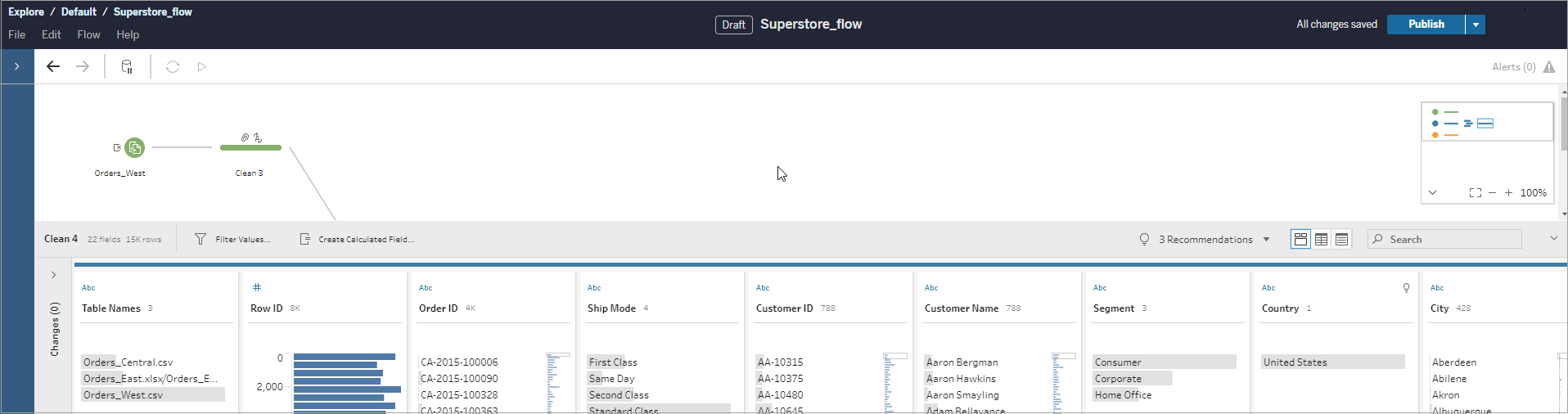
Draft content can only be seen by you until you publish it. If you publish changes and need to revert them, you can use the Revision History dialog to view and revert to a previously published version. For more information about saving flows on the web, see Automatically save your flows on the web.
Publishing flows on the web
Whether you create a flow from scratch on the web or edit an existing flow, before you can run the flow you'll need to publish it.
- You can only publish draft flows to the same server you are signed into.
- You can publish a draft to a different project using the File menu and selecting Publish As.
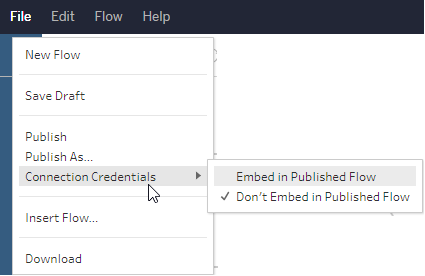
- You can embed credentials for your flow's database connections to enable the flow to run without having to manually enter the credentials when the flow runs. If you open the flow to edit it, you'll need to re-enter your credentials.
Embed credentials
Embedding credentials only applies to running flows on your server. Starting in Tableau Cloud version 2025.2, flow owners can edit their flow in web authoring without having to re-authenticate to all of their database connections if those connections are embedded in the flow or saved to the user profile. If using Tableau Server, you will manually need to enter your credentials when editing a flow connected to a database. Embedding credentials can only be set at the flow level and not at the server or site level.
Do one of the following:
-
From the top menu, select File > Connection Credentials > Embed in Published Flow.
-
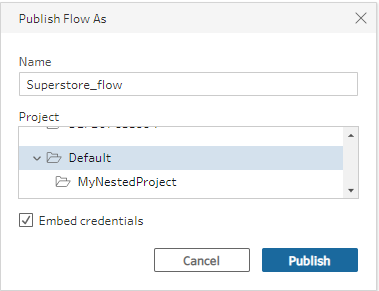
When publishing a flow, select the Embed credentials check box. This option shows when you select Publish As to publish the flow to a new project for the first time or when you are editing a flow that was last published by someone else.
Publish a flow
When you publish your flow, it becomes the current version of the flow and can be run and seen by others who have access to your project. Flows that are never published or flow changes that you make to a draft can only be seen by you until you publish the flow. For more information about flow statuses, see Automatically save your flows on the web.
To publish your flow, do one of the following:
-
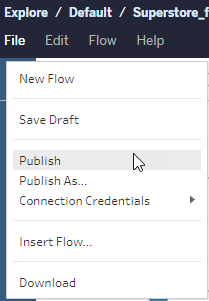
From the top menu, select File > Publish or File > Publish As
-
From the top bar, click the Publish button or click the drop arrow to select Publish As.

Who can do this
- Server Administrator, Site Administrator Creator, and Creator allow full connecting and publishing access.
- Creator can perform web authoring tasks.