# tableau Tableau Blueprint (blueprint) - Full Documentation
[Skip to main content](#main-content)
# A repeatable process for Tableau Blueprint
> [!TIP]
>
> This content is part of Tableau Blueprint – a maturity framework allowing you to zoom in and improve how your organisation uses data to drive impact. To begin your journey, take our [assessment](https://www.tableau.com/en-gb/learn/webinars/tableaus-blueprint-self-assessment).
Tableau Blueprint is a step-by-step guide to becoming a data-driven organisation. It provides concrete plans, recommendations and guidelines across critical foundational work and three primary workstreams that will turn repeatable processes into core capabilities. These topics will guide you through key decision points with a proven, repeatable, four-step process:
1. Discover – Gather information and perspectives from sponsors and multiple stakeholders about your enterprise architecture, the use of data and analytics among business teams, and analytical skills both present and needed.
2. Govern – Define controls, roles and repeatable processes to make the appropriate data and content available to the corresponding audience.
3. Deploy – Establish the iterative, repeatable processes across the three major workstreams to install and configure software, educate users and enable communications.
4. Evolve – Monitor platform utilisation, measure user engagement and host engagement activities to promote and support the growing use of data and analytics.
For existing deployments, use this blueprint to assess your current capabilities – including where you are excelling and where there are areas for growth and improvement.
## Step 1: Discover
Tableau Blueprint includes the [Tableau Blueprint Assessment](https://www.tableau.com/en-gb/blueprint-assessment) and the [Tableau Blueprint Planner](https://mkt.tableau.com/TableauBlueprintPlanner.xlsx).
Designed with Data Culture and analytics best practices in mind, The Tableau Blueprint Assessment helps you navigate the journey to becoming a data-driven organisation by measuring where you are and providing personalised, actionable recommendations on where to go from here. It establishes your baseline, measuring where you are in your journey to becoming data-driven. Your assessment results will include actionable recommendations and best-practice examples. You can revisit and update your results any time to see how you progress over time.
The Tableau Blueprint Planner is a comprehensive planning asset that will help you systematically gather the right information needed to link data with your strategic initiatives, define your analytics strategy, discover analytics and predictions use cases and assemble the [Executive sponsor roles and responsibilities](https://help.tableau.com/current/blueprint/en-gb/bp_executive_sponsor_roles_responsibilities.htm) and [Tableau project team roles and responsibilities](https://help.tableau.com/current/blueprint/en-gb/bp_project_team_roles_responsibilities.htm). This will ensure you are evaluating the needs of the organisation holistically, so you can scope a vision and strategy that will suit your entire organisation and grow with you over time. After completing discovery, you should have a greater sense of the direction you are heading in with your analytics strategy and the roles needed to execute on it. Discovery should be revisited as you expand to new users and use cases, but having a clear view of the future state will help you make decisions as you move forward.
## Step 2: Govern
As mentioned above, a clear approach to governance is a pivotal point in the process and must be addressed early. Governance is pervasive throughout every workstream. The time invested up front to collaboratively define governance gives people confidence to trust the data, use it responsibly and participate in the processes that surround it. [Tableau governance](https://help.tableau.com/current/blueprint/en-gb/bp_governance.htm) covers all aspects of governance in Tableau and helps you determine the best approach for your teams, data and content. Working through the areas within data and content governance, you will define standards, policies and roles which perform the corresponding actions and processes in the governance models.
## Step 3: Deploy
To scale analytics across the organisation with confidence, you need repeatable, iterative processes in the deploy stage as you execute on your analytics strategy. During the initial deployment, there needs to be coordination among the cross-functional team members to install, integrate and configure the Tableau platform, educate users and provide organisation-specific enablement resources. After the initial deployment, you will onboard new teams and use cases with education and communication. If you have already completed the Tableau Blueprint Assessment, this is where you implement the assessment recommendations you've prioritised.
## Step 4: Evolve
Your analytics strategy needs to keep pace with the growth of users, skillsets and use cases across the organisation. As processes evolve into capabilities, your users will adopt modern analytics, and you will adapt your operating models by delegating more responsibilities over time. The project team has access to several sources of information and data to tailor and tune your analytics environment to changing business needs. The project team will be responsive to the growing use of data and analytics among a diverse set of users by establishing a feedback loop to monitor and measure key metrics, including the business value achieved. Consider revisiting the Tableau Blueprint Assessment and the Tableau Blueprint Planner.
[Skip to main content](#main-content)
# Accountability and reward systems
> [!TIP]
>
> This content is part of Tableau Blueprint – a maturity framework allowing you to zoom in and improve how your organisation uses data to drive impact. To begin your journey, take our [assessment](https://www.tableau.com/en-gb/learn/webinars/tableaus-blueprint-self-assessment).
Accountability and reward systems are series of checkpoints and milestones along a user's skill development path. They establish common goals and achievements across an organisation to encourage users to stay motivated and engaged in building their skill sets. Education is an ongoing process, and as an organisation's deployment grows, users need opportunities for continuous learning and rewards.
Consider these three approaches to validate skills to incorporate into your education plan:
- Role badges
- Tableau product certification
- Skill belts
## Skill badges
Users earn skill badges by passing low-stakes, multiple-choice skills assessments of core concepts at the end of role-based learning paths as shown in [Skills by Tableau education role](https://help.tableau.com/current/blueprint/en-gb/bp_skills_tableau_education_role.htm). Skill badges encourage and motivate users to keep learning in order to demonstrate their knowledge of particular roles. Users are not required to complete all the courses in a learning path in order to take the skills assessment, so more advanced users can skip ahead. They will demonstrate that they hold the necessary skills for the role by earning a passing score. Users who do not pass are given recommendations for the eLearning or classroom courses that will best address their skill gaps. Because skill badges are available to share via a public URL, they also support progress monitoring and measurement at the organisational level. The badges can be incorporated into your organisation's LMS system or intranet. Skill badges and skills assessments are accessed through an [eLearning subscription](https://www.tableau.com/en-gb/learn/training/elearning).
## Certification
[Tableau product certifications](https://www.tableau.com/en-gb/learn/certification) enable users to prove their expertise and to distinguish themselves. Holding a Tableau Certification demonstrates that a user is able to apply knowledge of Tableau products in a formal setting. These invigilated exams are higher stakes than skill badges and skills assessments because they follow industry standards for professional certification programmes. Encouraging and supporting certification within your teams shows commitment to their professional development and creates clear, actionable milestones for individuals to work towards. By building a core group of certified users, you increase their confidence and encourage them to elevate the skill sets of their peers. There are three levels of certification: Specialist, Associate and Professional, available for two products, Desktop and Server.
| Exam level | By broduct |
Difficulty increases ↓ | Specialist | Tableau Desktop Specialist – tests foundational functionality and product comprehension. | |
Professional | Tableau Certified Data Analyst – tests advanced functionality and application of visual best practices. | Tableau Server Certified Associate – tests administrative functionality and platform knowledge. |
| Professional | Tableau Certified Consultant - tests ability to lead design of analytics solutions within the Tableau platform, ability to handle complex performance issues independently | Tableau Certified Architect - intended for roles that implement complex deployments of Tableau Server in enterprise-level environments. Tests knowledge in designing, deploying, monitoring and maintaining a scalable Tableau platform, as well as migrations to Tableau Cloud |
Online invigilated exams are delivered 24/7 . Instead of travelling to testing centres, users can take the test anywhere in the world, provided they meet computer and network requirements. Exams are also delivered in person at select Tableau events, like Tableau Conference.
_**NOTE:** How are certification badges different from skill badges?_
Certification badges recognise users' significant achievement of proving product knowledge by passing high-stakes, invigilated, secure exams. Skill badges recognise users’ less significant achievement of passing self-invigilated, non-secure skills assessments.
## Skill belts
A skill belt programme is an internally-created badge and reward programme that aligns with an internally curated education programme. A skill belt programme should motivate and reward users who sequentially build measurable knowledge in product functionality, storytelling, design, best practices in visualisation and performance, and community resources. In order to complete each skill level, users should be required to volunteer as peer and mentor resources for new applicants. This ensures participation and organically builds community across the organisation by encouraging users to share knowledge, evangelise data-driven decision making and motivate others to improve their Tableau skills.
A skill belt programme relies on both applicants and champions for administration, governance and promotion. You may have additional resources to help administer the programme. For example, many large organisations have learning management systems and may prefer to manage assessments within those content delivery systems.
Required content and measurement tools can be standardised across skill belts and merit badges; for example:
- Hands-on – Instructional videos or webinars for users to follow along with, often including accompanying Tableau workbooks.
- Whitepapers – Written, long-form instructional documents for users to read.
- Best practices – Consumable content in a variety of formats that generally focuses on visual and performance best practices. Content will include more technical and governance-related topics as users achieve higher skill levels.
- Storytelling – Consumable content in a variety of formats that specifically addresses the soft skills users need to effectively tell stories with data.
- Blogs – Informational content from a variety of sources, generally from Tableau or notable public community figures such as Tableau Visionaries. Content may include hands-on activities, best practices or additional resources.
- Reference materials – Reference documents, community guides (e.g. GitHub), other instructional reference materials (e.g. chart hierarchy) and other supplemental materials.
- Challenges – Tableau workbook practices for users to complete, with solutions included for reference.
- Milestones – Significant tasks users must complete to achieve a skill belt or a merit badge.
You should not expect everyone to engage in all the available content, nor to master all the available skills at every skill belt level. Advancement through the programme should be based on exposure to concepts and building knowledge, not mastery. For example, users can achieve expert-level recognition without having to learn to script in Python. Only some users need to script in Python, but all users need to demonstrate an understanding of how Python and Tableau can be used together and, more importantly, how this can help the organisation.
## **Gamification**
A defining characteristic of any skill belt programme is the gamification of learning. Gamification is an educational approach that motivates students to learn by using game elements and design in a learning environment. It can help users overcome fatigue or anxiety and keep them engaged. By incorporating the right mechanics, gamification can increase engagement and participation and inspire users to continue learning.
One successful way to gamify is by offering compensation or a reward (e.g. organisational status) for academic achievements, proper behaviour and social engagement like helping peers, commenting and adding value. Skill belts and merit badges can be designed to recognise academic achievement and volunteerism while communicating status or prestige within your organisation. To encourage engagement, you should come up with fun skill belt and badge names. "Jedi Master" sounds a lot more exciting than "Analytics Expert". Perhaps you want to involve your community in picking the belt names (e.g. a competition). If your community picks the names, they are already invested in success before you have kicked off the programme.
Another important feature of gamification is to make the programme as social as possible to simulate the feeling of a classroom or classroom community. This is important for achievers that need peer recognition, but also motivates through peer pressure or friendly competition with other participants. You can have a leaderboard to display top scores and vizzes, for example. We also suggest events such as Makeover Monday and viz games to increase competition and provide additional reward and recognition opportunities. Lastly, the programme should be transparent to participants. While advancing within the coursework, users know what the next step is and what to expect. This creates anticipation! Anticipation is a strong motivator and gets students excited and engaged for longer periods of time and into the flow of learning.
## Volunteer recognition
Employees who volunteer for your [peer-to-peer assistance](https://help.tableau.com/current/blueprint/en-gb/bp_peer_to_peer_assistance.htm) programmes deserve recognition. Employees who volunteer for your peer-to-peer assistance programs deserve recognition because they are actively helping others make better decisions through data and strengthening your data culture overall. Here’s a few example of how to recognise volunteers:
- When you host a Tableau user group, spend some time highlighting those who are volunteering to make your organisation more data-driven.
- If you’re the community leader, provide impactful metrics and feedback to the volunteer’s manager (patient satisfaction scores, use cases supported and specific contributions). Setting up surveys and asking for Data Doctor feedback is a good way to get inputs and quotes about a volunteer’s contributions, which can be valuable inputs for periodic or end-of-year evaluations.
[Skip to main content](#main-content)
# Administrative views for measurement
> [!TIP]
>
> This content is part of Tableau Blueprint – a maturity framework allowing you to zoom in and improve how your organisation uses data to drive impact. To begin your journey, take our [assessment](https://www.tableau.com/en-gb/learn/webinars/tableaus-blueprint-self-assessment).
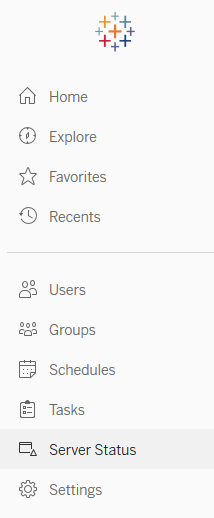
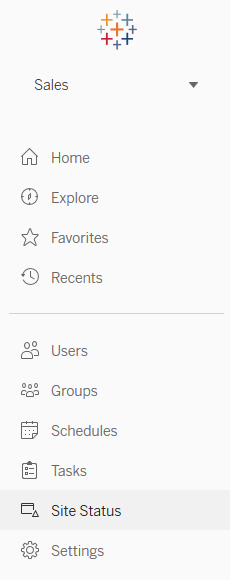
Data from the Tableau Server repository or Tableau Cloud Admin Insights will be analysed using default administrative views and custom administrative views. Administrative views are dashboards that are included with Tableau Server or Tableau Cloud and help you understand how users are interacting with content. Site administrators have access to default [administrative views](https://help.tableau.com/current/server/en-gb/adminview.htm). You navigate to administrative views on the server or site status page as shown below.
| Server status | Site status |
 |  |
Brief descriptions of the site default administrative views are shown below. Site administrators should view these on a weekly basis to understand users’ behaviour.
- Traffic to views – Usage and users for published views. Compare the traffic to the expected audience size. ([Tableau Server](https://help.tableau.com/current/server/en-gb/adminview_serveract.htm))
- Traffic to data sources – Usage and users for published data sources. Compare the traffic to the expected audience size. ([Tableau Server](https://help.tableau.com/current/server/en-gb/adminview_datasources.htm))
- Traffic to Bridge Connected Data Sources – ([Tableau Cloud](https://help.tableau.com/current/online/en-gb/adminview_bridge_datasources.htm))
- Actions by all users – Actions for all users to see site activities. ([Tableau Server](https://help.tableau.com/current/server/en-gb/adminview_users_all.htm))
- Actions by specific user – Actions for a specific user, including items used. ([Tableau Server](https://help.tableau.com/current/server/en-gb/adminview_user.htm))
- Actions by recent users – Recent actions by users, including last action time and idle time. ([Tableau Server](https://help.tableau.com/current/server/en-gb/adminview_users_recent.htm))
- Background tasks for extracts – Completed, pending and failed extract task details with full details of why an error occurred. ([Tableau Server](https://help.tableau.com/current/server/en-gb/adminview_backgrnd.htm) | [Tableau Cloud](https://help.tableau.com/current/online/en-gb/adminview_backgrnd.htm))
- Bridge Extracts – ([Tableau Cloud](https://help.tableau.com/current/online/en-gb/adminview_bridge_extract.htm))
- Background tasks for non-extracts – Completed, pending and failed non-extract background task details with full details on why an error occurred. ([Tableau Server](https://help.tableau.com/current/server/en-gb/adminview_backgrnd_nonextract.htm) | [Tableau Cloud](https://help.tableau.com/current/online/en-gb/adminview_backgrnd_nonextract.htm))
- Stats for load times – View load times and performance history. ([Tableau Server](https://help.tableau.com/current/server/en-gb/adminview_stats_load_time.htm))
- Stats for space usage – Space used by published workbooks and data sources, including extracts and live connections. ([Tableau Server](https://help.tableau.com/current/server/en-gb/adminview_space.htm) | [Tableau Cloud](https://help.tableau.com/current/online/en-gb/adminview_space.htm))
- Stale Content – ([Tableau Server](https://help.tableau.com/current/server/en-gb/adminview-stale-content.htm) | [Tableau Cloud](https://help.tableau.com/current/online/en-gb/adminview-stale-content.htm))
Custom administrative views are useful for deeper analysis of user behaviour and organisation-specific KPIs that are identified. The Tableau Server administrator will extract and publish the default administrative views workbook and its data sources so others can better understand data, content and user behaviour.
Users and project leaders who manage content (but are not full administrators) should be able to view and measure consumption. For Tableau Server and Site Administrators, with the default administrative views workbook published, [data-driven alerts](https://help.tableau.com/current/pro/desktop/en-gb/data_alerts.htm) can be set, such as long view load times or to identify which workbooks and data sources exceed the expected size limit. This means that if you set a standard that extract sizes should be less than 1 GB, then an alert will be triggered for anything 1 GB or larger on the Stats for space usage view. In addition, community-supported data sources, known as [Tableau Server insights](https://github.com/tableau/community-tableau-server-insights), are available for download from GitHub.
Tableau Server Insights data sources are shown below:
- TS background tasks – Primarily for analysing extract refresh and subscription tasks that are run on backgrounder processes.
- TS content – High-level, summarised data for each view, workbook and published data source on Tableau Server.
- TS data connections – Maps both workbooks and published data sources to their underlying data connections. Useful for answering questions about what workbooks connect to what data source, which then connects to what database(s)?
- TS events – Master audit data source showing events happening on Tableau Server – users signing in, accessing views, publishing content, etc.
- TS users – Aggregated information on user activity.
- TS web requests – Requests made through the Tableau Server web server component. Useful for understanding user interaction with vizzes, as well as performance monitoring.
Tableau Cloud site administrators will create the Admin Insights project and data sources. Initially, this project and content is visible to site admins only. Tableau Cloud site administrators should consider who will benefit from this data and grant permissions to it accordingly. Tableau Cloud Admin Insights data sources are shown below:
- TS Events – Master audit data source showing events – users signing in, accessing views, publishing content, etc.
- TS users – Aggregated information on user activity.
[Skip to main content](#main-content)
# Administrative views for monitoring
> [!TIP]
>
> This content is part of Tableau Blueprint – a maturity framework allowing you to zoom in and improve how your organisation uses data to drive impact. To begin your journey, take our [assessment](https://www.tableau.com/en-gb/learn/webinars/tableaus-blueprint-self-assessment).
Data from Tableau Server or Tableau Cloud can be analysed using default administrative views ([Tableau Server](https://help.tableau.com/current/server/en-gb/adminview.htm)[| Tableau Cloud](https://help.tableau.com/current/online/en-gb/adminview.htm)), custom administrative views and [Tableau Accelerators](https://help.tableau.com/current/pro/desktop/en-gb/accelerators.htm).
Administrative views are dashboards that are included with Tableau Server or Tableau Cloud and help you understand system utilisation and how users are interacting with content so that you can proactively monitor system activity and other scheduled tasks.
To access administrative views in Tableau Server or Tableau Cloud, your [site role](https://help.tableau.com/current/server/en-gb/users_site_roles.htm) must be set to either Server Administrator or Site Administrator. Tableau Server administrators can view administrative views for all server activity; Tableau site administrators have access to Tableau Server’s default administrative views limited to their respective site. For Tableau Cloud, site administrators have access to default administrative views for their respective site as well as Tableau Cloud, including a starter workbook and curated data sources.
Navigate to Administrative views on the server or site status page as shown below.
| Server status | Site status |
 |  |
BEST PRACTICE RECOMMENDATION:
Regularly spend time understanding the Tableau usage patterns and system utilisation.
- Tableau Server: Understand how the application is performing throughout the day. Keep a close watch on background tasks, such as extract refreshes and subscriptions, to make sure they are executing on time and during off-peak hours/periods as much as possible. For heavy extract workloads, it is recommended to isolate the backgrounder processes to their own node.
- Tableau Cloud: Understand the success/failure of scheduled tasks and Bridge resource utilisation.
## Default administrative views
Brief descriptions of the default administrative views that are most applicable to Tableau Server administrators and Tableau Cloud site administrators are shown below:
- Background tasks for extracts – Completed, pending and failed extract task details with full details of why an error occurred. ([Tableau Server](https://help.tableau.com/current/server/en-gb/adminview_backgrnd.htm) | [Tableau Cloud](https://help.tableau.com/current/online/en-gb/adminview_backgrnd.htm))
- Traffic to Bridge Connected Data Sources – ([Tableau Cloud](https://help.tableau.com/current/online/en-gb/adminview_bridge_datasources.htm))
- Bridge Extracts – ([Tableau Cloud](https://help.tableau.com/current/online/en-gb/adminview_bridge_extract.htm))
- Background tasks for non-extracts – Completed, pending and failed non-extract background task details with full details on why an error occurred. ([Tableau Server](https://help.tableau.com/current/server/en-gb/adminview_backgrnd_nonextract.htm) | [Tableau Cloud](https://help.tableau.com/current/online/en-gb/adminview_backgrnd_nonextract.htm))
- Background task delay – Difference between scheduled and actual start times of background tasks. Use the view to help you identify places where you can improve server performance by redistributing task schedules and optimising tasks. Background task delays are an important metric to determine whether you should isolate backgrounder processes and scale out to add additional capacity for data refreshes. ([Tableau Server](https://help.tableau.com/current/server/en-gb/adminview_background_task_delay.htm))
- Stats for load times – View load times and performance history. ([Tableau Server](https://help.tableau.com/current/server/en-gb/adminview_stats_load_time.htm))
- Performance of views – Overall distribution of view load times and slowest views in a given time period. Compare spikes in the number of sessions with spikes in slow load times to identify the times of day when high user traffic is slowing down the server. ([Tableau Server](https://help.tableau.com/current/server/en-gb/adminview_performance_views.htm))
- Performance of flow runs – View to see the performance history for all the flows on a site. ([Tableau Server](https://help.tableau.com/current/server/en-gb/adminview_performance_flows.htm) | [Tableau Cloud](https://help.tableau.com/current/online/en-gb/prep_conductor_admin_views.htm#performance-of-flow-runs))
- Stats for space usage – Space used by published workbooks and data sources, including extracts and live connections. ([Tableau Server](https://help.tableau.com/current/server/en-gb/adminview_space.htm) | [Tableau Cloud](https://help.tableau.com/current/online/en-gb/adminview_space.htm)).
- Server disk space – Current and historical disk space usage, by server node. Use the server disk space view to see how much disk space is in use on the server(s) that run Tableau Server, where disk space refers only to the partition where Tableau Server is installed. You can also use this view to identify sudden changes in disk space usage. ([Tableau Server](https://help.tableau.com/current/server/en-gb/adminview_space_all_nodes.htm))
- Stale Content – ([Tableau Server](https://help.tableau.com/current/server/en-gb/adminview-stale-content.htm) | [Tableau Cloud](https://help.tableau.com/current/online/en-gb/adminview-stale-content.htm))
- [Tableau Desktop Licence Usage](https://help.tableau.com/current/server/en-gb/adminview_desktop_license_usage.htm) – Summary of usage for Tableau Desktop licences. Manage licences efficiently and determine if you need more or fewer licences. This view is only available to server administrators.
- [Tableau Desktop Licence Expirations](https://help.tableau.com/current/server/en-gb/adminview_desktop_license_expiration.htm) – Expiration information for Tableau Desktop licences. This view is only available to server administrators.
The following default administrative views will be monitored primarily by site administrators and project leaders, which are covered in [Measurement of Tableau user engagement and adoption](https://help.tableau.com/current/blueprint/en-gb/bp_measure_user_engagement.htm)
- [Traffic to views](https://help.tableau.com/current/server/en-gb/adminview_serveract.htm) – Usage and users for published views. Compare the traffic to the expected audience size.
- [Traffic to data sources](https://help.tableau.com/current/server/en-gb/adminview_datasources.htm) – Usage and users for published data sources. Compare the traffic to the expected audience size.
- [Actions by all users](https://help.tableau.com/current/server/en-gb/adminview_users_all.htm) – Actions for all users to see site activities.
- [Actions by specific user](https://help.tableau.com/current/server/en-gb/adminview_user.htm) – Actions for a specific user, including items used.
- [Actions by recent users](https://help.tableau.com/current/server/en-gb/adminview_users_recent.htm) – Recent actions by users, including last action time and idle time.
BEST PRACTICE RECOMMENDATION:
Publish the Tableau admin workbooks for creating data-driven alerts aligned with your thresholds.
- Tableau Server: You should publish and extract the default administrative views workbook and set your alerts. After opening the administrative views in Tableau Server, you can copy the temporary workbook to your computer, open it in Tableau Desktop and publish it to Tableau Server for others to view. In Tableau Server 10.x to 2018.1, the location is “Tableau Server\\data\\tabsvc\\temp”. In 2018.2 and later, it can be under any VizQL server process. For example: Tableau Server\\data\\tabsvc\\temp\\vizqlserver\_1.20182.18.0627.2230.
In the published admin views workbook, set [data-driven alerts](https://help.tableau.com/current/pro/desktop/en-gb/data_alerts.htm) on the Stats for space usage and Stats for load times views to identify which workbooks and data sources exceed the expected size limit or load time according to your governing standards. For example, if you have a < 10 second load time standard, the data-driven alert will notify you of load times > 10 seconds. Similarly, if you have a 1 GB standard for workbook or data source size, the data-driven alert will notify you of workbooks or data sources > 1 GB.
- Tableau Cloud: Copy the Admin Insights starter workbook to a new project and set your alerts. Some examples include login activity to see if your user base falls below a certain threshold and publishing activity.
## Custom administrative views
Custom administrative views are useful for deeper analysis of user behaviour and organisation-specific KPIs that are identified. For Tableau Server, you can start with the default administrative views, connect to the Tableau Server Repository to create your own connections or use [Tableau Server Insights](https://github.com/tableau/community-tableau-server-insights), which are curated data sources to perform deeper analysis on your deployment.
BEST PRACTICE RECOMMENDATION:
Grant permission to Tableau Server Insights or Tableau Cloud Admin Insights data sources as a starting point for further analysis by others in custom administrative views. For more information on managing Tableau Cloud Admin Insights, see [Tips for managing Admin Insights](https://help.tableau.com/current/online/en-gb/adminview_insights_manage.htm#tips-for-managing-admin-insights).
Available for download from GitHub, [Tableau Server Insights](https://github.com/tableau/community-tableau-server-insights) data sources are shown below:
- TS background tasks – Primarily for analysing extract refresh and subscription tasks that are run on backgrounder processes.
- TS content – High-level, summarised data for each view, workbook and published data source on Tableau Server.
- TS data connections – Maps both workbooks and published data sources to their underlying data connections. Useful for answering questions about what workbooks connect to what data source, which then connects to what database(s)?
- TS events – Master audit data source showing events happening on Tableau Server – users signing in, accessing views, publishing content, etc.
- TS users – Aggregated information on user activity.
- TS web requests – Requests made through the Tableau Server web server component. Useful for understanding user interaction with vizzes, as well as performance monitoring.
Tableau Cloud site administrators will create the Admin Insights project and data sources. Initially, this project and content is visible to site admins only. Tableau Cloud site administrators should consider who will benefit from this data and grant permissions to it accordingly. Tableau Cloud Admin Insights data sources are shown below:
- TS Events – Master audit data source showing events – users signing in, accessing views, publishing content, etc.
- TS users – Aggregated information on user activity.
## Tableau Accelerators
[Tableau Accelerators](https://help.tableau.com/current/pro/desktop/en-gb/accelerators.htm) are pre-built dashboards designed to help you get a jump-start on your data analysis. Our collection of Accelerators includes two dashboards that administrators can use to improve dashboard load times at scale; read [more on the Tableau blog](https://www.tableau.com/en-gb/blog/how-improve-dashboard-load-times-people-and-processes).
Access the complete set of Accelerators on the [Tableau Exchange](https://exchange.tableau.com/) and in Tableau Desktop. Additionally, selected Accelerators are available to use when you create a workbook in Tableau Cloud.
## Secure on-premises servers
To prevent users with publish/explore permissions from connecting to Tableau Server resources that they shouldn't have access to, complete the following steps to configure and secure your on-premises servers.
1. Create a PostgreSQL user account.
2. Name it: tbladminviews
3. Select the least privileges for Admin views.
4. Change the Admin views workbook templates to use tbladminviews instead of tblwgadmin.
5. Add connection IP policy to deny private (non-routable) IP addresses:
1. Change connection IP default rule to Allow
tsm configuration set -k ConnectionIPDefaultRule=ALLOW
2. Deny private (non-routable) IP addresses
tsm configuration set -k ConnectionIPDenyRanges=127.0.0.1,192.168.0.0-192.168.255.255,172.16.0.0-172.31.255.255,10.0.0.0-10.255.255.255
[Skip to main content](#main-content)
# Analytics best practices in Tableau
> [!TIP]
>
> This content is part of Tableau Blueprint – a maturity framework allowing you to zoom in and improve how your organisation uses data to drive impact. To begin your journey, take our [assessment](https://www.tableau.com/en-gb/learn/webinars/tableaus-blueprint-self-assessment).
Analytics best practices enable your users with guidelines, standards and processes for discovering, interpreting and presenting data. In addition to the common best practices listed here, consider what additional organisation-specific practices you will layer on top to enable your users with repeatable processes that will evolve into analytical capabilities.
Once defined, you should publish your organisational best practices to the [Tableau enablement intranet](https://help.tableau.com/current/blueprint/en-gb/bp_enablement_intranet.htm). A mix of pre-recorded content, web meetings and in-person sessions should also be used to introduce, reinforce and institutionalise best practices as part of transforming into a data-driven organisation. While not intended to be an exhaustive list, this document compiles some of the most common analytics best practices.
## Other articles in this section
[Skip to main content](#main-content)
# Analytics strategy
> [!TIP]
>
> This content is part of Tableau Blueprint – a maturity framework allowing you to zoom in and improve how your organisation uses data to drive impact. To begin your journey, take our [assessment](https://www.tableau.com/en-gb/learn/webinars/tableaus-blueprint-self-assessment).
To ensure success with your analytics investment, your organisation needs a clearly defined vision for deployment. Inputs from people across the organisation are crucial to understand the short and long-term goals to promote data-driven decision-making. Your strategy must cover people, process and change management – including identifying immediate business use cases, defining roles and responsibilities, and establishing a schedule for evaluating success measurements and impact.
Valuable inputs from across the organisation will help to guide your analytics deployment and future state – including the roles, responsibilities, architecture and processes, as well as the success measurements to understand progress. After completing the [Tableau Blueprint Planner](https://mkt.tableau.com/TableauBlueprintPlanner.xlsx), you should have a greater sense of the direction you are heading in with your analytics strategy by defining your vision for the use of data, identifying strategic initiatives and KPIs, setting Tableau business goals, and documenting risks and challenges.
## Discovery process
The discovery process outlines a systematic approach to gathering information and perspectives from sponsors and multiple stakeholders about roles and responsibilities, enterprise architecture, and the use of data and analytics among business teams. Within each section, the team or role responsible for completing it is noted. Discovery is critical for gathering information from sponsors and stakeholders to inform the organisation’s analytics vision.
The [Tableau Blueprint Planner](https://mkt.tableau.com/TableauBlueprintPlanner.xlsx) contains questions you need to answer before deploying Tableau broadly. Your answers will inform activities at every stage and every workstream in the Tableau Blueprint. The following areas are covered within the planner:
- Analytics strategy (analytics vision and business value)
- Roles and responsibilities
- Enterprise architecture survey for Tableau Server or Tableau Cloud
- Data and analytics survey
- Use cases and data sources
- Data and content governance
- Education role mapping
- Users
- Community
- Upgrade planning and checklist
The [Tableau data and analytics survey](https://help.tableau.com/current/blueprint/en-gb/bp_data_analytics_survey.htm), [Tableau use cases and data sources](https://help.tableau.com/current/blueprint/en-gb/bp_use_cases.htm), and [Tableau Users](https://help.tableau.com/current/blueprint/en-gb/bp_users.htm) sections of the planner should be revisited as you expand to identify new data use cases and users from new departments and teams.
## Other articles in this section
[Skip to main content](#main-content)
# Analytics vision
> [!TIP]
>
> This content is part of Tableau Blueprint – a maturity framework allowing you to zoom in and improve how your organisation uses data to drive impact. To begin your journey, take our [assessment](https://www.tableau.com/en-gb/learn/webinars/tableaus-blueprint-self-assessment).
It’s no secret we’re big fans of dashboards and vizzes (i.e., visualisations) here. But let’s get real; most customers invest in our platform to achieve business results, not just to create beautiful interactive charts. Bridging the gap between your analytics investment and business outcomes is easier said than done. To help you tackle this, **we recommend setting an analytics vision**. The Analytics Vision tab in the [Tableau Blueprint Planner](https://mkt.tableau.com/TableauBlueprintPlanner.xlsx) outlines questions you may want to take into account as you set your analytics vision.
Articulating an analytics vision is key to the success of your analytics investment and the foundation of a solid analytics strategy. Whether you decide to define an analytics vision at an organisation-wide level, a team level, or both, you’ll want to involve key executives early and ensure that high-level organisational goals sit at the heart of your analytics vision. This vision isn’t just about technology. This visioning process is about how your organisation can better meet its business goals and then align that vision with the right analytics capabilities to do the job.
When drafting your analytics vision, consider your organisation’s **business goals**, **key performance indicators (KPIs)** and **strategic initiatives**. Generally speaking, in addition to executive-level involvement we see two types of personas instrumental in delivering on the analytics strategy: business users and data professionals. Business users, those who use data **for** their work, must understand the dependencies and work in partnership with the data professional, whose work **is** data. Similarly, the data professional must understand the needs of executives and the business user in terms of **what** they need to know and **how** they want to consume data-driven insights in their workflow. Although their roles and responsibilities will be different under the analytics strategy, all three must work together to determine the best method for enabling data-driven decision-making across the organisation.
Below, we outline questions that will help you create an analytics vision. Feel free to keep your answers and ideas at a high level during this exercise, as you’ll get into specifics in later steps.
**Think about the following questions as you draft your _analytics vision statement_.**
| Question | Answer |
| What are our key strategic business goals? | |
| What are the business outcomes we’re striving for with these initiatives? | |
| What metrics and KPIs can help us track our progress on these business outcomes? | |
| Who needs access to these metrics and KPIs to make decisions that influence our business outcomes? | |
| When do these decision-makers need to see this data to make timely decisions? | |
**Next, think about your current state versus your desired future state.**
| Question | Current state | Future state |
| Are business outcomes informed by data and analytics? If so, how? | | |
| How do business users and decision-makers access data? | | |
| What information do they have access to? | | |
| When do they get this information? | | |
| How do they act on this information? | | |
Use these answers to draft a clear analytics vision statement, outlining at a minimum what impact the use of data and analytics will have, who it will help and how it will do so.
We also recommend identifying the guiding principles that establish a framework for expected behaviour and decision-making to help your organisation build a data culture, prioritise analytics capabilities and realise your analytics vision. One principle we recommend is “we are iterative.” As mentioned earlier, tying in the use of data and analytics with your business goals takes time and effort. It’s worth pointing out that the process will always need refinement, and you may not be able to affect change in the entire organisation in one go. Being explicit about this will help set reasonable expectations so your stakeholders can better stay the course and keep a beginner’s mindset.
> [!TIP]
>
> **Example analytics vision**: HR will serve accurate data to our business users within their workflows and preferred tools, enabling them to make timely and informed decisions to support our workforce.
#### Case Study: Setting a Vision for the Superstore HR Data and Analytics Team
In this and the next section (Business value), we’ll use a company’s human resources (HR) department as an illustrative example. We’ll call our fictional company Superstore.
Superstore HR aims to be more strategic about its use of data and analytics and has decided to leverage the Tableau Blueprint to help its efforts. After reading the Analytics vision section, the head of HR’s data and analytics team convenes a tiger team consisting of herself, several functional leaders and DEI leaders for a brainstorming session to draft an analytics vision statement. Like many other companies, employee attrition has increased recently and is top of mind for the team. During this exercise, the group decides to focus on one strategic business goal – to improve employee retention. They work through the sample questions together and come up with the following answers:
| Question | Answer |
| What are our key strategic business goals? | Improve employee retention. |
| What are the business outcomes we’re striving for with these initiatives? | • Reduce employee attrition by 25%. • Provide understandable and relevant insights, so 100% of functional leaders take action. |
| What metrics and KPIs can help us track our progress on these business outcomes? | • Employee retention rate • Employee satisfaction survey results • Individual Development Plan (IDP) completions • Check-ins between managers and individual contributors (ICs) |
| Who needs access to these metrics and KPIs to make decisions that influence our business outcomes? | Executives, operations, managers and individual contributors |
| When do these decision-makers need to see this data to make timely decisions? | • Check-ins between managers and ICs: quarterly • Employee retention rate: monthly • Employee satisfaction survey results: quarterly • IDP completions: - Executives need to see completion rates 1 week after each round of due dates - Operations staff need to see completion rates weekly starting from opening of IDPs - Managers need to see completion rates daily
|
| Question | Current state | Future state |
| Are business outcomes informed by data and analytics? If so, how? | We assume so but can’t draw a straight line between data, action and outcomes. | Yes. We can tell the story of which business outcomes we achieved, which actions were taken, who took those actions and what data points they used. |
| How do business users and decision-makers access data? | The HR data and analytics teams push out reports via email. Business users and decision-makers have access to various dashboards published to Tableau Server. | We deliver the data they need within the tools they regularly use. They can access the data on demand through Slack and Tableau Server. |
| What information do they have access to? | The information that HR includes on reports and publishes to Tableau Server. | We’ll deliver the information needed to analyse progress towards business goals and making specific decisions. |
| When do they get this information? | On a cadence that the HR data and analytics team decides, or whenever they log in to Tableau Server and view the dashboards. | We’ll embed this information directly in their workflows. They can also request ad-hoc data, see it instantly and set up subscriptions to suit their personal preferences. |
| How do they act on this information? | We don’t know. There aren’t defined workflows for each role. | We’ve embedded the data in the tools they normally use, and the call to action is clear. They can click on a button or link to complete the appropriate next steps. |
After considering their answers, the group recognise that they currently consider data and analytics “analyst territory”, and decision-makers have limited options for accessing and acting on data. They realise that decision-makers could more easily act on data and insights if the HR data and analytics team were more intentional about what data they provide to these business users, and how, when and where they provide it. They draft the following analytics vision:

[Skip to main content](#main-content)
# Authentication and authorisation
> [!TIP]
>
> This content is part of Tableau Blueprint – a maturity framework allowing you to zoom in and improve how your organisation uses data to drive impact. To begin your journey, take our [assessment](https://www.tableau.com/en-gb/learn/webinars/tableaus-blueprint-self-assessment).
Tableau provides the comprehensive features and deep integration to address all aspects of enterprise security. For more information, see [Tableau Server platform security](https://www.tableau.com/sites/default/files/whitepapers/tableau_server_platform_security_1.pdf) and Tableau Server security hardening checklist ([Windows](https://help.tableau.com/current/server/en-gb/security_harden.htm) | [Linux](https://help.tableau.com/current/server-linux/en-gb/security_harden.htm)) or [Tableau Cloud security in the cloud](http://www.tableau.com/en-gb/learn/whitepapers/tableau-online-security-cloud).
## Identity Store
Tableau Server requires an identity store ([Windows](https://help.tableau.com/current/server/en-gb/plan_identity_store.htm) | [Linux](https://help.tableau.com/current/server-linux/en-gb/plan_identity_store.htm)) to manage user and group information. There are two kinds of identity stores: local (Tableau Server) and external (Active Directory, LDAP). When you install Tableau Server you must configure either a local identity store or an external identity store. For information about configuration options for the identity store, see [identityStore entity](https://help.tableau.com/current/server/en-gb/entity_identity_store.htm).
When you configure Tableau Server with a local identity store, all user and group information is stored and managed in the Tableau Server Repository. In the local identity store scenario, there is no external source for users and groups. Note: Changing the identity store after server installation requires a full [uninstall and reinstall](https://help.tableau.com/current/server/en-gb/reconfig_change_auth.htm).
When you configure Tableau Server with an external store, all user and group information is stored and managed by an external directory service. Tableau Server must synchronise with the external identity store so that local copies of the users and groups exist in the Tableau Server Repository, but the external identity store is the master source for all user and group data. When users sign in to Tableau Server, their credentials are passed to the external directory, which is responsible for authenticating the user ([Windows](https://help.tableau.com/current/server/en-gb/security_auth.htm) | [Linux](https://help.tableau.com/current/server-linux/en-gb/security_auth.htm)). Tableau Server does not perform this authentication; however, the Tableau user names stored in the identity store are associated with rights and permissions for Tableau Server. After authentication is verified, Tableau Server manages user access (authorisation) for Tableau resources.
## Authentication
Authentication verifies a user's identity. Everyone who needs to access Tableau Server or Tableau Cloud – whether to manage the server or site, or to publish, browse or administer content – must be represented as a user in the Tableau Server identity store or provisioned as a Tableau Cloud user. The method of authentication may be performed by Tableau Server or Tableau Cloud (local authentication), or authentication may be performed by an external process. In the latter case, you must configure Tableau Server for external authentication protocols such as Active Directory, OpenLDAP, SAML or OpenID, or configure Tableau Cloud for Google or SAML.
### Authentication in Tableau Cloud
Tableau Cloud supports the following authentication types, which you can configure on the Authentication page. For more information, see [Tableau Cloud authentication](https://help.tableau.com/current/online/en-gb/security_auth.htm).
- **Tableau**: This is the default authentication type, available on all sites, requiring no additional configuration steps before you add users. Tableau credentials are made up of a username and password, which are stored with Tableau Cloud. Users enter their credentials directly on the Tableau Cloud sign-in page.
- **Google**: If your organisation uses Google applications, you can enable Tableau Cloud to use Google accounts for single sign-on (SSO) via OpenID Connect. When you enable Google authentication, users are directed to the Google sign-in page to enter their credentials, which are stored by Google.
- **SAML**: Another way to use SSO is through SAML. To do this, you use a third-party identity provider (IdP) and configure the site to establish a trust relationship with the IdP. When you enable SAML, users are directed to the IdP’s sign-in page, where they enter their SSO credentials, already stored with the IdP.
#### Tableau Cloud multi-factor authentication requirement
In addition to the authentication type you configure for your site, multi-factor authentication (MFA) through your SSO identity provider (IdP) is a Tableau Cloud requirement beginning 1 February 2022. If your organisation doesn’t work directly with an SSO IdP, you can use Tableau with MFA authentication to meet the MFA requirement. For more information, see [About multi-factor authentication and Tableau Cloud](https://help.tableau.com/current/online/en-gb/security_auth.htm#mfa_requirement).
### Authentication in Tableau Server
The table below shows which Tableau Server authentication methods are compatible with which identity stores.
Authentication method | Local Authentication | AD/LDAP |
|---|
SAML | Yes | Yes |
Kerberos | No | Yes |
Mutual SSL | Yes | Yes |
OpenID | Yes | No |
Trusted Authentication | Yes | Yes |
#### Active Directory & OpenLDAP
In this scenario, Tableau Server must be installed in a domain in Active Directory. Tableau Server will sync user and group metadata from Active Directory to the identity store. You do not have to add users manually. However, after the data is synchronised, you will need to assign site and server roles. You can assign these individually or at the group level. Tableau Server does not synchronise any data back to Active Directory. Tableau Server manages content and server access according to the site role permission data stored in the Repository.
If you are already using Active Directory to manage users in your organisation, you must select Active Directory authentication during Tableau setup. For example, by synchronising Active Directory groups, you can set minimum site role Tableau permissions for users who are synchronised in the groups. You can synchronise specific Active Directory groups or all of them. For more information, see [Synchronise all Active Directory groups on the server](https://help.tableau.com/current/server/en-gb/groups_globalsync.htm). Make sure to review [User management in Active Directory deployments](https://help.tableau.com/current/server/en-gb/users_manage_ad.htm) to understand how multiple domains, domain naming, NetBIOS and Active Directory user name format influence Tableau user management.
You can also configure Tableau Server to use LDAP as a generic way to communicate with the identity store. For example, OpenLDAP is one of several LDAP server implementations with a flexible schema. Tableau Server can be configured to query the OpenLDAP server. See [Identity store](https://help.tableau.com/current/server/en-gb/plan_identity_store.htm#plan). Authentication in this scenario may be provided by the native LDAP solution or with a single sign-on solution. The diagram below shows Tableau Server with Active Directory/OpenLDAP authentication.

#### SAML
SAML (Security Assertion Markup Language) is an XML standard that allows secure web domains to exchange user authentication and authorisation data. You can configure Tableau Server and Tableau Cloud to use an external identity provider (IdP) to authenticate users over SAML 2.0.
Tableau Server and Tableau Cloud support both service provider-initiated and IdP-initiated SAML in browsers and in the Tableau Mobile app. Connections from Tableau Desktop require that the SAML request must be service provider-initiated. No user credentials are stored with Tableau Server or Tableau Cloud, and using SAML enables you to add Tableau to your organisation’s single sign-on environment. User authentication through SAML does not apply to permissions and authorisation for Tableau Server or Tableau Cloud content, such as data sources and workbooks. It also does not control access to underlying data that workbooks and data sources connect to.
For Tableau Server, you can use SAML server-wide, or you can configure Tableau Server sites individually. Here’s an overview of those options:
- Server-wide SAML authentication. A single SAML IdP application handles authentication for all Tableau Server users. Use this option if your server has only the Default site.
In addition, if you want to use Tableau Server site-specific SAML, you must configure Tableau Server-wide SAML before you configure individual sites. Tableau Server-side SAML does not need to be enabled for Tableau Server site-specific SAML to function, but it must be configured.
- Server-wide local authentication and site-specific SAML authentication. In a multi-site environment, users who are not enabled for SAML authentication at the site level can sign in using local authentication.
- Server-wide SAML authentication and site-specific SAML authentication. In a multi-site environment, all users authenticate through a SAML IdP configured at the site level, and you specify a server-wide default SAML IdP for users that belong to multiple sites.
For more information, see SAML ([Windows](https://help.tableau.com/current/server/en-gb/saml.htm) | [Linux](https://help.tableau.com/current/server-linux/en-gb/saml.htm)). The diagram below shows Tableau Server with SAML authentication.

To configure SAM for Tableau Cloud, see the following requirements:
- [Identity provider (IdP) requirements for Tableau configuration](https://help.tableau.com/current/online/en-gb/saml_online_requ.htm#idp-reqs)
- [SAML compatibility notes and requirements](https://help.tableau.com/current/online/en-gb/saml_online_requ.htm#compatibility-notes)
- [Using SAML SSO in Tableau client applications](https://help.tableau.com/current/online/en-gb/saml_online_requ.htm#saml-sso-tableau-client)
- [Effects on Tableau Bridge of changing authentication type](https://help.tableau.com/current/online/en-gb/saml_online_requ.htm#bridge-consequences)
- [XML data requirements](https://help.tableau.com/current/online/en-gb/saml_online_requ.htm#xml-data-reqs)
NOTE: In addition to these requirements, we recommend that you dedicate a Tableau Cloud Site Administrator account that is always configured for Tableau authentication. In the event of an issue with SAML or the IdP, a dedicated TableauID account ensures that you always have access to your Tableau Cloud site.
#### Trusted tickets
If you embed Tableau Server views into web pages, everyone who visits the page must be a licensed user on Tableau Server. When users visit the page, they are prompted to sign in to Tableau Server before they can see the view. If you already have a way of authenticating users on the web page or within your web application, you can avoid this prompt and save your users from having to sign in twice by setting up trusted authentication.
Trusted authentication simply means that you have set up a trusted relationship between Tableau Server and one or more web servers. When Tableau Server receives requests from these trusted web servers it assumes that your web server has handled whatever authentication is necessary.
If your web server uses SSPI (Security Support Provider Interface), you do not need to set up trusted authentication. You can embed views and your users will have secure access to them as long as they are licensed Tableau Server users and members of your Active Directory ([Windows](https://help.tableau.com/current/server/en-gb/trusted_auth.htm) | [Linux](https://help.tableau.com/current/server-linux/en-gb/trusted_auth.htm)). The diagram below shows Tableau Server with trusted tickets.

#### Mutual SSL
Using mutual SSL, you can provide users of Tableau Desktop and other approved Tableau clients a secure, direct-access experience to Tableau Server. With mutual SSL, when a client with a valid SSL certificate connects to Tableau Server, Tableau Server confirms the existence of the client certificate and authenticates the user, based on the username in the client certificate. If the client does not have a valid SSL certificate, Tableau Server can refuse the connection. You can also configure Tableau Server to fall back to username/password authentication if mutual SSL fails.
## Authorisation
Authorisation refers to what users can access on Tableau Server or Tableau Cloud, and how, after authentication has been verified. For more information, see [Governance in Tableau](https://help.tableau.com/current/blueprint/en-gb/bp_governance_in_tableau.htm). Authorisation includes:
- What users are allowed to do with content hosted on Tableau Server or Tableau Cloud, including projects, sites, workbooks and views.
- What users are allowed to do with the data sources that are managed by Tableau Server or Tableau Cloud.
- What tasks users are allowed to perform to administer Tableau Server or Tableau Cloud, such as configuring server or site settings, running command line tools and other tasks.
Authorisation is managed within Tableau Server and Tableau Cloud. It is determined by a combination of the user's licence level (Tableau Creator, Tableau Explorer, Tableau Viewer), site role, and permissions associated with specific entities such as workbooks and data sources. The project team should work together to define the permissions model. Tableau Server and/or site administrators or Tableau Cloud site administrators will assign permission rules to groups and lock them to the project. Custom permissions allow more granularity in permissions – from accessing or downloading a data source to how a user interacts with published content.
Tableau’s intuitive interface makes it easy to associate users to functional groups, assign permissions to the groups and see who has access to which content. You can create groups locally on the server or import from Active Directory and synchronise on a set schedule. The permissions view also helps business users manage their own users and groups. For more information, see [Set up permissions quick start](https://help.tableau.com/current/server/en-gb/qs_permissions.htm), [Configure projects, groups and permissions for managed self-service](https://help.tableau.com/current/server/en-gb/projects_data_gov.htm), and [Permissions reference](https://help.tableau.com/current/server/en-gb/permissions.htm).
[Skip to main content](#main-content)
# Backup and restore
> [!TIP]
>
> This content is part of Tableau Blueprint – a maturity framework allowing you to zoom in and improve how your organisation uses data to drive impact. To begin your journey, take our [assessment](https://www.tableau.com/en-gb/learn/webinars/tableaus-blueprint-self-assessment).
Note: This topic applies to Tableau Server only.
A Tableau Server administrator should perform daily backups of Tableau Server and its data. Taking these steps can help ensure that Tableau Server runs with minimum loss. You will use the Tableau Services Manager (TSM) command line tool to back up and restore Tableau data, including Tableau Server's own PostgreSQL database, which stores workbook and user metadata, data extract files, server configuration data and log files ([Windows](https://help.tableau.com/current/server/en-gb/db.htm) | [Linux](https://help.tableau.com/current/server-linux/en-gb/db.htm)). As of 2018.2, both Windows and Linux versions of Tableau Server use TSM.
[Skip to main content](#main-content)
# Built-in alerts
> [!TIP]
>
> This content is part of Tableau Blueprint – a maturity framework allowing you to zoom in and improve how your organisation uses data to drive impact. To begin your journey, take our [assessment](https://www.tableau.com/en-gb/learn/webinars/tableaus-blueprint-self-assessment).
## Tableau Server
If Tableau Server processes go down, the application state will be degraded or even fail depending on the process that goes down. During installation and configuration ([Windows](https://help.tableau.com/current/server/en-gb/install_config_top.htm) | [Linux](https://help.tableau.com/current/server-linux/en-gb/install_config_top.htm)), Tableau Server was [configured with an SMTP email server](https://help.tableau.com/current/server/en-gb/config_smtp.htm) to notify the specified email distribution list about [system alerts and failures](https://help.tableau.com/current/server/en-gb/email.htm). With system alerts enabled, you will be notified by email of process up, down and failover events, as well as drive space constraints. See below for recommended settings.

BEST PRACTICE RECOMMENDATION:
Enable system health monitoring in Tableau Services Manager for process up, down and failover events, licence reporting and disk space. Use an email distribution group for administrators rather than an individual’s email address for notifications. If you are using the [Resource Monitoring Tool](https://help.tableau.com/current/server/en-gb/rmt-intro.htm), keep thresholds synchronised.
## Tableau Cloud
Tableau Cloud Site Administrators should subscribe to [Salesforce Trust](https://status.salesforce.com/products/tableau) updates to get email or SMS notifications when Tableau creates, updates or resolves an incident. At any time, you can visit the [Salesforce Trust](https://status.salesforce.com/products/tableau) page to view system status.
For extract refresh failures, the Tableau Cloud site administrator should enable Tableau Cloud to send email to the owner of a data source when its scheduled extract refresh is not completed successfully. The data source owner can then opt out individually in their account settings. For more information, see [Notify owners when extract refreshes fail](https://help.tableau.com/current/online/en-gb/to_refresh_enable_emails.htm). For data sources that are refreshed through Tableau Bridge, notifications will vary. For more information, see [Manage Email Alerts for Bridge](https://help.tableau.com/current/online/en-gb/to_bridge_alerts.htm).
[Skip to main content](#main-content)
# Business value
> [!TIP]
>
> This content is part of Tableau Blueprint – a maturity framework allowing you to zoom in and improve how your organisation uses data to drive impact. To begin your journey, take our [assessment](https://www.tableau.com/en-gb/learn/webinars/tableaus-blueprint-self-assessment).
By now, you’ve defined your [analytics vision](https://help.tableau.com/current/blueprint/en-gb/bp_analytics_vision.htm) and are ready for the next step. But what do you focus on next?
Let’s go back to your organisation’s original intention – invest in analytics to drive business outcomes and generate **business value** or return on investment (ROI). Your team has invested time, resources and money into analytics, and you’ll want to ensure you’re receiving the intended benefit from your investment.
Value, however, isn’t always the first thing that comes to mind as organisations prioritise and deploy analytics. The impact of not leading with value can be significant, ranging from wasted time and resources to a loss of confidence in analytics overall.
So how do you raise visibility on business value as a priority when deploying a product within the Salesforce analytics portfolio? Simple; by creating a **value map**. The Analytics value map tab in the [Tableau Blueprint Planner](https://mkt.tableau.com/TableauBlueprintPlanner.xlsx) provides a space for you to draft a value map.
**What’s a value map?** It’s a consolidated view detailing how your organisation measures the success of the products you deploy. It shows you exactly how you’ll reach your business goals and how you’ll measure success. Value maps are co-created with your stakeholders to ensure alignment between your collective priorities. It’s a living document that will evolve over time.
Elements in the value map include **business goals**, **business objectives**, **success metrics**, and **analytics capabilities**. When creating a value map it’s important to recognise that this is a continuous improvement cycle, and the order in which you create and think about the map is important.
1. **Determine your business goals** – goals inform objectives.
2. **Define your objectives** – objectives inform metrics.
3. **Identify your success metrics** – metrics help measure progress and keep you on track.
4. **Develop your analytics capabilities** – capabilities enable delivery of your metrics.

Let’s dive deeper into each element of the value map.
**Business goals** – the end result your organisation expects to achieve, fixed to business impact. Some questions to consider when defining your business goals include:
- Does it state the business benefit and map to an outcome like revenue, cost or user experience?
- Does it indicate the strategy for achieving the benefit like from a certain market, product, technology, customer, or channel?
> [!TIP]
>
> **Examples**: “Drive £4.5 billion online revenue by the end of the fiscal year” or “Reduce costs by consolidated technology systems.”
**Business objectives** – the specific methods your organisation will employ to achieve your goals. They further detail the strategy specified in your business goal. Some questions to think about are:
- Does the objective describe how to achieve the goal?
- Is it clear what will change, typically in terms of people, process and/or technology?
- Can your objective be measured? Is it actionable?
> [!TIP]
>
> **Examples**: “Increase order value by increasing the average units per transaction” or “Grow email audience by 30% through better lead generation.”
**Success metrics** – quantified indicators that help track progress and ensure your organisation moves in the right direction. Use metrics to measure the success of your objectives and goals. Consider the following when establishing your success metrics:
- Does the metric measure progress on the objective?
- Can it be measured with reasonable effort over time?
- Does it measure business or process performance, not completions and other vanity data points (e.g., number of dashboard views)?
> [!TIP]
>
> **Examples**: “Email click-through rate” or “First-contact resolution rate.”
**Analytics capabilities** – analytics functionality and technology required to enable delivery of your success metrics. In other words, think of the metrics tied to each business objective. Think about the types of data, analysis and consumption layers needed to deliver on those metrics. As your organisation is mapping this part of the story, you’ll want to prioritise and focus on only your most important capabilities. Questions to consider here:
- Who will interact with the analytics content created?
- How do these audiences want to consume the analytics content?
- Do you have the resources and technical capabilities to serve analytics and insights in the places and platforms your audiences want to consume them?
- Where does your data required for that particular capability live?
- Who is responsible for creating analytics content?
> [!TIP]
>
> **Examples**: “Data-driven alerts” or “Ability to merge data from multiple sources.”
#### Business Value Example: Superstore HR Data and Analytics Team
Our Superstore HR data and analytics team have defined their analytics vision and are ready to draft a value map for their Tableau investment. While they have many business goals, they decide to focus on their initiative to “improve employee retention.” The team reconvene the original tiger team to draft their business value map.

[Skip to main content](#main-content)
# Capacity Planning
> [!TIP]
>
> This content is part of Tableau Blueprint – a maturity framework allowing you to zoom in and improve how your organisation uses data to drive impact. To begin your journey, take our [assessment](https://www.tableau.com/en-gb/learn/webinars/tableaus-blueprint-self-assessment).
Note: This topic applies to Tableau Server only.
To ensure optimal Tableau Server performance and sufficient capacity to handle increased workloads, you must plan for growth. Capacity planning allows you to scale your infrastructure with the increased use of analytics and rapid adoption across your organisation by ensuring sufficient headroom is maintained and reducing the likelihood of resource contention or conflicts over shared resources. Performance data, user onboarding schedules and load testing results are used to determine future server sizing and the capacity plan.
Factors that can influence capacity planning:
- A newly released set of data sources coupled with a dashboard that draws the attention of the entire company.
- Increasing skills and use of analytics that become ingrained in the day-to-day operations of the company.
- New features released for the platform, which can increase user interactivity overall.
- A change in the underlying data strategy powering these dashboards, whether in terms of volume, complexity, change in database technology, user security etc.
To complete the table below, you should aggregate the count of users from the [Tableau Users](https://help.tableau.com/current/blueprint/en-gb/bp_users.htm) tab in the [Tableau Blueprint Planner](https://mkt.tableau.com/TableauBlueprintPlanner.xlsx).
| Year 1* | Year 2 | Year 3 |
|---|
Total users | | | |
Nodes | | | |
Total cores | | | |
Note: Depending on the number of users and onboarding rate, you may consider 6-month, quarterly or monthly intervals.
[Skip to main content](#main-content)
# Compliance
> [!TIP]
>
> This content is part of Tableau Blueprint – a maturity framework allowing you to zoom in and improve how your organisation uses data to drive impact. To begin your journey, take our [assessment](https://www.tableau.com/en-gb/learn/webinars/tableaus-blueprint-self-assessment).
Compliance is the measure of how closely users are following internal company policies and procedures and external regulations where applicable. Below are some examples of policies to be defined or may already be in place:
1. Are usernames and passwords using a service account or an individual account? (Weekly)
2. Are embedded passwords elevating permissions for data access? (Weekly)
3. When implementing row-level security at the Tableau data source or dashboard level, are appropriate measures taken on user permissions? Such as who can and cannot edit/download data? Can the RLS be pushed to database level?
4. Are visual styles being adhered to? (Colours, branding, type of visualisation, etc.)
[Skip to main content](#main-content)
# Content size and performance
> [!TIP]
>
> This content is part of Tableau Blueprint – a maturity framework allowing you to zoom in and improve how your organisation uses data to drive impact. To begin your journey, take our [assessment](https://www.tableau.com/en-gb/learn/webinars/tableaus-blueprint-self-assessment).
Performance is a shared responsibility in Tableau Server and Tableau Cloud because of the cumulative effects that slow dashboards and long-running extract refreshes can have on the entire system. Based on performance thresholds you define, you should work with users to improve performance to expectations. The dashboards below can be found in the [default administrative views](https://help.tableau.com/current/blueprint/en-gb/bp_administrative_views.htm#default-administrative-views) on Tableau Server and Tableau Cloud. To access administrative views in Tableau Server or Tableau Cloud, your [site role](https://help.tableau.com/current/server/en-gb/users_site_roles.htm) must be set to either Server Administrator or Site Administrator Creator.
1. What is the distribution of workbook and data source size? (Weekly)

1. Tableau Server only: How long does it take for views to load? (Weekly) – Have you set a load time expectation to identify when a workbook is loading too slowly? Do you have an exception procedure in place?

1. How are extracts performing? (Weekly) – See the successes and failures of extracts and determine if you’re experiencing long extract refresh times.

1. Tableau Cloud only: How are Bridge clients performing? (Weekly)

1. Are subscriptions delivered on time? (Weekly)

## Tableau Accelerators
[Tableau Accelerators](https://help.tableau.com/current/pro/desktop/en-gb/accelerators.htm) are pre-built dashboards designed to help you get a jump-start on your data analysis. Our collection of Accelerators includes two dashboards that administrators can use to improve dashboard load times at scale; read [more on the Tableau blog](https://www.tableau.com/en-gb/blog/how-improve-dashboard-load-times-people-and-processes).
Access the complete set of Accelerators on the [Tableau Exchange](https://exchange.tableau.com/) and in Tableau Desktop. Additionally, selected Accelerators are available to use when you create a workbook in Tableau Cloud.
[Skip to main content](#main-content)
# Core capabilities of data-driven organisations
> [!TIP]
>
> This content is part of Tableau Blueprint – a maturity framework allowing you to zoom in and improve how your organisation uses data to drive impact. To begin your journey, take our [assessment](https://www.tableau.com/en-gb/learn/webinars/tableaus-blueprint-self-assessment).
At the heart of every data-driven organisation, you will find three core capabilities: agility, proficiency and community. The three capabilities are supported by organisational intent, change management and trust.
A consistent approach to governance establishes guard rails around data and content security, access and processes, allowing you to create a trusted and secure analytics environment for every department, team and person in the organisation. Governance is central to all successful self-service analytics initiatives, and it will help your organisation start, grow and evolve its use of data and analytics.
Scaling these efforts also means measuring and proving their impact on the enterprise’s transformational goals with data and analytics. This means understanding which metrics best capture the cumulative impact of your iterative deployments, governance practices, increasing analytical skillsets and community growth. Suitable metrics – especially for measuring behavioural changes – will vary for each organisation and should be evaluated at regular intervals as analytics practices evolve.

## Agility
Deployments must possess agility and provide choice and flexibility to meet your technology needs today, as well as adapt to where they go in the future. For on-premises and public cloud deployments of Tableau Server, you should operate on iterative, repeatable processes that begin with establishing a baseline architecture for a secure, stable and trusted server platform. Given that analytics becomes mission-critical, agile deployments with proactive monitoring will maintain sufficient availability, capacity and headroom while minimising resource contention. Because modern BI platforms often see fast growth, you will need to assess server utilisation and user engagement – and likely even change your topology – more frequently than with other enterprise technology platforms in order to remain responsive to the increased use of data and analytics. Alternatively, you may choose Tableau Cloud, the fully-hosted, SaaS analytics solution where Tableau scales and maintains the platform.
This workstream is focused on deployment, monitoring and maintenance, which are typically IT-led efforts that rely heavily on understanding the broader business strategy and requirements.
- Deployment – Both Tableau Server (on-premises or public cloud) and Tableau Cloud (fully-hosted SaaS) leverage your existing technology investments and integrate into your IT infrastructure to provide a self-service, modern analytics platform for your users. For Tableau Server, your systems administrator along with the Tableau server administrator will install and configure. For Tableau Cloud, you will work with select IT roles to integrate. A desktop administrator will deploy client applications to licensed users of Tableau Desktop and Tableau Prep Builder. For mobile use cases, Tableau Mobile can be published to your organisation’s mobile device management solution. [Tableau deployment](https://help.tableau.com/current/blueprint/en-gb/bp_deployment.htm) walks you through the entire installation & configuration process and provides best practices along the way.
- Monitoring – Data is critical to doing analytics at scale. Ongoing, proactive hardware and application monitoring are required to deploy and operate Tableau Server and to meet business requirements and performance expectations of your user community. Without monitoring, a “set it and forget it” mentality will likely be met with inadequate resources that fail to support the workload of highly-engaged users. Administrators should work together to ensure performance and stability of the platform to meet evolving business needs. For Tableau Cloud, it is critical to understand job status for data refreshes, site size and licences. For more information, see [Tableau Monitoring](https://help.tableau.com/current/blueprint/en-gb/bp_monitoring.htm).
- Maintenance – Regular maintenance activities will keep your Tableau deployment running in top condition. For Tableau Server, you will operationalise change management processes to support the increased use of analytics, including performance tuning, load testing, capacity planning and server upgrades. Monitoring data will be the driver behind many maintenance decisions. For both Tableau Server and Tableau Cloud, you will plan client and mobile software upgrades. [Tableau maintenance](https://help.tableau.com/current/blueprint/en-gb/bp_maintenance.htm) outlines activities and tools to keep your deployment in optimal condition.
## Proficiency
For people to skilfully analyse data that's relevant to their jobs to make decisions that drive the business forward, they must develop proficiency. Beyond data capabilities, this also means employees actively seek using data over decision-making by instincts or feelings. Maximising analytics investments and capitalising on the transformative potential of data means that everyone encountering it – regardless of skill levels and data fluency – must be able to turn data into insights.
This workstream is focused on user education, measuring adoption and engagement, and increasing data fluency within your organisation through best practices.
- Education – To integrate modern analytics into the fabric of your company, it’s essential to build scalable and ongoing learning plans for all your users by evaluating their relationship to data. [Tableau education](https://help.tableau.com/current/blueprint/en-gb/bp_education.htm) will help you design and build the right education programs for your organisation.
- Measurement – Similar to the monitoring requirements to achieve agile deployment, measurement helps Tableau site administrators understand user behaviour, such as who is creating and consuming content, which is important for managing and growing your team’s use of analytics. For more information, see [Measurement of Tableau user engagement and adoption](https://help.tableau.com/current/blueprint/en-gb/bp_measure_user_engagement.htm).
- Analytics best practices – Enable your users to author, share, analyse and collaborate with the cycle of visual analysis and repeatable processes, then extend it with your own organisational standards. For more information, see [Analytics best practices in Tableau](https://help.tableau.com/current/blueprint/en-gb/bp_analytics_best_practices_in_tableau.htm).
## Community
Community creates a network of users within your organisation who use data to share and collaborate. This will continue to drive adoption and learning around analytics and the insights they discover. The community leader will coordinate efforts to document enablement resources, connect users within your company and generate enthusiasm among a group of people founded on the common cause of putting data at the centre of every conversation. Internal user communities also benefit from integration with and support from the broader, global Tableau Community.
This workstream is focused on enabling user growth and evangelising analytics through communications, engagement activities and support.
- Communications – Establishing internal communications and user enablement resources promotes adoption to scale data and analytics more efficiently by guiding their learning and usage. [Tableau communications](https://help.tableau.com/current/blueprint/en-gb/bp_communications.htm) outlines how to build strong communication channels, including an enablement intranet, analytics blog/newsletter and discussion forums/chat.
- Engagement – While building excitement around the use of Tableau, engagement activities accelerate and reinforce the vision for modern analytics and ultimately, fuel your organisational transformation. Engagement activities are used to create and nurture an environment for more productive, results-driven people. [Tableau community engagement](https://help.tableau.com/current/blueprint/en-gb/bp_community_engagement.htm) defines types of activities to cultivate a thriving user community, including internal user group meetings, knowledge transfer sessions and competitions, as well as external community activities.
- Support – As your user base grows, it is critical to put the appropriate processes in place to efficiently and effectively support the user base. [Tableau support processes](https://help.tableau.com/current/blueprint/en-gb/bp_support_processes.htm) defines ways of supporting users with traditional helpdesk support requests, Data Doctor, champion development and mentoring.
Developing a comprehensive plan and approach for each of the topics within these three workstreams will ensure that you are taking a holistic approach to accelerate company-wide adoption of data and analytics.
[Skip to main content](#main-content)
# CRM Analytics predictions survey
> [!TIP]
>
> This content is part of Tableau Blueprint – a maturity framework allowing you to zoom in and improve how your organisation uses data to drive impact. To begin your journey, take our [assessment](https://www.tableau.com/en-gb/learn/webinars/tableaus-blueprint-self-assessment).
Before creating stories/models and deploying predictions using Einstein Discovery, each line-of-business sponsor should survey their departments and teams to help them prioritise use cases and prediction needs. Each business team who will be using Einstein Discovery should complete the predictions survey or work with team members to document the information. The purpose of the survey is to identify the business use cases that require optimisation (descriptive and prescriptive predictions) and the sources of data that are needed. Additionally, this survey will help you determine if data scientist need to be involved, plan and execute prediction deployments, and assign model monitoring responsibilities.
Team
- What is the team's business function?
- Who are the targeted users?
- Do you need to collaborate with an existing data scientist team?
- Does your team have access to the data that needs to be analysed?
- Who on the team will need full licence access to CRM Analytics (to bring the data in, create stories/models and deploy predictions)?
Selection and management
- What business use cases will be used for predictions? Have the use cases been qualified as good or bad fit?
- What and where are the key sources of data for stories/models?
- How does your team source data (Salesforce, databases or warehouses, file exports, third-party, etc.?
- Do you have or require approval for models from a data scientist team?
- Have you incorporated data modelling methods such as CRISP-DM to qualify the business use cases?
- How does the data look for phase 1 (quick and dirty approach) and can you use CSV files to populate the dataset?
- How does the data look for production deployment and are you able to leverage data prep and build the orchestration needed?
Skills
- How is data secured?
- What business scientist skills and capabilities exist within the team?
- Who will be identified and trained as the Einstein Discovery champion (e.g. business scientist) within the team?
- Do you have the necessary business skills and insights to prioritise use cases?
- Do you have the necessary data engineering skills for any derived fields and feature engineering needs?
Security
- Have you already vetted and approved Salesforce cloud products and data centres with regards to using CRM Analytics?
Monitoring
- How are you going to monitor the accuracy of predictions (e.g. Model Manager, custom dashboard)?
- What is the accepted model accuracy threshold and who is going to be notified and alerted if the value is out of bounds?
- How often will you need to refresh model data?
- Who will be responsible for measuring business impact, performance and adoption rates of the model once it is deployed?
- How will the business monitor and measure the impact on processes and results from deployed predictions?
[Skip to main content](#main-content)
# Data literacy
> [!TIP]
>
> This content is part of Tableau Blueprint – a maturity framework allowing you to zoom in and improve how your organisation uses data to drive impact. To begin your journey, take our [assessment](https://www.tableau.com/en-gb/learn/webinars/tableaus-blueprint-self-assessment).
Every day, your people use data to make better decisions in their personal lives – from what route to take, to monitoring exercise and managing finances. Think about that: Almost everyone uses some kind of data-driven tool to measure their progress or modify behaviours for improved outcomes. So why should it be any different at work, especially when the amount of data collected has never been greater?
To become a more data-driven organisation, you’ll quickly realise that it requires more than deploying software and considering the work complete. Even with the right data and analytics technology, it’s not easy to make data-driven decision making a default behaviour for everyone across your organisation.
The fundamental skill people need is data literacy, defined as the ability to explore, understand and communicate with data. By prioritising data literacy as the baseline, you can empower your people with the new language of business, just as humans have used symbols, words and language throughout history.
Data literacy isn’t only a skill for data scientists and analysts; it should be viewed as the prerequisite for additional skills which are developed on the path to proficiency. Everyone, regardless of their position or department, must know and embrace the language of data to help their organisation tackle its difficult problems (e.g. new or developing market trends, customer activity and needs, or unexpected crises). This means putting tools and processes in place that people will actually use, teaching them new skills, encouraging new behaviours and continuous learning, and recognising when there are data-related wins.
Your users will be vast and varied in their data skills, as well as the skills that need to be developed. To assist your organisation with establishing data literacy as a fundamental skill, [Tableau’s Data Literacy for All free eLearning](https://www.tableau.com/en-gb/learn/data-literacy) offers five hours of practical training and resources to help everyone. The following topics are covered within seven on-demand eLearning modules:
- Foundational data literacy concepts
- Recognising well-structured data
- Exploring variables and field types
- Exploring aggregation and granularity
- Understanding distributions
- Understanding variation for wise comparisons
- Using correlation and regression to examine relationships
While modules can be completed in any order, employers should ensure completion of all modules by manually collecting the certificate of completion. Employees can access their certificate of completion as a PDF, download it immediately after finishing the seventh module and provide it to their employer. Organisations may also consider holding competitive team or individual challenges to encourage engagement and training completion as they collect certificates. For organisations with varied data skill levels, this is a simple, easy way to also test basic data literacy, so you have a baseline to build from.
Having and developing a community will also go a long way in nurturing a more data-literate workforce. Community spaces like a regular user group or an internal discussion forum offer your employees a place where they can explore and communicate with data using real-world scenarios or company-specific data challenges. In these venues, it’s easier to practice these evolving skills, and identify knowledge gaps or cultural behaviours that may hinder individual or collective progress – obstacles that aren’t always captured when people just complete a training.
After your users have established the baseline skills by completing [Tableau’s Data Literacy for All free eLearning](https://www.tableau.com/en-gb/learn/data-literacy), continue to promote educational development with the prescriptive Tableau learning paths. For more information, see [Skills by Tableau education role](https://help.tableau.com/current/blueprint/en-gb/bp_skills_tableau_education_role.htm). For smaller deployments, see [Skills by Tableau licence type](https://help.tableau.com/current/blueprint/en-gb/bp_skills_tableau_license_type.htm).
[Skip to main content](#main-content)
# Data science integration
> [!TIP]
>
> This content is part of Tableau Blueprint – a maturity framework allowing you to zoom in and improve how your organisation uses data to drive impact. To begin your journey, take our [assessment](https://www.tableau.com/en-gb/learn/webinars/tableaus-blueprint-self-assessment).
Data science teams use a rapidly evolving and heterogeneous set of tools to draw insights from data. When teams can tie these tools directly into interactive visualisations in Tableau, cutting edge analysis can be seen and understood across organisations. As of Tableau 2020.1, the [Analytics Extensions API](https://tableau.github.io/analytics-extensions-api/) creates a new frontier for extending Tableau by allowing developers to integrate new programming languages and software with Tableau’s dynamic calculation language, bringing all stakeholders in the data science process together.
Along with the release of the API, Tableau’s existing Python, R and MATLAB external services are known as “analytics extensions.” The Analytics Extensions API is based off of the original [TabPy External Services API](https://github.com/tableau/TabPy), and TabPy can be considered Tableau’s reference API implementation. Users can connect to their own services through the TabPy/External API connection type in Tableau with support for passing credentials via basic authentication and SSL.
One of the core scenarios for analytics extensions is the integration of predictive models into Tableau visualisations. Dynamic integrations allow for real-time predictions on the latest data, flexible scenario testing and predictions on filtered datasets that would be too large to pre-compute. Combining advanced statistical analytics with Tableau gives you the ability to enable users of all skill levels to reap the benefits without deep knowledge of the underlying statistical packages and functions. Additional configuration in Tableau Server is needed to enable external advanced analytics functionality.
For more details about the Analytics Extensions API, join the [Tableau Developer Programme](https://www.tableau.com/en-gb/developer).
[Skip to main content](#main-content)
# Data strategy
> [!TIP]
>
> This content is part of Tableau Blueprint – a maturity framework allowing you to zoom in and improve how your organisation uses data to drive impact. To begin your journey, take our [assessment](https://www.tableau.com/en-gb/learn/webinars/tableaus-blueprint-self-assessment).
Every organisation has different requirements and solutions for its data infrastructure. Tableau respects an organisation’s choice and integrates with your existing data strategy. In addition to the enterprise data warehouse, there are many new sources of data appearing inside and outside of your organisation: cloud applications and data, big data databases, structured and unstructured Repositories. From Hadoop clusters to NoSQL databases, and many others, the data flow no longer needs to be centralised around the enterprise data warehouse (EDW) as a final destination.
Modern data architecture is driven by new business requirements (speed, agility, volume) and new technology. You choose whether to provide access to the data in place or enrich data with other sources. Combine this with cloud solutions that allow for infrastructure and services to spin up data pipelines in hours, and what you have is a process for moving data around an organisation like never before. Unfortunately, the new opportunity is largely missed if your organisation’s data management handbook was written using a traditional EDW’s single bucket of data mindset. The trick to shifting from buckets to pipelines is accepting that not all data questions within an organisation can be answered from any one data source. The pattern for a modern data architecture is shown below.

Modern data architecture
1. Raw data: sources of data; for example, transactional data that is loaded into the data platform that often needs transforming in several ways: cleansing, inspection for PII, etc.
2. Compute for prep: processing the raw data can require significant computational resources, so it's more than traditional ETL. Data science apps will often sit here. They actually can create new data with high value.
3. Storage: Modern data platforms are built on a principle of storing data because you never know how it might be used in the future. Increasingly, we store intermediate data, and multiple versions and forms of the same data. Storage is therefore layered.
4. Compute for query: the typical analytical database engine, including Hyper extracts, but also Hadoop, etc.
5. Analytics: Tableau sits in Analytics.
## Tableau’s hybrid data architecture
Tableau’s hybrid data architecture provides two modes for interacting with data, using a live connection or an in-memory extract. Switching between the two is as easy as selecting the right option for your use case.
### Live Connection
Tableau’s data connectors leverage your existing data infrastructure by sending dynamic queries directly to the source database rather than importing all the data. This means that if you’ve invested in fast, analytics-optimised databases, you can gain the benefits of that investment by connecting to your data live. This leaves the detail data in the source system and sends the aggregate results of queries to Tableau. Additionally, this means that Tableau can effectively utilise unlimited amounts of data. In fact, Tableau is the front-end analytics client to many of the largest databases in the world. Tableau has optimised each connector to take advantage of the unique characteristics of each data source.
### In-memory extract
If you have a data architecture built on transactional databases or want to reduce the workload of the core data infrastructure, Tableau’s Data Engine powered by [Hyper technology](https://www.tableau.com/en-gb/products/new-features/hyper) provides an in-memory data store that is optimised for analytics. You can connect and extract your data to bring it in-memory to perform queries in Tableau with one click. Using Tableau data extracts can greatly improve the user experience by reducing the time it takes to re-query the database. In turn, extracts free up the database server from redundant query traffic.
Extracts are a great solution for highly active transactional systems that cannot afford the resources for frequent queries. The extract can be refreshed nightly and available to users during the day. Extracts can also be subsets of data based on a fixed number of records, a percentage of total records or filtered criteria. The Data Engine can even do incremental extracts that update existing extracts with new data. Extracts are not intended to replace your database, so size the extract to the analysis at hand.
If you need to share your workbooks with users who do not have direct access to the underlying data sources, you can use extracts. Tableau’s packaged workbooks (.twbx file type) contain all the analysis and data that was used for the workbook, making it both portable and shareable with other Tableau users.
If a user publishes a workbook using an extract, that extract is also published to the Tableau Server or Tableau Cloud. Future interaction with the workbook will use the extract instead of requesting live data. If enabled, the workbook can be set to request an automatic refresh of the extract on a schedule.
### Query federation
When related data is stored in tables across different databases or files, you can use a [cross-database join](https://help.tableau.com/current/pro/desktop/en-gb/joining_tables.htm#crossdatabase-joins) to combine the tables. To create a cross-database join, you create a multi-connection Tableau data source by adding and then connecting to each of the different databases (including Excel and text files) before you join the tables. Cross-database joins can be used with live connections or in-memory extracts.
## Data Server
Included with Tableau Server and Tableau Cloud, [Data Server](https://www.tableau.com/en-gb/learn/whitepapers/enabling-governed-access-tableau-data-server) provides sharing and centralised management of extracts and shared proxy database connections, allowing for governed, measured and managed data sources available to all users of Tableau Server or Tableau Cloud without duplicating extracts or data connections across workbooks.
Because multiple workbooks can connect to one data source, you can minimise the proliferation of embedded data sources and save on storage space and processing time. When someone downloads a workbook that connects to a published data source that in turn has an extract connection, the extract stays in Tableau Server or Tableau Cloud, reducing network traffic. Finally, if a connection requires a database driver, you need to install and maintain the [driver](http://tableau.com/en-gb/support/drivers) only on the Tableau Server, instead of on each user’s computer. Similarly for Tableau Cloud, database drivers are managed by Tableau for supported sources of data.
Using the initial data use cases collected from each team, a DBA and/or data steward will publish a certified data source for each source of data identified for users with the appropriate permissions to access it. Users can connect directly to a published data source from Tableau Desktop and Tableau Server or Tableau Cloud.
Published data sources prevent the proliferation of data silos and untrusted data for both extract and live connections. Extract refreshes can be scheduled, and users across the organisation will stay up to date with the same shared data and definitions. A published data source can be configured to connect directly to live data with a proxy database connection. This means your organisation has a way to centrally manage data connections, join logic, metadata and calculated fields
At the same time, to enable self-service and flexibility, users can extend the data model by blending in new data or creating new calculations and allow the newly defined data model to be delivered to production in an agile manner. The centrally managed data will not change, but users retain flexibility.
### Certified data sources
Database administrators and/or data stewards should certify published data sources to indicate to users that the data is trusted. Certified data sources appear with a unique certification badge in both Tableau Server, Tableau Cloud and Tableau Desktop. Certification notes allow you to describe why a particular data source can be trusted. These notes are accessible throughout Tableau when viewing this data source as well as who certified it. Certified data sources receive preferential treatment in search results and stand out in data source lists in Tableau Server, Tableau Cloud and Tableau Desktop. Project leaders, Tableau Cloud site administrators and Tableau Server/site administrators have permission to certify data sources. For more information, visit [Certified data sources](https://help.tableau.com/current/pro/desktop/en-gb/datasource_recommended.htm).
## Data Security
Data security is of utmost importance in every enterprise. Tableau allows customers to build upon their existing data security implementations. IT administrators have the flexibility to implement security within the database with database authentication, within Tableau with permissions or a hybrid approach of both. Security will be enforced regardless of whether users are accessing the data from published views on the web, on mobile devices, or through Tableau Desktop and Tableau Prep Builder. Customers often favour the hybrid approach for its flexibility to handle different kinds of use cases. Start by establishing a data security classification to define the different types of data and levels of sensitivity that exist in your organisation.
When leveraging database security, it is important to note that the method chosen for authentication to the database is key. This level of authentication is separate from the Tableau Server or Tableau Cloud authentication (i.e. when a user logs into Tableau Server or Tableau Cloud, they are not yet logging into the database). This means that Tableau Server and Tableau Cloud users will also need to have credentials (their own username/password or service account username/password) to connect to the database for the database-level security to apply. To further protect your data, Tableau only needs read-access credentials to the database, which prevents publishers from accidentally changing the underlying data. Alternatively, in some cases, it is useful to give the database user permission to create temporary tables. This can have both performance and security advantages because the temporary data is stored in the database rather than in Tableau. For Tableau Cloud, you need to embed credentials to use automatic refreshes in the connection information for the data source. For Google and Salesforce.com data sources, you can embed credentials in the form of OAuth 2.0 access tokens.
Extract encryption at rest is a data security feature that allows you to encrypt .hyper extracts while they are stored on Tableau Server. Tableau Server administrators can enforce encryption of all extracts on their site or allow users to specify to encrypt all extracts associated with particular published workbooks or data sources. For more information, see [Extract Encryption at Rest](https://help.tableau.com/current/server/en-gb/security_ear.htm).
If your organisation is deploying Data Extract Encryption at Rest, then you may optionally configure Tableau Server to use AWS as the KMS for extract encryption. **To enable AWS KMS or Azure KMS, you must deploy Tableau Server in AWS or Azure, respectively, and be licensed for [Advanced Management for Tableau Server](https://help.tableau.com/current/server/en-gb/itm_intro.htm)**. In the AWS scenario, Tableau Server uses the AWS KMS customer master key (CMK) to generate an [AWS data key](https://docs.aws.amazon.com/kms/latest/developerguide/concepts.html#data-keys). Tableau Server uses the AWS data key as the root master key for all encrypted extracts. In the Azure scenario, Tableau Server uses the Azure Key Vault to encrypt the root master key (RMK) for all encrypted extracts. However, even when configured for AWS KMS or Azure KMS integration, the native Java keystore and local KMS are still used for secure storage of secrets on Tableau Server. The AWS KMS or Azure KMS is only used to encrypt the root master key for encrypted extracts. For more information, see [Key Management System](https://help.tableau.com/current/server/en-gb/security_kms_aws.htm).
For Tableau Cloud, all data is encrypted at rest by default. However, with [Advanced Management for Tableau Cloud](https://help.tableau.com/current/online/en-gb/itm_intro.htm), you can take more control over key rotation and auditing by leveraging [customer-managed encryption keys](https://help.tableau.com/current/online/en-gb/to_customer_managed_encryption_keys.htm). Customer-managed encryption keys give you an extra level of security by allowing you to encrypt your site’s data extracts with a customer-managed site-specific key. The Salesforce Key Management System (KMS) instance stores the default site-specific encryption key for anyone who enables encryption on a site. The encryption process follows a key hierarchy. First, Tableau Cloud encrypts an extract. Next, Tableau Cloud KMS checks its key caches for a suitable data key. If a key isn’t found, one is generated by the KMS GenerateDataKey API, using the permission granted by the key policy that's associated with the key. AWS KMS uses the CMK to generate a data key and returns a plaintext copy and encrypted copy to Tableau Cloud. Tableau Cloud uses the plaintext copy of the data key to encrypt the data and stores the encrypted copy of the key along with the encrypted data.
You can limit which users see what data by setting user filters on data sources in both Tableau Server and Tableau Cloud. This allows you to better control what data users see in a published view based on their Tableau Server login account. Using this technique, a regional manager is able to view data for her region but not the data for the other regional managers. With these data security approaches, you can publish a single view or dashboard in a way that provides secure, personalised data and analysis to a wide range of users on Tableau Cloud or Tableau Server. For more information, see [Data security](https://help.tableau.com/current/server/en-gb/security_data.htm) and [Restrict access at the data row level](https://help.tableau.com/current/pro/desktop/en-gb/publish_userfilters.htm). If row-level security is paramount to your analytics use case, with [Tableau Data Management](https://help.tableau.com/current/online/en-gb/dm_overview.htm), you can leverage virtual connections with data policies to implement user filtering at scale. For more information, see [Virtual connections and data policies](https://help.tableau.com/current/online/en-gb/dm_vconn_overview.htm).
[Skip to main content](#main-content)
# Database Maintenance
> [!TIP]
>
> This content is part of Tableau Blueprint – a maturity framework allowing you to zoom in and improve how your organisation uses data to drive impact. To begin your journey, take our [assessment](https://www.tableau.com/en-gb/learn/webinars/tableaus-blueprint-self-assessment).
Note: This topic applies to Tableau Server only.
Database maintenance creates free space on the Tableau Server deployment by deleting old files, including log files, temp files and rows from the http\_requests table. If you are running Tableau Server on a distributed deployment, run the [tsm maintenance cleanup command](https://help.tableau.com/current/server/en-gb/cli_maintenance_tsm.htm#tsm-maintenance-cleanup) on the node that is running the TSM Controller process. By default, the controller is on the initial node in the cluster ([Windows](https://help.tableau.com/current/server/en-gb/cli_maintenance_tsm.htm) | [Linux](https://help.tableau.com/current/server-linux/en-gb/cli_maintenance_tsm.htm)).
Note: If you need historical data in http\_requests for audit analysis, ETL the data from the http\_requests table to another database prior to executing the cleanup commands. If cleanup commands are part of your backup script, data in the http\_requests table is truncated.
[Skip to main content](#main-content)
# Developing a Tableau education plan
> [!TIP]
>
> This content is part of Tableau Blueprint – a maturity framework allowing you to zoom in and improve how your organisation uses data to drive impact. To begin your journey, take our [assessment](https://www.tableau.com/en-gb/learn/webinars/tableaus-blueprint-self-assessment).
An education plan outlines how your employees will gain the skills needed to be successful in their roles. Before considering enablement options, it is important to identify who your users are and what skills they need to fulfil their specific responsibilities to make your Tableau deployment successful. You can find more information about defining your users in [Tableau education role mapping](https://help.tableau.com/current/blueprint/en-gb/bp_organizational_role_mapping.htm).
Education is an ongoing process, and users need readily available tools to stay up to date on the latest product or feature releases. A well-thought-out plan streamlines skill development for existing and new users. As you consider enablement options, think about the following:
- **Who are your users and how many are in each role?** This information can be aggregated from the [Tableau Users](https://help.tableau.com/current/blueprint/en-gb/bp_users.htm) in the [Tableau Blueprint Planner](https://mkt.tableau.com/TableauBlueprintPlanner.xlsx).
- **Where are they located?** Users can be in a single location or spread across multiple locations.
- **How quickly do they need to get up and running?** Consider organisational-level initiatives or goals that are impacted by the success of your users.
- **How do they like to learn?** Some learners prefer an immersive classroom experience, while others prefer self-paced learning that accommodates their day-to-day work.
These answers will help you determine which enablement options best fit your users individually and your organisation as a whole.
## Learning paths
Role-based learning paths are designed to accelerate user proficiency. Each path is curated by product experts to provide users with the right resources at the right time. Learning paths include self-paced eLearning content, classroom courses, free resources, assessments and skill badges available through Tableau’s eLearning platform. Learning paths guide users in each education role to develop the necessary skills while encouraging those with existing analytic skills to accelerate to more advanced levels. For more information, see education products on the [Learning paths](http://www.tableau.com/en-gb/learn/learning-paths) overview.
Learning Paths map to [Skills by Tableau education role](https://help.tableau.com/current/blueprint/en-gb/bp_skills_tableau_education_role.htm) and provide clear paths for every role you’ve identified in your organisation. Users may need to complete multiple paths if their responsibilities fall across more than one education role.
All learning paths are included in the eLearning for the Creator subscription, and a subset (Executive sponsor, Community leader and Consumer) are available in the eLearning for the Explorer subscription (some paths include classroom courses at additional cost).
Enable a data culture:
- [Executive sponsor](https://www.tableau.com/en-gb/learn/learning-paths/executive-sponsor) (free)
- [Community leader](https://www.tableau.com/en-gb/learn/learning-paths/community-leader) (free)
- [Data Steward](https://www.tableau.com/en-gb/learn/learning-paths/data-steward)
Provide insights and develop visualisation solutions:
- [Consumer](https://www.tableau.com/en-gb/learn/learning-paths/consumer) (free)
- [Author](https://www.tableau.com/en-gb/learn/learning-paths/author)
- [Designer](https://www.tableau.com/en-gb/learn/learning-paths/designer)
- [Analyst](https://www.tableau.com/en-gb/learn/learning-paths/analyst)
- [Data Scientist](https://www.tableau.com/en-gb/learn/learning-paths/data-scientist)
- [Developer](https://www.tableau.com/en-gb/learn/learning-paths/developer)
Deploy and manage an optimised environment:
- [Site Administrator](https://www.tableau.com/en-gb/learn/learning-paths/site-admin)
- [Server Administrator](https://www.tableau.com/en-gb/learn/learning-paths/server-admin)
- [Server Architect](https://www.tableau.com/en-gb/learn/learning-paths/server-architect)
In addition to curated skill-building activities, each learning path includes knowledge checks to ensure the concepts and skills learned are being fully absorbed. Each learning path ends with a skills assessment that covers the core concepts from the path. Upon passing the assessment, the user is awarded a skill badge, which is a digital badge that users can share on social media and with their organisations. A user who does not pass is given a detailed list of lessons to review before attempting the assessment again.
To explore content from each learning path, see [Tableau eLearning samples](https://elearning-samples.tableau.com/).
## Educational resources
Role-based learning paths are the most scalable and consistent way to enable users. However, paid training courses and other resources can also be consumed individually. This allows an organisation to add resources to a learning path in order to increase the breadth or depth of a user’s skill set, if needed.
- [eLearning](https://www.tableau.com/en-gb/learn/training/elearning) – Tableau eLearning is web-based training users can consume at their own pace. Courses are interactive and designed to help users learn how to use Tableau, regardless of skill level. Subscriptions include access to learning paths and courses.
- [Classroom courses](https://www.tableau.com/en-gb/learn/classroom) – Comprehensive instructor-led training allows users to get up to speed quickly. Available in-person in cities worldwide or virtual, classroom courses are designed to provide a distraction-free learning environment. Organisations with large groups of people requiring training at the same time may save time and money by choosing to have a Tableau trainer lead [classes on-site](https://www.tableau.com/en-gb/learn/classroom/on-site).
- [On-demand webinars](https://www.tableau.com/en-gb/learn/webinars) – This library of webinars acts as a repository for knowledge sharing for everything from Tableau product releases to niche industry topics.
Organisations wishing to curate their own training materials for Tableau users will need to collate Tableau documentation, videos and other ancillary skill resources for corresponding job functions. Organise these materials into programmes that provide recommended coursework with sequential skill and knowledge development.
In addition to Tableau’s education resources, add your own organisational context to help users learn how to apply these product skills to their day-to-day job functions, company sources of data and organisational best practices. Internal programmes should have clear goals and deadlines, and users should have adequate time to meet them.
[Skip to main content](#main-content)
# Executive advocacy and project team
> [!TIP]
>
> This content is part of Tableau Blueprint – a maturity framework allowing you to zoom in and improve how your organisation uses data to drive impact. To begin your journey, take our [assessment](https://www.tableau.com/en-gb/learn/webinars/tableaus-blueprint-self-assessment).
Becoming a data-driven organisation requires more than just choosing the right technology platform. It requires new skillsets, new processes, and changes in behaviour from all users within your organisation. Enterprise deployment requires effort and coordination across multiple stakeholders and users with different and sometimes opposing viewpoints and interests; however, each one will provide their own valuable perspective. Orchestrating this change, and doing it efficiently, requires buy-in, alignment and participation from a broad set of cross-functional stakeholders.
Executive sponsors working with the project team need to consider not only how to scale the technology for the entire organisation, but also the support, training and change management needed, as well as the ability to overcome any organisational roadblocks. Maximising analytics investments and capitalising on the transformative potential of data means that everyone encountering it – regardless of skill levels and data fluency – must be able to turn insights into opportunities or innovations.
Forming the cross-functional steering committee and project teams is the first step towards becoming a data-driven organisation. The input and skillsets of executives, IT and business stakeholders, and users are critical for buy-in, alignment and, ultimately, the project’s success. Together, they will be able to shape your organisation’s vision for modern analytics most efficiently, working towards the common goal of making secure, governed data access a reality.
The topics in this section outline the key roles for building a culture of analytics and how they are interconnected. The Roles and responsibilities tab of the [Tableau Blueprint Planner](https://mkt.tableau.com/TableauBlueprintPlanner.xlsx) will help you define and document your executive sponsor steering committee and project team members.
## Other articles in this section
[Skip to main content](#main-content)
# Executive sponsor roles and responsibilities
> [!TIP]
>
> This content is part of Tableau Blueprint – a maturity framework allowing you to zoom in and improve how your organisation uses data to drive impact. To begin your journey, take our [assessment](https://www.tableau.com/en-gb/learn/webinars/tableaus-blueprint-self-assessment).
Before you deploy Tableau, you should identify executive sponsors. The executive sponsors set the vision for modern analytics, align projects to transformational initiatives, nominate staff for project and advocacy roles, and ensure accountability. They will serve as the governing body for the use of Tableau. The executive sponsors may also be known as a Tableau steering committee, Tableau council or analytics executive committee. Whatever name you choose, this cross-functional executive team will:
- Communicate and sell the vision for modern analytics across the organisation.
- Represent the interests of their respective departments to establish budget and funding.
- Align the use of analytics with strategic initiatives that drive organisational transformation.
- Approve [Tableau governance](https://help.tableau.com/current/blueprint/en-gb/bp_governance.htm) processes, policies, guidelines, roles and responsibilities for managing the organisation’s data in compliance with business and/or regulatory requirements identified by the project team.
- Set the example of using facts over intuition by placing data at the centre of every conversation in their department meetings as a visible and vocal user of the platform.
Given the diversity of use cases that arise within a company-wide initiative, the best way to monitor progress is to evaluate how deeply data is ingrained in the day-to-day activities of the organisation and how it impacts business decisions. KPIs may include the following: percentage of leadership engagement with Tableau content, such as content linked to strategic initiatives; using analytics to run meetings; and measures of department/team performance.
Initially, monthly meetings should be held to track the progress of the deployment and influence their teams to adopt Tableau. After an operational routine is achieved, meetings can transition to a quarterly schedule.
Depending on the size and scope of the deployment, the number of executive sponsors and titles (C-level, VP, etc.) may vary. Potential members of the executive steering committee are shown below.

Note: Depending on your organisational structure, the Chief Data & Analytics Officer (CDAO) or Chief Data Officer (CDO) role and roles reporting into it may reside under IT.
Executive sponsor role | Responsibilities |
|---|
IT sponsor | The IT sponsor (CIO/CTO) is responsible for Tableau installation, configuration and maintenance, partners with business leaders and SMEs, enables secure, governed data access, and transitions content authoring to business users.
Specific IT KPIs may include the following: percentage of content authored by business users vs. IT, percentage of data being available vs. analysed. |
Analytics sponsor | The analytics sponsor (CDO) implements the vision for modern analytics, ensures the availability of data and content, establishes education plans and learning paths by organisational job functions, facilitates communication throughout the user community, and aggregates business value achieved.
Specific analytics KPIs may include the following: percentage of all users trained, such as analytics skills in organisation or percentage of users who have increased their analytical skills. |
Line-of-business sponsors | Line-of-business sponsors (CFO, CMO, etc.) advocate for data-driven decision-making within their respective teams, promote content authoring and governed data access, encourage collaboration and sharing, and document business value.
Specific LOB KPIs may include the following: percentage of users within a team trained, amount of content published, user login frequency, days since last login, users who logged in once and didn’t return. |
[Skip to main content](#main-content)
# Extensibility
> [!TIP]
>
> This content is part of Tableau Blueprint – a maturity framework allowing you to zoom in and improve how your organisation uses data to drive impact. To begin your journey, take our [assessment](https://www.tableau.com/en-gb/learn/webinars/tableaus-blueprint-self-assessment).
Tableau supports a robust extensibility framework for deep and complex enterprise integrations and embedded analytics solutions. Extensibility spans from administrative task automation to rich visualisation integration and enterprise portal applications, bringing any data from any source into a Tableau-supported format and delivering system automation with a growing set of standards-based APIs. For more information, see [IT tools](https://www.tableau.com/en-gb/enterprise-it/tools) and [Tableau developer programme](https://www.tableau.com/en-gb/developer).
## REST API
With the Tableau [REST API](https://www.tableau.com/en-gb/developer/automation#reveal), you can create, read, update, delete and manage Tableau Server and Tableau Cloud entities programmatically, via HTTP. The API gives you simple access to the functionality behind the data sources, projects, workbooks, site users and sites on a Tableau Server or Tableau Cloud. You can use this access to create your own custom applications or to script interactions with Tableau resources.
## Hyper API
Tableau Server provides direct support and connection to a large number of data sources. However, there are times when you may want to pre-process or access and assemble data from other applications before working with it in Tableau. The [Tableau Hyper API](https://help.tableau.com/current/api/hyper_api/en-gb/index.html) contains a set of functions you can use to automate your interactions with Tableau extract (.hyper) files for Tableau Server 10.5 and later and Tableau Cloud, including the following:
- Create extract files for data sources not currently supported by Tableau.
- Automate custom extract, transform and load (ETL) processes (for example, implement rolling window updates or custom incremental updates).
- Retrieve data from an extract file.
In addition to supporting all features of the previous Extract API 2.0 for creating extract files, the Hyper API provides access to new features. You can create, read, update and delete (CRUD) data in .hyper files while leveraging the full speed of Hyper for creating and updating extract files. You can load data directly from CSV files without having to write special code. With the power of SQL to interact with data in .hyper files, the API provides methods for executing arbitrary SQL commands on .hyper files.
## Web Data Connector
You can use the Tableau [Web Data Connector SDK](https://www.tableau.com/en-gb/developer/data-connectivity#reveal) to build connectors to additional data sources with Javascript and HTML in Tableau Server and Tableau Cloud. Web data connectors (WDCs) are web pages that provide a data connection that is accessible over HTTP for data sources that don't already have a connector in Tableau. WDCs allow users to connect to almost any data that is accessible over the web and to create extracts for their workbooks. Data sources for a WDC can include internal web services, JSON data, REST APIs, and other sources that are available over HTTP or HTTPS. Users can create their own WDC or use connectors that have been created by others. For more information, visit [How to use a web data connector on Tableau Server and Tableau Cloud](https://help.tableau.com/current/pro/desktop/en-gb/examples_web_data_connector.htm#how-to-use-a-web-data-connector-on-tableau-server-and-tableau-online). For more information on community connectors, see [Web data connector forum](https://community.tableau.com/community/developers/web-data-connectors).
## JavaScript API
With Tableau’s [JavaScript API](https://help.tableau.com/current/api/js_api/en-gb/JavaScriptAPI/js_api.htm), you can fully integrate Tableau visualisations into your own web applications. The API uses an event-based architecture, providing you with flexibility for round-trip control of users’ actions in Tableau visualisations and control of your users’ interactions. For example, your enterprise may have a web portal that bridges several lines of business applications as well as dashboards. To make it easier for users, you may prefer to have a consistent UI across all applications. With the JavaScript API, you can create buttons and other controls in your preferred style that control elements of a Tableau dashboard.
## Extensions API
With Tableau’s [Extensions API](https://www.tableau.com/en-gb/developer/extensions), developers can create dashboard extensions that enable customers to integrate and interact with data from other applications directly from a Tableau dashboard, such as write-back functionality, custom interactive interfaces and third-party product integration. Dashboard extensions run in custom dashboard zones and can interact with the rest of the dashboard using the [Tableau Extensions API](https://tableau.github.io/extensions-api). Available third-party extensions have been published in the [Tableau Exchange](https://extensiongallery.tableau.com/). To publish to Tableau Server, extensions will need to be allowlisted ([Windows](https://help.tableau.com/current/server/en-gb/dashboard_extensions_server.htm) | [Linux](https://help.tableau.com/current/server-linux/en-gb/dashboard_extensions_server.htm)). Tableau Server administrators can enable on a per-server or per-site basis based on code review and security assessment. For Tableau Cloud, visit [Manage dashboard extensions in Tableau Cloud](https://help.tableau.com/current/online/en-gb/dashboard_extensions_server.htm).
## Document API
The [Document API](https://www.tableau.com/en-gb/developer/tools/document-api) provides a supported path for modifying Tableau workbook and data source XML. Using Python, you can create a template workbook in Tableau and easily deploy it across multiple servers, update data sources and connections, and evaluate fields within a data source.
## TSM API
Tableau Server includes a set of administrative services called Tableau Services Manager (TSM). This set of documentation describes the prerelease [TSM API (0.5 alpha)](https://help.tableau.com/v0.0/api/tsm_api/en-gb/index.htm), which you can use to perform a wide range of tasks, including start and stop Tableau Server, view the status of services and nodes, back up and restore Tableau Server, make configuration and topology changes, change port assignments for services and create log file archives.
## Metadata API
Tables, data sources, workbooks and sheets in Tableau Server and Tableau Cloud are available to query via the [Tableau Metadata API](https://help.tableau.com/current/api/metadata_api/en-gb/index.html). The API is fast and flexible and includes common attributes like name, hostname and URI, as well as type-specific information like field data types and certification. The API will also allow you to query for connected items (e.g. tables and columns used by a specific data source). In addition to the Metadata API, metadata methods are available in the Tableau REST API, which can be found in the [Metadata methods](https://help.tableau.com/current/api/rest_api/en-gb/REST/rest_api_ref_metadata.htm) topic.
## Mobile App Bootstrap
Develop custom mobile apps with the Mobile App Bootstrap (MAB). The MAB is a sample open-source mobile app that demonstrates how to connect and stay signed in to Tableau Servers, embed Tableau content and utilise the Tableau JavaScript API to embed the Tableau content you want to have right at your fingertips. For more information, visit [Mobile App Bootstrap – React native](https://github.com/tableau/mobile-app-bootstrap-react-native), [Mobile App B](https://github.com/tableau/mobile-app-bootstrap-cordova)ootstrap – Cordova or [Mobile App Bootstrap – Objective-C](https://github.com/tableau/mobile-app-bootstrap-objc).
## Webhooks API
Webhooks provide a common way to trigger automated workflows that respond to events in your Tableau deployment. You can start building workflows with Tableau Server 2019.4 and later and Tableau Cloud. For more information, visit the [Webhooks documentation and samples](https://github.com/tableau/rest-api-samples/tree/master/postman).
[Skip to main content](#main-content)
# External Tableau activities
> [!TIP]
>
> This content is part of Tableau Blueprint – a maturity framework allowing you to zoom in and improve how your organisation uses data to drive impact. To begin your journey, take our [assessment](https://www.tableau.com/en-gb/learn/webinars/tableaus-blueprint-self-assessment).
External activities outside your company are organised by Tableau or Tableau Community leaders. You should encourage users to attend these activities as well. For a full list of scheduled community events, visit [Events and conferences](https://www.tableau.com/en-gb/community/events). The following external activities are covered in this section:
- Area Tableau User Group – Customer-led sessions held in major cities around the world
- Virtual Tableau User Group – Online meetings hosted by customers or Tableau
- Tableau Public virtual challenges – Community-led programmes with a skill-building focus
- Tableau community forums – Places to join discussions, browse topics, ask questions and share insights
- Tableau roadshows – Tableau-hosted events in coordination with product launches
- Tableau Conference – Annual customer conference held in both the US and Europe
- Iron Viz – Tableau’s annual data visualisation contest
## Area Tableau User Group
A [Tableau User Group](https://usergroups.tableau.com/) is a customer-organised event that creates a place for users to learn, collaborate and network. With over 250 worldwide, Tableau User Groups are organised by geographical regions and are most commonly held at office spaces or universities. Hosting a Tableau User Group is beneficial to both the host and attendees: it’s free on-site training for employees and great exposure for creating visibility in the community!
## Virtual Tableau User Group
[Industry user groups](https://www.tableau.com/en-gb/community/user-groups) are often run by customers. Here, more people are able to connect with their peers in 14 active industry groups: Server Admin, Healthcare, Government, K-12, Law, Retail, Data + Women, Non-profit, Insurance, Higher Education, OEM Partners, Travel & Hospitality, Manufacturing and Loss Prevention.
## Tableau Public virtual challenges
All Tableau users should consider joining [Tableau Public](https://www.tableau.com/en-gb/blog/beginners-guide-tableau-public), a free platform that allows you to explore, create and share interactive visualisations using publicly available data online. That last part is important. Make sure the data you share on Public is, well, available for public consumption. Check out [A Beginner's Guide to Tableau Public](https://www.tableau.com/en-gb/blog/beginners-guide-tableau-public) for guidance on building a strong Tableau Public profile and building your network!
Using Tableau Public to participate in Tableau Community-hosted events provides anyone that's using or learning Tableau with valuable practice and a large community to learn from and network with. These events, run by [Tableau Community Leaders](https://help.tableau.com/current/blueprint/en-gb/%3Chttps://www.tableau.com/en-gb/community/community-leaders#:~:text=Tableau Ambassadors and Tableau Visionaries are community leaders who embody shaping the future of analytics.>) and [Tableau Visionaries](https://www.tableau.com/en-gb/community/community-leaders/visionaries), inspire others, demonstrate different ways to solve problems and offer different perspectives for applying Tableau. This is in no way meant to be an exhaustive list of Data Fam challenges:
[Makeover Monday](https://www.makeovermonday.co.uk/) helps you improve your data visualisation and analysis skills by exploring different perspectives and approaches to a data visualisation. With participants from around the world, Makeover Monday is a weekly learning and development session hosted by Tableau Community Leaders and Visionaries. Every Monday, participants start with a given data set and create better, more effective visualisations. Consider time-boxing yourself to one hour, just to make something quick.
[Workout Wednesday](http://www.vizwiz.com/p/workout-wednesday.html) will help you grow your Tableau skills by testing your knowledge of Tableau. Participants in these weekly challenges are asked to replicate the challenge as closely as possible. When you think you have it, leave a comment with a link to your visualisation and post a pic on Twitter for others to enjoy. You should aim to complete challenges within one hour, and solutions are provided for all challenges if you get stuck.
For more information and a more extensive list of Tableau Community-hosted virtual challenges, check out [Tableau Public’s Community Resources](https://public.tableau.com/en-gb/s/resources?qt-overview_resources=2#qt-overview_resources) page.
## Tableau Community Forums
The [Tableau community forums](https://community.tableau.com/s/) are a place to get your Tableau questions answered, collaborate with others and help you get the most out of Tableau. Have a question or want to help other users? [Explore the forums](https://community.tableau.com/s/explore-forums) – every day, customers and partners are discussing best practices, helping other users and working together. You can also [connect with other users](https://community.tableau.com/s/groups) in your industry, region or role across various community user groups to drive better analysis and collaborate. Finally, we want you, our community members, to determine the future of Tableau by browsing [product ideas](https://community.tableau.com/s/ideas) and upvoting ones you would like to become part of the product.
## Tableau Conference
Customers come to [Tableau Conference](https://www.tableau.com/en-gb/events/conference) to learn how to be faster, gain inspiration, network with other attendees and build lasting connections. Whether you’re new to data analytics or a seasoned pro, Tableau Conference has the content you need to kick your skills into high gear. From lectures and hands-on training to collaboration sessions, meetups and Tableau Doctor appointments, Tableau Conference has something for every learning style, including Tableau- and customer-led breakout sessions, training workshops and certifications. The events are held in the US (Tableau Conference) and Europe (Tableau Conference Europe) annually. Join the conversation about Tableau Conference in this [user group board](https://community.tableau.com/s/group/0F94T000000gQhCSAU/tableau-conference) in the Tableau community forums.
## Iron Viz competition
[Iron Viz](https://www.tableau.com/en-gb/iron-viz) is Tableau’s own data visualisation contest, giving you the opportunity to compete with data rockstars from around the world. The winners of a series of topic-themed virtual qualifier competitions determine the finalists who advance to a live on-stage championship at either Tableau Conference Europe or Tableau Conference. Find out about the schedule and more [here](https://www.tableau.com/en-gb/iron-viz).
[Skip to main content](#main-content)
# External Tableau Community Forum
> [!TIP]
>
> This content is part of Tableau Blueprint – a maturity framework allowing you to zoom in and improve how your organisation uses data to drive impact. To begin your journey, take our [assessment](https://www.tableau.com/en-gb/learn/webinars/tableaus-blueprint-self-assessment).
The Tableau Community forums are a source of information for answering Tableau-related questions. Chances are that if users have a question, someone else has asked it in the past or will have the same issue in the future. This community of Tableau users learn, teach and share ideas with each other so that the knowledge within it is continually growing.
To get started, review the [Tableau forum guidelines](https://community.tableau.com/s/forum-guidelines) and [Packaged workbooks: when, why, how](https://community.tableau.com/s/packaged-workbooks). Visit this page to [create your Tableau account](https://id.tableau.com/register?clientId=THQLDGJgc8rzVoVSwY2tAUvJ1BotDbpX) and get started.
[Skip to main content](#main-content)
# Governance in Tableau
> [!TIP]
>
> This content is part of Tableau Blueprint – a maturity framework allowing you to zoom in and improve how your organisation uses data to drive impact. To begin your journey, take our [assessment](https://www.tableau.com/en-gb/learn/webinars/tableaus-blueprint-self-assessment).
Governance in Tableau is a critical step in driving usage and adoption of analytics while maintaining the security and integrity of the data. You must define standards, processes, and policies to securely manage data and content through the modern analytics workflow. Just as important as defining these is having everyone in the workflow understand and comply so that users will have trust and confidence in the analytics they’ll use to make data-driven decisions.
To define your organisation’s [Tableau governance models](https://help.tableau.com/current/blueprint/en-gb/bp_governance_models.htm), you should work through the areas of data and content governance that are outlined in the diagram below using the [Tableau Blueprint Planner](https://mkt.tableau.com/TableauBlueprintPlanner.xlsx).

## Data governance in Tableau
The purpose of data governance in the [Modern analytics workflow](https://help.tableau.com/current/blueprint/en-gb/bp_modern_analytics_workflow.htm) is to ensure that the right data is available to the right people in the organisation, at the time they need it. It creates accountability and enables, rather than restricts, access to secure and trusted content and for users of all skill levels.
### Data source management
Data source management includes processes related to selection and distribution of data within your organisation. Tableau connects to your enterprise data platforms and leverages the governance you already have applied to those systems. In a self-service environment, content authors and data stewards have the ability to connect to various data sources, build and publish data sources, workbooks and other content. Without these processes, there will be a proliferation of duplicate data sources, which will cause confusion among users, increase the likelihood of errors and consume system resources.
Tableau’s hybrid data architecture provides two modes for interacting with data, using a live query or an in-memory extract. Switching between the two is as easy as selecting the right option for your use case. In both live and extract use cases, users may connect to your existing data warehouse tables, views and stored procedures to leverage those with no additional work.
Live queries are appropriate if you have invested in a fast database, need up-to-the-minute data or use [initial SQL](https://help.tableau.com/current/pro/desktop/en-gb/connect_basic_initialsql.htm). In-memory extracts should be used if your database or network is too slow for interactive queries, to take the load off transactional databases or when offline data access is required.
With support for a new multi-table logical layer and relationships in Tableau 2020.2, users aren’t limited to using data from a single, flat, denormalized table in a Tableau data source. They can now build multi-table data sources with flexible, LOD-aware relationships between tables, without having to specify join types in anticipation of what questions can be asked of the data. With multi-table support, Tableau data sources can now directly represent common enterprise data models such as star and snowflake schemas, as well as more complex, multi-fact models. Multiple levels of detail are supported in a single data source, so fewer data sources are needed to represent the same data. Relationships are more flexible than database joins and can support additional use cases as they arise, reducing the need to build new data models to answer new questions. Using relationships in well modelled schemas can reduce the time to create a data model as well as the number of data sources to answer business questions. For more information, see [Metadata management](#Metadata) later in this section and [The Tableau data model](https://help.tableau.com/current/pro/desktop/en-gb/datasource_datamodel.htm).
When publishing a workbook to Tableau Server or Tableau Cloud, the author will have the choice of publishing the data source or of leaving it embedded in the workbook. The data source management processes you define will govern this decision. With Tableau Data Server, which is a built-in component of the Tableau platform, you can share and reuse data models, secure how your users access data, and manage and consolidate extracts with published data sources. Further, published data sources allow Tableau Creator- and Explorer-licensed users to have access to secure, trusted data in Tableau for web authoring and Ask Data. For more information, see [Best practices for published data sources](https://help.tableau.com/current/pro/desktop/en-gb/publish_datasources_about.htm), [Edit views on the web](https://help.tableau.com/current/pro/desktop/en-gb/web_author_build_view.htm), and [Optimise data for Ask Data](https://help.tableau.com/v2019.1/pro/desktop/en-gb/ask_data_optimize.htm).
With increased data discovery capabilities, [Tableau Catalog](https://help.tableau.com/current/server/en-gb/dm_catalog_overview.htm) indexes all content, including workbooks, data sources and flows to allow authors to search for fields, columns, databases and tables in workbooks and published data sources. For more information, see [Data management](https://help.tableau.com/current/online/en-gb/dm_overview.htm).
When Tableau Catalogue is enabled, content authors can Search for Data by selecting from Data Sources, Databases and Files, or Tables and Objects to see if it exists in Tableau Server and Tableau Cloud and minimise duplication of data sources.
In addition, the [Data details](https://help.tableau.com/current/pro/desktop/en-gb/data_explore_analyze_interact.htm#use-data-details-to-see-visualization-information) tab on a view published to Tableau Server and Tableau Cloud will provide consumers with relevant information about the data used in it. Details include information about the workbook (name, author, date modified), the data sources used in the view and a list of the fields in use.

For data stewards who create new published data sources, the workflow below shows the two major decision points that impact data source management – live or extract and embedded or shared data model. This is not to imply that a formal modelling process must always occur before analysis begins.

To discover and prioritise key sources of data, use the [Tableau data and analytics survey](https://help.tableau.com/current/blueprint/en-gb/bp_data_analytics_survey.htm) and [Tableau use cases and data sources](https://help.tableau.com/current/blueprint/en-gb/bp_use_cases.htm) tabs in the [Tableau Blueprint Planner](https://mkt.tableau.com/TableauBlueprintPlanner.xlsx).
Key considerations for data source management
- What are the key sources of data for a department or team?
- Who is the data steward or owner of the data?
- Will you connect live or extract the data?
- Should the data source be embedded or published?
- Do variants of a dataset exist? If so, can they be consolidated as an authoritative source?
- If multiple data sources are consolidated, does the single data source performance or utility suffer by attempting to fulfil too many use cases at once?
- What business questions need to be answered by the data source?
- What naming conventions are used for published data sources?
### Data quality
Data quality is a measure of data's fitness to serve its purpose in a given context – in this case, for making business decisions. The quality of data is determined by factors such as accuracy, completeness, reliability, relevance and freshness. You likely already have processes in place to ensure data quality as it is ingested from source systems, and the more that is fixed in upstream processes, the less correction will be needed at the time of analysis. You should ensure data quality is consistent all the way through to consumption.
As you are planning, it is a good time to review existing upstream data quality checks because data will be available to a larger group of users under a self-service model. In addition, Tableau Prep Builder and Tableau Desktop are great tools for detecting data quality issues. By establishing a process to report data quality issues to the IT team or data steward, the data quality will become an integral part of building trust and confidence in the data.
With [Tableau Data Management](https://help.tableau.com/current/server/en-gb/dm_overview.htm) and [Tableau Catalog](https://help.tableau.com/current/server/en-gb/dm_catalog_overview.htm), you should communicate data quality issues to your users to increase visibility and trust in the data. When a problem exists, you can set a warning message on a data asset so that users of that data asset are aware of particular issues. For example, you might want to let users know that the data hasn't been refreshed in two weeks or that a data source has been deprecated. You can set one data quality warning per data asset, such as a data source, database, flow or table. For more information, see [Set a Data Quality Warning](https://help.tableau.com/current/server/en-gb/dm_dqw.htm), including the following types: Warning, Deprecated, Stale Data and Under Maintenance.

Note that you can set a data quality warning using REST API. For more information, see [Add data quality warning](https://help.tableau.com/current/api/rest_api/en-gb/REST/rest_api_ref_metadata.htm#add_dqw) in the Tableau REST API help.
Key considerations for data quality
- What processes exist for ensuring accuracy, completeness, reliability and relevance?
- Have you developed a checklist to operationalise the process?
- Who needs to review data prior to it becoming shared and trusted?
- Is your process adaptable to business users and are they able to partner with data owners to report issues?
### Enrichment & preparation
Enrichment and preparation include the processes used to enhance, refine or prepare raw data for analysis. Often a single data source does not answer all the questions a user may have. Adding data from different sources adds valuable context. You likely already have ETL processes to clean, combine, aggregate and store data when ingesting raw data from various sources. With command line interfaces and APIs, Tableau can be integrated with your existing processes.
For [self-service data preparation](https://www.tableau.com/en-gb/products/prep), [Tableau Prep Builder](https://help.tableau.com/current/prep/en-gb/prep_get_started.htm) and [Tableau Prep Conductor](https://help.tableau.com/current/prep/en-gb/prep_conductor_overview.htm) should be used to combine multiple sources of data and automate on a schedule. Tableau Prep has multiple output types to Tableau Server or Tableau Cloud, including CSV, Hyper and TDE (Versions 2024.2 and earlier), or Published Data Sources. Beginning with 2020.3, Tableau Prep outputs include database tables, where the result of a flow can be saved to a table in a relational database. This means that prepped data from Tableau Prep Builder can be stored and governed in a central location and used throughout your organisation. Tableau Prep Builder is part of the Tableau Creator licence, while Tableau Prep Conductor is part of [Tableau Data Management](https://help.tableau.com/current/server/en-gb/dm_overview.htm). Tableau Data Management helps you better manage the data within your analytics environment, from data preparation to cataloguing, search and governance, ensuring that trusted and up-to-date data is always used to drive decisions.
With visual, smart, direct feedback at every step, Tableau Prep Builder will help users to prototype and prepare disparate sources of data for analysis. Once the steps are defined and verified, the flow should be published to Tableau Server and Tableau Cloud, where Prep Conductor will execute the flow and output a published data source on the specified schedule. Automation creates a consistent process, reduces error-prone manual steps, tracks success/failure and saves time. Users will have confidence in the output because the steps can be viewed on Tableau Server or Tableau Cloud.

Tableau Prep flow

Tableau Prep flow in Tableau Server or Tableau Cloud
Key considerations for data enrichment
- Will data enrichment and preparation be centralised or self-service?
- What organisational roles perform data enrichment and preparation?
- What ETL tools and processes should be used to automate enrichment and/or preparation?
- What sources of data provide valuable context when combined with each other?
- How complex are the data sources to be combined?
- Will users be able to use Tableau Prep Builder and/or Tableau Desktop to combine datasets?
- Have standardised join or blend fields been established by the DBA to enable users to enrich and prepare datasets?
- How will you enable self-service data preparation?
### Data Security
Data security is of utmost importance in every enterprise. Tableau allows customers to build upon their existing data security implementations. IT administrators have the flexibility to implement security within the database with database authentication, within Tableau with permissions or a hybrid approach of both. Security will be enforced regardless of whether users are accessing the data from published views on the web, on mobile devices, or through Tableau Desktop and Tableau Prep Builder. Customers often favour the hybrid approach for its flexibility to handle different kinds of use cases. Start by establishing a data security classification to define the different types of data and levels of sensitivity that exist in your organisation.
When leveraging database security, it is important to note that the method chosen for authentication to the database is key. This level of authentication is separate from the Tableau Server or Tableau Cloud authentication (i.e. when a user logs into Tableau Server or Tableau Cloud, they are not yet logging into the database). This means that Tableau Server and Tableau Cloud users will also need to have credentials (their own username/password or service account username/password) to connect to the database for the database-level security to apply. To further protect your data, Tableau only needs read-access credentials to the database, which prevents publishers from accidentally changing the underlying data. Alternatively, in some cases, it is useful to give the database user permission to create temporary tables. This can have both performance and security advantages because the temporary data is stored in the database rather than in Tableau. For Tableau Cloud, you need to embed credentials to use automatic refreshes in the connection information for the data source. For Google and Salesforce.com data sources, you can embed credentials in the form of OAuth 2.0 access tokens.
Extract encryption at rest is a data security feature that allows you to encrypt .hyper extracts while they are stored on Tableau Server. Tableau Server administrators can enforce encryption of all extracts on their site or allow users to specify to encrypt all extracts associated with particular published workbooks or data sources. For more information, see [Extract Encryption at Rest](https://help.tableau.com/current/server/en-gb/security_ear.htm).
If your organisation is deploying Data Extract Encryption at Rest, then you may optionally configure Tableau Server to use AWS as the KMS for extract encryption. **To enable AWS KMS or Azure KMS, you must deploy Tableau Server in AWS or Azure, respectively, and be licensed for [Advanced Management for Tableau Server](https://help.tableau.com/current/server/en-gb/itm_intro.htm)**. In the AWS scenario, Tableau Server uses the AWS KMS customer master key (CMK) to generate an [AWS data key](https://docs.aws.amazon.com/kms/latest/developerguide/concepts.html#data-keys). Tableau Server uses the AWS data key as the root master key for all encrypted extracts. In the Azure scenario, Tableau Server uses the Azure Key Vault to encrypt the root master key (RMK) for all encrypted extracts. However, even when configured for AWS KMS or Azure KMS integration, the native Java keystore and local KMS are still used for secure storage of secrets on Tableau Server. The AWS KMS or Azure KMS is only used to encrypt the root master key for encrypted extracts. For more information, see [Key Management System](https://help.tableau.com/current/server/en-gb/security_kms_aws.htm).
For Tableau Cloud, all data is encrypted at rest by default. However, with [Advanced Management for Tableau Cloud](https://help.tableau.com/current/online/en-gb/itm_intro.htm), you can take more control over key rotation and auditing by leveraging [customer-managed encryption keys](https://help.tableau.com/current/online/en-gb/to_customer_managed_encryption_keys.htm). Customer-managed encryption keys give you an extra level of security by allowing you to encrypt your site’s data extracts with a customer-managed site-specific key. The Salesforce Key Management System (KMS) instance stores the default site-specific encryption key for anyone who enables encryption on a site. The encryption process follows a key hierarchy. First, Tableau Cloud encrypts an extract. Next, Tableau Cloud KMS checks its key caches for a suitable data key. If a key isn’t found, one is generated by the KMS GenerateDataKey API, using the permission granted by the key policy that's associated with the key. AWS KMS uses the CMK to generate a data key and returns a plaintext copy and encrypted copy to Tableau Cloud. Tableau Cloud uses the plaintext copy of the data key to encrypt the data and stores the encrypted copy of the key along with the encrypted data.
You can limit which users see what data by setting user filters on data sources in both Tableau Server and Tableau Cloud. This allows you to better control what data users see in a published view based on their Tableau Server login account. Using this technique, a regional manager is able to view data for her region but not the data for the other regional managers. With these data security approaches, you can publish a single view or dashboard in a way that provides secure, personalised data and analysis to a wide range of users on Tableau Cloud or Tableau Server. For more information, see [Data security](https://help.tableau.com/current/server/en-gb/security_data.htm) and [Restrict access at the data row level](https://help.tableau.com/current/pro/desktop/en-gb/publish_userfilters.htm). If row-level security is paramount to your analytics use case, with [Tableau Data Management](https://help.tableau.com/current/online/en-gb/dm_overview.htm), you can leverage virtual connections with data policies to implement user filtering at scale. For more information, see [Virtual connections and data policies](https://help.tableau.com/current/online/en-gb/dm_vconn_overview.htm).
Key considerations for data security
- How do you classify different types of data according to its sensitivity?
- How does someone request access to data?
- Will you use a service account or database security to connect to data?
- What is the appropriate approach to secure data according to sensitivity classification?
- Does your data security meet legal, compliance and regulatory requirements?
### Metadata management
Metadata management includes policies and processes that ensure information can be accessed, shared, analysed and maintained across the organisation as an extension of data source management. Metadata is a business-friendly representation of data in common terms, similar to a semantic layer in traditional BI platforms. Curated data sources hide the complexity of your organisation’s modern data architecture and make fields immediately understandable, regardless of the data store and table from which it was sourced.
Tableau employs a simple, elegant and powerful metadata system that gives users flexibility while allowing for enterprise metadata management. The Tableau data model can be embedded in a workbook or centrally managed as a published data source with Data Server. After connecting to data and creating the Tableau data model, which will become a published data source on Tableau Server or Tableau Cloud, look at it from your users’ perspective and see how much easier analytics will be when they have a well-formatted starting point, filtered and sized to the business questions it can answer. For more information on published data sources, visit [The Tableau data model](https://help.tableau.com/current/pro/desktop/en-gb/datasource_datamodel.htm), [Best practices for published data sources](https://help.tableau.com/current/pro/desktop/en-gb/publish_datasources_about.htm) and [Enabling governed data access with Tableau Data Server](https://www.tableau.com/en-gb/asset/enabling-governed-access-tableau-data-server).
The diagram below shows where elements exist in the Tableau data model:

Beginning in 2020.2, the data source includes the connection, connection attributes, and the physical and logical layers within a data model. Upon connection, Tableau automatically characterises fields as dimensions or measures. In addition, the data model stores calculations, aliases and formatting. The physical layer includes physical tables defined by joins, unions and/or custom SQL. Each group of one or more physical tables defines a logical table, which resides in the logical layer along with relationships.
Relationships are a new way to model data that is more flexible than using joins. A relationship describes how two tables relate to each other, based on common fields, but it does not combine the tables together as the result of a join does. Relationships provide several advantages over using joins.
- You don't need to configure join types between tables. You only need to select the fields to define the relationship.
- Relationships use joins, but they are automatic. Relationships postpone the selection of join types to the time and context of analysis.
- Tableau uses relationships to automatically generate correct aggregations and appropriate joins during analysis, based on the current context of the fields in use in a worksheet.
- Multiple tables at different levels of detail are supported in a single data source, so fewer data sources are needed to represent the same data.
- Unmatched measure values are not dropped (no accidental loss of data).
- Tableau will generate queries only for the data that is relevant to the current view.
At run time in the VizQL model, multiple queries are built dynamically, based on the dimensions and measures of the visualisation, and filters, aggregations and table calculations are applied. Tableau uses the contextual information of the separate logical table to determine what joins are applied to provide the correct aggregation. This enables one user to design the data source without needing to know, plan or otherwise account for all the variations of analysis to be performed with the data source by other users. Tableau Catalog discovers and indexes all of the content on Tableau, including workbooks, data sources, sheets and flows.
Data stewards or authors with direct access to sources of data should prototype data sources as an embedded data source in a Tableau workbook and then create a published data source in Tableau to share the curated data model, as shown below in the direct access workflow:

If authors do not have direct access to sources of data, they will rely on a DBA or data steward to provide the prototype data source embedded in a Tableau workbook. After reviewing and verifying it contains the needed data, a Site Administrator or Project Leader will create a published data source in Tableau to share the Tableau data model, as shown below in the restricted access workflow:

The metadata checklist identifies best practices for curating a published data source. By establishing data standards using the checklist, you’ll enable the business with governed self-service data access that is user-friendly and easy to understand. Prior to creating an extract or published data source in Tableau, review and apply the following checklist to the Tableau data model:
- Validate the data model
- Filter and size to the analysis at hand
- Use standard, user-friendly naming conventions
- Add field name synonyms and custom suggestions for Ask Data
- Create hierarchies (drill paths)
- Set data types
- Apply formatting (dates, numbers)
- Set fiscal year start date, if applicable
- Add new calculations
- Remove duplicate or test calculations
- Enter field descriptions as comments
- Aggregate to highest level
- Hide unused fields
Beginning in 2019.3 in [Data Management](https://help.tableau.com/current/server/en-gb/dm_overview.htm), [Tableau Catalog](https://help.tableau.com/current/server/en-gb/dm_catalog_overview.htm) discovers and indexes all of the content on Tableau, including workbooks, data sources, sheets and flows. Indexing is used to gather information about the metadata, schemas and lineage of the content. Then, from the metadata, Tableau Catalog identifies all of the databases, files and tables used by the content on your Tableau Server or Tableau Cloud site. Knowing where your data comes from is key to trusting the data, and knowing who else uses it means you can analyse the impact of changes on data in your environment. The lineage feature in Tableau Catalog indexes both internal and external content. For more information, see [Use Lineage for Impact Analysis](https://help.tableau.com/current/server/en-gb/dm_lineage.htm).


Using lineage, you can trace down to content owners at the end of the lineage graph. The list of owners includes anyone assigned as the owner of a workbook, data source or flow, and anyone assigned as the contact for a database or table in the lineage. If a change is going to be made, you can email owners to let them know about its impact. For more information, see [Use email to contact owners](https://help.tableau.com/current/server/en-gb/dm_lineage.htm#email).
Key considerations for metadata management
- What is the process for curating data sources?
- Has the data source been sized to the analysis at hand?
- What is your organisational standard for naming conventions and field formatting?
- Does the Tableau data model meet all criteria for curation, including user-friendly naming conventions?
- Has the metadata checklist been defined, published and integrated into the validation, promotion and certification processes?
### Monitoring & management
Monitoring is a critical piece of the self-service model, as it allows IT and administrators to understand how data is being used and be proactive and responsive about usage, performance, data connectivity and refresh failures. Depending on your company’s database standards, IT will use a combination of tools and job schedulers for ingesting and monitoring raw data and server health.
Just as business users leverage data to make smarter decisions, administrators are also empowered to make data-driven decisions about their Tableau deployment. With Tableau Server’s default administrative views and custom administrative views, Tableau Server and site administrators will use default administrative views for monitoring the status of extract refreshes, data source utilisation and delivery of subscriptions and alerts. Custom administrative views are created from Tableau Server's repository data. In Tableau Cloud, site administrators have access to [Monitor site activity](https://help.tableau.com/current/online/en-gb/to_adminview_section.htm) with default administrative views and can [Use Admin Insights to create custom views](https://help.tableau.com/current/online/en-gb/adminview_insights.htm). For more information, see [Tableau Monitoring](https://help.tableau.com/current/blueprint/en-gb/bp_monitoring.htm) and [Measurement of Tableau user engagement and adoption](https://help.tableau.com/current/blueprint/en-gb/bp_measure_user_engagement.htm).
Key considerations for monitoring & management
- Are schedules available for the times needed for extract refreshes?
- How is raw data ingestion monitored from source systems? Did the jobs complete successfully?
- Are there duplicate sources of data?
- When are extract refreshes scheduled to run? How long do extracts run on the server? Did the refresh succeed or fail?
- Are subscription schedules available after extract refreshes have occurred?
- Are data sources being used? By whom? How does this compare with the expected audience size?
- What is the process for removing stale published data sources?
### Data governance summary
Striking the balance between control and agility is critical. In spite of stringent governance policies, users often go down the route of saving sensitive data and analytics locally for quick analysis. In a self-service environment, the role of data governance is to permit access to data and enable users to get the answers they need while ensuring security is enforced. Although every organisation has different requirements, the table below describes the ideal state for governing self-service data access:
Area | IT administrators / BI professionals | Content authors |
|---|
Data source management | Provide access to sources of data and comply with organisational data strategy, policies and procedures.
| Define, manage and update data models used for analysis. |
Data quality | Define the process to validate data and build trust in its accuracy for decision-making.
| Capture and expose data-cleansing rules applied to published data models. |
Enrichment & preparation | Create ETL processes from multiple sources of data to make data ready for analysis.
| Capture and expose enrichment and preparation rules applied to published data models. |
Data Security | Define security parameters and access controls for published data models.
| Comply with enterprise data security policies and external regulations. |
Metadata management | Define organisational policies and processes for metadata management.
| Define, update and expose field-level metadata for users. |
Monitoring & management | Monitor and audit usage to ensure compliance and appropriate use of data assets.
| Monitor and track usage metrics for centrally managed data models. |
## Content governance in Tableau
As the use of analytics increases, a growing number of mission-critical business decisions will become data-driven. The net effect is not only an increase in content volume but also in the varying skill levels among its users who will be collaborating and uncovering valuable insights. With more and more people using data daily, it is critical that Tableau content can be secured, governed and trusted – as well as organised so that people can discover, consume and create content with confidence. Without content governance, users will find it increasingly difficult to find what they need among irrelevant, stale or duplicate workbooks and data sources.
Content governance involves the processes that keep content relevant and fresh, such as knowing when to decommission content because it’s not getting the expected traffic or finding out why no one is using an important dashboard for decision-making. The responsibility of ensuring compliance with an organisation’s content governance policies is a core responsibility of content authors.
This section provides IT administrators and business users with the core concepts underpinning Tableau’s content governance features and guidance on how these concepts should be applied to manage the content created in a thriving modern analytics platform.
### Content management
Defining a consistent content organisation structure allows administrators to manage content and makes content more discoverable by users. Tableau Server and Tableau Cloud give you the flexibility needed to structure your environment and manage content based on your specific governance requirements. Thoughtfully structuring your site will help you deliver true self-service analytics at scale and ensure the responsible use of data to enable your users to discover and share insights.
#### Projects
To share and collaborate, users will create and publish content to a project in Tableau Server or Tableau Cloud. Projects are the default containers used to organise and secure content, holding workbooks, data sources, flows and other nested projects within them. This creates a scalable structure for managing access to the content published to Tableau.
Organisations are not flat, and neither is the way you govern your content. Projects and nested projects behave much like file system folders to provide hierarchical structures that gather related data and content with the users, groups and corresponding permissions that mirror your business. Only administrators can create top-level projects, but it is easy to delegate nested projects to project owners or project leaders for their specific needs. Common content management approaches include organisational (by department/team), functional (by topic), or hybrid (a combination of organisational and functional). When planning the content structure, the cross-functional Tableau team should establish consistent naming conventions for projects and the groups who will have access to them.
For example, in the initial Tableau Server deployment, the sales, marketing, and IT departments will be onboarded. Following the organisational structure, top-level projects for each will be created for every department. The users in these three departments also happen to be part of the cross-functional digital transformation team. Because digital transformation content spans multiple departments’ users, a separate project named Digital Transformation will also be needed. The users from each of their respective departments will be part of a group who can access them. Users and groups only see projects to which they have access, so do not be concerned with the number of projects that you see as an administrator.

#### Sandbox and certified projects
To support self-service, sandbox and production projects should be used. Sandbox projects contain ad-hoc or uncertified content, and production projects contain validated, certified content. Users should understand the difference in purpose between these two project types. All content authors with access to a sandbox project can freely explore data, author content and perform ad-hoc analysis. The production project’s validated and certified content means that there is a high degree of trust and confidence in it for data-driven decision making.
Publishing to the production project is limited to a small group of users who will validate, promote and certify content for this location. These content management tasks should be delegated to users who are project owners and project leaders. For more information, see Project Level Administration ([Tableau Server](https://help.tableau.com/current/server/en-gb/projects.htm#projectlevel-administration) | [Tableau Cloud](https://help.tableau.com/current/online/en-gb/projects.htm#projectlevel-administration)). The roles and the process of content validation, promotion and certification are described later in this topic.
The diagram below shows the Sales department’s project hierarchy with a Sales Department Data Sources project, which holds department-wide data sources. The nested projects within the sales department’s project map to sales regions. Groups corresponding to the users within each region have access to the appropriate regional nested projected. The content created by the regions will exist alongside nested projects within them, which will be used to organise and secure it as needed. Beginning with your organisational structure is an appropriate place to begin mapping out your Tableau content structure because departments likely already have security, data and application access that correspond with their job functions.

As a department-team example, Marketing branches out to accommodate shared resources such as department-wide production content and data sources, but then locks down specific resources for a group such as Digital which has its own production and sandbox projects. The marketing project hierarchy is shown below.

Permissions should be managed at the project level using locked projects and groups to enforce governed access to content and simplify administration. While it is possible to manage permissions at an item level with unlocked projects, they will quickly become unwieldy to manage. Locked projects secure data while providing collaboration across projects when you need it. For more information, see Use projects to manage content access ([Windows](https://help.tableau.com/current/server/en-gb/projects.htm) | [Linux](https://help.tableau.com/current/server-linux/en-gb/projects.htm)).
With the introduction of locked nested projects in 2020.1, a project can be locked at any level in the project hierarchy regardless of whether the parent is locked with different permissions. Tableau Server and site administrators and Tableau Cloud site administrators can manage content and permissions more effectively by delegating content management responsibilities to project owners or project leaders, who are closer to the work. They will use the locked nested projects with the permissions model that meet their specific group needs at any level in the hierarchy.

Check **Apply to nested projects** to lock nested projects independently.
#### Collections
[Collections](https://help.tableau.com/current/pro/desktop/en-gb/collections.htm), introduced in 2021.2, provide a virtual container for content. Think of Collections as a playlist like you would find in Spotify, giving you the ability to curate the combination of content you want to share with others. This functionality differs from favouriting, which you cannot share with others.
Getting started with Collections is easy and available for any Tableau user site role.
You can add most content types (e.g. workbooks, views, data sources, etc.) to a collection from anywhere across a single site regardless of its project location. It’s a flexible way to onboard new team members, support your workflows and share related content without moving or duplicating existing items. Item permissions are still enforced, so only the appropriate users will see and have access to content that’s in the collection.
There are many ways to use Collections as part of your organisation’s content management framework. Continuing the example above, imagine that your organisation has multiple projects (Sales and Marketing). You want to give users the ability to easily find related content from across these projects, so you create a Collection. Now teams can easily weave a complete picture of a topic from one place.
#### Personal sandbox
To provide a place for all individuals to save their work securely on Tableau Server or Tableau Cloud, you should create a single personal sandbox and permissions to restrict content owners to only viewing their own items. The personal sandbox can be used for ad-hoc or in-progress analysis and hides the content that is not ready for broad release. When ready, users can move their content to the department sandbox for validation, promotion and certification process. A single personal sandbox for all users reduces administrative overhead by reducing the number of projects to secure and manage. After creating a top-level project named “Personal Sandbox,” set the permissions on the project for All Users to Publish, **None** for workbooks, and **None** for data sources, **None** for Flows, and **None** for Metrics (The legacy Metrics feature was retired in February 2024 for Tableau Cloud and in Tableau Server version 2024.2. For more information, see [Create and Troubleshoot Metrics (Retired)](https://help.tableau.com/current/online/en-gb/metrics_create.htm).).

Publisher-only permissions at the project level only
With personal sandbox content in a single location, administrators can monitor how often content is viewed, suggest when owners should delete stale content and check who is making the most use of the personal sandbox. Content owners can always see the content they own, even if it is published in a project where they are denied the ability to view workbooks and data sources. Authorisation is explained in more detail in the next section.
#### Sites
Both Tableau Server and Tableau Cloud support multi-tenancy using sites. In Tableau Server, you can create multiple sites to establish a security boundary that isolates specific users, groups, data and content on the same Tableau Server deployment. Users of one site do not have access to another site, including visibility of its existence. Because of the strict boundaries, sites work well when there is a deliberate need to prevent users from collaborating, or when content can remain separate during all phases of development.
For example, the diagram below shows two Tableau Server sites. In this example, unique users in Site 1 have no access to Site 2, including data and content. A user with access to both Site 1 and Site 2 can only sign into one site at a time. If some content is needed by both sites’ users, it will need to be duplicated within each site, or a new site will need to be created for the shared content for these users, which creates a lot more administrative overhead to monitor, measure and maintain. In Tableau Cloud, your instance of Tableau is a single site.

Sites create hard boundaries (see diagram above)
Sites in Tableau Server may initially appear to be a useful construct for segmenting data sources, workbooks and users, but the security boundary prohibits collaboration and content promotion that most organisations need for true self-service at scale. For this reason, carefully consider the implications of using sites instead of projects in a single site with delegated content management responsibilities. To illustrate the hard boundaries across sites, when you stand up a new site, relevant data sources need to be re-created in the new instance.
New sites should only be created when you need to manage a unique set of users and their content separately from all other Tableau users and content, because content is purposefully not shareable across the boundaries. For more information and examples of when it makes sense to use sites, see Sites overview ([Windows](https://help.tableau.com/current/server/en-gb/sites_intro.htm) | [Linux](https://help.tableau.com/current/server-linux/en-gb/sites_intro.htm)).
Key considerations for content management
- Will workbooks and data sources be shared across the company?
- Will sites be used to isolate sensitive content or departments?
- Will projects use an organisational (departments/teams), functional (topics) or hybrid approach?
- Have sandbox and production projects been set up to support ad-hoc and validated content?
- Are content naming conventions used?
- Are authors publishing multiple copies of the same workbook with different filters selected?
- Does content have a description and tags? Does it comply with visual styles?
- Do you have a load time expectation and an exception procedure in place?
- After employees leave the company, what is the process to reassign content ownership?
### Authorisation
When a user attempts to log in to Tableau, authentication verifies a user’s identity. Everyone who needs access to Tableau Server must be represented as a user in Tableau Server’s identity store ([Windows](https://help.tableau.com/current/server/en-gb/plan_identity_store.htm) | [Linux](https://help.tableau.com/current/server-linux/en-gb/plan_identity_store.htm)). [Tableau Cloud authentication](https://help.tableau.com/current/online/en-gb/security_auth.htm) supports Tableau, Google and SAML to verify a user's identity. Authorisation refers to what users can access on Tableau Server and Tableau Cloud, and how, after they have been authenticated. Authorisation includes:
- What users are allowed to do with content hosted in Tableau Server and Tableau Cloud, including site, projects, workbooks, views, data sources and flows.
- What tasks users are allowed to perform to administer Tableau Server and Tableau Cloud, such as configuring server and site settings, running command line tools, creating sites and other tasks.
Authorisation for these actions is managed by Tableau Server and Tableau Cloud, and determined by a combination of the user's licence type, site role and permissions associated with specific entities such as workbooks and data sources. Tableau’s role-based licences have implicit governance built in because of the capabilities that are included with them. For more information on the specific capabilities of each licence, see [Tableau for teams and organisations](https://www.tableau.com/en-gb/pricing/teams-orgs).
When you add users to a site on Tableau Server or Tableau Cloud, independent of their licence type, you must apply a site role to them. The site role signifies the maximum level of access a user can have on the site.
Users with a Tableau Creator licence have access to Tableau Server or Tableau Cloud, Tableau Desktop, Tableau Prep Builder and Tableau Mobile. The following site roles use a Tableau Creator licence:
Site role | Description |
|---|
Server Administrator | Available on Tableau Server only; not applicable to Tableau Cloud. Configure settings for the Tableau Server, all sites on the server, users and groups, and all content assets, such as projects, data sources (including connection information), workbooks and flows.
Connect to Tableau published data sources or external data from the browser, Tableau Desktop or Tableau Prep Builder; create and publish new data sources and flows; author and publish workbooks.
|
Site Administrator Creator | Unrestricted access to content as described above, but at the site level. Connect to Tableau or external data in the browser, Tableau Desktop or Tableau Prep Builder; create new data sources; build and publish content. On Tableau Server, server administrators can determine whether to allow site administrators to manage users and assign site roles and site membership. By default, on Tableau Server, and always on Tableau Cloud, site administrators are allowed these capabilities. This is the highest level of access for Tableau Cloud. Site administrators have access to site configuration settings. |
Creator | Connect to data to author new data sources and dashboards, which are published and shared on Tableau Server and Tableau Cloud. Data stewards (DBA or data analyst) publish data sources. Creators incorporate process definitions, policies, guidelines and business knowledge on enterprise metadata management in compliance with organisational and/or regulatory obligations. |
Users with a Tableau Explorer licence have access to Tableau Server or Tableau Cloud and Tableau Mobile. The following site roles use a Tableau Explorer licence:
Site role | Description |
|---|
Site Administrator Explorer | Same access to site and user configuration as Site Administrator Creator, but cannot connect to external data from the web editing environment. Connect to Tableau published data sources to create new workbooks and edit and save existing workbooks. |
Explorer (Can Publish) | Publish new content from browser, browse and interact with published views, use all interaction features. In the web editing environment, can edit and save existing workbooks, and save new standalone data sources from data connections embedded in workbooks, but cannot connect to external data and create new data sources. |
Explorer | Browse and interact with published views. Can subscribe to content, create data-driven alerts, connect to Tableau published data sources and open workbooks in the web authoring environment for ad-hoc queries, but they cannot save their work. |
Users with a Tableau Viewer licence have access to Tableau Server or Tableau Cloud and Tableau Mobile.
Site role | Description |
|---|
Viewer | View and interact with filters and content. Viewers can also receive alerts triggered by business events. |
Users who have been added to Tableau Server or Tableau Cloud but without a licence are unlicensed.
Site role | Description |
|---|
Unlicensed | Unlicensed users cannot sign in to Tableau Server or Tableau Cloud. |
Site roles along with content permissions determine who can publish, interact with or only view published content, as well as who can manage the site’s users and administer the site itself. The project team should work together to define the content permissions model. Tableau Server and/or site administrators will assign permission rules to groups and lock them to the project. Locked projects enforce permission rules on all content within the container, including nested projects. For more information, see [Set project default permissions and lock the project](https://help.tableau.com/current/online/en-gb/projects_data_gov.htm#lock-perms).
Tableau has default permission rules for projects, workbooks and data sources, or you can define custom permission rules for these content types.
Permission rules template | Description |
|---|
Project Leader | Combined with the appropriate site role, allows the user or group full access to the project, its child projects, and content published into that project hierarchy. |
Editor | Allows the user or group to connect to, edit, download, delete, and set permissions for data sources or workbooks in the project. They can also publish data sources. Provided they are the owner of a data source they publish, they can also update connection information and extract refresh schedules. This permission is relevant for views when the view they access connects to a data source. |
Publisher | Allows the user or group to publish workbooks and data sources to the project. |
Connector | Allows the user or group to connect to data sources in the project. |
Viewer | Allows the user or group to view the workbooks and views in the project. |
None | Sets all capabilities for the permission rule to Unspecified. |
Denied | Sets all capabilities for the permission rule to Denied.
|
Custom permissions allow more granularity in permissions – from accessing or downloading a data source to how a user interacts with published content. Tableau’s intuitive interface makes it easy to associate users to functional groups, assign permissions to the groups and see who has access to which content. For more information, see [Set permissions on individual content resources](https://help.tableau.com/current/server/en-gb/permissions.htm). If Data Management is present, permissions for external assets have additional considerations. For more information, see [Manage Permissions for External Assets](https://help.tableau.com/current/server/en-gb/dm_perms_assets.htm).

You should create groups locally on the server or import from Active Directory/LDAP and synchronise ([Windows](https://help.tableau.com/current/server/en-gb/groups_create_adsync.htm) | [Linux](https://help.tableau.com/current/server-linux/en-gb/groups_create_adsync.htm)) on a set schedule. Synchronisation schedules are set by the Tableau Server administrator or Tableau Cloud site administrators. To simplify maintenance, assign permissions to groups at the project level as shown below. For Tableau Cloud, you can [Automate User Provisioning and Group Synchronisation in Tableau Cloud through an External Identity Provider](https://help.tableau.com/current/online/en-gb/scim_config_online.htm) via SCIM and add or remove users or add or remove members from groups using the [REST API](https://help.tableau.com/current/online/en-gb/dev_resources.htm) programmatically.
For more information, see [Set up permissions quick start](https://help.tableau.com/current/server/en-gb/qs_permissions.htm), [Configure projects, groups and permissions for managed self-service](https://help.tableau.com/current/server/en-gb/projects_data_gov.htm), and [Permissions reference](https://help.tableau.com/current/server/en-gb/permissions.htm).
Key considerations for authorisation
- What is the minimum site role for Active Directory/LDAP or SCIM group synchronisation?
- Have you set all permissions for the All users group in the Default project to None?
- Are any explicit restrictions (Deny permissions) needed on the All users group to propagate to every user account?
- Have you created groups that correspond to a set of authoring and viewing capabilities for each project?
- Have you reviewed effective permissions on select users to test your permissions model?
- Have you locked permissions at the parent project to maintain security throughout the project hierarchy?
- Have service account usernames/passwords been established for published data sources?
### Content validation
Content validation is the first step in a series of events that will culminate in content certification. Similar to the data quality area in data governance, content validation encompasses the processes to validate that content is accurate, complete, reliable, relevant and recent.
The first role to validate content should be its author. Authors should solicit feedback from the target audience as well. This can be done in an informal feedback group or by sharing a link to the workbook. Data stewards should also play a role to ensure accuracy and review an embedded data source as a potential candidate for publishing and certifying. If the data source is embedded in the workbook, the data steward should consider whether it is a potential candidate for publishing and certifying. Beyond data and calculation accuracy, content validation should also include a review of the branding, layout, formatting, performance, filters, dashboard actions and edge case behaviours by the Site Administrator or Project Leader site roles.
Key considerations for content validation
- Who is involved in the validation process?
- Is the workbook accurate, complete, reliable, relevant and recent?
- Does the new content replace existing content?
- Are the underlying data and calculations correct?
- Does the workbook reflect corporate branding?
- Does the workbook have a logical layout?
- Are all axes and numbers formatted correctly?
- Do dashboards load within the acceptable performance time?
- Do filters and dashboard actions behave on the targeted views?
- Does the dashboard remain useful in edge case behaviours (filtered to all, none, one value, etc.)?
### Content Promotion
After content validation is complete, the process of content promotion is used to publish the workbook to a trusted project location or add the certification badge designation for published data sources. An example of a workbook workflow is shown below.

Workbook workflow
Content authors will connect to data, create new dashboards and publish to the sandbox project. Site administrators or project leaders will validate and approve the content. The approved content will be published to the production project. The [Content Migration Tool](https://help.tableau.com/current/server/en-gb/cmt-intro.htm), licensed as part of [Tableau Advanced Management](https://help.tableau.com/current/server/en-gb/itm_intro.htm), provides an easy way to promote or migrate content between Tableau Server projects. You can do this between projects on separate Tableau Server installations (for instance, between a development instance of Tableau Server and a product installation with appropriate licensing for each environment), or between projects on a single Tableau Server installation. The Content Migration Tool user interface walks you through the steps necessary to build a "migration plan" that you can use either a single time or as a template for multiple migrations. To learn more about use cases, visit [Content migration tool use cases](https://help.tableau.com/current/server/en-gb/cmt-use-cases.htm).
If IT requirements mandate three separately licensed environments (dev, QA, and production), try not to replicate a traditional waterfall development cycle with a modern analytics platform. Users may favour the QA environment to circumvent stringent policies or delays to get content into production, so work towards a good balance by automating content migration to the production server with custom workflow scripts using Tableau’s REST APIs.
Key considerations for content promotion
- Who is involved in the promotion process?
- Do content-promoting roles have a checklist of criteria to evaluate?
- Have you clearly delineated between certified content and ad-hoc content by projects?
- Is the process agile, to support iterations and innovation?
- Do you have workflows to address both direct and restricted sources of data and workbooks?
### Content certification
After content has been validated and promoted, it achieves a trusted, certified status when a Site Administrator, Project Leader or Publisher (content author or data steward) with the appropriate permission for the production project promotes the workbook or data source to the designated location. Certification makes content discoverable by content consumers and improves data stewards’ abilities to govern enterprise-wide data more effectively in Tableau by reducing the proliferation of duplicate workbooks and data sources.
Use the baseline requirements that were established in key considerations for content validation as the criteria for becoming certified. Content authors should have a clear understanding of how the certification process works from start to finish, and content consumers should know where certified content is published in the production project, as defined by your content management standards.
Data source certification enables data stewards to promote specific data sources in your Tableau deployment as trusted and ready for use. Certified data sources get preferential treatment in Tableau Server and Tableau Cloud search results and in our smart data source recommendations algorithm so that they are discoverable and easily reusable.

Certified data source
Key considerations for content certification
- Who is responsible for designating certified content?
- Have all criteria for achieving certification status been met?
- Are all fields completed: about, certification notes, tags?
### Content utilisation
Content utilisation is a measurement of the effective use of the data for business decisions, but the complete picture cannot be told through traffic to views alone. Measurement of content utilisation helps your deployment to operate at scale and evolve by understanding user behaviour – who creates and consumes content, and the quality and relevance of the dashboards and data sources. If content isn’t being consumed, you will be able to identify it and take the appropriate next steps.
Tableau Server administrators and Tableau Cloud site administrators should monitor broad usage patterns with default administrative views. For more specific requirements, it is possible to create custom administrative views. For Tableau Server, this can be done with Tableau Server repository data. In Tableau Cloud, site administrators have access to [Monitor site activity](https://help.tableau.com/current/online/en-gb/to_adminview_section.htm) with default administrative views and can [Use Admin Insights to create custom views](https://help.tableau.com/current/online/en-gb/adminview_insights.htm). Site administrators should measure and audit usage of published content – both certified and ad-hoc – within their site. For example, if ad-hoc content utilisation is significantly higher than certified content utilisation, perhaps the promotion process is too restrictive or takes too long for business needs.
Site administrators should review content utilisation in the context of the expected audience sizes that were documented on the [Tableau use cases and data sources](https://help.tableau.com/current/blueprint/en-gb/bp_use_cases.htm) tab of the [Tableau Blueprint Planner](https://mkt.tableau.com/TableauBlueprintPlanner.xlsx). Individual content authors should also review utilisation for their content in the sparkline tooltip by hovering over the workbook’s thumbnail or selecting Who has seen this view from the menu. For more information, see the [Measurement of Tableau user engagement and adoption](https://help.tableau.com/current/blueprint/en-gb/bp_measure_user_engagement.htm).
Key considerations for content utilisation
- How much traffic goes to each view?
- What is the definition of stale content? How often is stale content purged?
- How much indirect utilisation (alerts & subscriptions) occurs?
- Are subscriptions delivered on time?
- Does the actual audience size match with expectations?
- Does content follow a weekly, monthly, quarterly trend?
- What is the frequency of login or days since last login by user cohort?
- What is the distribution of workbook and data source size?
### Content governance summary
The table below defines the ideal state for promoting and governing content in a thriving modern analytics deployment:
Area | IT administrators/BI professionals | Content authors |
|---|
Content management | Create and maintain an environment for storing and organising published content. | Ensure content in their site or project is relevant. |
Security & permissions | Secure analytical content and grant users the appropriate levels of access based on content type, sensitivity, business need, etc. | Comply with organisational security and permissions policies. |
Content validation | Confirm that the process for validating content is correct. | Access platform capabilities to assist with validation and accuracy verification of user-generated analytical content. |
Content Promotion | Define process for promoting content. | Promote validated analytical content to a centralised, trusted environment as determined by the governance process. |
Content certification | Define process for certifying content. | Certify content as trusted and delineate from untrusted content in the same environment. |
Content utilisation | Measure broad usage patterns across organisational business units. | Measure and audit usage of published content and track usage of untrusted content. |
[Skip to main content](#main-content)
# Governed and trusted data
> [!TIP]
>
> This content is part of Tableau Blueprint – a maturity framework allowing you to zoom in and improve how your organisation uses data to drive impact. To begin your journey, take our [assessment](https://www.tableau.com/en-gb/learn/webinars/tableaus-blueprint-self-assessment).
Governance is the combination of controls, roles and repeatable processes that create trust and confidence in data and analytics within your organisation. In a traditional BI environment, governance is often seen as a way to restrict access or lock down data or content. Because it is commonly associated with traditional BI processes, there is a common misconception that governance runs counter to a self-service, modern analytics environment; however, governance takes on a different, yet equally important role in a modern analytics environment – where governance enables and empowers your people, instead of restricting them.
Simply put, governance makes self-service analytics possible. It provides the guidelines and structure needed to properly protect data and content, but also provides the permissions and access needed for a self-service environment to be successful. For this reason, a clearly defined governance framework is the anchor point of every data-driven company. The governance models you define will drive many decisions throughout the process, from providing the guidance necessary for the three workstreams to move forward, to developing the core capabilities to strengthen the data-driven decision-making in your organisation.
For self-service analytics to scale, governance needs to be collaborative. Both IT and business stakeholders on the project team are responsible for defining data and content governance. Shifting from an IT-led governance model does not mean IT relinquishes control so much as it means allowing the business to be more self-reliant within a trusted environment. Modern BI environments are implemented and scaled to benefit analysts and business users. As such, these users should all participate in maintaining the environment’s overall quality, including becoming a first line of defence in identifying data issues or irregularities within the agreed-upon governance models.
Acknowledging that every organisation is different, and every use case is different, varying degrees of governance are required. The data and content governance models can be right-sized and applied to any kind of data regardless of where it falls in the governance spectrum. Establishing three primary governance models – centralised, delegated and self-governing – provides the flexibility to satisfy the governance needs of most organisations. Like other Tableau platform management activities, an agile, iterative approach is needed to adapt to new business requirements as user adoption and engagement increase across your organisation. For more information, see [Tableau governance models](https://help.tableau.com/current/blueprint/en-gb/bp_governance_models.htm).
[Skip to main content](#main-content)
# Hardware monitoring
> [!TIP]
>
> This content is part of Tableau Blueprint – a maturity framework allowing you to zoom in and improve how your organisation uses data to drive impact. To begin your journey, take our [assessment](https://www.tableau.com/en-gb/learn/webinars/tableaus-blueprint-self-assessment).
Any application is only as reliable and performant as the hardware that it runs on. It is important that the underlying infrastructure of your Tableau Server deployment be routinely monitored for capacity constraints to prevent overtaxing the system, whether it’s physical servers or virtual machines, on-premises or in the cloud. System administrators should monitor CPU, memory usage, storage I/O, storage space and network bandwidth utilisation.
## Tableau Server
Beginning with 2019.3 and licensed as part of [Tableau Advanced Management](https://help.tableau.com/current/server/en-gb/itm_intro.htm), the [Resource Monitoring Tool](https://help.tableau.com/current/server/en-gb/rmt-intro.htm) provides a comprehensive look at the health of Tableau Server using a web user interface for all of its features. The [Resource Monitoring Tool Agent](https://help.tableau.com/current/server/en-gb/rmt-concepts.htm#agent-service) runs on each of the nodes in your Tableau cluster to monitor their hardware utilisation, performance and activity, which are collated by the [Resource Monitoring Tool Master Server](https://help.tableau.com/current/server/en-gb/rmt-concepts.htm#master-service). Processor, memory, disk queue and network are sampled using WMI several times per second to produce averages. An environment-down event, which is logged as critical, is monitored at a 15-second polling interval by default and follows a three-strike rule. If the status is offline, or does not reply within 30 seconds, for three consecutive polling intervals then a critical incident is created. For more information, see [Performance](https://help.tableau.com/current/server/en-gb/rmt-charts.htm#performance) and [Environment down](https://help.tableau.com/current/server/en-gb/rmt-incidents-environment-down.htm).

BEST PRACTICE RECOMMENDATION:
To maintain sufficient headroom and reduce the likelihood of resource constraints, calculate the following values based on your hardware specs and set Resource Monitoring Tool [hardware incident thresholds](https://help.tableau.com/current/server/en-gb/rmt-incidents-hardware.htm) to the following:
- CPU over 80% for 5 minutes
- Memory less than 25% available
- Disk less than 20% available
Depending on your enterprise monitoring approach, hardware monitoring can be done with an agent-based enterprise monitoring service or with [PerfMon](https://help.tableau.com/current/server/en-gb/perf_collect_perfmon.htm) on Windows ([sample workbook](https://help.tableau.com/current/server/en-gb/perf_analyze_sample_workbook.htm)). Linux admins will use the sysstat tools or vmstat to collect data to be analysed in a workbook similar to the Windows version. When deploying on virtual platforms, such as VMware, HyperV or Citrix, or in the public cloud, including [AWS](https://docs.aws.amazon.com/AWSEC2/latest/UserGuide/monitoring_ec2.html) (CloudWatch), [Microsoft Azure](https://docs.microsoft.com/en-us/azure/virtual-machines/windows/monitor) (Azure Portal) and [Google Cloud Platform](https://cloud.google.com/products/management/) (Google Stackdriver), these platforms have their own utilities for monitoring the health of their virtual machines. These tools usually have support for automatically monitoring your infrastructure and alerting you when your preset thresholds of 75-85% utilisation are exceeded.
Alternatively, [TabMon](https://github.com/tableau/TabMon) is a freely available open source Tableau Server cluster-monitoring tool. TabMon provides structured output that is analysed with Tableau Desktop. For more information, watch [a tour of the TabMon sample workbook](https://www.youtube.com/watch?v=62fZ3py0ZDA) that shows how to monitor CPU, memory usage, storage I/O, storage space and network bandwidth at the Tableau Server process level. This information will help you understand when to scale Tableau Server. In the TabMon.config file, you should monitor every 300 seconds and keep data for 30-day intervals to manage the size of the database.
## Tableau Cloud
One of the benefits of Tableau Cloud is that it is managed and optimised by Tableau because it is a SaaS analytics platform. If you are connecting to on-premises data, Tableau Bridge availability and activity should be monitored. As a site administrator, you can monitor Tableau Bridge client in a couple of ways:
- [Monitor traffic to data sources](https://help.tableau.com/current/online/en-gb/adminview_bridge_datasources.htm) with live connections using the built-in administrative view
- [Monitor client status on the site settings page](https://help.tableau.com/current/online/en-gb/to_enable_bridge_live_connections.htm#understand-client-status)
- [Monitor Bridge extract performance](https://help.tableau.com/current/online/en-gb/adminview_bridge_extract.htm) using the built-in administrative view
- Set up data source owners for extract refresh notifications
It’s important to note that data source owners are the users who receive emails when data sources fail. This is especially relevant in the centrally managed model, because the owners of the Bridge clients are the site admins, and it is commonly necessary to get them involved when issues occur and need troubleshooting. Because they will not be automatically notified, data source owners who are not the owner of the Bridge client generally set up automatic email forwarding to site admins to keep them up to date on issues.
As a data source publisher, if you believe an extract is taking an unusual amount of time, there are several things you can do to troubleshoot. An extract refresh through Bridge has two components: taking the extracts locally with Bridge, and then sending that extract to Online and having it become available. To isolate the potential cause of the issue, it may be prudent to take the same extract in Tableau Desktop and compare the extract duration with the time it takes for Bridge to take an extract. Any anomalies there should be reported to your Tableau contact for review and support.
[Skip to main content](#main-content)
# Hardware platform
> [!TIP]
>
> This content is part of Tableau Blueprint – a maturity framework allowing you to zoom in and improve how your organisation uses data to drive impact. To begin your journey, take our [assessment](https://www.tableau.com/en-gb/learn/webinars/tableaus-blueprint-self-assessment).
Note: This topic applies to Tableau Server only.
Tableau Server can be installed on-premises with physical or virtual machines or in the cloud and supports Windows or Linux operating systems. To determine your hardware platform and sizing, consider these variables: your environment, sources of data and management to provide self-service data access, potential workload from all users and actual usage data. If this is the first time you are deploying Tableau Server, you should focus on your environment standards and sources of data. For existing deployments, you will analyse Tableau Server data to evaluate workload and usage in addition to environment and sources of data.
## Hardware requirements
Regardless of where you choose to deploy Tableau Server, properly-sized hardware is critical. Your planning should align with evolving business needs by assessing server utilisation and user engagement more frequently, scaling more frequently and changing topology more frequently than other software applications. Review the corresponding link to the hardware platform that fits your enterprise standards:
- Recommended baseline configurations ([Windows](https://help.tableau.com/current/server/en-gb/server_baseline_config.htm#Hardware) | [Linux](https://help.tableau.com/current/server-linux/en-gb/server_baseline_config.htm#Hardware))
- [Tableau Server on VMware VSphere](https://www.tableau.com/en-gb/learn/whitepapers/tableau-server-vmware-vsphere)
- AWS instance type and size ([Windows](https://help.tableau.com/current/server/en-gb/ts_aws_virtual_machine_selection.htm) | [Linux](https://help.tableau.com/current/server-linux/en-gb/ts_aws_virtual_machine_selection.htm))
- Google Compute Engine Virtual Machine Type and Size ([Windows](https://help.tableau.com/current/server/en-gb/ts_gcp_virtual_machine_selection.htm) | [Linux](https://help.tableau.com/current/server-linux/en-gb/ts_gcp_virtual_machine_selection.htm))
- Microsoft Azure Virtual Machine Type and Size ([Windows](https://help.tableau.com/current/server/en-gb/ts_azure_virtual_machine_selection.htm) | [Linux](https://help.tableau.com/current/server-linux/en-gb/ts_azure_virtual_machine_selection.htm))
- Alibaba Cloud ECS instance type and size ([Windows](https://help.tableau.com/current/server/en-gb/ts_alibaba_virtual_machine_selection.htm) | [Linux](https://help.tableau.com/current/server-linux/en-gb/ts_alibaba_virtual_machine_selection.htm))
If you deploy Tableau Server in the cloud, using dedicated hardware and static allocation of RAM eliminates varied performance due to resource contention. If cost is a consideration, virtual hardware is also viable. We recommend testing your own infrastructure to find the configuration that best fits your needs. For an example of how to conduct such a test, please see the [Tableau at the speed of EC2 white paper](https://www.tableau.com/en-gb/learn/whitepapers/tableau-speed-of-aws-ec2). (This experiment was conducted in AWS, but the testing theory extends to any cloud provider.)
## Initial sizing
Your Tableau account team is available to assess your requirements and assist with sizing. In an initial deployment of Tableau, you should estimate 600-800 Explorers per 8-core node, assuming 10% active users (interactive, concurrent requests made to Tableau Server, including consuming dashboards on a laptop or mobile device, web authoring, and connecting to and querying published data sources). This is only a starting point and should not be considered a hard sizing rule beyond the initial deployment. Memory should be at least 8 GB of RAM per core for a production server. For less than 40-core clusters, use 8-core nodes, and in clusters greater than 40-cores, use 16-core nodes. The relative workload of each licence type must be factored into hardware sizing. Assuming an Explorer counts as 1 user, a Creator has a relative workload of 2.4 users, while a Viewer has a relative workload of 0.75 of a user. Using these workload coefficients, you can estimate the cluster’s capacity. The following table shows examples of equivalent workloads on each row:
| Creators | Explorers | Viewers |
|---|
Workload 1 | 25 | 300 | 586 |
Workload 2 | 50 | 333 | 462 |
Workload 3 | 75 | 234 | 514 |
Workload 4 | 100 | 171 | 518 |
The actual workload of Creators, Explorers and Viewers may vary with usage of Tableau Server features, such as frequency of connecting to data and web authoring, as well as viewing and interacting with content. As users are onboarded and start creating and consuming content, you should monitor the hardware and content utilisation to make informed decisions on server sizing using data from hardware monitoring tools and Tableau Server’s Repository. For more information, see [Tableau Monitoring](https://help.tableau.com/current/blueprint/en-gb/bp_monitoring.htm) and [Measurement of Tableau user engagement and adoption](https://help.tableau.com/current/blueprint/en-gb/bp_measure_user_engagement.htm)
## Scalability
In both new and existing deployment scenarios, the goal is to proactively maintain sufficient availability, capacity and headroom and minimise resource contention. Like other enterprise platforms, Tableau Server scales up by adding processor, memory and/or disk capacity, or scales out by adding more nodes to a cluster. Tableau Server scales nearly linearly with the addition of hardware resources, according to your unique environment, data, workload and usage mix. Load testing and capacity planning should be conducted regularly, as outlined in [Tableau maintenance](https://help.tableau.com/current/blueprint/en-gb/bp_maintenance.htm).
Scalability and performance are heavily dependent on external systems, such as sources of data, volume of data, network speeds, user workloads and workbook design, which can change rapidly as deployments progress. For example, assuming a correctly-sized hardware configuration for the initial deployment, unplanned user onboarding, unmonitored utilisation, inefficient workbooks, suboptimal data extract design and peak-hour refresh schedules can have a major impact on server performance and user experience, causing performance to degrade from the cumulative effect of the separate incidents. For more information, see the [Tableau Server scalability white paper](https://www.tableau.com/en-gb/learn/whitepapers/tableau-server-scalability-10-5).
When deploying Tableau Server in the cloud, you can leverage all existing scaling abilities of the Tableau platform including [hot topology](https://help.tableau.com/current/server/en-gb/server_process_hot_topo.htm). With a simple restart of the server, you can also change the underlying machines supporting the platform as long as their public IP address does not change.
For single-node deployments, you may also turn off Tableau Server machines during downtimes to reduce machine costs. Doing so with a multi-node cluster will put Tableau in a degraded state. But you can utilise [hot topology](https://help.tableau.com/current/server/en-gb/server_process_hot_topo.htm) to responsively adjust Tableau Server process allocation, allowing you to tune the balance of machine costs and capacity needs. Auto-scaling functionality that terminates or instantiates machines based on demand is not supported.
## Server environments
In addition to your production environment, Tableau recommends one test environment for testing upgrades and server topology changes. Your production environment will support modern analytics using production and sandbox projects with content validation, promotion and certification processes – all in one environment. For more information on these content management processes, see [Tableau governance](https://help.tableau.com/current/blueprint/en-gb/bp_governance.htm). The production and test environments should have identical hardware specs, server topology and configuration. This will allow administrators to test upgrades and participate in beta programmes in the test environment by restoring back production content.
Some organisations have IT policies that require three environments – Development, QA, and Production – to isolate use cases for content development, testing and consumption into separate Tableau Server installations. If this is a requirement for your organisation, each of the three environments must be licensed separately, as they would be considered three production environments as defined in Tableau's End User Licence Agreement. The production and test environments should have identical hardware specs, server topology and configuration. If you are required to run three separate environments, try not to replicate a traditional waterfall development cycle with a modern analytics platform. Users may favor the QA environment to circumvent stringent policies or delays to get content into production, so work towards a good balance by automating content migration to the production server with the [Content Migration Tool](https://help.tableau.com/current/server/en-gb/cmt-intro.htm) found in [Tableau Advanced Management](https://help.tableau.com/current/server/en-gb/itm_intro.htm) or custom workflow scripts using Tableau’s REST APIs. The development environment does not have to have identical hardware specs to the production and QA environments, unless the development environment is used for upgrade testing or participation in beta programmes.
## High Availability
You should install and configure Tableau based on your availability requirements and add additional nodes for capacity and/or for high availability ([Windows](https://help.tableau.com/current/server/en-gb/distrib_ha.htm) | [Linux](https://help.tableau.com/current/server-linux/en-gb/distrib_ha.htm)). To support mission-critical use cases, you should deploy a high-availability (HA) cluster configuration with an external load balancer ([Windows](https://help.tableau.com/current/server/en-gb/distrib_lb.htm) | [Linux](https://help.tableau.com/current/server-linux/en-gb/distrib_lb.htm)).
An HA installation of Tableau Server has a minimum of three nodes and multiple redundant instances of key processes (the Repository, file store/Data Engine and coordination service) on different nodes. The goal is to minimise system downtime by eliminating single points of failure and enabling detection of failures with failover where possible. For more information, see the [Tableau Server high availability white paper](https://www.tableau.com/en-gb/learn/whitepapers/tableau-server-high-availability-delivering-mission-critical-analytics-scale).
Follow the pattern below to build your HA cluster:
1. Install the initial node and allow the architecture-aware smart installer to configure processes ([Windows](https://help.tableau.com/current/server/en-gb/config_general.htm) | [Linux](https://help.tableau.com/current/server-linux/en-gb/config_general.htm)). The active Repository is on Node 1.
2. Replicate the process configuration on other VizQL nodes, ensuring redundancy ([Windows](https://help.tableau.com/current/server/en-gb/install_additional_nodes.htm) | [Linux](https://help.tableau.com/current/server-linux/en-gb/install_additional_nodes.htm)). The passive Repository is on Node 2. Node 3 processes will mirror Nodes 1 and 2, except there will be no Repository process on it.
3. Add Coordination Service Ensemble and Client File Service ([Windows](https://help.tableau.com/current/server/en-gb/distrib_ha_zk.htm) | [Linux](https://help.tableau.com/current/server-linux/en-gb/distrib_ha_zk.htm)).
4. Add the external load balancer ([Windows](https://help.tableau.com/current/server/en-gb/distrib_lb.htm) | [Linux](https://help.tableau.com/current/server-linux/en-gb/distrib_lb.htm)).

A 3-Node Tableau Server HA Deployment (Note: Coordination Service and Client File Service are not explicitly shown)
The need for specialised nodes evolves over time. Extract-heavy and frequent extract refresh workloads should be isolated from the interactive visualisation-rendering workload. In an extract-heavy environment, most data sources are extracts. Having a few extremely large extracts could put your deployment in this category, as would having many small extracts. Deployments where extracts are frequently refreshed, such as several times a day during business hours, should be isolated on specialized backgrounder nodes. To isolate the workload of the backgrounder process, add specialized backgrounder nodes, ensuring redundancy, as shown in Nodes 4 and 5 below. Using node roles, you can configure where certain types of workloads are processed on your Tableau Server installation. The node roles features allows you to dedicate and scale resources to specific workloads. For more information on configuring node roles for backgrounder and file store, see [Workload management through node roles](https://help.tableau.com/current/server/en-gb/server_node_roles.htm).

A 5-Node Tableau Server HA Deployment (Note: Coordination Service and Client File Service are not explicitly shown)
Starting in 2019.3, you can deploy Tableau Server Repository to Amazon Relational Database Service (RDS). The Tableau Server Repository is a PostgreSQL database that stores data about all user interactions, extract refreshes and more. Amazon RDS offers scalability, reliability, high availability and security built in for PostgreSQL. By integrating with AWS to configure Tableau Server external repository, you will be able to take advantage of these additional benefits of deploying the cloud. For more information, see [Tableau Server External Repository](https://help.tableau.com/current/server/en-gb/server_external_repo.htm).
When deploying Tableau Server in the public cloud, you have a few options to further mitigate risk of downtime. For example, deploying each node of Tableau Server in its own virtual network or in different availability zones/zones are both supported. However, separating your environment could come at the expense of increased latency across the system. Before finalising your environment, consider testing both performance and availability to ensure you have the appropriate balance for your data community. Tableau Server does not support deploying a multi-node cluster across different regions.
## Disaster Recovery
When planning for disaster recovery (DR) in your Tableau environment, there are two main factors to consider: Recovery Time Objective (RTO) and Recovery Point Objective (RPO). The RTO is a measure of how much downtime your business can accept before a full recovery, and it influences how often you restore your backups to an alternative cluster and the amount of infrastructure investment. The RPO, a measure of how much data loss your business can tolerate, influences how often you will need to take backups of your system. For Tableau Server the RPO cannot be shorter than the time it takes to complete a full backup of your server. The table below illustrates how to plan for a range of RTO requirements:
High RTO | Medium RTO | Low RTO |
|---|
New hardware/VMs obtained in case of an outage | Machines are provisioned but not running | Dedicated hardware that is always running with identical configuration and topology to production |
Install Tableau Server | Tableau Server installed | Backups are restored regularly to the DR environment |
Restore backup to the new environment | Restore latest backup to the cold standby environment | External load balancer/DNS routing that can be updated to point to the DR environment |
Several hours or days | A few hours | Within minutes |
Whether you host Tableau Server on-premises or in the cloud, the backup process is the same. Use the [TSM Backup](https://help.tableau.com/current/server/en-gb/db.htm) command to generate a backup of the Tableau Server and restore that backup on a new machine. Taking a snapshot of a Tableau Server machine and restoring on a new machine is not supported. For more information, see [Mission-critical reliability](https://www.tableau.com/en-gb/enterprise-it/stability) for high-availablity and disaster-recovery concepts and white papers.
[Skip to main content](#main-content)
# Internal Tableau activities
> [!TIP]
>
> This content is part of Tableau Blueprint – a maturity framework allowing you to zoom in and improve how your organisation uses data to drive impact. To begin your journey, take our [assessment](https://www.tableau.com/en-gb/learn/webinars/tableaus-blueprint-self-assessment).
Hosted within your company, internal engagement activities are organised by a community leader, following a regular schedule or events calendar that is published on your enablement intranet or wiki and promoted through other communication channels. The following activities will be covered in this section:
- User group – Open to all Tableau users to promote collaboration and sharing between teams
- Champions group – Open to all identified champions to exchange ideas
- Admin group – Open to all Tableau Server and site administrators to review server and content usage and exchange administration ideas
- Lunch & learn – Lunchtime meetings focused on building a new skill
- Viz games – Data-analysis competition
- Tableau Day – full- or half-day event to share Tableau successes
- Analytics Day – similar to Tableau Day, but broadened to include other technologies
## Tableau user group
Internal user groups can take different shapes depending on your organisation’s size and geographical distribution, but one thing is certain: every Tableau user is invited to participate. This also includes server and site administrators. It may start with just a few people, or it could be hundreds across the organisation. During user group meetings, people can openly share information across different teams and departments. Regardless of skill level, it’s a great way for everyone who attends to learn, network with other users and exchange fresh perspectives on solving business problems with data.
A strong internal user group starts with a strong leader. It is their passion and attention that will fuel and inspire the rest of the group. The community leader should schedule a regular, recurring monthly meeting time and promote it on the enablement intranet. Don’t be discouraged if attendance numbers aren’t high initially. When relevant topics are put on the agenda, people will attend because they know valuable information will be shared. If possible, record the meetings and archive presentations on the enablement intranet so that new users can benefit from on-demand viewing. A sample user group agenda is shown below:
Topic | Description | Duration |
|---|
Welcome/announcements | Welcome attendees and share announcements such as new help topics on the intranet, training sessions, etc. | 10 mins |
Skill development | Select a topic to help attendees learn a new skill (such as product skills) or demonstrate design best practices from internal or Tableau Public content. | 15 mins |
Success story | Share an achievement that was made using data. | 10 mins |
New certified data sources | Highlight new certified data sources that have become available, because one department’s data can add context to another’s. | 5 mins |
Top content recognition | Showcase the top 10 dashboards in the company. | 5 mins |
Open feedback | Allow time for open feedback and Q&A. | 15 mins |
Total | | 60 mins |
Meeting topics should be tailored to suit users’ needs. Information gathered from the Data & analytics survey and Users tabs in the [Tableau Blueprint Planner](https://mkt.tableau.com/TableauBlueprintPlanner.xlsx) will provide initial guidance on what skills exist versus which skills need to be developed among the user community.
For existing deployments, Tableau Server and/or site administrators will be able to provide more information about user behaviour from the Tableau Server Repository. Tableau Cloud site administrators will use Admin Insights. Examples include content utilisation and the availability and use of published and certified data sources, subscriptions and data-driven alerts, as outlined in [Tableau Monitoring](https://help.tableau.com/current/blueprint/en-gb/bp_monitoring.htm) and [Measurement of Tableau user engagement and adoption](https://help.tableau.com/current/blueprint/en-gb/bp_measure_user_engagement.htm). For instance, if there are only a few certified data sources available, you can hold a session on how to publish and certify data sources and discuss the value of the curated, governed data models. Similarly, if users are not subscribing to dashboards or setting data-driven alerts, you can encourage users to take advantage of these features by explaining how to subscribe or set an alert. For more information, see [Tableau community toolkit](https://www.tableau.com/en-gb/tableau-community-toolkit?_ga=2.253736257.915645076.1581279930-1968382267.1572830730).
## Tableau champions group
Champions are part of a programme to recognise people in your analytics community who contribute significantly by connecting, collaborating and sharing with others because they recognise the value of helping their peers see and understand data. Characteristics of a champion are listed below:
- Leadership and evangelism
- Represents the spirit and voice of the community: inclusive and kind.
- Teaches by their actions and encourages good behaviour within the community.
- Knowledge and advocacy
- Has a fair understanding of the Tableau product, company and/or community.
- Is active in the community.
- Responsive and accessible to others in the community
- Responds and engages with others regularly in regards to Tableau.
- Collaborates and contributes where possible.
Champions should meet as a group to share what they are hearing and seeing from users to feed into community-wide enablement activities, representing the Tableau community within your organisation.
## Tableau admin group
The admin group is a subset of the user group, consisting of Tableau Server/site administrators and/or Tableau Cloud site administrators. Admin group meetings should occur monthly to exchange ideas, share challenges and identify how changes will be communicated. In organisations with multiple Tableau Server instances and/or Tableau Cloud sites, having an Admin group will help to coordinate standards and processes, as well as tackle common challenges. A sample administrator group agenda is shown below:
Topic | Description | Duration |
|---|
Welcome/announcements | Welcome the admins and share announcements. | 10 mins |
System utilisation review | Review system utilisation, background tasks, user onboarding schedule. | 15 mins |
Content utilisation review | Review content utilisation, slow-loading dashboards, long-running extracts, stale content. | 20 mins |
Open feedback | Allow time for open feedback and Q&A. | 15 mins |
Total | | 60 mins |
## Tableau Lunch & Learn
It’s often challenging to schedule time during a busy workday, but everyone has to eat. Lunch-and-learn events are an informal option to help users learn from each other. Schedule a monthly lunchtime meeting where people can bring their food in and listen – or, if possible, even arrange for food to be brought in. This will definitely increase your attendance rate.
## Tableau viz games
Viz games is a visualisation competition where a sponsor issues a visualisation challenge, a data set prepared for analysis and a deadline for publishing submissions, typically one week or more into the future. Live contests, where contestants compete in a race to submit visualisations before the clock runs out, are exciting, but more complicated to run. At Tableau, both formats are used. The online contests determine who is eligible to compete in the final, in-person contest.
Selecting a theme up front helps guide the rest of the competition. Themes for viz competitions are typically around a particular topic, dataset, chart/dashboard type or feature. Get creative and challenge the participants in a way that is fun and engaging!
Executive sponsors may tie the contest back to a strategic initiative to motivate contestants around a common cause or business problem. Allow cross-functional teams to form and solve the problem by bringing together a Tableau champion, a data expert and a business domain expert. For example, the company has a $45 million savings target. Finance provides accounts-payable data and contestants are asked to design a dashboard to identify potential savings areas.
Judging panels can be a group of people with diverse experiences and perspectives to make for a balanced evaluation. The panel should evaluate submissions on the following areas:
- Analysis – Review the question(s) that are being asked and the insights the viz provides. In more detail, look at the type of data used, the type of charts used, the type of aggregation and statistical analysis used. How sophisticated and appropriate for the story, or question being answered, are these analyses?
- Storytelling – See whether the context of the topic and questions being posed are clear. Is it clear how one moves through the viz and from question to answer? Does it highlight what is interesting and why it matters? All of that can be done in different ways, using colour/shape/size, text, images, annotations, story points, etc.
- Design – Evaluate the visual appeal, layout and flow, use of whitespace (or lack thereof), and colours and images. How polished is it? How appropriate is the design for the story that is being told?
Use a scoring sheet to record values and feedback:
Viz and link | Analysis (0-10) | Storytelling (0-10) | Design (0-10) | Feedback |
|---|
| | | | |
Recognition, no matter how small, is motivating. Give out prizes for simplicity, for guided analytics, for creativity and even for obscure insight. For more information, see [Tableau community toolkit](https://www.tableau.com/en-gb/tableau-community-toolkit?_ga=2.253736257.915645076.1581279930-1968382267.1572830730).
## Tableau Day
To raise the visibility of data and analytics within your company, schedule a Tableau Day one or two times a year. The event can be like a miniature Tableau Conference for your company where presenters share their work and insights. Coordination with executive sponsors to speak about achievements made on strategic initiatives is a great way to emphasise the transformational power of data and analytics.
Another activity to add to your Tableau Day is a [Data Doctor](https://www.tableau.com/en-gb/community/toolkit/data-doctor) practice. Data Doctor helps your data enthusiasts remove each others’ roadblocks and learn best practices, all by leveraging volunteer Tableau experts from your own organisation.
Tableau can provide speakers who lead the attendees through demos, hands-on training and Q&A. Having a Tableau resource on-site – or more than one – is a guaranteed way to attract other users. Working with your Tableau account manager to set up a Tableau Day is a fantastic method to generate excitement and build momentum across the organisation.
## Analytics Day
An Analytics Day is similar to a Tableau Day, but the scope expands to include subjects other than Tableau. Expanded topics like systems modernisation and database platforms can be combined with Tableau content for a broader showcase of the use of analytics and advances being made with data.
## Tableau Blitz
It happens to everybody: questions pile up in your discussion forums because not enough responders with the right knowledge are available to lend assistance.
To quickly clear the backlog, schedule a “Tableau Blitz”, a day or week when champions will dedicate time to resolving unanswered questions in your discussion forums. Work with executive sponsors to thank champions for volunteering their time to participate.
[Skip to main content](#main-content)
# Internal Tableau Blog and newsletter
> [!TIP]
>
> This content is part of Tableau Blueprint – a maturity framework allowing you to zoom in and improve how your organisation uses data to drive impact. To begin your journey, take our [assessment](https://www.tableau.com/en-gb/learn/webinars/tableaus-blueprint-self-assessment).
Want to stay on top of the latest from Tableau? Head to [Tableau Blog](https://www.tableau.com/en-gb/blog), then enter your information and hit Subscribe at the bottom of the page.
Publish an analytics blog to showcase achievements and provide awareness and recognition of how data and analytics are used within your organisation. Departments can submit highlights of their work and upcoming events can be promoted. Other topics might include documented value, Tableau tips and tricks, enterprise-scope data source availability, and communication of downtime/upgrades. Alternatively, you can distribute an analytics newsletter via email.
[Skip to main content](#main-content)
# Load testing
> [!TIP]
>
> This content is part of Tableau Blueprint – a maturity framework allowing you to zoom in and improve how your organisation uses data to drive impact. To begin your journey, take our [assessment](https://www.tableau.com/en-gb/learn/webinars/tableaus-blueprint-self-assessment).
Note: This topic applies to Tableau Server only.
Load testing helps you understand your Tableau Server’s capacity with respect to your unique environment, data, workload and usage profile. Because data, workload and usage will change as new content is authored, new users are onboarded and the use of analytics increases, load testing should be conducted two to four times a year in conjunction with upgrades and server scale-up or scale-out expansions.
Created by Tableau, [TabJolt](https://github.com/tableau/tabjolt) is a point-and-run load- and performance-testing utility specifically designed for Tableau Server. It helps you understand how Tableau Server scales with increasing workloads to inform your capacity needs. TabJolt automates user-specified loads for any duration, while eliminating the need for script development and script maintenance, which is often required with other load-testing solutions. With increasing user loads, Tableau Server scales nearly linearly with load by adding more nodes to the cluster for Windows and Linux.
Load-testing best practices are listed below:
- Load testing should be conducted with TabJolt on an identical test environment with content restored from the production environment. This is not only from a hardware and Tableau Server topology perspective but also in terms of data volume.
- Select representative content from your top-viewed workbooks. Often the cause of scalability and performance issues can be workbooks being not authored with best practices in mind. If a single-user test on your workbooks shows a very slow response time, then you should optimise those workbooks before you begin a load-testing project.
- During testing, increase the workload to 75-85% CPU utilisation and < 2% error rate.
- Start with the default process configuration determined by Tableau Server’s architecture-aware installer and scale up or out as needed when the threshold is met and sustained.
- In most cases, increasing process counts above the defaults does not improve performance, unless enough hardware resources are available.
- It is always good to know the breaking point of the server in terms of how many users/requests and how much data it can handle.
Developing a test plan:
- Choose representative workbooks.
- Model the expected usage.
- Think about peak usage.
- Run for at least ten minutes.
- Include thinking time.
- Stop other work on the server.
[Skip to main content](#main-content)
# Measurement of Tableau user engagement and adoption
> [!TIP]
>
> This content is part of Tableau Blueprint – a maturity framework allowing you to zoom in and improve how your organisation uses data to drive impact. To begin your journey, take our [assessment](https://www.tableau.com/en-gb/learn/webinars/tableaus-blueprint-self-assessment).
As Tableau is deployed broadly across your organisation to users of all skill levels, administrators need to ensure that the content that is being created and consumed is discoverable, fresh and relevant to your audiences. To accomplish this, administrators should measure user engagement and adoption.
Measurement helps your deployment to operate at scale and evolve. It helps you understand user behaviours: who is creating and consuming content, the quality and relevance of the dashboards and data sources being published, and the use of certified versus sandbox content. If content isn’t being consumed, you will be able to identify it and take the appropriate next steps to archive or delete it.
BEST PRACTICE RECOMMENDATION:
Combine the measurement of Tableau user engagement and adoption data with [Tableau Monitoring](https://help.tableau.com/current/blueprint/en-gb/bp_monitoring.htm) data to shape new behaviours and accelerate towards your goal of becoming more data-driven by taking these insights into [Internal Tableau activities](https://help.tableau.com/current/blueprint/en-gb/bp_internal_tableau_activities.htm) like admin, user and champion group meetings.
For example, if you find a limited number of published data sources and none of those have been certified, adding a session to your next user group meeting on identifying use cases, prioritising publishing by audience size and certifying data sources using your organisation's best practices checklist will enable new data curation skills.
Understanding the relationship between data sources and workbook content, users, and system performance, scalability, and sizing is a reliable way to look into current usage and future growth. Open communication between Tableau Server administrators and Tableau site administrators/project leaders or Tableau Cloud site administrators and project leaders is needed to plan for new users and use cases on the platform. Consider this:
- A team or group of users has a known collection of sources of data that can be identified and prepared for them as published data source or embedded in workbooks.
- Published data source, as well as embedded data sources, are used to populate dashboards.
- Dashboards have a specific audience, or group of users who should view them.
- For Tableau Server specifically, user engagement drives server scalability and sizing decisions to define hardware requirements, which are aligned with budget planning and procurement requests. Because Tableau Cloud is a hosted analytics solution, scaling is managed by Tableau.

## Other articles in this section
[Skip to main content](#main-content)
# Measurement roles and responsibilities
> [!TIP]
>
> This content is part of Tableau Blueprint – a maturity framework allowing you to zoom in and improve how your organisation uses data to drive impact. To begin your journey, take our [assessment](https://www.tableau.com/en-gb/learn/webinars/tableaus-blueprint-self-assessment).
During the initial planning stage, [Tableau project team roles and responsibilities](https://help.tableau.com/current/blueprint/en-gb/bp_project_team_roles_responsibilities.htm) were defined and assigned. Depending on the size of the organisation and deployment, measurement and monitoring responsibilities may be split across different teams.
At a minimum, you must have a Tableau Server administrator or a Tableau Cloud site administrator. If your organisation is just getting started with Tableau or the deployment size is small, a single person can fulfil the monitoring and measurement responsibilities, as well as the tasks to run the day-to-day operations of content organisation, permissions, and user and group management. In larger deployments, these roles typically focus on technical platform and Tableau Server or Tableau Cloud application monitoring only. For more information, see [Monitoring roles and responsibilities](https://help.tableau.com/current/blueprint/en-gb/bp_administrative_roles_responsibilities.htm).
When you begin to scale Tableau more broadly, it will be necessary to delegate the responsibility for measuring content utilisation, user engagement, adoption to other users who will have a better understanding of business goals, key metrics, and expected traffic and behaviours for their respective areas. The Tableau site administrator and project leader roles have scoped administrative responsibilities. Site administrators are scoped to the Tableau Server site level or Tableau Cloud site level, while project leaders are scoped to projects.
Tableau role | Measuring responsibilities |
|---|
Tableau Site Administrator | When sites are required to isolate a subset of users, groups and content in Tableau Server, Tableau Server Site Administrators use default and custom site-level administrative views to measure content and data source traffic, content performance and size, job status, direct and indirect user engagement and other behaviours such as login frequency and days since last login. In Tableau Cloud, site administrators are the highest administrator role. Tableau Cloud site administrators use default administrative site-level views and Tableau Cloud Admin Insights to measure content and data source traffic, content performance and size, job status, direct and indirect user engagement, and other behaviours such as login frequency and days since last login. |
| Project Leader | The project leader setting provides a way to allow multiple users access to a project, its child projects, and all workbooks and data sources in those projects. A project leader does not have to be a project owner or administrator. Project leaders will use content created from Tableau Server insights or Tableau Cloud insights to measure content utilisation and user engagement for their respective projects. |
[Skip to main content](#main-content)
# Modern analytics workflow
> [!TIP]
>
> This content is part of Tableau Blueprint – a maturity framework allowing you to zoom in and improve how your organisation uses data to drive impact. To begin your journey, take our [assessment](https://www.tableau.com/en-gb/learn/webinars/tableaus-blueprint-self-assessment).
The modern analytics workflow empowers people to ask and answer their own questions with data, enables people to easily share their insights with their team and the rest of the organisation, and ensures that the data supporting their decisions is accurate, trusted and secure. The workflow is comprised of five key actions: Access & View, Interact, Analyse & Discover, Share and Promote & Govern.

Modern analytics workflow
The actions of the modern analytics workflow are executed by the following roles:
- IT and/or BI professionals – Tableau Server Administrators install, manage, monitor and maintain a Tableau deployment. Server Administrators, or by delegation to Site Administrators, perform user provisioning, maintain security and permissions, and provide governance oversight. For Tableau Cloud, IT professionals will integrate with your existing technology investments, such as authentication and data connectivity, while Tableau Cloud site administrators will perform user provisioning, maintain security and permissions, and provide governance oversight. In both Tableau Server and Tableau Cloud, administration can be scoped to the project level using project leader permissions.
- Content creators – Tableau Creators are licensed with Tableau Prep Builder, Tableau Desktop and full Tableau Server or Tableau Cloud authoring capabilities, including connecting to data, to create content. Tableau Explorers perform all authoring within web authoring with existing content. Site administrators and Tableau Creators or Tableau Explorers with the appropriate permissions can validate, promote and certify content.
- Information consumers – Tableau Viewers access, view and interact with content in Tableau Server or Tableau Cloud, including on desktop, tablet and phone. Server and site administrators, Creators, and Explorers can consume content as well.
With increasing analytical skills, the boundaries between these roles become more fluid as someone can switch from consuming to creating to promoting content, given the appropriate licence and permissions.
[Skip to main content](#main-content)
# Monitoring roles and responsibilities
> [!TIP]
>
> This content is part of Tableau Blueprint – a maturity framework allowing you to zoom in and improve how your organisation uses data to drive impact. To begin your journey, take our [assessment](https://www.tableau.com/en-gb/learn/webinars/tableaus-blueprint-self-assessment).
During the initial planning stage, [Tableau project team roles and responsibilities](https://help.tableau.com/current/blueprint/en-gb/bp_project_team_roles_responsibilities.htm) were defined and assigned. These same roles will have specific monitoring responsibilities for their respective technology areas. At a minimum, you must have a Tableau Server administrator or a Tableau Cloud site administrator.
Tableau admin role | Monitoring responsibilities |
|---|
Tableau Server Administrator | The Tableau Server administrator monitors overall server health including server usage patterns, process status (up/down/failover), job status (success/failure), disk drive space and stale content.
|
Tableau Cloud site administrator | Tableau Cloud Site Administrators monitor licence provisioning, usage patterns, Tableau Bridge activity, job status (success/failure), space usage and stale content. |
Depending on the size of the organisation and the degree of specialisation for a particular role, the external-to-Tableau monitoring responsibilities may be centralised or split across different teams. You may find that each of the organisational roles listed below equates to one person in a large organisation, while more than one person may serve different roles in smaller organisations. What is most important is that each role monitors their respective area, rather than the number of people.
Role name | Monitoring responsibilities |
|---|
Systems Administrator | The Systems Administrator monitors Tableau Server infrastructure and resource utilisation (processor, memory, disk) or Tableau Bridge pool availability and activity.
|
Database Administrator | The database administrator monitors the database infrastructure for resource utilisation and assists with modelling, structuring and optimising sources of data that connect to Tableau.
|
Security & Compliance Administrator | The Security & Compliance Officer monitors for compliance with company security and data security policies and external regulatory requirements such as accounts/passwords and PII. |
Network Administrator | The network administrator monitors network communications and connectivity, including SSL, VPN, Tableau Bridge and mobile networking to access Tableau. |
Client Administrator | The Client Administrator monitors client software installation including versions and database drivers, including Tableau Desktop, Tableau Prep Builder, Tableau Mobile and Tableau Bridge. |
Mobile administrator | The mobile administrator monitors Tableau Mobile app installation, utilisation and versions. |
Regardless of the deployment size, performance is a shared responsibility among administrators and users. This makes both monitoring and measurement equally important for overall success.
- For Tableau Server, a systems administrator may be responsible for the hardware and operating system only using enterprise monitoring platforms, while Tableau Server administrators will monitor the health of Tableau Server and track key application metrics. Tableau Server site administrators or project leaders will measure content metrics in their respective site(s) or project(s), which can have a significant impact on system performance and stability. Until content and engagement measurement responsibilities are delegated to site administrators or project leaders, these metrics should be monitored and measured by the Tableau Server administrator.
- For Tableau Cloud, the Tableau Cloud site administrator will monitor application-level metrics. Site administrators or project leaders will measure content metrics in their respective site(s) or project(s) by enabling Admin Insights and delegating responsibilities. Until content and engagement measurement responsibilities are delegated to project leaders, these metrics should be monitored and measured by the Tableau Cloud site administrator.
For more information on content and engagement metrics, see [Measurement of Tableau user engagement and adoption](https://help.tableau.com/current/blueprint/en-gb/bp_measure_user_engagement.htm).
[Skip to main content](#main-content)
# Move Tableau to the cloud
> [!TIP]
>
> This content is part of Tableau Blueprint – a maturity framework allowing you to zoom in and improve how your organisation uses data to drive impact. To begin your journey, take our [assessment](https://www.tableau.com/en-gb/learn/webinars/tableaus-blueprint-self-assessment).
From the beginning, Tableau has helped people see and understand data, no matter how they choose to do so. That philosophy extends to our customers’ deployment strategy. You can host Tableau Server on-premises, host Tableau Server on a public cloud platform (AWS, Google Cloud Platform, Microsoft Azure or Alibaba) or choose a fully-hosted offering, Tableau Cloud (formerly known as Tableau Online). You’re not locked into that choice once you begin your data journey. If your organisation changes its data strategy, Tableau adapts with you.
As cloud adoption has increased, many customers have elected to move Tableau to the cloud. This section outlines the benefits of migration, key factors to evaluate your ability to migrate, and guidelines and key resources to help you complete a migration. These considerations are different depending on whether you would like to move Tableau Server to a public cloud or if you would like to transition from Tableau Server to Tableau Cloud.
\*Please note that this section is specifically created for customers who have an existing deployment and are considering changing their deployment method. New customers can skip past these considerations and learn more about [Tableau platform architecture](https://help.tableau.com/current/blueprint/en-gb/bp_server_architecture.htm).
BEST PRACTICE RECOMMENDATION:
Platform migration provides a unique opportunity to optimise your environment. Many customers choose to take this time to evaluate these areas to ensure the best user experience:
- Removing stale content ([Tableau Server](https://help.tableau.com/current/server/en-gb/adminview-stale-content.htm) | [Tableau Cloud](https://help.tableau.com/current/online/en-gb/adminview-stale-content.htm))
- [Governance in Tableau](https://help.tableau.com/current/blueprint/en-gb/bp_governance_in_tableau.htm)
- [Hardware platform](https://help.tableau.com/current/blueprint/en-gb/bp_hardware_platform.htm) and Tableau Server topology, if migrating Tableau Server to a public cloud
- [Addressing performance](https://www.tableau.com/en-gb/blog/how-improve-dashboard-load-times-people-and-processes) issues
## Considerations for migrating from Tableau Server to Tableau Cloud
Many organisations are strategically moving to fully hosted software-as-a-service (SaaS) offerings to increase their agility and focus on analysing data instead of managing infrastructure. Migrating your on-premises or public cloud version of Tableau Server to fully hosted Tableau Cloud can offer many benefits, including:
- Significant reduction in hardware and infrastructure complexity and cost
- Reduction in administrative overhead and expense
- Automatic software updates. Tableau Cloud is always running the latest version of Tableau.
- Consistent performance and scalability: No matter your user load or workbook complexity, Tableau Cloud automatically adapts and scales without any customer administrative requirements
- Positioned for the future of data analytics and visualisation, which will be available immediately after it’s released (Tableau GPT and Tableau Pulse being prime examples)
There are two general areas of consideration when contemplating a move from Tableau Server to Tableau Cloud:
- Should you migrate?
- If so, how do you migrate?
Before making your decision, [contact your Tableau account team](https://www.tableau.com/en-gb/about/contact). They will work with you to identify the best option for your organisation and can assist with migration planning.
### Should you migrate from Tableau Server to Tableau Cloud?
The majority of Tableau customers will find that Tableau Cloud meets their needs. To help determine if migrating from Tableau Server to Tableau Cloud is not presently appropriate for your organisation, consider the following:
- Information security compliance
- Data source type/location
- User authentication
- Custom repository views
- Tableau Licensing
- Tableau Server deployment complexity
#### Information security compliance
While Tableau Cloud conforms to [a large complement of standard information security standards](https://compliance.salesforce.com/en/services/tableau), two specific areas of compliance are currently unsupported:
- Federal Risk and Authorization Management Program (FEDRAMP)
- Payment card industry (PCI)
If you’re currently complying with these standards with your existing Tableau Server implementation, you’re not presently a candidate for Tableau Cloud migration. Also, Tableau Cloud is presently hosted on Amazon Web Services. While Tableau is fully responsible for the staging, performance and infrastructure that supports Tableau Cloud, some customers may have policies in place that prevent using Amazon-hosted products. In this case, you’re not presently a candidate for Tableau Cloud migration.
Ask your Tableau account team to inform you when additional Tableau Cloud options are announced that mitigate these limitations.
#### Data source type/location
Because Tableau Cloud is an entirely internet-based SaaS product, connecting to your data sources may require special consideration. Tableau Cloud can connect directly if you’re accessing internet-based data sources (such as Snowflake or Databricks). Connecting Tableau Cloud to on-premises data sources (as you may have done with Tableau Server) must be accomplished securely across the internet, typically by installing the [Tableau Bridge](https://help.tableau.com/current/online/en-gb/qs_refresh_local_data.htm) product within your network. While Tableau Cloud supports the vast majority of common data sources, there are a few limitations. As part of your evaluation for migration, consult [supported data sources and data source limitations](https://help.tableau.com/current/online/en-gb/to_sync_local_data.htm) to ensure your data sources are compatible with Tableau Cloud. And, if you’re extensively using server-based Tableau Prep Flows with on-premises data sources, you’ll need to consider whether a migration will be feasible, as Tableau Bridge doesn’t presently support Prep flows. You may be able to make use of [this workaround](https://kb.tableau.com/articles/howto/how-to-run-tableau-prep-conductor-flows-with-on-premises-data-in-tableau-cloud?lang=en-gb), but should evaluate how much this may impact a possible migration to Tableau Cloud.
#### User authentication
Users must individually authenticate on Tableau Cloud, just as Tableau Server users do (Tableau Cloud doesn’t support a non-authenticated “Guest” user). Because Tableau Server is hosted within a private network, [authentication options](https://help.tableau.com/current/online/en-gb/security_auth.htm) may need to be modified when migrating. For example, if you’re authenticating Tableau Server users via on-premises Microsoft Active Directory, you’ll need to consider an alternative cloud-based authentication method, such as Azure AD via SAML.
#### Tableau Cloud multi-factor authentication requirement
Your data security is a very high Tableau priority. As such, [multi-factor authentication (MFA)](https://help.tableau.com/current/online/en-gb/to_security_mfa.htm) is required with Tableau Cloud. Tableau with MFA authentication is an option if you won’t be choosing an external [single sign-on identity provider](https://help.tableau.com/current/online/en-gb/security_auth.htm) that supports MFA.
#### Custom repository views
Tableau Server provides the ability to design custom administrative visualisations via the PostgreSQL repository database connector. If you have used this feature, it will not be directly compatible with Tableau Cloud, as the Tableau Cloud repository database is not directly accessible.
Tableau Cloud’s alternative is [Admin Insights](https://help.tableau.com/current/online/en-gb/adminview_insights_manage.htm), a Tableau Cloud-only project that is pre-populated with [carefully curated data sources](https://help.tableau.com/current/online/en-gb/adminview_insights.htm#explore-the-data-sources) and a pre-built workbook of your site's data. Just like the repository of Tableau Server, you can create custom workbooks with this data to better [measure your Tableau user engagement and adoption](https://help.tableau.com/current/blueprint/en-gb/bp_measure_user_engagement.htm).
With Advanced Management, you’ll also have access to [Activity Log](https://help.tableau.com/current/online/en-gb/activity_log_overview.htm), which provides details on specific events that happen in your site. You’ll have greater insight on what happens in Tableau Cloud to understand things like permission-related changes to ensure access is properly granted on your site.
#### Tableau Licensing
If you’ve been using Tableau Server for some time, you may be using legacy licensing and pricing models, such as CPU core licensing and guest user access. Tableau Cloud, however, only uses role-based subscription licensing. If you’re on a previous licensing model, please contact your Tableau account team to convert your licensing to a role-based subscription. For more information, see [Tableau licence management](https://help.tableau.com/current/blueprint/en-gb/bp_license_management.htm).
External analytics deployments can also leverage our [usage-based licensing model](https://www.tableau.com/en-gb/blog/usage-based-licensing-scale-embedded-analytics-more-flexibility) to scale insights outside your organisation in a more scalable, agile and cost-effective way.
#### Complex Tableau Server environment
If you have utilised Tableau Server’s extensibility and expandability capabilities to support a complex environment (for example, many server sites, a complex project/content/permission model, a large number of Tableau Server nodes or extensive embedding of Tableau Server content into other applications), discuss the applicability of Tableau Cloud with your Tableau account team. You may find that the benefits of a fully-hosted Tableau Cloud environment provide the scale and performance you’ve come to expect without the complexity required to maintain your existing infrastructure. Alternatively, you may discover that you will be best suited to maintain your current Tableau Server environment. Your account team may recommend that you engage [Tableau Professional Services](https://www.tableau.com/en-gb/resources/teams-organizations/professional-services) to conduct a thorough evaluation of your environment and recommend the best approach to migrating to Tableau Cloud.
### How do you migrate from Tableau Server to Tableau Cloud?
After evaluating the presented considerations, you’ve decided to migrate from Tableau Server to Tableau Cloud. Great! But how do you migrate? Generally, depending on the size and complexity of your Tableau Server environment, there are two directions available for migration:
- Self-migrate to Tableau Cloud
- Engage Tableau Professional Services or a Migration Partner
#### Self-migrate to Tableau Cloud
The size and complexity of your Tableau Server environment will determine if self-migration is a viable option for you. Each Tableau Server installation is unique, and you’ll ultimately need to determine if a self-migration is appropriate (your Tableau account team can help you decide).
Self-migration may be appropriate if:
- Your Tableau Server supports no more than 100-150 users
- You have a simple project/permissions structure (generally speaking, no more than 20-25 projects/nested projects and simple permissions with a small number of user groups)
- Your data sources are easily accessible by Tableau Cloud (either directly or via Tableau Bridge)
- You maintain a relatively small amount of content (generally, no more than 50 workbooks, data sources and other content items)
- You aren’t using multiple sites
- You have an available technical resource comfortable with the migration process
If this doesn’t sound like your Tableau Server deployment, we recommend skipping down to “Engage Tableau Professional Services or a Migration Partner”.
Because migrating from Tableau Server to Tableau Cloud isn’t as simple as creating a Tableau Server backup file and restoring it to another server, you’ll need to start with a good understanding of the migration process. The first step is determining what content to migrate. The best starting place: [identifying stale content](https://help.tableau.com/current/server/en-gb/adminview-stale-content.htm). If you’re not using workbooks or data sources, you probably won’t need to migrate them.
The [Tableau Cloud Manual Migration Guide](https://help.tableau.com/current/guides/migration/en-gb/emg_intro.htm) is your roadmap to self-migration. Specifically designed to guide you step by step through the process, you’ll want to consult this document as soon as you consider self-migration. You’ll immediately know the scope and effort required to migrate your particular Tableau Server environment. This guide breaks down the migration process into a logical, organised process:
- Plan Your Migration
- Create and Configure a Tableau Cloud Site
- Migrate Data Sources and Workbooks to Tableau Cloud
- Recreate Refresh Schedules for Tableau Cloud
- Configure Permission and Content Access for Migrated Users
- Add Remaining Users to Tableau Cloud
- End-User Migration Checklist
The most appropriate people you’ll designate to self-migrate will probably be those most familiar with your existing Tableau Server environment: perhaps a Tableau Server administrator or a third-party consultant you originally engaged to install and maintain your Tableau Server environment. They should consult the Manual Migration Guide and plan the migration process accordingly.
#### Engage Tableau Professional Services or a Migration Partner
We strongly recommend engaging [Tableau Professional Services](https://www.tableau.com/en-gb/resources/teams-organizations/professional-services) or one of our [experienced partners](https://www.tableau.com/en-gb/solutions/tableau-migration) for more complex Tableau Server environments, or if you don’t have ready access to appropriate technical resources.
Because this is a one-time effort that benefits from specialist knowledge, most customers with more complex deployments opt to maximise time-to-value by utilising Tableau’s experts and our trusted partners. Our experience in the process has helped customers migrate confidently in a more clearly defined timeframe. Your Tableau account team can provide you with details on Tableau Professional Services options or refer you to a trusted Migration Partner.
## Considerations for migrating Tableau Server to a public cloud
Tableau Server was originally intended as (and is often referred to as) an on-premises product, originally intended to be installed within your own network behind your corporate firewall. But the advent of cloud computing gives Tableau Server customers additional options. As opposed to the Software-as-a-Service (SaaS) model of Tableau Cloud, there is the Infrastructure-as-a-Service (IaaS, or often referred to as public cloud) model (arguably pioneered by Amazon Web Services). This hybrid model, sitting between traditional on-premises and fully hosted SaaS options, provides the ability to offload on-premises hardware and infrastructure requirements, while maintaining the complete flexibility and customisability you’ve come to expect from your on-premises Tableau Server.
If you are considering migrating your on-premises Tableau Server to a [supported public cloud](https://help.tableau.com/current/server/en-gb/ts_tableau_server_cloud_overview.htm), this section is for you. If you are a new customer just starting your Tableau journey and don’t presently have Tableau Server running in your own environment, consult [Tableau Platform Architecture](https://help.tableau.com/current/blueprint/en-gb/bp_server_architecture.htm) and [Tableau Cloud](https://help.tableau.com/current/online/en-gb/to_get_started.htm) as you consider a destination for your new Tableau environment.
If you are planning to migrate Tableau Server from an on-premises deployment to a deployment hosted in a public cloud, you will need to consider five areas:
- The migration process
- Architecture
- Networking
- Data connectivity
- Tableau licensing
Because considerations and services differ depending on the public cloud provider, general language is used to describe these services and processes. Refer to your provider’s documentation for information on how best to manage their services.
Your Tableau account team is ready to help you with your migration. They may recommend that you engage [Tableau Professional Services](https://www.tableau.com/en-gb/resources/teams-organizations/professional-services) to conduct a thorough evaluation of your environment and recommend the best approach to migrating to your public cloud provider.
#### Migration Process
Migrating content is a relatively standard process. There are two primary routes. [The most straightforward approach](https://help.tableau.com/current/server/en-gb/migrate_on-prem_to_cloud.htm) involves backing up your existing Tableau Server environment, installing Tableau Server in the new location, and then restoring the backup file.
However, as part of the migration process, you may consider [identifying content that is no longer being actively used](https://help.tableau.com/current/server/en-gb/adminview-stale-content.htm) on your existing server. You may then manually migrate only desired content to your new environment. This is most commonly used for smaller deployments which have fewer assets or if there are significant administrative changes being made in tandem (like changing the identity store). If you have acquired [Tableau Advanced Management](https://help.tableau.com/current/server/en-gb/itm_intro.htm), the [Content Migration Tool](https://help.tableau.com/current/server/en-gb/cmt-intro.htm) can significantly speed up your ability to migrate selected assets to the new environment.
Enterprises migrating their analytics applications and data infrastructure to AWS require expertise, resources and alignment of business and IT strategy. Many organisations can accelerate their migration and time to value through working with a consulting partner validated by both Tableau and AWS. To learn more about this specialised offering, see [Modern cloud analytics](https://www.tableau.com/en-gb/solutions/Modern-Cloud-Analytics).
#### Architecture
While you’ll no longer be responsible for installing and maintaining physical or virtual machines in your own network to run Tableau Server, you’ll still need to specify and configure [adequate virtual machine (VM) resources](https://help.tableau.com/current/blueprint/en-gb/bp_hardware_platform.htm#hardware-requirements) with your specific cloud provider. As you did when you initially installed Tableau Server in your own environment, you’ll want to consider [initial sizing](https://help.tableau.com/current/blueprint/en-gb/bp_hardware_platform.htm#initial-sizing) for your public cloud environment.
As public cloud environments are entirely virtualised, one of their primary benefits is flexibility to add additional capacity as you find the need. For example, you may easily duplicate your initial configuration to facilitate creation of separate [production and test environments](https://help.tableau.com/current/blueprint/en-gb/bp_hardware_platform.htm#server-environments). In addition, public cloud environments provide the perfect flexibility for [scaling Tableau Server](https://help.tableau.com/current/blueprint/en-gb/bp_hardware_platform.htm#scalability) up (expanding processor, memory or disk capacity for a single VM) or out (adding additional VM nodes). With no more concerns about hardware or infrastructure requirements in your own network, you may easily modify existing VMs or “spin up” new ones, facilitating your desired [high availability](https://help.tableau.com/current/blueprint/en-gb/bp_hardware_platform.htm#high-availability) and [disaster recovery](https://help.tableau.com/current/blueprint/en-gb/bp_hardware_platform.htm#disaster-recovery) scenarios.
#### Networking
Considering that your Tableau Server will no longer be behind your corporate firewall, connection consideration for both data source access and user access will be critical. As you plan, you will need to balance both security and accessibility. Cloud providers have a robust set of services to enable secure and flexible communication, as evidenced by this [Amazon Web Services example](https://help.tableau.com/current/guides/enterprise-deployment/en-gb/edg_part3.htm#AWSexampe).
While specific services are different for each cloud provider, your networking considerations do not change. There are three primary routes of communication you will need to enable as you establish your networking rules.
1. Tableau Server will need to be able to connect to data sources.
2. Creators will need to be able to access both Tableau Server and necessary data sources (whether the data sources are on-premises or cloud-hosted).
3. Your data community will need access to Tableau Server.
The path you take to achieve this will vary, depending on your choice of cloud provider and your organisation’s network infrastructure. Regardless, you’ll need to accommodate each of these requirements to successfully migrate Tableau Server to the public cloud.
#### Data Connectivity
While overall networking considerations discussed previously are important, perhaps the most critical consideration you’ll need to make early in your migration planning is data connectivity. Depending on where critical data sources are located, connecting your public cloud-based Tableau Server to them may be straightforward or may involve more complex requirements.
If your data sources are also being moved to the same public cloud provider, modifying Tableau Server data connection names or IP addresses may be all that is required. However, your data sources may still be located within your existing network, behind your corporate firewall. In this case, you’ll need to leverage vendor-specific services to create secure pathways to your data, have your networking team make firewall modifications to allow Tableau Server access or migrate the data itself to a cloud-based data provider (such as Databricks or Snowflake).
#### Tableau Licensing
Whether you choose to deploy Tableau Server on-premises or in the cloud, there are no licensing implications. You may even use the same licence keys when you migrate to the new environment.
## More resources
For more helpful information on migrating Tableau deployments to Tableau Cloud, check out these resources:
- [Webinar: A Blueprint Approach to Implementing Tableau Cloud with Crowdstrike](https://www.tableau.com/en-gb/learn/webinars/blueprint-approach-implementing-tableau-cloud-crowdstrike)
- [Tableau Cloud migration homepage](https://www.tableau.com/en-gb/solutions/tableau-migration)
- Detailed technical considerations for migrating from Tableau Server to Tableau Cloud [Server on Windows](https://help.tableau.com/current/server/en-gb/migrate_server_to_cloud_overview.htm) | [Server on Linux](https://help.tableau.com/v0.0/server-linux/en-gb/migrate_server_to_cloud_overview.htm)
- [Tableau Cloud Migration Readiness Assessment](https://exchange.tableau.com/products/921): This is an accelerator (a premade Tableau workbook) available for free through the Tableau Exchange. The Tableau Cloud Migration Readiness Assessment quickly examines the way you’re using Tableau Server (23.1+) to understand if there are any use cases which may need to be adapted before migrating to Tableau Cloud. In just a few minutes, the assessment provides a data-driven approach to understand your technical readiness for a Tableau Cloud migration.
[Skip to main content](#main-content)
# Network communication
> [!TIP]
>
> This content is part of Tableau Blueprint – a maturity framework allowing you to zoom in and improve how your organisation uses data to drive impact. To begin your journey, take our [assessment](https://www.tableau.com/en-gb/learn/webinars/tableaus-blueprint-self-assessment).
## Tableau Server
There are three main network interfaces in Tableau Server:
- Client to Tableau Server: The client can be a web browser, Tableau Mobile, Tableau Desktop, Tableau Prep Builder or the tsm ([Windows](https://help.tableau.com/current/server/en-gb/tsm.htm) | [Linux](https://help.tableau.com/current/server-linux/en-gb/tsm.htm)) and tabcmd ([Windows](https://help.tableau.com/current/server/en-gb/tabcmd.htm) | [Linux](https://help.tableau.com/current/server-linux/en-gb/tabcmd.htm)) utilities.
- Tableau Server to your database(s): To refresh data extracts or handle live database connections, Tableau Server needs to communicate with your database(s).
- Server component communication: This applies to distributed deployments only.
You should configure SSL to ensure that access to Tableau Server is secure and that sensitive information passed between the server and Tableau clients is protected on your network. For more information, visit Network security ([Windows](https://help.tableau.com/current/server/en-gb/security_net.htm) | [Linux](https://help.tableau.com/current/server-linux/en-gb/security_net.htm)) and Ports ([Windows](https://help.tableau.com/current/server/en-gb/ports.htm) | [Linux](https://help.tableau.com/current/server-linux/en-gb/ports.htm). To review SSL configuration examples for industry standard reference architecture, visit Part 6 of the Tableau Server enterprise deployment guide, [Part 6 - Post-installation configuration](https://help.tableau.com/current/guides/enterprise-deployment/en-gb/edg_part6.htm).
### Secure on-premises servers
To prevent users with publish/explore permissions from connecting to Tableau Server resources that they shouldn't have access to, complete the following steps to configure and secure your on-premises servers.
1. Create a PostgreSQL user account.
2. Name it: tbladminviews
3. Select the least privileges for Admin views.
4. Change the Admin views workbook templates to use tbladminviews instead of tblwgadmin.
5. Add connection IP policy to deny private (non-routable) IP addresses:
1. Change connection IP default rule to Allow
tsm configuration set -k ConnectionIPDefaultRule=ALLOW
2. Deny private (non-routable) IP addresses
tsm configuration set -k ConnectionIPDenyRanges=127.0.0.1,192.168.0.0-192.168.255.255,172.16.0.0-172.31.255.255,10.0.0.0-10.255.255.255
## Tableau Cloud
All communication with Tableau Cloud is encrypted using SSL for secure transmission of data. Clients include the following: a web browser, Tableau Desktop, Tableau Prep Builder, Tableau Bridge, Tableau Mobile and [tabcmd utility](https://help.tableau.com/current/online/en-gb/tabcmd_cmd.htm). Tableau Cloud supports TLS 1.2 and higher. A variety of encryption techniques ensure security from browser to server tier to repository and back. In addition, Tableau has many built-in security mechanisms to help prevent spoofing, hijacking, and SQL injection attacks, and it actively tests and responds to new threats with monthly updates.
[Skip to main content](#main-content)
# Network topologies
> [!TIP]
>
> This content is part of Tableau Blueprint – a maturity framework allowing you to zoom in and improve how your organisation uses data to drive impact. To begin your journey, take our [assessment](https://www.tableau.com/en-gb/learn/webinars/tableaus-blueprint-self-assessment).
Users will be accessing Tableau from all over the place: their offices, on the road from their phones, from client sites in another country and more. To better understand common network configurations, visit the Tableau Server enterprise deployment guide, [Part 3 - Preparing for Tableau Server enterprise deployment](https://help.tableau.com/current/guides/enterprise-deployment/en-gb/edg_part3.htm).
[Skip to main content](#main-content)
# Organisational assets
> [!TIP]
>
> This content is part of Tableau Blueprint – a maturity framework allowing you to zoom in and improve how your organisation uses data to drive impact. To begin your journey, take our [assessment](https://www.tableau.com/en-gb/learn/webinars/tableaus-blueprint-self-assessment).
Developing organisational assets – such as a style guide, template workbooks with pre-selected fonts, colours, negative space, etc. – will help your users adopt visualisation best practices. It’s important for creators and viewers to both understand what “great” looks like and have a common reference on how to best develop, deliver and consume content. Your community leaders should work on socialising great content across the organisation and share any assets on your [Tableau enablement intranet](https://help.tableau.com/current/blueprint/en-gb/bp_enablement_intranet.htm).
By providing users with content that looks and feels familiar, you can dramatically speed up adoption. Additionally, you can build consumer confidence by producing content that is recognisable as part of a brand. The core themes to keep in mind when designing your standard are text, colour and consistency.
- Text – Use of text is not limited to [custom fonts](https://help.tableau.com/current/pro/desktop/en-gb/formatting_create_custom_fonts.htm); it is also about the use of text and lettering to enhance your analytics and storytelling to improve cognitive recognition of analytics.
- Colour – Use [custom colour](https://help.tableau.com/current/pro/desktop/en-gb/formatting_create_custom_colors.htm) palettes, and capitalise on pre-existing associations to increase speed to insight. In addition, keep in mind best practices regarding colour blindness and limit the amount of discrete colours on a dashboard. If your brand has bright colours, use a neutral colour palette and use your brand’s colours to call out specific items on a dashboard instead of using them as main colours.
- Consistency – Consistency doesn’t mean having to have a set of identical visualisations or dashboards. Think about how to convey the same look and feel while allowing room for design and creativity.
Before creating your corporate-branded standard, remember that you should never compromise efficient analytics for design or stylistic elements. While some design elements can actually increase analytic value, you should never make something that looks good at the expense of performance or functionality.
## Visual style guide
Do your users know what a great dashboard looks like? By publishing a visual style guide, you will give your users a start on design, as well as guidance on how to differentiate between ad-hoc and certified content, which fonts and brand colours to use, and formatting options. This style guide can be a document or a Tableau workbook.
## Dashboard layout template
Dashboard layout templates help creators to assemble polished dashboards by adding their individual sheets into predefined layout containers. You can download [sample dashboard layouts](https://public.tableau.com/views/SampleDashboardLayouts/LayoutContainerTemplatewithLeftPanel?:embed=y&:display_count=yes) from Tableau Public and customise them with your own logo and colours.

Dashboard layout
## Dashboard review checklist
You wouldn’t distribute documents to stakeholders without the proper review, revision and release processes. Dashboards are no different. Dashboards need to be reviewed and validated before they are promoted and certified.
The first person to validate content should be its author. Authors should solicit feedback from the target audience as well. This can be done in an informal feedback group or by sharing a link to the workbook and encouraging comments. No dashboard is right the first time. Time and collaboration are ideal ways to hone in on the best representation of your data. Other people’s opinions will bring fresh perspectives. Consider the following:
- What type of formal or informal means do we need to gather feedback?
- How can we encourage a constructive conversation?
- Has there been time spent on gathering feedback, improvement and iteration?
Create a dashboard checklist to help users apply visual best practices and a consistent design with a style guide. Every content creator should apply the checklist of your organisational standards to their work before sharing it with others.
Data Stewards should also play a role to ensure accuracy and review an embedded data source as a potential candidate for publishing and certifying. Beyond data and calculation accuracy, content validation should also include a review of the branding, layout, formatting, performance, filters, dashboard actions and edge case behaviours by the Site Administrator or Project Leader site roles.
## Metadata checklist
The metadata checklist below shows best practices for curating a published data source as outlined in [Tableau governance](https://help.tableau.com/current/blueprint/en-gb/bp_governance.htm). By establishing data standards using the checklist, you’ll enable the business with governed self-service data access that is user-friendly and easy to understand. Prior to creating an extract or published data source in Tableau, review and apply the following checklist to the metadata model:
- Validate the data model
- Filter and size to the analysis at hand
- Use standard, user-friendly naming conventions
- Add field synonyms and custom suggestions for Ask Data
- Create hierarchies (drill paths)
- Set data types
- Apply formatting (dates, numbers)
- Set fiscal year start date, if applicable
- Add new calculations
- Remove duplicate or test calculations
- Enter field descriptions as comments
- Aggregate to highest level
- Hide unused fields
## Presentation guidelines
The last mile of analysing data is taking insight and communicating it to others. Regardless of the data skill level, people should be able to show a dashboard and clearly articulate a data-driven message in a meeting or a presentation. Designing charts for presentation requires special considerations because a complex chart that works for you on your laptop screen won’t work in a presentation.
When sharing some insight, consider the key purpose of the chart. What is the main message? In the example below, the charts shows malaria cases in Zambia following work by the global non-profit organisation PATH. The key message is the 93% reduction in cases; notice how that is stamped on the slide very clearly.

Stated conclusion with visualisation
Think about how long the chart will be on the screen for. While you might intimately understand the chart, your audience will be seeing it for the first time. If you want to show a complex chart, you must take the time to explain it. The malaria example above can be understood in moments because of the visual and stated conclusion. A good rule of thumb is that a chart should be understandable by your audience in less than half the time it is on the screen.
Your audience needs to be able to read the relevant parts of your chart. The default fonts are very small because they are designed for consumption on a laptop/monitor. These font sizes don’t work on big screens. Two version of the same chart are shown below. The chart on the right has fonts large enough for everyone in the room to read.

Legend incorporated into visualisation
You should use colour very wisely to highlight your message. Imagine you are tracking customers by day of the week, and you want to highlight that weekends have far fewer customers than weekdays. The chart on the left (below) most effectively conveys that message. It uses a simple colour scheme to convey an insight much more clearly than the one on the right.

Colour used for emphasis vs. too much colour
Before you present your insights in charts, consider the following:
- Have you added state conclusions to tell the story in the data?
- Can the fonts be read from the back of the room you will be presenting in?
- Is colour used for highlighting your message rather than decoration?
- Is the chart simple enough to understand during the time it will be on the screen?
The main takeaway is an appreciation that a dashboard or complex analytical chart designed for desktop screens is almost never the appropriate choice when sharing insights in meetings or presentations.
[Skip to main content](#main-content)
# Peer-to-peer assistance
> [!TIP]
>
> This content is part of Tableau Blueprint – a maturity framework allowing you to zoom in and improve how your organisation uses data to drive impact. To begin your journey, take our [assessment](https://www.tableau.com/en-gb/learn/webinars/tableaus-blueprint-self-assessment).
With peer-to-peer assistance, you encourage others to share and transfer their Tableau knowledge. This allows your user community to leverage the collective brainpower of the entire organisation. A peer-to-peer assistance programme will help develop talent and encourage sharing within your organisation. By sharing knowledge and leveraging technical skills in a faster way, a peer-to-peer assistance programme builds trust among peers, in the programme used to enable them and in Tableau products. Additionally, it provides a social learning experience with relevant topics and examples, and encourages collaboration, hive mind engagement and internal problem solving. An organisation that enables peer-to-peer assistance fosters continuous learning and shows a commitment to data culture, reduces the dependency on the core project team and deflects the number of tickets opened with IT.
This section outlines mentoring, discussion forums and chat, and Tableau Data Doctor.
## Mentoring
With mentoring, experienced Tableau users share their knowledge with others. Champions should take a lead role in onboarding within their teams or departments by mentoring new Tableau users, introducing available data sources and providing informal check-ins to grow the analytical skills of their team members. Using data from [Measurement of Tableau user engagement and adoption](https://help.tableau.com/current/blueprint/en-gb/bp_measure_user_engagement.htm), champions can partner with server or site administrators to see which users are creating and consuming content and to determine who might need more encouragement.
## Tableau discussion forums & chat
Discussion forums and other chat-based communications can provide users with information in real time. These methods can also become a knowledge base, as archived chats can answer questions that will arise in the future. Set up a Tableau discussion forum, chat room and/or channel (Slack, Yammer, HipChat) and invite all your Tableau users to join.
## Tableau Data Doctor
Tableau Data Doctor fosters engagement and enablement by connecting your Tableau experts with their colleagues who have questions or need help using Tableau. Data Doctors teach fellow employees how to use Tableau and provide one-on-one and/or one-to-many support across the globe via chat channels, or live one-on-one sessions by listening to the “symptoms” and researching or testing for solutions. Whether they are in a dedicated role or volunteering their time, they are essential to Data Doctor programmes of all sizes.
### Before getting started
We recommend having the following foundations in place before getting started with your Data Doctor programme enablement.
**Sponsorship**. Identify a sponsor who will be a strong advocate to support and promote Data Doctor in your organisation and help you recruit volunteers. Having sponsorship support will help you gain budget approval if you want to invest in technology or secure incentives to reward your volunteers.
Work with your sponsor or your leadership team to confirm Data Doctor is the right solution for your organisation to answer your employees’ Tableau technical questions. Ensure your enablement programme is aligned with your organisation’s business needs, goals and metrics. For example, if your many individuals at your organisation have access to Tableau but are not using it or users generally feel frustrated when they get stuck, then your business case should address data-driven goals like:
- Use the Data Doctor programme to increase internal engagement with the product by 10%.
- Leverage internal expertise to reduce IT tickets about Tableau products by 15%.
Invite your sponsor to be a part of your [Internal Tableau activities](https://help.tableau.com/current/blueprint/en-gb/bp_internal_tableau_activities.htm) such as Tableau Days, lunch and learns, etc. so that they can reward, acknowledge and appreciate the work and efforts made by all individual contributors.
**Education**. Your internal data community needs to gain Tableau skills and knowledge to reach their full potential and eliminate basic Tableau “how to” questions. For more information about how to train and upskill your organisation, please see [Tableau education](https://help.tableau.com/current/blueprint/en-gb/bp_education.htm) and [Developing a Tableau education plan](https://help.tableau.com/current/blueprint/en-gb/bp_educational_content_curation.htm).
If there is already an enablement plan in place in your organisation, there may be a need to re-align all individuals who may be answering siloed questions. All Tableau product issues should be raised on a single platform (chat, office hours or appointments), and siloed team members should be educated to redirect all individual questions to the correct platform/channel.
Centralising Tableau questions in a single channel could also help reduce reliance on specific Data Doctors and allow more effective knowledge sharing. Wherever you are, make sure to evaluate the programme at regular intervals to find opportunities to change, improve or scale it.
**Recruitment**. At least one Tableau expert must be identified or hired to answer technical Tableau questions. Set the right expectation about the role, qualifications, the time commitment needed and goals for their specific involvement.
For example, your Data Doctor might already have a Tableau Desktop Associate certification and volunteer two hours per week. To track their success, you would analyse month-over-month changes of licence usage and the number of IT tickets created.
### Data Doctor benefits
There are many benefits of implementing a Data Doctor programme in your organisation.
**Enable peer-to-peer issue resolution**. Leverage the expertise of your Tableau champions and experts to help their peers via chat, office hours, appointments or a practice/clinic.
**Discover knowledge or skills gaps**. Have your team, department or organisation take a skills assessment to evaluate and address the pain points and the training and knowledge gaps in your organisation.
**Grow data culture**. Data Doctor underpins data culture, where users in your organisation are able to support, govern, and see and understand their own data.
**Reduce the number of IT tickets**. Enable self-sufficiency and empower your Tableau users to help others instead of relying on your IT resources.
### Data Doctor toolkit overview
The [Data Doctor toolkit](https://www.tableau.com/en-gb/community/toolkit/data-doctor) is a collection of resources to organise and host your own Data Doctor programme. It includes detailed information on the following options:
| Option | description | key features |
|---|
| Chat channel | Create a chat channel as the go-to place for your Tableau users to connect and ask questions. All chat channel members can help other members whether they are an expert or just getting started. | - Low effort
- Low maintenance
- At least 1 Data Doctor needed
|
| Office hours and appointments | Engage your internal Tableau community to drive higher Tableau product usage, reduce the number of IT tickets created, and connect in one-to-one interactions | - Moderate effort
- Weekly maintenance
- At least 2 Data Doctors needed
|
| Run your own practice | Raise awareness, generate excitement and connect with your Tableau user community multiple times a year. | - High effort
- Dedicated time needed to plan and execute
- At least 10 Data Doctors needed
|
[Skip to main content](#main-content)
# Resource management
> [!TIP]
>
> This content is part of Tableau Blueprint – a maturity framework allowing you to zoom in and improve how your organisation uses data to drive impact. To begin your journey, take our [assessment](https://www.tableau.com/en-gb/learn/webinars/tableaus-blueprint-self-assessment).
Note: This topic applies to Tableau Server only.
While site administrators should be maintaining fresh and relevant content on their sites as outlined in [Measurement of Tableau user engagement and adoption](https://help.tableau.com/current/blueprint/en-gb/bp_measure_user_engagement.htm), server administrators have oversight of the entire server and how the server’s resources are utilised as outlined in [Tableau Monitoring](https://help.tableau.com/current/blueprint/en-gb/bp_monitoring.htm). The standards you define should be documented and published on the [Tableau enablement intranet](https://help.tableau.com/current/blueprint/en-gb/bp_enablement_intranet.htm), which is explained in [Tableau communications](https://help.tableau.com/current/blueprint/en-gb/bp_communications.htm). Remember that system performance is a shared responsibility.
## Stale content audit
If content is published with a scheduled refresh but not viewed, it is consuming system resources and potentially making it harder for users to locate more relevant content in Tableau Server. The unused content will also add to backup and restore times in Tableau Server. Stale content should be removed two to four times per year. For more information, see [Stale Content](https://help.tableau.com/current/server/en-gb/adminview-stale-content.htm).
## Size audit
Monitor content by establishing policies around workbooks and data source size. Set [data-driven alerts](https://help.tableau.com/current/pro/desktop/en-gb/data_alerts.htm) on the Stats for Space Usage view to identify which workbooks and data sources exceed the expected size limit, using the version of the default admin views workbook you downloaded and published with extracted data sources. For example, if you set a standard that extract sizes should be less than 1 GB, then alert for anything larger.
## Load time audit
Monitor content by establishing policies around workbook load times. Set [data-driven alerts](https://help.tableau.com/current/pro/desktop/en-gb/data_alerts.htm) on long view load times using the version of the default admin views workbook you downloaded and published with extracted data sources. For workbooks with long load times, use [Tableau Desktop’s](https://help.tableau.com/current/pro/desktop/en-gb/perf_record_create_desktop.htm) or [Tableau Server’s](https://help.tableau.com/current/server/en-gb/perf_record_create_server.htm) Performance Recorder to dive deeper into the events and timing.
[Skip to main content](#main-content)
# Resource Monitoring Tool incidents
> [!TIP]
>
> This content is part of Tableau Blueprint – a maturity framework allowing you to zoom in and improve how your organisation uses data to drive impact. To begin your journey, take our [assessment](https://www.tableau.com/en-gb/learn/webinars/tableaus-blueprint-self-assessment).
Note: This topic applies to Tableau Server only.
Beginning with 2019.3 and licensed as part of [Tableau Advanced Management](https://help.tableau.com/current/server/en-gb/itm_intro.htm), the [Resource Monitoring Tool](https://help.tableau.com/current/server/en-gb/rmt-intro.htm) provides a comprehensive look at the health of Tableau Server using a web user interface for all of its features. The [Resource Monitoring Tools Agent](https://help.tableau.com/current/server/en-gb/rmt-concepts.htm#agent-service) runs on each of the nodes in your Tableau cluster to monitor their performance and activity, which are collated by the [Resource Monitoring Tool Master Server](https://help.tableau.com/current/server/en-gb/rmt-concepts.htm#master-service).
Incidents should be configured and used to help detect when unusual situations occur, which include a variety of events for both Tableau Server and the server it is running on. Global incidents can be configured, but they may be overridden per environment. There are three levels of incidents: Info, Warning and Critical. For more information, see [Tableau Resource Monitoring Tool – Incidents](https://help.tableau.com/v2019.3/server/en-gb/rmt-incidents-index-incidents.htm).
In addition to Hardware and Environment down, which are described in [Hardware monitoring](https://help.tableau.com/current/blueprint/en-gb/bp_hardware_monitoring.htm), incidents will be logged for the following reasons:
- [Extract failures](https://help.tableau.com/current/server/en-gb/rmt-incidents-extract-failure.htm) – Logged as a warning when there is an extract failure in Tableau.
- [Slow queries](https://help.tableau.com/current/server/en-gb/rmt-incidents-slow-query.htm) – Logged if a query exceeds the threshold. By default, a Slow Query incident will trigger a warning if any data query takes at least 30 seconds to execute.
- [Slow view](https://help.tableau.com/current/server/en-gb/rmt-incidents-slow-view.htm) – Logged if a view request exceeds the threshold. By default, a Slow View incident will trigger a warning if any view request takes at least 1 minute to load.
- [Agents unlicensed](https://help.tableau.com/current/server/en-gb/rmt-incidents-agents-unlicensed.htm) – Logged as critical if Tableau Server has not been properly licensed to use the Tableau Resource Monitoring Tool.
[Skip to main content](#main-content)
# Skills by Tableau education role
> [!TIP]
>
> This content is part of Tableau Blueprint – a maturity framework allowing you to zoom in and improve how your organisation uses data to drive impact. To begin your journey, take our [assessment](https://www.tableau.com/en-gb/learn/webinars/tableaus-blueprint-self-assessment).
The first step in educating your users is to understand the skills they will need in order to be successful in their roles. Successful data-driven organisations are supported by a wide variety of people, and needed skills range from successfully viewing and interacting with data to building high-availability into Tableau Server deployments.
The [Executive advocacy and project team](https://help.tableau.com/current/blueprint/en-gb/bp_team.htm) topic classifies users based on roles they will play in building your organisation's analytics strategy. Classifying users based on needed skills goes one step deeper. As you dig in, you will notice similarities among these roles, explained below.
Employees need to learn the Tableau skills unique to their roles and responsibilities within an organisation. We have categorised each unique set of Tableau skills as an education role. Education roles focus on the analytical and Tableau skills that users need to fulfil their day-to-day job responsibilities. In contrast, [Tableau project team roles and responsibilities](https://help.tableau.com/current/blueprint/en-gb/bp_project_team_roles_responsibilities.htm) identify the deployment-related tasks and responsibilities for each project team member. Like project roles, education roles may not exactly match users’ organisational titles, but you can easily identify them by understanding the responsibilities of each role.
We identified twelve Education Roles that map to prescriptive [Learning Paths](http://www.tableau.com/en-gb/learn/learning-paths) that will educate employees in the skills needed to contribute to the growth of a data-driven organisation. We recommend that you review the education needs of different organisational roles even if you decide to self-curate education resources or to consume training courses individually.
Use the Education role mapping tab in the [Tableau Blueprint Planner](https://mkt.tableau.com/TableauBlueprintPlanner.xlsx) to begin building an education strategy by mapping job titles within your organisation to education roles.
## **Enable a data culture in your organisation**
These roles establish cultural and technical standards to align every Tableau user to the analytics goals of your organisation.

### Executive Sponsor
Executive sponsors are responsible for driving the decisions and strategies that enable their organisation's continued growth and success. They understand market pressures, what it takes to stay competitive and how to lead their organisation forwards. These leaders recognise, embrace and promote the importance of implementing a data-driven culture to gain competitive advantage and understand the power of Tableau to achieve that goal. Licence types vary for executive sponsors based on where they are most active in their business. Their responsibilities include:
- Communicate and sell the vision for modern analytics across the organisation. Represent the interests of their respective departments to establish budget and funding.
- Align the use of analytics with strategic initiatives that drive organisational transformation.
- Approve Tableau governance processes, policies, guidelines, roles and responsibilities for managing their organisation's data in compliance with business and/or regulatory requirements identified by the project team.
- Set the example of using facts over intuition by placing data at the centre of every conversation in department meetings as a visible and vocal user of the platform.
### Community Leader
Community leaders are responsible for coordinating efforts related to user enablement around communications, engagement and support. Most community leaders also fall into a role with heavy product usage, and will require a Creator subscription to understand how others are using Tableau. Their responsibilities include:
- Facilitate user-to-user connections within the organisation
- Coordinate engagement events for users within the organisation
- Promote support resources for users within the organisation
- Evangelise the use of analytics
### Data Steward
Data Stewards understand the business domain and the interaction of business processes with analytics. Data stewards ensure there are documented procedures and guidelines for data access and use and work with database administrators and/or data engineers to plan and execute an enterprise-wide data governance, control and compliance policy. Within Tableau, they work to curate and manage certified data sources with set user permissions in accordance with enterprise governance policies. Data stewards are likely have a Creator licence and their responsibilities include:
- Ensure the accuracy, completeness, privacy and security of operational data.
- Ensure that the right data is available to the right people in the organisation.
- Understand the types of data the business needs.
## **Provide insights and develop visualisation solutions**
These roles use the capabilities of the Tableau platform to consume & create business solutions that range from ad-hoc visualisations to embedded analytics.

### Consumer
Consumers use data to make more informed decisions for their lines of business. They can range from administrative assistants to C-suite executives, but they share a goal of making better, more informed business decisions based on dashboards and reports others in their organisation produce. Consumers likely have a Viewer licence and their responsibilities include:
- View reports and dashboards created by others and potentially serve as primary stakeholders of these dashboards.
- Use data to make decisions day-to-day job functions, keep informed of progress towards goals, and track team or company metrics.
- Stay knowledgeable in their subject areas even if they are not expert data analysts.
### Author
Authors have a strong understanding of their market and business objectives, and they recognise the importance of making data-driven decisions. They leverage their foundational Tableau skills to make smarter business decisions more quickly by digging into their available data sources to create visualisations and dashboards mostly for their own consumption. Authors likely have a Creator licence, but may also author on the web with an Explorer licence. Their responsibilities include:
- Create and use existing data sources and create views and dashboards to provide actionable insights in Tableau Desktop.
- Perform basic analysis for personal use rather than for consumption by others, to increase personal job performance.
- Demonstrate knowledge of the area being analysed.
### Designer
Designers create visualisations and dashboards that help stakeholders across their organisation absorb information quickly and easily. They use Tableau to deliver beautiful, functional, and impactful dashboards. They draw on their appreciation of the art of visual design as a clear communication tool and on their understanding of the impact that clear and engaging visualisations can have on both internal and external audiences. Designers likely have a Creator licence and their responsibilities include:
- Demonstrate passion about visualisation layout, colour, appearance and functionality.
- Ensure that their visualisations convey information accurately and efficiently to their audience.
- Create appealing dashboards that make it easy for users to explore data and gain insights.
### Analyst
Analysts are responsible for supporting their lines of business to deliver valuable insights from data. Analysts work with complex data sources, use advanced calculations to customise data, and use advanced features (parameters, sets, filters and forecasting) to build a range of charts and to analyse a variety of data types. Analysts perform ad-hoc analysis to help explore new data questions, produce well-designed interactive dashboards that present data accurately, and create and share data insights within their organisations for the purpose of guiding business decisions and outcomes. Analysts likely have a Creator licence and their responsibilities include:
- Create reports and dashboards for others in the organisation to consume or iterate on.
- Perform ad-hoc exploration of data to highlight business opportunities.
- Conduct meaningful data analysis to inform business decisions.
### Data Scientist
Data scientists are experts at deriving valuable insights for large and varied data sets. They are adept at tackling big data, know how to apply advanced analytic capabilities to answer business questions, are often domain experts, and work collaboratively across the business and IT to deliver ROI from data. They can reduce data cleansing and preparation time in Tableau Prep Builder, use Tableau Desktop for exploratory analysis, and develop final dashboards to support and clearly present project findings. Data scientists likely have a Creator licence and their responsibilities include:
- Build and deploy end-to-end solutions leveraging machine learning and advanced analytics.
- Build and test models in R, Python, or other coding languages, perform simulations and tune models for enterprise production.
- Work with stakeholders throughout the organisation to identify opportunities for leveraging company data to drive business solutions.
### Developer
Developers translate the needs of the business into the software tools, applications and automated processes that keep their organisations lean, smart and efficient. They leverage Tableau to create new data products, embed visualisations and dashboards into current solutions, improve analytical processes and integrate organisational insights into other external platforms and portals. Developers are likely have a Creator licence and their responsibilities include:
- Embed and integrate Tableau vizzes into internal and external web applications (e.g. Salesforce).
- Script automation tasks.
- Build web data connections to bring in data from sources without native connectors in Tableau.
- Create custom data extracts.
- Create dashboard extension add-ins for customised workflows in Tableau.
## **Deploy and manage Tableau**
These roles plan scalable deployments of Tableau Server or Tableau Cloud, and once in production ensure that users can access what they need when they need it.

### Site Administrator
Site administrators manage, monitor and maintain sites on Tableau Server or Tableau Cloud. They manage site organisation, content publishing, groups, users and permissions. Through their monitoring efforts, they know the latest details on site utilisation, adoption, performance and compliance. Site administrators are key to the adoption of Tableau Server or Tableau Cloud in their organisations. Site administrators have a Creator licence and their responsibilities include:
- Create and manage site users and groups.
- Create projects to organise site content.
- Assign content permissions to users and groups.
- Monitor site metrics such as content usage, success of extract refresh tasks and user activity.
- Troubleshoot user issues with a site.
### Server Administrator
Server administrators ensure that their installation of Tableau Server runs smoothly. Key elements include securing the server, managing licences, managing users, monitoring and troubleshooting server issues, and performing server maintenance. Server administrators work tirelessly to ensure that Tableau Server is not only operational but meets the ongoing needs of the enterprise. Server administrators have a Creator licence and their responsibilities include:
- Install and configure Tableau Server.
- Perform server maintenance (e.g. backups, updates).
- Monitor server performance and usage.
- Manage all sites, users, groups and content on Tableau Server.
- Create sites.
### Server Architect
Server architects plan Tableau Server deployments and ensure their success. Key success factors include integrating the deployment with preferred authentication options, monitoring the server and scaling server overtime to meet enterprise demand. Once implementation is complete, server architects maintain the deployment and help to investigate and resolve server issues. Their responsibilities include:
- Plan enterprise server deployments.
- Configure server authentication options.
- Monitor, maintain and scale server deployments to satisfy business requirements.
- Automate server monitoring and maintenance tasks.
- Investigate and resolve server issues.
[Skip to main content](#main-content)
# Skills by Tableau licence type
> [!TIP]
>
> This content is part of Tableau Blueprint – a maturity framework allowing you to zoom in and improve how your organisation uses data to drive impact. To begin your journey, take our [assessment](https://www.tableau.com/en-gb/learn/webinars/tableaus-blueprint-self-assessment).
Licence type defines the features and functionality available when using Tableau products. In large deployments, learning paths defined in [Skills by Tableau education role](https://help.tableau.com/current/blueprint/en-gb/bp_skills_tableau_education_role.htm) are a best practice. In smaller deployments, however, users may act in many different organisational roles, and determining skills needed by licence type may be sufficient.
We list educational resources aligned to Tableau licences here. Free resources supplement the formal training that helps to build a holistic, foundational understanding of the platform. Organisations that wish to collate free resources to build their own training curriculum may do so; however, we recommend comparing the resources required to develop and maintain an internal education programme versus using Tableau Education. In addition to being actively managed and consistently updated by Tableau, Tableau Education classes prepare users for Tableau [product certification exams](https://www.tableau.com/en-gb/learn/certification) .
## Tableau Creator skills
Users with Tableau Creator licences have access to the entire Tableau platform to analyse data and to build content for themselves and their organisations. These users perform tasks that range from basic analysis to using Tableau's advanced functionality to inform business decisions.
Resources for Tableau Creators include:
- Free [data literacy for all](https://www.tableau.com/en-gb/learn/data-literacy)
- [eLearning for the Creator](https://www.tableau.com/en-gb/learn/training/elearning)
- [Desktop I classroom course](https://www.tableau.com/en-gb/learn/classroom/desktop-one)
- [Desktop II classroom course](https://www.tableau.com/en-gb/learn/classroom/desktop-two)
- [Desktop III classroom course](https://www.tableau.com/en-gb/learn/classroom/desktop-three)
- [Prep classroom course](https://www.tableau.com/en-gb/learn/classroom/prep)
- [Visual analytics classroom course](https://www.tableau.com/en-gb/learn/classroom/visual-analytics)
Additional ancillary skills can be beneficial. For example, the following general competencies required to be a Tableau Creator can be summarised as:
- General data knowledge – How to connect to and prepare data, general data structures, joins and basic SQL.
- Analytics best practices – Generating data questions, data visualisation, data storytelling.
- Business knowledge – Familiarity with the business challenges and metrics monitored by business leaders.
- Design fundamentals – Layout/design of dashboards, infographics and other graphical documents.
Most server administrators and site administrators also have Creator licences. They are responsible for installing, administering and maintaining servers and server sites used at their organisations. They are responsible for security, performance, governance and scalability for their users.
Resources for Tableau site or server administrators include:
- [eLearning for the Creator](https://www.tableau.com/en-gb/learn/training/elearning)
- [Server administration classroom course](https://www.tableau.com/en-gb/learn/classroom/server-admin?_ga=2.257495563.1455281535.1569867144-196490509.1558365351)
- [Server architect classroom course](https://www.tableau.com/en-gb/learn/classroom/server-admin?_ga=2.257495563.1455281535.1569867144-196490509.1558365351)
Other ancillary knowledge needed for server administrators, which is defined in more detail in [Tableau deployment](https://help.tableau.com/current/blueprint/en-gb/bp_deployment.htm):
- Scripting for automation
- Command line interfaces and APIs
- Server sizing and topology
- Network infrastructure and protocols
## Tableau Explorer skills
Users with Tableau Explorer licences author simple visualisations through the web, navigate Tableau Server or Tableau Cloud environments, and understand the principles for creating effective views with data. Resources for Tableau Explorers include:
- Free [data literacy for all](https://www.tableau.com/en-gb/learn/data-literacy)
- [eLearning for the Explorer](https://www.tableau.com/en-gb/learn/training/elearning)
Additional ancillary skills can be beneficial for Explorers, such as:
- Analytics best practices – Generating data questions, data visualisation, data storytelling
- Business knowledge – Familiarity with the business challenges and metrics monitored by business leaders
- Design fundamentals – Layout/design of dashboards, infographics and other graphical documents
## Tableau Viewer skills
Users with Tableau Viewer licences navigate Tableau Server or Tableau Cloud environments, read various chart types, and know how to interact with visualisations.
Resources for Tableau Viewers include:
- Free [data literacy for all](https://www.tableau.com/en-gb/learn/data-literacy)
- Free [consumer learning path](https://www.tableau.com/en-gb/learn/learning-paths/consumer)
- Free [executive sponsor learning path](https://www.tableau.com/en-gb/learn/learning-paths/executive-sponsor)
[Skip to main content](#main-content)
# Tableau Blueprint overview
> [!TIP]
>
> This content is part of Tableau Blueprint – a maturity framework allowing you to zoom in and improve how your organisation uses data to drive impact. To begin your journey, take our [assessment](https://www.tableau.com/en-gb/learn/webinars/tableaus-blueprint-self-assessment).
The importance of data to the modern enterprise is no longer a topic of debate. The sheer volume of data that organisations capture, store and organise continues to grow at a staggering pace. In an age of data, suddenly every company is a data company. Although the transformational potential of data is practically limitless, most companies still struggle to fully realise the value of their data. So how do you transform into a data-driven organisation?
Tableau is the trusted standard in modern analytics and business intelligence platforms, enabling your entire organisation to work smarter in its seamless end-to-end experience. Tableau provides powerful and intuitive analytics for users of all skill levels while integrating with your existing technology investments. This also includes AI-powered analytics that puts data science techniques in the hands of business people, helping them make smarter decisions, faster.
Realising the full value of your data means empowering everyone to make better decisions with it, and this can’t be done with technology alone. As you chart your course to becoming a data-driven organisation with Tableau, it’s important to remember that you aren’t just deploying software – you’re driving organisational transformation by prioritising facts over intuition with data at the centre of every conversation. Your decisions should not only give people the right tools, but also enable the development of new skills, create new behaviours, encourage participation and alter how the organisation uses data every day.
Driving change across your organisation requires effort and the coordination of multiple stakeholders and users with different and sometimes opposing – yet valuable – viewpoints and interests. Orchestrating efficient change requires executive advocacy, as well as alignment and participation from a broad set of cross-functional participants to ensure the needs of the entire organisation are being met.
Tableau Blueprint is a step-by-step guide to becoming a data-driven organisation, whether your organisation is new to modern, self-service analytics or you’ve already deployed and need to broaden, deepen and scale the use of data. Transforming how your company makes decisions every day is no easy task, but incorporating data and analytics into decision-making cycles is how you’ll see the most transformative impact on your organisation. Achieving that level of transformation requires a deliberate and holistic approach to developing your analytics practice. Although every organisation’s approach to developing a [data culture](https://www.tableau.com/en-gb/data-culture) will differ, Tableau Blueprint outlines the processes and best practices from thousands of customers.

This topic explains the fundamental capabilities, the repeatable processes to empower more people to make data-driven decisions, and how to build a thriving data-driven mindset throughout your organisation.
## Other articles in this section
[Skip to main content](#main-content)
# Tableau Bridge deployment
> [!TIP]
>
> This content is part of Tableau Blueprint – a maturity framework allowing you to zoom in and improve how your organisation uses data to drive impact. To begin your journey, take our [assessment](https://www.tableau.com/en-gb/learn/webinars/tableaus-blueprint-self-assessment).
Note: This topic applies to Tableau Cloud only.
Most companies have a hybrid data architecture, with data in public cloud environments (e.g. AWS Redshift, Snowflake, Google BiqQuery, Azure Synapse, etc.), on-premises environments (e.g. SQL servers, Oracle, files), and private cloud environments (VPCs). Tableau Bridge makes your private data available, up to date and ready to analyse in Tableau Cloud. Tableau Bridge is client software that runs on a machine in your network, whether this is fully on-premises or within a virtual private cloud.
Tableau Bridge is stand-alone software, provided at no additional cost, to use in conjunction with Tableau Cloud. It’s a thin client that you install behind a firewall to enable connectivity between on-premises data and Tableau Cloud. The thin client works in conjunction with Tableau Cloud to keep data sources connected to on-premises data up to date, which Tableau Cloud can't reach directly, through an outbound encrypted connection.
Bridge is designed to scale up and scale out. In most cases, you will own the setup and management of several clients, or a pool of clients, in your organisation. Each Bridge can execute multiple live queries and run multiple extract refreshes concurrently.
## Management models
Although there are no constraints on setting up and managing Bridge in your organisation, your Bridge deployment will likely fall into one of two standard management models. The management model you use depends on the type of on-premises data that your Bridge deployment needs to support.
For the majority of cases, we recommend that customers utilise a centralised model for managing Tableau Bridge.
- A centralised model means the clients work as a pooled resource, and usage is distributed and load-balanced. This allows customers to scale their Bridge usage easily.
- If the customer’s data sources span multiple network segments with restricted communication, then it is best to utilise a mixed management model as Bridges will need to be deployed in each segment to communicate directly with Tableau Cloud.
## Centralised management
A centralised management model supports the pooling of clients and is optimised for keeping relational data fresh. With clients configured for pooling, live queries and refresh jobs happen in parallel across available clients.
For example, if you have 20 refreshes and have five running and available clients, you can expect each client to be allocated to run four refresh jobs each.
Using this model means:
- As the site admin, you can set up and take down Bridge clients as needed.
- For data source owners, this means they can:
- Have uninterrupted publishing workflows that detect whether Bridge is required.
- Edit or update database credentials directly from Tableau Cloud.
- Schedule refreshes from Tableau Cloud directly using recommended schedules.
- For file data, centralised management provides access to data available across your organisation (such as files in a network share). If a file is only available on a specific machine, see the following sections.
## Mixed management
A mixed management model is required if Bridge facilitates connectivity for data sources that connect to data available in the network and file data only available on an individual machine. With this model, in addition to the benefits of the centralised management model, “named” or designated clients must be managed separately to support some file data.
Using this model means:
- When scheduling refreshes, data sources that connect to file data need to be assigned to a specific client. When scheduling a refresh, the client is only visible to the data source owner if they are signed into the client itself under the same Tableau Cloud account.
- Only one refresh can happen at a time for data sources that connect to file data. If you need refreshes to occur simultaneously, consider designating additional “named” clients to support higher throughput.
- If you, as the site admin, want to maintain ownership of the client, you must also own the data sources assigned to the specified client.
Key considerations for deploying Tableau Bridge:
- When planning your deployment, as the site admin, it’s important to know what data your users are connecting to, the type of connections they’re using and how those connection types affect how data sources can be managed. For more information, see the Connectivity with Tableau Bridge topic.
- Understand the hardware guidelines for virtual environments running Bridge. For more information, see the Recommended hardware for Tableau Bridge topic.
- To take advantage of the latest security and feature updates, always install the Bridge client’s latest version from the Tableau Bridge releases page. For more information, see the Install Bridge topic.
- Installing and setting up Bridge is simple. However, there are a few additional steps you must take before proceeding with your deployment. For more information, see the Deploy Bridge topic.
- Use concurrency capacity to determine the number of Tableau Bridges to deploy for your organisation. As a best practice, we recommend you set up one more Tableau Bridge than you need, in case one Bridge or virtual machine is down unexpectedly. For more information, see the Pooling capacity topic.
For more information, see:
- [Tableau Bridge homepage](https://help.tableau.com/current/online/en-gb/data_fresh_sync_section.htm)
- [Getting started with Tableau Bridge](https://help.tableau.com/current/online/en-gb/qs_refresh_local_data.htm)
- [Plan Your Bridge Deployment](https://help.tableau.com/current/online/en-gb/to_bridge_scale.htm)
- [Connectivity with Tableau Bridge](https://help.tableau.com/current/online/en-gb/to_sync_local_data.htm)
- [Tableau Bridge security](https://help.tableau.com/current/online/en-gb/to_bridge_security.htm)
[Skip to main content](#main-content)
# Tableau champion development
> [!TIP]
>
> This content is part of Tableau Blueprint – a maturity framework allowing you to zoom in and improve how your organisation uses data to drive impact. To begin your journey, take our [assessment](https://www.tableau.com/en-gb/learn/webinars/tableaus-blueprint-self-assessment).
Across your organisation, there are people who believe in the transformational impact of data. They want to put data at the centre of every conversation and business decision, and are motivated to develop their skills and support others by sharing their knowledge. A data champions programme identifies and elevates these users, helping them realise their greatest potential while also enlisting them as leaders, teachers and advocates of data culture in your organisation’s community. You’ll invest in identifying and developing these champions, and as a result, you’ll have an extended network of Tableau enthusiasts. This is vital for your adoption process, because as your deployment expands to new departments and teams, new champions will need to be developed to scale your analytics practice. Champions reduce the dependency on a centralised support team, as well as:
- Model data-driven decision making to their colleagues;
- Make connections between users and create opportunities for cross-functional collaboration;
- Support users by sharing their expertise;
- Evangelise and participate in community activities;
- Inform community and proficiency efforts with experiences from the front line;
- Capture use cases and identify examples of excellence.
No two data champions programmes will look the same, just as no two communities will look the same. Just as with other efforts in Tableau Blueprint, you’ll have to assess this program in the context of the scope, size, maturity of your organisation and its analytics community. You can [explore example use cases](https://www.tableau.com/sites/default/files/example_programs_-_data_champions.pptx) (PPTX), inspired by real customer data champions programmes.
## Data champions programme foundations
Before you get started, you'll need to decide if you're prepared to run a formalised data champions programme. Ensure you have the following:
- Strategic Plan for Community: A Data Champions programme is not a replacement for your organisation's user onboarding or other community efforts. Champions are one piece of your community strategy, and should be focused on accelerating and amplifying your communications, your engagement activities and your processes for supporting users. For more information, see [Tableau community planning](https://help.tableau.com/current/blueprint/en-gb/bp_community_planning.htm).
- Dedicated Programme Leader: Make sure you have a program leader who can own the program from start to finish. Your programme leader will likely be your community leader or another member of your core project team. For more information about the community leader and other common roles in a Tableau project team, see [Tableau project team roles and responsibilities](https://help.tableau.com/current/blueprint/en-gb/bp_project_team_roles_responsibilities.htm).
- Established Communications Platform: You’ll need a consistent and centralised platform to communicate with your champions and to facilitate conversations between them. For more information, see [Tableau discussion forums and chat](https://help.tableau.com/current/blueprint/en-gb/bp_discussion_forums.htm).
- Executive Sponsor: Align your Data Champions programme to an executive sponsor who has the ability to recognise participants and make other organisational leaders aware of their outsized contributions to the community.
You’ll also need to spend time identifying the purpose of your Data Champions programme for your organisation. There are many business needs a Data Champions programme can address, but most are captured in one of two overarching goals: Engagement and Enablement. Once you have identified business needs and the overarching goal for your programme, tie it back to some measurable success metrics found in [Measurement of Tableau user engagement and adoption](https://help.tableau.com/current/blueprint/en-gb/bp_measure_user_engagement.htm). This will help show the value of your programme, and help your champions see their impact.
| Goal | Business need | Success metric |
| Engagement | We have some great dashboards, but they aren't being used. | Improve active users by 10% |
| We host user groups and other community activities, but they aren't well attended. | Increase attendance at user groups by 10% |
| Enablement | We offer product training, but this doesn't help users get to know how we use data at our organisation. | Reduce support tickets by 10% |
| We have an internal forum, but we cannot keep up with the volume of posts. | Reduce unanswered posts by 10% |
## Designing a data champions programme
You have the foundation in place for running a data champions programme and have identified its purpose. Next, you’ll need to design a programme that will help you meet your goals. Use the following template to help you define, develop and reward your champions:
1\. To help us meet our goal, we want our champions to \_\_\_\_\_\_\_.
2\. We will help our champions meet these expectations by \_\_\_\_\_\_.
3\. We will reward their efforts with \_\_\_\_\_\_.
### Defining champions
What does it mean to be a champion at your organisation? Do they help you plan and execute engagement activities? Should champions be actively supporting their colleagues, whether in person or through an internal forum? Think about the characteristics of a champion as well as what you want your champions to do. Ensure you are clear on the scope and responsibilities needed to fulfil the role, obtain management approval for the time champions are committing, and ensure that your expectations for champions are well-documented.
### Developing champions
You’ve set expectations for your Data Champions. How will you ensure they can meet those expectations? For example, a centralised team that is struggling to keep up with an influx of support requests may want to prioritise training their champions as Tableau experts who can help reduce dependency on their team. Similarly, if your champions are expected to be evangelists, you should plan champions-specific activities and communications that help them stay energised and informed about the latest in data and analytics efforts within your organisation.
Most data champions programmes will invest in champions-specific training and regular champions-specific community activities. Learn more about each in the following: [Data Champion Education and Training Resources](https://www.tableau.com/sites/default/files/education_and_training_-_data_champions.pptx) (PPTX) and [Data Champion Engagement Activities](https://www.tableau.com/sites/default/files/engagement_activities_-_data_champions.pdf) (PDF)
These training sessions and engagement activities will need to be planned in advance. You’ll want to consider the cadence and other logistics when planning. For more information, see [Best practices on logistics and staffing](https://www.tableau.com/sites/default/files/logistics_and_staffing_-_data_champions.pdf) (PDF).
### Rewarding champions
It is critical to build incentives into your programme. Without the right rewards, your champions will have little motivation to meet expectations. Consider what champions will receive in return for their participation in the programme, such as certifications and skill badges as described in [Accountability and reward systems](https://help.tableau.com/current/blueprint/en-gb/bp_tracking_progress.htm), or special recognition that is communicated to leadership.
## Running a data champions programme
You have the right foundations and have designed your programme. Now, you’ll need to consider how you’ll brand and promote your programme, identify your champions and start running your programme.
### Branding your programme
Choosing a brand means more than picking a fun name or designing swag. A brand helps you communicate the purpose of your data champions programme to the rest of your organisation, and ultimately helps your programme be more cohesive and credible. You can get started using our [data champions logo and brand guidelines](https://www.tableau.com/sites/default/files/promotion_and_branding_-_data_champions.pdf) (PDF).
### Identifying champions
Finding users to participate in your data champions programme can be challenging. And in some cases, you may not be able to identify champions that fit all your expectations. Remember that, above all, your data champions programme is meant to invest in those who are passionate and enthusiastic about data and analytics. Here are a few different ways you can identify champions:
- Present the programme at an existing engagement activity, such as a Tableau user group or a Tableau Day. Use this [template](https://www.tableau.com/sites/default/files/introducing_your_program_-_data_champions.pptx) (PPTX) to get started.
- Look through your discussion forums and other chat-based communications (Slack, Yammer, etc.) and find the people who are most active in answering questions, providing insight, etc.
- Ask leaders to nominate champions.
- [Analyse your Tableau Server Repository data](https://help.tableau.com/current/server/en-gb/perf_collect_server_repo.htm) to identify your most active users.
- Announce the program on your intranet, in your newsletter or in your organisation’s other communication channels.
- Send a survey to all of your users.
### Running your programme
You’ve designed your programme and identified the champions who will participate. Now, you’ll need to plug your champions into the framework you’ve created, having them fulfil their duties while developing their skills and rewarding their participation. Here are additional best practices to consider when executing your programme:
- Create a “Data Champions Directory” or another centralised resource that helps your organisation connect to your champions.
- Keep track of your champions’ activities, keeping them accountable to the expectations you originally set.
- Routinely survey your champions to better understand their experience and find ways to improve the programme.
- Revisit your original business needs, goals and metrics for success.
[Skip to main content](#main-content)
# Tableau communications
> [!TIP]
>
> This content is part of Tableau Blueprint – a maturity framework allowing you to zoom in and improve how your organisation uses data to drive impact. To begin your journey, take our [assessment](https://www.tableau.com/en-gb/learn/webinars/tableaus-blueprint-self-assessment).
When you deploy Tableau broadly across your organisation, establishing internal communications and enablement resources promotes adoption in order to scale data and analytics more efficiently. Our most successful customers use a variety of self-service help methods to get started with Tableau, answer frequently asked questions and locate other Tableau users within the company.
This topic outlines the enablement intranet, discussion forums and newsletters to assist the analytics sponsor and community leader. Depending on what works best for your company, the list of topics below showcases the many ways you can communicate with your user community. With a well-defined communications plan, you will build your user community, nurture the use of data and analytics across all skill levels, and minimise the resources needed to answer common questions.
## Other articles in this section
[Skip to main content](#main-content)
# Tableau community engagement
> [!TIP]
>
> This content is part of Tableau Blueprint – a maturity framework allowing you to zoom in and improve how your organisation uses data to drive impact. To begin your journey, take our [assessment](https://www.tableau.com/en-gb/learn/webinars/tableaus-blueprint-self-assessment).
Your organisation’s Tableau user community is just like the Tableau community – only on a smaller scale. You should connect users within your company and generate enthusiasm among a group of people founded on the common cause of putting data at the centre of every conversation. While building excitement around the use of Tableau, engagement activities accelerate and reinforce the vision for modern analytics and ultimately, fuel your organisational transformation.
Engagement activities are used to create and nurture an environment for more productive, results-driven people who will use facts over intuition to make business decisions. People will collaborate with each other and share their product knowledge and business domain experience across a wide range of skill levels and across different teams and departments, who may never have exchanged ideas before.
Engagement activities should include something for everyone, offering a variety of activities that appeal to different skillsets and are delivered in different formats, from in-person to virtual, both inside and outside your company. Whether hosted by your company’s community leader, other Tableau customers, or Tableau Visionaries and Ambassadors, there are a variety of formats to invite users to learn, collaborate and network to increase their Tableau skills.
## Other articles in this section
[Skip to main content](#main-content)
# Tableau community planning
> [!TIP]
>
> This content is part of Tableau Blueprint – a maturity framework allowing you to zoom in and improve how your organisation uses data to drive impact. To begin your journey, take our [assessment](https://www.tableau.com/en-gb/learn/webinars/tableaus-blueprint-self-assessment).
The Community tab in the [Tableau Blueprint Planner](https://mkt.tableau.com/TableauBlueprintPlanner.xlsx) is focused on communications, engagement activities and support plans to connect people and nurture the use of analytics. Your organisation’s Tableau user community is just like [Tableau’s community](https://www.tableau.com/en-gb/community), only on a smaller scale. It’s comprised of all the Tableau users in your company. The community leader will coordinate efforts to collect enablement resources, connect users within your company and generate enthusiasm among a group of people founded on the common cause of putting data at the centre of every conversation.
Not all items listed on the Community tab are required for launch, and many will evolve over time. The following areas should be assigned to an owner with a due date:
Communications
- Getting Started
- FAQ
- Support
- Announcements
- User directory
- Governance models
- Data platforms
- Certified data
- Analytics best practices
- Visual style guide
- Events calendar
- Learning plans
- Training videos
- Company education calendar
- User group recordings
- Analytics blog/newsletter
- Discussion forums and chat
Engagement
- Internal user group
- Internal admin group
- Lunch & learn
- Viz games
- Tableau Day/analytics day
Support
- User support process
- Champion development
- Skills pyramid
- Mentoring
[Skip to main content](#main-content)
# Tableau content consumer roles
> [!TIP]
>
> This content is part of Tableau Blueprint – a maturity framework allowing you to zoom in and improve how your organisation uses data to drive impact. To begin your journey, take our [assessment](https://www.tableau.com/en-gb/learn/webinars/tableaus-blueprint-self-assessment).
Content consumers include everyone who uses Tableau to make data-driven decisions, including licensed Creators, Explorers and Viewers. While content consumers are not part of the project team, it will be useful to solicit feedback from them periodically to understand their ability to access data, create content and make data-driven business decisions.
Content consumers will provide valuable feedback throughout your deployment and upgrade cycles. The project team should collect their input during [Tableau community engagement](https://help.tableau.com/current/blueprint/en-gb/bp_community_engagement.htm) activities and [Tableau support processes](https://help.tableau.com/current/blueprint/en-gb/bp_support_processes.htm). If common problems are identified, they should be addressed in the Getting started and FAQ areas of the [Tableau enablement intranet](https://help.tableau.com/current/blueprint/en-gb/bp_enablement_intranet.htm).
[Skip to main content](#main-content)
# Tableau content utilisation
> [!TIP]
>
> This content is part of Tableau Blueprint – a maturity framework allowing you to zoom in and improve how your organisation uses data to drive impact. To begin your journey, take our [assessment](https://www.tableau.com/en-gb/learn/webinars/tableaus-blueprint-self-assessment).
Utilisation is the effective use of the data visualisations for business decisions, but the complete picture cannot be told through traffic to views alone. When viewing this data, put it in the context of your expected audience size that was documented on the Use cases tab of the [Tableau Blueprint Planner](https://mkt.tableau.com/TableauBlueprintPlanner.xlsx). Tableau Server deployments will use the Tableau Server Repository to [create custom views](https://help.tableau.com/current/server/en-gb/adminview_postgres.htm) with [Tableau Server insights](https://github.com/tableau/community-tableau-server-insights). Tableau Cloud site admins have access to curated data sources called [Admin Insights](https://help.tableau.com/current/online/en-gb/adminview_insights.htm).
For example, if a published data source has an audience of 500 users who should use it at least once a day, then we would expect the Traffic to views dashboard to show approximately 10,000 views in a month (20 business days \* 500 users). Now, if 250 people view the dashboard 2 times a day, then you’re at 50% engagement and that’s your cue to understand whether the information is relevant, there is a skills gap, or half the audience doesn’t realise that such a dashboard that will help them do their job even exists.
For content published to Tableau Server, individual content creators can see utilisation for their content in the sparkline tooltip by hovering over the workbook’s thumbnail or selecting Who has seen this view from the menu. In Tableau Cloud, you can understand who has accessed a viz by using the TS events Admin Insights data source. For more information about Tableau Cloud Admin Insights, see [Explore the data sources](https://help.tableau.com/current/online/en-gb/adminview_insights.htm#explore-the-data-sources).
 
Content utilisation
1. Within a site or project, what is the view traffic? (Monthly) – Understanding the usage trend for a site and project will help you understand growth or whether additional community activities can educate users on available content. Below, you can see traffic in the project represented in red has dropped off dramatically, while the remaining colours at the bottom are flat. Use TS events in both Tableau Server Insights and Tableau Cloud Admin Insights.

1. What is the view traffic in the last 180 days vs 30 days? (Monthly) – Low traffic views should be reviewed and archived based on an activity threshold within a given time period. If content is published but not viewed, it is consuming system resources and potentially making it harder for users to locate more relevant content. In the example below, only three dashboards (orange) have had been accessed in the last 30 days. Use TS content in Tableau Server insights. Note: Tableau Cloud Admin Insights includes 90 days of data. For Tableau Cloud, you should measure Views Accessed in Last 90 vs 30 days using TS Events.

1. What is a workbook’s audience size relative to access events? (Monthly) – When identifying use cases for new content, you should estimate the audience size for a particular workbook. By comparing the distinct count of consumers to the number of access events, you can understand the impact of content. Content in the lower left (low audience/low traffic) should be reviewed and removed if it is no longer useful. Use TS events in both Tableau Server Insights and Tableau Cloud Admin Insights.

1. What is a data source’s audience size relative to access events? (Monthly) – Similar to the previous example, when identifying use cases for new content, you should estimate the audience size for a particular data source. By comparing the distinct count of consumers to the number of access events, you can understand the impact of content. Content in the lower left (low audience/low traffic) should be reviewed and removed if it is no longer useful. Use TS events in both Tableau Server Insights and Tableau Cloud Admin Insights.

1. Who is creating/owning content? (Monthly) – Users who create and share content are putting your organisation’s modern analytics vision into practice. To understand who is publishing to Tableau, review project, workbook and certified and uncertified data source owners. Use TS Users in both Tableau Server Insights and Tableau Cloud Admin Insights.

[Skip to main content](#main-content)
# Tableau data and analytics survey
> [!TIP]
>
> This content is part of Tableau Blueprint – a maturity framework allowing you to zoom in and improve how your organisation uses data to drive impact. To begin your journey, take our [assessment](https://www.tableau.com/en-gb/learn/webinars/tableaus-blueprint-self-assessment).
For line-of-business leaders, the data and analytics survey, found in the [Tableau Blueprint Planner](https://mkt.tableau.com/TableauBlueprintPlanner.xlsx), identifies key sources of data, how data is distributed and consumed, and what analytical skills exist or need to be developed among their teams. Business teams who will be using Tableau should complete the data and analytics survey or work with an IT team member to facilitate documentation of the information. Consider every source of data – from CSV files, reports distributed via email and local database files to the enterprise data warehouse, cloud applications and external sources. This should be part of the onboarding process as new teams are added. Each line-of-business leader should survey their teams for the following information:
Team
- What is the team's function?
- What is the targeted number of users?
- Within the team is there a data engineering function?
- Within the team is there a data science practice or business scientist personas for creating models and deploying predictions ?
- Does your team have data access today for what needs to be analysed?
Data selection and management
- What business problems/questions need to be solved/answered?
- How does your team source data? (Salesforce, data warehouse, file exports, third party)
- What are the key sources of data for the team?
- How often does the data change?
- What refresh rates are required?
Security
- How is data secured?
Distribution
- How is data distributed?
- How frequently is data distributed?
- What formats are used?
- Who prepares reports for distribution?
- Who are the recipients?
- Are there embedding requirements?
Consumption
- How is data consumed? New or replacement solution/report?
- Do consumers export and perform additional manipulation in context of your team?
- How is data used in context of recipient's job/role?
Skills
- What analytical skills and capabilities exist within the team?
- What analytical skills and capabilities need to be developed?
- Who will be identified and trained as the Tableau champions within the team?
[Skip to main content](#main-content)
# Tableau data and content governance
> [!TIP]
>
> This content is part of Tableau Blueprint – a maturity framework allowing you to zoom in and improve how your organisation uses data to drive impact. To begin your journey, take our [assessment](https://www.tableau.com/en-gb/learn/webinars/tableaus-blueprint-self-assessment).
The data and content governance models worksheet, found in the [Tableau Blueprint Planner](https://mkt.tableau.com/TableauBlueprintPlanner.xlsx), walks you through the key considerations for defining centralised, delegated and self-governing models. This will help you document who is responsible for each area, and what the designated person or team should do. For more information about each area, see [Governance in Tableau](https://help.tableau.com/current/blueprint/en-gb/bp_governance_in_tableau.htm) and [Tableau governance models](https://help.tableau.com/current/blueprint/en-gb/bp_governance_models.htm).
## Data governance
Data source management: includes processes related to selection and distribution of data within your organisation.
- What are the key sources of data for a department or team?
- Who is the data steward or owner of the data?
- Will you connect live or extract the data?
- Should the data source be embedded or published?
- Do variants of a dataset exist? If so, can they be consolidated as an authoritative source?
- If multiple data sources are consolidated, does the single data source performance or utility suffer by attempting to fulfil too many use cases at once?
- What business questions need to be answered by the data source?
- What naming conventions are used for published data sources?
- Is there a need for multi-org connectors (CRM Analytics only)?
- Will you need to use output connectors (CRM Analytics)?
- Are you considering any ETL tools or API calls to push data from on-premises sources (CRM Analytics)?
- Will you need to create multiple local connections to your Salesforce org (CRM Analytics)?
Data quality: an assessment of data's fitness to serve its purpose in a given context.
- What processes exist for ensuring accuracy, completeness, reliability and relevance?
- What processes exist to scope upstream/downstream implications of adding or deleting fields from data sources?
- Have you developed a checklist to operationalise the process?
- Who needs to review data prior to it becoming shared and trusted?
- Is your process adaptable to business users and are they able to partner with data owners to report issues?
Enrichment & preparation: processes used to enhance, refine or prepare raw data for analysis
- Will data enrichment and preparation be centralised or self-service?
- What organisational roles perform data enrichment and preparation?
- What ETL tools and processes should be used to automate enrichment and/or preparation?
- What sources of data provide valuable context when combined with each other?
- How complex are the data sources to be combined?
- Will users be able to use Tableau Prep Builder and/or Tableau Desktop to combine datasets (or recipes in the case of CRM Analytics)?
- Have standardised join or blend fields been established by the DBA to enable users to enrich and prepare datasets?
- How will you enable self-service data preparation?
- How often should enrichment and preparation processes occur (hourly, daily, monthly) and how will you be notified of failures?
- Which approach are you going to use to combine datasets and/or preserve the dataset's grain level (CRM Analytics)?
- How will you implement feature engineering or hybrid data required for stories/models in predictions (CRM Analytics - Einstein Discovery)?
Data security: protective measures that are applied to prevent unauthorised access to data
- How do you classify different types of data according to its sensitivity?
- How does someone request access to data?
- Will you use a service account or database security to connect to data?
- What is the appropriate approach to secure data according to sensitivity classification?
- Does your data security meet legal, compliance and regulatory requirements?
- Are you planning to use sharing inheritance from Salesforce or security predicates for data row-level security (CRM Analytics)?
- Are you using Salesforce Shield and require reporting against masked fields or encrypted datasets (CRM Analytics)?
- Have you established asset level access for different Salesforce users/groups/roles (CRM Analytics)?
- Are there requirements for using summarised/aggregated datasets to mask detailed level analysis?
Metadata management: the end-to-end process for creating, controlling, enhancing, attributing, defining and managing a business-friendly semantic layer of data
- What is the process for curating data sources?
- Has the data source been sized to the analysis at hand?
- What is your organisational standard for naming conventions and field formatting?
- Does the Tableau data model (fields or dataset XMDs for CRM Analytics) meet all criteria for curation, including user-friendly naming conventions?
- Has the metadata checklist been defined, published and integrated into the validation, promotion and certification processes?
- Have you identified and enabled actionable fields at each dataset level (CRM Analytics)?
Monitoring & management: process used to measure successful job execution
- Are schedules available for the times needed for extract refreshes?
- How is raw data ingestion monitored from source systems? Did the jobs complete successfully?
- Are there duplicate sources of data?
- When are extract refreshes scheduled to run? How long do extracts run? Did the refresh succeed or fail?
- Who should receive job execution alerts and notifications?
- Are subscription schedules available after extract refreshes have occurred?
- Are data sources being used? By whom? How does this compare with the expected audience size?
- What is the process for removing stale published data sources?
- What is the process to clean up unused datasets, including those in private apps (CRM Analytics)?
- Is orchestration (scheduling) needed for syncs, dataflows and recipes (CRM Analytics)?
- Who is responsible for monitoring deployed prediction data alerts (CRM Analytics - Einstein Discovery)?
- Who is responsible for refreshing models, including the datasets themselves (CRM Analytics - Einstein Discovery)?
## Content governance
Content management: processes used to keep workbooks and data sources fresh and relevant
- Will workbooks and data sources be shared across the company?
- Will sites be used to isolate sensitive content or departments?
- Will projects use an organisational (departments/teams), functional (topics) or hybrid approach?
- Have sandbox and production projects been set up to support ad-hoc and validated content?
- Are content naming conventions used?
- Are authors publishing multiple copies of the same workbook with different filters selected?
- Does content have a description and tags? Does it comply with visual styles?
- Do you have a load time expectation and an exception procedure in place?
- Is there a process to reassign content ownership?
- How are you going to manage apps and publish analytics assets (CRM Analytics)?
- Will you restrict users to saving their analytics assets to their private app only (CRM Analytics)?
- Are there any deployed analytics apps from templates or integrated service providers that need to be managed (CRM Analytics)?
Authorisation: process of defining permissions model enable access to data and content
- What is the minimum site role for Active Directory/LDAP group synchronisation?
- Have you set all permissions for the All users group in the Default project to None?
- Are any explicit restrictions (Deny permissions) needed on the All users group to propagate to every user account?
- Have you created groups that correspond to a set of authoring and viewing capabilities for each project?
- Have you reviewed effective permissions on select users to test your permissions model?
- Have you locked permissions at the parent project to maintain security throughout the project hierarchy?
- Have service account usernames/passwords been established for published data sources?
- Are you provisioning users into the Salesforce org that has CRM Analytics enabled (CRM Analytics)?
- How are you managing and assigning permission sets related to CRM Analytics PSLs and permissions (CRM Analytics)?
- Have you planned permissions for apps and mapped them to users/roles/groups from the Salesforce org (CRM Analytics)?
- How are you securing access to connectors with account login information to data sources (CRM Analytics)?
- Have you enabled read access for the Analytics Integration User profile for the required custom fields and objects (CRM Analytics)?
Content validation: process used to verify that content is correct
- Who is involved in the validation process?
- Is the content accurate, complete, reliable, relevant and recent?
- Does new content replace existing content?
- Are the underlying data and calculations correct?
- Does the content reflect corporate branding?
- Does the content have a logical layout?
- For data visualisations, are all axes and numbers formatted correctly?
- Do dashboards load within the acceptable performance time?
- Do filters and dashboard actions behave on the targeted views?
- Does the dashboard remain useful in edge case behaviours (filtered to all, none, one value, etc.)?
- Who is tuning models and verifying model metrics (CRM Analytics - Einstein Discovery)?
Content promotion: process used to bring content from sandbox project to production project
- Who is involved in the promotion process?
- Do content-promoting roles have a checklist of criteria to evaluate?
- Have you clearly delineated between certified content and ad-hoc content by projects?
- Is the process agile, to support iterations and innovation?
- Do you have workflows to address both direct and restricted sources of data and workbooks?
- What migration methods will you use for deploying analytics assets from sandbox to production (Tabelau CRM)?
- Will you conduct a dark launch for predictions? Will you deploy predictions to specific users in stages (CRM Analytics)?
Content certification: process used to verify that content has been vetted and can be trusted in operational state
- Who is responsible for designating certified content?
- Have all criteria for achieving certification status been met?
- Are all fields completed: about, certification notes, tags?
- In the case of stories and models, who is certifying the model metrics to be deployed as predictions (CRM Analytics)?
Content utilisation: processes used to measure user engagement
- How much traffic goes to each view?
- What is the definition of stale content? How often is stale content purged?
- How much indirect utilisation (alerts & subscriptions) occurs?
- Are subscriptions delivered on time?
- Does the actual audience size match with expectations?
- Does content follow a weekly, monthly, quarterly trend?
- What is the frequency of login or days since last login by user cohort?
- What is the distribution of workbook and data source size?
- Are you planning to use the adoption analytics app to monitor utilisation (CRM Analytics)?
[Skip to main content](#main-content)
# Tableau deployment
> [!TIP]
>
> This content is part of Tableau Blueprint – a maturity framework allowing you to zoom in and improve how your organisation uses data to drive impact. To begin your journey, take our [assessment](https://www.tableau.com/en-gb/learn/webinars/tableaus-blueprint-self-assessment).
Prioritising data and analytics couldn’t come at a better time. Your company, no matter what size, is already collecting data and most likely analysing just a portion of it to solve business problems, gain competitive advantages and drive enterprise transformation. With the explosive growth of enterprise data, database technologies and the high demand for analytical skills, today’s most effective IT organisations have shifted their focus to enabling self-service by deploying and operating Tableau at scale, as well as organising, orchestrating and unifying disparate sources of data for business users and experts alike to author and consume content.
Tableau prioritises choice and flexibility to fit, rather than dictate, your enterprise architecture. Tableau Server and Tableau Cloud leverage your existing technology investments and integrate into your IT infrastructure to provide a self-service, modern analytics platform for your users. With on-premises, cloud and hosted options, there is a version of Tableau to match your requirements. Below is a comparison of the three types:
| Type | Pros | Cons |
| Tableau Server – On Premises | Full control of hardware and software Infrastructure and data remain behind your firewall | Need dedicated administrators to manage hardware and software Additional infrastructure needed to access off-network (mobile, external) |
| Tableau Server – Public Cloud (IaaS) | Full control of software on managed hardware Puts infrastructure in same place as data (for migration to cloud) Flexibility to spin up/down hardware as needed | Need dedicated administrators to manage software Additional infrastructure needed to access off-network (mobile, external) |
| Tableau Cloud (SaaS) | Fully hosted solution (hardware, software upgrades) Fast to deploy Easy for external audience to access | Single site in multi-tenant environment Cubes are not supported No guest account access |
During the discovery stage, IT completed the [Tableau enterprise architecture survey](https://help.tableau.com/current/blueprint/en-gb/bp_enterprise_architecture.htm) for the corresponding deployment type and collected the [Tableau data and analytics survey](https://help.tableau.com/current/blueprint/en-gb/bp_data_analytics_survey.htm) from departments and teams within your organisation. The Enterprise Architecture Survey helps you identify your enterprise standards and processes for technology and platforms that you will integrate with Tableau.
Depending on your organisational roles and responsibilities, Tableau Server should be installed by a systems administrator and the designated Tableau Server administrator in coordination with the appropriate IT roles. For Tableau Cloud, you will integrate with your existing technology and configure the site settings. The data & analytics survey, completed by business teams, identifies and prioritises data use cases, audience size and users. You will use the information collected in both surveys to plan your deployment strategy, including sizing, installation and configuration of your Tableau Server, or integration and configuration of Tableau Cloud. In addition to installing Tableau Server or configuring Tableau Cloud, administrators will also need to plan for the client software installation of Tableau Prep Builder, Tableau Desktop, Tableau Mobile and Tableau Bridge for Tableau Cloud where applicable.
This document covers system integration and deployment best practices. It will help you plan your deployment strategy. Prior to Tableau Server installation, review Planning ([Windows](https://help.tableau.com/current/server/en-gb/plan.htm) | [Linux](https://help.tableau.com/current/server-linux/en-gb/plan.htm)) and Baseline configurations ([Windows](https://help.tableau.com/current/server/en-gb/server_baseline_config.htm) | [Linux](https://help.tableau.com/current/server-linux/en-gb/server_baseline_config.htm)). For full documentation, visit Get started with Tableau Server ([Windows](https://help.tableau.com/current/server/en-gb/get_started_server.htm) | [Linux](https://help.tableau.com/current/server-linux/en-gb/get_started_server.htm)). Enterprise IT administrators should also visit the [Tableau Server enterprise deployment guide](https://help.tableau.com/current/guides/enterprise-deployment/en-gb/edg_intro.htm), which provides prescriptive deployment guidance for enterprise scenarios in the context of a reference architecture. The reference architecture reflects industry-standard enterprise deployments. We have tested the reference architecture to verify compliance with security, scale and performance benchmarks, which confirm to industry-standard best practices.
For Tableau Cloud site configuration and administration, visit [Administer a site](https://help.tableau.com/current/online/en-gb/to_site_startup.htm).
## Other articles in this section
[Skip to main content](#main-content)
# Tableau Desktop and Tableau Prep Builder deployment
> [!TIP]
>
> This content is part of Tableau Blueprint – a maturity framework allowing you to zoom in and improve how your organisation uses data to drive impact. To begin your journey, take our [assessment](https://www.tableau.com/en-gb/learn/webinars/tableaus-blueprint-self-assessment).
Administrators will distribute and install [Tableau Desktop and Tableau Prep Builder](https://help.tableau.com/current/desktopdeploy/en-gb/desktop_deploy_automate.htm) for Creator-licensed users. If you choose to create a packaged installation file, you can customise the installation and not have any prompts for the end user during the install process. When you install Tableau Desktop or Tableau Prep Builder on a Windows or Mac computer, default database connectivity drivers are installed. For a complete list of default drivers, see [Before you install](https://help.tableau.com/current/desktopdeploy/en-gb/desktop_deploy_intro.htm). If you prefer that some or all of these drivers not be installed, you can customise the list from the Customise pane in the installation program for Tableau Desktop. If [additional drivers](http://tableau.com/en-gb/support/drivers) are needed beyond the default, they will need to be installed on each computer.
Virtual desktop support gives you the ability to optimise your installations of Tableau for non-persistent virtual desktops or for computers that are regularly re-imaged. With virtual desktop support enabled, Tableau licence product keys or login-based licence management are automatically deactivated after a predetermined amount of time if Tableau Desktop or Tableau Prep Builder cannot connect to a Tableau-hosted service that confirms the validity of the licence. This means you do not need to perform a refresh or deactivation when using Tableau licence product keys or login-based licence management. For desktops using Tableau licence product keys, the requirement is to periodically connect to the Internet. The requirement for login-based licence management virtual desktop is to communicate with the Tableau Server. For more information, see [Configure virtual desktop support](https://help.tableau.com/current/desktopdeploy/en-gb/desktop_deploy_license_deactivate.htm).
BEST PRACTICE RECOMMENDATION:
Using login-based licence management is highly recommended to decrease the maximum activation errors, improve the Virtual Desktop experience and remove the need to manage product keys.
When using login-based licence management, the ability to view Desktop usage is available on Tableau Server with a default Administrative view. If using product keys, it is possible to set up and configure desktop licence reporting with instructions in [Configure desktop licence reporting](https://help.tableau.com/current/desktopdeploy/en-gb/desktop_deploy_reporting_admin.htm) and continue the server configuration as outlined in the Licence tracking section.
[Skip to main content](#main-content)
# Tableau discussion forums and chat
> [!TIP]
>
> This content is part of Tableau Blueprint – a maturity framework allowing you to zoom in and improve how your organisation uses data to drive impact. To begin your journey, take our [assessment](https://www.tableau.com/en-gb/learn/webinars/tableaus-blueprint-self-assessment).
Discussion forums and other chat-based communications provide users with information in real time. These methods can also become a knowledge base, as archived chats may answer questions that will arise in the future. Set up a Tableau discussion forum, chat room and/or channel (Slack, Yammer, Wechat, etc.) and invite all your Tableau users to join.
Depending on the systems used by your company, both discussion forums and chat are incredibly helpful to community managers to determine topics that may need more attention in training or with engagement activities. In forum-style discussions, questions and answers can be categorised by topic to improve future searches. For channel-based communications, you can achieve a similar result with a channel per topic or a single help channel for all questions. Either way, facilitating these connections between users will make your community stronger.
## Getting Started
Building your own community spaces can be challenging, but once started, it will serve as a virtual rallying point for your users. The below methods can be used to help you set yourself up for success:
- Community Champions: A committee or team of Tableau experts can be a voice for your users and shape the way your forums are set up based on their needs. Keeping this group diverse will ensure you plan for the needs of all your users.
- Types of Resources: Which topics are most important to your users? How do they prefer to consume content? What is the frequency at which you should deliver content? Answering these questions can get you started on creating content that is right for your user base. Your community champions should be involved in this planning phase.
- Encourage self-service help: A key benefit of community spaces is the ability for users to solve their own problems and issues through the expertise of others. By setting service level agreements on response times to chat messages or posts, you can give your community users confidence that they will not go unheard.
- Roles & Responsibilities: A successful community can quickly grow to touch all aspects of an organisation. Make sure the roles of the team who will be managing your internal forums are clearly defined. Examples of discussion forum and chat roles are:
- Admins: monitoring the overall health & performance of the forums
- Moderators: answering questions and engaging with forum users
- Ambassadors: those who serve as champions and face of the forums
- Be Realistic: Set expectations for your forums early in terms of engagement, what types of content you will need and who owns what.
- Start Small: Build for what you need and plan for the future. Your forums may start small, but they won’t stay that way.
## Building your forum
When setting up your own forums and chat spaces, keep in mind some of the best practices below:
- Platform: Look to company standards for chat- and intranet-based applications that work within your organisation. This can be anything from your [Tableau enablement intranet](https://help.tableau.com/current/blueprint/en-gb/bp_enablement_intranet.htm) to a chat-based application. The important thing is that your users know where to go to connect with other Tableau users, outside of regular [Internal Tableau activities](https://help.tableau.com/current/blueprint/en-gb/bp_internal_tableau_activities.htm).
- Easy-to-find resources: Create distinct spaces for your users to quickly find resources such as getting started with Tableau, advanced calculations and employees who can offer guidance. Setting these spaces up early and populating them with content will keep your users coming back to your internal spaces.
- Categorisation: Set up chat channels or tag forum posts with specific topics to improve content searchability. As your community grows, so will the content. Make sure your users can quickly and easily find what they need.
- Internal Moderators: Identify a group of power users who can help moderate the forums by answering questions, creating content and onboarding new users. These individuals should also be Tableau experts who can help guide your users through even the most challenging questions.
- Use the data: Keep track of how users are interacting with the forums and what topics are most popular. This will guide you in developing the right content and forum engagement plans for your users, as well as identifying content for regular [Internal Tableau activities](https://help.tableau.com/current/blueprint/en-gb/bp_internal_tableau_activities.htm).
Through careful planning, your discussion forums and chat spaces can become a tremendous resource for driving adoption of Tableau within your organisation.
## Chat
Take the time to research, identify and implement the chat platform that answers most of your company’s business needs. Once identified, we recommend:
- Creating two chat rooms or channels dedicated to enablement: one for announcements (future events, deployments, maintenance), and one for your users to ask their Tableau questions.
- Have clear guidelines for engagement to redirect and train your users on how to ask questions or where to find training resources or FAQs.
For more information about how to transform your chat experience and integrate it with your Data Doctor programme, see the [Data Doctor Implementation Toolkit](https://www.tableau.com/en-gb/community/toolkit/data-doctor).
## Learn from Tableau
Use the Tableau forum resources below for inspiration on how you want users to interact with your forums and the types of guides you can create:
- [Tableau forum guidelines](https://community.tableau.com/docs/DOC-8454)
- [Attaching a workbook](https://community.tableau.com/docs/DOC-8982)
- [@ mention etiquette](https://community.tableau.com/docs/DOC-17939)
- [Community etiquette](https://community.tableau.com/docs/DOC-1315)
- [Code of conduct](https://community.tableau.com/s/community-code-of-conduct)
[Skip to main content](#main-content)
# Tableau education
> [!TIP]
>
> This content is part of Tableau Blueprint – a maturity framework allowing you to zoom in and improve how your organisation uses data to drive impact. To begin your journey, take our [assessment](https://www.tableau.com/en-gb/learn/webinars/tableaus-blueprint-self-assessment).
People who realise the full potential of analytical insights can do powerful things with their data. But having a platform like Tableau and access to data isn't enough: organisations need to ensure that their employees are prepared to use the tools at their disposal effectively. Additionally, businesses need accountability systems in place to make sure that technology is being adopted and used.
No one-size-fits-all model can successfully train and enable employees with a vast diversity of skills and backgrounds. Organisations need scalable, thoughtful plans to train and enable users who support every area of their Tableau deployments. Without these plans, analytics programmes of any size risk failure.
From acknowledging the importance of data to adapting to modern analytics standards around presentation, distribution and complexity, project team members must develop an education plan to raise the “analytical IQ” across their departments and teams. In addition to Tableau-specific skills, users need an understanding of the company-specific processes for working with data and comfort with technologies that help them to develop data-related skills.
This topic outlines our recommended approach to educating and enabling people throughout the enterprise to get full value out of your data in Tableau.
## Other articles in this section
[Skip to main content](#main-content)
# Tableau education role mapping
> [!TIP]
>
> This content is part of Tableau Blueprint – a maturity framework allowing you to zoom in and improve how your organisation uses data to drive impact. To begin your journey, take our [assessment](https://www.tableau.com/en-gb/learn/webinars/tableaus-blueprint-self-assessment).
Your organisation is full of people doing different things with data, whether they recognise it or not. Some use data to answer questions to drive their lines of business forwards. Others prepare spreadsheets and reports that they distribute within their department. Others again pull in raw data from cloud applications or grab quick snapshots of important KPIs to use during team meetings.
Each organisational role or job function has a relationship with data that you should identify and map to Tableau roles. Assessing the skills required to operate Tableau in each organisational role requires an understanding of which tasks can be completed with each product, plus an understanding of how those products correlate to Tableau’s licences that are detailed above. As part of the discovery and planning work you’ll do up front, you'll develop a plan for what licences you need for your near- and long-term roadmap with Tableau.
## Current state definition
During the discovery process, the data & analytics survey helped you to identify how data is distributed and consumed within a department and existing skills among team members. When you review your survey results, it will be helpful to bucket users into those who distribute, derive or receive reports.

## Future state definition
Once the current state is understood, you should define the future state. Consider how your users will interact with data to determine the licence types and education roles needed.
### Licence Types
Using information discovered by the Data & Analytics Survey, you should assess each organisational role’s relationship to data, categorise types of users and determine the best fit for education needs by licence type. As the future state diagram shows, those who prepared and distributed reports become Creators, and users who modify and combine existing reports are likely Explorers. Viewers are content consumers. For more information, see Tableau Licence Types.

### Education role
We identified twelve Education Roles that map to prescriptive [Learning Paths](http://www.tableau.com/en-gb/learn/learning-paths) that will educate employees in the skills needed to contribute to the growth of a data-driven organisation. We recommend that you review the education needs of different organisational roles even if you decide to self-curate education resources or to consume training courses individually. For more information, see [Tableau education](https://help.tableau.com/current/blueprint/en-gb/bp_education.htm) and related topics.
**Enable a data culture in your organisation**: These roles establish cultural & technical standards to align every Tableau user to the analytics goals of your organisation.

**Provide insights and develop visualisation solutions**: These roles use the capabilities of the Tableau platform to consume & create business solutions that range from ad-hoc visualisations to embedded analytics.

**Deploy and manage Tableau**: These roles plan scalable deployments of Tableau Server or Tableau Cloud and, once in production, ensure that users can access what they need when they need it.

Enter the corresponding job titles for each education role listed on the Education role mapping tab of the [Tableau Blueprint Planner](https://mkt.tableau.com/TableauBlueprintPlanner.xlsx). For more information on each education role, see [Skills by Tableau education role](https://help.tableau.com/current/blueprint/en-gb/bp_skills_tableau_education_role.htm).
[Skip to main content](#main-content)
# Tableau enablement intranet
> [!TIP]
>
> This content is part of Tableau Blueprint – a maturity framework allowing you to zoom in and improve how your organisation uses data to drive impact. To begin your journey, take our [assessment](https://www.tableau.com/en-gb/learn/webinars/tableaus-blueprint-self-assessment).
As your deployment grows from hundreds to thousands of users, it can be difficult for users to connect with one another. The enablement intranet allows numerous users to connect across departments and geographic locations. It will serve as the hub for all Tableau resources with the goal of creating a consistent user experience and helping everyone form new habits based on best practices.
The following sections define topics you can publish on your intranet that will allow your user community to quickly and easily find information about onboarding, governance policies and procedures, other Tableau users, and more. By sharing this information proactively, you’ll get ahead of the questions and lower the barriers to providing governed, self-service analytics. An example site map is shown below:

## Getting Started
When a new user is interested in a licence, who do they contact? What do they need to know to start using Tableau? What resources are available? As Tableau is deployed broadly across your organisation, if you’re the only one trying to onboard every user, there will be trouble ahead. As more users adopt Tableau, it becomes more difficult to effectively manage and support the user community because there aren’t enough resources to provide one-on-one assistance.
The “Getting started” area connects new users with necessary resources on your intranet and throughout the company. Get users over the hump and on to using Tableau instead of struggling. This is the first step in empowering users and building your organisation’s Tableau community.
Think of the common questions you might get:
- How do I obtain a licence and install software or access Tableau Server or Tableau Cloud?
- What are the basic skills for each licence level? (detailed below)
- When is training and what is needed for my corresponding role?
- Who is using Tableau in my department?
- How do I connect to data?
- What certified data sources are available?
Additionally, publishing links to Tableau’s online help topics will help to set the baseline skills for viewing and interacting with data:
- [Sign in to Tableau Server or Tableau Cloud](https://help.tableau.com/current/pro/desktop/en-gb/sign_in_server.htm)
- [What can I do with a Tableau site?](https://help.tableau.com/current/pro/desktop/en-gb/web_author_overview.htm)
- [What can I do with a Tableau web view?](https://help.tableau.com/current/pro/desktop/en-gb/viewer_tut.htm)
- [Explore and analyse data in a view](https://help.tableau.com/current/pro/desktop/en-gb/data_explore_analyze_interact.htm)
- [Use custom views](https://help.tableau.com/current/pro/desktop/en-gb/customview.htm)
- [Share web views](https://help.tableau.com/current/pro/desktop/en-gb/shareworkbooks.htm)
- [Subscribe to views](https://help.tableau.com/current/pro/desktop/en-gb/subscribe_user.htm)
- [Send data-driven alerts](https://help.tableau.com/current/pro/desktop/en-gb/data_alerts.htm)
- [Comment on views](https://help.tableau.com/current/pro/desktop/en-gb/comment.htm)
For Creators and Explorers, provide the following links:
- [Web Authoring and Tableau Desktop Feature Comparison](https://help.tableau.com/current/pro/desktop/en-gb/server_desktop_web_edit_differences.htm)
- [Creators: Get Started with Web Authoring](https://help.tableau.com/current/pro/desktop/en-gb/getstarted_web_authoring.htm)
- [Creators: Connect to data on the web](https://help.tableau.com/current/pro/desktop/en-gb/creator_connect.htm)
- [Prepare Data on the Web](https://help.tableau.com/current/pro/desktop/en-gb/creator_data_prep.htm)
- [Edit Views on the Web](https://help.tableau.com/current/pro/desktop/en-gb/web_author_build_view.htm)
- [Connect to published data sources while web editing](https://help.tableau.com/current/pro/desktop/en-gb/examples_tableauserver.htm#Connect)
- [Create a Dashboard](https://help.tableau.com/current/pro/desktop/en-gb/dashboards_create.htm)
- [Create a Story](https://help.tableau.com/current/pro/desktop/en-gb/story_create.htm)
- [Save your work](https://help.tableau.com/current/pro/desktop/en-gb/save_savework.htm#Web)
## FAQ
Maintaining an FAQ will help users quickly and easily answer common questions, as well as save you time from not having to directly respond to every question. In the event that a [Data Doctor programme](https://www.tableau.com/en-gb/community/toolkit/data-doctor) is implemented in your organisation, consider tracking the number of questions asked and what topics are most often covered. Tracking this information will help you identify common topics and categories for questions, and what training should be given to fill those knowledge gaps. We recommend encouraging your readers to provide feedback on your most common questions, whether by enabling feedback on articles, suggesting edits via a specific chat channel or emailing a specific distribution list.
## Support
In the support area, define where a user should go for assistance, including [Peer-to-peer assistance](https://help.tableau.com/current/blueprint/en-gb/bp_peer_to_peer_assistance.htm), office hours and logging a support ticket. If a user cannot find the help they need, then they are more likely to become frustrated with the situation and not continue using Tableau. Establish and document an escalation path for tickets in case a question cannot be answered by an expert within the user’s team or department. For more information, see [Tableau support processes](https://help.tableau.com/current/blueprint/en-gb/bp_support_processes.htm).
When enabling peer-to-peer support, encourage one another to learn, teach and discover solutions together. Knowing [how to search efficiently using Tableau search engines](https://youtu.be/n3lJEJw49ak) is a fast and easy way to often move past a technical roadblock.
You should also take advantage of Tableau’s online Help and Knowledge Base by publishing links to common help support topics: [Tableau Desktop](https://www.tableau.com/en-gb/support/desktop) and [Tableau Prep Builder](https://www.tableau.com/en-gb/support/prep). On these pages, you’ll find a list of popular topics that you can curate on your enablement intranet’s support page.
## Announcements
Post announcements on the enablement intranet to communicate everything from user group meetings, learning plans, training opportunities and office hours to maintenance windows, upgrades and other service-impacting events.
## User directory
Creating a user directory makes people discoverable, promotes the exchange of ideas, helps users find others in or outside of their team for assistance, and builds your user community. The user directory should include every licensed Tableau user, with their name, department, title, licence level, skill belt level and certification level.
A list of licensed Tableau users can be obtained from the Tableau Server Community TS Users data source and joined with HR, training and certification data to provide a complete profile of each user. Alternatively, the [Tableau Users](https://help.tableau.com/current/blueprint/en-gb/bp_users.htm) tab of the [Tableau Blueprint Planner](https://mkt.tableau.com/TableauBlueprintPlanner.xlsx) will also include this information and can be used as the data source to create the list. Use Tableau to create the view and embed it in the web page.
## Governance models
Combining people, processes and technology, it is informed users who put your company’s [Tableau governance models](https://help.tableau.com/current/blueprint/en-gb/bp_governance_models.htm) into practice. Help your users understand the centralised, delegated and self-governing models of data and content governance, which were established with the Tableau Blueprint Planner’s governance worksheet, by publishing guidelines, policies and processes. Users need to understand and reference your organisation’s workflow regarding data source certification and content promotion for everything from sandbox to production projects.
## Data platforms
Your company’s sources of data should be listed so that users know where to go for what kind of data. Document the database name, table or view, type of authentication and access request requirements on each one.
## Certified data source directory
To help users understand what trusted data is available to them and more quickly find a governed dataset for their analysis, create a certified data source directory. The certified data source directory lists curated, governed data sources. At a minimum, it should include the data source name, owner and the source of the data. Since one department’s data can be helpful context for another department, consider sharing all certified data source names to the directory to increase awareness around availability while also minimising the possibility of duplication.
Certified data sources can be obtained from the [Tableau Server Community TS Data Connections](https://community.tableau.com/docs/DOC-9974) data source by filtering on \[Data Source is Certified\] = TRUE. Use Tableau to create the view and embed it in the web page.
## Analytics best practices
With analytics best practices readily available on the enablement intranet, content authors will have guidelines for choosing the right chart type and creating effective, actionable dashboards for content consumers. For more information, see [Analytics best practices in Tableau](https://help.tableau.com/current/blueprint/en-gb/bp_analytics_best_practices_in_tableau.htm).
## Visual style guide
Do your users know what a great dashboard looks like? By publishing a visual style guide, you will give your users a head start on design, as well as guidance on how to differentiate between ad-hoc and certified content, which fonts and brand colours to use, and other formatting options. Often the best place to start defining a visual style is your corporate brand or style guide. Post a [custom colour palette](https://help.tableau.com/current/pro/desktop/en-gb/formatting_create_custom_colors.htm) and layout template in this area. For more information on branded layout templates, see [Analytics best practices in Tableau](https://help.tableau.com/current/blueprint/en-gb/bp_analytics_best_practices_in_tableau.htm).
## Inspiration
You can embed Tableau RSS and/or X (formerly Twitter) feeds in an intranet page to deliver current content directly from Tableau to your user community. Tableau provides an RSS feed for the Tableau blog which can be consumed with an RSS viewer web component. Separately, Tableau provides an email subscription service for Tableau Public’s Viz of the Day gallery. Tableau ([@tableau](https://twitter.com/tableau)) and Tableau Public ([@tableaupublic](https://twitter.com/tableaupublic)) X feeds can be embedded on your intranet by using [X’s embedding page](https://publish.twitter.com/).
- Viz of the Day: [Gallery](https://public.tableau.com/en-gb/gallery/?tab=viz-of-the-day&type=viz-of-the-day),[Email](https://public.tableau.com/en-gb/s/viz-of-the-day/subscribe)
- Tableau Blog: [Website](https://www.tableau.com/en-gb/about/blog), [Email](https://www.tableau.com/en-gb/about/blog/subscribe), [RSS](https://www.tableau.com/rss.xml)
- Tableau: [X](http://twitter.com/tableau)
- Tableau Public: [X](https://twitter.com/tableaupublic)
For the latest and greatest content in data visualisation, join the [#datafam](https://twitter.com/search?q=%23datafam&src=typed_query) by following [Tableau Visionaries](https://twitter.com/tableau/lists/tableau-zen-masters) and [Ambassadors](https://twitter.com/tableau/lists/tableau-ambassadors) on X.
## Events calendar
Building an events calendar based on engagement activities outlined in [Tableau community engagement](https://help.tableau.com/current/blueprint/en-gb/bp_community_engagement.htm) and [Tableau support processes](https://help.tableau.com/current/blueprint/en-gb/bp_support_processes.htm) can assist your users with engagement and adoption. These activities include user group meetings, admin group meetings, lunch-and-learn events and office hours.
## Learning plans
To help users understand the skills needed for their job function and licence type, publish learning plans for each of the roles: Site Admins, Project Leaders, Creators, Explorers and Viewers. For more information on learning plans, see [Tableau education](https://help.tableau.com/current/blueprint/en-gb/bp_education.htm). and check out a [sample training plan on Tableau Public](https://public.tableau.com/app/profile/benoit.lavergne5668/viz/TrainingPlan_15849733488110/TableauTrainingPlan).
## Data literacy resources
Provide resources on foundational data literacy skills to enable anyone in your organisation to establish a baseline of data literacy. Include links to our [Data Skills 10 Million](https://www.tableau.com/en-gb/learn/pledgefordata) page, where we outline resources as part of our [#PledgeforData](https://www.tableau.com/en-gb/blog/tableau-offers-new-data-skills-programs-help-close-gap) – a pledge to champion data skills and train 10 million people!
## Company education calendar
The company education calendar has recurring meetings for site admin-, project leader-, Creator-, Explorer-, and Viewer-focused training sessions that will be held in a web meeting or a classroom. Holding these sessions monthly or even weekly, especially when first starting out, will provide everyone with the information they need to begin using Tableau. For more information, see [Tableau education](https://help.tableau.com/current/blueprint/en-gb/bp_education.htm).
## User group recordings
By recording your internal user group meetings, you can make them available to anyone who was unable to attend in person. They can serve as a useful reference for training new users as well.
[Skip to main content](#main-content)
# Tableau enterprise architecture survey
> [!TIP]
>
> This content is part of Tableau Blueprint – a maturity framework allowing you to zoom in and improve how your organisation uses data to drive impact. To begin your journey, take our [assessment](https://www.tableau.com/en-gb/learn/webinars/tableaus-blueprint-self-assessment).
The enterprise architecture survey assists IT with identifying what platforms and applications will be connected to Tableau. During the product evaluation period, some of the questions about how Tableau fits with your existing technology investments were already considered, but prior to enterprise-wide deployment, it will be beneficial to take a closer look at who owns each system and coordinate the resources needed to fully integrate Tableau within your enterprise architecture. Even if you have an existing deployment, the survey can be helpful in identifying gaps or what you might integrate next. For more information, see [Tableau deployment](https://help.tableau.com/current/blueprint/en-gb/bp_deployment.htm).
Collect the following information about your enterprise architecture for the matching deployment type; Tableau Server, Tableau Cloud or CRM Analytics:
## Tableau Server
Hardware
- Where will you deploy – on-premises, public cloud or hosted?
- What are your enterprise standard build/specs? (cores, VM, RAM)
- What is your enterprise server operating system?
Availability
- Is Tableau Server mission-critical, requiring high availability?
- What is the recovery time objective (RTO)?
- What is the recovery point objective (RPO)?
Security
- What is your enterprise authentication protocol? (Active Directory, LDAP, SAML)
- What is your security policy for service accounts related to Tableau Server?
Network
- Is SSL required?
- What is your policy on gateway ports over http/https?
- Are there any port restrictions?
- Is Internet access from servers permitted?
- Will users access the server externally?
Operations
- What are your enterprise software management tools? (server, client, mobile)
- What are your enterprise monitoring tools? (SCOM, Splunk, etc.)
- How many environments do you require for servers? (dev, UAT, prod)
- What processes exist for backup/restore?
Licensing
- What is the licence type (role-based subscription, core, embedded)?
- Will you distribute client software keys or use login-based licence management to manage licence keys?
- How are licence assets allocated?
- How will additional licensing purchases be made?
- Is there a chargeback model?
Client software
- How is client software deployed – Desktop, Prep Builder?
- How is client software upgraded – Desktop, Prep Builder?
Mobile
- Who is the audience for mobile analytics, and what are the primary user scenarios?
- Where will people be when they need data? (In office, the field, a home office)
- How will users reach the Tableau Server if they aren’t on the same network?
- Will users need to access data offline, without connecting to the Internet or your network?
- Will people use company-owned devices, personal devices (BYOD), or both?
- What mobile device types (phone, tablet) do you support?
- What mobile OS do you support?
- How sensitive is the data?
Analytics services
- Will you be integrating external services (R Server, Python, MATLAB, WMS)?
Automation & extensibility
- What are the requirements for automation, customisation? (APIs needed)
Data
- What database technologies (on-premises and cloud) are sources of data?
- What file-based sources of data will be used? (network folder access)
- What security policies exist for database service accounts, user accounts?
- What are your classifications for data security? (secret, confidential, internal, public, etc.)
- Do you have any data that is restricted to a geographic region?
- Are there external and/or government regulations to comply with?
- Are there row-level security requirements?
## Tableau Cloud
Security
- What is your preferred authentication protocol? (SAML, Google, TableauID)
- Do you leverage a cloud SSO provider (Azure AD, AD FS, OneLogin, PingOne, Okta, Salesforce)?
- How do you perform user and group provisioning? (Cloud SSO, REST API, Manual)
- What is your security policy for service accounts? (data sources, Tableau Bridge)
Network
- Is SSL required for data source connections? (Tableau Cloud uses SSL by default)
- What is your policy on gateway ports over http/https?
- Are there any port restrictions?
- Is Internet access from internal servers permitted?
Licensing
- Will you distribute client software keys or use login-based licence management to manage licence keys?
- How are licence assets allocated?
- How will additional licensing purchases be made?
- Is there a charge-back model?
Client software
- How is client software deployed – Desktop, Prep Builder? (manual, silent, self-service)
- How will client software be updated? (manual, silent, self-service)
- How will Tableau Bridge be deployed and managed? (If needed, centralised recommended)
Cloud application integration
- What are the requirements for branding and customisation?
- What are the requirements for automation with APIs?
- What are your site monitoring needs? (trust.tableau.com, site status admin views, custom reporting in Admin Insights)
Mobile
- What is your mobile device management solution?
- Who is the audience for mobile analytics, and what are the primary user scenarios?
- Where will people be when they need data? In the field, a home office, or both?
- Will users need to access data offline, without connecting to the Internet or your network?
- Will people use company-owned devices, personal devices (BYOD), or both?
- What mobile device types (phone, tablet) do you support?
- What mobile OS do you support?
Data
- What cloud sources of data will be accessed?
- What on-premises sources of data will be accessed? (databases, virtual private environments, applications, files)
- Will Tableau Bridge be used to move data into Tableau Cloud?
- What security policies exist for database service accounts, user accounts?
- Will credentials be embedded? Will the credentials be a service account or a data steward account?
- What data security measures, considerations and/or company policies are required by your organisation for your internal data?
- Are there external and/or government regulations to comply with?
- Do you have any data that is required to be stored in a geographic region (sales territories, geographic data housing restrictions, etc.)?
- Are there row-level security requirements?
## CRM Analytics
Security
- Have all CRM Analytics users been added to the Salesforce org?
- Are you planning to implement any Salesforce-related security features like SSO or two authentication steps?
- How do you perform user and group provisioning? (Cloud SSO, REST API, Manual)
- What is your security policy for creating connectors and/or leveraging ETL tools for on-premises data?
Network
- Is there any particular security required for data source connections (connectors)?
- Do any IP addresses need to be added to the allowed-access list?
Licensing
- How are you going to provision and activate licences (PSLs)?
- Do you have any CRM Analytics community-specific licences?
- How will additional licensing purchases be made?
- Do you need to plan for additional data-rows future purchases?
- Cloud application integration
- What are the requirements for branding and customisation?
- What are the requirements for automation with APIs?
- Are you planning to use the Predictions API to score data outside Salesforce?
- What are your data-monitoring needs (trust.salesforce.com, jobs under Data Manager, notifications and alerts, custom dashboards)?
Mobile
- What is your mobile device management solution?
- Who is the audience for mobile analytics, and what are the primary user scenarios?
- Where will people be when they need data? In the field, a home office, or both?
- Will users need to access data offline, without connecting to the Internet or your network?
- Will people use company-owned devices, personal devices (BYOD), or both?
- What mobile device types (phone, tablet) do you support?
- What mobile OS do you support?
- What are the requirements for branding and customisation?
- What are the requirements for automation with APIs?
- Are you planning to use the Predictions API to score data outside Salesforce?
- What are your data-monitoring needs (trust.salesforce.com, jobs under Data Manager, notifications and alerts, custom dashboards)?
Data
- What cloud sources of data will be accessed?
- What on-premises data sources will be accessed and how (ETL tools, APIs, etc.)?
- What sync policies will you use (incremental or full refreshes, filters, single or multiple local org connections, or live connectors)?
- What security policies exist for database service accounts and user accounts?
- What are the refresh rates and orchestration requirements?
- Will the credentials for connectors be a service account or a data steward account?
- Do you have any snapshotting requirements (storing historical data) and what are the expected volumes vs number of rows available?
- How will you plan for data volume (number of records in datasets) monitoring and clean up?
- What data security measures, considerations and/or company policies are required by your organisation for your internal data?
- Are there external and/or government regulations to comply with?
- Do you have any data that is required to be stored in a geographic region (sales territories, geographic data housing restrictions, etc.)?
- Are there row-level security requirements?
[Skip to main content](#main-content)
# Tableau governance
> [!TIP]
>
> This content is part of Tableau Blueprint – a maturity framework allowing you to zoom in and improve how your organisation uses data to drive impact. To begin your journey, take our [assessment](https://www.tableau.com/en-gb/learn/webinars/tableaus-blueprint-self-assessment).
Perhaps the most important principle when adopting modern analytics is that self-service and governance are not at odds with each other. Self-service is designed to enable everyone to ask and answer their own questions using trusted data to make informed business decisions. Governance is central to Tableau Blueprint because it is governance that makes self-service possible. As the anchor point, governance will drive all decisions as the project team develops agility, proficiency and community across the organisation.
Governance is the combination of controls, roles and repeatable processes that creates trust and confidence in data and analytics. Both IT and business stakeholders on the project team are responsible for defining data and content governance together. In a successful self-service environment, the appropriate levels of governance create accountability and enable, rather than restrict, access to trusted content for users in your organisation. Governance is a spectrum: different kinds of data and content require different kinds of governance. It’s not a one-time effort because skills and expectations will evolve. Periodically evaluating governance processes will allow you to evolve and delegate more responsibilities as new analytical skills and use cases develop.
In Tableau, you govern two things: data and content. Data governance ensures the accuracy of the data driving your users’ decisions. Content governance helps business users to quickly and confidently find, share and use relevant workbooks and data sources. From soft guidelines to firm boundaries for the use of Tableau, organisations need to design their own governance models that comply with their internal policies and procedures, as well as overall business needs. Your organisation’s governance models should encompass both data and content management processes and the people who understand and comply with the established controls. Like other Tableau platform management activities, an agile, iterative approach is needed to adapt to new business requirements as user adoption and engagement increase across your organisation.
Defining the right balance of flexibility and control means you will realise the benefits of both self-service and governance:
- providing the right data to the right audience in a secure, governed operational model.
- Building the foundation for every data-driven decision.
- Establishing trust and confidence to drive business value.
- Documenting processes in a transparent, understandable and easily referenceable format.
- Contributing to the stability of the platform and reducing the proliferation of duplicate data and content with governed workflows.
This document walks through the modern analytics workflow and the role of governance within it, the areas of governance you need to consider, and finally the definition of governance models. Use this guide with the Data and content governance tab of the [Tableau Blueprint Planner](https://mkt.tableau.com/TableauBlueprintPlanner.xlsx), which contains key considerations for each governance area, to assist with establishing your organisation’s standards, processes and policies to securely manage data and content.
## Other articles in this section
[Skip to main content](#main-content)
# Tableau governance models
> [!TIP]
>
> This content is part of Tableau Blueprint – a maturity framework allowing you to zoom in and improve how your organisation uses data to drive impact. To begin your journey, take our [assessment](https://www.tableau.com/en-gb/learn/webinars/tableaus-blueprint-self-assessment).
Acknowledging that every organisation is different, and every use case is different, varying degrees of governance are required. The data and content governance models can be right-sized and applied to any kind of data regardless of where it falls in the governance spectrum. Establishing three primary governance models – centralised, delegated and self-governing – provides the flexibility to satisfy the governance needs of most organisations.
Like other Tableau platform management activities, an agile, iterative approach is needed to adapt to new business requirements as user adoption and engagement increase across your organisation. Processes will change over time as skills increase and responsibilities are delegated more broadly than the IT organisation. Establish governance review points twice a year to continue to evolve the models.
The Data and content governance tab in the [Tableau Blueprint Planner](https://mkt.tableau.com/TableauBlueprintPlanner.xlsx) will help you to define your organisation’s governance models based on information collected in the [Tableau enterprise architecture survey](https://help.tableau.com/current/blueprint/en-gb/bp_enterprise_architecture.htm) and [Tableau data and analytics survey](https://help.tableau.com/current/blueprint/en-gb/bp_data_analytics_survey.htm). You should establish and document who is responsible and what processes support each area within each model: centralised, delegated and self-governing.
Using the matrix approach to separate data and content governance and segmenting by the three models, it is easy to mix and match across models. For example, data and content governance may be centralised at the start. Then, after user training, data governance areas may be centralised, but content governance is delegated or self-governing because the data is curated. Similarly, specific areas within data and content governance, such as delegated metadata management and centralised security and permissions, can be tailored to meet your unique requirements. As business users’ analytical capabilities grow, more responsibilities can be delegated over time. Once defined, the governance models should be communicated to the user community by publishing them to the enablement intranet. For more information, see [Tableau enablement intranet](https://help.tableau.com/current/blueprint/en-gb/bp_enablement_intranet.htm).
## Centralised
In a centralised model, IT or another authority owns data access and produces data sources and dashboards for business consumption in a one-to-many manner by a small number of Creators and everyone else as Viewers. Centralised governance is required for maintaining control of highly sensitive data.
Addressing a skills gap among the target audience is another case where centralised management is necessary. You can still provide business users with prepared content to make data-driven decisions while they build their analytical capabilities.
If you are transitioning from a traditional, top-down analytics approach driven by IT or favour a phased delegation of responsibilities to governed self-service, it may be advantageous for IT or a centralised BI team to build the initial use cases across departments, including certified data sources and dashboards.
Over time, as users are encouraged to ask and answer their own questions, the domain of available trusted content will grow organically with the teams and departments, and users will have access to a wider range of analytical content for self-service. To avoid the risk of recreating a “report factory” delivery model, establish goals and dates to evolve beyond the centralised governance model and to begin delegating responsibilities.
## Delegated
In a delegated governance model, new roles are introduced outside of IT or a central authority. Site administrators and data stewards are identified and may have direct access to sources of data. Content authors have access to certified published data sources to ask and answer their own business questions, while some content consumers are given web authoring capabilities to save derivative content to sandbox projects. Processes for validating, promoting and certifying content are introduced but still may be limited. There is increasing collaboration between IT and business users as IT shifts from a provider of reports to an enabler of analytics.
## Self-governing
In a self-governing model, there is strong collaboration between IT and business users. Certified content and data sources are available, and ad-hoc content is being created regularly by Creators and Explorers. Viewers understand the delineation between certified and ad-hoc, sandbox content states. The process of validation, promotion and certification is well defined and well understood by users of all skill levels. With increasing analytical skills across the organisation, the boundaries between the roles of the modern analytics workflow are fluid as users switch from consuming to creating to promoting content with the appropriate level of permissions.
[Skip to main content](#main-content)
# Tableau licence management
> [!TIP]
>
> This content is part of Tableau Blueprint – a maturity framework allowing you to zoom in and improve how your organisation uses data to drive impact. To begin your journey, take our [assessment](https://www.tableau.com/en-gb/learn/webinars/tableaus-blueprint-self-assessment).
After purchasing role-based licences, you should manage them according to your organisation's software licence processes for allocating to new Tableau users, changing Tableau licence levels as analytical skills increase, and reclaiming available Tableau licences when someone leaves the company. Login-based licence management and grant role on sign in are available in Tableau Server and Tableau Cloud.
With the [core licence model](https://help.tableau.com/current/server/en-gb/license_product_keys.htm#corebased-license-model), there are no Creator users that can leverage LBLM. Stacking role-based licences with a core licence will allow the assigned Creator users to activate Desktop and Prep by signing in to a server (LBLM). Contact your Tableau sales representative if you are interested in using the core licence model.
## Login-based licence management
Login-based licence management helps you manage licensing for users with Creator roles on Tableau Server and Tableau Cloud. Users with Explorer or Viewer roles cannot use this feature. If you’re using Role-Based Subscriptions with Tableau Server or Tableau Cloud, you can simplify your licence management using login-based licence management to eliminate separate Tableau Desktop and Tableau Prep Builder product keys. You only need to manage one or more product keys for on-premises Tableau Server, or in the case of Tableau Cloud, you don’t need to manage any product keys at all. For more information, see Login-based licence management ([Tableau Server](https://help.tableau.com/current/server/en-gb/license_lblm.htm) | [Tableau Cloud](https://help.tableau.com/current/online/en-gb/license_lblm.htm)).
Note: Login-based licence management is the default licence management and activation option for Tableau Cloud. For Tableau Desktop used with Tableau Server in an on-premises environment, login-based licence management requires a special login-based licence management-enabled product key. If your Tableau Server is not enabled for login-based licence management, contact your Tableau sales representative to obtain a special login-based licence management-enabled product key.
## Grant role on sign-in
Beginning in 2020.3, grant role on sign-in allows an administrator to add all individuals at an organisation to a given site quickly, without needing to know or assign the appropriate role (Creator, Explorer, Viewer). Instead, a minimum role is assigned to the group to which a user belongs. Until those group members actually sign in, they will remain unlicensed and the minimum role will be granted on a first-come, first-served basis. For more information, see Grant role on sign-in ([Tableau Server](https://help.tableau.com/current/server/en-gb/grant_role.htm) | [Tableau Cloud](https://help.tableau.com/current/online/en-gb/grant_role.htm))
The benefits of grant role on sign-in include:
- Adding all potential users within your organisation quickly
- Removes the need for users to request licences, resolving the potential for admin bottlenecks
- Only consuming a seat or licence for those who actually activate by logging in
- Compatibility with new groups and existing groups
- Time savings due to mitigation of one-off licence allocation, saving time
- Synergies with login-based licence management to simplify Creator licence management
- Eases the transition from legacy or core licensing model to role-based licensing
BEST PRACTICE RECOMMENDATIONS:
- Make licensing changes before enabling the grant role on sign-in option, such as unlicensing users who have never signed in. Users’ existing site roles won’t change when the feature is enabled (only when they sign in). Once enabled, members in the group cannot be “demoted” to a lower role (including unlicensed) without first being removed from the user group.
- Users receiving subscriptions should stay licensed. If you have users who are receiving subscriptions to Tableau dashboards but aren’t signing in to Tableau, this feature will cause their subscriptions to stop working. We recommend keeping these people licensed (they might be your boss’s boss), so they can receive the data they need – even if they rarely or never sign in.
- Enable access for everyone. If you’re getting started with Tableau, we recommend bringing all potential users into Tableau as unlicensed users. This way, any user can get instant access while you optimise your usage. You can monitor adoption by looking at the group membership and scale-up licences as needed.
[Skip to main content](#main-content)
# Tableau maintenance
> [!TIP]
>
> This content is part of Tableau Blueprint – a maturity framework allowing you to zoom in and improve how your organisation uses data to drive impact. To begin your journey, take our [assessment](https://www.tableau.com/en-gb/learn/webinars/tableaus-blueprint-self-assessment).
As the use of analytics grows across your organisation, Tableau will become mission-critical for data-driven business decisions. Regular maintenance activities will keep your Tableau deployment running in top condition. Monitoring data will be the driver behind many maintenance decisions.
You will operationalise change management processes to support the increased use of analytics, including performance tuning, load testing and capacity planning for Tableau Server. For both Tableau Server and Tableau Cloud, upgrades will need to be planned and executed alongside the communications, education and support plans to move to a new version of Tableau.
## Tableau Server
Tableau Server administrators will check the status of the server, analyse and monitor server activity, manage scheduled tasks and perform other maintenance activities. Tableau Server maintenance activities are listed in the table below:
Task | Description | With | Frequency |
|---|
Active Directory Synchronisation | Synchronises Active Directory groups | Tableau Server settings | Daily |
Backup production environment | Creates a copy of content and settings in location outside of the Tableau Server cluster, retained for seven days | TSM CLI | Daily |
Restore production to test environment | Puts test environment in current state of production environment | TSM CLI | Prior to load testing, testing an upgrade or participation in beta programme |
Database maintenance / log file cleanup | Remove and archive Tableau Server log files, temporary files and rows from the table http_requests in the Tableau Server PostgreSQL database | TSM CLI | Monthly |
Load testing / Capacity Planning | Understand your Tableau Server’s capacity with respect to your environment, data, workload and usage profile | TabJolt (Windows only) | Quarterly |
Resource management | Archive stale content that has not been accessed in 180 days | Admin view | Two to four times per year prior to upgrade |
Upgrades | Process to evaluate new releases and plan/execute the upgrade | TSM CLI | Agreed-upon schedule among sponsors and project team |
## Tableau Cloud
One of the benefits of Tableau Cloud is that it is maintained by Tableau because it is a SaaS analytics platform. As a result, minimal maintenance activities are needed:
Task | Description | With | Frequency |
|---|
Stale content management | Archive stale content that has not been accessed in 180 days | Admin view | Two to four times per year |
Client upgrades | Process to evaluate new releases and plan/execute the client upgrade | Client testing | On release schedule |
## Other articles in this section
[Skip to main content](#main-content)
# Tableau Mobile deployment
> [!TIP]
>
> This content is part of Tableau Blueprint – a maturity framework allowing you to zoom in and improve how your organisation uses data to drive impact. To begin your journey, take our [assessment](https://www.tableau.com/en-gb/learn/webinars/tableaus-blueprint-self-assessment).
Mobile business intelligence enables any user to make decisions no matter where they are. We’re no longer shackled to our desks; we’re on the go, visiting customers, travelling, or on the shop floor. With Tableau, any workbook you create is automatically mobile-enabled when accessed from a device. You can pinch to zoom, swipe to scroll and leverage other touch-optimised interactions such as quick filters. You can also edit workbooks and create new views to answer new questions from your data. This works seamlessly in a mobile browser, with an embedded viz in custom mobile apps, and in the Tableau Mobile app itself.
Key considerations for deploying Tableau Mobile are listed in the [Tableau enterprise architecture survey](https://help.tableau.com/current/blueprint/en-gb/bp_enterprise_architecture.htm) of the [Tableau Blueprint Planner](https://mkt.tableau.com/TableauBlueprintPlanner.xlsx). The following roles should be involved in the mobile deployment: Network Administrator, Security Administrator and Mobile Device Management Administrator along with the Tableau Server or Tableau Cloud Administrator, content authors and business users with specific mobile requirements.
## Tableau Mobile app distribution
Organisations have various strategies for distributing mobile apps to their users. Many enterprises distribute apps via a mobile device management (MDM) platform. These provide precise control over how and to whom the app is deployed. In addition to controlling app delivery, MDM platforms let you customise the Tableau sign-in experience, configure app policies, and provide additional security and governance controls. They can also make the sign-in process easier. In this scenario, a user with a device enrolled in their organisation’s MDM platform would go to the internal app store provided by the MDM platform and download the app from that catalogue.
To manage Tableau mobile deployments, we recommend using mobile device management (MDM) or mobile application management (MAM). The following are supported mobile management systems: Blackberry Dynamics, VMware Workspace ONE, MobileIron, Citrix Endpoint Management (formerly XenMobile) and Microsoft Intune. Users will see touch-optimised views on Apple iPad and iPhone, Android phones and tablets, as well as mobile browsers. For more information, visit [Tableau Mobile deployment guide](https://help.tableau.com/current/mobile/mobile-admin/en-gb/admin_mobile_intro.htm).
For organisations that haven’t invested in MDM, users can simply download the Tableau Mobile app from public app stores and then connect directly to the service.
## Securing mobile data
Security is paramount in any mobile deployment. Mobile devices will be out and about in the wild. They will be used on different networks. They may even include users’ personal devices if your organisation supports a bring-your-own-device (BYOD) policy. It’s critical that your data remain secure both in transit and at rest.
If you use Tableau Cloud, we securely connect to data for you so there’s no additional effort on your part. Tableau Cloud by default leverages SSL communications and the Tableau Mobile app supports it by default. If you use Tableau Server, SSL should be configured. This ensures that all to- and from-traffic is encrypted and helps avoid potential man-in-the-middle attacks.
You must also determine how your Tableau Server will be reachable by a mobile device if the device isn’t on the same network or the internet. There are two options to tunnel through your corporate firewall to reach the server: connect via a VPN, or use a reverse-proxy server. The choice of which option is best for your organisation depends on many factors, such as whether you have an existing solution (VPN or proxy) that you can use, licensing costs, security considerations and user experience. Ensure that the cross-fuctional project team discusses this topic and understands the options. Because Tableau Cloud is a fully hosted SaaS offering, it can be accessed from the Internet with valid login credentials to your site.
The final piece of security involves data at rest, which Tableau takes care of for you. All information that gets persisted on a device, such as metadata about content, snapshot images and access tokens, is securely stored using native OS encryption. As a best practice, consider regularly confirming overall data security by having a third-party security specialist audit your organisation.
## Sign in seamlessly
Before users can get to their data, they have to sign in to the Tableau Server or Tableau Cloud. While this may sound obvious, ensuring that users have a secure, seamless experience is critical. If users struggle to sign in, they’ll give up on mobile workflows, undermining your entire deployment effort. The value of Tableau Mobile is realised when people have access to data when and where they need it. To streamline sign-in, we recommend using a single-sign on (SSO) technology like Active Directory, SAML or Kerberos. SSO lets users use their existing set of corporate network credentials rather than having to memorise something new.
In addition to SSO, we recommend leveraging additional capabilities provided by MDM platforms to improve the sign-in experience. With MDM, you can display a preset list of servers to connect to, and even automatically fill in their user ID. MDM can also push out policies and certificates so that everything is pre-installed and configured ahead of time. For example, with Kerberos authentication, MDM can push certificates to devices so that authentication happens behind the scenes and users aren’t even prompted for credentials. MDM can also automate tasks such as loading a VPN client in the background when needed, eliminating a bunch of initial steps for users so they can go to the app and directly connect to their data. Anything you can do to reduce friction in the sign-in experience will pay off in greatly increased mobile usage.
## Configure offline access
As mobile users travel off-site, their internet connectivity can vary, so a seamless offline experience is a big benefit. For quick offline access on mobile devices, Tableau Mobile automatically caches high-resolution snapshot images of a user’s favourite views. When users know they’re about to go offline for a period of time, they can manually refresh snapshot images in the app. On iOS, snapshots are also regularly refreshed in the background. Snapshots are beneficial even when users have connectivity because they provide at-a-glance access to the most important content. For example, users can pan and zoom snapshots to zero in on areas of interest and swipe between them as they’re walking between meetings. When a user finds something of interest in a snapshot, they can tap it to go to the interactive view and answer additional questions with their data. As an administrator, you can disable cached snapshots for specific sites, but in most cases you’ll find that the advantages of snapshots access outweigh any security concerns, as snapshots exclude the raw underlying data and are stored encrypted on the device.
## Rollout and support
Pilot your mobile rollout by testing it with a small group of users first. After addressing any issues you uncover, extend the rollout to your entire organisation, with accompanying step-by-step instructions that help users quickly set up their devices. An initial, in-person training session can dramatically speed up adoption, particularly if your organisation uses unique deployment options.
If you use Tableau Server, consider creating custom admin views for mobile, drawing upon the rich database of user behaviour stored in the Tableau Server repository. To continuously improve your organisation's mobile experience, capture feedback from users while they’re on the go. Successful approaches include a weekly “mobile office hours” meeting that anyone can dial into, and an email alias specific to mobile support that routes issues right to your group.
[Skip to main content](#main-content)
# Tableau Monitoring
> [!TIP]
>
> This content is part of Tableau Blueprint – a maturity framework allowing you to zoom in and improve how your organisation uses data to drive impact. To begin your journey, take our [assessment](https://www.tableau.com/en-gb/learn/webinars/tableaus-blueprint-self-assessment).
As more and more users are onboarded and the use of analytics grows across your organisation, Tableau becomes mission-critical for data-driven decisions. Without monitoring, a “set-it-and-forget-it” deployment can be met with inadequate resources that fail to support the workload of highly engaged users. Ongoing, proactive monitoring is required to operate and support your deployment at scale and meet the expectations of your user community.
Because Tableau is integrated with your enterprise architecture – including hardware, network, databases and applications – understanding how everything interoperates is key for routine monitoring from performance to troubleshooting. The monitoring function is focused on these systems and their integration with Tableau Server or Tableau Cloud. It is primarily technical in nature and performed by IT roles. Tableau Server administrators or Tableau Cloud site administrators will work together to ensure the platform meets evolving business needs.
BEST PRACTICE RECOMMENDATION:
Combine monitoring data with [Measurement of Tableau user engagement and adoption](https://help.tableau.com/current/blueprint/en-gb/bp_measure_user_engagement.htm) data to shape new behaviours and accelerate towards your goal of becoming more data-driven by taking these insights into [Internal Tableau activities](https://help.tableau.com/current/blueprint/en-gb/bp_internal_tableau_activities.htm) like admin, user and champion group meetings.
For example, if you find numerous data sources with scheduled refreshes and workbooks that have not been accessed in 180 days, you can add a session on the content management policy for archiving and deleting stale content.
For Tableau Server, you can use a combination of hardware utilisation monitoring, data from Tableau Server’s Repository and external tools to understand and monitor the health of Tableau Server and how analytics are being consumed. Licensed as part of [Tableau Advanced Management](https://help.tableau.com/current/server/en-gb/itm_intro.htm), [Resource Monitoring Tool](https://help.tableau.com/current/server/en-gb/rmt-intro.htm) is an agent-based monitoring application. Resource Monitoring Tool offers enhanced insights into the health and performance of a Tableau Server cluster by parsing and analysing the logs generated by overall Server usage and combining that with monitoring of physical system usage (CPU usage, RAM, disk I/O etc.). In addition, standard enterprise monitoring platforms, such as Splunk, New Relic, or other agent-based utilities can be used for monitoring. With all the data that Tableau and these solutions collect, Tableau Desktop should be used to analyse activity on your Tableau Server.
It is just as important to monitor for things that go right as it is for things that go wrong. With viral adoption of Tableau in your organisation, you will need to be responsive to the increased workloads and proactively scale to avoid resource constraints. On the other hand, assuming a correctly sized hardware configuration is deployed initially, unmonitored hardware utilisation and user workloads, inefficient workbooks, suboptimal data extract design and peak-hour data refresh schedules can have a major impact on server performance and user experience, causing performance to degrade from the cumulative effect of the separate incidents.
For Tableau Server monitoring and operations, systems administrators and Tableau Server administrators should perform the following tasks:
- Set up tools to monitor hardware utilisation and maintain sufficient headroom for future growth and peak usage spikes.
- Configure built-in alerts and incidents to notify you of events and thresholds.
- Use default administrative views to identify background task success/failure and job queueing, slow workbooks, disk usage and licence allocations.
- Create custom administrative views from repository data for deeper analytics on your deployment and set custom data-driven alerts for your own organisation's policies and goals.
- Troubleshoot problems with Tableau Server logs.
Because Tableau Cloud is a SaaS analytics platform, Tableau monitors the infrastructure and operations; however, Tableau Cloud deployments still have monitoring tasks:
- Subscribe to [Salesforce Trust](https://status.salesforce.com/products/tableau) updates to get email or SMS notifications when Tableau creates, updates or resolves an incident. At any time, you can visit the [](https://trust.tableau.com/)[Salesforce Trust](https://status.salesforce.com/products/tableau) page to view system status.
- Monitor other systems that are integrated with Tableau Cloud such as authentication, database and network connectivity.
- Use default administrative views to identify background task success/failure and job queueing, slow workbooks, disk usage and licence allocations.
- Create custom administrative views from Tableau Cloud Admin Insights for deeper analytics on your deployment, and set custom data-driven alerts for your own organisation's policies and goals.
## Other articles in this section
[Skip to main content](#main-content)
# Tableau platform architecture
> [!TIP]
>
> This content is part of Tableau Blueprint – a maturity framework allowing you to zoom in and improve how your organisation uses data to drive impact. To begin your journey, take our [assessment](https://www.tableau.com/en-gb/learn/webinars/tableaus-blueprint-self-assessment).
## Tableau Server
Tableau Server provides a full modern analytics platform for your users. Tableau’s architecture is flexible, allowing you to run the platform just about anywhere. You can install Tableau Server on-premises, in your private cloud or data centre, or on Amazon EC2, Google Cloud Platform, MS Azure or Alibaba Cloud. Tableau Server can also run on virtualisation platforms.
Multiple server processes work together to provide services in various tiers. To learn how the processes work together, see [Tableau Server processes](https://public.tableau.com/profile/technical.product.marketing#!/vizhome/TableauServerProcessScenarios/ServerArchitectureFlow?publish=yes) on Tableau Public. Because Tableau Server integrates with a number of components in your IT infrastructure, it’s important to understand how Tableau Server integrates with your IT infrastructure. For more information on processes, see Tableau Server processes ([Windows](https://help.tableau.com/current/server/en-gb/processes.htm) | [Linux](https://help.tableau.com/current/server-linux/en-gb/processes.htm)). To learn more about Tableau Server processes as deployed in the reference architecture for the minimal enterprise-appropriate Tableau Server deployment, visit Part 2 of the Tableau Server Deployment Guide: [Part 2 - Understanding the Tableau Server Deployment Reference Architecture](https://help.tableau.com/current/guides/enterprise-deployment/en-gb/edg_part2.htm).
## Tableau Cloud
Tableau Cloud is a software-as-a-service (SaaS) deployment built to scale to serve thousands of sites with thousands of geographically distributed users within a multi-tenant (shared compute) environment. Tableau Cloud takes advantage of high availability features available in the product and cloud architecture best practices to deliver a reliable experience. Tableau Cloud supports a hybrid data architecture with a mix of networks, including on-premises, private cloud and public cloud. The following diagram is a high-level illustration of Tableau’s internal deployment of Tableau Cloud:

Tableau manages many different data sources, including SQL Server, PostgreSQL, MySQL, Redshift, Snowflake, Google Big Query and flat files across various networks. Public cloud data connections are generally made directly. For private connections, a pool of Tableau Bridge services facilitates the live on-premises or VPC database query capabilities and scheduled extract refreshes.
For more information, see:
- [Tableau Cloud scalability white paper](https://www.tableau.com/en-gb/learn/whitepapers/tableau-online-scalability-overview-proof-points)
- [Direct connections to cloud data](https://help.tableau.com/current/online/en-gb/to_connect_live_sql.htm)
- [Getting started with Tableau Bridge](https://help.tableau.com/current/online/en-gb/qs_refresh_local_data.htm)
- [Plan Your Bridge Deployment](https://help.tableau.com/current/online/en-gb/to_bridge_scale.htm)
[Skip to main content](#main-content)
# Tableau project planning
> [!TIP]
>
> This content is part of Tableau Blueprint – a maturity framework allowing you to zoom in and improve how your organisation uses data to drive impact. To begin your journey, take our [assessment](https://www.tableau.com/en-gb/learn/webinars/tableaus-blueprint-self-assessment).
Using the [Tableau Blueprint Planner](https://mkt.tableau.com/TableauBlueprintPlanner.xlsx), you defined your organisation’s vision for analytics, identified executive sponsors and project team members, documented the current state of your enterprise architecture and assessed the usage of data and analytics among each business team.
This is an important step, because it provides you with a better understanding of your organisation’s requirements so that you can plan for the broad use of data and support the growth of analytics. Next, the project team will begin to synthesize the information and document the findings of the discovery process.
## Planning areas
The following questions and summary points for each area of the [Tableau Blueprint Planner](https://mkt.tableau.com/TableauBlueprintPlanner.xlsx) are listed below:
- **What is your vision, and what are your strategic initiatives, business goals and challenges?** (Analytics strategy tab) Your vision for modern analytics and the broad use of data should be aspirational and actionable, as well as aligned with your organisation's goals. Your strategic initiatives and business goals will provide direction for creating KPIs and metrics to track your progress towards desired outcomes. By linking these initiatives to data and analytics, you can use them to motivate your people as a driver of change.
The initiatives will likely showcase areas of interest to executives and specific content they will use to make business decisions. With executive-level content, your sponsors will be able to exemplify and model data-driven behaviours. Some examples of strategic initiatives might include: improving customer experience, increasing brand awareness or reducing technical debt with systems modernisation. There is data behind each of these examples that can be measured and tracked as progress towards your goal.
By identifying the challenges or obstacles early, you will be more prepared to mitigate those risks to achieving success. Many risks can be offset by a planned and systematic approach to the rollout.
- **Who are the executive sponsors and project team members?** (Roles and responsibilities tab) The number of people involved in the project is not as important as having someone with the domain knowledge to perform the corresponding role when it is needed. It is important to note that the larger the organisation, the more likely it will be to involve more people because of the more specialised roles they contain – make sure you have the right people involved to move the initiative forward.
Executive sponsors should be visible and vocal advocates of the platform. They will work with the project team to consider not only how to scale the technology, but also to ensure adequate support, training and structure to effectively navigate change management and overcome the roadblocks to becoming a data-driven organisation.
The cross-functional project team includes IT/BI professionals, Tableau Server and/or Site Administrators, and selected Content Authors and Data Stewards from different departments. Set a weekly meeting interval during the initial deployment, and consider moving to bi-weekly or monthly once an operational cadence is achieved. Progress should be reported regularly to the executive sponsors, as well as issues that need to be escalated and resolved by the decision-makers.
If you don’t have executive sponsorship yet, then you should focus your efforts on the data and analytics survey and Use cases and data sources tab to identify high-impact use cases that prove the value of becoming more data-driven.
- **How will Tableau be integrated with your existing technology investments?** (Enterprise architecture survey tabs) This work will be executed in the Agility workstream. Understanding how all these things interoperate is key for installation, configuration and ongoing operations of Tableau Server or Tableau Cloud.
IT should document the current state enterprise architecture and revisit it periodically as the technology stack changes. Because Tableau is integrated with your platforms, network, databases and applications, it is important to identify all the integration points.
In addition to systems-level integration points, you should begin packaging and testing the client software – Tableau Desktop and Tableau Prep Builder – for self-service and/or silent installation. If mobile is also in scope, the Tableau Mobile app should be published and tested using the enterprise MDM solution. Also, consider who might install other applications such as tabcmd, the Content Migration Tool or Tableau Bridge for Tableau Cloud.
- **How is data selected and managed, distributed and consumed, and secured?** (Data and analytics survey tab) By surveying each participating business team, the Tableau project team will understand how data is used today, the kind of content that will be most impactful, and how much assistance may be needed. For the current state, consider every source of data – from CSV files, reports distributed via email and local database files to the enterprise data warehouse, cloud applications and external sources.
When distributing the data and analytics survey, check with the stakeholder to see if they feel comfortable answering it on their own, or if they would like someone from the project team to interview them. If you have five business teams in scope for your initial deployment, then you should have a total of five data and analytics surveys to document the information for each team. Once the information has been collected from each team, you will find it useful to summarise it and share it with the business team for review.
This survey should be repeated as part of the onboarding process for adding new teams. It also provides a valuable way to connect with teams and better understand how they intend to use Tableau to make data-driven business decisions.
- **What use cases are most impactful?** (Use cases and data sources tab) When prioritising the sources of data to publish and certify on Tableau Server or Tableau Cloud, begin with low complexity and high impact data to demonstrate quick wins. Impact can usually be measured by audience size or executive interest.
Publish and certify data sources, and create workbooks to answer relevant business questions. Commit to at least one certified data source and one dashboard per team so that they will have content available once they have been onboarded.
As new data sources are identified, they can be added over time. Beyond the initial use cases, this provides a repeatable process to add new data sources as the deployment progresses.
- **How will you ensure trust and confidence in data with responsible usage?** (Data and content governance tab) From the sources of data discovered in the data and analytics survey and the initial content identified in the Use cases and data sources tab, classify different kinds of data by sensitivity and audience, then define centralised, delegated and self-governing governance models for each area of data and content governance.
Because governance is a shared responsibility, the models should be defined by the cross-functional project team, as you seek to strike the balance between flexibility and control. Publish your organisation's governance models on the enablement intranet for all users to reference. By clearly communicating governance policies, you will reinforce the idea that governance enables – rather than restricts – access to data, and build trust in the process.
An iterative approach is needed to adapt to the evolving requirements as user adoption and engagement increase. These conversations should occur early and often.
- **What is a job function’s relationship with data?** (Education role mapping tab) The project team should use personas that are based on each title’s role in the workflow to classify different types of users. We’ve provided education roles that match our training portfolio to serve as a starting point. You can use these roles as-is or customise them to fit your specific requirements by adding ancillary skills needed for specific job functions. For example, anyone with "analyst" in their job title might map to the Analyst education role, and titles of director and above may map to the Executive Sponsor education role. Once mapped, the corresponding learning paths should be completed by individuals.
For existing employees, coordinate their Tableau onboarding and education with the availability of certified data sources and dashboards. Begin with the content authors and data stewards so they have the initial skill set to begin creating content for others. Publish your training schedules and record short, introductory, on-demand videos using a team's own data to put analytics in a context they more readily understand.
The earlier you integrate data into your hiring and employee onboarding, the less work you need to do to determine how a particular individual will use data. This is a key step not to be underestimated for building analytics proficiency across the organisation, as well as developing and retaining existing talent.
- **Who will be using Tableau, and what licences are required?** (Tableau Users tab) With the audience size estimated in the Use cases and data sources tab, you will drill down one more level to list users. The Users tab is where you take an inventory of all users by identifying the department, licence level, site role, corresponding education role and onboarding date.
This work will be executed in the Proficiency workstream with Education, Measurement of user engagement and Analytics best practices. This step quantifies the number of users by department, team and education role for training purposes. For Tableau Server, the number of users inventoried will be a significant part of sizing your environment and scheduling user onboarding by planning for future growth.
- **How will you promote sharing and collaboration?** (Community tab) The Community planning tab outlines the recommended resources and activities for creating a network of users who are excited about data. Focus on the communication plan, the enablement intranet’s self-help resources and the support escalation path for go-live. Plan for your first internal user group meeting and schedule it to occur at regular intervals.
This work will be executed in the Community workstream. It’s ok to start out small – both in content and attendance. Don’t get discouraged if you don’t see high turnout as you’re just getting started.
- **How will you stay current on new features and functionality?** (Upgrade planning and Upgrade process checklist tabs) You may think that it's too early to consider how upgrades will be handled, but a proactive approach to how and when upgrades occur will ensure positive outcomes for everyone. The Upgrade planning and Upgrade checklist tabs help you establish the guiding principles and supporting software upgrade, communications, education and support plans to drive successful outcomes as you move to new versions of Tableau Server and client software or client software connecting to Tableau Cloud. This work is executed across the Agility, Proficiency, and Community workstreams.
## Project metrics
"Analytics on your analytics" isn't just a Tableau Conference break-out session title. By analysing the progress of your deployment, the project team will understand the needs of the organisation, from what's working to what's not. It will help you to identify achievements and opportunities for improvement. The following tables provide metrics that will be beneficial to track throughout your deployment:
### Executive KPIs
- Percentage of leadership engagement with Tableau content, such as content linked to strategic initiatives;
- Using analytics to run meetings and measures of department/team performance;
- Expected impact and ROI: increased revenue, reduced costs, and improved business and customer outcomes.
### IT KPIs
- Percentage of content authored by business users vs. IT;
- Percentage of data being available vs. analysed;
- Licences owned vs. assigned;
- TCO: acquisition, implementation, support and training costs.
### Analytics KPIs:
- Percentage of users onboarded;
- User engagement (organisation-level): user login frequency, days since last login, and users who logged in once and didn’t return;
- Content created and published (organisation-level);
- Content utilisation (organisation-level);
- Percentage of certified published data sources;
- Ratio of certified project workbooks to ad-hoc project workbooks;
- Percentage of all users trained, such as analytics skill level, role badge and product certification;
- Percentage of users who increased analytical skills by progressing up education role levels.
### Line-of-business KPIs
- Percentage of users within a team trained;
- Amount of content created and published;
- User behaviours (department- or team-level): user login frequency, days since last login, and users who logged in once and didn’t return;
- Worker productivity: increase analyst productivity and knowledge worker efficiency.
[Skip to main content](#main-content)
# Tableau project team roles and responsibilities
> [!TIP]
>
> This content is part of Tableau Blueprint – a maturity framework allowing you to zoom in and improve how your organisation uses data to drive impact. To begin your journey, take our [assessment](https://www.tableau.com/en-gb/learn/webinars/tableaus-blueprint-self-assessment).
The cross-functional project team includes IT/BI professionals, Tableau administrators and selected content creators (data stewards and content creators). The cross-functional project team is focused on the following:
- Establish and maintain the analytics practice, which includes defining [Tableau governance](https://help.tableau.com/current/blueprint/en-gb/bp_governance.htm) processes, policies and guidelines.
- Define roles and responsibilities for managing the organisation’s data in compliance with business and/or regulatory requirements.
- Plan and execute the Tableau deployment and implement the organisation’s vision for modern analytics.
- Review policies and procedures periodically to adapt to and evolve with changing business needs.
Depending on the size of the organisation and the degree of specialisation for a particular role, you may find that each of the roles listed below equates to one person in a large organisation, while more than one person may serve different roles in smaller organisations. What is most important is that each role is filled at the time it’s needed, rather than the number of people on the project team. The diagram below shows where the project team roles may sit in an organisational hierarchy (in larger deployments, community leaders may reside in each of the lines of business).

Note: Tableau Server and Tableau Cloud both support multi-tenancy. Tableau Server administrators can create sites for segregating users and content and delegating responsibilities for administrative tasks and designate site administrators for scoped administration to the site level. Tableau Cloud site administrators manage site settings, create projects for organising content and delegate responsibilities for administrative tasks.
## IT/BI professional roles
The IT/BI professional roles are collectively responsible for integrating Tableau with your enterprise architecture and making data available in a secure, governed manner to Tableau users. Whether IT and analytics departments are combined or separate may vary from company to company. Their involvement is critical to planning, installation, configuration, and ongoing management and monitoring of the deployment.
Initially, meetings should be held weekly or every other week to plan and track the progress of the deployment with the full project team. After an operational routine is achieved, meetings can transition to a lesser frequency unless you are planning upgrades, scaling server infrastructure or integrating with other systems.
IT/BI professional role | Responsibilities |
|---|
Analytics Director or IT Service Owner | The Analytics Director owns the use of Tableau, including placement and fit of analytics within the organisation, alignment with strategic initiatives, and user enablement and adoption.
|
Enterprise Architect | The Enterprise Architect identifies technical requirements and integrates Tableau with enterprise architecture standards. |
Security & Compliance Administrator | The Security & Compliance Administrator ensures the company complies with its internal security and data security policies and external regulatory requirements. |
Database Administrator | The Database Administrator is responsible for the administration, monitoring, maintenance and security of databases in the organisation. Coordinating with data engineers and data stewards, the DBA will provide data access and assist with modelling, structuring and optimising sources of data that connect to Tableau.
|
Systems Administrator | The Systems Administrator installs, configures, manages and maintains the hardware and operating system on which the Tableau Server or Tableau Bridge is installed in the data centre or the cloud, while enforcing company policies in compliance with business and technology strategy.
|
Network Administrator | The Network Administrator maintains network communications and connectivity, including SSL, VPN, Tableau Bridge and mobile networking to access Tableau Server or Tableau Cloud. |
Client Administrator | The Client Administrator installs and configures client software including database drivers, Tableau Desktop, Tableau Prep Builder, Tableau Mobile and Tableau Bridge. |
Project Manager | The Project Manager ensures that the project is delivered on time and within budget by effectively staffing and managing relationships with a wide range of groups, allocating and utilising resources in an efficient manner, and maintaining a cooperative, motivated and successful team.
|
Community Leader | The Community Leader coordinates efforts related to user enablement, including support resources, engagement events, connecting users within your company and analytics evangelism. Note: Not all organisations will have a dedicated position for these responsibilities.
|
## Tableau administrator roles
Tableau Server administrators are responsible for the operation of the server application, while Tableau site administrators are responsible for their respective site(s), permissions, content and users [when sites are used](https://help.tableau.com/current/server/en-gb/sites_intro.htm).
Initially, weekly, or bi-weekly meetings should be held to track the progress of the deployment, content utilisation and user engagement with the full project team. After an operational routine is achieved, administrator meetings can transition to a monthly schedule unless you are planning upgrades, changing or scaling the infrastructure, or enabling new functionality, such as mobile, advanced analytics or extensible features.
Administrator role | Responsibilities |
|---|
Tableau Server Administrator | The Server Administrator has full access to Tableau Server settings, all sites on the server, users and groups, and all content assets, such as projects, data sources and workbooks to monitor and maintain overall server health. KPIs for Tableau Server Administrators are outlined in Tableau Monitoring.
|
Tableau Site Administrator | In Tableau Server, Tableau site administrators create and manage the site’s users and groups, create projects to organise content on the site, and assign permissions to allow users (groups) to access the content. They also promote and certify content and measure the use of analytics within their site. In Tableau Cloud, site administrators are the highest administrator role. They manage site settings, create projects for organising content and delegate responsibilities for administrative tasks. They also promote and certify content and measure the use of analytics within their site. KPIs for Tableau Site Administrators are outlined in Measurement of Tableau user engagement and adoption. |
## Tableau content creator roles
Content creators include data stewards and content authors. It is important that the individuals who are selected for the project team have a good understanding of their business domain and data, as well as provide meaningful contributions to the development of organisational policies and procedures. The content creators identified on the project team are known as Tableau champions. For more information, see [Tableau support processes](https://help.tableau.com/current/blueprint/en-gb/bp_support_processes.htm).
During the initial deployment, data stewards and content authors should create certified data sources and relevant workbooks for content consumers to use at launch. Any bottlenecks or issues raised by this group should be shared with the full project team and/or executive governing body for consideration and resolution, depending on the stage of the deployment.
Initially, weekly or biweekly meetings should be held to track the progress of the deployment, content utilisation and user engagement with the full project team. Weekly meetings for content creators should be held for sharing best practices, planning, and tracking the creation of content, workflow design, and content utilisation metrics. After an operational routine is achieved, meetings can transition to a monthly schedule unless you are testing upgrades or enabling new functionality, such as mobile, advanced analytics or extensible features.
Content creator role | Responsibilities |
|---|
Data Stewards | Data Stewards understand the business domain and the interaction of business processes with analytics. A Data Steward ensures that there are documented procedures and guidelines for data access and use, and will work with the Database Administrator and/or Data Engineers to plan and execute an enterprise-wide data governance and compliance policy. Data Stewards should have a Tableau Creator licence.
|
Content Authors | Content Authors create and publish dashboards and/or data sources. They will also be a resource for others ramping up their Tableau skills. Content Authors should have a Tableau Creator licence.
|
[Skip to main content](#main-content)
# Tableau roles and responsibilities
> [!TIP]
>
> This content is part of Tableau Blueprint – a maturity framework allowing you to zoom in and improve how your organisation uses data to drive impact. To begin your journey, take our [assessment](https://www.tableau.com/en-gb/learn/webinars/tableaus-blueprint-self-assessment).
The Roles & responsibilities tab, found in the [Tableau Blueprint Planner](https://mkt.tableau.com/TableauBlueprintPlanner.xlsx), helps to identify the cross-functional sponsor and project team members. The individuals you select will be responsible for understanding current/future state capabilities, goals and challenges. Depending on the size and scope of your deployment, the number of people may vary. For more information on roles and responsibilities, see the [Executive advocacy and project team](https://help.tableau.com/current/blueprint/en-gb/bp_team.htm).
[Skip to main content](#main-content)
# Tableau Server process status
> [!TIP]
>
> This content is part of Tableau Blueprint – a maturity framework allowing you to zoom in and improve how your organisation uses data to drive impact. To begin your journey, take our [assessment](https://www.tableau.com/en-gb/learn/webinars/tableaus-blueprint-self-assessment).
Note: This topic applies to Tableau Server only.
When Tableau Server is functioning properly, most processes will show as active, busy or passive (repository). The list below shows possible process states:
- Active – The process is functioning as intended. See File store in [Troubleshoot Server processes](https://help.tableau.com/current/server/en-gb/service_status_troubleshoot.htm) for details on possible active states.
- Busy – The process is completing a task of some kind. See File store and Repository in [Troubleshoot Server processes](https://help.tableau.com/current/server/en-gb/service_status_troubleshoot.htm) for more information.
- Passive – The repository is in passive mode.
- Unlicensed – The process is unlicensed.
- Down – The process is down. The implications of this differ depending on the process.
- Status unavailable – Tableau Server is unable to determine the status of the process.
To find the status of processes, go to the [Tableau Server status page](https://help.tableau.com/current/server/en-gb/service_viewstatus.htm) or [Tableau Services Manager status page](https://help.tableau.com/current/server/en-gb/sign_in_tsm.htm). These pages include Tableau Server processes, along with links to troubleshooting documentation if a process is not running as expected. If you hover your mouse pointer over the status indicator for a process, a tooltip shows the node name and the port the process is running on.

Beginning with 2019.3 and licensed as part of [Tableau Advanced Management](https://help.tableau.com/current/server/en-gb/itm_intro.htm), the [Resource Monitoring Tool](https://help.tableau.com/current/server/en-gb/rmt-intro.htm) provides a comprehensive look at the health of Tableau Server using a web user interface for all of its features, including process status. The Resource Monitoring Tool polls Tableau Server’s http://{TableauServerUrl}/admin/systeminfo.xml page every 15 seconds (by default) to check the status. If the status is offline, or does not reply within 30 seconds, for three consecutive polling intervals then a critical incident is created. For more information, see [Environment down](https://help.tableau.com/current/server/en-gb/rmt-incidents-environment-down.htm).
To integrate with external enterprise monitoring tools, use the TSM REST API to get the [status](https://help.tableau.com/v0.0/api/tsm_api/en-gb/docs/tsm-reference.htm#status) of each process.
BEST PRACTICE RECOMMENDATION:
In case of an error, review [Troubleshoot Server processes](https://help.tableau.com/current/server/en-gb/service_status_troubleshoot.htm) in the online help, and take a log snapshot if you need to contact Tableau Support for further assistance.
[Skip to main content](#main-content)
# Tableau support processes
> [!TIP]
>
> This content is part of Tableau Blueprint – a maturity framework allowing you to zoom in and improve how your organisation uses data to drive impact. To begin your journey, take our [assessment](https://www.tableau.com/en-gb/learn/webinars/tableaus-blueprint-self-assessment).
In addition to the proactive steps you’ve taken with self-service help resources and education initiatives published on your enablement intranet, your user community should be able to request more support in case these two approaches do not answer their question or resolve the issue. If a user cannot find the help they need, then they are more likely to become frustrated and abandon Tableau, which will negatively impact adoption targets.
Like other enterprise platforms, you should define the support escalation path for Tableau, considering the next levels of support that will be available and which team will be responsible for the resolution. Customers have successfully established community-led support by using champion-created content, and escalating to the analytics or IT team for system-level issues, such as server and database access. Log and categorise these requests to analyse the support data and identify opportunity areas for new content on the enablement intranet, user group topics and educational needs. An example of an **internal** support escalation path is:
- Department or team champion
- Channel-based communication or chat
- Data doctor office hours
- Analytics support ticket
Additionally, there are a number of [self-help resources](https://www.tableau.com/en-gb/support/self-help-resources) provided by Tableau:
- [Knowledge Base](https://www.tableau.com/en-gb/support/knowledgebase) with step-by-step instructions for resolving problems
- [Tableau Community](https://community.tableau.com/) forums to find answers from other Tableau users worldwide
- [Support hub](https://www.tableau.com/en-gb/support) with alerts, drivers, release notes, known issues and FAQs
- [Tableau Trust](https://trust.tableau.com/) for the current status of Tableau Cloud and Tableau Public
- [Twitter support](https://twitter.com/TableauSupport) with updates, trending technical support issues, popular KB articles and more
Through a variety of interactions, you need to support your user community, encourage collaboration and remove the obstacles to using data and analytics effectively. This document outlines the tactics to develop Tableau champions, connect people with peer-to-peer assistance and define the support escalation path.
## Other articles in this section
[Skip to main content](#main-content)
# Tableau upgrade planning and process checklist
> [!TIP]
>
> This content is part of Tableau Blueprint – a maturity framework allowing you to zoom in and improve how your organisation uses data to drive impact. To begin your journey, take our [assessment](https://www.tableau.com/en-gb/learn/webinars/tableaus-blueprint-self-assessment).
The goal of upgrade planning is to establish a proactive approach to move to the next version of Tableau. With inputs from executive sponsors and the cross-functional project team, this holistic approach goes beyond the technical software upgrade plan by including the communications, education and support plans needed to successfully execute the upgrade. Complete the Upgrade planning checklist tab of the [Tableau Blueprint Planner](https://mkt.tableau.com/TableauBlueprintPlanner.xlsx), review the [Upgrades](https://help.tableau.com/current/blueprint/en-gb/bp_upgrades.htm) topic and customise the Upgrade process checklist tab of the [Tableau Blueprint Planner](https://mkt.tableau.com/TableauBlueprintPlanner.xlsx) for your requirements.
Early decision points to discuss among the project team are upgrade frequency, version selection and version compatibility. These will serve as guiding principles for maintaining the environment. By defining the upgrade approach early on, the project team will be able to explain when and how upgrades are performed and better manage users' expectations, rather than reacting to the business demands for new features and functionality.
- **How often will upgrades occur?** Determine the number of Tableau Server upgrades that will occur per year and consider acceptable downtime windows that do not interfere with month-, quarter- or year-end closing activities and/or blackout periods. For Tableau Cloud, upgrades are performed by Tableau with advance notice, but your administrators will need to update client software to take advantage of new features and functionality.
- **How will the upgrade version be selected?** It is important to fully understand how Tableau is being used to ensure the appropriate version is selected so that it fulfils new business requirements and complies with IT policies. Tableau Cloud is upgraded to latest release by Tableau.
- **How will the new version impact existing solutions?** Evaluate compatibility with existing software versions and custom solutions, such as customised API development for embedded analytics and automation for both Tableau Server and Tableau Cloud.
## Software upgrade plan
The software upgrade plan is probably what immediately comes to mind when someone thinks about upgrades. It defines the step-by-step procedure to go to the next Tableau software version. The plan should be developed by the IT resources on the project team, using the Upgrade process checklist tab of the [Tableau Blueprint Planner](https://mkt.tableau.com/TableauBlueprintPlanner.xlsx) as the baseline. The Upgrade process checklist should be customised for your requirements, including the upgrade test plans, by selecting top dashboards and data sources to evaluate after the test, and production environment upgrades. A rollback plan should also be prepared in case problems are encountered.
For Tableau Server, this work will be performed by the Systems Administrator and Tableau Server Administrator roles, who will upgrade the server environments beginning with the test environment. Once validated in the test environment, they will schedule the production environment upgrade and the disaster recovery environment, if applicable. The Resource Monitoring Tool master server and agents should also be upgraded.
The Desktop Administrator and Mobile Administrator roles will be responsible for packaging and updating Tableau Desktop, Tableau Prep Builder and Tableau Mobile, which apply to both Tableau Server and Tableau Cloud deployments. Review and upgrade other applications based on your installations, such as tabcmd, Tableau Bridge for Tableau Cloud and the Content Migration Tool.
Additional input from the Enterprise Architect, Database Administrator, Security Administrator and Network Administrator roles may be needed if changes are required in the corresponding area of expertise. The following questions should be used for planning:
- What IT roles will be involved in the upgrade?
- Do you have a single production instance of Tableau or multiple production instances of Tableau to be upgraded?
- Do you have a test environment setup that matches the production environment specs and configuration?
- Will your configuration be changing to support high-availability? If it is already HA, are all processes redundant?
- Do you have a disaster recovery environment setup?
- Are backups taken daily and stored outside the production Tableau Server?
- Are you changing to role-based licensing?
- What are the current and new Tableau Server/Tableau Cloud and Tableau Desktop versions?
- What are the current and new Tableau Prep Builder versions?
- What are the current and new Tableau Mobile versions?
- What are the current and new Resource Monitoring Tool versions?
- What are the current and new tabcmd, Tableau Bridge or Content Migration Tool versions, if installed on individual computers?
- Are there any programmatic dependencies that will be impacted by the upgrade? (embedded analytics, portal development, automation with APIs)
- Will additional capacity be needed to support new workloads between this upgrade and the next upgrade? (extract refreshes, flow execution, subscriptions)
- Will additional capacity be needed to support the estimated number of new users between this upgrade and the next upgrade?
- Are there any planned platform changes to be completed after the upgrade? (OS, hypervisor, hardware or cloud provider)
- What is the rollback plan in case there are issues with the upgrade?
## Communication plan
As you design the communications plan, consider your business goals for the upgrade and how users will be notified in advance of the pending upgrade and after its completion on your [Tableau enablement intranet](https://help.tableau.com/current/blueprint/en-gb/bp_enablement_intranet.htm). Add the upgrade timeline to your newsletter, and use department Site Administrators or team champions to relay information. In Tableau Server, use a custom sign-in message and site welcome banner for communicating with your users. For more information, see [Customise Your Server](https://help.tableau.com/current/server/en-gb/customize.htm). Tableau Cloud users will see a message that indicates the maintenance window for the update after sign-in, which you should reinforce with internal communications. The following questions should be used for planning:
- What are the business goals for the upgrade?
- What new features or functionality will be available in the new version?
- How will users be notified of the pending upgrade?
- How will users be notified after the upgrade is completed?
- How will users install new client and mobile software? (silent, self-service, manual,)
## Education plan
The education plan will enable your users to understand new features and use the new version of Tableau to its full potential. Update your [Tableau enablement intranet](https://help.tableau.com/current/blueprint/en-gb/bp_enablement_intranet.htm) content with Tableau-hosted resources, such as What's New topics by product in [Tableau Help](https://www.tableau.com/en-gb/support/help) documentation, the latest [release notes](https://www.tableau.com/en-gb/support/releases) and launch events.
Augment Tableau-provided resources with training content organisation-specific resources that explain how new features will be implemented, including example use cases, and schedule a user group meeting focused on the new functionality. The following questions should be used for planning:
- How are users educated on new features or functionality?
- What Tableau-provided resources will be added to the enablement intranet?
- What company-specific resources need to be created?
- Will lunch & learn sessions or on-demand videos be created?
## Support plan
The support plan should define additional resources needed to handle initial demand for post-upgrade support, triage and the escalation path. Update the [Tableau enablement intranet](https://help.tableau.com/current/blueprint/en-gb/bp_enablement_intranet.htm) content. The following questions should be used for planning:
- What self-service help resources are available?
- What incident categories exist for post-upgrade support?
- How are support requests triaged?
- What is the escalation path for post-upgrade incidents?
[Skip to main content](#main-content)
# Tableau use cases and data sources
> [!TIP]
>
> This content is part of Tableau Blueprint – a maturity framework allowing you to zoom in and improve how your organisation uses data to drive impact. To begin your journey, take our [assessment](https://www.tableau.com/en-gb/learn/webinars/tableaus-blueprint-self-assessment).
To identify initial use cases, the project team should complete the Use Cases and Data Sources Worksheet, found in the [Tableau Blueprint Planner](https://mkt.tableau.com/TableauBlueprintPlanner.xlsx), after the [Tableau data and analytics survey](https://help.tableau.com/current/blueprint/en-gb/bp_data_analytics_survey.htm) has been collected for each department/team to discover and prioritise which sources of data will make the biggest difference for participating business teams. When prioritising sources of data to publish and certify on Tableau Server or Tableau Cloud, start with low complexity and high impact first to demonstrate quick wins. Publish and certify data sources, create workbooks to answer business questions. As new data sources are identified, they can be added over time. Beyond the initial use cases, this provides a repeatable process to add new data sources as the deployment progresses.
## Use Cases
If you are transitioning from a traditional top-down BI approach driven by IT or favour a phased delegation of responsibilities to governed self-service, it is advantageous for IT or a centralised BI team to build the initial use cases across departments, including certified data sources and dashboards.
Over time, as analytical skills increase and users are encouraged to ask and answer their own questions, the domain of available trusted content will grow organically into a wider range of analytic content for self-service.

From initial use cases to self-service
## Ideas for initial use cases
In addition, Tableau provides [dashboard starters](https://www.tableau.com/en-gb/products/dashboard-starters) for popular line-of-business applications to accelerate content authoring. Content consumers can view and interact with the initial use cases while they ramp up their analytical skills. After they complete some training, the initial use cases can become the starting point for build new content. Some common initial use cases by department are listed below:
- IT – Hardware/software asset inventory, helpdesk call volume/resolution time, resource allocation, security patch compliance
- Finance – Budget planning and spend, accounts payable, travel expenses
- Marketing – Campaign engagement, web engagement, leads
- Human resources – Turnover rate, open headcount, new hire retention, employee satisfaction
- Sales – Sales/quota tracking, pipeline coverage, average deal size, win/loss rate
- Facilities operations – Physical locations, call centre volume/workload distribution, work request volume/resolution time
For more solutions in industries and departments, see [How people use Tableau](https://www.tableau.com/en-gb/solutions).
For CRM Analytics, analytics app templates are available for certain use cases and industries to accelerate your time to value. These apps are immediately configurable and can be used to create datasets from your data and generate pre-templated dashboards and predictions.
- [CRM Analytics analytics sales app – Sales Analytics](https://help.salesforce.com/articleView?id=sf.bi_app_sales_wave.htm&type=5). Sales Analytics brings the power of analytics to Sales Cloud on any device that supports analytics. With intuitive visualisations based on your Salesforce data, Sales Analytics lets you move from insight to action quickly and helps you turn data into smarter sales.
- [CRM Analytics services app – Service Analytics](https://help.salesforce.com/articleView?id=sf.bi_app_service_wave.htm&type=5). The Service Analytics template gets you started fast with analytics and provides a clear path through your Service Cloud data on any device. Whether you’re a service manager or agent, you get everything you need in one place to uncover key data insights to help you grow your business.
- [CRM Analytics for Financial Services](https://help.salesforce.com/articleView?id=sf.bi_app_financial_services_analytics.htm&type=5). CRM Analytics for Financial Services gives financial advisors and personal bankers a comprehensive customer intelligence solution based on the CRM Analytics platform. It includes Einstein Discovery, which lets you create automated artificial intelligence models on any dataset without writing code.
- [Revenue Operations Analytics](https://help.salesforce.com/articleView?id=sf.bi_template_rev_ops.htm&type=5). Use the Revenue Operations Analytics template to help sales teams gain performance insights to build stronger pipelines, improve forecast accuracy and generate more revenue.
- [B2B Marketing Analytics app](https://help.salesforce.com/articleView?id=sf.bi_app_B2B_marketing_wave.htm&type=5). B2B Marketing Analytics provides advanced analytics for the data-driven marketer, letting you explore both your marketing and sales data in one place. With powerful dashboards that consolidate Pardot and Sales Cloud data, you can quickly explore data, understand the impact of marketing on revenue and take instant action to drive marketing results.
- [Analytics for Retail Banking template](https://help.salesforce.com/articleView?id=sf.bi_app_financial_retail_banking_analytics.htm&type=5). Analytics for Retail Banking is part of a suite of CRM Analytics apps for Financial Services Cloud customers. Its dashboards visualise all the metrics and key performance indicators (KPIs) personal bankers require to grow client relationships.
- [Consumer Banking Starter Analytics template](https://help.salesforce.com/articleView?id=sf.bi_template_retail_banking.htm&type=5). Consumer Banking Starter Analytics is part of a suite of CRM Analytics apps for Financial Services Cloud customers. It gives you a quick way of creating an analytics solution personal bankers can use to move clients up the value chain.
More analytics app templates can be found at [Deploy CRM Analytics pre-built apps](https://help.salesforce.com/articleView?id=sf.bi_app_prebuilt.htm&type=5).
[Skip to main content](#main-content)
# Tableau user engagement
> [!TIP]
>
> This content is part of Tableau Blueprint – a maturity framework allowing you to zoom in and improve how your organisation uses data to drive impact. To begin your journey, take our [assessment](https://www.tableau.com/en-gb/learn/webinars/tableaus-blueprint-self-assessment).
Engagement is a measure of user behaviour, both direct and indirect. Direct engagement includes viewing and interacting with a dashboard, connecting to a data source and web authoring. Indirect engagement includes subscriptions and alerts that are delivered to a user. Tableau Server deployments will use the Tableau Server Repository to [create custom views](https://help.tableau.com/current/server/en-gb/adminview_postgres.htm) with [Tableau Server insights](https://github.com/tableau/community-tableau-server-insights). Tableau Cloud site admins have access to curated data sources called [Admin Insights](https://help.tableau.com/current/online/en-gb/adminview_insights.htm).
### Login frequency
How many times have users logged in? (Monthly) – To measure user engagement, you should start by quantifying the number of logins, users who logged in once and didn’t return, and users who never logged in. If twelve users have logged in once and didn’t return, you should determine why. Use TS events in both Tableau Server Insights and Tableau Cloud Admin Insights.

### Days since last login
Is the use of content becoming habitual? (Monthly) – Quantifying the number of days since last login is a good indicator of whether users are in Tableau. For example, with 4,065 users logging in to Tableau from 0-49 days, use of Tableau is high. This can be especially useful if HR data is joined to view engagement within a department or team. Use TS Users in both Tableau Server Insights and Tableau Cloud Admin Insights.

### Subscriptions & alerts
Are subscriptions and alerts being sent to users? (Monthly) – It’s important to consider the direct (publish, view and interact) and indirect (subscriptions and alerts) activity on Tableau. Even if users are not interacting directly with content, they may be receiving emails from subscriptions and alerts, and this can be quantified by filtering on the Send subscription... and Send data driven alert... events. Use TS events in both Tableau Server Insights and Tableau Cloud Admin Insights.

### Community engagement
Are users finding the support they need? Quantifying user engagement data from your internal Tableau community can help surface recurring questions and overall adoption issues. In this example, we’ll dive into measuring the impact of a Data Doctor programme within an internal community.
Popular metrics include the number of Data Doctor appointments over a period of time and the percentage of returning peers who ask questions, together giving a baseline to the quantity and focus of your users' issues. Other metrics can include growth of the Data Doctor or Tableau Champions team, or the number of Tableau Days attendees.

[Skip to main content](#main-content)
# Tableau Users
> [!TIP]
>
> This content is part of Tableau Blueprint – a maturity framework allowing you to zoom in and improve how your organisation uses data to drive impact. To begin your journey, take our [assessment](https://www.tableau.com/en-gb/learn/webinars/tableaus-blueprint-self-assessment).
With the audience size estimated in the Use cases and Data sources tab, you will drill down one more level to list users. The Users tab of the [Tableau Blueprint Planner](https://mkt.tableau.com/TableauBlueprintPlanner.xlsx) helps you track individuals’ department, licence level, learning path and onboard date. Remember to designate at least one champion per department. Later, you will publish these names in the user directory on your enablement intranet, which is outlined in the communications guide. Collect the following information for each user or categorise by type of user:
- Name
- Department
- Licence level
- Permission set licence (for CRM Analytics)
- Site role
- Learning plan
- Onboard date
- Tableau champion?
[Skip to main content](#main-content)
# The cycle of visual analysis
> [!TIP]
>
> This content is part of Tableau Blueprint – a maturity framework allowing you to zoom in and improve how your organisation uses data to drive impact. To begin your journey, take our [assessment](https://www.tableau.com/en-gb/learn/webinars/tableaus-blueprint-self-assessment).
Visual analysis is a non-linear process. For example, a user might start with an initial task or question in mind, find relevant data and prepare it for analysis. During analysis, she realises that she needs additional data, so she goes back a couple of steps to get more data, choose a new visual and develop a new insight. This example can be repeated for any of the other steps of the cycle of visual analysis.

The flow of analysis is difficult or impossible to achieve in traditional BI. Instead of exploiting the power of visual cues and iteration, it’s heavily milestone-driven. Requirements gathering leads to development, then to testing and eventually to launch. With visual analysis, the steps become more fluid as the answer to one question often leads to other questions, and new insights are uncovered.
## Start with questions
Whether you’re authoring for yourself or for others, the cycle of visual analysis starts with a task or business questions to be answered. When asking data questions, start with a broad topic then add specificity to each question. For example, a call centre manager’s questions from summary to detail might look like:
- How many calls are received every month?
- Where do the calls come from?
- What are the top call types?
- Who answers the most/fewest calls?
Often, the person analysing the data also understands the underlying business questions. In other cases, someone might come to you with a need for a dashboard and what business questions it needs to address. Regardless of what the process of requesting this kind of assistance is, the steps for success are similar.
- Build rapport for a productive working relationship built on trust. Find out about their experiences and try to speak their language.
- Ask open-ended questions like "What do you want this dashboard to tell you?" or "What question do you want to answer?" rather than "Do you want a line graph?" or "Should I make a trend line?"
- Use examples: Show existing dashboards and ask what would make them better.
## Get data
Your users have questions that can be answered with data, but do they know how to find and connect to the right data? Knowing where to get the right data is one of greatest barriers to becoming a data-driven organisation.
During the discovery process, the [Tableau data and analytics survey](https://help.tableau.com/current/blueprint/en-gb/bp_data_analytics_survey.htm) in the [Tableau Blueprint Planner](https://mkt.tableau.com/TableauBlueprintPlanner.xlsx) identified key sources of data and how data is distributed and consumed within each department or team. With specific sources of data documented on the [Tableau use cases and data sources](https://help.tableau.com/current/blueprint/en-gb/bp_use_cases.htm) tab of the [Tableau Blueprint Planner](https://mkt.tableau.com/TableauBlueprintPlanner.xlsx), you should prioritise which ones will be most impactful by audience size and create published data sources in Tableau Server or Tableau Cloud.
Beyond the initial use cases, content creators should understand how to get data to answer new business questions. Using the data & analytics survey is a repeatable way to discover new use cases and assess whether the needed data exists already in Tableau Server and Tableau Cloud. If it’s already available as a Published Data Source, then content creators can connect to it and begin analysing it. If it doesn’t exist, authors should collaborate with Data Stewards and work with the data they have – even sample data files – and prototype with the data available, rather than waiting to proceed with a perfect dataset. After the full dataset is available, the full dataset replaces the sample.
## Choose visual mapping
After getting data, content creators will start to explore data by adding measures and dimensions to the view, and Tableau will present users with the most effective visualisation. The type of visualisation can be changed at any time when authoring content. As creators explore the data and visually encode it with the pre-attentive attributes, they’ll be able to derive insights from it.
Choosing the appropriate type of visual mapping for the type of analysis is critical for deriving insights and driving towards action. There are five primary types of visual mapping that content creators and consumers should understand:
- Comparison, represented as a bar
- Spatial, represented as a map
- Temporal, represented as a line
- Compare two measures, represented as a scatter plot
- Precise number, represented as a text table
## View Data
Tableau visualisations often show the unexpected: relationships, outliers and trends. A surprise finding stimulates the thought process, encouraging deeper analysis or a different path of exploration. Tableau’s interaction model is based on the concept of incremental change: Whenever you perform an action (e.g. filter), Tableau instantly shows you the new result.
Why is incremental change important? It lets us intuitively explore a broad space of possible visualisations to find the right one. It allows us to focus on the exploration task, where questions lead not just to answers but also to more questions. It also lets us learn visual analytics at our own pace. We can build sophisticated representations of data slowly and incrementally as we learn how to look at information. Tableau’s interface is based on the process of incrementally refining a question into an answer. Every Tableau user, not just analysts, needs to be able to derive meaningful information from data and base their decisions on data.
## Develop insights
Data analysis and data visualisation were once separate tasks. An analyst would run queries or write calculations to get answers from a data source, and then export results as a specified chart or graph. But by making the process of querying data visual, you can explore your data in a richer, more meaningful way. With visual analytics, you can build an analysis and learn from it simultaneously as opportunities for further investigation present themselves.
Critical thinking with data is about finding insight and communicating the insights in an optimal, engaging way. Visual analytics makes asking and answering questions of your data intuitive, regardless of whether you’re a creator or a consumer – as we continue to ask “why.”
Critical thinking with data is important to the decision-making process for both content creators and information consumers. Both groups should ask themselves these questions as they develop insights:
- What question should I ask?
- And when I get the answer, do I trust it?
- Do I have the ability to question whether my data is useful? If it’s correct?
- Am I using all the facts? Am I trying to confirm any biases I already have?
## Act (share)
Shared findings lead to actions, results and solutions. In fact, unshared discoveries are useless. You can share different types of content via Tableau Server or Tableau Cloud:
- Tableau Prep Flows: Prep flows can be published to Tableau Server or Tableau Cloud and scheduled to run when you need them to with Prep Conductor.
- Published Data Sources: You can publish data sources that others can use to build new workbooks. A data source can contain a direct (or live) connection to your database or an extract you can refresh on a schedule. For more information, see [Best practices for published data sources](https://help.tableau.com/current/pro/desktop/en-gb/publish_datasources_about.htm) and [Enabling governed data access with Tableau Data Server](https://www.tableau.com/en-gb/learn/whitepapers/enabling-governed-access-tableau-data-server).
- Workbooks: Workbooks contain your views, dashboards, stories and data connection. You can include local resources, such as background images and custom geocoding, if they reside in a location that the server or other Tableau users can’t access.
A dashboard checklist is a useful resource to make sure that published content meets the purpose and answers the business questions intended. Data stewards also play a role to ensure correctness and review an embedded data source as a potential candidate for publishing and certifying. Beyond data and calculation accuracy, content validation should also include a review of the branding, layout, formatting, performance, filters, dashboard actions and edge case behaviours by the Site Administrator or Project Leader site roles. For more information on content validation, promotion and certification, see [Tableau governance](https://help.tableau.com/current/blueprint/en-gb/bp_governance.htm).
[Skip to main content](#main-content)
# Troubleshooting
> [!TIP]
>
> This content is part of Tableau Blueprint – a maturity framework allowing you to zoom in and improve how your organisation uses data to drive impact. To begin your journey, take our [assessment](https://www.tableau.com/en-gb/learn/webinars/tableaus-blueprint-self-assessment).
## Tableau Server
For troubleshooting ([Windows](https://help.tableau.com/current/server/en-gb/trouble.htm) | [Linux](https://help.tableau.com/current/server-linux/en-gb/trouble.htm)), and more detailed analysis of server processes, use Tableau Server logs. If you need to open a support case, you will need to submit the log files. Tableau Support will use log files to diagnose issues. To generate a log file snapshot and upload to Tableau Support, follow these instructions ([Windows](https://help.tableau.com/current/server/en-gb/logs_archive.htm) | [Linux](https://help.tableau.com/current/server-linux/en-gb/logs_archive.htm)).
Beginning with 2019.3 and licensed as part of [Tableau Advanced Management](https://help.tableau.com/current/server/en-gb/itm_intro.htm), the [Resource Monitoring Tool](https://help.tableau.com/current/server/en-gb/rmt-intro.htm) provides a comprehensive look at the health of Tableau Server using a web user interface for all of its features. The [Resource Monitoring Tools Agent](https://help.tableau.com/current/server/en-gb/rmt-concepts.htm#agent-service) runs on each of the nodes in your Tableau cluster to monitor their hardware utilisation, performance and activity, which are collated by the [Resource Monitoring Tool Master Server](https://help.tableau.com/current/server/en-gb/rmt-concepts.htm#master-service). This includes [Tableau log files](https://help.tableau.com/current/server/en-gb/rmt-admin-tableau-logs.htm) in near real time and sending messages to the master server for processing and reporting, logging [slow views](https://help.tableau.com/current/server/en-gb/rmt-incidents-slow-view.htm) for specific users, and tracing down to the session level.
Alternatively, [Logshark](https://github.com/tableau/Logshark), a free open-source tool, is a command-line utility that you run against Tableau Server logs to generate a set of workbooks that provide insights into system performance, content usage and error conditions. You should use Logshark to visualise, investigate and solve issues with Tableau. Some common use cases for Logshark include:
- Troubleshooting issue(s) that are recorded in the logs
- Analysing system metrics from log data
- Regularly validating Tableau Server application behaviour against historical data when taking a new build or making a system change
BEST PRACTICE RECOMMENDATION:
[Logshark](https://github.com/tableau/Logshark) uses the entire set of Tableau ZIP log files that you generate. It can be either just one day or several days of logs. There are many Logshark plugins, which will correspond to a set of log files, to generate pre-built Tableau workbooks automatically.
For viewing individual log files ([Windows](https://onlinehelp.tableau.com/current/server/en-gb/logs_loc.htm) | [Linux](https://onlinehelp.tableau.com/current/server-linux/en-gb/logs_loc.htm)), [Tableau Log Viewer](https://github.com/tableau/tableau-log-viewer) is cross-platform, free open-source tool with a simple interface that displays Tableau log files in a columnar layout.

## Tableau Cloud
Tableau Cloud Site Administrators should subscribe to [Salesforce Trust](https://status.salesforce.com/products/tableau) updates to get email, text and Atom Feed or RSS Feed notifications when Tableau creates, updates or resolves an incident. When having an issue, check [Salesforce Trust](https://status.salesforce.com/products/tableau) to see if there are any active incidents first. If you are still experiencing problems, you should open a support case.
[Skip to main content](#main-content)
# Upgrades
> [!TIP]
>
> This content is part of Tableau Blueprint – a maturity framework allowing you to zoom in and improve how your organisation uses data to drive impact. To begin your journey, take our [assessment](https://www.tableau.com/en-gb/learn/webinars/tableaus-blueprint-self-assessment).
As part of defining your organisation's [Analytics strategy](https://help.tableau.com/current/blueprint/en-gb/bp_discovery_process.htm), the cross-functional project team established the guiding principles for upgrades with the [Tableau upgrade planning and process checklist](https://help.tableau.com/current/blueprint/en-gb/bp_upgrade_planning_checklist.htm) The initial decisions about upgrade frequency, version selection and version compatibility define when and how upgrades are performed. When these areas are addressed early, administrators can better manage users' expectations, rather than having to react to business demands for new features and functionality. In addition, the communications, education and support plans should be created by the project team in preparation of the software upgrade process outlined in this topic.
## Version compatibility
Tableau Server, Tableau Cloud, Tableau Desktop and Tableau Prep Builder are updated regularly. Releases may introduce new features that can have architectural changes to the platform. Due to these changes, upgrades require comprehensive testing in your test environment to mitigate post-upgrade issues. For each upgrade, you should evaluate version compatibility by reviewing the links below:
- [Version compatibility between Tableau Desktop and Tableau Server](https://help.tableau.com/current/desktopdeploy/en-gb/desktop_deploy_compatibility.htm)
- [Workbook Version Compatibility](https://help.tableau.com/current/pro/desktop/en-gb/publish_version_compatibility.htm)
- [Version Compatibility with Tableau Prep](https://help.tableau.com/current/prep/en-gb/prep_conductor_compatibility.htm)
- [Version compatibility with Tableau Cloud](https://help.tableau.com/current/desktopdeploy/en-gb/desktop_deploy_compatibility.htm#tableau-online-compatibility)
## Communicating the upgrade
To notify users of the pending upgrade, Tableau Server administrators should use a Tableau Server [sign-in message](https://help.tableau.com/current/server/en-gb/maintenance_set.htm#SignInCustom) and/or a [welcome banner message](https://help.tableau.com/current/server/en-gb/maintenance_set.htm#customization) to help communicate the downtime window. The sign-in message is found in Server Settings > General as shown below:

The welcome banner is found in Server Settings > Customisation as shown below:

Because Tableau Cloud is a fully hosted solution, Tableau maintains it. The maintenance window for Tableau Cloud is communicated in advance through a pop-up message after sign-in, as shown below:

## Software upgrade process
For Tableau Server, the software upgrade process will be performed by the Systems Administrator and Tableau Server Administrator roles, who will upgrade the server environments beginning with the test environment. Once validated in the test environment, they will schedule the production environment upgrade and, if applicable, the disaster recovery environment upgrade. The Resource Monitoring Tool master server and agents should also be upgraded, if deployed.
Beginning with version 2018.2, Tableau Server on Windows is available with [Tableau Services Manager (TSM)](https://help.tableau.com/current/server/en-gb/tsm_overview.htm), beginning with version 2018.2 for Tableau Server on Windows and version 2018.1 for Tableau Server on Linux. The Tableau Server upgrade process has changed with the introduction of TSM. TSM is the web-based server configuration and management utility that replaces the Server Configuration utility and the tabadmin command line utility. TSM is used to manage installation and configuration of Tableau Server.
When you upgrade from a pre-TSM version of Tableau Server (2018.1 or earlier) to a version running with TSM, you need to go through some special upgrade steps. These are required only for the pre-TSM to TSM upgrade. Pre-TSM versions of Tableau Server on Windows are versions older than 2018.2. Examples of pre-TSM versions are 9.3, 10.5, and 2018.1. For instructions on how to determine your version of Tableau Server, see [View Server Version](https://help.tableau.com/current/server/en-gb/version_server_view.htm).
The Desktop Administrator and Mobile Administrator roles will be responsible for packaging and updating Tableau Desktop, Tableau Prep Builder and Tableau Mobile, which apply to both Tableau Server and Tableau Cloud deployments. Review and upgrade other applications based on your installations, such as tabcmd, Tableau Bridge for Tableau Cloud and the Content Migration Tool.
For every upgrade, you should evaluate the following areas:
- Understand how Tableau is used: how an upgrade may affect existing use cases and enable new use cases.
- Assess the current deployment using monitoring and measurement data: topology, content, users.
- Compare with future state: sources of data, configuration changes, capacity vs. planned user onboarding schedule.
- Inventory existing software versions: client machines, drivers, mobile devices.
- Identify programmatic dependencies: embedded analytics, API-related, multi-instance deployments, client software versions and compatibility.
- Schedule a retrospective to understand what worked and what didn’t, including identifying opportunities for improvement.
Before you upgrade Tableau Server ([Windows](https://help.tableau.com/current/server/en-gb/sug_plan.htm)| [Linux](https://help.tableau.com/current/server-linux/en-gb/sug_plan.htm)), you should review and complete the upgrade process checklist below. It is included in the [Tableau Blueprint Planner](https://mkt.tableau.com/TableauBlueprintPlanner.xlsx), so that it can be customised for your requirements. Tableau Cloud customers should complete the first two tasks in Research the upgrade, then skip to the tasks labelled [Perform the client upgrades](#client_upgrade). Additional input from the Enterprise Architect, Database Administrator, Security Administrator and Network Administrator roles may be needed if changes are required in their corresponding area of expertise.
Note: Specific tasks related to pre-TSM to TSM version upgrades are designated with an asterisk in the tables below.
Prepare for the server upgrade | Yes | No | N/A |
|---|
Review and validate documented settings in Tableau Server architecture & configuration design document | | | |
Customisations | | | |
SMTP configuration | | | |
SSL configuration and certificates | | | |
SAML configuration, certificates and IdP metadata files | | | |
Kerberos configuration | | | |
OpenID configuration | | | |
Addition node(s) configuration | | | |
Quantify projects, workbooks, views, data sources | | | |
Quantify users and groups | | | |
Download setup files for the new Tableau Server version | | | |
Back up Tableau Server data | | | |
Check your product maintenance status | | | |
Note: Specific tasks related to pre-TSM to TSM version upgrades are designated with an asterisk in the tables below.
Perform the server upgrade | Yes | No | N/A |
|---|
Communicate the pending upgrade | | | |
Disable subscriptions and scheduling | | | |
Create a pre-upgrade backup of Tableau Server data. Reference Back up Tableau Server data for assistance. | | | |
Uninstall existing pre-TSM version of Tableau Server and save tsbak file to another location* | | | |
Upgrade Tableau Server | | | |
Install initial node | | | |
Install other nodes in cluster | | | |
Run the upgrade script to complete the installation | | | |
Log in to TSM and start Tableau Server | | | |
Restore gathered files* | | | |
Validate the upgrade | | | |
Verify status of Tableau Server processes | | | |
Verify Tableau Server settings | | | |
Enable subscriptions and scheduling | | | |
Modify Tableau Server processes (if needed) | | | |
Review user access | | | |
Verify publishing workbooks and data sources | | | |
View published workbooks | | | |
Review permissions | | | |
Verify Command-line utilities and APIs | | | |
Log in to Tableau Server | | | |
Verify count of projects, workbooks, views, data sources | | | |
Verify count of users and groups | | | |
Verify database connectivity | | | |
Execute backup script | | | |
Upgrade Resource Monitoring Tool master server and agents | | | |
Communicate the successful upgrade | | | |
[Skip to main content](#main-content)
# User provisioning and group synchronisation
> [!TIP]
>
> This content is part of Tableau Blueprint – a maturity framework allowing you to zoom in and improve how your organisation uses data to drive impact. To begin your journey, take our [assessment](https://www.tableau.com/en-gb/learn/webinars/tableaus-blueprint-self-assessment).
## Tableau Server
If you are using Active Directory authentication, you should synchronise all Active Directory groups on a regular schedule using the General tab of the Settings page for the server. If you run Tableau Server on Linux, external directory communication is configured and managed with an LDAP identity store. In the context of user and group synchronisation, Tableau Server configured with an LDAP identity store is equivalent to Active Directory. Active Directory synchronisation features in Tableau Server function seamlessly with properly configured LDAP directory solutions ([Windows](https://help.tableau.com/current/server/en-gb/groups_globalsync.htm) | [Linux](https://help.tableau.com/current/server-linux/en-gb/groups_globalsync.htm)).
## Tableau Cloud
You can automate adding or removing users from Tableau Cloud or adding or removing members from groups using your identity provider (IdP). Tableau Cloud IdP user management uses the System for Cross-domain Identity Management (SCIM) standard, which is an open standard for automating the exchange of user identity information. Okta and OneLogin IdPs are currently supported for SCIM. For more information, see [Automate User Provisioning and Group Synchronisation through an External Identity Provider](https://help.tableau.com/current/online/en-gb/scim_config_online.htm).
[Skip to main content](#main-content)
# Using Tableau Blueprint
> [!TIP]
>
> This content is part of Tableau Blueprint – a maturity framework allowing you to zoom in and improve how your organisation uses data to drive impact. To begin your journey, take our [assessment](https://www.tableau.com/en-gb/learn/webinars/tableaus-blueprint-self-assessment).
People are using data every day in their personal lives to make better decisions – from what route to take, to monitoring diet and exercise, and managing their personal budget. Think about that – almost everybody uses some kind of data already to improve efficiency, measure progress and modify behaviours for better individual outcomes, whether they consciously realise it or not.
But making data ubiquitous in your organisation or team is not so easy. You must have a deep understanding of where people need data and how they will use it, then make the relevant data accessible at those moments. Everyone says that they would like to be a data-driven organisation, but the reality is that most companies are still in the early stages of modern data and analytics adoption.
With its prescriptive, proven and repeatable processes, Tableau Blueprint curates the best practices and expertise of thousands of customers to help you, your team and your organisation become more data-driven. You will find a summary of the methodology in the [Tableau Blueprint overview](https://help.tableau.com/current/blueprint/en-gb/bp_overview.htm) topic, which we recommend for everyone to understand.
Depending on the scope, size and maturity of your initiative, specific areas of Tableau Blueprint are more appropriate for your specific requirements. This topic provides relevant starting points for organisations, teams and individuals.
## Organisations
For most organisations, it is rare to begin with a clean slate. It’s likely that you’ll find numerous existing ways of distributing and consuming data – some designated analysts who create reports for others, people using different business intelligence platforms and tools, the movement of data from governed systems of record to ungoverned methods for downstream analysis, and/or pockets of Tableau scattered across different teams that have grown separately over time.
The discovery process outlined in Tableau Blueprint will help you gather valuable perspectives from across the organisation to define your [Analytics strategy](https://help.tableau.com/current/blueprint/en-gb/bp_discovery_process.htm) with the [Tableau Blueprint Planner](https://mkt.tableau.com/TableauBlueprintPlanner.xlsx). This downloadable resource works through the questions to ask, the plans to make and the steps to take, helping you to accelerate your timeline for deploying with agility, building analytics proficiency and creating an analytics community, while avoiding the common pitfalls that are encountered with trial and error alone. You will define [Governance in Tableau](https://help.tableau.com/current/blueprint/en-gb/bp_governance_in_tableau.htm) to enable access to trusted data.
The better you understand your organisation’s requirements, the better you can proactively support the growth of analytics and the broad use of trusted and governed data. For both new and existing deployments, understanding the current state is the critical first step in developing your broader roll-out plan. This will help drive towards organisational alignment and identify the roles and responsibilities for the [Executive advocacy and project team](https://help.tableau.com/current/blueprint/en-gb/bp_team.htm) to support the initiative from its beginnings through the planned expansion to users of all skill levels in your company.
The [Tableau Blueprint Assessment](https://www.tableau.com/en-gb/blueprint-assessment) helps you navigate the journey to becoming a data-driven organisation by measuring where you are and providing actionable recommendations on where to go from here. This assessment was designed with Data Culture and analytics best practices in mind, and anyone can take it for free. We recommend having multiple stakeholders take the assessment. Check out the [Tableau Blueprint Toolkit](https://www.tableau.com/en-gb/learn/blueprint/toolkit) for templates you can use to inform and invite your colleagues to take the Tableau Blueprint Assessment.
Whether your organisation is new to modern analytics or you’ve already deployed and need to broaden, deepen and scale the use of data, Tableau Blueprint allows you to zoom out to see the big picture of what’s ahead, and to zoom in on a specific area to fine tune and improve at any point along your journey.
## Teams
For smaller teams or workgroups that are not part of a company-wide initiative, it is important to understand how data is used today and what analytical skills exist among your people. Your initial focus will be on identifying and prioritising content, curating trusted and governed data sources, authoring impactful dashboards, creating models and deploying predictions, and building new skills.
Within the [Tableau Blueprint Planner](https://mkt.tableau.com/TableauBlueprintPlanner.xlsx), you will find the [Tableau data and analytics survey](https://help.tableau.com/current/blueprint/en-gb/bp_data_analytics_survey.htm) and [Tableau use cases and data sources](https://help.tableau.com/current/blueprint/en-gb/bp_use_cases.htm) tabs to help you gather information you need to begin. They’re also a great place to start if you are working towards proving value and obtaining executive sponsorship for a broader organisation-wide effort. [Governance in Tableau](https://help.tableau.com/current/blueprint/en-gb/bp_governance_in_tableau.htm) will help you establish a flexible – yet defined – governance framework, and right-size it for your unique requirements in Tableau Server or Tableau Cloud.
At the same time, building data literacy and growing analytical skills through education will be needed. The [Skills by Tableau education role](https://help.tableau.com/current/blueprint/en-gb/bp_skills_tableau_education_role.htm), [Skills by Tableau licence type](https://help.tableau.com/current/blueprint/en-gb/bp_skills_tableau_license_type.htm) and [Developing a Tableau education plan](https://help.tableau.com/current/blueprint/en-gb/bp_educational_content_curation.htm) topics will help your team build proficiency.
For teams from large to small, start meeting together to share your knowledge and insights. This will be the beginning of your [Internal Tableau activities](https://help.tableau.com/current/blueprint/en-gb/bp_internal_tableau_activities.htm). In addition, you should encourage your team to join the [Tableau Community](https://www.tableau.com/en-gb/community) and participate in a thriving, global network of data enthusiasts. For more information, see [External Tableau activities](https://help.tableau.com/current/blueprint/en-gb/bp_external_tableau_activities.htm) from regional and virtual Tableau user groups to the annual Tableau Conference.
The [Tableau Blueprint Assessment](https://www.tableau.com/en-gb/blueprint-assessment) can also be beneficial for teams by helping to gauge where you are in your journey to becoming data-driven and providing actionable recommendations and links to documentation.
## Individuals
Individuals will benefit from the prescriptive learning paths defined in [Skills by Tableau education role](https://help.tableau.com/current/blueprint/en-gb/bp_skills_tableau_education_role.htm), such as designer, analyst, data scientist and business scientist, and developer. Tableau Blueprint also provides a view of skills by licence in the [Skills by Tableau licence type](https://help.tableau.com/current/blueprint/en-gb/bp_skills_tableau_license_type.htm) topic.
The [Analytics best practices in Tableau](https://help.tableau.com/current/blueprint/en-gb/bp_analytics_best_practices_in_tableau.htm) topic provides guidelines, standards and processes for the discovery, interpretation and presentation of data. This will help you understand [The cycle of visual analysis](https://help.tableau.com/current/blueprint/en-gb/bp_cycle_of_visual_analysis.htm) and how to apply it to your data.
You should join the [Tableau Community](https://www.tableau.com/en-gb/community) and participate in a thriving, global network of data enthusiasts. For more information, see [External Tableau activities](https://help.tableau.com/current/blueprint/en-gb/bp_external_tableau_activities.htm) from regional to virtual activities to the annual Tableau Conference.
[Skip to main content](#main-content)
# Visual Best Practices
> [!TIP]
>
> This content is part of Tableau Blueprint – a maturity framework allowing you to zoom in and improve how your organisation uses data to drive impact. To begin your journey, take our [assessment](https://www.tableau.com/en-gb/learn/webinars/tableaus-blueprint-self-assessment).
Visual best practices are key to developing informative visualisations that drive your audience to act. A dashboard is successful when people can easily use it to derive answers. Even a beautiful dashboard with an interesting data source could be rendered useless if your audience can’t use it to discover insights.
Think not just as an analyst but also as a designer and consumer. Dashboards should have interactive elements that are discoverable and predictable, follow a sensible, logical layout, and have a simplified design that makes complex decisions easier. It’s important not to assume that people automatically know what it takes to communicate clearly and effectively with data. Here are a few white paper links to share on your enablement intranet:
- [Visual Analysis Guidebook](https://www.tableau.com/en-gb/learn/whitepapers/tableau-visual-guidebook)
- [Which Chart or Graph Is Right for You?](https://www.tableau.com/en-gb/learn/whitepapers/which-chart-or-graph-is-right-for-you)
- [Good Enough to Great](https://www.tableau.com/en-gb/learn/whitepapers/good-enough-great-quick-guide-better-data-visualizations)
- [Designing Efficient Workbooks](https://www.tableau.com/en-gb/learn/whitepapers/designing-efficient-workbooks)
You can find a list of books by renowned data visualisation experts in the appendix. Adding these white papers and books to the resources of your analytics community can lead to a deeper understanding and internalisation of visual best practices.
## Audience
The best visualisations have a clear purpose and work for their intended audience. It’s important to know what you are trying to say and who you are saying it to. Does your audience know this subject matter extremely well or will it be new to them? What kind of cues will they need? Thinking about these questions before you begin designing will help you create a successful dashboard. For example, you would present aggregated, summary-level data and KPIs to an executive audience rather than row-level transactions.
## Context
Make sure your views include context. Titles, captions, units and commentary all help your audience to better understand your data view. Always strive to tell stories with your data and your visuals. Understand that good stories involve more than just data, and consider the following:
- Mind your aesthetics and know that what is effective is often affective. In other words, an effective view can create an emotional response and genuinely communicate something to your audience.
- Ensure that your views are stylistically consistent and pleasing to the eye. Your views are representative of who you are and what you care about.
- Use interactive elements that allow your audience to manipulate the data, ask and answer questions, and arrive at findings on their own. This helps to foster trust in your data.
- Make your views vivid and memorable. Pay attention to structure and context.
## Chart choice
[Chart choice](https://www.tableau.com/en-gb/learn/whitepapers/which-chart-or-graph-is-right-for-you) should depend on the question you’re trying to answer or a specific insight you’re trying to communicate. There’s almost always a trade-off involved, with different chart types each having their own advantages and downsides. You should always ask yourself if your chosen chart type best conveys the message you’re trying to share and if it can be easily understood by your audience. This table explains the chart types in Tableau’s Show Me panel and when to use each. This should be published to your enablement intranet to educate new users.
Chart | Description |
|---|

| Line – View trends in data over time. Examples: Stock price change over a five-year period, website page views during a month, revenue growth by quarter.
|

| Bar – Compare data across categories. Examples: Volume of shirts in different sizes, website traffic by origination site, percentage of spending by department.
|

| Heat Map — Show the relationship between two factors. Examples: Segmentation analysis of target market, product adoption across regions, sales leads by individual rep.
|

| Highlight Table – Provide detailed information on heat maps. Examples: The percentage of a market for different segments, sales numbers in a particular region, population of cities in different years.
|

| Treemap – Show hierarchical data as a proportion of a whole. Examples: Storage usage across computer machines, managing the number and priority of technical support cases, comparing fiscal budgets between years.
|

| Gantt – Show duration over time. Examples: Project timeline, duration of a machine’s use, availability of players on a team.
|

| Bullet – Evaluate performance of a metric against a goal. Examples: Sales quota assessment, actual spending vs budget, performance spectrum (great/good/poor).
|

| Scatterplot – Investigate the relationship between different variables. Examples: Male versus female likelihood of having lung cancer at different ages, technology early adopters’ and laggards’ purchase patterns of smart phones, shipping costs of different product categories to different regions.
|

| Histogram – Understand the distribution of your data. Examples: Number of customers by company size, student performance on an exam, frequency of a product defect. |

| Symbol map – Use for totals rather than rates. Be careful, as small differences will be hard to see. Examples: Number of customers in different geographies.
|

| Area map – Use for rates rather than totals. Use sensible base geography. Examples: Rates of internet-usage in certain geographies, house prices in different neighbourhoods.
|

| Box-and-Whisker – Show the distribution of a set of a data. Examples: Understanding your data at a glance, seeing how data is skewed towards one end, identifying outliers in your data.
|
## Layout
How your audience “reads” your dashboard isn’t a trivial consideration. Your dashboard’s purpose is to help guide the reader’s eye through multiple views in coordination and tell the story of each insight. Your dashboard needs a sensible “flow” and a logical layout of different pieces of information. The more you employ better dashboard design, your users will discover what’s happening, why and what’s most important. Consider how you’re guiding their eyes across the dashboard. Are you showing the user where to look next?
Design theory gives us plenty of advice on how best to succeed. Layout is a key component of any successful dashboard design. Here are a few concepts you want to think about when building visualisations:
- Newspaper or Z-layout – The most important content is put either at the top or the left of a visualisation, as users move right and down for more specific content.
- White space – Using negative space (blank spots) and padding to delineate sections of your visualisation – don’t use thick “grid lines” as you would see in a table.
- Size – More important pieces of content (KPIs, summary visualisations and so on) should be larger than other items.
- Device type – With device-specific dashboards you can create the optimum viewing experience on desktop, laptop, tablet and phone.
## Colour
Colour is one of the most powerful aesthetic features because it’s an attention-grabber. It’s the first thing we notice, and it can immediately highlight specific insights or identify outliers, but it isn’t an unlimited design resource.
Using colour effectively is critical for producing quality data visualisations – colour types (alerting vs highlighting), creating custom colour palettes and consistency – are key aspects to build into your standards.
The correct use of colour is critical for producing coherent and impactful data stories. The key factors that should be taken in to consideration for any successful dashboard are:
- Managing colour choices — The primary colour(s) that make up most of your design should be a neutral colour. Using techniques like greyscale, you maximise the possibility for contrast and visibility of your data-driven points. Your extended colours – accents, emphasis, and alerts – should reflect the brand. Any extended colour should be used sparingly to draw attention to key messages within the data.
- Colour types – Understand when to use sequential, diverging, categorical, highlighting or alerting colour motifs.
- [Custom colour palettes](https://help.tableau.com/current/pro/desktop/en-gb/formatting_create_custom_colors.htm) – Build your own company palettes to bring a sense of uniformity and provide guide rails for new users.
- Consistency – Double-check your visualisations to make sure a colour (e.g. red) doesn’t mean three different things. Similar and repeated colours can imply a relation where one doesn’t exist.
- Accessibility – Remember to account for colour blindness in the design process.
## Titles & subtitles
Titles are an easy way to make your dashboard more digestible for your audience. You add more context with subtitles that describe how to interact with the worksheet or dashboard. This is a powerful and simple way to make dashboards easier to navigate. In this example, the question pulls the audience in and then tells the audience how to answer the question using the dashboard.

Effective title and subtitle
Similarly, by changing your filter title to something more intuitive, you guide viewers through how to interact with a dashboard.

Example of a filter
## Tooltips
Tooltips guide the audience by highlighting important information. In this example, the County and State are highlighted through a bold effect and colour change, and we don’t have to partition our scatter plot further. We add important and related dimensions and measures in the tooltip. This helps save space and de-clutter the dashboard so our viewers can focus on gleaning insights instead of interpreting the visualisation.

Effective tooltip
If the viewer notices something interesting in the tooltip, they can interact directly with it and watch the rest of the visualisation come to life, highlighting related marks and outliers.

## Fonts
Typography is important. It can be tempting to use many font types and sizes in a dashboard. Don’t do that; instead, define a clear hierarchy for your typography. In this example, there’s a top, mid and low-level font. The mid-level is blue to focus viewer attention. Colour draws the eye to the most important level (which needn’t necessarily be the top-level font).

Top-, mid- and low-level fonts (courtesy of The Big Book of Dashboards)
Make sure that font selection is done to reinforce a visual hierarchy within your visualisation through size, boldness, colour and type.
- Size – Larger elements convey importance, as they catch the eye. Save your largest fonts for KPIs, titles and so on
- Boldness – Bolder elements convey importance as they catch the eye. You can vary boldness throughout your visualisation in conjunction with size. For example, your title and KPIs could both be 24pt font, but making your KPIs bold will “pop” them, allowing your audience to focus there first.
- Colour – Generally it’s good to stick with grey and black hues in your titles, text and KPIs. You can “pop” your KPIs by giving them a colour treatment, but you have to balance this with the other colours used in your visualisation. Darker colours will draw the eye, so it’s wise to lighten your titles so they don’t compete for visual attention.
## Dashboard size
By default, Tableau dashboards are set to use a fixed size. If you keep this setting, be sure to construct your visualisation at the size which it will be viewed. You can also set the size to Automatic, so Tableau automatically adapts the overall dimensions of a visualisation based on screen size. This means that if you design a dashboard at 1300 x 700 pixels, Tableau will resize it for smaller displays – and sometimes this results in scrunched views or scrollbars. The Range sizing feature is helpful for avoiding this.

Dashboard size range
If you’re using Tableau Desktop to create dashboards, you can also design for specific device layouts so that on tablets, for example, your dashboard contains one set of views and objects, and on phones it shows another. See [Create dashboard layouts for different device types](https://help.tableau.com/current/pro/desktop/en-gb/dashboards_dsd_create.htm) for steps.
## Dashboard interactivity
When designing a dashboard, you need to consider your audience and how you can communicate to them that they can interact with the dashboard. Skilled users know to click and experiment, but new users may not have the knowledge or confidence. Your job is to help them make these decisions consciously, not by accident.
It’s important to make any interactivity obvious to your audience – even by creating subtitles to instruct them to click or hover for more information. Add interactivity to your data using filters, tooltips and [actions](https://help.tableau.com/current/pro/desktop/en-gb/actions.htm). Filters are the most obvious way to interact with a dashboard. Users can also interact with your visualisations by selecting marks and hovering to see tooltips. The actions you set up can respond with navigation and changes in the view. This table enumerates the ways to create interactivity in your dashboards.
Type | Description |
|---|
Highlighting & highlight actions | - Easily find data of interest while remaining within context.
- See other marks with shared attributes.
- Find related data across sheets.
|
Filtering & filter actions | - Focus on data you want to analyse.
- Control context of data.
- Show relevant data and remove unnecessary data.
|
Parameters | - Explore what-if scenarios.
- Customise your views.
- Enhance dashboard flexibility.
|
Sets & set actions | - Dynamically update the members of a set.
- Compare parts to whole.
- Drill down through hierarchies.
- Update a calculation by interacting with data.
|
Tooltips | - Provide details on demand.
- Keep your dashboard minimalistic.
- Insert a viz in a tooltip.
|
URL Actions | - Incorporate external content in a dashboard.
- Provide more in-depth information on demand.
- Link users to websites.
|
Dashboard navigation | - Guide users through your workbook.
- Direct users to additional content.
|
When designing dashboards, consider how and why you incorporate interactivity into the dashboard. The following questions are helpful:
- Why does a viewer need to interact with the dashboard?
- What extra insight will be gained through the interactivity?
## Designing for performance
When we talk about [performance](https://help.tableau.com/current/pro/desktop/en-gb/performance_tips.htm), we mean the speed with which you can work in Tableau. That might mean the speed of data analysis – for example, if you work in Tableau Desktop on a large corporate database that takes forever in real time when you access it remotely. Or it might mean simply the speed of loading views or dashboards that you access on your desktop, from Tableau Server or from Tableau Cloud.
Performance and efficiency should be treated as part of the design process, not as an afterthought. Responsiveness is an important success factor for end users when viewing reports and dashboards, so making your workbooks run as quickly as possible makes for happier users.
There are several factors that make a workbook “efficient”. Some of these factors are technical and some more user-focused but in general an efficient workbook is:
- Simple – Is it easy to create the workbook and will it be easy to maintain in the future? Does it take advantage of the principles of visual analysis to clearly communicate the message of the author and the data?
- Flexible – Can the workbook answer multiple questions the users want to ask, or just one? Does it engage the user in an interactive experience or is it simply a static report?
- Fast – Does the workbook respond quickly enough for the users? This may mean time to open, time to refresh or time to respond to interaction. This is a subjective measure, but in general we want workbooks to provide an initial display of information and to respond to user interactions within seconds.
The performance of a dashboard is affected by the following:
- The visual design at both the dashboard and worksheet levels, e.g. how many elements, how many data points, use of filters and actions and so on
- The calculations, e.g. what kind of calculation, where the calculation is performed, and so on
- The queries, e.g. how much data is returned, impact of custom SQL and so on
- The data connections and underlying data sources.
- Some differences between Tableau Desktop and Tableau Server or Tableau Cloud.
- Other environmental factors, such as hardware configuration and capacity for Tableau Server.
For more information, see [Designing efficient workbooks](https://www.tableau.com/en-gb/learn/whitepapers/designing-efficient-workbooks).
## Accessibility
To make your views accessible to as many people as possible – or if you work in an environment that is subject to US Section 508 requirements or other accessibility-related laws and regulations – you can use Tableau to build data views that conform to the Web Content Accessibility Guidelines (WCAG 2.0 AA). This includes building views that are accessible to users who use screen readers, Braille keyboards, keyboard-only navigation and so on. Refer to [Build data views for accessibility](https://help.tableau.com/current/pro/desktop/en-gb/accessibility_overview.htm) for details. Additional resources are available on the [“FAQ: Accessibility” post](https://community.tableau.com/s/question/0D54T00000C6nsjSAB/faq-accessibility) in the Tableau Community forums.
[Skip to main content](#main-content)
# Why visual analytics?
> [!TIP]
>
> This content is part of Tableau Blueprint – a maturity framework allowing you to zoom in and improve how your organisation uses data to drive impact. To begin your journey, take our [assessment](https://www.tableau.com/en-gb/learn/webinars/tableaus-blueprint-self-assessment).
Visual analytics is a means of exploring and understanding data. It supports and accelerates the analysis process itself. You can ask a question, get the answer and ask follow-up questions – all within a visual interface. A story unfolds from one visual summary to another. Later, you can retrace the story to rethink, explore further and share. In short, visual analytics helps you to go in any direction with your thoughts while you view and interact directly with the data.
## Pre-attentive attributes
Visual analytics relies on pre-attentive attributes to guide you down the most useful paths. Pre-attentive attributes are information we can process visually almost immediately, before sending the information to the attention processing parts of our brain. The pre-attentive attributes are shown here:

Pre-attentive attributes
These are generally the best ways to present data, because we can see these patterns without thinking or processing. In fact, these attributes evolved in humans as ways to assess a situation quickly, discern a pattern and decide whether to react. When authoring visualisations in Tableau, content creators will be visually encoding data to reveal new insights.
## Explaining visual encoding
As you deploy Tableau broadly across the organisation, some people will see the immediate value of visual analytics while others may hold on to traditional spreadsheets or reports in a tabular format. You’ll likely need to communicate the value of visual analytics and help those people see data differently by walking through what’s possible when data is visually encoded – namely by using colour, shape and size.
These steps are helpful in making data visualisations more familiar if you’re creating them for someone else. First, start with a familiar tabular format. Here’s an example of how someone might view sales and profit in a text table. To find the highest and lowest values, it requires a full table scan of the rows and columns.

Tabular data, plain
Adding colour to negative numbers and formatting them with parentheses makes them stand out, but only if you’re looking for negative numbers. For everything else, a table scan is required to compare values.

Tabular data with a colour for negative values
Next, as an intermediate format between a text table and a full visualisation, colour can be applied to show high and low values, but it still requires the viewer to reconcile ranges of colour between the two measures.

Tabular data with sales and profitability by colour gradients
Finally, show the full visualisation with sales encoded by length and profit encoded by colour. Immediately, the viewer can see highest sales and lowest profit.

Visual data with sales by bar length, profitability by colour
Using this approach, you’ll be able to introduce and explain the benefits of visual analysis to your organisation’s Tableau users. You should record your own introduction video and post it on the enablement intranet.