
リモート Windows マシン上でのコマンドの実行
次の例では、Mule フローはリモート Windows マシン上でコマンドを実行します。
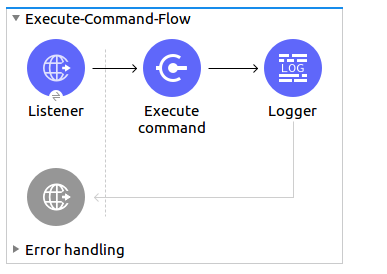
-
Anypoint Studio で新しい Mule プロジェクトを作成します。
-
次のプロパティを
mule-artifact.properties ファイルに追加して PowerShell のログイン情報を保存します。config.host=<IpAddress> config.username=<UserName> config.password=<Password> -
プロパティファイルをプロジェクトの
src/main/resources ディレクトリに置きます。 -
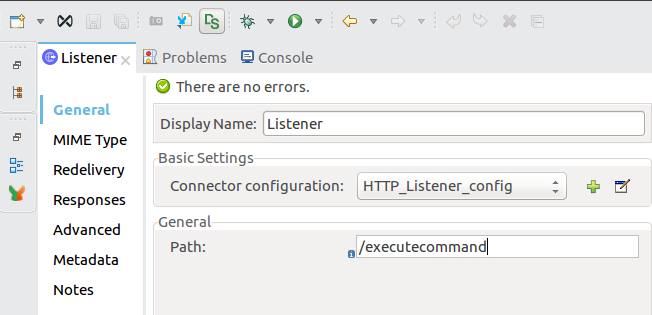
[HTTP] > [Listener (リスナー)] コンポーネントをキャンバスにドラッグし、次のパラメーターを設定します。
-
まだ HTTP リスナーの設定を作成していなければ作成します。
-
[Connector Configuration (コネクタ設定)] の右側にあるプラス記号 (+) をクリックして、新しい HTTP リスナー設定を追加します。
-
次の値を入力します。
-
Host (ホスト):
localhost -
Port (ポート):
8081
-
-
[OK] をクリックします。
-
-
[General (一般)] セクションで、[Path (パス)] に
/executecommand と入力します。 -
PowerShell コネクタの Execute Command 操作を [HTTP Listener (HTTP リスナー)] コンポーネントの横にドラッグします。
-
新しい PowerShell グローバル要素を追加して PowerShell コネクタを設定します。
-
[Connector Configuration (コネクタ設定)] 項目の右にあるプラス記号 (+) をクリックします。
-
グローバル要素を次のように設定します。
-
Name (名前)
設定の名前 -
IP アドレス
スクリプトファイルやコマンドを実行するマシンの IP アドレス。 -
Username (ユーザー名)
スクリプトファイルやコマンドを実行するマシンに関連付けられているユーザーの名前 -
Password (パスワード)
ユーザーのパスワード設定は次のようになります。
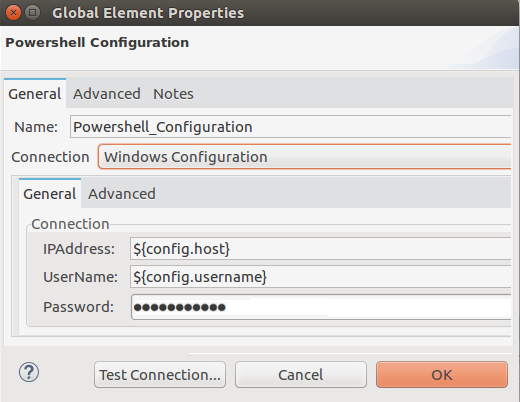
対応する XML 設定は次のようになります。
<powershell:config name="Powershell_Configuration"
  doc:name="PowerShell Configuration">
<powershell:windows-connection
	host="${config.host}"
	username="${config.username}"
	password="${config.password}" />
</powershell:config>
-
-
-
[Test Connection (接続をテスト)] をクリックします。
-
テストに成功した場合は、[OK] をクリックします。失敗した場合は、誤ったパラメーターを確認して修正し、もう一度接続をテストしてください。
-
PowerShell の Execute Command 操作の [General (一般)] プロパティエディターで、残りのパラメーターを設定します。
-
Display Name (表示名)
Execute Command 操作の表示名 -
Command (コマンド)
リモートまたはローカルマシンで実行するコマンド: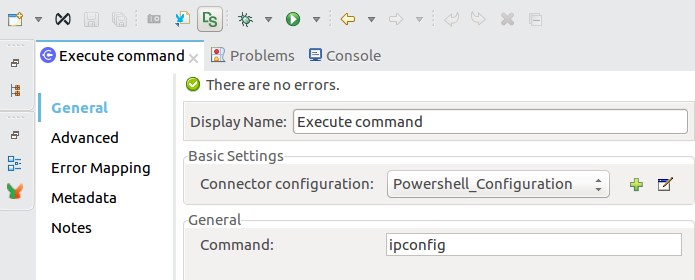
-
-
XML が次のようになっていることを確認します。
<powershell:execute-command doc:name="Execute command" config-ref="Powershell_Configuration" command="ipconfig"/> -
[Mule Palette (Mule パレット)] > [Core (コア)] で [Logger (ロガー)] を選択し、Execute Command 操作の後にドラッグします。
-
[Logger (ロガー)] を設定します。
-
[Logger (ロガー)] コンポーネントの表示名を入力します。
-
Mule のログメッセージがペイロードから取られるように [Message (メッセージ)] に
#[payload] と入力します。 -
[Level (レベル)] を
INFO に設定します。![PowerShell の [Logger (ロガー)]](_images/microsoft-powershell-logger-props.png)
-
-
[File (ファイル)] > [Save (保存)] をクリックします。
-
Package Explorer でプロジェクトを右クリックし、[Run As (別のユーザーとして実行)] > [Mule Application (Mule アプリケーション)] をクリックします。
-
ブラウザーを開き、URL
http://localhost:8081/executecommand を入力して応答を検証します。ブラウザーと Studio コンソールに Execute Command 操作の出力が表示されます。
スクリプトファイルを実行する
この例では、スクリプトファイルを実行する Mule フローを作成します。
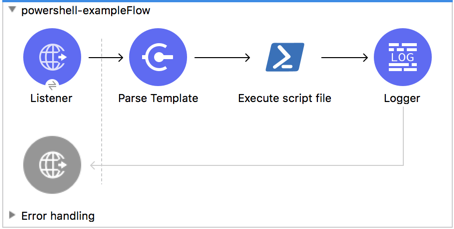
Mule フローを作成する手順は、次のとおりです。
-
[HTTP Listener (HTTP リスナー)] コンポーネントをキャンバスにドラッグし、[Display Name (表示名)] に
Listener と入力します。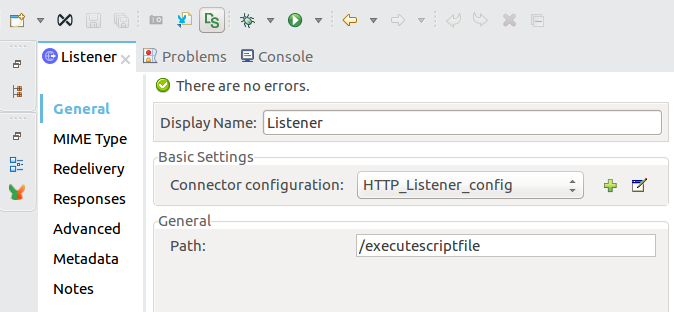
-
HTTP リスナーの設定を作成します。
この手順は、まだ済んでいない場合に必要です。-
プラス記号 (+) をクリックして、新しい HTTP リスナー設定を追加します。
-
次の値を入力します。
-
Host (ホスト):
localhost -
Port (ポート):
8081
-
-
[OK] をクリックします。
-
-
[General (一般)] セクションで、[Path (パス)] に
/executescriptfile と入力します。 -
<mule-project>/src/main/resources フォルダーに新しいファイルを get-en-param.ps1 という名前と次のコンテンツで作成します。$logFile = "C:\Windows\Temp\log.txt" Add-Content $logFile -Value "Parameter a is $a" Add-Content $logFile -Value "Parameter b is $b" Add-Content $logFile -Value "Parameter c is $c" Write-Host "Parameters received are $a $b $c"
-
[Parse Template (テンプレートの解析)] コンポーネントを [HTTP Listener] の横にドラッグします。
-
次のパラメーターを設定します。
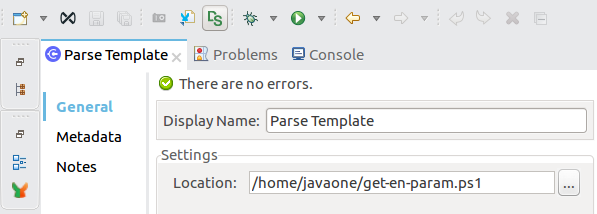
-
[Parse template (テンプレートを解析)] コンポーネントの表示名を入力します。
-
get-en-param.ps1 ファイルの場所を入力します。
XML リファレンスは次のようになります。<parse-template doc:name="Parse Template" doc:id="abc1114d-4b12-42fd-8be6-e88c4dab1887" location="get-en-param.ps1" />
-
-
PowerShell コネクタの [Execute Script File] 操作を [Parse Template (テンプレートの解析)] コンポーネントの横にドラッグします。
-
PowerShell の Execute Script File 操作の [General (一般)] プロパティエディターで、残りのパラメーターを設定します。
-
Execute Script File 操作の表示名を入力します。
-
スクリプトを含むファイルがペイロードファイルから取られるように、[General (一般)] > [File content (ファイルのコンテンツ)] で
#[payload] と入力します。 -
スクリプトでパラメーターが必要な場合は、キー-値のペアごとにパラメーターを追加します。
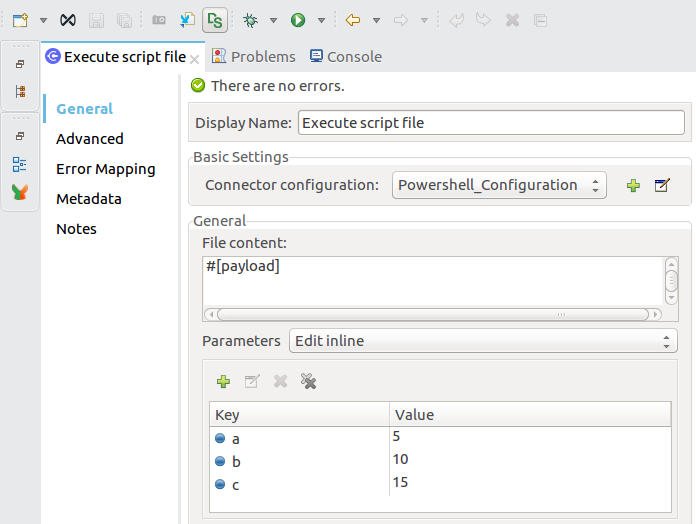
-
-
Execute Script File 操作の後に [Logger (ロガー)] コンポーネントを追加して、Studio コンソールに出力を表示します。
-
[General (一般)] タブで [Logger (ロガー)] コンポーネントの表示名を入力します。
-
Mule のログメッセージがペイロードから取られるように [Message (メッセージ)] に
#[payload] と入力します。 -
[Level (レベル)] を
INFO に設定します。
-
-
[File (ファイル)] > [Save (保存)] をクリックします。
-
Package Explorer で、プロジェクトを右クリックし、[Run As (別のユーザーとして実行)] > [Mule Application (Mule アプリケーション)] をクリックします。
-
ブラウザーを開き、URL
http://localhost:8081/executescriptfile を入力して応答を検証します。
操作の出力がブラウザーとコンソールに表示されます。
Mule XML フロー
Mule フローの XML は次のようになります。
<?xml version="1.0" encoding="UTF-8"?>

<mule xmlns:powershell="http://www.mulesoft.org/schema/mule/powershell"
xmlns:http="http://www.mulesoft.org/schema/mule/http"
xmlns="http://www.mulesoft.org/schema/mule/core"
xmlns:doc="http://www.mulesoft.org/schema/mule/documentation"
xmlns:xsi="http://www.w3.org/2001/XMLSchema-instance"
xsi:schemaLocation="http://www.mulesoft.org/schema/mule/core
http://www.mulesoft.org/schema/mule/core/current/mule.xsd
http://www.mulesoft.org/schema/mule/http
http://www.mulesoft.org/schema/mule/http/current/mule-http.xsd
http://www.mulesoft.org/schema/mule/powershell
http://www.mulesoft.org/schema/mule/powershell/current/mule-powershell.xsd">

    <configuration-properties file="mule-artifact.properties"/>

	<powershell:config name="PowerShell_Configuration" doc:name="PowerShell Configuration">
		<powershell:windows-connection
			host="${config.host}"
			username="${config.username}"
			password="${config.password}" />
	</powershell:config>
	<http:listener-config name="HTTP_Listener_config" doc:name="HTTP Listener config"\>
		<http:listener-connection host="localhost" port="8081" />
	</http:listener-config>
	<flow name="Execute-Command-Flow" />
		<http:listener doc:name="Listener"
			config-ref="HTTP_Listener_config"
			path="/executecommand"/>
		<powershell:execute-command doc:name="Execute command"
		  config-ref="PowerShell_Configuration" command="ipconfig"/>
		<logger level="INFO" doc:name="Logger" message="#[payload]"/>
	</flow>
	<flow name="Execute-Script-File-Flow">
		<http:listener doc:name="Listener" config-ref="HTTP_Listener_config"
		path="/executescriptfile"/>
		<parse-template doc:name="Parse Template"
		location="/home/me/get-en-param.ps1"/>
		<powershell:execute-script-file doc:name="Execute script file"
		 config-ref="Powershell_Configuration">
			<powershell:parameters >
				<powershell:parameter key="a" value="5" />
				<powershell:parameter key="b" value="10" />
				<powershell:parameter key="c" value="15" />
			</powershell:parameters>
		</powershell:execute-script-file>
		<logger level="INFO" doc:name="Logger" message="#[payload]"/>
	</flow>
</mule>