---
schema_version: "1"
id: 136f349bcdb847d553564a234fb58adab0bc3a7f205e3f0e619ced29b88fd8a2
title: Salesforce CDP Connector 1.1 の例
collection: mulesoft
version: current
locale: ja-jp
portal_url: https://docs.salesforce.com/mulesoft/current/ja-jp/salesforce-data-cloud-connector/1.1/salesforce-cdp-connector-examples.md
canonical_url: https://docs.mulesoft.com/jp/salesforce-data-cloud-connector/1.1/salesforce-cdp-connector-examples
source_site: docs.mulesoft.com
content_type: documentation
content_hash: c6618456e8504a737d552cd3c68b7dbc3aa5c23b26fa02b0c90e7869a56c51d3
description: MuleSoft Documentation Site
release: "1.1"
latest: false
---
# Salesforce CDP Connector 1.1 の例

次の例は Salesforce CDP Connector を使用してさまざまな Salesforce CDP API エンドポイントを統合する方法を示しています。

- ストリーミング API 取り込みのフローは次のとおりです。  
    
    - [\[Insert Data - Streaming API\]](<#Insert Data - Streaming API>)​  
        ストリーミング API を介してオブジェクトのエンドポイントにデータを挿入する方法を示します。
    - [\[Delete Data - Streaming API\]](<#Delete Data - Streaming API>)​  
        ストリーミング API を介して特定のオブジェクトのレコードを削除する方法を示します。
- Bulk API 取り込みのフローは次のとおりです。  
    
    - [\[Create Job - Bulk API\]](<#Create Job - Bulk API>)​  
        Salesforce CDP 取り込み API オブジェクトにデータをアップロードするために必要な一括ジョブを作成する方法を示します。
    - [\[Upload Job Data - Bulk API\]](<#Upload Job Data - Bulk API>)​  
        Salesforce CDP 取り込み API オブジェクトに挿入するデータ、または Salesforce CDP 取り込み API オブジェクトから削除するデータをアップロードする方法を示します。
    - [\[Close Job - Bulk API\]](<#Close Job - Bulk API>)​  
        指定したジョブ ID の状況を更新し、ジョブを終了して処理キューに登録する方法を示します。
    - [\[Abort Job - Bulk API\]](<#Abort Job - Bulk API>)​  
        指定したジョブ ID の状況を更新し、ジョブを中止して処理キューには登録しないようにする方法を示します。
    - [\[Get Job - Bulk API\]](<#Get Job - Bulk API>)​  
        指定したジョブ ID の現在の状況を取得する方法を示します。
    - [\[Delete Job - Bulk API\]](<#Delete Job - Bulk API>)​  
        指定したジョブ ID を削除または終了する方法を示します。これにより、Salesforce で保存されているジョブデータとメタデータが削除されます。
- クエリ API のフローは次のとおりです。  
    
    - [\[Query API\]](<#Query API>)​  
        データモデルオブジェクト、レークオブジェクト、統合オブジェクト、リンクオブジェクトにわたって Salesforce CDP データレークを照会する方法を示します。
- 計算済みインサイト API のフローは次のとおりです。  
    
    - [\[Insights - List Metadata API\]](<#Insights - List Metadata API>)​  
        すべての計算済みインサイトのディメンションと基準などのメタデータを取得する方法を示します。
    - [\[Insights - Get Metadata API\]](<#Insights - Get Metadata API>)​  
        計算済みインサイトのディメンションと基準などのメタデータを取得する方法を示します。
    - [\[Insights - Get Insights API\]](<#Insights - Get Insights API>)​  
        計算済みインサイトを照会する方法を示します。ユーザーはさまざまなディメンション、基準、検索条件を選択することによって、分析や絞り込みを行うことができます。
- Profile API のフローは次のとおりです。  
    
    - [\[Profile - List Metadata API\]](<#Profile - List Metadata API>)​  
        すべてのデータモデルオブジェクトのメタデータを取得する方法を示します。
    - [\[Profile - Get Metadata API\]](<#Profile - Get Metadata API>)​  
        要求されたデータモデルオブジェクトのメタデータを取得する方法を示します。
    - [\[Profile - Search Records API\]](<#Profile - Search Records API>)​  
        検索条件に基づいてデータモデルオブジェクトレコードを取得する方法を示します。
    - [\[Profile - Search Records By ID API\]](<#Profile - Search Records By ID API>)​  
        インデックスと検索条件に基づいてデータモデルオブジェクトレコードを取得する方法を示します。
    - [\[Profile - Search Records With Child Records API\]](<#Profile - Search Records With Child Records API>)​  
        インデックスと検索条件に基づいてデータモデルオブジェクトレコードと子オブジェクトレコードを取得する方法を示します。
    - [\[Profile - Search Records With Insight API\]](<#Profile - Search Records With Insight API>)​  
        インデックスと検索条件に基づいてデータモデルオブジェクトレコードと計算済みビューを取得する方法を示します。
- データアクション API のフローは次のとおりです。  
    
    - [\[Data Action Webhook\]](<#Data Action Webhook>)​  
        データアクションがトリガーされたときに操作を実行する方法を示します。

## [](#データの挿入-ストリーミング-api)データの挿入 - ストリーミング API

この Mule フローでは、ストリーミング API を介してオブジェクトのエンドポイントにデータを挿入する方法を示します。 [Salesforce API のドキュメント](https://developer.salesforce.com/docs/atlas.en-us.c360a_api.meta/c360a_api/c360a_api_insert_records.htm)​を参照してください。

この例では、次の操作を使用します。

- **HTTP Listener**​  
    ソースとオブジェクト名が URI パラメーターとして含まれる HTTP POST 要求からデータを受け取ります。
- **Logger**​  
    **Listener**​ から受け取った HTTP 要求を表示します。また、後で ​**Insert Objects**​ 操作からの HTTP 応答を表示します。
- **Streaming Insert**
    
    - JWT を選択したかユーザー名とパスワードを選択したかに基づいて認証します。
    - ソース名、オブジェクト名、ペイロードを受け取ります。
    - Salesforce API をコールして、該当のオブジェクトのエンドポイントにペイロードを挿入します。
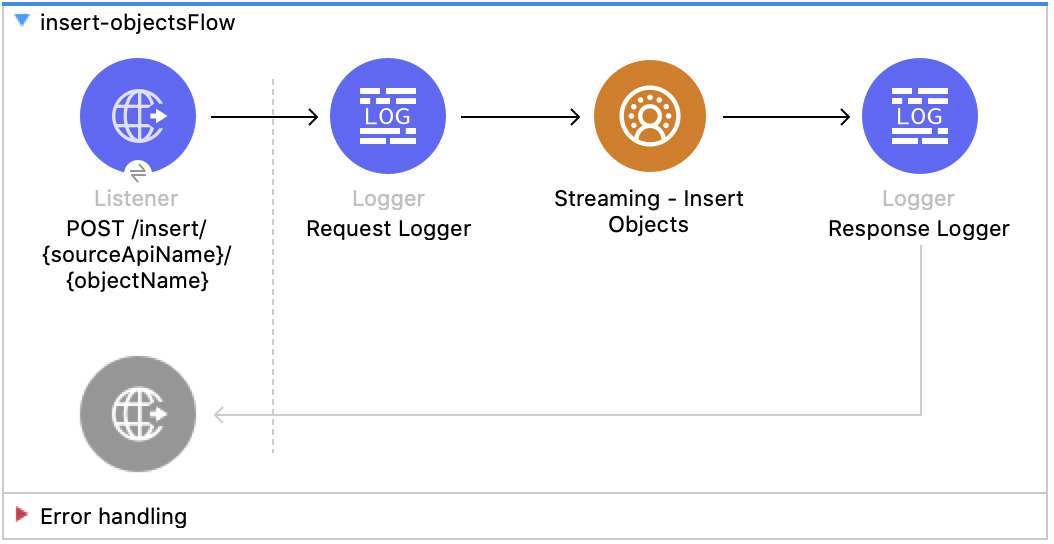
![Salesforce CDP の挿入フローの図 - (Listener - Logger - Insert Objects - Response Logger)](/mulesoft/current/ja-jp/salesforce-data-cloud-connector/1.1/_images/Insert-flow.png)

### [](#この例の-xml)この例の XML

この例のフローをすばやく Mule アプリケーションに読み込むには、次のコードを Studio XML エディターに貼り付けます。

```xml
<?xml version="1.0" encoding="UTF-8"?>

<mule xmlns:sdc="http://www.mulesoft.org/schema/mule/sdc" xmlns:http="http://www.mulesoft.org/schema/mule/http"
	  xmlns="http://www.mulesoft.org/schema/mule/core"
	  xmlns:doc="http://www.mulesoft.org/schema/mule/documentation" xmlns:xsi="http://www.w3.org/2001/XMLSchema-instance" xsi:schemaLocation="http://www.mulesoft.org/schema/mule/core http://www.mulesoft.org/schema/mule/core/current/mule.xsd
http://www.mulesoft.org/schema/mule/http http://www.mulesoft.org/schema/mule/http/current/mule-http.xsd
http://www.mulesoft.org/schema/mule/sdc http://www.mulesoft.org/schema/mule/sdc/current/mule-sdc.xsd">
	<http:listener-config name="HTTP_Listener_config" doc:name="HTTP Listener config" >
		<http:listener-connection host="0.0.0.0" port="8081" />
	</http:listener-config>
    <configuration-properties doc:name="Configuration properties" file="mule-app.properties" />
    <sdc:sdc-config name="Salesforce_CDP_OAuth_JWT_config" doc:name="Salesforce CDP config" >
		<sdc:oauth-jwt-connection consumerKey="${server.consumerKey}" keyStorePath="${server.keyStorePath}" storePassword="${server.keyStorePassword}" subject="${server.userName}" keyAlias="${server.certificateAlias}" audienceUrl="${server.audienceUrl}"/>
	</sdc:sdc-config>
	<sdc:sdc-config name="Salesforce_CDP_OAuth_UsernamePassword_config" doc:name="Salesforce CDP config" >
		<sdc:oauth-user-pass-connection audienceUrl="${server.audienceUrl}" username="${server.userName}" password="${server.password}" clientId="${server.consumerKey}" clientSecret="${server.consumerSecret}"/>
	</sdc:sdc-config>

	<flow name="Insert-objectsFlow" >
		<http:listener doc:name="POST /insert/{sourceApiName}/{objectName}" config-ref="HTTP_Listener_config" path="/insert/{sourceApiName}/{objectName}" allowedMethods="POST"/>
		<logger level="INFO" doc:name="Request Logger" message="#[payload]"/>
		<sdc:insert-objects doc:name="Streaming Insert" config-ref="Salesforce_CDP_OAuth_JWT_config" sourceNameUriParam="#[attributes.uriParams.sourceApiName]" objectNameUriParam="#[attributes.uriParams.objectName]"/>
		<logger level="INFO" doc:name="Response Logger" />
	</flow>
</mule>
```

### [](#この例の実行手順)この例の実行手順

1. [コネクタが設定されていることを確認します。](https://developer.salesforce.com/docs/data/data-cloud-int/guide/c360-a-connect-an-ingestion-source.html)
2. プロジェクトを保存します。
3. オブジェクトのスキーマに一致する JSON ペイロードを使用して ​`POST`​ を ​`localhost:8081/{SOURCE_API_NAME}/{OBJECT_NAME}`​ に送信し、フローをテストします。次に例を示します。
    
    ```json
    {
        "data": [
            {
                "your_object_field_1": "value_1",
                "your_object_field_2": "value_2",
                "your_object_field_3": "value_3"
            }
        ]
    }
    ```

## [](#クエリ-api)クエリ API

この Mule フローでは、カスタム SOQL クエリを使用して CDP からデータを照会する方法を示します。 [Salesforce SOQL のドキュメント](https://developer.salesforce.com/docs/atlas.en-us.soql_sosl.meta/soql_sosl/sforce_api_calls_soql.htm)​を参照してください。

この例では、次の操作を使用します。

- **HTTP Listener**​  
    ペイロードにクエリが含まれる HTTP POST 要求からデータを受け取ります。
- **Logger**​  
    **Listener**​ から受け取った HTTP 要求を表示します。また、後で ​**Query**​ 操作からの HTTP 応答を表示します。
- **クエリ**
    
    - JWT を選択したかユーザー名とパスワードを選択したかに基づいて認証します。
    - 前の SOQL クエリを受け取ります。
    - クエリを含む Salesforce API をコールして、結果を受け取ります。
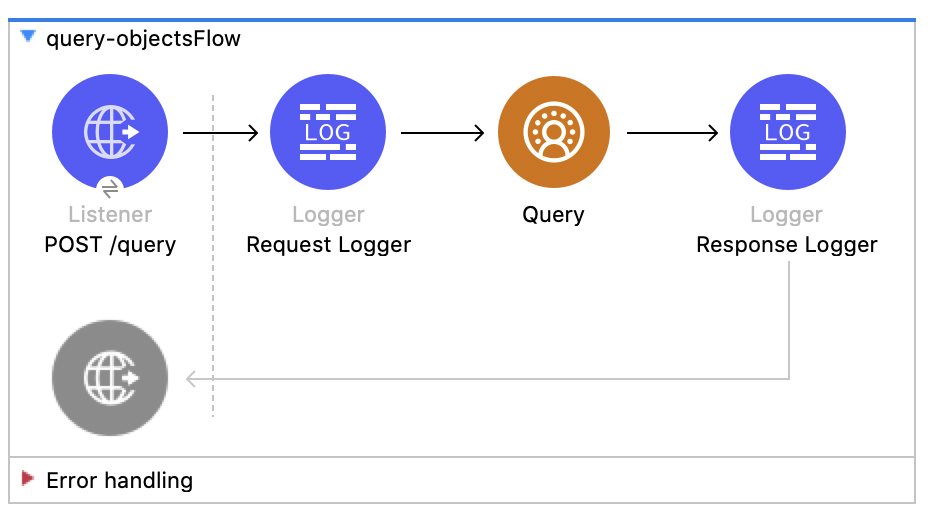
![Salesforce CDP のクエリフローの図 - (Listener - Logger - Query - Response Logger)](/mulesoft/current/ja-jp/salesforce-data-cloud-connector/1.1/_images/query-flow.png)

### [](#この例の-xml-2)この例の XML

この例のフローをすばやく Mule アプリケーションに読み込むには、次のコードを Studio XML エディターに貼り付けます。

```xml
<?xml version="1.0" encoding="UTF-8"?>

<mule xmlns:sdc="http://www.mulesoft.org/schema/mule/sdc" xmlns:http="http://www.mulesoft.org/schema/mule/http"
	  xmlns="http://www.mulesoft.org/schema/mule/core"
	  xmlns:doc="http://www.mulesoft.org/schema/mule/documentation" xmlns:xsi="http://www.w3.org/2001/XMLSchema-instance" xsi:schemaLocation="http://www.mulesoft.org/schema/mule/core http://www.mulesoft.org/schema/mule/core/current/mule.xsd
http://www.mulesoft.org/schema/mule/http http://www.mulesoft.org/schema/mule/http/current/mule-http.xsd
http://www.mulesoft.org/schema/mule/sdc http://www.mulesoft.org/schema/mule/sdc/current/mule-sdc.xsd">
	<http:listener-config name="HTTP_Listener_config" doc:name="HTTP Listener config" >
		<http:listener-connection host="0.0.0.0" port="8081" />
	</http:listener-config>
    <configuration-properties doc:name="Configuration properties" file="mule-app.properties" />
    <sdc:sdc-config name="Salesforce_CDP_OAuth_JWT_config" doc:name="Salesforce CDP config" >
		<sdc:oauth-jwt-connection consumerKey="${server.consumerKey}" keyStorePath="${server.keyStorePath}" storePassword="${server.keyStorePassword}" subject="${server.userName}" keyAlias="${server.certificateAlias}" audienceUrl="${server.audienceUrl}"/>
	</sdc:sdc-config>
	<sdc:sdc-config name="Salesforce_CDP_OAuth_UsernamePassword_config" doc:name="Salesforce CDP config" >
		<sdc:oauth-user-pass-connection audienceUrl="${server.audienceUrl}" username="${server.userName}" password="${server.password}" clientId="${server.consumerKey}" clientSecret="${server.consumerSecret}"/>
	</sdc:sdc-config>

	<flow name="query-objectsFlow" >
		<http:listener doc:name="POST /query" config-ref="HTTP_Listener_config" path="/query" allowedMethods="POST"/>
		<logger level="INFO" doc:name="Request Logger" message="#[payload]"/>
		<sdc:query doc:name="Query" config-ref="Salesforce_CDP_OAuth_JWT_config"/>
		<logger level="INFO" doc:name="Response Logger" message="#[payload]"/>
	</flow>
</mule>
```

### [](#この例の実行手順-2)この例の実行手順

1. [コネクタが設定されていることを確認します。](https://developer.salesforce.com/docs/data/data-cloud-int/guide/c360-a-connect-an-ingestion-source.html)
2. プロジェクトを保存します。
3. リクエストボディに SOQL クエリを含めて ​`POST`​ を ​`localhost:8081/query`​ に送信し、フローをテストします。次に例を示します。
    
    ```json
    {
        "sql": "SELECT ID FROM ACCOUNT LIMIT 1"
    }
    ```

## [](#データの削除-ストリーミング-api)データの削除 - ストリーミング API

この Mule フローでは、オブジェクトのエンドポイントを使用してストリーミング API を介してデータを削除する方法を示します。 [Salesforce API のドキュメント](https://developer.salesforce.com/docs/atlas.en-us.c360a_api.meta/c360a_api/c360a_api_delete_records.htm)​を参照してください。

この例では、次の操作を使用します。

- **HTTP Listener**​  
    ソース API とオブジェクト名が URI パラメーターとして含まれ、レコード ID がクエリパラメーターとして含まれる HTTP DELETE 要求からデータを受け取ります。
- **Logger**​  
    **Listener**​ から受け取った HTTP 要求を表示します。また、後で ​**Streaming Delete**​ 操作からの HTTP 応答を表示します。
- **Streaming Delete**
    
    - JWT を選択したかユーザー名とパスワードを選択したかに基づいて認証します。
    - ソース API 参照名、オブジェクト名、レコード ID を受け取ります。
    - Salesforce API をコールして、該当のオブジェクトのエンドポイントを使用してクエリパラメーターからレコードを削除します。
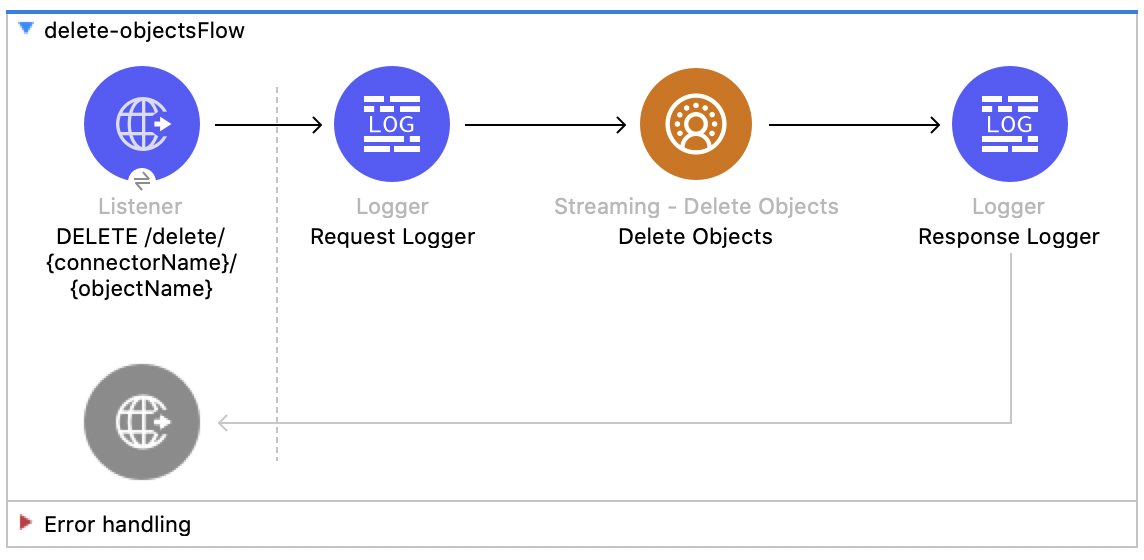
![Salesforce CDP の削除フローの図 - (Listener - Logger - Delete Objects - Response Logger)](/mulesoft/current/ja-jp/salesforce-data-cloud-connector/1.1/_images/delete-flow.png)

### [](#この例の-xml-3)この例の XML

この例のフローをすばやく Mule アプリケーションに読み込むには、次のコードを Studio XML エディターに貼り付けます。

```xml
<?xml version="1.0" encoding="UTF-8"?>

<mule xmlns:sdc="http://www.mulesoft.org/schema/mule/sdc" xmlns:http="http://www.mulesoft.org/schema/mule/http"
	  xmlns="http://www.mulesoft.org/schema/mule/core"
	  xmlns:doc="http://www.mulesoft.org/schema/mule/documentation" xmlns:xsi="http://www.w3.org/2001/XMLSchema-instance" xsi:schemaLocation="http://www.mulesoft.org/schema/mule/core http://www.mulesoft.org/schema/mule/core/current/mule.xsd
http://www.mulesoft.org/schema/mule/http http://www.mulesoft.org/schema/mule/http/current/mule-http.xsd
http://www.mulesoft.org/schema/mule/sdc http://www.mulesoft.org/schema/mule/sdc/current/mule-sdc.xsd">
	<http:listener-config name="HTTP_Listener_config" doc:name="HTTP Listener config" >
		<http:listener-connection host="0.0.0.0" port="8081" />
	</http:listener-config>
    <configuration-properties doc:name="Configuration properties" file="mule-app.properties" />
    <sdc:sdc-config name="Salesforce_CDP_OAuth_JWT_config" doc:name="Salesforce CDP config" >
		<sdc:oauth-jwt-connection consumerKey="${server.consumerKey}" keyStorePath="${server.keyStorePath}" storePassword="${server.keyStorePassword}" subject="${server.userName}" keyAlias="${server.certificateAlias}" audienceUrl="${server.audienceUrl}"/>
	</sdc:sdc-config>
	<sdc:sdc-config name="Salesforce_CDP_OAuth_UsernamePassword_config" doc:name="Salesforce CDP config" >
		<sdc:oauth-user-pass-connection audienceUrl="${server.audienceUrl}" username="${server.userName}" password="${server.password}" clientId="${server.consumerKey}" clientSecret="${server.consumerSecret}"/>
	</sdc:sdc-config>

	<flow name="delete-objectsFlow" >
		<http:listener doc:name="DELETE /delete/{sourceApiName}/{objectName}" config-ref="HTTP_Listener_config" path="/delete/{sourceApiName}/{objectName}" allowedMethods="DELETE"/>
		<logger level="INFO" doc:name="Request Logger" />
		<sdc:delete-objects doc:name="Streaming - Delete Objects" config-ref="Salesforce_CDP_OAuth_JWT_config" idsQueryParams="#[output application/java&#10;---&#10;[attributes.queryParams.ids]]" sourceNameUriParam="#[attributes.uriParams.sourceApiName]" objectNameUriParam="#[attributes.uriParams.objectName]"/>
		<logger level="INFO" doc:name="Response Logger" />
	</flow>
</mule>
```

### [](#この例の実行手順-3)この例の実行手順

1. [コネクタが設定されていることを確認します。](https://developer.salesforce.com/docs/data/data-cloud-int/guide/c360-a-connect-an-ingestion-source.html)
2. プロジェクトを保存します。
3. `DELETE`​ を ​`localhost:8081/delete/{SOURCE_API_NAME}/{OBJECT_NAME}?ids={RECORD_ID1},{RECORD_ID2}`​ に送信して、フローをテストします。次に例を示します。
    
    `localhost:8081/delete/My_SourceApi/My_Object?ids=1,2,3`

## [](#ジョブの作成-bulk-api)ジョブの作成 - Bulk API

この Mule フローでは、Salesforce CDP 取り込み API オブジェクトにデータをアップロードする一括ジョブを作成する方法を示します。 [Salesforce API のドキュメント](https://developer.salesforce.com/docs/atlas.en-us.c360a_api.meta/c360a_api/c360a_api_create_a_job.htm)​を参照してください。

この例では、次の操作を使用します。

- **HTTP Listener**​  
    ソース API とオブジェクト名が URI パラメーターとして含まれ、レコード ID がクエリパラメーターとして含まれる HTTP POST 要求からデータを受け取ります。
- **Logger**​  
    **Listener**​ から受け取った HTTP 要求を表示します。また、後で ​**Create Job**​ 操作からの HTTP 応答を表示します。
- Create Job:
    
    - JWT を選択したかユーザー名とパスワードを選択したかに基づいて認証します。
    - ソース API 参照名、オブジェクト名、ジョブ操作を受け取ります。ジョブ操作については、​[「リファレンス」](https://docs.mulesoft.com/jp/salesforce-data-cloud-connector/1.1/salesforce-cdp-connector-reference)​ページを参照してください。
    - ジョブを作成する Salesforce API をコールして、応答を返します。
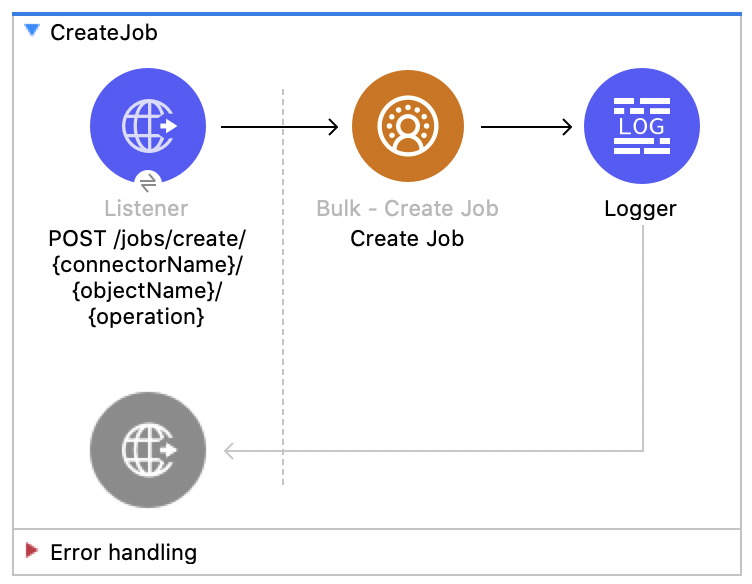
![Salesforce CDP のジョブの作成フローの図 - (Listener - Create Job - Logger)](/mulesoft/current/ja-jp/salesforce-data-cloud-connector/1.1/_images/create-job-bulk.png)

### [](#この例の-xml-4)この例の XML

この例のフローをすばやく Mule アプリケーションに読み込むには、次のコードを Studio XML エディターに貼り付けます。

```xml
<?xml version="1.0" encoding="UTF-8"?>

<mule xmlns:salesforce="http://www.mulesoft.org/schema/mule/salesforce" xmlns:ee="http://www.mulesoft.org/schema/mule/ee/core"
	xmlns:file="http://www.mulesoft.org/schema/mule/file"
	xmlns:sdc="http://www.mulesoft.org/schema/mule/sdc" xmlns:http="http://www.mulesoft.org/schema/mule/http" xmlns="http://www.mulesoft.org/schema/mule/core" xmlns:doc="http://www.mulesoft.org/schema/mule/documentation" xmlns:xsi="http://www.w3.org/2001/XMLSchema-instance" xsi:schemaLocation="http://www.mulesoft.org/schema/mule/core http://www.mulesoft.org/schema/mule/core/current/mule.xsd
http://www.mulesoft.org/schema/mule/http http://www.mulesoft.org/schema/mule/http/current/mule-http.xsd
http://www.mulesoft.org/schema/mule/sdc http://www.mulesoft.org/schema/mule/sdc/current/mule-sdc.xsd
http://www.mulesoft.org/schema/mule/file http://www.mulesoft.org/schema/mule/file/current/mule-file.xsd
http://www.mulesoft.org/schema/mule/ee/core http://www.mulesoft.org/schema/mule/ee/core/current/mule-ee.xsd
http://www.mulesoft.org/schema/mule/salesforce http://www.mulesoft.org/schema/mule/salesforce/current/mule-salesforce.xsd">
	<http:listener-config name="HTTP_Listener_config" doc:name="HTTP Listener config" >
		<http:listener-connection host="0.0.0.0" port="8081" />
	</http:listener-config>
	<sdc:sdc-config name="Salesforce_CDP_OAuth_JWT_config" doc:name="Salesforce CDP config" >
		<sdc:oauth-jwt-connection consumerKey="${server.consumerKey}" keyStorePath="${server.keyStorePath}" storePassword="${server.keyStorePassword}" subject="${server.userName}" audienceUrl="${server.audienceUrl}" keyAlias="${server.certificateAlias}" />
	</sdc:sdc-config>
	<configuration-properties doc:name="Configuration properties" file="mule-app.properties" />
	<sdc:sdc-config name="Salesforce_CDP_OAuth_UsernamePassword_config" doc:name="Salesforce CDP config" >
		<sdc:oauth-user-pass-connection clientId="${server.consumerKey}" clientSecret="${server.consumerSecret}" username="${server.userName}" password="${server.password}" audienceUrl="${server.audienceUrl}" />
	</sdc:sdc-config>
	<flow name="CreateJob" >
		<http:listener doc:name="Post /jobs/create" config-ref="HTTP_Listener_config" path="/jobs/create/{sourceApiName}/{objectName}/{operation}"/>
		<sdc:create-bulk-job doc:name="Create Job" config-ref="Salesforce_CDP_OAuth_UsernamePassword_config" sourceNameUriParam="#[attributes.uriParams.sourceApiName]" objectNameUriParam="#[attributes.uriParams.objectName]" operationUriParam="#[attributes.uriParams.operation]"/>
		<logger level="INFO" doc:name="Logger" />
	</flow>
</mule>
```

### [](#この例の実行手順-4)この例の実行手順

1. [コネクタが設定されていることを確認します。](https://developer.salesforce.com/docs/data/data-cloud-int/guide/c360-a-connect-an-ingestion-source.html)
2. プロジェクトを保存します。
3. `POST`​ を ​`localhost:8081/jobs/create/{SOURCE_API_NAME}/{OBJECT_NAME}/{OPERATION}`​ に送信して、フローをテストします。

## [](#ジョブデータのアップロード-bulk-api)ジョブデータのアップロード - Bulk API

この Mule フローでは、ジョブ ID で指定した Salesforce CDP 取り込み API オブジェクトに挿入するデータ、またはその Salesforce CDP 取り込み API オブジェクトから削除するデータをアップロードする方法を示します。 [Salesforce API のドキュメント](https://developer.salesforce.com/docs/atlas.en-us.c360a_api.meta/c360a_api/c360a_api_upload_job_data.htm)​を参照してください。

この例では、次の操作を使用します。

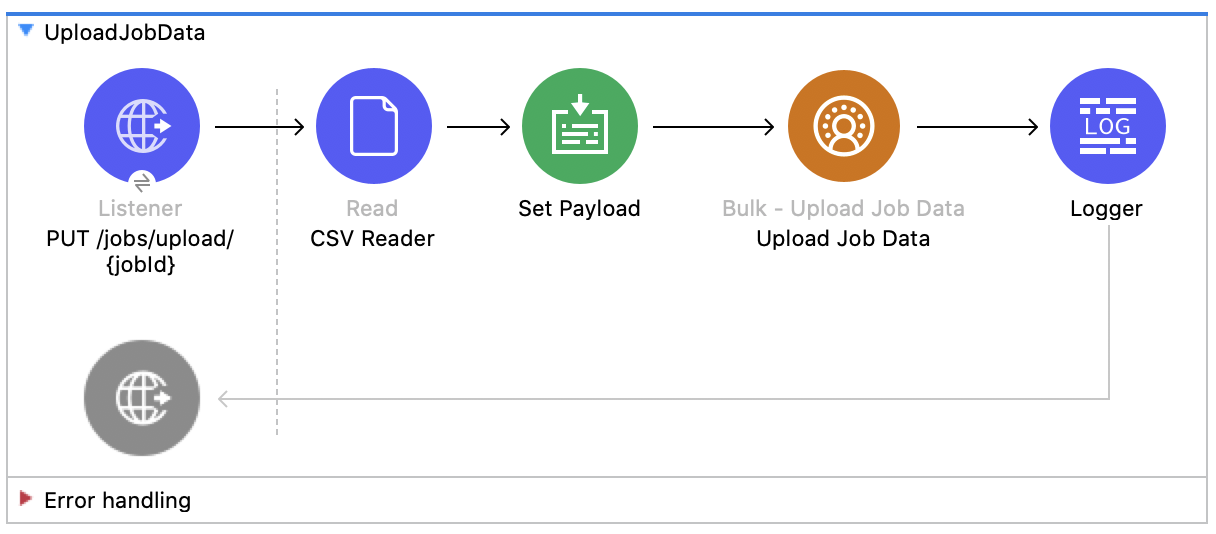
- **HTTP Listener**​  
    URI にジョブ ID が含まれる HTTP POST 要求からデータを受け取ります。
- **CSV Reader**​  
    絶対ファイルパスで設定された CSV からデータを読み取ります。
- **Set Payload**​  
    **Upload Job Data**​ 用の CSV データでペイロードを更新します。
- **Upload Job Data**​  
    
    - JWT を選択したかユーザー名とパスワードを選択したかに基づいて認証します。
    - HTTP 要求からのジョブ ID と、ペイロードにある CSV データを受け取ります。
    - データを CSV から Salesforce CDP 取り込み API オブジェクトにアップロードし、最終的に HTTP 応答を返します。
- **Logger**​  
    **Upload Job Data**​ 操作からの HTTP 結果を表示します。

![Salesforce CDP のジョブのアップロードフローの図 - (Listener - Create Job Data- Logger)](/mulesoft/current/ja-jp/salesforce-data-cloud-connector/1.1/_images/upload-job-data-bulk.png)

### [](#この例の-xml-5)この例の XML

この例のフローをすばやく Mule アプリケーションに読み込むには、次のコードを Studio XML エディターに貼り付けます。

```xml
<?xml version="1.0" encoding="UTF-8"?>

<mule xmlns:salesforce="http://www.mulesoft.org/schema/mule/salesforce" xmlns:ee="http://www.mulesoft.org/schema/mule/ee/core"
	xmlns:file="http://www.mulesoft.org/schema/mule/file"
	xmlns:sdc="http://www.mulesoft.org/schema/mule/sdc" xmlns:http="http://www.mulesoft.org/schema/mule/http" xmlns="http://www.mulesoft.org/schema/mule/core" xmlns:doc="http://www.mulesoft.org/schema/mule/documentation" xmlns:xsi="http://www.w3.org/2001/XMLSchema-instance" xsi:schemaLocation="http://www.mulesoft.org/schema/mule/core http://www.mulesoft.org/schema/mule/core/current/mule.xsd
http://www.mulesoft.org/schema/mule/http http://www.mulesoft.org/schema/mule/http/current/mule-http.xsd
http://www.mulesoft.org/schema/mule/sdc http://www.mulesoft.org/schema/mule/sdc/current/mule-sdc.xsd
http://www.mulesoft.org/schema/mule/file http://www.mulesoft.org/schema/mule/file/current/mule-file.xsd
http://www.mulesoft.org/schema/mule/ee/core http://www.mulesoft.org/schema/mule/ee/core/current/mule-ee.xsd
http://www.mulesoft.org/schema/mule/salesforce http://www.mulesoft.org/schema/mule/salesforce/current/mule-salesforce.xsd">
	<http:listener-config name="HTTP_Listener_config" doc:name="HTTP Listener config" >
		<http:listener-connection host="0.0.0.0" port="8081" />
	</http:listener-config>
	<sdc:sdc-config name="Salesforce_CDP_OAuth_JWT_config" doc:name="Salesforce CDP config" >
		<sdc:oauth-jwt-connection consumerKey="${server.consumerKey}" keyStorePath="${server.keyStorePath}" storePassword="${server.keyStorePassword}" subject="${server.userName}" audienceUrl="${server.audienceUrl}" keyAlias="${server.certificateAlias}" />
	</sdc:sdc-config>
	<configuration-properties doc:name="Configuration properties" file="mule-app.properties" />
	<sdc:sdc-config name="Salesforce_CDP_OAuth_UsernamePassword_config" doc:name="Salesforce CDP config" >
		<sdc:oauth-user-pass-connection clientId="${server.consumerKey}" clientSecret="${server.consumerSecret}" username="${server.userName}" password="${server.password}" audienceUrl="${server.audienceUrl}" />
	</sdc:sdc-config>
	<flow name="UploadJobData" >
        <http:listener doc:name="Upload Job Data Listener" config-ref="HTTP_Listener_config" path="/jobs/upload/{jobId}"/>
        <file:read doc:name="CSV Reader" path="" target="content"/>
        <set-payload value="#[vars.content]" doc:name="Set Payload" />
        <sdc:upload-data-bulk-job doc:name="Upload Job Data" config-ref="Salesforce_CDP_OAuth_JWT_config" idUriParam="#[attributes.uriParams.jobId]"/>
        <logger level="INFO" doc:name="Logger" message="#[message]"/>
    </flow>
</mule>
```

### [](#この例の実行手順-5)この例の実行手順

1. [コネクタが設定されていることを確認します。](https://developer.salesforce.com/docs/data/data-cloud-int/guide/c360-a-connect-an-ingestion-source.html)
2. CSV への有効な絶対ファイルパスを CSV Reader の ​**\[File Path (ファイルパス)\]**​ 属性に入力します。
3. プロジェクトを保存します。
4. [ジョブを作成](https://docs.mulesoft.com/jp/salesforce-data-cloud-connector/1.1/%3C#Create Job - Bulk API>)​し、そのジョブ ID をコピーします。
5. 前の手順でコピーしたジョブ ID を使用して ​`POST`​ を ​`localhost:8081/jobs/upload/{JOB_ID}`​ に送信し、フローをテストします。

## [](#ジョブの終了-bulk-api)ジョブの終了 - Bulk API

この Mule フローでは、指定したジョブ ID の状況を更新してジョブを終了する方法を示します。終了したジョブは、 [Salesforce API のドキュメント](https://developer.salesforce.com/docs/atlas.en-us.c360a_api.meta/c360a_api/c360a_api_close_or_abort_a_job.htm)​処理キューに登録されます。

この例では、次の操作を使用します。

- **HTTP Listener**​  
    URI パラメーターにジョブ ID が含まれる HTTP GET 要求からデータを受け取ります。
- **Logger**​  
    **Close Job**​ 操作からの HTTP 応答を表示します。
- **Close Job**
    
    - JWT を選択したかユーザー名とパスワードを選択したかに基づいて認証します。
    - 指定されたジョブを受け取ります。
    - `UploadComplete`​ 状態を使用して Salesforce API をコールし、該当のジョブを完了した後、HTTP 応答を受け取ります。
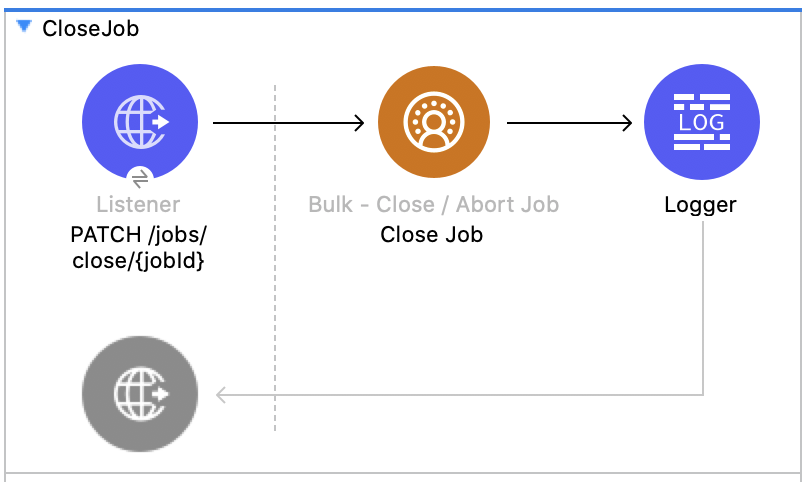
![Salesforce CDP のジョブの終了フローの図 - (Listener - Close Job - Logger)](/mulesoft/current/ja-jp/salesforce-data-cloud-connector/1.1/_images/close-job-bulk.png)

### [](#この例の-xml-6)この例の XML

この例のフローをすばやく Mule アプリケーションに読み込むには、次のコードを Studio XML エディターに貼り付けます。

```xml
<?xml version="1.0" encoding="UTF-8"?>

<mule xmlns:salesforce="http://www.mulesoft.org/schema/mule/salesforce" xmlns:ee="http://www.mulesoft.org/schema/mule/ee/core"
	xmlns:file="http://www.mulesoft.org/schema/mule/file"
	xmlns:sdc="http://www.mulesoft.org/schema/mule/sdc" xmlns:http="http://www.mulesoft.org/schema/mule/http" xmlns="http://www.mulesoft.org/schema/mule/core" xmlns:doc="http://www.mulesoft.org/schema/mule/documentation" xmlns:xsi="http://www.w3.org/2001/XMLSchema-instance" xsi:schemaLocation="http://www.mulesoft.org/schema/mule/core http://www.mulesoft.org/schema/mule/core/current/mule.xsd
http://www.mulesoft.org/schema/mule/http http://www.mulesoft.org/schema/mule/http/current/mule-http.xsd
http://www.mulesoft.org/schema/mule/sdc http://www.mulesoft.org/schema/mule/sdc/current/mule-sdc.xsd
http://www.mulesoft.org/schema/mule/file http://www.mulesoft.org/schema/mule/file/current/mule-file.xsd
http://www.mulesoft.org/schema/mule/ee/core http://www.mulesoft.org/schema/mule/ee/core/current/mule-ee.xsd
http://www.mulesoft.org/schema/mule/salesforce http://www.mulesoft.org/schema/mule/salesforce/current/mule-salesforce.xsd">
	<http:listener-config name="HTTP_Listener_config" doc:name="HTTP Listener config" >
		<http:listener-connection host="0.0.0.0" port="8081" />
	</http:listener-config>
	<sdc:sdc-config name="Salesforce_CDP_OAuth_JWT_config" doc:name="Salesforce CDP config" >
		<sdc:oauth-jwt-connection consumerKey="${server.consumerKey}" keyStorePath="${server.keyStorePath}" storePassword="${server.keyStorePassword}" subject="${server.userName}" audienceUrl="${server.audienceUrl}" keyAlias="${server.certificateAlias}" />
	</sdc:sdc-config>
	<configuration-properties doc:name="Configuration properties" file="mule-app.properties" />
	<sdc:sdc-config name="Salesforce_CDP_OAuth_UsernamePassword_config" doc:name="Salesforce CDP config" >
		<sdc:oauth-user-pass-connection clientId="${server.consumerKey}" clientSecret="${server.consumerSecret}" username="${server.userName}" password="${server.password}" audienceUrl="${server.audienceUrl}" />
	</sdc:sdc-config>
	<flow name="CloseJob" >
		<http:listener doc:name="Get /jobs/close/{jobId}" config-ref="HTTP_Listener_config" path="/jobs/close/{jobId}"/>
		<sdc:update-bulk-operation-job doc:name="Close Job" config-ref="Salesforce_CDP_OAuth_JWT_config" idUriParam="#[attributes.uriParams.jobId]" state="UploadComplete"/>
		<logger level="INFO" doc:name="Logger" />
	</flow>
</mule>
```

### [](#この例の実行手順-6)この例の実行手順

1. [コネクタが設定されていることを確認します。](https://developer.salesforce.com/docs/data/data-cloud-int/guide/c360-a-connect-an-ingestion-source.html)
2. プロジェクトを保存します。
3. ジョブを作成し、結果のジョブ ID をコピーします。
4. 前の手順でコピーしたジョブ ID を使用して ​`GET`​ を ​`localhost:8081/jobs/close/{JOB_ID}`​ に送信し、フローをテストします。

## [](#ジョブの中止-bulk-api)ジョブの中止 - Bulk API

この Mule フローでは、指定したジョブ ID の状況を更新してジョブを中止する方法を示します。中止したジョブは、 [Salesforce API のドキュメント](https://developer.salesforce.com/docs/atlas.en-us.c360a_api.meta/c360a_api/c360a_api_close_or_abort_a_job.htm)​処理キューに登録されません。

この例では、次の操作を使用します。

- **HTTP Listener**​  
    URI パラメーターにジョブ ID が含まれる HTTP GET 要求からデータを受け取ります。
- **Logger**​  
    **Abort Job**​ 操作からの HTTP 応答を表示します。
- **Abort Job**​:
    
    - JWT を選択したかユーザー名とパスワードを選択したかに基づいて認証します。
    - URI パラメーターとして使用されたジョブ ID を受け取ります。
    - aborted 状態を使用して Salesforce API をコールし、該当のジョブを中止した後、HTTP 応答を受け取ります。
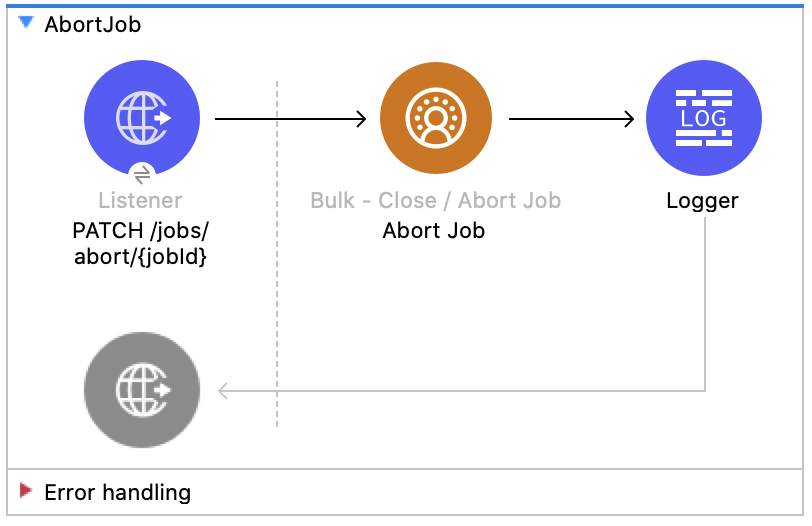
![Salesforce CDP のジョブの中止フローの図 - (Listener - Abort Job - Logger)](/mulesoft/current/ja-jp/salesforce-data-cloud-connector/1.1/_images/abort-job-bulk.png)

### [](#この例の-xml-7)この例の XML

この例のフローをすばやく Mule アプリケーションに読み込むには、次のコードを Studio XML エディターに貼り付けます。

```xml
<?xml version="1.0" encoding="UTF-8"?>

<mule xmlns:salesforce="http://www.mulesoft.org/schema/mule/salesforce" xmlns:ee="http://www.mulesoft.org/schema/mule/ee/core"
	xmlns:file="http://www.mulesoft.org/schema/mule/file"
	xmlns:sdc="http://www.mulesoft.org/schema/mule/sdc" xmlns:http="http://www.mulesoft.org/schema/mule/http" xmlns="http://www.mulesoft.org/schema/mule/core" xmlns:doc="http://www.mulesoft.org/schema/mule/documentation" xmlns:xsi="http://www.w3.org/2001/XMLSchema-instance" xsi:schemaLocation="http://www.mulesoft.org/schema/mule/core http://www.mulesoft.org/schema/mule/core/current/mule.xsd
http://www.mulesoft.org/schema/mule/http http://www.mulesoft.org/schema/mule/http/current/mule-http.xsd
http://www.mulesoft.org/schema/mule/sdc http://www.mulesoft.org/schema/mule/sdc/current/mule-sdc.xsd
http://www.mulesoft.org/schema/mule/file http://www.mulesoft.org/schema/mule/file/current/mule-file.xsd
http://www.mulesoft.org/schema/mule/ee/core http://www.mulesoft.org/schema/mule/ee/core/current/mule-ee.xsd
http://www.mulesoft.org/schema/mule/salesforce http://www.mulesoft.org/schema/mule/salesforce/current/mule-salesforce.xsd">
	<http:listener-config name="HTTP_Listener_config" doc:name="HTTP Listener config" >
		<http:listener-connection host="0.0.0.0" port="8081" />
	</http:listener-config>
	<sdc:sdc-config name="Salesforce_CDP_OAuth_JWT_config" doc:name="Salesforce CDP config" >
		<sdc:oauth-jwt-connection consumerKey="${server.consumerKey}" keyStorePath="${server.keyStorePath}" storePassword="${server.keyStorePassword}" subject="${server.userName}" audienceUrl="${server.audienceUrl}" keyAlias="${server.certificateAlias}" />
	</sdc:sdc-config>
	<configuration-properties doc:name="Configuration properties" file="mule-app.properties" />
	<sdc:sdc-config name="Salesforce_CDP_OAuth_UsernamePassword_config" doc:name="Salesforce CDP config" >
		<sdc:oauth-user-pass-connection clientId="${server.consumerKey}" clientSecret="${server.consumerSecret}" username="${server.userName}" password="${server.password}" audienceUrl="${server.audienceUrl}" />
	</sdc:sdc-config>
	<flow name="AbortJob" >
		<http:listener doc:name="Get /jobs/abort/{jobId}"  config-ref="HTTP_Listener_config" path="/jobs/abort/{jobId}"/>
		<sdc:update-bulk-operation-job doc:name="Abort Job" config-ref="Salesforce_CDP_OAuth_JWT_config" idUriParam="#[attributes.uriParams.jobId]" state="Aborted"/>
		<logger level="INFO" doc:name="Logger" />
	</flow>
</mule>
```

### [](#この例の実行手順-7)この例の実行手順

1. [コネクタが設定されていることを確認します。](https://developer.salesforce.com/docs/data/data-cloud-int/guide/c360-a-connect-an-ingestion-source.html)
2. プロジェクトを保存します。
3. [ジョブを作成](https://docs.mulesoft.com/jp/salesforce-data-cloud-connector/1.1/%3C#Create Job - Bulk API>)​し、結果のジョブ ID をコピーします。
4. 前の手順でコピーしたジョブ ID を使用して ​`GET`​ を ​`localhost:8081/jobs/abort/{JOB_ID}`​ に送信し、フローをテストします。

## [](#ジョブの取得-bulk-api)ジョブの取得 - Bulk API

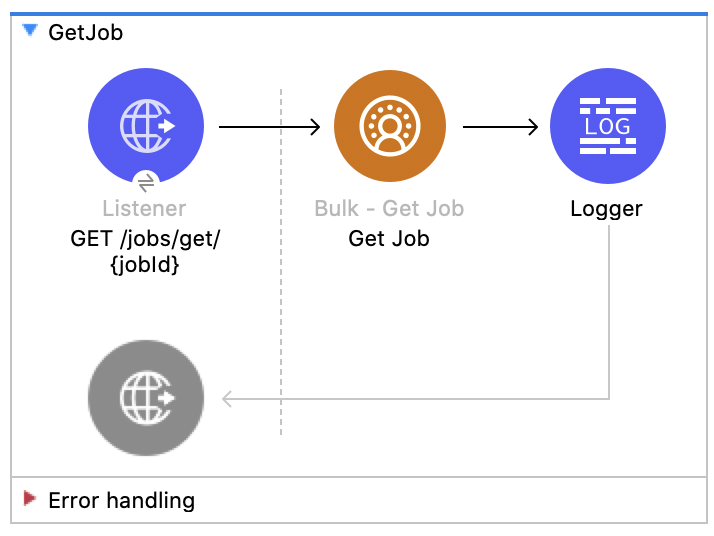
この Mule フローでは、指定したジョブ ID の現在の状況を取得する方法を示します。 [Salesforce API のドキュメント](https://developer.salesforce.com/docs/atlas.en-us.c360a_api.meta/c360a_api/c360a_api_get_job_info.htm)​を参照してください。

この例では、次の操作を使用します。

- **HTTP Listener**​  
    URI パラメーターにジョブ ID が含まれる HTTP GET 要求からデータを受け取ります。
- **Logger**​  
    **Get Job**​ 操作からの HTTP 応答を表示します。
- **Get Job**
    
    - JWT を選択したかユーザー名とパスワードを選択したかに基づいて認証します。
    - URI パラメーターからジョブ ID を受け取ります。
    - Salesforce API をコールして、ジョブの状況を返します。
![Salesforce CDP のジョブの取得フローの図 - (Listener - Get Job - Logger)](/mulesoft/current/ja-jp/salesforce-data-cloud-connector/1.1/_images/get-job-bulk.png)

### [](#この例の-xml-8)この例の XML

この例のフローをすばやく Mule アプリケーションに読み込むには、次のコードを Studio XML エディターに貼り付けます。

```xml
<?xml version="1.0" encoding="UTF-8"?>

<mule xmlns:salesforce="http://www.mulesoft.org/schema/mule/salesforce" xmlns:ee="http://www.mulesoft.org/schema/mule/ee/core"
	xmlns:file="http://www.mulesoft.org/schema/mule/file"
	xmlns:sdc="http://www.mulesoft.org/schema/mule/sdc" xmlns:http="http://www.mulesoft.org/schema/mule/http" xmlns="http://www.mulesoft.org/schema/mule/core" xmlns:doc="http://www.mulesoft.org/schema/mule/documentation" xmlns:xsi="http://www.w3.org/2001/XMLSchema-instance" xsi:schemaLocation="http://www.mulesoft.org/schema/mule/core http://www.mulesoft.org/schema/mule/core/current/mule.xsd
http://www.mulesoft.org/schema/mule/http http://www.mulesoft.org/schema/mule/http/current/mule-http.xsd
http://www.mulesoft.org/schema/mule/sdc http://www.mulesoft.org/schema/mule/sdc/current/mule-sdc.xsd
http://www.mulesoft.org/schema/mule/file http://www.mulesoft.org/schema/mule/file/current/mule-file.xsd
http://www.mulesoft.org/schema/mule/ee/core http://www.mulesoft.org/schema/mule/ee/core/current/mule-ee.xsd
http://www.mulesoft.org/schema/mule/salesforce http://www.mulesoft.org/schema/mule/salesforce/current/mule-salesforce.xsd">
	<http:listener-config name="HTTP_Listener_config" doc:name="HTTP Listener config" >
		<http:listener-connection host="0.0.0.0" port="8081" />
	</http:listener-config>
	<sdc:sdc-config name="Salesforce_CDP_OAuth_JWT_config" doc:name="Salesforce CDP config" >
		<sdc:oauth-jwt-connection consumerKey="${server.consumerKey}" keyStorePath="${server.keyStorePath}" storePassword="${server.keyStorePassword}" subject="${server.userName}" audienceUrl="${server.audienceUrl}" keyAlias="${server.certificateAlias}" />
	</sdc:sdc-config>
	<configuration-properties doc:name="Configuration properties" file="mule-app.properties" />
	<sdc:sdc-config name="Salesforce_CDP_OAuth_UsernamePassword_config" doc:name="Salesforce CDP config" >
		<sdc:oauth-user-pass-connection clientId="${server.consumerKey}" clientSecret="${server.consumerSecret}" username="${server.userName}" password="${server.password}" audienceUrl="${server.audienceUrl}" />
	</sdc:sdc-config>
	<flow name="GetJob" >
		<http:listener doc:name="Get /jobs/get/{jobId}" config-ref="HTTP_Listener_config" path="/jobs/get/{jobId}"/>
		<sdc:get-bulk-job doc:name="Get Job" config-ref="Salesforce_CDP_OAuth_JWT_config" idUriParam="#[attributes.uriParams.jobId]"/>
		<logger level="INFO" doc:name="Logger" />
	</flow>
</mule>
```

### [](#この例の実行手順-8)この例の実行手順

1. [コネクタが設定されていることを確認します。](https://developer.salesforce.com/docs/data/data-cloud-int/guide/c360-a-connect-an-ingestion-source.html)
2. プロジェクトを保存します。
3. [ジョブを作成](https://docs.mulesoft.com/jp/salesforce-data-cloud-connector/1.1/%3C#Create Job - Bulk API>)​し、結果のジョブ ID をコピーします。
4. 前の手順でコピーしたジョブ ID を使用して ​`GET`​ を ​`localhost:8081/jobs/get/{JOB_ID}`​ に送信し、フローをテストします。

## [](#ジョブの削除-bulk-api)ジョブの削除 - Bulk API

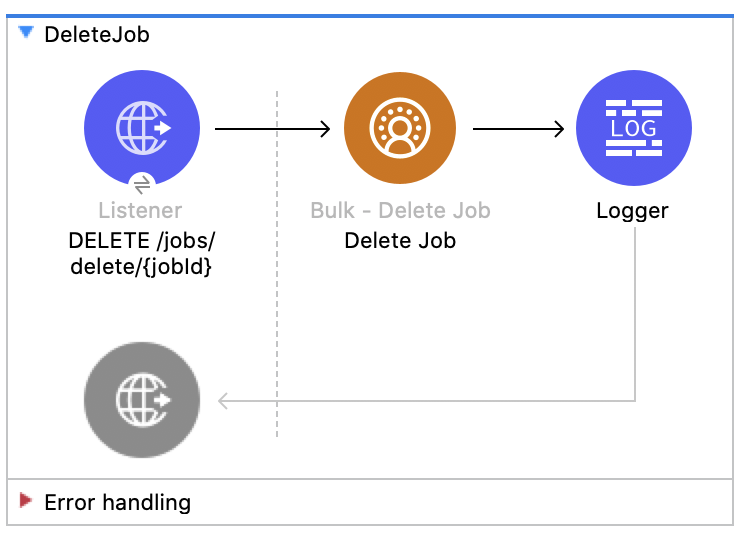
この Mule フローでは、指定したジョブ ID を削除または終了する方法を示します。これにより、Salesforce で保存されているジョブデータとメタデータが削除されます。 ジョブを削除するには、そのジョブの状況が ​`UploadComplete`​、​`JobComplete`​、​`Aborted`​、または ​`Failed`​ である必要があります。 [Salesforce API のドキュメント](https://developer.salesforce.com/docs/atlas.en-us.c360a_api.meta/c360a_api/c360a_api_delete_a_job.htm)​を参照してください。

この例では、次の操作を使用します。

- **HTTP Listener**​  
    URI パラメーターにジョブ ID が含まれる HTTP DELETE 要求からデータを受け取ります。
- **Logger**​  
    **Delete Job**​ 操作からの HTTP 応答を表示します。
- **Delete Job**
    
    - JWT を選択したかユーザー名とパスワードを選択したかに基づいて認証します。
    - URI パラメーターで使用されたジョブ ID を受け取ります。
    - Salesforce API をコールして、ジョブを削除します。
![Salesforce CDP のジョブの削除フローの図 - (Listener - Delete Job - Logger)](/mulesoft/current/ja-jp/salesforce-data-cloud-connector/1.1/_images/delete-job-bulk.png)

### [](#この例の-xml-9)この例の XML

この例のフローをすばやく Mule アプリケーションに読み込むには、次のコードを Studio XML エディターに貼り付けます。

```xml
<?xml version="1.0" encoding="UTF-8"?>

<mule xmlns:salesforce="http://www.mulesoft.org/schema/mule/salesforce" xmlns:ee="http://www.mulesoft.org/schema/mule/ee/core"
	xmlns:file="http://www.mulesoft.org/schema/mule/file"
	xmlns:sdc="http://www.mulesoft.org/schema/mule/sdc" xmlns:http="http://www.mulesoft.org/schema/mule/http" xmlns="http://www.mulesoft.org/schema/mule/core" xmlns:doc="http://www.mulesoft.org/schema/mule/documentation" xmlns:xsi="http://www.w3.org/2001/XMLSchema-instance" xsi:schemaLocation="http://www.mulesoft.org/schema/mule/core http://www.mulesoft.org/schema/mule/core/current/mule.xsd
http://www.mulesoft.org/schema/mule/http http://www.mulesoft.org/schema/mule/http/current/mule-http.xsd
http://www.mulesoft.org/schema/mule/sdc http://www.mulesoft.org/schema/mule/sdc/current/mule-sdc.xsd
http://www.mulesoft.org/schema/mule/file http://www.mulesoft.org/schema/mule/file/current/mule-file.xsd
http://www.mulesoft.org/schema/mule/ee/core http://www.mulesoft.org/schema/mule/ee/core/current/mule-ee.xsd
http://www.mulesoft.org/schema/mule/salesforce http://www.mulesoft.org/schema/mule/salesforce/current/mule-salesforce.xsd">
	<http:listener-config name="HTTP_Listener_config" doc:name="HTTP Listener config" >
		<http:listener-connection host="0.0.0.0" port="8081" />
	</http:listener-config>
	<sdc:sdc-config name="Salesforce_CDP_OAuth_JWT_config" doc:name="Salesforce CDP config" >
		<sdc:oauth-jwt-connection consumerKey="${server.consumerKey}" keyStorePath="${server.keyStorePath}" storePassword="${server.keyStorePassword}" subject="${server.userName}" audienceUrl="${server.audienceUrl}" keyAlias="${server.certificateAlias}" />
	</sdc:sdc-config>
	<configuration-properties doc:name="Configuration properties" file="mule-app.properties" />
	<sdc:sdc-config name="Salesforce_CDP_OAuth_UsernamePassword_config" doc:name="Salesforce CDP config" >
		<sdc:oauth-user-pass-connection clientId="${server.consumerKey}" clientSecret="${server.consumerSecret}" username="${server.userName}" password="${server.password}" audienceUrl="${server.audienceUrl}" />
	</sdc:sdc-config>
	<flow name="DeleteJob" >
		<http:listener doc:name="Delete /jobs/delete/{jobId}" config-ref="HTTP_Listener_config" path="/jobs/delete/{jobId}"/>
		<sdc:delete-bulk-job doc:name="Delete Job" config-ref="Salesforce_CDP_OAuth_JWT_config" idUriParam="#[attributes.uriParams.jobId]"/>
		<logger level="INFO" doc:name="Logger" />
	</flow>
</mule>
```

### [](#この例の実行手順-9)この例の実行手順

1. [コネクタが設定されていることを確認します。](https://developer.salesforce.com/docs/data/data-cloud-int/guide/c360-a-connect-an-ingestion-source.html)
2. プロジェクトを保存します。
3. [ジョブを作成](https://docs.mulesoft.com/jp/salesforce-data-cloud-connector/1.1/%3C#Create Job - Bulk API>)​し、結果のジョブ ID をコピーします。
4. コピーしたジョブを使用して、ジョブを終了します (​[\[Close Job - Bulk API\]](<#Close Job - Bulk API>)​フローを参照)。
5. 前の手順でコピーしたジョブ ID を使用して ​`DELETE`​ を ​`localhost:8081/jobs/delete/{JOB_ID}`​ に送信し、フローをテストします。

## [](#インサイト-メタデータのリスト-api)インサイト - メタデータのリスト API

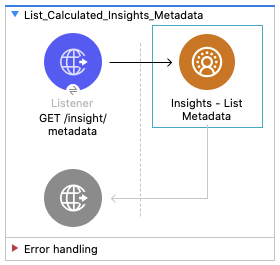
この Mule フローでは、すべての計算済みインサイトのディメンションと検索条件などのメタデータを取得する方法を示します。

この例では、次の操作を使用します。

- **HTTP Listener**​  
    HTTP GET 要求を受け取ります。
- **Insights - List Metadata**
    
    - JWT を選択したかユーザー名とパスワードを選択したかに基づいて認証します。
    - Salesforce CDP API をコールして、すべての計算済みインサイトのメタデータを返します。
![Salesforce CDP インサイト - メタデータのリストフローの図 - (Listener - Insights List Metadata)](/mulesoft/current/ja-jp/salesforce-data-cloud-connector/1.1/_images/insights-list-metadata.png)

### [](#この例の-xml-10)この例の XML

この例のフローをすばやく Mule アプリケーションに読み込むには、次のコードを Studio XML エディターに貼り付けます。

```xml
<mule xmlns:salesforce="http://www.mulesoft.org/schema/mule/salesforce" xmlns:ee="http://www.mulesoft.org/schema/mule/ee/core"
	xmlns:file="http://www.mulesoft.org/schema/mule/file"
	xmlns:sdc="http://www.mulesoft.org/schema/mule/sdc" xmlns:http="http://www.mulesoft.org/schema/mule/http" xmlns="http://www.mulesoft.org/schema/mule/core" xmlns:doc="http://www.mulesoft.org/schema/mule/documentation" xmlns:xsi="http://www.w3.org/2001/XMLSchema-instance" xsi:schemaLocation="http://www.mulesoft.org/schema/mule/core http://www.mulesoft.org/schema/mule/core/current/mule.xsd
http://www.mulesoft.org/schema/mule/http http://www.mulesoft.org/schema/mule/http/current/mule-http.xsd
http://www.mulesoft.org/schema/mule/sdc http://www.mulesoft.org/schema/mule/sdc/current/mule-sdc.xsd
http://www.mulesoft.org/schema/mule/file http://www.mulesoft.org/schema/mule/file/current/mule-file.xsd
http://www.mulesoft.org/schema/mule/ee/core http://www.mulesoft.org/schema/mule/ee/core/current/mule-ee.xsd
http://www.mulesoft.org/schema/mule/salesforce http://www.mulesoft.org/schema/mule/salesforce/current/mule-salesforce.xsd">
	<http:listener-config name="HTTP_Listener_config" doc:name="HTTP Listener config" >
		<http:listener-connection host="0.0.0.0" port="8081" />
	</http:listener-config>
	<sdc:sdc-config name="Salesforce_CDP_OAuth_JWT_config" doc:name="Salesforce CDP config" >
		<sdc:oauth-jwt-connection consumerKey="${server.consumerKey}" keyStorePath="${server.keyStorePath}" storePassword="${server.keyStorePassword}" subject="${server.userName}" audienceUrl="${server.audienceUrl}" keyAlias="${server.certificateAlias}" />
	</sdc:sdc-config>
	<configuration-properties doc:name="Configuration properties" file="mule-app.properties" />
	<sdc:sdc-config name="Salesforce_CDP_OAuth_UsernamePassword_config" doc:name="Salesforce CDP config" >
		<sdc:oauth-user-pass-connection clientId="${server.consumerKey}" clientSecret="${server.consumerSecret}" username="${server.userName}" password="${server.password}" audienceUrl="${server.audienceUrl}" />
	</sdc:sdc-config>
	<flow name="List_Calculated_Insights_Metadata" >
		<http:listener doc:name="GET /insight/metadata" allowedMethods="GET" path="/insight/metadata" config-ref="HTTP_Listener_config"/>
		<sdc:get-all-calculated-insight-metadata doc:name="Insights - List Metadata"  config-ref="Salesforce_CDP_OAuth_JWT_config"/>
	</flow>
</mule>
```

### [](#この例の実行手順-10)この例の実行手順

1. コネクタが設定されていることを確認します。
2. プロジェクトを保存します。
3. `GET`​ を ​`localhost:8081/insight/metadata`​ に送信して、フローをテストします。

## [](#インサイト-メタデータの取得-api)インサイト - メタデータの取得 API

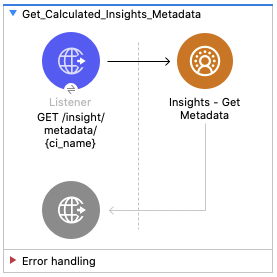
この Mule フローでは、計算済みインサイトのディメンションと検索条件などのメタデータを取得する方法を示します。使用方法と詳細については、 [『Salesforce CDP API 開発者ガイド』](https://developer.salesforce.com/docs/atlas.en-us.c360a_api.meta/c360a_api/c360a_api_insights_meta_ci_name.htm)​を参照してください。

この例では、次の操作を使用します。

- **HTTP Listener**​  
    必須 URI パラメーターとして計算済みインサイト名が含まれる HTTP GET 要求を受け取ります。
- **Insights - Get Metadata**
    
    - JWT を選択したかユーザー名とパスワードを選択したかに基づいて認証します。
    - 計算済みインサイト名を受け取ります。
    - Salesforce CDP API をコールして、要求された計算済みインサイトのメタデータを返します。
![Salesforce CDP インサイト - メタデータの取得フローの図 - (Listener - Insights Get Metadata)](/mulesoft/current/ja-jp/salesforce-data-cloud-connector/1.1/_images/insights-get-metadata.png)

### [](#この例の-xml-11)この例の XML

この例のフローをすばやく Mule アプリケーションに読み込むには、次のコードを Studio XML エディターに貼り付けます。

```xml
<mule xmlns:salesforce="http://www.mulesoft.org/schema/mule/salesforce" xmlns:ee="http://www.mulesoft.org/schema/mule/ee/core"
	xmlns:file="http://www.mulesoft.org/schema/mule/file"
	xmlns:sdc="http://www.mulesoft.org/schema/mule/sdc" xmlns:http="http://www.mulesoft.org/schema/mule/http" xmlns="http://www.mulesoft.org/schema/mule/core" xmlns:doc="http://www.mulesoft.org/schema/mule/documentation" xmlns:xsi="http://www.w3.org/2001/XMLSchema-instance" xsi:schemaLocation="http://www.mulesoft.org/schema/mule/core http://www.mulesoft.org/schema/mule/core/current/mule.xsd
http://www.mulesoft.org/schema/mule/http http://www.mulesoft.org/schema/mule/http/current/mule-http.xsd
http://www.mulesoft.org/schema/mule/sdc http://www.mulesoft.org/schema/mule/sdc/current/mule-sdc.xsd
http://www.mulesoft.org/schema/mule/file http://www.mulesoft.org/schema/mule/file/current/mule-file.xsd
http://www.mulesoft.org/schema/mule/ee/core http://www.mulesoft.org/schema/mule/ee/core/current/mule-ee.xsd
http://www.mulesoft.org/schema/mule/salesforce http://www.mulesoft.org/schema/mule/salesforce/current/mule-salesforce.xsd">
	<http:listener-config name="HTTP_Listener_config" doc:name="HTTP Listener config" >
		<http:listener-connection host="0.0.0.0" port="8081" />
	</http:listener-config>
	<sdc:sdc-config name="Salesforce_CDP_OAuth_JWT_config" doc:name="Salesforce CDP config" >
		<sdc:oauth-jwt-connection consumerKey="${server.consumerKey}" keyStorePath="${server.keyStorePath}" storePassword="${server.keyStorePassword}" subject="${server.userName}" audienceUrl="${server.audienceUrl}" keyAlias="${server.certificateAlias}" />
	</sdc:sdc-config>
	<configuration-properties doc:name="Configuration properties" file="mule-app.properties" />
	<sdc:sdc-config name="Salesforce_CDP_OAuth_UsernamePassword_config" doc:name="Salesforce CDP config" >
		<sdc:oauth-user-pass-connection clientId="${server.consumerKey}" clientSecret="${server.consumerSecret}" username="${server.userName}" password="${server.password}" audienceUrl="${server.audienceUrl}" />
	</sdc:sdc-config>
	<flow name="Get_Calculated_Insights_Metadata" >
		<http:listener doc:name="GET /insight/metadata/{ci_name}" config-ref="HTTP_Listener_config" path="/insight/metadata/{ci_name}" allowedMethods="GET"/>
		<sdc:get-calculated-insight-metadata doc:name="Insights - Get Metadata" config-ref="Salesforce_CDP_OAuth_JWT_config" ciNameUriParam="#[attributes.uriParams.ci_name]"/>
	</flow>
</mule>
```

### [](#この例の実行手順-11)この例の実行手順

1. コネクタが設定されていることを確認します。
2. プロジェクトを保存します。
3. `GET`​ を ​`localhost:8081/insight/metadata/{CALCULATED_INSIGHT_NAME}`​ に送信して、フローをテストします。

## [](#インサイト-インサイトの取得-api)インサイト - インサイトの取得 API

この Mule フローでは、計算済みインサイトを照会する方法を示します。ユーザーはさまざまなディメンション、基準、検索条件を選択することによって、分析や絞り込みを行うことができます。使用方法と詳細については、 [『Salesforce CDP API 開発者ガイド』](https://developer.salesforce.com/docs/atlas.en-us.c360a_api.meta/c360a_api/c360a_api_insights_ci_ci_name.htm)​を参照してください。

この例では、次の操作を使用します。

- **HTTP Listener**​  
    必須 URI パラメーターとしての計算済みインサイト名と省略可能なクエリパラメーターの組み合わせが含まれる HTTP GET 要求を受け取ります。
- **Insights - Get Insights**
    
    - JWT を選択したかユーザー名とパスワードを選択したかに基づいて認証します。
    - 計算済みインサイト名と省略可能なその他の URI パラメーターを受け取ります。
    - Salesforce CDP API をコールして、クエリ条件に一致する要求された計算済みインサイトのレコードを返します。
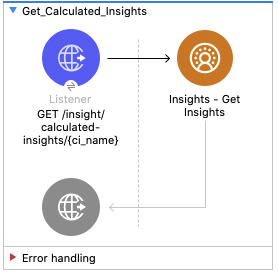
![Salesforce CDP インサイト - インサイトの取得フローの図 - (Listener - Insights Get Insights)](/mulesoft/current/ja-jp/salesforce-data-cloud-connector/1.1/_images/insights-get-insights.png)

### [](#この例の-xml-12)この例の XML

この例のフローをすばやく Mule アプリケーションに読み込むには、次のコードを Studio XML エディターに貼り付けます。

```xml
<mule xmlns:salesforce="http://www.mulesoft.org/schema/mule/salesforce" xmlns:ee="http://www.mulesoft.org/schema/mule/ee/core"
	xmlns:file="http://www.mulesoft.org/schema/mule/file"
	xmlns:sdc="http://www.mulesoft.org/schema/mule/sdc" xmlns:http="http://www.mulesoft.org/schema/mule/http" xmlns="http://www.mulesoft.org/schema/mule/core" xmlns:doc="http://www.mulesoft.org/schema/mule/documentation" xmlns:xsi="http://www.w3.org/2001/XMLSchema-instance" xsi:schemaLocation="http://www.mulesoft.org/schema/mule/core http://www.mulesoft.org/schema/mule/core/current/mule.xsd
http://www.mulesoft.org/schema/mule/http http://www.mulesoft.org/schema/mule/http/current/mule-http.xsd
http://www.mulesoft.org/schema/mule/sdc http://www.mulesoft.org/schema/mule/sdc/current/mule-sdc.xsd
http://www.mulesoft.org/schema/mule/file http://www.mulesoft.org/schema/mule/file/current/mule-file.xsd
http://www.mulesoft.org/schema/mule/ee/core http://www.mulesoft.org/schema/mule/ee/core/current/mule-ee.xsd
http://www.mulesoft.org/schema/mule/salesforce http://www.mulesoft.org/schema/mule/salesforce/current/mule-salesforce.xsd">
	<http:listener-config name="HTTP_Listener_config" doc:name="HTTP Listener config" >
		<http:listener-connection host="0.0.0.0" port="8081" />
	</http:listener-config>
	<sdc:sdc-config name="Salesforce_CDP_OAuth_JWT_config" doc:name="Salesforce CDP config" >
		<sdc:oauth-jwt-connection consumerKey="${server.consumerKey}" keyStorePath="${server.keyStorePath}" storePassword="${server.keyStorePassword}" subject="${server.userName}" audienceUrl="${server.audienceUrl}" keyAlias="${server.certificateAlias}" />
	</sdc:sdc-config>
	<configuration-properties doc:name="Configuration properties" file="mule-app.properties" />
	<sdc:sdc-config name="Salesforce_CDP_OAuth_UsernamePassword_config" doc:name="Salesforce CDP config" >
		<sdc:oauth-user-pass-connection clientId="${server.consumerKey}" clientSecret="${server.consumerSecret}" username="${server.userName}" password="${server.password}" audienceUrl="${server.audienceUrl}" />
	</sdc:sdc-config>
	<flow name="Get_Calculated_Insights" >
		<http:listener doc:name="GET /insight/calculated-insights/{ci_name}" config-ref="HTTP_Listener_config" path="/insight/calculated-insights/{ci_name}" allowedMethods="GET"/>
		<sdc:get-calculated-insight-with-filters-fields-and-limit doc:name="Insights - Get Insights" config-ref="Salesforce_CDP_OAuth_JWT_config" ciNameUriParam="#[attributes.uriParams.ci_name]" dimensionsQueryParam="#[attributes.queryParams.dimensions]" measuresQueryParam="#[attributes.queryParams.measures]" limitQueryParam="#[attributes.queryParams.limit]" offsetQueryParam="#[attributes.queryParams.offset]" filtersQueryParam="#[attributes.queryParams.filters]" orderbyQueryParam="#[attributes.queryParams.orderby]" timeGranularityQueryParam="#[attributes.queryParams.timeGranularity]"/>
	</flow>
</mule>
```

### [](#この例の実行手順-12)この例の実行手順

1. コネクタが設定されていることを確認します。
2. プロジェクトを保存します。
3. `GET`​ を ​`localhost:8081/insight/calculated-insights/{CALCULATED_INSIGHT_NAME}`​ に送信して、フローをテストします。

## [](#プロファイル-メタデータのリスト-api)プロファイル - メタデータのリスト API

この Mule フローでは、データモデルオブジェクトのリストとその項目およびカテゴリを取得する方法を示します。使用方法と詳細については、 [『Salesforce CDP API 開発者ガイド』](https://developer.salesforce.com/docs/atlas.en-us.c360a_api.meta/c360a_api/c360a_api_profile_meta.htm)​を参照してください。

この例では、次の操作を使用します。

- **HTTP Listener**​  
    HTTP GET 要求を受け取ります。
- **Profile - List Metadata**
    
    - JWT を選択したかユーザー名とパスワードを選択したかに基づいて認証します。
    - Salesforce CDP API をコールして、データモデルオブジェクトのリストとその項目およびカテゴリを返します。
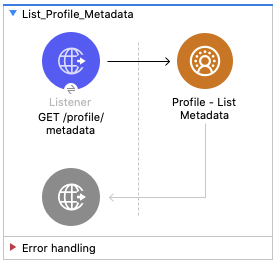
![Salesforce CDP プロファイル - メタデータのリストフローの図 - (Listener - Profile List Metadata)](/mulesoft/current/ja-jp/salesforce-data-cloud-connector/1.1/_images/profile-list-metadata.png)

### [](#この例の-xml-13)この例の XML

この例のフローをすばやく Mule アプリケーションに読み込むには、次のコードを Studio XML エディターに貼り付けます。

```xml
<?xml version="1.0" encoding="UTF-8"?>

<mule xmlns:sdc="http://www.mulesoft.org/schema/mule/sdc"
	xmlns:http="http://www.mulesoft.org/schema/mule/http"
    xmlns="http://www.mulesoft.org/schema/mule/core"
	xmlns:doc="http://www.mulesoft.org/schema/mule/documentation"
	xmlns:xsi="http://www.w3.org/2001/XMLSchema-instance"
    xsi:schemaLocation="
    http://www.mulesoft.org/schema/mule/core http://www.mulesoft.org/schema/mule/core/current/mule.xsd
    http://www.mulesoft.org/schema/mule/sdc http://www.mulesoft.org/schema/mule/sdc/current/mule-sdc.xsd">
	<flow name="Data_Action_Webhook" doc:id="3072197f-ee1f-4ed5-99d2-a9fa62230dbf" >
		<sdc:webhook-listener doc:name="Data Action Webhook" doc:id="fe3a924a-ba94-447d-9d3c-df079fc01de2" config-ref="Salesforce_CDP_Sdc_webhook_config" path="${webhook.path}" signingKey="${webhook.signingKey}" signingAlgorithm="HmacSHA256"/>
		<logger level="INFO" doc:name="Log Payload" doc:id="716538d3-7d06-4e9c-a4f7-b0d350b4dafe" message="#[output application/json --- payload]"/>
<mule xmlns:salesforce="http://www.mulesoft.org/schema/mule/salesforce" xmlns:ee="http://www.mulesoft.org/schema/mule/ee/core"
	xmlns:file="http://www.mulesoft.org/schema/mule/file"
	xmlns:sdc="http://www.mulesoft.org/schema/mule/sdc" xmlns:http="http://www.mulesoft.org/schema/mule/http" xmlns="http://www.mulesoft.org/schema/mule/core" xmlns:doc="http://www.mulesoft.org/schema/mule/documentation" xmlns:xsi="http://www.w3.org/2001/XMLSchema-instance" xsi:schemaLocation="http://www.mulesoft.org/schema/mule/core http://www.mulesoft.org/schema/mule/core/current/mule.xsd
http://www.mulesoft.org/schema/mule/http http://www.mulesoft.org/schema/mule/http/current/mule-http.xsd
http://www.mulesoft.org/schema/mule/sdc http://www.mulesoft.org/schema/mule/sdc/current/mule-sdc.xsd
http://www.mulesoft.org/schema/mule/file http://www.mulesoft.org/schema/mule/file/current/mule-file.xsd
http://www.mulesoft.org/schema/mule/ee/core http://www.mulesoft.org/schema/mule/ee/core/current/mule-ee.xsd
http://www.mulesoft.org/schema/mule/salesforce http://www.mulesoft.org/schema/mule/salesforce/current/mule-salesforce.xsd">
	<http:listener-config name="HTTP_Listener_config" doc:name="HTTP Listener config" >
		<http:listener-connection host="0.0.0.0" port="8081" />
	</http:listener-config>
	<sdc:sdc-config name="Salesforce_CDP_OAuth_JWT_config" doc:name="Salesforce CDP config" >
		<sdc:oauth-jwt-connection consumerKey="${server.consumerKey}" keyStorePath="${server.keyStorePath}" storePassword="${server.keyStorePassword}" subject="${server.userName}" audienceUrl="${server.audienceUrl}" keyAlias="${server.certificateAlias}" />
	</sdc:sdc-config>
	<configuration-properties doc:name="Configuration properties" file="mule-app.properties" />
	<sdc:sdc-config name="Salesforce_CDP_OAuth_UsernamePassword_config" doc:name="Salesforce CDP config" >
		<sdc:oauth-user-pass-connection clientId="${server.consumerKey}" clientSecret="${server.consumerSecret}" username="${server.userName}" password="${server.password}" audienceUrl="${server.audienceUrl}" />
	</sdc:sdc-config>
	<flow name="List_Profile_Metadata" >
		<http:listener doc:name="GET /profile/metadata" allowedMethods="GET" path="/profile/metadata" config-ref="HTTP_Listener_config"/>
		<sdc:get-meta-by-category doc:name="Profile - List Metadata" config-ref="Salesforce_CDP_OAuth_JWT_config"/>
	</flow>
</mule>
```

### [](#この例の実行手順-13)この例の実行手順

1. コネクタが設定されていることを確認します。
2. プロジェクトを保存します。
3. `GET`​ を ​`localhost:8081/profile/metadata`​ に送信して、フローをテストします。

## [](#プロファイル-メタデータの取得-api)プロファイル - メタデータの取得 API

この Mule フローでは、すべてのデータモデルオブジェクトのメタデータを取得する方法を示します。使用方法と詳細については、 [『Salesforce CDP API 開発者ガイド』](https://developer.salesforce.com/docs/atlas.en-us.c360a_api.meta/c360a_api/c360a_api_profile_meta_dmname.htm)​を参照してください。

この例では、次の操作を使用します。

- **HTTP Listener**​  
    必須 URI パラメーターとしてデータモデル名が含まれる HTTP GET 要求を受け取ります。
- **Profile - Get Metadata**
    
    - JWT を選択したかユーザー名とパスワードを選択したかに基づいて認証します。
    - データモデル名を受け取ります。
    - Salesforce CDP API をコールして、要求されたデータモデルオブジェクトのメタデータを返します。
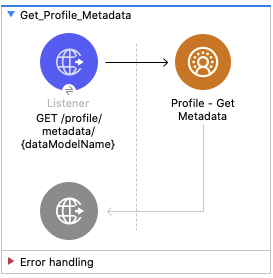
![Salesforce CDP プロファイル - メタデータの取得フローの図 - (Listener - Profile Get Metadata)](/mulesoft/current/ja-jp/salesforce-data-cloud-connector/1.1/_images/profile-get-metadata.png)

### [](#この例の-xml-14)この例の XML

この例のフローをすばやく Mule アプリケーションに読み込むには、次のコードを Studio XML エディターに貼り付けます。

```xml
<mule xmlns:salesforce="http://www.mulesoft.org/schema/mule/salesforce" xmlns:ee="http://www.mulesoft.org/schema/mule/ee/core"
	xmlns:file="http://www.mulesoft.org/schema/mule/file"
	xmlns:sdc="http://www.mulesoft.org/schema/mule/sdc" xmlns:http="http://www.mulesoft.org/schema/mule/http" xmlns="http://www.mulesoft.org/schema/mule/core" xmlns:doc="http://www.mulesoft.org/schema/mule/documentation" xmlns:xsi="http://www.w3.org/2001/XMLSchema-instance" xsi:schemaLocation="http://www.mulesoft.org/schema/mule/core http://www.mulesoft.org/schema/mule/core/current/mule.xsd
http://www.mulesoft.org/schema/mule/http http://www.mulesoft.org/schema/mule/http/current/mule-http.xsd
http://www.mulesoft.org/schema/mule/sdc http://www.mulesoft.org/schema/mule/sdc/current/mule-sdc.xsd
http://www.mulesoft.org/schema/mule/file http://www.mulesoft.org/schema/mule/file/current/mule-file.xsd
http://www.mulesoft.org/schema/mule/ee/core http://www.mulesoft.org/schema/mule/ee/core/current/mule-ee.xsd
http://www.mulesoft.org/schema/mule/salesforce http://www.mulesoft.org/schema/mule/salesforce/current/mule-salesforce.xsd">
	<http:listener-config name="HTTP_Listener_config" doc:name="HTTP Listener config" >
		<http:listener-connection host="0.0.0.0" port="8081" />
	</http:listener-config>
	<sdc:sdc-config name="Salesforce_CDP_OAuth_JWT_config" doc:name="Salesforce CDP config" >
		<sdc:oauth-jwt-connection consumerKey="${server.consumerKey}" keyStorePath="${server.keyStorePath}" storePassword="${server.keyStorePassword}" subject="${server.userName}" audienceUrl="${server.audienceUrl}" keyAlias="${server.certificateAlias}" />
	</sdc:sdc-config>
	<configuration-properties doc:name="Configuration properties" file="mule-app.properties" />
	<sdc:sdc-config name="Salesforce_CDP_OAuth_UsernamePassword_config" doc:name="Salesforce CDP config" >
		<sdc:oauth-user-pass-connection clientId="${server.consumerKey}" clientSecret="${server.consumerSecret}" username="${server.userName}" password="${server.password}" audienceUrl="${server.audienceUrl}" />
	</sdc:sdc-config>
	<flow name="Get_Profile_Metadata" >
		<http:listener doc:name="GET /profile/metadata/{dataModelName}" allowedMethods="GET" path="/profile/metadata/{dataModelName}" config-ref="HTTP_Listener_config"/>
		<sdc:get-meta doc:name="Profile - Get Metadata" config-ref="Salesforce_CDP_OAuth_JWT_config" dataModelNameUriParam="#[attributes.uriParams.dataModelName]"/>
	</flow>
</mule>
```

### [](#この例の実行手順-14)この例の実行手順

1. コネクタが設定されていることを確認します。
2. プロジェクトを保存します。
3. `GET`​ を ​`localhost:8081/profile/metadata/{DATA_MODEL_NAME}`​ に送信して、フローをテストします。

## [](#プロファイル-レコードの検索-api)プロファイル - レコードの検索 API

この Mule フローでは、検索条件に基づいてデータモデルオブジェクトレコードを取得する方法を示します。使用方法と詳細については、 [『Salesforce CDP API 開発者ガイド』](https://developer.salesforce.com/docs/atlas.en-us.c360a_api.meta/c360a_api/c360a_api_profile_dmname.htm)​を参照してください。

この例では、次の操作を使用します。

- **HTTP Listener**​  
    必須 URI パラメーターとしてのデータモデル名、必須クエリパラメーターとしての項目、さらにその他のクエリパラメーターの組み合わせが含まれる HTTP GET 要求を受け取ります。
- **Profile - Search Records**
    
    - JWT を選択したかユーザー名とパスワードを選択したかに基づいて認証します。
    - データモデル名、項目、省略可能なクエリパラメーターを受け取ります。
    - Salesforce CDP API をコールして、検索条件に基づいてデータモデルオブジェクトレコードを返します。
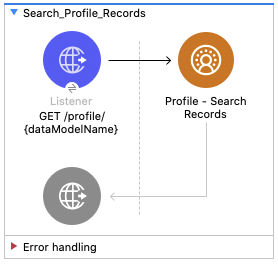
![Salesforce CDP プロファイル - レコードの検索フローの図 - (Listener - Profile Search Records)](/mulesoft/current/ja-jp/salesforce-data-cloud-connector/1.1/_images/profile-search-records.png)

### [](#この例の-xml-15)この例の XML

この例のフローをすばやく Mule アプリケーションに読み込むには、次のコードを Studio XML エディターに貼り付けます。

```xml
<mule xmlns:salesforce="http://www.mulesoft.org/schema/mule/salesforce" xmlns:ee="http://www.mulesoft.org/schema/mule/ee/core"
	xmlns:file="http://www.mulesoft.org/schema/mule/file"
	xmlns:sdc="http://www.mulesoft.org/schema/mule/sdc" xmlns:http="http://www.mulesoft.org/schema/mule/http" xmlns="http://www.mulesoft.org/schema/mule/core" xmlns:doc="http://www.mulesoft.org/schema/mule/documentation" xmlns:xsi="http://www.w3.org/2001/XMLSchema-instance" xsi:schemaLocation="http://www.mulesoft.org/schema/mule/core http://www.mulesoft.org/schema/mule/core/current/mule.xsd
http://www.mulesoft.org/schema/mule/http http://www.mulesoft.org/schema/mule/http/current/mule-http.xsd
http://www.mulesoft.org/schema/mule/sdc http://www.mulesoft.org/schema/mule/sdc/current/mule-sdc.xsd
http://www.mulesoft.org/schema/mule/file http://www.mulesoft.org/schema/mule/file/current/mule-file.xsd
http://www.mulesoft.org/schema/mule/ee/core http://www.mulesoft.org/schema/mule/ee/core/current/mule-ee.xsd
http://www.mulesoft.org/schema/mule/salesforce http://www.mulesoft.org/schema/mule/salesforce/current/mule-salesforce.xsd">
	<http:listener-config name="HTTP_Listener_config" doc:name="HTTP Listener config" >
		<http:listener-connection host="0.0.0.0" port="8081" />
	</http:listener-config>
	<sdc:sdc-config name="Salesforce_CDP_OAuth_JWT_config" doc:name="Salesforce CDP config" >
		<sdc:oauth-jwt-connection consumerKey="${server.consumerKey}" keyStorePath="${server.keyStorePath}" storePassword="${server.keyStorePassword}" subject="${server.userName}" audienceUrl="${server.audienceUrl}" keyAlias="${server.certificateAlias}" />
	</sdc:sdc-config>
	<configuration-properties doc:name="Configuration properties" file="mule-app.properties" />
	<sdc:sdc-config name="Salesforce_CDP_OAuth_UsernamePassword_config" doc:name="Salesforce CDP config" >
		<sdc:oauth-user-pass-connection clientId="${server.consumerKey}" clientSecret="${server.consumerSecret}" username="${server.userName}" password="${server.password}" audienceUrl="${server.audienceUrl}" />
	</sdc:sdc-config>
	<flow name="Search_Profile_Records" >
		<http:listener doc:name="GET /profile/{dataModelName}" config-ref="HTTP_Listener_config" path="/profile/{dataModelName}"/>
		<sdc:get-parent-with-filters doc:name="Profile - Search Records"  config-ref="Salesforce_CDP_OAuth_JWT_config" dataModelNameUriParam="#[attributes.uriParams.dataModelName]" orderbyQueryParam="#[attributes.queryParams.orderby]" filtersQueryParam="#[attributes.queryParams.filters]" fieldsQueryParam="#[attributes.queryParams.fields]" limitQueryParam="#[attributes.queryParams.limit]" offsetQueryParam="#[attributes.queryParams.offset]"/>
	</flow>
</mule>
```

### [](#この例の実行手順-15)この例の実行手順

1. コネクタが設定されていることを確認します。
2. プロジェクトを保存します。
3. `GET`​ を ​`localhost:8081/profile/{DATA_MODEL_NAME}?filters={FILTERS}`​ に送信して、フローをテストします。

## [](#プロファイル-id-によるレコードの検索-api)プロファイル - ID によるレコードの検索 API

この Mule フローでは、検索インデックスと検索条件に基づいてデータモデルオブジェクトレコードを取得する方法を示します。使用方法と詳細については、 [『Salesforce CDP API 開発者ガイド』](https://developer.salesforce.com/docs/atlas.en-us.c360a_api.meta/c360a_api/c360a_api_profile_dmname_id.htm)​を参照してください。

この例では、次の操作を使用します。

- **HTTP Listener**​  
    必須 URI パラメーターとしてのデータモデル名と ID、省略可能なクエリパラメーターの組み合わせが含まれる HTTP GET 要求を受け取ります。
- **Profile - Search Records By Id**
    
    - JWT を選択したかユーザー名とパスワードを選択したかに基づいて認証します。
    - データモデル名、ID、省略可能なクエリパラメーターを受け取ります。
    - Salesforce CDP API をコールして、検索インデックスと検索条件に基づいてデータモデルオブジェクトレコードを返します。
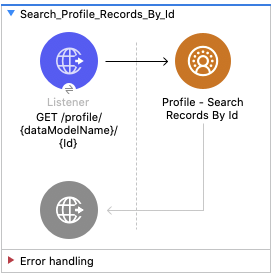
![Salesforce CDP プロファイル - ID によるレコードの検索フローの図 - (Listener - Profile Search Records By Id)](/mulesoft/current/ja-jp/salesforce-data-cloud-connector/1.1/_images/profile-search-records-by-id.png)

### [](#この例の-xml-16)この例の XML

この例のフローをすばやく Mule アプリケーションに読み込むには、次のコードを Studio XML エディターに貼り付けます。

```xml
<mule xmlns:salesforce="http://www.mulesoft.org/schema/mule/salesforce" xmlns:ee="http://www.mulesoft.org/schema/mule/ee/core"
	xmlns:file="http://www.mulesoft.org/schema/mule/file"
	xmlns:sdc="http://www.mulesoft.org/schema/mule/sdc" xmlns:http="http://www.mulesoft.org/schema/mule/http" xmlns="http://www.mulesoft.org/schema/mule/core" xmlns:doc="http://www.mulesoft.org/schema/mule/documentation" xmlns:xsi="http://www.w3.org/2001/XMLSchema-instance" xsi:schemaLocation="http://www.mulesoft.org/schema/mule/core http://www.mulesoft.org/schema/mule/core/current/mule.xsd
http://www.mulesoft.org/schema/mule/http http://www.mulesoft.org/schema/mule/http/current/mule-http.xsd
http://www.mulesoft.org/schema/mule/sdc http://www.mulesoft.org/schema/mule/sdc/current/mule-sdc.xsd
http://www.mulesoft.org/schema/mule/file http://www.mulesoft.org/schema/mule/file/current/mule-file.xsd
http://www.mulesoft.org/schema/mule/ee/core http://www.mulesoft.org/schema/mule/ee/core/current/mule-ee.xsd
http://www.mulesoft.org/schema/mule/salesforce http://www.mulesoft.org/schema/mule/salesforce/current/mule-salesforce.xsd">
	<http:listener-config name="HTTP_Listener_config" doc:name="HTTP Listener config" >
		<http:listener-connection host="0.0.0.0" port="8081" />
	</http:listener-config>
	<sdc:sdc-config name="Salesforce_CDP_OAuth_JWT_config" doc:name="Salesforce CDP config" >
		<sdc:oauth-jwt-connection consumerKey="${server.consumerKey}" keyStorePath="${server.keyStorePath}" storePassword="${server.keyStorePassword}" subject="${server.userName}" audienceUrl="${server.audienceUrl}" keyAlias="${server.certificateAlias}" />
	</sdc:sdc-config>
	<configuration-properties doc:name="Configuration properties" file="mule-app.properties" />
	<sdc:sdc-config name="Salesforce_CDP_OAuth_UsernamePassword_config" doc:name="Salesforce CDP config" >
		<sdc:oauth-user-pass-connection clientId="${server.consumerKey}" clientSecret="${server.consumerSecret}" username="${server.userName}" password="${server.password}" audienceUrl="${server.audienceUrl}" />
	</sdc:sdc-config>
	<flow name="Search_Profile_Records_By_Id" >
		<http:listener doc:name="GET /profile/{dataModelName}/{Id}" config-ref="HTTP_Listener_config" path="/profile/{dataModelName}/{Id}"/>
		<sdc:get-parent doc:name="Profile - Search Records By Id" config-ref="Salesforce_CDP_OAuth_JWT_config" dataModelNameUriParam="#[attributes.uriParams.dataModelName]" idUriParam="#[attributes.uriParams.Id]" searchKeyQueryParam="#[attributes.queryParams.searchKey]" fieldsQueryParam="#[attributes.queryParams.fields]" filtersQueryParam="#[attributes.queryParams.filters]" limitQueryParam="#[attributes.queryParams.limit]" orderbyQueryParam="#[attributes.queryParams.orderby]" offsetQueryParam="#[attributes.queryParams.offset]"/>
	</flow>
</mule>
```

### [](#この例の実行手順-16)この例の実行手順

1. コネクタが設定されていることを確認します。
2. プロジェクトを保存します。
3. `GET`​ を ​`localhost:8081/profile/{DATA_MODEL_NAME}/{Id}`​ に送信して、フローをテストします。

## [](#プロファイル-レコードと子レコードの検索-api)プロファイル - レコードと子レコードの検索 API

この Mule フローでは、インデックスと検索条件に基づいてデータモデルオブジェクトレコードと子データモデルオブジェクトレコードを取得する方法を示します。使用方法と詳細については、 [『Salesforce CDP API 開発者ガイド』](https://developer.salesforce.com/docs/atlas.en-us.c360a_api.meta/c360a_api/c360a_api_profile_dmname_id_child_dmname.htm)​を参照してください。

この例では、次の操作を使用します。

- **HTTP Listener**​  
    必須 URI パラメーターとしてのデータモデル名、子データモデル名、ID と、省略可能なクエリパラメーターの組み合わせが含まれる HTTP GET 要求を受け取ります。
- **Profile - Search Records With Child Records**
    
    - JWT を選択したかユーザー名とパスワードを選択したかに基づいて認証します。
    - データモデル名、子データモデル名、ID と、省略可能なクエリパラメーターを受け取ります。
    - Salesforce CDP API をコールして、インデックスと検索条件に基づいてデータモデルオブジェクトレコードと子データモデルオブジェクトレコードを返します。
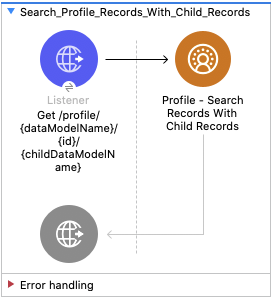
![Salesforce CDP プロファイル - レコードと子レコードの検索フローの図 - (Listener - Profile Search Records With Child Records)](/mulesoft/current/ja-jp/salesforce-data-cloud-connector/1.1/_images/profile-search-records-with-child-records.png)

### [](#この例の-xml-17)この例の XML

この例のフローをすばやく Mule アプリケーションに読み込むには、次のコードを Studio XML エディターに貼り付けます。

```xml
<mule xmlns:salesforce="http://www.mulesoft.org/schema/mule/salesforce" xmlns:ee="http://www.mulesoft.org/schema/mule/ee/core"
	xmlns:file="http://www.mulesoft.org/schema/mule/file"
	xmlns:sdc="http://www.mulesoft.org/schema/mule/sdc" xmlns:http="http://www.mulesoft.org/schema/mule/http" xmlns="http://www.mulesoft.org/schema/mule/core" xmlns:doc="http://www.mulesoft.org/schema/mule/documentation" xmlns:xsi="http://www.w3.org/2001/XMLSchema-instance" xsi:schemaLocation="http://www.mulesoft.org/schema/mule/core http://www.mulesoft.org/schema/mule/core/current/mule.xsd
http://www.mulesoft.org/schema/mule/http http://www.mulesoft.org/schema/mule/http/current/mule-http.xsd
http://www.mulesoft.org/schema/mule/sdc http://www.mulesoft.org/schema/mule/sdc/current/mule-sdc.xsd
http://www.mulesoft.org/schema/mule/file http://www.mulesoft.org/schema/mule/file/current/mule-file.xsd
http://www.mulesoft.org/schema/mule/ee/core http://www.mulesoft.org/schema/mule/ee/core/current/mule-ee.xsd
http://www.mulesoft.org/schema/mule/salesforce http://www.mulesoft.org/schema/mule/salesforce/current/mule-salesforce.xsd">
	<http:listener-config name="HTTP_Listener_config" doc:name="HTTP Listener config" >
		<http:listener-connection host="0.0.0.0" port="8081" />
	</http:listener-config>
	<sdc:sdc-config name="Salesforce_CDP_OAuth_JWT_config" doc:name="Salesforce CDP config" >
		<sdc:oauth-jwt-connection consumerKey="${server.consumerKey}" keyStorePath="${server.keyStorePath}" storePassword="${server.keyStorePassword}" subject="${server.userName}" audienceUrl="${server.audienceUrl}" keyAlias="${server.certificateAlias}" />
	</sdc:sdc-config>
	<configuration-properties doc:name="Configuration properties" file="mule-app.properties" />
	<sdc:sdc-config name="Salesforce_CDP_OAuth_UsernamePassword_config" doc:name="Salesforce CDP config" >
		<sdc:oauth-user-pass-connection clientId="${server.consumerKey}" clientSecret="${server.consumerSecret}" username="${server.userName}" password="${server.password}" audienceUrl="${server.audienceUrl}" />
	</sdc:sdc-config>
	<flow name="Search_Profile_Records_With_Child_Records" >
		<http:listener doc:name="Get /profile/{dataModelName}/{id}/{childDataModelName}" allowedMethods="GET" config-ref="HTTP_Listener_config" path="/profile/{dataModelName}/{id}/{childDataModelName}"/>
		<sdc:get-parent-and-child doc:name="Profile - Search Records With Child Records" searchKeyQueryParam="#[attributes.queryParams.searchKey]" fieldsQueryParam="#[attributes.queryParams.fields]" limitQueryParam="#[attributes.queryParams.limit]" filtersQueryParam="#[attributes.queryParams.filters]" offsetQueryParam="#[attributes.queryParams.offset]" orderbyQueryParam="#[attributes.queryParams.orderby]" dataModelNameUriParam="#[attributes.uriParams.dataModelName]" idUriParam="#[attributes.uriParams.id]" childDataModelNameUriParam="#[attributes.uriParams.childDataModelName]" config-ref="Salesforce_CDP_OAuth_JWT_config"/>
	</flow>
</mule>
```

### [](#この例の実行手順-17)この例の実行手順

1. コネクタが設定されていることを確認します。
2. プロジェクトを保存します。
3. `GET`​ を ​`localhost:8081/profile/{DATA_MODEL_NAME}/{Id}/{CHILD_DATA_MODEL_NAME}`​ に送信して、フローをテストします。

## [](#プロファイル-レコードとインサイトの検索-api)プロファイル - レコードとインサイトの検索 API

この Mule フローでは、インデックスと検索条件に基づいてデータモデルオブジェクトレコードと計算済みビューを取得する方法を示します。使用方法と詳細については、 [『Salesforce CDP API 開発者ガイド』](https://developer.salesforce.com/docs/atlas.en-us.c360a_api.meta/c360a_api/c360a_api_profile_dmname_id_ci_ci_name.htm)​を参照してください。

この例では、次の操作を使用します。

- **HTTP Listener**​  
    必須 URI パラメーターとしてのデータモデル名、ID、計算済みインサイト名と、省略可能なクエリパラメーターの組み合わせが含まれる HTTP GET 要求を受け取ります。
- **Profile - Search Records With Insight**
    
    - JWT を選択したかユーザー名とパスワードを選択したかに基づいて認証します。
    - データモデル名、ID、計算済みインサイト名と、省略可能なクエリパラメーターを受け取ります。
    - Salesforce CDP API をコールして、インデックスと検索条件に基づいてデータモデルオブジェクトレコードと計算済みビューを返します。
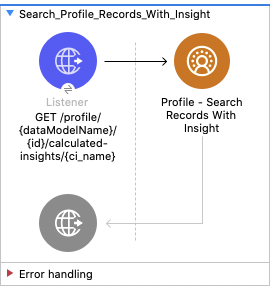
![Salesforce CDP プロファイル - レコードとインサイトの検索フローの図 - (Listener - Profile Search Records With Insight)](/mulesoft/current/ja-jp/salesforce-data-cloud-connector/1.1/_images/profile-search-records-with-insight.png)

### [](#この例の-xml-18)この例の XML

この例のフローをすばやく Mule アプリケーションに読み込むには、次のコードを Studio XML エディターに貼り付けます。

```xml
<mule xmlns:salesforce="http://www.mulesoft.org/schema/mule/salesforce" xmlns:ee="http://www.mulesoft.org/schema/mule/ee/core"
	xmlns:file="http://www.mulesoft.org/schema/mule/file"
	xmlns:sdc="http://www.mulesoft.org/schema/mule/sdc" xmlns:http="http://www.mulesoft.org/schema/mule/http" xmlns="http://www.mulesoft.org/schema/mule/core" xmlns:doc="http://www.mulesoft.org/schema/mule/documentation" xmlns:xsi="http://www.w3.org/2001/XMLSchema-instance" xsi:schemaLocation="http://www.mulesoft.org/schema/mule/core http://www.mulesoft.org/schema/mule/core/current/mule.xsd
http://www.mulesoft.org/schema/mule/http http://www.mulesoft.org/schema/mule/http/current/mule-http.xsd
http://www.mulesoft.org/schema/mule/sdc http://www.mulesoft.org/schema/mule/sdc/current/mule-sdc.xsd
http://www.mulesoft.org/schema/mule/file http://www.mulesoft.org/schema/mule/file/current/mule-file.xsd
http://www.mulesoft.org/schema/mule/ee/core http://www.mulesoft.org/schema/mule/ee/core/current/mule-ee.xsd
http://www.mulesoft.org/schema/mule/salesforce http://www.mulesoft.org/schema/mule/salesforce/current/mule-salesforce.xsd">
	<http:listener-config name="HTTP_Listener_config" doc:name="HTTP Listener config" >
		<http:listener-connection host="0.0.0.0" port="8081" />
	</http:listener-config>
	<sdc:sdc-config name="Salesforce_CDP_OAuth_JWT_config" doc:name="Salesforce CDP config" >
		<sdc:oauth-jwt-connection consumerKey="${server.consumerKey}" keyStorePath="${server.keyStorePath}" storePassword="${server.keyStorePassword}" subject="${server.userName}" audienceUrl="${server.audienceUrl}" keyAlias="${server.certificateAlias}" />
	</sdc:sdc-config>
	<configuration-properties doc:name="Configuration properties" file="mule-app.properties" />
	<sdc:sdc-config name="Salesforce_CDP_OAuth_UsernamePassword_config" doc:name="Salesforce CDP config" >
		<sdc:oauth-user-pass-connection clientId="${server.consumerKey}" clientSecret="${server.consumerSecret}" username="${server.userName}" password="${server.password}" audienceUrl="${server.audienceUrl}" />
	</sdc:sdc-config>
	<flow name="Search_Profile_Records_With_Insight" >
		<http:listener doc:name="GET /profile/{dataModelName}/{id}/calculated-insights/{ci_name}" allowedMethods="GET" config-ref="HTTP_Listener_config" path="/profile/{dataModelName}/{id}/calculated-insights/{ci_name}"/>
		<sdc:get-computed-view-for-profile doc:name="Profile - Search Records With Insight" config-ref="Salesforce_CDP_OAuth_JWT_config" dataModelNameUriParam="#[attributes.uriParams.dataModelName]" idUriParam="#[attributes.uriParams.id]" ciNameUriParam="#[attributes.uriParams.ci_name]" searchKeyQueryParam="#[attributes.queryParams.searchKey]" dimensionsQueryParam="#[attributes.queryParams.dimensions]" measuresQueryParam="#[attributes.queryParams.measures]" limitQueryParam="#[attributes.queryParams.limit]" filtersQueryParam="#[attributes.queryParams.filters]" offsetQueryParam="#[attributes.queryParams.offset]" orderbyQueryParam="#[attributes.queryParams.orderby]" timeGranularityQueryParam="#[attributes.queryParams.timeGranularity]"/>
	</flow>
</mule>
```

### [](#この例の実行手順-18)この例の実行手順

1. コネクタが設定されていることを確認します。
2. プロジェクトを保存します。
3. `GET`​ を ​`localhost:8081/profile/{DATA_MODEL_NAME}/{Id}/calculated-insights/{CALCULATED_INSIGHT_NAME}`​ に送信して、フローをテストします。

## [](#データアクション-web-フック)データアクション Web フック

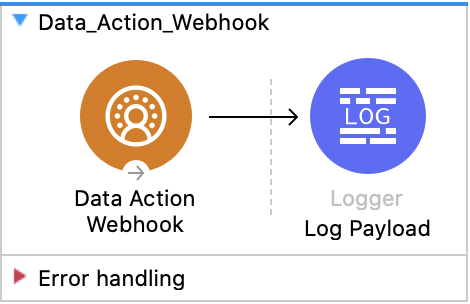
この Mule フローでは、データアクションによってトリガーされたときにペイロードを記録する Web フックを作成する方法を示します。 [Salesforce データアクションのドキュメント](https://help.salesforce.com/s/articleView?id=data.c360_a_data_actions.htm&type=5)​を参照してください。

この例では、次の操作を使用します。

- **データアクション Web フック**​  
    Salesforce CDP データアクションのターゲットとして Web フックを作成します。
- **Logger**​  
    データアクション Web フックに送信されたペイロードを表示します。

![Salesforce CDP のデータアクション Web フックフローの図 - (CDP Data Action Webhook - Logger Log Payload)](/mulesoft/current/ja-jp/salesforce-data-cloud-connector/1.1/_images/data-action-webhook.png)

### [](#この例の-xml-19)この例の XML

この例のフローをすばやく Mule アプリケーションに読み込むには、次のコードを Studio XML エディターに貼り付けます。

```xml
<?xml version="1.0" encoding="UTF-8"?>

<mule xmlns:sdc="http://www.mulesoft.org/schema/mule/sdc"
	xmlns:http="http://www.mulesoft.org/schema/mule/http"
    xmlns="http://www.mulesoft.org/schema/mule/core"
	xmlns:doc="http://www.mulesoft.org/schema/mule/documentation"
	xmlns:xsi="http://www.w3.org/2001/XMLSchema-instance"
    xsi:schemaLocation="
    http://www.mulesoft.org/schema/mule/core http://www.mulesoft.org/schema/mule/core/current/mule.xsd
    http://www.mulesoft.org/schema/mule/sdc http://www.mulesoft.org/schema/mule/sdc/current/mule-sdc.xsd">
	<flow name="Data_Action_Webhook" doc:id="3072197f-ee1f-4ed5-99d2-a9fa62230dbf" >
		<sdc:webhook-listener doc:name="Data Action Webhook" doc:id="fe3a924a-ba94-447d-9d3c-df079fc01de2" config-ref="Salesforce_CDP_Sdc_webhook_config" path="${webhook.path}" signingKey="${webhook.signingKey}" signingAlgorithm="HmacSHA256"/>
		<logger level="INFO" doc:name="Log Payload" doc:id="716538d3-7d06-4e9c-a4f7-b0d350b4dafe" message="#[output application/json --- payload]"/>
	</flow>
</mule>
```

### [](#この例の実行手順-19)この例の実行手順

1. [ストリーミングインサイトを作成済み](https://help.salesforce.com/s/articleView?id=data.c360_a_create_streaming_insight.htm&type=5)​であることを確認します。
2. [データアクションターゲットを作成](https://help.salesforce.com/s/articleView?id=data.c360_a_data_actions.htm&type=5)​済みであり、アクションターゲット種別が ​`Webhook`​ であることを確認します。
3. データアクションターゲットを使用してストリーミング計算済みインサイトに対して条件を実行する [データアクションを作成](https://help.salesforce.com/s/articleView?id=data.c360_a_data_actions.htm&type=5)​済みであることを確認します。
4. プロジェクトを保存します。
5. [CloudHub をデプロイする](https://docs.mulesoft.com/cloudhub/deploying-to-cloudhub)​。
6. データアクションターゲットがアプリケーション URL を参照するようにします。アプリケーション URL は ​`[https://{{app-name}}.{{region}}.cloudhub.io/webhook](https://{{app-name}}.{{region}}.cloudhub.io/webhook)`​ のようになります。
7. データアクションの条件をトリガーしてフローをテストし、記録されたペイロードを確認します。

## [](#関連情報)関連情報

- [Anypoint Connector の概要](https://docs.mulesoft.com/connectors/introduction/introduction-to-anypoint-connectors)
- [MuleSoft ヘルプセンター](https://help.mulesoft.com)