---
schema_version: "1"
id: 5b6a65f58f7ad24a1224458b62681ad177f5a8e89ed02d121ffb2887b61fcba4
title: IMAP/S 接続プロバイダーのフォルダー間でのメッセージの移動の例
collection: mulesoft
version: current
locale: ja-jp
portal_url: https://docs.salesforce.com/mulesoft/current/ja-jp/email-connector/1.7/email-move-folder.md
canonical_url: https://docs.mulesoft.com/jp/email-connector/1.7/email-move-folder
source_site: docs.mulesoft.com
content_type: documentation
content_hash: c94a80edae6d0b6ab1a660a08e8965f8be628399921491af265cf6e953c56fb9
description: MuleSoft Documentation Site
release: "1.7"
latest: true
---
# IMAP/S 接続プロバイダーのフォルダー間でのメッセージの移動の例
メール用 Anypoint Connector (Email Connector) で提供されている **Move to folder** 操作を使用すると、メッセージを IMAP および IMAPS 接続プロバイダーのフォルダーに移動できます。この操作の主な機能は次のとおりです。
- メールサーバーのフォルダー間でメッセージを移動する。
- 移動するメッセージ UID を保持する。
- フォルダーが存在しないか失敗した場合にパラメーターに応じて対象フォルダーを作成する。
次の例は、コネクタでこの操作を設定する方法を示しています。
## [](#フォルダー間でのメッセージの移動)フォルダー間でのメッセージの移動
次の例は、受信したメッセージをフォルダー間で移動する方法を示しています。**On New Email - IMAP** ソースでフローを開始し、次に **Mark as read** 操作で、`INBOX` フォルダーで受信したメールを読み取ります。その後、**Move to folder** 操作でメールを `TARGET` フォルダーに移動します。
次のスクリーンショットは、この例のアプリケーションフローを示しています。

フローを作成する手順は、次のとおりです。
1. Studio で新しい Mule プロジェクトを作成します。
2. **\[Mule Palette (Mule パレット)\]** ビューで、**\[On New Email - IMAP\]** 操作をキャンバスにドラッグします。
3. **\[On New Email - IMAP\]** 設定画面で、**\[Connector configuration (コネクタ設定)\]** 項目の横にあるプラス記号 (**+**) をクリックして、操作のグローバル要素を設定します。
4. **\[Connection (接続)\]** を **\[IMAPS Connection (IMAPS 接続)\]** に設定します。
5. 次の項目に入力します。
- **Host (ホスト)**: `test.host.com`
- **Port (ポート)**: `993`
- **User (ユーザー)**: `test123@testuser.com`
- **Password (パスワード)**: `testpassword`
6. **\[OK\]** をクリックします。
7. **\[Folder (フォルダー)\]** を `[INBOX]` に設定します。
8. **\[Mark as read\]** 操作を **\[On New Email - IMAP\]** ソースの右にドラッグします。
9. **\[Connector configuration (コネクタ設定)\]** で、前に作成したグローバル設定を選択します。
10. **\[Mailbox folder (メールボックスフォルダー)\]** を `INBOX` に設定します。
11. **\[Email ID (メール ID)\]** を式 `attributes.id` に設定します。
12. **\[Move to folder\]** 操作を **\[Mark as read\]** 操作の右にドラッグします。
13. **\[Connector configuration (コネクタ設定)\]** で、前に作成したグローバル設定を選択します。
14. **\[Mailbox folder (メールボックスフォルダー)\]** を `INBOX` に設定します。
15. **\[Target folder (対象フォルダー)\]** を `TEST` に設定します。
16. **\[Email ID (メール ID)\]** を式 `attributes.id` に設定します。
17. Mule アプリケーションを保存して実行します。
18. 新しいメールを該当のメールアドレスに送信します。
### [](#フォルダー間でメッセージを移動するための-xml)フォルダー間でメッセージを移動するための XML
この例のフローをすばやく Mule アプリケーションに読み込むには、次のコードを Studio XML エディターに貼り付けます。
```xml
```
## [](#対象フォルダーにメッセージを移動してフォルダーが存在しない場合にフォルダーを作成)対象フォルダーにメッセージを移動してフォルダーが存在しない場合にフォルダーを作成
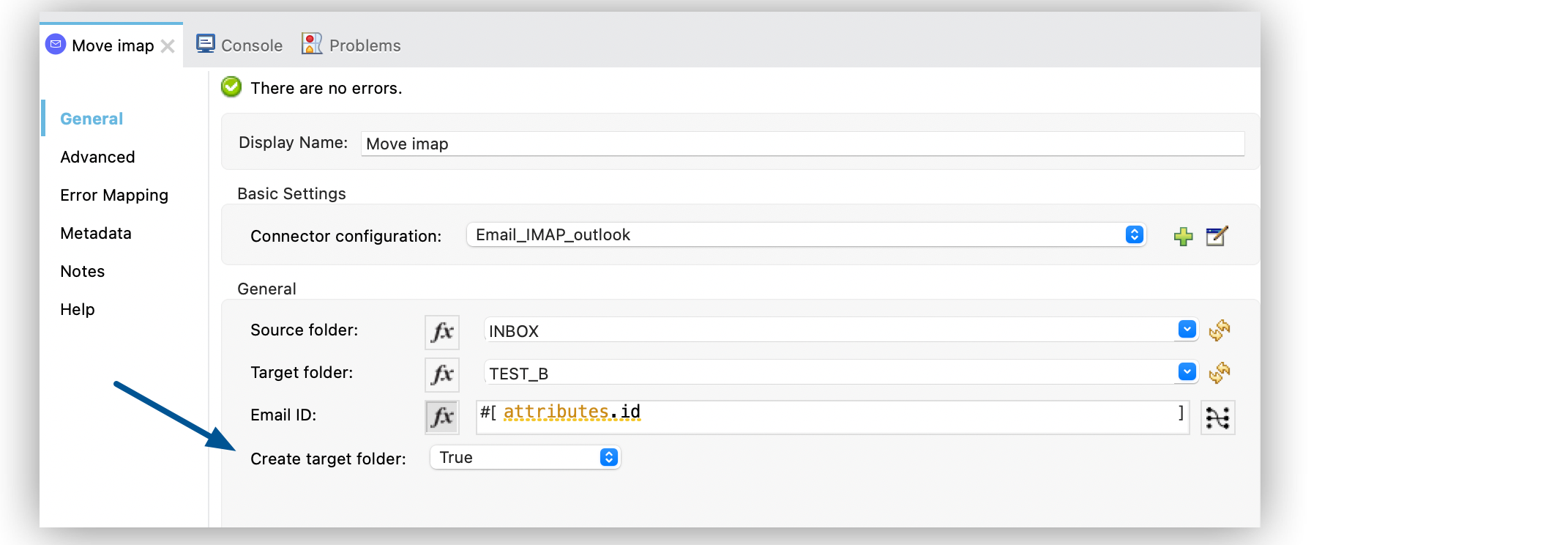
次の例は、受信したメッセージをフォルダー間で移動し、対象フォルダーが存在しない場合にフォルダーを作成する方法を示しています。**On New Email - IMAP** ソースでフローを開始し、次に **Mark as read** 操作で、`INBOX` フォルダーで受信したメールを読み取ります。その後、**Move to folder** 操作でメールを `TARGET` フォルダーに移動します。このフォルダーが存在しない場合、フォルダーが自動的に作成されます。
次のスクリーンショットは、この例のアプリケーションフローを示しています。

フローを作成する手順は、次のとおりです。
1. Studio で新しい Mule プロジェクトを作成します。
2. **\[Mule Palette (Mule パレット)\]** ビューで、**\[On New Email - IMAP\]** 操作をキャンバスにドラッグします。
3. **\[On New Email - IMAP\]** 設定画面で、**\[Connector configuration (コネクタ設定)\]** 項目の横にあるプラス記号 (**+**) をクリックして、操作のグローバル要素を設定します。
4. **\[Connection (接続)\]** を **\[IMAPS Connection (IMAPS 接続)\]** に設定します。
5. 次の項目に入力します。
- **Host (ホスト)**: `test.host.com`
- **Port (ポート)**: `993`
- **User (ユーザー)**: `test123@testuser.com`
- **Password (パスワード)**: `testpassword`
6. **\[OK\]** をクリックします。
7. **\[Folder (フォルダー)\]** を **\[INBOX\]** に設定します。
8. **\[Mark as read\]** 操作を **\[On New Email - IMAP\]** ソースの右にドラッグします。
9. **\[Connector configuration (コネクタ設定)\]** で、前に作成したグローバル設定を選択します。
10. **\[Mailbox folder (メールボックスフォルダー)\]** を `INBOX` に設定します。
11. **\[Email ID (メール ID)\]** を式 `attributes.id` に設定します。
12. **\[Move to folder\]** 操作を **\[Mark as read\]** 操作の右にドラッグします。
13. **\[Connector configuration (コネクタ設定)\]** で、前に作成したグローバル設定を選択します。
14. **\[Mailbox folder (メールボックスフォルダー)\]** を `INBOX` に設定します。
15. **\[Target folder (対象フォルダー)\]** を `TEST_B` に設定します。
16. **\[Email ID (メール ID)\]** を式 `attributes.id` に設定します。
17. **\[Create target folder (対象フォルダーを作成)\]** を **\[TRUE\]** に設定します。
1. Mule アプリケーションを保存して実行します。
2. 新しいメールを該当のメールアドレスに送信します。
### [](#対象フォルダーにメッセージを移動してフォルダーが存在しない場合にフォルダーを作成するための-xml)対象フォルダーにメッセージを移動してフォルダーが存在しない場合にフォルダーを作成するための XML
この例のフローをすばやく Mule アプリケーションに読み込むには、次のコードを Studio XML エディターに貼り付けます。
```xml
```
## [](#関連情報)関連情報
- [Anypoint Connector の概要](https://docs.mulesoft.com/connectors/introduction/introduction-to-anypoint-connectors)
- [Email Connector の例](https://docs.mulesoft.com/jp/email-connector/1.7/email-examples)
- [MuleSoft ヘルプセンター](https://help.mulesoft.com)