---
schema_version: "1"
id: c6ff1671b5100e74af7c33fa2b3d8593718e448f622250cd65a776fb0117a92c
title: Email Connector を使用したメッセージの計数
collection: mulesoft
version: current
locale: ja-jp
portal_url: https://docs.salesforce.com/mulesoft/current/ja-jp/email-connector/1.7/email-connector-count-messages.md
canonical_url: https://docs.mulesoft.com/jp/email-connector/1.7/email-connector-count-messages
source_site: docs.mulesoft.com
content_type: documentation
content_hash: 956dc2df4520d3c48c28e72816d451443ba420786459b833a7aab164eb983601
description: MuleSoft Documentation Site
release: "1.7"
latest: true
---
# Email Connector を使用したメッセージの計数

メール用 Anypoint Connector (Email Connector) には、指定したメールボックスフォルダー内のメッセージの総量を取得する ​**Count messages - IMAP**​ および ​**Count messages - POP3**​ 操作が用意されています。

## [](#count-messages-imap-操作の設定)Count Messages - IMAP 操作の設定

次の例は、​**Count messages - IMAP**​ 操作を設定する方法を示しています。

1. Studio で新しい Mule プロジェクトを作成します。
2. HTTP ​**Listener**​ ソースをキャンバスにドラッグします。
3. **\[Listener\]**​ 設定画面で、​**\[Connector configuration (コネクタ設定)\]**​ 項目の横にあるプラス記号 (​**+**​) をクリックして、操作のグローバル要素を設定します。
4. 必要な HTTP ​**Listener**​ 接続項目を設定して、​**\[OK\]**​ をクリックします。
5. **\[Path (パス)\]**​ を ​`/count`​ に設定します。
6. **\[Count messages - IMAP\]**​ 操作を HTTP ​**Listener**​ の右にドラッグします。
7. **\[Count messages - IMAP\]**​ 設定画面で、​**\[Connector configuration (コネクタ設定)\]**​ 項目の横にあるプラス記号 (​**+**​) をクリックして、操作のグローバル要素を設定します。
8. 次の項目を設定します。
    
    - **Host (ホスト)**​: `192.168.0.1`
    - **User (ユーザー)**​: `usertest`
    - **Host (ホスト)**​: `userpass`
9. **\[OK\]**​ をクリックします。
10. **\[Mailbox folder (メールボックスフォルダー)\]**​ の ​**\[fx\]**​ をクリックしてリテラルモードに切り替えて、メールボックスフォルダーを ​`vars.mailboxFolder`​ に設定します。
11. **\[Count filter (計数検索条件)\]**​ を次のいずれかのオプションに設定します。
    
    - **ALL (デフォルト)**
    - **DELETED**
    - **NEW**
    - **UNREAD**
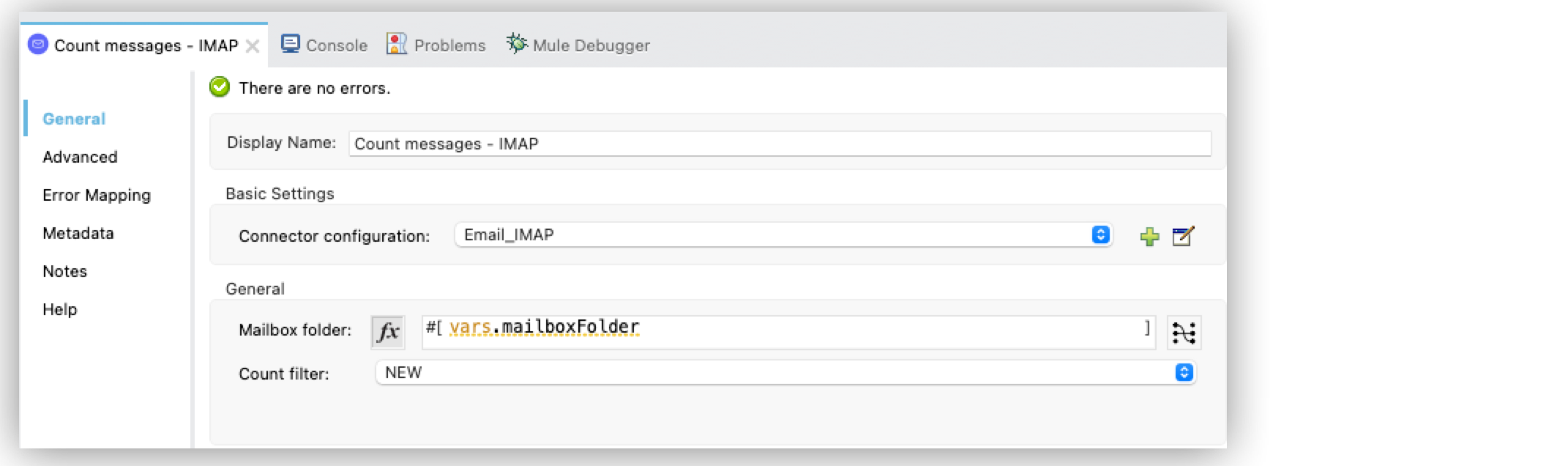
![「Count filter (計数検索条件)」 項目が 「NEW」 に設定されている Count messages - IMAP 操作の設定](/mulesoft/current/ja-jp/email-connector/1.7/_images/email-count-messages-imap.png)

**設定 XML**​ エディターでは、​`email:count-messages-imap`​ 設定は次のように記述されます。

```xml
<?xml version="1.0" encoding="UTF-8"?>

<mule xmlns:http="http://www.mulesoft.org/schema/mule/http" xmlns:file="http://www.mulesoft.org/schema/mule/file"
	xmlns:email="http://www.mulesoft.org/schema/mule/email"
	xmlns="http://www.mulesoft.org/schema/mule/core" xmlns:doc="http://www.mulesoft.org/schema/mule/documentation" xmlns:xsi="http://www.w3.org/2001/XMLSchema-instance" xsi:schemaLocation="http://www.mulesoft.org/schema/mule/core http://www.mulesoft.org/schema/mule/core/current/mule.xsd
http://www.mulesoft.org/schema/mule/email http://www.mulesoft.org/schema/mule/email/current/mule-email.xsd
http://www.mulesoft.org/schema/mule/file http://www.mulesoft.org/schema/mule/file/current/mule-file.xsd
http://www.mulesoft.org/schema/mule/http http://www.mulesoft.org/schema/mule/http/current/mule-http.xsd">
	<email:imap-config name="Email_IMAP"  >
		<email:imap-connection host="192.168.0.1" user="usertest" password="userpass" />
	</email:imap-config>
	<http:listener-config name="HTTP_Listener_config" >
		<http:listener-connection host="0.0.0.0" port="8081" />
	</http:listener-config>
	<flow name="email1Flow"  >
		<http:listener config-ref="HTTP_Listener_config" path="/count"/>
		<email:count-messages-imap doc:name="Count messages - IMAP" config-ref="Email_IMAP" mailboxFolder="#[vars.mailboxFolder]" countFilter="NEW"/>
	</flow>
</mule>
```

## [](#count-messages-pop3-操作の設定)Count Messages - POP3 操作の設定

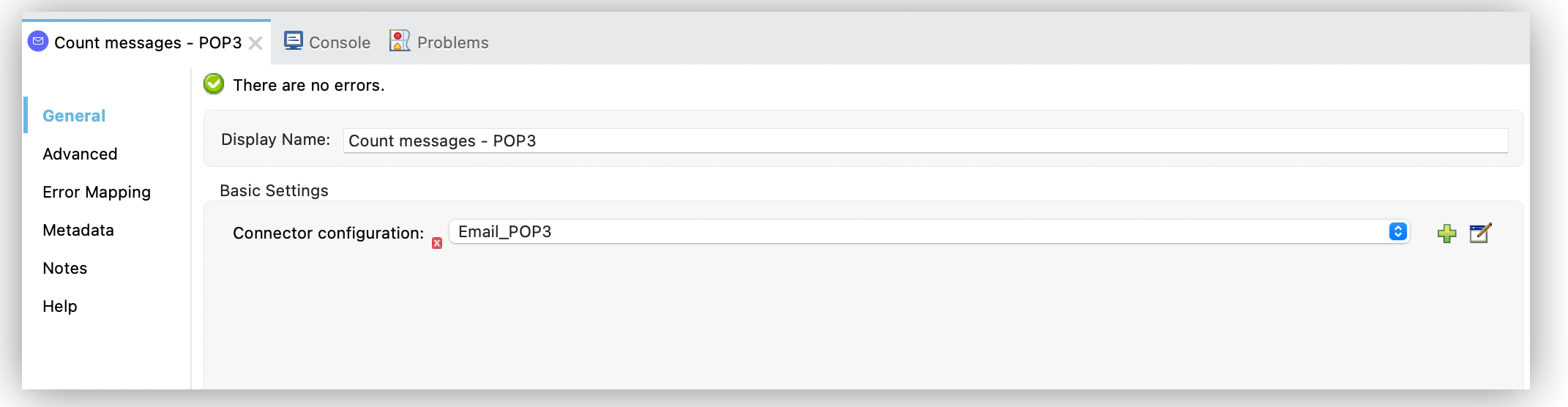
次の例は、​**Count messages - POP3**​ 操作を設定する方法を示しています。

1. Studio で新しい Mule プロジェクトを作成します。
2. HTTP ​**Listener**​ ソースをキャンバスにドラッグします。
3. **\[Listener\]**​ 設定画面で、​**\[Connector configuration (コネクタ設定)\]**​ 項目の横にあるプラス記号 (​**+**​) をクリックして、操作のグローバル要素を設定します。
4. 必要な HTTP ​**Listener**​ 接続項目を設定して、​**\[OK\]**​ をクリックします。
5. **\[Path (パス)\]**​ を ​`/count`​ に設定します。
6. **\[Count messages - POP3\]**​ 操作を HTTP ​**Listener**​ の右にドラッグします。
7. **\[Count messages - POP3\]**​ 設定画面で、​**\[Connector configuration (コネクタ設定)\]**​ 項目の横にあるプラス記号 (​**+**​) をクリックして、操作のグローバル要素を設定します。
8. 次の項目を設定します。
    
    - **Host (ホスト)**​: `192.168.0.1`
    - **User (ユーザー)**​: `usertest`
    - **Host (ホスト)**​: `userpass`

![Count messages - POP3 操作の設定](/mulesoft/current/ja-jp/email-connector/1.7/_images/email-count-messages-pop3.png)

**設定 XML**​ エディターでは、​`email:count-messages-pop3`​ 設定は次のように記述されます。

```xml
<?xml version="1.0" encoding="UTF-8"?>

<mule xmlns:db="http://www.mulesoft.org/schema/mule/db" xmlns:http="http://www.mulesoft.org/schema/mule/http"
	xmlns:file="http://www.mulesoft.org/schema/mule/file"
	xmlns:email="http://www.mulesoft.org/schema/mule/email" xmlns="http://www.mulesoft.org/schema/mule/core" xmlns:doc="http://www.mulesoft.org/schema/mule/documentation" xmlns:xsi="http://www.w3.org/2001/XMLSchema-instance" xsi:schemaLocation="http://www.mulesoft.org/schema/mule/core http://www.mulesoft.org/schema/mule/core/current/mule.xsd
http://www.mulesoft.org/schema/mule/email http://www.mulesoft.org/schema/mule/email/current/mule-email.xsd
http://www.mulesoft.org/schema/mule/file http://www.mulesoft.org/schema/mule/file/current/mule-file.xsd
http://www.mulesoft.org/schema/mule/http http://www.mulesoft.org/schema/mule/http/current/mule-http.xsd
http://www.mulesoft.org/schema/mule/db http://www.mulesoft.org/schema/mule/db/current/mule-db.xsd">

	<http:listener-config >
		<http:listener-connection host="0.0.0.0" port="8081" />
	</http:listener-config>
	<email:pop3-config name="Email_POP3" >
		<email:pop3-connection host="192.168.0.1" user="usertest" password="userpass" />
	</email:pop3-config>
	<flow name="email1Flow" >
		<http:listener config-ref="HTTP_Listener_config" path="/count"/>
		<email:count-messages-pop3 doc:name="Count messages - POP3" config-ref="Email_POP3"/>
	</flow>
</mule>
```

## [](#関連情報)関連情報

- [Anypoint Connector の概要](https://docs.mulesoft.com/connectors/introduction/introduction-to-anypoint-connectors)
- [Email Connector の例](https://docs.mulesoft.com/jp/email-connector/1.7/email-examples)
- [MuleSoft ヘルプセンター](https://help.mulesoft.com)