---
schema_version: "1"
id: 733527ccdc2a7b051a49b1d090a85ce31c078ad6fcf708341fbe4d48b6d18bf1
title: Commerce Cloud B2C Shop Connector 2.0 の例
collection: mulesoft
version: current
locale: ja-jp
portal_url: https://docs.salesforce.com/mulesoft/current/ja-jp/commerce-cloud-shop-api-connector/2.0/shop-api-connector-examples.md
canonical_url: https://docs.mulesoft.com/jp/commerce-cloud-shop-api-connector/2.0/shop-api-connector-examples
source_site: docs.mulesoft.com
content_type: documentation
content_hash: 5f251bf50d1140dbe38390f519e6cd358632d7b4a7a62feda911e31a79e55ec5
description: MuleSoft Documentation Site
release: "2.0"
latest: false
---
# Commerce Cloud B2C Shop Connector 2.0 の例

Commerce Cloud B2C Shop コネクタは、操作ベースのコネクタです。つまり、コネクタをフローに追加するときに、コネクタで実行する特定の操作を設定する必要があります。 Commerce Cloud B2C Shop コネクタでは、2 種類の設定がサポートされています。 この例では、顧客認証接続プロバイダー設定を使用します。 Get Customer 操作が正常に実行されると、顧客の結果を取得できます。

このユースケースでは、次の手順を実行する必要があります。

**Authorize Customer**

1. **Authorize Customer**​ 操作を実行して、Shopper JWT トークンを取得します。

1. Anypoint Studio (Studio) で新しい Mule アプリケーションを作成し、ポート 8081 を HTTP リスナーとして、パスを「/customer/shopper-customers/{version}/organizations/{organizationId}/customers/actions/login」として設定します。
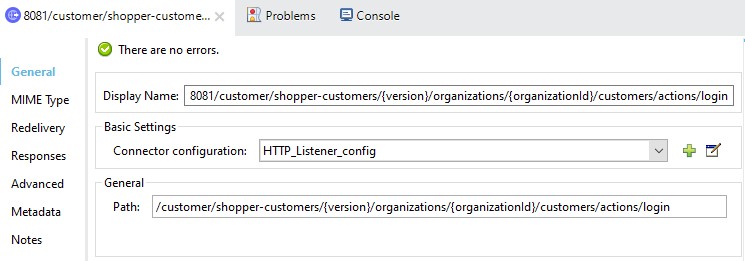
![shop connector authorize customer http listener config](/mulesoft/current/ja-jp/commerce-cloud-shop-api-connector/2.0/_images/shop-connector-authorize-customer-http-listener-config.jpg)

1. パレットからフローに操作「Authorize Customer」を追加します。
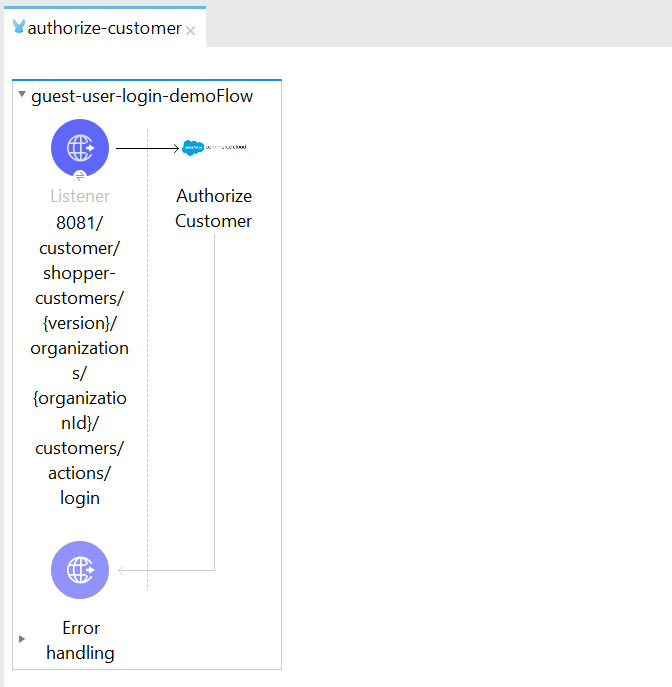
![shop connector authorize customer](/mulesoft/current/ja-jp/commerce-cloud-shop-api-connector/2.0/_images/shop-connector-authorize-customer.png)

1. postman から Authorize Customer 操作の必須パラメーターを取得します。
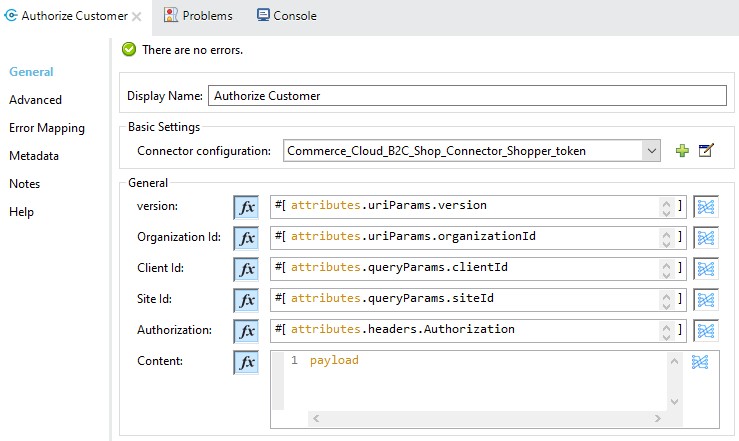
![shop connector authorize customer body](/mulesoft/current/ja-jp/commerce-cloud-shop-api-connector/2.0/_images/shop-connector-authorize-customer-body.jpg)

1. \[Commerce Cloud B2C Shop Connector (Commerce Cloud B2C Shop コネクタ)\] から \[Commerce Cloud B2C Shop Connector Shopper Token Config (Commerce Cloud B2C Shop コネクタの Shopper トークン設定)\] を選択し、必要な値で設定するか、緑のプラス記号 (+) をクリックして新しい設定を追加します。
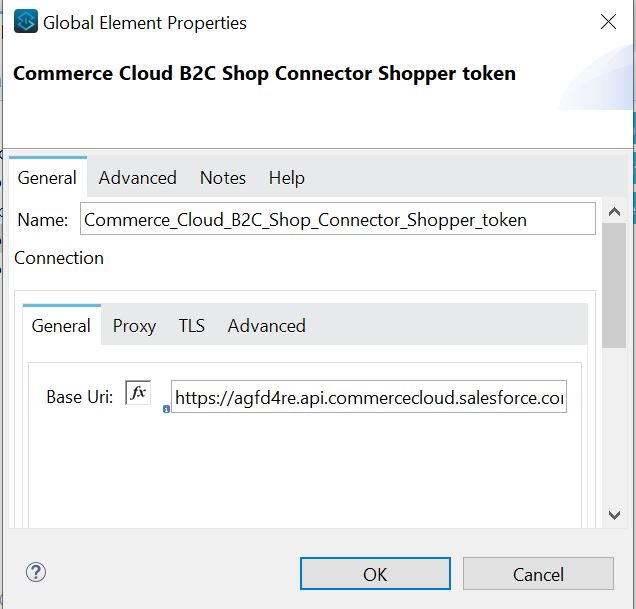
![shop connector shopper token config](/mulesoft/current/ja-jp/commerce-cloud-shop-api-connector/2.0/_images/shop-connector-shopper-token-config.jpg)

1. すべての必須パラメーターを入力したら、Mule プロジェクトを保存します。
2. Package Explorer でプロジェクト名を右クリックし、\[Run As (別のユーザーとして実行)\] > \[Mule Application (Mule アプリケーション)\] を選択して、プロジェクトを Mule アプリケーションとして実行します。
3. `http://localhost:8081/customer/shopper-customers/{version}/organizations/{organizationId}/customers/actions/login`​ に移動して Postman を開き、応答を確認します。
4. レスポンスヘッダーに JWT トークンが表示されます。 この JWT トークンを Postman から認証ヘッダーパラメーターとして指定して、操作を実行できます。

**Get Customer**

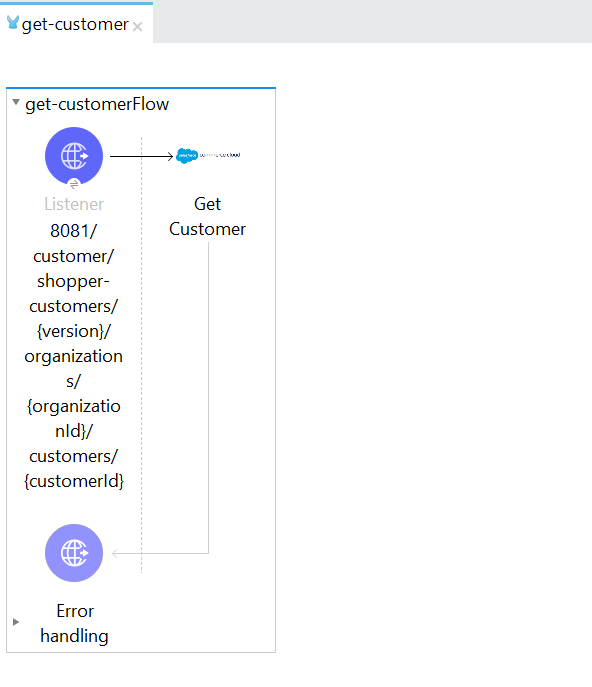
1. Anypoint Studio (Studio) で新しい Mule アプリケーションを作成し、ポート 8081 を HTTP リスナーとして、パスを「/customer/shopper-customers/{version}/organizations/{organizationId}/customers/{customerId}」として設定します。

![shop connector http listener config](/mulesoft/current/ja-jp/commerce-cloud-shop-api-connector/2.0/_images/shop-connector-http-listener-config.jpg)

1. パレットからフローに操作「Get Customer」を追加します。

![shop connector get customer flow](/mulesoft/current/ja-jp/commerce-cloud-shop-api-connector/2.0/_images/shop-connector-get-customer-flow.png)

1. postman から Get Customer 操作の必須パラメーターを取得します。
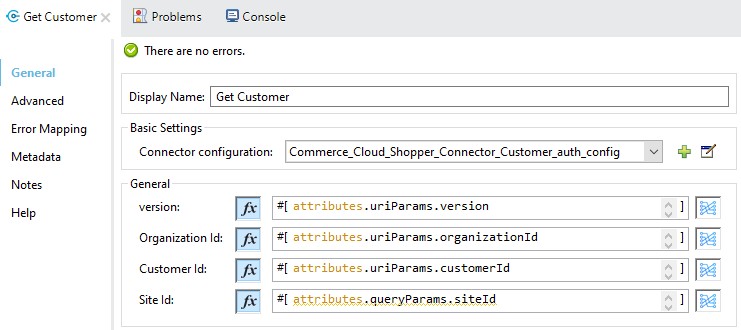
![shop connector get customer body](/mulesoft/current/ja-jp/commerce-cloud-shop-api-connector/2.0/_images/shop-connector-get-customer-body.jpg)

1. \[Commerce Cloud B2C Shop Connector (Commerce Cloud B2C Shop コネクタ)\] から \[Commerce Cloud B2C Shop Connector Config (Commerce Cloud B2C Shop コネクタ設定)\] を選択し、必要な値で設定するか、緑のプラス記号 (+) をクリックして新しい設定を追加します。
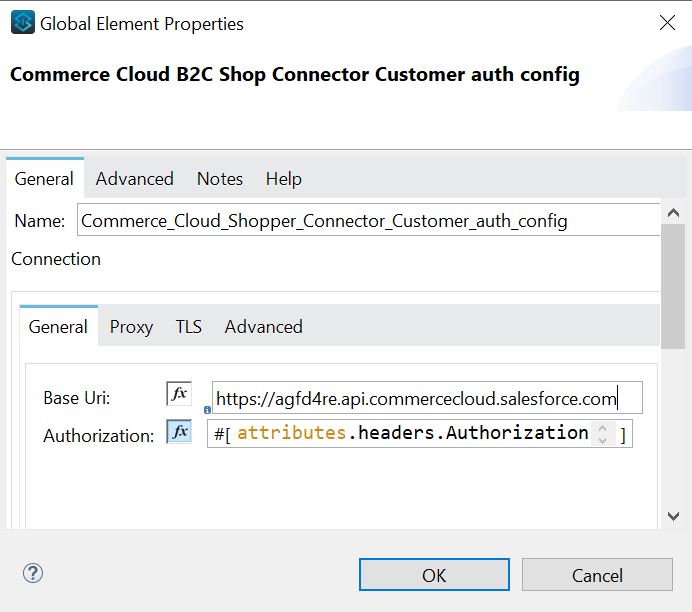
![shop connector customer auth config](/mulesoft/current/ja-jp/commerce-cloud-shop-api-connector/2.0/_images/shop-connector-customer-auth-config.jpg)

1. 上記の画像では、Authorize Customer の認証トークンが認証パラメーター値として使用されています。

1. すべての必須パラメーターを入力したら、Mule プロジェクトを保存します。
2. Package Explorer でプロジェクト名を右クリックし、\[Run As (別のユーザーとして実行)\] > \[Mule Application (Mule アプリケーション)\] を選択して、プロジェクトを Mule アプリケーションとして実行します。
3. `http://localhost:8081/customer/shopper-customers/{version}/organizations/{organizationId}/customers/{customerId}`​ に移動して Postman を開き、ヘッダーの Shopper JWT トークンを渡して、応答を確認します。
4. 出力に顧客の詳細が表示されます。

## [](#authorize-customer-の-xml)Authorize Customer の XML

この例のフローをすばやく Mule アプリケーションに読み込むには、次のコードを Studio XML エディターに貼り付けます。

```xml
<?xml version="1.0" encoding="UTF-8"?>

<mule xmlns:commerce-cloud-shopper-api="http://www.mulesoft.org/schema/mule/commerce-cloud-shopper-api"
	xmlns:http="http://www.mulesoft.org/schema/mule/http"
	xmlns:commerce-cloud-shopperapi="http://www.mulesoft.org/schema/mule/commerce-cloud-shopperapi"
	xmlns="http://www.mulesoft.org/schema/mule/core" xmlns:doc="http://www.mulesoft.org/schema/mule/documentation"
	xmlns:xsi="http://www.w3.org/2001/XMLSchema-instance"
	xsi:schemaLocation="
http://www.mulesoft.org/schema/mule/http http://www.mulesoft.org/schema/mule/http/current/mule-http.xsd http://www.mulesoft.org/schema/mule/core http://www.mulesoft.org/schema/mule/core/current/mule.xsd
http://www.mulesoft.org/schema/mule/commerce-cloud-shopperapi http://www.mulesoft.org/schema/mule/commerce-cloud-shopperapi/current/mule-commerce-cloud-shopperapi.xsd
http://www.mulesoft.org/schema/mule/commerce-cloud-shopper-api http://www.mulesoft.org/schema/mule/commerce-cloud-shopper-api/current/mule-commerce-cloud-shopper-api.xsd">
	<flow name="guest-user-login-demoFlow">
		<http:listener
			doc:name="8081/customer/shopper-customers/{version}/organizations/{organizationId}/customers/actions/login"
			config-ref="HTTP_Listener_config"
			path="/customer/shopper-customers/{version}/organizations/{organizationId}/customers/actions/login"
			allowedMethods="POST">
			<http:response>
				<http:headers><![CDATA[#[output application/java
---
{
"Authorization" : message.attributes.headers.Authorization }]]]></http:headers>

			</http:response>
			<http:error-response statusCode="#[error.errorMessage.attributes.statusCode]">
				<http:body><![CDATA[#[output text/json --- error.errorMessage.payload]]]></http:body>

			</http:error-response>
		</http:listener>
		<commerce-cloud-shopper-api:create-customer-shopper-customers-organizations-customers-actions-login-by-version-organization-id
			doc:name="Authorize Customer"
			version="#[attributes.uriParams.version]"
			organizationId="#[attributes.uriParams.organizationId]" clientId="#[attributes.queryParams.clientId]"
			siteId="#[attributes.queryParams.siteId]" authorization="#[attributes.headers.Authorization]" config-ref="Commerce_Cloud_B2C_Shop_Connector_Shopper_token"/>

	</flow>
</mule>
```

## [](#authorize-customer-のステップ)Authorize Customer のステップ

1. 新しい Mule アプリケーションを作成します。
2. キャンバスの下部にある \[Configuration XML (設定 XML)\] タブをクリックします。
3. 上記のコードをコピーして貼り付けます。
4. プロジェクトを保存します。
5. Package Explorer でプロジェクト名を右クリックし、\[Run As (別のユーザーとして実行)\] > \[Mule Application (Mule アプリケーション)\] を選択して、プロジェクトを Mule アプリケーションとして実行します。
6. `http://localhost:8081/customer/shopper-customers/{version}/organizations/{organizationId}/customers/actions/login`​ に移動して Postman を開き、応答を確認します。
7. レスポンスヘッダーに JWT トークンが表示されます。この JWT トークンを Postman から認証ヘッダーパラメーターとして指定して、操作を実行できます。

## [](#get-customer-の-xml)Get Customer の XML

この例のフローをすばやく Mule アプリケーションに読み込むには、次のコードを Studio XML エディターに貼り付けます。

```xml
xml <?xml version="1.0" encoding="UTF-8"?>

<mule xmlns:commerce-cloud-shopper-api="http://www.mulesoft.org/schema/mule/commerce-cloud-shopper-api"
xmlns:http="http://www.mulesoft.org/schema/mule/http" xmlns="http://www.mulesoft.org/schema/mule/core"
xmlns:doc="http://www.mulesoft.org/schema/mule/documentation"
xmlns:xsi="http://www.w3.org/2001/XMLSchema-instance"
xsi:schemaLocation="http://www.mulesoft.org/schema/mule/core http://www.mulesoft.org/schema/mule/core/current/mule.xsd
http://www.mulesoft.org/schema/mule/http http://www.mulesoft.org/schema/mule/http/current/mule-http.xsd
http://www.mulesoft.org/schema/mule/commerce-cloud-shopper-api http://www.mulesoft.org/schema/mule/commerce-cloud-shopper-api/current/mule-commerce-cloud-shopper-api.xsd">
<flow name="get-customerFlow"> <http:listener doc:name="8081/customer/shopper-customers/{version}/organizations/{organizationId}/customers/{customerId}" config-ref="HTTP_Listener_config" path="/customer/shopper-customers/{version}/organizations/{organizationId}/customers/{customerId}" allowedMethods="GET"> <http:error-response statusCode="#[error.errorMessage.attributes.statusCode]"> <http:body><![CDATA[#[output text/json --- error.errorMessage.payload]]]></http:body>

			</http:error-response>
		</http:listener>
		<commerce-cloud-shopper-api:get-customer-shopper-customers-organizations-customers-by-version-organization-id-customer-id
			doc:name="Get Customer"
			config-ref="Commerce_Cloud_Shopper_Connector_Customer_auth_config"
			version="#[attributes.uriParams.version]" organizationId="#[attributes.uriParams.organizationId]"
			customerId="#[attributes.uriParams.customerId]" siteId="#[attributes.queryParams.siteId]" />
	</flow>
</mule>
```

## [](#get-customer-のステップ)Get Customer のステップ

1. 新しい Mule アプリケーションを作成します。
2. キャンバスの下部にある \[Configuration XML (設定 XML)\] タブをクリックします。
3. 上記のコードをコピーして貼り付けます。
4. プロジェクトを保存します。
5. Package Explorer でプロジェクト名を右クリックし、\[Run As (別のユーザーとして実行)\] > \[Mule Application (Mule アプリケーション)\] を選択して、プロジェクトを Mule アプリケーションとして実行します。
6. `http://localhost:8081/customer/shopper-customers/{version}/organizations/{organizationId}/customers/{customerId}`​ に移動して Postman を開き、ヘッダーの Shopper JWT トークンを渡して、応答を確認します。
7. 出力に顧客の詳細が表示されます。

## [](#関連情報)関連情報

- [Anypoint Connector の概要](https://docs.mulesoft.com/connectors/introduction/introduction-to-anypoint-connectors)
- [MuleSoft ヘルプセンター](https://help.mulesoft.com)